SKYPINE ELECTRONICS SN6805AC Car multimedia system User Manual C8 Camry Corolla

SKYPINE ELECTRONICS (SHEN ZHEN) CO., LTD. Car multimedia system C8 Camry Corolla

User Manual

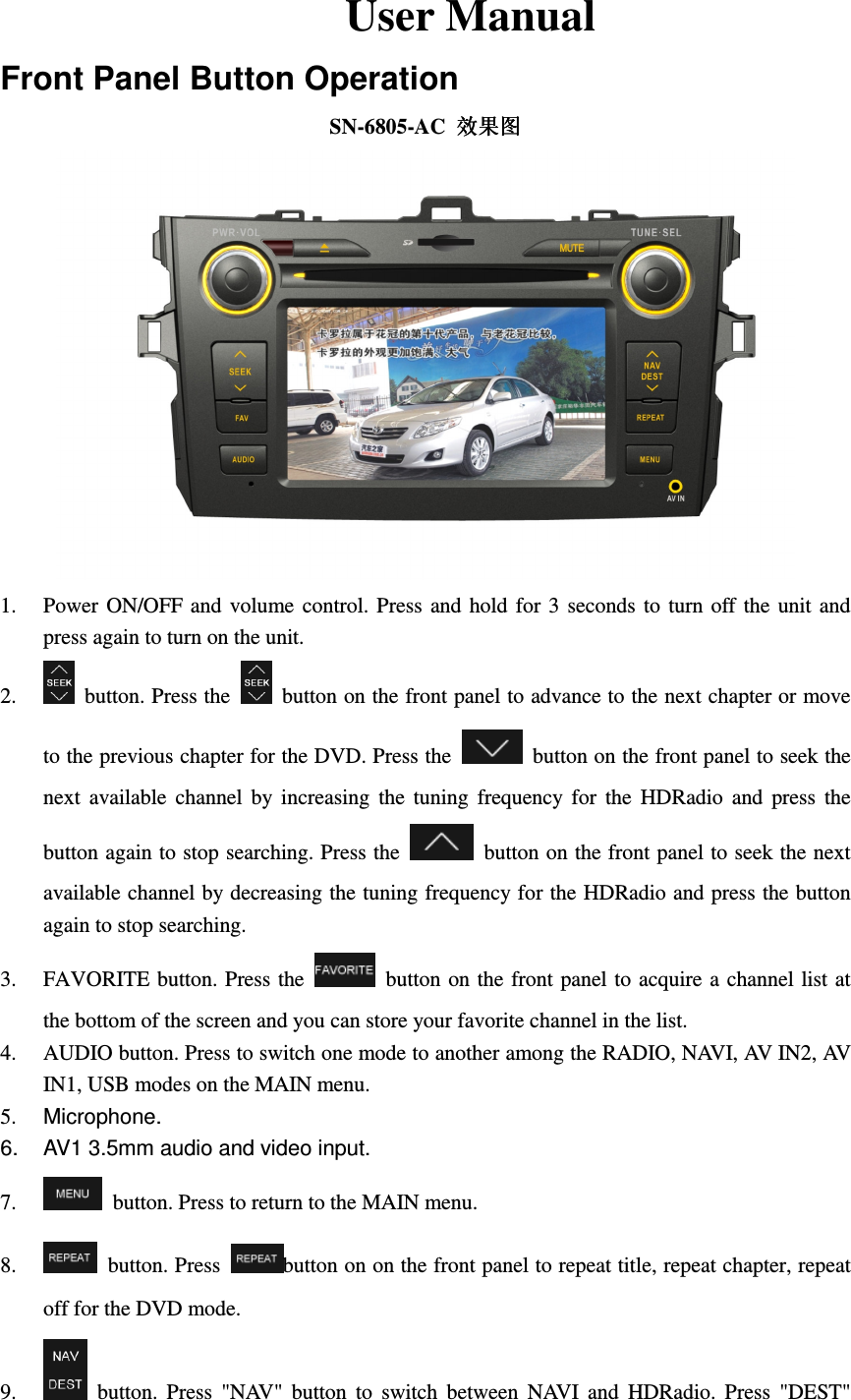
    User Manual Front Panel Button Operation SN-6805-AC  效果图效果图效果图效果图  1. Power  ON/OFF  and  volume  control.  Press  and  hold  for 3  seconds to turn off  the  unit  and press again to turn on the unit. 2.   button. Press the    button on the front panel to advance to the next chapter or move to the previous chapter for the DVD. Press the    button on the front panel to seek the next  available  channel  by  increasing  the  tuning  frequency  for  the  HDRadio  and  press  the button again to stop searching. Press the    button on the front panel to seek the next available channel by decreasing the tuning frequency for the HDRadio and press the button again to stop searching. 3. FAVORITE button. Press the    button on the front panel  to acquire a  channel list at the bottom of the screen and you can store your favorite channel in the list.   4. AUDIO button. Press to switch one mode to another among the RADIO, NAVI, AV IN2, AV IN1, USB modes on the MAIN menu.   5.  Microphone. 6.  AV1 3.5mm audio and video input. 7.   button. Press to return to the MAIN menu. 8.   button. Press  button on on the front panel to repeat title, repeat chapter, repeat off for the DVD mode. 9.   button.  Press  "NAV"  button  to  switch  between  NAVI  and  HDRadio.  Press  "DEST"
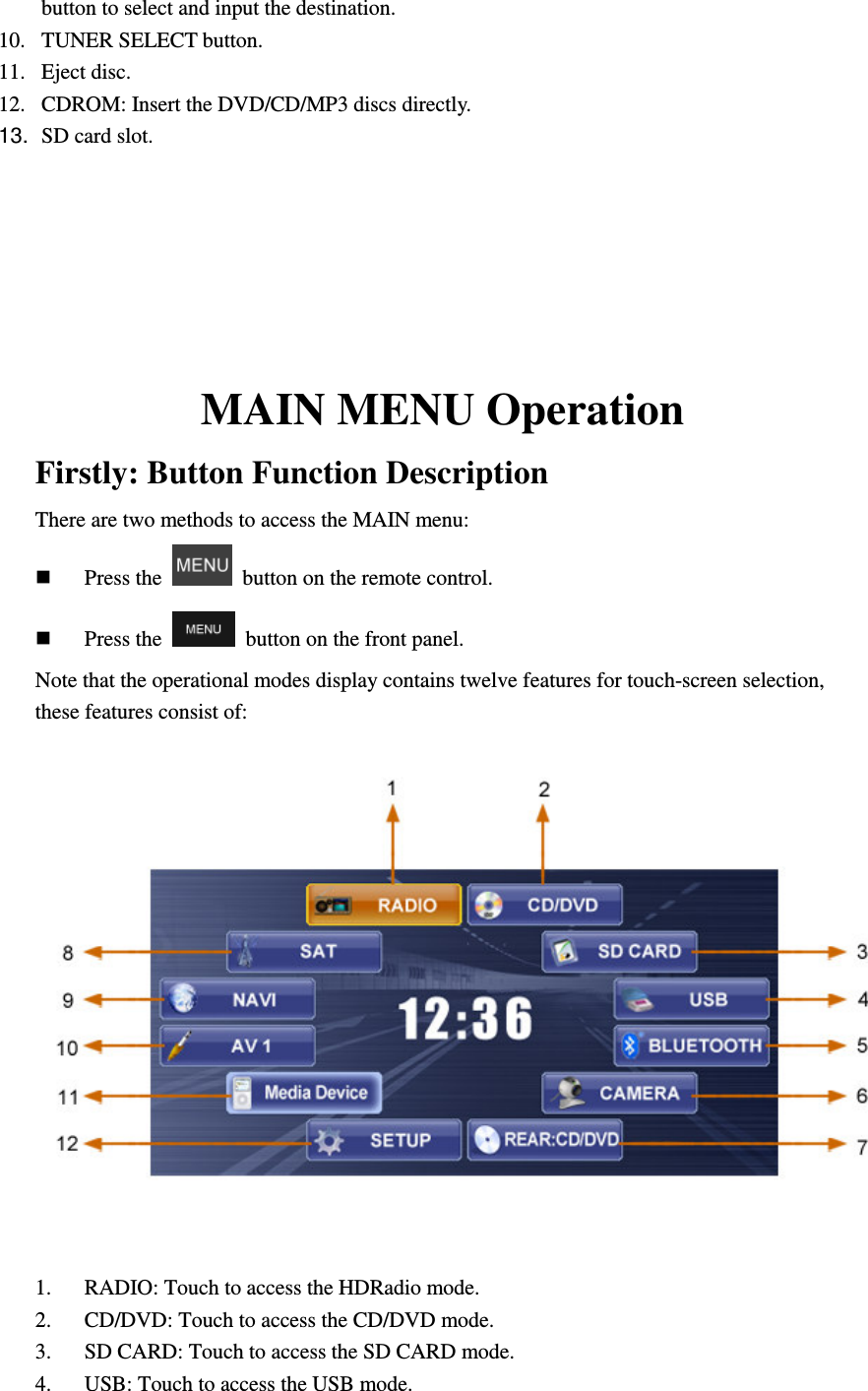
button to select and input the destination.     10. TUNER SELECT button. 11. Eject disc. 12. CDROM: Insert the DVD/CD/MP3 discs directly. 13.  SD card slot.     MAIN MENU Operation  Firstly: Button Function Description There are two methods to access the MAIN menu:  Press the    button on the remote control.  Press the    button on the front panel. Note that the operational modes display contains twelve features for touch-screen selection, these features consist of:  1. RADIO: Touch to access the HDRadio mode. 2. CD/DVD: Touch to access the CD/DVD mode. 3. SD CARD: Touch to access the SD CARD mode. 4. USB: Touch to access the USB mode.
5. BLUETOOTH: Touch to access the BLUETOOTH mode. 6. CAMERA: Touch to access the CAMERA mode. 7. REAR:CD/DVD: Touch to access the REAR:CD/DVD mode. 8. SAT: Touch to access the SAT mode. 9. NAVI: Touch to access the NAVI mode. 10. AV 1: Touch to access the AV 1 mode. 11. AV 2: Touch to access the AV 2 mode. 12. SETUP: Touch to access the SETUP mode.     Here we give a table of the description for summary. Icon/Button  Touch the button icon to...  access the Radio mode.  access the CD/DVD mode.  access the SD CARD mode.  access the USB mode.  access the BLUETOOTH mode.  access the CAMERA mode.  access the REAR:CD/DVD mode.  access the SETUP mode.  access the AV 2 mode.  access the AV 1 mode.  access the NAVI mode.  access the SAT mode.
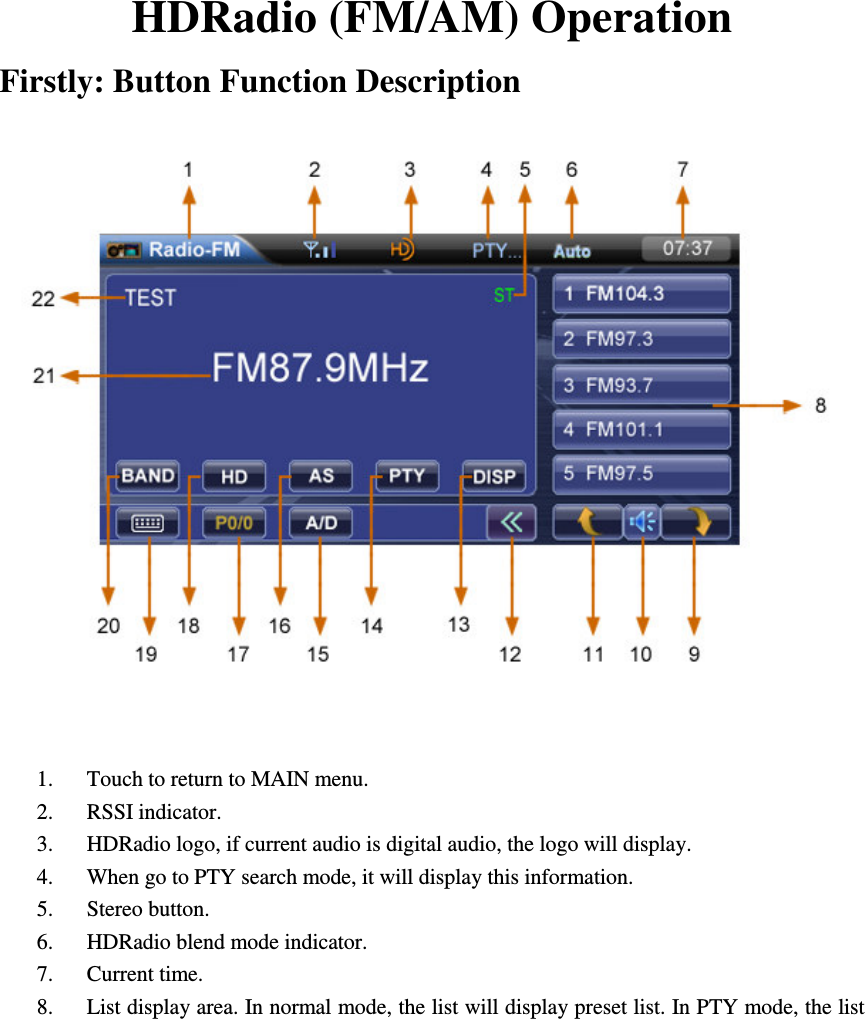
      HDRadio (FM/AM) Operation Firstly: Button Function Description     1. Touch to return to MAIN menu. 2. RSSI indicator. 3. HDRadio logo, if current audio is digital audio, the logo will display. 4. When go to PTY search mode, it will display this information.                                   5. Stereo button.                   6. HDRadio blend mode indicator. 7. Current time. 8. List display area. In normal mode, the list will display preset list. In PTY mode, the list
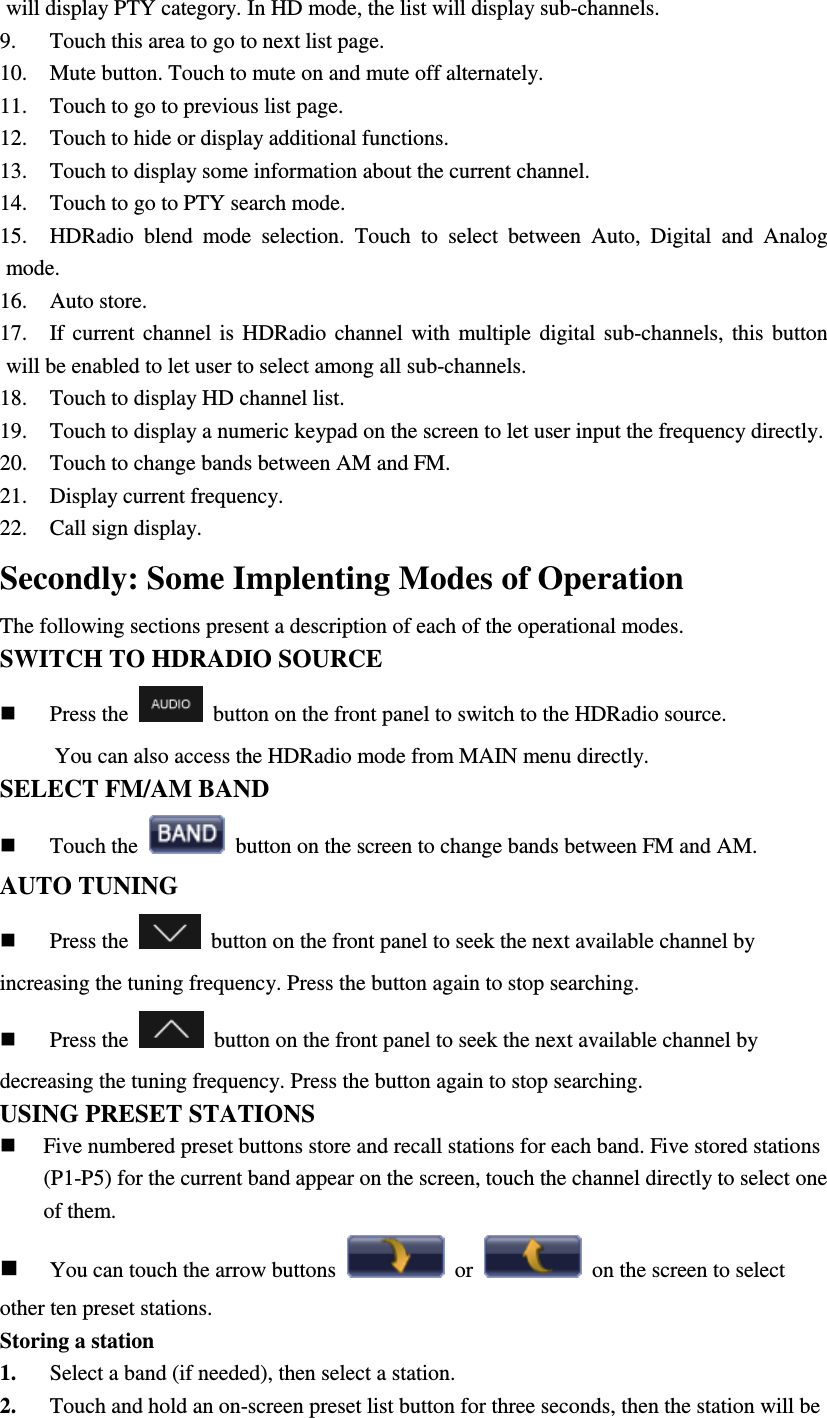
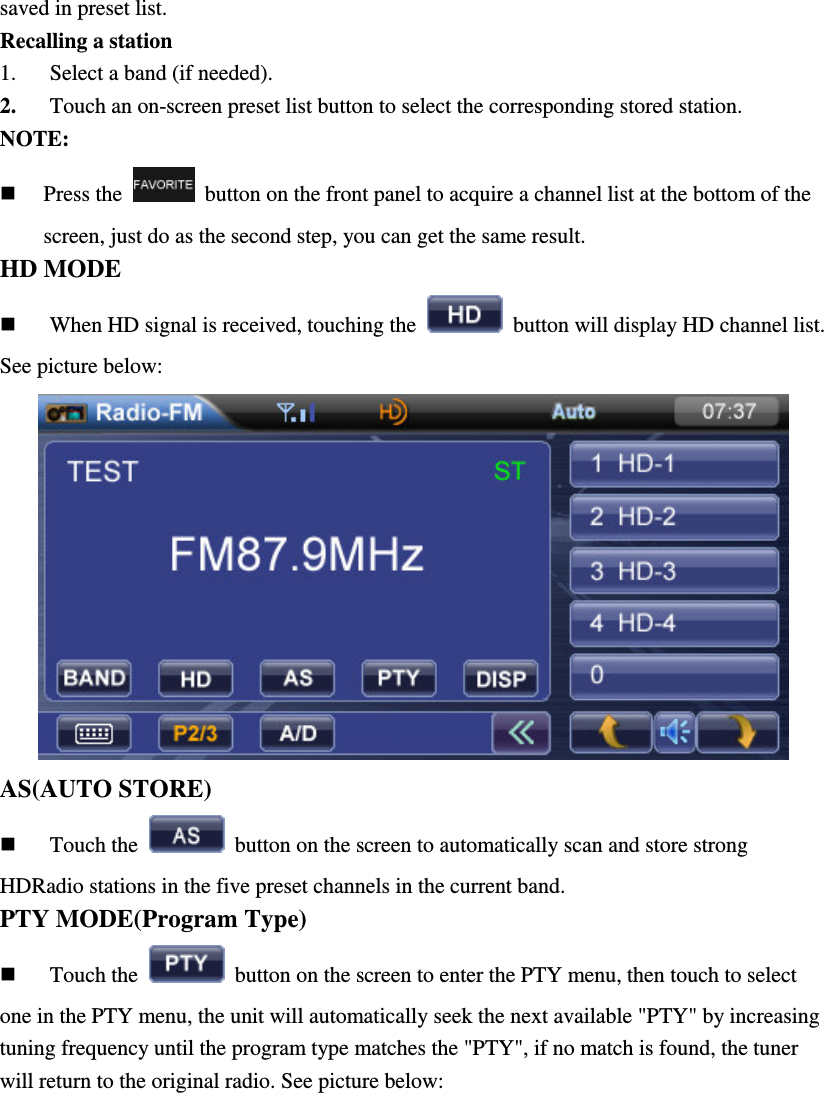
will display PTY category. In HD mode, the list will display sub-channels. 9. Touch this area to go to next list page. 10. Mute button. Touch to mute on and mute off alternately. 11. Touch to go to previous list page. 12. Touch to hide or display additional functions. 13. Touch to display some information about the current channel. 14. Touch to go to PTY search mode. 15. HDRadio  blend  mode  selection.  Touch  to  select  between  Auto,  Digital  and  Analog mode. 16. Auto store. 17. If  current  channel  is  HDRadio  channel  with  multiple  digital  sub-channels,  this  button will be enabled to let user to select among all sub-channels. 18. Touch to display HD channel list. 19. Touch to display a numeric keypad on the screen to let user input the frequency directly. 20. Touch to change bands between AM and FM. 21. Display current frequency. 22. Call sign display.   Secondly: Some Implenting Modes of Operation The following sections present a description of each of the operational modes. SWITCH TO HDRADIO SOURCE  Press the    button on the front panel to switch to the HDRadio source.             You can also access the HDRadio mode from MAIN menu directly. SELECT FM/AM BAND    Touch the    button on the screen to change bands between FM and AM. AUTO TUNING  Press the    button on the front panel to seek the next available channel by increasing the tuning frequency. Press the button again to stop searching.  Press the    button on the front panel to seek the next available channel by decreasing the tuning frequency. Press the button again to stop searching. USING PRESET STATIONS  Five numbered preset buttons store and recall stations for each band. Five stored stations (P1-P5) for the current band appear on the screen, touch the channel directly to select one of them.  You can touch the arrow buttons    or    on the screen to select other ten preset stations. Storing a station 1. Select a band (if needed), then select a station. 2. Touch and hold an on-screen preset list button for three seconds, then the station will be
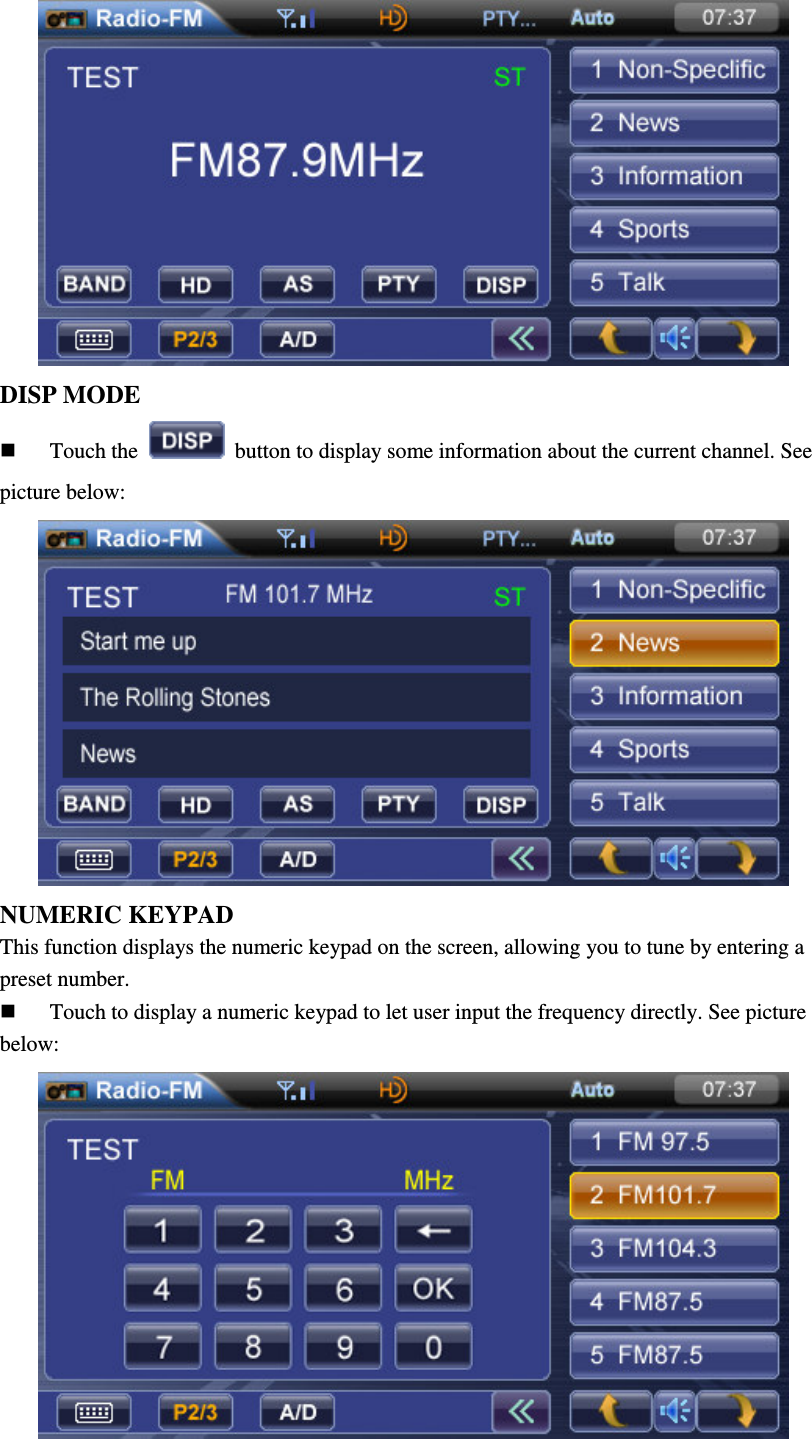
saved in preset list. Recalling a station 1. Select a band (if needed). 2. Touch an on-screen preset list button to select the corresponding stored station. NOTE:    Press the    button on the front panel to acquire a channel list at the bottom of the screen, just do as the second step, you can get the same result. HD MODE     When HD signal is received, touching the    button will display HD channel list. See picture below:  AS(AUTO STORE)  Touch the    button on the screen to automatically scan and store strong HDRadio stations in the five preset channels in the current band. PTY MODE(Program Type)  Touch the    button on the screen to enter the PTY menu, then touch to select one in the PTY menu, the unit will automatically seek the next available "PTY" by increasing tuning frequency until the program type matches the "PTY", if no match is found, the tuner will return to the original radio. See picture below:
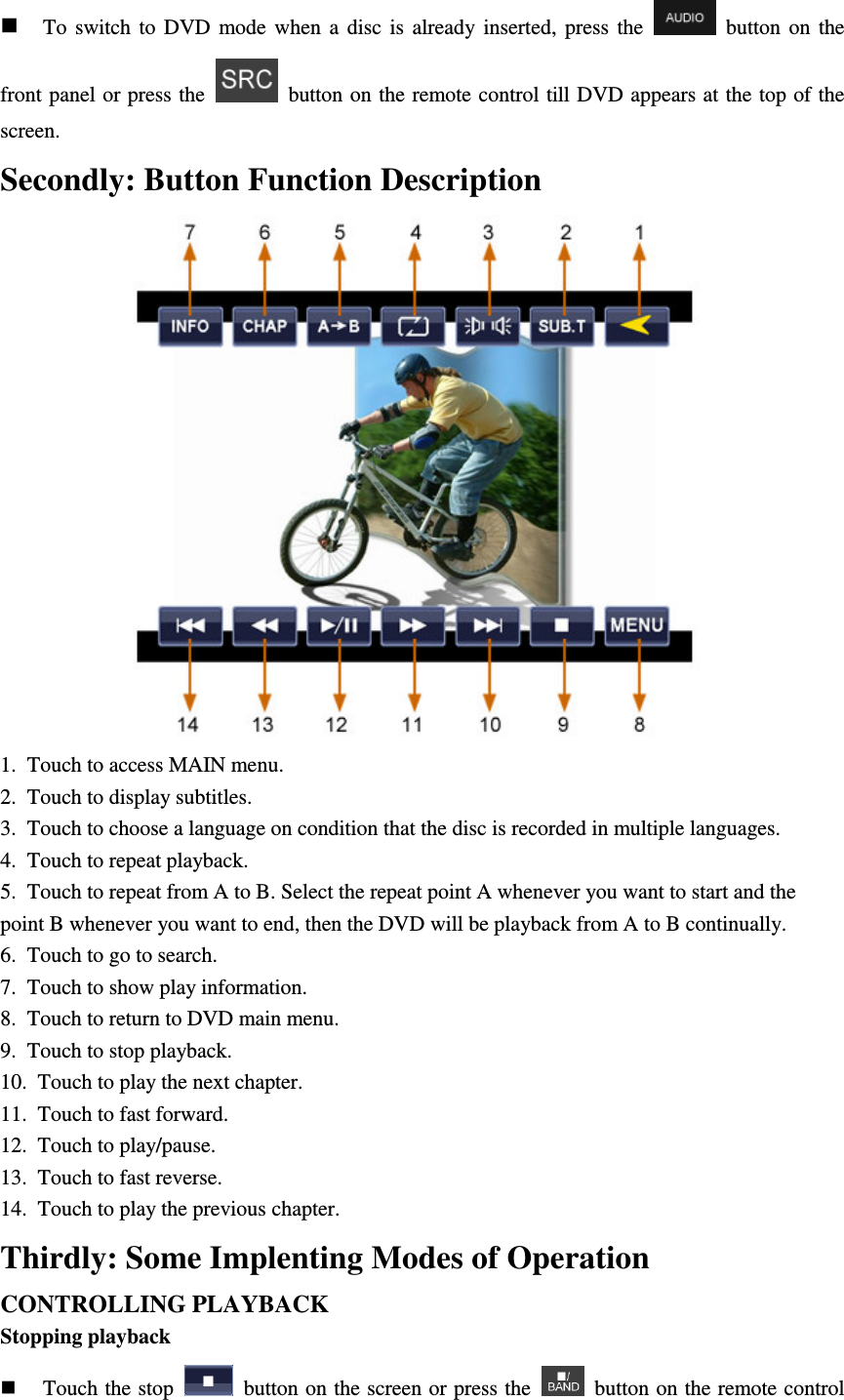
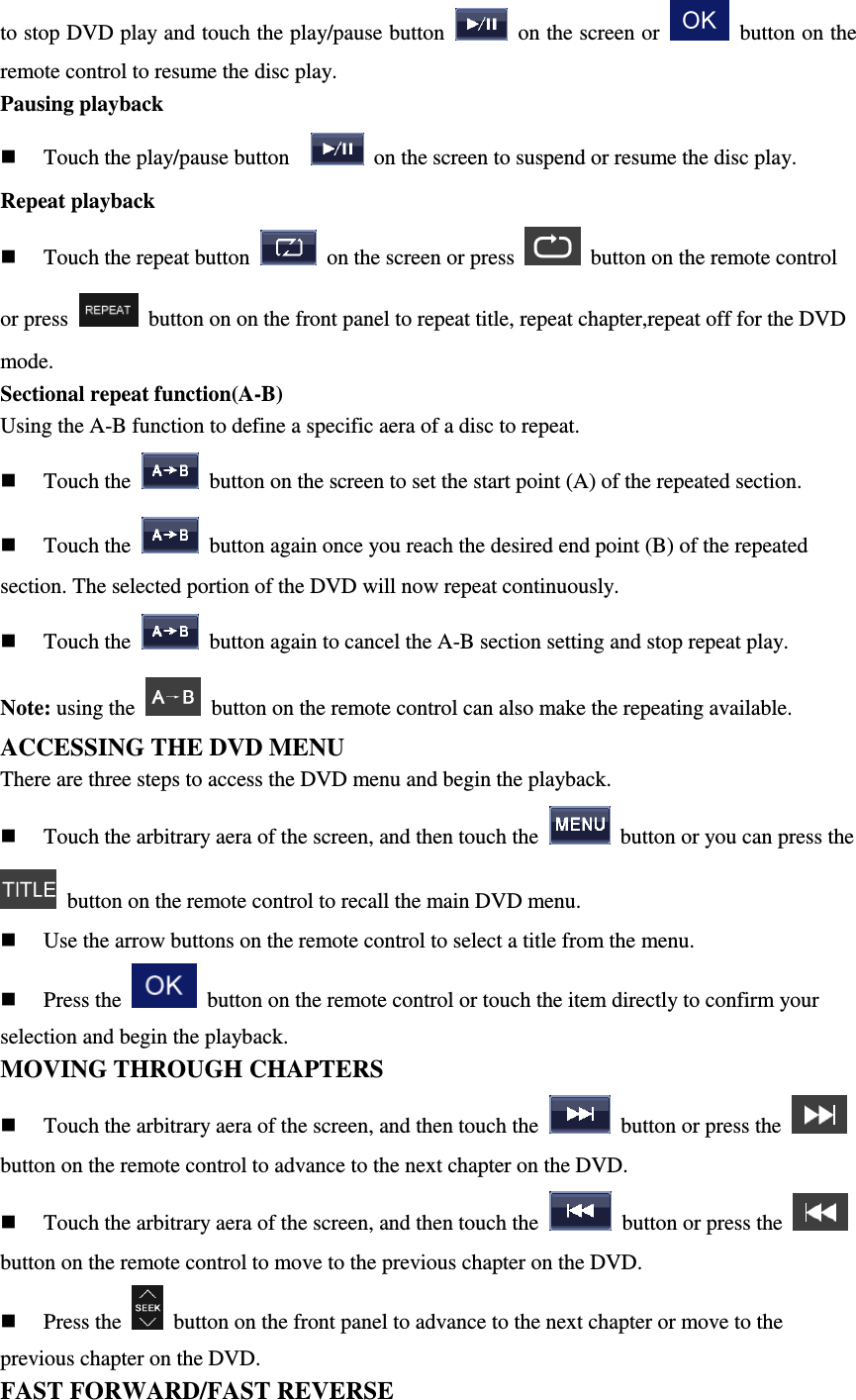
 DISP MODE    Touch the    button to display some information about the current channel. See picture below:  NUMERIC KEYPAD This function displays the numeric keypad on the screen, allowing you to tune by entering a preset number.    Touch to display a numeric keypad to let user input the frequency directly. See picture below:
 Touch the    to    key corressponding with the preset you desired, when you input the wrong number, touch the    key to delet the wrong number.  Touch the    key to turn in to the entered preset.      DVD Player Operation Firstly: Basic knowledge about disc NOTE:When properly installed, DVD video cannot be displayed on the main TFT screen unless the parking brake is applied. If you attempt to play a DVD while the vehicle is moving, the TFT screen displays caution information with a blue background. Rear video screens, if applicable, will operate normally. OPENING/CLOSING THE TFT VIDEO SCREEN Opening the TFT screen  Press the    button on the remote control to open the TFT video screen. Closing the TFT screen  Press the    button on the remote control again to close the TFT video screen. INSERT/EJECT DISC Inserting a disc  When inserting a DVD disc, DVD mode is entered and the playback begins.  Note: you cannot insert a disc if there is already a disc in the unit or if the power is off.  CD-R/RW, DVD-R/RW, DVD+R/RW will not play unless the recording session is closed. Ejecting a disc  Press the    button on the front panel to eject the disc. The unit automatically reverts to the tuner mode. RESET THE LOADING MECHANISM  If the disc loads abnormally or dose not play properly, press and hold the    button on the front panel to reset the loading mechanism. The disc is ejected and normal operation resumes. ACCESSING DVD MODE
 To  switch  to  DVD  mode  when  a  disc  is  already  inserted,  press  the    button on  the front panel or press the    button on the remote control till DVD appears at the top of the screen. Secondly: Button Function Description  1.  Touch to access MAIN menu. 2.  Touch to display subtitles. 3.  Touch to choose a language on condition that the disc is recorded in multiple languages. 4.  Touch to repeat playback. 5.  Touch to repeat from A to B. Select the repeat point A whenever you want to start and the point B whenever you want to end, then the DVD will be playback from A to B continually. 6.  Touch to go to search. 7.  Touch to show play information. 8.  Touch to return to DVD main menu.   9.  Touch to stop playback. 10.  Touch to play the next chapter. 11.  Touch to fast forward. 12.  Touch to play/pause. 13.  Touch to fast reverse. 14.  Touch to play the previous chapter. Thirdly: Some Implenting Modes of Operation CONTROLLING PLAYBACK Stopping playback  Touch the stop    button on the screen or press the    button on the remote control
to stop DVD play and touch the play/pause button    on the screen or    button on the remote control to resume the disc play. Pausing playback  Touch the play/pause button      on the screen to suspend or resume the disc play. Repeat playback  Touch the repeat button    on the screen or press    button on the remote control or press    button on on the front panel to repeat title, repeat chapter,repeat off for the DVD mode. Sectional repeat function(A-B) Using the A-B function to define a specific aera of a disc to repeat.  Touch the    button on the screen to set the start point (A) of the repeated section.  Touch the    button again once you reach the desired end point (B) of the repeated section. The selected portion of the DVD will now repeat continuously.  Touch the    button again to cancel the A-B section setting and stop repeat play. Note: using the   button on the remote control can also make the repeating available. ACCESSING THE DVD MENU There are three steps to access the DVD menu and begin the playback.  Touch the arbitrary aera of the screen, and then touch the    button or you can press the   button on the remote control to recall the main DVD menu.  Use the arrow buttons on the remote control to select a title from the menu.  Press the    button on the remote control or touch the item directly to confirm your selection and begin the playback. MOVING THROUGH CHAPTERS  Touch the arbitrary aera of the screen, and then touch the    button or press the   button on the remote control to advance to the next chapter on the DVD.  Touch the arbitrary aera of the screen, and then touch the    button or press the   button on the remote control to move to the previous chapter on the DVD.  Press the    button on the front panel to advance to the next chapter or move to the previous chapter on the DVD. FAST FORWARD/FAST REVERSE
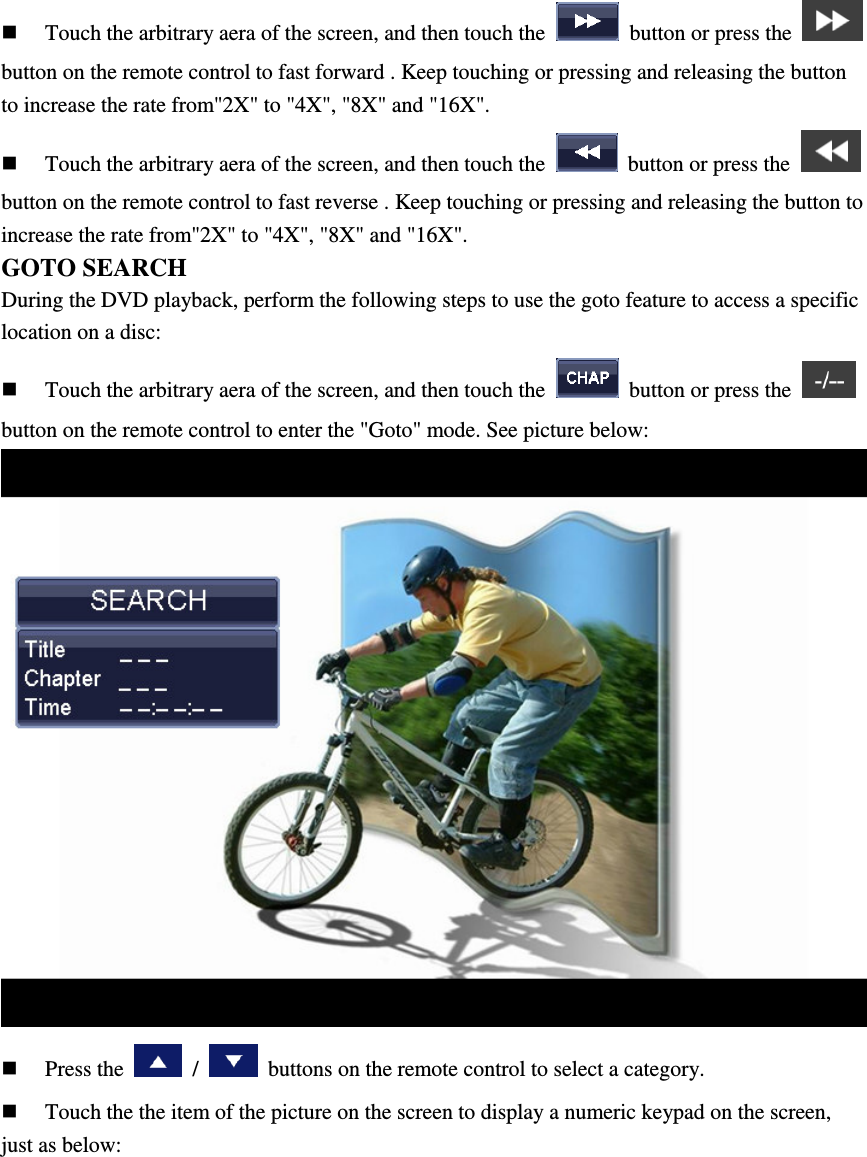
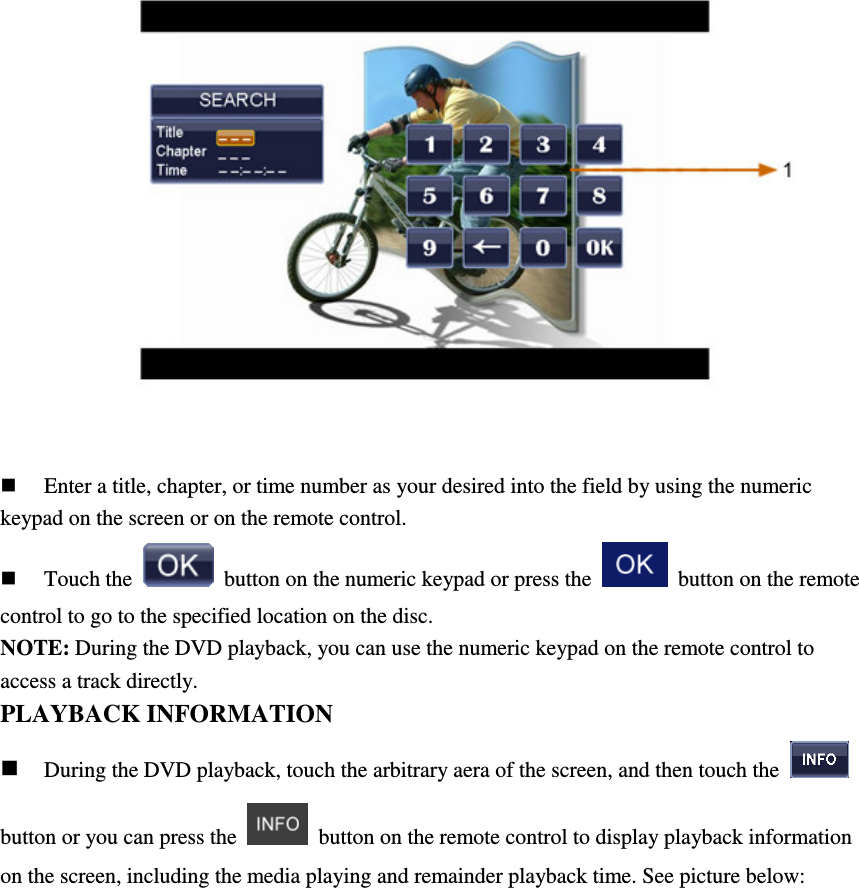
 Touch the arbitrary aera of the screen, and then touch the    button or press the   button on the remote control to fast forward . Keep touching or pressing and releasing the button to increase the rate from"2X" to "4X", "8X" and "16X".  Touch the arbitrary aera of the screen, and then touch the    button or press the   button on the remote control to fast reverse . Keep touching or pressing and releasing the button to increase the rate from"2X" to "4X", "8X" and "16X". GOTO SEARCH During the DVD playback, perform the following steps to use the goto feature to access a specific location on a disc:  Touch the arbitrary aera of the screen, and then touch the    button or press the   button on the remote control to enter the "Goto" mode. See picture below:   Press the    /    buttons on the remote control to select a category.  Touch the the item of the picture on the screen to display a numeric keypad on the screen, just as below:
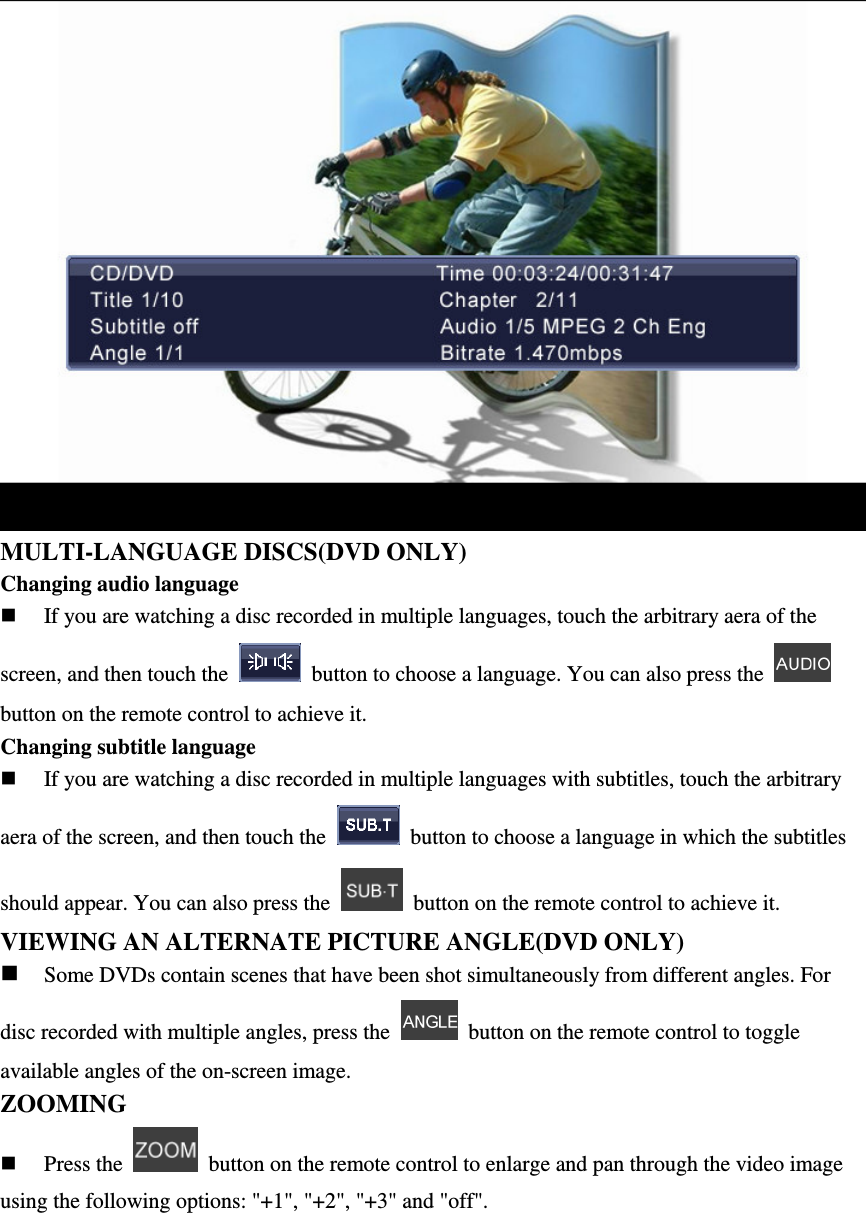
  Enter a title, chapter, or time number as your desired into the field by using the numeric keypad on the screen or on the remote control.  Touch the    button on the numeric keypad or press the    button on the remote control to go to the specified location on the disc. NOTE: During the DVD playback, you can use the numeric keypad on the remote control to access a track directly. PLAYBACK INFORMATION  During the DVD playback, touch the arbitrary aera of the screen, and then touch the   button or you can press the    button on the remote control to display playback information on the screen, including the media playing and remainder playback time. See picture below:
 MULTI-LANGUAGE DISCS(DVD ONLY) Changing audio language  If you are watching a disc recorded in multiple languages, touch the arbitrary aera of the screen, and then touch the    button to choose a language. You can also press the   button on the remote control to achieve it. Changing subtitle language  If you are watching a disc recorded in multiple languages with subtitles, touch the arbitrary aera of the screen, and then touch the    button to choose a language in which the subtitles should appear. You can also press the    button on the remote control to achieve it. VIEWING AN ALTERNATE PICTURE ANGLE(DVD ONLY)  Some DVDs contain scenes that have been shot simultaneously from different angles. For disc recorded with multiple angles, press the    button on the remote control to toggle available angles of the on-screen image. ZOOMING    Press the    button on the remote control to enlarge and pan through the video image using the following options: "+1", "+2", "+3" and "off".
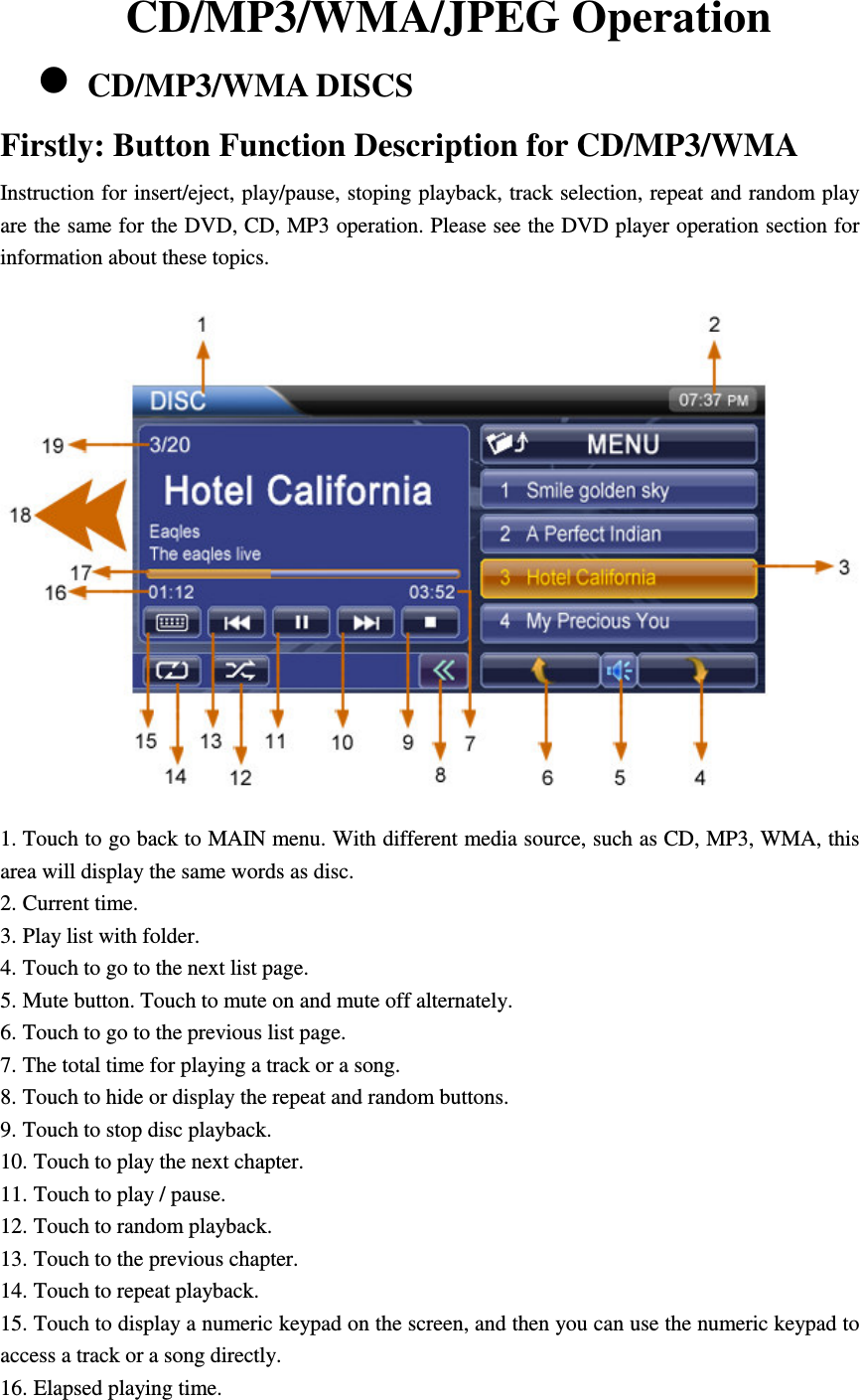
CD/MP3/WMA/JPEG Operation  CD/MP3/WMA DISCS Firstly: Button Function Description for CD/MP3/WMA Instruction for insert/eject, play/pause, stoping playback, track selection, repeat and random play are the same for the DVD, CD, MP3 operation. Please see the DVD player operation section for information about these topics.  1. Touch to go back to MAIN menu. With different media source, such as CD, MP3, WMA, this area will display the same words as disc. 2. Current time. 3. Play list with folder. 4. Touch to go to the next list page. 5. Mute button. Touch to mute on and mute off alternately. 6. Touch to go to the previous list page. 7. The total time for playing a track or a song. 8. Touch to hide or display the repeat and random buttons. 9. Touch to stop disc playback. 10. Touch to play the next chapter. 11. Touch to play / pause. 12. Touch to random playback. 13. Touch to the previous chapter. 14. Touch to repeat playback. 15. Touch to display a numeric keypad on the screen, and then you can use the numeric keypad to access a track or a song directly. 16. Elapsed playing time.
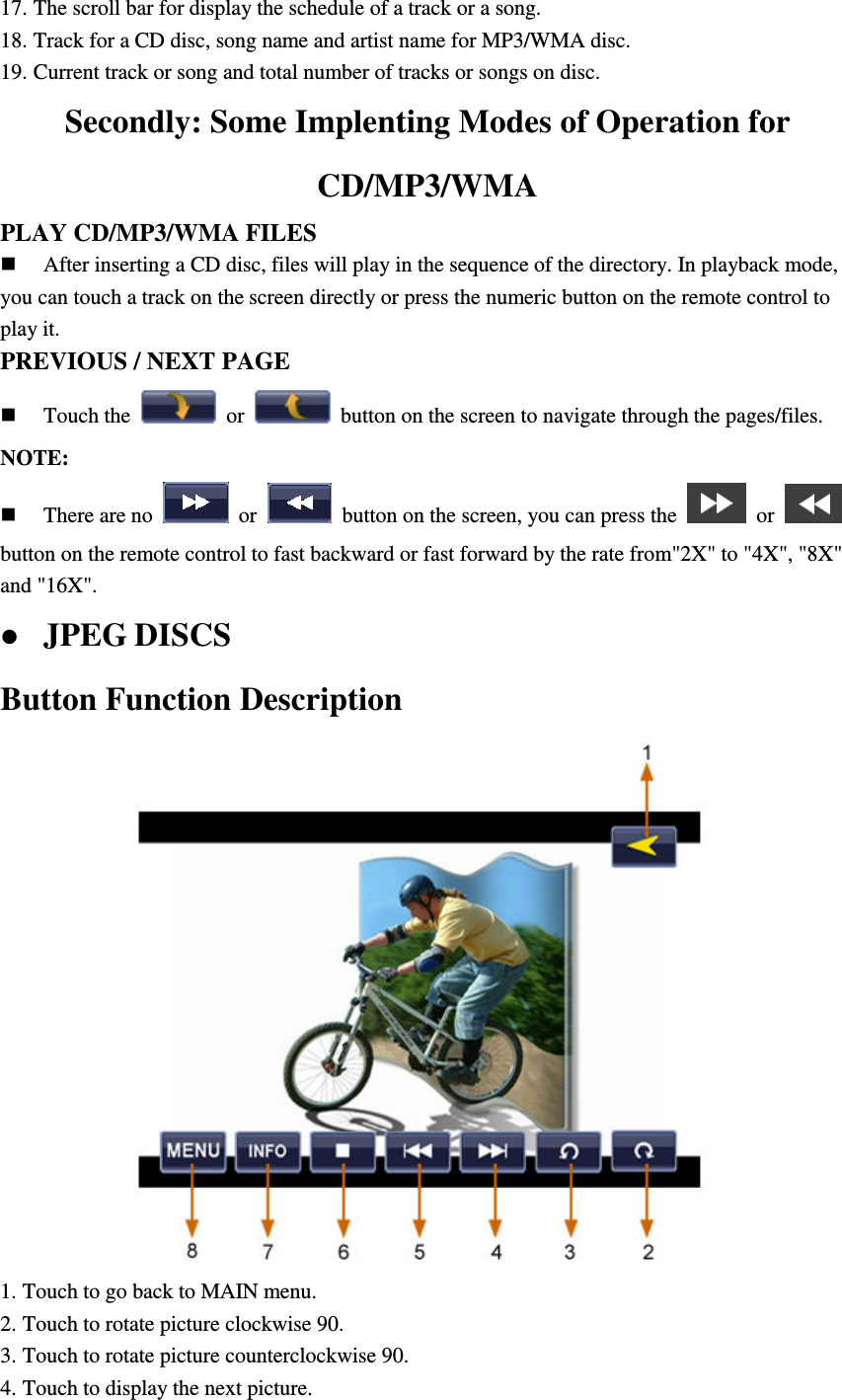
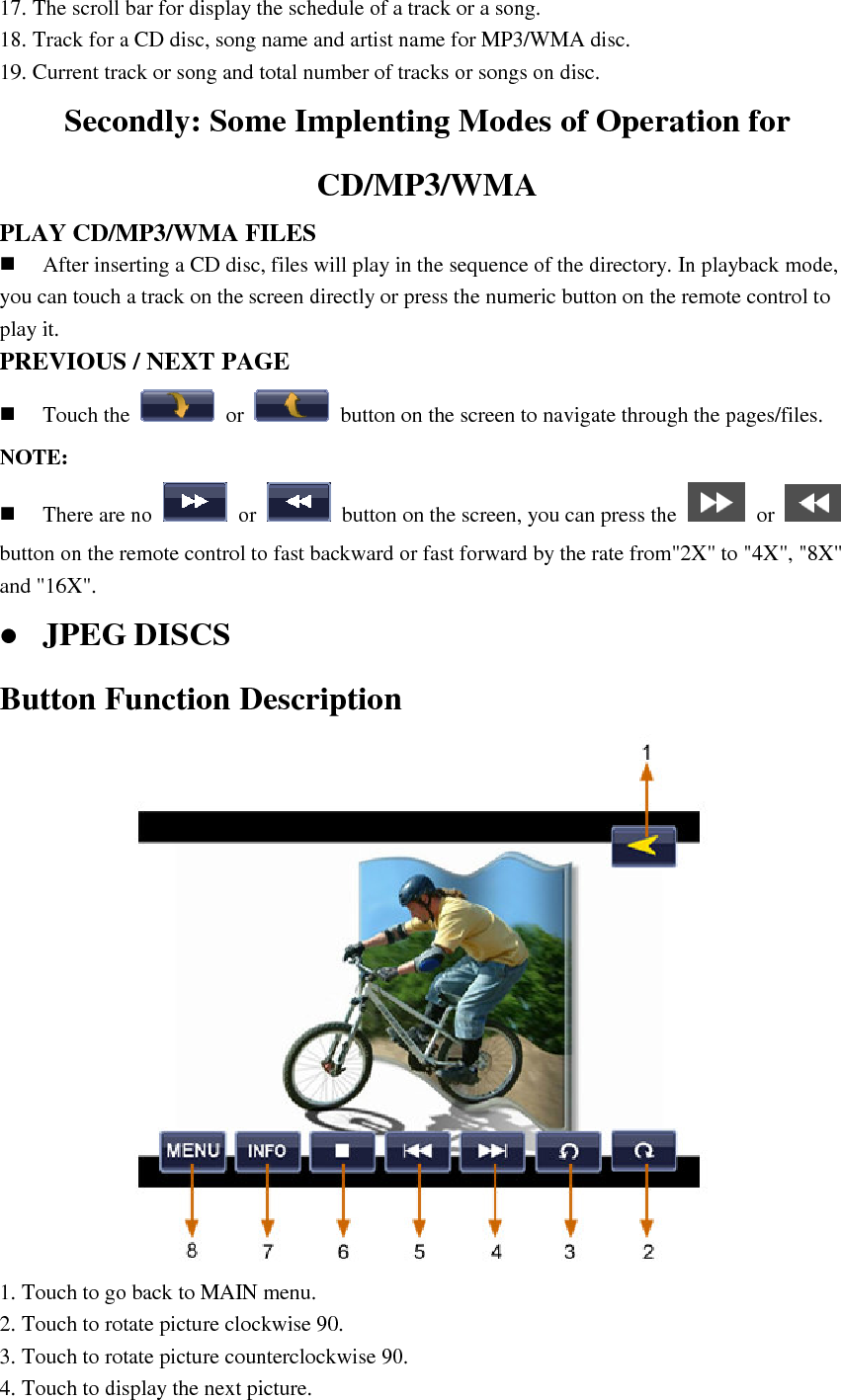
17. The scroll bar for display the schedule of a track or a song. 18. Track for a CD disc, song name and artist name for MP3/WMA disc. 19. Current track or song and total number of tracks or songs on disc. Secondly: Some Implenting Modes of Operation for CD/MP3/WMA PLAY CD/MP3/WMA FILES  After inserting a CD disc, files will play in the sequence of the directory. In playback mode, you can touch a track on the screen directly or press the numeric button on the remote control to play it. PREVIOUS / NEXT PAGE  Touch the    or    button on the screen to navigate through the pages/files. NOTE:    There are no    or    button on the screen, you can press the    or   button on the remote control to fast backward or fast forward by the rate from"2X" to "4X", "8X" and "16X".  JPEG DISCS Button Function Description  1. Touch to go back to MAIN menu. 2. Touch to rotate picture clockwise 90. 3. Touch to rotate picture counterclockwise 90. 4. Touch to display the next picture.
5. Touch to display the previous picture. 6. Touch to stop displaying the current picture and return to the picture list. 7. Touch to show the picture information. 8. Touch to show the total pictures of the current folder.
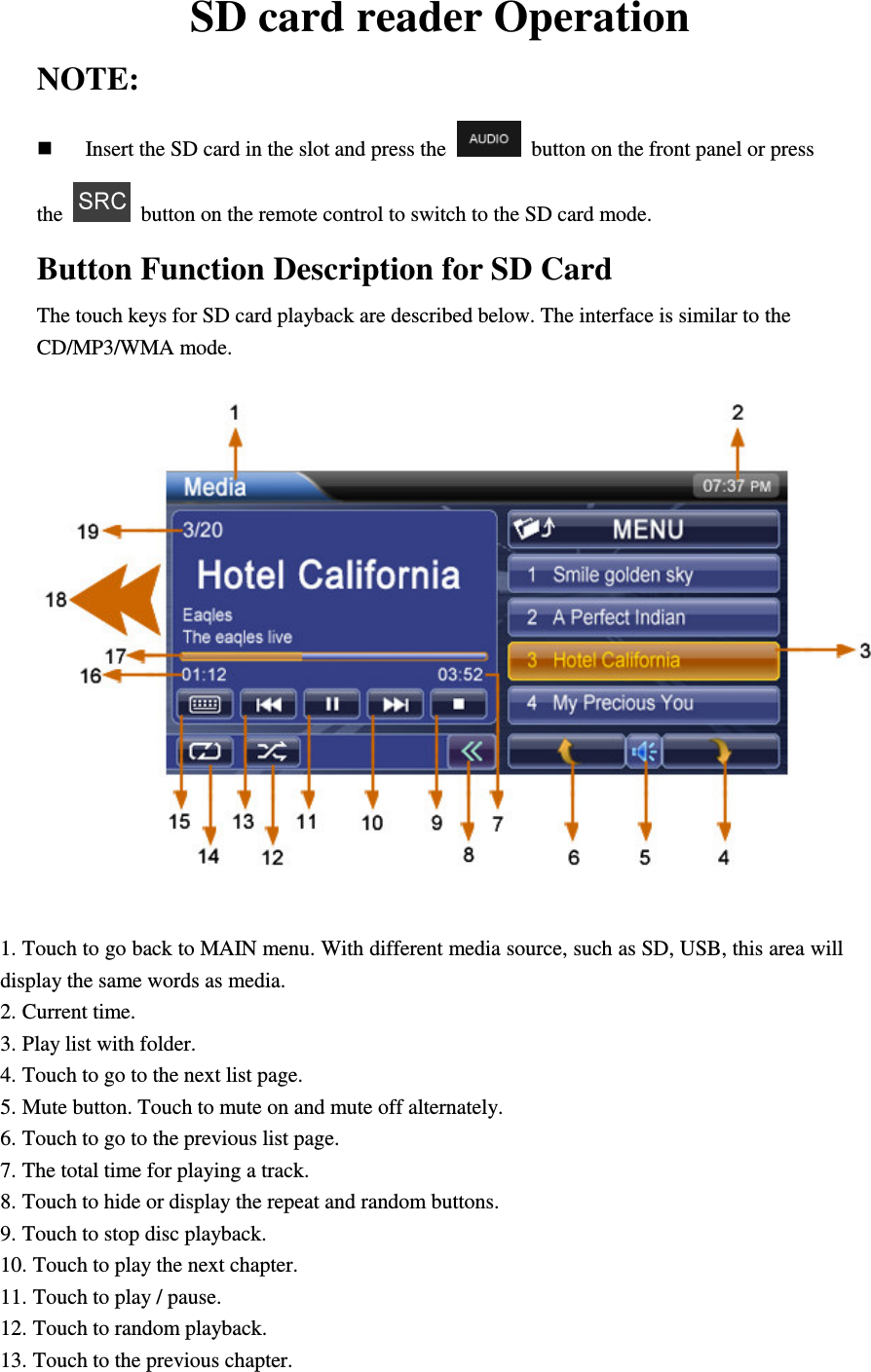
SD card reader Operation NOTE:  Insert the SD card in the slot and press the    button on the front panel or press the    button on the remote control to switch to the SD card mode. Button Function Description for SD Card The touch keys for SD card playback are described below. The interface is similar to the CD/MP3/WMA mode.   1. Touch to go back to MAIN menu. With different media source, such as SD, USB, this area will display the same words as media. 2. Current time. 3. Play list with folder. 4. Touch to go to the next list page. 5. Mute button. Touch to mute on and mute off alternately. 6. Touch to go to the previous list page. 7. The total time for playing a track. 8. Touch to hide or display the repeat and random buttons. 9. Touch to stop disc playback. 10. Touch to play the next chapter. 11. Touch to play / pause. 12. Touch to random playback. 13. Touch to the previous chapter.
14. Touch to repeat playback. 15. Touch to display a numeric keypad on the screen, and then you can use the numeric keypad to access a track directly. 16. Elapsed playing time. 17. The scroll bar for display the schedule of a track. 18. Track name and artist name. 19. SD card indicator, display the current track and total number of tracks on SD card.
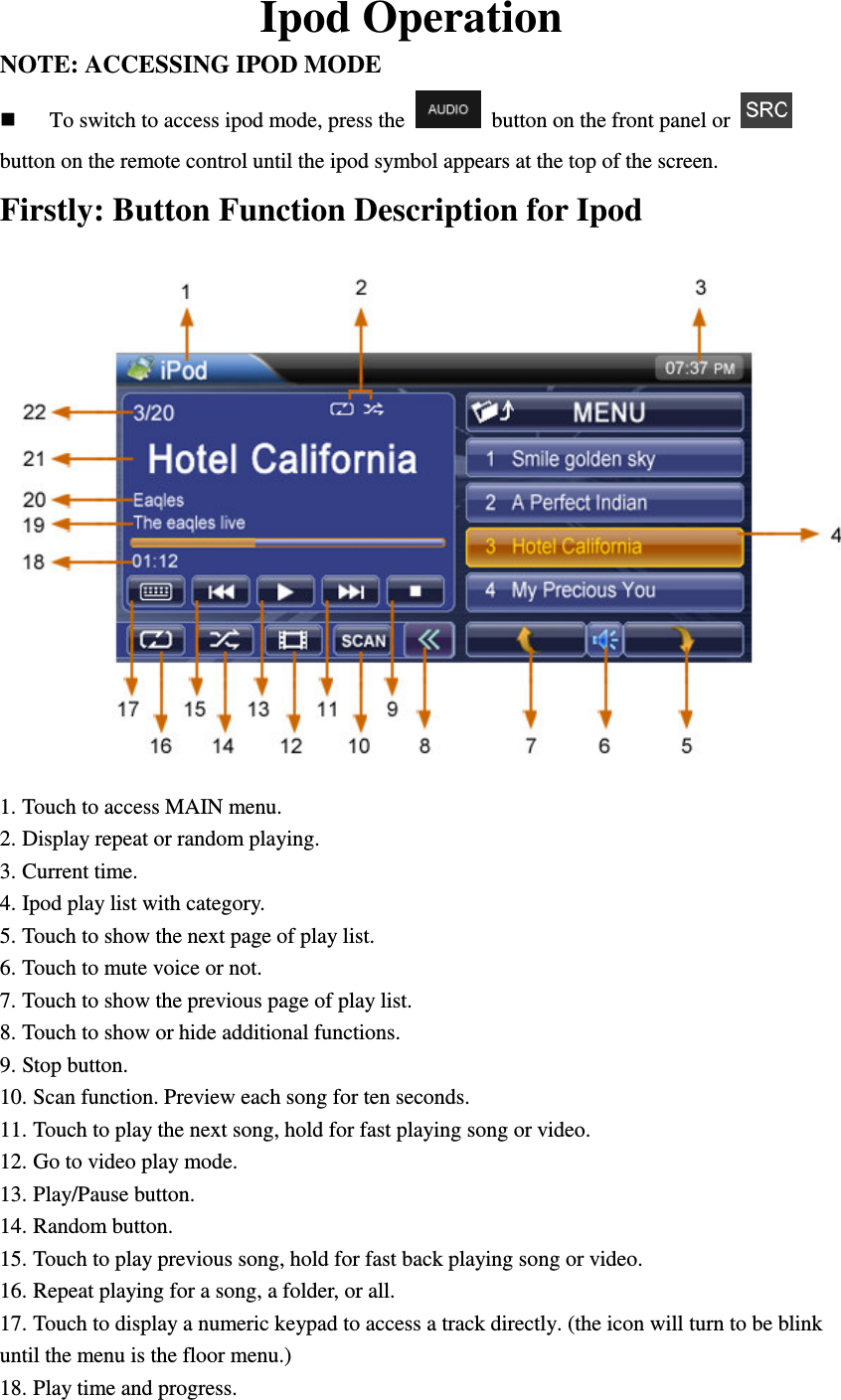
Ipod Operation NOTE: ACCESSING IPOD MODE    To switch to access ipod mode, press the    button on the front panel or   button on the remote control until the ipod symbol appears at the top of the screen. Firstly: Button Function Description for Ipod  1. Touch to access MAIN menu. 2. Display repeat or random playing. 3. Current time. 4. Ipod play list with category. 5. Touch to show the next page of play list. 6. Touch to mute voice or not. 7. Touch to show the previous page of play list. 8. Touch to show or hide additional functions. 9. Stop button. 10. Scan function. Preview each song for ten seconds. 11. Touch to play the next song, hold for fast playing song or video. 12. Go to video play mode. 13. Play/Pause button. 14. Random button. 15. Touch to play previous song, hold for fast back playing song or video. 16. Repeat playing for a song, a folder, or all. 17. Touch to display a numeric keypad to access a track directly. (the icon will turn to be blink until the menu is the floor menu.) 18. Play time and progress.
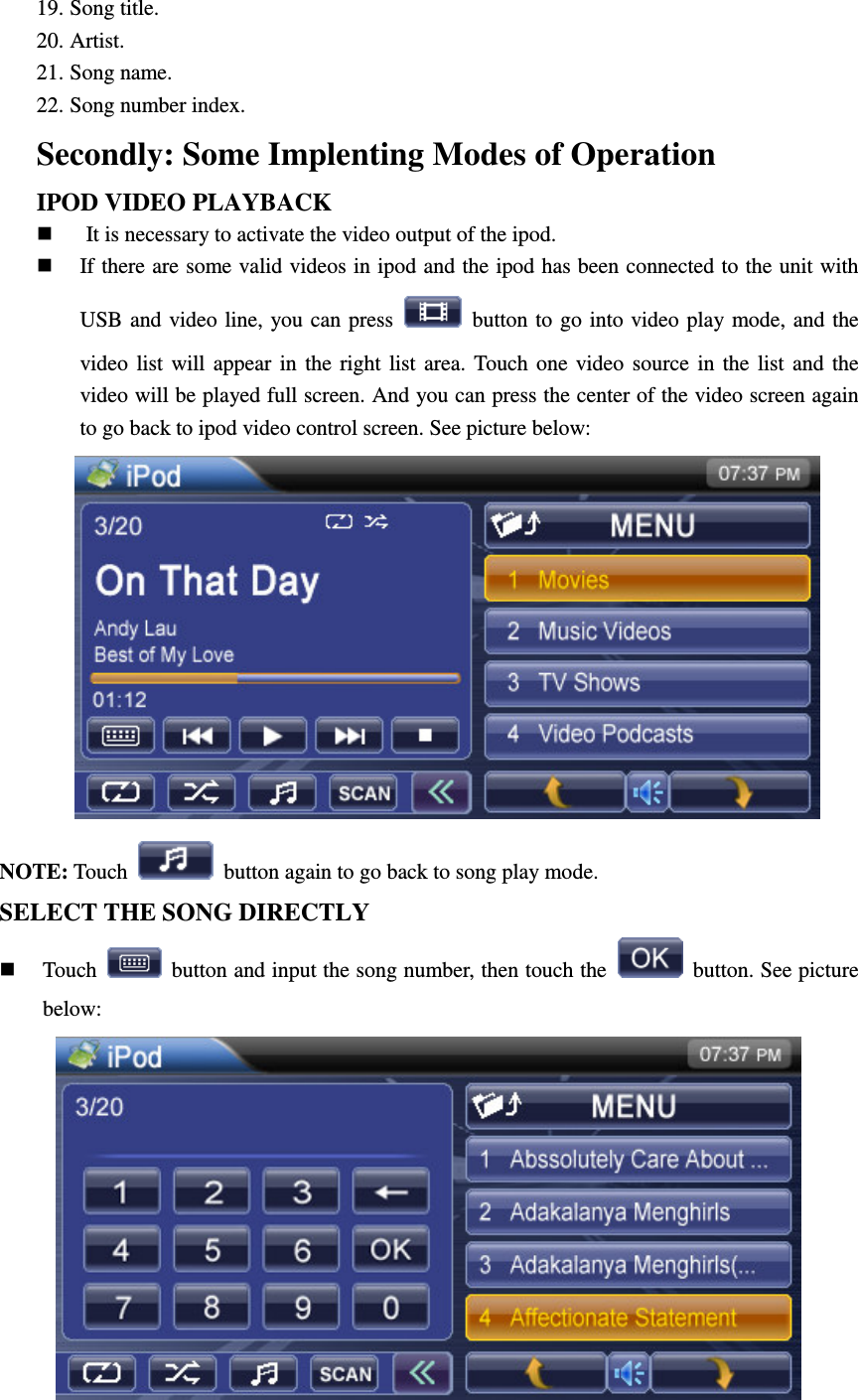
19. Song title. 20. Artist. 21. Song name. 22. Song number index. Secondly: Some Implenting Modes of Operation IPOD VIDEO PLAYBACK   It is necessary to activate the video output of the ipod.  If there are some valid videos in ipod and the ipod has been connected to the unit with USB and video line, you  can press    button to go  into video play mode, and the video  list  will  appear  in  the  right  list  area.  Touch one  video  source  in  the  list  and  the video will be played full screen. And you can press the center of the video screen again to go back to ipod video control screen. See picture below:  NOTE: Touch    button again to go back to song play mode. SELECT THE SONG DIRECTLY  Touch    button and input the song number, then touch the    button. See picture below:
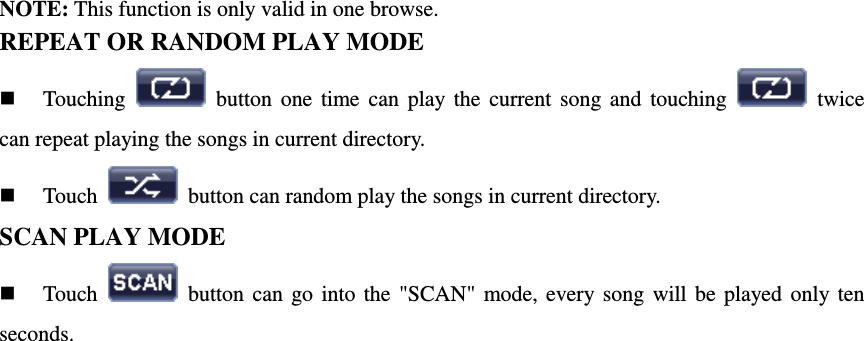
NOTE: This function is only valid in one browse. REPEAT OR RANDOM PLAY MODE  Touching    button  one  time  can  play  the  current  song  and  touching    twice can repeat playing the songs in current directory.  Touch    button can random play the songs in current directory. SCAN PLAY MODE  Touch    button  can  go  into  the  "SCAN"  mode,  every  song  will  be  played  only  ten seconds.
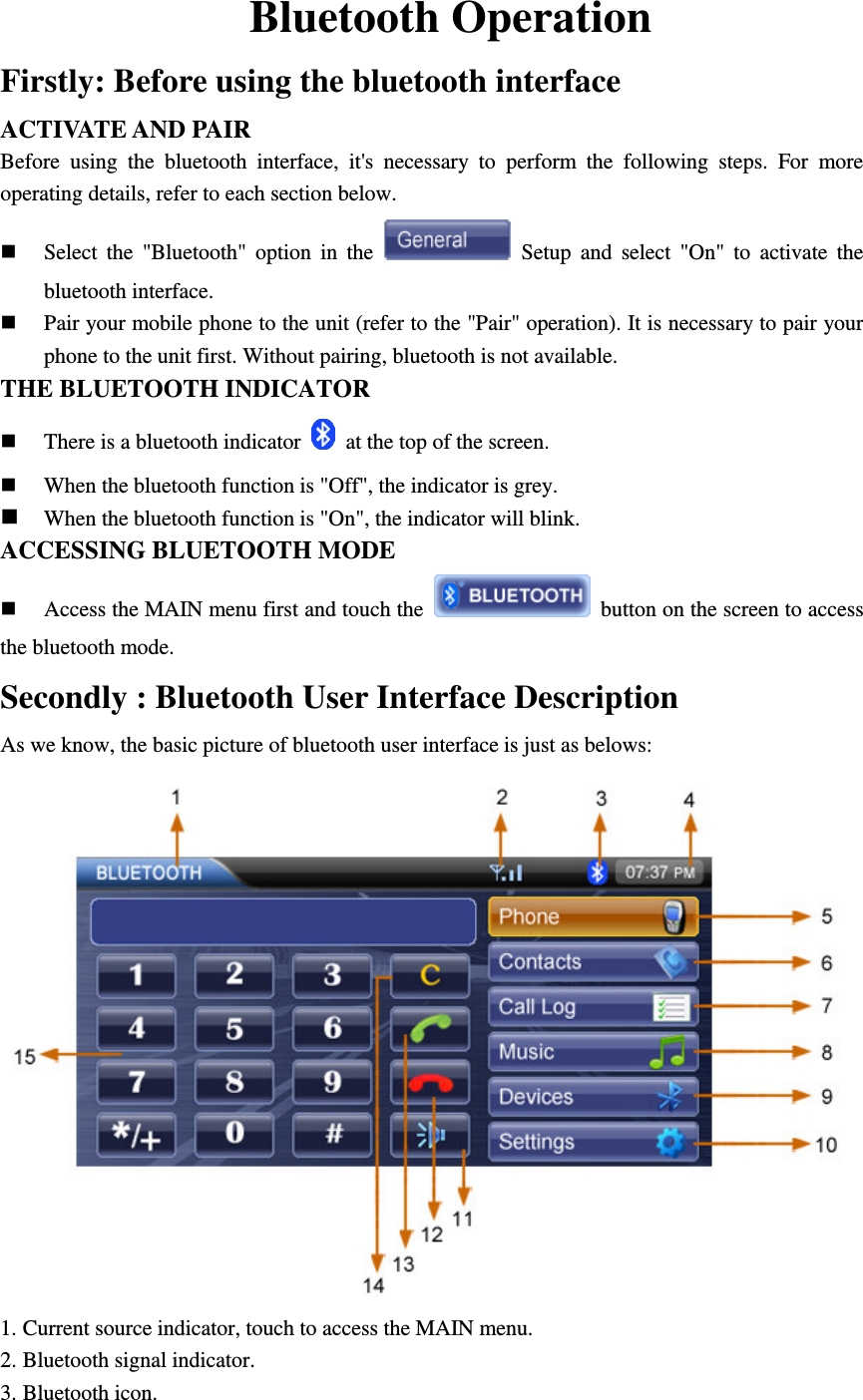
Bluetooth Operation Firstly: Before using the bluetooth interface ACTIVATE AND PAIR Before  using  the  bluetooth  interface,  it's  necessary  to  perform  the  following  steps.  For  more operating details, refer to each section below.  Select  the  "Bluetooth"  option  in  the    Setup  and  select  "On"  to  activate  the bluetooth interface.  Pair your mobile phone to the unit (refer to the "Pair" operation). It is necessary to pair your phone to the unit first. Without pairing, bluetooth is not available. THE BLUETOOTH INDICATOR  There is a bluetooth indicator    at the top of the screen.  When the bluetooth function is "Off", the indicator is grey.  When the bluetooth function is "On", the indicator will blink. ACCESSING BLUETOOTH MODE  Access the MAIN menu first and touch the    button on the screen to access the bluetooth mode. Secondly : Bluetooth User Interface Description   As we know, the basic picture of bluetooth user interface is just as belows:  1. Current source indicator, touch to access the MAIN menu. 2. Bluetooth signal indicator. 3. Bluetooth icon.
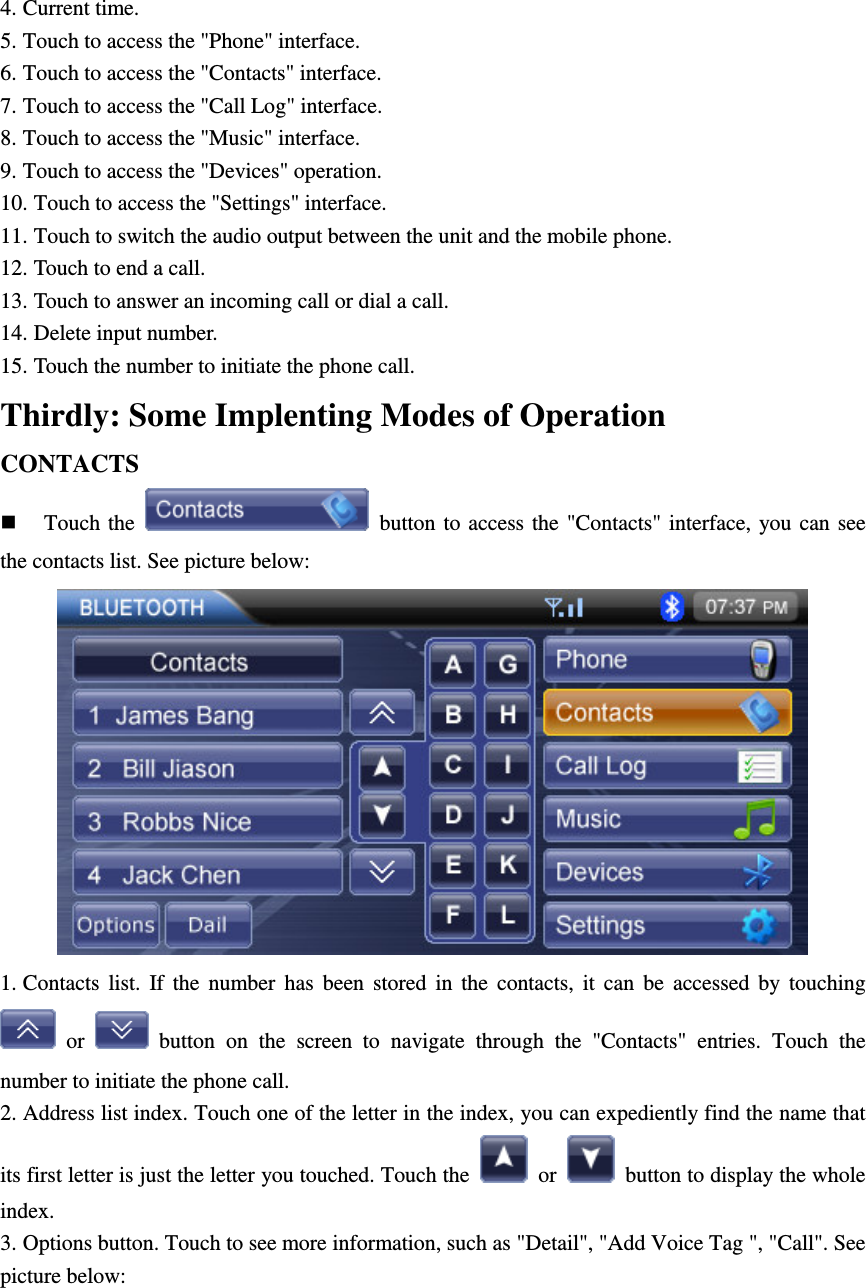
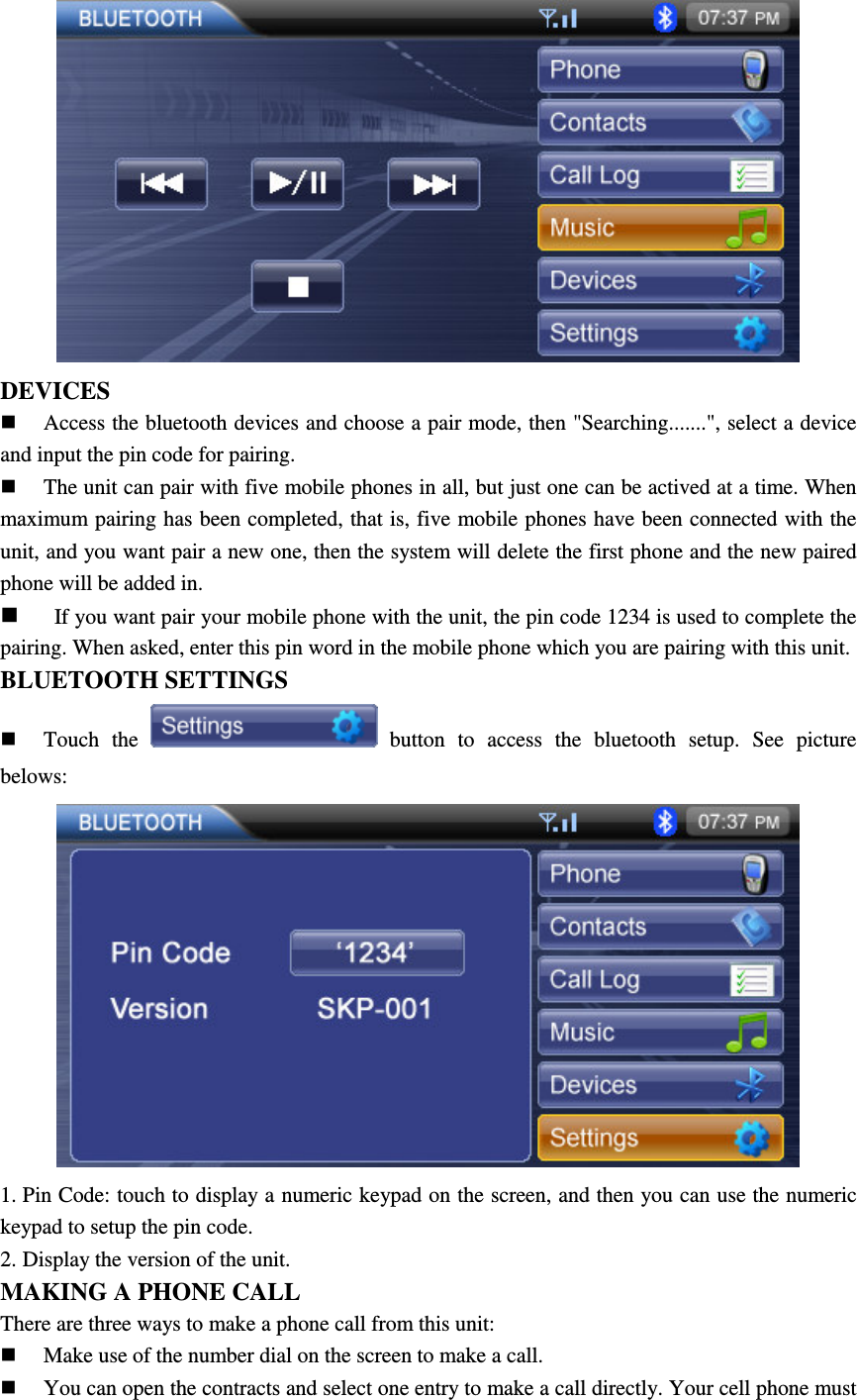
4. Current time. 5. Touch to access the "Phone" interface. 6. Touch to access the "Contacts" interface. 7. Touch to access the "Call Log" interface. 8. Touch to access the "Music" interface. 9. Touch to access the "Devices" operation. 10. Touch to access the "Settings" interface. 11. Touch to switch the audio output between the unit and the mobile phone. 12. Touch to end a call. 13. Touch to answer an incoming call or dial a call. 14. Delete input number. 15. Touch the number to initiate the phone call. Thirdly: Some Implenting Modes of Operation CONTACTS  Touch the    button to  access the  "Contacts"  interface, you can  see the contacts list. See picture below:  1. Contacts  list.  If  the  number  has  been  stored  in  the  contacts,  it  can  be  accessed  by  touching   or    button  on  the  screen  to  navigate  through  the  "Contacts"  entries.  Touch  the number to initiate the phone call. 2. Address list index. Touch one of the letter in the index, you can expediently find the name that its first letter is just the letter you touched. Touch the    or    button to display the whole index. 3. Options button. Touch to see more information, such as "Detail", "Add Voice Tag ", "Call". See picture below:
 Touch    button to return to the previous. CALL LOG  Touch the    button to access the "Call Log" interface. See picture below:  It contains items as "Dialed Numbers", "Receiced Calls", "Missed Calls". MUSIC  Touch  the    button  to  access  the  "music"  interface.  See  picture below:
 DEVICES  Access the bluetooth devices and choose a pair mode, then "Searching.......", select a device and input the pin code for pairing.    The unit can pair with five mobile phones in all, but just one can be actived at a time. When maximum pairing has been completed, that is, five mobile phones have been connected with the unit, and you want pair a new one, then the system will delete the first phone and the new paired phone will be added in.    If you want pair your mobile phone with the unit, the pin code 1234 is used to complete the pairing. When asked, enter this pin word in the mobile phone which you are pairing with this unit. BLUETOOTH SETTINGS    Touch  the    button  to  access  the  bluetooth  setup.  See  picture belows:  1. Pin Code: touch to display a numeric keypad on the screen, and then you can use the numeric keypad to setup the pin code. 2. Display the version of the unit. MAKING A PHONE CALL There are three ways to make a phone call from this unit:  Make use of the number dial on the screen to make a call.  You can open the contracts and select one entry to make a call directly. Your cell phone must
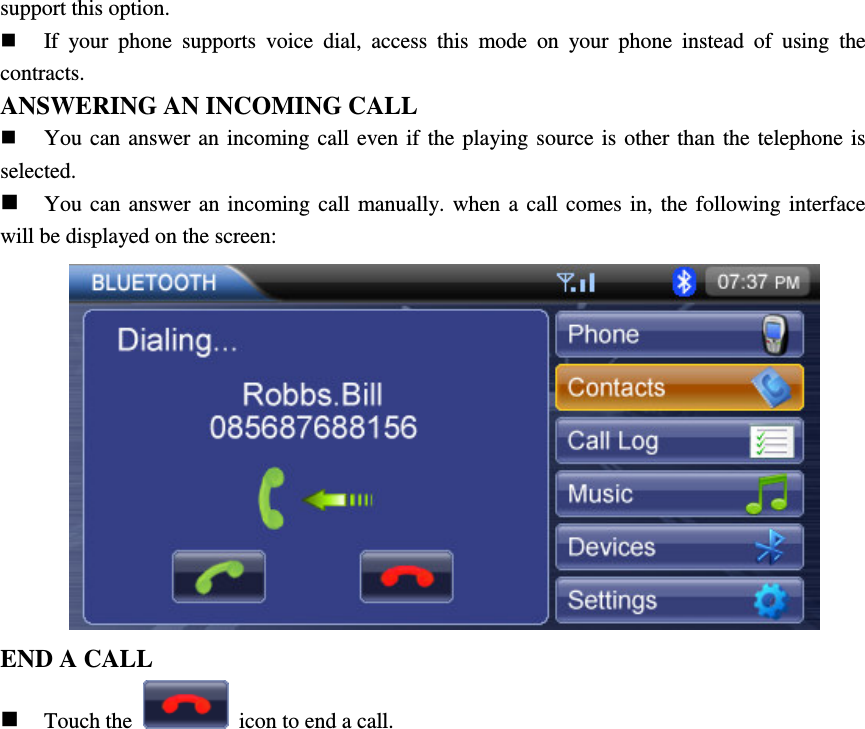
support this option.  If  your  phone  supports  voice  dial,  access  this  mode  on  your  phone  instead  of  using  the contracts. ANSWERING AN INCOMING CALL  You can answer an incoming call  even if  the playing source  is  other than the  telephone is selected.  You  can  answer an incoming  call  manually.  when  a  call  comes  in,  the  following  interface will be displayed on the screen:       END A CALL  Touch the    icon to end a call.
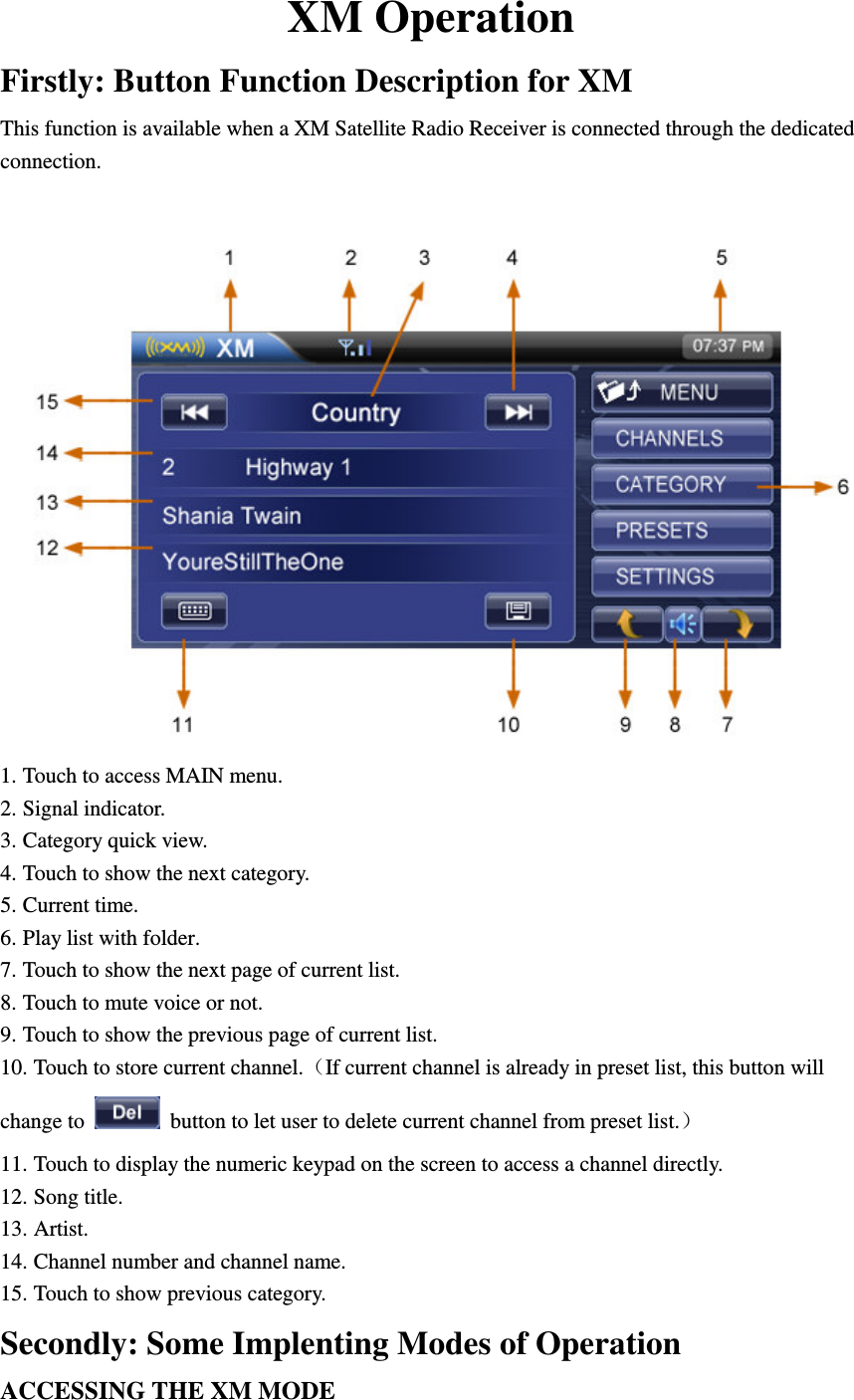
XM Operation Firstly: Button Function Description for XM This function is available when a XM Satellite Radio Receiver is connected through the dedicated connection.   1. Touch to access MAIN menu. 2. Signal indicator. 3. Category quick view. 4. Touch to show the next category. 5. Current time. 6. Play list with folder. 7. Touch to show the next page of current list. 8. Touch to mute voice or not. 9. Touch to show the previous page of current list. 10. Touch to store current channel.(If current channel is already in preset list, this button will change to   button to let user to delete current channel from preset list.) 11. Touch to display the numeric keypad on the screen to access a channel directly. 12. Song title. 13. Artist. 14. Channel number and channel name. 15. Touch to show previous category. Secondly: Some Implenting Modes of Operation ACCESSING THE XM MODE
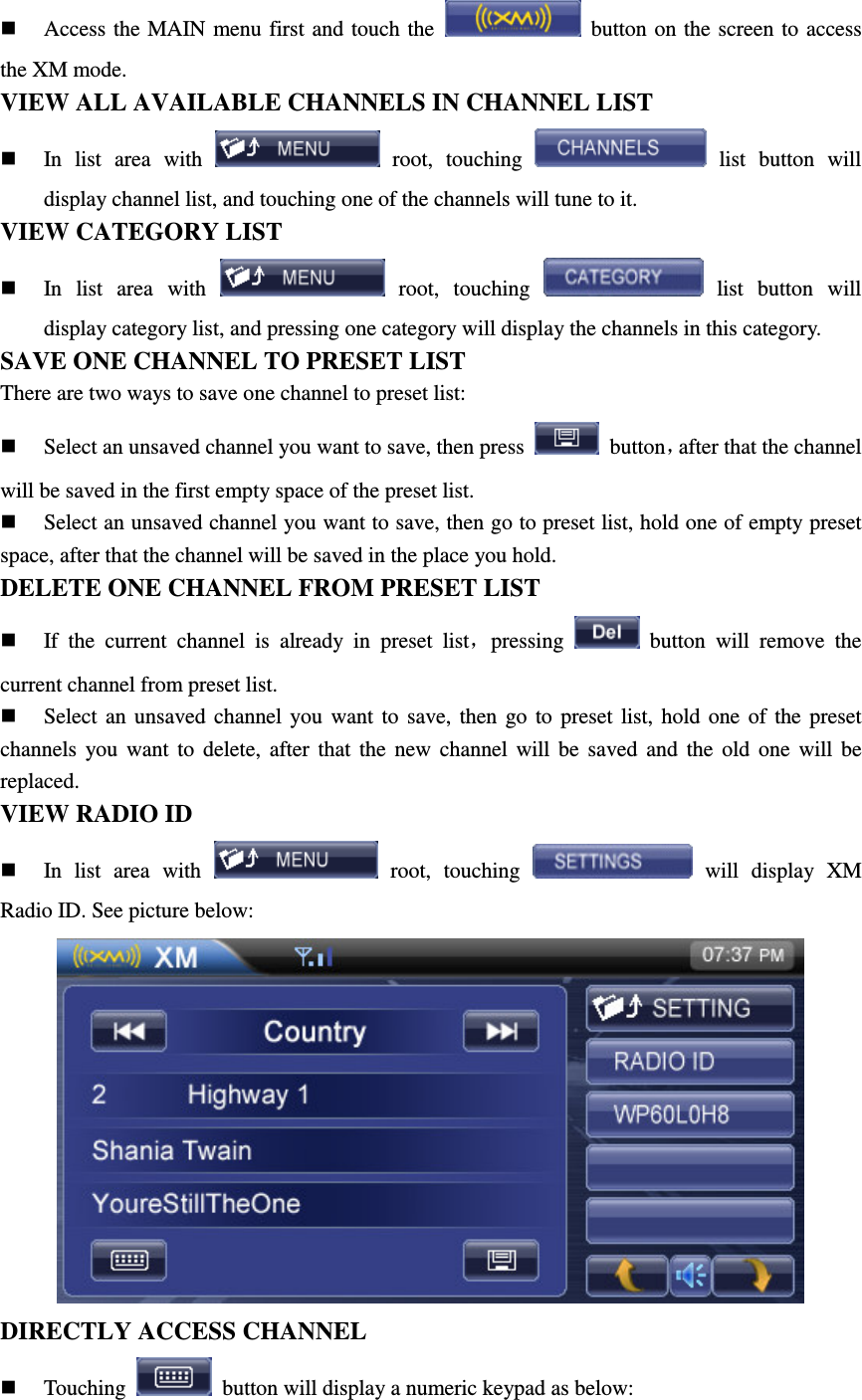
 Access the MAIN menu first and touch the    button on the screen  to access the XM mode. VIEW ALL AVAILABLE CHANNELS IN CHANNEL LIST  In  list  area  with    root,  touching    list  button  will display channel list, and touching one of the channels will tune to it. VIEW CATEGORY LIST  In  list  area  with    root,  touching    list  button  will display category list, and pressing one category will display the channels in this category. SAVE ONE CHANNEL TO PRESET LIST There are two ways to save one channel to preset list:  Select an unsaved channel you want to save, then press    button,after that the channel will be saved in the first empty space of the preset list.  Select an unsaved channel you want to save, then go to preset list, hold one of empty preset space, after that the channel will be saved in the place you hold. DELETE ONE CHANNEL FROM PRESET LIST  If  the  current  channel  is  already  in  preset  list,pressing    button  will  remove  the current channel from preset list.  Select  an  unsaved  channel you  want  to  save,  then  go  to  preset  list,  hold  one  of  the  preset channels  you  want  to  delete,  after  that  the  new  channel  will  be  saved  and  the  old  one  will  be replaced. VIEW RADIO ID  In  list  area  with    root,  touching    will  display  XM Radio ID. See picture below:  DIRECTLY ACCESS CHANNEL  Touching    button will display a numeric keypad as below:
 Input a valid channel number and touch    button. GO INTO DIAGNOSTIC MODE  Touch    button and input 999, the diagnostic window will be displayed as below:
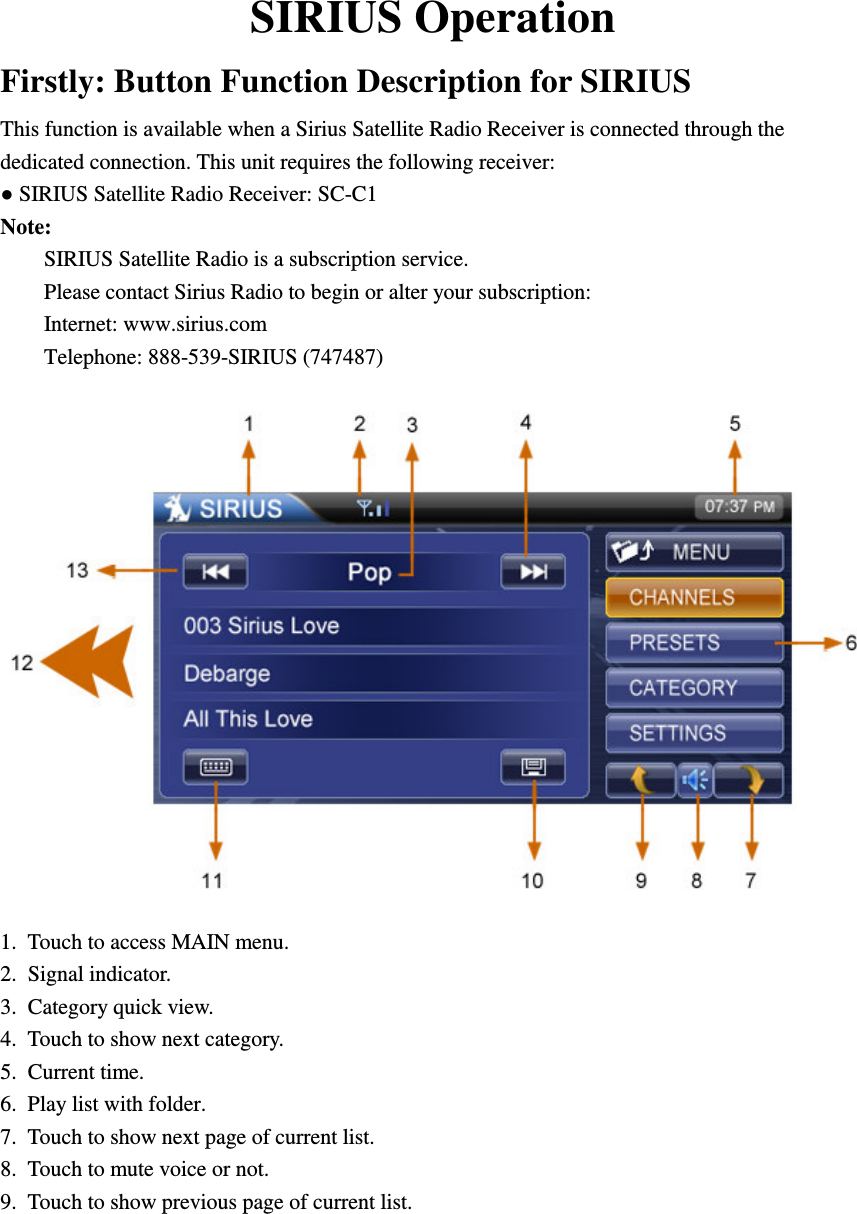
   SIRIUS Operation Firstly: Button Function Description for SIRIUS This function is available when a Sirius Satellite Radio Receiver is connected through the dedicated connection. This unit requires the following receiver: ● SIRIUS Satellite Radio Receiver: SC-C1 Note: SIRIUS Satellite Radio is a subscription service. Please contact Sirius Radio to begin or alter your subscription: Internet: www.sirius.com Telephone: 888-539-SIRIUS (747487)  1.  Touch to access MAIN menu. 2.  Signal indicator. 3.  Category quick view. 4.  Touch to show next category. 5.  Current time. 6.  Play list with folder. 7.  Touch to show next page of current list. 8.  Touch to mute voice or not. 9.  Touch to show previous page of current list.
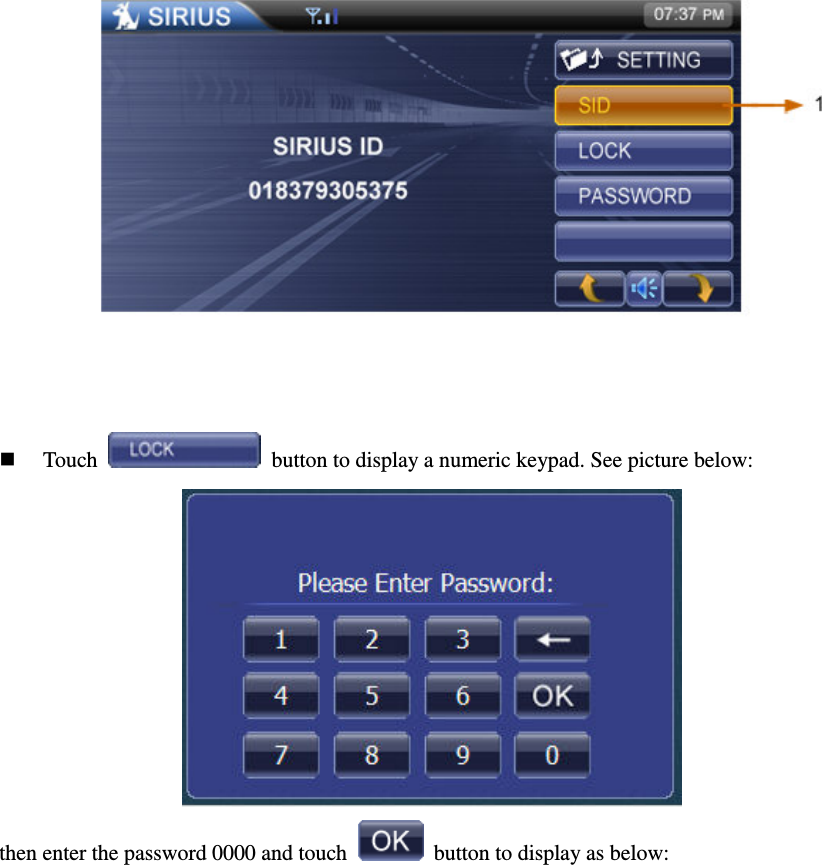
10.  Touch to store current channel. 11.  Touch to display the numeric keypad on the screen to access a channel directly. 12.  SID or the playing channel information. The first line displays the playing channel name, the second line shows artist of the channel, the third line is the title of the channel.   13.  Touch to show previous category. Secondly: Some Implenting Modes of Operation ACCESSING THE SIRIUS MODE  Access the MAIN menu first and touch the    button on the screen to access the SIRIUS mode. VIEW ALL CHANNELS AVAILABLE  In  list  area  with    root,  touch    list  button  will display channel list, and pressing one of the channels will tune to it. SAVE ONE CHANNEL TO PRESET LIST There are two ways to save one channel to preset list:  Select an unsaved channel you want to save, then press    button to store the current channel to the first empty preset memory.  Select an unsaved channel you want to save, then go to preset list, hold one of empty preset space for three seconds, after that the channel will be stored to this space. DELETE ONE CHANNEL FROM PRESET LIST  If  current  channel  is  already  in  preset  list,pressing    button  will  remove  current channel from preset list.  Select  an  unsaved  channel you  want  to  save,  then  go  to  preset  list,  hold  one  of  the  preset channels  you  want  to  delete,  after  that  the  new  channel  will  be  saved  and  the  old  one  will  be replaced. VIEW ALL CATEGORIES AVAILABLE  In  list  area  with    root,  touching    list  button  will display category list, and pressing one category will display the channels in this category. SETTINGS FUNCTION  Touch    to  go  into  SIRIUS  setting  mode.,  then  touch   button to display SIRIUS ID. See picture below:
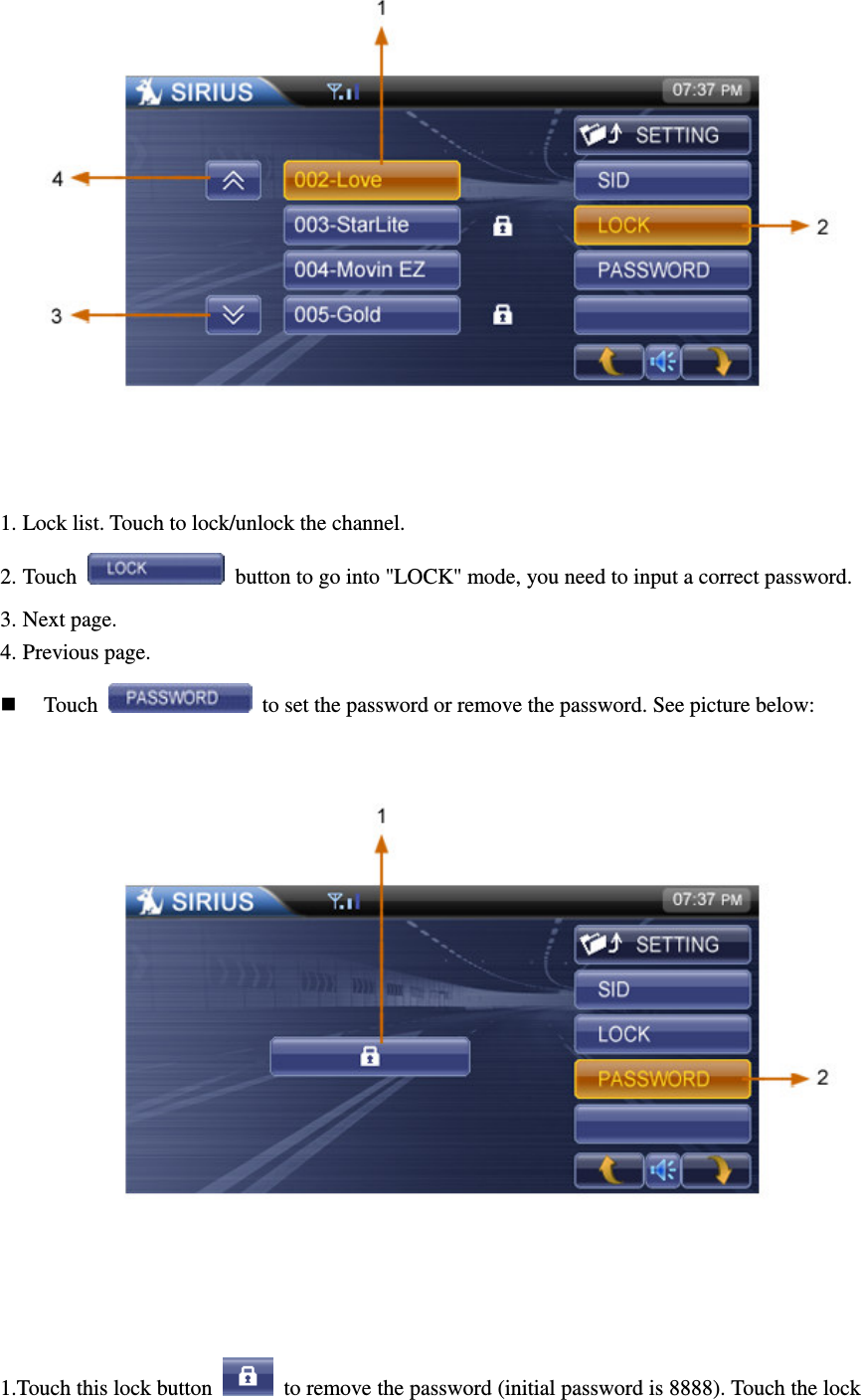
  Touch    button to display a numeric keypad. See picture below:  then enter the password 0000 and touch    button to display as below:
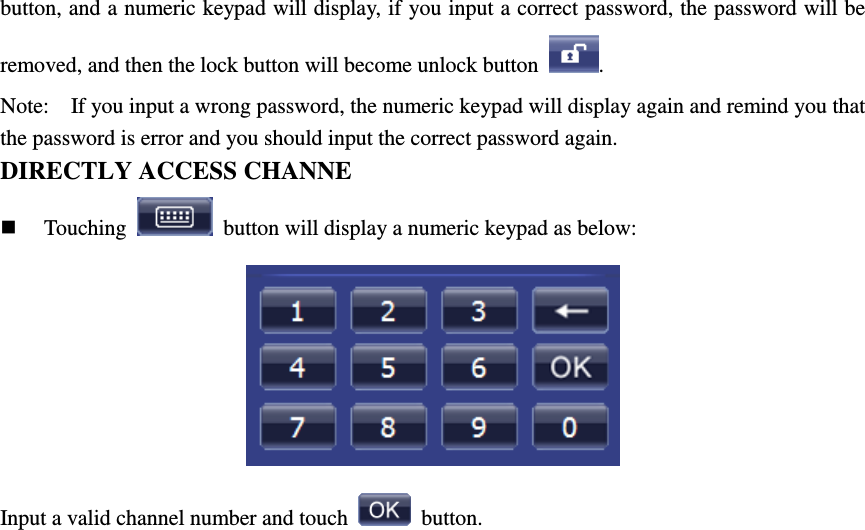
 1. Lock list. Touch to lock/unlock the channel. 2. Touch    button to go into "LOCK" mode, you need to input a correct password. 3. Next page.   4. Previous page.    Touch    to set the password or remove the password. See picture below:      1.Touch this lock button    to remove the password (initial password is 8888). Touch the lock
button, and a numeric keypad will display, if you input a correct password, the password will be removed, and then the lock button will become unlock button  . Note:   If you input a wrong password, the numeric keypad will display again and remind you that the password is error and you should input the correct password again. DIRECTLY ACCESS CHANNE  Touching    button will display a numeric keypad as below:  Input a valid channel number and touch    button.
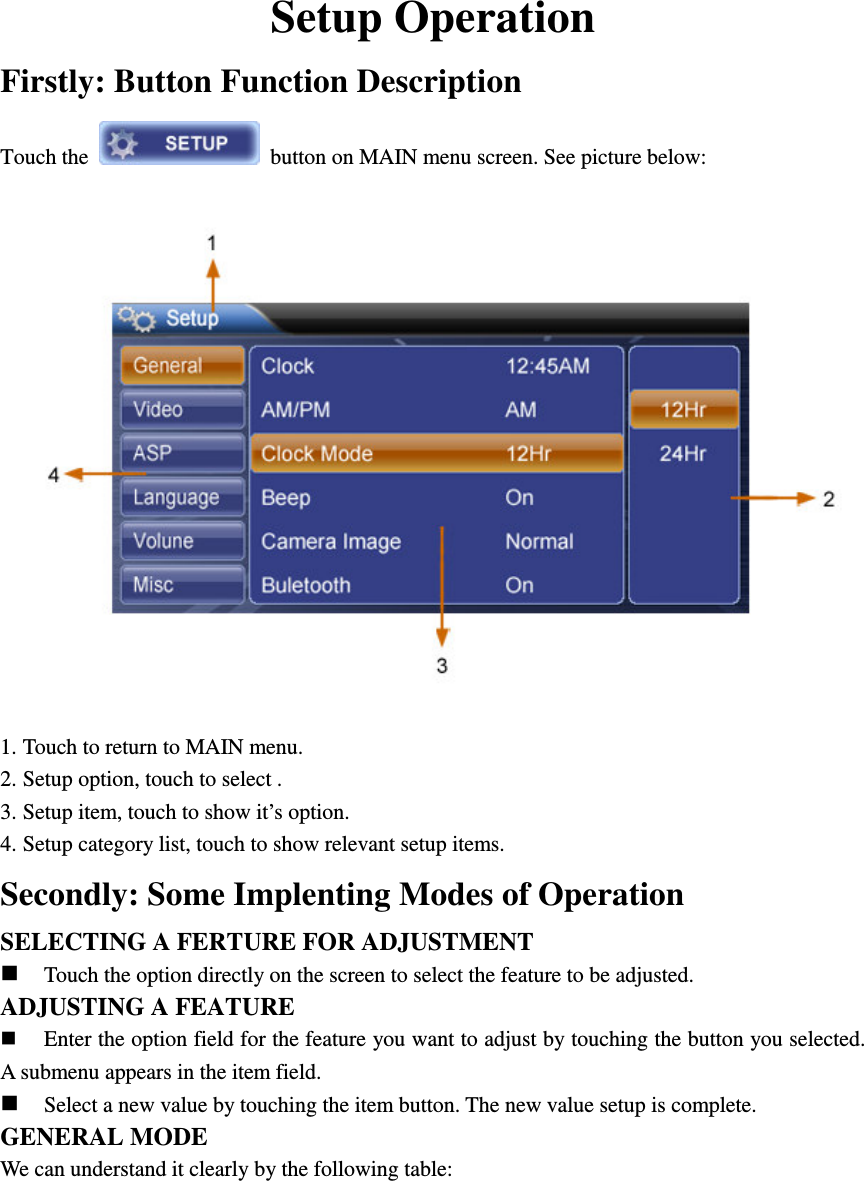
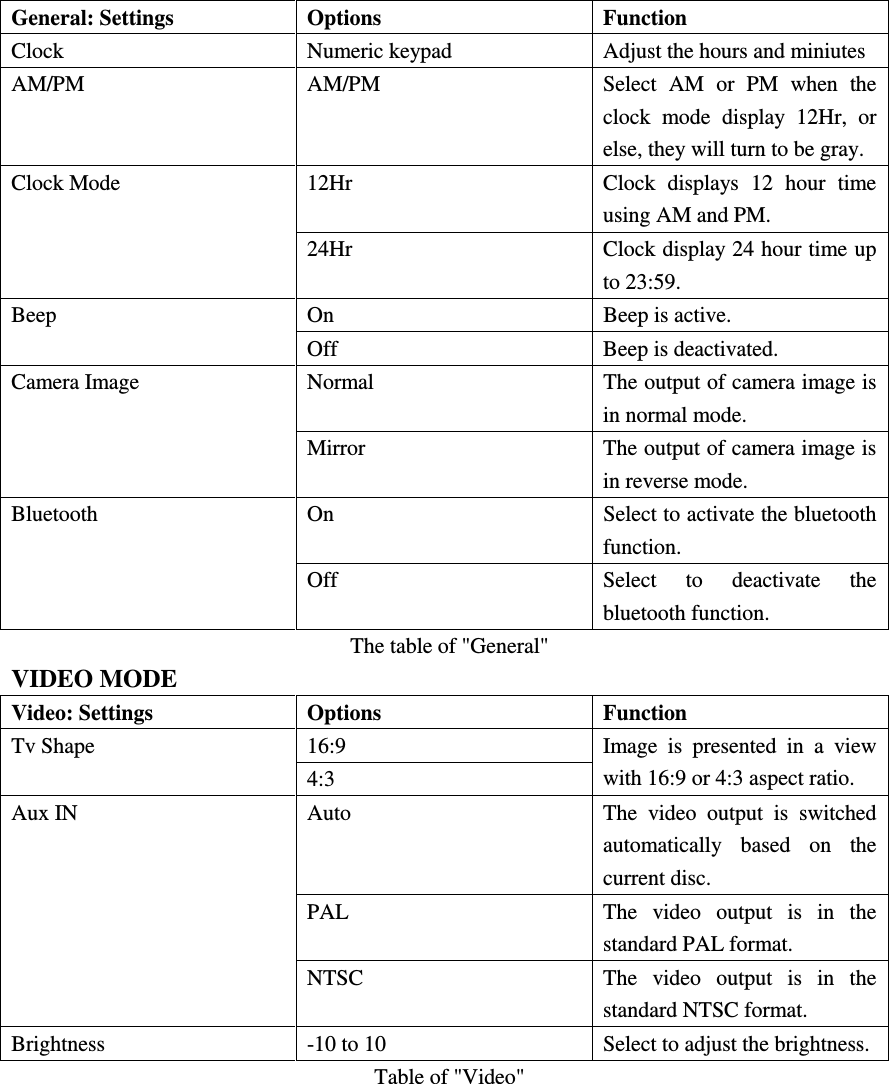
Setup Operation Firstly: Button Function Description   Touch the    button on MAIN menu screen. See picture below:  1. Touch to return to MAIN menu. 2. Setup option, touch to select . 3. Setup item, touch to show it’s option. 4. Setup category list, touch to show relevant setup items. Secondly: Some Implenting Modes of Operation SELECTING A FERTURE FOR ADJUSTMENT  Touch the option directly on the screen to select the feature to be adjusted. ADJUSTING A FEATURE  Enter the option field for the feature you want to adjust by touching the button you selected. A submenu appears in the item field.  Select a new value by touching the item button. The new value setup is complete. GENERAL MODE We can understand it clearly by the following table:
General: Settings Options Function Clock  Numeric keypad  Adjust the hours and miniutes AM/PM  AM/PM  Select  AM  or  PM  when  the clock  mode  display  12Hr,  or else, they will turn to be gray. 12Hr  Clock  displays  12  hour  time using AM and PM. Clock Mode 24Hr  Clock display 24 hour time up to 23:59. On  Beep is active. Beep Off  Beep is deactivated. Normal  The output of camera image is in normal mode. Camera Image Mirror  The output of camera image is in reverse mode. On  Select to activate the bluetooth function. Bluetooth Off  Select  to  deactivate  the bluetooth function.   The table of "General" VIDEO MODE Video: Settings  Options  Function 16:9 Tv Shape 4:3 Image  is  presented  in  a  view with 16:9 or 4:3 aspect ratio. Auto  The  video  output  is  switched automatically  based  on  the current disc. PAL  The  video  output  is  in  the standard PAL format. Aux IN NTSC  The  video  output  is  in  the standard NTSC format. Brightness  -10 to 10  Select to adjust the brightness.   Table of "Video"
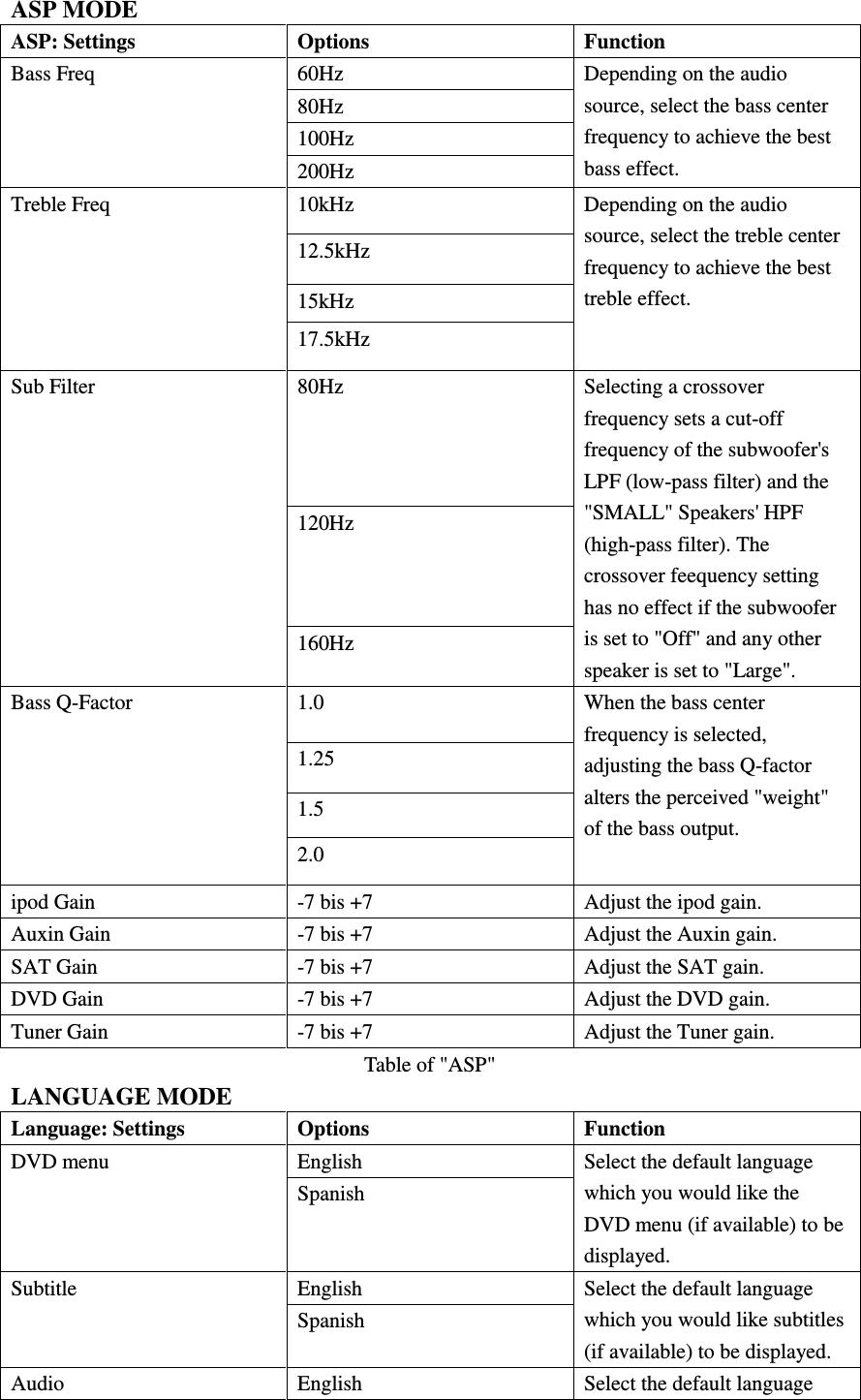
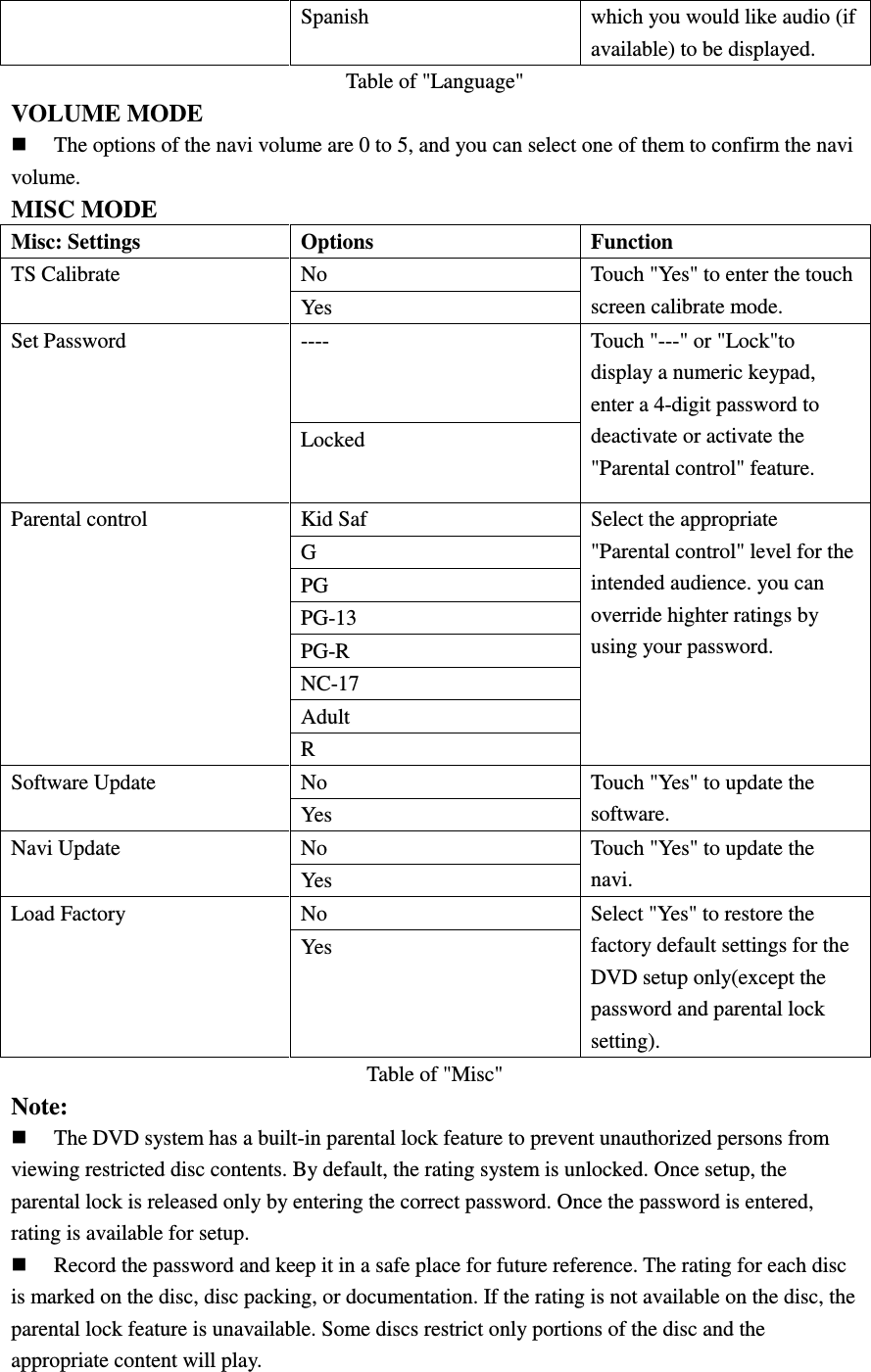
ASP MODE ASP: Settings  Options  Function 60Hz 80Hz 100Hz Bass Freq 200Hz Depending on the audio source, select the bass center frequency to achieve the best bass effect. 10kHz 12.5kHz 15kHz Treble Freq 17.5kHz Depending on the audio source, select the treble center frequency to achieve the best treble effect. 80Hz 120Hz Sub Filter 160Hz Selecting a crossover frequency sets a cut-off frequency of the subwoofer's LPF (low-pass filter) and the "SMALL" Speakers' HPF (high-pass filter). The crossover feequency setting has no effect if the subwoofer is set to "Off" and any other speaker is set to "Large".     1.0 1.25 1.5 Bass Q-Factor 2.0 When the bass center frequency is selected, adjusting the bass Q-factor alters the perceived "weight" of the bass output.   ipod Gain  -7 bis +7  Adjust the ipod gain. Auxin Gain  -7 bis +7  Adjust the Auxin gain. SAT Gain  -7 bis +7  Adjust the SAT gain. DVD Gain  -7 bis +7  Adjust the DVD gain. Tuner Gain  -7 bis +7  Adjust the Tuner gain. Table of "ASP" LANGUAGE MODE Language: Settings  Options    Function   English   DVD menu Spanish   Select the default language which you would like the DVD menu (if available) to be displayed. English   Subtitle Spanish   Select the default language which you would like subtitles (if available) to be displayed. Audio  English    Select the default language
Spanish    which you would like audio (if available) to be displayed. Table of "Language" VOLUME MODE    The options of the navi volume are 0 to 5, and you can select one of them to confirm the navi volume. MISC MODE Misc: Settings    Options  Function No TS Calibrate Yes Touch "Yes" to enter the touch screen calibrate mode. ---- Set Password Locked Touch "---" or "Lock"to display a numeric keypad, enter a 4-digit password to deactivate or activate the "Parental control" feature. Kid Saf G PG PG-13 PG-R NC-17 Adult Parental control R Select the appropriate "Parental control" level for the intended audience. you can override highter ratings by using your password.   No Software Update Yes Touch "Yes" to update the software. No Navi Update Yes Touch "Yes" to update the navi. No Load Factory Yes Select "Yes" to restore the factory default settings for the DVD setup only(except the password and parental lock setting). Table of "Misc"   Note:    The DVD system has a built-in parental lock feature to prevent unauthorized persons from viewing restricted disc contents. By default, the rating system is unlocked. Once setup, the parental lock is released only by entering the correct password. Once the password is entered, rating is available for setup.  Record the password and keep it in a safe place for future reference. The rating for each disc is marked on the disc, disc packing, or documentation. If the rating is not available on the disc, the parental lock feature is unavailable. Some discs restrict only portions of the disc and the appropriate content will play.
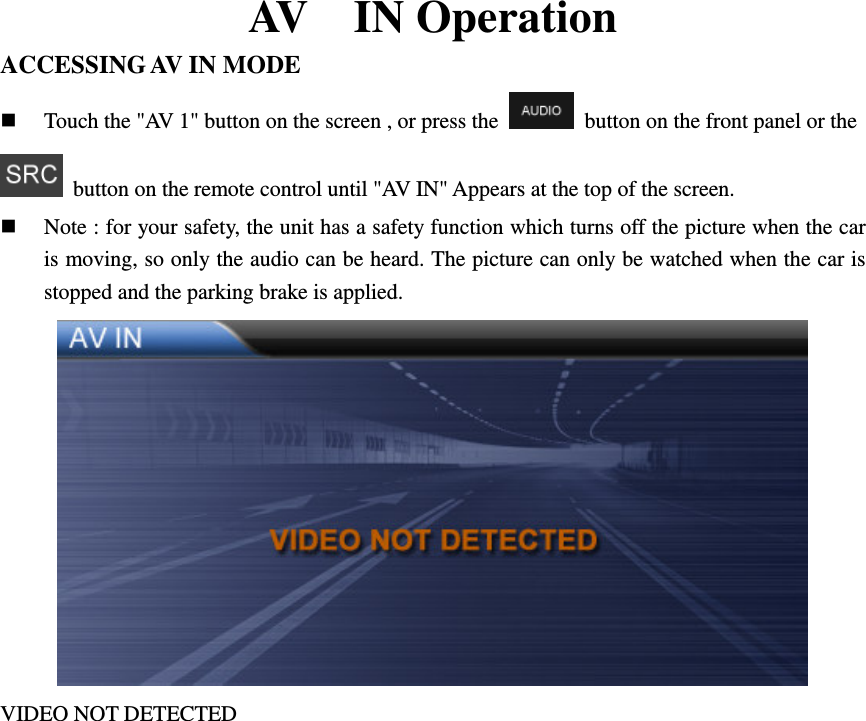
AV    IN Operation ACCESSING AV IN MODE  Touch the "AV 1" button on the screen , or press the    button on the front panel or the   button on the remote control until "AV IN" Appears at the top of the screen.  Note : for your safety, the unit has a safety function which turns off the picture when the car is moving, so only the audio can be heard. The picture can only be watched when the car is stopped and the parking brake is applied.  VIDEO NOT DETECTED
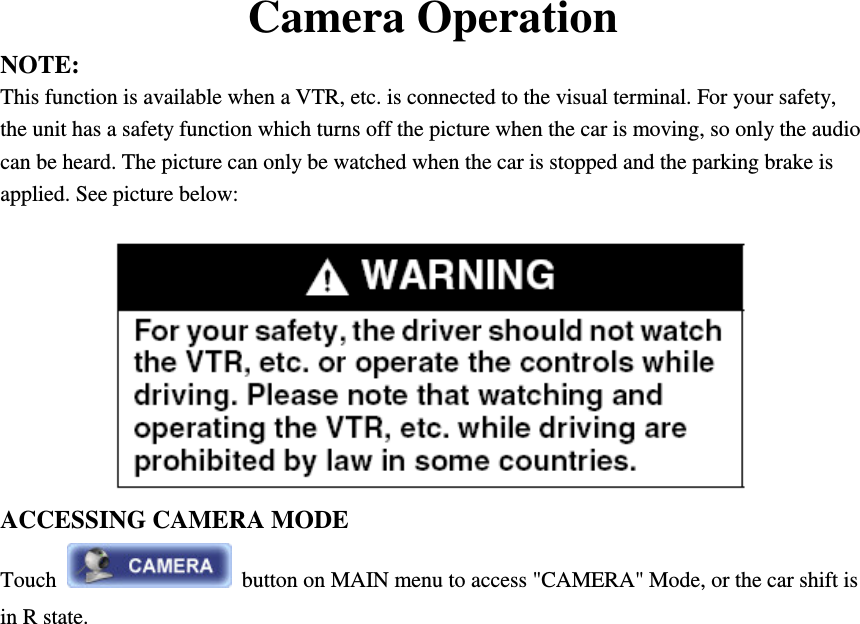
Camera Operation NOTE:   This function is available when a VTR, etc. is connected to the visual terminal. For your safety, the unit has a safety function which turns off the picture when the car is moving, so only the audio can be heard. The picture can only be watched when the car is stopped and the parking brake is applied. See picture below:  ACCESSING CAMERA MODE Touch    button on MAIN menu to access "CAMERA" Mode, or the car shift is in R state.
Navigation operation ACCESSING NAVIGATION  Access the MAIN menu and select the   icon on the screen to enter the navigation operation interface.  Press the    button on the front panel or the    button on the remote control to switch to navigation. NAVIGATION OPERATION Please read the navigation software user manual. Listening to an audio program while using/viewing the navigation.  You can listen to an other playing mode while using the navigation mode. 1. Select a playing mode. 2. Touch the    icon to select the navigation mode. The map will be shown on screen and audio will continue to play while you are in the navigation mode.   3. Navigation voice prompts will mute the audio source, give the instruction and return to the audio source. Note:  Insert the navi SD card to get access to the navigation mode.  Please restart the unit after changing the SD card, otherwise, a full access cannot be guaranteed.        Note: changes or modifications not expressly approved by the party responsible for compliance could void the user’s authority to operate the equipment.
Navigation menu