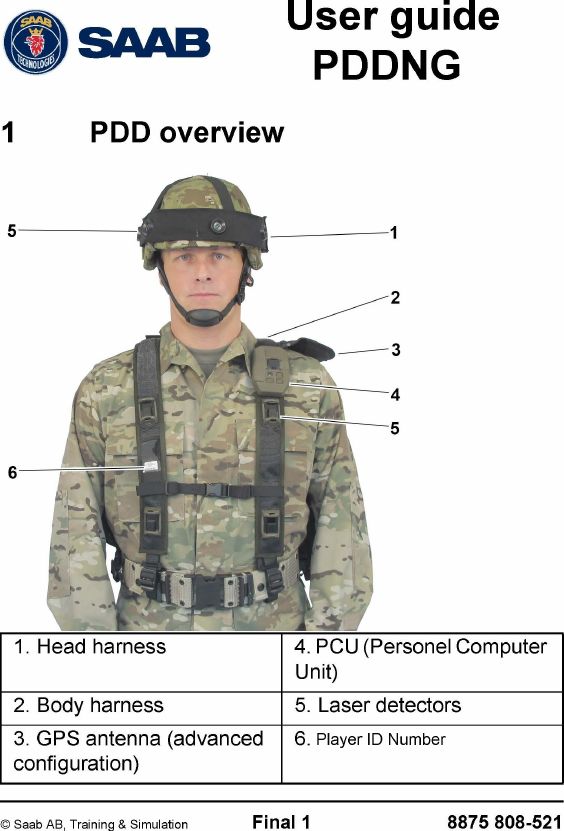
Saab Defense and Security USA PDDNG MAN WORN VEST TRANSMITTER User Manual User guide PDD NG DOE w FCC info US

Saab Defense and Security USA LLC MAN WORN VEST TRANSMITTER User guide PDD NG DOE w FCC info US

User Guide

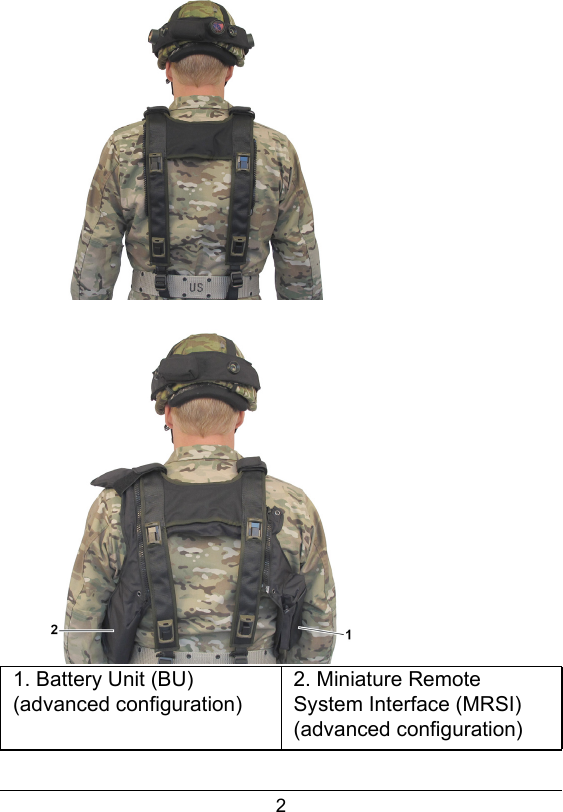
1. Battery Unit (BU) (advanced configuration)2. Miniature Remote System Interface (MRSI) (advanced configuration)2
32   GeneralThe Personnel Detection Device (PDD) is a man worn simulator system that simulates casualty from direct and indirect fire. The individual wearing the PDD will get feedback through the built in speaker and all training data is stored for after action reviews.The PDD is available in 3 different configurations:•Basic: This configuration is suited for initial laser assisted training. All events are recorded and time stamped. The data can be extracted after an exercise and turned into statistics for the unit. •Medium: This configuration is ideal for full tactical training in smaller units. All events including tracking of position of the user are recorded. The AAR features includes replay on 3D map with individual solider animation.•Advanced: This configuration is ideal for full tactical training from smaller units up to large battalion exercises. The AAR features includes replay on 3D map with individual solider animation, all monitored in real time for EXCON. Capabilities such as AWES, MOUT training and indoor tracking is available in this configuration.   3  Installation3.1  Body harness1.  Put on the body harness.
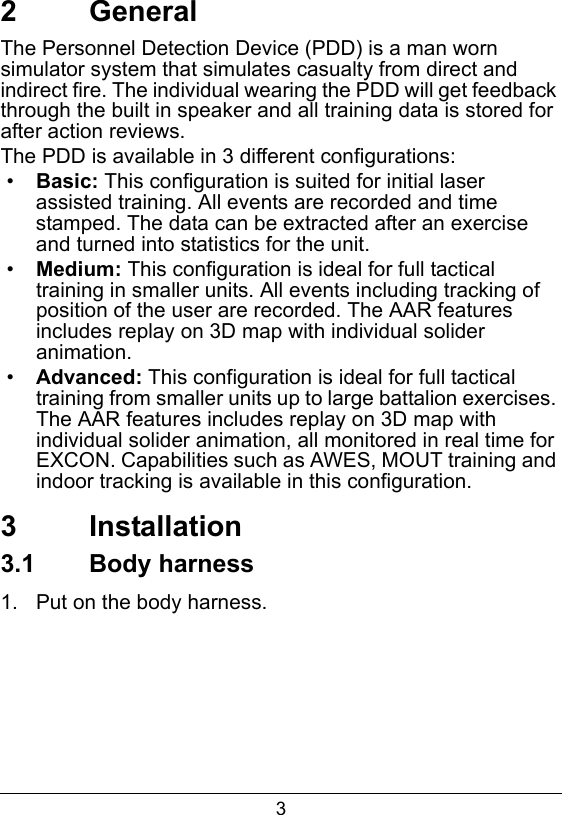
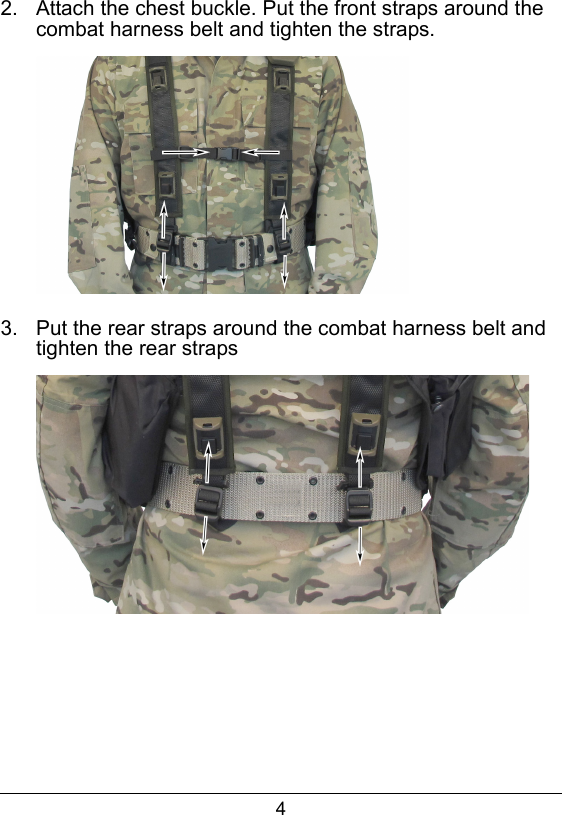
42.  Attach the chest buckle. Put the front straps around the combat harness belt and tighten the straps.3.  Put the rear straps around the combat harness belt and tighten the rear straps
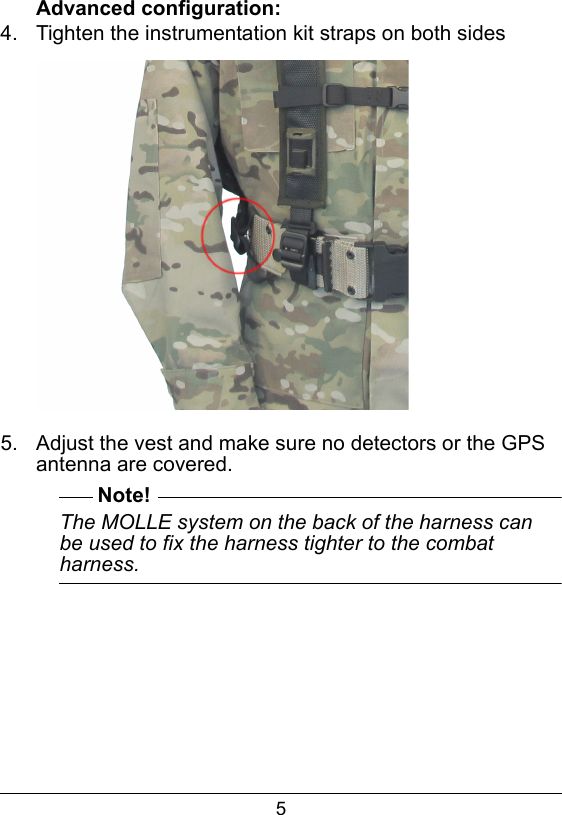
5Advanced configuration:4.  Tighten the instrumentation kit straps on both sides 5.  Adjust the vest and make sure no detectors or the GPS antenna are covered.Note!The MOLLE system on the back of the harness can be used to fix the harness tighter to the combat harness.
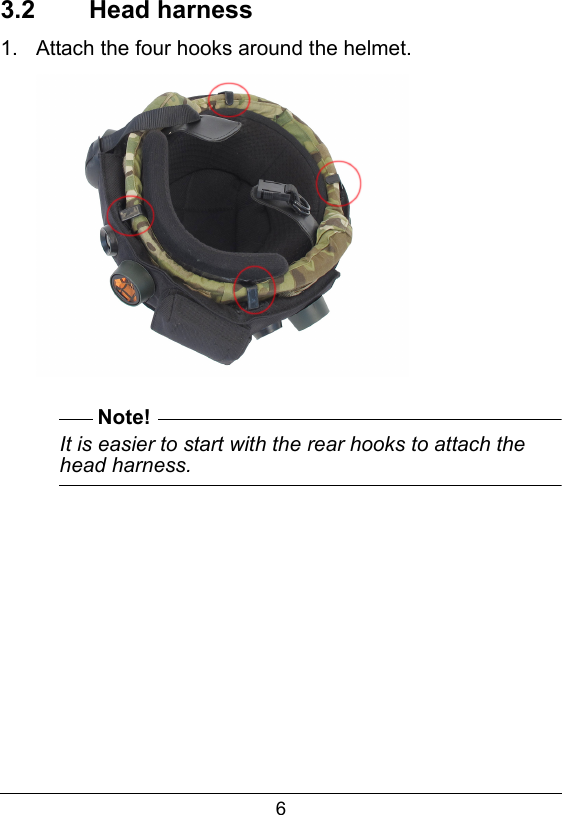
63.2  Head harness1.  Attach the four hooks around the helmet. Note!It is easier to start with the rear hooks to attach the head harness.
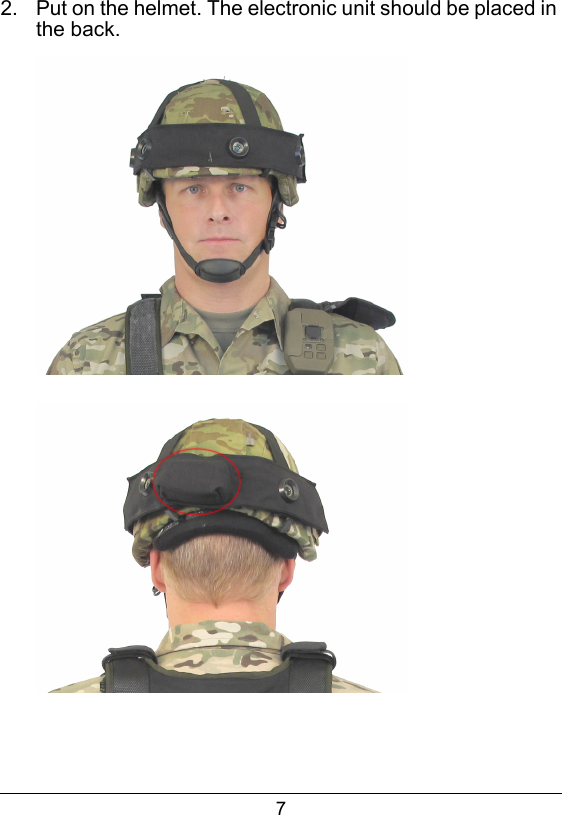
72.  Put on the helmet. The electronic unit should be placed in the back.
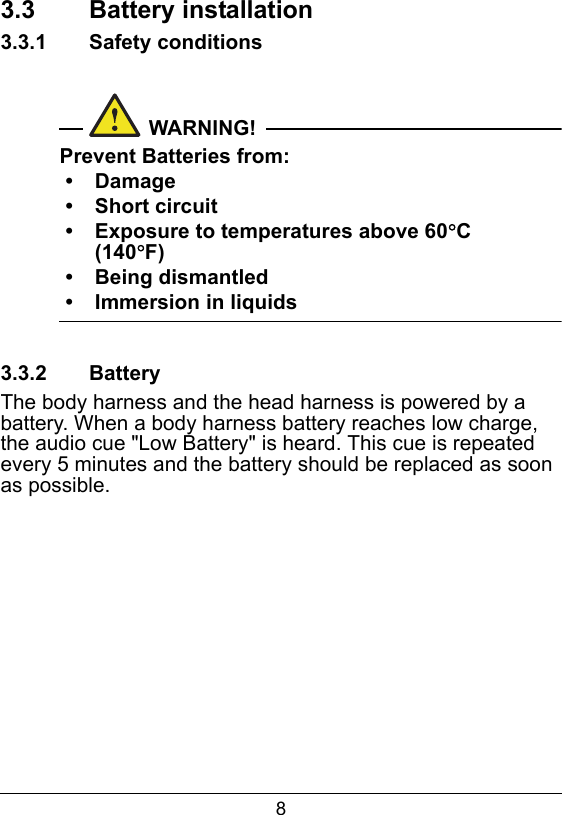
83.3  Battery installation3.3.1  Safety conditionsWARNING!Prevent Batteries from:• Damage• Short circuit• Exposure to temperatures above 60C (140F)• Being dismantled• Immersion in liquids3.3.2  BatteryThe body harness and the head harness is powered by a battery. When a body harness battery reaches low charge, the audio cue "Low Battery" is heard. This cue is repeated every 5 minutes and the battery should be replaced as soon as possible.
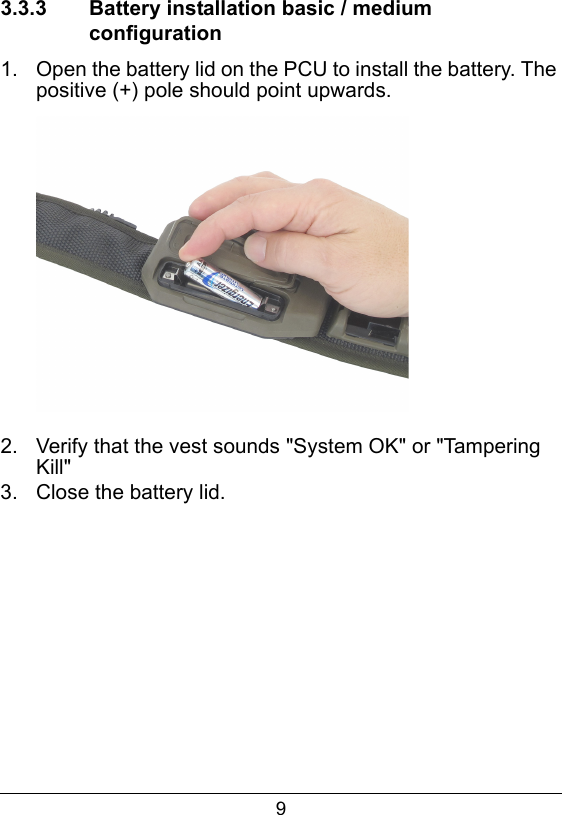
93.3.3  Battery installation basic / medium configuration1.  Open the battery lid on the PCU to install the battery. The positive (+) pole should point upwards.2.  Verify that the vest sounds "System OK" or "Tampering Kill"3.  Close the battery lid.
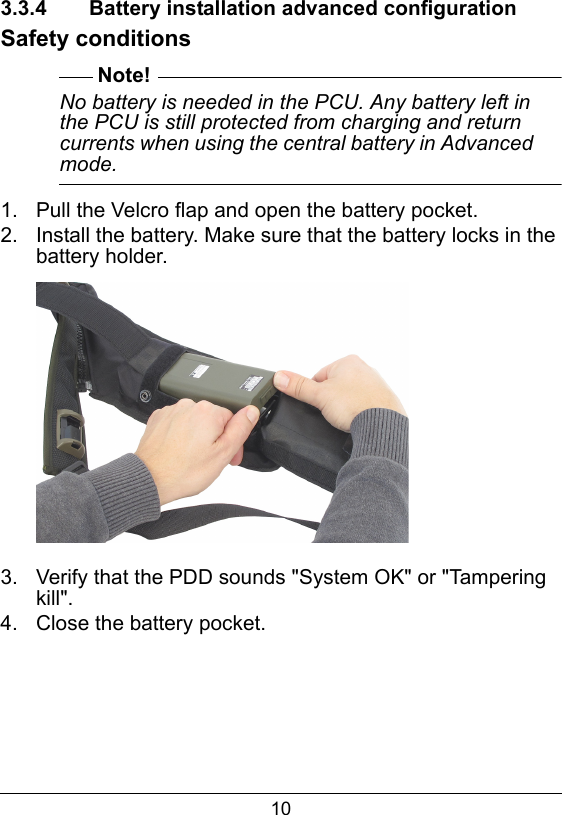
103.3.4  Battery installation advanced configurationSafety conditionsNote!No battery is needed in the PCU. Any battery left in the PCU is still protected from charging and return currents when using the central battery in Advanced mode.1.  Pull the Velcro flap and open the battery pocket.2.  Install the battery. Make sure that the battery locks in the battery holder.3.  Verify that the PDD sounds "System OK" or "Tampering kill".4.  Close the battery pocket.
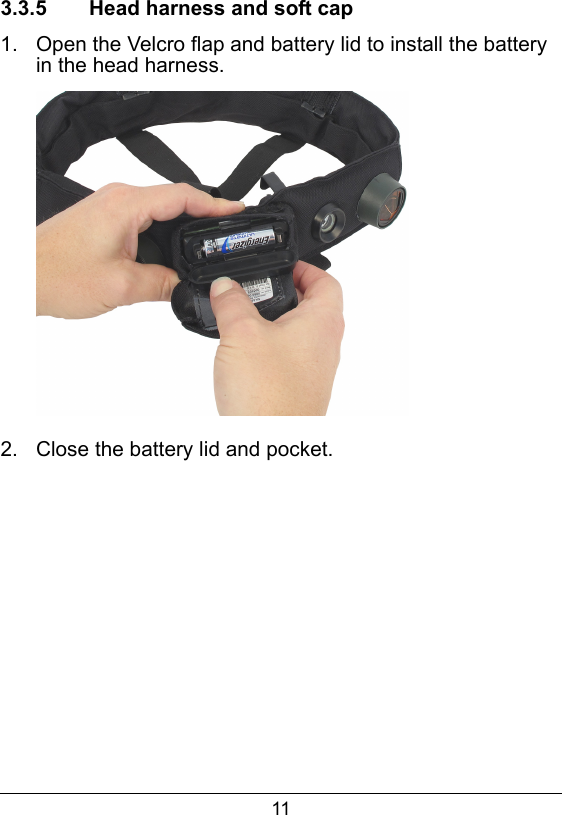
113.3.5  Head harness and soft cap1.  Open the Velcro flap and battery lid to install the battery in the head harness.2.  Close the battery lid and pocket.
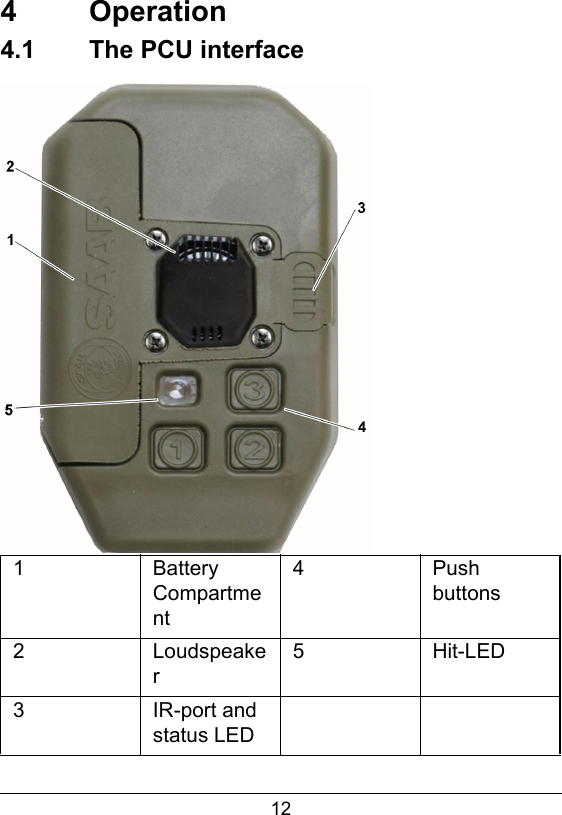
124  Operation4.1  The PCU interface1Battery Compartment4Push buttons2Loudspeaker5Hit-LED3IR-port and status LED
134.1.1  Battery compartmentThe PCU contains an AA-cell battery compartment.4.1.2  Loud speakerAll environmental sounds and spoken messages are given from the loud speaker, placed in front of the PCU.4.1.3  IR-port and status ledThe IR port and status LED is available under a cap. The IR-port is always automatically activated and is used to associate the PDD NG with other devices. Three status LED (red, yellow, green) is available beside the IR-port4.1.4  Push buttonsButton 1: Push the button to adjust the volume between low, medium and high. Default volume when the system starts up is set to high.Button 2: Is not used.Button 3: Generates a BIT and if the PDD is in wounded status, will wounded body parts also be reported. When pressing the button twice (<1sec), will the PCU report full system status audio feedback.4.1.5  Hit-LEDThe PDD has a visible high intensive Hit-LED placed in the front of the PCU
144.2  Events and audio cuesThe PDD generates the following types of audio cues/messages via the built-in speaker:• near miss sounds• wound status• killed• artillery sound with distance and compass direction• minefield effectHit evaluation:When the PDD evaluates a hit an attention noise is generated. This is followed by a message as to wound type or a killed statement.The PDD will disable the weapon SAT for about 30 seconds to simulate the shock of being hit. This prevents immediately return fire.If the hit is evaluated as a kill or a severe/lethal wound the SAT will continue to be disabled. Only light wounds result in the ability to continue firing after 30 seconds.The simulated wound type will dictate the remaining time to live from an untreated wound. In the event of "kill" the wearer presents a combat target and should not move around. If moving around an unrealistic situation during the After Action Review is caused.
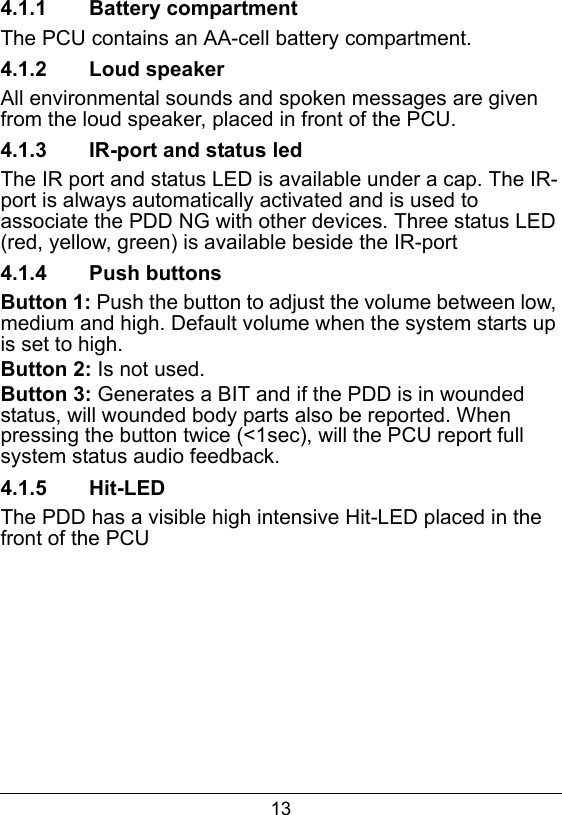
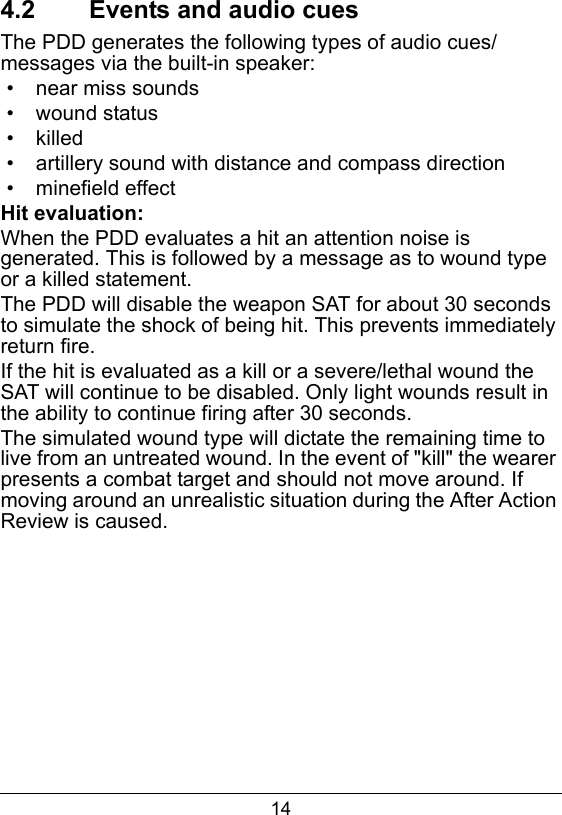
155  Optional Equipment5.1  Installation of soft cap 1.  Attach the four hooks around the soft cap. The electronic unit should be placed in the back of the soft cap.2.  Put on the soft cap and adjust the size with lacing and quick lock.
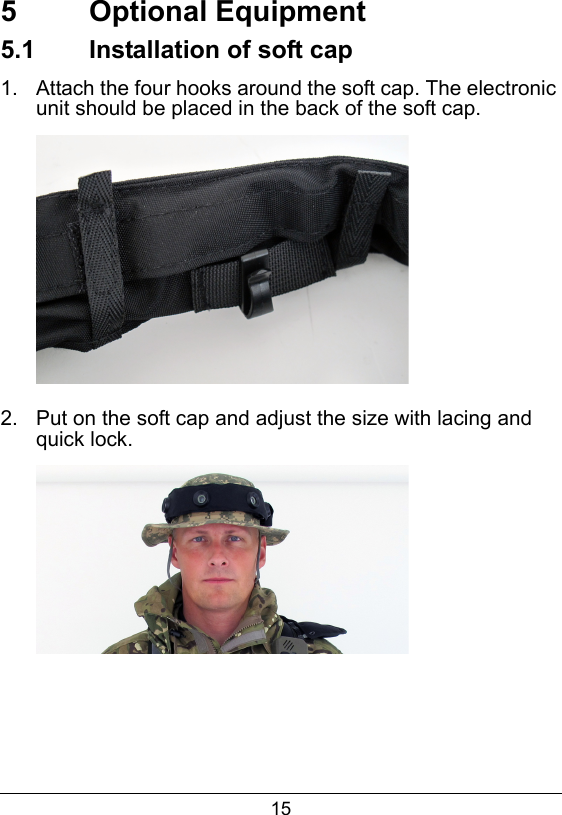
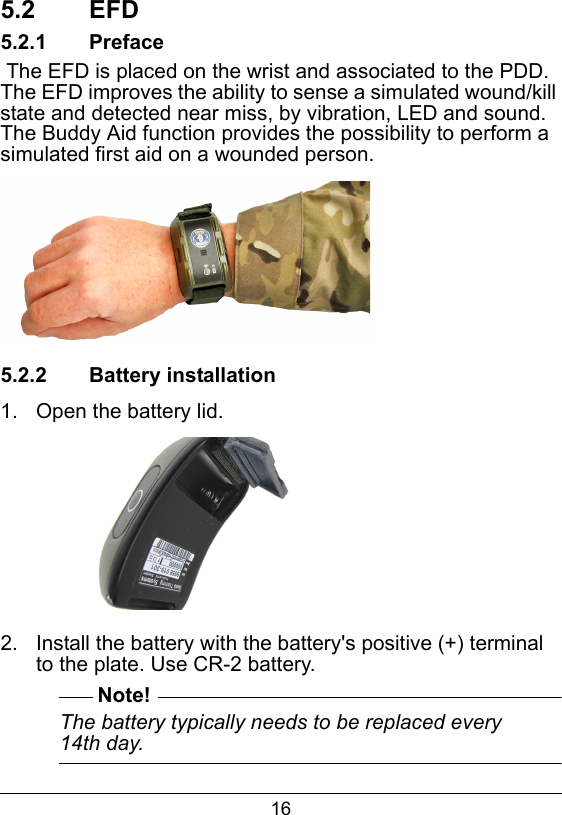
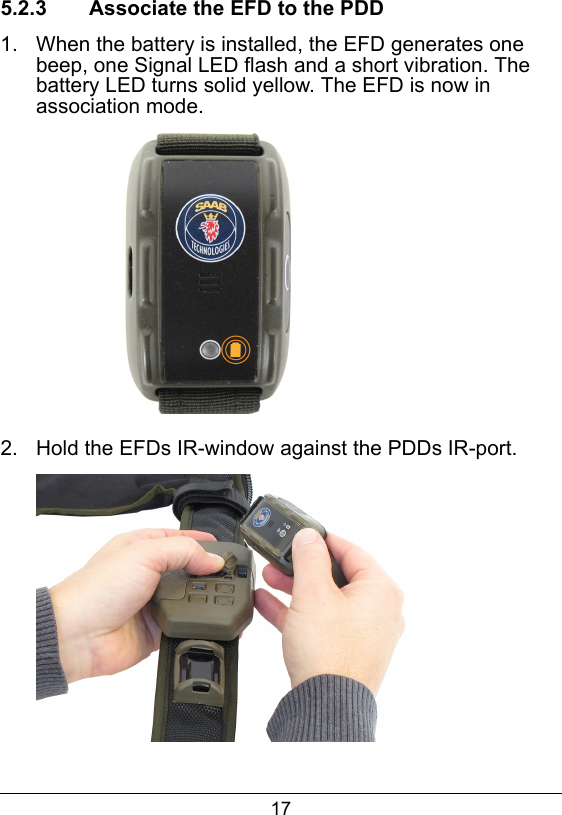
165.2  EFD5.2.1  Preface The EFD is placed on the wrist and associated to the PDD. The EFD improves the ability to sense a simulated wound/kill state and detected near miss, by vibration, LED and sound. The Buddy Aid function provides the possibility to perform a simulated first aid on a wounded person.5.2.2  Battery installation1.  Open the battery lid.2.  Install the battery with the battery's positive (+) terminal to the plate. Use CR-2 battery.Note!The battery typically needs to be replaced every 14th day.
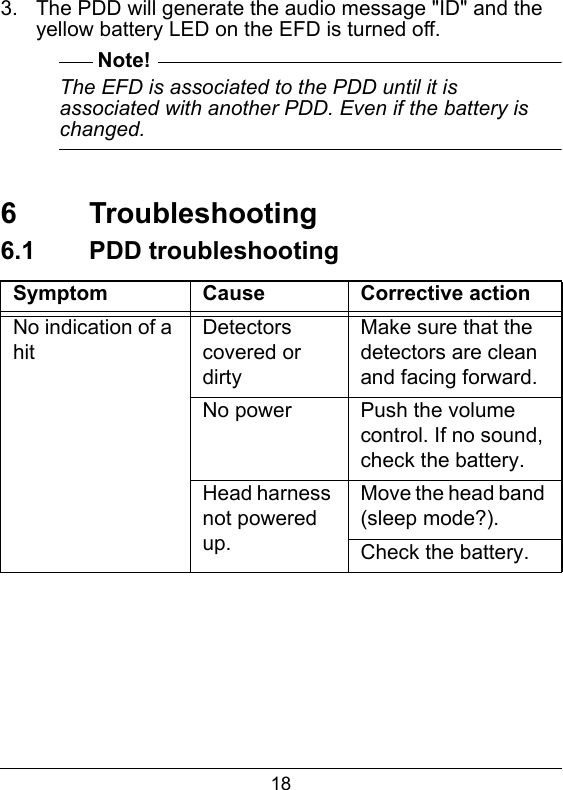
175.2.3  Associate the EFD to the PDD1.  When the battery is installed, the EFD generates one beep, one Signal LED flash and a short vibration. The battery LED turns solid yellow. The EFD is now in association mode.2.  Hold the EFDs IR-window against the PDDs IR-port.
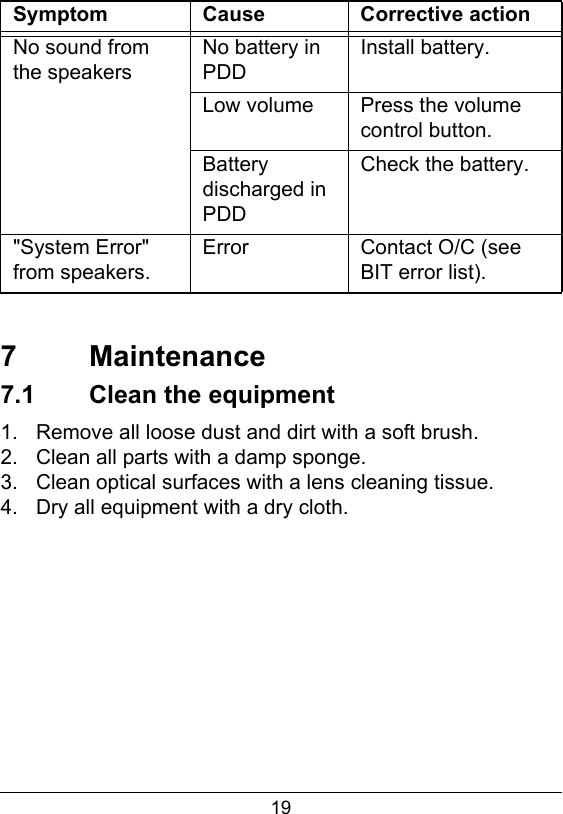
18 3.  The PDD will generate the audio message "ID" and the yellow battery LED on the EFD is turned off.Note!The EFD is associated to the PDD until it is associated with another PDD. Even if the battery is changed.  6  Troubleshooting6.1  PDD troubleshootingSymptom Cause Corrective actionNo indication of a hitDetectors covered or dirtyMake sure that the detectors are clean and facing forward.No power Push the volume control. If no sound, check the battery.Head harness not powered up.Move the head band (sleep mode?).Check the battery.
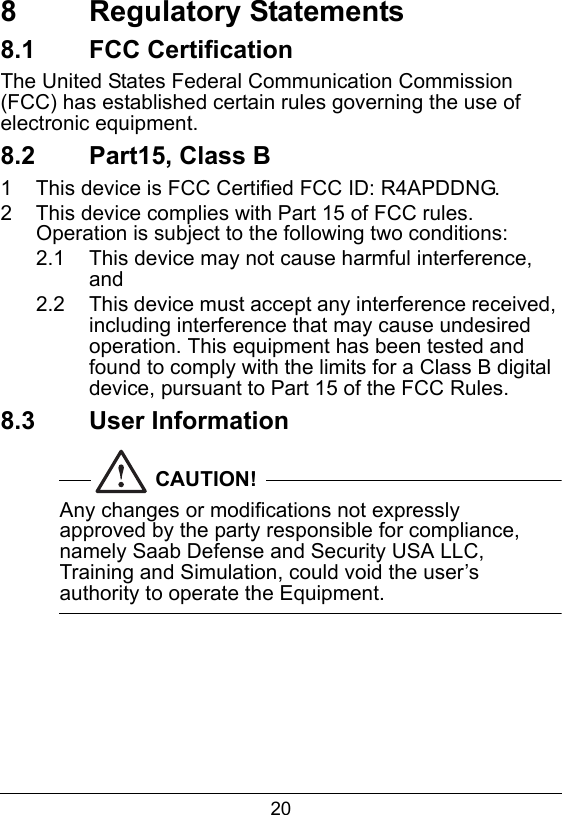
19  7  Maintenance7.1  Clean the equipment1.  Remove all loose dust and dirt with a soft brush.  2.  Clean all parts with a damp sponge. 3.  Clean optical surfaces with a lens cleaning tissue. 4.  Dry all equipment with a dry cloth.  No sound from the speakersNo battery in PDDInstall battery.Low volume Press the volume control button.Battery discharged in PDDCheck the battery."System Error" from speakers.  Error Contact O/C (see BIT error list).Symptom Cause Corrective action
208  Regulatory Statements8.1  FCC CertificationThe United States Federal Communication Commission (FCC) has established certain rules governing the use of electronic equipment.8.2  Part15, Class B1  This device is FCC Certified FCC ID: R4APDDNG.2  This device complies with Part 15 of FCC rules. Operation is subject to the following two conditions:2.1  This device may not cause harmful interference, and2.2  This device must accept any interference received, including interference that may cause undesired operation. This equipment has been tested and found to comply with the limits for a Class B digital device, pursuant to Part 15 of the FCC Rules.8.3  User InformationCAUTION!Any changes or modifications not expressly approved by the party responsible for compliance, namely Saab Defense and Security USA LLC, Training and Simulation, could void the user’s authority to operate the Equipment.

Navigation menu