Salutron R450 R Series Activity & Wellness Monitor with Heart Rate Measurement, Spectral Ambient Light Sensor & Intelligent Alerts User Manual

Salutron Inc. R Series Activity & Wellness Monitor with Heart Rate Measurement, Spectral Ambient Light Sensor & Intelligent Alerts

user manual
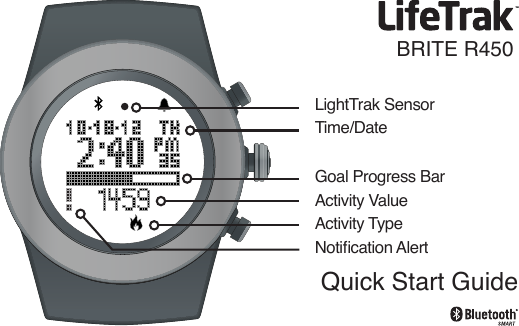
Goal Progress BarTime/DateLightTrak SensorActivity ValueActivity TypeNotication AlertQuick Start GuideBRITE R450
Welcome to LifeTrak. Let’s take a quick tour of the basic features.To turn on your life tracker, press and hold any button.Learn moreFor full instructions, helpful tips and product information, see the LifeTrak User Guide at www.lifetrakusa.com/user-guides.NOTE: Actual model/screen images may vary from images shown.
Table of ContentsButton Layout.........................................................................................User Info................................................................................................Time Setup............................................................................................Bluetooth® Connection......................................................................Notications......................................................................................LightTrak..........................................................................................Goal Setup...........................................................................................Heart Rate............................................................................................SleepTrak 2.0..................................................................................Inactivity Alert......................................................................................Hourly Display................................................................................Weekly Display....................................................................................Workout Mode................................................................................Contact..................................................................................   1234-67-1011-12131415-192021-222324-25Back Cover
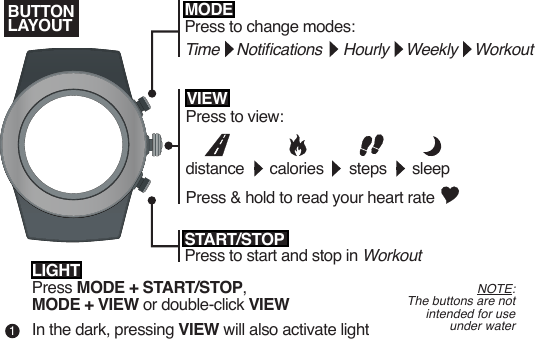
MODEPress to change modes:Time    Notications     Hourly    Weekly    WorkoutSTART/STOPPress to start and stop in WorkoutPress to view: distance      calories      steps      sleepPress & hold to read your heart rateLIGHTPress MODE + START/STOP,MODE + VIEW or double-click VIEWIn the dark, pressing VIEW will also activate lightVIEWNOTE:The buttons are not intended for use under waterBUTTONLAYOUT1
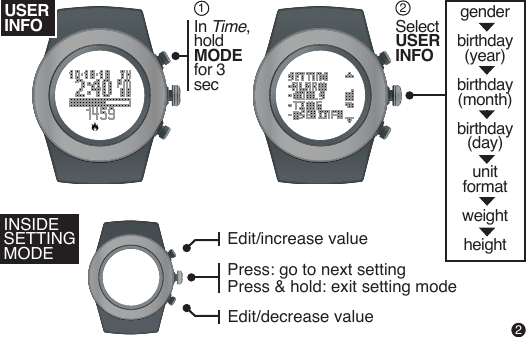
MODEPress to change modes:Time    Notications     Hourly    Weekly    WorkoutIn Time,hold MODE for 3 secSelect USERINFO12USER INFOINSIDE SETTING MODEgenderbirthday(year)birthday(month)birthday(day)unit formatweightheightEdit/increase valueEdit/decrease valuePress: go to next settingPress & hold: exit setting mode 2
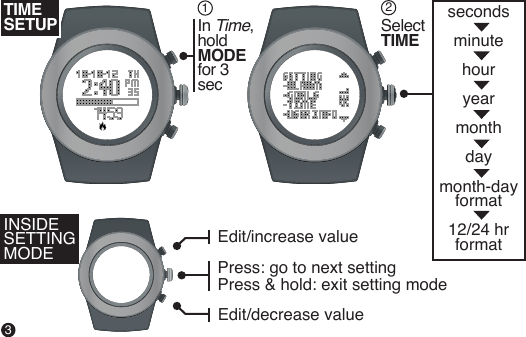
secondsminutehour yearmonthdaymonth-dayformat12/24 hrformatIn Time,hold MODE for 3 sec12TIMESETUPINSIDE SETTING MODESelect TIMEEdit/increase valueEdit/decrease valuePress: go to next settingPress & hold: exit setting mode 3
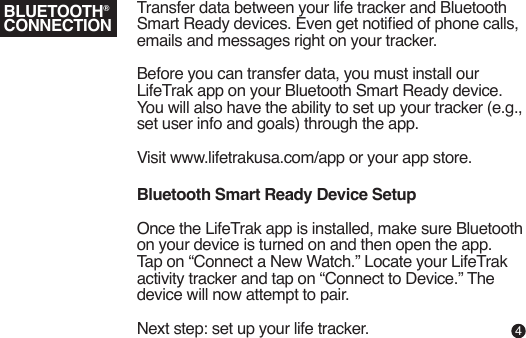
Transfer data between your life tracker and Bluetooth Smart Ready devices. Even get notied of phone calls, emails and messages right on your tracker. Before you can transfer data, you must install our LifeTrak app on your Bluetooth Smart Ready device. You will also have the ability to set up your tracker (e.g., set user info and goals) through the app.Visit www.lifetrakusa.com/app or your app store.Bluetooth Smart Ready Device SetupOnce the LifeTrak app is installed, make sure Bluetooth on your device is turned on and then open the app. Tap on “Connect a New Watch.” Locate your LifeTrak activity tracker and tap on “Connect to Device.” The device will now attempt to pair.Next step: set up your life tracker.BLUETOOTH®CONNECTION4
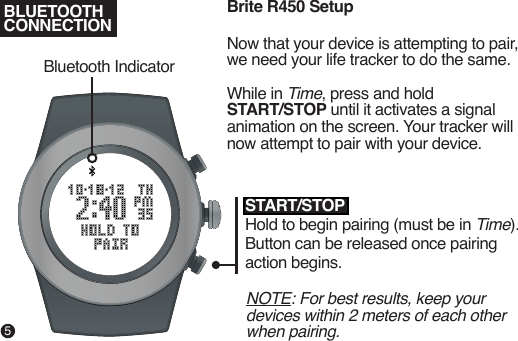
Brite R450 SetupNow that your device is attempting to pair, we need your life tracker to do the same.While in Time, press and hold START/STOP until it activates a signal animation on the screen. Your tracker will now attempt to pair with your device.NOTE: For best results, keep your devices within 2 meters of each other when pairing.START/STOPHold to begin pairing (must be in Time). Button can be released once pairing action begins.Bluetooth IndicatorBLUETOOTHCONNECTION5
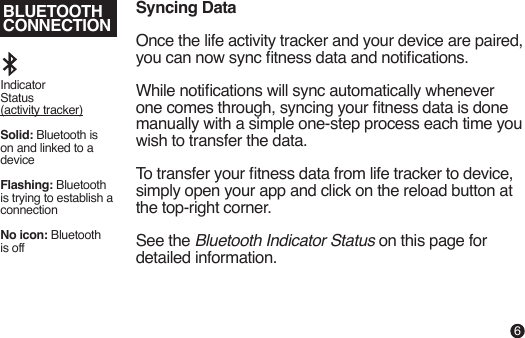
BLUETOOTHCONNECTIONSyncing DataOnce the life activity tracker and your device are paired, you can now sync tness data and notications.While notications will sync automatically whenever one comes through, syncing your tness data is done manually with a simple one-step process each time you wish to transfer the data.To transfer your tness data from life tracker to device, simply open your app and click on the reload button at the top-right corner.See the Bluetooth Indicator Status on this page for detailed information.Indicator Status (activity tracker)Solid: Bluetooth is on and linked to a deviceFlashing: Bluetooth is trying to establish a connectionNo icon: Bluetooth is off6
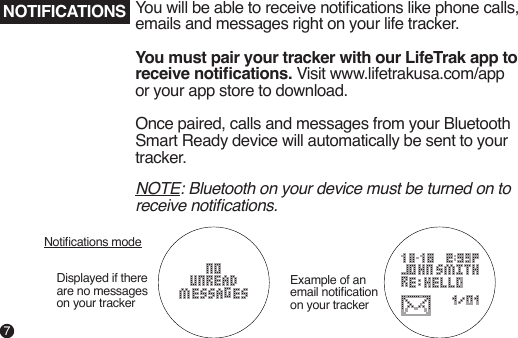
NOTE: Bluetooth on your device must be turned on to receive notications.NOTIFICATIONS You will be able to receive notications like phone calls, emails and messages right on your life tracker.You must pair your tracker with our LifeTrak app to receive notications. Visit www.lifetrakusa.com/app or your app store to download.Once paired, calls and messages from your Bluetooth Smart Ready device will automatically be sent to your tracker.Displayed if there are no messageson your trackerNotications modeExample of an email notication on your tracker7
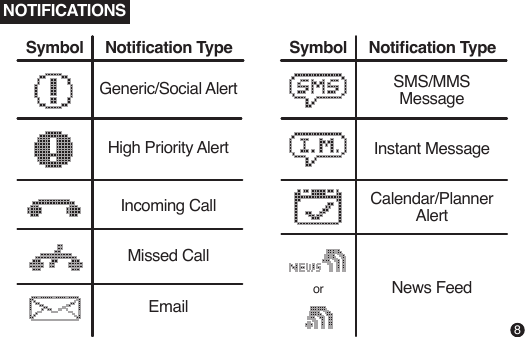
NOTIFICATIONS  Symbol     Notication Type Generic/Social Alert SMS/MMSMessageInstant MessageNews FeedCalendar/PlannerAlertHigh Priority AlertIncoming CallMissed CallorEmail  Symbol     Notication Type 8
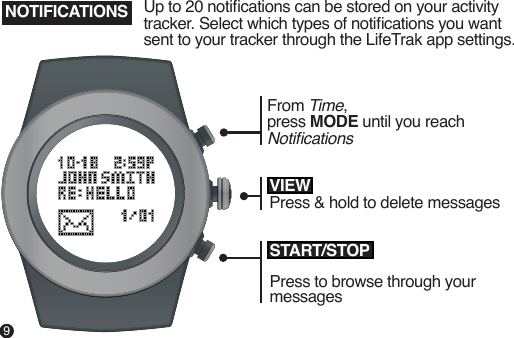
NOTIFICATIONSSTART/STOPPress to browse through your messagesVIEWPress & hold to delete messagesFrom Time,press MODE until you reach NoticationsUp to 20 notications can be stored on your activity tracker. Select which types of notications you want sent to your tracker through the LifeTrak app settings.9
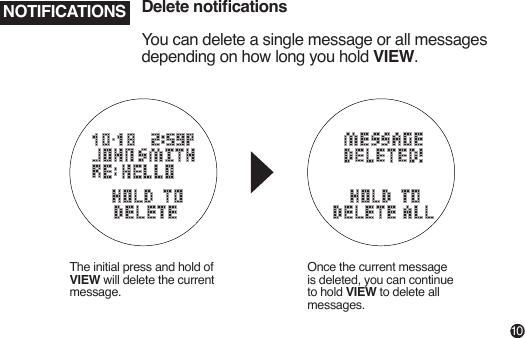
NOTIFICATIONS Delete noticationsYou can delete a single message or all messages depending on how long you hold VIEW.The initial press and hold of VIEW will delete the current message.Once the current message is deleted, you can continue to hold VIEW to delete all messages.10
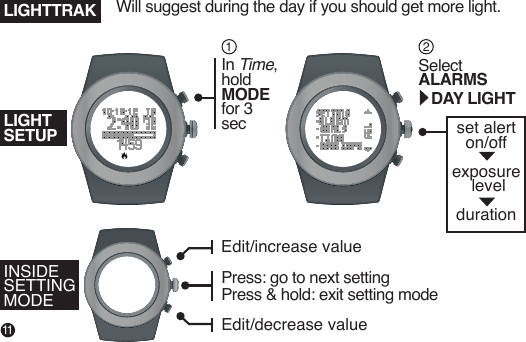
set alerton/off exposure level durationIn Time,hold MODE for 3 secSelect ALARMS   DAY LIGHTINSIDE SETTING MODELIGHTSETUPLIGHTTRAK12Edit/increase valueEdit/decrease valuePress: go to next settingPress & hold: exit setting mode Will suggest during the day if you should get more light.11
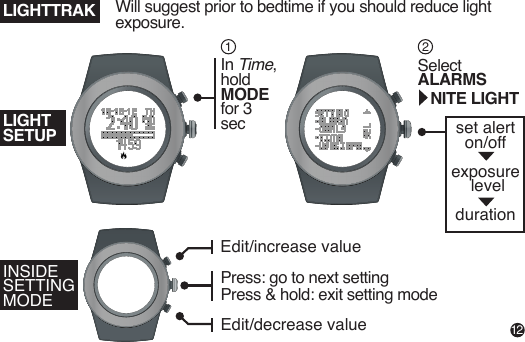
set alerton/off exposure level durationIn Time,hold MODE for 3 secSelect ALARMS   NITE LIGHTINSIDE SETTING MODELIGHTSETUPLIGHTTRAK12Edit/increase valueEdit/decrease valuePress: go to next settingPress & hold: exit setting mode Will suggest prior to bedtime if you should reduce light exposure.12
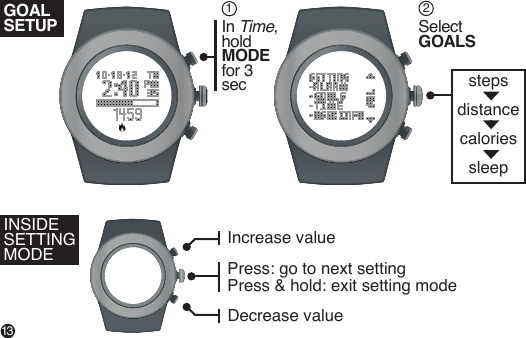
steps distance caloriessleepIn Time,hold MODE for 3 secSelect GOALSINSIDE SETTING MODEGOALSETUP12Increase valueDecrease valuePress: go to next settingPress & hold: exit setting mode 13
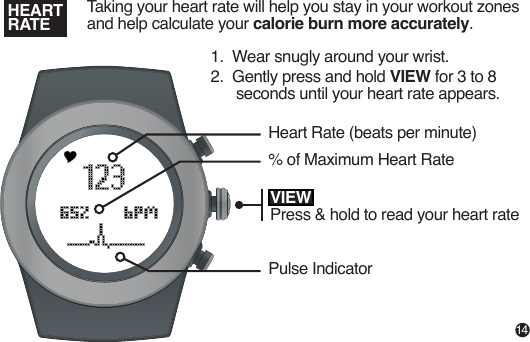
VIEWPress & hold to read your heart rateTaking your heart rate will help you stay in your workout zones and help calculate your calorie burn more accurately. HEARTRATE1.  Wear snugly around your wrist. 2.  Gently press and hold VIEW for 3 to 8           seconds until your heart rate appears.Heart Rate (beats per minute)% of Maximum Heart RatePulse Indicator14
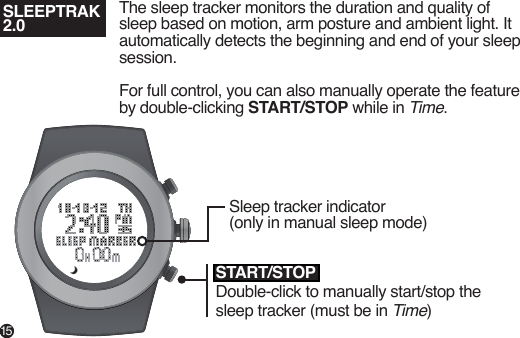
SLEEPTRAK 2.0The sleep tracker monitors the duration and quality of sleep based on motion, arm posture and ambient light. It automatically detects the beginning and end of your sleep session.For full control, you can also manually operate the feature by double-clicking START/STOP while in Time.Sleep tracker indicator (only in manual sleep mode)START/STOPDouble-click to manually start/stop the sleep tracker (must be in Time)15
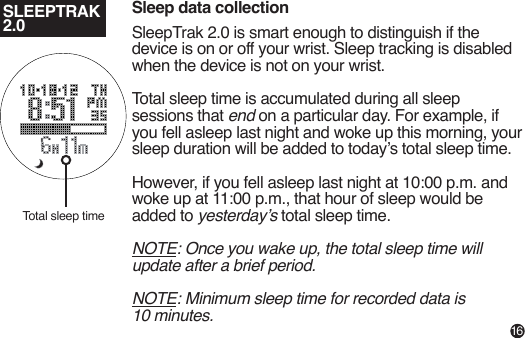
SLEEPTRAK 2.0Sleep data collectionSleepTrak 2.0 is smart enough to distinguish if the device is on or off your wrist. Sleep tracking is disabled when the device is not on your wrist.Total sleep time is accumulated during all sleep sessions that end on a particular day. For example, if you fell asleep last night and woke up this morning, your sleep duration will be added to today’s total sleep time.However, if you fell asleep last night at 10:00 p.m. and woke up at 11:00 p.m., that hour of sleep would be added to yesterday’s total sleep time.NOTE: Once you wake up, the total sleep time will update after a brief period.NOTE: Minimum sleep time for recorded data is 10 minutes.Total sleep time16
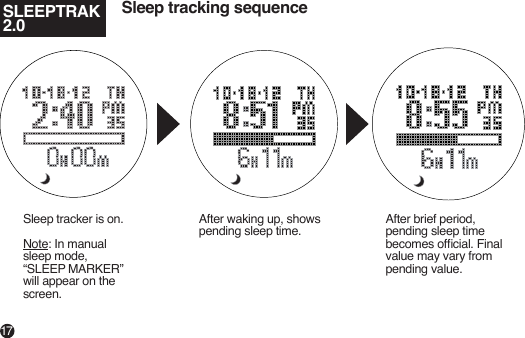
Sleep tracking sequenceSleep tracker is on.Note: In manual sleep mode, “SLEEP MARKER” will appear on the screen.After waking up, shows pending sleep time.After brief period, pending sleep time becomes ofcial. Final value may vary from pending value.SLEEPTRAK 2.017
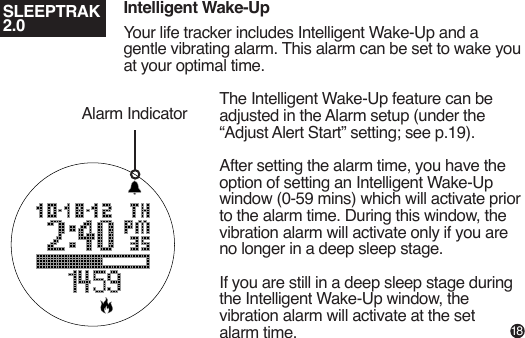
Intelligent Wake-UpYour life tracker includes Intelligent Wake-Up and a gentle vibrating alarm. This alarm can be set to wake you at your optimal time.The Intelligent Wake-Up feature can be adjusted in the Alarm setup (under the “Adjust Alert Start” setting; see p.19).After setting the alarm time, you have the option of setting an Intelligent Wake-Up window (0-59 mins) which will activate prior to the alarm time. During this window, the vibration alarm will activate only if you are no longer in a deep sleep stage.If you are still in a deep sleep stage during the Intelligent Wake-Up window, the vibration alarm will activate at the set alarm time.Alarm IndicatorSLEEPTRAK 2.018
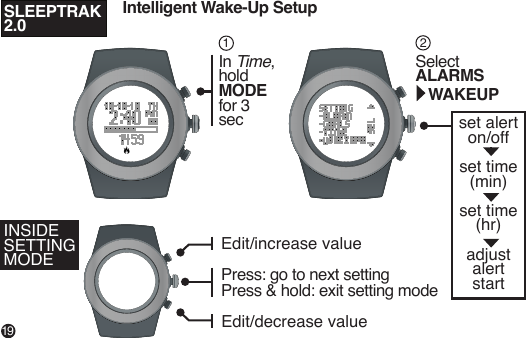
set alerton/off set time(min) set time(hr)adjustalert startIn Time,hold MODE for 3 secSelect ALARMS   WAKEUPINSIDE SETTING MODE12Edit/increase valueEdit/decrease valuePress: go to next settingPress & hold: exit setting mode SLEEPTRAK 2.0Intelligent Wake-Up Setup19
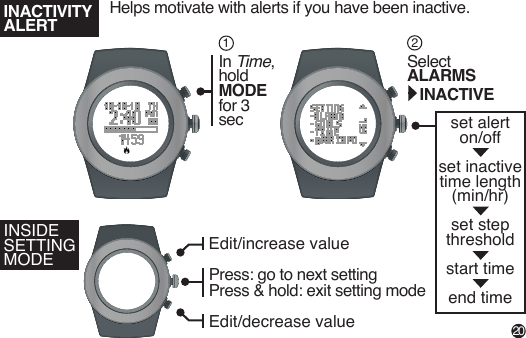
set alerton/off set inactivetime length (min/hr) set stepthresholdstart timeend timeIn Time,hold MODE for 3 secSelect ALARMS   INACTIVEINSIDE SETTING MODE12Edit/increase valueEdit/decrease valuePress: go to next settingPress & hold: exit setting mode INACTIVITYALERTHelps motivate with alerts if you have been inactive. 20
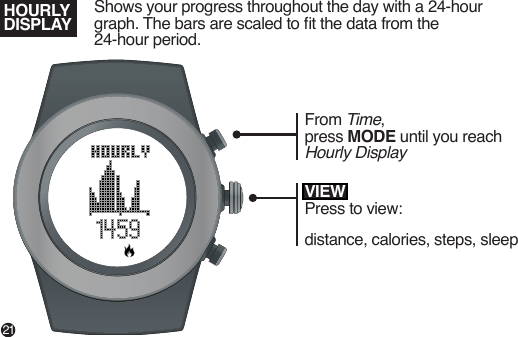
VIEWPress to view:distance, calories, steps, sleepShows your progress throughout the day with a 24-hour graph. The bars are scaled to t the data from the24-hour period.HOURLYDISPLAYFrom Time,press MODE until you reach Hourly Display21
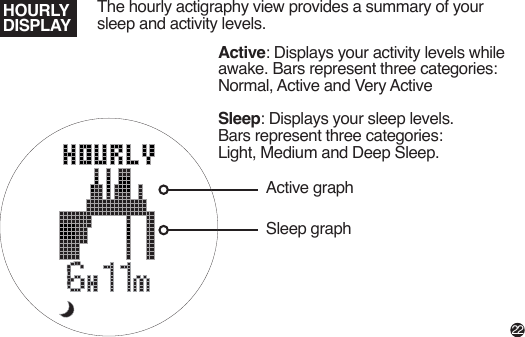
The hourly actigraphy view provides a summary of your sleep and activity levels.Active: Displays your activity levels while awake. Bars represent three categories: Normal, Active and Very ActiveSleep: Displays your sleep levels.Bars represent three categories:Light, Medium and Deep Sleep.HOURLYDISPLAYActive graphSleep graph22
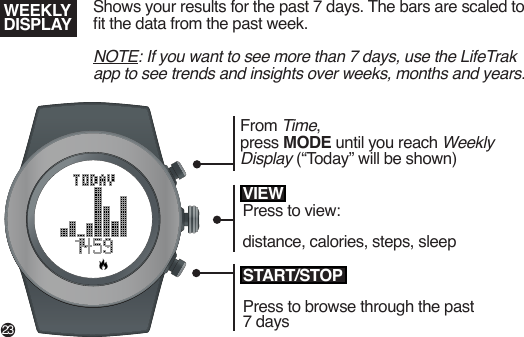
Shows your results for the past 7 days. The bars are scaled to t the data from the past week.NOTE: If you want to see more than 7 days, use the LifeTrak app to see trends and insights over weeks, months and years.WEEKLY DISPLAYSTART/STOPPress to browse through the past 7 daysVIEWPress to view:distance, calories, steps, sleepFrom Time,press MODE until you reach Weekly Display (“Today” will be shown)23
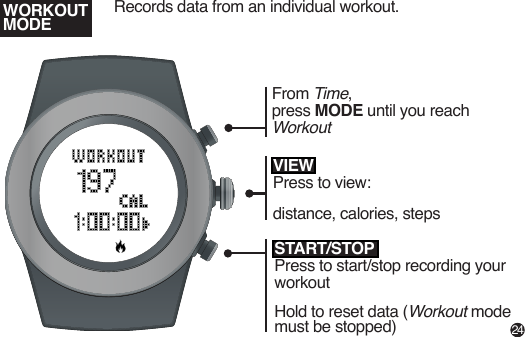
Records data from an individual workout.START/STOPPress to start/stop recording your workoutHold to reset data (Workout mode must be stopped)WORKOUT MODEVIEWPress to view:distance, calories, stepsFrom Time,press MODE until you reachWorkout24
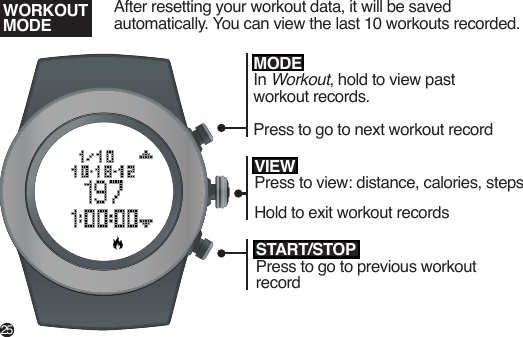
After resetting your workout data, it will be saved automatically. You can view the last 10 workouts recorded.START/STOPPress to go to previous workout recordWORKOUT MODEVIEWPress to view: distance, calories, stepsHold to exit workout recordsMODEIn Workout, hold to view pastworkout records.Press to go to next workout record25
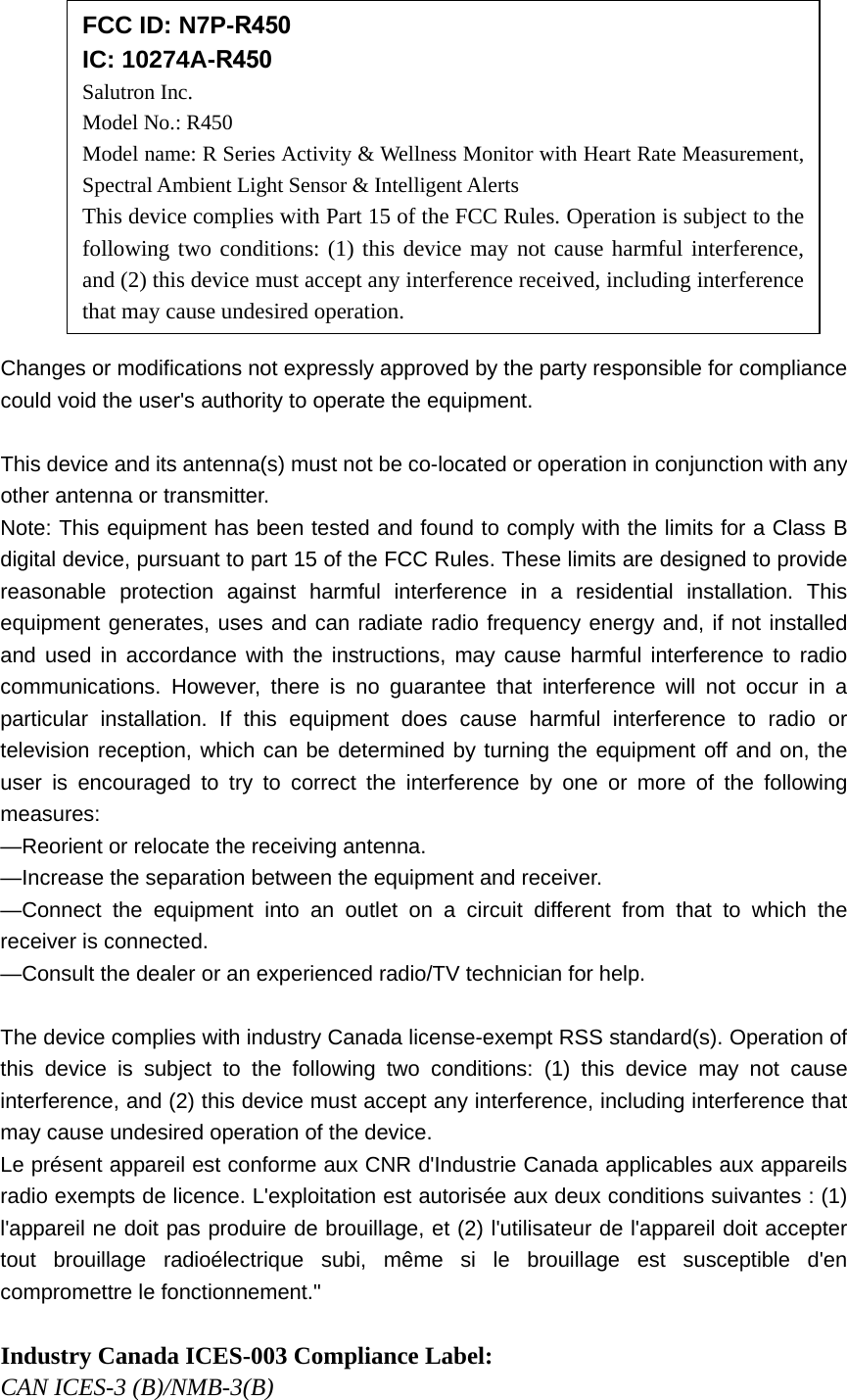
Changes or modifications not expressly approved by the party responsible for compliance could void the user's authority to operate the equipment. This device and its antenna(s) must not be co-located or operation in conjunction with any other antenna or transmitter. Note: This equipment has been tested and found to comply with the limits for a Class B digital device, pursuant to part 15 of the FCC Rules. These limits are designed to provide reasonable protection against harmful interference in a residential installation. This equipment generates, uses and can radiate radio frequency energy and, if not installed and used in accordance with the instructions, may cause harmful interference to radio communications. However, there is no guarantee that interference will not occur in a particular installation. If this equipment does cause harmful interference to radio or television reception, which can be determined by turning the equipment off and on, the user is encouraged to try to correct the interference by one or more of the following measures: —Reorient or relocate the receiving antenna. —Increase the separation between the equipment and receiver. —Connect the equipment into an outlet on a circuit different from that to which the receiver is connected. —Consult the dealer or an experienced radio/TV technician for help. The device complies with industry Canada license-exempt RSS standard(s). Operation of this device is subject to the following two conditions: (1) this device may not cause interference, and (2) this device must accept any interference, including interference that may cause undesired operation of the device.   Le présent appareil est conforme aux CNR d'Industrie Canada applicables aux appareils radio exempts de licence. L'exploitation est autorisée aux deux conditions suivantes : (1) l'appareil ne doit pas produire de brouillage, et (2) l'utilisateur de l'appareil doit accepter tout brouillage radioélectrique subi, même si le brouillage est susceptible d'en compromettre le fonctionnement." Industry Canada ICES-003 Compliance Label: CAN ICES-3 (B)/NMB-3(B)   FCC ID: N7P-R450    IC: 10274A-R450 Salutron Inc. Model No.: R450   Model name: R Series Activity & Wellness Monitor with Heart Rate Measurement, Spectral Ambient Light Sensor & Intelligent Alerts  This device complies with Part 15 of the FCC Rules. Operation is subject to the following two conditions: (1) this device may not cause harmful interference, and (2) this device must accept any interference received, including interference that may cause undesired operation.
Email: support@LifeTrakUSA.comWebsite: www.LifeTrakUSA.comPhone: 1-855-903-9030Mail:           LifeTrak           39962 Cedar Blvd, Ste 285           Newark, CA 94560Copyright © 2014 Salutron, Inc. All rights reserved. Duplication or copying of all or part of this manual without the express written consent of Salutron, Inc. is prohibited.The Bluetooth® word mark and logos are registered trademarks owned by Bluetooth SIG, Inc. and any use of such marks by LifeTrak is under license. Other trademarks and trade names are those of their respective owners.

Navigation menu