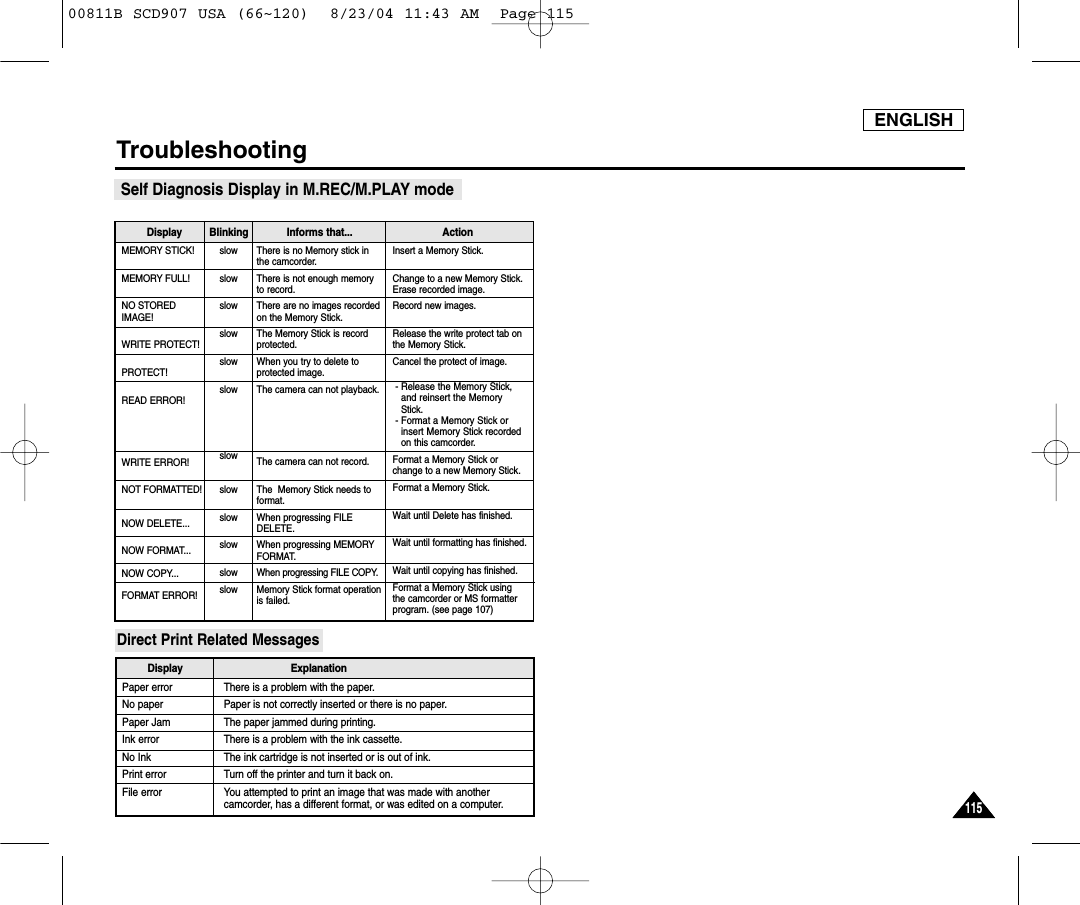
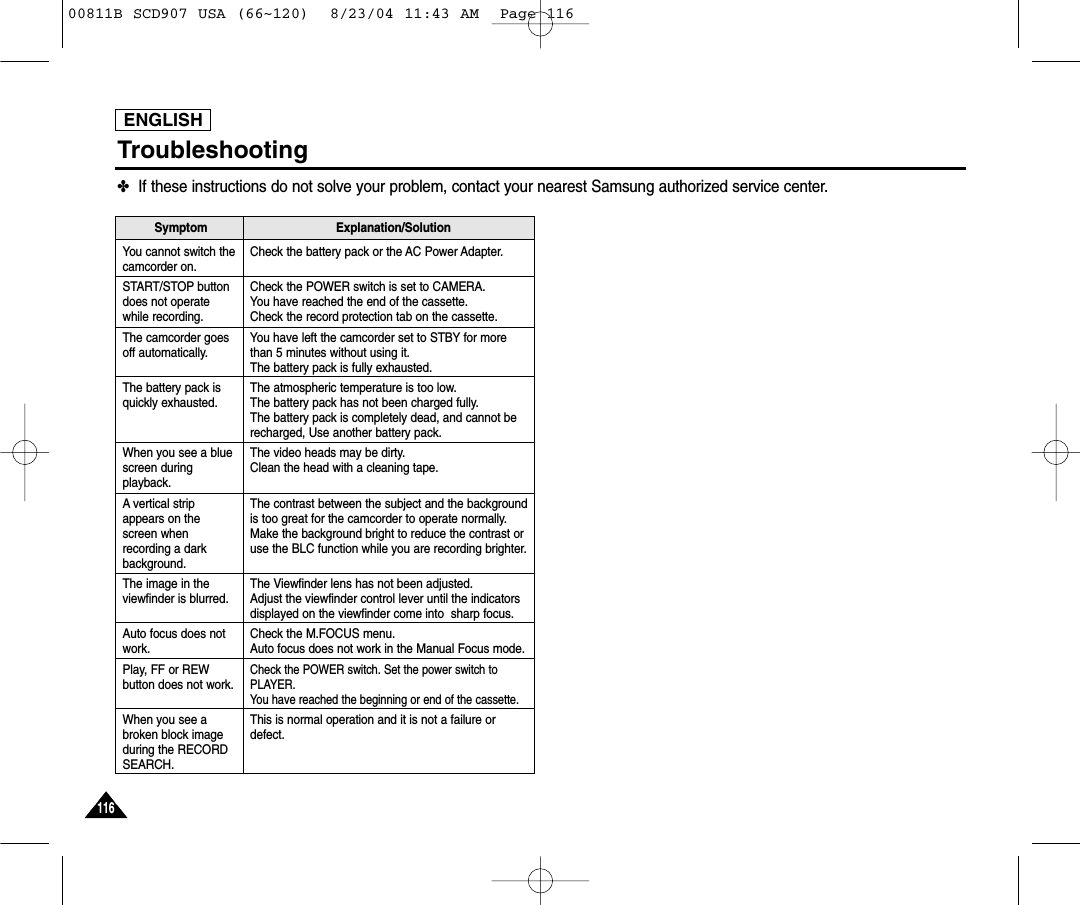
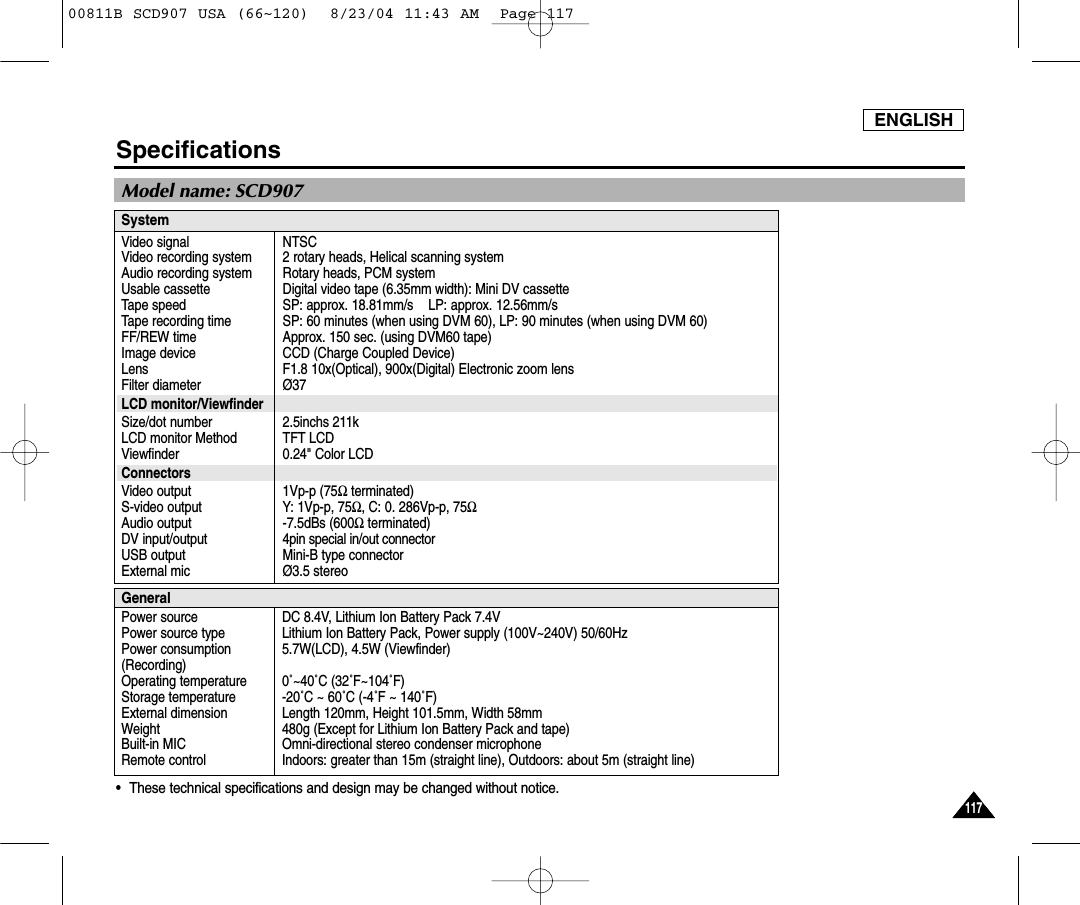
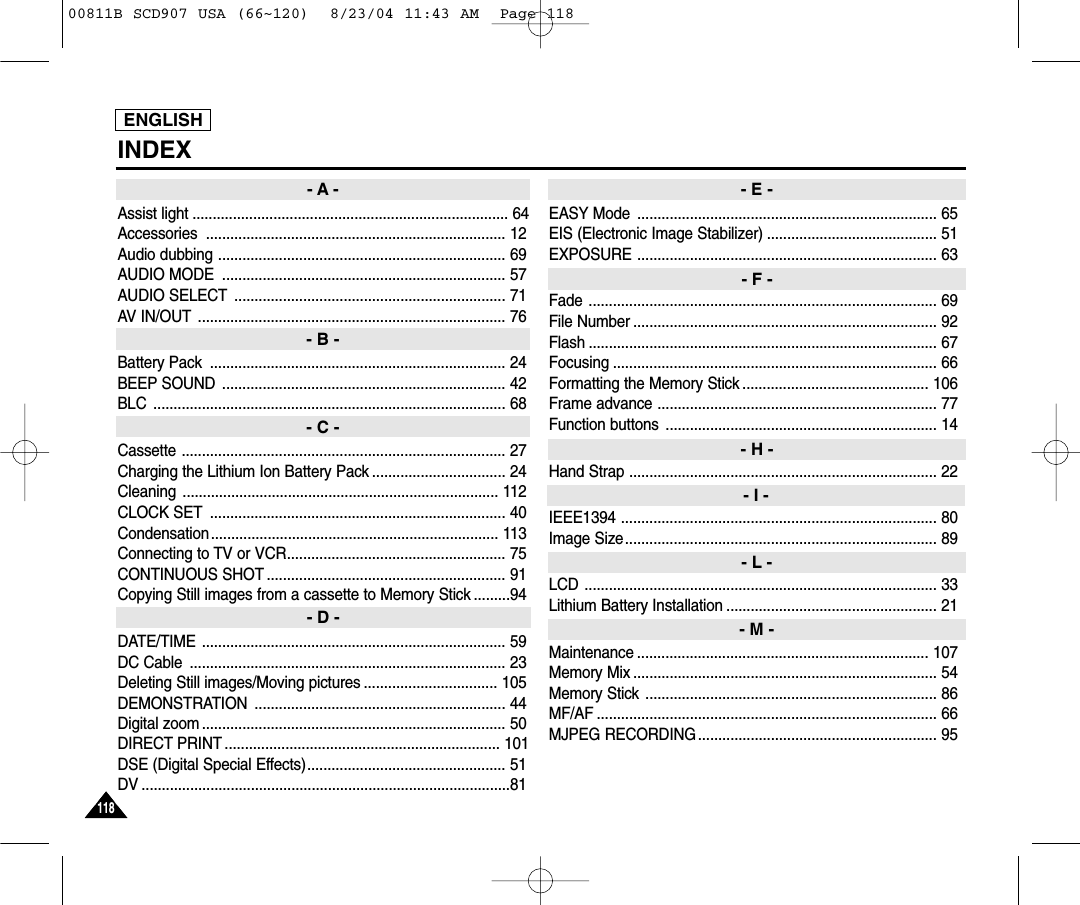
Samsung Electronics Co 04OMEGA211 Digital Video Camcorder User Manual 00811B SCD907 USA 01 27

Samsung Electronics Co Ltd Digital Video Camcorder 00811B SCD907 USA 01 27

Contents

Users Manual 2

ENGLISH5151Advanced Recording●EIS (Electronic Image Stabilizer)✤The EIS function works in CAMERA mode only. ✤EIS (Electronic Image Stabilizer) is a function that compensates for any shaking or hand movement while holding thecamcorder (within reasonable limits).✤It provides more stable pictures when:■Recording with the zoom■Recording a small object close-up■Recording and walking at the same time■Recording through the window of a vehicle1. Set the camcorder to CAMERA mode. (see page 29)2. Press the MENU button.■The menu list will appear.3. Move the MENU SELECTOR highlight to CAMERA and push the MENU SELECTOR.■The sub menu list will appear.4. Move the MENU SELECTOR to activate the EIS function, push the MENU SELECTOR.■The EIS menu is changed to ON. ■If you do not want to use the EIS function, set the EIS menu to OFF.5. To exit, press the MENU button.Notes■It is recommended that you deactivate the shake compensation function when using a tripod.■If you use the EIS function, the picture quality may deteriorate.■While setting the EIS to ON, the WIDE [16:9] and STROBE (DSE function) mode do not work.CAM  MODEINITIALPROGRAM AEWHT. BALANCED.ZOOMEISDSE SELECTMEMORY MIXCAMERAA/VMEMORYVIEWERCAM  MODEPROGRAM AEWHT. BALANCED.ZOOMEISDSE SELECTMEMORY MIXCAMERA SET00811B SCD907 USA (28~65)  8/23/04 11:42 AM  Page 51
ENGLISH5252Advanced Recording●DSE(Digital Special Effects) SELECT✤The DSE function works in CAMERA mode only.✤The digital effects enable you to give a creative look to your recording by adding various special effects.✤Select the appropriate digital effect for the type of picture that you wish to record and the effect you wish to create.✤There are 8 DSE modes.a. ART modeThis mode gives the images a coarse effect.b. MOSAIC modeThis mode gives the images a mosaic effect.c. SEPIA modeThis mode gives the images a reddish-brown pigment.d. NEGA mode This mode reverses the colors of the images, creating a negative image.e. MIRROR modeThis mode cuts the picture in half, using a mirror effect.f. BLK & WHT modeThis mode changes the images to black and white.g. WIDE [16:9] modeProduce images in the WIDE [16:9] format for playback on wide screen TVs.h. STROBE modeThis effect converts on-screen action to a series of still images, giving an effect similarto slow-motion.bdce fhga00811B SCD907 USA (28~65)  8/23/04 11:42 AM  Page 52
ENGLISH5353Advanced RecordingSelecting an Digital Special Effect1. Set the camcorder to CAMERA mode. (see page 29)2. Press the MENU button.■The menu list will appear.3. Move the MENU SELECTOR to highlight CAMERA and push the MENU SELECTOR.4. Select DSE SELECT from the submenu.5. Push the MENU SELECTOR to enter the sub-menu.6. Using MENU SELECTOR, select the DSE mode. (see page 52)■Push the MENU SELECTOR to confirm the DSE mode.7. To exit, press the MENU button.Notes■The DSE function will not operate in EASY Q mode.■While setting the WIDE [16:9] or STROBE to ON, the EIS function does not work.CAM  MODEPROGRAM AEWHT. BALANCED.ZOOMEISDSE SELECTMEMORY MIXCAMERA SETCAM  MODEINITIALPROGRAM AEWHT. BALANCED.ZOOMEISDSE SELECTMEMORY MIXCAMERAA/VMEMORYVIEWERCAM  MODEDSE SELECTARTCAMERA SETMOSAICNEGASEPIAMIRRORBLK&WHTCAM  MODEDSE SELECTSTROBEWIDE [16:9]CAMERA SET00811B SCD907 USA (28~65)  8/23/04 11:42 AM  Page 53
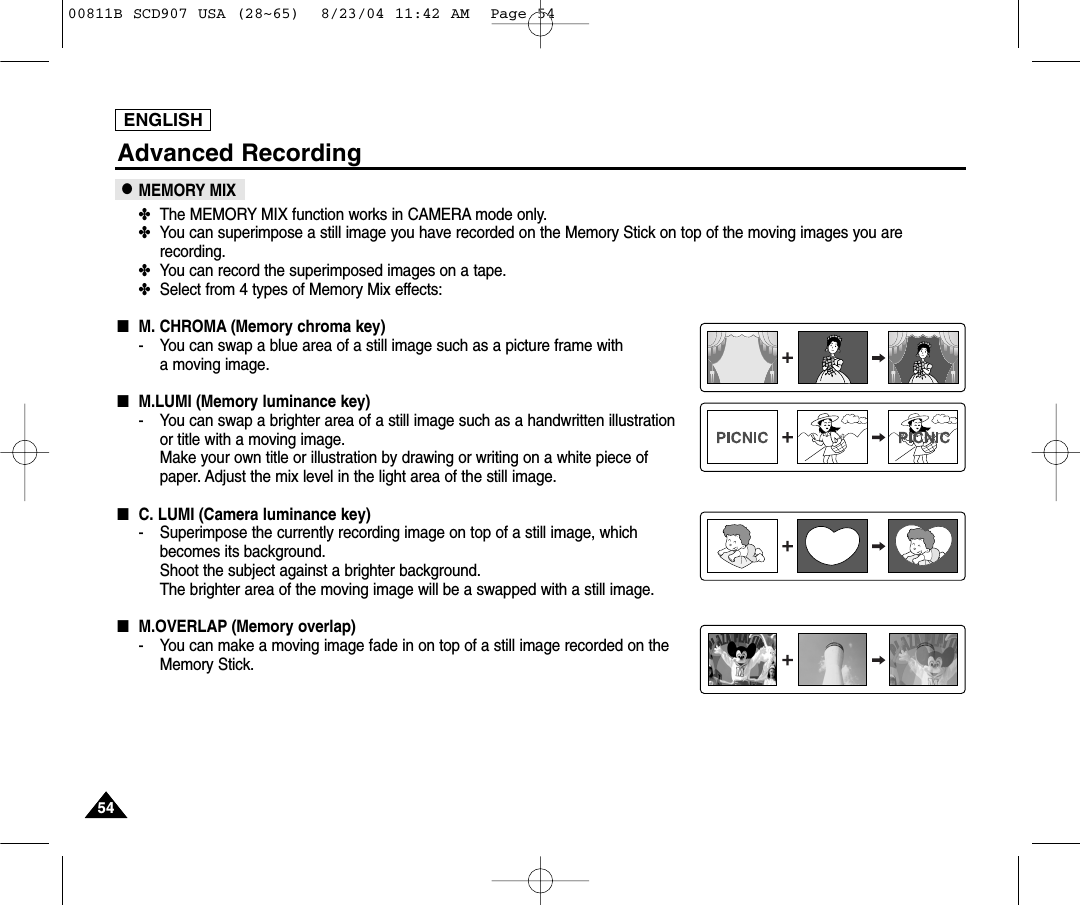
ENGLISH5454Advanced Recording●MEMORY MIX✤The MEMORY MIX function works in CAMERA mode only.✤You can superimpose a still image you have recorded on the Memory Stick on top of the moving images you arerecording.✤You can record the superimposed images on a tape.✤Select from 4 types of Memory Mix effects:■M. CHROMA (Memory chroma key)- You can swap a blue area of a still image such as a picture frame with a moving image.■M.LUMI (Memory luminance key)- You can swap a brighter area of a still image such as a handwritten illustration or title with a moving image.Make your own title or illustration by drawing or writing on a white piece of paper. Adjust the mix level in the light area of the still image.■C. LUMI (Camera luminance key)- Superimpose the currently recording image on top of a still image, whichbecomes its background.Shoot the subject against a brighter background. The brighter area of the moving image will be a swapped with a still image.■M.OVERLAP (Memory overlap)- You can make a moving image fade in on top of a still image recorded on theMemory Stick.00811B SCD907 USA (28~65)  8/23/04 11:42 AM  Page 54
ENGLISH5555Advanced RecordingRecording Superimposed images on a tape✤Insert a tape for recording into your camcorder.✤Insert a Memory Stick with still images recorded into your camcorder.1. Set the camcorder to CAMERA mode. (see page 29)2. Press the MENU button.■The menu list will appear.3. Move the MENU SELECTOR to highlight CAMERA and push the MENU SELECTOR.4. Select MEMORY MIX from the submenu and push the MENU SELECTOR.5. Move the MENU SELECTOR to select the desired MEMORY MIX mode (see page 29) and push the MENU SELECTOR.■Your currently recording image is combined with the last recorded image on the Memory Stick.6. Press the  (REV)/ (FWD) buttons to select the still image you want to superimpose.7. Move the MENU SELECTOR to adjust the mix level. ■Push the MENU SELECTOR to confirm the MEMORY MIX mode.8. To exit, press the MENU button.■Your selected MEMORY MIX mode is flashed in the display.9. Press the MEMORY MIX button.■The still image is superimposed on the moving image.■Each time you press the MEMORY MIX button, your selection is activated (display lights continuously) or deactivated (display flashes).10.Press the START/STOP button to start recording.■The superimposed images are recorded onto the tape.Note■If you change the position of the power switch, you must select a still image for MEMORY MIXagain.CAM  MODEINITIALPROGRAM AEWHT. BALANCED.ZOOMEISDSE SELECTMEMORY MIXCAMERAA/VMEMORYVIEWERCAM  MODEPROGRAM AEWHT. BALANCED.ZOOMEISDSE SELECTMEMORY MIXCAMERA SETCAM  MODEMEMORY MIXM.CHROMAM.LUMIC.LUMIM.OVERLAPCAMERA SET [07/07]     0 : 4 3 : 0 1 3 4 minSTBYM.OVERLAP00811B SCD907 USA (28~65)  8/23/04 11:42 AM  Page 55
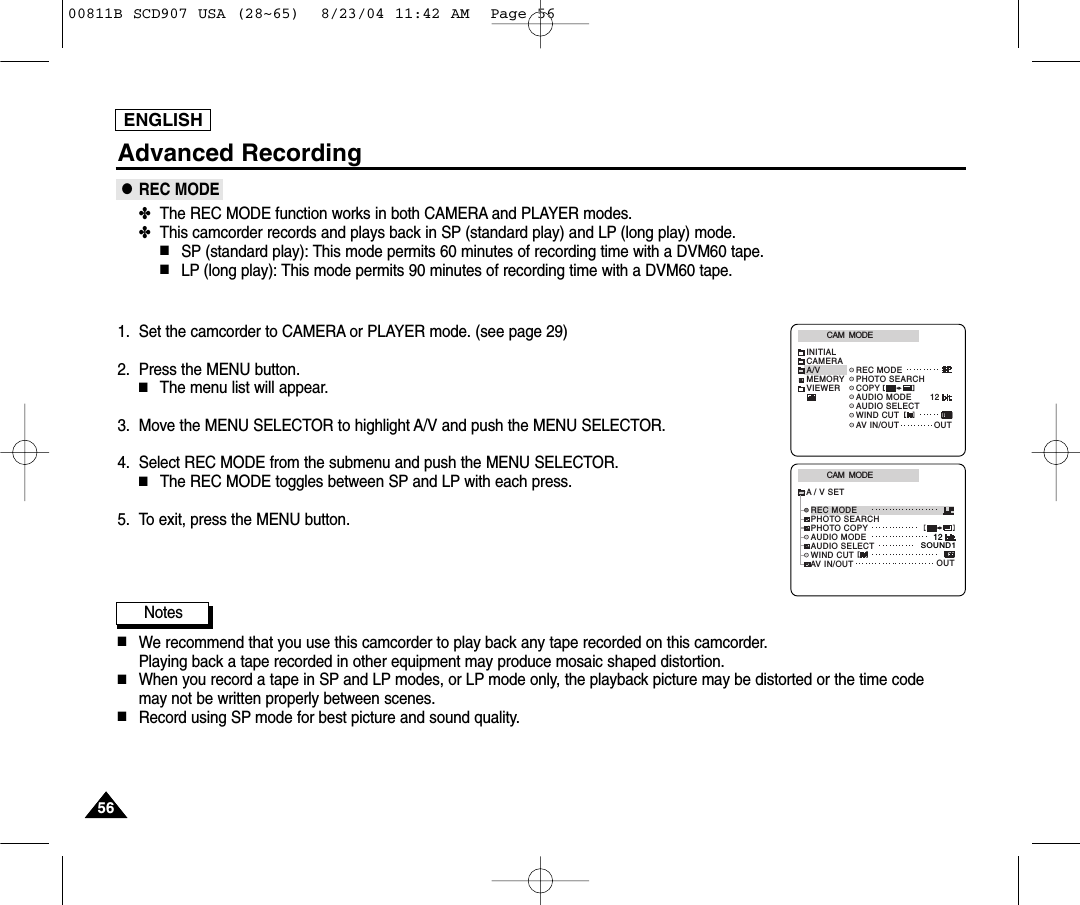
ENGLISHAdvanced Recording●REC MODE✤The REC MODE function works in both CAMERA and PLAYER modes.✤This camcorder records and plays back in SP (standard play) and LP (long play) mode.■SP (standard play): This mode permits 60 minutes of recording time with a DVM60 tape.■LP (long play): This mode permits 90 minutes of recording time with a DVM60 tape.1. Set the camcorder to CAMERA or PLAYER mode. (see page 29)2. Press the MENU button.■The menu list will appear.3. Move the MENU SELECTOR to highlight A/V and push the MENU SELECTOR.4. Select REC MODE from the submenu and push the MENU SELECTOR.■The REC MODE toggles between SP and LP with each press.5. To exit, press the MENU button.Notes■We recommend that you use this camcorder to play back any tape recorded on this camcorder.Playing back a tape recorded in other equipment may produce mosaic shaped distortion.■When you record a tape in SP and LP modes, or LP mode only, the playback picture may be distorted or the time code may not be written properly between scenes.■Record using SP mode for best picture and sound quality.CAM  MODEINITIALWIND CUTREC MODEPHOTO SEARCHAUDIO MODE 12AUDIO SELECTCAMERAA/VMEMORYVIEWER COPYAV IN/OUT OUTCAM  MODEREC MODEPHOTO SEARCHPHOTO COPYAUDIO MODE 12SOUND1AUDIO SELECTWIND CUTA / V SETOUTAV IN/OUT565600811B SCD907 USA (28~65)  8/23/04 11:42 AM  Page 56
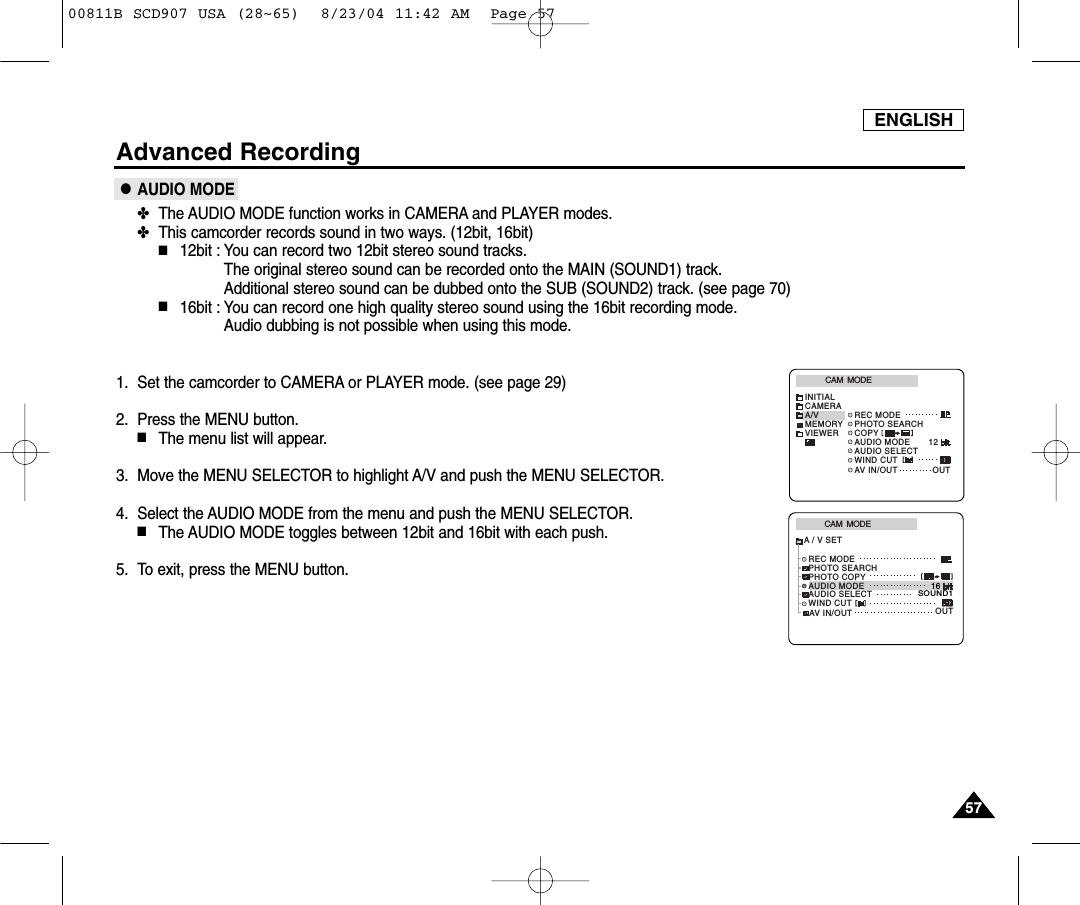
ENGLISH5757Advanced Recording●AUDIO MODE✤The AUDIO MODE function works in CAMERA and PLAYER modes.✤This camcorder records sound in two ways. (12bit, 16bit)■12bit : You can record two 12bit stereo sound tracks.The original stereo sound can be recorded onto the MAIN (SOUND1) track. Additional stereo sound can be dubbed onto the SUB (SOUND2) track. (see page 70)■16bit : You can record one high quality stereo sound using the 16bit recording mode. Audio dubbing is not possible when using this mode.1. Set the camcorder to CAMERA or PLAYER mode. (see page 29)2. Press the MENU button.■The menu list will appear.3. Move the MENU SELECTOR to highlight A/V and push the MENU SELECTOR.4. Select the AUDIO MODE from the menu and push the MENU SELECTOR.■The AUDIO MODE toggles between 12bit and 16bit with each push.5. To exit, press the MENU button.CAM  MODEREC MODEPHOTO SEARCHPHOTO COPYAUDIO MODE 16SOUND1AUDIO SELECTWIND CUTA / V SETOUTAV IN/OUTCAM  MODEINITIALWIND CUTREC MODEPHOTO SEARCHAUDIO MODE 12AUDIO SELECTCAMERAA/VMEMORYVIEWER COPYAV IN/OUT OUT00811B SCD907 USA (28~65)  8/23/04 11:42 AM  Page 57
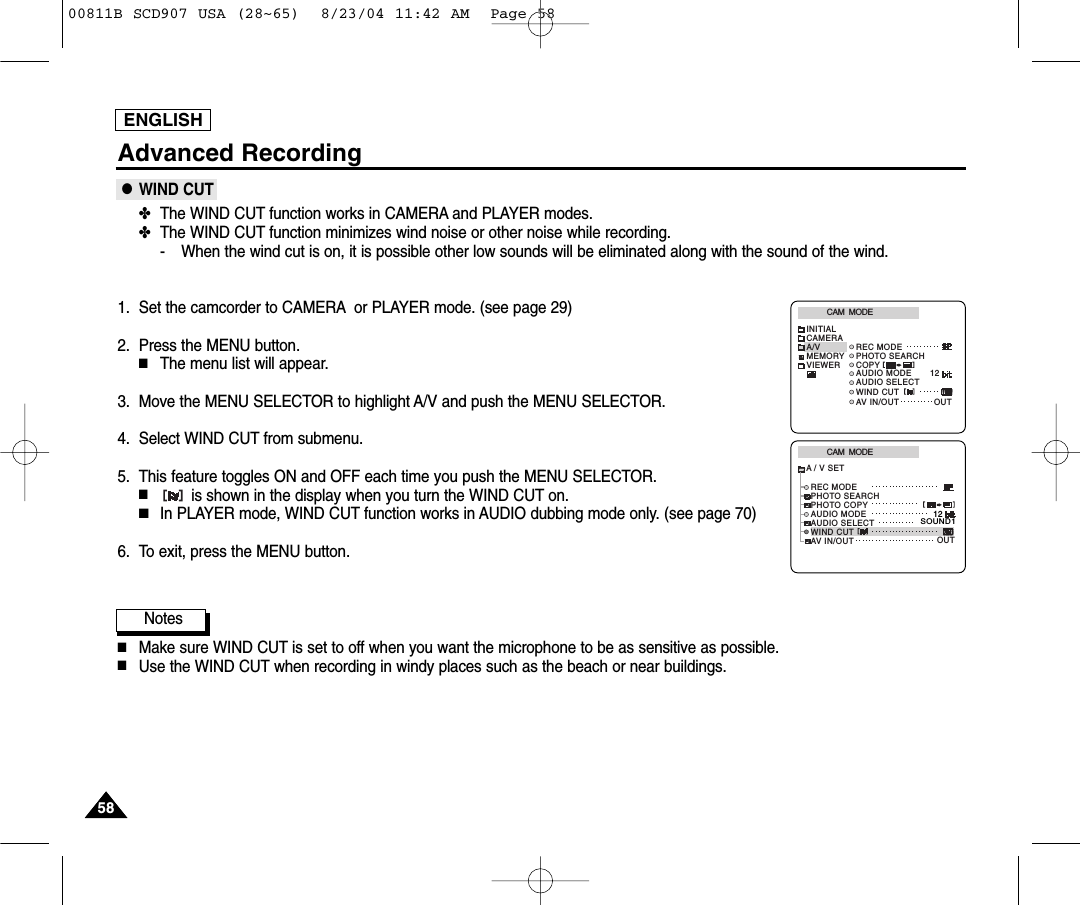
ENGLISH5858Advanced Recording●WIND CUT✤The WIND CUT function works in CAMERA and PLAYER modes.✤The WIND CUT function minimizes wind noise or other noise while recording.- When the wind cut is on, it is possible other low sounds will be eliminated along with the sound of the wind.1. Set the camcorder to CAMERA or PLAYER mode. (see page 29)2. Press the MENU button.■The menu list will appear.3. Move the MENU SELECTOR to highlight A/V and push the MENU SELECTOR.4. Select WIND CUT from submenu.5. This feature toggles ON and OFF each time you push the MENU SELECTOR.■is shown in the display when you turn the WIND CUT on.■In PLAYER mode, WIND CUT function works in AUDIO dubbing mode only. (see page 70)6. To exit, press the MENU button.Notes■Make sure WIND CUT is set to off when you want the microphone to be as sensitive as possible.■Use the WIND CUT when recording in windy places such as the beach or near buildings.CAM  MODEREC MODEPHOTO SEARCHPHOTO COPYAUDIO MODE 12SOUND1AUDIO SELECTWIND CUTA / V SETOUTAV IN/OUTCAM  MODEINITIALWIND CUTREC MODEPHOTO SEARCHAUDIO MODE 12AUDIO SELECTCAMERAA/VMEMORYVIEWER COPYAV IN/OUT OUT00811B SCD907 USA (28~65)  8/23/04 11:42 AM  Page 58
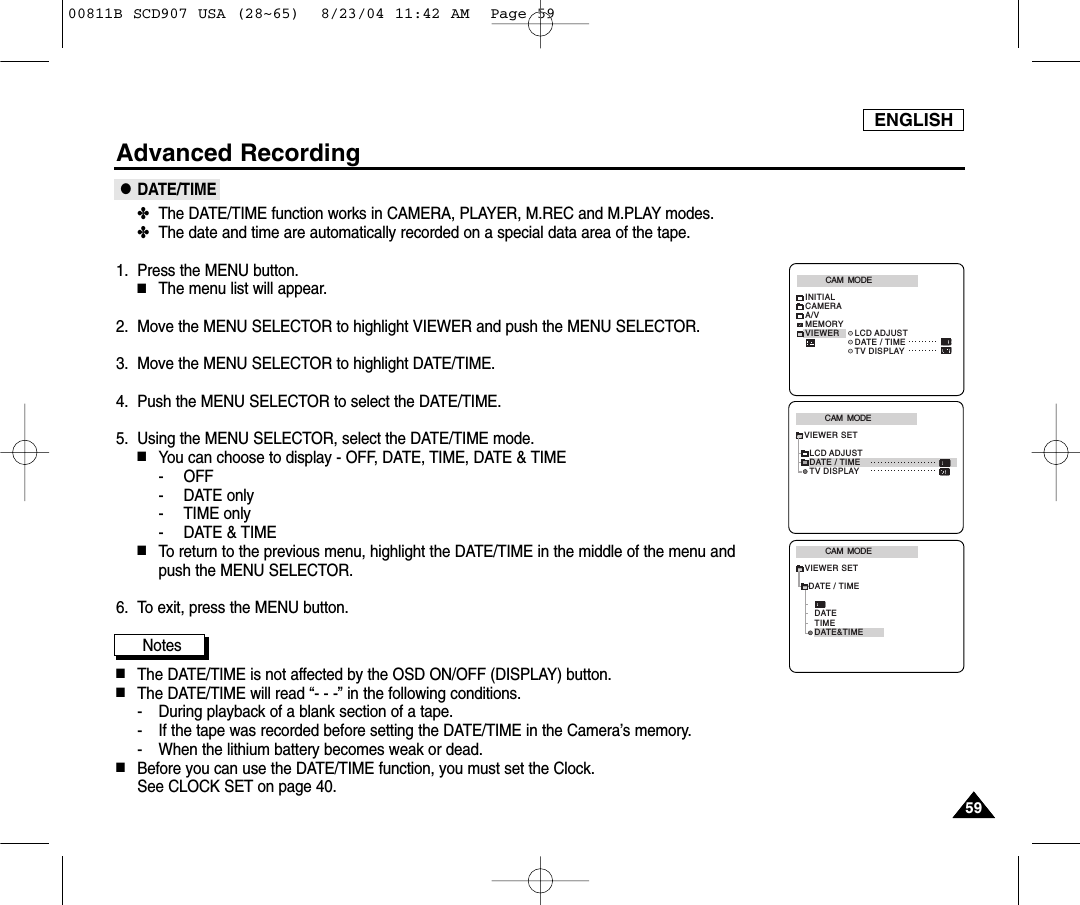
ENGLISH5959Advanced Recording●DATE/TIME✤The DATE/TIME function works in CAMERA, PLAYER, M.REC and M.PLAY modes.✤The date and time are automatically recorded on a special data area of the tape.1. Press the MENU button.■The menu list will appear.2. Move the MENU SELECTOR to highlight VIEWER and push the MENU SELECTOR.3. Move the MENU SELECTOR to highlight DATE/TIME.4. Push the MENU SELECTOR to select the DATE/TIME.5. Using the MENU SELECTOR, select the DATE/TIME mode.■You can choose to display - OFF, DATE, TIME, DATE & TIME- OFF- DATE only- TIME only- DATE & TIME■To return to the previous menu, highlight the DATE/TIME in the middle of the menu and push the MENU SELECTOR.  6. To exit, press the MENU button.Notes■The DATE/TIME is not affected by the OSD ON/OFF (DISPLAY) button.■The DATE/TIME will read “- - -” in the following conditions.- During playback of a blank section of a tape.- If the tape was recorded before setting the DATE/TIME in the Camera’s memory.- When the lithium battery becomes weak or dead.■Before you can use the DATE/TIME function, you must set the Clock. See CLOCK SET on page 40.CAM  MODEVIEWER SETLCD ADJUSTDATE / TIMETV DISPLAYCAM  MODEINITIALLCD ADJUSTDATE / TIMETV DISPLAYCAMERAA/VMEMORYVIEWERCAM  MODEDATE / TIMEVIEWER SETDATETIMEDATE&TIME00811B SCD907 USA (28~65)  8/23/04 11:42 AM  Page 59
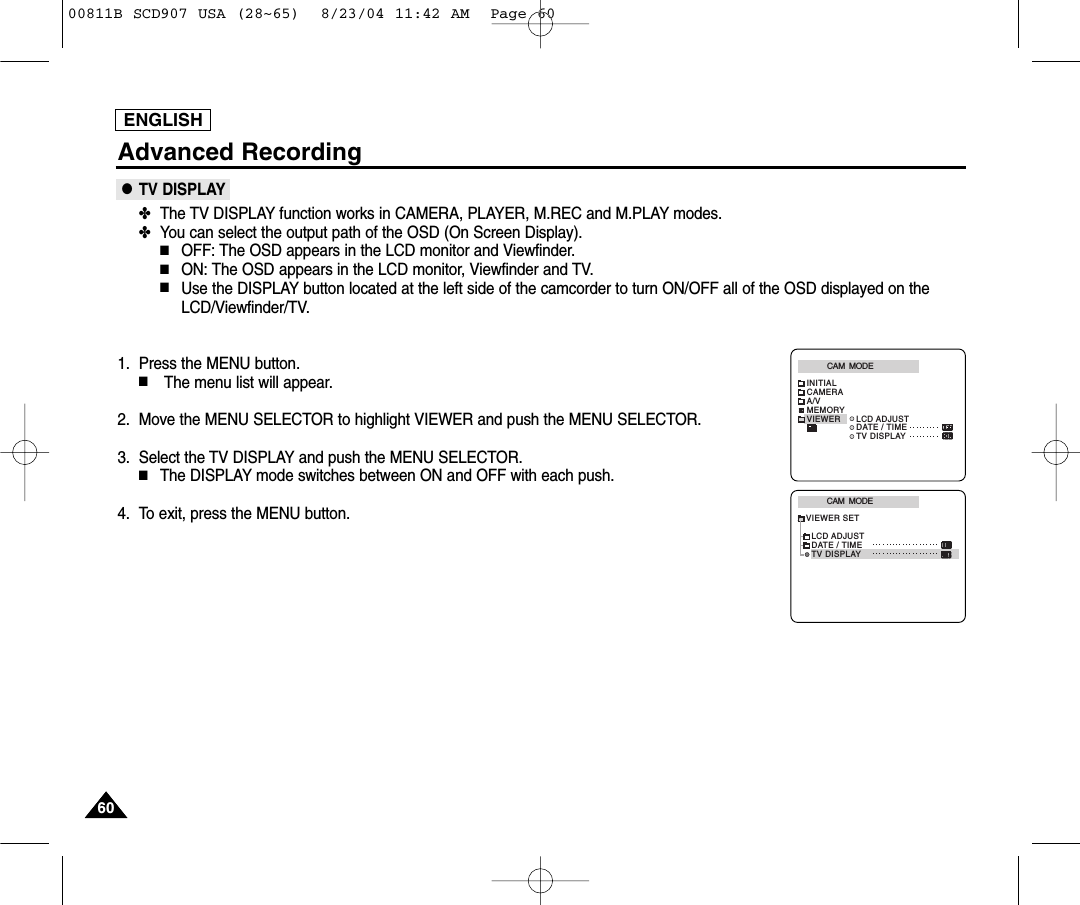
ENGLISH6060Advanced Recording●TV DISPLAY✤The TV DISPLAY function works in CAMERA, PLAYER, M.REC and M.PLAY modes.✤You can select the output path of the OSD (On Screen Display).■OFF: The OSD appears in the LCD monitor and Viewfinder.■ON: The OSD appears in the LCD monitor, Viewfinder and TV.■Use the DISPLAY button located at the left side of the camcorder to turn ON/OFF all of the OSD displayed on theLCD/Viewfinder/TV. 1. Press the MENU button.■The menu list will appear.2. Move the MENU SELECTOR to highlight VIEWER and push the MENU SELECTOR.3. Select the TV DISPLAY and push the MENU SELECTOR.■The DISPLAY mode switches between ON and OFF with each push.4. To exit, press the MENU button.CAM  MODEVIEWER SETLCD ADJUSTDATE / TIMETV DISPLAYCAM  MODEINITIALLCD ADJUSTDATE / TIMETV DISPLAYCAMERAA/VMEMORYVIEWER00811B SCD907 USA (28~65)  8/23/04 11:42 AM  Page 60
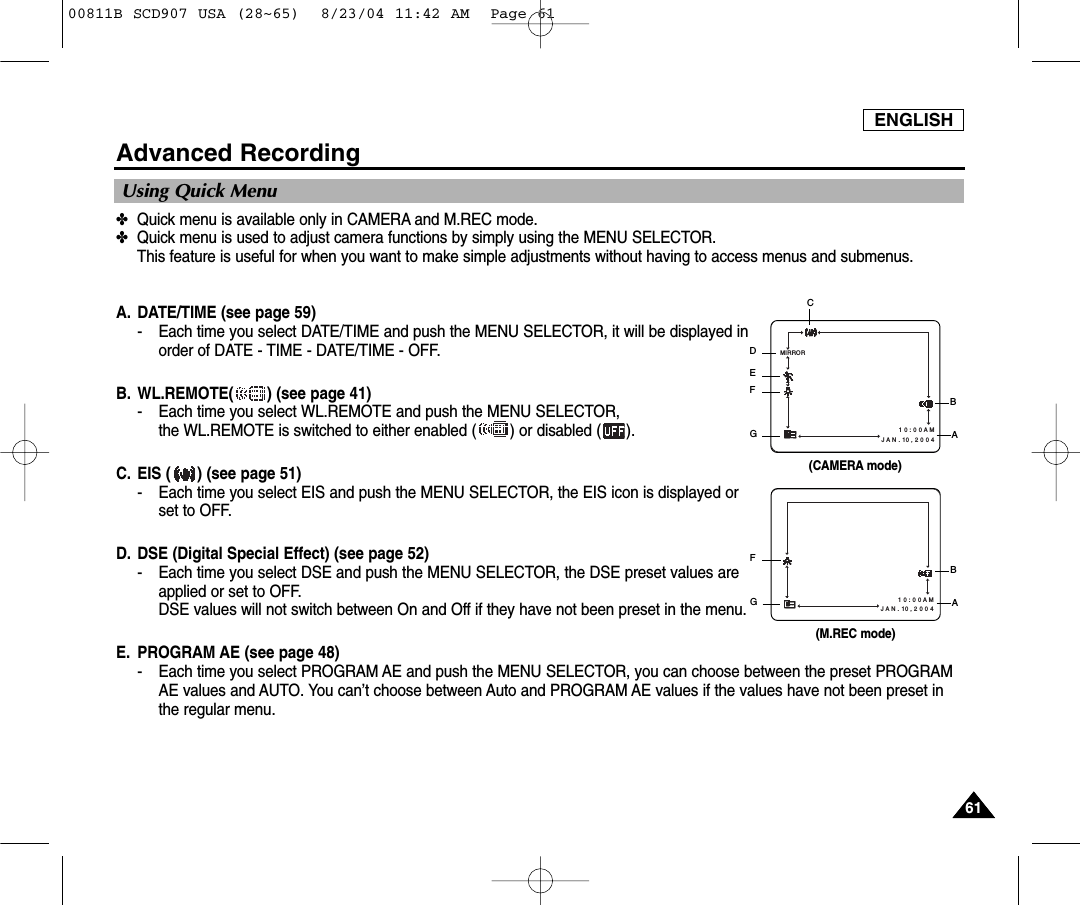
ENGLISH6161Advanced Recording✤Quick menu is available only in CAMERA and M.REC mode.✤Quick menu is used to adjust camera functions by simply using the MENU SELECTOR. This feature is useful for when you want to make simple adjustments without having to access menus and submenus.A. DATE/TIME (see page 59)- Each time you select DATE/TIME and push the MENU SELECTOR, it will be displayed inorder of DATE - TIME - DATE/TIME - OFF.B. WL.REMOTE( ) (see page 41)- Each time you select WL.REMOTE and push the MENU SELECTOR, the WL.REMOTE is switched to either enabled ( ) or disabled ( ).C. EIS ( ) (see page 51)- Each time you select EIS and push the MENU SELECTOR, the EIS icon is displayed orset to OFF.D. DSE (Digital Special Effect) (see page 52)- Each time you select DSE and push the MENU SELECTOR, the DSE preset values areapplied or set to OFF.DSE values will not switch between On and Off if they have not been preset in the menu.E. PROGRAM AE (see page 48)- Each time you select PROGRAM AE and push the MENU SELECTOR, you can choose between the preset PROGRAMAE values and AUTO. You can’t choose between Auto and PROGRAM AE values if the values have not been preset inthe regular menu.Using Quick Menu1 0 : 0 0 A M   J A N . 10 , 2 0 0 4MIRROR(CAMERA mode)CDEFGBA1 0 : 0 0 A M   J A N . 10 , 2 0 0 4(M.REC mode)FGBA00811B SCD907 USA (28~65)  8/23/04 11:42 AM  Page 61
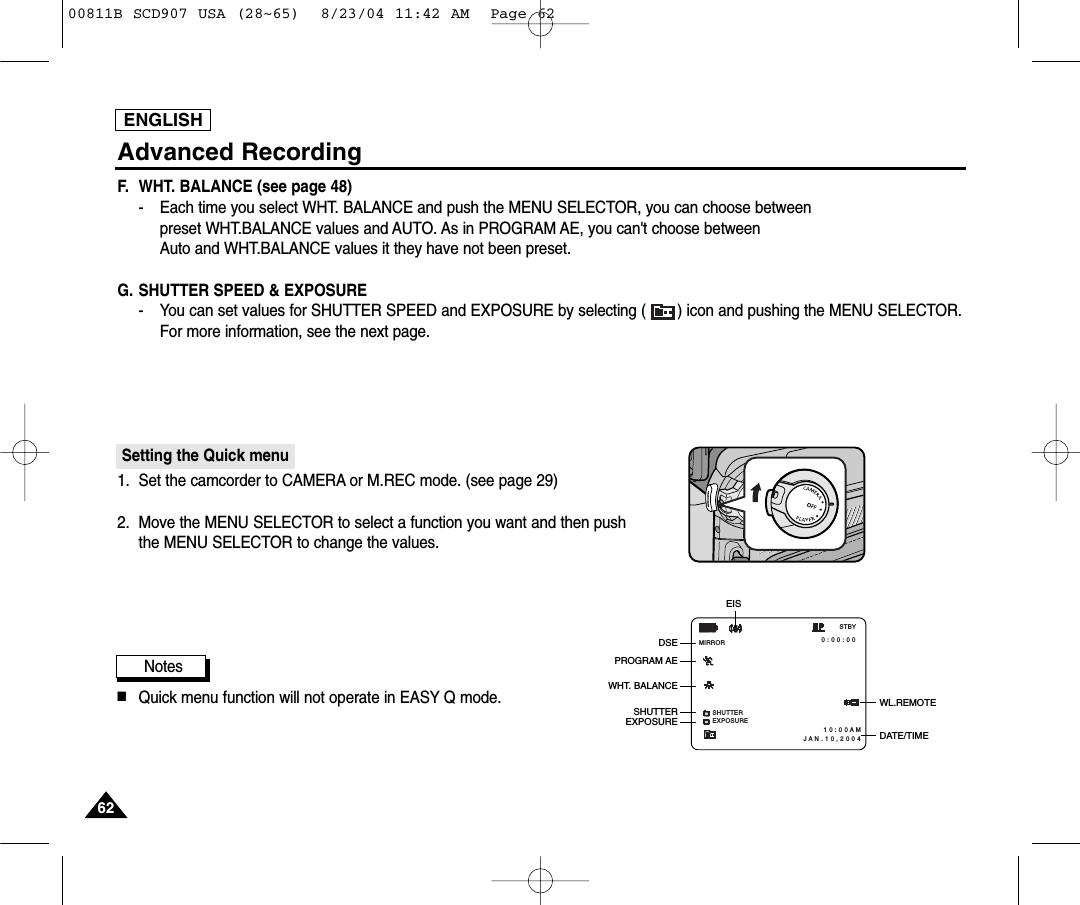
ENGLISH6262Advanced RecordingF. WHT. BALANCE (see page 48)-   Each time you select WHT. BALANCE and push the MENU SELECTOR, you can choose betweenpreset WHT.BALANCE values and AUTO. As in PROGRAM AE, you can't choose betweenAuto and WHT.BALANCE values it they have not been preset.G. SHUTTER SPEED & EXPOSURE- You can set values for SHUTTER SPEED and EXPOSURE by selecting ( ) icon and pushing the MENU SELECTOR. For more information, see the next page.Setting the Quick menu1. Set the camcorder to CAMERA or M.REC mode. (see page 29)2. Move the MENU SELECTOR to select a function you want and then push the MENU SELECTOR to change the values.Notes■Quick menu function will not operate in EASY Q mode.SHUTTEREXPOSURE 0 : 0 0 : 0 0 1 0 : 0 0 A MJ A N . 1 0 , 2 0 0 4STBYMIRRORWL.REMOTEDSEPROGRAM AEWHT. BALANCEEXPOSUREEISDATE/TIMESHUTTER00811B SCD907 USA (28~65)  8/23/04 11:42 AM  Page 62
ENGLISH6363Advanced RecordingSHUTTER SPEED & EXPOSURE✤You can set SHUTTER SPEED and EXPOSURE only in CAMERA/M.REC mode.✤SHUTTER SPEED and EXPOSURE values can only be set in the Quick Menu.✤SHUTTER SPEED and EXPOSURE are automatically switched and/or deactivated.1. Set the power switch to CAMERA or M.REC mode. (see page 29)2. Move the MENU SELECTOR until you see icon( ) on, and then push the MENU SELECTOR.■You see a screen on which you can select SHUTTER SPEED and EXPOSURE.■Move the MENU SELECTOR to select the item you want and then push the MENU SELECTOR.■SHUTTER SPEED can be set to 1/60, 1/100, 1/250, 1/500, 1/1000, 1/2000, 1/4000 or 1/10000.■Only SHUTTER SPEED up to 1/500 are available when using a M.REC mode.■EXPOSURE can be set between 00 and 29.3. To exit from the setting screen, select the icon( ) and push the MENU SELECTOR.Recommended Shutter speeds when recording✤Outdoor sports such as golf or tennis : 1/2000 or 1/4000.✤Moving cars or trains or other rapidly moving vehicles such as roller coasters : 1/1000, 1/500 or 1/250 ✤Indoor sports such as basketball : 1/100Notes■If you want to use the selected shutter speed and exposure value, you should begin the recording with shutter speed andexposure adjustment screens displayed on the LCD.■If you manually change the shutter speed and exposure value when Auto-exposure option is selected, the manual changeswill be applied first.■Images may not seem as smooth when a high shutter speed is set.■The camcorder returns to auto shutter and auto exposure setting when you press the EASY Q or SLOW SHUTTER button.■When recording with a SHUTTER SPEED of 1/1000 or higher, make sure the sun is not shining into the lens.■When recording with a SHUTTER SPEED or EXPOSURE, the Flash function does not work.00811B SCD907 USA (28~65)  8/23/04 11:42 AM  Page 63
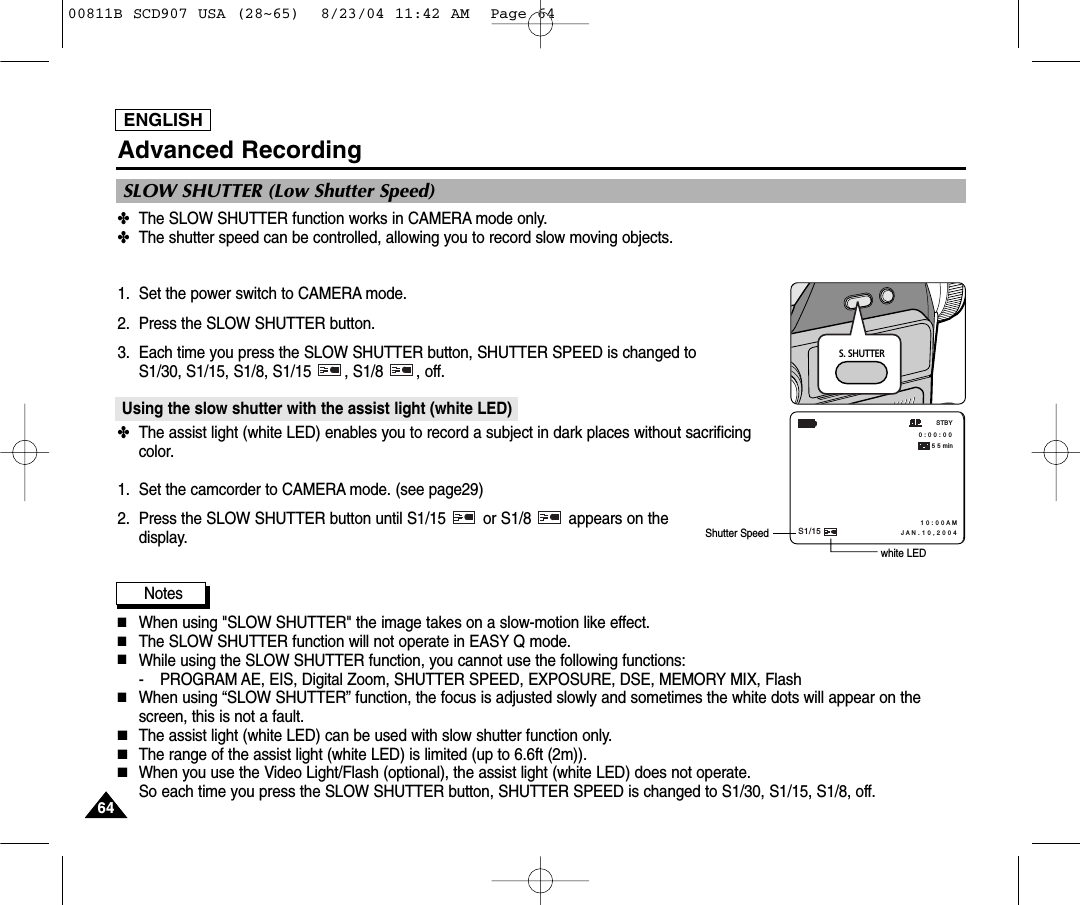
ENGLISH6464Advanced Recording✤The SLOW SHUTTER function works in CAMERA mode only.✤The shutter speed can be controlled, allowing you to record slow moving objects.1. Set the power switch to CAMERA mode.2. Press the SLOW SHUTTER button.3. Each time you press the SLOW SHUTTER button, SHUTTER SPEED is changed to S1/30, S1/15, S1/8, S1/15  , S1/8  , off.Using the slow shutter with the assist light (white LED)✤The assist light (white LED) enables you to record a subject in dark places without sacrificingcolor.1. Set the camcorder to CAMERA mode. (see page29)2. Press the SLOW SHUTTER button until S1/15  or S1/8  appears on thedisplay.Notes■When using "SLOW SHUTTER" the image takes on a slow-motion like effect. ■The SLOW SHUTTER function will not operate in EASY Q mode.■While using the SLOW SHUTTER function, you cannot use the following functions:- PROGRAM AE, EIS, Digital Zoom, SHUTTER SPEED, EXPOSURE, DSE, MEMORY MIX, Flash■When using “SLOW SHUTTER” function, the focus is adjusted slowly and sometimes the white dots will appear on thescreen, this is not a fault.■The assist light (white LED) can be used with slow shutter function only.■The range of the assist light (white LED) is limited (up to 6.6ft (2m)).■When you use the Video Light/Flash (optional), the assist light (white LED) does not operate. So each time you press the SLOW SHUTTER button, SHUTTER SPEED is changed to S1/30, S1/15, S1/8, off.SLOW SHUTTER (Low Shutter Speed)S. SHUTTER 0 : 0 0 : 0 0 STBY5 5 minS1/151 0 : 0 0 A M J A N . 1 0 , 2 0 0 4white LEDShutter Speed00811B SCD907 USA (28~65)  8/23/04 11:42 AM  Page 64
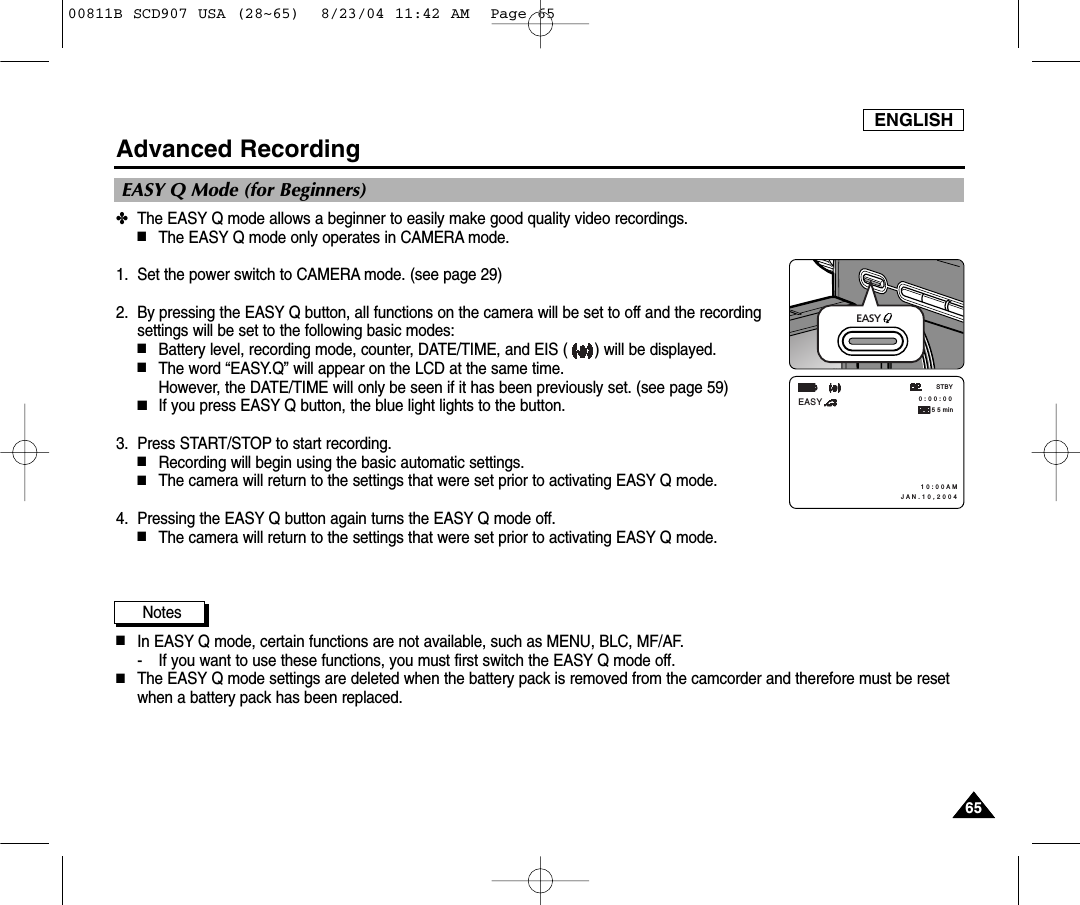
ENGLISH6565Advanced Recording✤The EASY Q mode allows a beginner to easily make good quality video recordings.■The EASY Q mode only operates in CAMERA mode.1. Set the power switch to CAMERA mode. (see page 29)2. By pressing the EASY Q button, all functions on the camera will be set to off and the recordingsettings will be set to the following basic modes:■Battery level, recording mode, counter, DATE/TIME, and EIS ( ) will be displayed.■The word “EASY.Q” will appear on the LCD at the same time. However, the DATE/TIME will only be seen if it has been previously set. (see page 59)■If you press EASY Q button, the blue light lights to the button. 3. Press START/STOP to start recording.■Recording will begin using the basic automatic settings.■The camera will return to the settings that were set prior to activating EASY Q mode.4. Pressing the EASY Q button again turns the EASY Q mode off. ■The camera will return to the settings that were set prior to activating EASY Q mode.Notes■In EASY Q mode, certain functions are not available, such as MENU, BLC, MF/AF.- If you want to use these functions, you must first switch the EASY Q mode off.■The EASY Q mode settings are deleted when the battery pack is removed from the camcorder and therefore must be resetwhen a battery pack has been replaced. EASY Q Mode (for Beginners) 0 : 0 0 : 0 0 1 0 : 0 0 A M J A N . 1 0 , 2 0 0 4STBYEASY5 5 minEASY 00811B SCD907 USA (28~65)  8/23/04 11:42 AM  Page 65
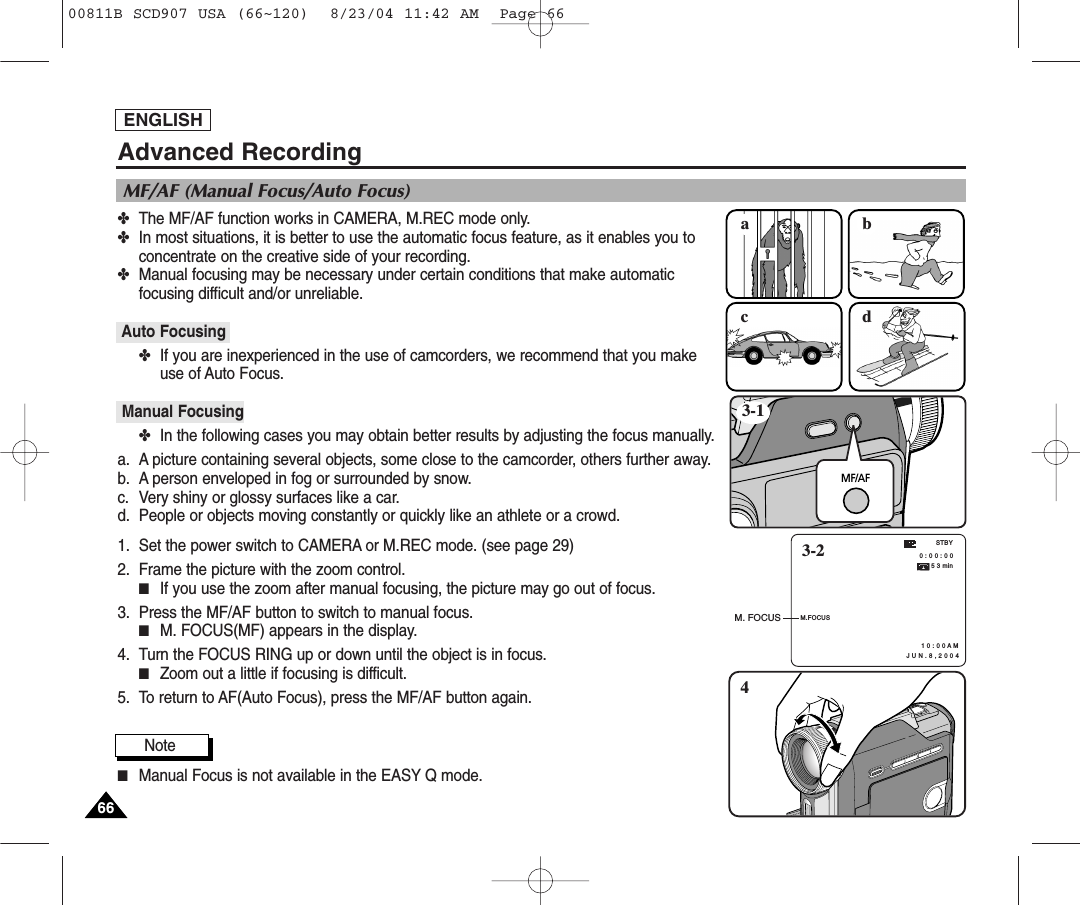
✤The MF/AF function works in CAMERA, M.REC mode only.✤In most situations, it is better to use the automatic focus feature, as it enables you toconcentrate on the creative side of your recording.✤Manual focusing may be necessary under certain conditions that make automatic focusing difficult and/or unreliable.Auto Focusing✤If you are inexperienced in the use of camcorders, we recommend that you makeuse of Auto Focus.Manual Focusing✤In the following cases you may obtain better results by adjusting the focus manually.a. A picture containing several objects, some close to the camcorder, others further away.b. A person enveloped in fog or surrounded by snow.c. Very shiny or glossy surfaces like a car.d. People or objects moving constantly or quickly like an athlete or a crowd.1. Set the power switch to CAMERA or M.REC mode. (see page 29)2. Frame the picture with the zoom control.■If you use the zoom after manual focusing, the picture may go out of focus.3. Press the MF/AF button to switch to manual focus.■M. FOCUS(MF) appears in the display.4. Turn the FOCUS RING up or down until the object is in focus.■Zoom out a little if focusing is difficult.5. To return to AF(Auto Focus), press the MF/AF button again.Note■Manual Focus is not available in the EASY Q mode.ENGLISH6666acbdMF/AF3-14M.FOCUS0 : 0 0 : 0 0 5 3 min1 0 : 0 0 A M   J U N . 8 , 2 0 0 4STBY3-2M. FOCUSMF/AF (Manual Focus/Auto Focus)Advanced Recording00811B SCD907 USA (66~120)  8/23/04 11:42 AM  Page 66
ENGLISH6767Advanced Recording✤You can take natural looking flash pictures with appropriate illumination using the built-in flash or attaching the VL-S1FLvideo Light/ Flash (optional) to the camcorder's Smart shoe (see page 109), whether they are night scenes, in doors or inother dark places.■OFF : The flash does not fire.■(Auto): The flash comes on depending on the brightness of the subject.■(Flash on): The flash comes on regardless of the brightness of the subject.■(Red-eye reduction auto : built-in flash only) : The flash pre-fires automatically before the main firing to reduce red-eye.●FLASH SELECT✤The FLASH SELECT function works in CAMERA and M.REC mode.✤If the FLASH mode is set to off, there is no FLASH ICON in the LCD monitor.1. Set the camcorder to CAMERA mode or M.REC mode.2. Press the    (FLASH) button.3. Each time you press the    (FLASH) button, FLASH mode is changed to       (AUTO),    (FLASH ON), (RED-EYE REDUCTION AUTO), off.Warning! ■Do not fire the flash with the flash bulb covered with your hand.■Do not fire the flash close to people’s eyes.Notes■While using the following functions, you cannot use the FLASH function:- PROGRAM AE, SHUTTER SPEED, EXPOSURE, STROBE (DSE function), SLOW SHUTTER, CONTINUOUS SHOT,MEMORY MIX- When you are recording movies onto a tape.■If the flash is forced to fire (Flash on) in a bright location, the flash effect may not be seenon the recorded picture.■When        (Red-eye reduction auto) is set, the flash fires twice-once to perform red-eye reduction and the second for takingthe main picture. There is approximately a 1.5 second gap between flashes.Using the Built - in Flash00811B SCD907 USA (66~120)  8/23/04 11:42 AM  Page 67
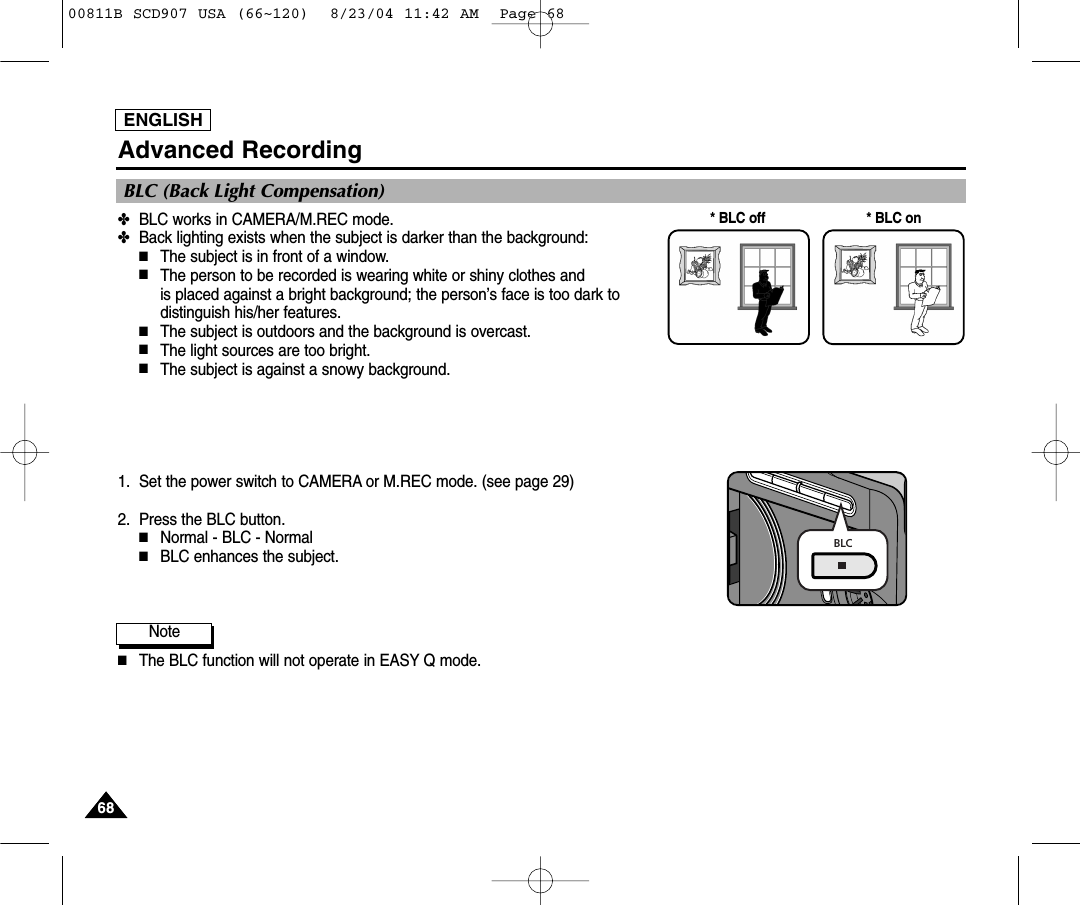
ENGLISH6868Advanced Recording✤BLC works in CAMERA/M.REC mode.✤Back lighting exists when the subject is darker than the background:■The subject is in front of a window.■The person to be recorded is wearing white or shiny clothes and is placed against a bright background; the person’s face is too dark todistinguish his/her features.■The subject is outdoors and the background is overcast.■The light sources are too bright.■The subject is against a snowy background.1. Set the power switch to CAMERA or M.REC mode. (see page 29)2. Press the BLC button.■Normal - BLC - Normal■BLC enhances the subject.Note■The BLC function will not operate in EASY Q mode.* BLC on* BLC offBLC (Back Light Compensation)BLC00811B SCD907 USA (66~120)  8/23/04 11:42 AM  Page 68
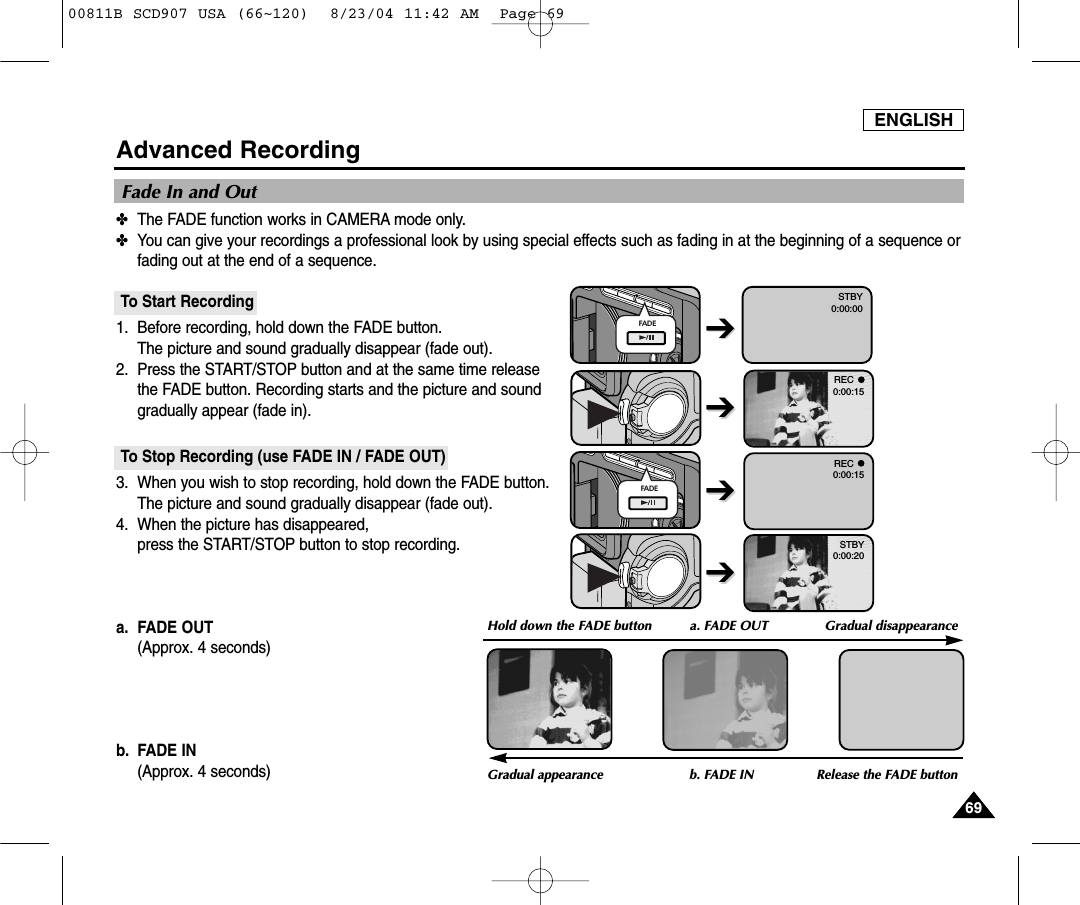
ENGLISH6969Advanced Recording✤The FADE function works in CAMERA mode only.✤You can give your recordings a professional look by using special effects such as fading in at the beginning of a sequence orfading out at the end of a sequence.To Start Recording1. Before recording, hold down the FADE button.The picture and sound gradually disappear (fade out).2. Press the START/STOP button and at the same time releasethe FADE button. Recording starts and the picture and soundgradually appear (fade in).To Stop Recording (use FADE IN / FADE OUT)3. When you wish to stop recording, hold down the FADE button.The picture and sound gradually disappear (fade out).4. When the picture has disappeared, press the START/STOP button to stop recording.a. FADE OUT (Approx. 4 seconds)b. FADE IN (Approx. 4 seconds)Fade In and OutGradual appearance b. FADE IN Release the FADE buttonFADEFADEREC0:00:15REC0:00:15STBY0:00:20STBY0:00:00➔➔Hold down the FADE button a. FADE OUT  Gradual disappearance➔➔➔➔➔➔00811B SCD907 USA (66~120)  8/23/04 11:42 AM  Page 69
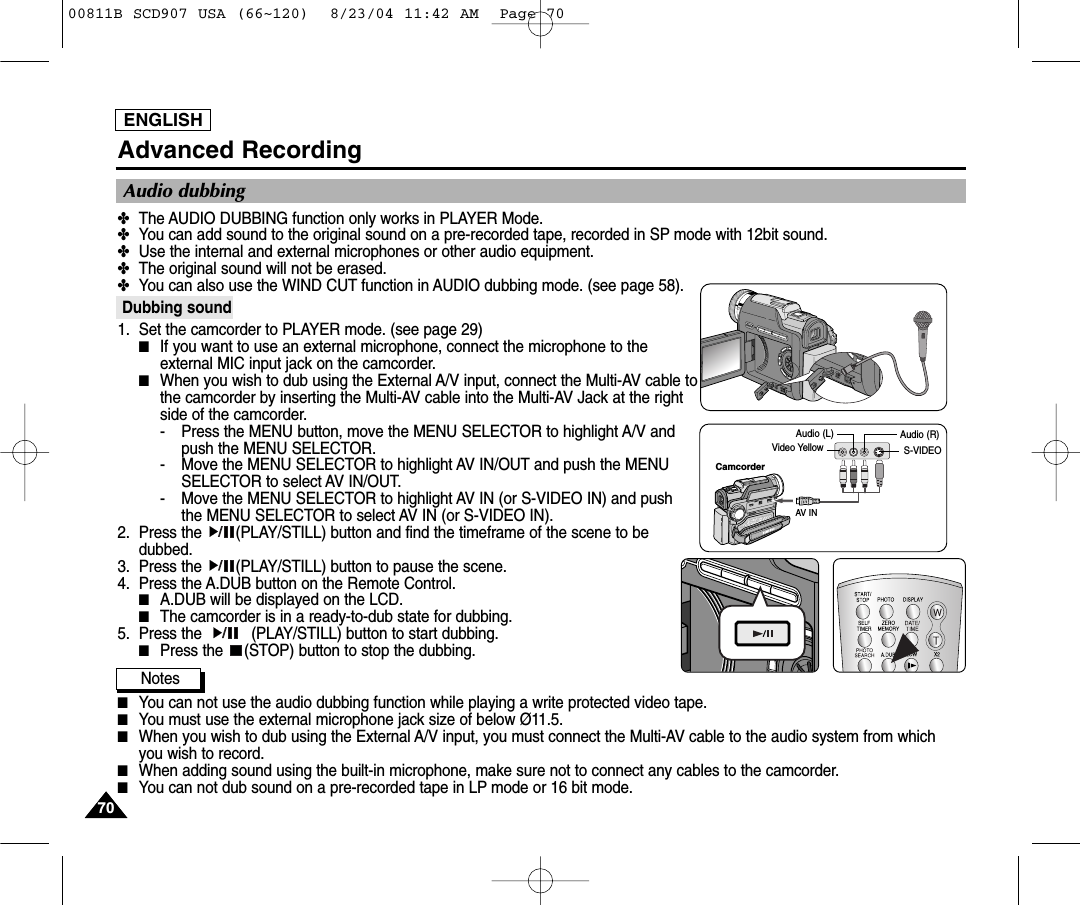
ENGLISH7070Advanced Recording✤The AUDIO DUBBING function only works in PLAYER Mode. ✤You can add sound to the original sound on a pre-recorded tape, recorded in SP mode with 12bit sound.✤Use the internal and external microphones or other audio equipment.✤The original sound will not be erased.✤You can also use the WIND CUT function in AUDIO dubbing mode. (see page 58).Dubbing sound1. Set the camcorder to PLAYER mode. (see page 29)■If you want to use an external microphone, connect the microphone to theexternal MIC input jack on the camcorder.■When you wish to dub using the External A/V input, connect the Multi-AV cable tothe camcorder by inserting the Multi-AV cable into the Multi-AV Jack at the rightside of the camcorder.  - Press the MENU button, move the MENU SELECTOR to highlight A/V andpush the MENU SELECTOR.- Move the MENU SELECTOR to highlight AV IN/OUT and push the MENUSELECTOR to select AV IN/OUT.- Move the MENU SELECTOR to highlight AV IN (or S-VIDEO IN) and pushthe MENU SELECTOR to select AV IN (or S-VIDEO IN).2. Press the  (PLAY/STILL) button and find the timeframe of the scene to bedubbed. 3. Press the  (PLAY/STILL) button to pause the scene.4. Press the A.DUB button on the Remote Control.■A.DUB will be displayed on the LCD.■The camcorder is in a ready-to-dub state for dubbing. 5. Press the           (PLAY/STILL) button to start dubbing.■Press the  (STOP) button to stop the dubbing.Notes■You can not use the audio dubbing function while playing a write protected video tape.■You must use the external microphone jack size of below Ø11.5.■When you wish to dub using the External A/V input, you must connect the Multi-AV cable to the audio system from whichyou wish to record.  ■When adding sound using the built-in microphone, make sure not to connect any cables to the camcorder.■You can not dub sound on a pre-recorded tape in LP mode or 16 bit mode.Audio dubbingCamcorderAV INAudio (L) Audio (R)Video Yellow S-VIDEO00811B SCD907 USA (66~120)  8/23/04 11:42 AM  Page 70
ENGLISH7171Advanced RecordingDubbed audio Playback1. Insert the dubbed tape and press MENU button in PLAYER mode.2. Move the MENU SELECTOR to highlight A/V.3. Push the MENU SELECTOR to enter the sub-menu.4. Use the MENU SELECTOR to select AUDIO SELECT from the submenu. 5. Push the MENU SELECTOR to enter the sub-menu.6. Using the MENU SELECTOR, select the AUDIO playback channel.  ■Push the MENU SELECTOR to confirm the audio playback channel.- SOUND[1] : play the original sound.- SOUND[2] : play the dubbed sound.- MIX[1+2] : play back SOUND1 and 2 equally mixed.7. To exit, press the MENU button.8. Press the  (PLAY/STILL) button to playback the dubbed tape.Note■When you playback added sound (SOUND[2] or MIX[1+2] mode), you may experience a loss of sound quality.PLAYER  MODEA / V SETAUDIO SELECTSOUND [ 1 ]SOUND [ 2 ]MIX [ 1 + 2 ]PLAYER  MODEREC MODEPHOTO SEARCHPHOTO COPYAUDIO MODE 12SOUND1AUDIO SELECTWIND CUTA / V SET00811B SCD907 USA (66~120)  8/23/04 11:42 AM  Page 71
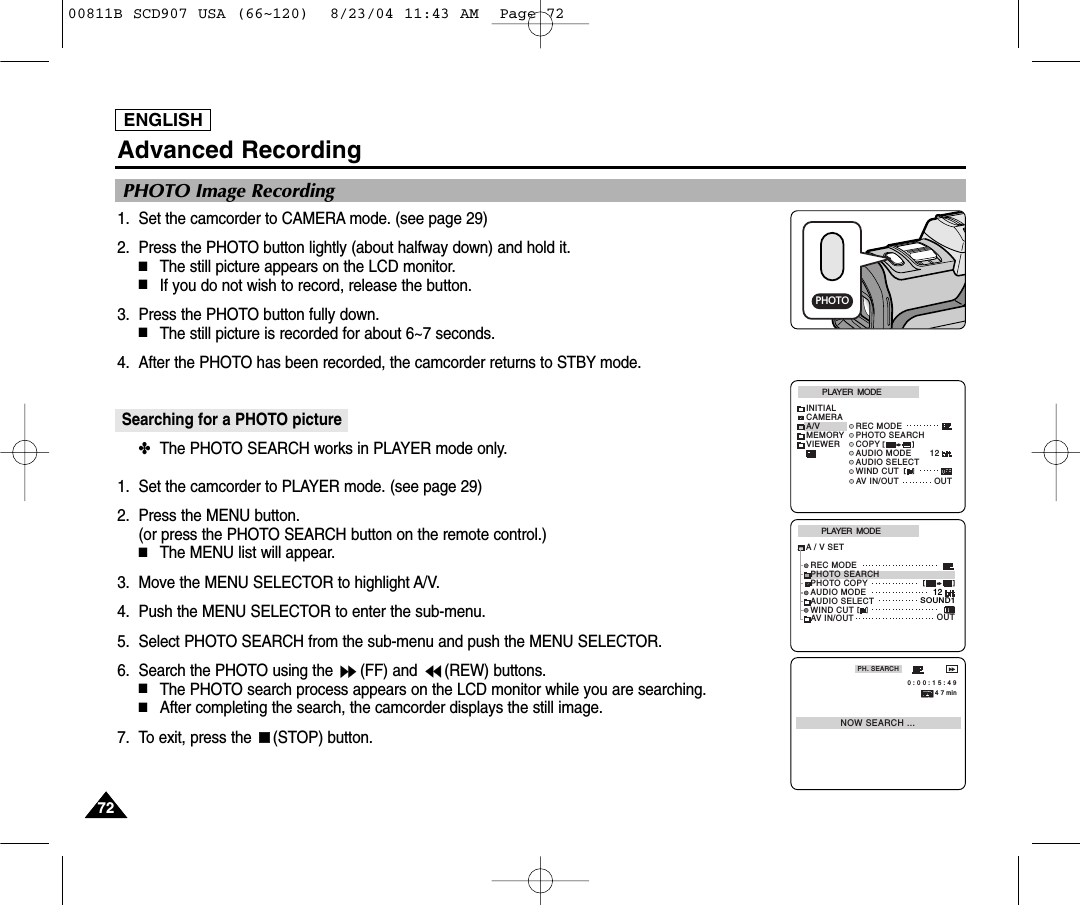
ENGLISH7272Advanced Recording1. Set the camcorder to CAMERA mode. (see page 29)2. Press the PHOTO button lightly (about halfway down) and hold it.■The still picture appears on the LCD monitor.■If you do not wish to record, release the button.3. Press the PHOTO button fully down.■The still picture is recorded for about 6~7 seconds. 4. After the PHOTO has been recorded, the camcorder returns to STBY mode.Searching for a PHOTO picture ✤The PHOTO SEARCH works in PLAYER mode only. 1. Set the camcorder to PLAYER mode. (see page 29)2. Press the MENU button. (or press the PHOTO SEARCH button on the remote control.)■The MENU list will appear.3. Move the MENU SELECTOR to highlight A/V.4. Push the MENU SELECTOR to enter the sub-menu.5. Select PHOTO SEARCH from the sub-menu and push the MENU SELECTOR.6. Search the PHOTO using the  (FF) and  (REW) buttons.  ■The PHOTO search process appears on the LCD monitor while you are searching. ■After completing the search, the camcorder displays the still image. 7. To exit, press the  (STOP) button. PLAYER  MODEINITIALWIND CUTREC MODEPHOTO SEARCHCOPYAUDIO MODE 12AUDIO SELECTCAMERAA/VMEMORYVIEWERAV IN/OUT OUTPLAYER  MODEREC MODEPHOTO SEARCHPHOTO COPYAUDIO MODE 12SOUND1AUDIO SELECTWIND CUTA / V SETOUTAV IN/OUTPHOTO Image RecordingPHOTOPH. SEARCHNOW SEARCH ... 0 : 0 0 : 1 5 : 4 94 7 min00811B SCD907 USA (66~120)  8/23/04 11:43 AM  Page 72
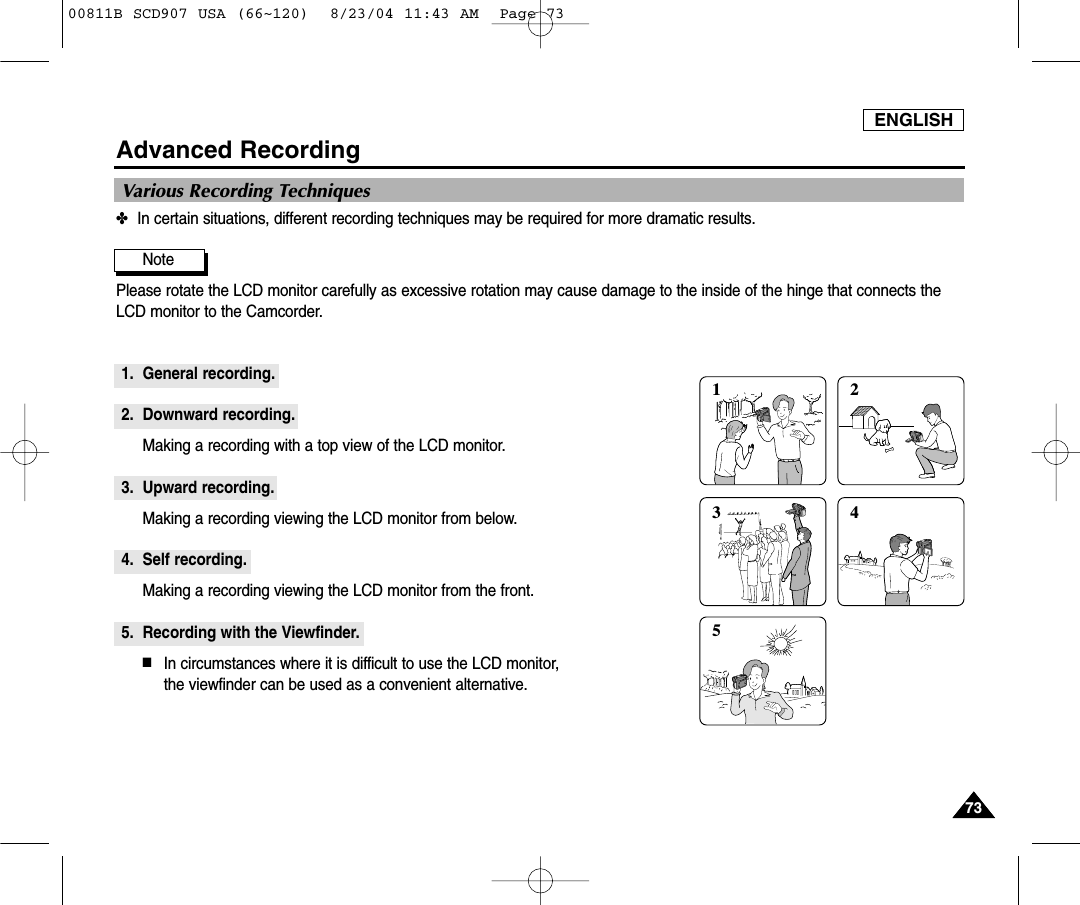
ENGLISH7373Advanced Recording✤In certain situations, different recording techniques may be required for more dramatic results.Note Please rotate the LCD monitor carefully as excessive rotation may cause damage to the inside of the hinge that connects theLCD monitor to the Camcorder.1. General recording.2. Downward recording.Making a recording with a top view of the LCD monitor.3. Upward recording.Making a recording viewing the LCD monitor from below.4. Self recording.Making a recording viewing the LCD monitor from the front.5. Recording with the Viewfinder.■In circumstances where it is difficult to use the LCD monitor, the viewfinder can be used as a convenient alternative.1 2354Various Recording Techniques00811B SCD907 USA (66~120)  8/23/04 11:43 AM  Page 73
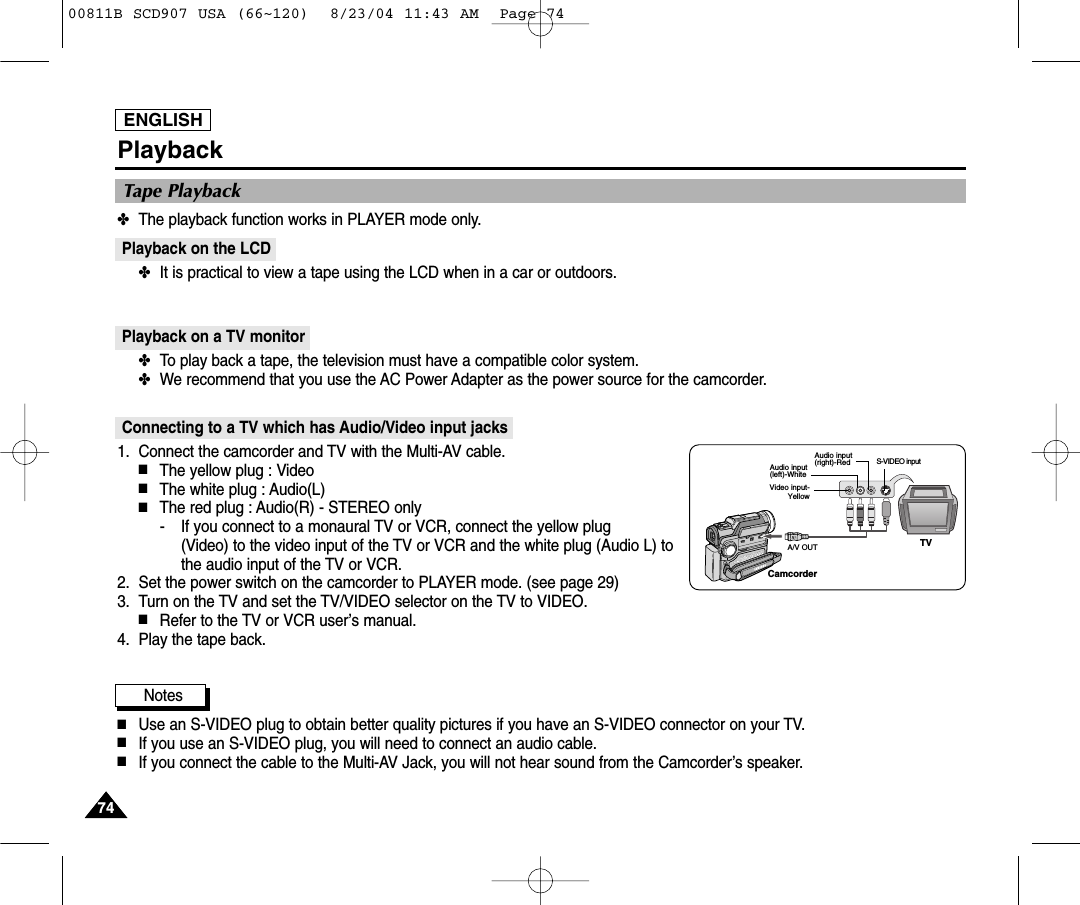
ENGLISH7474PlaybackTape Playback✤The playback function works in PLAYER mode only.Playback on the LCD✤It is practical to view a tape using the LCD when in a car or outdoors.Playback on a TV monitor✤To play back a tape, the television must have a compatible color system. ✤We recommend that you use the AC Power Adapter as the power source for the camcorder.Connecting to a TV which has Audio/Video input jacks1. Connect the camcorder and TV with the Multi-AV cable.■The yellow plug : Video■The white plug : Audio(L) ■The red plug : Audio(R) - STEREO only- If you connect to a monaural TV or VCR, connect the yellow plug (Video) to the video input of the TV or VCR and the white plug (Audio L) tothe audio input of the TV or VCR.2. Set the power switch on the camcorder to PLAYER mode. (see page 29)3. Turn on the TV and set the TV/VIDEO selector on the TV to VIDEO.■Refer to the TV or VCR user’s manual.4. Play the tape back.Notes■Use an S-VIDEO plug to obtain better quality pictures if you have an S-VIDEO connector on your TV.■If you use an S-VIDEO plug, you will need to connect an audio cable.■If you connect the cable to the Multi-AV Jack, you will not hear sound from the Camcorder’s speaker.CamcorderA/V OUTAudio input(left)-WhiteAudio input(right)-RedVideo input-YellowTVS-VIDEO input00811B SCD907 USA (66~120)  8/23/04 11:43 AM  Page 74
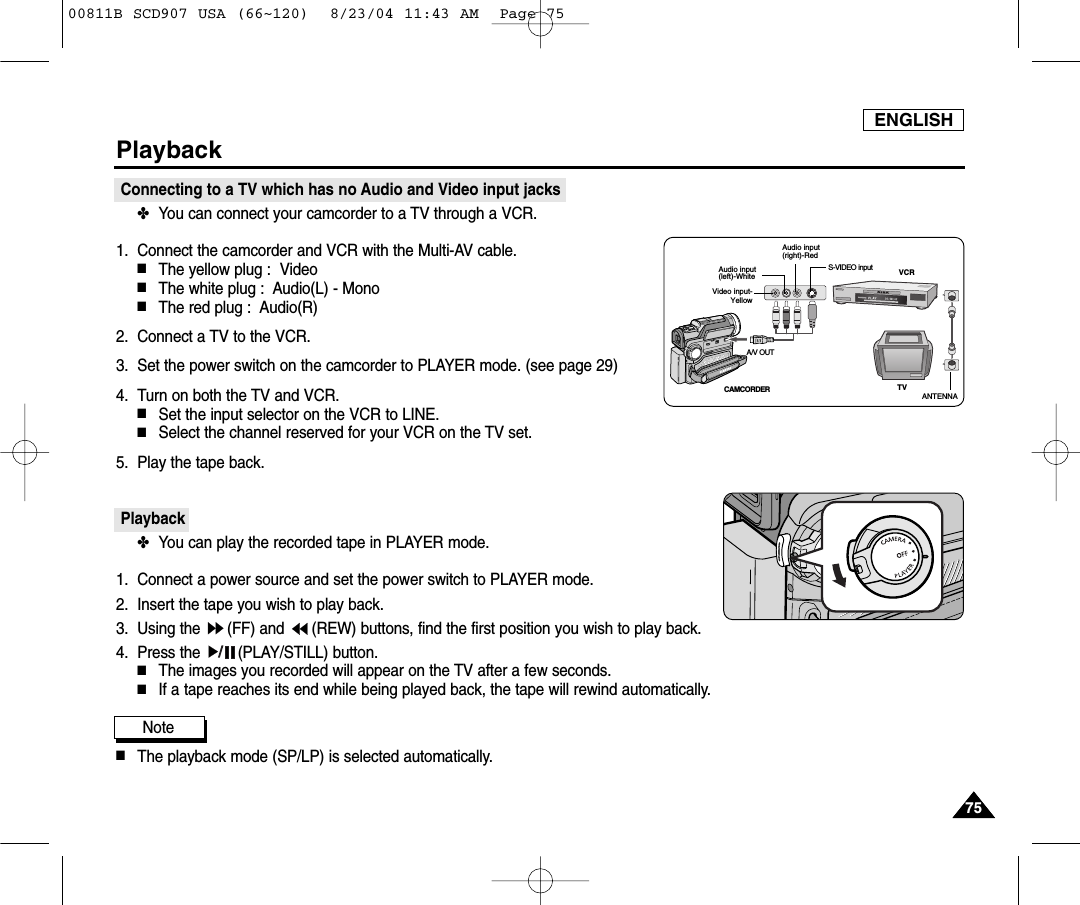
ENGLISH7575PlaybackConnecting to a TV which has no Audio and Video input jacks✤You can connect your camcorder to a TV through a VCR.1. Connect the camcorder and VCR with the Multi-AV cable.■The yellow plug :  Video■The white plug :  Audio(L) - Mono■The red plug :  Audio(R)  2. Connect a TV to the VCR.3. Set the power switch on the camcorder to PLAYER mode. (see page 29)4. Turn on both the TV and VCR.■Set the input selector on the VCR to LINE.■Select the channel reserved for your VCR on the TV set.5. Play the tape back.Playback✤You can play the recorded tape in PLAYER mode.1. Connect a power source and set the power switch to PLAYER mode.2. Insert the tape you wish to play back.3. Using the  (FF) and  (REW) buttons, find the first position you wish to play back.4. Press the  (PLAY/STILL) button.■The images you recorded will appear on the TV after a few seconds.■If a tape reaches its end while being played back, the tape will rewind automatically.Note ■The playback mode (SP/LP) is selected automatically.ANTENNAS-VIDEO inputA/V OUTTVVCRCAMCORDERVideo input-YellowAudio input (left)-WhiteAudio input(right)-Red00811B SCD907 USA (66~120)  8/23/04 11:43 AM  Page 75
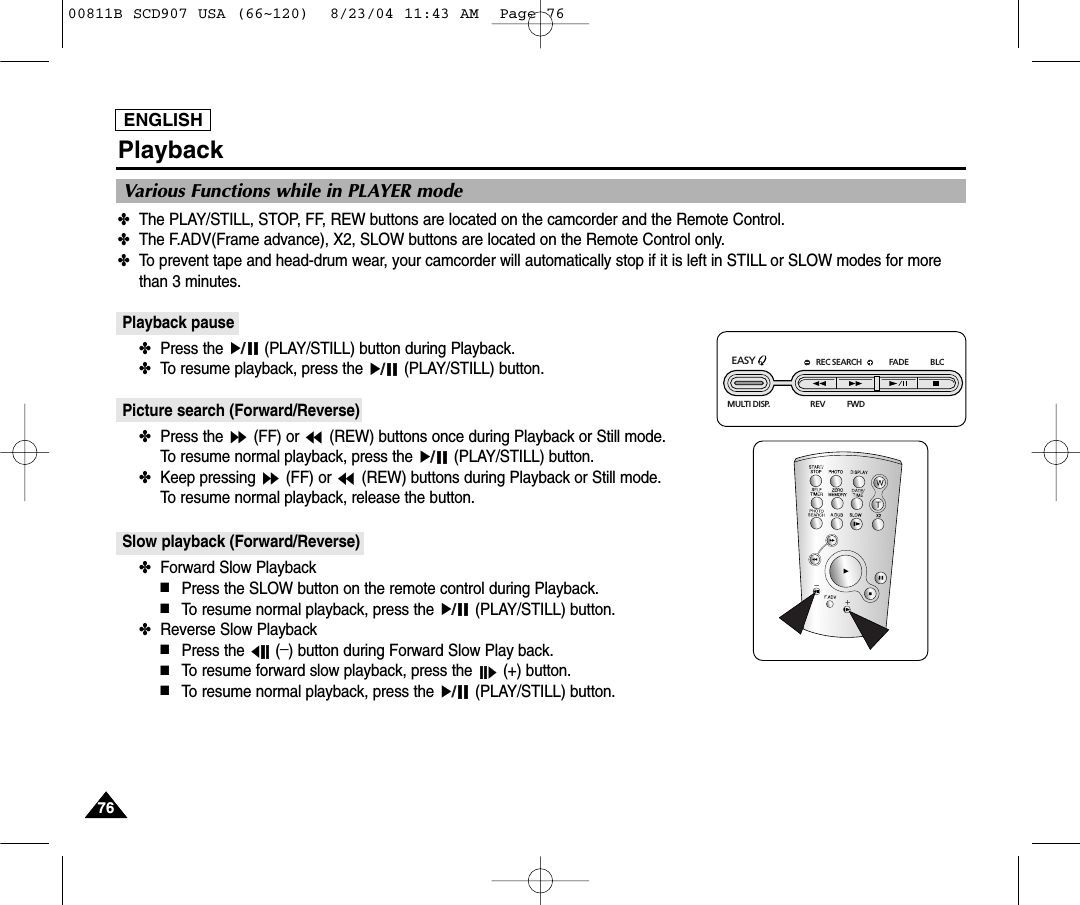
ENGLISH7676Playback✤The PLAY/STILL, STOP, FF, REW buttons are located on the camcorder and the Remote Control.✤The F.ADV(Frame advance), X2, SLOW buttons are located on the Remote Control only.✤To prevent tape and head-drum wear, your camcorder will automatically stop if it is left in STILL or SLOW modes for morethan 3 minutes.Playback pause✤Press the  (PLAY/STILL) button during Playback.✤To resume playback, press the  (PLAY/STILL) button.Picture search (Forward/Reverse)✤Press the  (FF) or  (REW) buttons once during Playback or Still mode.To resume normal playback, press the  (PLAY/STILL) button.✤Keep pressing  (FF) or  (REW) buttons during Playback or Still mode.To resume normal playback, release the button.Slow playback (Forward/Reverse)✤Forward Slow Playback■Press the SLOW button on the remote control during Playback.■To resume normal playback, press the  (PLAY/STILL) button.✤Reverse Slow Playback■Press the  (_) button during Forward Slow Play back. ■To resume forward slow playback, press the  (+) button.■To resume normal playback, press the  (PLAY/STILL) button.Various Functions while in PLAYER modeREC SEARCH FADE BLCREV FWDEASY MULTI DISP.00811B SCD907 USA (66~120)  8/23/04 11:43 AM  Page 76
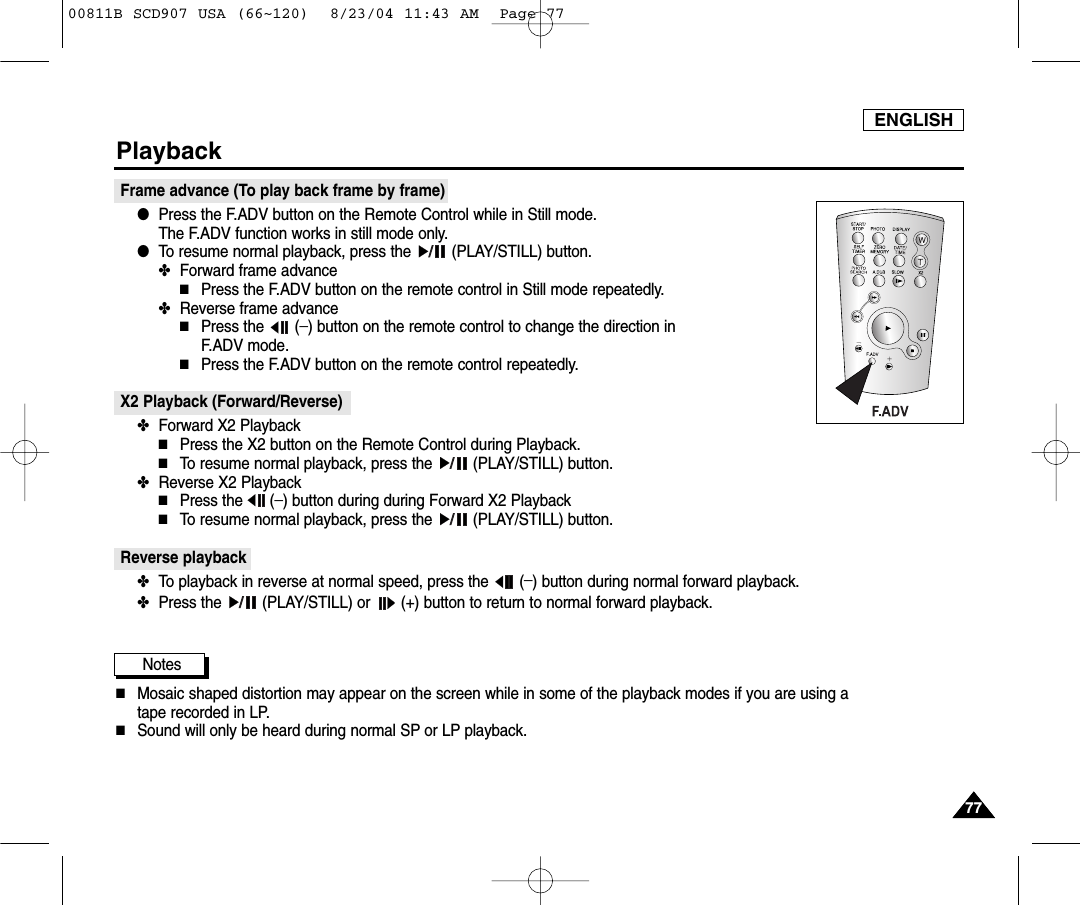
ENGLISH7777PlaybackFrame advance (To play back frame by frame)  ●Press the F.ADV button on the Remote Control while in Still mode. The F.ADV function works in still mode only.●To resume normal playback, press the  (PLAY/STILL) button.✤Forward frame advance■Press the F.ADV button on the remote control in Still mode repeatedly.✤Reverse frame advance■Press the (_) button on the remote control to change the direction in F.ADV mode.■Press the F.ADV button on the remote control repeatedly.X2 Playback (Forward/Reverse) ✤Forward X2 Playback■Press the X2 button on the Remote Control during Playback.■To resume normal playback, press the  (PLAY/STILL) button.✤Reverse X2 Playback■Press the (_) button during during Forward X2 Playback■To resume normal playback, press the  (PLAY/STILL) button.Reverse playback✤To playback in reverse at normal speed, press the  (_) button during normal forward playback.✤Press the  (PLAY/STILL) or  (+) button to return to normal forward playback.Notes■Mosaic shaped distortion may appear on the screen while in some of the playback modes if you are using a tape recorded in LP.■Sound will only be heard during normal SP or LP playback.00811B SCD907 USA (66~120)  8/23/04 11:43 AM  Page 77
ENGLISH7878Playback✤The MEMORY function works in both CAMERA and PLAYER modes.✤You can mark a point on a tape that you want to return to following playback.1. Press the ZERO MEMORY button on the remote control during playback or before recording at the point you wish to return to. ■The time code changes to a tape counter that is set to zero memory with the  0:00:00 (Zero memory indicator).■If you want to cancel the zero memory function, press the ZERO MEMORY button again.2. Finding the zero position.■When you have finished playback, fast forward or rewind the tape.- The tape stops automatically when it reaches the zero position.■When you have finished recording, press the power switch on the PLAYER and press the  (REW) button.- The tape stops automatically when it reaches the zero position.3. The tape counter with the  (Zero memory indicator) disappears from the display and the tape counter changesto the time code.Notes■In the following situations, ZERO MEMORY mode may be canceled automatically:- At the end of the section marked with the ZERO MEMORY function.- When the tape is ejected.- When you remove the battery pack or power supply.■The zero memory may not function correctly when there is a break between recordings on the tape.MMZERO MEMORY00811B SCD907 USA (66~120)  8/23/04 11:43 AM  Page 78
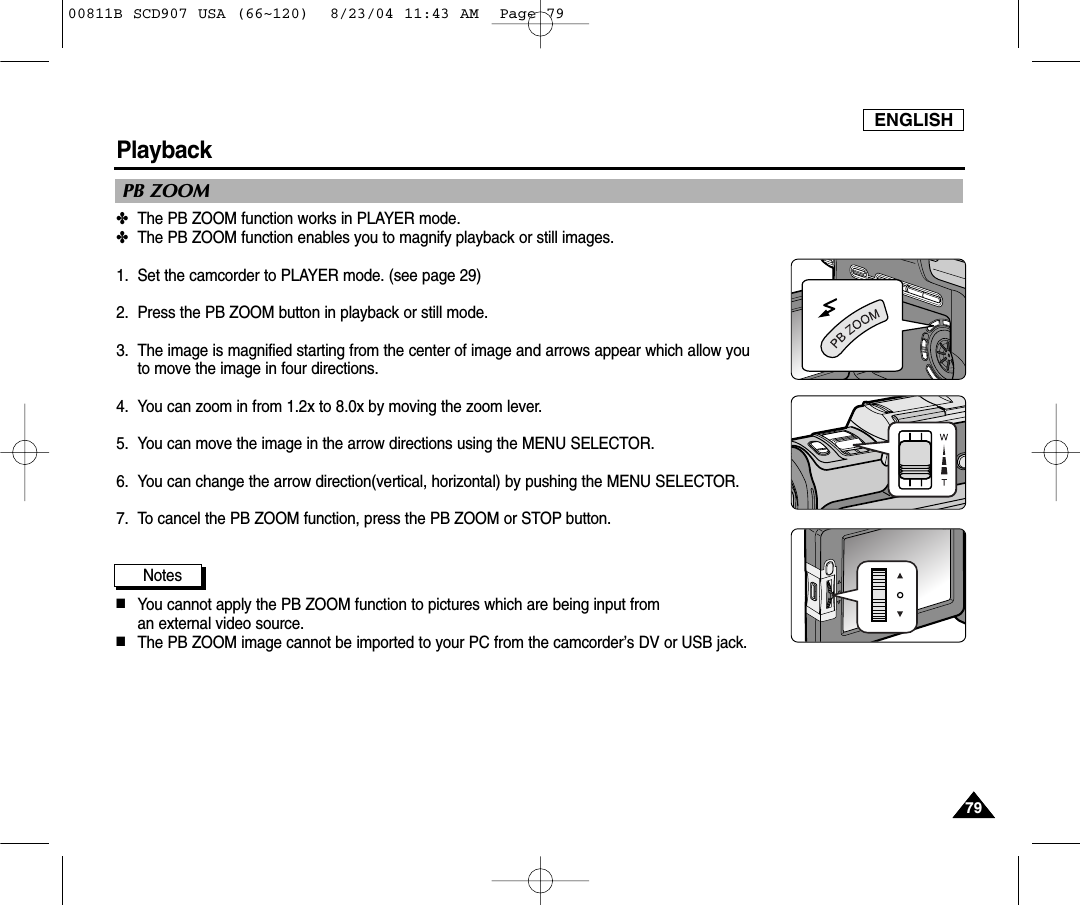
ENGLISH7979PlaybackPB ZOOM✤The PB ZOOM function works in PLAYER mode.✤The PB ZOOM function enables you to magnify playback or still images.  1. Set the camcorder to PLAYER mode. (see page 29)2. Press the PB ZOOM button in playback or still mode.3. The image is magnified starting from the center of image and arrows appear which allow you to move the image in four directions.4. You can zoom in from 1.2x to 8.0x by moving the zoom lever.5. You can move the image in the arrow directions using the MENU SELECTOR.6. You can change the arrow direction(vertical, horizontal) by pushing the MENU SELECTOR.7. To cancel the PB ZOOM function, press the PB ZOOM or STOP button.Notes■You cannot apply the PB ZOOM function to pictures which are being input from an external video source.■The PB ZOOM image cannot be imported to your PC from the camcorder’s DV or USB jack.00811B SCD907 USA (66~120)  8/23/04 11:43 AM  Page 79
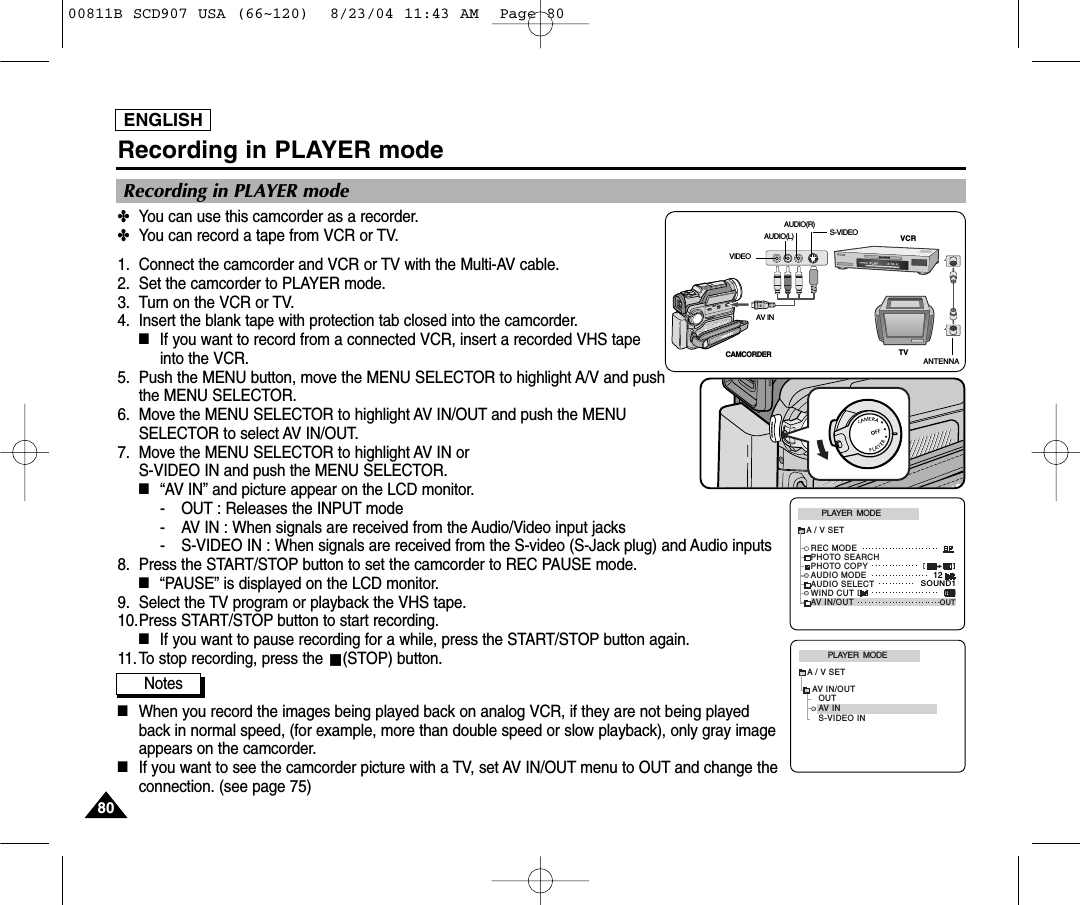
ENGLISH8080Recording in PLAYER mode✤You can use this camcorder as a recorder.✤You can record a tape from VCR or TV.1. Connect the camcorder and VCR or TV with the Multi-AV cable.2. Set the camcorder to PLAYER mode.3. Turn on the VCR or TV.4. Insert the blank tape with protection tab closed into the camcorder.■If you want to record from a connected VCR, insert a recorded VHS tapeinto the VCR.5. Push the MENU button, move the MENU SELECTOR to highlight A/V and pushthe MENU SELECTOR.6. Move the MENU SELECTOR to highlight AV IN/OUT and push the MENUSELECTOR to select AV IN/OUT.7. Move the MENU SELECTOR to highlight AV IN or S-VIDEO IN and push the MENU SELECTOR.■“AV IN” and picture appear on the LCD monitor.- OUT : Releases the INPUT mode- AV IN : When signals are received from the Audio/Video input jacks- S-VIDEO IN : When signals are received from the S-video (S-Jack plug) and Audio inputs8. Press the START/STOP button to set the camcorder to REC PAUSE mode.■“PAUSE” is displayed on the LCD monitor.9. Select the TV program or playback the VHS tape.10.Press START/STOP button to start recording.■If you want to pause recording for a while, press the START/STOP button again.11.To stop recording, press the  (STOP) button.Notes■When you record the images being played back on analog VCR, if they are not being playedback in normal speed, (for example, more than double speed or slow playback), only gray imageappears on the camcorder.■If you want to see the camcorder picture with a TV, set AV IN/OUT menu to OUT and change theconnection. (see page 75)Recording in PLAYER mode PLAYER  MODEREC MODEPHOTO SEARCHPHOTO COPYAUDIO MODE 12SOUND1AUDIO SELECTWIND CUTA / V SETAV IN/OUT OUTANTENNAS-VIDEOAV INTVVCRCAMCORDERVIDEOAUDIO(L)AUDIO(R)PLAYER  MODEA / V SETS-VIDEO INAV IN/OUTOUTAV IN00811B SCD907 USA (66~120)  8/23/04 11:43 AM  Page 80
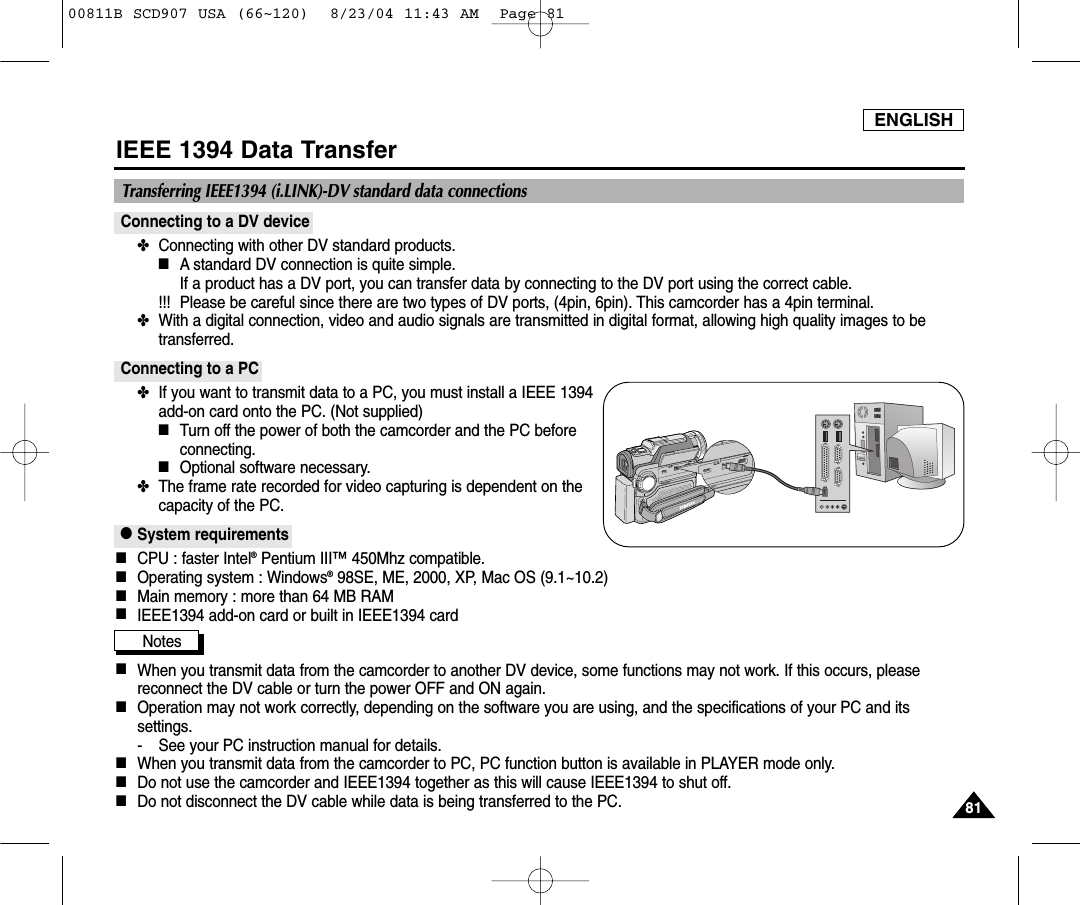
ENGLISH8181IEEE 1394 Data TransferConnecting to a DV device✤  Connecting with other DV standard products.■A standard DV connection is quite simple. If a product has a DV port, you can transfer data by connecting to the DV port using the correct cable.  !!! Please be careful since there are two types of DV ports, (4pin, 6pin). This camcorder has a 4pin terminal.✤  With a digital connection, video and audio signals are transmitted in digital format, allowing high quality images to betransferred.Connecting to a PC✤  If you want to transmit data to a PC, you must install a IEEE 1394add-on card onto the PC. (Not supplied)■Turn off the power of both the camcorder and the PC beforeconnecting.■Optional software necessary.✤  The frame rate recorded for video capturing is dependent on thecapacity of the PC.●System requirements■CPU : faster Intel®Pentium III™450Mhz compatible. ■Operating system : Windows®98SE, ME, 2000, XP, Mac OS (9.1~10.2)■Main memory : more than 64 MB RAM■IEEE1394 add-on card or built in IEEE1394 cardNotes■When you transmit data from the camcorder to another DV device, some functions may not work. If this occurs, pleasereconnect the DV cable or turn the power OFF and ON again.■Operation may not work correctly, depending on the software you are using, and the specifications of your PC and itssettings.- See your PC instruction manual for details.■When you transmit data from the camcorder to PC, PC function button is available in PLAYER mode only.■Do not use the camcorder and IEEE1394 together as this will cause IEEE1394 to shut off.■Do not disconnect the DV cable while data is being transferred to the PC.Transferring IEEE1394 (i.LINK)-DV standard data connections00811B SCD907 USA (66~120)  8/23/04 11:43 AM  Page 81
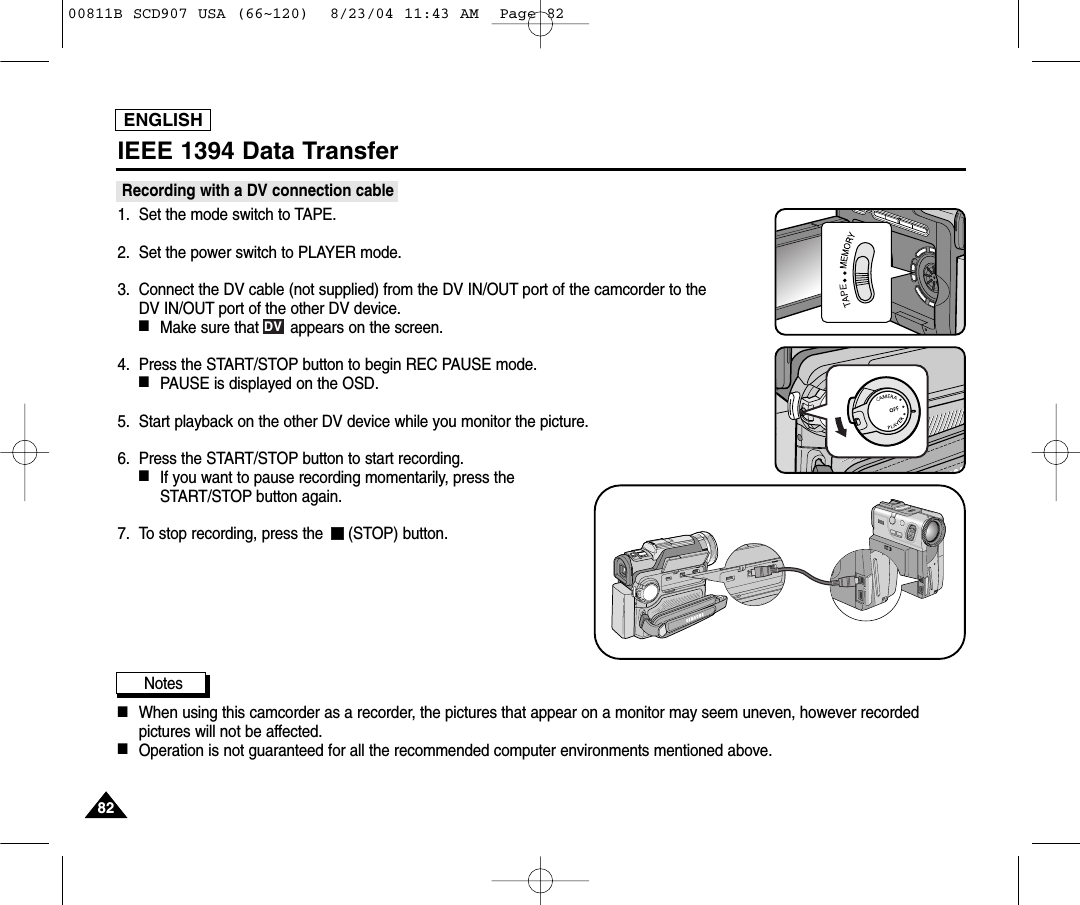
ENGLISH8282IEEE 1394 Data TransferRecording with a DV connection cable 1. Set the mode switch to TAPE.2. Set the power switch to PLAYER mode.3. Connect the DV cable (not supplied) from the DV IN/OUT port of the camcorder to the DV IN/OUT port of the other DV device. ■Make sure that       appears on the screen.4. Press the START/STOP button to begin REC PAUSE mode.■PAUSE is displayed on the OSD.5. Start playback on the other DV device while you monitor the picture.6. Press the START/STOP button to start recording.■If you want to pause recording momentarily, press theSTART/STOP button again.7. To stop recording, press the  (STOP) button.Notes          ■When using this camcorder as a recorder, the pictures that appear on a monitor may seem uneven, however recordedpictures will not be affected.■Operation is not guaranteed for all the recommended computer environments mentioned above.DV00811B SCD907 USA (66~120)  8/23/04 11:43 AM  Page 82
ENGLISH8383USB interface●Transferring a Digital Image through a USB Connection✤  You can easily transfer still images/movies from a MEMORY STICK to a PC without additional add-on cards via a USBconnection.✤  You can transfer an image to a PC via a USB connection.✤  If you transfer data to a PC, you need to install the software (Driver, Editing software) supplied with the camcorder.System Requirements■CPU : Intel®Pentium III™450MHz processor compatible or better■Operating system : Windows®98SE/ME/ 2000/XP■RAM : 128 MB or more■CD-ROM: 4x CD-ROM drive■VIDEO : 65,000-color or better video display card■Available USB port (Ver 1.1)■Hard Disc : 4GB (8GB recommended)Notes■Intel®Pentium III™is a trademark of the Intel Corporation.■Windows®is a registered trademark of the Microsoft®Corporation.■All other brands and names are property of their respective owners.■Operations are not guaranteed for all of the recommended computer environments mentioned above.00811B SCD907 USA (66~120)  8/23/04 11:43 AM  Page 83
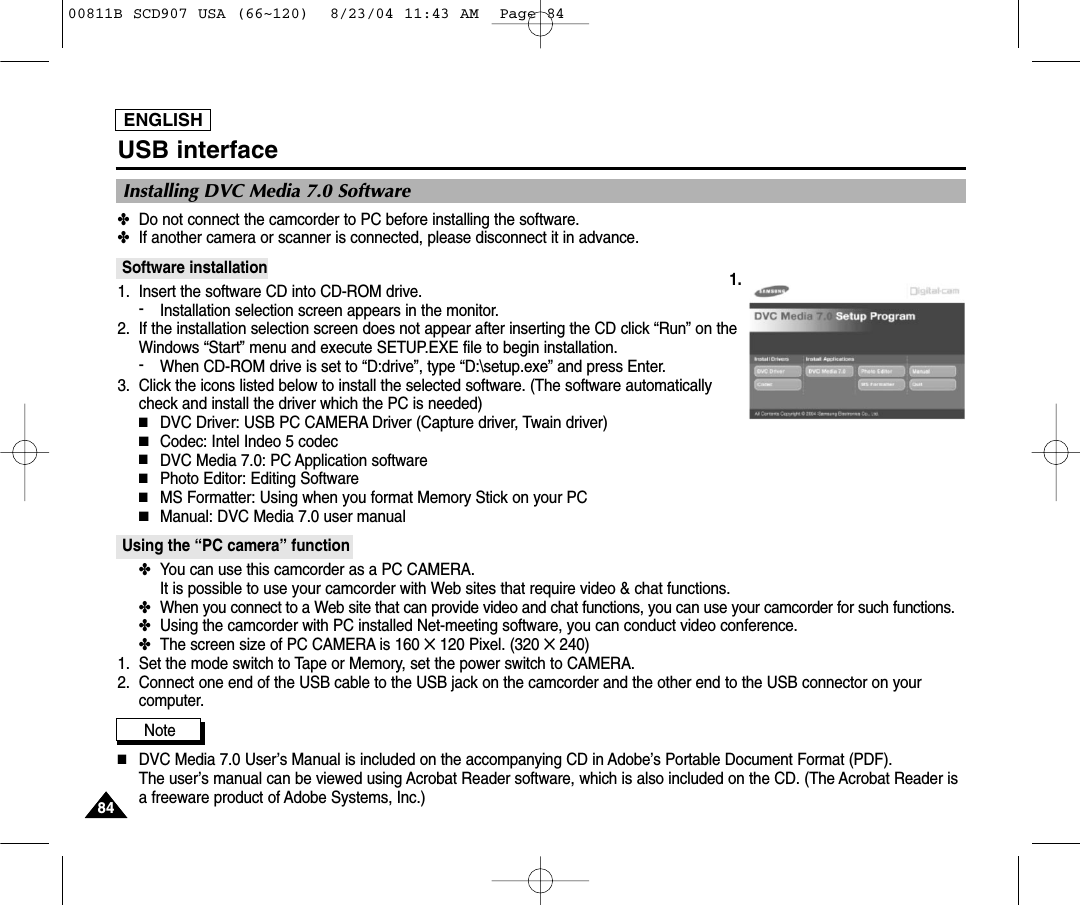
ENGLISH8484USB interfaceInstalling DVC Media 7.0 Software✤Do not connect the camcorder to PC before installing the software.✤If another camera or scanner is connected, please disconnect it in advance.Software installation1. Insert the software CD into CD-ROM drive.-Installation selection screen appears in the monitor.2. If the installation selection screen does not appear after inserting the CD click “Run” on theWindows “Start” menu and execute SETUP.EXE file to begin installation.-When CD-ROM drive is set to “D:drive”, type “D:\setup.exe” and press Enter.3. Click the icons listed below to install the selected software. (The software automaticallycheck and install the driver which the PC is needed)■DVC Driver: USB PC CAMERA Driver (Capture driver, Twain driver)■Codec: Intel Indeo 5 codec■DVC Media 7.0: PC Application software■Photo Editor: Editing Software■MS Formatter: Using when you format Memory Stick on your PC■Manual: DVC Media 7.0 user manualUsing the “PC camera” function✤You can use this camcorder as a PC CAMERA. It is possible to use your camcorder with Web sites that require video & chat functions.✤When you connect to a Web site that can provide video and chat functions, you can use your camcorder for such functions.✤Using the camcorder with PC installed Net-meeting software, you can conduct video conference.✤The screen size of PC CAMERA is 160 ✕120 Pixel. (320 ✕240)1. Set the mode switch to Tape or Memory, set the power switch to CAMERA.2. Connect one end of the USB cable to the USB jack on the camcorder and the other end to the USB connector on yourcomputer.Note          ■DVC Media 7.0 User’s Manual is included on the accompanying CD in Adobe’s Portable Document Format (PDF).The user’s manual can be viewed using Acrobat Reader software, which is also included on the CD. (The Acrobat Reader isa freeware product of Adobe Systems, Inc.)1.00811B SCD907 USA (66~120)  8/23/04 11:43 AM  Page 84
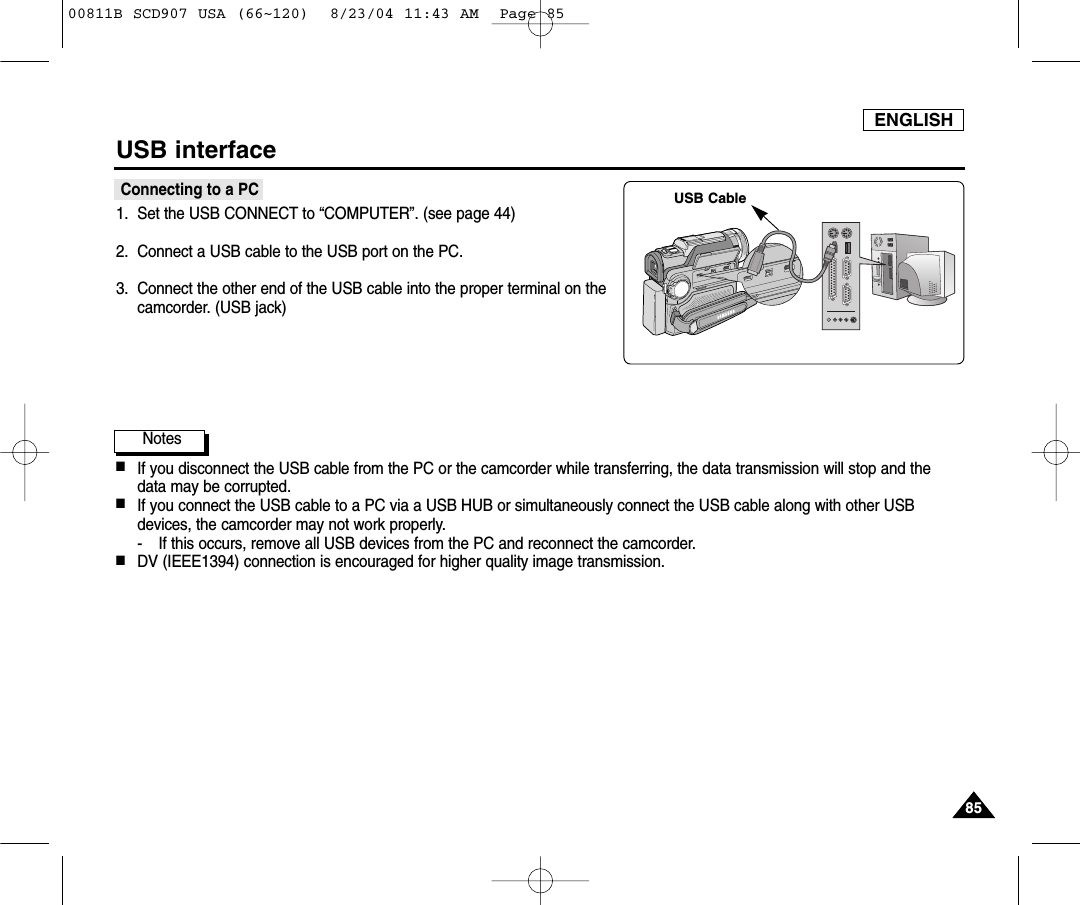
ENGLISH8585USB interfaceConnecting to a PC1. Set the USB CONNECT to “COMPUTER”. (see page 44)2. Connect a USB cable to the USB port on the PC.3. Connect the other end of the USB cable into the proper terminal on thecamcorder. (USB jack)Notes ■If you disconnect the USB cable from the PC or the camcorder while transferring, the data transmission will stop and thedata may be corrupted. ■If you connect the USB cable to a PC via a USB HUB or simultaneously connect the USB cable along with other USBdevices, the camcorder may not work properly.- If this occurs, remove all USB devices from the PC and reconnect the camcorder.■DV (IEEE1394) connection is encouraged for higher quality image transmission.USB Cable00811B SCD907 USA (66~120)  8/23/04 11:43 AM  Page 85
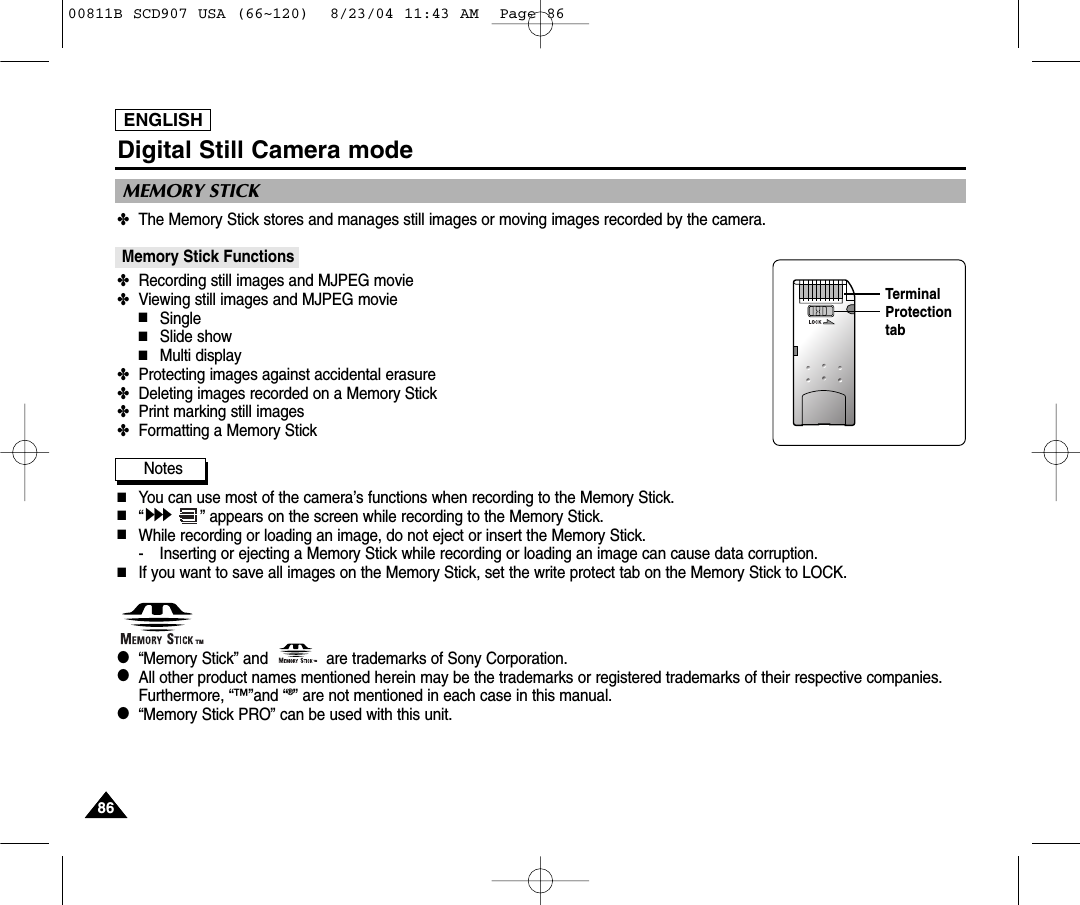
ENGLISH8686Digital Still Camera mode✤The Memory Stick stores and manages still images or moving images recorded by the camera.Memory Stick Functions ✤Recording still images and MJPEG movie✤Viewing still images and MJPEG movie■Single■Slide show■Multi display✤Protecting images against accidental erasure✤Deleting images recorded on a Memory Stick✤Print marking still images✤Formatting a Memory StickNotes■You can use most of the camera’s functions when recording to the Memory Stick.■“” appears on the screen while recording to the Memory Stick.■While recording or loading an image, do not eject or insert the Memory Stick.- Inserting or ejecting a Memory Stick while recording or loading an image can cause data corruption.■If you want to save all images on the Memory Stick, set the write protect tab on the Memory Stick to LOCK.●“Memory Stick” and             are trademarks of Sony Corporation.●  All other product names mentioned herein may be the trademarks or registered trademarks of their respective companies.Furthermore, “™”and “®” are not mentioned in each case in this manual.●“Memory Stick PRO” can be used with this unit.MEMORY STICK TMTMTerminalProtectiontab00811B SCD907 USA (66~120)  8/23/04 11:43 AM  Page 86
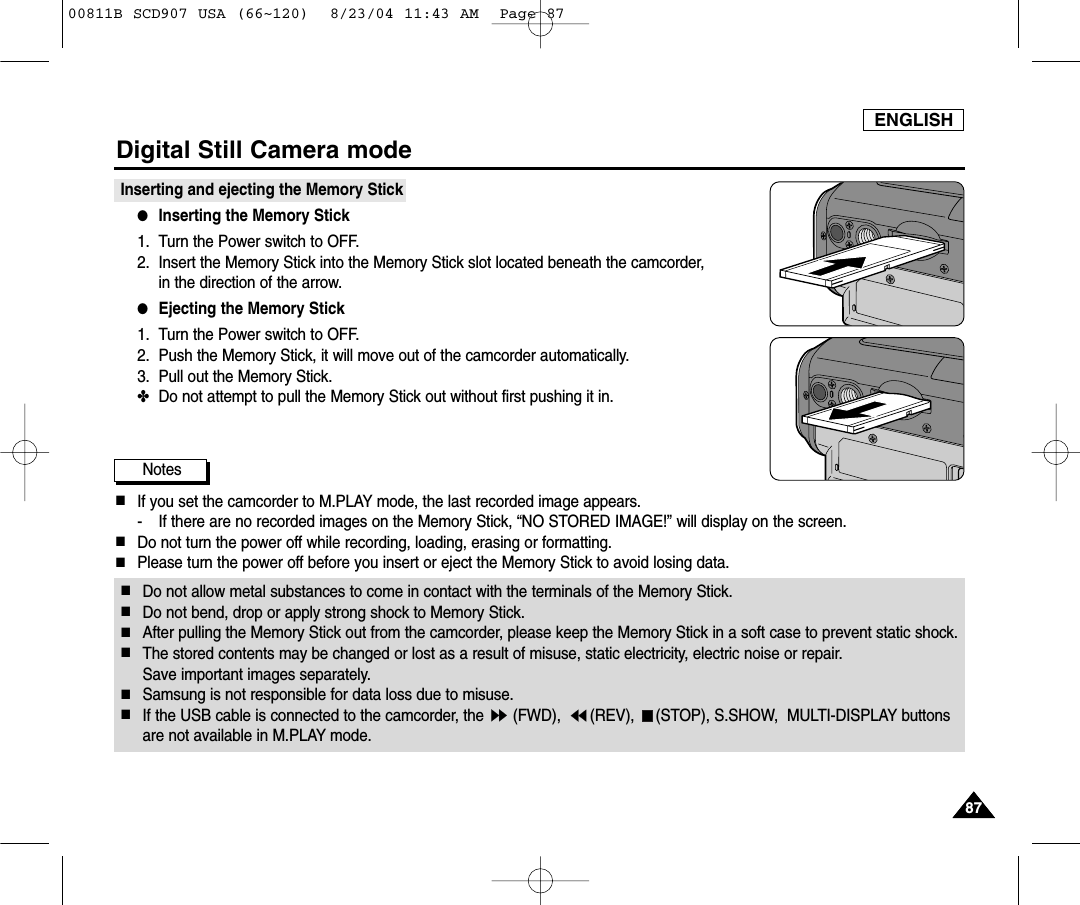
ENGLISH8787Digital Still Camera modeInserting and ejecting the Memory Stick ●Inserting the Memory Stick1. Turn the Power switch to OFF.2. Insert the Memory Stick into the Memory Stick slot located beneath the camcorder, in the direction of the arrow.●Ejecting the Memory Stick1. Turn the Power switch to OFF.2. Push the Memory Stick, it will move out of the camcorder automatically.3. Pull out the Memory Stick.✤Do not attempt to pull the Memory Stick out without first pushing it in.Notes■If you set the camcorder to M.PLAY mode, the last recorded image appears.- If there are no recorded images on the Memory Stick, “NO STORED IMAGE!” will display on the screen.■Do not turn the power off while recording, loading, erasing or formatting.■Please turn the power off before you insert or eject the Memory Stick to avoid losing data.■Do not allow metal substances to come in contact with the terminals of the Memory Stick.■Do not bend, drop or apply strong shock to Memory Stick.■After pulling the Memory Stick out from the camcorder, please keep the Memory Stick in a soft case to prevent static shock.■The stored contents may be changed or lost as a result of misuse, static electricity, electric noise or repair. Save important images separately.■Samsung is not responsible for data loss due to misuse.■If the USB cable is connected to the camcorder, the  (FWD),  (REV),  (STOP), S.SHOW,  MULTI-DISPLAY buttons are not available in M.PLAY mode.00811B SCD907 USA (66~120)  8/23/04 11:43 AM  Page 87
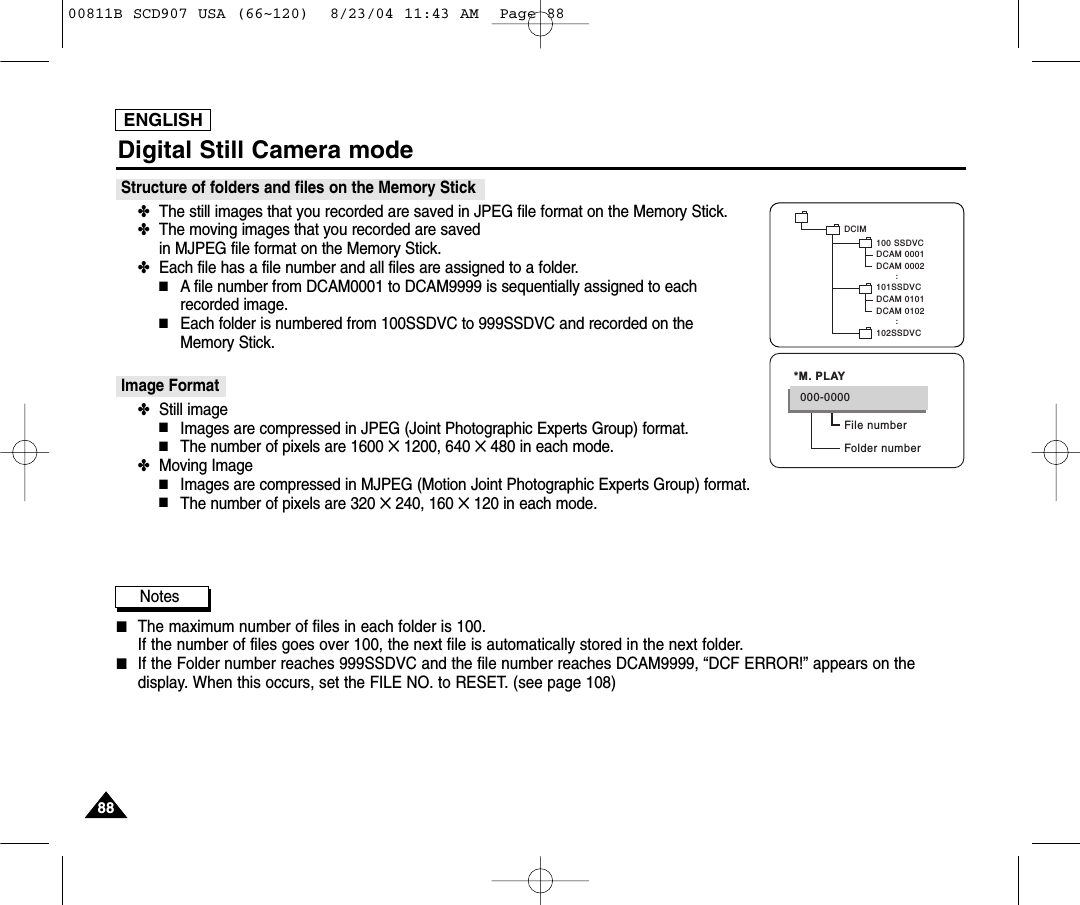
ENGLISH8888Digital Still Camera modeStructure of folders and files on the Memory Stick✤The still images that you recorded are saved in JPEG file format on the Memory Stick. ✤The moving images that you recorded are saved in MJPEG file format on the Memory Stick.✤Each file has a file number and all files are assigned to a folder.■A file number from DCAM0001 to DCAM9999 is sequentially assigned to each recorded image.■Each folder is numbered from 100SSDVC to 999SSDVC and recorded on the Memory Stick.Image Format ✤Still image■Images are compressed in JPEG (Joint Photographic Experts Group) format.■The number of pixels are 1600 ✕1200, 640 ✕480 in each mode.✤Moving Image■Images are compressed in MJPEG (Motion Joint Photographic Experts Group) format.■The number of pixels are 320 ✕240, 160 ✕120 in each mode.Notes■The maximum number of files in each folder is 100.If the number of files goes over 100, the next file is automatically stored in the next folder.■If the Folder number reaches 999SSDVC and the file number reaches DCAM9999, “DCF ERROR!” appears on thedisplay. When this occurs, set the FILE NO. to RESET. (see page 108)DCAM 0101DCAM 0102..DCIM100 SSDVCDCAM 0001DCAM 0002101SSDVC102SSDVC..File numberFolder number000-0000*M. PLAY00811B SCD907 USA (66~120)  8/23/04 11:43 AM  Page 88
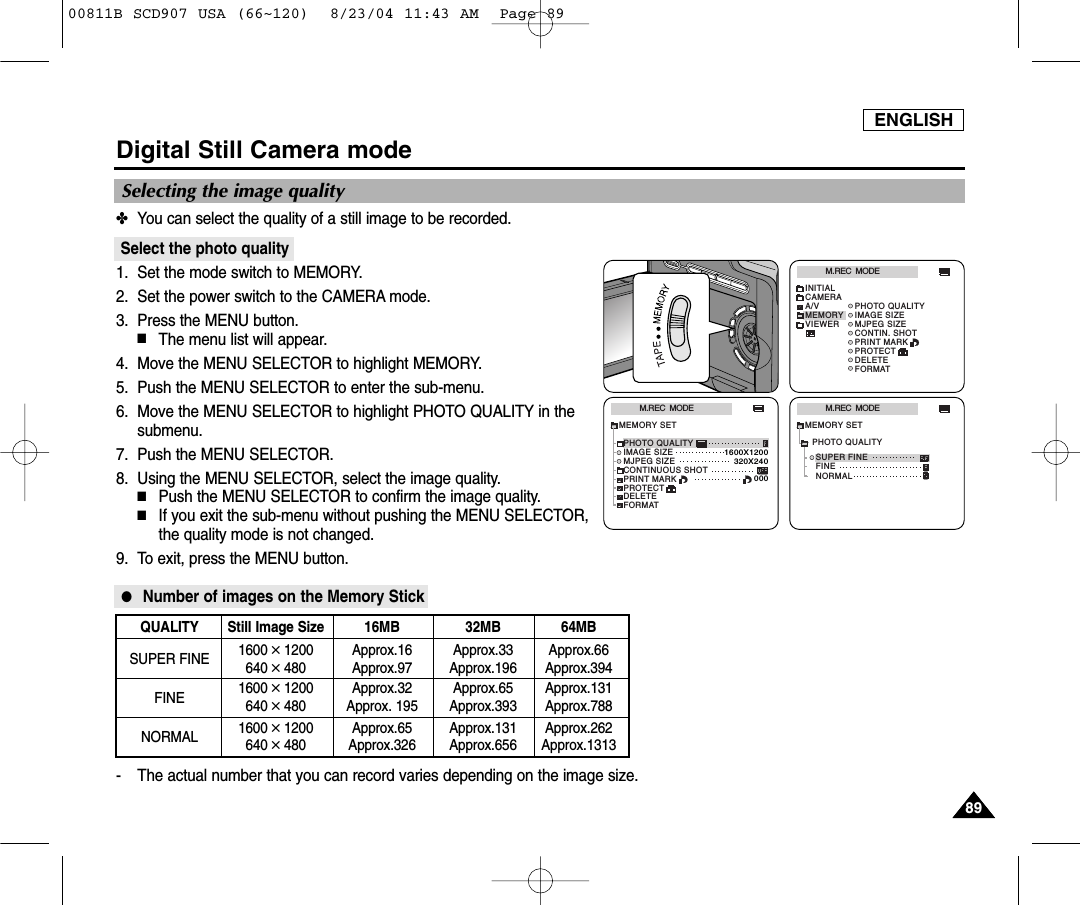
ENGLISH8989Digital Still Camera mode✤You can select the quality of a still image to be recorded.Select the photo quality1. Set the mode switch to MEMORY.2. Set the power switch to the CAMERA mode.3. Press the MENU button.■The menu list will appear.4.  Move the MENU SELECTOR to highlight MEMORY.5.  Push the MENU SELECTOR to enter the sub-menu.6.  Move the MENU SELECTOR to highlight PHOTO QUALITY in thesubmenu.7.  Push the MENU SELECTOR.8.  Using the MENU SELECTOR, select the image quality.■Push the MENU SELECTOR to confirm the image quality.■If you exit the sub-menu without pushing the MENU SELECTOR,the quality mode is not changed.9. To exit, press the MENU button.●Number of images on the Memory Stick- The actual number that you can record varies depending on the image size.M.REC  MODEINITIALPRINT MARKPHOTO QUALITYIMAGE SIZEMJPEG SIZECONTIN. SHOTCAMERAA/VMEMORYVIEWERPROTECTDELETEFORMATM.REC  MODEMEMORY SETPRINT MARKPHOTO QUALITYDELETEFORMATIMAGE SIZEMJPEG SIZEPROTECT320X2401600X1200000CONTINUOUS SHOTM.REC  MODENORMALSUPER FINEFINEMEMORY SETPHOTO QUALITYSelecting the image qualityQUALITY Still Image Size 16MB 32MB 64MBSUPER FINE 1600 ✕1200 Approx.16 Approx.33 Approx.66640 ✕480 Approx.97 Approx.196 Approx.394FINE 1600 ✕1200 Approx.32 Approx.65 Approx.131640 ✕480 Approx. 195 Approx.393 Approx.788NORMAL 1600 ✕1200 Approx.65 Approx.131 Approx.262640 ✕480 Approx.326 Approx.656 Approx.131300811B SCD907 USA (66~120)  8/23/04 11:43 AM  Page 89
ENGLISHDigital Still Camera mode9090Selecting the recording image size✤Select  the image size of still image to be recorded.1. Set the mode switch to MEMORY.2. Set the power switch to the CAMERA mode.3. Press the MENU button.■The menu list will appear4. Use the MENU SELECTOR to highlight MEMORY and push the MENU SELECTOR.5. Select IMAGE SIZE from the submenu and push the MENU SELECTOR.■The IMAGE SIZE toggles between 1600 ✕1200 and 640 ✕480 with each push.6. To exit the menu, press the MENU button.Note■Still images that are recorded at 1600 ✕1200 on your camcorder, may not playback properly on other digitaldevices that do not support this image size.M.REC  MODEINITIALPRINT MARKPHOTO QUALITYIMAGE SIZEMJPEG SIZECONTIN. SHOTCAMERAA/VMEMORYVIEWERPROTECTDELETEFORMATM.REC  MODEMEMORY SETPRINT MARKPHOTO QUALITYDELETEFORMATIMAGE SIZEMJPEG SIZEPROTECT320X2401600X1200000CONTINUOUS SHOT [ 0 6 ]3 2 0       0 0 min1600FImage Size00811B SCD907 USA (66~120)  8/23/04 11:43 AM  Page 90
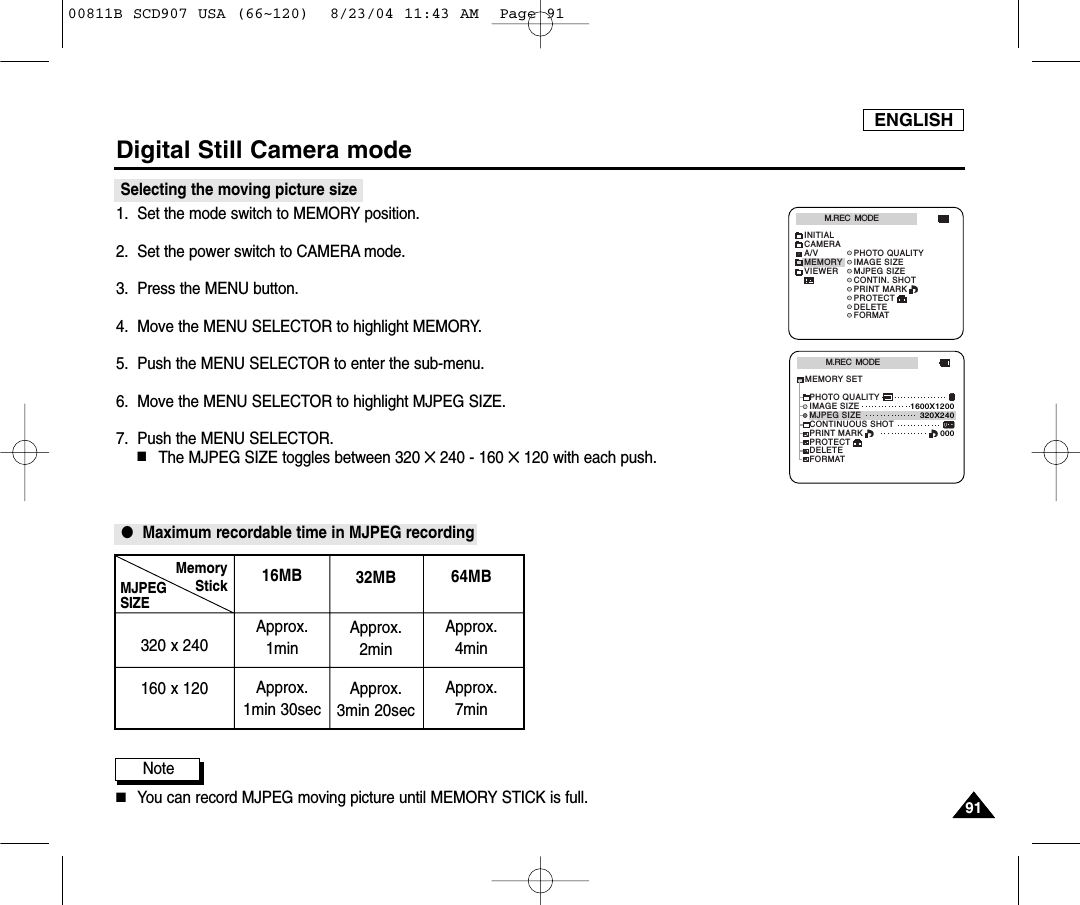
ENGLISH9191Digital Still Camera modeSelecting the moving picture size1. Set the mode switch to MEMORY position.2. Set the power switch to CAMERA mode.3. Press the MENU button.4. Move the MENU SELECTOR to highlight MEMORY.5. Push the MENU SELECTOR to enter the sub-menu.6. Move the MENU SELECTOR to highlight MJPEG SIZE.7. Push the MENU SELECTOR. ■The MJPEG SIZE toggles between 320 ✕ 240 - 160 ✕120 with each push.●Maximum recordable time in MJPEG recordingNote■You can record MJPEG moving picture until MEMORY STICK is full.M.REC  MODEINITIALPRINT MARKPHOTO QUALITYIMAGE SIZEMJPEG SIZECONTIN. SHOTCAMERAA/VMEMORYVIEWERPROTECTDELETEFORMATM.REC  MODEMEMORY SETPRINT MARKPHOTO QUALITYDELETEFORMATIMAGE SIZEMJPEG SIZEPROTECT320X2401600X1200000CONTINUOUS SHOTMJPEGSIZE320 x 240160 x 12016MBApprox. 1minApprox. 1min 30secMemoryStick 32MBApprox. 2minApprox. 3min 20sec64MBApprox. 4minApprox. 7min00811B SCD907 USA (66~120)  8/23/04 11:43 AM  Page 91
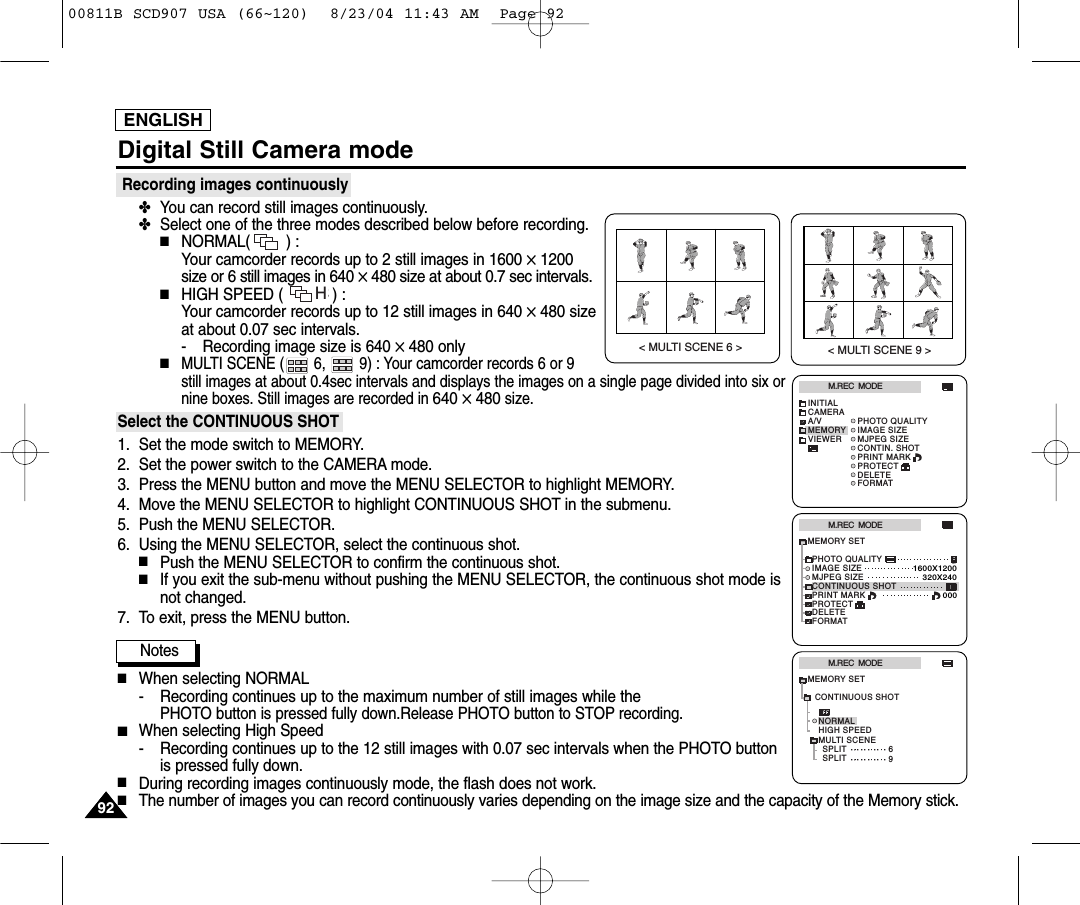
ENGLISHDigital Still Camera modeRecording images continuously✤You can record still images continuously.✤Select one of the three modes described below before recording.■NORMAL(        ) : Your camcorder records up to 2 still images in 1600 ✕1200size or 6 still images in 640 ✕480 size at about 0.7 sec intervals.■HIGH SPEED (           ) : Your camcorder records up to 12 still images in 640 ✕480 sizeat about 0.07 sec intervals.- Recording image size is 640 ✕480 only■MULTI SCENE (       6,        9) : Your camcorder records 6 or 9 still images at about 0.4sec intervals and displays the images on a single page divided into six ornine boxes. Still images are recorded in 640 ✕480size.Select the CONTINUOUS SHOT1. Set the mode switch to MEMORY.2. Set the power switch to the CAMERA mode.3. Press the MENU button and move the MENU SELECTOR to highlight MEMORY.4. Move the MENU SELECTOR to highlight CONTINUOUS SHOT in the submenu.5. Push the MENU SELECTOR.6. Using the MENU SELECTOR, select the continuous shot.■Push the MENU SELECTOR to confirm the continuous shot.■If you exit the sub-menu without pushing the MENU SELECTOR, the continuous shot mode isnot changed.7. To exit, press the MENU button.Notes■When selecting NORMAL- Recording continues up to the maximum number of still images while thePHOTO button is pressed fully down.Release PHOTO button to STOP recording.■When selecting High Speed- Recording continues up to the 12 still images with 0.07 sec intervals when the PHOTO buttonis pressed fully down.■During recording images continuously mode, the flash does not work.■The number of images you can record continuously varies depending on the image size and the capacity of the Memory stick.M.REC  MODEINITIALPRINT MARKPHOTO QUALITYIMAGE SIZEMJPEG SIZECONTIN. SHOTCAMERAA/VMEMORYVIEWERPROTECTDELETEFORMATM.REC  MODEMEMORY SETPRINT MARKPHOTO QUALITYDELETEFORMATIMAGE SIZEMJPEG SIZEPROTECT320X2401600X1200000CONTINUOUS SHOTM.REC  MODEHIGH SPEEDMULTI SCENESPLITSPLIT6NORMALMEMORY SET9CONTINUOUS SHOTHS9292< MULTI SCENE 6 >< MULTI SCENE 9 >00811B SCD907 USA (66~120)  8/23/04 11:43 AM  Page 92
ENGLISH9393Digital Still Camera mode✤Audio cannot be recorded with still images onto the Memory Stick.Recording images to a Memory Stick1. Set the mode switch to MEMORY.2. Set the power switch to CAMERA.3.  Press the PHOTO button lightly (about halfway down) and hold it.■During autofocus photo mark (        ) flashes in the display as the camcorder adjusts thefocus and is continuously displayed when the camcorder is ready to take the still image.■If you do not wish to record, release the pressure from the button.4.  Press the PHOTO button fully down.■The still image is recorded to the Memory Stick.■While the camcorder is recording the still image, “” appears on the screen.Notes■The remote controller’s PHOTO button has no halfway setting.Press the button fully and the camcorder immediately takes the image.■Do not turn the power off, eject a Memory Stick or remove the battery pack during recording.The Memory Stick or its data may be damaged.■If focusing is difficult with the autofocus mode when using the PHOTO function, focus manually.Recording Still images to a Memory Stick in M.REC Mode.W [ 0 6 ]FPHOTO12300811B SCD907 USA (66~120)  8/23/04 11:43 AM  Page 93
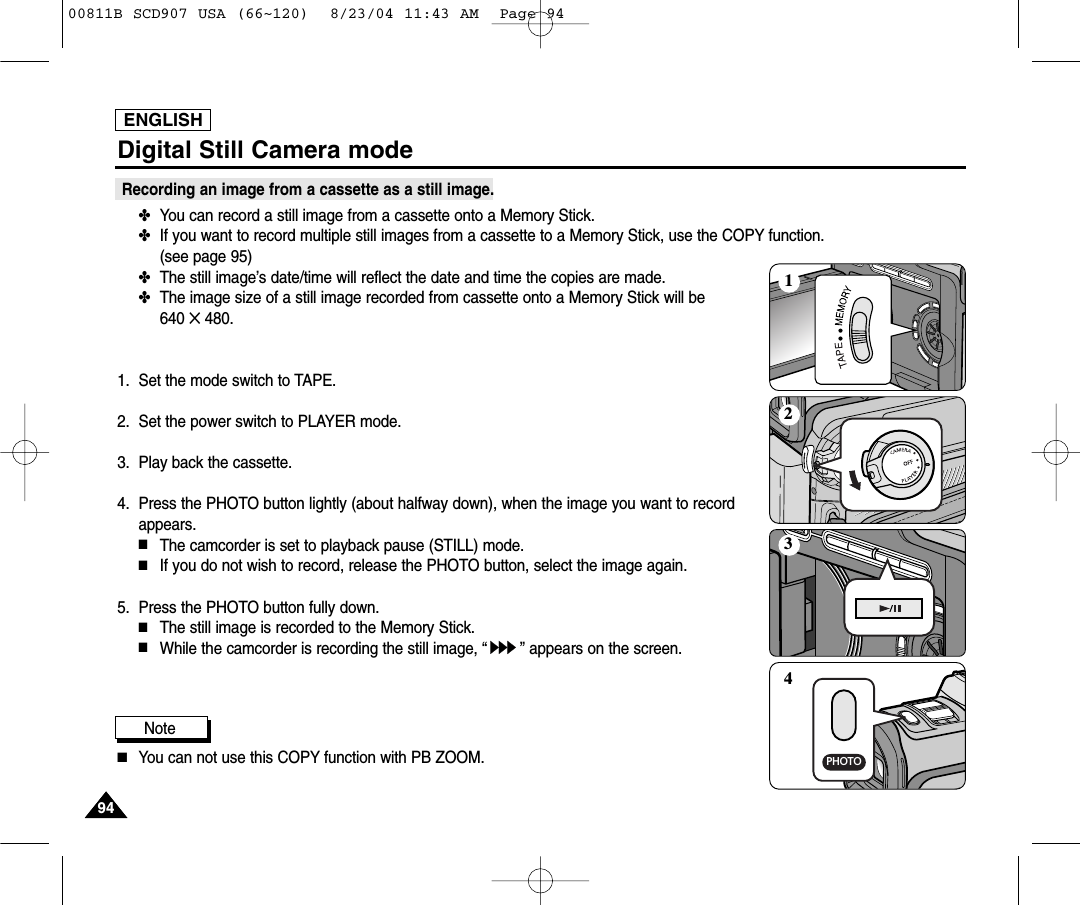
ENGLISH9494Digital Still Camera modeRecording an image from a cassette as a still image.✤You can record a still image from a cassette onto a Memory Stick.✤If you want to record multiple still images from a cassette to a Memory Stick, use the COPY function. (see page 95)✤The still image’s date/time will reflect the date and time the copies are made.✤The image size of a still image recorded from cassette onto a Memory Stick will be 640 ✕480.1. Set the mode switch to TAPE.2. Set the power switch to PLAYER mode.3. Play back the cassette.4.  Press the PHOTO button lightly (about halfway down), when the image you want to recordappears.■The camcorder is set to playback pause (STILL) mode.■If you do not wish to record, release the PHOTO button, select the image again.5.  Press the PHOTO button fully down.■The still image is recorded to the Memory Stick.■While the camcorder is recording the still image, “” appears on the screen.Note■You can not use this COPY function with PB ZOOM.PHOTO123400811B SCD907 USA (66~120)  8/23/04 11:43 AM  Page 94
ENGLISH9595Digital Still Camera mode✤You can copy still images recorded with PHOTO function on a cassette onto a Memory Stick.■The still images date/time will reflect the date and time the copies are made.■The image’s size of a still image copied from tape to Memory Stick will be 640 ✕480.■Before operation- Insert a recorded tape into your camcorder and rewind the tape.- Insert a Memory Stick into your camcorder.1. Set the mode switch to TAPE.2. Set the power switch to the PLAYER mode.3. Press the MENU button.4. Move the MENU SELECTOR to highlight A/V and push the MENU SELECTOR.■The submenu will appear.5. Move the MENU SELECTOR to highlight PHOTO COPY and push the MENU SELECTOR.■All still images that recorded on a cassette will be copied to a Memory Stick.6. The camcorder automatically performs the photo search to find still images and copying starts.7. Press  (STOP) button to stop copying.■Copying stops when the cassette is finished or Memory Stick is full.PLAYER  MODEREC MODEPHOTO SEARCHPHOTO COPYAUDIO MODE 12SOUND1AUDIO SELECTWIND CUTA / V SET[ 4 5 ]640PHOTO COPYNOW SEARCH ... 0 : 1 0 : 3 5 : 0 2PLAYER  MODEINITIALWIND CUTREC MODEPHOTO SEARCHCOPYAUDIO MODE 12AUDIO SELECTCAMERAA/VMEMORYVIEWERCopying still images from a cassette to Memory Stick00811B SCD907 USA (66~120)  8/23/04 11:43 AM  Page 95
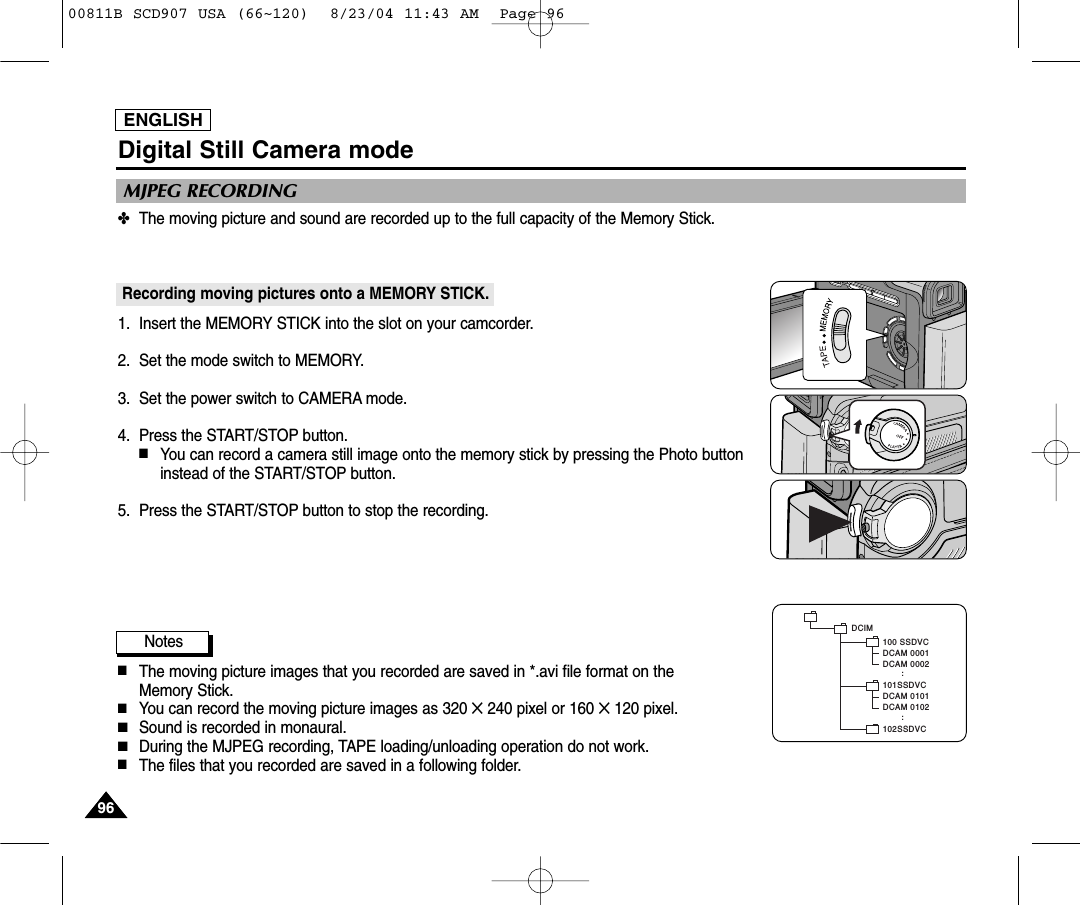
ENGLISH9696✤The moving picture and sound are recorded up to the full capacity of the Memory Stick.Recording moving pictures onto a MEMORY STICK.1. Insert the MEMORY STICK into the slot on your camcorder.2. Set the mode switch to MEMORY.3. Set the power switch to CAMERA mode.4. Press the START/STOP button.  ■You can record a camera still image onto the memory stick by pressing the Photo buttoninstead of the START/STOP button.5. Press the START/STOP button to stop the recording.Notes■The moving picture images that you recorded are saved in *.avi file format on the Memory Stick.■You can record the moving picture images as 320 ✕240 pixel or 160 ✕120 pixel.■Sound is recorded in monaural.■During the MJPEG recording, TAPE loading/unloading operation do not work.■The files that you recorded are saved in a following folder.MJPEG RECORDINGDigital Still Camera modeDCAM 0101DCAM 0102..DCIM100 SSDVCDCAM 0001DCAM 0002101SSDVC102SSDVC..00811B SCD907 USA (66~120)  8/23/04 11:43 AM  Page 96
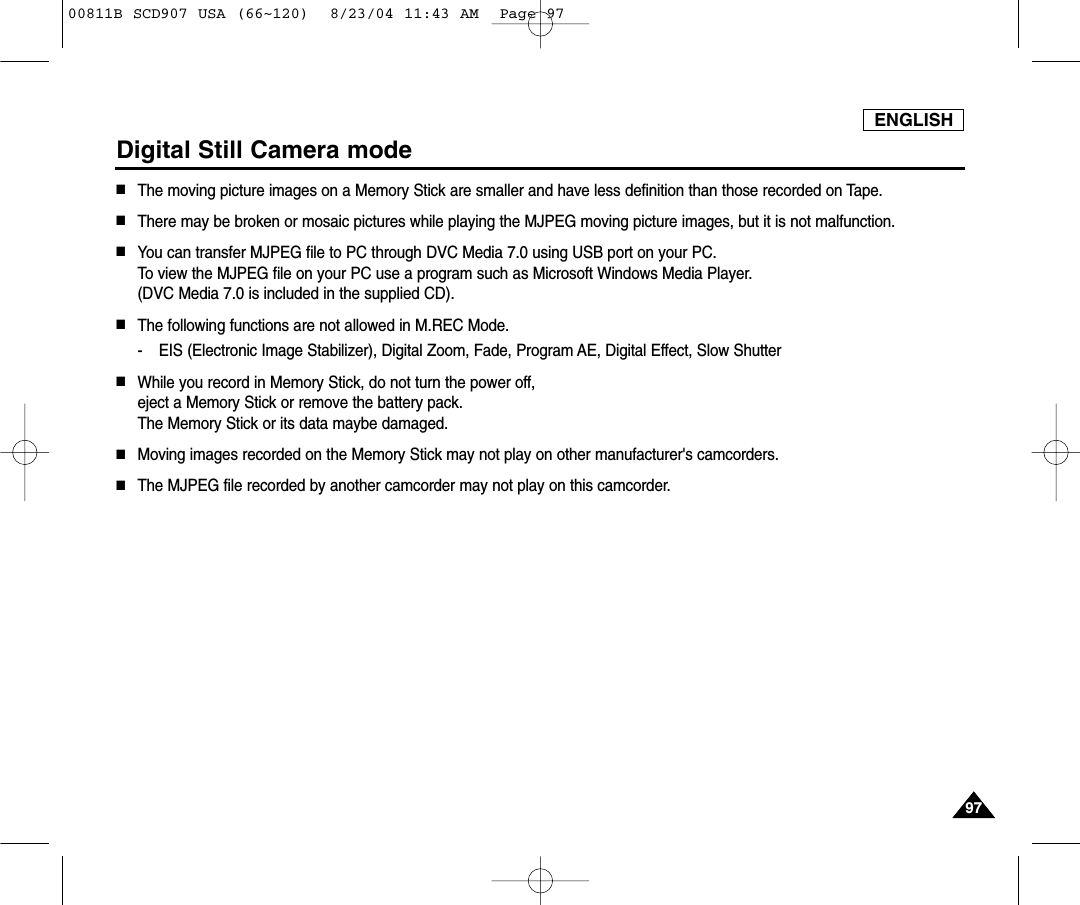
ENGLISH9797Digital Still Camera mode■The moving picture images on a Memory Stick are smaller and have less definition than those recorded on Tape.■There may be broken or mosaic pictures while playing the MJPEG moving picture images, but it is not malfunction.■You can transfer MJPEG file to PC through DVC Media 7.0 using USB port on your PC.To view the MJPEG file on your PC use a program such as Microsoft Windows Media Player.(DVC Media 7.0 is included in the supplied CD).■The following functions are not allowed in M.REC Mode.- EIS (Electronic Image Stabilizer), Digital Zoom, Fade, Program AE, Digital Effect, Slow Shutter■While you record in Memory Stick, do not turn the power off, eject a Memory Stick or remove the battery pack.The Memory Stick or its data maybe damaged.■Moving images recorded on the Memory Stick may not play on other manufacturer's camcorders.■The MJPEG file recorded by another camcorder may not play on this camcorder.00811B SCD907 USA (66~120)  8/23/04 11:43 AM  Page 97
ENGLISH9898Digital Still Camera mode✤You can playback and view still images/moving pictures recorded on the Memory Stick.✤There are 3 ways to view recorded images.■Single images/Moving pictures■Slide show : To view all images automatically and in consecutive order.■Multi display : To view 6 images at once.To view a Single image1. Set the mode switch to MEMORY.2. Set the power switch to PLAYER mode.■The last still image/moving picture recorded appears in the display.- If there are no recorded still images/moving pictures on the Memory Stick, NO STORED INAGE! and        will display on the screen.3. Using the  (FWD) and  (REV) buttons, search for the desired still images/movingpictures.■To view the next still image/moving picture: press the  (FWD) button.■To view the previous still image/moving picture: press the  (REV) button.■Pressing  (FWD) when you are on the last still image/ moving picture will take you tothe first still image and pressing  (REV) when you are on the first still image/movingpicture will take you to the last still image/moving picture.■Keep pressing  (FWD) or  (REV) to search for a still image/moving picture quickly.■Moving picture: Pressing  (PLAY/STILL) plays back the moving picture and will showfirst scene as a still image when playback ends.- Pressing  (PLAY/STILL) during playback will stop the moving picture and thescene is shown as a still image. Pressing  (PLAY/STILL) again will restart theplayback.Notes■There could be some broken or mosaic pictures displayed while playing the MJPEG movingpictures. This is not a fault.■It is possible that moving pictures that you recorded in the Memory Stick might not playbackin other brands of camcorder.■The MJPEG file recorded by another camcorder might not playback in this camcorder.■Memory Sticks with large file sizes may take additional time to replay.■You can transfer MJPEG file to PC through DVC Media 7.0 using USB port on your PC. And then, play MJPEG file with a movingpicture player program like a Microsoft Windows Media Player. (DVC Media 7.0 is included in the CD supplied)Viewing Still images/Moving picturesREC SEARCH FADE BLCREV FWDEASY MULTI DISP.1600 X 1200[0 4 / 0 6]1 0 0 - 0 0 0 4ImageSize320MJPEG0 0: 0 1 / 0 0: 2 3 secDCAM0002.AVIPlayback time/Time of recordedpictureMJPEG SizeFile numberstill imagemoving picture00811B SCD907 USA (66~120)  8/23/04 11:43 AM  Page 98
ENGLISH9999Digital Still Camera modeTo view a slide show1. Set the camcorder to M.PLAY mode. (see page 29)■The last recorded still image/moving picture appears.2. Press the S.SHOW button.■All images will be played back consecutively for 3~4 seconds each.3. To stop the slide show, press the S.SHOW button again.To view the Multi Display1. Set the camcorder to M.PLAY mode. (see page 29)■The last recorded still image/moving picture appears.2. To view six stored still image/moving pictures on single screen, press the MULTI DISP.button.■A selection mark ( ) appears under the still image/moving picture.■Moving pictures will be displayed with the first scene as a still image, indicated by a picture mark ( ).■Move the MENU SELECTOR to select a still image/moving picture.■To display the previous six images, press the  (REV).■To display the next six images, press the  (FWD).3. To return to single playback mode, press the MULTI DISP. button again or push the MENU SELECTOR.■The still image/moving picture you have marked fills the whole display.19 20 2122 23 24[22/24]100-0025REC SEARCH FADE BLCREV FWDEASY MULTI DISP.00811B SCD907 USA (66~120)  8/23/04 11:43 AM  Page 99
ENGLISH100100Digital Still Camera mode✤This camcorder supports the DPOF (Digital Print Order Format) print format.✤You can automatically print still images recorded on a Memory Stick with a printer supporting DPOF.✤There are 2 ways to make a PRINT MARK.■THIS FILE: You can set a print mark on the photo image displayed on the LCD.■ALL FILES: To print 1 copy each of all of the stored still images. 1. Set the mode switch to MEMORY.2. Set the power switch to PLAYER mode.■The last recorded image appears.3. Using the  (FWD) and  (REV) buttons, search for the still image that you want to mark.4. Press the MENU button.5. Move the MENU SELECTOR to highlight MEMORY and push the MENU SELECTOR.■The MEMORY SET submenu will appear. 6. Move the MENU SELECTOR to highlight PRINT MARK, push the MENU SELECTOR.7. Use the MENU SELECTOR to select either THIS FILE or ALL FILES and push the MENUSELECTOR.8. Use the MENU SELECTOR to select the quantity and push the MENU SELECTOR.Notes■When you setup the PRINT MARK option to ALL FILES, 999 files from the current file are set to 1or 0. ■The ALL FILES option may require extended operation time depending on the number of stored still images. ■You cannot write print marks on moving pictures.Marking still images for printingM.PLAY  MODEMEMORY SETPRINT MARKPHOTO QUALITYDELETEFORMATIMAGE SIZEMJPEG SIZE320X2401600X1200000CONTINUOUS SHOTPROTECTM.PLAY  MODEINITIALPRINT MARKPHOTO QUALITYDELETEFORMATIMAGE SIZEMJPEG SIZECONTIN. SHOTCAMERAA/VMEMORYVIEWERPROTECTM.PLAY  MODETHIS FILE NUM:000000[15/22]ALL FILESMEMORY SETNUM:000PRINT MARK00811B SCD907 USA (66~120)  8/23/04 11:43 AM  Page 100
ENGLISH101101Digital Still Camera mode✤By connecting the camcorder to printers with PictBridge support (sold separately), you can send images from the MEMORY STICK directly to the printer.✤With the PictBridge support, you can control the printer directly through your camcorder in order to print out stored images.For direct printing of your stored images using the PictBridge function, it is required to connect your camcorder to aPictBridge printer using a USB cable.✤Before printing the still image, you must set the USB CONNECT to “PRINTER” (see page 44).1. Insert the MEMORY STICK on which still images are stored intoyour camcorder.2. Connect the power source to the printer and turn on the power.3. Set the camcorder to M.PLAY mode. (see page 29)4. Change camcorder USB CONNECT setting to “PRINTER” mode.  (see page 44).5. Connect your camcorder to the printer using the provided USB cable.When connection between your camcorder and printer is completed, such a OSD appears onthe screen.Notes■If such a OSD does not appear on the screen, the USB connection mode is not correctly set inthe menu, or the camcorder is not corrected to the printer.- Open the menu and make sure that USB CONNECT is set to PRINTER.- Disconnect the cable from camcorder and printer, turn off camcorder and printer, turn both back on and reconnect thecamcorder to the printer.■We cannot guarantee the operation of models that are not PictBridge compatible.Printing Your Pictures - Using the PictBridge (DIRECT PRINT)Connecting to a Printer[1 5 / 3 3]PRINT THIS PHOTOPict BridgeDATEDIRECT PRINT MODE00811B SCD907 USA (66~120)  8/23/04 11:43 AM  Page 101
ENGLISH102102Digital Still Camera mode1. Using the  (FWD) and  (REV) buttons, select the still image that you want to print.2. Move the MENU SELECTOR to highlight PRINT THIS PHOTO and push the MENU SELECTOR.■The print setting menu appear.■If you do not want to print photo, press the MENU button.3. Move the MENU SELECTOR to select the number of copies.■You can select a maximum of 30 copies for one still image.4. To start the printing, push the MENU SELECTOR.■The message “NOW PRINTING” appears and printing starts.■When printing is finished, “NOW PRINTING” disappears and the print setting menu appearsagain.✤To cancel printingPush the MENU SELECTOR while “NOW PRINTING” is displayed.Printing stops even if it is incomplete and the paper is fed through.✤To print another imageUsing the  (FWD) and  (REV) buttons, select the still image that you want to print.Repeat steps 3 to 4.✤To finish printingPress the MENU button and disconnect the USB cable from your camcorder and printer.Printing Images[1 5 / 3 3]PRINT THIS PHOTOPict BridgeDATEDIRECT PRINT MODEPictBridgeCOPY :             EXIT : MENUEXECUTE : ENTER01 PRINTSPictBridgeCANCEL : ENTER> > > > >NOW PRINTING [01/09]00811B SCD907 USA (66~120)  8/23/04 11:43 AM  Page 102
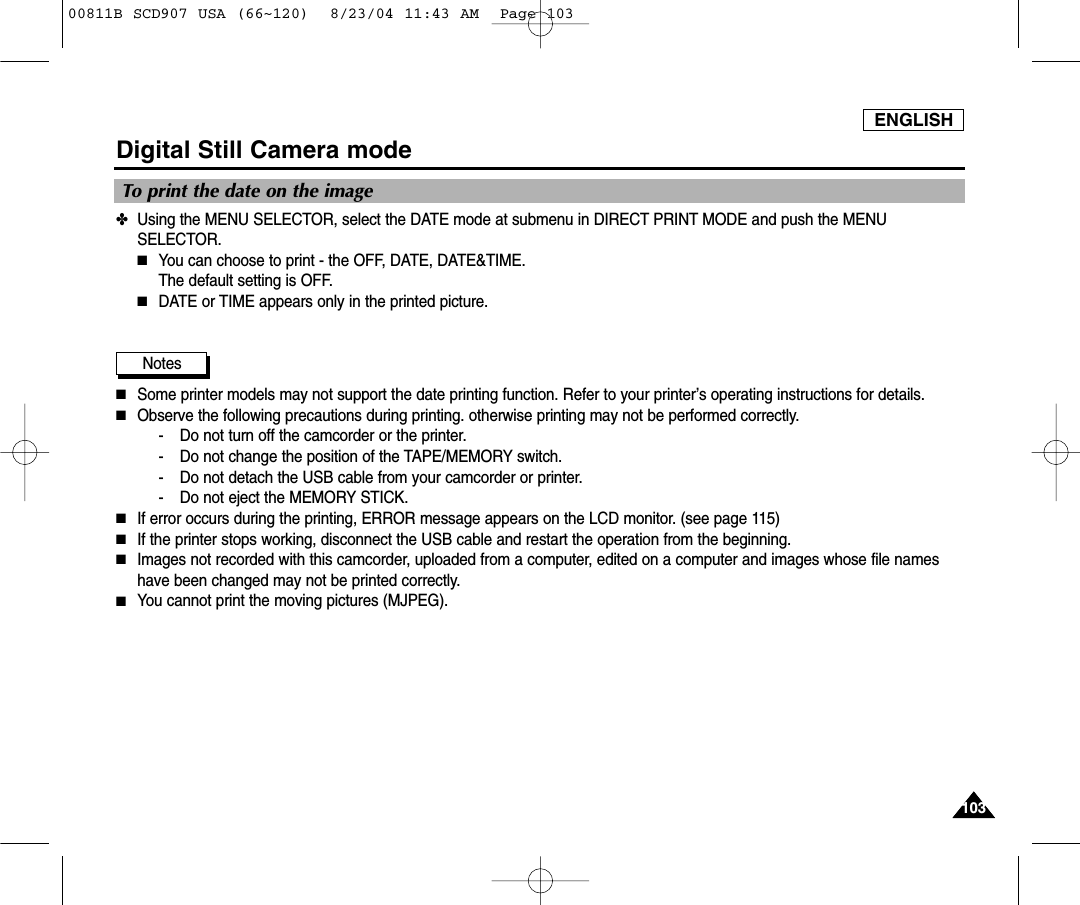
ENGLISH103103Digital Still Camera mode✤Using the MENU SELECTOR, select the DATE mode at submenu in DIRECT PRINT MODE and push the MENUSELECTOR.■You can choose to print - the OFF, DATE, DATE&TIME.The default setting is OFF.■DATE or TIME appears only in the printed picture.Notes■Some printer models may not support the date printing function. Refer to your printer’s operating instructions for details.■Observe the following precautions during printing. otherwise printing may not be performed correctly.- Do not turn off the camcorder or the printer.- Do not change the position of the TAPE/MEMORY switch.- Do not detach the USB cable from your camcorder or printer.- Do not eject the MEMORY STICK.■If error occurs during the printing, ERROR message appears on the LCD monitor. (see page 115)■If the printer stops working, disconnect the USB cable and restart the operation from the beginning.■Images not recorded with this camcorder, uploaded from a computer, edited on a computer and images whose file nameshave been changed may not be printed correctly.■You cannot print the moving pictures (MJPEG).To print the date on the image00811B SCD907 USA (66~120)  8/23/04 11:43 AM  Page 103
ENGLISH104104Digital Still Camera mode✤You can protect important still images/moving pictures from accidental erasure.■If you execute FORMAT, all still images/moving pictures including protected images will be erased.1. Set the mode switch to MEMORY.2. Set the power switch to PLAYER mode.■The last recorded still image/moving picture appears.■If there are no recorded still images/moving pictures on the Memory Stick, NO STORED INAGE! and  will display on the screen.3. Using the  (FWD) and  (REV) buttons, search for the still image/moving picture that you want to protect.4. Press the MENU button.5. Move the MENU SELECTOR to highlight MEMORY and push the MENU SELECTOR.■The MEMORY SET submenu will appear.6. Move the MENU SELECTOR to highlight PROTECT and push the MENU SELECTOR.7. Push the MENU SELECTOR to set PROTECT to ON or OFF. ■THIS FILE : protects the currently selected file from erasure. 8. Using the  (FWD) and  (REV) buttons, search for the still image/moving picture that youwish to protect.9. To exit the menu, press the MENU button.Note■If the write protect tab on the Memory Stick is set to LOCK, you cannot set image protection.Protection from accidental erasureM.PLAY  MODEMEMORY SETPRINT MARKPHOTO QUALITYDELETEFORMATIMAGE SIZEMJPEG SIZE320X2401600X1200000PROTECTCONTINUOUS SHOTM.PLAY  MODEINITIALPRINT MARKPHOTO QUALITYDELETEFORMATIMAGE SIZEMJPEG SIZECONTIN. SHOTCAMERAA/VMEMORYVIEWERPROTECTM.PLAY  MODETHIS FILE ONMEMORY SET [05/05]PROTECT00811B SCD907 USA (66~120)  8/23/04 11:43 AM  Page 104
ENGLISH105105Digital Still Camera mode✤You can erase the still images/moving pictures recorded on the Memory Stick.✤If you want to delete protected still images/moving pictures, you must first deactivate the image protection.✤An image which has been deleted cannot be recovered.✤You can delete still images/moving pictures in the menu list or using DELETE button.Deleting images in the menu1. Set the camcorder to M.PLAY mode. (see page 29)2. Using the  (FWD) and  (REV) buttons, search for the still image/moving picture that you want to delete.3. Press the MENU button.4. Move the MENU SELECTOR to highlight MEMORY and push the MENU SELECTOR.■The MEMORY SET submenu will appear.5. Move the MENU SELECTOR to highlight DELETE and push the MENU SELECTOR.■Using the MENU SELECTOR, select either THIS FILE or ALL FILES and push the MENUSELECTOR.■THIS FILE: deletes only the file currently selected.■ALL FILES : deletes all files stored in the Memory Stick.6. A box will appear to verify whether you wish to delete the still image/moving picture.  ■Using the MENU SELECTOR, select the item.■EXECUTE : deletes the selected still images/ moving pictures. ■CANCEL : does not delete the selected still images/moving pictures and returns tothe previous menu. Deleting Still images/Moving picturesM.PLAY  MODEMEMORY SETPRINT MARKPHOTO QUALITYDELETEFORMATIMAGE SIZEMJPEG SIZE320X2401600X1200000CONTINUOUS SHOTPROTECTM.PLAY  MODETHIS FILE CANCELALL FILESMEMORY SET [10/20]DELETEM.PLAY  MODEINITIALPRINT MARKPHOTO QUALITYDELETEFORMATIMAGE SIZEMJPEG SIZECONTIN. SHOTCAMERAA/VMEMORYVIEWERPROTECT00811B SCD907 USA (66~120)  8/23/04 11:43 AM  Page 105
ENGLISH106106Digital Still Camera modeDeleting images using the DELETE button1. Set the camcorder to M.PLAY mode. (see page 29)2. Using the  (FWD) and  (REV) buttons, search for the still image/moving picture that you want to delete.3. Press the DEL (delete) button.4. “DELETE REALLY?” appears an the screen.5. Using the MENU SELECTOR, select the item.■NO : To cancel deleting.■YES : To start deleting.6. Push the MENU SELECTOR.Deleting images in MULTI DISPLAY mode1. Press the MULTI DISP. button in M.PLAY mode. (see page 99)2. Move the MENU SELECTOR to select a still image/moving picture which you want to delete.3. Press the DEL (delete) button.4. After pressing the DEL (delete) button, it is the same procedures as mentioned above.Notes■If you try to delete a protected image, “PROTECT!” appears on the screen.■See page (105) to delete all files on the memory stick.SELECT :NOEXECUTE : ENTERDELETE REALLY?[13/13]1600x120000811B SCD907 USA (66~120)  8/23/04 11:43 AM  Page 106
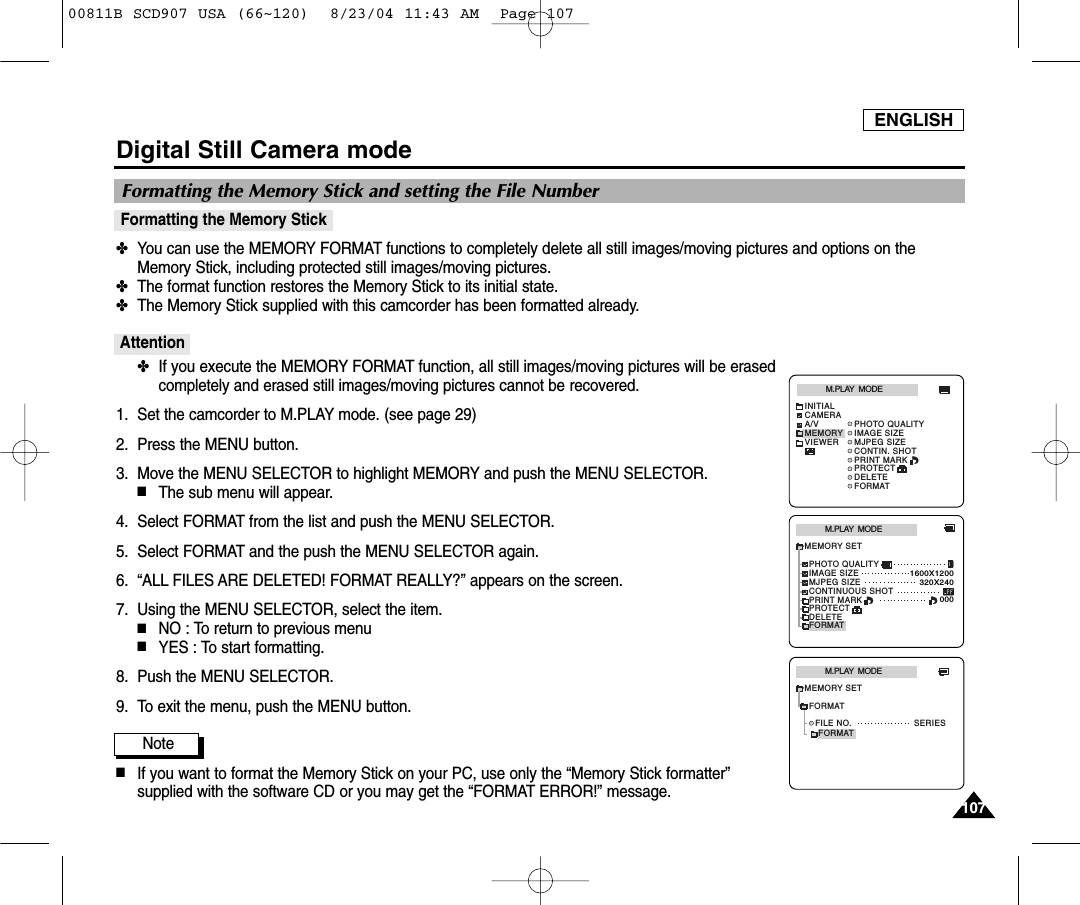
ENGLISH107107Digital Still Camera modeFormatting the Memory Stick✤You can use the MEMORY FORMAT functions to completely delete all still images/moving pictures and options on theMemory Stick, including protected still images/moving pictures.✤The format function restores the Memory Stick to its initial state.✤The Memory Stick supplied with this camcorder has been formatted already.Attention✤If you execute the MEMORY FORMAT function, all still images/moving pictures will be erasedcompletely and erased still images/moving pictures cannot be recovered.1. Set the camcorder to M.PLAY mode. (see page 29)2. Press the MENU button.3. Move the MENU SELECTOR to highlight MEMORY and push the MENU SELECTOR.■The sub menu will appear.4. Select FORMAT from the list and push the MENU SELECTOR.5. Select FORMAT and the push the MENU SELECTOR again.6. “ALL FILES ARE DELETED! FORMAT REALLY?” appears on the screen.7. Using the MENU SELECTOR, select the item.■NO : To return to previous menu■YES : To start formatting.8. Push the MENU SELECTOR.9. To exit the menu, push the MENU button.Note■If you want to format the Memory Stick on your PC, use only the “Memory Stick formatter”supplied with the software CD or you may get the “FORMAT ERROR!” message.Formatting the Memory Stick and setting the File NumberM.PLAY  MODEMEMORY SETPRINT MARKPHOTO QUALITYDELETEFORMATIMAGE SIZEMJPEG SIZE320X2401600X1200000CONTINUOUS SHOTPROTECTM.PLAY  MODEINITIALPRINT MARKPHOTO QUALITYDELETEFORMATIMAGE SIZEMJPEG SIZECONTIN. SHOTCAMERAA/VMEMORYVIEWERPROTECTFORMATM.PLAY  MODEFILE NO. SERIESMEMORY SETFORMAT00811B SCD907 USA (66~120)  8/23/04 11:43 AM  Page 107
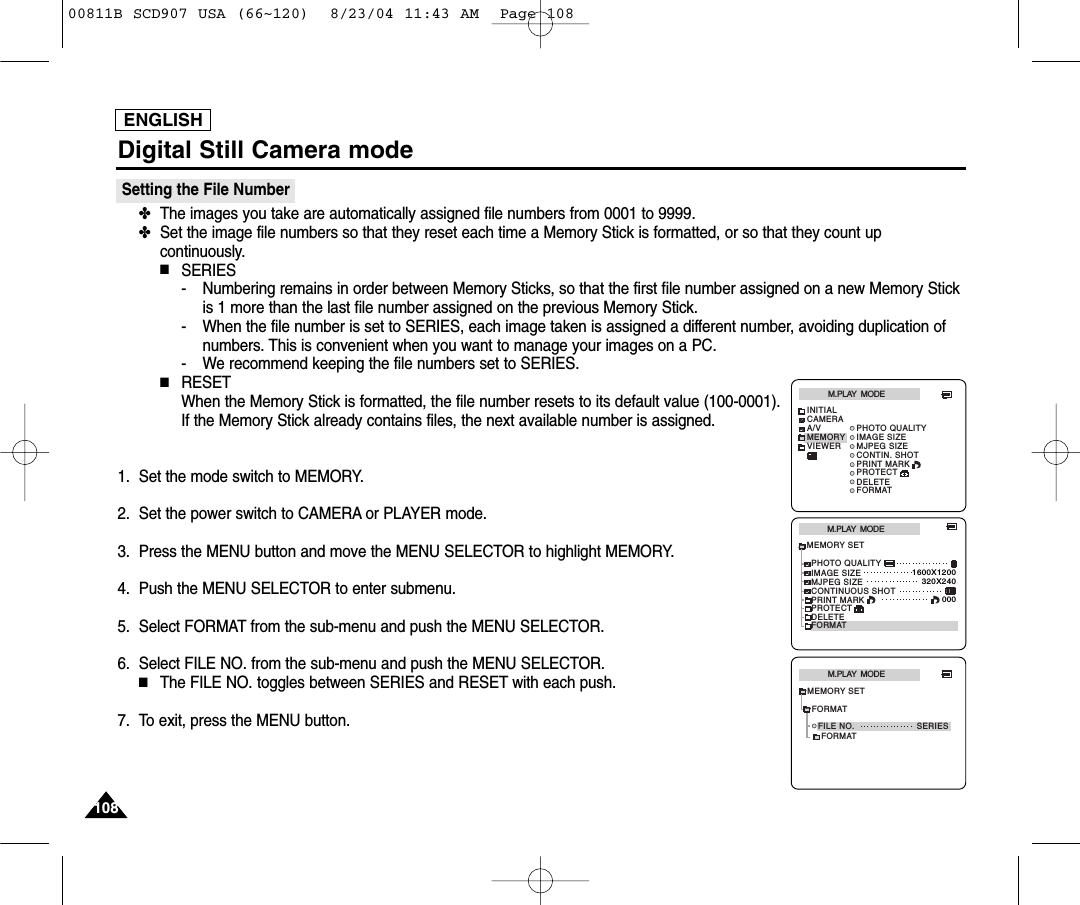
ENGLISH108108Digital Still Camera modeSetting the File Number✤The images you take are automatically assigned file numbers from 0001 to 9999.✤Set the image file numbers so that they reset each time a Memory Stick is formatted, or so that they count upcontinuously.■SERIES- Numbering remains in order between Memory Sticks, so that the first file number assigned on a new Memory Stickis 1 more than the last file number assigned on the previous Memory Stick.- When the file number is set to SERIES, each image taken is assigned a different number, avoiding duplication ofnumbers. This is convenient when you want to manage your images on a PC.- We recommend keeping the file numbers set to SERIES.■RESETWhen the Memory Stick is formatted, the file number resets to its default value (100-0001).If the Memory Stick already contains files, the next available number is assigned.1. Set the mode switch to MEMORY.2. Set the power switch to CAMERA or PLAYER mode.3. Press the MENU button and move the MENU SELECTOR to highlight MEMORY.4. Push the MENU SELECTOR to enter submenu.5. Select FORMAT from the sub-menu and push the MENU SELECTOR.6. Select FILE NO. from the sub-menu and push the MENU SELECTOR.■The FILE NO. toggles between SERIES and RESET with each push.7. To exit, press the MENU button.M.PLAY  MODEMEMORY SETPRINT MARKPHOTO QUALITYDELETEFORMATIMAGE SIZEMJPEG SIZE320X2401600X1200000CONTINUOUS SHOTPROTECTM.PLAY  MODEINITIALPRINT MARKPHOTO QUALITYDELETEFORMATIMAGE SIZEMJPEG SIZECONTIN. SHOTCAMERAA/VMEMORYVIEWERPROTECTFORMATM.PLAY  MODEFILE NO. SERIESMEMORY SETFORMAT00811B SCD907 USA (66~120)  8/23/04 11:43 AM  Page 108
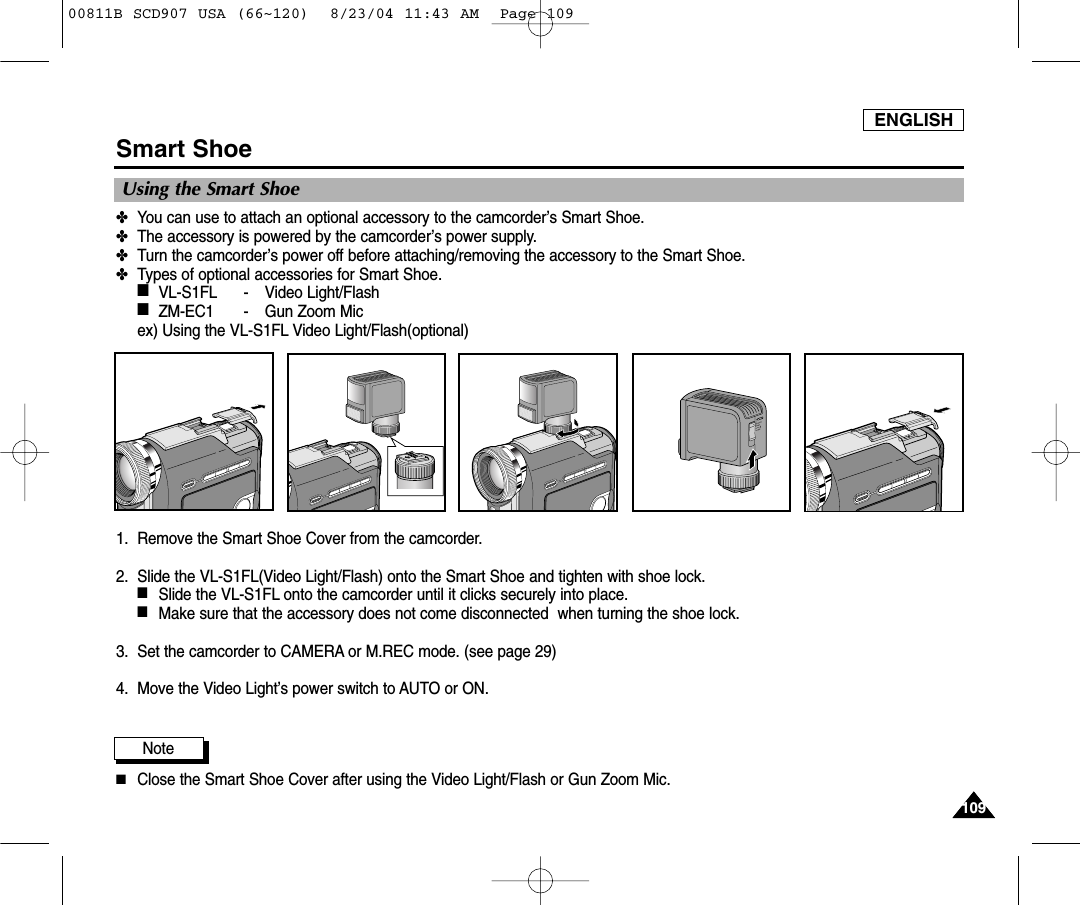
ENGLISH109109Smart Shoe Using the Smart Shoe✤You can use to attach an optional accessory to the camcorder’s Smart Shoe.✤The accessory is powered by the camcorder’s power supply.✤Turn the camcorder’s power off before attaching/removing the accessory to the Smart Shoe.✤Types of optional accessories for Smart Shoe.■VL-S1FL - Video Light/Flash■ZM-EC1 - Gun Zoom Micex) Using the VL-S1FL Video Light/Flash(optional)1. Remove the Smart Shoe Cover from the camcorder.2. Slide the VL-S1FL(Video Light/Flash) onto the Smart Shoe and tighten with shoe lock.■Slide the VL-S1FL onto the camcorder until it clicks securely into place.■Make sure that the accessory does not come disconnected  when turning the shoe lock.3. Set the camcorder to CAMERA or M.REC mode. (see page 29)4. Move the Video Light’s power switch to AUTO or ON.Note■Close the Smart Shoe Cover after using the Video Light/Flash or Gun Zoom Mic.00811B SCD907 USA (66~120)  8/23/04 11:43 AM  Page 109
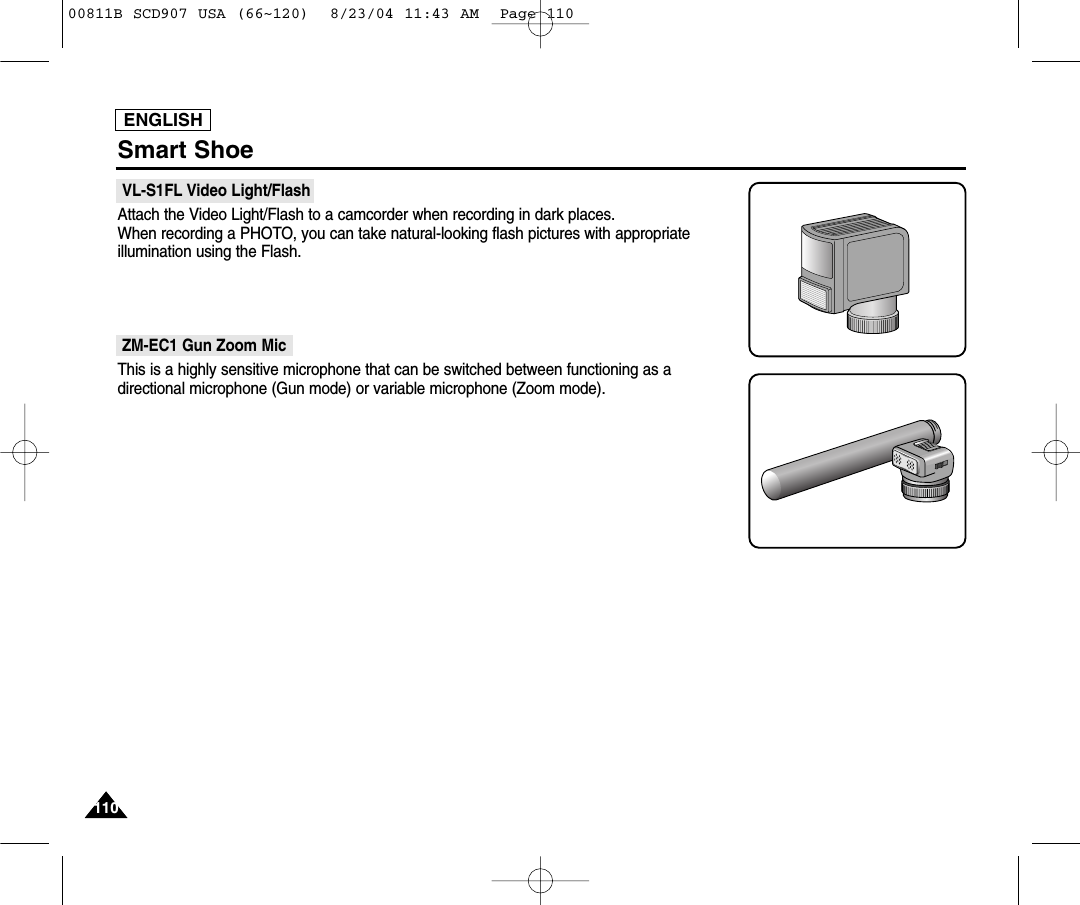
ENGLISH110110Smart Shoe VL-S1FL Video Light/FlashAttach the Video Light/Flash to a camcorder when recording in dark places.When recording a PHOTO, you can take natural-looking flash pictures with appropriateillumination using the Flash.ZM-EC1 Gun Zoom MicThis is a highly sensitive microphone that can be switched between functioning as a directional microphone (Gun mode) or variable microphone (Zoom mode).00811B SCD907 USA (66~120)  8/23/04 11:43 AM  Page 110
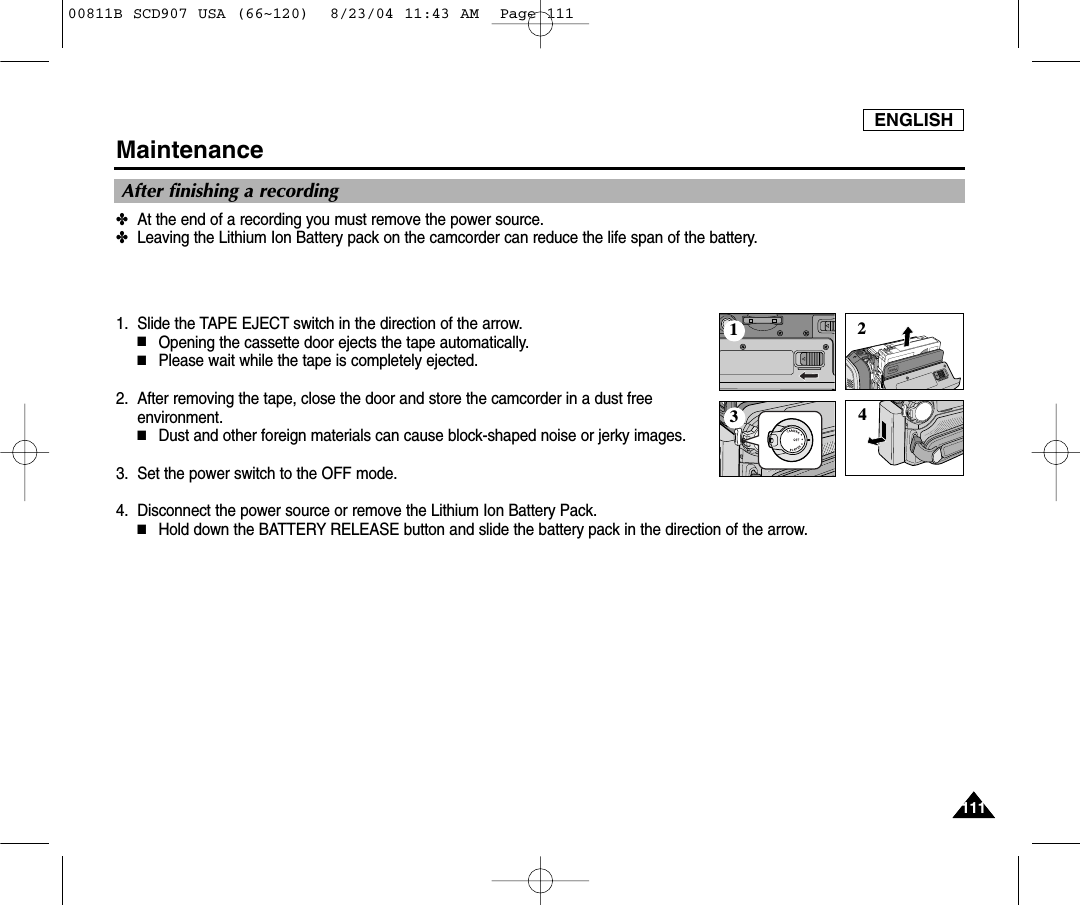
ENGLISH111111Maintenance✤At the end of a recording you must remove the power source.✤Leaving the Lithium Ion Battery pack on the camcorder can reduce the life span of the battery.1. Slide the TAPE EJECT switch in the direction of the arrow. ■Opening the cassette door ejects the tape automatically.■Please wait while the tape is completely ejected.2. After removing the tape, close the door and store the camcorder in a dust freeenvironment.■Dust and other foreign materials can cause block-shaped noise or jerky images.3. Set the power switch to the OFF mode.4. Disconnect the power source or remove the Lithium Ion Battery Pack.■Hold down the BATTERY RELEASE button and slide the battery pack in the direction of the arrow.After finishing a recording123400811B SCD907 USA (66~120)  8/23/04 11:43 AM  Page 111
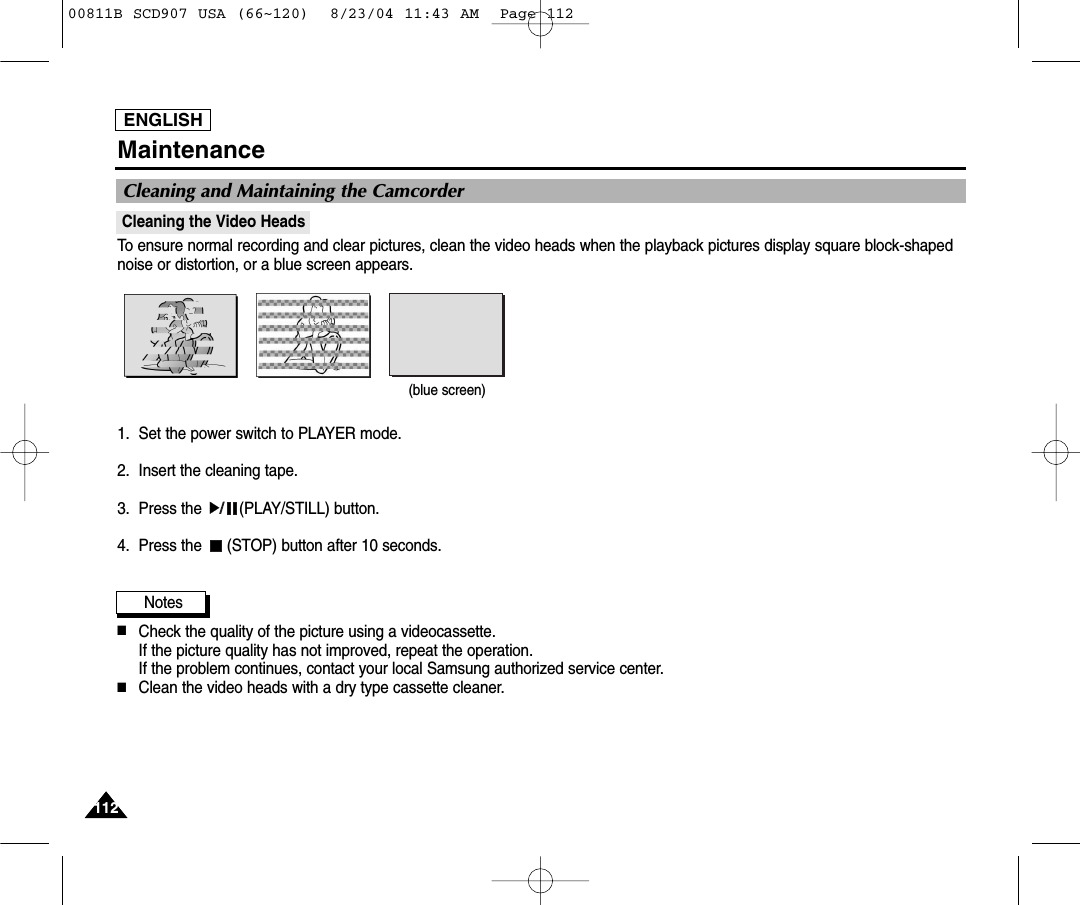
ENGLISH112112MaintenanceCleaning the Video HeadsTo ensure normal recording and clear pictures, clean the video heads when the playback pictures display square block-shapednoise or distortion, or a blue screen appears.1. Set the power switch to PLAYER mode.2. Insert the cleaning tape.3. Press the  (PLAY/STILL) button.4. Press the  (STOP) button after 10 seconds.Notes■Check the quality of the picture using a videocassette. If the picture quality has not improved, repeat the operation.If the problem continues, contact your local Samsung authorized service center.■Clean the video heads with a dry type cassette cleaner.Cleaning and Maintaining the Camcorder(blue screen)00811B SCD907 USA (66~120)  8/23/04 11:43 AM  Page 112
ENGLISH113113Maintenance✤Each country or region has its own electric and color systems.✤Before using your camcorder abroad, check the following items.Power sources■You can use your camcorder in any country or area with the supplied AC Power Adapter within 100V to 240V, 50/60 Hz.■Use a commercially available AC plug Adapter, if necessary, depending on the design of the local wall outlet.Color system■You can view your recording in the viewfinder. However, to view it on a television or copy it to a videocassette recorder, the television or VCR must be NTSC-compatibleand have the appropriate audio/video jacks.Otherwise, you may need to use a transcoder.●PAL-compatible Countries/RegionsAustralia, Austria, Belgium, Bulgaria, China, CIS, Czech Republic, Denmark, Egypt, Finland, France, Germany, Greece, Great Britain, Holland, Hong Kong, Hungary, India, Iran, Iraq, Kuwait, Libya, Malaysia, Mauritius, Norway, Romania, Saudi Arabia, Singapore, Slovak Republic, Spain, Sweden, Switzerland, Syria, Thailand, Tunisia, etc.●NTSC-compatible Countries/RegionsBahamas, Canada, Central America, Japan, Korea, Mexico, Philippines, Taiwan, United States of America, etc.NoteYou can make recordings with your camcorder and view pictures on the LCD from anywhere in the world.Using Your Camcorder Abroad00811B SCD907 USA (66~120)  8/23/04 11:43 AM  Page 113
ENGLISH114114Troubleshooting✤Before contacting a Samsung authorized service center, perform the following simple checks. They may save you the time and expense of an unnecessary call.Self Diagnosis DisplayMoisture Condensation✤If the camcorder is brought directly from a cold place to a warm place, moisture may condense inside the camcorder, on the surface of the tape, or on the lens. In this condition, the tape may stick to the head drum and be damaged or theunit may not operate correctly.To prevent possible damage under these circumstances, the camcorder is fitted with a moisture sensor.✤If there is moisture inside the camcorder,  (DEW) is displayed. If this happens, none of the functions except cassetteejection will work. Open the cassette compartment and remove the battery. Leave the camcorder for at least two hours in a dry warm room.slowslownoslowslowslowslowthe battery pack is almostdischarged.When the remaining time on thetape is about 2 minutes.the tape reached its end.there is no tape in camcorder.the tape is record protected. the camcorder has somemechanical fault.moisture condensation hasformed in the camcorder.Change to a charged one. Prepare a new one. Change to a new one.Insert a tape.If you want to record, release the protection.1. Eject the tape.2. Set to OFF.3. Detach the battery.4. Reattach the battery. * If unresolved contact yourlocal service representative.  see below.TAPE END!TAPE END!TAPE!PROTECTION! ....DLCRDisplay Blinking Informs that...  ActionTroubleshooting00811B SCD907 USA (66~120)  8/23/04 11:43 AM  Page 114
ENGLISH115115TroubleshootingSelf Diagnosis Display in M.REC/M.PLAY modeslowslowslowslowslowslowslowslowslowslowslowslowThere is no Memory stick inthe camcorder.There is not enough memoryto record.There are no images recordedon the Memory Stick.The Memory Stick is recordprotected.When you try to delete toprotected image.The camera can not playback.The camera can not record.The  Memory Stick needs toformat.When progressing FILEDELETE.When progressing MEMORYFORMAT.When progressing FILE COPY.Memory Stick format operationis failed.Insert a Memory Stick.Change to a new Memory Stick.Erase recorded image.Record new images.Release the write protect tab onthe Memory Stick.Cancel the protect of image.- Release the Memory Stick,and reinsert the MemoryStick.- Format a Memory Stick orinsert Memory Stick recordedon this camcorder.Format a Memory Stick or change to a new Memory Stick.Format a Memory Stick.Wait until Delete has finished.Wait until formatting has finished.Wait until copying has finished.Format a Memory Stick usingthe camcorder or MS formatterprogram. (see page 107)MEMORY STICK!MEMORY FULL!NO STOREDIMAGE!WRITE PROTECT!PROTECT!READ ERROR!WRITE ERROR!NOT FORMATTED!NOW DELETE...NOW FORMAT...NOW COPY...FORMAT ERROR!Display Blinking Informs that...  ActionThere is a problem with the paper.Paper is not correctly inserted or there is no paper.The paper jammed during printing.There is a problem with the ink cassette.The ink cartridge is not inserted or is out of ink.Turn off the printer and turn it back on.You attempted to print an image that was made with anothercamcorder, has a different format, or was edited on a computer.Paper errorNo paperPaper JamInk errorNo InkPrint error File errorDisplay ExplanationDirect Print Related Messages00811B SCD907 USA (66~120)  8/23/04 11:43 AM  Page 115
ENGLISH116116Troubleshooting✤If these instructions do not solve your problem, contact your nearest Samsung authorized service center.You cannot switch thecamcorder on.START/STOP buttondoes not operatewhile recording.The camcorder goesoff automatically.The battery pack isquickly exhausted.When you see a bluescreen duringplayback.A vertical stripappears on thescreen whenrecording a darkbackground.The image in theviewfinder is blurred.Auto focus does notwork.Play, FF or REWbutton does not work.When you see abroken block imageduring the RECORDSEARCH.Check the battery pack or the AC Power Adapter.Check the POWER switch is set to CAMERA.You have reached the end of the cassette.Check the record protection tab on the cassette.You have left the camcorder set to STBY for morethan 5 minutes without using it.The battery pack is fully exhausted.The atmospheric temperature is too low.The battery pack has not been charged fully.The battery pack is completely dead, and cannot berecharged, Use another battery pack.The video heads may be dirty.Clean the head with a cleaning tape.The contrast between the subject and the backgroundis too great for the camcorder to operate normally.Make the background bright to reduce the contrast oruse the BLC function while you are recording brighter.The Viewfinder lens has not been adjusted.Adjust the viewfinder control lever until the indicatorsdisplayed on the viewfinder come into  sharp focus.Check the M.FOCUS menu.Auto focus does not work in the Manual Focus mode.Check the POWER switch. Set the power switch toPLAYER.You have reached the beginning or end of the cassette.This is normal operation and it is not a failure ordefect.Symptom Explanation/Solution00811B SCD907 USA (66~120)  8/23/04 11:43 AM  Page 116
ENGLISH117117Specifications•These technical specifications and design may be changed without notice.SystemVideo signalVideo recording systemAudio recording systemUsable cassetteTape speedTape recording timeFF/REW timeImage deviceLensFilter diameterLCD monitor/ViewfinderSize/dot numberLCD monitor MethodViewfinderConnectorsVideo outputS-video output Audio output DV input/outputUSB outputExternal micNTSC2 rotary heads, Helical scanning systemRotary heads, PCM systemDigital video tape (6.35mm width): Mini DV cassetteSP: approx. 18.81mm/s    LP: approx. 12.56mm/s    SP: 60 minutes (when using DVM 60), LP: 90 minutes (when using DVM 60)Approx. 150 sec. (using DVM60 tape)CCD (Charge Coupled Device)F1.8 10x(Optical), 900x(Digital) Electronic zoom lensØ372.5inchs 211kTFT LCD0.24" Color LCD1Vp-p (75Ωterminated)Y: 1Vp-p, 75Ω, C: 0. 286Vp-p, 75Ω-7.5dBs (600Ωterminated)4pin special in/out connector Mini-B type connectorØ3.5 stereoGeneralPower sourcePower source typePower consumption(Recording)Operating temperatureStorage temperatureExternal dimensionWeightBuilt-in MIC Remote controlDC 8.4V, Lithium Ion Battery Pack 7.4VLithium Ion Battery Pack, Power supply (100V~240V) 50/60Hz 5.7W(LCD), 4.5W (Viewfinder)0˚~40˚C (32˚F~104˚F) -20˚C ~ 60˚C (-4˚F ~ 140˚F)  Length 120mm, Height 101.5mm, Width 58mm480g (Except for Lithium Ion Battery Pack and tape) Omni-directional stereo condenser microphoneIndoors: greater than 15m (straight line), Outdoors: about 5m (straight line)Model name: SCD90700811B SCD907 USA (66~120)  8/23/04 11:43 AM  Page 117
ENGLISH118118INDEXAssist light .............................................................................. 64Accessories .......................................................................... 12Audio dubbing ....................................................................... 69AUDIO MODE  ...................................................................... 57AUDIO SELECT ................................................................... 71AV IN/OUT ............................................................................ 76Battery Pack  ......................................................................... 24BEEP SOUND ...................................................................... 42BLC ....................................................................................... 68Cassette ................................................................................ 27Charging the Lithium Ion Battery Pack ................................. 24Cleaning .............................................................................. 112CLOCK SET ......................................................................... 40Condensation....................................................................... 113Connecting to TV or VCR...................................................... 75CONTINUOUS SHOT ........................................................... 91Copying Still images from a cassette to Memory Stick .........94DATE/TIME ........................................................................... 59DC Cable  .............................................................................. 23Deleting Still images/Moving pictures ................................. 105DEMONSTRATION .............................................................. 44Digital zoom ........................................................................... 50DIRECT PRINT .................................................................... 101DSE (Digital Special Effects)................................................. 51DV ...........................................................................................81EASY Mode .......................................................................... 65EIS (Electronic Image Stabilizer) .......................................... 51EXPOSURE .......................................................................... 63Fade ...................................................................................... 69File Number ........................................................................... 92Flash ...................................................................................... 67Focusing ................................................................................ 66Formatting the Memory Stick .............................................. 106Frame advance ..................................................................... 77Function buttons  ................................................................... 14Hand Strap ............................................................................ 22IEEE1394 .............................................................................. 80Image Size............................................................................. 89LCD ....................................................................................... 33Lithium Battery Installation .................................................... 21Maintenance ........................................................................ 107Memory Mix ........................................................................... 54Memory Stick ........................................................................ 86MF/AF .................................................................................... 66MJPEG RECORDING........................................................... 95- A -- B -- C -- D -- E -- F -- H -- I -- L -- M -00811B SCD907 USA (66~120)  8/23/04 11:43 AM  Page 118
ENGLISH119119INDEXMJPEG SIZE ............................................................................... 90Multi display ................................................................................. 99OSD ...................................................................................... 18, 19PC Connection ............................................................................ 80PHOTO copy  .............................................................................. 94PHOTO quality  ........................................................................... 88PHOTO SEARCH ....................................................................... 72Pict Bridge ................................................................................. 101Playback ...................................................................................... 74Playback Connection................................................................... 74Print Mark .................................................................................. 100PROGRAM AE  ........................................................................... 46Protection .................................................................................. 101Quick Menu  ................................................................................ 61REC MODE  ................................................................................ 56REC Search ................................................................................ 30Recording images to a Memory Stick......................................... 93Remote control ............................................................... 17, 20, 41Self Timer..................................................................................... 20Shutter Sound.............................................................................. 43SHUTTER SPEED  ..................................................................... 63SLIDE SHOW .............................................................................. 99Smart shoe ................................................................................ 109SLOW SHUTTER........................................................................ 64Sound .......................................................................................... 35Speaker ...................................................................................... 35Still images  ................................................................................. 98Tape Protection............................................................................ 27TV DISPLAY ............................................................................... 60USB ............................................................................................. 82Viewfinder ................................................................................... 34Viewing still images/moving pictures........................................... 99WHT.BALANCE .......................................................................... 48WIND CUT .................................................................................. 58ZERO MEMORY ........................................................................ 78Zoom ........................................................................................... 49- M -- O -- P -- Q -- R -- S -- S -- T -- U -- V -- W -- Z -00811B SCD907 USA (66~120)  8/23/04 11:43 AM  Page 119
ENGLISH120120Warranty (SEA users only)SAMSUNGLIMITED WARRANTYSAMSUNG Electronics America Inc. (SEA), warrants that this product is free from defective material and workmanship.SEA further warrants that if product fails to operate properly within the specified warranty period and the failure is dueto improper workmanship or defective material, SEA will repair or replace the product at it’s option.All warranty repairs must be performed by a SEA authorized service center. The name and address of the locationnearest you can be obtained by calling toll free: 1-800 SAMSUNG (1-800-726-7864).Labor90 days carry-inParts1 yearOn carry-in models, transportation to and from the service center is the customer’s responsibility.The original dated sales receipt must be retained by the customer and is the only acceptable proof of purchase. It must be presented to the authorized service center.EXCLUSIONS (WHAT IS NOT COVERED)This warranty does not cover damage due to accident, fire, flood and/or other acts of God; misuse, incorrect linevoltage, improper installation, improper or unauthorized repairs, commercial use, or damage that occurs in shipping.Exterior and interior finish, lamps, and glass are not covered under this warranty.Customer adjustments which are explained in the instruction manual are not covered under the terms of this warranty.This warranty will automatically be voided for any unit found with a missing or altered serial number. This warranty isvalid only on products purchased in the United States and Puerto Rico.Some States do not allow the exclusions or limitations of incidental or consequential damages, or allow limitations onhow long an implied warranty lasts, so the above limitations or exclusions may not apply to you. This warranty gives you specific legal rights, and you may also have other rights which vary from State to State.00811B SCD907 USA (66~120)  8/23/04 11:43 AM  Page 120
ENGLISHELECTRONICS*Samsung Electronics’ Internet Home Pagehttp://www.samsungusa.comAD68-00811B THIS CAMCORDER IS MANUFACTURED BY:SERVICE DIVISION400 Valley Road, Suite 201, Mt. Arlington N.J. 07856Tel: 1-800-SAMSUNG(1-800-726-7864)00811B SCD907 USA (01~27)  8/23/04 11:41 AM  Page 100

Navigation menu