Samsung Electronics Co DL507W 43-inch DLP Projection TV User Manual 2
Samsung Electronics Co Ltd 43-inch DLP Projection TV Users Manual 2
Contents
- 1. Users Manual 1
- 2. Users Manual 2
Users Manual 2
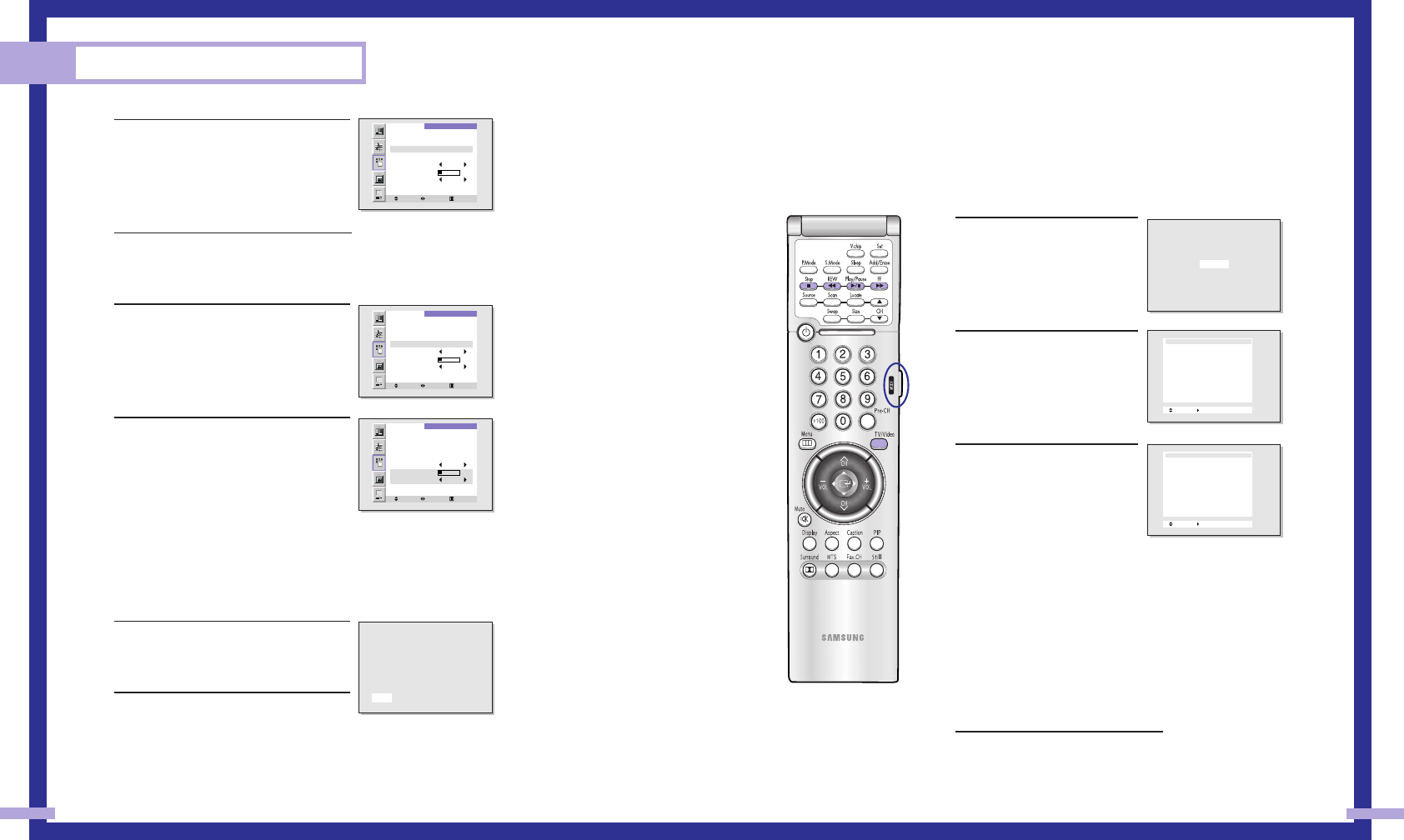
Viewing an External Signal Source
Selecting the Signal Source
Use the remote control to switch between viewing signals from connected equipment, such as
VCRs, DVD, Set-Top box and the TV source (broadcast or cable).
1Make sure that the remote
control is controlling the TV
set. Press the MODE button
and make sure that the “TV”
LED is illuminated.
2Press TV/VIDEO on the
remote control, and the fol-
lowing on-screen menu will
appear.
3Move the joystick up or down
to select a particular signal
source, and then press the
joystick to activate it.
When you connect equipment to the TV, you can choose
between the following sets of jacks: Video 1, Video 2, S-video 1,
S-video 2, Component 1, Component 2, Component 3, DVI or
PC on the TV’s rear panel, and Video 3 or S-Video 3 on the TV’s
side panel.
Remote Control VCR/DVD Buttons
Flip the cover of the remote control up to access buttons that can
control the tape functions of a connected VCR or DVD, including
Rewind, Play, Fast Forward, Stop and Pause.
1Flip the cover of your remote con-
trol unit for access to the tape func-
tion controls. Press the appropriate
buttons to control your VCR or
DVD. 41
5Move the joystick right to select off, then
move the joystick up or down to select
“on”.
6When you are finished, move the joy-
stick right.
7If you want to set the Off time, move the
joystick down to select the “Off Time”.
Set the “Off Time” just as you set the
“On Time”.
8If you want to set the volume level or
channel when the TV turns on, move the
joystick down to select “On Timer Vol.”
or “On Timer CH”. Move the joystick
right to set the volume level or to select
the channel you want when the TV turns
on. Press the Menu button to return to
normal viewing.
Setting the Sleep Timer
You can set your TV to automatically turn off after a preset interval.
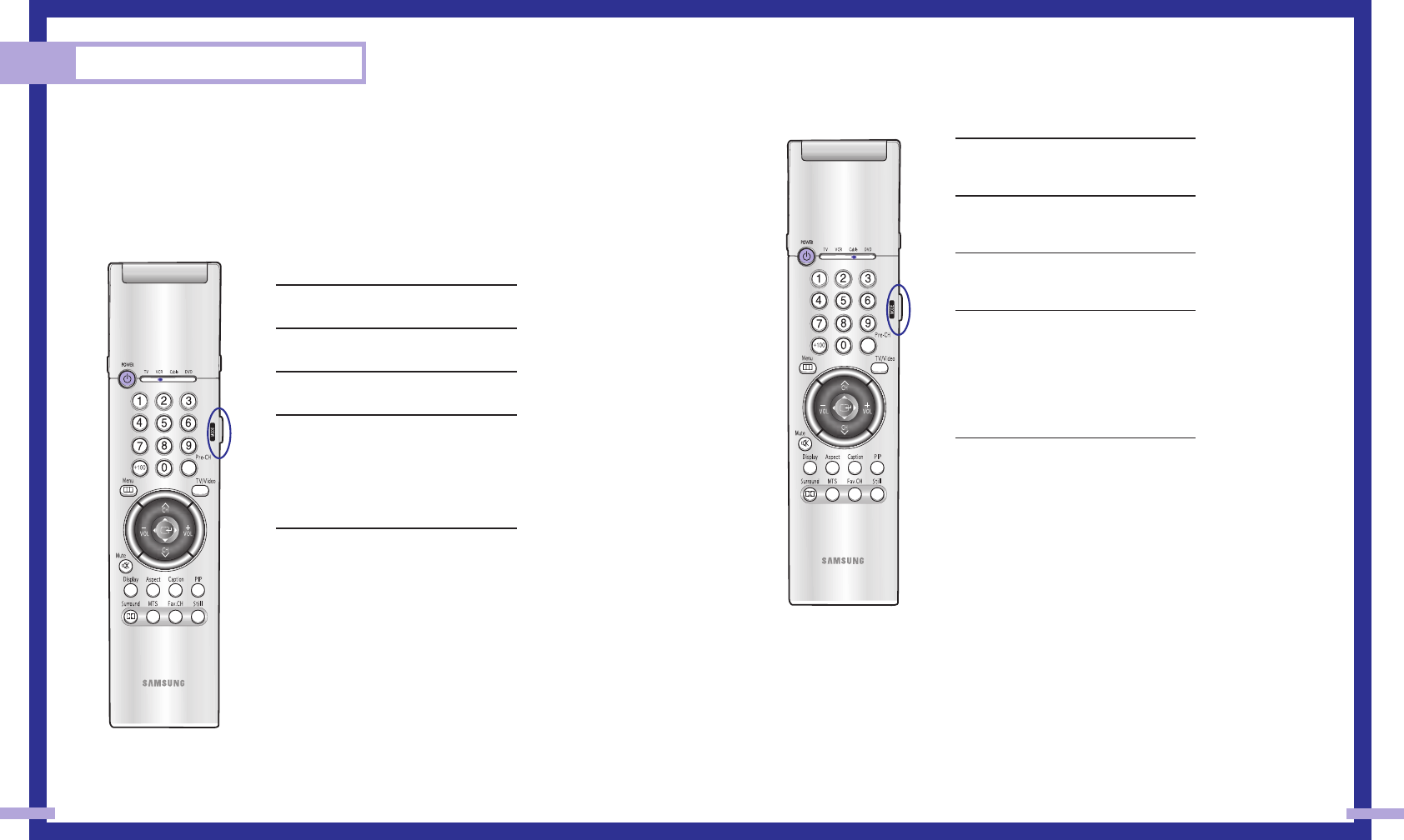
1Press the Sleep button on the remote con-
trol.
2You’ll see “Off” at the bottom of the
screen. Press the Sleep button to select
the time interval for the TV to stay on.
The interval ranges from 10 to 360 min-
utes.
Operation
40
TIME
Select Move Menu
Clock 07: 30 pm
On Time 06: 30 am on
Off Time - - : - - am off
Sleep Timer off
On Timer Vol. 10
On Timer CH 1
TIME
Move Select Menu
Clock 07: 30 pm
On Time 06: 30 am on
Off Time - - : - - am off
Sleep Timer off
On Timer Vol. 10
On Timer CH 1
TIME
Move Select Menu
Clock 07: 30 pm
On Time 06: 30 am on
Off Time - - : - - am off
Sleep Timer off
On Timer Vol. 10
On Timer CH 1
30
TV
Move Enter TV/Video Exit
Antenna
Videl 1 Connected
Videl 2 Not connected
Videl 3 Not connected
S-Videl 1 Not connected
S-Videl 2 Not connected
S-Videl 3 Not connected
Component 1 Not connected
Component 2 Not connected
Component 3 Not connected
DVI Not connected
PC Not connected
Move Enter TV/Video Exit
Antenna
Videl 1 Connected
Videl 2 Not connected
Videl 3 Not connected
S-Videl 1 Not connected
S-Videl 2 Not connected
S-Videl 3 Not connected
Component 1 Not connected
Component 2 Not connected
Component 3 Not connected
DVI Not connected
PC Not connected

Special Features
SAMSUNG
Special Features
44 45
Setting Up Your Remote Control
This TV’s remote control can operate almost any VCR, cable box, or DVD. After it has been set up
properly, your remote control can operate in four different modes: TV, VCR, Cable, or DVD.
Pressing the corresponding button on the remote control allows you to switch between these modes,
and control whichever piece of equipment you choose.
Note
The remote control might not be compatible with DVD Player, VCR, Cable box and others manufac-
tured by another company.
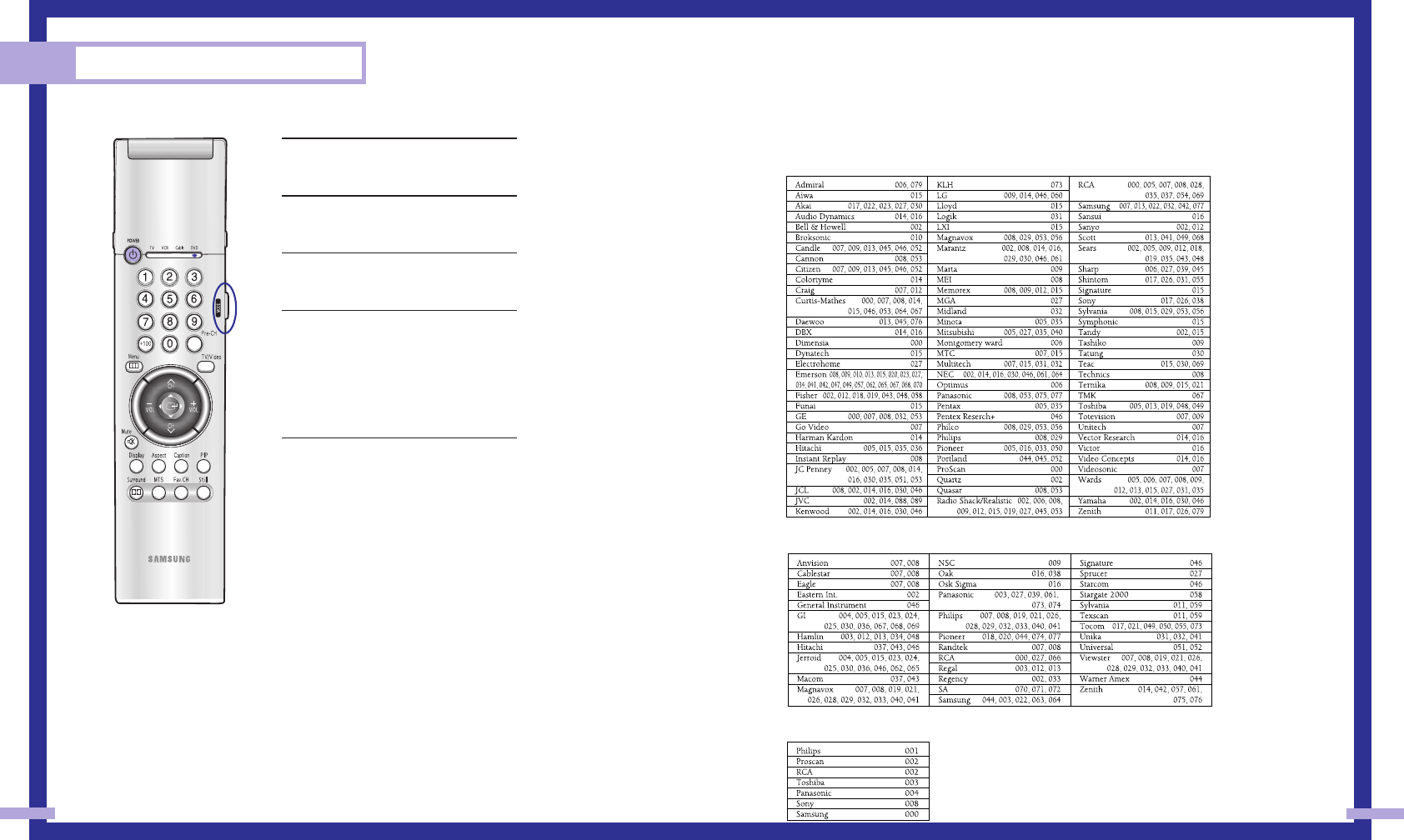
Setting Up the Remote to Operate Your VCR
1Turn off your VCR.
2Press the MODE button and make sure
that the VCR LED is illuminated.
3Press the Set button on your TV’s remote
control.
4Using the number buttons on your remote
control, enter three digits of the VCR
code listed on page 47 of this manual
for your brand of VCR. Make sure you
enter three digits of the code, even if the
first digit is a “0”. (If more than one code
is listed, try the first one.)
5Press the Power button on the remote
control. Your VCR should turn on if your
remote is set up correctly.
If your VCR does not turn on after set up,
repeat steps 2, 3, and 4, but try one of
the other codes listed for your brand of
VCR. If no other codes are listed, try
each VCR code, 000 through 089.
Note on Using Remote Control Modes: VCR
• When your remote control is in “VCR” mode, the volume buttons still control your TV’s volume.
Setting Up the Remote to Operate Your Cable Box
1Turn off your cable box.
2Press the MODE button and make sure
that the Cable LED is illuminated.
3Press the SET button on your TV’s remote
control.
4Using the number buttons on your remote
control, enter three digits of the cable
box code listed on page 47 of this manu-
al for your brand of cable box. Make
sure you enter three digits of the code,
even if the first digit is a “0.” If there is
more than one code listed, try the first
one.
5Press the Power button on the remote
control. Your cable box should turn on if
your remote is set up correctly.
If your cable box does not turn on after
set up, repeat steps 2, 3, and 4, but try
one of the other codes listed for your
brand of cable box. If no other codes
are listed, try each code, 000 through
077.
Note on Using Remote Control Modes: Cable Box
• When your remote control is in “Cable Box” mode, the volume buttons still control your TV’s vol-
ume.
47
Special Features
46
Setting Up the Remote to Operate Your DVD
1Turn off your DVD.
2Press the MODE button and make sure
that the DVD LED is illuminated.
3Press the SET button on your TV’s remote
control.
4Using the number buttons on your
remote control, enter three digits of the
DVD code listed on page 47 of this
manual for your brand of DVD. Make
sure you enter three digits of the code,
even if the first digit is a “0.” If there is
more than one code listed, try the first
one.
5Press the Power button on the remote
control. Your DVD should turn on if your
remote is set up correctly.
If your DVD does not turn on after set
up, repeat steps 2, 3, and 4, but try
one of the other codes listed for your
brand of DVD. If no other codes are list-
ed, try each code, 000 through 008.
Note on Using Remote Control Modes: DVD
• When your remote control is in “DVD” mode, the volume buttons still control your TV’s volume.
Remote Control Codes
VCR Codes
Cable Box Codes
DVD Codes
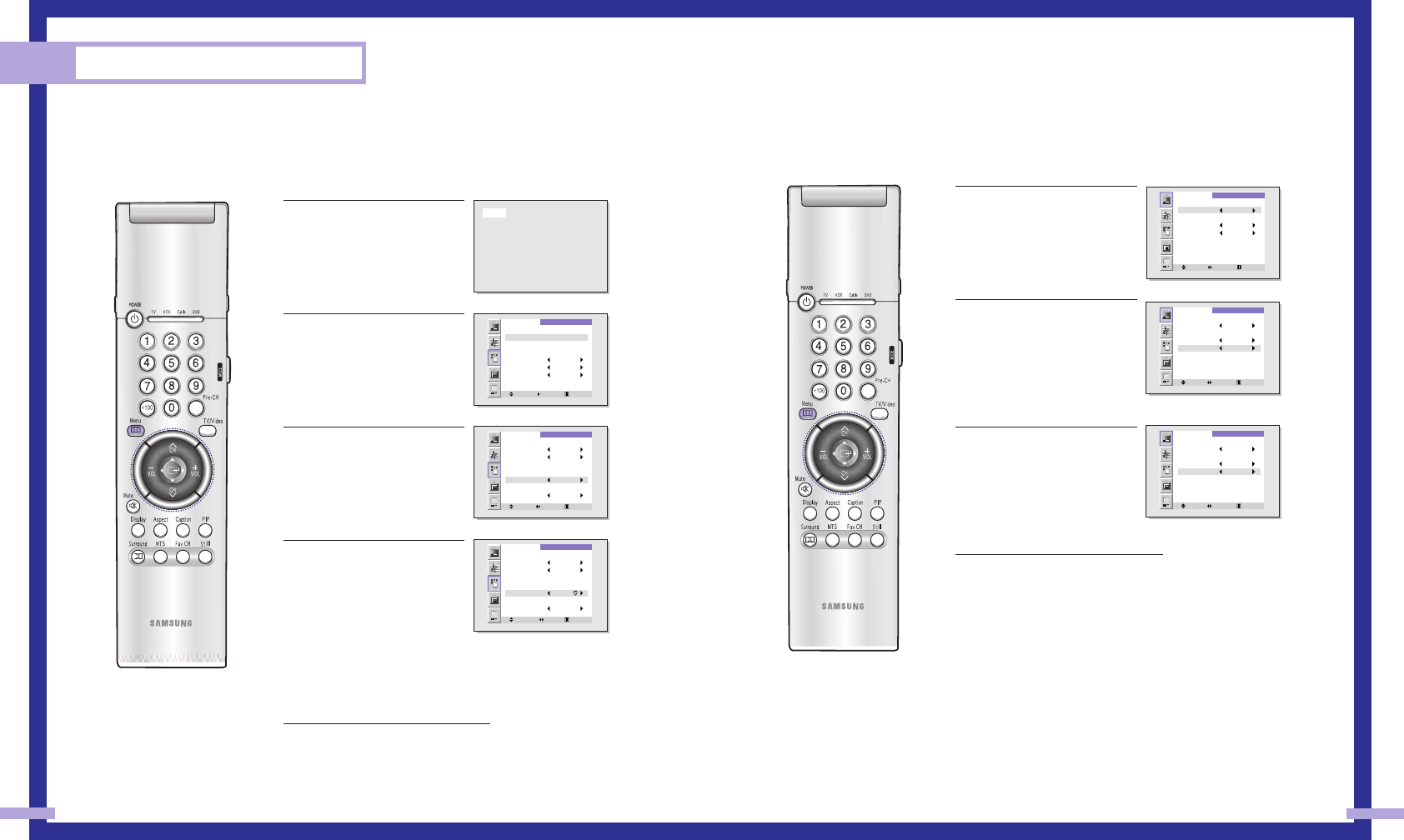
Selecting the Color Tone
1Press the Menu button.
Press the joystick to enter.
2Move the joystick down to
select Color Tone.
3Move the joystick right
repeatedly to select
“Normal”, “Warm1”,
“Warm2”, “Cool1” or
“Cool2”.
4Press the Menu button to exit.
49
Fine Tuning Channels
Fine tuning lets you manually adjust the TV’s tuner if you have difficulty tuning in a channel.
1Using the number buttons on
the remote control, select the
channel you want to fine tune.
2Press the Menu button on the
remote control. Move the joy-
stick down to select SETUP,
then press the joystick to
enter.
3Press the joystick to enter in
the Channel setup menu.
4Move the joystick down to
select the Fine tune, then
Move the joystick right or left
to adjust the fine tuning.
To store the fine tuning setting
in the TV’s memory, move the
joystick up. (A heart icon will
appear.)
To reset the fine tuning to “0,”
move the joystick down .
5Press the Menu button to exit.
Special Features
48
PICTURE
Move Select Menu
Mode Standard
Adjust
Scaling Wide
Color Tone Cool 2
PICTURE
Move Select Menu
Mode Standard
Adjust
Scaling Wide
Color Tone Cool 2
PICTURE
Move Select Menu
Mode Standard
Adjust
Scaling Wide
Color Tone Cool 1
11
SETUP
Move Enter Menu
Channel Setup
Closed Caption
Time
Language English
Melody Off
Blue Screen Off
V-chip
SETUP
Move Select Menu
Antenna A
Air or CATV AIR
Favorite Channel
Auto Channel Memory
Fine Tune 0
Add/Erase
Labeling - - - -
SETUP
Add/erase Adjust
Menu
Antenna A
Air or CATV AIR
Favorite Channel
Auto Channel Memory
Fine Tune + 3
Add/Erase
Labeling - - - -
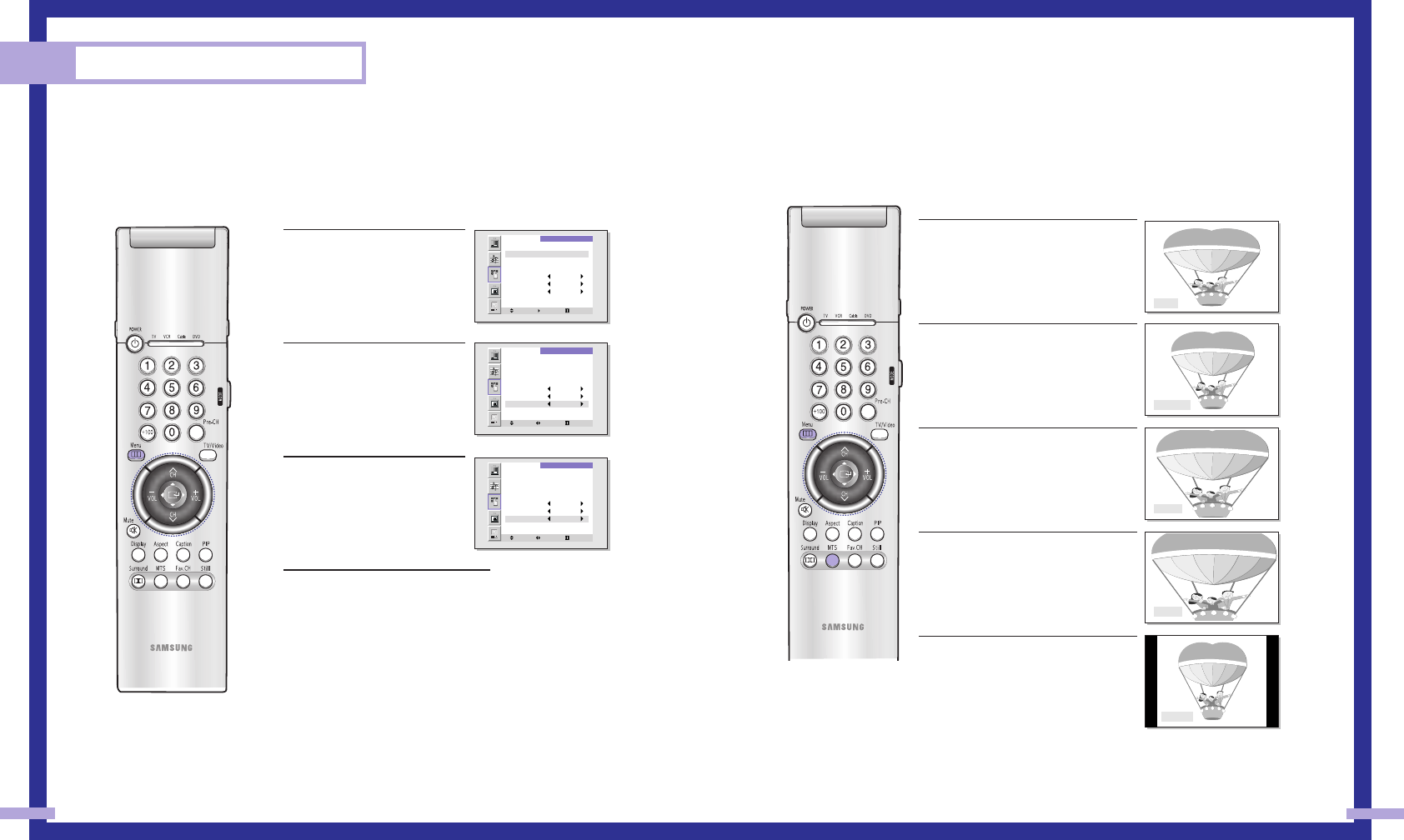
Changing the Screen Size
When you press the ASPECT button on the remote control, the TV’s screen mode choices appear
in sequence. The screen displays in this order: Wide, Panorama, Zoom1, Zoom2, Normal.
The name of the screen mode will be displayed at the bottom of the TV screen.
Wide
Sets the picture to 16:9 wide mode.
Note: If you watch a still image or the
screen in
the 16:9 aspect ratio format for a long
time, some
images may be burned onto the screen.
Panorama
Use this mode for the wide aspect ratio of
a panoramic picture.
Zoom1
Magnifies the size of the picture on
screen.
Zoom2
Magnifies the size of the picture more
than Zoom1.
You can also move the picture on screen
using
the “Scroll” function. Move the joystick up
and down to scroll the picture.
Normal
Sets the picture to 4:3 normal mode. This
is a standard TV screen size.
NOTES
• When Zoom1 or Zoom2is selected in PIP mode, both PIP and
Caption functions are switched OFF.
• The 4:3 aspect ratio format is not supported in Component mode. Only “Full” aspect ratio
format is supported in PC mode.
• If you watch the screen in the 4:3 aspect ratio format for a long time, images may be burned
on to the screen. View the TV in the Wide or Panorama mode as possible.
51
Setting the Blue Screen Mode
If no signal is being received or the signal is very weak, a blue screen automatically
replaces the noisy picture background. If you wish to continue viewing the poor pic-ture,
you must set the “Blue screen” mode to “Off”.
1Press the Menu button on the
remote control. Move the joy-
stick down to select SETUP,
then press the joystick to
enter.
2Move the joystick down to
select the Blue Screen.
3Move the joystick to the right
or left to select “On” or “Off”.
4Press the Menu button to exit.
Special Features
50
SETUP
Move Enter Menu
Channel Setup
Closed Caption
Time
Language English
Melody Off
Blue Screen Off
V-chip
SETUP
Move Select Menu
Channel Setup
Closed Caption
Time
Language English
Melody Off
Blue Screen Off
V-chip
SETUP
Move Select Menu
Channel Setup
Closed Caption
Time
Language English
Melody Off
Blue Screen On
V-chip
Wide
Panorma
Zoom1
Zoom2
Normal
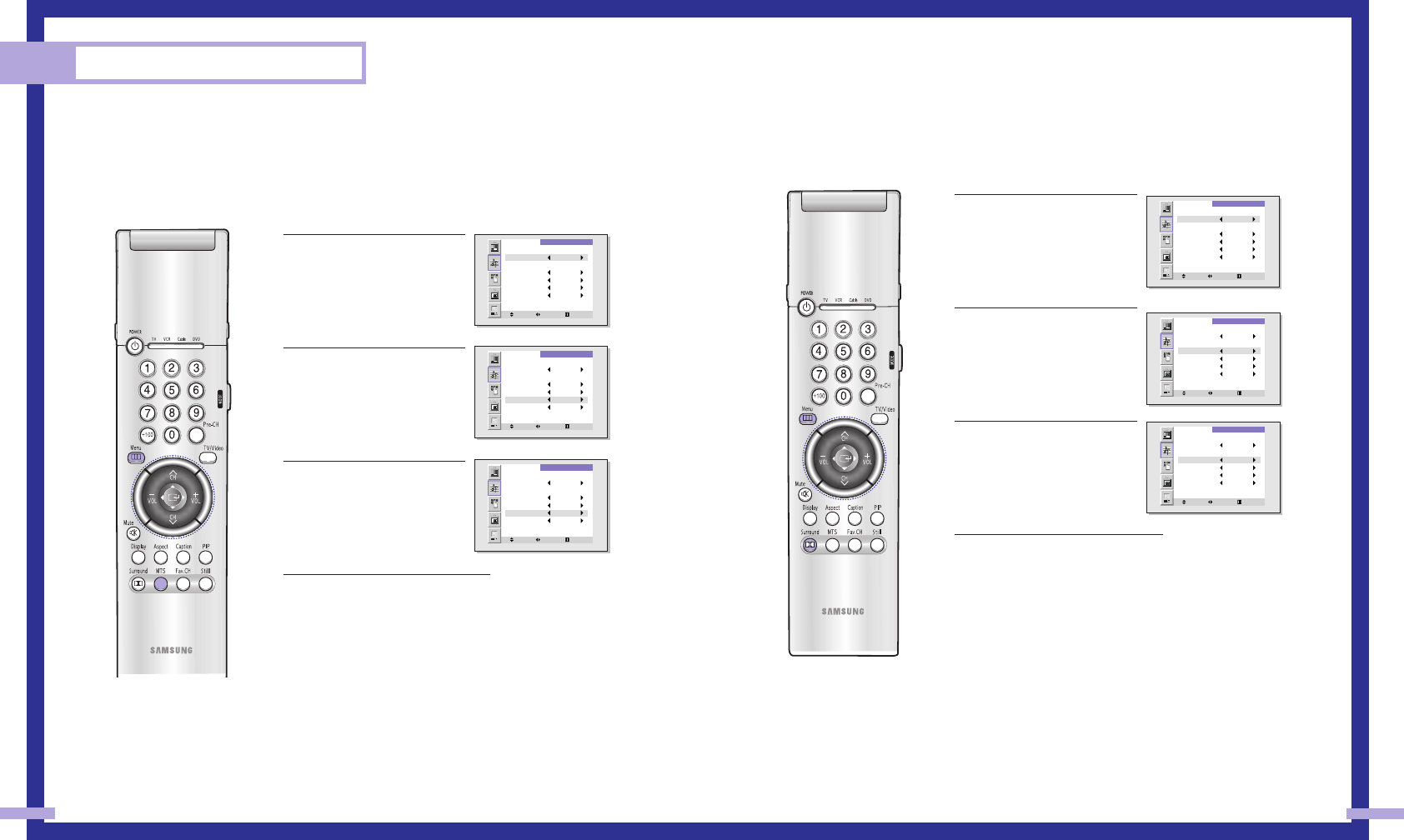
Special Audio Options
MTS Settings: Choosing a Soundtrack
Depending on the particular program being broadcast, you can listen to stereo, mono, or a
Separate Audio Program. (SAP audio is usually a foreign-language translation. Sometimes SAP
has unrelated information like news or weather.)
1Press the Menu button. Move
the joystick down to select
SOUND, then press the
joystick to enter.
2Move the joystick down to
select MTS.
3Move the joystick to the right
repeatedly to select “Mono”,
“SAP” or“Stereo”.
4Press the Menu button to exit.
Guide to MTS Settings
• Choose Stereo for channels that are broadcasting in stereo.
• Choose Mono for channels that are broadcasting in mono, or if you are having difficulty receiv-
ing a stereo signal.
• Choose SAP to listen to the Separate Audio Program, which is usually a foreign-language trans-
lation.
Dolby
This feature allows the TV’s L/R speakers to provide a home Theater-like Dolby effect.
The center and surround sounds are mixed into the L/R speakers.
1Press the Menu button. Move
the joystick down to select
SOUND, then press the
joystick to enter.
2Move the joystick down to
select Dolby.
3Move the joystick to the right
or left to select “On”or “Off”.
4Press the Menu button to exit.
53
Special Features
52
SOUND
Move Select Exit
Mode Standard
Adjust
Dolby Off
B B E Off
M T S Mono
Auto Volume Off
SOUND
Move Select Exit
Mode Standard
Adjust
Dolby Off
B B E Off
M T S Mono
Auto Volume Off
SOUND
Move Select Exit
Mode Standard
Adjust
Dolby On
B B E Off
M T S Mono
Auto Volume Off
SOUND
Move Select Exit
Mode Standard
Adjust
Dolby Off
B B E Off
M T S Mono
Auto Volume Off
SOUND
Move Select Exit
Mode Standard
Adjust
Dolby Off
B B E Off
M T S Mono
Auto Volume Off
SOUND
Move Select Exit
Mode Standard
Adjust
Dolby Off
B B E Off
M T S Stereo
Auto Volume Off
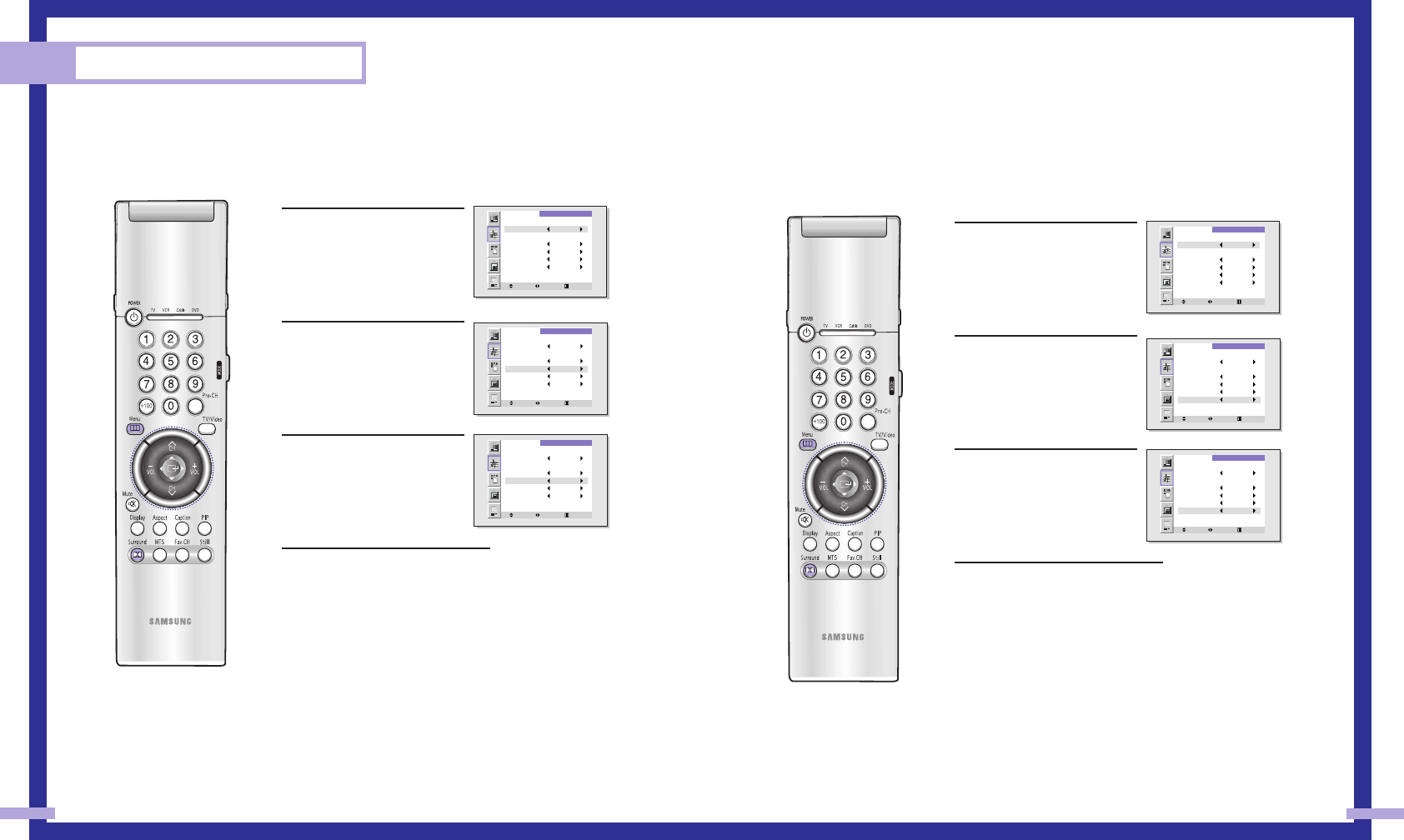
Auto Volume
Each broadcasting station has its own signal conditions, and it is inconvenient to adjust
the volume every time the channel is changed. “Auto volume” automatically adjusts the
volume of the desired channel by lowering the sound output when the modulation sig-nal
is high or by raising the sound output when the modulation signal is low.
1Press the Menu button. Move
the joystick down to select
SOUND, then press the
joystick to enter.
2Move the joystick down to
select Auto Volume.
3Move the joystick to the right
or left to select “On”or “Off”.
4Press the Menu button to exit.
55
BBE
A Sound related function that operates the treble, bass, and boost the function based
to 650dB standards and reverses the phase to produce replicated sound that is close to
the original sound.
1Press the Menu button. Move
the joystick down to select
SOUND, then press the
joystick to enter.
2Move the joystick down to
select BBE.
3Move the joystick to the right
or left to select “On”or “Off”.
4Press the Menu button to exit.
Special Features
54
SOUND
Move Select Exit
Mode Standard
Adjust
Dolby Off
B B E Off
M T S Mono
Auto Volume Off
SOUND
Move Select Exit
Mode Standard
Adjust
Dolby Off
B B E Off
M T S Mono
Auto Volume Off
SOUND
Move Select Menu
Mode Standard
Adjust
Dolby Off
B B E Off
M T S Mono
Auto Volume On
SOUND
Move Select Exit
Mode Standard
Adjust
Dolby Off
B B E Off
M T S Mono
Auto Volume Off
SOUND
Move Select Exit
Mode Standard
Adjust
Dolby Off
B B E Off
M T S Mono
Auto Volume Off
SOUND
Move Select Menu
Mode Standard
Adjust
Dolby Off
B B E On
M T S Mono
Auto Volume Off
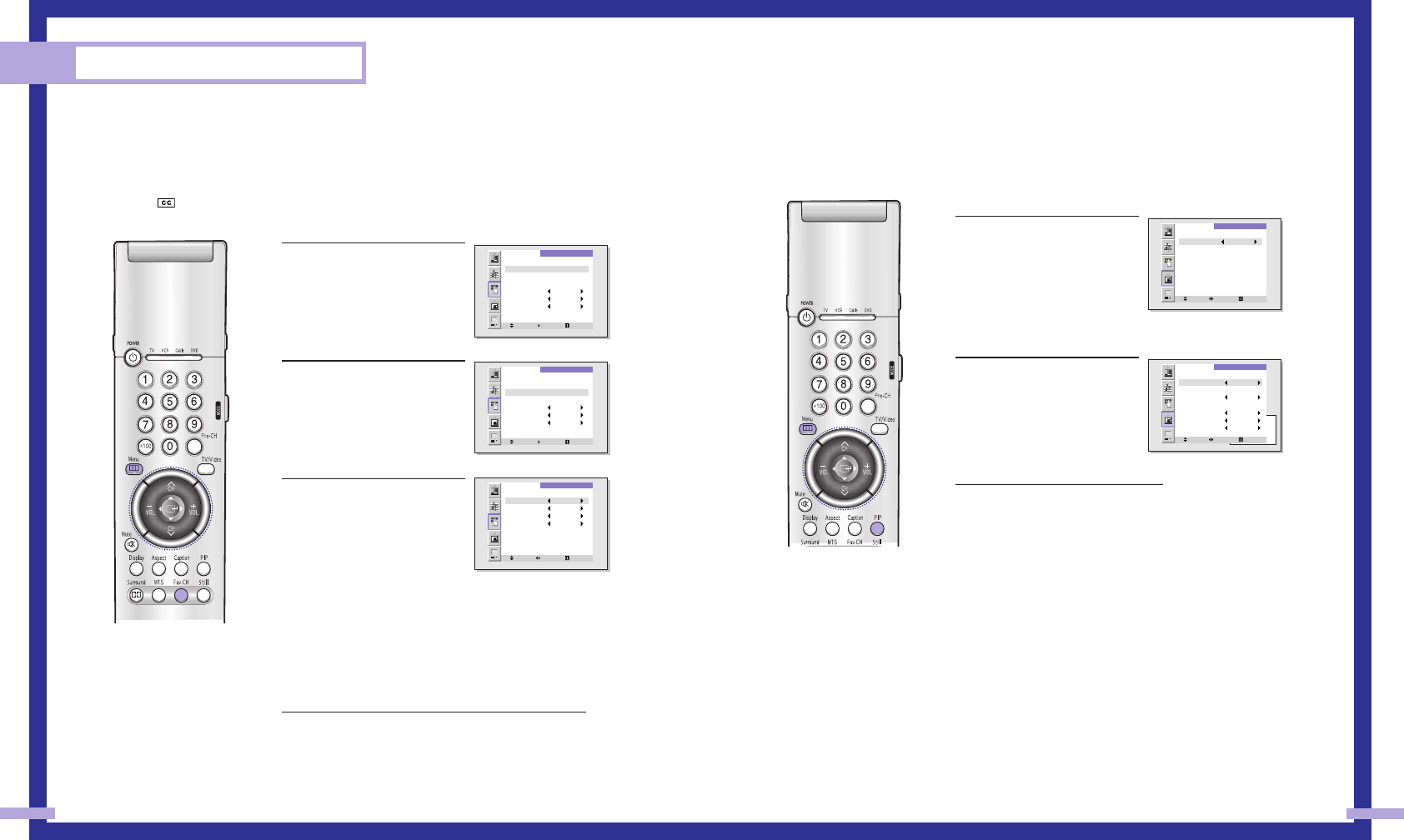
Viewing Picture-in-Picture
One of the most best features of your TV is the Picture-in-Picture (PIP) feature. The advanced PIP
system allows you to watch two different pictures at once, even if you don’t have a VCR connect-
ed to your TV.
Selecting a PIP Screen
1Press the Menu button. Move
the joystick down to select PIP,
then press the joystick to
enter.
Quick way to access PIP:
Just press “PIP” on the remote
control.
2Move the joystick right to
select PIP “On”. The PIP
image will appear in the cor-
ner of the screen.
3Press Menu to exit.
NOTES
• When the cable box output is connected to ANT-B, it cannot be viewed in the PIP window.
• The PIP feature doesn’t work when the V-chip is activated or the TV is in Component mode.
• If you turn the TV off while watching and turn it on again, then the mode will return to normal
video.
• When the PIP function is activated in Zoom1, Zoom2 mode, the screen mode is automatically
changed to ‘Wide’ mode.
• The blue screen appears during Channel Switching, Mode Switching or No Signal. When the
signal from main channel is switched into No Signal during PIP ON, the TV is automatically
turned into PIP OFF and the screen becomes blue screen. (When the main channel is in No
Signal, PIP doesn’t function.)
57
Viewing Closed Caption Information
Your TV decodes and displays the closed-caption information that is broadcast along with some
television shows. These captions are usually subtitles for the hearing impaired or translations into
other languages. All VCRs record the closed caption signal from television programs, so pre-
recorded video tapes can also deliver closed-caption information. Check for the closed caption
symbol ( ) on the tape’s package or your TV program-schedule.
Closed Captions
1Press the Menu button. Move
the joystick down to select
SETUP, then press the joystick
to enter.
Quick way to access the
Caption: Just press “Caption”
on the remote control.
2Move the joystick down to
select Closed Caption, then
press the joystick to enter.
3Move the joystick right or left
to turn closed captioning
on/off. Misspelling and unusu-
al characters sometimes occur
in closed caption transmis-
sions, especially those of live
events. There may be a small
delay before captions appear
when you change channels. (These do not indicate the
TV is malfunctioning.) Move the joystick down to
select the “Mode”. Move the joystick right or left to
choose “Caption” or “Text.” ln caption mode, cap-
tions appear at the bot- tom of the screen, and they
usually cover only a small portion of the picture. In
text mode, information unre-lated to the program, such
as news or weather, is displayed. Text often covers a
large portion of the screen.
4If you wish, use the joystick button to change the
captioning channel or field. Then, press Menu to
return to normal viewing. Different channels and fields
display different information. For example, Channel 1
may have subtitles in English, while Channel 2 has
subtitles in Spanish.
Special Features
56
SETUP
Move Enter Menu
Channel Setup
Closed Caption
Time
Language English
Melody Off
Blue Screen Off
V-chip
SETUP
Move Enter Menu
Channel Setup
Closed Caption
Time
Language English
Melody Off
Blue Screen Off
V-chip
CAPTION
Move Select Menu
Caption On
Mode Caption
Channel 1
Field 1
NOTE
When Zoom1 or Zoom2 is
selected in PIP mode, both PIP
and Caption functions are
switched OFF.
PIP
Move Select Menu
Select Off
PIP
Move Select Menu
Select On
Source TV
Swap
Size Large
Channel 3
Sound Select Main
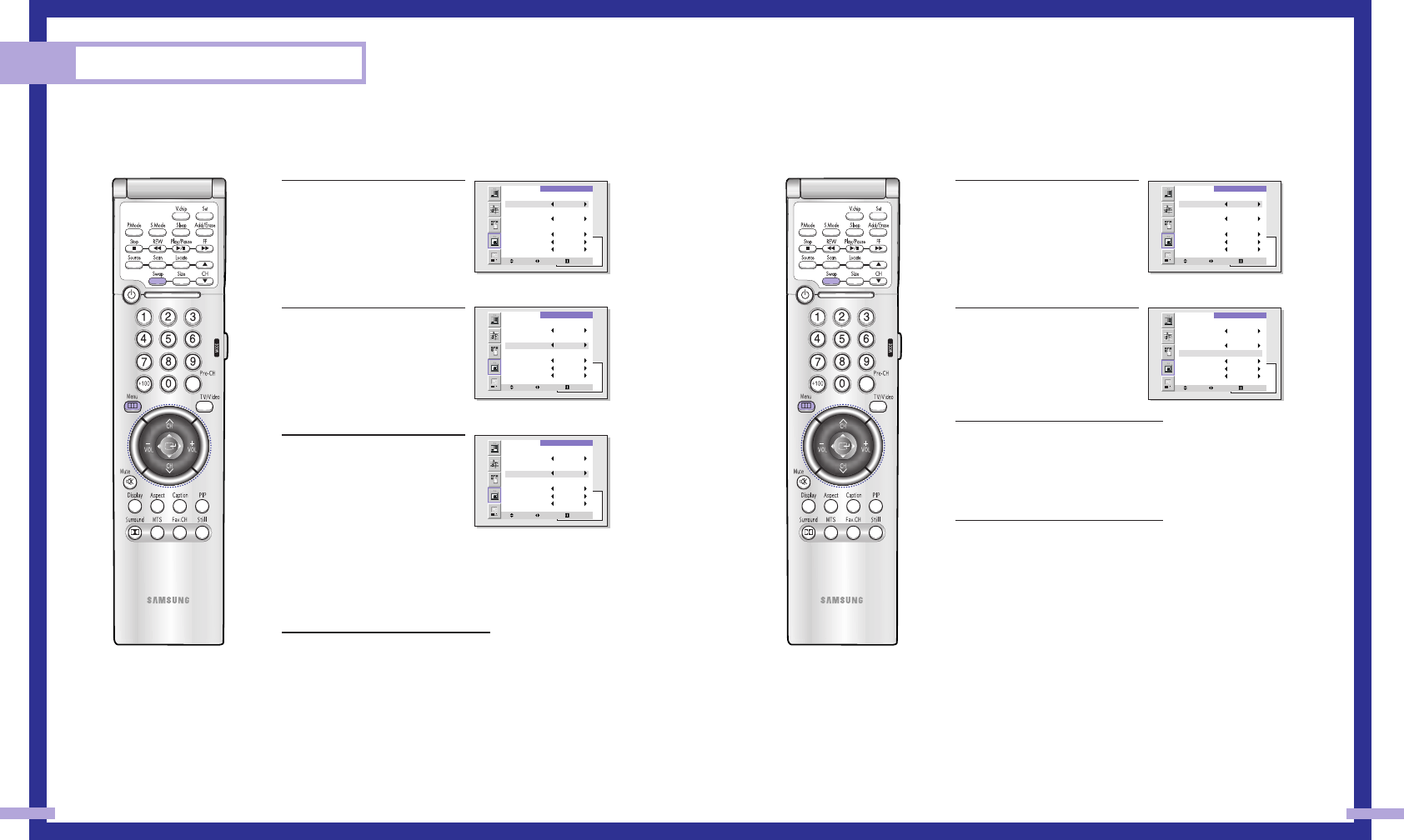
Swapping the Contents of the PIP Image and Main image
1Press the Menu button. Move
the joystick down to select
PIP, then press the joystick to
enter. Quick way to access PIP
Swap: Just press “Swap” on
the remote control.
2Move the joystick down to
select to “Swap”.
3Move the joystick to the right or
left.
The channel in the PIP image will
appear in the main image, and
vice versa.
4Press Menu to exit.
59
Selecting an External Signal
You can use PIP to view a signal from an external source, such as a VCR.
1Press the Menu button. Move
the joystick down to select
PIP, then press the joystick to
enter. Quick way to access PIP
source: Just press “Source” on
the remote control.
2Move the joystick down to
select to “Source”.
3Move the joystick right or left
to select an external signal.
You can choose between
“TV”, “Video 1~3”, or
“S-Video 1~3”.
The signal from these inputs will not appear if you have
not connected any equipment to the TV’s input jacks.
For more information about external signals, see
“Viewing an External Signal Source” (See 41page).
If you select “TV.” the PIP image is the same as the
main image.
4Press Menu to exit.
NOTE
You can watch DVD on the PIP screen in the PC mode.
Special Features
58
PIP
Move Select Menu
Select On
Source TV
Swap
Size Large
Channel 3
Sound Select Main
PIP
Move Select Menu
Select On
Source TV
Swap
Size Large
Channel 3
Sound Select Main
PIP
Move Select Menu
Select On
Source TV
Swap
Size Large
Channel 3
Sound Select Main
PIP
Move Select Menu
Select On
Source TV
Swap
Size Large
Channel 3
Sound Select Main
PIP
Move Select Menu
Select On
Source Video1
Swap
Size Large
Channel 3
Sound Select Main
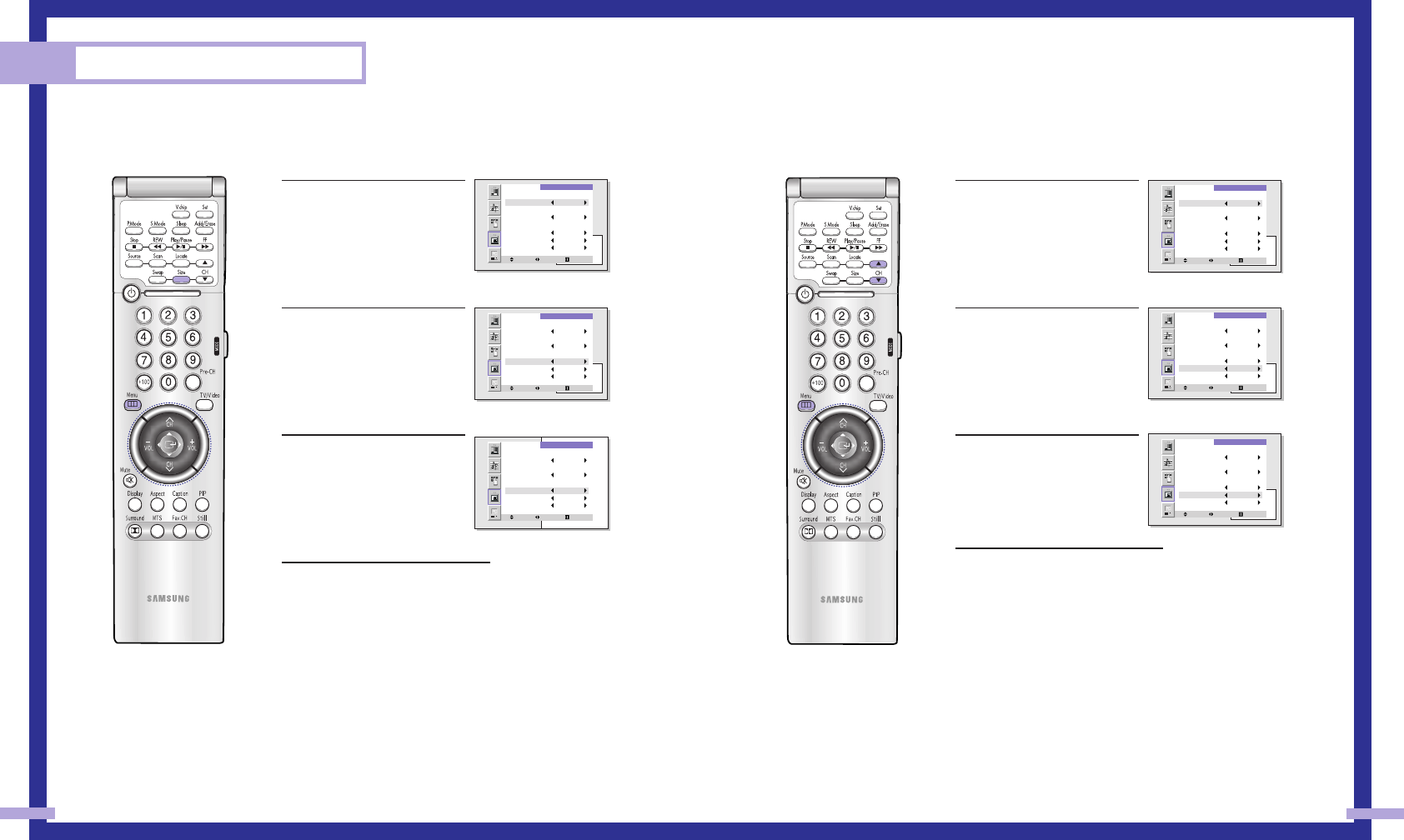
Changing the Picture-in-Picture Channel
After you set the PIP signal source (antenna or cable), it is easy to change channels.
1Press the Menu button. Move
the joystick down to select
PIP, then press the joystick to
enter. Quick way to access PIP
channel: Just press “PIP CH
(▲,▼)” on the remote control.
2Move the joystick down to
select to “Channel”.
3Move the joystick to the right
or left to change the channel
of the PIP image.
4Press Menu to exit.
61
Changing the Size of the PIP image
1Press the Menu button. Move
the joystick down to select
PIP, then press the joystick to
enter. Quick way to access PIP
Size: Just press “Size” on the
remote control.
2Move the joystick down to
select to “Size”.
3Move the joystick to the right
or left to select “Large”,
“Double1”, “Double2” or
“Small”.
4Press Menu to exit.
Special Features
60
PIP
Move Select Menu
Select On
Source TV
Swap
Size Large
Channel 3
Sound Select Main
PIP
Move Select Menu
Select On
Source TV
Swap
Size Large
Channel 3
Sound Select Main
PIP
Move Select Menu
Select On
Source TV
Swap
Size Large
Channel 3
Sound Select Main
PIP
Move Select Menu
Select On
Source TV
Swap
Size Large
Channel 11
Sound Select Main
PIP
Move Select Menu
Select On
Source TV
Swap
Size Large
Channel 3
Sound Select Main
PIP
Move Select Menu
Select On
Source TV
Swap
Size Double1
Channel 3
Sound Select Main
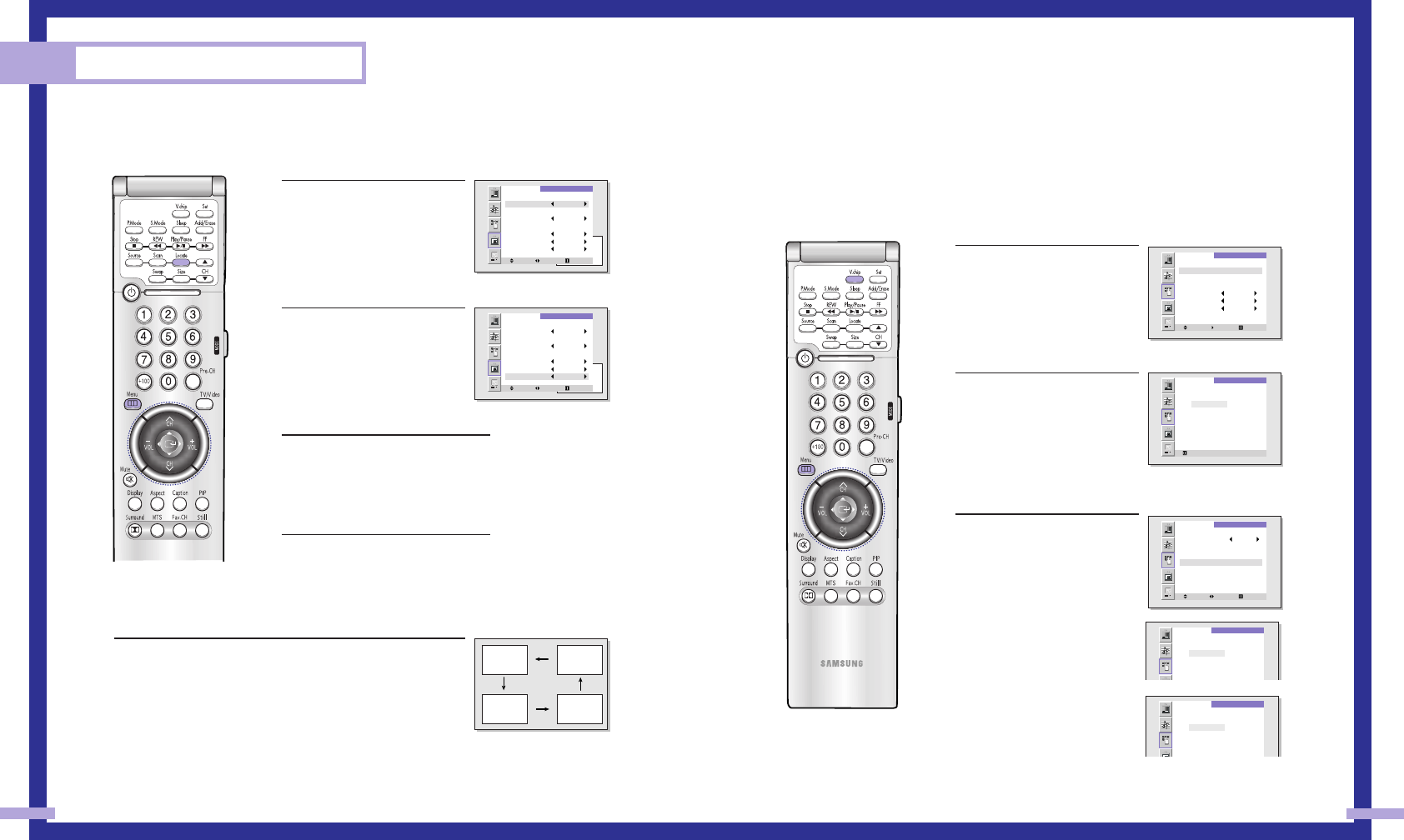
Using the V-Chip
The V-Chip feature automatically locks out programming that is deemed inappropriate for chil-
dren.
The user must first enter a PIN (personal ID number) before any of the V-Chip restrictions can be
set up or changed.
Setting Up Your Personal ID Number (PIN)
1Press the Menu button. Move
the joystick down to select
SETUP, then press the joystick
to enter.
Quick way to access the
V-chip: Just press “V-chip” on
the remote control.
2Move the joystick down to
select V-chip, then press the
joystick to enter.
The “Enter PIN” screen will
appear. Enter your 4-digit
PIN number.
Note: The default PIN number
for a new TV set is “0-0-0-0.”
3After entering a valid PIN
number, the “V-chip” screen
will appear.
Move the joystick down to
select “Change PIN”, then
press the joystick to enter.
The Change pin screen will
appear. Choose any 4-digits
for your PIN and enter them.
As soon as the 4 digits are
entered, the “Confirm new
PIN” screen appears.
Press MENU to exit.
NOTE
If you forget the PIN, press the remote-control keys in the following sequence,
which resets the pin to 0-0-0-0: POWER OFF → Mute → 8 → 2 → 4 → POWER ON. 63
Selecting Sound Source
You can use PIP to view a signal from an external source, such as a VCR.
1Press the Menu button. Move
the joystick down to select
PIP, then press the joystick to
enter.
2Move the joystick down to
select to “Sound Select”.
3Move the joystick to the right or
left to switch Main or Sub audio
source. Main is for the main TV
picture audio, and Sub is for the
PIP picture audio.
4Press Menu to exit.
Changing the Location of the PIP image
Press the Locate button repeatedly to move the PIP image from
corner to corner on the screen.
Special Features
62
PIP
Move Select Menu
Select On
Source TV
Swap
Size Large
Channel 3
Sound Select Main SETUP
Move Enter Menu
Channel Setup
Closed Caption
Time
Language English
Melody Off
Blue Screen Off
V-chip
V-CHIP
Menu 0 - 9
Enter PIN
- - - -
V-CHIP
Move Select Menu
V-chip Lock On
TV Guidelines
MPAA Ratings
Changes PIN
V-CHIP
Enter new PIN
- - - -
V-CHIP
Confirm new PIN
- - - -
PIP
Move Select Menu
Select On
Source TV
Swap
Size Large
Channel 3
Sound Select Main
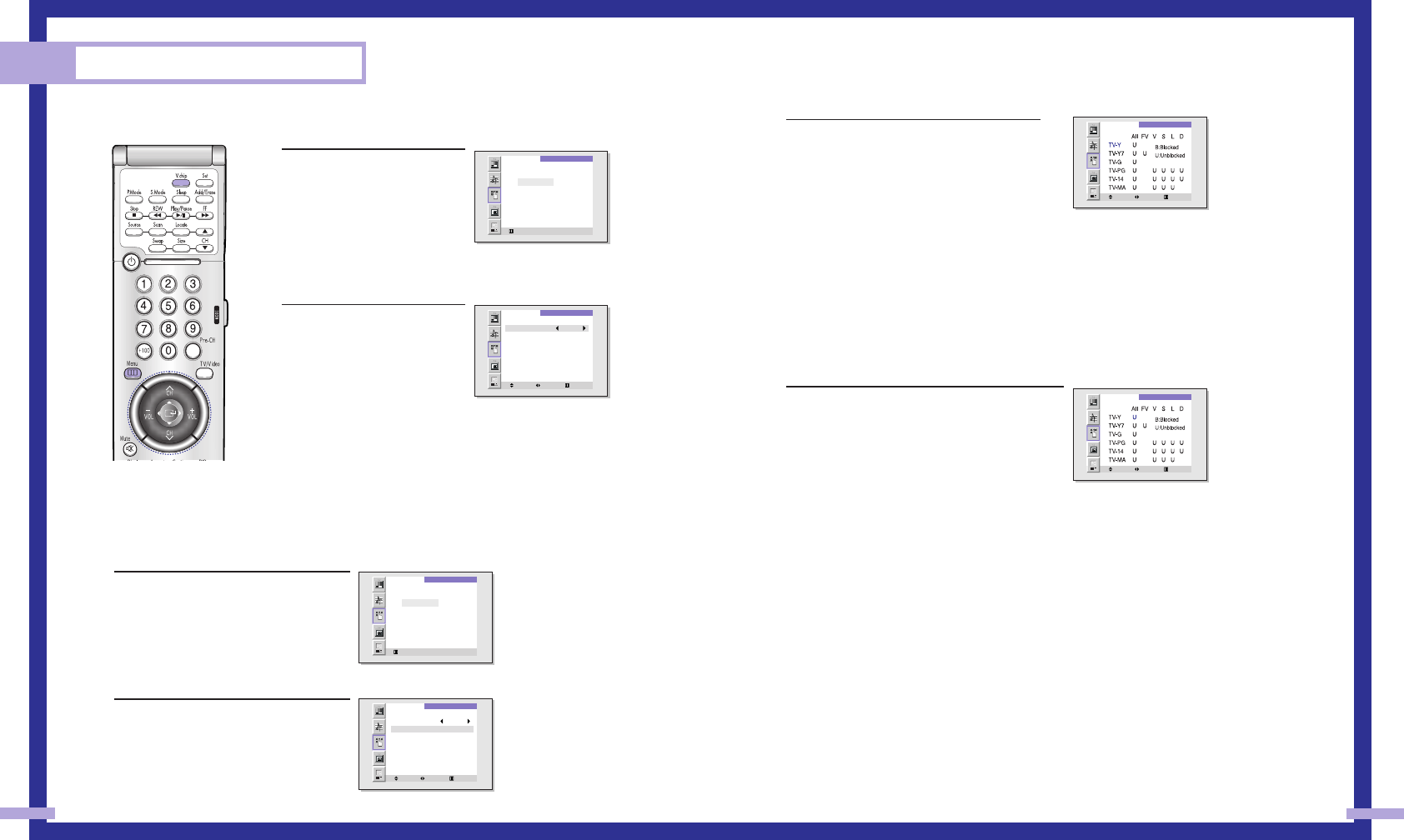
3The “TV guidelines” screen will appear.
Move the joystick up or down to highlight
one of the six age-based categories:
TV-Y Young children
TV-Y7 Children 7 and over
TV-G General audience
TV-PG Parental guidance
TV-14 Viewers 14 and over
TV-MA Mature audience
Note: These categories consist of two separate groups: TV-Y and TV-Y7 (young children
through age 7), and TV-G through TV-MA (everybody else). The restrictions for these two
groups work independently: If a household includes very young children as well as young
adults, the TV guidelines must be set up separately for each age group. (See next step.)
4At this point, one of the TV-Ratings is selected.
Move the joystick right: Depending on your
existing setup, a letter “U” or “B” will be select-
ed. (U: Unblocked, B: Blocked).
Move the joystick down or up to block or
unblock the category. Move the joystick to the
right. To select a different TV-Rating, move the
joystick down or up and then repeat the process.
Note 1: TV-Y7, TV-PG, TV-14 and TV-MA have additional options. See the next step to
change any of the following sub-ratings:
FV:Fantasy violence, D:Dialog, L:Language, S:Sexual situation, V:Violence .
Note 2: The V-Chip will automatically block certain categories that are “more restrictive.”
For example, if you block “TV-Y” category, then TV-Y7 will automatically be blocked.
Similarly, if you block the TV-G category, then all the categories in the “young adult” group
will be blocked (TV-G, TV-PG, TV-14 and TV-MA). The sub-ratings (D, L, S, V) work together
similarly. (See next section.)
Continued...
65
How to Enable/Disable the V-Chip
1 Press the Menu button. Move
the joystick down to select
SETUP, then press the
joystick to enter.
Move the joystick down to
select V-chip, then press the
joystick to enter. The “Enter
PIN” screen will appear. Enter
your 4-digit PIN number.
2 The “V-Chip” screen will
appear, and “V-Chip Lock”
will be selected.
To enable the V-Chip feature,
move the joystick right so that
the “V-Chip Lock” field is On.
(Moving the joystick to the
right will alternate between On
and Off.)
How to Set up Restrictions Using the “TV guidelines”
First, set up a personal identification number (PIN), and enable the V-Chip. (See previous section.)
Parental restrictions can be set up using either of two methods: The TV guidelines or the MPAA rat-
ing.
1 Press the Menu button. Move the joy-
stick down to select SETUP, then press
the joystick to enter.
Move the joystick down to select V-chip,
then press the joystick to enter.
The “Enter PIN” screen will appear.
Enter your 4-digit PIN number.
2 The “V-Chip mode” screen will appear.
Move the joystick down to select “TV
guidelines”, then press the joystick to
enter.
Special Features
64
V-CHIP
Menu 0 - 9
Enter PIN
- - - -
V-CHIP
Move Select Menu
V-chip Lock On
TV Guidelines
MPAA Ratings
Changes PIN
V-CHIP
Menu 0 - 9
Enter PIN
- - - -
V-CHIP
Move Select Menu
V-chip Lock On
TV Guidelines
MPAA Ratings
Changes PIN
TV GUIDELINES
Move Select Menu
TV GUIDELINES
Select Move Menu
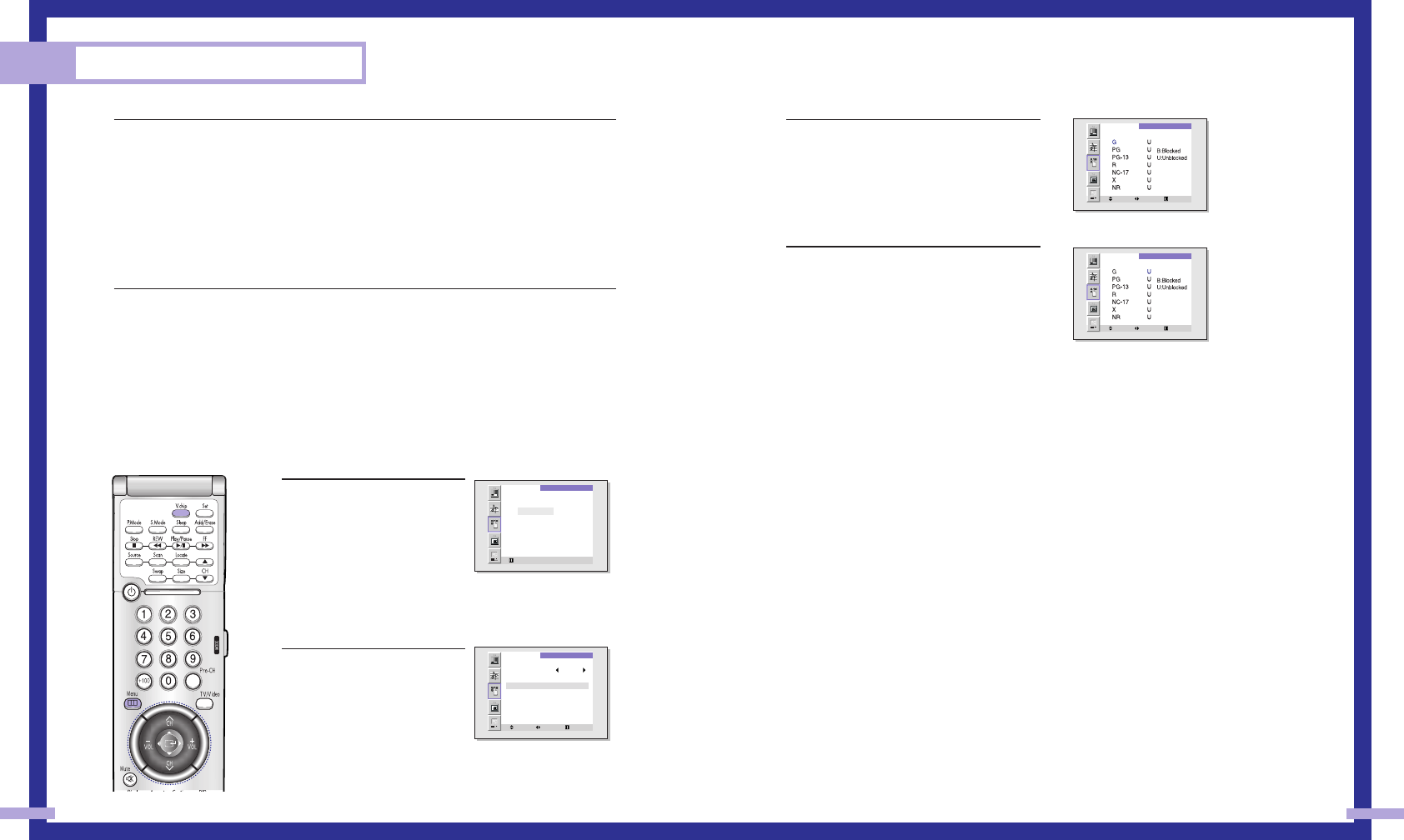
3The “MPAA Ratings” screen will appear.
4Repeatedly move the joystick
down to highlight a particular MPAA
category.
The MPAA categories are as follows.
G General audience (no restrictions).
PG Parental guidance suggested.
PG-13 PG-13 (Parents strongly cautioned).
R R (Restricted. Children under 17 should be
accompanied by an adult).
NC-17 No children under age 17.
X X (Adults only).
NR Not rated.
While a particular category is highlighted, move the joystick to the right to activate it.
A letter (“U” or “B”) will be displayed. Move the joystick down or up to select “U” or “B”.
Press Menu button to save the settings and to clear all screens.
Note: The V-Chip will automatically block any category that is “more restrictive.”
For example, if you block the “PG-13” category, then “R”, “NC-17”, and “X” will automati-
cally be blocked also.
How to Reset the TV after the V-Chip Blocks a Channel (“Emergency Escape”)
If the TV is tuned to a restricted channel, the V-Chip will block it. The screen will go blank and the
following message will appear: “Excessive rating.”
To resume normal viewing, tune to a different channel using the number buttons. Under certain
conditions (depending on the rating of the local TV programs) the V-Chip might lock out all the
channels. In this case, use the V-Chip button for an “emergency escape”:
Press the Menu button. Move the joystick down to select “SETUP”, then press the joystick to enter.
Move the joystick down to select “V-chip”, then press the joystick to enter. Enter your PIN number,
and move the joystick right to temporarily disable the V-Chip Lock.
67
:
5 How to set the FV, D, L, S and V sub-ratings: First, select one of these TV-Ratings: TV-Y7,
TV-PG, TV-14 or TV-MA (See Step 4, on previous page.)
Next, while the TV-Rating is selected, repeatedly move the joystick right.
This will cycle through the available sub-ratings (FV, L, S, D or V). A letter (“U” or “B”) will
be displayed for each sub-rating. While the “U” or “B” is selected, move the joystick down
or up to change the sub-rating.
Note: The V-chip will automatically block certain categories that are “More restrictive”.
For example, if you block “L” sub-rating in TV-PG, then the “L” sub-ratings in TV-14 and
TV-MA will automatically be blocked.
6 Press the Menu button to clear all the screens. (Or proceed to the next section, and set up
additional restrictions based on the MPAA codes).
How to Set up Restrictions Using the MPAA Ratings: G, PG, PG-13, R, NC-17, X
The MPAA rating system uses the Motion Picture Association of America (MPAA) system, and its
main application is for movies. (Eventually, movie videocassettes will be encoded with MPAA rat-
ings.) When the V-Chip lock is on, the TV will automatically block any programs that are coded
with objectionable ratings (either MPAA or TV-Ratings).
1 Press the Menu button. Move
the joystick down to select
SETUP, then press the
joystick to enter.
Move the joystick down to
select the V-chip, then press
the joystick to enter.
The “Enter PIN” screen will appear.
Enter your 4-digit PIN number.
2 The “V-Chip” screen will
appear. Move the joystick
down to select “MPAA rat-
ing”, then press the joystick to
enter.
Special Features
66
V-CHIP
Menu 0 - 9
Enter PIN
- - - -
V-CHIP
Move Select Menu
V-chip Lock On
TV Guidelines
MPAA Ratings
Changes PIN
MPAA
Move Select Menu
MPAA
Select Move Menu

PC Display
SAMSUNG
PC Display
70 71
Using Your TV as a Computer (PC) Display
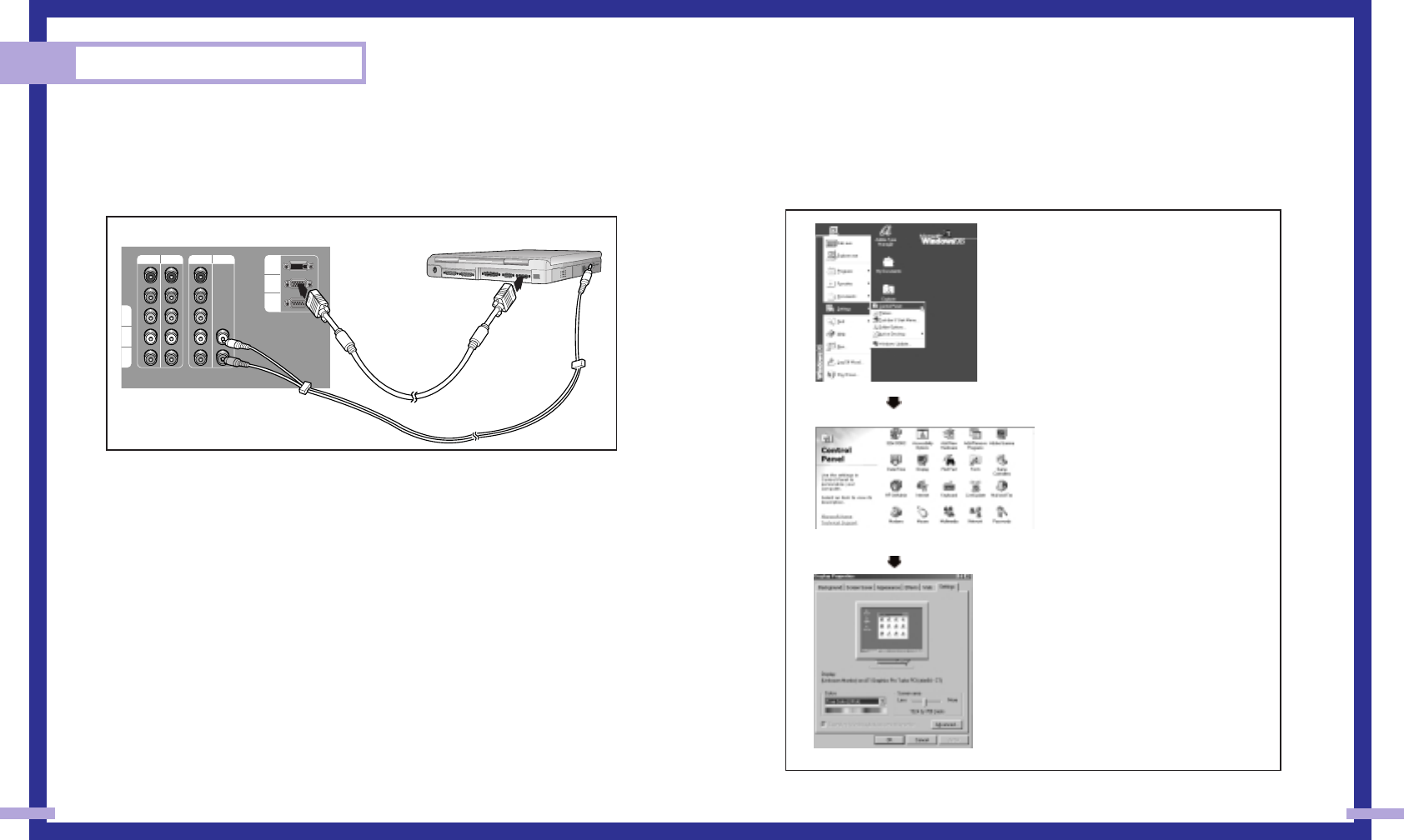
How to connect Your PC to the TV
Note: This figure shows the Standard Connector-jack panel. The actual configuration on your TV
may be different, depending on the model.
How to Set up Your PC Software (Windows only)
The Windows display-settings for a typical computer are shown below. The actual screens on your
PC will probably be different, depending upon your particular version of Windows and your par-
ticular video card. However, even if your actual screens look different, the same basic setup infor-
mation will apply in almost all cases. (If not, contact your computer manufacturer or Samsung
Dealer.)
continued...
TV Rear Panel PC Rear
DVD
Y
P
b
P
r
L
R
L
R
DTV1
O
NITOR
O
UT
I
DEO
2
I
DEO
1
DTV2 PC AUDIO DVI
PC
RS-232C
15Pin(D-Sub)
Cable
Audio Cable
First, click on “Settings” on the Windows
start menu.
While “Settings” is highlighted, move the
cursor so that “control panel” is highlight-
ed.
When the control panel screen appears,
click on “Display” and a display dialog-
box will appear.
Navigate to the “Settings” tab on the dis-
play dialog-box.
The two key variables that apply to the
TV-PC interface are “resolution” and “col-
ors.” The correct settings for these two vari-
ables are:
* Screen area (sometimes called “resolu-
tion”): 1024 x 768 pixels
* Color: “24-bit” color (might also be
expressed as “16 million colors”). Shown
at left is a typical screen for “Display” dia-
log box.
If a vertical-frequency option exists on your
display settings dialog box, the correct
value is “60” or “60 Hz.” Otherwise, just
click “OK” and exit the dialog box.
73
PC Display
72
Display Modes
NOTES
Both screen position and size will vary, depending on the type of PC monitor and its resolution.
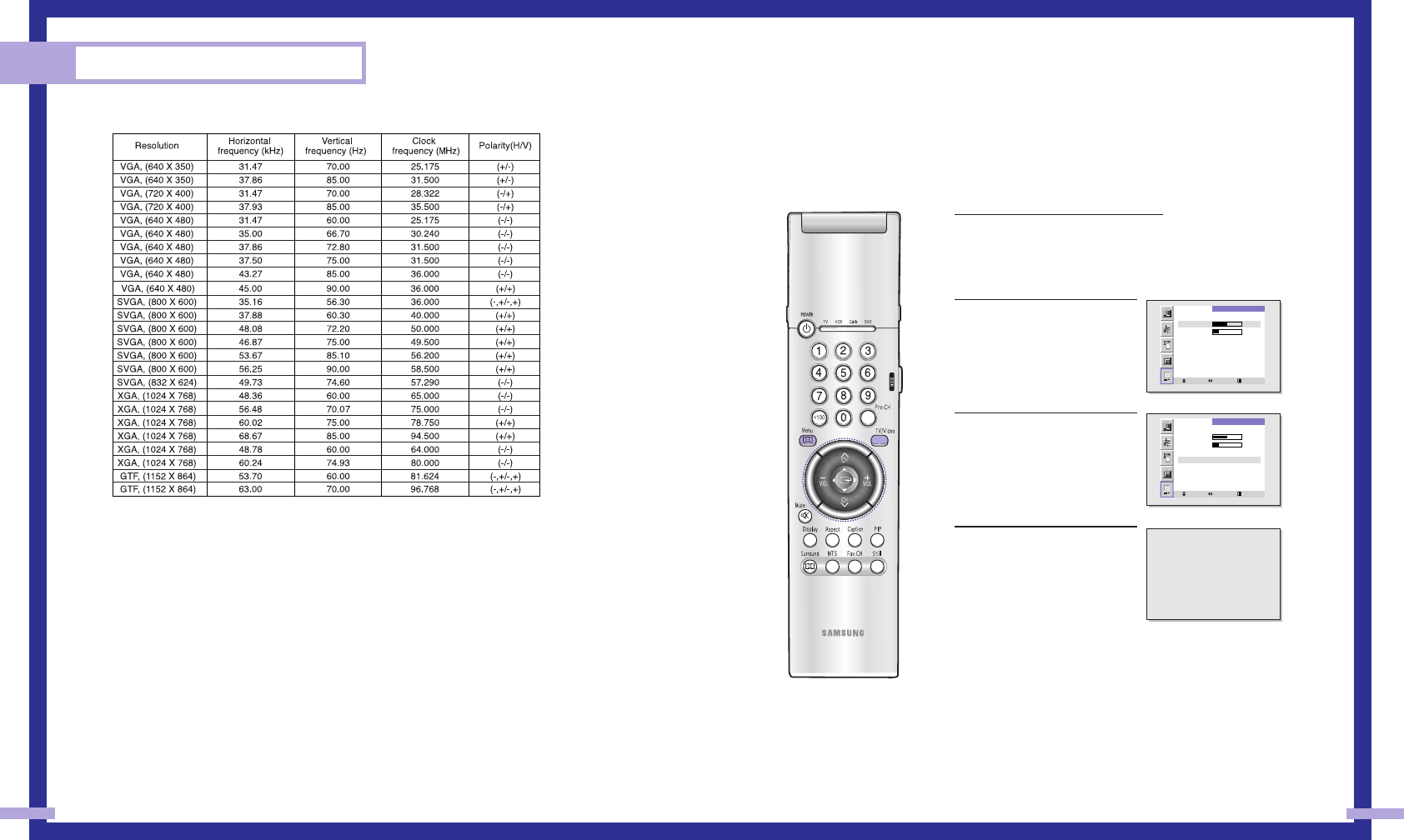
The table below shows all of the display modes that are supported:
* The interlace mode is not supported.
* The TV will operate abnormally if a non-standard video format is selected.
NOTES
• When this TV is used as a PC display, 24-bit color is supported (over 16 million colors).
• Your PC display screen might appear different, depending on the manufacturer (and depending
on your particular version of Windows). Check your PC instruction book for information about
connecting your PC to a TV display-monitor.
• In some cases, abnormal signals (such as stripes) might appear on the screen when the PC
power is turned off (or if the PC is disconnected). If so, press the TV/PC button to enter the TV
mode. Also, make sure that the PC is connected.
How to Set up Your PC display Optimizing
“PC Auto” allows the TV to self-adjust to the incoming video signal. The values of fine,
coarse and position are adjusted automatically.
1Press TV/VIDEO on the remote con-
trol.
Move the joystick up or down to
select PC, then press the joystick to
enter.
2Press the Menu button.
Move the joystick down to
select “SETUP”, then press the
joystick to enter.
2Move the joystick down to
select “PC Auto”.
3Press the joystick to enter.
P C
Move Adjust Menu
Coarse 1344
Fine 16
Position
Pc Auto
Recall
P C
Move Enter Menu
Coarse 1344
Fine 16
Position
Pc Auto
Recall
Auto in progress...
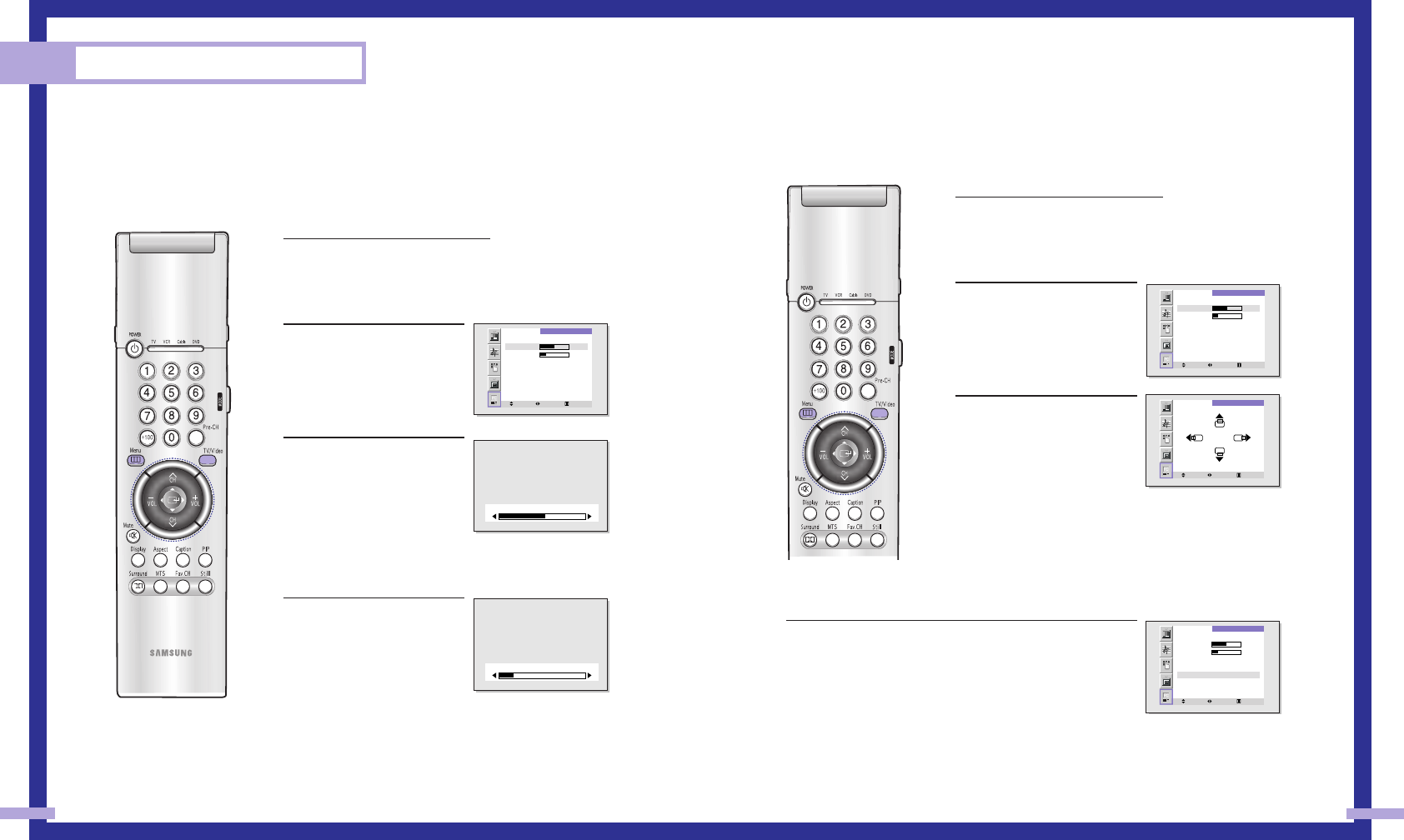
Changing the Position of the Image (Moving left, right, up and down)
After connecting the TV to your PC, adjust the position of screen if it is not well-aligned.
1Press TV/VIDEO on the remote con-
trol.
Move the joystick up or down to
select PC, then press the joystick to
enter.
2Press the Menu button.
Move the joystick down to
select “SETUP”, then press the
joystick to enter.
3Move the joystick down to
select “Position”, then press
the joystick to enter.
Adjust the position of screen
by using the joystick button.
Press the Menu to exit.
To Initialize the Screen Position and Picture Quality Adjustment
After steps 1~2 above are completed, move the joystick down to
select Recall. Press the joystick to initialize the screen position and
picture quality.
NOTES
When ‘Recall’ is active, the TV screen will become black and return to
the original view about five seconds later. (This is a normal operation.)
75
Picture Quality Adjustment
The purpose of picture quality adjustment is to remove or reduce picture noise.
If the noise is not removed by fine tuning alone, then do the frequency adjustments to the utmost
and fine tune again. After the noise has been reduced, re-adjust the picture so that it is aligned
on the center of screen.
Frequency Adjustment
1Press TV/VIDEO on the remote
control.
Move the joystick up or down to
select PC, then press the joystick to
enter.
2Press the Menu button.
Move the joystick down to
select “SETUP”, then press the
joystick to enter.
3Move the joystick down to
select “Coarse”.
Remove picture noise (vertical
stripes) on the screen by mov-
ing the joystick right or left.
(If frequency is not set proper-
ly, then vertical stripes will
appear on the screen).
Fine tuning
4Move the joystick down to
select “Fine”.
Remove picture noise (vertical
stripes) on the screen by mov-
ing the joystick right or left.
(If phase is not set properly,
the picture may be blurry.)
Press the Menu to exit.
PC Display
74
P C
Move Adjust Menu
Coarse 1344
Fine 16
Position
Pc Auto
Recall
P C
Move Enter Menu
Coarse 1344
Fine 16
Position
Pc Auto
Recall
POSITION
Select Select Menu
P C
Move Adjust Menu
Coarse 1344
Fine 16
Position
Pc Auto
Recall
Coarse 1345
Fine 14

Appendix
SAMSUNG
Appendix
78 79
Troubleshooting
Before you call a service technician, please scan this list of problems and possible solutions.
It may save you time and money.
• When a still image is viewed for a long time, an afterimage may partially happen on the screen
according to the characteristics of FLCD panel. In this case, switch into a dynamic image and
view your TV for about 30 minutes. Then it automatically disappears.
• The liquid panel used for the FLCD Projection TV is composed of many minute cells. Therefore,
fine ON/OFF dots may happen occasionally.
• The blue screen appears during Channel Switching, Mode Switching or No Signal. When the
signal from main channel is switched into No Signal during PIP ON, the TV is automatically
turned into PIP OFF and the screen becomes blue screen. (When the main channel is in No
Signal, PIP doesn’t function.)
Care and Maintenance
With proper care, your TV will give you many years of service. Please follow these guidelines to
get the maximum performance from your TV.
Placement
• Do not put the TV near extremely hot, cold, humid or dusty places.
• Do not put the TV near appliances that create magnetic fields.
• Keep the ventilation openings clear.
• Do not place the TV on a rough and slanted surface, such as cloth or paper.
(The screen top might be cut off or the screen center might be tilted.)
Liquids
• Do not handle liquids near or on the TV.
Cabinet
• Never open the cabinet or touch the parts inside.
• Wipe your TV with a clean, dry cloth. Never use water, cleaning fluids, wax, or chemicals.
• Do not put heavy objects on top of the cabinet.
•This FLCD Projection TV projects the image onto a large screen by applying an optical
system. If you place the TV set face down, it might cause a problem because dirt,
or some other contaminant may become attached to the inside of the TV set.
Temperature
•If your TV is suddenly moved from a cold to a warm place, unplug the power cord for at least
two hours so that moisture that may have formed inside the unit can dry completely.
Using the TV in Another Country
If you plan to take your TV to a foreign country, please be aware of the different television systems
that are in use around the world. A TV designed for one system may not work properly with anoth-
er system due to differences in the TV channel frequencies.
Specifications
Problem Possible Solution
Poor picture quality. Try another channel.
Adjust the antenna.
Check all wire connections.
Poor sound quality or no sound. Try another channel.
Adjust the antenna.
Make sure the “Mute” button is off.
No picture or sound. Try another channel.
Press the TV/Video button.
Make sure the TV is plugged in.
Check the antenna connections.
No color or wrong colors. Make sure the program is broadcasted in color.
Adjust the picture settings.
Picture rolls vertically. Adjust the antenna.
Check all wire connections.
If you are using a VCR, check the tracking.
Erratic operation, or Unplug the TV for 30 seconds, then try again.
intermittent failure.
Remote control failure. Press the “Mode” button to put your remote control
into “TV” mode.
Make sure the remote has batteries.
TV won’t switch on. Make sure the wall outlet is working.
Make sure the remote has batteries.
Model
Voltage
Frequency of Operation
Power Consumption
Dimension
Weight
HLM507W
AC 120V
60Hz
200 watts
81
Appendix
80
Rear Panel Air Vent
It is important to clean the panel that covers the rear vent of your projection TV every six months
to keep the unit from overheating.
(The TV illustration shown does not necessary match the design of your TV set.)
1Turn the TV off and unplug
it.
2Remove the screw and
take off the cover.
3Remove the dust from the
vent cover using a vacuum
cleaner (with nozzle
attachment).
4Replace the cover and the
screw.
Memo

83
Memo
82
Memo