Samsung Electronics Co ET-MP900D S Action Mouse User Manual MP900D UM EU Eng indb
Samsung Electronics Co Ltd S Action Mouse MP900D UM EU Eng indb
User Manual

GH68-XXXXXA Rev.1.0
English (EU). 12/2013

www.samsung.com
S Action Mouse
User Manual
4
Getting started
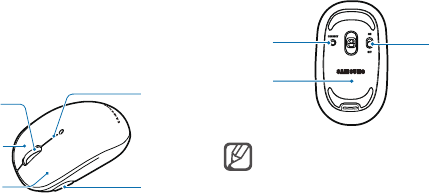
Device layout
Right
button
Left buttion S Action
button
Scroll wheel LED
indicator
Connect
button Power
switch
Battery
cover
• Images may differ in
appearance from the actual
product. Content is subject
to change without prior
notice.

Getting started
5
Turning the device on or off
Slide the power switch to ON to
turn on the device. When the device
is turned on, the notification light
flashes blue.
TBD
Slide the power switch to OFF to
turn off the device.
• The device is only
compatible with some
Samsung devices operated
by Google Android. This
user manual focuses on
the features available after
connecting the device to
other device.
• Some features may not be
available depending on the
connected device.

Getting started
6
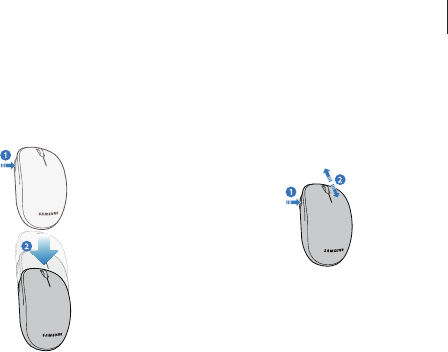
2
Replace the battery and be sure
that the polarities (+/-) of the
batteries are correct.
Do not recharge the batteries
(AA type) supplied with the
product.
3
Replace the battery cover.
To close the cover, attach the
upper part of the battery cover
and press firmly on each part in
order.
Changing the battery
Replace the battery when the
notification light flashes red.
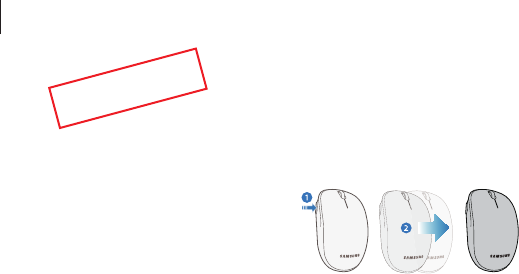
1
Remove the battery cover.
Put your fingernails in to the
indentation at the end of the
battery cover and pull out the
cover.
Be careful not to damage your
fingernails when you remove
the back cover.

Getting started
7
1
Press and hold the Connect
button for more than 3 seconds.
The notification light flashes red
and blue.
2
On the Bluetooth-enabled device,
access the Bluetooth setup mode
and search for Bluetooth devices.
3
From the search results, select the
device name.
When pairing is complete, the
device's name appears in the
device list.
Connecting to other devices
You can connect the device to other
Bluetooth-enabled devices, such as
smartphones or computers.
You can connect to an other
Bluetooth-enabled device
only after disconnecting a
previously connected device.

Getting started
8
• If the mouse is not used
for 10 minutes, the mouse
hibernates. In this case, click
a mouse button to wake it
up. Then, you can use the
mouse after a moment.
• If the Bluetooth connection
fails or the other device
cannot search for the
device, remove the device's
information from the other
device's list, and then try
again.
• If the mouse doesn’t work
properly, restart the system,
or try to pair both devices
again.

Using the device
9
Using the device
Activating Quick Window
You can create windows in various
sizes on the connected device's
screen and run many applications at
the same time.
1
Press and hold the S Action
button and create a window
in the size you desire on the
connected device's screen.
Disconnecting from other
devices
You can connect to another device
only after disconnecting a previously
connected device.
Press and hold the Connect button
for more than 3 seconds.
Using the device
10
Using the S Action features
Opening a list of recently-used
applications
Press and hold the S Action button
and drag the device to the right.
TBD
2
Select one of the applications
from the list of available
applications appeared on the
connected device.
Using the device
11
Zooming in or out the current
text or images
Press and hold the S Action button
and scroll the Scroll wheel up or
down.
Closing the running
application
Press and hold the S Action button
and drag the device down.
Using the device
12
Using the scroll wheel
• Press to return to the Home screen.
• Press and hold to launch Google
search.
• Press twice to launch S Voice.
TBD

Appendix
13
The wireless connection range
may vary depending on the
environment the device is
used in.
Appendix
Specifications and features
Dimensions
(mm) 57.5 X 97.6 X 33.6
Weight (±1 g) 80.8
Operating
Voltage 1.5 VDC
Input Power 35 mW
Input Voltage 1.5 VDC