Samsung Electronics Co ML1440 Laser Printer User Manual 3
Samsung Electronics Co Ltd Laser Printer Users Manual 3
Contents
- 1. Users Manual 1
- 2. Users Manual 2
- 3. Users Manual 3
Users Manual 3
5.28
PRINTING TASKS
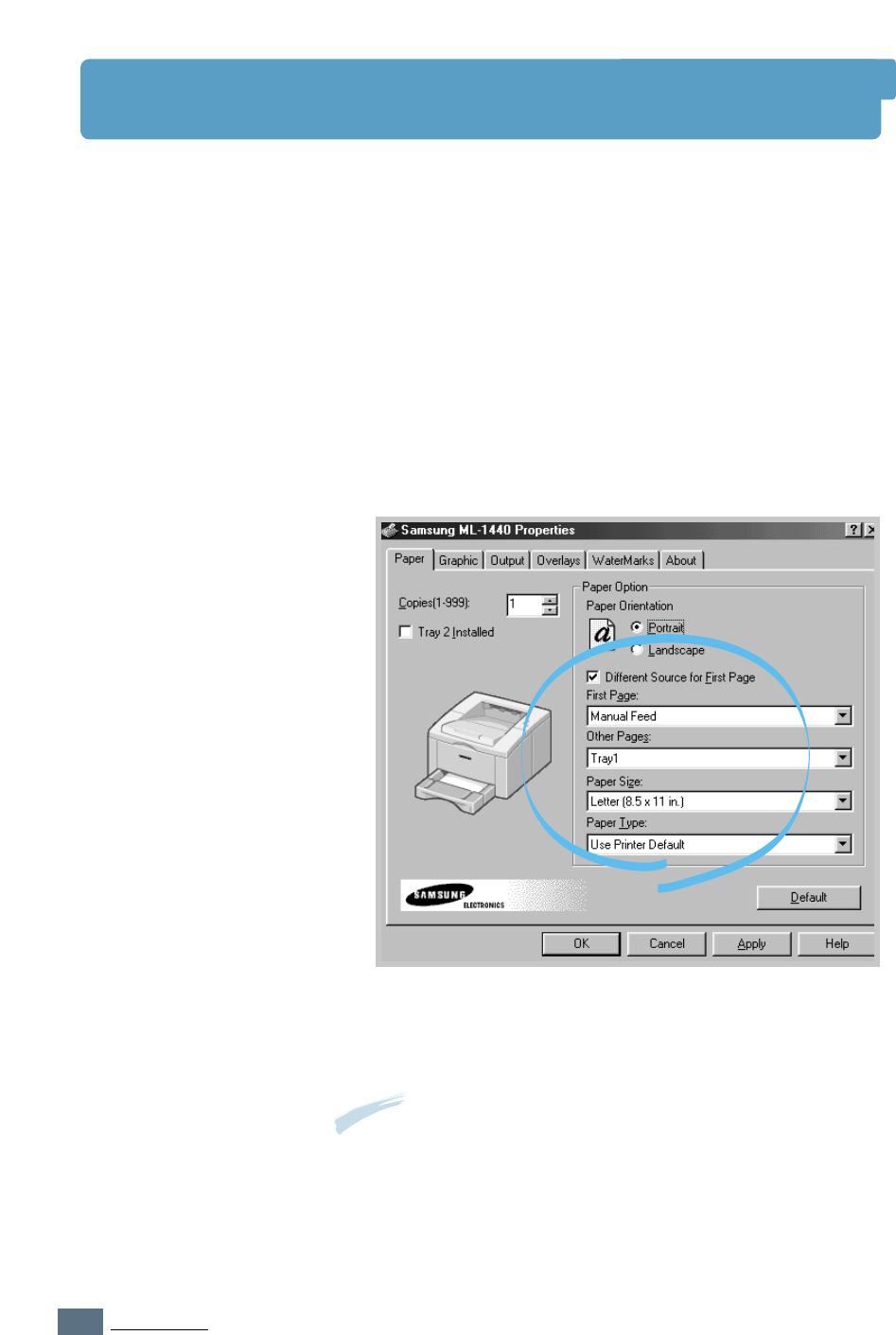
Printing on Different Paper for the First Page
1
When you change the print settings from your software
application, access the printer properties. See page 5.2 to
access the printer properties.
2
Click the Paper tab, and click Different Source for First
Page.
If the box is checked, this feature is enabled and the dialog
box allows you to select the desired paper source for the
First Page and Other Pages independently. If the box is
empty, this feature is disabled.
3
Click OK, then start printing.
Note: The paper size for all pages of the print job must be the same.
5.29
PRINTING TASKS
Reprinting the Last Page
The Samsung ML-1440 printer’s memory always keep the last
page of the last job. If you canceled a print job due to a paper
jam or other problems and you want to know which page was
printed last, reprint the last page.
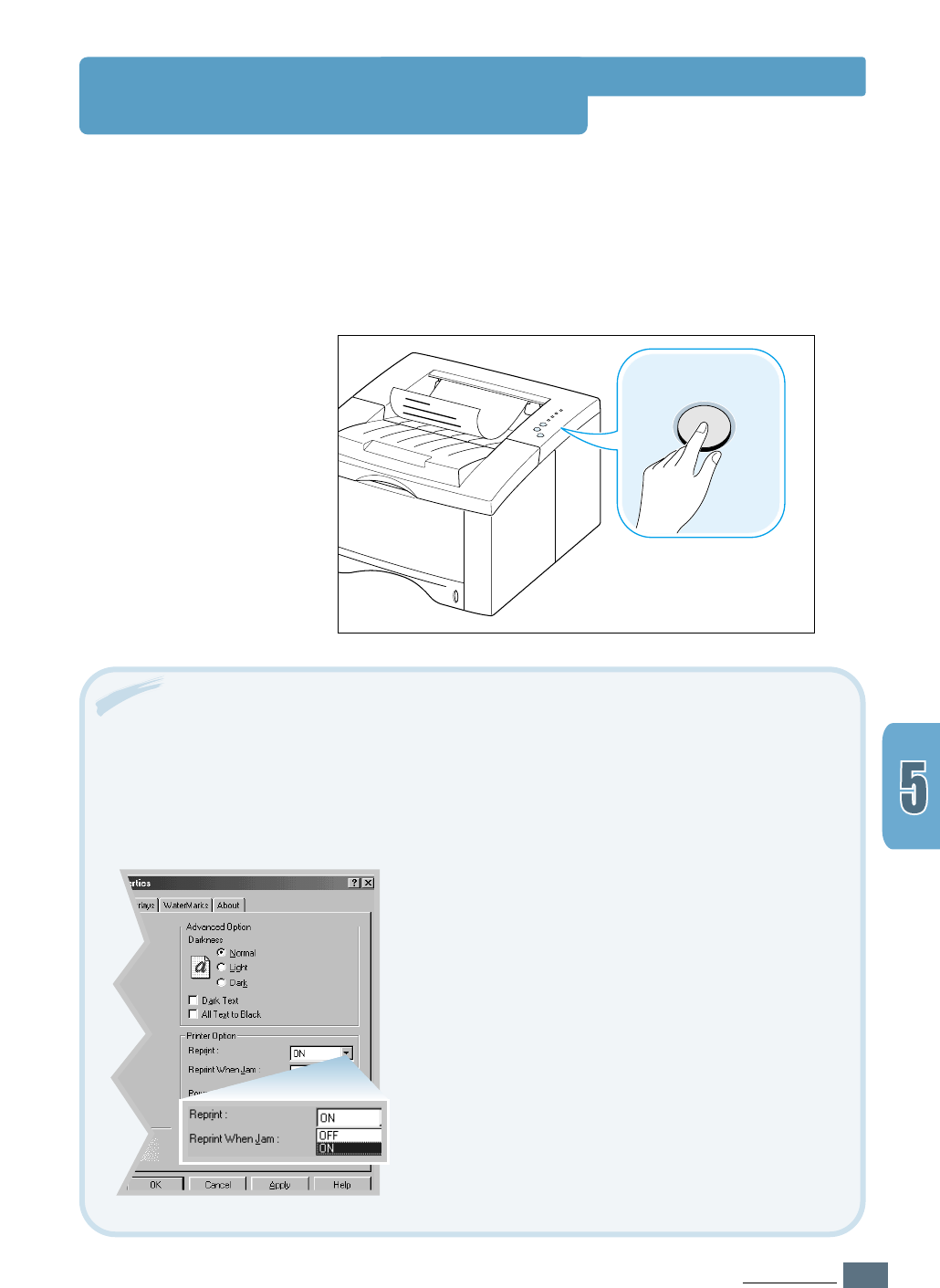
Press Cancel/Reprint briefly in the ready mode.
Cancel/Reprint
To disable this feature:
1. From the Start menu, select Settings and then
Printers.
2. Click the right mouse button on the Samsung ML-1440
Series printer icon and select Properties to open the
properties window.
3. From the Graphic tab, Select OFF from the Reprint
drop-down list.
With this option OFF, you cannot reprint the last page
from the control panel.
When you want to reprint the last page on the control
panel, you must select ON from the list.
4. Click OK.
Note: If you want to prevent somebody from reprinting your document, you can turn the
Reprinting feature off in the printer’s properties dialog box. When you turn the feature off in
the printer’s properties, the Cancel/Reprint button on the control panel does not perform the
reprinting operation.
5.30
PRINTING TASKS
Printing on a Network Environment
If you work in a network environment, you can connect your
printer directly to a selected computer (called the “host
computer”) on the network. The printer can then be shared by
other users on the network through a Windows 9x/Me/
NT 4.0/2000/XP network printer connection.
Note: You need to install the Samsung ML-1440 printer driver on
each computer that will print documents to the printer.
1
Start Windows.
2
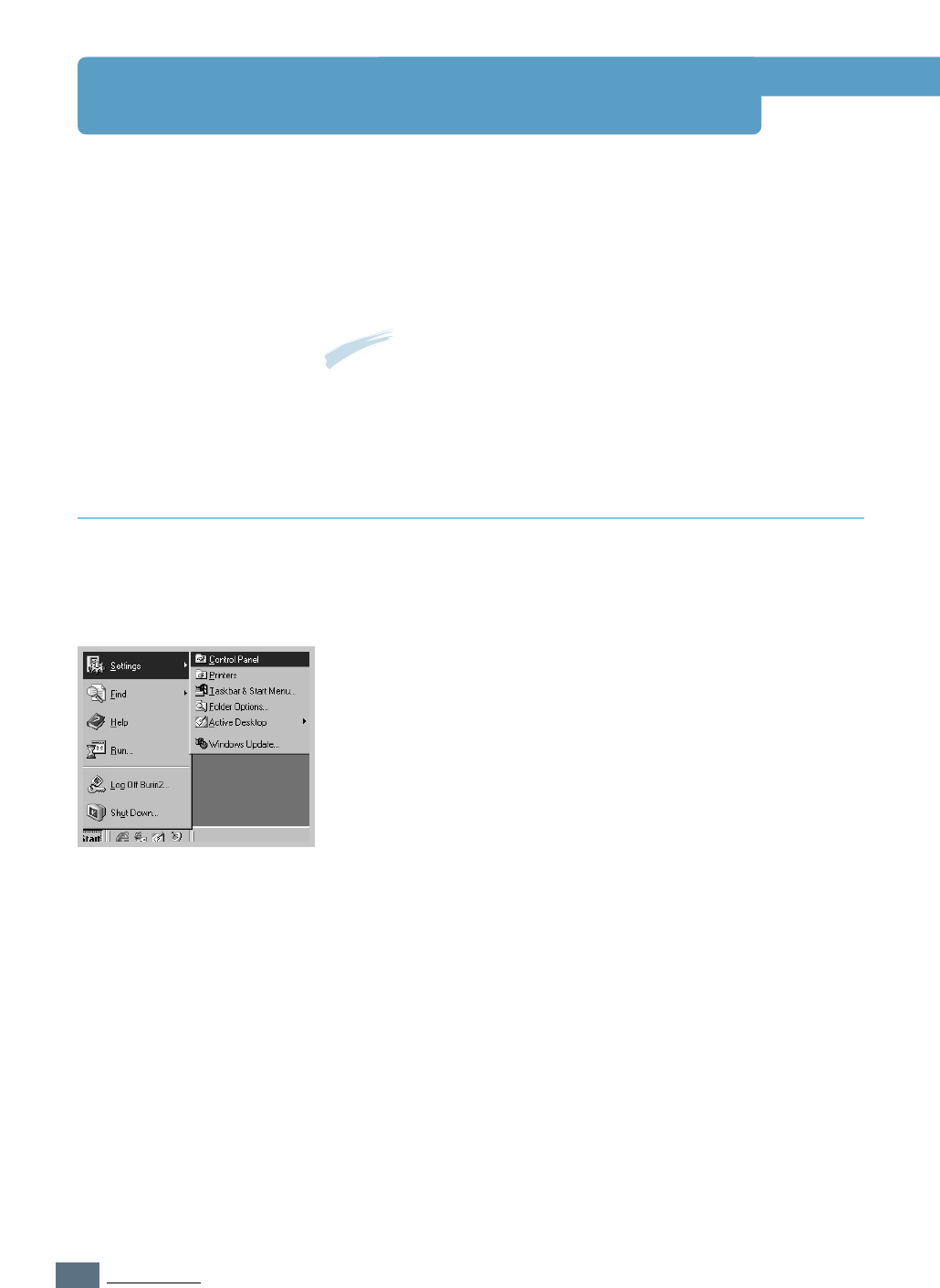
Click Start and select Control Panel from Settings,
then double-click on the Network icon.
3
Check the File and Print Sharing box, then click OK.
Close the window.
4
Click Start and select Printers from Settings, then
double-click your printer name.
5
Select Properties in the Printers menu.
6
Click the Sharing tab, then check the Shared As box.
Fill in the Shared Name field, then click OK.
Windows 98/Me
Setting Up Host
Computer
5.31
PRINTING TASKS
1
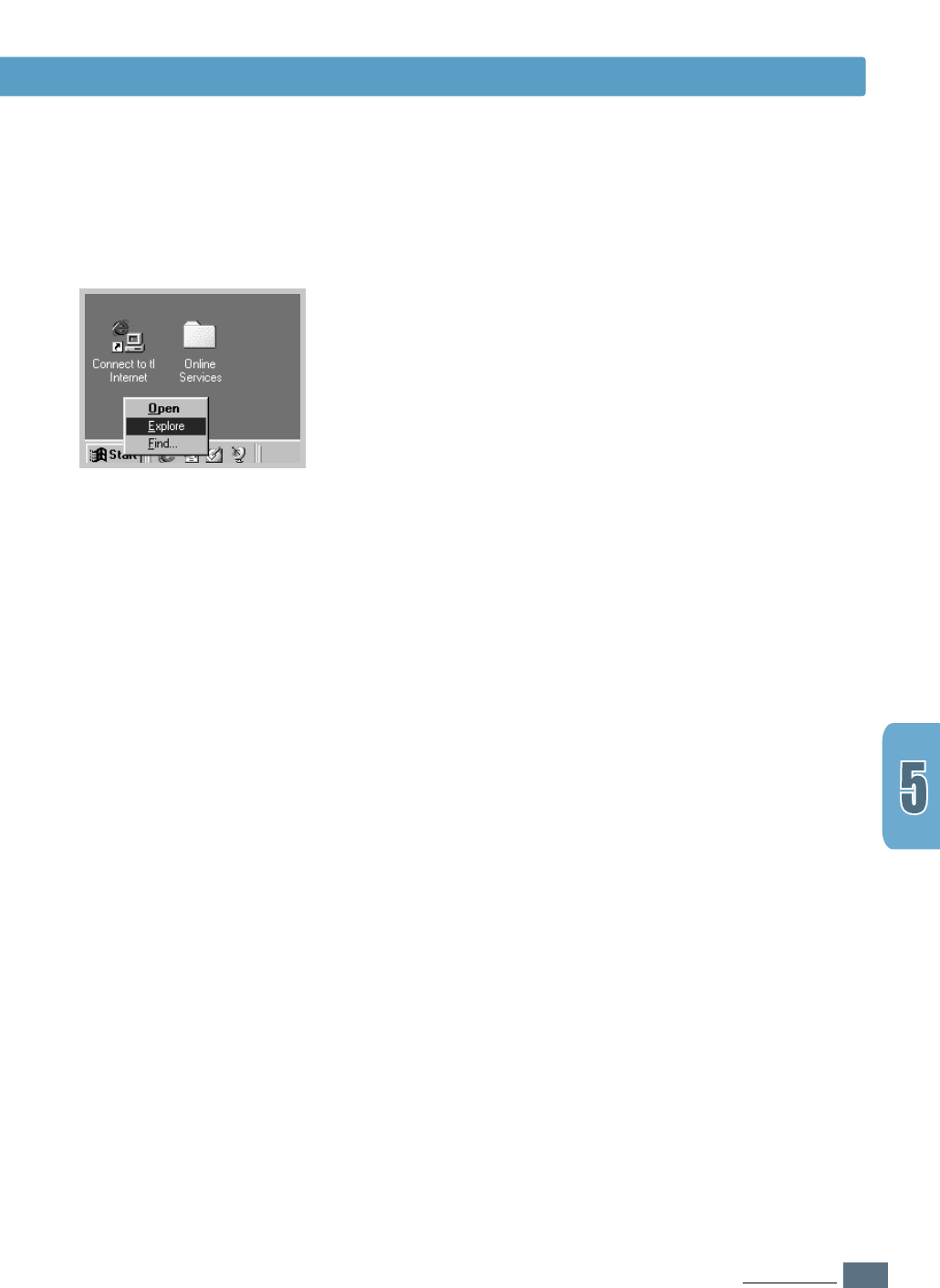
Right-click Start, and select Explorer.
2
Open your network folder in the left column.
3
Right-click the shared name, and select Capture
Printer Port.
4
Select the port you want, check the Reconnect at log
on box, then click OK.
5
From the Start menu, select Settings, then Printers.
6
Double-click your printer icon.
7
From the Printers menu, select Properties.
8
Press the Details tab, select the printer port, then click
OK.
Printing on a Network Environment
Setting Up Client PC

5.32
PRINTING TASKS
1
Start Windows.
2
From the Start menu, select Settings, then Printers.
(Windows NT/2000)
From the Start menu, select Printers and Faxes.
(Windows XP)
3
Double-click your printer icon.
4
From the Printer menu, select Sharing.
5
Check the Shared box. (Windows NT)
Check the Shared As box. (Windows 2000)
Check the Share this printer box. (Windows XP)
Fill in the Share Name field, then click OK.
(Windows NT)
Fill in the Shared Name field, then click OK.
(Windows 2000/XP)
Windows NT/2000/XP
Setting Up Host
Computer
Printing on a Network Environment

5.33
PRINTING TASKS
Printing on a Network Environment
1
Right-click Start, and select Explorer.
2
Open your network folder in the left column.
3
Click the shared name.
4
From the Start menu, select Settings, then Printers.
(Windows NT/2000)
From the Start menu, select Printers and Faxes.
(Windows XP)
5
Double-click your printer icon.
6
From the Printer menu, select Properties.
7
Press the Ports tab, click Add Port.
8
Select Local port, and click New Port.
9
Fill in the Enter a port name field, enter the shared
name.
10
Click OK, and click Close .
11
Click OK. (Windows NT)
Click Apply, and click OK. (Windows 2000/XP)
Setting Up Client PC

This chapter provides suggestions for high-quality and
economical printing and information for maintaining the toner
cartridge and the printer.
Topics included in this chapter are:
◆Maintaining Toner Cartridge
◆Cleaning the Printer
6
6
CHAPTER
Maintaining
Your Printer
Maintaining
Your Printer

6.1
MAINTAINING YOUR PRINTER
Maintaining Toner Cartridge
To get the most from the toner cartridge, keep the following
guidelines in your mind.
• Do not remove the toner cartridge from its package until you
are ready to use it. The shelf life of a cartridge in an unopened
package is approximately 2 years. The shelf life of a cartridge
in an opened package is approximately 6 months.
• Do not refill toner cartridges. The printer warranty does not
cover damage caused by using a refilled cartridge.
• Store toner cartridges in the same environment as the printer.
• Do not remove a toner cartridge from the printer except to
replace it, clean it or clear a paper jam. Replace the cartridge
immediately.
• To prevent damage to the toner cartridge, do not expose it to
light for more than a few minutes.
Toner cartridge
storage
The life of the toner cartridge depends on the amount of toner
that print jobs require. When printing text at 5 % coverage, a
new toner cartridge lasts an average of 6,000 pages. (But, the
toner cartridge supplied with the printer lasts an average of
3,000 pages.)
Toner cartridge life
expectancy
After you install a new toner cartridge (see page 2.3), follow the
instructions included in the toner cartridge box to recycle the old
cartridge.
Recycling toner
cartridge
To save toner, press the Toner Save button on the printer
control panel. The button will be lit. You can also enable the
Toner Save Mode in your printer properties. Refer to “Using
Toner Save Mode” on page 5.6. Selecting this option will expand
the life of the toner cartridge and reduce your cost per page, but
will reduce print quality.
Saving toner
6.2
MAINTAINING YOUR PRINTER
Toner Cartridge
When toner is low, faded or light areas may appear on a printed page. You may be able to
temporarily improve print quality by redistributing the toner. The following procedures may
allow you to finish the current print job before replacing the toner cartridge.
Redistributing Toner
1
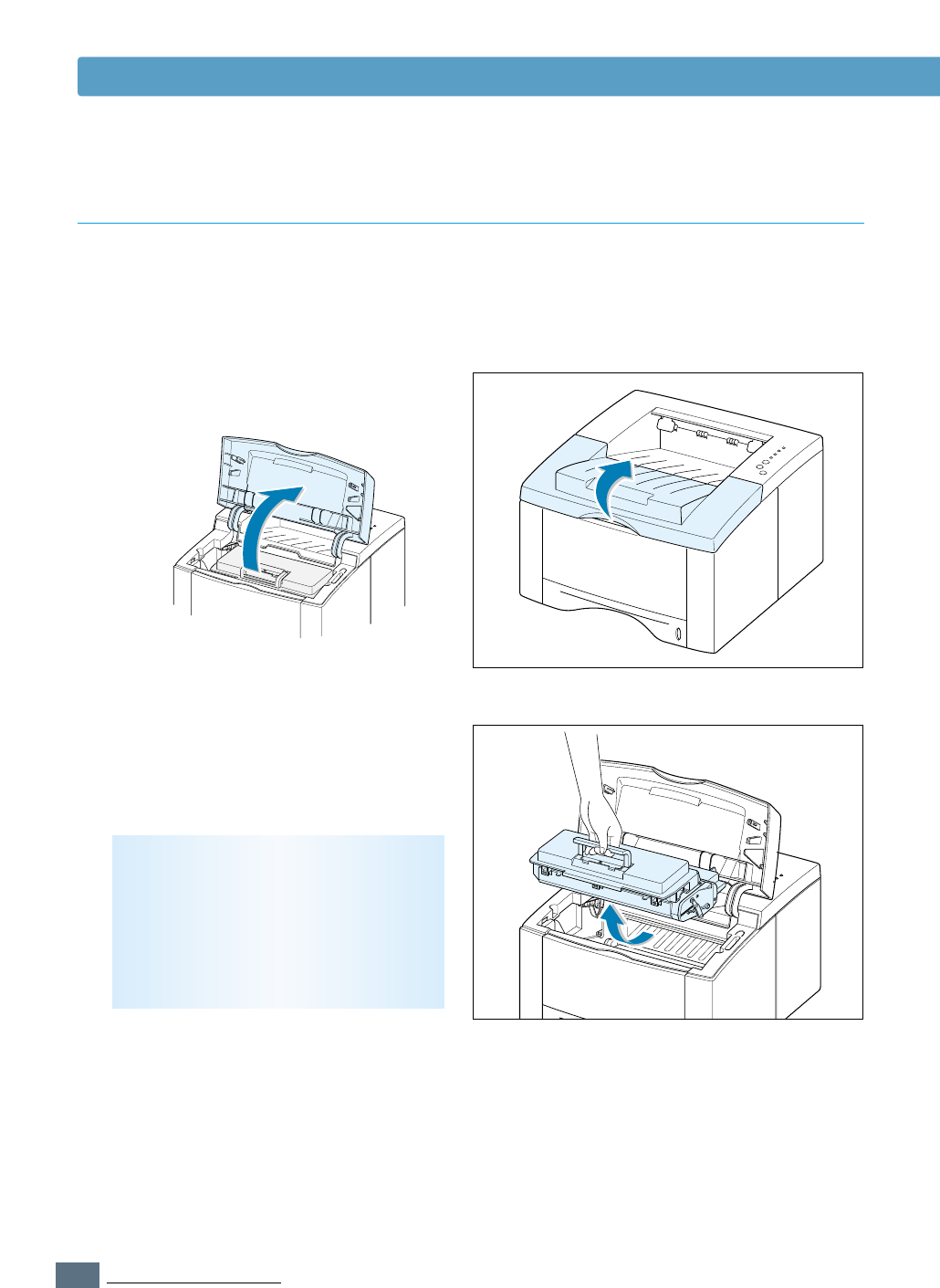
Open the top cover.
2
Remove the toner cartridge from the
printer.
CAUTIONS:
• Avoid reaching too far into the printer.
The fusing area may be hot.
• To prevent damage to the toner
cartridge, do not expose it to light for
more than a few minutes.
6.3
MAINTAINING YOUR PRINTER
Toner Cartridge
3
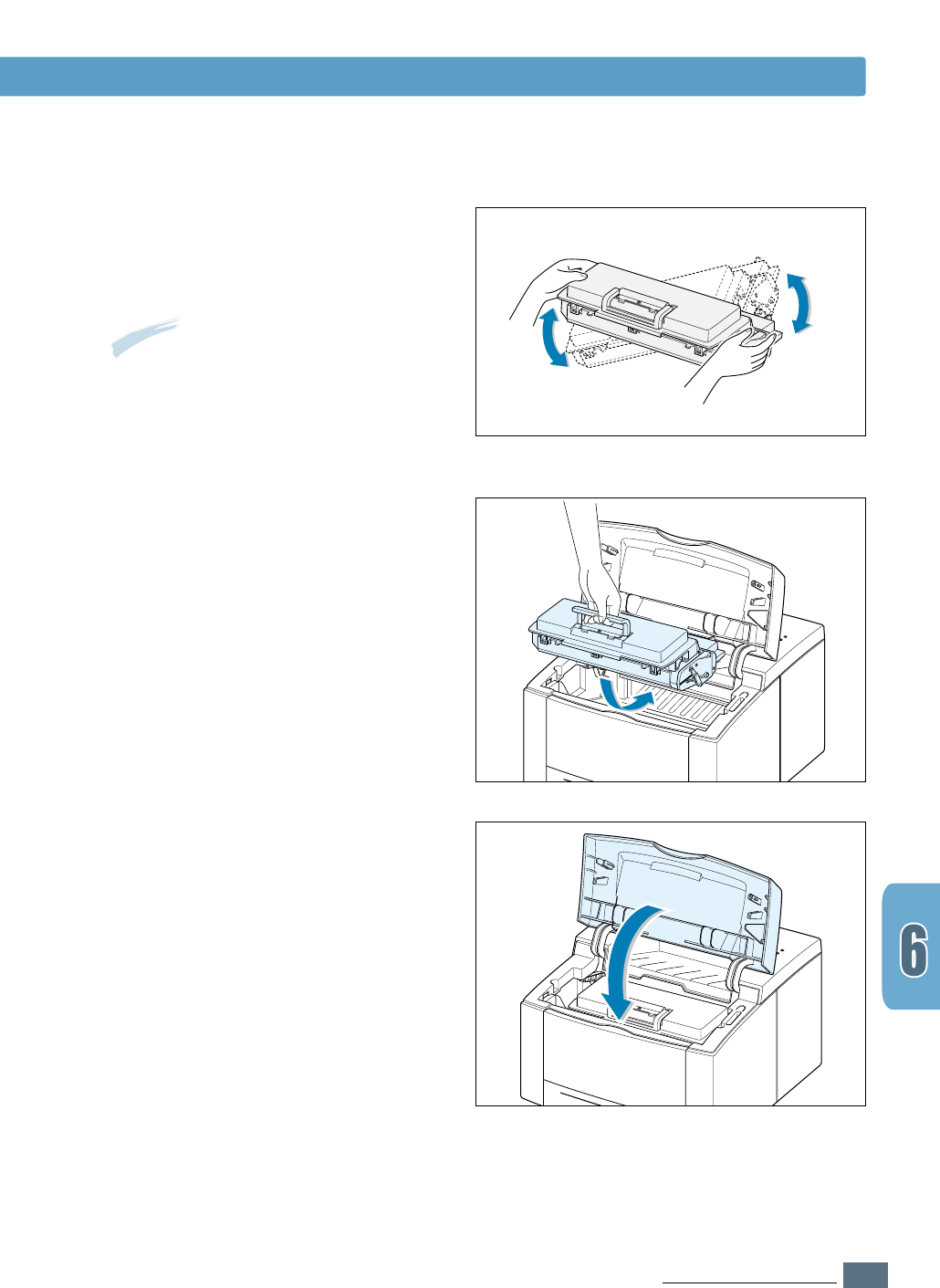
Gently shake the toner cartridge from
side to side 5 or 6 times to redistribute
the toner.
4
Reinsert the toner cartridge into the
printer. Be sure that the toner cartridge
is firmly in its place.
5
Firmly
close the cover.
If the print remains light
Remove the old cartridge and install a
new toner cartridge. See “Install the
Toner Cartridge” on page 2.3.
Note: If the toner gets on your clothing,
wipe it off with a dry cloth and wash
clothing in cold water. Hot water sets
toner into fabric.

6.4
MAINTAINING YOUR PRINTER
Cleaning the Printer
To maintain print quality, follow the cleaning procedures below every time the toner cartridge
is replaced or whenever print quality problems occur. As much as possible, keep the printer
free from dust and debris.
Notes:
• Do not use ammonia-based cleaners or volatile solvents such as thinner, on or around the printer.
These can damage the printer.
• While cleaning the inside of the printer, be careful not to touch the transfer roller (located
underneath the toner cartridge ). The oil from your hands on the roller can cause print quality
problems.
Wipe the outside surface of the printer with a soft, clean, lint-free
cloth. You can dampen the cloth slightly with water, but be careful
not to be let any water drip onto the printer or inside of it.
Cleaning the Outside
During the printing process, paper, toner, and dust particles
can accumulate inside the printer. Over time, this buildup can
cause print quality problems such as toner specks or smearing.
Cleaning inside the printer will eliminate or reduce these
problems.
Cleaning the Inside
1
Turn the printer off and unplug the power cord, then wait for
the printer to cool.
2
Open the top cover and remove the toner cartridge.
3
With a dry, lint-free cloth, wipe away any dust and spilled toner
from the toner cartridge area and the toner cartridge cavity.
Cleaning inside the
printer
Note: To prevent damage
to the toner cartridge, do
not expose it to light for
more than a few minutes.
Cover it with a piece of
paper, if necessary. Also,
do not touch the black
transfer roller inside the
printer. By doing so, you
can damage the printer.
6.5
MAINTAINING YOUR PRINTER
3
Your printer automatically picks up a sheet of paper from the
paper tray and prints out a cleaning sheet with the dust or
toner particles on it.
5
Reinsert the toner cartridge and close the top cover. Then,
turn the printer on.
Note: The cartridge cleaning
process takes some time. To
stop the printing, turn the
power off.
Cleaning the Printer
Printing a cleaning
sheet
Printing a cleaning sheet cleans the drum inside the toner
cartridge. Use this process if you are experiencing blurred,
faded or smeared printouts. This process will produce a page
with toner debris, which should be discarded.
1
Make sure the printer is turned on and in the ready state and
that there is paper loaded in the paper tray.
2
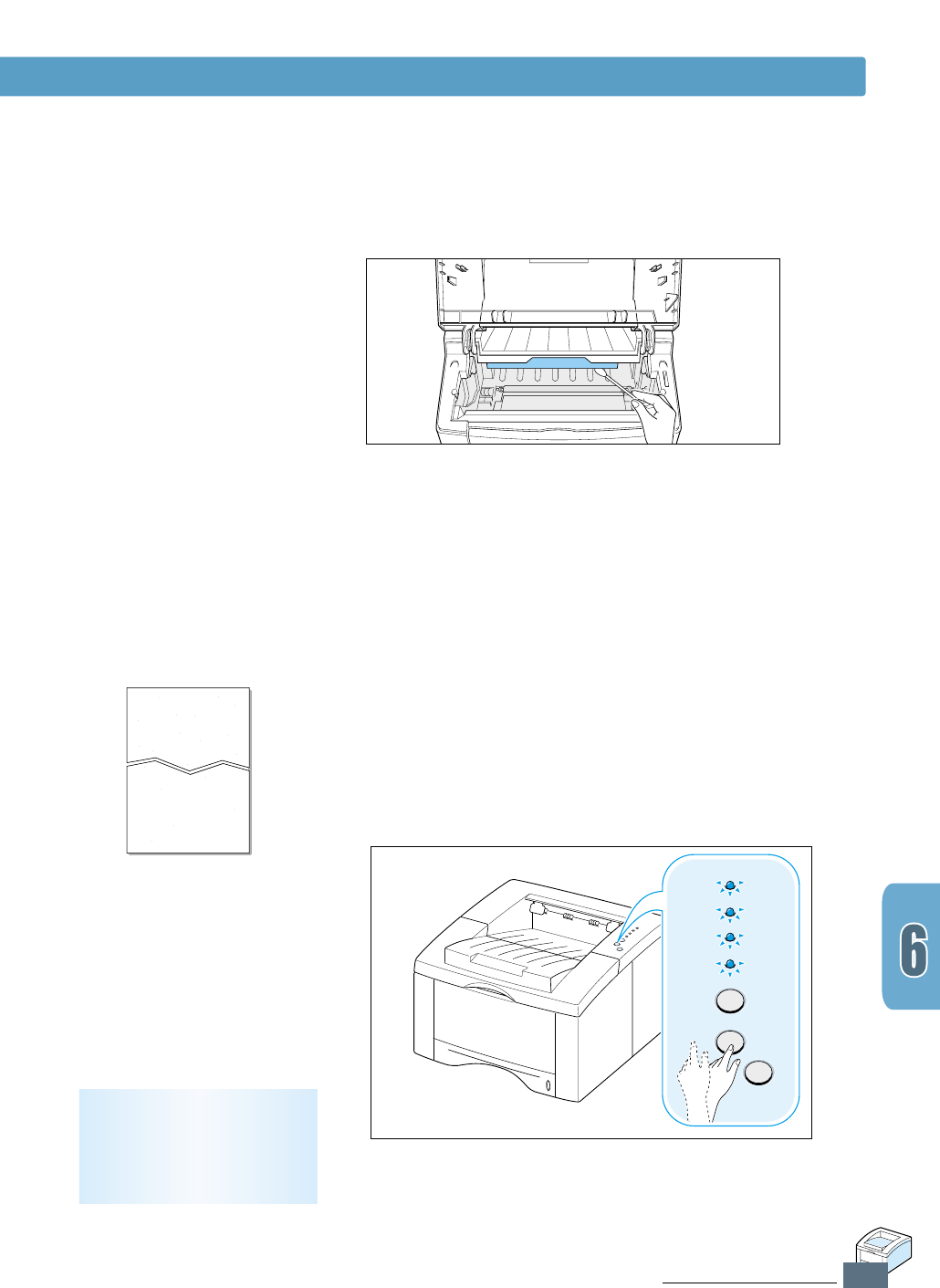
Press and hold Demo on the control panel for about 10 seconds
until all control panel lights remain steadily lit, then release.
4
Locate the long strip of glass (LSU) inside the top of the
cartridge compartment, and gently swab the glass to see if dirt
turns the white cotton black.
Error
Manual
Paper
Data
Cancel/Reprint
Demo
Toner Save

This chapter gives helpful information for what to do if you
encounter a printer error. It provides information on the
following topics:
◆ Troubleshooting Checklist
◆ Solving General Printing Problems
◆ Clearing Paper Jams
◆ Solving Print Quality Problems
◆ Troubleshooting Error Messages
◆ Common Windows Problems
◆ Common Macintosh Problems
7
7
CHAPTER
Problem Solving
Problem Solving

7.1
PROBLEM SOLVING
Troubleshooting Checklist
If the printer is not working properly, complete the following checklist in order. If the printer
does not pass a step, follow the corresponding troubleshooting suggestions.
Check
Make sure that the Data light on
the control panel is on.
Press the Demo button to print
a demo page to verify that the
printer is feeding paper correctly.
See page 2.9.
Check the demo page to see if it
is printed correctly.
Print a short document from a
software application to verify
that the computer and printer
are connected and are
communicating correctly.
If completing the checklist did
not diagnose the problem with
the printer, check the following
troubleshooting sections.
Solution
• If no lights are on, check the power cord
connection. Check the power switch. Check the
power source by plugging into another outlet.
• If other lights are on, go to “Troubleshooting Error
Messages” on page 7.21.
• If a demo page does not print, check the paper
supply in the paper tray.
• If the paper jams in the printer, go to “ Clearing
Paper Jams” on page 7.6.
• If the Error indicator light is illuminated on the
control panel, go to “Troubleshooting Error
Messages” on page 7.21.
If there is a print quality problem, go to “Solving
Print Quality Problems” on page 7.15.
• If the page does not print, check the cable
connection between the printer and computer.
• Check the print queue or print spooler (print
monitor in Mac) to see if the printer has been
paused.
• Check the software application to make sure you
are using the proper printer driver and
communication port. If the page is interrupted
during printing, go to “Solving General Printing
Problems” on page 7.2.
• “Solving General Printing Problems” on page 7.2.
• “Troubleshooting Error Messages” on page 7.21.
• “Common Windows Problems” on page 7.24.
• “Common Macintosh Problems” on page 7.25.

7.2
PROBLEM SOLVING
Solving General Printing Problems
Problem
The printer does not
print.
Possible Cause
The printer is not
receiving power.
Your printer is not
selected as the default
printer.
Check the printer for
the following:
The printer may be in
manual feed mode and
out of paper. (The
Manual and the Data
lights are blinking.)
The connection cable
between the computer
and the printer is not
connected properly.
The connection cable
between the computer
and the printer is
defective.
The port setting is
incorrect.
Solution
If no lights are on, check the power
cord connections. Check the power
switch and the power source.
Select Samsung ML-1440 Series
as your default printer.
• The printer cover is not closed.
• Paper is jammed.
• No paper is loaded.
• Toner cartridge is not installed.
• Printer system error occurs.
Contact a service representative.
Add paper to the Manual tray, and
press the Demo button on the
printer’s control panel.
Disconnect the printer cable and
reconnect it.
If possible, attach the cable to
another computer that is working
properly and print a job. You may
also try using a different printer
cable.
Check the Windows printer setting to
make sure that the print job is sent
to the correct port (for example,
LPT1). If the computer has more
than one port, make sure the printer
is attached to the correct one.
If you have any problems with the operation of your ML-1440 printer, refer to the table for
suggested solutions.

7.3
PROBLEM SOLVING
Solving General Printing Problems
Problem
The printer does not
print. (continued)
Printer selects media
from the wrong
paper source.
Paper does not feed
into the printer.
Print job is extremely
slow.
Possible Cause
The printer may be
configured incorrectly.
The printer driver may
be incorrectly installed.
The printer is
malfunctioning.
The paper source
selection in the printer
properties may be
incorrect.
Paper has not been
loaded correctly.
There is too much paper
in the paper tray.
The paper is too thick.
The job may be very
complex.
The maximum speed of
14 pages per minute
cannot be exceeded even
when more memory is
added.
If using Windows 9x/Me,
the Spooling Setting may
be set incorrectly.
Solution
Check the printer properties to make
sure that all print settings are correct.
Remove the printer driver, then
reinstall the printer driver. Try printing
a demo page.
Check the lights on the control panel to
determine if the printer is indicating a
system error.
For many software applications the
paper source selection is found under
the Paper tab within the printer
properties. Select the correct paper
source.
Remove paper from the paper tray and
reload it correctly.
Remove excess paper from the tray.
Use only paper that meets the
specifications required by the printer.
Reduce the complexity of the page or
try adjusting the print quality settings.
If this problem occurs frequently, add
memory to the printer.
From the Start menu, choose Settings
and Printers. Right-click the Samsung
ML-1440 Series printer icon, choose
Properties, click the Details tab, and
then choose the Spool Settings
button. Select the desired spool setting
from the available choices.

7.4
PROBLEM SOLVING
Solving General Printing Problems
Problem
Half of the page is
blank.
The paper keeps
jamming.
The printer prints,
but the text is
wrong, garbled, or
incomplete.
Solution
Simplify the page layout and remove
any unnecessary graphics from the
document, if possible.
Change the page orientation in your
application.
Make sure that the paper size in the
print settings matches the paper in
the paper tray.
Remove excess paper from the tray.
If printing special media, use the
Manual Tray.
Use only paper that meets the
specifications required by the printer.
Media such as thick paper should not
be printed using the standard face-
down stacker. Use the rear face-up
output tray instead.
Open the top cover and remove the
debris.
Disconnect the printer cable and
reconnect it. Try a print job that you
know works. If possible, attach the
cable and printer to another computer
and try a print job that you know
works. Finally, try a new printer cable.
Check the application’s printer
selection menu to make sure that your
printer is selected.
Possible Cause
The page layout is too
complex.
The page orientation
setting may be
incorrect.
The paper size and the
paper size settings do
not match.
There is too much
paper in the paper tray.
An incorrect type of
paper is being used.
An incorrect output
method is being used.
There may be debris
inside the machine.
The printer cable is
loose or defective.
The wrong printer driver
was selected.

7.5
PROBLEM SOLVING
Problem
The printer prints, but
the text is wrong,
garbled, or incomplete.
(continued)
Pages print, but are
totally blank.
Solving General Printing Problems
Solution
Try printing a job from another
application.
Exit Windows and reboot the
computer. Turn the printer off and then
back on again.
Replace the toner cartridge.
Remove the toner cartridge and pull
out the sealing tape. Reinstall the
toner cartridge, and check by printing
a demo page.
Check the file to make sure that it
does not contain blank pages.
Contact a service representative.
Possible Cause
The software application
is malfunctioning.
The operating system is
malfunctioning.
The toner cartridge is
defective or out of toner.
The sealing tape may
still be in the toner
cartridge.
The file may have blank
pages.
Some parts, such as the
controller or the board,
may be defective.
7.6
PROBLEM SOLVING
Clearing Paper Jams
Occasionally, paper can become jammed during a print job. Some of the causes include:
• The paper tray is loaded improperly or overfilled.
• The paper tray has been pulled out during a print job.
• The top cover has been opened during a print job.
• Paper that does not meet paper specifications has been used. See “Paper Specifications” on
page A.2.
• Paper that is outside of the supported size range has been used. See “Paper Specifications”
on page A.2.
If a paper jam occurs, the Paper and the Error lights remain lit on the control panel. Find
and remove the jammed paper. If the location of the paper jam is not obvious, look inside the
printer.
Note: Paper jams in this area may result in loose toner on the page. If you get any toner on your
clothes, wash them in cold water because hot water will set the toner into the fabric.
Output Area
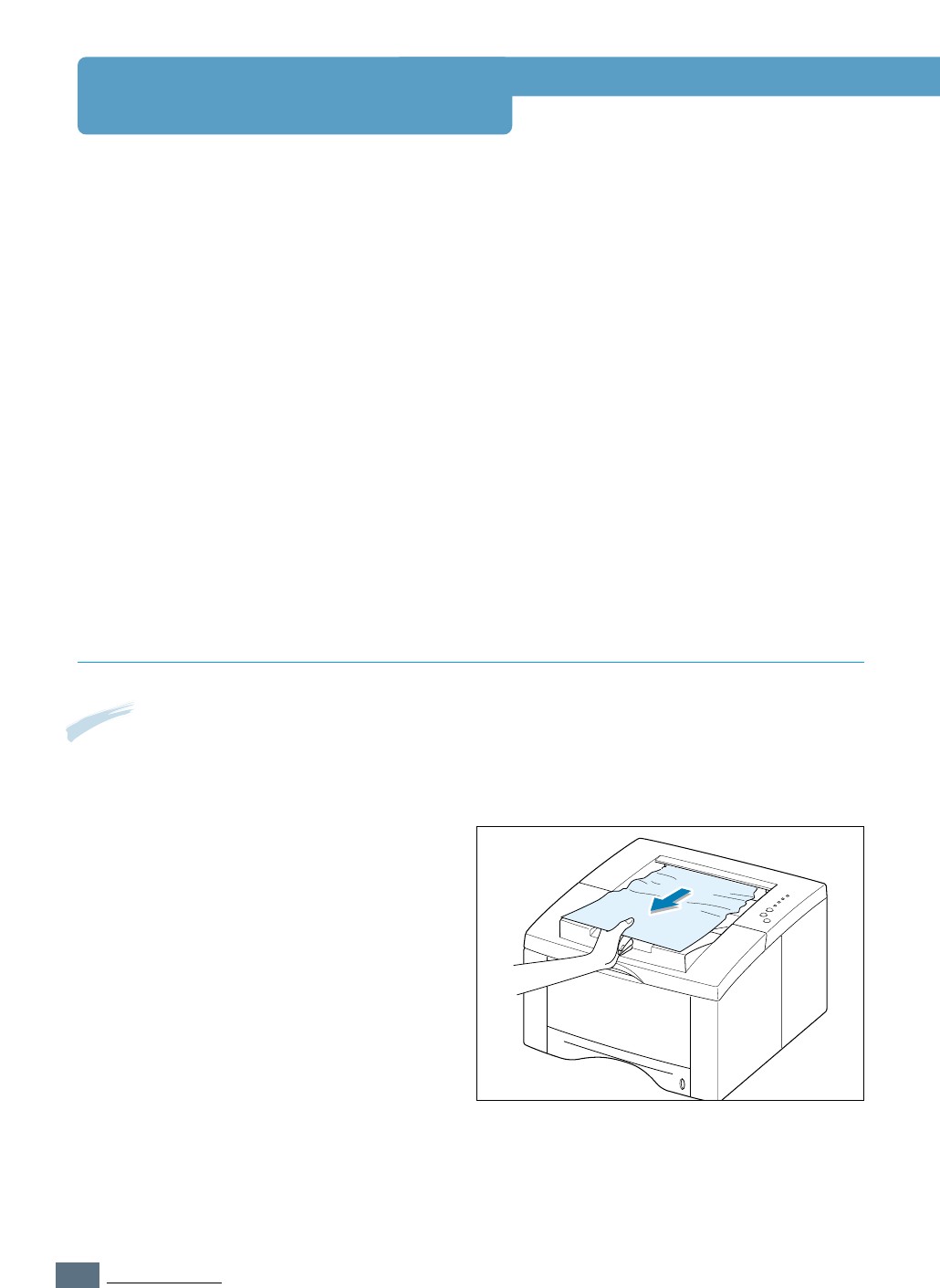
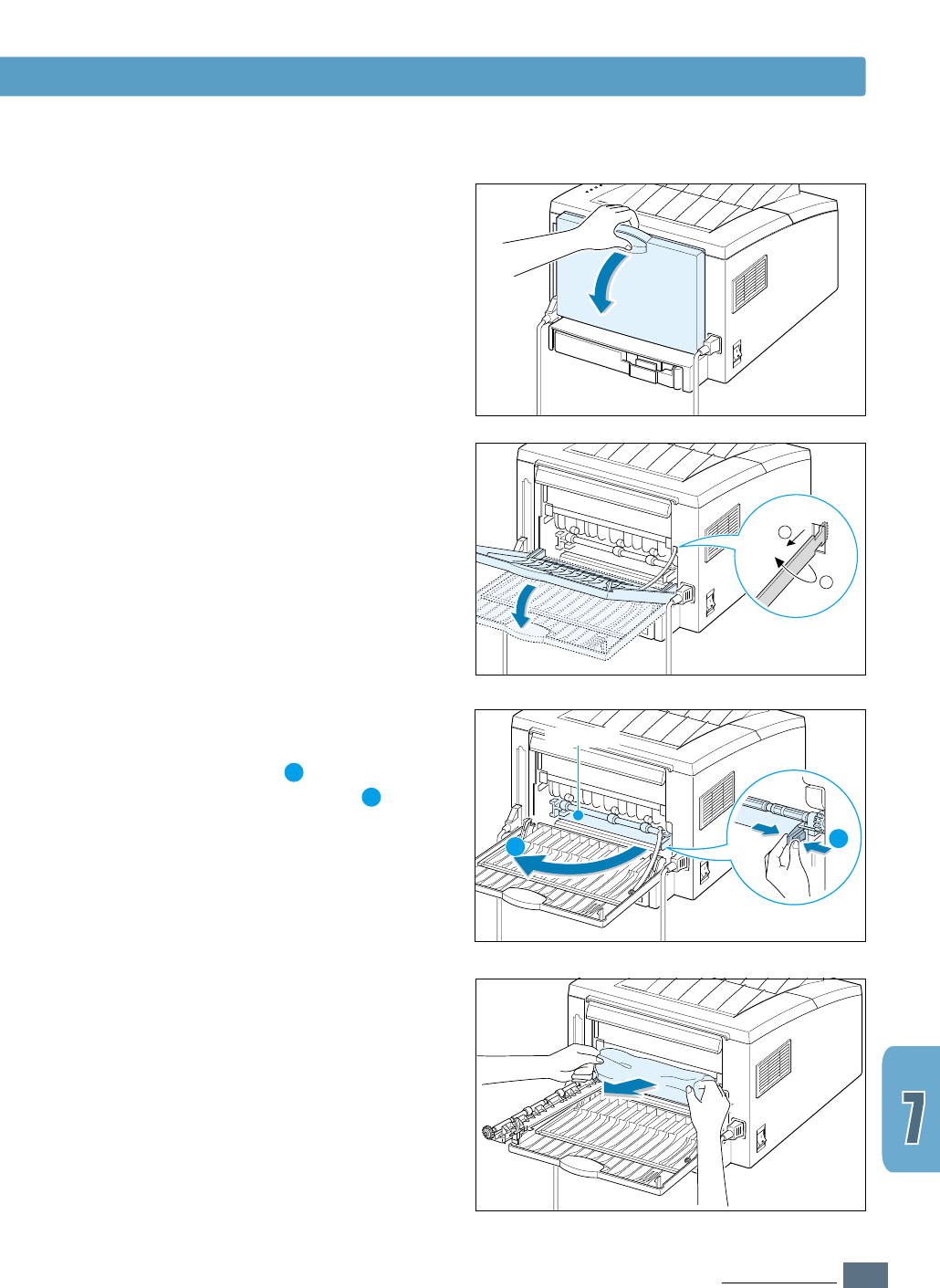
1
If the paper is almost completely visible
from the top output tray, pull the
remaining paper carefully out of the
printer.
7.7
PROBLEM SOLVING
Clearing Paper Jams
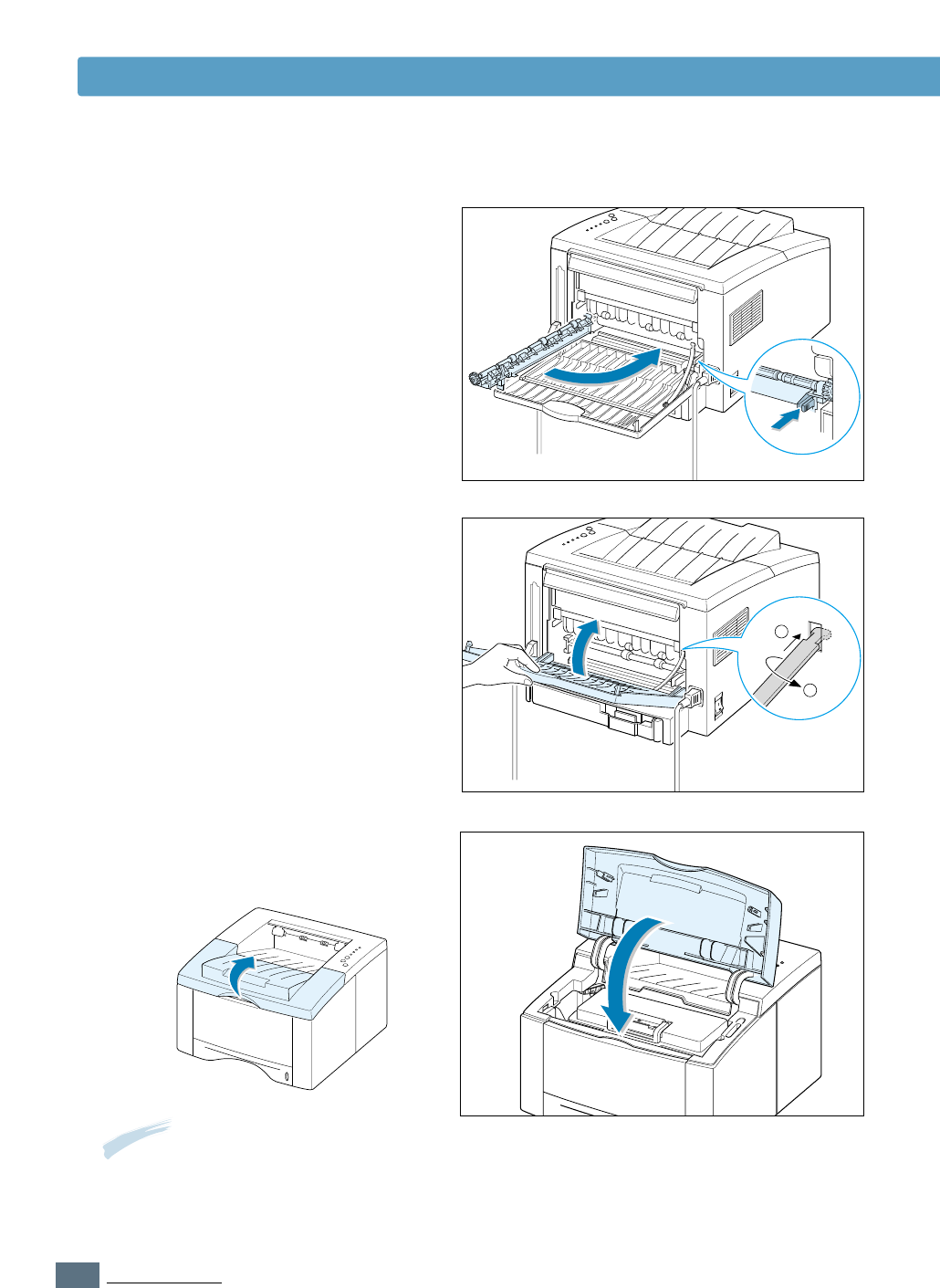
4
If there is resistance when you pull the
paper, squeeze the handle on the right
end of the exit roller , then pull the
roller in the direction of arrow .
3
Remove the stopper as shown, then
push the tray down so that it is open at
90 degrees angle.
2
If the jammed paper is not visible or
there is resistance when you pull the
paper, open the rear output tray.
1
2
1
1
2
2
Exit roller
5
Remove the jammed paper.
7.8
PROBLEM SOLVING
Clearing Paper Jams
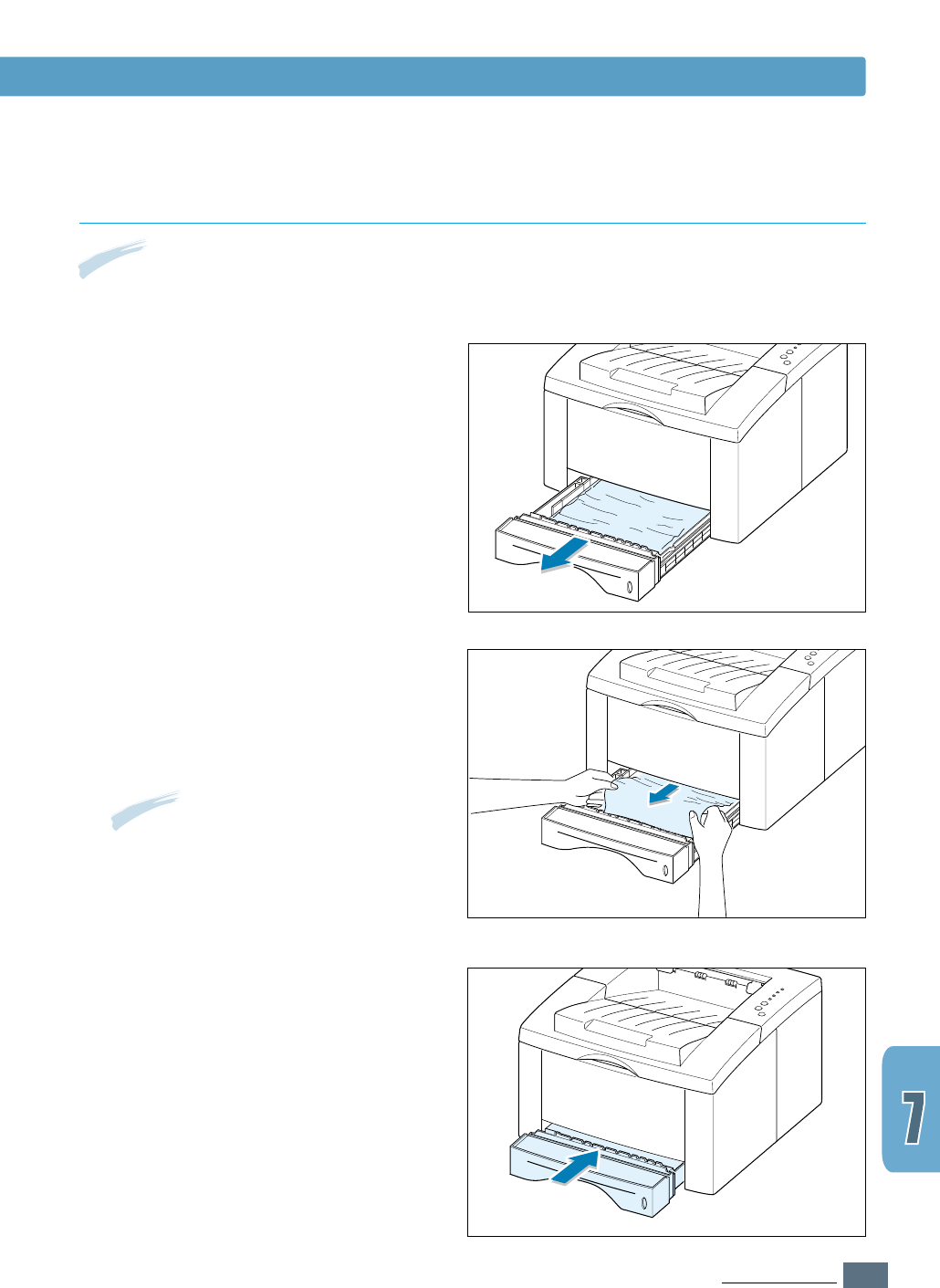
7
Replace the stopper as shown, and close
the rear output tray.
1
2
6
Replace the exit roller.
Make sure that you click the right
end of the roller back in place. If you
fail to do so, the printer system will
recognize that the printer cover is open
or that a system fuser error has
occurred, and the Error light on the
control panel will turn on.
8
To resume printing, open the top cover,
and then close it close it again.
Note: If the Paper and the Error lights do
not turn off, there is still jammed paper
inside the printer. Check the input area
and the inside of the printer.
7.9
PROBLEM SOLVING
Clearing Paper Jams
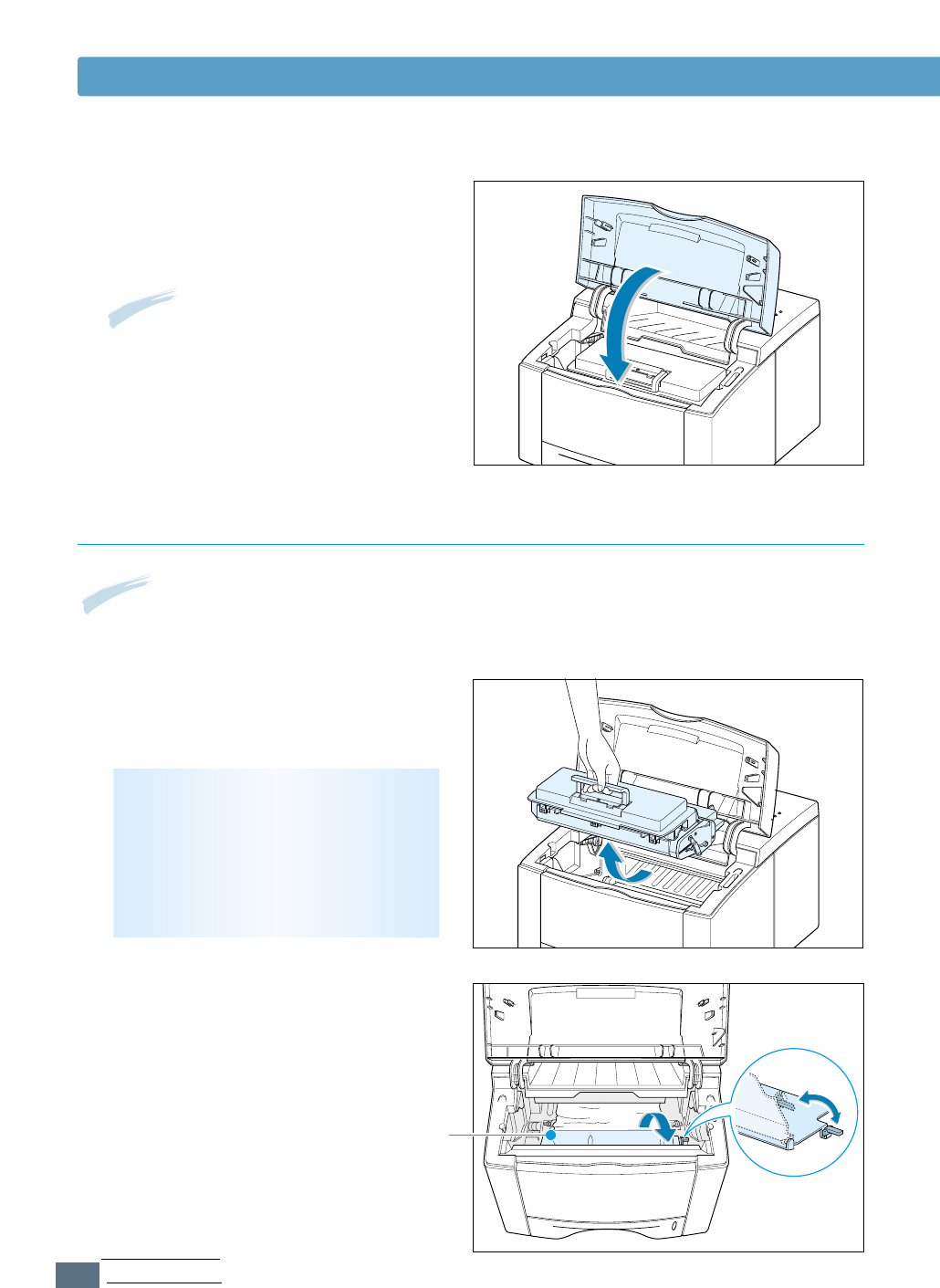
2
Remove any misfed paper by pulling it
out by the visible edge from the tray.
Make sure that all of the paper is
properly aligned in the tray.
Note: If paper has entered the toner cartridge area, follow the instructions on page 7.10. It is easier to
remove such jams from the inside of the printer than the paper input area.
Input Area
1
Slide out Auto tray to expose the
jammed paper.
Note: If the paper is jammed in the
paper feed area and cannot be
accessed from inside the printer, remove
Tray 1 from the printer and carefully pull
the jammed paper free from the printer.
3
Slide the tray back into the printer.
7.10
PROBLEM SOLVING
Clearing Paper Jams
4
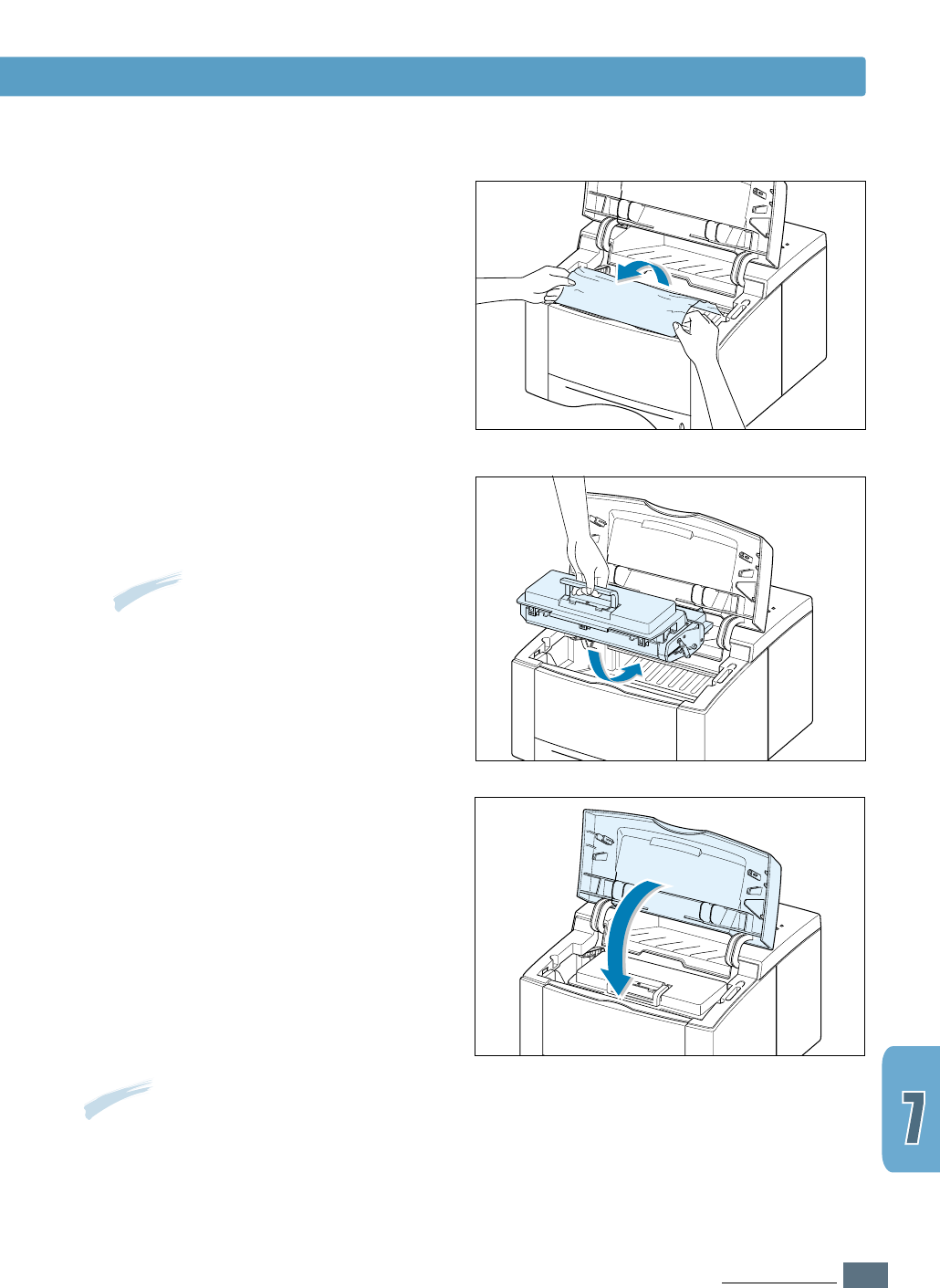
To resume printing, open the top cover,
and then close it again.
Note: If the Paper and the Error lights do
not turn off, there is still jammed paper
inside the printer. Check the inside of the
printer.
2
Carefully lift up the guide feed.
CAUTION: To prevent damage to the
toner cartridge, do not expose it to light
for more than a few minutes. Place a
piece of paper over the top of the toner
cartridge to shield it while it is out of the
printer.
Inside the Printer
1
Open the top cover and remove the
toner cartridge.
Guide feed
Note: Paper jams in this area may result in loose toner on the page. If you get any toner on your
clothes, wash them in cold water because hot water will set the toner into the fabric.
7.11
PROBLEM SOLVING
Clearing Paper Jams
3
Gently pull the paper toward you to
remove it from the printer.
4
Flip down the guide feed, and reinstall
the toner cartridge.
Note: If the toner cartridge is difficult to
reinstall, make sure the guide feed has
been flipped back down into position.
5
Close the top cover. Printing can be
resumed.
Note: If you have the optional Tray 2 installed, and cannot find the jammed paper in the output or
input area, or inside the printer, the paper jam may have occurred in the optional Tray 2.
See the next page to clear the jammed paper in the optional tray.
7.12
PROBLEM SOLVING
Clearing Paper Jams
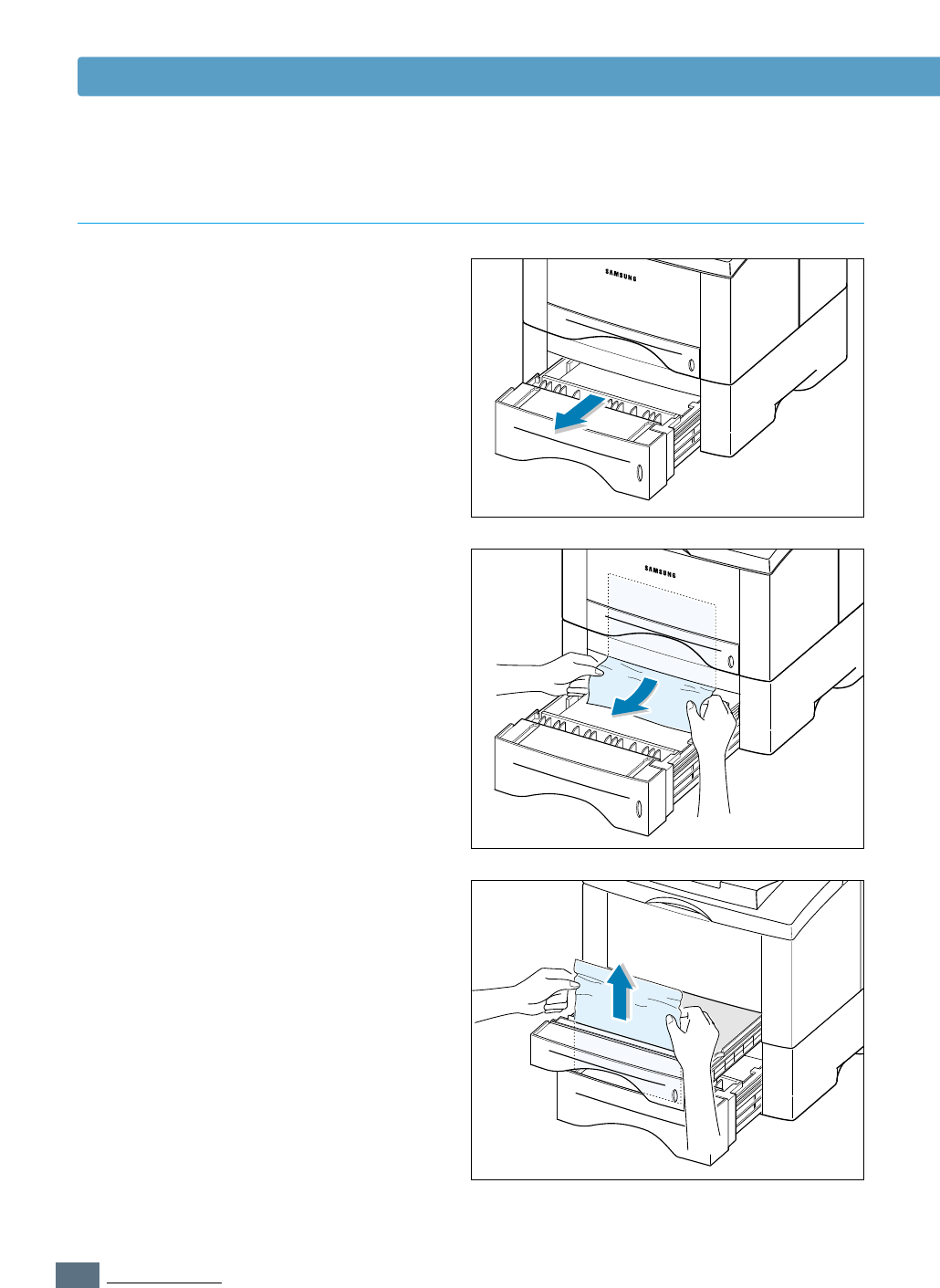
In the Optional Tray 2
1
Pull the option Tray 2 out of the printer.
2
If you see the jammed paper, remove
the paper from the tray.
3
If you cannot find the jammed paper in
the Tray 2, pull the upper Tray 1 half
way out of the printer, and remove the
paper as shown in the figure at right.
7.13
PROBLEM SOLVING
Clearing Paper Jams
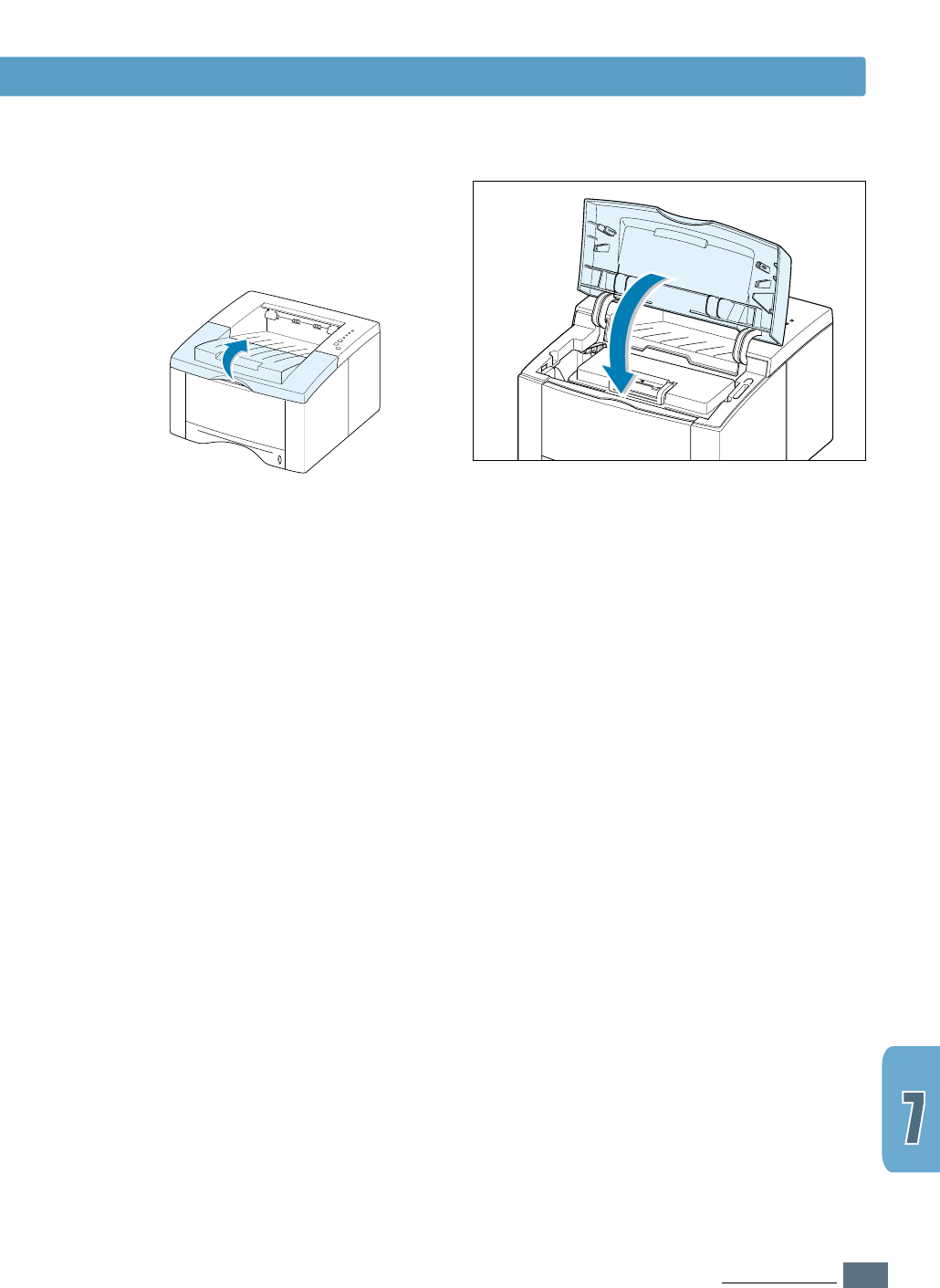
4
Slide the trays back into the printer.
Open the top cover, then close it again.
Printing can be resumed.

7.14
PROBLEM SOLVING
Clearing Paper Jams
Tips for Avoiding Paper Jams
By selecting correct paper types and loading them properly,
you should be able to avoid most paper jams. If paper jams
occur, follow the steps outlined in “Clearing Paper Jams” on
page 7.6. If jams occur frequently, make sure you are
following these tips to avoid jams.
• Follow the procedures in “Load Paper” on page 2.5 to load
the paper properly. Make sure the adjustable guides are
positioned correctly.
• Do not overload the paper tray. Make sure the paper is under
the paper capacity mark on the inside of the paper tray.
• Do not pull out the paper tray while print jobs are in process.
• Flex, fan and straighten the paper before loading it.
• Do not load stacks of labels or transparencies in the Tray 1.
Labels or transparencies must be fed using the Manual Tray.
• Do not load wrinkled, creased, damp or highly curled paper.
• Do not mix paper types in the paper tray.
• Use only recommended print media. See “Paper
Specifications” on page A.2.
• Make sure that the recommended print side is facing down
when loading the paper into the Tray 1 or optional Tray 2 and
facing up when loading into the Manual Tray.
• Keep print media stored in an acceptable environment.

7.15
PROBLEM SOLVING
Problem Solution
Solving Print Quality Problems
General print quality problems can be solved by following the checklist below.
• Check the printer properties to make sure that you are using the best available print quality
option (see page 5.18).
• Redistribute the toner in the toner cartridge (see page 6.2).
• Clean the inside of the printer (see page 6.4).
• Adjust the print resolution from the printer properties (see page 5.18).
• Check to make sure that Toner Save Mode is off (see page 5.6).
• Troubleshoot general printing problems (see page 7.2).
• Install a new toner cartridge, then check print quality again (see page 2.3).
Print Quality Checklist
Solving Print Quality Problems
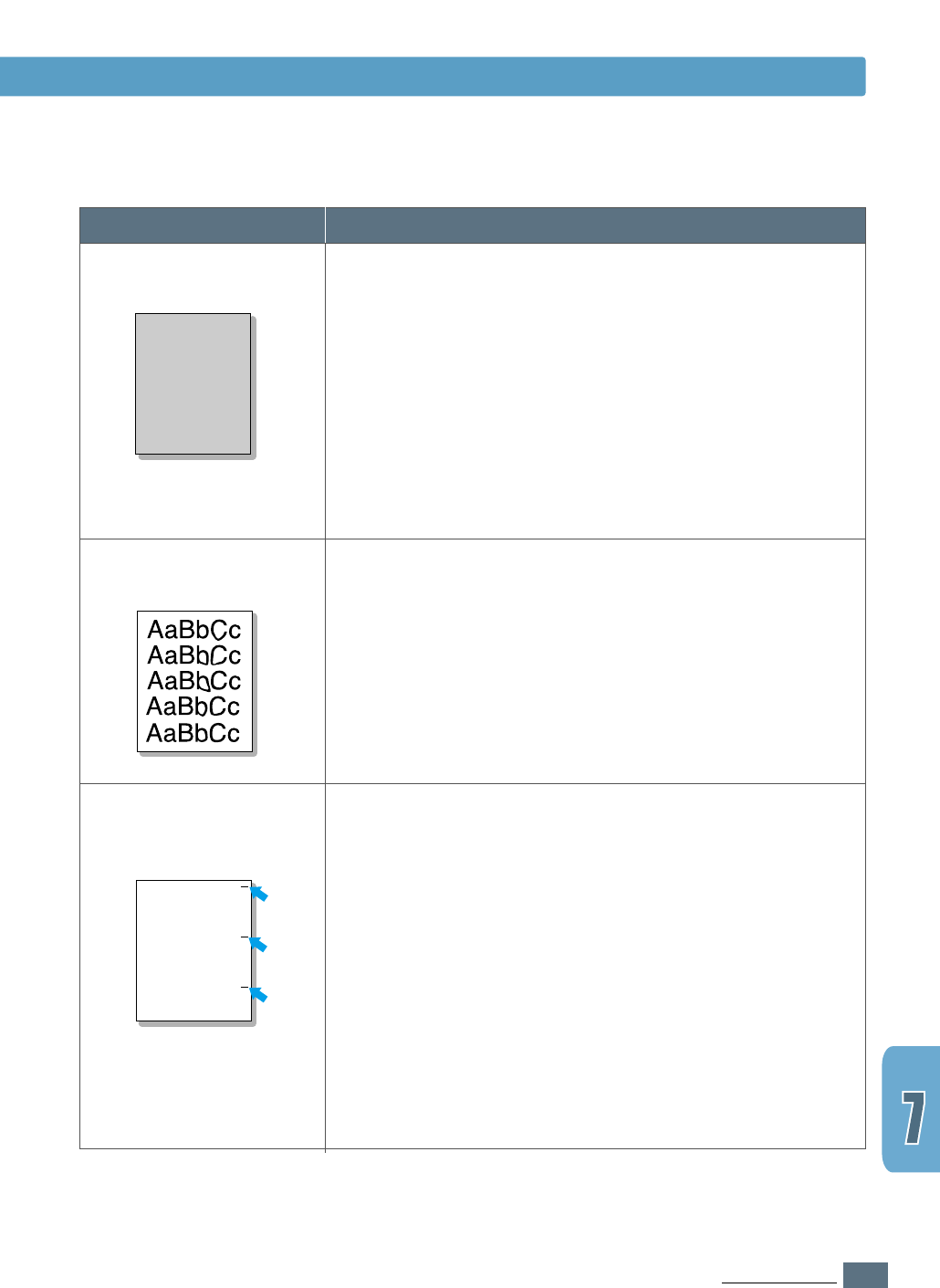
If a vertical white streak or faded area appears on the page:
• The toner supply is low. You may be able to temporarily
extend the toner cartridge life. See “Redistributing the
Toner” on page 6.2. If this does not improve the print
quality, install a new toner cartridge.
• The paper may not meet paper specifications (for example,
the paper is too moist or too rough). See “Paper
Specifications” on page A.2.
• If the whole page is light, the print resolution setting is too
light or Toner Save Mode may be on. Adjust the print
resolution and darkness setting within the printer properties.
See page 5.6 and 5.18 respectively.
• A combination of faded and smeared defects may indicate
that the toner cartridge needs cleaning. See “Cleaning the
Printer” on page 6.4.
• The surface of the LSU part inside the printer may be dirty.
Clean the LSU (see page 6.5).
Light or faded print
AaAaBbBbCcCc
AaAaBbBbCcCc
AaAaBbBbCcCc
AaAaBbBbCcCc
AaAaBbBbCcCc
AaBbCc
AaBbCc
AaBbCc
AaBbCc
AaBbCc
7.16
PROBLEM SOLVING
Problem Solution
• The paper may not meet paper specifications (for example,
the paper is too moist or too rough). See “Paper
Specifications” on page A.2.
• The transfer roller may be dirty. See “Cleaning the Inside”
on page 6.4.
• The paper path may need cleaning. See “Cleaning the
Inside” on page 6.4.
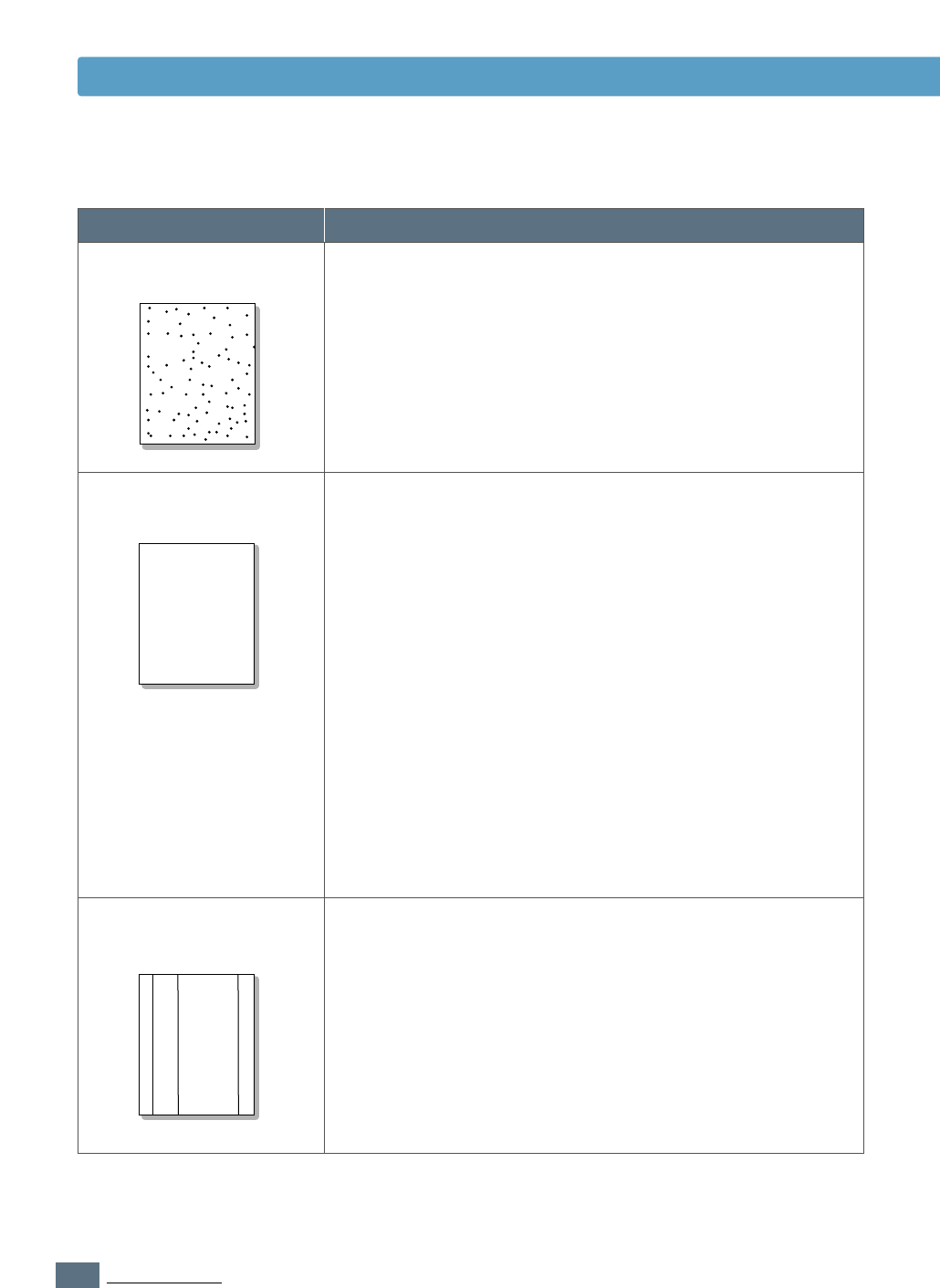
Toner specks
If faded areas, generally rounded, occur randomly on the
page:
• A single sheet of paper may be defective. Try reprinting
the job.
• The moisture content of the paper is uneven or the paper
has moist spots on its surface. Try a different kind or brand
of paper. See “Paper Specifications” on page A.2.
• The paper lot is bad. The manufacturing processes can
cause some areas to reject toner. Try a different kind or
brand of paper.
• The toner cartridge may be defective. See “Repetitive
vertical defects” on page 7.17.
• If these steps do not correct the problems, contact a
service representative.
Dropouts
If black vertical streaks appear on the page:
• The photosensitive drum inside the toner cartridge has
probably been scratched. Install a new toner cartridge.
If white vertical streaks appear on the page:
• The surface of the LSU part inside the printer may be dirty.
Clean the LSU (see page 6.5).
Vertical lines
AaBbCc
AaBbCc
AaBbCc
AaBbCc
AaBbCc
AaBbCc
AaBbCc
AaBbCc
AaBbCc
AaBbCc
AaBbCc
AaBbCc
AaBbCc
AaBbCc
AaBbCc
AaBbCc
AaBbCc
AaBbCc
AaBbCc
AaBbCc
AaBbCc
AaBbCc
AaBbCc
AaBbCc
AaBbCc
AaBbCc
AaBbCc
AaBbCc
AaBbCc
AaBbCc
AaBbCc
AaBbCc
AaBbCc
AaBbCc
AaBbCc
AaBbCcAaBbCc
AaBbCcAaBbCc
AaBbCcAaBbCc
AaBbCcAaBbCc
AaBbCcAaBbCc
Solving Print Quality Problems
7.17
PROBLEM SOLVING
Solving Print Quality Problems
Problem Solution
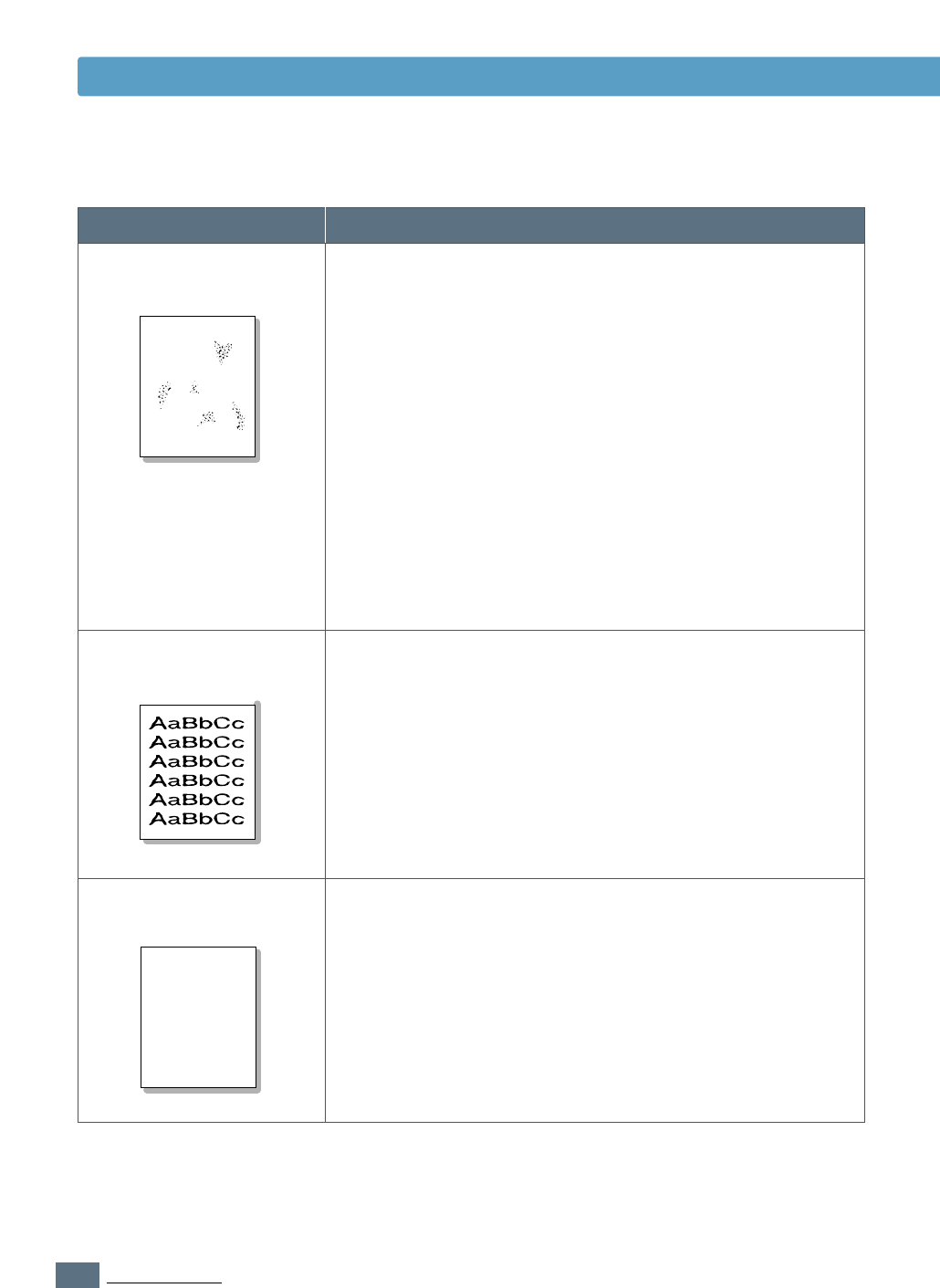
If the amount of background toner shading becomes
unacceptable, the procedures below may help to clear the
condition:
• Change the paper to a lighter basis weight. See “Paper
Specifications” on page A.2.
• Check the printer’s environment; very dry (low humidity)
or high humidity (higher than 80 % RH) conditions can
increase the amount of background shading.
• Install a new toner cartridge.
Gray background
• Clean the inside of the printer. See “Cleaning the Inside”
on page 6.4.
• Check the paper type and quality. See “Paper
Specifications” on page A.2.
• Try installing a new toner cartridge.
Toner smear
If marks repeatedly appear on the printed side of the page
at even intervals:
• The toner cartridge may be damaged. If a repetitive mark
occurs every 95 mm or 38 mm on the page, print the
cleaning sheet several times to clean the cartridge (see
page 6.5). If you still have the same problems, install a
new toner cartridge.
• Parts in the printer may have toner on them. If the defects
occur on the back of the page, the problem will likely
correct itself after a few more pages.
• The fusing assembly may be damaged. Contact a service
representative.
Repetitive vertical
defects
AaBbCc
AaBbCc
AaBbCc
AaBbCc
AaBbCc
AaBbCc
AaBbCc
AaBbCc
AaBbCc
AaBbCc
AaBbCc
AaBbCc
AaBbCc
AaBbCc
AaBbCc
AaBbCc
AaBbCc
AaBbCc
AaBbCc
AaBbCc
AaBbCc
AaBbCc
AaBbCc
AaBbCc
AaBbCc
AaBbCc
AaBbCc
AaBbCc
AaBbCc
AaBbCc
AaBbCc
AaBbCc
AaBbCc
AaBbCc
AaBbCc
AaBbCc
AaBbCc
AaBbCc
AaBbCc
AaBbCc
7.18
PROBLEM SOLVING
Solving Print Quality Problems
Problem Solution
• If characters are improperly formed, producing hollow
images, the paper stock may be too slick. Try a different
paper. See “Paper Specifications” on page A.2.
• If characters are improperly formed, producing a wavy
effect, the scanner unit may need service. Check to see if
it also occurs on a demo page by pressing the Demo
button on the control panel when the printer is ready. If
you need service, contact a service representative.
Misformed characters
• Check the paper type and quality. See “Paper
Specifications” on page A.2.
• Make sure that the paper or other media is loaded
correctly and the guides are not too tight or too loose
against the paper stack.
Page skew
Background scatter results from bits of toner distributed on
the printed page.
• The paper may be too damp. Try printing with a different
batch of paper. Do not open packages of paper until
necessary so that the paper does not absorb too much
moisture from the air.
• If background scatter occurs on an envelope, change your
printing layout to avoid printing over areas that have
overlapping seams on the reverse side. Printing on seams
can cause this problem.
• If background scatter covers the entire surface of a printed
page, adjust the print resolution through your software
application or the printer properties.
Background scatter
AaBbCc
AaBbCc
AaBbCc
AaBbCc
AaBbCc
AaBbCc
AaBbCc
AaBbCc
AaBbCc
AaBbCc
A
AaBbCc
AaBbCc
AaBbCc
AaBbCc
AaBbCc
AaBbCc
AaBbCc
AaBbCc
AaBbCc
AaBbCc
AaBbCc
AaBbCc
AaBbCc
AaBbCc
AaBbCc
AaBbCc
AaBbCc
AaBbCc
AaBbCc
AaBbCc
AaBbCc
AaBbCc
AaBbCc
AaBbCc
AaBbCc
7.19
PROBLEM SOLVING
Solving Print Quality Problems
Problem Solution
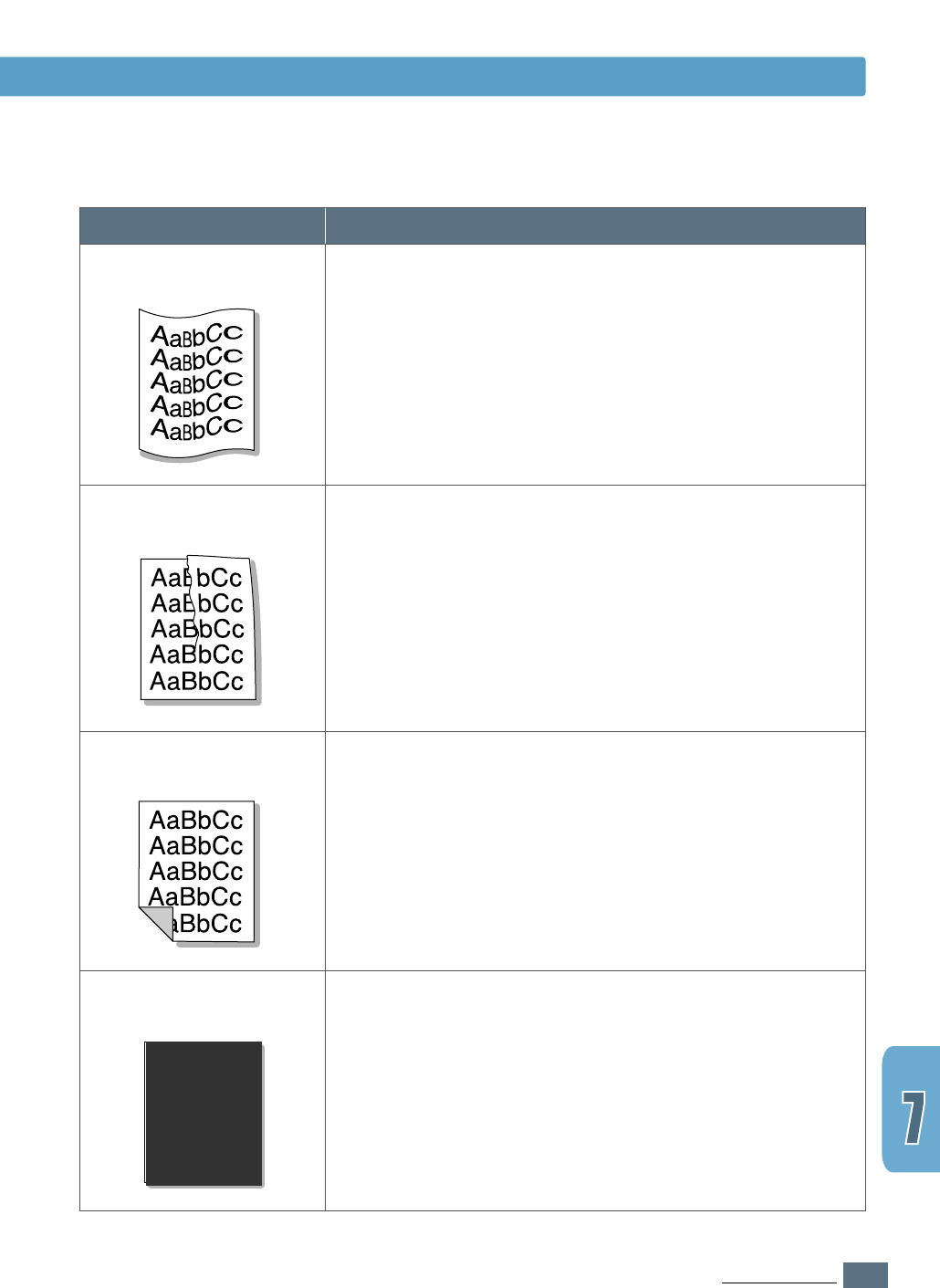
• Check the paper type and quality. Both high temperature
and humidity will cause paper curl. See “Paper
Specifications” on page A.2.
• Turn over the stack of paper in the paper tray. Also try
rotating the paper 180° in the paper tray.
• Open the rear output tray and try printing to the face up
output tray.
Curl or wave
• Make sure that paper is loaded properly.
• Check the paper type and quality. See “Paper
Specifications” on page A.2.
• Open the rear output tray and try printing to the face up
output tray.
• Turn over the stack of paper in the paper tray. Also try
rotating the paper 180° in the tray.
Wrinkles or creases
• The transfer roller may be dirty. See “Cleaning the Inside”
on page 6.4.
• Check if the toner is leaking. Clean inside the printer.
Back of printouts dirty
• The toner cartridge may not be installed properly. Remove
the cartridge and reinsert it.
• The toner cartridge may be defective and need replacing.
Install a new toner cartridge.
• The printer may require repairs. Contact a service
representative.
AaBbCc
AaBbCc
AaBbCc
AaBbCc
AaBbCc
AaBbCc
AaBbCc
AaBbCc
AaBbCc
AaBbCc
AaBbCc
AaBbCc
AaBbCc
AaBbCc
AaBbCc
AaBbCc
AaBbCc
AaBbCc
AaBbCc
AaBbCc
AaBbCc
AaBbCc
AaBbCc
AaBbCc
AaBbCc
AaBbCc
AaBbCc
AaBbCc
AaBbCc
AaBbCc
AaBbCc
AaBbCc
AaBbCc
AaBbCc
AaBbCc
AaBbCc
AaBbCc
AaBbCc
AaBbCc
AaBbCc
Black pages
7.20
PROBLEM SOLVING
Solving Print Quality Problems
Problem Solution
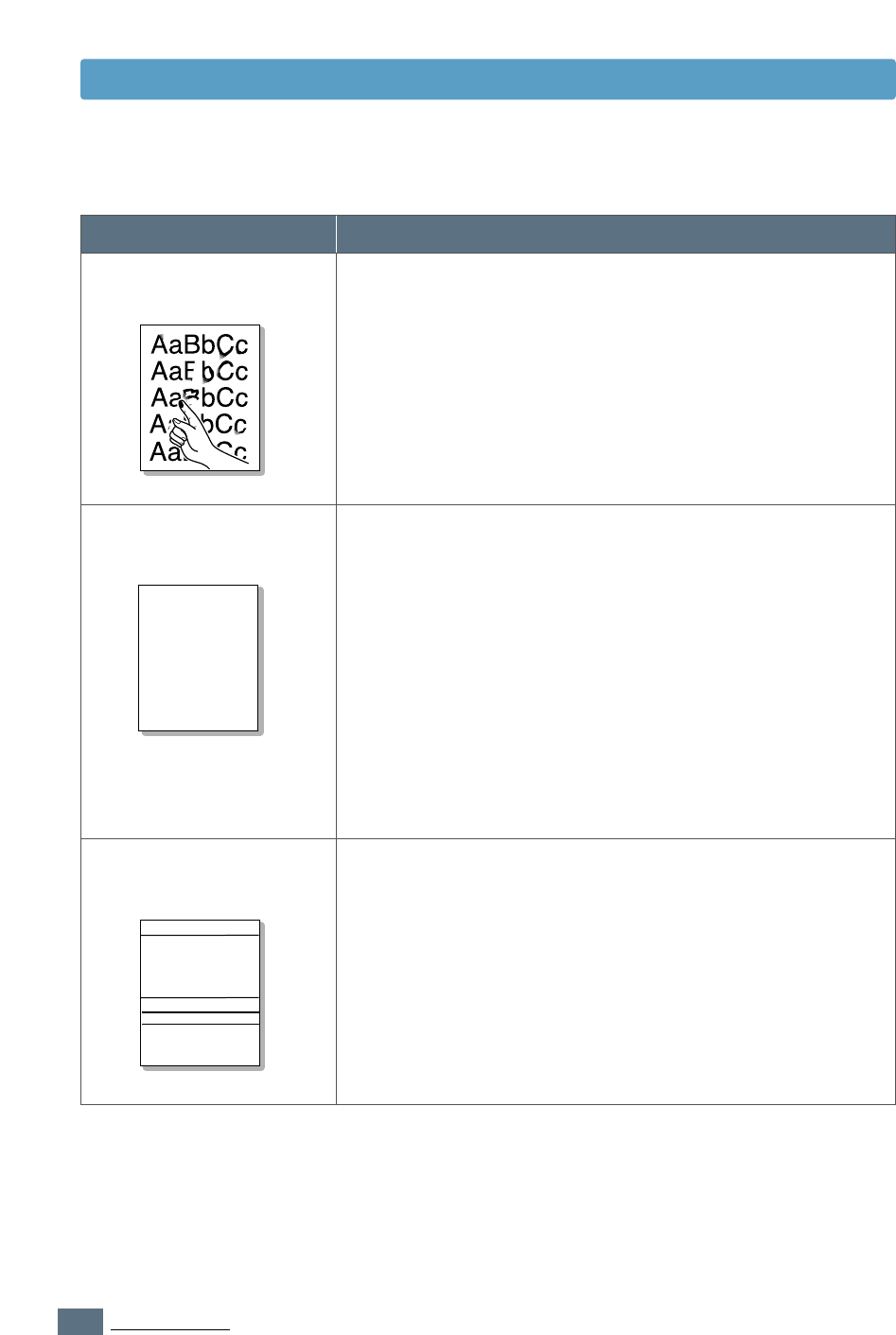
Character voids are white areas within the parts of
characters that should be solid black:
• If you are using transparencies when you experience this
problem, try another type of transparency. (Because of the
composition of transparency media, some character voids
are normal.)
• You may be printing on the wrong surface of the paper.
Remove the paper and turn it around.
• The paper may not meet paper specifications. See “Paper
Specifications” on page A.2.
Character Voids
• Clean the inside of the printer.
• Check the paper type and quality. See “Paper
Specifications” on page A.2.
• Try installing a new toner cartridge.
• If the problem persists, the printer may require repairs.
Contact a service representative.
Loose toner
If horizontally aligned black streaks or smears appear:
• The toner cartridge may be installed improperly. Remove
the cartridge and reinsert it.
• The toner cartridge may be defective. Install a new toner
cartridge.
• If the problem persists, the printer may require repairs.
Contact a service representative.
Horizontal stripes
AaBbCc
AaBbCc
AaBbCc
AaBbCc
AaBbCc
AaBbCc
AaBbCc
AaBbCc
AaBbCc
AaBbCc
AaBbCc
AaBbCc
AaBbCc
AaBbCc
AaBbCc
AaBbCc
AaBbCc
AaBbCc
AaBbCc
AaBbCc
A
AaBbCc
AaBbCc
AaBbCc
AaBbCc
AaBbCc
AaBbCc
AaBbCc
AaBbCc
AaBbCc
AaBbCc
AaBbCc
AaBbCc
AaBbCc
AaBbCc
AaBbCc
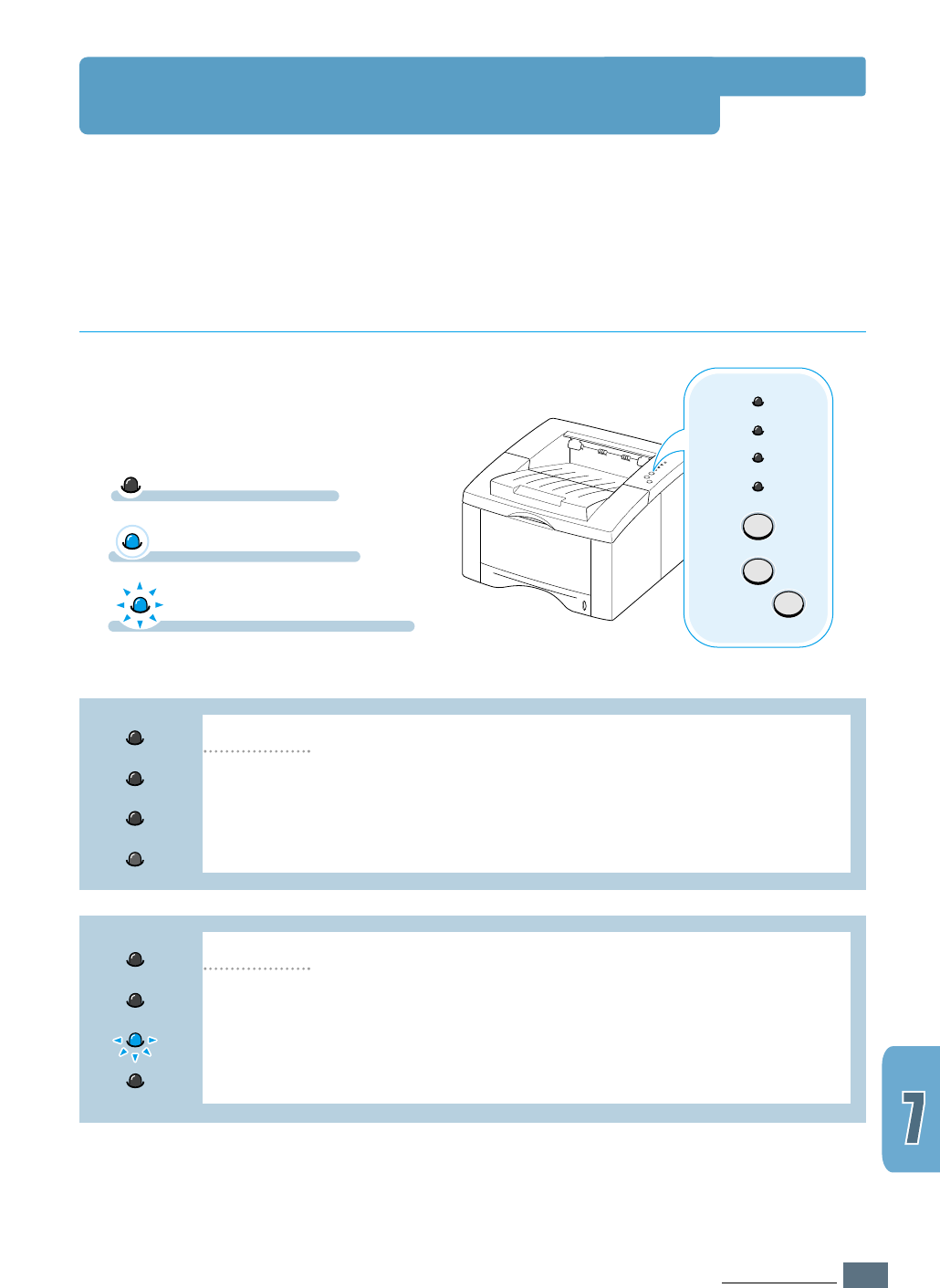
7.21
PROBLEM SOLVING
Error
Manual
Paper
Data
Cancel/Reprint
Demo
Toner Save
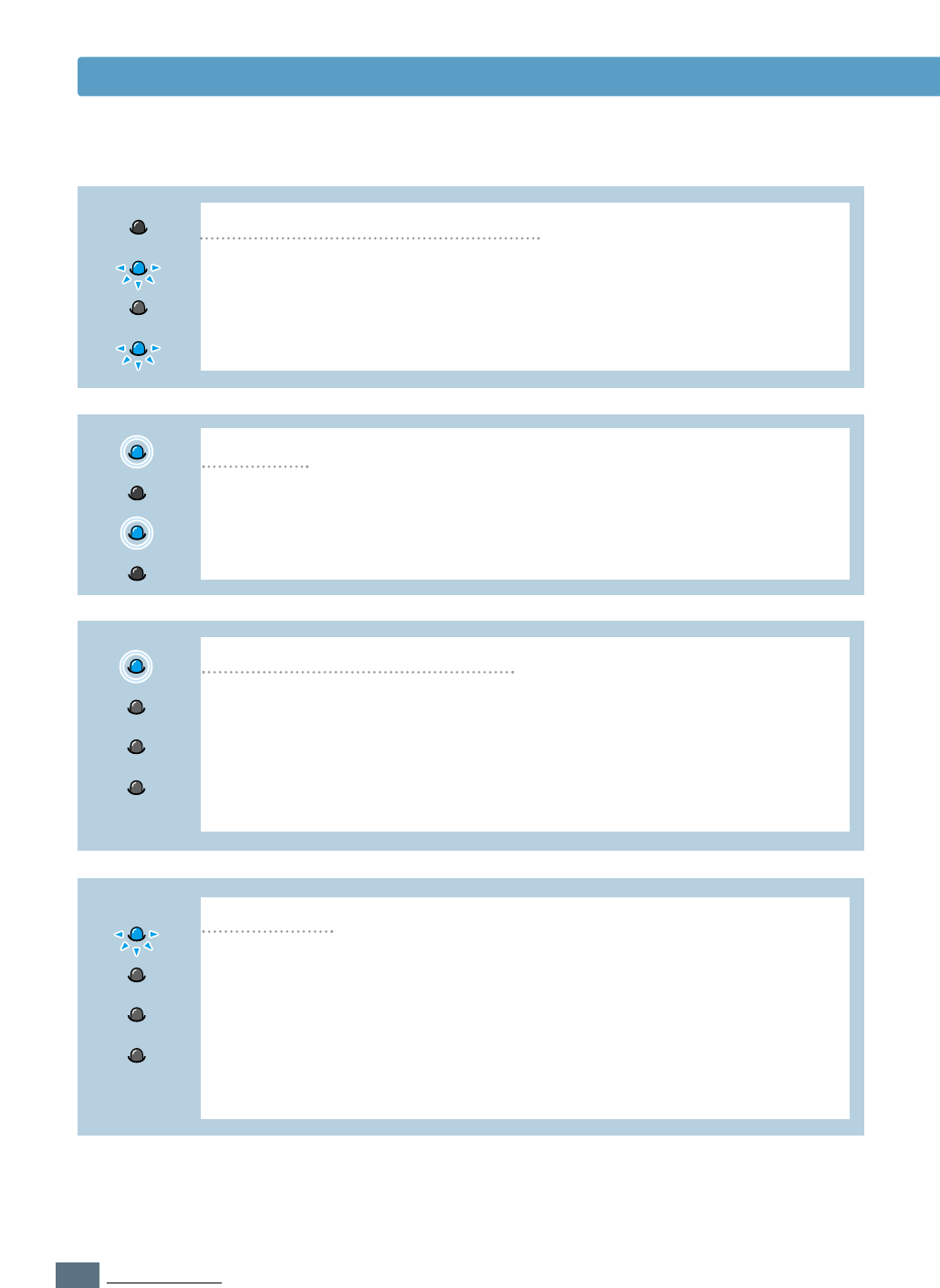
When the printer detects an error, the control panel indicator lights will indicate error
messages. Find the light pattern below that matches the printer light pattern and follow the
solutions to clear the error.
Troubleshooting Error Messages
Printer Light Patterns
Light status legend
symbol for “light on”
• Check the power cord and the power switch if your printer does not
generate a response.
• Make sure that the printer is powered with the specified AC voltage.
Power off
Error
Manual
Paper
Data
The printer is out of paper in the paper tray. The Paper light blinks until
paper is added.
• Loading paper into the tray will cancel this message and allow you to
continue with the print job.
Paper out
Data
Error
Manual
Paper
symbol for “light blinking”
symbol for “light off”
7.22
PROBLEM SOLVING
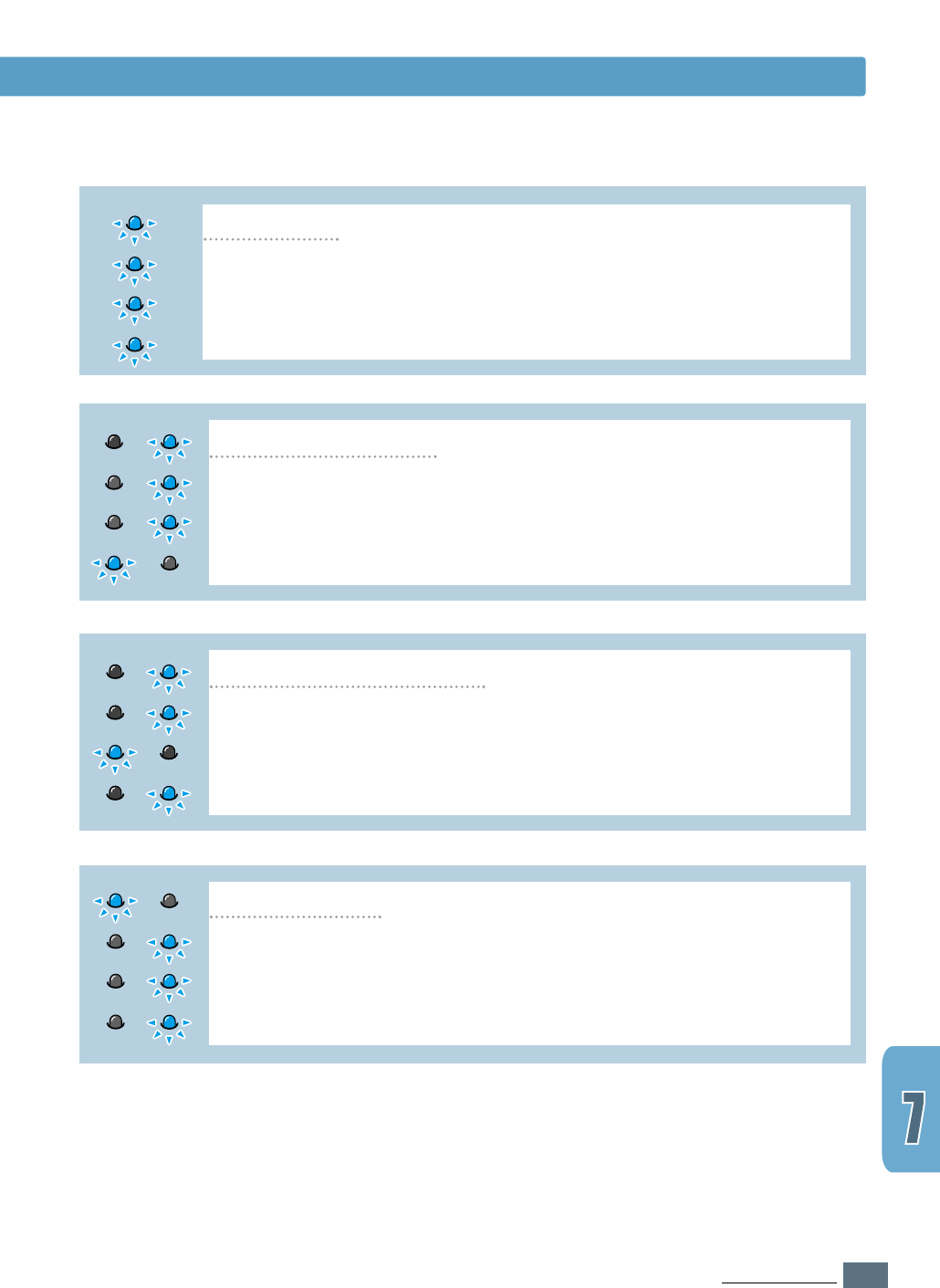
Paper is jammed inside the printer.
• Clear the paper jam. See “Clearing Paper Jams” on page 7.6.
Paper jam
Error
Manual
Paper
Data
The printer memory ran out of memory in the middle of a print job. The
page being printed may have been too complex for the memory capacity
of the printer. Press the Cancel/Reprint button to cancel the current job.
• Try to free some printer memory by removing any unnecessary fonts,
macros, or any data currently in printer memory.
• For a temporary solution, simplify the image or print at a lower resolution.
Memory out
Error
Manual
Paper
Data
The printer top cover may be opened or the toner cartridge is not
installed.
• Check that the printer top cover door and rear door (face-up output tray)
are closed properly.
• Make sure that the toner cartridge is correctly installed in the printer.
Door open, or no toner cartridge
Error
Manual
Paper
Data
Troubleshooting Error Messages
While printing in the manual feed mode, the printer is out of paper in
the Manual Tray.
• Load the correct paper into the Manual Tray and press the Demo button
on the control panel to print each page.
Error
Manual
Paper
Data
Paper out in the manual feed mode
7.23
PROBLEM SOLVING
Troubleshooting Error Messages
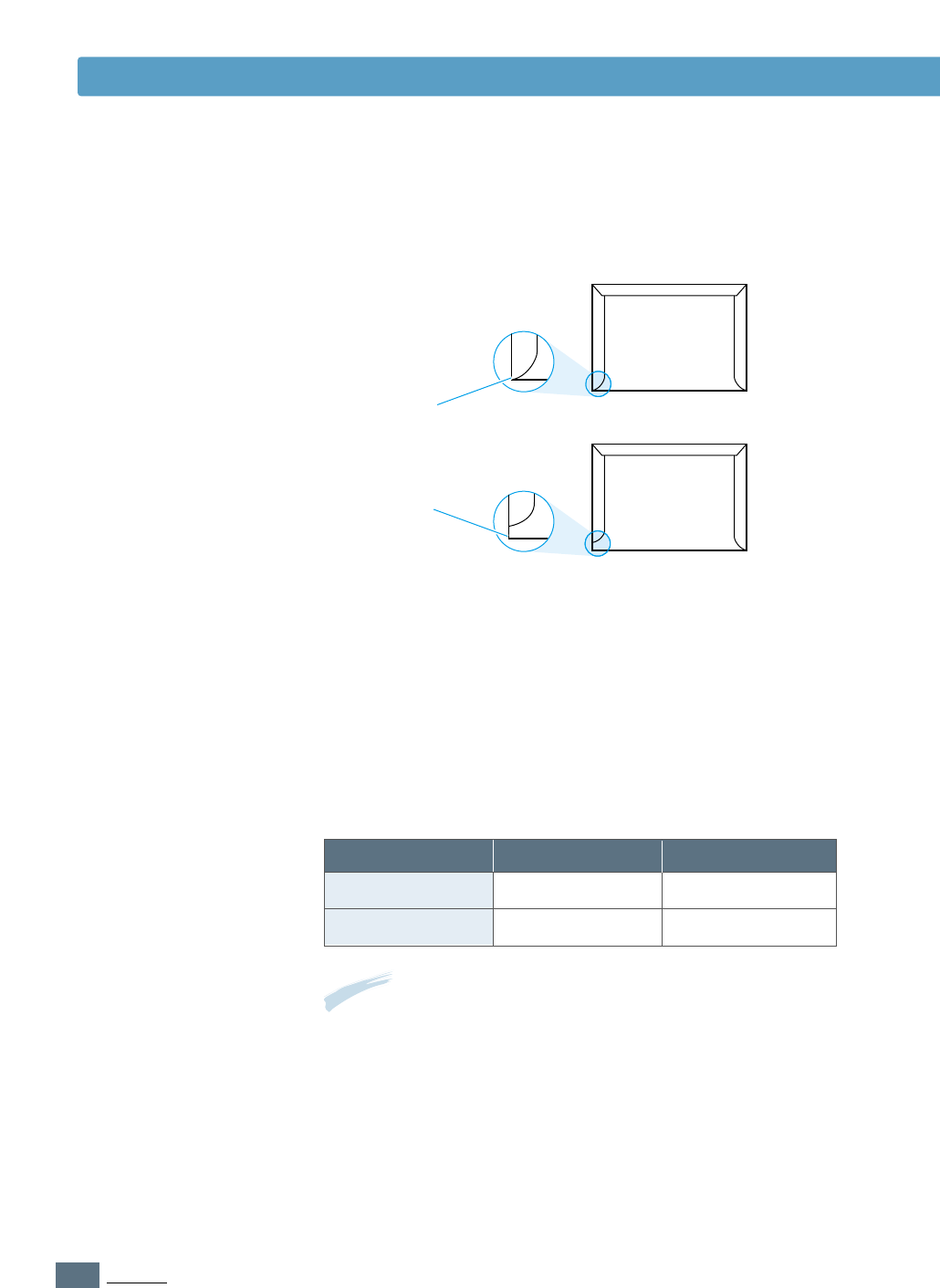
• Reset the printer by briefly turning the printer off and back on again.
• If the error persists, contact the service representative.
Engine Over Heat error
Error
Manual
Paper
Data
Error
Manual
Paper
Data
• Reset the printer by briefly turning the printer off and back on again.
• If the error persists, contact the service representative.
System error(No Heat error)
Error
Manual
Paper
Data
Error
Manual
Paper
Data
• Reset the printer by briefly turning the printer off and back on again.
• If the error persists, contact the service representative.
Open Fuser error
Error
Manual
Paper
Data
Error
Manual
Paper
Data
• Reset the printer by briefly turning the printer off and back on again.
• If the error persists, contact the service representative.
LSU error
Error
Manual
Paper
Data

7.24
PROBLEM SOLVING
Common Windows Problems
Note: Refer to Microsoft Windows 9x, Me, NT 4.0, 2000 or XP documentation that came with your
PC for further information on Windows error messages.
Possible Cause and Solution
Quit all software applications. Remove all software from the
StartUp Group, then restart Windows. Reinstall the printer
driver.
• Make sure that the cables are connected correctly, the
printer is on, and the Data light on the control panel is on.
• If bi-directional communication is not turned on in the
driver, it will also cause this message.
• From the Start menu, select Settings, then Printers.
Right-click on the Samsung ML-1440 Series printer icon
and select Properties. From the Details tab, click on
Port Settings. Remove check from Check Port State
before Printing box and click OK. From Spool Settings,
select Print Directly to Printer and click OK. Try
printing again.
Close all other applications, reboot Windows, and try
printing again.
Problem
“File in Use” message
appears during installation.
“Error Writing to LPTx”
message appears.
“General Protection Fault”,
“Exception OE”, “Spool32”,
or “Illegal Operation”
messages appears.

7.25
PROBLEM SOLVING
Problem
The printer driver icon
does not appear in the
Chooser.
Possible Cause and Solution
Software is not installed correctly.
• The LaserWriter driver should be present as a part of the
Macintosh OS. Make sure that the LaserWriter driver is in the
Extensions folder within the Systems folder. If not, install
the LaserWriter driver component from the Macintosh OS CD.
• Make sure that you are using a high-quality cable.
• Make sure that the printer is on the correct network. Select
Network or AppleTalk Control Panel from Control
Panels in the Apple menu and then choose the correct
network.
Common Macintosh Problems
Problems in the Chooser
Problem
You cannot use the
computer while the printer
is printing.
Possible Cause and Solution
Background Printing has not been selected.
• For LaserWriter 8.3, turn Background Printing on in the
Chooser. Status messages will now be redirected to the
Print Monitor allowing you to continue working while the
computer is processing data to be sent to the printer.
• For LaserWriter 8.4 or higher, turn Background Printing
on at the Print dialog box.
Printing Errors

This appendix provides information on the following topics:
◆
Printer Specifications
◆
Paper Specifications
◆
Using Your Printer with Macintosh
◆
Linux Driver Installation
◆
Using Paper Tray 2 (Option)
Appendix
Appendix

A.1
APPENDIX
Printer Specifications
Item Specification and Description
Print Speed
14 PPM (A4), 15 PPM (Letter)
Resolution
True 600 x 600 dpi
First Printing Time
Less than 15 seconds
WarmUp Time
Less than 40 seconds
Power Rating
AC 100 ~ 127 V (USA, Canada) / 220 ~ 240 V (Others), 50 / 60 Hz
Power Consumption
350 W average during operation / Less than 12 W in power-save mode
Acoustic Noise
Stand by: Less than 35 dB; Operating: Less than 48 dB
Toner Supply
Single cartridge
Toner Cartridge Life
6,000 pages (for starter, 3,000 pages), 5% area coverage
Duty Cycle
Monthly: 12,000 pages maximum
Weight
11.2 Kg / 24.7 lb.
External Dimensions
361 (W) x 409 (D) x 247 (H) mm (without options)
Operating Environment
Temperature:10 ~ 32 °C / 50 ~ 90 °F; Humidity: 20 ~ 80 % RH
Emulation
SPL
Memory(RAM)
Standard: 8MB (Not Expandable)
Fonts
1 bitmap, 45 scalable
Interface Switching
Automatic (Parallel, USB)
Interface
•
14PPM (A4) Bidirectional Parallel Standard
- Modes supported: Compatible, Nibble, Byte, ECP
•
USB Interface Standard
- USB 1.1 compliant
- 12Mbps 1 port
Package Weight
Paper: 1.7 Kg
Plastic: 0.33 Kg

A.2
APPENDIX
Paper Specifications
Tray 1
Letter
Dimensionsa
8.5 X 11 in. (216 X 279 mm)
16 to 28 lb Bond
(60 to 105 g/m2)
270 sheets of
20 lb Bond
(75 g/m2)
paper
Weight Capacityb
A4
210 X 297 mm (8.3 X 11.7 in.)
Executive
Legal
B5 (JIS)
Folio
A5
A6
7.25 X 10.5 in. (191 X 267 mm)
8.5 X 14 in. (216 X 356 mm)
182 X 257 mm (7.2 X 10 in.)
216 X 330 mm (8.5 X 13 in.)
148 X 210 mm
105 X 148 mm
This printer accepts a variety of media, such as cut-sheet paper (including up to 100 %
recycled fiber content paper), envelopes, labels, transparencies and custom-size paper.
Properties such as weight, composition, grain and moisture content are important factors
affecting printer performance and output quality. Paper that does not meet the guidelines
outlined in this manual can cause the following problems:
• Poor print quality
•
Increased paper jams
•
Premature wear on the printer, requiring repairs.
Overview
Supported Sizes of Paper
Notes:
• Some paper may meet all of the guidelines in this manual and still not produce satisfactory
results. This might be the result of improper handling, unacceptable temperature and humidity
levels, or other variables over which Samsung has no control.
• Before purchasing large quantities of paper, make sure that the paper meets the requirements
specified in this user guide. Always test paper before buying large quantities.
CAUTION: Using paper that does not meet that stated specifications may cause problems
for the printer, requiring repairs. Repairs made necessary by the use of paper not
specified in this manual are not covered by the Samsung warranty or service agreements.

A.3
APPENDIX
Optional Tray 2
Letter
Dimensionsa
8.5 X 11 in. (
216 X 279 mm
)
16 to 28 lb Bond
(60 to 105 g/m2)
550 sheets of
20 lb Bond
(75 g/m2)
paper
Weight Capacityb
A4
210 X 297 mm (8.3 X 11.7 in.)
Executive
Legal
B5 (JIS)
Folio
A5
7.3 X 10.5 in. (191 X 267 mm)
8.5 X 14 in. (
216 X 356 mm
)
182 X 257 mm
(7.2 X 10 in.)
216 X 330 mm
(8.5 X 13 in.)
148 X 210 mm
Manual Tray
Minimum Size (custom)
Dimensionsa
98 X 148 mm (3.9 X 5.83 in.) 60 to 163 g/m2Bond
(16 to 43 lb )
1 sheets of
paper
Weight Capacityb
Maximum Size (custom)
216 X 356 mm (8.5 X 14 in.)
Transparency
Labels
c
Envelopes
Same minimum and
maximum paper sizes as
listed above.
Thickness:
.10 X .14 mm
(0.0039 X 0.0055 in.)
Thickness:
.10 X .14 mm
(0.0039 X 0.0055 in.)
up to 90 g/m2
(16-24 lb)
a. The printer supports a wide range of media sizes. See “Printing on Card Stock or Custom-Sized Media” on
page 4.15.
b. Capacity may vary depending on media weight and thickness, and environmental conditions.
c. Smoothness - 100 to 250 (Sheffield)
Note: You may experience some paper jams when using any media with a length of less than
148 mm (5.83 in.). For optimum performance, make sure you are storing and handling the paper
correctly. Please refer to “Printer and Paper Storage Environment” on page A.6.
Paper Specifications

A.4
APPENDIX
Paper Specifications
For best results, use conventional 90 g/m
2
(24 lb) paper. Make sure the paper is of good
quality, and free of cuts, nicks, tears, spots, loose particles, dust, wrinkles, voids, and curled
or bent edges.
If you are unsure of what type of paper you are loading (such as bond or recycled), check the
label on the package of the paper.
The following problems with paper can cause print quality deviations, jamming, or even
damage to the printer.
Symptom
Poor print quality or
toner adhesion
Problems with feeding
Dropout, jamming,
curl
Increased gray
background shading
/printer wear
Excessive curl
problems with feeding
Jamming, damage to
printer
Problems with feeding
Problem with Paper
Too moist, too rough, too
smooth, or embossed;
faulty paper lot
Stored improperly
Too heavy
Too moist, wrong grain
direction or short-grain
construction
Cutouts or perforations
Ragged edges
Solution
Try another kind of paper,
between 100 ~ 250 Sheffield,
4 ~ 5 % moisture content.
Store paper flat in its moisture-
proof wrapping.
Use lighter paper, open the rear
output tray.
• Open the rear output tray.
• Use long-grain paper.
Do not use paper with cutouts or
perforations.
Use good quality paper
Notes:
• Do not use letterhead paper that is printed with low-temperature inks, such as those used in some
types of thermography.
• Do not use raised or embossed letterhead.
• The printer uses heat and pressure to fuse toner to the paper. Make sure that any colored paper or
preprinted forms use inks that are compatible with this fusing temperature (200 °C or 392 °F for 0.1
second).
Guidelines for Using Paper

A.5
APPENDIX
Paper Specifications
Category
Acid Content
Specifications
5.5 ~ 8.0 pH
Caliper
.094 ~ .18 mm (3.0 ~ 7.0 mils)
Curl in Ream
Cut Edge Conditions
Fusing Compatibility
Grain
Flat within 5 mm (.02 in.)
Cut with sharp blades with no visible fray.
Moisture Content
4 % ~ 6 % by weight
Smoothness
100 ~ 250 Sheffield
Must not scorch, melt, offset, or release hazardous
emissions when heated to 200 °C (392 °F) for .1
second.
Long Grain
Paper Specifications
Output Tray
Top output (Face-down) tray
Capacity
250 sheets of 20 lb bond (75 g/m2) paper
Rear output (Face-up) tray
100 sheets of 20 lb bond (75 g/m2) paper
Paper Output Capacity

A.6
APPENDIX
Ideally, the printer and paper storage environment should be
at or near room temperature, and not too dry or humid.
Remember that paper absorbs and loses moisture rapidly.
Heat works with humidity to damage paper. Heat causes the
moisture in paper to evaporate, while cold causes it to
condense on the sheets. Heating systems and air conditioners
remove most of the humidity from a room. As paper is opened
and used, it loses moisture, causing streaks and smudging.
Humid weather or water coolers can cause the humidity to
increase in a room. As paper is opened and used it absorbs
any excess moisture, causing light print and dropouts. Also, as
paper loses and gains moisture it can distort. This can cause
paper jams.
As a result, paper storage and handling are as important as
the paper-making process itself. Paper storage environmental
conditions directly affect the feed operation.
Care should be taken not to purchase more paper than can be
easily used in a short time (about 3 months). Paper stored for
long periods may experience heat and moisture extremes,
which can cause damage. Planning is important to prevent
damage to a large supply of paper.
Unopened paper in sealed reams can remain stable for several
months before use. Opened packages of paper have more
potential for environment damage, especially if they are not
wrapped with a moisture-proof barrier.
The paper storage environment should be properly maintained
to ensure optimum printer performance. The required condition
is 20 ° to 24 °C (68° to 75 °F), with a relative humidity of
45 % to 55 %. The following guidelines should be helpful when
evaluating the paper’s storage environment:
• Paper should be stored at or near room temperature.
• The air should not be too dry or too humid (due to the
hygroscopic properties of paper).
• The best way to store an opened ream of paper is to rewrap it
tightly in its moisture-proof wrapping. If the printer
environment is subject to extremes, unwrap only the amount
of paper to be used during the day’s operation to prevent
unwanted moisture changes.
Paper Specifications
Printer and Paper Storage Environment

A.7
APPENDIX
Envelope construction is critical. Envelope fold lines can vary
considerably, not only between manufacturers, but also within
a box from the same manufacturer. Successful printing on
envelopes depends upon the quality of the envelopes. When
selecting envelopes, consider the following components:
• Weight: The weight of the envelope paper should not exceed
90 g/m
2
(24 lb) or jamming may occur.
• Construction: Prior to printing, envelopes should lie flat with
less than 6 mm (0.25 in.) curl, and should not contain air.
• Condition: Envelopes should not be wrinkled, nicked, or
otherwise damaged.
• Temperature: You should use envelopes that are compatible
with the heat and pressure of the printer.
• Size: You should only use envelopes within the following size
ranges.
Note: You may experience some paper jams when using any
media with a length less than 148 mm (5.83 in.). This may be
caused by paper that has been affected by environmental
conditions. For optimum performance, make sure you are storing
and handling the paper correctly. Please refer to “Printer and
Paper Storage Environment” on page A.6.
Paper Specifications
Envelopes
Minimum
Manual Tray
Maximum
216 X 356 mm
(8.5 X 14 in.)
98 X 148 mm
(3.9 X 5.83 in.)
Optional Tray 2
216 X 356 mm
(8.5 X 14 in.)
148 X 210 mm
(5.82 X 8.25 in.)
A.8
APPENDIX
Double side-seams construction has vertical seams at both ends
of the envelope rather than diagonal seams. This style may be
more likely to wrinkle. Be sure the seam extends all the way to
the corner of the envelope as illustrated below.
Envelopes with
Double Side Seams
Envelopes with a peel-off adhesive strip or with more than one
flap that folds over to seal must use adhesives compatible with
the heat and pressure in the printer. The extra flaps and strips
might cause wrinkling, creasing, or even jams and may even
damage the fuser.
Envelopes with
Adhesive Strips or
Flaps
The following gives typical address margins for a commercial
#10 or DL envelope.
Envelope Margins
Proper storage of envelopes helps contribute to print quality.
Envelopes should be stored flat. If air is trapped in an envelope,
creating an air bubble, then the envelope may wrinkle during
printing. See “Printing on Envelopes” on page 4.9.
Envelope Storage
Correct
Incorrect
Minimum
Type of Address
Return address
Delivery address
Maximum
51 mm (2 in.)
15 mm (0.6 in.)
89 mm (3.5 in.)
51 mm (2 in.)
Notes:
• For best print quality, position margins no closer than 15 mm
(0.6 in.) from the edges of the envelope.
• Avoid printing over the area where the envelope’s seams meet.
Paper Specifications

A.9
APPENDIX
When selecting labels, consider the quality of each component:
• Adhesives: The adhesive material should be stable at
200 °C (392 °F), the printer’s fusing temperature.
• Arrangement: Only use labels with no exposed backing
between them. Labels can peel off sheets with spaces
between the labels, causing serious jams.
• Curl: Prior to printing, labels must lie flat with no more than
16 mm (.61 in.) of curl in any direction.
• Condition: Do not use labels with wrinkles, bubbles, or other
indications of separation.
See “Printing on Labels” on page 4.12.
Transparencies used in the printer must be able to withstand
200 °C (392 °F), the printer’s fusing temperature.
See “Printing on Transparencies” on page 4.13.
CAUTIONS:
• To avoid damaging the printer, use only labels recommended
for laser printers.
• To prevent serious jams, always use the Manual Tray to print
labels and always use the rear output tray.
• Never print on the same sheet of labels more than once and
never print on a partial sheet of labels.
CAUTION: To avoid damaging the printer, use only transparencies
recommended for use in laser printers.
Paper Specifications
Labels
Transparencies

A.10
APPENDIX
Your printer supports Macintosh systems with a built-in USB
interface. When you print a file from Macintosh, you can use the
SPL driver to support your printer’s major printing features.
Using Your Printer with Macintosh
To use your ML-1440 printer and its software with a Macintosh,
your system should have:
Macintosh Hardware Requirement:
• One of the following Macintosh models:
-Power Macintosh series (for network connection only)
-Power Macintosh G3, G4
-iMac series
-iBook series
-Power Book series
• USB interface
Macintosh System Requirement:
System 8.6 or later
System Requirements
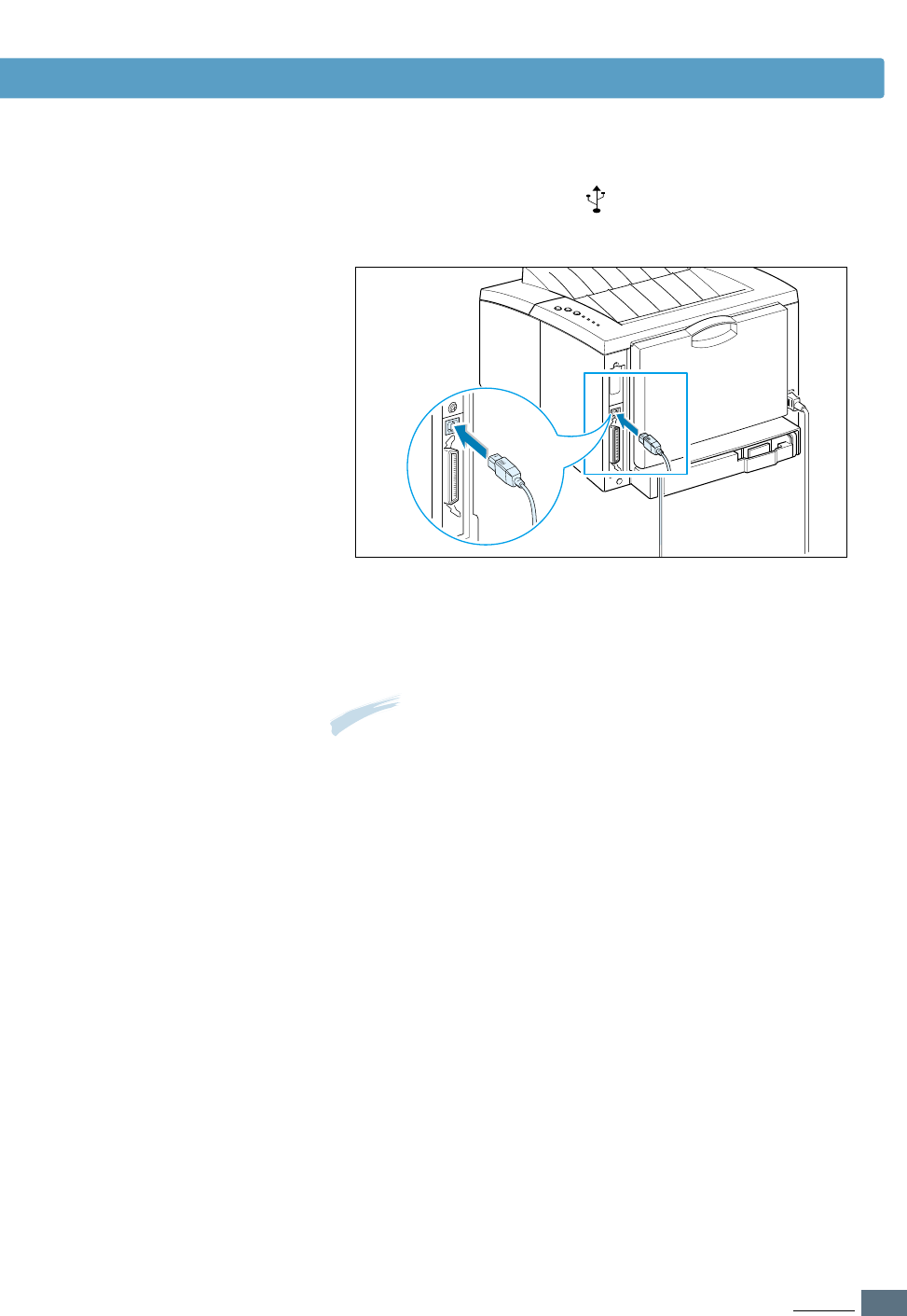
You can connect the printer to your Macintosh using the USB
interface.
USB cable is not provided in your printer. Purchase a certified
USB 1.0 or 1.1 compliant cable.
1
Turn off the printer and computer.
Installing Software for Macintosh
Connecting to
Macintosh
A.11
APPENDIX
2
Hold the USB cable so the icon faces up and connect it to
your printer’s USB connector.
3
Connect the other end of the cable to an available USB port
on your Macintosh computer. If you have any connecting
problems, please refer to your computer documentation.
Note: If you are using a USB hub, connect the printer’s cable to the
first tier of the hub or the printer may malfunction. If the printer
doesn’t work with the hub, connect it directly to the USB port.
Using Your Printer with Macintosh
Installing Software
1
Turn on your computer and printer.
2
Insert the CD-ROM which came with your printer into the
CD-ROM drive.
3
Double-click ML-1440 on your Macintosh desktop.
4
Click the Samsung Laser Printer Installer icon next to the
each language to select the correct one.
If you want to see the User Guide, click User’s Guide.
5
Click Continue, then click Continue.

A.12
APPENDIX
Using Your Printer with Macintosh
When you print with a Macintosh, you need to check the printer
software setting in each application you use. Follow these steps
to print from a Macintosh:
1
Open a Macintosh application and select a file you want to
print.
Printing from a Macintosh
Choosing SPL
Driver
1
From the Apple menu, select Chooser.
2
From the left pane of the Chooser window, click SAMSUNG
SPL. Then the ML-1450 will appear in the right pane of the
Chooser window.
3
Click the ML-1440, and close the Chooser window.
4
You see the message box indicating that you have changed
your current printer. Click OK.
5
A
ML-1440 printer icon will be created on your desktop.
6
The Samsung Laser Printer Installer opens. Select installation
type. The installer provides two options for software
installation:
• Easy Install (recommended method): This option loads
installs SPL driver.
• Custom Install : This option allows you to choose which
components will be installed.
If you want to use the SPL driver, you must install it.
If you want to use Adobe Acrobat Reader program, you must
install it.
7
Click Install.
8
After installation is complete, click Quit.
A.13
APPENDIX
Using Your Printer with Macintosh
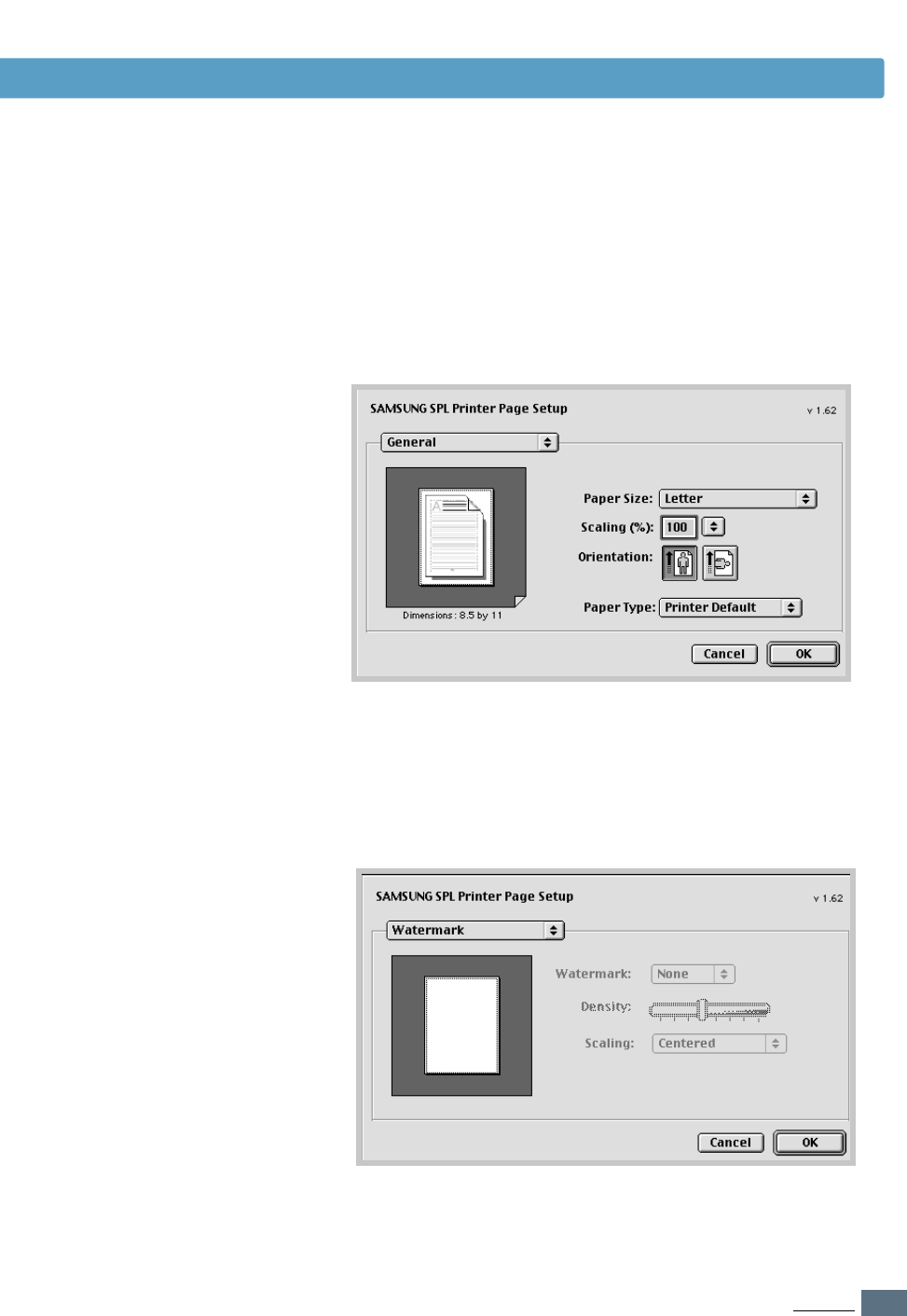
Choose Watermark if you want to add a watermark to each
page in your document to emphasize its purpose or indicate
how it should be handled. For details on the watermark
option, see page 5.21.
2
Open the File menu, and click Page Setup (Document
Setup in some applications). You will see the Page Setup
dialog box.
3
Choose your paper size, orientation, paper type and other
options and click OK.
A.14
APPENDIX
Using Your Printer with Macintosh
4
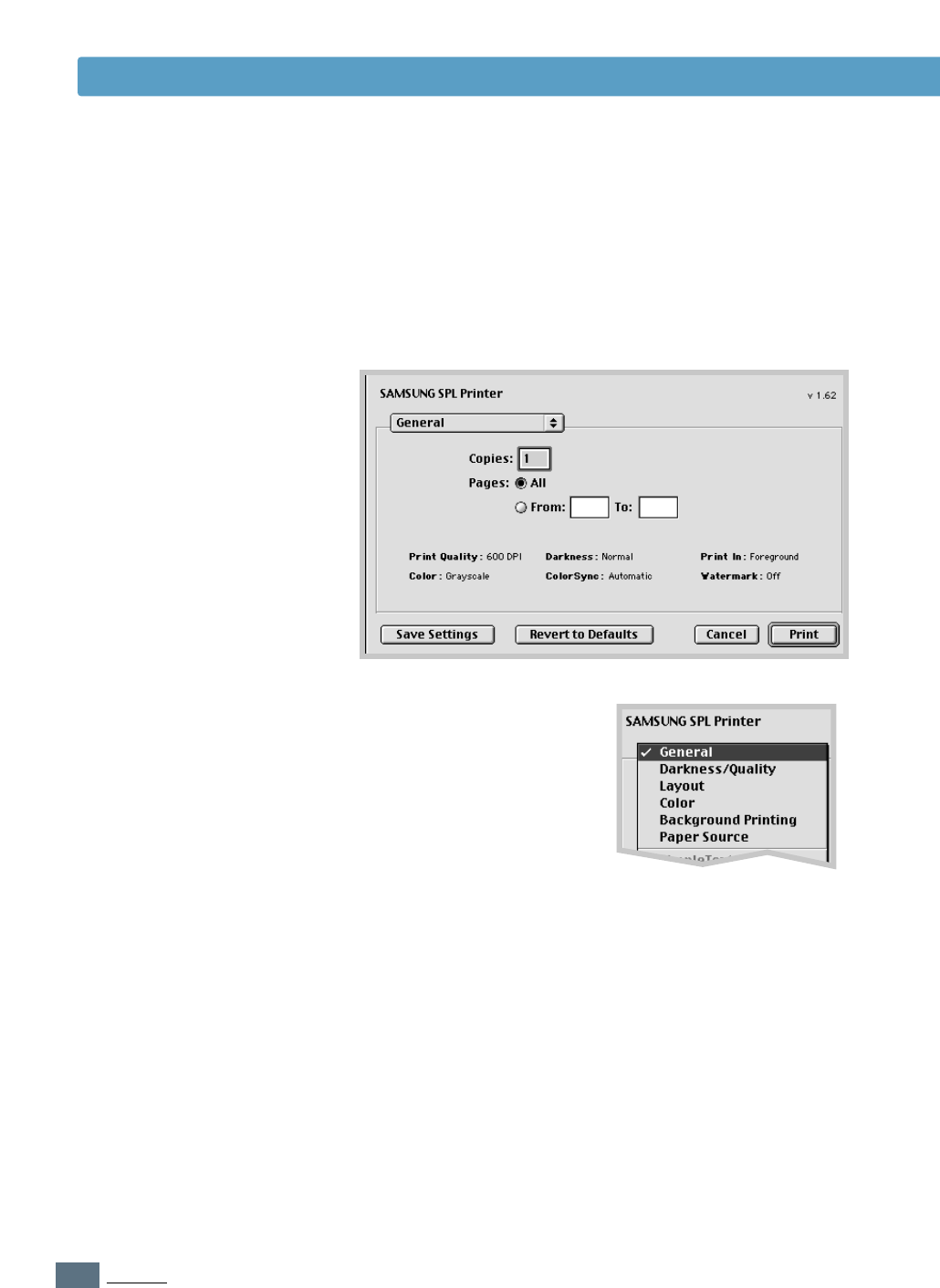
Now open the File menu and click Print. You see the main
printer settings dialog box.
5
Choose the number of copies and indicate which pages you
want to print. For advanced printing features, select the
desired option. For details, see page A.15.
6
Click Print when you are finished checking your settings.
Select the desired option for
advanced printing features.
A.15
APPENDIX
Using Your Printer with Macintosh
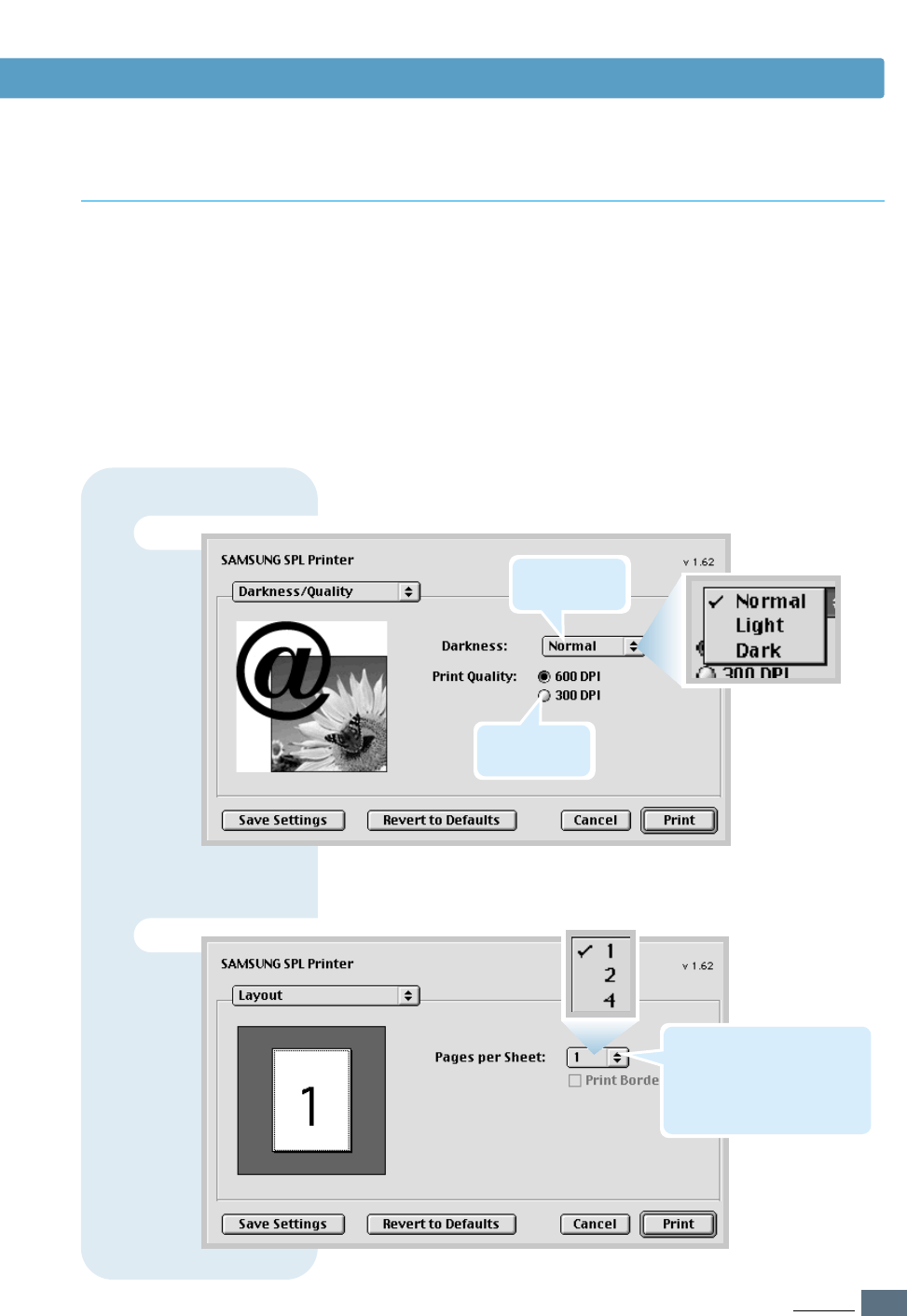
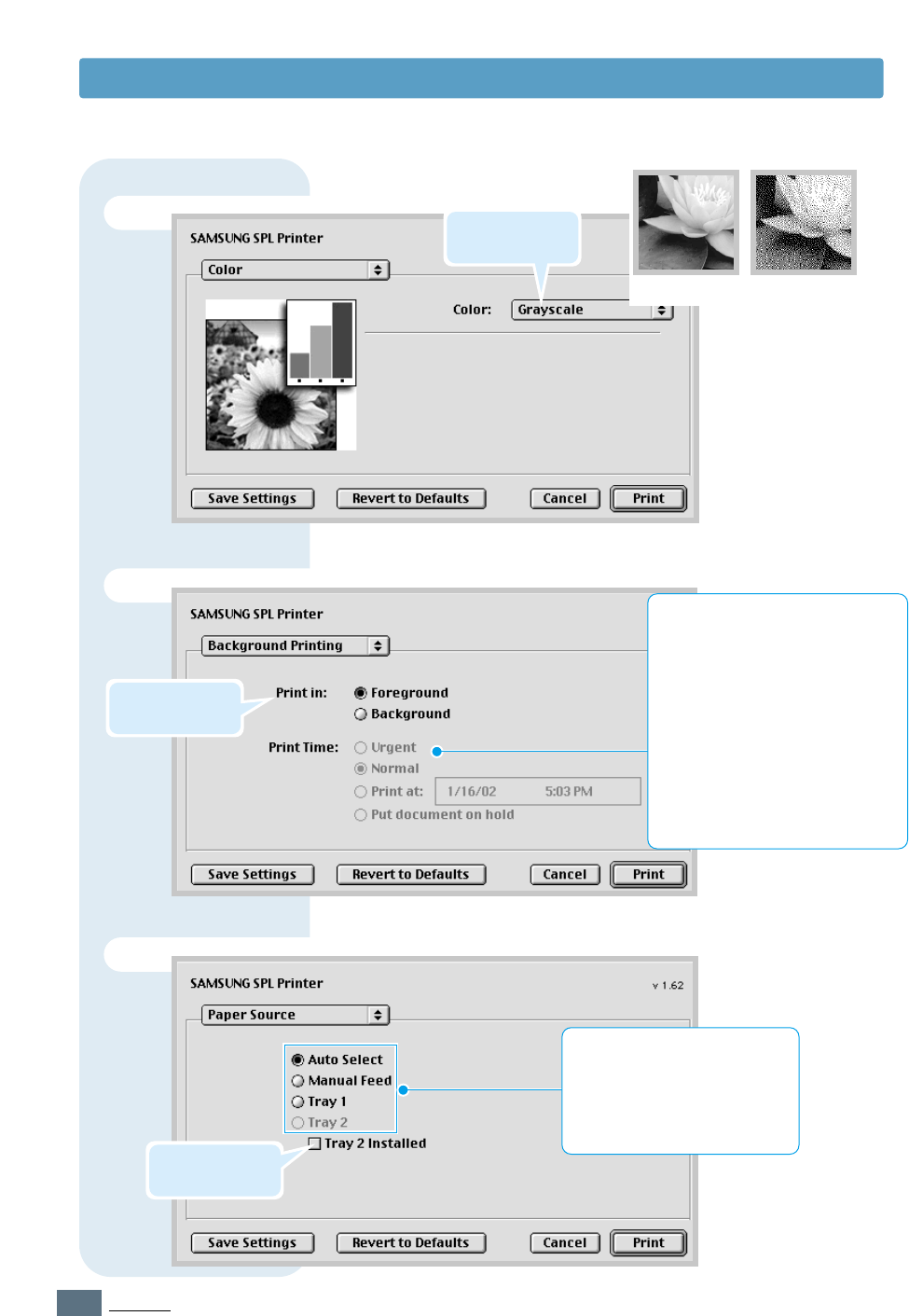
The Page Setup dialog box contains five categories of page
setup properties. Listed below is the name of each property.
-Darkness/Quality
-Layout
-Color
-Background Printing
-Paper Source
Figures below display each property in the Page Setup dialog
box.
Advanced Printing
Darkness/Quality
Layout
Select print
resolution.
Select the number of pages
you want to print on one
sheet of paper. The pages
will appear decreased in size
and arranged on the sheet.
Select print
darkness.
A.16
APPENDIX
Color
Background Printing
➐Grayscale ➐Black&White
Select a priority for your print job in
the queue of jobs waiting to print,
by clicking one of the following:
• Normal to print in the order the
job is received.
• Urgent to print before any
Normal priority job.
• Print at: to print at the specific
time you enter in the day and
time in the fields to the right.
• Put document on hold to hold
the print job in the print queue
until you are ready to release it.
Paper Source
Select the corresponding paper
source. If Auto Select is set,
the printer automatically selects
the print media according to the
following order: Manual Feed,
Tray 1, Tray 2 (option).
Select grayscale
mode.
Turns background
printing on or off.
Using Your Printer with Macintosh
Click it if optional
Tray 2 is installed.

A.17
APPENDIX
To use your printer in linux, you must update ghostscript
package. Fortunately, our ghostscript package was made by
RPM package manager. So, you can easily install and uninstall
the package in linux versions that support RPM. But if your
linux version doesn’t support rpm package, you directly must
install the source package in the driver CD. After you update
your ghostscript package, you must configure your linux
printing environment. For it, you must configure your printer
filter.
Unfortunately, all linux versions are different from each other
in their filter. So we didn’t account filter configuration for all
linux versions in here. Installation procedure for each linux
version we support was descripted in below.
gs5.10 : ghostscript 5.10 version package.
gs5.10k : ghostscript 5.10 Korean Language version package.
gs5.50k : ghostscript 5.50 Korean Language version package.
gs5.50 : ghostscript 5.50 version package.
cups :ppd file for CUPS printing system.
redhat : setup script for Redhat Linux.
redhat71 : configuration file for Redhat 7.1 lpd-o-matric
printing system.
1
Transfer into super user mode.
2
Update your pre-installed ghostscript package.
#rpm -q ghostscript (check version to install.)
#cd/mnt/cdrom/linux/gs5.XX (XX is pre-installed
ghostscript version.)
#rpm -e --nodeps ghostscript (uninstall pre-installed
ghostscript ‘--nodeps’ option skips dependency check.)
#rpm -ivh --nodeps gs5XX.rpm (install our ghostscript.)
3
Insert your printer driver CD-ROM to CD-ROM drive.
Configuration Setup Procedure
Directories
Redhat 6.0 ~ 7.0 Linux
Linux SPL Driver Installation

A.18
APPENDIX
Linux Driver Installation
4
Mount your CD-ROM drive and run script file.
#mount -t iso9660 /dev/cdrom/mnt/cdrom
#cd /mnt/cdrom/linux/redhat/
#install.sh
5
Set up your printer driver.
a. Run printtool program.
#printtool
b. Click Add button and select the proper printer type and
click OK button.
c. Set proper setting values in “Edit XXXXXXXX Entry” window
and click Select button of Input Filter (XXXXXXXX is the
printer type you select).
d. Add the needed printer driver for the emulation that your
printer supports.
Select SAMSUNG Printer SPL compatible and click OK
button. If you don’t update ghostscript, this item is not
visible.
6
Run lpr program to print your document or configure the
printer setup of your application.
ex> #lpr -Plp1 sample.ps (lp1 is the printer device name
you install.)
1
Transfer into super user mode.
2
Insert your printer driver CD-ROM to CD-ROM drive.
3
Mount your CD-ROM drive and copy the configuration file.
#mount -t iso9660 /dev/cdrom/mnt/cdrom
#cp /mnt/cdrom/linux/redhat71/sec-
spl.foo/usr/share/printconf/foomatic/data
4
Update your pre-installed ghostscript package.
#rpm -q ghostscript (check version to install.)
#cd/mnt/cdrom/linux/gs5.XX (XX is pre-installed
ghostscript ‘--nodeps’ option skips dependency
check.)
#rpm -ivh --nodeps gs5XX.rpm (install our
ghostscript.)
Redjat 7.1 Linux

A.19
APPENDIX
Linux Driver Installation
5
Delete any previous content of the printcap.local file
located in the /etc directory and copy only the below
mentioned lines from the printcap.sam file located under
the linux/Redhat71 directory of the installation CD.
SPL :\
:if=usr/share/printconf/foomatic/lpdomatic:\
:filter_options= --lprng $Z
/usr/share/printconf/foomatic/data/sec-spl.foo:\
6
Run Printtool to add a new queue. The driver name will not
be shown in the available driver list. Apply the following
settings.
a. Queue Name : Say SPL
b. Alias Name : Say SPL
c. Queue Type : /dev/lp0 (If you want to print using lpt1:) Or
/dev/usb/lp0 (If you want to print using USB)
d. Printer driver : Text Only Printer.
Save the queue and restart lpd. You will get a message that
lpd restarted successfully.
Note: Redhat 7.1 changed ‘printtool’ to ‘printconf’, so install.sh in
CD/linux/ redhat doesn’t work any more. You can downgrade
the printconf to the printtool of Redhat 7.0, or manually
configure your printer setting by above description.
For detail documentations, refer to the following web site.
“http://www.linuxprinting.org/lpd-doc.html”

A.20
APPENDIX
Linux Driver Installation
1
Transfer into super user mode.
2
Update your pre-installed ghostcsript package.
#rpm -q ghostscript (check version to install.)
#cd /mnt/cdrom/linux/gs5.XX (XX is pre-installed
ghostscript version.)
#rpm -e --nodeps ghostscript (uninstall pre-installed
ghostscript ‘--nodeps’ option skips dependency
check.)
#rpm -ivh --nodeps gs5XX.rpm (install our
ghostscript.)
3
Copy PPD file to your mandrake linux.
# cd/usr/mnt/cdrom/linux/cups/sec-spl.ppd
/usr/share/cups/model/samsung <Enter>
# cd/etc/init/d/cups restart <Enter>
4
Run cupsWebAdmin(accordingly, you can use qtcups or
printtool.).
a. Select Printer menu.
b. Add printer.
c. Select proper port (maybe, parallel port)
d. Select your printer SPL as your printer filter PPD.
e. Configure printer (select proper DPI, paper size...).
Mandrake 7.2 or Linux
version that use CUPS
printer manager

A.21
APPENDIX
1
Transfer into super user mode.
2
Update ghostscript package.
a. Uninstall(Erase) the pre-installed ghostscript package.
#rpm -e --nodeps gs_X11 (or gs_both)
#rpm -e --nodeps gs_lib
b. Install the ghostscript package in Driver CD.
#rpm -ivh --nodeps gs550.rpm
c. Modify font dirctory.
# cd/usr/share/fonts
# mkdir default
# cd default
# mkdir ghostscript
# cp/usr/share/ghostscript/fonts/*/usr/share/
fonts/default/ghostscript
3
Set up aps-filter.
a. #/var/lib/apsfilter/SETUP
b. Choose ENTRY and DEVICE.
c. Choose the correct port (ex. /dev/lp0).
d. Choose PRINTER -> ENTRY -> FREEDEF -> YOUR, and
type qpdl as device name.
e. Choose the resolution (ex, 600).
f. Choose the correct values into PAPER (ex, A4) and COLOR
(ex, mono).
e. Then choose ADD.
SuSE Linux
Linux Driver Installation

A.22
APPENDIX
You must follow this sequences in super user mode. Linux
kernel 2.2.12 or later version only supports USB printer driver.
If you run “uname -r”, you’ll see your linux kernel verion. And
if your version is lower than the required version, you must
patch or upgrade your linux kernel.
And then, you must make the device file for USB printer port
by following command. If you want to know whether the
device file already exists, check lp0 file in /dev/usb directory.
If there is no file, you can make it by this method.
# mknod/dev/usb/lp0 c 180 0
The following command detect your USB port and load the
required module.
# modprobe printer
But, you can either manually configure /etc/conf.modules
(or /etc/modules.conf with 2.4-ready versions of modutils)
to load the modules you require like this on boot time;
alias usb-controller usb-uhci (or “alias usb uhci ”)
post-install usb-uhci (or “uhci” like above) modprobe printer
Finally, you must modify/etc/printcap file for using the port
you configure.
For more details, please refer to the web site,
“http://www.linux-usb.org”.
Linux USB Driver Configuration Procedure
Linux Driver Installation
A.23
APPENDIX
Using Paper Tray 2 (Option)
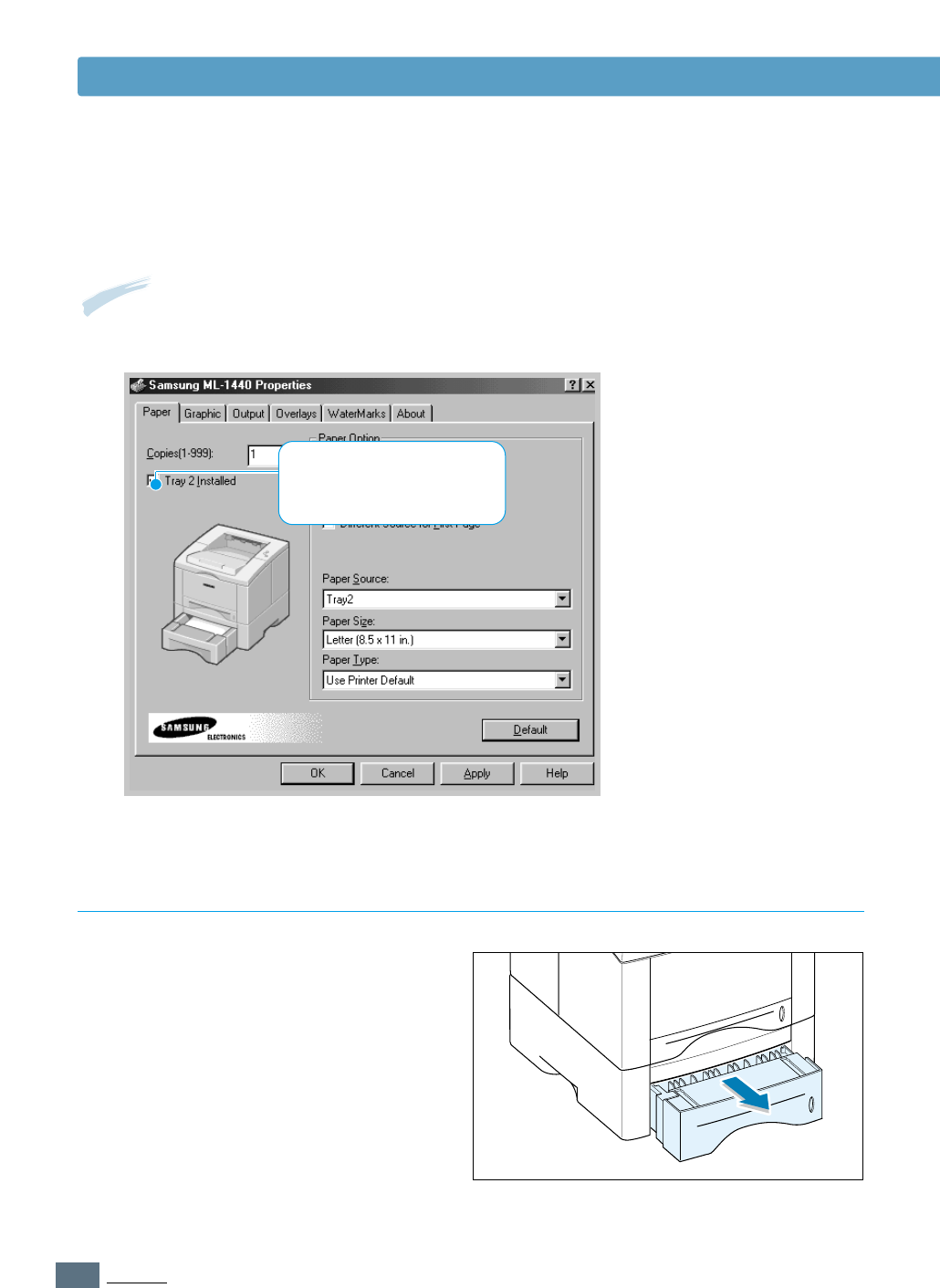
You can increase the paper handling
capacity of your printer by installing the
optional Tray 2. The optional paper tray
consists of two components; the support
unit and paper tray.
1
Turn off the printer and unplug all cables
from the printer.
2
Observe the location of the support
unit’s connector and tabs.
3
Align the printer with the support unit
and lower it into place on the tabs and
connector.
4
Load paper in Tray 2. For information on
loading paper in the tray, see next page.
support unit
paper tray
tap
tap
connector
Note: Be sure you check the label before
using the optional Tray 2. (For use
with ML-1440 only)
Label
A.24
APPENDIX
Using Paper Tray 2 (Option)
Load Paper
1
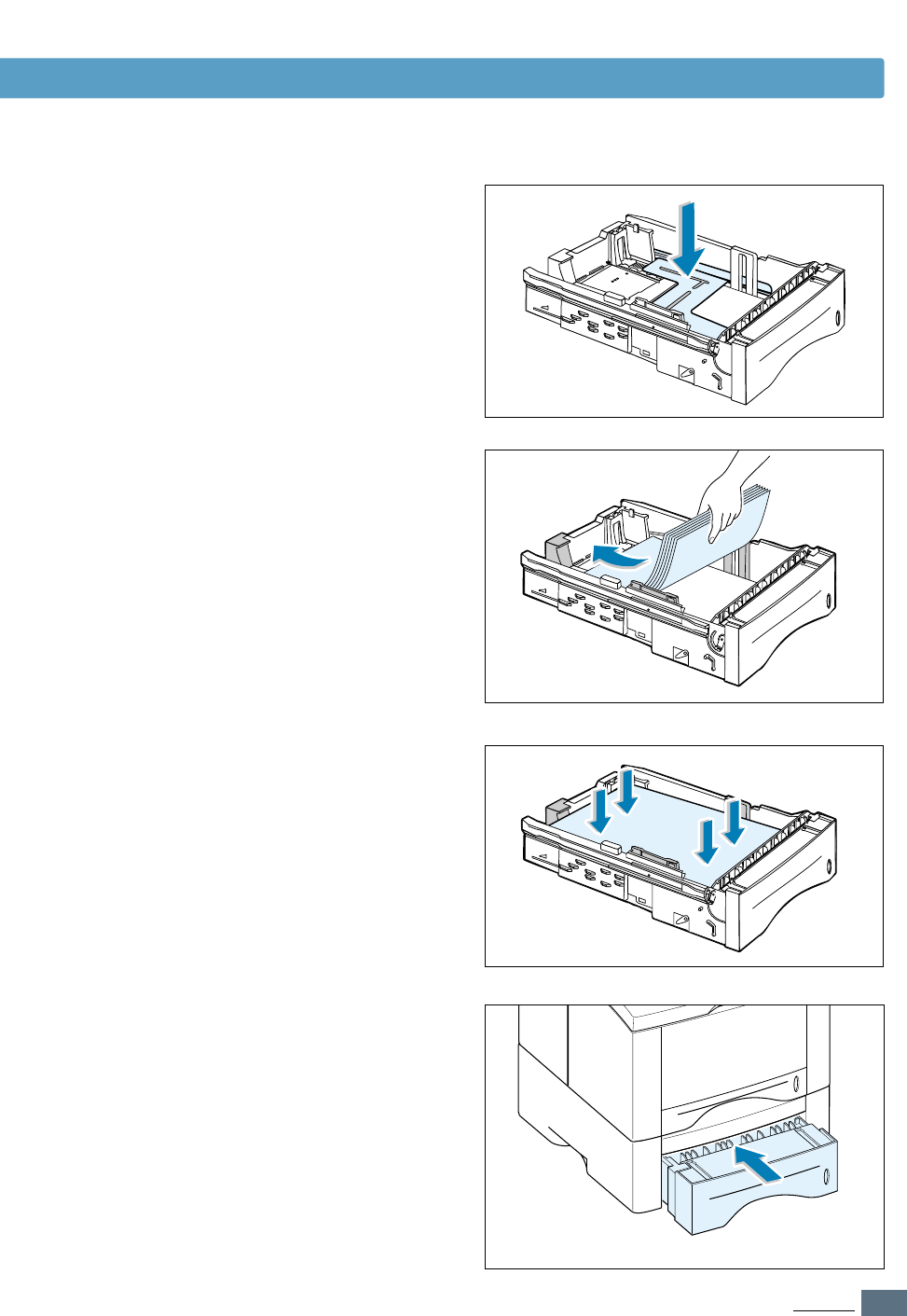
Pull the paper tray out of the printer.
5
Reconnect the cables, then turn the
printer on.
Note: To print from Tray 2, you must configure the printer driver from your application prior
to printing. To access the printer driver, see page 5.2.
Click. If this box is checked,
you can select Tray 2 in the
Paper Source drop-down list.
A.25
APPENDIX
4
Slide the tray back into the printer.
3
Load paper with the print side facing
down.
Make sure it is flat in the tray at all four
corners.
2
Push down on the metal paper lift plate to
lock it in place.
Using Paper Tray 2 (Option)
A.26
APPENDIX
Using Paper Tray 2 (Option)
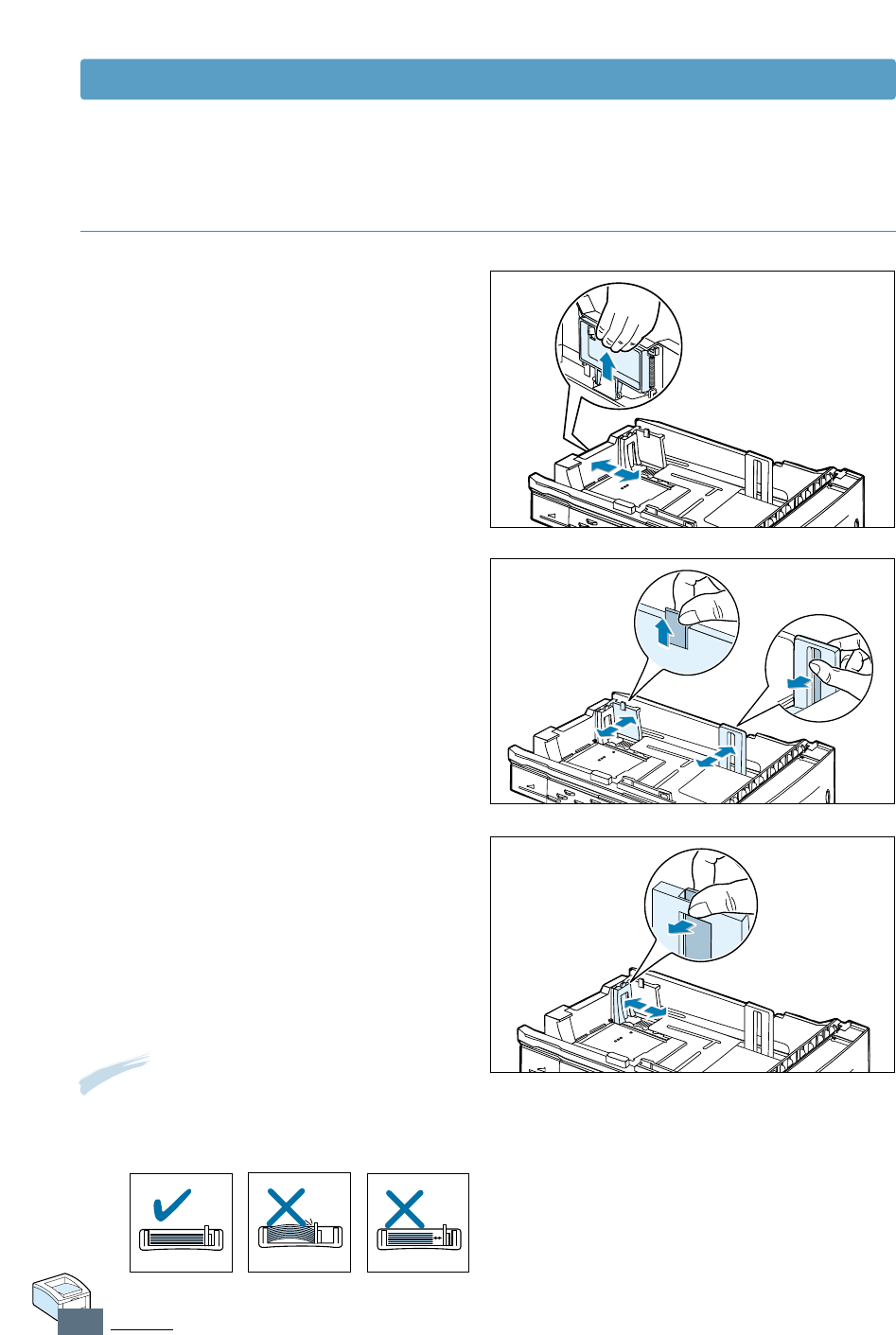
To Change Paper Size in Tray
1
For legal, folio or A4 paper, squeeze the
release on the reverse side of the rear
wall to adjust the tray length.
2
Adjust the side guide to lightly touch
the print media. If necessary, adjust the
rear side guide by pulling up on the tab
and sliding the guide to the left.
3
If necessary, Pinch the rear width guide
and slide it forward until it lightly touches
the print media.
Notes:
• Do not push the width guide far enough to cause the media to warp.
• If you do not adjust the width guide, it may cause a paper jam.

I
INDEX
INDEX
Numeric
2-sided printing 5.7
A
auto tray, loading 2.5
all text to black 5.19
B
booklet printing 5.13
C
cancel, print job 5.5
Cancel/Reprint button 3.1
cardstock, print 4.15
clean, printer 6.4
cleaning sheet 6.5
components 1.3
control panel
buttons 3.1
lights 3.3
custom-sized media, print 4.15
D
darkness, setting 5.19
Data light 3.3
Demo button 3.2
demo page, print 2.9
dark text 5.19
different paper for the first page 5.28
driver
access 5.1
in Macintosh A.10
install 2.11
Linux driver A.17
remove 2.14
USB driver 2.16
E
envelopes, print 4.9
error messages 7.21
F
face-down tray 4.4
face-up tray 4.4
features 1.1
fitting to a selected paper size 5.12
G
graphic properties 5.18
H
heavy paper, print 4.11

II
INDEX
I
install
Linux driver A.17
printer software, parallel cable 2.11
printer software, USB cable 2.16
toner cartridge 2.3
tray 2 option A.23
J
jam see paper jam
L
labels, print 4.12
last page, printing 5.29
letterhead, print 4.14
Linux driver A.17
load, paper
in the tray 1 2.5
in the optional tray 2 A.24
using the manual tray 4.7
M
Macintosh
installing software A.10
printing A.12
system requirements A.10
manual duplexing 5.7
Manual light 3.4
manual tray
loading paper 4.7
paper source setting 5.3
multiple pages on one sheet, print 5.10
N
network printing 5.30
n-up printing 5.10
O
orientation 5.3
output tray, select 4.4
rear 4.4
top 4.4
overlay, print 5.24
P
paper
acceptable size and capacities 4.2, A.2
choose 4.1
guidelines 4.3, A.4
load 2.5, 4.6
specifications A.2
storage environment A.6
paper jam, clear 7.6
input area 7.9
inside the printer 7.10
optional tray 2 7.12
output area 7.6
tips for avoiding paper jams 7.14
paper level indicator 4.6
Paper light 3.4
paper orientation, setting 5.3
paper out, indicator 7.21
paper source, setting 5.3
paper tray
change paper size in tray 2.6
load paper 2.4
paper type, setting 5.3
parallel, connection 2.8
poster, print 5.16
power, connection 2.8
INDEX

III
INDEX
P
(continued)
power save mode 5.20
print media see paper
print quality problem, solving
back of printouts dirty 7.19
background scatter 7.18
black pages 7.19
character voids 7.20
checklist 7.15
curl or wave 7.19
dropouts 7.16
gray background 7.17
horizontal stripes 7.20
light or faded print 7.15
loose toner 7.20
misformed characters 7.18
page skew 7.18
Repetitive vertical defects 7.17
toner smear 7.17
toner specks 7.16
vertical lines 7.16
wrinkles or creases 7.19
printer light patterns 7.21
printer driver see driver
printer software, install 2.11
printing
booklets 5.13
cancel 5.5
cleaning sheet 6.5
demo page 2.9
different paper for the first page 5.28
fitting to a selected paper size 5.12
from Macintosh A.12
from Windows application 5.1
general problems, solving 7.2
help 5.5
multiple pages on one sheet 5.10
on a network 5.30
on both sides of the paper 5.7
poster 5.16
quality problems, solving 7.15
reprinting last page 5.29
scaling document 5.11
using page overlay 5.24
watermarks 5.21
problem, solving
common macinosh problems 7.25
common windows problems 7.24
error messages 7.21
general 7.2
paper jam 7.6
print quality 7.15
troubleshooting checklist 7.1
Q
quality, problems 7.15
R
read mode 3.3
rear output tray 4.4
remove, driver 2.14
reprint, last page 5.29
reprint when jam 5.20
resolution 5.18
S
scaling document 5.11
setup printer chapter 2
specifications
paper A.2
printer A.1
system error 7.22
INDEX

IV
INDEX
T
tray 1, loading 2.5
tray 2 option, loading A.24
toner cartridge
cleaning sheet 6.5
install 2.3
life expectancy 6.1
recycle 6.1
redistribute toner 6.2
save toner 5.6, 6.1
storage 6.1
Toner Save button 3.2. 5.6
top output tray 4.4
transparency, print 4.13
troubleshooting see problem, solving
U
unpacking 2.1
USB cable 2.16
W
watermark, print 5.21
INDEX

Home
Visit us at:
http://www.samsungprinter.com