Samsung Electronics Co SCHI815 Tablet PC with Cellular/PCS CDMA, 700 MHz LTE, WLAN and Bluetooth User Manual
Samsung Electronics Co Ltd Tablet PC with Cellular/PCS CDMA, 700 MHz LTE, WLAN and Bluetooth Users Manual
Users Manual

MY VERIZON
Manage your account online or from your
device with My Verizon.
BASICS
How to use your new device—from charging
the battery to taking a picture.
BACKING UP YOUR CONTENT
Give yourself peace of mind by backing up
your files.
APPS AND FEATURES
It’s a mobile world and it’s yours to conquer—
with music, video, web browsing, email and
picture messaging, plus tools for navigation
and family safeguards.
1
CONTENTS
CONTENTS
DRAFT
BB
ACAC
KK
ININ
G
UPUP
YOYO
UU
R
COO
NN
T
EN
TT
Gi
v
e yourself peace of mind by backing up
yourself peace of mind by backing u
your files
.r files.

THANK YOU FOR CHOOSING
VERIZON WIRELESS
You’re now part of a growing movement that’s
about speed, signal and strength. So go ahead,
make yourself heard.
This book will show you how to unleash the
potential of your new device. Assistance is
at your fingertips at verizonwireless.com.
Customer Service is at your disposal at
1-800-922-0204 or at any Verizon Wireless
Store. A comprehensive User Guide is
available on demand—simply download one at
support.vzw.com/phones or call
1-888-987-HELP (4357) to order a copy.
NOTE : Devices and software are constantly evolving—the
screen images and icons you see here are for reference only.
WELCOME
2
WELCOME
DRAFT
at
your
fingertips
at
at your fingertips
verizonwireless.comrizonwireless.com
..
Customer Service is at your disposal at
Customer Service is at your disposal at
1-800-922-0204
1-800-922-0204
or at any
V
erizon
r at any Verizon
WiW
re
l
ess
e
S
tore.
Store.
AA
com com
pre
h
ensive
ehensive
UU
s
er
Gser G
u
i
d
e is
u
il bl d d i l d l d t
il bl d d i l d l d

3
DATA PLANS AND FEATURES:
Content and Internet Access
Many services and applications offered
through your device may be provided by third
parties. Before you use, link to or download
a service provided by a third party, or an
application such as a non-Verizon Wireless
location-based GPS-type service, chat room,
marketplace or social network from your
device, you should review the terms of such
service or application and applicable privacy
policy. Personal information you submit may
be read, collected or used by the service or
application provider and/or other users of
those forums.
Verizon Wireless is not responsible for any
infor mation, content or services you access,
download or use from the Internet. You are
responsible for maintaining virus and other
Internet security protections when accessing
service. For additional information, visit the
Verizon Content Policy at responsibility.
verizon.com/contentpolicy.
IMPORTANT CUSTOMER INFORMATION
IMPORTANT CUSTOMER INFORMATION
DRAFT
d
ev
i
ce, you s
h
ou
ld
rev
i
ew t
h
e terms o
f
suc
h
device, you should review the terms of such
service or a
pp
lication and a
pp
licable
p
rivac
yservice or application and applicable priv
p
olic
y
. Personal in
f
ormation
y
ou submit ma
ypolicy. Personal information you submit
be read, collected or used by the service or
be read, collected or used by the service

4
IMPORTANT CUSTOMER INFORMATION
Your Verizon Wireless Customer Agreement
terms and conditions and certain other
specially identified terms govern your use of
any Verizon Wireless products and services.
DRAFT

5
MY VERIZON
Save time. Save money. Register now at
verizonwireless.com/myverizon.
≠Manage your account. Quickly check
your voice, text and data usage or make
adjustments to your Plan at any time.
≠Get personalized support. My Support
answers your questions quickly.
≠Pay bills your way. Go green and set
up Paperless Billing, make a one-time
payment, or use Auto Pay and never worry
about missing a payment.
≠Much more. Transfer your contacts in no
time with Backup AssistantSM, move your
media, pick your Friends & Family®, or view
email in one place from popular internet-
based email accounts, including Yahoo!®,
AOL®, Gmail® and Windows Live.
MY VERIZON
DRAFT
up Paperless Billing, make a one-time
up Paperless Billing, make a one-time
payment, or use
yment, or us
AA
uto
Puto P
a
y an
d
never worr
yand never wo
a
b
out missing a payment.
out missing a payment
≠
≠
Much more
Much mo
Transfer your contacts in no
ransferyourcontactsinn

BASICS
BASICS
6
FEATURES
1. SIM CARD SLOT
2. 3.5 HEADPHONE JACK
3. SPEAKER
4. POWER/LOCK KEY
5. VOLUME KEY
6. WIDESCREEN HD
DISPLAY
7. CHARGER PORT
8. 2 MEGA PIXEL FRONT
FACING CAMERA/
CAMCORDER LENS
9. SPEAKER
10. 3 MEGA PIXEL
CAMERA/
CAMCORDER LENS
11. FLASH
7
BASICS
BASICS
FIRST STEPS
INSERTING YOUR 4G LTE SIM
Your SIM (Subscriber Identity Module) Card
is a small rectangular plastic card that stores
your phone number and important information
about your wireless service.
To install your 4G LTE SIM Card:
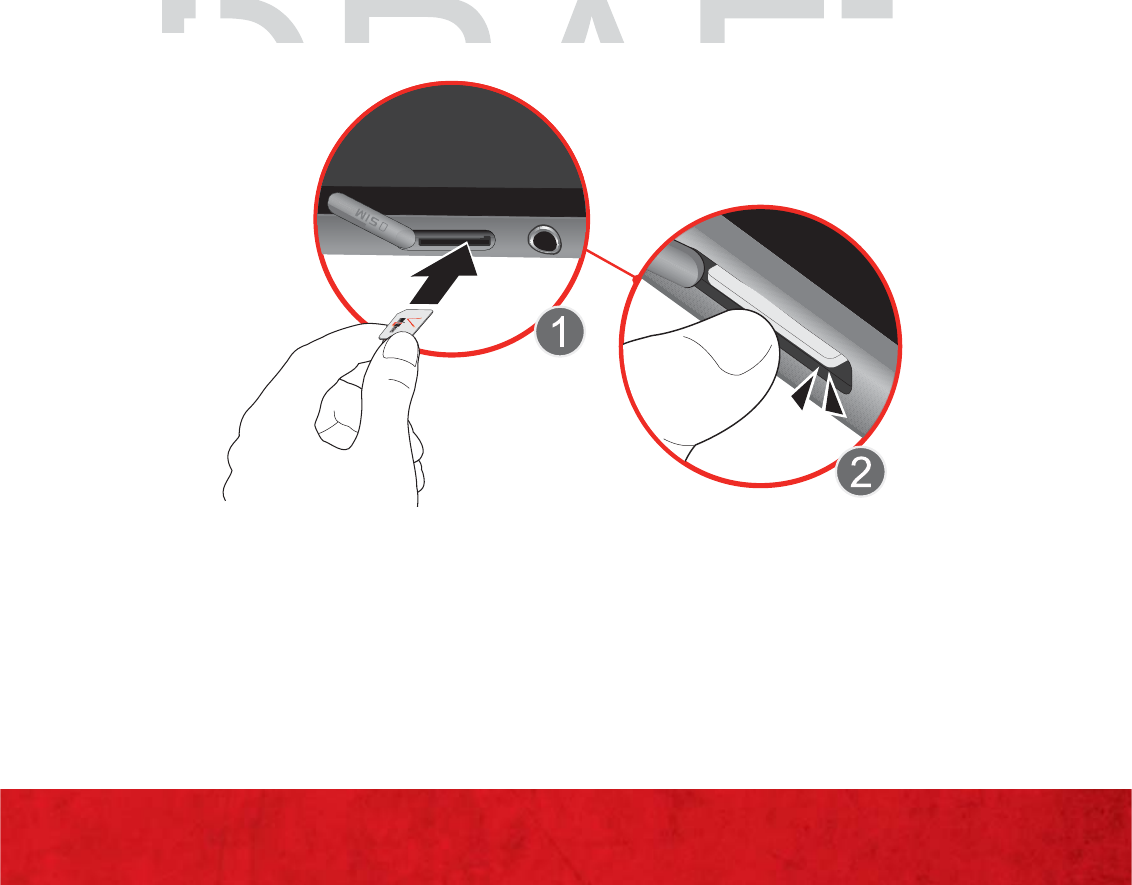
1. Open the cover to the SIM card slot and
carefully insert the 4G LTE SIM card with
Verizon logo face up.
2. Push the SIM until it clicks into place.
CAUTION: Do not bend or scratch your 4G LTE SIM Card.
Avoid exposing your SIM Card to static electricity, water or
dirt. For additional information about 4G LTE SIM Cards, visit
verizonwireless.com/4GSIM. The 4G LTE SIM Card MUST
remain in the device when in use.
DRAFT
2.
2.
Push the SIM until it clicks into place.
Push the SIM until it clicks into place.
RA
RA

8
BASICS
REMOVING YOUR 4G LTE SIM CARD
≠Open the cover to the SIM card slot and
carefully push the 4G LTE SIM card
inward to release from the socket.
NOTE: Should your 4G LTE SIM Card be lost or damaged
please call 1-800-922-0204 to speak with a Customer
Service Representative. From outside the U.S. call +1-908-
559-4899 for 24/7 Global Support.
NOTE: The Verizon Wireless 4G LTE microSIM Card is
compatible with some Verizon Wireless 4G LTE certified
device. You can move the 4G LTE microSIM Card from
one device to another and your wireless service will
work seamlessly as long as you have a compatible device
and service plan. To see which devices are compatible
with your Verizon Wireless 4G LTE microSIM Card, visit
verizonwireless.com/certifieddevice.
DRAFT
AF
A
A
RA
RA
A
A
A
A
A
A
A
A
A
A
A
A
A
A
A
A
A
A
A
A
A
A
A
A
A
F
F
F
9
BASICS
CHARGING YOUR DEVICE
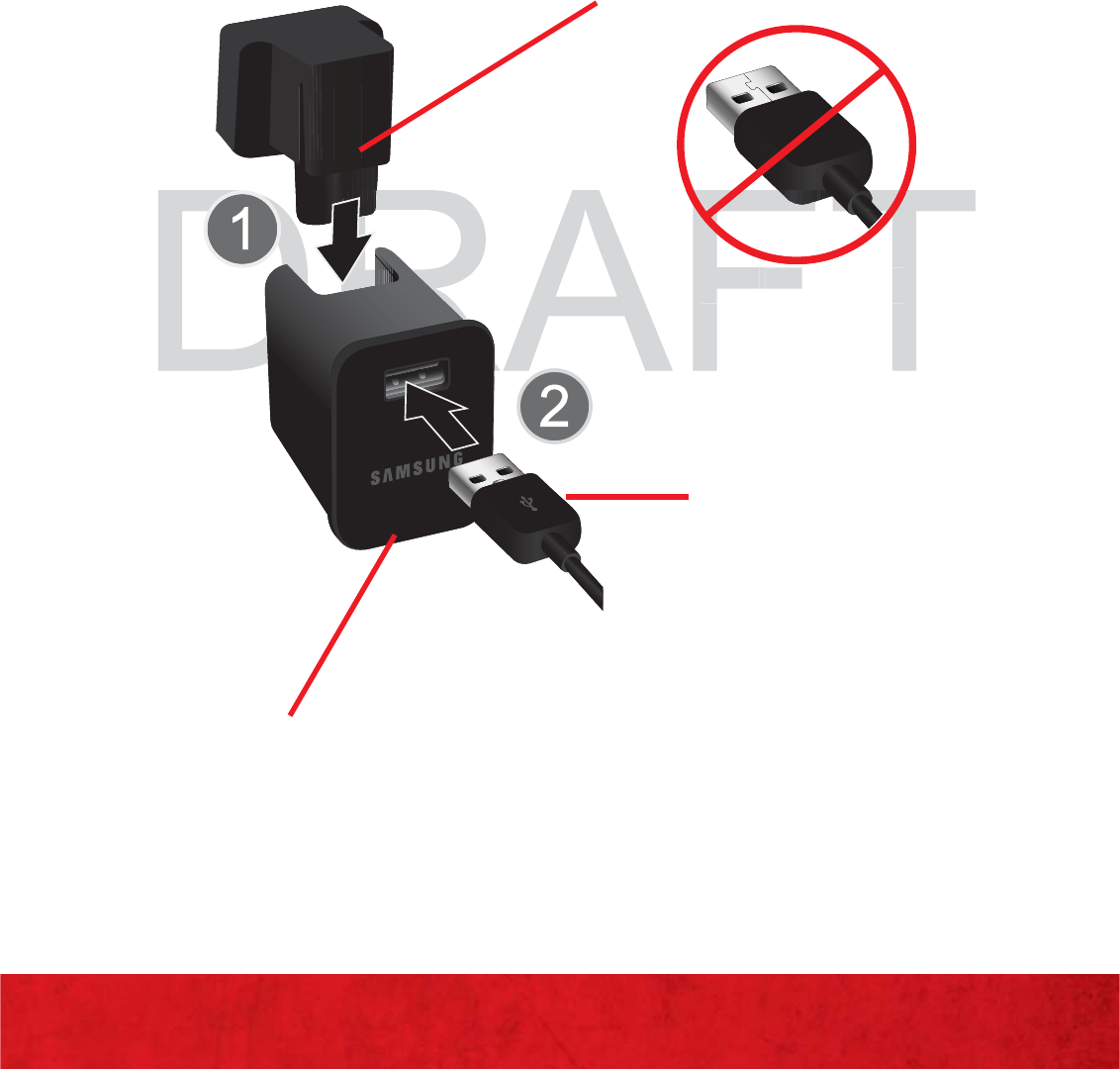
1. Carefully slide the Outlet Connector into the
Charging Head. Make sure the connection
is secure.
2. Connect the USB cable to the Charging
Head.
Charging Head
Outlet Connector
USB Cable
Incorrect
F
F
F
F
F
F
F
F
F
F
F
F
F
F
F
F
F
F
F
F
F
F
F
T
T
T
T
T
T
T
T
T
T
T
T
T
T
T
T
T
T
T
T
T
T
T
T
T
T
T
T
T
T
T
T
T
T
T
T
T
T
T
T
T
T
T
T
T
T
T
T
T
T
T
T
T
T
T
T
T
T
T
T
T
T
T
T
T
T
T
T
T
T
T
T
T
T
T
T
T
T
T
T
T
T
T
T
T
T
T
T
T
T
T
T
T
T
T
T
T
T
T
T
T
T
T
T
T
T
T
T
T
T
T
T
T
T
T
T
T
T
T
T
T
T
T
FT
D
R
R
R
R
R
R
R
R
R
R
R
R
R
R
R
R
R
R
R
R
R
R
R
R
R
R
R
R
R
R
R
R
R
R
R
R
R
R
R
R
R
R
R
R
R
R
R
R
R
R
R
R
R
R
R
R
R
R
R
R
R
R
R
R
R
R
R
R
R
R
R
R
R
R
R
R
R
R
R
R
R
R
R
R
R
R
R
R
R
R
R
R
R
R
R
R
R
R
R
R
R
R
R
R
R
R
R
R
R
R
R
DR
DR
DR
DR
DR
DR
DR
DR
DR
DR
DR
DR
DR
D
D
D
D
D
D
D
D
D
D
D
D
D
D
D
D
D
D
D
D
D
D
D
D
D
D
D
D
D
D
D
R
R
R
R
R
R
R
R
R
R
R
R
R
R
R
R
R
R
R
R
R
R
R
R
R
R
R
R
R
R
R
R
R
R
R
R
R
R
R
R
R
R
R
R
R
R
R
R
R
R
R
R
R
R
R
R
R
R
R
R
R
R
R
R
R
R
R
R
R
R
R
R
R
R
R
R
R
R
R
R
R
R
R
R
R
R
R
R
R
R
R
R
R
R
R
R
R
R
R
R
R
R
R
R
R
R
R
R
R
R
R
R
R
R
R
R
R
R
R
R
R
R
R
R
R
R
R
R
R
R
R
R
R
R
R
R
R
R
R
R
R
A
D
D
D
D
Inc
Inc
orrec
torrect
10
BASICS
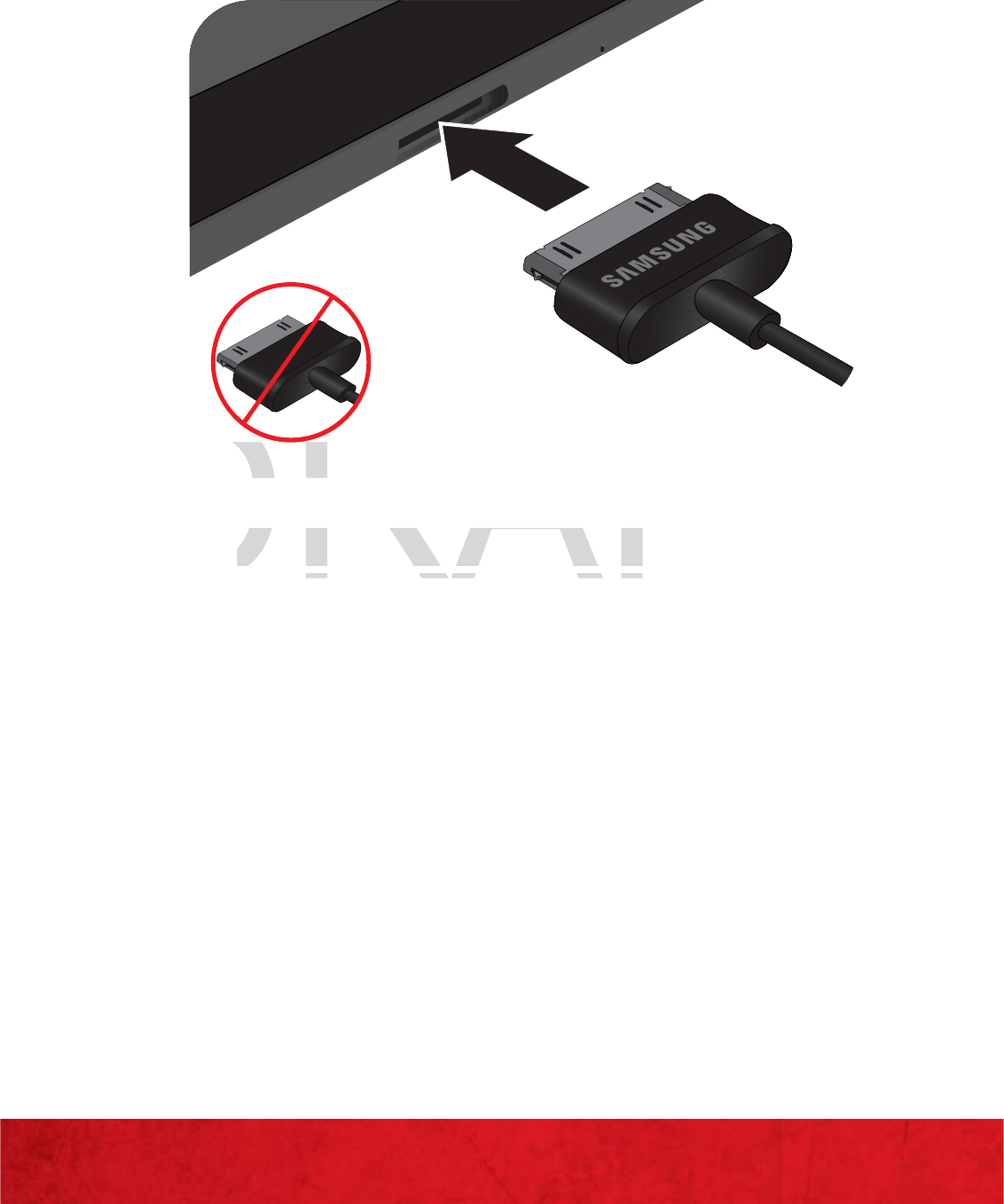
3. Insert the charger into the charger port at
the bottom end of the tablet.
4. Plug the outlet connector into a
compatible electrical outlet.
WARNING! Please use only an approved charging accessory
to charge your device. Improper handling of the charging
port, as well as the use of an incompatible charger, may
cause damage to your device and void the warranty.
Incorrect
DRAFT
DR
4
. Plug the outlet connector into a
Plug the outlet connector
tibl l t i l tl t
tibl l t i l t
Incorrectncorr
11
BASICS
POWERING YOUR DEVICE ON/OFF
IMPORTANT: It’s important to fully charge the battery before
turning on your device.
To power on your device:
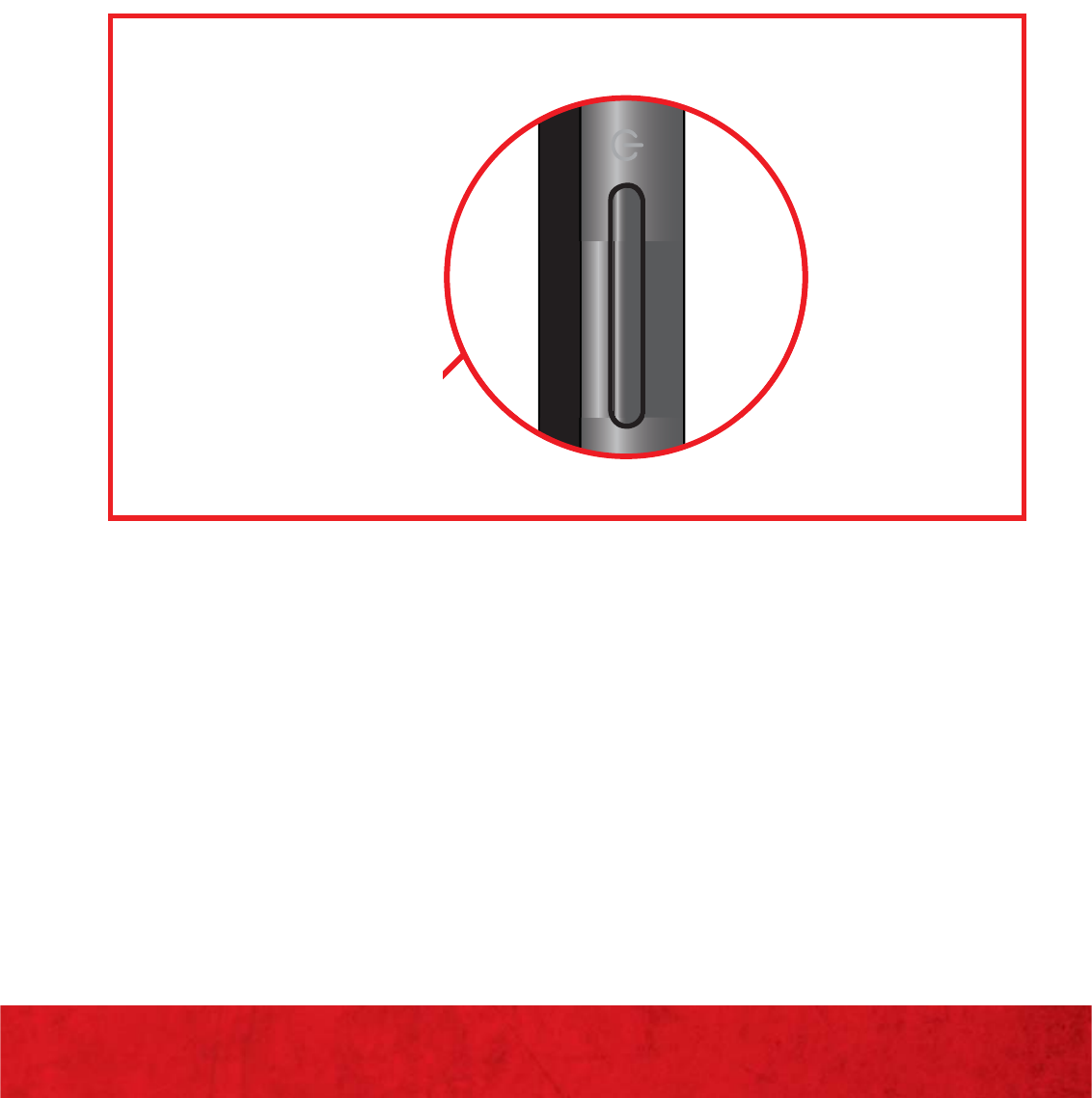
≠Press and hold the Power/Lock/Unlock
button on the left side of your tablet.
To power off your device:
1. Press and hold the Power/Lock/Unlock
button until the Tablet options screen
appears.
2. Touch Power off J OK.
FT
AF
A
A
A
A
A
A
A
A
A
A
A
A
A
A
A
A
A
A
A
A
A
A
A
A
A
A
A
A
A
A
A
A
A
A
A
A
A
A
A
A
A
A
A
A
A
A
A
A
A
A
A
A
A
A
A
A
A
A
A
A
A
A
A
A
A
A
A
A
A
A
A
RA
A
A
AF
A
A
A
A
A
A
A
A
A
A
A
A
A
A
A
A
A
A
A
A
A
A
A
A
A
A
A
A
A
A
A
A
A
A
A
A
A
A
A
A
A
A
A
A
A
A
A
A
A
A
A
A
A
A
A
A
A
A
A
A
A
A
A
A
A
A
A
A
A
A
A
A
A
A
A
A
A
A
A
A
A
A
A
A
A
A
A
A
A
A
A
A
A
A
A
A
A
A
A
A
A
A
A
A
A
A
A
A
A
A
A
A
A
A
A
A
A
A
A
A
A
A
A
A
A
A
A
A
DRA
R
R
R
R
R
R
R
R
R
R
R
R
R
R
R
R
R
R
R
R
R
R
R
R
R
R
R
R
R
R
R
R
R
R
R
R
R
R
R
R
R
R
R
R
R
R
R
R
R
R
R
R
R
R
R
R
R
R
R
R
R
R
R
R
R
R
R
R
R
R
R
R
R
R
R
R
R
R
R
R
R
R
R
R
R
R
R
R
R
R
R
R
R
R
R
R
R
R
R
R
R
R
R
R
R
R
R
R
R
R
R
R
R
R
R
R
R
R
R
R
R
R
R
R
R
R
R
R
R
R
R
R
R
R
R
R
R
R
R
R
R
R
R
R
R
R
R
R
R
R
R
R
R
R
R
R
R
R
R
R
R
R
R
R
R
R
R
R
R
R
R
R
R
R
R
R
R
R
R
R
R
R
R
R
R
R
R
R
R
R
R
R
R
R
R
R
R
R
R
R
R
R
R
R
R
R
R
R
R
R
R
R
R
R
R
R
R
R
R
R
R
R
R
R
R
R
R
R
R
R
R
R
R
R
R
R
R
R
R
R
R
R
R
R
R
R
R
R
R
R
R
R
R
R
R
R
R
R
R
R
R
R
R
R
R
R
R
R
R
R
R
R
R
R
R
R
R
R
R
R
R
R
R
R
R
R
R
R
R
R
R
R
R
R
R
R
R
R
R
R
R
R
R
R
R
R
R
R
R
R
R
R
R
R
R
R
R
R
R
R
R
R
R
R
R
R
R
R
R
R
R
R
R
R
R
R
R
R
R
R
R
R
R
R
R
R
R
R
R
R
R
R
R
R
R
R
R
R
R
R
R
R
R
R
R
R
R
R
R
R
R
R
R
R
R
R
R
R
R
R
R
R
R
R
R
R
R
R
R
R
R
R
R
R
R
R
R
R
R
R
R
R
R
R
R
R
R
R
R
R
R
R
R
R
R
R
R
R
R
R
R
R
R
R
R
R
R
R
R
R
R
R
R
R
R
R
R
R
R
R
R
R
R
R
R
R
R
R
R
R
R
R
R
R
R
R
R
R
R
R
R
R
R
R
R
R
R
R
R
R
R
R
R
R
R
R
R
R
R
R
R
R
R
R
R
R
R
R
R
R
R
R
R
R
R
R
R
R
R
R
R
R
R
R
R
R
R
R
R
R
R
R
R
R
R
R
R
R
R
R
R
R
R
R
R
R
R
R
R
R
R
R
R
R
R
R
R
R
R
R
R
R
R
R
R
R
R
R
R
R
R
R
R
R
R
R
R
R
R
R
R
R
R
R
R
R
R
R
R
R
R
R
R
R
R
R
R
R
R
R
R
R
R
R
R
R
R
R
R
R
R
R
R
R
R
R
R
R
R
R
R
R
R
R
R
R
R
R
RAF

12
BASICS
LOCKING/UNLOCKING YOUR DEVICE
To lock the display:
≠Press Power/Lock ().
To unlock the display:
≠Press Power/Lock () to wake
the display, then drag across the screen.
INITIAL DEVICE SETUP
When you turn on your wireless device for the
first time, you have the option to quickly set up
various accounts, such as Google™, Microsoft®
Exchange ActiveSync®, other email accounts,
and sign in to social networking sites. Simply
follow the onscreen instructions to complete
the initial setup of your wireless device.
1. Press and hold Power/Lock
() to turn it on.
2. Once you have received confirmation that
your device is now active, touch Proceed
with setup process.
DRAFT
various accounts, such as Goo
g
le™, Microsof
tvarious accounts, such as Google™, Microsoft
Exchan
g
e
Exchang
AA
cticti
ve
Sy
nc
®
, other email accounts,
veSync®, other email accoun
and si
g
n in to social networkin
g
sites. Simply
and sign in to social networking sites. Simp
follow the onscreen instructions to complete
follow the onscreen instructions to compl
13
BASICS
3. Select a language and touch Start.
4. Turn off Google™ location services (if
desired) and touch Next.
5. Touch Next to either follow the setup wizard
to create or log in to your existing Google
Account and go to the Home screen. Tap
Skip to move on to the next step.
Record your Google Account information
for future reference.
Username:_______________@gmail.com
Password:________________
If you have an existing Google Account, your
contacts from that account are then synced to
your device.
TIP: Add additional accounts by doing the following: From the
Home screen, touch Apps ( )
J
Settings
( )
J
Accounts
& sync
J
Add account
J
select an email type and follow
the prompts.
DRAFT
If
you
h
ave an ex
i
st
i
n
g
G
oo
gl
e
If you have an existing Google
AA
ccocco
u
nt, your
unt, your
contacts from that account are then s
y
nced
tcontacts from that account are then synce
your
d
evice
.your device.
T
T
I
I
P
P
:
:
A
A
dd additional accounts by doing the following:
dd additional accounts by doing the
F
rom t
om
he

14
BASICS
SETTING UP AN EMAIL ACCOUNT
1. To add additional email accounts, touch
Apps () J Settings () J Accounts &
sync J +Add account (located in the upper
right hand corner of the display).
≠Corporate is for Exchange server work
email accounts.
≠Email is for most personal email
accounts. For account details, contact
the account provider.
≠Google is for adding another Gmail
account.
DRAFT
≠≠
Google
is
for
adding
another
Gmail
Google is for adding another Gmail
accoun
t.accou

15
BASICS
SETTING UP A CORPORATE EMAIL ACCOUNT
1. To add additional email accounts, touch
Apps () J Email ().
2. Enter your corproate email address and
password and touch Next.
3. Select Microsoft Exchange.
4. Enter the correct Domain, Password , and
Server information, then touch Next.
≠If your network requires SSL encryption,
touch the Accept all SSL certificates
field to place a checkmark in the box and
activate this function.
Note: If your exchange server requires this feature be active,
leaving it unchecked can prevent connection.
5. Read the onscreen activation disclaimer and
touch OK.
6. Adjust the various onscreen configuration
fields and touch Next.
7. Identify your account with a unique name
and provide the outgoing name text and
then touch Next.
DRAFT
field
to
place
a
checkmark
in
the
box
anfield to place a checkmark in the box an
ac
t
iva
t
e
t
his func
t
ion.
activate this functio
Note: If your exchan
g
e server requires this feature be active,
Note: If your exchange server requires this feature be ac
leavin
g
it unchecked can prevent connection
.leaving it unchecked can prevent connecti
16
BASICS
HOME SCREEN
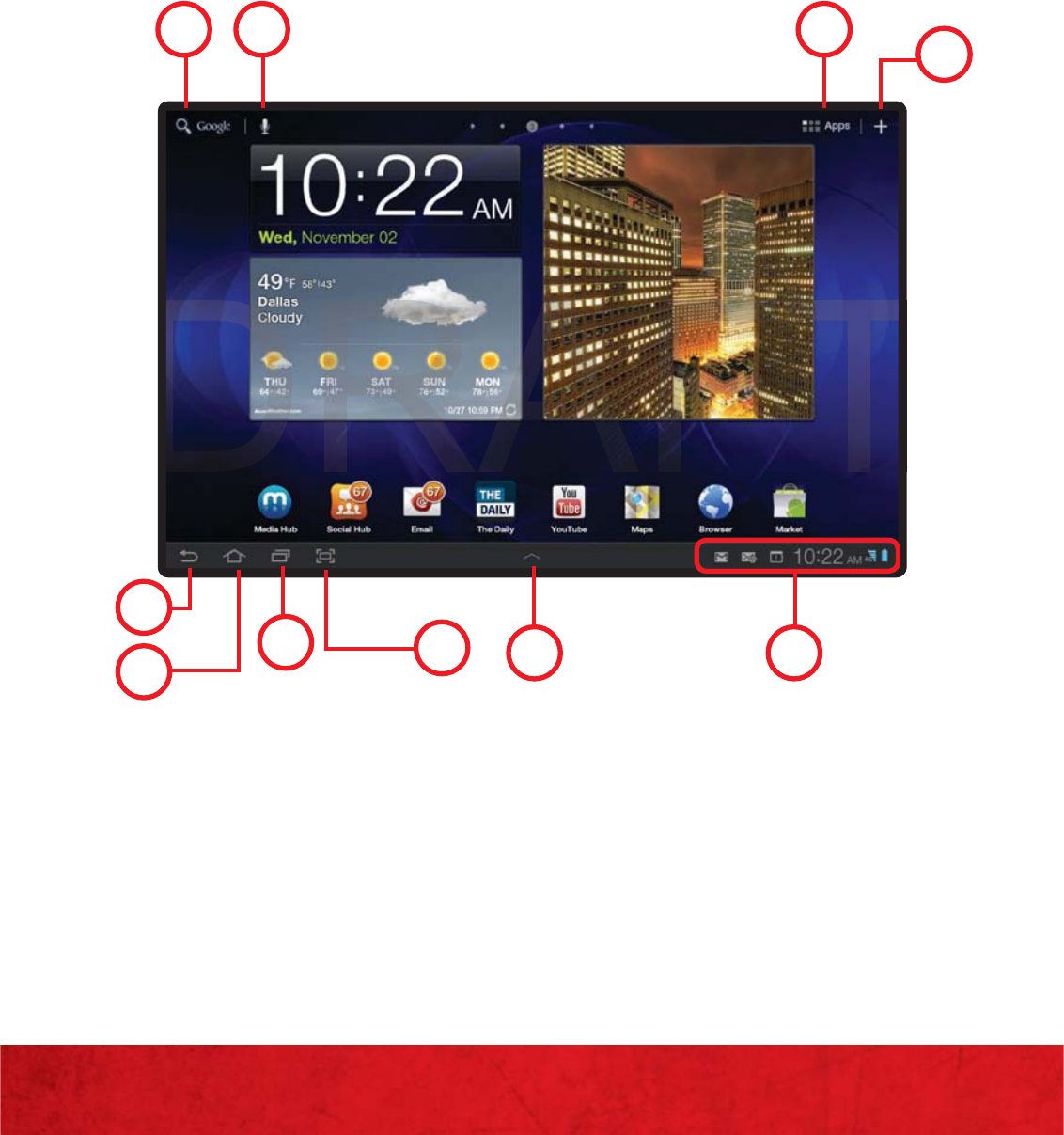
You’ll see the home screen when you turn on the
tablet or touch Home from a menu. The home
screen gives you all your latest information in
one place.
110 98
6 7
5
4
3
2
1. GOOGLE SEARCH
2. BACK
3. HOME
4. RECENT APPS
5. SCREEN CAPTURE
6. MINI APP TRAY
7. NOTIFICATION PANEL
AND QUICK SETTINGS
8. CUSTOMIZATION
9. APPS
10. VOICE SEARCH
T
T
T
D
D
D
17
BASICS
EXTENDED HOME SCREEN
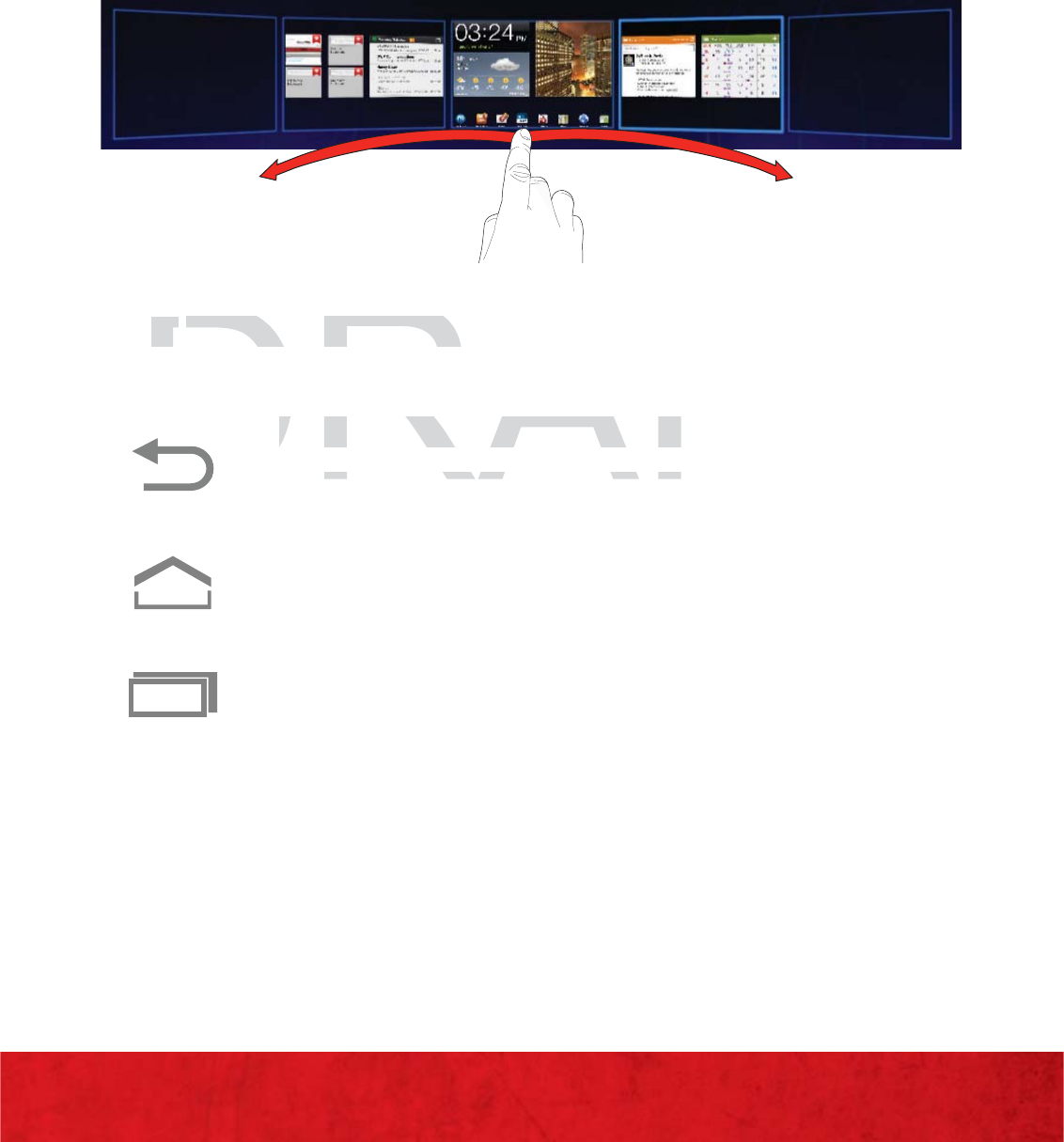
The Home screen includes a total of five
customizable panels. Flick left or right to see
additional panels.
HOME SCREEN ICONS
Back: Touch to return to the
previous screen or option.
Home: Touch to return to the Home
screen.
Recent Apps: Touch to open a list of
thumbnail images of apps recently
used. Touch a thumbnail to open.
DRAFT
MM
E
SC
REEN I
CO
N
SE SCREEN ICON
D
D
B
ackBack
: Touch to return to the
ouch to return to
iti
iti
18
BASICS
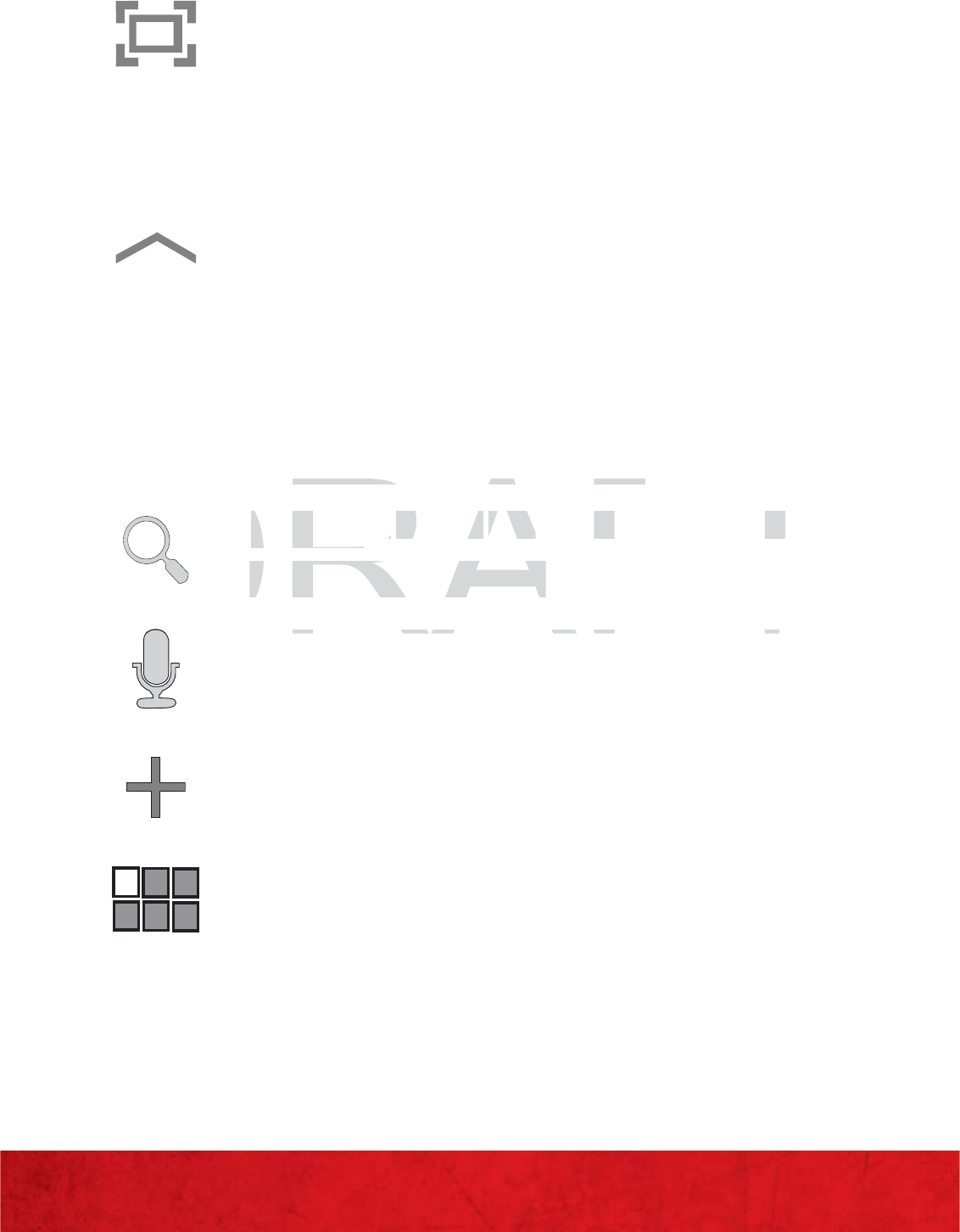
Screen capture: Touch to capture
a picture of the current screen and
saves it in the /Root/ScreenCapture
folder.
Mini App Tray: Touch to display
shortcuts to apps that you might
need while working in other apps,
such as your calendar, a memo
pad, and a calculator. For more
information, see page 28.
Google Search: Touch to search the
web or your device.
Voice Search: Touch to search the
web or your device by speaking.
Customization: Touch to display a
sleek 3D customization page.
Applications: Touch to display the
Applications panel.
DRAFT
,pg,pg
D
D
Google
Google
SS
earc
hearch
:
To: To
uc
h
to searc
h
t
h
e
to search th
we
b
or your
d
evice
.web or your device.
D
D
Vi
i
S
h
h
T
ht hth
ht hth
19
BASICS
CUSTOMIZING THE HOME SCREEN
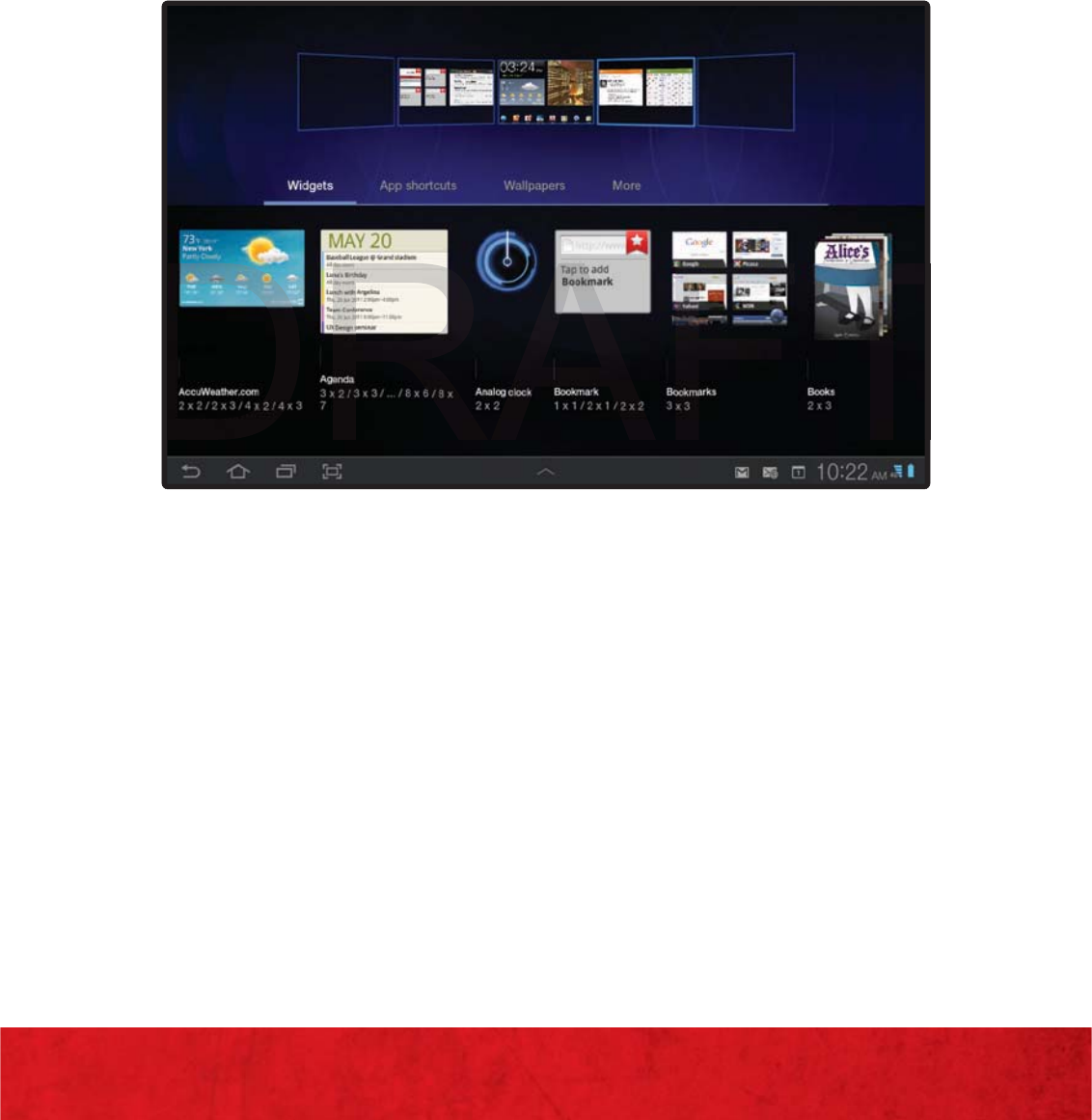
ADDING WIDGETS
Widgets are self-contained applications that
you can place on any screen to access your
favorite features.
1. From the current screen, touch and hold an
empty area of the screen. The Widgets tab
is highlighted.
2. Touch a widget to add it to the hightlighted
Home screen or touch and hold the widget
and drag it onto a desired Home screen.
NOTE: This same process can be used to add Widgets to other
screens where screen space is available.
T
T
T
D
D
D
20
BASICS
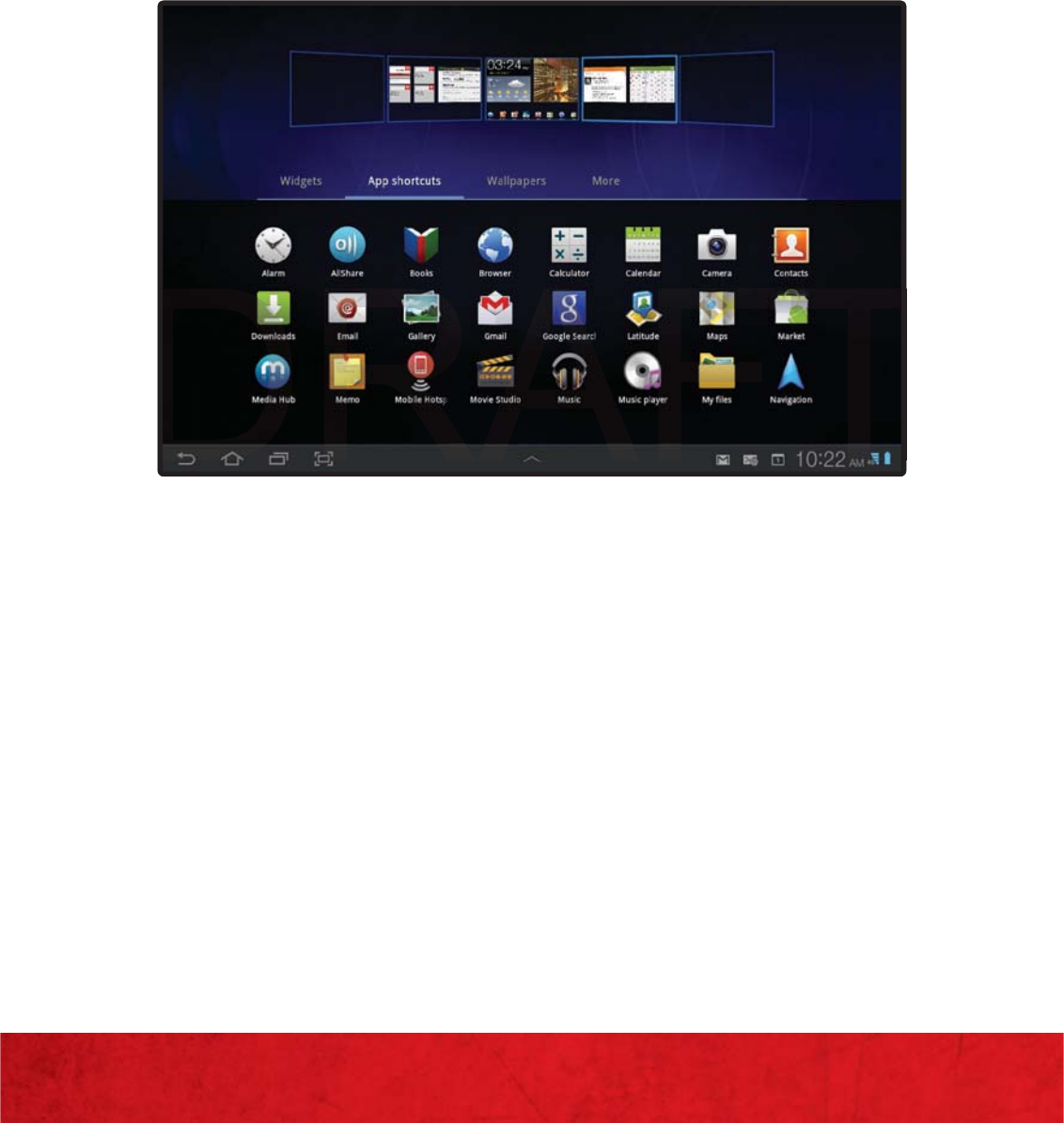
ADDING APPLICATIONS SHORTCUTS
Use App Shortcuts for quick access to
applications or features, such as Email or other
applications. Unlike Widgets, these are just
shortcuts to onboard applications.
Adding Shortcuts to the screen
1. Navigate to the screen where you will place
the shortut.
2. Touch and hold an empty area of the screen.
T
T
T
D
D
D

21
BASICS
3. Touch the App shortcutstab, then touch
an application to add it to the highlighted
Home screen or touch and hold the shortcut
and drag it onto a desired Home screen.
4. Touch to return to the Home screen.
Adding App Shortcuts from the Apps Screen
1. From the Home screen, touch Apps ( ) in
the upper right corner of the display.
2. Touch and hold on an application icon until
the Home screen selection area is displayed
at the bottom of the screen.
3. Drag the application icon to the desired
Home screen. The Home screen frame is
highlighted.
4. Drag the application icon approximately
where you want it on the Home screen.
DRAFT
at
the
bottom
of
the
screen
.
at the bottom of the screen.
3.
3
D
rag the application icon to the desired
ag the application icon to the desired
H
o
m
e
sc
r
ee
n
.
Th
e
H
o
m
e
sc
r
ee
n fr
a
m
e
isme screen. The Home screen frame
hi
g
hli
g
hted
.
highlight
22
BASICS
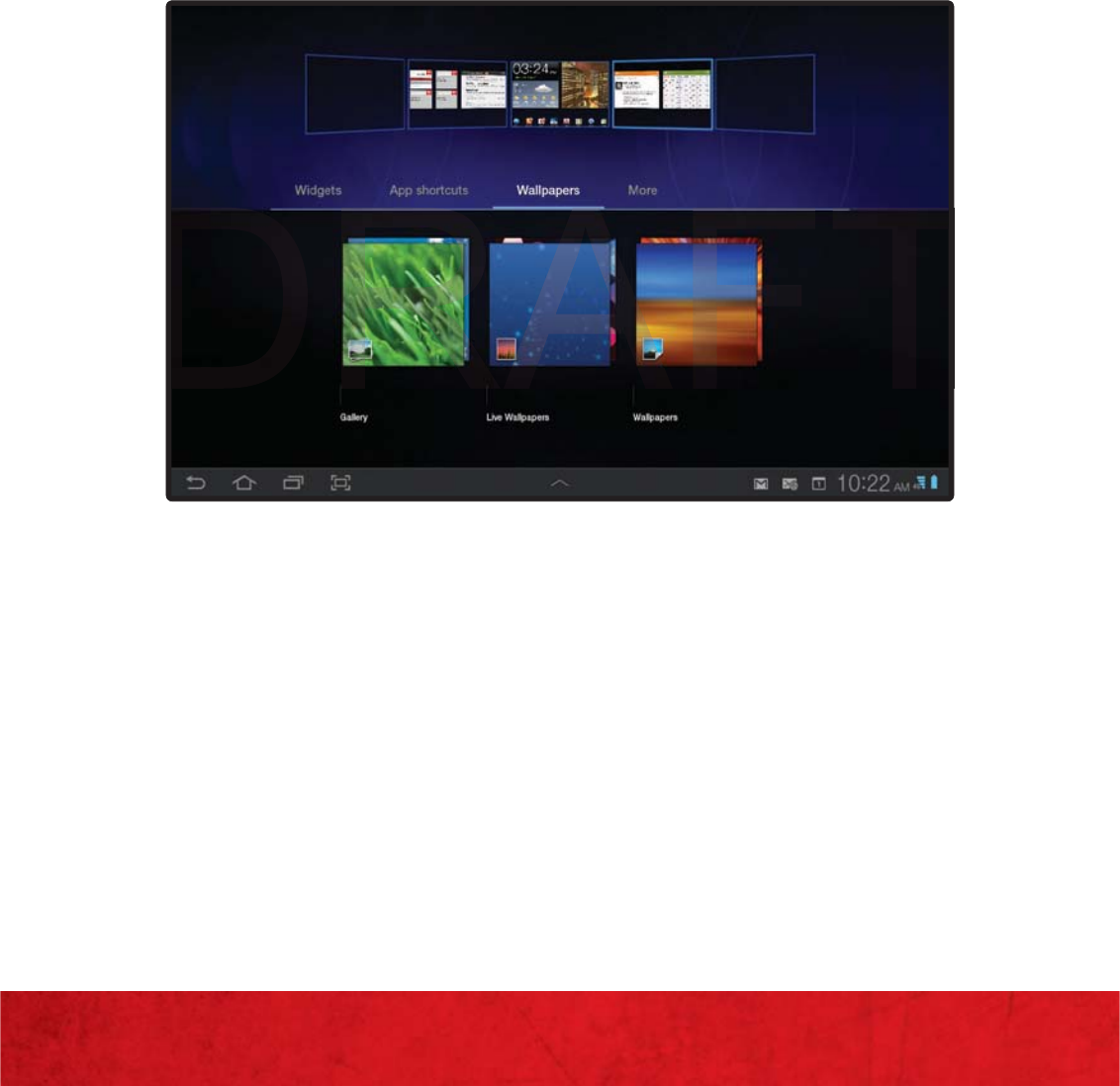
CHANGING WALLPAPER
You can select a picture to display as the
device’s background screen or assign it to the
Lock screen. Choose from an array of image
sources such as: preloaded wallpaper images,
live animated wallpapers, or select any photo
you’ve previously stored in your Gallery.
1. From the current screen, touch and hold an
empty area.
2. Touch the Wallpapers tab to choose an
image source or assignment:
≠Gallery: Access the Gallery to choose a
pictures taken with your device or picture
downloaded to your device.
T
T
T
D
D
D

23
BASICS
≠Touch to display the Set as pop-up and
then touch Lock screen Wallpaper or
Home screen Wallpaper.
≠Touch a picture to select it, then crop and
resize it, if desired. Touch Ok to save the
picture as wallpaper or touch X to cancel.
≠Live Wallpapers: Choose from pre-loaded
interactive animated wallpapers. Touch a
wallpaper to see an example. If available,
touch Settings to view options for the
selection.
≠Touch Set wallpaper to save your
choice or touch Cancel to return to the
Wallpaper menu.
≠Wallpapers: Touch to display the Set
as pop-up and then touch Lock screen
Wallpaper or Home screen Wallpaper.
Choose from pre-loaded wallpaper images.
≠Touch an image to save it as wallpaper.
≠Touch Cancel to return to the Wallpaper
menu.
≠≠
T
ouc
h
Touch
SS
e
t wa
ll
paper
et wallpape
t
o s
s
a
v
e
y
o
u
r
ave your
c
h
oice or touc
hchoice or touch
CC
anceanc
l
to return to t
h
e
to return to t
Wall
p
a
p
er menu.
Wallpaper menu.
≠
≠
Wallpapers
Wallpap
:Touchtodisplaythe
Touchtodispla
S
et
24
BASICS
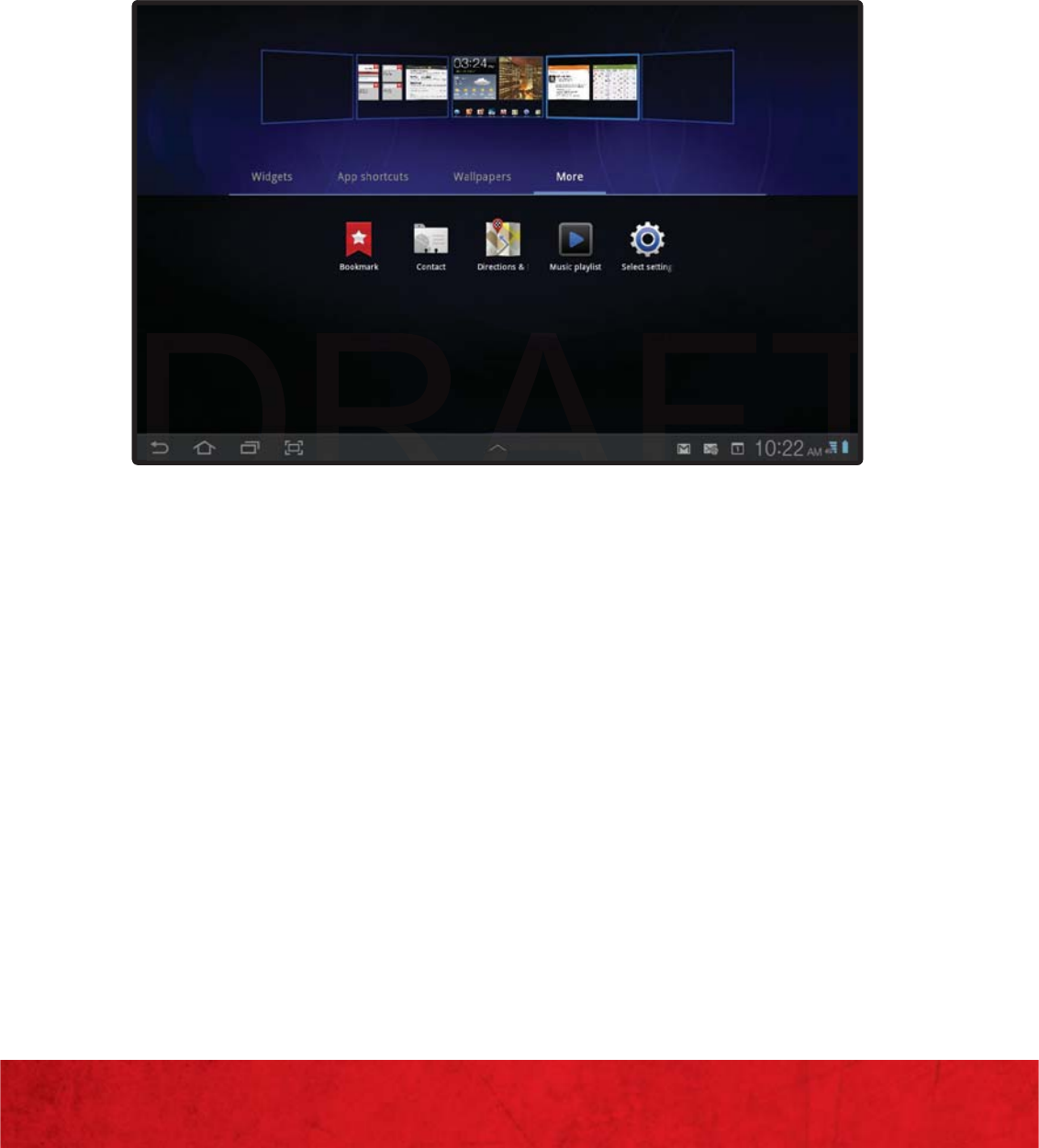
USING MORE FEATURES
More includes shortcuts to Browser
bookmarks, Directions and Navigation, and
an assortment of other useful items.
1. From the current screen, touch and hold
on an empty area.
2. Touch More to view the additional
widgets.
≠Bookmark: Launch a bookmarked web
page.
≠Contact: View a contact you specify.
≠Directions & Navigation: Get
directions and navigation from Google
Maps.
DRAFT
DRAFT
DRAFT

25
BASICS
≠Email account: Access an Email
account. Appears once an Email
account is set up. If you have more
than one Email account set up, touch
the one to which you want to link.
≠Gmail label: Access a Gmail label.
Appears once a Gmail account is set
up. Touch the label to which you want
to link.
≠Latitude: Locate your friends on a map
and share or hide your location.
≠Music playlist: Set up a link to a music
playlist.
≠Settings: Displays a list of Settings
shortcuts. Touch an entry in the list.
DRAFT
≠≠
M
us
i
c p
l
ay
li
s
tMusic playli
:
S
et up a
li
n
k
to a mus
i
c
Set up a link to a music
p
l
ay
l
ist.
playlist.
≠
SS
ett
i
ng
settings
:
D
is: D
plays a list of Settings
plays a list of Settings
shortcuts Touchanentryinthelist
shortcuts Touchanentryinthelist
26
BASICS
NOTIFICATIONS
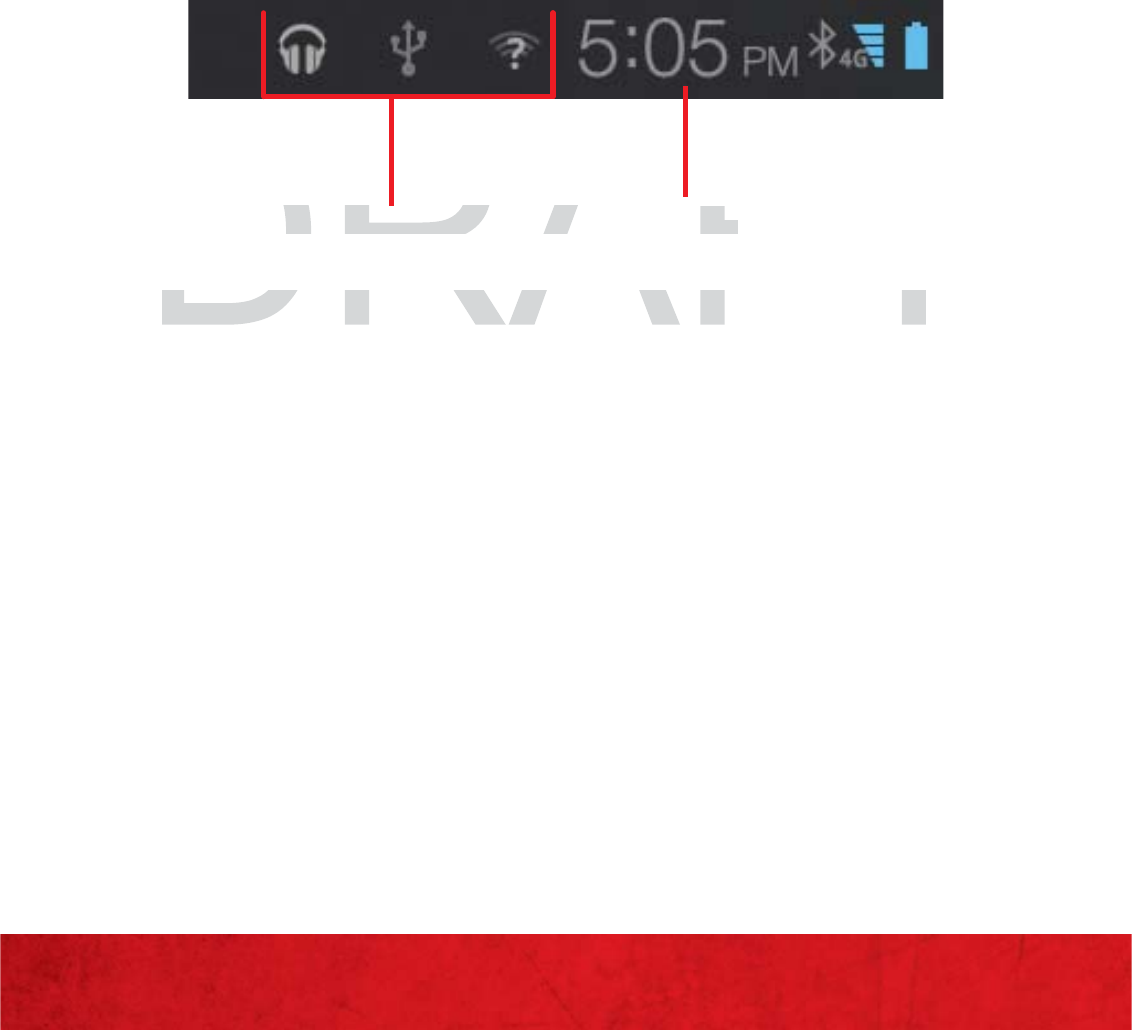
Notification icons appear in the System Bar,
to the left of the Time when you receive a
notification. Notifications indicate the arrival
of Gmail, Email, alarms, calendar events, and so
on. Tap a Notification icon for more detail. For
example, tap the available Wi-Fi network icon
to see available wireless connections.
Tap the Time field to open the Notifications list
to view all of your current notifications. Tap a
Notification in the list to display the item. For
example, tap a Gmail entry to open the Gmail
application and view the message.
Most apps that send notifications, such as
Gmail and Google Talk, have their own settings,
which you can use to configure whether
and how they send notifications, whether
they sound a ringtone, and so on. See the
documentation for those apps for details.
Notifications icons Time
DRAFT
Ta
p
the Time field to o
p
en the Notifications l
i
Tap the Time field to open the Notification
Notifications iconsNotifications icons
T
im
eme
R
27
BASICS
STATUS DETAILS
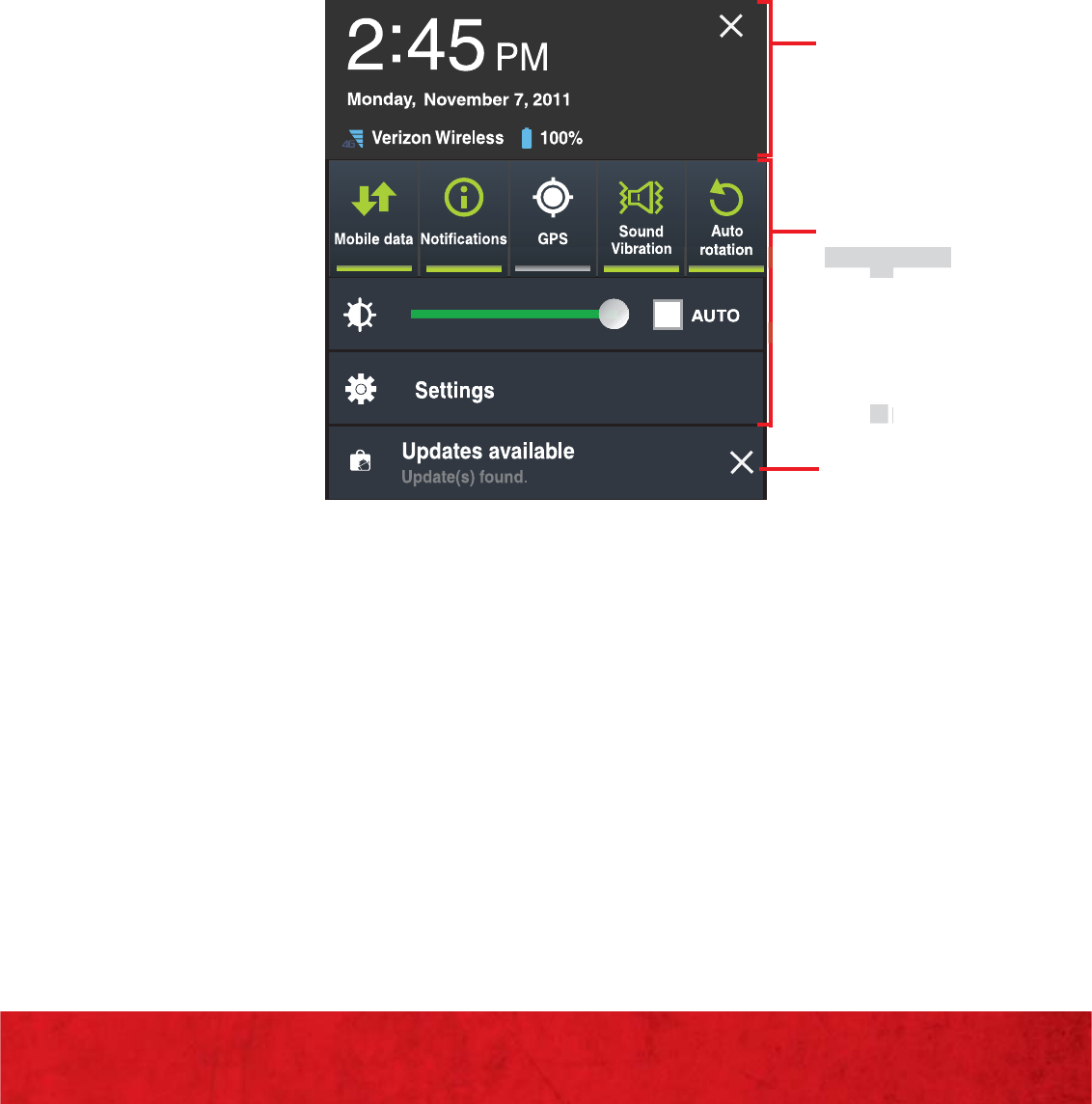
To display the current date and time, battery
status, and Wi-Fi connectivity status, open
Status Details.
1. Touch the Time in the lower right corner to
display the Quick Settings pop-up.
The Quick Settings are:
≠Mobile date: Touch to enable or disable
Mobile data.
≠Notifications: Touch to enable or disable
system and application notifications.
≠GPS: Touch to enable or disable the device’s
GPS functions.
Status
Details
Quick
Settings
Alerts or
other
Messages
DRAFT
RAF
RAF
R
R
R
R
R
R
R
R
R
R
R
R
R
R
R
R
R
R
R
R
R
R
R
R
R
R
R
R
R
R
R
R
R
R
R
R
R
R
R
R
R
R
R
R
R
R
R
R
R
R
R
R
R
R
R
R
R
R
R
R
R
R
R
R
R
R
R
R
R
R
R
R
R
R
R
R
R
R
R
R
R
R
R
R
R
R
R
R
R
R
R
A
A
A
A
A
A
A
A
A
A
A
A
A
A
A
A
A
A
A
A
A
A
A
A
A
A
A
A
A
A
A
A
A
A
A
A
A
A
A
A
A
A
A
A
A
A
A
A
A
A
A
A
A
A
A
A
A
A
A
A
A
A
A
A
A
A
A
A
A
A
A
A
A
A
A
A
A
A
A
A
A
A
A
A
A
A
A
A
A
A
A
A
A
A
A
A
A
A
A
A
A
A
A
A
A
A
A
A
A
A
A
A
A
A
A
A
A
A
A
AF
AF
AF
AF
AF
AF
AF
AF
AF
AF
AF
AF
AF
AF
AF
AF
AF
AF
AF
AF
AF
AF
AF
AF
AF
AF
A
A
A
A
A
A
A
A
AF
AF
AF
AF
AF
AF
AF
AF
AF
AF
AF
AF
AF
AF
AF
AF
AF
AF
AF
AF
AF
AF
AF
AF
AF
AF
AF
AF
AF
AF
AF
AF
AF
AF
AF
AF
F
AF
AF
AF
AF
AF
AF
AF
AF
AF
AF
AF
AF
AF
AF
AF
AF
AF
AF
AF
AF
AF
AF
AF
AF
AF
AF
AF
AF
AF
AF
F
F
F
F
F
F
F
F
F
F
F
F
F
F
F
F
F
F
F
F
F
F
F
F
F
F
F
F
F
F
F
F
F
F
F
F
F
F
F
F
F
F
F
F
F
F
F
F
F
F
F
F
F
F
F
F
F
F
F
F
F
F
F
F
F
F
F
F
F
F
F
F
F
F
F
F
F
F
F
F
F
F
F
F
F
F
F
F
F
F
F
F
F
F
F
F
F
F
F
F
RA
RA
RA
RA
RA
RA
RA
RA
RA
RA
RA
RA
RA
RA
RA
RA
RA
RA
RA
RA
RA
RA
RA
RA
RA
RA
RA
RA
RA
RA
RA
RA
RA
RA
RA
RA
RA
RA
RA
RA
RA
RA
RA
RA
RA
RA
RA
RA
RA
RA
RA
RA
RA
RA
RA
RA
RA
RA
RA
RA
RA
RA
RA
RA
RA
RA
RA
RA
RA
RA
RA
RA
RA
RA
RA
RA
RA
RA
RA
RA
RA
RA
RA
RA
RA
RA
RA
RA
RA
RA
RA
RA
RAF
RA
A
A
A
A
A
A
A
A
A
A
A
A
A
A
A
A
A
A
A
A
A
A
A
A
A
A
A
A
A
A
A
A
A
A
A
A
A
A
A
A
A
A
A
A
A
A
A
A
A
A
A
A
A
A
A
A
A
A
A
A
A
A
A
A
A
A
A
A
A
A
A
A
A
A
A
A
A
A
A
A
A
A
A
A
A
A
A
A
A
A
A
A
A
RAF
AF
AF
F
F
F
F
R
RAF
R
R
R
R
R
R
R
RA
R
R
S
e
tti
ng
sSettings
A
ler
er
ts o
t
F

28
BASICS
≠Sound / Vibration: Touch to enable or
disable sound mode. When sound is
disabled, Vibration is enabled.
≠Auto rotation: Touch to enable or disable
automatic rotation. When disabled, the
screen does not rotate when you turn the
tablet.
≠Brightness slider: Touch and drag the slider
to set the brightness or tap AUTO to allow
the device to set brightness automatically
based on available light and battery charge
status.
≠Settings: Touch to open the Settings menu.
2. Tap an Alert entry to display the details or
tap X next to a notification to remove it.
3. Close the Quick Settings by either tapping
X in the upper right corner of the Quick
Settings pop-up or any other part of the
screen.
DRAFT
status
.
status.
≠≠
S
ett
i
ng
sttings
: Touch to open the
S
ettings men
: Touch to open the Settings m
2.
2
T
ap an
p a
AA
l
ert entry to
d
isp
l
ay t
h
e
d
etai
l
s or
t entry to display the details
tapXnexttoanotificationtoremoveit
tapXnexttoanotificationtoremoveit
29
BASICS
MINI APP TRAY
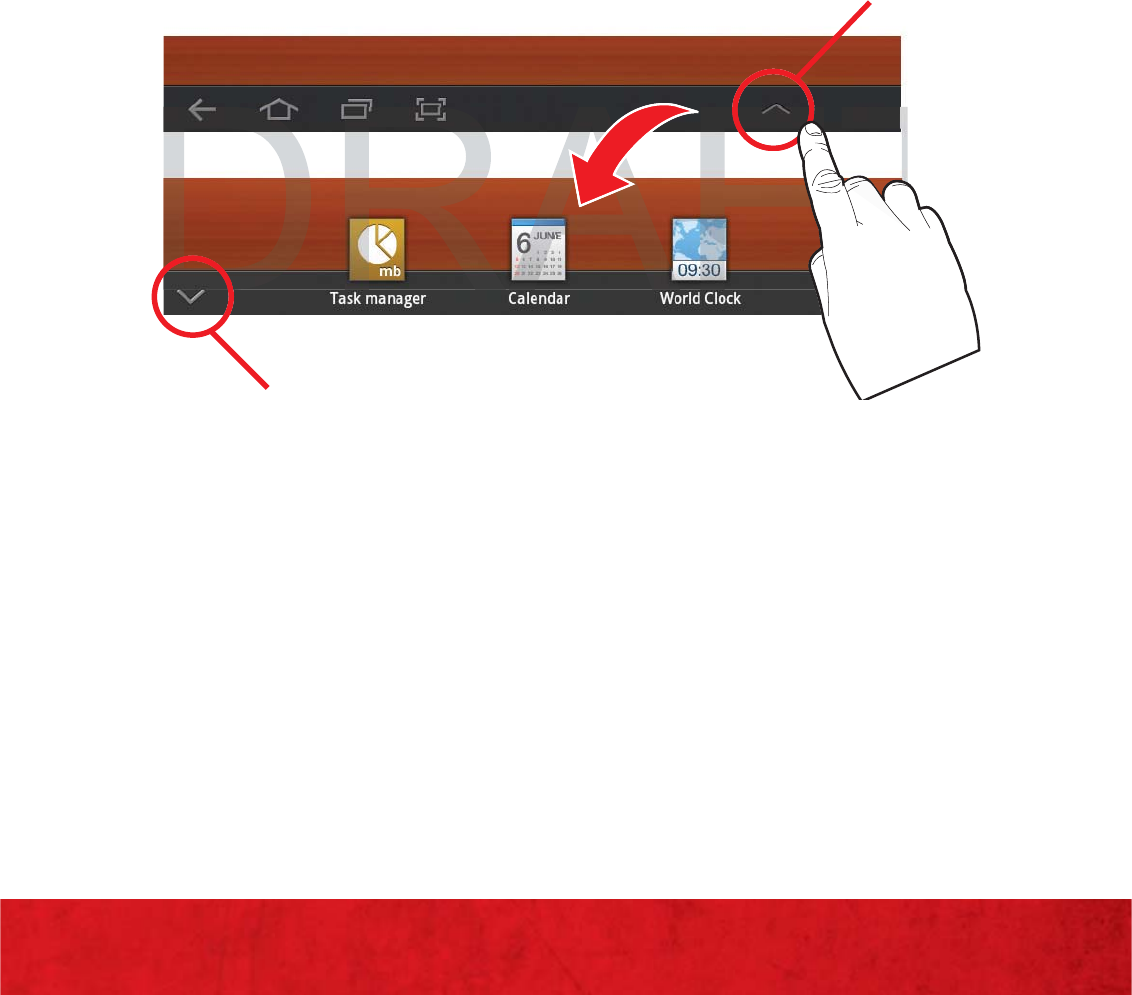
There are shortcuts available that link to apps
that you might need while working in other
apps, such as your calendar, a memo pad, and a
calculator. In some cases, these shortcuts are
actually links to the part of the app you need
most and they contain link to the actual app
where you can use other functions.
1. From any screen, tap (Mini App Tray) at the
bottom, center of the screen.
2. Tap any of the following icons to display the
associated application.
Open Mini App tray
Close Mini App tray
DRAFT
A
A
F
D
FT
FT
T
T
T
F
F
F
F
F
FT
F
T
T
T
T
T
F
F
F
F
F
F
T
T
T
T
30
BASICS
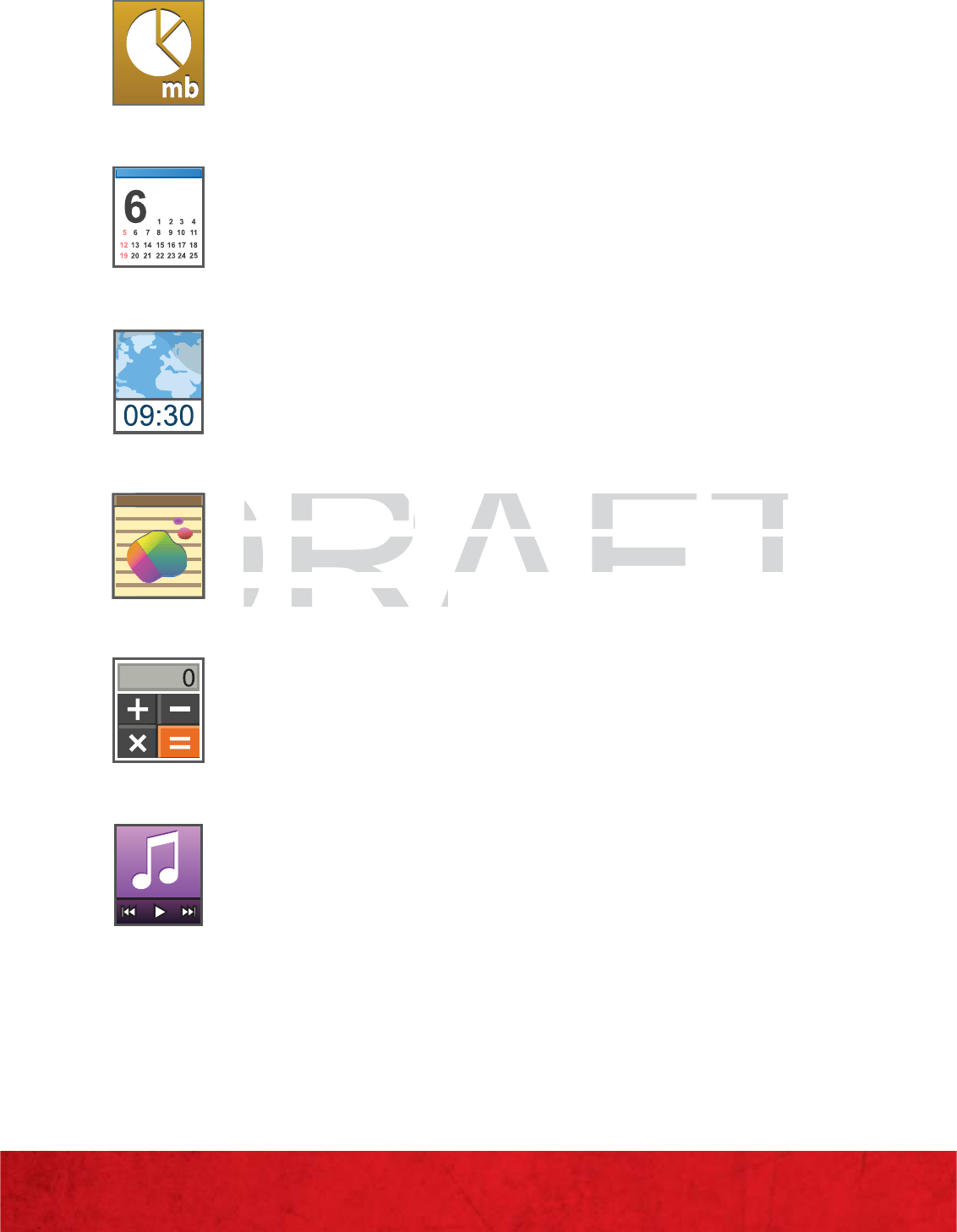
Task Manager: Displays the Task
manager.
JUNE
Calendar: Displays the calendar with
today’s date circled.
World Clock: Displays the time for
your set locations.
Pen Memo: Displays the Pen memo
app, which you can use to create and
save a memo.
Calculator: Displays a basic calculator.
Music Player: Displays the music
player.
DRAFT
D
D
D
D
D
D
D
D
D
D
D
D
D
D
D
D
D
D
D
D
D
D
D
D
D
D
D
D
D
D
D
D
D
D
D
D
D
D
D
D
D
D
D
D
D
D
D
D
D
D
D
D
D
D
D
D
D
D
D
D
D
D
D
D
D
D
D
D
D
D
D
D
D
D
D
D
D
D
D
D
D
D
D
D
D
D
D
D
D
D
D
D
D
D
D
D
D
D
D
D
D
D
D
D
D
D
D
D
D
D
D
D
D
D
D
D
D
D
D
D
D
D
D
D
D
D
D
D
D
D
D
D
D
D
D
D
D
D
D
D
D
D
D
D
D
D
D
D
D
D
D
D
D
D
D
D
D
D
D
D
D
D
D
D
D
D
D
D
D
D
D
D
D
D
D
D
D
D
D
D
D
D
D
D
D
D
D
D
D
D
D
D
D
D
D
D
D
D
D
D
D
D
D
D
D
D
D
D
D
D
D
D
D
D
D
D
D
D
D
D
D
D
D
D
D
D
D
D
D
D
D
D
D
D
D
D
D
D
D
D
D
D
D
D
D
D
D
D
D
D
D
D
D
D
D
D
D
D
D
D
D
D
D
D
D
D
D
D
D
D
D
D
D
D
D
D
D
D
D
D
D
D
D
D
D
D
D
D
D
D
D
D
D
D
D
D
D
D
D
D
D
D
D
D
D
D
D
D
D
D
D
D
D
D
D
D
D
D
D
D
D
D
D
D
D
D
D
D
D
D
D
D
D
D
D
D
D
D
D
D
D
D
D
D
D
D
D
D
D
D
D
D
D
D
D
D
D
D
D
D
D
D
D
D
D
D
D
D
D
D
D
D
D
D
D
D
D
D
D
D
D
D
D
D
D
D
D
D
D
D
D
D
D
D
D
D
D
D
D
D
D
D
D
D
D
D
D
D
D
D
D
D
D
D
D
D
D
D
D
D
D
D
D
D
D
D
D
D
D
D
D
D
D
D
D
D
D
D
D
D
D
D
D
D
D
D
D
D
D
D
D
D
D
D
D
D
D
D
D
D
D
D
D
D
D
D
D
D
D
D
D
D
D
D
D
D
D
D
D
D
D
D
D
D
D
D
D
D
D
D
D
D
D
D
D
D
D
D
D
D
D
D
D
D
D
D
D
D
D
D
D
D
D
D
D
D
D
D
D
D
D
D
D
D
D
D
D
D
D
D
D
D
D
D
D
D
D
D
D
D
D
D
D
D
D
D
D
D
D
D
D
D
D
D
D
D
D
D
D
D
D
D
D
D
D
D
D
D
D
D
D
D
D
D
D
D
D
D
D
D
D
D
D
D
D
D
D
D
D
D
D
D
D
D
D
D
D
D
D
D
D
D
D
D
D
D
D
D
D
D
D
D
D
D
D
D
D
D
D
D
D
D
D
D
D
D
D
D
D
D
D
D
D
D
D
D
D
D
D
D
D
D
D
D
D
D
D
D
D
D
D
D
D
D
D
D
D
D
D
D
D
D
D
D
D
D
D
D
D
D
D
D
D
D
D
D
D
D
D
P
e
n M
e
m
oPen Memo
: Displays the Pen memo
: Displays the Pen memo
app, w
h
ic
h
you can use to create an
d
app, which you can use to create an
sa
v
e
a
memo.save a memo.

31
BASICS
SEARCH
Google Search
Search the internet, and your device, using the
Google search engine.
1. From a Home screen, touch Google ( ) in
the upper left corner.
2. Use the keypad to enter search criteria.
Suggestions display below the text entry
area.
3. Touch a suggestion to search for that term.
– or –
Touch Go to start the search.
A browser window displays the search
results.
DRAFT
–
or
–r –
T
ouc
h
ch
G
oGo
t
o s
t
ar
t
th
e searc
h. to start the search.
A
A
br
br
owserwindowdisplaysthesearch
owserwindowdisplaysthesearch

32
BASICS
Voice Search
Voice Search offers voice-activated Google
searches.
Tip: Voice Search is also available on the Google Search widget,
which appears on a Home screen by default.
1. From a Home screen, touch Voice Search
() in the upper left corner.
2. Touch Speak now, then speak your search
criteria slowly and clearly. Google searches
for the information and displays results.
DRAFT
33
BASICS
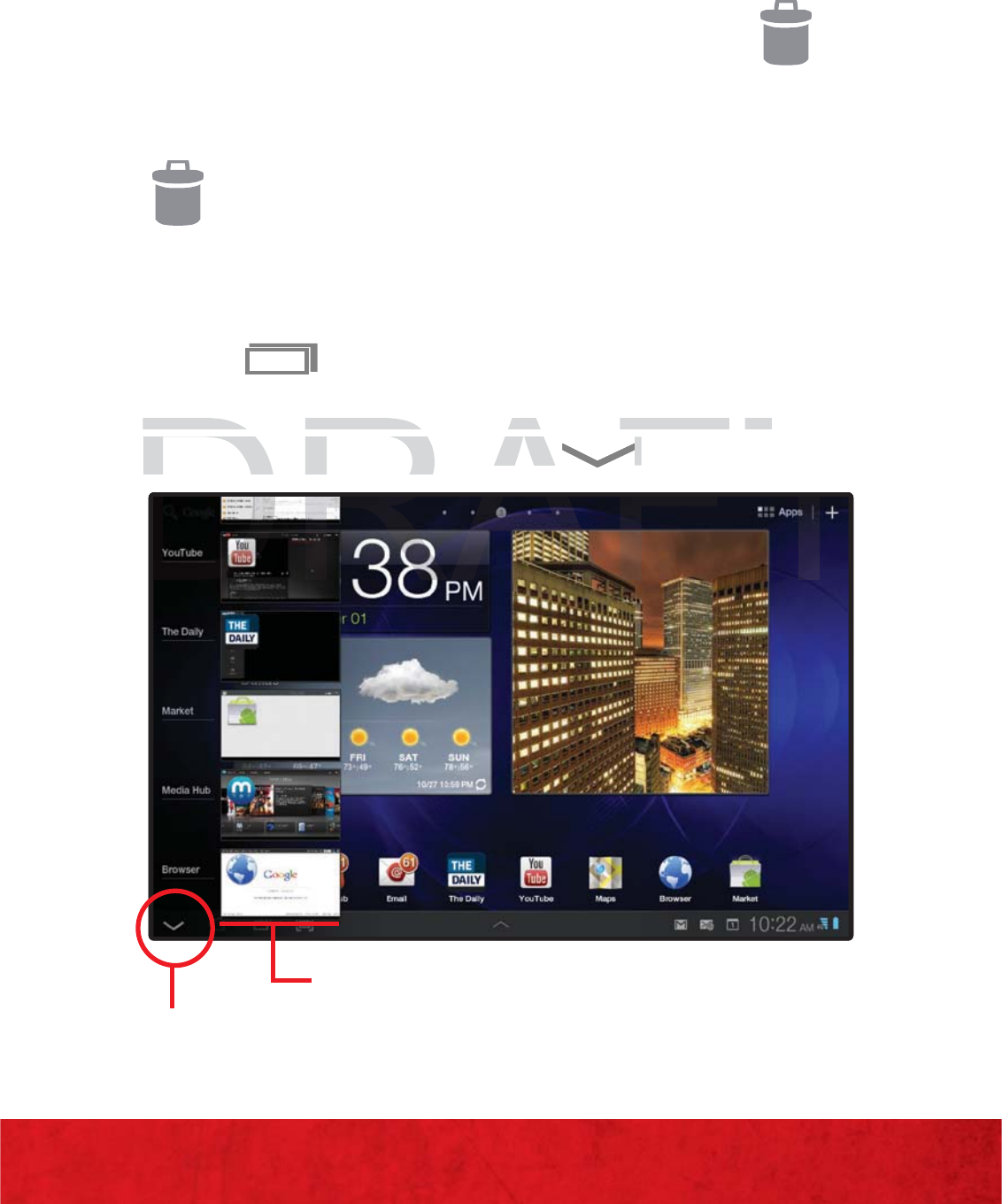
Close Recent Apps
Recent Apps thumbnails
REMOVING ICONS FROM THE HOME
SCREEN
Touch and hold the icon until Remove ( )
appears at the top right corner of
the screen, then drag the icon to the Remove
() to remove it.
RECENT APPS
Touch to open thumbnail images of apps
you have worked with recently. Touch a
thumbnail to open. Touch to close.
DRAFT
you
have
worked
with
recently.
Touch
ayou have worked with recently. Touch a
thumbnail to open
.thumbnail to open
DRAFT
DRAFT
T
ouc
h
uch
AF
to close.
34
BASICS
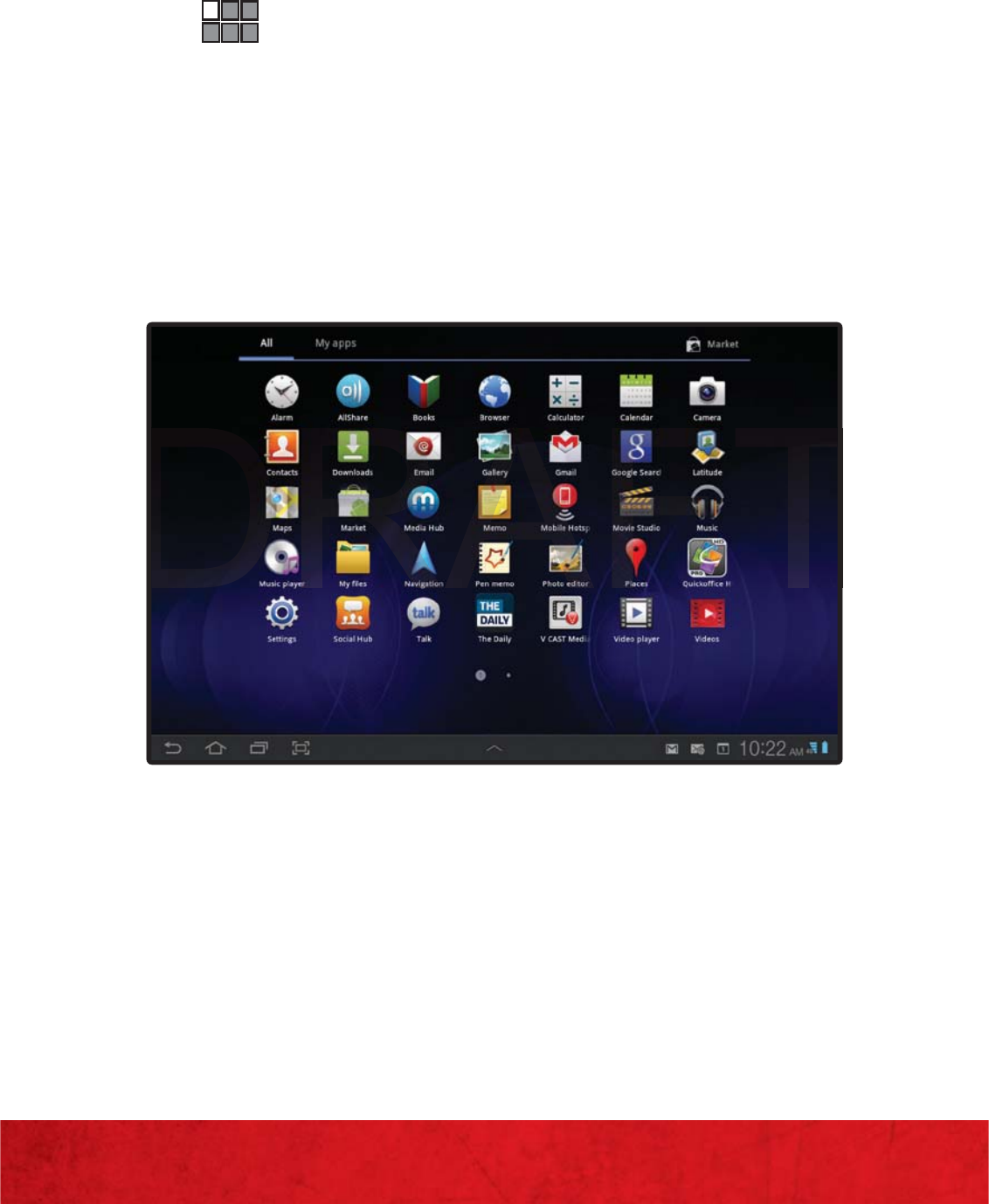
APPS MENU
1. From the Home screen, touch Apps
() in the right corner of the display, to
view your apps screen.
2. Touch My apps to view application
downloads from Android Market.
3. Touch Shop to purchase or dowloand free
applications from Android Market.
T
T
T
D
D
D

35
BASICS
CONNECTIONS
BLUETOOTH®
Bluetooth is a short-range wireless
communications technology for exchanging
information over a distance of about 30 feet.
You don’t need to line up the devices to send
information with Bluetooth. If the devices
are in range, you can exchange information
between them, even if they are in different
rooms.
Turning Bluetooth On or Off
From the Home screen, touch Apps () J
Settings () J Wireless & networks
J Bluetooth (touch Bluetooth to turn
Bluetooth On or Off)
DRAFT
Turnin
g
Bluetooth
Turning Bluetooth
O
n
o
r
or
OO
ff
F
F
rom the Home screen
,
touch
he Home screen, touch
AA
pp
s
(
T
T
T
T
T
T
T
T
T
T
T
T
)
)
J
S
S
et
et
tings
ting
(
(
R
R
R
R
R
R
R
R
R
R
R
R
R
R
R
R
R
R
R
R
R
R
R
R
R
R
R
R
R
R
R
R
R
R
R
R
R
R
R
R
R
R
R
R
R
R
R
R
R
R
R
R
R
R
R
R
R
R
R
R
R
R
R
R
R
R
R
R
R
R
R
R
R
R
R
R
R
R
R
R
R
R
R
R
R
R
R
R
R
R
R
R
R
R
R
R
R
R
R
R
R
R
R
R
R
R
R
R
R
R
R
R
R
R
R
R
R
R
R
R
R
R
R
R
R
R
R
R
R
R
R
R
R
R
R
R
R
R
R
R
R
R
R
R
R
R
R
R
R
R
R
R
R
R
R
R
R
R
R
R
R
R
R
R
R
R
R
R
R
R
R
R
R
R
R
R
R
R
R
R
R
R
R
R
R
R
R
R
R
R
R
R
R
R
R
R
R
R
R
R
R
R
R
R
R
R
R
R
R
R
R
R
R
R
R
R
R
R
R
R
R
R
R
R
R
R
R
R
R
R
R
R
R
R
R
R
R
R
R
R
R
R
R
R
R
R
R
R
R
R
R
R
R
R
R
R
R
R
R
R
R
R
R
R
R
R
R
R
R
R
R
R
R
R
R
R
R
R
R
R
R
R
R
R
R
R
R
R
R
R
R
R
R
R
R
R
R
R
R
R
R
R
R
R
R
R
R
R
R
R
R
R
R
R
R
R
R
R
R
R
R
R
R
R
R
R
R
R
R
R
R
R
R
R
R
R
R
R
R
R
R
R
R
)
JJ
Wireless&networks
Wireless&ne
36
BASICS
Pairing your device to a Bluetooth headset
To connect with a new device, you need to
pair with it. You only need to do this once for
each device—to connect again, just turn on
the device.
1. Make sure the device you are pairing with
is in discoverable mode.
Note: Refer to the guide that came with the device for
details.
2. Touch Apps () J Settings () J
Wireless & networks J Bluetooth
settings.
3. Touch Bluetooth to turn on Bluetooth, if
necessary.
4. Touch Find nearby devices.
5. Touch a device to connect.
6. If necessary, touch Pair, or enter the
device passkey (0000) to connect to the
device. When the device is connected, the
Bluetooth indicator appears in the status
panel.
NOTE: Using a mobile device or accessory while driving may
cause distraction and may be illegal. Always obey the laws
and drive safely.
DRAFT
sett
i
ng
ssettings
.
3.3
T
ouc
hch
Bl
uetoot
hBluetoo
to turn on Bluetooth, if
to turn on Bluetooth,
necessar
y
.necessa

37
BASICS
Supported Bluetooth Profiles
≠SPP: Serial Port Profile (AT Commands)
≠A2DP: Advanced Audio Distribution Profile
≠AVRCP: Audio/Visual Remote Control
Profile
≠OBEX: Object Exchange Profiles (not all
OBEX profiles supported)
≠OPP: Object Push Profile (must support
optional settings in profile)
≠GAVDP: Generic Audio/Video Distribution
Profile
≠AVDTP: Audio/Visual Distribution Profile
≠AVCTP: Audio/Visual Control Transport
Protocol Profile
≠HID: Human Interface Device
DRAFT
ProfilePro
≠≠
A
V
DD
TP
:TP:
A
udio
/
Visual Distribution Profil
eudio/Visual Distribution Prof
≠≠
A
V
CC
TP:TP:
A
u
dio
/
Visual Control Transport
udio/Visual Control Transpor
P
P
rotocol Profile
rotocol Profile

38
BASICS
WI-FI
Wi-Fi (short for “wireless fidelity”) is a term
used for certain types of Wireless Local Area
Networks (WLAN). Wi-Fi communication
requires access to an existing and accessible
Wireless Access Point (WAP). These WAPs can
either be Open (unsecured) as within most Hot
Spots, or Secured (requiring knowledge of the
Router name and password).
Turning Wi-Fi On or Off
By default, your device’s Wi-Fi feature is turned
off (deactivated). Activating Wi-Fi allows your
device to discover and connect to compatible
in-range WAPs (Wireless Access Points).
≠From the Home screen, touch Apps
() J Settings () J Wireless&
networks J Wi-Fi (touch Wi-Fi to turn Wi-
Fi On or Off). Your table will automatically
scan for available Wi-Fi networks.
DRAFT
BB
y
default
,
your
device s
Wiy default, your device s
FF
i
feai fea
ture
is
turnture is turn
off
(
deactivated
)
.
off (deactivated).
A
ct
i
vat
itivat
ng Wi-
W
F
i
al
l
ows yo
uws
device to discover and connect to com
p
atibl
edevice to discover and connect to compat
in-range
Win-range W
AA
Ps
(W(W
ire
l
ess
reless
AA
ccecce
s
s Points
).ss Points).

39
BASICS
Connecting to a Wi-Fi Network
1. From the Home screen, touch Apps
() J Settings () J Wireless&
networks J Wi-Fi (touch Wi-Fi to turn
Wi-Fi On or Off). Your table will
automatically scan for available Wi-Fi
networks.
2. The network names and security settings
(Open network or Secured with Wired
Equivalent Privacy ( WEP) of detected.
Wi-Fi networks display in the Wi-Fi
networks section.
3. Touch the network you wish to connect to.
NOTE: When you select an open network you are automatically
connected.
4. Enter a wireless password (if necessary) and
touch Connect.
DRAFT
pypy
ne
tnet
works section.
works secti
3.
3
Touch the network
y
ou wish to connect to
.ch the network you wish to connect
N
ONO
T
E: When
y
ou select an o
p
en network
y
ou are automatical
: When you select an open network you are automa
co
co
nnected
nnecte
40
BASICS
CAMERA AND HIGH-DEFINITION VIDEO
TAKING PICTURES
1. From the Home screen, touch Apps () J
Camera () to launch the camera.
2. Aim the camera lens at the desired object
and touch to capture the image.
RECORDING A VIDEO
1. From the Home screen, touch Apps
() J Camera ( )J move the slider to
Camcorder .
2. Aim the camcorder lens at the desired
object and touch to record video. Touch
to stop and automatically save recording.
((
D
D
D
D
D
D
)
CC
ameraame
(
A
A
A
A
A
A
A
A
A
A
A
A
A
A
A
A
A
A
A
A
A
A
A
A
A
A
A
A
A
A
A
A
A
A
A
A
A
A
A
A
A
A
A
RA
A
A
A
A
A
A
A
A
A
A
A
A
A
A
A
A
A
A
A
A
A
A
A
A
A
A
A
A
A
A
A
A
A
A
A
A
A
A
A
A
A
A
A
A
A
A
A
A
A
A
A
A
A
A
A
A
A
A
A
A
A
A
A
A
A
A
A
A
A
A
A
A
A
A
A
A
A
A
A
A
A
A
A
A
A
A
A
A
A
A
A
A
A
A
A
A
A
A
A
A
A
A
A
A
A
A
A
A
A
A
A
A
A
A
A
A
A
A
A
A
A
A
A
A
A
A
A
A
A
A
A
A
A
A
A
A
A
A
A
A
A
A
A
A
A
A
A
A
A
A
A
A
A
A
A
A
A
A
A
A
A
A
A
A
A
A
A
A
A
A
A
A
A
A
A
A
A
A
A
A
A
A
A
A
A
A
A
A
A
A
A
A
A
A
A
A
A
A
A
A
A
A
)
move
the
slider
move the slider
C
a
m
cmc
o
r
de
r
order
R
R
R
R
R
R
R
R
R
R
R
R
R
R
R
R
R
R
R
R
R
R
R
R
R
R
R
R
R
R
R
R
R
R
R
R
R
R
R
R
R
R
R
R
R
R
R
R
R
R
R
R
R
R
R
R
R
R
R
R
R
R
R
R
R
R
R
R
R
R
R
R
R
R
R
R
R
R
R
R
R
R
R
R
R
R
R
R
R
R
R
R
R
R
R
R
R
R
R
R
R
R
R
R
R
R
R
R
R
R
R
R
R
R
R
R
R
R
R
R
R
R
R
R
R
R
R
R
R
R
R
R
R
R
R
R
R
R
R
R
R
R
R
R
R
R
R
R
R
R
R
R
R
R
R
R
R
R
R
R
R
R
R
R
R
R
R
R
R
R
R
R
R
R
R
R
R
R
R
R
R
R
R
R
R
R
R
R
R
R
R
R
R
R
R
R
R
R
R
R
R
R
R
R
R
R
R
R
R
R
R
R
R
R
R
R
R
R
R
R
R
R
R
R
R
R
R
R
R
R
R
R
R
R
R
R
R
R
R
R
R
R
R
R
R
R
R
R
R
R
R
R
R
R
R
R
R
R
R
R
R
R
R
R
R
R
R
R
R
R
R
R
R
R
R
R
R
R
R
R
R
R
R
R
R
R
R
R
R
R
R
R
R
R
R
R
R
R
R
R
R
R
R
R
R
R
R
R
R
R
R
R
R
R
R
R
R
R
R
R
R
R
R
R
R
R
R
R
R
R
R
R
R
R
R
R
R
R
R
R
R
R
R
R
R
R
R
R
.
2
.
2
A
im the camcorder lens at the desired im the camcorder lens at the desired
co
co
A
A
A
A
A
A
A
A
A
A
A
A
A
A
A
A
A
A
A
A
A
A
A
A
A
A
A
A
A
A
A
A
A
A
A
A
A
A
A
A
A
A
A
A
A
A
A
A
A
A
A
A
A
A
A
A

41
BASICS
VIEWING A PICTURE OR VIDEO
1. From the Home screen, touch Gallery
() and touch an Album to display items.
2. Touch the item you would like to view or
play.
FRONT FACING CAMERA AND CAMCORDER
≠In camera mode, touch to switch to the
front facing camera for video chat or self
portraits.
≠In camcorder mode, touch to switch to
the front facing camcorder to record a video
of yourself.
DRAFT
th
e
f
ron
t
f
ac
i
n
g
camcor
d
er
t
o recor
d
a v
idthe front facing camcorder to record a vid
of yourself
.yourself.

42
APPS AND FEATURES
APPS AND FEATURES
Make your device do more with music,
ringtones, wallpapers, apps and games. Check
the latest scores, keep up with Twitter™ and
Facebook, even plan a vacation, we’ve got apps
that help you do it all. For details and pricing, go
to verizonwireless.com.
Data charges may apply.
DRAFT
43
APPS AND FEATURES
USING ANDROID MARKET
Android Market™ provides direct access to
useful applications and fun games which you
can download and install.
NOTE: You need to be signed in to your Google Account to use
Android Market.
DOWNLOADING APPS FROM ANDROID
MARKET
1. From the Home screen, touch Apps () J
Market ( ) .
2. Browse through the categories, find an
application you’re interested in, and touch
the name.
3. Read the application descriptions.
4. For free applications touch Install. To
buy an application, touch Buy and follow
the onscreen instructions to pay for the
application.
5. Check the progress of the current download
by opening the Notifications panel.
DRAFT
2.
2.
B
rowse
th
roug
h
th
e ca
t
egor
i
es,
fi
n
d
an
Browse through the categories, find an
app
l
ication you
’
re intereste
d
in, an
d
touc
hplication you’re interested in, and to
t
he name
.name.
3.
3.
R
R
ead
ead
the application descriptions
he application descrip

44
APPS AND FEATURES
MEDIA HUB
Samsung Media Hub is your one stop for
the hottest movie and TV content. With
hundreds of titles available at your fingertips,
entertaining on the go has never been easier.
You can rent or purchase your favorite content
and watch from the convenience of anywhere.
Featuring the stunning viewing quality
Samsung is known for, Samsung Media Hub is
your gateway to mobile video like you’ve never
experienced it before.
Browse the latest movies and TV shows, then
rent or purchase the media for viewing on your
phone.
NOTE: Purchased content can be shared by up to 5 Media Hub
supporting devices. Movies are available the day after DVD
release and TV shows the day after premiering.
NOTE: Media Hub service requires a Media Hub account, and
depends on service availability. Media Hub content can only be
downloaded with a WiFi or a 4G connection.
DRAFT
Browse the latest movies and TV shows
,
the
nBrowse the latest movies and TV shows, then
rent or purchase the media for viewin
g
on yo
urent or purchase the media for viewing on
p
hone
.phone.
NO
NO
T
T
E
E
:Purchasedcontentcanbesharedbyupto5MediaHub
:Purchasedcontentcanbesharedbyupto5Media

45
APPS AND FEATURES
SURFING THE WEB
Take the Internet with you wherever you go.
You can read the latest news, get the weather
and follow your stocks.
LAUNCHING THE BROWSER
1. From the Home screen, touch Browser
() .
NOTE: You should be signed in to your Google Account to sign
into Google sites.
ENTERING A URL
1. From the Home screen, touch Browser
() .
2. Touch the URL field at the top of the
screen, then enter the URL using the virtual
QWERTY keyboard.
3. As you enter characters, potential matches
display. Continue entering characters, or
touch a match to complete the URL, then
touch Go to load the page.
DRAFT
D
D
D
1.
1
F
rom
tom
he Home screen, touch
he Home screen, touc
Br
owserer
(
D
D
D
D
D
D
D
D
D
D
D
D
D
D
D
D
D
D
D
D
D
D
D
D
D
D
D
D
D
D
D
D
D
D
D
D
D
D
D
D
D
D
D
D
D
D
D
D
D
D
D
D
D
D
D
D
D
D
D
D
D
D
D
D
D
D
D
D
D
D
D
D
D
D
D
D
D
D
D
D
D
D
D
D
D
D
D
D
D
D
D
D
D
D
D
D
D
D
D
D
D
D
D
D
D
D
D
D
D
D
D
D
D
D
D
D
D
D
D
D
D
D
D
D
D
D
D
D
D
D
D
D
D
D
D
D
D
D
D
D
D
D
D
D
D
D
D
D
D
D
D
D
D
D
D
D
D
D
D
D
D
D
D
D
D
D
D
D
D
D
D
D
D
D
D
D
D
D
D
D
D
D
D
D
D
D
D
D
D
D
D
D
D
D
D
D
D
D
D
D
D
D
D
D
D
D
D
D
D
D
D
D
D
D
D
D
D
D
D
D
D
D
D
D
D
D
D
D
D
D
D
D
D
D
D
D
D
D
D
D
D
D
D
D
D
D
D
D
D
D
D
D
D
D
D
D
D
D
D
D
D
D
D
D
D
D
D
D
D
D
D
D
D
D
D
D
D
D
D
D
D
D
D
D
D
D
D
D
D
D
D
D
D
D
D
D
D
D
D
D
D
D
D
D
D
D
D
D
D
D
D
D
D
D
D
D
D
D
D
D
D
D
D
D
D
D
D
D
D
D
D
D
D
D
D
D
D
D
D
D
D
D
D
D
D
D
D
D
D
D
D
D
D
D
D
D
D
)
.
2.
2.
Touch the
Touch th
U
R
R
L
L
fie
fie
ld at the top of the
the to

46
APPS AND FEATURES
ACCESSING THE BROWSER MENU
1. From the Home screen, touch Browser
() .
2. While viewing a Web page, touch Menu
() to access its available options.
VIDEO CHAT
Use Google Talk to chat with other Google Talk
users.
LAUNCHING GOOGLE TALK
1. From the Home screen, touch Talk ( ) .
NOTE: Talk requires that you have a Google account set prior to
using this service.
2. Enter your account information and touch
Sign in. The screen then displays your
current information, user information, and
acceptance status for both video and voice
chats. The left of the screen indicates the
status of your current friends.
DRAFT
1
.1
F
rom
tm
he Home screen, touch
he Home screen, touch
T
al
k
(
T
T
T
T
T
T
T
T
T
T
T
T
T
T
T
T
T
T
T
T
T
T
T
T
T
T
T
T
T
T
T
T
T
T
T
T
T
T
T
T
T
T
T
T
T
T
T
T
T
T
T
T
T
T
T
T
T
T
T
T
T
T
T
T
T
T
T
T
T
T
T
T
T
T
T
T
T
T
T
T
T
T
T
T
T
T
T
T
T
T
T
T
T
T
T
T
T
T
T
T
T
T
T
T
T
)
.
NN
OO
T
E:Talk requires that you have a Goo
g
le account set prior
alk requires that you have a Google account set p
u
u
sin
g
this service
.sing this servic

47
APPS AND FEATURES
INITIATING A VIDEO CHAT
1. From the Home screen, touch Talk ( ) .
NOTE: Talk requires that you have a Google account set prior to
using this service.
2. Touch the entry for your target friend.
3. To initiate the video chat session touch
Video Chat ( ) .
4. The recipient must then touch Accept on
their device to complete the connection.The
screen then displays two screens, the larger
one being your recipient and the smaller one
being a preview of your camera image.
INITIATING A VOICE CHAT
1. From the Home screen, touch Talk ( ) .
2. Touch the entry for your target friend.
3. To initiate the voice chat session touch
Voice Chat ( ) .
DRAFT
one
being
your
recipient
and
the
smaller
onone being your recipient and the smaller on
being a preview of your camera image
.being a preview of your camera image.
TT
I
AI
TI
NN
GG
A
VOIA VOI
C
E
CE
C
H
H
AA
TT
1
1
F
F
hH h
hH
Tlk
(
T
T
T
T
T
T
T
T
T
T
T
T
T
T
T
T
T
T
T
T
T
T
T
T
T
T
T
T
T
T
T
T
T
T
T
T
T
T
T
T
T
T
T
T
T
)

48
APPS AND FEATURES
E-READING
Use the Books app to read eBooks from the
web-based Google Books service. Google
eBooks is a new way to discover, buy, and enjoy
your favorite books online and offline. You can
read books online or mark them for availability
offline, so you can read them when you have no
Internet connection (such as on an airplane).
You can also use Books as your starting point
for browsing or searching for books on line.
1. From a Home screen, touch Apps () J
Books ( ).
2. Touch the cover of a book to start reading.
Once the book displays, sweep across the
screen to turn the page or touch for a
table of contents. Touch to set Show,
Brightness, Text settings, and Line height.
3. Touch Menu ( ) for these options:
≠Make available offline: Mark books
to make them available offline. Touch
below a book cover to mark it with a
pin and then touch Done. Just reverse
this process to remove books from your
device.
DRAFT
BooksBook
((
R
R
R
R
R
R
R
R
R
R
R
R
R
R
R
R
R
R
R
R
R
R
R
R
R
R
R
R
R
R
R
R
R
R
R
R
R
R
R
R
R
R
R
R
R
R
R
R
R
R
R
R
R
R
R
R
R
R
R
R
R
R
R
R
R
R
R
R
R
R
R
R
R
R
R
R
R
R
R
R
R
R
R
R
R
R
R
R
R
R
R
R
R
R
)
.
)
2
.
2
Touch the cover of a book to start readin
g.ch the cover of a book to start read
Once the book displays, sweep across theOnce the book displays, sweep across
FT
T
49
APPS AND FEATURES
≠Accounts: Set the account to use.
≠Refresh: If a book in your library does not
appear on your device, use this option to
update the display.
≠Help: Displays various Book help
information. Touch Help Center to get
additional Google Book information.
4. To add more books to your library, touch
Shop in the Application bar.
A pop-up displays the Android Market
Terms of Service and the Google Books
Terms of Service. Read each document and
touch Accept.
Browse the selection of Google eBooks,
which are arranged in categories like
Trending, Top Rated, Best Selling, and many
more.
5. To find a book by title or author name, touch
Search ( ) on the Books main screen or
touch Shop J Search ( ).
DRAFT
gg
T
e
rm
s
o
f
Se
r
vice.Terms of Servi
RR
ead
eac
h
ead each
document a
n document an
touch
uch
AA
cce
ptccept
.
BB
rowse the selection of Goo
g
le eBooks,
rowse the selection of Google eBook
hi h d i i lik
hi h d i

50
APPS AND FEATURES
DATA
Tap into a powerful stream of data—it’s all in
the palm of your hand.
EMAIL
Check email on the go with your internet-based
Gmail® account, corporate or personal POP
email.
VERIZON SAFEGUARDS
Your family; your call. Verizon safeguards
give you peace of mind with Family Locator,
Content Filters, Spam Controls, Usage
Controls and more. Go to verizonwireless.
com/familylocator, verizonwireless.com/
spamcontrols, or verizonwireless.com/
usagecontrols.
DRAFT
gg
give you peace of mind with
give you peace of mind wi
F
a
m
iami
l
y
ly
LL
ocaoca
tor,
tor,
C
ontent
Content
F
i
lt
ilt
ers,
S
pam
C
ontrols,
ers, Spam Controls,
UU
sagsa
e
Controls and more. Go to
Controls and more. Go to
verizonwire
l
ess.
verizonwireless
com/familylocator
com/familylocator
verizonwireless com/
verizonwireless com

51
APPS AND FEATURES
GETTING STARTED WITH LOCATION-BASED
SERVICES (LBS)
To use Location-Based Services, you must
first enable location services on your device:
≠To set your location, touch Apps () J
Settings () J Location & security J
Use GPS satellites and/or Use wireless
networks.
Your wireless device can determine its (and
your) physical, geographical location (“Location
Information”) and can associate Location Information
with other data. Additionally, certain applications,
services and programs are capable of accessing,
collecting, storing and using Location Information and
disclosing Location Information to others. You should
use caution when determining whether or not Location
Information should be made available to others and
you should review any applicable third party privacy
policies before providing access. To limit potential
unauthorized access to your Location Information,
Verizon Wireless phones are preset to E911 only, which
will only allow emergency response personnel to locate
you if you dial 911 from your phone.
DRAFT
wit ot e data.wit ot e data.
ddi
tio ally, ce tai applicatio s,ally, ce tai applicatio s,
services and pro
g
rams are capable of accessin
g
,
services and programs are capable of accessing,
collectin
g
, storin
g
and usin
gcting, storing and using
LL
o
c
aa
t
ion Information a
ntion Informatio
d
isc
l
osing
osing
LL
ocaca
tion In
f
ormation to others. You shoul
tion Information to others. You sh
u
se caution when determining whether or not
use caution when determining whet
L
oca
toc
io
Informationshouldbemadeavailabletoothersand
Informationshouldbemadeavailabletoothersa

52
APPS AND FEATURES
Other wireless devices (such as Broadband Data Cards or
devices without a keypad or user interface) may or may
not have such limitation and location settings available. By
enabling location settings you are permitting third party
access to Location Information through software, widgets
or peripheral components you choose to download, add
or attach to your wireless device or through web access,
messaging capabilities or other means and you are
authorizing Verizon Wireless to collect, use and disclose
your Location Information as appropriate to provide you
with any location services that you enabled.
TOTAL EQUIPMENT COVERAGE
Sign up for Total Equipment Coverage and
if your device breaks, gets lost or stolen,
or malfunctions after the manufacturer’s
warranty expires, you’re covered.
Total Equipment Coverage combines
Verizon Wireless Extended Warranty
and Asurion’s Wireless Phone Protection.
For details, go to verizonwireless.com/
equipmentprotection.
DRAFT
Sign
up
for
Total
Equipment
Coverage
and
Sign up for Total Equipment Coverage and
if your device breaks, gets lost or stolen,
if your device breaks, gets lost or stolen,
or malfunctions after the manufacturer’s
or malfunctions after the manufacturer’s
warranty expires, you
’
re covere
d
.
warranty expires, you’re covere
TtlE i tC bi
TtlE i tC

53
APPS AND FEATURES
POWERING UP VERIZON 4G
Surf with a blazing fast wireless data
connection when Verizon brings the new
Verizon 4G Network to select U.S. markets,
covering over 100 million people.
Visit verizonwireless.com/4G to sign up for the
latest news on launch dates,
devices and cities.
GO GLOBAL
Verizon Wireless keeps you connected around
the corner and around the world. For up-to-
date information on destinations and rates, go
to verizonwireless.com/vzglobal and select
from the following programs:
INTERNATIONAL ROAMING
Traveling outside of the U.S.? With any Verizon
device you can stay connected in over 35
destinations including Canada, Mexico, China,
Israel, Brazil and Jamaica. Dial *611 from
your device or call 1-800-922-0204 and
speak with a Verizon Wireless representative
to enable International Roaming. A full list
of destinations and rates can be found at
verizonwireless.com/internationalroam.
DRAFT
pypy
the corner and around the world.
the corner and around the world.
FF
or
u
p
-to-
-to-
date information on destinations and rates,
gdate information on destinations and rate
to
to
verizonwireless.com
/
vz
g
lobal
rizonwireless.com/vzglo
an
d
se
l
ect
ele
from the following programs:
from the following programs

54
APPS AND FEATURES
GLOBAL TRAVEL PROGRAM
Available in more than 220 voice countries,
more than 200 data countries and more than
115 countries with 3G, this is the perfect short-
term solution for the occasional or infrequent
global traveler who needs to stay in touch when
traveling outside of the U.S. to GSM locations.
This program is ideal when your travel duration
is less than 21 days. There is no rental fee or
security deposit, and all charges will be applied
to your current Verizon Wireless bill. For more
information on the Global Travel Program, visit
verizonwireless.com/globaltravel. To place
an order, contact our Global Services Activation
Specialists at 1-800-711-8300.
Available for Verizon Wireless Postpay customers who own a
CDMA phone or smartphone.
DRAFT
g,g,
verizonwireless.com
/
globaltravel
verizonwireless.com/globaltravel
. To place
. To place
an order
,
contact our Global Services
an order, contact our Global Services
A
c
t
i
vat
i
o
nvat
S
p
ecialists at
Specialists
1-
800
-711-
8300.1-800-711-8300
A
A
il bl f V i Wi l P t t h
il bl f V i Wi l P t t h

55
APPS AND FEATURES
TOP 10 TIPS
≠Cinematic HD movie playback: With Media
Hub watch HD movies in HD, on your tablet’s
huge 10.1” widescreen display.
≠Games: Gaming reaches a whole new
level—rich graphics on an HD display, an
accelerometer, and a gyroscope. Your tablet
delivers it all at lightning-fast speeds with
its powerful dual core processor, 1GB RAM
and 4GLTE Verizon network.
≠eBooks: Download your favorite books,
magazines, and newspapers, and read them
on the eReader.
≠Android Market™: Android Market is your
one-stop shop for books, apps, and games.
≠Desktop-like tabbed browsing: Open
multiple tabs in a single browser window,
and switch between them in a flash.
≠Google Talk™: Google Talk now has voice and
video chat capabilities, allowing you to chat
“face-to-face” with any Google Talk enabled
device over Wi-Fi or 4G.
DRAFT
magazines, an
d
newspapers, an
d
rea
d
t
h
e
mmagazines, and newspapers, and read them
on t
h
e
ethe e
RR
ea
d
er
eader
.
≠≠
A
n
d
r
oid
M
a
rk
et
™
ndroid Market™
::
AA
n
drndr
oid Market is
y
our
oid Market is y
one stop shop for books apps and games
one stopshopforbooks apps andgam

Health and safety information
Exposure to Radio Frequency (RF) Signals
Certification Information (SAR)
<RXUZLUHOHVVGHYLFHLVDUDGLRWUDQVPLWWHUDQGUHFHLYHU,WLVGHVLJQHGDQG
PDQXIDFWXUHGQRWWRH[FHHGWKHH[SRVXUHOLPLWVIRUUDGLRIUHTXHQF\5)
HQHUJ\VHWE\WKH)HGHUDO&RPPXQLFDWLRQV&RPPLVVLRQ)&&RIWKH86
JRYHUQPHQW7KHVH)&&H[SRVXUHOLPLWVDUHGHULYHGIURPWKH
UHFRPPHQGDWLRQVRIWZRH[SHUWRUJDQL]DWLRQVWKH1DWLRQDO&RXQVHORQ
5DGLDWLRQ3URWHFWLRQDQG0HDVXUHPHQW1&53DQGWKH,QVWLWXWHRI
(OHFWULFDODQG(OHFWURQLFV(QJLQHHUV,(((,QERWKFDVHVWKH
UHFRPPHQGDWLRQVZHUHGHYHORSHGE\VFLHQWLILFDQGHQJLQHHULQJH[SHUWV
GUDZQIURPLQGXVWU\JRYHUQPHQWDQGDFDGHPLDDIWHUH[WHQVLYHUHYLHZV
RIWKHVFLHQWLILFOLWHUDWXUHUHODWHGWRWKHELRORJLFDOHIIHFWVRI5)HQHUJ\
7KHH[SRVXUHOLPLWVHWE\WKH)&&IRUZLUHOHVVPRELOHGHYLFHHPSOR\VD
XQLWRIPHDVXUHPHQWNQRZQDVWKH6SHFLILF$EVRUSWLRQ5DWH6$57KH
6$5LVDPHDVXUHRIWKHUDWHRIDEVRUSWLRQRI5)HQHUJ\E\WKHKXPDQ
ERG\H[SUHVVHGLQXQLWVRIZDWWVSHUNLORJUDP:NJ7KH)&&UHTXLUHV
ZLUHOHVVGHYLFHWRFRPSO\ZLWKDVDIHW\OLPLWRIZDWWVSHUNLORJUDP
:NJ7KH)&&H[SRVXUHOLPLWLQFRUSRUDWHVDVXEVWDQWLDOPDUJLQRI
VDIHW\WRJLYHDGGLWLRQDOSURWHFWLRQWRWKHSXEOLFDQGWRDFFRXQWIRUDQ\
YDULDWLRQVLQPHDVXUHPHQWV
6$5WHVWVDUHFRQGXFWHGXVLQJVWDQGDUGRSHUDWLQJSRVLWLRQVDFFHSWHGE\
WKH)&&ZLWKWKHGHYLFHWUDQVPLWWLQJDWLWVKLJKHVWFHUWLILHGSRZHUOHYHOLQ
DOOWHVWHGIUHTXHQF\EDQGV$OWKRXJKWKH6$5LVGHWHUPLQHGDWWKHKLJKHVW
FHUWLILHGSRZHUOHYHOWKHDFWXDO6$5OHYHORIWKHGHYLFHZKLOHRSHUDWLQJ
FDQEHZHOOEHORZWKHPD[LPXPYDOXH7KLVLVEHFDXVHWKHGHYLFHLV
GHVLJQHGWRRSHUDWHDWPXOWLSOHSRZHUOHYHOVVRDVWRXVHRQO\WKHSRZHU
UHTXLUHGWRUHDFKWKHQHWZRUN,QJHQHUDOWKHFORVHU\RXDUHWRDZLUHOHVV
EDVHVWDWLRQDQWHQQDWKHORZHUWKHSRZHURXWSXW
%HIRUHDQHZPRGHOGHYLFHLVDYDLODEOHIRUVDOHWRWKHSXEOLFLWPXVWEH
WHVWHGDQGFHUWLILHGWRWKH)&&WKDWLWGRHVQRWH[FHHGWKHH[SRVXUHOLPLW
HVWDEOLVKHGE\WKH)&&7HVWVIRUHDFKPRGHOGHYLFHDUHSHUIRUPHGLQ
SRVLWLRQVDQGORFDWLRQVDVUHTXLUHGE\WKH)&&
)RUW\SLFDORSHUDWLRQWKLVPRGHOKDVEHHQWHVWHGDQGPHHWVWKH)&&5)
H[SRVXUHJXLGHOLQHV
1RQFRPSOLDQFHZLWKWKHDERYHUHVWULFWLRQVPD\UHVXOWLQYLRODWLRQRI)&&
5)H[SRVXUHJXLGHOLQHV
6$5LQIRUPDWLRQRQWKLVDQGRWKHUPRGHOGHYLFHVFDQEHYLHZHGRQOLQHDW
KWWSZZZIFFJRYRHWHDIFFLG3OHDVHXVHWKHGHYLFH)&&,'QXPEHUIRU

VHDUFK$/6&+,2QFH\RXKDYHWKH)&&,'QXPEHUIRUD
SDUWLFXODUGHYLFHIROORZWKHLQVWUXFWLRQVRQWKHZHEVLWHDQGLWVKRXOG
SURYLGHYDOXHVIRUW\SLFDORUPD[LPXP6$5IRUDSDUWLFXODUGHYLFH
$GGLWLRQDOSURGXFWVSHFLILF6$5LQIRUPDWLRQFDQDOVREHREWDLQHGDW
ZZZIFFJRYFJEVDU
FCC Notice and Cautions
FCC Notice
7KLVGHYLFHFRPSOLHVZLWK3DUWRIWKH)&&5XOHV2SHUDWLRQLV
VXEMHFWWRWKHIROORZLQJWZRFRQGLWLRQVWKLVGHYLFHPD\QRWFDXVH
KDUPIXOLQWHUIHUHQFHDQGWKLVGHYLFHPXVWDFFHSWDQ\LQWHUIHUHQFH
UHFHLYHGLQFOXGLQJLQWHUIHUHQFHWKDWPD\FDXVHXQGHVLUHGRSHUDWLRQ
z7KLVHTXLSPHQWKDVEHHQWHVWHGDQGIRXQGWRFRPSO\ZLWKWKH
OLPLWVIRUD&ODVV%GLJLWDOGHYLFHSXUVXDQWWRSDUWRIWKH)&&
5XOHV7KHVHOLPLWVDUHGHVLJQHGWRSURYLGHUHDVRQDEOHSURWHFWLRQ
DJDLQVWKDUPIXOLQWHUIHUHQFHLQDUHVLGHQWLDOLQVWDOODWLRQ7KLV
HTXLSPHQWJHQHUDWHVXVHVDQGFDQUDGLDWHUDGLRIUHTXHQF\HQHUJ\
DQGLIQRWLQVWDOOHGDQGXVHGLQDFFRUGDQFHZLWKWKHLQVWUXFWLRQV
PD\FDXVHKDUPIXOLQWHUIHUHQFHWRUDGLRFRPPXQLFDWLRQV+RZHYHU
WKHUHLVQRJXDUDQWHHWKDWLQWHUIHUHQFHZLOOQRWRFFXULQDSDUWLFXODU
LQVWDOODWLRQ,IWKLVHTXLSPHQWGRHVFDXVHKDUPIXOLQWHUIHUHQFHWR
UDGLRRUWHOHYLVLRQUHFHSWLRQZKLFKFDQEHGHWHUPLQHGE\WXUQLQJ
WKHHTXLSPHQWRIIDQGRQWKHXVHULVHQFRXUDJHGWRWU\WRFRUUHFW
WKHLQWHUIHUHQFHE\RQHRUPRUHRIWKHIROORZLQJPHDVXUHV
5HRULHQWRUUHORFDWHWKHUHFHLYLQJDQWHQQD
,QFUHDVHWKHVHSDUDWLRQEHWZHHQWKHHTXLSPHQWDQGUHFHLYHU
&RQQHFWWKHHTXLSPHQWLQWRDQRXWOHWRQDFLUFXLWGLIIHUHQWIURPWKDWWR
ZKLFKWKHUHFHLYHULVFRQQHFWHG
&RQVXOWWKHGHDOHURUDQH[SHULHQFHGUDGLR79WHFKQLFLDQIRUKHOS
7KHGHYLFHPD\FDXVH79RUUDGLRLQWHUIHUHQFHLIXVHGLQFORVHSUR[LPLW\
WRUHFHLYLQJHTXLSPHQW7KH)&&FDQUHTXLUH\RXWRVWRSXVLQJWKHGHYLFH
LIVXFKLQWHUIHUHQFHFDQQRWEHHOLPLQDWHG
9HKLFOHVXVLQJOLTXHILHGSHWUROHXPJDVVXFKDVSURSDQHRUEXWDQHPXVW
FRPSO\ZLWKWKH1DWLRQDO)LUH3URWHFWLRQ6WDQGDUG1)3$)RUDFRS\
RIWKLVVWDQGDUGFRQWDFWWKH1DWLRQDO)LUH3URWHFWLRQ$VVRFLDWLRQ2QH
%DWWHU\PDUFK3DUN4XLQF\0$$WWQ3XEOLFDWLRQ6DOHV'LYLVLRQ
Cautions
&KDQJHVRUPRGLILFDWLRQVPDGHLQWKHUDGLRGHYLFHQRWH[SUHVVO\
DSSURYHGE\6DPVXQJZLOOYRLGWKHXVHU¶VDXWKRULW\WRRSHUDWHWKH
HTXLSPHQW
7KHXVHRIDQ\XQDXWKRUL]HGDFFHVVRULHVPD\EHGDQJHURXVDQGYRLGWKH
GHYLFHZDUUDQW\LIVDLGDFFHVVRULHVFDXVHGDPDJHRUDGHIHFWWRWKHGHYLFH
$OWKRXJK\RXUGHYLFHLVTXLWHVWXUG\LWLVDFRPSOH[SLHFHRIHTXLSPHQW
DQGFDQEHEURNHQ$YRLGGURSSLQJKLWWLQJEHQGLQJRUVLWWLQJRQLW
7KLVGHYLFHLVFDSDEOHRIRSHUDWLQJLQDPRGH)RUDGHYLFHV
RSHUDWLQJLQWKHIUHTXHQF\UDQJHRI*+]WKH\DUHUHVWULFWHGIRU
LQGRRURSHUDWLRQVWRUHGXFHDQ\SRWHQWLDOKDUPIXOLQWHUIHUHQFHIRU0RELOH
6DWHOOLWH6HUYLFHV066LQWKH86:,),$FFHVV3RLQWVWKDWDUHFDSDEOHRI
DOORZLQJ\RXUGHYLFHWRRSHUDWHLQDPRGH*+]EDQG
DUHRSWLPL]HGIRULQGRRUXVHRQO\,I\RXU:,),QHWZRUNLVFDSDEOHRI
RSHUDWLQJLQWKLVPRGHSOHDVHUHVWULFW\RXU:,),XVHLQGRRUVWRQRWYLRODWH
IHGHUDOUHJXODWLRQVWRSURWHFW0RELOH6DWHOOLWH6HUYLFHV