Samsung Electronics Co SGHS108 Single-Mode PCS GSM Phone User Manual
Samsung Electronics Co Ltd Single-Mode PCS GSM Phone Users Manual
Users Manual

ELECTRONICS
TRI BAND
GPRS TELEPHONE
SGH-S108
* Some of the contents in this manual may differ from your phone,
depending on the software installed or your service provider.
Printed in Korea
Code No.: GH68-xxxxxA
English. 07/2002. Rev. 1.0
World Wide Web
http://www.samsungmobile.com
Draft version
(2002. 07. 18)

For more information about RF exposure, please visit the FCC website at www.fcc.gov
FCC RF EXPOSURE INFORMATION
In August 1996 the Federal Communications Commission (FCC) of the United States with its action in Report and
Order FCC 96-326 adopted an updated safety standard for human exposure to radio frequency electromagnetic
energy emitted by FCC regulated transmitters. Those guidelines are consistent with the safety standard
previously set by both U.S. and international standards bodies. The design of this phone complies with the FCC
guidelines and these international standards.
Use only the supplied or an approved antenna. Unauthorized antennas, modifications, or attachments could
impair call quality, damage the phone, or result in violation of FCC regulations.
Do not use the phone with a damaged antenna. If a damaged antenna comes into contact with the skin, a minor
burn may result. Please contact your local dealer for replacement antenna.
Body-worn Operation
This device was tested for typical body-worn operations with the back of the phone kept 1.5 cm. from the body. To
maintain compliance with FCC RF exposure requirements, use only belt-clips, holsters or similar accessories that
maintain a 1.5 cm. separation distance between the user’s body and the back of the phone, including the antenna,
whether extended or retracted. The use of belt-clips, holsters and similar accessories should not contain metallic
components in its assembly. The use of accessories that do not satisfy these requirements may not comply with
FCC RF exposure requirements, and should be avoided.
WARNING! Read this information before using your phone

3
Contents
Important Safety Precautions . . . . . . . . 7
Unpacking . . . . . . . . . . . . . . . . . . . . . . . 9
Your Phone . . . . . . . . . . . . . . . . . . . . . 10
Phone Layout. . . . . . . . . . . . . . . . . . . . . 10
Display . . . . . . . . . . . . . . . . . . . . . . . . . 1 3
Service Light . . . . . . . . . . . . . . . . . . . . . 1 6
Getting Started . . . . . . . . . . . . . . . . . . 17
Installing the SIM Card . . . . . . . . . . . . . . 17
Charging a Battery . . . . . . . . . . . . . . . . . 1 9
S witching the Phone On/Off . . . . . . . . . . . 21
Call Functions . . . . . . . . . . . . . . . . . . . 22
Making a Call . . . . . . . . . . . . . . . . . . . . . 2 2
Adjusting the Volume . . . . . . . . . . . . . . . 24
Answering a Call . . . . . . . . . . . . . . . . . . 2 5
Viewing Missed Calls . . . . . . . . . . . . . . . . 26
S witching Quickly to the Silent Mode . . . . . 28
Selecting Functions and Options . . . . . 29
Example: Setting the Display Language . . . 31
Phonebook . . . . . . . . . . . . . . . . . . . . . 33
Storing a Number with a Name. . . . . . . . . 33
Using Phonebook Entry Options . . . . . . . . 35
Searching for a Number
in the Phonebook . . . . . . . . . . . . . . . . . . 37
Editing a Caller Group . . . . . . . . . . . . . . . 39
Speed-Dialling . . . . . . . . . . . . . . . . . . . . 4 0
Checking Memory Status . . . . . . . . . . . . . 41
Entering Text. . . . . . . . . . . . . . . . . . . . 42
Changing the Text Input Mode . . . . . . . . . 43
Using the Chinese Pinyin Mode . . . . . . . . . 45
Using the Chinese Stroke Mode . . . . . . . . 47
Using the Quick English Mode . . . . . . . . . . 50

5
4
Contents Contents
In-Call Options (continued)
Using the English Mode . . . . . . . . . . . . . . 52
Using the Number Mode . . . . . . . . . . . . . 54
Using the Symbolic Mode. . . . . . . . . . . . . 54
Using Help . . . . . . . . . . . . . . . . . . . . . . 5 4
In-Call Options . . . . . . . . . . . . . . . . . . 55
Putting a Call on Hold . . . . . . . . . . . . . . . 55
S witching the Microphone Off (Mute) . . . . . 56
Muting/Sending Key Tones . . . . . . . . . . . . 57
Searching for a Number
in the Phonebook . . . . . . . . . . . . . . . . . . 57
Using the SMS Service . . . . . . . . . . . . . . 58
Answering a Second Call . . . . . . . . . . . . . 58
Making a Multiparty Call . . . . . . . . . . . . . 59
Using the Menus . . . . . . . . . . . . . . . . . 61
Accessing Menu Functions by Scrolling . . . . 61
Accessing Menu Functions
by Using Shortcuts . . . . . . . . . . . . . . . . . 6 2
List of Menu Functions . . . . . . . . . . . . . . 62
Messages. . . . . . . . . . . . . . . . . . . . . . . 67
Read Messages (Menu 1.1) . . . . . . . . . . . 67
W rite Messages (Menu 1.2). . . . . . . . . . . 69
Templates (Menu 1.3) . . . . . . . . . . . . . . 71
Setup (Menu 1.4) . . . . . . . . . . . . . . . . . 7 1
Broadcast (Menu 1.5) . . . . . . . . . . . . . . 73
Voice Mail (Menu 1.6) . . . . . . . . . . . . . . 74
My Contents (Menu 1.7) . . . . . . . . . . . . . 75
Memory Status (Menu 1.8) . . . . . . . . . . . 75
Call Records. . . . . . . . . . . . . . . . . . . . . 76
Missed Calls (Menu 2.1) . . . . . . . . . . . . . 76
R eceived Calls (Menu 2.2) . . . . . . . . . . . 76
Dialled Calls (Menu 2.3) . . . . . . . . . . . . . 77
Call Time (Menu 2.4) . . . . . . . . . . . . . . . 77
Call Cost (Menu 2.5) . . . . . . . . . . . . . . . 78
Sound Settings . . . . . . . . . . . . . . . . . . 79
Ring Tone (Menu 3.1) . . . . . . . . . . . . . . 79
Ring Volume (Menu 3.2) . . . . . . . . . . . . . 79
Alert Type (Menu 3.3) . . . . . . . . . . . . . . 80
Keypad Tone (Menu 3.4) . . . . . . . . . . . . 80
Message Tone (Menu 3.5) . . . . . . . . . . . . 81
Extra Tones (Menu 3.6) . . . . . . . . . . . . . 82
Phone Settings . . . . . . . . . . . . . . . . . . 83
Infr ared Activate (Menu 4.1) . . . . . . . . . . 83
My Settings (Menu 4.2) . . . . . . . . . . . . . 84
Greeting Message (Menu 4.3) . . . . . . . . . 75
Own Number (Menu 4.4) . . . . . . . . . . . . 85
Language (Menu 4.5). . . . . . . . . . . . . . . 86
Security (Menu 4.6). . . . . . . . . . . . . . . . 86
Display Settings (Menu 4.7) . . . . . . . . . . 89
Extra Settings (Menu 4.8) . . . . . . . . . . . . 91
ShortCut (Menu 4.9) . . . . . . . . . . . . . . . 92
R eset Settings (Menu 4.10). . . . . . . . . . . 82
Organiser . . . . . . . . . . . . . . . . . . . . . . 93
Calendar (Menu 5.1) . . . . . . . . . . . . . . . 93
To Do List (Menu 5.2) . . . . . . . . . . . . . . 95
Time & Date (Menu 5.3) . . . . . . . . . . . . . 97
Alarm (Menu 5.4) . . . . . . . . . . . . . . . . . 9 7
Calculator (Menu 5.5). . . . . . . . . . . . . . 100
Currency Exchange (Menu 5.6) . . . . . . . 101
Network Services. . . . . . . . . . . . . . . . 102
Call Diverting (Menu 6.1) . . . . . . . . . . . 102
Call Barring (Menu 6.2) . . . . . . . . . . . . 104
Call Waiting (Menu 6.3) . . . . . . . . . . . . 106
Network Selection (Menu 6.4) . . . . . . . . 107
Caller ID (Menu 6.5) . . . . . . . . . . . . . . 108
Closed User Group (CUG) (Menu 6.6) . . . 108
Band Selection (Menu 6.7) . . . . . . . . . . 110

7
6
Contents
Important Safety
Precautions
R ead these guidelines before using your wireless
phone. Failure to comply with them may be
dangerous or illegal. For more detailed safety
information, see Health and Safety Information
on page 121.
Road Safety at All Times
Do not use a hand-held phone while driving;
park the vehicle first.
Switching Off When Refuelling
Do not use the phone at a refuelling point
(service station) or near fuels or chemicals.
Switching Off in Aircraft
Wireless phones can cause interference. Using
them in aircraft is both illegal and dangerous.
Switching Off in Hospitals
S witch off y our phone near medical equipment.
Follow any regulations or rules in force.
Interference
All wireless phones may be subject to
interference, which could affect their
performance.
Special Regulations
Meet any special regulations in force in any area
and always switch off your phone whenever it is
forbidden to use it, or when it may cause
interference or danger (in a hospital for
example).
Funbox . . . . . . . . . . . . . . . . . . . . . . . 111
Games (Menu 7.1). . . . . . . . . . . . . . . . 111
W AP Browser (Menu 7.2) . . . . . . . . . . . 111
Downloads (Menu 7.3) . . . . . . . . . . . . . 111
Solving Problems . . . . . . . . . . . . . . . . 114
Access Codes . . . . . . . . . . . . . . . . . . . 117
Phone Password . . . . . . . . . . . . . . . . . . 117
P I N . . . . . . . . . . . . . . . . . . . . . . . . . . 1 1 8
P U K . . . . . . . . . . . . . . . . . . . . . . . . . . 1 1 8
PIN2. . . . . . . . . . . . . . . . . . . . . . . . . . 119
PUK2 . . . . . . . . . . . . . . . . . . . . . . . . . 119
Barring Password . . . . . . . . . . . . . . . . . 120
Health and Safety Information. . . . . . 121
Information about Batteries . . . . . . . . . . 121
Precautions When Using Batteries . . . . . . 123
R oad Safety . . . . . . . . . . . . . . . . . . . . . 1 25
Operating Environment . . . . . . . . . . . . . 127
Potentially Explosive A tmospheres . . . . . . 129
Emergency Calls . . . . . . . . . . . . . . . . . . 130
Other Important Safety Information . . . . 131
Care and Maintenance . . . . . . . . . . . . . . 132
Glossary . . . . . . . . . . . . . . . . . . . . . . 134
9
8
Important Safety Precautions
Unpacking
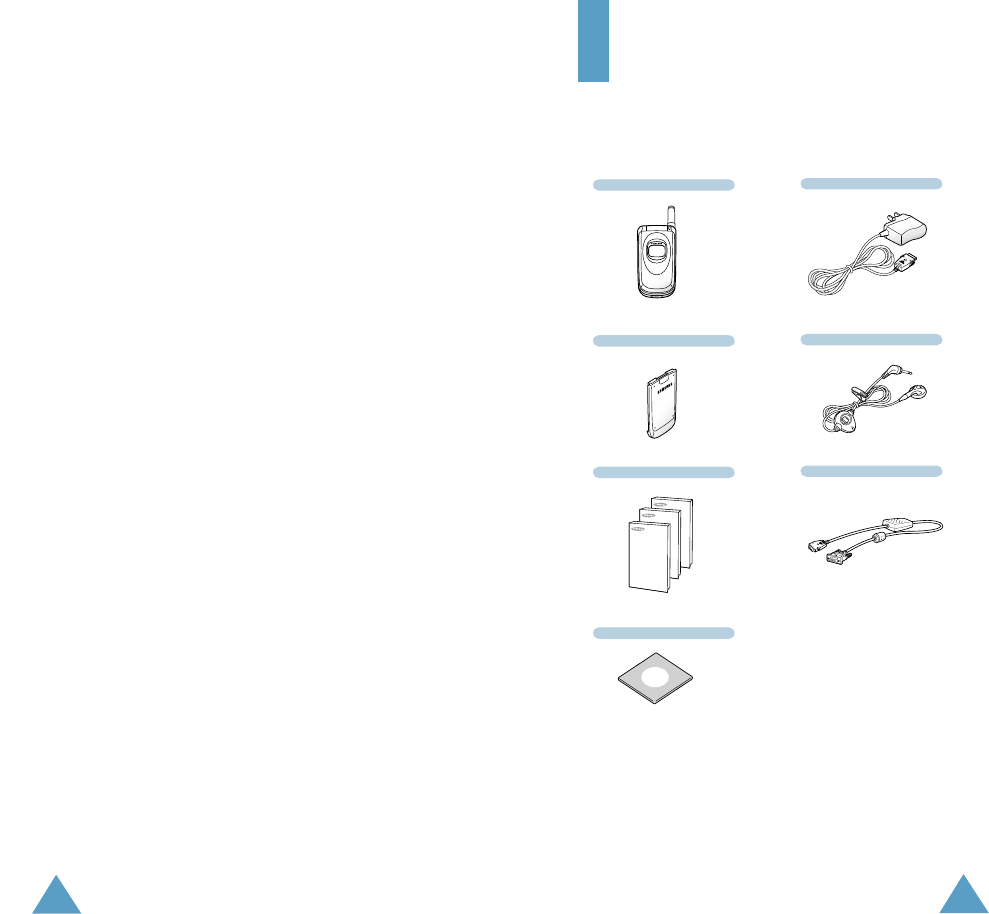
Your package contains the following items.
In addition, you can obtain the following
accessories for your phone from your local
Samsung dealer:
¥ Desktop charger ¥ Ear-microphone
¥ Simple hands-free kit ¥ Car holder
¥Standard/extended batteries
¥ Cigarette lighter adapter
Sensible Use
Use only in the normal position (held to the ear).
Avoid unnecessary contact with the antenna
when the phone is switched on.
Accessories and Batteries
Use only Samsung-approved accessories and
batteries.
Qualified service
Only qualified service personnel may install or
repair your phone.
Handset
Battery
User s Manuals
Software CD-ROM
Travel Adapter
Ear-Microphone
Data Cable
11
10
Your Phone
Your Phone
Phone Layout
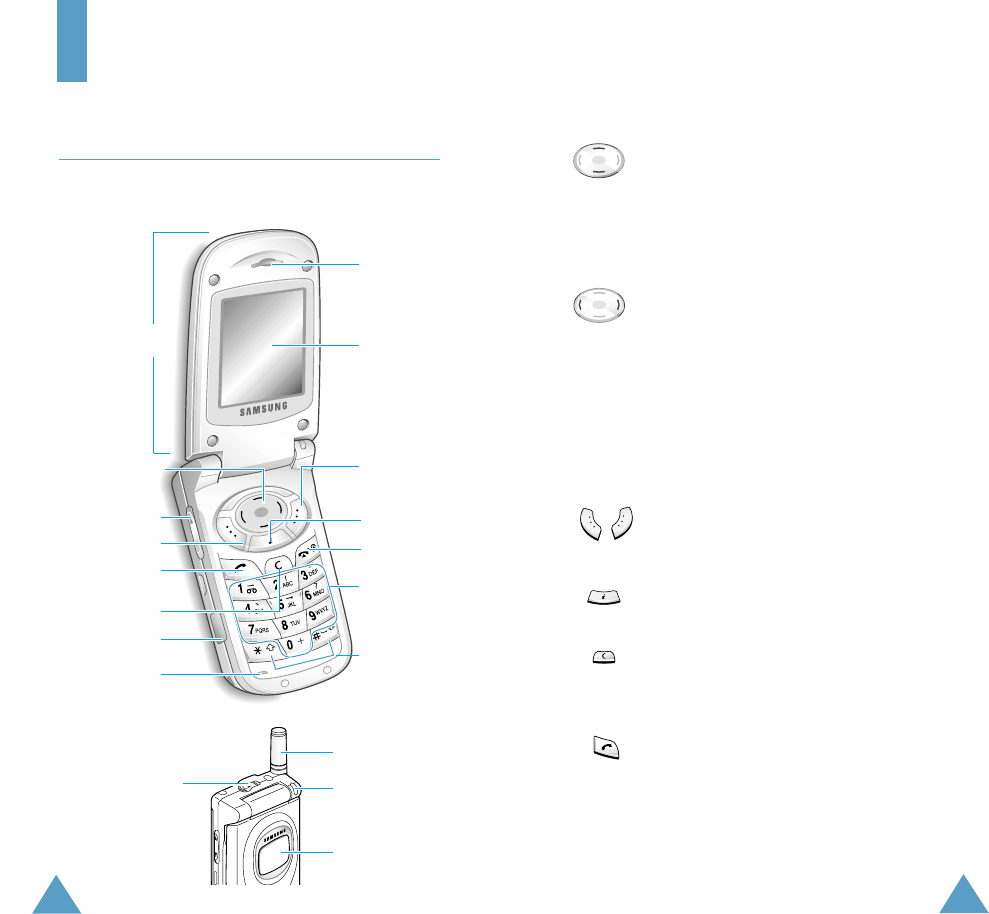
The following illustrations show the main
elements of your phone.
K e y Description
In menu mode, scroll through the
menu options and phonebook memory.
In idle mode, allow you to access your
favourite menu options directly (for
more information on shortcuts, see
page 92).
In menu mode, return to the previous
menu level and select the current
menu respectively.
When entering text, move the cursor
left and right respectively.
In idle mode, allow you to access your
favourite menu options directly (for
more information on shortcuts, see
page 92).
Perform the functions indicated by the
text above them (on the bottom line of
the display).
In idle mode, launches the WA P
browser directly.
Deletes characters from the display.
In menu mode, returns to the previous
menu level.
M a kes or answers a call.
When held down in idle mode, recalls
the last number dialled or received.
In menu mode, selects a menu
function or stores information that yo u
have entered (such as a name) in the
phone or SIM memory.
Earpiece
Display
N avigation keys
Folder
Soft key (right)
W AP Browser
key
Antenna
Service light
External display
Power on/off /
menu exit key
Alphanumeric
keys
Special function
keys
(soft k eys)
Volume/menu
browse keys
Soft key (left)
Dial/menu
confirmation key
Cancel/
correction key
Microphone
Ear-microphone
jack
IrDA port
13
12
Your Phone Your Phone
K e y Description
Ends a call. Also switches the phone on
and off when held down.
In menu mode, cancels your input and
returns to the idle mode.
When held down in idle mode,
accesses your voice mail.
Enter numbers, letters and some
special characters.
Enter special characters.
Perform the various functions.
(on the side of the phone)
During a call, adjust the earpiece
volume.
In idle mode, adjust the key volume.
In menu mode, scroll through the
menu options and phonebook memory.
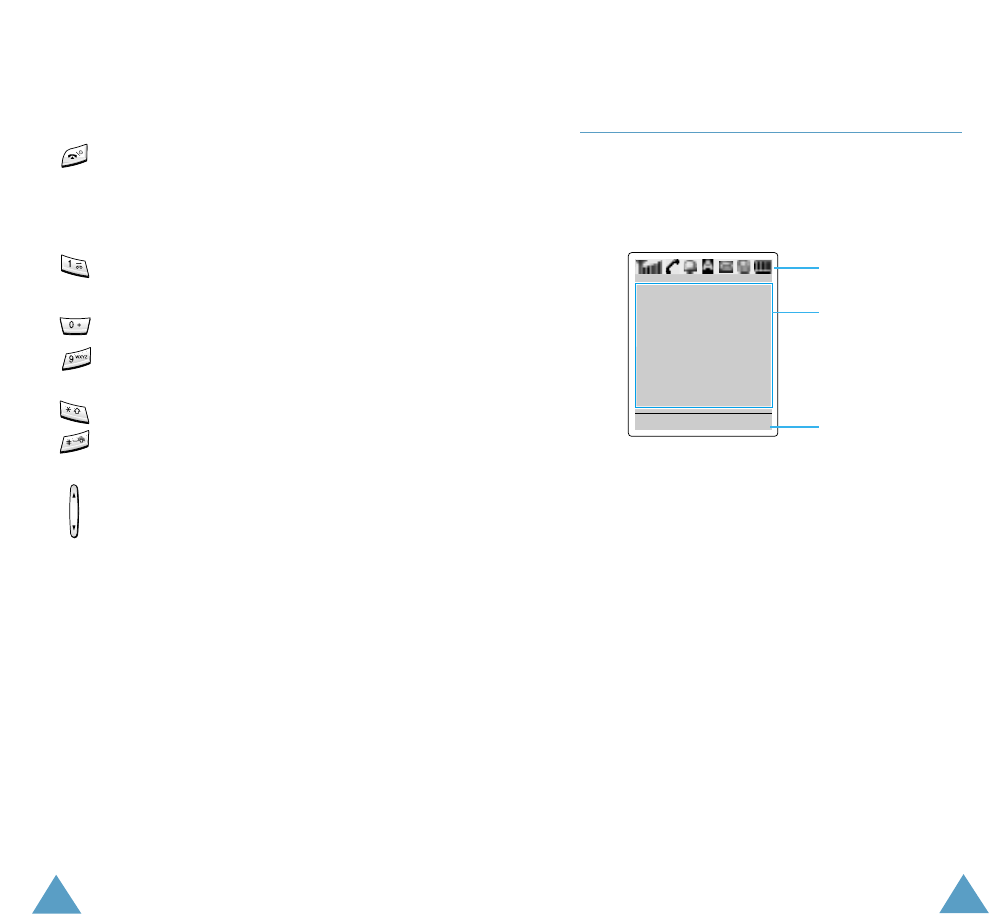
Display
Display Layout
The display comprises three areas.
Area Description
First line Displays various icons (see page
14).
Middle lines Display messages, instructions
and any information that yo u
enter (number to be dialled, for
example).
Last line Shows the functions currently
assigned to the two soft keys.
~
Menu Name
Icons
Text and
graphic area
Soft keys
indications

15
14
Your Phone Your Phone
Icons
Icon Description
Shows the received signal strength. The
greater the number of bars, the better
the signal strength.
Appears when a call is in progress.
Appears when you are connected to the
GPRS network.
Appears when you set the alarm.
Appears when a new text message has
been received.
Appears when a new voice mail
message has been received.
Appears when you are entering text to
indicate the current text input mode.
Appears when the Silent mode is active
or you set the Alert Type menu option
(Menu 3.3), so that the phone vibrates
when you receive a call; for further
details, see page 80.
Shows the level of your battery. The
more bars you see, the more power you
h a v e left.
Appears when the IrDA port is active.
For details, see page 83.
Appears when you are out of your hom e
area and have registered onto a
different network, when travelling in
other countries, for example.
Appears when the Mute mode is active.
Backlight
The display is illuminated by a backlight. When
you press any key or open the phone, the
backlight illuminates. It turns off if no key is
pressed within a given period of time, depending
on the Back Light menu option.
To specif y the length of time for which the
backlight is active, set the B ac k L ig ht menu
option (Menu 4.7.2); see page 89 for further
details.
You can also set the phone to use the backlight
only during a specified period time, via the Auto
Light menu option (Menu 4.7.3); see page 90
for further details.
External Display
Your phone has an external display on the cover.
It indicates that you ha ve an incoming call or a
message, and notifies you at the specified time
when you set an alarm.
17
16
Your Phone
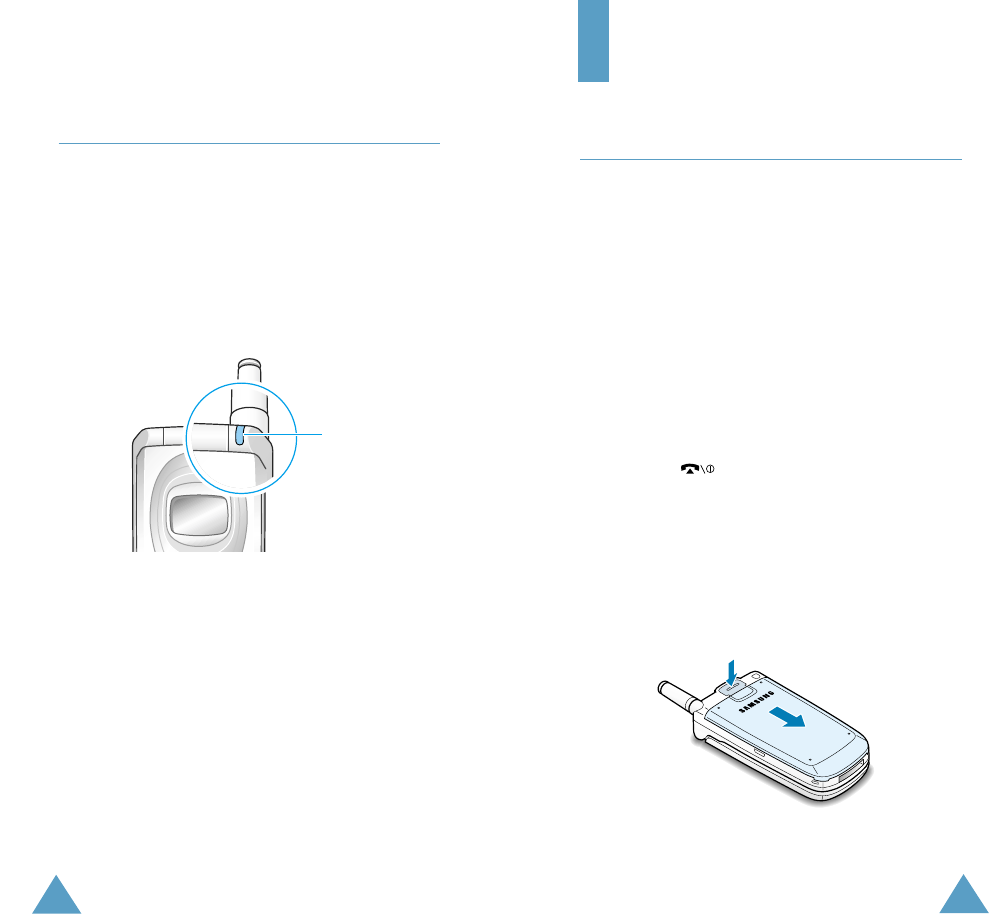
Service Light
The service light is in the top right-hand corner
of the phone. It flashes when services are
available on the phone.
To activate or deactivate use of the service light,
set the Service Light menu option (Menu
4.7.4); see page 90 for further details.
Service light
Getting Started
Installing the SIM Card
When you subscribe to a cellular network, yo u
are provided with a plug-in SIM card loaded with
your subscription details, such as your PIN, any
optional services available and so on.
Important! The plug-in SIM card and its
contacts can be easily damaged by
scratching or bending, so be careful
when handling, inserting or
removing the card.
K eep all SIM cards out of the reach
of small children.
1. If necessary, switch off the phone by holding
down the key until the power-off image
is displa y ed.
2. R e m ove the battery. To do so:
➀Press down the catch above the battery
and hold it in this position.
➁Slide the battery and lift it a w ay, as shown.
➀
➁
19
Getting Started
18
Getting Started
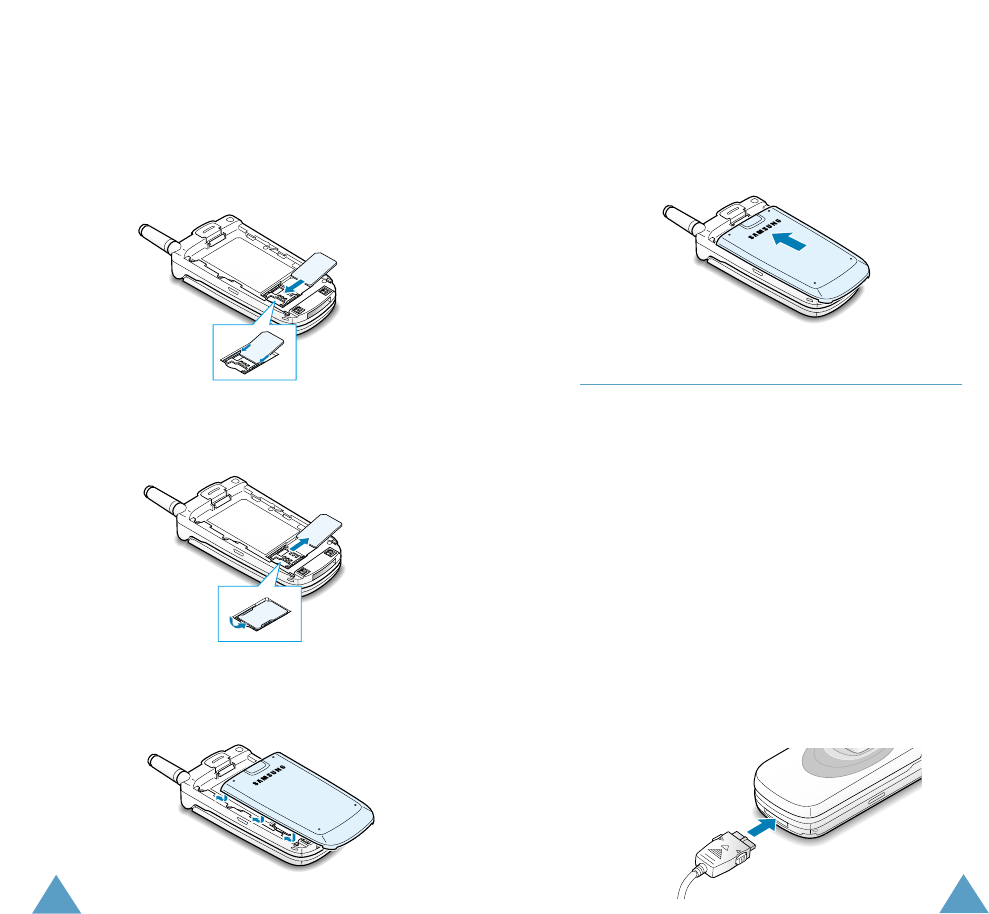
3. Slide the SIM card into the SIM card holder so
that the holder locks the card in position.
M a ke sure that the cut corner is top right and
the gold contacts of the card face into the
phone.
Note: When you need to remove the SIM card,
slide it, as shown, and take it out of the
holder.
4. Place the battery back, taking care to match
the tabs on the battery with the grooves on
the phone.
5. Slide the battery towards the top of the phone
until it clicks into place. Make sure that the
battery is properly installed before switching
on the power.
Charging a Battery
Your phone is powered by a rechargeable Li-ion
battery. A travel adapter is provided with your
phone. Use only approved batteries and
chargers. Ask your local Samsung dealer for
further details.
The phone can be used while the battery is
charging, but this will cause the phone to charge
more slowly.
Note: You must fully charge the battery before
using your phone for the first time. A
discharged battery is fully recharged in
approximately 200 minutes.
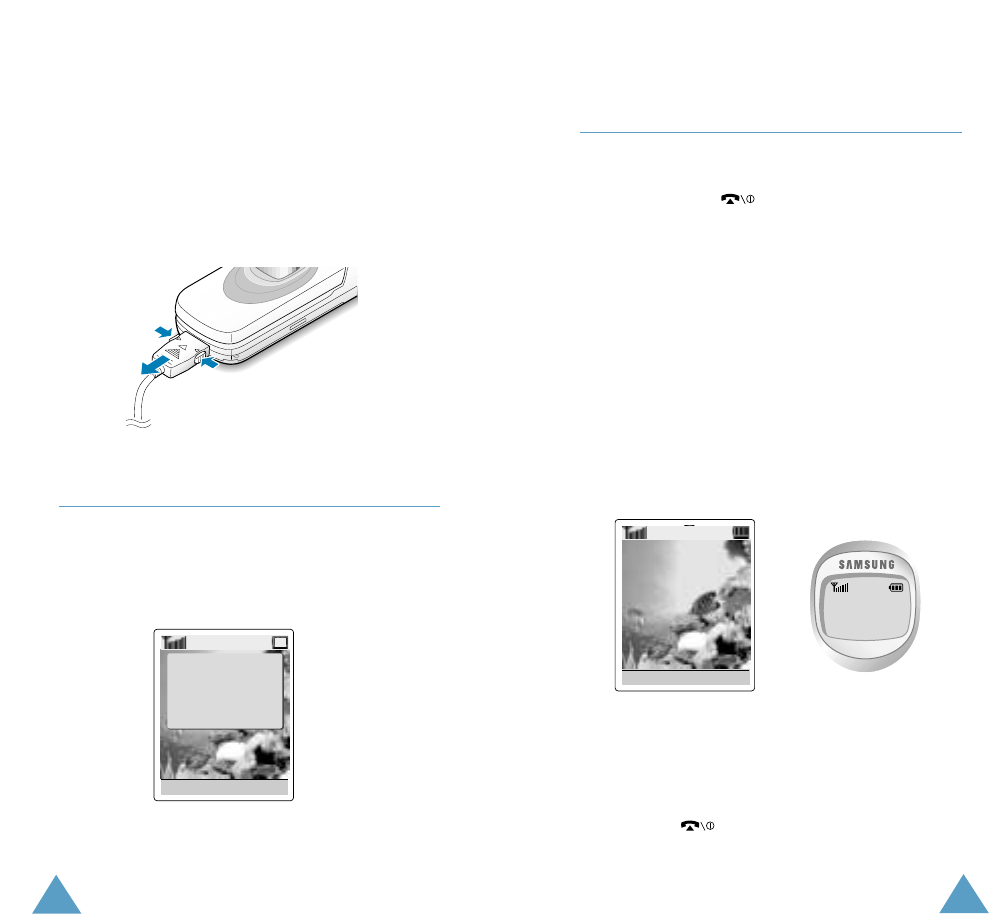
1. With the battery in position on the phone,
connect the lead from the travel adapter to
the bottom of the phone.
21
Getting Started
20
Getting Started
2. Connect the adapter to a standard AC wall
outlet.
3. When charging is finished, disconnect the
adapter from the power outlet and from the
phone by pressing the grey tabs on both sides
of the connector and pulling the connector
out.
Switching the Phone On/Off
1. Open the folder.
2. Hold down the key until the phone
switches on.
3. If the phone asks for a password, key in the
password and press the O K soft k e y. The
phone password is factory set to 00000000.
For further details, see page 117.
4. If the phone asks for a PIN, key in the PIN
and press the O K soft k e y. For further details,
see page 118.
The phone searches for your network and
when it finds it, the idle screen, illustrated
below, appears on each display. Now, you can
m a ke or receive a call.
Note: To change the language, use the Language
menu option (Menu 4.5); for further details,
refer to page 86.
5. When you wish to switch the phone off, hold
down the key until the power-off image
is displa y ed.
Low Battery Indicator
When the battery is weak and only a few
minutes of talk time remain, you will hear a
w arning tone and a message will be repeated at
regular intervals on the displa y:
When the battery becomes too weak for the
phone to operate, it switches off automatically.
* * Warning**
Low Battery
Service Provider
07:30
W ed 06 Mar
(wed)03/06
07:30
Menu Name
Menu Name
➁➀
➀

23
22
Call Functions
Call Functions
Making a Call
When the idle screen is displayed, key in the
area code and phone number, and press the
key.
Note: If you have checked the Auto Redial option
in the Extra Settings menu (Menu 4.8),
the number is redialled automatically up to
ten times when the person does not answer
the call or is already on the phone; see page
91 for further details.
Making an International Call
1. Press and hold down the 0 key.
The + character appears.
2. K ey in the country code, area code and phone
number and press the key.
Correcting the Number
To clear... Press the...
The last digit C k ey.
displa ye d
A ny other digit or key until the cursor
in the number
is immediately to the right of the digit to be
cleared. Press the C key. You can also insert a
missing digit simply by pressing the appropriate
key.
The whole display the C k ey for more than
one second.
Ending a Call
When you want to finish y our call, briefly press
the ke y.
Redialling the Last Number
The phone stores the numbers you dialled,
received or missed if the caller is identified; see
Call Records on page 76 for further details.
To recall any of these numbers:
1. If you have typed any characters on the
display, clear the display b y holding down the
C key for more than one second.
2. Press the key to display a list of the last
numbers in the order in which the calls were
made.
3. Use the and keys to scroll through
the numbers until the required number is
highlighted.
4. To... Then...
Dial the number Press the key.
highlighted
Edit the number ¥ Press the Edit soft ke y.
highlighted ¥ Change the number as
required, referring to
Correcting the
Number on page 22
for further details.
25
24
Call Functions Call Functions
Making a Call from the Phonebook
You can store frequently-dialled phone numbers
with a name in the SIM card or the phone
memory, using the phonebook. You then simply
select the required name to recall the associated
number. For further details on the Phonebook
features, refer to page 33.
Adjusting the Volume
During a call, if y o u w ant to adjust the earpiece
volume, use the and keys on the left side
of the phone.
Press the key to increase and the key to
decrease the volume.
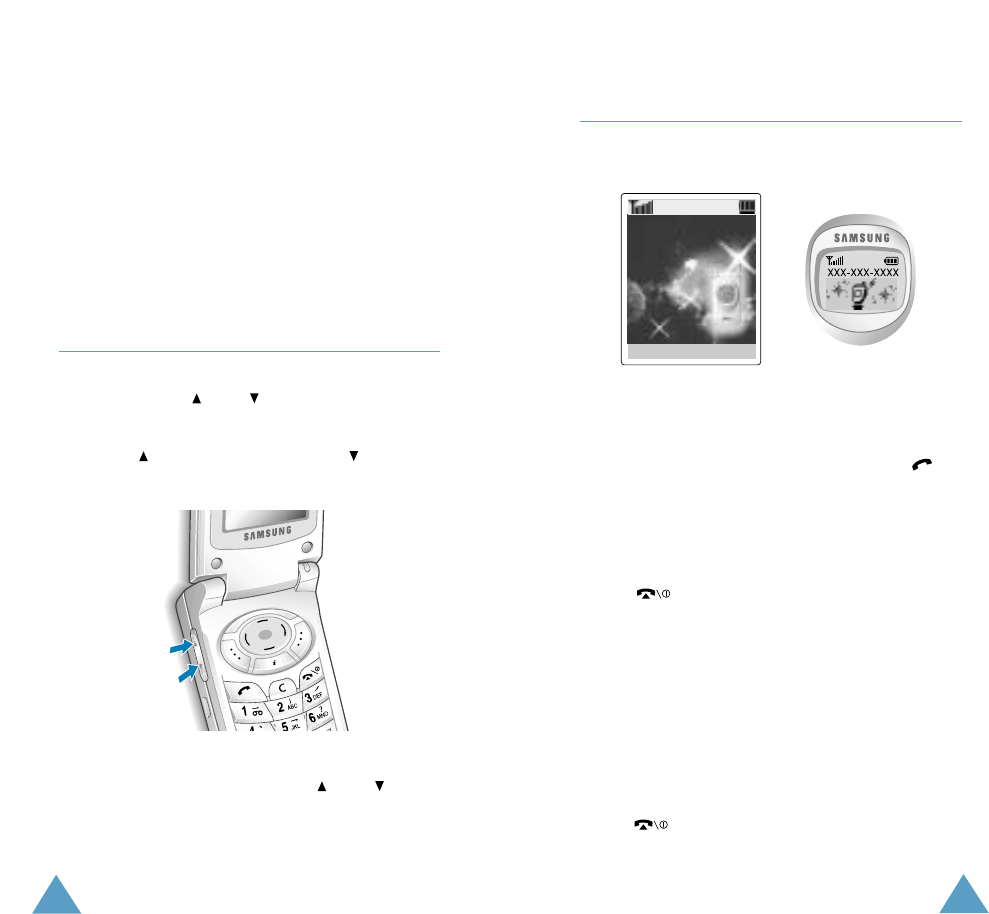
Answering a Call
When somebody calls you, the phone rings and
the following screen appears on each display.
If the caller can be identified, the caller s phone
number or name, if stored in your phonebook, is
display ed.
1. If necessary, open the folder. Press the key
or the Accept soft key to answer the incoming
call.
If the Anykey Answer option in the Extra
Settings menu (Menu 4.8) is checked, yo u
can press any key to answer a call except for
the key and the Reject soft k ey (see
page 91).
If the Active Flip option in the Extra Settings
menu (Menu 4.8) is checked, you can answer
the call simply by opening the folder (see page
91).
Note: To reject an incoming call, press and hold
the volume keys on the left side of the
phone without opening the folder.
2. End the call b y closing the folder or pressing
the ke y.
Note: You can answer a call while using the
phonebook or menu features.
In idle mode with the folder open, you can
adjust the key volume using the and keys.
Accept Reject
27
26
Call Functions Call Functions
Viewing Missed Calls
If you are unable to answer a call for any
reason, you can find out who was calling y ou,
pro vided that this service is available. In this
w ay, you can call the person back, if necessary.
The number of missed calls is displayed on the
idle screen immediately after a call was missed.
To view the missed call immediately:
1. If the phone is closed, open the folder.
2. Press the View soft k e y.
The number corresponding to the most recent
missed call is display ed, if a v ailable.
3. To.... Press the...
Scroll through the or key.
missed calls
Call the number key.
displa ye d
Edit or delete a Select soft k ey
missed call number (see the following
page).
Editing a Missed Call Number
Note: If the number corresponding to the missed
call is not a v ailable, the Edit Number option
is not displa yed.
1. Press the Options soft k ey.
2. Press the or key to highlight the
Edit Number option.
3. Press the Select soft k ey.
4. Change the number as required.
5. To... Press the...
Call the number key.
Store the S a v e soft k ey and enter
number the name and location
required (for further
details, refer to page 33).
Deleting a Missed Call
1. Press the Options soft k e y.
2. If necessary, press the or key to
highlight the Delete option.
3. Press the Select soft k ey.
You can press the key at any time to exit the
Missed Call feature.
Note: You can access the Missed Call feature at
any time by selecting the Missed Calls
menu option (Menu 2.1); for further details,
see page 76.
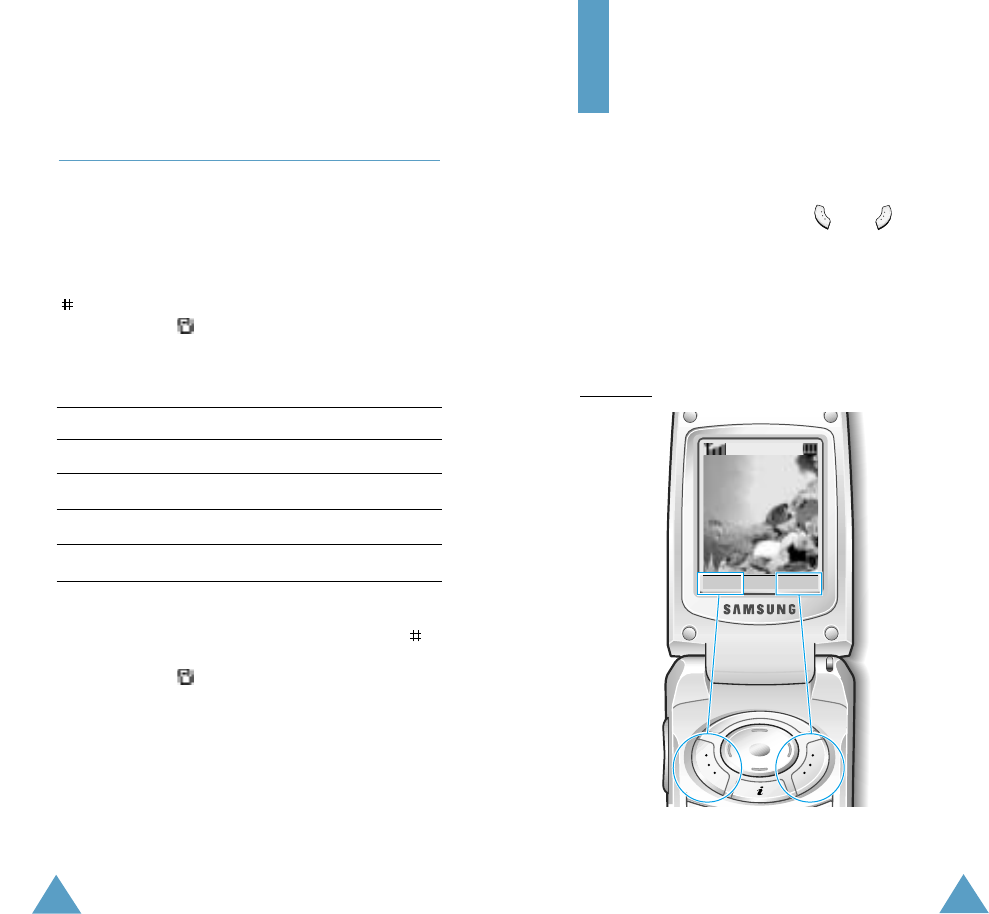
29
28
Call Functions
Selecting Functions
and Options
Your phone offers a set of functions that allow
you to customise your phone. These functions
are arranged in menus and sub-menus, accessed
via the two soft keys marked and . Each
menu and sub-menu allows you to view and
alter the settings of a particular function.
The roles of the soft keys vary according to the
current context; the label on the bottom line of
the display just above each key indicates its
current role.
Example:
Service Provider
07:30
W ed 06 Mar
Menu Name
Press the left soft
key to access the
main menu mode.
Press the right soft
key to access the
Phonebook menu.
Switching Quickly to the Silent
Mode
The Silent Mode is convenient when discretion is
required and you a wish to stop the phone from
making any noise, in a theatre for example.
In idle mode, to switch your phone quickly to
the silent mode, simply press and hold down the
key until the Silent Mode message and
vibr ation icon ( ) are display ed.
In the silent mode, your phone changes the
sound settings as follows:
Option New Setting
Alert Type (Menu 3.3) Vibration
Keypad Tone (Menu 3.4) OFF
SMS Tone (Menu 3.5.1) Light Only
Error Tone (Menu 3.6.1) OF F
To exit the silent mode and reactivate the
previous Sound Settings, press and hold the
key again until Exit Silent Mode appears. The
vibr ation icon ( ) is no longer displayed.
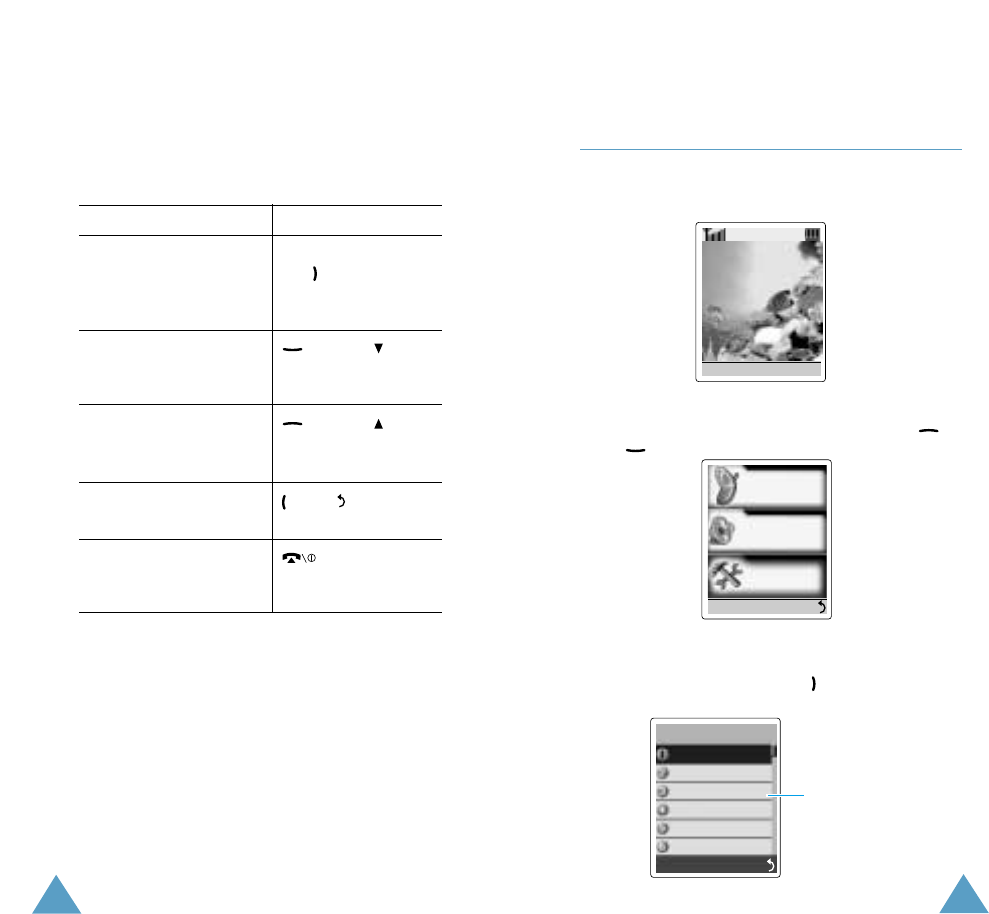
31
30
Selecting Functions and OptionsSelecting Functions and Options
To view the various functions/options available
and select the one required:
1. Press the appropriate soft key.
2. To... Press the...
Select the: Select soft k ey or
¥ Function displayed the k ey.
or
¥ Option highlighted
View the next function key or key
or highlight the next on the left side of
option in a list the phone.
M ove back to the key or key
previous function on the left side
or option in a list of the phone.
M ove back up one key, soft k ey
level in the structure or C ke y.
Exit the structure key.
without changing
the settings
In some functions, you may be asked for a
password or PIN. Enter the required code and
press the O K soft ke y.
Example: Setting the Display
Language
1. When the idle screen is displayed, press the
Menu soft k ey to access the menus.
2. Scroll through the menus until you reach the
Phone Settings menu, by pressing the
or k e y.
4
Service Provider
07:30
W ed 06 Mar
Call
Records
Sound
Settings
Phone
Settings
Menu Name
Select
3. To select the Phone Settings menu, press
the Select soft k ey or the key.
4.1
Phone Settings
Infr ared Activ...
My Settings
Greeting Me...
Own Number
Language
Security
Select
If the menu name is too
long for the display, it is
scrolled when highlighted.

32 33
Selecting Functions and Options
4. Scroll through the sub-menus until you reach
the Language sub-menu, by pressing the
or k e y.
5. To view the languages available, press the
Select soft k ey or the key.
The current setting is highlighted.
5. Scroll through the list of languages until the
appropriate one is highlighted, by pressing
the or k ey.
6. Press the Select soft key or the key to
confirm your selection.
7. Press the C or key twice to exit the menu
structure.
4.5
Phone Settings
Infr ared Activ...
My Settings
Greeting Me...
Own N
Language
Security
Select
English
Shows the
current setting
4.5.1
Language
English
Chinese S
Chinese T
Select
Current language
Phonebook
You can store phone numbers and their
corresponding names in the memory of your SIM
card. In addition, you can store up to 500
numbers in the phone memory. The SIM card
and phone memories, although physically
separate, are used as if they were a single
entit y, called the phonebook.
Storing a Number with a Name
There are two ways to store a number:
¥ Using the S a v e soft k ey in idle mode
¥ Using the New Entry option in the Phonebook
menu
Storing a Number in Idle mode
As soon as you start to enter a number, Save
appears above the left soft k ey to allow you to
store the number in the phonebook.
1. Key in the number to be stored.
Note: If yo u ma ke a mistake while entering a
number, correct it using the C ke y. For
further details, refer to page 22.
2. When you are sure that it is correct, press the
S a v e soft ke y.
3. Select an icon to identif y the category of
number to be stored. Three categories are
a v ailable; (mobile phone number),
(office number) and (home number). To
select the category, press the or key,
followed by the Select soft
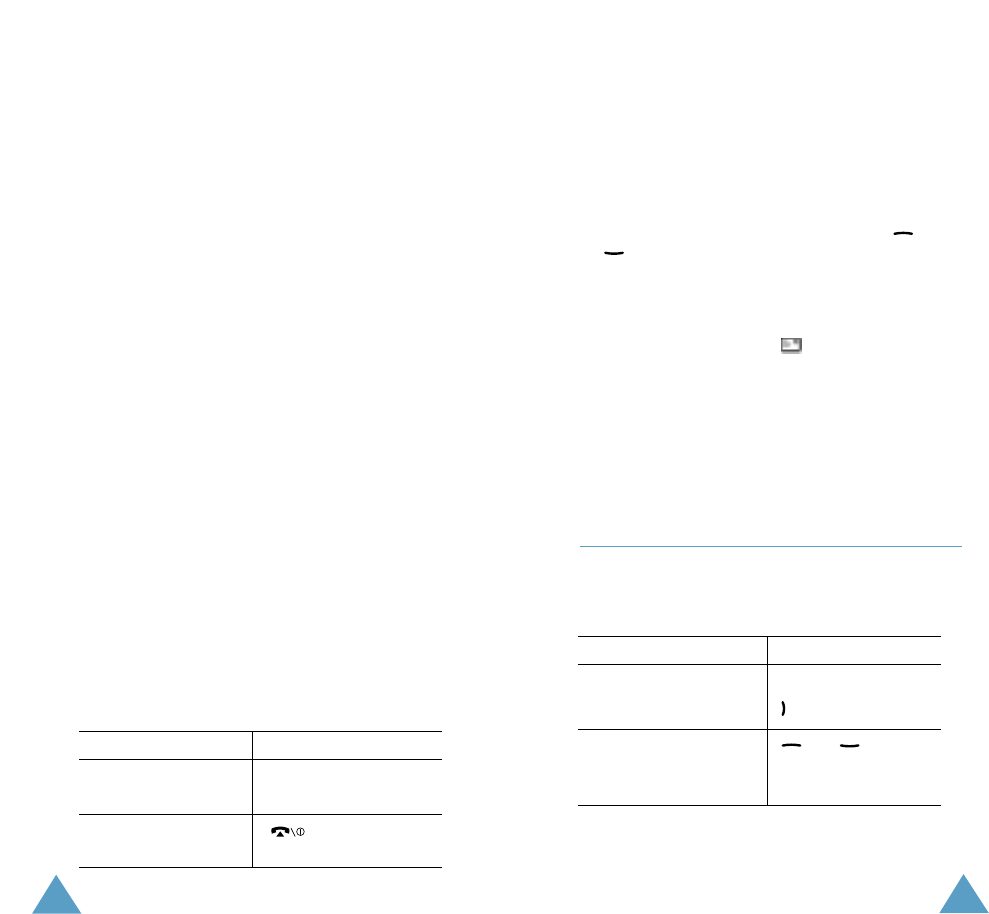
35
Phonebook
34
Phonebook
4. Enter a name and press the O K soft k e y.
The maximum length of a name depends on
your SIM card. For information on how to
enter characters, see page 42.
The phone now displays the first free location
in the last memory used to save a number
and name. If that memory is full, the first
free location in the other memory is
display ed.
Note: If you change phones, any numbers
stored in your SIM card memory will
automatically be available with the new
phone, whereas any numbers stored in
the phone memory must be restored.
5. Press the right soft k ey, labelled T o Card or
To Phone to toggle between the phone and
card memories.
6. If you do not want to save the number and
name in the suggested location, press the C
key to clear the location number and enter
your preferred location by pressing the
number keys.
7. Press the O K soft k ey to store the name and
number.
After storing, the phone displays the
phonebook entry or name just created.
8. To... Press the...
Use the entry Options soft k e y.
options
R eturn to the idle key.
screen
Storing a Number Using the
Phonebook Menu
1. When the idle screen is displayed, press the
Namesoft k e y.
2. Scroll to New Entry by pressing the or
key and press the Select soft k e y.
3. Select an icon to identif y the category of the
number to be stored.
Note: The E-mail icon ( ) is available in this
step. It allows y ou to sa v e an E-mail
address instead of a phone number.
4. Continue the procedure from Step 4 on page
34 to store the number.
Using Phonebook Entry Options
While accessing any phonebook entry, press the
Options soft k ey to access the options for the
entry.
To... Press the...
Select the Select soft k ey or the
highlighted option key.
Highlight a different or key until
option the required option is
highlighted.

37
Phonebook
36
Phonebook
The following options are available:
Paste: allows y ou to paste the selected number
into the normal dialling mode. Use this option to
dial a number similar to one in the phonebook, a
different extension in the same office, for
example.
Use the C key to change the number as
required; refer to page 22 for further details.
When you are ready to dial, press the key.
Edit: allows you to edit the selected name and
number. Select One Entry to edit just the
currently selected entry. If you saved more than
one entry with a same name, All Entry allows
you to all corresponding entries.
Erase: allows y ou to erase the selected name
and number from the phonebook. You are asked
to confirm that you wish to erase the name and
number by pressing the Y e s soft ke y.
Copy: allows y ou to cop y the selected number
to another location. Use this option to store a
number similar to one already in memory; once
copied, edit the number and store it in the
phonebook.
Caller Group: allows you to assign the entry to
a caller group so that the phone alerts you in a
particular way when the corresponding person
calls y ou. Select one of the ten groups available.
To remove an entry from a group, select the N o
Group option.
For more information on how to change caller
group properties, see page 39.
Add Entry: allows y ou to add a new number in
a different category (mobile, office, home or
E-mail) to the currently selected name. A
phonebook entry or name can contain up to four
number, one in each category.
Searching for a Number in the
Phonebook
After storing numbers in the phonebook, you can
search for them in two ways; by name and by
caller group.
Searching for a Number by Name
1. When the idle screen is displayed, press the
Namesoft k e y.
2. Press the Select soft k ey when Search is
highlighted. You are asked to enter a name.
3. Enter the first few letters of the name that
you wish to find.
The phonebook entries are listed, starting
with the first entry matching your input. This
entry is also highlighted.
4. To... Press the...
View the highlighted View soft k e y.
entry
Select a different or key until
entry the required entry is
highlighted.
Look for a name Key labelled with the
starting with a required letter.
different letter
5. Once you have found the required entry,
press the key to dial the number, or
press the Options soft k ey to access the
phonebook entry options; for further details,
see page 35.

39
Phonebook
38
Phonebook
Searching for a Number by Caller
Group
1. When the idle screen is displayed, press the
Namesoft k e y.
2. Scroll to Group Search by pressing or
key and press the Select soft k e y. Yo u
are asked to enter a group name.
3. Enter the first few letters of the group name
that you wish to find.
The caller groups are listed, starting with the
first group matching your input. The group is
also highlighted.
4. Scroll to the required group by pressing the
or key and press the View soft k e y.
The phonebook entries in the selected caller
group are listed.
5. To... Press the...
View the View soft k e y.
highlighted entry
Select a different or key
entry until the required
entry is highlighted.
6. Once you have found the required entry,
press the key to dial the number, or
press the Options soft k ey to access the
phonebook entry options; for further details,
see page 35.
Editing a Caller Group
1. When the idle screen is displayed, press the
Namesoft k e y.
2. Scroll to Group Edit by pressing the or
key and press the Select soft k e y.
3. Enter the first few letters of the required
group name or scroll through the group list by
pressing or key.
4. When the required group is highlighted, press
the Options soft k e y.
5. Select each option and change the settings,
as required. The following options are
a v ailable.
¥ Call ring tone: allows you to select the
ring tone to be used when you receive a
voice call from a person in the group.
¥ SMS tone: allows you to select the ring
tone to be used when you receive a text
message from a person in the group.
¥ Graphic: allows you to select the graphic
icon to be displayed when you receive a
voice call from a person in the group.
¥ Group Name: allows you to assign a name
to the group; for further details on how to
enter characters, see page 42.
6. When you have finished, press the C or
key.

41
Phonebook
40
Phonebook
Speed-dialling
Once you have stored phone numbers in the SIM
card, you can set up to eight speed-dial entries
and then dial them easily whenever you want,
simply by pressing the associated number key.
Setting Up Speed-dial Entries
1. When the idle screen is displayed, press the
Namesoft k e y.
2. Scroll to Speed Dial by pressing the or
key and press the Select soft k e y.
3. Select the key to which you wish to assign the
speed-dialling feature (keys 2 to 9 ) and press
the O K soft k e y.
Note: If you have already assigned a number to
the key, the Options soft k ey replaces
the O K soft ke y. Go to Step 6.
4. Select the required phonebook entry from the
list and press the View soft k e y.
5. Select the required number if the entry has
more than one number, by pressing the
or key and press the Select soft k e y.
6. Once you have assigned a number to the
selected key, four options are available:
¥ Change: allows you to assign a different
number to the key.
¥ Erase: allows you to clear the setting so
that no number is assigned to the key.
¥ Erase All: allows you to clear the settings
for all k eys so that no numbers are
assigned to any of the keys.
¥ Number: allows you to view the number
assigned to the key.
7. When you have finished, press the C or
key.
Speed-dialling from the Phonebook
To speed-dial the numbers assigned to keys 2 to
9 , press and hold down the appropriate key.
Note: Memory location 1 is reserved for y our Voice
Mail server number.
Checking Memory Status
You can check how many names and numbers
are stored in the phonebook (card and phone
memories) or how many free locations remain.
1. When the idle screen is displayed, press the
Namesoft k e y.
2. Select the Memory Status option.
3. Press the or key to view the number
of existing and remaining entries in the card
and phone memories.
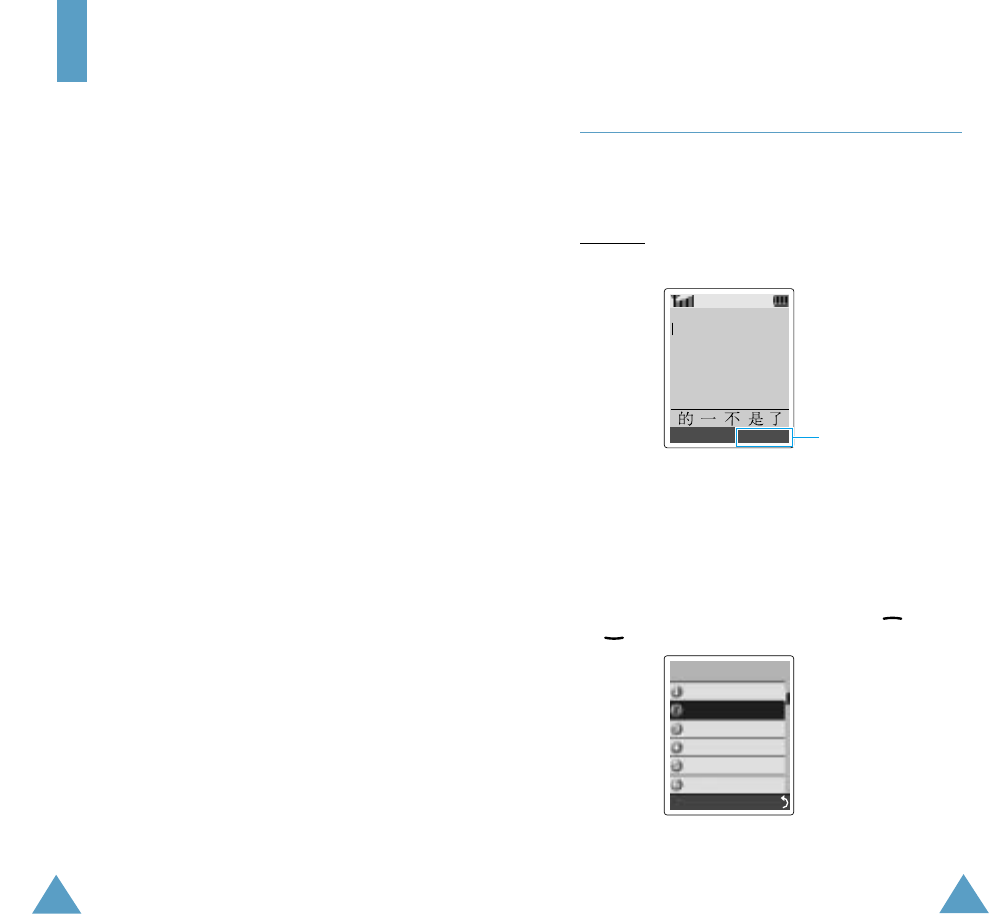
43
Entering Text
42
Changing the Text Input Mode
When you are in a field that allows characters to
be entered, you will notice the text input mode
indicator on the display.
Example: Entering a name for a phonebook
entry
You can change between Chinese and English
input methods or to numbers input. To change to
another text input mode:
1. Press the right soft k ey, labelled with the
current mode.
2. Scroll to the desired mode with the an d
keys.
3. To select the displa yed mode, press the
Confirm soft k e y.
2/8
Enter Name
Input Mode
Pinyin
CHN S Stroke
Quick English
English
CHN T Stroke
Number
OK PY Mode
Confirm
Text input mode
indicator
Entering Text
The phone allows you to enter characters for
messages and names in Chinese and English. To
enter Chinese text, the phone provides several
widely used pronunciation based (Pinyin) and
character shape based (Stroke) input methods to
meet the preferences of different users, allowing
for greater convenience and ease of use.
You can also enter any combination of Chinese
characters, alphabets, numbers, and special
symbols including punctuation marks.
The following text input modes are available on
your phone:
¥ Pinyin mode
¥ Chinese Simplified Stroke mode
¥ Quick English mode
¥ English mode
¥ Chinese Traditional Strok e mode
¥ Number mode
¥ Symbolic mode
¥ Help mode
Directions for using each of the text input modes
appear later in this section.
45
Entering Text
44
Entering Text
Note: If you want to exit the menu without
changing to a new mode, press the right soft
key.
4. You will find the selected text input mode
indicator at the bottom of the display.
Using the Chinese Pinyin Mode
Pinyin is a system to mark Chinese
pronunciation in Latin alphabets. With the pinyin
input method, you can enter Chinese characters
b y keying in the pinyin string from the phone
keypad and the phone automatically presents
the matching alternatives.
This mode allows you to enter Pinyin characters
with only one key press per letter.
Typing Characters in Pinyin Mode
1. Press keys corresponding to the phonetic
spelling, referring to the alphabets printed on
the keys. Notice that the choices in the
Character Selection Map change.
Example: Typing in Pin yin mode
¥ Chinese Pinyin mode →PY Mode
¥ Chinese Simplified Stroke mode → S STR
¥ Quick English mode →ENG
¥ English mode →ABC
¥ Chinese Traditional Strok e mode →T STR
¥ Number mode →NUM
¥ Symbolic mode →SYM Mode
¥ Help mode →HELP Mode
2. If you cannot find the character on the
display, scroll through choices in the
Character Selection map by pressing the
key. To m ove back, press the key.
When the character you are t yping appears in
the Character Selection Map, yo u may select
it, without completing the Pinyin spelling for
the character.
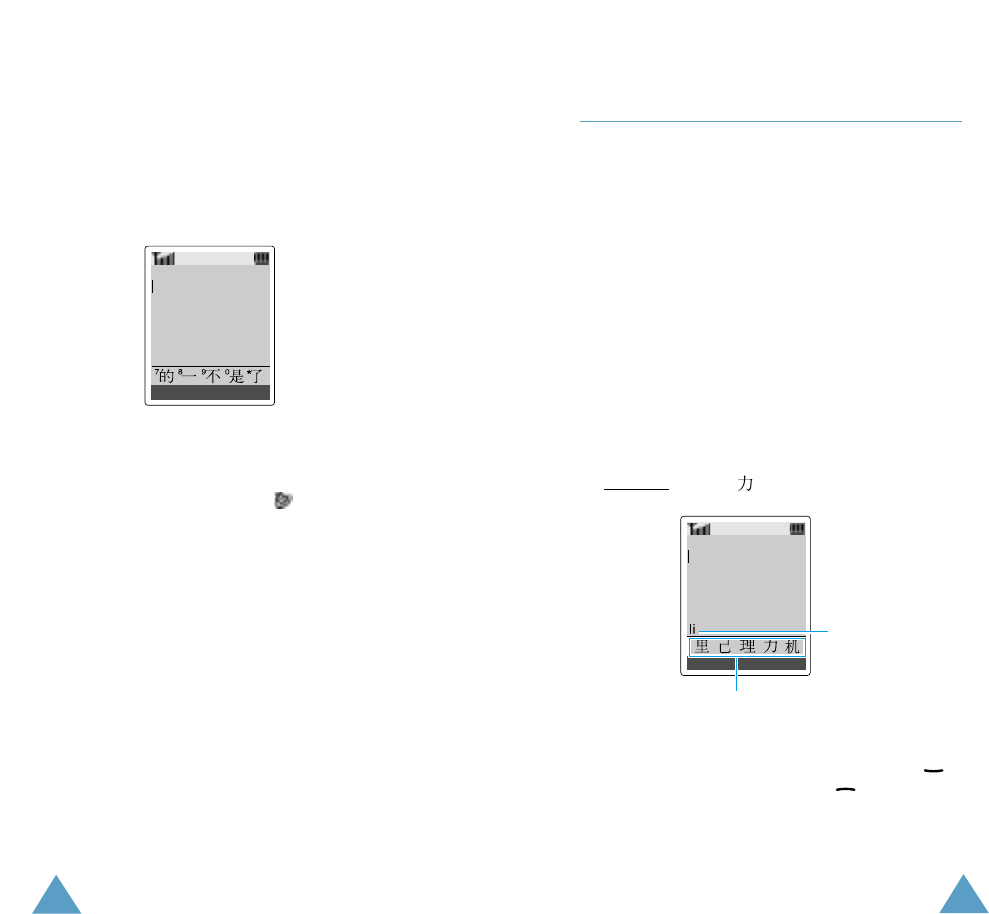
Enter Name
OK S STR
Enter Name
OK PY Mode
Character Selection Map
K ey Stroke Area
Press the 5 key and the
4 k ey to enter li.

47
Entering Text
46
Entering Text
3. To select a character, press the 1 key to
activate the Character Selection Map. A
number (7 to ) is added to the beginning of
a corresponding character. With the Character
Selection Map being activated, a normal press
on the 7 key to the key selects the
corresponding character.
Inserting a Space
To insert a space between characters, press the
key when the cursor blinks in the Text Area.
Scrolling
To m o ve the cursor to the left or to the right
through your text message, press the or
key.
Clearing Strokes and Characters
Press the C key one or more times to remove
key stokes to the left. When the Key Stroke Area
is empty, pressing the C key removes characters
from the Text Area.
Rapid Character Entry
R apid character entry is easy in any mode, using
the Character Selection Map. As you enter
characters, y our phone predicts the next
character you might want and presents choices
in the Character Selection Map area. When a
desired character appears, yo u m ay select it as
described in Step 3 on page 46.
For example, if yo u want to t ype the word
zhong guo ( ) and entered the first
character using the following keystrokes; 9, 4, 6,
6, 1 and 7, you don t need to complete the
Pinyin spelling to include guo ( ). With no
extra t yping, the character is displa y e d
conveniently in the Character Selection Map for
you to choose.
Using the Chinese Stroke Mode
This mode allows you to enter individual Chinese
strokes, in written order, from top to bottom and
from left to right. Your phone provides Chinese
Simplified Stroke mode and Chinese Traditional
Stroke mode.
The two modes work similarly, but the
characters that appear on the display may differ.
Even though there are many different strok es
used to create Chinese characters, the strokes
are classified into 5 basic categories; heng, shu,
pie, dian and zhe. The basic strokes are printed
on the keypad, on the keys 1 to 5 .
To enter a stroke, press the key printed with the
stroke that most closely represents the exact
stroke you desire.
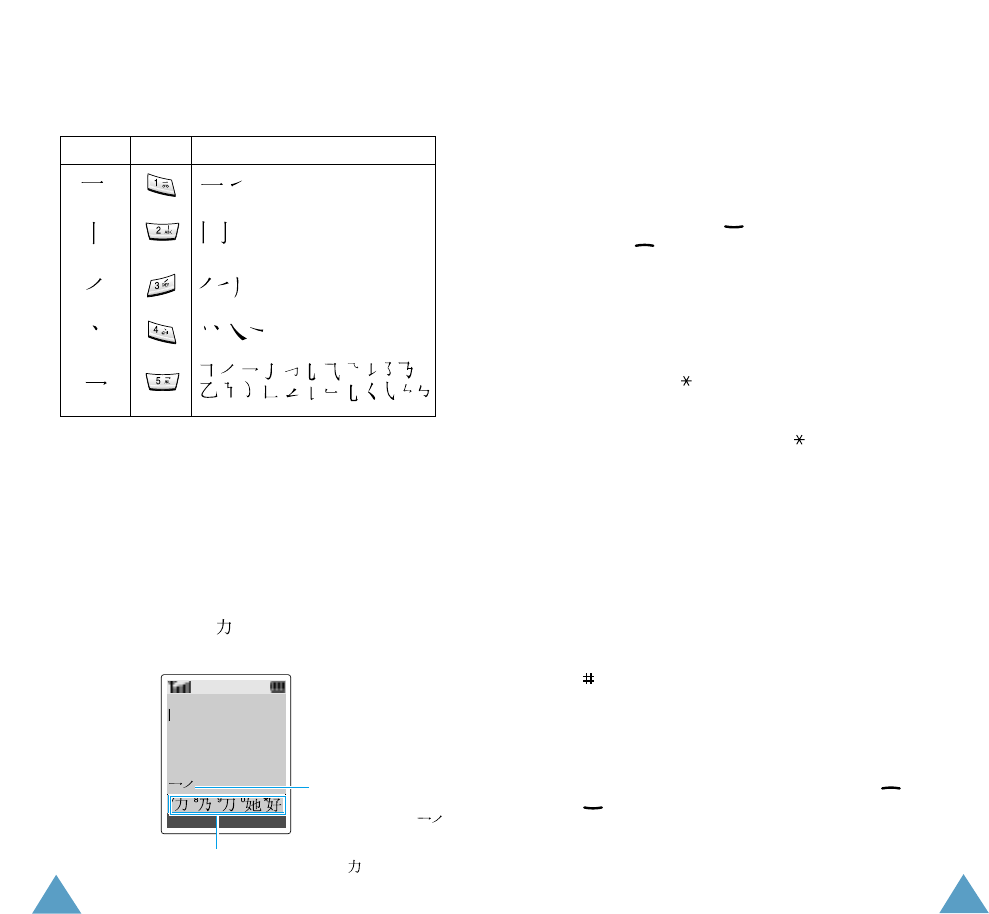
Enter Name
OK PY Mode
Press the 0 key to select
.
49
Entering Text
48
Entering Text
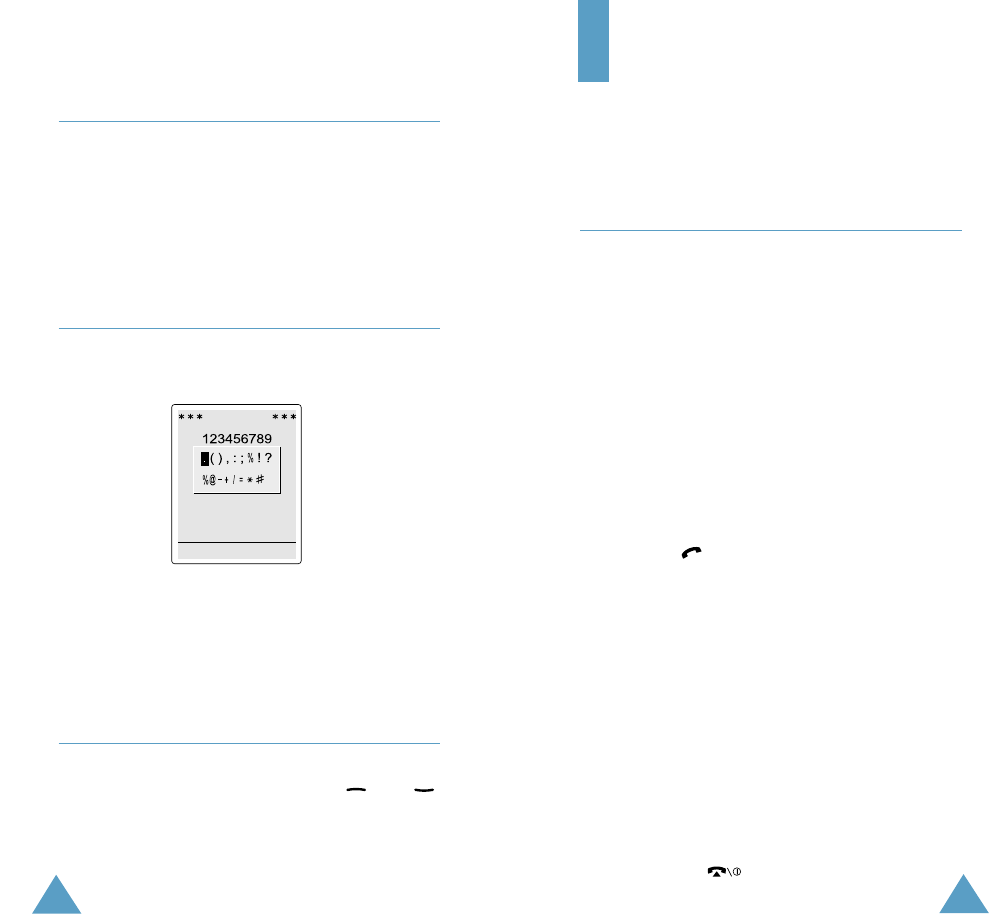
The table shows the stroke/key relationship: 2. The phone displays your strokes in the Ke y
Stroke Area and offers character choices in
the Character Selection Map. As you enter
strokes, notice that the choices in the
Character Selection Map change. To scroll
through choices in the Character Selection
M a p, press the k ey. To m o ve back, press
the ke y.
3. When the character y ou are typing appears in
the Character Selection Map, yo u may select
it without finishing the stroke sequence for
the character. Characters displayed in the
Character Selection Map correspond to the
keys 7 to on the keypad. To select a
character from the Character Selection Map
and add it to your message, press the
corresponding key (7 to ).
Note: If you are uncertain of the order of one or
more strokes, press the 6 key in place of
each questionable stroke. Continue entering
strokes until the character is displa yed in the
Character Selection Map or until you finish
the character.
Inserting a Space
To insert a space between characters, press the
key when the cursor blinks in the Text Area.
Scrolling
To m o ve the cursor to the left or to the right
through your text message, press the or
key.
Typing Stokes and Characters in
Stroke Mode
1. To type a character, press keys corresponding
to its component strokes. Press keys on the
phone in order that you would write the
strokes, using one press per desired stroke.
Example: Typing in Chinese Simplified
Stroke mode
Categories Keys Strokes Represented in Each Categor
Enter Name
OK STR Mode
Character Selection Map
Press the 7 key to select .
K ey Stroke Area
Press the 5 key and the
3 key to enter .

51
Entering Text
50
Entering Text
Clearing Letters and Words
Press the C key one or more times to remove
strokes to the left. When the Key Stroke Area is
empty, pressing the C ke y removes characters
from the Text Area.
Rapid Character Entry
R apid character entry is easy in any mode, using
the Character Selection Map. As you enter
characters, your phone predicts the next
character you might want and presents choices
in the Character Selection Map area. When a
desired character appears, yo u m ay select it as
described in Step 3 on page 49.
In most cases, you will see the desired character
in the Character Selection Map area before yo u
h ave entered all of the strok es to build it.
For example, try typing the twelve stroke
character pair using the following
keystrokes; 2, 8, and 7. Even though is a
twelve stroke character pair, y our phone enables
you to type it in only three key presses!
Using the Quick English Mode
This mode allows you to enter English words
with only one key press per letter. Each key on a
keypad has more than one letter - a single press
on the 5 key could be J, K, or L. The Quick
English mode automatically compares your key
presses to an internal linguistic database to
determine the correct word.
The mode requires far fewer keystrokes than the
traditional multi-tap method, English mode.
1. Press keys on the phone just once per desired
letter. For example, to enter HELLO , press
, , , and .
The word that you are typing appears on the
display. It may change with each key that yo u
press.
2. Type to the end of the word before editing or
deleting any keystrokes.
3. If the word is correct, put a space by pressing
the key and start entering the next word.
Otherwise, press the 0 , or k e y
repeatedly to display alternate word choices
for the keys that you pressed.
Example: Both OF and ME have the
sequence of 6 and 3 . The phone displays the
most commonly used choice first.
To type words not found in the Quick English
mode, change the text input mode to English.
Smart Punctuation
To enter full stops, hyphens or apostrophes,
press the 1 key. The Quick English mode applies
grammar rules to ensure that the correct
punctuation is used.
Example: The 1 key is used twice to display two
punctuation marks:
L E T S E A T .

53
Entering Text
52
Entering Text
Changing the Case
To change the case of the letters, use the
key. The Capital Lock mode is indicated by
and the Small Caps mode is indicated by .
Scrolling
You can move the cursor through the text by
using the and keys.
Clearing Letters and Words
To delete letters, press the C k ey. Press and hold
down the C key to clear the display.
Using the English Mode
When typing in the English mode, you should
press key labelled with the required character:
-Once for the first character
-Twice for the second character
and so on.
For example, you need to press the 2 key three
times to display the character C and the 5 key
two times to display the character K. For this
reason, this method is called Multi-tap typing.
The cursor moves to the right when you press a
different ke y. When entering the same letter
twice or a different letter on the same key, just
w ait for a few seconds for the cursor to move to
the right automatically, and then select the next
letter.
You can put a space between each word by
pressing the key.
R efer to the table below for more information
about the characters available in the English
mode.
Changing the Case
To change the case of the letters, use the
key. The Capital Lock mode is indicated by
and the Small Caps mode is indicated by .
Scrolling
You can move the cursor through the text by
using the and keys.
Clearing Letters and Words
To delete letters, press the C k ey. Press and hold
down the C key to clear the display.
Characters in the Order Displaye d
Upper Case
Key
1
2
3
4
5
6
7
8
9
0
Space
Lower Case
55
54
Entering Text
Using the Number Mode
The Number mode enables you to enter numbers
in a text message (a telephone number for
example). Press the keys corresponding to the
required digits before manually switching back to
the appropriate text input mode.
Using the Symbolic Mode
The symbol mode enables you to insert symbols
in a text message.
Use the navigation k eys to scroll to the desired
symbol and then press the O K soft k ey to insert
the highlighted symbol into your message.
Using Help
On-screen help is available b y selecting H e l p
from the Input Mode menu. Use the and
keys to scroll through the Help information.
Symbolic
OK SYM Mode
Options During a Call
Your phone provides a number of control
functions that you can use during a call.
Putting a Call on Hold
You can place the current call on hold whenever
yo u w ant. You can make another call while yo u
h a ve a call in progress if this service is
supported by the network. Of these two calls,
one is active and the other is on hold and yo u
can switch between the calls.
To place a call on hold, simply press the Hold
soft k e y. You can reactivate the call whenever
yo u want, by pressing the Unhold soft k e y.
To m a k e a call while you ha ve a call in progress:
1. Enter the phone number that you wish to dial
or look it up in the phonebook.
2. Press the key to dial the second call.
The first call is automatically put on hold.
Or alternatively:
1. Put the current call on hold by pressing the
Hold soft k e y.
2. M a ke the second call in the normal way.
To switch between the two calls, simply press
the Swap soft k e y.
The current call is placed on hold and the call on
hold is reactivated so that you can continue
conversing with the other party.
When you have finished, end each call normally
by pressing the key.

57
Options During a Call
56
Options During a Call
Switching the Microphone Off
(Mute)
You can temporarily switch y our phone s
microphone off, so that the other party cannot
hear you.
Example: You wish to say something to another
person in the room but do not want
the other party to hear you.
To switch the microphone off temporarily:
1. Press the Options soft k ey.
2. If necessary, press the key to highlight
the Mute option.
3. Press the O K soft k e y.
The other party can no longer hear you.
To switch the microphone back on:
1. Press the Options soft k ey.
2. If necessary, press the key to highlight
the Unmute option.
3. Press the O K soft k e y.
The other party can hear you again.
Muting/Sending Key Tones
These options allow you to turn the key tones off
or on. If the Mute keys option is selected, your
phone does not transmit the key tones. It allows
you to press keys without hearing annoying key
tones during a call.
Note: To communicate with answering machines or
computerised telephony systems, the Send
keys option must be selected.
Searching for a Number in the
Phonebook
You can search for a number in the phonebook
during a call.
1. Press the Options soft k ey.
2. Press the key to highlight the
Phonebook option.
3. Press the O K soft ke y.
The phonebook entries are listed.
4. Enter the name that you wish to find.
If you enter the first few letters of the name,
the phonebook entries are listed, starting
with the first entry matching your input. The
entry is also highlighted.
5. To view the highlighted entry, press the View
soft k e y.
For a more detailed description of the Phonebook
feature, refer to page 33.

59
Options During a Call
58
Options During a Call
Using the SMS Service
If you receive an SMS (Short Message Service)
message during a call, the message icon ( )
flashes on the display. The SMS Service option
enables you to use this feature.
Read Messages: allows you to read the
messages that you have receiv ed.
Write Messages: allows you to write a
message.
For further details on the SMS service, refer to
page 60.
Answering a Second Call
You can answer an incoming call while you have
a call in progress, if this service is supported by
the network and you have set the Call Waiting
menu option (Menu 6.3) to Activate (see page
99). You will be notified of an incoming call b y a
call w aiting tone.
To answer a call while you have a call in:
1. Press the key to answer the incoming
call.
The first call is automatically put on hold.
2. To switch between the two calls, press the
Swap soft k e y.
To end a held call, press the Options soft k e y
and select the End Held Call option.
3. To end the current call, press the key.
Making a Multiparty Call
A multiparty call is a network service that allows
up to six people to take part simultaneously in a
multiparty or conference call. For more
information, contact your service provider.
Setting up the Multiparty Call
1. Call the first participant in the normal way.
2. Call the second participant in the normal way.
The first call is automatically put on hold.
3. To join the first participant to the multiparty
call, press the Options soft k ey and select
the Join option.
4. To add a new person to the multiparty call,
call the person in the normal way, then press
the Options soft k ey and select the Join
option.
You can add incoming callers by answering the
call and pressing Options, followed b y Join.
R epeat as required.
Having a Private Conversation With
One Participant
1. Press the Options soft k ey and choose the
Select one option.
The list of the call participants appears.
2. Highlight the required person, by pressing the
or key, followed b y the Select soft
key or the key.

61
60
Options During a Call
3. Select the Private option.
Now you can talk privately with that person.
The other participants can continue to
converse with each other.
4. To return to the multiparty call, press the
Options soft k ey and select Join.
All the multiparty call participants can now
hear each other.
Dropping One Participant
1. Press the Options soft k ey and choose the
Select one option.
The list of call participants appears.
2. Highlight the required person, by pressing the
or key, followed b y the Select soft
key or the key.
3. Select Remove.
The call is ended with that participant, but
you can continue to talk with the other
participants.
4. End the multiparty call b y closing the phone
or pressing the key.
Using the Menus
The phone offers a range of functions that allow
you to tailor the phone to your needs. These
functions are arranged in menus and sub-menus.
The menus and sub-menus can be accessed by
scrolling with the navigation keys or by using the
shortcuts.
Accessing Menu Functions by Scrolling
1. In idle mode, press the Menu soft k ey to
access menu mode.
2. Scroll with the or k ey to reach the
required main menu, Phone Settings for
example. Press the Select soft k ey or the key
to enter the menu.
3. If the menu contains any sub-menus,
Language for example, you can access them
b y scrolling with the or key and
pressing the Select soft k e y.
If the menu that you have selected contains
further options, repeat the same procedure.
4. To... Press the...
Scroll through the or key or use
menus the and keys on
the left side of the
phone.
Confirm the chosen Select soft k ey or
setting the ke y.
R eturn to the soft k ey or the
previous menu levelkey.
Exit the menu key.
without changing
the settings

63
Using the Menus
62
Using the Menus
Accessing Menu Functions by Using
Shortcuts
The menu items (menu, sub-menus and options)
are numbered and can be accessed quickly by
using their shortcut number. The shortcut
number is shown in the bottom right next to the
soft k ey on the display. Simply press the Menu
soft k ey and key in the required number.
Example: Accessing the Language option.
1. Press the Menu soft k e y.
2. Press for Phone Settings.
3. Press for Language.
The languages available are displa ye d
directly.
Note: The numbers assigned to each menu option
are indicated in the list on page 55. They
m ay not match the menu number on the
phone. It depends on the services supported
by the SIM card.
List of Menu Functions
The following illustration shows the menu
structure available and indicates the:
Number assigned to each option
Page on which you can find a description of each
feature
Note: If you use a SIM AT card that provides
additional services, the SIM AT menu (8) is
display ed first when you press the M e n u
soft k ey to enter the menu facilit y. For
further details, refer to your SIM card
documentation.
1. Messages
(see page 60)
1.1 Read Messages
1.1.1 Inbox
1.1.2 Outbox
1.2 Write Messages
1.3 Templates
1.4 Setup
1.4.1 Setting 1*
1.4.2 Setting 2*
1.4.3 Setting 3*
1.4.4 Common Setting
1.5 Broadcast
1.5.1 Rea d
1.5.2 Receive
1.5.3 Channel List
1.5.4 Language
1.6 Voice Mail
1.6.1 Connect to Voice Server
1.6.2 Voice Server Number
1.7 My Contents
1.7.1 My EMS Melody
1.7.2 My EMS Picture
1.7.3 My EMS Animation
1.8 Memory Status
1.8.1 SIM memory
1.8.2 PHONE memory
1.8.3 CB memory
2. Call Records
(see page 69)
2.1 Missed Calls
2.2 Received Calls
2.3 Dialled Calls
2.4 Call Time
2.4.1 Last Call Time
2.4.2 Total Sent
2.4.3 Total Received
2.4.4 Reset Timers
* Shown only if supported by your SIM card.

65
Using the Menus
64
Using the Menus
2. Call Records
(continued)
2.5 Call Cost
2.5.1 Last Call Cost
2.5.2 Total Cost
2.5.3 Max Cost
2.5.4 Reset Counters
2.5.5 Set Max Cost
2.5.6 Price/Unit
3. Sound Settings
(see page 72)
3.1 Ring Ton e
3.2 Ring Volume
3.3 Alert Ty pe
3.4 Keypad Tone
3.5 Message Tone
3.5.1 SMS Tone
3.5.2 SMS-CB Tone
3.6 Extra Tones
3.6.1 Error To ne
3.6.2 Minute Minder
3.6.3 Connect Tone
4. Phone Settings
(see page 76)
4.1 Infrared Activate
4.2 My Settings
4.2.1 Wallpaper
4.2.2 Colour Theme
4.2.3 Menu Style
4.3 Greeting Message
4.4 Own Number
4.5 Language
4.6 Security
4.6.1 PIN Check
4.6.2 Change PIN
4.6.3 Phone Lock
4.6.4 Change Password
4.6.5 SIM Lock
4.6.6 FDN Mode*
4.6.7 Change PIN2*
4. Phone Settings
(continued)
4.7 Display Settings
4.7.1 Contrast
4.7.2 Back Light
4.7.3 Auto Light
4.7.4 Service Light
4.7.5 Graphic Logo
4.8 Extra Settings
4.8.1 Auto Redial
4.8.2 Active Flip
4.8.3 Anykey Answer
4.9 Short Cut
4.10 Reset Settings
5. Organiser
(see page 86)
5.1 Calendar
5.2 To Do List
5.3 Time & Date
5.3.1 Set Time
5.3.2 Set Date
5.3.3 World Time
5.3.4 Time Format
5.4 Alarm
5.5 Calculator
5.6 Currency Exchange
6. Network Services
(see page 95)
6.1 Call Diverting
6.1.1 Divert Always
6.1.2 Busy
6.1.3 No Reply
6.1.4 Unreachable
6.1.5 Cancel All
6.2 Call Barring
6.2.1 All Outgoing
6.2.2 International
6.2.3 International Except to
Home
6.2.4 All Incoming
6.2.5 Incoming While Abroad
6.2.6 Cancel All
6.2.7 Change Barring Password
* Shown only if supported by your SIM card.

67
66
Using the Menus
6. Network Services
(continued)
6.3 Call Waiting
6.3.1 Voice Calls
6.3.2 Data Calls
6.3.3 Cancel All
6.4 Network Selection
6.4.1 Automatic
6.4.2 Manual
6.5 Caller ID
6.5.1 Default
6.5.2 Hide Number
6.5.3 Send Number
6.6 Closed User Group
6.6.1 Index List
6.6.2 Outside Access
6.6.3 Default Group
6.6.4 Deactivate*
6.7 Band Selection
7. Funbox
(see page 104)
7.1 Games
7.2 WAP Browser
7.3 Downloads
7.3.1 Games & More
7.3.2 Sounds
7.3.3 Pictures
7.3.4 Settings
Messages
The SMS (Short Message Service) function is a
network service and may not be supported by
your network. Messages can be sent by text,
fax, Email and paging messaging systems,
provided that these services are supported by
your network. To send text messages by phone,
you must obtain the number of the SMS centre
from your service provider.
When the message icon ( ) appears, you have
received new text messages. If the message
memory is full, an error message is displaye d
and you cannot receive any new messages. Use
the Delete option in the Read Messages menu
(Menu 1.1) to delete obsolete messages.
Read Messages (Menu 1.1)
Two message boxes are available.
Inbox: used to store the messages that yo u
h ave received.
Outbox: used to store the messages that you
h ave already sent or will send.
Reading a Message
1. Select the required box and press the Select
soft k e y.
The list of messages in the box is displa y e d
with the sender or recipient s phone number
or name, if it is a vailable in y our phonebook.
2. Select the required message and press the
View soft k ey to view the message contents.
* Shown only if the Close User Group feature is active.

68
Messages
69
Messages
3. To scroll through the message, press the
or k e y.
While reading a message, you can choose the
following options by pressing the Options soft
key:
Delete: allows you to delete obsolete messages.
Text Reply (inbox only): allows you to reply to
the sender by sending a text message. You can
also change the SMS centre number, if required.
Call Back (inbox only): allows you to call the
sender back.
Cut Number: allows y ou to extract a number
from the message text, so that you can call the
number or save it in the phonebook.
Send: allows you to send a message that yo u
h ave received or sa ved. For further information
on how to send a message, see page 69.
Edit Message: allows y ou to edit a message.
Select Objects: allows you to sa ve the objects,
such as sounds or images, from the message
into your phone. You can then use the objects
when writing a message; for details, see page
69.
Note: The options a v ailable v ary, depending on the
message status (new/old, not sent or sent
for example).
Write Messages (Menu 1.2)
Via this menu, you can write and send a text
message.
Note: If you add items to the message, the
number of the characters you can enter will
be decreased.
Creating a Simple Text Message
1. Create your message.
Note: For more information about entering
characters, refer to page 42.
2. When you have completed your message,
press the Options soft k e y. The following
options are available:
¥ Send Only: allows you to send the
message. The message will be deleted after
sending.
¥ Save and Send: allows you to sa ve a cop y
of the message and then send the message
to the required destination. You can read
the message in your outbox using the Read
Messages option.
¥ Save Only: allows you to save the
message so that it can be sent later. Yo u
can read the message in your outbox using
the Read Messages option.
¥ Add Objects: allows y ou to add the
required sound, picture or animation to the
message. Select the category of the object
to be added; Sound, Melody, Picture and
Animation are available. In each category,
you can select various factory-set items or
choose items received from other sources,
such as the Internet or other phones.

71
Messages
70
Messages
¥ Add Templates: allows you to apply one of
the preset message templates to the text.
Select one of the five messages predefined
via the Templates menu option (Menu
1.3 ); for further details, see page 78.
3. When you finish entering your message, press
the Options soft k ey and select Send Only
or Save and Send.
If yo u w ant just to save the message, select
Save Only. After sa ving the message, the
phone returns to the Messages menu.
4. Enter a destination number.
Pressing the Namesoft k ey when it is
display ed allows you to search the Phonebook
for a number.
5. Press the O K soft ke y. The message is sent.
Templates (Menu 1.3)
Using this menu, you can preset up to five
messages that you use most frequently. Scroll
through the template list using the and
keys. When the required message template is
highlighted, press the Options soft k e y.
Edit: allows you to write a new message or edit
the selected message.
Note: For further information on how to enter
characters, refer to page 42.
Send Message: allows y ou to recall the
selected message. Once you have completed the
message, you can send, save and send, or
simply save it. F or details on how to send a
message, see page 69.
Delete: allows you to delete the selected
message. You are asked to confirm the deletion
by pressing the Y e s soft ke y.
Setup (Menu 1.4)
Via this menu, you can set up default SMS
information. A setting group is a collection of
settings required to send messages. The number
of setting groups available depends on the
capacity of your SIM card.
Setting x (where x is the setting group
number): each group has its own sub-menu.
Service Centre: allows you to store or change
the number of your SMS centre required when
sending messages. You must obtain this number
from your service provider.

73
Messages
72
Messages
Default Type: allows you to set the default
message type (Text, Fax, Email and Paging). The
network can convert the messages into the
selected format.
Default Validit y: allows you to set the length of
time for which your text messages will be stored
at the message centre while attempts are made
to deliv er them.
Setting Name: allows y ou to giv e a name to the
setting group currently being defined.
Common Setting: four options are available.
Reply Path: allows the recipient of your SMS
message to send you a reply message via your
message centre, if the service is provided by the
network.
Delivery Reports: allows y ou to activate or
deactivate the report function. When this
function is activated, the network informs yo u
whether your message has been delivered or
not.
Bearer Selection: allows you to choose between
GS M and GPRS.
Wap Push: allows you to select whether yo u
receive Web messages from the server or not.
Select Never if you do not want to receive an y
messages, Always to receiv e all messages, and
SMS-C Specific to receive messages from a
specific SMS centre.
Broadcast (Menu 1.5)
This network service allows you to receive text
messages on various topics, such as the weather
or traffic. Messages are displayed immediately
they are received, provided that:
¥ The phone is in idle mode
¥ The Receive option is set to Enable
¥ The message channel is currently active in the
channel list
The following options are available:
Read: lets y o u view the message. Volatile
displays the messages from the network, but
loses its contents as soon as the phone is
switched off. Scroll through the message by
using the and keys. While reading a message,
press the S a v e soft key to store the message in
the Archive box for later retriev al.
Receive: allows y ou to enable or disable the
reception of broadcast messages.
Channel List: allows y ou to indicate the
channels from which you wish to receive
broadcast messages. The following options are
a v ailable:
Select: used to enable or disable channels in the
list b y marking or unmarking them respectively
(a check mark is displayed in front of each
channel selected).
Add Channel: used to declare the ID and title for
a new channel.
Delete: used to remove a channel from the list.
Edit : used to change the ID and title of an
existing channel.

75
Messages
74
Messages
My Contents (Menu 1.7)
After saving any objects received in messages
into y our phone memory, using the Select
Object option (see page 68), you can see the
objects in this menu.
To delete the objects in this menu, press the
Delete soft k e y.
You can forward the objects to other people by
including message and/or use them for your ring
tone or background them in a image.
Three categories of objects are available:
¥ My EMS Melody
¥ My EMS Picture
¥ My EMS Animation
Memory Status (Menu 1.8)
This menu shows how many messages are
currently stored in the SIM, phone and CB
memories.
Language: allows you to select y our preferred
language to be used when displaying cell
broadcast messages.
Please contact your service provider for more
information.
Voice Mail (Menu 1.6)
This menu provides you with a way of accessing
your voice mailbox (if pro vided by your
network).
The following options are available:
Connect to Voice Server: before using this
feature, you must enter the voice server number
obtained from your service provider (see menu
option 1.6.2). You can then select this option
and simply press the O K soft key to listen to
your messages.
To quickly connect to the voice server, press and
hold down the 1 key in idle mode.
Voice Server Number: allows y ou to change
the voice mail server number, if necessary.
To... Press the...
Enter the server Corresponding
number numeric keys.
Correct a digit C ke y.
M o ve the cursor to or key.
the left/right without
clearing the digit
Note: V oice Mail is a network feature. Please
contact your service provider for more
information.

77
Call Records
76
Call Records
Via this menu, you can view the:
¥ missed, received or dialled phone calls.
¥ length of the calls you made or received.
¥ cost of the calls yo u made.
Note: You can access all numbers in the three
types of call records by pressing the
key in idle mode.
Missed Calls (Menu 2.1)
This option lets you view the last 20 unanswered
calls.
The number and name, if available, are
display ed, together with the date and time at
which the call was received. By pressing the
Options soft k e y, y ou can:
¥ Delete the call from the list
¥ Edit the number if available and dial it or sa v e
it in the phonebook
Received Calls (Menu 2.2)
This option lets you view the last 20 phone calls
answered.
The number and name, if available, are
display ed, together with the date and time at
which the call was received. By pressing the
Options soft k e y, y ou can:
¥ Delete the call from the list
¥ Edit the number if available and dial it or sa v e
it in the phonebook
Dialled Calls (Menu 2.3)
This option lets you view the last 20 numbers
dialled.
The number and name, if available, are
display ed, together with the date and time at
which the call was made. By pressing the
Options soft k e y, y ou can:
¥ Delete the call from the list
¥ Edit the number if available and dial it or sa v e
it in the phonebook
Call Time (Menu 2.4)
This option lets you view the timers for calls
made and received.
The following timers are available:
Last Call Time: the length of the last call.
Total Sent: the total length of all calls made
since the timer was last reset.
Total Received: the total length of all calls
received since the timer was last reset.
Reset Timers: the option used to reset the call
timers; you must first enter the phone password
(see page 117) and then press the O K soft k e y.
Note: The actual time invoiced for calls b y y our
service provider may vary, depending on
network features, rounding-off for billing
purposes and so on.

79
78
Call Records
Call Cost (Menu 2.5)
This network feature lets you view the cost of
calls.
The following options are available:
Last Call Cost: cost of the last call made.
Total Cost: total cost of all calls made since the
cost counter was last reset. If the total cost
exceeds the maximum cost set via the Set Max
Cost option, you can no longer make any calls
until y ou reset the counter.
Max Cost: maximum cost set via the Set Max
Cost option (see below).
Reset Counters: option used to reset the cost
counter; you must first enter your PIN2 (see
page 119) and then press the O K soft k ey.
Set Max Cost: option used to enter the
maximum cost that you authorise for your calls.
Price/Unit: option used to set the cost of one
unit; this price per unit is applied when
calculating the cost of your calls.
Sound Settings
You can use the Sound Settings feature to
customise various settings, such as the:
¥ Ring melody, volume and type
¥ Sounds made when you press a key, make an
error or receive a message
Note: When the phone is in the silent mode (see
page 28), you cannot change the sound
settings.
Ring Tone (Menu 3.1)
This option allows you to select the required ring
melody.
You can choose between many different
melodies. Each time you select a melody, it is
played for a few seconds. If you have
downloaded any sounds from the Internet or
EasyGPRS programme or received any ring tone
messages, you can view the list in this menu.
Ring Volume (Menu 3.2)
This option allows you to adjust the ring volume
to one of five levels.
Use the and keys or the and keys
on the left side of the phone.

81
Sound Settings
80
Sound Settings
Alert Type (Menu 3.3)
This option allows you to specify how you are to
be informed of any incoming calls.
The following options are available:
Light only: only the backlight is switched on;
the phone neither rings nor vibrates.
M e l o d y: the phone rings using the ring melody
selected via the Ring Tone menu option (Menu
3.1); see page 79.
Vibration: the phone vibrates but does not ring.
Vibra+Melody: the phone first vibr ates three
times and then starts ringing.
Keypad Tone (Menu 3.4)
This option allows you to select the tone that the
keypad generates when you press a key.
The following options are available:
O F F : the keys do not make any sound.
Tone: each key, when pressed, makes a
different sound.
Beep: each key, when pressed, makes the same
sound.
Message Tone (Menu 3.5)
This option allows you to select how the phone
informs you that a new message has been
received.
SMS Tone
This option allows you to select how the phone
informs you that a new SMS message has been
received.
The following options are available:
O F F: the phone does not use the SMS tone.
Light Only: the service light at the top of the
phone flashes.
Vibration: the phone vibrates.
Single Beep: the phone beeps once.
SMS Tone1~1 0: the phone uses an SMS tone.
You are provided with ten SMS tones.
SMS-CB Tone
This option allows you to select how the phone
informs you that a new cell broadcast (CB)
message has been received.
The following options are available:
O F F: the phone does not use the CB tone.
Light Only: the service light at the top of the
phone flashes.
Vibration: the phone vibrates.
Single Beep: the phone beeps once.
SMS-CB Tone1~ 10: the phone uses a CB tone.
You are provided with ten CB tones.
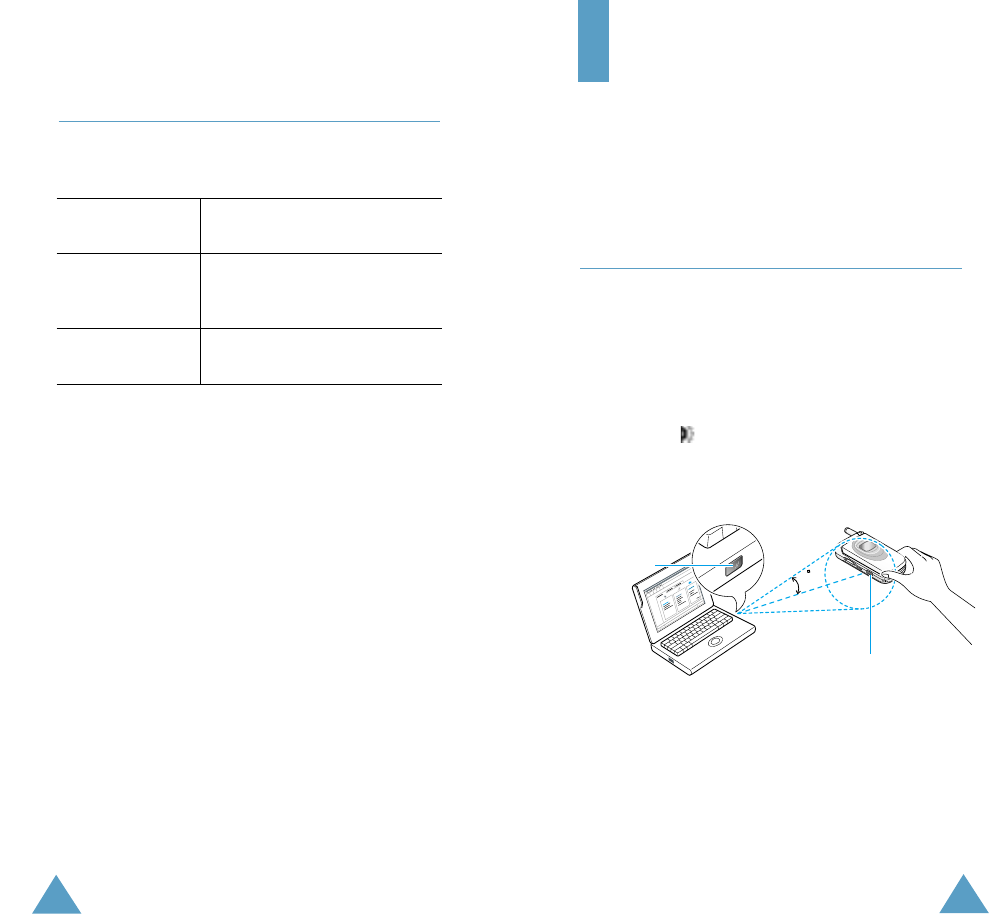
82
Sound Settings
83
Extra Tones (Menu 3.6)
You can customise various other tones used by
the phone.
To turn a Press the...
given tone...
O n O K soft k e y.
A check mark is displayed in
front of the option.
Off O K soft key again. The check
mark is no longer displayed.
The following options are available:
Error Tone: sets whether the phone informs
you that you have made a mistake or not.
Minute Minder: sets whether the phone must
beep every minute during an outgoing call to
keep you informed of the length of your call.
Connect Tone: sets y our phone to beep when
the person you are calling answers the phone.
Phone Settings
M a ny different features of your phone can be
customised to suit your preferences. All of these
features are accessed via the Phone Settings
menu.
Infrared Activate (Menu 4.1)
This feature allows you to send or receive
data/fax through the infrared port. To use an
infr ared connection, you must:
¥ Configure and activate an IrDA-compliant
infr ared port on your PC
¥ Activate the infr ared feature on the phone; the
IrDA icon ( ) appears on the top line of the
display
¥ Align the IrDA port on the phone with the IrDA
port on your computer
The connection is ready for data transmission.
If there is no communication between your
phone and the IrDA-compliant device within 30
seconds of activating the feature, it is
automatically deactivated.
Note: For best performance, it is highly
recommended that you use the data link
cable supplied in your SGH-S108 kit.
15
IrDA port
IrDA port

85
Phone Settings
84
Phone Settings
My Settings (Menu 4.2)
You can change the background image and the
colour of the components in the display
according to your preference.
Wallpaper
This option allows you to change the background
image (wallpaper) to be displayed in idle mode.
To change the background image:
1. Scroll through the list b y pressing the or
key.
You have various preset images available. Yo u
can also select the blank background and any
images downloaded from the Internet or the
EasyGPRS programme.
2. Press the Select soft key when the required
image is highlighted.
The selected image is displayed.
3. After viewing the image, press the Select soft
key to displa y it on the idle screen.
Colour Theme
You can change the colour setting of the display
components, such as text, soft key display area
or the menu names and icons. Nine different
colour settings are available.
Select the required setting and press the Select
soft k e y, followed by O K to confirm the highlight
colour and colour theme.
Menu Style
This option allows you to select the menu display
style. You can choose between Folder Style and
Nature Style.
Greeting Message (Menu 4.3)
This option allows you to set a greeting message
to be displayed briefly when the phone is
switched on. The current message is displayed.
To... Press the...
Clear the existing C key and hold it down
message until the message is
cleared.
Enter a new Appropriate
message alphanumeric keys.
Change the text right soft key labelled with
input mode the current input mode
For further details on how to enter characters,
refer to page 42.
Own Number (Menu 4.4)
This feature allows you to:
¥ Assign a name to each of your own phone
numbers registered on your SIM card
¥ Edit the names and numbers
This function is a memory aid, which you can
use to check your own phone numbers if you
need to do so.
A ny changes made here do not in any way affect
the actual subscriber numbers on your SIM card.

87
Phone Settings
86
Phone Settings
Language (Menu 4.5)
You can select a display language. English,
Chinese S (Simplified Chinese) and Chinese T
(Traditional Chinese) are available.
Note: This setting doesn t affect the WAP browser.
Security (Menu 4.6)
The Security feature enables you to restrict the
use of your phone to:
¥ the people of your choice
¥ the t ypes of calls of your choice
Various codes and passwords are used to protect
the features of your phone. They are described in
the following sections (see also pages 110-113).
PIN Check
When the PIN (Personal Identification Number)
Check feature is enabled, you must enter your
PIN each time you switch the phone on.
Consequently, any person who does not have
your PIN cannot use your phone without your
approval.
Note: Before disabling the PIN Check feature, yo u
must enter your PIN.
To change your PIN, refer to the Change PIN
menu option (Menu 4.6.2).
The following options are available:
Disable: the phone connects directly to the
network when you switch it on.
Enable: you must enter the PIN each time the
phone is switched on.
Change PIN
This feature allows you to change your current
PIN to a new one, provided that the PIN Check
feature is enabled. You must enter the current
PIN before you can specify a new one.
Once you have entered a new PIN, you are
ask ed to confirm it by entering it again.
Phone Lock
When the Phone Lock feature is enabled, the
phone is locked and you must enter the 8-digit
phone password each time the phone is switched
on.
The password is factory set to 00000000. To
change the phone password, refer to the
Change Password menu option (Menu 4.6.4)
below.
Once the correct password has been entered,
you can use the phone until you switch it off.
The following options are available:
Disable: you are not asked to enter the phone
password when you switch the phone on.
Enable: you are required to enter the phone
password when you switch the phone on.
Change Password
The Change Password feature allows you to
change your current phone password to a new
one. You must enter the current password before
you can specify a new one.
The password is factory set to 00000000. Once
you have entered a new password, you are
ask ed to confirm it by entering it again.

89
Phone Settings
88
Phone Settings
SIM Lock
When the SIM Lock feature is enabled, your
phone only works with the current SIM. You
must enter the SIM lock code.
Once you have entered the lock code, you are
ask ed to confirm it by entering it again.
To unlock the SIM, you must enter the SIM lock
code.
FDN Mode
The FDN (Fixed Dial Number) mode, if supported
by your SIM card, allows you to restrict your
outgoing calls to a limited set of phone numbers.
The following options are available:
Disable: you can phone any number.
Enable: you can only call phone numbers stored
in the phonebook. You must enter your PIN2.
Note: Not all SIM cards have a PIN2. If y our SIM
card does not, this menu option is not
display ed.
To change your PIN2, refer to the Change PIN2
menu option (Menu 4.6.7) below.
Change PIN2
The Change PIN2 feature allows you to change
your current PIN2 to a new one. You must enter
the current PIN2 before you can specify a new
one.
Once you have entered a new PIN2, you are
ask ed to confirm it by entering it again.
Note: Not all SIM cards have a PIN2. If y our SIM
card does not, this menu option is not
display ed.
Display Settings (Menu 4.7)
Contrast
This option allows you to adjust the contrast of
the display screens to make them lighter or
darker.
To adjust the display contrast:
1. Select the required display (Main LCD or
Front LCD) and press the Select soft k e y.
2. Adjust the contrast b y using the and
keys or the and keys on the left side of
the phone.
3. When you are satisfied, press the O K soft k e y
to save the selection.
Back Light
You can select whether or not the phone uses
the backlight. A marginal increase in
standby/talk time can be achieved by turning the
backlight off.
The following options are available:
O F F: the backlight is not used.
Short: the backlight comes on when you press a
key or receive a call and switches off 10 seconds
after the last key is pressed.
Long: the backlight comes on when you press a
key or receive a call and switches off 20 seconds
after the last key is pressed.

91
Phone Settings
90
Phone Settings
Auto Light
Using this feature, you can specify the time for
which the backlight is to be used. This feature
helps conserve your battery power.
The following options are available:
Disable: the backlight is used according to the
setting in the Back Light menu option (Menu
4.7.2); see page 89.
Enable: the backlight is used only during the
specified period of time. Set the required length
of time in hours and minutes, using the
appropriate number keys.
Service Light
This option allows you to select whether or not
the service light on the top of the phone is used
or in which colour it flashes.
Select the required colour from red, green, blue,
yellow, cyan, violet and light purple. When the
phone is ready for use, the service light will flash
in the appropriate colour.
If you do not wish to use the service light, select
Off.
Graphic Logo
This option allows you to display your operator s
logo instead of its name.
O n: the operator logo stored in your phone is
display ed in idle mode; if no logo has been
stored, the operator name is displayed.
Off: the operator name is displayed in idle
mode.
Extra Settings (Menu 4.8)
You can turn the automatic redialling or
answering features on or off.
To turn a Press the...
feature...
O n O K soft k e y.
A check mark is displayed in
front of the option.
Off O K soft key again. The check
mark is no longer displayed.
The following options are available:
Auto Redial: when this option is checked, the
phone makes up to ten attempts to redial a
phone number after an unsuccessful call.
Note: The interval between two call attempts
varies.
Active Flip: when this option is checked, yo u
can simply open the folder to answer a call.
When it is unchecked, y ou must open the folder
and press a key, depending on the setting of the
Anykey Answer option (see below).
Anykey Answer: when this option is checked,
you can answer an incoming call by pressing any
key, except the key and the Reject soft
ke y. To reject the call, press the k ey or the
Reject soft k e y.
When this option is unchecked, you can only
press the key or Accept soft k e y.

93
92
Phone Settings
ShortCut (Menu 4.9)
The navigation keys can be used as shortcut
keys. When held down in idle mode, they allow
you to access specific menu options directly.
To assign a shortcut to a key:
1. Select the key to be used as a shortcut key
by pressing the or key, followed by
the Select soft k e y.
¥ Key up ( )
¥ Key down ( )
¥ Key right ( )
¥ K ey left ( )
2. Select the menu option to be assigned to the
key by pressing the or key.
Note: To deactivate a shortcut key, select the
None option.
3. Press the Select soft k ey to sa v e the
selection.
Reset Settings (Menu 4.10)
You can easily reset your phone to its default
configuration.
1. Select the Reset Settings menu option.
2. Enter the 8-digit phone password and press
the O K soft k e y.
Note: The password is preset to 00000000. To
change this password, refer to page 87.
Organiser
The Organiser feature enables you to:
¥ View the calendar and organise your schedule
¥ Define a list of things to do
¥ Set the current date and time
¥ Set the alarm so that the phone rings at a
specific time (to remind you of an appointment
for example)
¥ Use the phone as a calculator for basic
mathematical equations or currency exchange
operations
Calendar (Menu 5.1)
With the Calendar feature, you can:
¥ Consult the calendar
¥ W rite memos to keep track of your schedule
and trigger an alarm, if necessary
Consulting the Calendar
When you select the Calendar menu option
(Menu 5.1), the calendar is displa yed. The
following options are available when you press
the Options soft k ey:
Search all: displa ys all memos set, regardless
of the day and starting with the oldest. To scroll
through the memos, press the or key.
Delete all: allows you to delete all memos. Yo u
are asked to confirm your action.
Go to date: allows you to jump to a specific
date.
Exit: exits the Calendar feature and returns to
the idle mode.

94
Organiser
95
Organiser
Writing a Memo
To write or edit a memo on a specific date:
1. Select the required date in the calendar, using
the navigation k eys.
Note: To skip to the previous or next month,
press the and keys on the left side
of the phone.
2. Press the Select soft ke y.
An empty memo screen is displayed to allow
you to enter your memo.
3. Enter your memo and then press the O K soft
key.
Note: For further details on how to enter
characters, refer to page 42.
You are asked if you wish to set an alarm.
4. If you want the alarm to ring on the chosen
d ay, press the Y e s soft k e y.
Otherwise, press the N o soft k e y.
5. If you pressed the Y e s soft k e y, set the time
for the alarm and press the O K soft ke y.
The colour of the date is changed to green to
indicate that a memo exists.
Editing a Memo
If you select a day for which a memo already
exists, y ou can press the Edit soft k ey to edit
the memo displayed.
Note: For further details about how to enter
characters, refer to page 42.
Once you have finished editing the memo, press
the O K soft k e y. The following options are then
available when you press the Options soft k e y.
Alarm: allows you to set the alarm to ring on
the chosen day.
Erase: allows y ou to delete the memo.
Copy to: allows you to copy the memo to
another date and/or time.
Move to: allows y ou to change the date and/or
time of the memo.
To Do List (Menu 5.2)
This feature allows you to:
¥ Draw up a list of tasks to be done
¥ Assign a priority and deadline to each task
¥ Sort the tasks by priorit y and status mark
Creating the To Do List
1. Press the N e w soft ke y.
2. Enter the first task.
Note: You can enter up to 40 characters. For
further details on how to enter characters,
see page 42.
3. Press the O K soft k e y.
4. Select high, normal or low priority using the
or key and press the Select soft k e y.
5. Enter your deadline.
If you do not want to set a deadline, press
the Skip soft k e y.
6. Press the O K soft k e y.

97
Organiser
96
Organiser
Editing the To Do List
If tasks are already defined in the To Do List
when you select the To Do List menu option
(Menu 5.2), the current contents are displayed
with the status mark and priority (three stars for
high, two for normal and one for low).
The following options are available:
To... Then...
View the details ¥ Highlight the task.
for a specific task ¥ Press the View soft k e y.
Change the ¥ Highlight the task.
status of a ¥ Press the key to mark
specific task the task as completed as
of the current date and
time.
or
¥ Highlight the task.
¥ Press the Options soft
key.
¥ Select the Mark option.
¥ Select the appropriate
status (Done or Undo).
Create a new task ¥ Press the Options soft
key.
¥ Select the N e w option.
¥ Enter the text, priority
and deadline for the
task.
Edit an existing ¥ Highlight the task.
task ¥ Press the Options soft
key.
¥ Select the Edit option.
¥ Change the text, priority
and deadline for the
task.
To... Then...
Sort the existing ¥ Press the Options soft
tasks by priorit y key.
or status ¥ Select the Sort option.
¥ Select the sort criterion
(High, Low, Done or
Undo).
C o py a task ¥ Highlight the task.
¥ Press the Options soft
key.
¥ Select the Copy option.
¥ Change the text, priority
and deadline for the task
as required.
C o py a task to ¥ Highlight the task.
the calendar ¥ Press the Options soft
key.
¥ Select the Copy to
calendar option.
¥ Change the text and
deadline for the task and
set the alarm as
required.
Delete a task ¥ Highlight the task.
¥ Press the Options soft
key.
¥ Select the Delete option.
Delete all tasks ¥ Press the Options soft
key.
¥ Select the Delete all
option.
¥ Confirm the deletion by
pressing the O K soft ke y.
Exit the To Do list ¥ Press the Options soft
key.
¥ Select the Exit option.

99
Organiser
98
Organiser
Time & Date (Menu 5.3)
This option allows you to change the current
time and date displayed. You can also check the
current time for Greenwich Mean Time (GMT)
and 21 major cities around the world.
The following options are available:
Set Time: allows y ou to enter the current time.
You can choose the time format via the Time
Format menu option (Menu 5.3.4).
Note: Before setting the time, you must specify
your time z one, via the World Time menu
option (Menu 5.3.3).
Set Date: allows you to enter the day, month
and year.
World Time: allows y ou to check the current
time for Greenwich Mean Time (GMT) and 21
major cities around the world, using the and
keys.
The screen shows the:
¥ City name
¥ Current date and time
¥ Time difference between the selected city and
y our cit y if y ou ha v e set the local time (see
below for further details) or GMT (by default)
To select the time zone in which you are located:
1. Select the cit y corresponding to your time
zone by pressing the or key one or more
times. The local date and time are displayed.
2. Press the S e t soft k e y.
Time Format: allows you to change the time
format to 2 4 Hours or 12 Hours.
Alarm (Menu 5.4)
This feature allows you to:
¥ Set the alarm to ring at a specific time
¥ Set the phone to switch on automatically and
ring the alarm even if the phone is switched off
(Autopower menu option set to Enable)
The following options are available:
Once Alarm: the alarm rings only once and is
then deactivated.
Daily Alarm: the alarm rings every day at the
same time.
Morning Call: the alarm rings to wake you up
in the morning.
To set the alarm:
1. Choose the type of alarm to be set.
2. Enter the required time and day of the week,
if applicable.
3. Press the O K soft k e y.
4. If you select Morning Call in Step 1, select
the repeat option; Monday to Friday or
Monday to Saturday.
Remove Alarm: deactivates all alarm settings.
Autopower: if this option is set to Enable, the
alarm will ring at the specified time, eve n when
the phone is switched off.
If the menu option is set to Disable and the
phone is switched off at the specified time, the
alarm will not ring.

101
Organiser
100
Organiser
Currency Exchange (Menu 5.6)
Using this menu option, you can make currency
conversions.
1. Enter the current exchange rate of y our
source currency and press the O K soft k e y.
You can insert a decimal point by pressing the
key.
2. Enter the amount for which you wish to
conduct the currency conversion and press
the O K soft k e y.
The exchange rate amount you entered and
equivalent value are displayed.
3. Press the Exit soft k ey to exit the currency
convertor.
To stop the alarm when it rings, open the phone
and press the Exit soft ke y.
When setting or viewing an alarm, the following
options are available when you press the
Options soft k ey:
Remove Alarm: deactivates the current alarm.
Alarm Sound Set: allows you to select the
alarm melody.
Calculator (Menu 5.5)
With this feature, you can use the phone as a
calculator. The calculator provides the basic
arithmetic functions; addition, subtraction,
multiplication and division.
Using the Calculator
1. Enter the first number using the numeric
keys.
2. Press the right soft key until the required
arithmetic symbol appears: + (add), -
(subtract), x (multiply), / (divide).
3. Enter the second number.
4. R epeat Steps 1 to 3 as many times as
required.
Notes:
¥ To erase any mistakes and clear the display, press
the C k ey.
¥ To include a decimal point or a bracket, press the
left soft k ey until the required symbol is
display ed.
5. To calculate the result, press the key.

103
Network Services
102
Network Services
These menu functions are network services.
Please contact your service provider to check
their a vailabilit y and subscribe to them, if yo u
wish.
Call Diverting (Menu 6.1)
This network service enables incoming calls to
be rerouted to the number that you specify.
Example: Yo u m ay wish to divert y our business
calls to a colleague while you are on
holiday.
Call div erting can be set up in the following
w ays:
Divert Always: all calls are div erted.
Busy: calls are div erted if y ou are already
making another call.
No Reply: calls are div erted if y ou do not
answer the phone.
Unreachable: calls are div erted if y ou are not
in an area covered by your service provider.
Cancel All: all call div erting options are
cancelled.
You can specify individual diverting options for
each of the following call types:
¥ Voice calls only
¥ Data calls only
Example: You can divert v oice calls to y our
colleague if you are already using the
phone.
To set y our call diverting options:
1. Select the t ype of call diverting required by
pressing the or key, and then press
the Select soft k e y.
2. Select the t ype of calls to be diverted by
pressing the or key, and then press
the Select soft k e y.
The current status is displayed. If the option
has already been set, the number to which
the calls are diverted is displa yed.
3. To... Then...
Activate call ¥ Press the Activate
div erting soft k ey.
¥ Go to Step 4.
Change the call ¥ Press the Change
number soft k e y.
¥ Go to Step 4.
Deactivate call Press the Remove soft
diverting ke y.
4. Enter the number to which the calls are to be
diverted and press the O K soft k e y.
To enter the international code, press the 0
key until the + sign is displa yed.
The phone sends your settings to the network
and the network s acknowledgement is
display ed.
You can deactivate all call div erting settings by
selecting the Cancel All option.

105
Network Services
104
Network Services
Call Barring (Menu 6.2)
The call barring network service allows you to
restrict y our calls.
Call barring can be set up in the following ways:
All Outgoing: calls cannot be made.
International: international calls cannot be
made.
International Except to Home: when abroad,
calls can be made only to numbers within the
current country and to your home country, that
is the country where your home network
pro vider is located.
All Incoming: calls cannot be received.
Incoming While Abroad: calls cannot be
received when you are using your phone outside
your home service area.
Cancel All: all call barring settings are
deactivated; calls can be made and received
normally.
You can specify individual barring options for
each of the following call types:
¥ Voice calls only
¥ Data calls only
To set your call barring options:
1. Select the t ype of call barring required by
pressing the or key and then press
the Select soft k e y.
2. Select the t ype of calls to be barred by
pressing the or key and then press
the Select soft k e y.
3. Press the Activate soft k ey to confirm your
settings.
4. Enter your call barring password supplied by
your service provider.
The phone sends your settings to the network
and the network s acknowledgement is
display ed.
To deactivate specific call barring settings:
1. Select the call barring option to be
deactivated.
2. Select the type of call to which this option
applies.
3. Press the Deactivate soft k ey.
4. Enter your call barring password supplied by
your service provider.
The phone sends your settings to the network
and the network s acknowledgement is
display ed.
You can also deactivate all call barring settings
b y selecting the Cancel All option.
Change Barring Password: you can set and
change the call barring password obtained from
your service provider using this option. Yo u must
enter the current password before you can
specif y a new one.
Once you have entered a new password, you are
ask ed to confirm it by entering it again.

107
Network Services
106
Network Services
Call Waiting (Menu 6.3)
This network service enables you to be informed
when someone is trying to reach you during
another call.
You can specify individual call waiting options for
each of the following call types:
¥ Voice calls only
¥ Data calls only
To set your call waiting options:
1. Select the t ype of calls to which the call
w aiting option is to be applied b y pressing the
or key and then press the Select
soft k e y.
The screen informs you whether call waiting
is activ ated or deactivated.
2. You can activate or deactivate the call w aiting
feature as necessary by using the Activate or
Deactivate soft k ey respectively.
To return to the previous screen, press the
Exit soft ke y.
You can also deactivate all call w aiting settings
b y selecting the Cancel All option.
Network Selection (Menu 6.4)
The Network Selection feature enables you to
indicate whether the network used when
roaming outside your home area is selected
automatically or manually.
Note: You can select a network other than your
home network only if it has a valid roaming
agreement with your home network.
To indicate whether the network is to be selected
automatically or manually when roaming:
1. When Network Selection is displa y ed, press
the Select soft k e y.
2. Press the or key until the appropriate
option is highlighted and then press the O K
soft k e y.
If y ou select Automatic, you are connected
to the first a v ailable network when roaming.
If y ou select Manual, the phone scans for the
available networks. Go to Step 3.
3. Press the or key until the preferred
network is highlighted and then press the O K
soft k e y.
You are connected to that network.

109
Network Services
108
Network Services
Caller ID (Menu 6.5)
You can prevent your phone number from being
display ed on the phone of the person being
called.
Note: Some networks do not allow the user to
change this setting.
The following options are available:
Default : the default setting provided by the
network is used.
Hide Number: your number is not displayed on
the other person s phone.
Send Number: your number is sent each time
y o u m a k e a call.
Closed User Group (CUG) (Menu 6.6)
This network service allows incoming and
outgoing calls to be restricted to a selected user
group. You may be a member of up to ten user
groups. For details on how to create, activate
and use a closed user group, contact your
service provider.
Example: A company lends SIM cards to its
employees and wants to restrict
outgoing calls to members of the same
team.
Activating a Closed User Group
If you select the Closed User Group menu, you
can enter the CUG function. You can now access
the following options after pressing the Select
soft k e y.
Index List: lets y ou list, add or delete CUG
index numbers. The list of current CUG indexes
appears.
Add a new CUG index as advised by your service
provider or delete a selected group.
To... Press the...
Scroll the through or key.
the existing CUG
indexes
Add a new CUG Options soft k e y,
index select the A d d option
and enter the index.
Delete a CUG Options soft k ey an d
index select the Delete
option.
Activate a CUG Options soft k ey and
index select the Activate
option.
Outside Access: lets y ou enable or disable calls
to numbers other than those nominated for the
Closed User Group. This feature depends on the
nature of your CUG subscription. Please check
with your service provider.
Default Group: you may communicate a default
CUG to your service provider. If y ou hav e done
so, you can enable the Default Group option on
your phone. When making a call, you will be
given the option of using your default CUG,
instead of selecting one from the list.
Deactivate: deactivates the CUG function. This
menu appears only when the default group is
enabled or a CUG index is selected.

111
110
Network Services
Band Selection (Menu 6.7)
For the phone to make and receive phone calls,
it must register with one of the available
networks. Your phone can handle any of the
following types of network:
¥ GSM 900
¥ GSM 1800
¥ Combined GSM 900/1800
¥ GSM 1900
The country where you purchased your phone
determines the default band that it uses. When
you travel abroad, you must remember to
change to an appropriate band. Proceed as
follows.
1. When Band Selection is displa y ed, press the
Select soft k e y.
2. Press the or k ey until the appropriate option,
GSM 900/1800 or GSM 1900, is highlighted
and press the O K soft k e y.
When you select a new band, your phone
displays a confirmation message and then
automatically searches for all the available
networks. Your phone then registers with a
preferred network within the selected band.
Funbox
The Funbox menu contains several fun options.
Games (Menu 7.1)
You can enjoy three games with your phone.
Scroll to the required game, using the a nd
keys and press the Select soft k e y. For
further details on the game, refer to the on-
screen help.
WAP Browser (Menu 7.2)
Your phone is equipped with a WAP Browser to
allow you to access and navigate the Wireless
W eb via your phone.
For further details on the WAP Browser menu,
refer to the WAP Browser User s Manual supplied
with your phone.
Downloads (Menu 7.3)
You can download MIDlets (Java applications
running on mobile phones) from various sources
using the WAP Browser and store them in your
phone. You can then view the list of MIDlets
stored on the Games & More screen.
Note: Java services may be unavailable depending
upon the service provider.
Games & More
This menu option allows you to launch a MIDlet
and access various menu options.
For more details on how to download MIDlets via
the WAP Browser, refer to the WAP Browser
User s Manual supplied with your phone.

113
Funbox
112
Funbox
: allows you to enter English characters using
the T9 mode. For details about this mode, see
page 44.
Note: To change case, press the 0 key.
To change the text input mode, press the key
until the appropriate indicator appears on the soft
key area of the display.
Sounds
In this menu, you can view the list of sounds
downloaded from the server. You can set the
downloaded sounds as the current ring tone, but
cannot send the sounds to other phones.
When the memory is full, a warning message is
display ed and the phone rejects additional sounds
until y ou er ase obsolete ones.
Pictures
In this menu, you can view the list of pictures
downloaded from the server. You can set the
downloaded pictures as the current background
image, but cannot send them to other phones.
When the memory is full, a warning message is
display ed and the phone rejects additional pictures
until y ou er ase obsolete ones.
Settings
The DNS (Domain Name Server) address of the
Java server is preset at the factory, but sometimes
yo u m ay need to change it. In this menu, you can
determine whether or not the address will be
automatically updated when needed.
Automatic: the serv er will automatically transmit
the address to the phone if it is changed.
Manual: you can manually change the address.
Launching a MIDlet
1. From the Downloads screen, select the
Games & More option.
2. Scroll to the desired MIDlet and press the
Launch soft k e y.
Using the Menus
From the Main Screen, press the Menu soft k e y
to access the following options:
Info: displa ys information about the selected
MIDlet, such as the file size, application v ersion,
vendor, and the location of the jad file, which is
the MIDlet description file.
Remove: removes the selected MIDlet. When
the confirmation message appears, press the
Remove soft k e y. To cancel your selection,
press the Cancel soft k e y.
Update: accesses the server and updates the
selected MIDlet.
Note: These menus are shown
only when a
MIDlet has been downloaded.
Entering Text
When entering URL addresses, the following five
input modes are available:
A B C : allows you to enter upper-case English
characters.
a b c : allows you to enter lower-case English
characters.
1 2 3 : allows you to enter numbers.
S y m: allows you to enter symbols. After
highlighting the required symbol by pressing the
n avigation keys, press the key to insert it.

114 115
Solving Problems
Solving Problems
Before contacting the after-sales service,
perform the following simple checks. They may
save you the time and expense of an
unnecessary service call.
When you switch your phone on, the
following messages may appear
Insert SIM Card
¥ Check that the SIM card is correctly installed.
Phone Locked Enter Password
¥ The automatic locking function has been
enabled. You must enter the phone s password
before you can use the phone.
Enter PIN
¥ You are using your phone for the first time.
You must enter the Personal Identification
Number supplied with the SIM card.
¥ The PIN Check feature is enabled. Every time
the phone is swiched on, the PIN have to be
entered. To disable the feature, use the P I N
Check menu option (Menu 4.6.1).
Enter PUK
¥ The PIN code was entered wrongly three times
in succession and the phone is now blocked.
Enter the PUK supplied by your network
operator.
No service, Network failure or
Not done is displayed
¥ The network connection was lost. Yo u m a y be
in a weak signal area (in a tunnel or
surrounded by buildings). Move and try again.
¥ You are trying to access an option for which
you have not taken out a subscription with
your service provider. Contact the service
provider for further details.
You have entered a number but it was
not dialled
¥ Have you pressed the key?
¥ Are you accessing the right cellular network?
¥ Yo u m ay have set an outgoing call barring
option.
Your correspondent cannot reach you
¥ Is your phone switched on (the key
pressed for more than one second)?
¥ Are you accessing the right cellular network?
¥ Yo u m ay have set an incoming call barring
option.
Your correspondent cannot hear you
speaking
¥ H ave you switched off the microphone?
¥ Are you holding the phone close enough to
your mouth? The microphone is located at the
bottom of the phone.
117
116
Solving Problems
The phone starts beeping and
**Warning** Low Battery flashes on
the display
¥ The battery is insufficiently charged. Replace
the battery and recharge it.
The audio quality of the call is poor
¥ Check the signal strength indicator on the
display ( ); the number of bars indicates
the signal strength from strong ( ) to weak
().
¥ Try moving the phone slightly or moving closer
to a window if you are in a building.
No number is dialled when you recall a
phonebook entry
¥ Check that the number has been stored
correctly, by using the Phonebook Search
feature.
¥ R e-store the number, if necessary.
If the above guidelines do not enable you to
solve the problem, take a note of:
¥ The model and serial numbers of your phone
¥ Your warranty details
¥ A clear description of the problem
Then contact your local dealer or Samsung
after -sales service.
Access Codes
There are several access codes that are used by
your phone and its SIM card. These codes help
you protect the phone against unauthorised use.
When requested for any of the codes explained
below, key in the appropriate code (displayed as
asterisks) and press the O K soft k e y. If y o u
m a ke a mistake, press the C key one or more
times until the incorrect digit is cleared and then
continue entering the correct code.
The access codes, except for the PUK (PIN
Unblocking Key) and PUK2 codes can be
changed using Security menu options (Menu
4.6). See page 79 for further details.
Important! Avoid using access codes
resembling emergency numbers,
such as 112, so that you do not dial
an emergency number accidentally.
Phone Password
The Phone Lock feature uses the phone
password to protect your phone against
unauthorised use. The phone password is
supplied with the phone and is factory set to
00000000.
To... Refer to...
Activate/deactivate the Page 80
Phone Lock feature (Menu 4.6.3).
Change the phone Page 80
password (Menu 4.6.4).

119
Access Codes
118
Access Codes
PIN
The P ersonal Identification N umber or PIN (4 to
8 digits) protects your SIM card against
unauthorised use. It is usually supplied with the
SIM card.
If you enter an incorrect PIN three times in
succession, the code is disabled and cannot be
used until you re-enable it by entering the PUK
(see below).
To... Refer to...
Activate/deactivate Page 79
the PIN Check feature (Menu 4.6.1).
Change the PIN Page 80
(Menu 4.6.2).
PUK
The 8-digit PUK (P IN U nblocking K ey) is
required to change a disabled PIN. The PUK may
be supplied with the SIM card. If not, or yo u
h a ve lost it, contact your service provider.
To re-enable your PIN:
1. K ey in the PUK and press the O K soft k e y.
2. Enter a new PIN of your choice and press the
O K soft ke y.
3. When the Confirm New PIN message is
display ed, key in the same code again and
press the O K soft ke y.
If you enter an incorrect PUK ten times in
succession, the SIM card becomes invalid.
Contact your service provider for a new card.
PIN2
The PIN2 (4 to 8 digits), supplied with some SIM
cards, is required to access specific functions,
such as setting the maximum cost of a call.
These functions are available if supported by
your SIM card.
If you enter an incorrect PIN2 three times in
succession, the code is disabled and you cannot
access the functions until you re-enable it by
entering the PUK2.
To change the PIN2, refer to page 81 (Menu
4.6.7).
PUK2
The 8-digit PUK2 (PIN Unblocking Key 2),
supplied with some SIM cards, is required to
change a disabled PIN2. If you lose the code,
contact your service provider.
To re-enable your PIN2:
1. K ey in the PUK2 and press the O K soft k e y.
2. Enter a new PIN2 of your choice and press
the O K soft k e y.
3. When the Confirm PIN2 message is
display ed, key in the same code again and
press the O K soft ke y.
If you enter an incorrect PUK2 ten times in
succession, you will not be able to access the
functions requiring the PIN2. Contact your
service provider for a new card.

121
120
Access Codes
Barring Password
The 4-digit barring password is required when
you use the Call Barring function. You obtain the
password from your service provider when you
subscribe to this function. See page 99 for
further details.
Health and Safety
Information
Information about Batteries
Information about Battery Usage
Standby time will be reduced in the following
conditions:
¥ When you use the additional features on your
phone, such as writing and storing messages,
playing games or connecting to the Internet.
¥ If you are frequently out of the service area.
¥ I f you are out of the service area for a long
period of time.
¥ If you use the phone out of the network s local
service area.
¥ If you use the talk mode repeatedly.
¥ The battery can be charged and discharged
hundreds of times, but it will eventually wear
out. When the operation time for both talk
mode and standby mode is reduced by about
half, it is time to buy a new battery.
Talk time
Standby time
Standard Battery
(700 mA)
Extended Battery
(900 mA)
Time
up to 2 hours
and 30 minutes
up to 3 hours
and 10 minutes
up to 73 hours up to 94 hours
(fully charged battery)
Type

123
Health and Safety Information
122
Health and Safety Information
Precautions When Using Batteries
Your phone is powered by a rechargeable Li-ion
standard battery.
¥ N e ver use any charger or battery that is
damaged in any way.
¥ Use the battery only for its intended purpose.
¥ If you use the phone near the network s base
station, it uses less power; talk and standby
time are greatly affected by the signal strength
on the cellular network and the parameters set
by the network operator.
¥ Battery charging time depends on the
remaining battery charge and the type of
battery and charger used. The battery can be
charged and discharged hundreds of times, but
it will gr adually wear out. When the operation
time , including talk time and standby time is
noticeably shorter than normal, it is time to
buy a new battery.
¥ If left unused, a fully charged battery will
discharge itself ov er time.
¥ Use only Samsung-approved batteries and
recharge your battery only with Samsung-
approved chargers. When a charger is not in
use, disconnect it from the power source. Do
not leave the battery connected to a charger
for more than a week, since overcharging may
shorten its life.
¥ Extreme temperatures will affect the charging
capacity of your battery: it may require cooling
or w arming first.
Battery Precautions
¥ Do not drop, knock or shake it. R ough handling
can break the battery or shorten its life.
¥ Do not store or carry flammable liquids, gases
or explosive materials in the same
compartment as the battery because it can
explode.
¥ Use only Samsung-approved chargers. Using
other chargers can damage your battery or
overcharge it. Overcharging may shorten its
life.
¥ Do not short-circuit the battery. Accidental
short-circuiting can occur when a metallic
object, such as a coin, clip or pen, directly
connects the + and the - terminals of the
battery, which are metal strips on the back. Be
particularly careful when you carry a spare
battery in a pocket or bag. Short-circuiting the
terminals may damage the battery or the
object causing the short-circuit.
¥ Do not leave the battery in hot or cold places,
such as in a car in summer or in winter
conditions, as you will reduce the capacity and
life-time of the battery. Always try to keep the
battery at room temperature (0 ¡C ~ 40 ¡C). A
phone with a hot or cold battery may
temporarily not work, even when the battery is
fully charged.
¥ K eep it out of reach of small children. Do not
let children put the battery into their mouths.
¥ Do not use the battery if it is damaged,
because the battery fluid can be harmful. If
the battery fluid comes in contact with your
skin, flush with water and contact your doctor.
¥ Use the battery only for its intended purpose.

125
Health and Safety Information
124
Health and Safety Information
¥ Do not leave the battery in hot or cold places,
such as in a car in summer or winter
conditions, as you will reduce the capacity and
life-time of the battery. Always try to keep the
battery at room temperature. A phone with a
hot or cold battery may temporarily not work,
even when the battery is fully charged. Li-ion
batteries are particularly affected by
temperatures below 0 ¡C (32 ¡F).
¥ Do not short-circuit the battery. Accidental
short circuiting can occur when a metallic
object (coin, clip or pen) causes a direct
connection between the + and — terminals of
the battery (metal strips on the battery), for
example when you carry a spare battery in a
pocket or bag. Short-circuiting the terminals
m ay damage the battery or the object causing
the short-circuit.
¥ Dispose of used batteries in accordance with
local regulations. Always recycle. Do not
dispose of batteries in a fire.
Road Safety
Your wireless phone gives you the powerful
abilit y t o communicate by voice, almost
anywhere, anytime. But an important
responsibilit y accompanies the benefits of
wireless phones, one that every user must
uphold.
When driving a car, driving is y our first
responsibilit y. When using your wireless phone
behind the wheel of a car, practice good common
sense and remember the following tips.
1. Get to know your wireless phone and its
features, such as speed dial and redial. If
available, these features help you to place
your call without taking y our attention off the
road.
2. When available, use a hands-free device. If
possible, add an extra layer of convenience
and safety to your wireless phone with one of
the many hands-free accessories available
today.
3. P osition y our wireless phone within easy
reach. Be able to access your wireless phone
without removing your eyes from the road. If
you get an incoming call at an inconvenient
time, let your voice mail answer it for you.
4. Let the person you are speaking with know
you are driving; if necessary, suspend the call
in heavy traffic or hazardous weather
conditions. Rain, sleet, snow, ice and eve n
heavy traffic can be hazardous.
5. Do not take notes or look up phone numbers
while driving. Jotting down a To Do list or
flipping through your phonebook takes your
attention aw ay from your primary
responsibilit y, driving safely.

127
Health and Safety Information
126
Health and Safety Information
6. Dial sensibly and assess the traffic; if
possible, place calls when you are not moving
or before pulling into traffic. Try to plan calls
when your car will be stationary. If you need
to make a call while moving, dial only a few
numbers, check the road and your mirrors,
then continue.
7. Do not engage in stressful or emotional
conversations that may be distracting. Make
the people with whom you are talking aw are
that you are driving and suspend
conversations that have the potential to divert
your attention from the road.
8. Use your wireless phone to call for help. Dial
the emergency number in the case of fire,
traffic accident or medical emergencies.
Remember, it is a free call on y our wireless
phone!
9. Use your wireless phone to help others in
emergencies. If you see a car accident, crime
in progress or other serious emergency where
lives are in danger, call the emergency
number, as you would want others to do for
you.
10. Call roadside assistance or a special non-
emergency wireless assistance number when
necessary. If you see a broken-down vehicle
posing no serious hazard, a broken traffic
signal, a minor traffic accident where no one
appears injured, or a vehicle y ou know to be
stolen, call roadside assistance or any other
special non-emergency wireless number.
Operating Environment
Remember to follow any special regulations in
force in any area and always switch off your
phone whenever it is forbidden to use it, or
when it may cause interference or danger.
When connecting the phone or any accessory to
another device, read its user s guide for detailed
safety instructions. Do not connect incompatible
products.
As with other mobile radio tr ansmitting
equipment, users are advised that for the
satisfactory operation of the equipment and for
the safety of personnel, it is recommended that
the equipment should only be used in the normal
operating position (held to your ear with the
antenna pointing over your shoulder).
Electronic Devices
Most modern electronic equipment is shielded
from radio frequency (RF) signals. However,
certain electronic equipment may not be
shielded against the RF signals from your
wireless phone. Consult the manufacturer to
discuss alternatives.
Pacemakers
Pacemaker manufacturers recommend that a
minimum distance of 15 cm (6 inches) be
maintained between a wireless phone and a
pacemaker to avoid potential interference with
the pacemaker. These recommendations are
consistent with the independent research and
recommen-dations of Wireless Technology
R esearch.

129
Health and Safety Information
128
Health and Safety Information
Persons with pacemakers:
¥ Should always keep the phone more than 15
cm (6 inches) from their pacemaker when the
phone is switched on
¥ Should not carry the phone in a breast pocket
¥ Should use the ear opposite the pacemaker to
minimise potential interference
If you have any reason to suspect that
interference is taking place, switch off your
phone immediately.
Hearing Aids
Some digital wireless phones may interfere with
some hearing aids. In the event of such inter-
ference, yo u m ay wish to consult your hearing
aid manufacturer to discuss alternatives.
Other Medical Devices
If you use any other personal medical devices,
consult the manufacturer of your device to
determine if it is adequately shielded from
external RF energy. Your physician may be able
to assist y ou in obtaining this information.
S witch off y our phone in health care facilities
when any regulations posted in these areas
instruct y ou to do so . Hospitals or health care
facilities ma y be using equipment that could be
sensitive to external RF energy.
Vehicles
RF signals may affect improperly installed or
inadequately shielded electronic systems in
motor vehicles. Check with the manufacturer or
its representative regarding your vehicle.
You should also consult the manufacturer of any
equipment that has been added to your vehicle.
Posted Facilities
S witch off y our phone in any facilit y w h e r e
posted notices require you to do so.
Potentially Explosive Atmospheres
S witch off y our phone when in any area with a
potentially explosive atmosphere and obey all
signs and instructions. Sparks in such areas
could cause an explosion or fire resulting in
bodily injury or even death.
Users are advised to switch off the phone while
at a refuelling point (service station). Users are
reminded of the need to observe restrictions on
the use of radio equipment in fuel depots (fuel
storage and distribution areas), chemical plants
or where blasting operations are in progress.
Areas with a potentially explosive atmosphere
are often but not always clearly marked. They
include below deck on boats, chemical transfer
or storage facilities, v ehicles using liquefied
petroleum gas (such as propane or butane),
areas where the air contains chemicals or
particles, such as grain, dust or metal powders,
and any other area where you would normally be
advised to turn off your vehicle engine.

131
Health and Safety Information
130
Health and Safety Information
Emergency Calls
This phone, like any wireless phone, operates
using radio signals, wireless and landline
networks as well as user-programmed functions,
which cannot guarantee connection in all
conditions. Therefore, you should never rely
solely on any wireless phone for essential
communications (medical emergencies, for
example).
Remember, to make or receive any calls the
phone must be switched on and in a service area
with adequate signal strength. Emergency calls
m ay not be possible on all wireless phone
networks or when certain network services
and/or phone features are in use. Check with
local service providers.
To make an emergency call:
1. If the phone is not on, switch it on.
2. K ey in the emergency number for your
present location (for example, 112 or any
other official emergency number). Emergency
numbers vary by location.
3. Press the key.
If certain features are in use (call barring, for
example), you may first need to deactivate those
features before you can make an emergency
call. Consult this document and your local
cellular service provider.
When making an emergency call, remember to
give all the necessary information as accurately
as possible. Remember that your phone may be
the only means of communication at the scene
of an accident; do not cut off the call until give n
permission to do so.
Other Important Safety
Information
¥ Only qualified personnel should service the
phone or install the phone in a vehicle. Fault y
installation or service may be dangerous and
m ay invalidate any w arrant y applicable to the
device.
¥ Check regularly that all wireless phone
equipment in your vehicle is mounted and
operating properly.
¥ Do not store or carry flammable liquids, gases
or explosive materials in the same
compartment as the phone, its parts or
accessories.
¥ For vehicles equipped with an air bag,
remember that an air bag inflates with great
force. Do not place objects, including both
installed or portable wireless equipment in the
area over the air bag or in the air bag
deployment area. If wireless equipment is
improperly installed and the air bag inflates,
serious injury could result.
¥ S witch off y our phone before boarding an
aircr aft. The use of wireless phones in aircraft
m ay be dangerous to the operation of the
aircr aft, and is illegal.
¥ Failure to observe these instructions may lead
to the suspension or denial of telephone
services to the offender, or legal action, or
both.

133
Health and Safety Information
132
Health and Safety Information
Care and Maintenance
Your phone is a product of superior design and
craftsmanship and should be treated with care.
The suggestions below will help you fulfill an y
w arranty obligations and allow you to enjoy this
product for many years.
¥ K eep the phone and all its parts and
accessories out of the reach of small children s.
¥ K eep the phone dry. Precipitation, humidit y
and liquids contain minerals that will corrode
electronic circuits.
¥ Do not touch the phone with wet hands while
it is charging. Doing so may give you an
electric shock or damage the phone.
¥ Do not use or store the phone in dusty, dirt y
areas, as its moving parts may be damaged.
¥ Do not store the phone in hot areas. High
temperatures can shorten the life of electronic
devices, damage batteries, and warp or melt
certain plastics.
¥ Do not store the phone in cold areas. When
the phone warms up to its normal operating
temperature, moisture can form inside the
phone, which may damage the phone s
electronic circuit boards.
¥ Do not drop, knock or shake the phone. Rough
handling can break internal circuit boards.
¥ Do not use harsh chemicals, cleaning solvents
or strong detergents to clean the phone. Wipe
it with a soft cloth slightly dampened in a mild
soap-and-w ater solution.
¥ Do not paint the phone. Paint can clog the
device s mo ving parts and prevent proper
operation.
¥ Use only the supplied or an approved
replacement antenna. Unauthorised antennas
or modified accessories may damage the
phone and violate regulations governing radio
devices.
¥ If the phone, battery, charger or any accessory
is not working properly, take it to your nearest
qualified service facilit y. The personnel there
will assist y ou, and if necessary, arrange for
service.

135
Glossary
134
Glossary
To help you understand the main technical terms
and abbreviations used in this booklet and take
full advantage of the features on your mobile
phone, here are a few definitions.
Active Flip
Abilit y to answer a call simply by opening the
phone.
Call Barring
Abilit y to restrict outgoing and incoming calls.
Call Diverting
Abilit y to reroute calls to another number.
Call Holding
Abilit y to pu t one c al l o n stan db y while
answering or making another call; you can then
switch between the two calls, as required.
Call Waiting
Abilit y to inform users that they have an
incoming call when engaged on another call.
Caller Line Identification Services (Caller
ID)
Services allowing subscribers to view or block
the telephone numbers of callers.
GPRS (General Packet Radio Service)
New non-voice value-added service that allows
information to be sent and received across a
mobile telephone network. GPRS guaranties
continuous connection to the Internet for mobile
phone and computer users. It is based on the
Global System for Mobile Communication (GSM)
circuit -switched cellular phone connections and
the Short Message Service (SMS).
GSM (Global System for Mobile
Communication)
International standard for cellular
communication, guaranteeing compatibility
between the various network operators. GSM
covers most European countries and many other
parts of the world.
Java
Programming language generating applications
that can run on all hardware platforms, whether
small, medium or large, without modification. It
has been promoted for and geared heavily to the
W e b, both for public Web sites and Intranets.
When a Java program runs from a Web page, it
is called a Ja va applet. When it is run on a
mobile phone or pager, it is called a MIDlet.
Multiparty Calling
Abilit y to establish a conference call in volving up
to five additional parties.
Phone Password
Security code used to unlock the phone when
you ha ve selected the option to lock it
automatically each time it switches on.
PIN (Personal Identification Number)
Security code that protects the phone against
unauthorised use. The PIN is supplied by the
service provider with the SIM card. It may be a
four to eight-digit number and can be changed,
as required.
PUK (PIN Unblocking Key)
Security code used to unlock the phone when an
incorrect PIN has been entered three times in
succession. The eight-digit number is supplied by
the service provider with the SIM card.

137
Glossary
136
Glossary
Roaming
Use of your phone when you are outside your
home area (when travelling for example).
SDN (Service Dialling Numbers)
Telephone numbers supplied by your network
provider and giving access to special services,
such as voice mail, directory inquiries, customer
support and emergency services.
SIM (Subscriber Identification Module)
Card containing a chip with all the information
required to operate the phone (network and
memory information, as well as the subscriber s
personal data). The SIM card fits into a small
slot on the back of the phone and is protected
by the battery.
SMS (Short Message Service)
Network service sending and receiving messages
to and from another subscriber without having to
speak to the correspondent. The message
created or received can be displayed, received,
edited or sent.
Soft Keys
Two keys marked and on the phone, the
purpose of which:
¥ V aries according to the function that you are
currently using
¥ Is indicated on the bottom line of the display
just above the corresponding key
Tri Band
Abilit y to handle any of the following types of
network: GSM 900, GSM 1800, combined GSM
900/ 1800 and GSM 1900 MHz bands, for
greater call success and wider roaming.
Your phone automatically searches for the last
network used. If, for an y reason, this network is
u n a v ailable, y our phone will attempt to register
with a different network.
Voice Mail
Computerised answering service that
automatically answers your calls when you are
not available, pla ys a greeting (optionally in y our
own voice) and records a message.
Tri Band SGH-S108 GPRS Telephone
Quick Reference Card
S witch On/Off Press and hold the
key.
M a k es a Call ➀Enter the number.
➁Press the key.
End a Call Briefly press the
key.
View Missed ➀Open the phone and
Calls Immediately press the View soft
After Missing ke y.
Them ➁Scroll with the
or keys through
the missed calls.
➂To return the call,
press the key.
Access the ➀ Press the Menu soft
Menu key.
Function ➁Scroll with the or
keys through the
list of the menus until
you reach the required
menu.
➂Press the Select soft
key.
➃Scroll with the or
keys through the
list of the options until
the required one is
selected.
➄Press the Select soft
key.
¥ Each of the two soft keys ( and )
perform the function indicated by the
text above it (bottom line on the
display.)

Store ➀Enter the number.
Numbers ➁Press the Save soft k e y.
in the ➂Select an icon for label.
Phonebook ➃Press the Select soft k e y.
➄Enter the name.
➅Press the O K soft k e y.
➆If necessary, change the
location.
➇Press the O K soft k e y.
➈Press the key to
return to idle mode.
Search for a ➀Press the Namesoft k e y.
Number ➁Select the Search soft k e y.
in the ➂Enter the first letters of
Phonebook the name.
➃To scroll through the
names, press the or
keys.
➄Press the View soft k e y.
➅To scroll through the
numbers, press the or
keys.
➆Press the key to dial.
Answer a Open the phone
Call or
press the key.
Adjust the Press the or key
Volume on the left side of the
phone.
Choose ➀Select the Alert Type
the Alert menu option (3.3)
Type ➁Select an option:
¥ Light only
¥ Melody
¥ Vibration
¥ Vibra+Melody
➂Press the Select soft
key
SGH-S108
WAP Browser
User’s Manual
ELECTRONICS
* Some of the contents in this manual may differ from your phone,
depending on the software installed or your service provider.
Printed in Korea
Code No.: GH68-00000A
English. 07/2002. Rev. 1.0
World Wide Web
http://www.samsungmobile.com

2
What is WAP?
WAP (Wireless Application Protocol) is the
gateway to a new world of mobile data. It
provides a universal standard, enabling you
to access Web-based interactive information
services and applications directly from your
mobile phone.
3
Contents
About the WAP Browser............................ 4
Setting Up the WAP Browser..................... 5
Accessing the WAP Browser ...................... 5
Configuring the WAP Browser .................... 7
Getting Started ......................................... 10
Starting the WAP Browser......................... 10
Exiting the WAP Browser .......................... 10
Using the WAP Browser ............................ 11
Using the Soft Keys.................................. 11
Navigating the WAP Browser ..................... 11
Entering Text, Numbers or Symbols ........... 12
Using the WAP Browser Menus ................. 13
Using and Selecting Menu Options ............. 13
Reload ................................................... 13
Home..................................................... 13
Go to URL............................................... 14
Show URL............................................... 14
Edit Home .............................................. 15

4
About the
WAP Browser
Your phone comes equipped with a WAP (Wireless
Application Protocol) Browser, making it possible for
you to access the Wireless Web.
The WAP Browser allows you to:
• Access up-to-the-minute information via your
phone
• View specially designed text versions of popular
Internet sites including Yahoo!
®
, CNN Mobile
SM
and the Weather Channel
®
Browsing the Wireless Web using your phone is
unlike using your computer, in that site providers
have:
• Selected only the critical aspects of their site for
wireless phone users
• Removed most graphics
Each time you start the WAP Browser, the phone
connects to the Wireless Web and the service
indicator icon ( or ) appears on the display
to inform you that you are:
• Are connected to the Wireless Web
• Will be billed accordingly (rates vary according to
your service option)
The WAP Browser ends the network connection
after a certain period of inactivity and automatically
reconnects as necessary. For this reason, you may
find that you are billed for several network
connections within a single session. This is normal
and is designed to minimise your bill.
5
Setting Up the
WAP Browser
Before using the WAP Browser, you must set the
parameters for the proxy server used by your
service provider.
Accessing the WAP Browser
To access the WAP Browser menu, proceed as
follows.
1. When the idle screen is displayed, press the
Menu
soft key to enter the menu facility.
2. Press the or key one or more times until
the
Funbox
menu option is displayed, and then
press the
Select
soft key. You can also press
the key directly.
Service Provider
07:30
Wed 06 Mar
Menu Name
Organiser
Network
Services
Funbox
Select
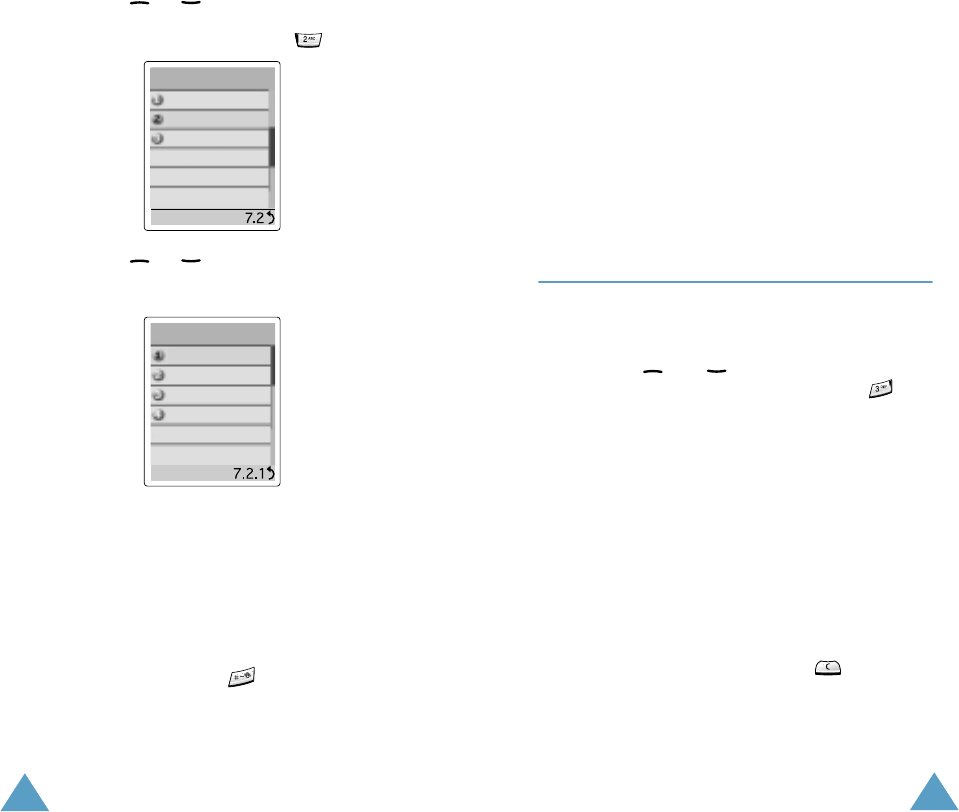
Setting Up the WAP Browser
6
3. Press the or key one or more times to
highlight
WAP Browser
, then press the
Select
soft key. You can also press the key directly.
4. Press the or key one or more times to
highlight the required option and then press the
Select
soft key.
Option Description
Home
Connects the phone to the network
and loads the homepage of the
Wireless Web service provider.
Favorite
Allows you to store the URL
addresses of your favourite Web
sites. You can access this menu
directly by pressing and holding
down the key while using the
WAP Browser. To store a URL
address, select an empty location
and enter the address.
Funbox
Games
WAP Browser
Downloads
WAP Browser
Home
Favorite
Settings
Clear Cache
Select
Select
Setting Up the WAP Browser
7
Three submenus are available.
Select
Goto URL
to access the site
quickly,
Edit
to edit the selected
address and
Erase
to delete the
selected address.
Settings
Allows you to set up five proxy
servers for the WAP Browser.
Clear
Clears the information stored in
Cache
the cache (the phone’s temporary
memory used to store the most
recently accessed Web pages).
Configuring the WAP Browser
To configure the WAP Browser, proceed as follows.
1. In the WAP Browser menu, highlight
Settings
using the and keys, then press the
Select
soft key. You can also press the key
directly.
2. Select a proxy server and enter the parameters
required. Contact your service provider for
details.
Parameter
Description
Profile
Name
Name that you wish to assign to
the HTTP proxy server.
Homepage
URL
Address of your startup
homepage. When the default
homepage is displayed, you can
delete it using the key and
enter your own choice.

Setting Up the WAP Browser
8
The remaining options depend on the
Bearer
setting, as indicated below.
When the bearer is set to
Data
When the bearer is set to
GPRS
Security
Data transmission mode. Choose
Secure
to protect your data
against unauthorised access;
otherwise, choose
Non-Secure
.
IP Address
WAP gateway address required to
connect to the Internet.
Bearer
Bearer to be used for each type of
network address accessed:
GPRS
or
Data
.
Parameter Description
Login
Name
PPP server login ID.
Password
PPP server password.
Dial-up
Number
PPP server phone number.
Data Call
Type
Data call type:
Analogue
or
ISDN
.
Parameter Description
User Name
User ID required to connect to the
GPRS network.
Password
Password required to connect to
the GPRS network.
APN
Access point name used for the
address of the GPRS network
gateway.
Parameter
Description
Setting Up the WAP Browser
9
Note
: The WAP Browser settings may vary,
depending on the service provider. Contact
your service provider for further information.
3. After selecting each of these settings, a dialog
box is displayed; you can either enter the
information required or choose between given
options. When you are satisfied with your input,
press the
OK
soft key.
4. When you have finished configuring the WAP
Browser, press the key or the right soft
key.

10
Getting
Started
Starting the WAP Browser
To start the WAP Browser when the idle screen is
displayed, press the key or press the
Menu
soft
key, followed by the , and keys.
A connection is established with your service
provider and the corresponding homepage is
displayed.
The content of the WAP Browser startup homepage
depends on your Wireless Web service provider. To
scroll through the screen, use the and keys.
Note
: To access the startup homepage from any
other screen in the WAP Browser, use the
Home
option. For more information on the
WAP Browser menus, refer to page 13.
Exiting the WAP Browser
To exit the browser at any time, simply press
the key or press and hold down the key.
11
Using the
WAP Browser
Using the Soft Keys
A bar containing browser commands is located at
the bottom of the WAP Browser display. The soft
keys below the bar are used to execute these
commands. The two keys are called soft keys
because their function changes depending on the
WAP Browser application in use.
Navigating the WAP Browser
To... Then...
Scroll through and
select browser
items
Press the or key until
the symbol points to the
required item, and then press
the
OK
soft key to confirm the
selection.
Select a numbered
item
Press the corresponding
numeric key.
Return to the
previous page
Press the
Back
soft key or
the key.
Return to the
startup homepage
Select the
Home
menu
option; for more information
on this option, refer to
page 13.

Using the WAP Browser
12
Entering Text, Numbers or Symbols
When you are prompted to enter text, the current
text entry mode is indicated on the screen. The
following modes are available.
Note:
To enter symbols, press the key repeatedly
until the required symbol is displayed.
Mode Description
Allows you to enter letters in the
alphabet. Press the corresponding key
until the required letter is displayed.
Allows you to enter numbers.
To... Then...
Change
modes
Press the key one or more
times.
Enter a space
Press the key.
Edit text
• Set the cursor to the right of the
character(s) to be corrected.
• Press the key as required.
• Enter the correct character(s).
13
Using the WAP
Browser Menus
Using and Selecting Menu Options
Various menu options are available when you are
using the WAP Browser to navigate the Wireless
Web.
To access a menu option, proceed as follows.
1. Press and hold down the key.
A menu is displayed.
2. Highlight the required menu option by pressing
the and keys.
3. Select the option by pressing the
Select
soft
key.
4. If necessary, select the secondary option using
the and keys, and press the
Select
soft
key to confirm.
Note
:
The menus may vary, depending on your
version of the WAP Browser.
Reload
This option reloads the current page.
Home
This option takes you back at any time to the
homepage of the Wireless Web service provider.

Using the WAP Browser Menus
14
Go to URL
This option allows you to enter manually the URL
address of the required Web page.
After entering an address, press the
OK
soft key to
go there directly.
Show URL
This feature displays the URL address of the site to
which you are currently connected. It also enables
you to declare the current site as the startup
homepage.
To... Then...
Declare the current
page as your startup
homepage
Press the
Option
soft key,
select the
Save to Home
option and press
Select
.
Set a bookmark for
the current page
Press the
Option
soft key,
select the
Save to
Bookmark
option and
press
Select
.
Cancel your setting Press the
Back
soft key.
Using the WAP Browser Menus
15
Edit Home
With this feature, you can change the startup
homepage manually.
To change the homepage, enter the required URL
and press the
OK
soft key.
For more information on entering text, numbers or
symbols, refer to page 12.

* Some of the contents in this manual may differ from
your phone, depending on the software installed or
your service provider.
World Wide Web
http://www.samsungmobile.com
Printed in Korea
Code No.: GH68-00000A
English. 07/2002. Rev. 1.0
ELECTRONICS