Samsung Electronics Co SPN4235 42" PDP TV Monitor User Manual 2
Samsung Electronics Co Ltd 42" PDP TV Monitor Users Manual 2
Contents
- 1. Users Manual 1
- 2. Users Manual 2
- 3. Users Manual 3
Users Manual 2
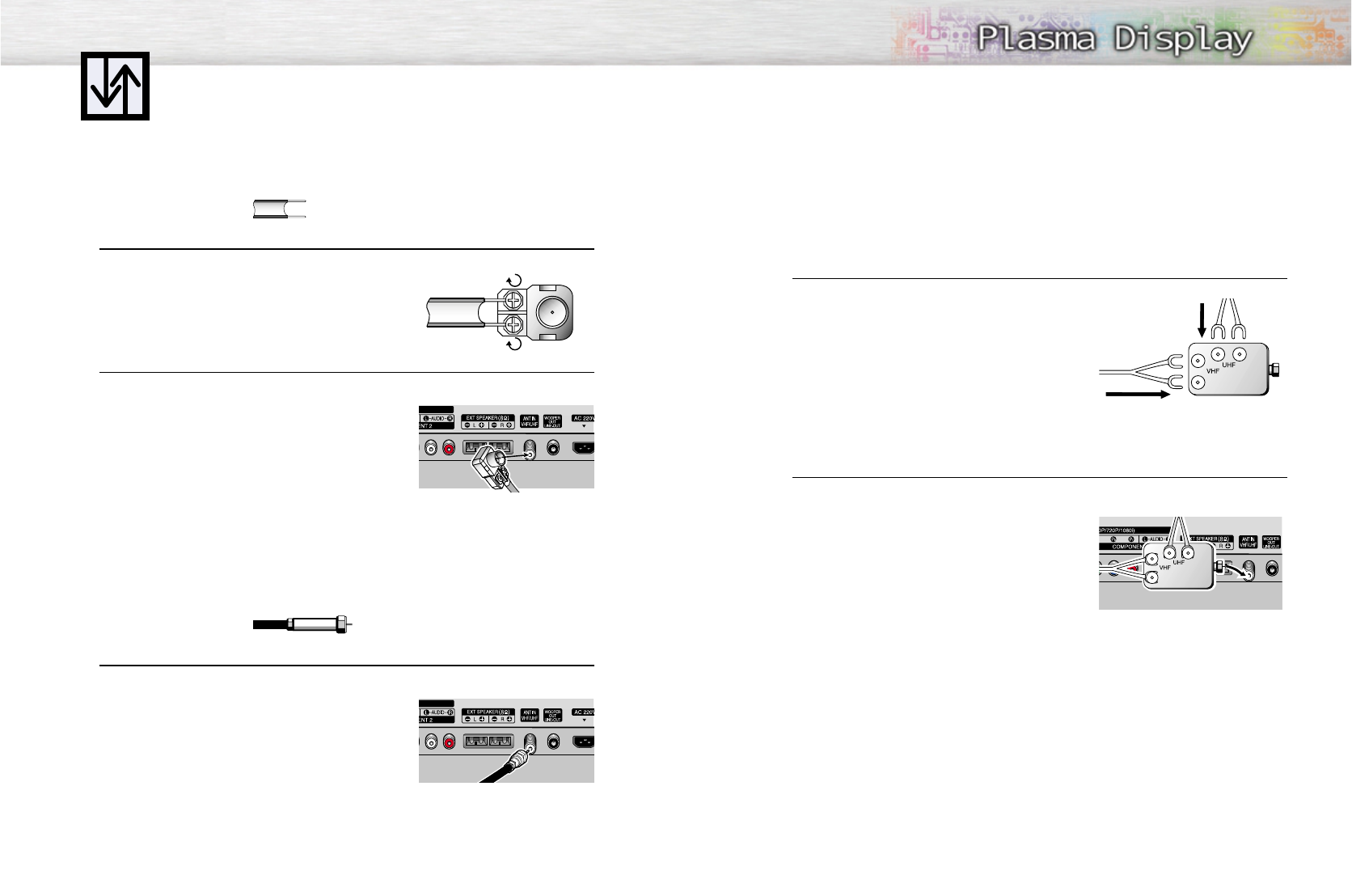
Separate VHF and UHF Antennas
If you have two separate antennas for your PDP(one VHF and one UHF), you must combine the two
antenna signals before connecting them to the PDP. This requires a combiner attachment, which you
can buy at an electronics store.
1 Connect both antenna leads to the combiner.
2 Plug the combiner into the VHF/UHF terminal on the PDP.
21
Connecting VHF and UHF Antennas
20
Antennas with 300-ohm Flat Twin Leads
If your antenna looks like this: it has 300-ohm flat twin leads.
1 Place the wires from the twin leads under the screws on the 300-75 ohm adapter.
Use a screwdriver to tighten the screws.
2 Plug the adapter into the VHF/UHF terminal on the PDP.
Antennas with 75-ohm Round Leads
If your antenna looks like this: it has 75-ohm round leads.
1Plug the antenna lead into the VHF/UHF terminal on the PDP.
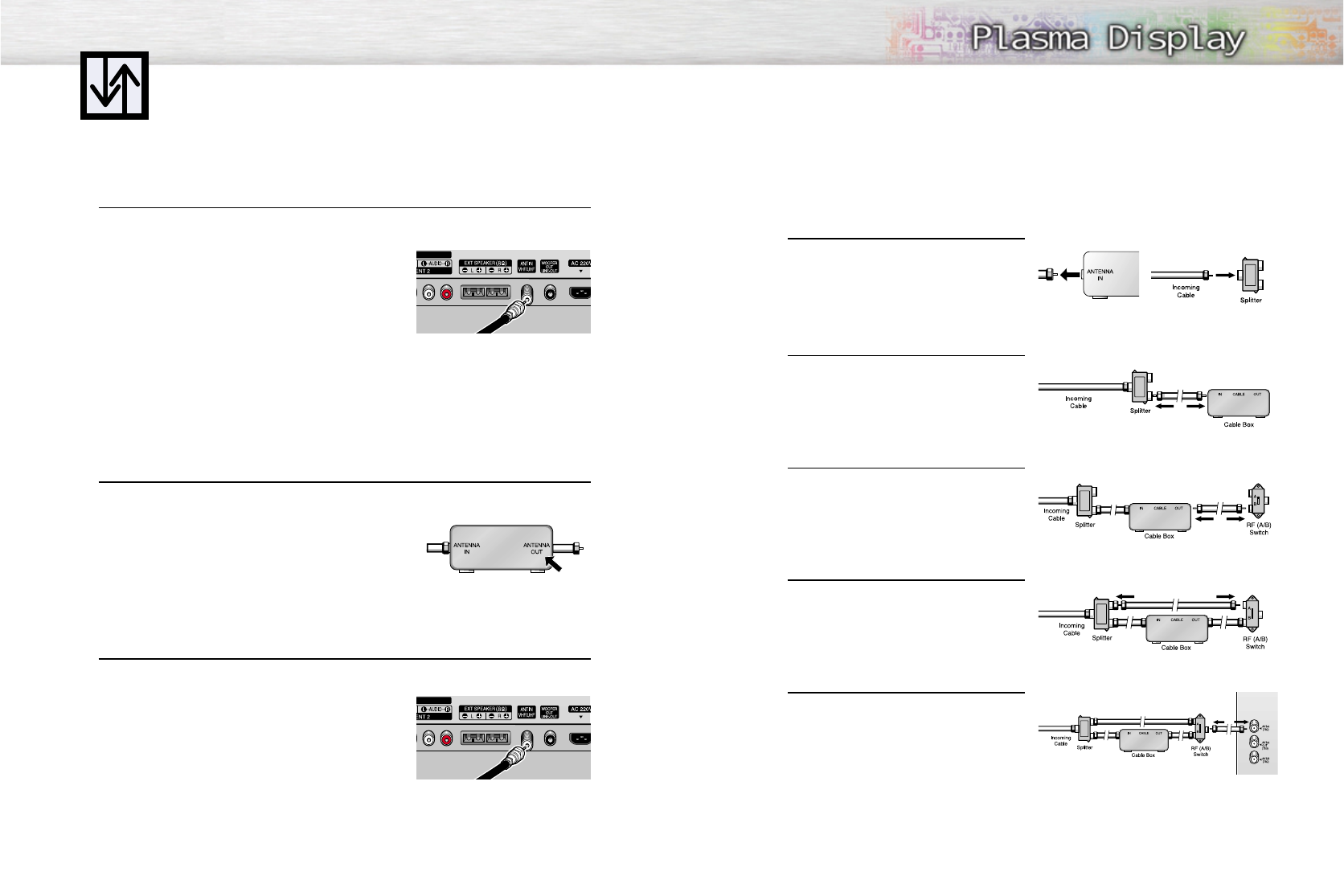
Connecting Cable TV
You can connect different cable systems to your PDP, including cable without a cable box,
and cable with a cable box that descrambles some or all channels.
Cable without a Cable Box
1 Plug the incoming cable into the VHF/UHF terminal on the PDP.
Cable with a Cable Box that Descrambles All Channels.
1 Find the cable connected to the ANTENNA OUT terminal on your cable box. This terminal
might be labeled "ANT OUT", "VHF OUT", or simply "OUT".
2 Connect the cable to the VHF/UHF terminal on the PDP.
22
Cable with a Cable Box that Descrambles Some (But Not All) Channels
To complete this connection you will need a two-way splitter, a RF (A/B) switch, and four coaxial
cables (which you can buy from your Samsung dealer or any electronics store).
1Find and disconnect the cable that is con-
nected to the ANTENNA IN terminal of
your cable box.
This terminal might be labeled "ANT IN",
"VHF IN", or simply, "IN". Connect this
cable to a two-way splitter.
2Connect a coaxial cable between an OUT-
PUT terminal of the splitter and the IN termi-
nal of the cable box.
3Connect a coaxial cable between the
ANTENNA OUT terminal of the cable box
and the B-IN terminal of the A/B switch.
4Connect a coaxial cable between the
ANTENNA OUT terminal of the cable box
and the B-IN terminal of the A/B switch.
5Connect the last coaxial cable between the
OUT terminal of the RF (A/B) switch and
the VHF/UHF ter-minal on the PDP.
After you've made this connection, set the A/B switch to the "A" position for normal viewing.
Set the A/B switch to the "B" position to view scrambled channels. (When you set the A/B switch
to "B", you will need to tune your Set-Top Box to the cable box's output channel, which is usually
channel 3 or 4.)
23
25
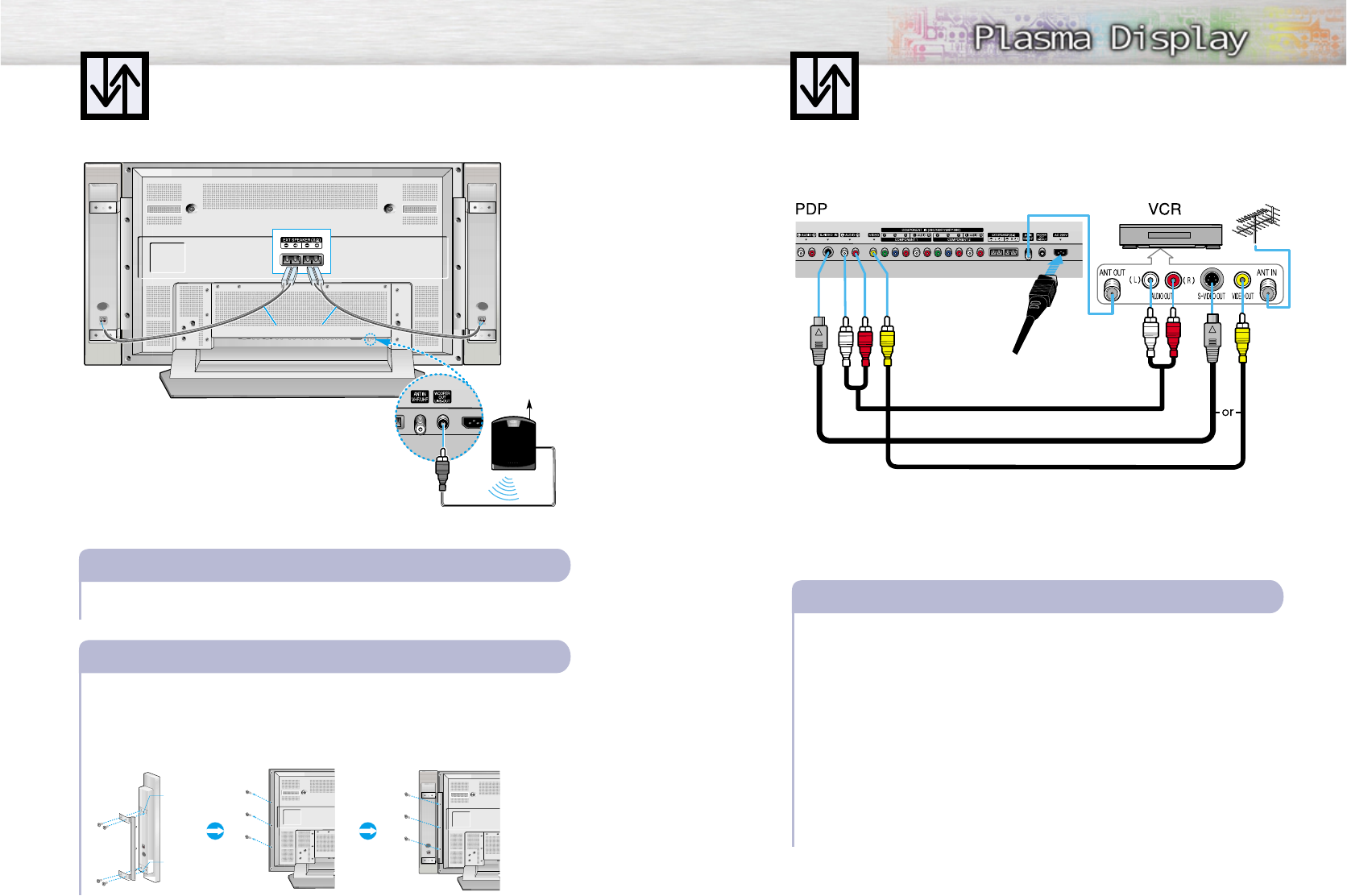
Connecting a VCR
24
Connecting a VCR to the Video or S-Video/Audio jack
S-Video Cable
Audio Cable
Video Cable
Power Plug
Unplug the cable or antenna from the rear of PDP.
Connect the cable or antenna to the antenna input jack on the VCR.
Connect the coaxial cable between the antenna input jack on the PDP and the antenna output
jack on the VCR.
Connect the Video/Audio cables between the AUDIO(L/R)/VIDEO jacks on the PDP and
AUDIO/VIDEO OUT jacks on the VCR. (Note: For better video, you can use an S-Video cable.)
Videotape Playback:
1. Turn on your PDP, and press the SOURCE button on the remote control.
2. Move the joystick up or down to select “Video” or “S-Video”, then press the joystick to enter.
3. Turn on your VCR, insert a videotape and press the play button.
How to Connect
1
2
3
4
Connecting Speakers
Speaker Audio Cable
Connect the speaker audio cable to the external speaker output jack on the PDP matching the
“+” and “-” ends of the cable with the diagram on the PDP.
How to Connect
Fix the bracket onto the guide pole located on the rear of speaker and fasten the screws.
After removing the three screws on the PDP, clamp the speaker and the PDP together and
fasten the screws.
Connecting PDP and Speakers / Stand and Speakers
1
2
Guide
pole
Guide
pole
✱External speakers MUST have to a power handling
capability of 10 watts minimum (impedance 8 ohm).
Speaker AudioCable
Subwoofer Speaker
(Option)
27
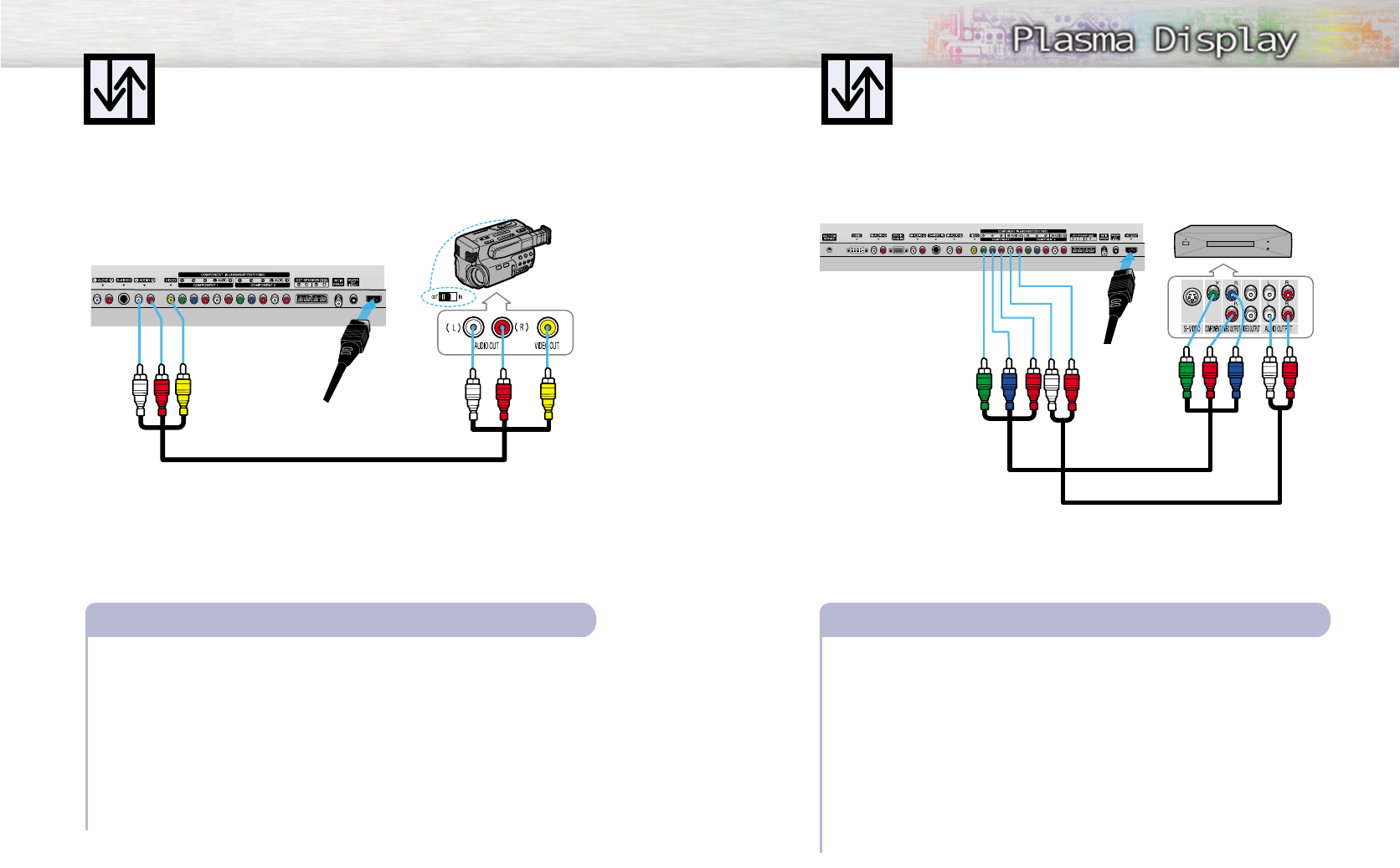
Connecting a Camcorder
Connecting a DVD Player (480i, 480p)
26
Video/Audio Cables
Power Plug
Connect a Video/Audio cable between the AUDIO(L/R)/VIDEO jacks on the PDP and the
VIDEO/AUDIO OUTPUT jacks on the camcorder.
Viewing Tapes
1. Turn on your PDP, and press the SOURCE button on the remote control.
2. Move the joystick up or down to select the “Video”, then press the joystick to enter.
3. Turn on your camcorder and set it to Video Mode. (For details, refer to your camcorder
owner's instructions.)
4. Set the IN/OUT switch on your camcorder to OUT.
5. Insert the tape into the camcorder and press the Play button.
How to Connect
Viewing camcorder tapes Playing DVD
Audio Cable
Video Cable
Power Plug
Connect a Video Cable between the Y/P B /P R (COMPONENT1, 2) input jacks on the PDP
and Y/PB/PRoutput jacks on the DVD players.
Connect a Audio Cable between the AUDIO L/R(COMPONENT1, 2) input jacks on the PDP
and the AUDIO OUT jacks on the DVD player.
To Play DVD:
1. Turn on your PDP, and press the SOURCE button on the remote control.
2. Move the joystick up or down to select the “COMPONENT1” or “COMPONENT2”,
then press the joystick to enter.
3. Turn on your DVD player, insert a DVD disc and press the Play button.
• For an explanation of Component video, see your DVD owner’s instructions.
How to Connect
1
2
PDP
PDP DVD Player
Camcorder
PLASMA DISPLAY PANEL
Operation
Turning the PDP On and Off ..........................................................30
Memorizing the Channels..............................................................32
Setting Up Your Remote Control ....................................................36
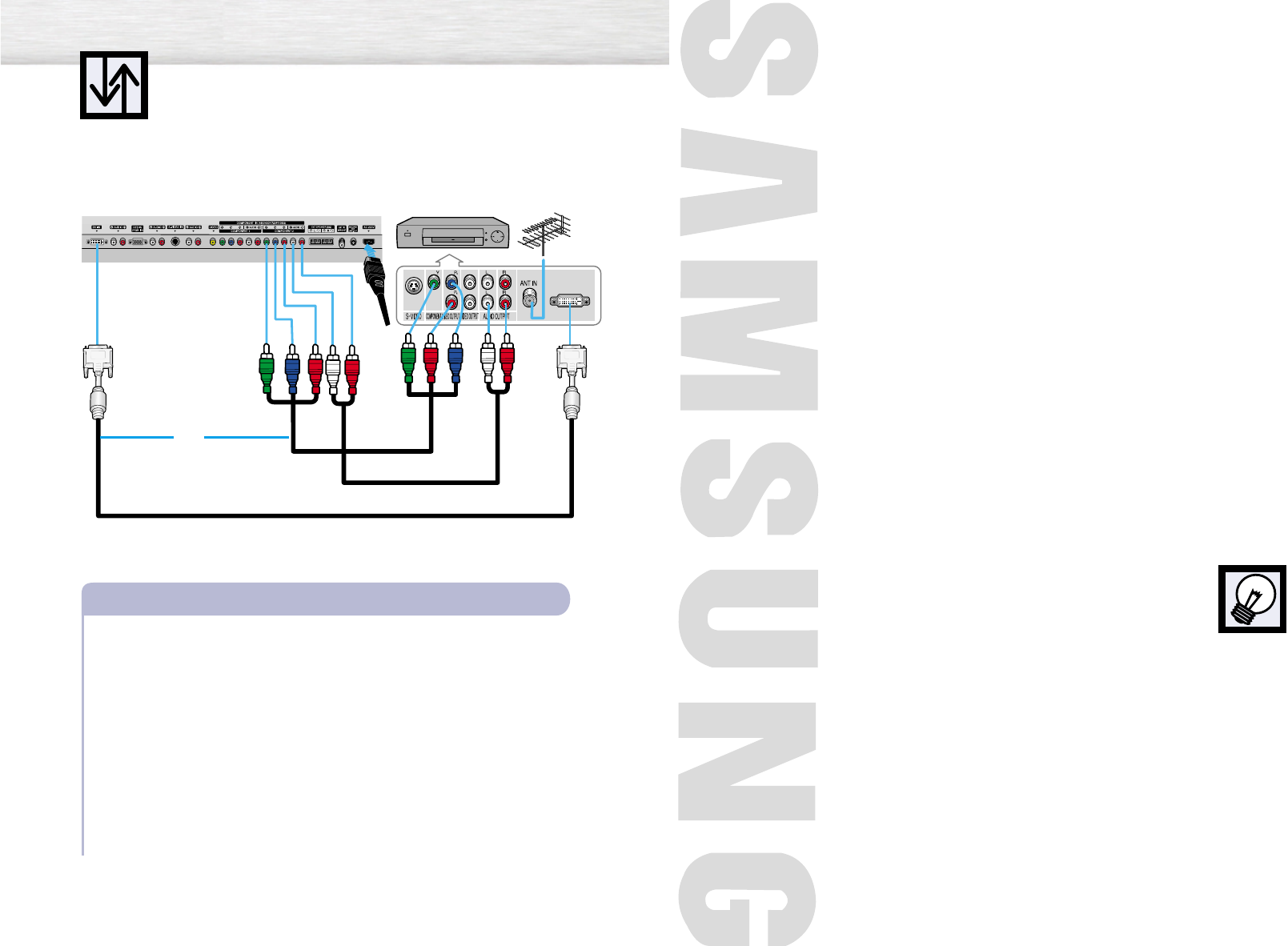
Connecting a DTV Set-Top Box
(480p, 720p, 1080i)
28
Watching DTV
Video Cable
Audio Cable
DVI Cable
or
Power
Plug
Connect the cable or antenna to the antenna input jack on the DTV.
Connect a Video cable between the Y, PB, PR(COMPONENT 1, 2) or DVI jack on the PDP
and the Y, PB, PR(VIDEO OUTPUT JACKS) on the DTV receiver.
Connect an Audio cable between the COMPONENT 1, 2 (L/R AUDIO) or DVI jacks on the
PDP and the AUDIO OUTPUT jacks on the DTV.
To Watch DTV:
1. Turn on your PDP, and press the SOURCE button on the remote control.
2. Move the joystick up or down to select the “COMPONENT1 ”, “COMPONENT2” or
“DVI”, then press the joystick to enter.
3. Turn on your DTV receiver.
• For an explanation of Component video, see your DTV receiver owner’s instructions.
How to Connect
1
2
3
PDP DTV Receiver
Turning the PDP On and Off
30 31
Turning the PDP On and Off
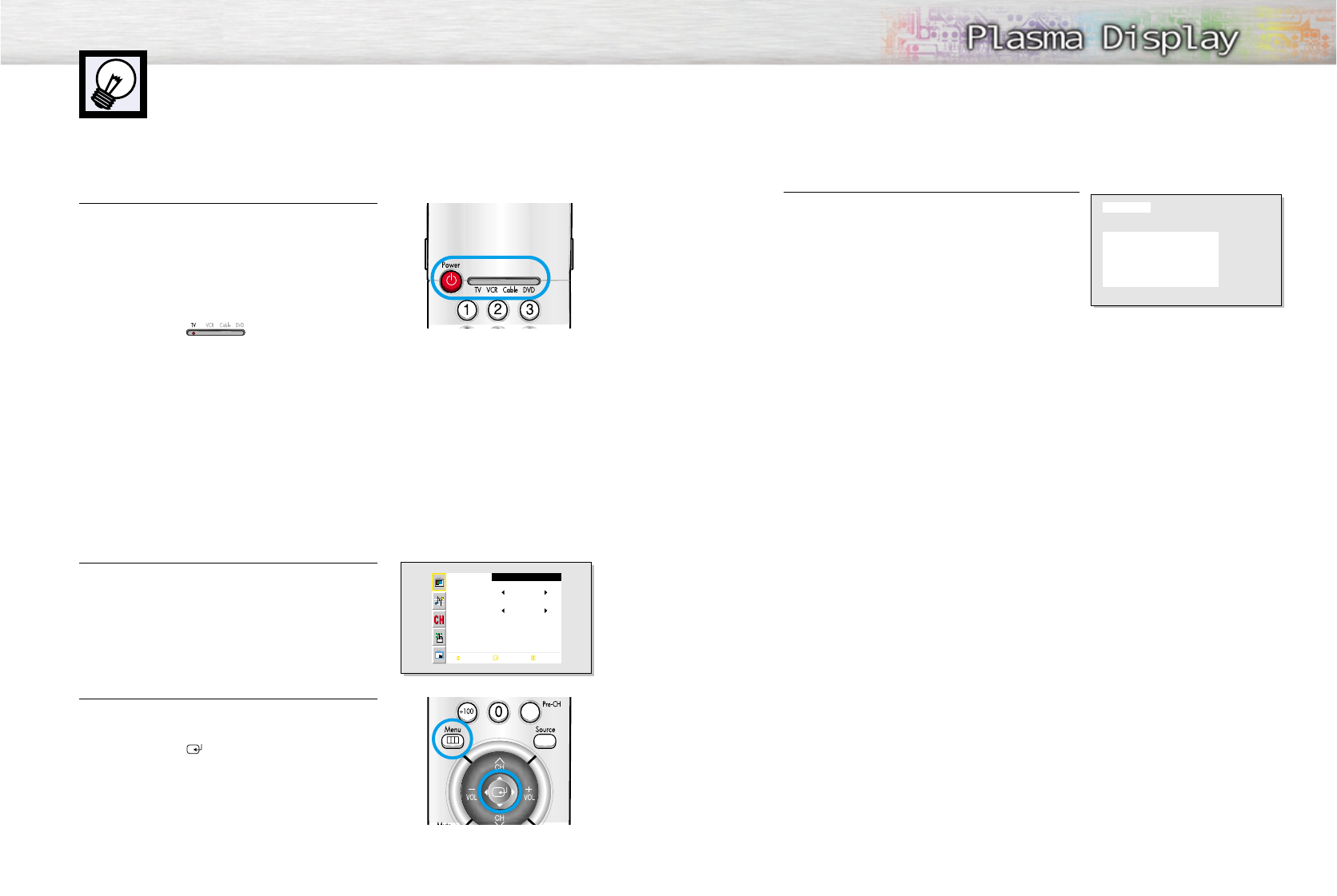
Press the Power button on the remote control.
The PDP will be turned on and you will be ready to use it’s
features.
You can also use the Power button on the front of the
PDP.
Notes:
• If your TV isn’t turned on when the power button is
pressed: Press the MODE button to check if the PDP mode
has been chosen ( ).
Viewing the Menus and Displays
Your PDP has a simple, easy-to-use menu system that appears on the PDP screen. This system makes it con-
venient and fast to use features on the PDP. Your PDP also lets you display the status of many of your PDP’s
features.
Viewing the Menus
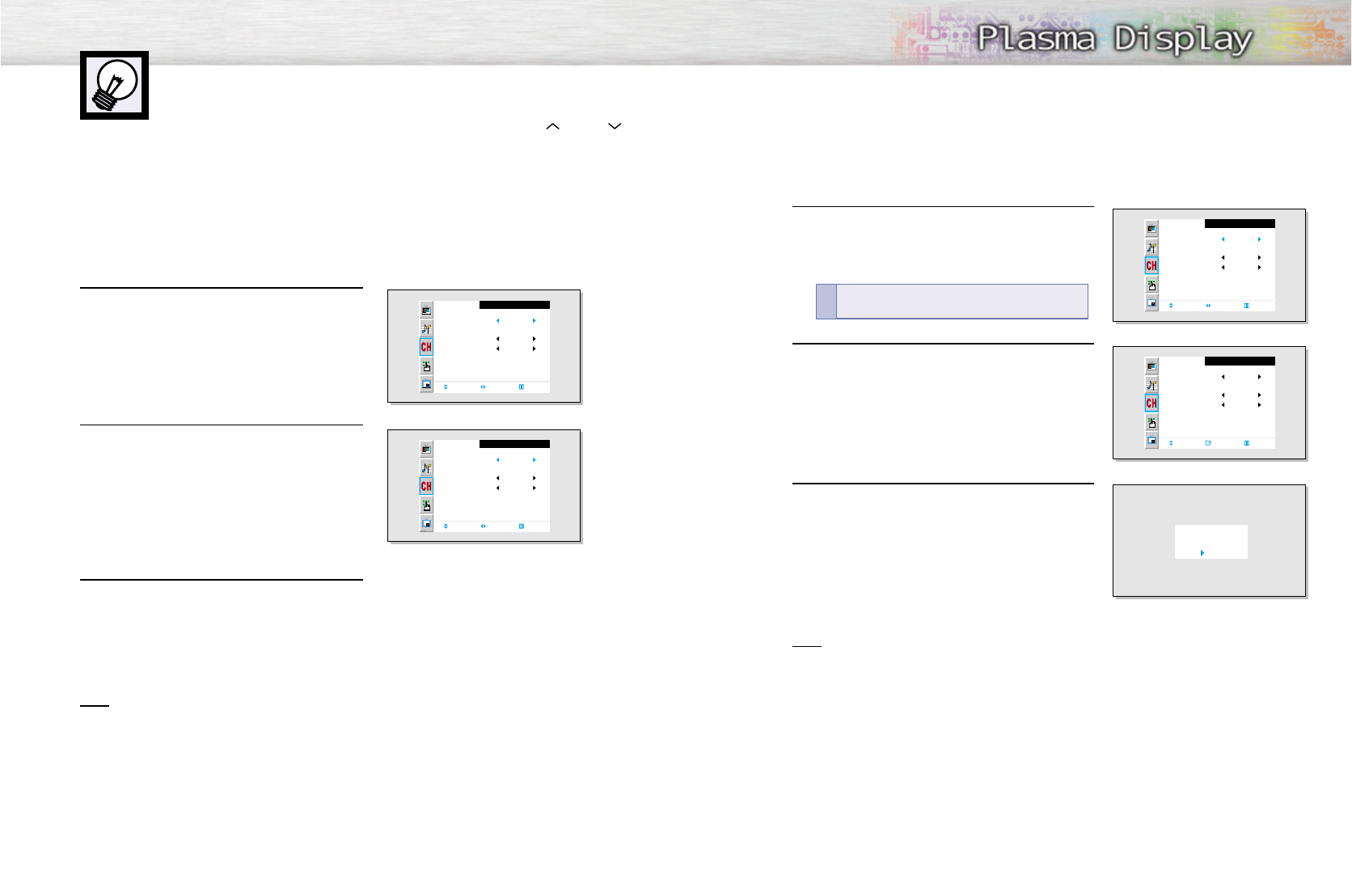
1 With the power on, press the Menu button on the
remote control. The main menu appears on the screen.
The Picture menu is selected.
2 Use the joystick (up, down) button to move items in the
menu. Use the joystick (left, right) button to display,
change, or use the selected items.
Use the joystick ( ) button to enter items in the menu.
On screen menus disappear from the screen
automatically after about thirty seconds, or you can
press the Menu button on your remote control to exit the
menu.
Picture
Mode
Adjust
Color Tone
Move Enter Exit
Custom
Normal
Displaying Status Information
Press the Display button on the remote control. The PDP will
display the Picture mode, Sound mode, MTS, Signal and
Caption.
Picture : Custom
Sound : Custom
MTS : Mono
Signal : Mono
Caption : Off
Ant 6
Memorizing the Channels
Your PDP can memorize and store all of the available channels for both “off-air” (antenna)
and cable channels. After the available channels are memorized, use the CH and CH
buttons to scan through the channels. This eliminates the need to change channels by entering
the channel digits. There are three steps for memorizing channels: selecting a broadcast
source, memorizing the channels (automatic) and adding and deleting channels (manual).
32 33
Selecting the Video Signal-source
Before your television can begin memorizing the available channels, you must specify the type of
signal source that is connected to the PDP (i.e., an antenna or a cable system).
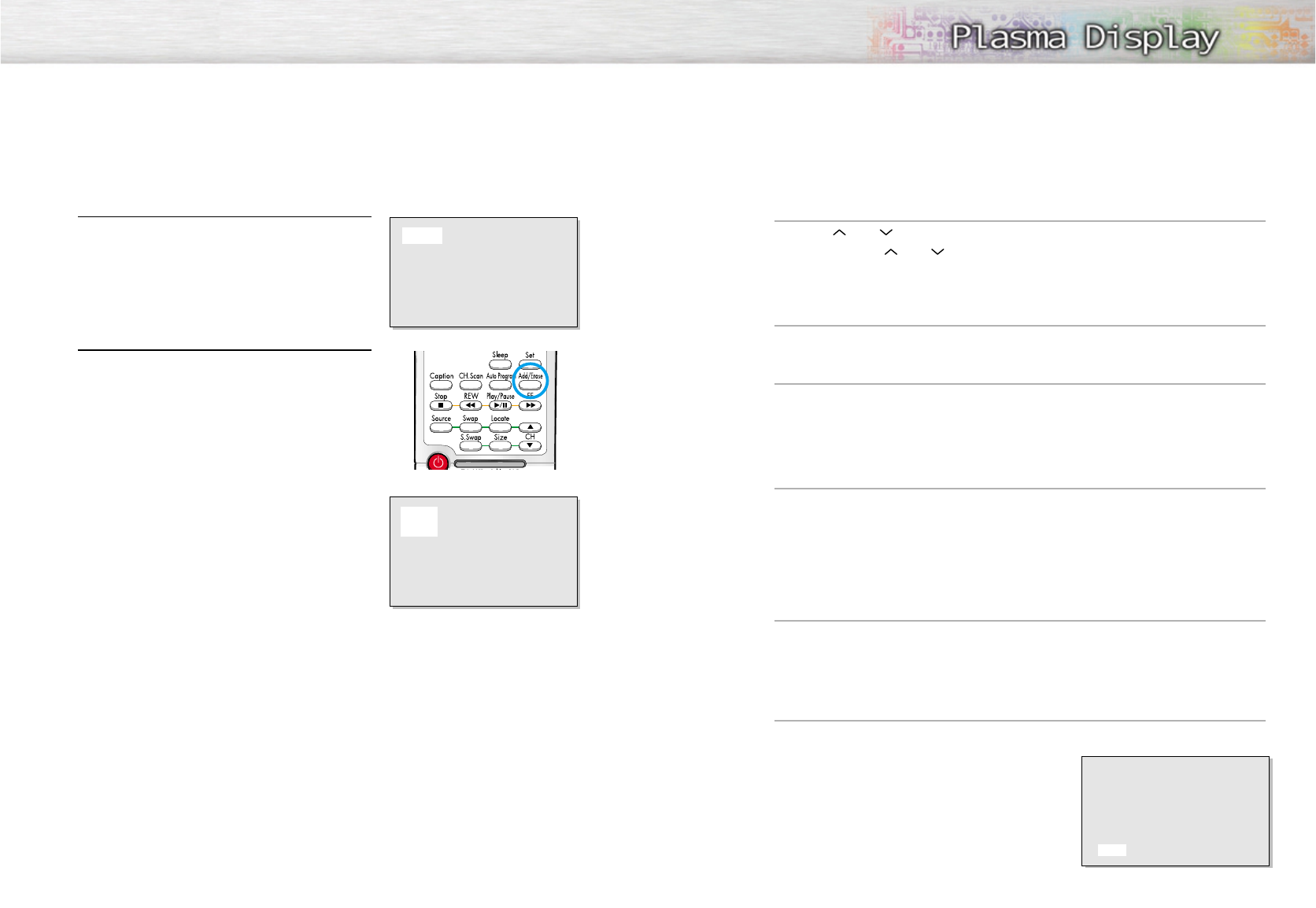
1 Press the Menu button. Move the joystick up or
down to select “Channel”, then press the joystick
to enter.
2 Move the joystick left or right to select “Ant”,
“STD”, “HRC” or “IRC”.
•If you are connected to an antenna, leave "Ant"
displayed. If you connected cable, Move the
joystick left or right to the display the type of cable
system: "STD", "HRC", or "IRC".
(If you are not sure which type of cable system you
have, contact your cable company).
3 Press the Menu button to exit.
Note
• STD, HRC and IRC identify various types of cable TV systems. Contact your local cable company
to identify the type of cable system that exists in your particular area.
At this point the signal source has been selected. Proceed to “Storing Channels in Memory”
(next page).
Channel
Ant/ CATV
Auto Program
Fine Tune
LNA
Move Select Exit
Ant
Off
0
Channel
Ant/ CATV
Auto Program
Fine Tune
LNA
Move Select Exit
STD
Off
0
Storing Channels in Memory (Automatic Method)
1 First, select the correct signal source (Ant, STD, HRC,
IRC). See steps on previous page.
Press the Menu button. Move the joystick up or down to
select the “Channel”, then press the joystick to enter.
2 Move the joystick up or down to select “Auto Program”,
then press the joystick to enter.
3The PDP will begin memorizing all of the available
channels.
After all the available channels are stored, the
Auto program menu reappears. Move the joystick right
to exit.
Note
• The PDP automatically cycles through all of the available channels and stores them in memory.
This takes about one to two minutes.
Channel
Ant/ CATV
Auto Program
Fine Tune
LNA
Move Select Exit
Ant
Off
0
Channel
Ant / CATV
Auto Program
Fine Tune
LNA
Move Enter Exit
Ant
Off
0
Ant 50
Auto Program
: Stop
Quick way to access the Automatic Channel Setting :
Just press the “Auto Program”button on the remote control.
!
Changing Channels
Using the Channel Buttons
Press the CH or CH buttons to change channels.
When you press the CH or CH buttons, the PDP changes channels in sequence. You will see all the
channels that the PDP has memorized. (The PDP must have memorized at least three channels.)
You will not see channels that were either erased or not memorized.
To View Memorized Channel
Press the CH.Scan button or the Channel button. Only the memorized channels are chosen.
Directly Accessing Channels
Press the number buttons to go directly to a channel. For example, to select channel 27, press “2” then “7”.
The TV will change channels when you press the second number.
When you use the number buttons, you can directly select channels that were either erased or not memorized. To
change to single-digit channels (0~9) faster, press “0” before the single digit. (For channel “4” press “0” then “4”.
Using the PRE-CH button to select the previous channel
Press the PRE-CH button. The TV will switch to the fast channel viewed.
To quickly switch between two channels that are far apart, tune to one channel, then use the number button
to select the second channel. Then, use the PRE-CH button to quickly alternate between them.
Adjusting the Volume
Using the Volume Buttons
Press the VOL + or VOL – buttons to increase or decrease the volume.
Using Mute
Using the Mute Buttons
At any time, you can temporarily cut off the sound using the Mute button.
1 Press the Mute button and the sound cuts off.
The word “Mute” will appear in the lower-left
corner of the screen.
2 To turn mute off, press the Mute button again, or
simply press either the VOL + or VOL – button.
Mute
34 35
Adding and Erasing Channels (Manual Method)
1 Use the number buttons to directly select the channel that
will be added or erased.
Ex) Channel “4”
2 Press the Add/Erase button:
Repeatedly pressing this button will alternate between
“Added” and “Erased.”
Note
• You can view any channel (including an erased channel) by using the number buttons on the remote
control.
Ant 4
Ant 4
Added
36 37
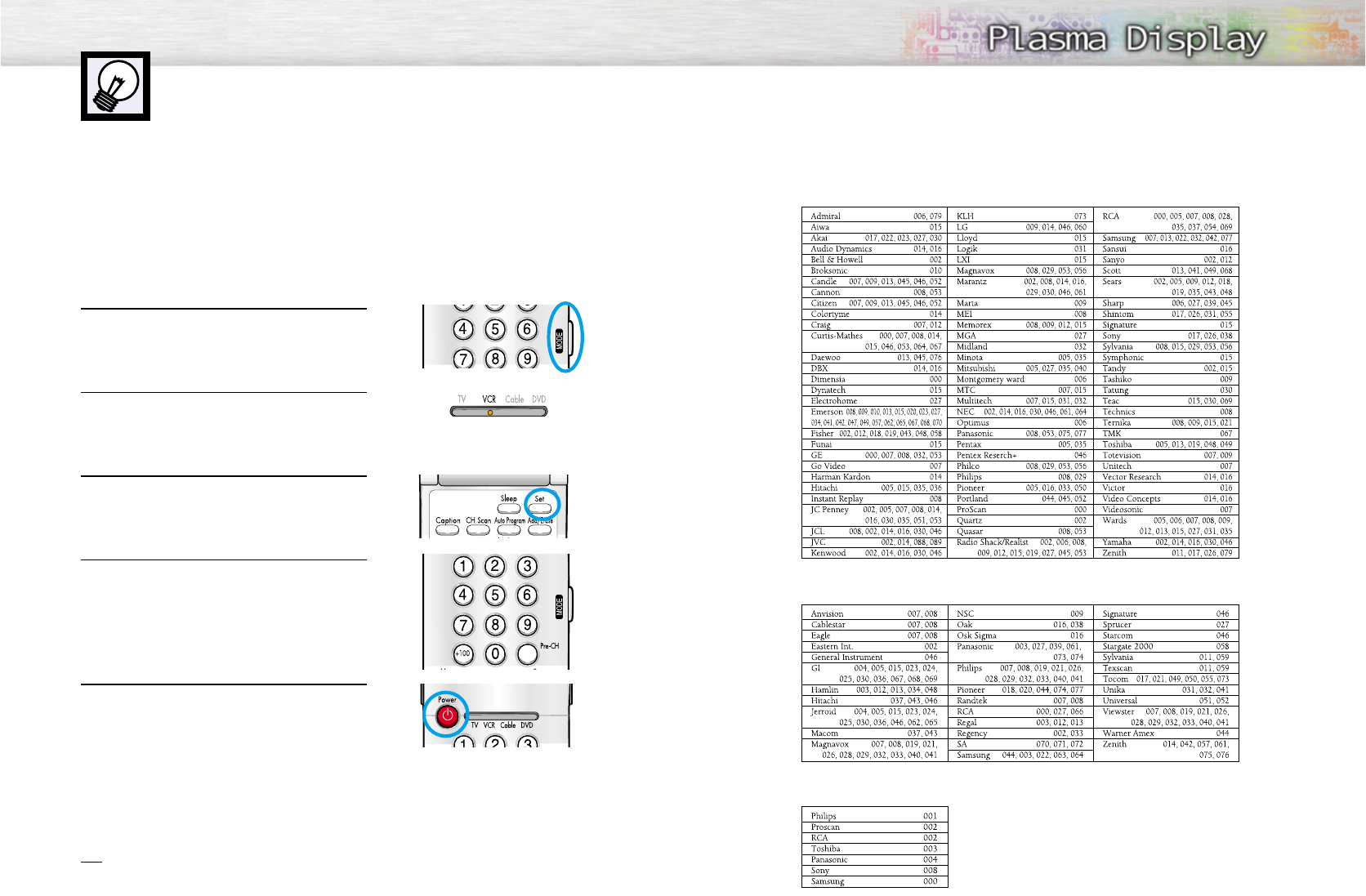
Setting Up Your Remote Control
This PDP's remote control can operate almost any VCR, cable box, or DVD. After it has been set up
properly, your remote control can operate in four different modes :TV, VCR, Cable, or DVD.
Pressing the corresponding button on the remote control allows you to switch between these modes,
and control whichever piece of equipment you choose.
Note:The remote control may not be compatible with all DVD Players, VCRs, and Cable boxes.
Setting Up the Remote to Operate Your VCR, Cable box, or DVD player
1 Turn off your VCR. (or Cable box, DVD player.)
2 Press the MODE button and make sure that the VCR
(or Cable box, DVD) LED is illuminated.
3 Press the Set button on your TV's remote control.
4 Using the number buttons on your remote control,
enter three digits of the VCR (or Cable box, DVD)
code listed on page 32 of this manual for your
brand of VCR (or Cable box, DVD player). Make
sure you enter three digits of the code, even if the
first digit is a "0".
(If more than one code is listed, try the first one.)
5 Press the Power button on the remote control.
Your VCR (or Cable box, DVD player) should turn
on if your remote is set up correctly. If your VCR (or
Cable box, DVD player) does not turn on after set
up, repeat steps 2, 3, and 4, but try one of the other
codes listed for your brand of VCR (or Cable box,
DVD player).
If no other codes are listed, try each code, 000
through 089 (or Cable box: 000 through 077,
DVD player: 000 through 008).
Notes
• When your remote control is in “VCR” mode, the VCR control buttons (Stop, REW, Play/Pause, FF)
still operate your VCR.
• When your remote control is in “Cable box” or “DVD” mode, the VCR control buttons (Stop, REW,
Play/Pause, FF) still operate your VCR.
Remote Control Codes
VCR Codes
Cable Box Codes
DVD Codes

PLASMA DISPLAY PANEL
Picture Control
Customizing the Picture ................................................................40
Using Automatic Picture Settings ....................................................41
Selecting the Color Tone................................................................42
Viewing the Picture-in-Picture..........................................................43
Changing the PIP channel..............................................................48
Changing the Screen Size ............................................................49
Freezing the Picture ......................................................................50
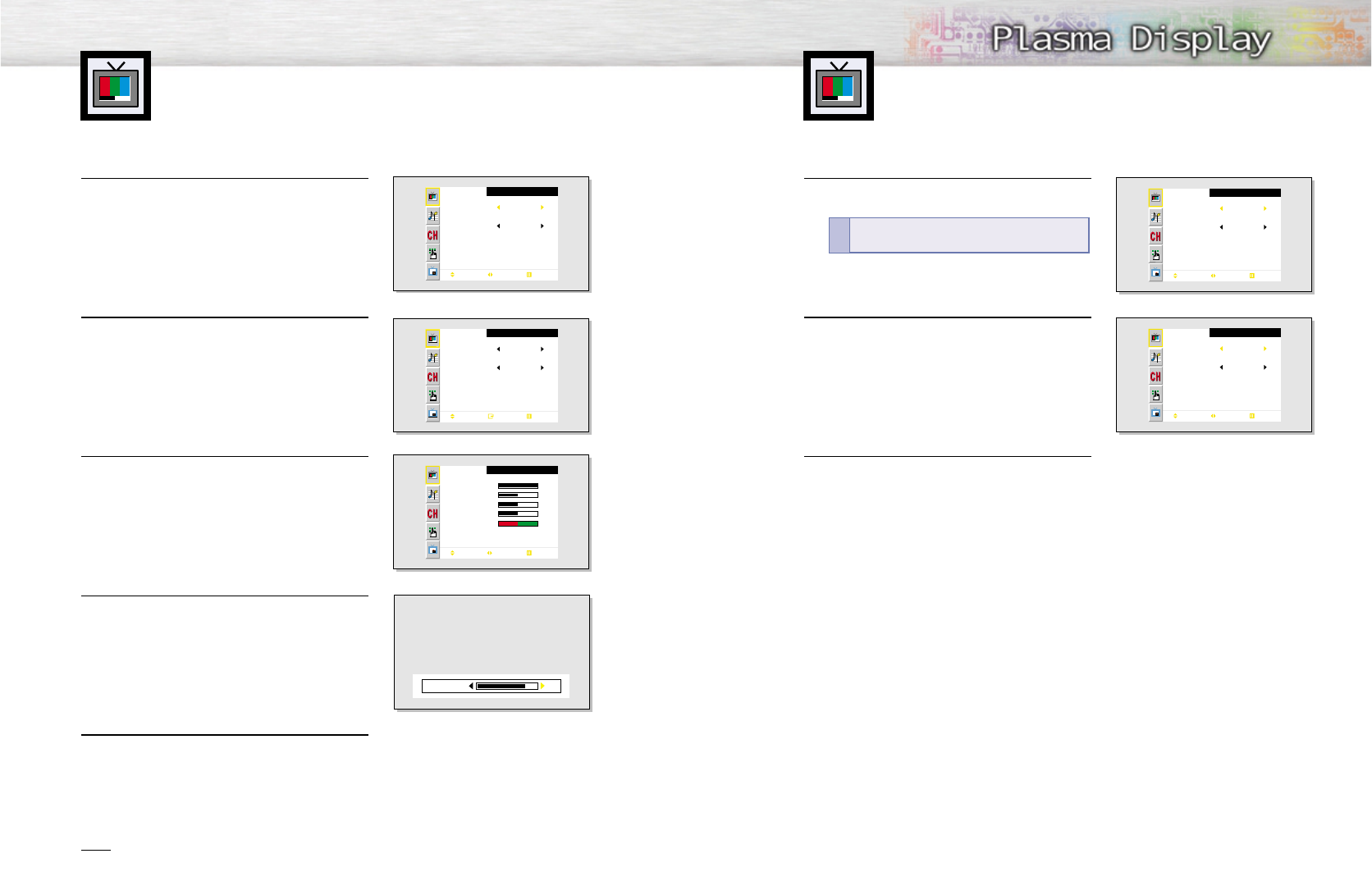
Customizing the Picture
You can use the on-screen menus to change the Contrast, Brightness, Sharpness, Color,
and Tint settings of your PDP.
41
1 Press the Menu button, then press the joystick to
enter.
2 Move the joystick left or right to select “Custom”,
“Dynamic”, “Standard” or “Movie” picture setting.
• You can select “High”, “Middle”, “Low” or
“Custom” in PC/DVI mode.
3 Press the Menu button to exit.
.
Using Automatic Picture Settings
Your PDP has automatic picture settings that allow you to adjust the video display easily.
Picture
Mode
Adjust
Color Tone
Move Select Exit
Custom
Custom
Picture
Mode
Adjust
Color Tone
Move Select Exit
Dynamic
40
1 Press the Menu button, then press the joystick to
enter.
2 Move the joystick up or down to select “Adjust”,
then press the joystick to enter.
You will also see the items “Contrast”, “Brightness”,
“Sharpness”, “Color” and “Tint”.
3 Move the joystick up or down to select the item you
wish to change.
4 Move the joystick left or right to change the value of
the item.
5 Press the Menu button to exit.
Note
• In the PC/DVI mode, you can’t adjust the Sharpness, Color and Tint.
• The Tint doesn’t operate in Component(480p, 720p, 1080i) mode.
Picture
Mode
Adjust
Color Tone
Move Select Exit
Custom
Custom
Picture
Mode
Adjust
Color Tone
Move Enter Exit
Custom
Normal
Adjust
Contrast
Brightness
Sharpness
Color
Tint R 50 G 50
Move Adjust Exit
80
50
50
50
82Contrast
Quick way to access the picture setting:
Just
press the “P.Mode” button on the remote control.
!
4342
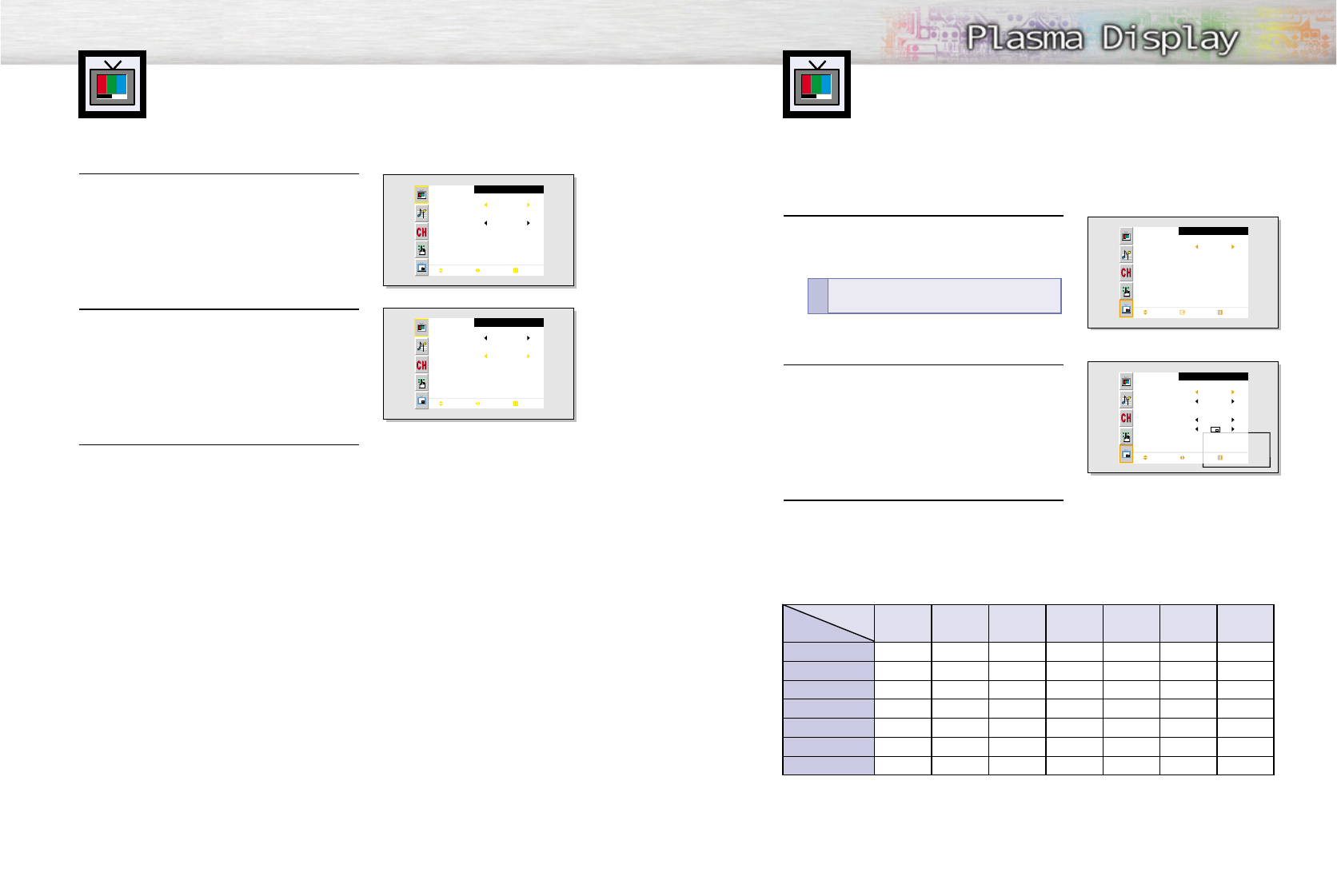
Selecting the Color Tone
1 Press the Menu button, then press the joystick to
enter.
2 Move the joystick up or down to select “Color
Tone”, then move the joystick left or right to select
“Normal”, “Warm1”, “Warm2”, “Cool2” or
“Cool1”.
• You can select “Custom”, “Color1”, “Color2” or
“Color3” in PC/DVI mode.
3 Press the Menu button to exit.
.
Picture
Mode
Adjust
Color Tone
Move Select Exit
Custom
Custom
Picture
Mode
Adjust
Color Tone
Move Select Exit
Custom
Normal
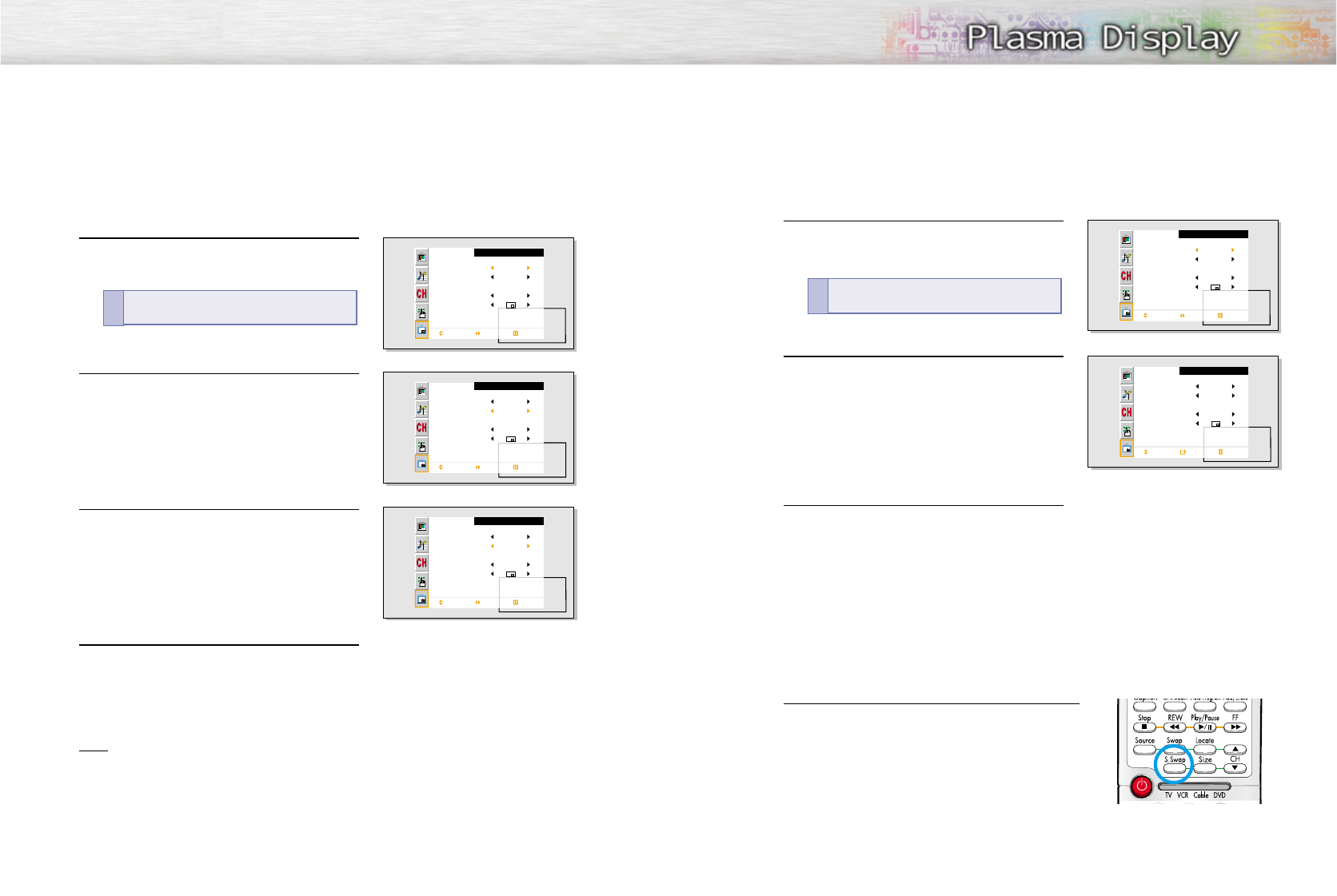
Viewing the Picture-in-Picture
Selecting the PIP Screen
1 Press the Menu button. Move the joystick up or
down to select “PIP”, then press the joystick to
enter.
2 Move the joystick left or right to select “On”.
The PIP image will appear in the corner of the
screen.
3 Press the Menu button to exit.
PIP
Select
Move Enter Exit
Off
PIP
Select
Source
Swap
Size
Locate
Channel
Move Select Exit
On
TV
Large
Ant 5
Quick way to access the PIP: Just press the
“PIP” button on the remote control.
!
PIP screenMain screen TV Video S-Video Component 1 Component 2 PC DVI
TV
X
O
O
O
O
O
O
O
X
O
O
O
O
O
O
O
X
O
O
O
O
O
O
O
X
X
X
X
O
O
O
X
X
X
X
O
O
O
X
X
X
X
O
O
O
X
X
X
X
Video
S-Video
Component 1
Component 2
PC
DVI
4544
Selecting an External Signal
You can use PIP to view a signal from an external source, such as a VCR.
1 Press the Menu button. Move the joystick up or
down to select “PIP”, then press the joystick to
enter.
2 Move the joystick up or down to select “Source”.
3 Move the joystick left or right to cycle through
all of the available signal sources:
“TV”, “Video”, “S-Video”, “Component 1”,
“Component 2”, “PC” and “DVI”.
The signal from these inputs will not appear if you
have not connected any equipment to the PDP’s
input jacks.
4 Press the Menu button to exit.
Note
• The PIP function operates in Wide screen only.
PIP
Select
Source
Swap
Size
Locate
Channel
Move Select Exit
On
TV
Large
Ant 5
PIP
Select
Source
Swap
Size
Locate
Channel
Move Select Exit
On
TV
Large
Ant 5
PIP
Select
Source
Swap
Size
Locate
Channel
Move Select Exit
On
VIDEO
Large
Ant 5
Quick way to access the PIP source:
Just press
“Source” button in the cover on the remote control.
!
Swapping the Contents of the PIP Image and Main Image
1 Press the Menu button. Move the joystick up or
down to select “PIP”, then press the joystick to
enter.
2 Move the joystick up or down to select “Swap”,
then press the joystick to enter.
• The image in the PIP window will appear on the
main screen, and vice versa.
3 Press the Menu button to exit.
Selecting the Sound Source
S.Swap
Press the S.Swap button to switch between the Main or Sub
(PIP) audio source.
PIP
Select
Source
Swap
Size
Locate
Channel
Move Select Exit
On
TV
Large
Ant 5
PIP
Select
Source
Swap
Size
Locate
Channel
Move Enter Exit
On
TV
Large
Ant 5
Quick way to access swapping: Just press the
“Swap” button on the remote control.
!
46 47
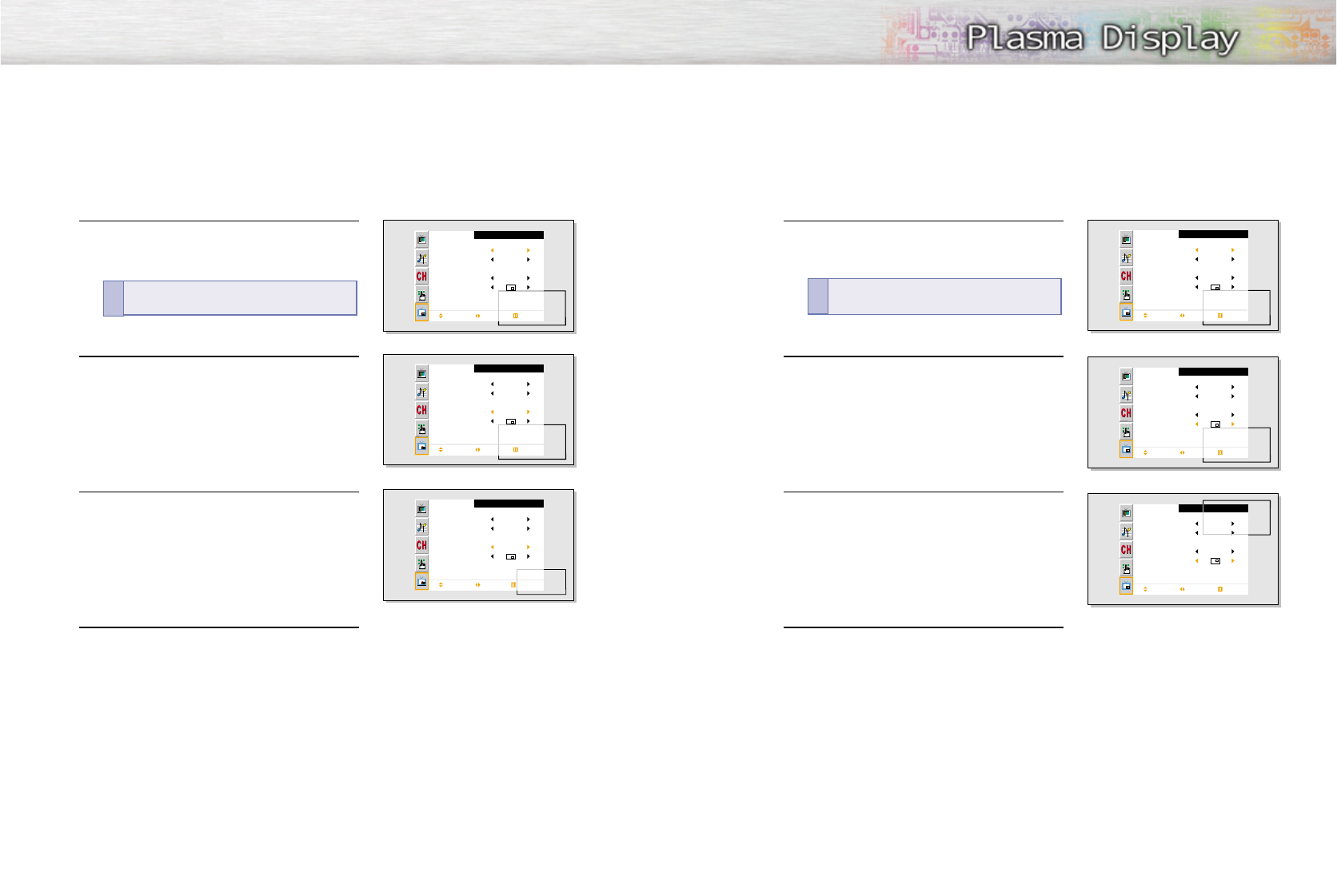
Changing the Size of the PIP Window
1 Press the Menu button. Move the joystick up or
down to select “PIP”, then press the joystick to
enter.
2 Move the joystick up or down to select “Size”.
3Move the joystick left or right to select “Small”,
“Double” or “Large”.
4 Press the Menu button to exit.
PIP
Select
Source
Swap
Size
Locate
Channel
Move Select Exit
On
TV
Large
Ant 5
PIP
Select
Source
Swap
Size
Locate
Channel
Move Select Exit
On
TV
Large
Ant 5
PIP
Select
Source
Swap
Size
Locate
Channel
Move Select Exit
On
TV
Small
Ant 5
Quick way to access the PIP size:
Just press the
“Size” button in the cover on the remote control.
!
Changing the Location of the PIP Image
1 Press the Menu button. Move the joystick up or
down to select “PIP”, then press the joystick to
enter.
2 Move the joystick up or down to select “Locate”.
3 Move the joystick left or right to move the PIP screen
where you want.
4 Press the Menu button to exit.
PIP
Select
Source
Swap
Size
Locate
Channel
Move Select Exit
On
TV
Large
Ant 5
PIP
Select
Source
Swap
Size
Locate
Channel
Move Select Exit
On
TV
Large
Ant 5
PIP
Select
Source
Swap
Size
Locate
Channel
Move Select Exit
On
TV
Large
Ant 5
Quick way to access the PIP location: Just press
the “Locate” button on the remote control.
!
49
Changing the Screen Size
(When entering the Video mode)
48
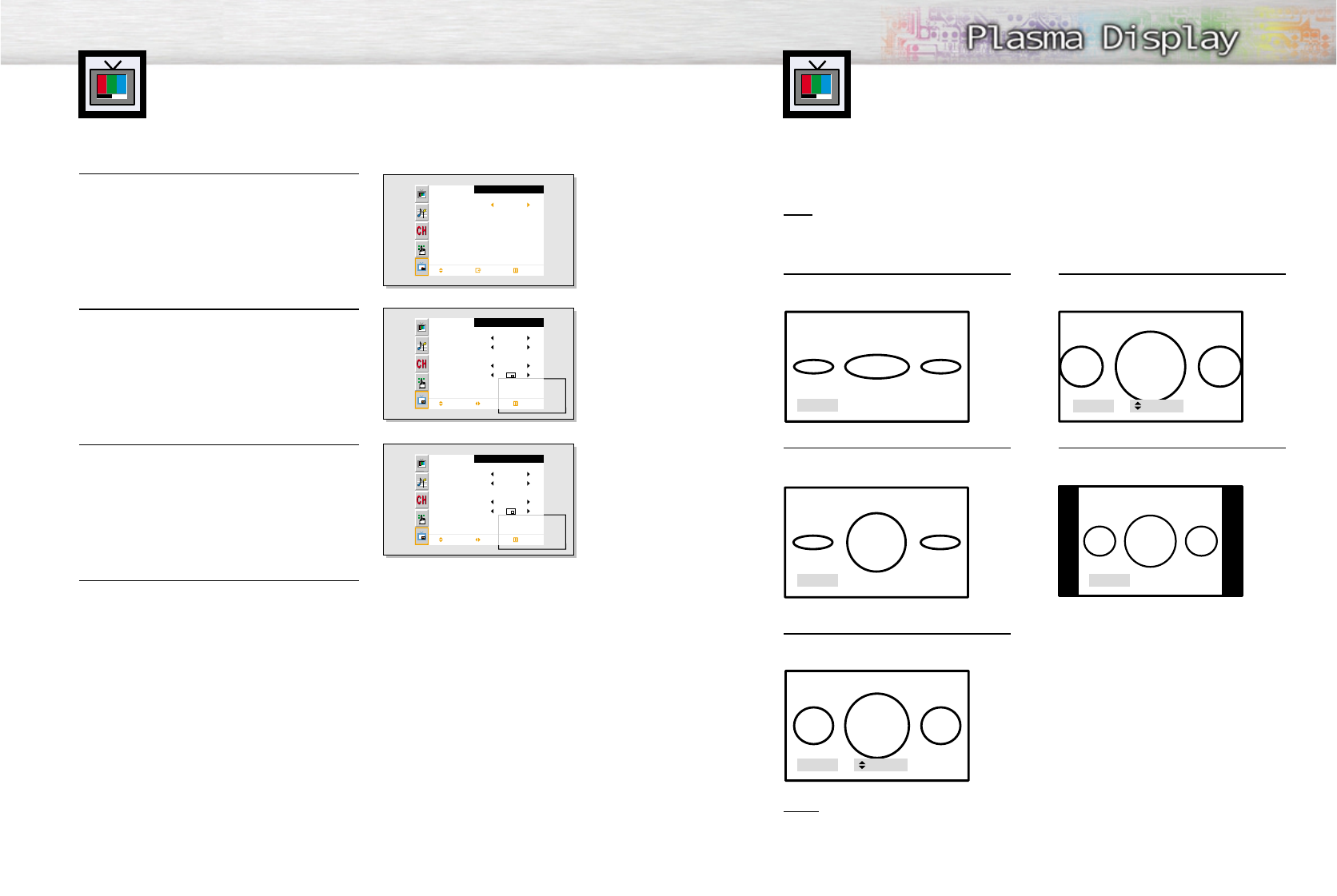
Wide
Sets the picture to 16:9 wide mode.
Panorama
Converts regular 4:3 aspect ratio screen to
wide screen.
Zoom1
Magnifies the size of the picture vertically on
screen.
Zoom2
Magnifies the size of the picture more than
Zoom1.
Normal (4:3)
Sets the picture to 4:3 normal mode. This is a
standard PDP screen size.
Notes
• In TV, VIDEO, S-VIDEO and Component(480i) modes, all screen modes can be selected.
(Wide ➝ Panorama ➝ Zoom1 ➝ Zoom2 ➝ Normal).
• In PC/DVI mode, only Wide & Normal modes can be selected.
• In Component(480p, 720p. 1080i) modes, Panorama mode can’t be selected.
• In Component(480p, 720p. 1080i) modes, you can move the picture on screen pressing
the Up▲or Down▼button. (All screen modes)
When you press the Aspect button on the remote control, the PDP’s screen mode should appear in
sequence. The screen displays in this order: Wide, Panorama, Zoom1, Zoom2, Normal.
Note
• If you watch a still image or the Normal (4:3) mode for a long time (over 2 hours) on image may be
burned on to the screen, view the monitor in Wide or Panorama mode as much as possible.
Changing the PIP channel
1 Press the Menu button. Move the joystick up or
down to select “PIP”, then press the joystick to
enter.
2 Move the joystick up or down to select “Channel”.
3 Move the joystick left or right to change the channel
that appears in the PIP window.
4 Press the Menu button to exit.
PIP
Select
Move Enter Exit
Off
PIP
Select
Source
Swap
Size
Locate
Channel
Move Select Exit
On
TV
Large
Ant 5
PIP
Select
Source
Swap
Size
Locate
Channle
Move Select Exit
On
TV
Large
Ant 6
Wide
Panorama
Normal
Zoom1 Up/Down
Zoom2 Up/Down