Samsung Electronics Co WB150F Digital Camera User Manual
Samsung Electronics Co Ltd Digital Camera
User Manual
This user manual includes detailed usage
instructions for your camera. Please read
this manual thoroughly.
User Manual
WB150/WB150F
WB152/WB152F
Click a topic
Basic troubleshooting
Quick reference
Contents
Basic functions
Extended functions
Shooting options
Playback/Editing
Wireless network
Settings
Appendixes
Index
1
Keep your camera away from small children and pets.
Keep your camera and all accessories out of the reach of small
children and animals. Small parts may cause choking or serious
injury if swallowed. Moving parts and accessories may present
physical dangers as well.
Do not expose the camera to direct sunlight or high
temperatures for an extended period of time.
Prolonged exposure to sunlight or extreme temperatures can
cause permanent damage to your camera’s internal components.
Avoid covering the camera or charger with blankets or clothes.
The camera may overheat, which may distort the camera or
cause a fire.
If liquid or foreign objects enter your camera, immediately
disconnect all power sources, such as the battery or charger,
and then contact a Samsung service center.
Health and safety information
Always comply with the following precautions and usage tips to avoid dangerous situations and ensure peak performance of your camera.
Warning—situations that could cause injury to yourself or
others
Do not disassemble or attempt to repair your camera.
This may result in electric shock or damage to the camera.
Do not use your camera near flammable or explosive gases and
liquids.
This may cause a fire or explosion.
Do not insert flammable materials into the camera or store these
materials near the camera.
This may cause a fire or electric shock.
Do not handle your camera with wet hands.
This may result in electric shock.
Prevent damage to subjects’ eyesight.
Do not use the flash in close proximity (closer than 1 m/3 ft) to
people or animals. If you use the flash too close to your subject’s
eyes, this can cause temporary or permanent eyesight damage.
2
Caution—situations that could cause damage to your camera
or other equipment
Remove the batteries from your camera when storing it for an
extended period of time.
Installed batteries may leak or corrode over time and cause
serious damage to your camera.
Use only authentic, manufacturer-recommended, Lithium-ion
replacement batteries. Do not damage or heat the battery.
Inauthentic, damaged, or heated batteries may cause a fire or
personal injury.
Use only Samsung-approved batteries, chargers, cables and
accessories.
• Using unauthorized batteries, chargers, cables or accessories
can cause batteries to explode, damage your camera, or cause
injury.
• Samsung is not responsible for damage or injuries caused by
unapproved batteries, chargers, cables or accessories.
Use the battery only for its intended purpose.
Misusing the battery may cause a fire or electric shock.
Do not touch the flash while it fires.
The flash is very hot when fired and may burn your skin.
When you use the AC charger, turn off the camera before you
disconnect the power to the AC charger.
Failing to do so may result in fire or electric shock.
Disconnect the charger from the wall socket when not in use.
Failing to do so may result in fire or electric shock.
Do not use a damaged power supply cord, plug, or loose outlet
when you charge batteries.
This may cause a fire or electric shock.
Do not allow the AC charger to come in contact with the +/-
terminals on the battery.
This may cause a fire or electric shock.
Do not force the camera’s parts or apply pressure to the
camera.
This may cause your camera to malfunction.
Health and safety information

3
Health and safety information
Exercise caution when you connect cables or adapters and
install batteries and memory cards.
If you force the connectors, improperly connect cables, or
improperly install batteries and memory cards, you can damage
ports, connectors, and accessories.
Keep cards with magnetic strips away from the camera case.
Information stored on the card may be damaged or erased.
Never use a damaged charger, battery, or memory card.
This may result in electric shock or camera malfunction or cause
a fire.
Check that the camera is operating properly before use.
The manufacturer takes no responsibility for any loss of files or
damage that may result from camera malfunction or improper
use.
You must plug the small end of the USB cable into your camera.
If the cable is reversed, it may damage your files. The
manufacturer is not responsible for any loss of data.
4
Copyright information
• Microsoft Windows and the Windows logo are
registered trademarks of the Microsoft Corporation.
• Mac is a registered trademark of the Apple Corporation.
• Wi-Fi®, the Wi-Fi CERTIFIED logo, and the Wi-Fi logo are
registered trademarks of the Wi-Fi Alliance.
• Trademarks and trade names used in this manual are
the property of their respective owners.
• Camera specifications or contents of this manual may
be changed without prior notice due to upgrade of
camera functions.
• We recommend using your camera within the country
where you purchase it.
• You are not allowed to reuse or distribute any part of
this manual without prior permission.
• For Open Source License information, refer to the
‘OpenSourceInfo.pdf’ in the provided CD-ROM.
Outline of the User Manual
Basic functions 13
Learn about your camera’s layout, icons, and basic
functions for shooting.
Extended functions 34
Learn how to capture a photo and record a video by
selecting a mode.
Shooting options 57
Learn how to set the options in Shooting mode.
Playback/Editing 84
Learn how to play back photos or videos, and edit
photos or videos. Also, learn how to connect your
camera to your computer, photo printer, TV, HDTV, or
3D TV.
Wireless network 111
Learn to connect to wireless local area networks
(WLANs) and use functions.
Settings 131
Refer to options to configure your camera’s settings.
Appendixes 137
Get information about error messages, specifications,
and maintenance.
5
Indicators used in this manual
Shooting mode Indicator
Smart Auto
S
Program
p
Aperture Priority,
Shutter Priority, Manual
G
DUAL IS
d
Scene
s
Panorama
R
Creative Movie Maker
K
Movie
v
Shooting mode icons
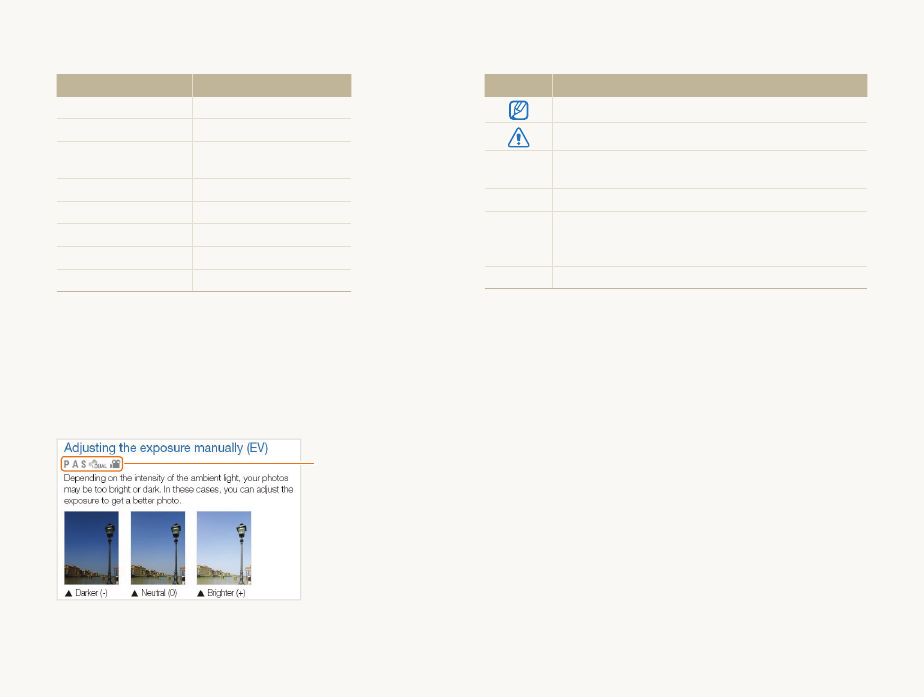
These icons appear in the text when a function is available in a
mode. See the example below.
Note: The s mode may not support functions for all scenes.
For example:
Available in Program,
Aperture Priority,
Shutter Priority,
DUAL IS, and Movie
modes
Icons used in this manual
Icon Function
Additional information
Safety warnings and precautions
[] Camera buttons. For example, [Shutter] represents the
shutter button.
() Page number of related information
The order of options or menus you must select to
perform a step; for example: Select
a
Photo Size
(represents Select
a
, and then select Photo Size).
*Annotation
6
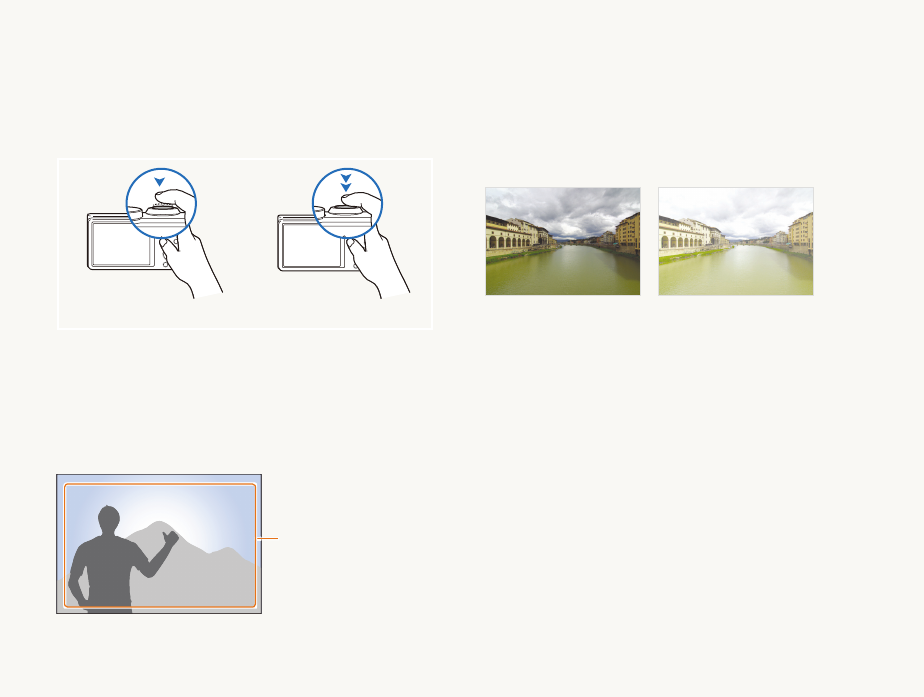
Pressing the shutter
• Half-press [Shutter]: press the shutter halfway down
• Press [Shutter]: press the shutter all the way down
Half-press [Shutter] Press [Shutter]
Subject, background, and composition
• Subject: the main object in a scene, such as a person, animal,
or still life
• Background: the objects around the subject
• Composition : the combination of a subject and background
Composition
Background
Subject
Exposure (Brightness)
The amount of light that enters your camera determines the
exposure. You can alter the exposure with shutter speed,
aperture value, and ISO sensitivity. By altering the exposure, your
photos will be darker or lighter.
Normal exposure
Overexposure (too bright)
Expressions used in this manual
7
Basic troubleshooting
Learn to solve common problems by setting shooting options.
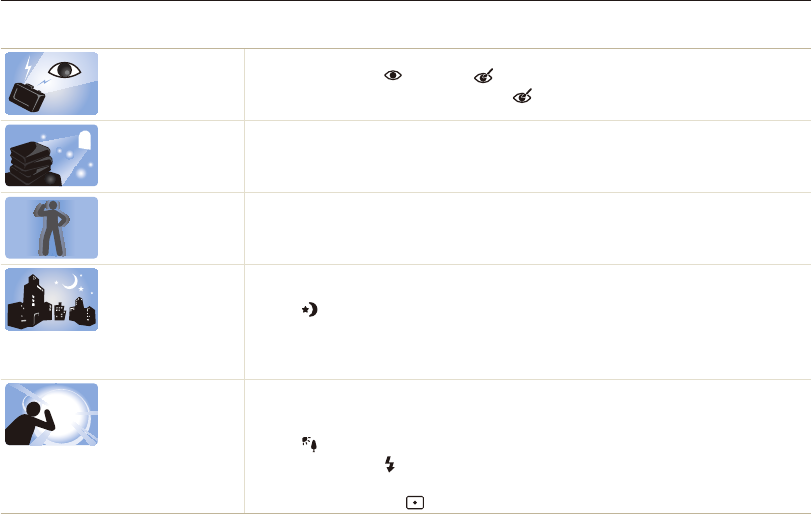
The subject’s eyes
appear red.
Red eye occurs when the subject's eyes reflect light from the camera flash.
•
Set the flash option to Red-eye or Red-eye Fix. (p. 61)
•
If the photo has already been captured, select Red-eye Fix in the edit menu. (p. 98)
Photos have dust
spots.
If dust particles are present in the air, you may capture them in photos when you use the flash.
•
Turn off the flash or avoid capturing photos in a dusty place.
•
Set ISO sensitivity options. (p. 63)
Photos are blurred. Blurring can occur if you capture photos in low light conditions or hold the camera incorrectly.
•
Use the OIS function or half-press [Shutter] to ensure the subject is focused. (p. 32)
•
Use the
d
mode. (p. 47)
Photos are blurred
when shooting at
night.
As the camera tries to let in more light, the shutter speed slows. This can make it difficult to hold the
camera steady long enough to take a clear picture and may result in camera shake.
•
Select Night in
s
mode. (p. 37)
•
Turn on the flash. (p. 61)
•
Set ISO sensitivity options. (p. 63)
•
Use a tripod to prevent your camera from shaking.
Subjects come out
too dark because of
backlighting.
When the light source is behind the subject or when there is a high contrast between light and dark
areas, the subject may appear too dark.
•
Avoid shooting toward the sun.
•
Select Backlight in
s
mode. (p. 37)
•
Set the flash option to Fill in. (p. 61)
•
Adjust the exposure. (p. 73)
•
Set the metering option to Spot if a subject is in the center of the frame. (p. 74)
8
Quick reference
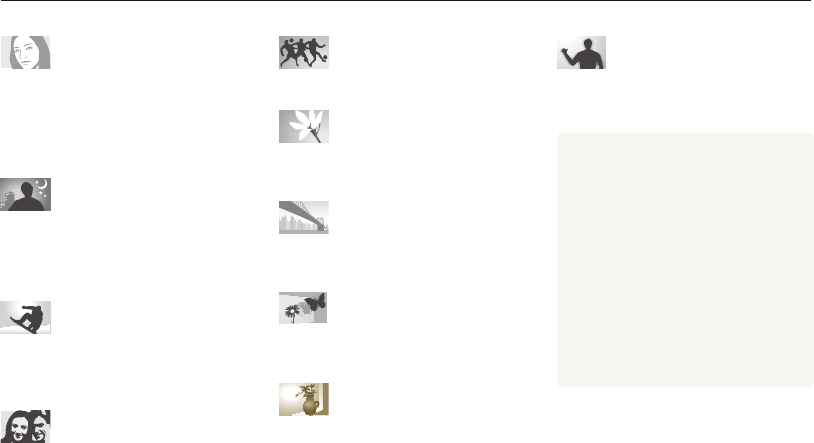
Capturing photos of people
• s
mode > Beauty Shot
40
•
Red-eye/Red-eye Fix (to prevent or correct
red-eye)
61
•
Face Detection
68
•
Self-Portrait
69
Capturing photos at night or in
the dark
• s
mode > Night, Sunset, Dawn
37
•
Flash options
61
•
ISO sensitivity (to adjust the sensitivity to light)
63
Capturing action photos
• h
mode
45
•
High-speed burst mode
78
•
Precapture
79
Adjusting the exposure
(brightness)
• s
mode > HDR
38
•
ISO sensitivity(to adjust the sensitivity to light)
63
•
EV (to adjust exposure)
73
•
Metering
74
•
Bracket
79
Capturing panoramic action
photos
• R
mode > Action Panorama
50
Capturing photos of text,
insects, or flowers
• s
mode > Text
37
•
Macro
64
Capturing photos of scenery
• s
mode > Landscape
37
• R
mode
48
Capturing 3D photos
• s
mode > 3D Photo
38
• R
mode > 3D Panorama
48
Applying effects to photos
• s
mode > Zooming Shot
41
•
Smart Filter effects
81
•
Image Adjust (to adjust Contrast, Sharpness,
or Saturation)
83
Reducing camera shake
•
Optical Image Stabilization (OIS)
31
• d
mode
47
•
Viewing files by category in Smart Album
88
•
Viewing files as thumbnails
89
•
Deleting all files on the memory card
90
•
Viewing files as a slide show
93
•
Viewing files on a TV, HDTV, or 3D TV
101
•
Connecting your camera to a computer
104
•
Adjusting sound and volume
133
•
Adjusting the brightness of the display
133
•
Changing the display language
134
•
Setting the date and time
134
•
Before contacting a service center
148

9
Contents
Extended functions
.......................................................... 34
Using the Smart Auto mode ........................................ 35
Using the Scene mode ................................................ 37
Using the 3D Photo mode ........................................... 38
Using the HDR mode ................................................. 38
Using the Magic Frame mode ..................................... 39
Using the Beauty Shot mode ....................................... 40
Using the Zooming Shot mode .................................... 41
Using the Program mode ............................................ 42
Using the Aperture Priority, Shutter Priority,
or Manual mode .......................................................... 43
Using the Aperture Priority mode .................................. 44
Using the Shutter Priority mode .................................... 45
Using the Manual mode .............................................. 46
Using the DUAL IS mode ............................................ 47
Using the Panorama mode ......................................... 48
Using the 2D or 3D Panorama mode ........................... 48
Using the Action Panorama mode ................................ 50
Using the Movie mode ................................................ 51
Recording high-speed videos ...................................... 53
Using the Smart Scene Detection mode ...................... 54
Using the Creative Movie Maker mode ...................... 55
Making a movie with the Creative Movie Maker ............. 55
View a movie made in Creative Movie Maker mode ....... 56
Basic functions
................................................................. 13
Unpacking ................................................................... 14
Camera layout ............................................................. 15
Inserting the battery and memory card ....................... 18
Charging the battery and turning on your camera ...... 19
Charging the battery ................................................... 19
Turning on your camera .............................................. 19
Performing the initial setup ......................................... 20
Learning icons ............................................................. 22
Selecting options or menus ........................................ 23
Using [MENU] ............................................................ 23
Using [Fn] .................................................................. 25
Setting the display and sound .................................... 26
Setting the display type ............................................... 26
Setting the sound ....................................................... 27
Capturing photos ......................................................... 28
Zooming .................................................................... 29
Reducing camera shake (OIS) ..................................... 31
Tips for getting a clearer photo ................................... 32

10
Contents
Shooting options
.............................................................. 57
Selecting a resolution and quality ............................... 58
Selecting a resolution .................................................. 58
Setting the photo quality .............................................. 59
Using the timer ............................................................ 60
Shooting in the dark .................................................... 61
Preventing red-eye ..................................................... 61
Using the flash ........................................................... 61
Adjusting the ISO sensitivity ......................................... 63
Changing the camera’s focus ..................................... 64
Using macro .............................................................. 64
Using auto focus ........................................................ 64
Focusing on a selected area ....................................... 66
Using tracking auto focus ............................................ 66
Adjusting the focus area .............................................. 67
Using Face Detection .................................................. 68
Detecting faces .......................................................... 68
Capturing a self portrait shot ........................................ 69
Capturing a smile shot ................................................ 69
Detecting eye blinking ................................................. 70
Using Smart Face Recognition .................................... 70
Registering faces as your favorites (My Star) ................. 71
Adjusting brightness and color ................................... 73
Adjusting the exposure manually (EV) ........................... 73
Changing the metering option ...................................... 74
Selecting a White Balance setting ................................ 75
Using burst modes ...................................................... 78
Capturing photos in the High-speed burst mode ........... 78
Capturing photos in the Precapture mode .................... 79
Capturing bracketed photos ........................................ 79
Applying effects/Adjusting images .............................. 81
Applying Smart Filter effects ........................................ 81
Adjusting your photos ................................................. 83

11
Contents
Playback/Editing
............................................................... 84
Viewing photos or videos in Playback mode .............. 85
Starting Playback mode .............................................. 85
Viewing photos .......................................................... 91
Playing a video ........................................................... 94
Editing a photo ............................................................ 96
Resizing photos ......................................................... 96
Rotating a photo ......................................................... 96
Applying Smart Filter effects ........................................ 97
Adjusting your photos ................................................. 98
Creating a print order (DPOF) ....................................... 99
Viewing files on a TV, HDTV, or 3D TV ....................... 101
Transferring files to your Windows computer ........... 104
Transferring files with Intelli-studio ............................... 105
Transferring files by connecting the camera as
a removable disk ...................................................... 107
Disconnecting the camera (for Windows XP) ............... 108
Transferring files to your Mac computer ................... 109
Printing photos with a PictBridge photo printer ....... 110
Wireless network
............................................................ 111
Connecting to a WLAN and configuring
network settings ........................................................ 112
Connecting to a WLAN ............................................. 112
Setting network options ............................................ 113
Manually setting the IP address ................................. 113
Network connection tips ........................................... 114
Sending photos via email .......................................... 115
Changing email settings ............................................ 115
Sending photos via email .......................................... 117
Entering text ............................................................. 118
Using photo or video sharing websites .................... 119
Accessing a website ................................................ 119
Uploading photos or videos ....................................... 119
Using a smart phone as a remote shutter release .... 120
Viewing photos or videos on a
AllShare-enabled TV .................................................. 122
Viewing photos or videos on a TV I ............................. 122
Viewing photos or videos on a TV II ............................ 124
Sending or receiving photos or videos
with another camera .................................................. 125
Sending photos or videos to another camera .............. 125
Receiving photos or videos from another camera ........ 125
Using Auto Backup to send photos or videos .......... 127
Installing the program for Auto Backup on your PC ...... 127
Sending photos or videos to a PC ............................. 127
Sending photos or videos to a Blu-ray disc Player ....... 128
About the Wakeup on LAN (WOL) feature ................ 129

12
Contents
Settings
........................................................................... 131
Settings menu ........................................................... 132
Accessing the settings menu .................................... 132
Sound ..................................................................... 133
Display .................................................................... 133
Settings ................................................................... 134
Appendixes
..................................................................... 137
Error messages ......................................................... 138
Camera maintenance ................................................ 139
Cleaning your camera ............................................... 139
Using or storing the camera ...................................... 140
About memory cards ................................................ 141
About the battery ...................................................... 144
Before contacting a service center ........................... 148
Camera specifications ............................................... 151
Glossary ..................................................................... 155
FCC notice ................................................................. 160
Index .......................................................................... 161

Unpacking
………………………………… 14
Camera layout
……………………………… 15
Inserting the battery and memory card
… 18
Charging the battery and turning
on your camera
…………………………… 19
Charging the battery
……………………… 19
Turning on your camera
………………… 19
Performing the initial setup
……………… 20
Learning icons
……………………………… 22
Selecting options or menus
……………… 23
Using [MENU]
…………………………… 23
Using [Fn]
………………………………… 25
Setting the display and sound
…………… 26
Setting the display type
…………………… 26
Setting the sound
………………………… 27
Capturing photos
………………………… 28
Zooming
………………………………… 29
Reducing camera shake (OIS)
…………… 31
Tips for getting a clearer photo
…………… 32
Basic functions
Learn about your camera’s layout, icons, and basic functions for shooting.
Basic functions
14
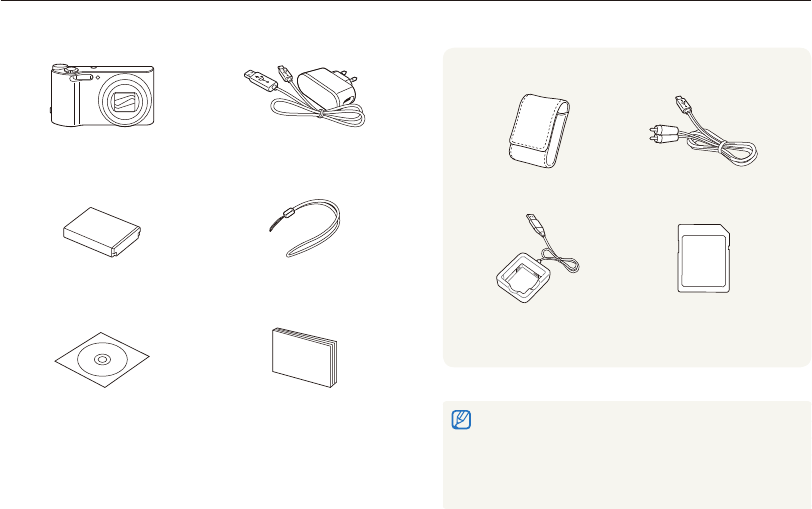
Unpacking
The following items are included in your product box.
Camera AC adapter/
USB cable
Rechargeable battery Strap
User Manual CD-ROM Quick Start Guide
Optional accessories
Camera case A/V cable
Battery charger Memory card
•
The illustrations may differ slightly from the items shipped with your
product.
•
The items included in the box may differ depending on the model.
•
You can purchase optional accessories at a retailer or a Samsung
service center. Samsung is not responsible for any problems
caused by using unauthorized accessories.
Basic functions
15
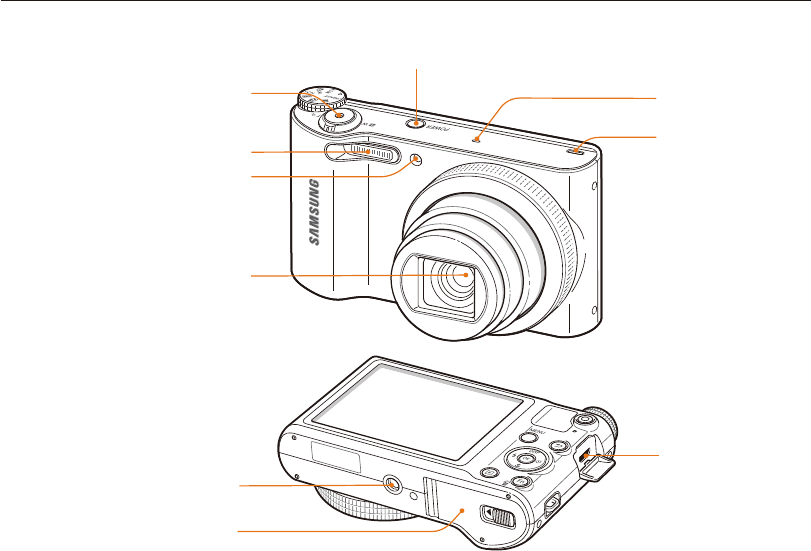
USB and A/V port
Accepts USB cable and A/V cable
Camera layout
Before you start, familiarize yourself with your camera’s parts and their functions.
Battery chamber cover
Insert a memory card and battery
Tripod mount
Speaker
Shutter button
POWER button
AF-assist light/Timer lamp
Flash
Lens
Microphone
Basic functions
16
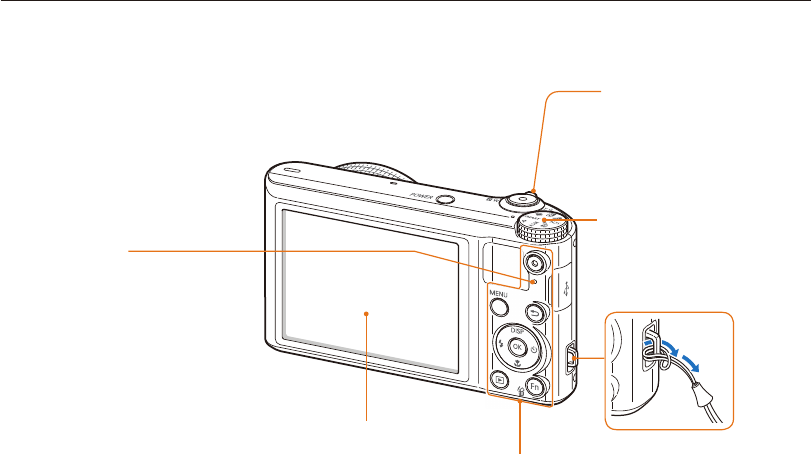
Camera layout
Status lamp
•
Blinking: When the camera is
saving a photo or video, being read
by a computer or printer, or when
the image is out of focus
•
Steady: When the camera is
connected to a computer, charging
the battery, or when the image is
in focus
Zoom button
•
In Shooting mode: Zoom in or out
•
In Playback mode: Zoom in on part
of a photo or view files as thumbnails,
or adjust the volume
Display
Attaching the strap
Mode dial
(p. 17)
Buttons
(p. 17)
x
y
Basic functions
17
Camera layout
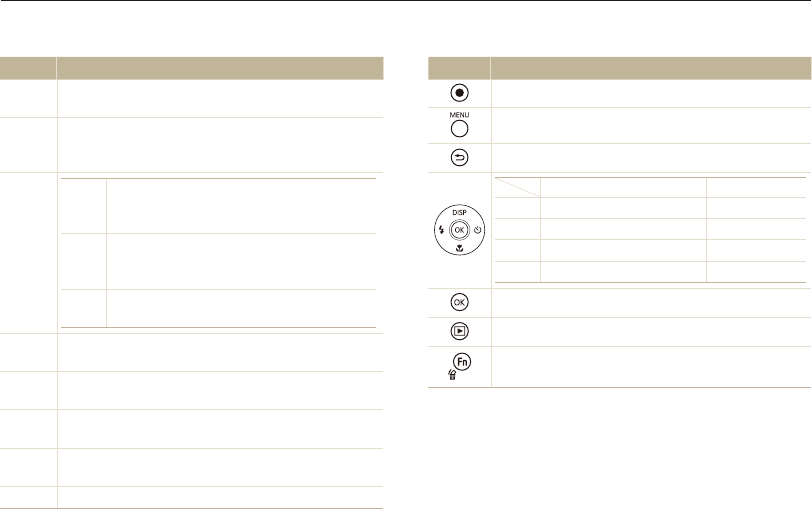
Mode dial
Icon Description
T
Smart Auto: Capture a photo with a scene mode selected
automatically by the camera.
p
Program: Capture a photo by setting options except the
shutter speed and aperture value which the camera sets
automatically.
G
A
Aperture Priority: The camera selects a shutter
speed based on the aperture value you have
set manually.
h
Shutter Priority: The camera selects an
aperture value based on the shutter speed you
have set manually.
M
Manual: Adjust various camera settings
including shutter speed and aperture value.
d
DUAL IS: Capture a photo with options that reduce
camera shake.
s
Scene: Capture a photo with options preset for a specific
scene.
R
Panorama: Capture and combine a series of photos to
create a panoramic image.
K
Creative Movie Maker: Create movies from photos and
videos stored on the memory card.
v
Movie: Customize settings to record a video.
Buttons
Button Description
Start recording a video.
Access options or menus.
Go back.
Basic functions Other functions
D
Change the display option. Move up
c
Change the macro option. Move down
F
Change the flash option. Move left
t
Change the timer option. Move right
Confirm the highlighted option or menu.
Enter Playback mode.
•
Access options in Shooting mode.
•
Delete files in Playback mode.
Basic functions
18
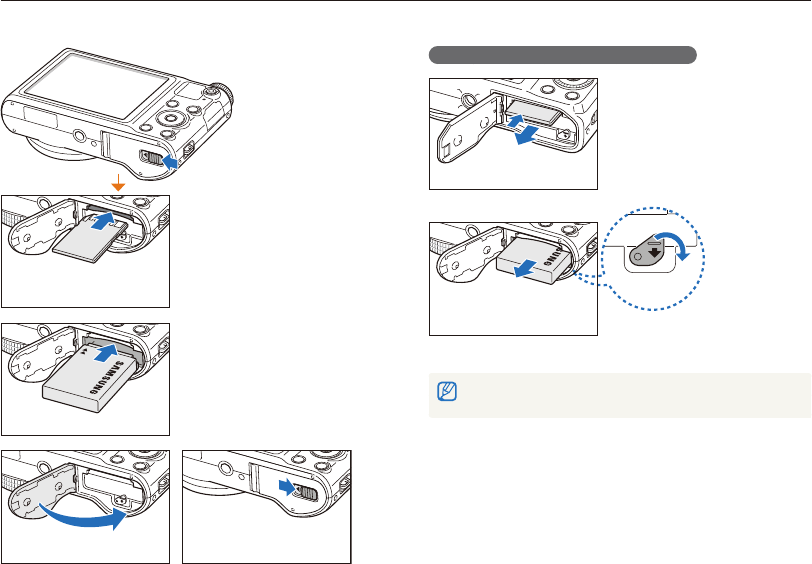
Inserting the battery and memory card
Learn how to insert the battery and an optional memory card into the camera.
Removing the battery and memory card
Memory card
Push the card gently until it
disengages from the camera,
and then pull it out of the slot.
Rechargeable
battery
Battery lock
Slide the lock down to release
the battery.
You can use the internal memory for temporary storage if a memory card is
not inserted.
Memory card
Insert a memory card with the
gold-colored contacts facing
up.
Rechargeable battery
Insert the battery with the
Samsung logo facing up.
Basic functions
19
Charging the battery and turning on your camera
Turning on your camera
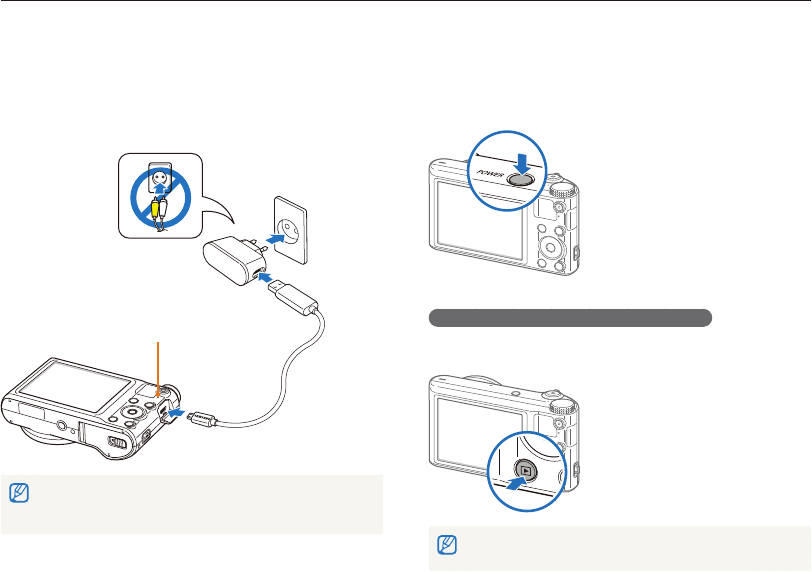
Press [POWER] to turn your camera on or off.
• The initial setup screen appears when you turn on the camera
for the first time. (p. 20)
Turning on your camera in Playback mode
Press [P]. The camera turns on and immediately accesses
Playback mode.
If you turn on your camera by pressing and holding [
P
] for about 5 seconds,
the camera does not emit any sounds.
Charging the battery
Before you use the camera for the first time, you must charge the
battery. Plug the small end of the USB cable into your camera,
and then plug the other end of the USB cable into the AC
adapter.
Indicator light
•
Red light on: Charging
•
Red light off: Fully charged
Use only the AC adapter and USB cable supplied with your camera. If you
use another AC adapter (such as SAC-48), the camera battery may not
charge or work properly.
Basic functions
20
Performing the initial setup
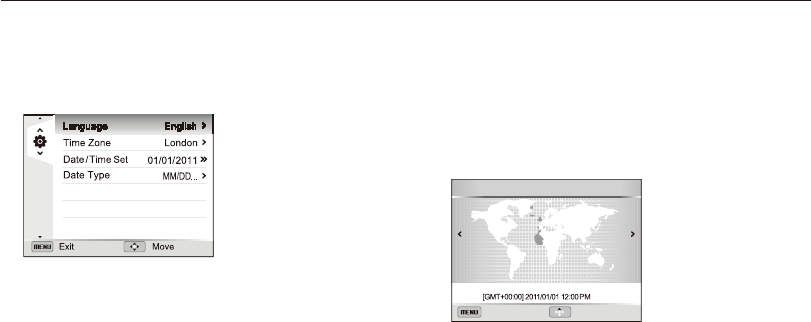
When you turn on your camera for the first time, the initial setup screen appears. Follow the steps below to configure the camera’s basic
settings.
4
Press [
D
/
c
] to select Home, and then press [
o
].
•
When you travel to another country, select Visit, and then
select a new time zone.
5
Press [
F
/
t
] to select a time zone, and then press [
o
].
•
To set daylight-savings time, press [
D
].
Back DST
Time Zone : Home
London
1
Verify that Language is highlighted, and then press
[
t
] or [
o
].
2
Press [
D
/
c
/
F
/
t
] to select a language, and then
press [
o
].
3
Press [
c
] to select Time Zone, and then press [
t
] or
[
o
].
Basic functions
21
Performing the initial setup
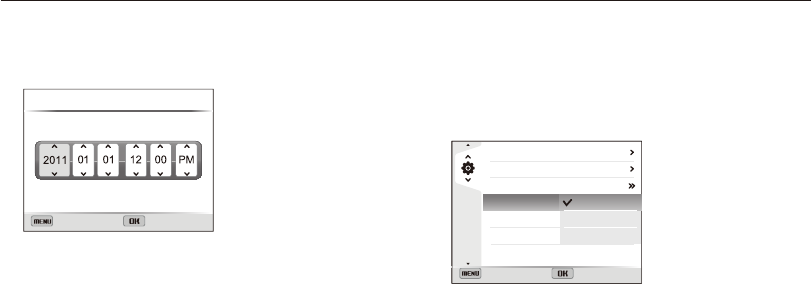
6
Press [
c
] to select Date/Time Set, and then press
[
t
] or [
o
].
Exit Set
Date/Time Set
Year Month Day Hour Min
•
The screen may differ depending on the language selected.
7
Press [
F
/
t
] to select an item.
8
Press [
D
/
c
] to set the date and time, and then
press [
o
].
9
Press [
c
] to select Date Type, and then press [
t
] or
[
o
].
10
Press [
D
/
c
] to select a date type, and then press
[
o
].
Language
Time Zone
Date/Time Set
Date Type
English
London
2011/01/01
Back Set
YYYY/MM/DD
MM/DD/YYYY
DD/MM/YYYY
•
The default date type may differ depending on the language
selected.
11
Press [
m
] to switch to Shooting mode.
Basic functions
22
3
Shooting information
Icon Description
Shooting mode
Aperture value
Shutter speed
Exposure value
Available number of photos
Memory card inserted
•
: Fully charged
•
: Partially charged
•
: Empty (Recharge)
Available recording time
Auto focus frame
Camera shake
Zoom indicator
Zoom ratio
Histogram (p. 26)
Current time and date
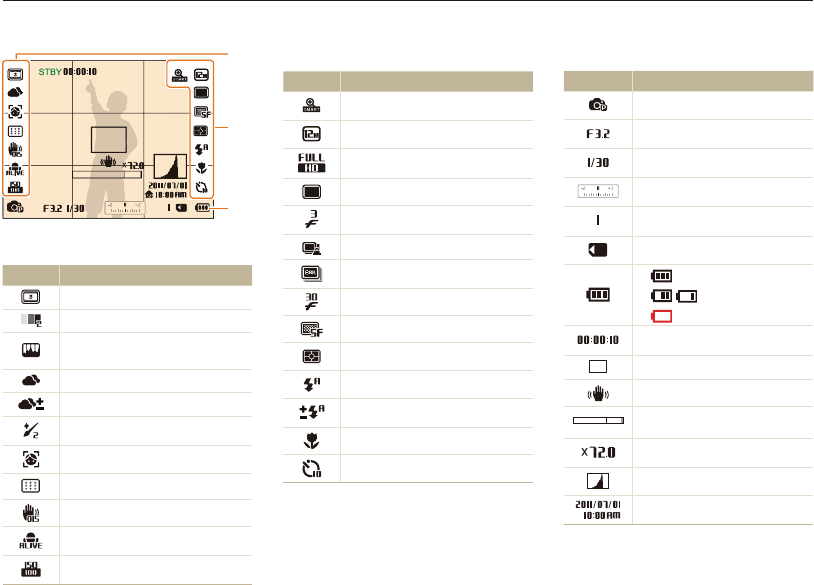
Learning icons
The icons the camera displays on the screen change according to the mode you select or the options you set.
2
Shooting options (right)
Icon Description
Smart zoom on
Photo resolution
Video resolution
Single shot mode
High-speed burst mode
Precapture mode
Bracket mode
Frame rate
Photo quality
Metering
Flash
Flash intensity adjusted
Auto focus option
Timer
1
Shooting options (left)
Icon Description
Smart filter
Face tone
Image adjustment (contrast,
sharpness, and saturation)
White balance
White balance adjusted
Face retouch
Face detection
Focus area
Optical Image Stabilization (OIS)
Sound Alive on
ISO sensitivity
1
2
3
Basic functions
23
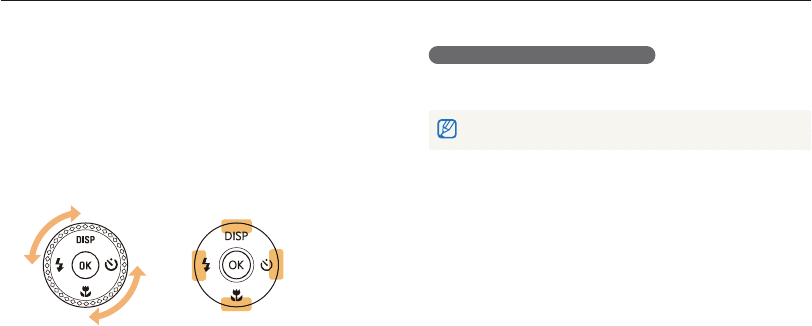
Selecting options or menus
To select an option or a menu, press [m] or [f].
Going back to the previous menu
Press [
m
] again to go back to the previous menu.
Half-press [Shutter] to return to Shooting mode.
Using [MENU]
To select options, press [m], and then rotate the navigation
button or press [D/c/F/t] or [o].
1
In Shooting mode, press [
m
].
2
Rotate the navigation button or press [
D
/
c
/
F
/
t
]
to scroll to a menu or an option.
or
3
Press [
o
] to confirm the highlighted option or menu.
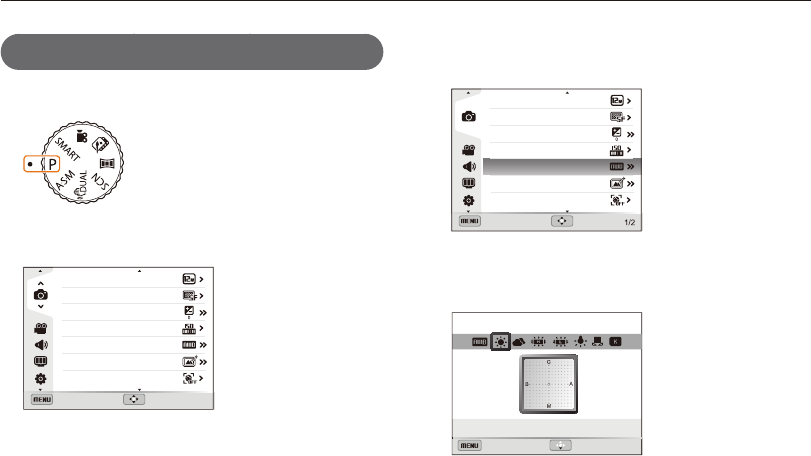
Basic functions
24
Selecting options or menus
4
Rotate the navigation button or press [
D
/
c
] to select
White Balance, and then press [
t
] or [
o
].
Photo Size
Quality
EV
ISO
White Balance
Smart Filter
Face Detection
Exit Move
5
Rotate the navigation button or press [
F
/
t
] to select a
White Balance option.
Back Adjust
White Balance : Daylight
6
Press [
o
] to save your settings.
7
Press [
m
] to return to Shooting mode.
For example, to select a White Balance option
in Program mode:
1
Rotate the mode dial to
p
.
2
Press [
m
].
Exit Move
Photo Size
Quality
EV
ISO
White Balance
Smart Filter
Face Detection
3
Rotate the navigation button or press [
D
/
c
] to select
a
, and then press [
t
] or [
o
].
Basic functions
25
Selecting options or menus
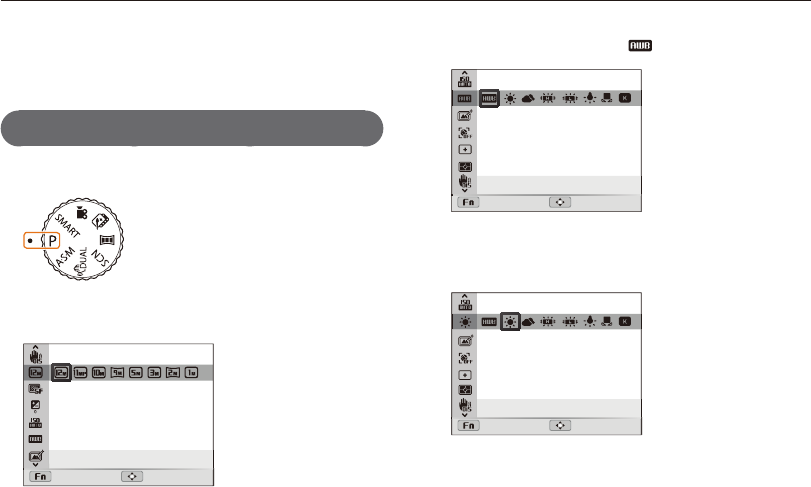
Using [Fn]
You can access shooting options by pressing [f], but some
options are not available.
For example, to select a White Balance option
in Program mode:
1
Rotate the mode dial to
p
.
2
Press [
f
].
Photo Size : 4096X3072
Exit Move
3
Press [
D
/
c
] to scroll to .
White Balance : Auto WB
Exit Move
4
Rotate the navigation button or press [
F
/
t
] to select a
White Balance option.
White Balance : Daylight
Exit Move
5
Press [
o
] to save your settings.
Basic functions
26
Setting the display and sound
Learn how to change the basic display information and sound settings.
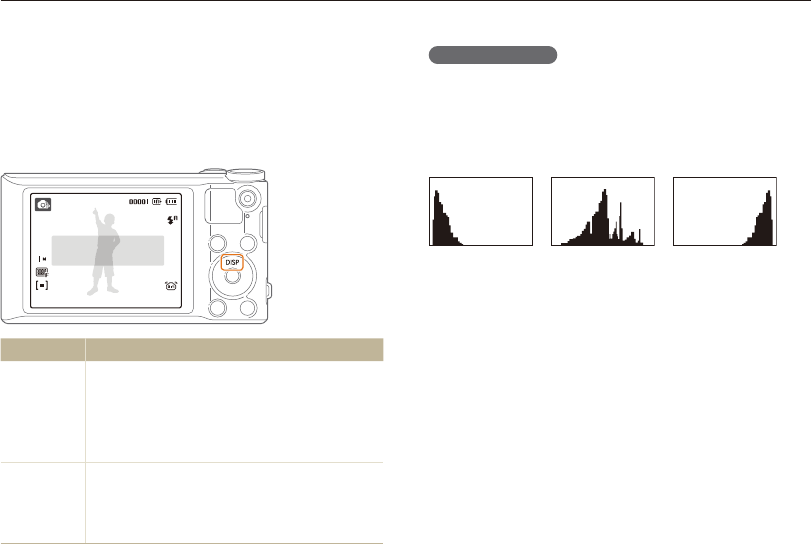
About histograms
A histogram is a graph that illustrates how light is distributed
in your photo. If the histogram has a high peak on the left, the
photo is underexposed and will appear dark. A peak on the
right of the graph means that the photo is overexposed and will
appear washed out. The height of the peaks is related to color
information. The more of a particular color, the taller the peak.
Under-exposed
Well-exposed
Over-exposed
Setting the display type
You can select a display type for the Shooting or Playback mode.
Each type displays different shooting or playback information.
See the table below.
Press [
D
] repeatedly to change the display type.
Show all photographic
information.
Mode Description
Shooting
•
Hide all information about shooting.
•
Hide information about shooting, except the
information on the bottom line.
•
Display all information about shooting.
•
Display histogram.
Playback
•
Hide all information about the current file.
•
Display information about the current file, except
the shooting settings and histogram.
•
Display all information about the current file.

Basic functions
27
Setting the display and sound
Setting the sound
Turn on or off the sound your camera emits when you perform
functions.
1
In Shooting or Playback mode, press [
m
].
2
Select
U
Beep Sound.
3
Select an option.
Option Description
Off The camera does not emit any sounds.
On The camera emits sounds.
Basic functions
28
Capturing photos
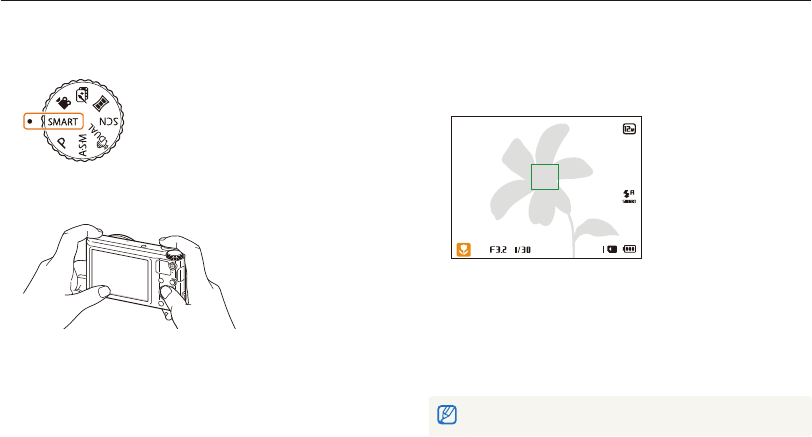
Learn how to capture photos easily and quickly in Smart Auto mode.
3
Half-press [Shutter] to focus.
•
A green frame means the subject is in focus.
•
A red frame means the subject is out of focus.
4
Press [Shutter] to capture a photo.
5
Press [
P
] to view the captured photo.
•
To delete the photo, press [
f
], and then select Yes.
6
Press [
P
] to return to Shooting mode.
See page 32 for tips to get clearer photos.
1
Rotate the mode dial to
T
.
2
Align your subject in the frame.
Basic functions
29
Capturing photos
Digital zoom
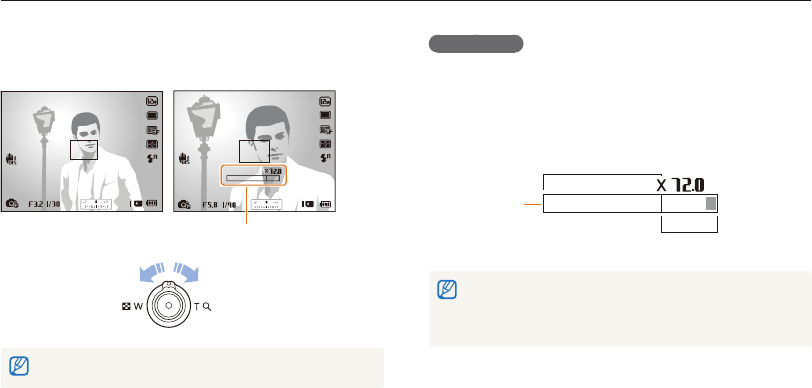
The Digital zoom is supported by default in Shooting mode. If you
zoom in on a subject in Shooting mode and the zoom indicator
is in the digital range, your camera is using the Digital zoom. By
using both the 18X Optical zoom and 4X Digital zoom, you can
zoom in up to 72 times.
Digital range
Zoom indicator
Optical range
•
The Digital zoom is not available with the Face detection option, Smart
Filter effect, Tracking AF option, Burst option, or Manual Focus.
•
If you capture a photo with the Digital zoom, the photo quality may be
lower than normal.
pAhMs
Zooming
You can capture close-up photos by adjusting the zoom.
Zoom out Zoom in
Zoom ratio
The wider you rotate the zoom button, the faster the camera zooms in or out.
Basic functions
30
Capturing photos
Smart zoom
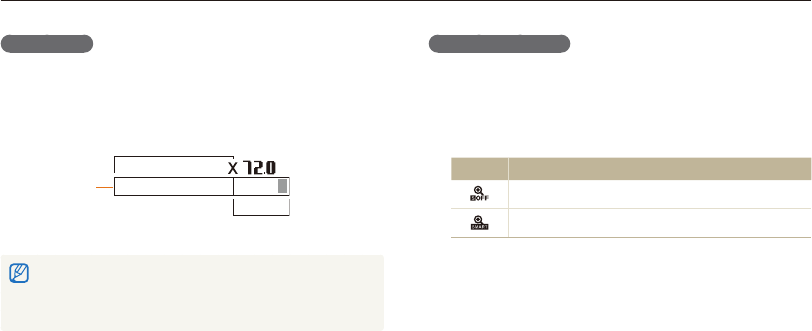
You can use 24X Smart zoom which lets you zoom in with less
degradation of picture quality than the Optical zoom and Digital
zoom. By using both the Smart zoom and Digital zoom, you can
zoom in up to 72 times.
Smart range
Digital range
Zoom indicator
•
Smart zoom is not available with the Face detection option, Smart
Filter effect, Tracking AF option, Burst option, or Manual Focus.
•
If you capture a photo with the Smart zoom, the photo quality may be
lower than normal.
pAhM
Setting Smart zoom
1
In Shooting mode, press [
m
].
2
Select
a
Smart Zoom.
3
Select an option.
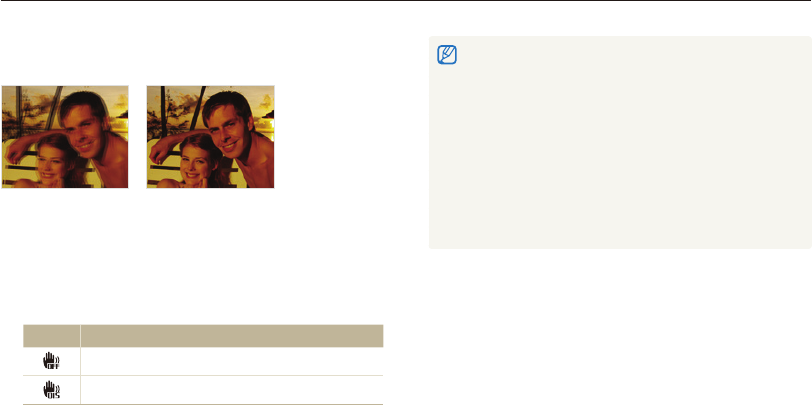
Icon Description
Off: The Smart zoom is deactivated.
On: The Smart zoom is activated.
Basic functions
31
Capturing photos
Reducing camera shake (OIS)
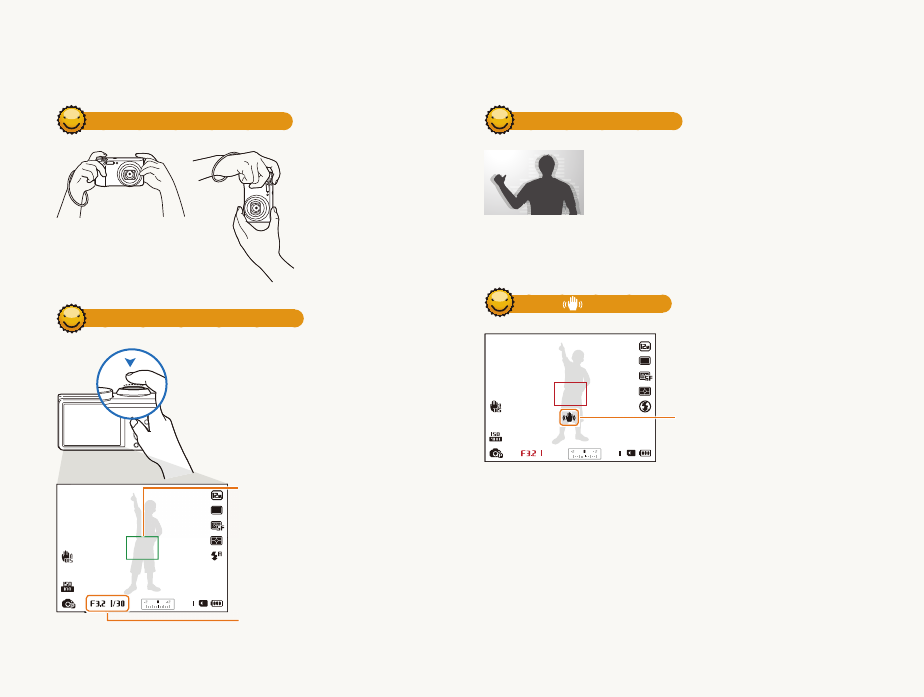
Reduce camera shake optically in Shooting mode.
Before correction
After correction
1
In Shooting mode, press [
m
].
2
Select
a
or
V
OIS.
3
Select an option.
Icon Description
Off: OIS is deactivated.
On: OIS is activated.
pAhMsv •
OIS may not function properly when:
- you move your camera to follow a moving subject
- you use the Digital zoom
- there is too much camera shake
- the shutter speed is slow (for example, when you capture night
scenes)
- the battery is low
- you capture a close-up shot
•
If you use the OIS function with a tripod, your images may be blurred
by the vibration of the OIS sensor. Deactivate the OIS function when
you use a tripod.
•
If the camera is hit or dropped, the display will be blurry. If this occurs,
turn off the camera, and then turn it on again.
Basic functions
32
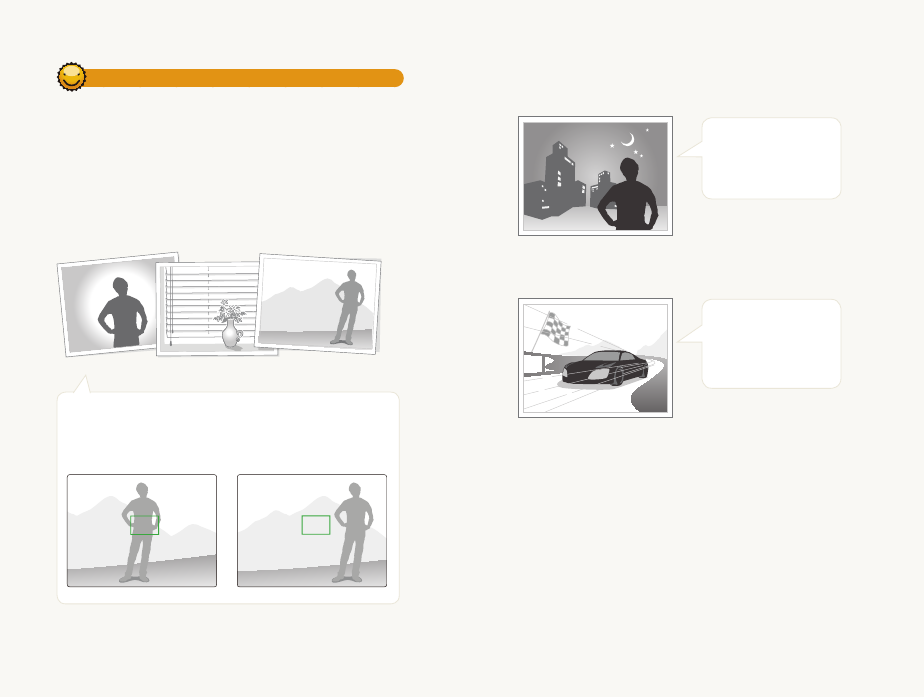
Holding your camera correctly
Ensure nothing is
blocking the lens,
flash, or microphone.
Half-pressing the shutter button
Half-press [Shutter] and adjust the
focus. The camera adjusts the focus and
exposure automatically.
The camera sets the aperture value
and shutter speed automatically.
Focus frame
•
Press [Shutter] to capture the photo
if the focus frame appears in green.
•
Change the composition and
half-press [Shutter] again if the
focus frame appears in red.
Reducing camera shake
•
Set the Optical Image Stabilization option to
reduce camera shake optically. (p. 31)
•
Select the
d
mode to reduce camera shake
both optically and digitally. (p. 47)
When is displayed
Camera shake
When you shoot in the dark, avoid setting the flash option to Slow
Sync or Off. The aperture remains open longer and it may be harder to
hold the camera steady long enough to capture a clear photo.
•
Use a tripod or set the flash option to Fill in. (p. 61)
•
Set ISO sensitivity options. (p. 63)
Tips for getting a clearer photo
Basic functions
33
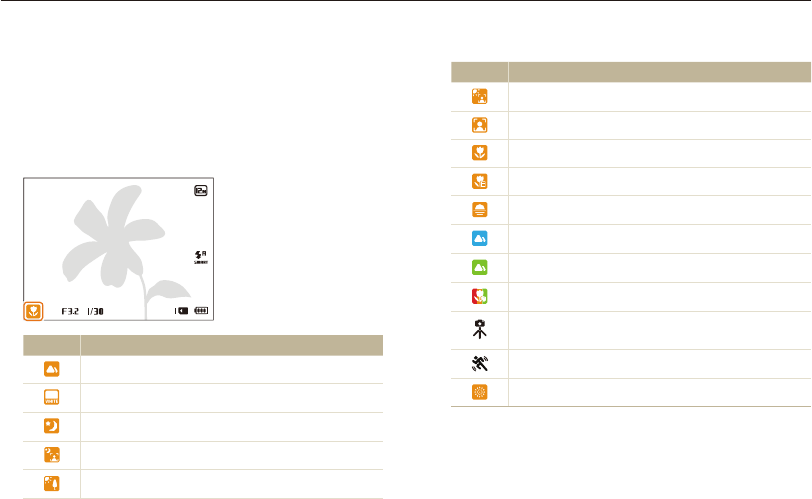
Preventing your subject from being out of focus
It may be difficult to get your subject in focus when:
-
there is little contrast between the subject and background (for
example, when your subject is wearing clothing that is similar in color
to the background)
-
the light source behind the subject is too bright
-
the subject is shiny or reflective
-
the subject includes horizontal patterns, such as blinds
-
the subject is not positioned in the center of the frame
•
When you capture photos in low light
Turn on the flash.
(p. 61)
•
When subjects are moving rapidly
Use the High-speed
burst mode or
Precapture function.
(p. 78)
Using the focus lock
Half-press [Shutter] to focus. When the subject is in focus,
you can reposition the frame to change the composition.
When you are ready, press [Shutter] to capture your photo.

Extended functions
Learn how to capture a photo and record a video by selecting a mode.
Using the Smart Auto mode
……………… 35
Using the Scene mode
…………………… 37
Using the 3D Photo mode
……………… 38
Using the HDR mode
…………………… 38
Using the Magic Frame mode
…………… 39
Using the Beauty Shot mode
…………… 40
Using the Zooming Shot mode
…………… 41
Using the Program mode
………………… 42
Using the Aperture Priority, Shutter
Priority, or Manual mode
………………… 43
Using the Aperture Priority mode
………… 44
Using the Shutter Priority mode
………… 45
Using the Manual mode
………………… 46
Using the DUAL IS mode
………………… 47
Using the Panorama mode
……………… 48
Using the 2D or 3D Panorama mode
…… 48
Using the Action Panorama mode
……… 50
Using the Movie mode
…………………… 51
Recording high-speed videos
…………… 53
Using the Smart Scene Detection mode
… 54
Using the Creative Movie Maker mode
… 55
Making a movie with the
Creative Movie Maker
…………………… 55
View a movie made in
Creative Movie Maker mode
……………… 56
Extended functions
35
Using the Smart Auto mode
In Smart Auto mode, your camera automatically chooses the appropriate camera settings based on the type of scene it detects.
The Smart Auto mode is helpful if you are not familiar with the camera settings for various scenes.
Icon Description
Portraits with backlighting
Portraits
Close-up photos of objects
Close-up photos of text
Sunsets
Blue skies
Forested areas
Close-up photos of colorful subjects
Camera is stabilized or on a tripod (when shooting in
the dark)
Actively moving subjects
Fireworks (when using a tripod)
3
Half-press [Shutter] to focus.
4
Press [Shutter] to capture the photo.
1
Rotate the mode dial to
T
.
2
Align your subject in the frame.
•
The camera automatically selects a scene. An appropriate
scene icon appears at the bottom left of the screen.
The icons are listed below.
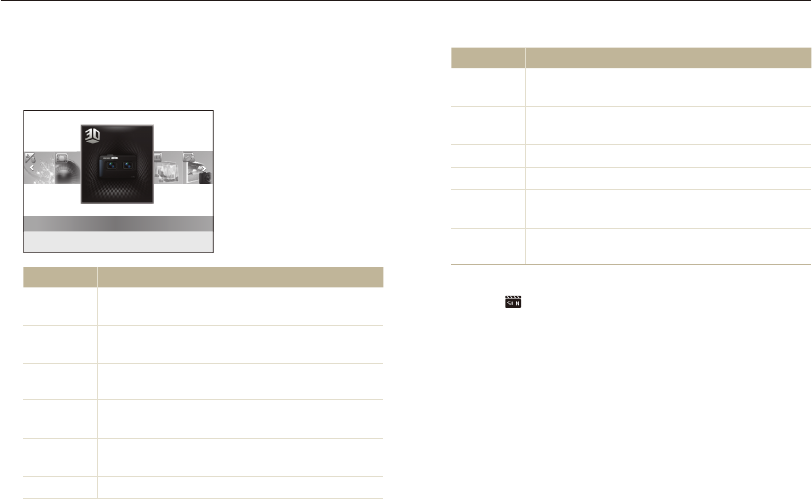
Icon Description
Landscapes
Scenes with bright white backgrounds
Landscapes at night (when the flash is off)
Portraits at night
Landscapes with backlighting

Extended functions
36
Using the Smart Auto mode
•
If the camera does not recognize an appropriate scene mode, it uses
the default settings for the
T
mode.
•
Even if it detects a face, the camera may not select a portrait mode
depending on the subject's position or lighting.
•
The camera may not select the correct scene depending on the
shooting conditions, such as camera shake, lighting, or distance to
the subject.
•
Even if you use a tripod, the camera may not detect the mode if
the subject is moving.
•
In
T
mode, the camera consumes more battery power, because
it changes settings often to select appropriate scenes.
Extended functions
37
Using the Scene mode
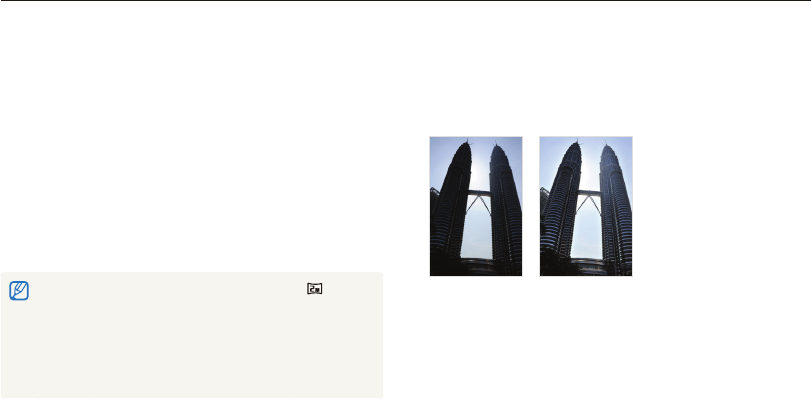
In Scene mode, you can capture a photo with options that are preset for a specific scene.
Option Description
Text Clearly capture text from printed or electronic
documents.
Sunset Capture scenes at sunset, with natural-looking reds
and yellows.
Dawn Capture scenes at sunrise.
Backlight Capture backlit subjects.
Beach &
Snow
Reduce underexposure of subjects caused by
sunlight reflected from sand or snow.
Zooming
Shot Capture scenes with blurred edges.
•
To change a scene mode, press [
m
], and then
select . You can select any of the scenes listed.
3
Align your subject in the frame, and then half-press
[Shutter] to focus.
4
Press [Shutter] to capture the photo.
1
Rotate the mode dial to
s
.
2
Select a scene.
3D Photo
Option Description
3D Photo Capture scenes with a 3D effect (the 3D effect
works only on a 3D TV or 3D monitor).
HDR Capture scenes with emphasis on mid-tones, by
minimizing the dark and bright areas.
Magic
Frame Capture scenes with various frame effects.
Beauty
Shot
Capture a portrait with options to hide facial
imperfections.
Night Capture scenes at night or in low lighting (using a
tripod is recommended).
Landscape Capture still-life scenes and landscapes.
Extended functions
38
Using the Scene mode
Using the HDR mode
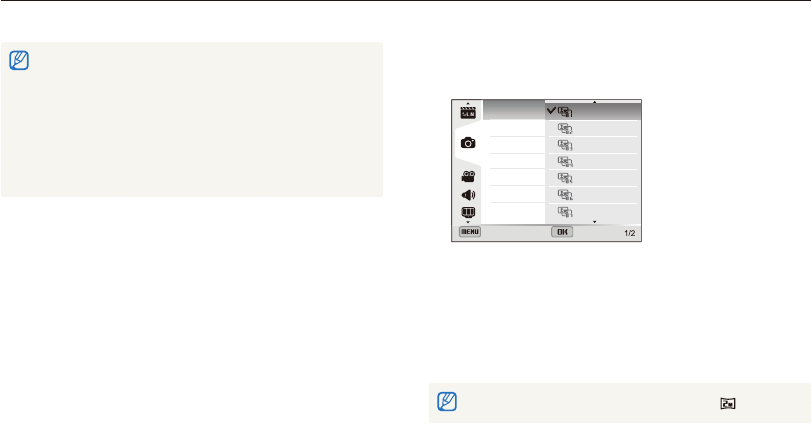
In HDR(High Dynamic Range) mode, your camera captures two
photos with different exposures, and then overlays the bright area
of the underexposed photo and the dark area of the overexposed
photo. You can capture photos with soft, rich colors.
Without HDR
effect
With HDR
effect
1
Rotate the mode dial to
s
.
2
Select HDR.
3
Align your subject in the frame, and then half-press
[Shutter] to focus.
4
Press [Shutter] to capture the photo.
•
The camera captures 2 photos, and then automatically
merges them into a single photo.
Using the 3D Photo mode
In 3D Photo mode, you can capture scenes with a 3D effect.
1
Rotate the mode dial to
s
.
2
Select 3D Photo.
3
Align your subject in the frame, and then half-press
[Shutter] to focus.
4
Press [Shutter] to capture the photo.
•
The camera captures 2 photos in both JPEG and MPO file
formats.
•
In 3D Photo mode, the resolution is automatically set to .
•
In 3D Photo mode, some shooting options are not available.
•
You can view an MPO file that supports the 3D effect only on an
MPO-compatible display, such as a 3D TV or 3D monitor. On your
camera's display, you can view only JPEG files.
•
Use proper 3D glasses when you view an MPO file on a 3D TV or
3D monitor.
Extended functions
39
Using the Scene mode
•
The HDR effect may be affected by camera shake, lighting, movement
of the subject, and the shooting environment.
•
You cannot use the flash when you use the HDR mode.
•
It may take longer to save a photo using the HDR mode.
•
When you use the HDR mode, the preview image on the screen and
the captured photo may appear slightly larger than a photo captured
without this effect.
•
When you capture a moving subject using the HDR mode, an
afterimage may appear.
Using the Magic Frame mode
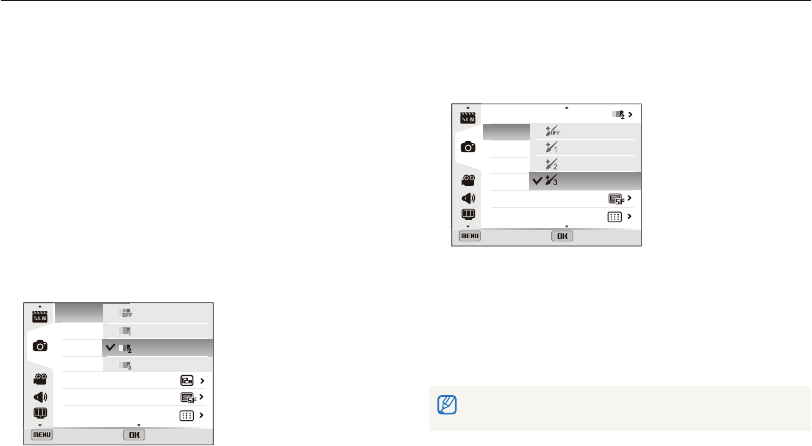
In Magic Frame mode, you can apply various frame effects to
your photos. The shape and the feel of the photos will change
according to the frame you select.
1
Rotate the mode dial to
s
.
2
Select Magic Frame.
3
Press [
m
].
4
Select
a
Frame.
5
Select an option.
Frame
Quality
OIS
Wall Art
Old Film
Ripple
Full Moon
Old Record
Magazine
Sunny Day
Back Set
6
Press [
m
] to return to Shooting mode.
7
Align your subject in the frame, and then half-press
[Shutter] to focus.
8
Press [Shutter] to capture the photo.
In Magic Frame mode, the resolution is automatically set to .
Extended functions
40
Using the Scene mode
Using the Beauty Shot mode
In Beauty Shot mode, you can capture a portrait with options to
hide facial imperfections.
1
Rotate the mode dial to
s
.
2
Select Beauty Shot.
3
Press [
m
].
4
Select
a
Face Tone.
5
Select an option.
•
For example, increase the face tone setting to make skin
appear lighter.
Back Set
Face Tone
Face Retouch
Face Detection
Smart FR Edit
Photo Size
Quality
Focus Area
Off
Level 1
Level 2
Level 3
6
Select Face Retouch.
7
Select an option.
•
For example, increase the face retouch setting to hide more
imperfections.
Back Set
Face Tone
Face Retouch
Face Detection
Smart FR Edit
Photo Size
Quality
Focus Area
Off
Level 1
Level 2
Level 3
8
Press [
m
] to return to Shooting mode.
9
Align your subject in the frame, and then half-press
[Shutter] to focus.
10
Press [Shutter] to capture the photo.
When you use the Beauty Shot mode, the focus distance will be set to Auto
Macro.
Extended functions
41
Using the Scene mode
Using the Zooming Shot mode
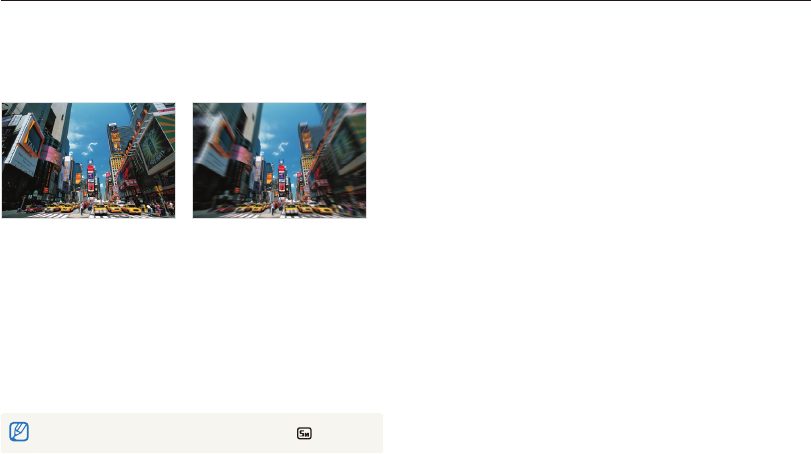
In Zooming Shot mode, you can emphasize the center of a photo
by blurring the edges.
Without Zooming Shot effect
With Zooming Shot effect
1
Rotate the mode dial to
s
.
2
Select Zooming Shot.
3
Align your subject in the frame, and then half-press
[Shutter] to focus.
4
Press [Shutter] to capture the photo.
In Zooming Shot mode, the resolution is automatically set to or below.
Extended functions
42
Using the Program mode
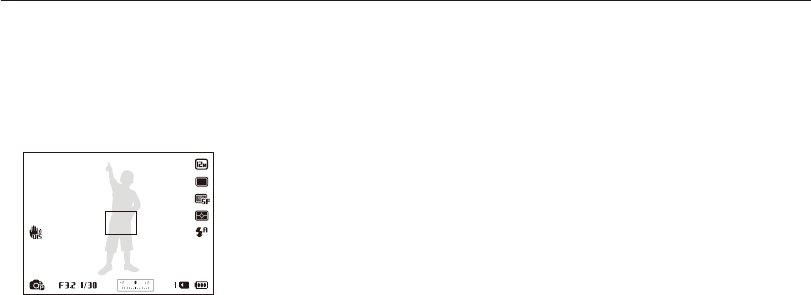
In Program mode, you can set most options, except the shutter speed and aperture value, which the camera sets automatically.
1
Rotate the mode dial to
p
.
2
Set the desired options.
(For a list of options, refer to "Shooting options" starting
on page 57.)
3
Align your subject in the frame, and then half-press
[Shutter] to focus.
4
Press [Shutter] to capture the photo.
Extended functions
43
Using the Aperture Priority, Shutter Priority, or Manual mode
Adjust the aperture value or shutter speed to control the exposure of your photos. You can use these options in the Aperture Priority,
Shutter Priority, and Manual modes.
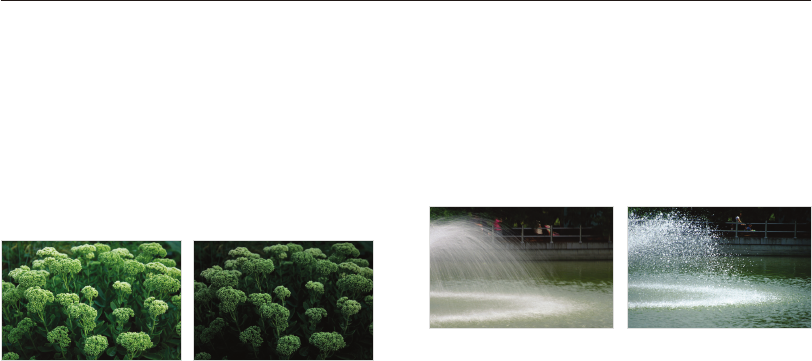
Shutter speed
Shutter speed, which is an important factor in the brightness of a
photo, refers to the amount of time it takes to open and close the
shutter. A slow shutter speed allows more time to let light in.
All things being equal, photos are brighter, but fast moving
objects tend to blur. On the other hand, a fast shutter speed
allows less time to let light in. Photos are darker, but objects in
motion are captured more clearly.
Slow shutter speed
Fast shutter speed
Aperture value
The aperture is a hole that lets light into the camera. The aperture
housing contains thin, metal plates that open and close, widening
or narrowing the aperture, and controlling the amount of light that
enters the camera. The size of the aperture is closely related to
the brightness of a photo: the larger the aperture, the brighter the
photo; the smaller the aperture, the darker the photo.
Note that the larger the aperture value, the smaller the aperture
size. For example, an aperture set to 5.6 is larger than an
aperture set to 11.
Small aperture value (The size
of the aperture is large.)
Large aperture value (The size
of the aperture is small.)
Extended functions
44
Using the Aperture Priority, Shutter Priority, or Manual mode
4
Set options.
(For a list of options, refer to “Shooting options” starting
on page 57.)
5
Align your subject in the frame, and then half-press
[Shutter] to focus.
6
Press [Shutter] to capture the photo.
Using the Aperture Priority mode
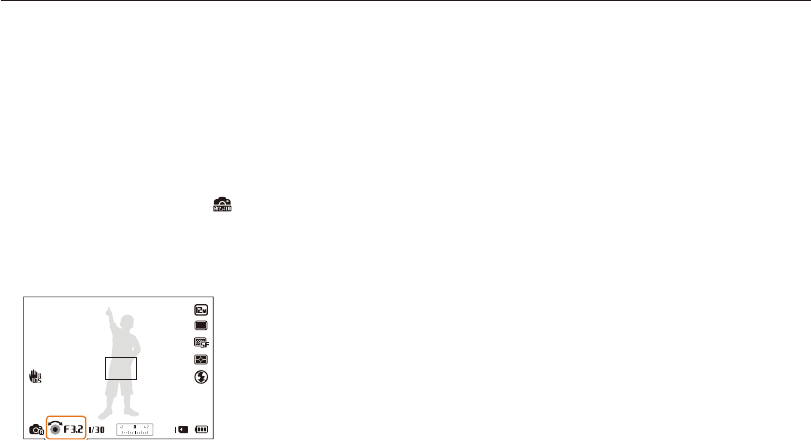
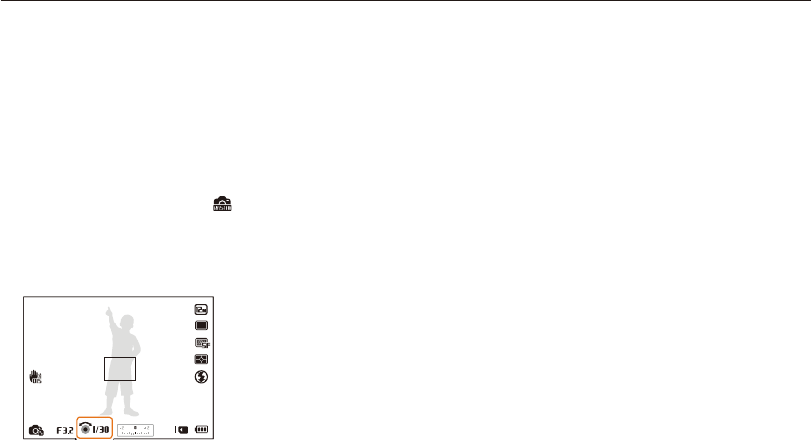
The Aperture Priority mode allows you to set the aperture value
manually while the camera automatically selects an appropriate
shutter speed.
1
Rotate the mode dial to
G
.
2
Select Aperture Priority.
•
To select another mode when the mode dial is set to
G
,
press [
m
], and then select a mode.
3
Press [
o
], and then rotate the navigation button or
press [
D
/
c
] to adjust the aperture value.
•
See page 43 for more information about the aperture value.
Extended functions
45
Using the Aperture Priority, Shutter Priority, or Manual mode
4
Set options.
(For a list of options, refer to “Shooting options” starting
on page 57.)
5
Align your subject in the frame, and then half-press
[Shutter] to focus.
6
Press [Shutter] to capture the photo.
Using the Shutter Priority mode
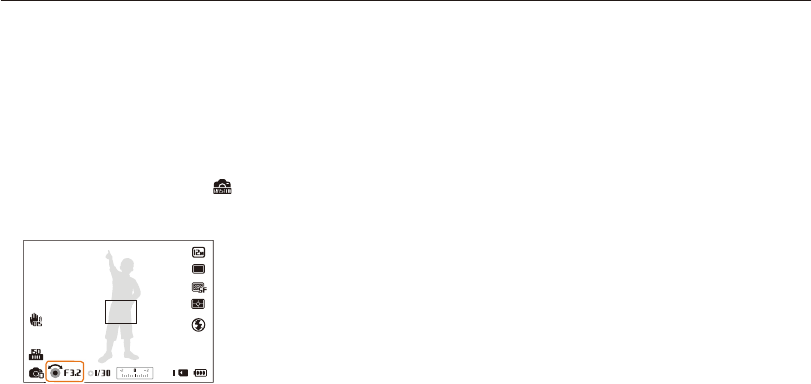
The Shutter Priority mode allows you to set the shutter speed
manually while the camera automatically selects an appropriate
aperture value.
1
Rotate the mode dial to
G
.
2
Select Shutter Priority.
•
To select another mode when the mode dial is set to
G
,
press [
m
], and then select a mode.
3
Press [
o
], and then rotate the navigation button or
press [
D
/
c
] to adjust the shutter speed.
•
See page 43 for more information about the shutter speed.
Extended functions
46
Using the Aperture Priority, Shutter Priority, or Manual mode
Using the Manual mode
The Manual mode allows you to adjust both the aperture value
and the shutter speed manually.
1
Rotate the mode dial to
G
.
2
Select Manual.
•
To select another mode when the mode dial is set to
G
,
press [
m
], and then select a mode.
3
Press [
o
] to select the aperture value or shutter speed.
4
Rotate the navigation button or press [
D
/
c
] to
adjust the aperture value or shutter speed.
5
Set options.
(For a list of options, refer to “Shooting options” starting
on page 57.)
6
Align your subject in the frame, and then half-press
[Shutter] to focus.
7
Press [Shutter] to capture the photo.
Extended functions
47
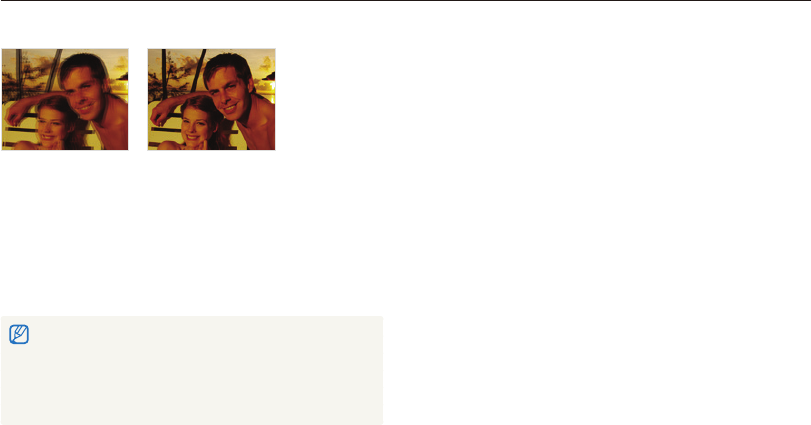
Using the DUAL IS mode
Reduce camera shake and prevent blurred photos with Optical and Digital Image Stabilization functions.
Before correction
After correction
1
Rotate the mode dial to
d
.
2
Align your subject in the frame, and then half-press
[Shutter] to focus.
3
Press [Shutter] to capture the photo.
•
The Digital zoom and Smart zoom are not available in
d
mode.
•
The camera will correct photos optically only when the light source is
brighter than fluorescent light.
•
If your subject is moving rapidly, the photo may be blurry.
•
Set the Optical Image Stabilization option to reduce camera shake in
different shooting modes. (p. 31)
Extended functions
48
Using the Panorama mode
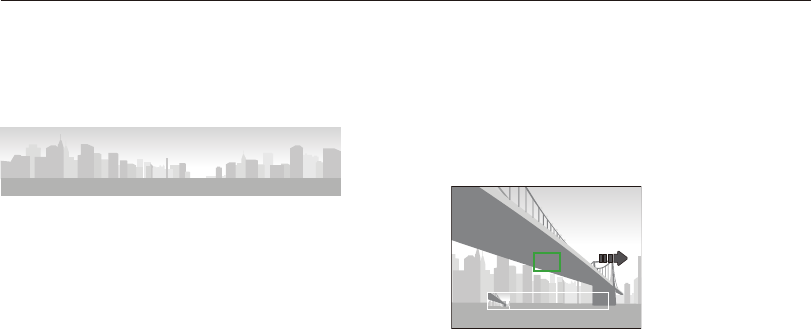
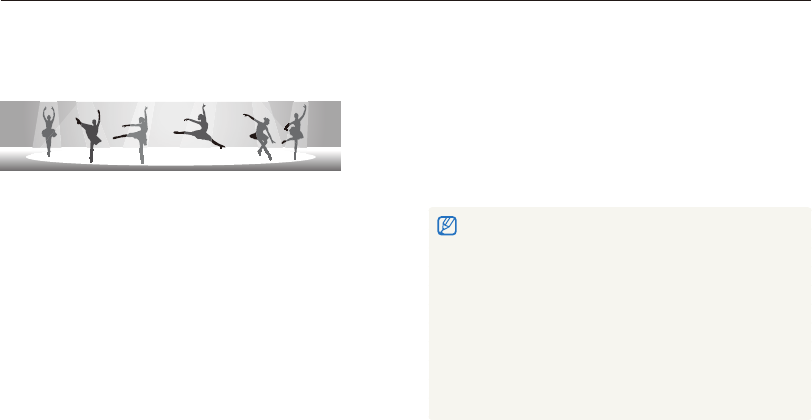
In Panorama mode, you can capture a wide panoramic scene in a single photo. Capture and combine a series of photos to create a
panoramic image.
7
With [Shutter] pressed, slowly move the camera in the
direction that will let it capture the rest of the panorama.
•
In 3D Panorama mode, you can capture a scene only in
horizontal directions.
•
When the viewfinder is aligned with the next scene, the
camera captures the next photo automatically.
8
When you are finished, release [Shutter].
•
When you have captured all the necessary shots, the camera
combines them into one panoramic photo.
Using the 2D or 3D Panorama mode
In Panorama mode, you can capture a normal or 3D panoramic
photo.
Shooting example
1
Rotate the mode dial to
R
.
2
Press [
m
].
3
Select
a
Panorama Live Panorama or
3D Panorama.
4
Press [
m
] to return to Shooting mode.
5
Align your subject in the frame, and then half-press
[Shutter] to focus.
•
Align the camera with the far left or the far right, or very top or
bottom, of the scene you want to capture.
6
Press and hold [Shutter] to start shooting.
Extended functions
49
Using the Panorama mode
•
For best results when capturing panoramic photos, avoid the
following:
- moving the camera too quickly or too slowly
- moving the camera too little to capture the next image
- moving the camera at irregular speeds
- shaking the camera
- changing the camera direction while capturing a photo
- shooting in dark places
- capturing moving subjects nearby
- shooting conditions where the brightness or color of light is
changing
•
Selecting Panorama mode will disable the digital and optical zoom
functions. If you select Panorama mode while the lens is zoomed in,
the camera automatically zooms out to the default position.
•
In Panorama mode, some shooting options are not available.
•
The camera may stop shooting due to the shooting composition or
movement within the scene.
•
In Panorama mode, your camera may not capture the last scene in
its entirety if you stop moving the camera exactly where you want the
scene to end. To capture the entire scene, move your camera slightly
beyond the point where you want the scene to end.
•
In 3D Panorama mode, your camera may not capture the very
beginning or end of a scene due to the nature of the 3D effect. To
capture the entire scene, move slightly beyond the beginning and end
points you want to capture.
•
In 3D Panorama mode, photos are captured in both JPEG and MPO
file formats.
•
You can view an MPO file that supports the 3D effect only on an
MPO-compatible display, such as 3D TV or 3D monitor. On your
camera's display, you can view only JPEG files.
•
Use proper 3D glasses when you view an MPO file on a 3D TV or
3D monitor.
Extended functions
50
Using the Panorama mode
Using the Action Panorama mode
In Action Panorama mode, you can capture and combine a series
of photos of a moving subject.
Shooting example
1
Rotate the mode dial to
R
.
2
Press [
m
].
3
Select
a
Panorama Action Panorama.
4
Press [
m
] to return to Shooting mode.
5
Align your subject in the frame, and then half-press
[Shutter] to focus.
•
Align the camera with the far left or the far right side of the
scene you want to capture.
6
Press and hold [Shutter] to start shooting.
7
With [Shutter] pressed, slowly move the camera in the
direction that will let it capture the rest of the panorama.
•
If there is more than one moving subject, the camera may not
recognize the correct subject.
•
If subjects are outside of the guide frame while capturing, the
camera does not capture the movement of the subjects.
8
When you are finished, release [Shutter].
•
The camera automatically combines the shots into one photo.
•
For best results when capturing panoramic photos, avoid the
following:
- moving the camera too quickly or too slowly
- moving the camera too little to capture the next image
- moving the camera at irregular speeds
- shaking the camera
- changing the camera direction while capturing a photo
- shooting in dark places
- capturing moving subjects nearby
- shooting conditions where the brightness or color of light is
changing
•
The camera may take time to save panoramic photos.
•
In Action Panorama mode, some shooting options are not available.
Extended functions
51
Using the Movie mode
In Movie mode, you can customize settings to record full HD videos of up to 20 minutes in length. The camera saves recorded videos as
MP4 (H.264) files.
•
H.264 (MPEG-4 part10/AVC) is a high-compression video format established by the international standards organizations ISO-IEC and ITU-T.
•
Some memory cards may not support high definition recording. If your card does not, set a lower resolution.
•
Memory cards with slow writing speeds will not support high-resolution videos and high-speed videos. To record high-resolution or high-speed videos, use memory
cards with faster write speeds.
•
If you activate the OIS function while recording a video, the camera may record the operating sound of the OIS function.
•
If you use the zoom function when recording a video, the camera may record the noise of the zoom operating. To decrease zoom noise, use the Sound Alive
function. See Steps 3 and 4 below.
5
Set desired options. (For a list of options, refer to
"Shooting options" starting on page 57.)
6
Press (Video recording) to start recording.
7
Press (Video recording) again to stop recording.
•
You can start recording a video in some modes by pressing
(Video recording) without having to rotate the mode dial to
v
.
•
The video frame size may appear smaller while you are recording a
video depending on the video resolution and frame rate.
•
If you perform no operations for approximately 3 minutes while
recording a video, the screen will become dim. To activate the screen,
perform any camera operation. If you operate POWER, Zoom, Shutter,
or Video recording button, the camera will carry out the assigned
function, even when the screen is dim.
1
Rotate the mode dial to
v
.
2
Press [
m
].
3
Select
V
Voice.
4
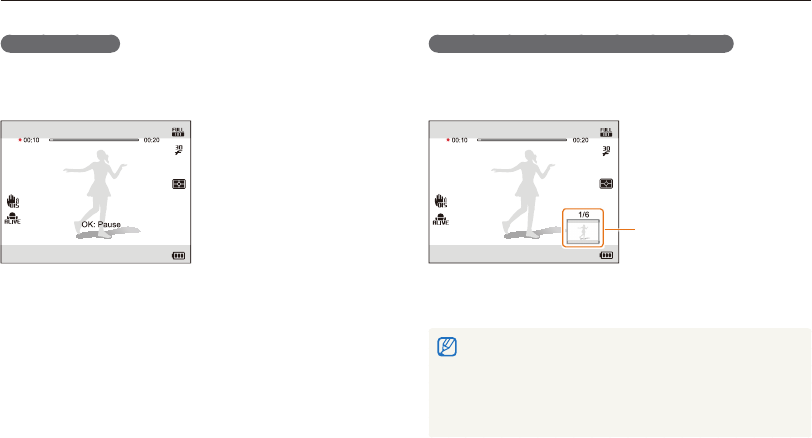
Select a Sound Alive option.
Icon Description
Sound Alive Off: Turn off the Sound Alive function to
record the zoom noise.
Sound Alive On: Turn on the Sound Alive function to
reduce the zoom noise.
Mute: Do not record sounds.
•
Do not block the microphone when you use the Sound Alive
function.
•
Recordings made with Sound Alive may differ from actual
sounds.
Extended functions
52
Using the Movie mode
Pause recording
The camera allows you to temporarily pause a video while
recording. With this function, you can record separate scenes as
a single video.
• Press [o] to pause while recording.
• Press [o] to resume.
Capturing still images while recording a video
You can capture still images while recording a video without
switching to the photo shooting modes (up to 6 photos). This
feature is available only when you use a memory card.
Images captured while
recording a video
• Press [Shutter] to capture images while recording a video.
• Captured images will be saved automatically.
•
Captured images will be automatically resized, depending on the size
of the recorded video.
•
You cannot capture still images while recording high-speed videos.
•
You cannot capture still images when you pause the video recording.
•
The quality of images captured while recording a video may be lower
than those captured normally.
Extended functions
53
Using the Movie mode
Recording high-speed videos
You can record high-speed videos by setting frame rates.
High-speed videos will be played in slow motion at 30 FPS,
regardless of the frame rate of the video.
•
Memory cards with slow write speeds do not support high-speed
videos.
•
You cannot set Smart Filter effects or Smart Scene Detection mode
when recording high-speed videos.
•
The camera does not record audio when recording high-speed
videos.
•
The image quality of high-speed video may be lower than normal
speed video.
1
Rotate the mode dial to
v
.
• v
mode only allows you to record a high-speed video.
2
Press [
Q
], and then select a frame rate.
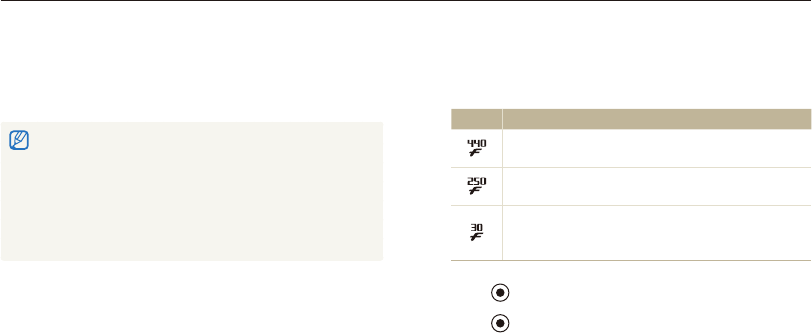
Icon Descripion
440fps: Record 440 frames per second
(for up to 10 seconds).
250fps: Record 250 frames per second
(for up to 10 seconds).
30fps: Record 30 frames per second
(for up to 20 minutes). 30fps is not a high-speed
recording option.
3
Press (Video recording) to start recording.
4
Press (Video recording) again to stop recording.
Extended functions
54
Using the Movie mode
Using the Smart Scene Detection mode
In Smart Scene Detection mode, your camera automatically
chooses the appropriate camera settings based on the scene it
has detected.
1
Rotate the mode dial to
v
.
2
Press [
m
].
3
Select
V
Smart Scene Detection On.
4
Press [
m
] to return to Shooting mode.
5
Align your subject in the frame.
•
The camera automatically selects a scene. An appropriate
scene icon will appear at the bottom left of the screen.
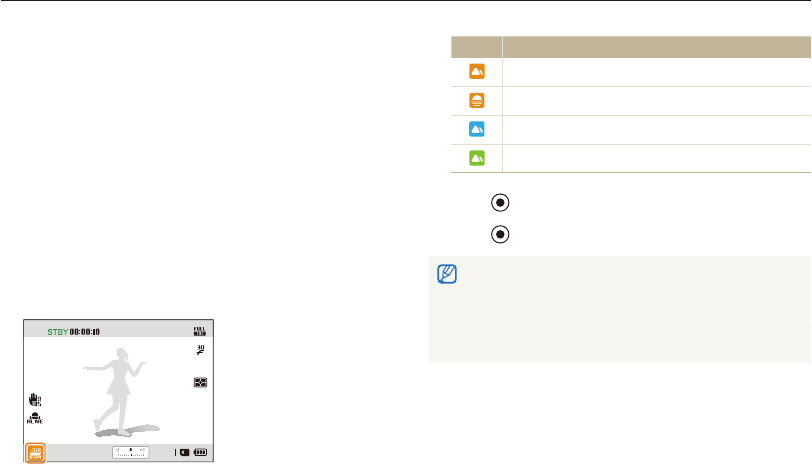
Icon Description
Landscapes
Sunsets
Blue skies
Forested areas
6
Press (Video recording) to start recording.
7
Press (Video recording) again to stop recording.
•
If the camera does not recognize an appropriate scene mode, it uses
the default settings for the Smart Scene Detection mode.
•
The camera may not select the correct scene depending on the
shooting conditions, such as camera shake, lighting, and distance to
the subject.
•
Smart Filter effects are not available in Smart Scene Detection mode.
Extended functions
55
Making a movie with the Creative Movie
Maker
1
Rotate the mode dial to
K
.
2
Select + Movie Creation.
3
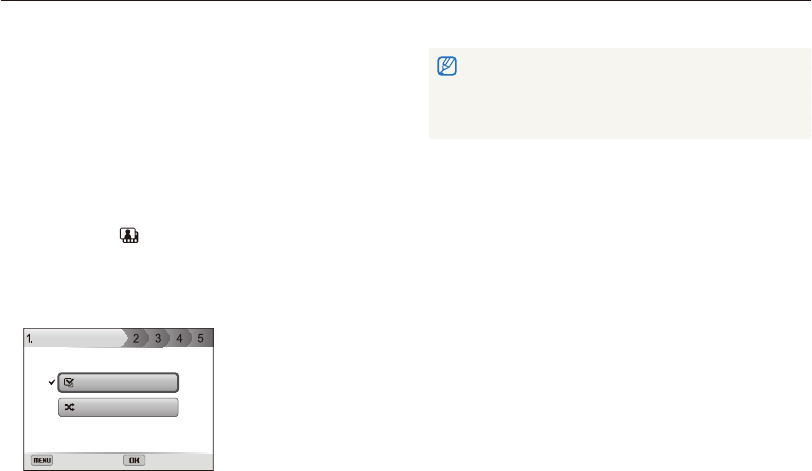
Select Select, and then select files.
•
You must select at least 2 files.
•
If you select a folder, every photo in the folder will be selected.
•
If you select a video, every photo captured while recording
the video will be selected.
•
Select Shuffle to let the camera select photos and videos
randomly. The movie cannot exceed 2 minutes 30 seconds
in length.
Select
Shuffle
Back Set
Select image
•
You cannot select photos captured in Panorama mode, videos made
in Creative Movie Maker mode, videos recorded with some Smart
Filter effects (Miniature, Vignetting, Half Tone Dot, Sketch, or
Fish-eye), or some high-speed videos (440fps).
•
You can select up to 60 photos and 10 videos.
4
Press [
f
] to confirm the selection.
5
Press [
t
] to select Theme, and then select a theme.
6
Press [
t
] to select Music, and then select music.
7
Press [
t
] to select Movie Size, and then select a movie
size.
8
Press [
t
] to select Creation, and then select Creation
Start.
•
If your camera does not have enough available memory to
store the movie, you cannot select Creation Start. Delete
files from the memory card to make more memory available.
(p. 90)
•
If the pop-up message appears when you select Creation
Start, select a smaller movie size in the Movie Size option.
•
The video rendering may take longer depending on the
number and size of the selected files.
•
Press [
m
] to cancel the video rendering.
Using the Creative Movie Maker mode
In the Creative Movie Maker mode, you can easily make movies from the photos and videos stored on your memory card.

Extended functions
56
Using the Creative Movie Maker mode
View a movie made in Creative Movie Maker
mode
1
Rotate the mode dial to
K
.
2
Press [
D
/
c
] to select a movie.
3
Press [
o
] to play the movie.
To view the movie in Playback mode, press [
P
]. (p. 85)