Sang Fei Consumer Communications CTX800 GSM/GPRS/EDGE 900/1800/1900 Tri-band Mobile Phone with Bluetooth User Manual X800 GB EN

Shenzhen Sang Fei Consumer Communications Co., Ltd. GSM/GPRS/EDGE 900/1800/1900 Tri-band Mobile Phone with Bluetooth X800 GB EN

User Manual
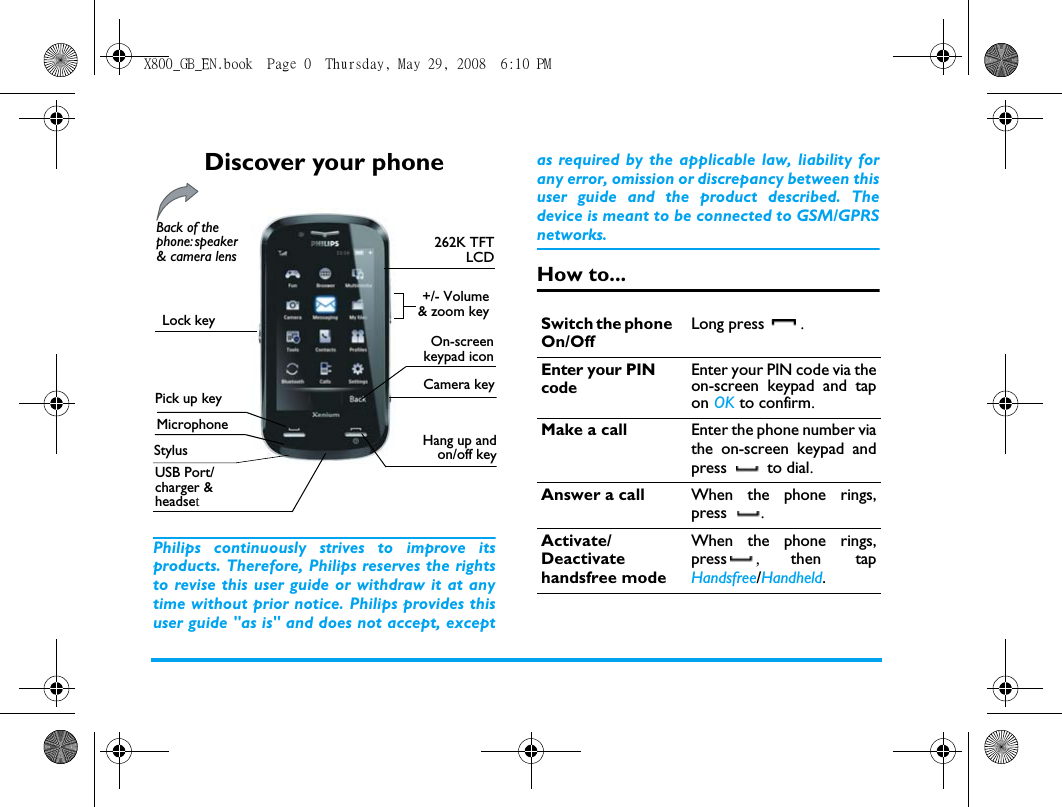
Discover your phonePhilips continuously strives to improve itsproducts. Therefore, Philips reserves the rightsto revise this user guide or withdraw it at anytime without prior notice. Philips provides thisuser guide "as is" and does not accept, exceptas required by the applicable law, liability forany error, omission or discrepancy between thisuser guide and the product described. Thedevice is meant to be connected to GSM/GPRSnetworks.How to...262K TFTLCDMicrophoneHang up andon/off keyUSB Port/charger & headsetBack of the phone: speaker & camera lensCamera keyOn-screenkeypad iconStylusLock key+/- Volume& zoom keyPick up keySwitch the phone On/OffLong press .Enter your PIN codeEnter your PIN code via theon-screen keypad and tapon OK to confirm.Make a call Enter the phone number viathe on-screen keypad andpress  to dial.Answer a call When the phone rings,press .Activate/Deactivate handsfree modeWhen the phone rings,press ,  then tapHandsfree/Handheld. X800_GB_EN.book  Page 0  Thursday, May 29, 2008  6:10 PM
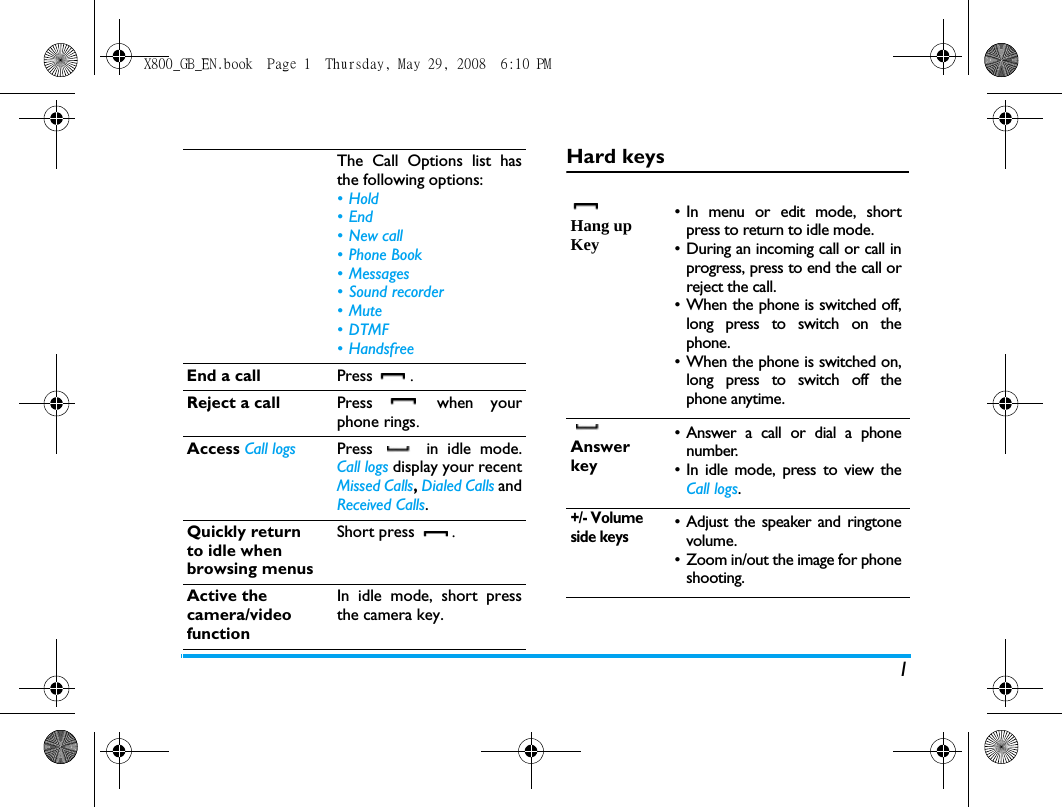
1Hard keysThe Call Options list hasthe following options:•Hold•End• New call •Phone Book• Messages• Sound recorder•Mute•DTMF• HandsfreeEnd a call Press .Reject a call Press  when yourphone rings.Access Call logs Press   in idle mode.Call logs display your recentMissed Calls, Dialed Calls andReceived Calls.Quickly returnto idle when browsing menusShort press .Active the camera/video functionIn idle mode, short pressthe camera key.Hang up Key• In menu or edit mode, shortpress to return to idle mode.• During an incoming call or call inprogress, press to end the call orreject the call.• When the phone is switched off,long press to switch on thephone.• When the phone is switched on,long press to switch off thephone anytime.Answer key• Answer a call or dial a phonenumber.• In idle mode, press to view theCall logs.+/- Volume side keys• Adjust the speaker and ringtonevolume.• Zoom in/out the image for phoneshooting.X800_GB_EN.book  Page 1  Thursday, May 29, 2008  6:10 PM
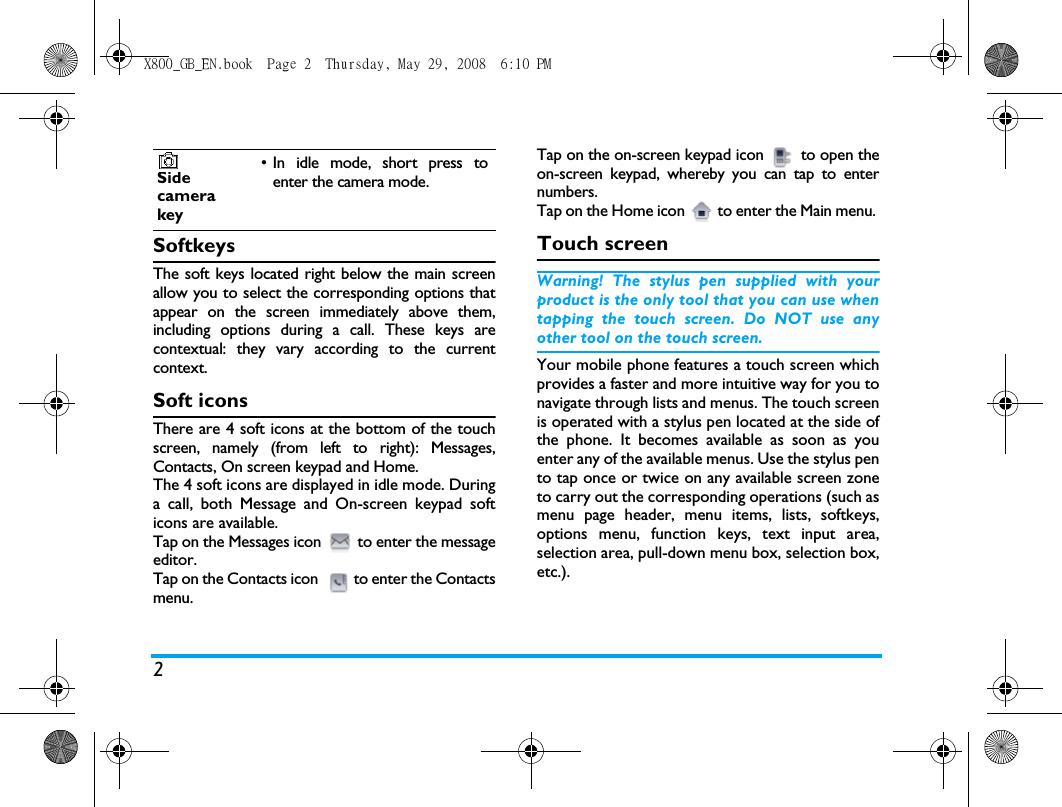
2SoftkeysThe soft keys located right below the main screenallow you to select the corresponding options thatappear on the screen immediately above them,including options during a call. These keys arecontextual: they vary according to the currentcontext.Soft iconsThere are 4 soft icons at the bottom of the touchscreen, namely (from left to right): Messages,Contacts, On screen keypad and Home.The 4 soft icons are displayed in idle mode. Duringa call, both Message and On-screen keypad softicons are available.Tap on the Messages icon  to enter the messageeditor. Tap on the Contacts icon  to enter the Contactsmenu.Tap on the on-screen keypad icon  to open theon-screen keypad, whereby you can tap to enternumbers.Tap on the Home icon  to enter the Main menu. Touch screenWarning! The stylus pen supplied with yourproduct is the only tool that you can use whentapping the touch screen. Do NOT use anyother tool on the touch screen.Your mobile phone features a touch screen whichprovides a faster and more intuitive way for you tonavigate through lists and menus. The touch screenis operated with a stylus pen located at the side ofthe phone. It becomes available as soon as youenter any of the available menus. Use the stylus pento tap once or twice on any available screen zoneto carry out the corresponding operations (such asmenu page header, menu items, lists, softkeys,options menu, function keys, text input area,selection area, pull-down menu box, selection box,etc.).Sidecamerakey• In idle mode, short press toenter the camera mode.X800_GB_EN.book  Page 2  Thursday, May 29, 2008  6:10 PM
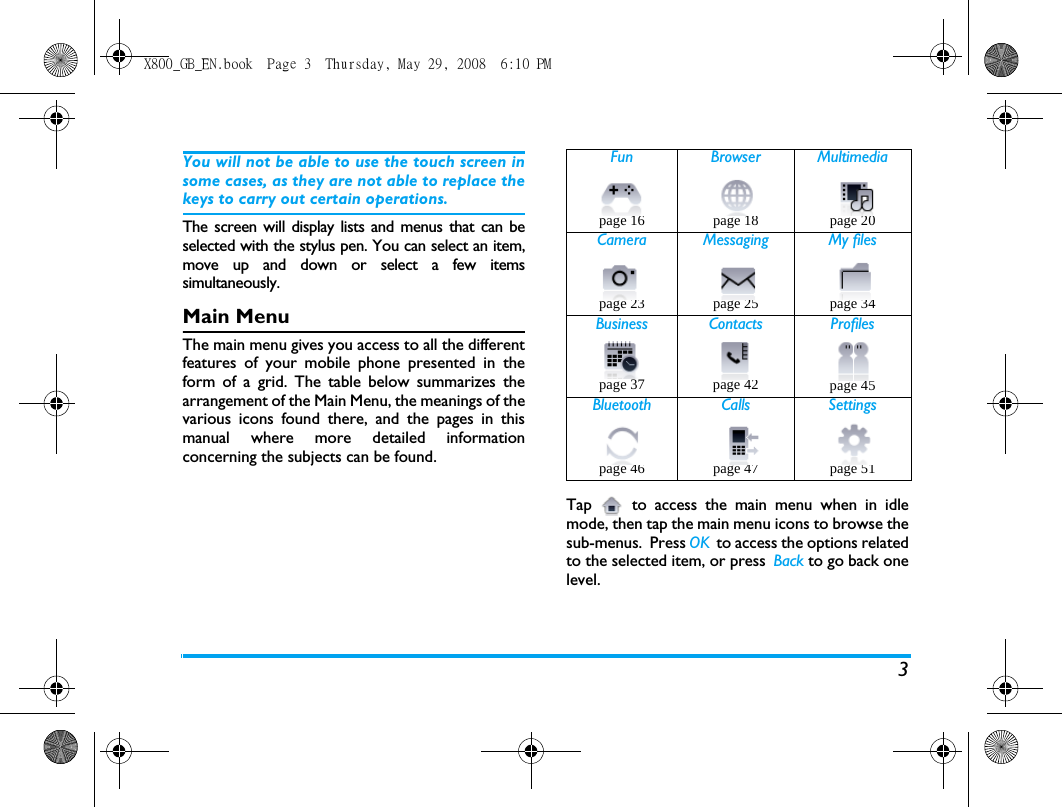
3You will not be able to use the touch screen insome cases, as they are not able to replace thekeys to carry out certain operations. The screen will display lists and menus that can beselected with the stylus pen. You can select an item,move up and down or select a few itemssimultaneously. Main MenuThe main menu gives you access to all the differentfeatures of your mobile phone presented in theform of a grid. The table below summarizes thearrangement of the Main Menu, the meanings of thevarious icons found there, and the pages in thismanual where more detailed informationconcerning the subjects can be found. Tap  to access the main menu when in idlemode, then tap the main menu icons to browse thesub-menus.  Press OK  to access the options relatedto the selected item, or press  Back to go back onelevel.Fun Browser Multimediapage 16 page 18 page 20 Camera Messaging My filespage 23 page 25 page 34Business Contacts Profilespage 37 page 42 page 45Bluetooth Calls Settingspage 46 page 47 page 51X800_GB_EN.book  Page 3  Thursday, May 29, 2008  6:10 PM
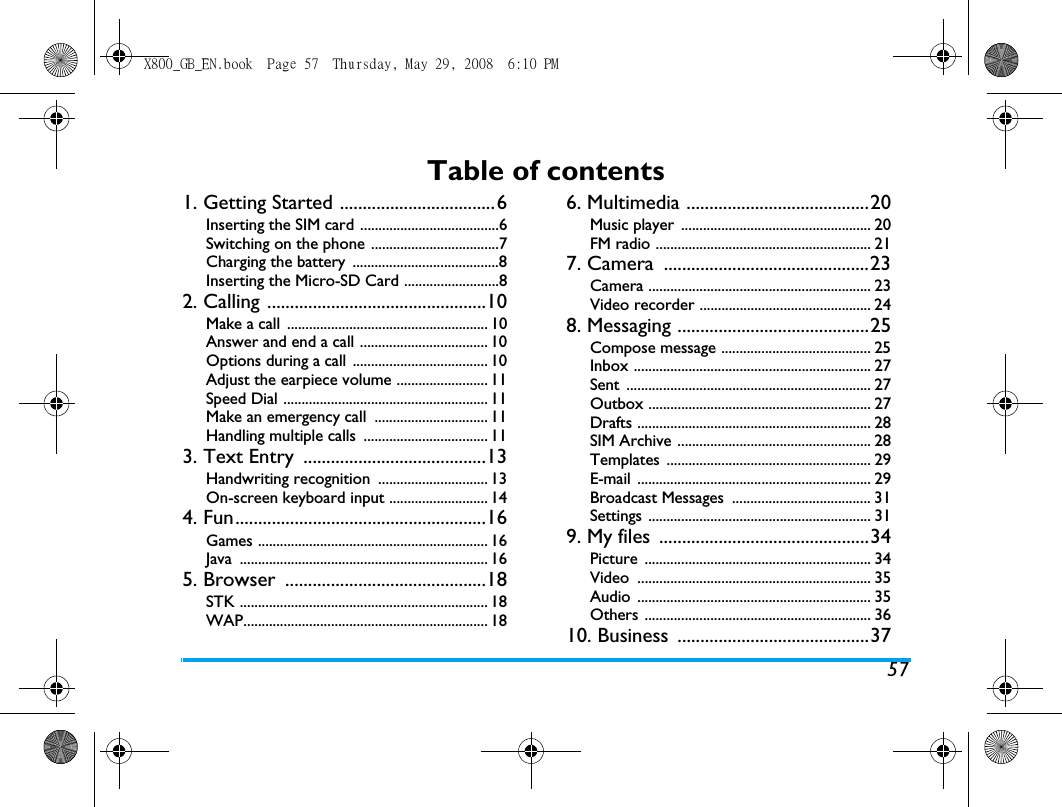
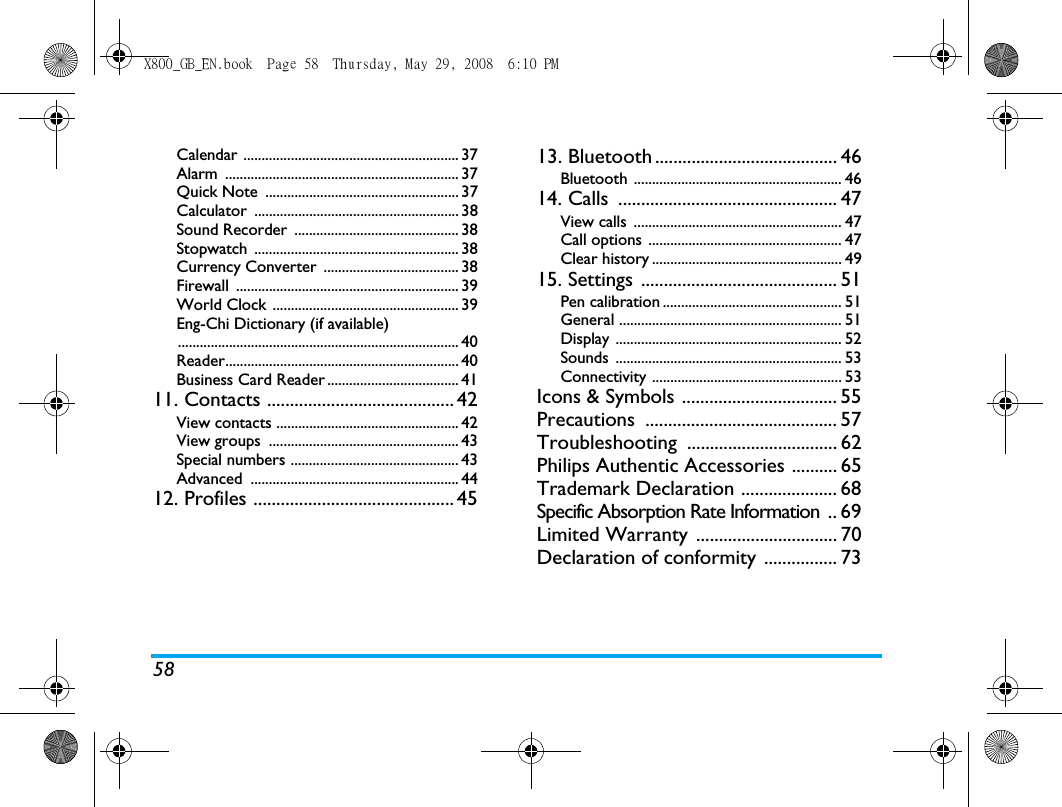
57Table of contents1. Getting Started ..................................6Inserting the SIM card ......................................6Switching on the phone ...................................7Charging the battery  ........................................8Inserting the Micro-SD Card ..........................82. Calling ................................................10Make a call  ....................................................... 10Answer and end a call ................................... 10Options during a call  ..................................... 10Adjust the earpiece volume ......................... 11Speed Dial ........................................................ 11Make an emergency call  ............................... 11Handling multiple calls  .................................. 113. Text Entry  ........................................13Handwriting recognition  .............................. 13On-screen keyboard input ........................... 144. Fun.......................................................16Games ............................................................... 16Java .................................................................... 165. Browser  ............................................18STK .................................................................... 18WAP................................................................... 186. Multimedia ........................................20Music player  .................................................... 20FM radio ........................................................... 217. Camera  .............................................23Camera ............................................................. 23Video recorder ............................................... 248. Messaging ..........................................25Compose message ......................................... 25Inbox ................................................................. 27Sent ................................................................... 27Outbox ............................................................. 27Drafts ................................................................ 28SIM Archive ..................................................... 28Templates ........................................................ 29E-mail ................................................................ 29Broadcast Messages  ...................................... 31Settings ............................................................. 319. My files  ..............................................34Picture .............................................................. 34Video ................................................................ 35Audio ................................................................ 35Others .............................................................. 3610. Business  ..........................................37X800_GB_EN.book  Page 57  Thursday, May 29, 2008  6:10 PM
58Calendar ........................................................... 37Alarm ................................................................ 37Quick Note  ..................................................... 37Calculator ........................................................ 38Sound Recorder  ............................................. 38Stopwatch ........................................................ 38Currency Converter  ..................................... 38Firewall ............................................................. 39World Clock ................................................... 39Eng-Chi Dictionary (if available)............................................................................. 40Reader................................................................ 40Business Card Reader .................................... 4111. Contacts ......................................... 42View contacts .................................................. 42View groups  .................................................... 43Special numbers .............................................. 43Advanced ......................................................... 4412. Profiles ............................................ 4513. Bluetooth........................................ 46Bluetooth ......................................................... 4614. Calls  ................................................ 47View calls  ......................................................... 47Call options  ..................................................... 47Clear history .................................................... 4915. Settings  ........................................... 51Pen calibration ................................................. 51General ............................................................. 51Display .............................................................. 52Sounds .............................................................. 53Connectivity .................................................... 53Icons & Symbols .................................. 55Precautions .......................................... 57Troubleshooting ................................. 62Philips Authentic Accessories .......... 65Trademark Declaration ..................... 68Specific Absorption Rate Information  .. 69Limited Warranty ............................... 70Declaration of conformity ................ 73X800_GB_EN.book  Page 58  Thursday, May 29, 2008  6:10 PM
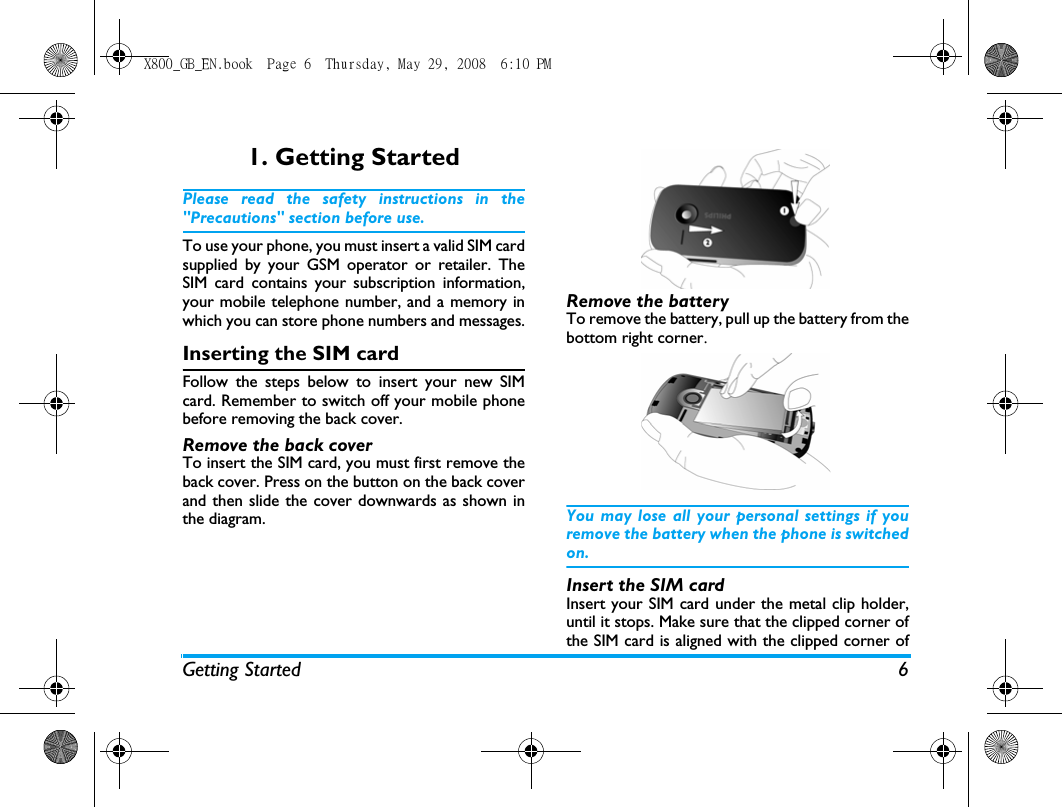
Getting Started 61. Getting StartedPlease read the safety instructions in the"Precautions" section before use.To use your phone, you must insert a valid SIM cardsupplied by your GSM operator or retailer. TheSIM card contains your subscription information,your mobile telephone number, and a memory inwhich you can store phone numbers and messages.Inserting the SIM cardFollow the steps below to insert your new SIMcard. Remember to switch off your mobile phonebefore removing the back cover. Remove the back coverTo insert the SIM card, you must first remove theback cover. Press on the button on the back coverand then slide the cover downwards as shown inthe diagram.Remove the batteryTo remove the battery, pull up the battery from thebottom right corner.You may lose all your personal settings if youremove the battery when the phone is switchedon.Insert the SIM cardInsert your SIM card under the metal clip holder,until it stops. Make sure that the clipped corner ofthe SIM card is aligned with the clipped corner ofX800_GB_EN.book  Page 6  Thursday, May 29, 2008  6:10 PM
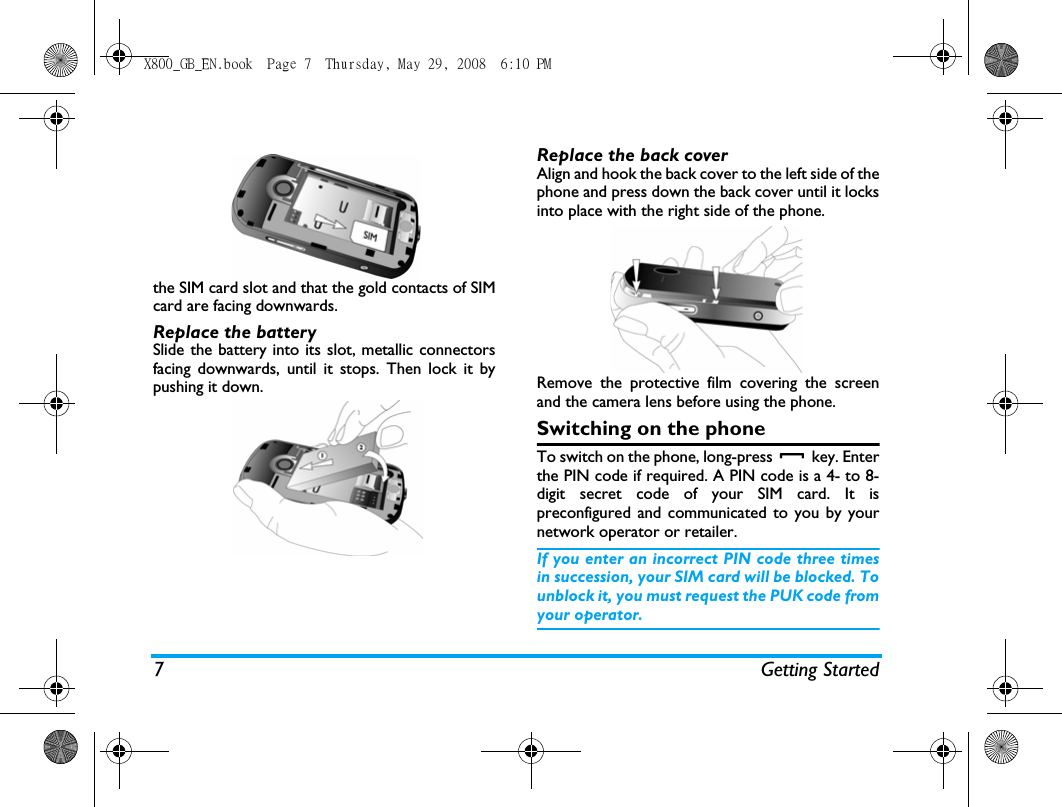
7 Getting Startedthe SIM card slot and that the gold contacts of SIMcard are facing downwards.Replace the batterySlide the battery into its slot, metallic connectorsfacing downwards, until it stops. Then lock it bypushing it down.Replace the back coverAlign and hook the back cover to the left side of thephone and press down the back cover until it locksinto place with the right side of the phone.Remove the protective film covering the screenand the camera lens before using the phone.Switching on the phoneTo switch on the phone, long-press   key. Enterthe PIN code if required. A PIN code is a 4- to 8-digit secret code of your SIM card. It ispreconfigured and communicated to you by yournetwork operator or retailer. If you enter an incorrect PIN code three timesin succession, your SIM card will be blocked. Tounblock it, you must request the PUK code fromyour operator.X800_GB_EN.book  Page 7  Thursday, May 29, 2008  6:10 PM
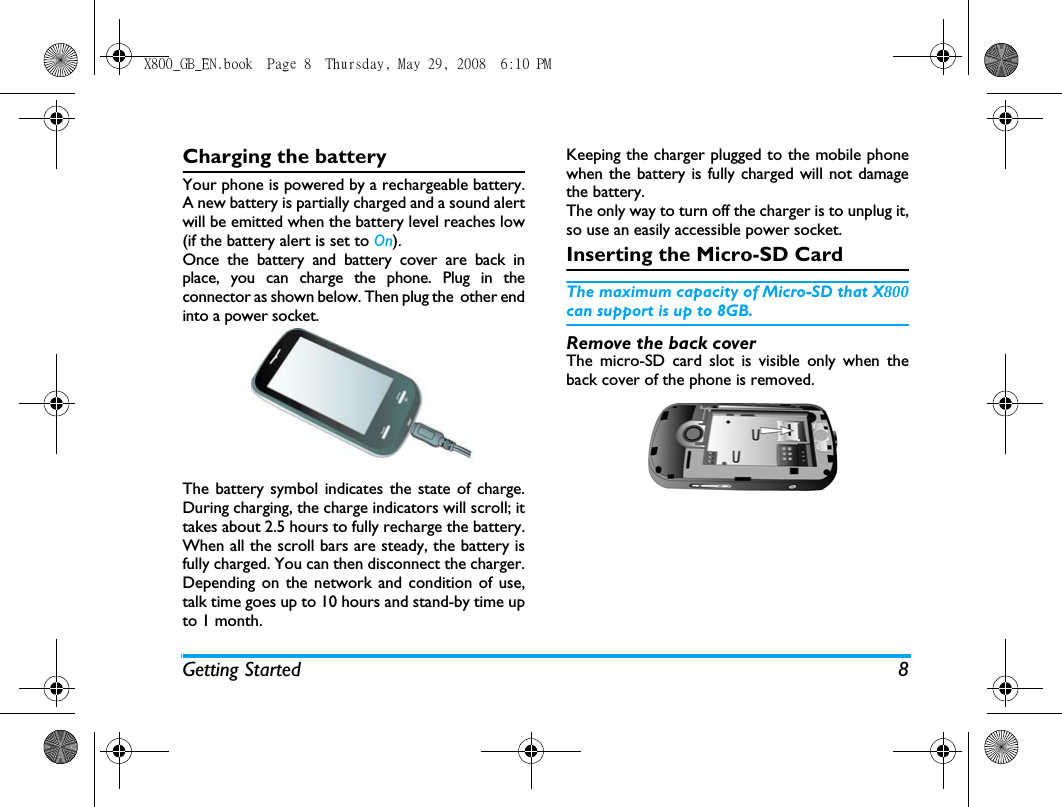
Getting Started 8Charging the batteryYour phone is powered by a rechargeable battery.A new battery is partially charged and a sound alertwill be emitted when the battery level reaches low(if the battery alert is set to On).Once the battery and battery cover are back inplace, you can charge the phone. Plug in theconnector as shown below. Then plug the  other endinto a power socket.The battery symbol indicates the state of charge.During charging, the charge indicators will scroll; ittakes about 2.5 hours to fully recharge the battery.When all the scroll bars are steady, the battery isfully charged. You can then disconnect the charger.Depending on the network and condition of use,talk time goes up to 10 hours and stand-by time upto 1 month.Keeping the charger plugged to the mobile phonewhen the battery is fully charged will not damagethe battery. The only way to turn off the charger is to unplug it,so use an easily accessible power socket. Inserting the Micro-SD CardThe maximum capacity of Micro-SD that X800can support is up to 8GB.Remove the back coverThe micro-SD card slot is visible only when theback cover of the phone is removed.X800_GB_EN.book  Page 8  Thursday, May 29, 2008  6:10 PM
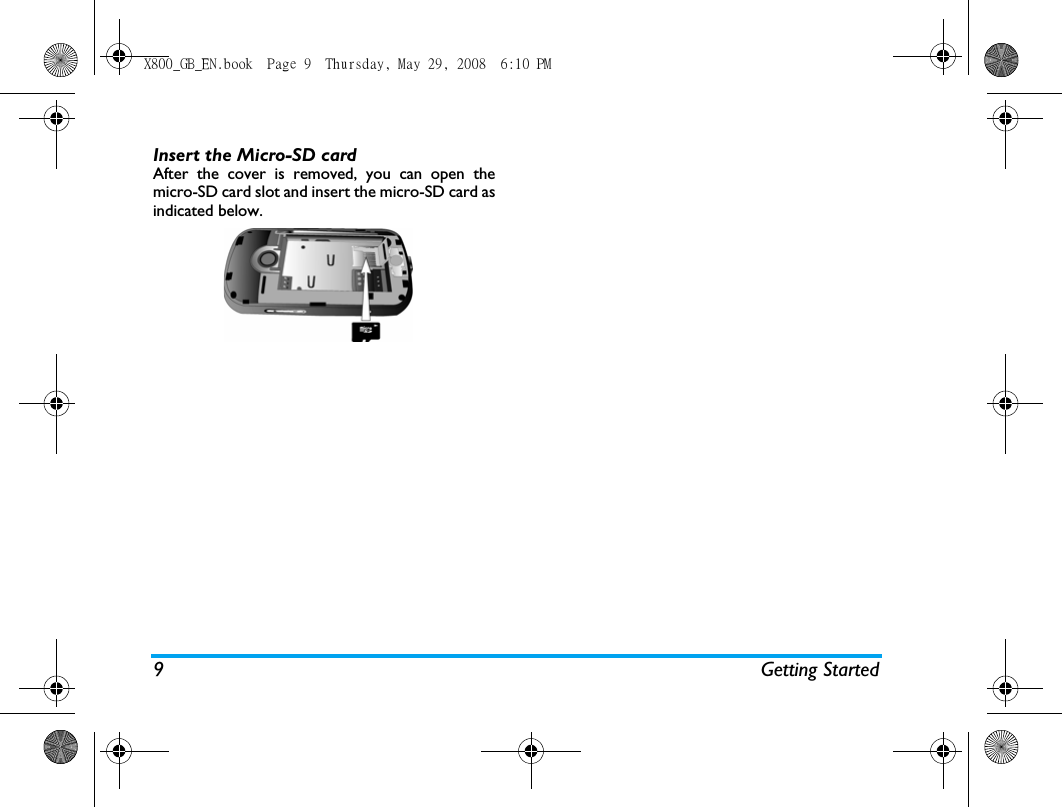
9 Getting StartedInsert the Micro-SD cardAfter the cover is removed, you can open themicro-SD card slot and insert the micro-SD card asindicated below.X800_GB_EN.book  Page 9  Thursday, May 29, 2008  6:10 PM
Calling 102. CallingMake a callFrom the idle screen1.In idle mode, tap the   icon at the bottomof the touch screen to open the phonenumber input screen. Tap the on-screennumbers to enter the phone number. Tocorrect an error, tap on Clear.2.Press   to dial or tap on Dial.3.Press   to hang up.For international calls, long press the on-screen "0"key  to enter the "+" sign for the internationalprefix.Using the phonebook1.In idle mode, tap on the   icon at thebottom of the touch screen  and select ViewContacts to open the contact list..2.Select a contact from the list and press to dial the selected number. 3.Press   to hang up.Answer and end a callWhen receiving a call, the number of the caller may bedisplayed, depending on whether or not the callingparty has chosen to display his or her ID. If thenumber is stored in the phonebook, then thecorresponding name is displayed instead of thenumber.•Answer the call: press   or tap on Optionsand select Answer.•Reject the call: press   or tap on  Optionsand select Reject. If you have activated Callforward, then the call will be diverted to anothernumber or your voice mail.•Hang up: press  .The phone will not ring if it is in Silent mode (see“Profiles” on page 45 ).Options during a callDuring a call, Select to access Contacts, display theKeypad or Options to access the following options:-Loud sp/Headset-Put the call on Hold-Sound Recorder- Mute/Unmute the call- Enabling  DTMF (the touch tone dialingsystem)- Make a New callX800_GB_EN.book  Page 10  Thursday, May 29, 2008  6:10 PM
11 CallingSound RecorderIn most countries, recording of telephoneconversation is subject to legislation. We adviseyou to notify the caller if you intend to recordthe conversation and only do so if they agree.You should also ensure confidentiality of therecordings.To record a conversation during a call, selectOptions and select Sound Recorder. Recorded soundis saved in *.amr format and stored in Audio of  Myfiles  menu. (see “Multimedia” on page 20).Mute or unmute a callDuring a call, select Options and select to set theMute function On/Off. If you select Mute, themicrophone will be deactivated.When you switch from one call to another, mutingwill be cancelled.Adjust the earpiece volumeDuring a call, press + or - side keys to increase ordecrease the volume.Speed DialSpeed dial via call logsIn idle mode, press   to access Call Logs. Select anumber you wish to call and press   to dial thenumber.Make an emergency callWithout a SIM card in phone, you can tap on  SOSto make the emergency call.With a SIM card in phone, you can enter  theemergency number in idle mode, then press  .Note that an emergency call will not be storedin the call record. In Europe, the standard emergency number is112, in the UK, it is 999.Handle multiple calls (Network Dependent)You can handle two or more calls at the same time,as well as make conference calls with your phone.The availability of this feature is dependent on yournetwork operator and/or your subscription.X800_GB_EN.book  Page 11  Thursday, May 29, 2008  6:10 PM
Calling 12Make a second call You can make a second call when there is an activecall or with a call on hold. While on the phone, dialthe number (or select a contact from thephonebook) and press  . The first call is put onhold and the second number is dialled. You canthen select Options to access the following options:•Loud sp/Headset•Swap to toggle between 2 calls.•Conference to introduce the caller into aconference call.•Transfer  to connect the two calls. You aredisconnected when the transfer is completed.•End Single to disconnect one party from the call.•End All to disconnect all party from the call.•Phone book to access the contact list.•Messages to send and receive messages.•Sound Recorder to record the phoneconversation.• Mute to deactivate the microphone.• DTMF to activate the touch tone dialing system.Answer a second callWhen you receive a second call while already incommunication, the phone will emit a beep toneand the screen displays information about theincoming call. You can then:To receive a second call, Call Divert for voicecalls (see page 48) must be deactivated and Callwaiting (see page 48) must be activated.Press  To answer the call (the first oneis put on hold).Press  To reject the call.Options To access the options list. Youcan select End Active to end thecurrent call and answer theincoming call.X800_GB_EN.book  Page 12  Thursday, May 29, 2008  6:10 PM
Text Entry 133. Text EntryYour mobile phone supports a number of textediting modes, including Handwriting input, Pinyininput, English input, Numeric input and Symbolinput. During text editing, tap on   and   to togglebetween the handwriting recognition mode and on -screen keyboard input mode.You can use handwriting recognition mode andon-screen keyboard input mode at the sametime . Handwriting recognitionIn handwriting recognition mode, you can enterChinese characters, English letters, numbers,symbols (including punctuations) by means ofhandwriting recognition.1.Tap the corresponding icon on the touchscreen to toggle between Chinese characterinput mode  , English letter input mode and symbol input mode    . 2.Write the text with your stylus pen. Thesystem will recognize your handwritingautomatically and show the recognized result inthe input area, with the proposed candidatecharacters displayed. 3.Ta p  Select to confirm the character.  If therecognized result is not the character youdesire, choose one from the candidatecharacters and tap it to replace the one in theinput area. You can tap on Clear to delete thecharacter or  symbol on the left of the cursorin the text area. Long press Clear will clear allcontents on the left of the cursor in the textarea.4.After you have finished writing, tap on Done togo to the next step and choose a recipient foryour message . 5.Ta p  o n  Options to access the SMS/MMSoptions menu. For detailed information, see“Messaging” on page 25,  The following examples describe the handwritingrecognition process for Chinese characters, Englishletters, symbols and numbers.X800_GB_EN.book  Page 13  Thursday, May 29, 2008  6:10 PM
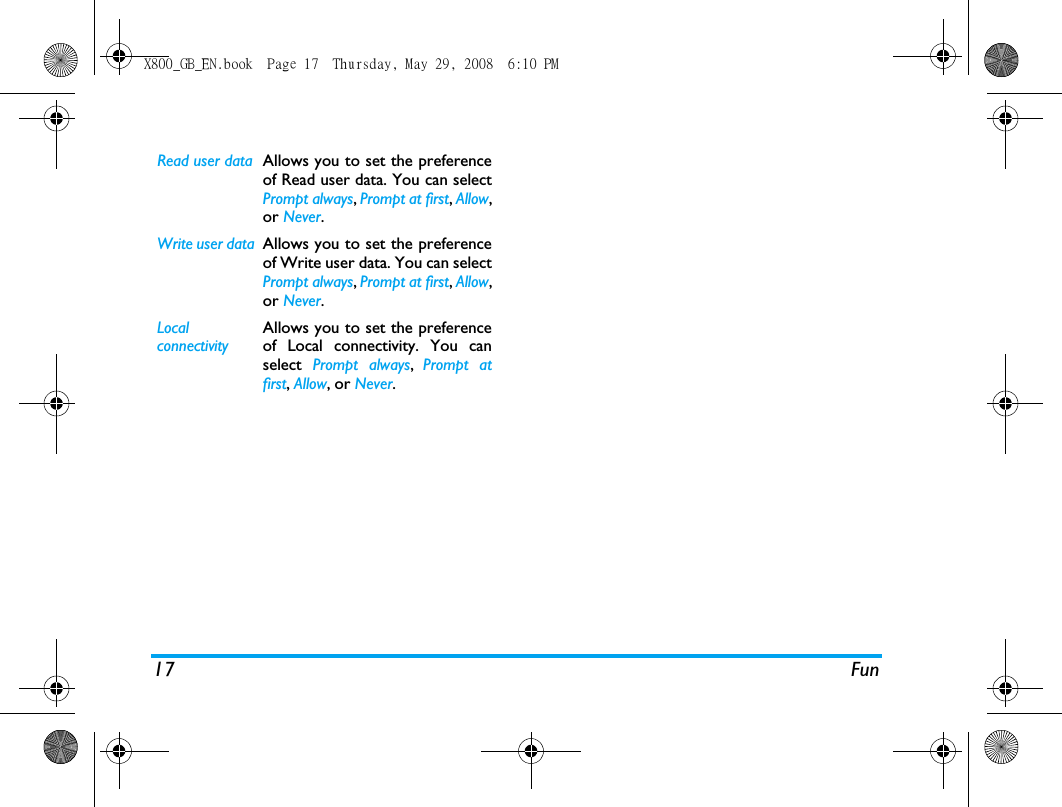
14 Text EntryInput Chinese characters1.Tap   or  to enter the Chinese characterinput mode.2.Write the Chinese character with your styluspen on the touch screen.3.You will see the recognized result on the inputarea, with the proposed candidate charactersdisplayed. 4.Tap   Select to confirm the character or chooseone of the candidates from the input line and tapit to replace the one in the input area.Input English letters1.Tap   to enter the English letter inputmode.2.Write an English letter with your stylus penon the touch screen. The system candifferentiate between upper and lower case.You do not need to shift case before youwrite.3.You will see the recognized result on the inputarea, with the proposed candidate charactersdisplayed. .4.Tap   Select to confirm the character or chooseone of the candidates from the input line and tapit to replace the one in the input area.Input Symbols1.Tap   to enter the symbol input mode.2.Tap a symbol on the touch screen with yourstylus pen.Input numbers1.Tap   to enter the number input mode.2.Write a number with your stylus pen on thetouch screen.3.You will see the recognized result on the inputarea.4.with the proposed candidate charactersdisplayed. .5.Tap   Select to confirm the character or chooseone of the candidates from the input line and tapit to replace the one in the input area.Space InputTap   to insert a space after the cursor. Line break operationTap   on-screen line break symbol to start a newline.On-screen keyboard inputOn-screen English keyboardYou can input 26 English letters, 10 numbers andother symbols under this mode. Tap the letter orX800_GB_EN.book  Page 14  Thursday, May 29, 2008  6:10 PM
Text Entry 15number on the screen and the editor will displaythe letter or number you have tapped. Under theEnglish input mode, you can tap   or   on thescreen to switch between upper case and lowercase letter.The on-screen keyboard input mode has 3 tabs,allowing you to input Chinese characters,English characters, and symbols. It does nothave a tab for entering numbers, becausenumeric keys are part of the keyboard. Themethod for entering English characters,Chinese characters, symbols, space inputs, andline breaks are exactly the same as those underHandwriting recognition mode. Please refer tothe section “Handwriting recognition” onpage 13 for more information.On-screen Pinyin keyboard (for Simplified Chinese)Tap the Chinese characters on the screen tocompose a pinyin combination, the correspondinglist of candidate characters will be displayed on thescreen. You can navigate the list of candidateletters using   and   on-screen icons. They areneeded when the candidate characters cannot bedisplayed on one line of space.  If the character thatyou wish to input is displayed in the candidate list,you can tap the character directly with your styluspen to display it in the editor.Predictive text inputThe predictive text input is an intelligent editingmode for entering text on a mobile phone. It allowsyou to enter text more quickly by anticipating theword you want to enter based on the key presses.Press    and   on-screen icons to browse the listand tap the character directly with your stylus pento display it in the editor.On-screen symbol/number keyboardSee “Input Symbols” on page 14 and  “Inputnumbers” on page 14. X800_GB_EN.book  Page 15  Thursday, May 29, 2008  6:10 PM
Fun 164. Fun GamesSelect a game and tap OK. For details regarding acertain game, please refer to Game Help.JavaYour mobile phone features a Java run-timeenvironment, which allows you to run Javaapplications, such as games downloaded from thenetwork.The first time you launch Java, a message appears toalert you that the installation and configuration ofJava will take several moments. This is a one-timeoccurrence.Java SettingsOnce Java has been installed, you may then selectOptions > Settings to set the following:Network AccessAllows you to set the automaticconnection preference. You canselect  Prompt always,  Prompt atfirst, or Never. Auto Invocation Allows you to set the preferenceof starting a Midlet automatically.You can select Prompt always,Prompt at first, or Never. Your mobile phone may displaymessages about "MIDlets".MIDlets are JAVA applicationsor games.Messaging Allows you to set the preferenceof receiving messages. You canselect Prompt always or Never.Multimedia Allows you to set the preferenceof multimedia messages. You canselect  Prompt always,  Prompt atfirst, or Never.X800_GB_EN.book  Page 16  Thursday, May 29, 2008  6:10 PM
17 FunRead user data Allows you to set the preferenceof Read user data. You can selectPrompt always, Prompt at first, Allow,or Never.Write user data Allows you to set the preferenceof Write user data. You can selectPrompt always, Prompt at first, Allow,or Never.Local connectivityAllows you to set the preferenceof Local connectivity. You canselect  Prompt always,  Prompt atfirst, Allow, or Never.X800_GB_EN.book  Page 17  Thursday, May 29, 2008  6:10 PM
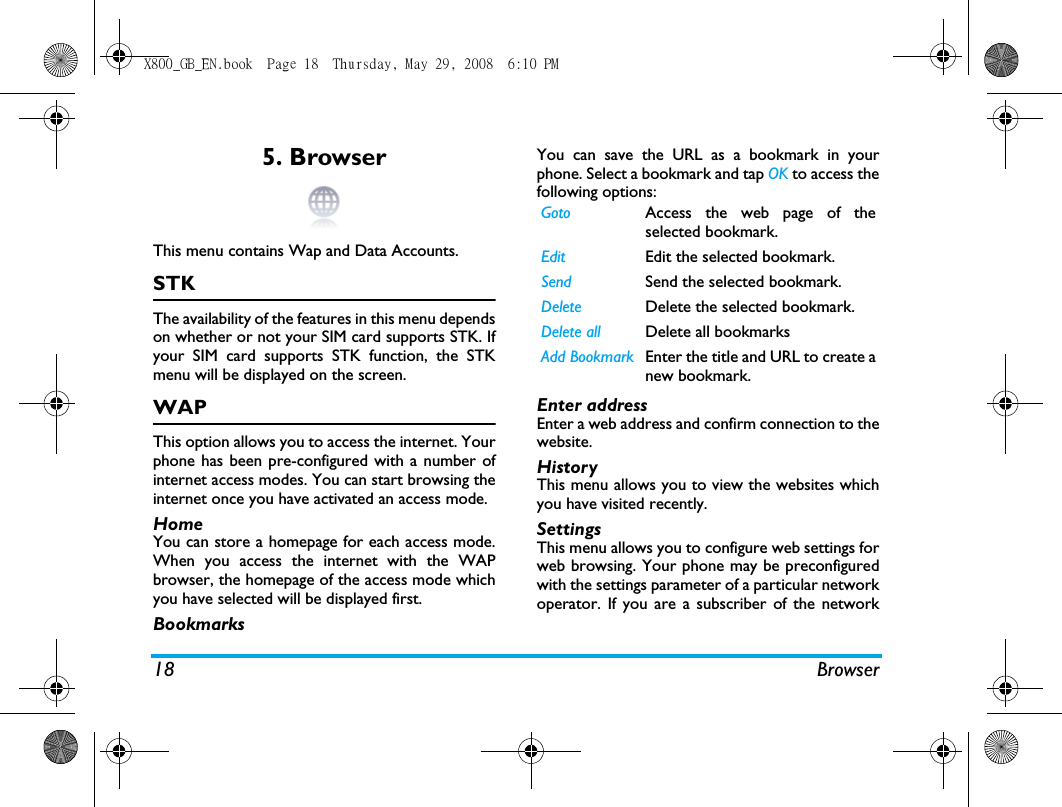
18 Browser5. BrowserThis menu contains Wap and Data Accounts.STKThe availability of the features in this menu dependson whether or not your SIM card supports STK. Ifyour SIM card supports STK function, the STKmenu will be displayed on the screen.WAPThis option allows you to access the internet. Yourphone has been pre-configured with a number ofinternet access modes. You can start browsing theinternet once you have activated an access mode.HomeYou can store a homepage for each access mode.When you access the internet with the WAPbrowser, the homepage of the access mode whichyou have selected will be displayed first.BookmarksYou can save the URL as a bookmark in yourphone. Select a bookmark and tap OK to access thefollowing options:Enter addressEnter a web address and confirm connection to thewebsite.HistoryThis menu allows you to view the websites whichyou have visited recently.SettingsThis menu allows you to configure web settings forweb browsing. Your phone may be preconfiguredwith the settings parameter of a particular networkoperator. If you are a subscriber of the networkGoto Access the web page of theselected bookmark.Edit Edit the selected bookmark.Send Send the selected bookmark.Delete Delete the selected bookmark.Delete all Delete all bookmarksAdd Bookmark Enter the title and URL to create anew bookmark.X800_GB_EN.book  Page 18  Thursday, May 29, 2008  6:10 PM
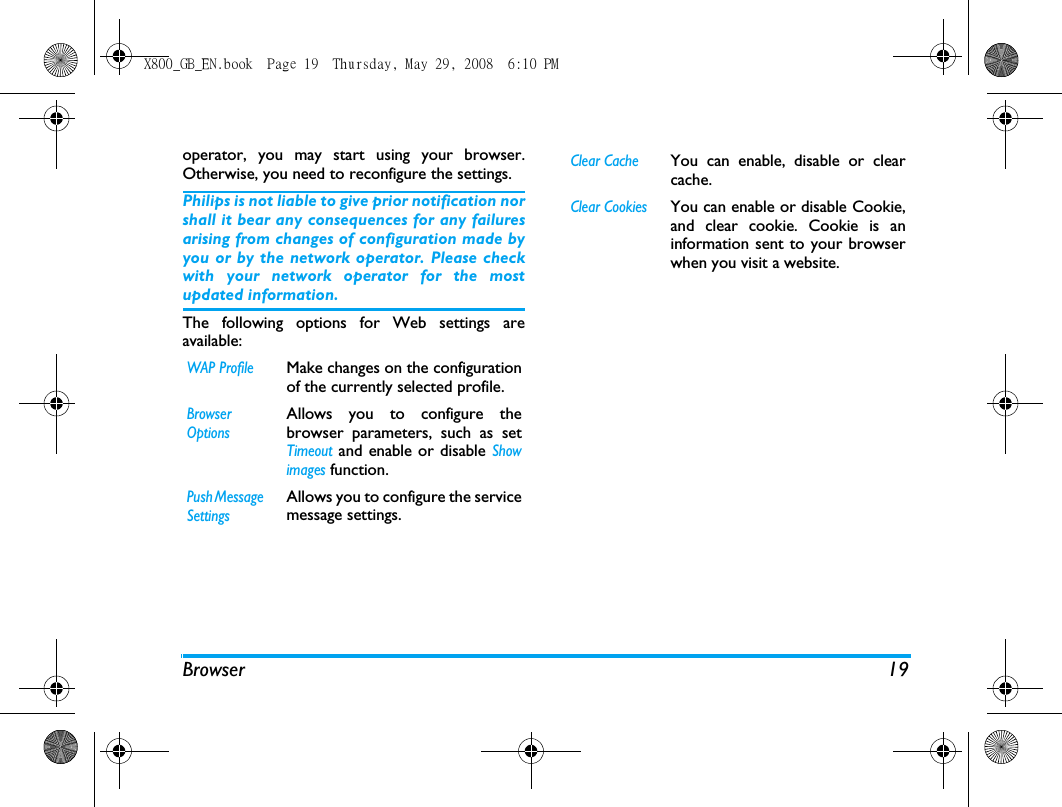
Browser 19operator, you may start using your browser.Otherwise, you need to reconfigure the settings. Philips is not liable to give prior notification norshall it bear any consequences for any failuresarising from changes of configuration made byyou or by the network operator. Please checkwith your network operator for the mostupdated information.The following options for Web settings areavailable:WAP ProfileMake changes on the configurationof the currently selected profile.Browser OptionsAllows you to configure thebrowser parameters, such as setTimeout and enable or disable Showimages function.Push Message SettingsAllows you to configure the servicemessage settings.Clear CacheYou can enable, disable or clearcache. Clear CookiesYou can enable or disable Cookie,and clear cookie. Cookie is aninformation sent to your browserwhen you visit a website. X800_GB_EN.book  Page 19  Thursday, May 29, 2008  6:10 PM
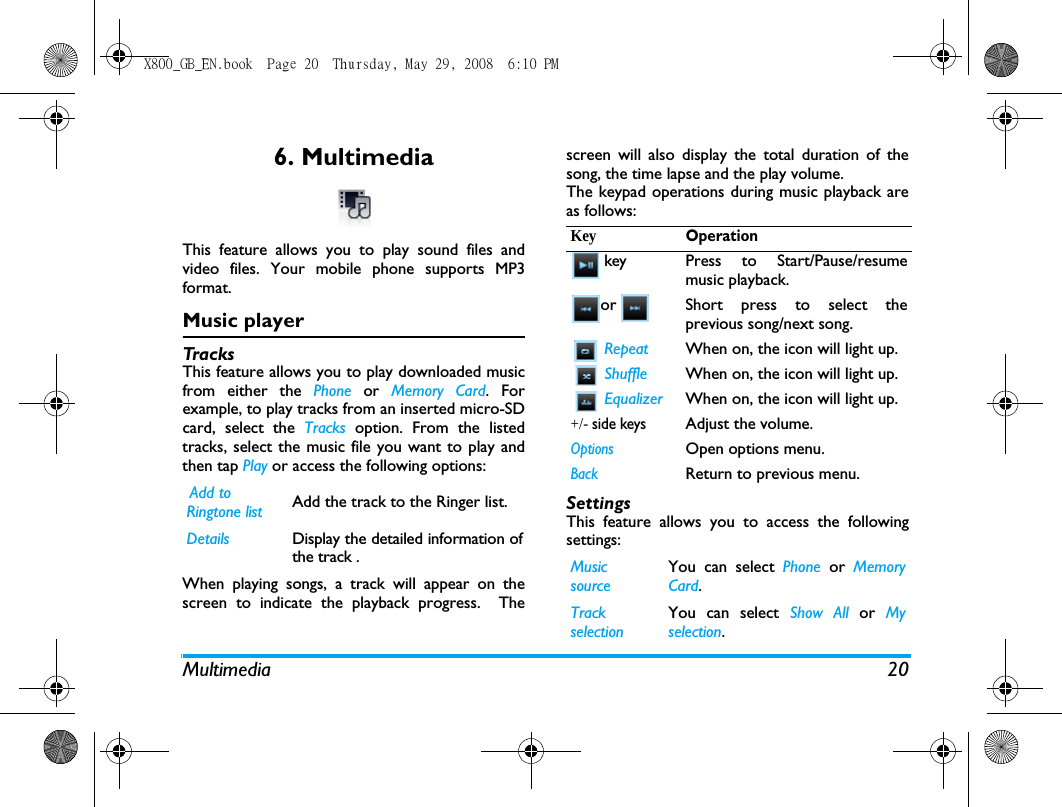
Multimedia 206. MultimediaThis feature allows you to play sound files andvideo files. Your mobile phone supports MP3format.Music playerTracksThis feature allows you to play downloaded musicfrom either the Phone or Memory Card. Forexample, to play tracks from an inserted micro-SDcard, select the Tracks option. From the listedtracks, select the music file you want to play andthen tap Play or access the following options:When playing songs, a track will appear on thescreen to indicate the playback progress.  Thescreen will also display the total duration of thesong, the time lapse and the play volume. The keypad operations during music playback areas follows: SettingsThis feature allows you to access the followingsettings: Add to Ringtone list Add the track to the Ringer list.Details Display the detailed information ofthe track .KeyOperation key Press to Start/Pause/resumemusic playback. or Short press to select theprevious song/next song.  Repeat When on, the icon will light up. Shuffle When on, the icon will light up. Equalizer When on, the icon will light up.+/- side keysAdjust the volume.OptionsOpen options menu.BackReturn to previous menu. Music sourceYou can select Phone or MemoryCard.Track selectionYou can select Show All or Myselection.X800_GB_EN.book  Page 20  Thursday, May 29, 2008  6:10 PM
21 MultimediaMusic playback options menuNow playingThis feature displays the song that is currentlyplaying. Only those music tracks saved in the rootdirectory folder of My files > Audio can bedisplayed on Tracks.FM RadioThis menu allows you to listen to the radio on yourphone.  Connect the headset connector to yourphone. When listening the radio,  the radiofrequency and volume will appear on the screen. Music in backgroundYou can select Ask  First, Always orNever.When you have an incomingphone call while listening to themusic, the music will stopplaying until you have picked upor rejected the call.  When youhave an incoming message whilelistening to the music, the musicwill continue to play and you willhear a beep sound for the event.Equalizer You can select Normal, Bass, Dance,Classical, Tremble, Party, Pop or Rock.Repeat You can set the Repeat mode One,Off or All.Shuffle You can set the Shuffle  mode On orOff.Options DescriptionSet as Ringtone  Set the track as ringtone.EqualizerYou can select Normal,  Bass,Dance, Classical, Tremble, Party, Popor Rock.Repeat You can set the Repeat mode One,Off or All.Shuffle You can set the Shuffle  mode Onor Off.Details Display the detailed information ofthe track .X800_GB_EN.book  Page 21  Thursday, May 29, 2008  6:10 PM
22 MultimediaThe keypad operations during listening the radioare as follows: Music playback options menuKeyOperation or Manual tune to the previous/next frequency.  Stop Tap to stop the radio. Tap to enable the auto searchmode. Then press   or to start scanning the radiofrequency automatically.+/- side keysAdjust the volume.OptionsOpen options menu.BackReturn to previous menu. Channel List Displays the list of radio frequencypresets.  You can save up to 4preset stations. Manual InputAllows you to enter the radiofrequency. Tap the number withyour stylus pen on the touch screento enter the radio frequency. PressOK to confirm or Clear to removethe number.Auto Presets Scan the radio frequencyautomatically and save it to thepreset channel list.Settings Background Play: Listen to radiostation without quitting the radioapplication.When you have an incomingphone call while listening to theradio, the radio will stop playinguntil you have picked up orrejected the call.  When youhave an incoming message whilelistening to the radio, the radiowill continue to play and you willhear a beep sound for the event.Loud speaker: Allows you to listento the radio with loud speaker(When set to On) or without loudspeaker (When set to Off).X800_GB_EN.book  Page 22  Thursday, May 29, 2008  6:10 PM
Camera 237. CameraCamera Your mobile phone features a digital camera thatallows you to take pictures (up to 2.0 Mega pixels)and record short videos, store them in your phoneor transfer them to your PC via a data cable, usethem as wallpaper or send them to your friends viaMMS.Consult the table below on how to performcommon operations with your camera.Within any menu, press   to cancel any currentoperation and go back to the idle mode. Once the pictures have been saved, they areavailable in My files > Phone/Memory card > Picture. Press To   or     Camera side keyEnter the main menu, select Cam-era > Camera. Side keys + and -Adjust brightness (when the cam-era is active)Slightly press to focus, then pressto take a picture.Side keys + and -Zoom in/out (when the camera isactive).Zoom behaviour depends onthe resolution you have set forthe camera. The lower theresolution, the higher the zoomfactor.Tap on   to change the reso-lution of the camera. You can setthe resolution to 400x240,640x480,  800x600,  1280x1024or 1600x1200 .Tap on   to go back to the pre-vious menu.Access the setting menu and set the Quality, Timer, Continuous, Picture Mode, Scenes, Storage, Effects, EV (Exposure Value), Shutter, Banding, and Restore . X800_GB_EN.book  Page 23  Thursday, May 29, 2008  6:10 PM
24 CameraVideo RecorderThis option allows you to record short videos,which you can play, save on the phone, or save onan inserted memory (micro-SD) card. Therecording time depends on the memory status. The phone memory can store up to 70MB. Whenrecording to a micro-SD card, the size of video youmay store is dependent on the size of the micro-SDcard.How to record Video? Once you have activated the video, simply press to take a video. Once the video is saved, youcan then go to view the video in My files > Phone/Memory card > Video.Press To or    Camera side keyEnter the main menu, selectMultimedia > Video Recorder.Start recording a video.Side keys + and -Zoom in/out (when the video modeis active).Zoom behaviour depends on theresolution you have set for thevideo function. The lower theresolution, the higher the zoomfactor.Tap on   to go back to the pre-vious menu.Access the setting menu and set the Quality, Picture Mode, Scenes, Record audio, Storage, Effects, EV (Exposure Value), Banding, File Size Limit, Rec Time Limit, Encode Format, and Restore . X800_GB_EN.book  Page 24  Thursday, May 29, 2008  6:10 PM
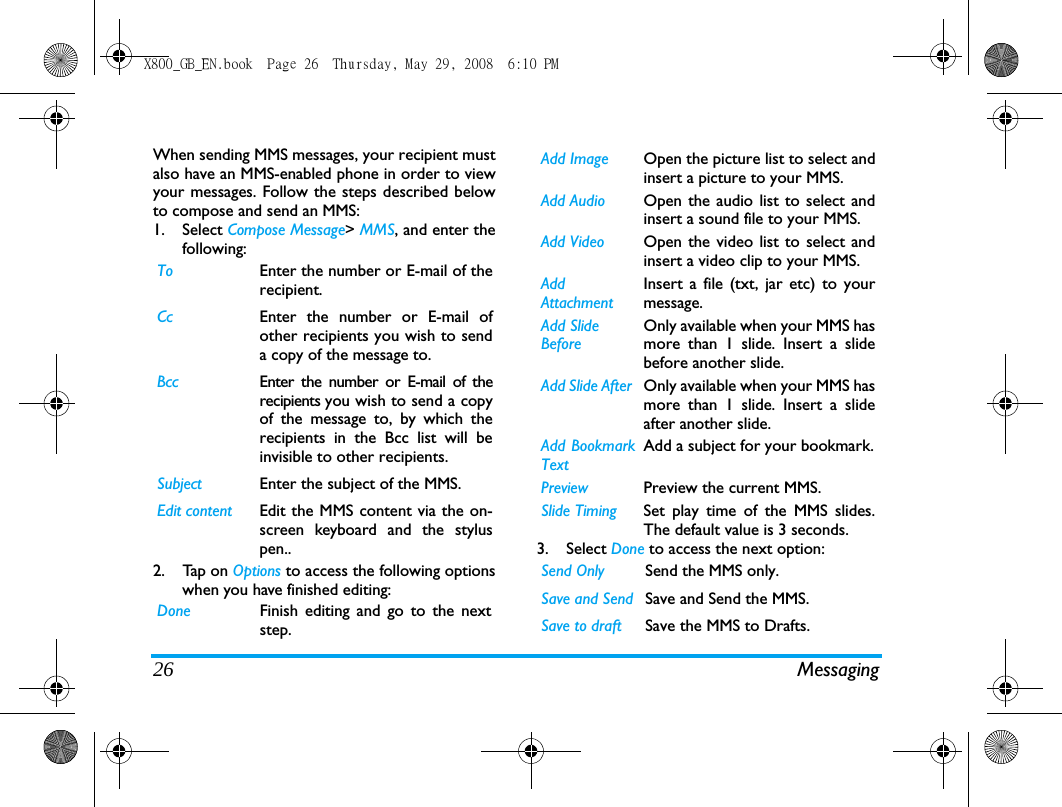
Messaging 258. MessagingCompose MessageSMSSMS enables you to send text messages to theother party, using Short Messaging Service (SMS).You can use the SMS  menu to send messages toanother handphone or a device that is capable ofreceiving SMS.To compose and send an SMS, followthe steps below:1.Select  Compose message > SMS, and writeyour message via the on-screen keyboard andthe stylus pen. 2.Tap  o n  Options to access the following options:3.Ta p  o n  Done to go to the next step, with thefollowing options:4.Ta p  o n  Options  to access the followingoptions:. 5.Ta p  o n  Send to send the message.MMSYour mobile phone can also send and receive MMS(Multimedia Messaging Service) messages. WithMMS, you can send messages that contain pictures,sound and text.Save as Select  Save  as drafts  or  Save  toTemplates. Then tap on OK.Insert ContactSelect a recipient from the contactlist. Then tap on OK.Use templateSelect to insert a preset message.Then tap on OK.Contacts Select a recipient from the contactlist. You can select more than 1recipient. Then tap on OK.Phone numberEnter the phone number of theperson to whom you wish to sendthe new SMS.  Then tap on Add.Group Select a group of recipients. Thentap on OK.Add  To add another recipient(s) fromthe contacts list, or to enter aphone number. Then tap on OK.Delete To remove a contact. Then tap onOK.X800_GB_EN.book  Page 25  Thursday, May 29, 2008  6:10 PM
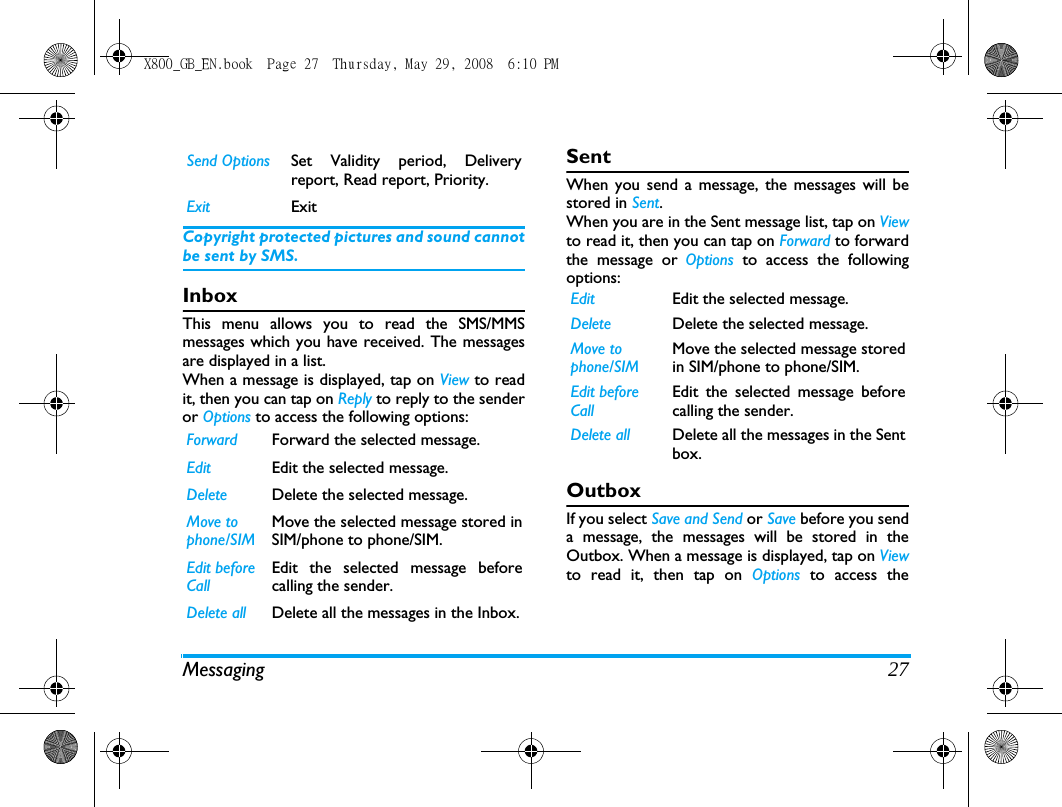
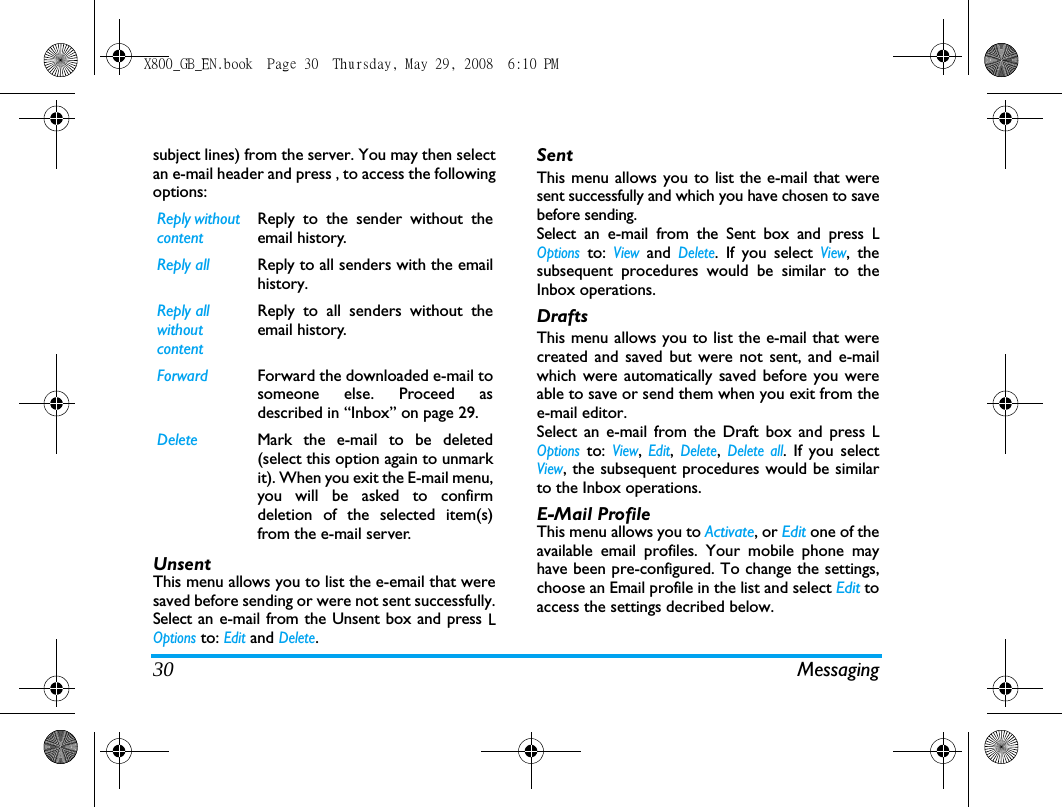
26 MessagingWhen sending MMS messages, your recipient mustalso have an MMS-enabled phone in order to viewyour messages. Follow the steps described belowto compose and send an MMS:1. Select Compose Message> MMS, and enter thefollowing:2. Tap on Options to access the following optionswhen you have finished editing:3. Select Done to access the next option:To Enter the number or E-mail of therecipient.Cc Enter the number or E-mail ofother recipients you wish to senda copy of the message to.Bcc Enter the number or E-mail of therecipients you wish to send a copyof the message to, by which therecipients in the Bcc list will beinvisible to other recipients.Subject Enter the subject of the MMS.Edit content Edit the MMS content via the on-screen keyboard and the styluspen..Done Finish editing and go to the nextstep.Add Image Open the picture list to select andinsert a picture to your MMS.Add Audio Open the audio list to select andinsert a sound file to your MMS.Add Video Open the video list to select andinsert a video clip to your MMS.AddAttachmentInsert a file (txt, jar etc) to yourmessage.Add SlideBeforeOnly available when your MMS hasmore than 1 slide. Insert a slidebefore another slide.Add Slide After  Only available when your MMS hasmore than 1 slide. Insert a slideafter another slide.Add BookmarkTextAdd a subject for your bookmark.Preview Preview the current MMS.Slide Timing Set play time of the MMS slides.The default value is 3 seconds.Send Only Send the MMS only.Save and Send Save and Send the MMS.Save to draft Save the MMS to Drafts.X800_GB_EN.book  Page 26  Thursday, May 29, 2008  6:10 PM
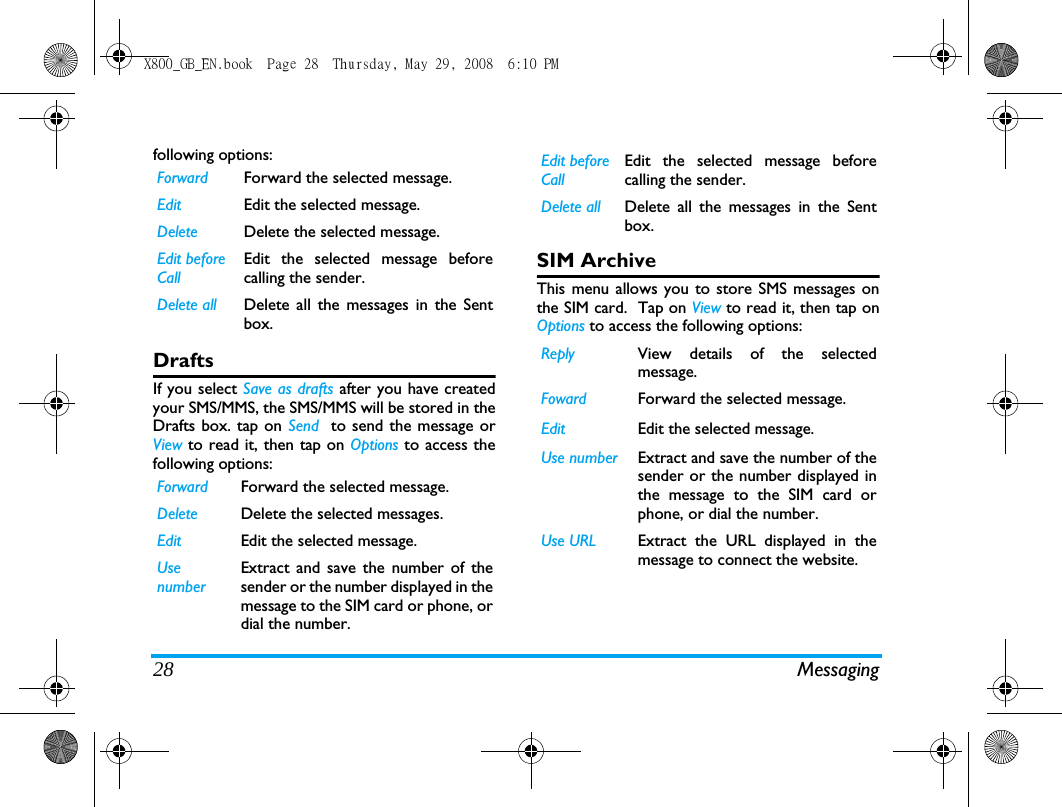
Messaging 27Copyright protected pictures and sound cannotbe sent by SMS.InboxThis menu allows you to read the SMS/MMSmessages which you have received. The messagesare displayed in a list. When a message is displayed, tap on View to readit, then you can tap on Reply to reply to the senderor Options to access the following options:SentWhen you send a message, the messages will bestored in Sent. When you are in the Sent message list, tap on Viewto read it, then you can tap on Forward to forwardthe message or Options  to access the followingoptions:OutboxIf you select Save and Send or Save before you senda message, the messages will be stored in theOutbox. When a message is displayed, tap on Viewto read it, then tap on Options  to access theSend Options Set Validity period, Deliveryreport, Read report, Priority.Exit ExitForward Forward the selected message.Edit Edit the selected message.Delete Delete the selected message.Move to phone/SIMMove the selected message stored inSIM/phone to phone/SIM. Edit before CallEdit the selected message beforecalling the sender.Delete all Delete all the messages in the Inbox.Edit Edit the selected message.Delete Delete the selected message.Move to phone/SIMMove the selected message storedin SIM/phone to phone/SIM. Edit before CallEdit the selected message beforecalling the sender.Delete all Delete all the messages in the Sentbox.X800_GB_EN.book  Page 27  Thursday, May 29, 2008  6:10 PM
28 Messagingfollowing options:DraftsIf you select Save as drafts after you have createdyour SMS/MMS, the SMS/MMS will be stored in theDrafts box. tap on Send  to send the message orView to read it, then tap on Options to access thefollowing options:SIM ArchiveThis menu allows you to store SMS messages onthe SIM card.  Tap on View to read it, then tap onOptions to access the following options:Forward Forward the selected message.Edit Edit the selected message.Delete Delete the selected message.Edit before CallEdit the selected message beforecalling the sender.Delete all Delete all the messages in the Sentbox.Forward Forward the selected message.Delete Delete the selected messages.Edit Edit the selected message.Use numberExtract and save the number of thesender or the number displayed in themessage to the SIM card or phone, ordial the number.Edit before CallEdit the selected message beforecalling the sender.Delete all Delete all the messages in the Sentbox.Reply View details of the selectedmessage.Foward Forward the selected message.Edit Edit the selected message.Use number Extract and save the number of thesender or the number displayed inthe message to the SIM card orphone, or dial the number.Use URL Extract the URL displayed in themessage to connect the website.X800_GB_EN.book  Page 28  Thursday, May 29, 2008  6:10 PM
Messaging 29TemplatesLists all SMS/MMS saved as templates for editingand sending later. 10 SMS and 5 MMS have alreadybeen preset. You can edit and modify them.E-mailIf not included in your mobile phone contract,you will need to subscribe to an e-mail servicein order to send and receive e-mails. In thiscase, all parameters are communicated to youby your operator.This menu allows you to send e-mails to one orseveral recipients at a time, including with anattachment such as a JPEG picture. Once received,your messages can be forwarded and theattachments visualised with the appropriatesoftware.Send and Receive  To send an e-email, select Options  > Send. Thismight bring up a message requesting airtime. SelectYes to continue and send the e-email. To receivenew e-emails, select Options  > Receive mail. Thismight bring up a message requesting airtime. SelectYes to continue and receive new e-emails.Write e-mailTo write an e-email, select E-mail  > Write E-mail.Enter the address (To), a copy (Cc), Subject andAttachment (up to 3 files), and the e-mail content.When you have finished writing your e-mail, pressL to access the option menu. You can then select toSend,  Send and Save,  Save to Draft or  Quit withoutSaving.If you exit the Messaging > Write E-mail menubefore sending your e-mail or if you cancel thesending while it takes place, the e-mail contentis deleted without being stored.You can only attach one file (JPEG, MID, JAR,TXT, MP3) or one sound at a time. If you acceptan incoming call while writing an e-mail, themenu is closed and the phone goes back to idlemode when you hang up.InboxThis menu allows you to connect to your mailboxand download the e-mail headers (sender andEdit before callEdit the selected message beforecalling the sender.Delete all Delete all the messages.X800_GB_EN.book  Page 29  Thursday, May 29, 2008  6:10 PM
30 Messagingsubject lines) from the server. You may then selectan e-mail header and press , to access the followingoptions:UnsentThis menu allows you to list the e-email that weresaved before sending or were not sent successfully.Select an e-mail from the Unsent box and press LOptions to: Edit and Delete.SentThis menu allows you to list the e-mail that weresent successfully and which you have chosen to savebefore sending. Select an e-mail from the Sent box and press LOptions to: View and Delete. If you select View, thesubsequent procedures would be similar to theInbox operations.DraftsThis menu allows you to list the e-mail that werecreated and saved but were not sent, and e-mailwhich were automatically saved before you wereable to save or send them when you exit from thee-mail editor. Select an e-mail from the Draft box and press LOptions to: View, Edit, Delete, Delete all. If you selectView, the subsequent procedures would be similarto the Inbox operations.E-Mail ProfileThis menu allows you to Activate, or Edit one of theavailable email profiles. Your mobile phone mayhave been pre-configured. To change the settings,choose an Email profile in the list and select Edit toaccess the settings decribed below. Reply without contentReply to the sender without theemail history.Reply all Reply to all senders with the emailhistory. Reply all without contentReply to all senders without theemail history.Forward Forward the downloaded e-mail tosomeone else. Proceed asdescribed in “Inbox” on page 29.Delete Mark the e-mail to be deleted(select this option again to unmarkit). When you exit the E-mail menu,you will be asked to confirmdeletion of the selected item(s)from the e-mail server.X800_GB_EN.book  Page 30  Thursday, May 29, 2008  6:10 PM
Messaging 31If one of the accounts has been pre-configured,it may be locked, in which case it cannot berenamed.Broadcast MessagesBroadcast messages are public messagesbroadcasted to a group of mobile users. Themessages are broadcasted on coded channels.Generally, one broadcast channel can transmit onetype of message. Please contact your networkoperator for a list of channel numbers and theirrespective broadcast information.Receive ModeThis menu allows you to set the reception ofbroadcast messages. When On, you can receivebroadcast messages. When Off, you cannot receivebroadcast messages. Read MessageThis menu allows you to read broadcast messagesafter you have activated receive mode.LanguagesThis menu allows you to set the language of thebroadcast messages that canbe received.Channel SettingsYou can Select, Add, Edit or Delete channels.SettingsSMSAccount settingsProfile Name: Edit the name of thecurrent profile.SC Address: Select your default SMScentre. If not available on your SIMcard, you must enter your SMScentre number.Validity Period: Select the length oftime your messages will be storedin the SMS centre. This is usefulwhen the recipient is notconnected to the network (andthus cannot receive your messageimmediately).This feature is subscriptiondependent.Message Type: Select the format ofyour sent messages. This option isnetwork dependent.X800_GB_EN.book  Page 31  Thursday, May 29, 2008  6:10 PM
32 MessagingMMSGeneral settingsDelivery report: When set to On, thisoption will inform you via SMSwhether or not your own SMS wasreceived.  This feature issubscription dependent.Reply path: When On, this optionallows you to transmit the numberof your SMS message centertogether with the message. Therecipient can then reply using yourSMS center and not theirs. Thisspeeds up the rate of transmission.This feature is subscriptiondependent.Memory StatusThis option can display thememory status of the messagessaved in the SIM card and thephone.Preferred Storage LocationYou can choose to save yourmessages to Phone or SIM.Preferred BearerThis option allows you to set thepreferred transmission mode. Youcan select Preferred GPRS, PreferredGSM or GSM Only. For furtherdetails, please contact yournetwork operator.Compose Set  Creation Mode,  Image ResizingAuto Signature and  SignatureContent.Send Set  Validity period,  Delivery Report,Read Report,  Priority,  Slide Timingand  Delivery time options forsending an MMS.Retrieve Set  Home network,  Roaming,  ReadReport and Delivery Report optionsfor receiving an MMS.Filter Set  Anonymous, and Advertisementfrom whom you want to filterMMS or email messages.X800_GB_EN.book  Page 32  Thursday, May 29, 2008  6:10 PM
Messaging 33Server Profile Set network configuration. Pleasecontact your network provider formore information.Memory Status View the memory status of yourMMS.X800_GB_EN.book  Page 33  Thursday, May 29, 2008  6:10 PM
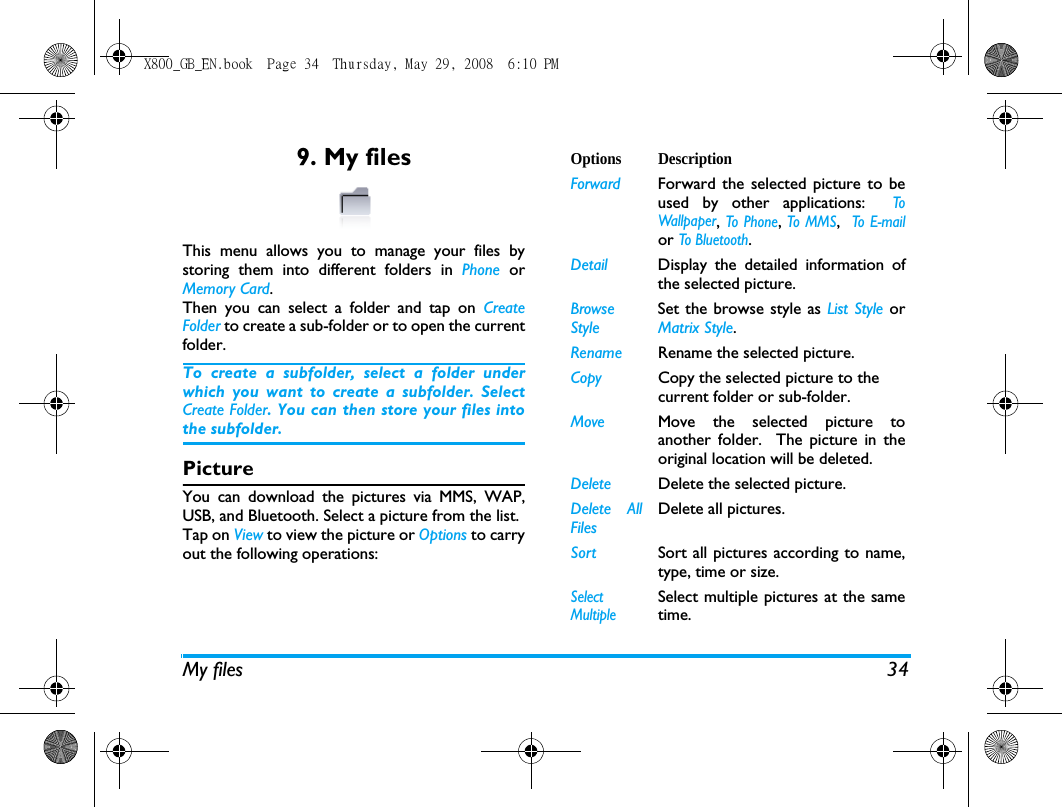
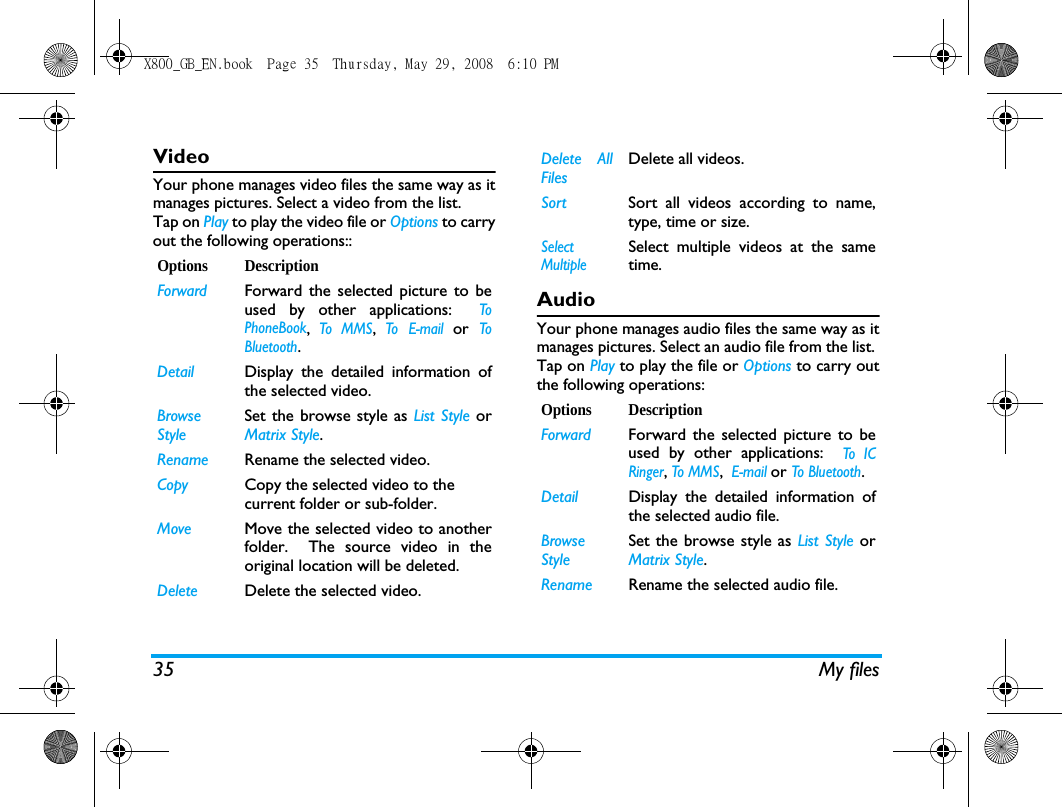
My files 349. My filesThis menu allows you to manage your files bystoring them into different folders in Phone  orMemory Card.Then you can select a folder and tap on CreateFolder to create a sub-folder or to open the currentfolder. To create a subfolder, select a folder underwhich you want to create a subfolder. SelectCreate Folder. You can then store your files intothe subfolder.PictureYou can download the pictures via MMS, WAP,USB, and Bluetooth. Select a picture from the list. Tap on View to view the picture or Options to carryout the following operations:Options DescriptionForward Forward the selected picture to beused by other applications:  ToWallpaper, To Phone, To MMS,  To E-mailor To Bluetoot h.Detail Display the detailed information ofthe selected picture.BrowseStyleSet the browse style as List Style orMatrix Style.Rename Rename the selected picture.Copy Copy the selected picture to the current folder or sub-folder. Move Move the selected picture toanother folder.  The picture in theoriginal location will be deleted.Delete Delete the selected picture.Delete AllFilesDelete all pictures.Sort Sort all pictures according to name,type, time or size.SelectMultipleSelect multiple pictures at the sametime.X800_GB_EN.book  Page 34  Thursday, May 29, 2008  6:10 PM
35 My filesVideoYour phone manages video files the same way as itmanages pictures. Select a video from the list. Tap on Play to play the video file or Options to carryout the following operations::AudioYour phone manages audio files the same way as itmanages pictures. Select an audio file from the list. Tap on Play to play the file or Options to carry outthe following operations:Options DescriptionForward Forward the selected picture to beused by other applications:  ToPhoneBook, To MMS, To E-mail or ToBluetooth.Detail Display the detailed information ofthe selected video.BrowseStyleSet the browse style as List Style orMatrix Style.Rename Rename the selected video.Copy Copy the selected video to the current folder or sub-folder. Move Move the selected video to anotherfolder.  The source video in theoriginal location will be deleted.Delete Delete the selected video.Delete AllFilesDelete all videos.Sort Sort all videos according to name,type, time or size.SelectMultipleSelect multiple videos at the sametime.Options DescriptionForward Forward the selected picture to beused by other applications:  To ICRinger, To MMS,  E-mail or To Bluetoot h.Detail Display the detailed information ofthe selected audio file.BrowseStyleSet the browse style as List Style orMatrix Style.Rename Rename the selected audio file.X800_GB_EN.book  Page 35  Thursday, May 29, 2008  6:10 PM
My files 36OthersYou can put all other files into this folder. Select afile from the list. Tap on  Open to view the file or Options to carry outthe following operations:Copy Copy the selected audio file to the current folder or sub-folder. Move Move the selected audio file toanother folder.  The audio file in theoriginal location will be deleted.Delete Delete the selected audio file.Delete AllFilesDelete all audio files.Sort Sort all audio files according to name,type, time or size.SelectMultipleSelect multiple audio files at the sametime.Options DescriptionCreate  Create a sub-folder. You can also organize your filesinto subfolders. Select a folderunder which you want to create asubfolder. Tap on Edit and selectCreate Folder. You can then storeyour files into the subfolder.BrowseStyleSet the browse style as List Style orMatrix Style.Rename Rename the selected file.Delete Delete the selected file.Sort Sort all files according to name, type,time or size.X800_GB_EN.book  Page 36  Thursday, May 29, 2008  6:10 PM
37 Business10. BusinessThis menu contains features and options designedto help you keep you organized and informed whileon the move.CalendarThis menu allows you to view the calendar, and addnew tasks.You can tap on View Tasks to view the task lists with the set time or Options to access the following options:Alarm Your mobile phone has a built-in alarm clock witha snooze feature. You can set up to five separatealarms and choose whether or not the alarmshould repeat. To set an alarm, follow the stepsbelow:1.Select an alarm.2.Enter the time and tap on Save.3.Select the frequency: repeat Once or Customizeand select the day you prefer.4.Select the type of alarm and tap on OK .5.Set the snooze mode: Off, 2, 5 or 10 minutes.6.Tap on when you finish setting the alarm.Repeat above steps to set other alarms.The alarm clock will ring even if your mobilephone is switched off and/or the Profiles menu isset  to Silent. When the alarm rings, tap on Stopor  Snooze (if the snooze mode has not been setto off).Quick NoteNote down text to be saved to and displayed in idlescreen. Options DescriptionAdd TasksAllows you to set task type, date,time, notes, alarm, frequency for thetask.Go to date Allows you to view a specific dayquickly.  Enter the date and tap onOK.Go to weekly viewDisplays the calendar in week format.X800_GB_EN.book  Page 37  Thursday, May 29, 2008  6:10 PM
Business 38CalculatorYour phone has a built-in calculator that you canuse to perform basic calculations with the on-screen keypad. Calculation accuracy is 10 decimalplaces and is rounded up to the higher decimalfigure. The result of the calculator is indicative. Thecalculation accuracy is 10 decimal places. Theresult is then truncated after the 10th decimaldigit for the next operation.Sound RecorderThis menu allows you to make recordings and listento the sound files you have recorded. If there is no sound file in the list,  tap on  Record tostart recording.  You can select to Pause/Resume orStop recording. The sound file will be displayed onthe screen.  You can edit the file name beforesaving it.  If there are already sound files in the list,select a file and select Play to listen.  You can alsoselect  Options to access the following options:StopwatchWhen you enter Stopwatch menu, the screen willdisplay the Stopwatch with a start time as00:00:00:00. Tap on Start  to start and Pause/Continue to pause/continue the Stopwatch timer. Currency ConverterThis menu allows you to convert a sum from onecurrency into another using the exchange rate ofyour choice. You can convert from Local to Foreign.Enter a rate in the Rate field and an amount ineither the Local field using the on-screen numberkeys and your stylus pen. The foreign rate iscalculated automatically.Options DescriptionRecord Make a new recording.Append Append sound to the recording.Rename Rename the recording.Delete Delete the recording.Delete All Delete all recordings.Settings Set the storage location, file formatand audio quality of the recording.Forward Apply the recording to other options.X800_GB_EN.book  Page 38  Thursday, May 29, 2008  6:10 PM
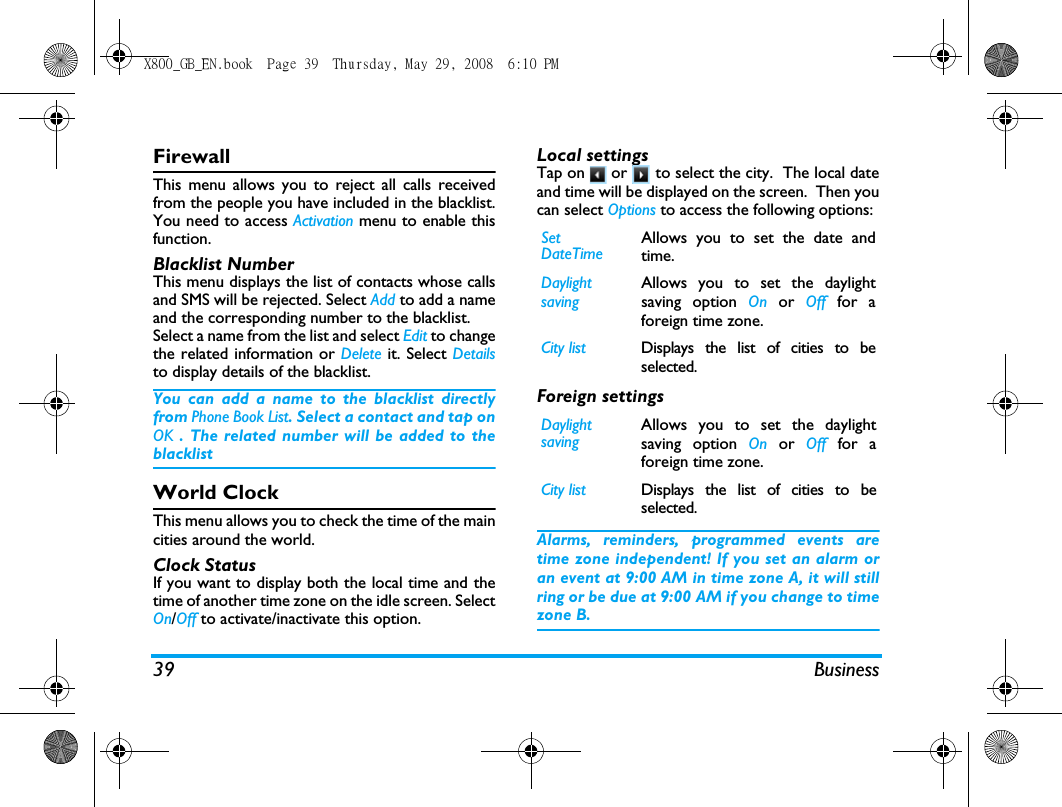
39 BusinessFirewallThis menu allows you to reject all calls receivedfrom the people you have included in the blacklist.You need to access Activation menu to enable thisfunction.Blacklist NumberThis menu displays the list of contacts whose callsand SMS will be rejected. Select Add to add a nameand the corresponding number to the blacklist.Select a name from the list and select Edit to changethe related information or Delete it. Select Detailsto display details of the blacklist.You can add a name to the blacklist directlyfrom Phone Book List. Select a contact and tap onOK . The related number will be added to theblacklistWorld ClockThis menu allows you to check the time of the maincities around the world.Clock StatusIf you want to display both the local time and thetime of another time zone on the idle screen. SelectOn/Off to activate/inactivate this option.Local settingsTap on   or   to select the city.  The local dateand time will be displayed on the screen.  Then youcan select Options to access the following options:Foreign settingsAlarms, reminders, programmed events aretime zone independent! If you set an alarm oran event at 9:00 AM in time zone A, it will stillring or be due at 9:00 AM if you change to timezone B.Set DateTimeAllows you to set the date andtime.Daylight savingAllows you to set the daylightsaving option On or Off for aforeign time zone.City list Displays the list of cities to beselected.Daylight savingAllows you to set the daylightsaving option On or Off for aforeign time zone.City list Displays the list of cities to beselected.X800_GB_EN.book  Page 39  Thursday, May 29, 2008  6:10 PM
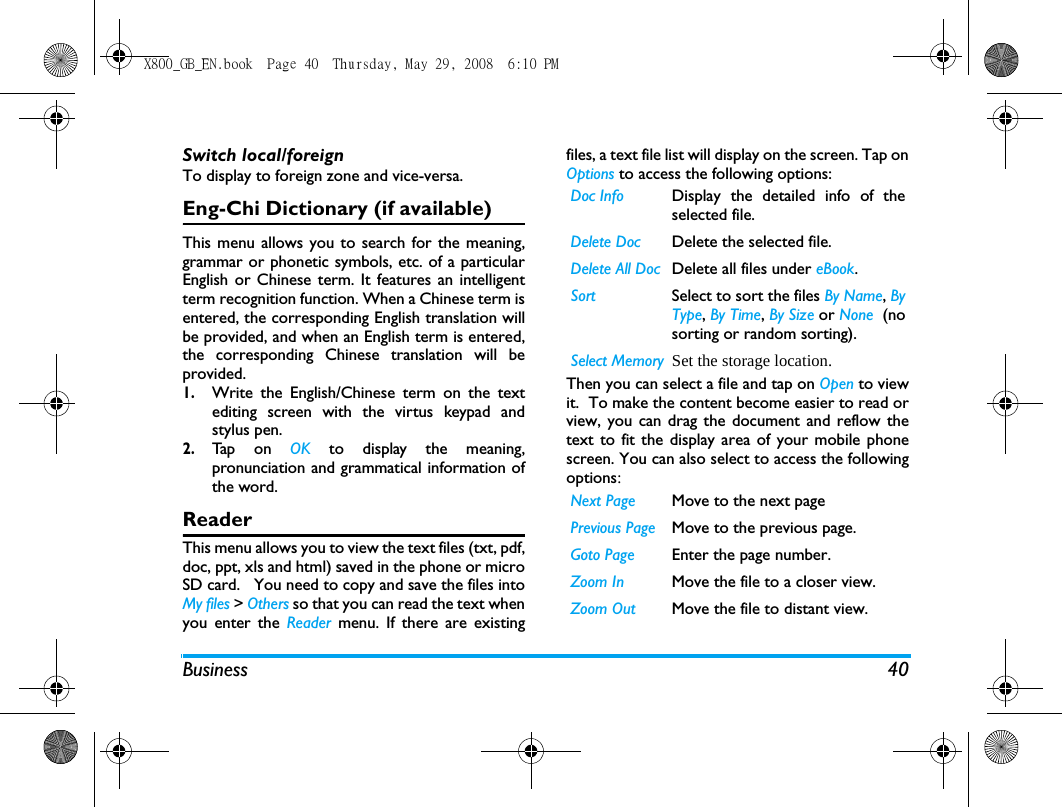
Business 40Switch local/foreignTo display to foreign zone and vice-versa.Eng-Chi Dictionary (if available)This menu allows you to search for the meaning,grammar or phonetic symbols, etc. of a particularEnglish or Chinese term. It features an intelligentterm recognition function. When a Chinese term isentered, the corresponding English translation willbe provided, and when an English term is entered,the corresponding Chinese translation will beprovided. 1.Write the English/Chinese term on the textediting screen with the virtus keypad andstylus pen.2.Tap  o n  OK  to display the meaning,pronunciation and grammatical information ofthe word.ReaderThis menu allows you to view the text files (txt, pdf,doc, ppt, xls and html) saved in the phone or microSD card.   You need to copy and save the files intoMy files > Others so that you can read the text whenyou enter the Reader menu. If there are existingfiles, a text file list will display on the screen. Tap onOptions to access the following options:Then you can select a file and tap on Open to viewit.  To make the content become easier to read orview, you can drag the document and reflow thetext to fit the display area of your mobile phonescreen. You can also select to access the followingoptions:Doc Info Display the detailed info of theselected file. Delete Doc Delete the selected file.Delete All Doc Delete all files under eBook.Sort Select to sort the files By Name, ByType, By Time, By Size or None  (nosorting or random sorting).Select Memory Set the storage location.Next Page Move to the next pagePrevious Page Move to the previous page.Goto Page Enter the page number.Zoom In Move the file to a closer view. Zoom Out Move the file to distant view.X800_GB_EN.book  Page 40  Thursday, May 29, 2008  6:10 PM
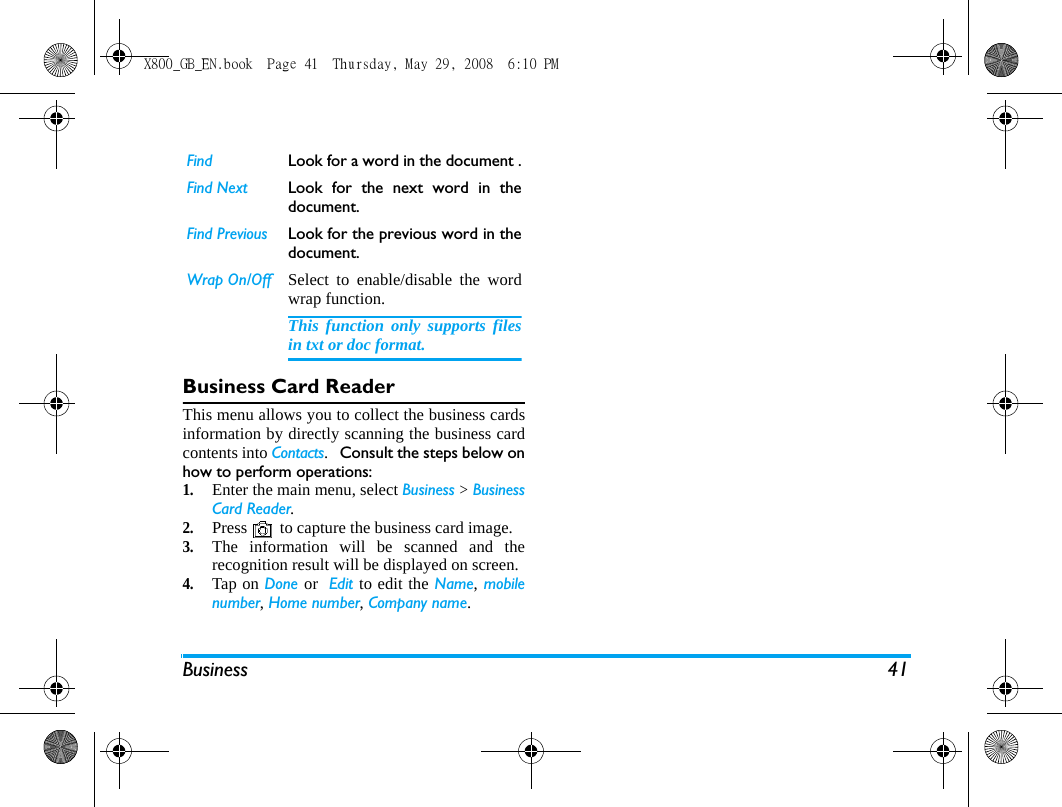
Business 41Business Card ReaderThis menu allows you to collect the business cardsinformation by directly scanning the business cardcontents into Contacts.   Consult the steps below onhow to perform operations:1.Enter the main menu, select Business > BusinessCard Reader. 2.Press   to capture the business card image.3.The information will be scanned and therecognition result will be displayed on screen.4.Tap on Done or  Edit to edit the Name, mobilenumber, Home number, Company name.Find Look for a word in the document .Find Next Look for the next word in thedocument.Find Previous Look for the previous word in thedocument.Wrap On/Off Select to enable/disable the wordwrap function.This function only supports filesin txt or doc format.X800_GB_EN.book  Page 41  Thursday, May 29, 2008  6:10 PM
42 Contacts11. ContactsContacts are stored in one of the two availablephonebooks: SIM phonebook (located on your SIMcard, by which the number of entries you can storedepends on the card capacity) or the SmartPhonebook (located on your phone, which allowsyou to store up to 1000 names). When adding newcontacts, the contacts will only be added to thephonebook you have selected.View contactsTo view or create a new SIM/phone contact:1.From the main menu, select Phone Book > ViewContacts.2.Select a contact from the contact list. You cantap on   and press the key thatcorresponds to the letter you wish to search.The first record starting with this letter in thelist will be selected.   3.Tap  o n  View to view the contact or Options >New contact.4.Enter the following fields of details for SIMcontacts.• Name• Mobile5.Select Save to store the entry.Note that to create a contact, you must enterat least a number.Most of the fields are free-text, meaning you canenter alphanumeric data using the text entryfunctions of your mobile phone (for moreinformation on text entry, see “Text Entry” onpage 13).Phonebook OptionsIn the phonebook, you can display the details of acontact by selecting it and tap on Options to view/edit more details:Options DescriptionNew ContactCreate a new contact.Send messageSend a SMS or MMS to the contact.Call Call the contact.X800_GB_EN.book  Page 42  Thursday, May 29, 2008  6:10 PM
Contacts 43View groupsThe  View groups feature allows you to organizeyour contacts so that you can send messages to allthe members of the group. From the Phone Bookmenu, select View groups and the list of groups isdisplayed.ViewSelect a group and tap on OK to display themembers of the group.Edit Select a group and tap on OK to display the groupdetails. Then tap on OK to edit the information.Special numbersThis menu allows you to keep a list of usefulnumbers such as own numbers, service numbers,voicemail and emergency numbers.Call HandsfreeCall the contact's number inhandsfree mode.Delete Delete the contact.Edit Change the contact’s information.Add to BlacklistAdd the contact to the blacklist.Send contactSend the contact via Infrared orBluetooth.Copy to phoneCopy the entry from the SIM card tothe phone.Move to phoneMove the entry to the phone.Select multipleSelect one contact at a time or selectall contacts.Options DescriptionMy number Select to Edit or Erase your ownphone number.Service NumberThis service is provided by yournetwork operator. For moreinformation regarding thecorresponding function, pleasecontact your network operator.Voice Mail Dial the number of your voice mailservice provider.Emergency Dial emergency phone numbers.X800_GB_EN.book  Page 43  Thursday, May 29, 2008  6:10 PM
44 ContactsAdvancedThis menu provides you with advanced features sothat you can view or edit your contacts.Options DescriptionChoose Contact listDefault contact list:  Select SIM Only,Phone Only or Both.Default contact location: Select  SIMor Phone.Fields You can set On or Off  the contact’sHome Number, Company Name, E-mail Address, Office Number, FaxNumber and Birthday. You can alsoAssociate Picture, Associate video,Ringtones as well as AssociateCaller Group to the contact. Press Lto confirm. The phone will display anotification to confirm that thecontact has been saved.Copy to SIM Copy all the entries to the SIM card.Copy to phoneCopy all the entries to the Phone.Move to SIMMove all the entries to the SIM card.Move to PhoneMove all the entries to the Phone.Delete all contacts Delete all contacts in the Phone.X800_GB_EN.book  Page 44  Thursday, May 29, 2008  6:10 PM
45 Profiles12. ProfilesProfilesThis menu allows you to set the ring tone, alerttype, ring volume, answer mode and backlight, etcwhen you receive an incoming call or a newmessage so that you can adapt the use of yourphone to different types of call environments.In idle mode, tap on  on the top of the screen toquickly access the menu or go to main menu andselect  Profiles. Select  General,  Meeting,  Outdoor,Indoor,  Headset  or   Flight Mode and  Silent. SelectActivate  or  Modify  to set the selected modeincluding Volume (Ring Tone and Key Tone), Ringtones(Calls and Message alert), Alert Type (Ring, VibrationOnly, Ring and Vibra or Vibra Then Ring), Key sound(On or Off) and Backlight level (Level 1 to Level 4).Flight ModeThis menu allows you to set your menu to NormalMode or Flight Mode. You can also select Ask WhenPower On so that you will be asked which mode youprefer when the phone is powered on. If FlightMode is activated, network function will be closedand all related network operations will beprohibited.You can only exit this profile by deactivatingthe Flight Mode in the menu.X800_GB_EN.book  Page 45  Thursday, May 29, 2008  6:10 PM
Bluetooth 4613. BluetoothBluetoothYour phone supports Bluetooth wirelesstechnology, allowing connection to a compatibleBluetooth device within 10 meters. The Bluetoothconnection can be subject to interference fromobstructions such as walls or other electronicdevices.Before you can apply Bluetooth, make sure theother device supports Bluetooth function bycontacting the device’s manufacturer or itsaccompanied documentation.Bluetooth menuMaking a Bluetooth connectionTo make a Bluetooth connection, first of all, makesure you switch on the Bluetooth feature in the On/Power option.  Then select and add My Device. Connection with an audio deviceTap on Add. When the list of device appears, selectthe one you want to make a connection with it. Assoon as you select a device and a connection ismade, you are prompted to enter a passkey inorder to pair with the device. This passkey issupplied by the manufacturer of the otherBluetooth device, refer to its documentation forfurther information. The passkey feature ensuresthat only legitimate connections are allowed toconnect either to your device or the selecteddevice.If you do not use the Bluetooth feature for sometime, you should deactivate it in order to conservebattery power.Options DescriptionPower On/OffTurn on/off the Bluetoothfeature.Find DeviceSearch the devices that areavailable.My devicesSelect to connect to devices thatyou predefined.SettingsAllows you to set the followingoptions: Visibility, My Name. X800_GB_EN.book  Page 46  Thursday, May 29, 2008  6:10 PM
47 Calls14. CallsThe menus described in this section allows you toset how your phone handles calls and manage theirrelated costs.View callsThis menu provides you with a list of calls you havemissed, answered and rejected. The calls includeIncoming calls missed,  Incoming calls answered,Outgoing calls, and Rejected calls, which are displayedin chronological order with the most recent callfirst. If the correspondent is stored in yourcontacts list, the corresponding name is displayed.Select a contact from the list, and tap OK to viewthe detailed information of the call.  Select Edit toedit the information of the contact or select Optionsto access the options: Delete, Save to PhoneBook,Dial, IP call or Send SMS.Call optionsThis menu allows you to set all the options relatedto calls: call forwarding, call waiting, etc.Headset AnswerThis function is only available when you plug in theheadset.Anykey AnswerWhen this function is On, you can answer incomingcalls by pressing any key, except  .Call Time ReminderThis menu allows you to set whether or not thephone will emit a beep tone after a certain callduration. You can select Off (does not emit a beeptone), Single (select a value from 1 to 3000 seconds,which is the duration after which the phone willemit a beep tone) or Periodic (select a value from 30to 60 seconds, which is the periodic time afterwhich the phone will emit a beep tone. The phonewill emit a beep tone after each periodic timeduring a call).Call ServiceThe available options include:Call time X800_GB_EN.book  Page 47  Thursday, May 29, 2008  6:10 PM
Calls 48Display the duration of your calls:  Last call time,Total Sent, Total received and Reset All Time.Call cost Display the cost of your calls: Last call cost,  Totalcost, Reset cost, Max cost and Price per unit.This feature is network/ subscriptiondependent.Call waiting Select Activate or Deactivate, or check Status.Caller ID Select  Set by network or Hide ID or  Send ID todetermine your phone number or identity will bedisplayed or not to the called party.This feature is network/ subscriptiondependent.Call DivertTo divert incoming calls to your voice mailbox orto another phone number (regardless of whetheror not the number is in your phonebook).Select  Activate  and enter the number to forwardyour calls to. Select Status to check the status of thecorresponding call divert options.Before diverting your calls to your voice mailbox,you must enter your voice mailbox number. This feature is subscription dependent.Call BarringAllows you to limit the use of your phone tospecific calls. This can be applied to Outgoing CallsAll Voice Calls Divert all incoming calls. If youselect this option, you will notreceive any calls until youdeactivate it.If Unreachable Divert when your phone isswitched off or out of the servicearea.If No Answer Divert when you did not answerthe call.If Busy Divert when you are already onthe phone.All Data Calls Divert all data calls.Cancel All  Cancel all call divert options.X800_GB_EN.book  Page 48  Thursday, May 29, 2008  6:10 PM
49 Calls(All Calls,  International Calls or  International ExceptHome) and/or to Incoming Calls (All Calls or  WhenRoaming). In both cases, Cancel All option applies toall calls at once.Change Barring PW allows you to change the callbarring password. Status  allows you to checkwhether or not a particular type of call has beenbarred.This feature is network dependent and requiresa specific call barring password supplied byyour service provider.Auto RedialWhen this function is On, your phone willautomatically redial this number at intervals if thecall you have dialed is not answered. Fixed DialThis menu allows you to restrict your outgoingcalls. You need to enter PIN2 code, which has to besupplied / supported by your network operator.Not all SIM cards support PIN2 code. If yourSIM card does not have a PIN2 code, this optionis not available.IP NumberThis menu allows you to store 3 groups of IPnumber so that you need not enter the numberbefore you make an IP call. Tap on Activate toactivate or Edit to edit the IP Number.The IP number has to be supported by yournetwork operator before you can make an IPcall. When you change a new SIM card, the IPnumber you have stored will be cleared. Thephone does not validate the IP number youhave entered. Therefore, please ensure that thenumbers are correct.Clear historyThis menu allows you to clear the call history in:Delete All/Missed Calls/Received Calls/Dialed Calls/Mode There are two modes: On (you only dialthe numbers stored in the Fixed Dial List)and Off (you can dial any number).Fixed Dial ListDisplays the fixed dial list. Tap on Addto enter the name and phone number,then tap on OK, enter PIN2 code andtap on OK again.X800_GB_EN.book  Page 49  Thursday, May 29, 2008  6:10 PM
50 CallsRejected Calls. Tap on OK > Yes  to confirm deletionand No to cancel deletion.X800_GB_EN.book  Page 50  Thursday, May 29, 2008  6:10 PM
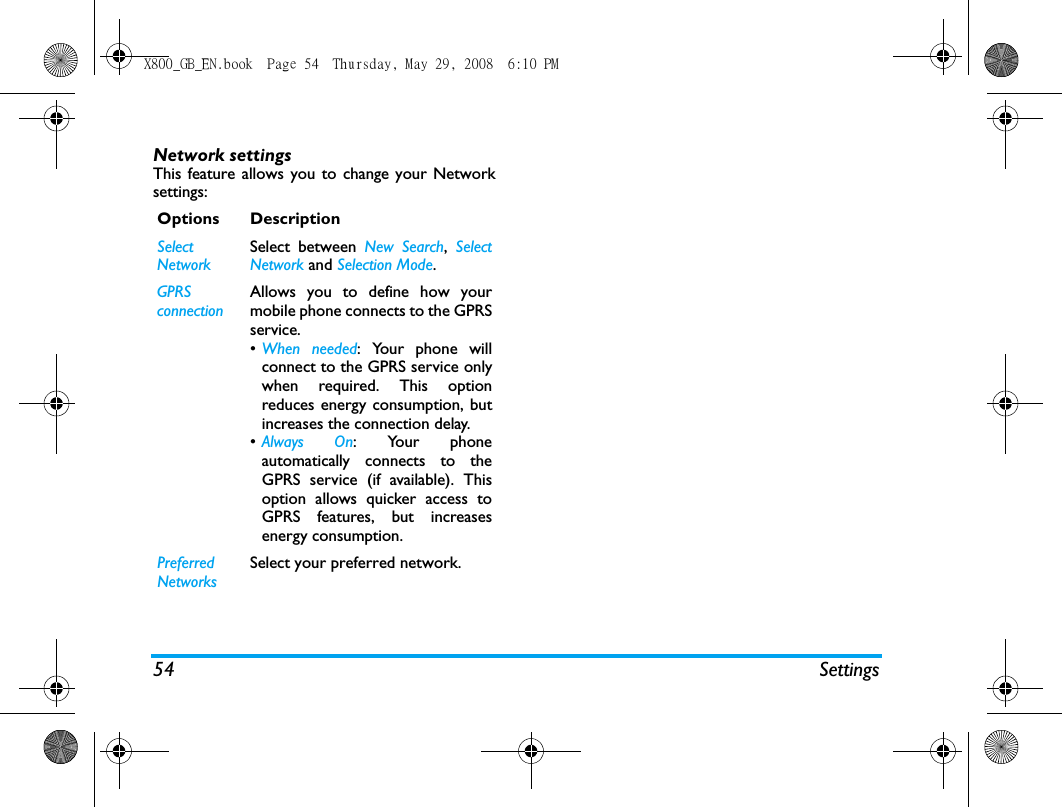
Settings 5115. SettingsThis menu allows you to change the settings relatedto each available option (sounds, time and date,security, etc.) and to customize your phone.There are 4 tabs in the Settings menu: General,Display, Sound, Connectivity.Use < and > keys to navigate the 4 tabs. You canalso use your stylus pen to tab directly on the tab.Pen calibrationIt is advisable to carry out screen calibration inorder to obtain better accuracy when using it withthe stylus pen.  Tap the center of the symbol withthe stylus until “Done” appears on screen.GeneralThis menu allows you to configure some generalsettings:Options DescriptionLanguage This menu allows you to select alanguage for all menu texts. Tap onOK to confirm.Time & dateDisplay Time: Select Digital Clock,Analog Clock or Off. Set Time: Edit your current time .Set Date: Edit your current  date.Set Format: Select the Time Format andDate Format.International clock: Go to the worldclock menu and change the timezone.Power-on time: Set a time for the phone to be switched on. You can select On or Off.  When you select, you need to enter the time you want your phone to be switched on. Power-off time: Same as above.X800_GB_EN.book  Page 51  Thursday, May 29, 2008  6:10 PM
52 SettingsDisplayThis menu allows you to configure how the menusare displayed on screen.Security SIM Lock: Allows you to set the PINprotection On or Off. When On, youwill be asked to enter your PIN codewhen switching on your phone.The default PIN code is networkdependent on your serviceprovider.  Please contact yourservice operator for the PINinformation.Phone Lock: Allows you to set apassword for your hone.  The defaultsetting is . Once you have set phonelock, you must enter the passwordeach time you switch on your phone.Barred Dial: Allows you to change yourPIN and PIN 2 codes, as well as the callBarring code. Depending on your SIMcard, some features or options mayrequire a PIN2 secret code given toyou by your operator.Change password: Allows you tochange the PIN code, PIN 2 code andPhone Lock Password.Shortcuts Displays a list of shortcut features.You can set a new shortcut key byestablishing a link between a certainfeature and a numeric or navigationkey. You can also change or delete anexisting shortcut key.DefaultstorageSet the default storage location:Phone memory or Memory card.Memory statusYou can check the memory status ofContacts, Messaging and My files. Youcan also check the memory status ofmemory card if it is inserted.Factory settingsRestore your phone settings to thedefault values. Options DescriptionWallpaper Allows you to set the wallpaper ofthe main screen.  You can select thewallpaper from Default wallpapersor User define.X800_GB_EN.book  Page 52  Thursday, May 29, 2008  6:10 PM
Settings 53SoundsThis menu allows you to operate your phone withdifferent sound profiles. ConnectivitySettings such as Call Options,  Message settings,Network,  Browser,  Data account,  Connections,  Javasettings and Java settings  for connectivity have beencollected in this menu. For detailed description ofCall settings, Message settings, Browser, Data account,Game settings and Java settings , please refer to theprevious chapters.  For Network settings, , pls referto the description below.Themes Select a theme for your phone.Backlight LevelSelect one level from Level 1 to 4.Backlight durationSelect backlight duration from 1minute, 30 seconds, 15 seconds or 5seconds.Show own numberSelect to determine  to display ornot your number to the calledparty. Greeting Select to turn greetings On or Offand edit the greetings message. Light sensor Allows you to set the Light sensorof the main screen On or Off. Alert type Allows you to select differentalert types: Ring Only, Vibrate only,Vibrate and ring or Vibrate then ring.Ringtones Allows you to select a ringtonefor for Incoming call and  Messagealert..Ring volume Adjust the volume of your ringer. Key sound Allows you to switch the keysound On or Off.Shutter sound Allows you to select from 3shutter sounds.  You can alsoselect Off.Battery low Allows you to enable or disablethe emission of a warning tonewhen the battery level is low.X800_GB_EN.book  Page 53  Thursday, May 29, 2008  6:10 PM
54 SettingsNetwork settingsThis feature allows you to change your Networksettings:Options DescriptionSelect NetworkSelect between New Search, SelectNetwork and Selection Mode.GPRS connectionAllows you to define how yourmobile phone connects to the GPRSservice. •When needed: Your phone willconnect to the GPRS service onlywhen required. This optionreduces energy consumption, butincreases the connection delay.•Always On: Your phoneautomatically connects to theGPRS service (if available). Thisoption allows quicker access toGPRS features, but increasesenergy consumption.Preferred NetworksSelect your preferred network.X800_GB_EN.book  Page 54  Thursday, May 29, 2008  6:10 PM
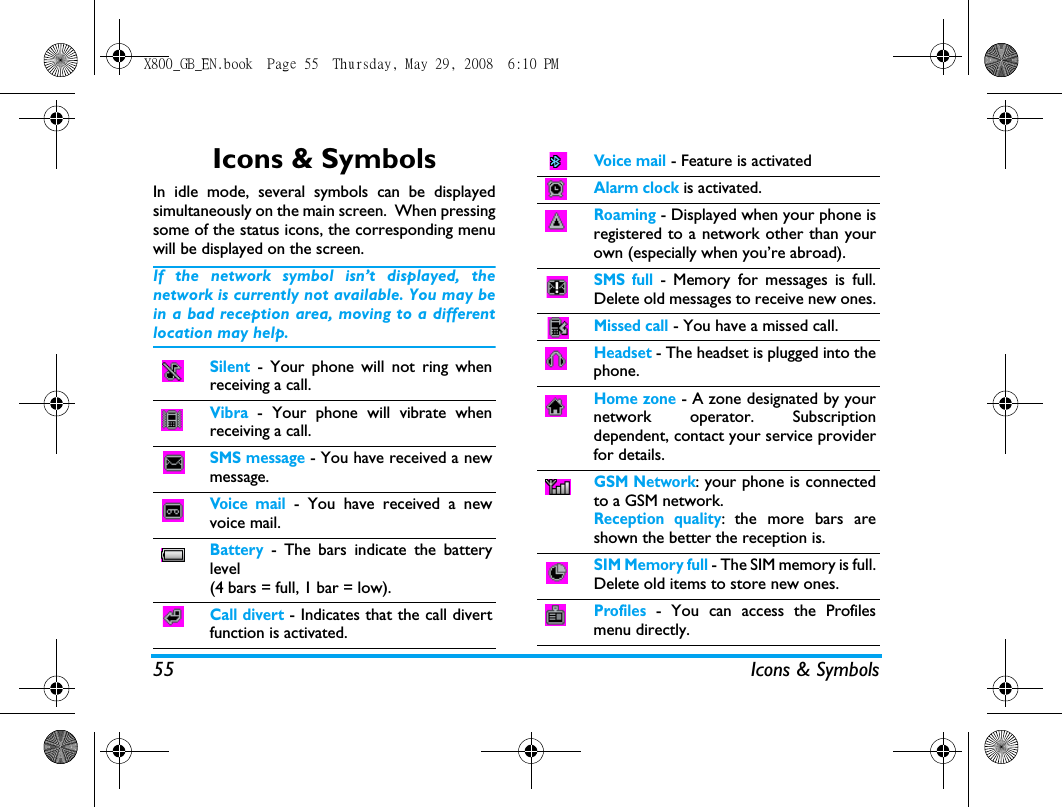
55 Icons & SymbolsIcons & SymbolsIn idle mode, several symbols can be displayedsimultaneously on the main screen.  When pressingsome of the status icons, the corresponding menuwill be displayed on the screen. If the network symbol isn’t displayed, thenetwork is currently not available. You may bein a bad reception area, moving to a differentlocation may help.Silent - Your phone will not ring whenreceiving a call. Vibra - Your phone will vibrate whenreceiving a call.SMS message - You have received a newmessage.Voice mail - You have received a newvoice mail.Battery - The bars indicate the batterylevel (4 bars = full, 1 bar = low).Call divert - Indicates that the call divertfunction is activated.Voice mail - Feature is activatedAlarm clock is activated.Roaming - Displayed when your phone isregistered to a network other than yourown (especially when you’re abroad).SMS full - Memory for messages is full.Delete old messages to receive new ones.Missed call - You have a missed call.Headset - The headset is plugged into thephone.Home zone - A zone designated by yournetwork operator. Subscriptiondependent, contact your service providerfor details.GSM Network: your phone is connectedto a GSM network.Reception quality: the more bars areshown the better the reception is.SIM Memory full - The SIM memory is full.Delete old items to store new ones.Profiles - You can access the Profilesmenu directly.X800_GB_EN.book  Page 55  Thursday, May 29, 2008  6:10 PM
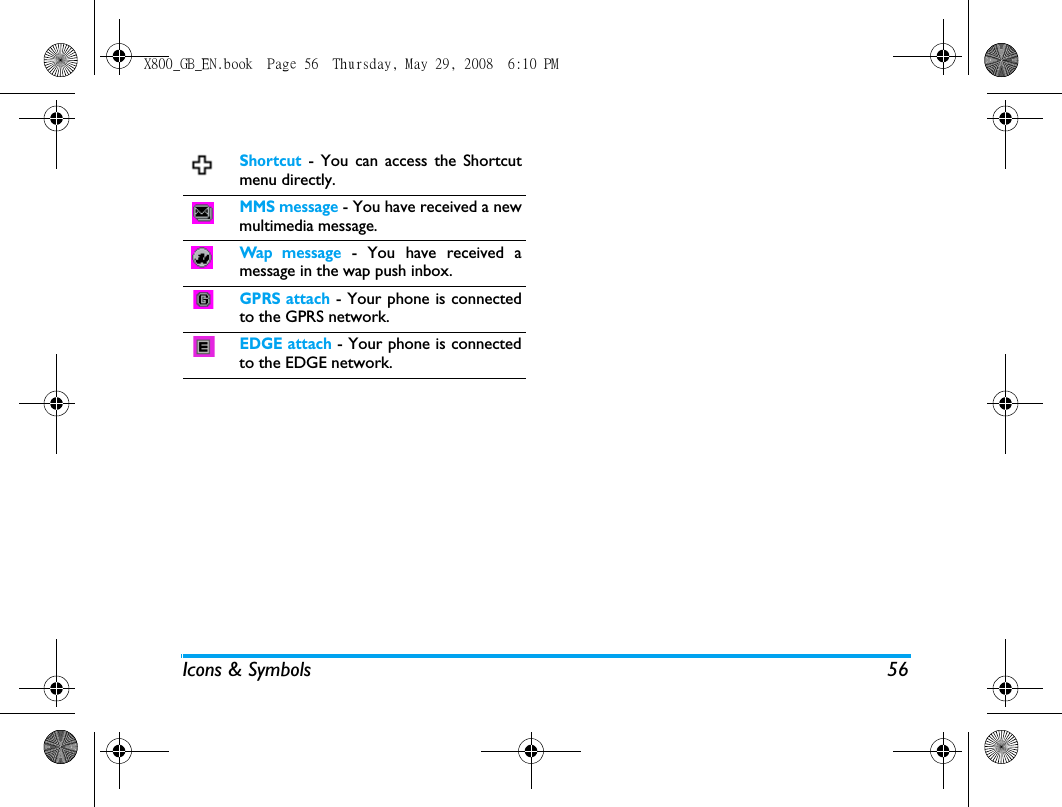
Icons & Symbols 56Shortcut - You can access the Shortcutmenu directly.MMS message - You have received a newmultimedia message.Wap message - You have received amessage in the wap push inbox.GPRS attach - Your phone is connectedto the GPRS network.EDGE attach - Your phone is connectedto the EDGE network.X800_GB_EN.book  Page 56  Thursday, May 29, 2008  6:10 PM
57PrecautionsRadio WavesYour cellular mobile phone is a lowpower radio transmitter andreceiver. When it is operating, it sendsand receives radio waves. The radiowaves carry your voice or data signal toa base station that is connected to the telephonenetwork. The network controls the power atwhich the phone transmits.• Your phone transmits/receives radio waves in theGSM frequency (900 / 1800 / 1900 MHz).• The GSM network controls transmission power(0.01 to 2 watts).• Your phone complies with all relevant safetystandards.• The CE mark on your phone shows compliancywith European electromagnetic compatibility(Ref. 89/336/EEC) and low voltage directives(Ref. 73/23/EEC).Your cellular mobile phone is your responsibility.To avoid damage to yourself, to others or to thephone itself, read and follow all the safetyinstructions and make them known to anyoneborrowing your phone. Furthermore to preventunauthorised use of your phone:Keep your phone in a safe place and keepit out of small children's reach.Avoid writing down your PIN code. Tryto remember it instead. Switch off the phone and remove the battery if youare going to leave it unused for a long time. Changeyour PIN code after purchasing the phone and toactivate call restriction options.The design of your phone complies withall applicable laws and regulations.However your phone may causeinterference with other electronicdevices. Consequently you should follow all localrecommendations and regulations when usingyour cellular phone both at home and when away.Regulations on the use of cellular phones invehicles and aircraft are particularlystringent.Public concern has been focused for some time onthe possible health risks for users of cellular phones.The current research on radio wave technology,including the GSM technology, has been reviewedand safety standards have been drawn up to ensureprotection from exposure to radio wave energy.X800_GB_EN.book  Page 57  Thursday, May 29, 2008  6:10 PM
58Your cellular telephone complies with allapplicable safety standards and the RadioEquipment and Telecommunications TerminalEquipment Directive 1999/5/EC.Always switch off your phone...Inadequately protected or sensitive electronicequipment may be affected by radio energy. Thisinterference can lead to accidents.Before boarding an aircraft and/or whenpacking the phone in your luggage: the useof mobile phones in an aircraft may bedangerous for the operation of the aircraft, disruptthe mobile phones network and may be illegal.In  hospitals, clinics, other health carecentres and anywhere else where you maybe in the close vicinity of medicalequipment.In areas with a potentially explosiveatmosphere (e.g. petrol stations andalso areas where the air contains dustparticles, such as metal powders).In a vehicle transporting flammable products (evenif the vehicle is parked) or a vehicle powered byliquefied petroleum gas (LPG), check first that thevehicle complies with the applicable safety rules.In areas where you are requested to turn off radiotransmitting devices, such as quarries or otherareas where blasting operations are in progress.Check with the vehicle manufacturer thatelectronic equipment used in yourvehicle will not be affected by radioenergy.PacemakersIf you have a pacemaker:• Always keep the phone more than 15 cm fromyour pacemaker when the phone is switched on,in order to avoid potential interference.• Do not carry the phone in a breastpocket.• Use the ear opposite to the pacemaker tominimise the potential interference.• Switch off your phone if you suspect thatinterference is taking place.Hearing aidsIf you are a user of a hearing aid, consult yourphysician and hearing aid manufacturer to learnwhether your particular device is susceptible tocellular phone interference.X800_GB_EN.book  Page 58  Thursday, May 29, 2008  6:10 PM
59Improved performanceIn order to improve the performance of yourphone, reduce radio energy emission, reducebattery consumption and ensure safeoperation adhere to the following guidelines:For the optimal and satisfactory operationof the phone you are recommended touse the phone in the normal operatingposition (when not using in hands-freemode or with a hands-free accessory).• Do not expose your phone to extremetemperatures.• Treat the phone with care. Any misuse will voidthe International Guarantee.• Do not immerse the phone in any liquid; if yourphone is damp, switch it off, remove the batteryand let them dry for 24hrs before using themagain.• To clean the phone, wipe it with a soft cloth.• Placing and receiving calls consumes the sameamount of battery energy. However, the mobileconsumes less energy in idle screen when kept inthe same place. When in idle screen and while youare moving, your phone consumes energy totransmit updated location information to thenetwork. Setting the backlight for a shorter periodof time as well as avoiding unnecessary navigatingin the menus will also help to save the battery’senergy for longer phoning and stand-byperformances.Battery information• Your phone is powered by a rechargeablebattery.• Use specified charger only.• Do not incinerate.• Do not deform or open the battery.• Do not allow metal objects (such as keys in yourpocket) to short circuit the battery contacts.• Avoid exposure to excessive heat (>60° C or140° F), moisture or caustic environments.You should only use Philips AuthenticAccessories, as the use of any otheraccessories may damage your phone andmay be dangerous, and will make allguarantees for your Philips phone null and void.The use of an incorrect type of battery may alsocause an explosion.Make sure damaged parts are replaced immediatelyby a qualified technician and that they are replacedwith genuine Philips replacement parts.X800_GB_EN.book  Page 59  Thursday, May 29, 2008  6:10 PM
60Your mobile phone and your carStudies have shown that speaking on thetelephone while driving lowers your concentration, which can be dangerous.Adhere to the following guidelines:• Give your full attention to driving. Pull off theroad and park before using the phone.• Respect the local regulations in countries whereyou drive and use your GSM phone.• If you want to use your phone in a vehicle, installthe hands-free car kit which is designed for thatpurpose.• Ensure that your phone and car kit do not blockany air bags or other security devices fitted in yourcar.• The use of an alarm system to operate a vehicle'slight or horn to indicate incoming phone calls isprohibited on public roads in some countries.Check local regulations.EN 60950 NormIn hot weather or after prolonged exposure to thesun (e.g., behind a window or a windscreen), thetemperature of your phone's casing might increase,especially when featuring a metallic finish. Be verycareful in this case when picking up your phone andalso avoid using it with an ambient temperature over40° C.For your phone, the socket-outlet shall be installednear the phone and shall be accessible.Environmental careRemember to observe the localregulations regarding the disposal of thepackaging materials, exhausted batteriesand old phone and please promote theirrecycling.Philips has marked the battery and packaging withstandard symbols designed to promote therecycling and appropriate disposal of your eventualwaste.The labelled packaging material isrecyclable.A financial contribution has beenmade to the associated nationalpackaging recovery and recyclingsystem.The plastic material is recyclable(also identifies the type of plastic).X800_GB_EN.book  Page 60  Thursday, May 29, 2008  6:10 PM
61WEEE Marking in the DFU: “Information to the Consumer”Disposal of your old productYour product is designed and manufactured withhigh quality materials and components, which canbe recycled and reused. When this crossed-out wheeled binsymbol is attached to a product itmeans the product is covered by theEuropean Directive 2002/96/ECPlease inform yourself about the localseparate collection system forelectrical and electronic products.Please act according to your local rules and do notdispose of your old products with your normalhousehold waste. The correct disposal of your oldproduct will help prevent potential negativeconsequences for the environment and humanhealth.FCC Compliance StatementThis equipment has been tested and found tocomply with the limits for a Class B digital device,pursuant to Part 15 of the FCC Rules. These limitsare designed to provide reasonable protectionagainst harmful interference in a residentialinstallation. This equipment generates, uses and canradiate radio frequency energy and, if not installedand used in accordance with the instructions, maycause harmful interference to radiocommunications. However, there is no guaranteethat interference will not occur in a particularinstallation. If this equipment does cause harmful interference toradio or television reception, which can bedetermined by turning the equipment off and on, theuser is encouraged to try to correct theinterference by one or more of the followingmeasures: -- Reorient or relocate the receiving antenna. -- Increase the separation between the equipmentand receiver. -- Connect the equipment into an outlet on a circuitdifferent from that to which the receiver isconnected. Any changes or modifications not expresslyapproved by the party responsible for compliancecould void the user’s authority to operate theequipment.This device complies with part 15 of the FCC Rules.Operation is subject to the following twoconditions: (1) This device may not cause harmfulinterference, and (2) this device must accept anyinterference received, including interference thatmay cause undesired operation.X800_GB_EN.book  Page 61  Thursday, May 29, 2008  6:10 PM
62Tro u b l e s h o o t i n gThe phone does not switch onRemove/reinstall the battery. Then charge thephone until the battery icon stops scrolling. Unplugthe charger and try to switch the mobile on.The display shows BLOCKED when you switch on the phoneSomebody tried to use your phone but didn’t knowthe PIN code nor the unblocking code (PUK).Contact your service provider.The display shows IMSI failureThis problem is related to your subscription.Contact your operator.Your phone doesn’t return to idle screenLong press the hang-up key or switch off the phone,check that the SIM card and the battery areinstalled correctly and switch it on again.The network symbol is not displayedThe network connection is lost. Either you are in aradio shadow (in a tunnel or between tall buildings) oryou are outside the network coverage area. Try fromanother place, try to reconnect to the network(especially when abroad), check that the antenna is inplace if your mobile has an external antenna, orcontact your network operator for assistance/information.The display doesn’t respond (or the display responds slowly) to key pressesThe display responds more slowly at very lowtemperatures. This is normal and does not affectthe operation of the phone. Take the phone to awarmer place and try again. In other cases pleasecontact your phone supplier.Your battery seems to over heatYou might be using a charger that was not intendedfor use with your phone. Make sure you always usethe Philips authentic accessory shipped with yourphone.Your phone doesn’t display the phone numbers of incoming callsThis feature is network and subscriptiondependent. If the network doesn’t send the caller’snumber, the phone will display Call 1 or Withheldinstead. Contact your operator for detailedinformation on this subject.X800_GB_EN.book  Page 62  Thursday, May 29, 2008  6:10 PM
63You can’t send text messagesSome networks don’t allow message exchangeswith other networks. First check that you haveentered the number of your SMS centre, or contactyour operator for detailed information on thissubject.You can’t receive and/or store JPEG picturesA picture may not be accepted by your mobilephone if it is too large, if its name is too long, or ifit doesn’t have the correct file format.You feel that you have missed some callsCheck your call divert options.When charging, the battery icon shows no bar and the outline is flashingOnly charge the battery in an environment wherethe temperature does not go below 0°C (32°F) orabove 50°C (113°F).In other cases please contact your phone supplier.The display shows SIM failureCheck that the SIM card has been insertedcorrectly. If the problem persists, your SIM cardmay be damaged. Contact your operator.When attempting to use a feature in the menu, the display shows NOT ALLOWEDSome features are network dependent. They areonly available, therefore, if the network or yoursubscription supports them. Contact youroperator for detailed information on this subject.The display shows INSERT YOUR SIM CARDCheck that the SIM card has been insertedcorrectly. If the problem persists, your SIM cardmay be damaged. Contact your operator.The autonomy of your phone seems lower than indicated on the user guideThe autonomy is linked to your settings (e.g., ringervolume, backlight duration) and the features youuse. To increase the autonomy, and wheneverpossible, you must deactivate features you do notuse.Your phone doesn’t work well in your carA car contains many metallic parts that absorbelectromagnetic waves which can affect the phone’sperformance. A car kit is available to provide youwith an external antenna and enables you to makeand receive phone calls without handling thehandset.X800_GB_EN.book  Page 63  Thursday, May 29, 2008  6:10 PM
64Check with the local authorities whether or notyou are allowed to use the phone while driving.Your phone is not chargingIf the battery is completely flat, it might take severalminutes of pre-charge (up to 5 minutes in somecases) before the charging icon is displayed on thescreen.X800_GB_EN.book  Page 64  Thursday, May 29, 2008  6:10 PM
65 Philips Authentic AccessoriesPhilips Authentic AccessoriesSome accessories, such as a standard battery,headset, USB cable and a charger, are included asstandard accessories in your mobile phonepackage. Additional accessories may also beprovided or sold separately. Package contents maytherefore vary.To maximise the performance of your Philipsmobile phone and not to void the warranty,always purchase Philips Authentic Accessoriesthat are specially designed for use with yourphone. Philips Consumer Electronics cannot beheld liable for any damages due to use with nonauthorised accessories.ChargerCharges your battery in any AC outlet. Smallenough to carry in a briefcase/handbag.Deluxe HeadsetThe integrated answer button offers you a simpleway to answer your calls. Simply answer anincoming call by pressing the button or long pressto reject the incoming call.Data Connect KitProvides easy data connection to your Philipsmobile phone. The USB cable enables high-speedcommunication between your phone and yourcomputer. The provided software allows you todownload pictures and melodies and tosynchronise your contacts and appointments.When your mobile phone is connected to thePC via a USB data cable, the cable also acts ascharger to charge your phone (X800 USBcharging is compatible with most PCs).X800_GB_EN.book  Page 65  Thursday, May 29, 2008  6:10 PM
Philips Authentic Accessories 66USBThis feature allows you to connect your phone toa PC via USB cable. You can carry out thefollowing operations:When the transfer is finished, please make surethat you safely remove your device based onthe instruction of your computer.Using Mobile Phone ToolsMobile phone tools help you make the best use ofyour mobile phone for data and documenttransmission through the Mobile Phone Toolssoftware. With this software, you can upload anddownload files, send and receive SMS and edit yourmobile phone contacts. To activate this feature, youneed to install and open the Mobile Phone Tools.Then connect the phone via the USB cable. EnterConnectivity menu and select Com port. On thecomputer screen, select X800 and press Connect.Mass StorageActs as a mass storage for yourmobile phone data on the computerand recover the data saved in thecomputer, upload and downloadfiles, access the internal memoryand micro SD card (if present) andthe size of transfer is unlimited untilyour memory is full.WebcamActs as a webcam for your PC.COM portActs as a modem for your phoneand PC connnection. You can usethe software provided to edit yourmobile phone contacts, pictures andmelodies.X800_GB_EN.book  Page 66  Thursday, May 29, 2008  6:10 PM
68Trademark DeclarationJAVA is a trademark of SunMicrosystems, Inc.In-Fusio and the games engineExen are trademarks of In-Fusio France.X800_GB_EN.book  Page 68  Thursday, May 29, 2008  6:10 PM
69 Specific Absorption Rate InformationSpecific Absorption Rate InformationInternational standardsTHIS MOBILE PHONE MEETS THE INTERNATIONAL RECOMMENDATIONS FOR EXPOSURE TO RADIO WAVESYour mobile phone is a radio transmitter and receiver. It is designed and manufactured not to exceed the limitsfor exposure to radio frequency (RF) energy defined by the international standards. These recommendationshave been established by the International Commission on Non-Ionizing Radiation Protection (ICNIRP) and, theInstitute of Electrical and Electronics Engineers (IEEE) that forecast a substantial safety margin for assuring theprotection of all persons, regardless of age and health.The exposure recommendations for mobile phones use a measurement unit known as the Specific AbsorptionRate (SAR). The SAR limit recommended by the ICNIRP for the mobile phones used by the general public is2.0W/kg averaged over ten grams of tissue and, is 1,6W/kg averaged over one gram of tissue by IEEEStd 1528 for the head.Tests for SAR have been conducted using recommended operating positions with the mobile phone transmittingat its highest certified power level in all tested frequency bands. Although the SAR is determined at the highestcertified power level, the actual SAR levels of the mobile phone while operating are generally below themaximum SAR value. This is because the phone is designed to operate at multiple power levels so as to use onlythe power required to reach the network. In general, the closer you are to a base station antenna, the lowerthe power output. While there may be differences between the SAR levels of various phones and at various positions, they all meetthe international protection standards for exposure to radio waves. The highest SAR value for this Philips Xenium X800 model phone when tested for compliance against thestandard was 0,854 W/kg for ICNIRP recommendation and 0,729 W/kg for IEEE Std 1528. For limiting the radio waves exposure, it is recommended to reduce the mobile phone call duration or to usea headset. The purpose of those precautions is to take the mobile phone away from the head and the body.For body worn operation, this phone has been tested and meets FCC RF exposure guidelines when used whitan accessory that contains no metal and that positions the handset a minimum of 1.5cm from the body. Use ofother accessories may not ensure compliance with FCC RF exposure guidelines.X800_GB_EN.book  Page 69  Thursday, May 29, 2008  6:10 PM
70Limited Warranty1.  What Does This Limited Warranty Cover?Philips warrants to the original retail purchaser(“Consumer” or “You”) that this Philipscellular product and all accessories originallyprovided by Philips in the sales package(“Product”) are free from defects in materials,design and workmanship under normal use inaccordance with the operating instructions andpursuant to the following terms andconditions. This limited warranty extends onlyto the Consumer for Products purchased andused in the original country of purchase. Thelimited warranty is valid only in Philips’intended country of sales of the product.2.  How Long is The Limited Warranty Period?The limited warranty period for the Productextends for ONE (1) YEAR from the date ofpurchase of the Product, documented by validproof of purchase. The limited warranty fororiginal Philips rechargeable battery extendsfor six (6) months from the date of purchase.3.  What Will Philips Do if The Product is NotFree From Material Defects in Materials andWorkmanship During The Limited WarrantyPeriod?During the limited warranty period, Philips orits authorized service representative will, at itsoption either repair or replace, without chargefor parts or labour, a materially defectiveProduct with new or refurbished parts orProduct and return such repaired or replacedProduct to the Consumer in workingcondition. Philips will retain defective parts,modules or equipment.Repaired or replaced Product will be coveredby this limited warranty for the balance of theoriginal limited warranty period or ninety (90)days from the date of repair or replacementwhichever is longer. Repair or replacement ofProduct, at Philips’ option is your exclusiveremedy.4.  What is Not Covered By This LimitedWarranty?This limited warranty does not cover:a)  Product that has been subjected tomisuse, accident, shipping or otherphysical damage, improper installation,abnormal operation handling, neglect,X800_GB_EN.book  Page 70  Thursday, May 29, 2008  6:10 PM
71inundation, fire, water or other liquidintrusion; orb)  Product that has been damaged due torepair, alteration, or modification byanyone not authorized by Philips; orc)  Product that has reception or operationproblems caused by signal conditions,network reliability or cable or antennasystems; ord)  Product defects or problems caused byuses with non-Philips products oraccessories; or e)  Product which warranty/quality stickers,product serial number or electronic serialnumber has been removed, altered orrendered illegible; or f)  Product purchased, used, serviced, orshipped for repair from outside theoriginal country of purchase, or used forcommercial or institutional purposes(including but not limited to Products usedfor rental purposes); or g)  Product returned without valid proof ofpurchase or which proof of purchase hasbeen altered or is illegible.h) Normal wear and tear or Force Majeure.5.  How Do You Get Warranty Service?a)  Return the Product to an authorizedservice center of Philips. You may contactthe local Philips office for the location ofthe nearest authorized service center.b) The SIM card must be removed from theProduct before it is given to Philips. Philipsassumes no liability for damaged or loss ofthe SIM card or the data containedtherein.c) If the Product failure is not covered by thislimited warranty, or this limited warrantyis inapplicable, void or invalid due to anyterms and conditions stated herein, theConsumer will be charged for the cost ofrepair or replacement of the Product andall other related cost incurred in repairingor replacing the Product.d)  IMPORTANT - you are required to returnthe Product together with a valid proof ofpurchase which must identify the point ofpurchase, date of purchase, Productmodel and Product serial number clearly.6.  Other Limitation: This Warranty is The EntireAgreement.EXCEPT FOR THE EXPRESS WARRANTIESSET FORTH ABOVE AND THOSE IMPLIEDBY LAW AND WHICH CANNOT BEEXCLUDED OR MODIFIED BYX800_GB_EN.book  Page 71  Thursday, May 29, 2008  6:10 PM
72AGREEMENT, PHILIPS PROVIDES NOOTHER WARRANTY WHETHER EXPRESSOR IMPLIED (WHETHER BY STATUTE,UNDER THE OPERATION OF LAW OROTHERWISE) AND SPECIALLY DISCLAIMSANY WARRANTY OF SATISFACTORYQUALITY MERCHANTABILITY OR FITNESSFOR A PARTICULAR PURPOSE.PHILIPS’ TOTAL LIABILITY FOR DAMAGESRELATING TO OR ARISING OUT OF THEPURCHASE OR USE OF THE PRODUCT,REGARDLESS OF THE TYPE OR CAUSE OFSUCH DAMAGE OR THE FORM ORCHARACTERISATION OF THE CLAIMASSERTED (E.G. CONTRACT OR TOPIT),SHALL NOT EXCEED THE ORIGINALPURCHASE PRICE PAID FOR THEPRODUCT.HOWEVER IN NO EVENT SHALL PHILIPS BELIABLE FOR ANY PUNITIVE, SPECIAL,INCIDENTAL, INDIRECT ORCONSEQUENTIAL DAMAGES (INCLUDINGBUT NOT LIMITED TO THE LOSS OF USE,LOSS OF TIME, INCONVENIENCE,COMMERIAL LOSS, LOST PROFITS, LOSTBUSINESS OPPORTUNITIES, COST OFSUBSTITUTION OF GOODS OR SERVICES,INVESTMENTS, DAMAGE TO GOODWILLOR REPUTATION, OR LOSS OF DATA ANDCLAIMS BY THIRD PARTIES) RESULTINGFROM PURCHASE OR USE OF THEPRODUCT, TO THE FULLEST EXTENTALLOWED BY LAW, WHETHER OR NOTPHILIPS HAS BEEN ADVISED OF THEPOSSIBILTY OF SUCH DAMAGES. THESELIMITATIONS SHALL APPLYNOTWITHSTANDING THE FAILURE OFTHE ESSENTIAL PURPOSE OF ANY LIMITEDREMEDY.This limited warranty represents the completeand exclusive agreement between theConsumer and Philips with respect to thiscellular Product and it supercedes all prioragreements between the parties, oral orwritten, and all other communicationsbetween the parties relating to the subjectmatter of this limited warranty. No carrier,retailer, agent, dealer, employee, thereof, oremployee of Philips is authorized to makemodifications to this limited warranty and youshould not rely on any such representation.This limited warranty does not affect theConsumer’s statutory rights under applicablenational laws in force.X800_GB_EN.book  Page 72  Thursday, May 29, 2008  6:10 PM
Declaration of ConformityWe, Shenzhen Sang Fei ConsumerCommunications Co., Ltd.11 Science and Technology Road,Shenzhen Hi-tech Industrial Park,Nanshan District, Shenzhen  518057Chinadeclare under our sole responsibility that theproductPhilip X800Philips GSM/GPRS 900/1800/1900TAC number: 35364802to which this declaration relates, is in conformitywith the following Standards:SAFETY : EN 60950-1: 2001+A11:2004HEALTH: EN50360: 2001EMC: ETSI EN301 489-7 v 1.2.1; ETSI EN 301489-17 v1.2.1 SPECTRUM: ETSI EN 301 511 v9.0.2; ETSI EN300 328 v1.6.1We hereby declare that all essential radio testsuites have been carried out and that the abovenamed product is in conformity to all the essentialrequirements of Directive 1999/5/EC.The conformity assessment procedure referred toin Article 10 and detailed in Annex IV of Directive1999/5/EC has been followed with the involvementof the following Notified Body: CETECOM ICT Services GmbH, UnterturkheimerStrabe6-10, 66117, Saarbrucken,Germany.Identification mark: 0682May 5th, 2008Quality ManagerX800_GB_EN.book  Page 81  Thursday, May 29, 2008  6:10 PM

Navigation menu