Sansi Technology A19001 LED Lamps User Manual

Shanghai Sansi Technology Co., Ltd LED Lamps

User Manual

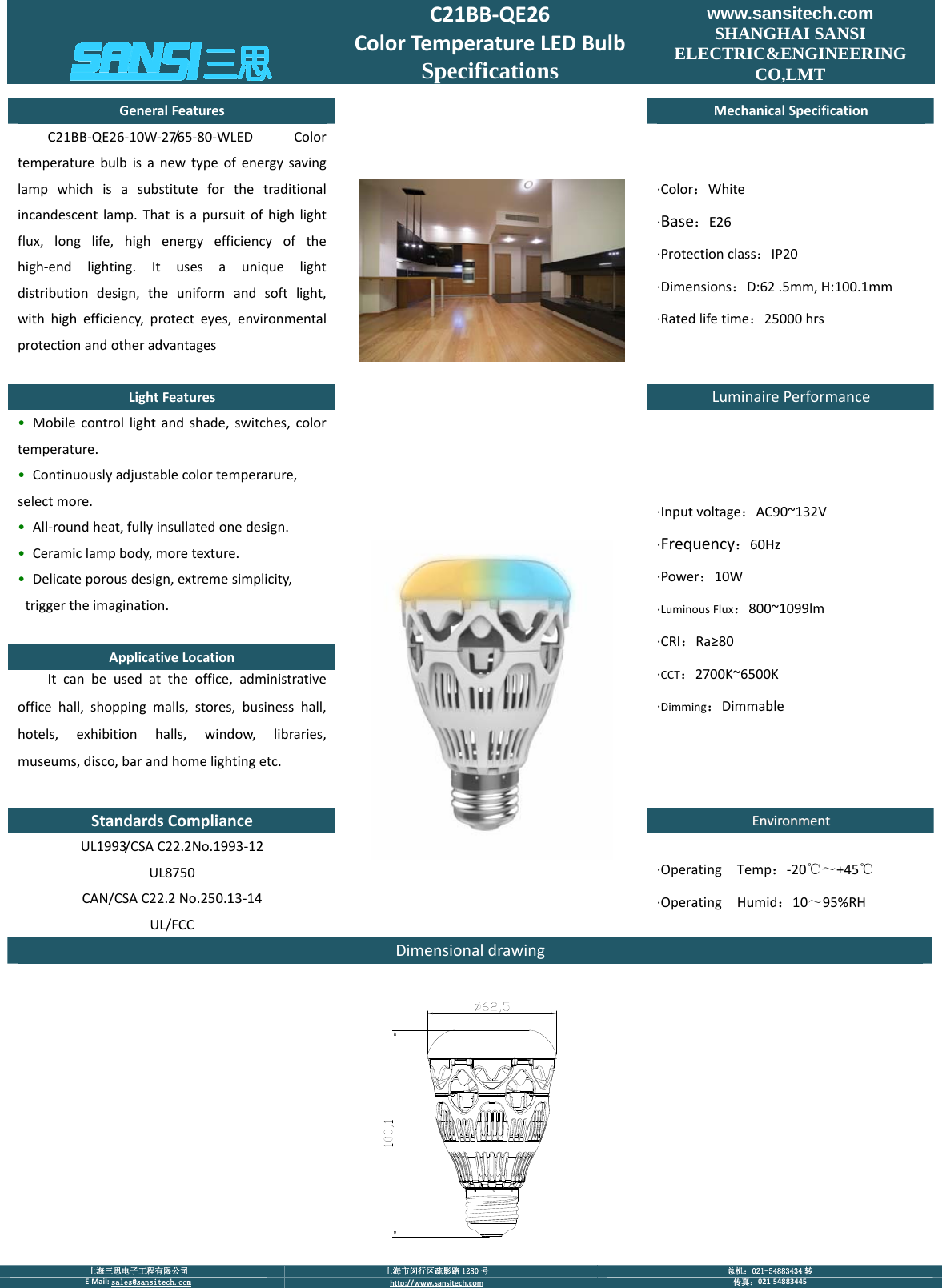
 上海三思电子工程有限公司  上海市闵行区疏影路 1280 号  总机:021-54883434 转 E‐Mail:sales@sansitech.com http://www.sansitech.com 传真:021‐54883445  C21BB‐QE26ColorTemperatureLEDBulbSpecifications www.sansitech.com SHANGHAI SANSI ELECTRIC&ENGINEERING CO,LMT GeneralFeaturesMechanicalSpecificationC21BB‐QE26‐10W‐27/65‐80‐WLEDColortemperaturebulbisanewtypeofenergysavinglampwhichisasubstituteforthetraditionalincandescentlamp.Thatisapursuitofhighlightflux,longlife,highenergyefficiencyofthehigh‐endlighting.Itusesauniquelightdistributiondesign,theuniformandsoftlight,withhighefficiency,protecteyes,environmentalprotectionandotheradvantages∙Color:White∙Base:E26∙Protectionclass:IP20∙Dimensions:D:62.5mm,H:100.1mm∙Ratedlifetime:25000hrsLightFeaturesLuminairePerformance• Mobilecontrollightandshade,switches,colortemperature.• Continuouslyadjustablecolortemperarure,selectmore.• All‐roundheat,fullyinsullatedonedesign.• Ceramiclampbody,moretexture.• Delicateporousdesign,extremesimplicity,triggertheimagination.ApplicativeLocationItcanbeusedattheoffice,administrativeofficehall,shoppingmalls,stores,businesshall,hotels,exhibitionhalls,window,libraries,museums,disco,barandhomelightingetc.∙Inputvoltage:AC90~132V∙Frequency:60Hz∙Power:10W∙LuminousFlux:800~1099lm∙CRI:Ra≥80∙CCT:2700K~6500K∙Dimming:DimmableStandardsComplianceEEnnvviirroonnmmeennttUL1993/CSAC22.2No.1993‐12UL8750CAN/CSAC22.2No.250.13‐14UL/FCC∙OperatingTemp:‐20℃~+45℃∙OperatingHumid:10~95%RHDimensionaldrawing
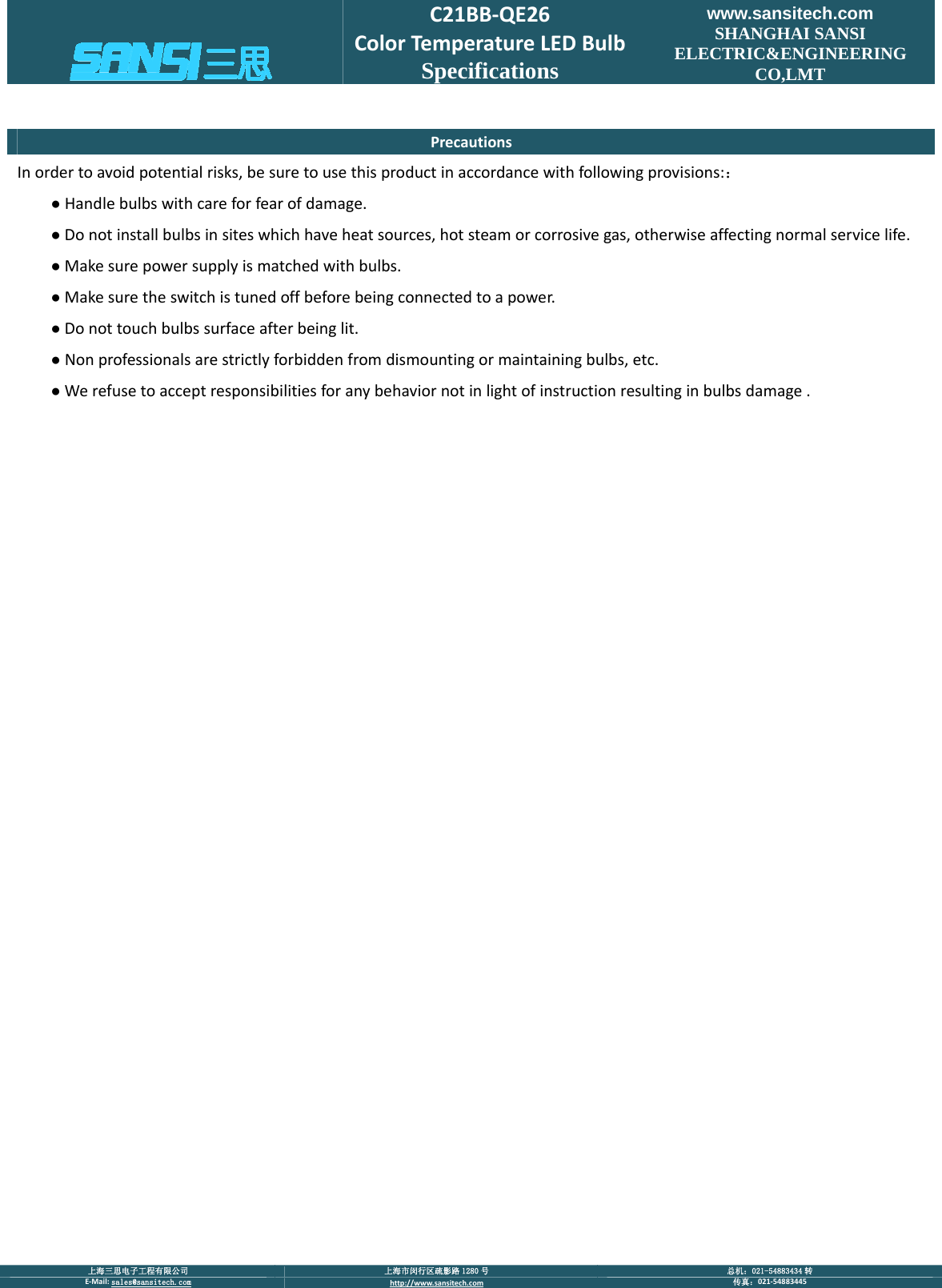
 上海三思电子工程有限公司  上海市闵行区疏影路 1280 号  总机:021-54883434 转 E‐Mail:sales@sansitech.com http://www.sansitech.com 传真:021‐54883445  C21BB‐QE26ColorTemperatureLEDBulbSpecifications www.sansitech.com SHANGHAI SANSI ELECTRIC&ENGINEERING CO,LMT PrecautionsInordertoavoidpotentialrisks,besuretousethisproductinaccordancewithfollowingprovisions::●Handlebulbswithcareforfearofdamage.●Donotinstallbulbsinsiteswhichhaveheatsources,hotsteamorcorrosivegas,otherwiseaffectingnormalservicelife.●Makesurepowersupplyismatchedwithbulbs.●Makesuretheswitchistunedoffbeforebeingconnectedtoapower.●Donottouchbulbssurfaceafterbeinglit.●Nonprofessionalsarestrictlyforbiddenfromdismountingormaintainingbulbs,etc.●Werefusetoacceptresponsibilitiesforanybehaviornotinlightofinstructionresultinginbulbsdamage.
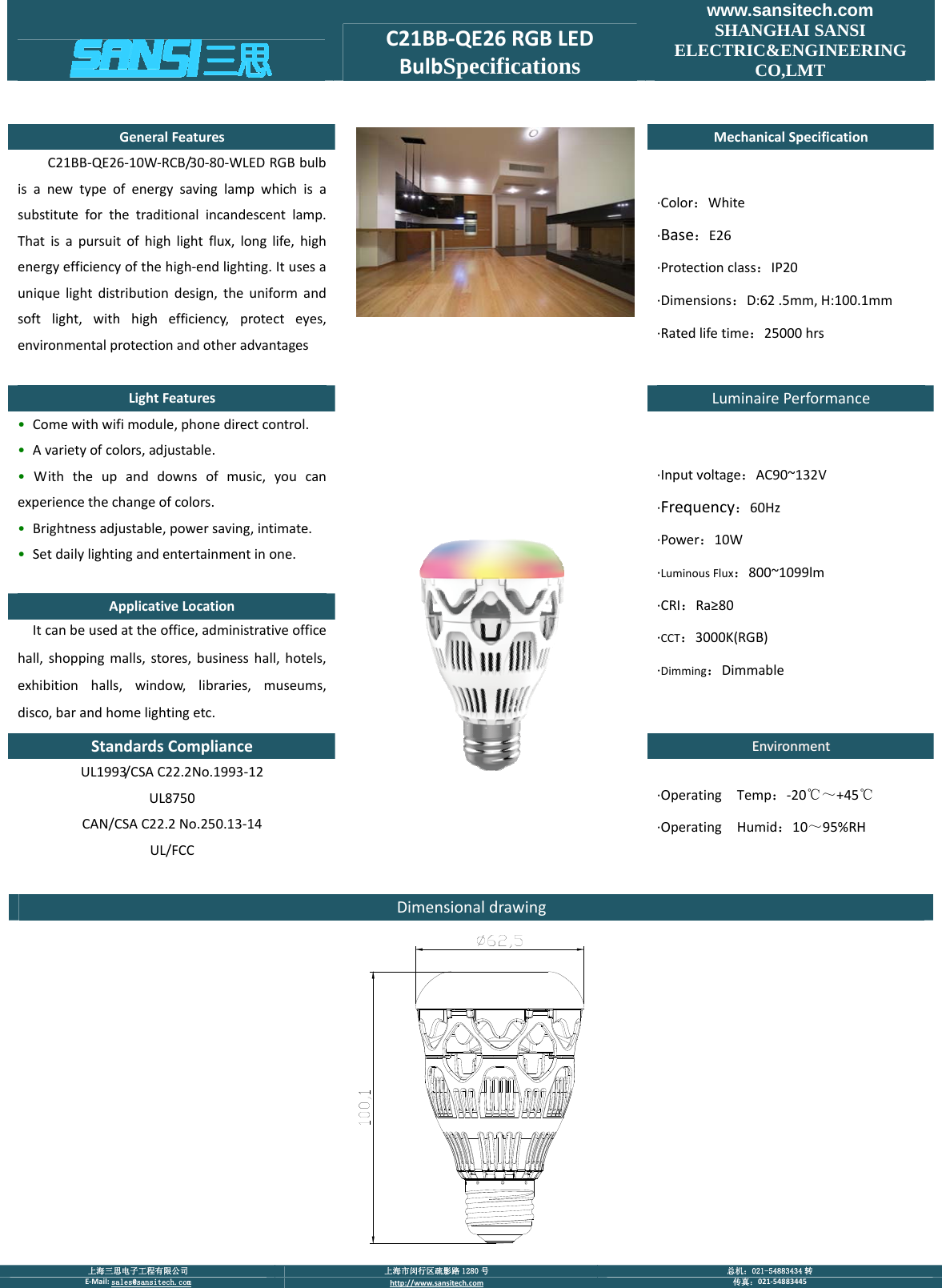
 上海三思电子工程有限公司  上海市闵行区疏影路 1280 号  总机:021-54883434 转 E‐Mail:sales@sansitech.com http://www.sansitech.com 传真:021‐54883445  C21BB‐QE26RGBLEDBulbSpecificationswww.sansitech.com SHANGHAI SANSI ELECTRIC&ENGINEERING CO,LMT GeneralFeaturesMechanicalSpecificationC21BB‐QE26‐10W‐RCB/30‐80‐WLEDRGBbulbisanewtypeofenergysavinglampwhichisasubstituteforthetraditionalincandescentlamp.Thatisapursuitofhighlightflux,longlife,highenergyefficiencyofthehigh‐endlighting.Itusesauniquelightdistributiondesign,theuniformandsoftlight,withhighefficiency,protecteyes,environmentalprotectionandotheradvantages∙Color:White∙Base:E26∙Protectionclass:IP20∙Dimensions:D:62.5mm,H:100.1mm∙Ratedlifetime:25000hrsLightFeaturesLuminairePerformance• Comewithwifimodule,phonedirectcontrol.• Avarietyofcolors,adjustable.• Withtheupanddownsofmusic,youcanexperiencethechangeofcolors.• Brightnessadjustable,powersaving,intimate.• Setdailylightingandentertainmentinone.ApplicativeLocationItcanbeusedattheoffice,administrativeofficehall,shoppingmalls,stores,businesshall,hotels,exhibitionhalls,window,libraries,museums,disco,barandhomelightingetc.∙Inputvoltage:AC90~132V∙Frequency:60Hz∙Power:10W∙LuminousFlux:800~1099lm∙CRI:Ra≥80∙CCT:3000K(RGB)∙Dimming:DimmableStandardsComplianceEEnnvviirroonnmmeennttUL1993/CSAC22.2No.1993‐12UL8750CAN/CSAC22.2No.250.13‐14UL/FCC∙OperatingTemp:‐20℃~+45℃∙OperatingHumid:10~95%RHDimensionaldrawing
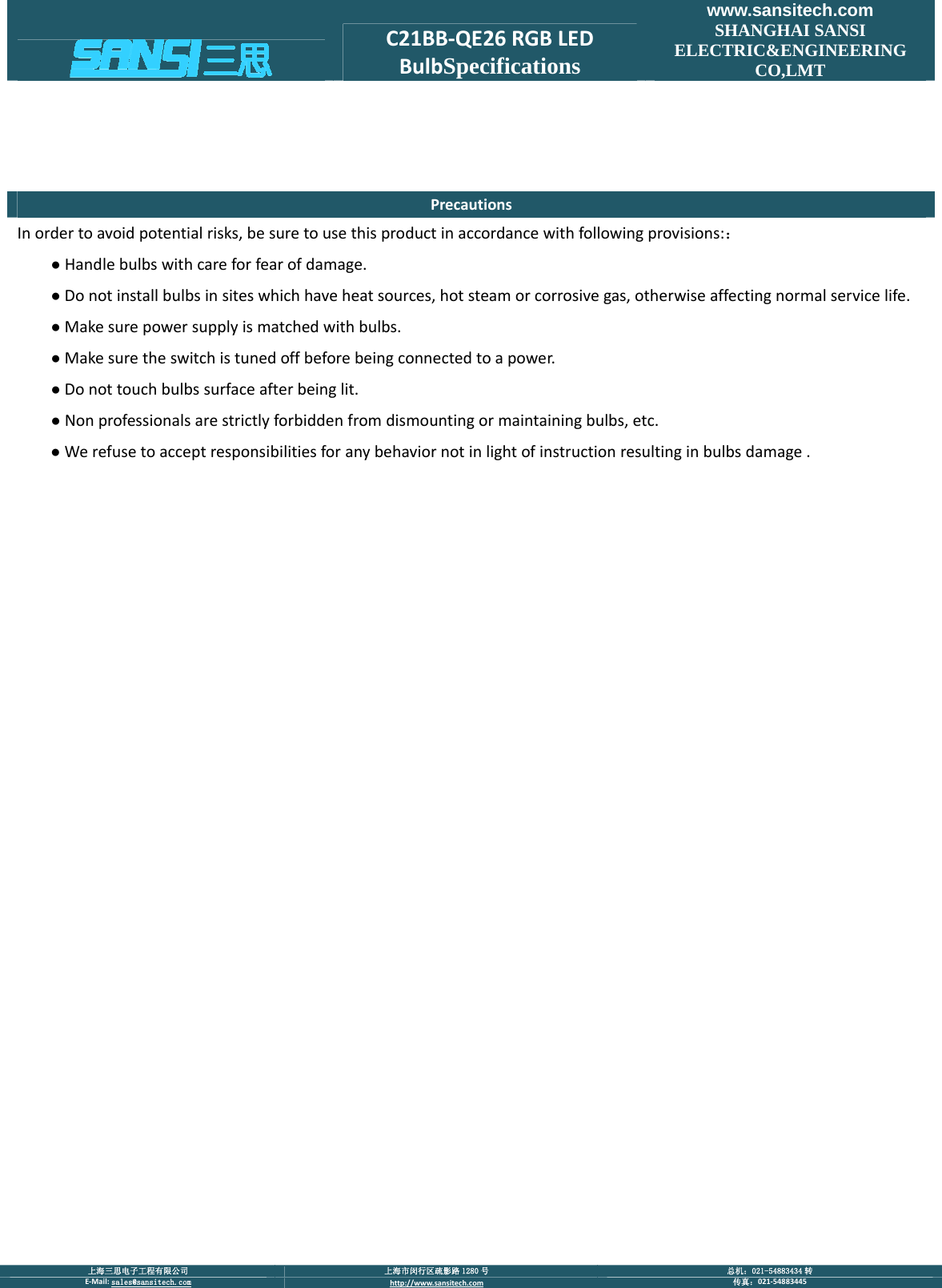
 上海三思电子工程有限公司  上海市闵行区疏影路 1280 号  总机:021-54883434 转 E‐Mail:sales@sansitech.com http://www.sansitech.com 传真:021‐54883445  C21BB‐QE26RGBLEDBulbSpecificationswww.sansitech.com SHANGHAI SANSI ELECTRIC&ENGINEERING CO,LMT PrecautionsInordertoavoidpotentialrisks,besuretousethisproductinaccordancewithfollowingprovisions::●Handlebulbswithcareforfearofdamage.●Donotinstallbulbsinsiteswhichhaveheatsources,hotsteamorcorrosivegas,otherwiseaffectingnormalservicelife.●Makesurepowersupplyismatchedwithbulbs.●Makesuretheswitchistunedoffbeforebeingconnectedtoapower.●Donottouchbulbssurfaceafterbeinglit.●Nonprofessionalsarestrictlyforbiddenfromdismountingormaintainingbulbs,etc.●Werefusetoacceptresponsibilitiesforanybehaviornotinlightofinstructionresultinginbulbsdamage.
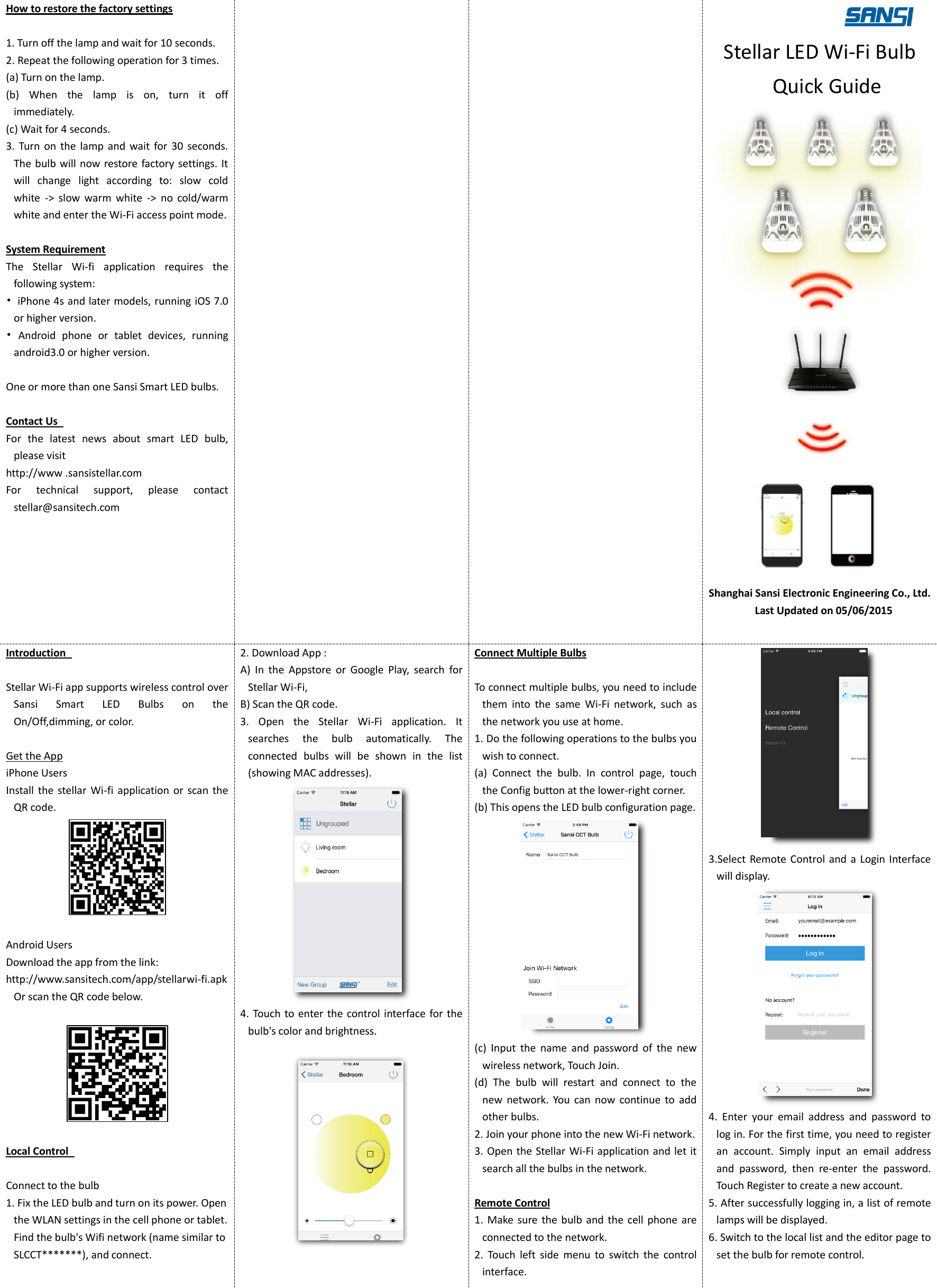
How to restore the factory settings  1. Turn off the lamp and wait for 10 seconds.   2. Repeat the following operation for 3 times.   (a) Turn on the lamp. (b)  When  the  lamp  is  on,  turn  it  off immediately.   (c) Wait for 4 seconds. 3.  Turn  on  the  lamp  and  wait  for  30  seconds.   The bulb will now restore  factory settings. It will  change  light  according  to:  slow  cold white  ->  slow  warm  white  ->  no  cold/warm white and enter the Wi-Fi access point mode.  System Requirement The  Stellar  Wi-fi  application  requires  the following system:   •  iPhone 4s and later models, running iOS 7.0 or higher version. •  Android  phone  or  tablet  devices,  running android3.0 or higher version.    One or more than one Sansi Smart LED bulbs.    Contact Us   For  the  latest  news  about  smart  LED  bulb, please visit   http://www .sansistellar.com For  technical  support,  please  contact stellar@sansitech.com         Stellar LED Wi-Fi Bulb Quick Guide  Shanghai Sansi Electronic Engineering Co., Ltd.   Last Updated on 05/06/2015  Introduction    Stellar Wi-Fi app supports wireless control over Sansi  Smart  LED  Bulbs  on  the On/Off,dimming, or color.  Get the App iPhone Users Install the  stellar  Wi-fi  application or  scan  the QR code.   Android Users Download the app from the link:   http://www.sansitech.com/app/stellarwi-fi.apk Or scan the QR code below.    Local Control    Connect to the bulb 1. Fix the LED bulb and turn on its power. Open the WLAN settings in the cell phone or tablet. Find the bulb's Wifi network (name similar to SLCCT*******), and connect.   2. Download App : A)  In  the  Appstore  or  Google  Play,  search  for Stellar Wi-Fi, B) Scan the QR code. 3.  Open  the  Stellar  Wi-Fi  application.  It searches  the  bulb  automatically.  The connected  bulbs  will  be  shown  in  the  list (showing MAC addresses).    4. Touch to enter the control interface for the bulb's color and brightness.    Connect Multiple Bulbs  To connect multiple bulbs, you need to include them  into  the  same  Wi-Fi  network,  such  as the network you use at home.   1. Do the following operations to the bulbs you wish to connect.   (a)  Connect  the  bulb.  In  control  page,  touch the Config button at the lower-right corner. (b) This opens the LED bulb configuration page.  (c)  Input  the  name  and  password  of  the  new wireless network, Touch Join. (d)  The  bulb  will  restart  and  connect  to  the new  network.  You  can  now  continue  to  add other bulbs. 2. Join your phone into the new Wi-Fi network.   3. Open the Stellar Wi-Fi application and let it search all the bulbs in the network.  Remote Control 1.  Make sure the  bulb  and the  cell  phone are connected to the network.   2.  Touch  left  side  menu  to  switch  the  control interface.  3.Select Remote Control and a Login  Interface will display.  4.  Enter  your  email  address  and  password  to log in. For the first time, you need to register an  account.  Simply  input  an  email  address and  password,  then  re-enter  the  password. Touch Register to create a new account. 5. After successfully logging in, a list of remote lamps will be displayed.   6. Switch to the local list and the editor page to set the bulb for remote control.
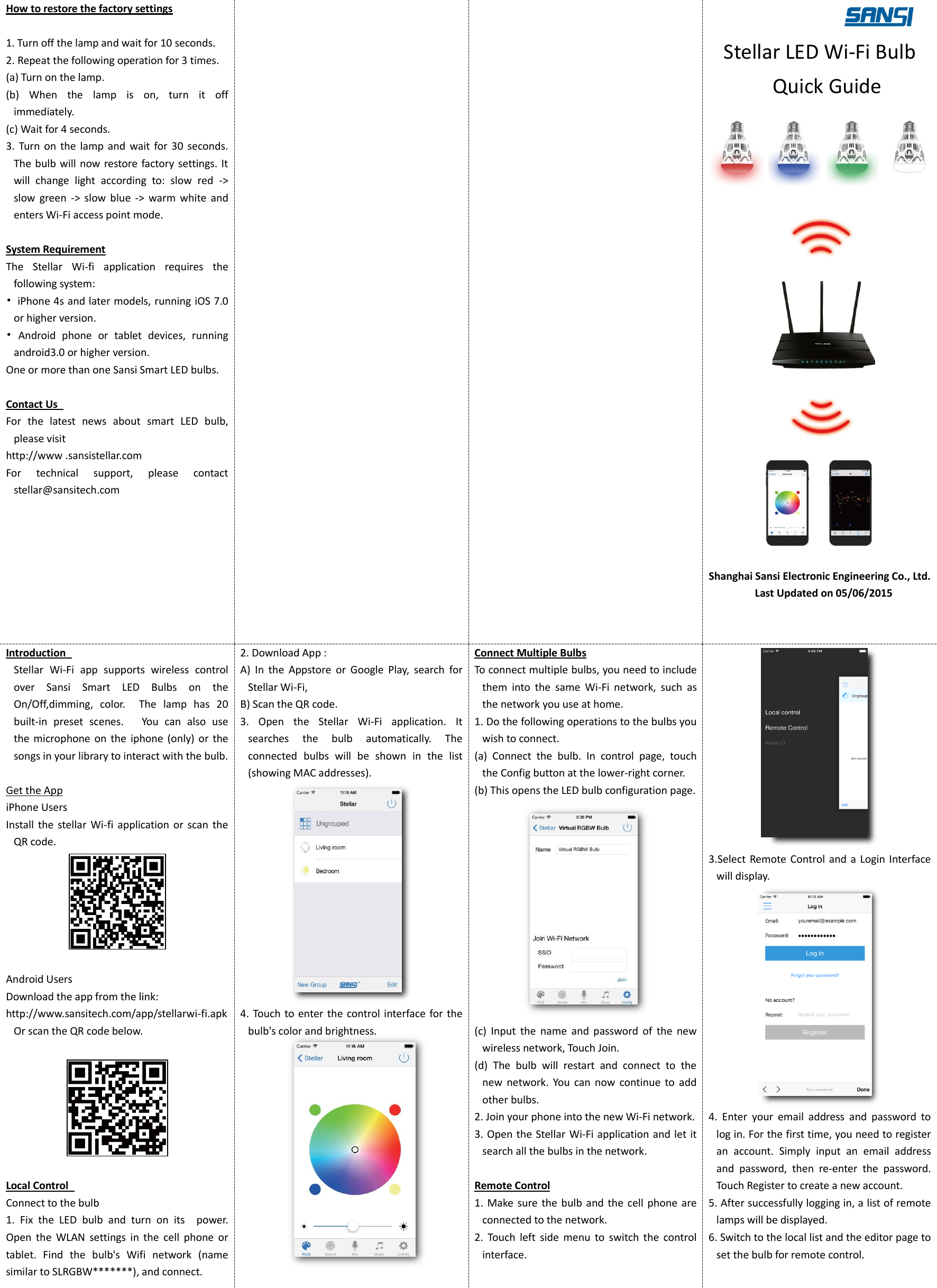
How to restore the factory settings  1. Turn off the lamp and wait for 10 seconds.   2. Repeat the following operation for 3 times.   (a) Turn on the lamp. (b)  When  the  lamp  is  on,  turn  it  off immediately.   (c) Wait for 4 seconds. 3.  Turn  on  the  lamp  and  wait  for  30  seconds.   The bulb will now restore factory settings. It will  change  light  according  to:  slow  red  -> slow  green  ->  slow  blue  ->  warm  white  and enters Wi-Fi access point mode.  System Requirement The  Stellar  Wi-fi  application  requires  the following system:   •  iPhone 4s and later models, running iOS 7.0 or higher version. •  Android  phone  or  tablet  devices,  running android3.0 or higher version.   One or more than one Sansi Smart LED bulbs.    Contact Us   For  the  latest  news  about  smart  LED  bulb, please visit   http://www .sansistellar.com For  technical  support,  please  contact stellar@sansitech.com         Stellar LED Wi-Fi Bulb Quick Guide    Shanghai Sansi Electronic Engineering Co., Ltd.   Last Updated on 05/06/2015  Introduction   Stellar  Wi-Fi  app  supports  wireless  control over  Sansi  Smart  LED  Bulbs  on  the On/Off,dimming,  color.    The  lamp  has  20 built-in  preset  scenes.      You  can  also  use the  microphone on  the  iphone  (only) or  the songs in your library to interact with the bulb.  Get the App iPhone Users Install the  stellar  Wi-fi  application or  scan the QR code.   Android Users Download the app from the link:   http://www.sansitech.com/app/stellarwi-fi.apk Or scan the QR code below.    Local Control   Connect to the bulb 1.  Fix  the  LED  bulb  and  turn  on  its    power. Open  the  WLAN  settings  in  the  cell  phone  or tablet.  Find  the  bulb's  Wifi  network  (name similar to SLRGBW*******), and connect. 2. Download App : A)  In  the  Appstore  or  Google  Play,  search  for Stellar Wi-Fi, B) Scan the QR code. 3.  Open  the  Stellar  Wi-Fi  application.  It searches  the  bulb  automatically.  The connected  bulbs  will  be  shown  in  the  list (showing MAC addresses).    4. Touch to enter the control interface for the bulb's color and brightness.   Connect Multiple Bulbs To connect multiple bulbs, you need to include them  into  the  same  Wi-Fi  network,  such  as the network you use at home.   1. Do the following operations to the bulbs you wish to connect.   (a)  Connect  the  bulb.  In  control  page,  touch the Config button at the lower-right corner. (b) This opens the LED bulb configuration page.  (c)  Input  the  name  and  password  of  the  new wireless network, Touch Join. (d)  The  bulb  will  restart  and  connect  to  the new  network.  You  can  now  continue  to  add other bulbs. 2. Join your phone into the new Wi-Fi network.   3. Open the Stellar Wi-Fi application and let it search all the bulbs in the network.  Remote Control 1.  Make sure the  bulb  and the  cell  phone are connected to the network.   2.  Touch  left  side  menu  to  switch  the  control interface.  3.Select Remote Control and a Login  Interface will display.  4.  Enter  your  email  address  and  password  to log in. For the first time, you need to register an  account.  Simply  input  an  email  address and  password,  then  re-enter  the  password. Touch Register to create a new account. 5. After successfully logging in, a list of remote lamps will be displayed.   6. Switch to the local list and the editor page to set the bulb for remote control.
This device complies with Part 15 of the FCC Rules. Operation is subject to the following two conditions: (1) This device may not cause harmful interference, and (2) this device must accept any interference received, including interference that may cause undesired operation. Caution: Changes or modifications not expressly approved by the party responsible for compliance could void the user's authority to operate the equipment. NOTE: This equipment has been tested and found to comply with the limits for a Class B digital device, pursuant to part 15 of the FCC Rules. These limits are designed to provide reasonable protection against harmful interference in a residential installation. This equipment generates uses and can radiate radio frequency energy and, if not installed and used in accordance with the instructions, may cause harmful interference to radio communications. However, there is no guarantee that interference will not occur in a particular installation. If this equipment does cause harmful interference to radio or television reception, which can be determined by turning the equipment off and on, the user is encouraged to try to correct the interference by one or more of the following measures: --Reorient or relocate the receiving antenna. --Increase the separation between the equipment and receiver. --Connect the equipment into an outlet on a circuit different from that to which the receiver is connected. --Consult the dealer or an experienced radio/TV technician for help.

Navigation menu