Saris Cycling Group CON2FT3 Bicycle Monitoring Transmitter User Manual Rev 28 After Translations Joule 3 indd
Saris Cycling Group Inc Bicycle Monitoring Transmitter Rev 28 After Translations Joule 3 indd
Contents
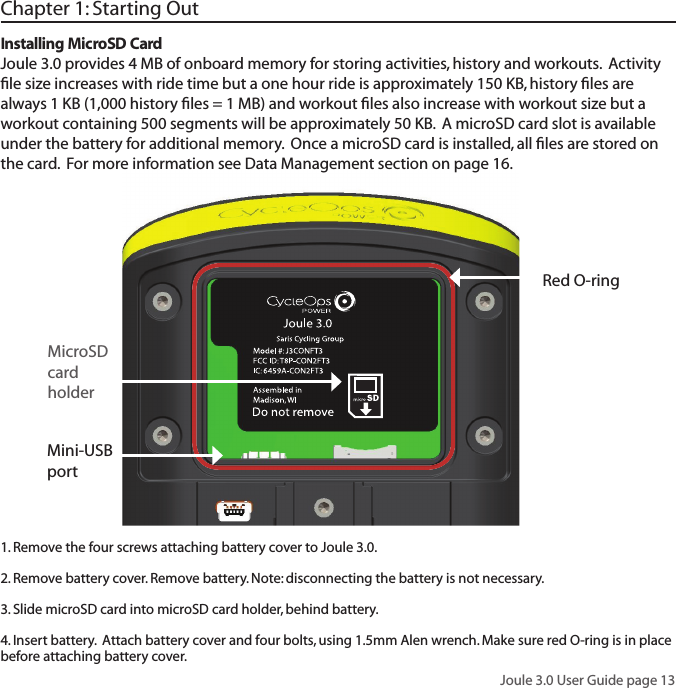
- 1. manual
- 2. rev manual-final
rev manual-final
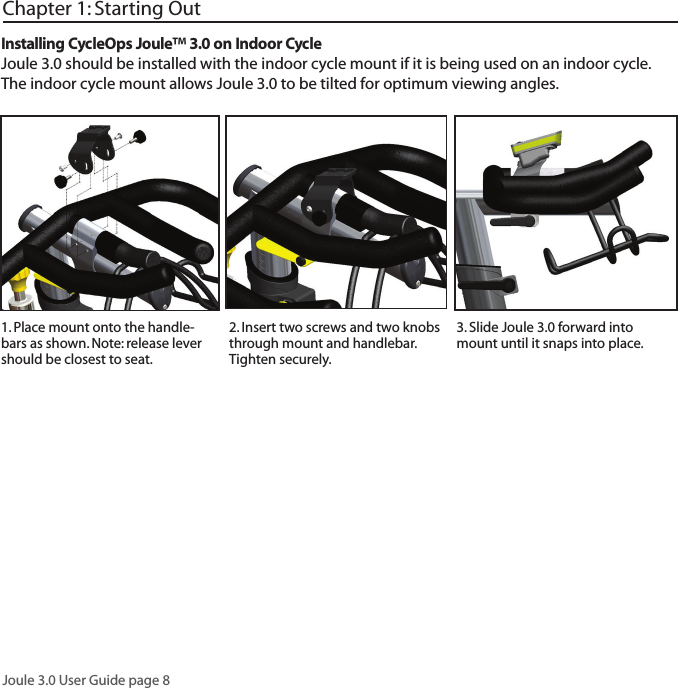
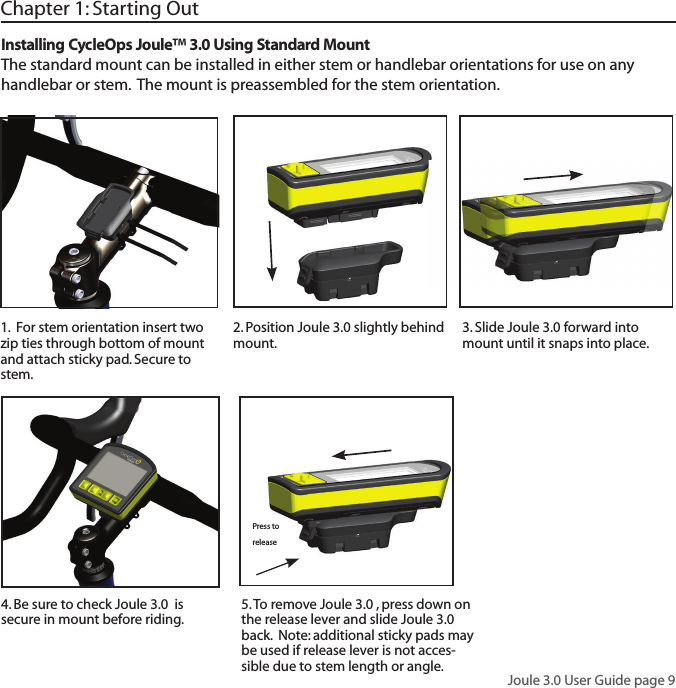
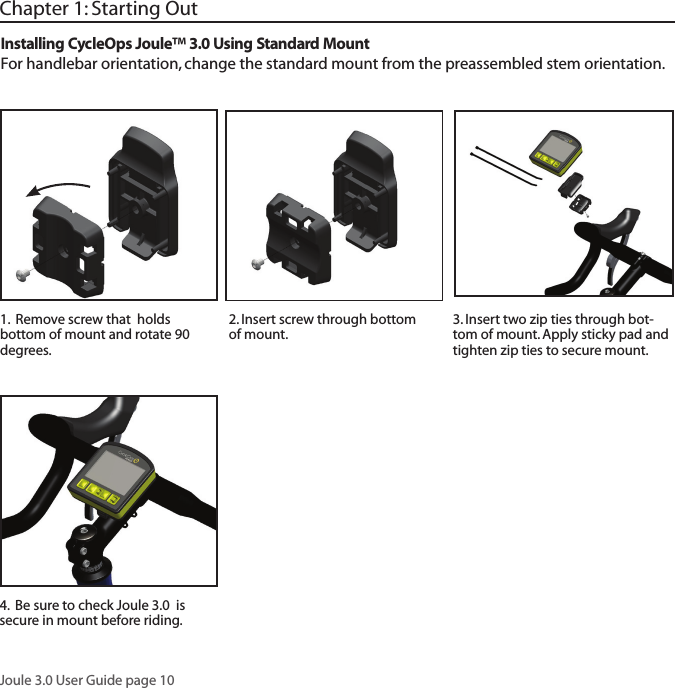
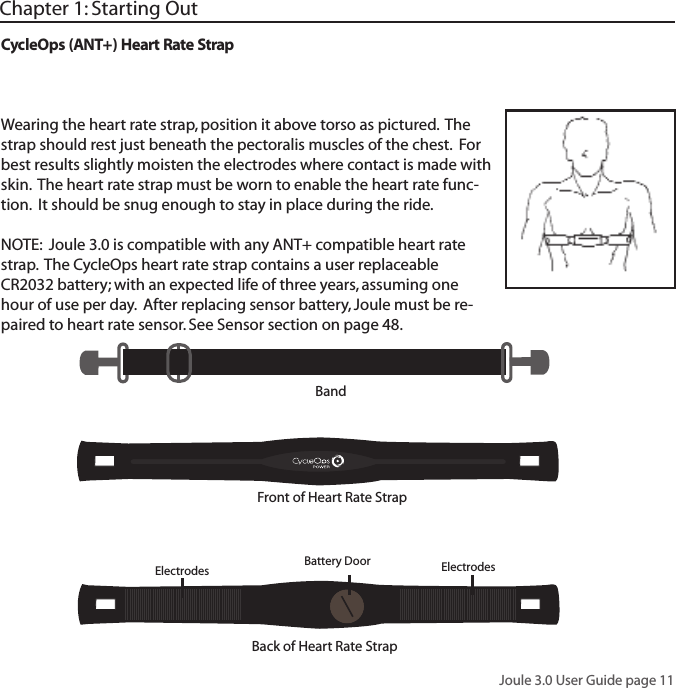
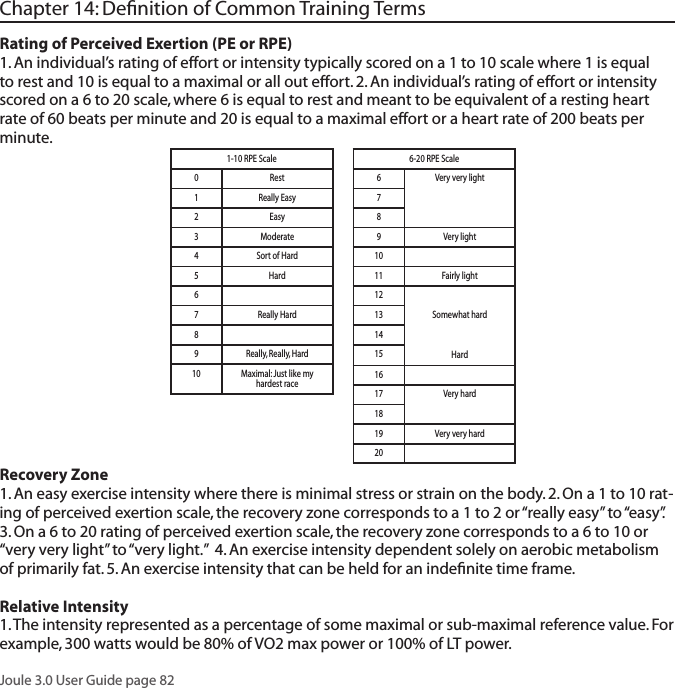
![Joule 3.0 User Guide page 12Charging BatteryThe Joule 3.0 is powered by a user replaceable lithium-ion battery that can be recharged using the included USB cable and a computer. A 5VDC 400mA charger can also be used (not included). A fully charged battery can run for approximately 60 hours before it must be recharged. Recharg-ing completely, via USB cable or AC adapter will take approximately six hours. The battery level is indicated in the title bar. The Joule 3.0 is fully charged at the factory, but shipping and handling may inadvertently consume charge. For more information see Important Precautions section on page 38.Chapter 1: Starting Out1. Press in release [HOME] , [MODE] or [INTERVAL] to turn on Joule 3.0. Note: Pressing either [JOYSTICK] will not turn Joule 3.0 on.2. Plug the mini-USB cable into the mini-USB port on the back of Joule 3.0 and plug the other end into an avail-able USB port on a computer. 3. A standard AC adapter to wall outlet is available separately. 4. Once connected to a computer or AC adapter, Joule 3.0 displays the connection and charge screen (charging or charge complete). No data will be displayed.ConnectedFirmware Version14.045Charging Mini- USB portFront of Joule Back of Joule Battery coverHOME MODE INTERVAL RESISTANCE](https://usermanual.wiki/Saris-Cycling-Group/CON2FT3.rev-manual-final/User-Guide-1246531-Page-12.png)
![Joule 3.0 User Guide page 14Chapter 1: Starting Out[MODE] button [JOYSTICK] [INTERVAL] button[HOME] buttonNavigation Overview CycleOps Joule™ 3.0There are three buttons and two [JOYSTICK] to navigate Joule 3.0. To help navigate Joule 3.0 and this manual note; bold letters will bring special attention to Menu items as they appear on the screen. Letters appearing in all [CAPs] denote an actual button.[RESISTANCE JOYSTICK] HOME MODE INTERVAL RESISTANCE](https://usermanual.wiki/Saris-Cycling-Group/CON2FT3.rev-manual-final/User-Guide-1246531-Page-14.png)
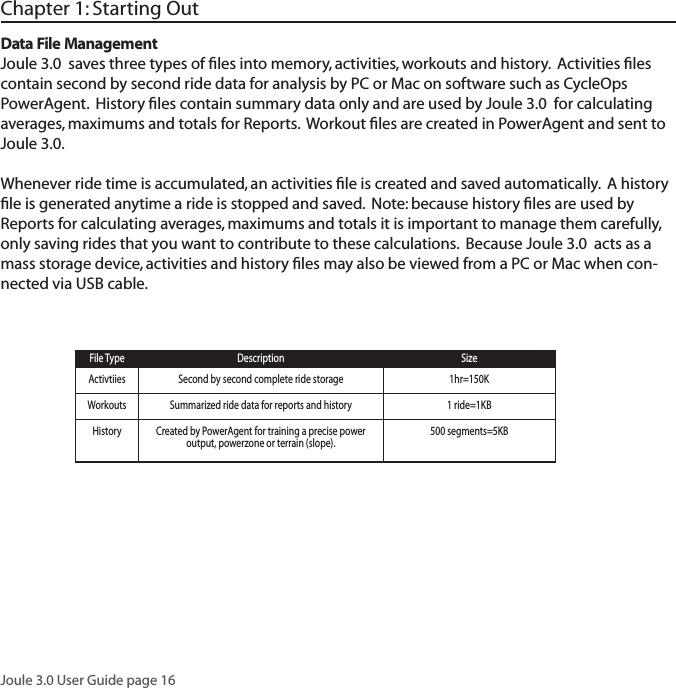
![Joule 3.0 User Guide page 15Chapter 1: Starting Out Button Function [JOYSTICK] Press left/right Move within a screen or change screens Press up/down Move within a screen or scroll up/down screen Press in and release Change metrics in dashboard, change date ranges in reports or select settings in menu Press and hold for 2 seconds Initate list for changing dashboard categorysettings [MODE] Press and release Change between dashboard, reports, activities, menu Press and release Navigate “back” in menu mode Press and hold for 2 seconds Display “Ride Paused” screen[INTERVAL] Press and release Stop current interval and start next interval Press and hold for 2 seconds Change dashboard to and from “Interval Mode” [MODE] Press and hold for 2 seconds Initiates fi nding previously paired sensors +[INTERVAL] [RESISTANCE Press up/down Change resistance setting JOYSTICK] Press in and release Change resistance type [HOME] Press in and release Return to dashboard mode Display ActionsNavigation Overview CycleOps Joule™ 3.0 [JOYSTICK] Press left/right Move within a screen or change screens Press up/down Move within a screen or scroll up/down screen Press in and release Change metrics in dashboard, change date ranges in reports or select settings in menu Press and hold for 2 seconds Initate list for changing dashboard categorysettings [MODE] Press and release Change between dashboard, reports, activities, menu Press and release Navigate “back” in menu mode Press and hold for 2 seconds Display “Ride Paused” screen[INTERVAL] Press and release Stop current interval and start next interval Press and hold for 2 seconds Change dashboard to and from “Interval Mode” [MODE] Press and hold for 2 seconds Initiates fi nding previously paired sensors[RESISTANCE Press up/down Change resistance setting JOYSTICK] Press in and release Change resistance type [HOME] Press in and release Return to dashboard mode [JOYSTICK] Press left/right Move within a screen or change screens Press up/down Move within a screen or scroll up/down screen Press in and release Change metrics in dashboard, change date ranges in reports or select settings in menu Press and hold for 2 seconds Initate list for changing dashboard categorysettings [MODE] Press and release Change between dashboard, reports, activities, menu Press and release Navigate “back” in menu mode Press and hold for 2 seconds Display “Ride Paused” screen[INTERVAL] Press and release Stop current interval and start next interval Press and hold for 2 seconds Change dashboard to and from “Interval Mode” [MODE] Press and hold for 2 seconds Initiates fi nding previously paired sensors[RESISTANCE Press up/down Change resistance setting JOYSTICK] Press in and release Change resistance type [HOME] Press in and release Return to dashboard mode](https://usermanual.wiki/Saris-Cycling-Group/CON2FT3.rev-manual-final/User-Guide-1246531-Page-15.png)
![Joule 3.0 User Guide page 17Chapter 1: Starting OutPausing, Saving and/or Deleting a RideA ride may be paused at any time. Joule 3.0 will turn off automatically if paused for longer than the designated sleep time. For more information on how to change sleep time see page 64. 1. Press and hold [MODE] for two seconds to ac-cess ride paused screen from any mode. 2. Press [JOYSTICK] in and release to resume ride.](https://usermanual.wiki/Saris-Cycling-Group/CON2FT3.rev-manual-final/User-Guide-1246531-Page-17.png)
![Joule 3.0 User Guide page 18Chapter 1: Starting OutPausing, Saving and/or Deleting a RideStopping and saving a ride creates a history fi le for that ride. History fi les are used for calculating averages, maximums and totals for Reports. Stop and save resets all data in the dashboard. 1. Hold [MODE] for two seconds to access ride paused screen from any mode.2. Press [JOYSTICK] up/down to highlight stop and save. Press [JOYSTICK] in and release to select.](https://usermanual.wiki/Saris-Cycling-Group/CON2FT3.rev-manual-final/User-Guide-1246531-Page-18.png)
![Joule 3.0 User Guide page 19Chapter 1: Starting OutPausing, Saving and/or Deleting a RideA ride may be deleted at any time. If a ride is deleted no history fi le is created. 1. Press and hold [MODE] to access ride paused screen from any mode. 2. Press [JOYSTICK] up/down to highlight stop and delete. Press [JOYSTICK] in and release to select stop and delete. 3. Press [JOYSTICK] in and release to confi rm deletion.](https://usermanual.wiki/Saris-Cycling-Group/CON2FT3.rev-manual-final/User-Guide-1246531-Page-19.png)
![Joule 3.0 User Guide page 21Title barChapter 2: Dashboard ModeDashboardInformation barDetailed viewUsing Dashboard ModeJoule 3.0 has four display modes of operation: dashboard, reports, activities and menu indicated by the title bar. Note: after the mode is displayed in the title bar for five seconds, the time of day will appear. Press and release [MODE] to change to dashboard mode. Note: Press in and release [HOME] at any time to return to the dashboard mode. Resistance control type/ set-tingSelected metric Battery indicatorInterval on/offMode level indicator/Alerts notificationsTotal ride distanceAverage heart rate for total rideRide time Total ride KJ](https://usermanual.wiki/Saris-Cycling-Group/CON2FT3.rev-manual-final/User-Guide-1246531-Page-21.png)
![Joule 3.0 User Guide page 221. Press [JOYSTICK] left/right or up/down to high-light a metric. Note: when a new metric is high-lighted, the detailed view changes to show related metrics. 2.Press in and release [JOYSTICK] to rotate metrics from detailed view to dashboard. (Example: watts, av watts, mx watts). 3. Press in and hold [JOYSTICK] to change the metric category displayed in the dashboard. Chapter 2: Dashboard ModeUsing Dashboard ModeDashboard mode shows current ride data. It displays six metrics that can be easily customized. The detailed view shows additional metrics related to the selected metric in the dashboard. Detailed viewSelected metric](https://usermanual.wiki/Saris-Cycling-Group/CON2FT3.rev-manual-final/User-Guide-1246531-Page-22.png)
![Joule 3.0 User Guide page 23Chapter 2: Dashboard ModeDashboard CategoriesEach dashboard category is made up of three metrics. There are twelve available dashboard cat-egories. Press and hold [JOYSTICK] to change the metric category displayed in the dashboard. Category Metric 1Metric 2Metric 3Wa tts watts average wattsaverage watts/kgcurrent power zone average power zonemaximum watts/kgmaximum wattsWatts/kg watts/kgZonesPeak PowerScoresWo rkSpeedV A M2999 29992999WATTSW/KGAV W ATTSMXWA T TS20.0PWR ZONE6AV PWR ZN4.2heart rate zoneHR ZONE35sec Peak Power 5min Peak Power5 SEC29995 MIN299920 min Peak Power20 MIN2999training stress score normalized powerTSS500.1NORM PWR2999intensity factorIF2.000kilojoules kilojoules / hourKJ9999KJ/HR9999training stress scoreTSS9999RPM rpmaverage rpmCAD250AV CAD250maximum rpmMX CAD250current speed average speedMPH99.9AV MPH99.9maximum speedMX MPH99.9current grade current altitude ft or mcurrent altitude ft or m% GRADE45.0ALT FTALT FTtotal ascent ft or mtotal ascent ft or mFT GAIN9999vertical ascentVA MHeart Rate% Gradeheart rate average heart rateHR250AV HR250MX HR250maximum heart rateAV W/KG20.0MX W/KG20.0Ride ride time99:59:59MILE99.99ride distanceRIDE TIME HR299999999FT GAIN45.0kilojoules9999KJ29999](https://usermanual.wiki/Saris-Cycling-Group/CON2FT3.rev-manual-final/User-Guide-1246531-Page-23.png)
![Joule 3.0 User Guide page 241. Intervals can be started at any point during the ride and from any mode. Press and release [INTERVAL]. To stop the existing interval and start the next one, press and release [INTERVAL] again. 2. To view intervals from the dashboard press and hold [INTERVAL] until “INT” is displayed in the title bar. Note: All dashboard data now pertains to the active interval only. 3. To exit interval mode, press and hold [INTERVAL] again. Note: all dashboard data will now pertain to the entire ride. 4. To view all interval data press and release [MODE] to navigate to activities mode. Note: Activities mode shows all intervals completed with the current interval at the top of the list. Average power, heart rate, interval time and distance are displayed for each interval.Intervals are disabled during saved workouts. IntervalsIntervals may be viewed from activities mode or dashboard mode. Intervals are useful for view-ing ride data specifi c to a section of your ride such as a hill or other period of high intensity riding. Chapter 3: Intervals](https://usermanual.wiki/Saris-Cycling-Group/CON2FT3.rev-manual-final/User-Guide-1246531-Page-24.png)
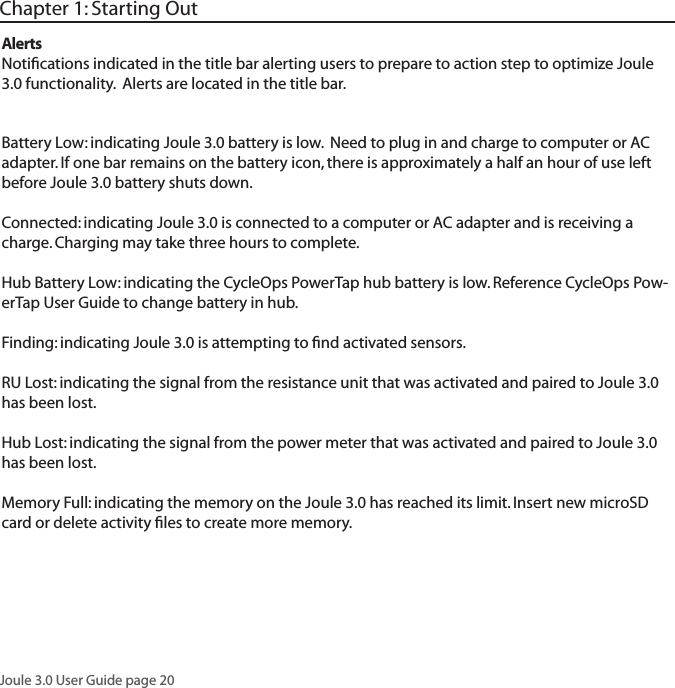
![Joule 3.0 User Guide page 25Title barTodays Ride Information barReport TypeBattery indicatorMode level indicatorChapter 4: Reports ModeUsing Reports ModeJoule 3.0 has four display modes of operation: dashboard, reports, activities and menu indicated in the title bar. Note: after the mode is displayed in the title bar for fi ve seconds, the time of day will appear Press and release [MODE] button to change from dashboard mode to report mode. Note: Press in and release [HOME] at any time to return to the dashboard mode. Green box highlights larger volumeComparable Timeframe Report MetricsReport NameTotal ride distanceAverage heart rate for total rideRide time Total ride KJ](https://usermanual.wiki/Saris-Cycling-Group/CON2FT3.rev-manual-final/User-Guide-1246531-Page-25.png)
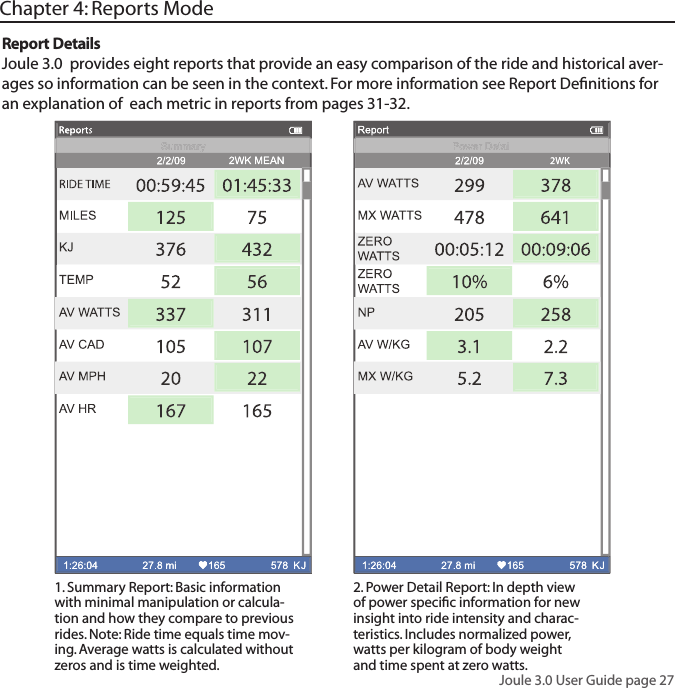
![Joule 3.0 User Guide page 261. From dashboard mode, press and release [MODE]. Press [JOYSTICK] left/right to change reports. 2. Press [JOYSTICK] up/down to scroll screen within a particular report. For past ride historical reports, see pages 31-36. 3. Press in and release [JOYSTICK] to change date ranges from two weeks, four weeks, eight weeks, six months and twelve months. Using Reports ModeJoule 3.0 provides eight reports for an easy comparison of the current ride and historical aver-ages so information can be seen in context. Each report contains three columns; the fi rst column is the metric label, the second column is the data for a given metric on the current ride, the third column is the average of all rides completed over the selected date range. Note: the green highlighted metrics represents the larger of the two metrics. For more information see Report Defi nitions for an explanation of each metric in reports from pages 31-36. Chapter 4: Reports Mode](https://usermanual.wiki/Saris-Cycling-Group/CON2FT3.rev-manual-final/User-Guide-1246531-Page-26.png)
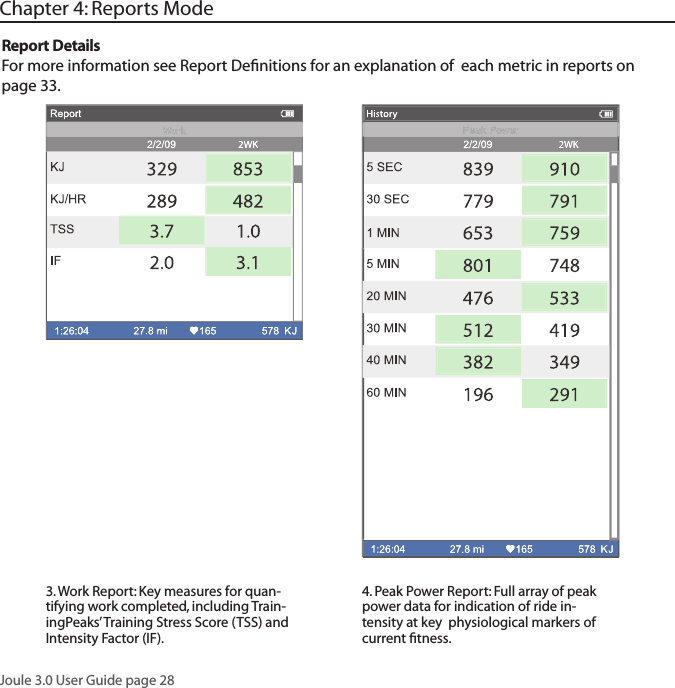
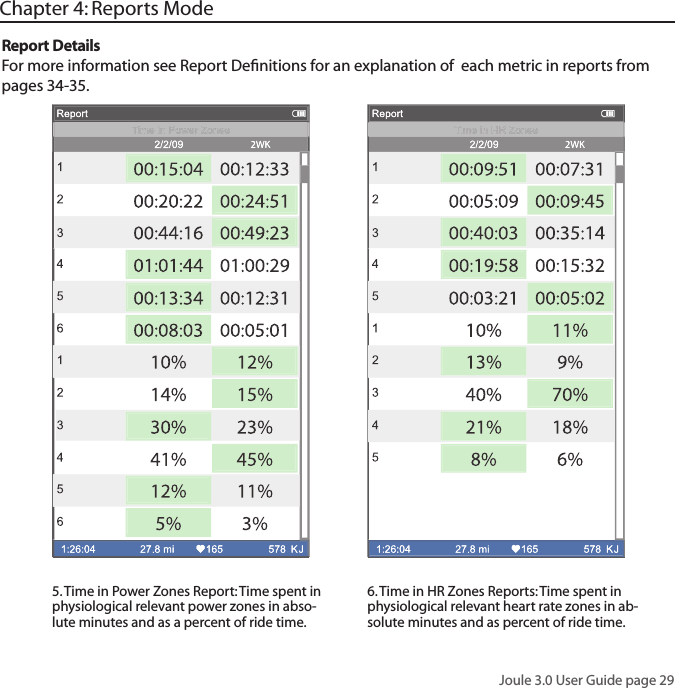
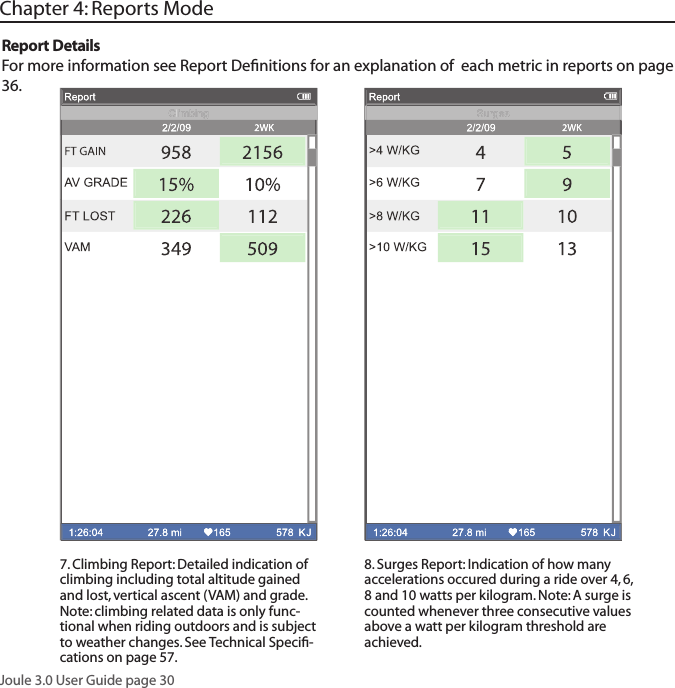
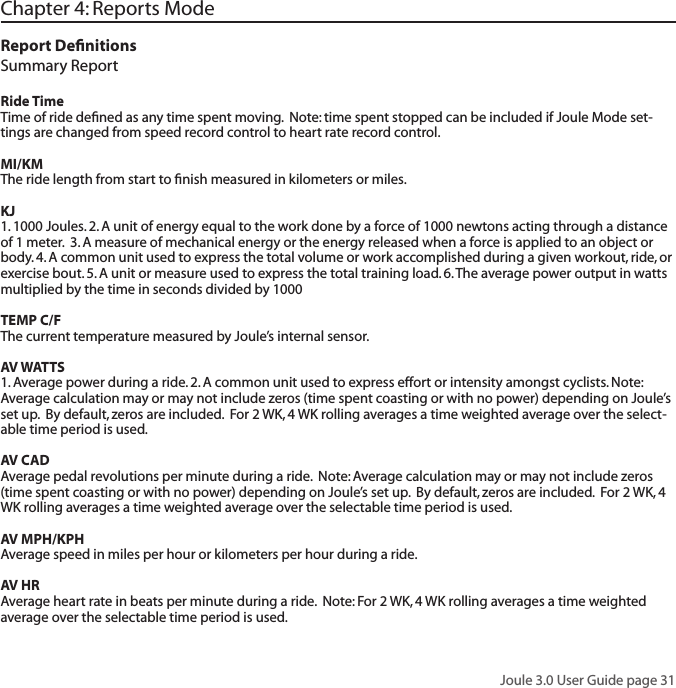
![Joule 3.0 User Guide page 37Title barCustomizable MetricsInformation barWorkout/Activities TypeBattery indicatorChapter 5: WorkoutsUsing WorkoutsJoule 3.0 has four display modes of operation: dashboard, reports, activities and menu indicated by the title bar. Note: after the mode is displayed in the title bar for fi ve seconds, the time of day will be displayed. Press and release [MODE] button to change from dashboard mode to report mode to activites mode. Note: Press in and release [HOME] at any time to return to the dash-board mode.Target PowerUpcoming SegmentsInterval On/OffMode level indicator/Alerts notifi cationsTotal ride distanceAverage heart rate for total rideRide time Total ride KJ](https://usermanual.wiki/Saris-Cycling-Group/CON2FT3.rev-manual-final/User-Guide-1246531-Page-37.png)
![Joule 3.0 User Guide page 39Chapter 5: WorkoutsUsing Manual Workouts with CycleOps 400 Pro Indoor CycleThe controlled resistance technology offered on the CycleOps 400 Pro indoor cycle allows workout intensity to be precisely managed by targeting slope or a specifi c power output. Workouts can be ridden in dashboard mode and activities mode. 1. Press and release [MODE] until Menu mode is displayed. 2. Press [JOYSTICK] up/down to highlight Workouts. Press [JOYSTICK] in and release to select Workouts.3. If Joule 3.0 has been paired to the 400 Pro resistance unit a manual workout will be started automatically once the resistance unit is found by Joule 3.0. For more information on pairing and fi nding sensors please refer to page 56. It is also possible to select manual workout by selecting workouts from Menu mode and then manual workout. 4. Press [RESISTANCE JOYSTICK] up/down to adjust the target power from any mode once a manual workout is started in 10 watt increments from 30 watts to 1000 watts. Note: The 400 Pro will automatically adjust the resis-tance to match the target power output. Power is a combination of speed and torque. Because of this, you experi-ence less resistance the faster you pedal, keeping your power output at the targeted level. Not all power levels are available at all speeds. When the 400 Pro cannot add any more resistance, you should speed up to achieve the target power. When the 400 Pro cannot remove any more resistance you should slow down to achieve the target power.](https://usermanual.wiki/Saris-Cycling-Group/CON2FT3.rev-manual-final/User-Guide-1246531-Page-39.png)
![Joule 3.0 User Guide page 40Chapter 5: WorkoutsChainring Sprocket Display Gear Diffi culty50 10 1 Hardest53 11 2 Harder50 11 3 Harder50 12 4 Harder50 13 5 Harder50 14 6 Harder50 15 7 Harder50 11 8 Harder34 17 9 Harder50 12 10 Harder34 19 11 Harder34 14 12 Easier50 15 13 Eaiser34 23 14 Easier34 17 15 Easier34 19 16 Easier34 21 17 Easier34 23 18 Easier34 25 19 Easier34 27 20 Easier34 30 21 Easier34 34 22 EasiestUsing Manual Workouts with CycleOps 400 Pro Indoor Cycle...continued 5. Press [RESISTANCE JOYSTICK] in and release to change the resistance type from target power to target slope. Slope measures grade steepness of your simulated climb. You can choose a grade between 0 and 25. The higher the number, the steeper the slope you’re climbing. While in slope mode, the 400 Pro provides the resistance for the selected slope at whatever speed you’re riding. The faster you pedal, the more resistance you’ll need to overcome, just like riding up an actual hill. The resistance the 400 Pro simulates is calculated considering the power needed to climb the target slope on a road bike with slick tires and the user weight saved in Joule’s User Setup. For information on setting up user weight see pages 66-67 or connect Joule to PowerAgent software to adjust user weight. 6. Press [RESISTANCE JOYSTICK] in and release again to change from target slope to gearing. The gearing set-ting uses the previously set target slope but allows you to change the gear ratio simulated by the 400 Pro. This is useful for understanding what gear combination is best for you on various slopes so you can train for your goal terrain. The gears and ratios simulated by the 400 Pro are listed above:7. Press and release [INTERVAL] at anytime during a manual workout to start a new interval and end a previous interval. To review intervals during a manual workout, press [MODE] to navigate to Activities Mode and then pess the [JOYSTICK] left/right to highlight the intervals then press [JOYSTICK] up/down to scroll list. Gear Ratios](https://usermanual.wiki/Saris-Cycling-Group/CON2FT3.rev-manual-final/User-Guide-1246531-Page-40.png)
![Joule 3.0 User Guide page 41Using Manual Workouts with CycleOps PowerBeam Pro TrainerThe controlled resistance technology offered on the CycleOps PowerBeam Pro trainer allows workout intensity to be precisely managed by targeting slope or a specifi c power output. Chapter 5: Workouts1. Press and release [MODE] until Menu mode is displayed. 2. Press [JOYSTICK] up/down to highlight Workouts. Press [JOYSTICK] in and release to select Workouts.3. If Joule 3.0 has been paired to the PowerBeam Pro resistance unit a manual workout will be started automati-cally once the resistance unit is found by Joule 3.0 and speed is detected. For more information on pairing and fi nding sensors please refer to pages 48-54.4. Press the [RESISTANCE JOYSTICK] up/down to adjust the target power from any mode once a manual work-out is started in 10 watt increments from 30 watts to 1000 watts. Note: The PowerBeam Pro will automatically adjust the resistance to match the target power output. Power is a combination of speed and torque. Because of this, you experience less resistance the faster you pedal, keeping your power output at the targeted level. Not all power levels are available at all speeds. 5. When the PowerBeam Pro cannot add any more resistance, you should speed up to achieve the target power. When the PowerBeam Pro cannot remove any more resistance you should slow down to achieve the target power.](https://usermanual.wiki/Saris-Cycling-Group/CON2FT3.rev-manual-final/User-Guide-1246531-Page-41.png)
![Joule 3.0 User Guide page 426. Press [RESISTANCE JOYSTICK] in and release to change the resistance type from target power to target slope. Slope measures grade steepness of your simulated climb. You can choose a grade between 0 and 10 for the slope. The higher the number, the steeper the slope you’re climbing. While in slope mode, the PowerBeam Pro provides the resistance for the selected slope at whatever speed you’re riding. The faster you pedal, the more resistance you’ll need to overcome, just like riding up an actual hill. The resistance the PowerBeam Pro simulates is calculated considering the power needed to climb the target slope on a road bike with slick tires and the user weight saved in Joule’s User Setup. For information on setting up user weight see pages 66-67 or connect Joule to PowerAgent software to adjust user weight.7. Shift gears on your bicycle to adjust the intensity at the target slope. 8. Press in and release INTERVAL] at anytime during a manual workout to start a new interval and end a previous interval. To review intervals during a manual workout, press [JOYSTICK] left/right to highlight the intervals then press [JOYSTICK] up/down to scroll list. Using Manual Workouts with CycleOps PowerBeam Pro Trainer...continuedChapter 5: Workouts](https://usermanual.wiki/Saris-Cycling-Group/CON2FT3.rev-manual-final/User-Guide-1246531-Page-42.png)
![Joule 3.0 User Guide page 43Using Saved Workouts with CycleOps 400 Pro Indoor CycleWorkouts may be created in PowerAgent software and saved to Joule for use on the 400 Pro indoor cycle. The advantage of saved workouts over manual workouts is that the resistance will change automatically based on the saved time or distance of each segment. This is helpful for du-plicating a specifi c course you are training for. Note: Resistance target and type can be changed during a ride in a saved workout in the same way as a manual workout. Chapter 5: Workouts1. Press and release [MODE] until Menu mode is displayed. 2. Press [JOYSTICK] up/down to highlight Workouts. Press [JOYSTICK] in and release to select Workouts.3. Press [JOYSTICK] up/down to highlight the desired saved workout. Press [JOYSTICK] in and release to select the desired saved workout. 4. Once the saved workout is selected, Joule 3.0 will display activities mode and the segments associated with the saved workout. The fi rst segment of the workout will begin as soon as pedaling begins. 5. Pressing [RESISTANCE JOYSTICK] up/down adjusts the target resistance from any mode once a saved workout is started. Note: The 400 Pro will automatically adjust the resistance to match the target resistance from the saved workout. Power is a combination of speed and torque. Because of this, you experience less resistance the faster you pedal, keeping your power output at the targeted level. Not all power levels are available at all speeds. When the 400 Pro cannot add any more resistance, you should speed up to achieve the target power. When the 400 Pro cannot remove any more resistance you should slow down to achieve the target power.](https://usermanual.wiki/Saris-Cycling-Group/CON2FT3.rev-manual-final/User-Guide-1246531-Page-43.png)
![Joule 3.0 User Guide page 44Using Saved Workouts with CycleOps 400 Pro Indoor Cycle...continued Chapter 5: WorkoutsSlope measures grade steepness of your simulated climb. You can choose a grade between 0 and 25 for the slope. The higher the number, the steeper the slope you’re climbing. While in slope mode, the 400 Pro provides the resistance for the selected slope at whatever speed you’re riding. The faster you pedal, the more resistance you’ll need to overcome, just like riding up an actual hill. The resistance the 400 Pro simulates is calculated con-sidering the power needed to climb the target slope on a road bike with slick tires and the user weight saved in Joule’s User Setup. For information on setting up user weight see pages 66-67 or connect Joule to PowerAgent software to adjust user weight. 6. Press [RESISTANCE JOYSTICK] in and release to change from target slope to gearing. The gearing setting uses the previously set target slope but allows you to change the gear ratio simulated by the 400 Pro. This is useful for understanding what gear combination is best for you on various slopes so you can train for your goal terrain. The gears and ratios simulated by the 400 Pro are listed on page 40.7. When a saved workout is completed each saved segment is automatically converted to an interval. Press [JOYSTICK] left/right to highlight the intervals. Press [JOYSTICK] up/down to scroll up/down and review the intervals. Note: when a saved workout is completed the target resistance defaults to 100 watts. Note: Intervals are disabled during while riding saved workouts.](https://usermanual.wiki/Saris-Cycling-Group/CON2FT3.rev-manual-final/User-Guide-1246531-Page-44.png)
![Joule 3.0 User Guide page 45Using Saved Workouts with CycleOps PowerBeam Pro TrainerWorkouts may be created in PowerAgent software and saved to Joule for use on the PowerBeam Pro trainer. The advantage of saved workouts over manual workouts is that the resistance will change automatically based on the saved time or distance of each segment. This is helpful for du-plicating a specifi c course you are training for. Note: Resistance target and type can be changed during a ride in a saved workout in the same way as a manual workout. Chapter 5: Workouts1. Press and release [MODE] until Menu mode is displayed. 2. Press [JOYSTICK] up/down to highlight Workouts. Press [JOYSTICK] in and release to select Workouts.3. Press [JOYSTICK] up/down to highlight the desired saved workout. Press [JOYSTICK] in and release to select the desired saved workout. 4. Once the saved workout is selected, Joule 3.0 will display Activities Mode and the segments associated with the saved workout. The fi rst segment of the workout will begin as soon as pedaling begins. 5. Pressing [RESISTANCE JOYSTICK] up/down adjusts the target resistance from any mode once a saved workout is started Note: The PowerBeam Pro will automatically adjust the resistance to match the target power output. Power is a combination of speed and torque. Because of this, you experience less resistance the faster you pedal, keeping your power output at the targeted level. Not all power levels are available at all speeds. When the PowerBeam Pro cannot add any more resistance, you should speed up to achieve the target power. When the PowerBeam Pro cannot remove any more resistance you should slow down to achieve the target power.](https://usermanual.wiki/Saris-Cycling-Group/CON2FT3.rev-manual-final/User-Guide-1246531-Page-45.png)
![Joule 3.0 User Guide page 46Chapter 5: WorkoutsUsing Saved Workouts with CycleOps PowerBeam Pro Trainer...continuedSlope measures grade steepness of your simulated climb. You can choose a grade between 0 and 10 for the slope. The higher the number, the steeper the slope you’re climbing. While in slope mode, the PowerBeam Pro provides the resistance for the selected slope at whatever speed you’re riding. The faster you pedal, the more resistance you’ll need to overcome, just like riding up an actual hill. The resistance the PowerBeam Pro simulates is calculated considering the power needed to climb the target slope on a road bike with slick tires and the user weight saved in Joule’s User Setup. For information on setting up user weight see pages 66-67 or connect Joule to PowerAgent software to adjust user weight.6. Shift gears on your bicycle to adjust the intensity at the target slope. 7. When a saved workout is completed each saved segment is automatically converted to an interval. Press [JOYSTICK] left/right to highlight the intervals. Press [JOYSTICK] up/down to scroll up/down and review the intervals. Note: when a saved workout is completed the target resistance defaults to 100 watts. Note: Intervals are disabled during while riding saved workouts.](https://usermanual.wiki/Saris-Cycling-Group/CON2FT3.rev-manual-final/User-Guide-1246531-Page-46.png)
![Joule 3.0 User Guide page 47Pausing, Saving or Deleting a WorkoutA workout, like any ride, can be paused, saved or deleted. 1. Press and hold [MODE] to access Ride Paused screen. 2. Press [JOYSTICK] up/down to highlight Pause, Stop and Save or Stop and Delete workout. Press [JOYSTICK] in and release to save changes. Note: there will be a confi rmation screen before deleting a ride. Stop and save will stop the workout and save it to History.Chapter 5: Workouts](https://usermanual.wiki/Saris-Cycling-Group/CON2FT3.rev-manual-final/User-Guide-1246531-Page-47.png)
![Joule 3.0 User Guide page 481. Press and release [MODE] until Menu mode is displayed. 2. Press [JOYSTICK] in and release to select Sensors. 3. Press [JOYSTICK] in and release to select Power Sensor. 4. Press [JOYSTICK] up/down to highlight the desired Sensor Type. For CycleOps PowerTap Plus series hubs press [JOYSTICK] in and release to select Add PowerTap. For CycleOps Pro Series indoor cycles select Add IC Power. For any ANT+ compatible power sensor select Add ANT+. 5. Make sure the power sensor is awake and isolated from other active sensors by 65 feet/20 meters. For Power-Tap and IC Power sensors rotate the hub/wheel at least one revolution. For ANT+ sensors see that sensor’s user guide for information on waking up the sensor.6. Press the [JOYSTICK] in and release to Start Pairing. Pairing may take up to 60 seconds. Once pairing is suc-cessful, the sensor ID will be displayed. 7. Press [JOYSTICK] up/down to highlight Name. Press [JOYSTICK] in and release to select name and change the name of the paired power sensor. 8. For PowerTap sensors only, press [JOYSTICK] up/down to highlight the wheel circumference and press [JOY-STICK] in and release to select wheel circumference. Press [JOYSTICK] up/down to change wheel circumference. Press JOYSTICK in and release to save changes. For a list of common wheel circumferences see FAQ section. Chapter 6: SensorsSetting Up Power SensorsJoule 3.0 is compatible with many ANT+ sensors, each having a unique code. A sensor is defined as any ANT + compatible power meter, cadence sensor, speed sensor, heart rate strap and Cy-cleOps resistance unit. Joule 3.0 needs to be paired to each sensor to ensure proper functionality. Common CycleOps power sensors include the PowerTap hub, 300 Pro and 400 Pro indoor cycles. Once set up, sensors can be managed using PowerAgent software. Note: if you purchased a CycleOps 400 Pro or 300 Pro indoor cycle the power sensor has been paired at the factory.](https://usermanual.wiki/Saris-Cycling-Group/CON2FT3.rev-manual-final/User-Guide-1246531-Page-48.png)
![Joule 3.0 User Guide page 49Chapter 6: SensorsSetting Up Power Sensors...continued 9. Press [JOYSTICK] up/down to highlight Auto Zero Yes or No. Press [JOYSTICK] in and release to select Auto Zero Yes or No. Press [JOYSTICK] up/down to change Auto Zero Yes or No. Note: Auto Zero setting should remain set to Yes in all cases except when using a Track PowerTap. 10. Press [JOYSTICK] up/down to highlight Activate Sensor. 11. Press [JOYSTICK] in and release to Activate Sensor. Note: active sensor is designated by a hash mark next to the sensor name in the sensor list. When switching speed sensors, be sure to activate the appropriate sensor. 12. Once a sensor has been paired and activated Joule 3.0 will automatically fi nd the active sensor whenever it is turned on. Other power sensors with different IDs will be ignored. Once the sensor is paired, it can be operated within the same area as other sensors without risk of picking up that signal. Note: multiple sensors can be stored by Joule 3.0 but only one can be active per sensor category at a given time.Select Sensor>- PowerSensor1>Add PowerTapwerTapwerT>T orque Oset>>>>>Add IC Power>AT oAT odd ANTT odd ANTT ordd ANTrque Odd ANTque O+que O+que O+>Back<MenuPower SensorActivate Sensor>>00000>Wheel Circumference:>02096>Auto Zero (Y or N):> Y>Auto Zero (Y or N):>>Auto Zero (Y or N):Y>Re-Pair Sensor>Cancel Pairing>Delete Sensor>Calibration>Pair>Pair New Sensor>Back<MenuPowerSensor1Sensor ID: PowerSensor1Name:>>Start Pairinggg>](https://usermanual.wiki/Saris-Cycling-Group/CON2FT3.rev-manual-final/User-Guide-1246531-Page-49.png)
![Joule 3.0 User Guide page 501. Press and release [MODE] until Menu mode is displayed. 2. Press [JOYSTICK] in and release to select Sensors.3. Press [JOYSTICK] in and release to select Power Sensor.4. Press [JOYSTICK] up/down to highlight the Active Sensor. Press [JOYSTICK] in and release to select the Ac-tive Sensor. Note active sensor is designated by a hash mark next to the sensor name in the sensor list. 5. Make sure the power sensor is awake. For PowerTap and IC Power sensors rotate the hub/wheel at least one revolution. For ANT+ sensors see that sensor’s user guide for information on waking up the sensor.6. Press [JOYSTICK] up/down to highlight Manual Zero. Press [JOYSTICK] in and release to select Manual Zero. 7. The raw torque value, offset and fi rmware version will be shown. If the raw value and offset value does not match a manual zero should be performed.8. Press [JOYSTICK] up/down to highlight Manual Zero. Press [JOYSTICK] in and release to perform Manual Zero. Note: when performing a manual zero it is important to make sure there is no pressure on the pedals during the manual zero process. Chapter 6: SensorsPower Sensor Manual Zero Like a kitchen scale, it is possible for power sensors to incur an offset that needs to be zeroed. Thiscan happen due to large temperature changes which effect the power and results in power being displayed even while coasting. Manual ZeroT orque RAWSEARCHINGSensor IDSensor IDThe Gun Show>Torque O>Manual Calibration>Torque Oset>Back<To<ToMenuCalibrationSensor IDSensor IDSensor IDSensor IDSensor IDSensor IDSensor IDSensor IDSEARCHINGSensor IDSEARCHINGSensor IDHubThe Gun ShowHubThe Gun Show VThe Gun Show VThe Gun ShowersionThe Gun ShowersionThe Gun Show Version VThe Gun Show VThe Gun ShowersionThe Gun Show VThe Gun ShowSEARCHINGOSEARCHINGOSEARCHINGseSEARCHINGsetSEARCHINGt](https://usermanual.wiki/Saris-Cycling-Group/CON2FT3.rev-manual-final/User-Guide-1246531-Page-50.png)
![Joule 3.0 User Guide page 51Chapter 6: SensorsSetting up Cadence SensorsJoule 3.0 is compatible with many ANT+ cadence sensors, each having a unique code. Joule 3.0 needs to be paired to each sensor to ensure proper functionality. Once set up, sensors can be managed using PowerAgent software. Note: some power sensors do not require a separate cadence sensor in order to display cadence data. 1. Press and release [MODE] until Menu mode is displayed. 2. Press [JOYSTICK] in and release to select Sensors. 3. Press [JOYSTICK] up/down to highlight Cadence Sensor. Press [JOYSTICK] in and release to select Cadence Sensor. 4. Press [JOYSTICK] up/down to highlight Add New Sensor. Press [JOYSTICK] in and release to select Add New Sensor. 5. Make sure the cadence sensor is awake and isolated from other active sensors by 65 feet/20 meters. Rotate the crank to wake up the cadence sensor.6. Press the [JOYSTICK] in and release to Start Pairing. Pairing may take up to 60 seconds. Once pairing is suc-cessful, the sensor ID will be displayed. 7. Press [JOYSTICK] up/down to highlight Name. Press [JOYSTICK] in and release to select Name and change the name of the paired cadence sensor. Press [JOYSTICK] in and release to save changes. 8. Press [JOYSTICK] up/down to select Activate Sensor. Press [JOYSTICK] in and release to Activate Sensor. Note: The active sensor is designated by a hash mark next to the sensor name in the sensor list. When switch-ing cadence sensors, be sure to activate the appropriate sensor. 9. Once a sensor has been paired and activated Joule 3.0 will automatically find the active sensor whenever it is turned on. Other cadence sensors with different IDs will be ignored. Once the sensor is paired, it can be oper-ated within the same area as other sensors without risk of picking up that signal. Note: after a battery change, most cadence sensors will change ID’s and requiring Joule be re-paired to the sensor.](https://usermanual.wiki/Saris-Cycling-Group/CON2FT3.rev-manual-final/User-Guide-1246531-Page-51.png)
![Joule 3.0 User Guide page 52 Chapter 6: SensorsSetting Up Speed SensorsJoule 3.0 is compatible with ANT+ speed sensors, each having a unique code. Joule 3.0 needs to be paired to each sensor to ensure proper functionality. Once set up, sensors can be managed using PowerAgent software. 1. Press and release [MODE] until Menu mode is displayed. 2. Press [JOYSTICK] in and release to select Sensors. 3. Press [JOYSTICK] up/down to highlight Speed Sensor. Press [JOYSTICK] in and release to select Speed Sen-sor. 4. Press [JOYSTICK] up/down to highlight Add New Sensor. Press [JOYSTICK] in and release to select Add New Sensor. 5. Make sure the Speed Sensor is awake and isolated from other active sensors by 65 feet/20 meters. Note: For most Speed Sensors, rotating the wheel will wake up the sensor. 6. Press the [JOYSTICK] in and release to Start Pairing. Pairing may take up to 60 seconds. Once pairing is suc-cessful, the sensor ID will be displayed. 7. Press [JOYSTICK] up/down to highlight Name. Press [JOYSTICK] in and release to select Name and change the name of the paired speed sensor. Press [JOYSTICK] in and release to save changes. 8. Press [JOYSTICK] up/down to highlight the Wheel Circumference and press [JOYSTICK] in and release to select wheel circumference. For a list of common wheel circumferences see FAQ section. 9. Press [JOYSTICK] up/down to highlight Activate Sensor. Press [JOYSTICK] in and release to Activate Sensor. Note: active sensor is designated by a hash mark next to the sensor name in the sensor list. When switching speed sensors, be sure to activate the appropriate sensor. 10. Once a sensor has been paired and activated Joule 3.0 will automatically find the active sensor whenever it is turned on. Other speed sensors with different IDs will be ignored. Once the sensor is paired, it can be oper-ated within the same area as other sensors without risk of picking up that signal. Note: after a battery change, most cadence sensors will change ID’s and requiring Joule be re-paired to the sensor.](https://usermanual.wiki/Saris-Cycling-Group/CON2FT3.rev-manual-final/User-Guide-1246531-Page-52.png)
![Joule 3.0 User Guide page 53Chapter 6: SensorsSetting Up Heart Rate SensorsJoule 3.0 is compatible with ANT+ heart rate sensors, each having a unique code. Joule 3.0 needs to be paired to each sensor to ensure proper functionality. Once set up, sensors can be managed using PowerAgent software. 1. Press and release [MODE] until Menu mode is displayed. 2. Press [JOYSTICK] in and release to select Sensors. 3. Press [JOYSTICK] up/down to highlight Heart Rate Sensor. Press [JOYSTICK] in and release to select Heart Rate Sensor. 4. Press [JOYSTICK] up/down to highlight Add New Sensor. Press [JOYSTICK] in and release to select Add New Sensor. 5. Make sure the Heart Rate Sensor is being worn and isolated from other active sensors by 65 feet/20 meters. 6. Press the [JOYSTICK] in and release to Start Pairing. Pairing may take up to 60 seconds. Once pairing is suc-cessful, the sensor ID will be displayed. 7. Press [JOYSTICK] up/down to highlight Name. Press [JOYSTICK] in and release to select Name and change the name of the paired heart rate sensor. Press [JOYSTICK] in and release to save changes. 8. Press [JOYSTICK] up/down to highlight Activate Sensor. Press [JOYSTICK] in and release to Activate Sensor. Note: active sensor is designated by a hash mark next to the sensor name in the sensor list. When switching heart rate sensors, be sure to activate the appropriate sensor. 9. Once a sensor has been paired and activated Joule 3.0 will automatically find the active sensor whenever it is turned on. Other heart rate sensors with different IDs will be ignored. Once the sensor is paired, it can be oper-ated within the same area as other sensors without risk of picking up that signal. Note: after a battery change, most cadence sensors will change ID’s and requiring Joule be re-paired to the sensor.](https://usermanual.wiki/Saris-Cycling-Group/CON2FT3.rev-manual-final/User-Guide-1246531-Page-53.png)
![Joule 3.0 User Guide page 54Chapter 6: SensorsSetting Up Resistance Unit SensorsJoule 3.0 is compatible with CycleOps electronic resistance units (RU) found on the CycleOps 400 Pro indoor cycle and PowerBeam Pro trainer. In order to be paired, CycleOps electronic resistance units need to be set for pairing by unplugging them for 5 seconds and the plugging them back in.1. Press and release [MODE] until Menu mode is displayed. 2. Press [JOYSTICK] in and release to select Sensors. 3. Press [JOYSTICK] up/down to highlight RU Sensor. Press [JOYSTICK] in and release to select RU Sensor. 4. Press [JOYSTICK] up/down to highlight Add New Sensor. Press [JOYSTICK] n and release to select Add New Sensor. 5. Make sure the RU sensor has been unplugged and plugged back in in the last 30 seconds. 6. Press the [JOYSTICK] in and release to Start Pairing. Pairing may take up to 60 seconds. Once pairing is suc-cessful, the sensor ID will be displayed. 7. Press [JOYSTICK] up/down to highlight Name. Press [JOYSTICK] in and release to select name and change the name of the paired RU sensor. Press [JOYSTICK] in and release to save changes. 8. Press [JOYSTICK] up/down to highlight Activate Sensor. Press [JOYSTICK] in and release to Activate Sensor. Note: active sensor is designated by a hash mark next to the sensor name in the sensor list. When switching RU sensors, be sure to activate the appropriate sensor. 9. Once a sensor has been paired and activated Joule 3.0 will automatically find the active sensor whenever it is turned on. Other resistance unit sensors with different IDs will be ignored. Once the sensor is paired, it can be operated within the same area as other sensors without risk of picking up that signal.](https://usermanual.wiki/Saris-Cycling-Group/CON2FT3.rev-manual-final/User-Guide-1246531-Page-54.png)
![Joule 3.0 User Guide page 55Manual Calibration for CycleOps PowerBeam Pro TrainerIf you use a power meter such as the PowerTap, you can perform a manual calibration to more accurately calibrate your CycleOps PowerBeam Pro trainer. Note: the power meter must be paired to Joule 3.0 prior to performing the manual calibration. The un Show>Roll Down>Manual>Reset to DefaultsThe Reset to DefaultsThe un ShowReset to Defaultsun ShowReset to Defaults>Sensor IDSensor IDThe un Show>T orue OffsetOffsetOf>Manual Calibration>T orue OffsetOffsetOf>PManual CalibrationPManual Calibrationair New SensorManual Calibrationair New SensorManual Calibration>>>>Back<T o<T oMenuCalibrationUse up/down to>match ERU to powersensor number.Tu: XXXXXERU Power:>T oue OffsetOffsetOf>Manual Calibration>T orue OffsetOffsetOf>T o T oXXXT oXXXT orXXXrue XXXue >>>>Power Sensor: Manual Calibration Manual CalibrationXXXManual CalibrationXXXManual Calibration>>>>Back<T o<T oMenuManual Calibration1. Before entering the calibration routine, warm up the PowerBeam Pro and tires by riding the system for fi ve minutes.2. Press and release [MODE] until Menu mode is displayed. 3. Press [JOYSTICK] in and release to select Sensors. 4. Press [JOYSTICK] up/down to highlight RU Sensor. Press [JOYSTICK] in and release to select RU Sensor. 5. Press [JOYSTICK] up/down to highlight the active RU Sensor. Note: the active RU Sensor is indicated by a hash mark next to the name in the RU Sensor list. Press [JOYSTICK] in and release to select the active RU Sensor. 6. Press [JOYSTICK] up/down to highlight Calibration. Press [JOYSTICK] up/down to select Calibration.7. Press [JOYSTICK] up/down to highlight Manual Calibration. Press [JOYSTICK] in and release to select Manual Calibration.8. Joule 3.0 will show the measured power using the current rolling resistance calibration. 9. Pedal at a constant speed to stabilize the resistance. Target 20 mph and press [JOYSTICK] up/down to change the calibration until the displayed power matches the measured power. 10. When the two values match, press [JOYSTICK ].11.The unique rolling resistance calibration is now incorporated into the factory calibration. This calibration will remain in the system until another calibration is performed. Note: The Roll Down Calibration and the Manual Calibration adjust the same calibration values. Only the last calibration values are saved.Chapter 6: Sensors](https://usermanual.wiki/Saris-Cycling-Group/CON2FT3.rev-manual-final/User-Guide-1246531-Page-55.png)
![Joule 3.0 User Guide page 56Roll Down Calibration for CycleOps PowerBeam Pro TrainerThe CycleOps PowerBeam Pro resistance unit is calibrated at the factory. This enables it to ac-curately measure power using similar technology as a PowerTap. Rolling resistance is calibrated into each individual resistance unit, but can vary depending on tire type, tire pressure, clamping pressure and other conditions. To obtain the most accurate results, follow these guidelines:• PerformtheManualCalibrationdescribedbelow.• Inflatetirestotheratedpressure.• AttachthebicycleaccordingtothePowerBeamProtraineruserguide• ClamptheresistanceunittothereartireaccordingtothePowerBeamProtraineruser guide• Formountainbicycles,usesmoothtires.Knobbytiresarenoisyandcontributetoinac curacies.1.Before entering the calibration routine, warm up the PowerBeam Pro and tires by riding the system for five minutes.1. Press and release [MODE] until Menu mode is displayed. 3. Press [JOYSTICK] in and release to select Sensors. 4. Press [JOYSTICK] up/down to highlight RU Sensor. Press [JOYSTICK] in and release to select RU Sensor. 5. Press [JOYSTICK] up/down to highlight the active RU Sensor. Note: the active RU Sensor is indicated by a hash mark next to the name in the RU Sensor list. Press [JOYSTICK] in and release to select the active RU Sensor. 6. Press [JOYSTICK] up/down to highlight Calibration. Press [JOYSTICK] up/down to select Calibration. 7. Press [JOYSTICK up/down to highlight Roll Down calibration. Press [JOYSTICK] in and release to select Roll Down calibration.Chapter 6: Sensors](https://usermanual.wiki/Saris-Cycling-Group/CON2FT3.rev-manual-final/User-Guide-1246531-Page-56.png)
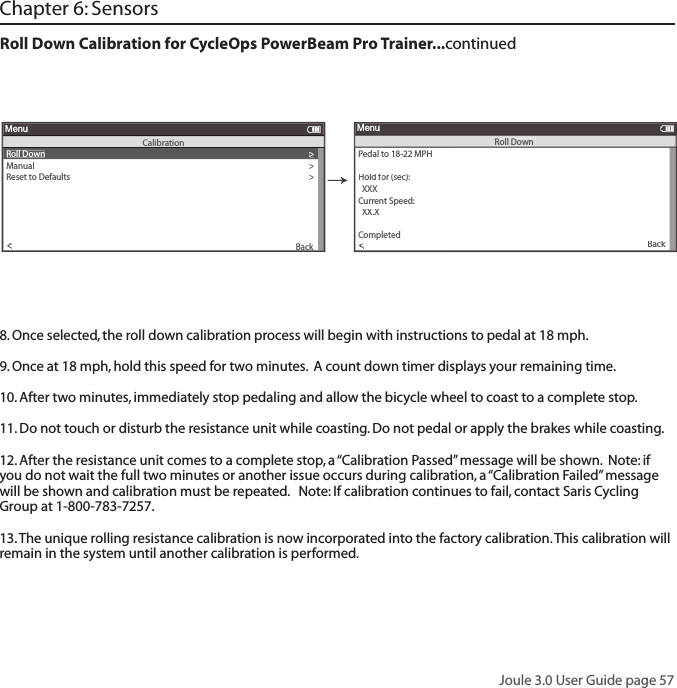
![Joule 3.0 User Guide page 58Deleting SensorsSensors can be deleted at anytime. If the active sensor is deleted a new sensor must be activated or added. Select Sensor- Po werSensor1Add Po werTapT o re setAdd IC Po werAdd ANT+BackeportMenuPo wer SensorActivate Sensor Wheel Circumference:02096Aut o Zero (Y or N): YAut o Zero (Y or N):YAuto Zero (Y or N):Cancel PairingDelete SensorCali rationBackeportMenuPo werSensor1Sensor ID: Po werSensor1Scenerio:Add PT SensorPo wer Sensor:- Po werSensor1Cadence Sensor:Speed Sensor:- SpeedSensor1Heart Rate Sensor:- HRSensor1RU Sensor-RUSensor1 YAuto Zero (Y or N):YRe-Pair SensorRe-Pair SensorDelete SensorPT DataPairPair New SensorBackReportMenuSensors- CadenceSensor1Name:Start PairingActivate Sensor PAIRINGWheel Circumference:02096Aut o Zero (Y or N):YAut o Zero (Y or N):YAuto Zero (Y or N):YRe-Pair SensorCancel PairingDelete SensorCalibrationPairPair New SensorBackReportMenuPo werSensor1Sensor ID: Po werSensor1Name:Start PairingActivate Sensor 12345Wheel Circumference:02096Aut o Zero (Y or N): YAut o Zero (Y or N):YAuto Zero (Y or N):YRe-Pair SensorCancel PairingDelete SensorCalibrationPairPair New SensorBackReportMenuPo werSensor1Sensor ID: Po werSensor1Name:Start PairingblinkPo wer Sensor: >- NoneCadence Sensor:>>Speed Sensor:>>- None >Heart Rate Sensor:>>- None >RU Sensor >-None > Y >>Auto Zero (Y or N):Y>Re-Pair Sensor >Re-Pair Sensor >Delete Sensor >PT Data >Pair >Pair New Sensor >Back<ReportMenuSensors- NoneblinkActivate Sensor >> 31864 >Wheel Circumference:>02096 >Aut o Zero (Y or N): > Y >Auto Zero (Y or N): >Y>>Auto Zero (Y or N):Y>Re-Pair Sensor >Cancel Pairing >Delete Sensor >Calibration >Pair >Pair New Sensor >Back<ReportMenuAshley Race WSensor ID: Ashley Race WName: >Start Pairing >Po wer Sensor: >- Ashley Race WCadence Sensor: >Speed Sensor: >- SpeedSensor1 >Heart Rate Sensor: >- HRSensor1 >RU Sensor >-RUSensor1 >Y>>Auto Zero (Y or N):Y>Re-Pair Sensor >Re-Pair Sensor >Delete Sensor >PT Data >Pair >Pair New Sensor >Back<ReportMenuSensors- CadenceSensor1Select Sensor >Ashley Race W>Sensor IDAdd Po werTap >The Gun Show >T o r ue ffset >T o r ue ffset >T o r ue ffset >Add IC Po wer>Add ANT+ >Pair New Sensor >Back<ReportMenuAshley Race WAshley Tr ain W >Select Sensor >- Po werSensor1 >Add Po werTap >T o r ue ffset >>Add IC Po wer>Add ANT+ >Back<ReportMenuPo wer SensorActivate Sensor >>00000 >Wheel Circumference:>02096 >Aut o Zero (Y or N): > Y >Aut o Zero (Y or N): >Y>>Auto Zero (Y or N):Y>Re-Pair Sensor >Cancel Pairing >Delete Sensor >Calibration >Pair >Pair New Sensor >Back<ReportMenuPo werSensor1Sensor ID: Po werSensor1Name: >Start Pairing >Activate Sensor >> PAIRING >Wheel Circumference:>02096 >Aut o Zero (Y or N): > Y >Aut o Zero (Y or N): >Y>>Auto Zero (Y or N):Y>Re-Pair Sensor >Cancel Pairing >Delete Sensor >Calibration >Pair >Pair New Sensor >Back<ReportMenuPo werSensor1Sensor ID: Po werSensor1Name: >Start Pairing >Activate Sensor >> 12345 >Wheel Circumference:>02096 >Aut o Zero (Y or N): > Y >Aut o Zero (Y or N): >Y>>Auto Zero (Y or N):Y>Re-Pair Sensor >Cancel Pairing >Delete Sensor >Calibration >Pair >Pair New Sensor >Back<ReportMenuPo werSensor1Sensor ID: Po werSensor1Name: >Start Pairing >1. Press and release [MODE] until Menu mode is displayed. 2. Press [JOYSTICK] in and release to select desired action select Sensors. 3. Press [JOYSTICK] up/down to select the sensor type to be deleted. 4. Press [JOYSTICK] up/down to highlight the sensor to be deleted. 5. Press [JOYSTICK] in and release to select the sensor to be deleted. 6. Press [JOYSTICK] up/down to highlight Delete Sensor. Select Sensor- Po werSensor1Add Po werTapT o re setAdd IC Po werAdd ANT+BackeportMenuPo wer SensorActivate Sensor Wheel Circumference:02096Auto Zer o (Y or N): YAuto Zer o (Y or N):YAuto Zero (Y or N):Cancel PairingDelete SensorCali rationBackeportMenuPo werSensor1Sensor ID: Po werSensor1Scenerio:Add PT SensorPo wer Sensor:- Po werSensor1Cadence Sensor:Speed Sensor:- SpeedSensor1Heart Rate Sensor:- HRSensor1RU Sensor-RUSensor1 YAuto Zero (Y or N):YRe-Pair SensorRe-Pair SensorDelete SensorPT DataPairPair New SensorBackReportMenuSensors- CadenceSensor1Name:Start PairingActivate Sensor PAIRINGWheel Circumference:02096Auto Zer o (Y or N):YAuto Zer o (Y or N):YAuto Zero (Y or N):YRe-Pair SensorCancel PairingDelete SensorCalibrationPairPair New SensorBackReportMenuPo werSensor1Sensor ID: Po werSensor1Name:Start PairingActivate Sensor 12345Wheel Circumference:02096Auto Zer o (Y or N): YAuto Zer o (Y or N):YAuto Zero (Y or N):YRe-Pair SensorCancel PairingDelete SensorCalibrationPairPair New SensorBackReportMenuPo werSensor1Sensor ID: Po werSensor1Name:Start PairingblinkPo wer Sensor:>- NoneCadence Sensor:>>Speed Sensor:>>- None >Heart Rate Sensor:>>- None >RU Sensor>-None > Y >>Auto Zero (Y or N):Y>Re-Pair Sensor >Re-Pair Sensor >Delete Sensor >PT Data >Pair >Pair New Sensor >Back<ReportMenuSensors- NoneblinkActivate Sensor >> 31864 >Wheel Circumference:>02096 >Auto Zer o (Y or N): > Y >Auto Zero (Y or N): >Y>>Auto Zero (Y or N):Y>Re-Pair Sensor >Cancel Pairing >Delete Sensor >Calibration >Pair >Pair New Sensor >Back<ReportMenuAshley Race WSensor ID: Ashley Race WName: >Start Pairing >Po wer Sensor: >- Ashley Race WCadence Sensor: >Speed Sensor: >- SpeedSensor1 >Heart Rate Sensor: >- HRSensor1 >RU Sensor >-RUSensor1 >Y>>Auto Zero (Y or N):Y>Re-Pair Sensor >Re-Pair Sensor >Delete Sensor >PT Data >Pair >Pair New Sensor >Back<ReportMenuSensors- CadenceSensor1Select Sensor >Ashley Race W>Sensor IDAdd Po werTap >The Gun Show >T o r ue ffset >T o r ue ffset >T o r ue ffset >Add IC Po wer>Add ANT+ >Pair New Sensor >Back<ReportMenuAshley Race WAshley T r ain W >Select Sensor >- Po werSensor1 >Add Po werTap >T o r ue ffset >>Add IC Po wer>Add ANT+ >Back<ReportMenuPo wer SensorActivate Sensor >>00000 >Wheel Circumference:>02096 >Auto Zer o (Y or N): > Y >Auto Zer o (Y or N): >Y>>Auto Zero (Y or N):Y>Re-Pair Sensor >Cancel Pairing >Delete Sensor >Calibration >Pair >Pair New Sensor >Back<ReportMenuPo werSensor1Sensor ID: Po werSensor1Name: >Start Pairing >Activate Sensor >> PAIRING >Wheel Circumference:>02096 >Auto Zer o (Y or N): > Y >Auto Zer o (Y or N): >Y>>Auto Zero (Y or N):Y>Re-Pair Sensor >Cancel Pairing >Delete Sensor >Calibration >Pair >Pair New Sensor >Back<ReportMenuPo werSensor1Sensor ID: Po werSensor1Name: >Start Pairing >Activate Sensor >> 12345 >Wheel Circumference:>02096 >Auto Zer o (Y or N): > Y >Auto Zer o (Y or N): >Y>>Aut o Zero (Y or N):Y>Re-Pair Sensor >Cancel Pairing >Delete Sensor >Calibration >Pair >Pair New Sensor >Back<ReportMenuPo werSensor1Sensor ID: Po werSensor1Name: >Start Pairing >Chapter 6: Sensors](https://usermanual.wiki/Saris-Cycling-Group/CON2FT3.rev-manual-final/User-Guide-1246531-Page-58.png)
![Joule 3.0 User Guide page 59Chapter 7: Setting Up CycleOps Joule 3.0 ™Setting Up Date and TimeJoule 3.0 date and time can be set using PowerAgent software > configure device. Reference PowerAgent user guide. Wo rkouts >History >PowerTest >Preferences >CPU Setup >Sensors >in >it enueportMenuMainWo rkouts >History >PowerTest >Preferences >Setup >Sensors >Main >Exit Menu<eportMenuMainack it ee ack itTi e secff nContrast ero aera inWitWit outPower sec Ca ence sec Spee sec UnitsEn is MetricCecor ControSpee HMS eep Ti eFrequency000 - 124Power:0-3En ieTi e in :1300eerate:an Fe MarTi e:: apCock Forat:12 24 n >OK >Date & Time >Display >Memory >CPU Mode >CPU Data >CPU Data > >utomatic DST: > On >Back<eportMenuCPU SetupAre you sure? >Date & Time >>Ye s>No >CPU Mode >CPU Data >CPU Data > >Automatic DST: > On >Back<eportMenuClear Ride MemoryDate:> Feb 26 2009Time:Clock Fo rmat: 12 >Automatic DST: > On >DST Effectie:> On >Clock Format: >> 12Units > En lis >Te un Sow>Auto ero >>PHR ones >Pair New Sensor >Back<ReportMenuINTDate & TimeUser >CPU >Heart Rate Sensor >RU Sensor >Speed Sensor >Back<ReportMenuSetup 04:55 pmBacklight Level: > 2Backlight Time (sec):Contrast: 5 >Zero averaging: > With >Power Avg (sec): > 1 >Cadence Avg (sec): >> 1Speed Avg (sec): > 1 >Language: > English >Units: > English >Pair New Sensor >Back<ReportMenuINTDisplay 10End Ride Time (min): > 90Clear MemoryClear Ride Memory >Power Avg (sec): > 1 >Power Zeros: >With >Cadence Avg (sec): >> 1 English >Pair New Sensor >Back<ReportMenuINTMemory 5 English >OK >Date & Time >>Display >Memory >CPU Mode >CPU Data >Test Mode > >Automatic DST: > On >Back<ReportMenuINTCPU Setup>Record Control>Sleep Time: 1 >Power Avg (sec): > 1 >Power Zeros: >With >Cadence Avg (sec): >> 1Speed Avg (sec): > 1 >Language: > English >Units: > English >Pair New Sensor >Back<ReportMenuINTCPU Mode SpeedFirmware Version: > 01:00OdometerReset Odometer 90 >Power Avg (sec): >Designed in: >Madison, WI by >Saris Cycling Group >800-783-7257 >> 1Speed Avg (sec): > 1 >Language: > English >Units: > English >Pair New Sensor >Back<ReportMenuINTCPU Data 512356OK >Date & Time >>Display >Memory >CPU Mode >CPU Data >Test Mode >Automatic DST: > On >Back<ReportMenuCPU SetupFrequency > 057PowerEnd Ride Time (min):Start Radio Test >Stop Radio Test >Designed in: >Madison,WI by >Saris Cycling Group >800-783-7257 >Units: > English >Pair New Sensor >Back<ReportMenuINTTest Mode 3Wo rkouts >History >Setup User >Setup CPU >SensorsSensors >Main >Exit Menu<ReportMenuMain>INTINTBack<OK >Date & Time >Display >Memory >CPU Mode >CPU Data >CPU Data > >Automatic DST: > On >Back<ReportMenuCPU SetupINTOK >Date & Time >Display >Memory >CPU Mode >CPU Data >CPU Data > >Automatic DST: > On >Back<ReportMenuCPU SetupINTOK >Date & Time >Display >Memory >CPU Mode >CPU Data >CPU Data > >Automatic DST: > On >Back<ReportMenuCPU SetupINTOK >Date & Time >Display >Memory >CPU Mode >CPU Data >CPU Data > >Automatic DST: > On >Back<ReportMenuCPU SetupINT INTEnd Ride Time (min): > 90Clear MemoryClear Ride Memory >Power Avg (sec): > 1 >Power Zeros: >With >Cadence Avg (sec): >> 1 English >Pair New Sensor >Back<ReportMenuINTMemory 5INTINTINT1. Press and release [MODE] until Menu mode is displayed. 2. Press [JOYSTICK] up/down to highlight Setup Joule. Press [JOYSTICK] in and release to select Setup Joule. 3. Press [JOYSTICK] in and release to select Date and Time. 4. Press [JOYSTICK] up/down to highlight Date or Time. Use [JOYSTICK] to change date and time values. Press [JOYSTICK] in and release to save changes. 5. Press [JOYSTICK] up/down to highlight Clock Format. Press [JOYSTICK] in and release to select Clock Format. Use [JOYSTICK] to change between 12 and 24 hour format. Press [JOYSTICK] in and release to save changes.](https://usermanual.wiki/Saris-Cycling-Group/CON2FT3.rev-manual-final/User-Guide-1246531-Page-59.png)
![Joule 3.0 User Guide page 60Chapter 7: Setting Up CycleOps Joule 3.0 ™Setting Up DisplayJoule 3.0 display can be customized for viewing preferences. PowerAgent software may also be used to change settings. 1. Press and release [MODE] until Menu mode is displayed. 2. Press [JOYSTICK] up/down to highlight Setup Joule. Press [JOYSTICK] in and release to select Setup Joule. 3. Press [JOYSTICK] up/down to highlight Display. Press [JOYSTICK] in and release to select Display. 4. Press [JOYSTICK] up/down to highlight Backlight Level. Press [JOYSTICK] in and release to select Backlight Level. 5. Press [JOYSTICK] up/down to change Backlight Level from 1-10. Press [JOYSTICK] in and release to save settings. Note: Backlight Level10 is the brightest level, 1 is the dimmest. Press [JOYSTICK] in and release to save changes. 6. Press [JOYSTICK] up/down to highlight Backlight Timeout. Press [JOYSTICK] in and release to select Back-light Timeout. 7. Press [JOYSTICK] up/down to change Backlight Timeout from Off, 2 seconds, 5 seconds, 30 seconds, 1 minute or On. Note: the backlight will turn on after any button is pressed and remain on for the duration of the Back-light Timeout setting. Press [JOYSTICK] in and release to save changes. 8. Press [JOYSTICK] up/down to highlight Contrast. Press [JOYSTICK] in and release to select Contrast. 9.Press [JOYSTICK] up/down to change Contrast from 1-10. Press [JOYSTICK] in and release to save settings. Note: Contrast setting 1 offers little distinction between black and white shades while setting 10. Press [JOY-STICK] in and release to save changes. 10. Press JOYSTICK up/down to highlight Power Smoothing. Press [JOYSTICK] in and release to select Power Smoothing. 11. Press [JOYSTICK] up/down to change Power Smoothing from 1, 2,3,5,10,30. Press [JOYSTICK] in and release to save settings. Note: Power smoothing 1 displays power data as it is sent from the power sensor, Power smooth-ing 30 displays power data as a 30 second rolling average which can be used for better pacing during intervals and races. Press [JOYSTICK] in and release to save changes. 12. Press [JOYSTICK] up/down to highlight Power With Zeros. Press [JOYSTICK] in and release to select Power With Zeros.](https://usermanual.wiki/Saris-Cycling-Group/CON2FT3.rev-manual-final/User-Guide-1246531-Page-60.png)
![Joule 3.0 User Guide page 61Backlight Level:> 2Backlight Time (sec):Contrast: 5>Zero averaging:> With>Power Avg (sec):> 1>Cadence Avg (sec):>> 1Speed Avg (sec):> 1>Language:> English>Units:> English>Pair New Sensor>MenuINTDisplaDisplayy 10 10Back<13. Press [JOYSTICK] up/down to change Power With Zeros from Yes to No. Press [JOYSTICK] in and release to save settings. Note: Power With Zeros set to Yes will calculate all average power data with zeros included, Power With Zeros set to No will calculate all average power data without zeros or only while pedaling. Press [JOYSTICK] in and release to save changes. 14. Press [JOYSTICK] up/down to change Cadence Smoothing from 1, 2,3,5,10,30. Press [JOYSTICK] in and release to save settings. Note: Cadence Smoothing 1 displays cadence data as it is sent from the cadence sensor, Cadence Smoothing 30 displays cadence data as a 30 second rolling average which can be used for better pac-ing during intervals and races. Press [JOYSTICK] in and release to save changes. 15. Press [JOYSTICK] up/down to highlight Cadence With Zeros. Press [JOYSTICK] in and release to select Cadence With Zeros. 16. Press [JOYSTICK] up/down to change Cadence With Zeros from Yes to No. Press [JOYSTICK] in and release to save settings. Note: CadenceWith Zeros set to Yes will calculate all average cadence data with zeros included, Cadence With Zeros set to No will calculate all average cadence data without zeros or only while pedaling. Press [JOYSTICK] in and release to save changes. 17. Press [JOYSTICK] up/down to change Speed Smoothing from 1, 2,3,5,10,30. Press [JOYSTICK] in and re-lease to save settings. Note: Speed Smoothing 1 displays speed data as it is sent from the speed sensor, Speed smoothing 30 displays speed data as a 30 second rolling average which can be used for better pacing during intervals and races. Press [JOYSTICK] in and release to save changes. Chapter 7: Setting Up CycleOps Joule 3.0 ™ Setting Up Display...continued](https://usermanual.wiki/Saris-Cycling-Group/CON2FT3.rev-manual-final/User-Guide-1246531-Page-61.png)
![Joule 3.0 User Guide page 62Chapter 7: Setting Up CycleOps Joule 3.0 ™ Setting Up Display...continued18. Press [JOYSTICK] up/down to highlight Speed With Zeros. Press [JOYSTICK] in and release to select Speed With Zeros. 19. Press [JOYSTICK] up/down to change Speed With Zeros from Yes to No. Press [JOYSTICK] in and release to save settings. Note: Speed With Zeros set to Yes will calculate all average speed data with zeros included, Speed With Zeros set to No will calculate all average speed data without zeros. Press [JOYSTICK] in and release to save changes. 20. Press [JOYSTICK] up/down to highlight Language. Press [JOYSTICK] in and release to select Language. 21. Press [JOYSTICK] up/down to change Language. Press [JOYSTICK] in and release to save changes. 22. Press [JOYSTICK] up/down to highlight Units. Press [JOYSTICK] in and release to select Units. Press [JOY-STICK] in and release to save changes. 23. Press [JOYSTICK] up/down to change Units. Press [JOYSTICK] in and release to select between English and Metric. Press [JOYSTICK] in and release to save changes. Backlight Level:> 2Backlight Time (sec):Contrast: 5>Zero averaging:> With>Power Avg (sec):> 1>Cadence Avg (sec):>> 1Speed Avg (sec):> 1>Language:> English>Units:> English>Pair New Sensor>MenuINTDisplaDisplayy 10 10Back<](https://usermanual.wiki/Saris-Cycling-Group/CON2FT3.rev-manual-final/User-Guide-1246531-Page-62.png)
![Joule 3.0 User Guide page 63Chapter 7: Setting Up CycleOps Joule 3.0 ™ Chapter 7: Setting Up CycleOps Joule 3.0 ™Setting Up MemoryJoule 3.0 has 4 MB of onboard memory for storing activities, history and workouts. See Chapter 1: Data Management for details. End RideTime (min):15,30,90,NeverAre you sure?>Date & TDate & TDate &ime>>Y es>No>CPU Mode>CPU Data>CPU Data> XXX>Automatic DST:>Back<Au<AuMenuClear Ride MemoryyyEnd Ride Time (min):>>> 90Clear Memory>>Clear Ride Memoryy>Cadence Cadence AvAvg (sec)g (sec)::>> English>Pair New Sensor>Back<MenuINTMemory 5INT1. Press and release [MODE] until Menu mode is displayed. 2. Press [JOYSTICK] up/down to highlight Setup Joule. Press [JOYSTICK] in and release to select Setup Joule.3. Press [JOYSTICK] up/down to highlight Memory. Press [JOYSTICK] in and release to select Memory. 4. Press [JOYSTICK] up/down to highlight End Ride Time. Press [JOYSTICK] in and release to select End Ride Time from 1, 2,3,5,10,30 and never. Press [JOYSTICK] in and release to save changa ride has needed it has been entered into History data. Note: End ride time controls when the current ride automatically is saved to History and Reports. 5. Press [JOYSTICK] up/down to highlight Clear Ride Memory. Press [JOYSTICK] in and release to select Clear Ride Memory. Note: clearing ride memory deletes all activity fi les saved on Joule 3.0, data will be lost and unable to be downloaded as a result. History fi les are not deleted and can only be deleted from a personal](https://usermanual.wiki/Saris-Cycling-Group/CON2FT3.rev-manual-final/User-Guide-1246531-Page-63.png)
![Joule 3.0 User Guide page 64Chapter 7: Setting Up CycleOps Joule 3.0 ™Setting Up Joule™ Mode1. Press and release [MODE] until Menu mode is displayed. 2. Press {JOYSTICK} up/down to highlight Setup Joule. Press [JOYSTICK] in and release to select Setup Joule.3. Press [JOYSTICK] up/down to highlight Joule Mode. Press [JOYSTICK] in and release to select Joule Mode. 4. Press [JOYSTICK] in and release to select Record Control. Select between speed and HRM (heart rate moni-tor) for record control. Speed setting starts recording when speed is present. Heart rate setting starts record-ing anytime heart rate is present. Press [JOYSTICK] in and release to save changes. 5. Press [JOYSTICK] up/down to highlight Sleep Time. Press [JOYSTICK] in and release to select Sleep Time from 1, 2,3,4 and 5. Note: sleep time designates how long Joule 3.0 stays on after not getting valid data to record, such as after a ride. A longer sleep time will slightly effect battery life. Press [JOYSTICK] in and release to save changes. >Record Control>>>>Sleep Time:> 1>Power Avg (sec):> 1>Power Zeros:>With>Cadence Avg (sec):>> 1Speed Avg (sec):> 1>Language:> English>Units:> English>Pair New Sensor>Back<MenuINTCPU Mode Speed Speed Speed](https://usermanual.wiki/Saris-Cycling-Group/CON2FT3.rev-manual-final/User-Guide-1246531-Page-64.png)
![Joule 3.0 User Guide page 65Chapter 7: Setting Up CycleOps Joule 3.0 ™Setting Up Joule™ Data Firmware version denotes the revision Joule 3.0 is operating on. Reference www.cycleops.com for the latest version. Firmware Version: Version: V> 01:00>Odometer>>Reset Odometer> 90 >Power Avg (sec):>Designed in:>Madison, WI by>Saris Cycling Group>800-783-7257>> 1Speed Avg (sec):> 1>Language:> English>Units:> English>Pair New Sensor>Back<MenuINTCPU Data 5 5123561. Press and release [MODE] until Menu mode is displayed. 2. Press [JOYSTICK} up/down to highlight Setup Joule. Press [JOYSTICK] in and release to select Setup Joule.3. Press [JOYSTICK] up/down to highlight Joule Data. Press [JOYSTICK] in and release to select Joule Data. 4. Press [JOYSTICK] up/down to view Joule 3.0 fi rmware version. Check for the latest updates through Power-Agent software.5. Press [JOYSTICK] up/down to highlight Odometer. Press [JOYSTICK] in and release to select Odometer. The odometer can be changed for a desired start point and can be reset at any time. Press {JOYSTICK] up/down to change. Press [JOYSTICK] in and release to save changes.](https://usermanual.wiki/Saris-Cycling-Group/CON2FT3.rev-manual-final/User-Guide-1246531-Page-65.png)
![Joule 3.0 User Guide page 66Chapter 8: Setting Up UserSetting Up User Profi leSetting up a user profi le is important for Joule 3.0 to display the most accurate information. A user profi le can be set up and managed using PowerAgent software. Note: if using Joule 3.0 in group environment, a USB stick will store user information. 1. Press and release [MODE] until Menu mode is displayed. 2. Press [JOYSTICK] up/down to highlight Setup User. Press [JOYSTICK] in and release to select Setup User. 3. Press [JOYSTICK] in and release to select Name. Press [JOYSTICK] up/down to spell desired user name. Press [JOYSTICK] in and release to save changes. 4. Press [JOYSTICK] up/down to highlight Weight. Press [JOYSTICK] in and release to select Weight. Use [JOY-STICK] to toggle appropriate user weight. Calculations such as: watts/kg and accurate target slope resistance require correct user weight. Press [JOYSTICK] in and release to save changes. 5. Press [JOYSTICK] up/down to highlight Height. Press [JOYSTICK] in and release to select Height. Use [JOY-STICK] to set appropriate user height. Press [JOYSTICK] in and release to save changes. 6. Press [JOYSTICK] up/down to highlight Date of Birth. Press [JOYSTICK] in and release to select Date of Birth. Use [JOYSTICK] to set appropriate date of birth. Press [JOYSTICK] in and release to save changes. Name: > New User>Active:> X>Weight - lbs:> XXX>Height - in:> XXX>Date of Birth:> Feb 02 1974>Gender:>> MalePower Zones>HR Zones>The Gun Show>Auto Zero>Power Zones>HR Zones>Pair New Sensor>Back<MenuSetup UserSetup UserSetup User](https://usermanual.wiki/Saris-Cycling-Group/CON2FT3.rev-manual-final/User-Guide-1246531-Page-66.png)
![Joule 3.0 User Guide page 67Chapter 8: Setting Up UserSetting Up User Profi le...continued7. Press [JOYSTICK] up/down to highlight Gender. Press [JOYSTICK] in and release to select Gender. Press [JOYSTICK] up/down to change from male to female. Press [JOYSTICK] in and release to save changes. 8.Press [JOYSTICK] up/down to highlight Power Zones. Press [JOYSTICK] in and release to select Power Zones. Press [JOYSTICK] up/down to highlight and select Recovery Zone, Endurance Zone, Threshold Zone, Race Pace Zone and Maximum Zone. Press [JOYSTICK] in and release to save changes. 9.Press [JOYSTICK] up/down to highlight Heart Rate Zones. Press [JOYSTICK] in and release to select Heart Rate Zones. Press [JOYSTICK] up/down to highlight and Recovery Zone, Endurance Zone, Threshold Zone, Race Pace Zone and Maximum Zone. Use [JOYSTICK] to set appropriate zone values. Press [JOYSTICK] in and release to save changes. >The Gun Show>Auto Zero>Power Zones>HR Zones>Pair New Sensor>Back<MenuPower ZonesZone Upper Limit1: Recovery> 123>2: Endurance> 123>3: Threshold>4: Race Pace> 123>5: Maximum> 123>>6: Supra Max6: Supra Max MAX> 123>The Gun Show>Auto Zero>Power Zones>HR Zones>Pair New Sensor>Back<MenuHeart Rate ZonesZone Upper Limit1: Recovery>>2: Endurance> 123>3: Threshold>4: Race Pace> 123>5: Maximum> 123>>6: Supra Ma6: Supra Ma6:x MAX> 123 1 123](https://usermanual.wiki/Saris-Cycling-Group/CON2FT3.rev-manual-final/User-Guide-1246531-Page-67.png)
![Joule 3.0 User Guide page 68Chapter 9: History 1. Press and release [MODE] until Menu mode is displayed. 2. Press [JOYSTICK] up/down to highlight History.3. Press [JOYSTICK] in and release to select History.4. Press [JOYSTICK] in and release to select Previous Rides.5. Press [JOYSTICK] up/down to highlight desired ride. Note: each ride is named using the format YYYYMMDD HHMMSS so a ride listed as 20091120 154335 was created November 20th, 2009 at 3:43:35 PM. 6. Press [JOYSTICK] in and release to select the desired ride. Note: Reports are now shown with 3 columns; the fi rst column is the metric label, the second column is the data for a given metric on the selected ride and the 3rd column is the average of all rides completed over the selected date range. 7. Press [JOYSTICK] in and release to change the selected data range from 2 weeks, 4 weeks, 8 weeks, 6 months and 12 months. 8. Press [JOYSTICK] left/right to change reports and exit History reports. Note: Rides will be organized and sorted by date, with most current date at top. Previous RidesPrevious rides history allows for comparisons of any selected ride to averages over 2 weeks, 4 weeks, 8 weeks, 6 moths or 12 months prior to the selected ride. Note: the averages do not include the selected ride.](https://usermanual.wiki/Saris-Cycling-Group/CON2FT3.rev-manual-final/User-Guide-1246531-Page-68.png)
![Joule 3.0 User Guide page 69Chapter 9: History Maximum HistoryMaximum History reports allows for comparisons of the maximum values achieved in a selected time frame to the averages achieved in that same time frame. 1. Press and release [MODE] until Menu mode is displayed. 2. Press [JOYSTICK] up/down to highlight History.3. Press [JOYSTICK] in and release to select History.4. Press [JOYSTICK] in and release to select Reports – Max. Note: Reports are now shown with 3 columns; the fi rst column is the metric label, the second column is the maximum value achieved in any ride for a given metric over the selected time frame and the 3rd column is the average of all rides completed over the selected date range. 5. Press [JOYSTICK] in and release to change the selected data range from 2 weeks, 4 weeks, 8 weeks, 6 months and 12 months. 6. Press [JOYSTICK] left/right to change reports and exit History reports. Note: Max view is the max values achieved for each report metric over the average on two week, four week, etc.](https://usermanual.wiki/Saris-Cycling-Group/CON2FT3.rev-manual-final/User-Guide-1246531-Page-69.png)
![Joule 3.0 User Guide page 70Chapter 9: History Total HistoryTotals History reports allows for comparisons of the totals achieved in a selected time frame to the averages achieved in that same time frame. 1. Press and release [MODE] until Menu mode is displayed. 2. Press [JOYSTICK] up/down to highlight History.3. Press [JOYSTICK] in and release to select History.4. Press [JOYSTICK] in and release to select Reports – Totals. Note: Reports are now shown with 3 columns; the fi rst column is the metric label, the second column is the total value achieved for a given metric over the se-lected time frame and the 3rd column is the average of all rides completed over the selected date range. 5. Press [JOYSTICK] in and release to change the selected data range from 2 weeks, 4 weeks, 8 weeks, 6 months and 12 months. 6. Press [JOYSTICK] left/right to change reports and exit History reports. Note: Total view is the total values achieved for each report metric over the average on two week, four week, etc.](https://usermanual.wiki/Saris-Cycling-Group/CON2FT3.rev-manual-final/User-Guide-1246531-Page-70.png)
![Joule 3.0 User Guide page 71For most up to date Frequently Asked Questions, visit www.cycleops.com.No display on computer screen· Computer is asleep – Press [MODE] or [INTERVAL] on the computer to wake up the computer.· Computer is too cold- operating temp. is 32 to 110 degrees FahrenheitComputer display is fully discharged· It will need to be recharged for at least 30 minutes.Computer display is on, but there is no transmission of data.· Hub is asleep - spin the wheel to wake up the hub.· Computer has not “found” the hub. Press and hold [MODE] and [INTERVAL] until “Find” appears on Title Bar. Make sure hub is awake by rotating wheel once.· Batteries need replacement - replace the hub batteries as shown in the maintenance section of the User GuidePower seems incorrect·Torque value is not zeroed. To manually zero torque, go to Menu, Sensors, Select Sensor, Calibra-tion. Manual Zero the hub. Torque is now being displayed. If re-zeroing the torque does not recalibrate the unit, call Saris Cycling Group customer service at 1-800-783-7257.Speed seems incorrect· Wheel size incorrect -refer to Sensors to enter the correct size in corresponding sensor. Chapter 10: Troubleshooting CycleOps Joule 3.0 ™](https://usermanual.wiki/Saris-Cycling-Group/CON2FT3.rev-manual-final/User-Guide-1246531-Page-71.png)