Saris Cycling Group SL24TT3 AT3 T Antenna Module User Manual 18562 Layout 1
Saris Cycling Group Inc AT3 T Antenna Module 18562 Layout 1
Contents
- 1. User Manual 1
- 2. User Manual 2
- 3. User Manual 3
User Manual 3
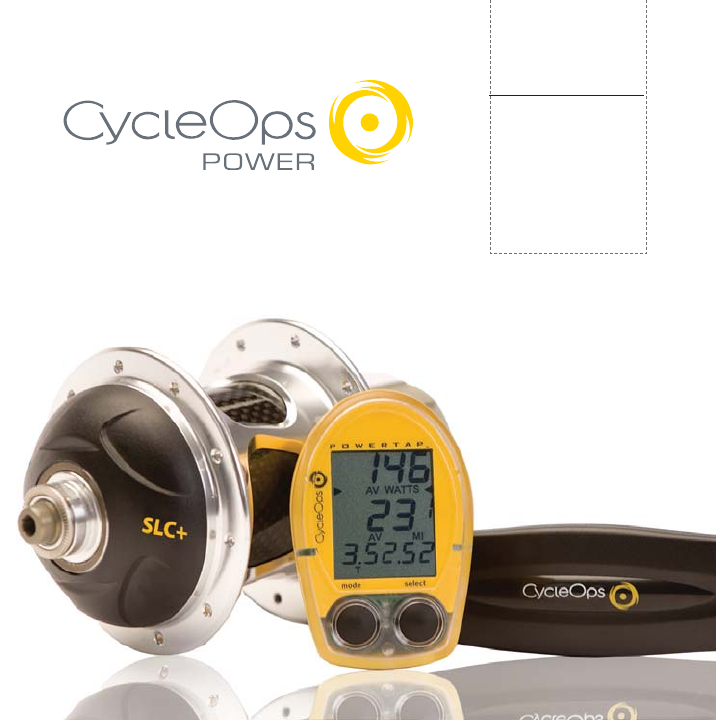
PowerTap SLC+
PowerTap SL+
PowerTap Pro+
PowerTap Elite+
PowerTap 2.4+
USER GUIDE
PowerTap SLC+ Featured

Copyright
Copyright 2008. All rights reserved. No part of this publication may be copied, photographed,
reproduced, translated, transmitted electronically or placed on digital media without the prior
written consent of Saris Cycling Group, Inc.
Trademarks
Saris Cycling Group, Inc , PowerTap and the PowerTap logo, are all registered trademarks of
Saris Cycling Group, Inc. All other product, brand, or trade names used in this manual may be
trademarks or registered trademarks of their
respective owners.
Modifications
Saris Cycling Group, Inc reserves the right to make improvements
and/or updates to the products described herein at any time
without notice.
FCC Statement of Compliance:
Statement of Compliance for FCC and Industry Canada:
"This device complies with Industry Canada and Part 15 of the FCC Rules. Operation is subject
to the following two conditions: (1) This device may not cause harmful interference, and (2)
this device must accept any interference received, including interference that may cause
undesired operation."
The term "IC:" before the radio certification number only signifies that Industry Canada tech-
nical specifications were met.
Changes or modifications to this device not expressly approved by the party responsible for
compliance with FCC regulations (the manufacturer) could void the user's authority to oper-
ate the equipment.
This equipment has been tested and found to comply with the limits for a Class B digital
device, pursuant to part 15 of the FCC Rules. These limits are designed to provide reasonable
protection against harmful interference in a normal installation. This equipment generates,
uses and can radiate radio frequency energy and, if not installed and used in accordance with
the instructions, may cause harmful interference to radio communications. However, there is
no guarantee that interference will not occur in a particular installation.
Saris Cycling Group, Inc.
Model #: PTHUBTT3
Contains Transmitter SL24TT3
IC:6459A-SL24TT3
FCC ID: T8P-SL24TT3
Model #: CPU +
Contains IC: 6459A-SL2P401
FCC ID: T8P-SL2P401

3
About This User Guide
Thank you for your purchase of the CycleOps PowerTap, the ultimate performance measure-
ment tool. No other product allows you to apply the basic principles of endurance training.
With an accurate measure of intensity, you can precisely balance the stress of training and
your body’s response.
This User Guide describes the proper use and maintenance of your CycleOps PowerTap. For
more information about training and performance please go to www.cycleops.com.
DEFINITIONS
Bold Letters - Bring special attention to important points and that should be read and under-
stood prior to using the PowerTap.
Italicized Letters - Indicate reference to another section of the manual where further explana-
tions are found.
This user guide describes the functions of the CycleOps PowerTap and the information pro-
vided may not apply to previous PowerTap models. For the most current User Guide avail-
able please consult www.cycleops.com.
If this equipment does cause harmful interference to radio or television reception, which can
be determined by turning the equipment off and on, the user is encouraged to try to correct
the interference by one or more of the following measures:
• Reorient or relocate the receiving antenna.
• Increase the separation between the equipment and receiver.
• Connect the equipment into an outlet on a circuit difference from that to which the receiver
is connected.
• Consult the dealer or an experienced radio/TV technician for help.

Table of Contents
About this User Guide
Important Precautions.....5
System Overview.....7
The PowerTap System.....7
Preparing for Installation.....7
Compatibility.....8
Wheel Building.....8
System Installation.....9
General Computer Operation.....11
Display Levels.....11
Display Modes.....11
Buttons.....11
Clearing Data.....12
Finding Sensors.....13
Power Conservation.....13
Computer Navigation.....14
Power Function.....14
Torque Function.....15
Zero Torque.....15
Speed Function.....16
Multi-Function.....17
Time in Zones.....20
Peak Power.....21
Interval Mode.....21
Interval Memory Mode.....22
4
Computer Setup.....23
Computer Setup Main Menu.....23
Computer Setup 1.....24
Computer Setup 2.....27
Computer Setup 3.....28
Computer Setup 4.....29
Computer Setup 5..... 31
ANT+Sport.....33
Maintenance & Specifications.....34
Bearings.....34
Freehub.....34
Freehub Replacement.....35
Computer Batteries.....37
Technical Specifications.....37
Range of Measurement.....37
Hub Batteries.....38
Battery Replacement.....38
Test Mode.....39
Trouble Shooting.....41
Warranty.....42
Procedures.....43
Glossary.....44
PowerTap SL Computer Navigation.....45

Important Precautions:
• Before beginning any exercise program, consult your physician.
• Keep your eyes on the road. Do not become overly engaged with the PowerTap display.
We recommend familiarizing yourself with computer functions while stationary.
• The computer, chest strap, and hub are water resistant, not water proof. Avoid sustained water
contact and do not deliberately place the PowerTap or its componentsin water or under high-
pressure sprays.
• Avoid spraying the unit directly with solvent mixture. Do not use thinner or other solvents to
clean parts.
• If you are not familiar with bike maintenance please contact a professional bicycle mechanic
before servicing. The power measuring components of the PowerTap are highly complex and
should only be serviced by Saris Cycling Group.
• The plastic battery cover on the hub should be removed only when replacing batteries.
Repeated disassembly may compromise the effectiveness of the O-ring seals. O-rings should be
inspected and replaced if necessary whenever the battery cover is removed. Use a light
coating of grease when reinstalling the battery cover on the O-rings.
• During the course of repair do not remove the torque tube. There are no serviceable parts
inside. Special tools are required for reassembly and calibration. If problems are suspected
contact Saris Cycling Group directly at 800-783-7257 (001 608 274 6550).
5

Important Precautions, cont.
• The PowerTap wheel does not include a quick release skewer.
• Failure to adhere to these precautions may cause premature failure or incorrect operation of
the unit and may void the warranty. Please register your PowerTap at www.cycleops.com.
IMPORTANT:
For your safety, the non-drive side of the PowerTap hub must be built with at least a 2x lacing
pattern. Because of the patented PowerTap design, torque is transferred through the hub to the
non-drive side. Failure to adhere to this precaution will void the warranty.
MTB DISC ONLY
Warnings:
Rotor may become very hot during use. Avoid contact during and directly after riding.
Rotor may contain sharp edges. Avoid contact while the wheel is spinning.
Installation should only be completed by a trained technician. Improper installation could cause
serious or fatal injuries.
This product is designed for cross country use only.
6

System Overview
THE POWERTAP SYSTEM
The PowerTap system includes a power-measuring hub which measures torque and wheel
speed. This information is transmitted to a computer mounted on the handlebar or stem. Heart
rate data is transferred via a coded telemetry signal from the chest strap monitor. The data is
then integrated to display current, average, and maximum biometric information.
PREPARING FOR INSTALLATION
The PowerTap hub comes either alone or in a pre-built wheel. If purchased alone, the hub must
be built into a complete wheel prior to use. Other items necessary for installation and not provid-
ed include a cassette, spoke protector, reflectors, skewer, rim, tire, and tube (clincher rim) or glue
and tubular tire (tubular rim). See TABLE 1 to verify package contents.
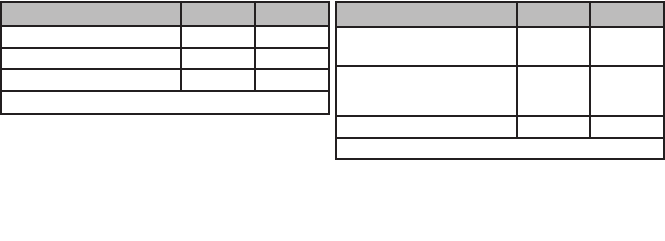
TABLE 1
7
1 PowerTap hub (or built wheel)
1 PowerTap computer
1 Chest strap (SLC+, SL+, and Pro+ only)
12 Cable ties
1 Training With Power guide
1 PowerAgent Software
1 USB Cable
1 Handlebar/Stem Computer Shoe
1 Instructional DVD
1 Hub Battery Cover Removal Tool
ADDITIONAL ITEMS FOR MTB DISC ONLY
1 PowerTap Disc Rotor
8 M5 x 12mm bolts
16 M5 x .2mm shims
1 T25 Torx Wrench
Qty Item
Package Contents
System Overview cont.
COMPATABILITY
The PowerTap hub is compatible with Shimano 8, 9, and 10 speed systems or Campagnolo 8, 9,
and 10 speed systems. Freehub bodies may be interchanged. Reference FREEHUB REPLACEMENT
for further instructions.
The PowerTap is available in 130mm (Road) and 135mm (MTB) axle lengths. Only insert the
correctly spaced PowerTap hub into your frame. For example, only use a 130mm-spaced hub in
a 130mm road frame. Do not force the hub into any frame. Doing so may cause failure of the
frame, hub, or both, and will void the warranty. Contact your dealer or Saris Cycling Group to
address any special compatibility concerns.
WHEEL BUILDING
Contact a wheel building professional or dealer for assistance in building the PowerTap wheel if
not purchased as a complete wheel. Due to the design of the hub, the load pattern is not the
same as a conventional hub. Slotting the hub flanges to accommodate bladed spokes is not rec-
ommended and will void the warranty. Complete wheel building hub dimensions are listed in
TABLE 2.
Reference a spoke-length calculator to determine proper spoke length.
TABLE 2 - MTB Wheel Building Dimensions
8
IMPORTANT:
For your safety, the non-drive side of the PowerTap hub must be built with at least a 2x lacing
pattern. Because of the patented PowerTap design, torque is transferred through the hub to the
non-drive side. Failure to adhere to this precaution will void the warranty.
TABLE 3 - Road Wheel Building Dimensions
MeasurementsDrive Non-Drive
SL+, SLC+, wheel center
to flange
15.9mm 33.9mm
Elite+, Pro+, (or any PowerTap
with 12 mm axle)
wheel center to flange
17.4mm 32.4mm
Flange Diameter 70mm 70mm
Spoke Hole Diameter: 2.5
MeasurementsDrive Non-Drive
12 mm Axle 19.9mm 29.9mm
15 mm Axle (SL+) TBD TBD
Flange Diameter 74mm 74mm
Spoke Hole Diameter: 2.5
9
Computer Shoe
Mounting Base
Arrow
System Overview cont.
SYSTEM INSTALLATION
1. Insert Wheel Into Frame
Insert the PowerTap wheel into the frame. Make sure the axle is correctly positioned in the
dropouts and secure the wheel in place with a skewer.
2. Attach Computer Shoe to Handlebar or Stem
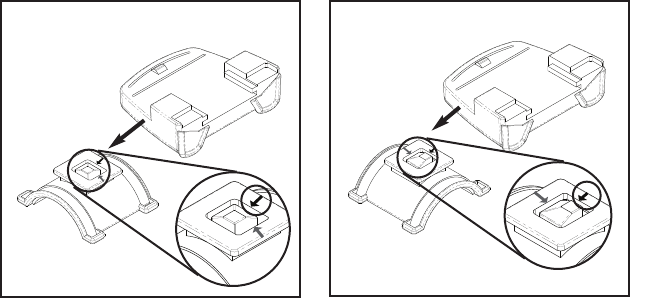
The shoe can be mounted on either the handlebar or stem. Secure the mounting base with
cable ties. Slide the computer shoe in the direction of the arrow as depicted in either FIGURE1A
or 1B depending on mounting location.
Slide shoe in direction of arrow onto the base.
Slide shoe in direction of arrow onto the base.
Attach Receiver mount to Handlebar Attach Receiver mount to Stem
Computer Shoe
Mounting Base
Arrow
FIGURE 1A FIGURE 1B
3. Place Computer into Shoe
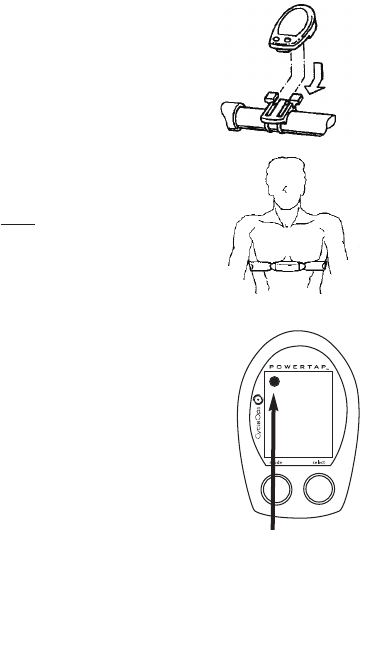
Place the computer into the computer shoe on the handlebar or stem.
Line up the slots on the base of the computer with the bracket and slide
computer toward the rider (FIGURE 5). NOTE: Ensure the computer is fully
inserted onto the receiver shoe to prevent accidental removal.
4 Heart Rate Monitor Strap (SLC+, SL+ and PRO+ only)
Position the heart rate monitor strap on your torso as pictured in FIG-
URE 6. The strap should rest just beneath the pectoralis muscles of
the chest. For best results slightly moisten the electrodes where con-
tact is made with skin. The heart rate strap mustbe worn to enable
the heart rate function. NOTE: The chest strap for the PowerTap uses a
coded frequency and is not compatible with other manufacturer’s
chest straps. If heart rate is not displayed, consult finding sensors sec-
tion.
5. Verify Installation
Check to make sure all components are properly secured. Spin the
rear wheel and verify transmission. To turn computer on press
either button. The computer system may require 30 seconds to
“find” the hub. The illuminated transmition icon in the upper left
hand corner of the display indicates the hub is properly transmit-
ting a signal to the computer (Figure 7). If the transmission icon is
not illuminated consult Finding Sensors Section for further instruc-
tions.
10
FIGURE 5
FIGURE 6
FIGURE 7
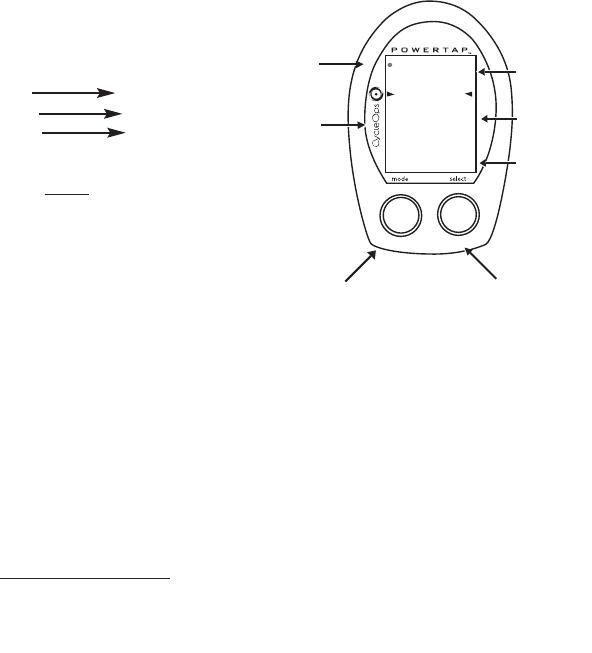
365
25
58.I0
WATTS3
D
General Computer Operation
DISPLAY LEVELS
The computer has three (3) main display levels:
Top Power
MiddleSpeed
Bottom Multi-Function
NOTE: These locations only apply to trip and
interval modes and do not apply to Cycle Computer
or Heart Rate Monitor Function. See COMPUTER SETUP 4
to customize display options. (SLC+, SL+ and Pro+ only)
DISPLAY MODES
The computer has two (2) main modes of operation:
1) Trip
2) Interval
Hold [MODE] to toggle between display modes.
BUTTONS
There are two (2) buttons on the computer:
1) [Mode]
2) [Select]
NOTE: [BRACKETED] words indicate buttons.
There are four (4) types of button presses:
1) Press [MODE] or [SELECT] - a single press and release of either [MODE] or [SELECT].
Used for entering different modes and navigating functionality.
11
TRANS.
ICON
INTERVAL
DISPLAY
MODE (LEFT)
POWER
DISPLAY
SPEED
DISPLAY
MULTI -
FUNCTION
DISPLAY
BOTH SELECT (RIGHT)
Changes active
mode Find hub
Clear data
Enter setup
Select function
2) Hold [MODE] or [SELECT] - a single button press and hold of either [MODE] or
[SELECT] for 2 sec. Used for initiating a new mode or function.
3) Press [MODE] and [SELECT] - simultaneously press and release of both[MODE] and
[SELECT]. Used for initiating a new interval.
4) Hold [MODE] and [SELECT] - simultaneously press and hold both[MODE] and
[SELECT] for 2 sec. NOTE: If mode and select are released when “clr” is displayed, all
data will be erased. Used for initiating scrolling menu.
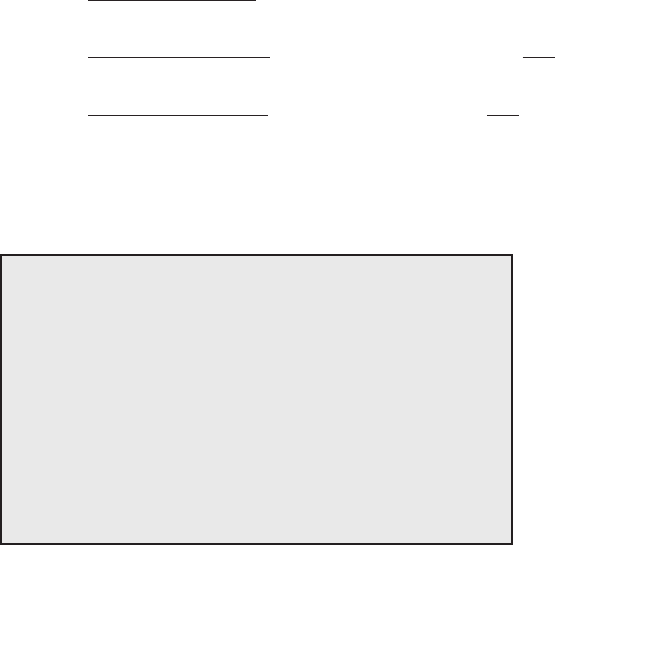
SCROLLING MENU:
Note: Only the SLC+, SL+, Pro+ and 2.4+ have setup menus 2, 3, and 4.
12
SCROLLING MENU:
Find: If [MODE] and [SELECT] are released
When “Find” is displayed the computer will find
the PowerTap sensors.
clr: If [MODE] and [SELECT] are released when
clr is displayed ALL DATA WILL BE ERASED.
SEt: If [MODE] and [SELECT] are released
When SEt is displayed on the top level of the
Screen, a flashing “E”, d and t on the middle
Level and 12345 on the bottom level.
E= exit, return to ride mode
d= restore default settings
T= test mode
1 2 3 4 5 = setup menus

FINDING SENSORS
The PowerTap hub, sensors and computer are "paired" or "learned" at the factory so that the sys-
tem is ready to ride once installed on the bicycle. Learning involves viewing and storing each
device ID into the PowerTap computer. Information on learning can be found in computer setup
5 section of this owner's manual.
In addition, there is a feature called "Find" that allows the user to search for stored devices in the
event a sensor has lost contact with the PowerTap computer for any reason. To initiate the Find,
hold [Mode] and [Select]. Release when "Find" appears on the bottom of the PowerTap screen
after about 2 seconds. The current watts display will switch to a spinning dial, indicating the
search is in process. When the search is successful, the transmission icon appears in the upper
left corner. If device ID's are stored for heart rate and cadence there will be spinning dials for
these metrics as well.
POWER CONSERVATION
The computer and hub have power saving features to prolong battery life. The computer powers
down the display after four (4) minutes of inactivity. Press either [MODE] or [SELECT] to activate
the display. Similarly, the hub powers down after five (5) minutes of inactivity. The transmission
icon will not be visible when the hub is asleep. To wake the hub spin the wheel and verify the
transmission icon is illuminated.
13
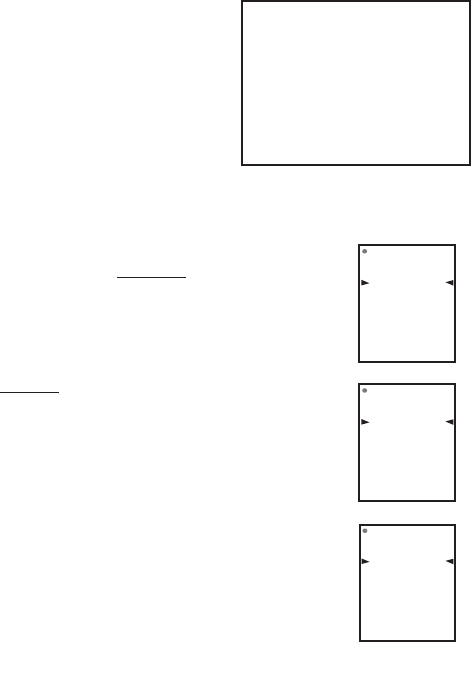
POWER FUNCTION
The top level of the main display shows current, max,
and average power readings.
1) Press [MODE] to scroll the cursor to the top line
of the main display
2) Press [SELECT] to toggle through the
power function options.
For accurate power readings it is important to frequently zero the torque, see
ZERO TORQUE.
Current Power
Power is displayed in watts from 0-1999 in 1 watt increments. Current power
readings are displayed only when the word “WATTS” appears below the top line
(FIGURE 9). NOTE: If “WATTS” does not appear under the top line the computer is
in the Cycle Computer Function. To return to power readings see CYCLE
COMPUTER MODE.
Maximum Power
Both “WATTS” and “MX” displayed simultaneously indicate the highest recorded
power output since the last time the data was cleared in trip mode or the selected
interval in interval mode. (FIGURE 10)
Average Power
Both “WATTS” and “AVG” displayed simultaneously indicate the average power
output since the last time the data was cleared in trip mode or the selected
interval in interval mode. (FIGURE 11)
14
365
25
58.I0
WATTS3
D
849
25
58.I0
MX WATTS 3
D
I95
25
58.I0
3
D
AV WATTS
FIGURE 9
FIGURE 10
FIGURE 11
Computer Navigation
Press [MODE] to scroll through the various functions of the dis-
play. Press [SELECT] to toggle through the various options
within that funciton. Note: Peak power and Time in Zones infor-
mation is only available on the SLC+, SL+, Pro+ and 2.4+
models.
MODE
button
Power
Speed
Multi Function
Peak Power
Time in Zones
SELECT
button
MX, AV, WATTS
MX, AV
D, T, C, E, O, HR
:30, 1:00, 5:00, 20:00
1,2,3
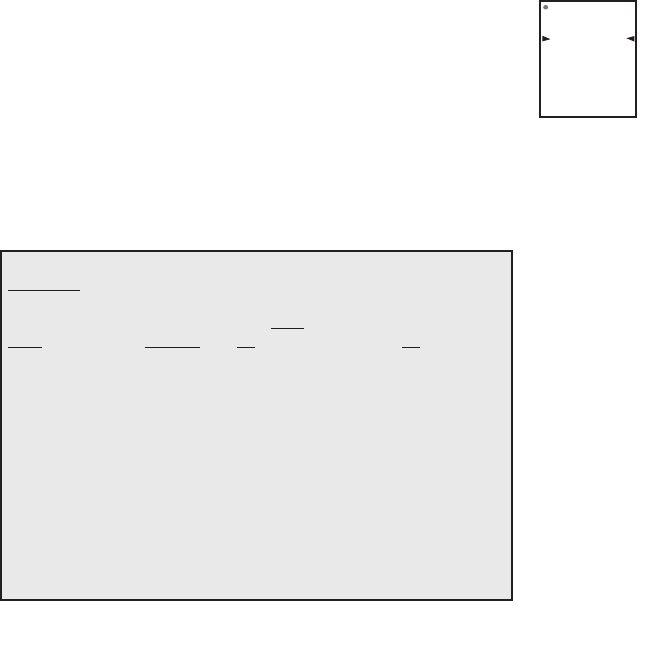
TORQUE FUNCTION
Shows the torque placed on the hub in inch-pounds. To display torque while
in trip mode:
1) Press [MODE] to scroll the cursor to the top line of the main display.
2) Press [SELECT] until the current power function is displayed.
3) Hold [SELECT] until the word “WATTS” begins to flash. A blinking “WATTS” display indicates
the torque function is currently displayed.
4) Press [SELECT] to return to the current power function. (FIGURE 12).
3
D
000
25
58.I0
15
FIGURE 12
IMPORTANT: ZERO TORQUE
Frequently the torque must be zeroed to ensure the most accurate power
information is displayed. If the current power display is positive or
negative while coasting the the torque mustbe zeroed. This operation
mustbe done while stopped with notension on the chain, notension
placed on the pedals, and the transmission icon must be illuminated. To
zero torque:
1) Press [MODE] to scroll the cursor to the top line of the main display.
2) Press [SELECT] until current power function is displayed.
3) Hold [SELECT] until the word “WATTS” begins to flash to enter the
torque function.
4) Hold [SELECT] again until “0” is shown.
5) Press [SELECT] to return to current power. The current power function
will now read zero while coasting.
SPEED FUNCTION
The middle level of the main display shows current, max, and average speed readings.
1) Press [MODE] to scroll the cursor to the middle line of the main display.
2) Press [SELECT] to toggle through the speed function options.
Current Speed
Speed is displayed in either miles per hour (MI) or kilometers per hour (KM) up to
59 mi/hr or 95 km/hr in 0.1 mi/hr or km/hr increments. Current speed readings
are displayed when only “MI” or “KM” appears below the middle line. (FIGURE 13)
Maximum Speed
Either “MI” or “KM” and “MX” displayed simultaneously indicate the highest record-
ed speed since the last time data was cleared in trip mode or the selected interval
in interval mode. (FIGURE 14)
Average Speed
Either “MI” or “KM” and “AVG” displayed simultaneously indicate the average
recorded speed since the last time data was cleared in trip mode or the selected
interval in interval mode. (FIGURE 15)
16
365
25
58.I0
WATTS3
MI
D
365
33
58.I0
WATTS
7
MX MI
D
365
20
58.I0
3
AV MI
D
WATTS
FIGURE 13
FIGURE 14
FIGURE 15

MULTI-FUNCTION DISPLAY
Distance (D)
Total trip or the selected interval distance in interval mode is displayed
in miles or kilometers from 0.00 to 999.99 (FIGURE 16).
1) Press [MODE] to scroll the cursor to the bottom line of the main display.
2) Press [SELECT] to toggle through the multi-function displays until the “D” icon is displayed.
NOTE: Distance is displayed in the same units (miles vs kilometers) as speed.
Trip Time and Time of Day (T)
Total trip time, interval time, and time of day is displayed as H.MM.SS for trip time
and HH:MM for real time (FIGURE 17).
1) Press [MODE] to scroll the cursor to the bottom line of the main display.
2) Press [SELECT] to toggle through the multi-function displays until the “T”
icon is displayed.
3) While in trip time hold [SELECT] to access the real time clock.
4) Hold [SELECT] to return to trip or interval time.
NOTE: Auto start and stop with rotation of the wheel is the default setting. To customize auto
start and stop see COMPUTER STETUP 4.
365
25
58.I0
WATTS3
MI
365
25
2.5 I.43
WATTS
3
MI
T
D
FIGURE 16
FIGURE 17
17

Cadence (C)
Cadence is measured at the hub by analyzing the way a rider applies torque
through the pedal stroke since there are natural power differences in the pedal
stroke. The rate of pedaling is shown from 40 to 240 RPM.
NOTE: An optional wireless cadence sensor is available to measure cadence at
the crank.
1) Press [MODE] to scroll the cursor to the bottom line of the main display.
2) Press [SELECT] to toggle through the multi-function displays until the "C" icon is displayed.
(FIGURE 18)
18
365
25
89
WATTS3
C
FIGURE 18

Average Cadence (C & AVG)
The average cadence displays data since the last time data was cleared in trip
mode or the selected interval in interval mode. Average cadence is displayed in
RPM.
1) Press [MODE] to scroll the cursor to the bottom line of the main display.
2) Press [SELECT] to toggle through the multi-function displays until the “C” and
“AVG” are displayed. (FIGURE 19)
Energy Expenditure (E)
The total work done over the course of the trip or interval is shown in kilojoules.
This value is a measure of the total energy expended over the course of your ride.
This is roughly equivalent to dietary calories expended.
1) Press [MODE] to scroll the cursor to the bottom line of the main display.
2) Press [SELECT] to toggle through the multi-function displays until the “E” is dis-
played. (FIGURE 20)
Odometer (O)
Total accumulated distance traveled since the last system reset is displayed in
miles or kilometers. To manually input the your odometer reading see COMPUTER
SETUP 1.
1) Press [MODE] to scroll the cursor to the bottom line of the main display.
2) Press [SELECT] to toggle through the multi-function displays until the “O”
is displayed. (FIGURE 21)
19
365
25
76
WATTS
3
C AV
365
25
2009
WATTS
3
E
365
25
2584
WATTS3
O
FIGURE 19
FIGURE 20
FIGURE 21
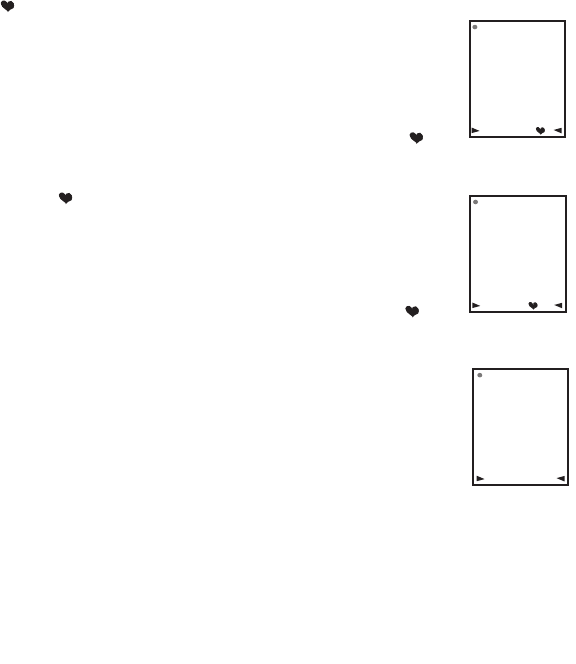
Heart Rate ( )
Current heart rate is shown up to 255 beats per minute (BMP). You must wear the
heart rate chest strap to enable the heart rate measurement function. NOTE: The
PowerTap uses a coded chest strap. Elite + users must purchase an ANT+ compat-
ible chest strap for this function to operate.
1) Press [MODE] to scroll the cursor to the bottom line of the main display.
2) Press [SELECT] to toggle through the multi-function displays until the “ ” is
displayed. (FIGURE 22)
Average Heart Rate ( AV)
This value is a running average of the heart rate in BPM. If there is no heart rate
information this will display as 0.
1) Press [MODE] to scroll the cursor to the bottom line of the main display.
2) Press [SELECT] to toggle through the multi-function displays until the “ AV” is
displayed. (FIGURE 25)
TIME IN ZONES (SLC+, SL+, PRO+ AND 2.4+ ONLY)
Time in Zones displays the amount of time spent above, below or at your lactic
threshold. The default lactic threshold is 250 watts, but can be modified through
Setup 1. +/-10% from the value is considered at the threshold.
1) Press [MODE] to scroll the cursor until the top line shows 2on.
2) Press [SELECT] to toggle through the 3 zones.
Zone 1 - Below Threshold
Zone 2 - At Threshold
Zone 3 - Above Threshold
20
365
25
I72
WATTS 3
FIGURE 22
FIGURE 24
365
25
I72
WATTS 3
AV
FIGURE 23
2on
3
7:44
WATTS
MI
T
PEAK POWER (SLC+, SL+, PRO+ AND 2.4+ ONLY)
Peak power displays your maximum average power for various time intervals.
1) Press [MODE] to scroll the cursor until the middle line shows PP.
2) Press [SELECT] to toggle through the different time intervals
0:30, 1:00, 5:00 and 20:00.
INTERVAL MODE
The computer has two display modes. The trip mode shows total trip
metrics, and the interval mode displays interval specific information.
The interval mode functions as a lap marker and is essentially always on.
To begin the first interval, or advance to the next interval:
Press and release[MODE] and [SELECT] simultaneously.
NOTE: Do nothold both buttons down as you may clear all data from the comput-
er.
In trip mode “INT” and the new interval number will appear and disappear (FIGURE
26). The computer can mark an unlimited number of intervals although after nine
(9) the marker will begin to count back at one (1). For example, interval ten (10) is
displayed following interval (9) as one (1).
To view interval specific data (power, speed, and multi-function display) from any
location on the display:
1) Hold [MODE] until “INT” appears on the left hand side of the display. The “INT”
and interval number will remain illumined as a forth line in the main display (FIG-
URE 24). The data displayed is that of the current interval number shown.
2)To exit back out of interval mode hold [MODE] until “INT” disappears.
21
365
1
152
WATTS 3
MI
AV
FIGURE 26
int
FIGURE 25
400
pp
20:00
MX WATTS
T

INTERVAL MEMORY MODE
To access stored interval data for the previous 9 intervals only:
1) Enter the interval mode hold [MODE] until “INT” appears on the left hand side of the display.
2) Press [MODE] to scroll until the “INT” flashes. NOTE: INT now constitutes a fourth level of dis-
play.
3) Hold [SELECT] and the memory icon (”M”) appears next to the interval number (FIGURE 27).
4) With “INT” flashing, press [SELECT] to advance to the interval you wish to view.
5) Press [MODE] scroll the cursor to the line of information you wish to view. NOTE: Recovery
periods as well as work periods are displayed in memory mode.
To exit back out of the interval memory mode hold [SELECT] until the memory icon disappears.
The computer is now displayed in the interval mode. To exit from the interval mode from any
location on the display hold [MODE] until “INT” disappears.
Note: Time in Zone information is not available in Interval Memory Mode.
Download the data into PowerAgent for a detailed analysis.
22
INT
2
FIGURE 27
Computer Setup
The setup feature has five(5) main modes. You do not have to
complete all five to change settings. Please reference each mode
to determine the correct location to begin. NOTE: The computer
illustrations for each mode displays the factory default settings.
COMPUTER SETUP MAIN MENU
1) Press either [MODE] or [SELECT] to activate the computer.
NOTE: The version of firmware is displayed upon startup. The
most updated firmware version is available at www.cycleops.com.
(FIGURE 28)
2) Extended hold of [MODE] and [SELECT] simultaneously enters
computer setup function. NOTE: Continue to hold through “clr”
screen. Releasing hold early will clear all current data.
3) The setup mode displays three (3) letters and numbers 1-5.
Each letter represents a setup menu. A flashing alphanumeric
character indicates current selection. (FIGURE 29)
E = exit, return to ride mode
d = restore default settings
T = test mode
1 2 3 4 5= setup menus
Note: Only the SLC+, SL+, Pro+ and 2.4+ have setup menus 2, 3
and 4.
4) Press [SELECT] to scroll to the desired setup mode.
5) Press [MODE] to begin setup.
23
Set
12345
FIGURE 29
Pro
5.33
FIGURE 28
Et
d
Note: The new pro-
duction version will
mark 6.0 version of
firmware.
COMPUTER SETUP 1
This setup menu includes: time of day, date, storage rate, wheel circumference, units of measure,
odometer and lactic threshold. NOTE: You are unable to move back to previously viewed set-
tings. You must restart setup 1 to make corrections. You may hold [MODE] and [SELECT] to save
and exit setup.
1) From the computer setup main menu press [SELECT] and scroll until the
number one (1) is flashing. Press [MODE] to enter setup mode.
2) Press [SELECT] to toggle between a 12 or 24 hour clock. Press [MODE] to
save.
3) Press [SELECT] to toggle between AM (A) or PM (P). Press [MODE] to
save.
4) Press [SELECT] to toggle through digit values to set hours in time of day.
Press [MODE] to save.
24
Std
t
12
Std
t
Std
p
t
12:00
p
Set
E
12345
t
d
5) Press [SELECT] to toggle through digit values to set minutes in time of
day. Press [MODE] to save.
6) Press [SELECT] to toggle through digit values to set year, month, and
date. Press [MODE] to save.
7) Press [SELECT] to toggle through storage rate values (1, 2 seconds).
Press [MODE] to save. NOTE: Different storage rates yield different amounts
of total storage time. Changes to the storage rate do not effect display
information. Refer to TABLE 3 for appropriate storage rate.
TABLE 3 - PowerTap Storage Rate
8) Press [SELECT] to toggle through digit values to set the wheel circumfer-
ence. Press [MODE] to save. Refer to TABLE 4 for common tire information.
NOTE: For the most accurate reading perform a roll out measurement
(mm) of the rear wheel.
25
Std
03
01-01
c
Year
Day
Month
Std
rec
1
Std
1CI
r
2096
Recording Rate (sec)SLC+, SL+, Pro+ and 2.4+ (hrs)Elite + (hrs)
1 sec.12 6
2 sec.24 12
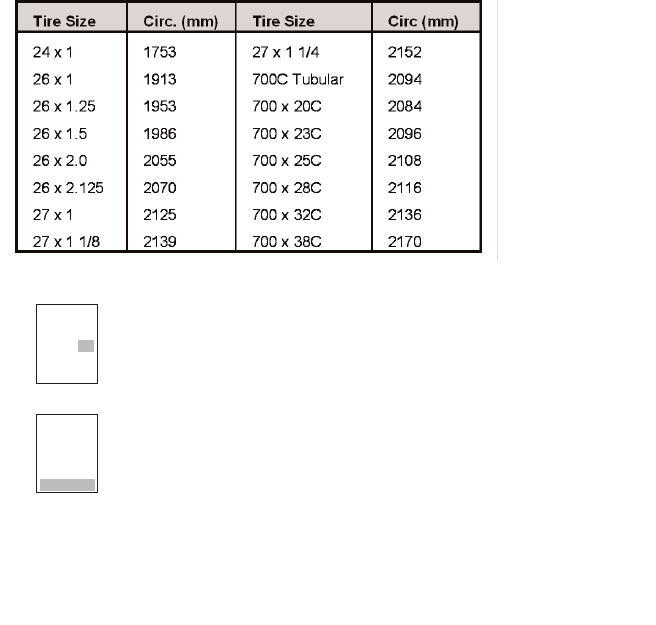
TABLE 4 - Common Wheel Circumferences
9) Press [SELECT] to toggle between English or Metric units.
Press [MODE] to save.
10) Press [SELECT] to set starting odometer reading. Press [MODE] to save.
NOTE: Odometer settings are saved during battery changes.
26
Std
1
Std
1
00000
OD
o
mi
COMPUTER SETUP 2 (SLC+, SL+, Pro+ and 2.4+ only)
This setup menu includes: rate of display for watts, speed, and cadence. NOTE: You are unable to
move back to previously viewed settings. You must restart setup 2 to make corrections. NOTE:
These settings do not effect the data stored for download.
This function can be used to allow better pacing during time trial efforts. A greater rate of dis-
play allows for a slower update of the display.
1) From the computer setup main menu press [SELECT] and scroll until the
number two (2) is flashing and press [MODE] to enter setup mode.
2) Press [SELECT] to toggle through (1, 2, 3, 5 10, 30) rate of display values in
seconds for watts. Press [MODE] to save.
3) Press [SELECT] to toggle between (1, 2, 3, 5 10, 30) rate of display values
in seconds for speed. Press [MODE] to save.
4) Press [SELECT] to toggle between (1, 2, 3, 5 10, 30) rate of display values
in seconds for cadence. Press [MODE] to save.
6) Press [SELECT] then [MODE] to reset default settings. Press [MODE] to
save changes.
27
PRO
2
2
AV WATTS
PRO
2
3
AV MI
PRO
25
C AV
Set
E
12345
t
d
COMPUTER SETUP 3
This setup menu includes: zero readings for power, speed, and cadence. NOTE: You are unable to
move back to a previously viewed setting. You must restart setup 3 to make corrections. NOTE:
These settings are useful for determining you average power reading when pedaling only and do
not effect the data that is stored for download.
1) From the computer setup main menu press [SELECT] and scroll until the
number three (3) is flashing and press [MODE] to enter setup mode.
2) Press [SELECT] to toggle between yes and no for zeros included in aver-
age of watts. Press [MODE] to save.
3) Press [SELECT] to toggle between yes and no for zeros included in aver-
age of speed. Press [MODE] to save.
4) Press [SELECT] to toggle between yes and no for zeros included in aver-
age of cadence. Press [MODE] to save.
5) Press [SELECT] to toggle between yes and no for auto-zero function.
Normally leave at yes. NOTE: Auto-zero ‘NO’ is used for track bike use where
large negative torque may be present. Hub modification to fixed gear is
necessary.
28
PRO
30’s
YES
AV WATTS
PRO
0’
s
AV MI
YES
PRO
3
c av
0’
s
YES
PRO
3
t
YES
Set
E
12345
t
d
COMPUTER SETUP 4
This setup menu includes: sleep time, locations of display, cadence source, cycle computer mode,
heart rate monitor, and auto start/stop. From this menu you are unable to move back to previ-
ously viewed settings. You must restart setup 4 to make corrections.
1) From the computer setup main menu press [SELECT] and scroll until the
number four (4) is flashing and press [MODE] to enter setup mode.
2) Press [SELECT] to set how many minutes the computer will stay “awake”
after not receiving a valid speed or heart rate signal. Press [MODE] to save.
NOTE: The shorter the sleep time the longer the battery life.
3) Press [SELECT] to determine what is displayed in the middle line. (mi =
speed, c = cadence, ( ) = heart rate). Press [MODE] to save. The selected
metric will flash during the ride. NOTE: If heart rate or cadence is selected
speed is not displayed. This is useful for intervals when power, heart rate
and cadence are most important.
4) Press [SELECT] to determine cadence information source.
Default = pedal then hub
Pedal = crank only
Hub = hub only
NOTE: An optional cadence sensor is available (sold separately).
Press [MODE] to save.
29
PRO
4
4
SLEEP
PRO
4
mi
PRO
4
pedal
c
Hu
P
Set
E
12345
t
d
5) The PowerTap can be used as a cycle computer or heart rate monitor.
Press [SELECT] to toggle through mode options.
watts, mi, and ( ) = power meter mode
mi, and ( ) = cycle computer mode
( ) = heart rate monitor mode
Press [MODE] to save.
6) Press [SELECT] to toggle through auto start options.
mi, and data = allows trip time to count when wheel speed is registering.
Trip time stops 3 sec. after if speed is not registered.
( ), and data = allows trip time to count as long as a heart rate signal is
registered. This function is useful in the transition from cycling to running
and vice versa.
7) Press [SELECT] to start setting the lactic threshold. The default value is
250W. Press [SELECT] to toggle through the digit values to set the lactic
threshold. Press [MODE] to advance to the next digit. After the last digit is
set, press [MODE] to save.
30
PRO
4
mi
watts
PRO
4
mi
watts
data
CYCLE COMPUTER MODE
This funtion allows the PowerTap computer to function as a cycle computer in the
absence of the PowerTap hub. In Cycle Computer Mode heart rate is displayed in the
top line of the main display and power data is no longer displayed. Speed, distance,
odometer and time are displayed normally.
(Speed sensor sold separately)
HEART RATE MONITOR MODE
This function allows the PowerTap computer to function as a heart rate monitor in
the absence of the PowerTap hub. In Heart Rate Monitor Mode heart rate is displayed
on the top line of the main display and power data is no longer displayed.
Lt
watts
0250
COMPUTER SETUP 5
This setup allows the CPU to learn a new device or sensor such as the hub, heart rate strap and
optional cadence sensor. NOTE: This process only needs to be used if a new sensor or hub is
being used in conjunction with your CPU or vice versa. There are 2 Learn sequences, 1 and 2.
Learn 1 is used when you have switched sensors or the CPU and there are no other like bikes
with PowerTap within a 30’ radius. Learn 2 is used if there are other devices in the area but
requires you to remove and reinsert the battery for that device before activating the Learn 2
sequence.
1) From the computer setup main menu press [SELECT] and scroll until the
number five (5) is flashing and press [MODE] to enter setup mode.
2) Press [SELECT] to toggle through the digit values to set the Hub ID.
Press [MODE] to advance to the next digit. After the last digit is set,
press [MODE] to save.
Note: Use either Learn 1 or Learn 2 to set the hub ID when the
numberical value is not known. (Most cases) Make sure the hub is awake by
spinning the wheel or axel.
3) Initiate Learn 1 by holding [SELECT] until “Learn” begins to flash.
Learn 1 will search for any active hub so be sure there are no other native
hubs in the area. When the search is complete press [MODE] to advance to
Learn 2.
Note: If Learn 1 was successful, learn 2 is not necessary.
4) Initiate Learn 2 by first removing the batteries from the hub for 5
seconds and replacing them. Then hold [Select] until "Learn" begins to
flash. When the CPU has learned the hub I.D. it will display the I.D.
Press [Mode] to save and proceed to the next device I.D. If it did not learn
the device it will take you back to the most recent Hub I.D.
31
hub
Id
45847
hub
Id
LEArn
1
hub
Id
LEArn
1
flashing
hub
Id
LEArn
2
hub
Id
LEArn
2
flashing
Set
E
12345
t
d
5) Follow the above steps for any additional sensors you may be using,
such as the heart rate strap, speed and cadence sensors. The sensor name is
shown on the top line of the display.
SPd = speed sensor
Cd = cadence sensor
HS = heart rate sensor
Press [SELECT] to toggle through the digit values to get the I.D. Press
[MODE] to advance to the next digit. When the last digit is set, press
[MODE] to save and advance to the learn functions for that sensor.
Press [SELECT] to initiate the learn functions as needed.
Note: Changing the batteries in the speed sensor, cadence sensor or heart
rate sensor creates a new ID for that device. If other computers are paired
using the old ID, they will need to re-learn the sensor.
32
SPd
Cd
HS

ANT+Sport
The PowerTap + Series uses ANT+Sport wireless technology that allows you to use the PowerTap
with other ANT+Sport Power devices. The Garmin Edge 705 is one such device.
In order to pair your PowerTap + Series hub with a Garmin Edge 705, follow these instructions or
contact Garmin.
1. Check that your Garmin has the latest firmware version at www.Garmin.com
2. Update your bike profile by pressing Menu > Settings > Profile & Zones > Bike Profile > Check
the "Power Box"
3. To pair the PowerTap to the Garmin, press Menu > Settings > ANT+Sport > Accessories > Select
"Yes" for Power Meter Present? Spin the wheel to ensure the hub is transmitting.
4. Select "Restart Scan" which will take you back to the ANT+Sport screen under Accessories
where a "Power Meter Detected" message will be displayed when the Garmin detects the
PowerTap.
33
Maintenance & Specifications
The following information will help you keep your PowerTap running properly. If you are not
familiar with hub maintenance please consult a professional bicycle mechanic before servicing.
During the course of any repair do not remove the torque tube. There are no user serviceable
parts inside. Special tools are required for reassembly and calibration. If problems are suspected
contact Saris Cycling Group.
BEARINGS
The power measuring components inside the PowerTap are highly complex and should only by
serviced by Saris Cycling Group. The bearings are sealed and do not require replacement. Field
replacement can cause permanent damage to the power measuring electronics and result in
compromised sealing and performance. If bearing problems are suspected
please contact Saris Cycling Group at 1-800-783-7257 for a return authorization. The PowerTap
uses a modern 4 bearing design and does not require any tensioning adjustment.
Ceramic Bearings are used in the SLC+ model. These are a hybrid construction of higher quality
steel inner and outer race, ceramic balls and a plastic cage. The ceramic balls are lighter, harder
and smoother than traditional bearings. In addition a special low friction seal is used.
FREEHUB
The grease in the freehub pawls should be replaced if it becomes contaminated with water.
Replace the seal at the same time, contact Saris Cycling Group for replacement parts. Saris
Cycling Group recommends the following types of grease to ensure proper functioning:
-Kluber Isoflex NB52 o
-Dupont Krytox GPL226
-Phil Wood Waterproof Grease
34
Model Hub BearingsFreehub Type Freehub Bearings
Elite+ and Pro+ or any PowerTap with 12mm Axle 2 x 6901 RSBoth 2 x 6901 RS
SL+ and SLC+ 6802RS, 6902RSShimano2 x 6902 RS
SL+ and SLC+ 6802RS, 6902RSCampagnolo 2 x 6802 RS

-Buzzy’s Slick Honey Grease
-Mobilgrease 28
Warning: Failure to use the proper grease on the freehub pawls could result in engagement
problems.
FREEHUB REPLACEMENT - ELITE+, PRO+ OR ANY POWERTAP WITH A 12MM AXLE
-See Figure 28 for illustrations
-Use 5mm hex wrench and 17mm bike wrench and remove both end nuts from the axle.
-Remove the axle
-Remove the freehub and spacers.
-Remove all old grease from the freehub ratchet ring.
-Install spacers per the illustration.
-Install axle.
-Apply 2 grams of high quality freehub grease to the ratchet ring.
-Grease the V seal and place it on the freehub and install onto shaft.
-Replace end nuts. Torque end nuts to 12 lbs-ft.
FREEHUB REPLACEMENT - SL+ AND SLC+
- Remove the freehub with a sharp tug. An internal O-ring is used to maintain friction with the
axle.
-Remove all old grease from the freehub ratchet ring.
-Make sure the black steel spacer remains on the axle.
-Clean the end cap and lightly grease the seal contact area.
-Apply 2 grams of approved grease.
-Grease the V seal and place it on the freehub. Note the open “cup” of the seal faces out.
-Install the new freehub over the shaft and re-use the end cap.
-The end cap will snap into the correct position. No tensioning adjustment is required.
-Shimano and Capagnolo freehubs can be interchanged with no changes to spacers or other
components.
35
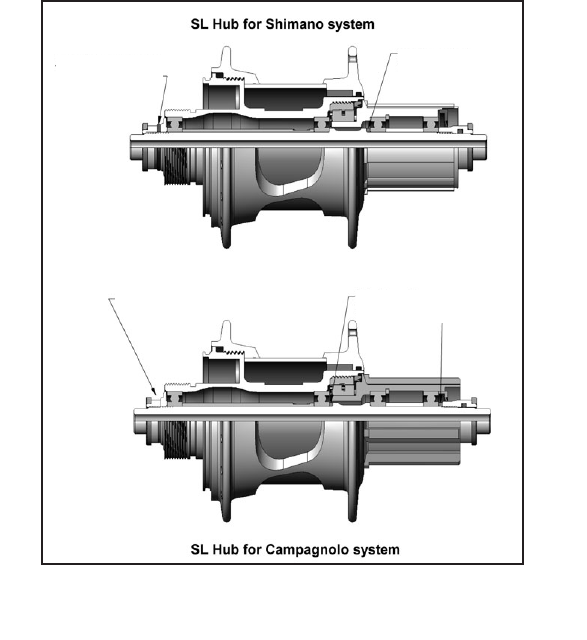
36
FIGURE 28
Aluminum spacer
installed here.
Aluminum spacer
installed here.
No aluminum spacer. Aluminum spacer
installed here
12MM AXLE ONLY

COMPUTER BATTERIES
The PowerTap SL2.4 has batteries in the hub and computer. Computer batter-
ies typically need to be changed every 400 hours of use. The computer will
also say “low bat” when the computer battery needs to be changed. This mes-
sage is displayed after a “clr” is performed. To replace computer battery (Type
CR2032), remove the computer from the mount. Remove the battery cover on
the back of the computer (use a cone wrench to remove the battery cover),
exchange the battery, and replace the cover as shown below (FIGURE 29).
TECHNICAL SPECIFICATIONS
Accuracy +/-1.5%
Signal Transmission2.4 Ghz
Interval Data Storage Unlimited
Interval Display 9 Intervals (internal recording)
Operational Temperature 0 to 40 degrees c or 32 to 104 f
Battery Life (Hub) 300 hours approx.
Battery Life (CPU) 400 hours approx.
Battery Type (Hub) Type 357/303 or EPX 76 (2 ea) - (IEC-SR44)
Battery Type (CPU CR2032
RANGE OF MEASUREMENT
Power 0-1999 Watts
Torque 0-1999 inch-lbs.
Speed 2-59 mph (3-95 KPH)
Distance 0.00 to 9999.99 (Miles)
Trip Time 0.00.00-999.99 Minutes
Cadence 40-240 RPM
Total energy 0-99999 Kilojoules
Odometer 0-99999 Miles or Kilometers
Heart Rate 0-255 BPM (Beats per Minute)
37
FIGURE 29

DATA TRANSMITION
The hub transmits data on both the Saris network and the Ant Sport network simultaneously.
Data transmitted on the Saris network:
- Applied Power + orque
- Speed (Angular Vtelocity)
- Distance (Wheel Rotations)
- Cadence
- Hub Battery Condition
Data transmitted on the Ant Sport network:
Power Only Message
- Power
- Cadence
Torque at Wheel Message
- Torque
- Speed
- Distance
HUB BATTERIES
Normal battery life in the hub is 400 hours of actual ride time. Use #357/303 or EPX76 Silver
Oxide (IEC-SR44) type batteries and always replace batteries in pairs. Alkaline type batteries give
shorter life and poorer performance. NOTE: After replacing batteries in the hub you need to Learn
the device codes. See computer setup 5.
BATTERY REPLACEMENT
- Unscrew the plastic battery cover. Use the included cap tool. There are O-ring seals that can
cause the cover to resist the start of motion. The threading is normal right hand.
- Remove the battery pack. A small screw driver can be used back and forth between the two
ends to start to lift it out.
- Pop the battery out by bending the plastic retaining tab back and pushing the battery up from
the bottom.
- Check that the electrical connector tab from the inside of the hub is perpendicular to the
bottom of the battery pocket. If the tab gets bent, gently press it back to perpendicular with
a blunt tool.
38

-Slide the battery pack back into position along the center core. As the pack is engaged a small
increase of resistance to installation should be felt as the electrical connections are made.
- Thread the cap all the way back on.
- Replacement O-rings and battery packs are available from Saris Cycling Group.
TEST MODE
1) From the computer setup main menu press [SELECT] and scroll until the letter “t” is flashing.
Press [MODE] to enter test mode setup.
2) Press [MODE] to scroll through the different test modes as shown by the number. NOTE: Press
and hold [MODE] and [SELECT] simultaneously returns to standard operation.
0 - Model and version.
Displays the computer model on the middle line and firmware version number on the bottom
line.
1 - LCD Test
Displays all the LCD segments. Press [SELECT] to return to the normal screen.
2 - Heart Rate Signal Test
NOTE: The heart rate signal is illuminated.
The middle line display flashes “88” with each heart rate blip received.
3- Torque Information
NOTE: The T icon is displayed.
This displays information about the internal workings of the torque readings. The bottom display
is the offset torque value directly sent by the hub torque with no correction applied. The hub
sends a value of approximately 512 as the zero point. The middle line display is the correction
offset value currently stored in the computer. This is the value that is changed when you do a
manual zeroing of the torque. The top display is the corrected actual torque (the bottom value
minus the middle value).
39

4 - Standard Test File
This mode writes a small test file to the memory. Press [SELECT] and the bottom lines says “run”
and then “yes” when the file is written. This file can then be downloaded.
5 - Communication Loop Back Test
When looking at the front side of the computer, use a coin or paper clip to short out the two pins
on the left side. Press [SELECT]. The bottom line will say “run” and then “yes” if it passes the test
correctly. If the pins are not shorted together or there was a problem, the display will say “no”. This
test can be repeated by pressing [SELECT].
6 - Fast Memory Test
This tests the memory in the computer. Press [SELECT] and “run” is displayed on the bottom line.
When the test is completed and it passes, it says “yes”. If the test should fail, the bottom line will
say “no”.
40

Troubleshooting
No display on computer screen
· Computer is asleep – Press [MODE] or [SELECT] on the computer to wake up the computer.
· Batteries need replacement - replace the computer batteries as shown in the maintenance
section of the User Manual.
· Computer is too cold- operating temp. is 32 to 110 degrees Fahrenheit
Computer display is on, but there is no transmission icon
· Hub is asleep - spin the wheel to wake up the hub.
· Computer has not “found” the hub. Press and hold [MODE] and [SELECT] until “Find” appears
on the display. Make sure hub is awake by rotating wheel once.
· Batteries need replacement - replace the hub batteries as shown in the maintenance section
of the User Manual.
· Does the word “watts” appear under the top line? If no than you have entered cycle computer
mode. See cycle computer mode for further instructions.
· Interference with other devices - make sure you are not setting up the PowerTap inside a
building with a lot of electrical noise, neon signs, or near power lines. Bring the PowerTap out
side or away from the electrical disturbance to see if signal returns. Also make sure you don’t
have any other devices on your bike such as lights, magnets or cycle computer sensors.
· PowerTap computer’s batteries are low, replace batteries as shown in the maintenance section
of the User Manual. We recommend using a Cone Wrench to remove the battery cap, not a coin.
Displayed data blinks or does not function
· Batteries need replacement - replace the computer batteries as shown in the maintenance
section of the User Manual.
· Interference with other devices - make sure you are not setting up the PowerTap inside a
building with a lot of electrical noise, neon signs, or near power lines. Bring the PowerTap
outside or away from the electrical disturbance to see if signal returns. Also make sure you don’t
have any other devices on your bike such as lights, magnets or cycle computer sensors.
Power seems incorrect
·Torque value is not zeroed. To manually zero torque, go to current watts and hold down the
41

[SELECT] button until watts disappears. Torque is now being displayed. To zero torque hold
down the [SELECT] button until the value reads zero. To exit torque mode press [SELECT] once.
If re-zeroing the torque does not recalibrate the unit, call Saris Cycling Group customer service
at 1-800-783-7257.
Speed seems incorrect
· Wheel size incorrect -refer to setup 1 and enter the correct size in setup mode.
Transmission icon flashes rapidly
· Hub batteries need replacement - replace the hub batteries as shown in the maintenance
section of the User Manual.
Warranty
CycleOps PowerTap is warranted to the original retail purchaser to be free from defects in materi-
als and workmanship. Warranty coverage is valid to the original purchaser only and proof of pur-
chase will be required.
Electronics - 1 year
This warranty does not cover:
1. Normal wear and tear.
2. Any damage, failure or loss caused by accident, misuse, neglect, abuse, improper assembly,
improper maintenance, or failure to follow instructions or warnings in Owner’s Manual.
3. Use of products in a manner or environment for which they were not designed.
Limitations
The foregoing warranties are in lieu of and exclude all other warranties not expressly set forth
herein, whether expressed or implied by operation of law or otherwise, including, but not limited
to, warranties of merchantability or fitness for a particular purpose. Saris Cycling Group shall in
no event be liable for incidental or consequential losses, damages or expenses in connection42

with its exercise products. Saris Cycling Group’s liability hereunder is expressly limited to the
replacement of goods not complying with this warranty or, at Saris Cycling Group election, to the
repayment of an amount of the purchase price of the exercise product in question. Some states
do not permit the exclusion or limitation of implied warranties or incidental or consequential
damages, so the preceding limitations and exclusions may not apply to you.
Procedures
Warranty service will be performed by Saris Cycling Group or an authorized Saris Cycling Group
Dealer. The original purchaser must provide proof of purchase. Service calls and/or transportation
to and from the Authorized Saris Cycling Group Dealer are the responsibility of the purchaser.
1. Saris Cycling Group will have the option to repair or replace any product(s) which requires war-
ranty service.
2. Saris Cycling Group will replace any unit that is structurally defective with a new unit or replace
the unit with a unit of equal value.
3. In the event a product cannot be repaired, Saris Cycling Group will apply a limited credit reim-
bursement toward another CycleOps PowerTap product of equal or greater value.
43

Glossary
Computer - Refers to the yellow handlebar or stem mounted device.
Heart Rate (HR)- This displays current HR. Max and average values are displayed if [MAX] or
[AVG] is selected.
Watts- Real-time display of the effort you are putting in to pedaling the bike. This is your power
reading. **If you press the [SELECT] while the cursor is pointing to Watts the line changes to
"inch-lbs". This is the raw torque value that is being applied to the hub, NOT your power in watts.
Cadence (C) - The number of pedal revolutions per minute. The rate of pedaling is shown from 0
to 140 RPM.
Speed - The rate that you are traveling.
Scroll = To move vertically through available menu or screen options
Toggle = To move horizontally through alphanumeric digits
Cursor = The ® arrow located on console screen
Metrics = a standard of measurement
MAX = Maximum
RPM = Revolutions Per Minute
MI = Miles indicates Miles Per Hour
KM = Kilometers indicates Kilometers Per Hour
UI = User Interface
44
45
Saris Cycling Group, Inc.
5253 Verona Road
Madison, WI. 53711
1-800-783-7257
18562 09/08
Patents issued and pending.
Patent#6,418,797
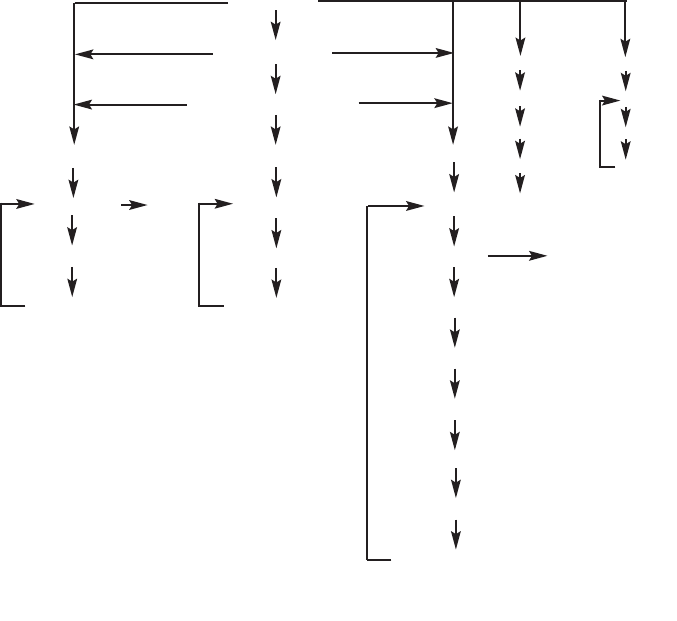
POWERTAP SL COMPUTER NAVIGATION
MAIN MENU
INTERVAL MODE
INTERVAL MEMORY MODE
Middle Display
Current Speed
Max Speed
Average Speed
Top Display
Current Power
Max Power
Average Power
Bottom Display
Distance
Trip Time
Cadence
Average Cadence
Energy Expenditure
Odometer
Heart Rate
Average Heart Rate
Time of day
Hold [SELECT]
Hold [SELECT]
Torque
Function
Press [SELECT]
Press [SELECT]
Press [MODE]
Press [MODE]
Press [SELECT]
Press [SELECT]
Press [SELECT ]
Press [SELECT]
Press [MODE]
Press [SELECT]
Press [SELECT]
Press [SELECT]
Press [SELECT]
Press [SELECT]
Press [SELECT]
Press [MODE]
Hold [SELECT]
Hold [MODE]
Press [SELECT]
Peak Power
:30
1:00
5:00
20:00
Time In Zones
1
2
3
Press [SELECT]
Press [SELECT]
Press [SELECT]
Press [SELECT]
Press [SELECT]