Sato Vicinity MARS-1 MARS-1 DESKTOP READER User Manual users manual

Sato Vicinity Pty Ltd MARS-1 DESKTOP READER users manual

Contents

users manual

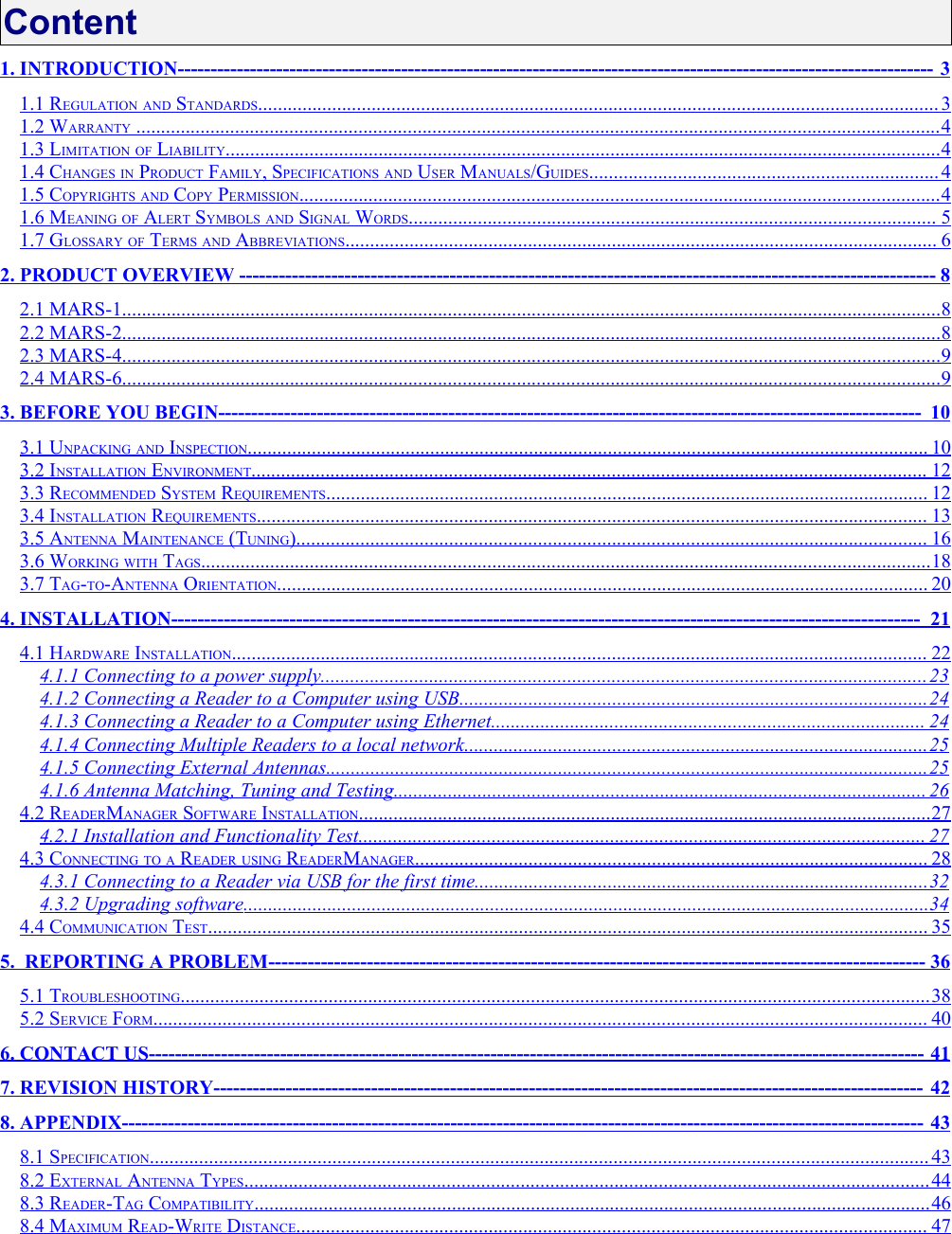
 HF RFID System User Manual MARS-1-2-4-6 Multiple Antenna Reader-Writer SystemsDocument Number : 64-70-017-DOCLast Changed : 04 October 2006Copyright  Magellan Technology 2006Commercial in Confidence
Content1. INTRODUCTION                                                                                                                                                               -------------------------------------------------------------------------------------------------------------------   3  1.1 REGULATION AND STANDARDS                                                                                                                                               ..........................................................................................................................................   3  1.2 WARRANTY                                                                                                                                                                         ...................................................................................................................................................................   4  1.3 LIMITATION OF LIABILITY                                                                                                                                                      .................................................................................................................................................   4  1.4 CHANGES IN PRODUCT FAMILY, SPECIFICATIONS AND USER MANUALS/GUIDES                                                                            .......................................................................   4  1.5 COPYRIGHTS AND COPY PERMISSION                                                                                                                                       ..................................................................................................................................   4  1.6 MEANING OF ALERT SYMBOLS AND SIGNAL WORDS                                                                                                                ...........................................................................................................   5  1.7 GLOSSARY OF TERMS AND ABBREVIATIONS                                                                                                                             ........................................................................................................................   6  2. PRODUCT OVERVIEW                                                                                                                                                    ----------------------------------------------------------------------------------------------------------   8  2.1 MARS-1                                                                                                                                                                           ......................................................................................................................................................................   8  2.2 MARS-2                                                                                                                                                                           ......................................................................................................................................................................   8  2.3 MARS-4                                                                                                                                                                           ......................................................................................................................................................................   9  2.4 MARS-6                                                                                                                                                                           ......................................................................................................................................................................   9  3. BEFORE YOU BEGIN                                                                                                                                                     -----------------------------------------------------------------------------------------------------------   10  3.1 UNPACKING AND INSPECTION                                                                                                                                               ..........................................................................................................................................   10  3.2 INSTALLATION ENVIRONMENT                                                                                                                                              .........................................................................................................................................   12  3.3 RECOMMENDED SYSTEM REQUIREMENTS                                                                                                                               ..........................................................................................................................   12  3.4 INSTALLATION REQUIREMENTS                                                                                                                                             ........................................................................................................................................   13  3.5 ANTENNA MAINTENANCE (TUNING)                                                                                                                                     ................................................................................................................................   16  3.6 WORKING WITH TAGS                                                                                                                                                         ....................................................................................................................................................   18  3.7 TAG-TO-ANTENNA ORIENTATION                                                                                                                                         ....................................................................................................................................   20  4. INSTALLATION                                                                                                                                                              ------------------------------------------------------------------------------------------------------------------   21  4.1 HARDWARE INSTALLATION                                                                                                                                                  .............................................................................................................................................   22  4.1.1 Connecting to a power supply                                                                                                                                ...........................................................................................................................   23  4.1.2 Connecting a Reader to a Computer using USB                                                                                                    ...............................................................................................   24  4.1.3 Connecting a Reader to a Computer using Ethernet                                                                                             ........................................................................................   24  4.1.4 Connecting Multiple Readers to a local network                                                                                                   ..............................................................................................   25  4.1.5 Connecting External Antennas                                                                                                                               ..........................................................................................................................   25  4.1.6 Antenna Matching, Tuning and Testing                                                                                                                 ............................................................................................................   26  4.2 READERMANAGER SOFTWARE INSTALLATION                                                                                                                         ....................................................................................................................   27  4.2.1 Installation and Functionality Test                                                                                                                        ...................................................................................................................   27  4.3 CONNECTING TO A READER USING READERMANAGER                                                                                                             ........................................................................................................   28  4.3.1 Connecting to a Reader via USB for the first time                                                                                                 ............................................................................................   32  4.3.2 Upgrading software                                                                                                                                                ...........................................................................................................................................   34  4.4 COMMUNICATION TEST                                                                                                                                                       ..................................................................................................................................................   35  5.  REPORTING A PROBLEM                                                                                                                                           ----------------------------------------------------------------------------------------------------   36  5.1 TROUBLESHOOTING                                                                                                                                                             ........................................................................................................................................................   38  5.2 SERVICE FORM                                                                                                                                                                  .............................................................................................................................................................   40  6. CONTACT US                                                                                                                                                                   ----------------------------------------------------------------------------------------------------------------------   41  7. REVISION HISTORY                                                                                                                                                      ------------------------------------------------------------------------------------------------------------   42  8. APPENDIX                                                                                                                                                                        --------------------------------------------------------------------------------------------------------------------------   43  8.1 SPECIFICATION                                                                                                                                                                   ..............................................................................................................................................................   43  8.2 EXTERNAL ANTENNA TYPES                                                                                                                                                ...........................................................................................................................................   44  8.3 READER-TAG COMPATIBILITY                                                                                                                                              .........................................................................................................................................   46  8.4 MAXIMUM READ-WRITE DISTANCE                                                                                                                                     ................................................................................................................................   47
MARS-1-2-4-6  USER MANUAL             64-70-017-DOC ver.11
   Please read before proceedingPlease   read   and   understand   this   document   before using Magellan’s Readers.If you have any questions, comments or suggestions about the User Manual please contact Magellan Technology.  Important InformationInstallation EnvironmentFor indoor use only unless otherwise specified. Install Magellan’s Readers within the temperature and humidity range according to the product specification.The environment must not contain corrosive, flammable or explosive agents or be subject to rapid changes in temperature, to direct vibration or shock.InstallationMagellan’s RFID reader-writers communicate with data carriers (RFID inlets, labels and tags) using the  13.56  MHz High Frequency (HF)  band.   Some  industrial   machines and electronic devices can  generate unwanted noise which may degrade communication. Make  sure that other equipment is properly installed, grounded and at a reasonable distance from the Reader and/or Reader antennas.Wireless  communication  can be   degraded  by high-voltage  and high-current lines  and other sources of strong electric and magnetic fields. Installation in such locations should be avoided.!Magellan’s RFID reader-writers are to be professionally installed by authorised, qualified and service-trained installation personnel only.MaintenanceAll   Magellan’s   RFID   readers-writers   are   low   maintenance   equipment.   Except   for   externally accessible fuses there are no user-serviceable parts in any Reader. There is no requirement to remove the cover of the Reader.!Removal of the Reader cover by unauthorised personnel will void the product warranty.Do not attempt to clean internally. Periodic cleaning of external case parts with a damp cloth is advisable. Turn off the Reader before cleaning. Do not use a solvent of any kind.Electrical SafetyIn order to avoid electric shock do not remove the Reader cover or   attempt   to   repair.   The   Reader   must   be   maintained   by authorised, qualified and service-trained personnel only. EnvironmentalFor disposal Readers should be treated as industrial waste.This symbol on the product or on its packaging indicates that this product shall not be treated as household waste. Instead it shall be handed over to an appropriate collection point for the recycling   of   electrical   and   electronic   equipment.   By   ensuring   this   product   is   disposed   of correctly,   you   will   help   prevent   potential   negative   consequences   for   the   environment   and human   health,   which   could   otherwise   be   caused   by   inappropriate   waste   handling   of   this product. The recycling of materials will help to conserve natural resources. For more detailed information about recycling of this product, please contact your local city office, your household waste disposal service or the Magellan Technology regional sales office.MARS-1-2-4-6  USER MANUAL             64-70-017-DOC ver.12
1.IntroductionThank you for your recent purchase of a Magellan RFID reader-writer.This   User   Manual   will   provide   you   with   information   to   rapidly   adopt Magellan’s PJM technology for your needs, to install the Reader hardware and ReaderManager software and get the Reader running.Refer to the ReaderManager Guide (40-01-006-DOC) for a description of the various  tools  and advanced   options   available   in   the  ReaderManager software.Programming is covered in the Application Programmer’s Guide (40-01-000-DOC).1.1Regulation and StandardsRFID equipment is subject to national and international regulations.FCC Radio Frequency Interference Statement (USA)The FCC regards RFID equipment as low-power transmitting devices and, therefore,  does not require users of RFID devices to  obtain a  license to operate them.NOTE: This equipment has been tested and found to comply with the limits for a Class B digital device, pursuant to Part 15 of the FCC Rules. These limits   are   designed   to   provide   reasonable   protection   against   harmful interference in  a  residential  installation. This  equipment   generates, uses, and can  radiate  radio frequency energy and, if not  installed  and  used  in accordance with the instruction manual, may cause harmful interference to radio communications. However, there is no guarantee that interference will not occur in a particular installation. If this equipment does cause harmful interference to radio  or television reception, which can be determined by turning the equipment off and on, the user is encouraged to try to correct the interference by one or more of the following measures:Reorient or relocate of receiving antennaIncrease the separation between the equipment and receiverConnect the equipment into an outlet on a circuit different from that to which the receiver is connectedConsult the dealer or an experienced radio/TV technician for help!Any  changes or modifications to the  equipment  that  are  not expressly  approved   by  the   party  responsible  for   compliance could void  the  user’s authority  granted   under   FCC   Rules  to operate this equipment.       FCC ID: TVN-Mars-1Industry Canada Radio Frequency Interference Declaration of Conformity (Canada)This Class A digital apparatus complies with Canadian ICES-003.Cet appareil numérique de la classe A est conforme à la norme NMB-003 du Canada.ICES\NMB-003 IC: 6596A-Mars1 MARS-1-2-4-6  USER MANUAL             64-70-017-DOC ver.13
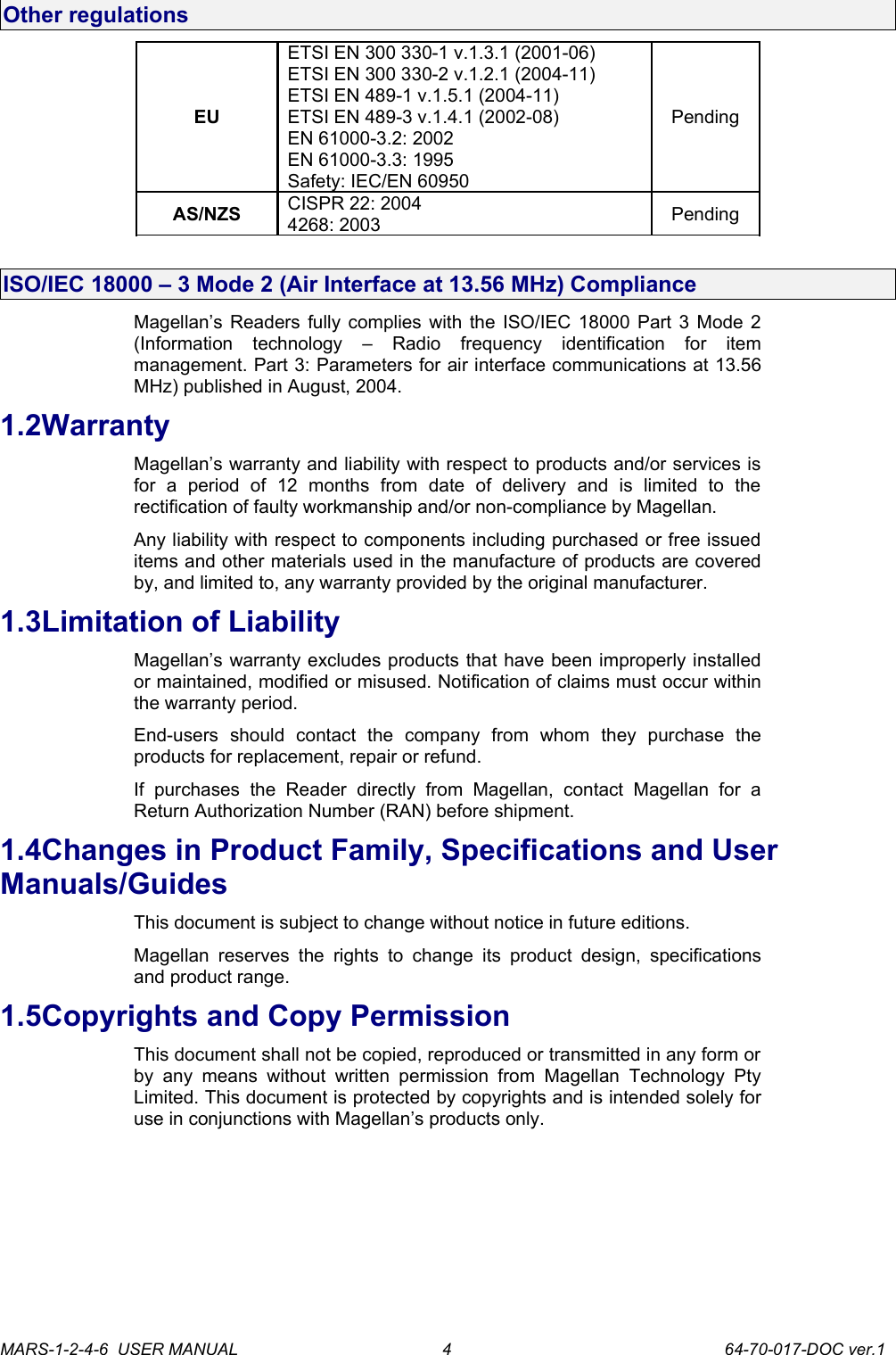
Other regulationsEUETSI EN 300 330-1 v.1.3.1 (2001-06)ETSI EN 300 330-2 v.1.2.1 (2004-11)ETSI EN 489-1 v.1.5.1 (2004-11)ETSI EN 489-3 v.1.4.1 (2002-08)EN 61000-3.2: 2002EN 61000-3.3: 1995Safety: IEC/EN 60950PendingAS/NZS CISPR 22: 20044268: 2003 PendingISO/IEC 18000 – 3 Mode 2 (Air Interface at 13.56 MHz) ComplianceMagellan’s Readers fully complies with the ISO/IEC 18000 Part 3 Mode 2 (Information   technology   –   Radio   frequency   identification   for   item management. Part 3: Parameters for air interface communications at 13.56 MHz) published in August, 2004.1.2WarrantyMagellan’s warranty and liability with respect to products and/or services is for   a   period   of   12   months   from   date   of   delivery   and   is   limited   to   the rectification of faulty workmanship and/or non-compliance by Magellan.Any liability with respect to components including purchased or free issued items and other materials used in the manufacture of products are covered by, and limited to, any warranty provided by the original manufacturer. 1.3Limitation of LiabilityMagellan’s warranty excludes products that have been improperly installed or maintained, modified or misused. Notification of claims must occur within the warranty period.End-users   should   contact   the   company   from   whom   they   purchase   the products for replacement, repair or refund.If   purchases   the   Reader   directly   from   Magellan,   contact   Magellan   for   a Return Authorization Number (RAN) before shipment.1.4Changes in Product Family, Specifications and User Manuals/GuidesThis document is subject to change without notice in future editions. Magellan reserves   the  rights   to change  its product  design,  specifications and product range. 1.5Copyrights and Copy PermissionThis document shall not be copied, reproduced or transmitted in any form or by any means without  written   permission   from   Magellan   Technology Pty Limited. This document is protected by copyrights and is intended solely for use in conjunctions with Magellan’s products only. MARS-1-2-4-6  USER MANUAL             64-70-017-DOC ver.14
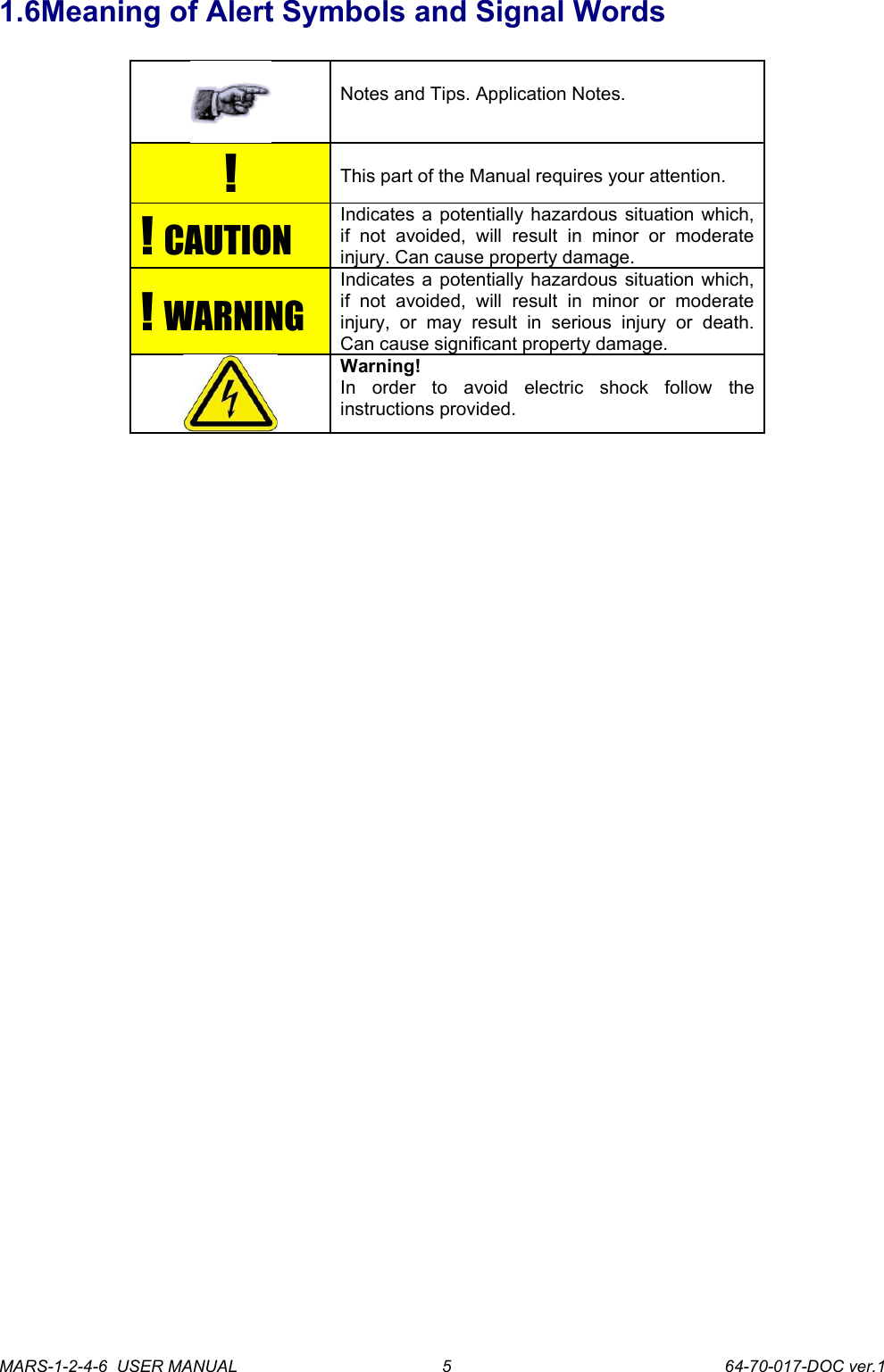
1.6Meaning of Alert Symbols and Signal WordsNotes and Tips. Application Notes. !This part of the Manual requires your attention.!  CAUTIONIndicates a potentially hazardous situation which, if   not   avoided,   will   result   in   minor   or   moderate injury. Can cause property damage.!  WARNINGIndicates a potentially hazardous situation which, if   not   avoided,   will   result   in   minor   or   moderate injury,   or   may   result   in   serious   injury   or   death. Can cause significant property damage.Warning!In   order   to   avoid   electric   shock   follow   the instructions provided.MARS-1-2-4-6  USER MANUAL             64-70-017-DOC ver.15
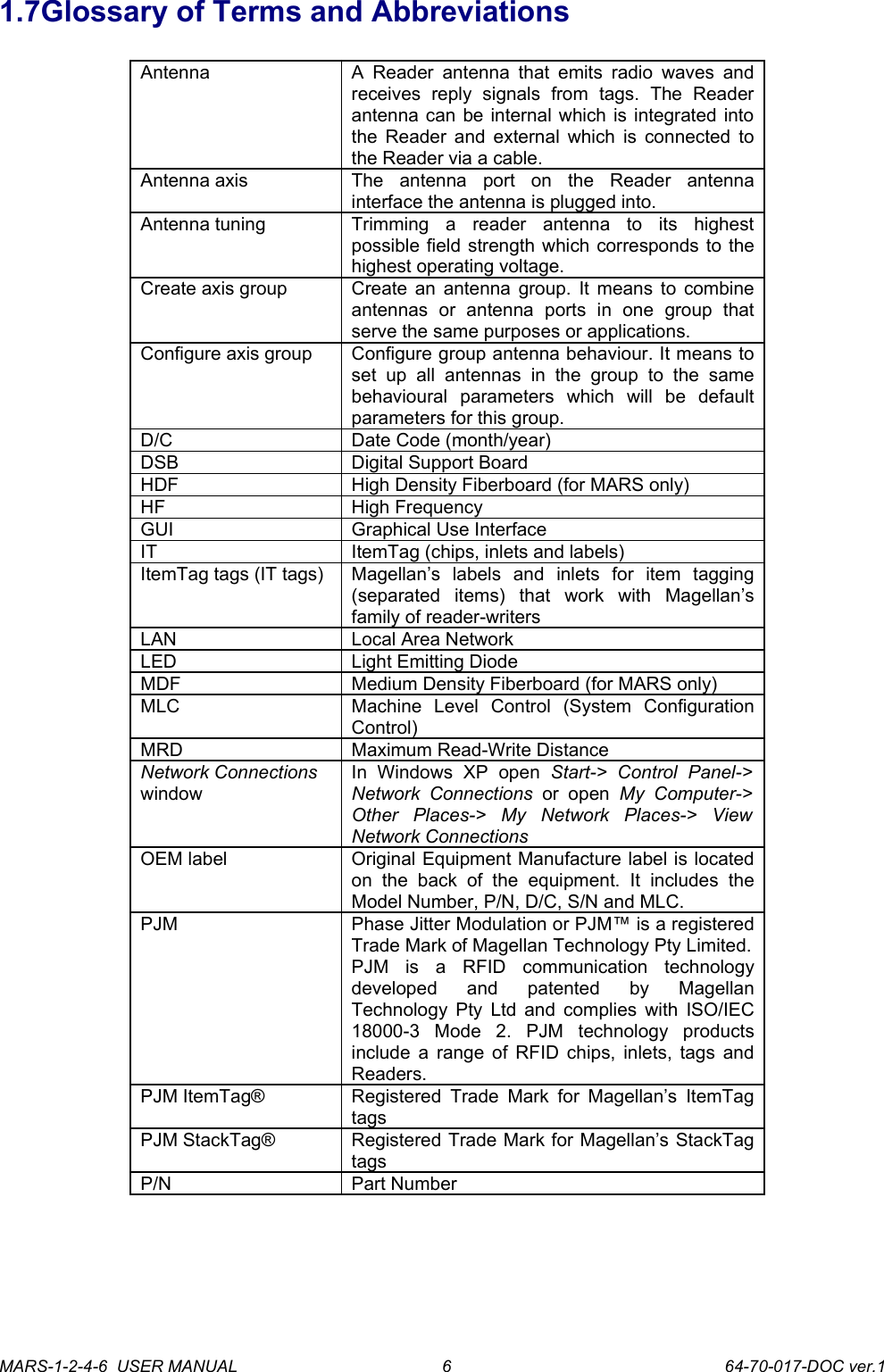
1.7Glossary of Terms and AbbreviationsAntenna A  Reader  antenna that emits radio  waves and receives   reply   signals   from   tags.   The   Reader antenna can be internal which is integrated into the Reader and external which is connected to the Reader via a cable. Antenna axis  The   antenna   port   on   the   Reader   antenna interface the antenna is plugged into.Antenna tuning Trimming   a   reader   antenna   to   its   highest possible field strength which corresponds to the highest operating voltage.Create axis group Create an antenna group. It means to combine antennas   or   antenna   ports   in   one   group   that serve the same purposes or applications.Configure axis group Configure group antenna behaviour. It means to set  up   all   antennas   in  the   group   to   the   same behavioural   parameters   which   will   be   default parameters for this group.D/C Date Code (month/year)DSB Digital Support BoardHDF High Density Fiberboard (for MARS only)HF High FrequencyGUI Graphical Use InterfaceIT ItemTag (chips, inlets and labels)ItemTag tags (IT tags) Magellan’s   labels   and   inlets   for   item   tagging (separated   items)   that   work   with   Magellan’s family of reader-writersLAN Local Area NetworkLED Light Emitting DiodeMDF Medium Density Fiberboard (for MARS only)MLC Machine   Level   Control   (System   Configuration Control)MRD Maximum Read-Write DistanceNetwork Connections windowIn   Windows   XP   open  Start->   Control   Panel-> Network  Connections  or  open  My   Computer-> Other   Places->   My   Network   Places->   View  Network ConnectionsOEM label Original Equipment Manufacture label is located on   the   back   of   the   equipment.   It   includes   the Model Number, P/N, D/C, S/N and MLC.PJM Phase Jitter Modulation or PJM™ is a registered Trade Mark of Magellan Technology Pty Limited.PJM   is   a   RFID   communication   technology developed   and   patented   by   Magellan Technology Pty Ltd and complies with ISO/IEC 18000-3   Mode   2.   PJM   technology   products include a range of RFID chips, inlets, tags and Readers. PJM ItemTag® Registered Trade Mark  for Magellan’s ItemTag tagsPJM StackTag® Registered Trade Mark for Magellan’s StackTag tagsP/N Part NumberMARS-1-2-4-6  USER MANUAL             64-70-017-DOC ver.16
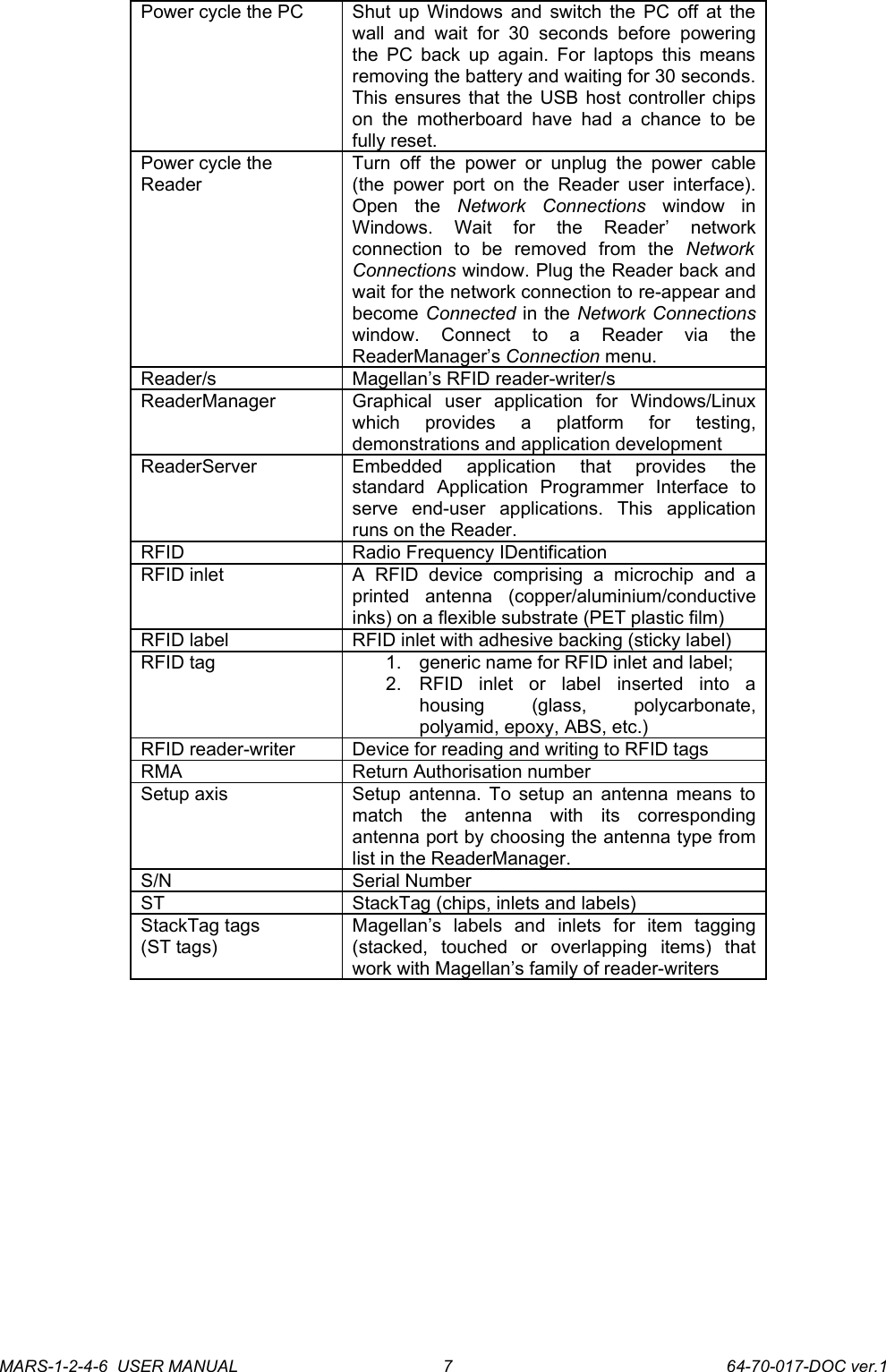
Power cycle the PC Shut up Windows and switch the PC off at the wall   and   wait for   30   seconds   before   powering the PC back up again. For laptops this means removing the battery and waiting for 30 seconds. This ensures that the USB host controller chips on  the motherboard have  had a  chance  to  be fully reset.Power cycle the ReaderTurn  off  the  power   or   unplug   the   power cable (the power port on the Reader user interface). Open   the  Network   Connections  window   in Windows.   Wait   for   the   Reader’   network connection   to   be   removed   from   the  Network Connections window. Plug the Reader back and wait for the network connection to re-appear and become Connected in the Network Connections window.   Connect   to   a   Reader   via   the ReaderManager’s Connection menu.Reader/s Magellan’s RFID reader-writer/sReaderManager Graphical   user   application   for   Windows/Linux which   provides   a   platform   for   testing, demonstrations and application developmentReaderServer Embedded   application   that   provides   the standard   Application   Programmer   Interface   to serve   end-user   applications.   This   application runs on the Reader.RFID Radio Frequency IDentificationRFID inlet A   RFID   device   comprising   a   microchip   and   a printed   antenna   (copper/aluminium/conductive inks) on a flexible substrate (PET plastic film)RFID label RFID inlet with adhesive backing (sticky label)RFID tag 1. generic name for RFID inlet and label;2. RFID   inlet   or   label   inserted   into   a housing   (glass,   polycarbonate, polyamid, epoxy, ABS, etc.)RFID reader-writer Device for reading and writing to RFID tagsRMA Return Authorisation numberSetup axis Setup antenna. To setup an antenna means to match   the   antenna   with   its   corresponding antenna port by choosing the antenna type from list in the ReaderManager.S/N Serial NumberST StackTag (chips, inlets and labels)StackTag tags(ST tags)Magellan’s   labels   and   inlets   for   item   tagging (stacked,   touched   or   overlapping   items)   that work with Magellan’s family of reader-writersMARS-1-2-4-6  USER MANUAL             64-70-017-DOC ver.17
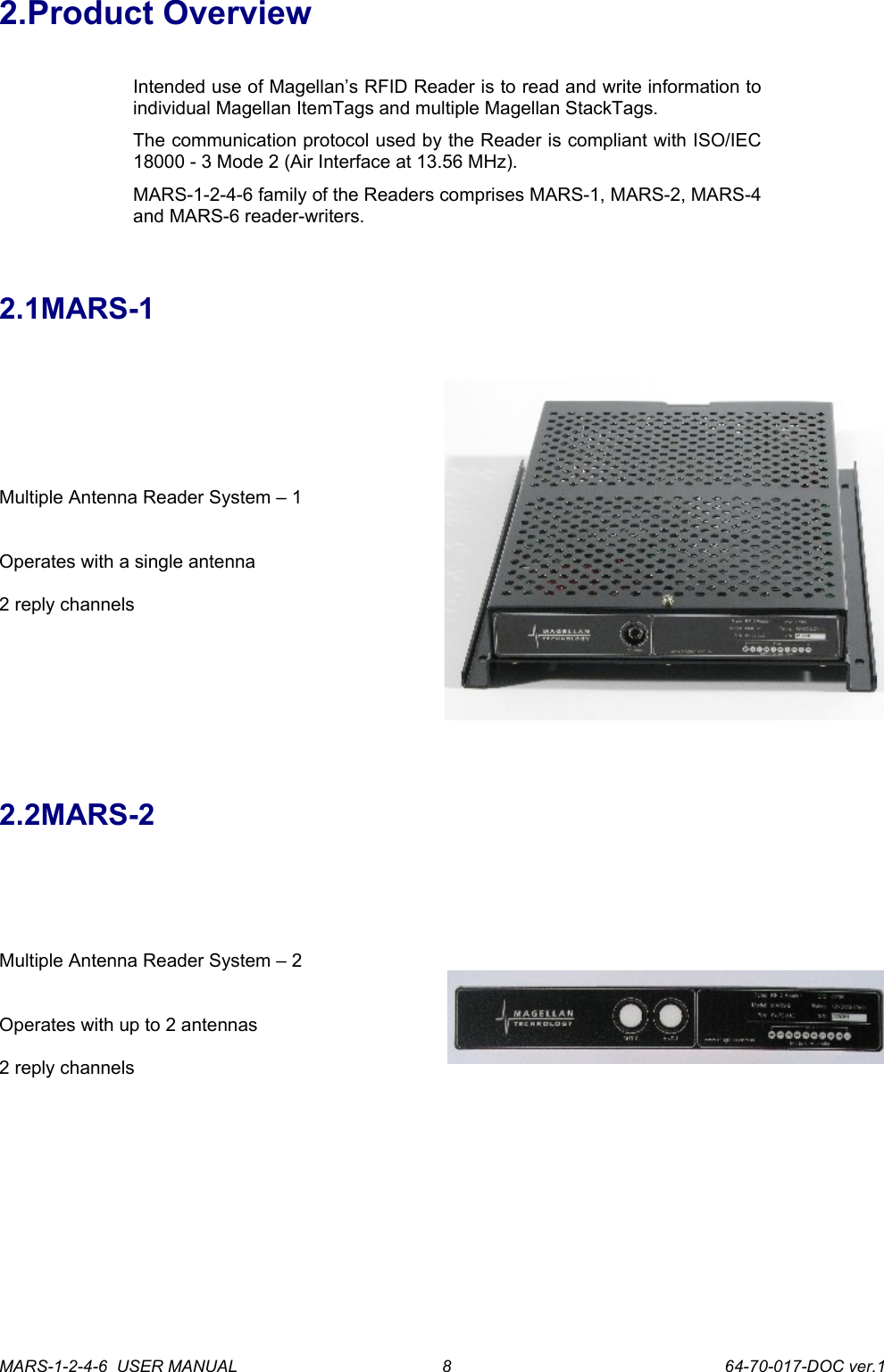
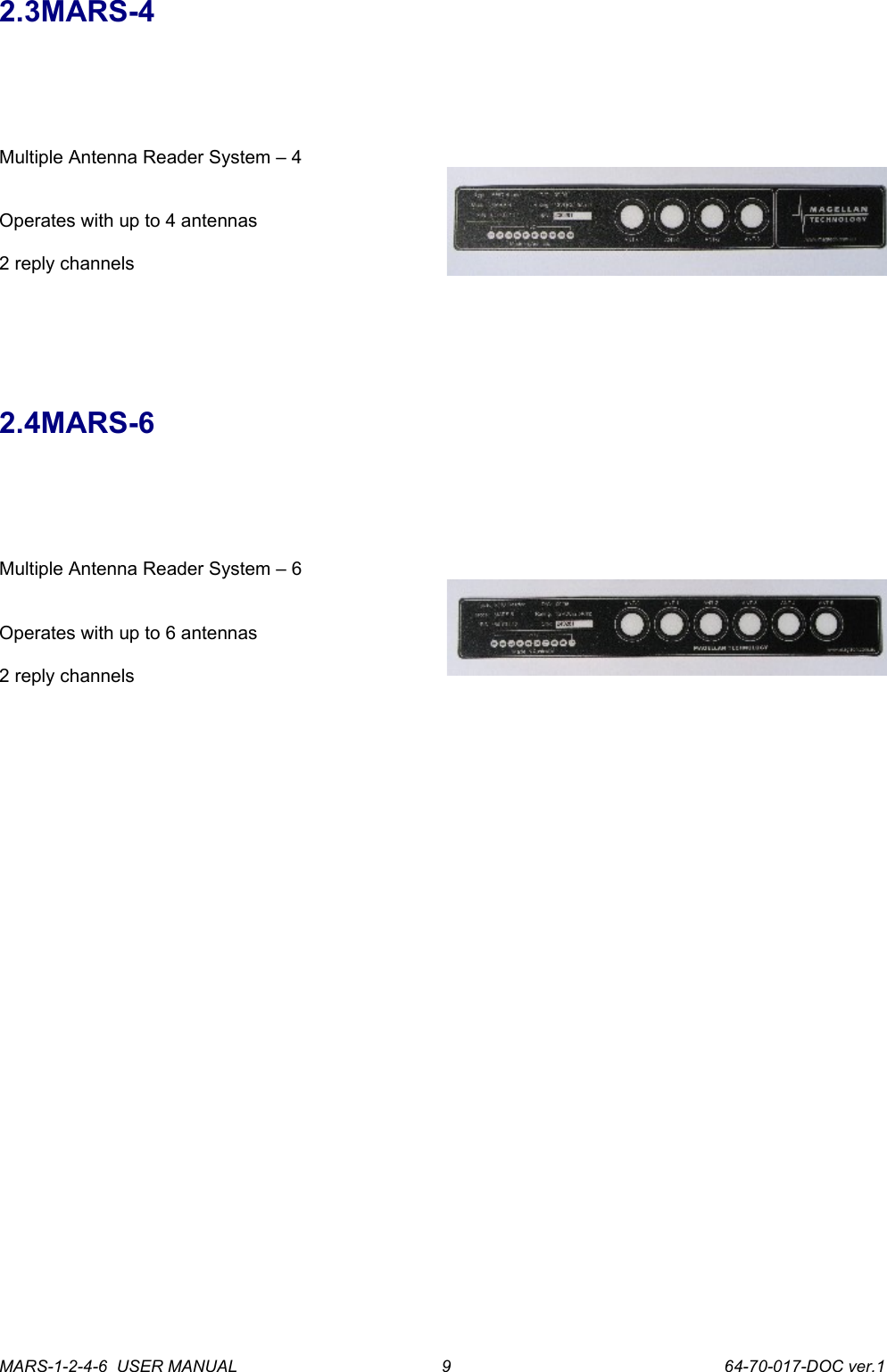
2.Product OverviewIntended use of Magellan’s RFID Reader is to read and write information to individual Magellan ItemTags and multiple Magellan StackTags.The communication protocol used by the Reader is compliant with ISO/IEC 18000 - 3 Mode 2 (Air Interface at 13.56 MHz).MARS-1-2-4-6 family of the Readers comprises MARS-1, MARS-2, MARS-4 and MARS-6 reader-writers.2.1MARS-1Multiple Antenna Reader System – 1Operates with a single antenna2 reply channels2.2MARS-2Multiple Antenna Reader System – 2Operates with up to 2 antennas 2 reply channelsMARS-1-2-4-6  USER MANUAL             64-70-017-DOC ver.18
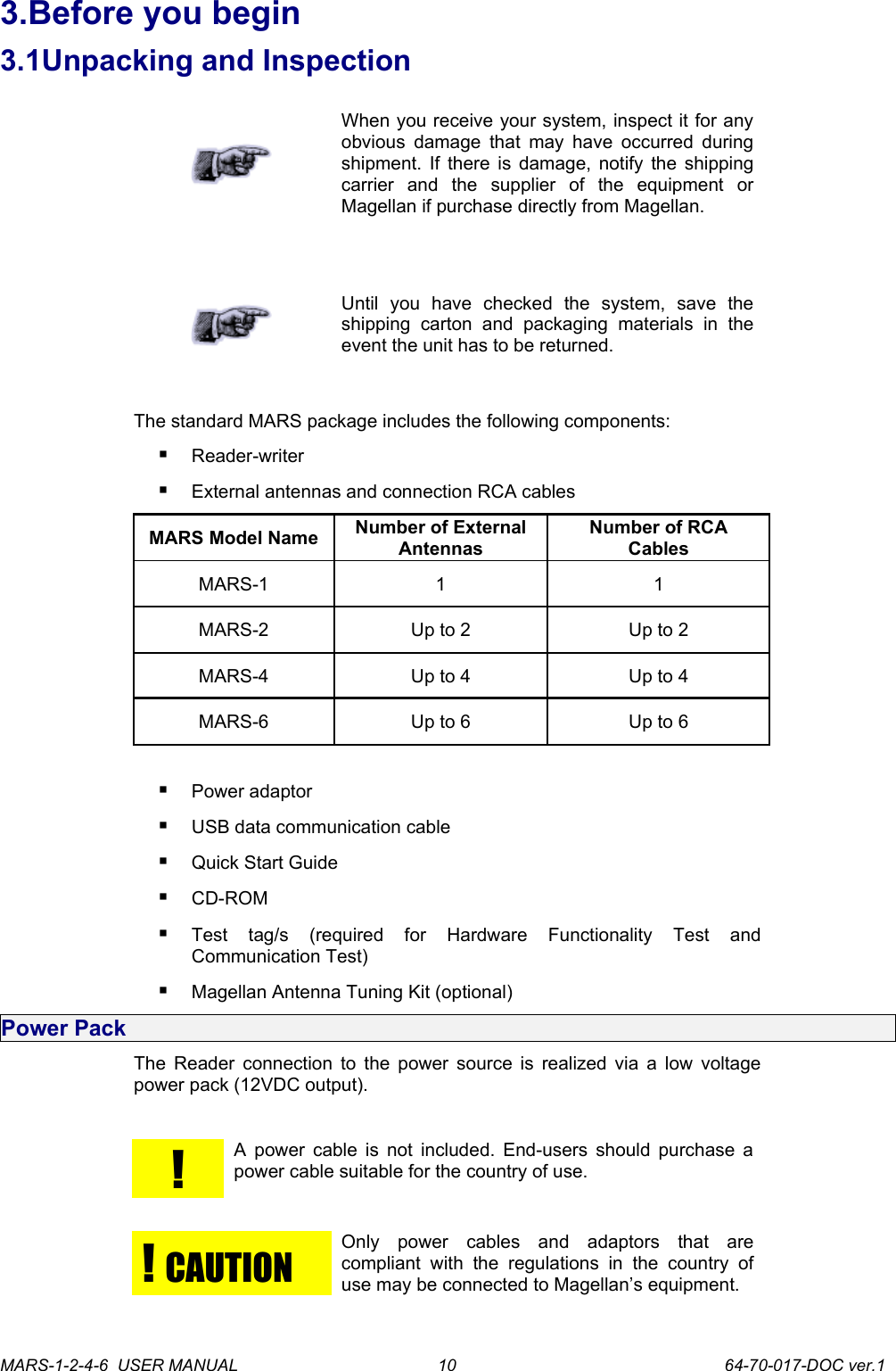
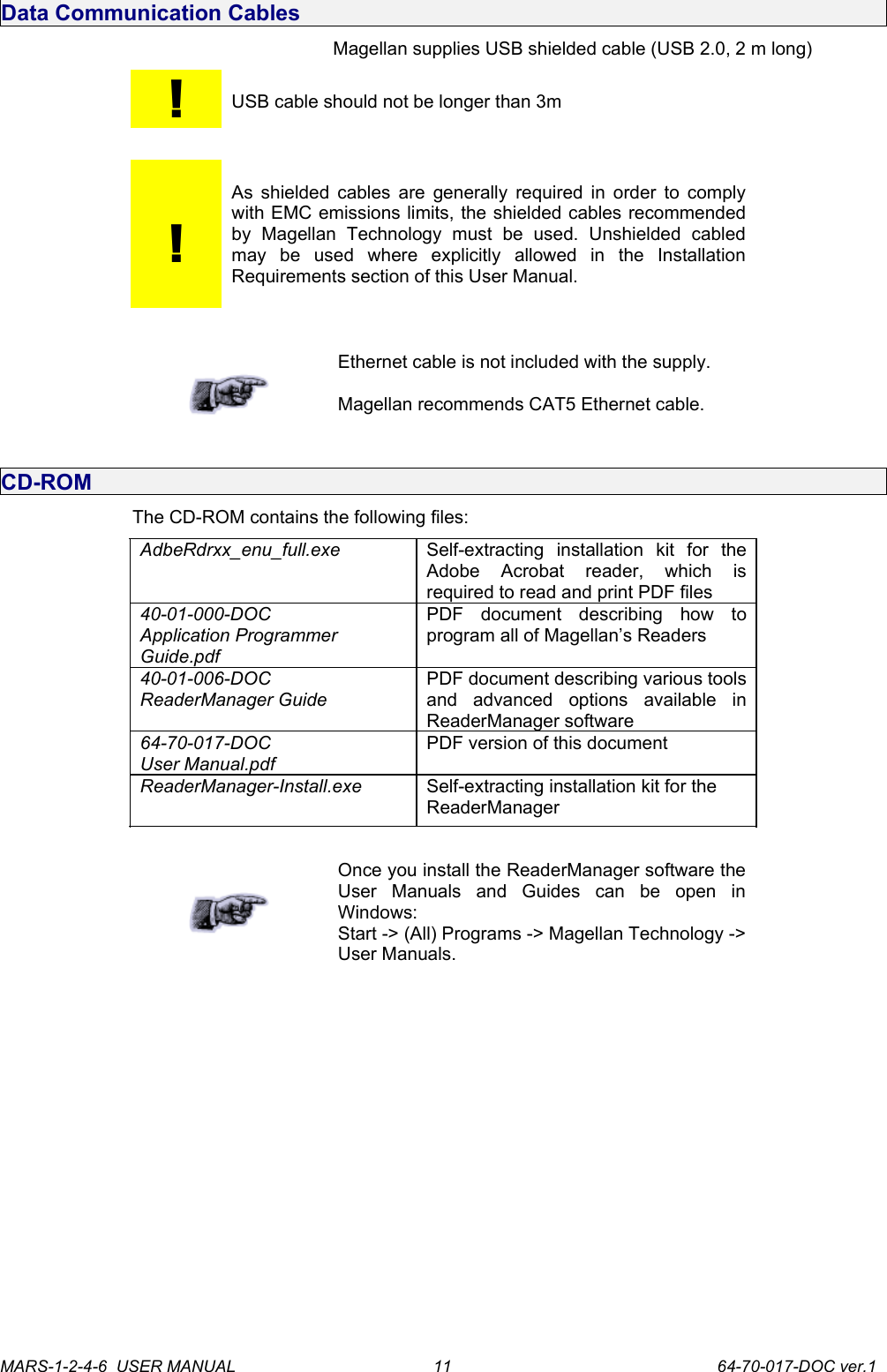
2.3MARS-4Multiple Antenna Reader System – 4Operates with up to 4 antennas 2 reply channels2.4MARS-6Multiple Antenna Reader System – 6Operates with up to 6 antennas 2 reply channelsMARS-1-2-4-6  USER MANUAL             64-70-017-DOC ver.19
3.Before you begin3.1Unpacking and InspectionWhen you receive your system, inspect it for any obvious damage that may have occurred during shipment. If there is damage, notify the shipping carrier   and   the   supplier   of   the   equipment   or Magellan if purchase directly from Magellan.Until   you   have   checked   the   system,   save   the shipping   carton   and   packaging   materials   in   the event the unit has to be returned.The standard MARS package includes the following components:Reader-writerExternal antennas and connection RCA cablesMARS Model Name Number of External AntennasNumber of RCA CablesMARS-1 1 1MARS-2 Up to 2 Up to 2MARS-4 Up to 4 Up to 4MARS-6 Up to 6 Up to 6Power adaptorUSB data communication cable Quick Start Guide CD-ROMTest   tag/s   (required   for   Hardware   Functionality   Test   and Communication Test) Magellan Antenna Tuning Kit (optional)Power PackThe Reader connection to the power source is realized via a low voltage power pack (12VDC output).!A power cable is not included. End-users should purchase a power cable suitable for the country of use.!  CAUTIONOnly   power   cables   and   adaptors   that   are compliant   with   the  regulations   in   the   country  of use may be connected to Magellan’s equipment.MARS-1-2-4-6  USER MANUAL             64-70-017-DOC ver.110
Data Communication CablesMagellan supplies USB shielded cable (USB 2.0, 2 m long)!USB cable should not be longer than 3m!As shielded cables are generally required in order to comply with EMC emissions limits, the shielded cables recommended by   Magellan   Technology   must   be   used.   Unshielded   cabled may   be   used   where   explicitly   allowed   in   the   Installation Requirements section of this User Manual.Ethernet cable is not included with the supply.Magellan recommends CAT5 Ethernet cable.CD-ROMThe CD-ROM contains the following files:AdbeRdrxx_enu_full.exe Self-extracting   installation   kit   for   the Adobe   Acrobat   reader,   which   is required to read and print PDF files40-01-000-DOCApplication Programmer Guide.pdfPDF   document   describing   how   to program all of Magellan’s Readers40-01-006-DOCReaderManager GuidePDF document describing various tools and   advanced   options   available   in ReaderManager software64-70-017-DOCUser Manual.pdfPDF version of this documentReaderManager-Install.exe Self-extracting installation kit for theReaderManagerOnce you install the ReaderManager software the User   Manuals   and   Guides   can   be   open   in Windows:Start -> (All) Programs -> Magellan Technology -> User Manuals.MARS-1-2-4-6  USER MANUAL             64-70-017-DOC ver.111
3.2Installation EnvironmentMagellan’s Readers are designed to operate in indoor environments where temperature   and   humidity   are   controlled   unless   other   conditions   are specified for customised Readers.For standard Readers the temperature range is from +10oC to +45oC. The humidity range is from 10% to 80% (non-condensing humidity).Install the Readers within the temperature and humidity ranges according to the product specification.The environment must not contain corrosive, flammable or explosive agents and conductive dust or be subject to rapid changes in temperature, direct vibration or shock.!  WARNING Do   not   operate   this   Reader   in   an   environment which contains flammable or explosives gases or fumes.Magellan’s RFID reader-writers communicate with data carriers (RFID inlets, labels and tags) using the 13.56 MHz High Frequency (HF) band. Some industrial  machines  and  electronic devices can  generate  unwanted  noise which   may   degrade   communication.   Make   sure   that   other   equipment   is properly   installed,   grounded   and   are   at   a   reasonable   distance   from   the Reader and/or Reader antennas.Wireless communication can be degraded by high-voltage and high-current lines and other sources of strong electric and magnetic fields. Installation in such locations should be avoided.In order to avoid electric shock do not remove the Reader cover or attempt to repair. Magellan’s reader-writers are to be maintained by authorised, qualified and service-trained personnel only. !Removal of the Reader cover by unauthorised personnel will void the product warranty.3.3Recommended System RequirementsRecommended minimum host computer requirements:Operating System: Windows XP SP2Memory: 128MB RAMHard Drive: 20 GBCPU: Intel Celeron 500Interface: USB or EthernetMARS-1-2-4-6  USER MANUAL             64-70-017-DOC ver.112
3.4Installation RequirementsPower supply requirements:Mains input: 110 - 240 VAC @ 50/60 HzLow voltage input (MARS-1-2-4-6): 12 VDC @ 1.5 AMARS Readers require special installation and tuning of external antenna/s. Refer   to   the   ReaderManager   Guide   (40-01-006-DOC)   for   the   antenna matching, tuning  and  testing instructions  using the  Reader  Setup Wizard tool.The   MARS   model   number   corresponds   with   the   maximum   number   of external antennas that can be connected to the MARS Reader.MARS’ external antennas are suitable for applications where one or many reading points are required. They are designed to be embedded into desk tops or shelves.Once antennas are installed in the position they are to be used, it is essential that they are fixed in place   and   tuned.   Tuning   is   done   only   once   at installation. All antennas (except the small round antenna   30   mm   radius)   have   an   adjustable capacitor that allows for tuning. MaterialsThe affect of materials and antenna position on antenna operation may be determined as follows:Place an antenna on a Styrofoam block and tune for maximum voltage at the antenna center using an Antenna Tuning Probe, digital voltmeter and a trimming tool. Then place the antenna on/into the installation   position,   retune   and   measure   the maximum   voltage   again.   Compare   the   voltage values.A difference of 10% or less is acceptable. If the voltage reduces more than 10%, this indicates the material  is adversely  affecting the  antenna. The user   should   determine   if   the   reduction   in operation is acceptable by measuring read range and   stacking   operation.   If   the   reduction   is   not acceptable the antenna may be relocated.Alternatively   use   of   a   plastic   spacer   of   5   mm between the mounting material and the antenna is recommended   where   the   mounting   material   is adversely affecting the antenna.Reader antenna performance may be affected by conductive and metallic materials in the immediate vicinity of the antenna.Metal, metallic or metallized objects placed next to the Reader antenna may change the characteristics of the antenna affecting the tuning operation and reducing the read range.It’s recommended that the antenna not to be placed closer than 35 cm to any metallic object that is of a similar or larger size to the antenna.Small metallic objects such as jewelry or coins put on the antenna will have almost no affect on the antenna performance. MARS-1-2-4-6  USER MANUAL             64-70-017-DOC ver.113
If metallic conveyor rollers are a part of an application it’s advised to replace them with plastic parts if possible or apply shielding techniques as required. The materials that antennas are mounted on/into should not be metallic or conductive.Materials such as wood, laminated MDF, HDF or plywood have a limited conductivity. If an antenna is mounted into these materials some drop in the read range is expected in comparison with the equipment specification.  Plastics  are the  best materials  to  embed  antenna into  provided they  are graphite/carbon free.Try to avoid using black plastics as they may be conductive   due   to   carbon/graphite   based colouring agents.Clear glass  is   generally not  conductive  and can be  used   as a  desk   top material.  Smoked  and  tinted  glass may  be  conductive  and  any  affect  on antenna operation should be determined by measurement.DistanceAntennas  mounted  in  a   close proximity  to  each  other  may interfere  with each other’s operation.For   antennas   connected   to   the   same   MARS   Reader   the   safe   distance between the antenna edges is antenna size dependent and varies from 5 cm (radius 30 mm round antenna) to 15 cm (202x352 mm antenna). For antennas connected to two different MARS Readers the safe distance between the antenna edges is also antenna size dependent and varies from 30 cm (radius 30 mm round antenna) to 60 cm (202x352 mm antenna). Do not mount an antenna on a desktop surface if there is a MARS reader immediately   below   and   under   the   antenna.   The   distance   between   the antenna and the MARS reader should be no less than 20 cm. Use extended brackets to increase the distance if required. Alternatively the MARS can be screened from the antenna by a purpose built ferrite shield.!In general no electronic devices are to be placed within 20 cm of the antenna in any direction. Before   such   installations   are   attempted   Magellan   must   be consulted.CablesDo not run any cables under or near antenna. Maintain a minimum distance of 15 cm.!The cables that connect external antennas with the reader are provided   by   Magellan.   The   MARS   Readers   should   only operate with antenna cables supplied by Magellan.!Any  changes or modifications to the  equipment  that  are  not expressly  approved   by  the   party  responsible  for   compliance will void the product warranty.MARS-1-2-4-6  USER MANUAL             64-70-017-DOC ver.114
How to shield antennasAntennas may be shielded by a purpose built ferrite sheet only. In special circumstances devices such as keyboards and computers may be placed under antennas where a purpose built ferrite antenna shield (64-50-001) is provide to protect the antenna.A ferrite shield consists of a sheet of aluminium with ferrite tiles, minimum thickness 5 mm.Contact   Magellan   for   further   information   on   shielding   antennas   for   you specific application and the specification of the Ferrite Antenna Shield (64-50-001) when planning your installation.MARS-1-2-4-6  USER MANUAL             64-70-017-DOC ver.115
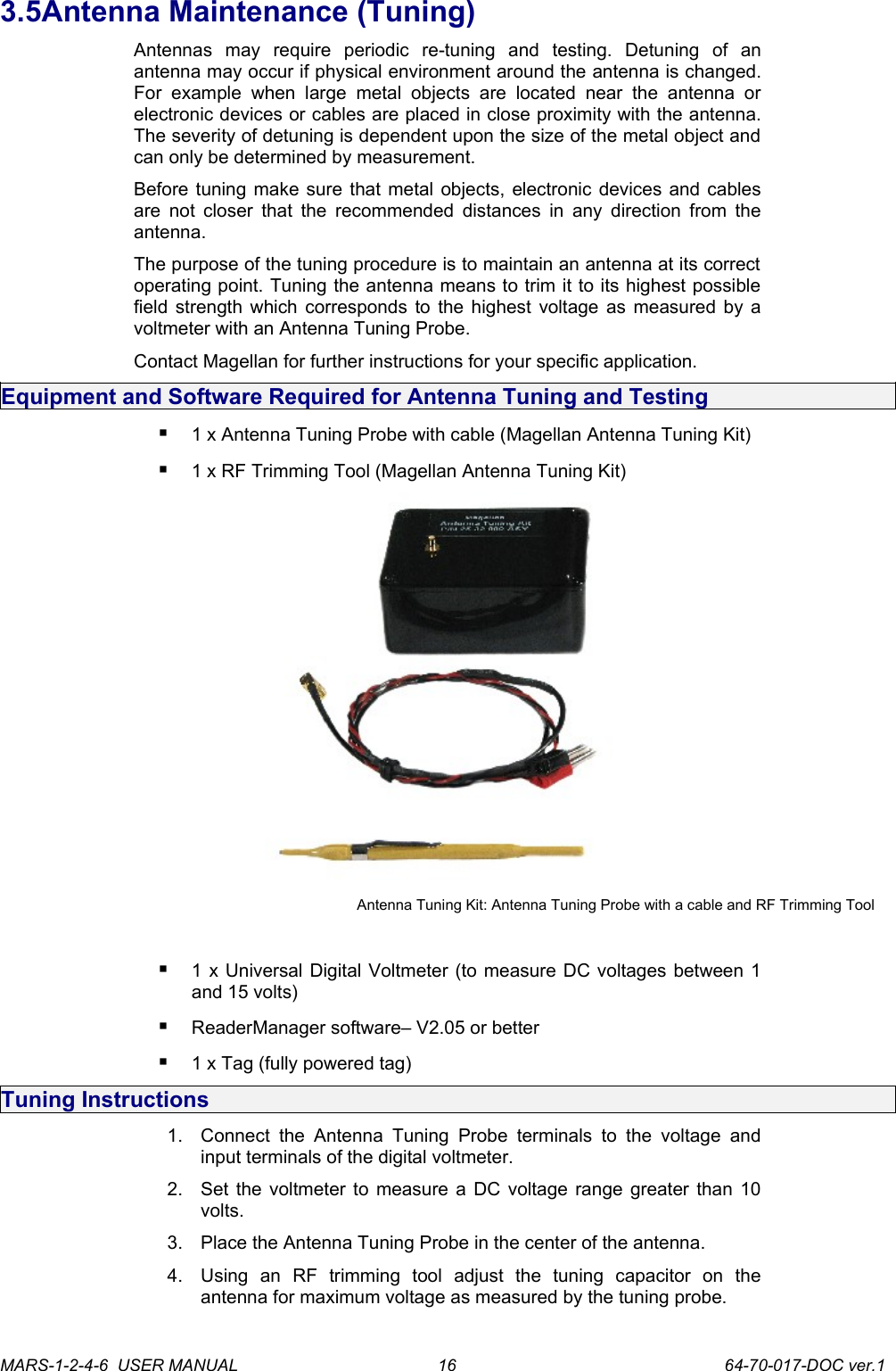
3.5Antenna Maintenance (Tuning)Antennas   may   require   periodic   re-tuning   and   testing.   Detuning   of   an antenna may occur if physical environment around the antenna is changed. For   example  when   large   metal   objects   are   located   near   the   antenna   or electronic devices or cables are placed in close proximity with the antenna. The severity of detuning is dependent upon the size of the metal object and can only be determined by measurement.Before tuning make sure that metal objects, electronic devices and cables are not closer that the recommended distances in any direction from the antenna.The purpose of the tuning procedure is to maintain an antenna at its correct operating point. Tuning the antenna means to trim it to its highest possible field strength which corresponds to the highest voltage as measured by a voltmeter with an Antenna Tuning Probe.Contact Magellan for further instructions for your specific application.Equipment and Software Required for Antenna Tuning and Testing1 x Antenna Tuning Probe with cable (Magellan Antenna Tuning Kit) 1 x RF Trimming Tool (Magellan Antenna Tuning Kit) Antenna Tuning Kit: Antenna Tuning Probe with a cable and RF Trimming Tool1 x Universal Digital Voltmeter (to measure DC voltages between 1 and 15 volts) ReaderManager software– V2.05 or better 1 x Tag (fully powered tag)Tuning Instructions1. Connect  the  Antenna   Tuning Probe  terminals  to  the  voltage  and input terminals of the digital voltmeter.2. Set the voltmeter to measure a DC voltage range greater than 10 volts.3. Place the Antenna Tuning Probe in the center of the antenna.4. Using   an   RF   trimming   tool   adjust   the   tuning   capacitor   on   the antenna for maximum voltage as measured by the tuning probe.MARS-1-2-4-6  USER MANUAL             64-70-017-DOC ver.116
Quality Assurance/ Quality ControlIf   the   maximum   read   distance   is   important   for your   application   then   the   antennas   have   to   be protected/shielded   from   the   interference   with   a mounting   material   firstly   and   then   tuned   at maximum voltage.In   case   the   maximum   read   distance   is   not   an issue   the   antennas   can   work   properly   even   at lower voltage but at a reduced read range.Method 1To confirm optimum antenna operation measure the maximum read-write distance. 1. Take a single tag and position it over the Reader antenna center. Do not hold the tag antenna coil or tag inner area with you fingers. Preferably hold the tag edges or use a non metallic carrier to hold the tag.2. Measure the maximum read distance in mm and compare with the value for the same antenna-tag type in the Maximum Read-Write Distance chart. Refer to this User Manual, Appendix. 3. If the maximum read-write distance is less than the chart value re-tuning may be necessary. If the antenna is correctly tuned then the user   should   determine   if   the   reduction   in   read-write   distance   is acceptable.Method 2During an initial tuning procedure measure the maximum voltage using an Antenna Tuning Probe. Record the voltage value for every antenna in the ReaderManager   software.  To   confirm   tuning   at   any   time   measure   the maximum voltage using the Antenna Tuning Probe and compare with the recorded   results.   The   voltage   values   should   be   identical   otherwise   the antenna has to be tuned.MARS-1-2-4-6  USER MANUAL             64-70-017-DOC ver.117
3.6Working with TagsDo not stack ItemTags on top of each other. Only StackTags can be stacked, overlapped or touch each other.Single-axis Readers are tag orientation sensitive. Refer   to   the   Tag-to-Reader/Tag-to-Antenna section of this document.Reading and  writing   speeds   depend  on   reader-tag   communication   speeds,   the   number   of receiver   channels,   amount   of   information   to   be read   and/or   written   and   the   number   of   tags presented   at   a   time.   The   additional   number   of tags   and   information   to   be   read  and   especially written slows down the read-write communication speed.  Please consult Magellan or your support organisation   regarding   these   issues   for   your specific application.Be   aware   that   tags   and   Readers   can   be incompatible   with   each   other.     Larger   tags   can work   with   all   types   of   Readers.   Smaller   tags require higher field strengths and as a result they may not operate with some Readers or have to be closer to a Reader antenna to operate. Refer to the   Reader-Tag   Compatibility   section   of   this document.StackTag   tags  delivered   on   a   roll   are   always   fully  powered  (ST   normal power mode  or 6000 mode). Fully or normal powered tags are ON all the time and reply to each Reader command providing they are in the field of the Reader antenna.To   decrease   tag   clashing   and   increase   anti-collision   and  stackability   for some applications the tags can be reconfigured by end-users to a ¼ low power mode (ST ¼ normal power mode  or 2000 mode). This means that tags in the ¼ low power mode are muted ¾ of the time and do not to reply to the Reader commands instantly.Tags can be reconfigured individually (one by one) or on mass (many at once).Before   reconfiguring   tags   make   sure   the ReaderManager software has been installed and upgraded   to   the   latest   version,   the   Reader   is running   and   the   Reader   is  Connected  to   the ReaderManager software. How to reconfigure tags individually or on mass1. In the ReaderManager go to Tools -> System -> Console. Click with the right mouse button and tick Show Tag Replies.2. Then   go   to  Reader   Configuration  and   choose Config_Normal_Powered_Tag  or  Config_Quarter_Powered_Tag (for the ReaderManager version 2.12 or higher).3. Place a single tag or multiple tags into the reader antenna field.4. Take the tag/tags off the reader.5. Follow the step 3 to 4 for a new batch of tags. 6. Once completed go to Reader Configuration and click on Clear All.MARS-1-2-4-6  USER MANUAL             64-70-017-DOC ver.118
How to check a tag configuration mode1. In   the   ReaderManager   go   to  Tools   ->   System   ->   Interrogate Command.2. In Reply select Normal and click Send.3. Then go to Tools -> System -> Table of Tag Messages to see the tag configuration in the Config column. The messages of all the tags currently in the reader antenna field can be seen. 2000 means that the   tag   has   been   reconfigured   to  ST   ¼   normal   power   mode configuration. 6000 means that a tag is in ST normal power mode.MARS-1-2-4-6  USER MANUAL             64-70-017-DOC ver.119
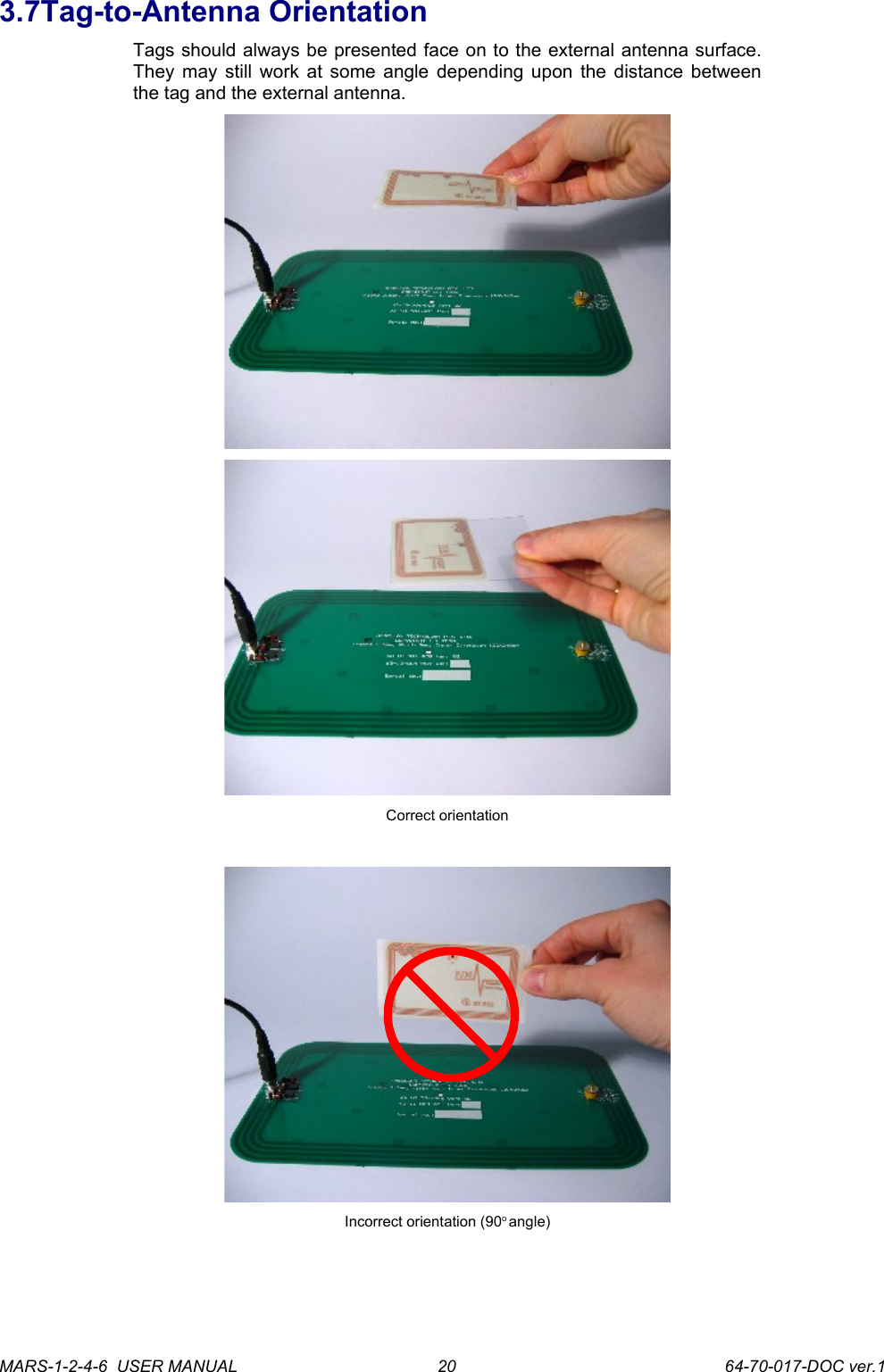
3.7Tag-to-Antenna OrientationTags should always be presented face on to the external antenna surface. They may still work at some angle depending upon the distance between the tag and the external antenna.Correct orientationIncorrect orientation (90o angle)MARS-1-2-4-6  USER MANUAL             64-70-017-DOC ver.120
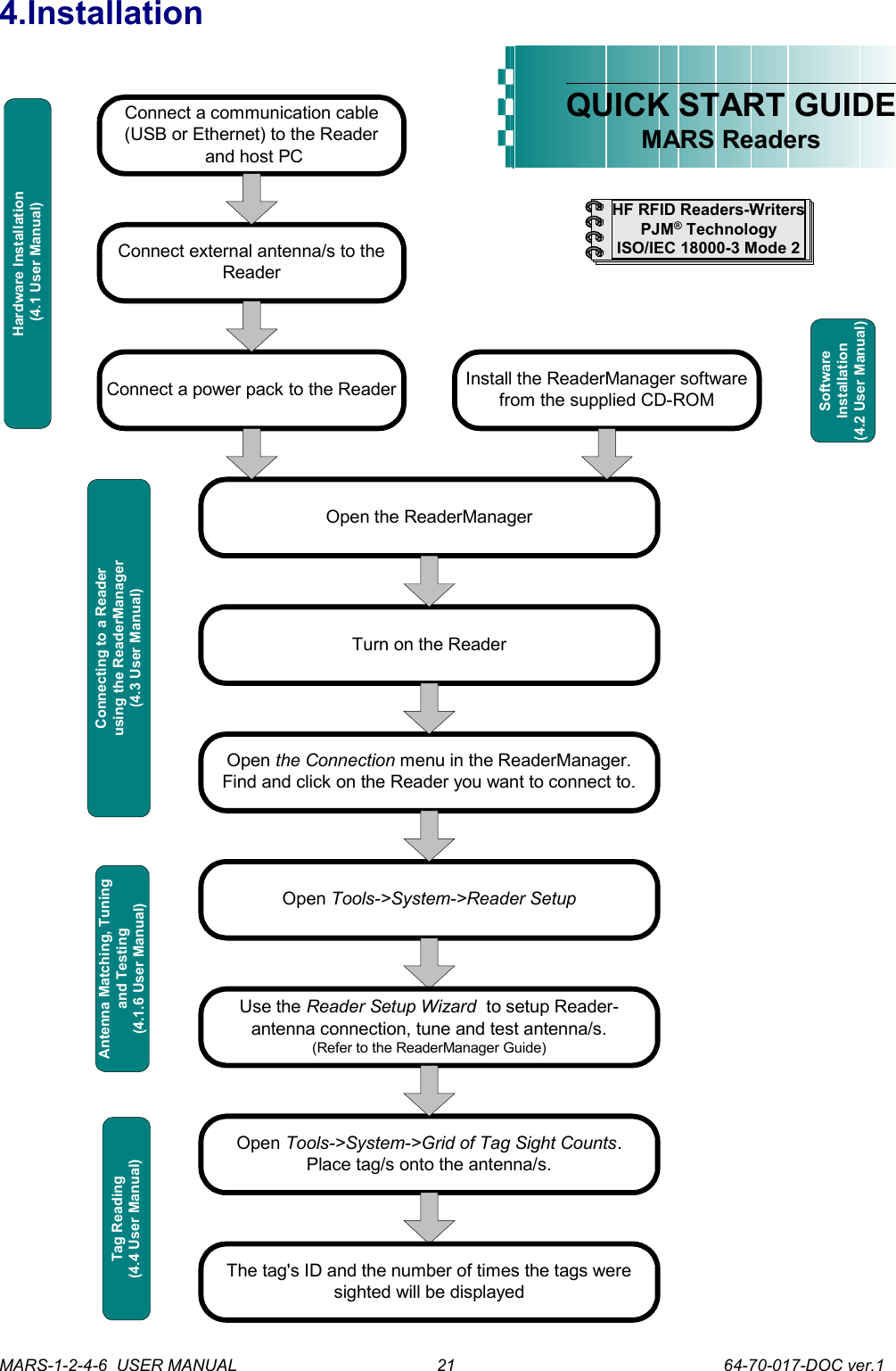
4.InstallationConnect external antenna/s to theReaderInstall the ReaderManager softwarefrom the supplied CD-ROMConnect a power pack to the ReaderOpen the ReaderManagerTurn on the ReaderOpen the Connection menu in the ReaderManager.Find and click on the Reader you want to connect to.QUICK START GUIDEMARS ReadersOpen Tools->System->Reader SetupUse the Reader Setup Wizard  to setup Reader-antenna connection, tune and test antenna/s.(Refer to the ReaderManager Guide)HF RFID Readers-WritersPJM® TechnologyISO/IEC 18000-3 Mode 2Open Tools->System->Grid of Tag Sight Counts.Place tag/s onto the antenna/s.Connect a communication cable(USB or Ethernet) to the Reader and host PCHardware Installation (4.1 User Manual)SoftwareInstallation(4.2 User Manual)Antenna Matching, Tuningand Testing(4.1.6 User Manual)Tag Reading(4.4 User Manual)Connecting to a Readerusing the ReaderManager(4.3 User Manual)The tag's ID and the number of times the tags weresighted will be displayedMARS-1-2-4-6  USER MANUAL             64-70-017-DOC ver.121
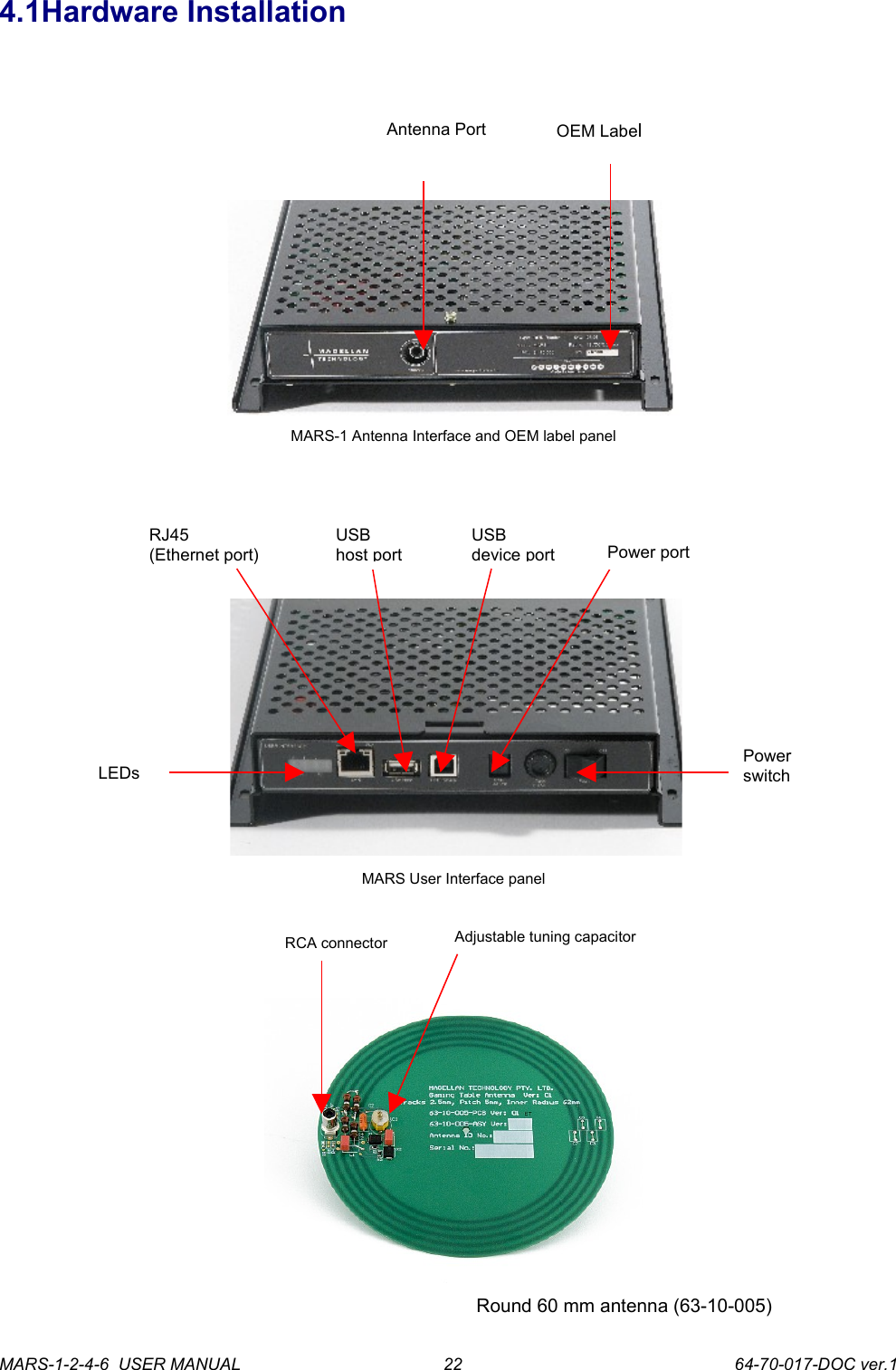
4.1Hardware InstallationMARS-1 Antenna Interface and OEM label panel MARS User Interface panelRound 60 mm antenna (63-10-005)MARS-1-2-4-6  USER MANUAL             64-70-017-DOC ver.1RJ45(Ethernet port)USBdevice portPower portUSBhost portLEDsPower switchAdjustable tuning capacitorRCA connectorOEM LabelAntenna Port22
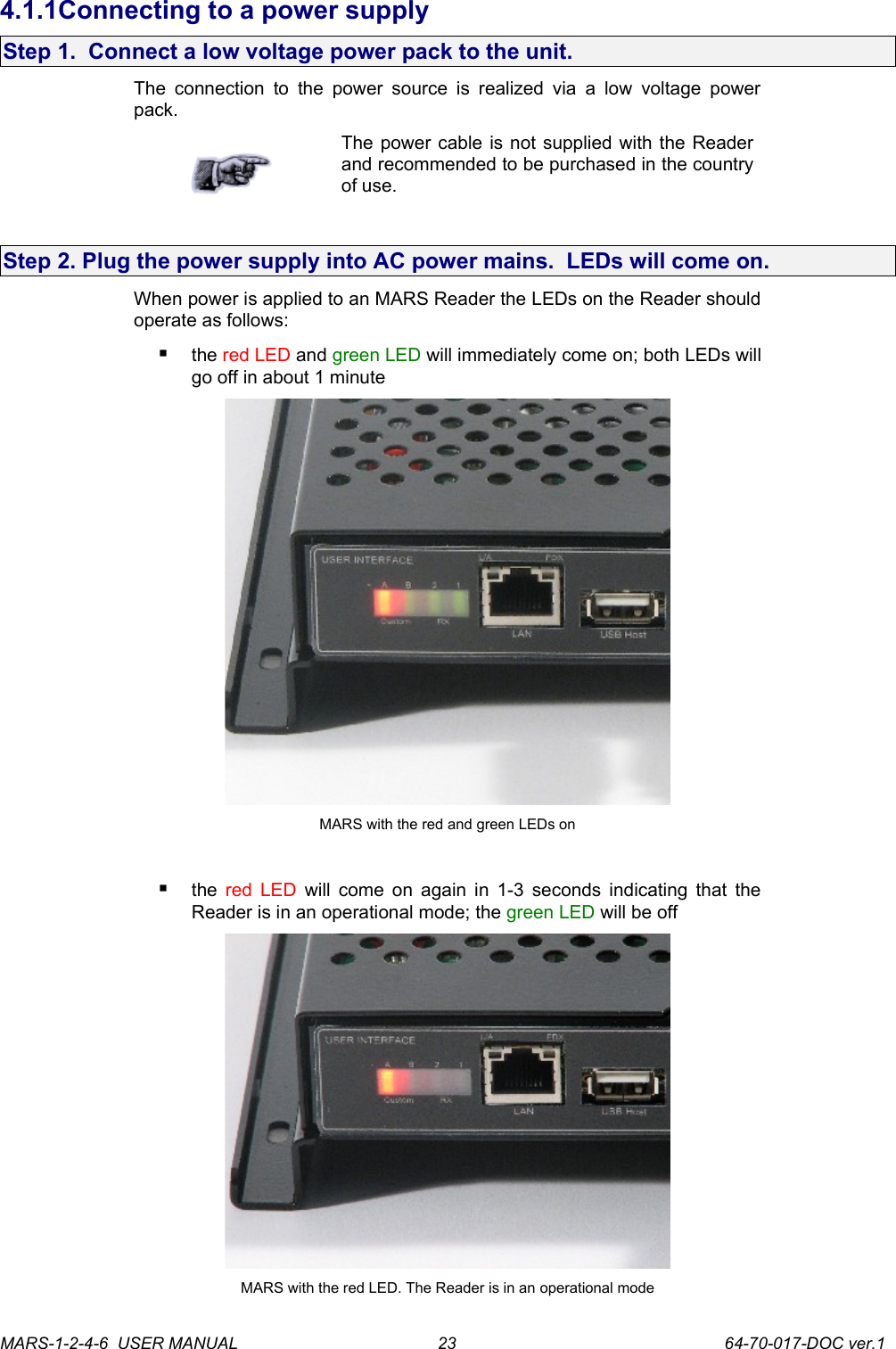
4.1.1Connecting to a power supplyStep 1.  Connect a low voltage power pack to the unit.The  connection to the  power source  is  realized via  a low  voltage  power pack. The power cable is not supplied with the Reader and recommended to be purchased in the country of use.Step 2. Plug the power supply into AC power mains.  LEDs will come on.When power is applied to an MARS Reader the LEDs on the Reader should operate as follows:the red LED and green LED will immediately come on; both LEDs will go off in about 1 minuteMARS with the red and green LEDs onthe  red LED  will come on again in 1-3 seconds indicating that the Reader is in an operational mode; the green LED will be off MARS with the red LED. The Reader is in an operational modeMARS-1-2-4-6  USER MANUAL             64-70-017-DOC ver.123
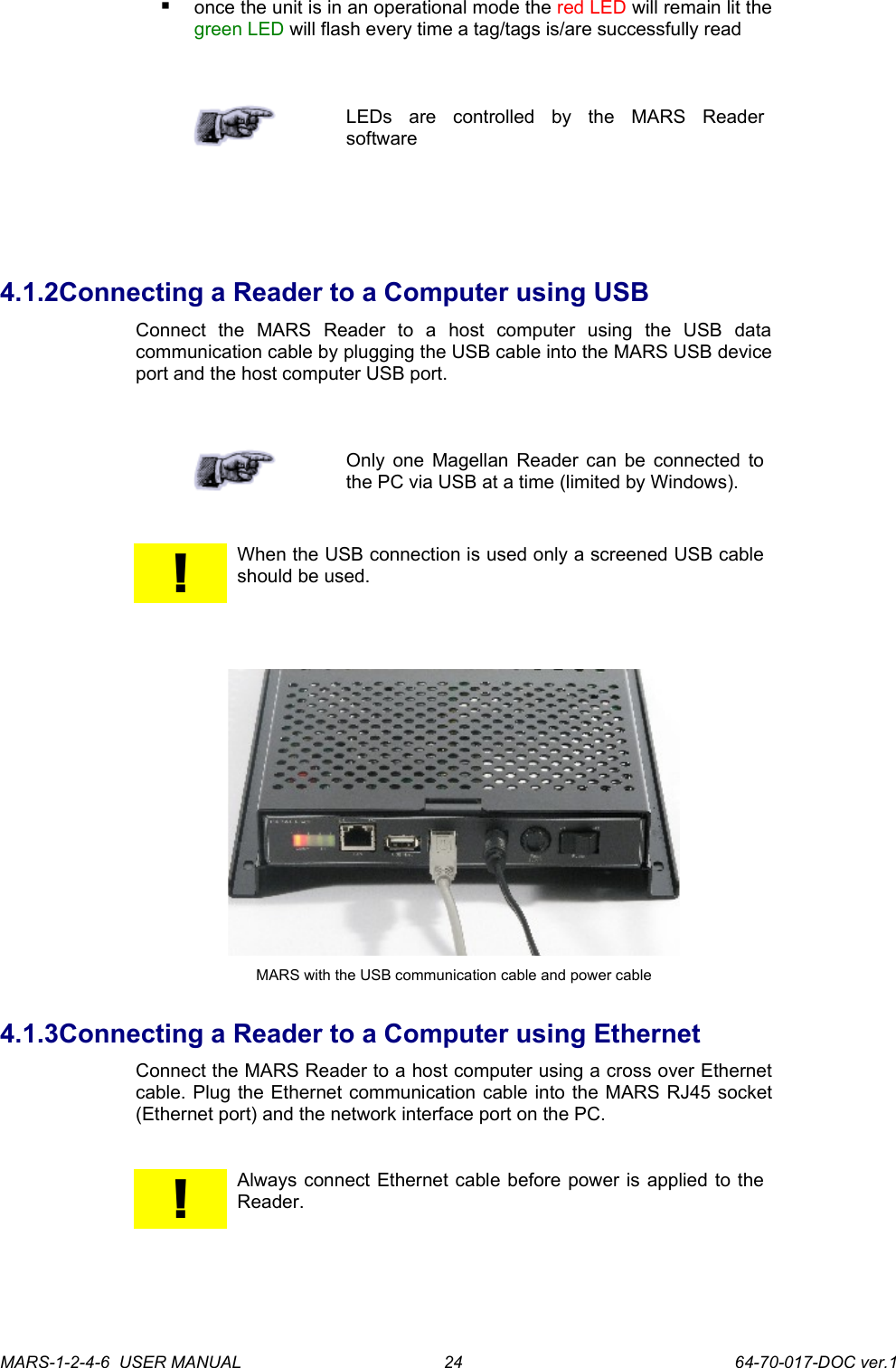
once the unit is in an operational mode the red LED will remain lit the green LED will flash every time a tag/tags is/are successfully readLEDs   are   controlled   by   the   MARS   Reader software4.1.2Connecting a Reader to a Computer using USBConnect   the   MARS   Reader   to   a   host   computer   using   the   USB   data communication cable by plugging the USB cable into the MARS USB device port and the host computer USB port.Only one Magellan Reader can be connected to the PC via USB at a time (limited by Windows).!When the USB connection is used only a screened USB cable should be used.MARS with the USB communication cable and power cable4.1.3Connecting a Reader to a Computer using EthernetConnect the MARS Reader to a host computer using a cross over Ethernet cable. Plug the Ethernet communication cable into the MARS RJ45 socket (Ethernet port) and the network interface port on the PC.!Always connect Ethernet cable before power is applied to the Reader. MARS-1-2-4-6  USER MANUAL             64-70-017-DOC ver.124
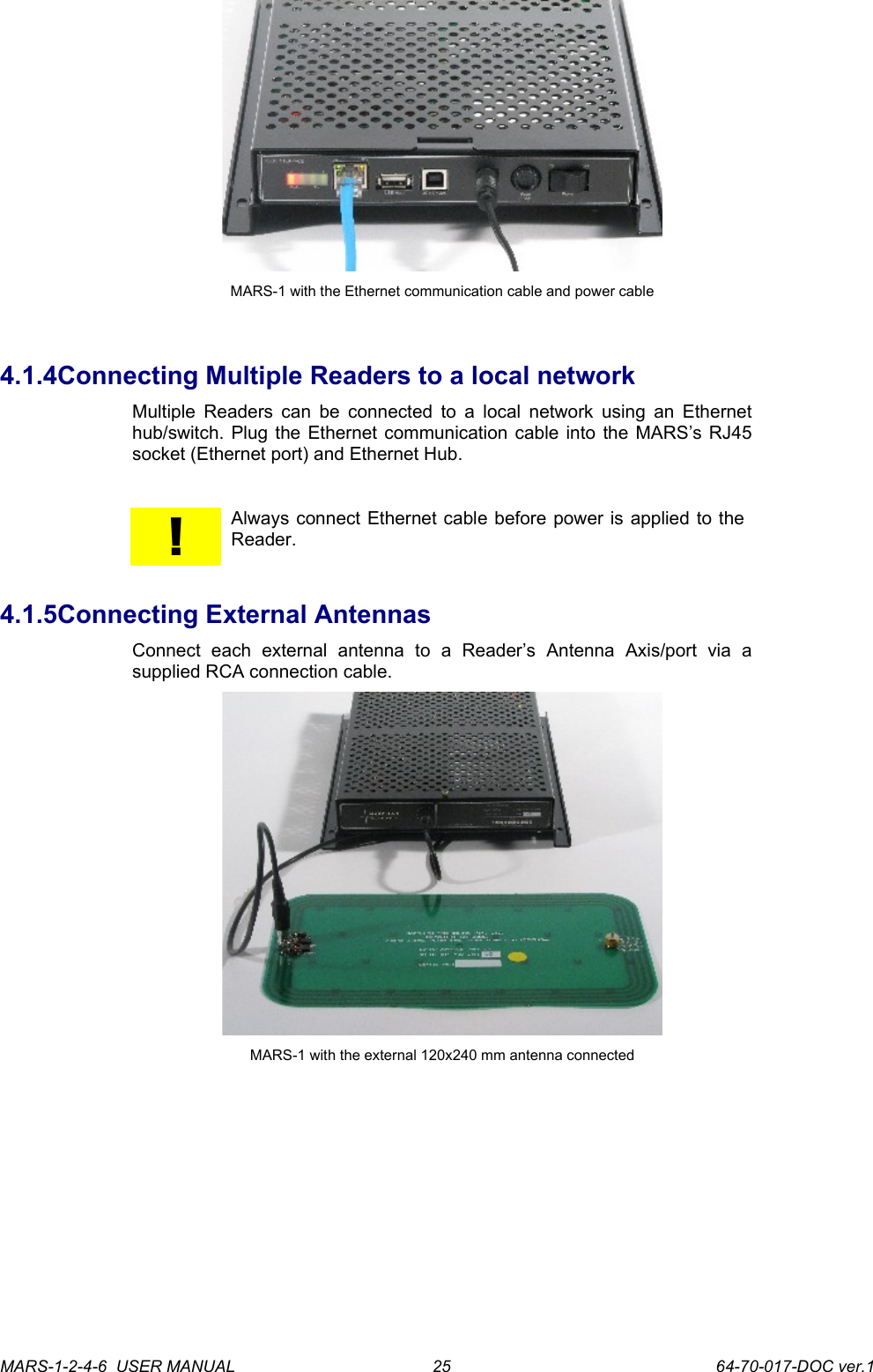
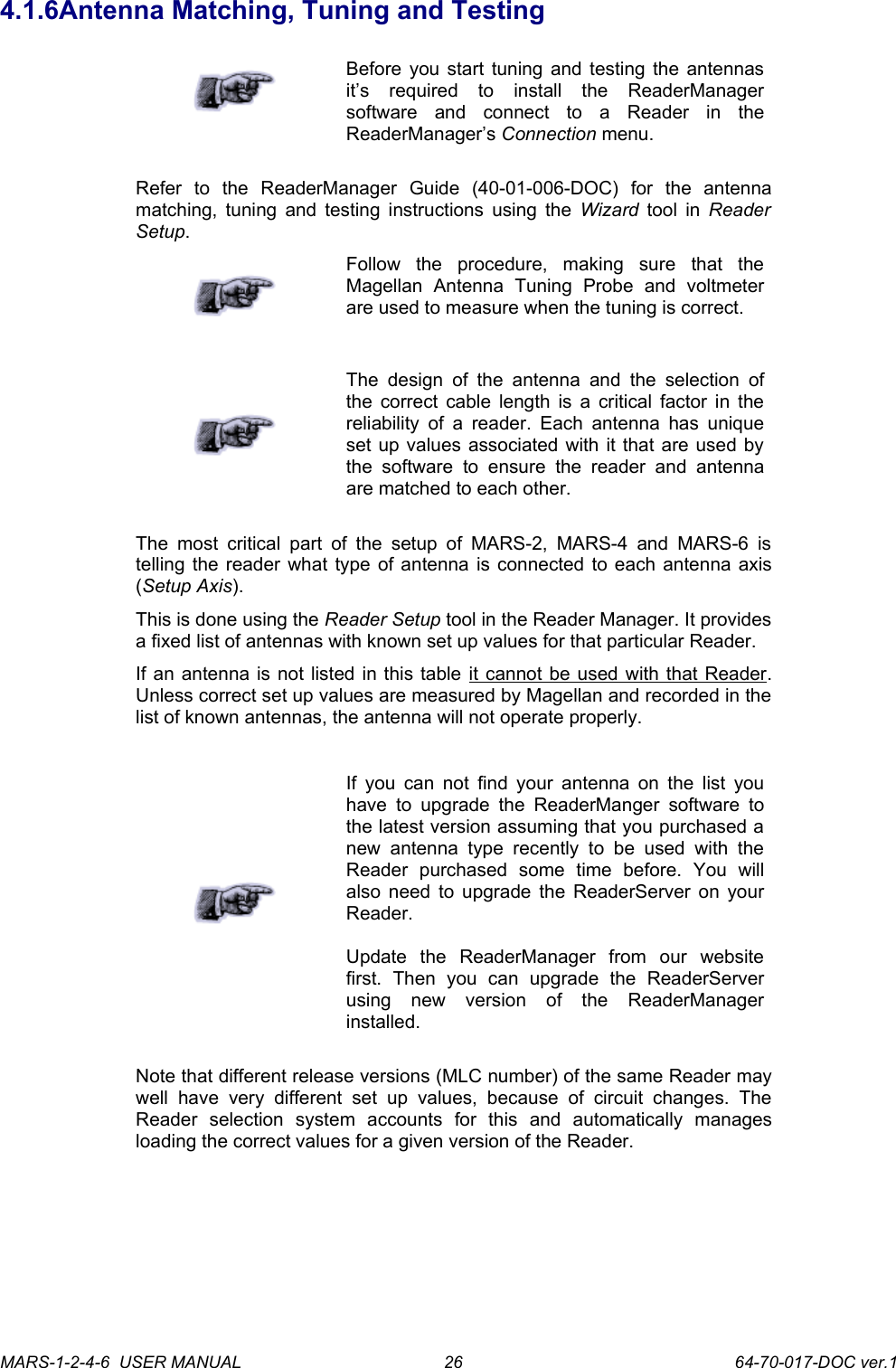
MARS-1 with the Ethernet communication cable and power cable4.1.4Connecting Multiple Readers to a local networkMultiple Readers can  be connected to a local network using an Ethernet hub/switch. Plug the Ethernet communication cable into the MARS’s RJ45 socket (Ethernet port) and Ethernet Hub.!Always connect Ethernet cable before power is applied to the Reader. 4.1.5Connecting External AntennasConnect   each   external   antenna   to   a   Reader’s   Antenna   Axis/port   via   a supplied RCA connection cable.MARS-1 with the external 120x240 mm antenna connectedMARS-1-2-4-6  USER MANUAL             64-70-017-DOC ver.125
4.1.6Antenna Matching, Tuning and TestingBefore you start tuning and testing the antennas it’s   required   to   install   the   ReaderManager software   and   connect   to   a   Reader   in   the ReaderManager’s Connection menu.Refer   to   the   ReaderManager   Guide   (40-01-006-DOC)   for   the   antenna matching, tuning and testing instructions using the  Wizard  tool in  Reader Setup.Follow   the   procedure,   making   sure   that   the Magellan   Antenna   Tuning   Probe   and   voltmeter are used to measure when the tuning is correct.The  design of the  antenna  and  the selection  of the correct cable length is a critical factor in the reliability of a reader. Each antenna  has unique set up values associated with it that are used by the   software   to  ensure   the   reader   and   antenna are matched to each other.The  most critical part of the  setup of  MARS-2, MARS-4  and  MARS-6 is telling the reader what type of antenna is connected to each antenna axis (Setup Axis).This is done using the Reader Setup tool in the Reader Manager. It provides a fixed list of antennas with known set up values for that particular Reader.If an antenna is not listed in this table it cannot be used with that Reader. Unless correct set up values are measured by Magellan and recorded in the list of known antennas, the antenna will not operate properly.If you can not find your antenna on the list you have  to  upgrade the ReaderManger software to the latest version assuming that you purchased a new antenna   type   recently to   be   used   with the Reader   purchased   some   time   before.   You   will also need to upgrade the ReaderServer on your Reader.Update   the   ReaderManager   from   our   website first.   Then   you   can   upgrade   the   ReaderServer using   new   version   of   the   ReaderManager installed.Note that different release versions (MLC number) of the same Reader may well   have   very   different   set   up  values,   because   of   circuit   changes.  The Reader   selection   system   accounts   for   this   and   automatically   manages loading the correct values for a given version of the Reader.MARS-1-2-4-6  USER MANUAL             64-70-017-DOC ver.126
4.2ReaderManager Software InstallationThe ReaderManager application software allows tag data to be viewed and programmed. The   ReaderManager   can   only   connect   to   one   Reader   at   a   time.   The Connections  menu   allows   the   user   to   connect   to   other   Readers   by disconnecting from the currently connected Reader and then establishing a connection to a new Reader.It is possible to run many ReaderManagers on the same computer at the same time. Simply double  click   on   the   ReaderManager   icon to open  up multiple instances of the ReaderManager.Refer to the ReaderManager Guide (40-01-006-DOC) for various tools and advanced options available in the ReaderManager.4.2.1Installation and Functionality TestStep 1. Insert the CD supplied with the Reader into the CD-ROM.Step 2. Open Windows Explorer, double click on ReaderManager-Install.Step 3. Ensure all the items in Install dialog are ticked, and then click the Install button.If  Python   is   not installed  on   your   computer, the   installation   program   will prompt you  if you   would  like  to install  Python.  Click the  Yes  button and accept all the default options during installation.When  the  ReaderManager  and  all  the  required libraries  are  installed the dialog box will be displayed. Ensure the dialog box shows Completed  and no problems are reported.There is an option to install only an Ethernet-over-USB driver. Tick only the PJM Reader USB driver (RNDIS Ethernet)  box in  Install  dialog and press Install.Step 4. Click the Close button to continue.If  the   ReaderManager   is already   installed,   double   click  ReaderManager-Upgrade. Follow steps 3 to 4 above.If Python and PyQt are already installed, the installation program will not re-install them. To force  the  installation  program in re-install these libraries, click the relevant check boxes.Step 5. To start ReaderManager double click the ReaderManager icon or select ReaderManager from the Programs Start menu.Step 6. Functionality test.From menu select  Help>About ReaderManager  to see the version of the ReaderManager software and its status.MARS-1-2-4-6  USER MANUAL             64-70-017-DOC ver.127
4.3Connecting to a Reader using ReaderManagerMagellan’s   Readers   are   complex   and   powerful network devices.   As most  network devices  they should   be   handled   by   well   trained   network administrators.A Reader provides Ethernet and USB device interfaces to allow for client connection. The USB interface uses TCP/IP networking over USB as the protocol.  This   allows   you   to connect   to   a  Reader   as  if   it  was   a   normal network. So all the usual services, such as telnet and FTP are available.Step 1. Open the Reader Manager. Ensure a communication cable is plugged in and a Reader is turned on.ReaderManager will automatically detect all Readers on the local network.When   a   Reader   is   connected   for   the   first   time   to   a   network   using   an Ethernet   cable   or   a   host   computer   using   a   USB   cable,   the   Reader   is identified by its Model Name-Serial Number (recommended to keep).Customers   can   replace   or   add   additional information   to   the   Model   Name-Serial   Number such   as   a   physical   location   or   customer   ID number.Subsequently  when a customer  starts using  the Reader the new name  will appear on the list of Readers in the Connection menu.Tip:   If   you   want   to   use   the   new   name immediately, simply unplug the power connector and plug in again to view the new name on the Connection menu list.MARS-1-2-4-6  USER MANUAL             64-70-017-DOC ver.128
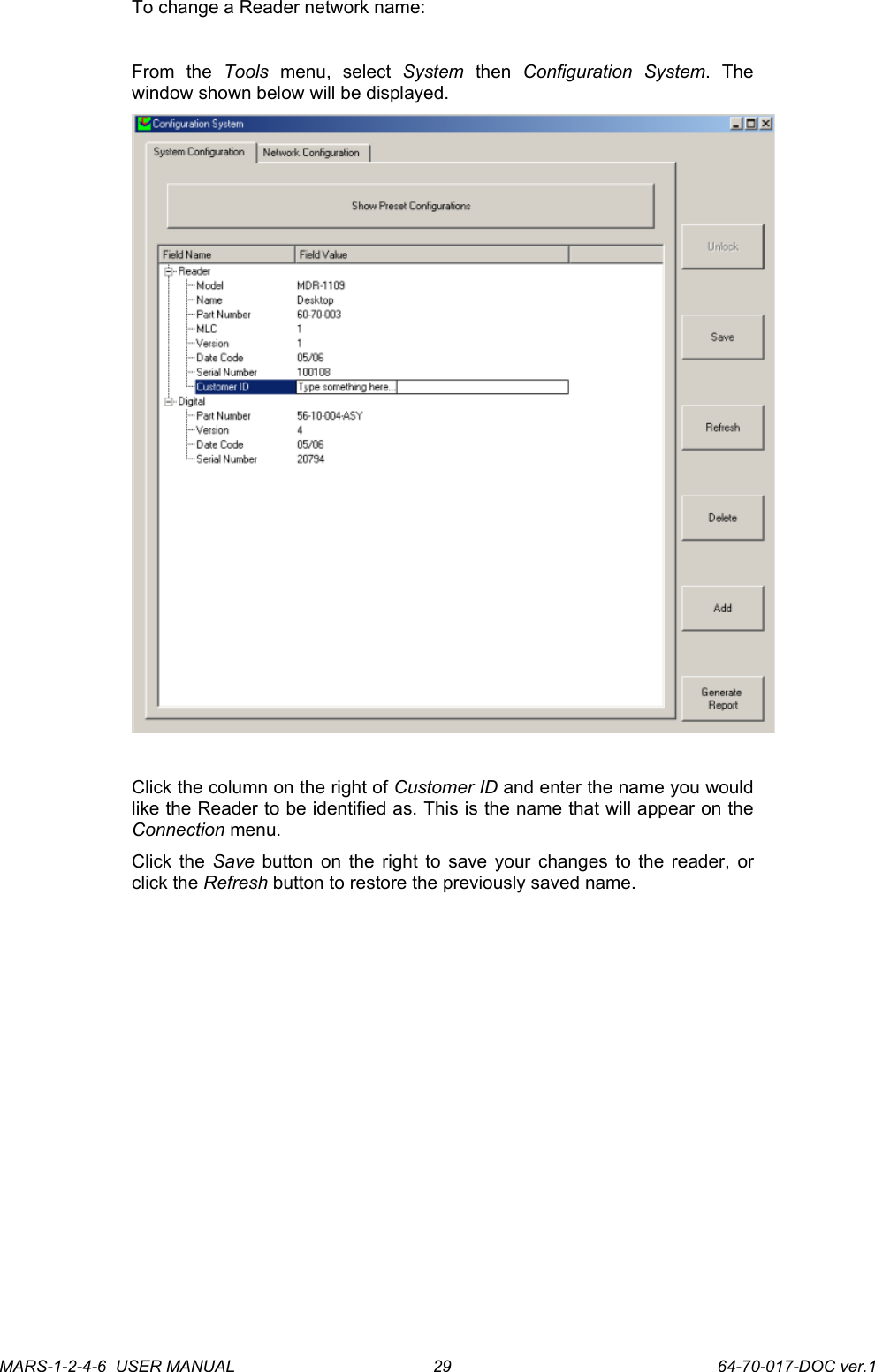
To change a Reader network name:From   the  Tools  menu,   select  System  then  Configuration   System.   The window shown below will be displayed.Click the column on the right of Customer ID and enter the name you would like the Reader to be identified as. This is the name that will appear on the Connection menu. Click the  Save  button on the right to save your changes to the reader, or click the Refresh button to restore the previously saved name.MARS-1-2-4-6  USER MANUAL             64-70-017-DOC ver.129
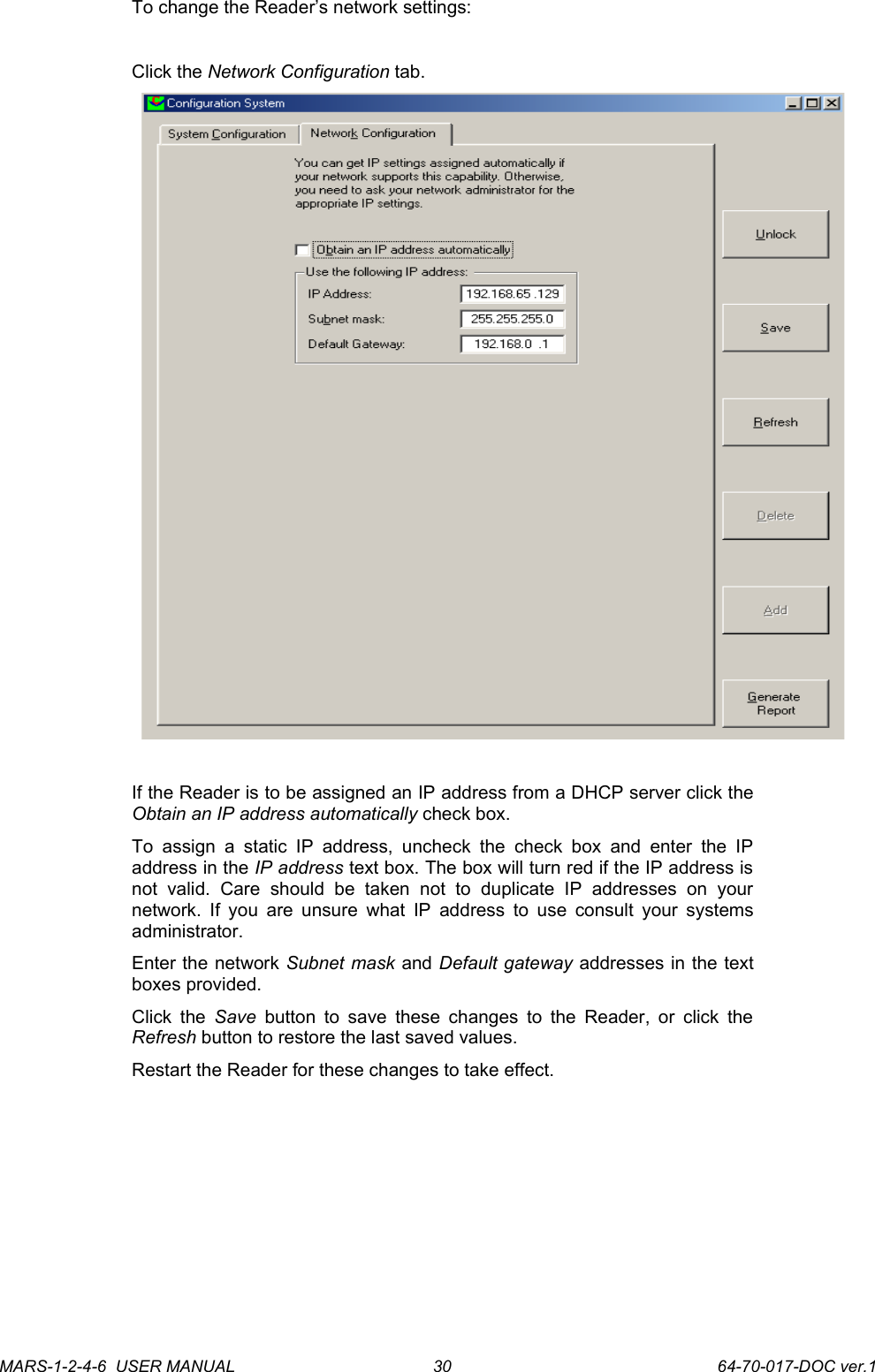
To change the Reader’s network settings:Click the Network Configuration tab. If the Reader is to be assigned an IP address from a DHCP server click the Obtain an IP address automatically check box. To  assign  a  static IP address,  uncheck   the  check  box   and enter  the   IP address in the IP address text box. The box will turn red if the IP address is not   valid.   Care   should   be   taken   not   to   duplicate   IP   addresses   on   your network. If you are unsure what IP address to use consult your systems administrator.Enter the network Subnet mask and Default gateway addresses in the text boxes provided.Click the  Save  button to save these changes to the Reader, or click the Refresh button to restore the last saved values.Restart the Reader for these changes to take effect.MARS-1-2-4-6  USER MANUAL             64-70-017-DOC ver.130
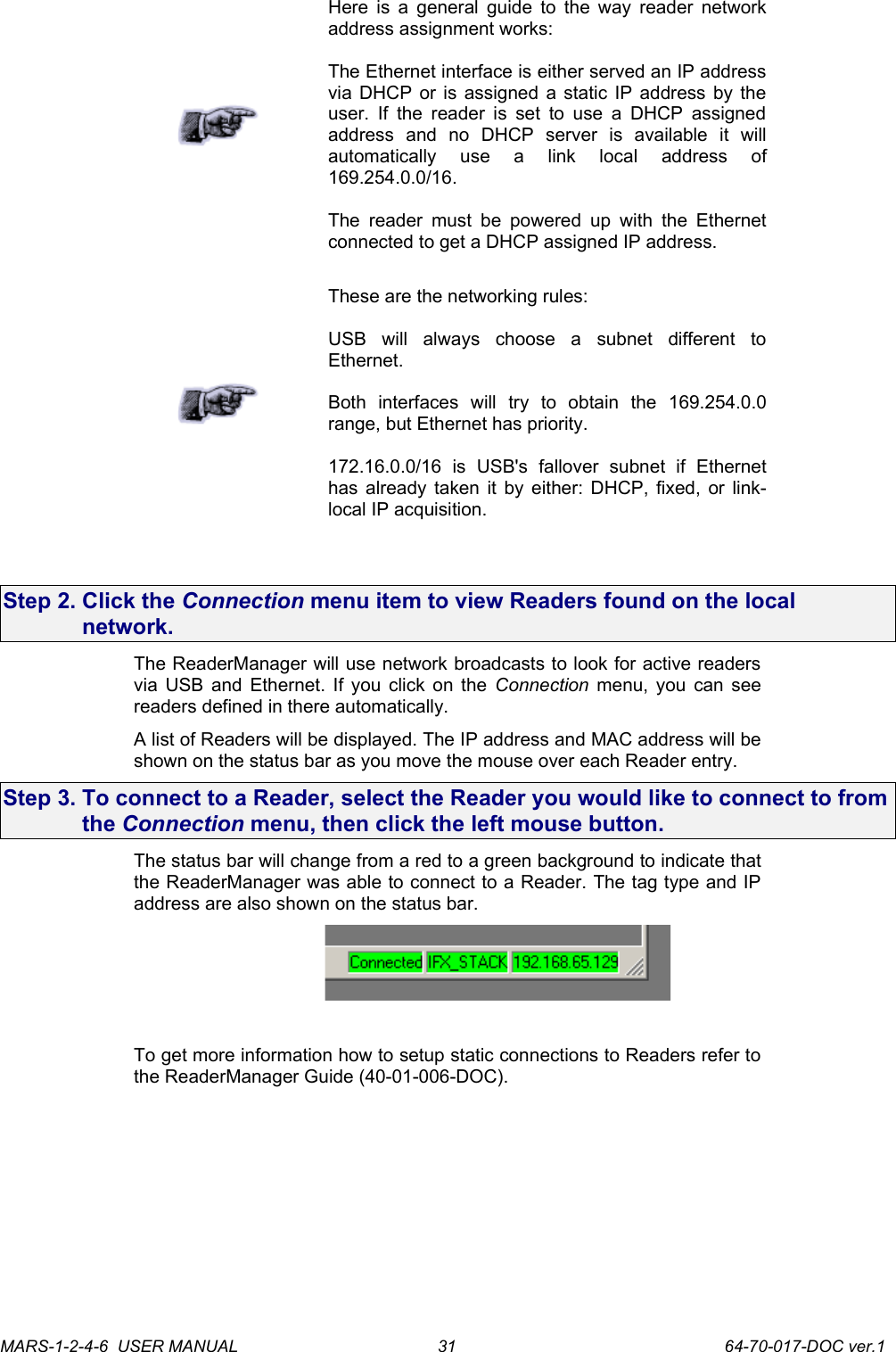
Here is a general guide to the way reader network address assignment works:The Ethernet interface is either served an IP address via DHCP or is assigned a static IP address by the user. If the reader is set to use  a DHCP assigned address   and   no   DHCP   server   is   available   it   will automatically   use   a   link   local   address   of 169.254.0.0/16.The  reader  must  be powered up with  the Ethernet connected to get a DHCP assigned IP address.These are the networking rules:USB   will   always   choose   a   subnet   different   to Ethernet.Both   interfaces   will   try   to   obtain   the   169.254.0.0 range, but Ethernet has priority. 172.16.0.0/16   is   USB's   fallover   subnet   if   Ethernet has already taken it by either: DHCP, fixed, or link-local IP acquisition.Step 2. Click the Connection menu item to view Readers found on the local network. The ReaderManager will use network broadcasts to look for active readers via USB and Ethernet. If you click on the  Connection  menu, you can see readers defined in there automatically. A list of Readers will be displayed. The IP address and MAC address will be shown on the status bar as you move the mouse over each Reader entry.Step 3. To connect to a Reader, select the Reader you would like to connect to from the Connection menu, then click the left mouse button.The status bar will change from a red to a green background to indicate that the ReaderManager was able to connect to a Reader. The tag type and IP address are also shown on the status bar. To get more information how to setup static connections to Readers refer to the ReaderManager Guide (40-01-006-DOC).MARS-1-2-4-6  USER MANUAL             64-70-017-DOC ver.131
4.3.1Connecting to a Reader via USB for the first timeAny device hardware when it’s first connected to a PC via USB requires a device driver. The device driver is provided by Microsoft. No USB device drivers   are   available   instantly.   They   have   to   be   installed   and   require   a certain  amount of   configuration.   The   driver   must   be   installed   on  the  PC before Windows can use the connection. The device driver is installed on the PC via the ReaderManager.When you install a new Reader for the first time it can take from 1 to 5 minutes to create a network connection before the ReaderManager is able to recognize a new Reader.Since every Reader has a unique serial number, Windows treats it as a new device  and you will  have to  install  the  device  driver again for  each new Reader that you connect to the one PC. Since the device driver files  are already on the Reader, Windows can search for the driver automatically. In order to connect to a Reader via USB for the first time follow the steps below:Step 1. Open  Network  Connections  in Windows to view the  network connection process.You   can   verify   that   the   reader   is   connected   by   looking   at   the  Network Connections window. You can open this window from several places: Start -> Control Panel -> Network Connections or My Computer -> Other Places -> My Network Places -> View Network Connections.Step 2. Open the ReaderManager. Plug in the USB and power cables. Turn on the Reader. The Found New Hardware dialog box will be displayed.When a Reader is connected to a host computer for the first time using a USB, these are a few steps to go through before the ReaderManager is able to identify a new Reader:1. In  Found New Hardware Wizard  tick  Yes,  this time only  to search for software and press Next.2. In  What   do   you   want   wizard   to   do?  tick  Install   the   software automatically and press Next.3. Wait   while   the   wizard   installs   the  Linux   USB   Ethernet/RNDIS Gadget  device  driver.  Ignore  other message and  press  Continue anyway.4. Press Finish.Step 3. Wait until you see a new entry appears in the  Network Connections  list called “Linux USB Ethernet/RNDIS Gadget”. This is the Reader. If it says Acquiring IP address then you must wait until it says Connected.The Reader’s network connection will say:1. Local Area Connection X2. Connected3. Linux USB Ethernet/RNDIS GadgetOnce it says Connected in the Network Connections window (Windows XP SP2) you can go to the Step 4.MARS-1-2-4-6  USER MANUAL             64-70-017-DOC ver.132
If it says Disabled or Broken, then right click and select Repair or Enable to try and fix the connection.If this fails, disconnect the reader, reboot your PC and repeat from Step 1.The   Reader   can   disconnect  in   situations   where   the   Reader   has   been repeatedly plugged and unplugged  before Windows has had a chance to properly and completely process the network connection. In this situation it is  possible   for the  Reader to  appear  on the  network  for  about  a minute before it is disconnected by the Windows networking system.The solution is:1. Unplug the Reader.2. Wait for the Reader's network connection to be removed from the Network Connections window.Once the network connection has been removed:1. Plug the Reader back in.2. Wait   for   the   network   connection   to   re-appear   and   become Connected.3. Connect to the Reader via the ReaderManager.Another solution is to try another USB port as USB ports can fail on PCs. As with the previous case:1. Unplug the Reader.2. Wait for the network connection to be removed.3. Plug the Reader into another USB port.Windows   networking   can  take   some   time   (a  few   minutes)   to   create   the network connection if the Reader has been rapidly plugged and unplugged. If the Reader network device does not disappear within 5 minutes of being disconnected,   reboot   your   PC   because   it   is   a   problem   with   Windows Networking or the USB port has locked up.You should  NEVER have to power cycle a Reader because you are having problems with your PC or with Windows. Power  cycling  can   just   cause   more problems with Windows and Windows networking.It   is   important   to   understand   that   USB   problems   are   usually   caused   by Windows   networking   delays   and   Windows   networking   problems   which cause people to rapidly unplug and plug the USB cable and create even more problems.Step 4. Open the Connection menu in the ReaderManager to see a list of Readers available on the network. The new Reader will be identified by its Model Name-Serial Number.MARS-1-2-4-6  USER MANUAL             64-70-017-DOC ver.133
4.3.2Upgrading softwareMagellan   recommends   to   upgrade   the ReaderManager software at least once a month and   ReaderServer   software   on   network   based Readers every 3-4 months.You   can   download   the   latest   version   of   the ReaderManager   operating   software   from Magellan’s   website.   Contact   Magellan   or   its representatives   to   receive   a   user   name   and password. Refer   to   the   ReaderManager   Guide   (Upgrading Reader Software) for more information about how to   upgrade   the   ReaderServer   from   the ReaderManager File menu.MARS-1-2-4-6  USER MANUAL             64-70-017-DOC ver.134
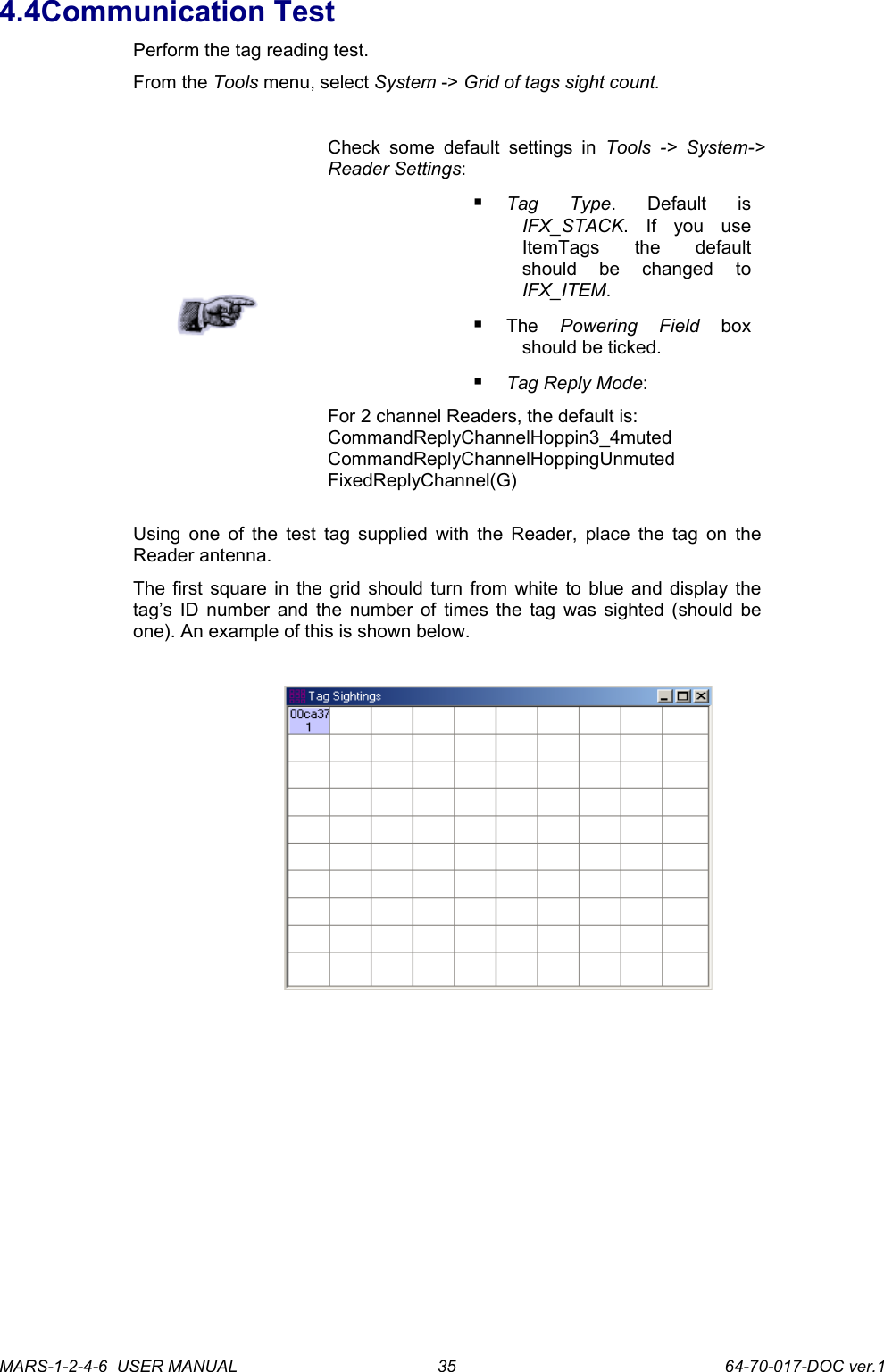
4.4Communication TestPerform the tag reading test.From the Tools menu, select System -> Grid of tags sight count.Check some default  settings  in  Tools ->  System-> Reader Settings: Tag   Type.   Default   is IFX_STACK.   If   you   use ItemTags   the   default should   be   changed   to IFX_ITEM.The  Powering   Field  box should be ticked.Tag Reply Mode:For 2 channel Readers, the default is: CommandReplyChannelHoppin3_4muted CommandReplyChannelHoppingUnmuted FixedReplyChannel(G)Using one of the test tag supplied with the Reader, place the tag on the Reader antenna. The first square in the grid should turn from white to blue and display the tag’s ID number and the number of times the tag was sighted (should be one). An example of this is shown below.MARS-1-2-4-6  USER MANUAL             64-70-017-DOC ver.135
5. Reporting a ProblemIf you are having a problem with a Magellan Reader, you will need to send a report   to  your   support   organisation.   To   make  the   diagnosis   quicker   and easier, please supply your problem report on a Service Form along with the following information:What kind of tags are you using and how many are you   putting   on   the Reader at one time?Have this Reader and the tags   you   are   using worked   at   any   time   in the past?Have you tried connecting to   the   Reader   with   a different PC?Have   you   successfully installed   the ReaderManager application?In   the   ReaderManager, select   the   Help/About ReaderManager   menu item and record   on  the Service   Form   what version   numbers   are shown   in   the   window that appears.The required information about Model Number, S/N, P/N and D/C is located on OEM label on the back of the equipment.Warranty RepairsBefore shipping any Reader a Return Authorisation number (RMA) must be obtained.End-users   should   contact   the   company   from whom   they   purchased   the   Reader   for   repair, replacement or refund.If   you   purchased   the   Reader   directly   from Magellan,   contact   Magellan   for   a   Return Authorization number (RMA) before shipment.The copy of the Service Form with RMA must be enclosed in the original or equivalent packing with the RMA number clearly marked on the outside of the box. Non-Warranty RepairsMARS-1-2-4-6  USER MANUAL             64-70-017-DOC ver.136
If a Reader needs repairing after one year warranty  period expires, your support organization or Magellan if you purchased directly from Magellan will   first   provide   an   estimate   of   repair   charges.   Then   upon   receiving approval   from   you   the   Reader   can   be   sent   for   repair.   Refer   to   above Warranty Repairs information for return procedures.MARS-1-2-4-6  USER MANUAL             64-70-017-DOC ver.137
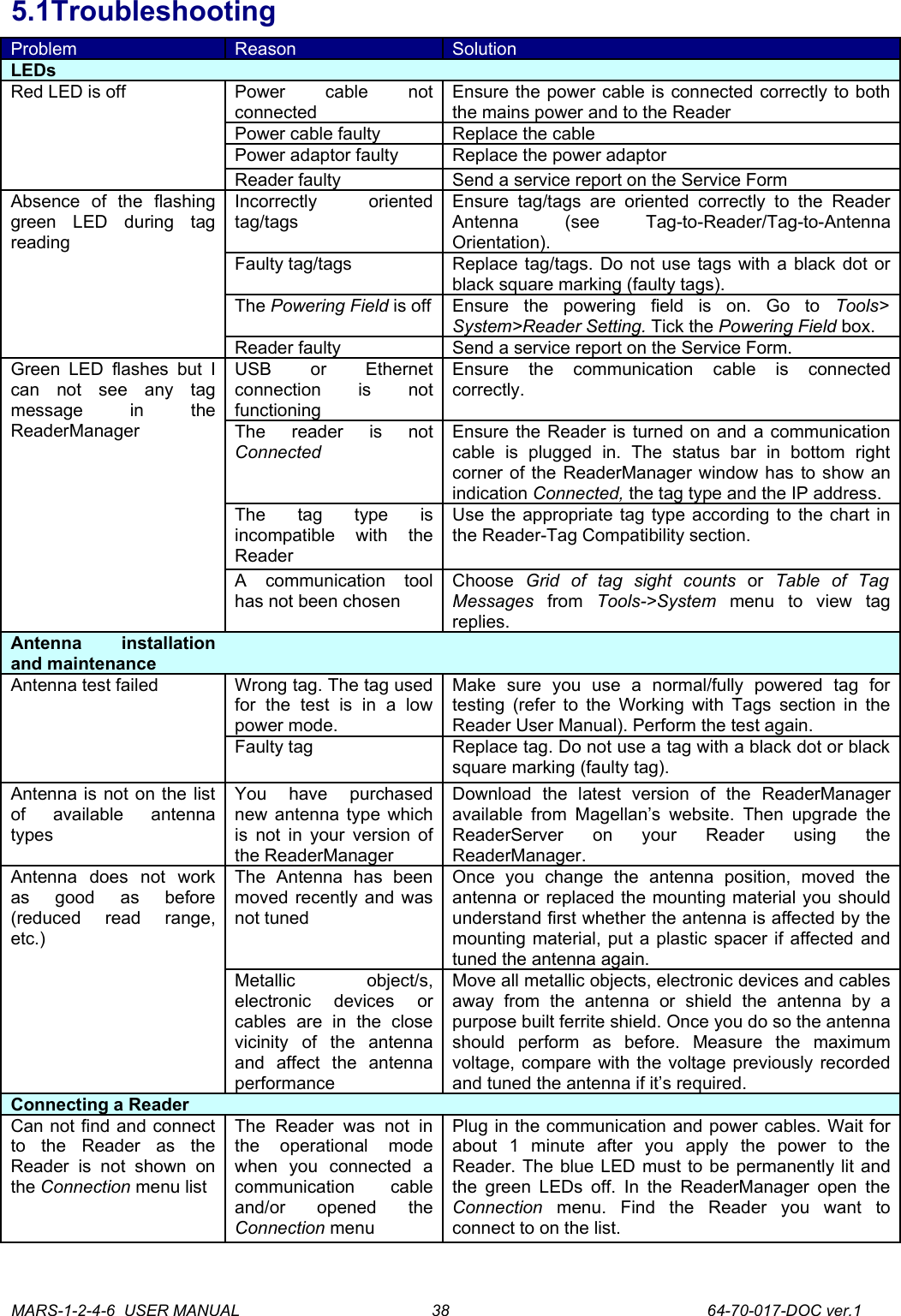
5.1TroubleshootingProblem Reason SolutionLEDsRed LED is off Power   cable   not connectedEnsure the power cable is connected correctly to both the mains power and to the ReaderPower cable faulty Replace the cablePower adaptor faulty Replace the power adaptorReader faulty Send a service report on the Service FormAbsence   of   the   flashing green   LED   during   tag readingIncorrectly   oriented tag/tagsEnsure tag/tags  are oriented correctly  to   the   Reader Antenna   (see   Tag-to-Reader/Tag-to-Antenna Orientation).Faulty tag/tags Replace tag/tags. Do not use tags with a black dot or black square marking (faulty tags).The Powering Field is off Ensure   the   powering   field   is   on.   Go   to  Tools> System>Reader Setting. Tick the Powering Field box.Reader faulty Send a service report on the Service Form.Green  LED  flashes  but  I can   not   see   any   tag message   in   the ReaderManagerUSB   or   Ethernet connection   is   not functioningEnsure   the   communication   cable   is   connected correctly.The   reader   is   not ConnectedEnsure the Reader is turned on and a communication cable   is   plugged   in.   The   status   bar   in   bottom   right corner of the ReaderManager window has to show an indication Connected, the tag type and the IP address.The   tag   type   is incompatible   with   the ReaderUse the appropriate tag type according to the chart in the Reader-Tag Compatibility section.A   communication   tool has not been chosenChoose  Grid of   tag   sight   counts  or  Table   of   Tag Messages  from  Tools->System  menu   to   view   tag replies.Antenna   installation and maintenanceAntenna test failed Wrong tag. The tag used for   the   test   is   in   a   low power mode. Make   sure   you   use   a   normal/fully   powered   tag   for testing (refer to the Working with Tags section in the Reader User Manual). Perform the test again.Faulty tag Replace tag. Do not use a tag with a black dot or black square marking (faulty tag).Antenna is not on the list of   available   antenna types You   have   purchased new antenna type which is not in your version of the ReaderManagerDownload   the   latest   version   of   the   ReaderManager available from Magellan’s  website.  Then  upgrade  the ReaderServer   on   your   Reader   using   the ReaderManager.Antenna   does   not   work as   good   as   before (reduced   read   range, etc.)The   Antenna   has   been moved recently and was not tunedOnce   you   change   the   antenna   position,   moved   the antenna or replaced the mounting material you should understand first whether the antenna is affected by the mounting material, put a plastic spacer if affected and tuned the antenna again.Metallic   object/s, electronic   devices   or cables   are   in   the   close vicinity   of   the   antenna and   affect   the   antenna performanceMove all metallic objects, electronic devices and cables away   from   the   antenna   or   shield   the   antenna   by   a purpose built ferrite shield. Once you do so the antenna should   perform   as   before.   Measure   the   maximum voltage, compare with the voltage previously recorded and tuned the antenna if it’s required.Connecting a ReaderCan not find and connect to   the   Reader   as   the Reader   is   not   shown   on the Connection menu listThe   Reader   was   not   in the   operational   mode when   you   connected   a communication   cable and/or   opened   the Connection menuPlug in the communication and power cables. Wait for about   1   minute   after   you   apply   the   power   to   the Reader. The blue LED must to be permanently lit and the green LEDs off. In the ReaderManager open the Connection  menu.   Find   the   Reader   you   want   to connect to on the list.MARS-1-2-4-6  USER MANUAL             64-70-017-DOC ver.138
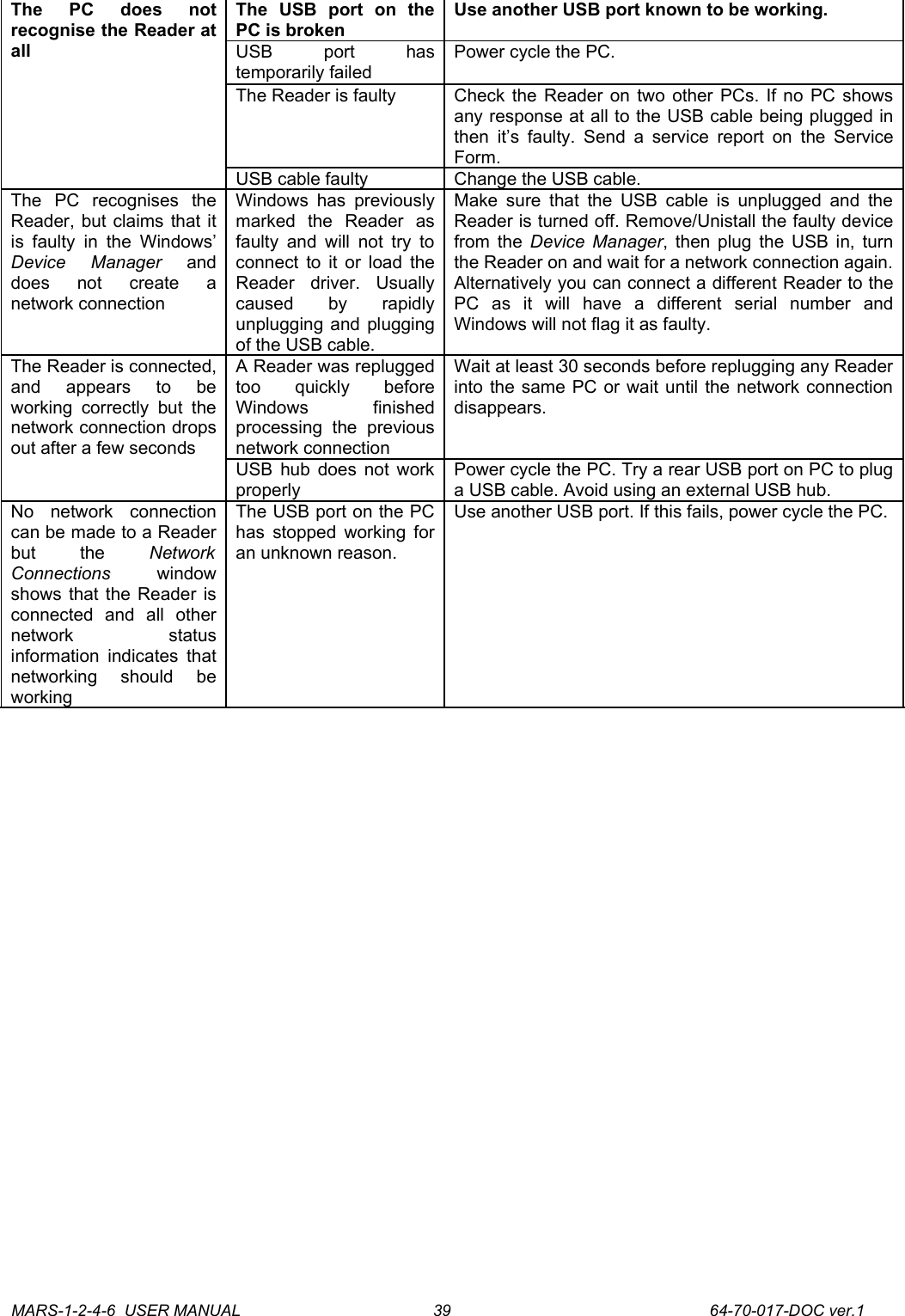
The   PC   does   not recognise the Reader at allThe   USB   port   on   the PC is brokenUse another USB port known to be working.USB   port   has temporarily failedPower cycle the PC. The Reader is faulty Check the Reader on two other PCs. If no PC shows any response at all to the USB cable being plugged in then it’s faulty. Send a service report  on the Service Form.USB cable faulty  Change the USB cable.The   PC   recognises   the Reader, but claims that it is  faulty  in   the  Windows’ Device   Manager  and does   not   create   a network connectionWindows has  previously marked   the   Reader   as faulty and will  not try to connect to it or load the Reader   driver.   Usually caused   by   rapidly unplugging and plugging of the USB cable.Make sure that  the USB cable is unplugged and  the Reader is turned off. Remove/Unistall the faulty device from the  Device Manager, then plug the USB in, turn the Reader on and wait for a network connection again.Alternatively you can connect a different Reader to the PC   as   it   will   have   a   different   serial   number   and Windows will not flag it as faulty.The Reader is connected, and   appears   to   be working  correctly   but the network connection drops out after a few secondsA Reader was replugged too   quickly   before Windows   finished processing   the   previous network connectionWait at least 30 seconds before replugging any Reader into the same PC or wait until the network connection disappears.USB hub does not work properlyPower cycle the PC. Try a rear USB port on PC to plug a USB cable. Avoid using an external USB hub.No   network   connection can be made to a Reader but   the  Network Connections  window shows that the Reader is connected   and   all   other network   status information indicates that networking   should   be workingThe USB port on the PC has stopped working for an unknown reason. Use another USB port. If this fails, power cycle the PC.MARS-1-2-4-6  USER MANUAL             64-70-017-DOC ver.139
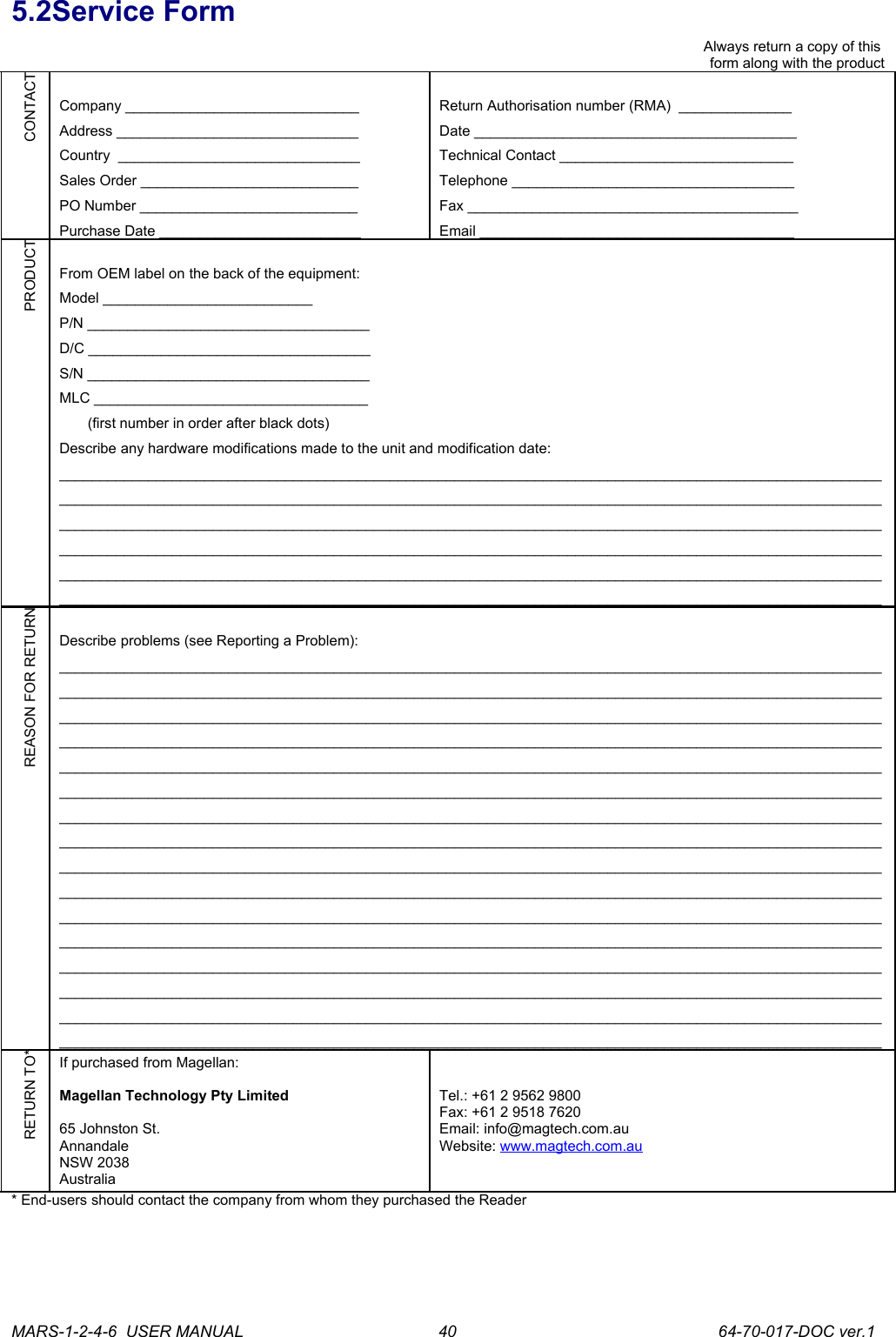
5.2Service FormAlways return a copy of this form along with the productCONTACTCompany _____________________________Address ______________________________Country  ______________________________Sales Order ___________________________PO Number ___________________________Purchase Date _________________________Return Authorisation number (RMA)  ______________Date ________________________________________Technical Contact _____________________________Telephone ___________________________________Fax _________________________________________Email _______________________________________PRODUCTFrom OEM label on the back of the equipment:Model __________________________P/N ___________________________________D/C ___________________________________S/N ___________________________________MLC __________________________________        (first number in order after black dots)Describe any hardware modifications made to the unit and modification date: ____________________________________________________________________________________________________________________________________________________________________________________________________________________________________________________________________________________________________________________________________________________________________________________________________________________________________________________________________________________________________________________________________________________________________________________________________________________________________REASON FOR RETURNDescribe problems (see Reporting a Problem): ________________________________________________________________________________________________________________________________________________________________________________________________________________________________________________________________________________________________________________________________________________________________________________________________________________________________________________________________________________________________________________________________________________________________________________________________________________________________________________________________________________________________________________________________________________________________________________________________________________________________________________________________________________________________________________________________________________________________________________________________________________________________________________________________________________________________________________________________________________________________________________________________________________________________________________________________________________________________________________________________________________________________________________________________________________________________________________________________________________________________________________________________________________________________________________________________________________________________________________________________________________________________RETURN TO*If purchased from Magellan:Magellan Technology Pty Limited65 Johnston St.AnnandaleNSW 2038AustraliaTel.: +61 2 9562 9800Fax: +61 2 9518 7620Email: info@magtech.com.auWebsite: www.magtech.com.au* End-users should contact the company from whom they purchased the ReaderMARS-1-2-4-6  USER MANUAL             64-70-017-DOC ver.140
6.Contact UsMagellan Technology pty limited65 Johnston St.AnnandaleNSW 2038AustraliaTel.: +61 2 9562 9800Fax: +61 2 9518 7620Email: info@magtech.com.auWebsite: www.magtech.com.auMARS-1-2-4-6  USER MANUAL             64-70-017-DOC ver.141
7.Revision HistoryVersion Date Person ReasonVer.1 09.2006 Olga Kolesnik Initial User’s Guide (40-01-005-DOC) has been split into separate User Manuals for each reader. New user-friendly document   layout/design,   new   logo,   new   sections   added (Alert   Symbols,   Glossary,   Product   Overview,   Service Form, Specifications, Revision History)MARS-1-2-4-6  USER MANUAL             64-70-017-DOC ver.142
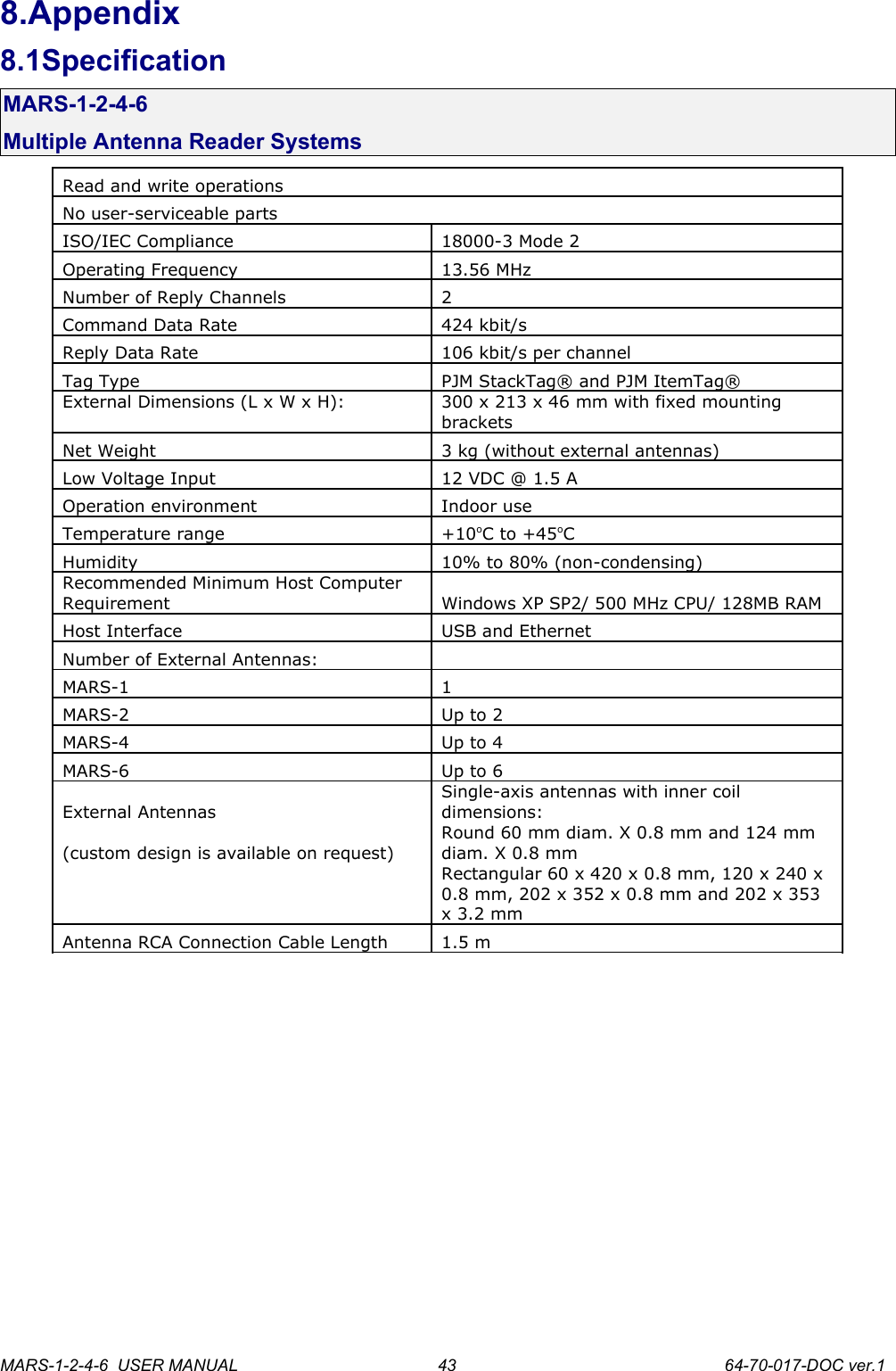
8.Appendix8.1SpecificationMARS-1-2-4-6Multiple Antenna Reader SystemsRead and write operationsNo user-serviceable partsISO/IEC Compliance 18000-3 Mode 2Operating Frequency 13.56 MHzNumber of Reply Channels 2Command Data Rate 424 kbit/sReply Data Rate 106 kbit/s per channelTag Type PJM StackTag® and PJM ItemTag®External Dimensions (L x W x H): 300 x 213 x 46 mm with fixed mounting bracketsNet Weight 3 kg (without external antennas)Low Voltage Input 12 VDC @ 1.5 AOperation environment Indoor useTemperature range +10oC to +45oCHumidity 10% to 80% (non-condensing)Recommended Minimum Host Computer Requirement Windows XP SP2/ 500 MHz CPU/ 128MB RAMHost Interface USB and EthernetNumber of External Antennas:MARS-1 1MARS-2 Up to 2MARS-4 Up to 4MARS-6 Up to 6External AntennasSingle-axis antennas with inner coil dimensions:(custom design is available on request)Round 60 mm diam. X 0.8 mm and 124 mm diam. X 0.8 mmRectangular 60 x 420 x 0.8 mm, 120 x 240 x 0.8 mm, 202 x 352 x 0.8 mm and 202 x 353 x 3.2 mmAntenna RCA Connection Cable Length 1.5 mMARS-1-2-4-6  USER MANUAL             64-70-017-DOC ver.143
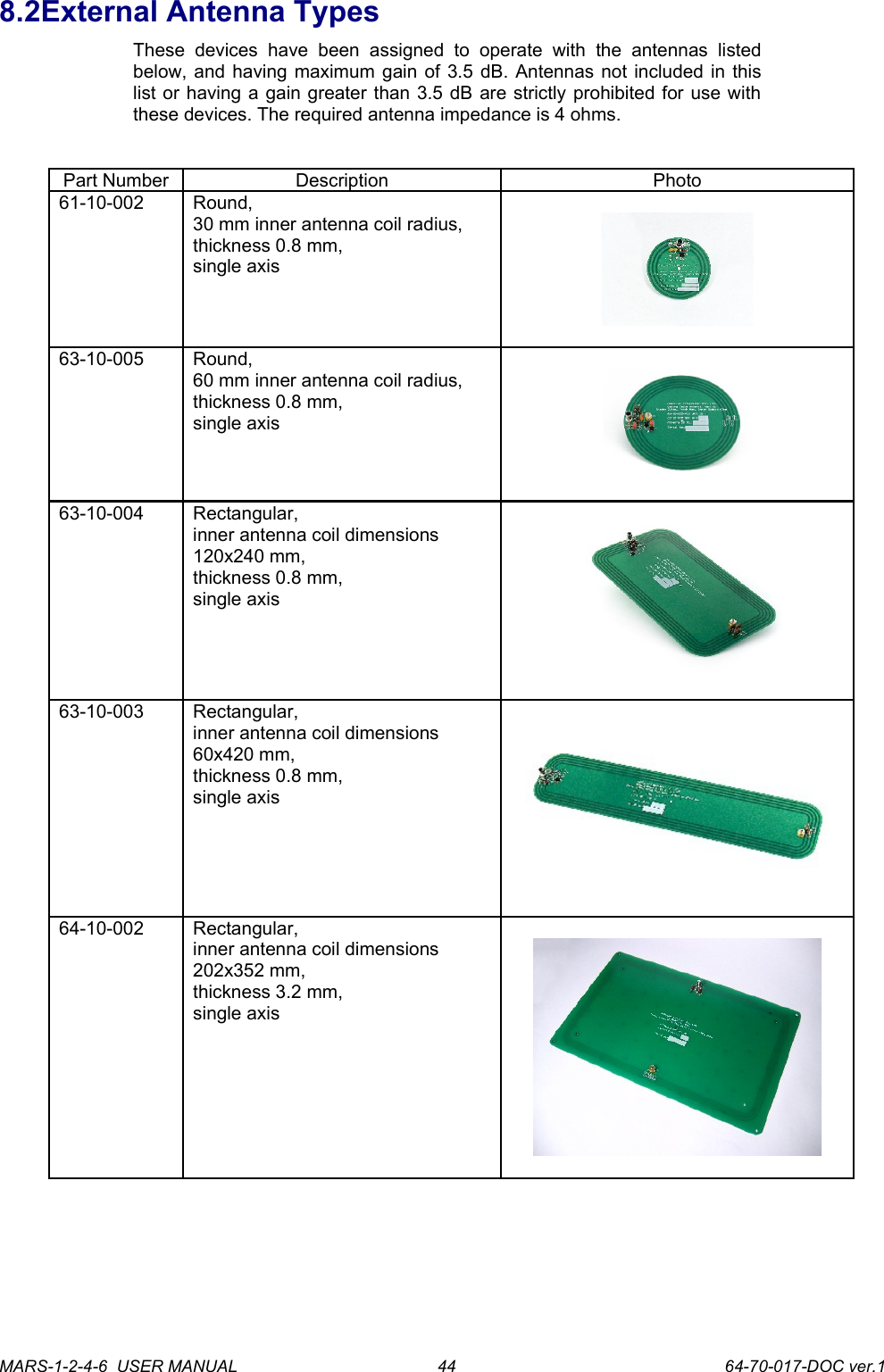
8.2External Antenna TypesThese   devices   have   been   assigned   to   operate   with   the   antennas   listed below, and having maximum gain of 3.5 dB. Antennas not included in this list or having a gain greater than 3.5 dB are strictly prohibited for use with these devices. The required antenna impedance is 4 ohms.Part Number Description Photo61-10-002 Round,30 mm inner antenna coil radius,thickness 0.8 mm,single axis63-10-005 Round,60 mm inner antenna coil radius,thickness 0.8 mm,single axis63-10-004 Rectangular,inner antenna coil dimensions120x240 mm,thickness 0.8 mm,single axis63-10-003 Rectangular,inner antenna coil dimensions60x420 mm,thickness 0.8 mm,single axis64-10-002 Rectangular,inner antenna coil dimensions202x352 mm,thickness 3.2 mm,single axisMARS-1-2-4-6  USER MANUAL             64-70-017-DOC ver.144
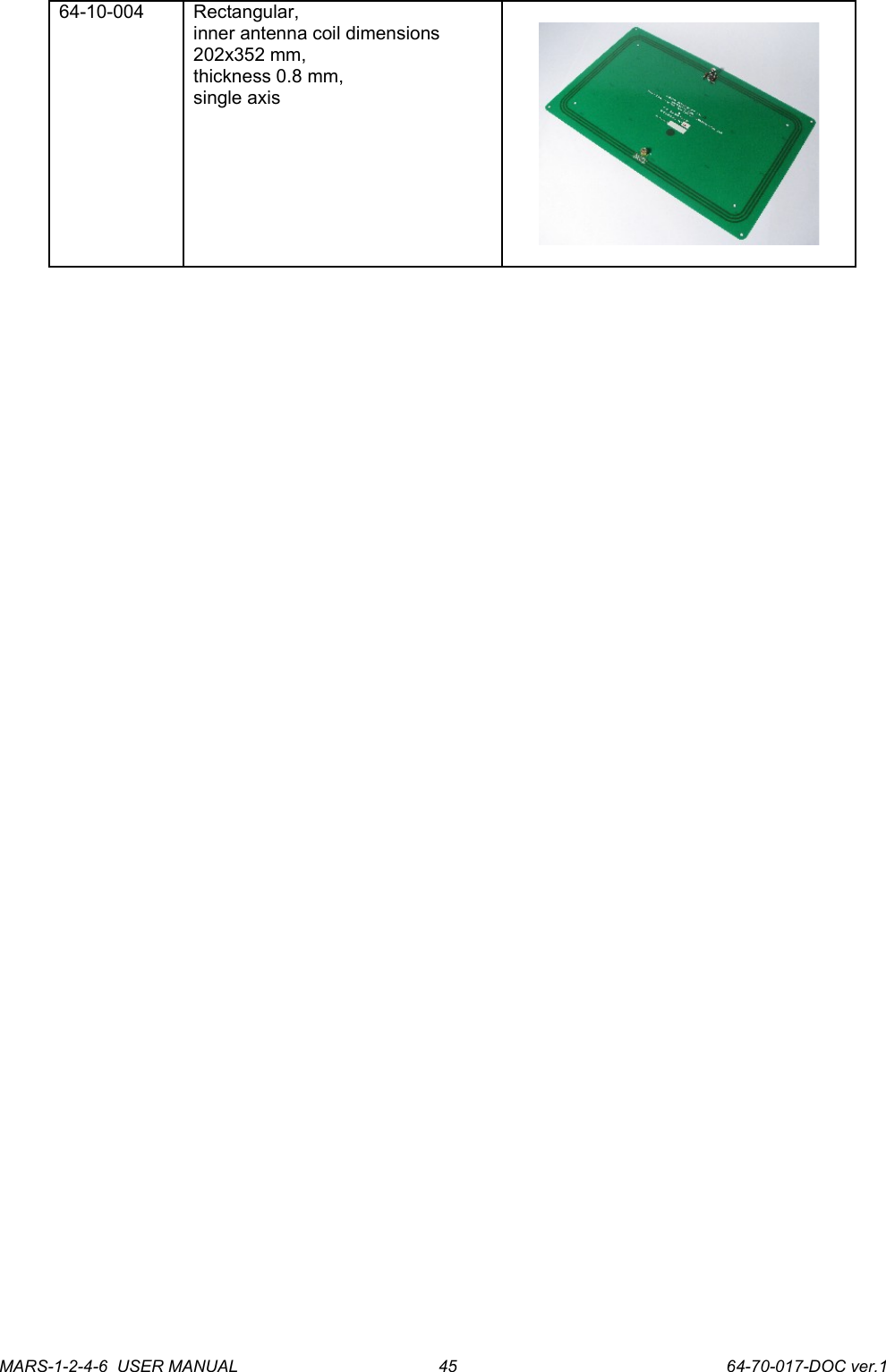
64-10-004 Rectangular,inner antenna coil dimensions202x352 mm,thickness 0.8 mm,single axisMARS-1-2-4-6  USER MANUAL             64-70-017-DOC ver.145
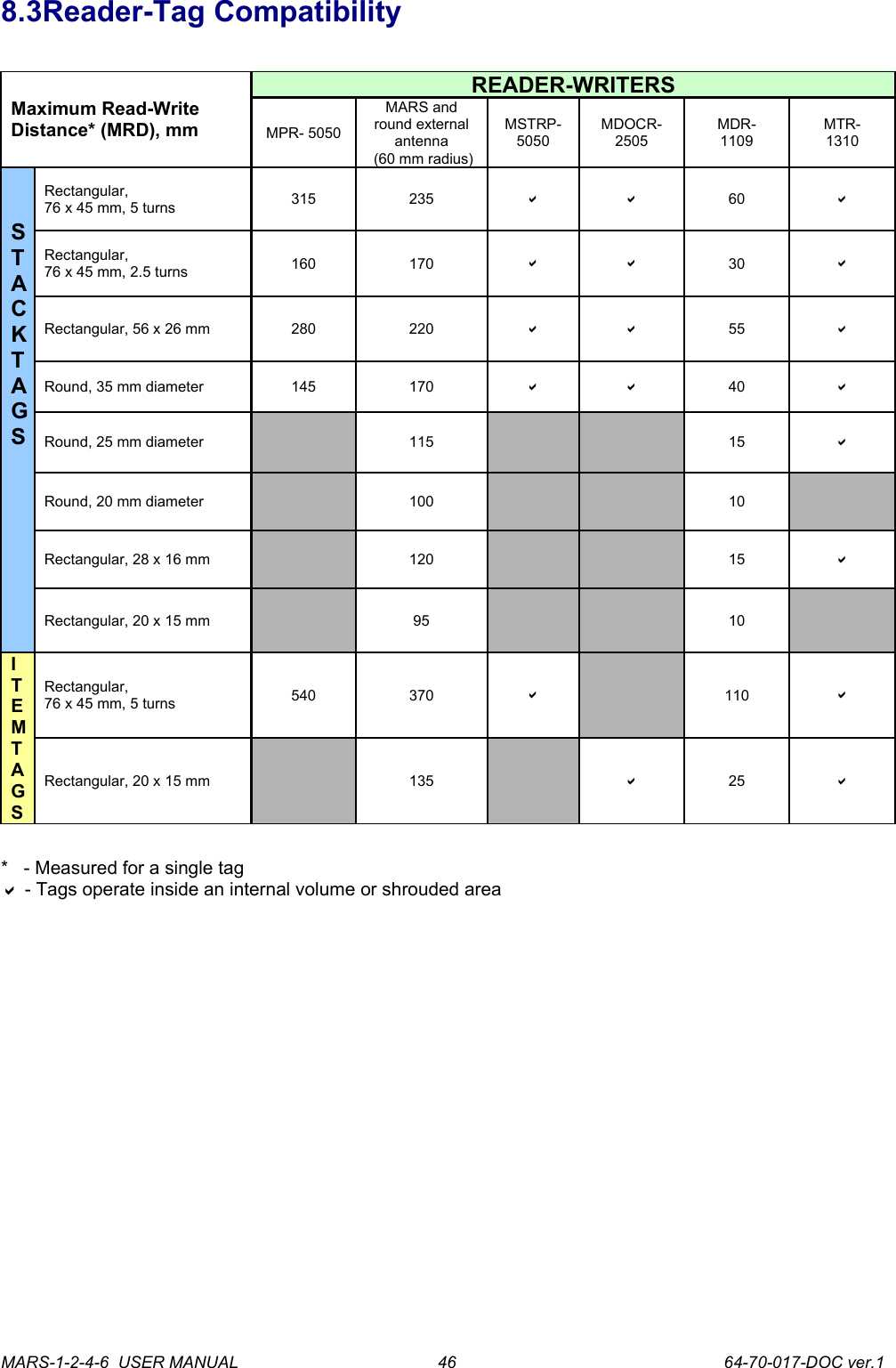
8.3Reader-Tag CompatibilityMaximum Read-Write Distance* (MRD), mmREADER-WRITERSMPR- 5050MARS and round external antenna (60 mm radius)MSTRP-5050MDOCR-2505MDR-1109MTR-1310STACKTAGSRectangular,76 x 45 mm, 5 turns 315 235   60 Rectangular,76 x 45 mm, 2.5 turns 160 170   30 Rectangular, 56 x 26 mm 280 220   55 Round, 35 mm diameter 145 170   40 Round, 25 mm diameter 115 15 Round, 20 mm diameter 100 10Rectangular, 28 x 16 mm 120 15 Rectangular, 20 x 15 mm 95 10ITEMTAGSRectangular,76 x 45 mm, 5 turns 540 370 110 Rectangular, 20 x 15 mm 135 25 *   - Measured for a single tag - Tags operate inside an internal volume or shrouded areaMARS-1-2-4-6  USER MANUAL             64-70-017-DOC ver.146
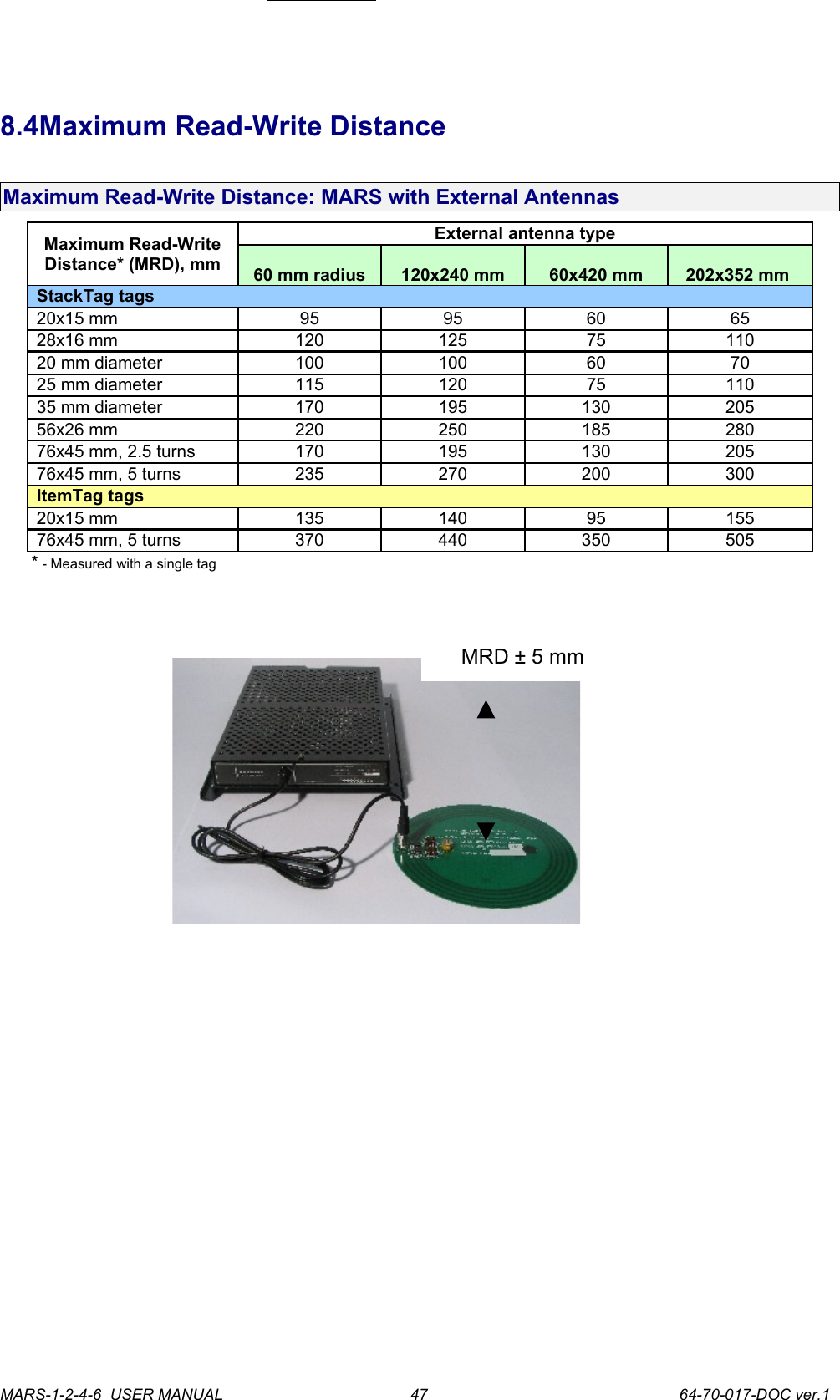
8.4Maximum Read-Write DistanceMaximum Read-Write Distance: MARS with External AntennasMaximum Read-Write Distance* (MRD), mmExternal antenna type60 mm radius 120x240 mm 60x420 mm 202x352 mm StackTag tags20x15 mm 95 95 60 6528x16 mm  120 125 75 11020 mm diameter 100 100 60 7025 mm diameter 115 120 75 11035 mm diameter 170 195 130 20556x26 mm 220 250 185 28076x45 mm, 2.5 turns 170 195 130 20576x45 mm, 5 turns 235 270 200 300ItemTag tags20x15 mm 135 140 95 15576x45 mm, 5 turns 370 440 350 505* - Measured with a single tag  MARS-1-2-4-6  USER MANUAL             64-70-017-DOC ver.1MRD ± 5 mm47

Navigation menu