Sensium Healthcare TZ202020R1 Wireless Patient Monitoring Device - SensiumBridge User Manual TZ202000 IFU

Toumaz US Wireless Patient Monitoring Device - SensiumBridge TZ202000 IFU

Manual

          SensiumVitals Wireless Monitoring System  User Manual     Part Number: TZ202000-IFU
   Toumaz and the Toumaz logo are trademarks or registered trademarks of Toumaz  or one of its subsidiaries. All other trademarks are the property of their respective owners.   Toumaz US LLC Los Angeles, CA  USA www.toumaz.com   © 2012 Toumaz US LLC or one of its subsidiaries. All rights reserved. SensiumVitals Wireless Monitoring System Directions for Use  Changes  in  equipment,  software,  or  procedures  occur  periodically; information describing these changes will be included in future editions of the guide.  The information in this document is subject to change and does not represent a  commitment  on  the  part of  Toumaz    to provide  additional  services  or enhancements.
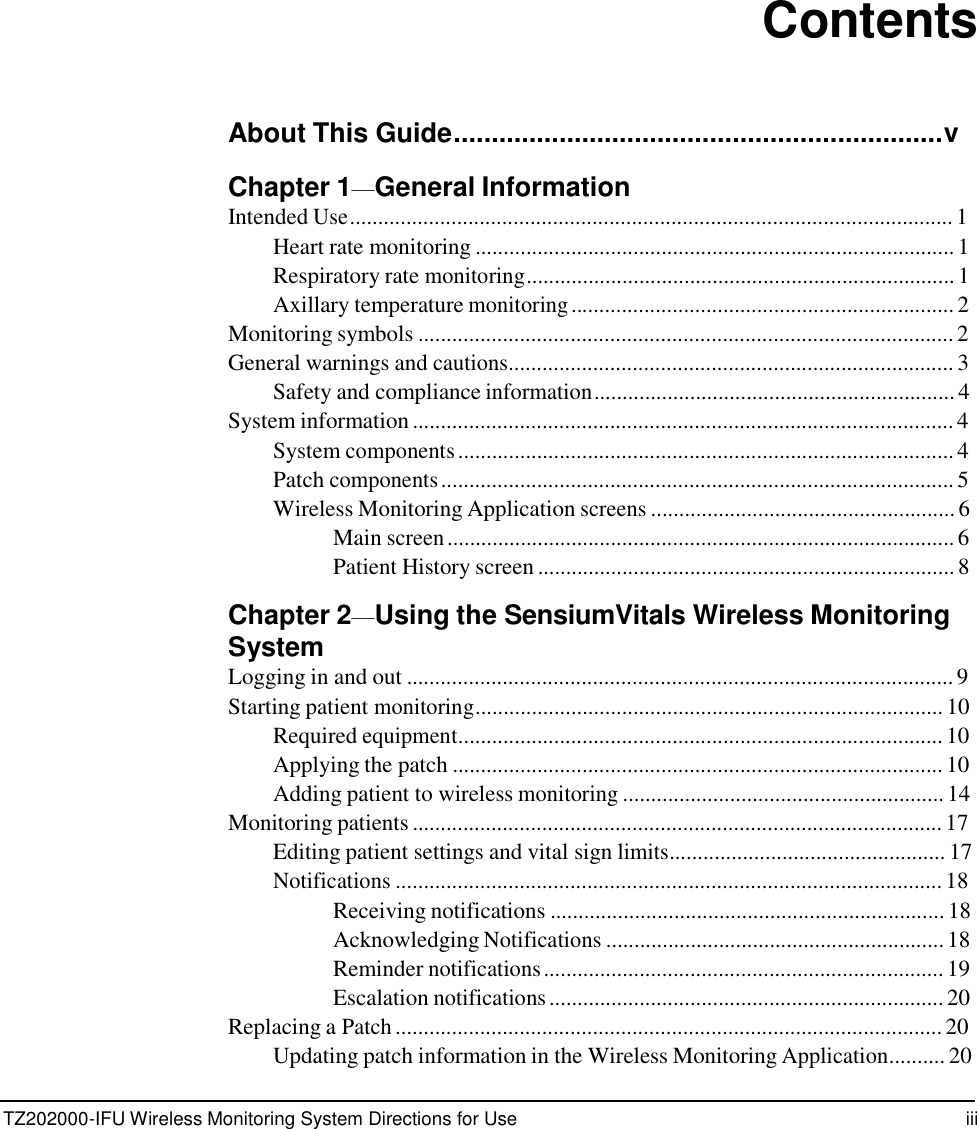
TZ202000-IFU Wireless Monitoring System Directions for Use iii                 Contents    About This Guide.................................................................v  Chapter 1—General Information Intended Use........................................................................................................... 1 Heart rate monitoring ..................................................................................... 1 Respiratory rate monitoring............................................................................ 1 Axillary temperature monitoring .................................................................... 2 Monitoring symbols ............................................................................................... 2 General warnings and cautions............................................................................... 3 Safety and compliance information ................................................................ 4 System information ................................................................................................ 4 System components ........................................................................................ 4 Patch components ........................................................................................... 5 Wireless Monitoring Application screens ...................................................... 6 Main screen .......................................................................................... 6 Patient History screen .......................................................................... 8  Chapter 2—Using the SensiumVitals Wireless Monitoring System Logging in and out ................................................................................................. 9 Starting patient monitoring................................................................................... 10 Required equipment...................................................................................... 10 Applying the patch ....................................................................................... 10 Adding patient to wireless monitoring ......................................................... 14 Monitoring patients .............................................................................................. 17 Editing patient settings and vital sign limits................................................. 17 Notifications ................................................................................................. 18 Receiving notifications ...................................................................... 18 Acknowledging Notifications ............................................................ 18 Reminder notifications ....................................................................... 19 Escalation notifications ...................................................................... 20 Replacing a Patch ................................................................................................. 20 Updating patch information in the Wireless Monitoring Application.......... 20
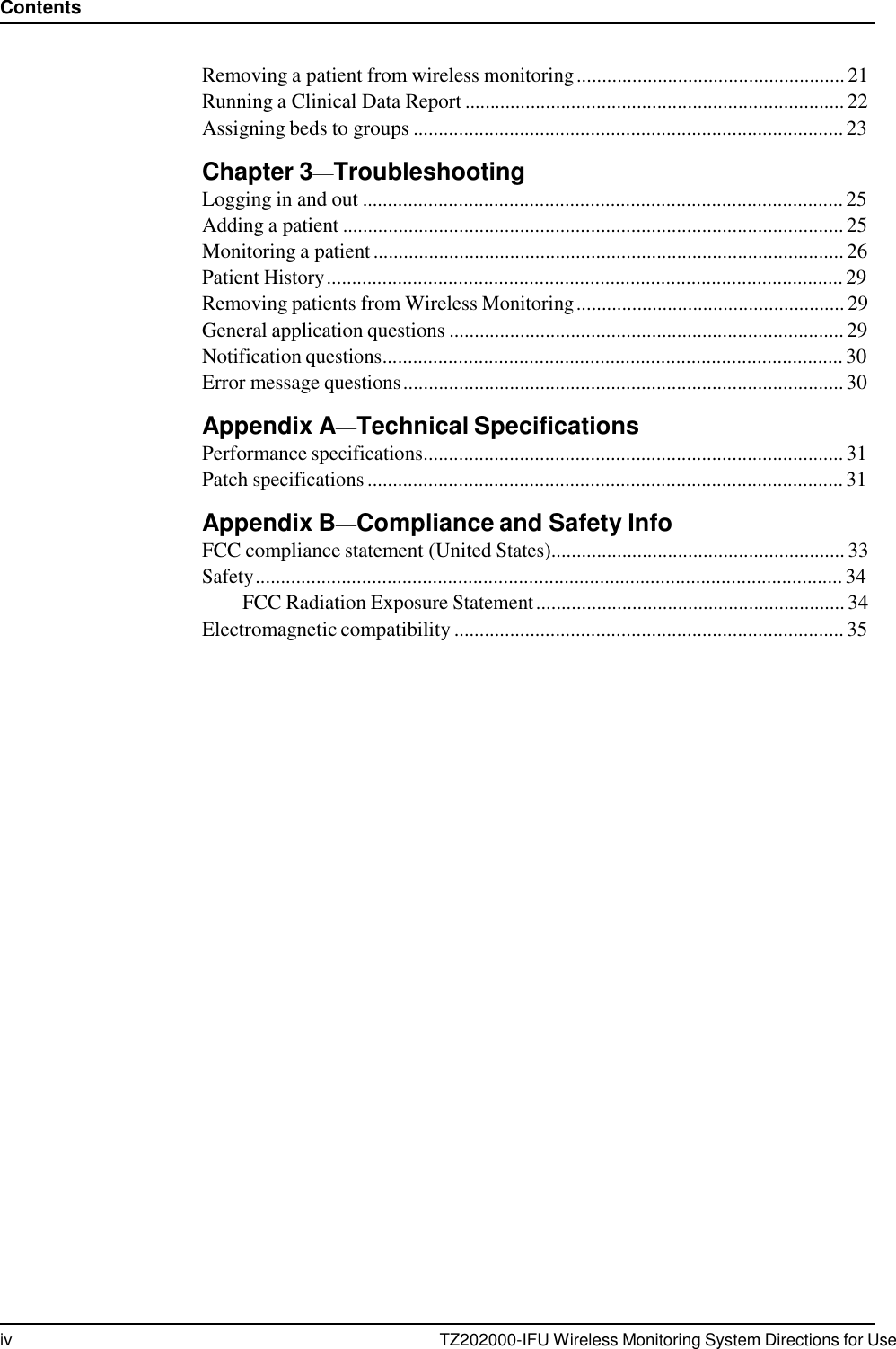
iv TZ202000-IFU Wireless Monitoring System Directions for Use Contents      Removing a patient from wireless monitoring ..................................................... 21 Running a Clinical Data Report ........................................................................... 22 Assigning beds to groups ..................................................................................... 23  Chapter 3—Troubleshooting Logging in and out ............................................................................................... 25 Adding a patient ................................................................................................... 25 Monitoring a patient ............................................................................................. 26 Patient History ...................................................................................................... 29 Removing patients from Wireless Monitoring ..................................................... 29 General application questions .............................................................................. 29 Notification questions........................................................................................... 30 Error message questions ....................................................................................... 30  Appendix A—Technical Specifications Performance specifications................................................................................... 31 Patch specifications .............................................................................................. 31  Appendix B—Compliance and Safety Info FCC compliance statement (United States).......................................................... 33 Safety .................................................................................................................... 34 FCC Radiation Exposure Statement ............................................................. 34 Electromagnetic compatibility ............................................................................. 35
TZ202000-IFU Wireless Monitoring System Directions for Use v                   About This Guide    This  guide  describes  the  Toumaz  SensiumVitals  Wireless  Monitoring  System and provides instructions for wireless monitoring of patients.  The SensiumVitals Wireless Monitoring System is  used to  monitor a patient’s vital signs, including heart rate, respiratory rate, and axillary temperature.        Symbols  This document uses the following symbols:   Warnings indicate potentially hazardous situations which, if not avoided, could result in injury or death.    Caution indicates  conditions  that could  damage  equipment  or  other property.    Notes  contain  supplementary  information  or  emphasize  a  point  or procedure.
vi TZ202000-IFU Wireless Monitoring System Directions for Use About This Guide
TZ202000-IFU Wireless Monitoring System Directions for Use 1                Chapter 1 General Information   Intended Use   The SensiumVitals Wireless Monitoring System is intended for use by health care professionals  for  routine  surveillance of  patient  physiological parameters in  a healthcare setting. Data is transmitted wirelessly to a central location. Alerts can be  set  on  an  individual  patient  basis  to  inform  healthcare professionals when vital sign readings are measured outside of preset limits.  The  device  is  not  intended  to be  used  in  the  ICU  or CCU  and  is intended  to supplement vital signs monitoring by healthcare professionals, not to replace it. The device is intended for use on general care patients and on patients who are 18 years of age or older.  Heart rate monitoring  •  Uses ECG to detect the heart rate (HR) only;  •  Cannot be used to detect the absence of a heart rate;  • Provides intermittent HR readings in a range of 30–200 beats per minute (BPM) when conditions are appropriate;  •  Cannot  be  used  to  detect  any  forms  of  arrhythmia  or  any  other conditions usually detected through an ECG.  Respiratory rate monitoring  • Uses impedance pneumography to detect respiratory rate (RR);  •  Provides intermittent RR readings in a range of 5–60 breaths per minute  (BrPM);  Due  to  the  nature  of  impedance  pneumography,  it is  possible  that RR readings  often  appear  as  not  available.  This  situation  is  more  likely  to happen when the patient is moving.
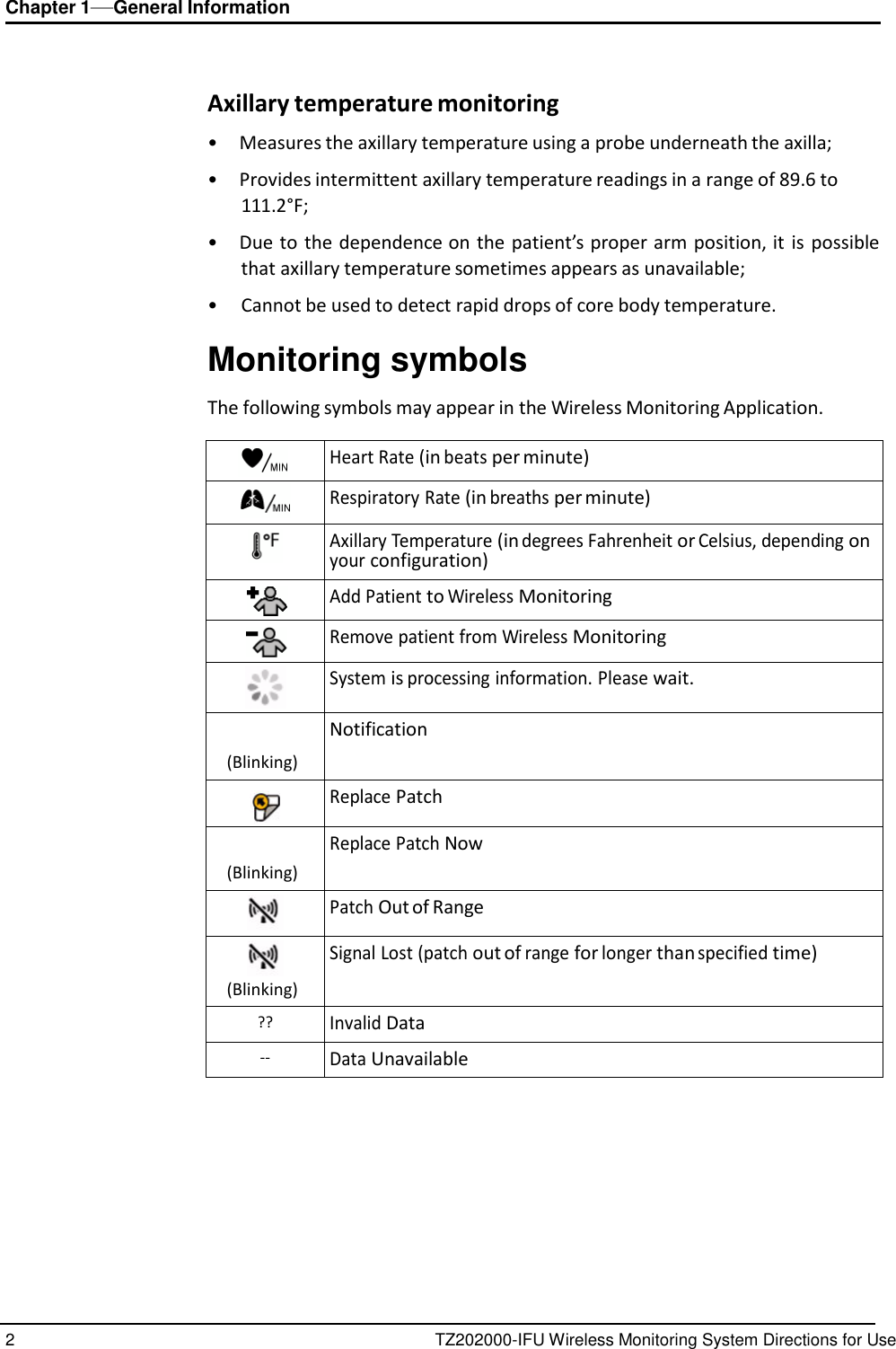
2 TZ202000-IFU Wireless Monitoring System Directions for Use Chapter 1—General Information       Axillary temperature monitoring  •  Measures the axillary temperature using a probe underneath the axilla;  •  Provides intermittent axillary temperature readings in a range of 89.6 to 111.2°F;  •  Due to the dependence on the patient’s proper arm position, it  is  possible that axillary temperature sometimes appears as unavailable;  •  Cannot be used to detect rapid drops of core body temperature.  Monitoring symbols  The following symbols may appear in the Wireless Monitoring Application.   Heart Rate (in beats per minute)  Respiratory Rate (in breaths per minute)   Axillary Temperature (in degrees Fahrenheit or Celsius, depending on your configuration)  Add Patient to Wireless Monitoring  Remove patient from Wireless Monitoring  System is processing information. Please wait.   (Blinking) Notification   Replace Patch   (Blinking) Replace Patch Now  Patch Out of Range  (Blinking) Signal Lost (patch out of range for longer than specified time) ?? Invalid Data -- Data Unavailable
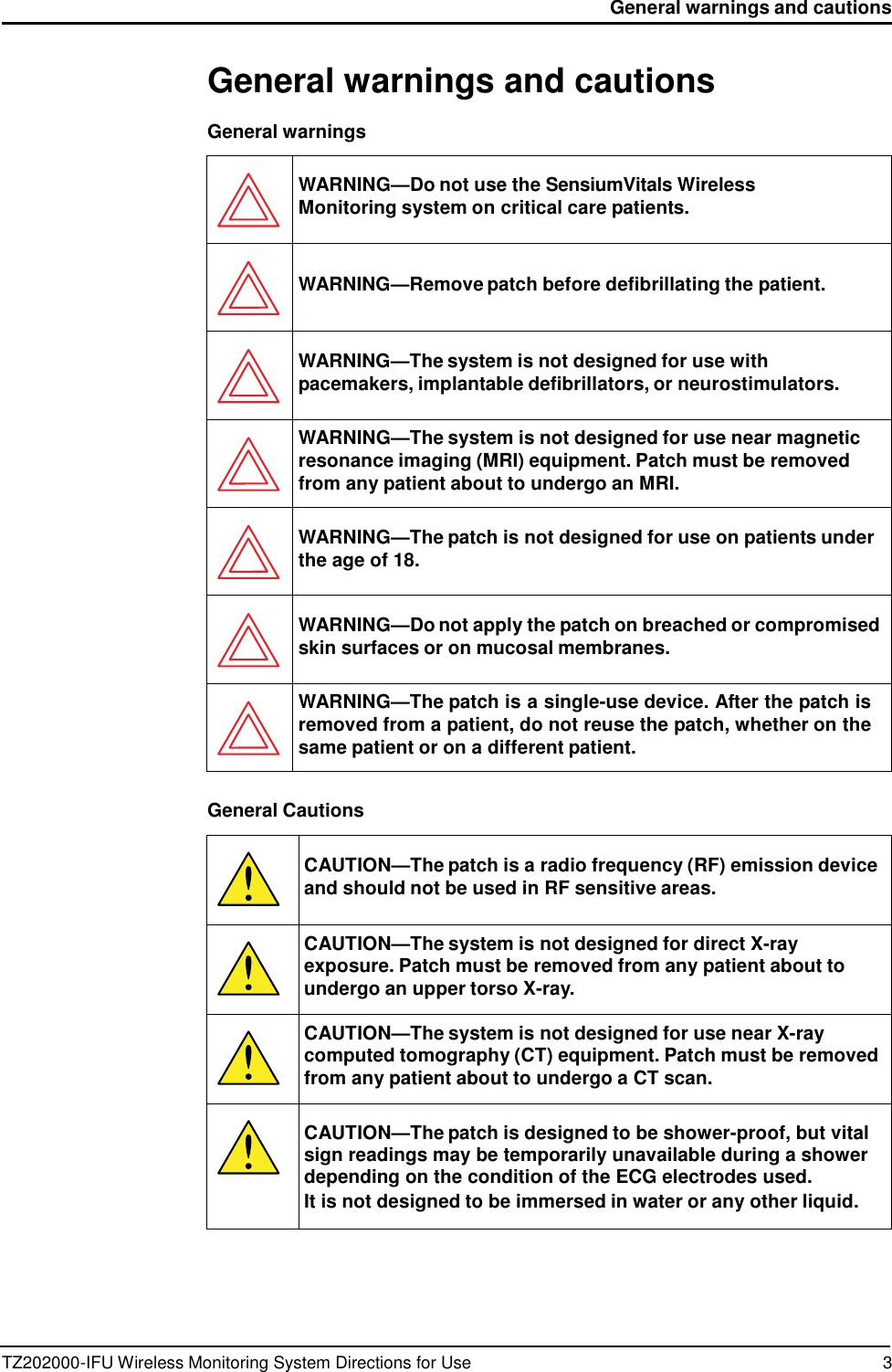
TZ202000-IFU Wireless Monitoring System Directions for Use 3 General warnings and cautions      General warnings and cautions  General warnings    WARNING—Do not use the SensiumVitals Wireless Monitoring system on critical care patients.    WARNING—Remove patch before defibrillating the patient.   WARNING—The system is not designed for use with pacemakers, implantable defibrillators, or neurostimulators.  WARNING—The system is not designed for use near magnetic resonance imaging (MRI) equipment. Patch must be removed from any patient about to undergo an MRI.   WARNING—The patch is not designed for use on patients under the age of 18.   WARNING—Do not apply the patch on breached or compromised skin surfaces or on mucosal membranes.  WARNING—The patch is a single-use device. After the patch is removed from a patient, do not reuse the patch, whether on the same patient or on a different patient.  General Cautions    CAUTION—The patch is a radio frequency (RF) emission device and should not be used in RF sensitive areas.  CAUTION—The system is not designed for direct X-ray exposure. Patch must be removed from any patient about to undergo an upper torso X-ray.  CAUTION—The system is not designed for use near X-ray computed tomography (CT) equipment. Patch must be removed from any patient about to undergo a CT scan.   CAUTION—The patch is designed to be shower-proof, but vital sign readings may be temporarily unavailable during a shower depending on the condition of the ECG electrodes used. It is not designed to be immersed in water or any other liquid.
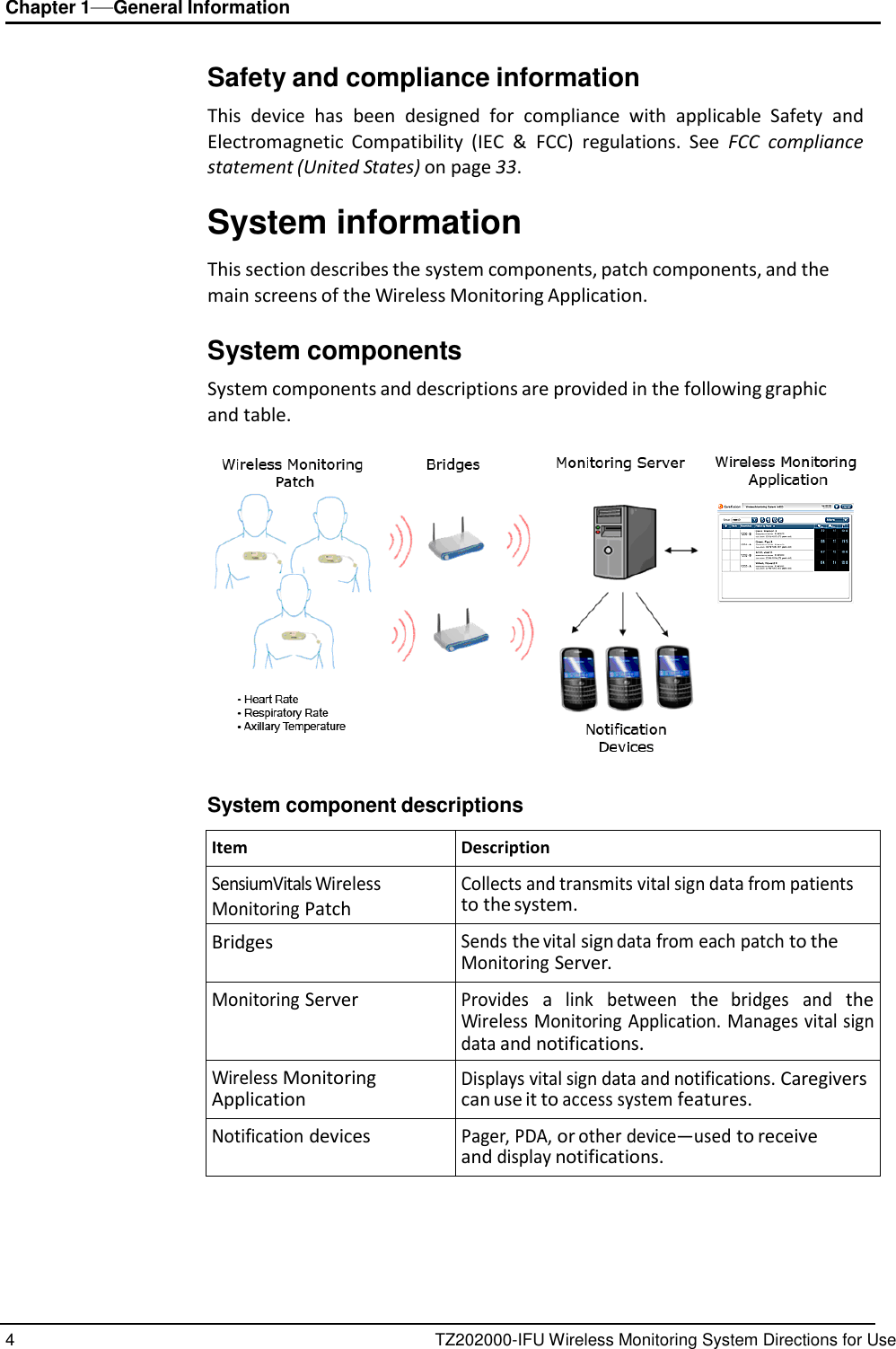
4 TZ202000-IFU Wireless Monitoring System Directions for Use Chapter 1—General Information      Safety and compliance information  This  device  has  been  designed  for  compliance  with  applicable  Safety  and Electromagnetic  Compatibility  (IEC  &  FCC)  regulations.  See  FCC  compliance statement (United States) on page 33.  System information  This section describes the system components, patch components, and the main screens of the Wireless Monitoring Application.  System components  System components and descriptions are provided in the following graphic and table.    System component descriptions  Item Description SensiumVitals Wireless Monitoring Patch Collects and transmits vital sign data from patients to the system. Bridges Sends the vital sign data from each patch to the Monitoring Server. Monitoring Server Provides a link  between the bridges  and the Wireless Monitoring Application. Manages vital sign data and notifications. Wireless Monitoring Application Displays vital sign data and notifications. Caregivers can use it to access system features. Notification devices Pager, PDA, or other device—used to receive and display notifications.
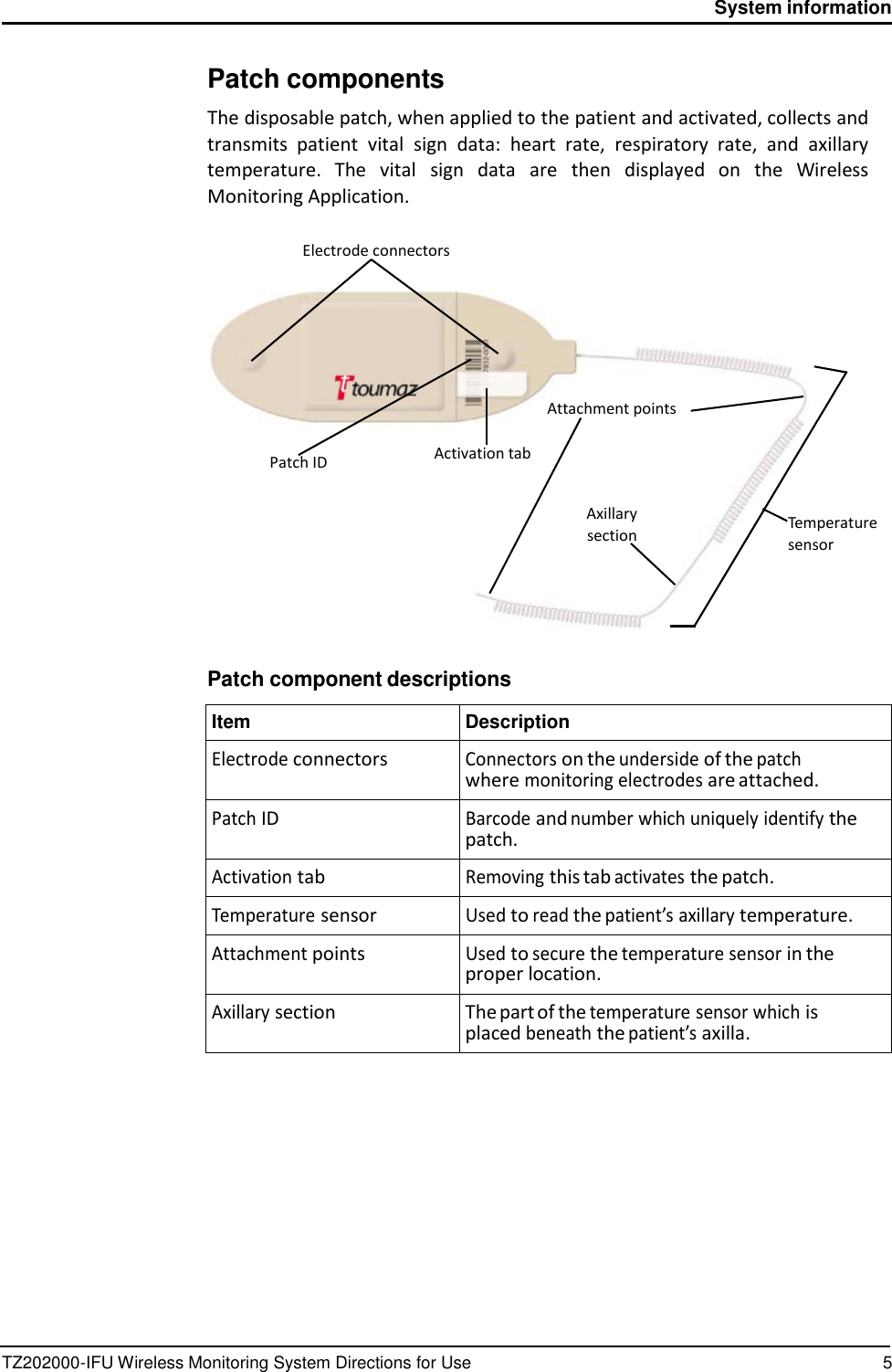
TZ202000-IFU Wireless Monitoring System Directions for Use 5 System information        Patch components  The disposable patch, when applied to the patient and activated, collects and transmits  patient  vital  sign  data:  heart  rate,  respiratory  rate,  and  axillary temperature.  The  vital  sign  data are  then  displayed  on  the  Wireless Monitoring Application.  Electrode connectors        Attachment points   Patch ID Activation tab  Axillary section  Temperature sensor       Patch component descriptions  Item Description Electrode connectors Connectors on the underside of the patch where monitoring electrodes are attached. Patch ID Barcode and number which uniquely identify the patch. Activation tab Removing this tab activates the patch. Temperature sensor Used to read the patient’s axillary temperature. Attachment points Used to secure the temperature sensor in the proper location. Axillary section The part of the temperature sensor which is placed beneath the patient’s axilla.
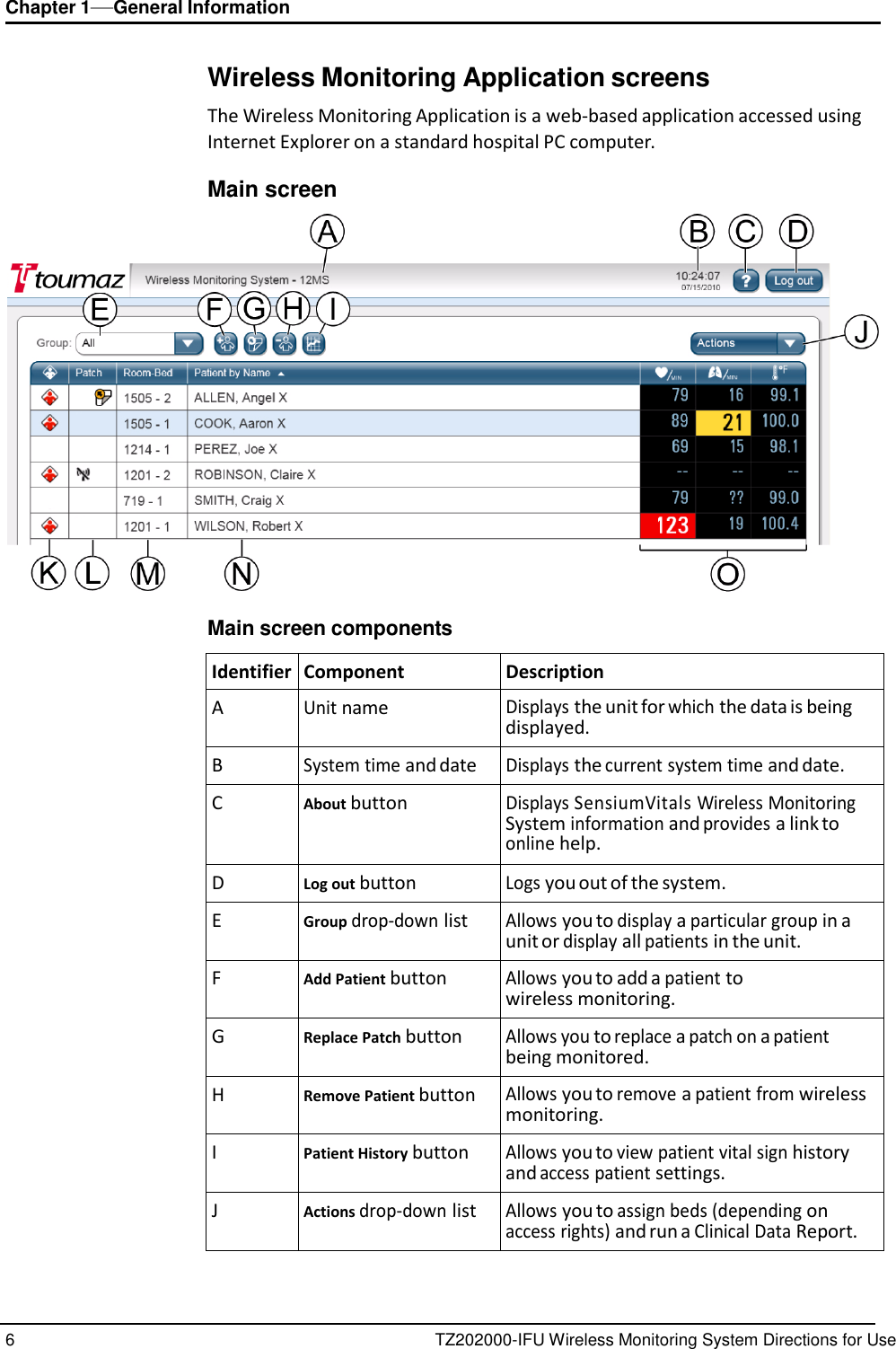
6 TZ202000-IFU Wireless Monitoring System Directions for Use Chapter 1—General Information      Wireless Monitoring Application screens  The Wireless Monitoring Application is a web-based application accessed using Internet Explorer on a standard hospital PC computer.  Main screen    Main screen components  Identifier Component Description A Unit name Displays the unit for which the data is being displayed. B System time and date Displays the current system time and date. C About button Displays SensiumVitals Wireless Monitoring System information and provides a link to online help. D Log out button Logs you out of the system. E Group drop-down list Allows you to display a particular group in a unit or display all patients in the unit. F Add Patient button Allows you to add a patient to wireless monitoring. G Replace Patch button Allows you to replace a patch on a patient being monitored. H Remove Patient button Allows you to remove a patient from wireless monitoring. I Patient History button Allows you to view patient vital sign history and access patient settings. J Actions drop-down list Allows you to assign beds (depending on access rights) and run a Clinical Data Report.
TZ202000-IFU Wireless Monitoring System Directions for Use 7 System information      Main screen components (continued)  Identifier Component Description K Notification column Displays a notification icon (see Monitoring symbols on page 2) if there is a notification for that patient. Click the icon to see notification details. Click the column heading to sort the patients with open notifications at the top of the list. L Patch Status column Displays icons relating to patch status (see Monitoring symbols on page 2). If no icon is displayed, the patch is okay. Click the column heading to sort the patients by patch status. Those patients whose patches require attention appear at the top of the list. M Room-Bed column Indicates the patient’s room and bed number. Click the column heading to sort patients in room-bed number order. N Patient by X column Displays a list of patients currently being monitored. By default, this list is sorted by Name. Click the column heading to sort patients by Vital Sign Status, with red and yellow vital sign alerts at the top of the list.  When the list displays all patients in a unit, this column displays only the patients’ names. However, when a group is selected using the Group drop-down list, this column displays the patient name, ID, and date of birth. O Vital signs columns These columns display the latest vital signs— heart rate, respiratory rate, and axillary temperature—for each patient in the list. • Vital signs that are within normal limits are displayed in blue on a black background. • Vital signs that exceed yellow preset limits are displayed in black on a yellow background. • Vital signs that exceed red preset limits are displayed in white on a red background. • If the system receives invalid data, question marks are displayed. •  If the system has not received vital sign data for a period of time, dashes are displayed. • Dashes are also displayed while a patch is being activated.   If the Patient list is long, vital sign warnings might appear below the     “bottom” of the Main Screen. To avoid this, use the Group drop-down list to limit the number of patients shown.
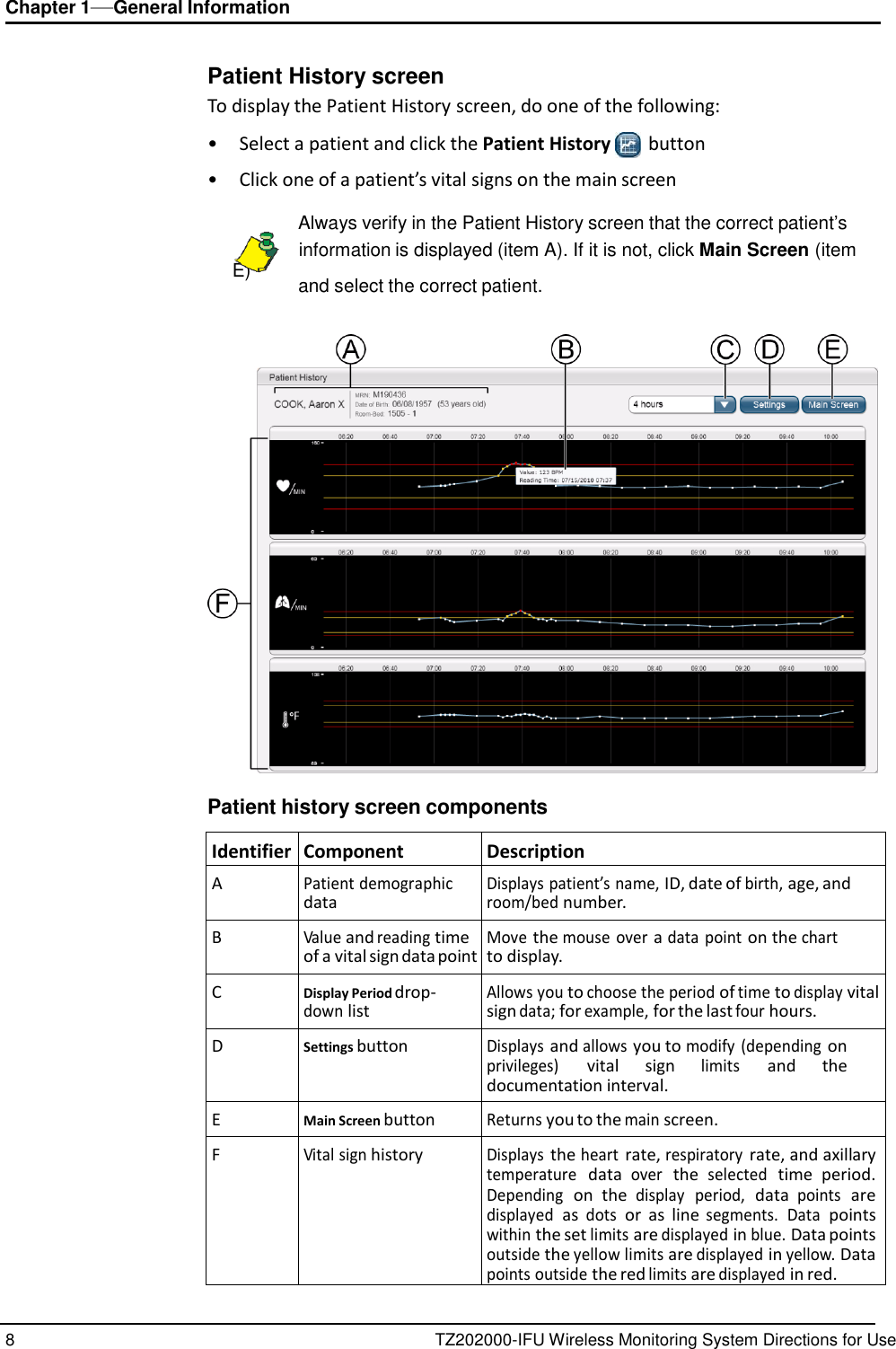
8 TZ202000-IFU Wireless Monitoring System Directions for Use Chapter 1—General Information      Patient History screen To display the Patient History screen, do one of the following:  •  Select a patient and click the Patient History    button •  Click one of a patient’s vital signs on the main screen   Always verify in the Patient History screen that the correct patient’s     information is displayed (item A). If it is not, click Main Screen (item E) and select the correct patient.     Patient history screen components  Identifier Component Description A Patient demographic data Displays patient’s name, ID, date of birth, age, and room/bed number. B Value and reading time of a vital sign data point Move the mouse  over a data point on the chart to display. C Display Period drop- down list Allows you to choose the period of time to display vital sign data; for example, for the last four hours. D Settings button Displays and allows you to modify (depending on privileges) vital  sign limits and  the documentation interval. E Main Screen button Returns you to the main screen. F Vital sign history Displays the heart rate, respiratory rate, and axillary temperature data over the selected time  period. Depending on  the display  period, data points are displayed as dots or  as  line segments.  Data points within the set limits are displayed in blue. Data points outside the yellow limits are displayed in yellow. Data points outside the red limits are displayed in red.
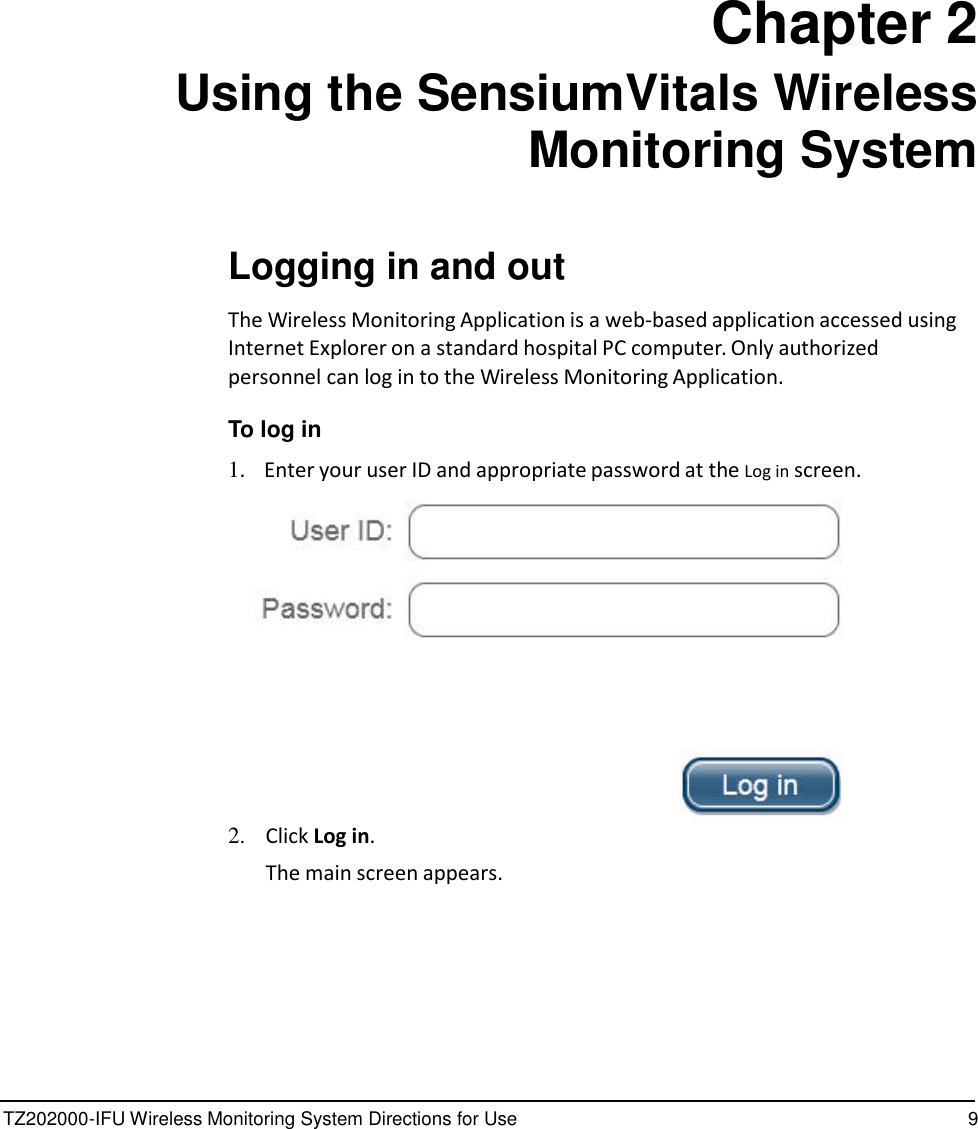
TZ202000-IFU Wireless Monitoring System Directions for Use 9                 Chapter 2 Using the SensiumVitals Wireless Monitoring System    Logging in and out  The Wireless Monitoring Application is a web-based application accessed using Internet Explorer on a standard hospital PC computer. Only authorized personnel can log in to the Wireless Monitoring Application.  To log in  1.    Enter your user ID and appropriate password at the Log in screen.   2.   Click Log in. The main screen appears.
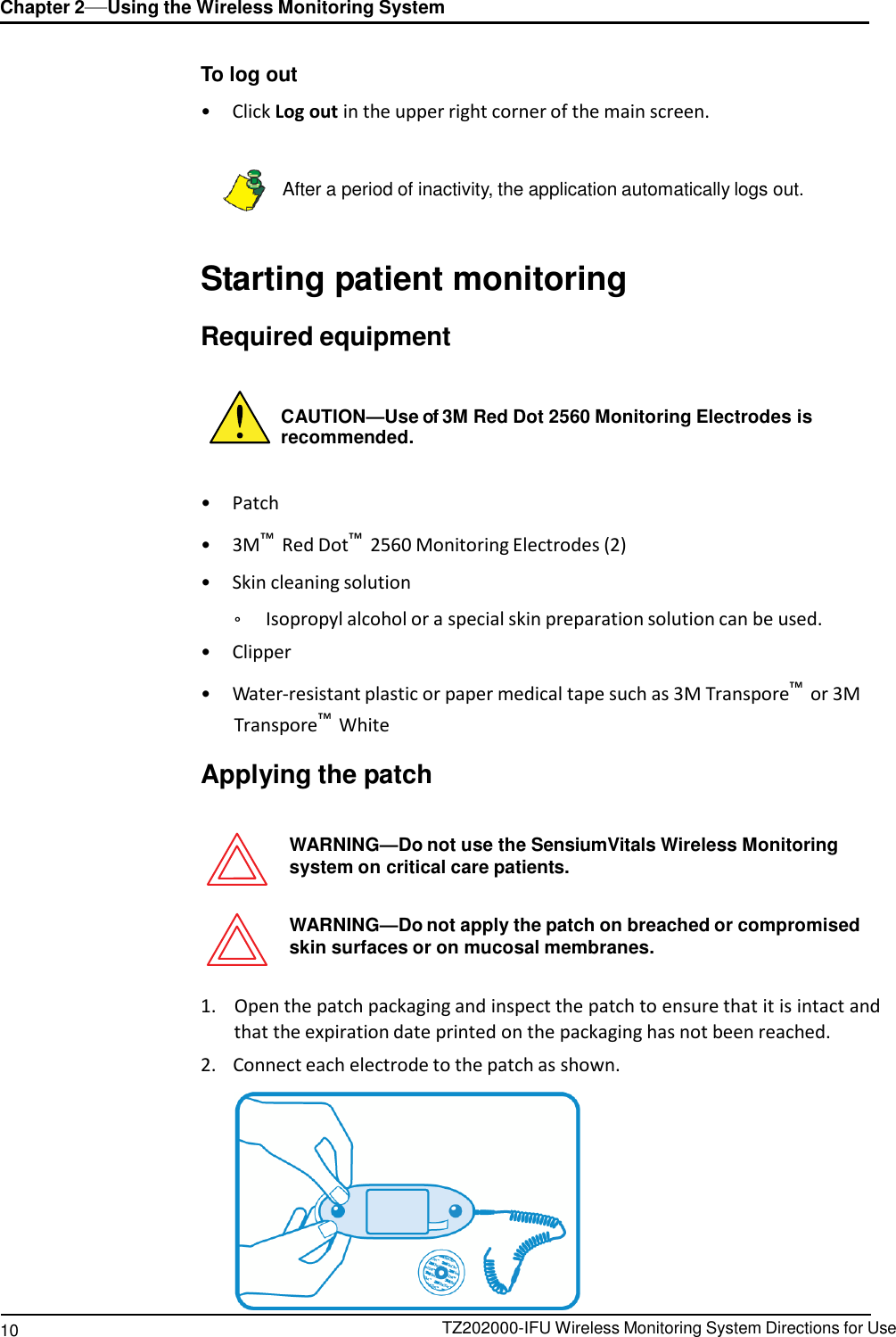
10 TZ202000-IFU Wireless Monitoring System Directions for Use Chapter 2—Using the Wireless Monitoring System        To log out  •  Click Log out in the upper right corner of the main screen.    After a period of inactivity, the application automatically logs out.    Starting patient monitoring  Required equipment    CAUTION—Use of 3M Red Dot 2560 Monitoring Electrodes is recommended.   •  Patch  •  3M™ Red Dot™ 2560 Monitoring Electrodes (2)  •  Skin cleaning solution  °  Isopropyl alcohol or a special skin preparation solution can be used. •  Clipper  •  Water-resistant plastic or paper medical tape such as 3M Transpore™ or 3M Transpore™ White  Applying the patch   WARNING—Do not use the SensiumVitals Wireless Monitoring system on critical care patients.   WARNING—Do not apply the patch on breached or compromised skin surfaces or on mucosal membranes.   1.    Open the patch packaging and inspect the patch to ensure that it is intact and that the expiration date printed on the packaging has not been reached. 2.    Connect each electrode to the patch as shown.
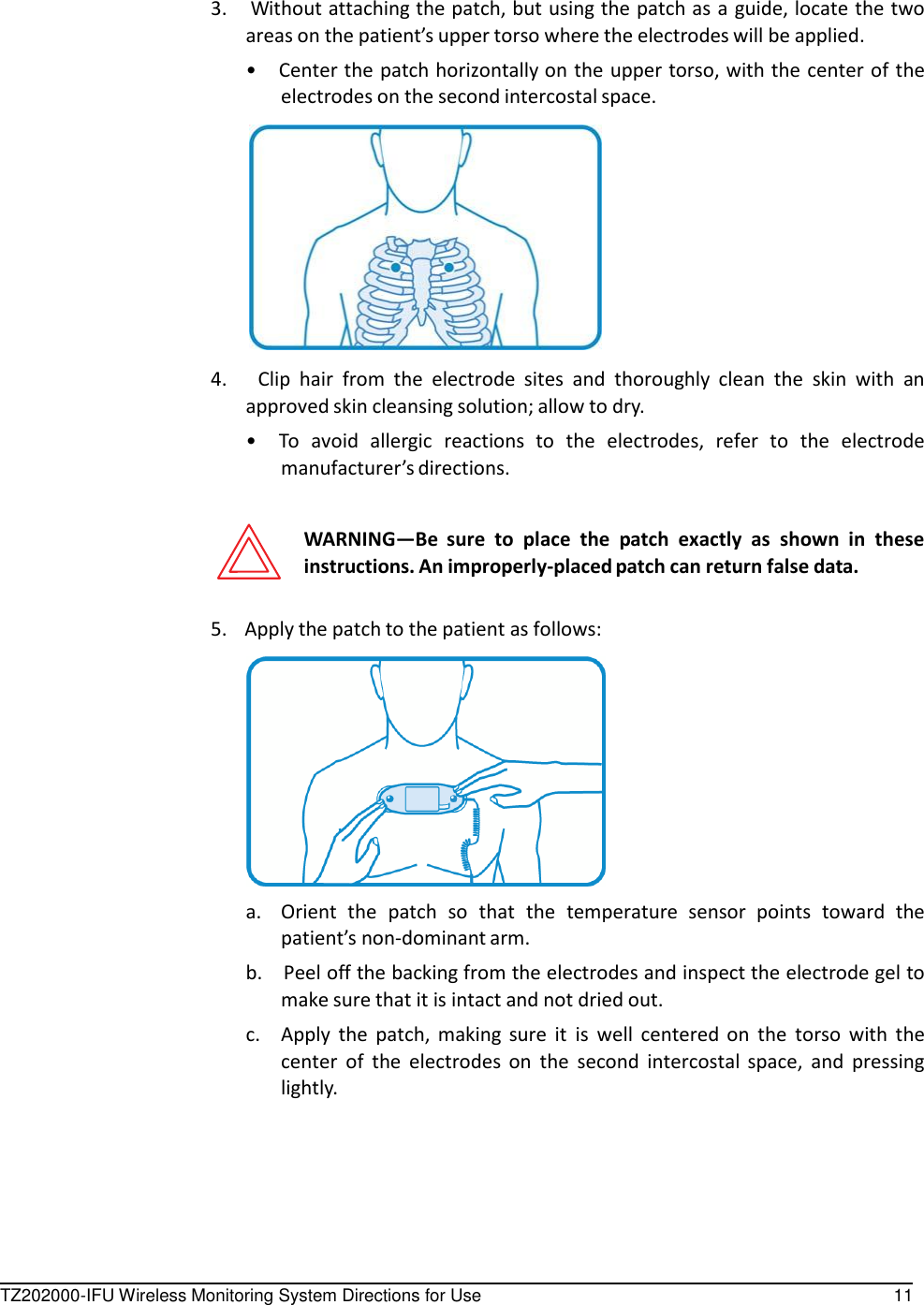
TZ202000-IFU Wireless Monitoring System Directions for Use 11      3.    Without attaching the patch, but using the patch as a guide, locate the two areas on the patient’s upper torso where the electrodes will be applied. •  Center the patch horizontally on the upper torso, with the center of the electrodes on the second intercostal space.    4.      Clip  hair  from  the  electrode  sites  and  thoroughly  clean  the  skin  with  an approved skin cleansing solution; allow to dry. •  To  avoid  allergic  reactions  to  the  electrodes,  refer  to  the  electrode manufacturer’s directions.   WARNING—Be  sure  to  place  the  patch  exactly  as  shown  in  these instructions. An improperly-placed patch can return false data.   5.    Apply the patch to the patient as follows:    a.  Orient  the  patch  so  that  the  temperature  sensor  points  toward  the patient’s non-dominant arm. b.    Peel off the backing from the electrodes and inspect the electrode gel to make sure that it is intact and not dried out. c. Apply  the  patch,  making  sure  it  is  well  centered  on  the  torso  with  the center  of  the  electrodes  on  the  second  intercostal  space,  and  pressing lightly.
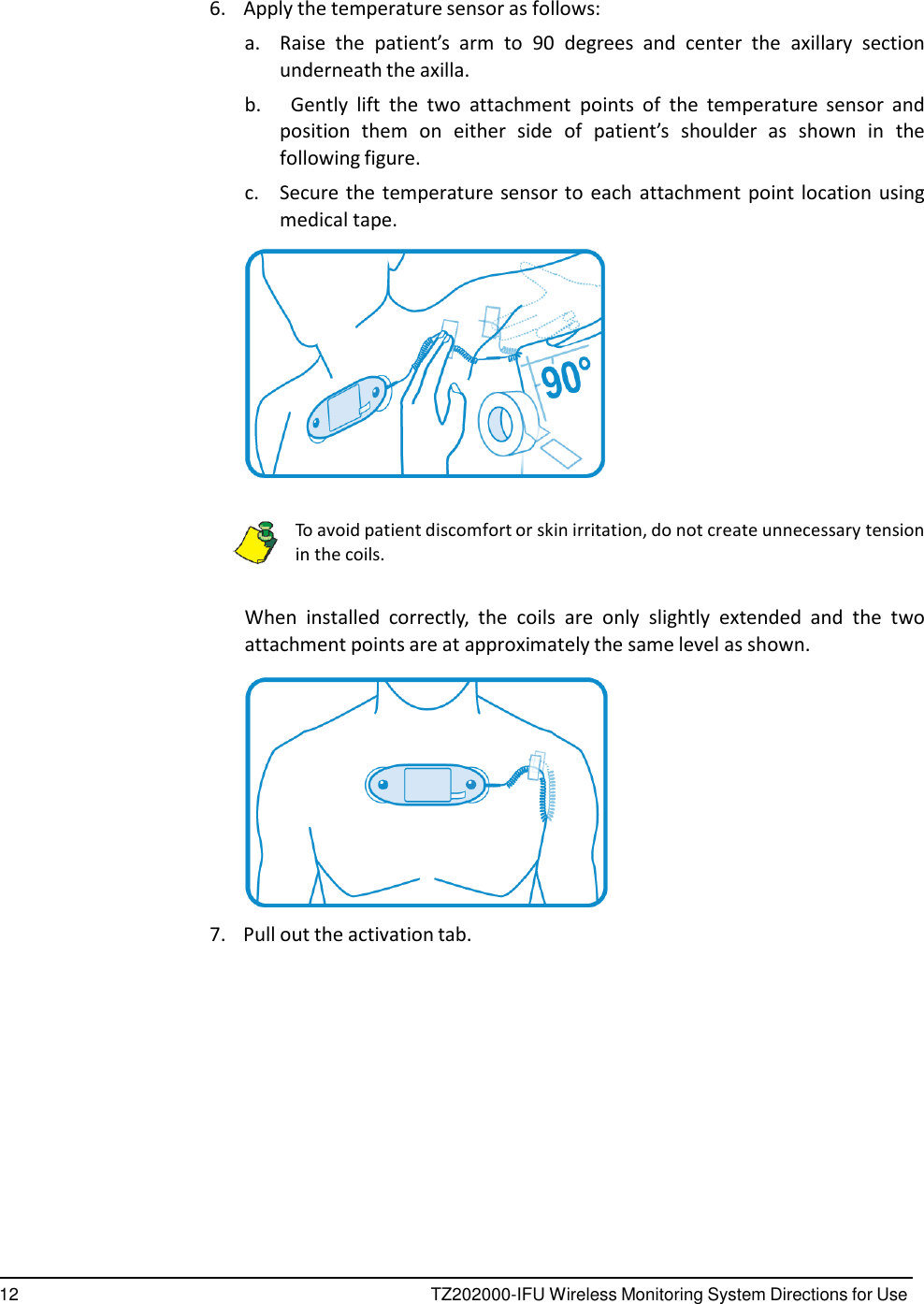
12 TZ202000-IFU Wireless Monitoring System Directions for Use        6.    Apply the temperature sensor as follows: a.  Raise  the  patient’s  arm to 90  degrees  and  center  the  axillary  section underneath the axilla. b.      Gently  lift  the  two  attachment  points  of  the  temperature  sensor  and position  them  on  either  side  of  patient’s  shoulder  as  shown  in  the following figure. c.  Secure the temperature sensor to each attachment point location using medical tape.     To avoid patient discomfort or skin irritation, do not create unnecessary tension in the coils.   When  installed  correctly,  the  coils  are  only  slightly  extended  and  the  two attachment points are at approximately the same level as shown.    7.    Pull out the activation tab.
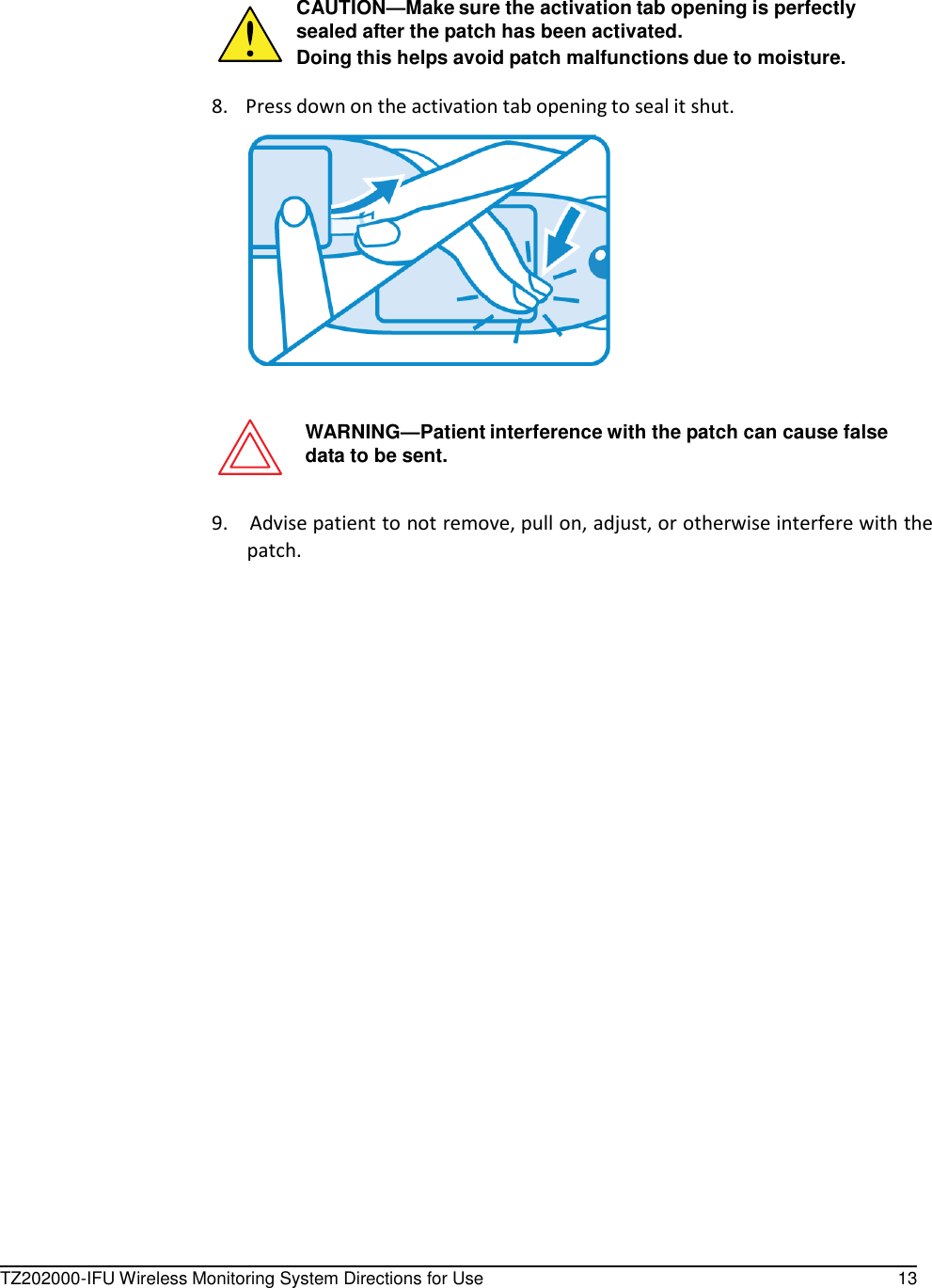
TZ202000-IFU Wireless Monitoring System Directions for Use 13       CAUTION—Make sure the activation tab opening is perfectly sealed after the patch has been activated. Doing this helps avoid patch malfunctions due to moisture.  8.    Press down on the activation tab opening to seal it shut.      WARNING—Patient interference with the patch can cause false data to be sent.   9.    Advise patient to not remove, pull on, adjust, or otherwise interfere with the patch.
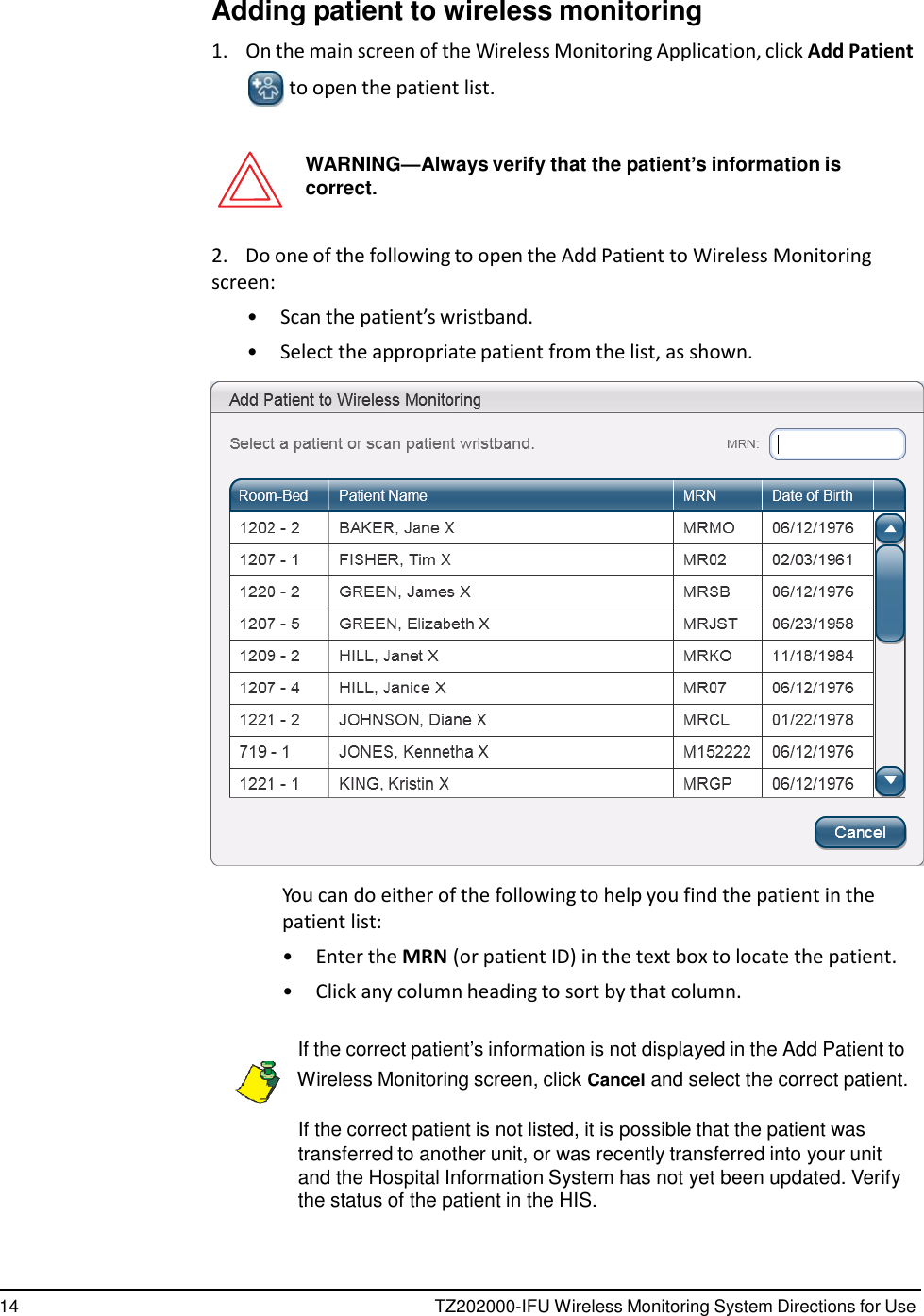
14 TZ202000-IFU Wireless Monitoring System Directions for Use      Adding patient to wireless monitoring  1.    On the main screen of the Wireless Monitoring Application, click Add Patient  to open the patient list.   WARNING—Always verify that the patient’s information is correct.   2.    Do one of the following to open the Add Patient to Wireless Monitoring screen: •  Scan the patient’s wristband. •  Select the appropriate patient from the list, as shown.    You can do either of the following to help you find the patient in the patient list: •  Enter the MRN (or patient ID) in the text box to locate the patient. •  Click any column heading to sort by that column.   If the correct patient’s information is not displayed in the Add Patient to    Wireless Monitoring screen, click Cancel and select the correct patient.  If the correct patient is not listed, it is possible that the patient was transferred to another unit, or was recently transferred into your unit and the Hospital Information System has not yet been updated. Verify the status of the patient in the HIS.
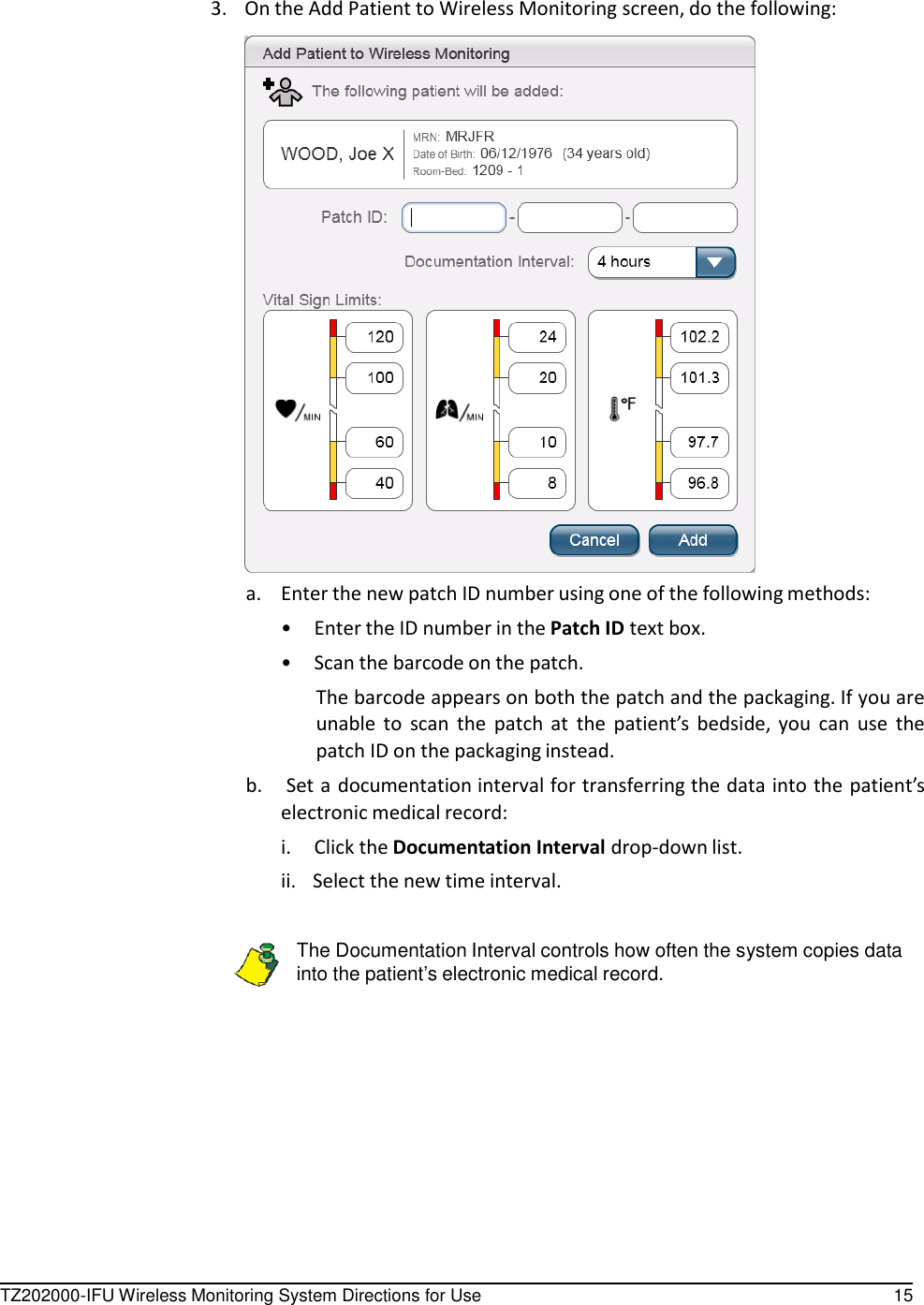
TZ202000-IFU Wireless Monitoring System Directions for Use 15        3.    On the Add Patient to Wireless Monitoring screen, do the following:   a.  Enter the new patch ID number using one of the following methods: •  Enter the ID number in the Patch ID text box. •  Scan the barcode on the patch. The barcode appears on both the patch and the packaging. If you are unable  to scan  the  patch  at  the  patient’s  bedside,  you  can  use  the patch ID on the packaging instead. b.    Set a documentation interval for transferring the data into the patient’s electronic medical record: i.  Click the Documentation Interval drop-down list. ii.   Select the new time interval.   The Documentation Interval controls how often the system copies data into the patient’s electronic medical record.
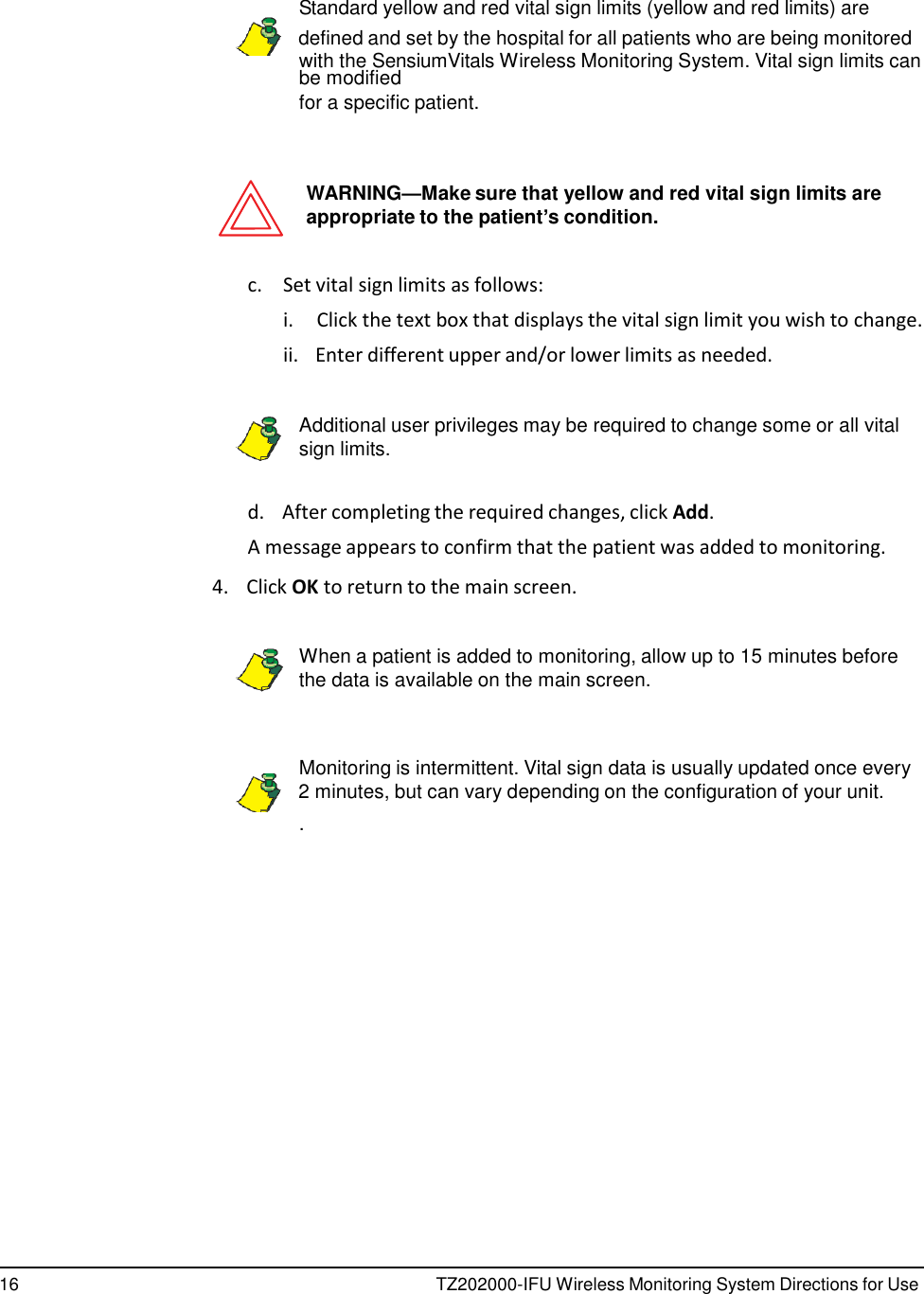
16 TZ202000-IFU Wireless Monitoring System Directions for Use            Standard yellow and red vital sign limits (yellow and red limits) are    defined and set by the hospital for all patients who are being monitored with the SensiumVitals Wireless Monitoring System. Vital sign limits can be modified for a specific patient.    WARNING—Make sure that yellow and red vital sign limits are appropriate to the patient’s condition.   c.  Set vital sign limits as follows: i.  Click the text box that displays the vital sign limit you wish to change. ii.   Enter different upper and/or lower limits as needed.   Additional user privileges may be required to change some or all vital sign limits.   d.    After completing the required changes, click Add. A message appears to confirm that the patient was added to monitoring.  4.    Click OK to return to the main screen.   When a patient is added to monitoring, allow up to 15 minutes before the data is available on the main screen.    Monitoring is intermittent. Vital sign data is usually updated once every    2 minutes, but can vary depending on the configuration of your unit. .
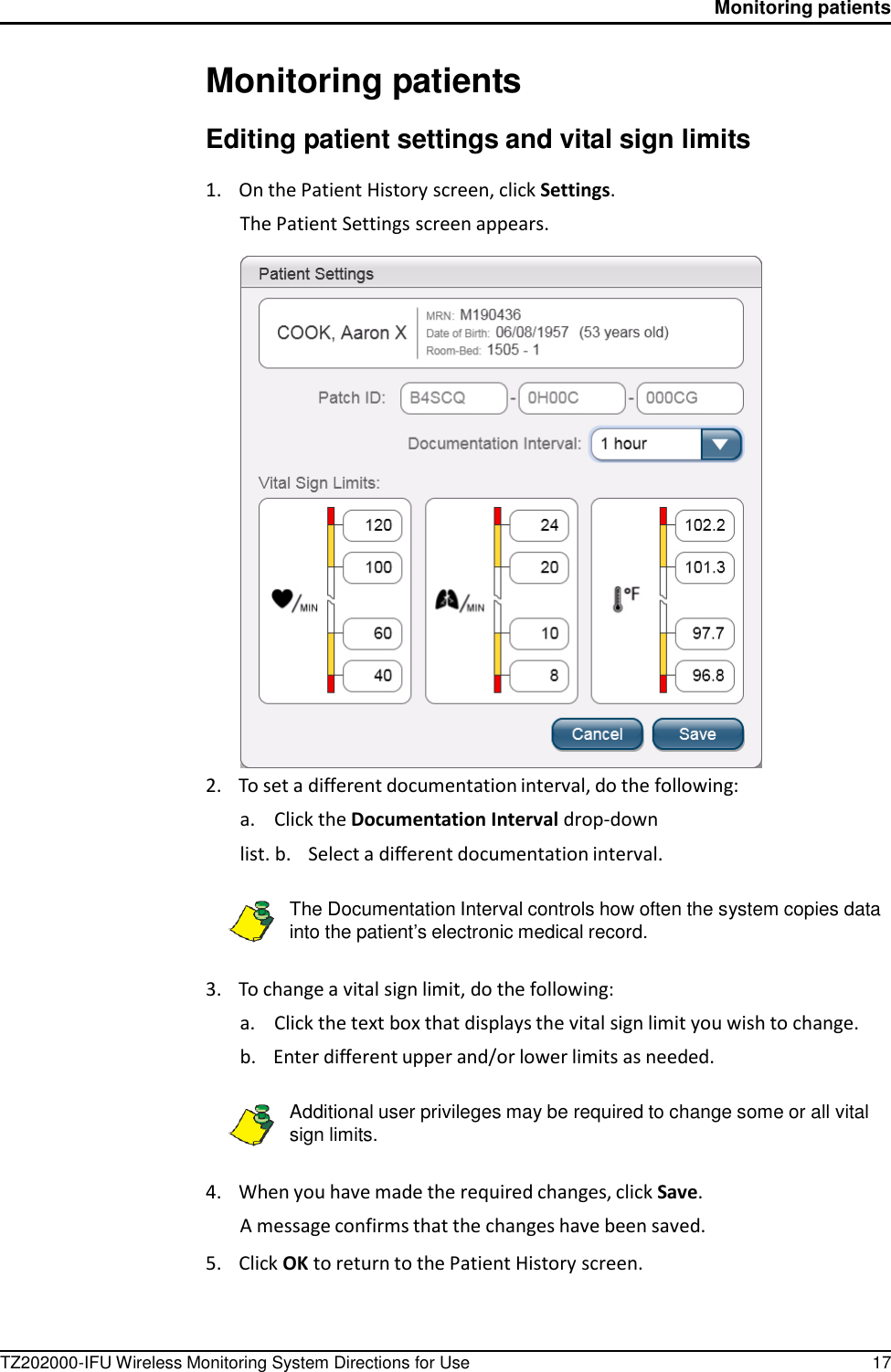
TZ202000-IFU Wireless Monitoring System Directions for Use 17 Monitoring patients          Monitoring patients  Editing patient settings and vital sign limits  1.    On the Patient History screen, click Settings. The Patient Settings screen appears.   2.    To set a different documentation interval, do the following: a.  Click the Documentation Interval drop-down list. b.    Select a different documentation interval.  The Documentation Interval controls how often the system copies data into the patient’s electronic medical record.   3.    To change a vital sign limit, do the following: a.  Click the text box that displays the vital sign limit you wish to change. b.    Enter different upper and/or lower limits as needed.  Additional user privileges may be required to change some or all vital sign limits.   4.    When you have made the required changes, click Save. A message confirms that the changes have been saved.  5.    Click OK to return to the Patient History screen.
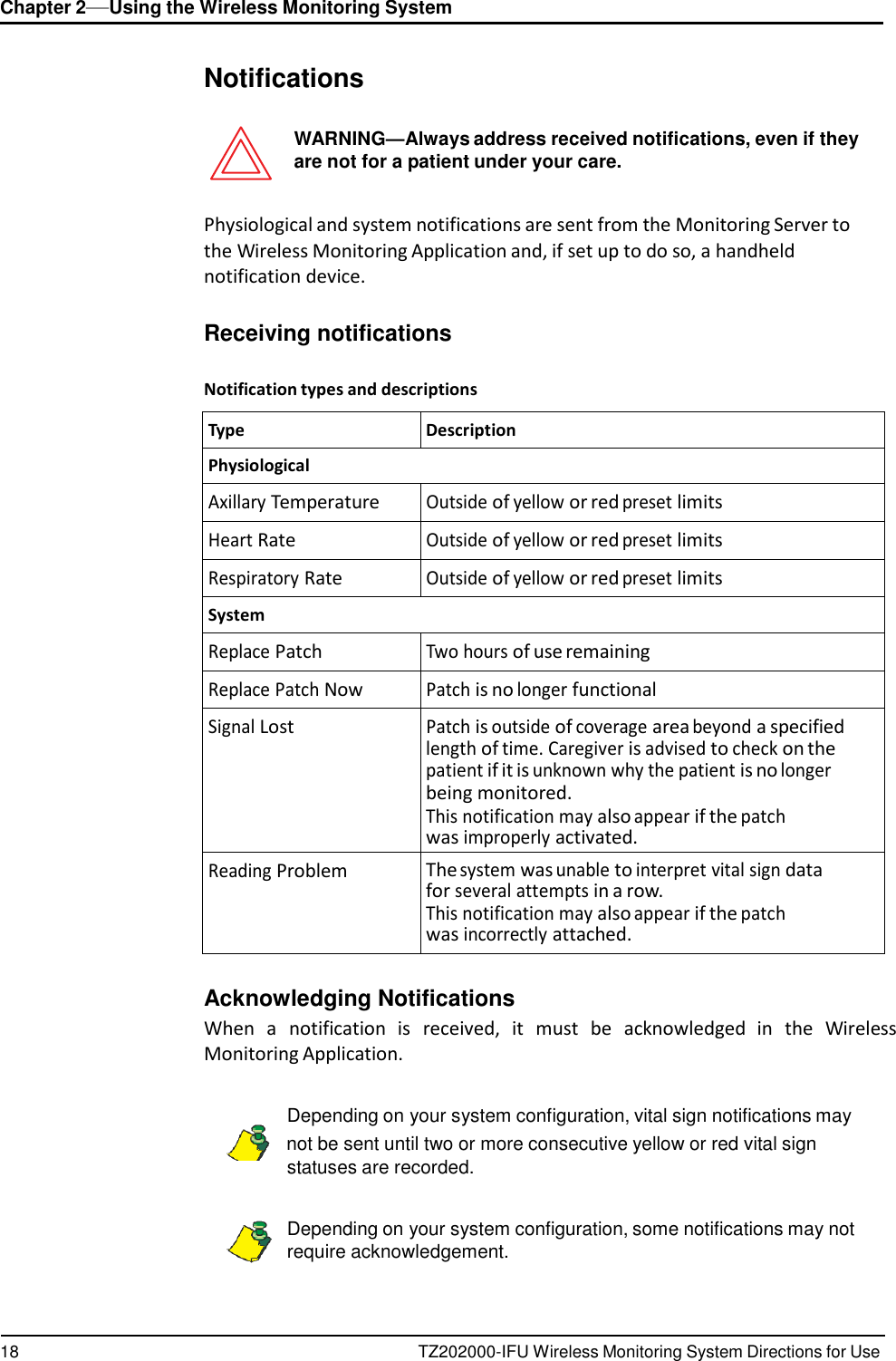
18 TZ202000-IFU Wireless Monitoring System Directions for Use Chapter 2—Using the Wireless Monitoring System        Notifications   WARNING—Always address received notifications, even if they are not for a patient under your care.   Physiological and system notifications are sent from the Monitoring Server to the Wireless Monitoring Application and, if set up to do so, a handheld notification device.   Receiving notifications   Notification types and descriptions  Type Description Physiological Axillary Temperature Outside of yellow or red preset limits Heart Rate Outside of yellow or red preset limits Respiratory Rate Outside of yellow or red preset limits System Replace Patch Two hours of use remaining Replace Patch Now Patch is no longer functional Signal Lost Patch is outside of coverage area beyond a specified length of time. Caregiver is advised to check on the patient if it is unknown why the patient is no longer being monitored. This notification may also appear if the patch was improperly activated. Reading Problem The system was unable to interpret vital sign data for several attempts in a row. This notification may also appear if the patch was incorrectly attached.  Acknowledging Notifications When  a  notification  is  received,  it  must  be  acknowledged  in  the  Wireless Monitoring Application.    Depending on your system configuration, vital sign notifications may    not be sent until two or more consecutive yellow or red vital sign statuses are recorded.   Depending on your system configuration, some notifications may not require acknowledgement.
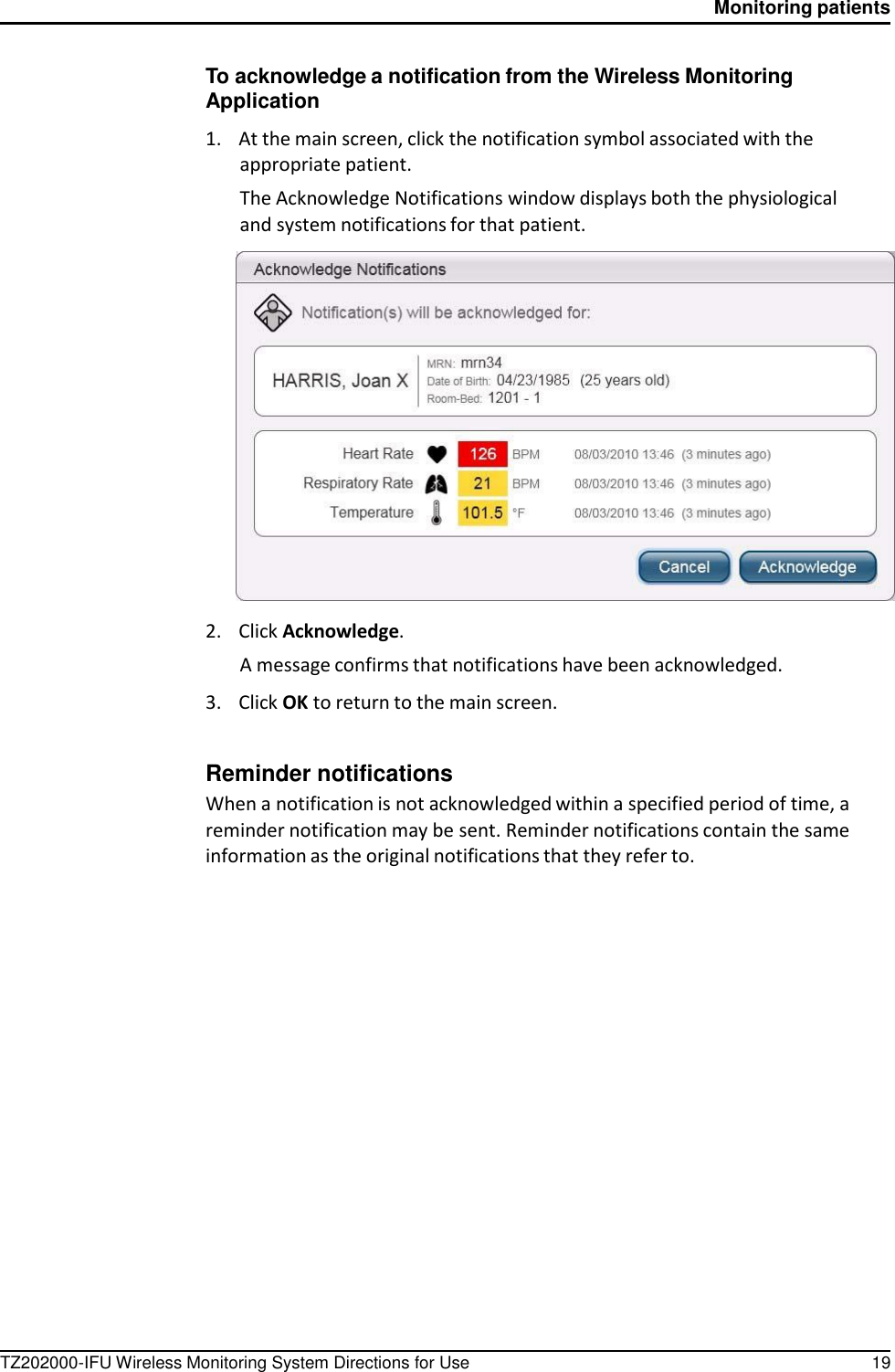
TZ202000-IFU Wireless Monitoring System Directions for Use 19 Monitoring patients      To acknowledge a notification from the Wireless Monitoring Application  1.    At the main screen, click the notification symbol associated with the appropriate patient. The Acknowledge Notifications window displays both the physiological and system notifications for that patient.    2.    Click Acknowledge. A message confirms that notifications have been acknowledged.  3.    Click OK to return to the main screen.   Reminder notifications When a notification is not acknowledged within a specified period of time, a reminder notification may be sent. Reminder notifications contain the same information as the original notifications that they refer to.
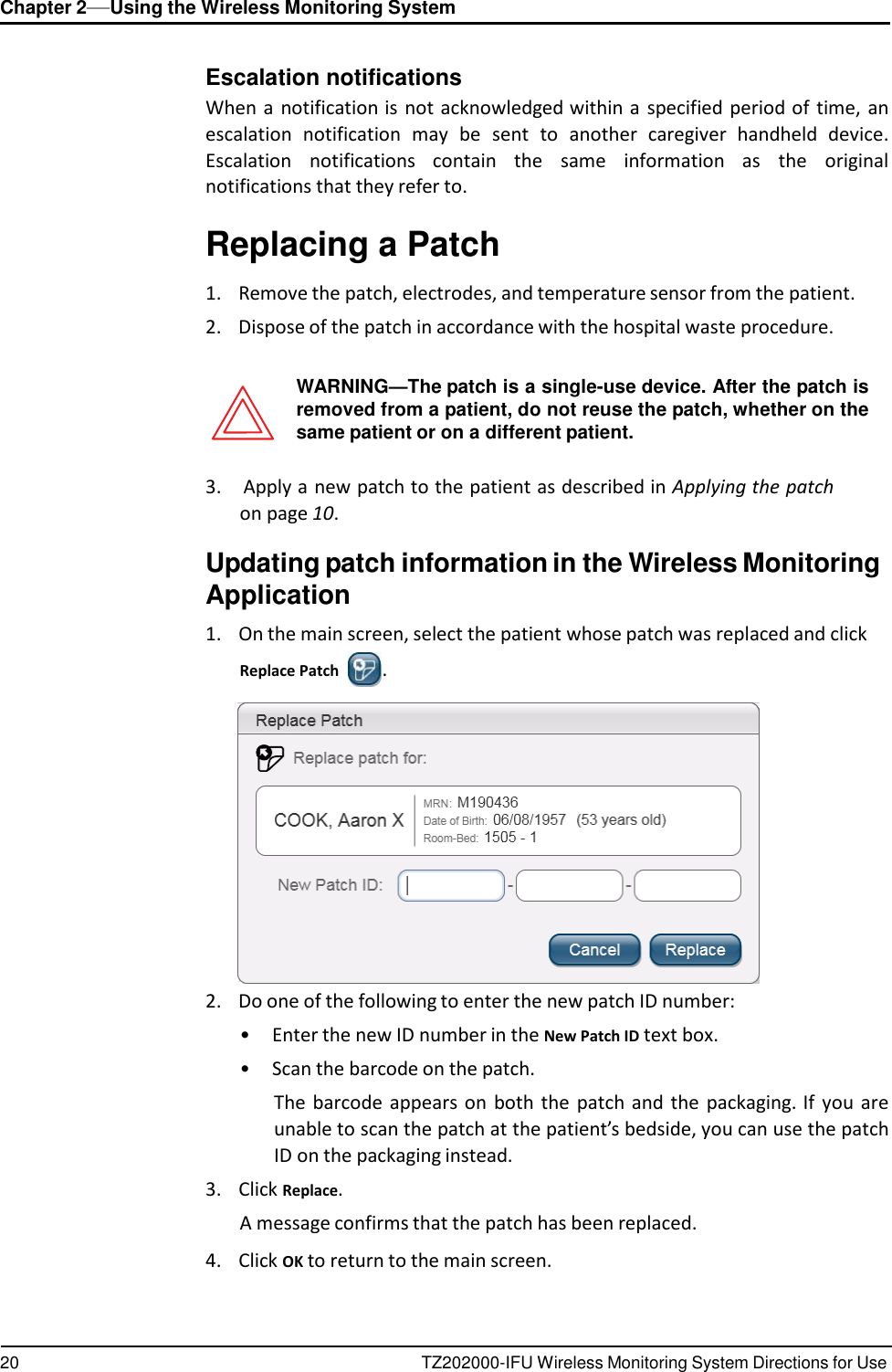
20 TZ202000-IFU Wireless Monitoring System Directions for Use Chapter 2—Using the Wireless Monitoring System      Escalation notifications When a  notification is  not acknowledged within a  specified period of time,  an escalation  notification  may  be  sent  to  another  caregiver  handheld  device. Escalation  notifications  contain  the  same  information  as  the  original notifications that they refer to.  Replacing a Patch  1.    Remove the patch, electrodes, and temperature sensor from the patient. 2.    Dispose of the patch in accordance with the hospital waste procedure.   WARNING—The patch is a single-use device. After the patch is removed from a patient, do not reuse the patch, whether on the same patient or on a different patient.  3.    Apply a new patch to the patient as described in Applying the patch on page 10.  Updating patch information in the Wireless Monitoring Application  1.    On the main screen, select the patient whose patch was replaced and click Replace Patch  .   2.    Do one of the following to enter the new patch ID number: •  Enter the new ID number in the New Patch ID text box. •  Scan the barcode on the patch. The barcode  appears on  both the  patch and the  packaging. If  you are unable to scan the patch at the patient’s bedside, you can use the patch ID on the packaging instead. 3.    Click Replace. A message confirms that the patch has been replaced.  4.    Click OK to return to the main screen.
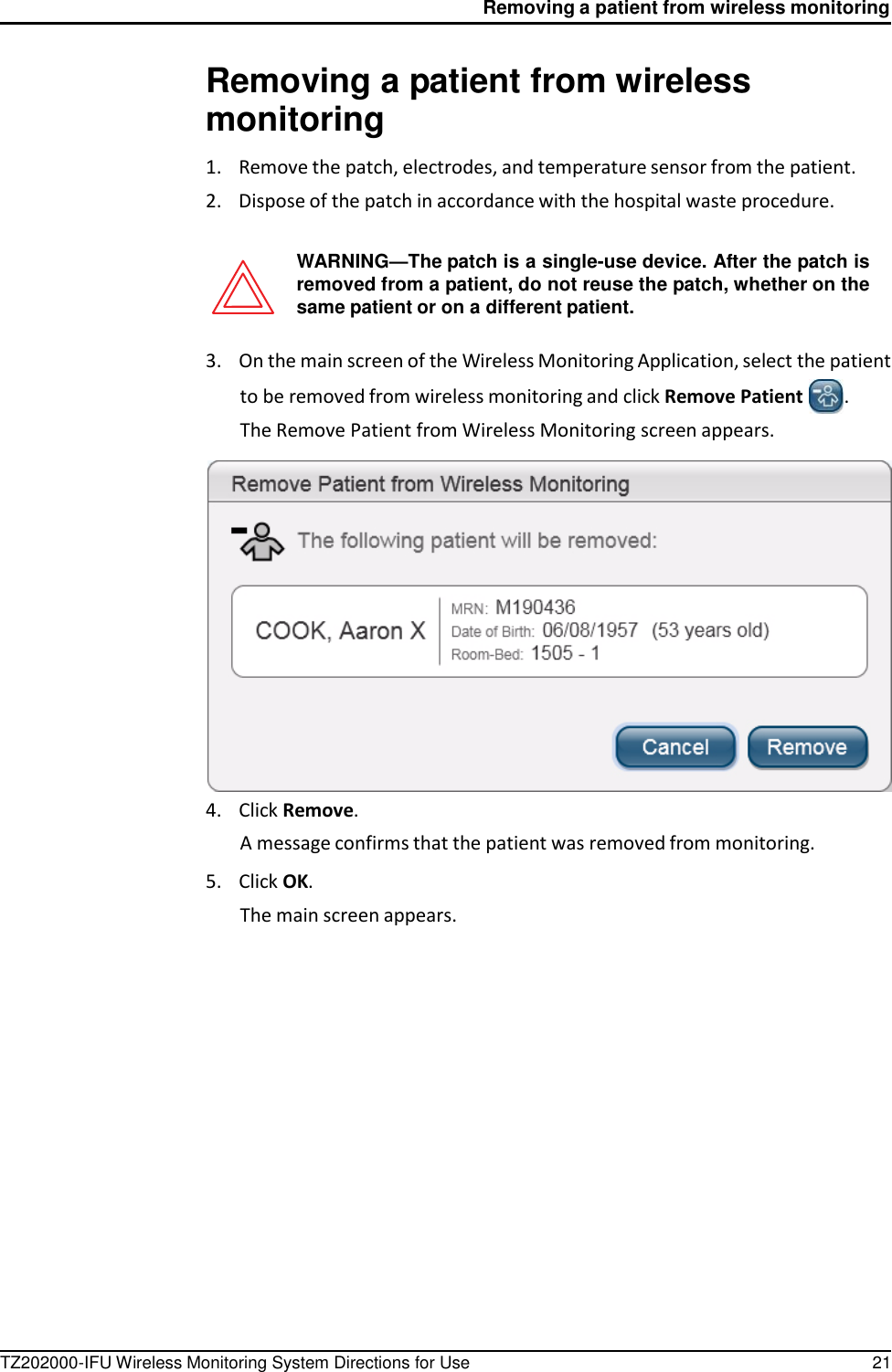
Removing a patient from wireless monitoring TZ202000-IFU Wireless Monitoring System Directions for Use 21      Removing a patient from wireless monitoring  1.    Remove the patch, electrodes, and temperature sensor from the patient. 2.    Dispose of the patch in accordance with the hospital waste procedure.   WARNING—The patch is a single-use device. After the patch is removed from a patient, do not reuse the patch, whether on the same patient or on a different patient.  3.    On the main screen of the Wireless Monitoring Application, select the patient to be removed from wireless monitoring and click Remove Patient  . The Remove Patient from Wireless Monitoring screen appears.   4.    Click Remove. A message confirms that the patient was removed from monitoring.  5.    Click OK. The main screen appears.
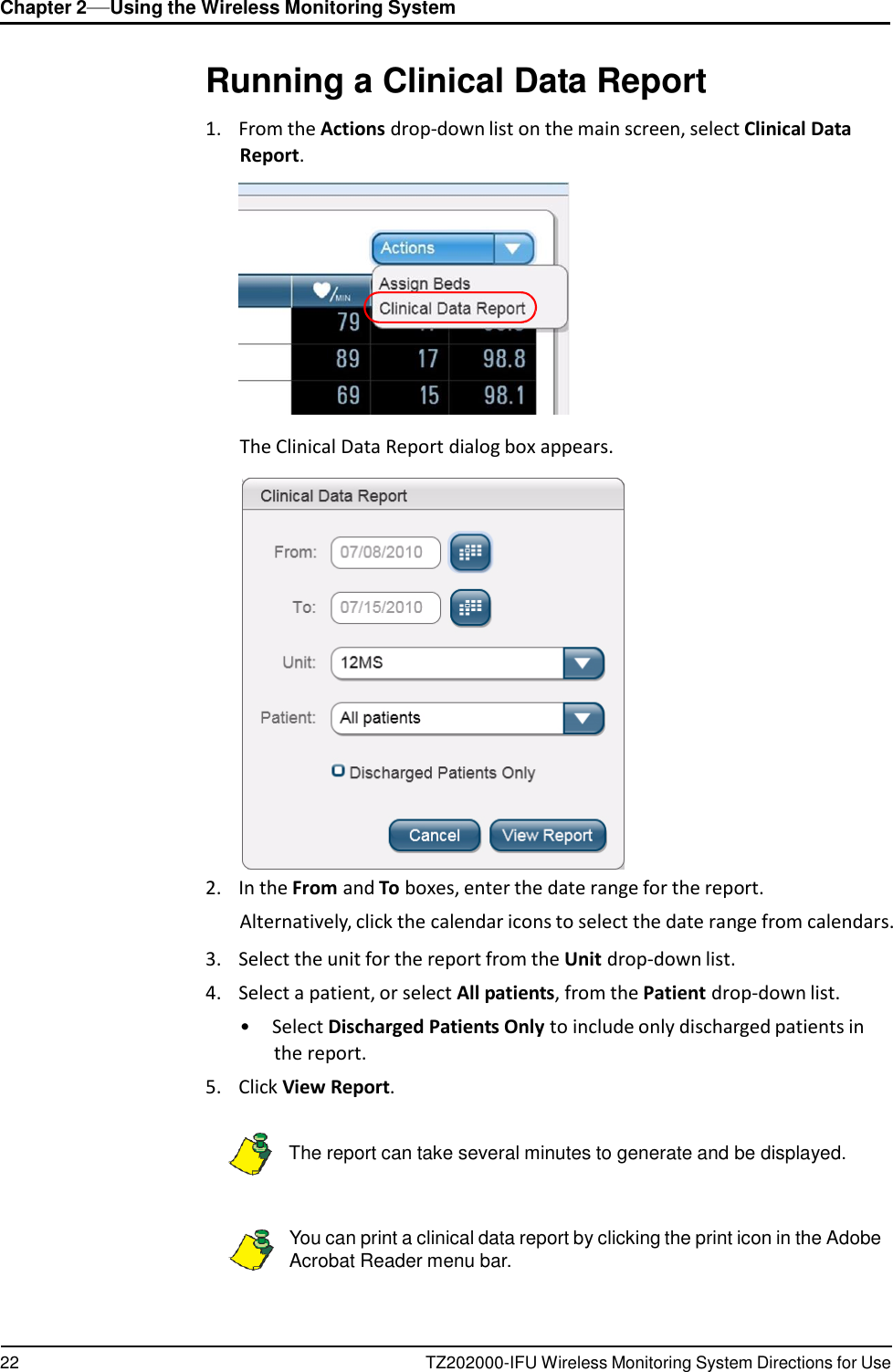
Chapter 2—Using the Wireless Monitoring System 22 TZ202000-IFU Wireless Monitoring System Directions for Use          Running a Clinical Data Report  1.    From the Actions drop-down list on the main screen, select Clinical Data Report.               The Clinical Data Report dialog box appears.   2.    In the From and To boxes, enter the date range for the report. Alternatively, click the calendar icons to select the date range from calendars.  3.    Select the unit for the report from the Unit drop-down list. 4.    Select a patient, or select All patients, from the Patient drop-down list. •  Select Discharged Patients Only to include only discharged patients in the report. 5.    Click View Report.      The report can take several minutes to generate and be displayed.    You can print a clinical data report by clicking the print icon in the Adobe Acrobat Reader menu bar.
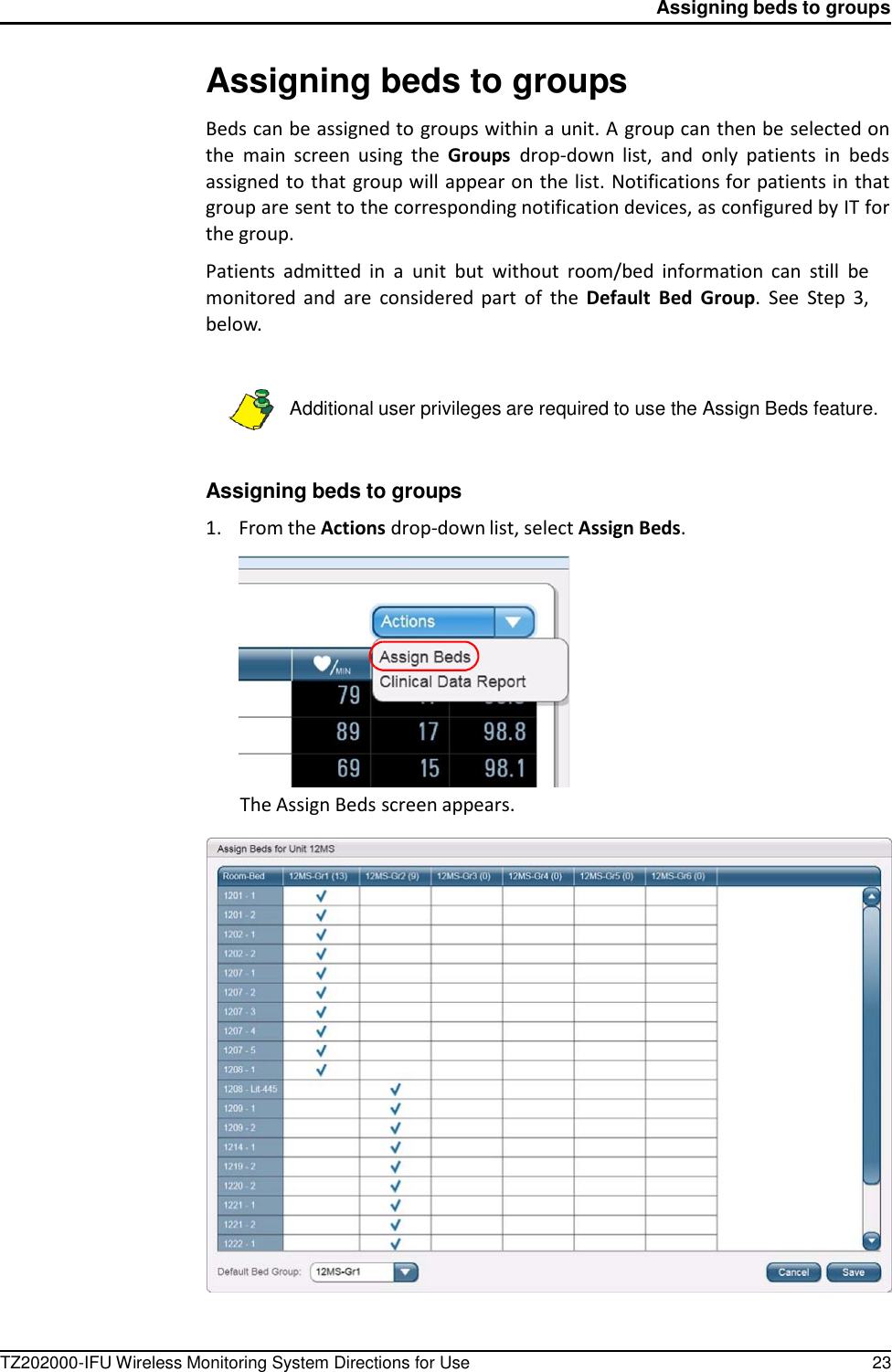
TZ202000-IFU Wireless Monitoring System Directions for Use 23 Assigning beds to groups          Assigning beds to groups  Beds can be assigned to groups within a unit. A group can then be selected on the  main  screen  using  the  Groups  drop-down  list,  and  only  patients  in  beds assigned to that group will appear on the list. Notifications for patients in that group are sent to the corresponding notification devices, as configured by IT for the group.  Patients  admitted  in  a  unit  but  without  room/bed  information  can  still  be monitored and  are  considered  part  of  the  Default  Bed  Group.  See  Step  3, below.    Additional user privileges are required to use the Assign Beds feature.    Assigning beds to groups  1.    From the Actions drop-down list, select Assign Beds.              The Assign Beds screen appears.
24 TZ202000-IFU Wireless Monitoring System Directions for Use Chapter 2—Using the Wireless Monitoring System      2.    Click a cell in the group column to assign a bed to a group. A blue check mark indicates the assigned group for a bed. A bed can be reassigned as often as needed.  3.      To  set  the  group  to which  patients  are  admitted  without  room/bed information assigned, click the Default Bed Group drop-down list and select a group. 4.    Click Save. A message confirms that your selections have been saved.  5.    Click OK to return to the main screen.
TZ202000-IFU Wireless Monitoring System Directions for Use 25                 Chapter 3 Troubleshooting    Logging in and out  I am entering the correct user name and password, but the system is not logging me in  •  Your computer’s CAPS LOCK may be on. If so, turn it off and try again.  • If that doesn’t work, double-check your user name and password.  • If your user name and password are correct and the system still won’t log you in, contact your facility’s IT department for assistance.   Adding a patient  Scanning the patient’s or patch’s bar code doesn’t work  Sometimes bar codes don’t print properly, and scanners have a hard time reading them.  If  you  attempt  to  scan  a  bar  code  and  it doesn’t  work,  enter  the  code manually.  If  the  problem  persists  with different  bar  codes,  then  you  may  have  a  faulty scanner. Contact your facility’s IT department for assistance.  I need to add a patient to wireless monitoring, but the patient’s name isn’t in the list  There are several reasons why a patient’s name may not be in the Add patient to wireless monitoring list:  •  The patient may have already been added to wireless monitoring. Check the main screen,  then  follow  the  procedures under  The  patient’s  name is  not displayed  on  the  main  screen  on  page 26  to  see  if  the  patient  is  already being monitored.
26 TZ202000-IFU Wireless Monitoring System Directions for Use Chapter 3—Troubleshooting      •  The patient may have  recently been admitted or transferred to your unit, and the system hasn’t been updated yet. If neither of the above applies, check with your facility’s IT department for assistance.  I am unable to access the Assign Bed feature  Additional user privileges are required to assign beds. Ask someone who has these privileges for assistance.  If you know that you should have access to this feature, but you do not, contact your facility’s IT department for assistance.  I can’t change the vital sign limits  Additional user privileges may be required to change some or all vital sign limits. Ask someone who has these privileges for assistance.  If you know that you should have the ability to change vital sign limits, but you do not, contact your facility’s IT department for assistance.  The patient’s demographic information is incorrect  The SensiumVitals Wireless Monitoring System’s patient information is taken from the Hospital Information System (HIS). Check with the HIS administrator to make sure that all information is correct and up to date.   Monitoring a patient  The patient’s name is not displayed on the main screen  If the patient’s name is not visible on the main screen, check the following:  •  Check the Group drop-down list to make sure that the proper group is being shown, or select All to display all patients being monitored.  • If there is a scroll bar to the right of the patient list, the list is too long to be displayed on one screen. Scroll down to see if the patient is farther down the list.  • It is possible that the patient was not added to wireless monitoring, even if a patch was applied and activated. Follow steps 1 and 2 of the procedure Adding patient  to wireless  monitoring  on  page  14.  If  the  patient’s  name  is on  the Patient  List  screen,  follow  the  rest  of  the  procedure  to  add  the  patient  to wireless monitoring.  • It  is  also  possible  that  the  patient  was  transferred  to  another  unit,  or  was recently transferred into  your  unit  and  the  Hospital  Information System has not yet been updated. Verify the status of the patient in the HIS.  If, after doing all of the previous steps, the patient’s name still is not displayed on the main screen, contact your facility’s IT department for assistance.
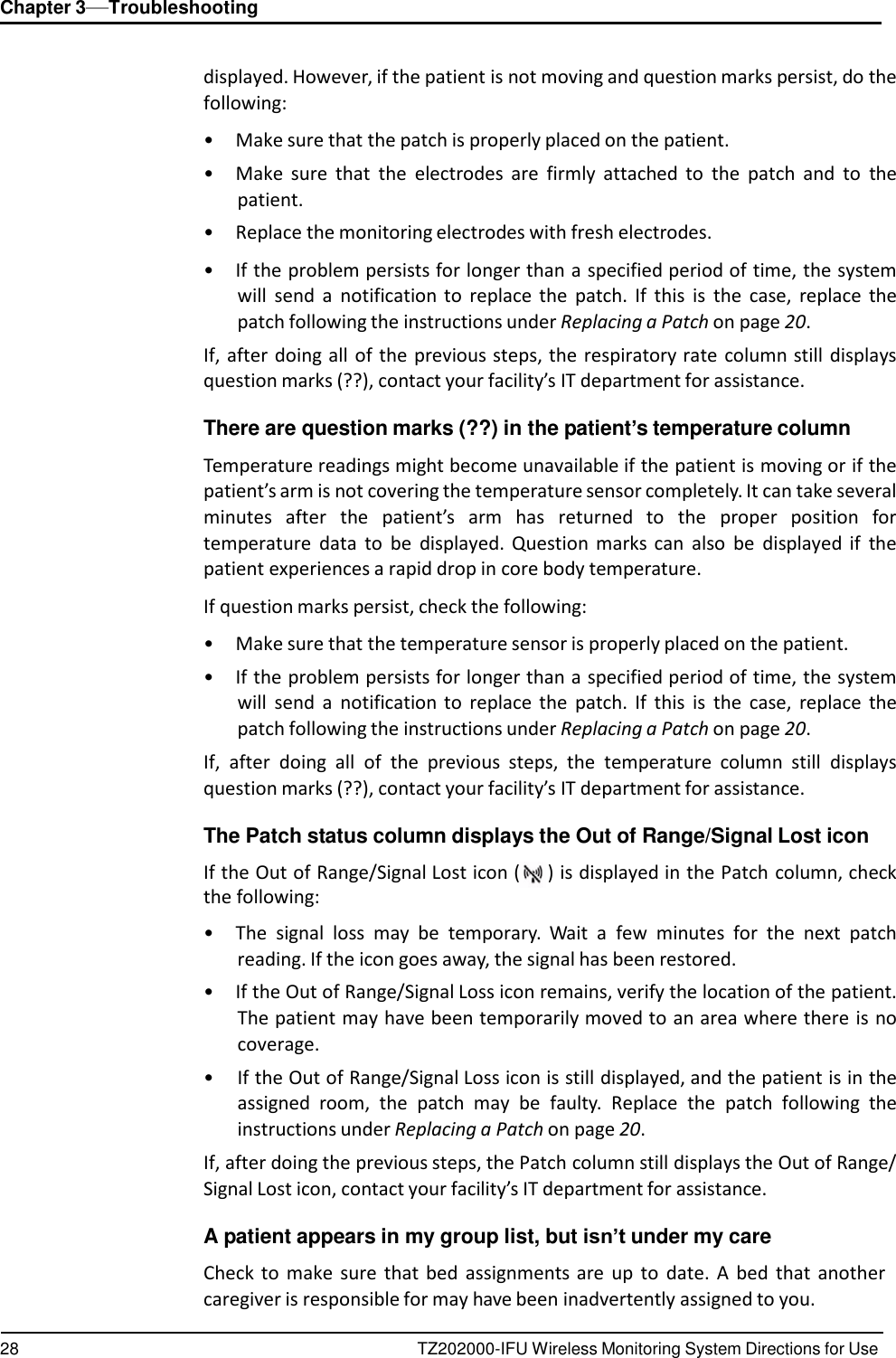
TZ202000-IFU Wireless Monitoring System Directions for Use 27 Monitoring a patient     (    The patient’s vital sign data are not appearing on the main screen  If  a  patient’s vital  sign  data  aren’t being  read by  the  system, the  vital  sign data columns show dashes (--). If this is the case, check the following:  •  Check the Patch column to see if the “Patch Activating” icon ( ) is displayed. If so, wait a few minutes for it to disappear.   NOTE: The patch can take up to 15 minutes in the worst case to activate and display data on the main screen.   •  Check the Patch  column to  see  if  the  Out  of  Range/Signal Lost  icon  ( )  is displayed. If so, see The Patch status column displays the Out of Range/ Signal Lost icon on page 28. •  Check the Patch column to see if the “Replace Patch” icon  ) is displayed. If so, replace the patch following the instructions under Replacing a Patch on page 20. •  Make sure that the activation tab has been removed. • If  you  have  checked  all  of  these  items,  properly  applied  and  activated  the patch, and the patient is not out of range, the patch may be faulty. Wait a few minutes for the next reading. If dashes (--) are still displayed, replace the patch following the instructions under Replacing a Patch on page 20. If,  after  doing  all  of  the  previous  steps,  the  vital  sign  data  columns still  display dashes (--), contact your facility’s IT department for assistance.  There are question marks (??) in the patient’s heart rate column  This is normal, but should not happen often. It can be due to temporary electrical interference, the patient moving in certain ways, or something striking the patch. However, if the question marks persist, check the following:  •  Make sure that the patch is properly placed on the patient. •  Make  sure  that  the  electrodes  are  firmly  attached  to  the  patch  and  to  the patient. •  Replace the monitoring electrodes with fresh electrodes.  • If the problem persists for longer than a specified period of time, the system will  send  a  notification to  replace  the  patch.  If  this  is  the  case,  replace the patch following the instructions under Replacing a Patch on page 20. If,  after  doing  all  of  the  previous  steps,  the  heart  rate  column  still  displays question marks (??), contact your facility’s IT department for assistance.  There are question marks (??) in the patient’s respiratory rate column  Due to the nature of impedance pneumography, it is possible that respiratory rate readings are often not available, especially when the patient is moving. It can take several minutes after the patient has stopped moving for respiratory rate data to be
28 TZ202000-IFU Wireless Monitoring System Directions for Use Chapter 3—Troubleshooting      displayed. However, if the patient is not moving and question marks persist, do the following:  •  Make sure that the patch is properly placed on the patient. •  Make  sure  that  the  electrodes  are  firmly  attached  to  the  patch  and  to  the patient. •  Replace the monitoring electrodes with fresh electrodes.  • If the problem persists for longer than a specified period of time, the system will  send  a  notification to  replace  the  patch.  If  this  is  the  case,  replace  the patch following the instructions under Replacing a Patch on page 20. If, after doing all  of  the  previous steps, the respiratory rate  column still displays question marks (??), contact your facility’s IT department for assistance.  There are question marks (??) in the patient’s temperature column  Temperature readings might become unavailable if the patient is moving or if the patient’s arm is not covering the temperature sensor completely. It can take several minutes  after  the  patient’s  arm  has  returned  to  the  proper  position  for temperature  data  to be  displayed.  Question  marks  can  also be  displayed  if  the patient experiences a rapid drop in core body temperature.  If question marks persist, check the following:  •  Make sure that the temperature sensor is properly placed on the patient. • If the problem persists for longer than a specified period of time, the system will  send  a  notification to  replace  the  patch.  If  this  is  the  case,  replace  the patch following the instructions under Replacing a Patch on page 20. If,  after  doing  all  of  the  previous  steps,  the  temperature  column  still  displays question marks (??), contact your facility’s IT department for assistance.  The Patch status column displays the Out of Range/Signal Lost icon  If the Out of Range/Signal Lost icon ( ) is displayed in the Patch column, check the following:  •  The  signal  loss  may  be temporary.  Wait  a  few  minutes  for  the  next  patch reading. If the icon goes away, the signal has been restored. • If the Out of Range/Signal Loss icon remains, verify the location of the patient. The patient may have been temporarily moved to an area where there is no coverage. • If the Out of Range/Signal Loss icon is still displayed, and the patient is in the assigned  room,  the  patch  may  be faulty.  Replace  the  patch  following  the instructions under Replacing a Patch on page 20. If, after doing the previous steps, the Patch column still displays the Out of Range/ Signal Lost icon, contact your facility’s IT department for assistance.  A patient appears in my group list, but isn’t under my care  Check to  make  sure  that  bed  assignments are  up to  date.  A  bed  that  another caregiver is responsible for may have been inadvertently assigned to you.
TZ202000-IFU Wireless Monitoring System Directions for Use 29 Patient History      Also,  your group  could  be  the  “default  group” to  which  patients  without room/bed  information  are  assigned.  The  patient  will  be  removed  from  your group when the room/bed information has been updated.  It may also be that the patient was recently transferred into your group in the system, but has not yet been physically moved.   Patient History  Some data points in the Patient History screen are 10 minutes apart and others are 2 minutes apart  This is normal and not a  cause for worry. Vital sign data is  usually updated once every  10 minutes,  but  can  vary  depending  on  the  configuration  of  your  unit. Frequency automatically increases to  as  much as  once every two minutes when the vital sign data are outside of preset limits.  Some data points in the Patient History screen are yellow or red when they’re within the vital sign limits  This is normal and not a cause for worry. A data point is marked yellow or red if it falls outside of the yellow or red vital sign limits at the time it was recorded. If the vital  sign  limits are  later  changed, yellow  and  red  dots  may  fall  within  the  new limits.  Some data points in the Patient History screen are blue when they’re outside the vital sign limits  This  is  normal  and  not  a  cause  for  worry. A  data  point  is  marked  blue  if  it  falls within the yellow vital sign limits at the time it was recorded. If the vital sign limits are later changed, blue dots may fall outside the new limits.   Removing patients from Wireless Monitoring  A patient has been discharged, but the patient’s name is still on the wireless monitoring list  Even  if  a  patient  is  discharged  from  a  facility,  the  patient  must  be  manually removed from  wireless  monitioring  using  the  procedures  under  Removing  a patient from wireless monitoring on page 21.   General application questions  Online help doesn’t work  Contact your facility’s IT department.
30 TZ202000-IFU Wireless Monitoring System Directions for Use Chapter 3—Troubleshooting      Clinical reporting doesn’t work  Contact your facility’s IT department.   Notification questions  There is a notification on the main screen, but the notification was never sent to my pager  Check to make sure that bed assignments are up to date. The bed you believe you are responsible for may have been inadvertently assigned to another caregiver.  If  you  are  not  receiving  pages  for  any  patients,  contact  your  facility’s  IT department to have your pager serviced or replaced.  I am receiving notifications for patients not under my care    WARNING—Always address received notifications, even if they are not for a patient under your care.   Check  to  make  sure  that  bed  assignments  are up to  date.  A  bed  that  another caregiver is responsible for may now be assigned to you.  Also, your group could be the “default group” to which patients without room/bed information are assigned. You will stop receiving notifications when the patient’s room/bed information has been properly entered.  A patient’s vital sign data is yellow or red, but I didn’t receive a notification  This is normal and not a cause for worry. Depending on your system configuration, vital sign notifications may not be sent until two or more consecutive yellow or red vital sign statuses are recorded.  It is also possible, depending on your system configuration, that notifications are turned off for your system. Check with your facility’s IT department to verify this.  If you are not receiving pages for any patients, contact your facility’s IT department to have your pager serviced or replaced.   Error message questions  The message “Internet Explorer cannot display the webpage” displays when I tried to open the main screen  Try  again.  If  the  problem  persists,  contact  your  facility’s  IT  department  for assistance.
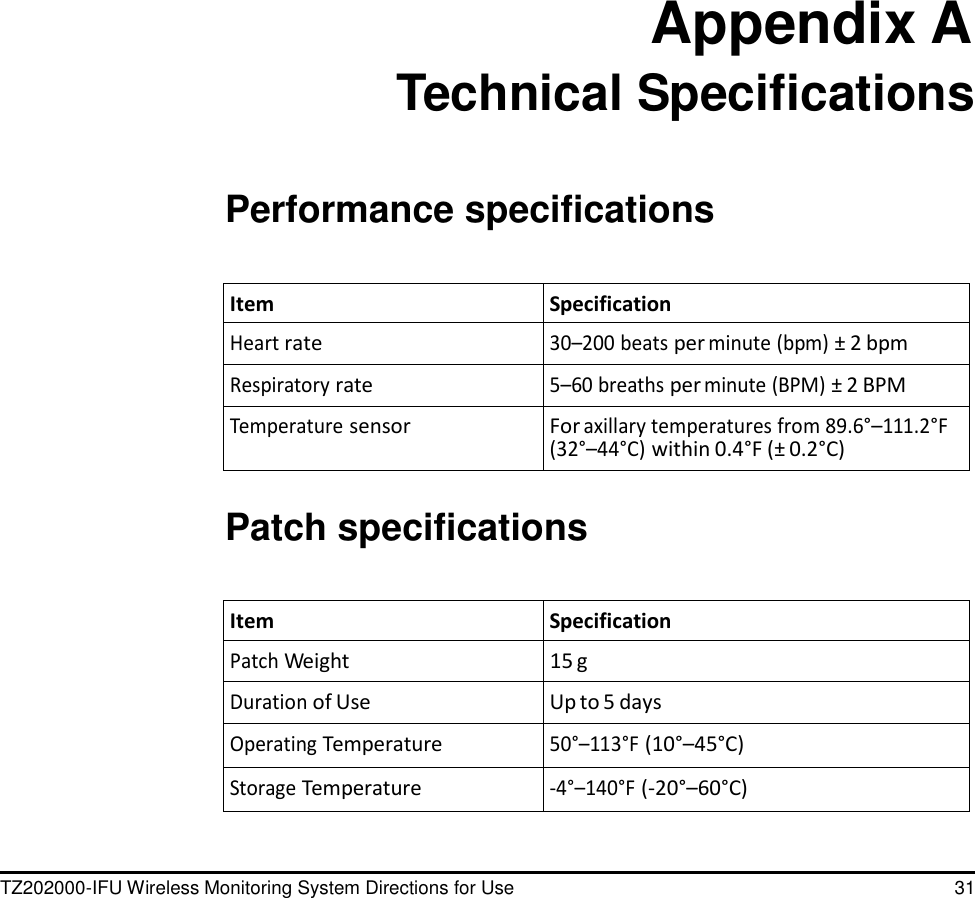
TZ202000-IFU Wireless Monitoring System Directions for Use 31                            Appendix A Technical Specifications    Performance specifications   Item Specification Heart rate 30–200 beats per minute (bpm) ± 2 bpm Respiratory rate 5–60 breaths per minute (BPM) ± 2 BPM Temperature sensor For axillary temperatures from 89.6°–111.2°F (32°–44°C) within 0.4°F (± 0.2°C)   Patch specifications   Item Specification Patch Weight 15 g Duration of Use Up to 5 days Operating Temperature 50°–113°F (10°–45°C) Storage Temperature -4°–140°F (-20°–60°C)
32 TZ202000-IFU Wireless Monitoring System Directions for Use Appendix A—Technical Specifications
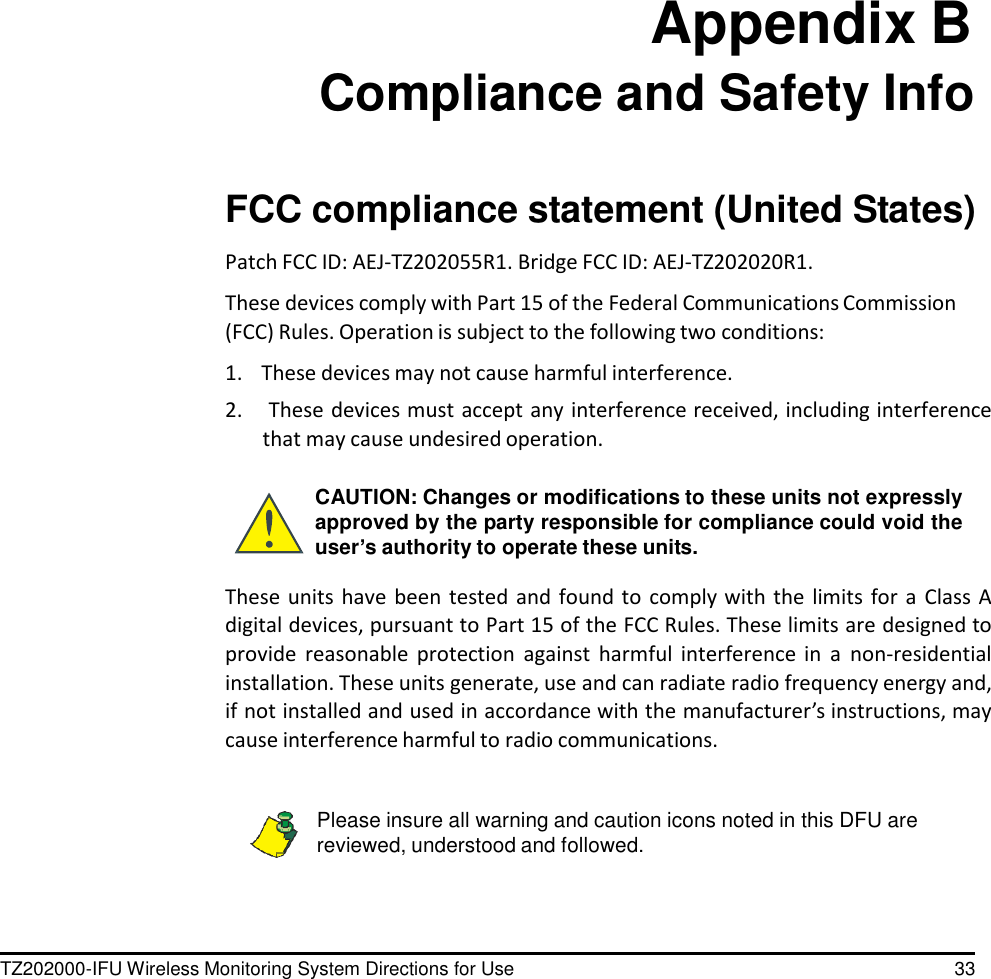
TZ202000-IFU Wireless Monitoring System Directions for Use 33                          Appendix B Compliance and Safety Info    FCC compliance statement (United States)  Patch FCC ID: AEJ-TZ202055R1. Bridge FCC ID: AEJ-TZ202020R1.  These devices comply with Part 15 of the Federal Communications Commission (FCC) Rules. Operation is subject to the following two conditions:  1.    These devices may not cause harmful interference. 2.     These devices must accept any interference received, including interference that may cause undesired operation.  CAUTION: Changes or modifications to these units not expressly approved by the party responsible for compliance could void the user’s authority to operate these units.  These units have been tested  and  found to comply with  the  limits  for  a  Class A digital devices, pursuant to Part 15 of the FCC Rules. These limits are designed to provide  reasonable protection  against  harmful  interference  in  a  non-residential installation. These units generate, use and can radiate radio frequency energy and, if not installed and used in accordance with the manufacturer’s instructions, may cause interference harmful to radio communications.   Please insure all warning and caution icons noted in this DFU are reviewed, understood and followed.
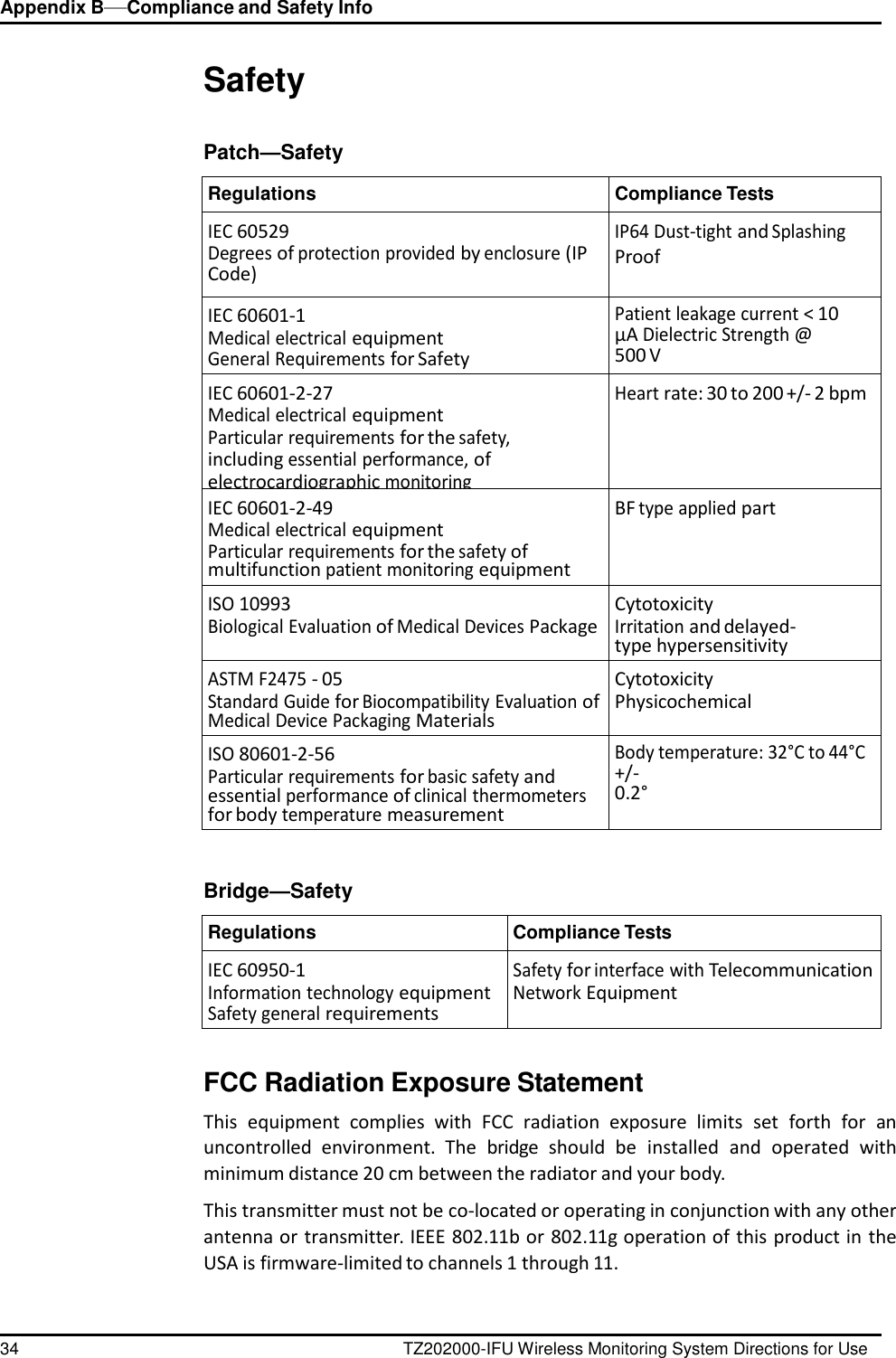
Appendix B—Compliance and Safety Info 34 TZ202000-IFU Wireless Monitoring System Directions for Use      Safety   Patch—Safety  Regulations Compliance Tests IEC 60529 Degrees of protection provided by enclosure (IP Code) IP64 Dust-tight and Splashing Proof IEC 60601-1 Medical electrical equipment General Requirements for Safety Patient leakage current < 10 µA Dielectric Strength @ 500 V IEC 60601-2-27 Medical electrical equipment Particular requirements for the safety, including essential performance, of electrocardiographic monitoring equipment Heart rate: 30 to 200 +/- 2 bpm IEC 60601-2-49 Medical electrical equipment Particular requirements for the safety of multifunction patient monitoring equipment BF type applied part ISO 10993 Biological Evaluation of Medical Devices Package Cytotoxicity Irritation and delayed-type hypersensitivity ASTM F2475 - 05 Standard Guide for Biocompatibility Evaluation of Medical Device Packaging Materials Cytotoxicity Physicochemical ISO 80601-2-56 Particular requirements for basic safety and essential performance of clinical thermometers for body temperature measurement Body temperature: 32°C to 44°C +/- 0.2°    Bridge—Safety  Regulations Compliance Tests IEC 60950-1 Information technology equipment Safety general requirements Safety for interface with Telecommunication Network Equipment   FCC Radiation Exposure Statement  This  equipment  complies  with  FCC  radiation  exposure  limits  set  forth  for  an uncontrolled  environment.  The  bridge  should  be  installed  and  operated  with minimum distance 20 cm between the radiator and your body.  This transmitter must not be co-located or operating in conjunction with any other antenna or transmitter. IEEE 802.11b or 802.11g operation of this product in the USA is firmware-limited to channels 1 through 11.
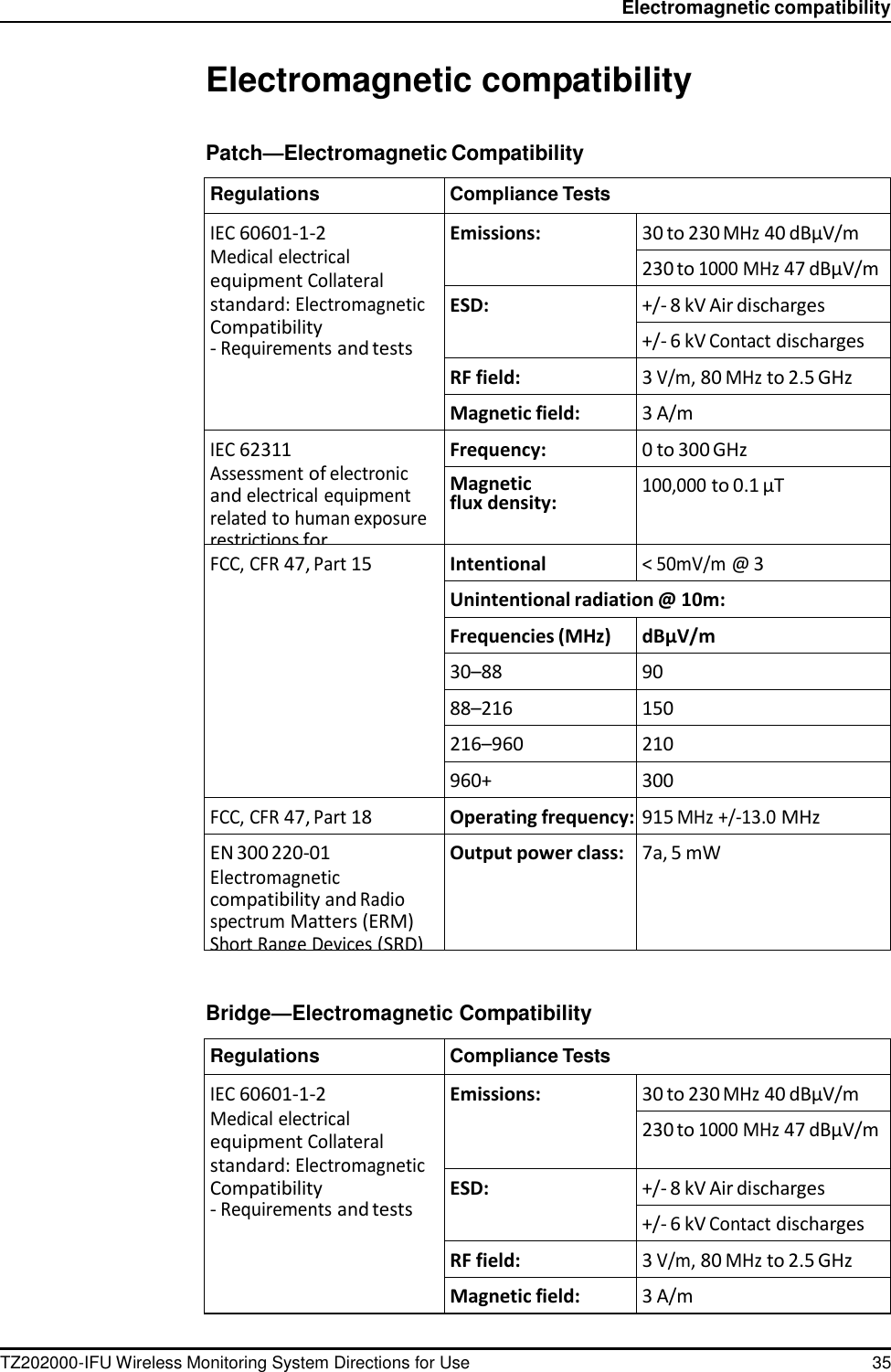
TZ202000-IFU Wireless Monitoring System Directions for Use 35   Electromagnetic compatibility   Electromagnetic compatibility   Patch—Electromagnetic Compatibility  Regulations Compliance Tests IEC 60601-1-2 Medical electrical equipment Collateral standard: Electromagnetic Compatibility - Requirements and tests Emissions: 30 to 230 MHz 40 dBµV/m 230 to 1000 MHz 47 dBµV/m ESD: +/- 8 kV Air discharges +/- 6 kV Contact discharges RF field: 3 V/m, 80 MHz to 2.5 GHz Magnetic field: 3 A/m IEC 62311 Assessment of electronic and electrical equipment related to human exposure restrictions for electromagnetic fields Frequency: 0 to 300 GHz Magnetic flux density: 100,000 to 0.1 µT FCC, CFR 47, Part 15 Intentional radiation: < 50mV/m @ 3 Unintentional radiation @ 10m: Frequencies (MHz) dBµV/m 30–88 90 88–216 150 216–960 210 960+ 300 FCC, CFR 47, Part 18 Operating frequency: 915 MHz +/-13.0 MHz EN 300 220-01 Electromagnetic compatibility and Radio spectrum Matters (ERM) Short Range Devices (SRD) Output power class: 7a, 5 mW    Bridge—Electromagnetic Compatibility  Regulations Compliance Tests IEC 60601-1-2 Medical electrical equipment Collateral standard: Electromagnetic Compatibility - Requirements and tests Emissions: 30 to 230 MHz 40 dBµV/m 230 to 1000 MHz 47 dBµV/m ESD: +/- 8 kV Air discharges +/- 6 kV Contact discharges RF field: 3 V/m, 80 MHz to 2.5 GHz Magnetic field: 3 A/m
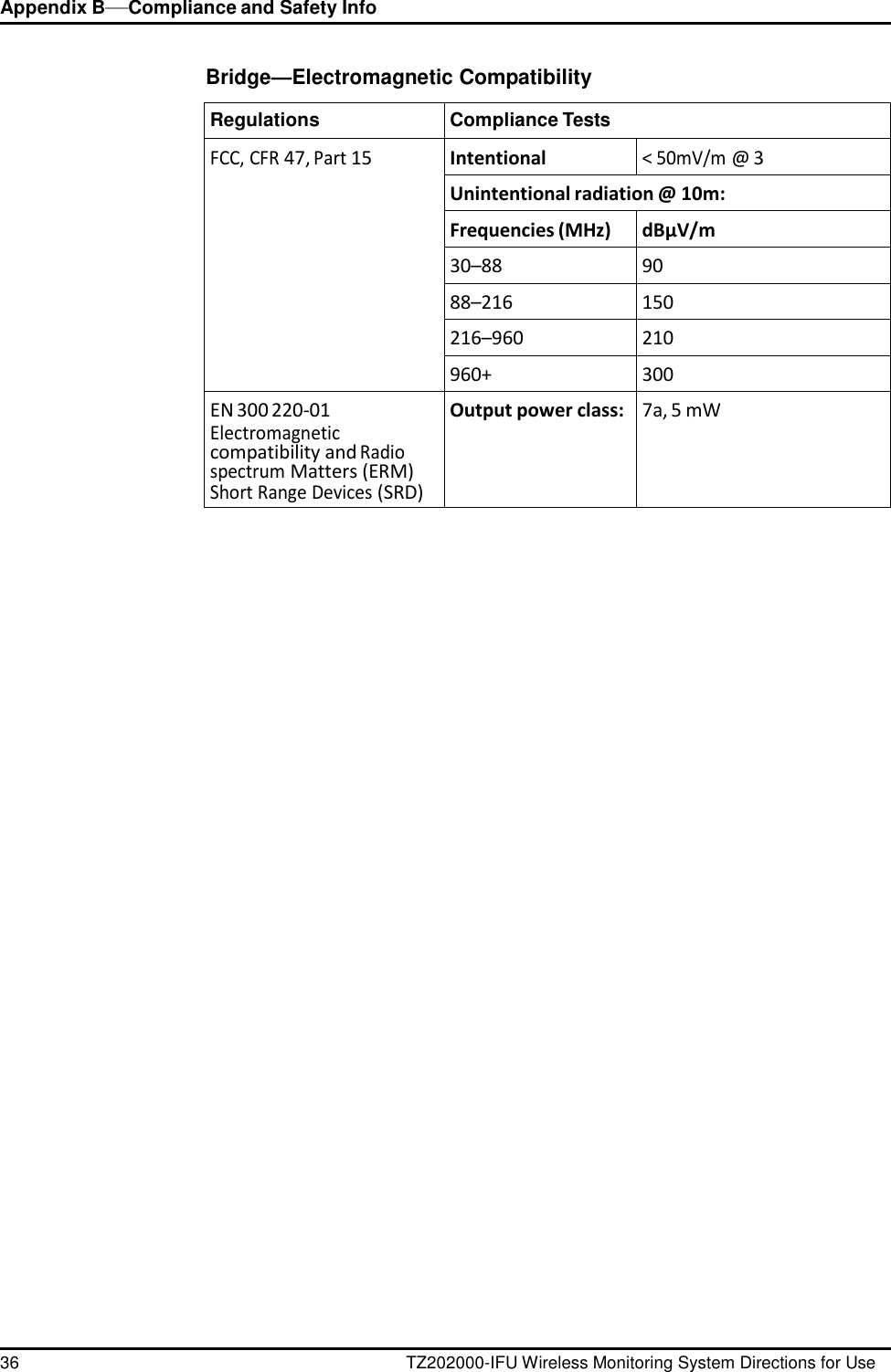
Appendix B—Compliance and Safety Info 36 TZ202000-IFU Wireless Monitoring System Directions for Use      Bridge—Electromagnetic Compatibility  Regulations Compliance Tests FCC, CFR 47, Part 15 Intentional radiation: < 50mV/m @ 3 Unintentional radiation @ 10m: Frequencies (MHz) dBµV/m 30–88 90 88–216 150 216–960 210 960+ 300 EN 300 220-01 Electromagnetic compatibility and Radio spectrum Matters (ERM) Short Range Devices (SRD) Output power class: 7a, 5 mW

Navigation menu