ShenZhen Foscam Intelligent Technology FI9803PV2 Outdoor HD IP Camera User Manual 1

ShenZhen Foscam Intelligent Technology Co., Ltd. Outdoor HD IP Camera 1

Contents

User Manual Part 2

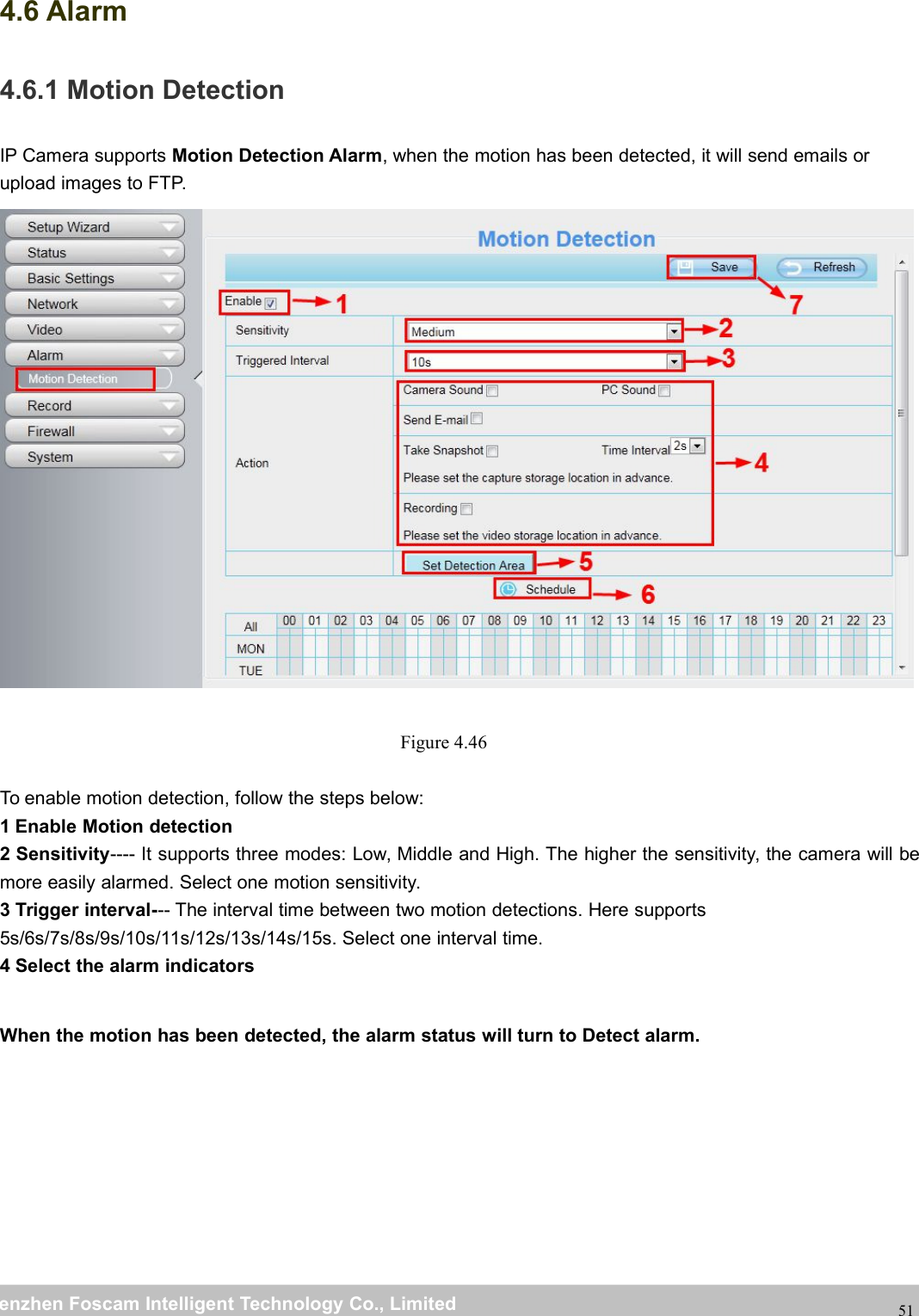
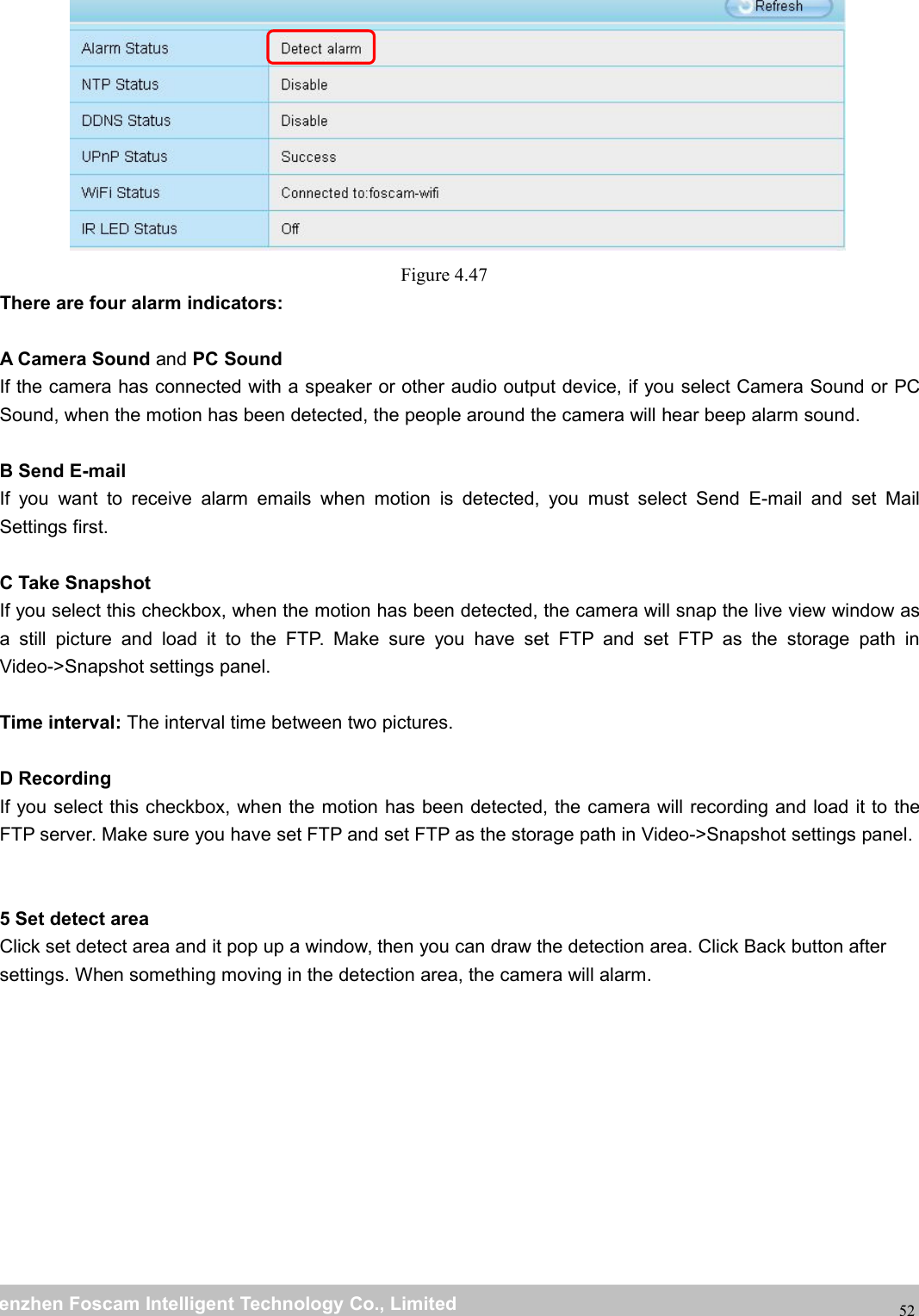
wwwwww.foscam.co.foscam.commShenzhenShenzhen FoscamFoscam IntelligentIntelligent TechnologyTechnology Co.,Co., LimitedLimitedTel:Tel: 8686 755755 26742674 56685668 Fax:Fax: 8686 755755 26742674 51685168514.6 Alarm4.6.1 Motion DetectionIP Camera supports Motion Detection Alarm, when the motion has been detected, it will send emails orupload images to FTP.Figure 4.46To enable motion detection, follow the steps below:1 Enable Motion detection2 Sensitivity---- It supports three modes: Low, Middle and High. The higher the sensitivity, the camera will bemore easily alarmed. Select one motion sensitivity.3 Trigger interval--- The interval time between two motion detections. Here supports5s/6s/7s/8s/9s/10s/11s/12s/13s/14s/15s. Select one interval time.4 Select the alarm indicatorsWhen the motion has been detected, the alarm status will turn to Detect alarm.
wwwwww.foscam.co.foscam.commShenzhenShenzhen FoscamFoscam IntelligentIntelligent TechnologyTechnology Co.,Co., LimitedLimitedTel:Tel: 8686 755755 26742674 56685668 Fax:Fax: 8686 755755 26742674 5168516852Figure 4.47There are four alarm indicators:A Camera Sound and PC SoundIf the camera has connected with a speaker or other audio output device, if you select Camera Sound or PCSound, when the motion has been detected, the people around the camera will hear beep alarm sound.B Send E-mailIf you want to receive alarm emails when motion is detected, you must select Send E-mail and set MailSettings first.C Take SnapshotIf you select this checkbox, when the motion has been detected, the camera will snap the live view window asa still picture and load it to the FTP. Make sure you have set FTP and set FTP as the storage path inVideo->Snapshot settings panel.Time interval: The interval time between two pictures.D RecordingIf you select this checkbox, when the motion has been detected, the camera will recording and load it to theFTP server. Make sure you have set FTP and set FTP as the storage path in Video->Snapshot settings panel.5 Set detect areaClick set detect area and it pop up a window, then you can draw the detection area. Click Back button aftersettings. When something moving in the detection area, the camera will alarm.
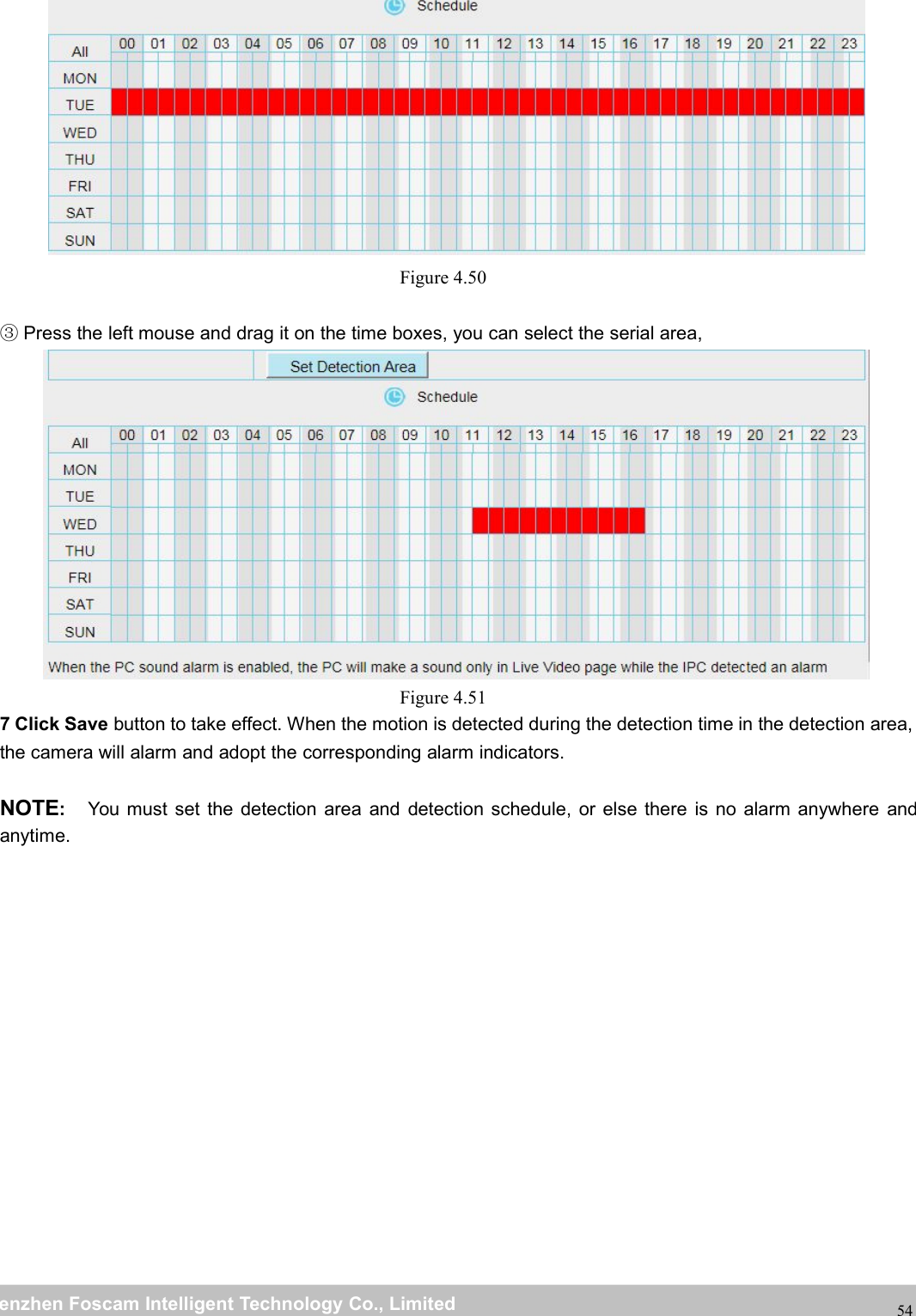
wwwwww.foscam.co.foscam.commShenzhenShenzhen FoscamFoscam IntelligentIntelligent TechnologyTechnology Co.,Co., LimitedLimitedTel:Tel: 8686 755755 26742674 56685668 Fax:Fax: 8686 755755 26742674 5168516853Figure 4.486 Alarm Schedule①Alarm anytime when motion is detectedClick the black button up the MON, you will see all time range turn red. When something moving in thedetection area at anytime, the camera will alarm.Figure 4.49②Specify an alarm scheduleClick the week day words, the corresponding column will be selected. For example, click TUE, the all columnof TUE turns to red, that means during Tuesday whole day, when something moving in the detection area, thecamera will alarm.Click this button and select all time range .
wwwwww.foscam.co.foscam.commShenzhenShenzhen FoscamFoscam IntelligentIntelligent TechnologyTechnology Co.,Co., LimitedLimitedTel:Tel: 8686 755755 26742674 56685668 Fax:Fax: 8686 755755 26742674 5168516854Figure 4.50③Press the left mouse and drag it on the time boxes, you can select the serial area,Figure 4.517 Click Save button to take effect. When the motion is detected during the detection time in the detection area,the camera will alarm and adopt the corresponding alarm indicators.NOTE:You must set the detection area and detection schedule, or else there is no alarm anywhere andanytime.
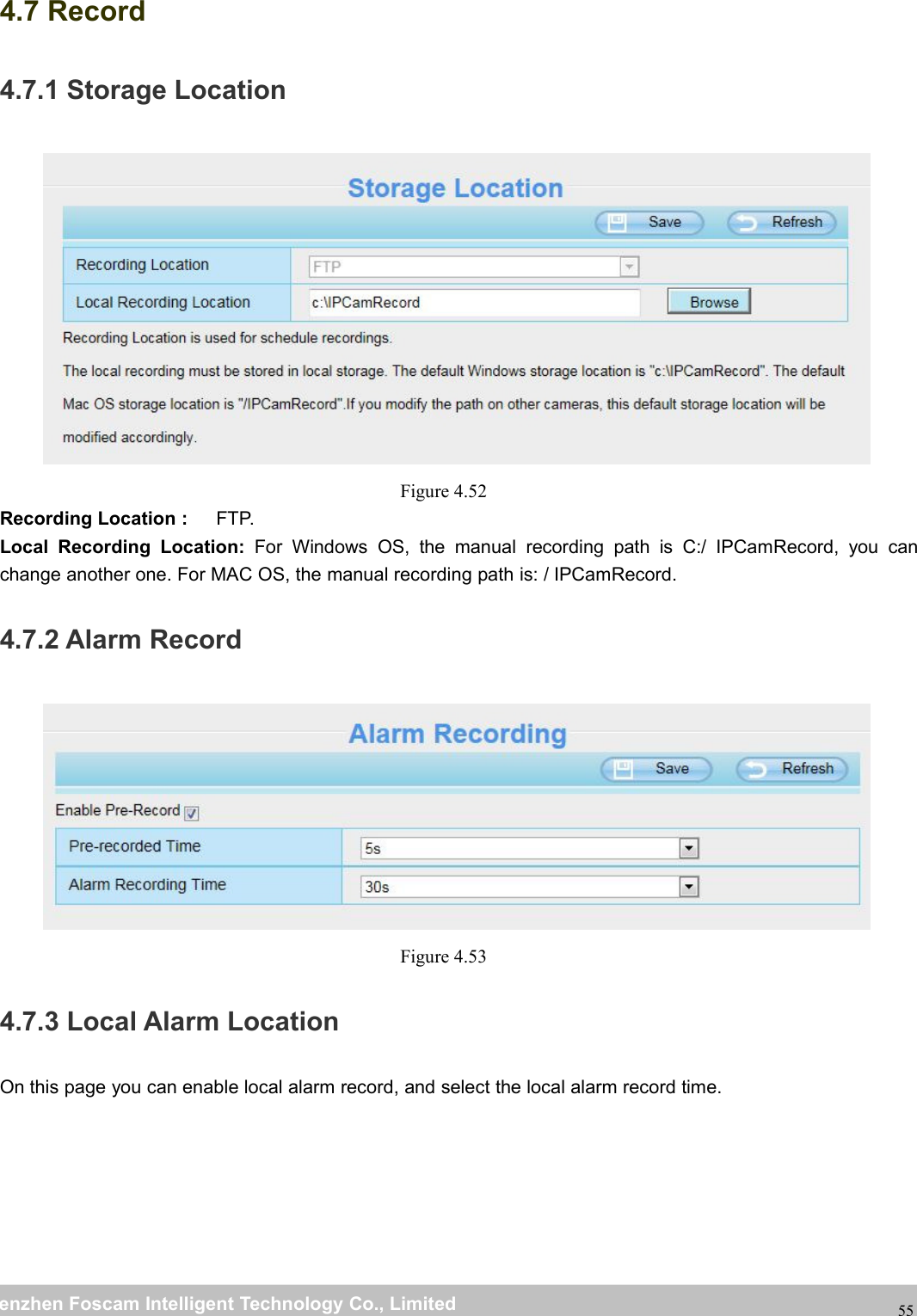
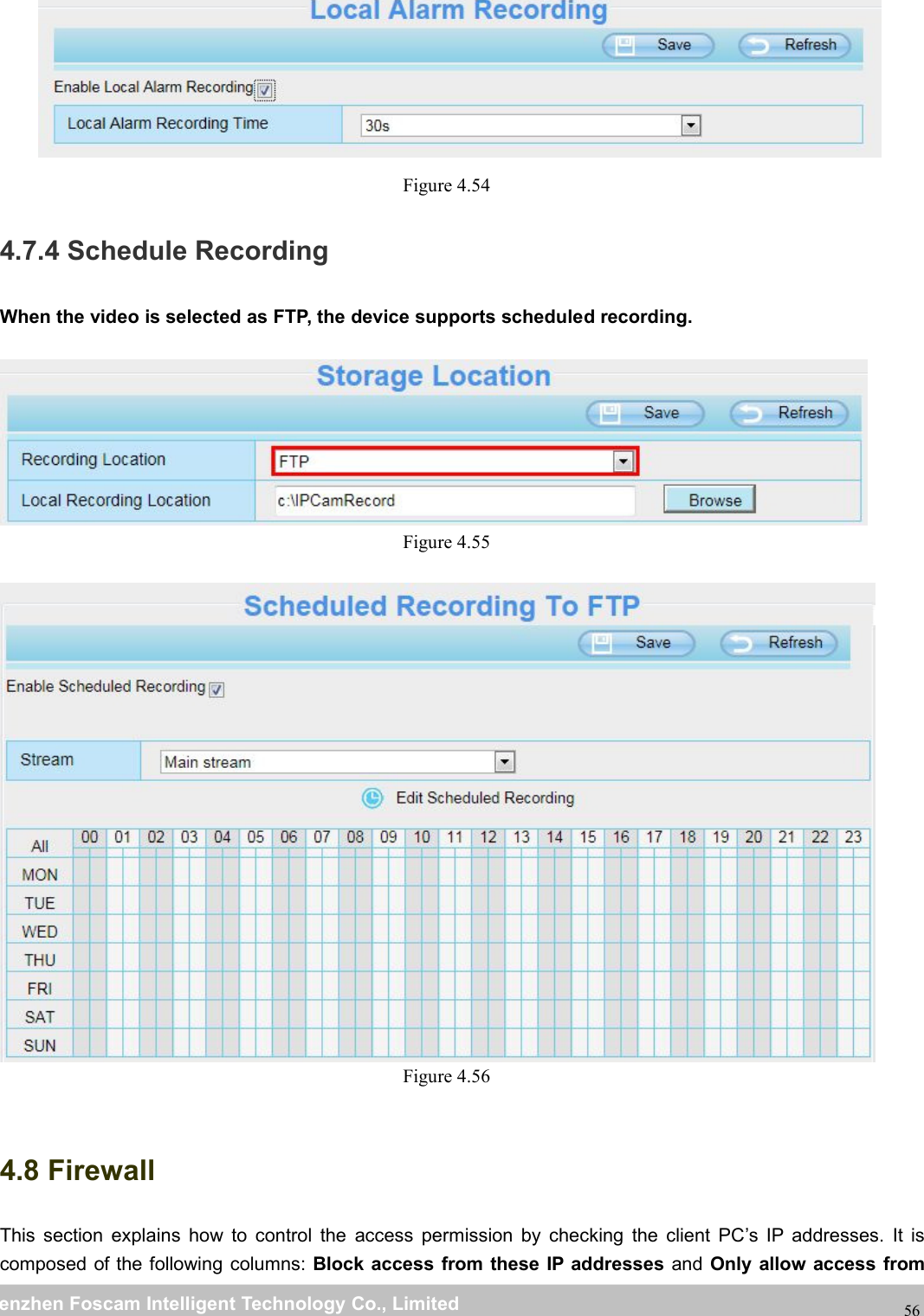
wwwwww.foscam.co.foscam.commShenzhenShenzhen FoscamFoscam IntelligentIntelligent TechnologyTechnology Co.,Co., LimitedLimitedTel:Tel: 8686 755755 26742674 56685668 Fax:Fax: 8686 755755 26742674 51685168554.7 Record4.7.1 Storage LocationFigure 4.52Recording Location : FTP.Local Recording Location: For Windows OS, the manual recording path is C:/ IPCamRecord, you canchange another one. For MAC OS, the manual recording path is: / IPCamRecord.4.7.2 Alarm RecordFigure 4.534.7.3 Local Alarm LocationOn this page you can enable local alarm record, and select the local alarm record time.
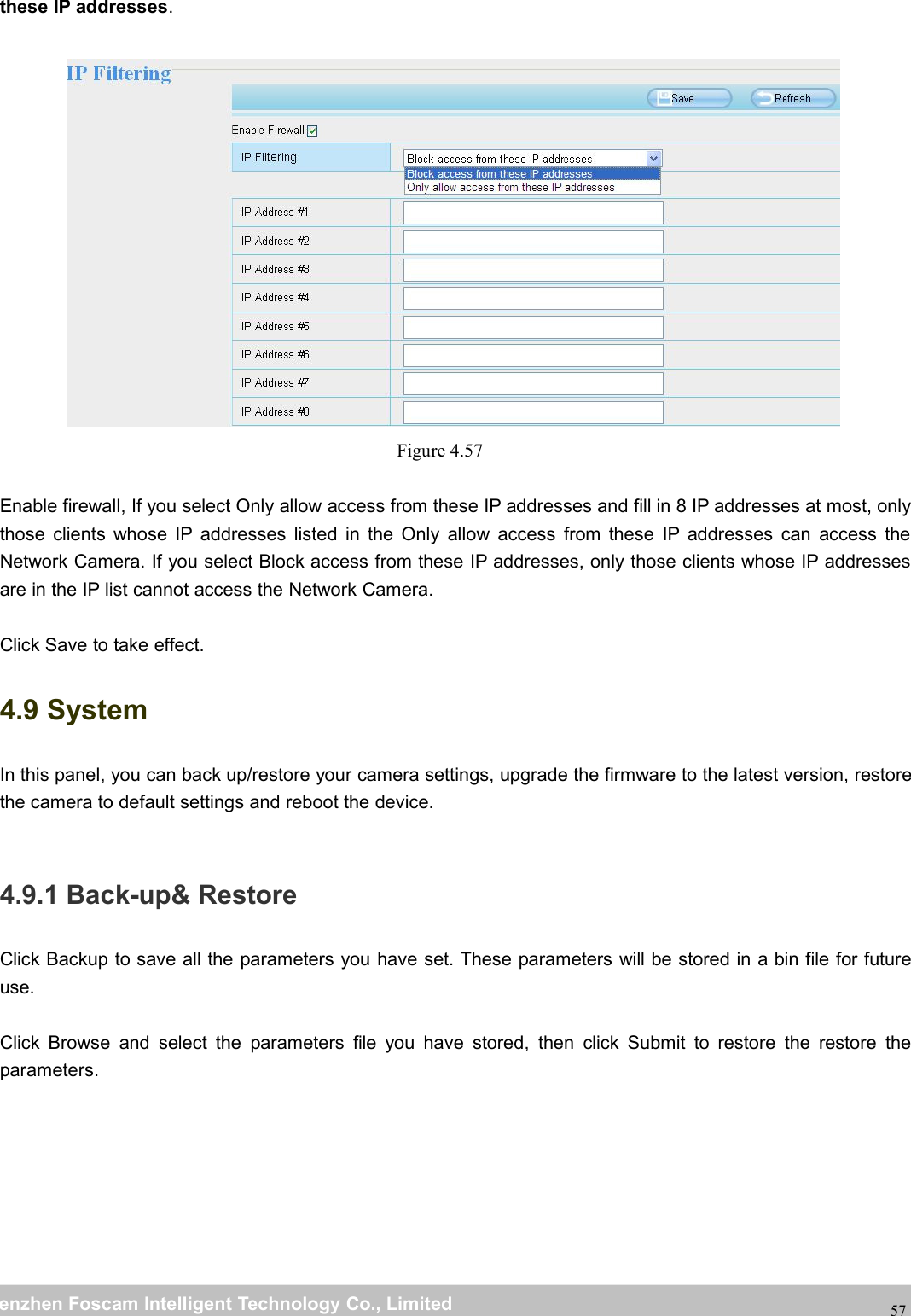
wwwwww.foscam.co.foscam.commShenzhenShenzhen FoscamFoscam IntelligentIntelligent TechnologyTechnology Co.,Co., LimitedLimitedTel:Tel: 8686 755755 26742674 56685668 Fax:Fax: 8686 755755 26742674 5168516856Figure 4.544.7.4 Schedule RecordingWhen the video is selected as FTP, the device supports scheduled recording.Figure 4.55Figure 4.564.8 FirewallThis section explains how to control the access permission by checking the client PC’s IP addresses. It iscomposed of the following columns: Block access from these IP addresses and Only allow access from
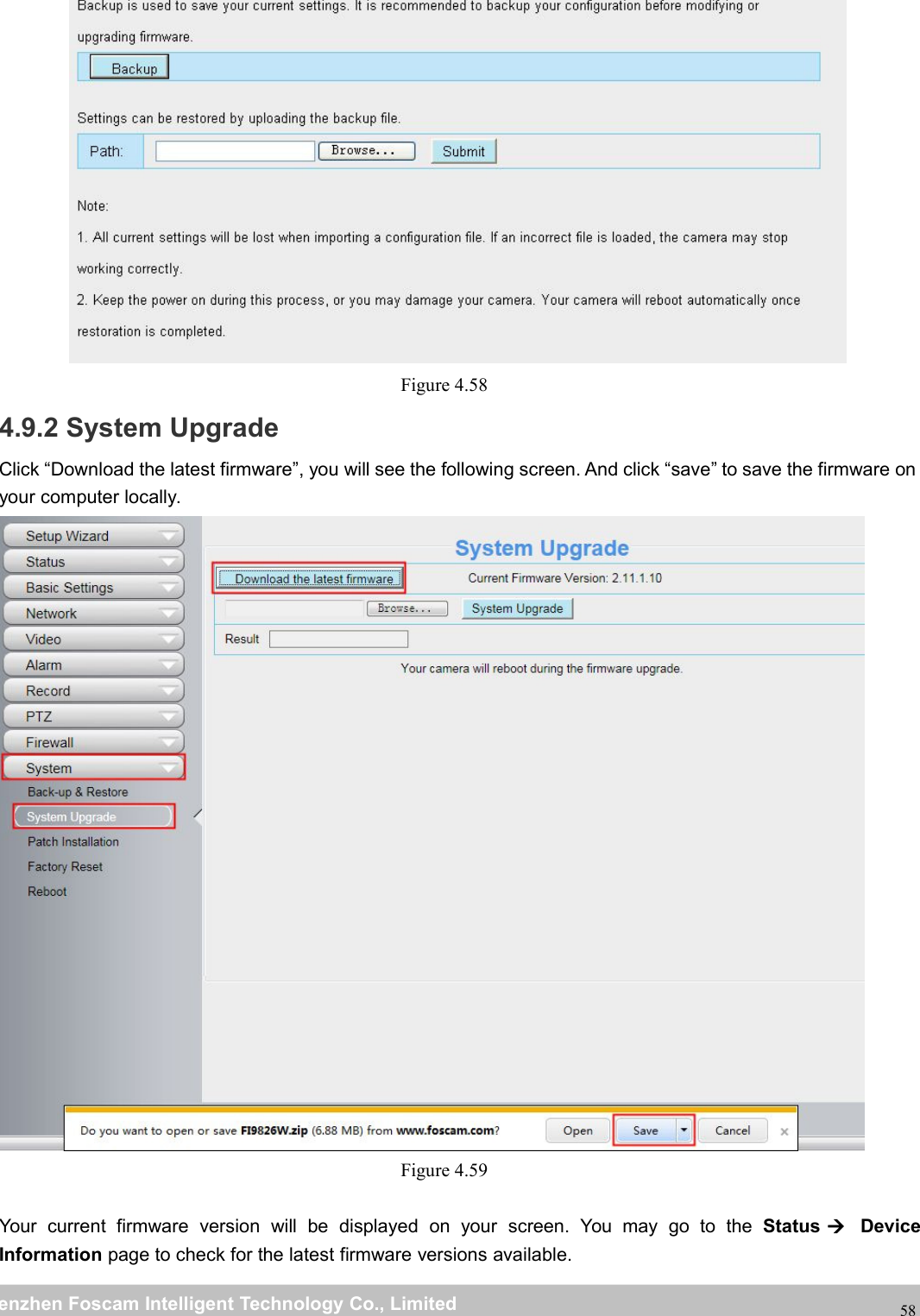
wwwwww.foscam.co.foscam.commShenzhenShenzhen FoscamFoscam IntelligentIntelligent TechnologyTechnology Co.,Co., LimitedLimitedTel:Tel: 8686 755755 26742674 56685668 Fax:Fax: 8686 755755 26742674 5168516857these IP addresses.Figure 4.57Enable firewall, If you select Only allow access from these IP addresses and fill in 8 IP addresses at most, onlythose clients whose IP addresses listed in the Only allow access from these IP addresses can access theNetwork Camera. If you select Block access from these IP addresses, only those clients whose IP addressesare in the IP list cannot access the Network Camera.Click Save to take effect.4.9 SystemIn this panel, you can back up/restore your camera settings, upgrade the firmware to the latest version, restorethe camera to default settings and reboot the device.4.9.1 Back-up& RestoreClick Backup to save all the parameters you have set. These parameters will be stored in a bin file for futureuse.Click Browse and select the parameters file you have stored, then click Submit to restore the restore theparameters.
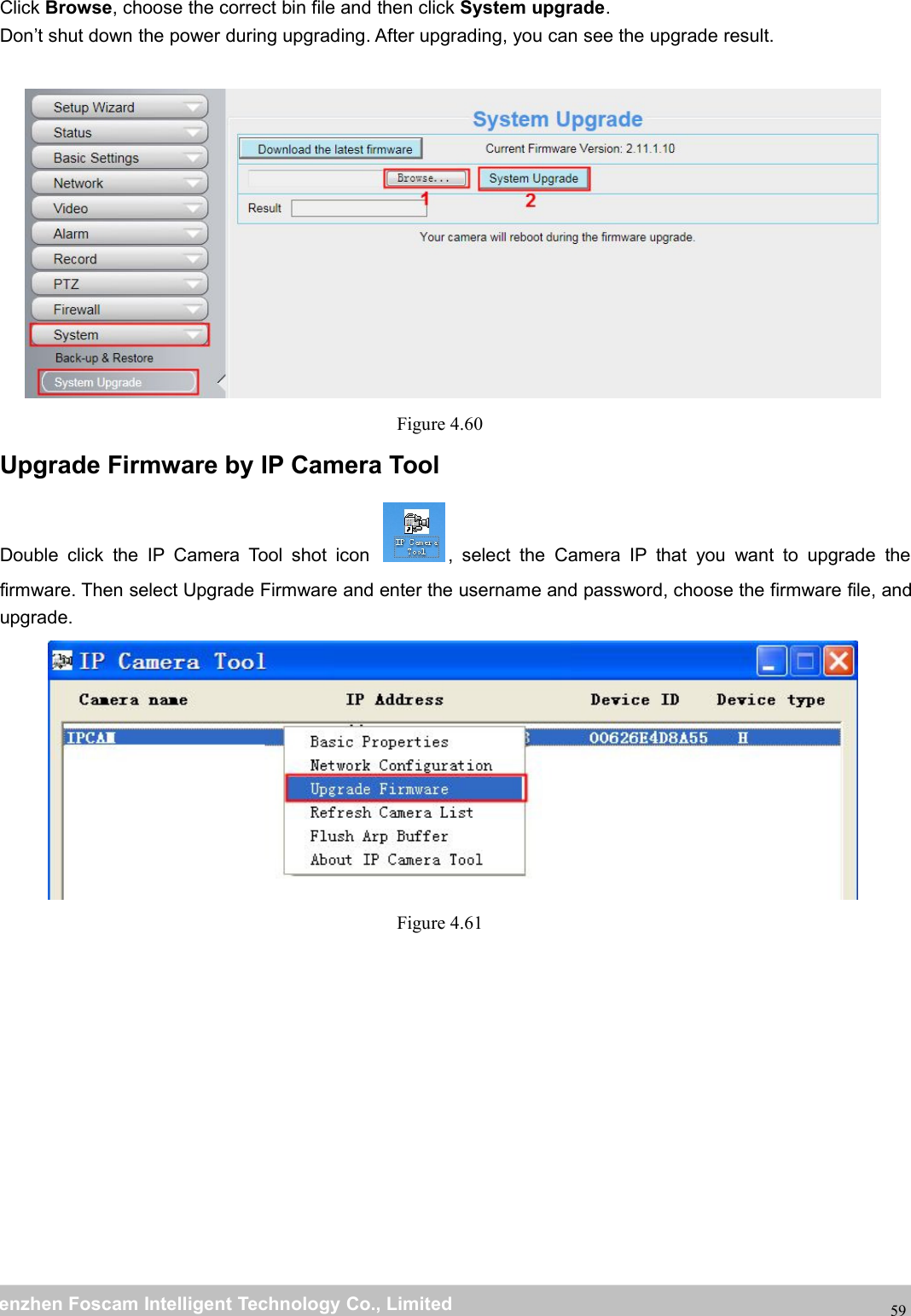
wwwwww.foscam.co.foscam.commShenzhenShenzhen FoscamFoscam IntelligentIntelligent TechnologyTechnology Co.,Co., LimitedLimitedTel:Tel: 8686 755755 26742674 56685668 Fax:Fax: 8686 755755 26742674 5168516858Figure 4.584.9.2 System UpgradeClick “Download the latest firmware”, you will see the following screen. And click “save” to save the firmware onyour computer locally.Figure 4.59Your current firmware version will be displayed on your screen. You may go to the Status DeviceInformation page to check for the latest firmware versions available.
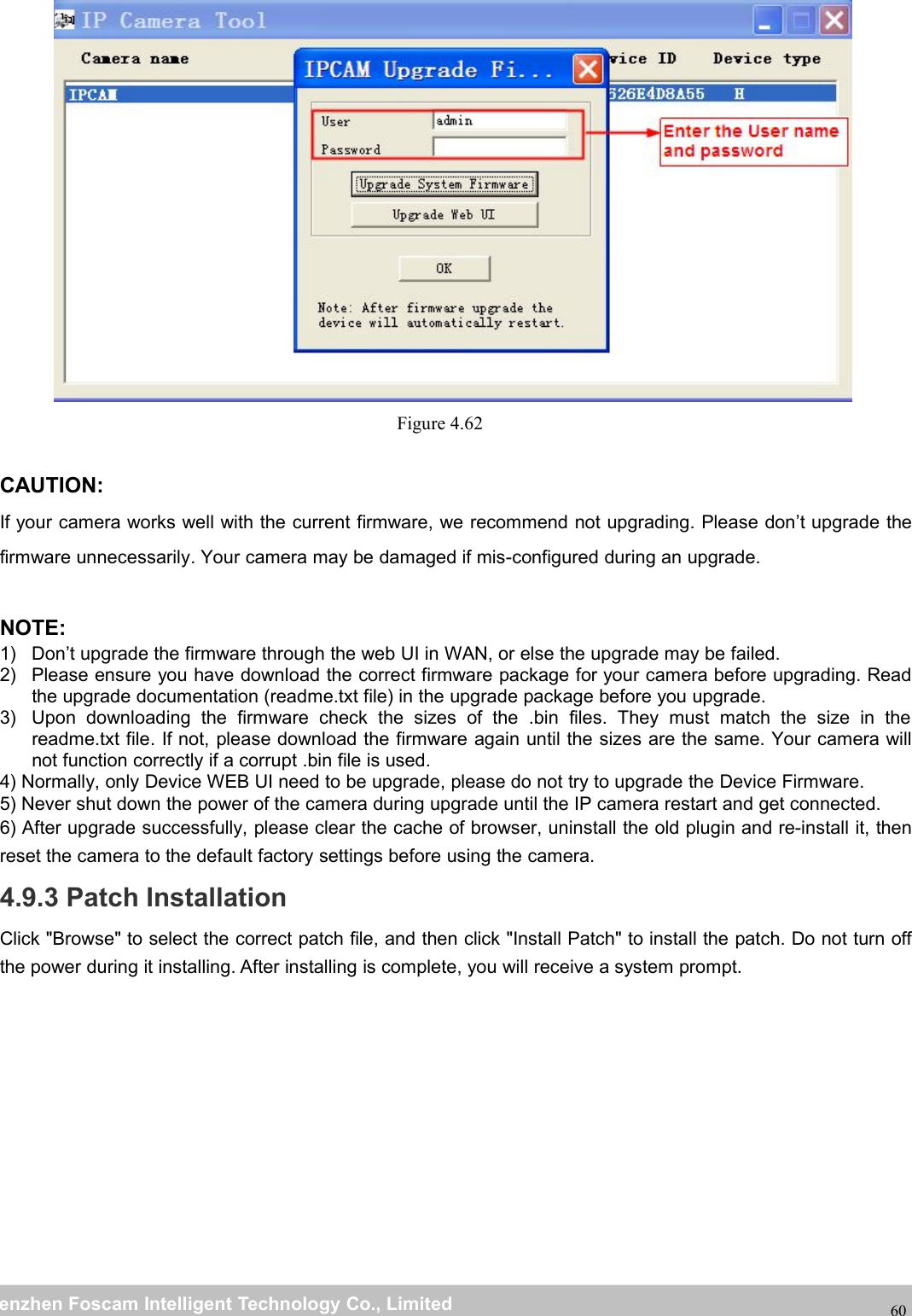
wwwwww.foscam.co.foscam.commShenzhenShenzhen FoscamFoscam IntelligentIntelligent TechnologyTechnology Co.,Co., LimitedLimitedTel:Tel: 8686 755755 26742674 56685668 Fax:Fax: 8686 755755 26742674 5168516859Click Browse, choose the correct bin file and then click System upgrade.Don’t shut down the power during upgrading. After upgrading, you can see the upgrade result.Figure 4.60Upgrade Firmware by IP Camera ToolDouble click the IP Camera Tool shot icon , select the Camera IP that you want to upgrade thefirmware. Then select Upgrade Firmware and enter the username and password, choose the firmware file, andupgrade.Figure 4.61
wwwwww.foscam.co.foscam.commShenzhenShenzhen FoscamFoscam IntelligentIntelligent TechnologyTechnology Co.,Co., LimitedLimitedTel:Tel: 8686 755755 26742674 56685668 Fax:Fax: 8686 755755 26742674 5168516860Figure 4.62CAUTION:If your camera works well with the current firmware, we recommend not upgrading. Please don’t upgrade thefirmware unnecessarily. Your camera may be damaged if mis-configured during an upgrade.NOTE:1) Don’t upgrade the firmware through the web UI in WAN, or else the upgrade may be failed.2) Please ensure you have download the correct firmware package for your camera before upgrading. Readthe upgrade documentation (readme.txt file) in the upgrade package before you upgrade.3) Upon downloading the firmware check the sizes of the .bin files. They must match the size in thereadme.txt file. If not, please download the firmware again until the sizes are the same. Your camera willnot function correctly if a corrupt .bin file is used.4) Normally, only Device WEB UI need to be upgrade, please do not try to upgrade the Device Firmware.5) Never shut down the power of the camera during upgrade until the IP camera restart and get connected.6) After upgrade successfully, please clear the cache of browser, uninstall the old plugin and re-install it, thenreset the camera to the default factory settings before using the camera.4.9.3 Patch InstallationClick "Browse" to select the correct patch file, and then click "Install Patch" to install the patch. Do not turn offthe power during it installing. After installing is complete, you will receive a system prompt.
wwwwww.foscam.co.foscam.commShenzhenShenzhen FoscamFoscam IntelligentIntelligent TechnologyTechnology Co.,Co., LimitedLimitedTel:Tel: 8686 755755 26742674 56685668 Fax:Fax: 8686 755755 26742674 5168516861Figure 4.634.9.4 Factory ResetClick Factory Reset button and all parameters will return to factory settings if selected.The default administrator username is admin with a blank password.Figure 4.644.9.5 RebootClick Reboot to reboot the camera. This is similar to unplugging the power to the camera.Figure 4.65
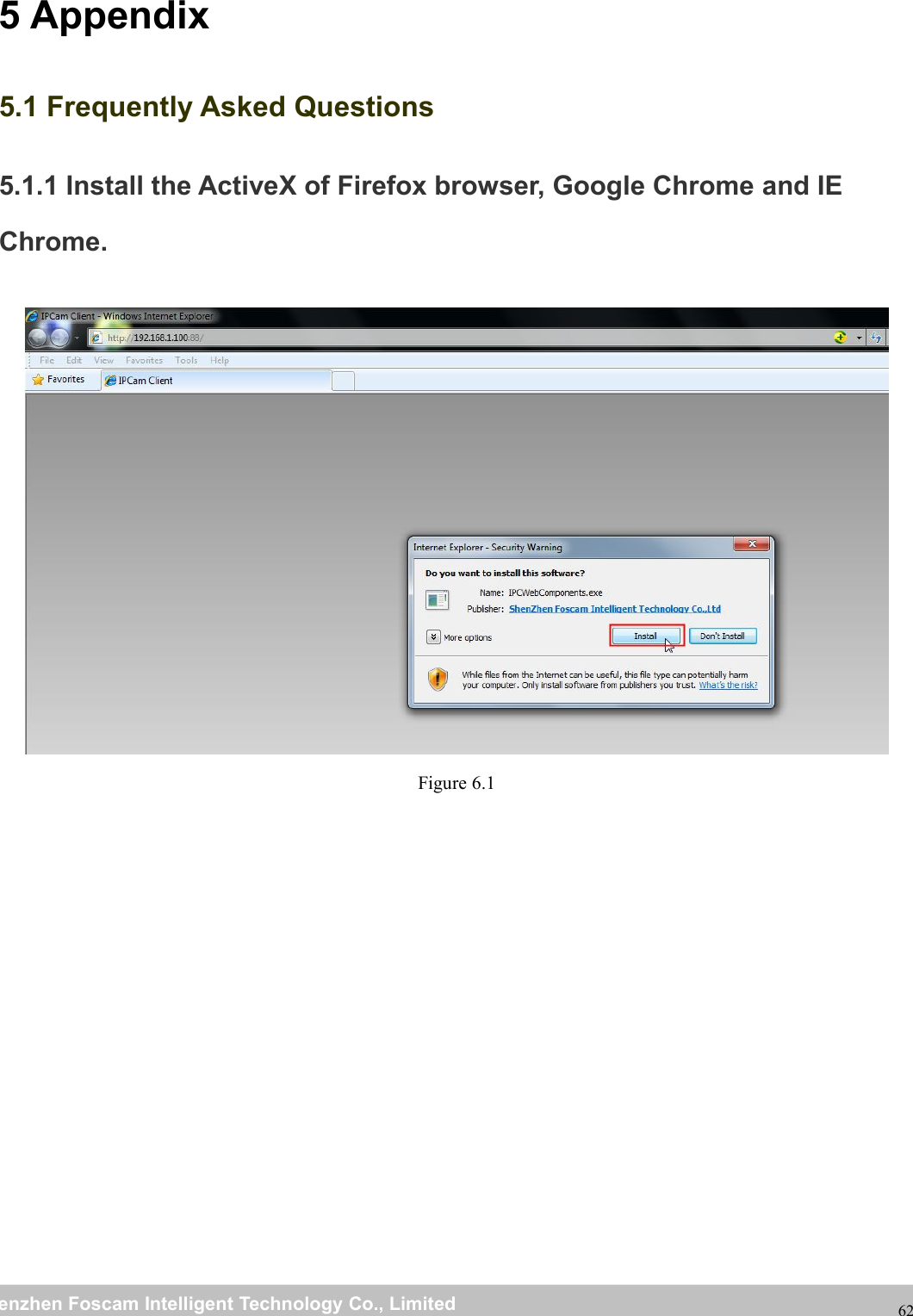
wwwwww.foscam.co.foscam.commShenzhenShenzhen FoscamFoscam IntelligentIntelligent TechnologyTechnology Co.,Co., LimitedLimitedTel:Tel: 8686 755755 26742674 56685668 Fax:Fax: 8686 755755 26742674 51685168625 Appendix5.1 Frequently Asked Questions5.1.1 Install the ActiveX of Firefox browser, Google Chrome and IEChrome.Figure 6.1
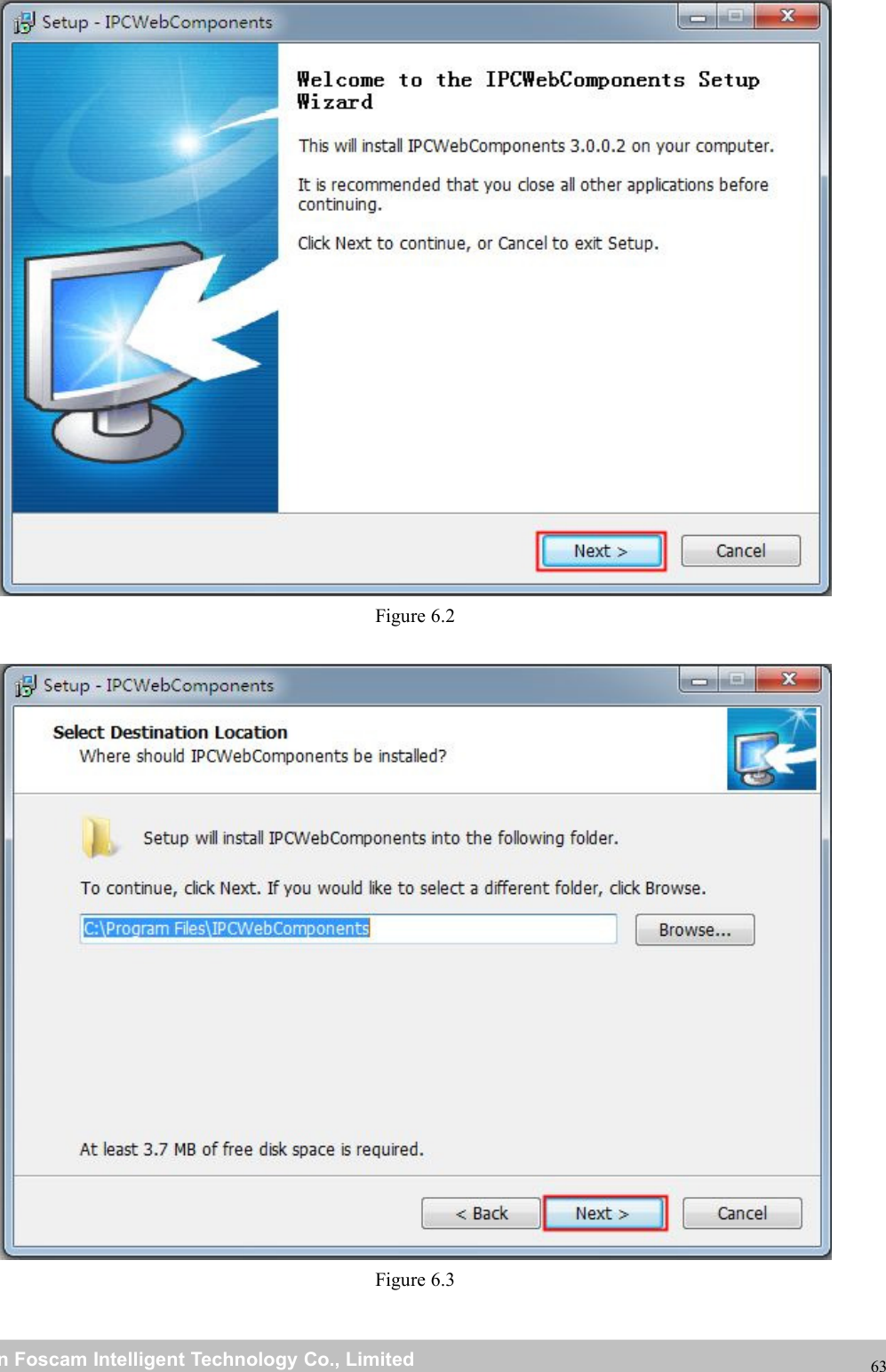
wwwwww.foscam.co.foscam.commShenzhenShenzhen FoscamFoscam IntelligentIntelligent TechnologyTechnology Co.,Co., LimitedLimitedTel:Tel: 8686 755755 26742674 56685668 Fax:Fax: 8686 755755 26742674 5168516863Figure 6.2Figure 6.3
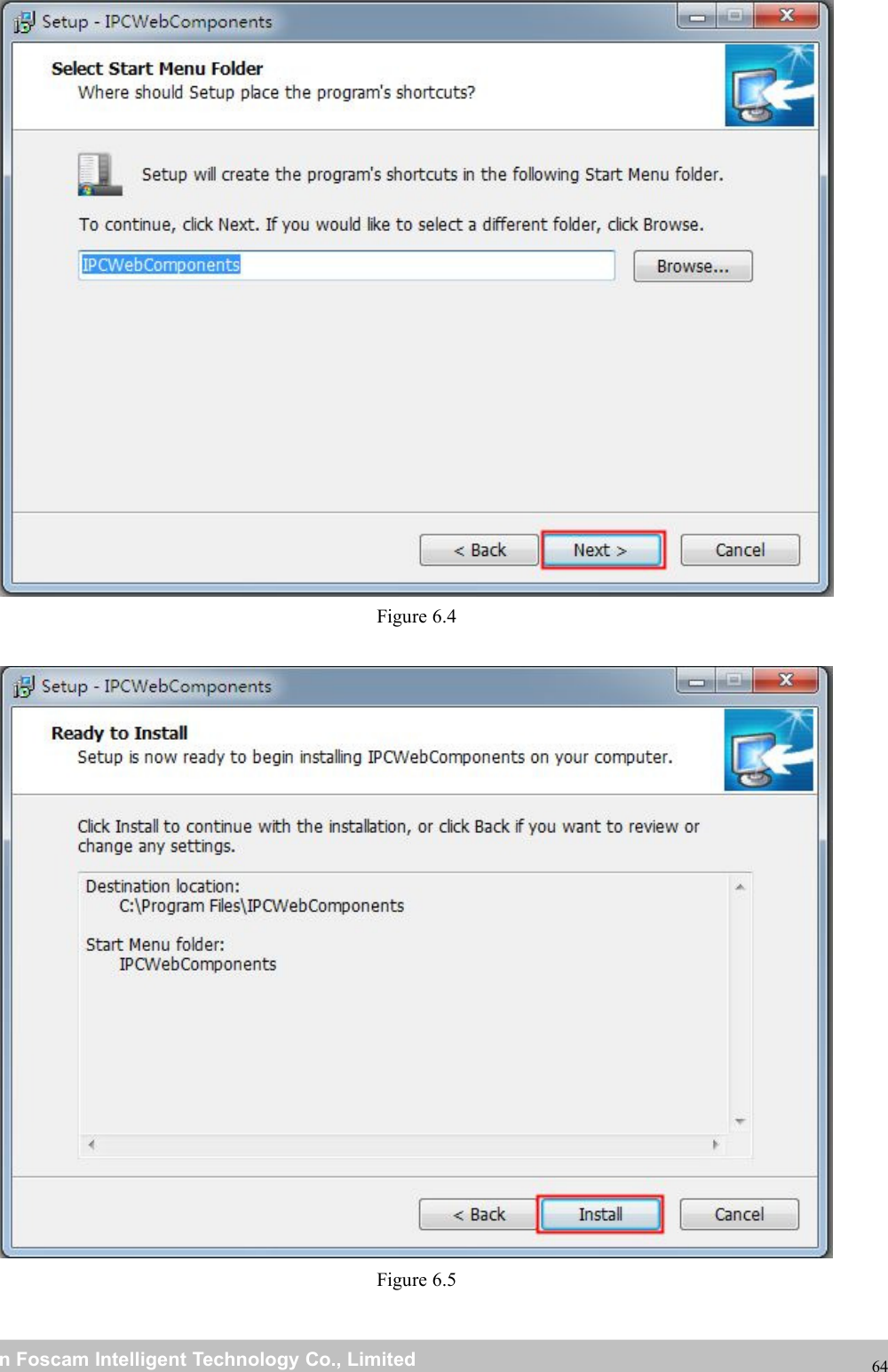
wwwwww.foscam.co.foscam.commShenzhenShenzhen FoscamFoscam IntelligentIntelligent TechnologyTechnology Co.,Co., LimitedLimitedTel:Tel: 8686 755755 26742674 56685668 Fax:Fax: 8686 755755 26742674 5168516864Figure 6.4Figure 6.5
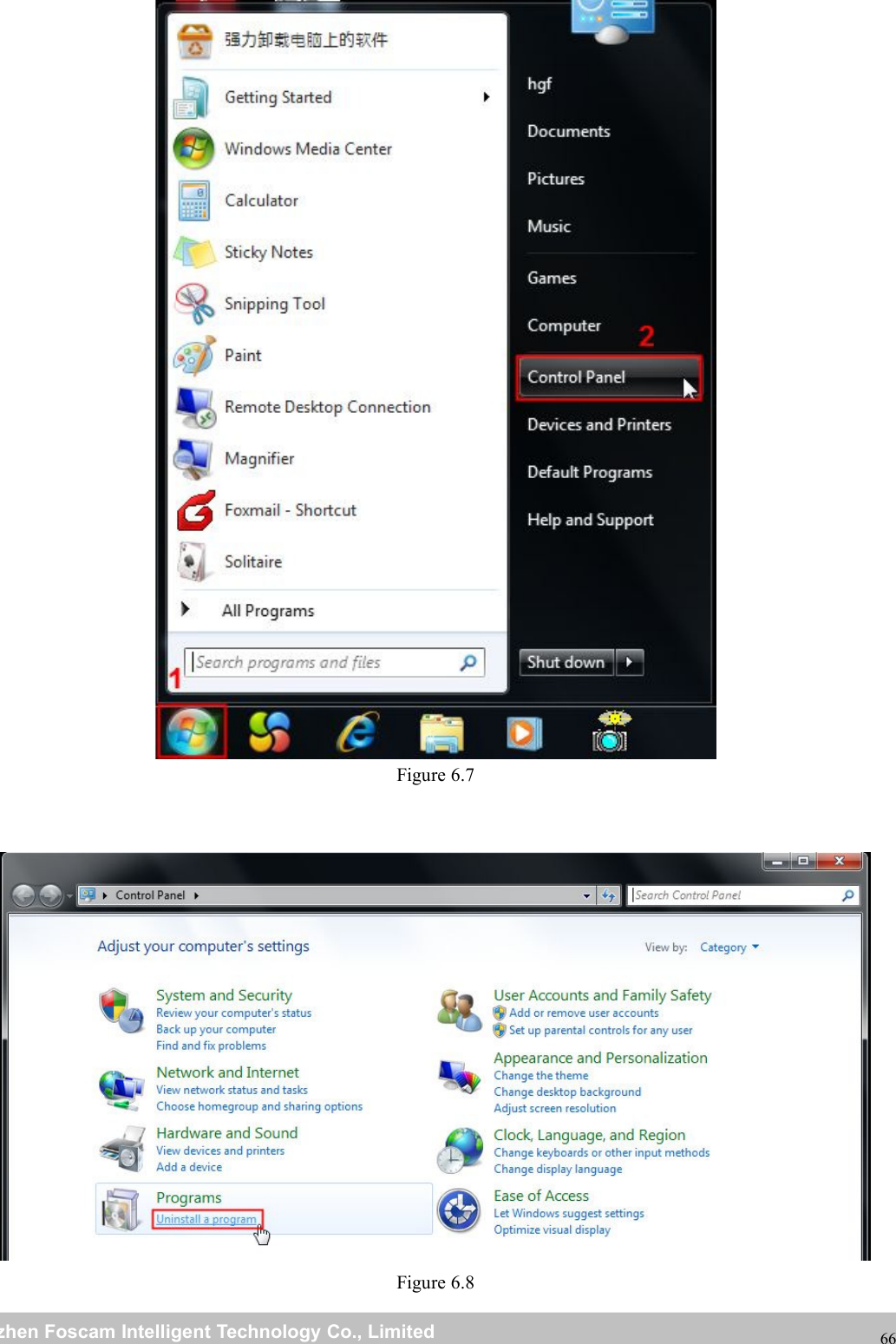
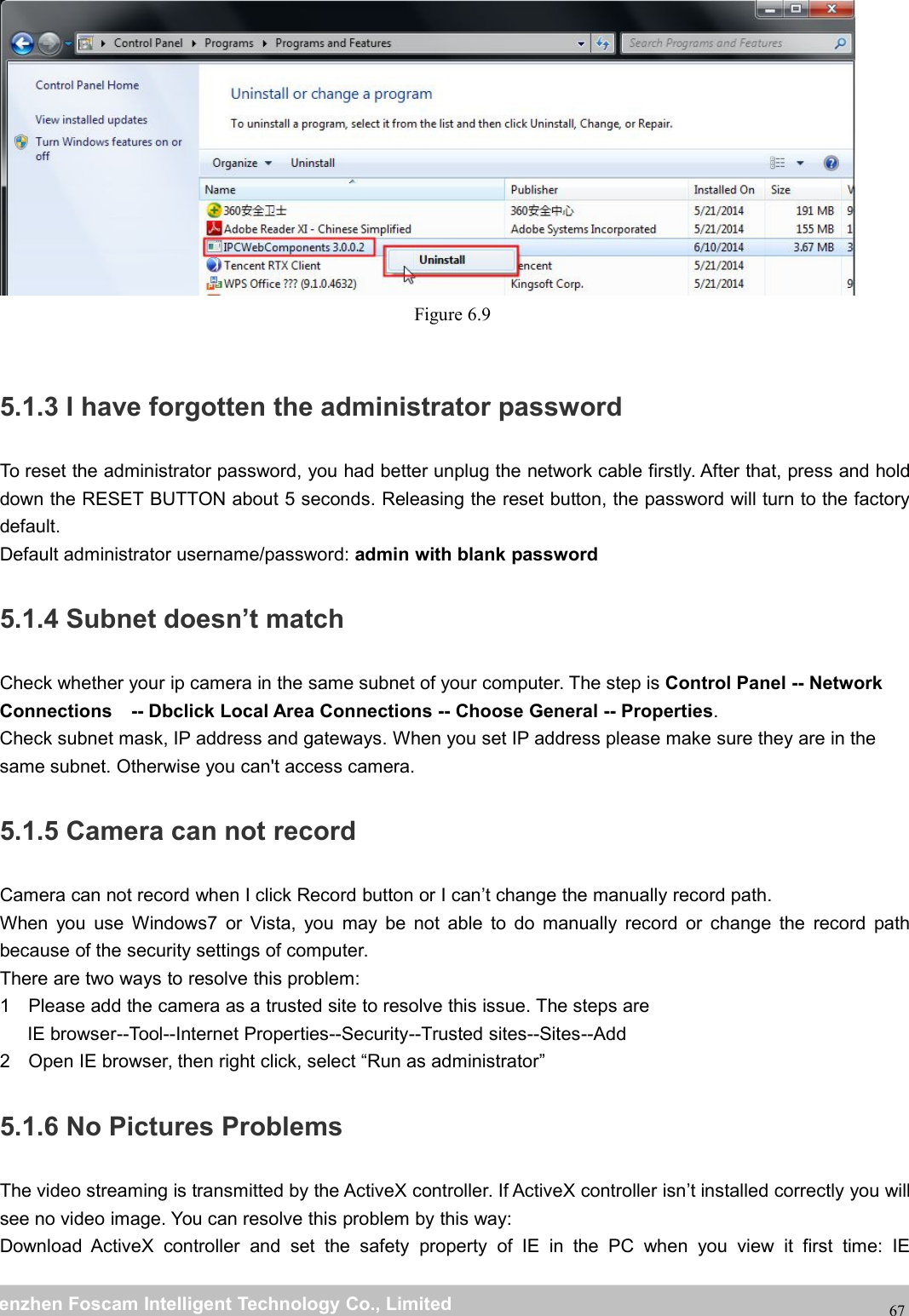
wwwwww.foscam.co.foscam.commShenzhenShenzhen FoscamFoscam IntelligentIntelligent TechnologyTechnology Co.,Co., LimitedLimitedTel:Tel: 8686 755755 26742674 56685668 Fax:Fax: 8686 755755 26742674 5168516865Figure 6.65.1.2 Uninstall the ActiveX of Firefox browser, Google Chrome and IEChrome.
wwwwww.foscam.co.foscam.commShenzhenShenzhen FoscamFoscam IntelligentIntelligent TechnologyTechnology Co.,Co., LimitedLimitedTel:Tel: 8686 755755 26742674 56685668 Fax:Fax: 8686 755755 26742674 5168516866Figure 6.7Figure 6.8
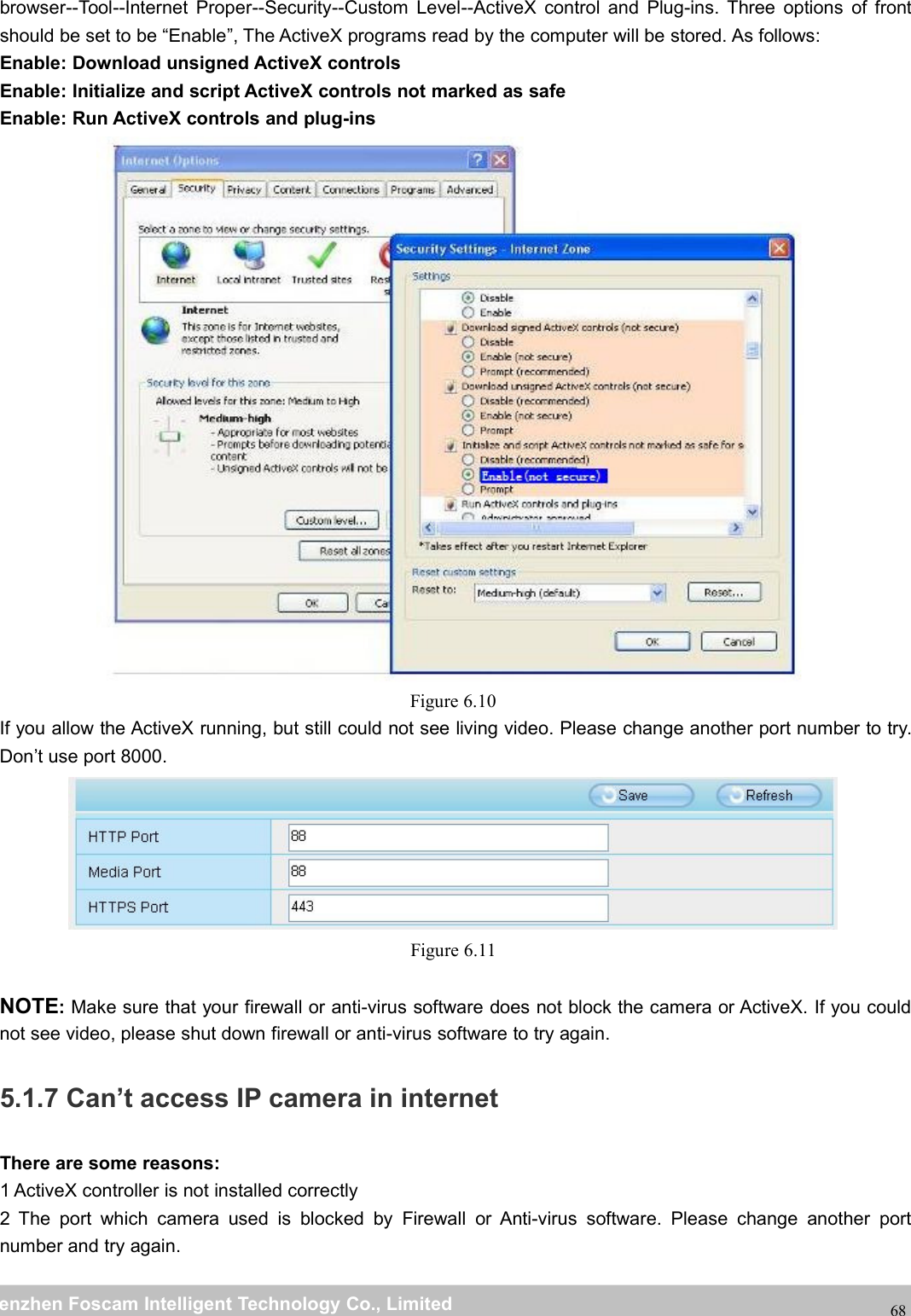
wwwwww.foscam.co.foscam.commShenzhenShenzhen FoscamFoscam IntelligentIntelligent TechnologyTechnology Co.,Co., LimitedLimitedTel:Tel: 8686 755755 26742674 56685668 Fax:Fax: 8686 755755 26742674 5168516867Figure 6.95.1.3 I have forgotten the administrator passwordTo reset the administrator password, you had better unplug the network cable firstly. After that, press and holddown the RESET BUTTON about 5 seconds. Releasing the reset button, the password will turn to the factorydefault.Default administrator username/password: admin with blank password5.1.4 Subnet doesn’t matchCheck whether your ip camera in the same subnet of your computer. The step is Control Panel -- NetworkConnections -- Dbclick Local Area Connections -- Choose General -- Properties.Check subnet mask, IP address and gateways. When you set IP address please make sure they are in thesame subnet. Otherwise you can't access camera.5.1.5 Camera can not recordCamera can not record when I click Record button or I can’t change the manually record path.When you use Windows7 or Vista, you may be not able to do manually record or change the record pathbecause of the security settings of computer.There are two ways to resolve this problem:1 Please add the camera as a trusted site to resolve this issue. The steps areIE browser--Tool--Internet Properties--Security--Trusted sites--Sites--Add2 Open IE browser, then right click, select “Run as administrator”5.1.6 No Pictures ProblemsThe video streaming is transmitted by the ActiveX controller. If ActiveX controller isn’t installed correctly you willsee no video image. You can resolve this problem by this way:Download ActiveX controller and set the safety property of IE in the PC when you view it first time: IE
wwwwww.foscam.co.foscam.commShenzhenShenzhen FoscamFoscam IntelligentIntelligent TechnologyTechnology Co.,Co., LimitedLimitedTel:Tel: 8686 755755 26742674 56685668 Fax:Fax: 8686 755755 26742674 5168516868browser--Tool--Internet Proper--Security--Custom Level--ActiveX control and Plug-ins. Three options of frontshould be set to be “Enable”, The ActiveX programs read by the computer will be stored. As follows:Enable: Download unsigned ActiveX controlsEnable: Initialize and script ActiveX controls not marked as safeEnable: Run ActiveX controls and plug-insFigure 6.10If you allow the ActiveX running, but still could not see living video. Please change another port number to try.Don’t use port 8000.Figure 6.11NOTE:Make sure that your firewall or anti-virus software does not block the camera or ActiveX. If you couldnot see video, please shut down firewall or anti-virus software to try again.5.1.7 Can’t access IP camera in internetThere are some reasons:1 ActiveX controller is not installed correctly2 The port which camera used is blocked by Firewall or Anti-virus software. Please change another portnumber and try again.
wwwwww.foscam.co.foscam.commShenzhenShenzhen FoscamFoscam IntelligentIntelligent TechnologyTechnology Co.,Co., LimitedLimitedTel:Tel: 8686 755755 26742674 56685668 Fax:Fax: 8686 755755 26742674 51685168693 Port forwarding is not successful.Check these settings and make sure they are correct.5.1.8 UPnP always failedUPnP only contains port forwarding in our recent software. Sometimes, it may be failed to do port forwardingautomatically because of firewall or anti-virus software. It also has much relation with router’s security settings.So we recommend you do port forwarding manually. You can view your camera in internet successfully afteryou do port forwarding manually in your router.5.1.9 Camera can not connect wirelessIf your camera could not connect wireless after you set wireless settings and plug out the cable. Please checkwhether your settings are correct or not.Normally, camera can’t connect wireless mainly because of wrong settings.Make sure broadcast your SSID; use the same encryption for router and camera.5.1.10 Remove the plug-inRemove the plug-in from IEIf you need to remove the plug-in from IE, please open an IE page.Go to Tools-->Manage Add-ons-->Show All add-ons-->then find the ocxIPcam Control, double click to removeit.Camera will prompt you to install the latest one when next logging.(Do not login your camera during the deleting, or the plug-in won't removed caused it is running.)Figure 6.12
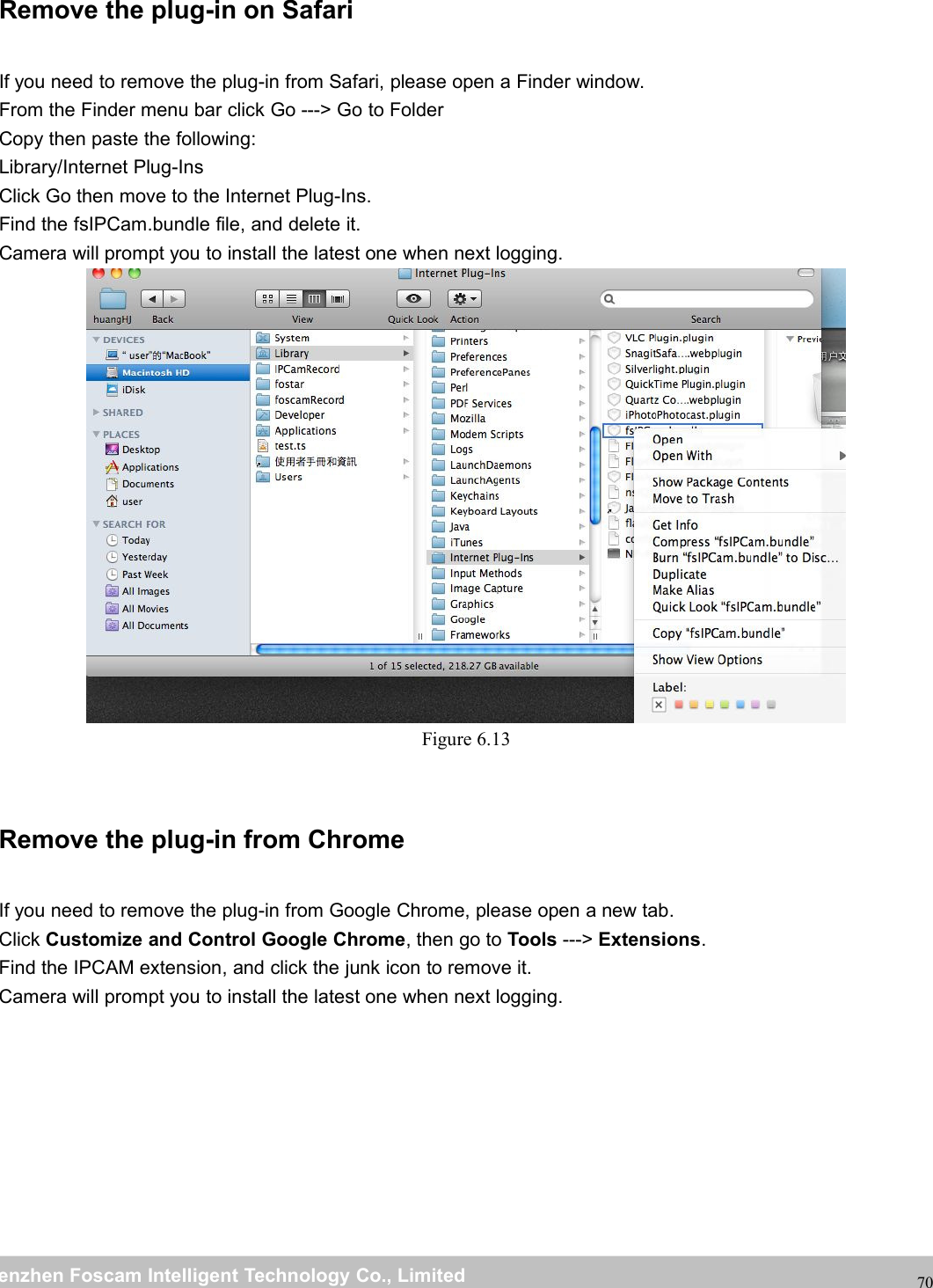
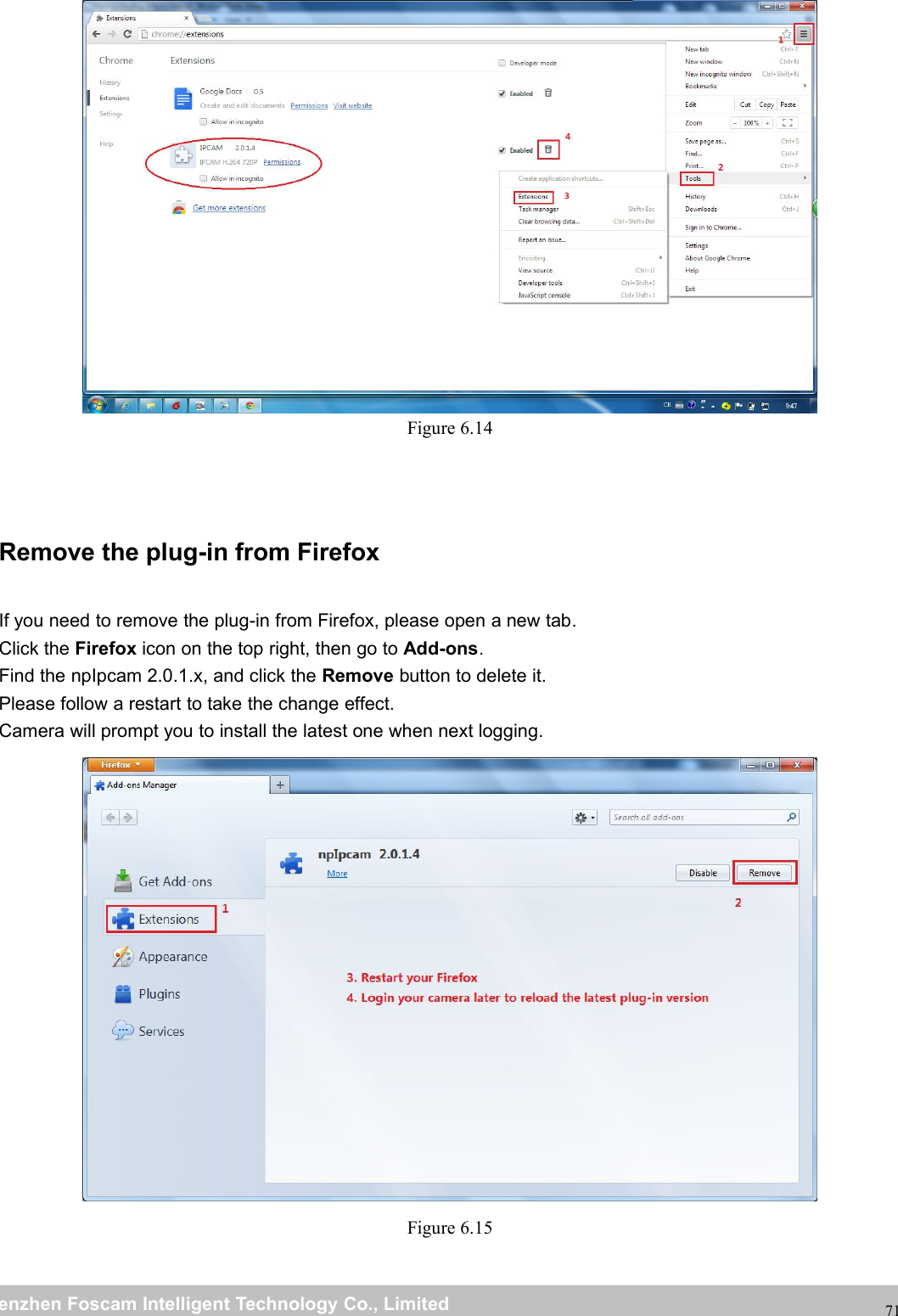
wwwwww.foscam.co.foscam.commShenzhenShenzhen FoscamFoscam IntelligentIntelligent TechnologyTechnology Co.,Co., LimitedLimitedTel:Tel: 8686 755755 26742674 56685668 Fax:Fax: 8686 755755 26742674 5168516870Remove the plug-in on SafariIf you need to remove the plug-in from Safari, please open a Finder window.From the Finder menu bar click Go ---> Go to FolderCopy then paste the following:Library/Internet Plug-InsClick Go then move to the Internet Plug-Ins.Find the fsIPCam.bundle file, and delete it.Camera will prompt you to install the latest one when next logging.Figure 6.13Remove the plug-in from ChromeIf you need to remove the plug-in from Google Chrome, please open a new tab.Click Customize and Control Google Chrome, then go to Tools ---> Extensions.Find the IPCAM extension, and click the junk icon to remove it.Camera will prompt you to install the latest one when next logging.
wwwwww.foscam.co.foscam.commShenzhenShenzhen FoscamFoscam IntelligentIntelligent TechnologyTechnology Co.,Co., LimitedLimitedTel:Tel: 8686 755755 26742674 56685668 Fax:Fax: 8686 755755 26742674 5168516871Figure 6.14Remove the plug-in from FirefoxIf you need to remove the plug-in from Firefox, please open a new tab.Click the Firefox icon on the top right, then go to Add-ons.Find the npIpcam 2.0.1.x, and click the Remove button to delete it.Please follow a restart to take the change effect.Camera will prompt you to install the latest one when next logging.Figure 6.15
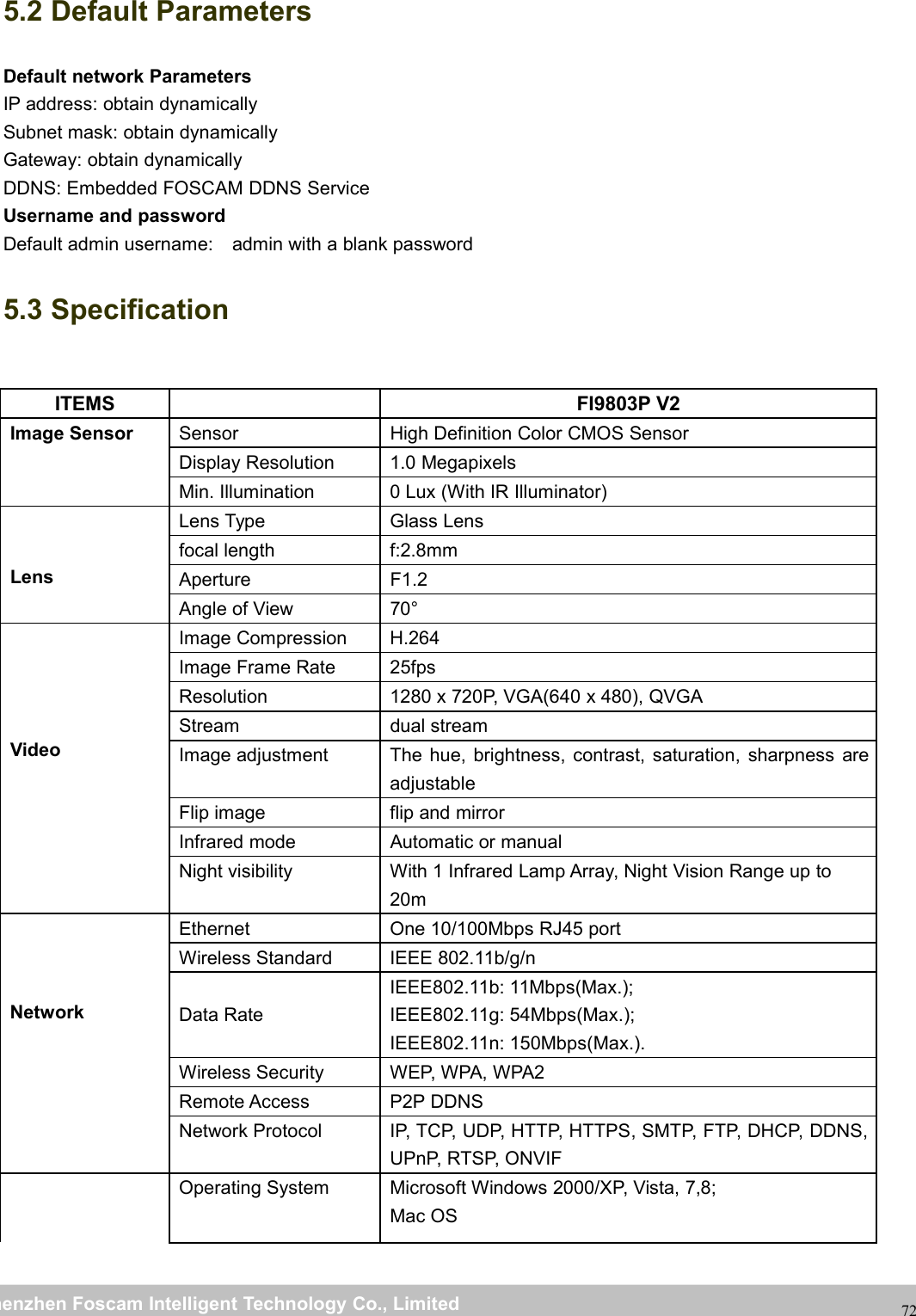
wwwwww.foscam.co.foscam.commShenzhenShenzhen FoscamFoscam IntelligentIntelligent TechnologyTechnology Co.,Co., LimitedLimitedTel:Tel: 8686 755755 26742674 56685668 Fax:Fax: 8686 755755 26742674 51685168725.2 Default ParametersDefault network ParametersIP address: obtain dynamicallySubnet mask: obtain dynamicallyGateway: obtain dynamicallyDDNS: Embedded FOSCAM DDNS ServiceUsername and passwordDefault admin username: admin with a blank password5.3 SpecificationITEMS FI9803P V2Image Sensor Sensor High Definition Color CMOS SensorDisplay Resolution 1.0 MegapixelsMin. Illumination 0 Lux (With IR Illuminator)LensLens Type Glass Lensfocal length f:2.8mmAperture F1.2Angle of View 70°VideoImage Compression H.264Image Frame Rate 25fpsResolution 1280 x 720P, VGA(640 x 480), QVGAStream dual streamImage adjustment The hue, brightness, contrast, saturation, sharpness areadjustableFlip image flip and mirrorInfrared mode Automatic or manualNight visibility With 1 Infrared Lamp Array, Night Vision Range up to20mNetworkEthernet One 10/100Mbps RJ45 portWireless Standard IEEE 802.11b/g/nData RateIEEE802.11b: 11Mbps(Max.);IEEE802.11g: 54Mbps(Max.);IEEE802.11n: 150Mbps(Max.).Wireless Security WEP, WPA, WPA2Remote Access P2P DDNSNetwork Protocol IP, TCP, UDP, HTTP, HTTPS, SMTP, FTP, DHCP, DDNS,UPnP, RTSP, ONVIFOperating System Microsoft Windows 2000/XP, Vista, 7,8;Mac OS
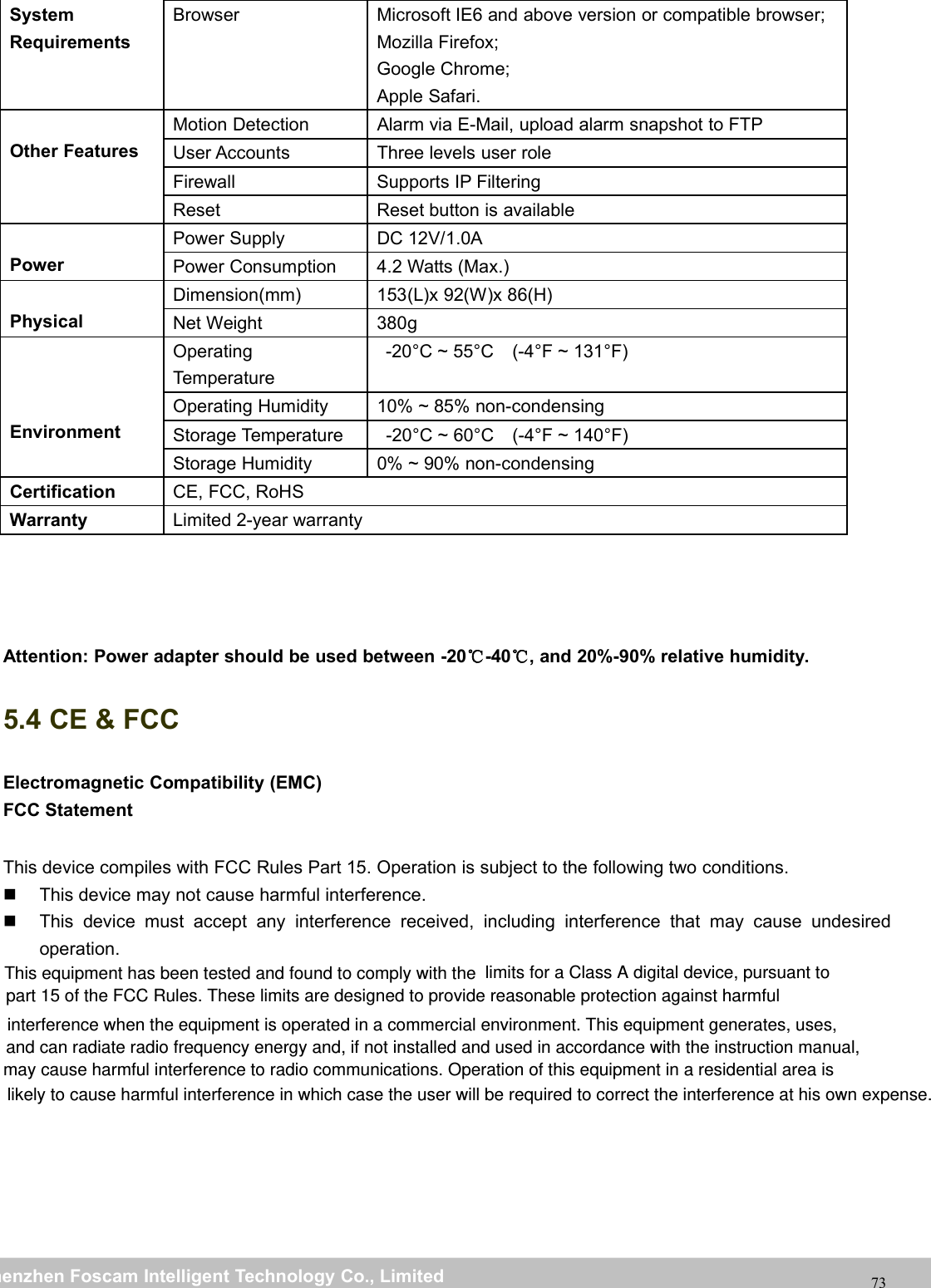
wwwwww.foscam.co.foscam.commShenzhenShenzhen FoscamFoscam IntelligentIntelligent TechnologyTechnology Co.,Co., LimitedLimitedTel:Tel: 8686 755755 26742674 56685668 Fax:Fax: 8686 755755 26742674 5168516873SystemRequirementsBrowser Microsoft IE6 and above version or compatible browser;Mozilla Firefox;Google Chrome;Apple Safari.Other FeaturesMotion Detection Alarm via E-Mail, upload alarm snapshot to FTPUser Accounts Three levels user roleFirewall Supports IP FilteringReset Reset button is availablePowerPower Supply DC 12V/1.0APower Consumption 4.2 Watts (Max.)PhysicalDimension(mm) 153(L)x 92(W)x 86(H)Net Weight 380gEnvironmentOperatingTemperature-20°C ~ 55°C (-4°F ~ 131°F)Operating Humidity 10% ~ 85% non-condensingStorage Temperature -20°C ~ 60°C (-4°F ~ 140°F)Storage Humidity 0% ~ 90% non-condensingCertification CE, FCC, RoHSWarranty Limited 2-year warrantyAttention: Power adapter should be used between -20℃-40℃, and 20%-90% relative humidity.5.4 CE & FCCElectromagnetic Compatibility (EMC)FCC StatementThis device compiles with FCC Rules Part 15. Operation is subject to the following two conditions.This device may not cause harmful interference.This device must accept any interference received, including interference that may cause undesiredoperation. This equipment has been tested and found to comply with the  limits for a Class A digital device, pursuant to part 15 of the FCC Rules. These limits are designed to provide reasonable protection against harmful interference when the equipment is operated in a commercial environment. This equipment generates, uses, and can radiate radio frequency energy and, if not installed and used in accordance with the instruction manual, may cause harmful interference to radio communications. Operation of this equipment in a residential area is likely to cause harmful interference in which case the user will be required to correct the interference at his own expense.
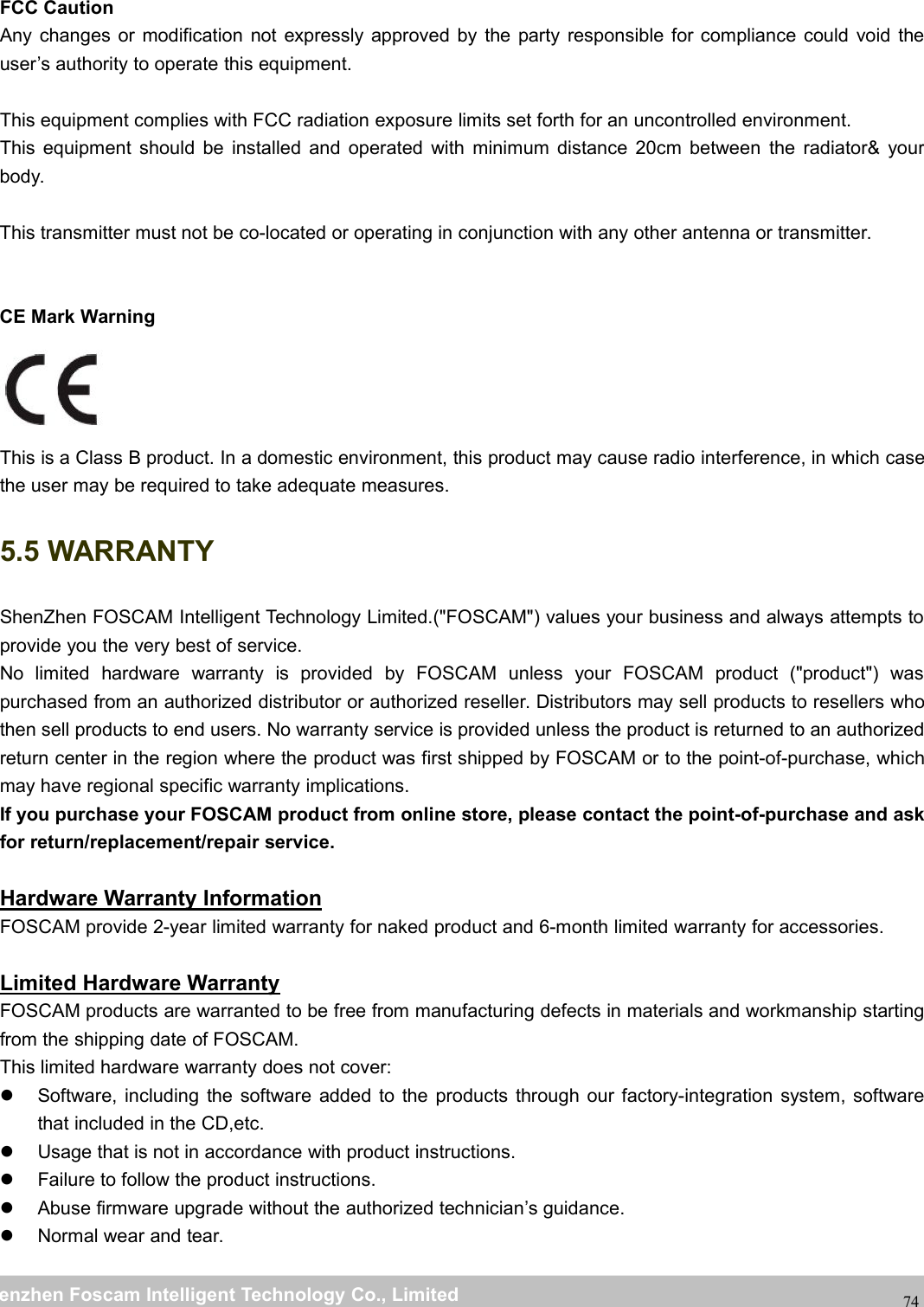
wwwwww.foscam.co.foscam.commShenzhenShenzhen FoscamFoscam IntelligentIntelligent TechnologyTechnology Co.,Co., LimitedLimitedTel:Tel: 8686 755755 26742674 56685668 Fax:Fax: 8686 755755 26742674 5168516874FCC CautionAny changes or modification not expressly approved by the party responsible for compliance could void theuser’s authority to operate this equipment.This equipment complies with FCC radiation exposure limits set forth for an uncontrolled environment.This equipment should be installed and operated with minimum distance 20cm between the radiator& yourbody.This transmitter must not be co-located or operating in conjunction with any other antenna or transmitter.CE Mark WarningThis is a Class B product. In a domestic environment, this product may cause radio interference, in which casethe user may be required to take adequate measures.5.5 WARRANTYShenZhen FOSCAM Intelligent Technology Limited.("FOSCAM") values your business and always attempts toprovide you the very best of service.No limited hardware warranty is provided by FOSCAM unless your FOSCAM product ("product") waspurchased from an authorized distributor or authorized reseller. Distributors may sell products to resellers whothen sell products to end users. No warranty service is provided unless the product is returned to an authorizedreturn center in the region where the product was first shipped by FOSCAM or to the point-of-purchase, whichmay have regional specific warranty implications.If you purchase your FOSCAM product from online store, please contact the point-of-purchase and askfor return/replacement/repair service.Hardware Warranty InformationFOSCAM provide 2-year limited warranty for naked product and 6-month limited warranty for accessories.Limited Hardware WarrantyFOSCAM products are warranted to be free from manufacturing defects in materials and workmanship startingfrom the shipping date of FOSCAM.This limited hardware warranty does not cover:Software, including the software added to the products through our factory-integration system, softwarethat included in the CD,etc.Usage that is not in accordance with product instructions.Failure to follow the product instructions.Abuse firmware upgrade without the authorized technician’s guidance.Normal wear and tear.
wwwwww.foscam.co.foscam.commShenzhenShenzhen FoscamFoscam IntelligentIntelligent TechnologyTechnology Co.,Co., LimitedLimitedTel:Tel: 8686 755755 26742674 56685668 Fax:Fax: 8686 755755 26742674 5168516875Return ProceduresPlease read FOSCAM warranty policy & policy of your reseller first before sending items back topoint-of-purchase.Customer must first contact point-of-purchase to obtain a Return Merchandise Authorization (RMA)number before returning the product. If the product you received is suspected to be defective and theproduct warranty has not expired, The RMA number will allow your reseller to track your return mucheasier and help them expedite processing your request.After receiving your RMA case number, pack the item(s) very well with the original box and all the originalaccessories included such as power adapters, brackets, cables, manuals, and driver CD disks.Write your RMA number and the return reason (the problem of the product) on the warranty card alongwith the complete package to send them back.Replacement ServicesIf customers ask for replacement service, please contact point-of-purchase and follow their policy.Our technicians will inspect all items returned for replacement requests. If the retuned product is found inworking order, we will return the same item received. However customers shall be responsible for allshipping & handling charges incurred for getting the units back to customers.If returned products are found defective, we will replace the product and assume the shipping cost forsending back the replacement unit to customers.If for any reason, we are unable to provide a replacement of the original returned item(s). You will have achoice for a “Substitute” item at the same equal value.We do not provide exchange and replacement due to normal hardware upgrade according the marketafter 14 days after the product is delivered.Our technicians will test the product before send out the replacement, any other demand for more thantwo times replacement for the same product during replacement limit will be rejected.Replaced products are warranted from the balance of the former warranty period.Warranty ForfeitureWarranty is void if purchase from unauthorized distributor or reseller.Warranty is void if trade-mark, serial tags, product stickers have been removed, altered ortampered with.Warranty is void for mishandling, improper use, or defacing the product.Abuse firmware upgrade without the authorized technician’s guidance.Warranty is void for physical damage, altered, either internally or externally, improper or inadequatepackaging when returned for RMA purposes.Warranty is void if damage has resulted from accident, dismantle, abuse, or service or modification bysomeone other than the appointed vendor, souse, fission or the spare part has been over the period ofwarranty.Warranty is void if product is damaged due to improper working environment or operation. (For example,improper temperature, humidity, unusual physical or electrical stress or interference, failure or fluctuationof electrical power, static electricity, using wrong power adapter, etc.)Warranty is void if damaged by the use of parts not manufactured or sold by FOSCAM.Damage caused by improper installation of third-party products.Warranty is void if damaged for irresistible cause, such as earthquake, fire, lightning, flood, etc.Product beyond limited warranty.
wwwwww.foscam.co.foscam.commShenzhenShenzhen FoscamFoscam IntelligentIntelligent TechnologyTechnology Co.,Co., LimitedLimitedTel:Tel: 8686 755755 26742674 56685668 Fax:Fax: 8686 755755 26742674 5168516876Shipping FeeIf products are defective or damaged under normal use or operation in the replacement limit, distributorsor resellers are responsible for the shipping cost the product back to customers, customers shouldassume the shipping cost send the product to the point-of-purchase.During replacement limit, if customers ask for replacement due to the product does not fit for customer’spersonal expectation, customers should responsible for both shipping fee.Customers shall be responsible for both shipping fee if their product beyond the replacement limit but stillin warranty limit.Repair Service Out Of WarrantyFOSCAM provide extra repair service for product that out of warranty, it is chargeable. The total feecontains device cost and service fee. Device cost (including accessories) is the standard uniform priceprovide by FOSCAM.Different region may have different service fee, please contact the point-of-purchase to confirm that beforeyou ask for this service.Our technicians will quote the total price after detect the product, If customers refused to repair after thequotation, customers need pay for the test fee, $3.5/hour. If agree with the quotation, test will be free.Repaired product out of warranty will obtains 3-month warranty from the date of the product back tocustomers.Limitation of LiabilityFOSCAM is not responsible for other extra warranty or commitment promised by resellers, if your resellerpromised some extra commitment or warranty; please ask for written documents to protect your rights andinterests.FOSCAM does not offer refunds under any circumstances. Please contact the point-of-purchase andfollow their refund/return policy.FOSCAM shall not be liable under any circumstances for any consequential, incidental, special orexemplary damages arising out of or in any connection with this agreement or the products, including butnot limited to lost profits, or any claim based on indemnity or contribution, or the failure of any limited orexclusive remedy to achieve its essential purpose or otherwise. Purchaser's exclusive remedy, as againstFOSCAM, shall be the repair or replacement of defective parts. If FOSCAM lists a product on its websitespecification in error or that is no longer available for any reason, FOSCAM reserves the right to explain itwithout incurring any liability.All rights reserved. FOSCAM and the FOSCAM logo are trademarks of ShenZhen FOSCAMIntelligent Technology Limited., registered in the U.S. and other countries.
wwwwww.foscam.co.foscam.commShenzhenShenzhen FoscamFoscam IntelligentIntelligent TechnologyTechnology Co.,Co., LimitedLimitedTel:Tel: 8686 755755 26742674 56685668 Fax:Fax: 8686 755755 26742674 51685168776 Obtaining Technical SupportWhile we hope your experience with the IPCAM network camera is enjoyable and easy to use, you mayexperience some issues or have questions that this User’s Guide has not answered.If you have problem with FOSCAM IP camera, please first contact FOSCAM reseller for solving the problems.If our reseller cannot provide service, please contact our service department: tech@foscam.com .

Navigation menu