Shuttle PN20 11g module User Manual

Shuttle Inc. 11g module

Contents

User manual

          PN20 Shuttle Wireless Kit Realtek RTL8187    User Guide
  2   Content Chapter 1 Introduction ..................................................................................3 Chapter 2 Specifications ...............................................................................4 Chapter 3 Installation/ Un-installation..........................................................5 3.1 Installation.........................................................................................5 3.1.1 For Window XP and Windows 2000 user................................5 3.1.2 For Windows Vista user...........................................................9 3.2 Un-installation.................................................................................14 Chapter 4 Wireless LAN Management GUI ................................................16 4.1 Introduction of Main Window.........................................................16 4.2 Station mode ...................................................................................20
  3  Thank you for purchasing Realtek RTL8187 Wireless LAN USB 2.0 Adapter.   Realtek  RTL8187  Wireless  LAN  USB  2.0  Adapter  is  another  perfect combination  of  both  performance  and  cost-effective  product  introduced  by Realtek.  Realtek hopes  you  can  enjoy  the  wireless  world  through  this  solid profiled wireless card.  RTL8187 provides a full solution of all the IEEE 802.11 b/g protocols. Both of our solutions passed the WIFI tests and will be compatible with all the wireless products with WIFI logo. If you have a Realtek RTL8187 Wireless LAN USB 2.0 Adapter on hand, it means you can connect to the wireless world without any difficulty.    RTL8187  provides  all  the  data  rates  in  the  IEEE  802.11  b/g  standards. RTL8187  supports  both  the  short  and  long  preambles  to  ensure  the compatibility  of  legacy  wireless  products  and  new  ones,  saving  the  panic works for end users to find compatible products.  Since the security has became one of the most important issue in the wireless society,  Realtek provides you with  the full security coverage from  the  naïve 64/128bits Wep encryptions, second generation WPA-PSK encryption, to the most advanced WPA2-AES encryption. WPA2 is the latest security standard currently approved by WIFI standard. Realtek cares about your security on the wireless  world  and  makes  our  efforts  to  protect  our  users  from  malicious sniffers.  Saving  mode,  Adhoc  wireless  Lan,  Wake  on  Lan(WOL)  and  other  exciting features  are  also  included  in  this  Realtek  RTL8187 Wireless  LAN  USB  2.0 Adapter.  We  will  guild  you  through  these  exciting  features  in  the  following chapters  and  we  believe  that  you  will  have  a  great  satisfactory  with  its performance and ease of use.
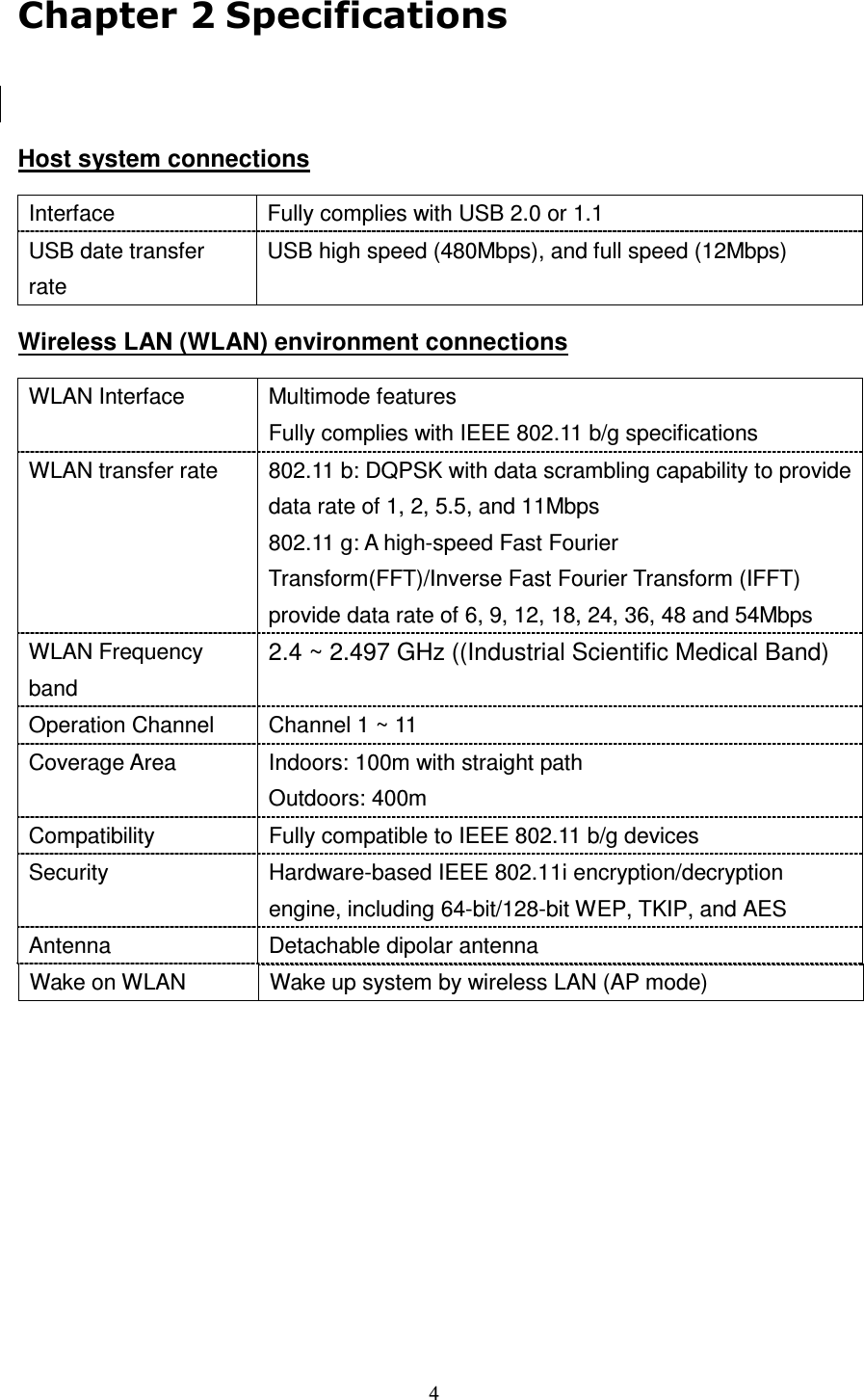
  4   Host system connections Interface  Fully complies with USB 2.0 or 1.1 USB date transfer rate USB high speed (480Mbps), and full speed (12Mbps) Wireless LAN (WLAN) environment connections WLAN Interface Multimode features Fully complies with IEEE 802.11 b/g specifications WLAN transfer rate  802.11 b: DQPSK with data scrambling capability to provide data rate of 1, 2, 5.5, and 11Mbps 802.11 g: A high-speed Fast Fourier Transform(FFT)/Inverse Fast Fourier Transform (IFFT) provide data rate of 6, 9, 12, 18, 24, 36, 48 and 54Mbps WLAN Frequency band 2.4 ~ 2.497 GHz ((Industrial Scientific Medical Band) Operation Channel  Channel 1 ~ 11 Coverage Area  Indoors: 100m with straight path Outdoors: 400m Compatibility  Fully compatible to IEEE 802.11 b/g devices Security  Hardware-based IEEE 802.11i encryption/decryption engine, including 64-bit/128-bit WEP, TKIP, and AES Antenna  Detachable dipolar antenna  Wake on WLAN  Wake up system by wireless LAN (AP mode)
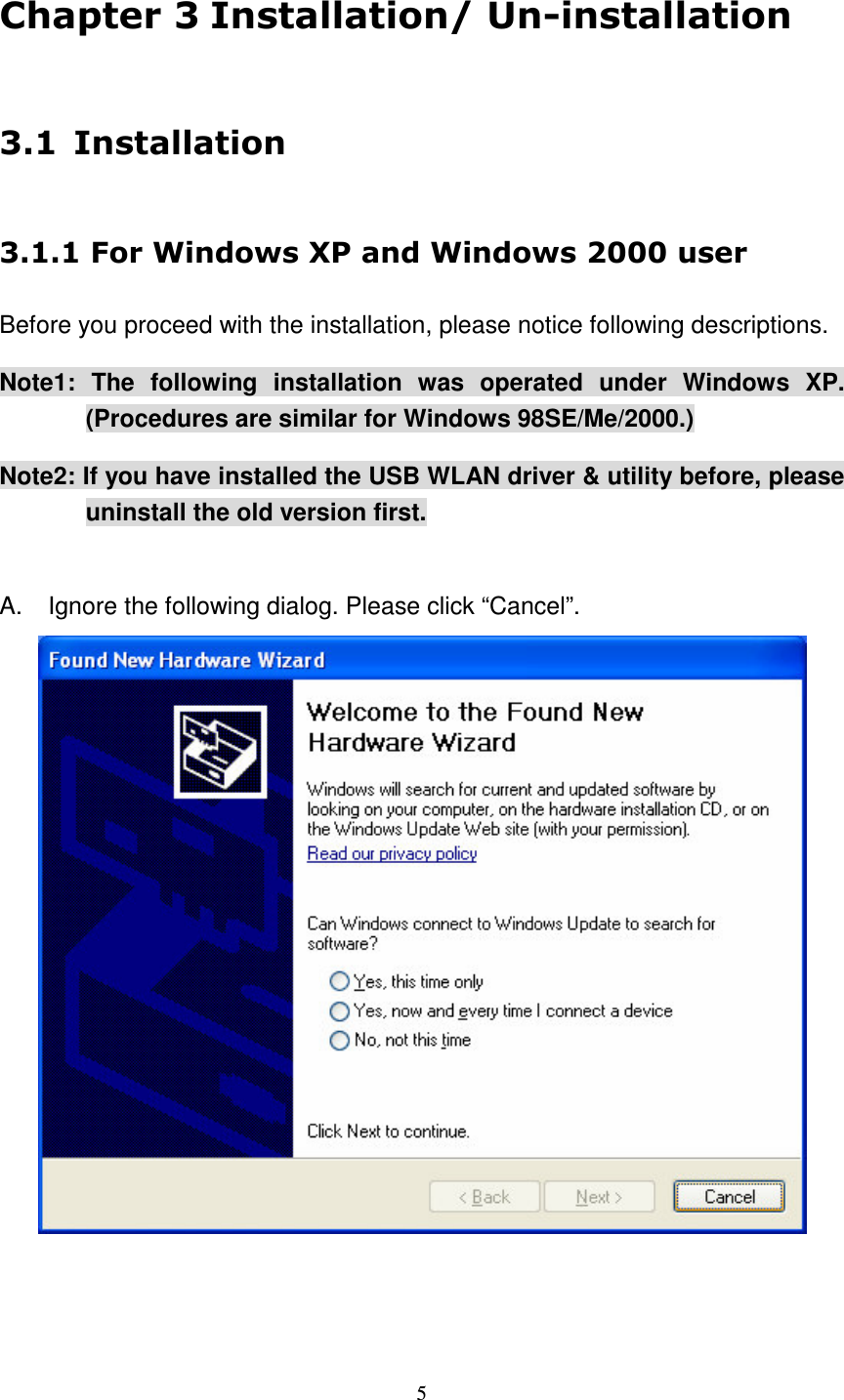
  5       Before you proceed with the installation, please notice following descriptions. Note1:  The  following  installation  was  operated  under  Windows  XP.   (Procedures are similar for Windows 98SE/Me/2000.) Note2: If you have installed the USB WLAN driver & utility before, please uninstall the old version first.  A.  Ignore the following dialog. Please click “Cancel”.
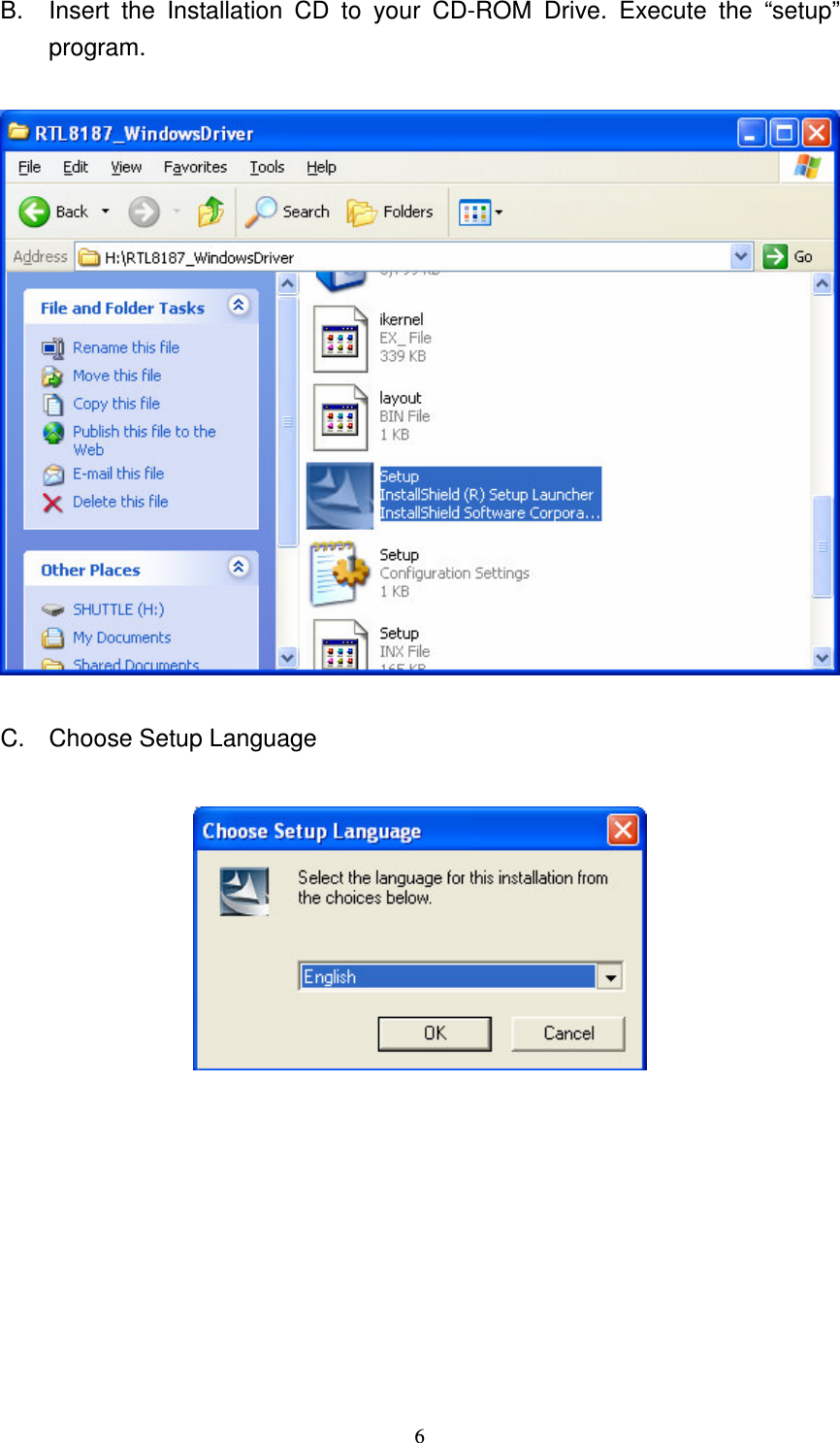
  6 B.  Insert  the  Installation  CD  to  your  CD-ROM  Drive.  Execute  the  “setup” program.  C.  Choose Setup Language
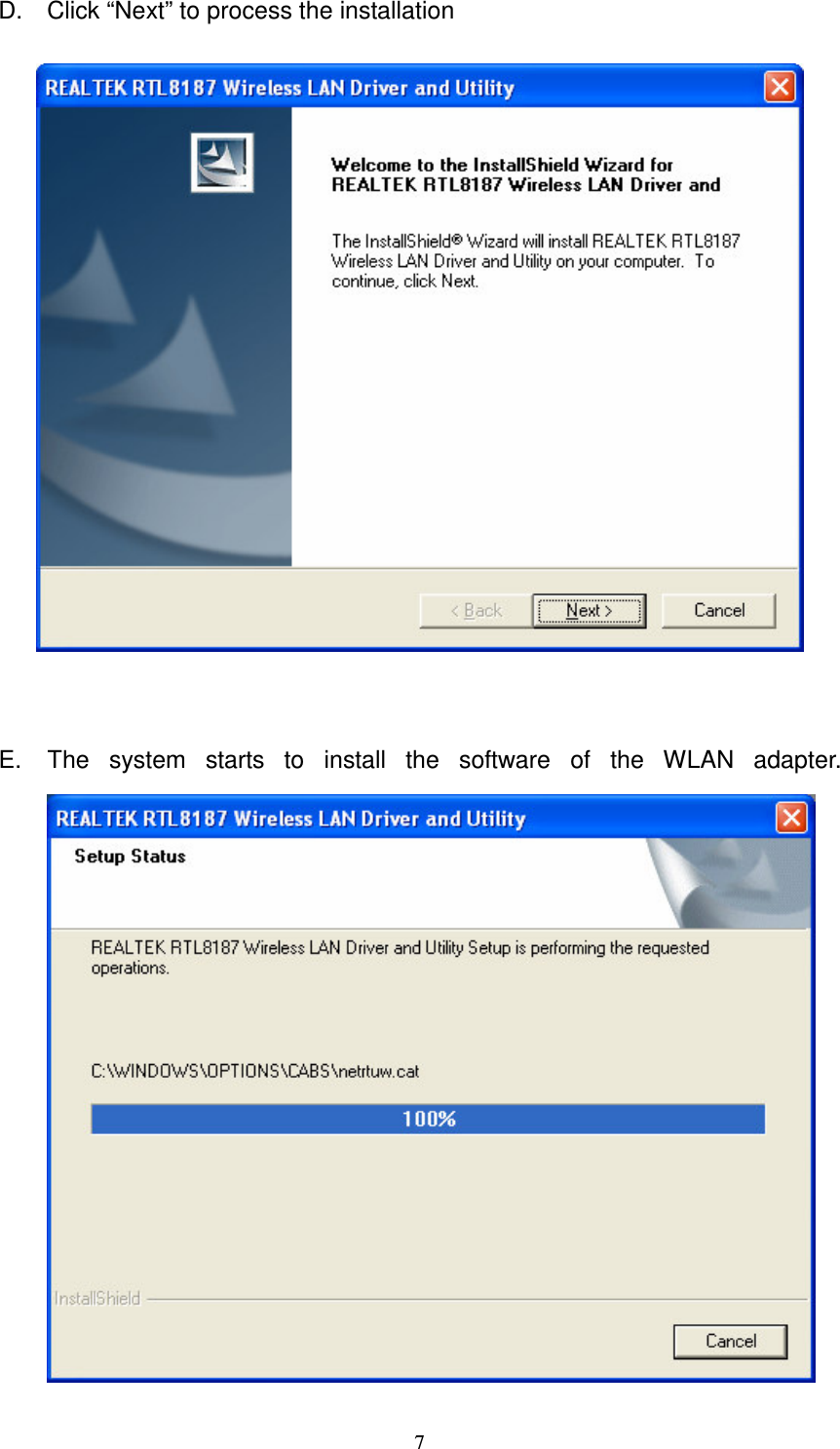
  7 D.  Click “Next” to process the installation   E.  The  system  starts  to  install  the  software  of  the  WLAN  adapter.
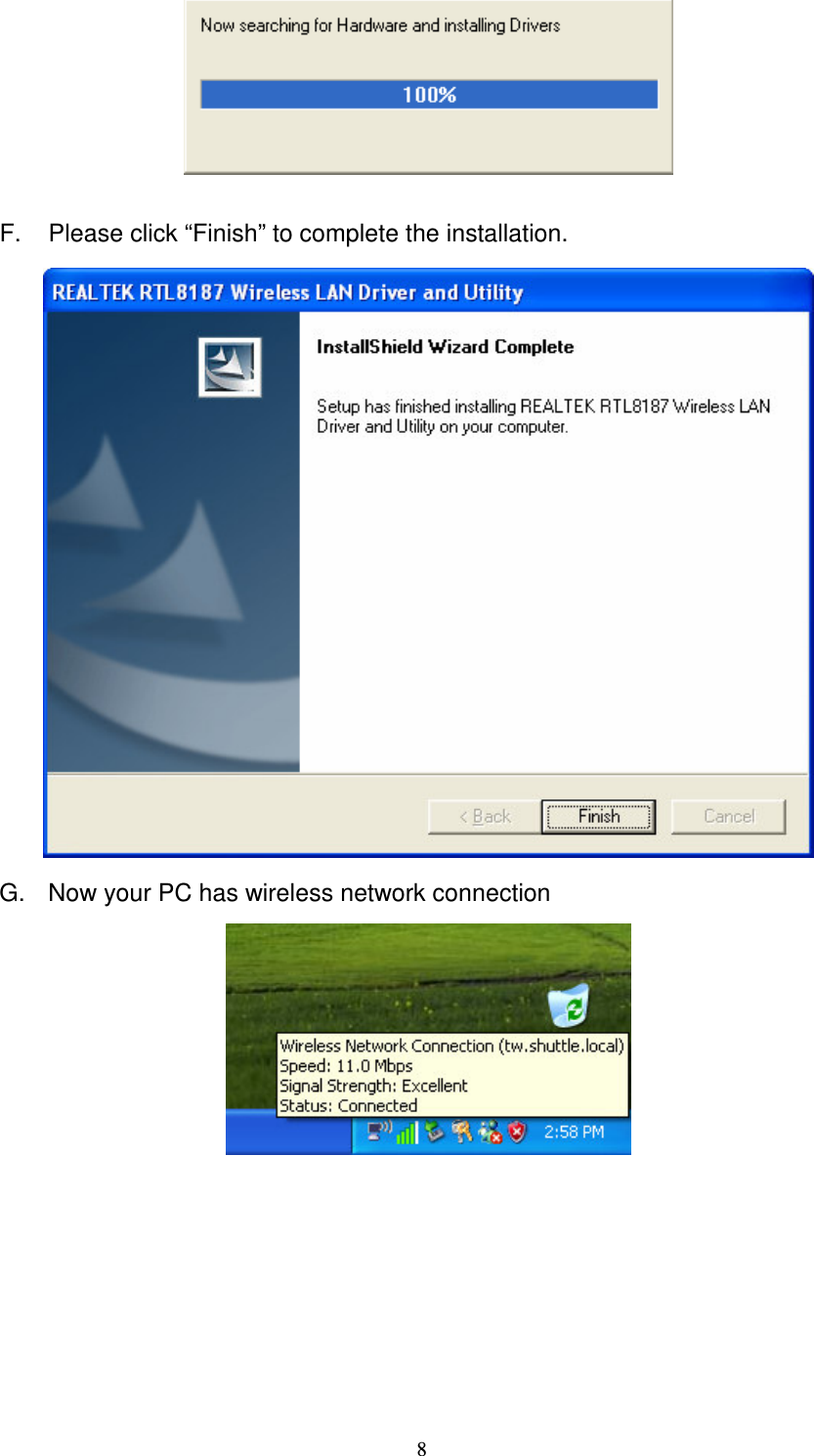
  8   F.  Please click “Finish” to complete the installation.  G.  Now your PC has wireless network connection
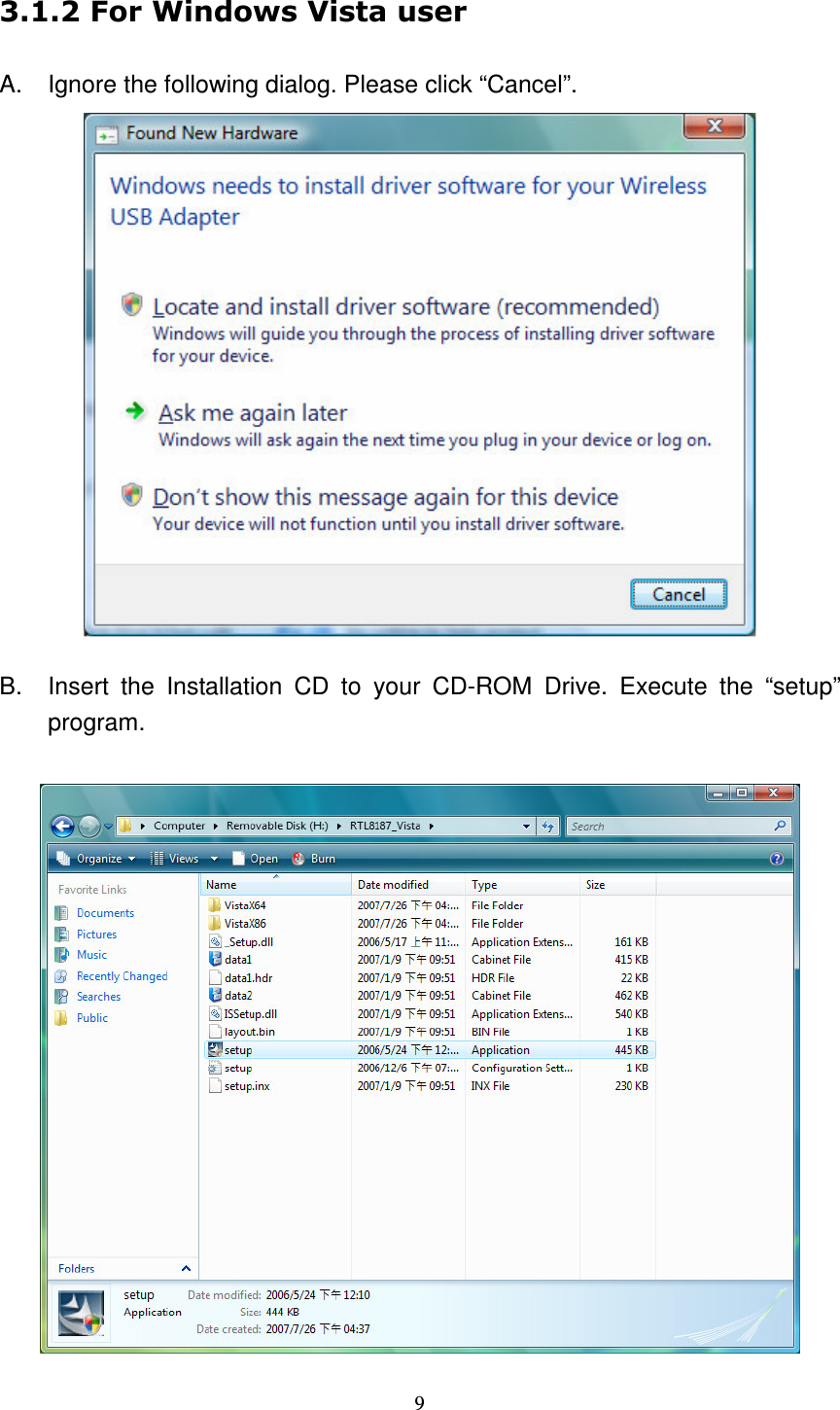
  9  !A.  Ignore the following dialog. Please click “Cancel”.  B.  Insert  the  Installation  CD  to  your  CD-ROM  Drive.  Execute  the  “setup” program.
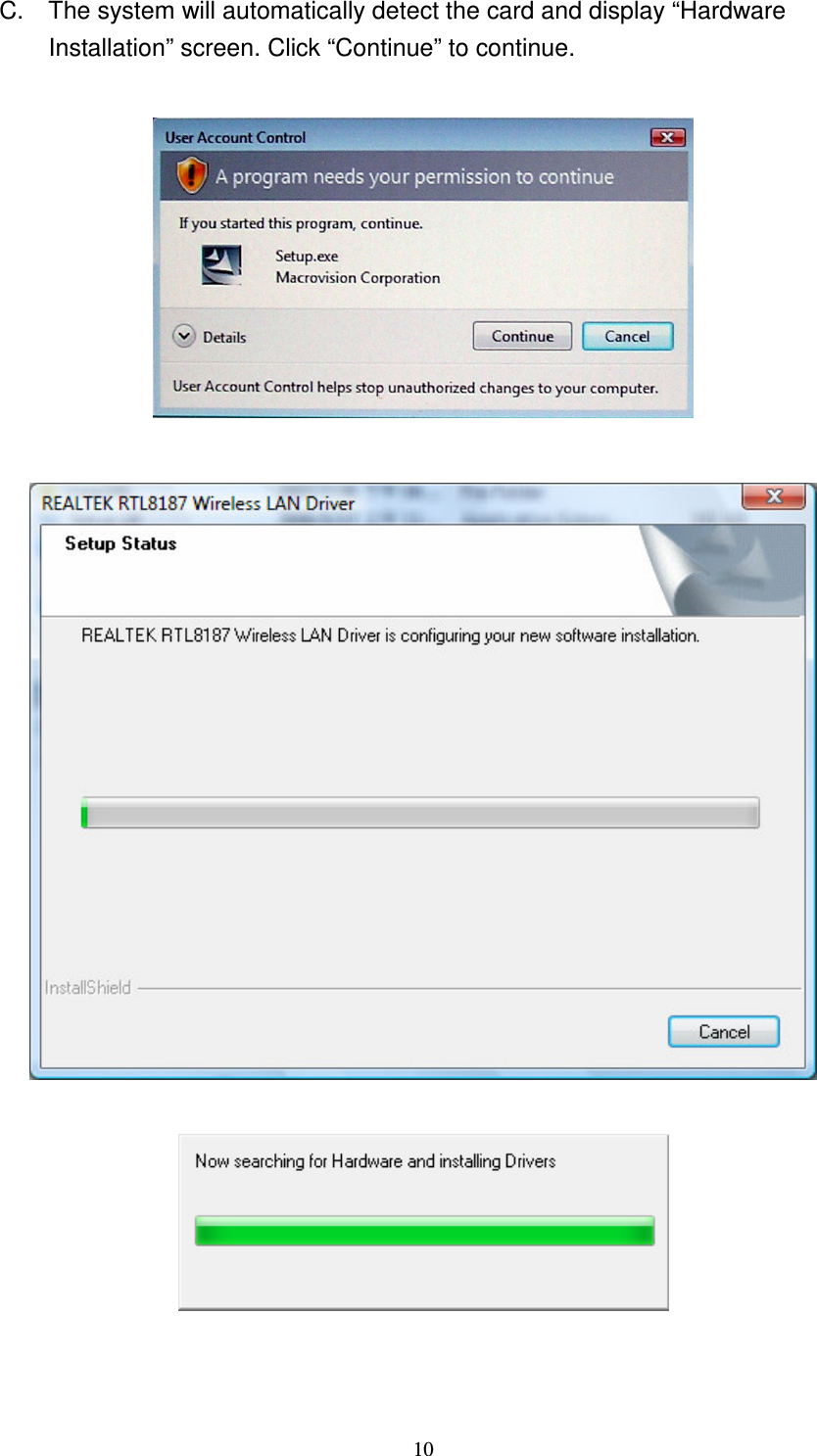
  10 C.  The system will automatically detect the card and display “Hardware Installation” screen. Click “Continue” to continue.
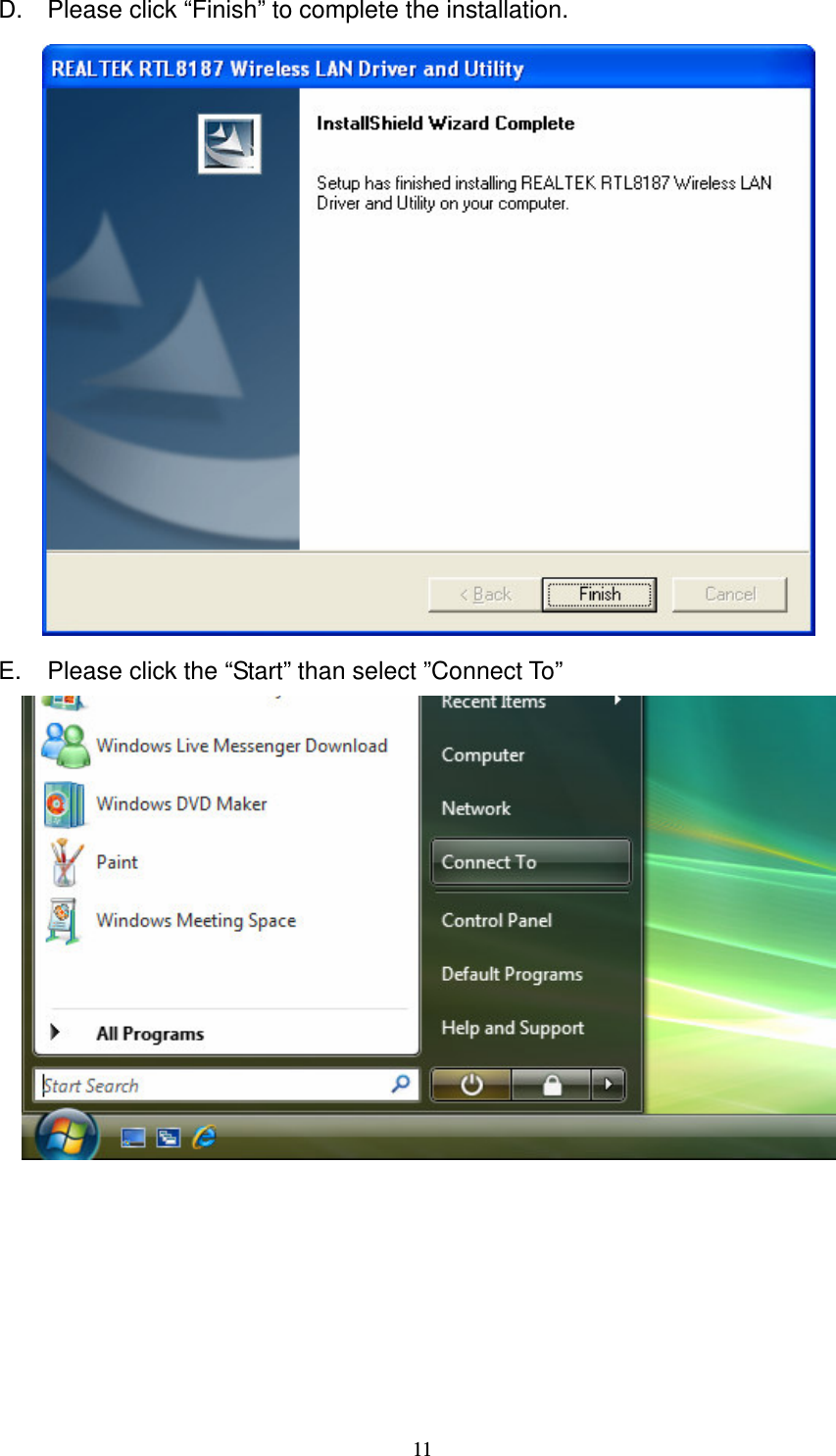
  11 D.  Please click “Finish” to complete the installation.  E.  Please click the “Start” than select ”Connect To”
  12 F.  Please select your wireless network name and click “Connect”  G.  Please click “Connect Anyway”
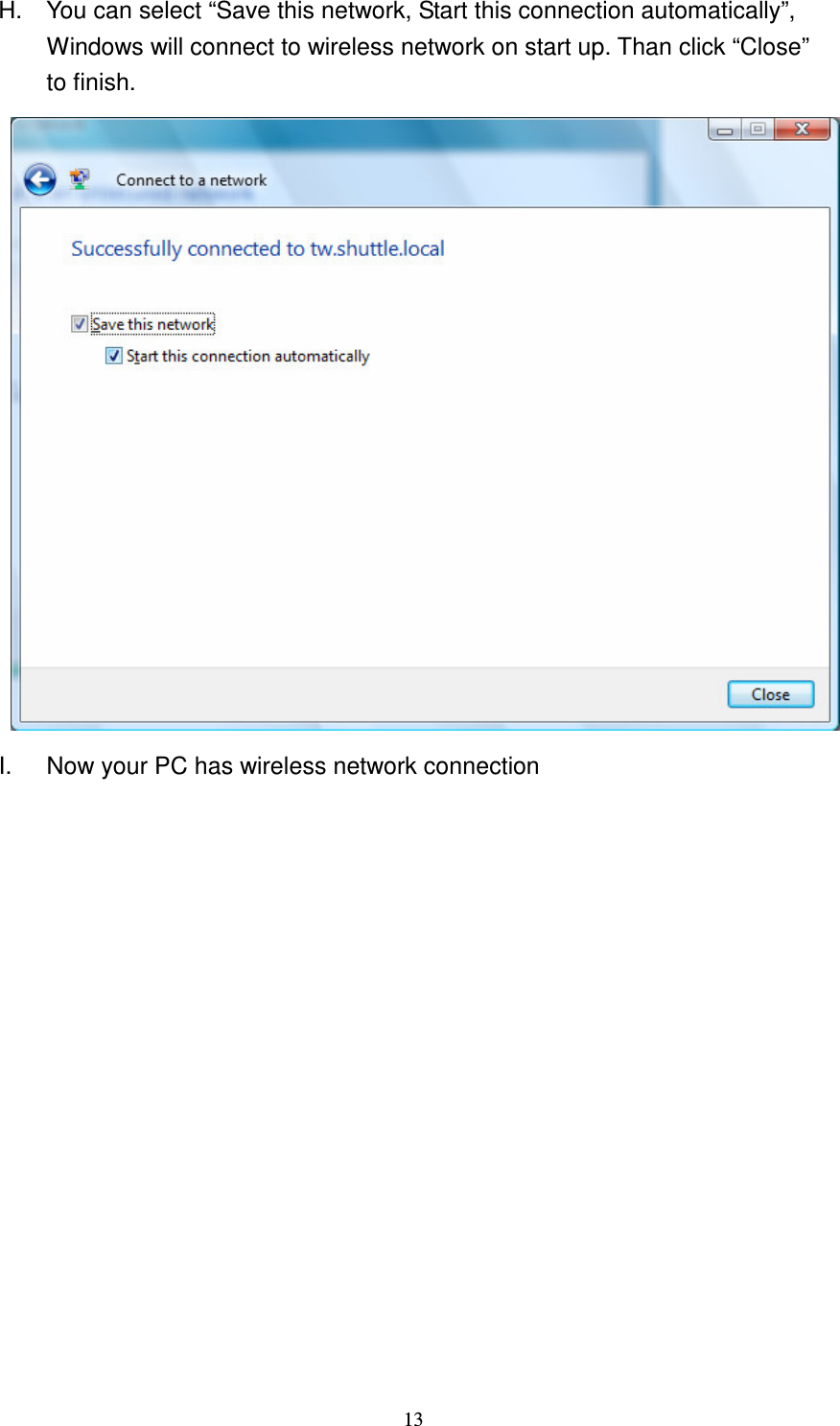
  13 H.  You can select “Save this network, Start this connection automatically”, Windows will connect to wireless network on start up. Than click “Close” to finish.  I.  Now your PC has wireless network connection
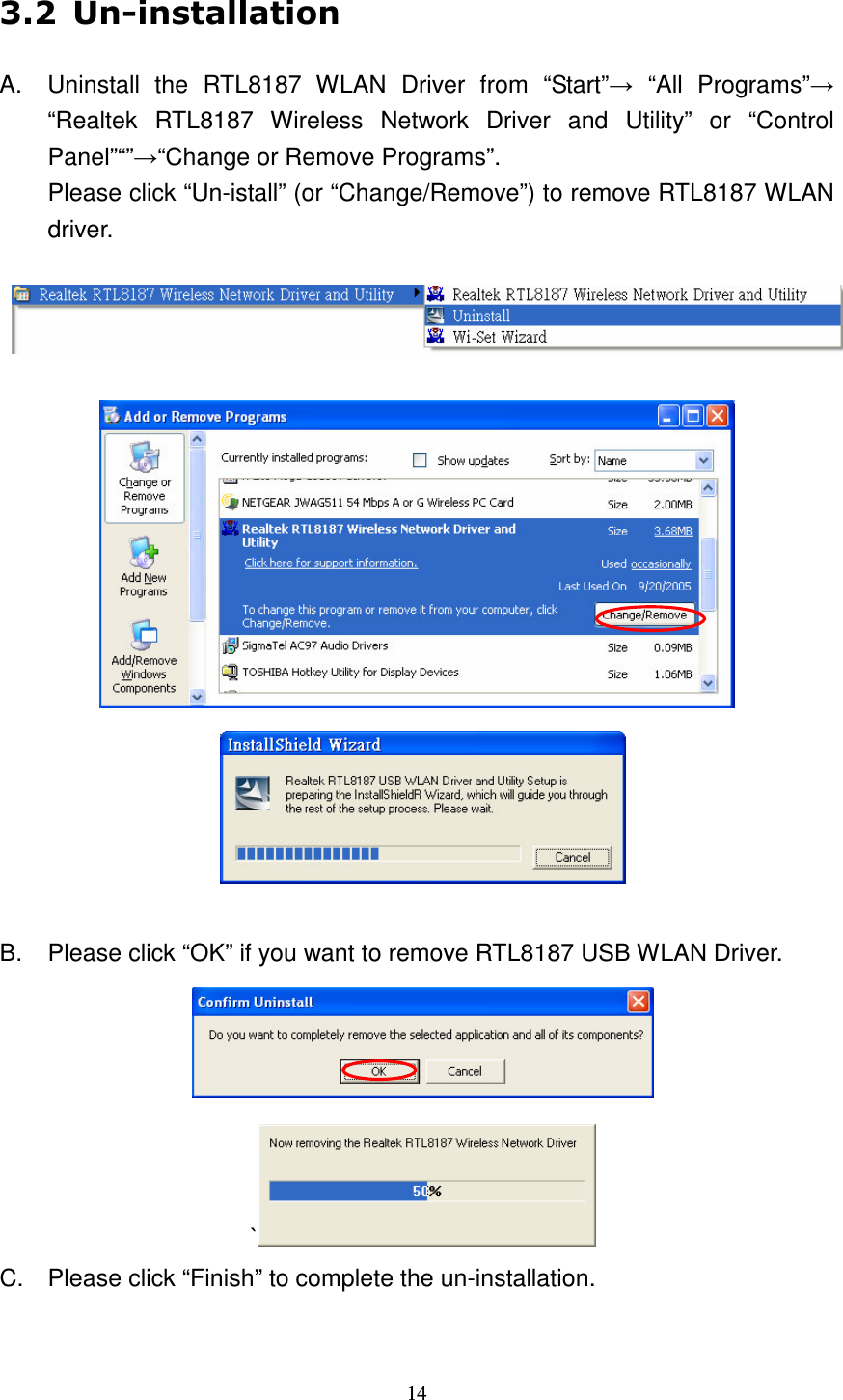
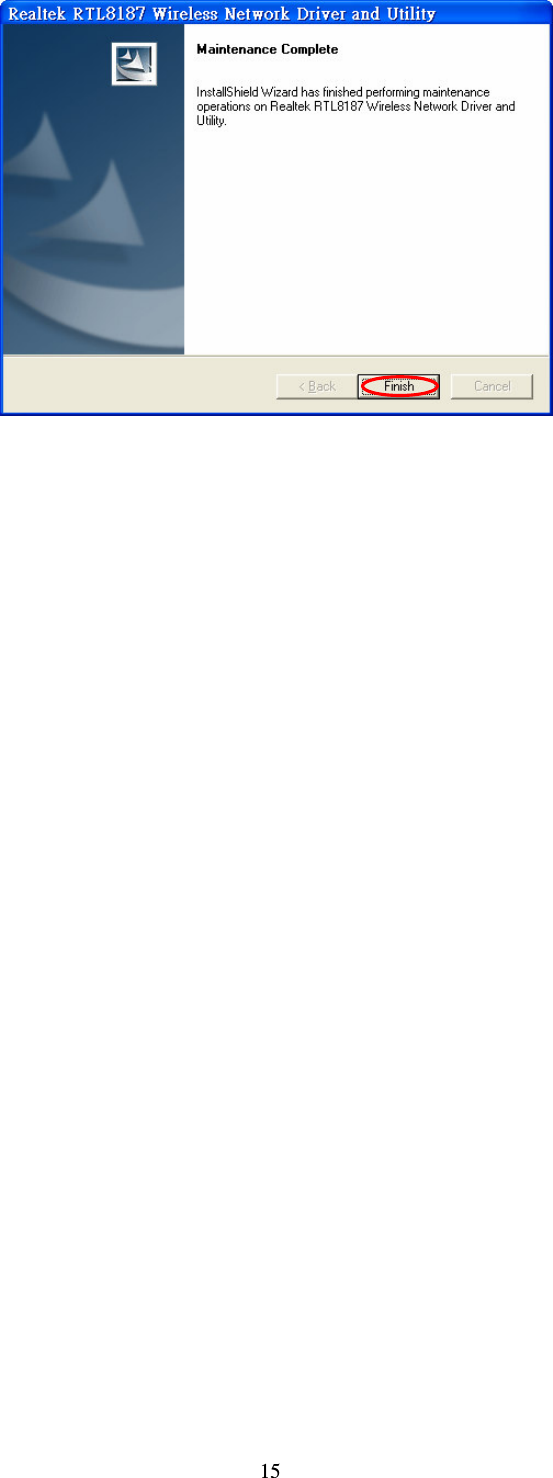
  14  A.  Uninstall  the  RTL8187  WLAN  Driver  from  “Start”  “All  Programs” “Realtek  RTL8187  Wireless  Network  Driver  and  Utility”  or  “Control Panel”“”“Change or Remove Programs”. Please click “Un-istall” (or “Change/Remove”) to remove RTL8187 WLAN driver.       B.  Please click “OK” if you want to remove RTL8187 USB WLAN Driver.  `  C.  Please click “Finish” to complete the un-installation.
  15
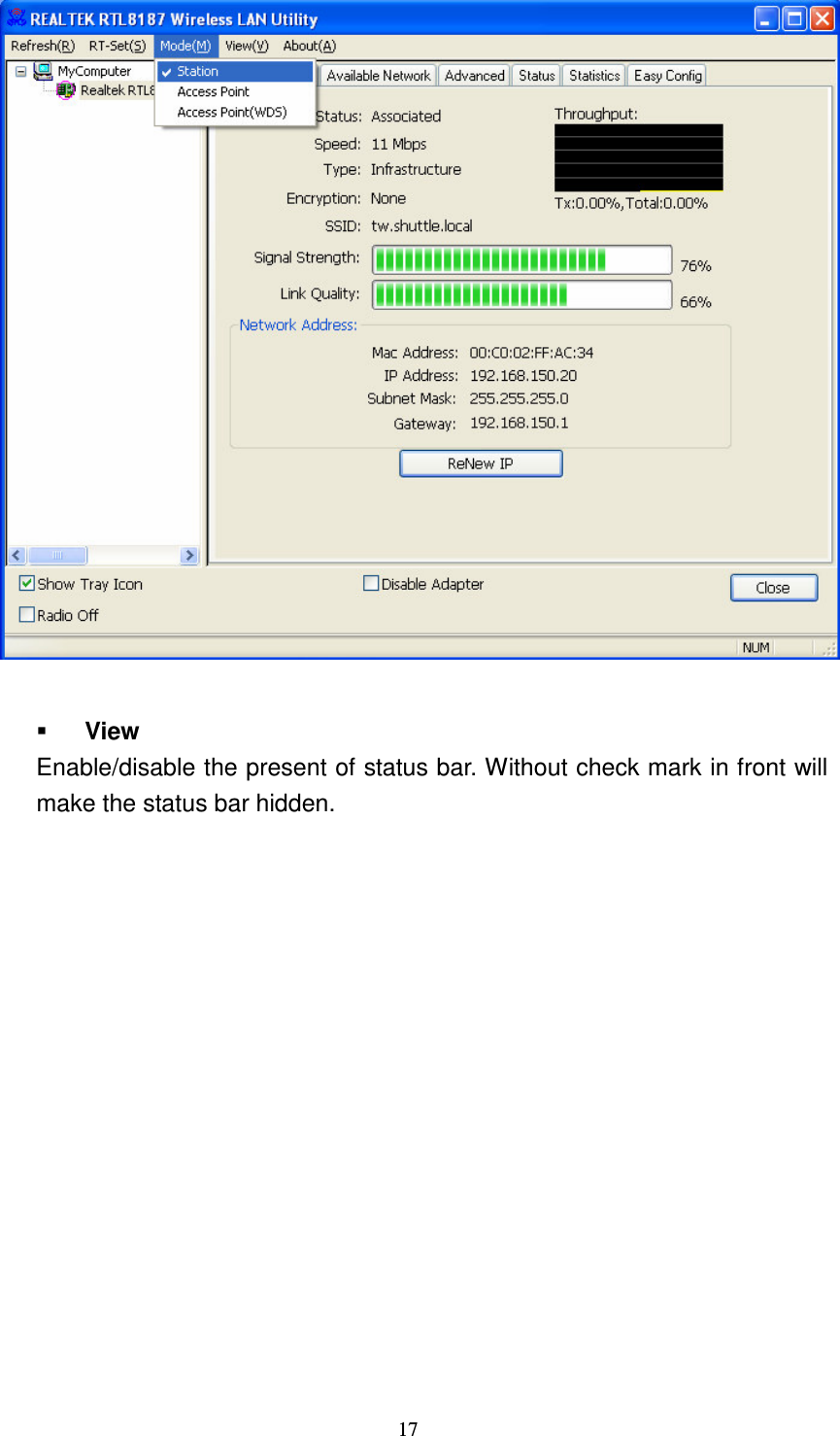
  16 "  #$%&'()" &   A.  Main Menu The main menu includes five submenus.    Refresh As  clicking  the  refresh  menu,  we  can  update  and  re-enumerate  the contents of adapter list area.  RT-Set  Mode Wireless  configuration  was  quickly  switched  to  be  either  [Station]  or [Access Point] or [Access Point(WDS)].   A. Main Menu B. Adapter List Area C. Property Area D. Global Control Bar E. Status Bar
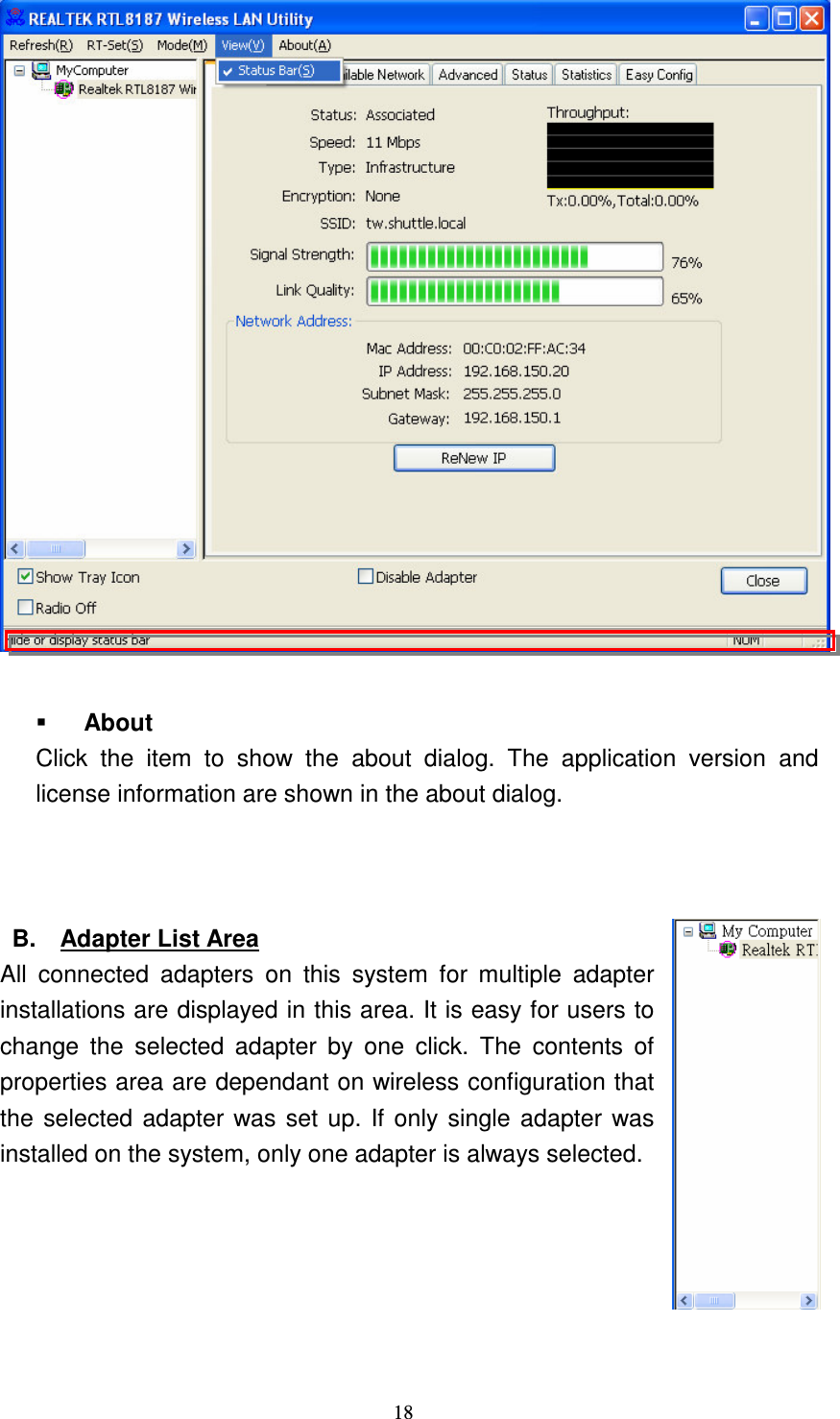
  17    View Enable/disable the present of status bar. Without check mark in front will make the status bar hidden.
  18    About Click  the  item  to  show  the  about  dialog.  The  application  version  and license information are shown in the about dialog.      B.  Adapter List Area All  connected  adapters  on  this  system  for  multiple  adapter installations are displayed in this area. It is easy for users to change  the  selected  adapter  by  one  click.  The  contents  of properties area are dependant on wireless configuration that the selected adapter was set up. If only single adapter was installed on the system, only one adapter is always selected.
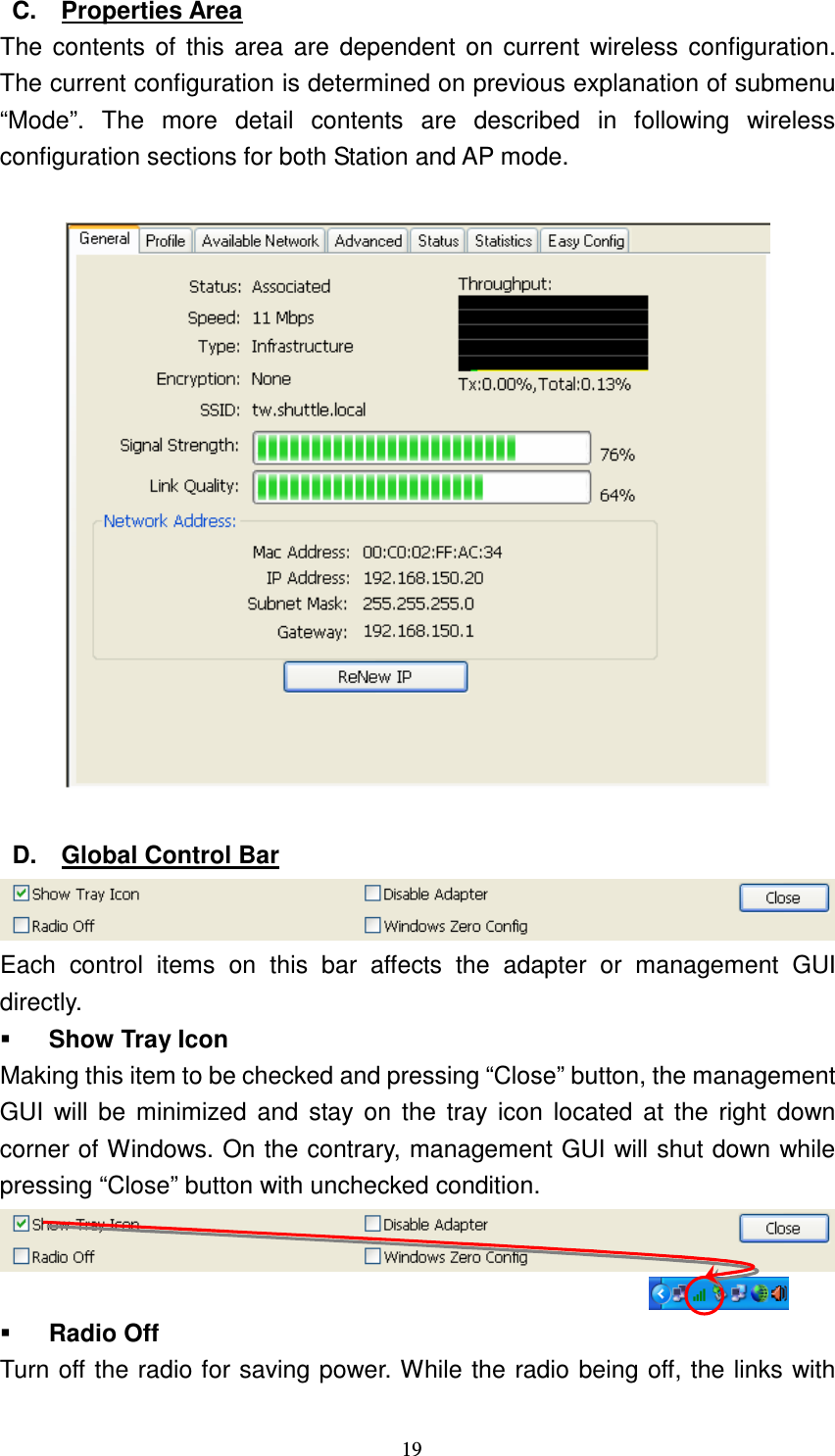
  19 C.  Properties Area The contents of this area are  dependent  on current wireless configuration. The current configuration is determined on previous explanation of submenu “Mode”.  The  more  detail  contents  are  described  in  following  wireless configuration sections for both Station and AP mode.    D.  Global Control Bar  Each  control  items  on  this  bar  affects  the  adapter  or  management  GUI directly.  Show Tray Icon Making this item to be checked and pressing “Close” button, the management GUI  will be minimized  and  stay on  the tray icon  located at  the  right  down corner of Windows. On the contrary, management GUI will shut down while pressing “Close” button with unchecked condition.    Radio Off Turn off the radio for saving power. While the radio being off, the links with
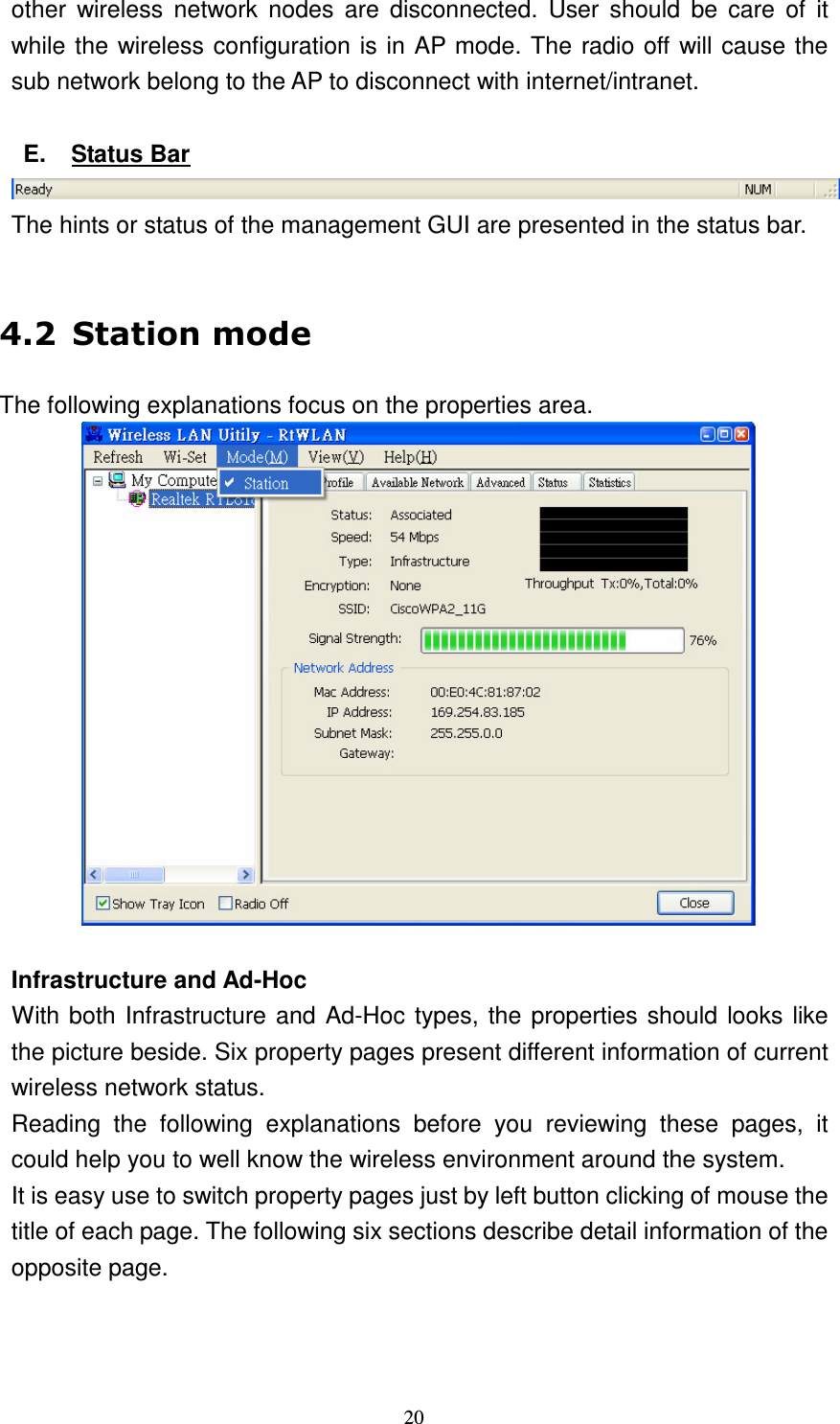
  20 other  wireless  network  nodes  are  disconnected.  User  should  be  care  of  it while the wireless configuration is in AP mode. The radio off will cause the sub network belong to the AP to disconnect with internet/intranet.  E.  Status Bar  The hints or status of the management GUI are presented in the status bar.  " (The following explanations focus on the properties area.   Infrastructure and Ad-Hoc With both Infrastructure and Ad-Hoc types, the properties should looks like the picture beside. Six property pages present different information of current wireless network status. Reading  the  following  explanations  before  you  reviewing  these  pages,  it could help you to well know the wireless environment around the system. It is easy use to switch property pages just by left button clicking of mouse the title of each page. The following six sections describe detail information of the opposite page.
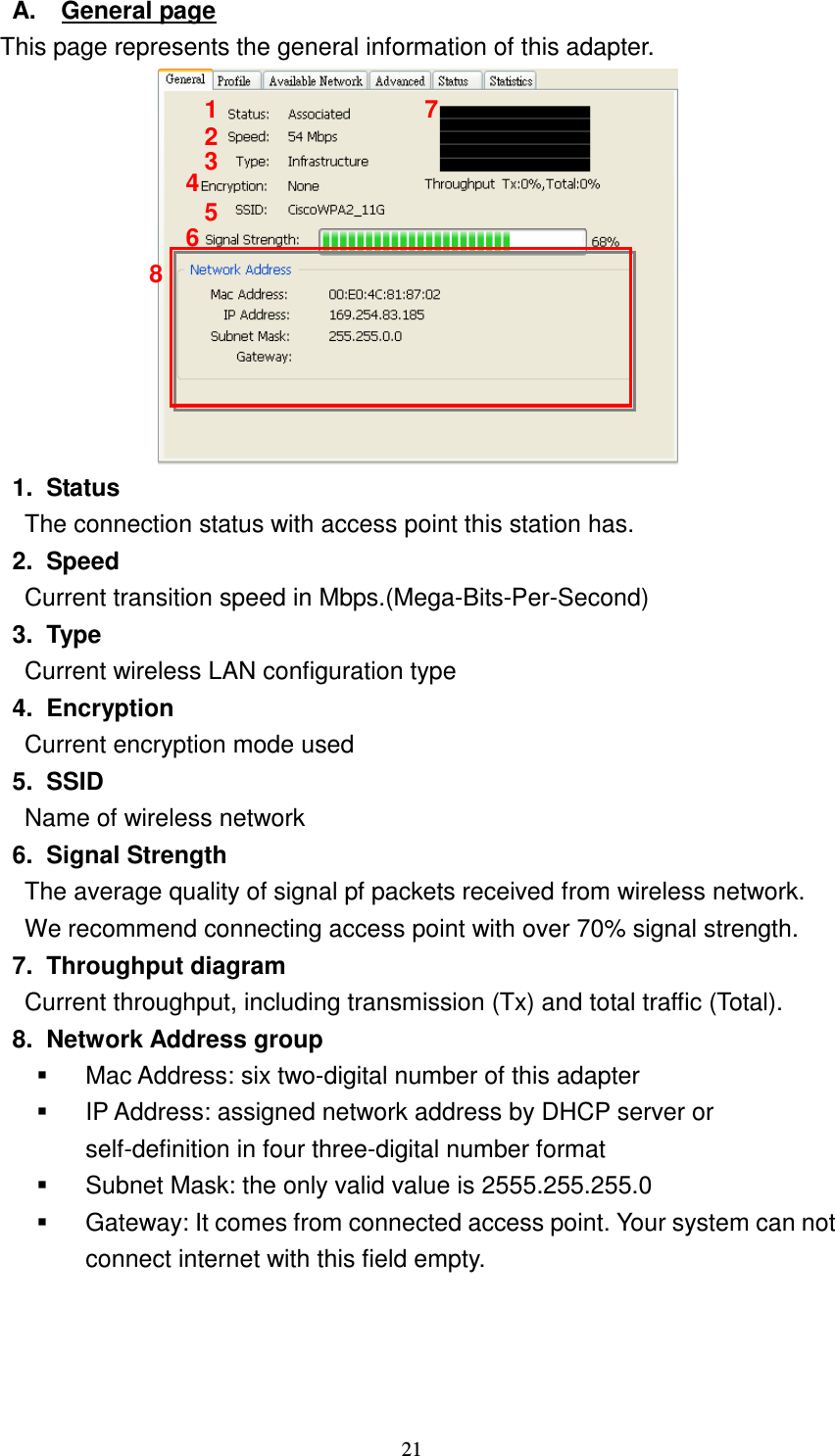
  21 A.  General page This page represents the general information of this adapter.    1.  Status The connection status with access point this station has. 2.  Speed Current transition speed in Mbps.(Mega-Bits-Per-Second) 3.  Type Current wireless LAN configuration type 4.  Encryption Current encryption mode used 5.  SSID Name of wireless network 6.  Signal Strength The average quality of signal pf packets received from wireless network. We recommend connecting access point with over 70% signal strength. 7.  Throughput diagram Current throughput, including transmission (Tx) and total traffic (Total).   8.  Network Address group   Mac Address: six two-digital number of this adapter   IP Address: assigned network address by DHCP server or self-definition in four three-digital number format   Subnet Mask: the only valid value is 2555.255.255.0   Gateway: It comes from connected access point. Your system can not connect internet with this field empty.  1 2 3 4 5 6 7 8
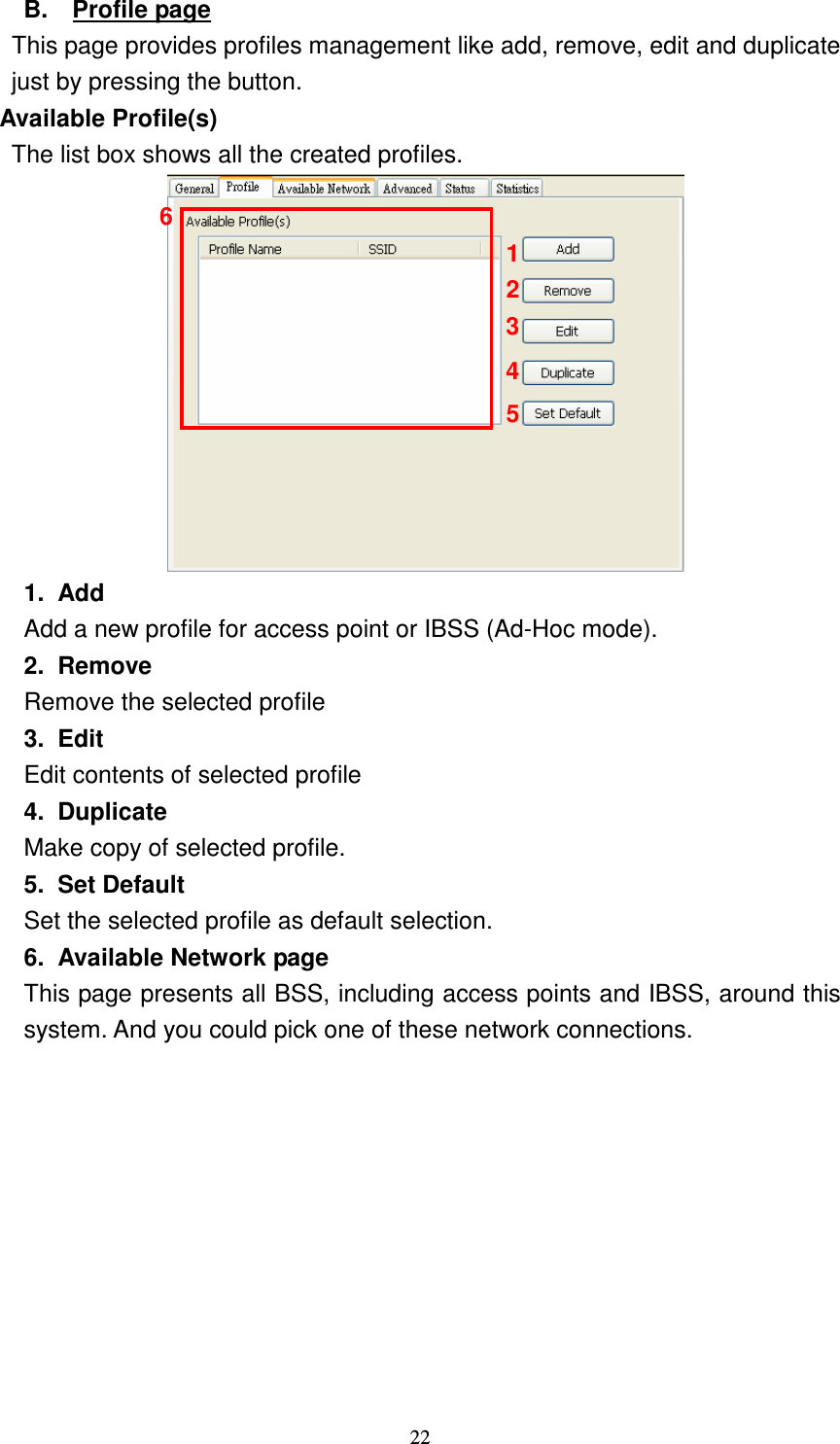
  22 B.  Profile page This page provides profiles management like add, remove, edit and duplicate just by pressing the button. Available Profile(s) The list box shows all the created profiles.  1.  Add Add a new profile for access point or IBSS (Ad-Hoc mode). 2.  Remove Remove the selected profile 3.  Edit Edit contents of selected profile 4.  Duplicate Make copy of selected profile. 5.  Set Default Set the selected profile as default selection. 6.  Available Network page This page presents all BSS, including access points and IBSS, around this system. And you could pick one of these network connections.  2 1 3 4 5 6
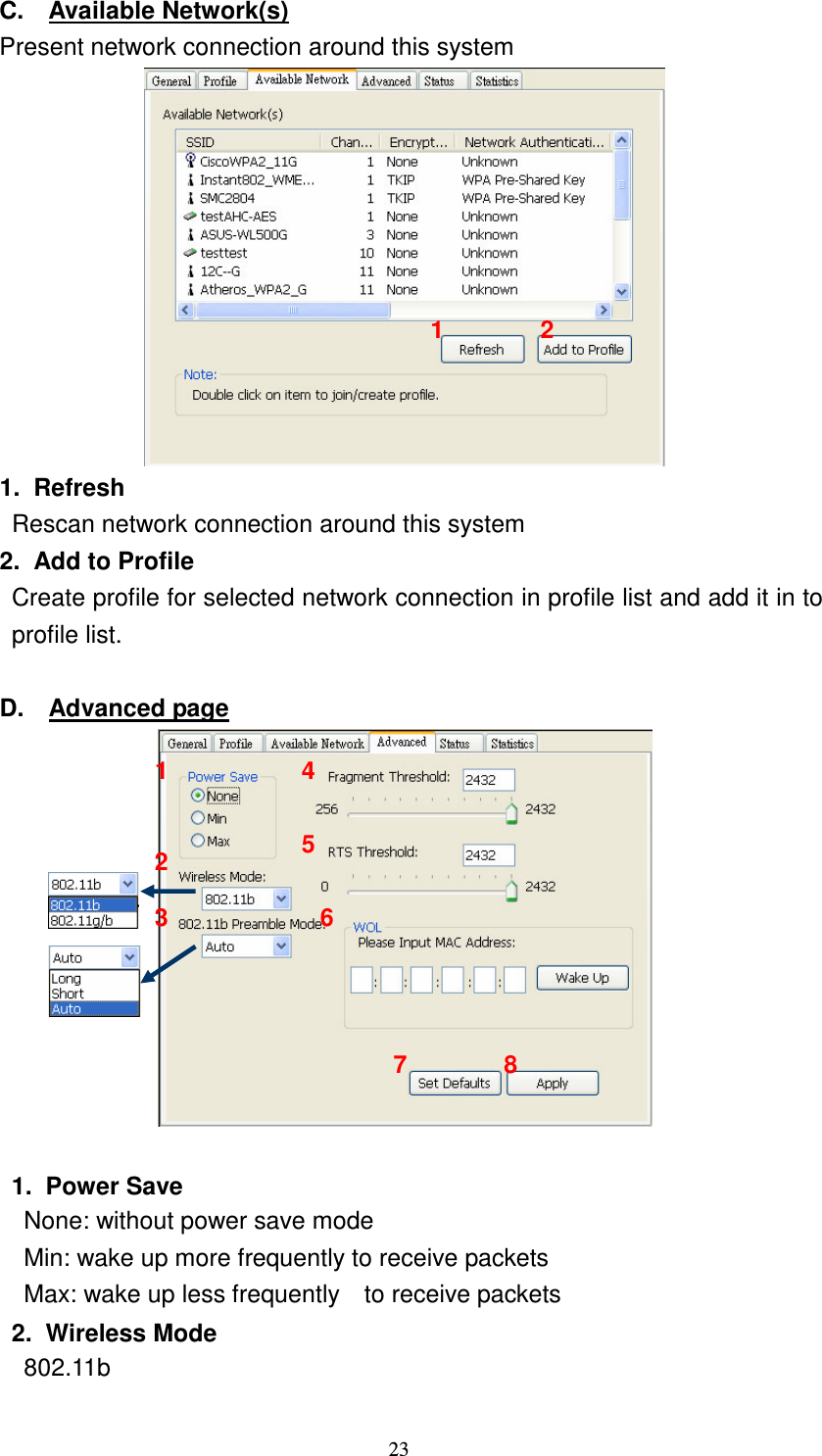
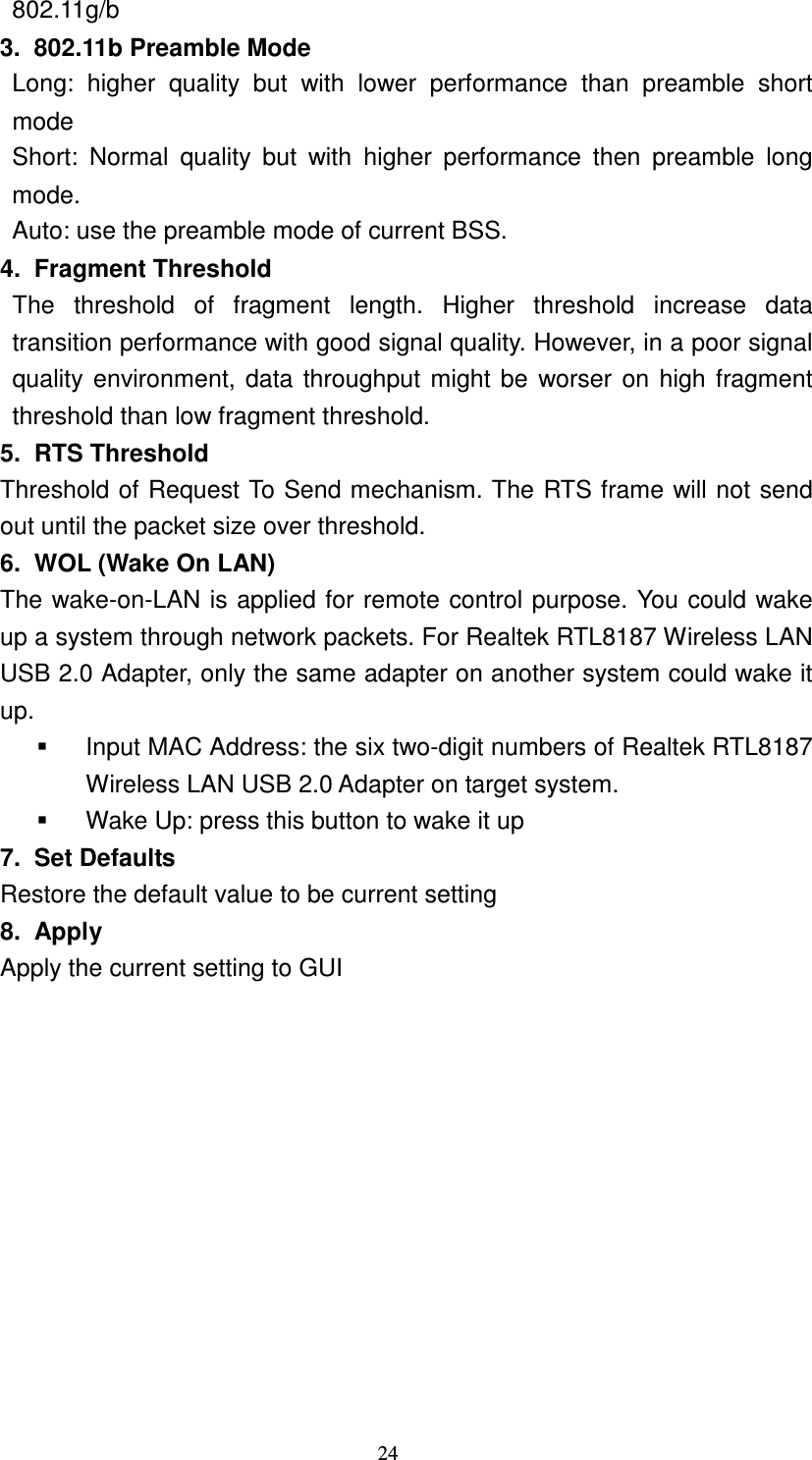
  23 C.  Available Network(s) Present network connection around this system  1.  Refresh Rescan network connection around this system 2.  Add to Profile Create profile for selected network connection in profile list and add it in to profile list.  D.  Advanced page   1.  Power Save   Γ  None: without power save mode Γ  Min: wake up more frequently to receive packets Γ  Max: wake up less frequently    to receive packets 2.  Wireless Mode Γ  802.11b 2 1 1 2 3 4 5 6 7 8
  24 Γ  802.11g/b 3.  802.11b Preamble Mode Γ  Long:  higher  quality  but  with  lower  performance  than  preamble  short mode Γ  Short:  Normal  quality  but  with  higher  performance  then  preamble  long mode. Γ  Auto: use the preamble mode of current BSS. 4.  Fragment Threshold The  threshold  of  fragment  length.  Higher  threshold  increase  data transition performance with good signal quality. However, in a poor signal quality environment, data throughput might be worser on high fragment threshold than low fragment threshold. 5.  RTS Threshold Threshold of Request To Send mechanism. The RTS frame will not send out until the packet size over threshold. 6.  WOL (Wake On LAN) The wake-on-LAN is applied for remote control purpose. You could wake up a system through network packets. For Realtek RTL8187 Wireless LAN USB 2.0 Adapter, only the same adapter on another system could wake it up.   Input MAC Address: the six two-digit numbers of Realtek RTL8187 Wireless LAN USB 2.0 Adapter on target system.   Wake Up: press this button to wake it up 7.  Set Defaults Restore the default value to be current setting 8.  Apply Apply the current setting to GUI
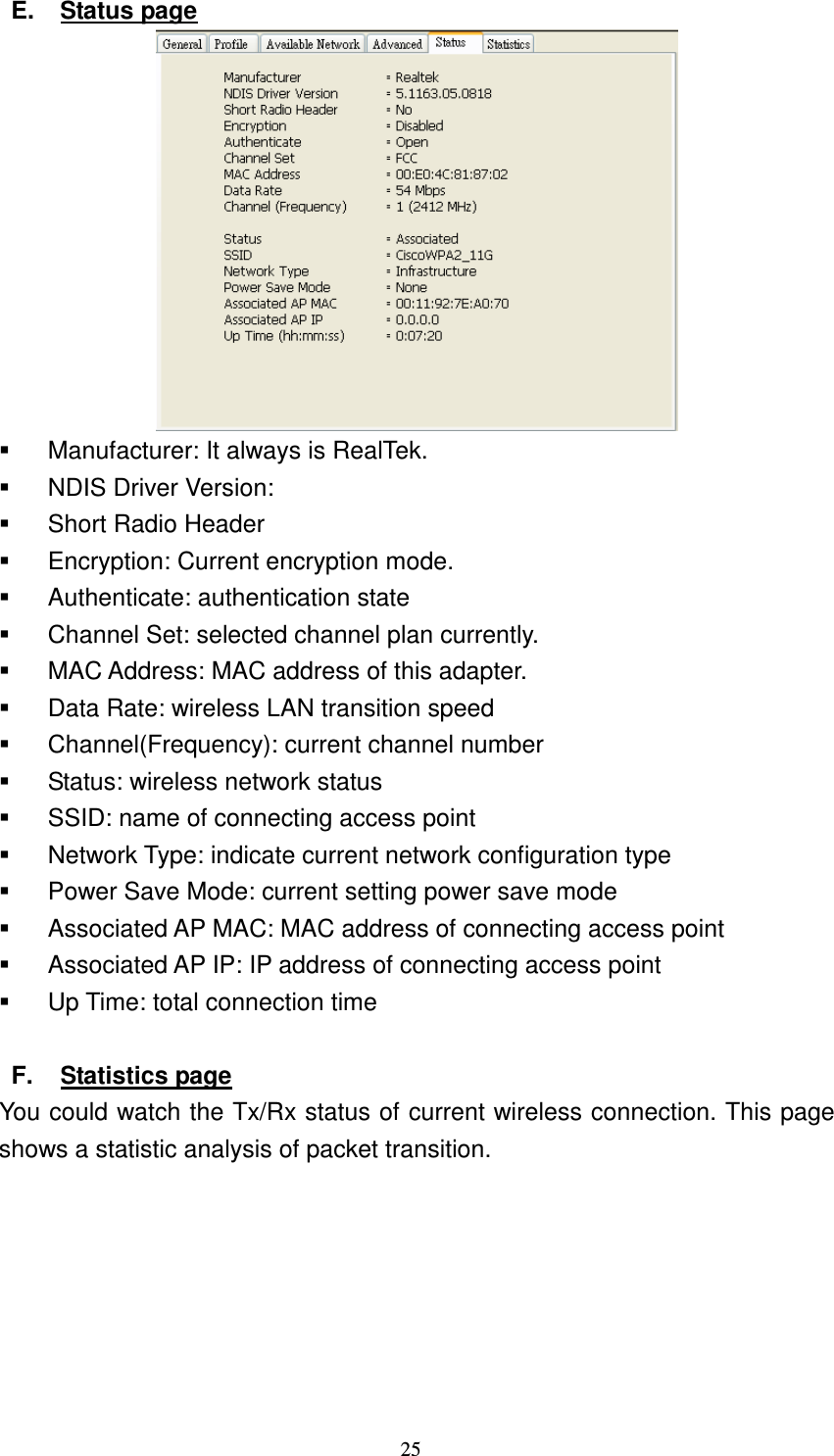
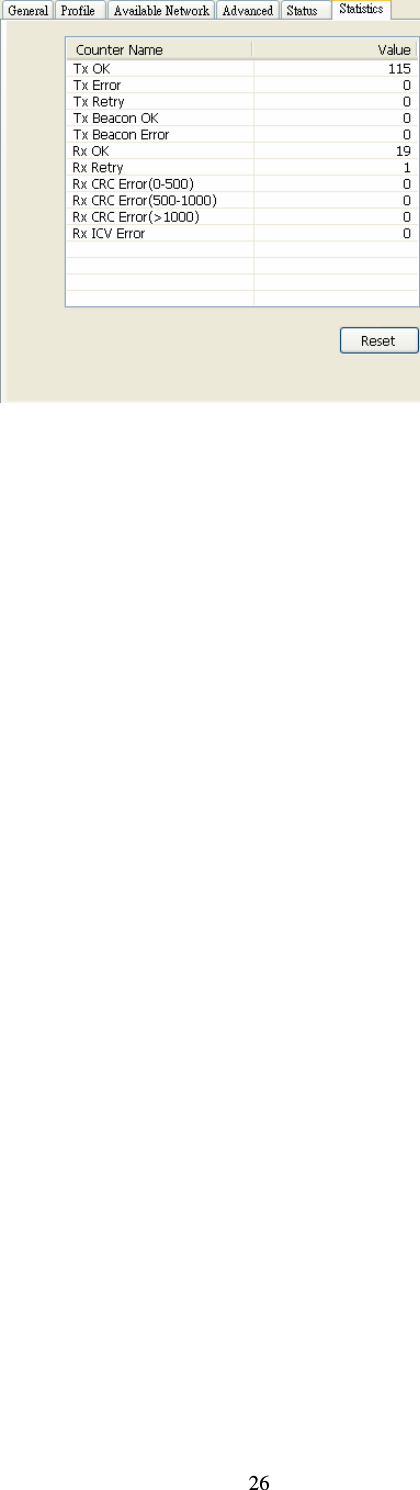
  25 E.  Status page    Manufacturer: It always is RealTek.   NDIS Driver Version:   Short Radio Header   Encryption: Current encryption mode.   Authenticate: authentication state   Channel Set: selected channel plan currently.     MAC Address: MAC address of this adapter.   Data Rate: wireless LAN transition speed   Channel(Frequency): current channel number   Status: wireless network status   SSID: name of connecting access point   Network Type: indicate current network configuration type   Power Save Mode: current setting power save mode   Associated AP MAC: MAC address of connecting access point   Associated AP IP: IP address of connecting access point   Up Time: total connection time  F.  Statistics page You could watch the Tx/Rx status of current wireless connection. This page shows a statistic analysis of packet transition.
  26
  27   Federal Communication Commission Interference Statement This equipment has been tested and found to comply with the limits for a Class B digital device,  pursuant  to  Part  15  of  the  FCC  Rules.  These  limits  are  designed  to  provide reasonable  protection  against  harmful  interference  in  a  residential  installation.  This equipment generates, uses and can radiate radio frequency energy and, if not installed and used in accordance with the instructions, may cause harmful interference to radio communications.  However,  there  is  no  guarantee  that  interference  will  not  occur  in  a particular  installation.  If  this  equipment  does  cause  harmful  interference  to  radio  or television reception, which can be determined by turning the equipment off and on, the user is encouraged to try to correct the interference by one of the following measures: Reorient or relocate the receiving antennaIncrease the separation between the equipment and receiver. Connect the equipment into an outlet on a circuit different from that to which the receiver is connected. Consult the dealer or an experienced radio/TV technician for help. This device complies with Part 15 of the FCC Rules. Operation is subject to the following two conditions: (1) This device may not cause harmful interference, and   (2)  this  device  must  accept  any  interference  received,  including  interference  that  may cause undesired operation.  FCC Caution: Any changes or modifications not expressly approved by the party responsible for compliance could void the user’ authority to operate this equipment.  IMPORTANT NOTE: FCC Radiation Exposure Statement: This  equipment  complies  with  FCC  radiation  exposure  limits  set  forth  for  an  uncontrolled environment. This transmitter must not be co-located or operating in conjunction with any other antenna or transmitter.  IEEE 802.11b or 802.11g operation of this product in the U.S.A. is firmware-limited to channels 1 through 11. This device is intended only for OEM integrators under the following conditions: The transmitter module may not be co-located with any other transmitter or antenna.
  28 As long as conduction above is met, further transmitter test will not be required. However, the OEM integrator is still responsible for testing their end-product for any additional compliance requirements  required  with  this module installed (for  example, digital device emissions, PC peripheral requirements, etc.).  IMPORTANT NOTE: In the event that these conditions can not be met (for example certain laptop configurations or co-location with another transmitter), then the FCC authorization is no longer  considered  valid  and  the  FCC  ID  can  not  be  used  on  the  final  product.  In  these circumstances,  the  OEM  integrator  will  be  responsible  for  re-evaluating  the  end  product (including the transmitter) and obtaining a separate FCC authorization.  End Product Labeling The final end product must be labeled in a visible area with the following: Contains TX FCC ID: S8C-PN20Manual Information That Must be Included The OEM integrator has to be aware not to provide information to the end user regarding how to install or remove this RF module in the user’ manual of the end product which integrate this module. The users manual for OEM integrators must include the following information in a prominent locationIMPORTANT  NOTE:  To  comply  with  FCC  RF  exposure  compliance  requirements.  The antenna  must  not  be  co-located  or  operating  in  conjunction  with  any  other  antenna  or transmitter.  “To comply with FCC RF exposure compliance requirements, the antenna used for this transmitter must be installed to provide a separation distance of at least 20 cm from all persons and must not be co-located or operating in conjunction with any other antenna or transmitter.

Navigation menu