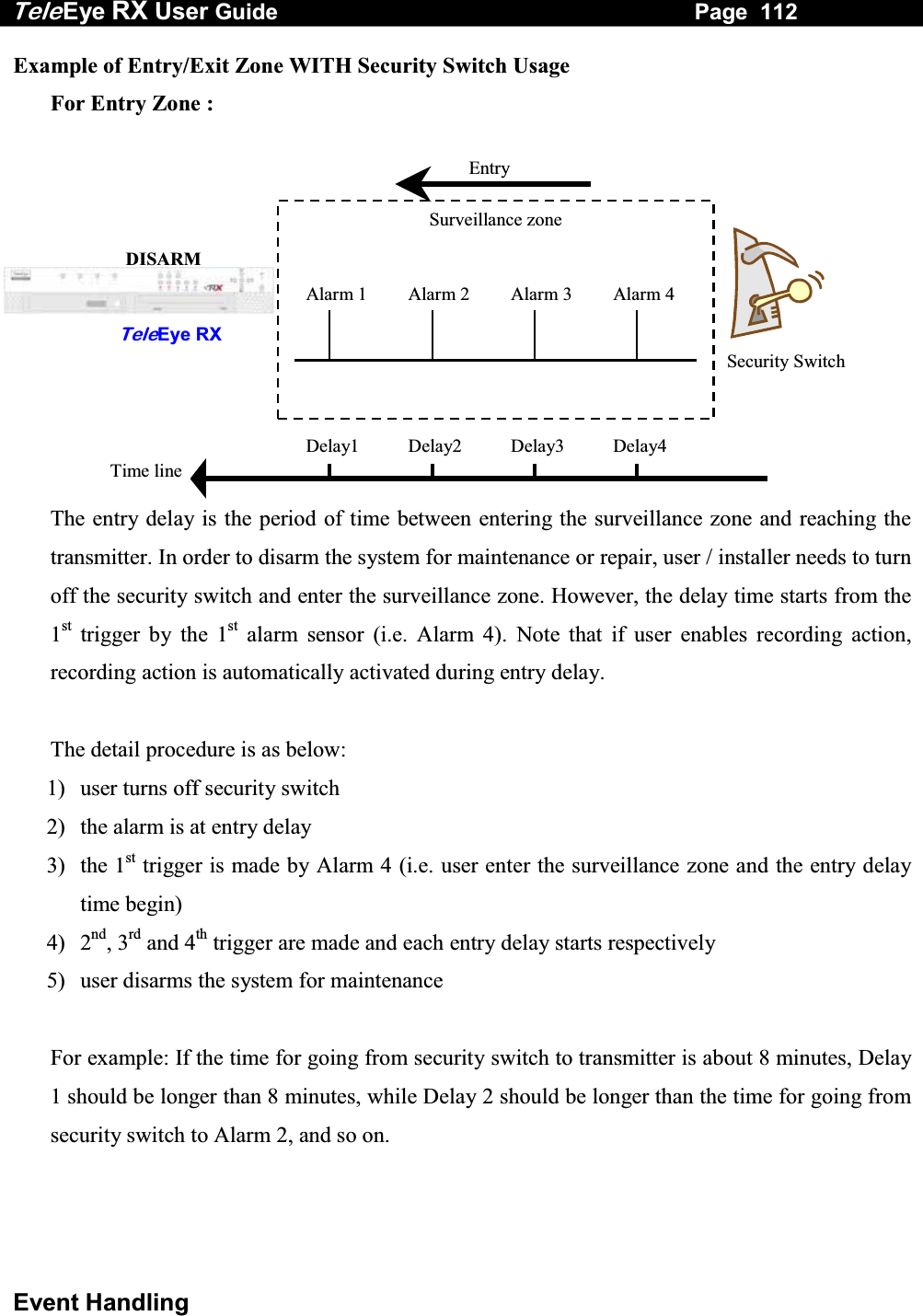
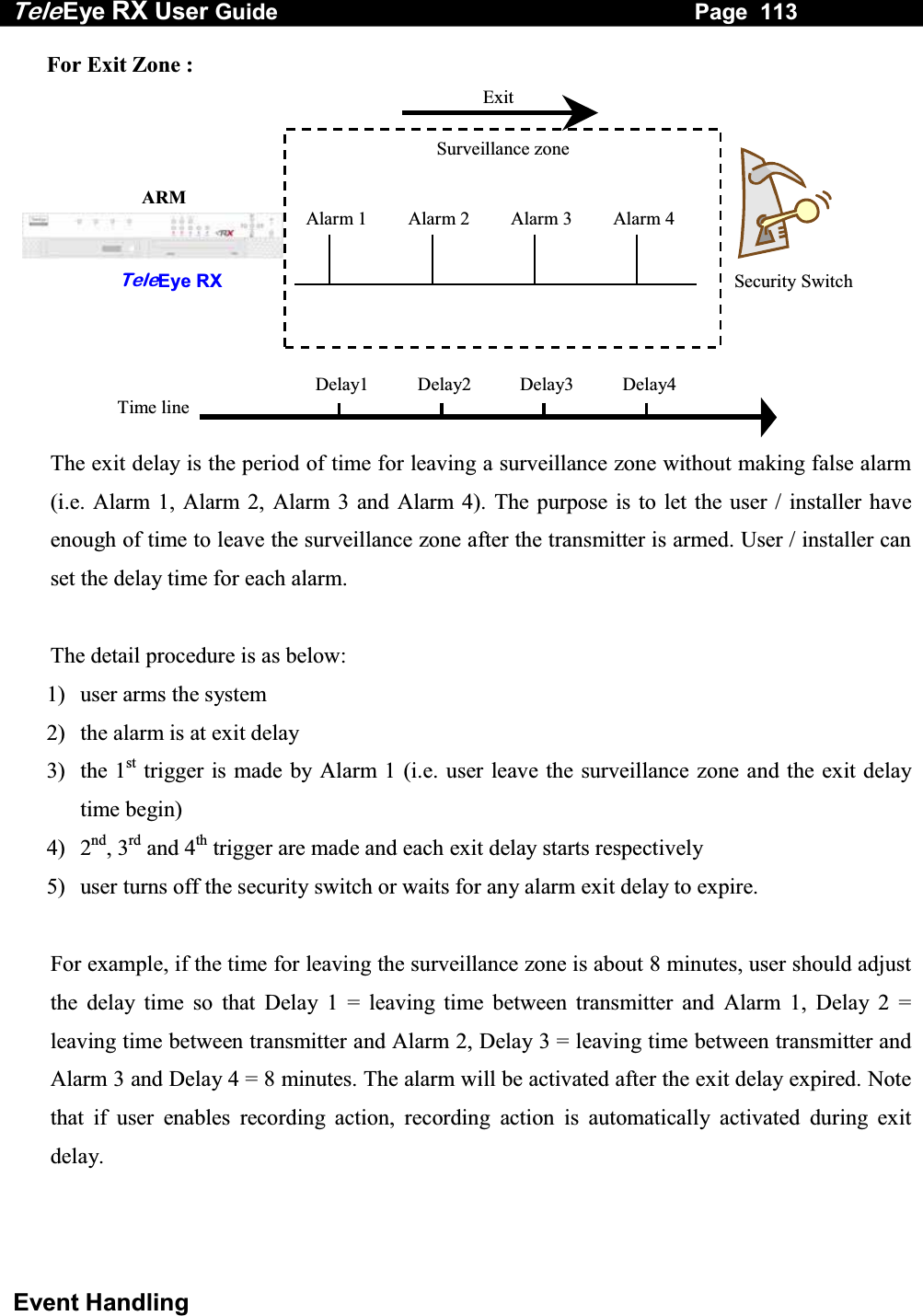
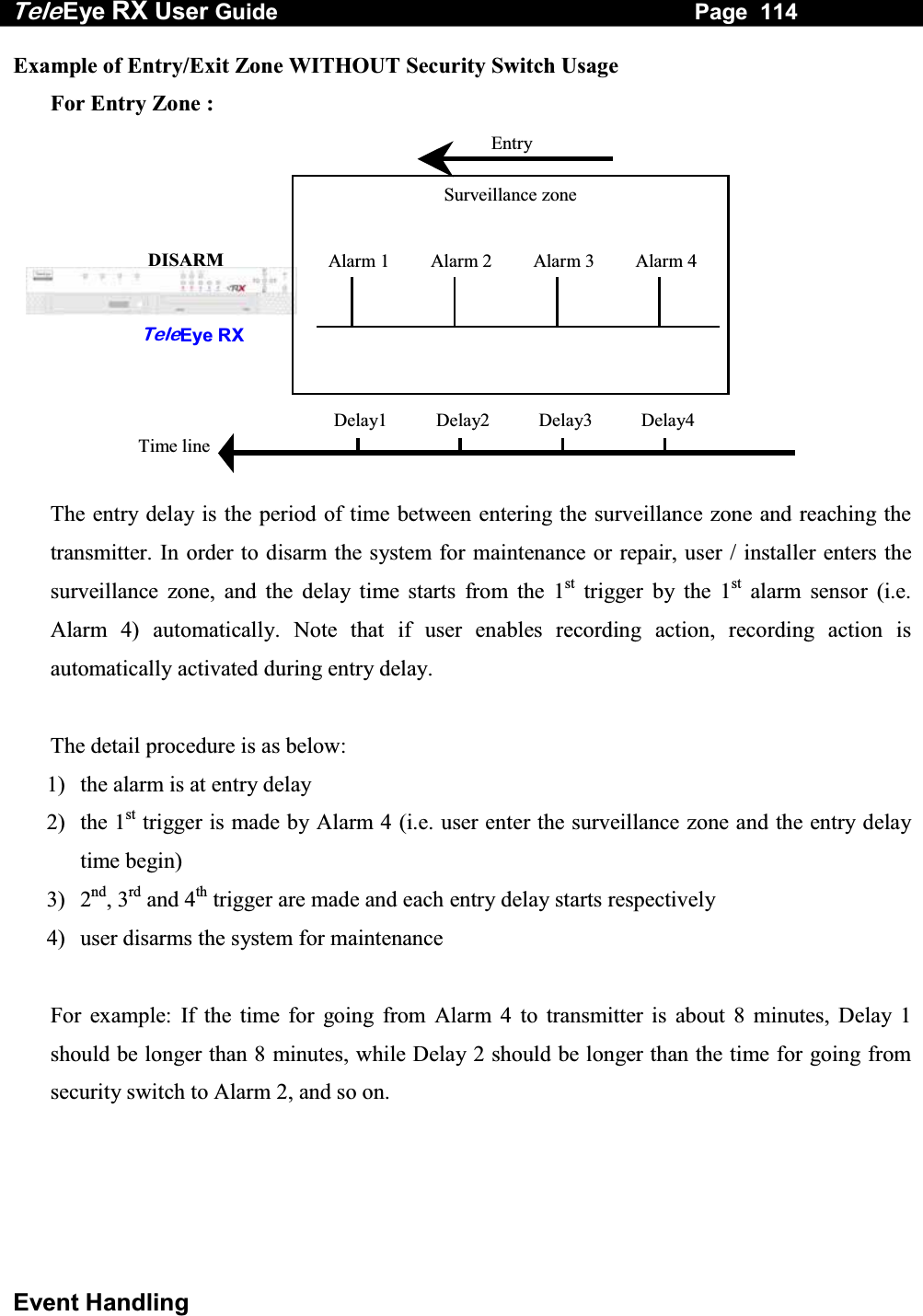
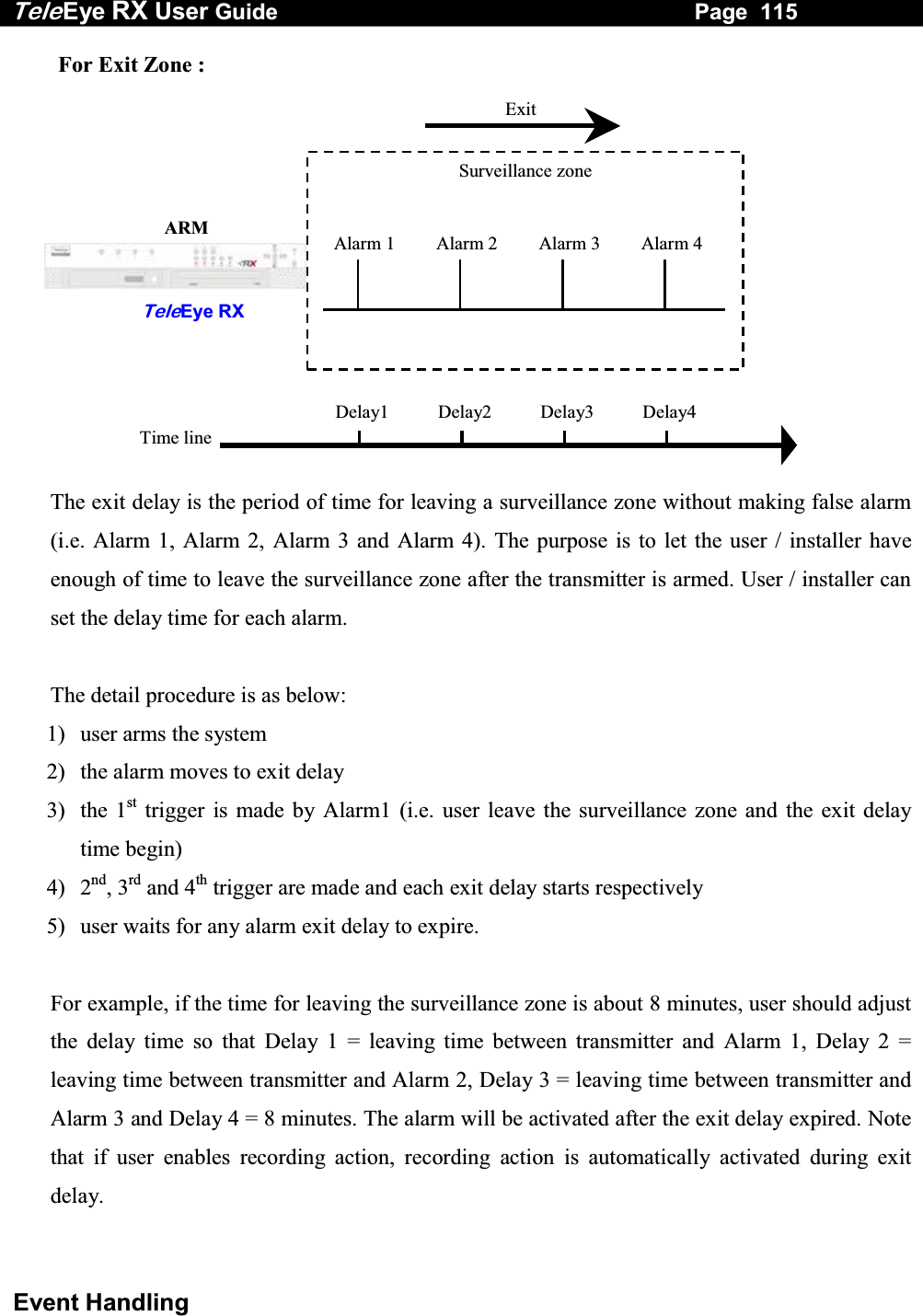
Signal Communications SCRX-051020 TeleEye RX Series User Manual

Signal Communications Limited TeleEye RX Series

User Manual

          RX Series  Video Recording Transmitter  RX304     User Guide
   Notice:  Signal Communications Limited reserves the right to make improvements to the product described in this manual at any time and without notice.  This manual is copyrighted. All rights are reserved. This manual should not be copied, reproduced or translated in whole or part without prior consent from Signal Communications Limited.  TeleEye is a trademark of Signal Communications Limited and is registered in China, European Communities, Hong Kong, US and other countries.    All other trademarks are the property of their respective owners.    Copyright (c) 2005 Signal Communications Limited (A member of TeleEye Group). All rights reserved.  Release Version 1.02     Limits of Liability and Disclaimer of Warranty  Signal Communications Limited has taken care in preparation of this manual, but makes no expressed or implied warranty of any kind and assume no responsibility for errors or omissions. No liability is assumed for incidental or consequential damages in connection with or arising out of the use of the information or accessories contained herein.  Features and specifications are subject to change without prior notice.
  FCC Statement on Class B    WARNING   Changes or modifications to this unit not expressly approved by the party responsible for compliance could void the user’s authority to operate the equipment.   NOTE   This equipment has been tested and found to comply with the limits for a Class B digital device, pursuant to Part 15 of the FCC Rules. These limits are designed to provide reasonable protection against harmful interference in a residential installation. This equipment generates, uses and can radiate radio frequency energy and, if not installed and used in accordance with the instructions, may cause harmful interference to radio communications.    However, there is no guarantee that interference will not occur in a particular installation. If this equipment does cause harmful interference to radio or television reception, which can be determine by turning the equipment off and on, the user is encouraged to try to correct the interference by one or more of the following measures:     Reorient or relocate the receiving antenna.     Increase the separation between the equipment and receiver.     Connect the equipment into an outlet on a circuit different from that to which the receiver is needed.    Consult the dealer or an experienced radio/TV technician for help.    Shielded cables must be used with this unit to ensure compliance with the Class B FCC limits.
  Declaration  1. EN 61000-4-2 Under the environment with the electrostatic discharge, the sample may malfunction and require user to reset the sample.  2. EN 61000-4-4 Under the environment with the electrical fast transient, the sample may malfunction and require user to reset the sample.  3. EN61000-4-5 Under the environment with the electrical surge, the sample may malfunction and require user to reset the sample
 Table of Contents    SECTION 1   INTRODUCTION A. Introduction          1 B. Features           2 C. Removing the Packages        3 D. Convention Used in This Manual       4  E. Front Panel Description         5 F. Rear Panel Description         8    SECTION 2  HARD DISK INSTALLATION, FORMATTING AND SCANNING A. Hard Disk Installation                                                                                      11 B. Hard Disk Formatting                                                                                      14 C. Hard Disk Scanning                                                                                        16 D. Hard Disk Recommendation List                                                                    18   SECTION 3  BASIC INSTALLATION FOR LOCAL AND REMOTE MONITORING  A. Setup TeleEye RX for Local CCTV Monitor  19 B. Setup TeleEye RX for LAN Connection with Static IP  22 C. Setup TeleEye RX for Broadband or Narrowband Internet    Connection with Static IP             33 D. Setup TeleEye RX for Broadband or Narrowband Internet  Connection with Dynamic IP       44 E. Setup TeleEye RX for Modem Connection            56  SECTION 4  BASIC OPERATION FOR LOCAL AND REMOTE MONITORING A. Local CCTV Monitor : Live Monitoring, Recording and Playback  66  I. Live Monitoring      66  II. Recording     67  III. Playback     68 B. TeleEye RX Reception Software WX-30 : Live Monitoring, Recording    and Playback  70  I. Live Monitoring         70   II. Recording          71   III. Playback          72
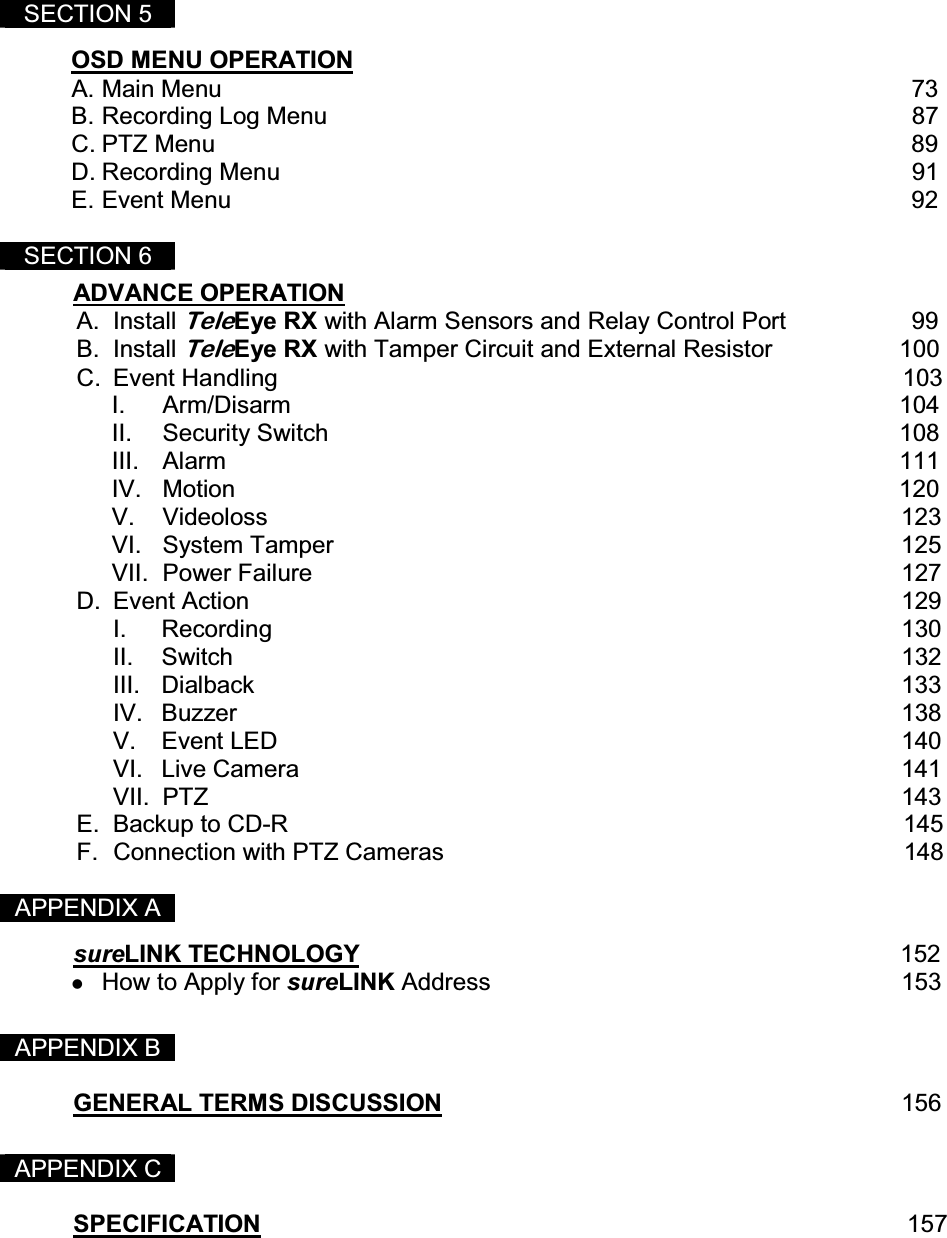
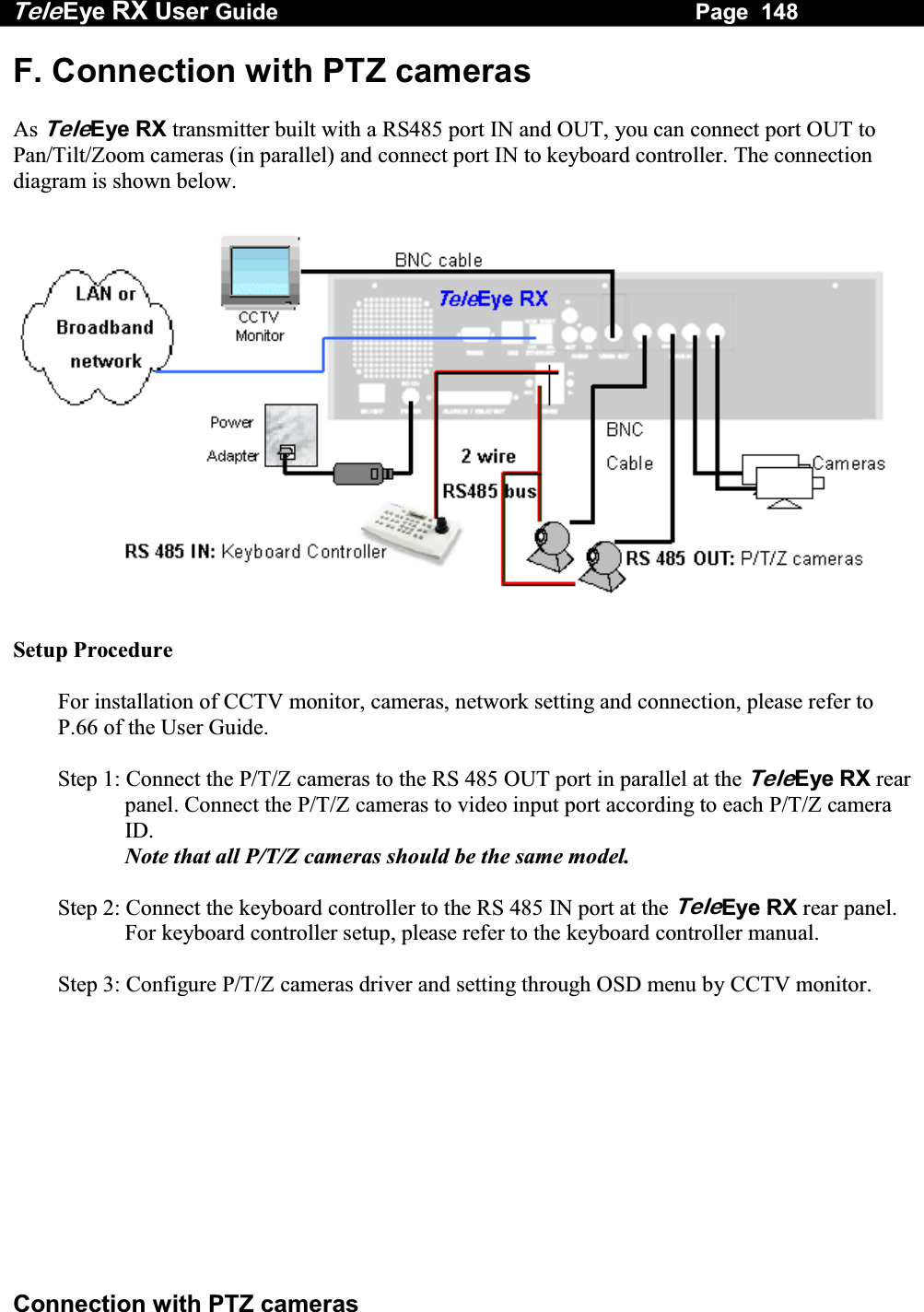
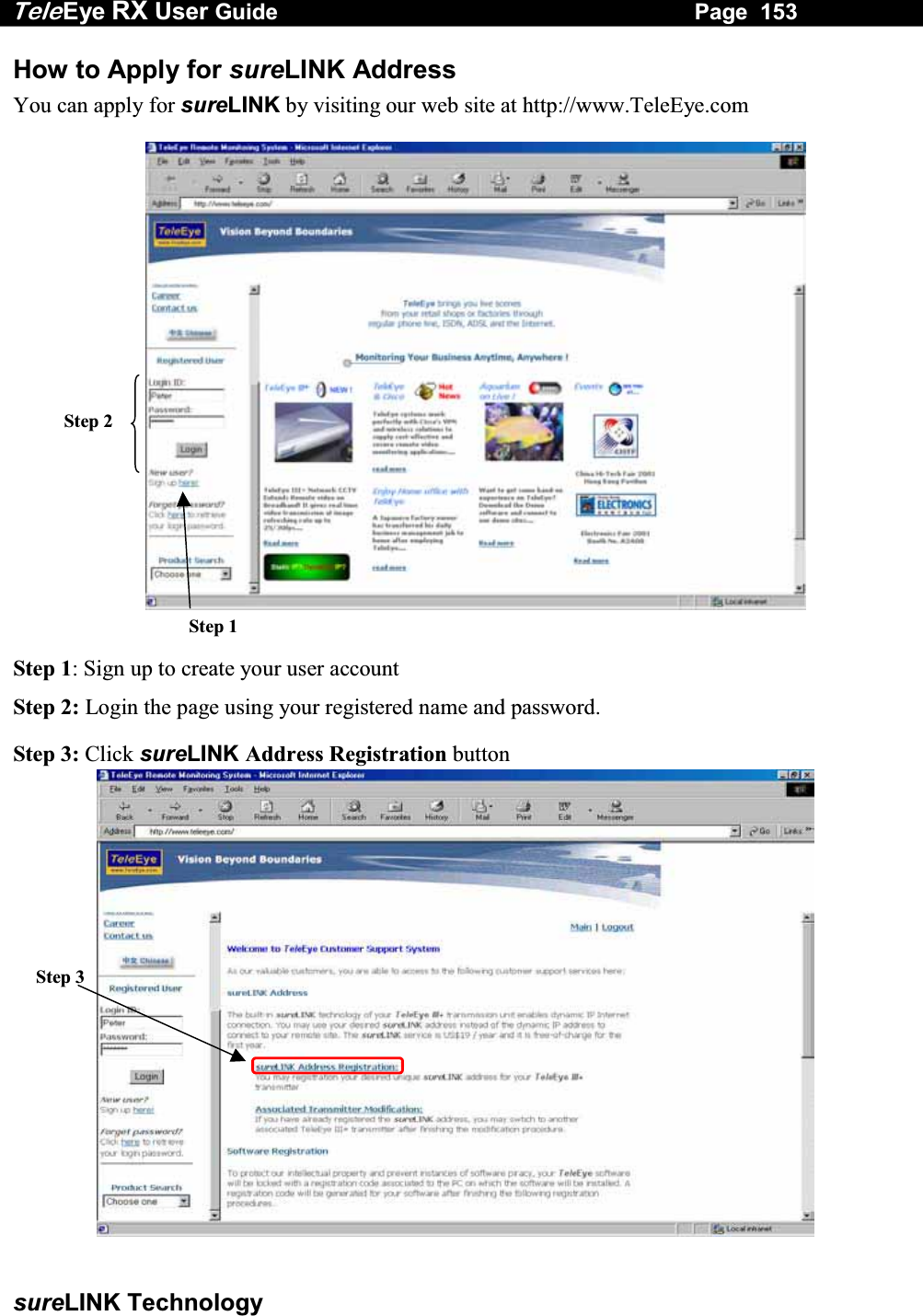
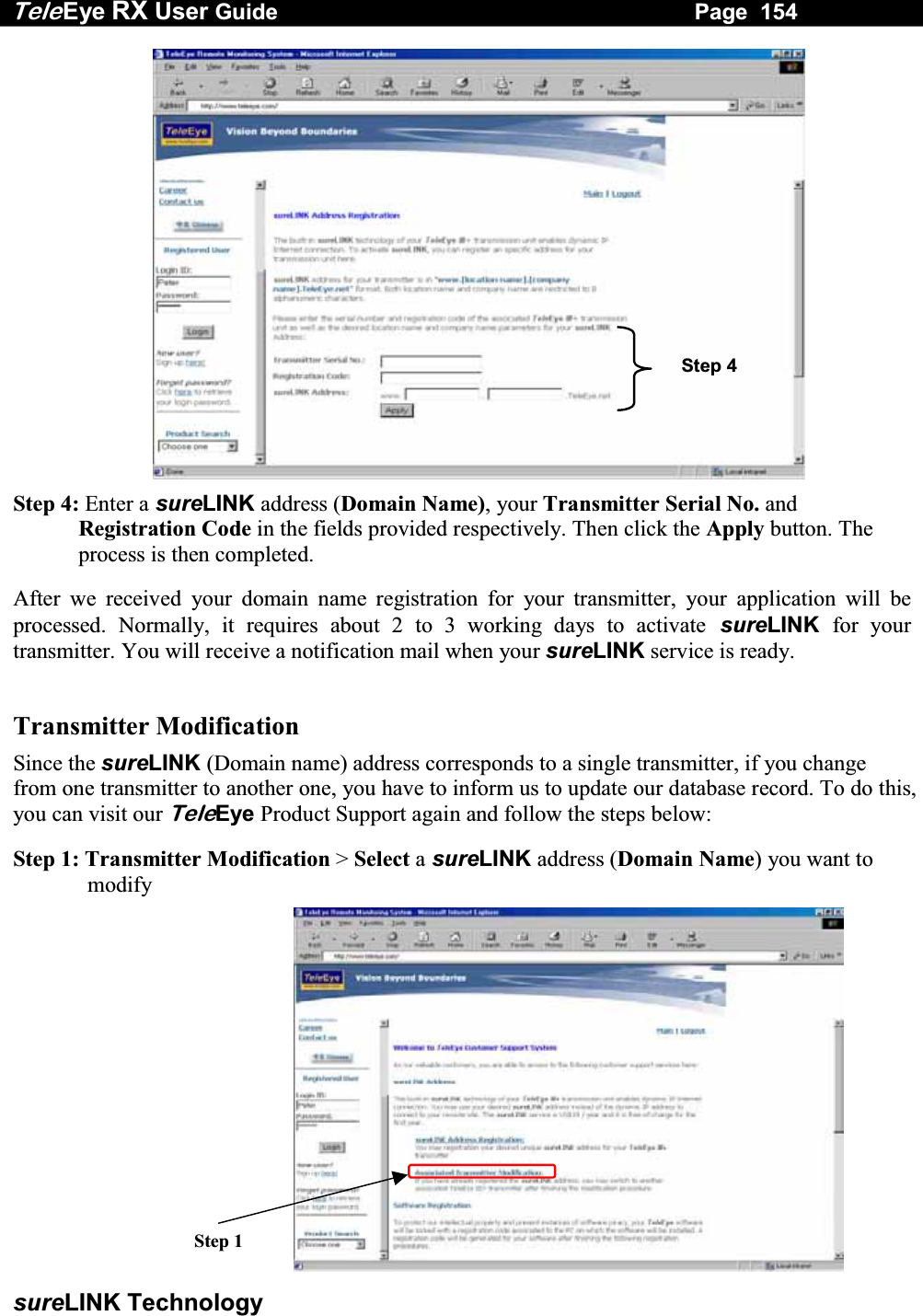
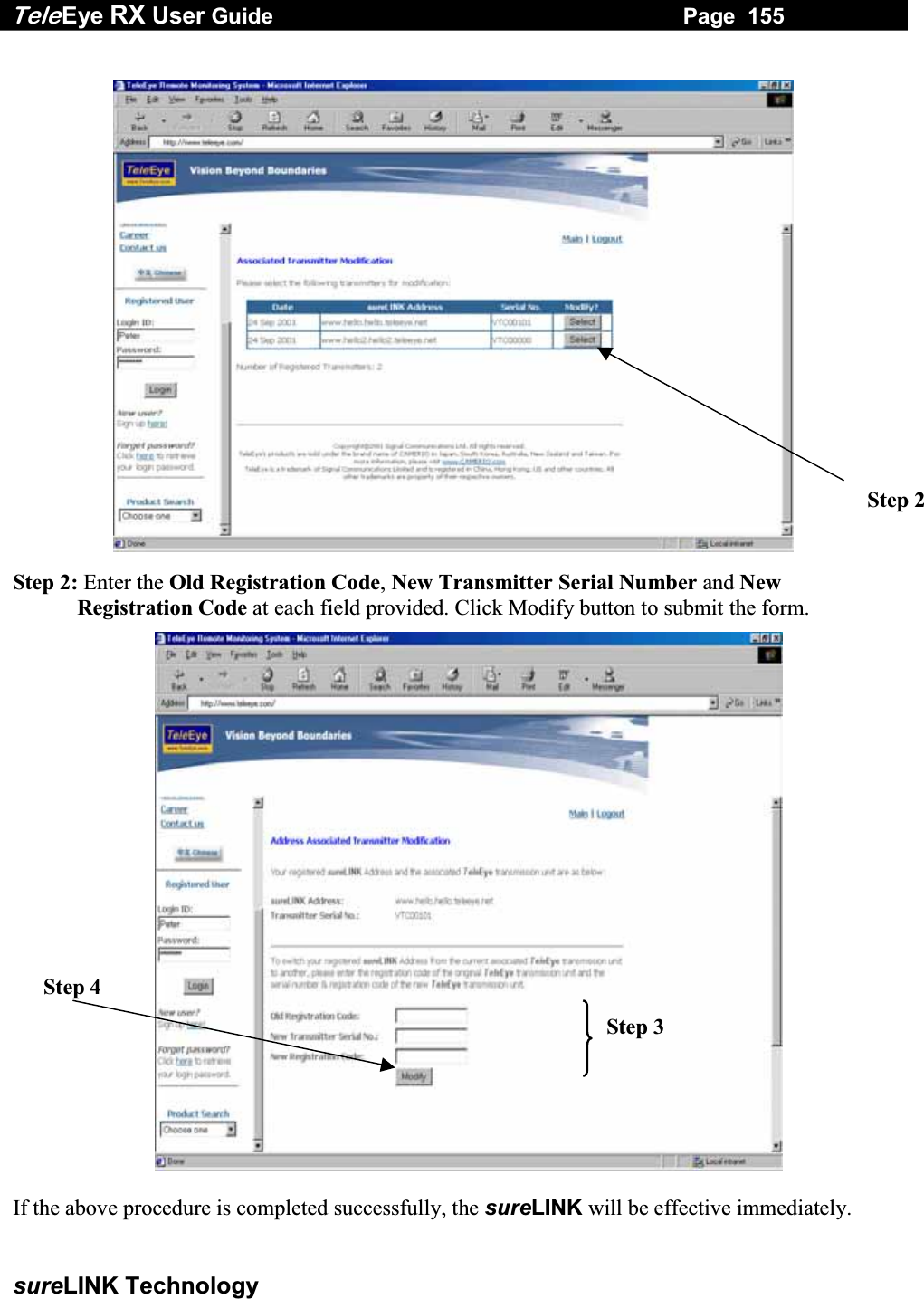
 SECTION 5   OSD MENU OPERATION  A. Main Menu         73 B. Recording Log Menu                                                                               87 C. PTZ Menu                                                                                                    89 D. Recording Menu                                                                                          91 E. Event Menu                                                                                                 92  SECTION 6   ADVANCE OPERATION          A. Install TeleEye RX with Alarm Sensors and Relay Control Port             99 B. Install TeleEye RX with Tamper Circuit and External Resistor                   100 C.  Event Handling                                                             103                       I. Arm/Disarm          104 II. Security Switch          108 III. Alarm            111 IV. Motion           120 V. Videoloss           123 VI. System Tamper          125 VII. Power Failure          127 D. Event Action         129 I. Recording         130 II. Switch         132 III. Dialback         133 IV. Buzzer         138 V. Event LED         140 VI. Live Camera        141 VII. PTZ          143 E.  Backup to CD-R                                                                                           145 F.  Connection with PTZ Cameras                                                                    148    APPENDIX A  sureLINK TECHNOLOGY                                                                                152   How to Apply for sureLINK Address       153   APPENDIX B   GENERAL TERMS DISCUSSION       156   APPENDIX C   SPECIFICATION                157
Tele Eye RX User Guide                                                                   Page  1  Introduction 1 INTRODUCTION  A. Introduction  TeleEye RX Series Video Recording Transmitter operates with its revolutionary multi-rate video coder to fulfill the highest video coding requirements for simultaneous transmission and recording. Seamless video transmission by TeleEye RX can be performed in low and medium bandwidth communication networks including ADSL, ISDN and PSTN; whilst DVD-quality videos can be transmitted through LAN and recorded into local hard drive with optimum speed at 25fps and resolution in 720x576 pixels. Real time recording of up to 100/120fps on all video channels can also be achieved at CIF resolution.   TeleEye RX provides professional and real life security control of premises with its sophisticated event management scheme. It responses to wide range of events triggered by external alarm sensor, video motion, power interruption and tamper. There is an arm/disarm control for the event management mechanism. Every external alarm input is configurable with an individual entry/exit delay, fire zone and tamper detection setting. Various actions like sending video back to a designated receiving PC, video recording, email notification, etc. TeleEye RX can also keep a comprehensive log of the events for audit trail.   TeleEye RX is designed to fully comply with the British Standard BS 8418:2003, providing professional remote monitoring and visual alarm verification solution to central monitoring station.   With a built-in CD-writer, video footage stored inside TeleEye RX can be easily extracted for evidential purposes. Recorded video can be backed up in CD and played back in any PC without any special software. SECTION
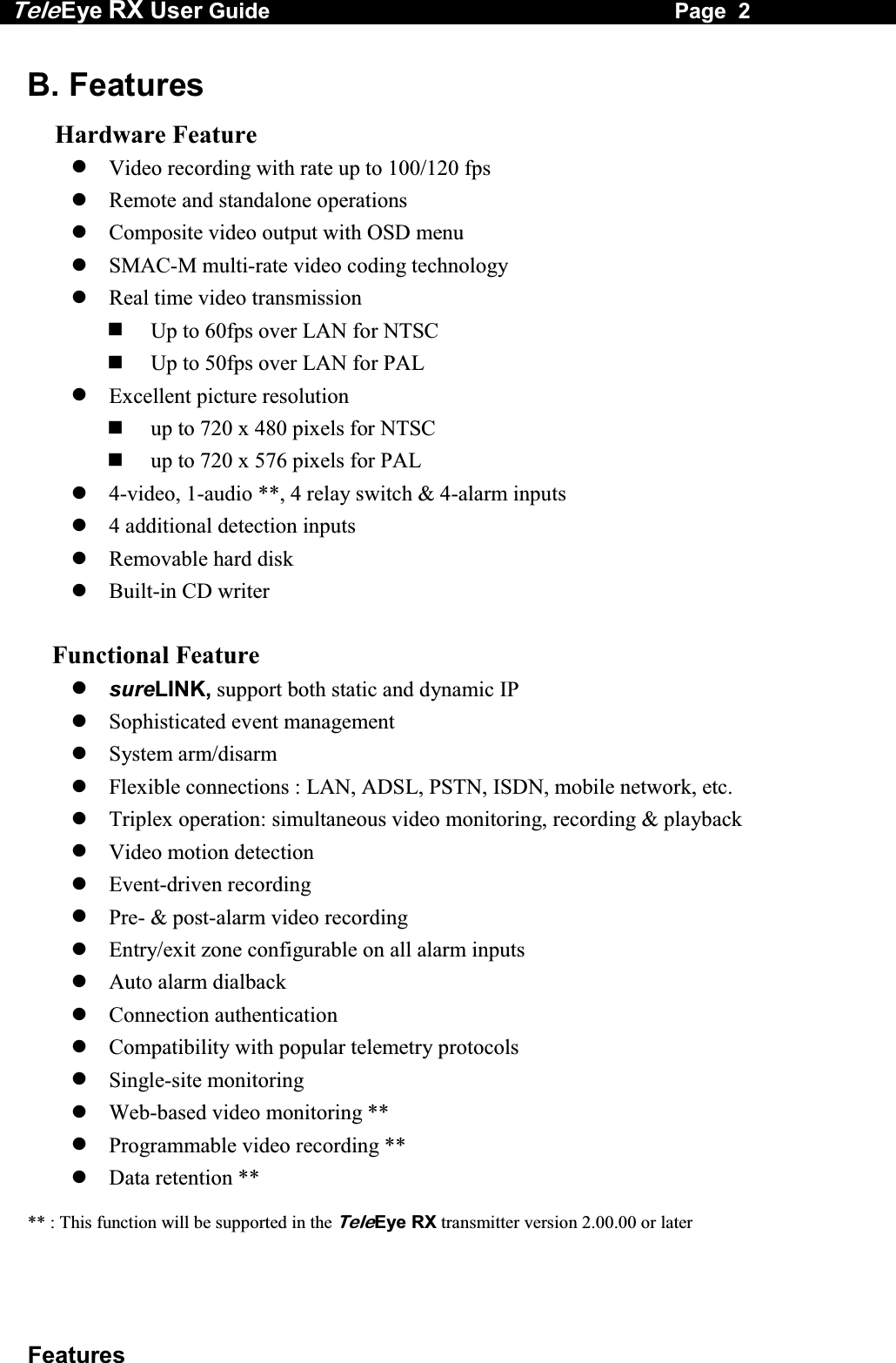
Tele Eye RX User Guide                                                                   Page  2  Features B. Features  Hardware Feature  Video recording with rate up to 100/120 fps  Remote and standalone operations  Composite video output with OSD menu  SMAC-M multi-rate video coding technology  Real time video transmission   Up to 60fps over LAN for NTSC   Up to 50fps over LAN for PAL  Excellent picture resolution    up to 720 x 480 pixels for NTSC   up to 720 x 576 pixels for PAL  4-video, 1-audio **, 4 relay switch & 4-alarm inputs  4 additional detection inputs  Removable hard disk  Built-in CD writer      Functional Feature  sureLINK, support both static and dynamic IP   Sophisticated event management  System arm/disarm  Flexible connections : LAN, ADSL, PSTN, ISDN, mobile network, etc.  Triplex operation: simultaneous video monitoring, recording & playback  Video motion detection  Event-driven recording  Pre- & post-alarm video recording  Entry/exit zone configurable on all alarm inputs  Auto alarm dialback  Connection authentication  Compatibility with popular telemetry protocols  Single-site monitoring  Web-based video monitoring **  Programmable video recording **  Data retention **  ** : This function will be supported in the TeleEye RX transmitter version 2.00.00 or later
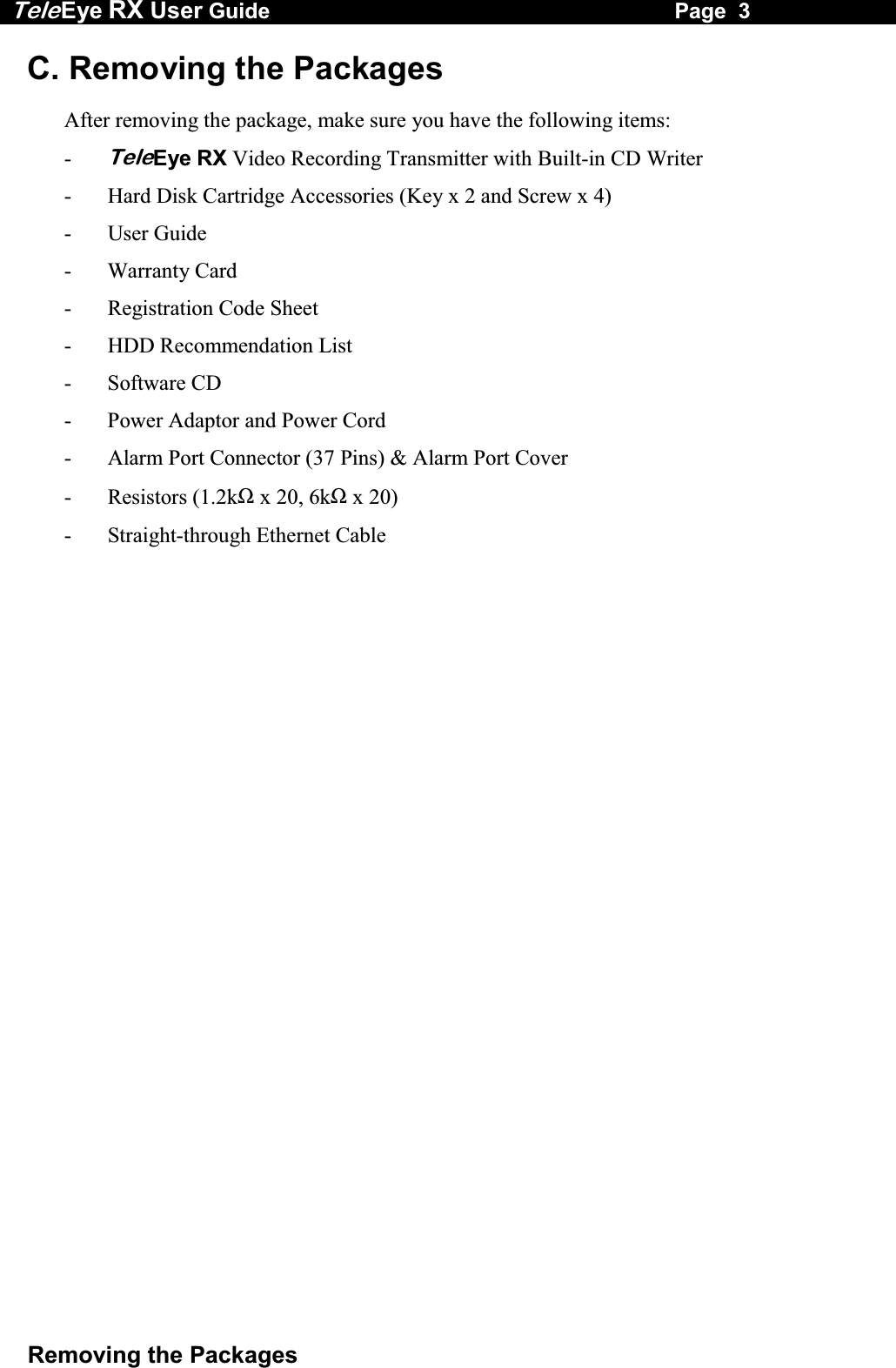
Tele Eye RX User Guide                                                                   Page  3  Removing the Packages C. Removing the Packages  After removing the package, make sure you have the following items: - TeleEye RX Video Recording Transmitter with Built-in CD Writer -  Hard Disk Cartridge Accessories (Key x 2 and Screw x 4) - User Guide - Warranty Card - Registration Code Sheet -  HDD Recommendation List - Software CD -  Power Adaptor and Power Cord -  Alarm Port Connector (37 Pins) & Alarm Port Cover  - Resistors (1.2kΩ x 20, 6kΩ x 20) -  Straight-through Ethernet Cable
Tele Eye RX User Guide                                                                   Page  4  Convention Used in This Manual D. Convention Used in This Manual   “    ” : Buttons on the TeleEye RX transmitter front panel {     } : Hardware Items on the TeleEye RX transmitter besides buttons [     ] : OSD menu or MS Windows menu (     ) : Refers to other section or page **   : Special remarks
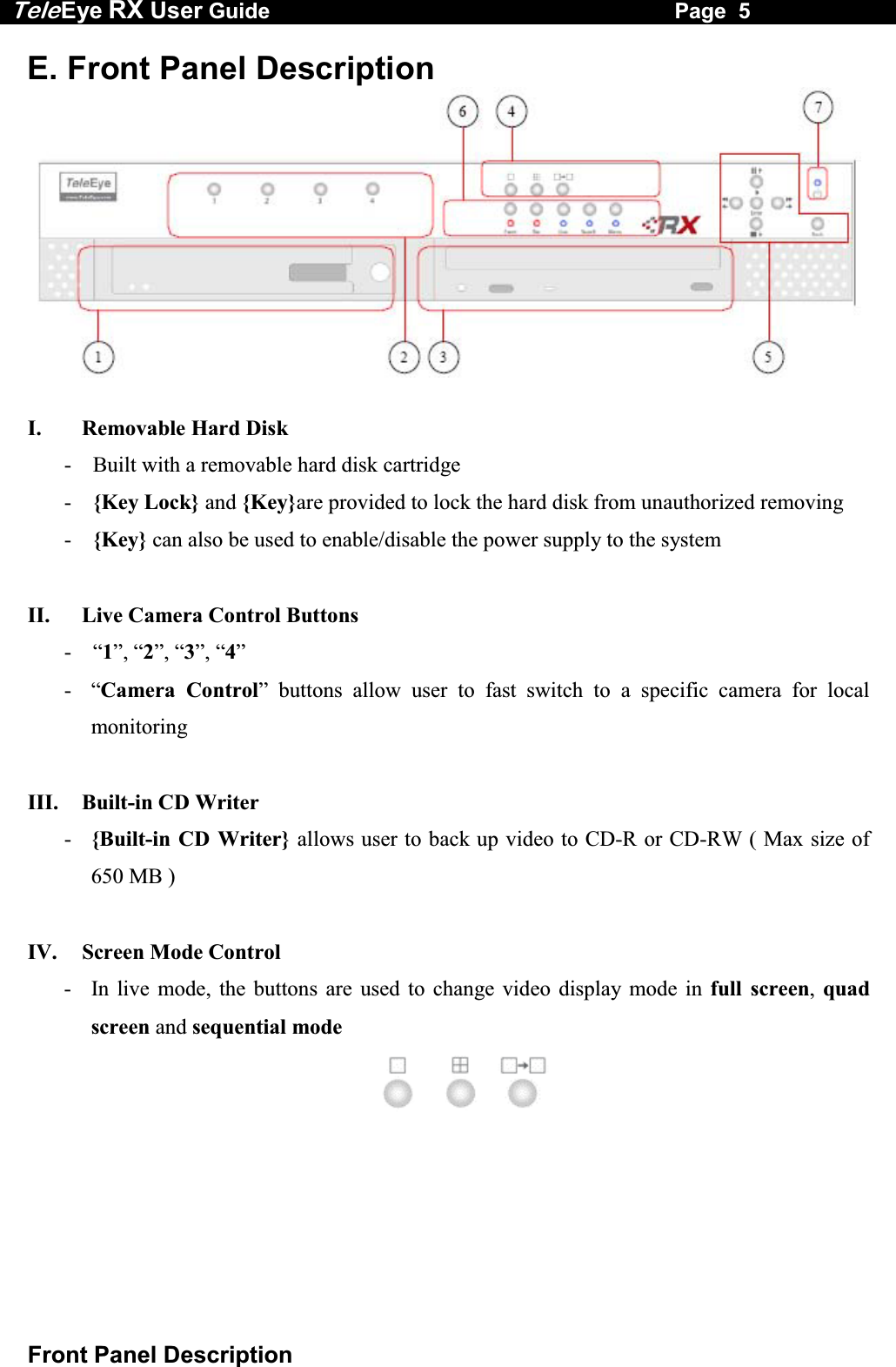
Tele Eye RX User Guide                                                                   Page  5  Front Panel Description E. Front Panel Description   I.   Removable Hard Disk -  Built with a removable hard disk cartridge -  {Key Lock} and {Key}are provided to lock the hard disk from unauthorized removing -  {Key} can also be used to enable/disable the power supply to the system  II.   Live Camera Control Buttons  - “1”, “2”, “3”, “4” - “Camera Control” buttons allow user to fast switch to a specific camera for local monitoring  III.   Built-in CD Writer -  {Built-in CD Writer} allows user to back up video to CD-R or CD-RW ( Max size of 650 MB )  IV.   Screen Mode Control  -  In live mode, the buttons are used to change video display mode in full screen,  quad screen and sequential mode
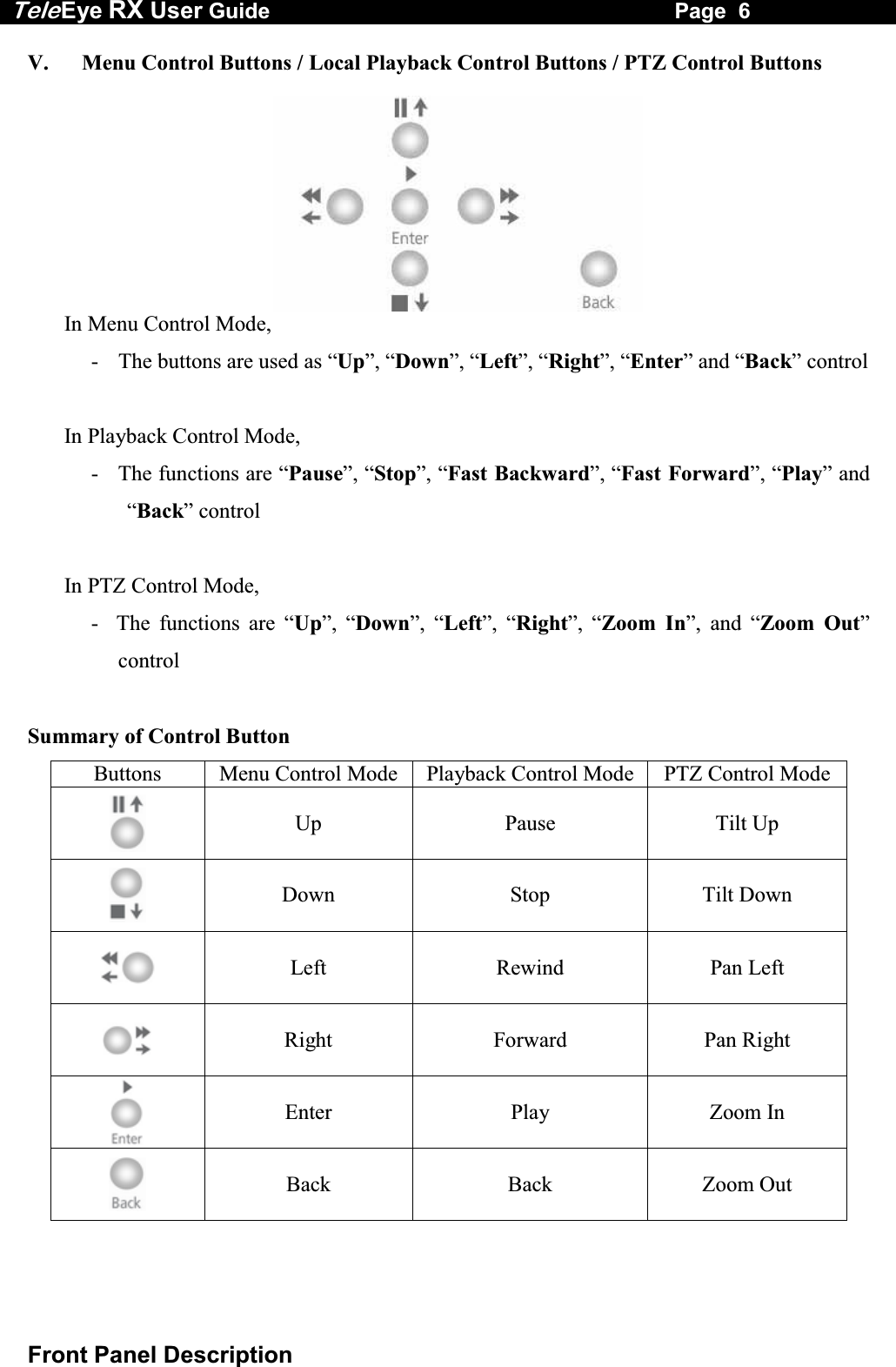
Tele Eye RX User Guide                                                                   Page  6  Front Panel Description V.   Menu Control Buttons / Local Playback Control Buttons / PTZ Control Buttons In Menu Control Mode, -    The buttons are used as “Up”, “Down”, “Left”, “Right”, “Enter” and “Back” control  In Playback Control Mode, -  The functions are “Pause”, “Stop”, “Fast Backward”, “Fast Forward”, “Play” and “Back” control  In PTZ Control Mode, -  The functions are “Up”, “Down”, “Left”, “Right”, “Zoom In”, and “Zoom Out” control  Summary of Control Button Buttons  Menu Control Mode Playback Control Mode PTZ Control Mode Up Pause Tilt Up  Down Stop Tilt Down  Left Rewind Pan Left  Right Forward Pan Right  Enter Play Zoom In  Back Back Zoom Out
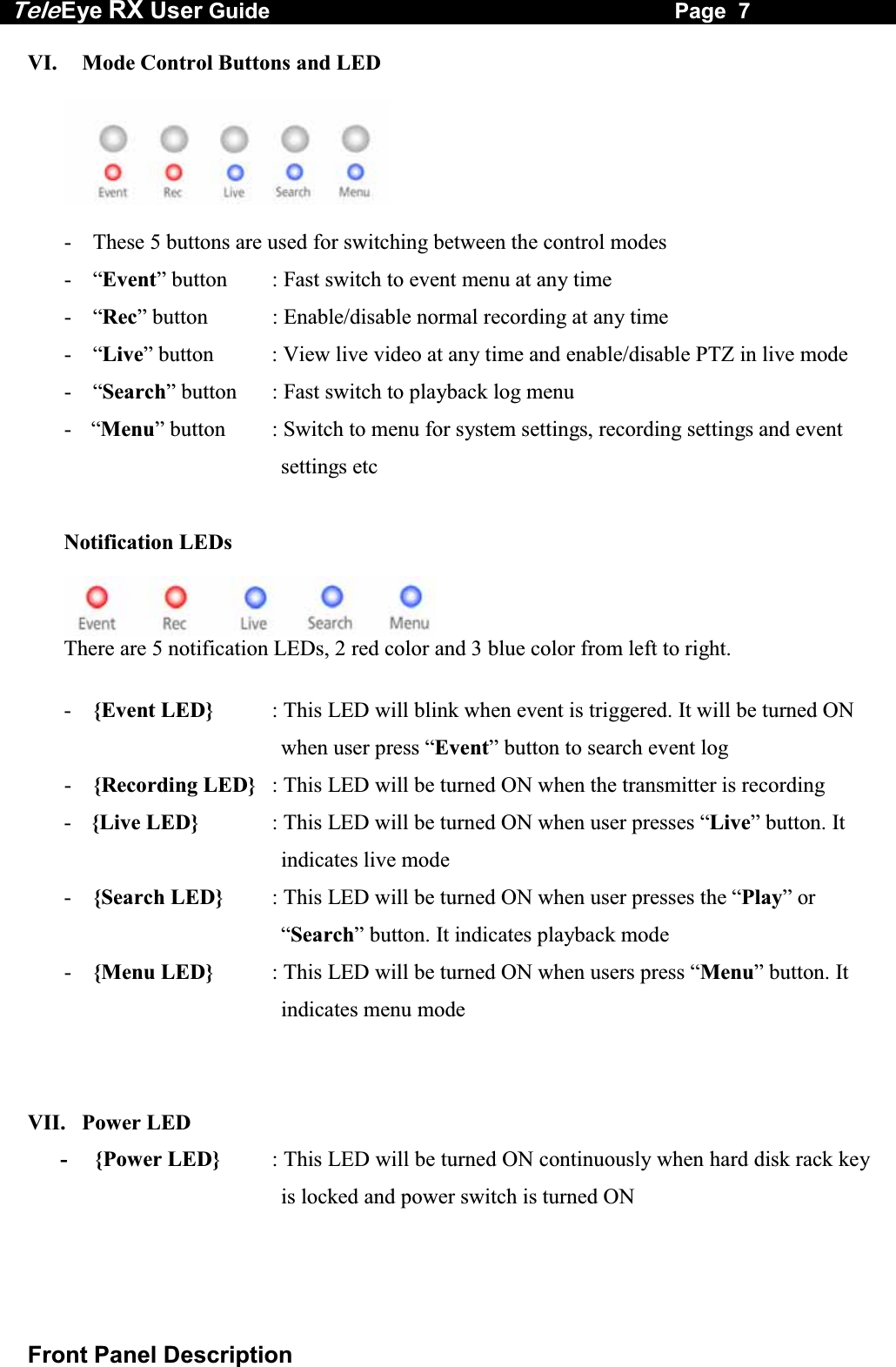
Tele Eye RX User Guide                                                                   Page  7  Front Panel Description VI.   Mode Control Buttons and LED     -  These 5 buttons are used for switching between the control modes - “Event” button  : Fast switch to event menu at any time  - “Rec” button  : Enable/disable normal recording at any time - “Live” button  : View live video at any time and enable/disable PTZ in live mode - “Search” button  : Fast switch to playback log menu  - “Menu” button  : Switch to menu for system settings, recording settings and event        settings etc  Notification LEDs There are 5 notification LEDs, 2 red color and 3 blue color from left to right.  -  {Event LED}  : This LED will blink when event is triggered. It will be turned ON when user press “Event” button to search event log -  {Recording LED}  : This LED will be turned ON when the transmitter is recording -  {Live LED}  : This LED will be turned ON when user presses “Live” button. It indicates live mode -  {Search LED}  : This LED will be turned ON when user presses the “Play” or “Search” button. It indicates playback mode -  {Menu LED}  : This LED will be turned ON when users press “Menu” button. It indicates menu mode   VII.   Power LED -     {Power LED}  : This LED will be turned ON continuously when hard disk rack key is locked and power switch is turned ON
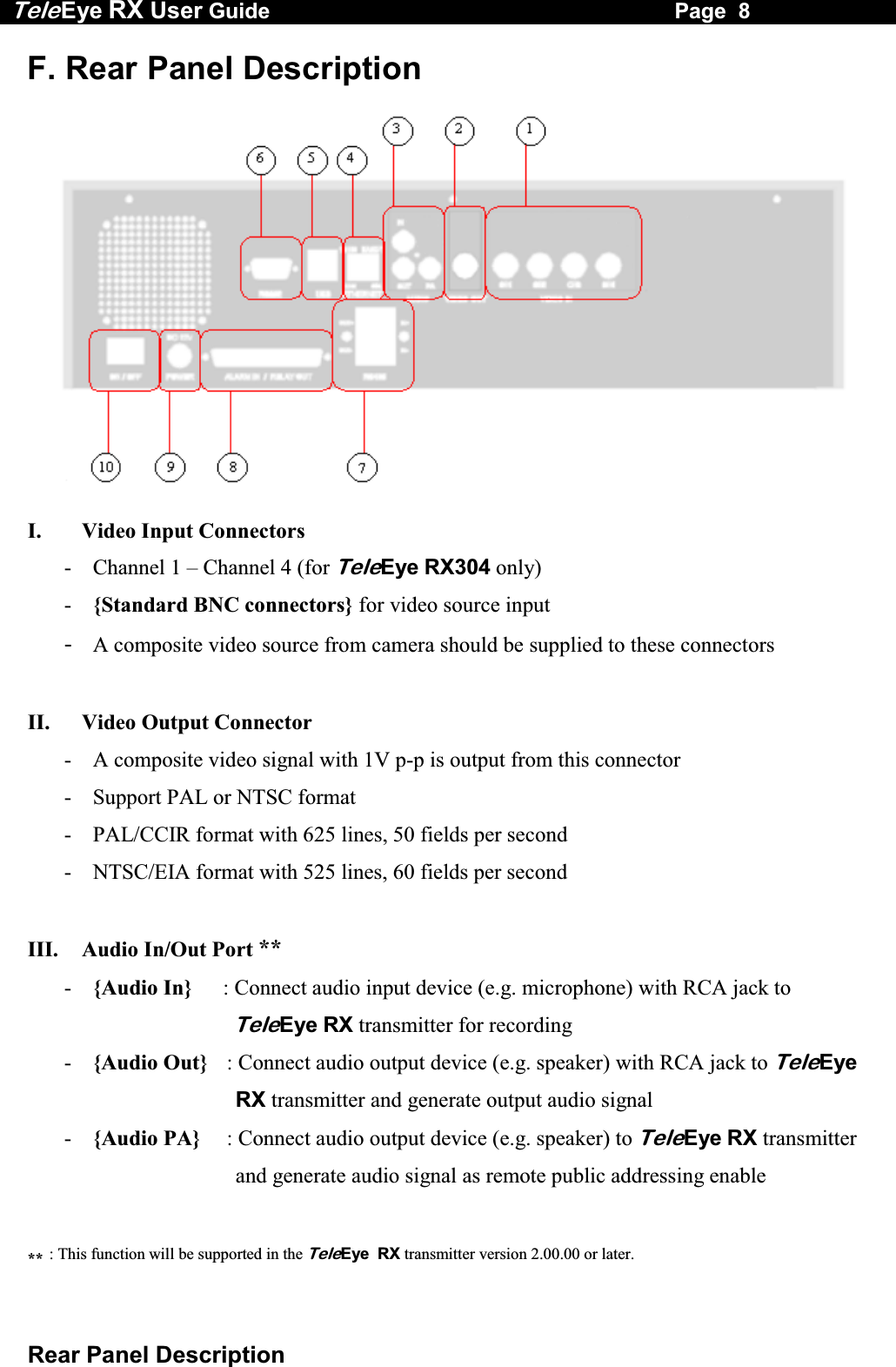
Tele Eye RX User Guide                                                                   Page  8  Rear Panel Description F. Rear Panel Description   I.  Video Input Connectors  -  Channel 1 – Channel 4 (for TeleEye RX304 only) -  {Standard BNC connectors} for video source input -  A composite video source from camera should be supplied to these connectors  II.   Video Output Connector -  A composite video signal with 1V p-p is output from this connector -  Support PAL or NTSC format -  PAL/CCIR format with 625 lines, 50 fields per second -  NTSC/EIA format with 525 lines, 60 fields per second  III.   Audio In/Out Port ** -   {Audio In}   : Connect audio input device (e.g. microphone) with RCA jack to TeleEye RX transmitter for recording -  {Audio Out}  : Connect audio output device (e.g. speaker) with RCA jack to TeleEye RX transmitter and generate output audio signal -  {Audio PA}   : Connect audio output device (e.g. speaker) to TeleEye RX transmitter and generate audio signal as remote public addressing enable  ** : This function will be supported in the TeleEye  RX transmitter version 2.00.00 or later.
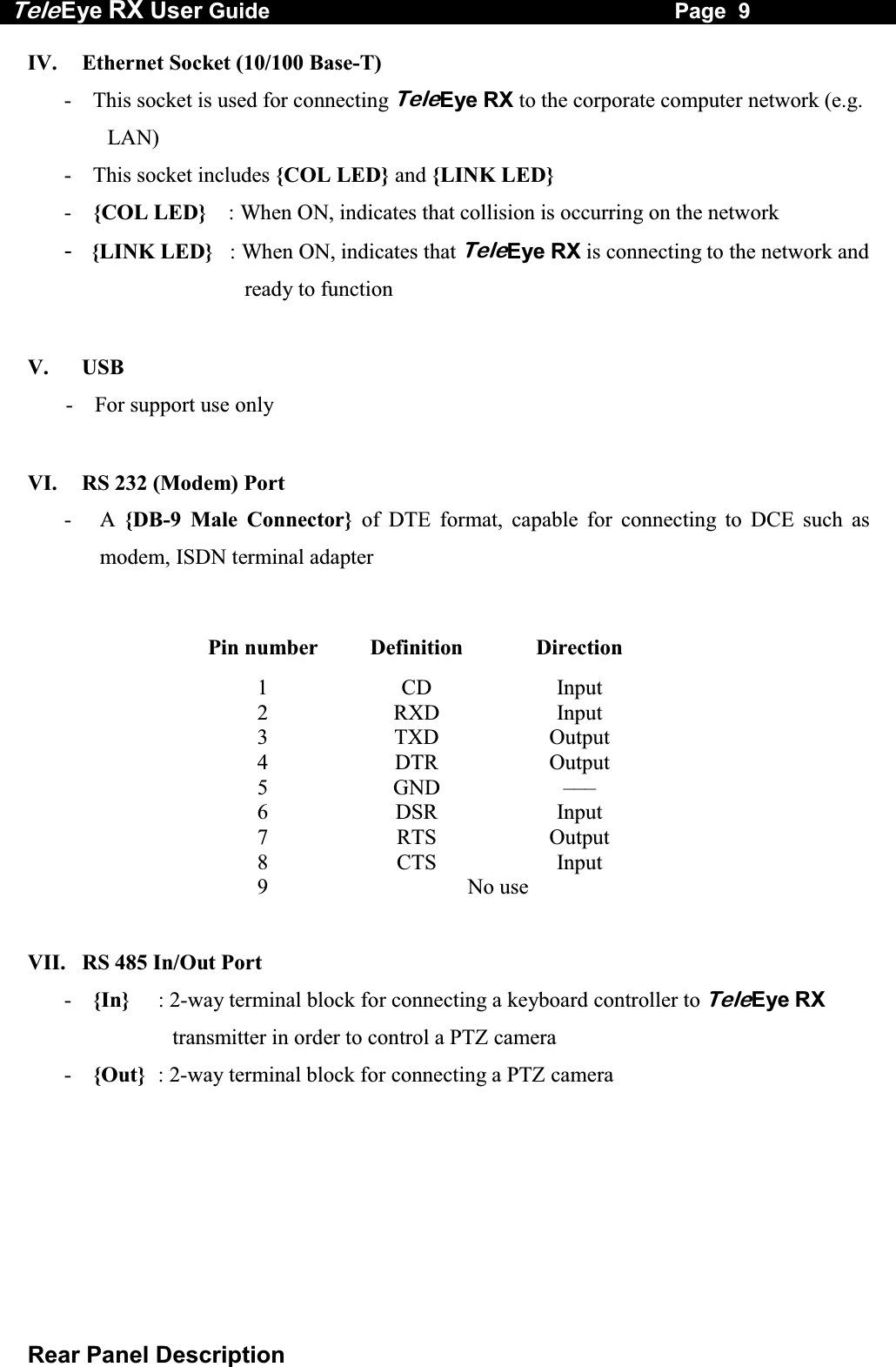
Tele Eye RX User Guide                                                                   Page  9  Rear Panel Description IV.   Ethernet Socket (10/100 Base-T) -  This socket is used for connecting TeleEye RX to the corporate computer network (e.g. LAN) -  This socket includes {COL LED} and {LINK LED} -  {COL LED}    : When ON, indicates that collision is occurring on the network -  {LINK LED}   : When ON, indicates that TeleEye RX is connecting to the network and ready to function  V.   USB        -    For support use only  VI.   RS 232 (Modem) Port -  A {DB-9 Male Connector} of DTE format, capable for connecting to DCE such as modem, ISDN terminal adapter  Pin number  Definition  Direction 1 CD Input 2 RXD Input 3 TXD Output 4 DTR Output 5 GND ––– 6 DSR Input 7 RTS Output 8 CTS Input 9 No use   VII.   RS 485 In/Out Port -  {In}  : 2-way terminal block for connecting a keyboard controller to TeleEye RX transmitter in order to control a PTZ camera -  {Out}  : 2-way terminal block for connecting a PTZ camera
Tele Eye RX User Guide                                                                   Page  10  Rear Panel Description VIII.  Relay Out / Alarm In Port -  4 relay (also call switch) ports - 4 alarm ports -  All alarm ports are NC/NO type and none/SEOL/DEOL tamper type input -  All relay ports are latching/push-button type output  IX.   Power -  Connect power supply (12V DC, 5A) to TeleEye RX transmitter  X.   Switch   -  Switch on or off the TeleEye RX transmitter
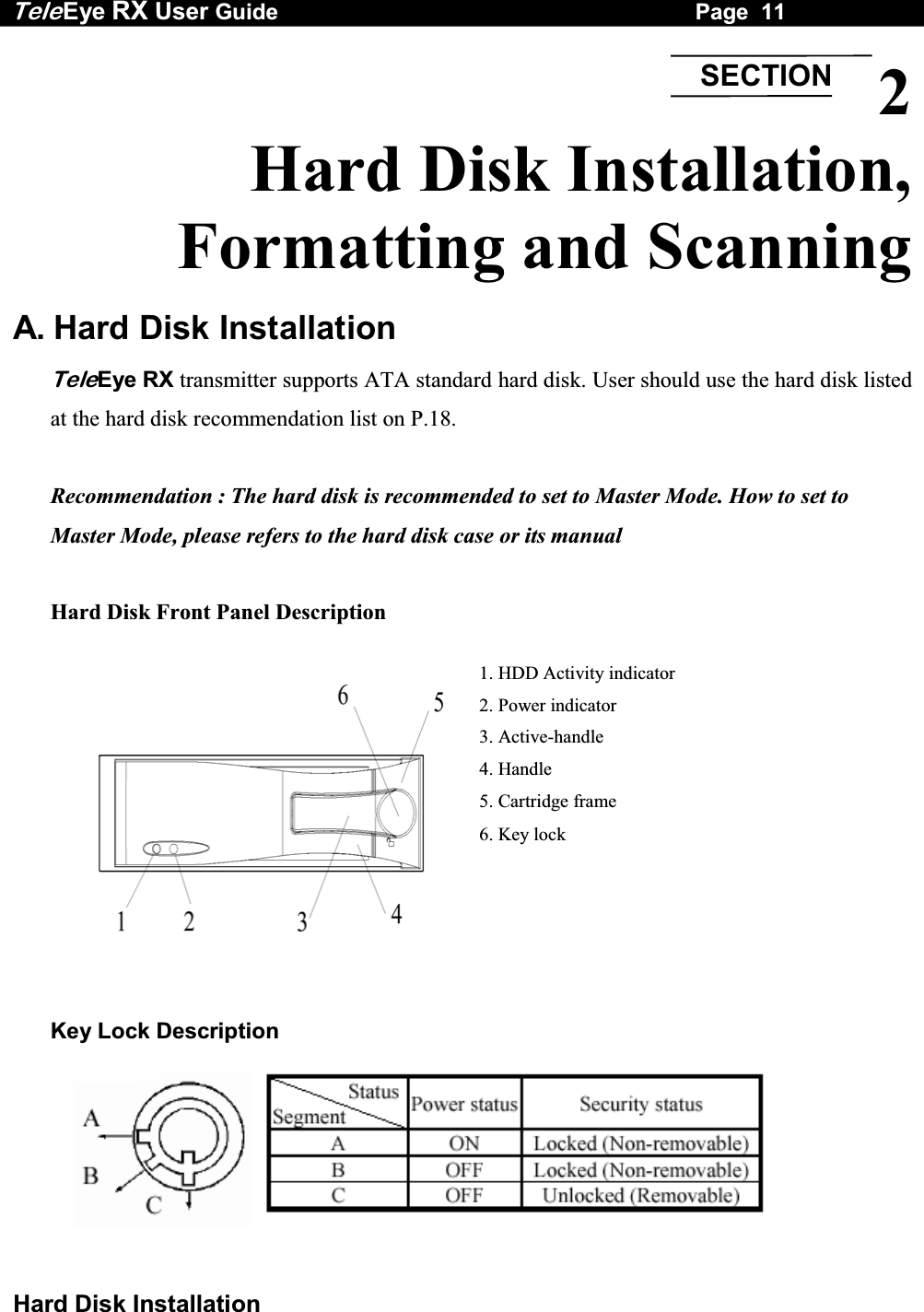
Tele Eye RX User Guide                                                                   Page  11  Hard Disk Installation 1. HDD Activity indicator 2. Power indicator 3. Active-handle 4. Handle 5. Cartridge frame 6. Key lock 2 Hard Disk Installation,  Formatting and Scanning  A. Hard Disk Installation TeleEye RX transmitter supports ATA standard hard disk. User should use the hard disk listed at the hard disk recommendation list on P.18.  Recommendation : The hard disk is recommended to set to Master Mode. How to set to Master Mode, please refers to the hard disk case or its manual  Hard Disk Front Panel Description                  Key Lock Description  SECTION
Tele Eye RX User Guide                                                                   Page  12  Hard Disk Installation Installation Procedure  Turn OFF transmitter Step 1:  Press “Menu”  button, select [SHUT DOWN] option and press “Enter”  button.  Step 2:  [SHUT DOWN] menu will pop up and select [SHUT DOWN] option and press “Enter”  button.  Step 3:  Select [YES] option and press “Enter”  button to turn off the transmitter. Switch OFF the transmitter when the [IT IS NOW SAFE TO TURN OFF RX] message pop up.  Note that you MUST turn OFF the transmitter when install or remove Hard disk.    Step 4:  Pull the active-handle outwards, then use the bundled key provided and insert into the keyhole, turning the key anti-clockwise (position C), then you can pull out the handle.      Step 5:  Pull the handle outwards to remove the carrier body away from the cartridge frame.       Step 6:  Push the release latch to slide the top cover backwards and remove.
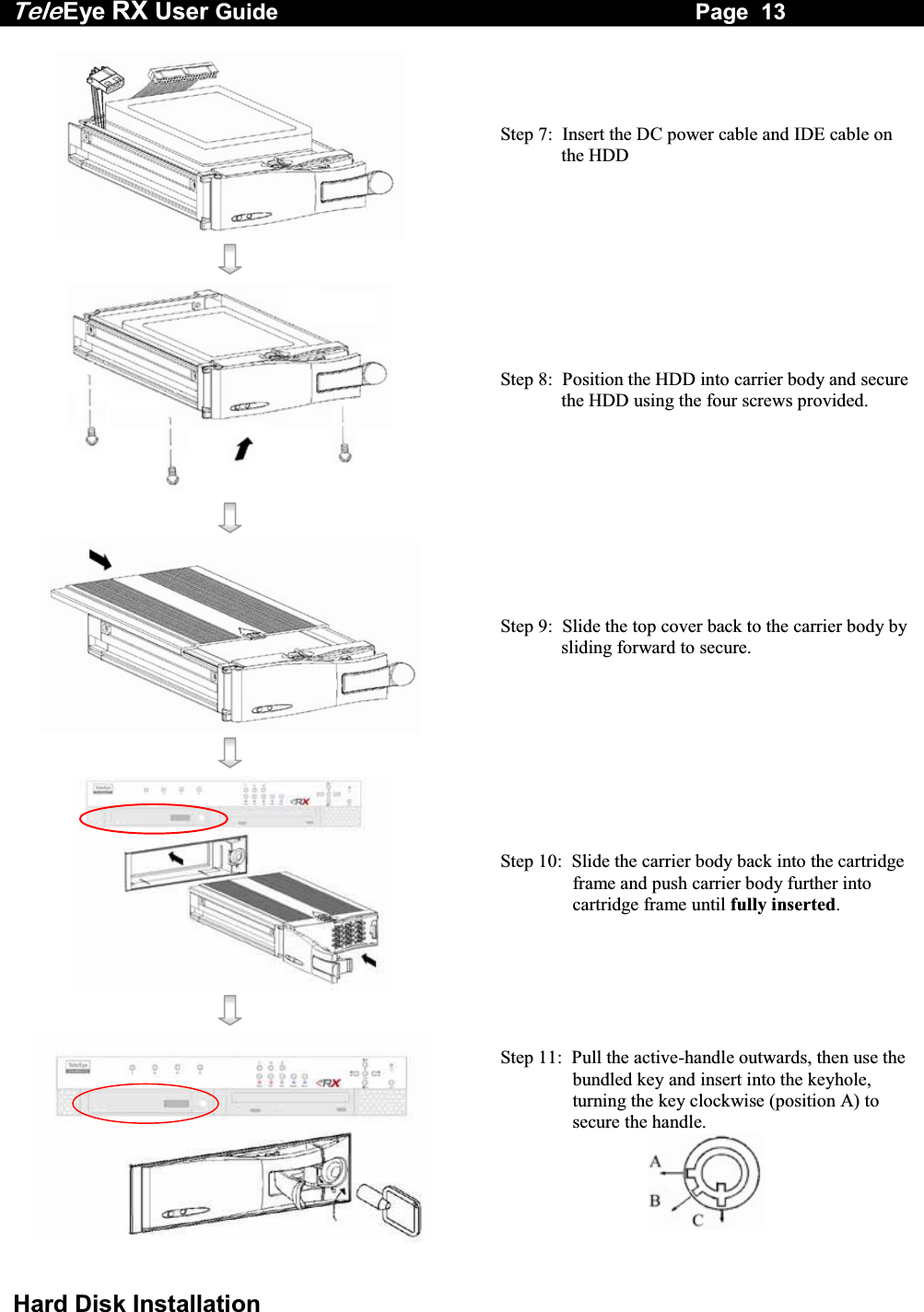
Tele Eye RX User Guide                                                                   Page  13  Hard Disk Installation   Step 7:  Insert the DC power cable and IDE cable on the HDD      Step 8:  Position the HDD into carrier body and secure the HDD using the four screws provided.      Step 9:  Slide the top cover back to the carrier body by sliding forward to secure.      Step 10:  Slide the carrier body back into the cartridge frame and push carrier body further into cartridge frame until fully inserted.      Step 11:  Pull the active-handle outwards, then use the bundled key and insert into the keyhole, turning the key clockwise (position A) to secure the handle.
Tele Eye RX User Guide                                                                   Page  14  Hard Disk Formatting B. Hard Disk Formatting Hard disk formatting will reconstruct the structure of hard disk so that it is readable by TeleEye RX transmitter. If you have your own hard disk to install to TeleEye RX transmitter, you must perform hard disk formatting.  I.    New Hard Disk Formatting  It will be used if the hard disk format is NOT TeleEye RX transmitter recognized format. Usually, a new hard disk, or a hard disk which has been formatted by MS Windows before needs to do this operation. Procedure      Step 1:  After booting up  TeleEye RX  transmitter, OSD menu will pop up [INCORRECT DISK FORMAT] menu. Select [YES] option and press “Enter”  button to format new hard disk       [FORMAT DISK] message board will pop up to show you about the status.       After finishing format process, [SCAN DISK] processing board will pop up to show you about the status. The transmitter will restart. INCORRECT DISK FORMAT       FORMAT NOW ?  YES                 NO SCAN  DISK  \    SCANNING  90% FORMAT  DISK  \   FORMATTING  90%
Tele Eye RX User Guide                                                                   Page  15  Hard Disk Formatting II.  Menu Formatting  It will be used if user wants to format the hard disk so as to have a clean recording space and redeem the file allocation. Procedure  Step 1:  Press “Menu”  button, select [SCAN/FORMAT DISK] option and press “Enter”  button to enter [SCAN/FORAMAT DISK] sub menu.           Step 2: Select [FORMAT] option press “Enter”  button.   Warning message board will pop up.  Step 3:  Select [YES] option and press “Enter”  button and [FORMAT DISK] board will pop up to show you about hard disk format processing status.     Step 4:  Press “Enter”   button to restart transmitter when [FORMAT FINISHED] message board pop up.  The transmitter will restart MAIN  MENU  SETUP . . . BACKUP TO CD-R  . . . SWITCH  CONTROL  . . . SCAN / FORMAT DISK  . . . TRANSMITTER INFO  . . . SHUT DOWN  ENTER SCAN / FORMAT DISK DEVICE  TYPE   HDDMODEL  NO MAXTOR  XXXXSERIAL  NO  XXXXXXXCAPACITY 41GBDISK  USAGE  52%SCANDISK   ENTERFORMAT   ENTER FORMAT  DISK  ALL  DATA  IN  DISK WILL  BE  ERASED ,  SURE  TO  PROCEED ? YES NO FORMAT FORMAT  FINISHED ,  SYSTEM WILL RESTART NOW  OK
Tele Eye RX User Guide                                                                   Page  16  Hard Disk Scanning C. Hard Disk Scanning It is a hard disk maintenance function similar to the Scan Disk function provided by the Operating System of your personal computer. TeleEye RX transmitter provides this function so as to rescue the hard disk when errors found, and to enhance its performance and reliability.  After scanning, if there is any damaged file, it will be deleted so that the remaining normal videos can playback. It will be used in the following cases: 1.  You cannot playback the recorded videos  2.  You cannot search the desired video from the recording log. Although you can find it, you cannot play it 3.  You wonder if the hard disk has any problem Procedures  Step 1:  Press “Menu”  button, select [SCAN/FORMAT DISK] option and press “Enter”  button to enter [SCAN/FORAMT DISK] sub menu.    There is information about the hard disk. If not, please check that the hard disk is installed or not. Step 2: Select [SCANDISK] option press “Enter”  button.     MAIN  MENU  SETUP . . . BACKUP TO CD-R  . . . SWITCH  CONTROL  . . . SCAN / FORMAT DISK  . . . TRANSMITTER INFO  . . . SHUT DOWN  ENTER SCAN / FORMAT DISK DEVICE  TYPE   HDDMODEL  NO MAXTOR  XXXXSERIAL  NO  XXXXXXXCAPACITY 40GBDISK  USAGE  52%SCANDISK   ENTER FORMAT  ENTER
Tele Eye RX User Guide                                                                   Page  17  Hard Disk Scanning  Warning message board will pop up. Step 3:  Select [YES] option and press “Enter”  button to start the [SCANDISK] process.     Step 4:  [SCAN DISK] processing board will pop up to show you about the status. After finishing scan disk, it will return to the [SCAN / FORMAT DISK] menu. SCAN  DISK  ALL  RECORDING  WILL STOP DURING SCANDISK  SURE  TO  PROCEED ? YES NO SCAN  DISK  \    SCANNING  90%
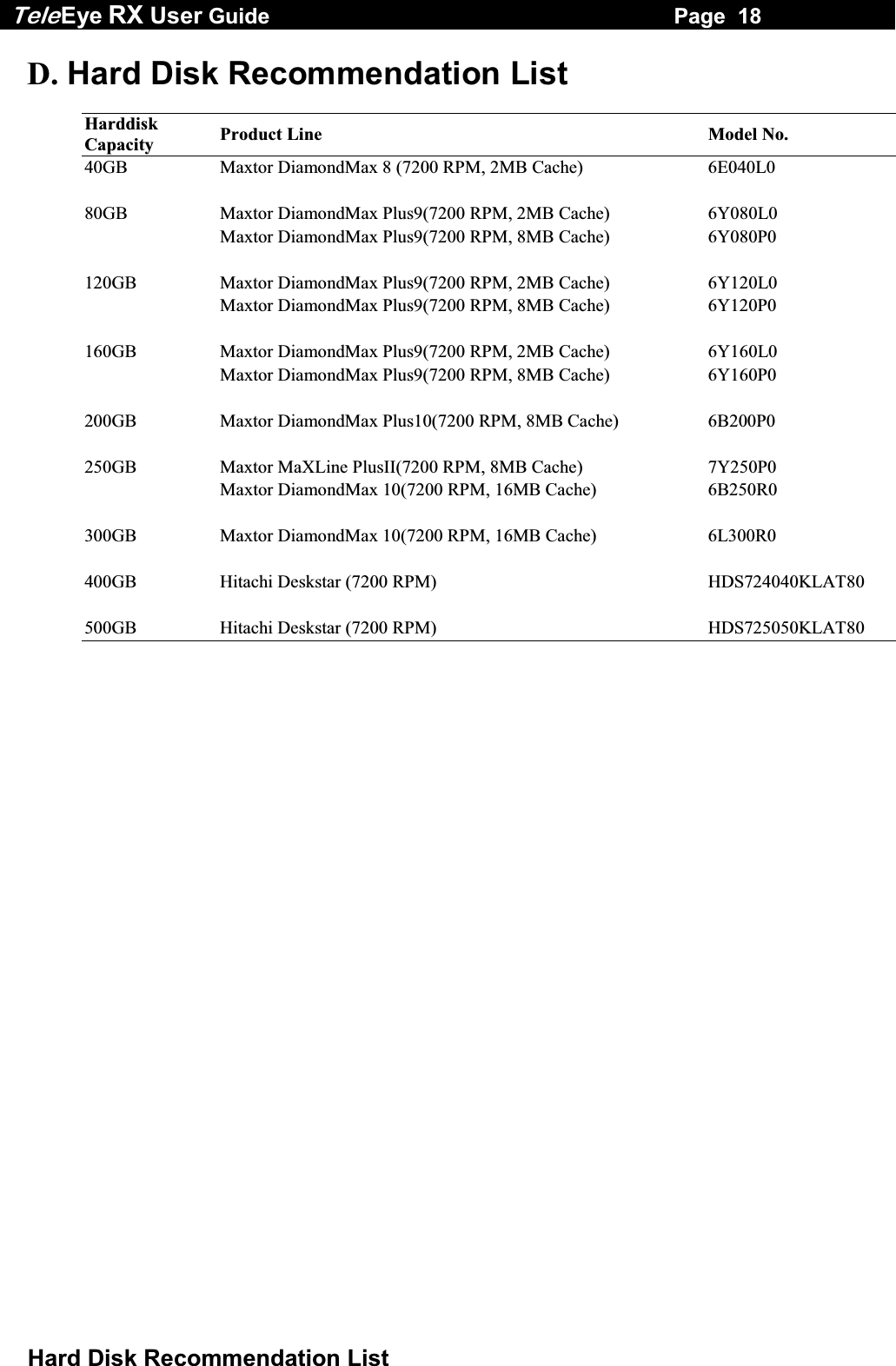
Tele Eye RX User Guide                                                                   Page  18  Hard Disk Recommendation List D. Hard Disk Recommendation List  Harddisk Capacity  Product Line  Model No. 40GB  Maxtor DiamondMax 8 (7200 RPM, 2MB Cache)  6E040L0     80GB  Maxtor DiamondMax Plus9(7200 RPM, 2MB Cache)  6Y080L0   Maxtor DiamondMax Plus9(7200 RPM, 8MB Cache)  6Y080P0     120GB  Maxtor DiamondMax Plus9(7200 RPM, 2MB Cache)  6Y120L0   Maxtor DiamondMax Plus9(7200 RPM, 8MB Cache)  6Y120P0     160GB  Maxtor DiamondMax Plus9(7200 RPM, 2MB Cache)  6Y160L0   Maxtor DiamondMax Plus9(7200 RPM, 8MB Cache)  6Y160P0     200GB  Maxtor DiamondMax Plus10(7200 RPM, 8MB Cache)  6B200P0     250GB  Maxtor MaXLine PlusII(7200 RPM, 8MB Cache)  7Y250P0   Maxtor DiamondMax 10(7200 RPM, 16MB Cache)  6B250R0     300GB  Maxtor DiamondMax 10(7200 RPM, 16MB Cache)  6L300R0     400GB  Hitachi Deskstar (7200 RPM)  HDS724040KLAT80     500GB  Hitachi Deskstar (7200 RPM)  HDS725050KLAT80
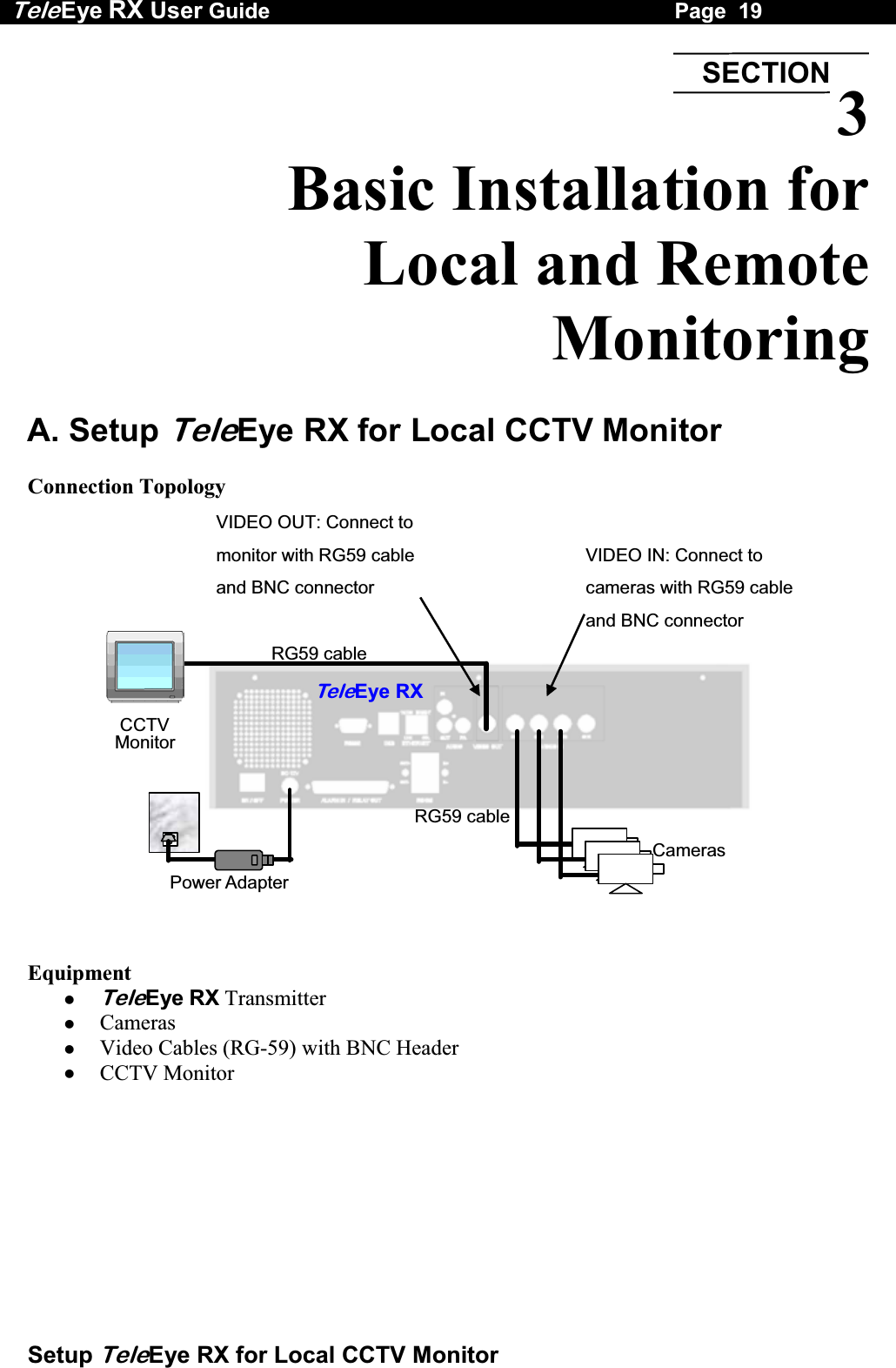
Tele Eye RX User Guide                                                                   Page  19  Setup TeleEye RX for Local CCTV Monitor  3 Basic Installation for  Local and Remote  Monitoring  A. Setup TeleEye RX for Local CCTV Monitor  Connection Topology  VIDEO OUT: Connect to monitor with RG59 cable and BNC connector   VIDEO IN: Connect to cameras with RG59 cable and BNC connector   RG59 cableRG59 cablePower Adapter TeleEye RXCameras CCTV Monitor    Equipment   TeleEye RX Transmitter   Cameras   Video Cables (RG-59) with BNC Header   CCTV Monitor   SECTION
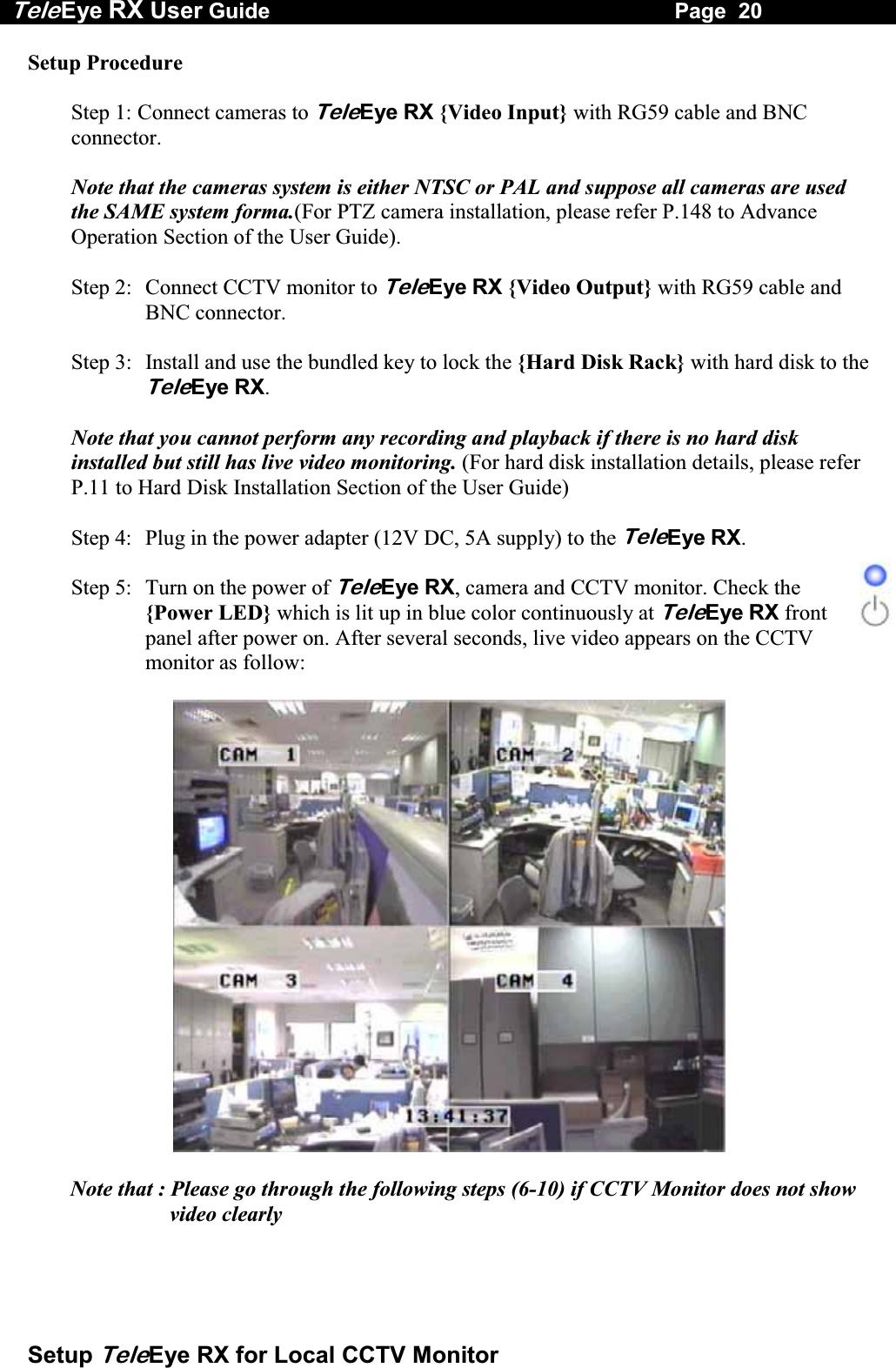
Tele Eye RX User Guide                                                                   Page  20  Setup TeleEye RX for Local CCTV Monitor Setup Procedure  Step 1: Connect cameras to TeleEye RX {Video Input} with RG59 cable and BNC connector.  Note that the cameras system is either NTSC or PAL and suppose all cameras are used the SAME system forma.(For PTZ camera installation, please refer P.148 to Advance Operation Section of the User Guide).  Step 2:  Connect CCTV monitor to TeleEye RX {Video Output} with RG59 cable and BNC connector.  Step 3:  Install and use the bundled key to lock the {Hard Disk Rack} with hard disk to the TeleEye RX.   Note that you cannot perform any recording and playback if there is no hard disk installed but still has live video monitoring. (For hard disk installation details, please refer P.11 to Hard Disk Installation Section of the User Guide)  Step 4:  Plug in the power adapter (12V DC, 5A supply) to the TeleEye RX.  Step 5:  Turn on the power of TeleEye RX, camera and CCTV monitor. Check the {Power LED} which is lit up in blue color continuously at TeleEye RX front panel after power on. After several seconds, live video appears on the CCTV monitor as follow:    Note that : Please go through the following steps (6-10) if CCTV Monitor does not show video clearly
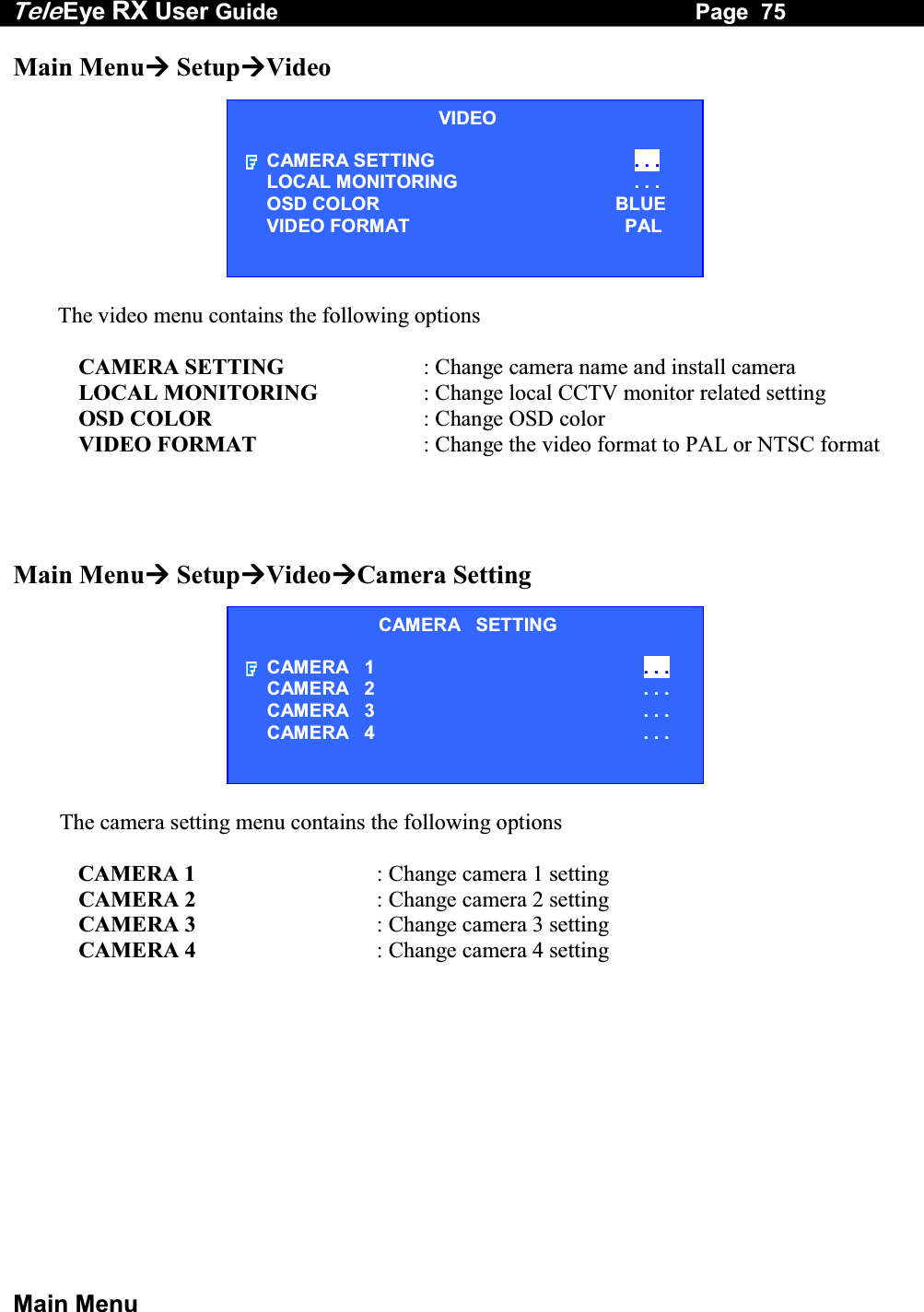
Tele Eye RX User Guide                                                                   Page  21  Setup TeleEye RX for Local CCTV Monitor  Step 6:  Press the “Menu”  button to pop up the [MAIN MENU] on OSD. Step 7:  Use “Up”   or “Down”  button to select [SETUP] option and press “Enter”   button to enter the [SETUP] sub-menu.     Step 8:  Use “Up”   or Down”  button to select [VIDEO] option and press “Enter”   button to enter the [VIDEO] sub-menu.      Step 9:  Select [VIDEO FORMAT] and press “Left”  or “Right”  button to set either [NTSC] or [PAL] option. (All cameras should have the same video format). Step 10: You can always press “Live”  button to exit any menu operation and start live monitoring.    MAIN  MENU  SETUP  . . . BACKUP TO CD-R  . . . SWITCH  CONTROL  . . . SCAN / FORMAT DISK  . . . TRANSMITTER INFO  . . . SHUT DOWN    ENTER SETUP  MENU VIDEO . . . RECORDING                         . . . SWITCHES  . . . DATE / TIME  . . . CONNECTION  . . . EVENT HANDLER  . . . TRANSMITTER . . . RESTORE FACTORY SETTING    ENTER VIDEO CAMERA SETTING . . . LOCAL MONITORING                     . . . OSD COLOR  BLUE VIDEO FORMAT  PAL
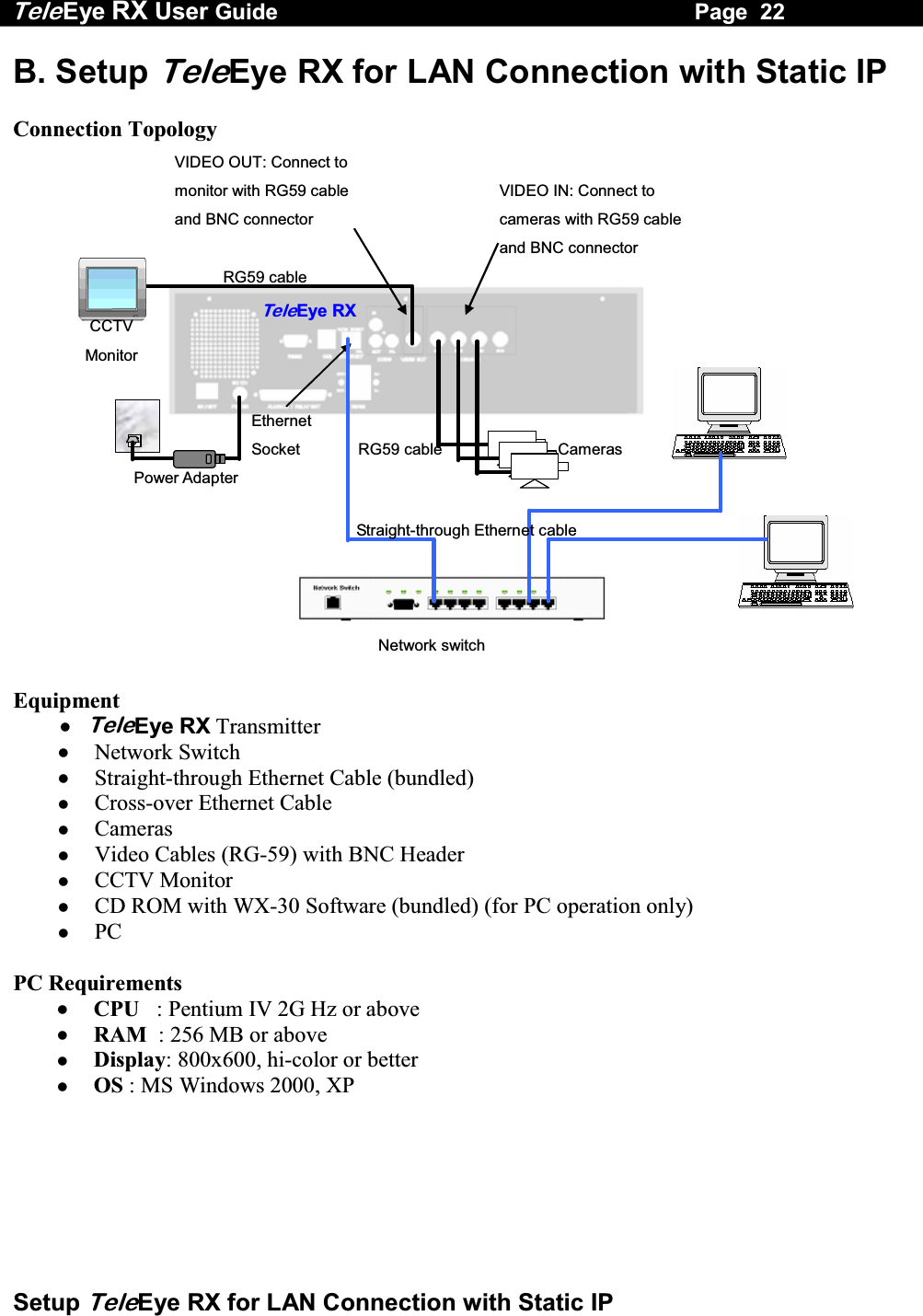
Tele Eye RX User Guide                                                                   Page  22  Setup TeleEye RX for LAN Connection with Static IP  B. Setup TeleEye RX for LAN Connection with Static IP  Connection Topology VIDEO OUT: Connect to monitor with RG59 cable and BNC connector   VIDEO IN: Connect to cameras with RG59 cable and BNC connector   RG59 cableRG59 cable Power Adapter Ethernet Socket CCTV Monitor TeleEye RXCameras Network switchStraight-through Ethernet cable   Equipment  TeleEye RX Transmitter   Network Switch   Straight-through Ethernet Cable (bundled)   Cross-over Ethernet Cable   Cameras   Video Cables (RG-59) with BNC Header   CCTV Monitor   CD ROM with WX-30 Software (bundled) (for PC operation only)   PC  PC Requirements   CPU   :  Pentium IV 2G Hz or above   RAM  : 256 MB or above   Display: 800x600, hi-color or better   OS : MS Windows 2000, XP
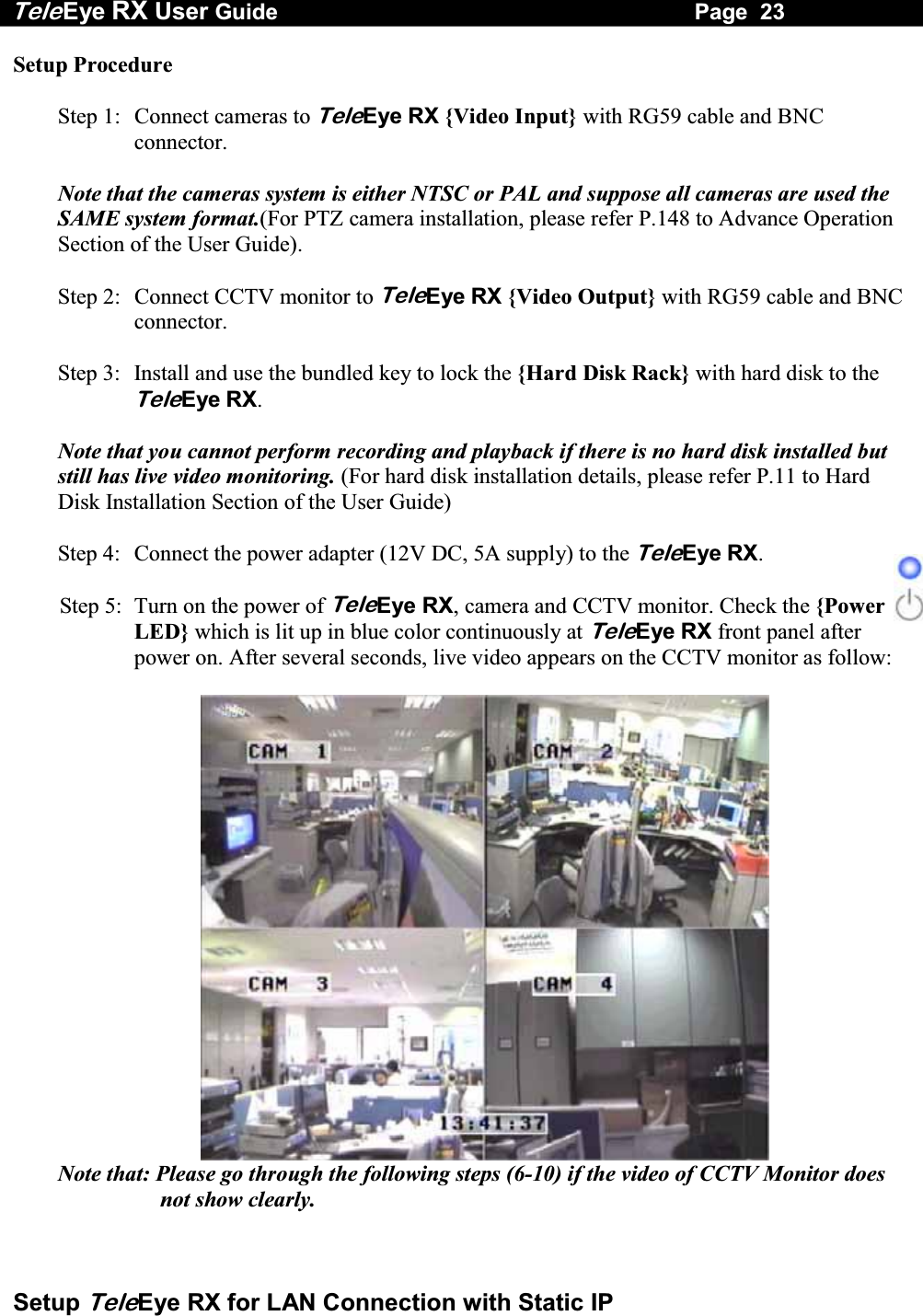
Tele Eye RX User Guide                                                                   Page  23  Setup TeleEye RX for LAN Connection with Static IP Setup Procedure  Step 1:  Connect cameras to TeleEye RX {Video Input} with RG59 cable and BNC connector.  Note that the cameras system is either NTSC or PAL and suppose all cameras are used the SAME system format.(For PTZ camera installation, please refer P.148 to Advance Operation Section of the User Guide).   Step 2:  Connect CCTV monitor to TeleEye RX {Video Output} with RG59 cable and BNC connector.  Step 3:  Install and use the bundled key to lock the {Hard Disk Rack} with hard disk to the TeleEye RX.   Note that you cannot perform recording and playback if there is no hard disk installed but still has live video monitoring. (For hard disk installation details, please refer P.11 to Hard Disk Installation Section of the User Guide)  Step 4:  Connect the power adapter (12V DC, 5A supply) to the TeleEye RX.  Step 5:  Turn on the power of TeleEye RX, camera and CCTV monitor. Check the {Power LED} which is lit up in blue color continuously at TeleEye RX front panel after power on. After several seconds, live video appears on the CCTV monitor as follow:   Note that: Please go through the following steps (6-10) if the video of CCTV Monitor does not show clearly.
Tele Eye RX User Guide                                                                   Page  24  Setup TeleEye RX for LAN Connection with Static IP   Step 6:  Press the “Menu”  button to pop up the [MAIN MENU] on OSD. Step 7:  Use “Up”   or “Down”  button to select [SETUP] option and press “Enter”  button to enter the [SETUP] sub-menu.Step 8:  Select [VIDEO] option and press “Enter”  button to enter the [VIDEO] sub-menu    Step 9:  Select [VIDEO FORMAT] and press “Left”  or “Right”  button to set either [NTSC] or [PAL] option. (All cameras should have the same video format). Step 10: You can always press “Live”  button to exit any menu operation and start live monitoring.  Setup TeleEye RX transmitter IP through CCTV monitor, please go to step 11a.  Setup TeleEye RX transmitter IP through PC, through PC, please go to step11b.       VIDEO CAMERA SETTING . . . LOCAL MONITORING                     . . . OSD COLOR  BLUE VIDEO FORMAT  PAL SETUP  MENU VIDEO  . . . RECORDING                         . . . SWITCHES  . . . DATE / TIME  . . . CONNECTION  . . . EVENT HANDLER  . . . TRANSMITTER  . . . RESTORE FACTORY SETTING    ENTER
Tele Eye RX User Guide                                                                   Page  25  Setup TeleEye RX for LAN Connection with Static IP Step 11a: Configure TeleEye RX transmitter IP setting through CCTV Monitor   RG59 cablePower Adapter Ethernet Socket TeleEye RXCameras CCTV Monitor RG59 cable192.168.0.2     Press the “Menu”  button such that the OSD main menu opens on the monitor.   Use “Up”   or “Down”  button to select [SETUP] option and press “Enter”   button to enter [SETUP] sub menu.   Select [CONNECTION] option and press “Enter”   button to enter connection setting menu.         Select [TCP/IP] option and Press “Enter”  button         Select [IP] option and press “Enter”  button.IP address consists of four fields. Each field can assign a number from 0 to 255     SETUP  MENU VIDEO . . .RECORDING                         . . .SWITCHES  . . .DATE / TIME  . . .CONNECTION  . . .EVENT HANDLER  . . .TRANSMITTER  . . .RESTORE FACTORY SETTING  ENTERCONNECTION TCP / IP  …  MODEM … TCP / IP  IP  192.168.0.2  PORT  1024 SUBNET  MASK  255.255.255.0 ENABLE GATEWAY  NO GATEWAY  0.0.0.0 ENABLE DNS  NO PRIMARY  DNS   0.0.0.0 SECONDARY  DNS   0.0.0.0 SURELINK  …
Tele Eye RX User Guide                                                                   Page  26  Setup TeleEye RX for LAN Connection with Static IP      Use “Left”   or “Right”   button to select field and use “Up”   or “Down”   button to set number.   Press “Enter”  button to save the change and return previous menu.        Follow the network setting and assign a valid subnet mask to [SUBNET MASK] and select [ENABLE GATEWAY] option and input [GATEWAY] option in similar way.  Note that the DNS setting is optional which is useful for sureLINK, time synchronization** or e-mail notification function**.  ʽʽʳˍʳ˧˻˼̆ʳ˹̈́˶̇˼̂́ʳ̊˼˿˿ʳ˵˸ʳ̆̈̃̃̂̅̇˸˷ʳ˼́ʳ̇˻˸ʳTeleEyeʳRXʳ̇̅˴́̆̀˼̇̇˸̅ʳ̉˸̅̆˼̂́ʳ˅ˁ˃˃ˁ˃˃ʳ̂̅ʳ˿˴̇˸̅ʳ       Press “Live”  button, then [SETTING MODIFIED] message board will pop up. Press “Enter”   button to restart the TeleEye RX.IP IP  : 210.  17.139.145 TCP / IP  IP 210.17.139.145  PORT 1024 SUBNET  MASK  255.255.255.0 ENABLE GATEWAY   YES GATEWAY  210.17.139.1 ENABLE DNS  NO PRIMARY  DNS   0.0.0.0 SECONDARY  DNS   0.0.0.0 SURELINK  … SETTING  MODIFIED SETTING  WILL  TAKE  EFFECT AFTER  RESTART ,  PRESS  ENTER  TO  CONTINUE OK
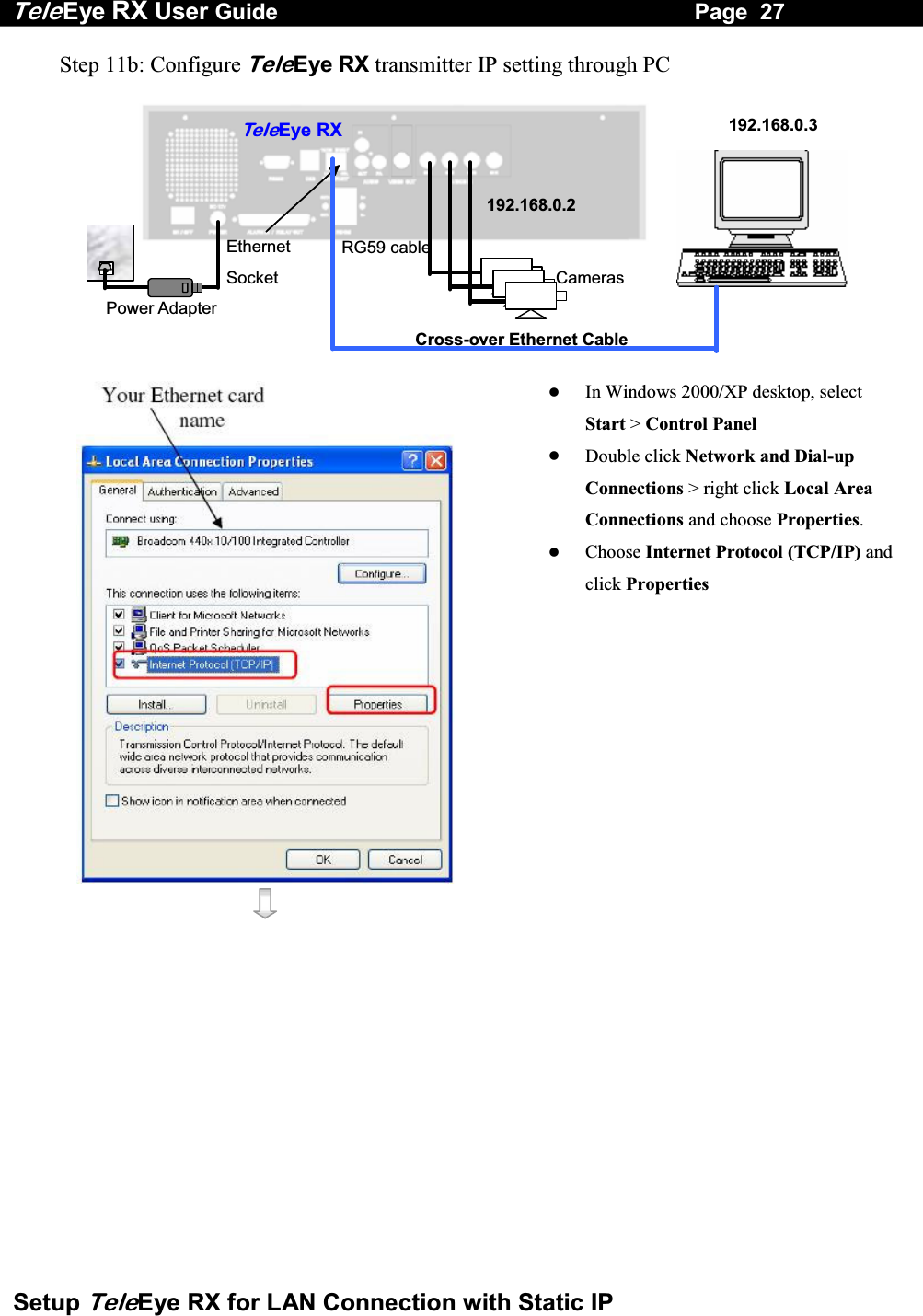
Tele Eye RX User Guide                                                                   Page  27  Setup TeleEye RX for LAN Connection with Static IP Step 11b: Configure TeleEye RX transmitter IP setting through PC   RG59 cable Power Adapter Ethernet Socket Te l eEye RXCameras 192.168.0.2192.168.0.3Cross-over Ethernet Cable        In Windows 2000/XP desktop, select Start > Control Panel   Double click Network and Dial-up Connections > right click Local Area Connections and choose Properties.   Choose Internet Protocol (TCP/IP) and click Properties
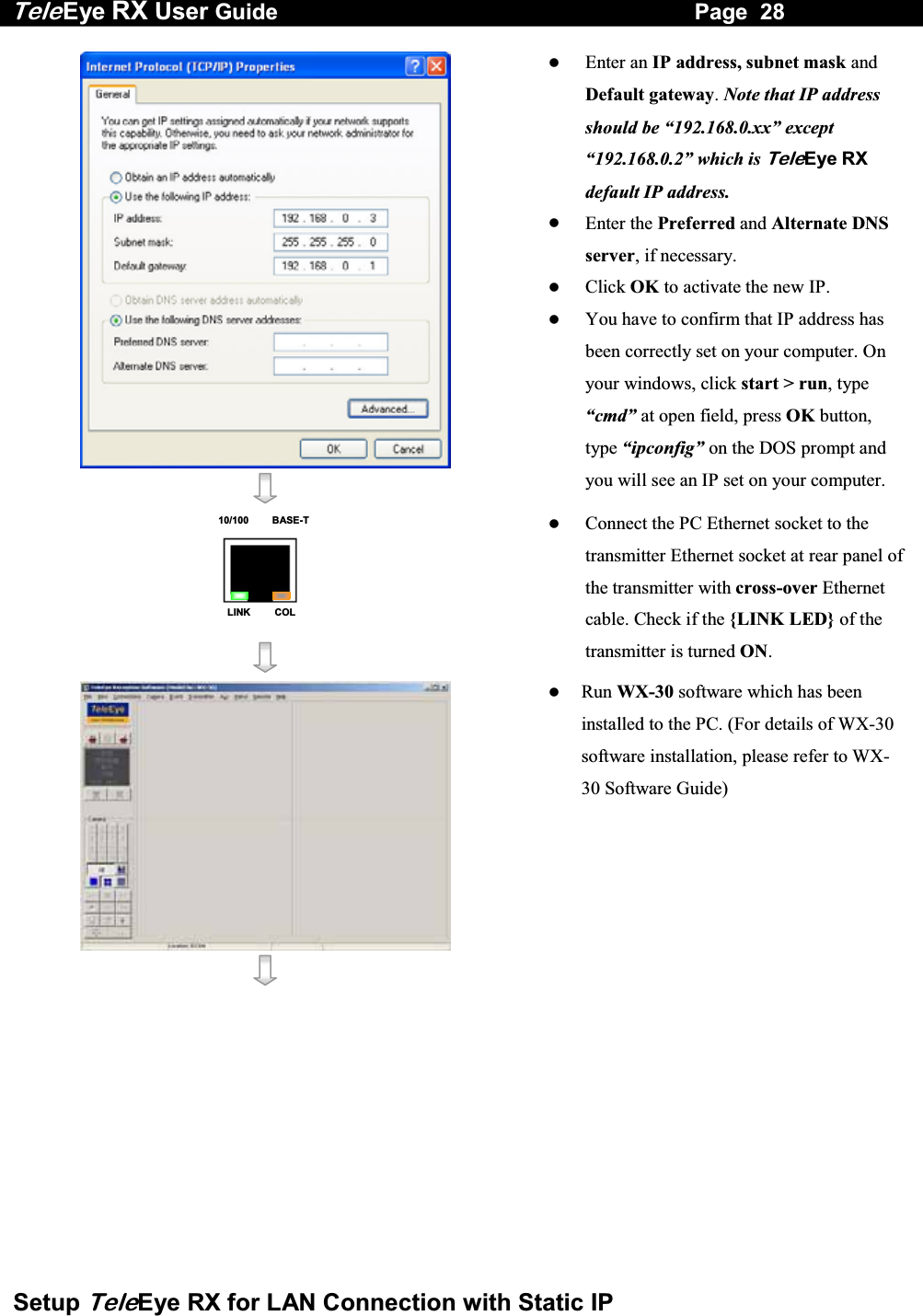
Tele Eye RX User Guide                                                                   Page  28  Setup TeleEye RX for LAN Connection with Static IP      Enter an IP address, subnet mask and Default gateway. Note that IP address should be “192.168.0.xx” except “192.168.0.2” which is TeleEye RX default IP address.   Enter the Preferred and Alternate DNS server, if necessary.   Click OK to activate the new IP.   You have to confirm that IP address has been correctly set on your computer. On your windows, click start > run, type “cmd” at open field, press OK button, type “ipconfig” on the DOS prompt and you will see an IP set on your computer. 10/100     BASE-TLINK     COL     Connect the PC Ethernet socket to the transmitter Ethernet socket at rear panel of the transmitter with cross-over Ethernet cable. Check if the {LINK LED} of the transmitter is turned ON.      Run WX-30 software which has been installed to the PC. (For details of WX-30 software installation, please refer to WX-30 Software Guide)
Tele Eye RX User Guide                                                                   Page  29  Setup TeleEye RX for LAN Connection with Static IP      Choose [Transmitter]  [Registration] to register the TeleEye RX transmitter. User needs to input transmitter serial number and registration code.  For example : Serial No. : VTC12345 Registration Code : 1234567890       Press [Connect]  icon to pop up the [Connect Window]. Type and select the following setting : Phone/IP : 192.168.0.2 Connect Using: TCP/IP LAN Password: 000000   IP (192.168.0.2) and Password (000000) are default setting of  TeleEye RX      Press [Connect]  icon to connect your PC to the transmitter. Live video is shown on the WX-30 if success. Otherwise, the [Warning] board will pop up and show you failure message. For failure case, please press [Connect]  icon to check that the connection setting is valid or not.     Press [Transmitter Setup]  icon to show TeleEye RX configuration menu.   Select [Connection] and press [Network Settings]icon to
Tele Eye RX User Guide                                                                   Page  30  Setup TeleEye RX for LAN Connection with Static IP    Settings] icon to configure network setting.      Change the IP from 192.168.0.2 to 210.17.139.145 (for example). Gateway setting is used for WAN. Primary and Secondary DNS setting are used for sureLINK, time synchronization ** or e-mail notification function **. ** : This function will be supported in the TeleEye RX transmitter version 2.00.00 or later      Press [Apply]  icon to save the network setting and pop up the message board. After several seconds, the transmitter will restart automatically.
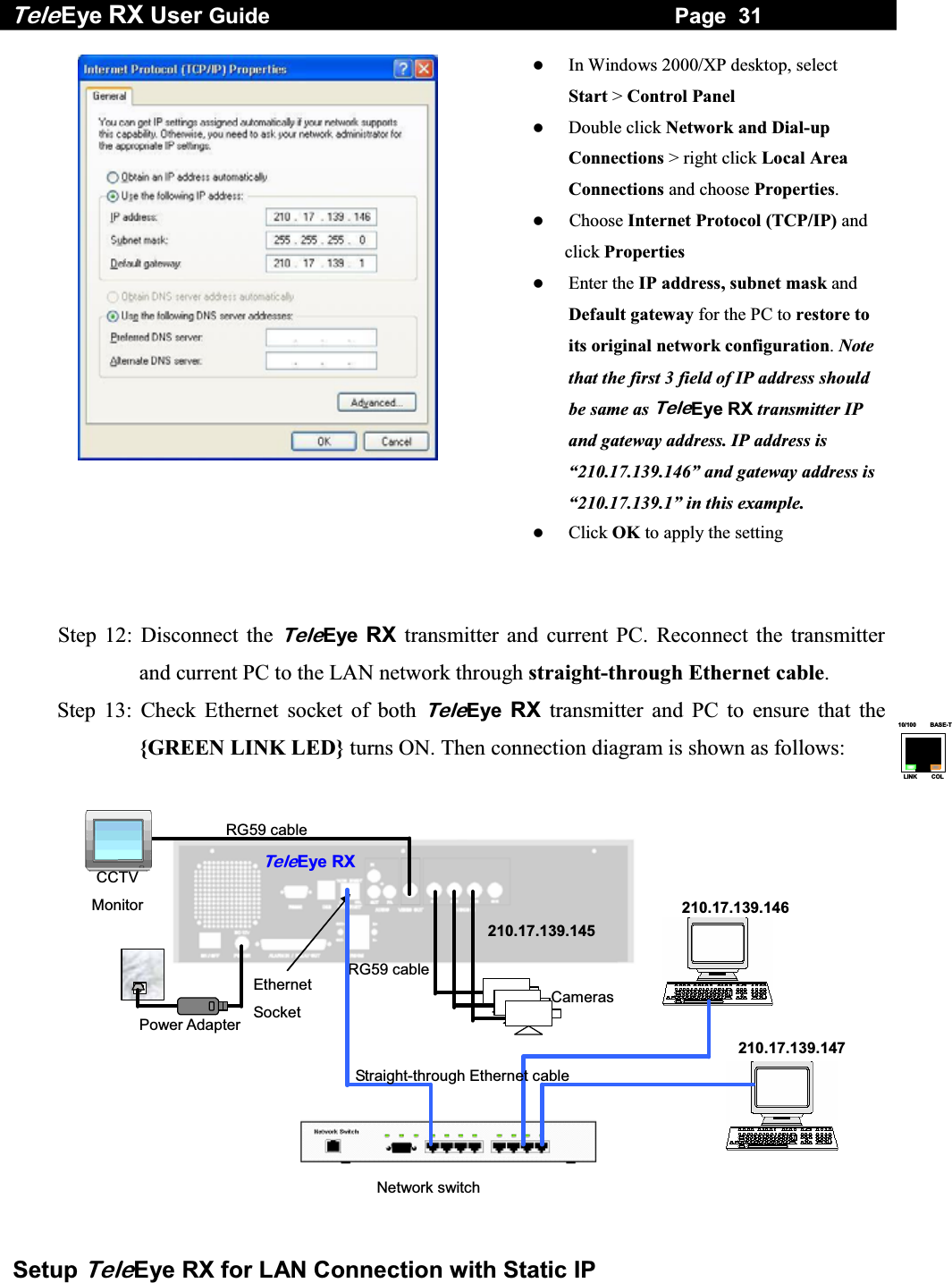
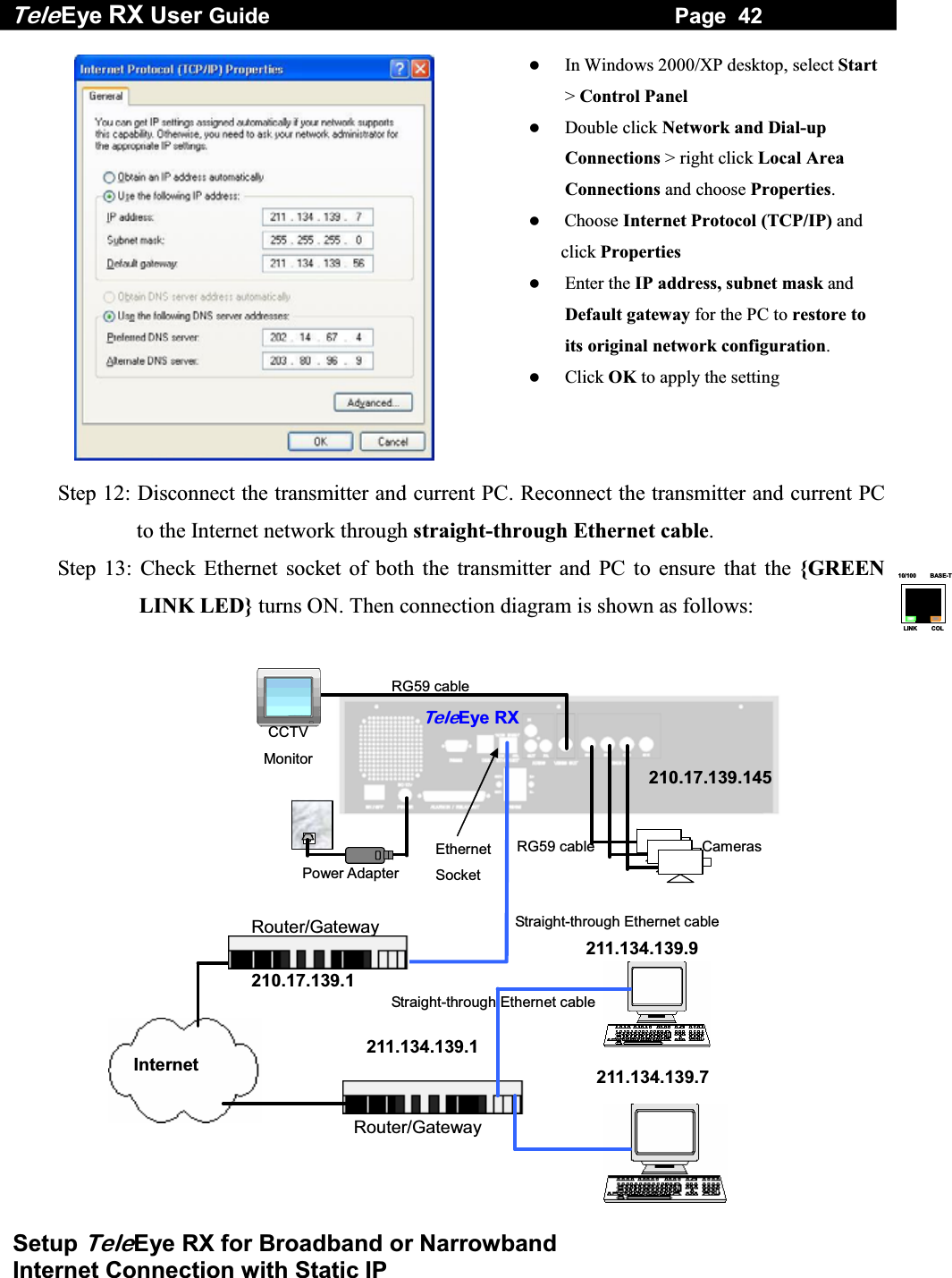
Tele Eye RX User Guide                                                                   Page  31  Setup TeleEye RX for LAN Connection with Static IP 10/100     BASE-TLINK     COL    In Windows 2000/XP desktop, select Start > Control Panel   Double click Network and Dial-up Connections > right click Local Area Connections and choose Properties.    Choose Internet Protocol (TCP/IP) and click Properties   Enter the IP address, subnet mask and Default gateway for the PC to restore to its original network configuration. Note that the first 3 field of IP address should be same as TeleEye RX transmitter IP and gateway address. IP address is “210.17.139.146” and gateway address is “210.17.139.1” in this example.   Click OK to apply the setting   Step 12: Disconnect the TeleEye RX transmitter and current PC. Reconnect the transmitter and current PC to the LAN network through straight-through Ethernet cable. Step 13: Check Ethernet socket of both TeleEye RX transmitter and PC to ensure that the {GREEN LINK LED} turns ON. Then connection diagram is shown as follows:  RG59 cableRG59 cable Power Adapter Ethernet Socket CCTV Monitor TeleEye RXCameras Network switch210.17.139.145 210.17.139.146210.17.139.147Straight-through Ethernet cable
Tele Eye RX User Guide                                                                   Page  32  Setup TeleEye RX for LAN Connection with Static IP     Step 14:   Run WX-30 software at any local network PC. (For details of WX-30 software installation, please refer to WX-30 Software Guide)    Step 15:   Press [Connect]  icon to pop up the [Connect Window]. For example, type and select the following setting  : Phone/IP : 210.17.139.145  Connect Using: TCP/IP LAN Password: 000000     Step 16:   Press [Connect]  icon to connect your PC and the transmitter. The video appears on the WX-30 if success. Otherwise, the [Warning] board will pop up and show you failure message. For failure case, please press [Connect]  icon to check that the connection setting is valid or not.
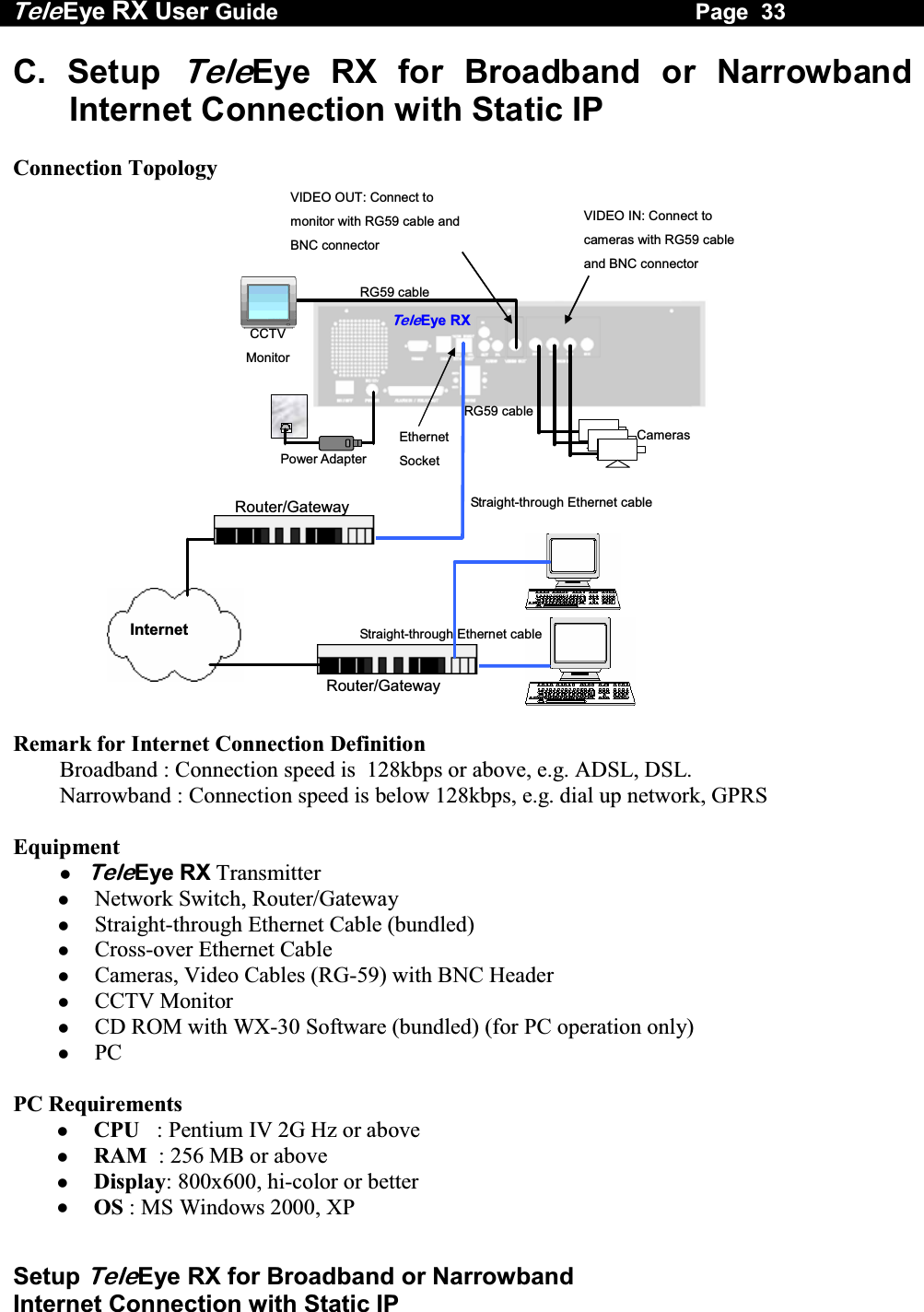
Tele Eye RX User Guide                                                                   Page  33  Setup TeleEye RX for Broadband or Narrowband  Internet Connection with Static IP C. Setup TeleEye RX for Broadband or Narrowband Internet Connection with Static IP  Connection Topology VIDEO OUT: Connect to monitor with RG59 cable and BNC connector   VIDEO IN: Connect to cameras with RG59 cable and BNC connector   RG59 cableRG59 cable Power Adapter Ethernet Socket CCTV Monitor TeleEye RXCameras Internet Router/Gateway Router/Gateway Straight-through Ethernet cable Straight-through Ethernet cable  Remark for Internet Connection Definition  Broadband : Connection speed is  128kbps or above, e.g. ADSL, DSL.  Narrowband : Connection speed is below 128kbps, e.g. dial up network, GPRS  Equipment  TeleEye RX Transmitter   Network Switch, Router/Gateway   Straight-through Ethernet Cable (bundled)   Cross-over Ethernet Cable   Cameras, Video Cables (RG-59) with BNC Header   CCTV Monitor   CD ROM with WX-30 Software (bundled) (for PC operation only)   PC  PC Requirements   CPU   :  Pentium IV 2G Hz or above   RAM  : 256 MB or above   Display: 800x600, hi-color or better   OS : MS Windows 2000, XP
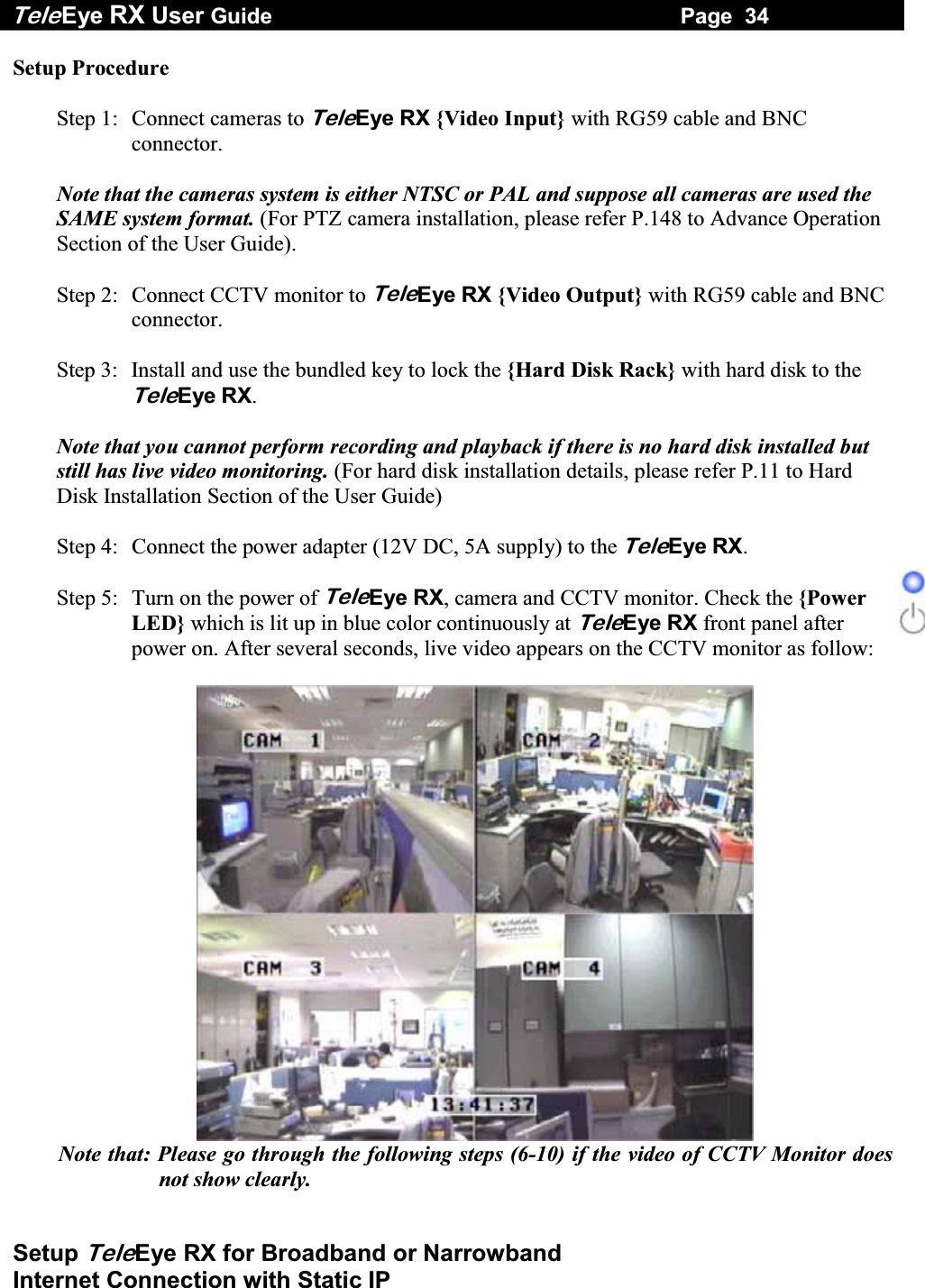
Tele Eye RX User Guide                                                                   Page  34  Setup TeleEye RX for Broadband or Narrowband  Internet Connection with Static IP Setup Procedure  Step 1:  Connect cameras to TeleEye RX {Video Input} with RG59 cable and BNC connector.  Note that the cameras system is either NTSC or PAL and suppose all cameras are used the SAME system format. (For PTZ camera installation, please refer P.148 to Advance Operation Section of the User Guide).  Step 2:  Connect CCTV monitor to TeleEye RX {Video Output} with RG59 cable and BNC connector.  Step 3:  Install and use the bundled key to lock the {Hard Disk Rack} with hard disk to the TeleEye RX.   Note that you cannot perform recording and playback if there is no hard disk installed but still has live video monitoring. (For hard disk installation details, please refer P.11 to Hard Disk Installation Section of the User Guide)  Step 4:  Connect the power adapter (12V DC, 5A supply) to the TeleEye RX.  Step 5:  Turn on the power of TeleEye RX, camera and CCTV monitor. Check the {Power LED} which is lit up in blue color continuously at TeleEye RX front panel after power on. After several seconds, live video appears on the CCTV monitor as follow:   Note that: Please go through the following steps (6-10) if the video of CCTV Monitor does not show clearly.
Tele Eye RX User Guide                                                                   Page  35  Setup TeleEye RX for Broadband or Narrowband  Internet Connection with Static IP  Step 6:  Press the “Menu” button to pop up the [MAIN MENU] on OSD. Step 7:  Use  “Up”   or  “Down” button to select  [SETUP]  option and press “Enter” button to enter the [SETUP] sub-menu.   Step 8:  Select  [VIDEO]  option and press “Enter” button to enter the [VIDEO] sub-menu.    Step 9:  Select  [VIDEO FORMAT] and press “Left”  or “Right” button to set either  [NTSC] or [PAL] option. (Allcameras should have the same video format). Step 10: You can always press “Live” button to exit any menu operation and start live monitoring.  Setup TeleEye RX transmitter IP through CCTV monitor, please go to step 11a.  Setup TeleEye RX transmitter IP through PC, through PC, please go to step11b.   MAIN  MENU  SETUP  . . . BACKUP TO CD-R  . . . SWITCH  CONTROL  . . . SCAN / FORMAT DISK  . . . TRANSMITTER INFO  . . . SHUT DOWN    ENTER VIDEO CAMERA SETTING . . . LOCAL MONITORING                     . . . OSD COLOR  BLUE VIDEO FORMAT  PAL SETUP  MENU VIDEO . . . RECORDING                         . . . SWITCHES . . . DATE / TIME  . . . CONNECTION . . . EVENT HANDLER  . . . TRANSMITTER . . . RESTORE FACTORY SETTING    ENTER
Tele Eye RX User Guide                                                                   Page  36  Setup TeleEye RX for Broadband or Narrowband  Internet Connection with Static IP Step 11a: Configure TeleEye RX transmitter IP setting through CCTV Monitor   RG59 cablePower Adapter Ethernet Socket Te l eEye RXCameras 192.168.0.2CCTV Monitor RG59 cable     Press the “Menu”  button such that the OSD main menu pops up on the monitor.   Use “Up”   or “Down”  button to select [SETUP] option and press “Enter”  button.   Select [CONNECTION] option and press “Enter”   button         Select [TCP/IP] option and Press “Enter”  button      Select [IP] option and press “Enter”  button. IP address consists of four fields. Each field can assign a number from 0 to 255.    SETUP  MENU VIDEO . . .RECORDING                         . . .SWITCHES  . . .DATE / TIME  . . .CONNECTION  . . .EVENT HANDLER  . . .TRANSMITTER  . . .RESTORE FACTORY SETTING  ENTERCONNECTION TCP / IP  …  MODEM … TCP / IP  IP  192.168.0.2  PORT  1024 SUBNET  MASK  255.255.255.0 ENABLE GATEWAY  NO GATEWAY  0.0.0.0 ENABLE DNS  NO PRIMARY  DNS   0.0.0.0 SECONDARY  DNS   0.0.0.0 SURELINK  …
Tele Eye RX User Guide                                                                   Page  37  Setup TeleEye RX for Broadband or Narrowband  Internet Connection with Static IP     Use “Left”   or “Right”   button to select field and use “Up”   or “Down”  button to set number.   Press “Enter” button to save the change and return previous menu.                  Follow the network setting and assign valid subnet mask to [SUBNET MASK] and select [ENABLE GATEWAY] option and input [GATEWAY] option in similar way.   Set the Gateway value (for example) to 210.17.139.1 Note that the DNS setting is optional which is useful for sureLINK, time synchronization** or e-mail notification function**.  ** : This function will be supported in the TeleEye RX transmitter version 2.00.00 or later      Press “Live”  button and [SETTING MODIFIED] message board will pop up. Press “Enter”  button to restart the transmitter.    IP IP  : 210.  17.139.145 SETTING  MODIFIED SETTING  WILL  TAKE  EFFECT AFTER  RESTART ,  PRESS  ENTER  TO  CONTINUE OK TCP / IP  IP 210.17.139.145  PORT 1024 SUBNET  MASK  255.255.255.0 ENABLE GATEWAY   YES GATEWAY  210.17.139.1 ENABLE DNS  NO PRIMARY  DNS   0.0.0.0 SECONDARY  DNS   0.0.0.0 SURELINK  …
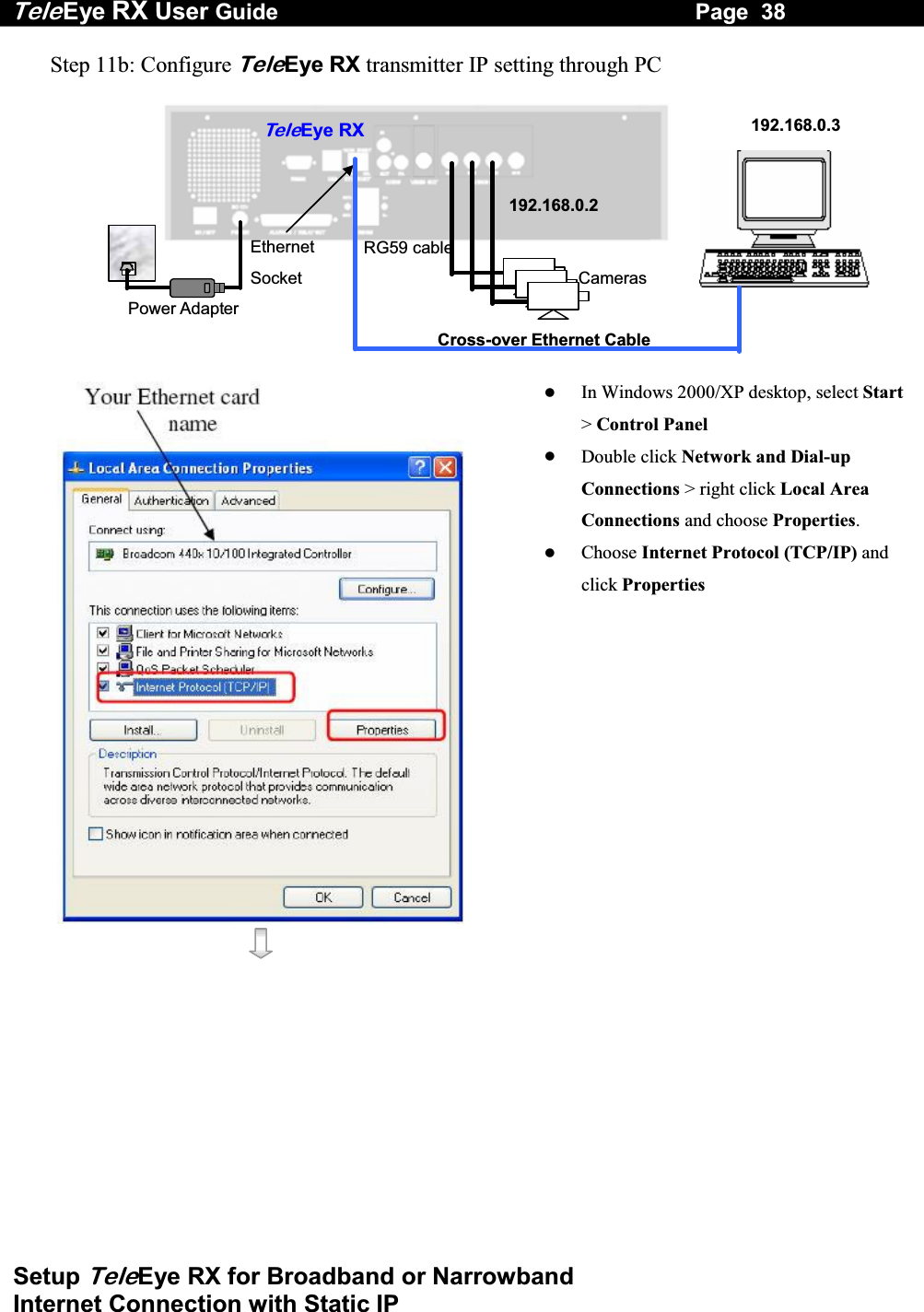
Tele Eye RX User Guide                                                                   Page  38  Setup TeleEye RX for Broadband or Narrowband  Internet Connection with Static IP Step 11b: Configure TeleEye RX transmitter IP setting through PC   RG59 cable Power Adapter Ethernet Socket Te l eEye RXCameras 192.168.0.2192.168.0.3Cross-over Ethernet Cable       In Windows 2000/XP desktop, select Start> Control Panel   Double click Network and Dial-up Connections > right click Local Area Connections and choose Properties.   Choose Internet Protocol (TCP/IP) and click Properties
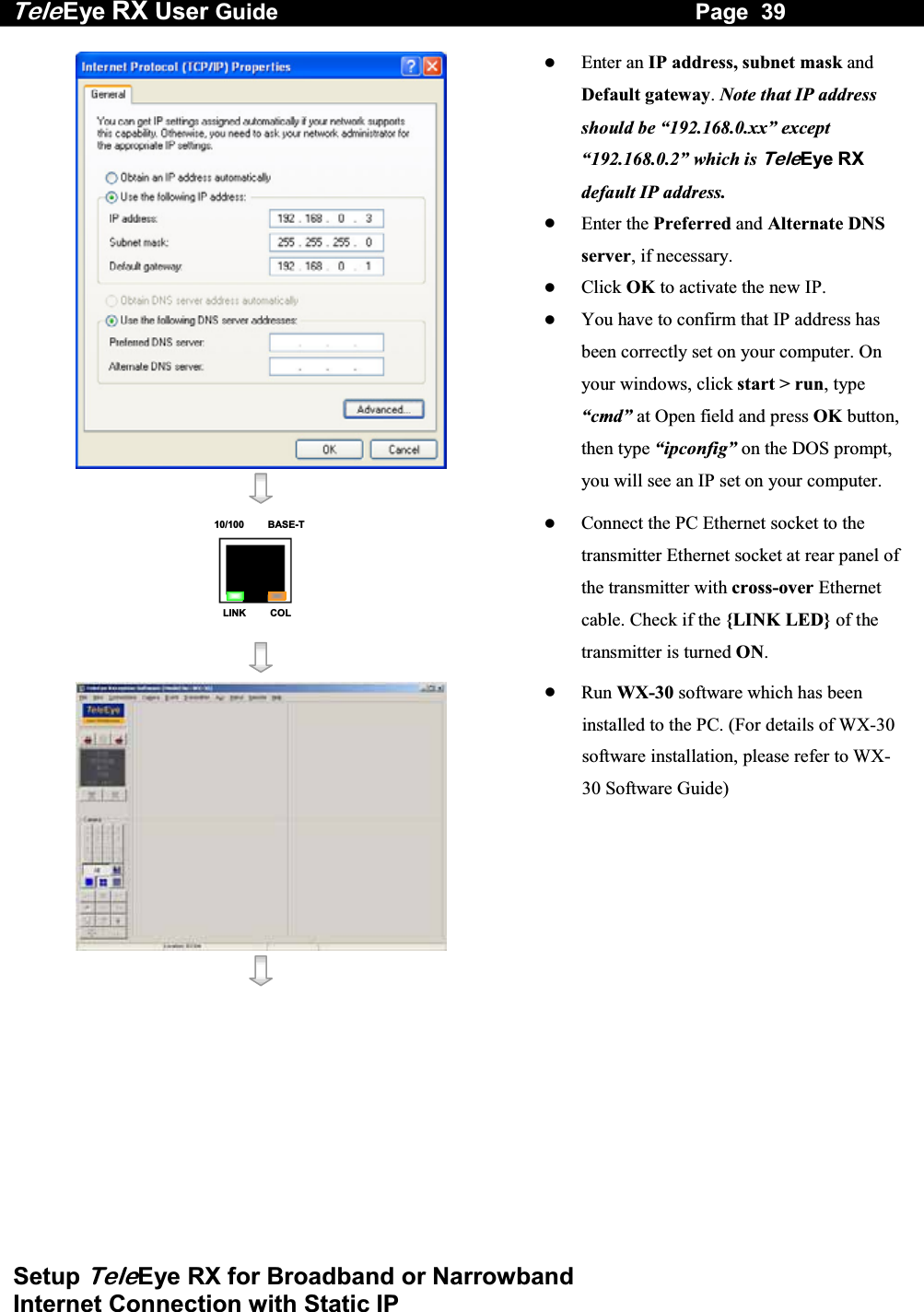
Tele Eye RX User Guide                                                                   Page  39  Setup TeleEye RX for Broadband or Narrowband  Internet Connection with Static IP      Enter an IP address, subnet mask and Default gateway. Note that IP address should be “192.168.0.xx” except “192.168.0.2” which is TeleEye RX default IP address.   Enter the Preferred and Alternate DNS server, if necessary.   Click OK to activate the new IP.   You have to confirm that IP address has been correctly set on your computer. On your windows, click start > run, type “cmd” at Open field and press OK button, then type “ipconfig” on the DOS prompt, you will see an IP set on your computer. 10/100     BASE-TLINK     COL     Connect the PC Ethernet socket to the transmitter Ethernet socket at rear panel of the transmitter with cross-over Ethernet cable. Check if the {LINK LED} of the transmitter is turned ON.      Run WX-30 software which has been installed to the PC. (For details of WX-30 software installation, please refer to WX-30 Software Guide)
Tele Eye RX User Guide                                                                   Page  40  Setup TeleEye RX for Broadband or Narrowband  Internet Connection with Static IP      Choose [Transmitter]  [Registration] to register the TeleEye RX transmitter. User needs to input transmitter serial number and registration code.        For example : Serial No. : VTC12345 Registration Code : 1234567890      Press [Connect]  icon to pop up the [Connect Window]. Type and select the following setting : Broadband Connection : Phone/IP : 192.168.0.2  Connect Using: TCP/IP Broadband Password: 000000   OR Narrowband Connection : Phone/IP : 192.168.0.2 Connect Using: TCP/IP Narrowband Password: 000000 IP (192.168.0.2) and Password (000000) are default setting of TeleEye RX      Press [Connect]  icon to connect your PC and the transmitter. The video appears on the WX-30 if success. Otherwise, the [Warning] board will pop up and show you failure message. For failure case, please press [Connect]  icon to check that the connection setting is valid or not.
Tele Eye RX User Guide                                                                   Page  41  Setup TeleEye RX for Broadband or Narrowband  Internet Connection with Static IP        Press [Transmitter setup]  icon to show TeleEye RX configuration menu.   Select [Connection] and press [Network Settings]  icon to configure network setting.       Change the IP from 192.168.0.2 to (for example) 210.17.139.145 and Gateway setting 210.17.139.1 (for example). Primary and Secondary DNS setting (for example) are used for sureLINK, time synchronization** or e-mail notification function **. ** : This function will be supported in the TeleEye RX transmitter version 2.00.00 or later      Press [Apply]  icon to save the network setting and pop up the message board. After several seconds, the transmitter will restart automatically.
Tele Eye RX User Guide                                                                   Page  42  Setup TeleEye RX for Broadband or Narrowband  Internet Connection with Static IP 10/100     BASE-TLINK     COL    In Windows 2000/XP desktop, select Start> Control Panel   Double click Network and Dial-up Connections > right click Local Area Connections and choose Properties.   Choose Internet Protocol (TCP/IP) and   click Properties   Enter the IP address, subnet mask and Default gateway for the PC to restore to its original network configuration.    Click OK to apply the setting  Step 12: Disconnect the transmitter and current PC. Reconnect the transmitter and current PC to the Internet network through straight-through Ethernet cable. Step 13: Check Ethernet socket of both the transmitter and PC to ensure that the {GREEN LINK LED} turns ON. Then connection diagram is shown as follows:  RG59 cableRG59 cable Power Adapter Ethernet Socket CCTV Monitor TeleEye RXCameras 210.17.139.145 211.134.139.7211.134.139.9 Internet 210.17.139.1 Router/Gateway 211.134.139.1 Router/Gateway Straight-through Ethernet cable Straight-through Ethernet cable
Tele Eye RX User Guide                                                                   Page  43  Setup TeleEye RX for Broadband or Narrowband  Internet Connection with Static IP      Step14:   Configure the network setting for TeleEye RX transmitter and your PC if necessary, such as router/gateway port mapping (select router/gateway IP as IP provided by your ISP and the transmitter IP as IP provided by the router/gateway), firewall, etc. (Please refers to the manual of your router/gateway.)  Step15:    Run WX-30 software at any network PC. (For details of WX-30 software installation, please refer to WX-30 Software Guide)      Step 16:   Press [Connect]  icon to pop up the [Connect Window]. For example, type and select the following setting : Broadband Connection : Phone/IP : 210.17.139.145 Connect Using: TCP/IP Broadband Password: 000000 OR Narrowband Connection : Phone/IP : 210.17.139.145 Connect Using: TCP/IP Narrowband Password: 000000   Step 17:  Press [Connect] icon to connect your PC and the transmitter. The video appears on the WX-30 if success. Otherwise, the [Warning] board will pop up and show you failure message. For failure case, please press [Connect]  icon to check that the connection setting is valid or not.
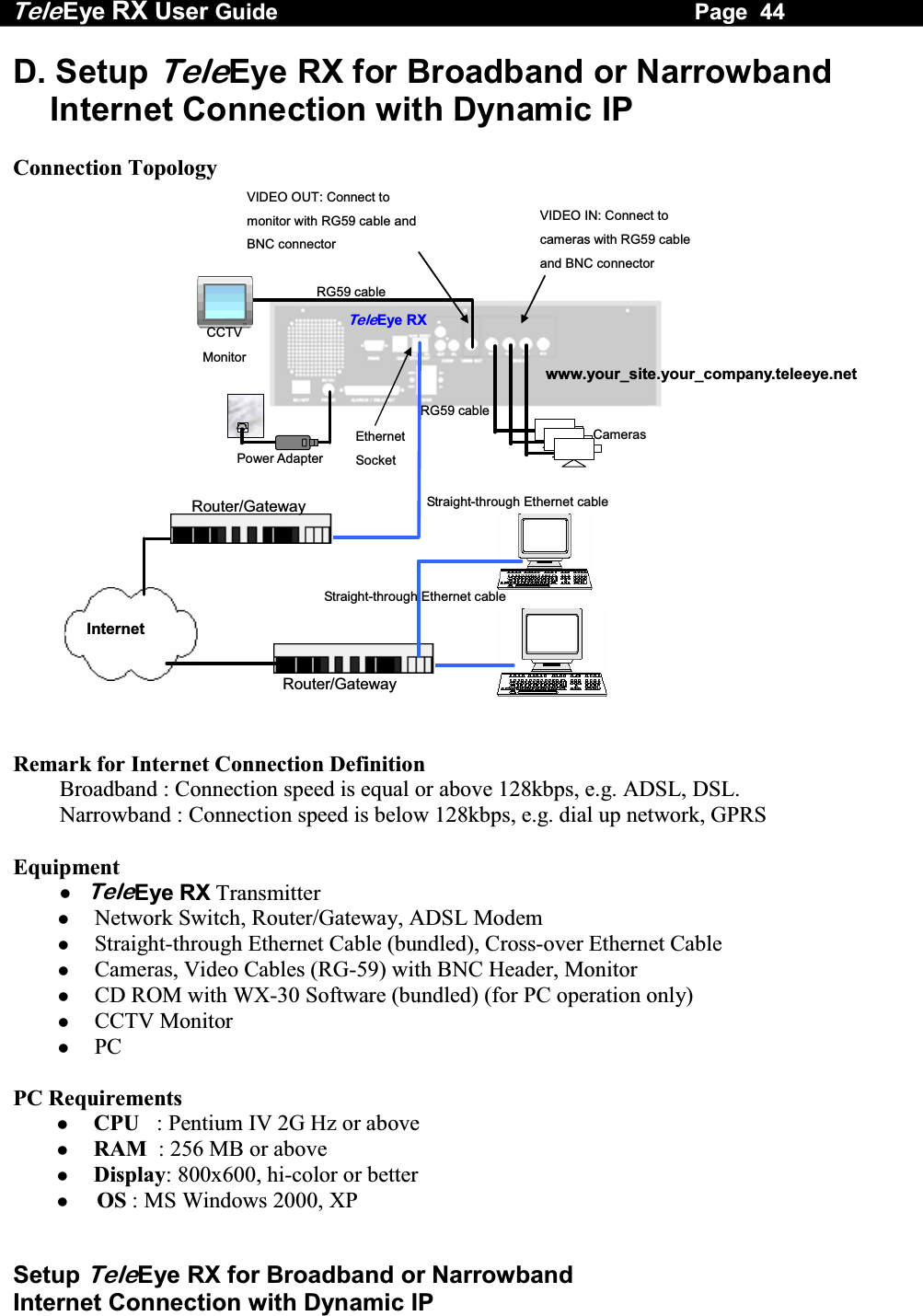
Tele Eye RX User Guide                                                                   Page  44  Setup TeleEye RX for Broadband or Narrowband  Internet Connection with Dynamic IP D. Setup TeleEye RX for Broadband or Narrowband Internet Connection with Dynamic IP  Connection Topology VIDEO OUT: Connect to monitor with RG59 cable and BNC connector   VIDEO IN: Connect to cameras with RG59 cable and BNC connector   RG59 cableRG59 cable Power Adapter Ethernet Socket CCTV Monitor TeleEye RXCameras www.your_site.your_company.teleeye.netInternet Router/Gateway Router/Gateway Straight-through Ethernet cable Straight-through Ethernet cable   Remark for Internet Connection Definition  Broadband : Connection speed is equal or above 128kbps, e.g. ADSL, DSL.  Narrowband : Connection speed is below 128kbps, e.g. dial up network, GPRS  Equipment  TeleEye RX Transmitter   Network Switch, Router/Gateway, ADSL Modem   Straight-through Ethernet Cable (bundled), Cross-over Ethernet Cable   Cameras, Video Cables (RG-59) with BNC Header, Monitor   CD ROM with WX-30 Software (bundled) (for PC operation only)   CCTV Monitor   PC  PC Requirements   CPU   :  Pentium IV 2G Hz or above   RAM  : 256 MB or above   Display: 800x600, hi-color or better   OS : MS Windows 2000, XP
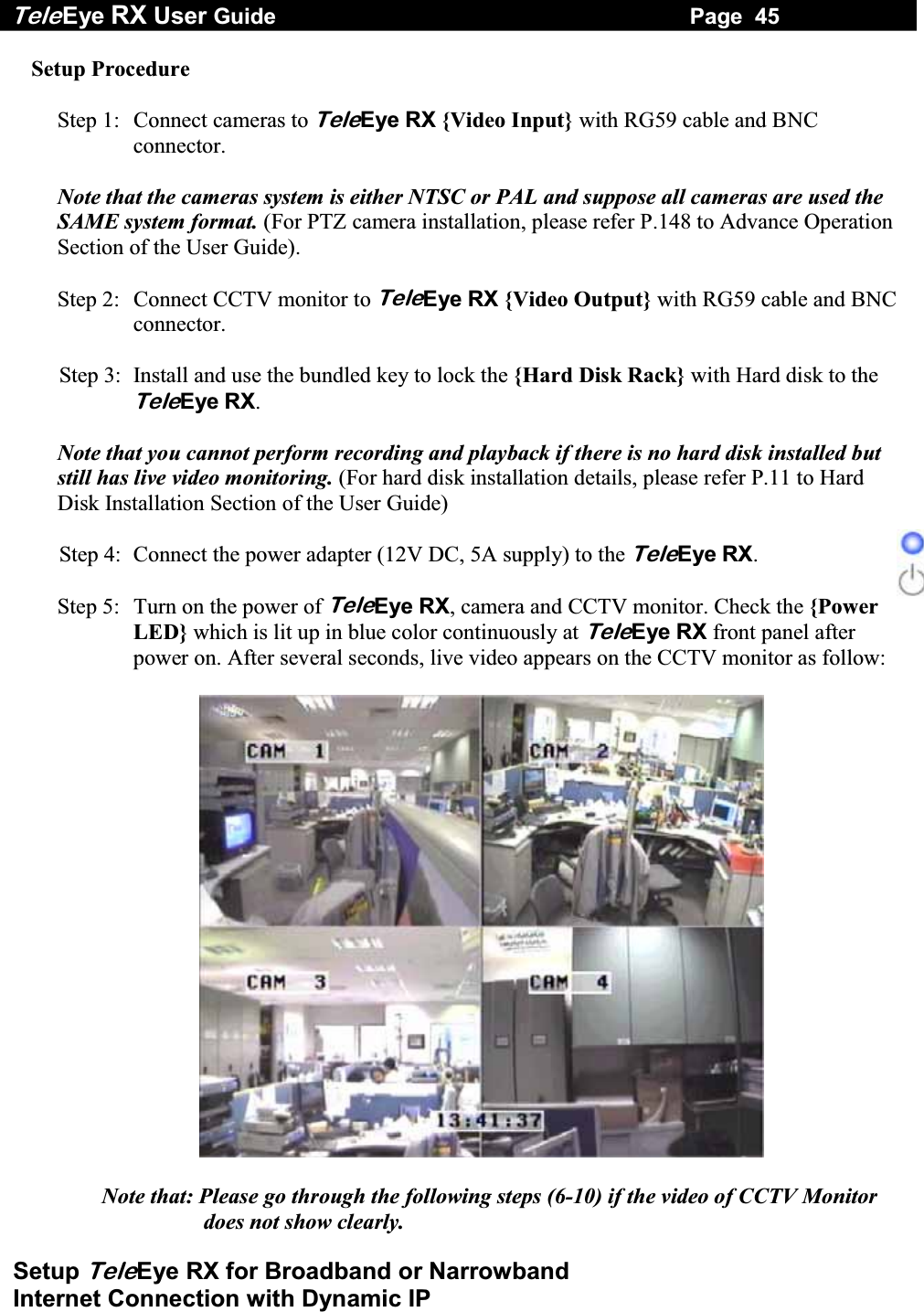
Tele Eye RX User Guide                                                                   Page  45  Setup TeleEye RX for Broadband or Narrowband  Internet Connection with Dynamic IP Setup Procedure  Step 1:  Connect cameras to TeleEye RX {Video Input} with RG59 cable and BNC connector.  Note that the cameras system is either NTSC or PAL and suppose all cameras are used the SAME system format. (For PTZ camera installation, please refer P.148 to Advance Operation Section of the User Guide).  Step 2:  Connect CCTV monitor to TeleEye RX {Video Output} with RG59 cable and BNC connector.  Step 3:  Install and use the bundled key to lock the {Hard Disk Rack} with Hard disk to the TeleEye RX.   Note that you cannot perform recording and playback if there is no hard disk installed but still has live video monitoring. (For hard disk installation details, please refer P.11 to Hard Disk Installation Section of the User Guide)  Step 4:  Connect the power adapter (12V DC, 5A supply) to the TeleEye RX.  Step 5:  Turn on the power of TeleEye RX, camera and CCTV monitor. Check the {Power LED} which is lit up in blue color continuously at TeleEye RX front panel after power on. After several seconds, live video appears on the CCTV monitor as follow:    Note that: Please go through the following steps (6-10) if the video of CCTV Monitor does not show clearly.
Tele Eye RX User Guide                                                                   Page  46  Setup TeleEye RX for Broadband or Narrowband  Internet Connection with Dynamic IP   Step 6:  Press the “Menu” button to pop up the [MAIN MENU] on OSD. Step 7:   Use  “Up”   or  “Down” button to select [SETUP] option and press “Enter” button to enter the [SETUP] sub-menu. Step 8:  Select [VIDEO] option and press “Enter”   button     Step 9:  Select  [VIDEO FORMAT] and press “Left”  or “Right” button to set either [NTSC] or [PAL] option. (Allcameras should have the same video format). Step 10:  You can always press “Live” button to exit any menu operation and start live monitoring.   Setup TeleEye RX transmitter IP through CCTV monitor, please go to step 11a.  Setup TeleEye RX transmitter IP through PC, through PC, please go to step11b.     SETUP  MENU VIDEO  . . . RECORDING                         . . . SWITCHES  . . . DATE / TIME  . . . CONNECTION  . . . EVENT HANDLER  . . . TRANSMITTER  . . . RESTORE FACTORY SETTING    ENTER VIDEO CAMERA SETTING . . . LOCAL MONITORING                     . . . OSD COLOR  BLUE VIDEO FORMAT  PAL
Tele Eye RX User Guide                                                                   Page  47  Setup TeleEye RX for Broadband or Narrowband  Internet Connection with Dynamic IP Step 11a: Configure TeleEye RX transmitter IP setting through CCTV Monitor   RG59 cablePower Adapter Ethernet Socket Te l eEye RXCameras 192.168.0.2CCTV Monitor RG59 cable     Press the “Menu”  button such that the OSD main menu pops up on the monitor.  Use “Up”   or “Down”  button to select [SETUP] option and press “Enter”  button.   Select[CONNECTION]option and press “Enter”   button         Select [TCP/IP] option and Press “Enter” button      Select [IP] option and press “Enter”  button. IP address consists of four fields. Each field can assign a number from 0 to 255.    SETUP  MENU VIDEO . . .RECORDING                         . . .SWITCHES  . . .DATE / TIME  . . .CONNECTION  . . .EVENT HANDLER  . . .TRANSMITTER  . . .RESTORE FACTORY SETTING  ENTERCONNECTION TCP / IP  …  MODEM … TCP / IP  IP  192.168.0.2  PORT  1024 SUBNET  MASK  255.255.255.0 ENABLE GATEWAY  NO GATEWAY  0.0.0.0 ENABLE DNS  NO PRIMARY  DNS   0.0.0.0 SECONDARY  DNS   0.0.0.0 SURELINK  …
Tele Eye RX User Guide                                                                   Page  48  Setup TeleEye RX for Broadband or Narrowband  Internet Connection with Dynamic IP     Use “Left”   or “Right”   button to select field and use “Up”   or “Down”  button to set number. Set IP address (for example) to 210.17.139.5   Press “Enter”  button to save the change and return previous menu.        Follow the network setting and assign valid subnet mask to [SUBNET MASK] and select [ENABLE GATEWAY] option and input [GATEWAY] option in similar way. Assign the Gateway (for example) to 210.17.139.1   Select [ENABLE DNS] option Use “Left”  or “Right”   button to select [YES] to enable DNS.   Assign the Primary DNS (for example) to 202.14.67.4   Assign the Secondary DNS (for example) to 202.14.67.14    IP IP  : 210.  17.139.   5 TCP / IP  IP 210.17.139.5  PORT 1024 SUBNET  MASK  255.255.255.0 ENABLE GATEWAY   YES GATEWAY  210.17.139.1 ENABLE DNS  NO PRIMARY  DNS   0.0.0.0 SECONDARY  DNS   0.0.0.0 SURELINK  …
Tele Eye RX User Guide                                                                   Page  49  Setup TeleEye RX for Broadband or Narrowband  Internet Connection with Dynamic IP     Select [SURELINK] option from TCP/IP menu and press “Enter”   button to enter the sub menu.   Select [ENABLED] option and press “Left”  or “Right”  button to set [YES] value   Select [SURELINK ADDRESS] option and press “Enter”   button to sureLINK editing menu.      There are two fields for assigning sureLINK address “www.your_site.your_company.teleeye.net” (Refer P.152 to section of getting  sureLINK address)   Use “Up” or “Down” or “Left” or “Right” button to select values and use “Enter” button to assign value.   [BACK] back to previous value or field  [NEXT] next to field   [CLEAR]  clear field   [END]   finish to assign sureLINK address and exit the editing menu.        Press “Live”  button and [SETTING MODIFIED] message board will pop up. Press “Enter”   button to restart the transmitter. SURELINK ENABLED  YES SURELINK  ADDRESS  www….. REFRESH  RATE  1  MINS SURELINK ADDRESS        0     1     2     3     4     5     6     7     8     9        A    B     C    D     E     F    G     H     I     J        K    L     M    N    O     P    Q     R    S     T        U    V     W   X     Y     Z     BACK   NEXT        CLEAR  END  WWW. _                  .                 TELEEYE.NETSETTING  MODIFIED SETTING  WILL  TAKE  EFFECT AFTER  RESTART ,  PRESS  ENTER  TO  CONTINUE OK
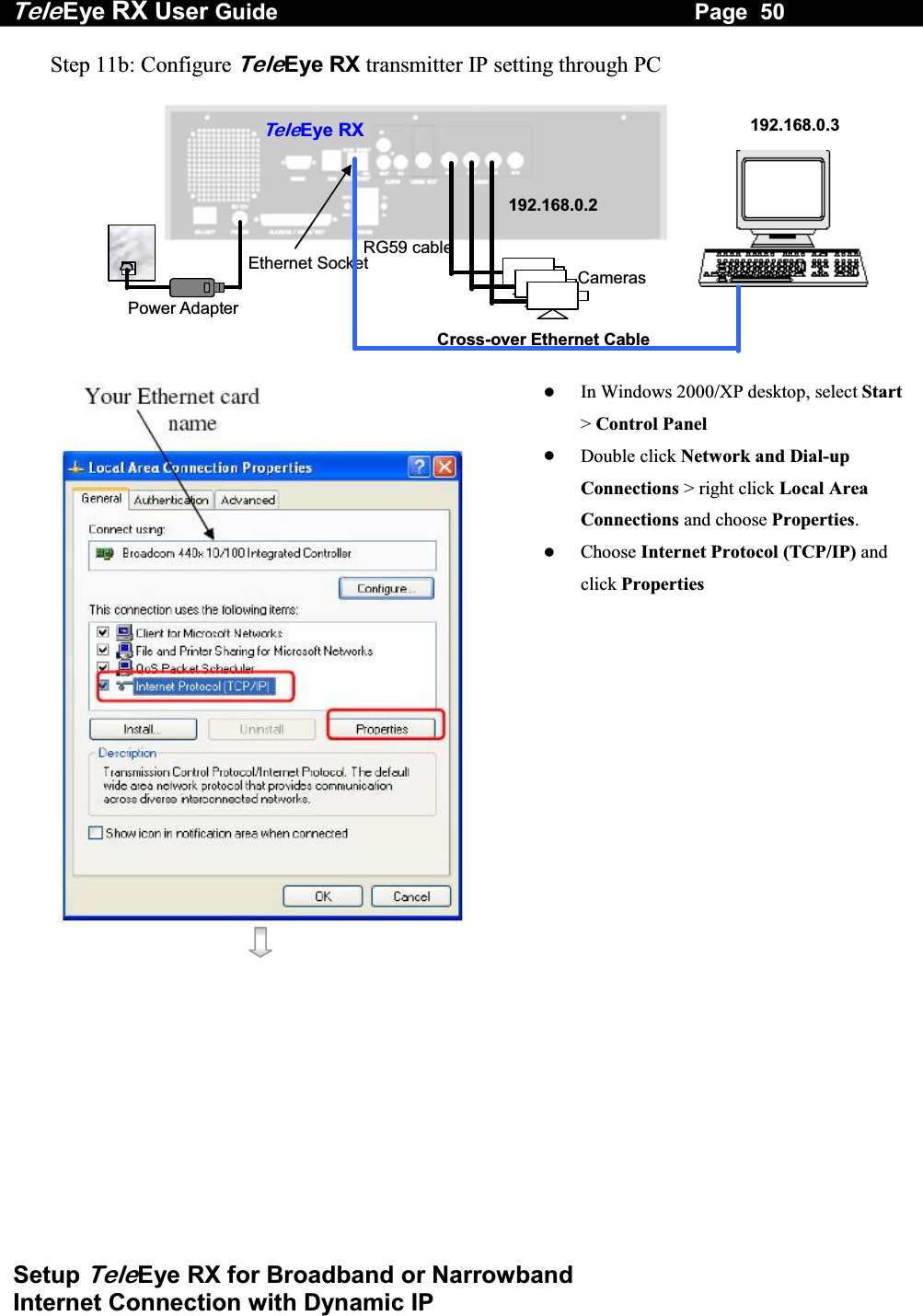
Tele Eye RX User Guide                                                                   Page  50  Setup TeleEye RX for Broadband or Narrowband  Internet Connection with Dynamic IP Step 11b: Configure TeleEye RX transmitter IP setting through PC   RG59 cable Power Adapter Ethernet Socket Te l eEye RXCameras 192.168.0.2192.168.0.3Cross-over Ethernet Cable       In Windows 2000/XP desktop, select Start> Control Panel   Double click Network and Dial-up Connections > right click Local Area Connections and choose Properties.   Choose Internet Protocol (TCP/IP) and click Properties
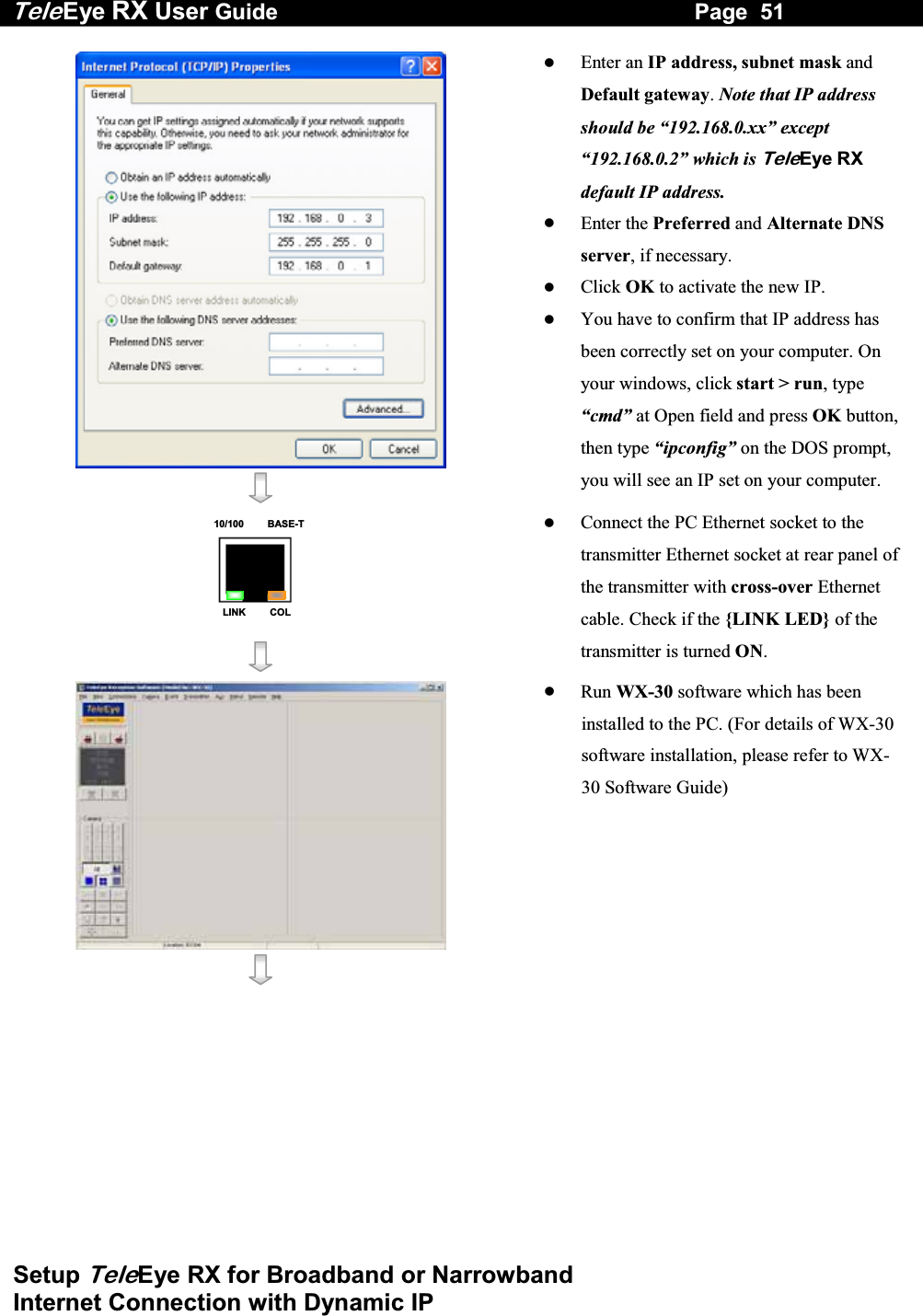
Tele Eye RX User Guide                                                                   Page  51  Setup TeleEye RX for Broadband or Narrowband  Internet Connection with Dynamic IP      Enter an IP address, subnet mask and Default gateway. Note that IP address should be “192.168.0.xx” except “192.168.0.2” which is TeleEye RX default IP address.   Enter the Preferred and Alternate DNS server, if necessary.   Click OK to activate the new IP.   You have to confirm that IP address has been correctly set on your computer. On your windows, click start > run, type “cmd” at Open field and press OK button, then type “ipconfig” on the DOS prompt, you will see an IP set on your computer. 10/100     BASE-TLINK     COL     Connect the PC Ethernet socket to the transmitter Ethernet socket at rear panel of the transmitter with cross-over Ethernet cable. Check if the {LINK LED} of the transmitter is turned ON.      Run WX-30 software which has been installed to the PC. (For details of WX-30 software installation, please refer to WX-30 Software Guide)
Tele Eye RX User Guide                                                                   Page  52  Setup TeleEye RX for Broadband or Narrowband  Internet Connection with Dynamic IP      Choose [Transmitter]  [Registration] to register the TeleEye RX transmitter. User needs to input transmitter serial number and registration code.        For example : Serial No. : VTC12345 Registration Code : 1234567890      Press [Connect]  icon to pop up the [Connect Window]. Type and select the following setting : Broadband Connection : Phone/IP : 192.168.0.2  Connect Using: TCP/IP Broadband Password: 000000   OR Narrowband Connection : Phone/IP : 192.168.0.2  Connect Using: TCP/IP Narrowband Password: 000000 IP (192.168.0.2) and Password (000000) are default setting of TeleEye RX      Press [Connect]  icon to connect your PC and the transmitter. The video appears on the WX-30 if success. Otherwise, the [Warning] board will pop up and show you failure message. For failure case, please press [Connect]  icon to check that the connection setting is valid or not.
Tele Eye RX User Guide                                                                   Page  53  Setup TeleEye RX for Broadband or Narrowband  Internet Connection with Dynamic IP       Press [Transmitter Setup]  icon to show TeleEye RX configuration menu.   Select [Connection] and press [Network Settings]  icon to configure network setting.  For example :   Assign 210.17.139.5 to IP   Assign 210.17.139.1 to Gateway   Assign 202.14.67.4 to Primary DNS   Assign 202.14.67.14 to Secondary DNS   Enable sureLINK   Assign “www.your_site.your_company.teleeye.net” (please refer P.152 to sureLINK section to get the address) to text field.  Note that The above network setting is an example. Please consult you network administrator to get your network setting information       Press [Apply] icon to save the network setting and pop up the message board. After several seconds, the transmitter will restart automatically.
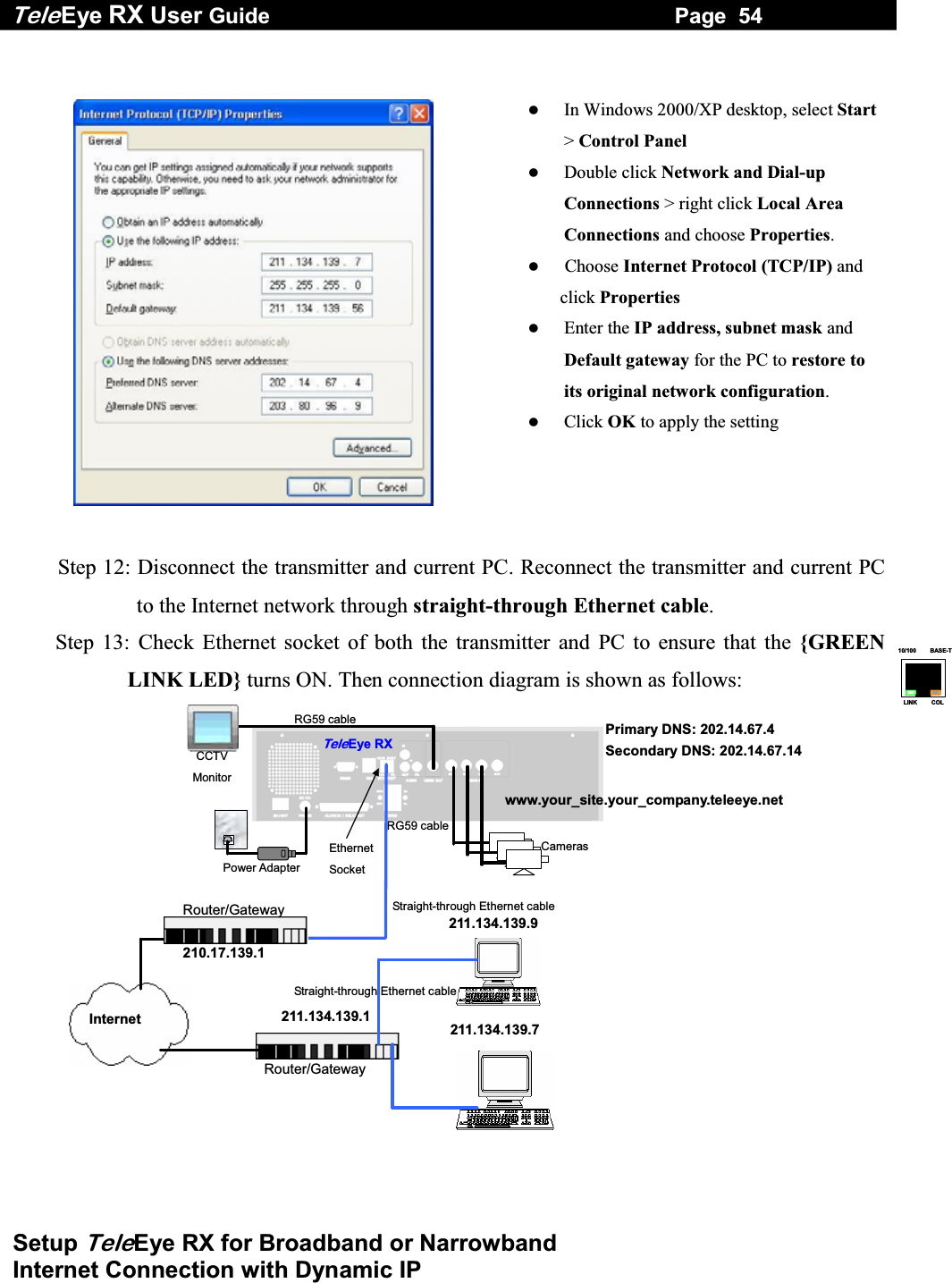
Tele Eye RX User Guide                                                                   Page  54  Setup TeleEye RX for Broadband or Narrowband  Internet Connection with Dynamic IP 10/100     BASE-TLINK     COL     In Windows 2000/XP desktop, select Start> Control Panel   Double click Network and Dial-up Connections > right click Local Area Connections and choose Properties.    Choose Internet Protocol (TCP/IP) and click Properties   Enter the IP address, subnet mask and Default gateway for the PC to restore to its original network configuration.    Click OK to apply the setting   Step 12: Disconnect the transmitter and current PC. Reconnect the transmitter and current PC to the Internet network through straight-through Ethernet cable. Step 13: Check Ethernet socket of both the transmitter and PC to ensure that the {GREEN LINK LED} turns ON. Then connection diagram is shown as follows: RG59 cableRG59 cable Power Adapter Ethernet Socket CCTV Monitor TeleEye RXCameras www.your_site.your_company.teleeye.net 211.134.139.7211.134.139.9 Internet 210.17.139.1 Router/Gateway 211.134.139.1 Router/Gateway Primary DNS: 202.14.67.4 Secondary DNS: 202.14.67.14  Straight-through Ethernet cable Straight-through Ethernet cable
Tele Eye RX User Guide                                                                   Page  55  Setup TeleEye RX for Broadband or Narrowband  Internet Connection with Dynamic IP   Step14:  Configure the network setting for TeleEye RX transmitter and your PC if necessary, such as router/gateway port mapping (select router/gateway IP as IP provided by your ISP and the transmitter IP as IP provided by the router/gateway), firewall, etc. (Please refers to the manual of your router/gateway.)  Step15:  Run WX-30 software at any network PC. (For details of WX-30 software installation, please refer to WX-30 Software Guide)    Step 16: Press [Connect]  icon to pop up the [Connect Window]. For example, type and select the following setting : Broadband Connection : Phone/IP :  www.your_site.your_company.teleeye.net Connect Using: TCP/IP Broadband Password: 000000  OR Narrowband Connection : Phone/IP :  www.your_site.your_company.teleeye.net Connect Using: TCP/IP Narrowband Password: 000000  Step 17: Press [Connect]  icon to connect your PC and the transmitter. The video appears on the WX-30 if success. Otherwise, the [Warning] board will pop up and show you failure message. For failure case, please press [Connect]  icon to check that the connection setting is valid or not.
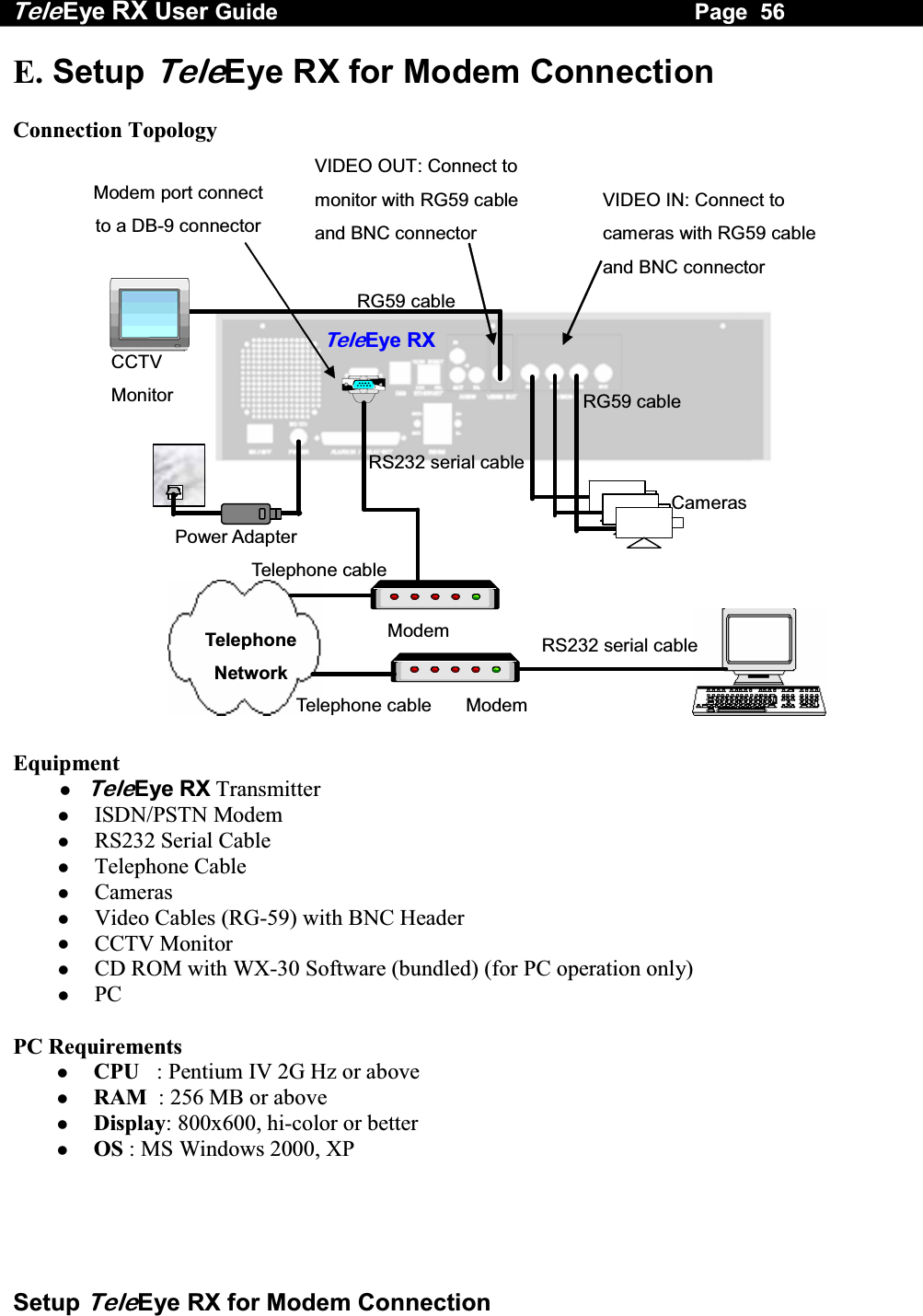
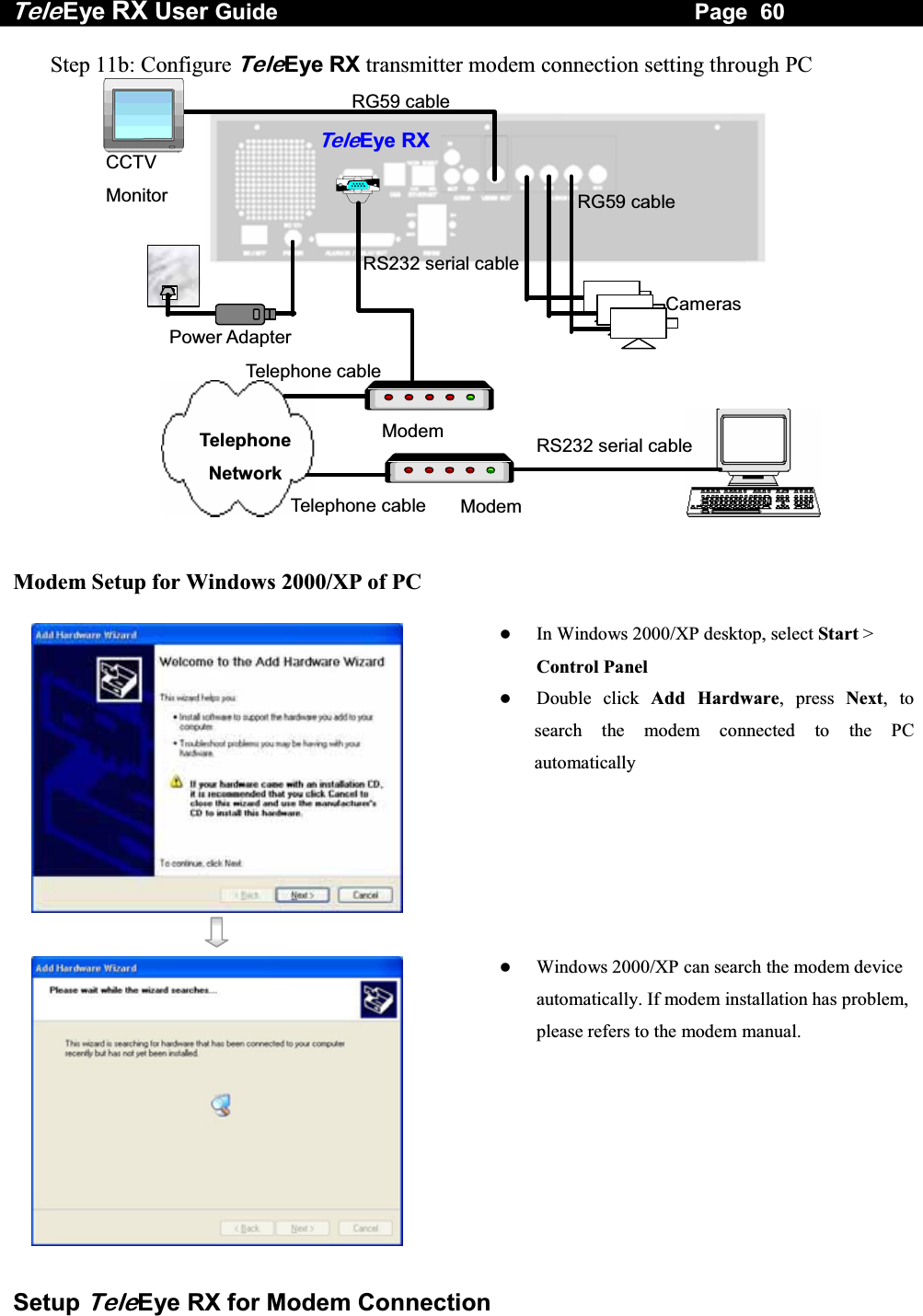
Tele Eye RX User Guide                                                                   Page  56  Setup TeleEye RX for Modem Connection E. Setup TeleEye RX for Modem Connection  Connection Topology VIDEO OUT: Connect to monitor with RG59 cable and BNC connector   VIDEO IN: Connect to cameras with RG59 cable and BNC connector   RG59 cableRG59 cablePower Adapter TeleEye RXCameras Modem RS232 serial cable Telephone Network Modem port connect to a DB-9 connectorCCTV MonitorModem RS232 serial cable Telephone cable Telephone cable    Equipment  TeleEye RX Transmitter   ISDN/PSTN Modem   RS232 Serial Cable   Telephone Cable   Cameras   Video Cables (RG-59) with BNC Header   CCTV Monitor   CD ROM with WX-30 Software (bundled) (for PC operation only)   PC  PC Requirements   CPU   :  Pentium IV 2G Hz or above   RAM  : 256 MB or above   Display: 800x600, hi-color or better   OS : MS Windows 2000, XP
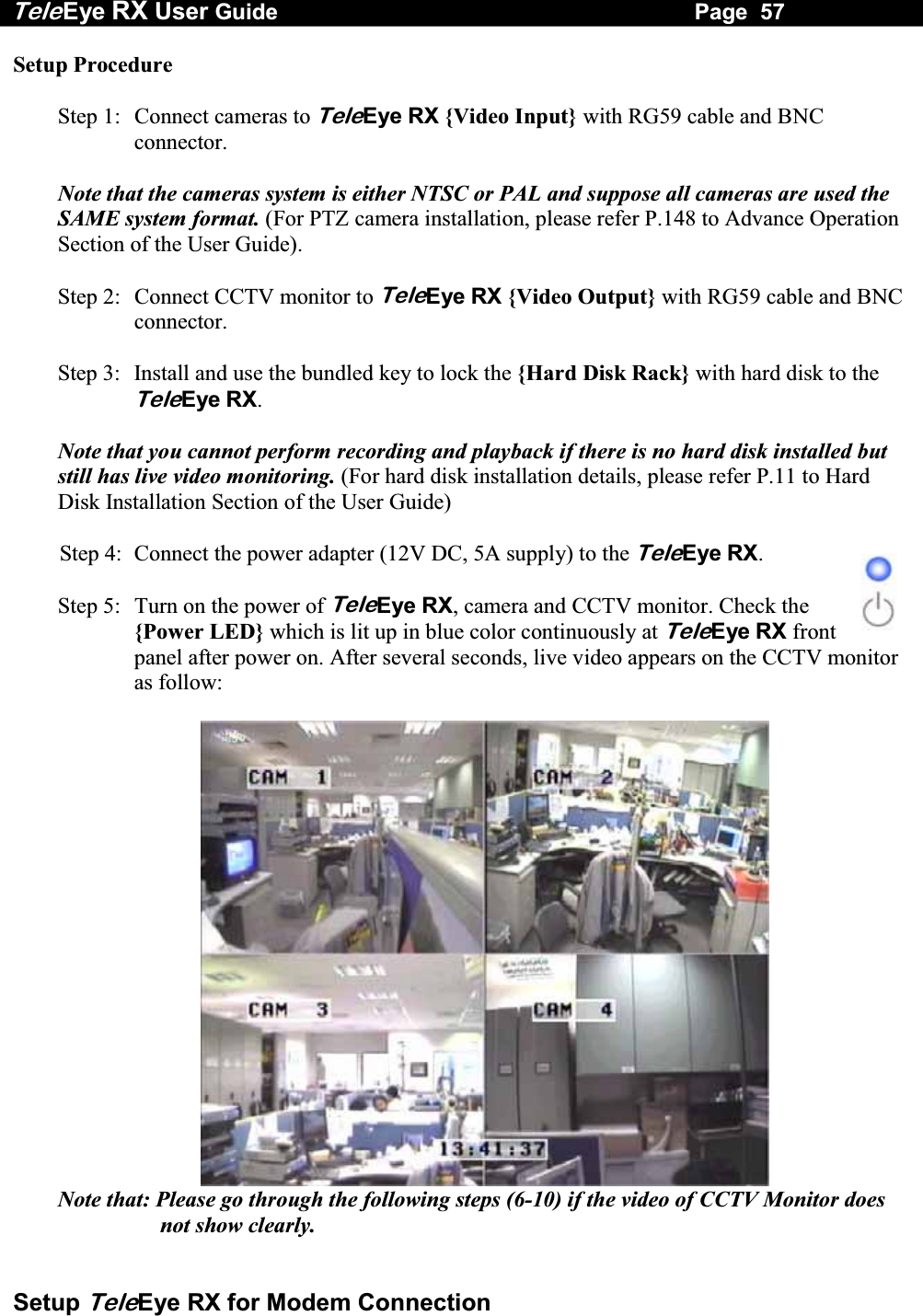
Tele Eye RX User Guide                                                                   Page  57  Setup TeleEye RX for Modem Connection Setup Procedure  Step 1:  Connect cameras to TeleEye RX {Video Input} with RG59 cable and BNC connector.  Note that the cameras system is either NTSC or PAL and suppose all cameras are used the SAME system format. (For PTZ camera installation, please refer P.148 to Advance Operation Section of the User Guide).  Step 2:  Connect CCTV monitor to TeleEye RX {Video Output} with RG59 cable and BNC connector.  Step 3:  Install and use the bundled key to lock the {Hard Disk Rack} with hard disk to the TeleEye RX.   Note that you cannot perform recording and playback if there is no hard disk installed but still has live video monitoring. (For hard disk installation details, please refer P.11 to Hard Disk Installation Section of the User Guide)  Step 4:  Connect the power adapter (12V DC, 5A supply) to the TeleEye RX.  Step 5:  Turn on the power of TeleEye RX, camera and CCTV monitor. Check the {Power LED} which is lit up in blue color continuously at TeleEye RX front panel after power on. After several seconds, live video appears on the CCTV monitor as follow:   Note that: Please go through the following steps (6-10) if the video of CCTV Monitor does not show clearly.
Tele Eye RX User Guide                                                                   Page  58  Setup TeleEye RX for Modem Connection   Step 6:  Press the “Menu” button to pop up the [MAIN MENU] on OSD. Step 7:  Use “Up”   or “Down”  button to select [SETUP] option and press “Enter” button to enter the [SETUP] sub-menu. Step 8:  Select [VIDEO] option and press “Enter”   button     Step 9:  Select [VIDEO FORMAT] and press “Left”  or “Right”  button to set either [NTSC] or [PAL] option. (All cameras should have the same video format). Step 10: You can always press “Live”  button to exit any menu operation and start live monitoring.   Setup TeleEye RX transmitter IP through CCTV monitor, please go to step 11a.  Setup TeleEye RX transmitter IP through PC, through PC, please go to step11b.  SETUP  MENU VIDEO  . . . RECORDING                         . . . SWITCHES  . . . DATE / TIME  . . . CONNECTION  . . . EVENT HANDLER  . . . TRANSMITTER  . . . RESTORE FACTORY SETTING    ENTER VIDEO CAMERA SETTING . . . LOCAL MONITORING                     . . . OSD COLOR  BLUE VIDEO FORMAT  PAL
Tele Eye RX User Guide                                                                   Page  59  Setup TeleEye RX for Modem Connection Step 11a: Configure TeleEye RX transmitter modem connection setting through CCTV Monitor   RG59 cablePower Adapter Ethernet Socket Te l eEye RXCameras 192.168.0.2CCTV Monitor RG59 cable     Press the “Menu”  button such that the OSD [MAIN MENU] pop up on the monitor.   Use “Up”   or “Down”  button to select [SETUP] option and press “Enter”   button and select [CONNECTION] option and press “Enter”   button.         Use “Up”   or “Down”  button to select [MODEM] option and press “Enter”  button       Select [BAUD RATE] and then [RING COUNT] option press “Enter”  button   Use “Up”   or “Down”   button to set number. Press “Enter”  button to input baud rate and ring count setting  SETUP  MENU VIDEO . . .RECORDING                         . . .SWITCHES  . . .DATE / TIME  . . .CONNECTION  . . .EVENT HANDLER  . . .TRANSMITTER  . . .RESTORE FACTORY SETTING  ENTERCONNECTION TCP / IP  …  MODEM … MODEM BAUD RATE                57600 BPSRING COUNT                                      1
Tele Eye RX User Guide                                                                   Page  60  Setup TeleEye RX for Modem Connection Step 11b: Configure TeleEye RX transmitter modem connection setting through PC  RG59 cableRG59 cablePower Adapter TeleEye RXCameras Modem RS232 serial cable Telephone Network CCTV MonitorModem RS232 serial cable Telephone cable Telephone cable  Modem Setup for Windows 2000/XP of PC      In Windows 2000/XP desktop, select Start > Control Panel   Double click Add Hardware, press Next, to search the modem connected to the PC automatically     Windows 2000/XP can search the modem device automatically. If modem installation has problem, please refers to the modem manual.
Tele Eye RX User Guide                                                                   Page  61  Setup TeleEye RX for Modem Connection       After searching the modem, Windows 2000/XP can install the modem driver automatically. Press [Finish] button to exit the menu. The modem is ready to use.      Run WX-30 software which has been installed to the PC. (For details of WX-30 software installation, please refer to WX-30 Software Guide)       Choose [Transmitter]  [Registration] to register the TeleEye RX transmitter. User needs to input transmitter serial number and registration code.        For example : Serial No. : VTC12345 Registration Code : 1234567890
Tele Eye RX User Guide                                                                   Page  62  Setup TeleEye RX for Modem Connection      Press  [Connect]  icon to pop up the [Connect Window]. For example, type and select the following setting : Phone/IP :  29955992 (Phone number of the transmitter) Connect Using :  U.S. Robotics 56K Voice EXT PnP  (Modem Driver) Password: 000000          Press [Connect] icon to connect your PC and the transmitter. The video appears on the WX-30 if success. Otherwise, the [Warning]board will pop up and show you failure message. For failure case, please press [Connect]  iconto check that the connection setting is valid or not.      Press  [Transmitter setup]  icon to show TeleEye RX configuration menu.   Select [Connection] and press [Modem Settings] icon to configure network setting.
Tele Eye RX User Guide                                                                   Page  63  Setup TeleEye RX for Modem Connection      Assign modem baud rate in order to adjust modem connection speed.   Assign ring count, so modem can connect to the transmitter after that ring count.     Press  [Apply] icon to save the network setting and pop up the message board. After several seconds, the transmitter will restart automatically.  Step 12 : If user setup modem connection by using local CCTV monitor (Step 11a), please install the modem for your PC and connect to the telephone network in order to connect to TeleEye RX transmitter      In Windows 2000/XP desktop, select Start > Control Panel   Double click Add Hardware, press Next, to search the modem connected to the PC automatically     Windows 2000/XP can search the modem device automatically. If modem installation has problem, please refers to the modem manual.
Tele Eye RX User Guide                                                                   Page  64  Setup TeleEye RX for Modem Connection        After searching the modem, Windows 2000/XP can install the modem driver automatically. Press [Finish] button to exit the menu. The modem is ready to use.      Run WX-30 software which has been installed to the PC. (For details of WX-30 software installation, please refer to WX-30 Software Guide)       Press  [Connect]  icon to pop up the [Connect Window]. For example, type and select the following setting :  Phone/IP :  29955992 (Phone number of the transmitter) Connect Using :  U.S. Robotics 56K Voice EXT PnP  (Modem Driver) Password: 000000
Tele Eye RX User Guide                                                                   Page  65  Setup TeleEye RX for Modem Connection      Press [Connect] icon to connect your PC and the transmitter. The video appears on the WX-30 if success. Otherwise, the [Warning]board will pop up and show you failure message. For failure case, please press [Connect]  iconto check that the connection setting is valid or not.
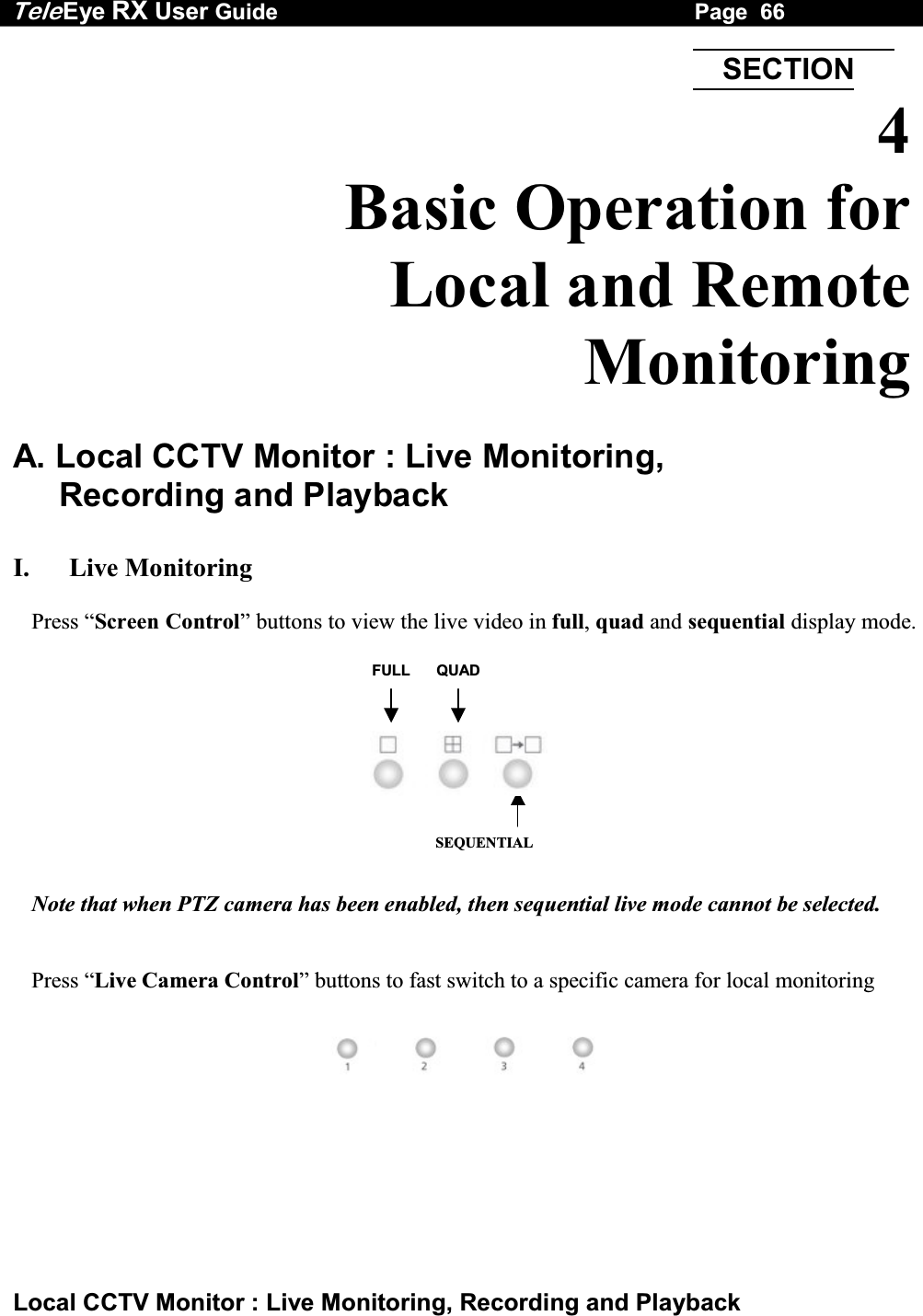
Tele Eye RX User Guide                                                                   Page  66  Local CCTV Monitor : Live Monitoring, Recording and Playback FULL QUADSEQUENTIAL  4 Basic Operation for  Local and Remote Monitoring  A. Local CCTV Monitor : Live Monitoring,  Recording and Playback  I.   Live Monitoring  Press “Screen Control” buttons to view the live video in full, quad and sequential display mode.            Note that when PTZ camera has been enabled, then sequential live mode cannot be selected.   Press “Live Camera Control” buttons to fast switch to a specific camera for local monitoring   SECTION
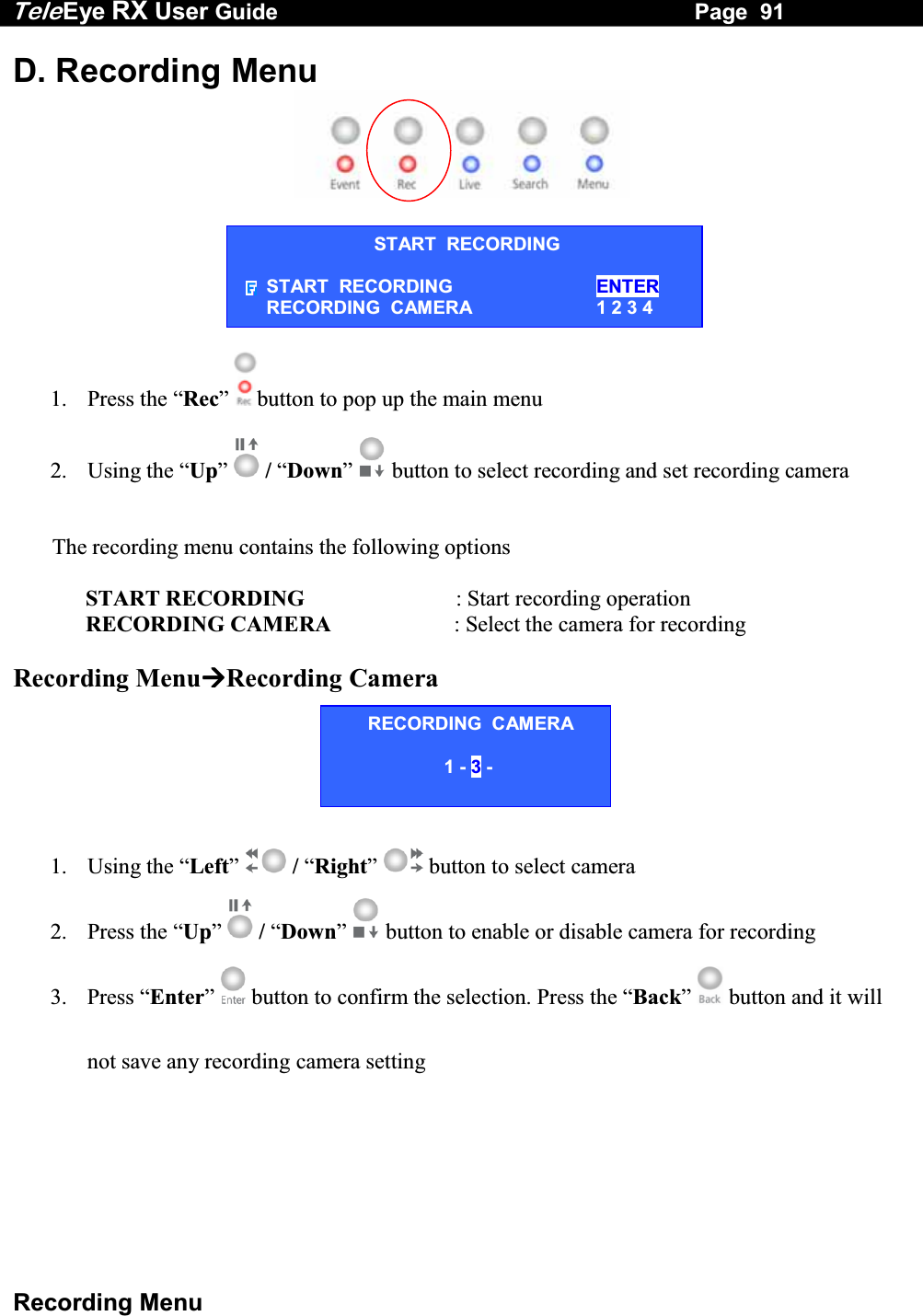
Tele Eye RX User Guide                                                                   Page  67  Local CCTV Monitor : Live Monitoring, Recording and Playback II.   Recording  Step 1:  Press “Rec”  button and [START RECORDING] menu will pop up. Step 2:  Select [RECORDING CAMERA] option and press “Enter”   button to enable recording cameras.       (e.g. Cam 1 & 3 are enabled, Cam 2 & 4 are disabled) Step 3:  Use “Left”     or “Right”   button to select the recording camera and use “Up”     or “Down”  button to enable or disable the recording camera.     Step 4:  After setting the recording cameras, press “Enter”    button to save the setting and back to [START RECORDING] menu. Step 5:  Select [START RECORDING] option and press “Enter”  button for recording. The {Rec LED}  will be turned ON (RED Color)   which indicates that recording is processing.Step 6:  Press “Rec”   button again to stop recording function and the {REC LED} will be turned OFF. START  RECORDING START  RECORDING  ENTER RECORDING  CAMERA  1 2 3 4 RECORDING  CAMERA 1 - 3 -  START  RECORDING START  RECORDING   ENTER RECORDING  CAMERA  1 - 3 -
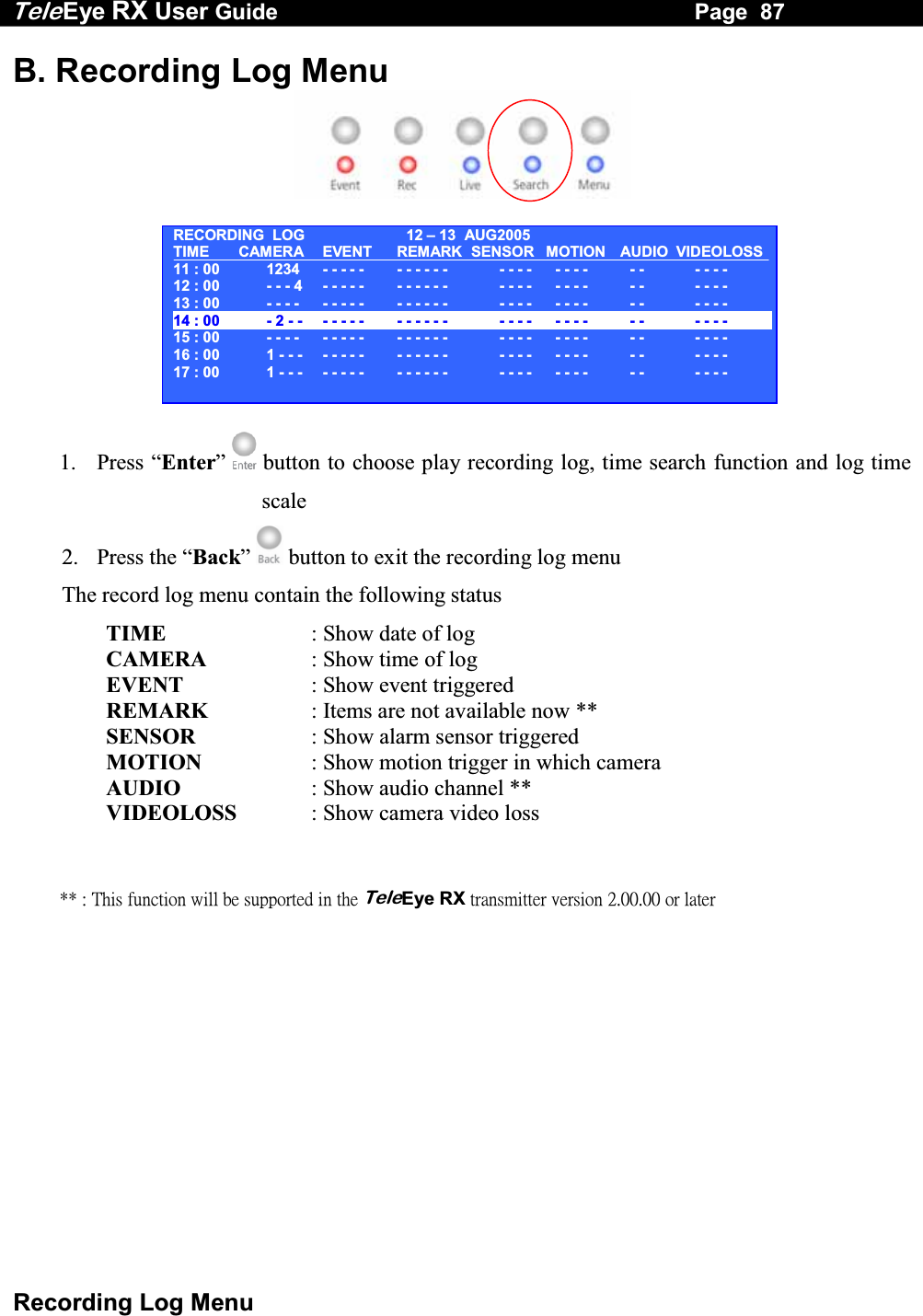
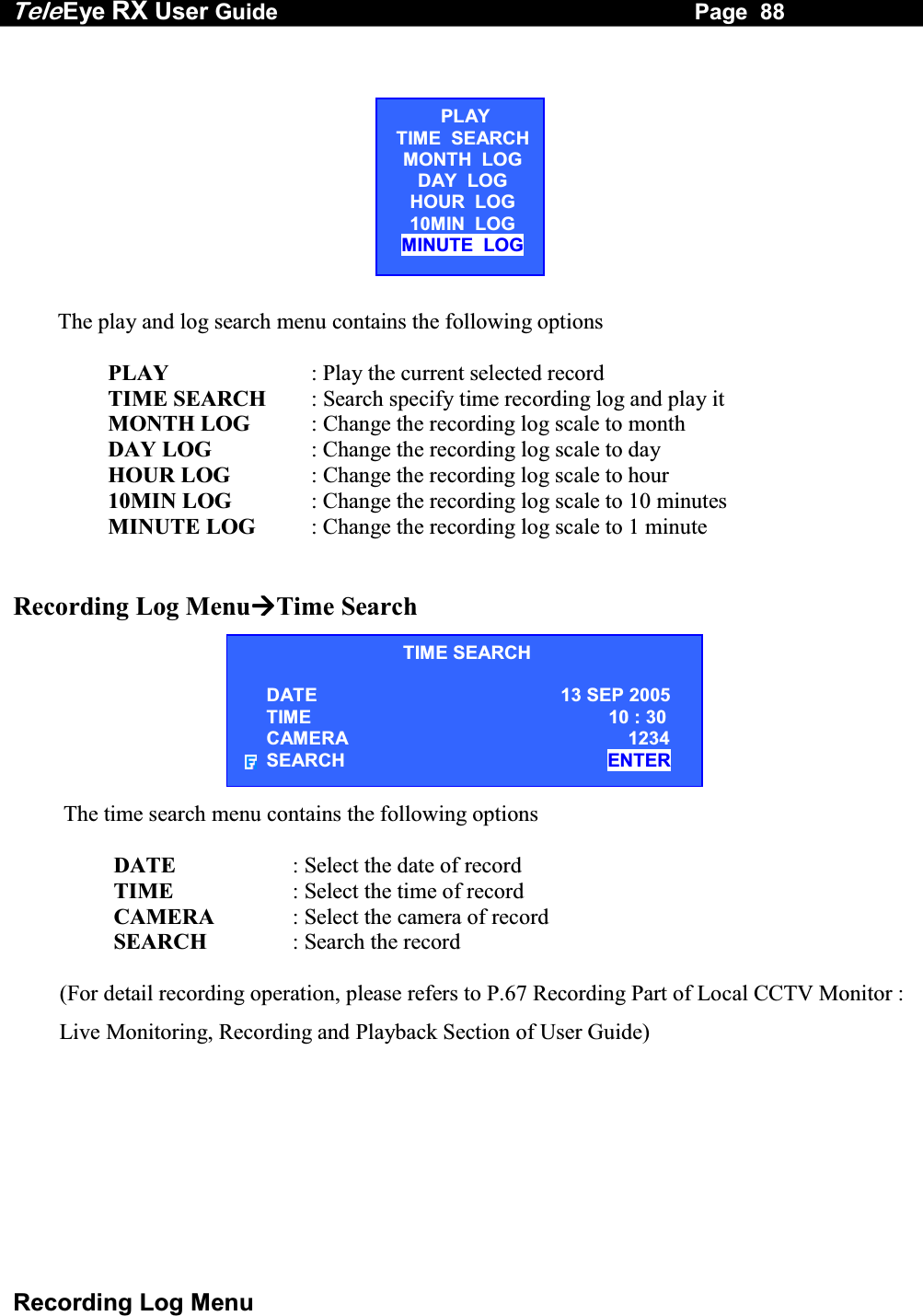
Tele Eye RX User Guide                                                                   Page  68  Local CCTV Monitor : Live Monitoring, Recording and Playback III.   Playback  Step 1:  Press “Search”   button to pop up [RECORDING LOG] board on OSD.   Step 2:  Press “Play/Enter”  button to show [PLAY] menu.  Select [MINUTE LOG] option and press “Enter”  button.    [RECORDING LOG] board will show the log in minute scale. Step 3:  Select a record and press “Enter”  button for playback.      Then [PLAYBACK] menu will pop up again. Step 4:  Select [PLAY] option and press “Enter”   button again for playback.  RECORDING  LOG 12 –13  AUG2005TIME CAMERA EVENT REMARK SENSOR11 : 00  1234   - - - - -  - - - - - -   - - - -12 : 00  - - - 4   - - - - -  - - - - - -    - - - ------13 : 00  - - - -   - - - - -  - - - - - -   - - - -14 : 00  - 2 - -   - - - - -  - - - - - -   - - - -15 : 00  - - - -   - - - - -  - - - - - -   - - - -16 : 00  1 - - -   - - - - -  - - - - - -   - - - -17 : 00  1 - - -   - - - - -  - - - - - -  - - - -18 : 00  - - - -   - - - - -  - - - - - -   - - - -PLAYTIME  SEARCHMONTH  LOG DAY  LOG HOUR  LOG 10MIN  LOG MINUTE  LOG RECORDING  LOG 12 –13  AUG2005TIME CAMERA EVENT REMARK SENSOR11 : 54  1234   - - - - -  - - - - - -   - - - -11 : 55  1234   - - - - -  - - - - - -    - - - ------11 : 56  1234  - - - - -  - - - - - -   - - - -11 : 57  1234   - - - - -  - - - - - -   - - - -11 : 58  1234  - - - - -  - - - - - -   - - - -11 : 59  1234   - - - - -  - - - - - -   - - - -12 : 00  - - - 4   - - - - -  - - - - - -  - - - -12 : 01  - - - 4   - - - - -  - - - - - -   - - - -PLAYTIME  SEARCHMONTH  LOG DAY  LOG HOUR  LOG 10MIN  LOG MINUTE  LOG
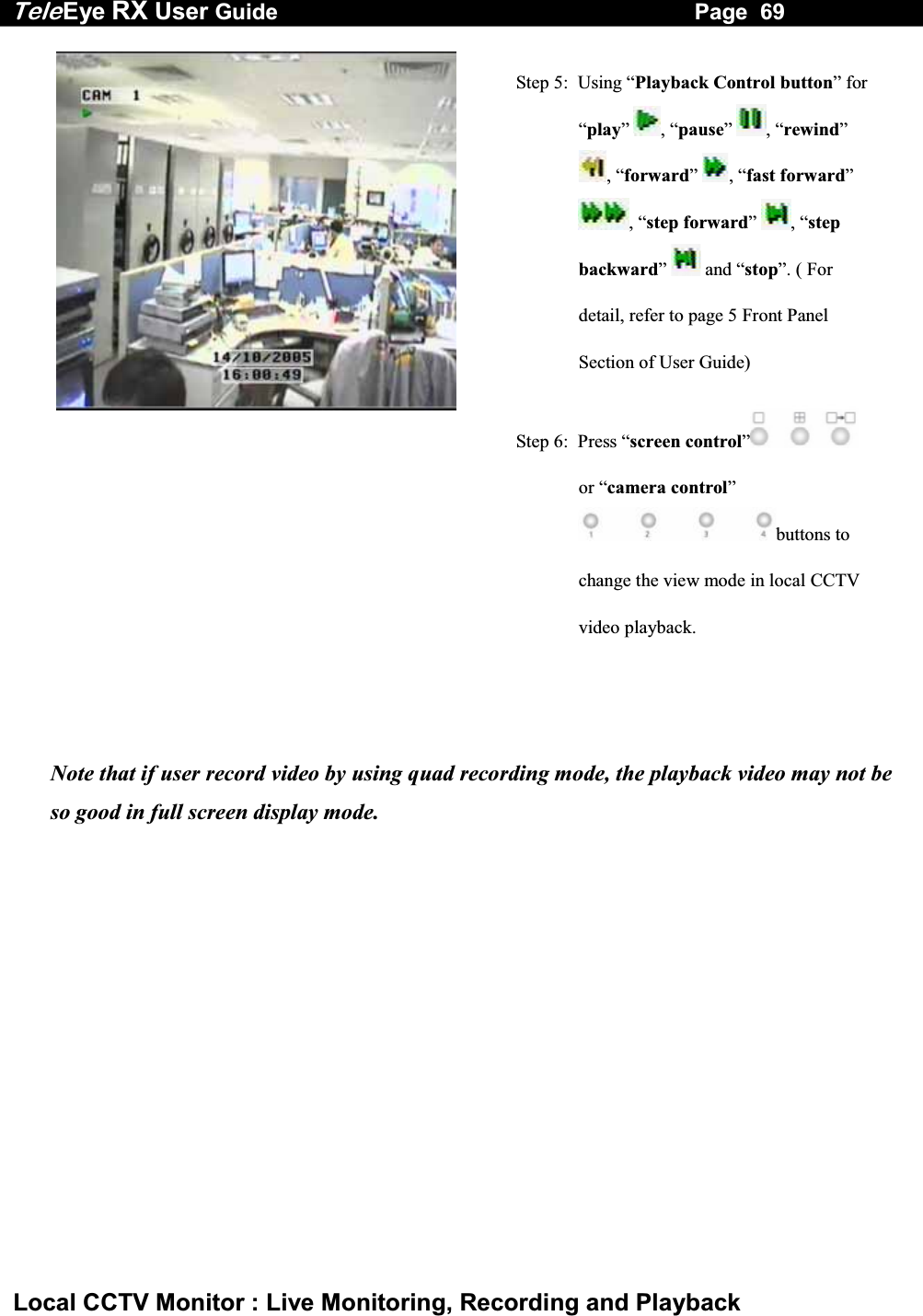
Tele Eye RX User Guide                                                                   Page  69  Local CCTV Monitor : Live Monitoring, Recording and Playback  Step 5:  Using “Playback Control button” for “play”  , “pause”  , “rewind” , “forward”  , “fast forward” , “step forward”  , “step backward”   and “stop”. ( For detail, refer to page 5 Front Panel Section of User Guide)   Step 6:  Press “screen control”  or “camera control” buttons to change the view mode in local CCTV video playback.  Note that if user record video by using quad recording mode, the playback video may not be so good in full screen display mode.
Tele Eye RX User Guide                                                                   Page  70  TeleEye RX Reception Software WX-30 : Live Monitoring,  Recording and Playback B. TeleEye RX Reception Software WX-30 : Live Monitoring, Recording and Playback  I. Live Monitoring User can view a particular camera by simply clicking the camera button (e.g. 1, 2 or 3) on the camera control panel, or view all cameras, click [All]   icon.   Screen views in Full screen  Screen views in Quarter screen  Screen views in Hex screen  Auto-arrange can optimise the screen views in order to display as many high-resolution pictures as possible.   User can change TeleEye RX Reception Software WX-30 live monitoring quality by following steps. Step 1:  Click [Quality]  icon at the software front panel to pop up [Quality] setting panel. Step 2:  Pull up and down to select the quality items. Pull up is to increase the value and vice versa.         : Quality        : Brightness        : Contrast        : Colour Step 3:  After changing the setting, press [Close]  icon to exit the panel.
Tele Eye RX User Guide                                                                   Page  71  TeleEye RX Reception Software WX-30 : Live Monitoring,  Recording and Playback II.   Recording                                                                                                                                      Step 1: Press [Record]  icon to setup recording setting.      Step 2: Input administrator password (000000 as default password) and press [OK] button.       Step 3: Enable recording cameras ( Tick   for enable, blank for disable)   Step 4: Press [Start Recording] icon to start recording  Recordingfunction is running
Tele Eye RX User Guide                                                                   Page  72  TeleEye RX Reception Software WX-30 : Live Monitoring,  Recording and Playback III.   Playback                                                                                                                                       Step 1: Press [Play]  icon to show playback menu     Step 2: Select and input the record date and time for searching and press [Reload]  icon.  Step 3: Select a time slot record and press [Start Playback]  button.       Step 4: Use “playback control button”  to control playback video such as “play”, “pause”, “forward”, “backward” and “stop” function. Step 5: Press [All]  , [Full screen] , [Quarter screen] , [Hex screen]  or [Auto-arrange]  icon to change the view mode for playback.  Note that after pressing “pause” button for 1 minute, reception software WX-30 will continue to playback the video automatically.Note that if user record video by using quad recording mode, the playback video may not be so good in full screen display mode.
Tele Eye RX User Guide                                                                   Page  73  Main Menu 5 OSD Menu Operation  A. Main Menu    1. Press the “Menu”   button to open the main menu 2. Using the “Up”  / “Down”  button to select a sub-menu 3.  A selected sub-menu option will be pointed by a hand cursor and highlighted 4. Press “Enter”   button to confirm the selection and open the sub-menu 5.  If menu option ends with [. . .] indicates sub-menu existing, you can always press the “Enter”   button to open the sub-menu. 6.  If menu option does not end with [. . .] but provides selection, user can press the “Left”  / “Right”  button to selection the options. 7.  You can press the “Back”   button once back to previous menu. SECTIONMAIN  MENU SETUP  . . . BACKUP TO CD-R  . . . SWITCH CONTROL  . . . SCAN / FORMAT DISK  . . . TRANSMITTER INFO  . . . SHUT DOWN  ENTER
Tele Eye RX User Guide                                                                   Page  74  Main Menu 8. Press “Live”   button or “Back”   button until OSD disappear to exit menu and save the setting. [SETTING SAVED] message will be shown.  The main menu contains the following options               SETUP  : Change the TeleEye RX transmitter setting              BACKUP TO CDR  : Backup recorded video to CDR or CDRW              SWITCH CONTROL  : Turn on /off switch 1-4              SCAN / FORMAT DISK  : Show the hard disk information, do scandisk and format the hard disk operation              TRANSMITTER INFO  : Show the TeleEye RX transmitter information              SHUT DOWN  : Shut down or restart TeleEye RX transmitter   Main MenuSetup            The setup menu contains the following options  VIDEO  : Change camera, local monitoring, PTZ setting, OSD color and video format related settings RECORDING  : Change recording related settings SWITCHES   : Change switches related settings DATE/TIME  : Change date and time settings CONNECTION  : Change connection and network related settings EVENT HANDLER  : Change event related settings TRANSMITTER  : Change the transmitter name, registration checking and perform firmware upgrade RESTORE FACTORY SETTING   : Restore default factory setting   SETUP  MENU VIDEO . . . RECORDING                         . . . SWITCHES . . . DATE / TIME  . . . CONNECTION . . . EVENT HANDLER  . . . TRANSMITTER                                                 . . . RESTORE FACTORY SETTING      ENTERSETTING  SETTING SAVED
Tele Eye RX User Guide                                                                   Page  75  Main Menu Main Menu SetupVideo  The video menu contains the following options  CAMERA SETTING  : Change camera name and install camera LOCAL MONITORING  : Change local CCTV monitor related setting OSD COLOR  : Change OSD color VIDEO FORMAT  : Change the video format to PAL or NTSC format     Main Menu SetupVideoCamera Setting  The camera setting menu contains the following options  CAMERA 1  : Change camera 1 setting CAMERA 2  : Change camera 2 setting CAMERA 3  : Change camera 3 setting CAMERA 4  : Change camera 4 setting  VIDEO CAMERA SETTING  . . . LOCAL MONITORING                     . . . OSD COLOR  BLUE VIDEO FORMAT  PAL CAMERA   SETTING CAMERA   1  . . . CAMERA   2 . . . CAMERA   3 . . . CAMERA   4 . . .
Tele Eye RX User Guide                                                                   Page  76  Main Menu Main Menu SetupVideoCamera Setting Camera X Setting          The camera setting menu contains the following options  INSTALLED  : Install the camera NAME  : Edit the camera name SUPPORT PTZ  : Enable the PTZ camera GENERAL PTZ SETTING  : Change PTZ camera setting   Main Menu SetupVideoCamera Setting Camera X Setting  General PTZ Setting   The general PTZ setting menu contains the following options  PAN SPEED  : Select the pan (horizontal direction) speed of the PTZ camera TILT SPEED  : Select the tilt (vertical direction) speed of the PTZ camera PTZ MOVEMENT SETTING  : Change the PTZ camera movement duration and timing ADVANCE PTZ SETTING  : Change the PTZ camera driver and baud rate   CAMERA  X  SETTING INSTALLED  YES NAME CAMERA  X SUPPORT  PTZ  YES GENERAL  PTZ  SETTING  . . . GENERAL PTZ SETTING PAN  SPEED FAST TILT  SPEED                     FAST PTZ MOVEMENT SETTING  . . . ADVANCE PTZ SETTING  . . .
Tele Eye RX User Guide                                                                   Page  77  Main Menu Main Menu SetupVideoCamera Setting Camera X Setting  General PTZ Setting PTZ Movement Setting              The PTZ movement setting menu contains the following options  PAN DURATION  : Select the PTZ camera pan duration TILT DURATION  : Select the PTZ camera tilt duration ZOOM DURATION  : Select the PTZ camera zoom duration FOCUS DURATION  : Select the PTZ camera focus duration IRIS DURATION  : Select the PTZ camera iris duration ADDITIONAL DURATION  : Select the PTZ camera additional duration if any WASHER DURATION  : Select the PTZ camera washer duration WIPER DURATION  : Select the PTZ camera wiper duration PATROL SPEED  : Select the PTZ camera patrol speed DWELL TIME  : Select the PTZ camera dwell time   Main Menu SetupVideoCamera Setting Camera X Setting  General PTZ Setting Advance PTZ Setting       The advance PTZ setting  PTZ DRIVER  : Select the PTZ camera driver BIT RATE  : Select the PTZ camera bit rate  (For PTZ camera setting details, please refers to P.148 Connection to PTZ Cameras Part of Advance Operation Section of User Guide)PTZ MOVEMENT SETTING PAN  DURATION 5 TILT  DURATION                     5 ZOOM  DURATION  3 FOCUS  DURATION  3 IRIS  DURATION  3 ADDITIONAL  DURATION  3 WASHER  DURATION  3 WIPER  DURATION  3 PATROL  SPEED  3 DWELL  TIME  2 ADVANCE PTZ SETTING PTZ  DRIVER  TELEEYE  DM4  . . . BIT  RATE                     9600
Tele Eye RX User Guide                                                                   Page  78  Main Menu Main Menu SetupVideoLocal Monitoring  The local monitoring menu contains the following options  CLOCK POSITION  : Change the clock position (Bottom, Top or None) in local CCTV monitor  CAMERA NAME POSITION  : Change the camera name position (Bottom, Top or None) in local CCTV monitor (Camera name and clock positions are in opposite position) SEQUENTIAL SWITCH TIME  : Change the switch time between each live camera display for sequential mode monitoring SEQUENTIAL MODE CAMERAS  : Select cameras for sequential mode monitoring DEFAULT DISPLAY MODE  : Select default display mode in CCTV monitor after TeleEye RX transmitter boot up HORIZONTAL POSITION  : Change horizontal position of local video output VERTICAL POSITION  : Change vertical position of local video output HORIZONTAL SCALE  : Change horizontal scale of local video output VERTICAL SCALE  : Change vertical scale of local video output  For [HORIZONTAL POSITION], [VERTICAL POSITON], [HORIZONTAL SCALE] and [VERTICAL SCALE] options, user can change these options if live video position or size display does not fit in the local CCTV monitor.LOCAL MONITORING CLOCK  POSITION BOTTOMCAMERA   NAME  POSITION        TOPSEQUENTIAL  SWITCH  TIME  1SECSEQUENTIAL  MODE  CAMERAS  1-3-DEFAULT  DISPLAY  MODE  QUADHORIZONTAL  POSITION  5VERTICAL  POSITION  0HORIZONTAL  SCALE  10VERTICAL  SCALE  2
Tele Eye RX User Guide                                                                   Page  79  Main Menu  Main MenuSetupRecording  The recording menu contains the following options  RECORDING MODE  : Change recording mode in 1, 2, 3, 4, 5 frame per second (FPS) and continuous setting DISK MODE  : Select the fix or cyclic disk mode QUALITY  : Change recording quality with 5 levels IMAGE SIZE  : Change recording video size in FULL and QUAD  Note that recording in cyclic disk mode can erase the oldest recording data in hard disk if the hard disk is full, whereas recording will be stopped in fix disk mode  (For recording setting details, please refers to P.67  Recording Part of Local CCTV Monitor : Live Monitoring, Recording and Playback Section of User Guide)   Main MenuSetupSwitches  The switches menu contains the following options  SWITCH 1 SETTING  : Change switch 1 setting SWITCH 2 SETTING  : Change switch 2 setting SWITCH 3 SETTING  : Change switch 3 setting SWITCH 4 SETTING  : Change switch 4 setting  RECORDING RECORDING MODE CONTINUOUS DISK MODE   CYCLIC QUALITY EXCELLENT IMAGE SIZE  FULL SWITCHES SWITCH   1  SETTING  . . . SWITCH   2  SETTING . . . SWITCH   3  SETTING . . . SWITCH   4  SETTING . . .
Tele Eye RX User Guide                                                                   Page  80  Main Menu Main Menu Setup Switches Switch X Setting       The switch (No.) setting menu contains the following options  NAME  : Edit the name of the switch TYPE  : Change the type of the switch, either latching or push-button type   Main Menu Setup Date Time Setup  1. Press “Enter”   button to select [DATE TIME] or [TIME] option    2. Press  “Left”  / “Right”  button to select date, month, year for [DATE TIME] or select hour, minutes for [TIME] option 3. Press “Up”  / “Down”  button to change the value 4. Press “Enter”   button to save setting and exit this page of menu  The date / time setup menu contains the following options  DATE  : Set the current date TIME  : Set the current time   DATE  /  TIME DATE  24  AUG  2005 TIME 15:18 DATE    DATE             24    AUG      2005  TIME         TIME                   15   :   18  SWITCH  X  SETTING NAME  SWITCH   X TYPE LATCHING
Tele Eye RX User Guide                                                                   Page  81  Main Menu Main Menu Setup Connection        The connection setup menu contains the following options  TCP / IP  : Configure TCP/IP network related setting MODEM  : Configure modem related setting    Main Menu Setup Connection TCP / IP             The TCP/IP menu contains the following options  IP : Change TeleEye RX transmitter IP PORT  : Change TeleEye RX transmitter port SUBNET MASK  : Change TeleEye RX transmitter subnet mask ENABLE GATEWAY  : Enable TeleEye RX transmitter gateway setting GATEWAY  : Change TeleEye RX transmitter gateway ENABLE DNS  : Enable TeleEye RX transmitter DNS setting PRIMARY DNS  : Change TeleEye RX transmitter primary DNS SECONDARY DNS : Change TeleEye RX transmitter secondary DNS SURELINK  : Change TeleEye RX transmitter sureLINK setting CONNECTION TCP / IP  … MODEM … TCP / IP  IP  192.168.0.2  PORT 1024 SUBNET  MASK  255.255.255.0 ENABLE GATEWAY   NO GATEWAY  0.0.0.0 ENABLE DNS  NO PRIMARY  DNS  0.0.0.0 SECONDARY  DNS    0.0.0.0 SURELINK  …
Tele Eye RX User Guide                                                                   Page  82  Main Menu Main Menu Setup Connection TCP / IP sureLINK        The sureLINK menu contains the following options  ENABLED  : Enable sureLINK option SURELINK ADDRESS  : Change the TeleEye RX transmitter sureLINK address REFRESH RATE  : Select the sureLINK refresh rate    Main Menu Setup Connection Modem        The modem menu contains the following options  BAUD RATE  : Change the baud rate of the modem RING COUNT  : Change the ring count to connect to the modem  (For detail network setting, please refers to P.22 Basic Installation for Local and Remote Monitoring Section of User Guide) MODEM  BAUD RATE  57600  BPS  RING COUNT  1 SURELINK ENABLED  YES SURELINK  ADDRESS   WWW . . . . . REFRESH  RATE  15  MINS
Tele Eye RX User Guide                                                                   Page  83  Main Menu Main Menu Setup Event Handler  The event handler menu contains the following options  ARM / DISARM  : Enable arm/disarm function, change its relative setting and change the event associated action  SECURITY SWITCH  : Enable security switch function, change its relative setting and change the event associated action if arm/disarm function is enabled  ALARM  : Enable alarm function, change its relative setting and change the event associated action  MOTION  : Enable motion detection for a particular camera, change its relative setting and change the event associated action  VIDEO LOSS  : Enable video loss detection for a particular camera, change its relative setting and change the event associated action  SYSTEM TAMPER  : Enable system tamper function, change its relative setting and change the event associated action  POWER FAILURE  : Enable power failure function, change its relative setting and change the event associated action  (For event handler detail setting, please refers to P.103 Event Handler Part of Advance Operation Section of User Guide)EVENT  HANDLER ARM / DISARM  . . . SECURITY  SWITCH                       . . . ALARM  . . . MOTION  . . . VIDEO  LOSS  . . . SYSTEM  TAMPER  . . . POWER  FAILURE  . . .
Tele Eye RX User Guide                                                                   Page  84  Main Menu  Main Menu Setup Transmitter        The transmitter menu contains the following options              TRANSMITTER NAME  : Edit the transmitter name            REGISTRATION CHECKING  : Check the serial number of the transmitter match the serial number registered in the reception software WX-30 or not            UPGRADE  : Upgrade new version firmware    Main Menu Setup TransmitterUpgrade        The firmware upgrade menu contains the following options              UPGRADE FROM USB  : Upgrade the new version firmware through USB            UPGRADE FROM CD  : Upgrade the new version firmware through CD  Note that user needs to install a formatted hard disk first before the firmware upgrade through CD  TRANSMITTER TRANSMITTER NAME                          RX304       REGISTRATION CHECKING                    YES UPGRADE                                                   . . . FIRMWARE  UPGRADE UPGRADE  FROM  USB  ENTER       UPGRADE  FROM  CD  ENTER
Tele Eye RX User Guide                                                                   Page  85  Main Menu Main Menu Backup to CD-R  The backup to CD-R menu contains the following options  START DATE  : Set the start date of the footage START TIME  : Set the start time of the footage BACKUP SIZE  : Change the backup size (10MB ~ 650 MB) START BACKUP  : Start Backup CD-R operation, and TeleEye RX transmitter will search the footages from start date and time and calculate the end time of footage according to the footages size and backup size.  (For detail backup CD-R procedure, please refers to P.145 Back CD-R Part of Advance Operation Section of User Guide)  Main Menu Switch Control            The switches menu contains the following options  SWITCH 1  : Switch on / off switch 1 SWITCH 2  : Switch on / off switch 2 SWITCH 3   : Switch on / off switch 3 SWITCH 4   : Switch on / off switch 4  BACKUP  TO  CDR START  DATE  01  AUG  2005 START  TIME  15:08 BACKUP  SIZE  ( MB )  650 START  BACKUP  ENTER SWITCHESUSE CAM KEYS TO CONTROL SWITCHES  NO  NAME    ON            OFF 1     SWITCH   1 OFF 2     SWITCH   2 OFF 3     SWITCH   3 OFF 4     SWITCH   4 OFF                                   BACK
Tele Eye RX User Guide                                                                   Page  86  Main Menu Main Menu Scan / Format Disk            The HDD management menu contains the following options  DEVICE TYPE  : Show the device type MODEL NO  : Show the device model no. SERIAL NO  : Show the device serial no. CAPACITY  : Show the capacity of the device DISK USAGE  : Show the disk usage in percentage SCANDISK  : Start HDD scanning operation           FORMAT  : Start HDD formatting operation  (For detail hard disk operation, please refers to P.11 Hard Disk Installation, Formatting and Scanning Section of User Guide)  Main Menu Transmitter Information   The transmitter information menu contains the following options  TRANSMITTER NAME  : Show the transmitter name TRANSMITTER IP  : Show the transmitter IP address MODEL NO.  : Show the transmitter model no. SERIAL NO.  : Show the transmitter serial no. VERSION  : Show the transmitter firmware version    SCAN / FORMAT DISK DEVICE  TYPE   HDD MODEL  NO MAXTOR  XXXX SERIAL  NO XXXXXXX CAPACITY 41GB DISK  USAGE   52% SCANDISK ENTER FORMAT ENTER TRANSMITTER  INFORMATION TRANSMITTER  NAME   RX304 TRANSMITTER  IP 192.168.0.2 MODEL  NO .   RX304 SERIAL  NO .   VTCXXXXX VERSION 01.00
Tele Eye RX User Guide                                                                   Page  87  Recording Log Menu B. Recording Log Menu           1. Press “Enter”   button to choose play recording log, time search function and log time scale 2. Press the “Back”   button to exit the recording log menu The record log menu contain the following status TIME  : Show date of log CAMERA  : Show time of log EVENT  : Show event triggered REMARK  : Items are not available now ** SENSOR  : Show alarm sensor triggered MOTION  : Show motion trigger in which camera  AUDIO  : Show audio channel ** VIDEOLOSS  : Show camera video loss   ʽʽʳˍʳ˧˻˼̆ʳ˹̈́˶̇˼̂́ʳ̊˼˿˿ʳ˵˸ʳ̆̈̃̃̂̅̇˸˷ʳ˼́ʳ̇˻˸ʳTeleEyeʳRXʳ̇̅˴́̆̀˼̇̇˸̅ʳ̉˸̅̆˼̂́ʳ˅ˁ˃˃ˁ˃˃ʳ̂̅ʳ˿˴̇˸̅ʳ             RECORDING  LOG 12 –13  AUG2005TIME CAMERA EVENT REMARK SENSOR MOTION AUDIO VIDEOLOSS11 : 00  1234   - - - - -  - - - - - -   - - - -  - - - -  - -   - - - - 12 : 00  - - - 4   - - - - -  - - - - - -    - - - -  - - - -  - -   - - - -  13 : 00  - - - -   - - - - -  - - - - - -   - - - -  - - - -  - -  - - - - 14 : 00  - 2 - -   - - - - -  - - - - - -   - - - - - - - -  - -  - - - ----------15 : 00  - - - -   - - - - -  - - - - - -   - - - -  - - - -  - -  - - - - 16 : 00  1 - - -   - - - - -  - - - - - -   - - - -  - - - -  - -  - - - - 17 : 00  1 - - -   - - - - -  - - - - - -  - - - -  - - - -  - -  - - - -
Tele Eye RX User Guide                                                                   Page  88  Recording Log Menu TIME SEARCH DATE                                               13 SEP 2005 TIME                 10 : 30 CAMERA          1234 SEARCH               ENTER                   The play and log search menu contains the following options                   PLAY  : Play the current selected record                  TIME SEARCH  : Search specify time recording log and play it                  MONTH LOG  : Change the recording log scale to month                  DAY LOG  : Change the recording log scale to day                  HOUR LOG  : Change the recording log scale to hour                  10MIN LOG  : Change the recording log scale to 10 minutes                  MINUTE LOG  : Change the recording log scale to 1 minute   Recording Log MenuTime Search                 The time search menu contains the following options                    DATE  : Select the date of record                   TIME                  : Select the time of record                   CAMERA   : Select the camera of record                   SEARCH              : Search the record  (For detail recording operation, please refers to P.67 Recording Part of Local CCTV Monitor : Live Monitoring, Recording and Playback Section of User Guide)PLAYTIME  SEARCHMONTH  LOG DAY  LOG HOUR  LOG 10MIN  LOG MINUTE  LOG
Tele Eye RX User Guide                                                                   Page  89  PTZ Menu C. PTZ Menu         1.  During live mode, user presses the “Live”  button to pop up the [ENABLE PTZ] menu 2.  If user selects [YES] to enable the PTZ, then [PTZ OPTION] menu always pops up when user press the “Live”  button again. User selects [DISABLE PTZ] to disable PTZ function 3. Using the “Up”  / “Down”  button to select each option                ENABLE     PTZ    ?          YES             NO
Tele Eye RX User Guide                                                                   Page  90  PTZ Menu PTZ MenuPTZ Option                     The PTZ option menu contains the following options               RECALL PRESET  : Move the PTZ camera to the preset position              PROGRAM PRESET : Save the current position of the PTZ camera as the preset position              RECALL PATROL  : Select the preset patrol for the PTZ camera              STOP PATROL  : Stop the patrol for the PTZ camera               AUX CTRL   : Control the auxiliary of the PTZ camera               IRIS CTRL  : Control the iris of the PTZ camera              FOCUS CTRL  : Control the focus of the PTZ camera              ZOOM CTRL  : Control the zoom of the PTZ camera              AUTO  : Rotate the PTZ camera automatically              DISABLE PTZ  : Disable the PTZ camera control For [AUX CTRL], [IRIS CTRL], [FOCUS CTRL] and [ZOOM CTRL] options, user can press “Enter”   or “Back”   button to control their respective action.  (For detail PTZ camera setting, please refers to P.148 Connection to PTZ Cameras Part of Advance Operation Section of User Guide)PTZ  OPTION  RECALL  PRESET PROGRAM  PRESET RECALL  PATROL STOP  PATROL AUX  CTRL IRIS  CTRL FOCUS  CTRL ZOOM  CTRL AUTO DISABLE  PTZ
Tele Eye RX User Guide                                                                   Page  91  Recording Menu START  RECORDING START  RECORDING  ENTER RECORDING  CAMERA  1 2 3 4 D. Recording Menu        1. Press the “Rec”  button to pop up the main menu   2. Using the “Up”  / “Down”  button to select recording and set recording camera          The recording menu contains the following options                             START RECORDING                           : Start recording operation              RECORDING CAMERA                      : Select the camera for recording  Recording MenuRecording Camera      1.   Using the “Left”  / “Right”  button to select camera 2.   Press  the  “Up”  / “Down”  button to enable or disable camera for recording 3.   Press “Enter”   button to confirm the selection. Press the “Back”   button and it will not save any recording camera setting RECORDING  CAMERA 1 - 3 -
Tele Eye RX User Guide                                                                   Page  92  Event Menu E. Event Menu    1. Press the “Event”   button to pop up the event menu 2. Using the “Up”  / “Down”  button to select a sub-menu 3.  A selected sub-menu option will be pointed by a hand cursor and highlighted 4. Press “Enter”   button to confirm the selection and pop up the sub-menu 5.  The event menu contains the following options EVENT STATUS    :  Show event status ALARM LOG  : Show the alarm log MOTION LOG  : Show the motion log VIDEOLOSS LOG    : Show the video loss log SYSTEM TAMPER LOG    : Show the system tamper log ARM DISARM TAMPER LOG  : Show the arm/disarm tamper log SECU. SWITCH TAMPER LOG  : Show the security switch tamper log POWER FAILURE LOG  : Show the power failure log CONNECTION LOG  : Show the remote connection log 6.   If menu option end with [. . .] indicates sub-menu existing, you can always press “Enter”  button to pop up the sub-menu. EVENT  MENU EVENT  STATUS  . . . ALARM  LOG                    . . . MOTION  LOG  . . . VIDEOLOSS  LOG  . . . SYSTEM  TAMPER  LOG  . . . ARM  DISARM  TAMPER  LOG  . . . SECU.  SWITCH  TAMPER  LOG  . . . POWER  FAILURE  LOG  . . . CONNECTION LOG  . . .
Tele Eye RX User Guide                                                                   Page  93  Event Menu 7.  You can press the “Back”   button back to previous menu and “Live”   button to exit menu.   Event Menu Event Status           The event status menu contains the following options        ALARM  : Show the alarm status       MOTION  : Show the motion status       VIDEO LOSS  : Show the video loss status       DISK FULL    : Show the hard disk status       SYSTEM FAILURE  : Show the system status TAMPER  : Show the arm, security switch and system tamper status       POWER FAILURE  : Show the status of power failure input       CLEAR EVENT  : Clear event        EVENT  STATUS ALARM 1234 MOTION     12 VIDEO  LOSS - - 34 DISK  FULL  NORMAL TAMPER   SYS/ARMSECSW POWER  FAILURE   FAIL CLEAR EVENT   ENTER
Tele Eye RX User Guide                                                                   Page  94  Event Menu Event Menu Alarm Log           The alarm log contains the following status        DATE  : Show the date log       TIME  : Show the time log       CHANNEL  : Show the alarm channel       STATUS  : Show the status. Full description of status is shown as follow TGR   Alarm trigger TAMPER   Alarm tamper ARM   The system is armed DISARM   The system is disarmed SS ON   Security switch turns on SS OFF   Security switch turns off ENTRY   Entry delay occurs EXIT   Exit delay occurs RESET   Alarm reset       ACTION  : Show the event associated action  Event Menu Motion Log           The motion log contains the following status        DATE  : Show the date log       TIME  : Show the time log       CHANNEL  : Show the camera channel       STATUS  : Show the status. Full description of status is shown as follow: TGR   Motion detection occur RESET   Motion reset       ACTION  : Show the event associated action Action R  : Recording S  : Switch D   :  Dial  back E  : Email B  : Buzzer P  : PTZ camera Action R  : Recording S  : Switch D   :  Dial  back E  : Email B  : Buzzer P  : PTZ camera ALARM  LOGDATE TIME  CHANNEL  STATUS ACTION 03AUG05  12 : 45 : 18  - - - 4 - - - -  RESET  - - - - - -  03AUG05  12 : 29 : 46  - - - 4 - - - -  TGR  R- D - B-  --------02AUG05  09 : 50 : 33  - - - - - - - -  ARM  - - - - - -  02AUG05  09 : 35 : 02  - 2 - - - - - -  TAMPER  - - - E - -  01AUG05  11 : 05 : 03  - - - - - - - -  SS ON  - - - - - -  01AUG05  10 : 25 : 36  1 - - - - - - -  RESET  - - - - - -  01AUG05  10 : 10 : 10  1 - - - - - - -  TGR  - S- E - P 01AUG05  09 : 29 : 17  - - - - - - - -  ENTRY  - - - - - -  MOTION  LOGDATE TIME  CHANNEL  STATUS ACTION 03AUG05  12 : 45 : 18  - - - 4 - - - -  TGR  - - - - - -  03AUG05  12 : 29 : 46  - - - 4 - - - -  RESET  R- D - B-  --------02AUG05  09 : 50 : 33  - - - - - - - -  TGR  - - - - - -  02AUG05  09 : 35 : 02  - 2 - - - - - -  TGR  - - - E - -  01AUG05  11 : 05 : 03  - - - - - - - -  RESET  - - - - - -  01AUG05  10 : 25 : 36  1 - - - - - - -  TGR  - - - - - -  01AUG05  10 : 10 : 10  1 - - - - - - -  TGR  - S- E - P 01AUG05  09 : 29 : 17  - - - - - - - -  RESET  - - - - - -
Tele Eye RX User Guide                                                                   Page  95  Event Menu Event Menu Video Loss Log           The video loss log contains the following status        DATE  : Show the date log       TIME  : Show the time log       CHANNEL  : Show the camera channel       STATUS  : Show the status. Full description of status is shown as follow: TGR   Video loss occurs RESET   Video loss reset       ACTION  : Show the event associated action   Event Menu System Tamper Log           The system tamper log contains the following status        DATE  : Show the date log       TIME  : Show the time log       STATUS  : Show the status. Full description of status is shown as follow: TGR   System tamper occurs RESET   System tamper reset       ACTION  : Show the event associated action   Action R  : Recording S  : Switch D   :  Dial  back E  : Email B  : Buzzer P  : PTZ camera Action R  : Recording S  : Switch D  : Dial back E  : Email B  : Buzzer P  : PTZ camera VIDEOLOSS  LOG DATE TIME  CHANNEL  STATUS ACTION 03AUG05  12 : 45 : 18  - - - 4 - - - -  RESET  - - - - - -  03AUG05  12 : 29 : 46  - - - 4 - - - -  TGR  R- D - B-  --------02AUG05  09 : 50 : 33  - - - - - - - -  RESET  - - - - - -  02AUG05  09 : 35 : 02  - 2 - - - - - -  TGR  - - - E - -  01AUG05  11 : 05 : 03  - - 3 - - - - -  TGR  - - - - - -  01AUG05  10 : 25 : 36  1 - - - - - - -  RESET  - - - - - -  01AUG05  10 : 10 : 10  1 - - - - - - -  TGR  - S- E - P 01AUG05  09 : 29 : 17  - - - - - - - -  RESET  - - - - - -  SYSTEM TAMPER  LOGDATE TIME  STATUS ACTION22AUG05  12 : 45 : 18  RESET  - - - - - - 22AUG05  12 : 29 : 46  TGR  R- D - B-  -21AUG05  09 : 50 : 33  RESET  - - - - - - 21AUG05  09 : 35 : 02  TGR  - - - E - - 20AUG05  11 : 05 : 03  TGR  - - - - - - 20AUG05  10 : 25 : 36  RESET  - - - - - - 20AUG05  10 : 10 : 10  TGR  - S- E - P20AUG05  09 : 29 : 17  RESET  - - - - - -
Tele Eye RX User Guide                                                                   Page  96  Event Menu Event Menu Arm Input Tamper Log            The arm input tamper log contains the following status        DATE  : Show the date log       TIME  : Show the time log       STATUS  : Show the status. Full description of status is shown as follow: TGR   Arm input tamper occurs RESET   Arm input tamper reset       ACTION  : Show the event associated action   Event Menu Security Switch Tamper Log           The security switch tamper log contains the following status        DATE  : Show the date log       TIME  : Show the time log       STATUS  : Show the status. Full description of status is shown as follow: TGR   Security switch tamper occurs RESET   Security switch tamper reset           ACTION  : Show the event associated action      Action R  : Recording S  : Switch D   :  Dial  back E  : Email B  : Buzzer P  : PTZ camera Action R  : Recording S  : Switch D   :  Dial  back E  : Email B  : Buzzer P  : PTZ camera ARM  INPUT  TAMPER  LOGDATE TIME  STATUS ACTION 22AUG05  12 : 45 : 18  RESET  - - - - - -  22AUG05  12 : 29 : 46  TGR  R- D - B- ---21AUG05  09 : 50 : 33  RESET  - - - - - -  21AUG05  09 : 35 : 02  TGR  - - - E - -  20AUG05  11 : 05 : 03  TGR  - - D - - -  20AUG05  10 : 25 : 36  RESET  - - - - - -  20AUG05  10 : 10 : 10  TGR  - S- E - P 20AUG05  09 : 29 : 17  RESET  - - - - - -  SECU. SWITCH  TAMPER  LOGDATE TIME  STATUS ACTION22AUG05  12 : 45 : 18  RESET  - - - - - - 22AUG05  12 : 29 : 46  TGR  R- D - B---21AUG05  09 : 50 : 33  RESET  - - - - - - 21AUG05  09 : 35 : 02  TGR  - - - E - - 20AUG05  11 : 05 : 03  TGR  R - - - - - 20AUG05  10 : 25 : 36  RESET  - - - - - - 20AUG05  10 : 10 : 10  TGR  - S- E - P20AUG05  09 : 29 : 17  RESET  - - - - - -
Tele Eye RX User Guide                                                                   Page  97  Event Menu Event Menu Power Failure Log            The power failure log contains the following status        DATE  : Show the date log       TIME  : Show the time log       STATUS  : Show the status. Full description of status is shown as follow: TGR   Power failure occurs RESET   Power failure reset           ACTION  : Show the event associated action   Event Menu Connection Log       The connection log contains the following status     DATE  : Show the date log    TIME  : Show the time log    USER  : Show the user type connected to the transmitter through remote software    REMARK  : Show the connection triggered by user or dialback action    DIAL IN   Remote connect to transmitter    DIAL BACK  Transmitter connect to remote    IP/PHONE NO.  : Show the IP or phone number of the remote host    DEVICE  : Show connection method by the remote software    STATUS  : Show the connection status  Action R  : Recording S  : Switch D   :  Dial  back E  : Email B  : Buzzer P  : PTZ camera POWER  FAILURE  LOGDATE TIME  STATUS ACTION22AUG05  12 : 45 : 18  RESET  - - - - - - 22AUG05  12 : 29 : 46  TGR  R- D - B---21AUG05  09 : 50 : 33  RESET  - - - - - - 21AUG05  09 : 35 : 02  TGR  - - - E - - 20AUG05  11 : 05 : 03  TGR  - - - - - - 20AUG05  10 : 25 : 36  RESET  - - - - - - 20AUG05  10 : 10 : 10  TGR  - S- E - P20AUG05  09 : 29 : 17  RESET  - - - - - - CONNECTION  LOGDATE TIME  USER  REMARK IP/PHONE NO  DEVICE STATUS 22AUG05  12 : 45 : 18  ADMIN  -  -  -  -  192.168.0.2  TCP / IP  DISCONNECTED22AUG05  12 : 29 : 46  ADMIN  DIAL IN  192.168.0.2 TCP / IP CONNECTED 21AUG05  09 : 50 : 33  ADMIN  -  -  -  -  192.168.0.2  TCP / IP  DISCONNECTED21AUG05  09 : 35 : 02  ADMIN  DIAL BACK  192.168.0.2  TCP / IP  CONNECTED 20AUG05  11 : 05 : 03  ADMIN  -  -  -  -  192.168.0.2  TCP / IP  DISCONNECTED20AUG05  10 : 25 : 36  ADMIN  DIAL BACK  192.168.0.2  TCP / IP  CONNECTED 20AUG05  10 : 10 : 10  ADMIN  -  -  -  -  192.168.0.2  TCP / IP  DISCONNECTED20AUG05  09 : 29 : 17  ADMIN  DIAL BACK  192.168.0.2  TCP / IP  CONNECTED
Tele Eye RX User Guide                                                                   Page  98  Event Menu SEARCH  LOG DATE  20  SEP  2005 TIME   10 : 19 SEARCH  ENTER Event Menu XXXX LogSearch Log  For each log, you can press “Enter”   button to enter the log option, and press “Enter”   button in [TIME SEARCH] option to enter search log menu.   The connection log contains the following options     DATE  : Set the search date    TIME  : Set the search time    SEARCH  : Search the nearest record according the date and time LOG  OPTION TIME SEARCH
Tele Eye RX User Guide                                                                   Page  99  Install TeleEye RX with Alarm Sensors  and Relay Control Port  6 Advanced Operation  A. Install TeleEye RX with Alarm Sensors and Relay Control Port  TeleEye RX304 supports up to 4 alarm ports with tamper detection for connecting with alarm sensors, 4 additional input sensors and 4 relay ports for control. The definitions of alarm and relay control ports are shown in the following diagram.     Pin assignment for TeleEye RX304  Pin 1  ALARM 1  Pin 20  GND Pin 2  ALARM 2  Pin 21  GND Pin 3  ALARM 3  Pin 22  GND Pin 4  ALARM 4  Pin 23  GND Pin 5  N/A  Pin 24  GND Pin 6  N/A Pin 25  GND Pin 7  N/A Pin 26  GND Pin 8  N/A Pin 27  GND Pin 9  N/A Pin 28  ARM/DISARM Pin 10  N/A Pin 29  SECURITY SWITCHPin 11  N/A Pin 30  POWER FAILURE Pin 12  N/A Pin 31  SYSTEM TAMPER Pin 13  N/A Pin 32  N/A Pin 14  N/A Pin 33  N/A Pin 15  RELAY 0a  Pin 34  RELAY 0b Pin 16  RELAY 1a  Pin 35  RELAY 1b Pin 17  RELAY 2a  Pin 36  RELAY 2b Pin 18  RELAY 3a  Pin 37  RELAY 3b Pin 19  N/A      SECTION
Tele Eye RX User Guide                                                                   Page  100  Install TeleEye RX with Tamper Circuit and External Resistors B. Install TeleEye RX with Tamper Circuit and External Resistors   TeleEye RX supports tamper detection (DEOL and SEOL) on all alarm inputs, arm/disarm input, security switch input, system tamper and power failure input.  DEOL  : Dual End of Line termination with NC and NO connection SEOL  : Single End of Line termination with NC and NO connection NC/NO  : Alarm and other input ports without tamper detection circuit connection  For example, by connecting the tamper circuit with DEOL, the circuit with the normal closed condition if the resistance between point A and B detect 1.2kΩ (shown as below), or the circuit with the normal open condition if the resistance between point A and B (shown as below) detect 7.2kΩ.The resistance transition from 1.2kΩ to 7.2kΩ is generated an alarm tamper event for normal close circuit. The setup configuration of those alarms and input ports are shown in the following diagram. The circuit debouncing time between each sensor is 20 millisecond.    Dual End of Line Configuration                    Normal Close (NC)                      Normal Open (NO)     Term Status Description S/C  TAMPER  Wire short (point A and B) LoZ  NORMAL Sensor drive output close (point B and C) HiZ  ALARM  Sensor drive output open (point B and C) O/C  TAMPER  Wire open (point A and B) Term Status Description S/C  TAMPER  Wire short (point A and B) LoZ  ALARM  Sensor drive output close (point B and C) HiZ  NORMAL Sensor drive output open (point B and C) O/C  TAMPER  Wire open (point A and B) wiresensor drive outputA B C wiresensor drive outputA B C R1.2K  R6KR1.2K  R6K
Tele Eye RX User Guide                                                                   Page  101  Install TeleEye RX with Tamper Circuit and External Resistors Single End of Line Configuration                                                  Normal Close (NC)                                                                                      Normal Open (NO)  Without Tamper Detection Circuit Configuration                                           Normal Close (NC)                                                Normal Open (NO)   LEGEND NO Normally Open Alarm NC Normally Closed Alarm O/C Open Circuit S/C Short Circuit LoZ Low Impedance HiZ High Impedance   Term Status Description S/C  TAMPER Wire short (point A and B) LoZ  NORMAL Sensor drive output close (point B and C) O/C  ALARM  Sensor drive output open (point B and C) Term Status Description S/C  ALARM  Sensor drive output close (point A and B) LoZ  NORMAL Sensor drive output open (point A and B) O/C  TAMPER Wire open (point A and B) Term Status Description S/C   NORMAL Sensor drive output close (point A and B) O/C  ALARM  Sensor drive output open (point A and B) Term Status Description S/C   ALARM  Sensor drive output close (point A and B) O/C  NORMAL Sensor drive output open (point A and B) sensor drive output A B wiresensor drive outputB A wireCsensor drive outputwireABsensor drive outputwire BA
Tele Eye RX User Guide                                                                   Page  102  Install TeleEye RX with Tamper Circuit and External Resistors Notes:  The below table shows the summary between the resistance network and the condition result. Note that this table is used as a reference. There may be a 10% tolerance for the resistance value in the below table.  Resistance (Ω) Condition 0~400  401~2780  2781~29.5k 29.5k~Infinity DEOL (Normal Close) Tamper Short   Normal (Close)  Alarm (Open)  Tamper Open DEOL (Normal Open) Tamper Short   Alarm (Close)  Normal (Open)  Tamper Open  SEOL (Normal Close)  Tamper Short   Normal (Close)  Alarm (N/A)  Alarm (Open) SEOL (Normal Open)  Alarm (Close)  Normal (Open)  Alarm (N/A)  Tamper Open NC without tamper  Normal (Close)  Alarm (N/A)  Alarm (N/A)  Alarm (Open) NO without tamper  Alarm (Close)  Alarm (N/A)  Alarm (N/A)  Normal (Open)  Alarm (N/A): Alarm with not applicable.
Tele Eye RX User Guide                                                                   Page  103  Event Handling C. Event Handling  TeleEye RX transmitter supports 7 events and their icons are as follows. 1. Arm/Disarm       2.  Security Switch        3.  Alarm      4.  Motion      5.  Videoloss      6.  System Tamper     7.  Power Failure       TeleEye RX supports 7 actions which can be activated by any events as above. 1.  Recording      2. Switch 3. Dialback 4. Buzzer 5. Event LED 6. Live Camera 7.  PTZ       Event and Action Icons in Local CCTV Monitor The icons of the 7 events are shown as above. If an event is triggering, its respective icon is flashing on the top right corner (for events : arm/disarm, security switch, alarm, power failure, system tamper) or next to the camera name (for events : motion, videoloss). If an event has been triggered before without clear, its icon remains static on its original position. Full event and action icons are shown as the above figure.
Tele Eye RX User Guide                                                                   Page  104  Event Handling I. Arm/Disarm  Arm/Disarm       Arm/Disarm input is used for enhancing security level of the surveillance area. This input introduce the concept of 3 zone types for alarm, fire zone, normal and entry exit zone.   Armed      If the system is armed, alarm sensor in normal zone type can be triggered immediately if someone triggers the sensor. It is usually used when there is no operator at surveillance area   Disarmed   If the system is disarmed, alarm events detected from sensors will not result in an alarm except the fire zone type alarm and arm/disarm tamper. If there are operators at surveillance area, it is usually disarmed.  Arm/Disarm Tamper Type Arm/Disarm tamper event triggers if someone cuts the wire between the arm/disarm input and the transmitter. This event can be triggered immediately no matter which zone is. Arm/Disarm tamper type has choice of none, SEOL, DEOL. (Please refers to P.100 Tamper Circuit Section of User Guide)  Arm State The arm/disarm input circuit type is normal close (NC). The state of the circuit is close, it indicates disarm of TeleEye RX. Otherwise, the state of the circuit is open, it indicates arm of TeleEye RX. The arm/disarm input circuit type is normal open (NO). The state of the circuit is open, it indicates disarm of TeleEye RX. Otherwise, the state of the circuit is close, it indicates arm of TeleEye RX.
Tele Eye RX User Guide                                                                   Page  105  Event Handling Zone Type Although the setting of zone type belongs to alarm menu, it is worth to discuss as below.   Fire Zone This zone allows alarms to trigger no matter which arm state of the system is, i.e. armed or disarmed. It   is suitable for installation of fire detectors   Normal This zone allows alarms to trigger after armed.   Entry/Exit Zone This zone allows user to set the delay time for entering or leaving the surveillance area without triggering any alarm event. If alarm recording action is enabled, recording starts at entry or exit time through out the delay. (For detail usage example, please refers to P.111 Alarm Part in Event Handling Section of User Guide.)  Physical Configuration for Arm/Disarm The arm/disarm input and ground of TeleEye RX transmitter needs to connect to a control unit which is commonly a switch or password panel for arm/disarm input.  Control circuit Arm/Disarm Input Ground    Arm/Disarm Setup Procedure  Step 1:  Press “Menu”  button, select [SETUP] option and press “Enter”  button to enter [SETUP] sub menu. Select [EVENT HANDLER] option and press “Enter”   button.    SETUP  MENU VIDEO . . . RECORDING                         . . . SWITCHES  . . . DATE / TIME  . . . CONNECTION  . . . EVENT HANDLER  . . . TRANSMITTER  . . . SHUT DOWN  ENTER
Tele Eye RX User Guide                                                                   Page  106  Event Handling   Step 2: Select [ARM/DISARM] option and press “Enter”  button to show arm/disarm setting menu.     Step 3:  Select [ENABLED] option and use “Left”  or “Right”  button to enable (i.e. set the value to [YES]) the arm/disarm function.     Step 4:   Select [ARM STATE] option and use “Left”  or “Right”  button to choose arm state according to the configuration of TeleEye RX arm/disarm control circuit type.      Step 5:   Select [TAMPER TYPE] option and use “Left”  or “Right”  button to choose arm/disarm tamper circuit type according to the configuration of TeleEye RX arm/disarm tamper circuit type.    EVENT  HANDLER ARM / DISARM  . . . SECURITY  SWITCH                    . . . ALARM  . . . MOTION  . . . VIDEO  LOSS  . . . SYSTEM  TAMPER  . . . POWER  FAILURE  . . . ARM / DISARM ENABLED  YES ARM  STATE  CLOSETAMPER  TYPE  NONEASSOCIATE  SWITCH   NOTAMPER  EVENT  ACTION  …  ARM / DISARM ENABLED  YES ARM  STATE  CLOSE TAMPER  TYPE  NONEASSOCIATE  SWITCH   NOTAMPER  EVENT  ACTION  …  ARM / DISARM ENABLED  YES ARM  STATE  CLOSETAMPER  TYPE  DEOLASSOCIATE  SWITCH   NOTAMPER  EVENT  ACTION  …
Tele Eye RX User Guide                                                                   Page  107  Event Handling   Step 6:   Select [ASSOCIATE SWITCH] option and use “Left”  or “Right”  button to select [YES] and enable switch 1 only for arm/disarm associate switch. Switch 1 will be ON when TeleEye RX is armed. Switch 1 will be OFF when TeleEye RX is disarmed. Switch 1 cannot be activated by other events any more if it is an associate switch of arm/disarm.      Step 7:   Select [TAMPER EVENT ACTION]option and press “Enter”   button to select arm/disarm tamper action. (For action, please refers to Event Action Part in Advance Operation Section of User Guide)   ARM / DISARM ENABLED  YES ARM  STATE  CLOSE TAMPER  TYPE  DEOL ASSOCIATE  SWITCH  YES TAMPER  EVENT  ACTION  …  ARM / DISARM ENABLED  YES ARM  STATE  CLOSETAMPER  TYPE  DEOLASSOCIATE  SWITCH  YESTAMPER  EVENT  ACTION  …
Tele Eye RX User Guide                                                                   Page  108  Event Handling II. Security Switch Security Switch     It is an input to the transmitter for wiring a security switch. The purpose of the security switch is to terminate the exit delay for exit zone alarm. If the security switch is on and the system is armed, all exit delay will be terminated. If the security switch is off and an entry alarm triggered, entry delays will start.  Security Switch Tamper Type Security switch tamper event triggers if someone cuts the wire between the security switch input and the transmitter. This event behaves as fire zone type that can be triggered once the wire being cut. Arm/Disarm tamper type has choice of none, SEOL, DEOL. (Please refers to P.100 Tamper Circuit Section of the User Guide)  On State The security switch input circuit type is normal close (NC). The state of the circuit is close, it indicates  security switch off of TeleEye RX. Otherwise, the state of the circuit is open, it indicates security switch on of TeleEye RX. The security switch input circuit type is normal open (NO). The state of the circuit is open, it indicates security switch off of TeleEye RX. Otherwise, the state of the circuit is close, it indicates security switch on of TeleEye RX.   (For detail usage, please refers to P.111 Alarm Part in Event Handling Section of User Guide.)  Physical Configuration for Security Switch The security switch input and ground of TeleEye RX transmitter needs to connect to a control unit which is commonly the lock of the surveillance area for security switch input.  Control circuit Security Switch InputGround
Tele Eye RX User Guide                                                                   Page  109  Event Handling Security Switch Setup Procedure  Step 1:  Press “Menu”  button, select [SETUP] option and press “Enter”  button to enter [SETUP] sub menu. Select [EVENT HANDLER] option and press “Enter”   button.    Step 2: Select [SECURITY SWITCH] option and press “Enter”  button to show security switch setting menu.      Step 3:  Select [ENABLED] option and use “Left”  or “Right”  button to enable (i.e. set the value to [YES]) the security switch function.      Step 4:   Select [ON STATE] option and use “Left”  or “Right”  button to choose on state according to the configuration of TeleEye RX security switch control circuit type.    SETUP  MENU VIDEO . . . RECORDING                         . . . SWITCHES  . . . DATE / TIME  . . . CONNECTION  . . . EVENT HANDLER  . . . TRANSMITTER  . . . SHUT DOWN  ENTER EVENT  HANDLER ARM / DISARM . . . SECURITY  SWITCH                    . . . ALARM  . . . MOTION  . . . VIDEO  LOSS  . . . SYSTEM  TAMPER  . . . POWER  FAILURE  . . . SECURITY  SWITCH ENABLED  YES ON  STATE  OPENTAMPER  TYPE  NONEASSOCIATE  SWITCH   NOTAMPER  EVENT  ACTION  …  SECURITY  SWITCH ENABLED  YESON  STATE  CLOSETAMPER  TYPE  NONEASSOCIATE  SWITCH   NOTAMPER  EVENT  ACTION  …
Tele Eye RX User Guide                                                                   Page  110  Event Handling   Step 5:   Select [TAMPER TYPE] option and use “Left”  or “Right”  button to choose security switch tamper circuit type according to the configuration of TeleEye RX security switch tamper circuit type.                     Step 6:   Select [ASSOCIATE SWITCH] option and use “Left”  or “Right”  button to select [YES] and enable switch 2 only for security switch associate switch. Switch 2 will be ON when the security switch is on. Switch 1 will be OFF when the security switch is off. Switch 2 cannot be activated by other events any more if it is an associate switch of security switch.   Step 7:   Select [TAMPER EVENT ACTION]option and press “Enter”   button to select security switch tamper action. (For action, please refers to Event Action Part in Advance Operation Section of User Guide) SECURITY  SWITCH ENABLED  YESON  STATE  CLOSETAMPER  TYPE  DEOLASSOCIATE  SWITCH   NOTAMPER  EVENT  ACTION  …  SECURITY  SWITCH ENABLED  YESON  STATE  CLOSETAMPER  TYPE  DEOLASSOCIATE  SWITCH  YES TAMPER  EVENT  ACTION  …  SECURITY  SWITCH ENABLED  YESON  STATE  CLOSETAMPER  TYPE  DEOLASSOCIATE  SWITCH  YES TAMPER  EVENT  ACTION  …
Tele Eye RX User Guide                                                                   Page  111  Event Handling III. Alarm Alarm   It is an input to the transmitter from external alarm sensors. Alarm can be used to detect many events occur at the surveillance area, such as fire and illegal entering by someone. The alarm event supports BS 8418:2003 which has arm/disarm and security switch function.  Sensor Tamper Type Alarm tamper event triggers if someone cuts the wire between the alarm input and the transmitter. This event behaves as fire zone type that can be triggered once the wire being cut. Alarm tamper type has choice of none, SEOL, DEOL. (Please refers to P.100 Tamper Circuit Section of User Guide)  Sensor Type The alarm sensor input circuit type is normal close (NC). The state of the circuit is close, it indicates normal of TeleEye RX. Otherwise, the state of the circuit is open, it indicates alarm trigger of TeleEye RX. The alarm sensor input circuit type is normal open (NO). The state of the circuit is open, it indicates normal of TeleEye RX. Otherwise, the state of the circuit is close, it indicates alarm trigger of TeleEye RX.
Tele Eye RX User Guide                                                                   Page  112  Event Handling Example of Entry/Exit Zone WITH Security Switch Usage   For Entry Zone :                 The entry delay is the period of time between entering the surveillance zone and reaching the transmitter. In order to disarm the system for maintenance or repair, user / installer needs to turn off the security switch and enter the surveillance zone. However, the delay time starts from the 1st trigger by the 1st alarm sensor (i.e. Alarm 4). Note that if user enables recording action, recording action is automatically activated during entry delay.  The detail procedure is as below: 1)  user turns off security switch 2)  the alarm is at entry delay 3) the 1st trigger is made by Alarm 4 (i.e. user enter the surveillance zone and the entry delay time begin) 4) 2nd, 3rd and 4th trigger are made and each entry delay starts respectively 5)  user disarms the system for maintenance  For example: If the time for going from security switch to transmitter is about 8 minutes, Delay 1 should be longer than 8 minutes, while Delay 2 should be longer than the time for going from security switch to Alarm 2, and so on.     Alarm 4Alarm 3Alarm 2Alarm 1EntrySecurity SwitchSurveillance zone Delay4Delay3Delay2Delay1Time line TeleEye RX DISARM
Tele Eye RX User Guide                                                                   Page  113  Event Handling For Exit Zone :                 The exit delay is the period of time for leaving a surveillance zone without making false alarm (i.e. Alarm 1, Alarm 2, Alarm 3 and Alarm 4). The purpose is to let the user / installer have enough of time to leave the surveillance zone after the transmitter is armed. User / installer can set the delay time for each alarm.  The detail procedure is as below: 1)  user arms the system 2)  the alarm is at exit delay 3) the 1st trigger is made by Alarm 1 (i.e. user leave the surveillance zone and the exit delay time begin) 4) 2nd, 3rd and 4th trigger are made and each exit delay starts respectively 5)  user turns off the security switch or waits for any alarm exit delay to expire.  For example, if the time for leaving the surveillance zone is about 8 minutes, user should adjust the delay time so that Delay 1 = leaving time between transmitter and Alarm 1, Delay 2 = leaving time between transmitter and Alarm 2, Delay 3 = leaving time between transmitter and Alarm 3 and Delay 4 = 8 minutes. The alarm will be activated after the exit delay expired. Note that if user enables recording action, recording action is automatically activated during exit delay.  Alarm 4Alarm 3Alarm 2Alarm 1Security SwitchExitDelay4Delay3Delay2Delay1Surveillance zone Time line TeleEye RX ARM
Tele Eye RX User Guide                                                                   Page  114  Event Handling Example of Entry/Exit Zone WITHOUT Security Switch Usage   For Entry Zone :           The entry delay is the period of time between entering the surveillance zone and reaching the transmitter. In order to disarm the system for maintenance or repair, user / installer enters the surveillance zone, and the delay time starts from the 1st trigger by the 1st alarm sensor (i.e. Alarm 4) automatically. Note that if user enables recording action, recording action is automatically activated during entry delay.  The detail procedure is as below: 1)  the alarm is at entry delay 2) the 1st trigger is made by Alarm 4 (i.e. user enter the surveillance zone and the entry delay time begin) 3) 2nd, 3rd and 4th trigger are made and each entry delay starts respectively 4)  user disarms the system for maintenance  For example: If the time for going from Alarm 4 to transmitter is about 8 minutes, Delay 1 should be longer than 8 minutes, while Delay 2 should be longer than the time for going from security switch to Alarm 2, and so on.     TeleEye RX DISARM Surveillance zone EntryAlarm 4Alarm 3Alarm 2Alarm 1Delay4Delay3Delay2Delay1Time line
Tele Eye RX User Guide                                                                   Page  115  Event Handling For Exit Zone :           The exit delay is the period of time for leaving a surveillance zone without making false alarm (i.e. Alarm 1, Alarm 2, Alarm 3 and Alarm 4). The purpose is to let the user / installer have enough of time to leave the surveillance zone after the transmitter is armed. User / installer can set the delay time for each alarm.  The detail procedure is as below: 1)  user arms the system 2)  the alarm moves to exit delay 3) the 1st trigger is made by Alarm1 (i.e. user leave the surveillance zone and the exit delay time begin) 4) 2nd, 3rd and 4th trigger are made and each exit delay starts respectively 5)  user waits for any alarm exit delay to expire.  For example, if the time for leaving the surveillance zone is about 8 minutes, user should adjust the delay time so that Delay 1 = leaving time between transmitter and Alarm 1, Delay 2 = leaving time between transmitter and Alarm 2, Delay 3 = leaving time between transmitter and Alarm 3 and Delay 4 = 8 minutes. The alarm will be activated after the exit delay expired. Note that if user enables recording action, recording action is automatically activated during exit delay.  TeleEye RX ARM Surveillance zone Alarm 4Alarm 3Alarm 2Alarm 1Delay4Delay3Delay2Delay1ExitTime line
Tele Eye RX User Guide                                                                   Page  116  Event Handling Different Combination Cases of Arm/Disarm, Security Switch and Alarm for the 3 Zone Type Initial State Arm  Security Switch    Alarm Step 1  Step 2  Step 3  Result Fire Zone Arm  On No trigger Trigger alarm \ \ Alarm trigger Arm  Off  No trigger  Trigger alarm  \  \  Alarm trigger Arm Uninstall No trigger Trigger alarm \ \ Alarm trigger Disarm \ No trigger Trigger alarm \ \ Alarm trigger Uninstall \  No trigger Trigger alarm \ \ Alarm trigger Uninstall Uninstall  No trigger  Trigger alarm  \  \  Alarm trigger Normal Arm  On No trigger Trigger alarm \ \ Alarm trigger Arm  Off  No trigger  Trigger alarm  \  \  Alarm trigger Arm Uninstall No trigger Trigger alarm \ \ Alarm trigger Disarm  \  No trigger  Trigger alarm  \  \  No alarm trigger Uninstall \  No trigger Trigger alarm \ \ Alarm trigger Uninstall Uninstall  No trigger  Trigger alarm  \  \  Alarm trigger Entry / Exit Zone Arm  On No trigger Trigger alarm \ \ Alarm trigger Security switch on.Exit delay ends. Recording stops Alarm can be triggered any time after that Disarm Off No trigger  Arm Trigger alarm. Exit delay starts. Recording starts (if recording action is enabled) Security switch off.Exit delay ends after the preset exit time value. Recording stops Alarm can be triggered any time after that
Tele Eye RX User Guide                                                                   Page  117  Event Handling Initial State Arm  Security Switch    Alarm Step 1  Step 2  Step 3  Result Entry / Exit Zone   Disarm  No alarm trigger. Recording stops Arm On No trigger Security switch off Trigger alarm. Entry delay starts. Recording starts (if recording action is enabled)  Arm Alarm is triggered Recording does not stop unless user disarm the system Disarm Uninstall No trigger Arm Trigger alarm. Exit delay starts. Recording starts (if recording action is enabled) Exit delay ends after the preset exit time value. Recording stops The system will enter entry delay automatically after next alarm trigger Disarm \  No alarm trigger. Recording stops. Arm Uninstall No trigger Trigger alarm. Entry delay starts. Recording starts (if recording action is enabled)Arm \ Alarm is triggered. Recording does not stop unless user disarm the system. Disarm    No trigger  Trigger alarm  \  \  No alarm trigger Uninstall  No trigger Trigger alarm \ \ Alarm trigger Uninstall Uninstall No trigger Trigger alarm \ \ Alarm trigger  Physical Configuration for Alarm The alarm input and ground of TeleEye RX transmitter need to connect to various kinds of sensors which are commonly installed at entrance or special part of the surveillance area.  Alarm Senor Alarm InputGround
Tele Eye RX User Guide                                                                   Page  118  Event Handling Alarm Setup Procedure  Step 1:  Press “Menu”  button, select [SETUP] option and press “Enter”  button to enter [SETUP] sub menu. Select [EVENT HANDLER] option and press “Enter”   button.    Step 2: Select [ALARM] option and press “Enter”  button to show the alarm selection menu. Select appropriate alarm and press “Enter”   button to enter the alarm setting menu.     Step 3:  Select [ENABLED] option and use “Left”  or “Right”  button to enable (i.e. set the value to [YES]) alarm.      Step 4:   Select [SENSOR TYPE] option and use “Left”  or “Right”  button to choose sensor type according to the configuration of TeleEye RX alarm sensor control circuit type. SETUP  MENU VIDEO . . . RECORDING                         . . . SWITCHES  . . . DATE / TIME  . . . CONNECTION  . . . EVENT HANDLER  . . . TRANSMITTER  . . . SHUT DOWN  ENTER EVENT  HANDLER ARM / DISARM . . . SECURITY  SWITCH                    . . . ALARM  . . . MOTION  . . . VIDEO  LOSS  . . . SYSTEM  TAMPER  . . . POWER  FAILURE  . . . ALARM  1  SETTING ENABLED   YES SENSOR  NAME  ALARM  1 SENSOR  TYPE   NO SENSOR  TAMPER  TYPE    NONE ZONE  TYPE   NORMAL ENTRY  DELAY     0  SEC EXIT  DELAY     0  SEC ACTION   …  ALARM  1  SETTING ENABLED   YES SENSOR  NAME  ALARM  1 SENSOR  TYPE  NC SENSOR  TAMPER  TYPE    NONE ZONE  TYPE   NORMAL ENTRY  DELAY     0  SEC EXIT  DELAY     0  SEC ACTION   …
Tele Eye RX User Guide                                                                   Page  119  Event Handling      Step 5:   Select [SENSOR TAMPER TYPE] option and use “Left”  or “Right”  button to choose alarm sensor tamper circuit type according to the configuration of TeleEye RX alarm sensor tamper circuit type.      Step 6:   Select [ZONE] option and use “Left”  or “Right”  button to choose zone type. Select [ENTRY DELAY], [EXIT DELAY] option and use “Left”  or “Right”  button to choose entry and exit delay      Step 7:   Select [ACTION] option and press “Enter”   button to select alarm trigger or tamper action. (For action, please refers to Event Action Part in Advance Operation Section of User Guide) ALARM  1  SETTING ENABLED   YES SENSOR  NAME  ALARM  1 SENSOR  TYPE   NC SENSOR  TAMPER  TYPE     DEOL ZONE  TYPE   NORMAL ENTRY  DELAY     0  SEC EXIT  DELAY     0  SEC ACTION   …  ALARM  1  SETTING ENABLED   YES SENSOR  NAME  ALARM  1 SENSOR  TYPE   NC SENSOR  TAMPER  TYPE     DEOL ZONE  TYPE   NORMAL ENTRY  DELAY     0  SEC EXIT  DELAY     0  SEC ACTION   …  ALARM  1  SETTING ENABLED   YES SENSOR  NAME  ALARM  1 SENSOR  TYPE   NC SENSOR  TAMPER  TYPE     DEOL ZONE  TYPE   NORMAL ENTRY  DELAY     0  SEC EXIT  DELAY     0  SEC ACTION   …
Tele Eye RX User Guide                                                                   Page  120  Event Handling IV. Motion Motion   Motion detection can be triggered when motion occurs on the camera. Motion detection has different sensitivity levels. For motion event on each video input channel, it depends on the motion of selected area. User should setup the select motion areas and sensitivity. Motion detection has generally 4 options : high, middle, low and custom. Custom option allows user to select the sensitivity level and area by themselves.  Motion Detection Example If motion detection is enabled, object movement is captured by the camera as shown below. The figure on the left shows motion detection. The normal display area is the selected motion detection area. The blue area cannot detect any motion. Motion block is activated when there is any movement on the camera.       Sensitivity   Level The level definition of motion detection is due to the luminance level difference between current and reference field. The level range is 1 to 10, 1 is the most sensitive and 10 is the least sensitive   Area In motion detection, one selected motion block is divided into four sub-blocks. The definition of area is how many sub-blocks have detected motion in order to trigger a motion event. The range of area option is 1 to 4. More blocks are selected, the motion trigger sensitivity decrease.
Tele Eye RX User Guide                                                                   Page  121  Event Handling Motion Setup Procedure  Step 1:  Press “Menu”  button, select [SETUP] option and press “Enter”  button to enter [SETUP] sub menu. Select [EVENT HANDLER] option and press “Enter”   button.    Step 2: Select [MOTION] option and press “Enter”  button to show the motion selection menu. Select motion and press “Enter”   button to enter the motion setting menu.    Step 3:  Select [MOTION DETECTIOR SETTING] option and press “Enter”  button to setup motion detection setting.    SETUP  MENU VIDEO . . .RECORDING                         . . .SWITCHES  . . .DATE / TIME  . . .CONNECTION  . . .EVENT HANDLER  . . .TRANSMITTER  . . .RESTORE FACTORY SETTING  ENTEREVENT  HANDLER ARM / DISARM . . . SECURITY  SWITCH                    . . . ALARM  . . ..MOTION  . . . VIDEO  LOSS  . . . SYSTEM  TAMPER  . . . POWER  FAILURE  . . . MOTION  1  SETTING MOTION  DETECTOR  SETTING   … ACTION  …
Tele Eye RX User Guide                                                                   Page  122  Event Handling     Step 4:   Setting motion detection as follow: ENABLED: enable the motion detection of the camera DESELECT: deselect motion area SELECT: select motion area DESELECT ALL: clear all motion block SELECT ALL: select all motion block RESTORE: restore previous motion setting SENS: sensitivity option : LOW, MID, HIGH, CUSTOM OK: finish, save the setting and exit the detection menu      Step 5:   Select [ACTION] option and press “Enter”   button to select alarm trigger or tamper action. (For action, please refers to Event Action Part in Advance Operation Section of User Guide) Deselected Area                 Selected Area MOTION  1  SETTING MOTION  DETECTOR  SETTING   … ACTION  …
Tele Eye RX User Guide                                                                   Page  123  Event Handling V. Video Loss Video Loss   Video loss can be triggered when the video channel input disappears. It will happen if the transmitter receives no signal from the camera. The local CCTV monitor displays a blue screen for video loss condition.   Video Loss Setup Procedure  Step 1:  Press “Menu”  button, select [SETUP] option and press “Enter”  button to enter [SETUP] sub menu. Select [EVENT HANDLER] option and press “Enter”   button.    Step 2: Select [VIDEO LOSS] option and press “Enter”  button to show the camera selection menu. Select a camera and press “Enter”   button to enter the video loss setting menu.     Step 3:  Select [ENABLED] option and use “Left”  or “Right”  button to enable (i.e. set the value to [YES]) video loss event handler.    SETUP  MENU VIDEO . . .RECORDING                         . . .SWITCHES  . . .DATE / TIME  . . .CONNECTION  . . .EVENT HANDLER  . . .TRANSMITTER  . . .RESTORE FACTORY SETTING  ENTEREVENT  HANDLER ARM / DISARM . . . SECURITY  SWITCH                    . . . ALARM  . . ..MOTION  . . . VIDEO  LOSS  . . . SYSTEM  TAMPER  . . . POWER  FAILURE  . . . VIDEO  LOSS  X  SETTING ENABLED  YES ACTION …
Tele Eye RX User Guide                                                                   Page  124  Event Handling   Step 4:   Select [ACTION] option and press “Enter”   button to select alarm trigger or tamper action. (For action, please refers to Event Action Part in Advance Operation Section of User Guide)  VIDEO  LOSS  X  SETTING ENABLED YES ACTION …
Tele Eye RX User Guide                                                                   Page  125  Event Handling  VI.   System Tamper System Tamper Input   It is an input to the transmitter for wiring a tamper switch of the external cabinet outside the transmitter and its accessories. The purpose of system tamper event is to prevent someone to break into the cabinet and destroy the transmitter.  Sensor Type The system tamper input circuit type is normal close (NC). The state of the circuit is close, it indicates  normal of TeleEye RX. Otherwise, the state of the circuit is open, it indicates system tamper of TeleEye RX. The system tamper input circuit type is normal open (NO). The state of the circuit is open, it indicates normal of TeleEye RX. Otherwise, the state of the circuit is close, it indicates system tamper of TeleEye RX.   Physical Configuration for System Tamper The system tamper input and ground of TeleEye RX transmitter need to connect to an external cabinet which is used for protecting the transmitter and its accessories   System Tamper Input External cabinet Ground     System Tamper Setup Procedure   Step 1:  Press “Menu”  button, select [SETUP] option and press “Enter”  button to enter [SETUP] sub menu. Select [EVENT HANDLER] option and press “Enter”   button.    SETUP  MENU VIDEO . . .RECORDING                         . . .SWITCHES  . . .DATE / TIME  . . .CONNECTION  . . .EVENT HANDLER  . . .TRANSMITTER  . . .RESTORE FACTORY SETTING  ENTER
Tele Eye RX User Guide                                                                   Page  126  Event Handling  Step 2: Select [SYSTEM TAMPER] option and press “Enter”  button to show the system tamper menu and press “Enter”  button to enter the System Tamper setting menu.     Step 3:  Select [ENABLED] option and use “Left”  or “Right”  button to enable (i.e. set the value to [YES]) System Tamper event handler.      Step 4:   Select [SENSOR TYPE] option and use “Left”  or “Right”  button to choose sensor type according to the configuration of TeleEye RX system tamper control circuit type      Step 5:   Select [ACTION] option and press “Enter”   button to select system tamper action. (For action, please refers to Event Action Part in Advance Operation Section of User Guide) EVENT  HANDLER ARM / DISARM . . . SECURITY  SWITCH                    . . . ALARM  . . ..MOTION  . . . VIDEO  LOSS  . . . SYSTEM  TAMPER  . . . POWER  FAILURE  . . . SYSTEM  TAMPER ENABLED  YES SENSOR  TYPE  NO ACTION  …SYSTEM  TAMPER ENABLED  YES SENSOR  TYPE  NC ACTION  …SYSTEM  TAMPER ENABLED  YES SENSOR  TYPE  NC ACTION  …
Tele Eye RX User Guide                                                                   Page  127  Event Handling VII. Power Failure Power Failure Input   It is an input to the transmitter typically used for wiring the output signal pin from UPS.  Sensor Type The power failure input circuit type is normal close (NC). The state of the circuit is close, it indicates  normal of TeleEye RX. Otherwise, the state of the circuit is open, it indicates power failure of TeleEye RX. The power failure input circuit type is normal open (NO). The state of the circuit is open, it indicates normal of TeleEye RX. Otherwise, the state of the circuit is close, it indicates power failure of TeleEye RX.   Physical Configuration for Power Failure Input The power failure input and ground of TeleEye RX transmitter need to connect to a universal power supply circuit UPS, so the transmitter can detect any power failure condition. Note that below UPS circuit setup is used as an example. Not all UPS have signal output. Some UPS have self-test for a period of time, their signal output may toggle during test.  UPS Power Failure InputPower from UPS Other Devices Power from UPS UPS provide backup power in certain period and send a power failure signal to RX when the main power does not work. Main PowerGround   Power Failure Setup Procedure   Step 1:  Press “Menu”  button, select [SETUP] option and press “Enter”  button to enter [SETUP] sub menu. Select [EVENT HANDLER] option and press “Enter”  button.   SETUP  MENU VIDEO . . .RECORDING                         . . .SWITCHES  . . .DATE / TIME  . . .CONNECTION  . . .EVENT HANDLER  . . .TRANSMITTER  . . .RESTORE FACTORY SETTING  ENTER
Tele Eye RX User Guide                                                                   Page  128  Event Handling  Step 2: Select [POWER FAILURE] option and press “Enter”  button to enter the power failure setting menu.     Step 3:  Select [ENABLED] option and use “Left”  or “Right”  button to enable (i.e. set the value to [YES]) power failure event handler.     Step 4:   Select [SENSOR TYPE] option and use “Left”  or “Right”  button to choose sensor type according to the configuration of TeleEye RX power failure control circuit type    Step 5:   Select [ACTION] option and press “Enter”   button to select power failure action. (For action, please refers to Event Action Part in Advance Operation Section of User Guide) EVENT  HANDLER ARM / DISARM . . . SECURITY  SWITCH                    . . . ALARM  . . ..MOTION  . . . VIDEO  LOSS  . . . SYSTEM  TAMPER  . . . POWER  FAILURE  . . . POWER FAILURE ENABLED  YES SENSOR  TYPE  NO ACTION  …POWER  FAILURE ENABLED  YES SENSOR  TYPE  NC ACTION  …POWER  FAILURE ENABLED  YES SENSOR  TYPE  NC ACTION  …
Tele Eye RX User Guide                                                                   Page  129  Event Action D. Event Action  TeleEye RX supports event actions such as Recording, Switch, Dial back, Buzzer, Event LED, Live camera and PTZ when event detected from alarm, tamper of alarm, motion, video loss, tamper of arm/disarm, tamper of security switch, power failure and system tamper.   Event Action Setup Procedure    Step 1:  Press “Menu”  button, select [SETUP] option and press “Enter”  button to enter [SETUP] sub menu. Select [EVENT HANDLER] option and press “Enter”  button.    Step 2: Select any event option and press “Enter”  button to enter the setting menu.      Step 3:  Select [ENABLED] option and use “Left”  or “Right”  button to enable (i.e. set the value to [YES]) event handler. Step 4:  Select [ACTION] option and press “Enter”  button to enter the action menu.  SETUP  MENU VIDEO . . .RECORDING                         . . .SWITCHES  . . .DATE / TIME  . . .CONNECTION  . . .EVENT HANDLER  . . .TRANSMITTER  . . .RESTORE FACTORY SETTING  ENTEREVENT  HANDLER ARM / DISARM . . . SECURITY  SWITCH                    . . . ALARM  . . ..MOTION  . . . VIDEO  LOSS  . . . SYSTEM  TAMPER  . . . POWER  FAILURE  . . . XXXXXXX ACTION RECORDING … SWITCH … DIALBACK … BUZZER … EVENT  LED … LIVE  CAMERA … PTZ …
Tele Eye RX User Guide                                                                   Page  130  Event Action I. Recording Recording    If an event triggers, recording can record the video content at user selected camera with selected recording mode.  Pre-Alarm Recording Pre-alarm recording allows to record video before an event trigger. The period of pre-alarm recording is at least 1 minute (not more than 2 minutes) before the event trigger. User can find that there is at least 1 minute more video content in [RECORDING LOG MENU] before event trigger.  Duration After Event Clear After event resets, the recording action will stop after this duration time.  Recording Mode Event recording provides 2 recording mode, 1 frame per second (1 FPS) and continuous mode. In 1 FPS mode, the recording frame rate is less, so the storage size is small. In continuous mode, the recording frame rate depends on the number of recording camera and more than 1 FPS, so the storage size is larger.  Recording Action Setup Procedure  Step 1:   In the action menu, select [RECORDING] option and press “Enter” button to enter the recording action setting menu.   XXXXXXX ACTION RECORDING … SWITCH … DIALBACK … BUZZER … EVENT  LED … LIVE  CAMERA … PTZ …
Tele Eye RX User Guide                                                                   Page  131  Event Action  Step 2: Select [ENABLED] option and use “Left”  or “Right”  button to enable (i.e. set the value to [YES]) recording action. Step 3: Select the [DURATION AFTER EVENT CLEAR] and [RECORDING MODE] options and uses the “Left”  or “Right”  button to choose the suitable setting. Step 4:  Select [RECORDING CAMERA] option and press “Enter”  button to enter the recording camera menu.    Step 5:  Use the “Left”   or “Right”  button to select camera and press the “Up”  or “Down”  button to enable or disable recording camera. Step 6:  Press “Enter”   button to save the camera setting and go back to recording action menu.  Step 7:  You can press “Live”   button to exit OSD menu or press “Back”   button to enter action menu again.  XXXXXXX RECORDING ENABLED YESDURATION AFTER EVENT CLEAR 20 SECRECORDING  MODE  CONTINUOUSRECORDING  CAMERA  - - - -RECORDING  CAMERA  1 - 3 -
Tele Eye RX User Guide                                                                   Page  132  Event Action II. Switch Switch allows transmitter to control 4 external relays which are defined by user.  Switch Type  Switch has 2 types. They are latching or push-button type. In latching type, the switch turns on for a period of time. In push-button type, the switch turns on and off after 1 second.  Latching Duration The latch duration period is the time for turning on the switch.   Action Delay The delay is the period of time after turning off the switch before next turning on.  Latching Duration and Action Delay Example For latch type switch, set latch duration 10sec and action delay 10sec. If an event trigger, the timing of the switch is shown on the right.  For push-button type switch, set latch duration 10sec and action delay 10sec. If an event trigger, the timing of the switch is shown on the right.  Switch Action setup procedure  Step 1:   In the action menu, select [SWITCH] option and press “Enter”  button to enter the switch action setting menu.   XXXXXXX ACTION RECORDING … SWITCH … DIALBACK … BUZZER … EVENT  LED … LIVE  CAMERA … PTZ …
Tele Eye RX User Guide                                                                   Page  133  Event Action  Step 2: Select [ENABLED] option and use “Left”  or “Right”  button to enable (i.e. set the value to [YES]) switch action.Step 3:  Select [SWITCHES ENABLED] option and press “Enter”  button to enable or disable the switches.     Step 4:  Use the “Left”   or “Right”  button to select switch and press the “Up”  or “Down”  button to enable or disable switch. Step 5:  Press “Enter”   button to save the selection setting and go back to switch action menu.    Step 6:  Select [GENERAL SWITCH SETTING]option and press “Enter”  button to enter the switch setting menu. Step 7:  Select [SWITCH (No.)] option and press “Enter”  button to enter the switch (No.) setting menu.   XXXXXXX SWITCH ENABLED YESSWITCHES  ENABLED  - - - -GENERAL  SWITCH  SETTING . . . ASSOCIATE  SWITCH  1 - 3 - GENERAL SWITCH SETTING SWITCH    1  . . . SWITCH    2 . . . SWITCH    3 . . . SWITCH    4 . . . LATCH DURATION  10 SEC ACTION DELAY  10 SEC
Tele Eye RX User Guide                                                                   Page  134  Event Action   Step 8:   Select [NAME] option and press “Enter”  button to edit the name of switch (No.). Step 9:   Select [TYPE] option and press the “Left”  or “Right”  button to choose the switch type. Press the “Back”  button to go back the general switch setting menu and save the setting.     Step 10: Select [LATCH DURATION] option and press the “Left”  or “Right”  button to choose the latch duration. Step 11: Select [ACTION DELAY] option and press the “Left”  or “Right”  button to choose the switch action delay between each on/off. Step 12: You can press “Live”   button to exit OSD menu or press “Back”   button to enter action menu again.  SWITCH  X  SETTING NAME  SWITCH X TYPE LATCHING GENERAL SWITCH SETTING SWITCH    1 . . . SWITCH    2 . . . SWITCH    3 . . . SWITCH    4 . . . LATCH DURATION  10 SEC ACTION DELAY  10 SEC
Tele Eye RX User Guide                                                                   Page  135  Event Action III. Dialback Dialback Dialback allows the transmitter to connect to one remote PC and displays live video if an event triggers. Therefore, remote operator can recognize what situation is at the surveillance area.   Retry Duration  The retry duration is the period between each dialback retrial (in second).  Retry Count The retry count is the number of dialback retrial if dialback fails.  Dialback Action setup procedure    Step 1:  In the action menu, select [DIALBACK] option and press “Enter”  button to enter the dialback action setting menu.      Step 2: Select [ENABLED] option and use “Left”  or “Right”  button to enable (i.e. set the value to [YES]) dialback action.             Step 3:   Select [GENERAL DIALBACK SETTING] option and press “Enter”  button to enter the dialback setting menu. XXXXXXX ACTION RECORDING … SWITCH … DIALBACK … BUZZER … EVENT  LED … LIVE  CAMERA … PTZ … XXXXXXX DIAL BACK ENABLED YESGENERAL DIALBACK SETTING  . . .GENERAL DIALBACK SETTING RETRY DURATION   0 RETRY COUNT   1 PHONE    1 . . . PHONE    2 . . . PHONE    3 . . . PHONE    4 . . .
Tele Eye RX User Guide                                                                   Page  136  Event Action        Step 4:   Select [RETRY DURATION] option and press the “Left”  or “Right”  button to choose the retry duration. Step 5:   Select [RETRY COUNT] option and press the “Left”  or “Right”  button to choose the retry count. Step 6:   Select [PHONE (No.)] option and press “Enter”  button to enter the dialback IP setting menu.      Step 7:    Select [IP] option and press “Enter”  button to set IP. Use “Left”   or “Right”   button to select field and use “Up”   or “Down”   button to set number. Press “Enter”  button to save the change and return previous menu.      Step 8:   Select [PORT] option and press “Enter”  button to set port. Use “Left”   or “Right”   button to select field and use “Up”   or “Down”   button to set number. Press “Enter”  button to save the change and return previous menu. Step 9:   You can press “Live”   button to exit OSD menu or press “Back”   button to enter action menu again. DIALBACK PHONE X SETTING  IP   192.168.0.10 PORT 2048  IP  IP  : 210.  17.139.145 PORT  PORT  :  - 2 0 4 8
Tele Eye RX User Guide                                                                   Page  137  Event Action    Step 10:  Run WX-30 software at the local network PC. (For details of WX-30 software installation, please refer to WX-30 Software Guide)        Step 11:   Press [Alarm Standby]  icon for activating dialback action standby Step 12:   [Alarm Password] message broad pops up. Enter alarm password and press [OK] icon (Default alarm password of WX-30 is 000000)    Step 13:   Press the icon    to select the connection type for dialback   Step 14:   Press the icon     to enter [Connection Speed] message broad to select bit rate, port number. The port number should be as same as the port number set in step 8Step 15:   Press [OK] icon to exit and save the settings
Tele Eye RX User Guide                                                                   Page  138  Event Action IV. Buzzer Buzzer This buzzer contains inside the TeleEye RX transmitter. It can produce “Beep” sound in order to draw nearby operator attention about an event trigger.  Duration Duration is the period for turning on the buzzer.  Action Delay Action delay is the period after turning off the buzzer turning on.  Buzzer Action setup procedure   Step 1:   In the action menu, select [BUZZER] option and press “Enter”  button to enter the buzzer action setting menu.      Step 2: Select [ENABLED] option and use “Left”  or “Right”  button to enable (i.e. set the value to [YES]) buzzer action.     Step 3:  Select [GENERAL BUZZER SETTING]option and press “Enter”  button to enter the buzzer setting menu. Step 4:   Select [DURATION] option and press the “Left”  or “Right”  button to choose the duration. XXXXXXX ACTION RECORDING … SWITCH … DIALBACK … BUZZER … EVENT  LED … LIVE  CAMERA … PTZ … XXXXXX X BUZZER ENABLED YESGENERAL BUZZER SETTING  . . .GENERAL BUZZER SETTING DURATION  10SEC ACTION DELAY   10SEC
Tele Eye RX User Guide                                                                   Page  139  Event Action      Step 5:   Select [ACTION DELAY] option and press the “Left”  or “Right”  button to choose the action delay Step 6:  You can press “Live”   button to exit OSD menu or press “Back”   button to enter action menu again.  GENERAL BUZZER SETTING DURATION 10SEC ACTION DELAY   10SEC
Tele Eye RX User Guide                                                                   Page  140  Event Action V. Event LED Event LED The event LED is the LED built on the front panel of TeleEye RX transmitter  . If an event trigger, the LED is blinking until the event is clear.   Event LED Action setup procedure   Step 1:  In the action menu, select [EVENT LED] option and press “Enter”  button to enter the event LED action setting menu.      Step 2: Select [ENABLED] option and use “Left”  or “Right”  button to enable (i.e. set the value to [YES]) event LED action. Step 3:  You can press “Live”   button to exit OSD menu or press “Back”   button to enter action menu again.   XXXXXXX ACTION RECORDING … SWITCH … DIALBACK … BUZZER … EVENT  LED … LIVE  CAMERA … PTZ … XXXXXX X EVENT LED ENABLED YES
Tele Eye RX User Guide                                                                   Page  141  Event Action VI. Live Camera Live Camera Event associate live camera display real time live video of pre-selected camera if an event triggers, so operator can immediately know what happen from the site. Live camera action can only display live video one time before user clears the event.  Live Camera Action setup procedure   Step 1: In the action menu, select [LIVE CAMERA] option and press “Enter” button to enter the live camera action setting menu.      Step 2: Select [ENABLED] option and use “Left”  or “Right”  button to enable (i.e. set the value to [YES]) live camera action.             XXXXXXX ACTION RECORDING … SWITCH … DIALBACK … BUZZER … EVENT  LED … LIVE  CAMERA … PTZ … XXXXXX X LIVE CAMERA ENABLED YESASSOICATE CAMERA     - - - -
Tele Eye RX User Guide                                                                   Page  142  Event Action   Step 3:  Select [ASSOCAITE CAMERA] option and press “Enter”  button to enter the live camera action setting menu. Use the “Left”   or “Right”  button to select camera and press the “Up”  or “Down”  button to enable or disable camera. Press “Enter”   button to save the camera setting and go back to live camera action menu. Step 4:  You can press “Live”   button to exit OSD menu or press “Back”   button to enter action menu again.  ASSOCIATE  CAMERAS  1 - 3 -
Tele Eye RX User Guide                                                                   Page  143  Event Action VII. PTZ PTZ Camera PTZ camera action allows the pan tilt zoom camera to go to user preset position for viewing what happen if an event trigger.  PTZ Action setup procedure   Step 1:   In the action menu, select [PTZ] option and press “Enter”  button to enter the PTZ action setting menu.      Step 2: Select [ENABLED] option and use “Left”  or “Right”  button to enable (i.e. set the value to [YES]) PTZ action.      Step 3:  Select [ASSOCAITE CAMERA] option and press “Enter”  button to enter the PTZ action setting menu. Use the “Left”  or “Right”  button to select camera and press the “Up”  or “Down”  button to enable or disable camera. Press “Enter”   button to save the camera setting and go back to PTZ action menu.     XXXXXXX ACTION RECORDING … SWITCH … DIALBACK … BUZZER … EVENT  LED … LIVE  CAMERA … PTZ … XXXXXX X PTZ ENABLED YESASSOICATE CAMERA     - - - -RECALL PRESET  1  ASSOCIATE  CAMERAS  1 - 3 -
Tele Eye RX User Guide                                                                   Page  144  Event Action   Step 4:   Select [RECALL PRESET] option and use the “Left”  or “Right”  button to select camera and press the “Up”  or “Down”  button to choose the preset position of the PTZ camera. Step 5:  You can press “Live”   button to exit OSD menu or press “Back”   button to enter action menu again. XXXXXX X PTZ ENABLED YESASSOICATE CAMERA     - - - -RECALL PRESET  1
Tele Eye RX User Guide                                                                   Page  145  Backup to CD-R E. Backup to CD-R TeleEye RX transmitter supports backup function in a CD-R and provides maximum backup storage size of 650MB. The CD-R will be auto run with the portable player software after inserted into PC. Note that recommended physical size of CD-R should be 120mm / 5.25"  Backup to CD-R Setup Procedure  Step 1:  Press “Menu”  button, select [BACKUP TO CD-R] option and press “Enter”  button to enter backup to CD-R sub menu.    Step 2: Setup the [START DATE], [START TIME] and [BACKUP SIZE] and the transmitter will calculate the end time automatically which depends on backup size and number of camera recorded from the start time.  Step 3:  Select the above options and press “Enter”  button. Use “Up”   , “Down” , “Left”  and “Right”  buttons to set the date, time and size.    MAIN  MENU SETUP . . . BACKUP TO CD-R  . . . SWITCH  CONTROL  . . . SCAN / FORMAT DISK  . . . TRANSMITTER INFO  . . . SHUT DOWN ENTERBACKUP  TO  CDR START  DATE 01  AUG  2005 START  TIME   15:08 BACKUP  SIZE  ( MB )    650 START  BACKUP   ENTER
Tele Eye RX User Guide                                                                   Page  146  Backup to CD-R            Step 4:  Select [START BACKUP] option and press “Enter”  button to show [BACKUP RECORDING] message board and it shows user about the end time. Select [YES] option and press “Enter”  button to start backup function.   Step 5:  During the backup preparation, the transmitter will request you to insert a blank CD. Insert a blank CD and press “Enter”  button in [YES] option to start the backup process.         The transmitter prepares the backup CD file    It creates CD Image for burning CD       Step 6: After finishing the backup to CD function, press “Enter”  button to exit and the CD will be ejected.  BACKUP  RECORDING           START  TIME :     18   AUG   2005    10 : 18      END  TIME :          18   AUG   2005    12 : 18                       START    BACKUP  ?  YES                           NO BACKUP  RECORDING      PLEASE   INSERT   A   BLANK   CD  YES                      NO BACKUP       \     PREPARE     CD     FILE     30% BACKUP       \     CREATE     CD     IMAGE     30% BACKUP  RECORDING      BURN    CD    SUCCESS  YES                        BACKUP       \     BURNING     CD      30%
Tele Eye RX User Guide                                                                   Page  147  Backup to CD-R     Step 7:  Insert the CD to PC with window OS and the Portable Player software will pop up automatically. Press “Play”   button for playback in the CD. Note that if the Portable Player software does not pop up automatically, please uses the mouse to double click the CD-ROM drive in your PC.
Tele Eye RX User Guide                                                                   Page  148  Connection with PTZ cameras F. Connection with PTZ cameras  As TeleEye RX transmitter built with a RS485 port IN and OUT, you can connect port OUT to Pan/Tilt/Zoom cameras (in parallel) and connect port IN to keyboard controller. The connection diagram is shown below.    Setup Procedure  For installation of CCTV monitor, cameras, network setting and connection, please refer to P.66 of the User Guide.  Step 1: Connect the P/T/Z cameras to the RS 485 OUT port in parallel at the TeleEye RX rear panel. Connect the P/T/Z cameras to video input port according to each P/T/Z camera ID. Note that all P/T/Z cameras should be the same model.  Step 2: Connect the keyboard controller to the RS 485 IN port at the TeleEye RX rear panel. For keyboard controller setup, please refer to the keyboard controller manual.  Step 3: Configure P/T/Z cameras driver and setting through OSD menu by CCTV monitor.
Tele Eye RX User Guide                                                                   Page  149  Connection with PTZ cameras Configure P/T/Z cameras driver and setting as follow:   Step 4:  Press “Menu”  button, select [SETUP] option and press “Enter”  button to enter [SETUP] sub menu. Select [VIDEO] option and press “Enter”   button.                       Step 5: Select [CAMERA SETTING] option and press “Enter”  button to enter the camera setting menu. Select [CAMERA (NO.)] option and press “Enter”   button to choose the camera as PTZ camera. Step 6:  Select [SUPPORT PTZ] option and use     “Left”  or “Right”  button to choose [YES] option. Select [GENERAL PTZ SETTING] option and press “Enter”   button to set the PTZ feature. Step 7:  Select [ADVANCED PTZ SETTING] option and press “Enter”  button to configure P/T/Z cameras driver and bit rate.   SETUP  MENU VIDEO  . . .RECORDING                         . . .SWITCHES  . . .DATE / TIME  . . .CONNECTION  . . .EVENT HANDLER  . . .TRANSMITTER  . . .RESTORE FACTORY SETTING  ENTERVIDEO CAMERA SETTING  . . . LOCAL MONITORING                     . . . OSD COLOR  BLUE VIDEO FORMAT  PAL CAMERA  1  SETTING INSTALL YES NAME  CAM  1 SUPPORT PTZ    YES GENERAL PTZ SETTING     . . . PTZ  SETTING PAN  SPEED FAST TILT  SPEED                     FAST PTZ  MOVEMENT  SETTING   . . . ADVANCED  PTZ  SETTING   . . .
Tele Eye RX User Guide                                                                   Page  150  Connection with PTZ cameras    Note that if there is no driver to support your P/T/Z cameras, please refer to WX-30 software upload PTZ driver section  Step 8:  Select [PTZ DRIVER] option and press “Enter”  button to select P/T/Z cameras driver. According to the P/T/Z camera model, please select a certain driver for required PTZ camera and press “Enter”  button to save the setting. Step 9:  Select [BIT RATE] option and use “Left”  or “Right”  button to set bit rate corresponding to your P/T/Z cameras. Press “Back”   button to go to [PTZ SETTING] menu      Step 10:  Select [PAN SPEED] and [TILT SPEED] options and use “Left”  or “Right”  button to change the pan (horizontal direction) and tilt (vertical direction) speed of  the PTZ camera. Step 11:  Select [PTZ MOVEMENT] option and press “Enter”  button to change PTZ movement timing setting    ADVANCED  PTZ  SETTING PTZ  DRIVER  TELEEYE  DM  S . . . BIT  RATE                    4800 PTZ  SETTING PAN  SPEED FAST TILT  SPEED                     FAST PTZ  MOVEMENT  SETTING   . . . ADVANCED  PTZ  SETTING   . . .
Tele Eye RX User Guide                                                                   Page  151  Connection with PTZ cameras  Tilt Up  Tilt Down  Pan Left  Pan Right  Zoom In  Zoom Out   Step 12: User can select different movement direction duration according to whether the PTZ camera support those functions.   Step 13: Press “Back”   button for several time to exit main menu. Use “Camera Control” buttons (as below) to select the PTZ camera.    Step 14: Press “Live”  button to show the PTZ Camera Enable menu.                  You can use “control button” to control PTZ camera. Step 15: Select [YES] option and press “Enter”  button to enable PTZ function and the PTZ enable icon   shown at the corresponding PTZ camera in CCTV monitor. Step 16: Press “Live”  button to enter the PTZ option menu for advance control and disable PTZ camera. PTZ  OPTION RECALL  PRESET PROGRAM  PRESETRECALL  PATROL STOP  PATROL AUX  CTRL IRIS  CTRL FOCUS  CTRL ZOOM  CTRL AUTO DISABLE  PTZ ENABLE     PTZ    ?  YES         NO PTZ  MOVEMENT SETTING PAN  DURATION 5 TILT  DURATION  5 ZOOM DURATION  3 FOCUS DURATION  3 IRIS DURATION  3 ADDITIONAL DURATION  3 WASHER DURATION  3 WIPER DURATION  3 PATROL SPEED  3 DWELL TIME  2
Tele Eye RX User Guide                                                                   Page  152  sureLINK Technology  A sureLINK TECHNOLOGY  sureLINK technology is available in TeleEye RX, which enables you to connect to the transmitter with broadband dynamic IP Internet connection. If you can only use broadband dial-up account to connect to the Internet through your computer, sureLINK provides a solution for sharing the Internet connection between your computer and the transmitter.  sureLINK is a group of additional functions, services and software provided for the transmitter so as to make it to connect to the Internet in any connection methods. Such function can only be used if you have applied for this service. After you have done so, you also need to configure the transmitter to make sureLINK available. This section will help you to configure and use it.  By using of sureLINK technology, the powerful TeleEye RX can work on broadband Internet economically, a cost effective and convenient remote live video monitoring anytime and anywhere.      sureLINK Address You can apply for a sureLINK address (domain name), such as www.hkpublic.teleeye.teleeye.net, for your transmitter.  You can use this name to login or browse the built-in web server **. One of the advantages is that you are not required to memorize the IP address (e.g. 210.177.50.156) of the transmitter. Since the sureLINK address is fixed while the IP address may change periodically (in case when dynamic IP is used), you do not need to worry about the expiration of the IP address. The sureLINK address can also be used in transmitter web browsing to see live video on standard web browser (e.g. IE, Netscape).    Refreshing Rate When sureLINK address feature is enabled, the transmitter will periodically update its current IP address to our database to ensure that the sureLINK address is always forwarded to a valid IP. You can set this update period through OSD menu.    DNS Services: Assigned when the transmitter can directly access the Internet without the help of TeleEye Proxy Server   ʽʽʳˍʳ˧˻˼̆ʳ˹̈́˶̇˼̂́ʳ̊˼˿˿ʳ˵˸ʳ̆̈̃̃̂̅̇˸˷ʳ˼́ʳTeleEyeʳRXʳ̇̅˴́̆̀˼̇̇˸̅ʳ̉˸̅̆˼̂́ʳ˅ˁ˃˃ˁ˃˃ʳ̂̅ʳ˿˴̇˸̅ʳAPPENDIX
Tele Eye RX User Guide                                                                   Page  153  sureLINK Technology How to Apply for sureLINK Address You can apply for sureLINK by visiting our web site at http://www.TeleEye.com                 Step 1: Sign up to create your user account Step 2: Login the page using your registered name and password. Step 3: Click sureLINK Address Registration button ʳʳʳʳʳʳʳʳʳStep 3 Step 2 Step 1
Tele Eye RX User Guide                                                                   Page  154  sureLINK Technology ʳʳʳʳʳʳʳʳʳStep 4: Enter a sureLINK address (Domain Name), your Transmitter Serial No. and Registration Code in the fields provided respectively. Then click the Apply button. The process is then completed. After we received your domain name registration for your transmitter, your application will be processed. Normally, it requires about 2 to 3 working days to activateʳsureLINK for your transmitter. You will receive a notification mail when your sureLINK service is ready. ʳTransmitter Modification Since the sureLINKʳʳʳʳ(Domain name) address corresponds to a single transmitter, if you change from one transmitter to another one, you have to inform us to update our database record. To do this, you can visit ourʳTeleEye Product Support again and follow the steps below: Step 1: Transmitter Modification > Select a sureLINK address (Domain Name) you want to modify  Step 1Step 4
Tele Eye RX User Guide                                                                   Page  155  sureLINK Technology ʳʳʳʳʳʳʳʳʳʳʳʳʳʳʳʳʳʳʳʳʳʳʳʳʳʳʳʳStep 2: Enter the Old Registration Code, New Transmitter Serial Number and New Registration Code at each field provided. Click Modify button to submit the form. ʳʳʳʳʳ  ʳʳʳʳʳIf the above procedure is completed successfully, theʳsureLINKʳwill be effective immediately.Step 2  Step 3Step 4
Tele Eye RX User Guide                                                                   Page  156  General Team Discussion  B GENERAL TERMS DISCUSSION   Before you start to configure the transmitter, you may need to know some of the terms and information used in the transmitter.     Registration Checking Users need to do the registration in the TeleEye Reception Software WX-30 for authorization before the transmitter can be used when such feature is enabled in the TeleEye RX. This option can be applied to improve the security protection for the organization when higher security level is required. If the transmitter is decided to open for public use, you can disable this feature so that public users do not need to register for viewing live video from the TeleEye Reception Software WX-30.    Site Monitoring Method  There are mainly four methods to link up with the transmitter to see video:    Telephone Line (Public Telephone Network/ISDN)   TCP/IP in LAN   TCP/IP on the Internet using Broadband and Internet Router   TCP/IP on the Internet using Broadband with Dial-up Software  You have to choose one of the connection methods in Section 3 to configure the transmitter before use so as to make it function properly.  The TeleEye Reception Software WX-30 contains all the settings for different remote video monitoring method. Different connection methods may have different settings, and some of the setting configured in one connection method is not applicable to other method. In this case, you can refer to one of the following configuration procedures for the connection method you will use. ʳʳIt is recommended that the above items should be configured before the first time you use the transmitter no matter which connection method you use. The steps to set the above items are discussed in Section 3 : Basic Installation for Local and Remote Monitoring.APPENDIX
Tele Eye RX User Guide                                                                   Page  157  Specification  C SPECIFICATIONS VIDEO INPUT STANDARD (P): PAL/CCIR, 625 lines, 25 frames per second (N): NTSC/EIA, 525 lines, 30 frames per second composite video, 1 Vp-p, BNC NO. OF CHANNELS  4 VIDEO OUTPUT STANDARD (P): PAL/CCIR, 625 lines, 25 frames per second (N): NTSC/EIA, 525 lines, 30 frames per second composite video, 1 Vp-p, BNC NO. OF CHANNELS  1 DISPLAY SCREEN  full screen, quad screen DISPLAY FRAME RATE  25/30fps D1, 100/120fps CIF STANDALONE OPERATION TYPE  System configuration, operation, audit trail AUDIO ** INPUT  1 channel,  RCA, line level Input impedance : 30k, frequency : 200-3500Hz OUTPUT PA output : 1 channel, RCA, line level; Output impedance : 600ohm, frequency : 200-3500Hz Local input : 1 channel, RCA, line level; Output impedance : 600ohm, frequency : 200-3500Hz COMMUNICATION NETWORK  RJ-45, 10/100Base-T Ethernet (auto-sensing) CONCURRENT USERS  6 sureLINK  support Internet connection assigned with dynamic IP address MODEM PORT  RS-232C: DB-9 male, asynchronous, 8 data bits, 1 stop bit, no parity, 9.6k-115.2kbps, hardware flow control TELEMETRY CONTROL Keyboard port: RS-422/485: 2-way terminal, asynchronous, 8 data bits, 1 stop bit, no parity, 2.4-19.2kbps Camera port: RS-422/485: 2-way terminal, asynchronous, 8 data bits, 1 stop bit, no parity, 2.4-19.2kbps RECORDING MODE  manual, programmable, event-driven HD TYPE  IDE interface, removable MAX. RECORDING RATE#(P) : 25fps at 720 X 576 pixels; 100fps at 360 X 288 pixels            (N) : 30fps at 720 X 480 pixels; 120fps at 360 X 240 pixels EVENT TYPE EVENT HANDLING  external alarm, tamper, video motion detection, video loss,  disk full,  power interruption, system fail ACTION TYPE  buzzer, dial back, recording,  relay control, email notification ** EXTERNAL INPUTS  4x NC/NO APPENDIX
Tele Eye RX User Guide                                                                   Page  158  Specification RELAY SWITCH NO. OF CHANNELS  4 MAX. RATING  24V AC, 1000mA POWER VOLTAGE  12V DC MAX. RATING  50W OPERATING ENVIRONMENT AMBIENT TEMPERATURE 5oC – 45oC RELATIVE HUMIDITY  <85% (no condensation) MECHANICAL DESIGN DIMENSION  403x370x125 (mmxmmxmm) WEIGHT  3.5kg    ʽʽʳˍʳ˧˻˼̆ʳ˹̈́˶̇˼̂́ʳ̊˼˿˿ʳ˵˸ʳ̆̈̃̃̂̅̇˸˷ʳ˼́ʳ̇˻˸ʳTeleEyeʳRXʳ̇̅˴́̆̀˼̇̇˸̅ʳ̉˸̅̆˼̂́ʳ˅ˁ˃˃ˁ˃˃ʳ̂̅ʳ˿˴̇˸̅ʳ  This is the END of the User Guide

Navigation menu