SilverStone Technology ES02USB 2.4GHz wireless computer power and reset remote switch User Manual ES02 USB MANUAL EN
SilverStone Technology Co., Ltd 2.4GHz wireless computer power and reset remote switch ES02 USB MANUAL EN
User Manual
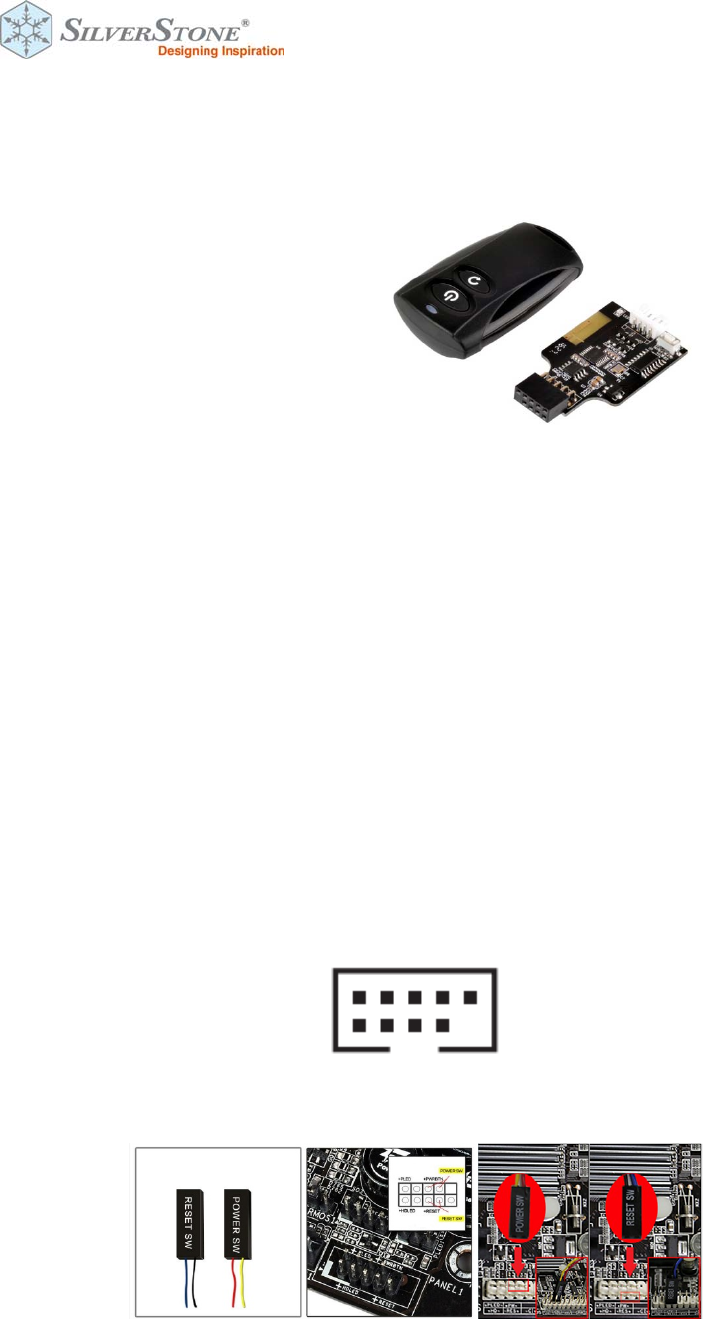
Product Model No. SST-ES02-USB
Product Description : 2.4GHz wireless computer power and reset remote switch
Package Content
1 x ES02 adapter
1 x 250mm cable
1 x Remote
To install ES02 properly, please follow the steps listed below:
■Turn off your computer and unplug the power cord and all cables
■Remove your computer’s case cover
■Unplug the power cable and reset cable from motherboard
Installation Guide
STEP 1
Carefully install ES02 into the USB 9 pin connector on the motherboard (Figure 1.1), then
connect the “POWER SW” and “RESET SW” to the corresponding pin headers on the
motherboard. (Figure 1.2)
Figure 1.1
USB 9 pin Connector
Figure 1.2
Power / Rest pin photo

* If you cannot find the corresponding pin header to connect on your motherboard, please
refer to your motherboard manual.
** If you have difficulty connecting to the motherboard’s USB 9 pin header, please use the
included 90 degree adapter.
STEP 2
Please remove the screw on the remote to insert the CR 2032 battery. Then secure the
remote by reinstalling the removed screw.
STEP 3
Plug in the power cord and other required cables by your computer then press the power
button to turn it on.
Q & A
1. Why can’t I turn on the computer by pressing the power button?
Please check if the LED indicator blinks when pressing the Power or Reset button, if it
doesn’t blink, then you should change the battery.
If it blinks, but still can’t turn on the computer, please try the following steps:
(1)Unplug the computer’s power cord.
(2)Check if the POWER SW and RESET SW are connected in the correct position, be sure
they are not loose.
If these steps do not work, then check in motherboard’s BIOS / UEFI menu to make sure USB
power on functions have been enabled.
2. Both LED indicators on the remote and the ES02 adapter both lit up, why doesn’t my
computer turn on when I press the button?
Solution: Re‐sync the remote and the ES02 adapter.
STEP 1: Please press and hold the black button for 3 seconds on the ES02 adapter until its
indicator lights up
STEP 2: Press any button on the remote until the indicator light turns off on the ES02 adapter
Warranty Information:
This product has a limited 1 year warranty in North America, Europe, and Australia. For information on warranty
periods in other regions, please contact your reseller or SilverStone authorized distributor.

Additional info & contacts
For North America (usasupport@silverstonetek.com) SilverStone Technology in North America may repair or replace
defective product with refurbished product that is not new but has been functionally tested. Replacement product will
be warranted for remainder of the warranty period or thirty days, whichever is longer. All power supplies should be
sent back to the place of purchase if it is within 30 days of purchase, after 30 days, customers need to initiate RMA
procedure with SilverStone Technology in USA by first downloading the “USA RMA form for end-users” form from the
below link and follow its instructions. http://silverstonetek.com/contactus.php For Australia only
(support@silverstonetek.com) Our goods come with guarantees that cannot be excluded under the Australian
Consumer Law. You are entitled to a replacement or refund for a major failure and for compensation for any other
reasonably foreseeable loss or damage. You are also entitled to have the goods repaired or replaced if the goods fail
to be of acceptable quality and the failure does not amount to a major failure. Please refer to above “Warranty terms &
conditions” for further warranty details. SilverStone Technology Co., Ltd. 12F No. 168 Jiankang Rd., Zhonghe Dist.,
New Taipei City 235 Taiwan R.O.C. + 886-2-8228-1238 (standard international call charges apply) For Europe
(support.eu@silverstonetek.de) For all other regions (support@silverstonetek.com)
Notice
ThisdevicecomplieswithPart15oftheFCCRules.Operationissubjecttothefollowingtwoconditions:(1)thisdevicemaynot
causeharmfulinterference,and(2)thisdevicemustacceptanyinterferencereceived,includinginterferencethatmaycause
undesiredoperation.
Changesormodificationsnotexpresslyapprovedbythepartyresponsibleforcompliancecouldvoidtheuser'sauthorityto
operatetheequipment。
Note:ThisequipmenthasbeentestedandfoundtocomplywiththelimitsforaClassBdigitaldevice,pursuanttopart15ofthe
FCCRules.Theselimitsaredesignedtoprovidereasonableprotectionagainstharmfulinterferenceinaresidentialinstallation.
Thisequipmentgenerates,usesandcanradiateradiofrequencyenergyand,ifnotinstalledandusedinaccordancewiththe
instructions,maycauseharmfulinterferencetoradiocommunications.However,thereisnoguaranteethatinterferencewill
notoccurinaparticularinstallation.Ifthisequipmentdoescauseharmfulinterferencetoradioortelevisionreception,which
canbedeterminedbyturningtheequipmentoffandon,theuserisencouragedtotrytocorrecttheinterferencebyoneor
moreofthefollowingmeasures:
—Reorientorrelocatethereceivingantenna.
—Increasetheseparationbetweentheequipmentandreceiver.
—Connecttheequipmentintoanoutletonacircuitdifferentfromthattowhichthereceiverisconnected.
—Consultthedealeroranexperiencedradio/TVtechnicianforhelp.