Single Chip Systems S512-C InstaScan Scanner, Model 512-C User Manual 512 C Manual

Single Chip Systems Corporation InstaScan Scanner, Model 512-C 512 C Manual

draft users manual

INSTASCAN© SCANNERMODEL S512-COperations ManualSCS Corporation10905 Technology Place,  San Diego, CA  92127Phone: 858-485-9196  •  Fax: 858-485-0561www.scs-corp.com • info@scs-corp.comDRAFT
licensed products of SCS. This Operations Manual contains proprietaryinformation protected by copyright and this Operations Manual and allaccompanying hardware, software, and documentation are copyrighted.SCS does not warrant that the hardware will work properly in all environmentsand applications, and makes no warranty and representation, either impliedor expressed, with respect to the quality, performance, or fitness for a particularpurpose.Information in this Operations Manual is subject to change without noticeand does not represent a commitment on the part of SCS. SCS assumesno responsibility for incidental damage that may result do to anyinaccuracies that may be contained in this Operations Manual.SCS makes no commitment to update or keep current the information inthis Operations Manual, and reserves the right to make changes to thisOperations Manual and/or product without notice.No part of this manual may be reproduced or transmitted in any form orby any means, electronic or mechanical, including photocopying, recording,or information storage and retrieval systems, for any purpose other thanthe purchaser’s personal use, without the express written permission ofSCS.MS-DOS and Windows are registered trademarks of Microsoft Corporation.All other trademarks or registered trademarks listed belong to their respective owners.InstaScan and Dura-label are trademarks of SCS Corporation.Version 100837-1  Rev. A©Copyright  2002 SCS 10905 Technology Place San Diego, C A 92127iiDRAFT
iiiContentsChapter 1— Introduction ....................................................... 1Advantages ..................................................................... 2S512-C InstaScan Scanner ................................................ 4What Else You Need ......................................................... 5Summary of Chapters ........................................................ 6Chapter 2 — Installation ....................................................... 7LEDs and Connectors ...................................................... 7Front Panel..................................................................... 8Rear Panel.................................................................... 10Scanner Installation Steps .............................................. 11Connecting External Antennas........................................ 12Placing the Antennas..................................................... 13Connecting to a PC Serial Port or RS-232 ....................... 14Connecting to an AC Outlet............................................ 15Testing the Scanner Setup ................................................ 16Aligning the Antenna ...................................................... 19Installing Dura-labels ...................................................... 20Reading Information from your Dura-labels ....................... 21Writing information to your Dura-label.............................. 22Loading Your Application ................................................ 23Chapter 3 — RF Communications ........................................ 24Signal Interference ........................................................ 25Signal Attenuation/Reflections........................................ 26Optimizing Performance ................................................ 27DRAFT
ivChapter 4 — Troubleshooting .............................................. 28Solving Problems........................................................... 28Contacting Customer Service ......................................... 31Returning Your System .................................................... 31Chapter 5 — Specifications ................................................. 33SCS Patents ................................................................... 33S512-C Scanner Specifications......................................... 34Chapter 6 — DB-25 Connector Function............................... 36Pin Assignments ............................................................ 37Receive Antenna Select Lines.......................................... 37Transmit Antenna Select Lines......................................... 38Peripheral Inputs ........................................................... 38Peripheral Outputs ........................................................ 39Limited Warranty ........................................................... 41FCC Part 15 Compliance ................................................ 41Radio Frequency exposure limits ....................................... 42Disclaimer..................................................................... 42DRAFT
1Chapter 1Chapter 1Chapter 1Chapter 1Chapter 1IntroductionIntroductionIntroductionIntroductionIntroductionThe S512-C InstaScan scanner and the Dura-label radio frequency(RF)  tags developed by SCS are state-of-the-art data gatheringand inspection systems that combine sophisticated InteractiveIdentification technology in a compact form factor. This unique synergyallows our system to integrate seamlessly into — and significantly increaseproductivity for — a wide range of applications and environments.This system consists of the following components:A scanner that writes information to and reads information from RF tagsusing a read/write head (antenna).  The scanner conforms to FCC Part15 specifications and can operate with one or two externally connectedantennas.Dura-label RF tags that contain information programmed by thescanner.  These tags are designed to store information underextremely harsh environments without requiring a battery, andthe read/write tags can store a permanent record of multipleevents and transactions.Communications between the scanner and the tags are conducted usinga revolutionary two-way technology that provides superior advantagesover conventional communication methods. The specific data beingcommunicated, and the amount of interaction you have with the scannerand the tag are determined by your application.DRAFT
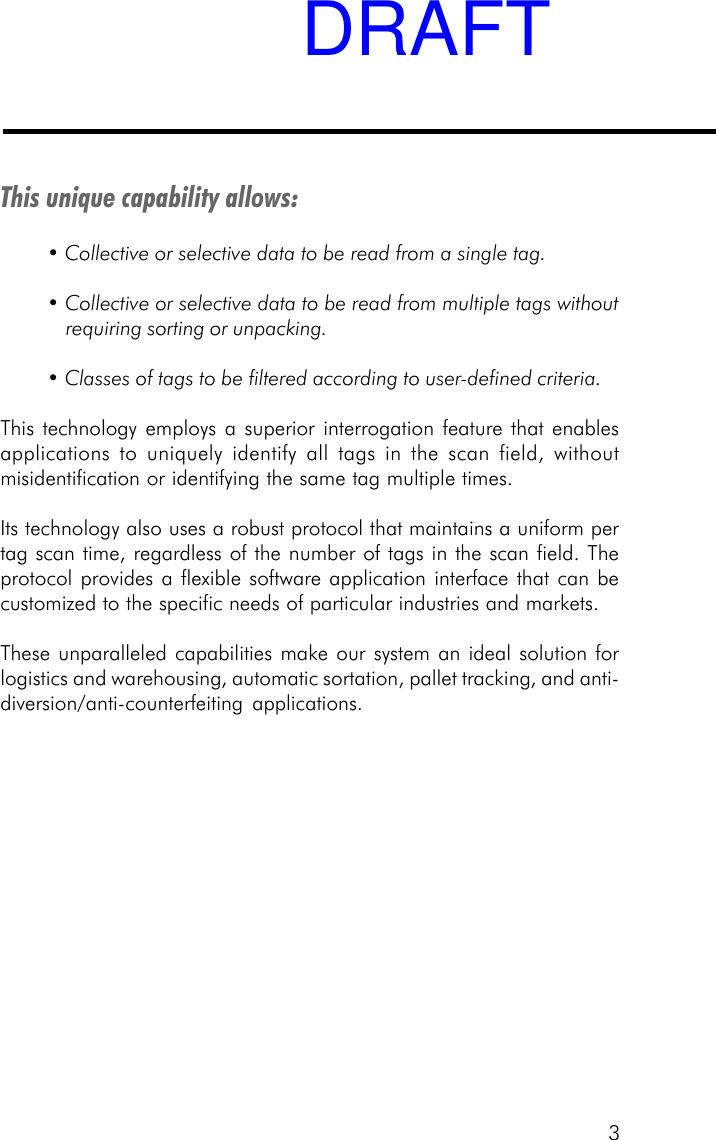
2AdvantagesData-gathering systems such as bar code readers use one-waycommunication: a sensor reads information from a device, without anyinteraction between the two devices.Moreover, bar code systems are subject to line-of-sight limitations. As aresult, airborne contaminants such as dust, dirt, oil, and mist, as well aslabel damage and objects residing outside the line of sight, result ininefficient and erroneous results.The SCS Interactive Identification System overcomes theserestrictions by using state-of-the-art technology.  This technologyallows the scanner and tag to conduct ongoing two-waycommunications that are not restricted by line-of-sightconstraints.Figure 1. Interactive Identification TechnologyDRAFT
3This unique capability allows:• Collective or selective data to be read from a single tag.• Collective or selective data to be read from multiple tags withoutrequiring sorting or unpacking.• Classes of tags to be filtered according to user-defined criteria.This technology employs a superior interrogation feature that enablesapplications to uniquely identify all tags in the scan field, withoutmisidentification or identifying the same tag multiple times.Its technology also uses a robust protocol that maintains a uniform pertag scan time, regardless of the number of tags in the scan field. Theprotocol provides a flexible software application interface that can becustomized to the specific needs of particular industries and markets.These unparalleled capabilities make our system an ideal solution forlogistics and warehousing, automatic sortation, pallet tracking, and anti-diversion/anti-counterfeiting applications.DRAFT
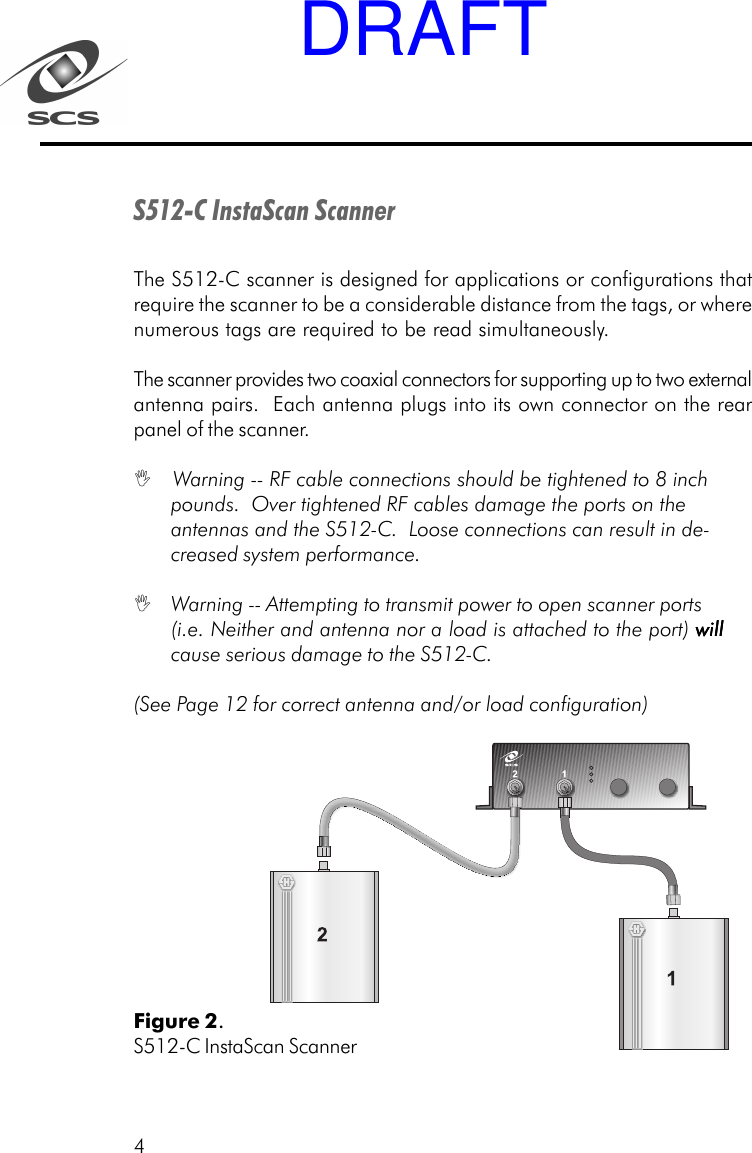
4S512-C InstaScan ScannerThe S512-C scanner is designed for applications or configurations thatrequire the scanner to be a considerable distance from the tags, or wherenumerous tags are required to be read simultaneously.The scanner provides two coaxial connectors for supporting up to two externalantenna pairs.  Each antenna plugs into its own connector on the rearpanel of the scanner. Warning -- RF cable connections should be tightened to 8 inchpounds.  Over tightened RF cables damage the ports on theantennas and the S512-C.  Loose connections can result in de-creased system performance. Warning -- Attempting to transmit power to open scanner ports(i.e. Neither and antenna nor a load is attached to the port) willwillwillwillwillcause serious damage to the S512-C.(See Page 12 for correct antenna and/or load configuration)Figure 2.S512-C InstaScan ScannerDRAFT
5What Else You NeedTo complete your system, you need an IBM or compatible personalcomputer with the following minimum system requirements:• 486 processor or better• Compatible screen and keyboard• 9-pin RS-232 port• Windows 95 or 98•  16 MB of RAM (32+ MB recommended)The applications you use to interface with this system may have additionalhardware and software requirements.  For more information, consult themanual that came with your applications.DRAFT
6Summary of ChaptersBesides Chapter 1, this Operations Manual contains the followingadditional chapters:• Chapter 2, Installation – describes how to install the scannerand tag(s)• Chapter 3, RF Communication - provides information on radiofrequency (RF) communications• Chapter 4, Troubleshooting – describes how to identify, resolve,and avoid problems when using the scanner and tag.  Thischapter also contains Customer Service information andmerchandise return instructions• Chapter 5, Specifications – lists scanner specifications• Chapter 6, DB-25 Connector Function — describes the 25-pinconnector of the S512-C scanner.DRAFT
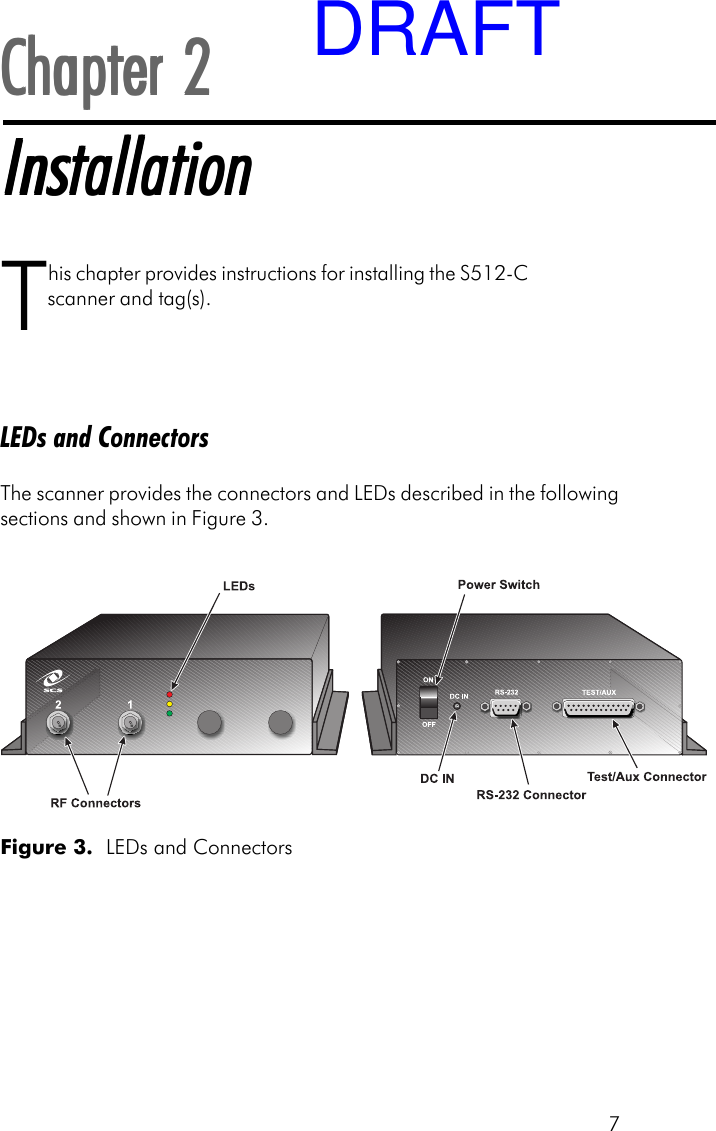
7Chapter 2Chapter 2Chapter 2Chapter 2Chapter 2InstallationInstallationInstallationInstallationInstallationThis chapter provides instructions for installing the S512-Cscanner and tag(s).LEDs and ConnectorsThe scanner provides the connectors and LEDs described in the followingsections and shown in Figure 3.Figure 3.  LEDs and ConnectorsDRAFT
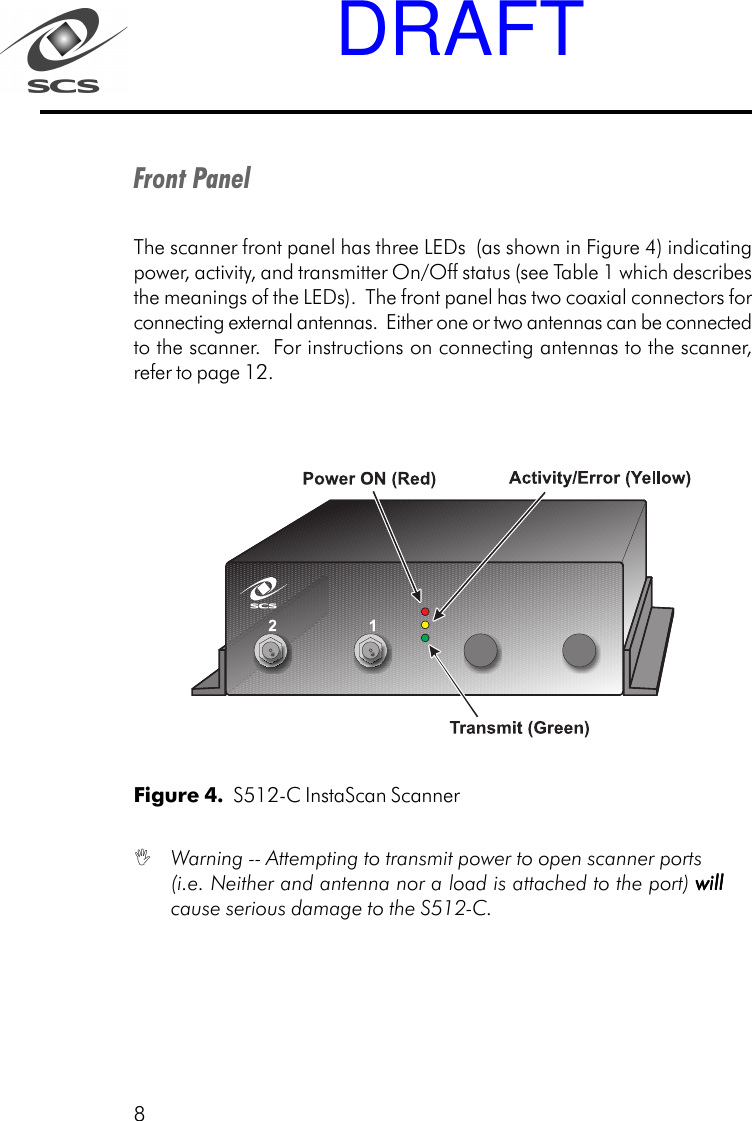
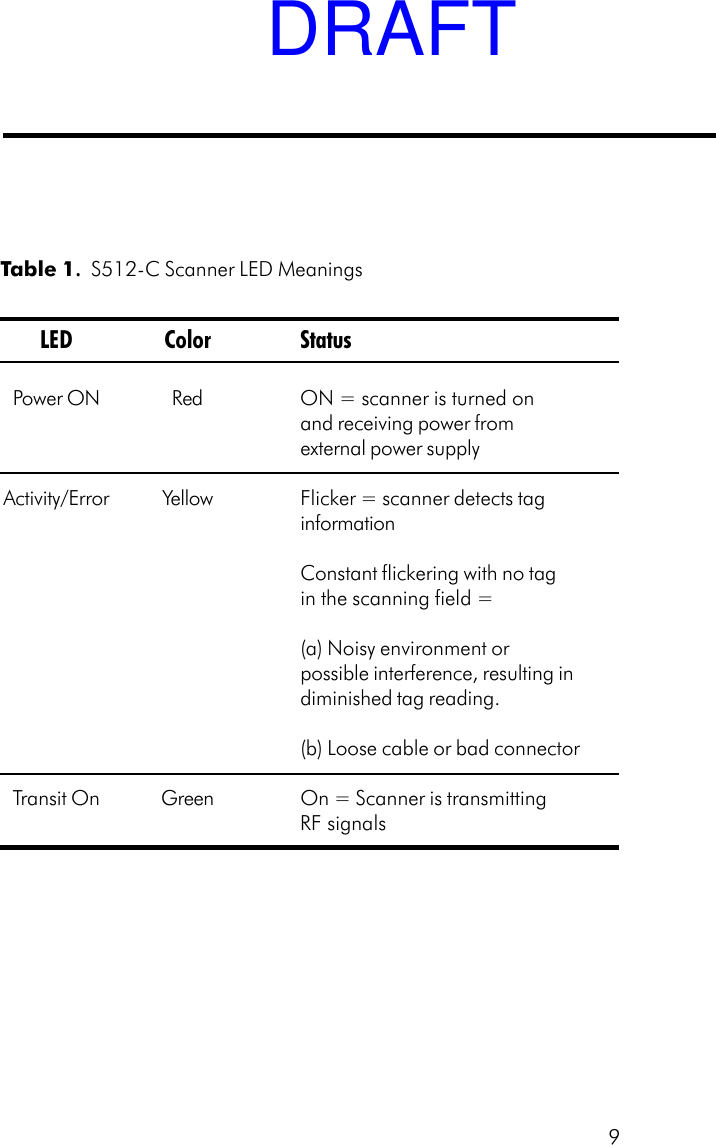
8Front PanelThe scanner front panel has three LEDs  (as shown in Figure 4) indicatingpower, activity, and transmitter On/Off status (see Table 1 which describesthe meanings of the LEDs).  The front panel has two coaxial connectors forconnecting external antennas.  Either one or two antennas can be connectedto the scanner.  For instructions on connecting antennas to the scanner,refer to page 12.Figure 4.  S512-C InstaScan Scanner Warning -- Attempting to transmit power to open scanner ports(i.e. Neither and antenna nor a load is attached to the port) willwillwillwillwillcause serious damage to the S512-C.DRAFT
9Table 1. . . . .  S512-C Scanner LED MeaningsLED Color StatusPower ON Red ON = scanner is turned onand receiving power fromexternal power supplyActivity/Error Yellow Flicker = scanner detects taginformationConstant flickering with no tagin the scanning field =(a) Noisy environment orpossible interference, resulting indiminished tag reading.(b) Loose cable or bad connectorTransit On Green On = Scanner is transmittingRF signalsDRAFT
10Rear PanelThe scanner rear panel has an On/Off switch.In the ON (up) position, the scanner is turned on.  The red PowerON LED should go ON, indicating that the scanner is receivingpower.In the OFF (down) position, the scanner is turned off and notreceiving power, even if connected to a power outlet.The rear panel also contains three connectors.  The small round connectoris a standard DC power receptacle.  The power supply provided with thescanner should be plugged into this connector and into the wall outlet.For more information, refer to “Connecting to an AC Outlet”on page 15.The small multi-pin connector is the 9-pin RS-232 port.  The RS-232 serialport connector allows the scanner to communicate with a personal computerthrough the PC’s serial port.  For more information on making thisconnection, refer to page 14.The large multi-pin connector is the 25 pin test connector.  This connectorshould only be used by a qualified system integrator.DRAFT
11Scanner Installation StepsThe scanner installation consists of the following steps:1. Position the scanner — locate near desired antenna locations.2. Connect external antennas — see page 12.3. Place the antenna for optimum read/write operation —see page 13.4. Connect the scanner to PC serial port or RS-232— see page 14.5. Connecting to an AC outlet — see page 15.6. Testing the Scanner Setup  — see page 16.7. Aligning the antenna — see page 19.DRAFT
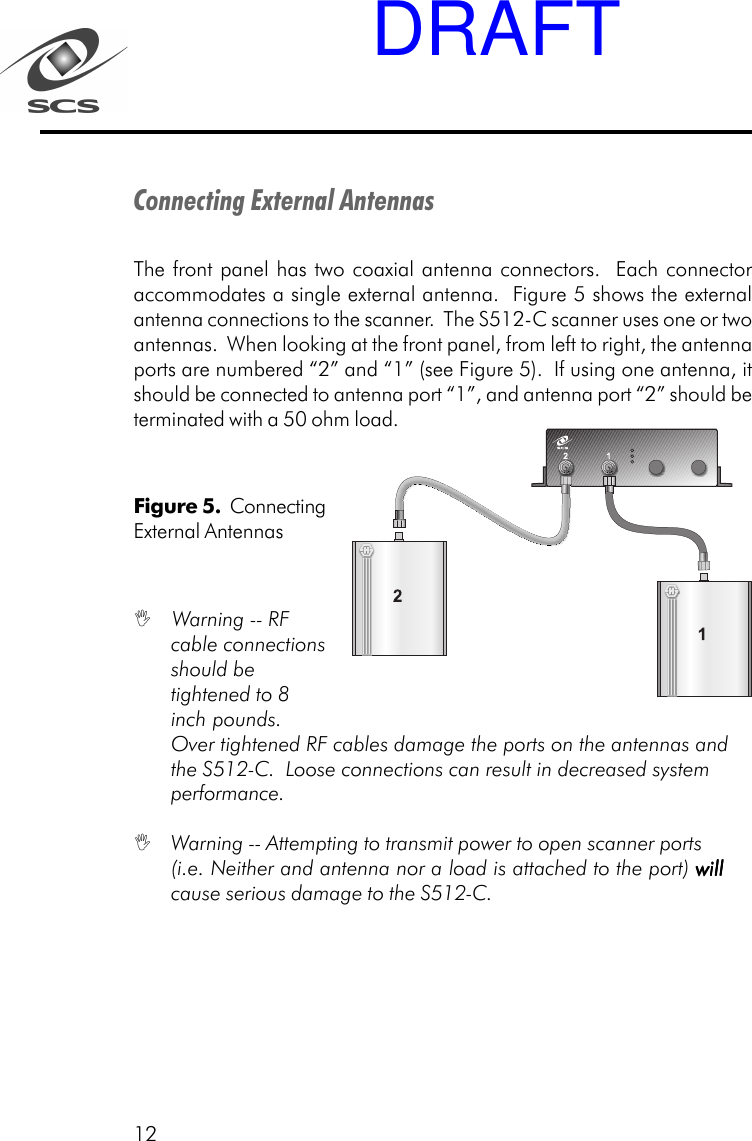
12Connecting External AntennasThe front panel has two coaxial antenna connectors.  Each connectoraccommodates a single external antenna.  Figure 5 shows the externalantenna connections to the scanner.  The S512-C scanner uses one or twoantennas.  When looking at the front panel, from left to right, the antennaports are numbered “2” and “1” (see Figure 5).  If using one antenna, itshould be connected to antenna port “1”, and antenna port “2” should beterminated with a 50 ohm load.Figure 5.  ConnectingExternal Antennas Warning -- RFcable connectionsshould betightened to 8inch pounds.Over tightened RF cables damage the ports on the antennas andthe S512-C.  Loose connections can result in decreased systemperformance. Warning -- Attempting to transmit power to open scanner ports(i.e. Neither and antenna nor a load is attached to the port) willwillwillwillwillcause serious damage to the S512-C.DRAFT
13Placing the AntennaAntenna placement is critical to ensuring that information is written toand read from tags accurately.  Observe the following guidelines whenplacing the antenna:Locate the antennas away from metal objects, microwave ovens, andother devices that may induce radio frequency interference.  In addi-tion, make sure there are no metallic surfaces between, or in relativeproximity to, the scanner and tag.  For additional placement consider-ations, refer to “RF Communications” on page 24.When reading, the scanner’s antenna(s) should be placed no morethan 20 inches from the objects bearing tags.  When writing, thescanner’s antenna should be no more than 4 inches from objectsbearing tags. Tags must reside within the scan field for at least 3 milliseconds forinformation to be retrieved from them.DRAFT
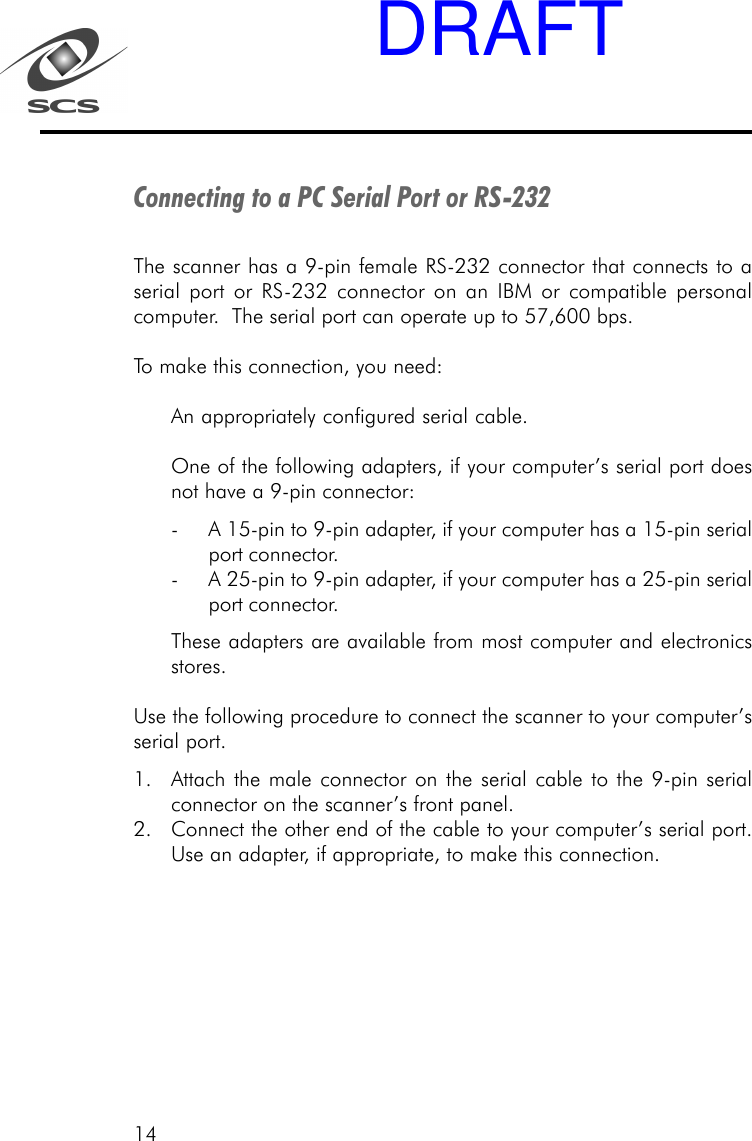
14Connecting to a PC Serial Port or RS-232The scanner has a 9-pin female RS-232 connector that connects to aserial port or RS-232 connector on an IBM or compatible personalcomputer.  The serial port can operate up to 57,600 bps.To make this connection, you need:An appropriately configured serial cable.One of the following adapters, if your computer’s serial port doesnot have a 9-pin connector:- A 15-pin to 9-pin adapter, if your computer has a 15-pin serialport connector.- A 25-pin to 9-pin adapter, if your computer has a 25-pin serialport connector.These adapters are available from most computer and electronicsstores.Use the following procedure to connect the scanner to your computer’sserial port.1. Attach the male connector on the serial cable to the 9-pin serialconnector on the scanner’s front panel.2. Connect the other end of the cable to your computer’s serial port.Use an adapter, if appropriate, to make this connection.DRAFT
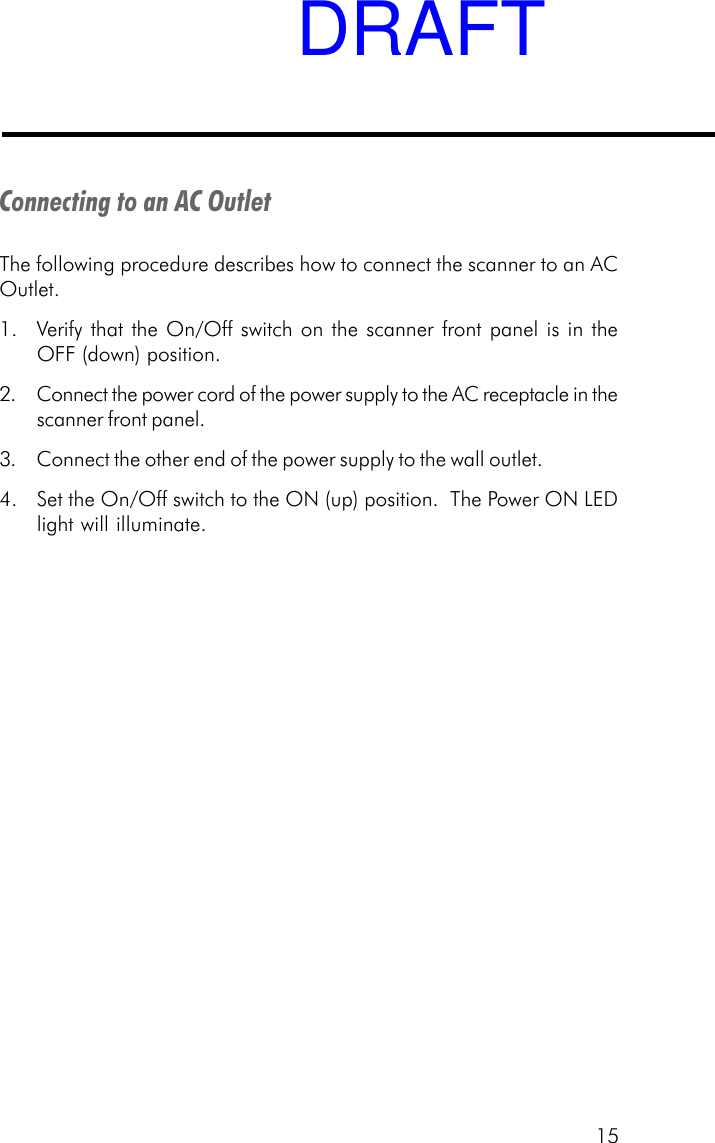
15Connecting to an AC OutletThe following procedure describes how to connect the scanner to an ACOutlet.1. Verify that the On/Off switch on the scanner front panel is in theOFF (down) position.2. Connect the power cord of the power supply to the AC receptacle in thescanner front panel.3. Connect the other end of the power supply to the wall outlet.4. Set the On/Off switch to the ON (up) position.  The Power ON LEDlight will illuminate.DRAFT
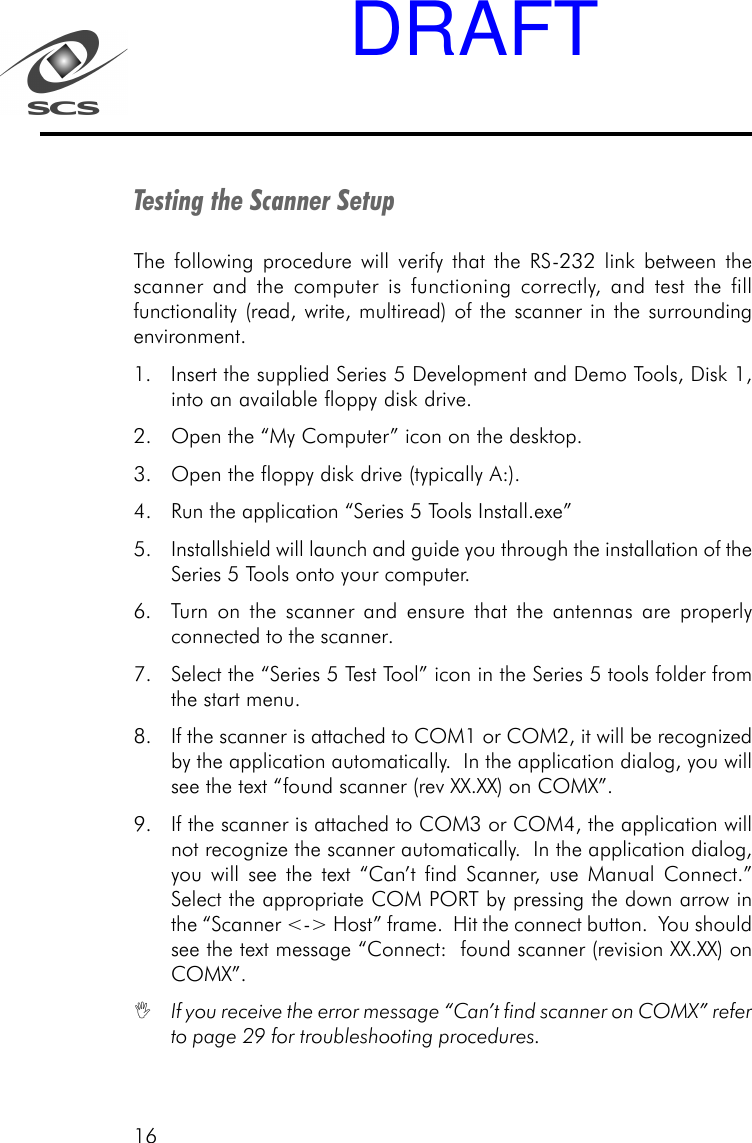
16Testing the Scanner SetupThe following procedure will verify that the RS-232 link between thescanner and the computer is functioning correctly, and test the fillfunctionality (read, write, multiread) of the scanner in the surroundingenvironment.1. Insert the supplied Series 5 Development and Demo Tools, Disk 1,into an available floppy disk drive.2. Open the “My Computer” icon on the desktop.3. Open the floppy disk drive (typically A:).4. Run the application “Series 5 Tools Install.exe”5. Installshield will launch and guide you through the installation of theSeries 5 Tools onto your computer.6. Turn on the scanner and ensure that the antennas are properlyconnected to the scanner.7. Select the “Series 5 Test Tool” icon in the Series 5 tools folder fromthe start menu.8. If the scanner is attached to COM1 or COM2, it will be recognizedby the application automatically.  In the application dialog, you willsee the text “found scanner (rev XX.XX) on COMX”.9. If the scanner is attached to COM3 or COM4, the application willnot recognize the scanner automatically.  In the application dialog,you will see the text “Can’t find Scanner, use Manual Connect.”Select the appropriate COM PORT by pressing the down arrow inthe “Scanner <-> Host” frame.  Hit the connect button.  You shouldsee the text message “Connect:  found scanner (revision XX.XX) onCOMX”.If you receive the error message “Can’t find scanner on COMX” referto page 29 for troubleshooting procedures.DRAFT
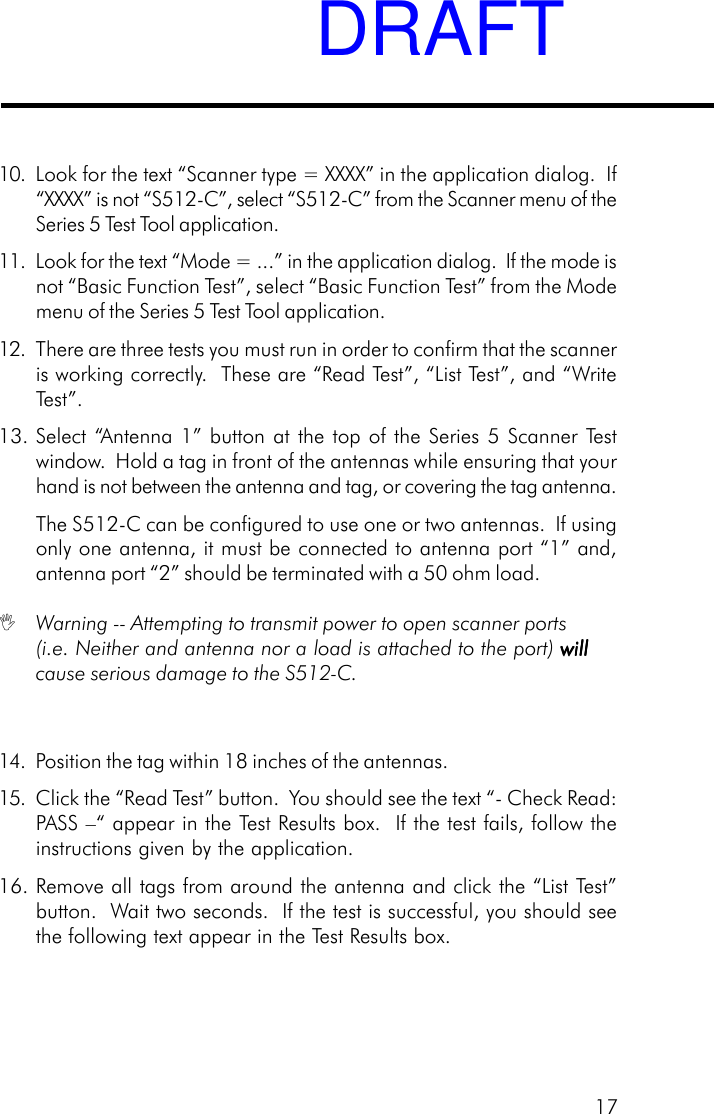
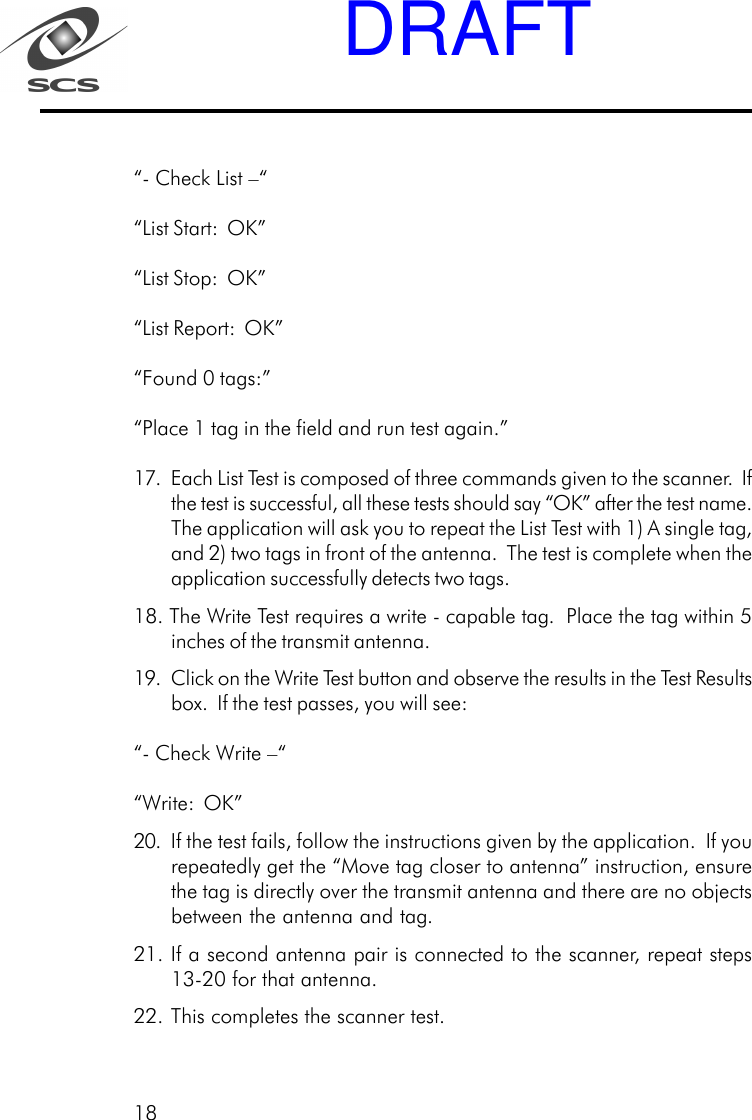
1710. Look for the text “Scanner type = XXXX” in the application dialog.  If“XXXX” is not “S512-C”, select “S512-C” from the Scanner menu of theSeries 5 Test Tool application.11. Look for the text “Mode = ...” in the application dialog.  If the mode isnot “Basic Function Test”, select “Basic Function Test” from the Modemenu of the Series 5 Test Tool application.12. There are three tests you must run in order to confirm that the scanneris working correctly.  These are “Read Test”, “List Test”, and “WriteTest”.13. Select “Antenna 1” button at the top of the Series 5 Scanner Testwindow.  Hold a tag in front of the antennas while ensuring that yourhand is not between the antenna and tag, or covering the tag antenna.The S512-C can be configured to use one or two antennas.  If usingonly one antenna, it must be connected to antenna port “1” and,antenna port “2” should be terminated with a 50 ohm load. Warning -- Attempting to transmit power to open scanner ports(i.e. Neither and antenna nor a load is attached to the port) willwillwillwillwillcause serious damage to the S512-C.14. Position the tag within 18 inches of the antennas.15. Click the “Read Test” button.  You should see the text “- Check Read:PASS –“ appear in the Test Results box.  If the test fails, follow theinstructions given by the application.16. Remove all tags from around the antenna and click the “List Test”button.  Wait two seconds.  If the test is successful, you should seethe following text appear in the Test Results box.DRAFT
18“- Check List –““List Start:  OK”“List Stop:  OK”“List Report:  OK”“Found 0 tags:”“Place 1 tag in the field and run test again.”17. Each List Test is composed of three commands given to the scanner.  Ifthe test is successful, all these tests should say “OK” after the test name.The application will ask you to repeat the List Test with 1) A single tag,and 2) two tags in front of the antenna.  The test is complete when theapplication successfully detects two tags.18. The Write Test requires a write - capable tag.  Place the tag within 5inches of the transmit antenna.19. Click on the Write Test button and observe the results in the Test Resultsbox.  If the test passes, you will see:“- Check Write –““Write:  OK”20. If the test fails, follow the instructions given by the application.  If yourepeatedly get the “Move tag closer to antenna” instruction, ensurethe tag is directly over the transmit antenna and there are no objectsbetween the antenna and tag.21. If a second antenna pair is connected to the scanner, repeat steps13-20 for that antenna.22. This completes the scanner test.DRAFT
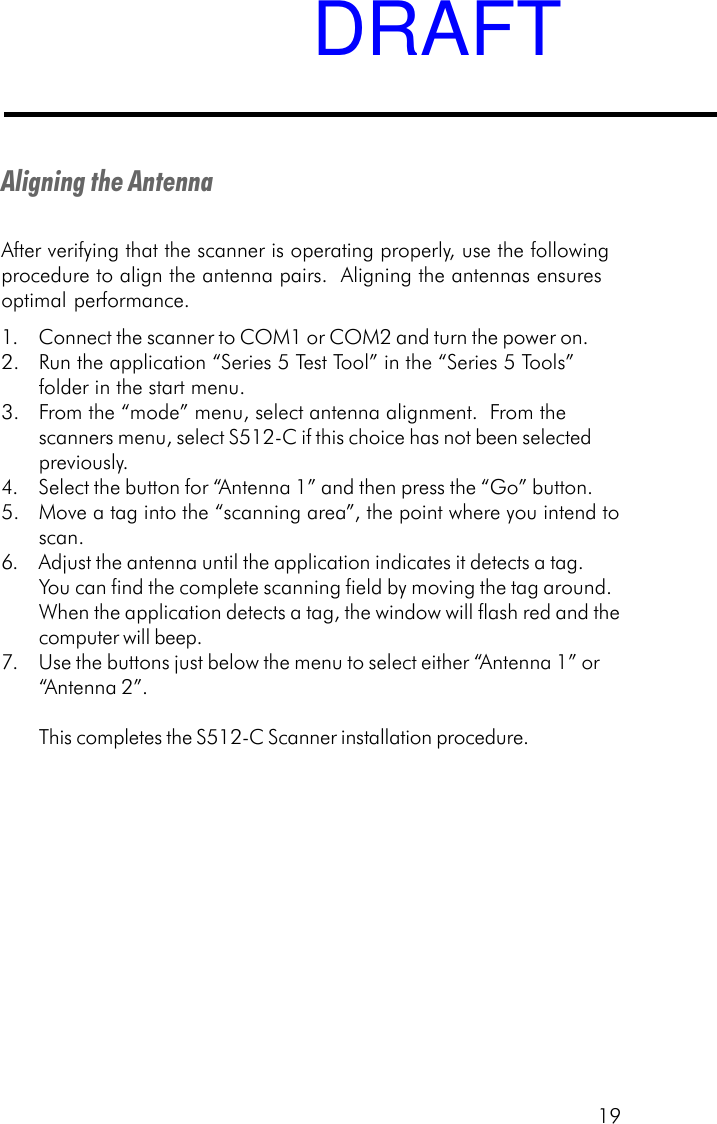
19Aligning the AntennaAfter verifying that the scanner is operating properly, use the followingprocedure to align the antenna pairs.  Aligning the antennas ensuresoptimal performance.1. Connect the scanner to COM1 or COM2 and turn the power on.2. Run the application “Series 5 Test Tool” in the “Series 5 Tools”folder in the start menu.3. From the “mode” menu, select antenna alignment.  From thescanners menu, select S512-C if this choice has not been selectedpreviously.4. Select the button for “Antenna 1” and then press the “Go” button.5. Move a tag into the “scanning area”, the point where you intend toscan.6. Adjust the antenna until the application indicates it detects a tag.You can find the complete scanning field by moving the tag around.When the application detects a tag, the window will flash red and thecomputer will beep.7. Use the buttons just below the menu to select either “Antenna 1” or“Antenna 2”.This completes the S512-C Scanner installation procedure.DRAFT
20Installing Dura-labelsDura-label RF tags have a diminutive form factor that allows them to beinstalled in areas that cannot accommodate conventional RF tags.In addition, Dura-labels can communicate with the scanner without havingto be in the line-of-sight.  This unique combination provides tremendousflexibility when determining a location for placing tags.In textile applications, for example, tags can be inserted into the front tailof a shirt or the waistline of pants using a heat seal patch and a heatpress.  Because this system does not require line-of-sight scanning, thetag does not have to be visible to the scanner.When considering locations for installing tags, make sure they are within20 inches of the scanner antenna for at least 3 milliseconds so data (16-bit word) can be read from the tag.  Avoid locations where metal orwater is present because radio-frequency communication does notpenetrate metal and is absorbed by water.DRAFT
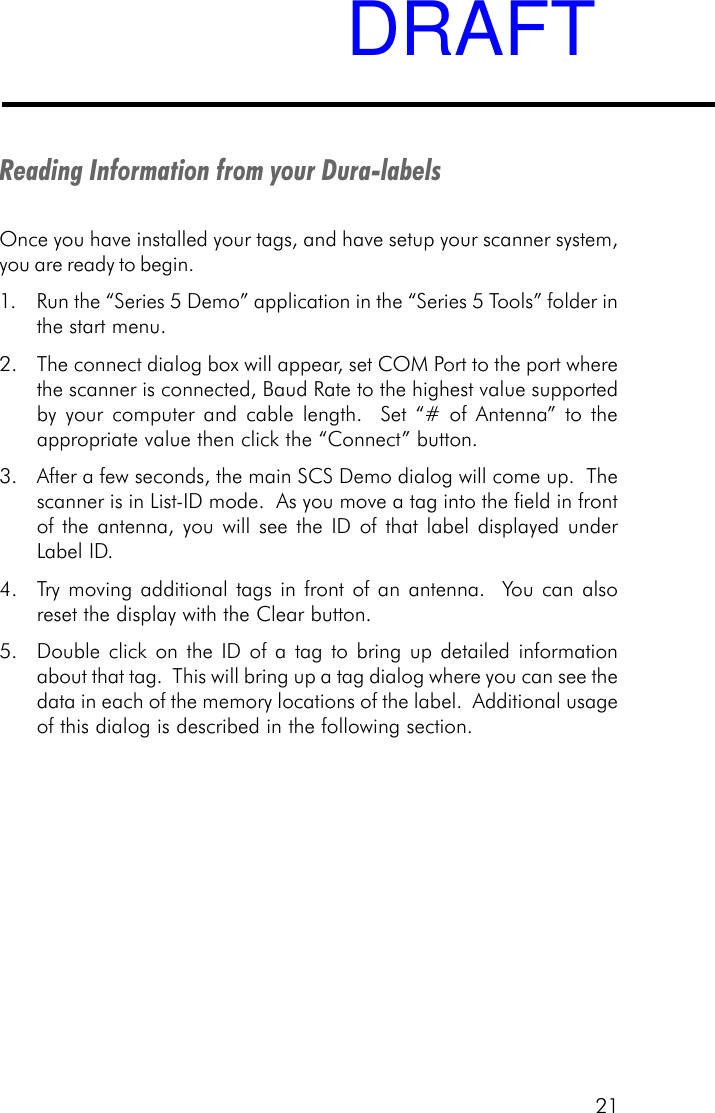
21Reading Information from your Dura-labelsOnce you have installed your tags, and have setup your scanner system,you are ready to begin.1. Run the “Series 5 Demo” application in the “Series 5 Tools” folder inthe start menu.2. The connect dialog box will appear, set COM Port to the port wherethe scanner is connected, Baud Rate to the highest value supportedby your computer and cable length.  Set “# of Antenna” to theappropriate value then click the “Connect” button.3. After a few seconds, the main SCS Demo dialog will come up.  Thescanner is in List-ID mode.  As you move a tag into the field in frontof the antenna, you will see the ID of that label displayed underLabel ID.4. Try moving additional tags in front of an antenna.  You can alsoreset the display with the Clear button.5. Double click on the ID of a tag to bring up detailed informationabout that tag.  This will bring up a tag dialog where you can see thedata in each of the memory locations of the label.  Additional usageof this dialog is described in the following section.DRAFT
22Writing Information to Your Dura-labelRead/write tags can be written to using the scanner. Each bit of memoryis write once, read many (WORM).  Meaning after you have written to aspecific bit, it is permanent and cannot be overwritten or erased.  To addmore data to the tag you must write to a different bit.  Another featureincluded with each user-writable word of memory is a Write-Protect bit.This bit allows you to protect an entire word (16 bits) after any or all ofthe bits have been written.1. Start the Series 5 Demo application as described in the previoussection.2. Move a tag into the field and double click on its ID to bring up thetag dialog.3. In the Write Protect frame, hit “Query All”.  Any writable memory locationwill become editable (white), while write protected memory locationswill stay gray.4. Move the mouse cursor over a memory location and click within thatlocation to edit it.  Enter a new value and then hit “refresh” or movethe cursor to a different memory location and click.  The applicationwill attempt to write the value you specified to the tag.5. The status of the tag will be displayed in the status box at the lowerpart of the screen.  If the write was unsuccessful, the value in thememory location will change back to reflect the value actually storedthere.6. To write protect a memory location, move the cursor to a memorylocation and click the “Set” button in the Write Protect section.  Thememory location will change from a white background to a graybackground to show that it is now write protected.DRAFT
23Loading Your ApplicationAfter you install the scanner and tags according to the instructions in thischapter, you can load your application and begin writing information toread/write tags or reading information from all tags.  Your applicationwill determine the amount of interaction you have with the scanner andtags.IIf you will be developing applications designed to interface to yoursystem, refer to Software Development Diskette for programminginformation.7. To write to a block of memory locations, use the commands in the blocksection of the window.  Enter the starting memory location in the “From”window.  Enter number of memory locations in the “Length” window.The ending memory location will be automatically calculated in the“To:” window.  Click the box to the left of the “Write” text and enter thedata in the window below the “Write” command.8. To write protect the entire block, click the box to the left of the “WriteProtect” text.9. To complete the block write command, select the “Perform” button.10.To return to the List ID mode, click the “OK” button.DRAFT
24In general, devices that communicate using radio frequency, suchas your system, can be sensitive to signal interference and signalattenuation. This chapter provides tips for optimizing radio-frequency (RF) communications with your InstaScan and Dura-label.Topics in this chapter include:• Signal interference — see page 25.• Signal attenuation — see page 26.• Optimizing performance — see page 27.Chapter 3Chapter 3Chapter 3Chapter 3Chapter 3RF CommunicationsRF CommunicationsRF CommunicationsRF CommunicationsRF CommunicationsDRAFT
25Signal InterferenceSignal interference is RF signals that interfere with the information beingexchanged between the tag and the scanner. Signal interference canseverely diminish the scanner’s ability to read information from the tags.The Activity LED on the scanner flickers constantly if it detects signalinterference.The source of the interfering signals may be:•An RF system, such as an RF local-area network (LAN) or anotherInteractive Identification system, located close to your system.•Security gates, garage doors, or similar devices that emit RF signals.•Appliances such as microwave ovens.The effects of these noise sources are localized and can be eliminated byrelocating the scanner and its antenna.Your system’s communication capabilities are significantly reduced whenthe noise level perceived by the system exceeds the strength of signalsreceived.DRAFT
26Signal Attenuation/ReflectionsSignal attenuation is the loss of signal strength that occurs naturallyover distances, but which can also be caused by RF barriers in thesignal path.Examples of such barriers include:•Enclosed locations that have concrete walls, floors, and ceilings.•Metal surfaces surrounding the antenna or tag.•Water or other fluids surrounding the antenna or tag.Almost every object (furniture and partitions) in the path of a signal causessome degree of attenuation. The effects can be minimized by carefulantenna placement.The reflection from metal or metallic surfaces behind the tag can alsoaffect signal attenuation. In some cases, this may increase the readdistance slightly, while inducing intermittent “dead” spots within the readfield that permit little or no communication between the scanner andtag.DRAFT
27Optimizing PerformanceWhile it is not possible to predict how your system will perform in anygiven environment, observing the following guidelines will help optimizeperformance in your environments and applications:Carefully plan the placement of the scanner antennas. The antennascan be extended approximately ten feet from the scanner, dependingon cable length purchased for the application.  If your applicationrequires longer distances, move the scanner to an appropriatelocation.IThe scanner antennas should never be disassembled, altered, ormodified except by an authorized technician.  Any unauthorizedantenna modifications can void your warranty.Consider the environment’s RF characteristics, including constructionmaterials, office plan (closed or open), and the presence of windowsand ducting. The RF field pattern, and the reading distance, may beinfluenced by nearby metal objects, such as appliances, equipment,metal wall framing, and wire coat hangers.Ensure that objects containing tags are no more than 20 inchesfrom the antenna and remain in the scan field for at least 3milliseconds.To avoid mutual interference when installing more than one tag  inthe same object, allow a sufficient distance between the tags. Themaximum interference occurs when tags within the same object arewithin two inches of each other and nearly equidistant from a scannerantenna.Never apply chemicals to the tags. Certain chemicals, such asalcohol, may have little or no effect at room temperature, but maybecome corrosive at higher temperatures.DRAFT
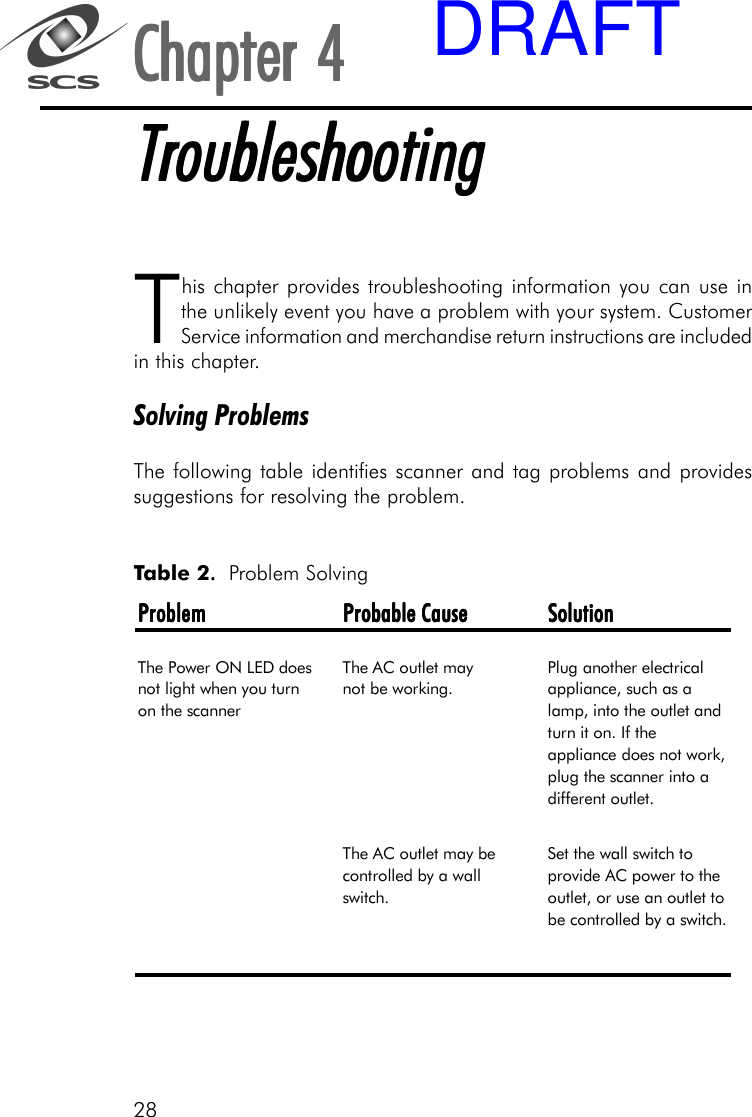
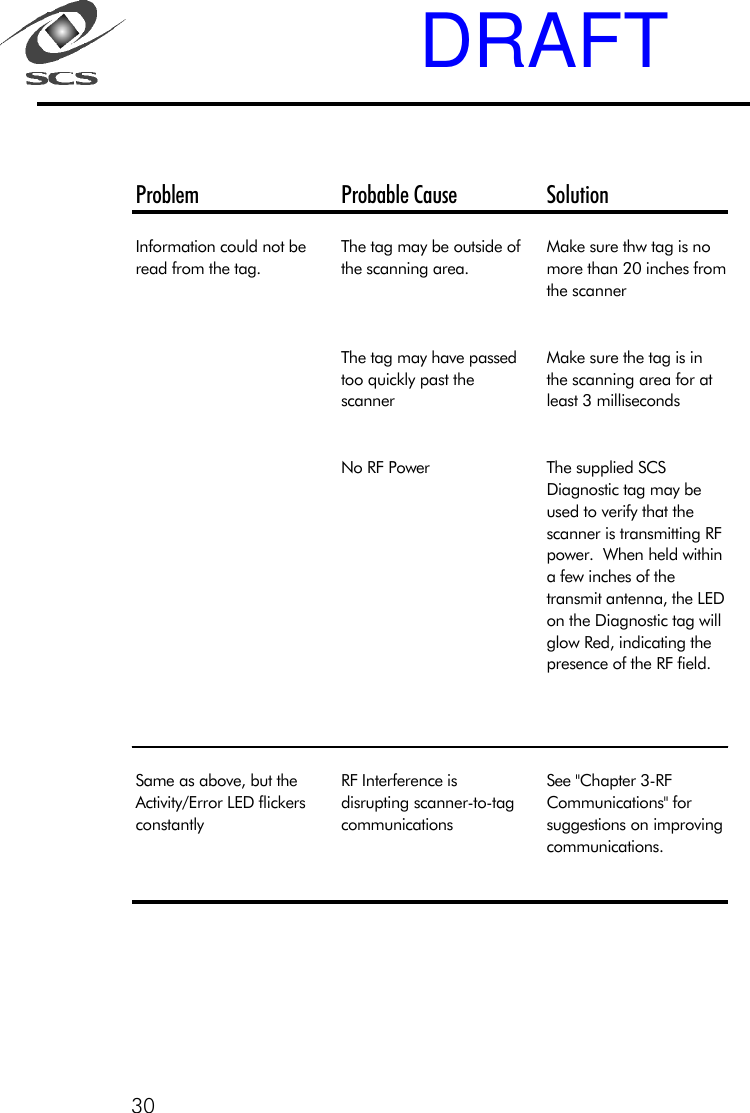
28This chapter provides troubleshooting information you can use inthe unlikely event you have a problem with your system. CustomerService information and merchandise return instructions are includedin this chapter.Solving ProblemsThe following table identifies scanner and tag problems and providessuggestions for resolving the problem.Chapter 4Chapter 4Chapter 4Chapter 4Chapter 4TTTTTroubleshootingroubleshootingroubleshootingroubleshootingroubleshootingProblemProblemProblemProblem Probable CauseProbable CauseProbable CauseProbable Cause SolutionSolutionSolutionSolutionThe Power ON LED does not light when you turn on the scannerThe AC outlet may       not be working.Plug another electrical appliance, such as a lamp, into the outlet and turn it on. If the appliance does not work, plug the scanner into a different outlet.The AC outlet may be controlled by a wall switch.Set the wall switch to provide AC power to the outlet, or use an outlet to be controlled by a switch. Table 2. . . . .  Problem SolvingDRAFT
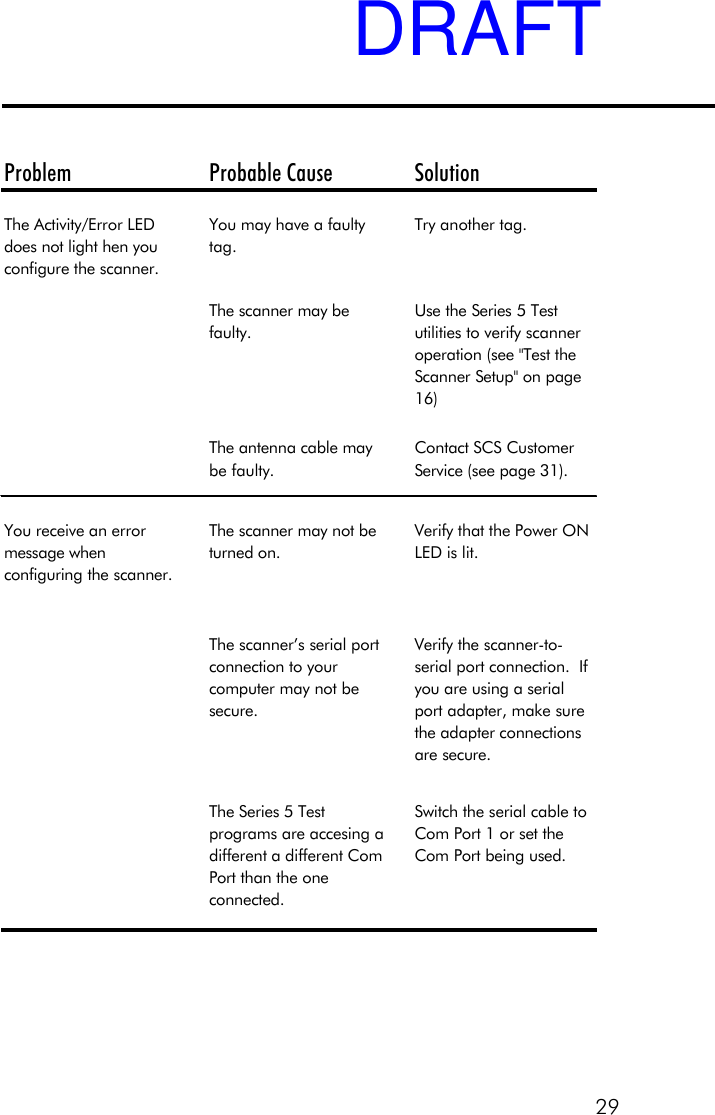
29Problem Probable Cause SolutionThe Activity/Error LED does not light hen you configure the scanner.You may have a faulty tag.Try another tag.The scanner may be faulty.Use the Series 5 Test utilities to verify scanner operation (see "Test the Scanner Setup" on page 16)The antenna cable may be faulty.Contact SCS Customer Service (see page 31).You receive an error message when configuring the scanner.The scanner may not be turned on.Verify that the Power ON LED is lit.The scanner’s serial port connection to your computer may not be secure.Verify the scanner-to-serial port connection.  If you are using a serial port adapter, make sure the adapter connections are secure.The Series 5 Test programs are accesing a different a different Com Port than the one connected.Switch the serial cable to Com Port 1 or set the Com Port being used.DRAFT
30Problem Probable Cause SolutionInformation could not be read from the tag.The tag may be outside of the scanning area.Make sure thw tag is no more than 20 inches from the scannerThe tag may have passed too quickly past the scanner                    Make sure the tag is in the scanning area for at least 3 millisecondsNo RF Power The supplied SCS Diagnostic tag may be used to verify that the scanner is transmitting RF power.  When held within a few inches of the transmit antenna, the LED on the Diagnostic tag will glow Red, indicating the presence of the RF field.Same as above, but the Activity/Error LED flickers constantlyRF Interference is disrupting scanner-to-tag communicationsSee "Chapter 3-RF Communications" for suggestions on improving communications.DRAFT
31Contacting Customer ServiceIf you encounter a problem using your system that you cannot resolve,contact Customer Service:Before contacting CUSTOMER SERVICE, please have the followinginformation available:1. InstaScan Scanner Information:InstaScan Model Number•Serial Number, located on the bottom of scanner•Any modifications made to the scanner or tags•Location where system is installed2. Computer Information:•Computer Brand and Model number•Processor speed and available RAM•COM Port usedSCS Support (858) 485-91968:00 a.m. – 5:00 p.m. PSTEmail – techsupport@SCS-Corp.comDRAFT
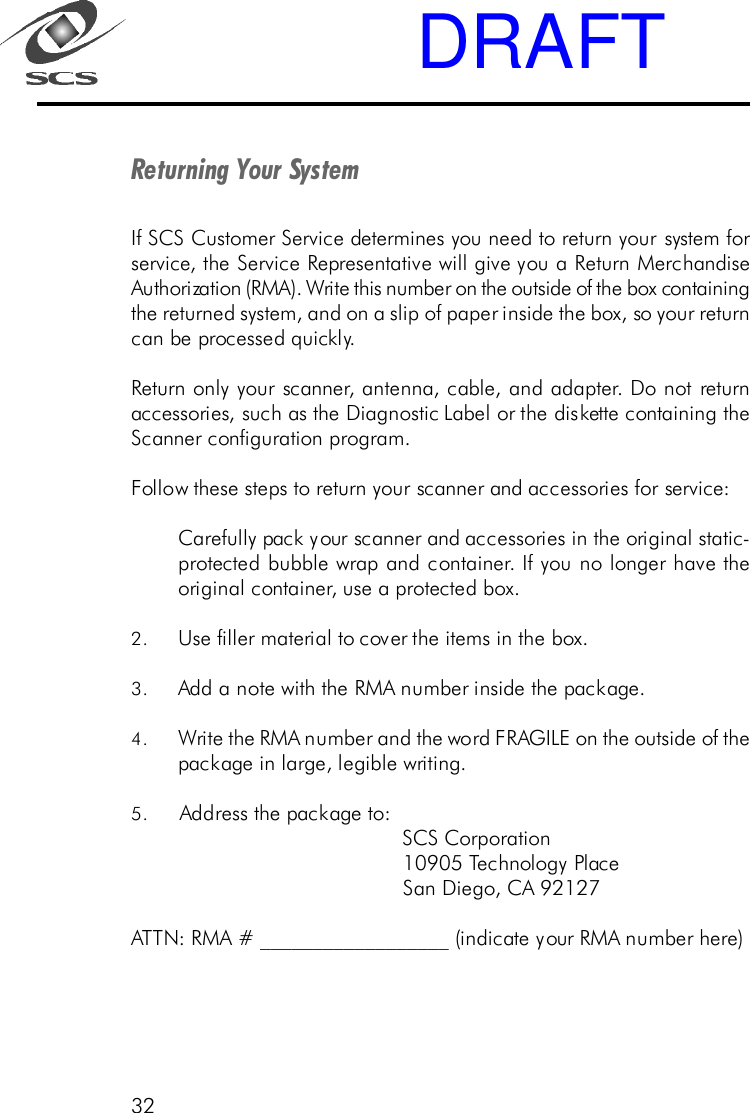
32Returning Your SystemIf SCS Customer Service determines you need to return your system forservice, the Service Representative will give you a Return MerchandiseAuthorization (RMA). Write this number on the outside of the box containingthe returned system, and on a slip of paper inside the box, so your returncan be processed quickly.Return only your scanner, antenna, cable, and adapter. Do not returnaccessories, such as the Diagnostic Label or the diskette containing theScanner configuration program.Follow these steps to return your scanner and accessories for service:Carefully pack your scanner and accessories in the original static-protected bubble wrap and container. If you no longer have theoriginal container, use a protected box.2. Use filler material to cover the items in the box.3. Add a note with the RMA number inside the package.4. Write the RMA number and the word FRAGILE on the outside of thepackage in large, legible writing.5. Address the package to:                                             SCS Corporation                                             10905 Technology Place                                             San Diego, CA 92127ATTN: RMA # __________________ (indicate your RMA number here)DRAFT
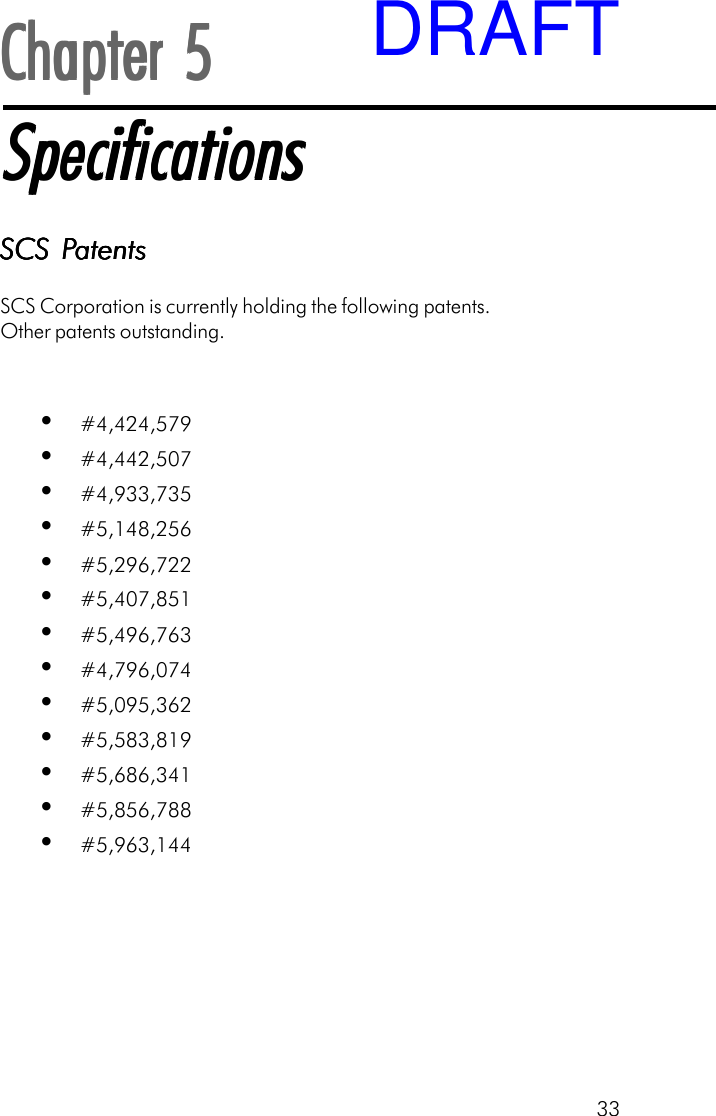
33SCS PSCS PSCS PSCS PSCS PatentsatentsatentsatentsatentsSCS Corporation is currently holding the following patents.Other patents outstanding.•#4,424,579•#4,442,507•#4,933,735•#5,148,256•#5,296,722•#5,407,851•#5,496,763•#4,796,074•#5,095,362•#5,583,819•#5,686,341•#5,856,788•#5,963,144Chapter 5Chapter 5Chapter 5Chapter 5Chapter 5SpecificationsSpecificationsSpecificationsSpecificationsSpecificationsDRAFT
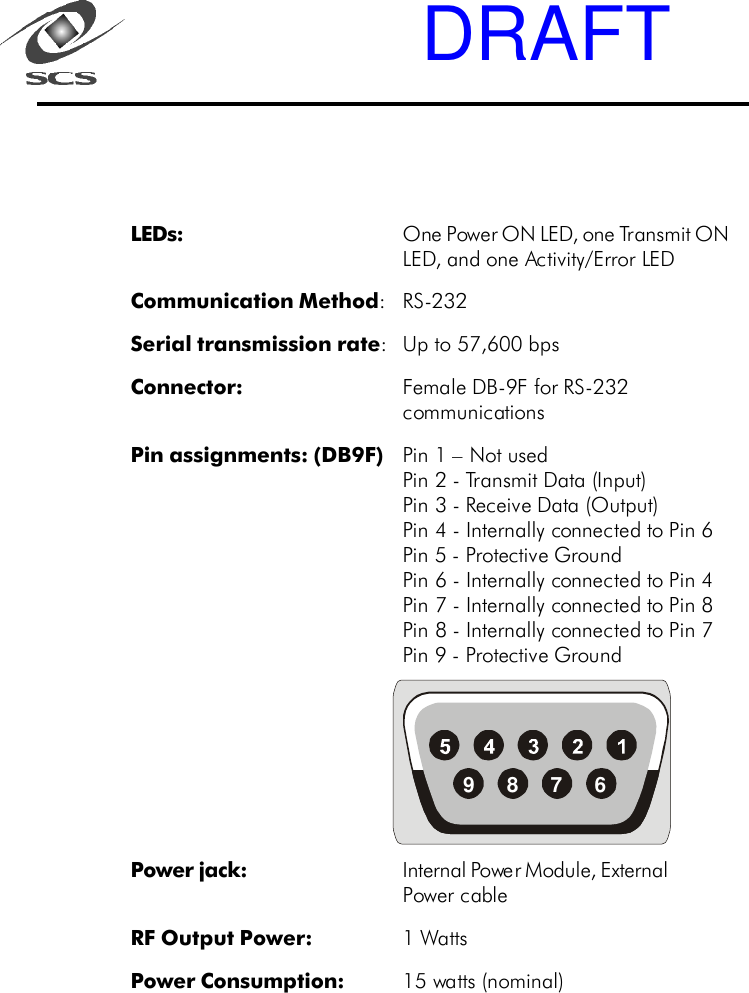
LEDs: One Power ON LED, one Transmit ONLED, and one Activity/Error LEDCommunication Method:RS-232Serial transmission rate:Up to 57,600 bpsConnector: Female DB-9F for RS-232communicationsPin assignments: (DB9F) Pin 1 – Not usedPin 2 - Transmit Data (Input)Pin 3 - Receive Data (Output)Pin 4 - Internally connected to Pin 6Pin 5 - Protective GroundPin 6 - Internally connected to Pin 4Pin 7 - Internally connected to Pin 8Pin 8 - Internally connected to Pin 7Pin 9 - Protective GroundPower jack: Internal Power Module, ExternalPower cableRF Output Power: 1 WattsPower Consumption: 15 watts (nominal)9876DRAFT
35Ambient operatingtemperature: 0° to 50° C    (32° to 122° F)Approved Standards: FCC Part 15Maximum serialcable length: 10 meters (30 Feet)Dimensions: 5.1 cm x 17.8 cm x 20.3 cm(2 in x 7 in x 8 in)Weight: 1.2 Kg   (2.6 lbs.)DRAFT
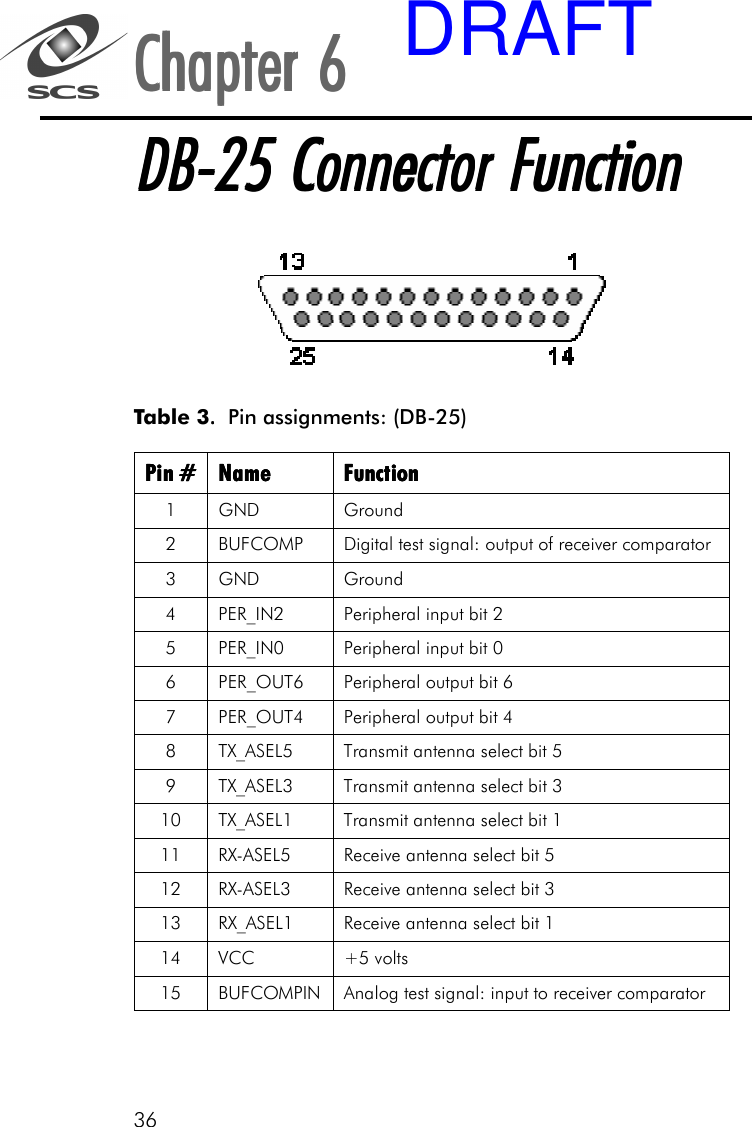
36Pin Pin Pin Pin ####    NNNNameameameame    FunctionFunctionFunctionFunction    1 GND  Ground 2  BUFCOMP  Digital test signal: output of receiver comparator 3 GND  Ground 4  PER_IN2  Peripheral input bit 2 5  PER_IN0  Peripheral input bit 0 6  PER_OUT6  Peripheral output bit 6 7  PER_OUT4  Peripheral output bit 4 8  TX_ASEL5  Transmit antenna select bit 5 9  TX_ASEL3  Transmit antenna select bit 3 10  TX_ASEL1  Transmit antenna select bit 1 11  RX-ASEL5  Receive antenna select bit 5 12  RX-ASEL3  Receive antenna select bit 3 13  RX_ASEL1  Receive antenna select bit 1 14 VCC  +5 volts 15  BUFCOMPIN  Analog test signal: input to receiver comparator  Chapter 6Chapter 6Chapter 6Chapter 6Chapter 6DB-25 Connector FunctionDB-25 Connector FunctionDB-25 Connector FunctionDB-25 Connector FunctionDB-25 Connector FunctionTable 3. . . . .  Pin assignments: (DB-25)DRAFT
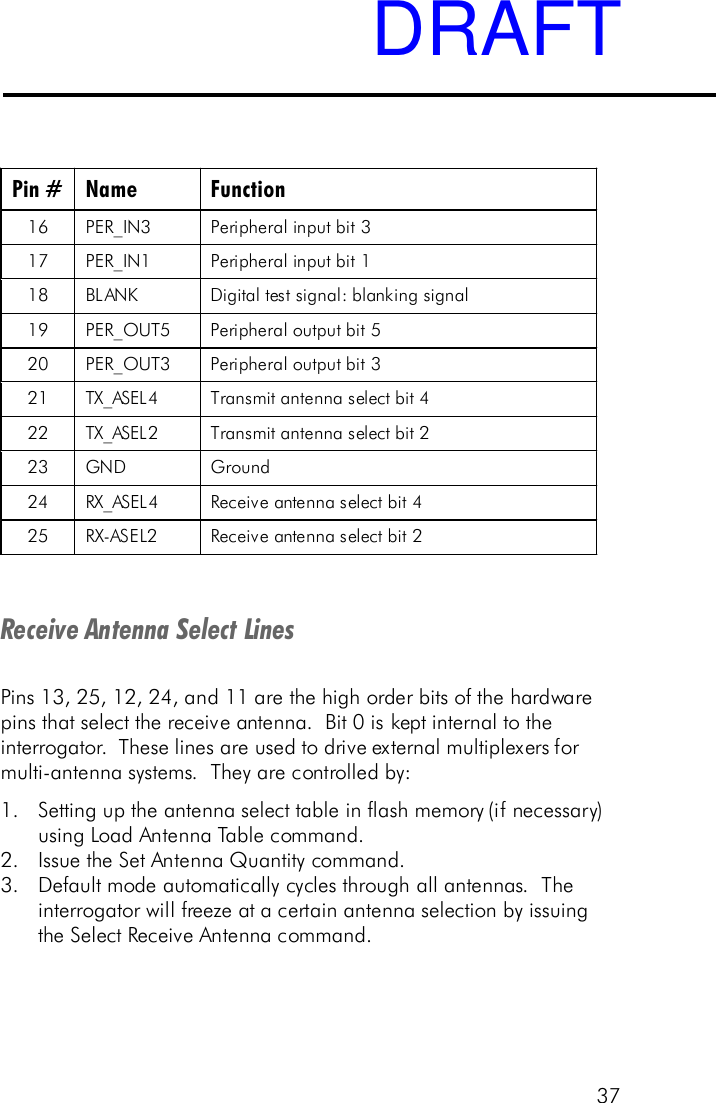
37Pin # Name Function 16 PER_IN3 Peripheral input bit 3  17 PER_IN1 Peripheral input bit 1  18 BLANK Digital test signal: blanking signal 19 PER_OUT5 Peripheral output bit 5  20 PER_OUT3 Peripheral output bit 3  21 TX_ASEL4  Transmit antenna select bit 4  22  TX_ASEL2  Transmit antenna select bit 2  23 GND Ground 24 RX_ASEL4  Receive antenna select bit 4  25 RX-ASEL2  Receive antenna select bit 2   Receive Antenna Select LinesPins 13, 25, 12, 24, and 11 are the high order bits of the hardwarepins that select the receive antenna.  Bit 0 is kept internal to theinterrogator.  These lines are used to drive external multiplexers formulti-antenna systems.  They are controlled by:1. Setting up the antenna select table in flash memory (if necessary)using Load Antenna Table command.2. Issue the Set Antenna Quantity command.3. Default mode automatically cycles through all antennas.  Theinterrogator will freeze at a certain antenna selection by issuingthe Select Receive Antenna command.DRAFT
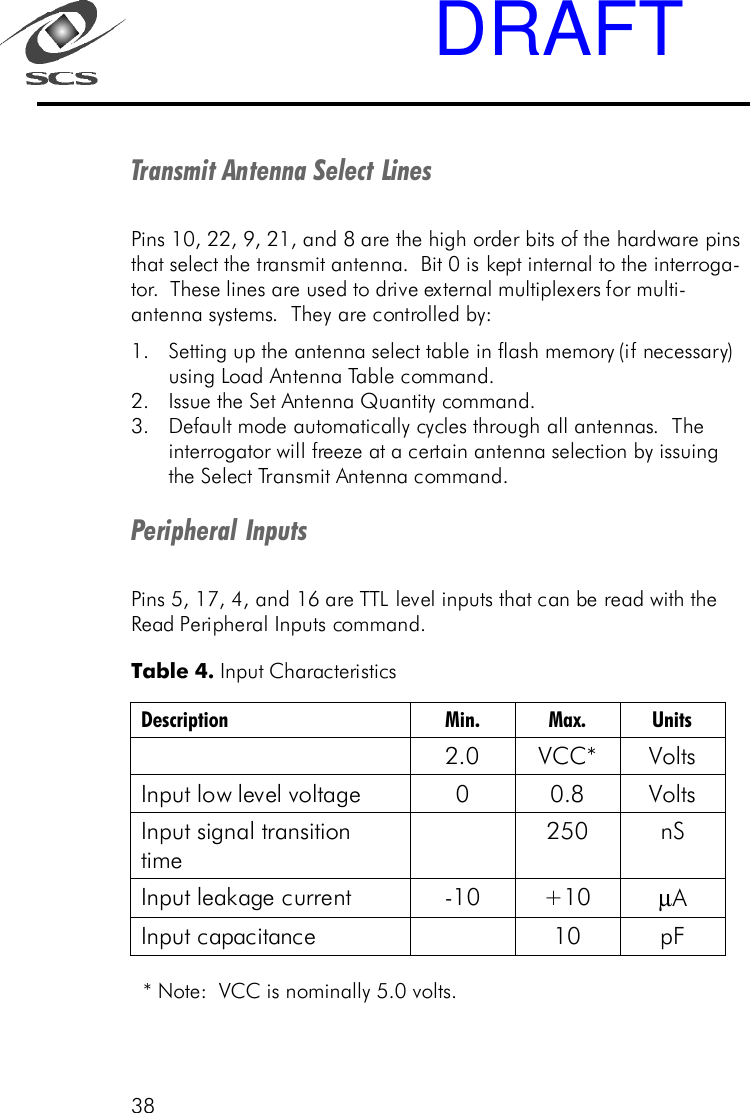
38Transmit Antenna Select LinesPins 10, 22, 9, 21, and 8 are the high order bits of the hardware pinsthat select the transmit antenna.  Bit 0 is kept internal to the interroga-tor.  These lines are used to drive external multiplexers for multi-antenna systems.  They are controlled by:1. Setting up the antenna select table in flash memory (if necessary)using Load Antenna Table command.2. Issue the Set Antenna Quantity command.3. Default mode automatically cycles through all antennas.  Theinterrogator will freeze at a certain antenna selection by issuingthe Select Transmit Antenna command.Peripheral InputsPins 5, 17, 4, and 16 are TTL level inputs that can be read with theRead Peripheral Inputs command. * Note:  VCC is nominally 5.0 volts.Table 4. Input Characteristics Description Min. Max. Units  2.0  VCC* Volts  Input low level voltage  0   0.8  Volts  Input signal transition time  250 nS Input leakage current  - 10 +10 µA  Input capacitance    10 pF  DRAFT
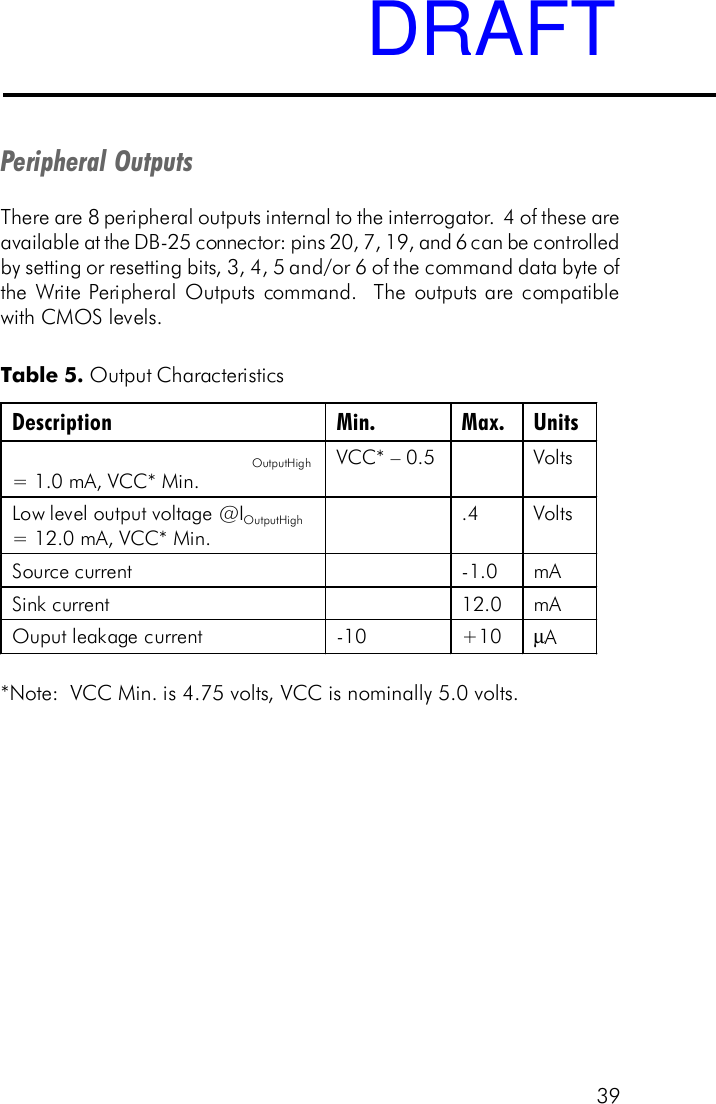
39Peripheral OutputsThere are 8 peripheral outputs internal to the interrogator.  4 of these areavailable at the DB-25 connector: pins 20, 7, 19, and 6 can be controlledby setting or resetting bits, 3, 4, 5 and/or 6 of the command data byte ofthe Write Peripheral Outputs command.  The outputs are compatiblewith CMOS levels.Table 5. Output Characteristics*Note:  VCC Min. is 4.75 volts, VCC is nominally 5.0 volts.Description Min. Max. Units OutputHigh = 1.0 mA, VCC* Min. VCC* – 0.5     Volts  Low level output voltage @IOutputHigh = 12.0 mA, VCC* Min.  .4  Volts Source current    - 1.0  mA Sink current    12.0  mA Ouput leakage current  - 10 +10 µA   DRAFT
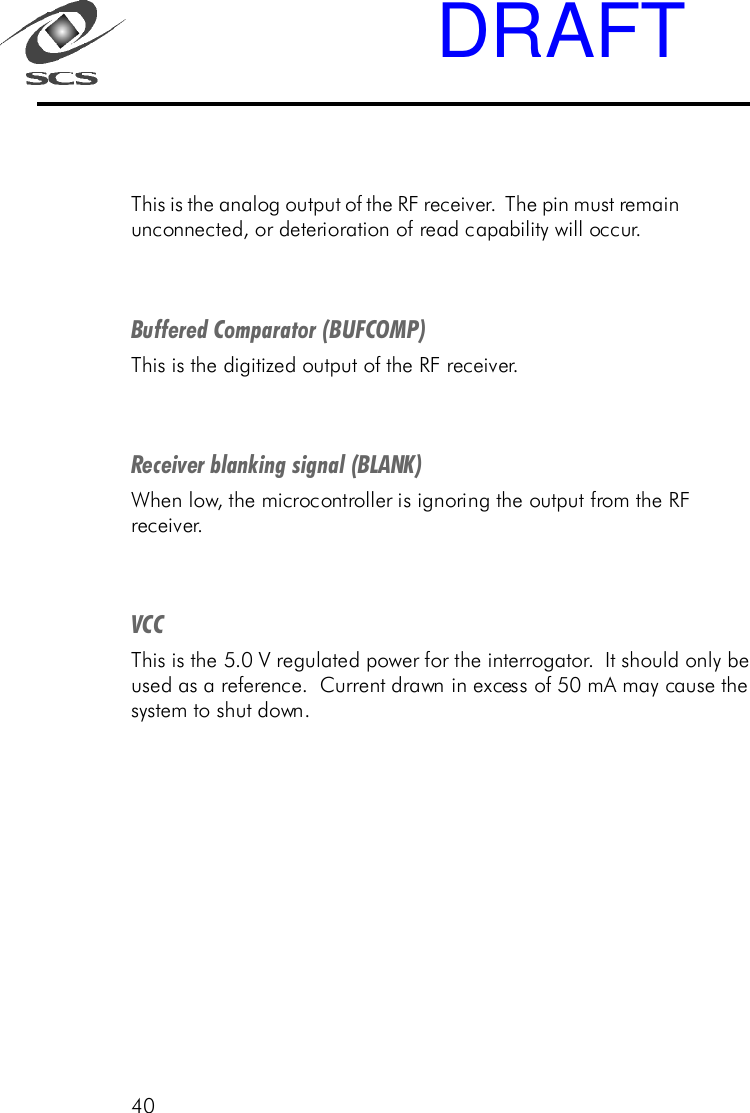
40This is the analog output of the RF receiver.  The pin must remainunconnected, or deterioration of read capability will occur.Buffered Comparator (BUFCOMP)This is the digitized output of the RF receiver.Receiver blanking signal (BLANK)When low, the microcontroller is ignoring the output from the RFreceiver.VCCThis is the 5.0 V regulated power for the interrogator.  It should only beused as a reference.  Current drawn in excess of 50 mA may cause thesystem to shut down.DRAFT
41Limited WarrantySCS warrants its Dura-label to be free from defects in workmanship and materials, undernormal use and service, for a period of ninety (90) days from receipt of products.SCS warrants its Scanner to be free from defects in workmanship and materials, undernormal use and service, for a period of 1 year from date of receipt.If a product does not operate as warranted during its applicable warranty period, SCSshall, at its option, repair the defective product or deliver to Customer an equivalentproduct to replace the defective item. All products that are replaced shall become theproperty of SCS. Replacement products may be new or reconditioned. The warranty forreplacement or reconditioned product is the same as the equivalent newly purchasedproduct.SCS reserves the right to refuse to warranty repair any product that has been subjected toany abnormal electrical, mechanical, or environmental abuse.FCC Part 15 ComplianceThe FCC has established rules that permit the scanner and tag system to be used withinacceptable bounds of radio frequency emissions. Your scanner and tag system complieswith Part 15 of the FCC Rules.Operation of the Scanner and Label system is subject to the following conditions: Thisdevice may not cause harmful interference; This device may accept any interferencereceived, including interference that may cause undesired operation.This device complies with the limits for a Class B digital device, pursuant to Part 15. TheClass B limits help ensure that this device provides reasonable protection againstharmful interference in residential installation. This equipment generates, uses, and canradiate radio frequency energy and, if not installed and used in accordance with theinstructions in this manual, may cause harmful interference to radio communications.DRAFT
42Radio Frequency (RF) exposure limitsfor operators of this deviceOperators of this device must have knowledge of their RF exposure conditions in orderfor the device to comply with FCC-adopted RF exposure limits for persons in the“controlled exposure environment”.  (At 3”, the average RF exposure for operators is5.0 mW/cm .)  Operators should maintain an estimated separation distance of 8 cmor 3” from the transmitter, while in operation.  They should not remain closer than thesuggested distance for any continuous 6 minute interval.  Holding “Tags” in front ofthe transmitter for brief moments, at closer than 3” is allowed provided the averageexposure in any 6 minute interval is less than 5.0 mW/cm 2.  For example, if anoperator spends 50% of the time with his/her hands or body closer than 3” to thetransmitter while spending the other 50% of the time at more than 5” away, theallowed RF exposure limits will be satisfied.  Operators should use their own judgmentto limit their exposure to the allowed RF exposure limits with control of exposureconditions, separation distance from the transmitter, and duration of exposure.  Whilethis device is in operation, nearby persons who have no knowledge of being in the RFfields of this device should be at least 7” away from the transmitter in order for thisdevise to be compliant with the FCC-adopted RF exposure limits.DisclaimerOperation of any radio transmitting equipment, including the Scanner, may interferewith the functionality of inadequately protected medical devices. Consult a physicianor the manufacturer of the medical device if you have any questions. Other electronicequipment may also be subject to interference.SCS Support (858) 485-91968:00 a.m. – 5:00 p.m. PSTEmail – techsupport@SCS-Corp.comDRAFT
43DRAFT

Navigation menu