Skylink Technologies PM3182 Wireless Plug-in ON/Off Control User Manual PM 318 2 UserMan
Skylink Technologies Inc Wireless Plug-in ON/Off Control PM 318 2 UserMan
PM-318-2_UserMan
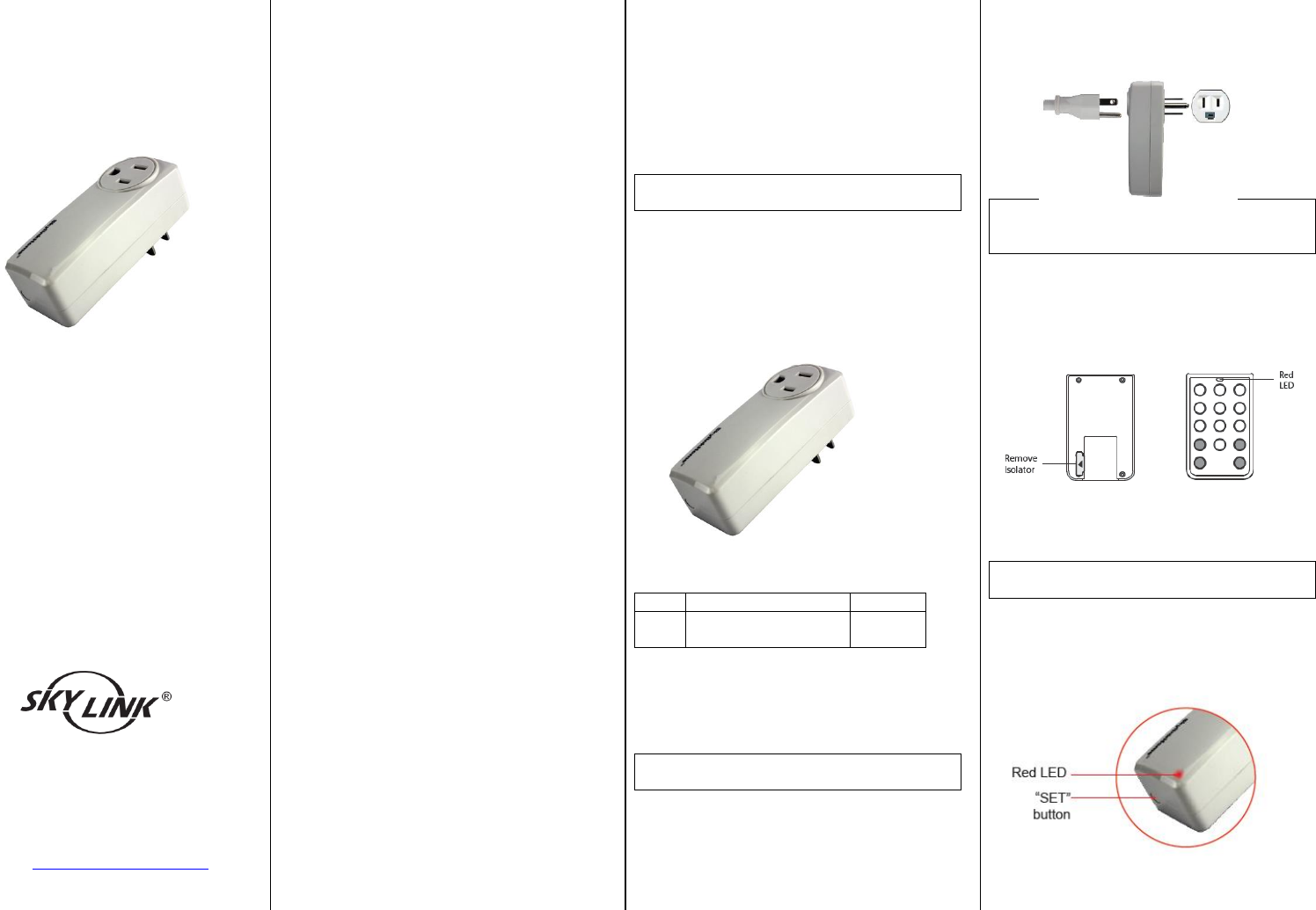
PM-318 Series
INSTALLATION INSTRUCTIONS
Wireless Plug-in On/Off Control
Model : PM-318-2
Congratulations on your purchase of the
Skylink Wireless Plug-in Control model PM-318-2.
The Plug-in Control let you control power to your
appliances with a remote button. You will find
the installation to be simple and be able to get
the system up and running with little effort.
ONE YEAR WARRANTY
This product is guaranteed to be free of defects
in materials and workmanship for 1 year from
the date of purchase. If this product is defective,
call 1-800-304-1187 for repair or replacement
parts. Guarantee does not include normal wear
and tear or batteries.
If you have any questions, problems or missing
parts, please call Skylink Customer Support:
9:00am – 5:00pm EST, Monday-Friday.
1-800-304-1187
Or e-mail us at support@skylinkhome.com
www.skylinkhome.com
SAFETY INFORMATION
This device complies with Part 15 of the FCC
Rules and Industry Canada's licence-exempt
RSSs. Operation is subject to the following two
conditions: (1) This device may not cause
harmful interference, and (2) This device must
accept any interference received, including
interference that may cause undesired
operation.
NOTE: This equipment has been tested and
found to comply with the limits for a Class B
digital device, pursuant to Part 15 of the FCC
Rules. These limits are designed to provide
reasonable protection against harmful
interference in a residential installation. This
equipment generates, uses and can radiate radio
frequency energy and, if not installed and used
in accordance with the instructions, may cause
harmful interference to radio communications.
However, there is no guarantee that interference
will not occur in a particular installation. If this
equipment does cause harmful interference to
radio or television reception, which can be
determined by turning the equipment off and on,
the user is encouraged to try to correct the
interference by one or more of the following
measures:
□Reorient or relocate the receiving antenna.
□Increase the separation between the
equipment and receiver.
□Connect the equipment into an outlet on a
circuit different from that to which the
receiver is connected.
□Consult the dealer or an experienced radio/TV
technician for help.
Le présent appareil est conforme aux Partie 15
des règlements de la FCC et CNR d'Industrie
Canada applicables aux appareils radio exempts
de licence. L'exploitation est autorisée aux deux
conditions suivantes :
(1) l'appareil ne doit pas produire de brouillage,
et
(2) l'utilisateur de l'appareil doit accepter tout
brouillage radioélectrique subi, même si le
brouillage est susceptible d'en compromettre le
fonctionnement.
WARNING:
Changes or modifications to this unit not
expressly approved by the party responsible for
compliance could void the user’s authority to
operate the equipment.
CAUTION: RISK OF ELECTRICAL SHOCK. FOR
INDOOR USE ONLY.
Package Contents
Parts
Description
Quantity
A
Wireless Plug-in
Control
1
Section 1 – Installation of Plug-in
Control
Note: The Plug-in Control provides maximum
rating of 1500W.
1. Plug in the appliance that you would like to
remotely operate to the remote controlled
outlet on the Plug-in Control. i.e. lamps, fans.
2. Plug your Plug-in Control into a wall outlet.
Section 2- Setup the Remote
Note: If the LED does not flash when the
button is pressed. Refer to the Section 6 for
instructions on battery replacement.
1. Remove the battery isolator from the back of
the remote. The red LED will on once.
2. Press the button on the remote. The red LED
should flash. The remote is now ready to use.
Section 3- Programming the Remote
and Plug-in Control
Note: Use a sharp non-conductive object, like a
pen, to press the PROG button on the remote.
1. Press and hold the SET button on the Plug-in
Control for 5 seconds, until the red LED flash.
Release the ‘SET’ button.
2. Press the PROG button on the back of the
remote with a sharp object.
3. Press the button on the remote that you
would like to program into the Plug-in Control.
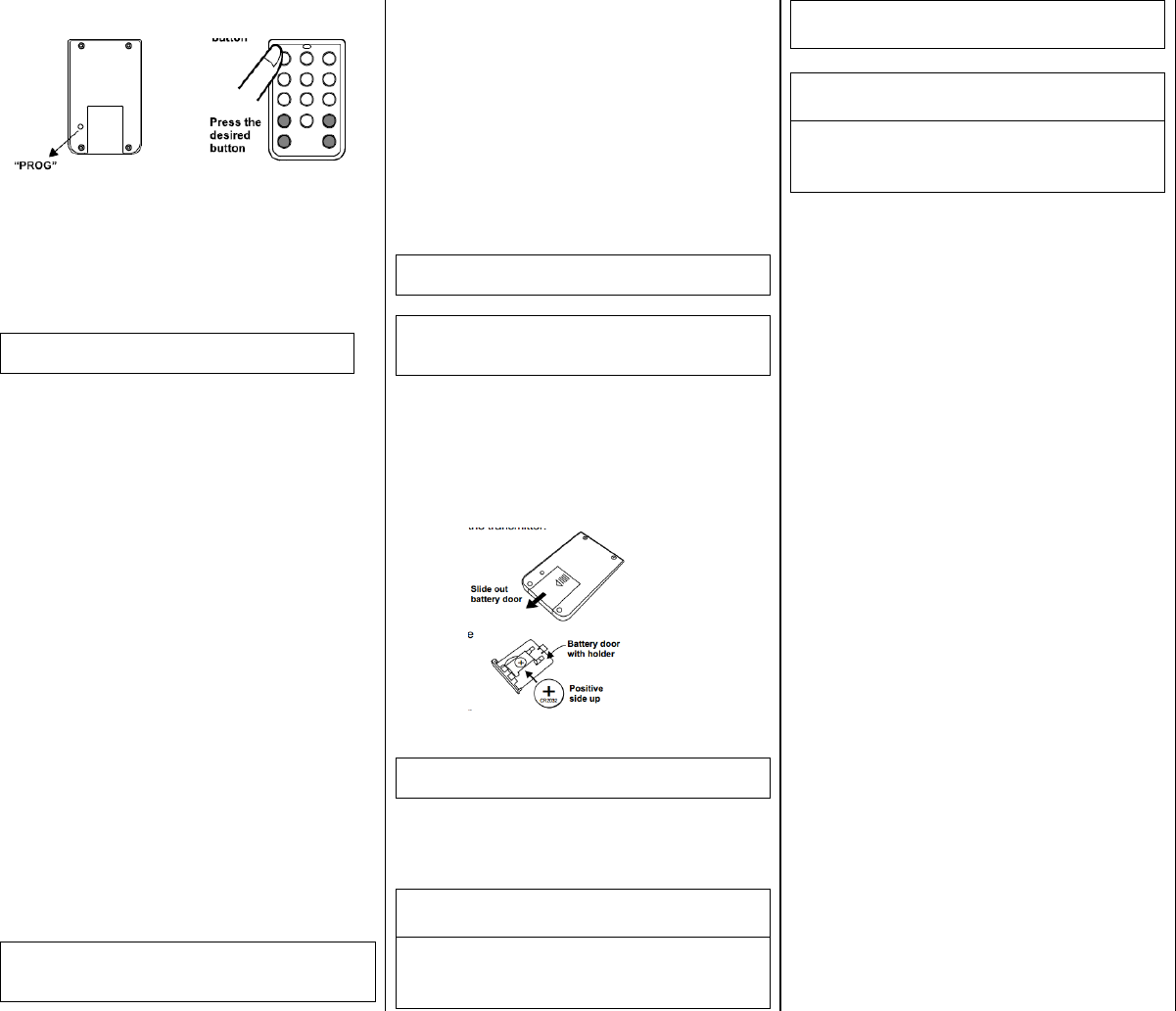
PM-318 Series
4. Once the remote is programmed, the
corresponding outlet red LED flashes quickly
and then off. You have successfully to
program the remote.
Section 4 – Operation
Note: Use remote or manually toggle on
the Plug-in Control.
A. Use Remote:
1. Press the programmed button on the remote
to ON/OFF the controlled outlet.
B – Use the SET button to toggle manually:
1. Press the SET button once on the Plug-in
Control to toggle ON/OFF the controlled
outlet.
Section 5- Programming to the
Receiver
1. Open SkylinkNet App and tap on “System
Settings”.
2. Tap on “Set-up Wizard”.
3. Tap on “Add Device".
4. Tap on “2-way Appliances".
5. Name your 2-way appliance and location and
tap on “Continue”.
6. Refer to section 3 to set PM-318-2 in
programming mode; then on the APP, tap on
"Learn Now".
Section 6- Erase remote from the
Plug-in Control
NOTE: To erase any sensors or remote from the
Power Hub, you need reset the Plug-in Control
and learn the sensors/remotes you wish to keep.
1. Turn off the Main switch on the Power Hub.
2. Press and hold the SET button on the Power
Hub and then turn on the Main switch.
3. Release the SET button when the LED
indicators (3-4-5) are flashing on the Power
Hub.
4. You have successfully erased all the remotes
from the Power Hub.
Section 7- Replacing the Battery in
Remote
NOTE: The remote is powered by a CR2032
Lithium battery.
NOTE: When the operating range is reduced, or
when the LED does not flash during operation, it
is time to replace the battery.
1. Slide out the battery door.
2. Take out the old battery.
3. Place the new battery in position
4. Insert the battery door with battery.
NOTE: Dispose of old battery promptly and
properly.
Section 8- FAQ
Q: The Plug-in Control does not respond to
the remote.
A: You must program the remote to the
Plug-in Control before they can work
together.
A: The device(s) must be plugged in the
remote controlled outlets.
Q: Can I erase just one remote from the
Power Hub?
A: You must erase all the remotes in the
Plug-in Control and then program the
remote you want to keep.
Section 9- Technical Specifications
Input Voltage: 120VAC, 60Hz
Maximum Rating: 12.5 Amps
Maximum Loading: 1500W
Receiver Operating Frequency: 317.5MHz
Transmitter Operating Frequency: 433.9MHz
CUSTOMER SERVICE
17 Shread Avenue,
Brampton, Ontario,
Canada L6Y 1J3
Email:support@skylinkhome.com
http://www.skylinkhome.com
©2015 SKYLINK GROUP
US Office
Securelink Inc.,
1180-D East Francis Street,
Ontario, CA 91761, USA
Tel: (909) 673-1778