SmartBridges DOLPHIN Wireless airPoint & airBridge User Manual 301701

SmartBridges Pte Ltd Wireless airPoint & airBridge 301701

users manual

  airBridge TOTAL Wireless Ethernet Client         User  Manual  Revision 1.42 airPointPRO  TOTAL  Wireless  Access Point airPoint  TOTAL  Wireless  Access  Point  For Windows 98 / ME / NT / 2000 / XP  RF  Safety  Precaution     airBridge  TOTAL , airPoint  PRO  TOTAL  and  airPoint  TOTAL  gives  out  electromagnetic  Radiation  through  the  antenna . . It  is  harmful  to  be  in  contact  with  the  antenna  or  to  be  in  close  proximity  when  the  airBridge  TOTAL  or  airPointPRO  TOTAL  or  airPoint  TOTAL is  powered  ON . The  safe  distance  is  23  centimetres   from  the  antenna . The  indication  for  RF  radiation  is  the  lighting  up  of  Blue  LED  on  the  device .   Introduction : airBridge TOTAL airBridge TOTAL is a wireless client  with  integrated  13  dBi  panel  antenna which can be used to connect any PC with Ethernet port to a network / PC / Internet wirelessly. It is a simple plug and play device needing no configuration. It  operates at 2.4 GHz ISM band.   It provides data rates upto 11Mbps and encryption capability of 64 bits or 128 bits. It can  interface with any wireless LAN device complying to 802.11b specifications. airBridge TOTAL can be used as a client device in a client to access point communication mode. Numerous applications like Broadband connectivity to farflung neighbourhood homes, wireless networking  of PC's in a campus with lot of foliage, wireless networking across waterways, Roads, Valleys and rough  terrain. The PC gets connected to the Internet through the airBridge TOTAL and Access point.  airPointPRO  TOTAL : airPointPRO  TOTAL   is  wireless  Access  Point  . It  operates  at  2.4 GHz  ISM  band  and  conforms  to  IEEE  802.11b  specs .Using  high  gain  external  Omni / Directional   antennas  it  can  provide  a  range  of upto  32  kilometers . It  can  provide  data  rates  upto  11 Mbps . Encryption  capability  of  64  bits  or  128 bits  provides  network  security .  airPointPRO  TOTAL  can  provide  network  connection  to  any  Wi – Fi   compliant  device . airPointPRO  TOTAL  can  be  used  as  Access  Point  or  as  Client  Bridge  or  as  Wireless Bridge .The  home  PC  gets  connected  to  the  internet  through  the  airBridge  TOTAL  and  airPointPRO  TOTAL . The  airPoint  PRO  TOTAL  is  identical  to  airBridge  TOTAL  .    airPoint  TOTAL : airPoint  TOTAL  is  wireless  Access  Point . It  operates  at  2.4  GHz  ISM  band  and  conforms  to  IEEE   802.11b  specs . Using  high  gain  external   Omni / Directional  antenna  it  can  provide  a  range  up  to  32   Kilometers . It  can  provide  data  rates  upto  11 Mbps . Encryption  capability of  64  bits  or  128  bits  provides   network  security . airPoint  TOTAL  can  provide  network  connection  to  any   Wi – Fi  compliant  device.  airPoint  TOTAL  can  be  used  as  Client   Bridge  also . The  home  PC  gets  connected  to  the  internet  through  the  airBridge  TOTAL  as  client  and  airPoint  PRO  TOTAL  or  airPoint  TOTAL  as  Access  Point . .The  airPoint  TOTAL  is  identical  to  airBridge  TOTAL  .  The  following  description  up  to   “  Configuration “  is  common  to  airBridge  TOTAL , airPoit  PRO  TOTAL
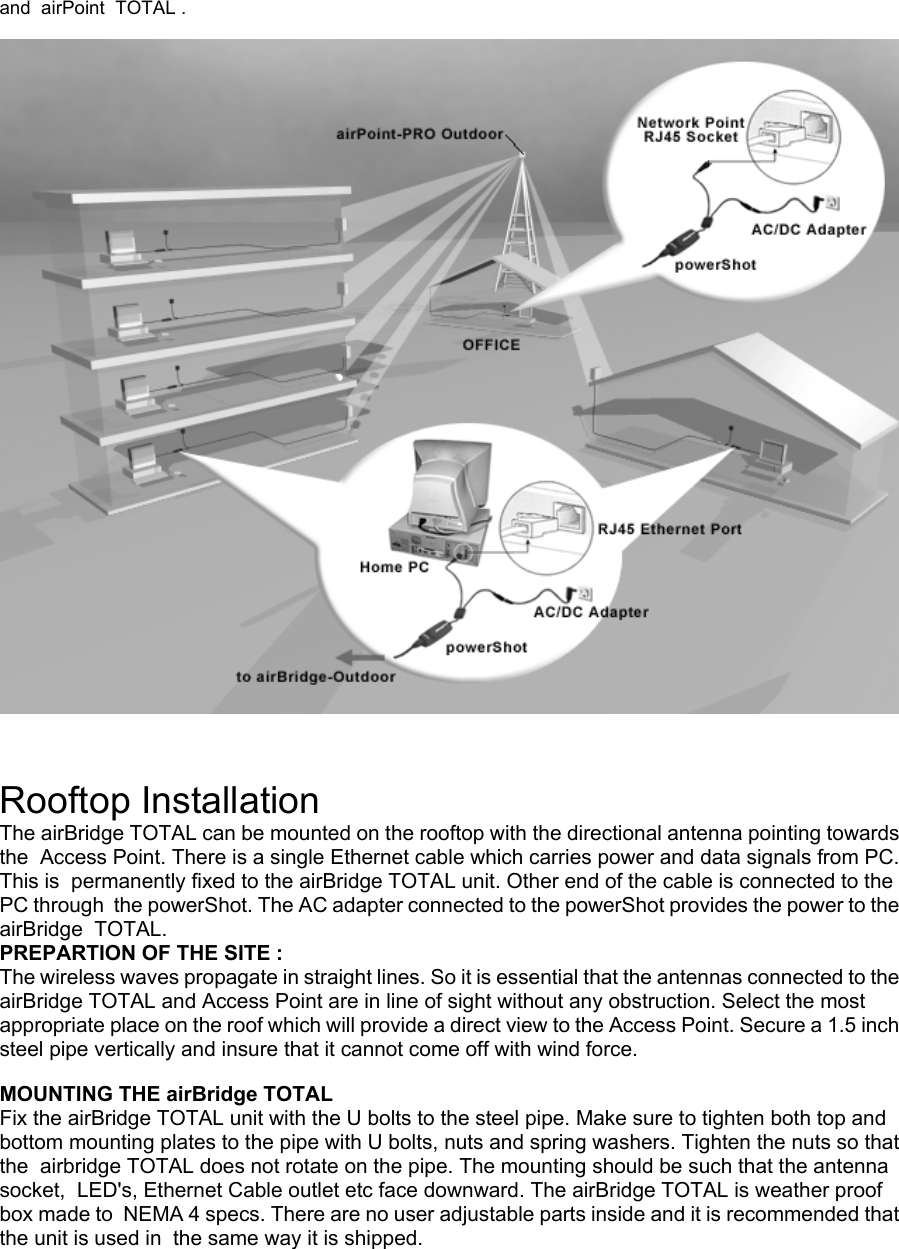
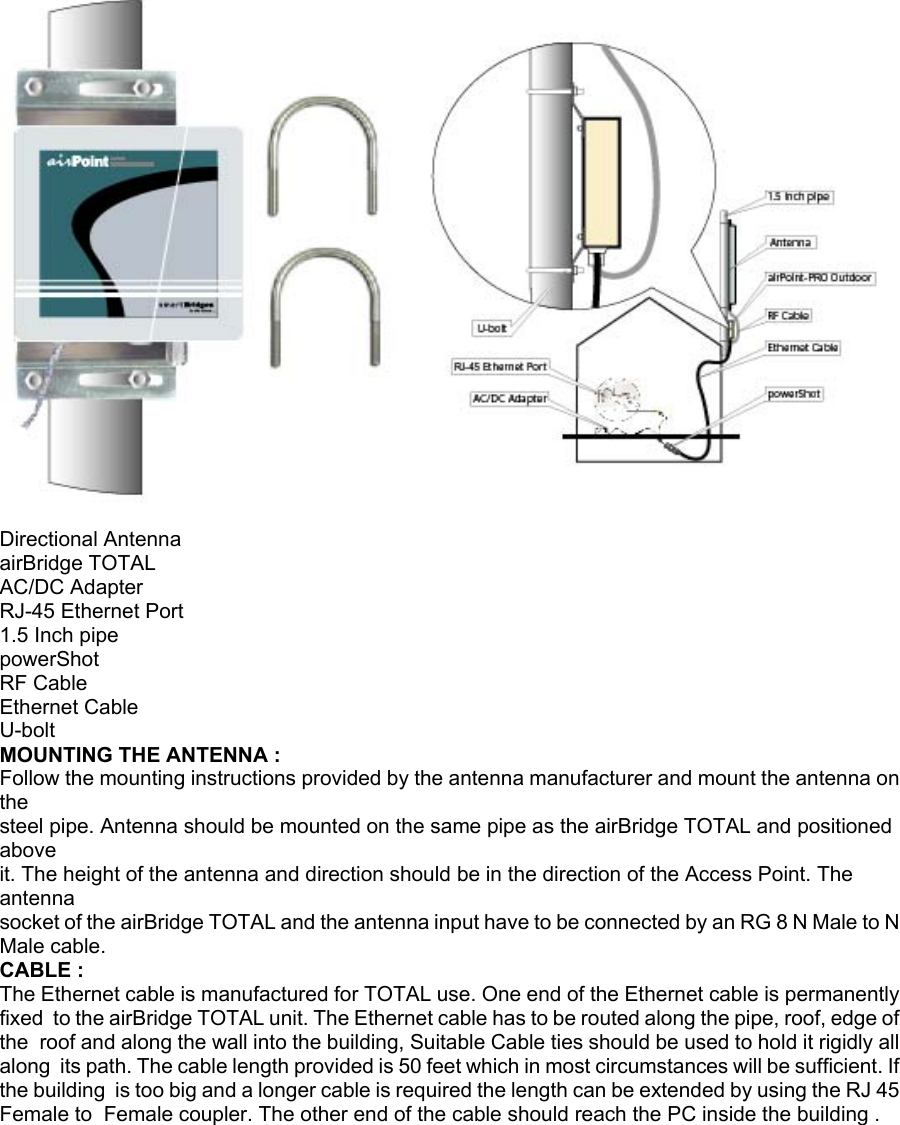
and  airPoint  TOTAL .      Rooftop Installation The airBridge TOTAL can be mounted on the rooftop with the directional antenna pointing towards the  Access Point. There is a single Ethernet cable which carries power and data signals from PC. This is  permanently fixed to the airBridge TOTAL unit. Other end of the cable is connected to the PC through  the powerShot. The AC adapter connected to the powerShot provides the power to the airBridge  TOTAL. PREPARTION OF THE SITE : The wireless waves propagate in straight lines. So it is essential that the antennas connected to the airBridge TOTAL and Access Point are in line of sight without any obstruction. Select the most appropriate place on the roof which will provide a direct view to the Access Point. Secure a 1.5 inch steel pipe vertically and insure that it cannot come off with wind force.   MOUNTING THE airBridge TOTAL Fix the airBridge TOTAL unit with the U bolts to the steel pipe. Make sure to tighten both top and bottom mounting plates to the pipe with U bolts, nuts and spring washers. Tighten the nuts so that the  airbridge TOTAL does not rotate on the pipe. The mounting should be such that the antenna socket,  LED's, Ethernet Cable outlet etc face downward. The airBridge TOTAL is weather proof box made to  NEMA 4 specs. There are no user adjustable parts inside and it is recommended that the unit is used in  the same way it is shipped.
  Directional Antenna airBridge TOTAL AC/DC Adapter RJ-45 Ethernet Port 1.5 Inch pipe powerShot RF Cable Ethernet Cable U-bolt MOUNTING THE ANTENNA : Follow the mounting instructions provided by the antenna manufacturer and mount the antenna on the steel pipe. Antenna should be mounted on the same pipe as the airBridge TOTAL and positioned above it. The height of the antenna and direction should be in the direction of the Access Point. The antenna socket of the airBridge TOTAL and the antenna input have to be connected by an RG 8 N Male to N Male cable. CABLE : The Ethernet cable is manufactured for TOTAL use. One end of the Ethernet cable is permanently fixed  to the airBridge TOTAL unit. The Ethernet cable has to be routed along the pipe, roof, edge of the  roof and along the wall into the building, Suitable Cable ties should be used to hold it rigidly all along  its path. The cable length provided is 50 feet which in most circumstances will be sufficient. If the building  is too big and a longer cable is required the length can be extended by using the RJ 45 Female to  Female coupler. The other end of the cable should reach the PC inside the building . airBridgeTOTAL
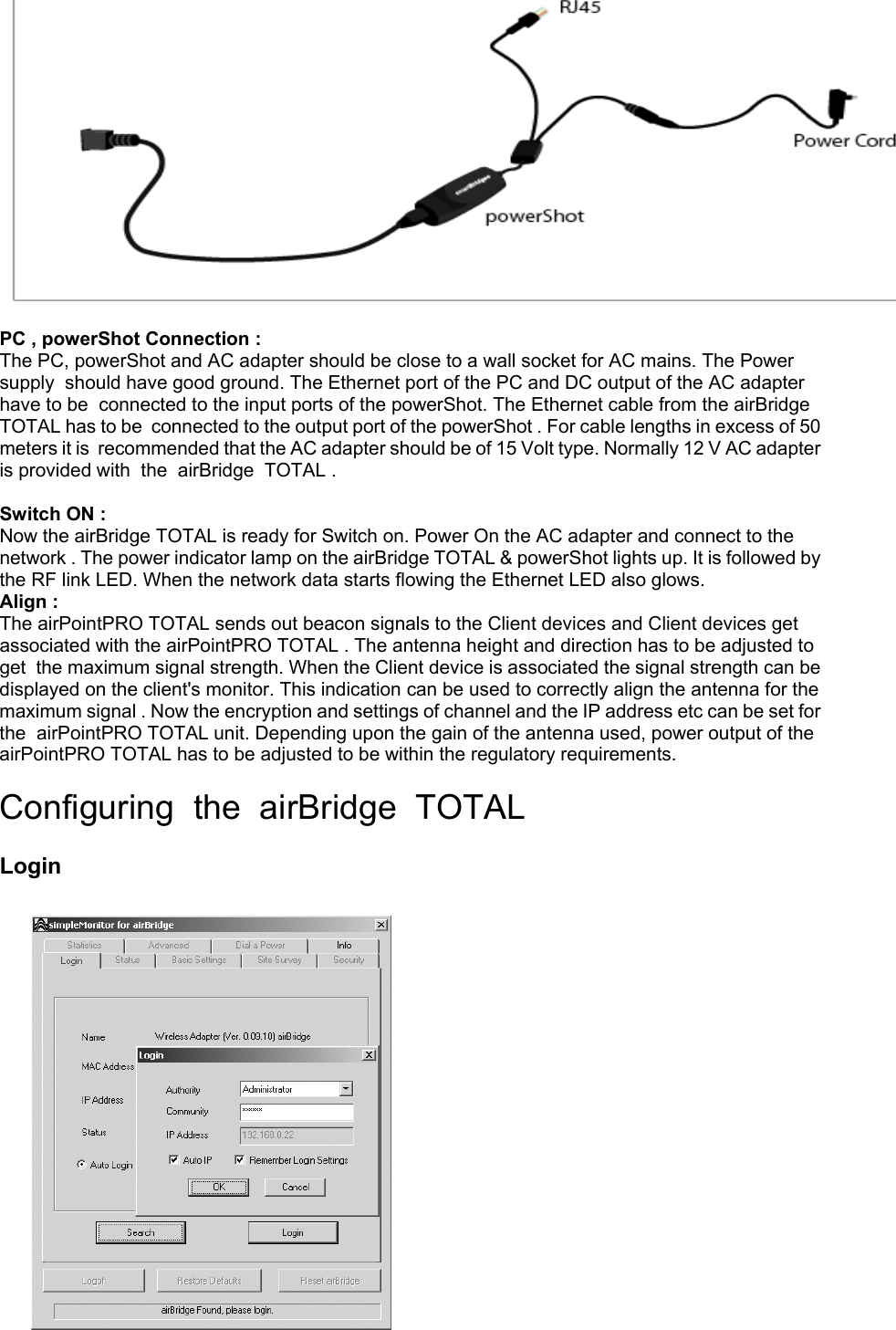
 PC , powerShot Connection : The PC, powerShot and AC adapter should be close to a wall socket for AC mains. The Power supply  should have good ground. The Ethernet port of the PC and DC output of the AC adapter have to be  connected to the input ports of the powerShot. The Ethernet cable from the airBridge TOTAL has to be  connected to the output port of the powerShot . For cable lengths in excess of 50 meters it is  recommended that the AC adapter should be of 15 Volt type. Normally 12 V AC adapter is provided with  the  airBridge  TOTAL .  Switch ON : Now the airBridge TOTAL is ready for Switch on. Power On the AC adapter and connect to the network . The power indicator lamp on the airBridge TOTAL & powerShot lights up. It is followed by  the RF link LED. When the network data starts flowing the Ethernet LED also glows. Align : The airPointPRO TOTAL sends out beacon signals to the Client devices and Client devices get associated with the airPointPRO TOTAL . The antenna height and direction has to be adjusted to get  the maximum signal strength. When the Client device is associated the signal strength can be displayed on the client's monitor. This indication can be used to correctly align the antenna for the maximum signal . Now the encryption and settings of channel and the IP address etc can be set for the  airPointPRO TOTAL unit. Depending upon the gain of the antenna used, power output of the airPointPRO TOTAL has to be adjusted to be within the regulatory requirements.  Configuring  the  airBridge  TOTAL   Login
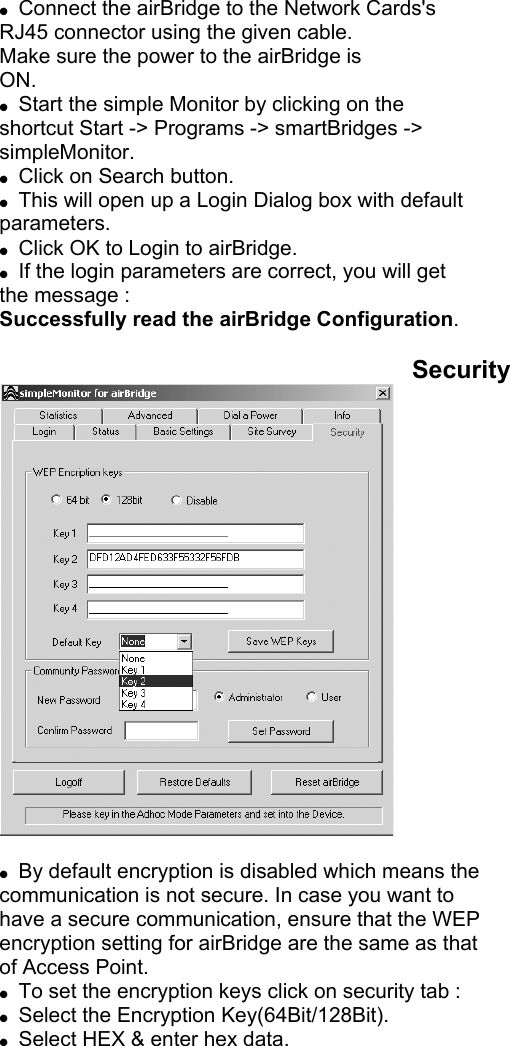
        ●  Connect the airBridge to the Network Cards's RJ45 connector using the given cable. Make sure the power to the airBridge is ON. ●  Start the simple Monitor by clicking on the shortcut Start -> Programs -> smartBridges -> simpleMonitor. ●  Click on Search button. ●  This will open up a Login Dialog box with default parameters. ●  Click OK to Login to airBridge. ●  If the login parameters are correct, you will get the message : Successfully read the airBridge Configuration.  Security   ●  By default encryption is disabled which means the communication is not secure. In case you want to have a secure communication, ensure that the WEP encryption setting for airBridge are the same as that of Access Point. ●  To set the encryption keys click on security tab : ●  Select the Encryption Key(64Bit/128Bit). ●  Select HEX & enter hex data.
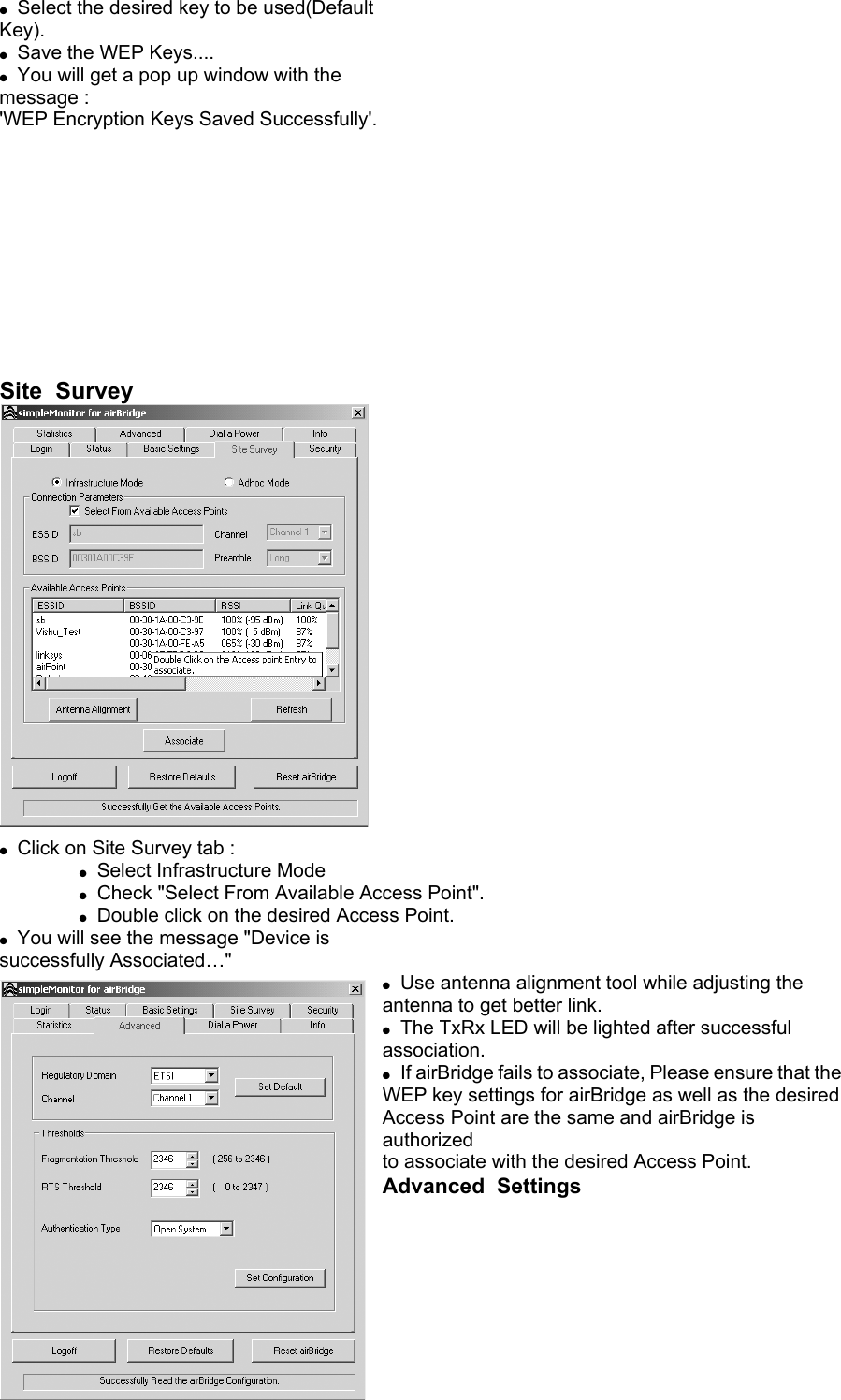
●  Select the desired key to be used(Default Key). ●  Save the WEP Keys.... ●  You will get a pop up window with the message : 'WEP Encryption Keys Saved Successfully'.            Site  Survey   ●  Click on Site Survey tab :   ● Select Infrastructure Mode   ● Check "Select From Available Access Point".   ● Double click on the desired Access Point. ●  You will see the message "Device is successfully Associated…" ●  Use antenna alignment tool while adjusting the antenna to get better link. ●  The TxRx LED will be lighted after successful association. ●  If airBridge fails to associate, Please ensure that the WEP key settings for airBridge as well as the desired Access Point are the same and airBridge is authorized to associate with the desired Access Point. Advanced  Settings
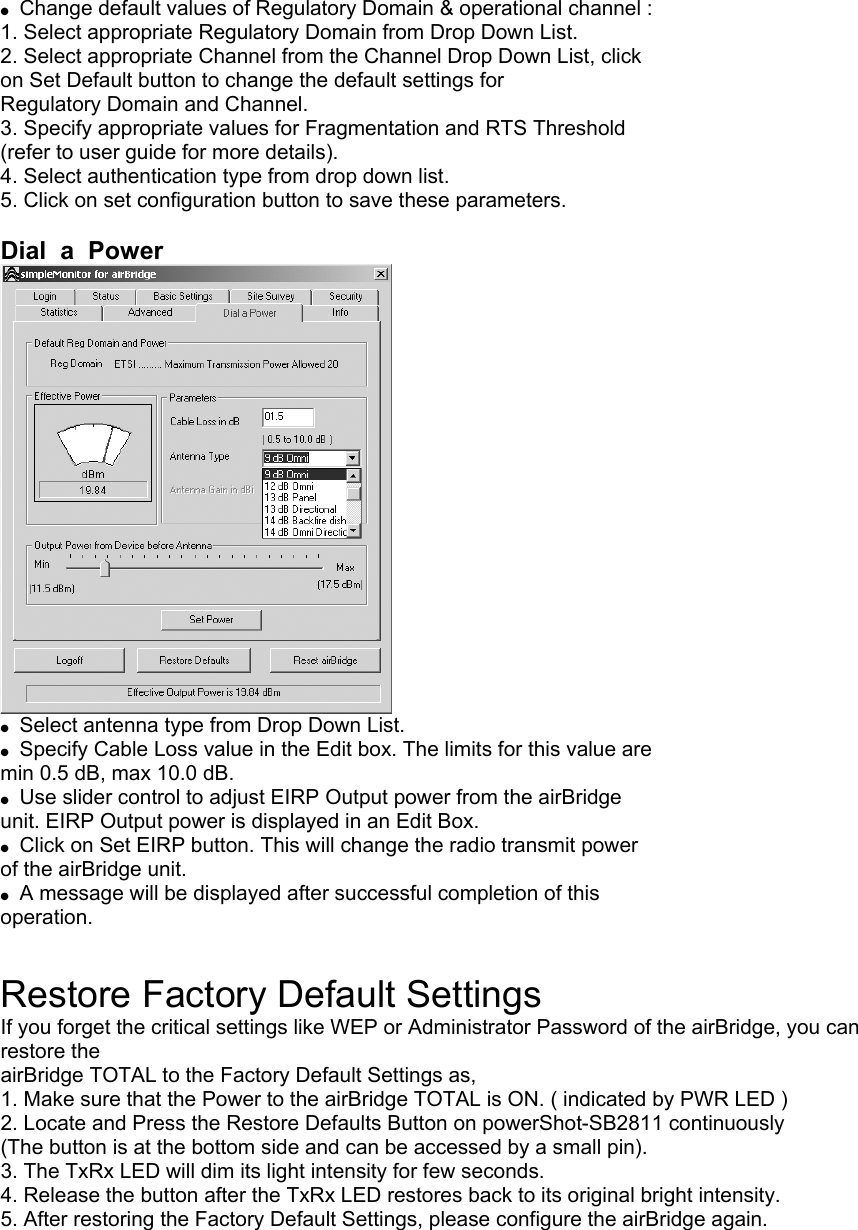
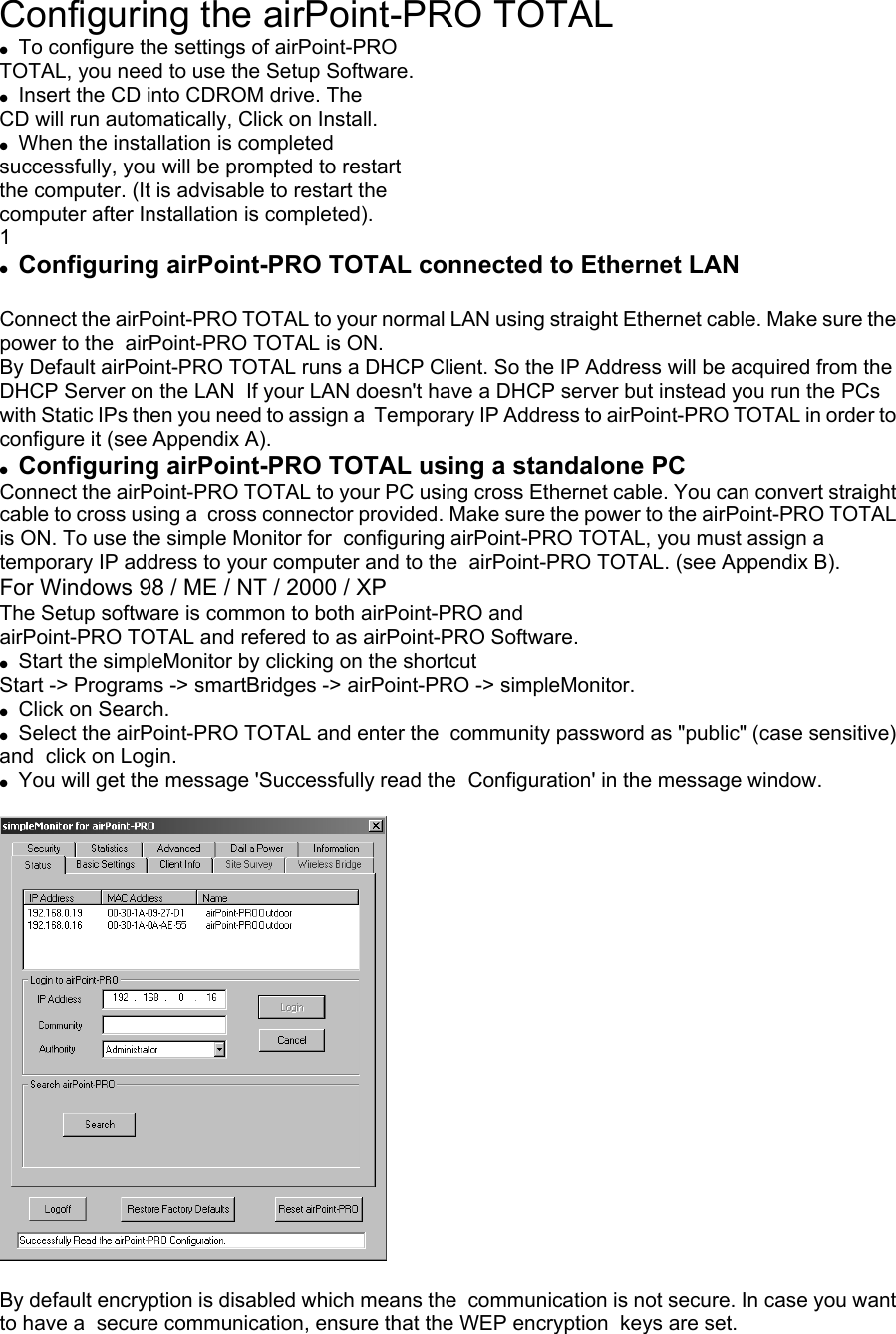
 ●  Change default values of Regulatory Domain & operational channel : 1. Select appropriate Regulatory Domain from Drop Down List. 2. Select appropriate Channel from the Channel Drop Down List, click on Set Default button to change the default settings for Regulatory Domain and Channel. 3. Specify appropriate values for Fragmentation and RTS Threshold (refer to user guide for more details). 4. Select authentication type from drop down list. 5. Click on set configuration button to save these parameters.  Dial  a  Power  ●  Select antenna type from Drop Down List. ●  Specify Cable Loss value in the Edit box. The limits for this value are min 0.5 dB, max 10.0 dB. ●  Use slider control to adjust EIRP Output power from the airBridge unit. EIRP Output power is displayed in an Edit Box. ●  Click on Set EIRP button. This will change the radio transmit power of the airBridge unit. ●  A message will be displayed after successful completion of this operation.  Restore Factory Default Settings If you forget the critical settings like WEP or Administrator Password of the airBridge, you can restore the airBridge TOTAL to the Factory Default Settings as, 1. Make sure that the Power to the airBridge TOTAL is ON. ( indicated by PWR LED ) 2. Locate and Press the Restore Defaults Button on powerShot-SB2811 continuously (The button is at the bottom side and can be accessed by a small pin). 3. The TxRx LED will dim its light intensity for few seconds. 4. Release the button after the TxRx LED restores back to its original bright intensity. 5. After restoring the Factory Default Settings, please configure the airBridge again.
Configuring the airPoint-PRO TOTAL ●  To configure the settings of airPoint-PRO   TOTAL, you need to use the Setup Software. ●  Insert the CD into CDROM drive. The CD will run automatically, Click on Install. ●  When the installation is completed successfully, you will be prompted to restart the computer. (It is advisable to restart the computer after Installation is completed). 1 ●  Configuring airPoint-PRO TOTAL connected to Ethernet LAN  Connect the airPoint-PRO TOTAL to your normal LAN using straight Ethernet cable. Make sure the power to the  airPoint-PRO TOTAL is ON. By Default airPoint-PRO TOTAL runs a DHCP Client. So the IP Address will be acquired from the DHCP Server on the LAN  If your LAN doesn't have a DHCP server but instead you run the PCs with Static IPs then you need to assign a  Temporary IP Address to airPoint-PRO TOTAL in order to configure it (see Appendix A). ●  Configuring airPoint-PRO TOTAL using a standalone PC Connect the airPoint-PRO TOTAL to your PC using cross Ethernet cable. You can convert straight cable to cross using a  cross connector provided. Make sure the power to the airPoint-PRO TOTAL is ON. To use the simple Monitor for  configuring airPoint-PRO TOTAL, you must assign a temporary IP address to your computer and to the  airPoint-PRO TOTAL. (see Appendix B). For Windows 98 / ME / NT / 2000 / XP The Setup software is common to both airPoint-PRO and airPoint-PRO TOTAL and refered to as airPoint-PRO Software. ●  Start the simpleMonitor by clicking on the shortcut Start -> Programs -> smartBridges -> airPoint-PRO -> simpleMonitor. ●  Click on Search. ●  Select the airPoint-PRO TOTAL and enter the  community password as "public" (case sensitive) and  click on Login. ●  You will get the message 'Successfully read the  Configuration' in the message window.    By default encryption is disabled which means the  communication is not secure. In case you want to have a  secure communication, ensure that the WEP encryption  keys are set.
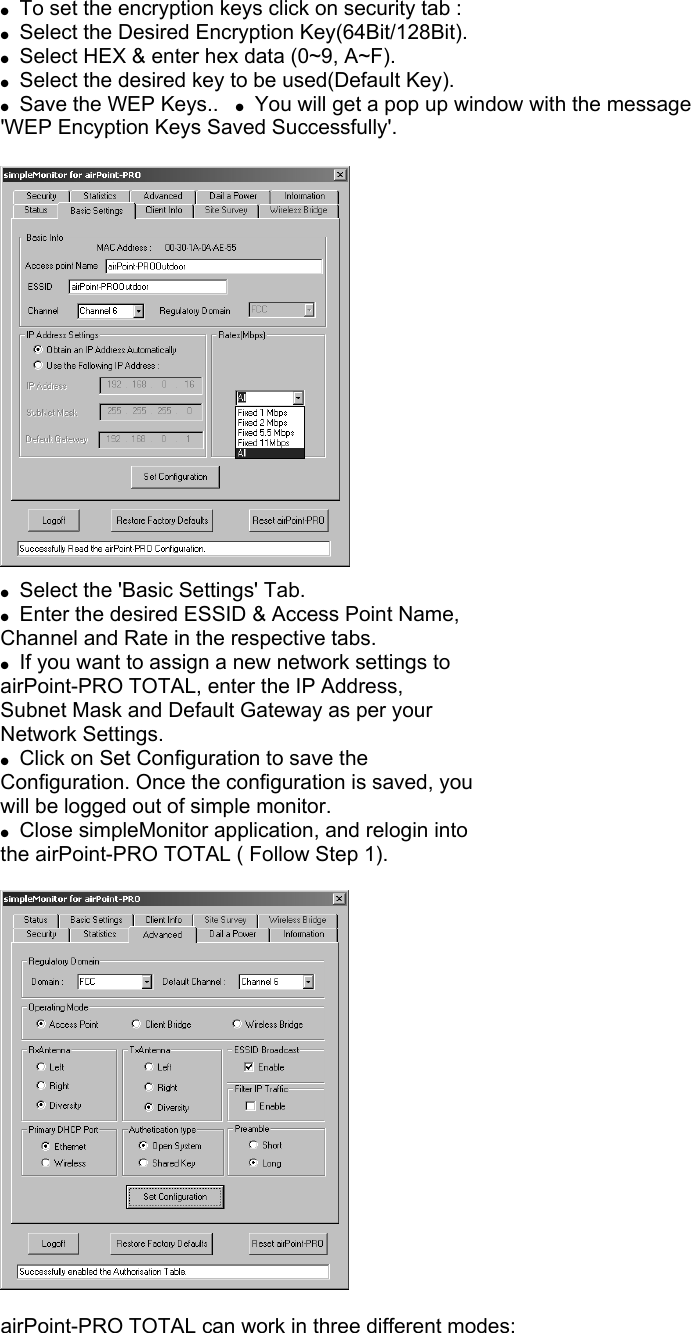
●  To set the encryption keys click on security tab : ●  Select the Desired Encryption Key(64Bit/128Bit). ●  Select HEX & enter hex data (0~9, A~F). ●  Select the desired key to be used(Default Key). ●  Save the WEP Keys..   ●  You will get a pop up window with the message 'WEP Encyption Keys Saved Successfully'.    ●  Select the 'Basic Settings' Tab. ●  Enter the desired ESSID & Access Point Name, Channel and Rate in the respective tabs. ●  If you want to assign a new network settings to airPoint-PRO TOTAL, enter the IP Address, Subnet Mask and Default Gateway as per your Network Settings. ●  Click on Set Configuration to save the Configuration. Once the configuration is saved, you will be logged out of simple monitor. ●  Close simpleMonitor application, and relogin into the airPoint-PRO TOTAL ( Follow Step 1).    airPoint-PRO TOTAL can work in three different modes:
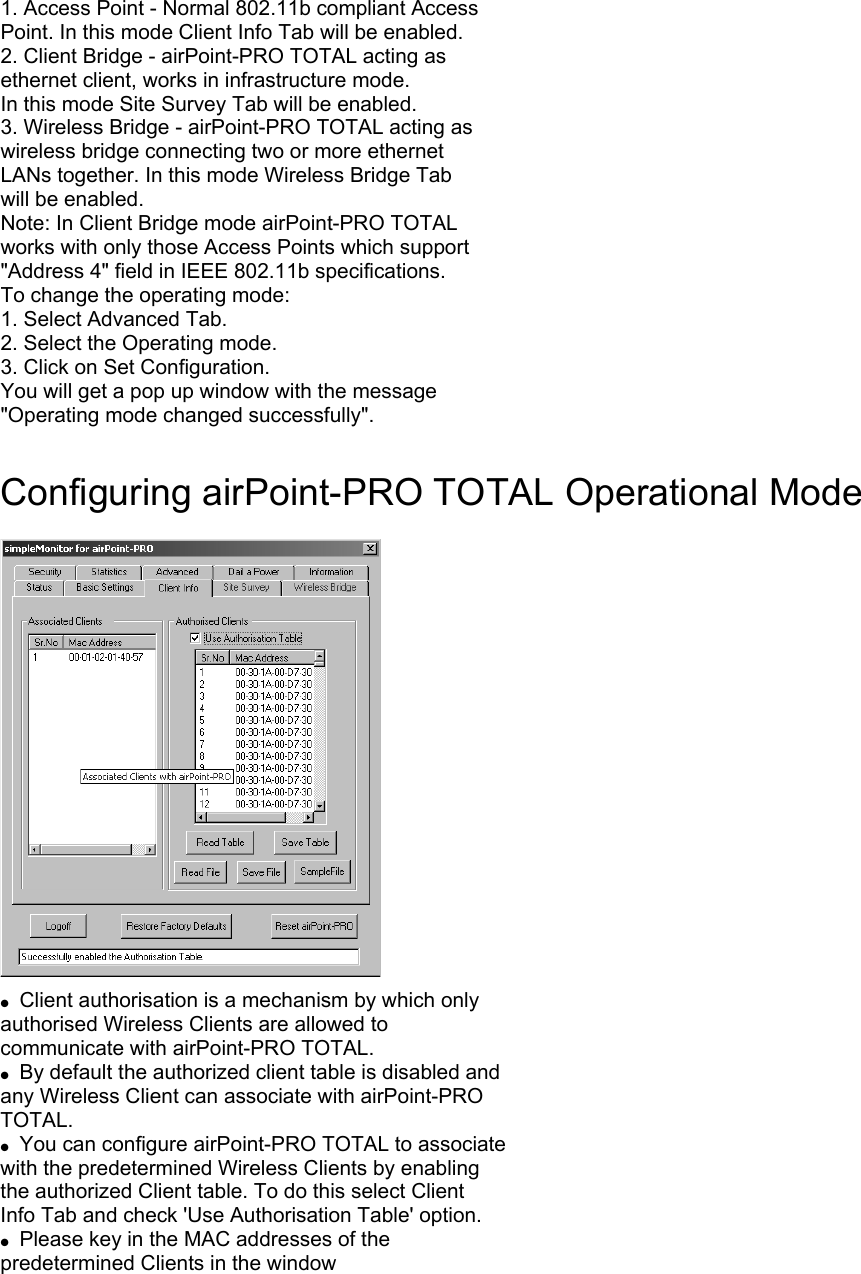
1. Access Point - Normal 802.11b compliant Access Point. In this mode Client Info Tab will be enabled. 2. Client Bridge - airPoint-PRO TOTAL acting as ethernet client, works in infrastructure mode. In this mode Site Survey Tab will be enabled. 3. Wireless Bridge - airPoint-PRO TOTAL acting as wireless bridge connecting two or more ethernet LANs together. In this mode Wireless Bridge Tab will be enabled. Note: In Client Bridge mode airPoint-PRO TOTAL works with only those Access Points which support "Address 4" field in IEEE 802.11b specifications. To change the operating mode: 1. Select Advanced Tab. 2. Select the Operating mode. 3. Click on Set Configuration. You will get a pop up window with the message "Operating mode changed successfully".  Configuring airPoint-PRO TOTAL Operational Mode    ●  Client authorisation is a mechanism by which only authorised Wireless Clients are allowed to communicate with airPoint-PRO TOTAL. ●  By default the authorized client table is disabled and any Wireless Client can associate with airPoint-PRO TOTAL. ●  You can configure airPoint-PRO TOTAL to associate with the predetermined Wireless Clients by enabling the authorized Client table. To do this select Client Info Tab and check 'Use Authorisation Table' option. ●  Please key in the MAC addresses of the predetermined Clients in the window
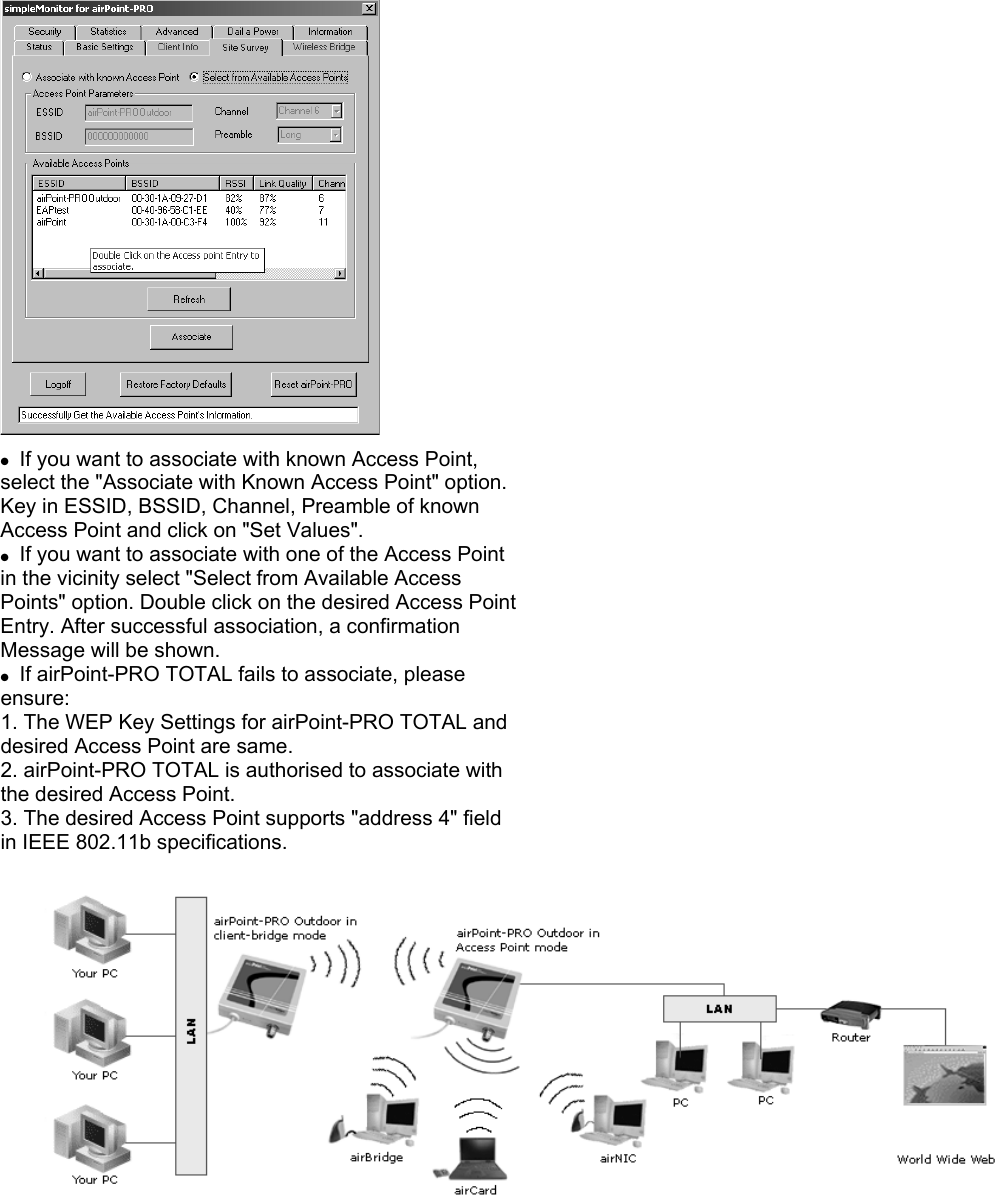
  ●  If you want to associate with known Access Point, select the "Associate with Known Access Point" option. Key in ESSID, BSSID, Channel, Preamble of known Access Point and click on "Set Values". ●  If you want to associate with one of the Access Point in the vicinity select "Select from Available Access Points" option. Double click on the desired Access Point Entry. After successful association, a confirmation Message will be shown. ●  If airPoint-PRO TOTAL fails to associate, please ensure: 1. The WEP Key Settings for airPoint-PRO TOTAL and desired Access Point are same. 2. airPoint-PRO TOTAL is authorised to associate with the desired Access Point. 3. The desired Access Point supports "address 4" field in IEEE 802.11b specifications.
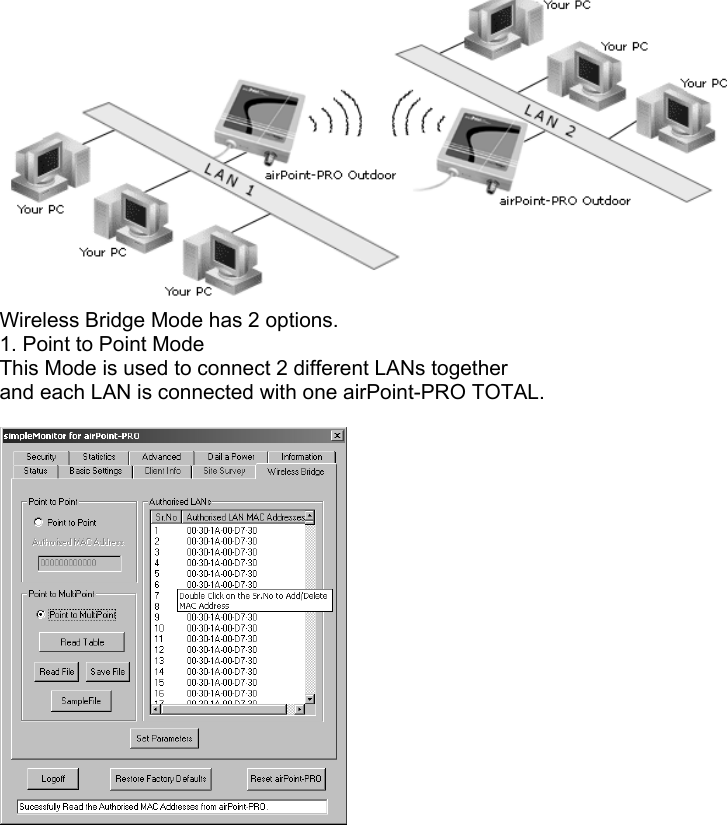
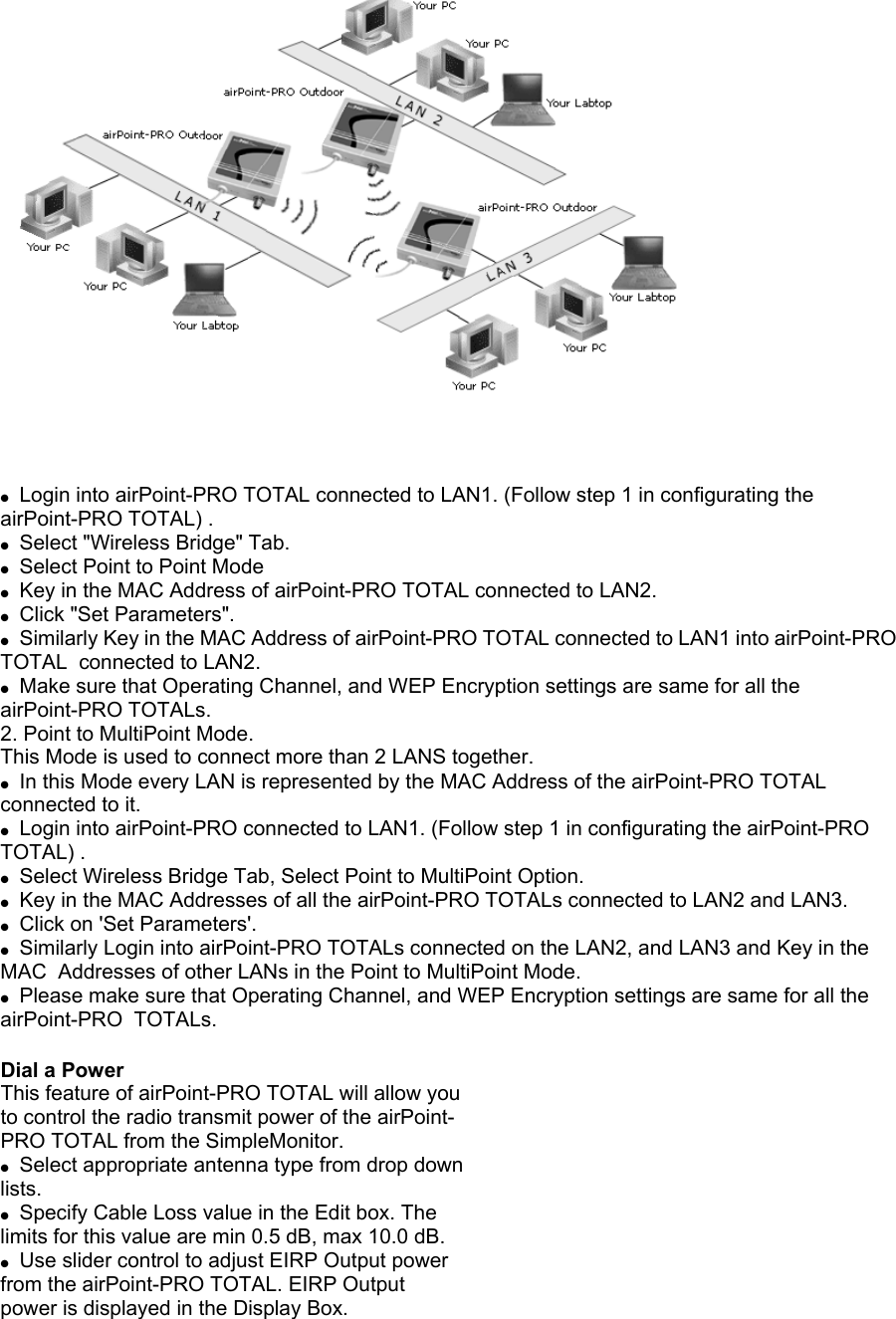
 Wireless Bridge Mode has 2 options. 1. Point to Point Mode This Mode is used to connect 2 different LANs together and each LAN is connected with one airPoint-PRO TOTAL.
 ●  Login into airPoint-PRO TOTAL connected to LAN1. (Follow step 1 in configurating the airPoint-PRO TOTAL) . ●  Select "Wireless Bridge" Tab. ●  Select Point to Point Mode ●  Key in the MAC Address of airPoint-PRO TOTAL connected to LAN2. ●  Click "Set Parameters". ●  Similarly Key in the MAC Address of airPoint-PRO TOTAL connected to LAN1 into airPoint-PRO TOTAL  connected to LAN2. ●  Make sure that Operating Channel, and WEP Encryption settings are same for all the airPoint-PRO TOTALs. 2. Point to MultiPoint Mode. This Mode is used to connect more than 2 LANS together. ●  In this Mode every LAN is represented by the MAC Address of the airPoint-PRO TOTAL connected to it. ●  Login into airPoint-PRO connected to LAN1. (Follow step 1 in configurating the airPoint-PRO TOTAL) . ●  Select Wireless Bridge Tab, Select Point to MultiPoint Option. ●  Key in the MAC Addresses of all the airPoint-PRO TOTALs connected to LAN2 and LAN3. ●  Click on 'Set Parameters'. ●  Similarly Login into airPoint-PRO TOTALs connected on the LAN2, and LAN3 and Key in the MAC  Addresses of other LANs in the Point to MultiPoint Mode. ●  Please make sure that Operating Channel, and WEP Encryption settings are same for all the airPoint-PRO  TOTALs.  Dial a Power This feature of airPoint-PRO TOTAL will allow you to control the radio transmit power of the airPoint- PRO TOTAL from the SimpleMonitor. ●  Select appropriate antenna type from drop down lists. ●  Specify Cable Loss value in the Edit box. The limits for this value are min 0.5 dB, max 10.0 dB. ●  Use slider control to adjust EIRP Output power from the airPoint-PRO TOTAL. EIRP Output power is displayed in the Display Box.
●  Click Set Power button. This will change the radio transmit power of the airPoint-PRO TOTAL unit. ●  It is recommended to operate the unit with minimum required power to reduce the interference to other installations.  Restore Factory Default Settings If you forget the critical settings like WEP or Administrator Password of the airPoint-PRO TOTAL, you can  restore the airPoint-PRO TOTAL to the Factory Default Settings as, 1. Make sure that the Power to the airPoint-PRO TOTAL is ON. ( indicated by PWR LED ) 2. Locate and Press the Restore Defaults Button on powerShot-SB2811 continuously (The button is at the bottom side and can be accessed by a small pin). 3. The TxRx LED will stop flashing for few seconds. 4. Release the button after the TxRx LED starts flashing again. 5. After restoring the Factory Default Settings, please configure the airPoint-PRO TOTAL again.  Appendix A Assigning the Temporary IP Address to airPoint-PRO TOTAL 1.start the DOS prompt on your Windows PC. 2.Please note down the MAC No. of your airPoint-PRO.( The MAC Address label is pasted on the bottom of the  airPoint-PRO TOTAL ) 3.MAC No. is a HEX no.(0-9, A-F) so Please make sure when typing that you are not typing English alphabet "O" instead of numeric "0" (Zero). 4.Please get the Temporary "IP Address" to be assigned to airPoint-PRO TOTAL from your LAN Administrator. 5.Type the following command in the DOS Prompt window:(Replace xx-xx-xx with the actual MAC No. of your airPoint-PRO TOTAL) 6.arp -s IP Address 00-30-1A-xx-xx-xx 7.For more help about arp command type "arp/?" in the DOS Prompt window. If the Temporary IP Address is set Properly you should be able to Ping the airPoint-PRO TOTAL. 1.start the DOS prompt on your Windows PC. 2.Type the following command in the DOS Prompt Window: 3.ping IP Address 4.If you get the ping response without error the Temporary IP is set. Once the configuration of airPoint-PRO TOTAL is over please delete the Temporary IP Address assigned to  airPoint-PRO TOTAL.  Deleting the Temporary IP Address assigned to airPoint-PRO TOTAL 1.start the DOS prompt on your Windows PC. 2.Type the following command in the DOS Prompt Window: 3.arp -d IP Address NOTE :- Temporary IP Address can be assigned to airPoint-PRO TOTAL only within first 3  minutes after airPoint-PRO TOTAL is Powered ON.  Appendix B Setting the Temporary IP Address to the PC Click on Start -> Settings -> Control Panel, then Network. 1.Click on the network adapter associated with the TCP/IP and click Properties. 2.Note your current settings in order to restore your TCP/IP configuration. 3.Select Specify an IP address and enter the following values as per your Network Configuration:
e.g.   ● IP – 192.168.0.30,   ● Subnet Mask- 255.255.255.0   ● Default Gateway- 192.168.0.1 4.Click OK and click OK again in the Network window. 5.Restart the computer if asked. Setting the Temporary IP Address to airPoint-PRO TOTAL 1.start the DOS prompt on your Windows PC. 2.Please note down MAC No. of your airPoint-PRO TOTAL.(The MAC Address label is pasted on the bottom of the  airPoint-PRO TOTAL) 3.MAC No. is a HEX no.(0-9, A-F) so Please make sure when typing that you are not typing English alphabet "O" instead of numeric "0" (Zero). 4.Type the following command in the DOS Prompt window:(Replace xx-xx-xx with the actual MAC No. of your  airPoint-PRO TOTAL) 5.arp -s 192.168.0.24 00-30-1A-xx-xx-xx If the Temporary IP Address is set Properly you should be able to Ping the airPoint-PRO TOTAL. 1.start the DOS prompt on your Windows PC. 2.Type the following command in the DOS Prompt Window: 3.ping 192.168.0.24 4.If you get the ping response without error the Temporary IP is set. 5.Once you have completed the airPoint-PRO TOTAL Configuration, you can set the PC back to its previous 6.Mode and delete the temporary IP Address assigned to airPoint-PRO TOTAL. Restoring the Original IP Configuration of PC 1.Follow steps 1 and 2 in the instructions in "Setting the Temporary IP Address to the PC". 2.Select either Specify an IP address or Obtain IP address automatically and enter in the original values you noted earlier. 3.Click OK and click OK again in the Network window. 4.Restart your computer. Deleting the Temporary IP Address assigned to airPoint-PRO TOTAL: 1.start the DOS prompt on your Windows PC. 2.Type the following command in the DOS Prompt Window: 3. arp -d 192.168.0.24 NOTE :- Temporary IP Address can be assigned to airPoint-PRO TOTAL only within  first 3 minutes after airPoint-PRO TOTAL is Powered ON.   Configuring the airPoint  TOTAL   Configuring airPoint  TOTAL Connected to the Ethernet LAN    By Default airPoint  TOTAL runs a DHCP Client. So the IP Address will be acquired from the DHCP Server. If your LAN doesn't have a DHCP server but instead you run the PCs with Static IPs then you need to  assign a Temporary IP Address to airPoint in order to configure it (see Appendix A for detailed  instructions).     Configuring airPoint  TOTAL using a standalone PC  Connect the airPoint  TOTAL to your PC using cross Ethernet cable. You can convert straight Ethernet cable to  cross using a cross connector provided. Make sure the power to the airPoint
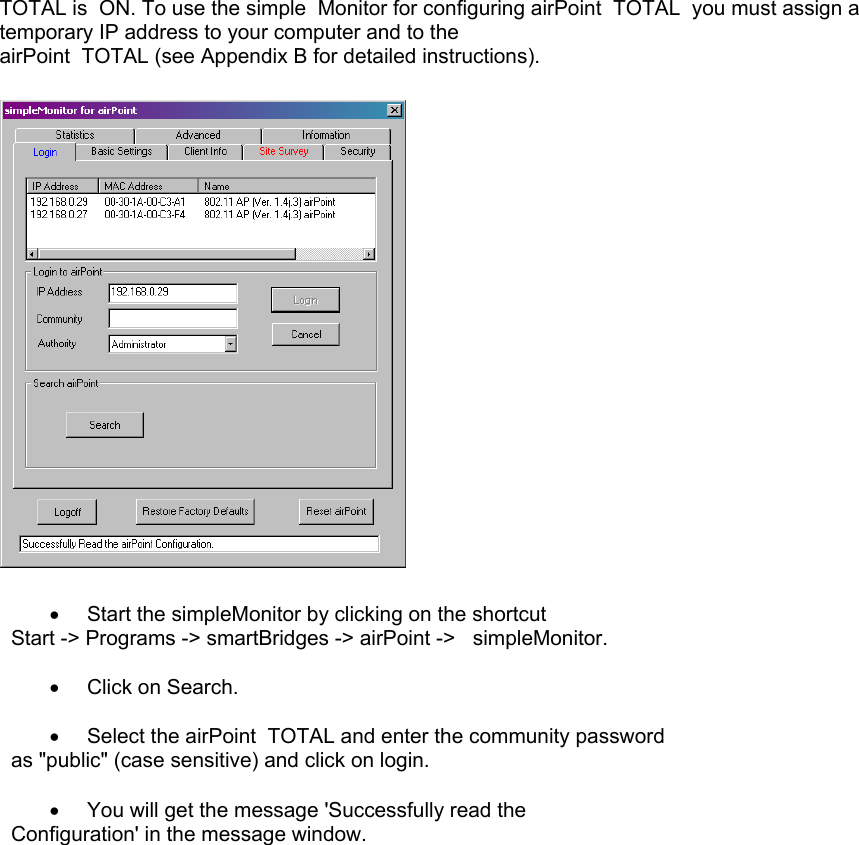
TOTAL is  ON. To use the simple  Monitor for configuring airPoint  TOTAL  you must assign a temporary IP address to your computer and to the  airPoint  TOTAL (see Appendix B for detailed instructions).    •  Start the simpleMonitor by clicking on the shortcut       Start -> Programs -> smartBridges -> airPoint ->   simpleMonitor.                                                          •  Click on Search.  •  Select the airPoint  TOTAL and enter the community password   as "public" (case sensitive) and click on login.  •  You will get the message 'Successfully read the   Configuration' in the message window.
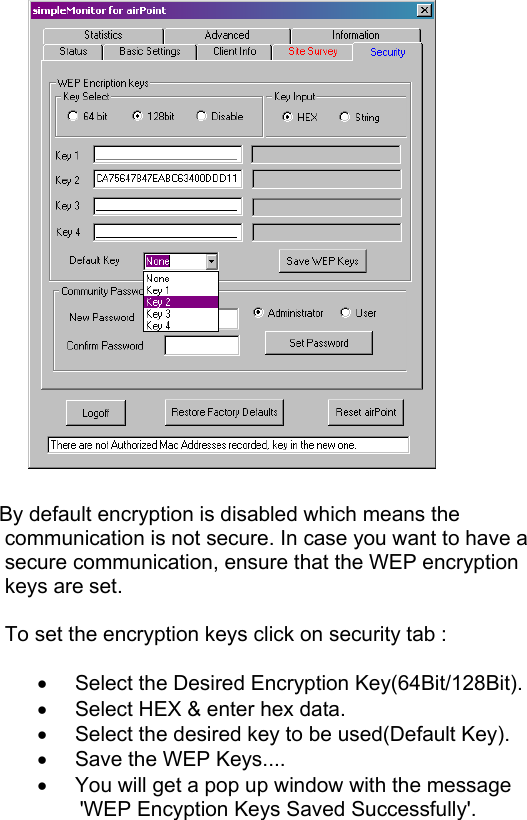
          By default encryption is disabled which means the    communication is not secure. In case you want to have a     secure communication, ensure that the WEP encryption      keys are set.     To set the encryption keys click on security tab :  •  Select the Desired Encryption Key(64Bit/128Bit). •  Select HEX & enter hex data. •  Select the desired key to be used(Default Key). •  Save the WEP Keys.... •  You will get a pop up window with the message            'WEP Encyption Keys Saved Successfully'.
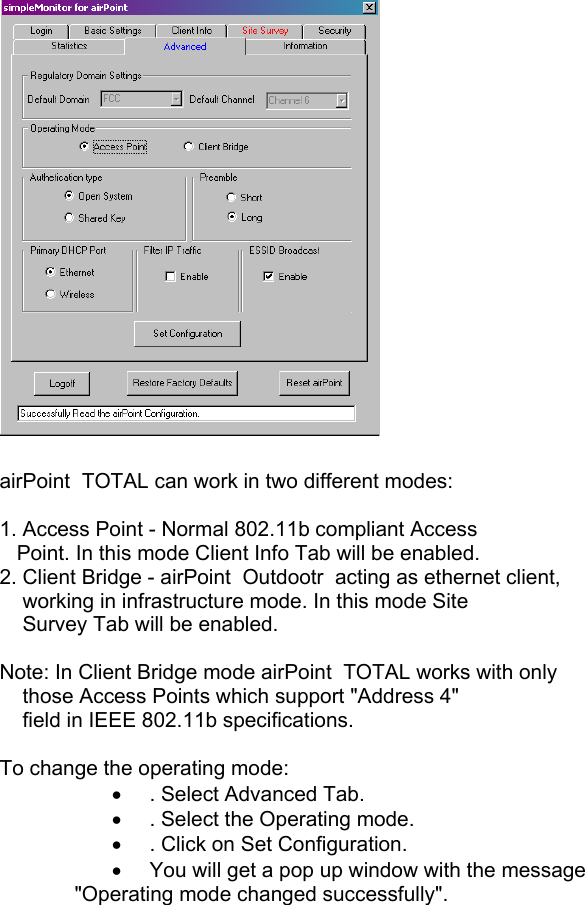
  airPoint  TOTAL can work in two different modes:   1. Access Point - Normal 802.11b compliant Access     Point. In this mode Client Info Tab will be enabled. 2. Client Bridge - airPoint  Outdootr  acting as ethernet client,      working in infrastructure mode. In this mode Site      Survey Tab will be enabled.  Note: In Client Bridge mode airPoint  TOTAL works with only      those Access Points which support "Address 4"      field in IEEE 802.11b specifications.  To change the operating mode: •  . Select Advanced Tab. •  . Select the Operating mode. •  . Click on Set Configuration. •  You will get a pop up window with the message   "Operating mode changed successfully".
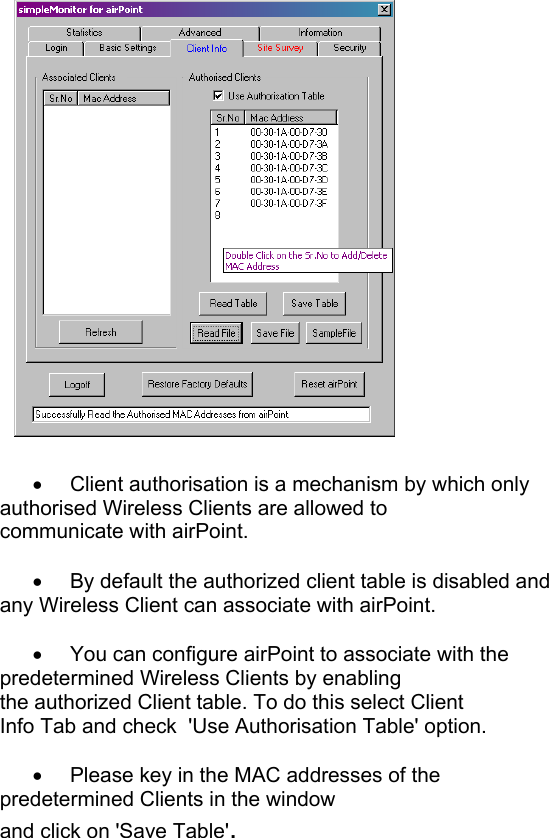
       •  Client authorisation is a mechanism by which only    authorised Wireless Clients are allowed to       communicate with airPoint.       •  By default the authorized client table is disabled and    any Wireless Client can associate with airPoint.  •  You can configure airPoint to associate with the     predetermined Wireless Clients by enabling     the authorized Client table. To do this select Client          Info Tab and check  'Use Authorisation Table' option.                                      •  Please key in the MAC addresses of the     predetermined Clients in the window      and click on 'Save Table'.
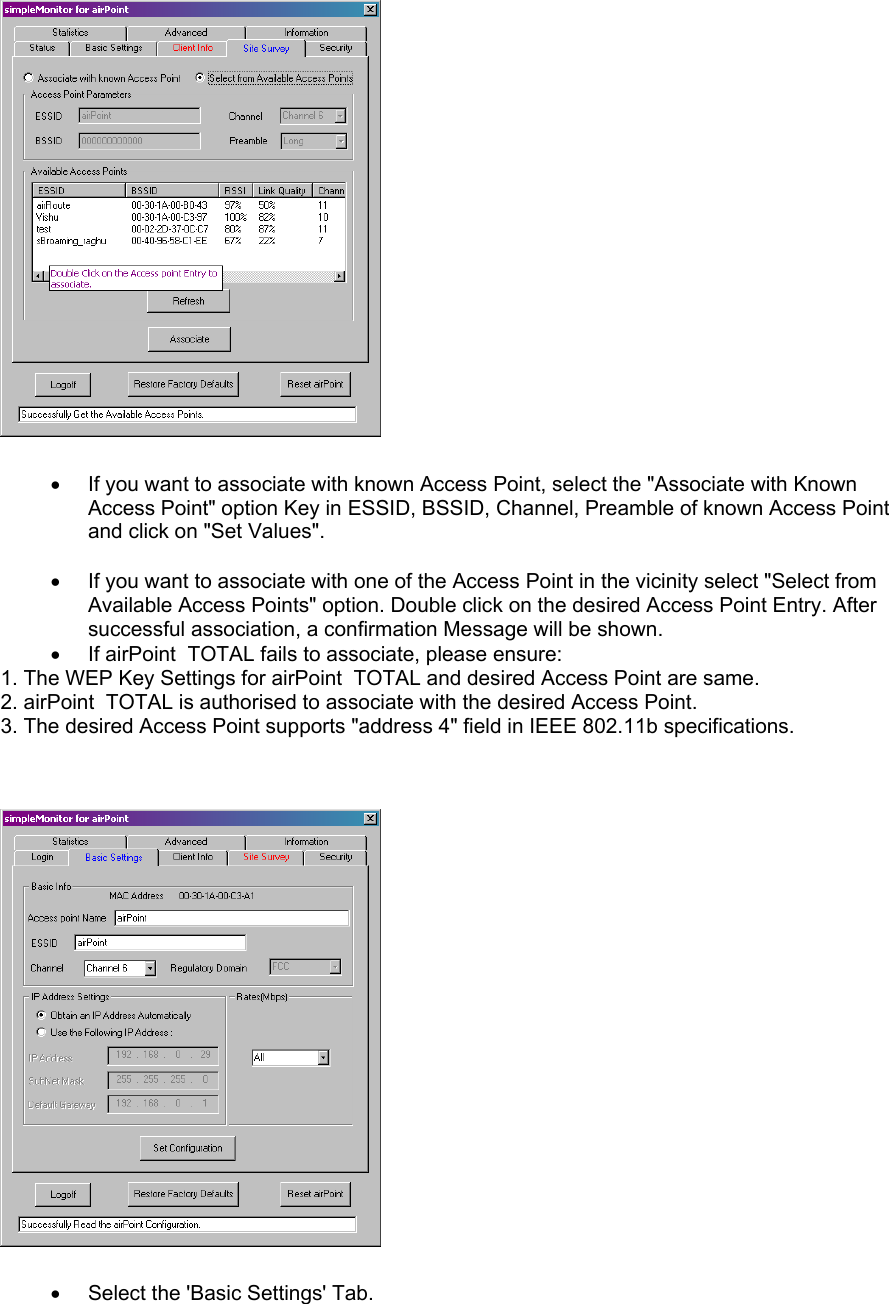
  •  If you want to associate with known Access Point, select the "Associate with Known Access Point" option Key in ESSID, BSSID, Channel, Preamble of known Access Point and click on "Set Values".  •  If you want to associate with one of the Access Point in the vicinity select "Select from Available Access Points" option. Double click on the desired Access Point Entry. After successful association, a confirmation Message will be shown. •  If airPoint  TOTAL fails to associate, please ensure: 1. The WEP Key Settings for airPoint  TOTAL and desired Access Point are same. 2. airPoint  TOTAL is authorised to associate with the desired Access Point. 3. The desired Access Point supports "address 4" field in IEEE 802.11b specifications.           •  Select the 'Basic Settings' Tab.
•  Enter the desired ESSID, Access Point Name,      Channel, and Rates in the respective tabs.  •  If you want to assign a new network settings to  airPoint  TOTAL, then enter the new IP address, Subnet   Mask, Default Gateway as per your network settings   and click on 'Set configuration', you will get a pop up    window with the message "Basic Configuration Set   Successfully".        Restore Factory Default Settings  If you forget the critical settings like WEP or Administrator Password of the airPoint  TOTAL, you can restore the airPoint  TOTAL to the Factory Default Settings as,  1.  Make sure that the Power to the airPoint TOTAL is ON. ( indicated by PWR LED ) 2.  Locate and Press the "RESET" button continuously. ( The "RESET" button is located on the bottom side of  the  powerShot  and you need some pointing device to press the button ) 3.  The TxRx LED will reduce its light intensity and stop flashing for few seconds. 4.  Release the button after the TxRx LED restores back to its original bright intensity and starts flashing again. 5.  After restoring the Factory Default Settings, please configure the airPoint  TOTAL again.   Appendix A               Assigning the Temporary IP Address to airPoint TOTAL        1.start the DOS prompt on your Windows PC.       2.Please note down the MAC No. of your airPoint TOTAL( The MAC Address label is pasted on the bottom of the airPoint  TOTAL)        3.MAC No. is a HEX no.(0-9, A-F) so Please make sure when typing that you are not typing English alphabet "O"    instead of numeric "0" (Zero).       4.Please get the Temporary "IP Address" to be assigned to airPoint  TOTAL from your LAN Administrator.        5.Type the following command in the DOS Prompt window:(Replace xx-xx-xx with the actual MAC No. of your airPoint  TOTAL)        6.arp -s 00-30-1A-xx-xx-xx IP Address        7.For more help about arp command type "arp/?" in the DOS Prompt window.   If the Temporary IP Address is set Properly you should be able to Ping the airPoint.TOTAL        1.start the DOS prompt on your Windows PC.        2.Type the following command in the DOS Prompt Window:        3.ping IP Address        4.If you get the ping response without error the Temporary IP is set.  Once the configuration of airPoint  TOTAL is over please delete the Temporary IP Address assigned to airPoint. TOTAL

Navigation menu