Sokkia Topcon WT11 Bluetooth Module User Manual RC PR3 E

Sokkia Topcon Co., Ltd. Bluetooth Module RC PR3 E

User manual

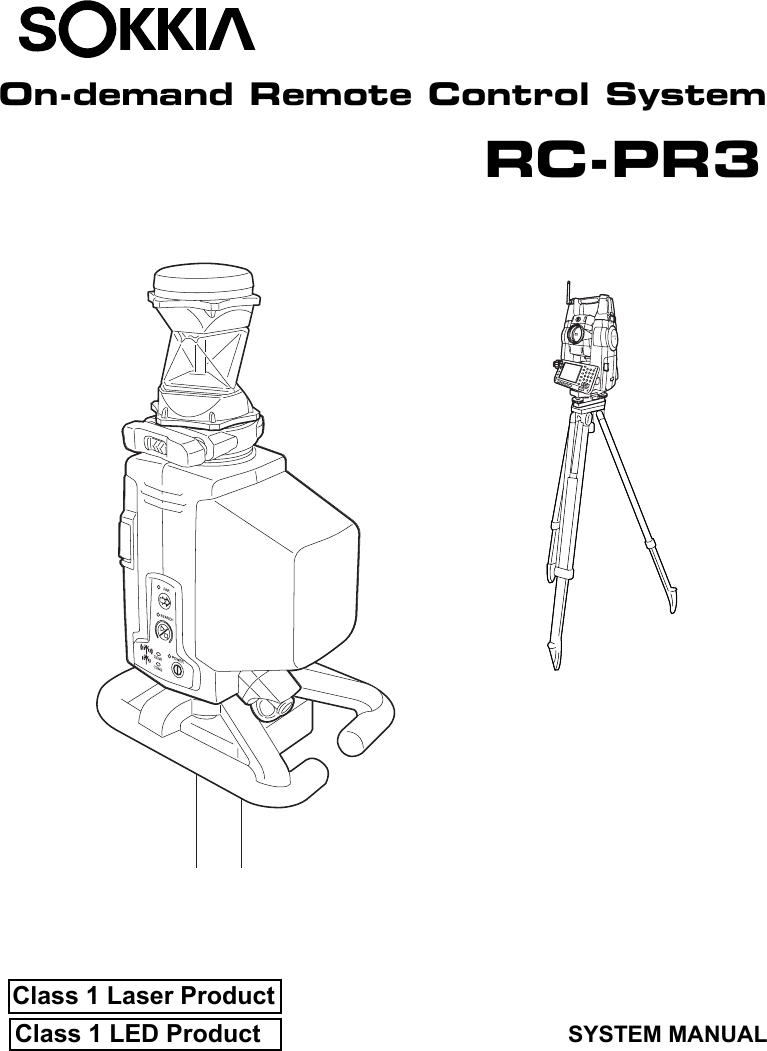
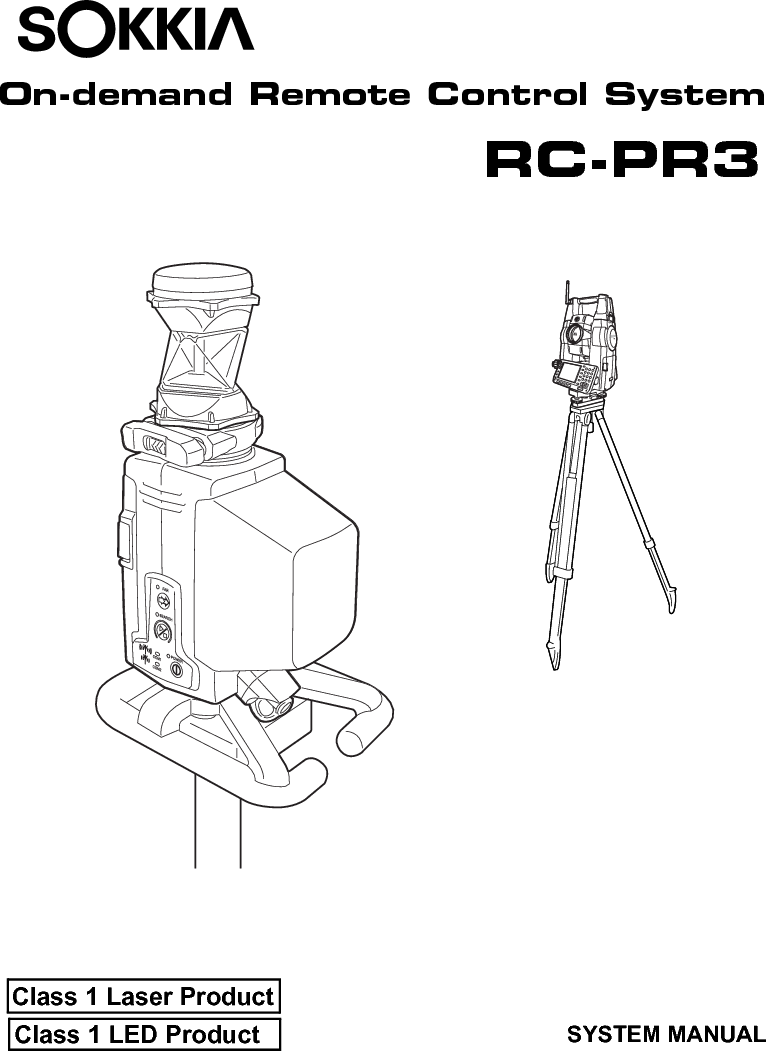
SURVEYING INSTRUMENTSOn-demand Remote Control SystemSYSTEM MANUALRC-PR3Class 1 LED ProductClass 1 Laser Product
:This is the mark of the Japan Surveying                  Instruments Manufacturers Association.
Class 1 LED ProductClass 1 Laser ProductSURVEYING INSTRUMENTSOn-demand Remote Control SystemRC-PR3SYSTEM MANUAL• Thank you for selecting the On-demand Remote Control System.• Before using the instrument, please read this system manual carefully.• The specifications and general appearance of the instrument may be altered at any time and may differ from those appearing in brochures and this manual.• Some of the diagrams shown in this manual may be simplified for easier understanding.• The On-demand Remote Control System adds remote control functions to the Series SRX, NET05/NET1 and Series 230RM.  Please read this manual in conjunction with the operator’s manual for your instrument.
iiHOW TO READ THIS MANUALSymbolsThe following conventions are used in this manual.G: Indicates precautions and important items which should be read before operations.C: Indicates a cross-reference to refer to for additional information.$: Indicates supplementary explanation.&: Indicates an explanation for a particular term or operation.[DIST] etc. : Indicates softkeys on the total station display.{ESC} etc. : Indicates operation keys on the total station.I POWER etc. : Indicates RC controller LEDs.Screens and illustrations• Except where stated, "SRX" means Series SRX, "NET" means NET05 and NET1, "total station" means "Series SRX/NET05/NET1/Series 230RM", and   “RC controller” means the control unit for the On-demand Remote Control System in this manual.• The content of this system manual is mainly concerned with explaining the operation of the RC controller. Appended functions for the SET are described in "7. APPENDED SETTINGS FOR THE SERIES 230RM". For precautions and operating method, please read the Series 230RM Operator’s Manual.• Screens and illustrations used in this manual are of SRX (with RC-TS3 handle) or Series 230RM.
iiiCONTENTS1. PRECAUTIONS FOR SAFE OPERATION ................ 12. PRECAUTIONS .......................................................... 33. LASER SAFETY INFORMATION ............................... 64. ON-DEMAND REMOTE CONTROL FUNCTIONS  .... 74.1 Turning Operation Flow ..................................................... 84.2 Measurement Flow .......................................................... 105. SYSTEM CONFIGURATION .................................... 135.1 System Configuration of the SRX/NET  ........................... 135.2 System Configuration of the Series 230RM  .................... 145.3 System Configuration of the RC Controller  ..................... 155.4 Parts of the RC Controller  ............................................... 196. SETTINGS FOR THE SRX/NET  .............................. 226.1 Settings for Bluetooth Communication ............................ 226.2 Settings for Auto Pointing and Auto Tracking  ................. 246.3 Performing Turning from the SRX/NET ........................... 266.4 Turning Error  ................................................................... 287. APPENDED SETTINGS FOR THE SERIES 230RM 297.1 Beam Detector  ................................................................ 297.2 Attaching/Removing the Handle ...................................... 297.3 Setup for Search Before Distance Measurement ............ 307.4 Communication Setup ..................................................... 307.5 Performing Turning from the Series 230RM SFT Mode .. 317.6 Allocating Softkey Functions  ........................................... 327.7 Error Messages ............................................................... 337.8 Turning Error  ................................................................... 338. BASIC OPERATION ................................................. 348.1 Using the Battery ............................................................. 348.2 Button Operations  ........................................................... 358.3 Communication Status  .................................................... 379. RC CONTROLLER SETTINGS ................................ 389.1 Setting Auto Power-off  .................................................... 389.2 Setting Communication Mode  ......................................... 389.3 Communication Setup for the RC Controller ................... 399.4 Calibrating the Electronic Compass  ................................ 3910.  ERROR INDICATIONS  ........................................... 43
ivCONTENTS11. TROUBLESHOOTING ............................................. 4412.STANDARD EQUIPMENT AND OPTIONAL ACCESSORIES4612.1 Standard Equipment  ....................................................... 4612.2 Optional Accessories  ...................................................... 4612.3 Power Supply System  ..................................................... 4813. SPECIFICATIONS .................................................... 4914. EXPLANATION ........................................................ 5314.1 High Accuracy with the 360° Prism .................................. 5315. REGULATIONS ........................................................ 54
11. PRECAUTIONS FOR SAFE OPERATIONFor the safe use of the product and prevention of injury to operators and other persons as well as prevention of property damage, items which should be observed are indicated by an exclamation point within a triangle used with WARNING and CAUTION statements in this system manual.The definitions of the indications are listed below. Be sure you understand them before reading the main text.Definition of IndicationGeneralCWARNING Ignoring this indication and making an operation error could possibly result in death or serious injury to the operator.CCAUTION Ignoring this indication and making an operation error could possibly result in personal injury or property damage.JThis symbol indicates items for which caution (hazard warnings inclusive) is urged. Specific details are printed in or near the symbol.DThis symbol indicates items which are prohibited.Specific details are printed in or near the symbol.IThis symbol indicates items which must always be performed.Specific details are printed in or near the symbol.CWarningDDo not use the unit in areas exposed to high amounts of dust or ash, in areas where there is inadequate ventilation, or near combustible materials. An explosion could occur.GDo not perform disassembly or rebuilding. Fire, electric shock, burns, or hazardous radiation exposure could result.EWhen securing the instrument in the carrying case make sure that all catches, including the side catches, are closed. Failure to do so could result in the instrument falling out while being carried, causing injury.CCautionEWhen mounting the instrument on the pole, tighten the pole-securing knob securely. Failure to tighten the knob properly could result in the instrument falling off the pole, causing injury.DDo not carry the pole with the tip pointed at other persons. A person could be injured if struck by the shoe.
1. PRECAUTIONS FOR SAFE OPERATION2Power SupplyBluetooth wireless technologyEKeep hands and feet away from the tip of the pole when fixing the pole in the ground. A hand or foot stab wound could result.DDo not use the carrying case as a footstool. The case is slippery and unstable so a person could slip and fall off it.CWarningDDo not short circuit. Heat or ignition could result.GDo not disassemble, rebuild, mutilate, incinerate, heat or short circuit the battery and charger. Fire, electric shock, burns or an explosion could result.DDo not use batteries or the battery charger if wet. Resultant shorting could lead to fire or burns.EUse only the specified battery charger to recharge batteries. Other chargers may be of different voltage rating or polarity, causing sparking which could lead to fire or burns.HDo not heat or throw batteries into fire. An explosion could occur, resulting in injury.DDo not use the battery for any other purpose. Fire or burns caused by ignition could result.ETo prevent shorting of the battery in storage, apply insulating tape or equivalent to the terminals. Otherwise shorting could occur resulting in fire or burns.CCautionFDo not touch liquid leaking from batteries. Harmful chemicals could cause burns or blisters.CWarningDDo not use within the vicinity of hospitals. Malfunction of medical equipment could result.DUse the instrument at a distance of at least 22 cm from anyone with a cardiac pacemaker. Otherwise, the pacemaker may be adversely affected by the electromagnetic waves produced and cease to operate as normal.DDo not use onboard aircraft. The aircraft instrumentation may malfunction as a result. DDo not use within the vicinity of automatic doors, fire alarms and other devices with automatic controls as the electromagnetic waves produced may adversely affect operation resulting in an accident.
32. PRECAUTIONSPrecautions• Protect instruments from heavy shocks or vibration.• Never touch the RC controller laser projection port or the total station beam detector. The ability of the system to perform Turning may be adversely affected.• Turn the power OFF before removing the battery from the RC controller.• Remove the battery when the RC controller is not used for long periods.Maintenance• Wipe the RC controller laser projection port and  total station beam detector with the wiping cloth (total station accessory).• To clean the RC controller, lightly moisten a soft cloth in a mild detergent solution. Wring out excess water until the cloth is slightly damp, then carefully wipe the surface of the unit. Do not use any organic solvents or alkaline cleaning solutions.• Store the instrument in a dry room where the temperature remains fairly constant.• Check the RC controller for proper adjustment periodically to maintain the instrument accuracy.Precautions concerning water and dust resistanceThe RC controller conforms to IP55 specifications for waterproofing and dust resistance when the battery cover is closed and connector caps are attached correctly. • Make sure that moisture or dust particles do not come in contact with the terminal or connectors.Operating the instrument with moisture or dust on the terminal or connectors may cause damage to the instrument.• Be sure to correctly attach the connector caps to protect the RC controller from moisture and dust particles when the connector is not in use.• Make sure that the inside of the carrying case and the instrument are dry before closing the case. If moisture is trapped inside the case, it may cause the instrument to rust.Charging the battery• The battery (BDC46B) was not charged at the factory. Charge the battery fully before using.Precautions concerning Bluetooth wireless technology• Use of this technology must be authorized according to telecommunications regulations of the country where the instrument is being used. Contact your Sokkia agent in advance.C "15. REGULATIONS"• Sokkia is not liable for the content of any transmission nor any content related thereto. When communicating important data, run tests beforehand to ascertain that communication is operating normally. • Do not divulge the content of any transmission to any third party.Radio interference when using Bluetooth technologyBluetooth communication with the RC controller uses the 2.4 GHz frequency band. This is the same band used by the devices described below.•Industrial, scientific, and medical (ISM) equipment such as microwaves and pacemakers• portable premises radio equipment (license required) used in factory production lines etc.• portable specified low-power radio equipment (license-exempt)
2. PRECAUTIONS4•IEEE802.11b/IEEE802.11g standard wireless LAN devicesThe above devices use the same frequency band as Bluetooth communications. As a result, using the RC controller within proximity to the above devices may result in interference causing communication failure or reduction of transmission speed.Although a radio station license is not required for this instrument, bear in mind the following points when using Bluetooth technology for communication.●Regarding portable premises radio equipment and portable specified low-power radioequipment: • Before starting transmission, check that operation will not take place within the vicinity of portable premises radio equipment or specified low-power radio equipment.• In the case that the instrument causes radio interference with portable premises radio equipment, terminate the connection immediately and take measures to prevent further interference (e.g. connect using an interface cable).• In the case that the instrument causes radio interference with portable specified low-power radio equipment, contact your Sokkia agent.●When using the RC controller in proximity to IEEE802.11b or IEEE802.11g standard wirelessLAN devices, turn off all devices not being used.• Interference may result, causing transmission speed to slow or even disrupting the connection completely. Turn off all devices not being used.●Do not use the RC controller in proximity to microwaves.• Microwave ovens can cause significant interference resulting in communication failure. Perform communication at a distance of 3m or more from microwave ovens.●Refrain from using the RC controller in proximity to televisions and radios.• Televisions and radios use a different frequency band to Bluetooth communications.However, even if the RC controller is used within proximity to the above equipment with no adverse effects with regard to Bluetooth communication, moving a Bluetooth compatible device (including the RC controller) closer to said equipment may result in electronic noise in sound or images, adversely affecting the performance of televisions and radios.Precautions regarding transmission●For best results• When using in conjunction with a total station, perform communication within a line-of-sight distance of approximately 300m. The usable range becomes shorter when obstacles block the line of sight, or devices other than total stations, such as PDAs or computers, are used. Wood, glass and plastic will not impede communication but the usable range becomes shorter. Moreover, wood, glass and plastic containing metal frames, plates, foil and other heat shielding elements as well as coatings containing metallic powders may adversely affect Bluetooth communication and concrete, reinforced concrete, and metal will render it impossible. •  Use a vinyl or plastic cover to protect the instrument from rain and moisture. Metallic materials should not be used.• The direction of the Bluetooth antenna can have adverse effects upon usable range. For best results make sure that the antennas of both the RC controller and the companion device are pointing towards one another.
52. PRECAUTIONS●Reduced range due to atmospheric conditionsThe radio waves used by the RC controller may be absorbed or scattered by rain, fog, and moisture from the human body with the limit of usable range becoming lower as a result. Similarly, usable range may also shorten when performing communication in wooded areas. Moreover, as wireless devices lose signal strength when close to the ground, perform communication at as high a position as possible.G• Sokkia cannot guarantee that all Bluetooth devices are compatible with the On-demand Remote Control System.
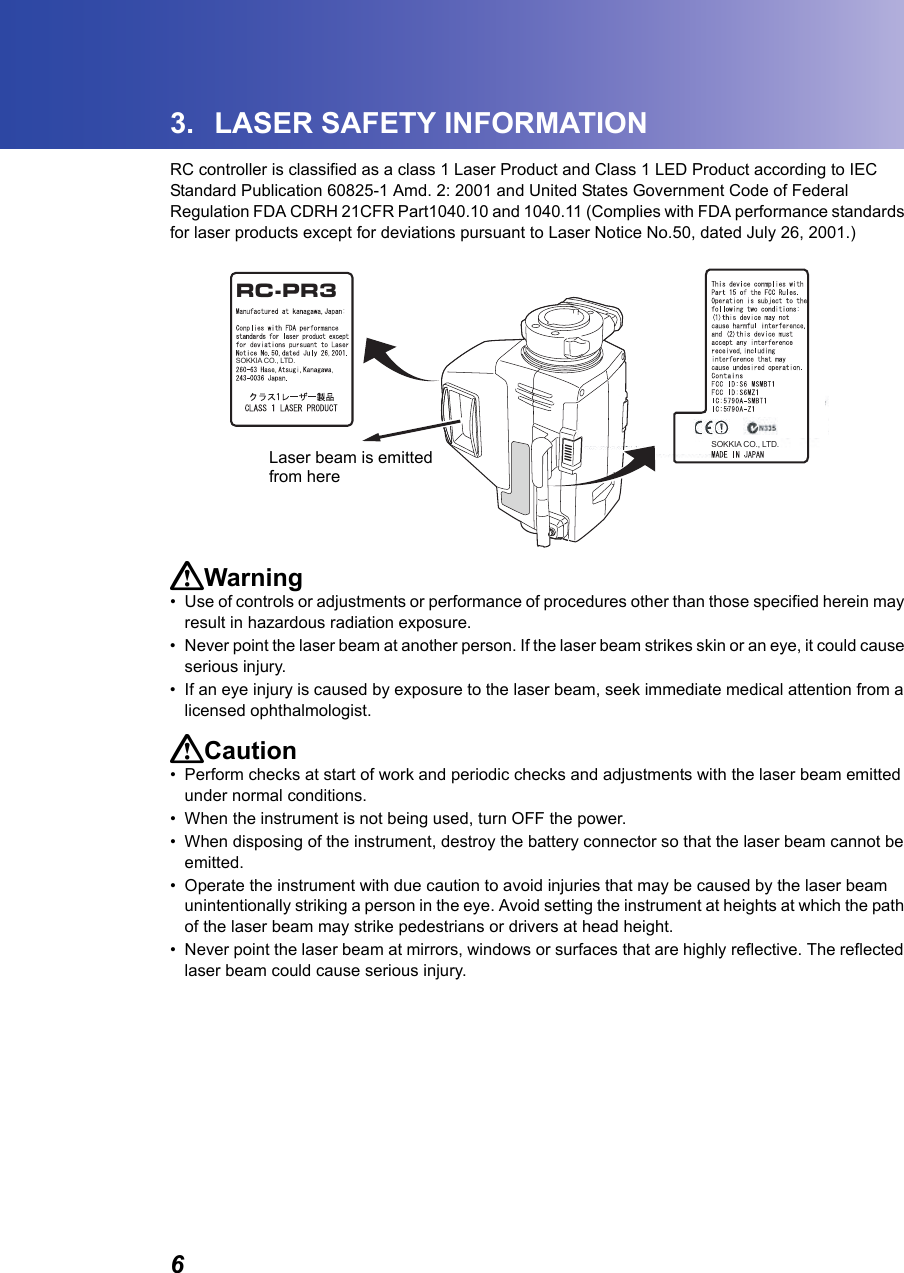
63. LASER SAFETY INFORMATIONRC controller is classified as a class 1 Laser Product and Class 1 LED Product according to IEC Standard Publication 60825-1 Amd. 2: 2001 and United States Government Code of Federal Regulation FDA CDRH 21CFR Part1040.10 and 1040.11 (Complies with FDA performance standards for laser products except for deviations pursuant to Laser Notice No.50, dated July 26, 2001.)CWarning• Use of controls or adjustments or performance of procedures other than those specified herein may result in hazardous radiation exposure.• Never point the laser beam at another person. If the laser beam strikes skin or an eye, it could cause serious injury.• If an eye injury is caused by exposure to the laser beam, seek immediate medical attention from a licensed ophthalmologist.CCaution• Perform checks at start of work and periodic checks and adjustments with the laser beam emitted under normal conditions. • When the instrument is not being used, turn OFF the power.• When disposing of the instrument, destroy the battery connector so that the laser beam cannot be emitted.• Operate the instrument with due caution to avoid injuries that may be caused by the laser beam unintentionally striking a person in the eye. Avoid setting the instrument at heights at which the path of the laser beam may strike pedestrians or drivers at head height.• Never point the laser beam at mirrors, windows or surfaces that are highly reflective. The reflected laser beam could cause serious injury.SOKKIA CO., LTD.RC-PR3SOKKIA CO., LTD.Laser beam is emitted from here
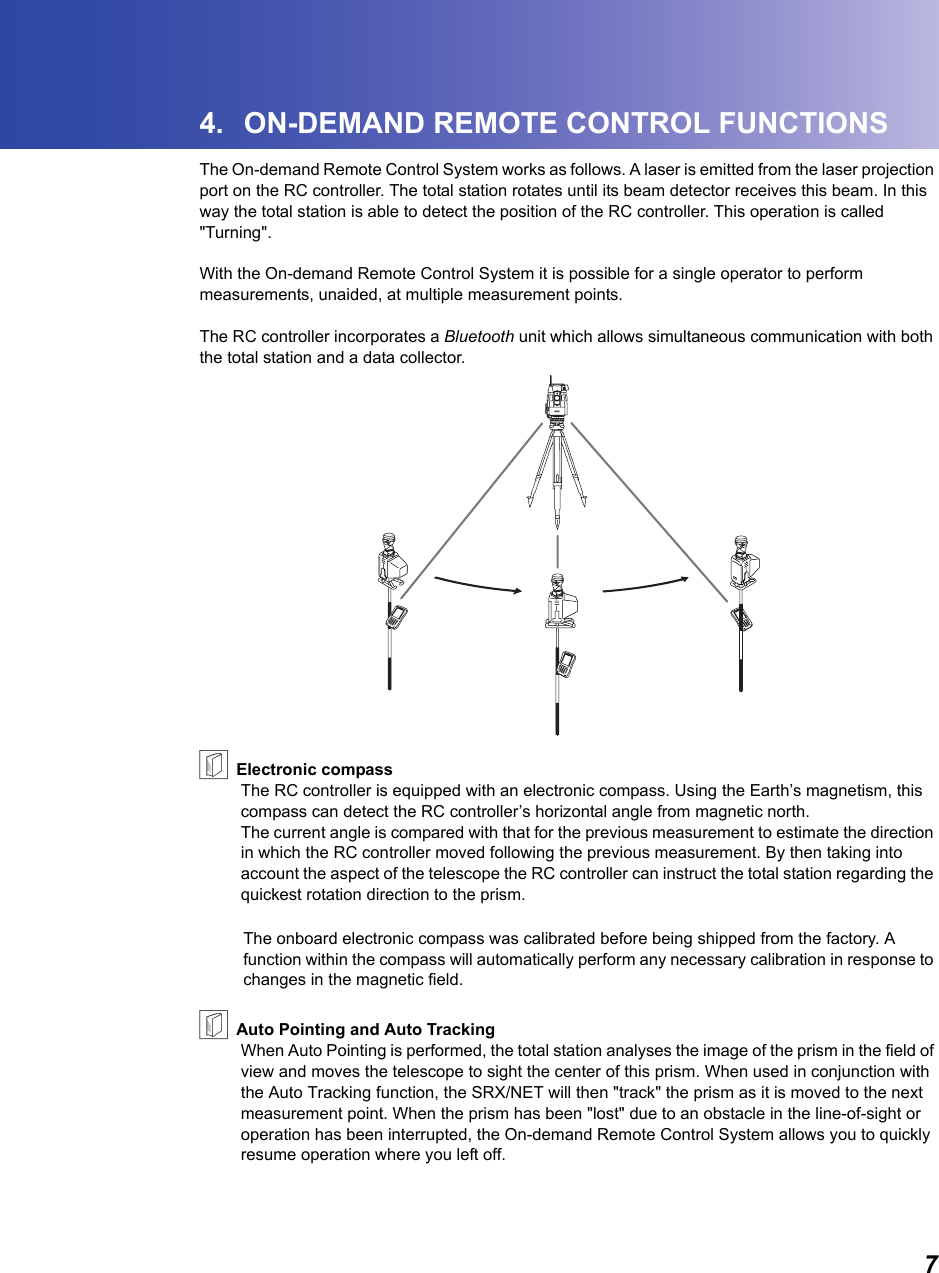
74. ON-DEMAND REMOTE CONTROL FUNCTIONSThe On-demand Remote Control System works as follows. A laser is emitted from the laser projection port on the RC controller. The total station rotates until its beam detector receives this beam. In this way the total station is able to detect the position of the RC controller. This operation is called "Turning".With the On-demand Remote Control System it is possible for a single operator to perform measurements, unaided, at multiple measurement points.The RC controller incorporates a Bluetooth unit which allows simultaneous communication with both the total station and a data collector.                                                     &Electronic compassThe RC controller is equipped with an electronic compass. Using the Earth’s magnetism, this compass can detect the RC controller’s horizontal angle from magnetic north. The current angle is compared with that for the previous measurement to estimate the direction in which the RC controller moved following the previous measurement. By then taking into account the aspect of the telescope the RC controller can instruct the total station regarding the quickest rotation direction to the prism.The onboard electronic compass was calibrated before being shipped from the factory. A function within the compass will automatically perform any necessary calibration in response to changes in the magnetic field.&Auto Pointing and Auto TrackingWhen Auto Pointing is performed, the total station analyses the image of the prism in the field of view and moves the telescope to sight the center of this prism. When used in conjunction with the Auto Tracking function, the SRX/NET will then "track" the prism as it is moved to the next measurement point. When the prism has been "lost" due to an obstacle in the line-of-sight or operation has been interrupted, the On-demand Remote Control System allows you to quickly resume operation where you left off.
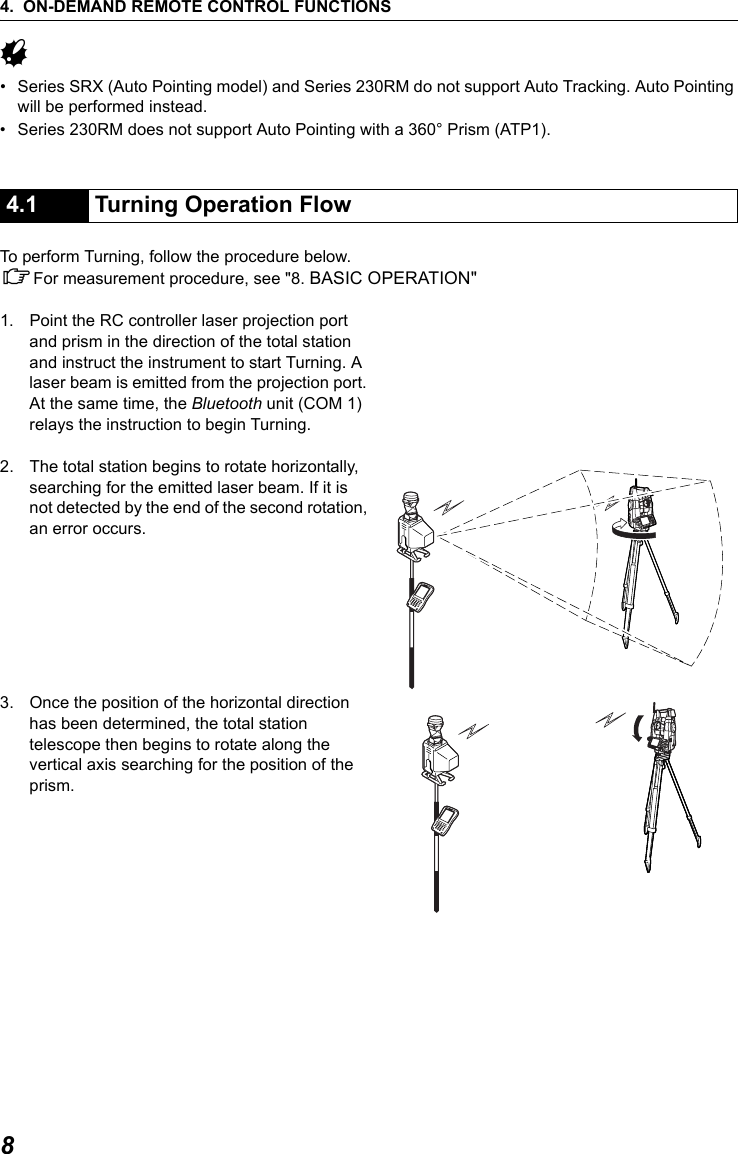
4. ON-DEMAND REMOTE CONTROL FUNCTIONS8G• Series SRX (Auto Pointing model) and Series 230RM do not support Auto Tracking. Auto Pointing will be performed instead.• Series 230RM does not support Auto Pointing with a 360° Prism (ATP1).To perform Turning, follow the procedure below.CFor measurement procedure, see "8. BASIC OPERATION"1. Point the RC controller laser projection port and prism in the direction of the total station and instruct the instrument to start Turning. A laser beam is emitted from the projection port. At the same time, the Bluetooth unit (COM 1) relays the instruction to begin Turning.2. The total station begins to rotate horizontally, searching for the emitted laser beam. If it is not detected by the end of the second rotation, an error occurs.3. Once the position of the horizontal direction has been determined, the total station telescope then begins to rotate along the vertical axis searching for the position of the prism.4.1 Turning Operation Flow
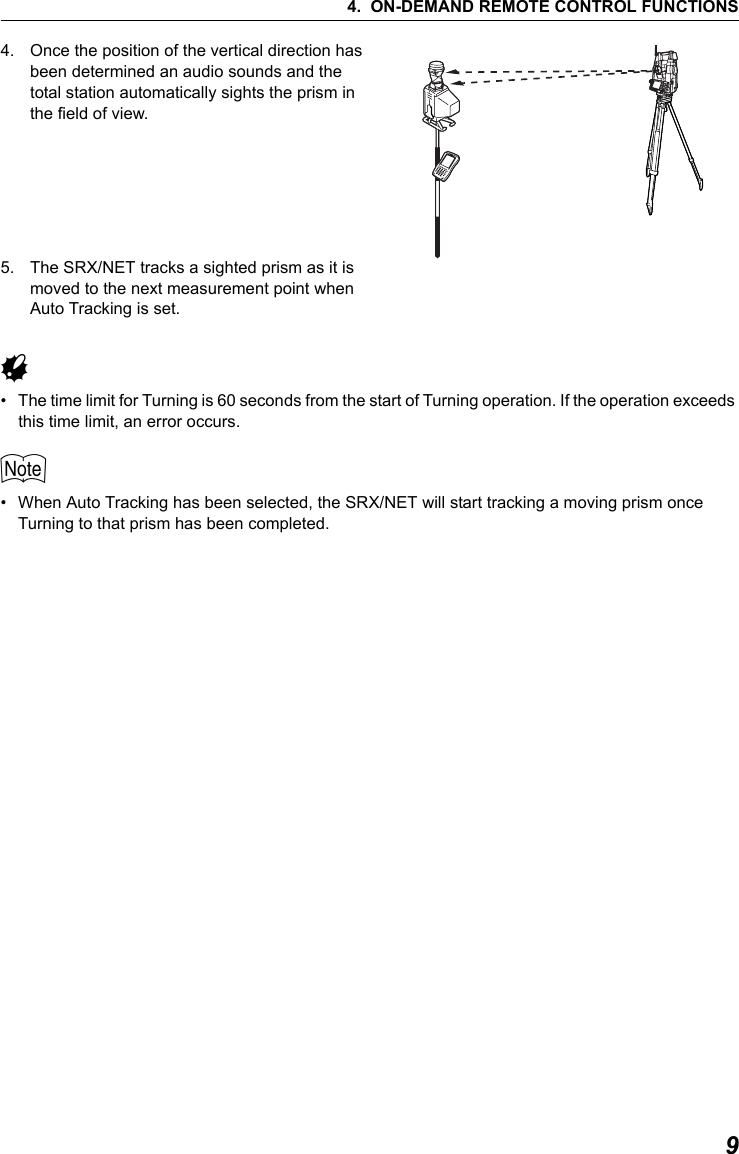
94. ON-DEMAND REMOTE CONTROL FUNCTIONS4. Once the position of the vertical direction has been determined an audio sounds and the total station automatically sights the prism in the field of view.5. The SRX/NET tracks a sighted prism as it is moved to the next measurement point when Auto Tracking is set.G• The time limit for Turning is 60 seconds from the start of Turning operation. If the operation exceeds this time limit, an error occurs.      $• When Auto Tracking has been selected, the SRX/NET will start tracking a moving prism once Turning to that prism has been completed.
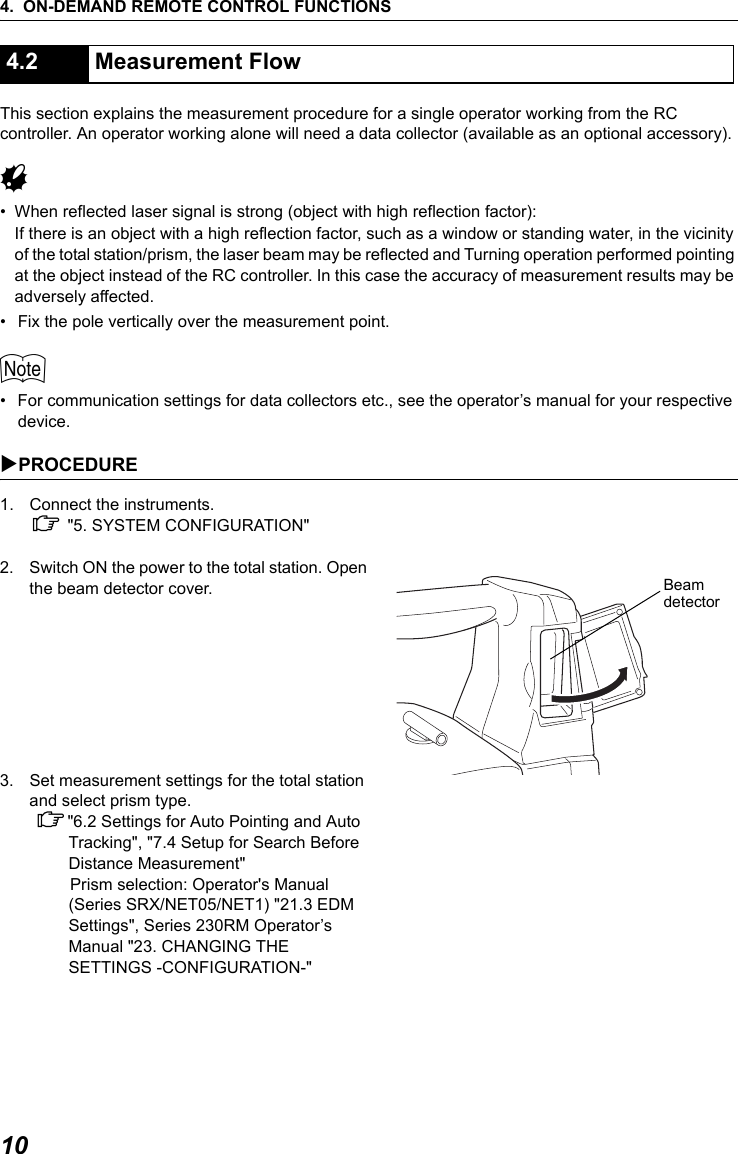
4. ON-DEMAND REMOTE CONTROL FUNCTIONS10This section explains the measurement procedure for a single operator working from the RC controller. An operator working alone will need a data collector (available as an optional accessory).G• When reflected laser signal is strong (object with high reflection factor):If there is an object with a high reflection factor, such as a window or standing water, in the vicinity of the total station/prism, the laser beam may be reflected and Turning operation performed pointing at the object instead of the RC controller. In this case the accuracy of measurement results may be adversely affected.• Fix the pole vertically over the measurement point.$• For communication settings for data collectors etc., see the operator’s manual for your respective device.XPROCEDURE 1. Connect the instruments.C "5. SYSTEM CONFIGURATION"2. Switch ON the power to the total station. Open the beam detector cover.3. Set measurement settings for the total station and select prism type. C"6.2 Settings for Auto Pointing and Auto Tracking", "7.4 Setup for Search Before Distance Measurement" Prism selection: Operator's Manual (Series SRX/NET05/NET1) "21.3 EDM Settings", Series 230RM Operator’s Manual "23. CHANGING THE SETTINGS -CONFIGURATION-"4.2 Measurement FlowBeam detector
114. ON-DEMAND REMOTE CONTROL FUNCTIONS4. Check that SRX/NET Bluetooth settings are made and the instrument is ready for communcation.C"6.1 Settings for Bluetooth Communication"After completing the total station preparations above, the next step is to prepare the RC controller.5. When connecting a wireless modem, etc. to the total station using the relevant cable, set the communcation settings as shown in "9.2 Setting Communication Mode".6. Press the POWER button   to switch ON the RC controller. ●POWER is Lit.7. Fix the pole vertically over the measurement point and point the laser projection port of the RC controller roughly in the direction of the total station. If the distance between the total station and the RC controller is over 100m (normal atmospheric conditions)/150m (good atmospheric conditions), set to Far Mode by pressing the FAR button   (●FAR is Lit).CFor atmospheric conditions, see"8.2.2 Setting Distance Mode"8. When the total station is instructed (using a data collector) to perform distance measurement, Turning operation is carried out. Measurement starts when this Turning operation is complete.$• When returned laser signal is weak (object with low reflection factor):Even if the laser beam received by the total station has been reflected off an unrelated object, or sunlight has entered the beam detector, the total station still attempts to complete the stages of Turning operation as far as Auto Pointing. When the total station judges that the laser beam has not travelled directly from the RC controller to the beam detector, this position reading taken in error is nullified and the total station automatically continues Turning operation at the next position. However, the time limit for Turning is 60 seconds from the start of Turning operation and if the operation exceeds this time limit, an error occurs.• Using the SRX/Series230RM guide light when performing Turning operation allows the operator to confirm whether or not the SRX/Series230RM has correctly located the RC controller laser beam. When a work site contains highly reflective surfaces it is recommended that measurement is performed using the guidelight. If the SRX/Series230RM has completed Turning operation pointing
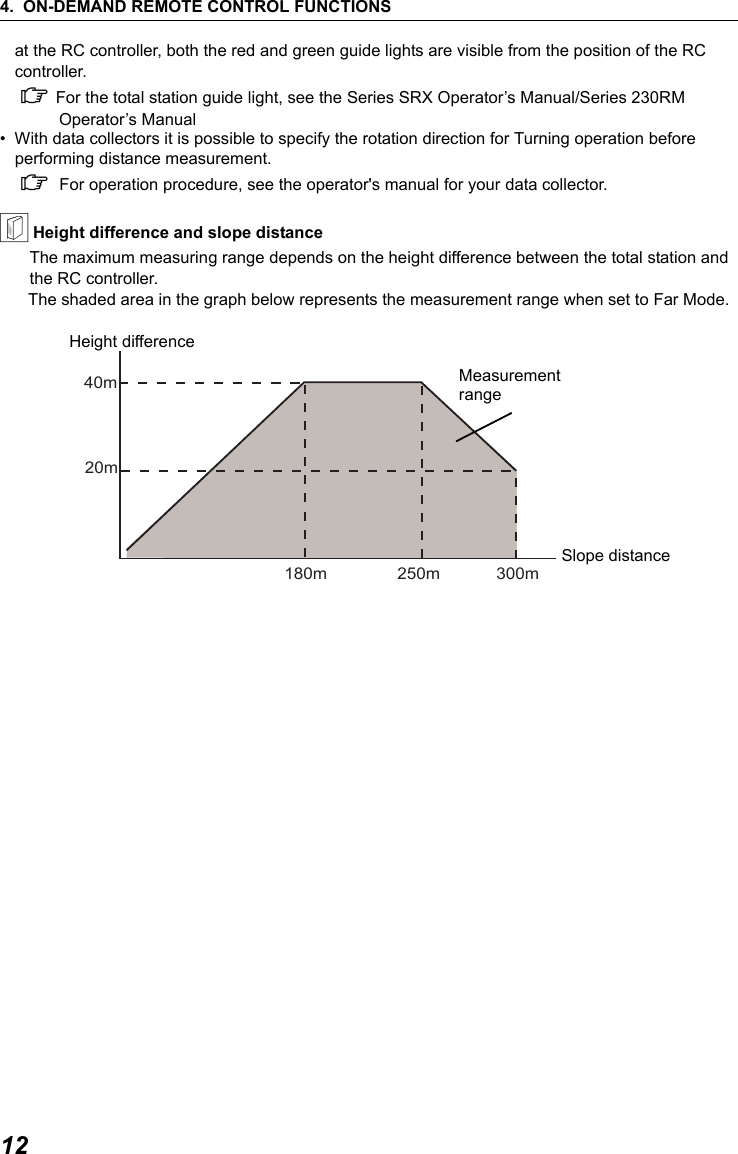
4. ON-DEMAND REMOTE CONTROL FUNCTIONS12at the RC controller, both the red and green guide lights are visible from the position of the RC controller.C For the total station guide light, see the Series SRX Operator’s Manual/Series 230RM Operator’s Manual• With data collectors it is possible to specify the rotation direction for Turning operation before performing distance measurement. C For operation procedure, see the operator's manual for your data collector.& Height difference and slope distanceThe maximum measuring range depends on the height difference between the total station and the RC controller.The shaded area in the graph below represents the measurement range when set to Far Mode.40m20m180m 250m 300mHeight differenceMeasurementrangeSlope distance
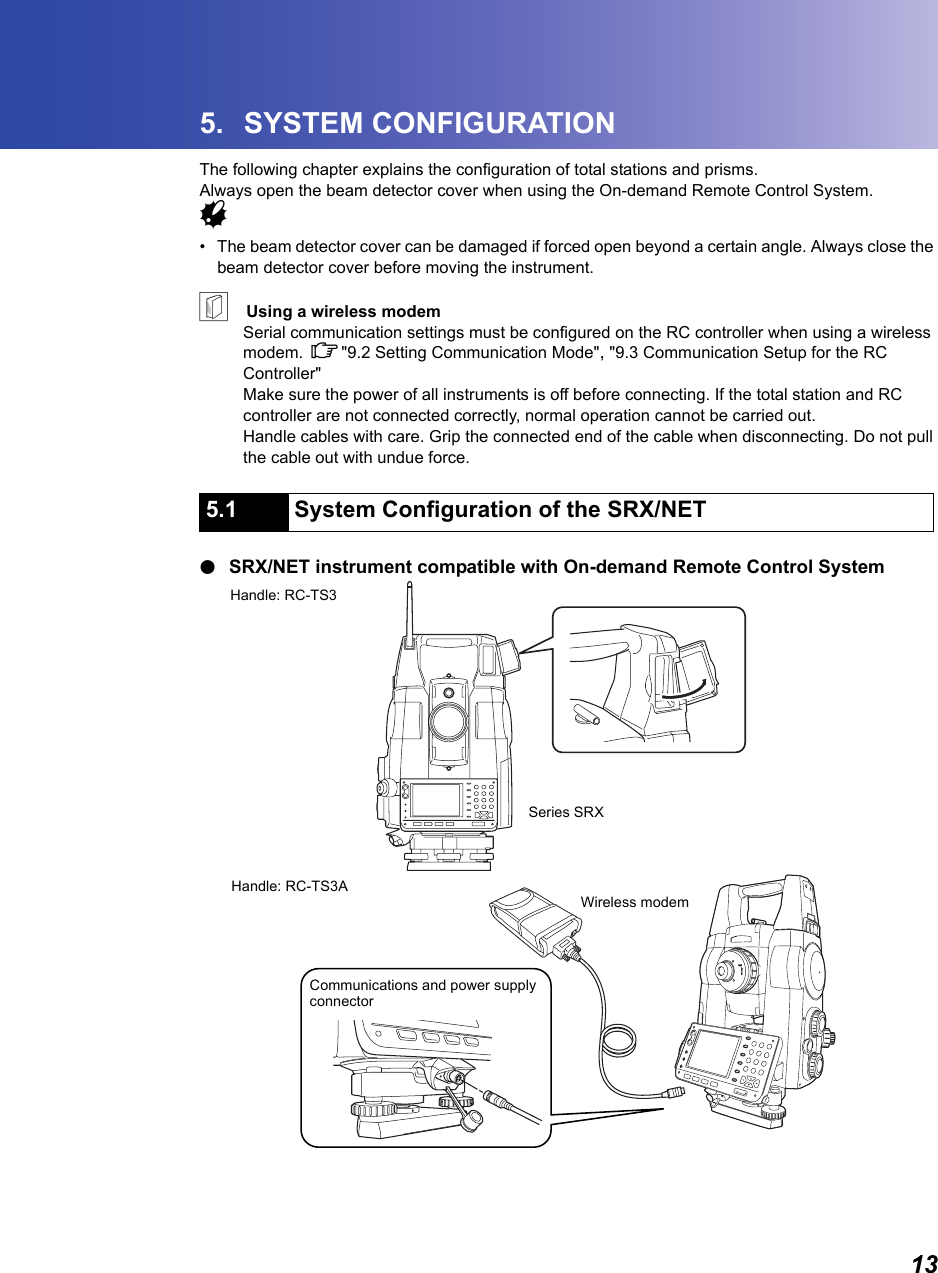
135. SYSTEM CONFIGURATIONThe following chapter explains the configuration of total stations and prisms. Always open the beam detector cover when using the On-demand Remote Control System.G• The beam detector cover can be damaged if forced open beyond a certain angle. Always close the beam detector cover before moving the instrument. &    Using a wireless modemSerial communication settings must be configured on the RC controller when using a wireless modem. C"9.2 Setting Communication Mode", "9.3 Communication Setup for the RC Controller" Make sure the power of all instruments is off before connecting. If the total station and RC controller are not connected correctly, normal operation cannot be carried out.Handle cables with care. Grip the connected end of the cable when disconnecting. Do not pull the cable out with undue force. ●SRX/NET instrument compatible with On-demand Remote Control System5.1 System Configuration of the SRX/NETSeries SRXWireless modemCommunications and power supplyconnectorHandle: RC-TS3Handle: RC-TS3A
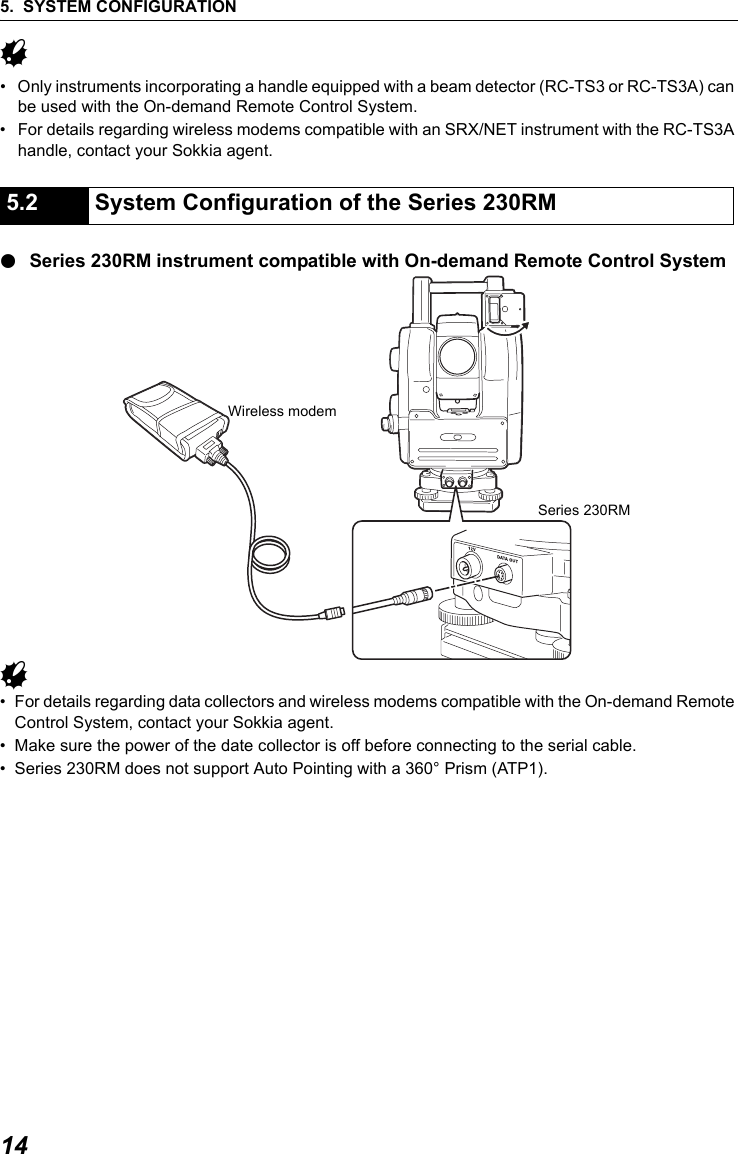
5. SYSTEM CONFIGURATION14G• Only instruments incorporating a handle equipped with a beam detector (RC-TS3 or RC-TS3A) can be used with the On-demand Remote Control System.• For details regarding wireless modems compatible with an SRX/NET instrument with the RC-TS3A handle, contact your Sokkia agent.●Series 230RM instrument compatible with On-demand Remote Control SystemG • For details regarding data collectors and wireless modems compatible with the On-demand Remote Control System, contact your Sokkia agent.• Make sure the power of the date collector is off before connecting to the serial cable. • Series 230RM does not support Auto Pointing with a 360° Prism (ATP1).                   5.2 System Configuration of the Series 230RMSeries 230RMWireless modem
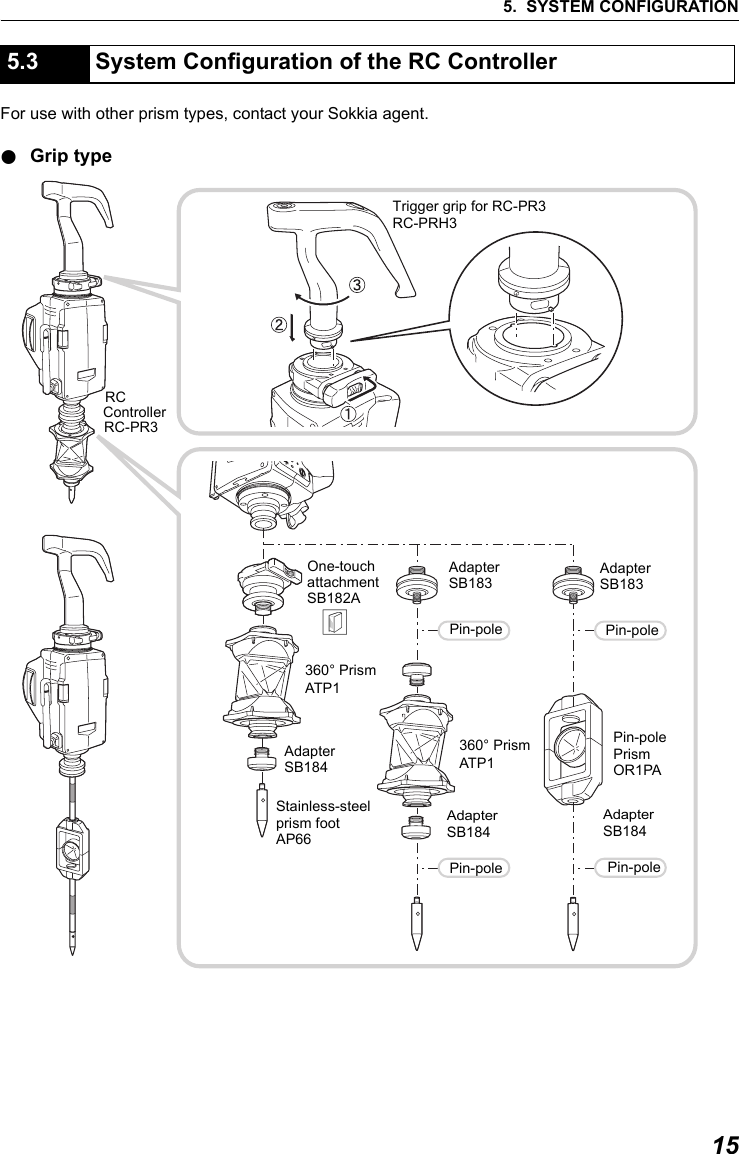
155. SYSTEM CONFIGURATIONFor use with other prism types, contact your Sokkia agent.●Grip type5.3 System Configuration of the RC ControllerRCTrigger grip for RC-PR3One-touch AdapterAdapterStainless-steelPin-polePin-polePin-polePin-poleprism footAP66SB184AdapterAdapterSB184AdapterSB184360° PrismATP1360° PrismATP1Pin-polePrismOR1PAattachmentSB182ASB183 SB183RC-PR3RC-PRH3Controller&
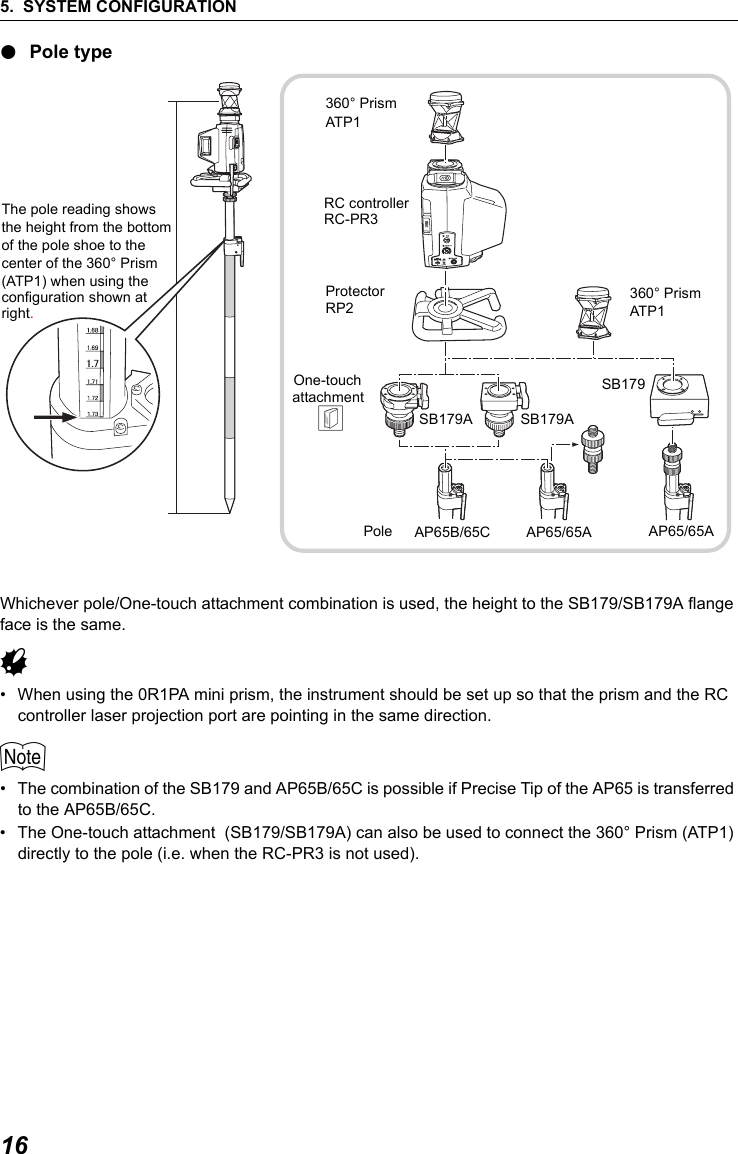
5. SYSTEM CONFIGURATION16●Pole typeWhichever pole/One-touch attachment combination is used, the height to the SB179/SB179A flange face is the same.G• When using the 0R1PA mini prism, the instrument should be set up so that the prism and the RC controller laser projection port are pointing in the same direction.$• The combination of the SB179 and AP65B/65C is possible if Precise Tip of the AP65 is transferred to the AP65B/65C.• The One-touch attachment  (SB179/SB179A) can also be used to connect the 360° Prism (ATP1) directly to the pole (i.e. when the RC-PR3 is not used).ProtectorRP2360° PrismRC controllerattachmentOne-touchPole RC-PR3ATP1The pole reading shows AP65B/65C AP65/65ASB179SB179ASB179Athe height from the bottom of the pole shoe to the center of the 360° Prism (ATP1) when using the&360° PrismATP1AP65/65Aconfiguration shown atright.
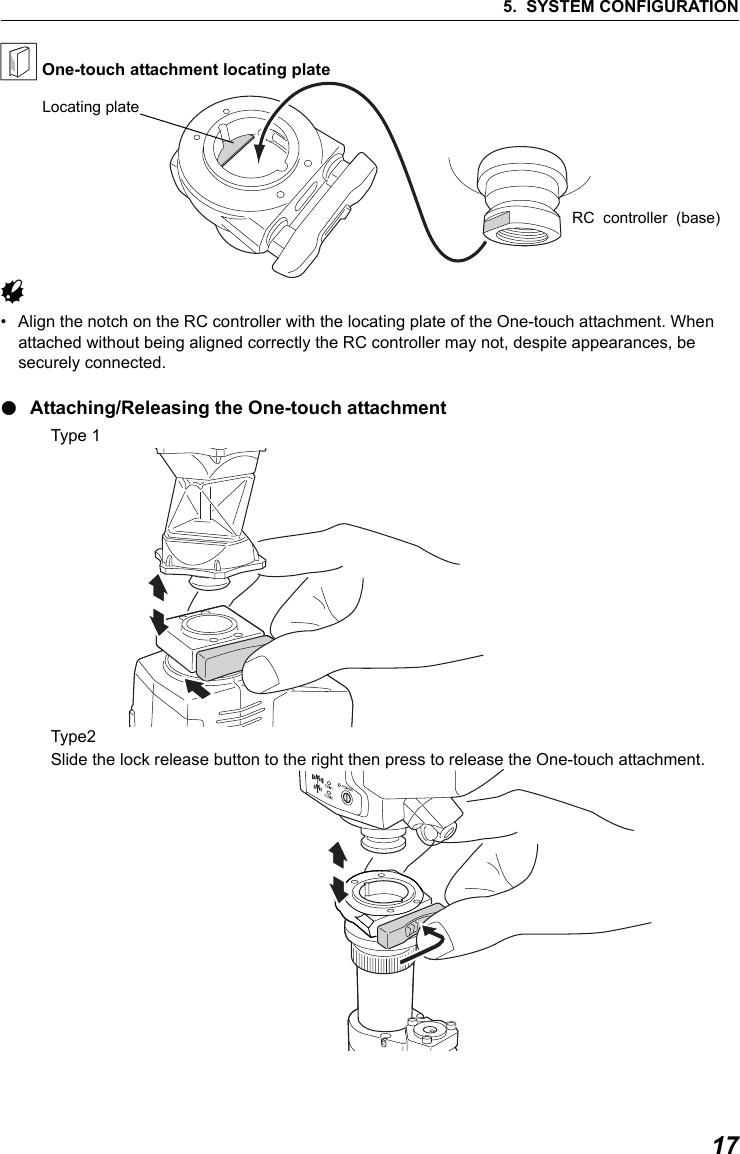
175. SYSTEM CONFIGURATION& One-touch attachment locating plateG• Align the notch on the RC controller with the locating plate of the One-touch attachment. When attached without being aligned correctly the RC controller may not, despite appearances, be securely connected. ●Attaching/Releasing the One-touch attachment                             Type 1Type2Slide the lock release button to the right then press to release the One-touch attachment.Locating plateRC  controller  (base)
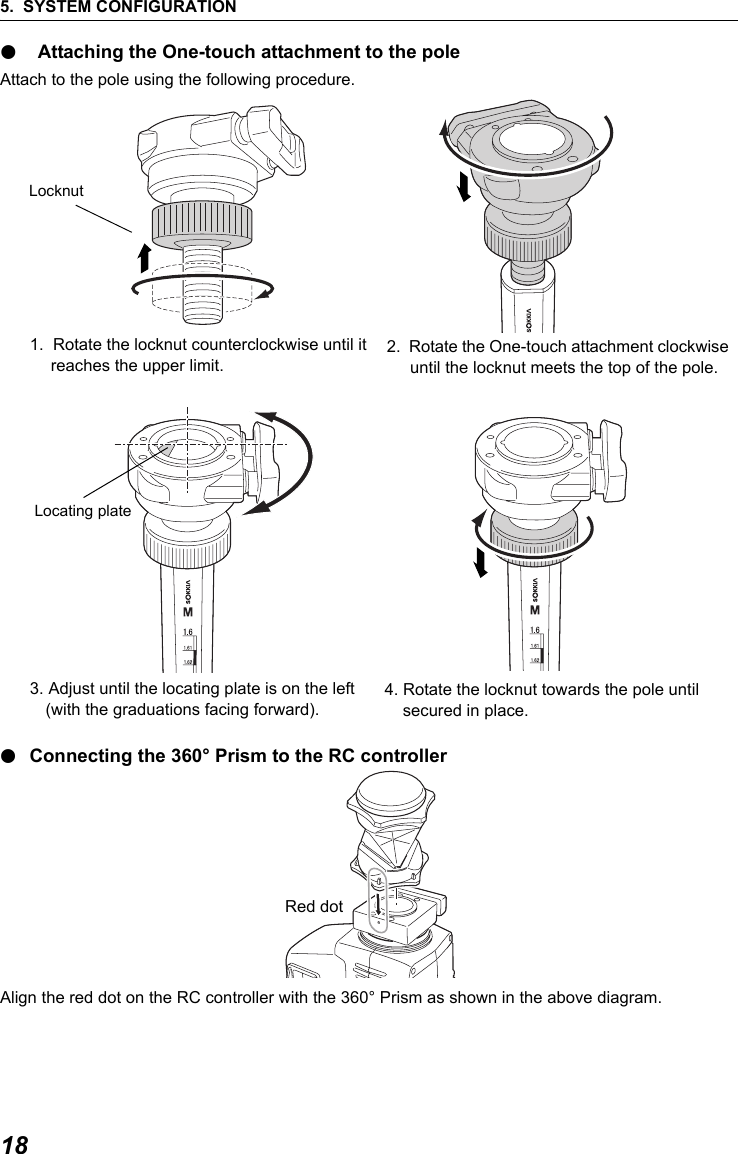
5. SYSTEM CONFIGURATION18● Attaching the One-touch attachment to the poleAttach to the pole using the following procedure.1.  Rotate the locknut counterclockwise until it reaches the upper limit.3. Adjust until the locating plate is on the left (with the graduations facing forward).●Connecting the 360° Prism to the RC controller      Align the red dot on the RC controller with the 360° Prism as shown in the above diagram.Locknut2.  Rotate the One-touch attachment clockwise until the locknut meets the top of the pole. Locating plate4. Rotate the locknut towards the pole until secured in place. Red dot
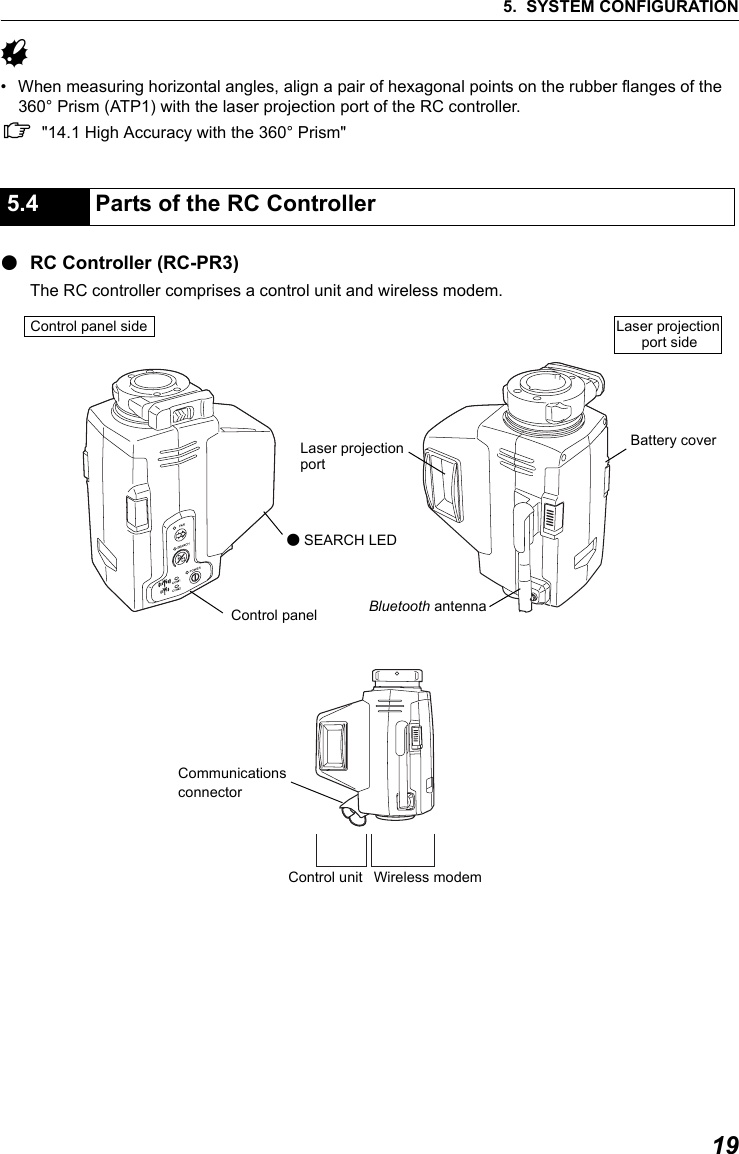
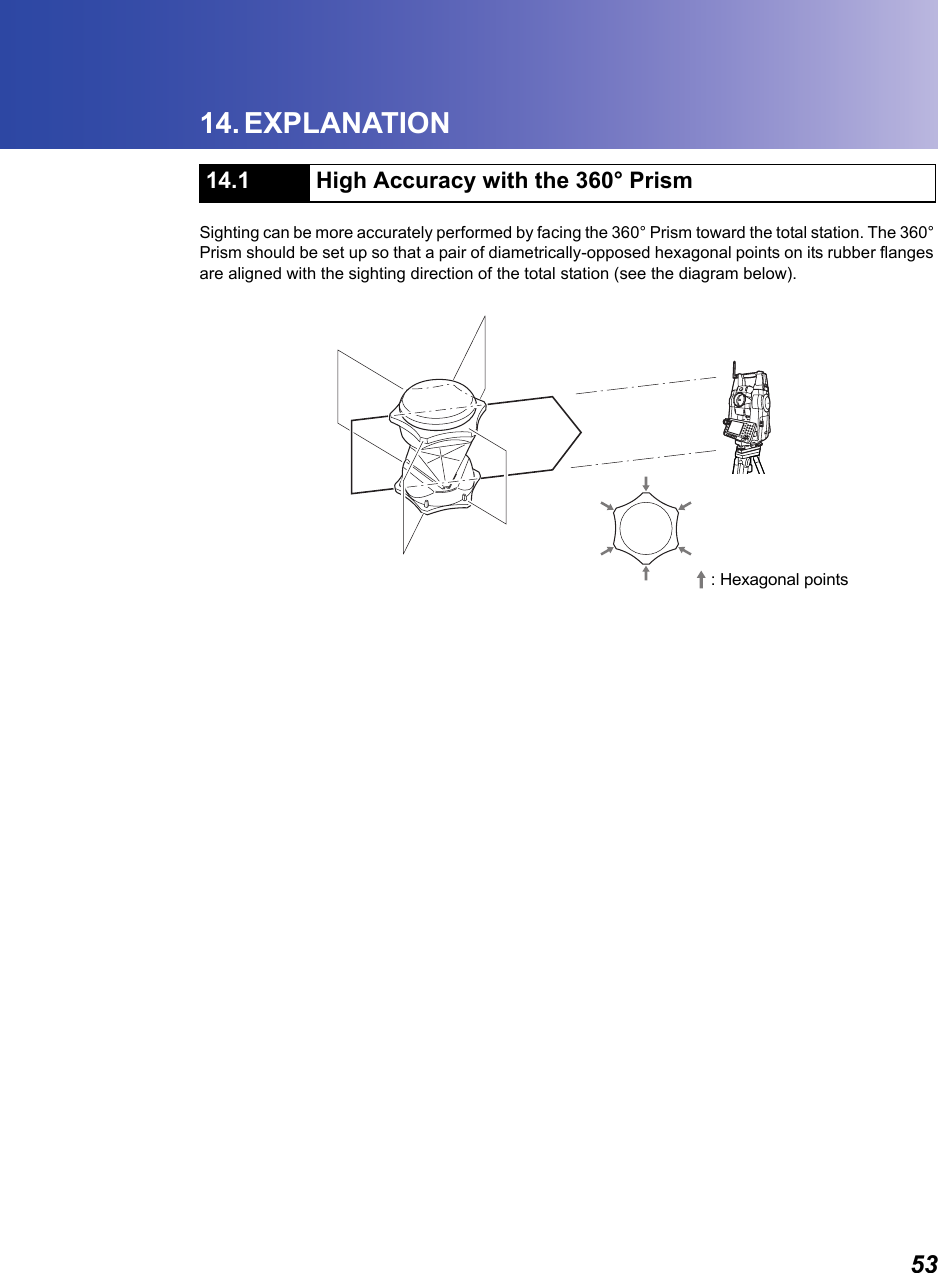
195. SYSTEM CONFIGURATIONG• When measuring horizontal angles, align a pair of hexagonal points on the rubber flanges of the 360° Prism (ATP1) with the laser projection port of the RC controller.C"14.1 High Accuracy with the 360° Prism"      ●RC Controller (RC-PR3)The RC controller comprises a control unit and wireless modem. 5.4 Parts of the RC ControllerBluetooth antennaControl panelCommunicationsLaser projection Battery coverControl panel side Laser projectionport sideportControl unit Wireless modem ●SEARCH LEDconnector
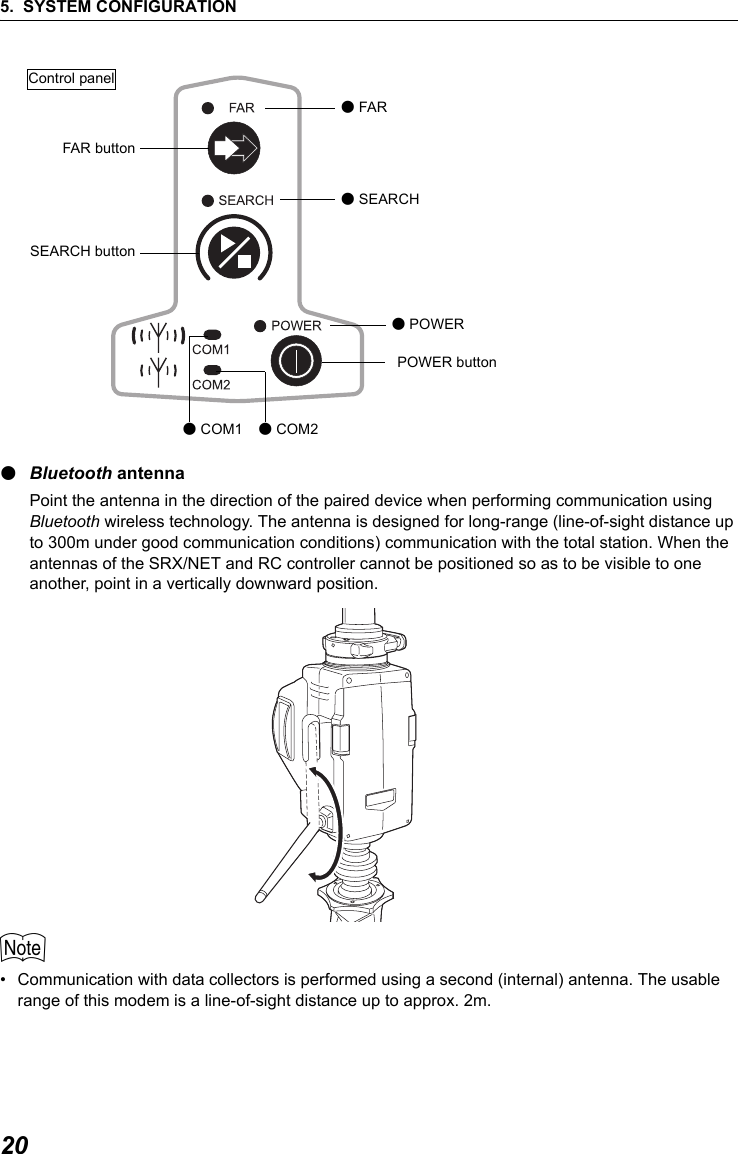
5. SYSTEM CONFIGURATION20●Bluetooth antennaPoint the antenna in the direction of the paired device when performing communication using Bluetooth wireless technology. The antenna is designed for long-range (line-of-sight distance up to 300m under good communication conditions) communication with the total station. When the antennas of the SRX/NET and RC controller cannot be positioned so as to be visible to one another, point in a vertically downward position. $• Communication with data collectors is performed using a second (internal) antenna. The usable range of this modem is a line-of-sight distance up to approx. 2m. ●FAR●SEARCH●POWERFAR buttonSEARCH buttonPOWER button●COM1 ●COM2Control panel
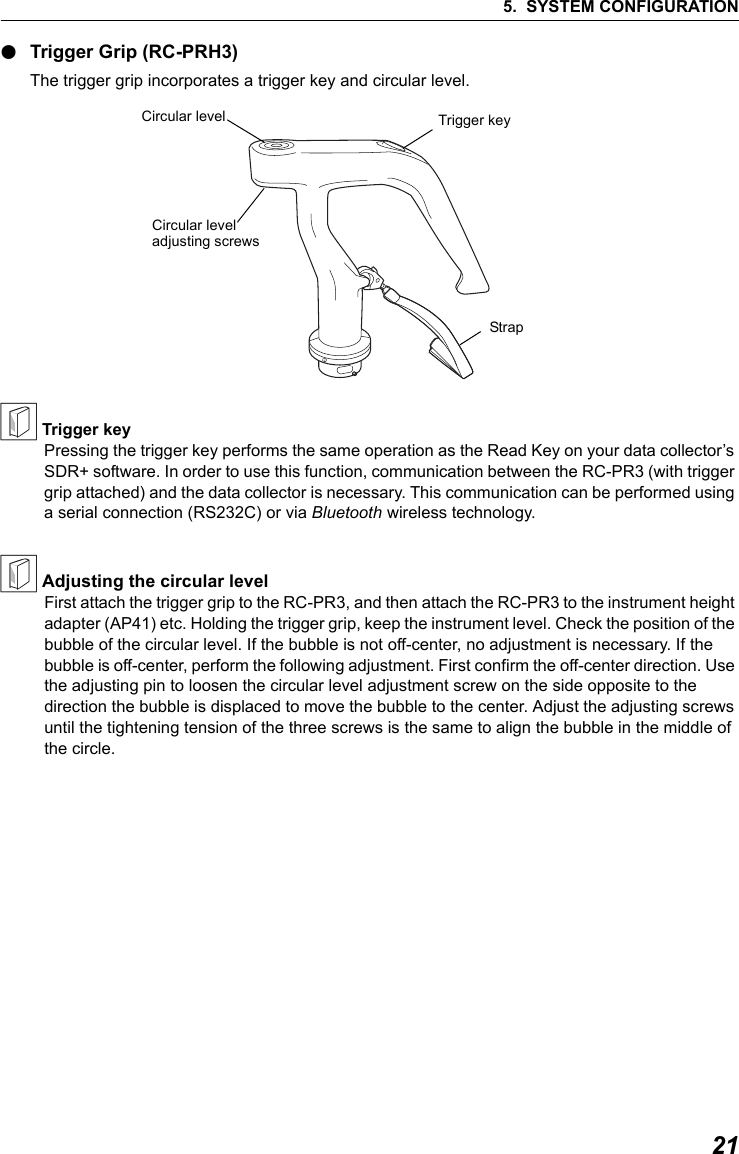
215. SYSTEM CONFIGURATION●Trigger Grip (RC-PRH3)The trigger grip incorporates a trigger key and circular level.& Trigger keyPressing the trigger key performs the same operation as the Read Key on your data collector’s SDR+ software. In order to use this function, communication between the RC-PR3 (with trigger grip attached) and the data collector is necessary. This communication can be performed using a serial connection (RS232C) or via Bluetooth wireless technology.& Adjusting the circular levelFirst attach the trigger grip to the RC-PR3, and then attach the RC-PR3 to the instrument height adapter (AP41) etc. Holding the trigger grip, keep the instrument level. Check the position of the bubble of the circular level. If the bubble is not off-center, no adjustment is necessary. If the bubble is off-center, perform the following adjustment. First confirm the off-center direction. Use the adjusting pin to loosen the circular level adjustment screw on the side opposite to the direction the bubble is displaced to move the bubble to the center. Adjust the adjusting screws until the tightening tension of the three screws is the same to align the bubble in the middle of the circle. Circular level Trigger keyCircular levelStrapadjusting screws
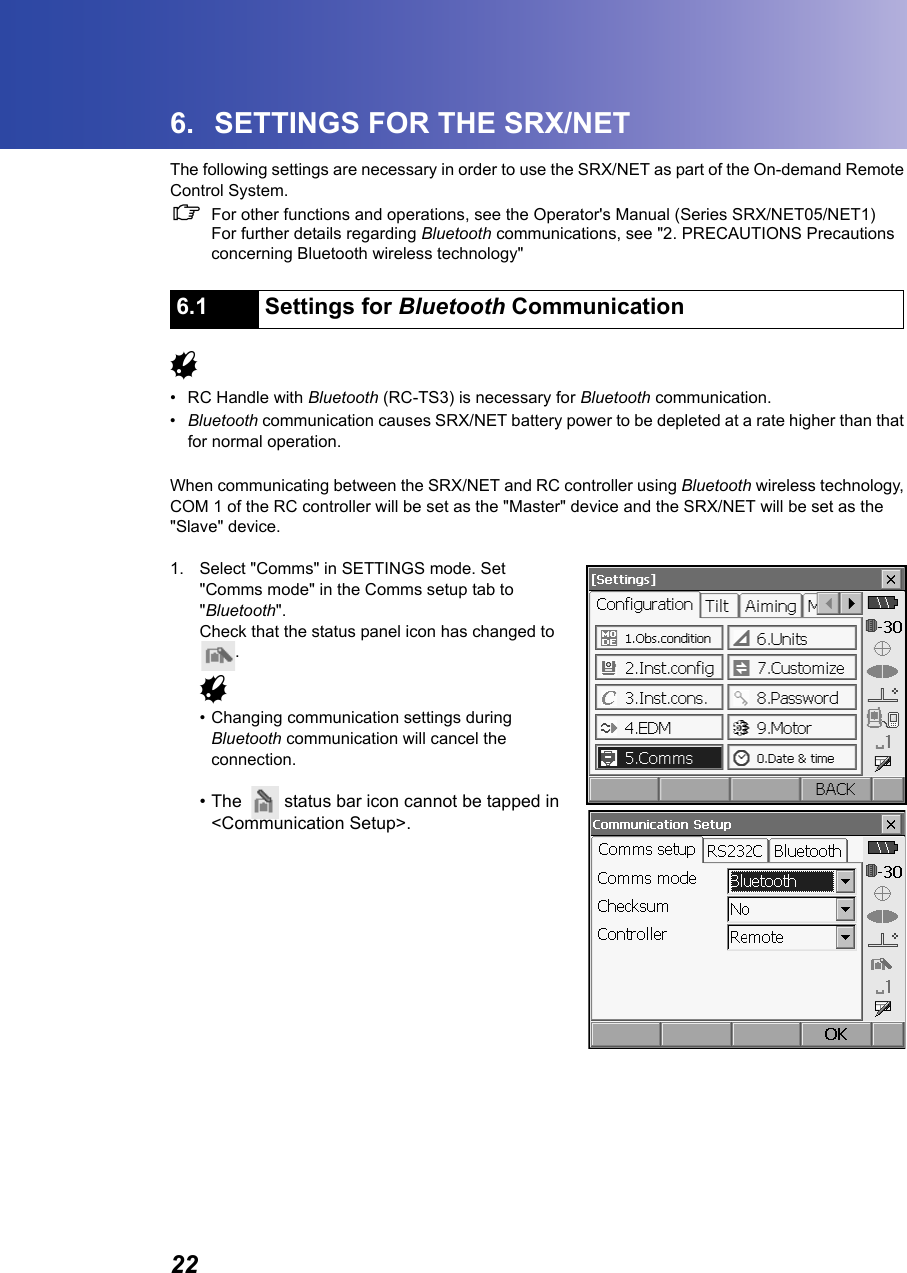
226. SETTINGS FOR THE SRX/NETThe following settings are necessary in order to use the SRX/NET as part of the On-demand Remote Control System.CFor other functions and operations, see the Operator's Manual (Series SRX/NET05/NET1)For further details regarding Bluetooth communications, see "2. PRECAUTIONS Precautions concerning Bluetooth wireless technology"             G• RC Handle with Bluetooth (RC-TS3) is necessary for Bluetooth communication.•Bluetooth communication causes SRX/NET battery power to be depleted at a rate higher than that for normal operation.When communicating between the SRX/NET and RC controller using Bluetooth wireless technology, COM 1 of the RC controller will be set as the "Master" device and the SRX/NET will be set as the "Slave" device.1. Select "Comms" in SETTINGS mode. Set "Comms mode" in the Comms setup tab to "Bluetooth".Check that the status panel icon has changed to .G• Changing communication settings during Bluetooth communication will cancel the connection. • The  status bar icon cannot be tapped in <Communication Setup>.6.1 Settings for Bluetooth Communication
236. SETTINGS FOR THE SRX/NET2. Select "Slave" as the SRX/NET mode and press [OK]. Selection can also be made by tapping the  icon in the status panel until a menu appears.$• When communicating between a data collector and the RC controller using Bluetooth wireless technology, set COM 2 of the RC controller as the "Slave" device. Set the data collector as the "Master" device. C "8.3 Communication Status  & Bluetooth connections"3. The display returns to Meas mode and SRX/NET enters "Waiting" mode. Check that the RC controller Bluetooth mode is set to "Master" and power ON to initiate a connection.C"9.3 Communication Setup for the RC Controller"4. When a connection has been successfully established    is displayed in the status bar.•●COM1 on the RC controller control panel is lit.$•Press [Info] in the Bluetooth tab to display the Bluetooth device address.
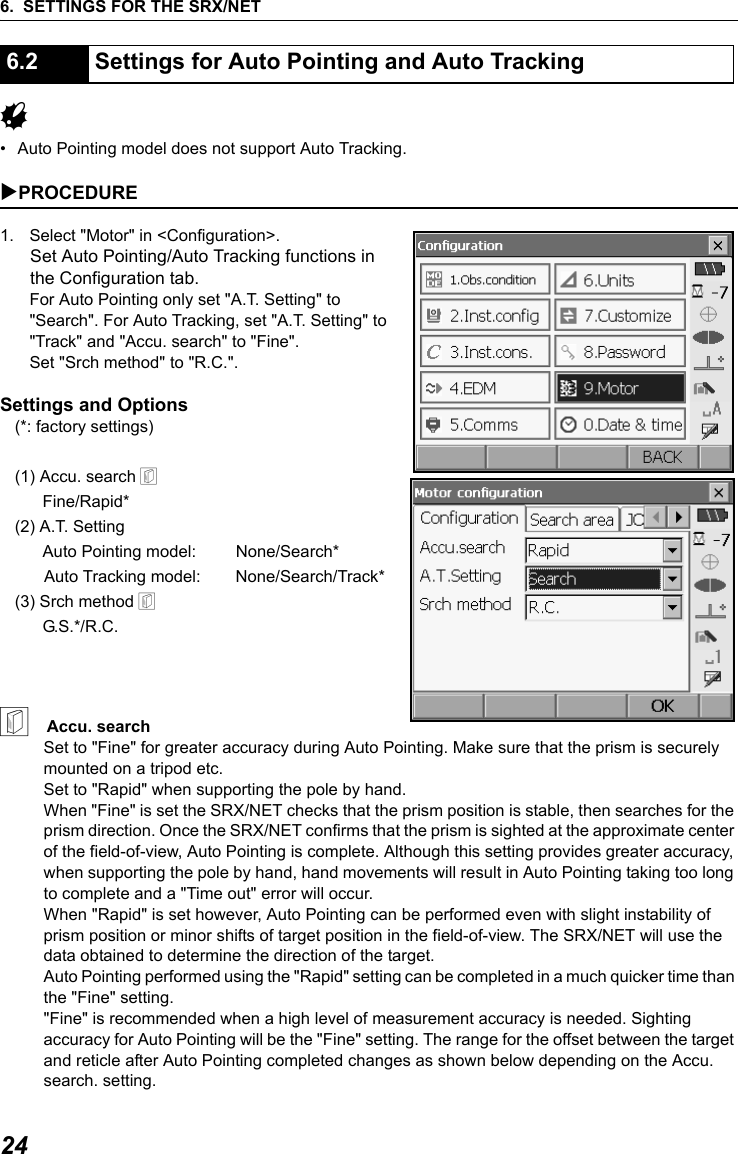
6. SETTINGS FOR THE SRX/NET24G• Auto Pointing model does not support Auto Tracking.  XPROCEDURE1. Select "Motor" in <Configuration>.Set Auto Pointing/Auto Tracking functions in the Configuration tab. For Auto Pointing only set "A.T. Setting" to "Search". For Auto Tracking, set "A.T. Setting" to "Track" and "Accu. search" to "Fine".Set "Srch method" to "R.C.".Settings and Options(*: factory settings)(1) Accu. search &      Fine/Rapid*(2) A.T. Setting      Auto Pointing model: None/Search*Auto Tracking model: None/Search/Track*(3) Srch method &      G.S.*/R.C.&    Accu. searchSet to "Fine" for greater accuracy during Auto Pointing. Make sure that the prism is securely mounted on a tripod etc. Set to "Rapid" when supporting the pole by hand. When "Fine" is set the SRX/NET checks that the prism position is stable, then searches for the prism direction. Once the SRX/NET confirms that the prism is sighted at the approximate center of the field-of-view, Auto Pointing is complete. Although this setting provides greater accuracy, when supporting the pole by hand, hand movements will result in Auto Pointing taking too long to complete and a "Time out" error will occur. When "Rapid" is set however, Auto Pointing can be performed even with slight instability of prism position or minor shifts of target position in the field-of-view. The SRX/NET will use the data obtained to determine the direction of the target. Auto Pointing performed using the "Rapid" setting can be completed in a much quicker time than the "Fine" setting."Fine" is recommended when a high level of measurement accuracy is needed. Sighting accuracy for Auto Pointing will be the "Fine" setting. The range for the offset between the target and reticle after Auto Pointing completed changes as shown below depending on the Accu. search. setting.6.2 Settings for Auto Pointing and Auto Tracking
256. SETTINGS FOR THE SRX/NET"Fine":   ± 5" (approx.)"Rapid":  ± 30" to ± 10’ (depending on distance)2. Set "Srch. method" to  "R.C." in order to start Turning operation in response to a Turning command issued from the RC controller. Set to "G.S." to search for the target in the area specified in the Search area tab.    3. When neccessary, set the JOG dial turning speed for vertical and horizontal rotation of the telescope. The "Shift" point signifies the dial turning speed at which telescope rotation switches from the Lo speed setting to the Hi speed setting.This Shift point, along with the Lo and Hi speed settings can be configured according to user preference.  Settings and Options(*: factory settings) (1) Lo1 to 4 (3*) (steps. 4 is fastest)(2) Hi 1 to 4 (3*) (steps. 4 is fastest)(3) Shift point1 to 4 (2*) (steps)Press [INIT] to return JOG Setting tab settings only to their factory settings. 4. Press [OK].          The larger the number set in (3) the further to the rightthe Shift point is set
6. SETTINGS FOR THE SRX/NET26It is possible to allocate SRX/NET softkeys for both designating the Turning direction, and issuing the instruction to start Turning.C For allocating softkey functions, see the Operator's Manual (Series SRX/NET05/NET1)●SRX softkey operation•[RC]: SRX/NET begins Turning directly in the direction of the RC controller.•[←RC] : SRX/NET begins Turning in a counterclockwise (left) direction (from the point of view of the operation panel).•[RC →]: SRX/NET begins Turning in a clockwise (right) direction (from the point of view of the operation panel).•[RC Cont]: Nullifies the current measurement position and continues Turning operation.The functions of the following softkeys change according to the settings made in "A. T. Setting" and "Srch method"  in <Motor configuration>. When "Search" is set 6.3 Performing Turning from the SRX/NET      "Motor"         settingSoftkey                     When "Search" set in "A.T. Setting" When "None" set in "A.T. Setting""Srch method" is R.C. "Srch method" is G.S. (Global Search)[SRCH] Performs Auto Pointing [DIST] Performs Turning operation then angle/distance measurementPerforms Auto Pointing then angle/distance measurementPerforms angle and distance measurement[RC] Rotates directly in the direction of the RC controller then performs Auto Pointing[<-RC] Rotates in a counterclockwise direction (from the point of view of the RC controller) then performs Auto Pointing[RC->] Rotates in a clockwise direction (from the point of view of the RC controller) then performs Auto Pointing[RC Cont] Nullifes the current measurement position then continues Turning operation[←RC] [RC →]
276. SETTINGS FOR THE SRX/NET● When "Track" is set (Auto Tracking model only)        *1: Pressing [AT On] when A.T. Setting is set to "None" will result in one of the following operations being performed. When "R.C." selected: Performs Turning operation then Auto TrackingWhen "G.S." selected: Performs Auto Pointing then Auto Tracking[AT On] (Auto Tracking model only)Performs Turning operation then Auto TrackingPerforms Auto Pointing then Auto TrackingPerforms Auto Tracking *1      "Motor"         settingSoftkey                    When "Track" set in "A.T. Setting" When "None" set in "A.T. Setting""Srch method" is R.C. "Srch method" is G.S. (Global Search)[SRCH] Performs Auto Pointing then Auto Tracking Performs Auto Pointing[DIST] Performs Turning operation then distance measurement/Auto TrackingPerforms Auto Pointing then distance measurement/Auto TrackingPerforms angle and distance measurement[RC] Rotates directly in the direction of the RC controller then performs Auto PointingRotates in the direction specified by the RC controller then performs Auto Pointing[<-RC] Rotates in a counterclockwise direction (from the point of view of the RC controller) then performs Auto Pointing/Auto TrackingRotates in a counterclockwise direction (from the point of view of the RC controller) then performs Auto Pointing[RC->] Rotates in a clockwise direction (from the point of view of the RC controller) then performs Auto Pointing/Auto TrackingRotates in a clockwise direction (from the point of view of the RC controller) then performs Auto Pointing[RC Cont] Nullifes the current measurement position then continues Turning operation/Auto TrackingNullifes the current measurement position then continues Turning operation[AT On] Performs Turning operation then Auto TrackingPerforms Auto Pointing then Auto TrackingPerforms Auto Tracking *1
6. SETTINGS FOR THE SRX/NET28When Turning fails to detect the prism, an error occursWhen the laser beam from the RC controller is reflected off an unrelated object the SRX/NET completes Turning operation pointing at the object instead of the RC controller. When this happens, press [RC Cont] to nullify the current measurement position and continue Turning operation.& Lost Prism (Auto Tracking model only)In the event that an obstacle prevents the SRX/NET sighting the target during Auto Tracking, the SRX/NET will predict  the direction in which the target will travel and continue Auto Tracking based on this prediction. If the SRX/NET re-acquires the target in this predicted direction, Auto Tracking continues without change. If the target is not re-acquired however, Auto Tracking will stop and the SRX/NET will enter "prism wait" status for a period of 60 seconds. If the target enters the field of view or a Turning command is received from the RC controller during "prism wait", the SRX/NET will search for the prism, then resume Auto Tracking. If the target is not re-acquired during the "prism wait" period, the target is considered "lost" and Auto Tracking terminates. Start Turning procedure again.     CFor error messages, see the Operator's Manual (Series SRX/NET05/NET1)6.4 Turning Error"Prism wait"Target "lost"Direction predictedAuto TrackingObstacleTar g e t Tar g e tTarget foundTarget foundnot foundnot found
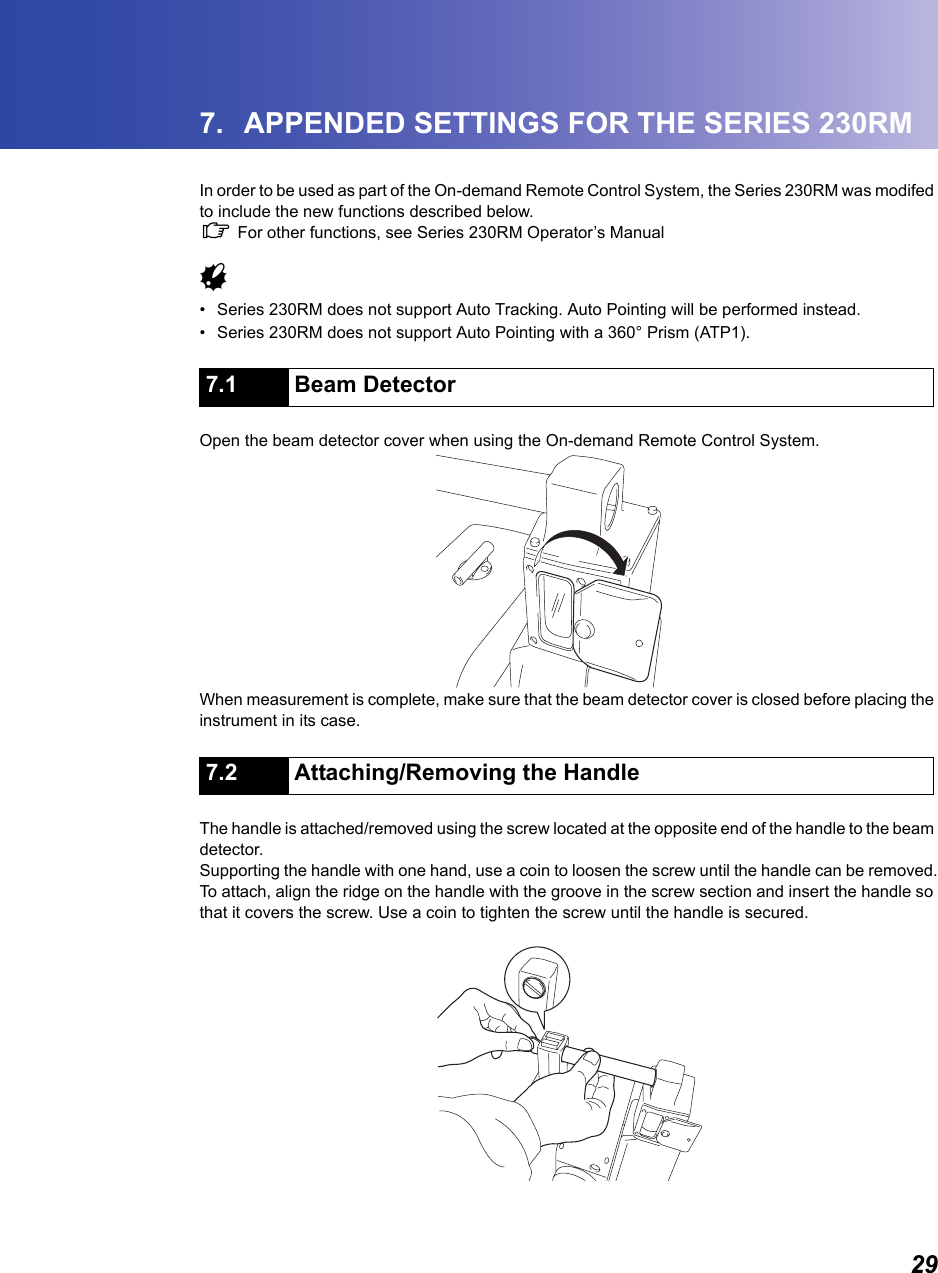
297. APPENDED SETTINGS FOR THE SERIES 230RMIn order to be used as part of the On-demand Remote Control System, the Series 230RM was modifed to include the new functions described below.  C For other functions, see Series 230RM Operator’s Manual    G• Series 230RM does not support Auto Tracking. Auto Pointing will be performed instead.   • Series 230RM does not support Auto Pointing with a 360° Prism (ATP1).                      Open the beam detector cover when using the On-demand Remote Control System.When measurement is complete, make sure that the beam detector cover is closed before placing the instrument in its case.                       The handle is attached/removed using the screw located at the opposite end of the handle to the beam detector.Supporting the handle with one hand, use a coin to loosen the screw until the handle can be removed.To attach, align the ridge on the handle with the groove in the screw section and insert the handle so that it covers the screw. Use a coin to tighten the screw until the handle is secured.7.1 Beam Detector7.2 Attaching/Removing the Handle
7. APPENDED SETTINGS FOR THE SERIES 230RM30When using the On-demand Remote Control System, the communications setup for the Series 230RM, wireless modem, and data collector should be set as follows.G• To change the baud rate settings to values other than those shown above, contact your Sokkia agent.$• The baud rate of the RC controller can be switched using the dip switch. C "9.3 Communication Setup for the RC Controller"When the search before distance measurement option is set to "RC", the Turning function (SET rotation + Auto Point to detect prism) will be performed prior to distance measurement"Search": Auto Pointing only"RC": Turning "Off": No searchG• To perform measurement using the On-demand Remote Control System, the above setting must be set to "RC".• To perform measurement without using the RC controller, the above setting can be set to either "Search" or "Off". If it is set to "RC" by mistake, an error will occur as the Series 230RM tries to find the RC controller even though it is not in use.7.3 Communication SetupBaud rate 1200 bps or 9600 bpsData bits 8Stop bit 1Parity Non parity7.4 Setup for Search Before Distance Measurement[ OK ]Search bef.DIST:RCPCModeReflectEDM Fine "R":30mm:Prism Temp.Search area:HV WideEDM:Illum. hold:Laser 30 CPress.      :1034hPappm         :-300PPM[ OK ]
317. APPENDED SETTINGS FOR THE SERIES 230RMIn the SFT Mode it is possible to both designate the Turning direction, and issue the instruction to start Turning.XPROCEDURE1. Press and hold {SFT} until the SFT Mode menu is displayed. Select "Motor menu" from the second page and press {I}.2. Select Turning command.• "Turn" - Series 230RM begins Turning directly towards the RC controller.• "Turn right" - Series 230RM begins Turning in a clockwise (right) direction (from the point of view of the operation panel).• "Turn left" - Series 230RM begins Turning in a counterclockwise (left) direction (from the point of view of the operation panel).3. To cancel Turning, press [STOP] during operation.7.5 Performing Turning from the Series 230RM SFT Mode  .Aiming7. H angle set8. Data  view9. Meas Motor  menuEDITSFT menu. Tilt1. Search2. Face  change3. Rotation4. Laser-pointer:  OffSFT menu5.Turn6.Turn right7.Turn left"Turn left" "Turn right"
7. APPENDED SETTINGS FOR THE SERIES 230RM32It is possible to allocate softkeys to the [RC], [RC →], [←RC] functions.C For allocating softkey functions, see Series 230RM Operator’s ManualThe allocated softkeys are displayed in each measurement menu.•Press [RC] and the Series 230RM begins Turning directly towards the RC controller.•Press [←RC] and the Series 230RM begins Turning in a counterclockwise (left) direction (from the point of view of the operation panel).• Press [RC →] and the Series 230RM begins Turning in a clockwise (right) direction (from the point of view of the operation panel).7.6 Allocating Softkey Functions[         ]RCMeas./Sdist PC -30ppm      0DISTP1RCZA          89 57’42"HAR      359 01’20"RCS             15.120m[←RC] [RC →]
337. APPENDED SETTINGS FOR THE SERIES 230RMWhen Turning fails to detect the prism, an error occurs.When the laser beam from the RC controller is reflected off an unrelated object the Series 230RM completes Turning operation pointing at the object instead of the RC controller. When this happens, press [CONT] to nullify the current measurement position and continue Turning operation.For other softkeys, see "7.6 Allocating Softkey Functions"Remotocatcher Communication err !!Communication between the Series 230RM and RC controller has failed.Check the status (communications setup, power supply, cable connections etc.) of the RC controller, wireless modem and cables.Motor error E592Motor error E593A hardware error has occurred with the RC controller.Switch the power to the RC controller OFF and ON to correct the problem.If the error reoccurs after restart, contact your Sokkia agent. 7.7 Turning Error7.8 Error Messages
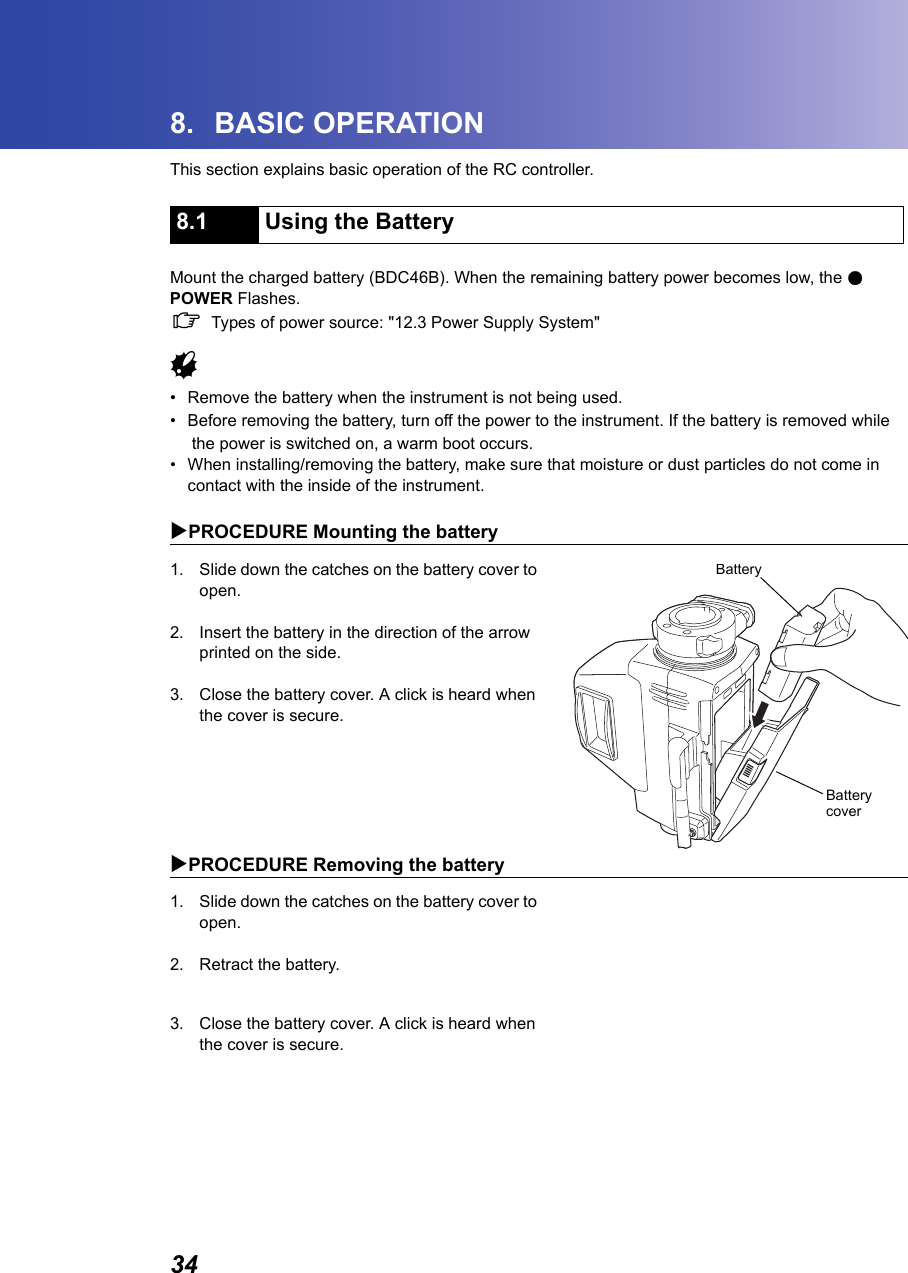
348. BASIC OPERATIONThis section explains basic operation of the RC controller.      Mount the charged battery (BDC46B). When the remaining battery power becomes low, the ●POWER Flashes. CTypes of power source: "12.3 Power Supply System"G• Remove the battery when the instrument is not being used.• Before removing the battery, turn off the power to the instrument. If the battery is removed whilethe power is switched on, a warm boot occurs.• When installing/removing the battery, make sure that moisture or dust particles do not come in contact with the inside of the instrument.XPROCEDURE Mounting the battery1. Slide down the catches on the battery cover to open.2. Insert the battery in the direction of the arrow printed on the side.3. Close the battery cover. A click is heard when the cover is secure.XPROCEDURE Removing the battery1. Slide down the catches on the battery cover to open.2. Retract the battery.3. Close the battery cover. A click is heard when the cover is secure.8.1 Using the BatteryBatteryBatterycover
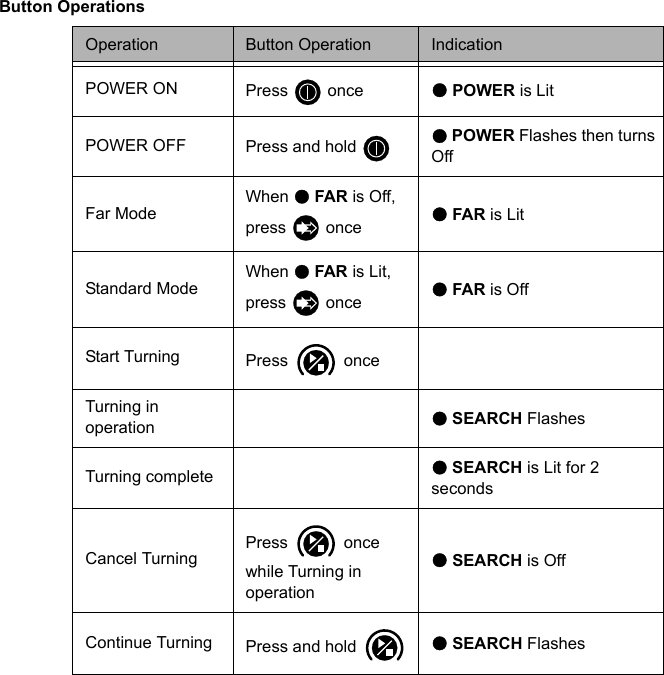
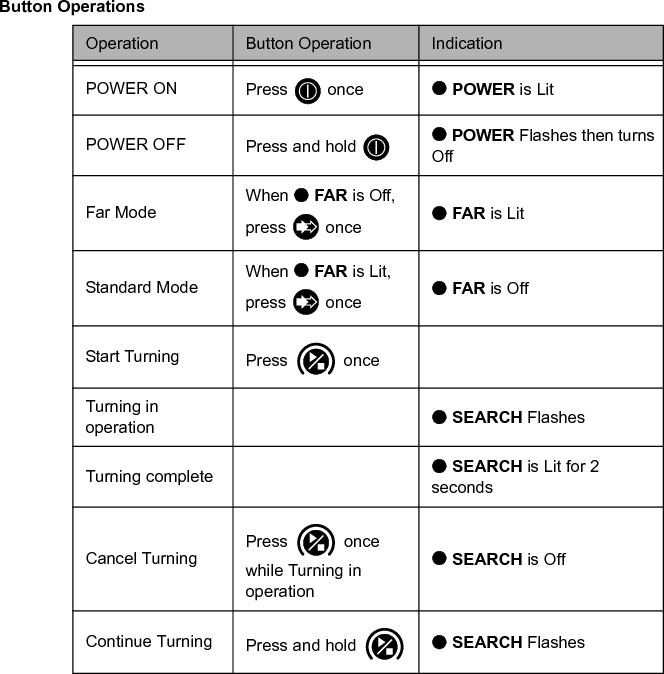
358. BASIC OPERATIONThe RC controller is operated using the buttons on the control panel.8.2.1 Power ON/OFF Press the POWER button   to switch ON the RC controller. The ●POWER is Lit.Press and hold the POWER button   to switch OFF the RC controller. An audio tone sounds twice and ●POWER Flashes before an audio tone sounds and the RC controller switches OFF. 8.2.2 Setting Distance Mode The FAR button   is used to set the Distance Mode depending on the distance between the total station and the RC controller.Pressing the FAR button   switches the ●FAR from Lit to Off and vice versa.Lit: Far ModeOff: Standard ModeSet to Far Mode when the distance between the total station and the RC controller is over 100m (normal atmospheric conditions)/150m(good atmospheric conditions).& Atmospheric conditions• Normal: slight haze, visibility about 20 km, sunny periods, weak scintillation.• Good: no haze, visibility about 40 km, overcast, no scintillation.G• Set to Standard Mode ( ●FAR is Off) when the total station and RC controller are close. • Using Far Mode ( ●FAR is Lit) when the total station and RC controller are close could result in the emitted laser beam being reflected off nearby objects. If this happens the total station will complete Turning pointing to the object instead of the RC controller.• Set to Far Mode ( ●FAR is Lit) even when the distance between the total station and the RC controller is 100m or less if the height difference is large.• Far Mode depletes battery power at a greater rate than Standard Mode.The FAR button   cannot be pressed while the total station is Turning.8.2 Button Operations
8. BASIC OPERATION368.2.3 Starting Turning Operation Press the SEARCH button   to start Turning operation.•● SEARCH Flashes when the total station is currently performing Turning operation.• When Turning operation is complete, an audio tone sounds and ● SEARCH remains Lit for approx. 2 seconds.• Press the SEARCH button   during operation to stop Turning. • If the total station fails to detect the prism, a long audio tone sounds and ● SEARCH Flashes quickly for approx. 2 seconds to indicate that an error has occurred.• When the laser beam from the RC controller is reflected off a unrelated object the total station completes Turning operation pointing at this object instead of the RC controller. When this happens, press and hold the SEARCH button   to nullify the current measurement position and continue Turning operation.
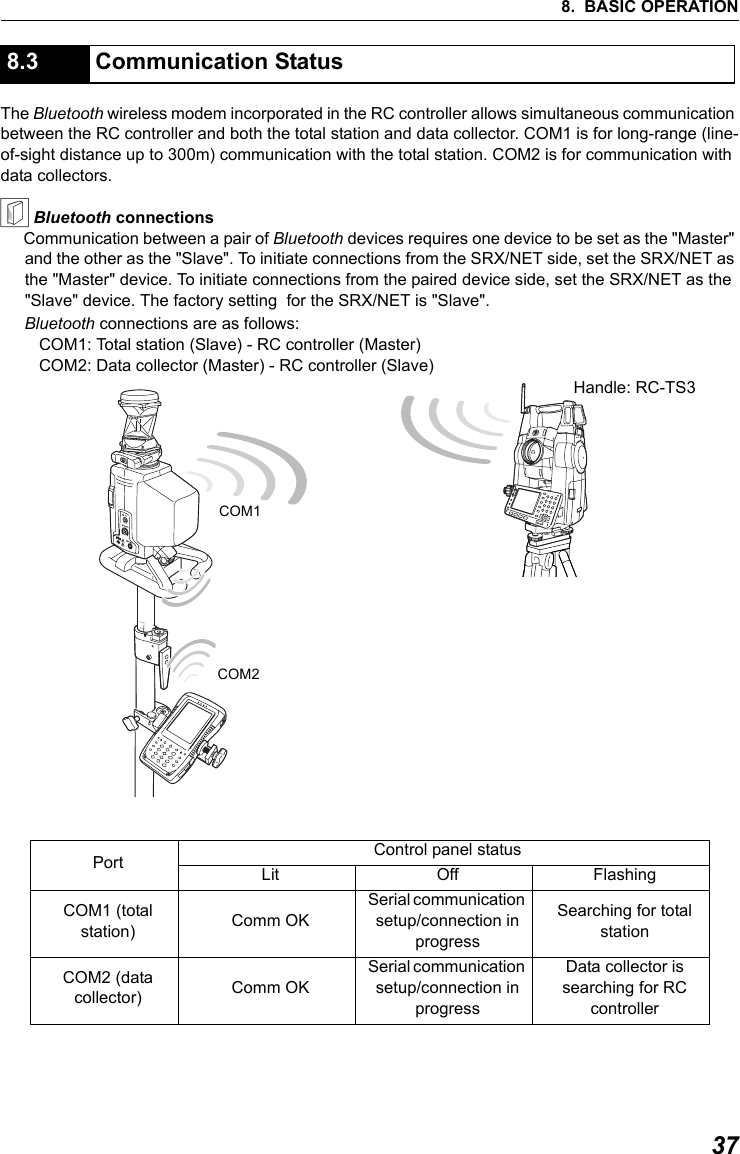
378. BASIC OPERATIONThe Bluetooth wireless modem incorporated in the RC controller allows simultaneous communication between the RC controller and both the total station and data collector. COM1 is for long-range (line-of-sight distance up to 300m) communication with the total station. COM2 is for communication with data collectors.& Bluetooth connectionsCommunication between a pair of Bluetooth devices requires one device to be set as the "Master" and the other as the "Slave". To initiate connections from the SRX/NET side, set the SRX/NET as the "Master" device. To initiate connections from the paired device side, set the SRX/NET as the "Slave" device. The factory setting  for the SRX/NET is "Slave". Bluetooth connections are as follows:COM1: Total station (Slave) - RC controller (Master)COM2: Data collector (Master) - RC controller (Slave)   8.3 Communication StatusPort Control panel statusLit Off FlashingCOM1 (total station) Comm OKSerial communication setup/connection in progressSearching for total stationCOM2 (data collector) Comm OKSerial communication setup/connection in progressData collector is searching for RC controllerCOM2COM1Handle: RC-TS3
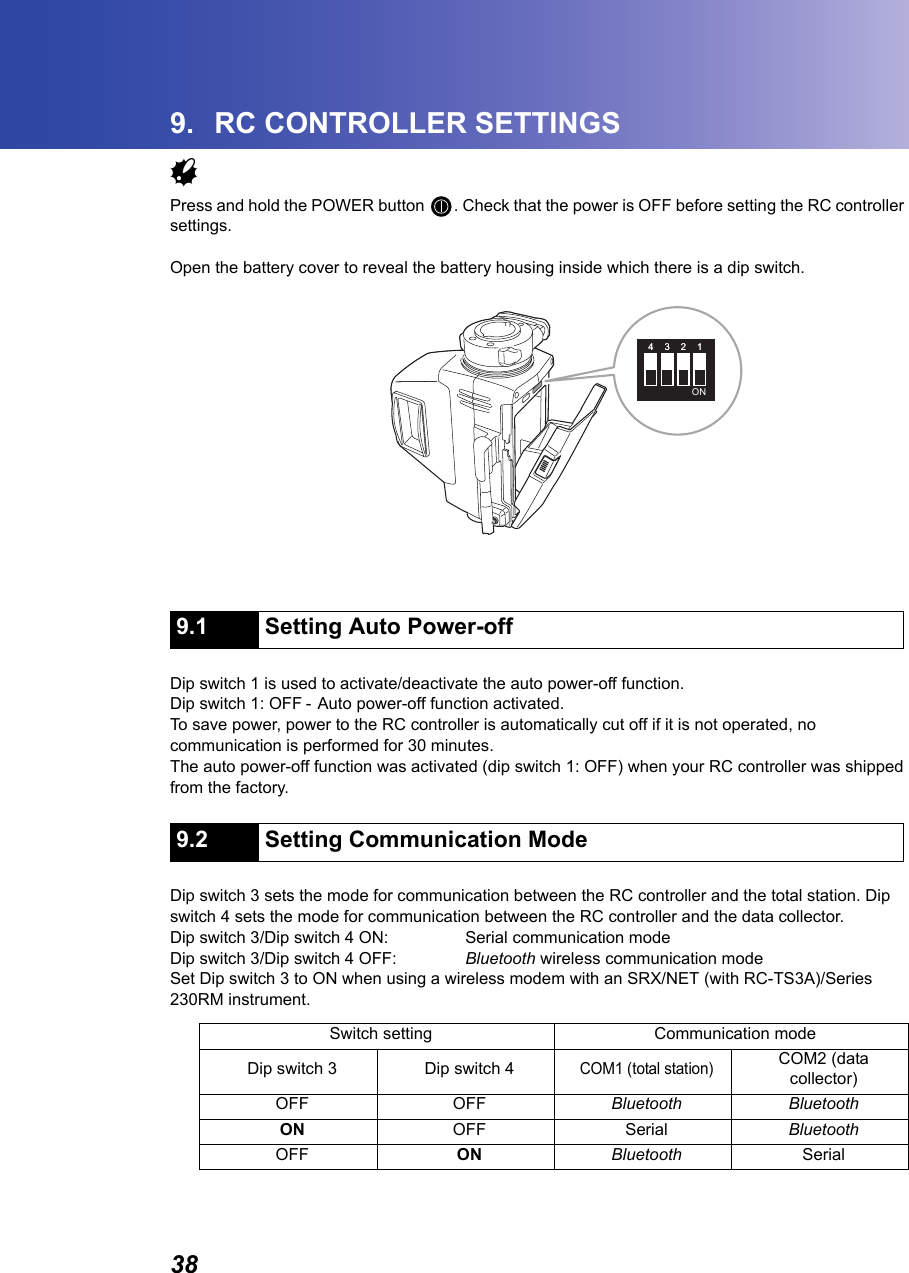
389. RC CONTROLLER SETTINGSGPress and hold the POWER button  . Check that the power is OFF before setting the RC controller settings.Open the battery cover to reveal the battery housing inside which there is a dip switch.Dip switch 1 is used to activate/deactivate the auto power-off function.Dip switch 1: OFF - Auto power-off function activated. To save power, power to the RC controller is automatically cut off if it is not operated, no communication is performed for 30 minutes.The auto power-off function was activated (dip switch 1: OFF) when your RC controller was shipped from the factory.                    Dip switch 3 sets the mode for communication between the RC controller and the total station. Dip switch 4 sets the mode for communication between the RC controller and the data collector. Dip switch 3/Dip switch 4 ON: Serial communication modeDip switch 3/Dip switch 4 OFF: Bluetooth wireless communication mode   Set Dip switch 3 to ON when using a wireless modem with an SRX/NET (with RC-TS3A)/Series 230RM instrument.      9.1 Setting Auto Power-off9.2 Setting Communication ModeSwitch setting Communication modeDip switch 3 Dip switch 4COM1 (total station)COM2 (data collector)OFF OFF Bluetooth BluetoothON OFF Serial BluetoothOFF ON Bluetooth Serial44 33 22 11ON
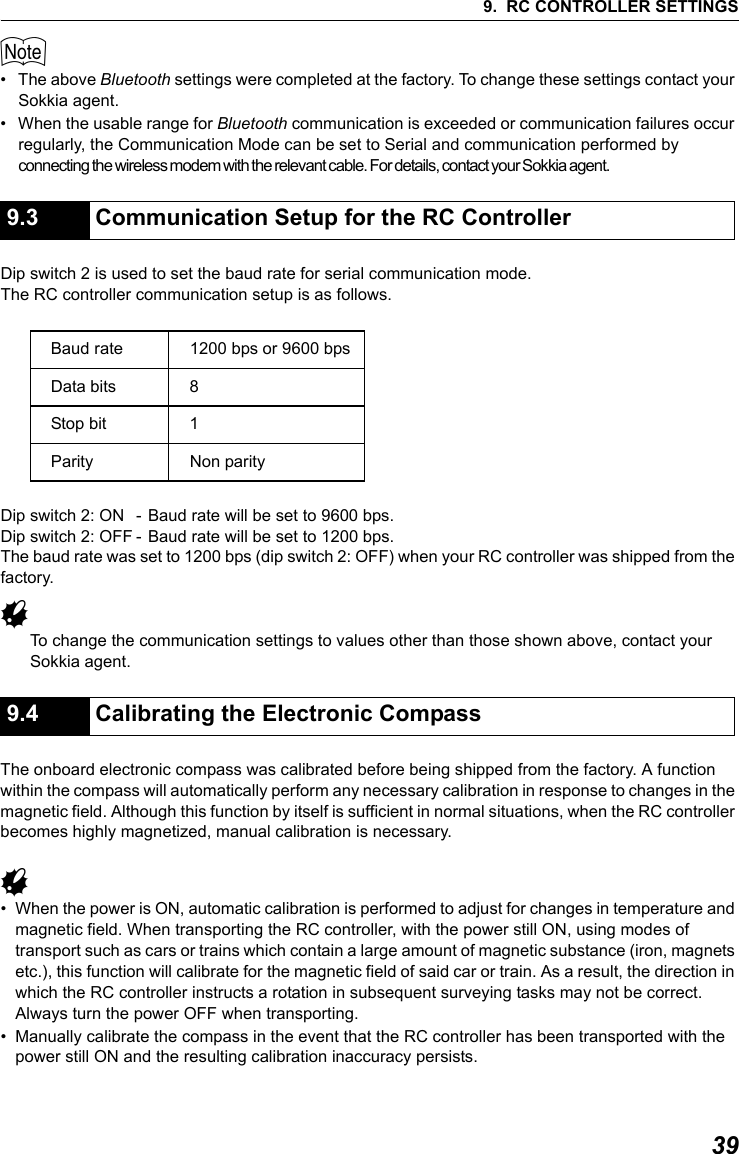
399. RC CONTROLLER SETTINGS$• The above Bluetooth settings were completed at the factory. To change these settings contact your Sokkia agent. • When the usable range for Bluetooth communication is exceeded or communication failures occur regularly, the Communication Mode can be set to Serial and communication performed by connecting the wireless modem with the relevant cable. For details, contact your Sokkia agent.                  Dip switch 2 is used to set the baud rate for serial communication mode.The RC controller communication setup is as follows.Dip switch 2: ON - Baud rate will be set to 9600 bps. Dip switch 2: OFF - Baud rate will be set to 1200 bps.The baud rate was set to 1200 bps (dip switch 2: OFF) when your RC controller was shipped from the factory.GTo change the communication settings to values other than those shown above, contact your Sokkia agent. The onboard electronic compass was calibrated before being shipped from the factory. A function within the compass will automatically perform any necessary calibration in response to changes in the magnetic field. Although this function by itself is sufficient in normal situations, when the RC controller becomes highly magnetized, manual calibration is necessary.G• When the power is ON, automatic calibration is performed to adjust for changes in temperature and magnetic field. When transporting the RC controller, with the power still ON, using modes of transport such as cars or trains which contain a large amount of magnetic substance (iron, magnets etc.), this function will calibrate for the magnetic field of said car or train. As a result, the direction in which the RC controller instructs a rotation in subsequent surveying tasks may not be correct. Always turn the power OFF when transporting.• Manually calibrate the compass in the event that the RC controller has been transported with the power still ON and the resulting calibration inaccuracy persists.9.3 Communication Setup for the RC ControllerBaud rate 1200 bps or 9600 bpsData bits 8Stop bit 1Parity Non parity9.4 Calibrating the Electronic Compass
9. RC CONTROLLER SETTINGS40• The ideal location for performing manual calibration would be an open area clear of any objects. Failing that, make sure that the surrounding area (i.e. several meters around the instrument including ground level) is clear of metallic objects (desks, steel frames, etc.) or devices containing magnets. • Hold the RC controller on the pole at a height of at least 1m.• Avoid physical contact with metallic objects (cellular phones, tape measures, etc.) or magnetic objects (such as magnetic necklaces) while performing manual calibration.XPROCEDURE Checking whether manual calibration is necessary1. Press the POWER button  to switch ON the RC controller. ● POWER is Lit.If ●FAR and ●SEARCH flash and a rapid error tone sounds repeatedly, relocate to a position several meters away from metallic objects (desks, steel frames, etc.) or devices containing magnets before trying again.If the audio tone continues to sound even after changing location, manual calibration is necessary.2. When calibration is necessary, switch OFF and proceed to "PROCEDURE Manually calibrating the compass".
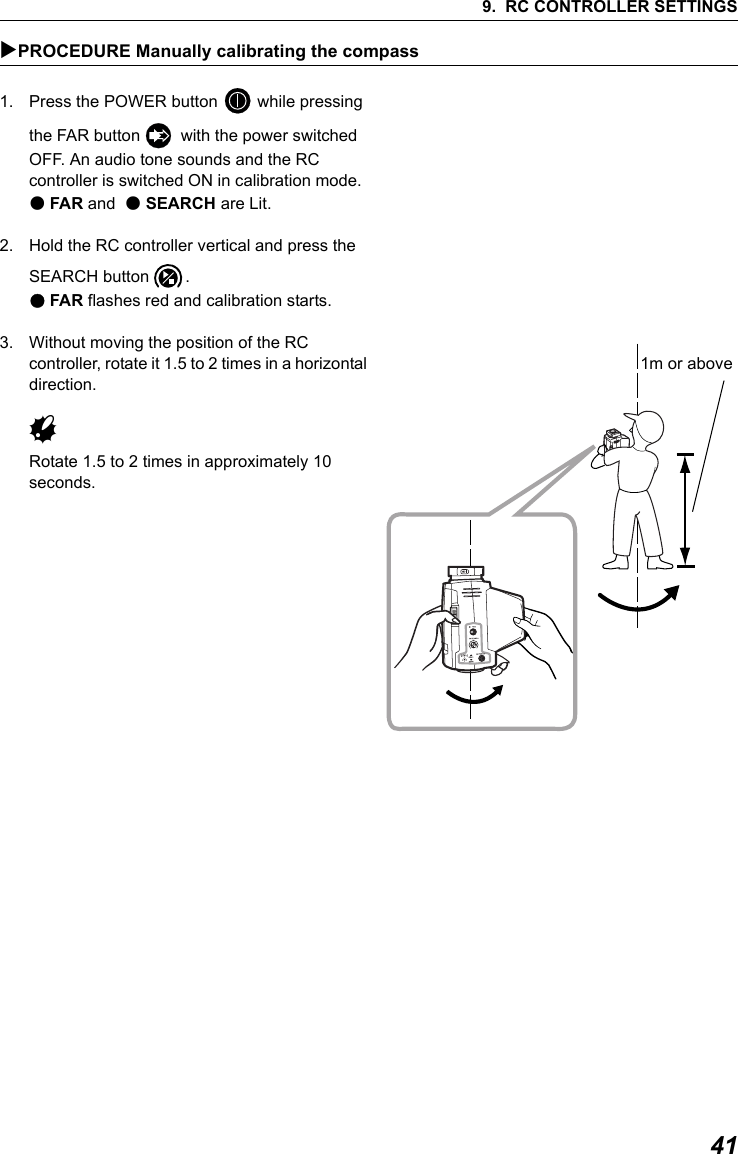
419. RC CONTROLLER SETTINGSXPROCEDURE Manually calibrating the compass1. Press the POWER button   while pressing the FAR button   with the power switched OFF. An audio tone sounds and the RC controller is switched ON in calibration mode.  ●FAR and  ●SEARCH are Lit.2. Hold the RC controller vertical and press the SEARCH button  .●FAR flashes red and calibration starts.3. Without moving the position of the RC controller, rotate it 1.5 to 2 times in a horizontal direction.  GRotate 1.5 to 2 times in approximately 10 seconds.1m or above
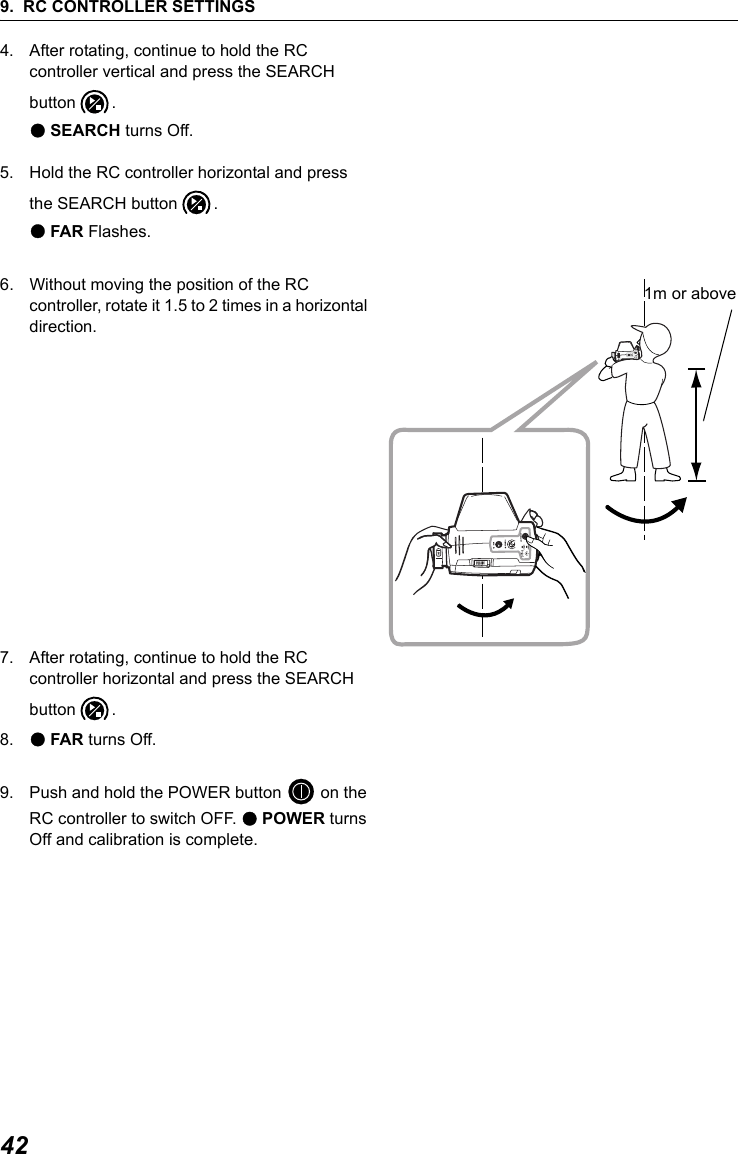
9. RC CONTROLLER SETTINGS424. After rotating, continue to hold the RC controller vertical and press the SEARCH button . ●SEARCH turns Off. 5. Hold the RC controller horizontal and press the SEARCH button  .                     ●FAR Flashes.6. Without moving the position of the RC controller, rotate it 1.5 to 2 times in a horizontal direction.  7. After rotating, continue to hold the RC controller horizontal and press the SEARCH button . 8. ●FAR turns Off.9. Push and hold the POWER button   on the RC controller to switch OFF. ●POWER turns Off and calibration is complete. 1m or above
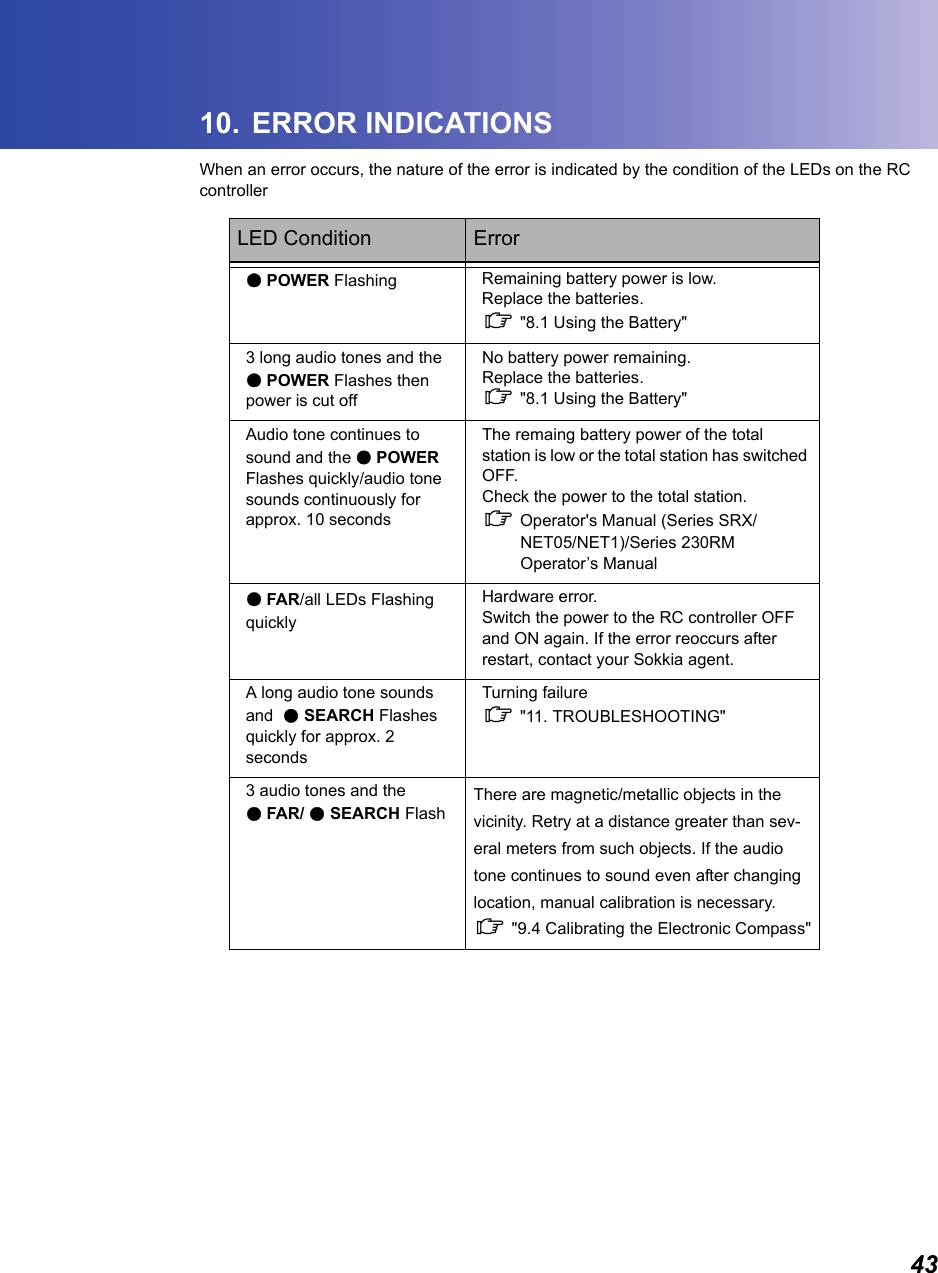
4310.  ERROR INDICATIONSWhen an error occurs, the nature of the error is indicated by the condition of the LEDs on the RC controllerLED Condition Error●POWER Flashing Remaining battery power is low.Replace the batteries.C "8.1 Using the Battery"3 long audio tones and the●POWER Flashes then power is cut offNo battery power remaining.Replace the batteries.C "8.1 Using the Battery"Audio tone continues to sound and the ●POWER Flashes quickly/audio tone sounds continuously for approx. 10 secondsThe remaing battery power of the total station is low or the total station has switched OFF.Check the power to the total station.C Operator's Manual (Series SRX/NET05/NET1)/Series 230RM Operator’s Manual●FAR/all LEDs Flashing quicklyHardware error.Switch the power to the RC controller OFF and ON again. If the error reoccurs after restart, contact your Sokkia agent.A long audio tone sounds and  ● SEARCH Flashes quickly for approx. 2 secondsTurning failureC "11. TROUBLESHOOTING"3 audio tones and the●FAR/ ● SEARCH Flash There are magnetic/metallic objects in the vicinity. Retry at a distance greater than sev-eral meters from such objects. If the audio tone continues to sound even after changing location, manual calibration is necessary.C "9.4 Calibrating the Electronic Compass"
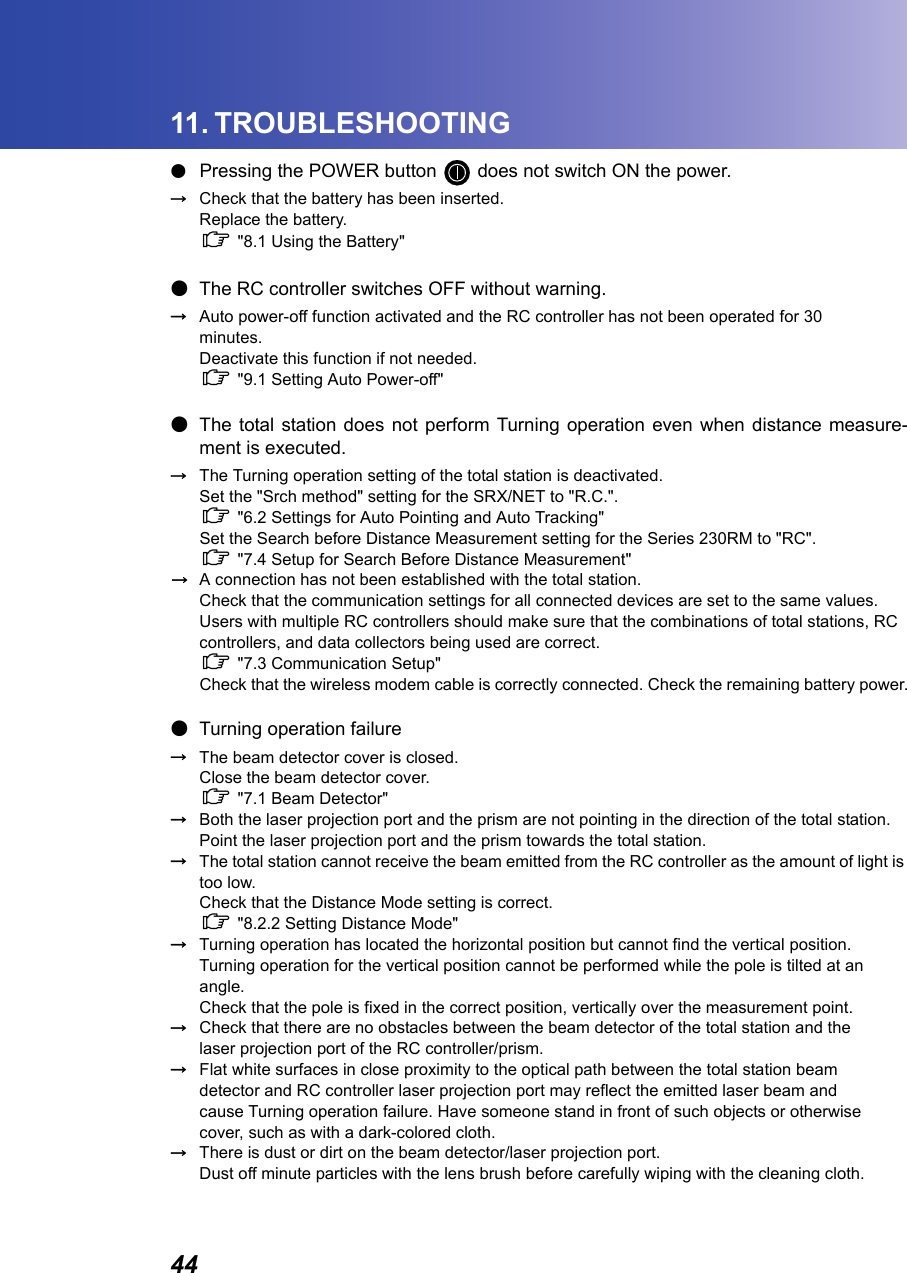
4411. TROUBLESHOOTING●Pressing the POWER button   does not switch ON the power.→Check that the battery has been inserted.Replace the battery.C "8.1 Using the Battery"●The RC controller switches OFF without warning.→Auto power-off function activated and the RC controller has not been operated for 30 minutes.Deactivate this function if not needed.C "9.1 Setting Auto Power-off"●The total station does not perform Turning operation even when distance measure-ment is executed.→The Turning operation setting of the total station is deactivated.Set the "Srch method" setting for the SRX/NET to "R.C.".C "6.2 Settings for Auto Pointing and Auto Tracking"Set the Search before Distance Measurement setting for the Series 230RM to "RC".C "7.4 Setup for Search Before Distance Measurement"→A connection has not been established with the total station.Check that the communication settings for all connected devices are set to the same values. Users with multiple RC controllers should make sure that the combinations of total stations, RC controllers, and data collectors being used are correct. C "7.3 Communication Setup"Check that the wireless modem cable is correctly connected. Check the remaining battery power.●Turning operation failure→The beam detector cover is closed.Close the beam detector cover.C "7.1 Beam Detector"→Both the laser projection port and the prism are not pointing in the direction of the total station.Point the laser projection port and the prism towards the total station.→The total station cannot receive the beam emitted from the RC controller as the amount of light is too low.Check that the Distance Mode setting is correct.C "8.2.2 Setting Distance Mode"→Turning operation has located the horizontal position but cannot find the vertical position.Turning operation for the vertical position cannot be performed while the pole is tilted at an angle.Check that the pole is fixed in the correct position, vertically over the measurement point.→Check that there are no obstacles between the beam detector of the total station and the laser projection port of the RC controller/prism.→Flat white surfaces in close proximity to the optical path between the total station beam detector and RC controller laser projection port may reflect the emitted laser beam and cause Turning operation failure. Have someone stand in front of such objects or otherwise cover, such as with a dark-colored cloth.→There is dust or dirt on the beam detector/laser projection port.Dust off minute particles with the lens brush before carefully wiping with the cleaning cloth.
4511. TROUBLESHOOTING●Total station finishes Turning operation pointing in the wrong direction.→The total station receives the emitted laser beam after it has been reflected off a highly-reflective surface in the vicinity of the RC controller.Continue Turning operation.C "4.2 Measurement Flow"C "6.3 Performing Turning from the SRX/NET"/"7.5 Performing Turning from the Series 230RM SFT Mode"●The signal for the data collector/wireless modem equipped with Bluetooth wireless technol-ogy is weak.→The wireless modem signal is poor because the modem is placed in a low position, close to ground level.Place the modem in as high a position as possible.
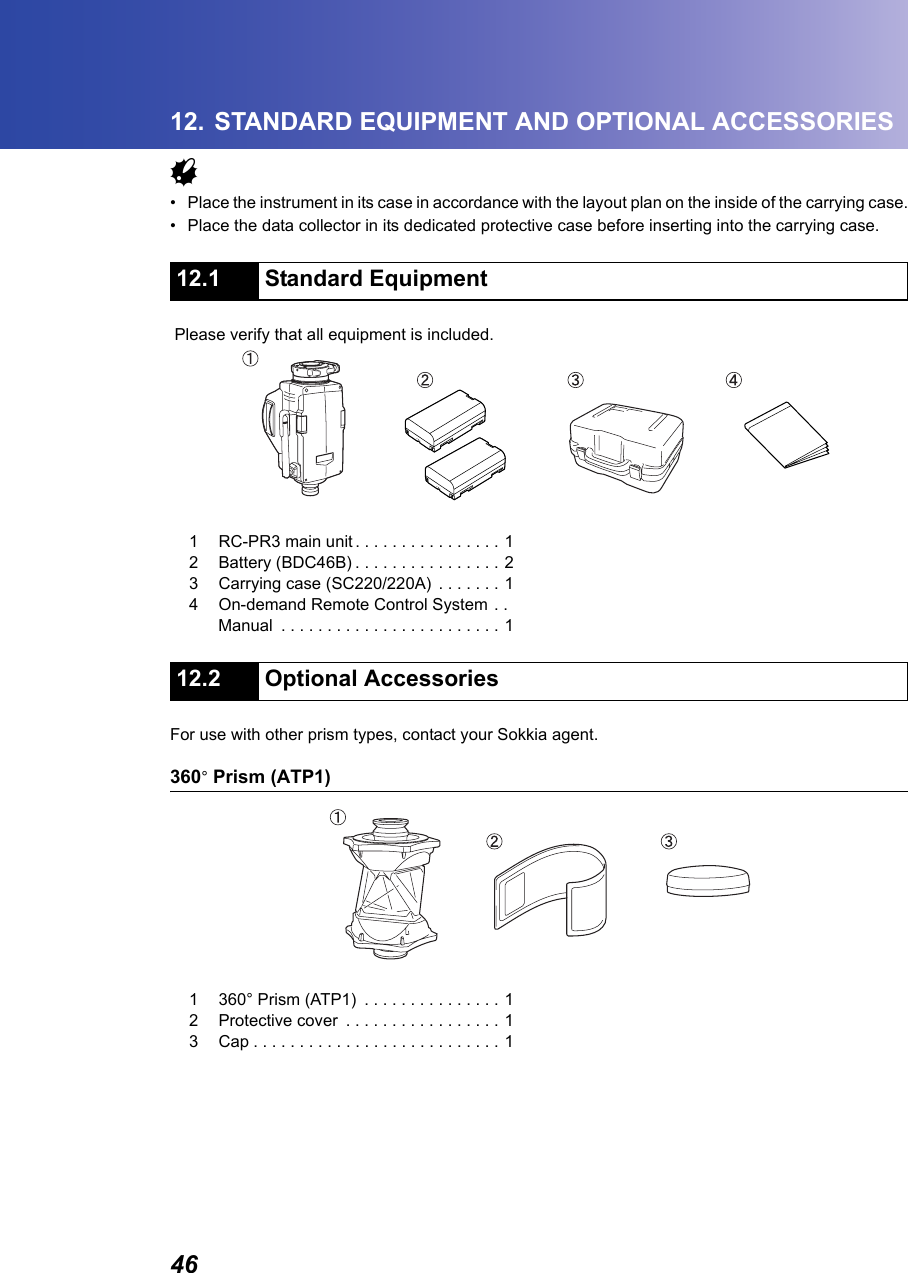
4612. STANDARD EQUIPMENT AND OPTIONAL ACCESSORIESG• Place the instrument in its case in accordance with the layout plan on the inside of the carrying case.• Place the data collector in its dedicated protective case before inserting into the carrying case. Please verify that all equipment is included.For use with other prism types, contact your Sokkia agent.360° Prism (ATP1)                12.1 Standard Equipment12.2 Optional Accessories1 RC-PR3 main unit . . . . . . . . . . . . . . . . 12 Battery (BDC46B) . . . . . . . . . . . . . . . . 23 Carrying case (SC220/220A)  . . . . . . . 14 On-demand Remote Control System  . . Manual  . . . . . . . . . . . . . . . . . . . . . . . . 11 360° Prism (ATP1)  . . . . . . . . . . . . . . . 12 Protective cover  . . . . . . . . . . . . . . . . . 13 Cap . . . . . . . . . . . . . . . . . . . . . . . . . . . 1
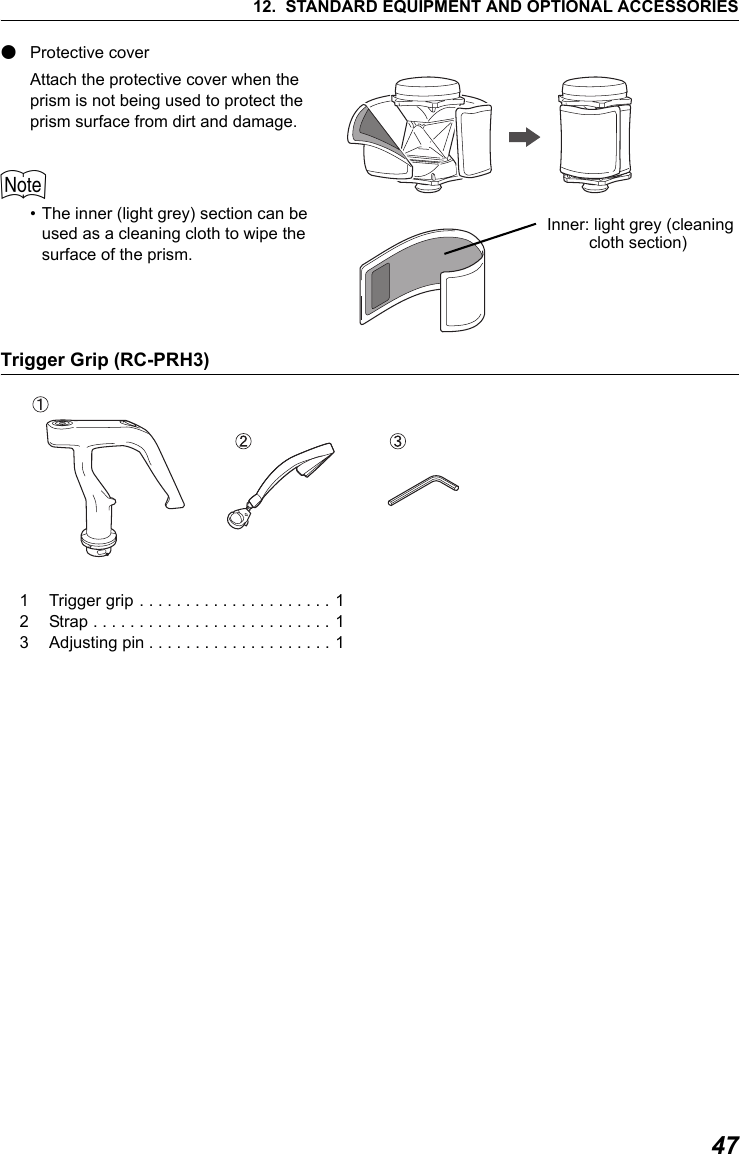
4712. STANDARD EQUIPMENT AND OPTIONAL ACCESSORIES●Protective coverAttach the protective cover when the prism is not being used to protect the prism surface from dirt and damage. $• The inner (light grey) section can be used as a cleaning cloth to wipe the surface of the prism.Trigger Grip (RC-PRH3)           Inner: light grey (cleaning           cloth section)1 Trigger grip . . . . . . . . . . . . . . . . . . . . . 12 Strap . . . . . . . . . . . . . . . . . . . . . . . . . . 13 Adjusting pin . . . . . . . . . . . . . . . . . . . . 1
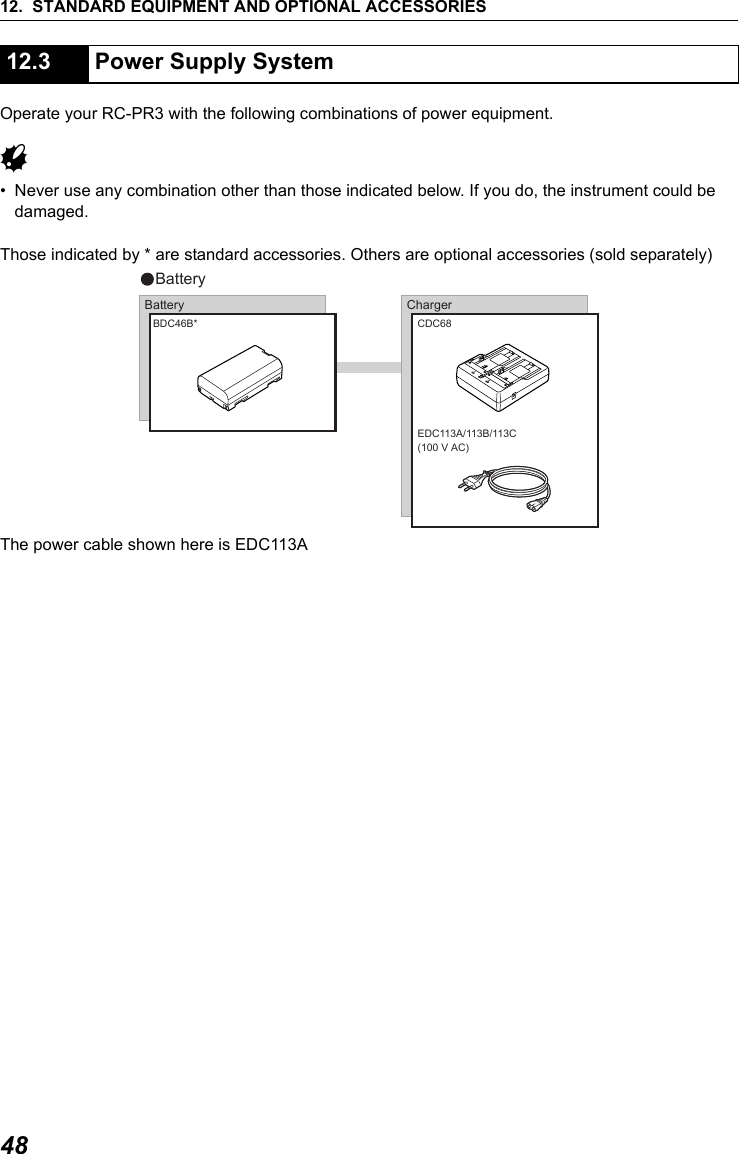
12. STANDARD EQUIPMENT AND OPTIONAL ACCESSORIES48Operate your RC-PR3 with the following combinations of power equipment.G• Never use any combination other than those indicated below. If you do, the instrument could be damaged.Those indicated by * are standard accessories. Others are optional accessories (sold separately)  The power cable shown here is EDC113A12.3 Power Supply SystemBatteryBDC46B* CDC68EDC113A/113B/113C(100 V AC)ChargerBattery
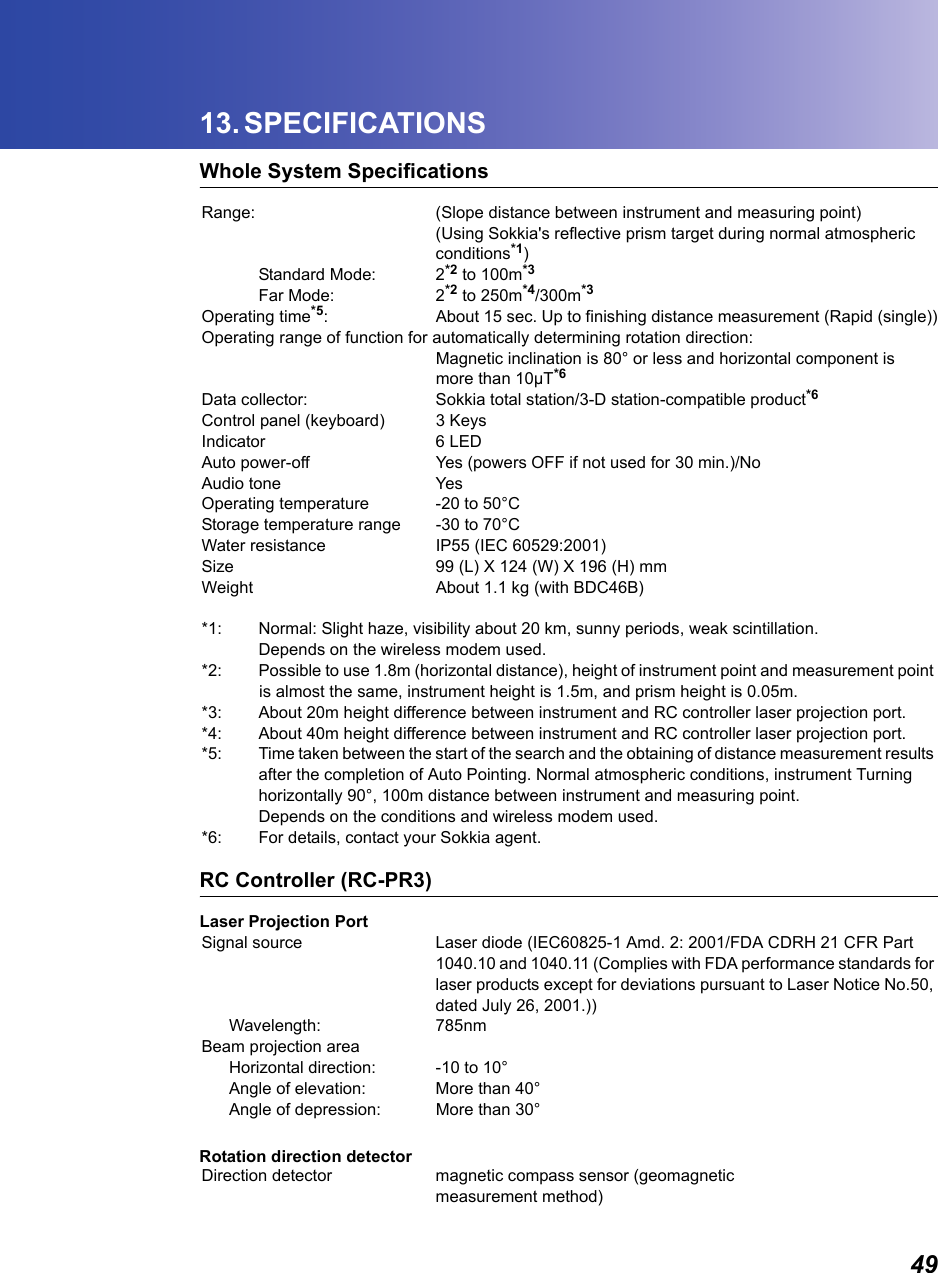
4913. SPECIFICATIONSWhole System SpecificationsRange: (Slope distance between instrument and measuring point)(Using Sokkia's reflective prism target during normal atmospheric conditions*1)Standard Mode: 2*2 to 100m*3Far Mode: 2*2 to 250m*4/300m*3Operating time*5: About 15 sec. Up to finishing distance measurement (Rapid (single))Operating range of function for automatically determining rotation direction:Magnetic inclination is 80° or less and horizontal component ismore than 10µT*6Data collector: Sokkia total station/3-D station-compatible product*6Control panel (keyboard) 3 KeysIndicator 6 LEDAuto power-off Yes (powers OFF if not used for 30 min.)/NoAudio tone YesOperating temperature -20 to 50°CStorage temperature range -30 to 70°CWater resistance IP55 (IEC 60529:2001)Size 99 (L) X 124 (W) X 196 (H) mmWeight   About 1.1 kg (with BDC46B)*1: Normal: Slight haze, visibility about 20 km, sunny periods, weak scintillation.Depends on the wireless modem used.*2: Possible to use 1.8m (horizontal distance), height of instrument point and measurement point is almost the same, instrument height is 1.5m, and prism height is 0.05m.*3: About 20m height difference between instrument and RC controller laser projection port.*4: About 40m height difference between instrument and RC controller laser projection port.*5: Time taken between the start of the search and the obtaining of distance measurement results after the completion of Auto Pointing. Normal atmospheric conditions, instrument Turning horizontally 90°, 100m distance between instrument and measuring point.Depends on the conditions and wireless modem used.*6: For details, contact your Sokkia agent.RC Controller (RC-PR3)Laser Projection PortSignal source Laser diode (IEC60825-1 Amd. 2: 2001/FDA CDRH 21 CFR Part 1040.10 and 1040.11 (Complies with FDA performance standards for laser products except for deviations pursuant to Laser Notice No.50, dated July 26, 2001.))Wavelength: 785nmBeam projection areaHorizontal direction: -10 to 10°Angle of elevation: More than 40°Angle of depression: More than 30°Rotation direction detectorDirection detector magnetic compass sensor (geomagnetic measurement method)
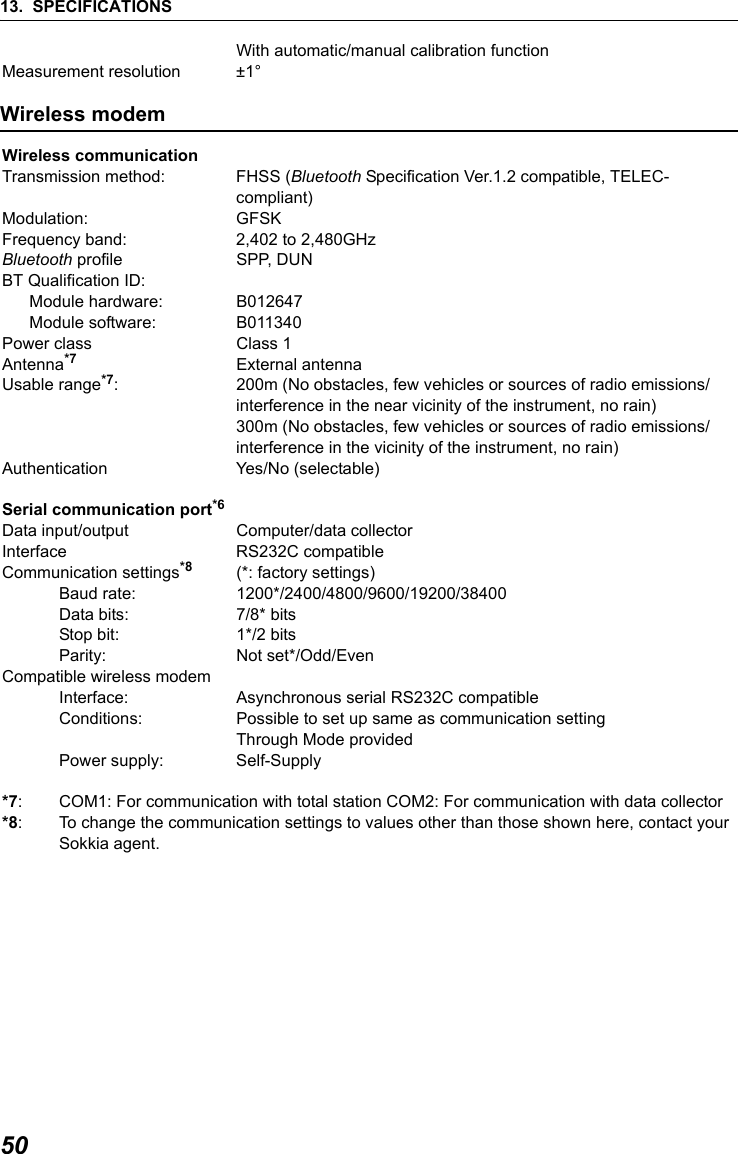
13. SPECIFICATIONS50With automatic/manual calibration functionMeasurement resolution ±1°Wireless modem Wireless communicationTransmission method: FHSS (Bluetooth Specification Ver.1.2 compatible, TELEC-compliant)Modulation: GFSKFrequency band: 2,402 to 2,480GHzBluetooth profile SPP, DUNBT Qualification ID:Module hardware: B012647Module software: B011340Power class Class 1Antenna*7 External antennaUsable range*7: 200m (No obstacles, few vehicles or sources of radio emissions/interference in the near vicinity of the instrument, no rain)300m (No obstacles, few vehicles or sources of radio emissions/interference in the vicinity of the instrument, no rain)Authentication Yes/No (selectable)Serial communication port*6Data input/output Computer/data collector Interface RS232C compatibleCommunication settings*8 (*: factory settings)Baud rate: 1200*/2400/4800/9600/19200/38400Data bits:  7/8* bitsStop bit:  1*/2 bitsParity: Not set*/Odd/EvenCompatible wireless modemInterface: Asynchronous serial RS232C compatibleConditions: Possible to set up same as communication settingThrough Mode providedPower supply: Self-Supply*7: COM1: For communication with total station COM2: For communication with data collector*8: To change the communication settings to values other than those shown here, contact yourSokkia agent.
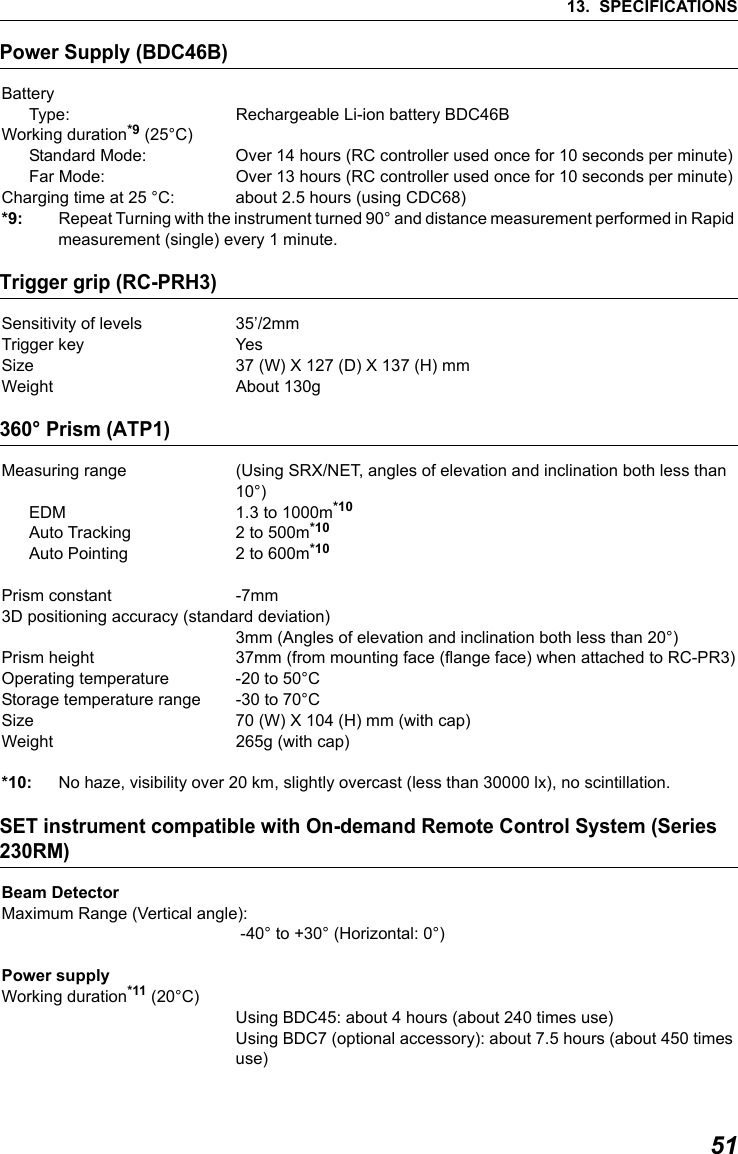
5113. SPECIFICATIONSPower Supply (BDC46B)BatteryType: Rechargeable Li-ion battery BDC46BWorking duration*9 (25°C) Standard Mode: Over 14 hours (RC controller used once for 10 seconds per minute)Far Mode: Over 13 hours (RC controller used once for 10 seconds per minute)Charging time at 25 °C: about 2.5 hours (using CDC68)*9: Repeat Turning with the instrument turned 90° and distance measurement performed in Rapid measurement (single) every 1 minute.Trigger grip (RC-PRH3)Sensitivity of levels 35’/2mmTrigger key YesSize 37 (W) X 127 (D) X 137 (H) mmWeight About 130g360° Prism (ATP1)Measuring range  (Using SRX/NET, angles of elevation and inclination both less than 10°)EDM 1.3 to 1000m*10Auto Tracking 2 to 500m*10Auto Pointing 2 to 600m*10Prism constant -7mm3D positioning accuracy (standard deviation)3mm (Angles of elevation and inclination both less than 20°)Prism height 37mm (from mounting face (flange face) when attached to RC-PR3)Operating temperature -20 to 50°CStorage temperature range -30 to 70°CSize 70 (W) X 104 (H) mm (with cap)Weight   265g (with cap)*10: No haze, visibility over 20 km, slightly overcast (less than 30000 lx), no scintillation.SET instrument compatible with On-demand Remote Control System (Series 230RM)Beam DetectorMaximum Range (Vertical angle): -40° to +30° (Horizontal: 0°) Power supplyWorking duration*11 (20°C)Using BDC45: about 4 hours (about 240 times use)Using BDC7 (optional accessory): about 7.5 hours (about 450 times use)
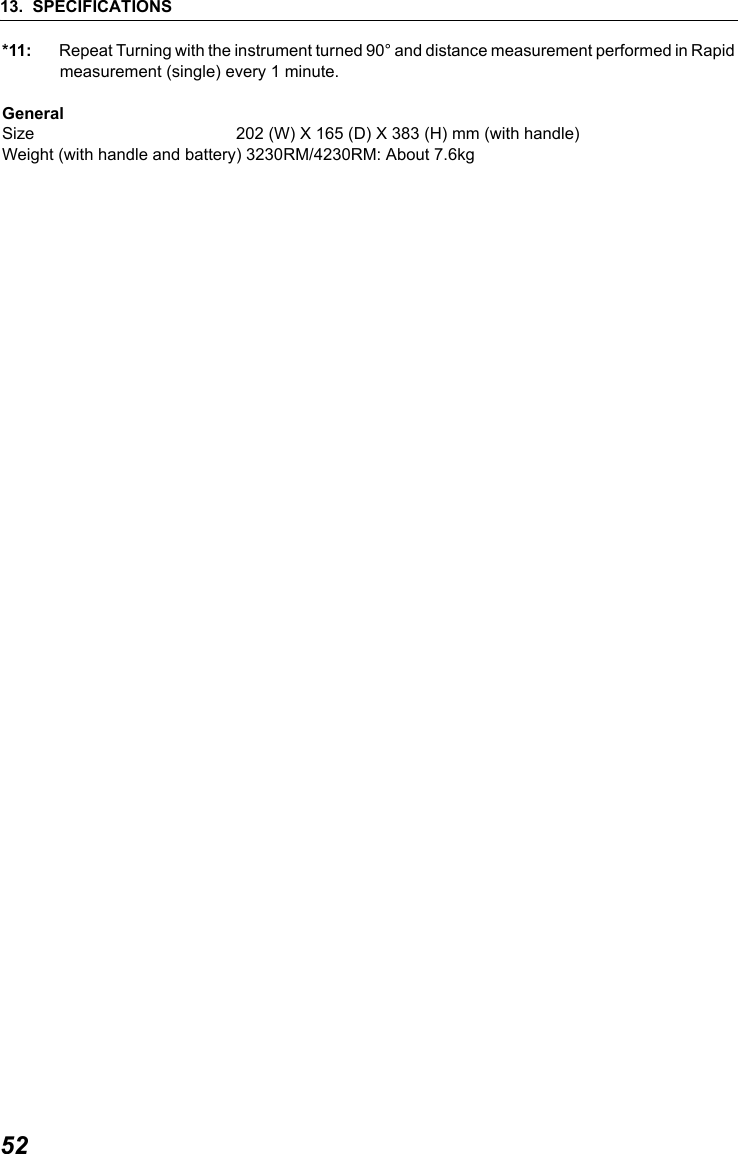
13. SPECIFICATIONS52*11: Repeat Turning with the instrument turned 90° and distance measurement performed in Rapid measurement (single) every 1 minute.GeneralSize  202 (W) X 165 (D) X 383 (H) mm (with handle)Weight (with handle and battery) 3230RM/4230RM: About 7.6kg
5314. EXPLANATIONSighting can be more accurately performed by facing the 360° Prism toward the total station. The 360° Prism should be set up so that a pair of diametrically-opposed hexagonal points on its rubber flanges are aligned with the sighting direction of the total station (see the diagram below).         14.1 High Accuracy with the 360° Prism: Hexagonal points
5415. REGULATIONSUsers must ensure that their instrument is compliant with the relevant regulations and legal restrictions in place in the country of use.For users in the USWARNING:  Changes or modifications to this unit not expressly approved by the party responsible for compliance could void the user's authority to operate the equipment.NOTE: This equipment has been tested and found to comply with the limits for a Class A digital device pursuant to Part 15 of the FCC Rules. These limits are designed to provide reasonable protection against harmful inter-ference when the equipment is operated in a commercial environment. This equipment generates, uses, and can radiate radio frequency energy and, if not installed and used in accordance with the instruction manual, may cause harmful interference to radio communications. Operation of this equipment in a residential area is likely to cause harmful interference in which case the user will be required to correct the interference at his own expense.This transmitter must not be co-located or operated in conjunction with any other antenna or transmitter.             This equipment complies with FCC radiation exposure limits set forth for uncontrolled equipment and meets the FCC radio frequency (RF) Exposure Guidelines in Supplement C to OET65. This equipment  should be installed and operated with at least 20cm and more between the radiator and person’s body (excluding extremeties: hands, wrists, feet and ankles).For users in CanadaThis Class A digital apparatus meets all requirements of Canadian Interference-Causing Equipment Regulations.Cet appareil numérique de la Class A respecte toutes les exigences du Règlement sur le matériel brouilleur du Canada.This class A digital apparatus complies with Canadian ICES-003. Cet appareil numerique de la classe A est conforme a la norme NMB-003 du Canada.Operation is subject to the following two conditions: (1) this device may not cause interference, and (2) this device must accept any interference, including interference that may cause undesired operation of this device.This equipment complies with IC radiation exposure limits set forth for uncontrolled equipment and meets RSS-102 of the IC radio frequency (RF) Exposure rules. This equipment should be installed and operated with at least 20cm and more between the radiator and person’s body (excluding extremeties: hands, wrists, feet and ankles).
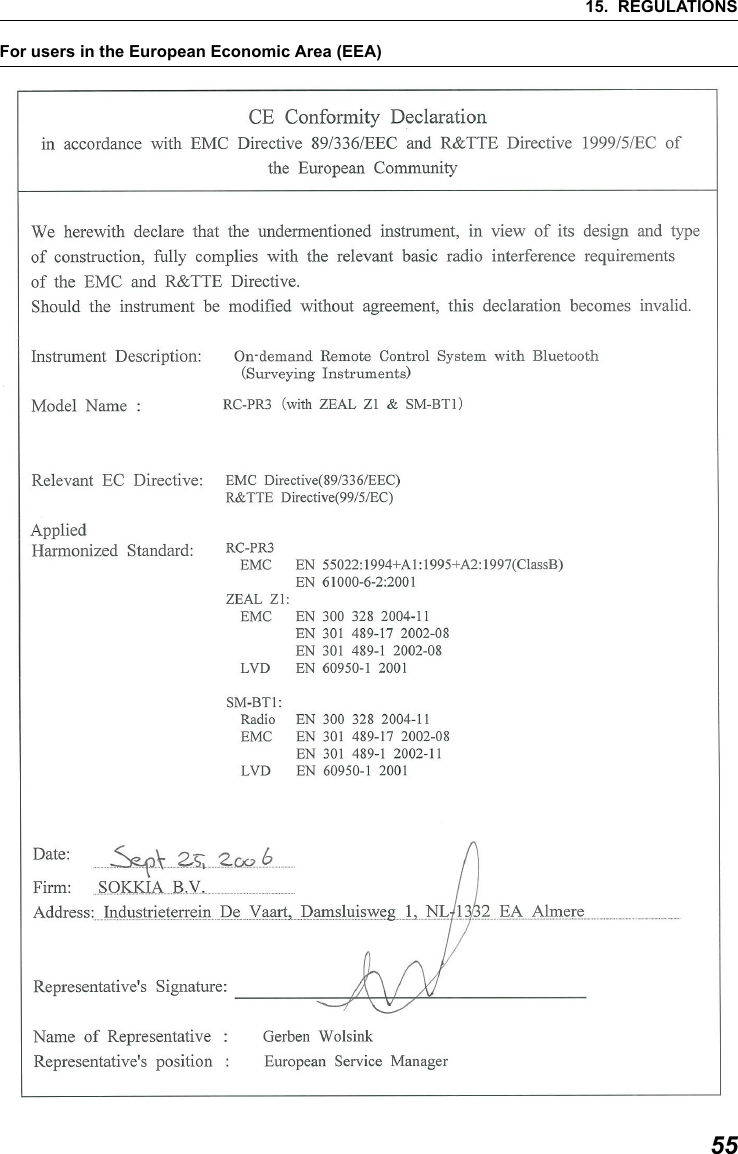
5515. REGULATIONSFor users in the European Economic Area (EEA)
15. REGULATIONS56RC-PR3
5715. REGULATIONSFor users in MexicoEste equipo opera a titulo secundario, consecuentemente, debe aceptar interferencias perjudiciales incluyendo equipos de la misma clase y puede no causar interferencias a sistemas operando a titulo primario.COFETEL + RCPSOSM07-290COFETEL + RCPSOZE06-471
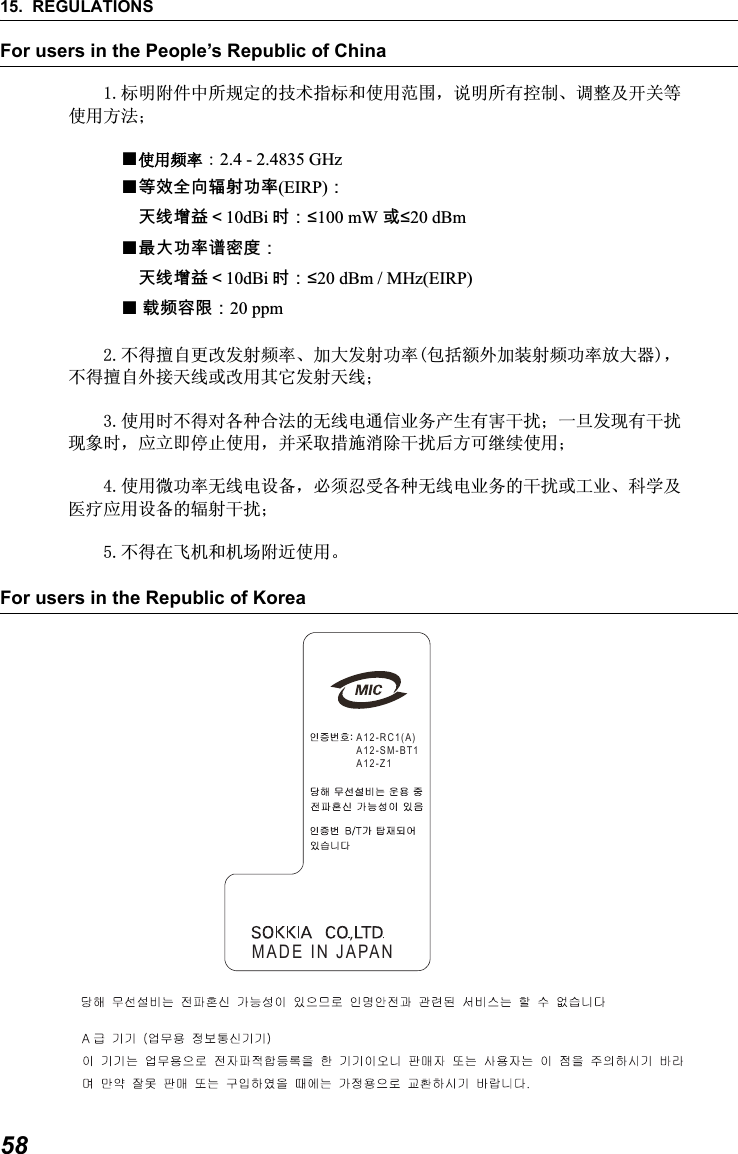
15. REGULATIONS58For users in the People’s Republic of ChinaFor users in the Republic of Korea            ᷛᯢ䰘ӊЁ᠔㾘ᅮⱘᡔᴃᣛᷛ੠Փ⫼㣗ೈˈ䇈ᯢ᠔᳝᥻ࠊǃ䇗ᭈঞᓔ݇ㄝՓ⫼ᮍ⊩˗عՓ⫼乥⥛㧦2.4 - 2.4835 GHz ع䷘㟗⏷⚠戟⺓┮䘖(EIRP)᧶⮸兎⬭䥙᧸10dBi 㢅᧶ื100 mW 㒥ื20 dBmع㦏⮶┮䘖廀⹕ㄵ᧶⮸兎⬭䥙᧸10dBi 㢅᧶ื20 dBm / MHz(EIRP)ع戌欠⹈棟᧶20 ppm   ϡᕫ᪙㞾᳈ᬍথᇘ乥⥛ǃࡴ໻থᇘࡳ⥛ࣙᣀ乱໪ࡴ㺙ᇘ乥ࡳ⥛ᬒ໻఼ˈϡᕫ᪙㞾໪᥹໽㒓៪ᬍ⫼݊ᅗথᇘ໽㒓˗  Փ⫼ᯊϡᕫᇍ৘⾡ড়⊩ⱘ᮴㒓⬉䗮ֵϮࡵѻ⫳᳝ᆇᑆᡄ˗ϔᮺথ⦄᳝ᑆᡄ⦄䈵ᯊˈᑨゟेذℶՓ⫼ˈᑊ䞛প᥾ᮑ⍜䰸ᑆᡄৢᮍৃ㒻㓁Փ⫼˗  Փ⫼ᖂࡳ⥛᮴㒓⬉䆒໛ˈᖙ乏ᖡফ৘⾡᮴㒓⬉Ϯࡵⱘᑆᡄ៪ᎹϮǃ⾥ᄺঞए⭫ᑨ⫼䆒໛ⱘ䕤ᇘᑆᡄ˗  ϡᕫ೼亲ᴎ੠ᴎഎ䰘䖥Փ⫼DŽA12-RC1(A)A12-SM-BT1A12-Z1MADE IN JAPAN
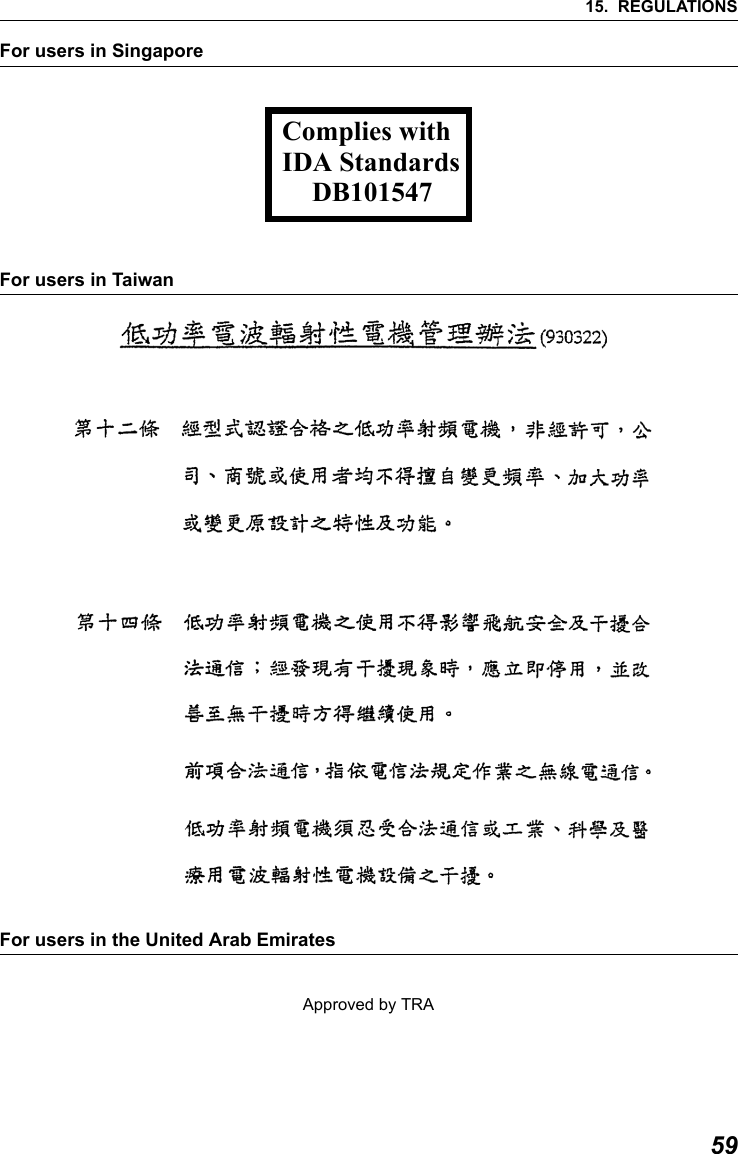
5915. REGULATIONSFor users in Singapore For users in Taiwan            For users in the United Arab EmiratesApproved by TRAComplies withIDA StandardsDB101547
MEMO60
Button OperationsOperation Button Operation IndicationPOWER ON Press  once ●POWER is LitPOWER OFF Press and hold  ●POWER Flashes then turns OffFar ModeWhen ●FAR is Off, press   once●FAR is LitStandard ModeWhen ●FAR is Lit, press   once●FAR is OffStart Turning Press  onceTurning in operation  ●SEARCH FlashesTurning complete ●SEARCH is Lit for 2 secondsCancel TurningPress  once while Turning in operation●SEARCH is OffContinue Turning Press and hold  ●SEARCH Flashes
©2006 SOKKIA CO., LTD.JAPAN

Navigation menu