Sony Electronics CMZ200DM Dual Mode (AMPS/CDMA) Cellular Phone User Manual
Sony Electronics Inc Dual Mode (AMPS/CDMA) Cellular Phone Users Manual
Users Manual
Operating Instructions
Digital Portable
Cellular Telephone
3-864-804-11 (1)
CM-Z200
1_CM_Z200 6/8/98, 9:26 AM1
1.2
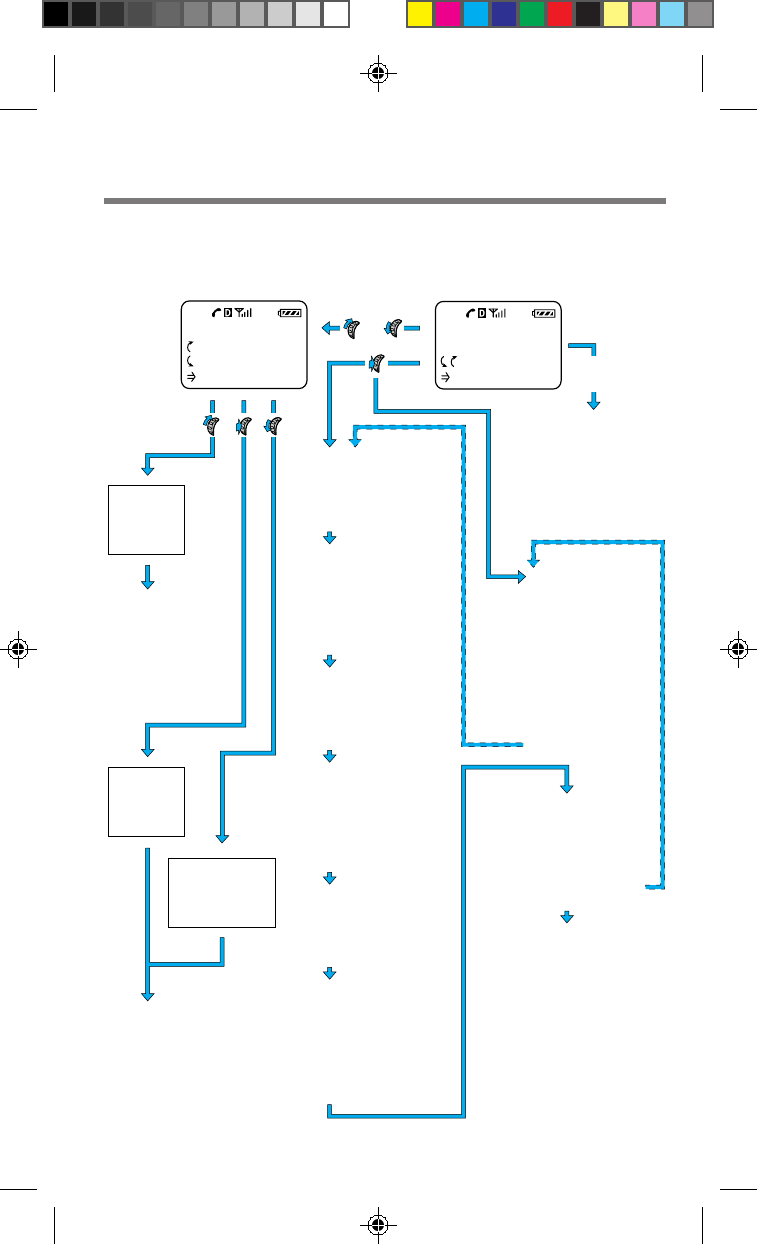
FEATURES
•Message
-Voice*
-New Text*
-Old Text*
-Erase Old*
•Sounds
-Ringer Volume
-Mute/Unmute
-Keybeep Volume
-Earpiece Volume
-Ringer Type
-Key Sound
-Beep Length
•Timers
-All Calls*
-Recent Calls*
-Roam Calls*
-Minute Alert
-Auto-Off
•Directory
-My Number
-Save
-Erase
-Edit
-Find Name
-Phone Book
-Calls List
•Extras
-Key Guard
-Touch Dial
-Auto-Retry
-Auto-Answer
-Scratch Pad
•Security
-Lock Phone
-New Code
-Restrict #
-Restrict All
-Master Reset
-Erase Book
-Erase Calls
-Emergency #
•Options
-Send
-Prefix
-Duration
-Time/Date
-View Number
-Number Tone
-Save
•Options
-Send
-Prefix
-Edit
-Restriction
-View Number
-Number Tone
-Erase
It's a Sony!
12:34P 12/25
:Saved #s
:Features Enter
digits
Standby displaySaved #s display
•Options
-Send
-Save
-Hard Pause
-Time Pause
-Enter Link
-Enter Hyphen
-Find Number
Short
Features
Menu
•Message
-Voice
-New Text
-Old Text
-Erase Old
•Ringer Volume
•My Number
•Saved #s
•Lock Phone
•Long Menu
SAVED #S
:Calls List
:Phone Book
:Find Name
Find
name in
Phone
Book
List
10 most
recent
calls
List up to
99 saved
numbers in
Phone Book
+
+
–
–
•Display
-Banner*
-Backlight
-Auto-hyphen
-Sort Book
-Language*
-Menu Length
-Msg. Format*
•Network
-Roam Alert*
-Drop Alert*
-Priv. Alert*
-Auto-N.A.M.*
-Set-N.A.M.*
-Set System*
-Force Call*
or
*) These features may
be available with
some networks and
service providers.
Welcome to the CM-Z200
Menu map
1_CM_Z200 6/8/98, 9:26 AM2
1.3
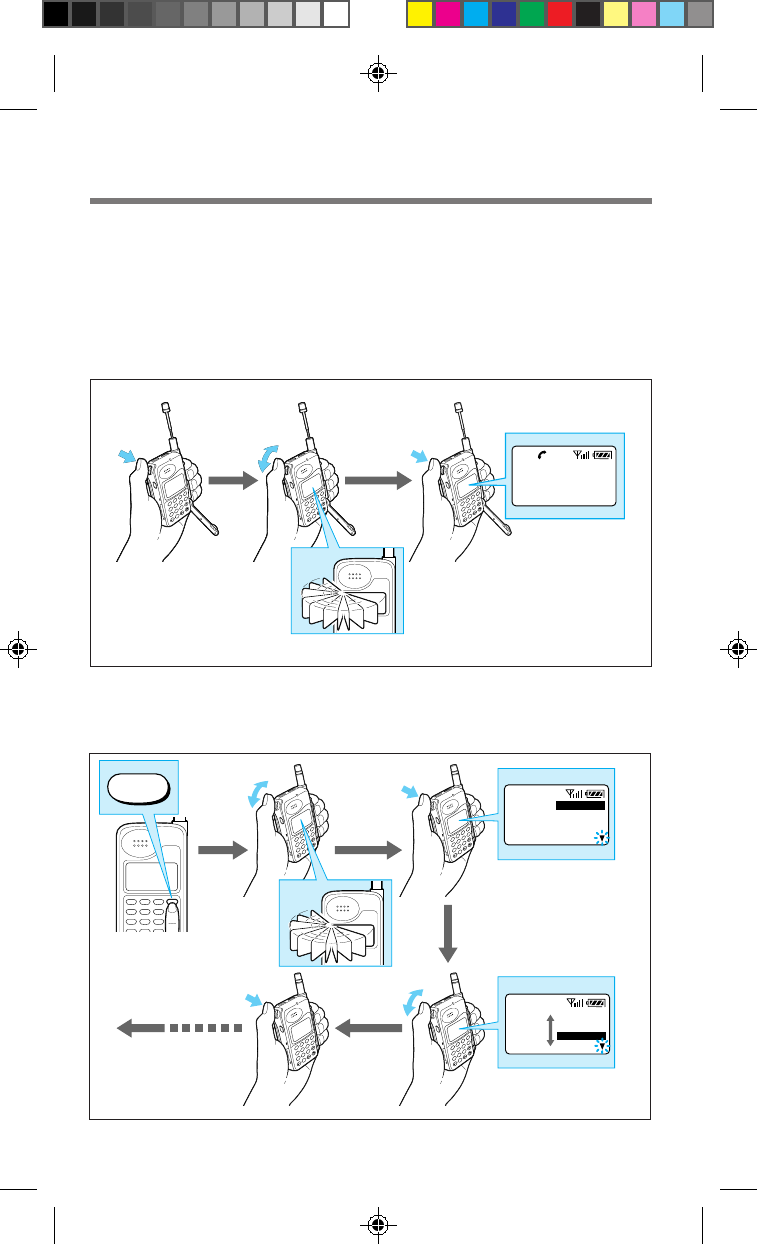
Easy dialing
You can easily make a call using a number from the Phone Book or the Calls List.
First, turn the Jog Dial either up or down one time to search phone numbers. Then
scroll down to view saved numbers in the Phone Bookor scroll up to view your most
recently called numbers in the Calls List. Simply open the arm microphone to call
the number you choose.
Easy menu access
You can easily access your phone’s settings through the Features menu. Press the
Jog Dial again to view the options of each menu item.
2
1
0
ABC
4
GHI
8
TUV
7
PQRS
9
WXYZ
5
JKL
6
MNO
3
DEF
MENU
CLR
2
1
0
ABC
4
GHI
8
TUV
7
PQRS
9
WXYZ
5
JKL
6
MNO
3
DEF
MENU
CLR
2
1
0
ABC
4
GHI
8
TUV
7
PQRS
9
WXYZ
5
JKL
6
MNO
3
DEF
MENU
CLR
2
1
0
ABC
4
GHI
8
TUV
7
PQRS
9
WXYZ
5
JKL
6
MNO
3
DEF
MENU
CLR
2
1
0
ABC
4
GHI
8
TUV
7
PQRS
9
WXYZ
5
JKL
6
MNO
3
DEF
MENU
CLR
No.1
SONY
1234567890123456
2
1
0
ABC
4
GHI
8
TUV
7
PQRS
9
WXYZ
5
JKL
6
MNO
3
DEF
MENU
CLR
2
1
0
ABC
4
GHI
8
TUV
7
PQRS
9
WXYZ
5
JKL
6
MNO
3
DEF
MENU
CLR
2
1
0
ABC
4
GHI
8
TUV
7
PQRS
9
WXYZ
5
JKL
6
MNO
3
DEF
MENU
CLR
2
1
0
ABC
4
GHI
8
TUV
7
PQRS
9
WXYZ
5
JKL
6
MNO
3
DEF
MENU
CLR
MENU
MENU
Clock Alarm
Sleep
Wake Up
Display
Clock Alarm
Sleep
Wake Up
Display
1_CM_Z200 6/8/98, 9:26 AM3
1.4
WARNING
To prevent fire or shock hazard, do not expose the unit to rain or moisture.
To avoid electrical shock, do not open the cabinet. Refer servicing to qualified
personnel only.
FCC CAUTION STATEMENT
You are cautioned that any changes or modifications not expressly approved in this
manual could void your authority to operate this equipment.
Owner’s record
The model number, regulatory number, and serial number are located on a
nameplate inside the battery compartment. Record the serial number in the space
provided below. Refer to these numbers whenever you call your dealer regarding
this product.
Model No.: CM-Z200 Serial No.: ________________________
DISPOSAL OF LITHIUM ION BATTERY
LITHIUM ION BATTERY. DISPOSE OF PROPERLY.
You can return your unwanted lithium ion batteries to your nearest Sony Service
Center or Factory Service Center.
Note: In some areas the disposal of lithium ion batteries in household or
business trash may be prohibited.
For the Sony Service Center nearest you call 1-800-222-SONY (United States only).
For the Sony Factory Service Center nearest you call 416-499-SONY (Canada only).
Before operating the CM-Z200 portable cellular/PCS telephone, please read this
manual thoroughly and retain it for future reference. If your usage includes in-
vehicle operation, it is recommended that you refer to the Installation/Connections/
Operation manual for the optional accessory kits.
1_CM_Z200 6/8/98, 9:26 AM4

1.5
Rules and regulations .......................................................................................................1.6
Safety precautions .............................................................................................................1.7
Getting Started
Unpacking your phone .....................................................................................................2.1
Looking at your phone .....................................................................................................2.2
Charging the battery pack................................................................................................2.4
Basic Calling Operations
Turning the phone on........................................................................................................3.1
Making calls .......................................................................................................................3.2
Receiving calls....................................................................................................................3.3
Advanced Calling Operations
Storing phone numbers in the Phone Book ....................................................................... 4.1
Calling from the Phone Book...........................................................................................4.6
Searching the Phone Book................................................................................................ 4.8
Calling from the Calls List..............................................................................................4.10
Sending DTMF signals from the Phone Book .........................................................................
4.11
Features Menu
About the Features menu .................................................................................................5.1
Messages .............................................................................................................................5.2
Sounds .................................................................................................................................5.7
Timers ................................................................................................................................5.10
Directory ...........................................................................................................................5.12
Extras ................................................................................................................................. 5.16
Security ............................................................................................................................. 5.18
Display .............................................................................................................................. 5.22
Network ............................................................................................................................5.25
Additional Information
Troubleshooting .................................................................................................................6.1
Accessories .........................................................................................................................6.2
Specifications......................................................................................................................6.3
List of menu items .............................................................................................................6.4
Glossary ..............................................................................................................................6.6
Index.................................................................................................................................... 6.8
Table of contents
Advanced Calling Operations
Basic Calling OperationsFeatures Menu Getting StartedAdditional Information
1_CM_Z200 6/8/98, 9:26 AM5

1.6
in the licensing process. If you wish to
use your cellular/PCS telephone on
both sides of the border, please contact
your cellular/PCS carrier (System
Operator).
Equipment modifications — The U.S.
Federal Communications Commission
has type-approved the model of
cellular/PCS telephone which you have
purchased, and has allocated a specific
frequency range for cellular/PCS
service. No changes or adjustments are
to be made to your cellular/PCS
telephone.
The radio equipment shall be made
available for inspection upon request by
representatives of the FCC or licensees.
Denial of service — A cellular/PCS
carrier may deny service temporarily or
terminate service for violation of any
government regulations or violation of
its tariff.
Privacy — As a telephone user, you
have come to assume a certain standard
of privacy when you place or receive a
telephone call via the traditional
wireline systems. However, because
cellular/PCS telephones utilize radio
transmissions to effect calls, the same
standard cannot always be assured.
While it is unlawful for any
unauthorized person to divulge or use
any information obtained from
intercepting or “listening in on”
conversations intended for others, you
should not assume that your
conversation is completely secure.
Commercially available scanning
equipment can permit a third party to
monitor the radio channels used for
cellular/PCS telephone calls.
Interference — No person shall
interfere with, or cause interference to,
any radio communication or signal.
Rules and regulations
The U.S. Federal Communications
Commission and the Industry Canada
regulate cellular/PCS telephone service
in their respective countries. It is
important for you, the cellular/PCS
telephone user, to observe the
applicable regulations when operating
your cellular/PCS telephone in either
country. In addition to these U.S. and
Canadian federal regulations, you may
be bound also by certain state,
provincial, territorial, and local rules
and regulations, as well as by your
cellular/PCS carrier’s tariff (the rates,
terms, and conditions of its service). If
you wish to use your cellular/PCS
telephone in both the U.S. and Canada,
please consult with your System
Operator.
Furthermore, you should remember
that your cellular/PCS telephone is a
radiotelephone, — i.e., it combines both
wireline technology, as used in your
home or office telephone system, and
radio technology — and that the scope
of regulations and precautions is
therefore broader than the scope of
regulations and precautions relating to
wireline-only telephone usage.
Some of the major points of
consideration are set out below. Please
note, however, that these “Rules and
Regulations" and "Safety Precautions”
sections do not constitute legal advice,
and are intended merely for general
information purposes. If you have
specific questions, please contact your
cellular/PCS carrier (System Operator).
License — If your home system is in the
U.S., you do not require a separate
license to operate your cellular/PCS
telephone; obtaining a cellular/PCS
telephone access number is sufficient to
register you as a user. If your home
system is in Canada, a separate license
is required; your carrier will assist you
1_CM_Z200 6/8/98, 9:26 AM6

1.7
Safety precautions
IMPORTANT
For safe and efficient operation of
your phone, observe these
guidelines.
Your dual mode (analog/digital
CDMA) hand-held portable cellular/
PCS telephone uses both analog
frequency modulation (FM) technology
and digital Code Division Multiple
Access (CDMA) technology. CDMA is a
newer radio frequency (RF) technology
than the FM technology that has been
used for radio communications for
decades.
Your dual mode portable cellular/PCS
telephone is a radio transmitter and
receiver. When the phone is ON, it
receives and sends out radio frequency
(RF) energy. The phone operates in the
frequency range of 824 MHz to 894
MHz. When you use your phone, the
cellular/PCS system handling your call
controls the mode of operation (analog
or digital CDMA) and the power level
at which your phone transmits. In the
analog mode, the power is continuously
transmitted at a level that can range
from about 6 mW to about 600 mW. In
the digital CDMA mode, the power is
transmitted as a digitally coded
waveform at a rate varying from 100 Hz
to 800 Hz. The average power can range
from about 0.01 µW to about 300 mW.
Exposure to radio frequency
energy
Research on health effects from RF
energy has focused for many years on
FM radio technology. That research and
studies regarding newer radio
technologies, such as CDMA, have
found no credible scientific evidence
that adverse health effects result from
the use of cellular/PCS telephones.
The Institute of Electrical and
Electronics Engineers (IEEE) in 1991,
and The American National Standards
Institute (ANSI) in 1992, updated the
1982 ANSI Standard for safety levels
with respect to human exposure to RF
energy. Over 120 scientists, engineers,
and physicians from universities,
government health agencies, and
industry, reviewed the available
research and developed this updated
Standard. In March 1993, the U.S.
Federal Communications Commission
(FCC) proposed the adoption of this
updated Standard.
The design of your phone complies
with this updated Standard. Of course,
if you want to limit RF exposure even
further than the updated ANSI
Standard, you may choose to control
the duration of your calls and operate
your phone in the most power efficient
manner.
Efficient phone operation
For your phone to operate at the lowest
power level consistent with satisfactory
call quality, please observe the
following guidelines:
Your phone has an extendable antenna;
extend it fully whenever possible for
maximum efficiency.
Hold the phone as you would any other
telephone. While speaking directly into
the mouthpiece, position the antenna
up and over your shoulder.
Do not hold the antenna when the
phone is in use. Holding the antenna
affects call quality and may cause the
phone to operate at a higher power
level than needed.
1_CM_Z200 6/8/98, 9:26 AM7

1.8
Antenna care and replacement
Do not use the phone with a damaged
antenna. If a damaged antenna comes
into contact with the skin, a minor burn
may result. Replace a damaged antenna
immediately. Take your phone to an
authorized service center for repair.
Use only the supplied or approved
antenna. Unauthorized antennas,
modifications, or attachments could
impair call quality, damage the phone,
and violate FCC regulations.
Driving
Check the laws and regulations on the
use of cellular/PCS telephones in the
areas where you drive. Always obey
them. Also, when using your phone
while driving, please:
• pay full attention to driving;
• use hands-free operation, if available;
• pull off the road and park before
making or answering a call, if driving
conditions so require.
Electronic devices
Most modern electronic equipment is
shielded from RF energy. However, RF
energy from cellular/PCS telephones
may affect some electronic equipment.
RF energy may affect improperly
installed or inadequately shielded
electronic operating and entertainment
systems in motor vehicles. Check with
the manufacturer or its representative
to determine if these systems are
adequately shielded from external RF
energy. You should also check with the
manufacturer of any equipment that
has been added to your vehicle.
Medical devices
Consult the manufacturer of any
personal medical devices (such as
pacemakers, hearing aids, etc.) to
determine if they are adequately
shielded from external RF energy. Your
physician may be able to assist you in
obtaining this information.
Turn your phone OFF in health care
facilities when regulations posted in the
areas instruct you to do so. Hospitals or
health care facilities may be using
equipment that could be sensitive to
external RF energy.
Aircraft
Turn your phone OFF before boarding
any aircraft.
• Use it on the ground only with crew
permission.
• Do not use in the air.
To prevent possible interference with
aircraft systems, U.S. Federal Aviation
Administration (FAA) regulations
require you to have permission from a
crew member to use your phone while
the plane is on the ground. To prevent
interference with aircraft
communication systems, FCC
regulations prohibit using your phone
while the plane is in the air.
Children
Do not allow children to play with your
phone. It is not a toy. Children could
hurt themselves or others (by poking
themselves or others in the eye with the
antenna, for example). Children also
could damage the phone or make calls
that increase your telephone bill.
1_CM_Z200 6/8/98, 9:26 AM8

1.9
Blasting areas
To avoid interfering with blasting
operations, turn your unit OFF when in
a “blasting area” or in areas posted:
“Turn off two-way radio.” Construction
crews often use remote control RF
devices to set off explosives.
Potentially explosive
atmospheres
Turn your phone OFF when in any area
with a potentially explosive
atmosphere. It is rare, but your phone
or its accessories could generate sparks.
Sparks in such areas could cause an
explosion or fire resulting in bodily
injury or even death.
Areas with a potentially explosive
atmosphere are often, but not always,
clearly marked. They include fueling
areas such as gas stations; below deck
on boats; fuel or chemical transfer or
storage facilities; areas where the air
contains chemicals or particles, such as
grain, dust, or metal powders; and any
other area where you would normally
be advised to turn off your vehicle’s
engine.
Do not transport or store flammable
gas, liquid, or explosives in the
compartment of your vehicle which
contains your phone or accessories.
In the United States, vehicles using
liquefied petroleum gas (such as
propane or butane) must comply with
the National Fire Protection Standard
(NFPA-58). For a copy of this standard,
contact the National Fire Protection
Association, One Batterymarch Park,
Quincy, MA 02269, Attn: Publication
Sales Division.
In Canada, vehicles using liquefied
petroleum gas (such as propane or
butane) must comply with the
Canadian Gas Association (CAN/CGS-
B149.2). For a copy of this standard,
contact the Canadian Standards
Association, 178 Rexdale Blvd.,
Etobicoke, ON M9W 1R3, Attn.:
Standard Sales Department.
1_CM_Z200 6/8/98, 9:26 AM9

1.10
(this page intentionally left blank)
1_CM_Z200 6/8/98, 9:26 AM10
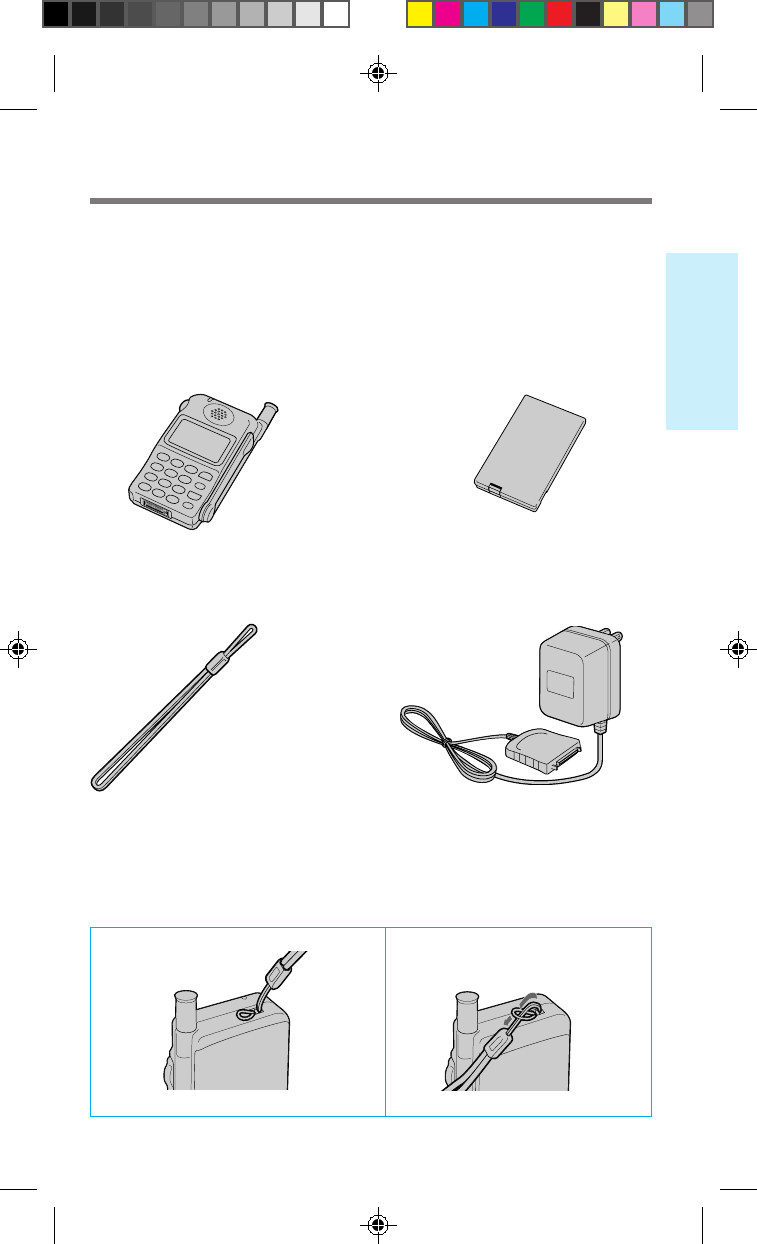
2.1
Getting Started
Attaching the hand strap
1 2
Carefully unpack your phone and check the contents using this list.
If there is something missing, please contact your nearest Sony dealer.
CM-Z200 Telephone (1) QN-029BPL Li-Ion Battery Pack (1)
Hand Strap (1) QN-001AC AC Adapter (1)
Note: Different AC adapters may
be provided outside North
America.
Unpacking your phone
2_CM_Z200 6/8/98, 9:26 AM1
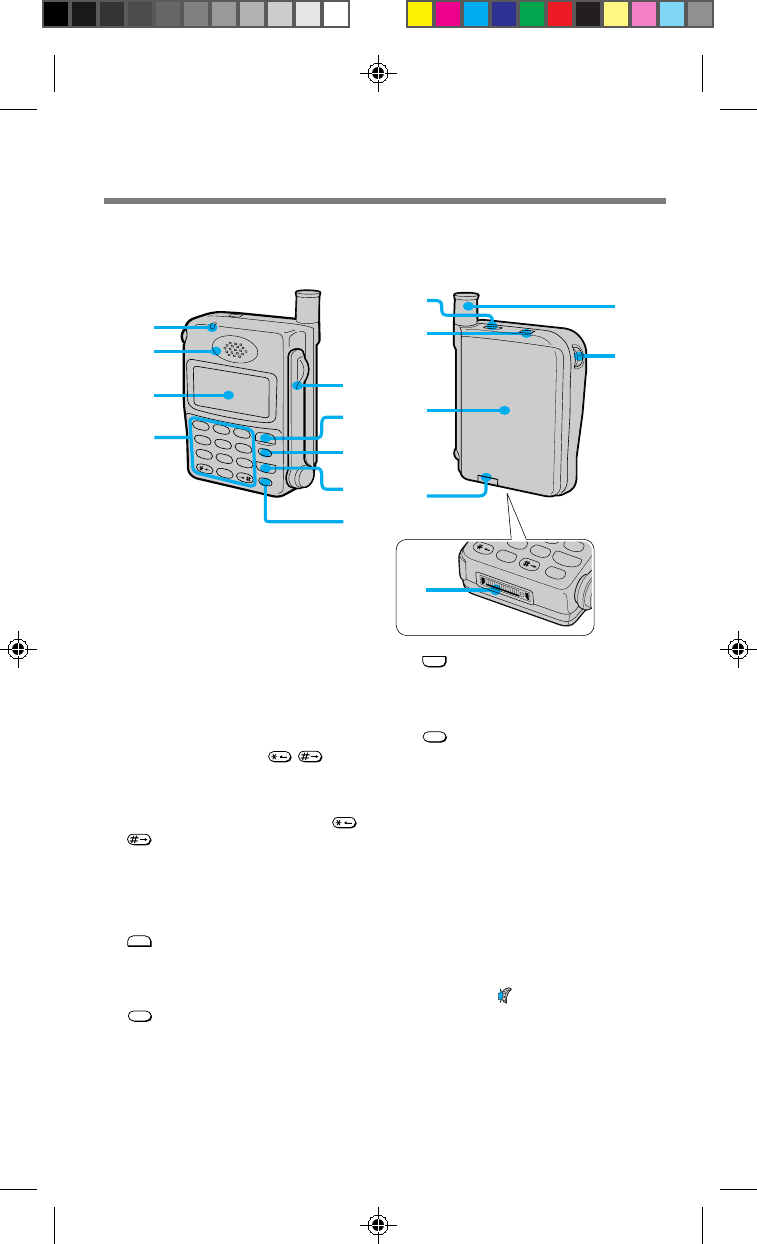
2.2
8
END
button (XX)
Press to end calls. Also cancels
operations and returns the phone to
standby mode.
9PWR (power) button (XX)
Press to turn the phone on or off.
0Ringer speaker
Allows ringer sounds to be heard.
!¡ Hand strap attachment (XX)
!™ Battery pack (XX)
!£ Battery pack release tab (XX)
Slide up to remove the battery pack.
!¢ Antenna (XX)
!∞ Jog Dial™ navigator (XX)
Push and turn for menu navigation and
for changing settings on menus. In this
manual, the icon indicates that you
should push the Jog Dial navigator in
towards the center of the phone.
!§ Connector (XX)
Use to connect the phone to either the
AC adapter or to one of the other
accessories available for your phone.
NO
8
TUV
9
PWR
CLR
END
WXY
0
+
!¡
1
2
3
46
7
8
9
5
2
ABC
4
GHI
8
TUV
7
PQRS
9
WXYZ
5
JKL
6
MNO
3
DEF
1
0
+
SEND
END
CLR
PWR
!™
!¢
!∞
!£
!§
!º
Looking at your phone
Telephone
1Call alert indicator (XX)
Lights when there is an incoming call.
2Earpiece
3Display (XX)
4Number buttons and /
buttons (XX, XX, XX)
Use the number buttons to enter letters
and numbers. Press and hold a number
button for touch dialing. Use the /
buttons to move the cursor when
you are entering letters.
5Arm microphone
Open to make/receive a call.
Close to end a call.
6
SEND
button (XX to XX)
Press to make outgoing calls and to
receive incoming calls when the arm
microphone is open.
7CLR (clear) button (XX, XX)
Press to clear the last or all entered
digits on the display, or to exit the
current mode of operation.
For further information, refer to the page numbers indicated in parentheses ( ).
2_CM_Z200 6/8/98, 9:27 AM2
2.3
Getting Started
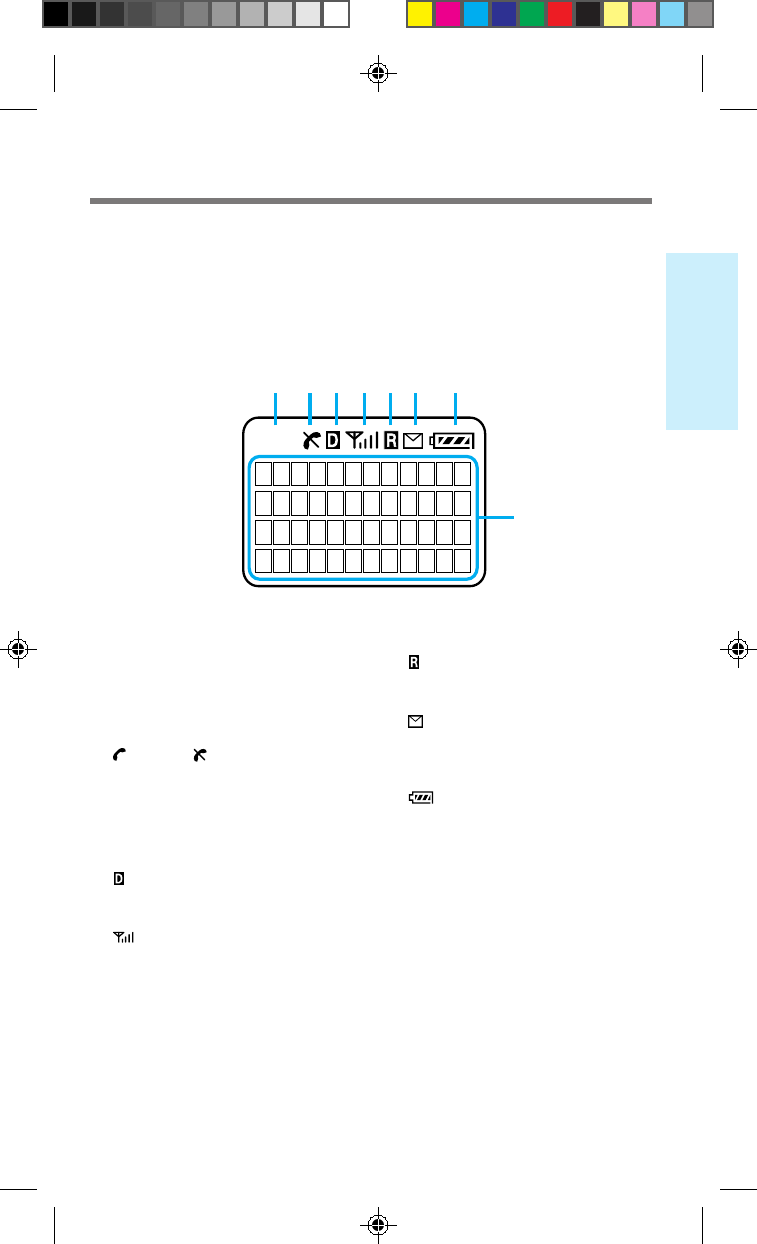
Display
The top row of the display contains icons that inform you of the current status of
your phone. The bottom four rows of the display are for text such as phone numbers,
names, and operational prompts. Each row displays a maximum of 12 characters.
888
1 2 3 4 5 6 7
8
1Short character display
Shows settings such as the number of
the currently displayed Menu, as well
as Phone Book and Calls List memory
locations.
2 (in-use) / (out-of-service) icon
(XX, XX, XX)
The in-use icon appears during a call.
A slash through the in-use icon
appears when no signal is received.
You cannot make or receive calls when
the out-of-service icon is visible.
3 (digital) icon
Appears when your phone is receiving
a digital signal.
4 (signal strength) icon (XX)
Tells you the approximate strength of
the signal being received.
5 (roam) icon (XX)
Appears when you are roaming
outside your home service area.
6 (message) icon (XX)
Appears when you have new text or
voice mail messages pending. The icon
flashes if the new message is urgent.
7 (battery) icon (XX, XX)
Shows the approximate amount of
charge power remaining in the battery
pack. Recharge the battery pack before
it is fully discharged.
8Character display
Prompts various actions, and then
displays the results. It also shows
phone numbers and names.
2_CM_Z200 6/8/98, 9:27 AM3
2.4
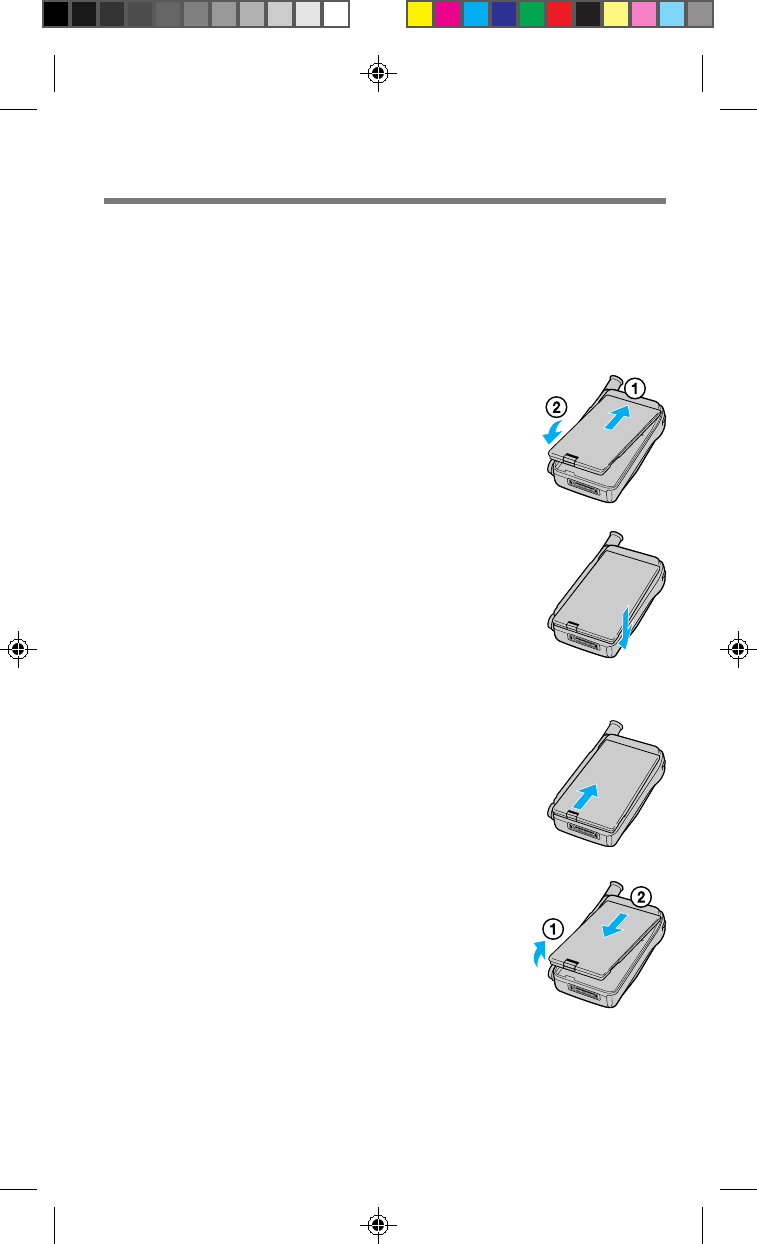
Charge the battery before using the phone. A new battery is not fully charged. To
charge the battery, attach the battery pack to the phone, then connect the supplied
AC adapter.
Attaching the battery pack
1Hook the battery pack onto the top of the
phone 1, and ease the battery pack down 2.
2Snap the battery pack in place.
To remove the battery pack
1Push the battery pack release tab upwards.
2Lift up the bottom of the battery pack 1,
and pull it out 2.
Charging the battery pack
2_CM_Z200 6/8/98, 9:27 AM4
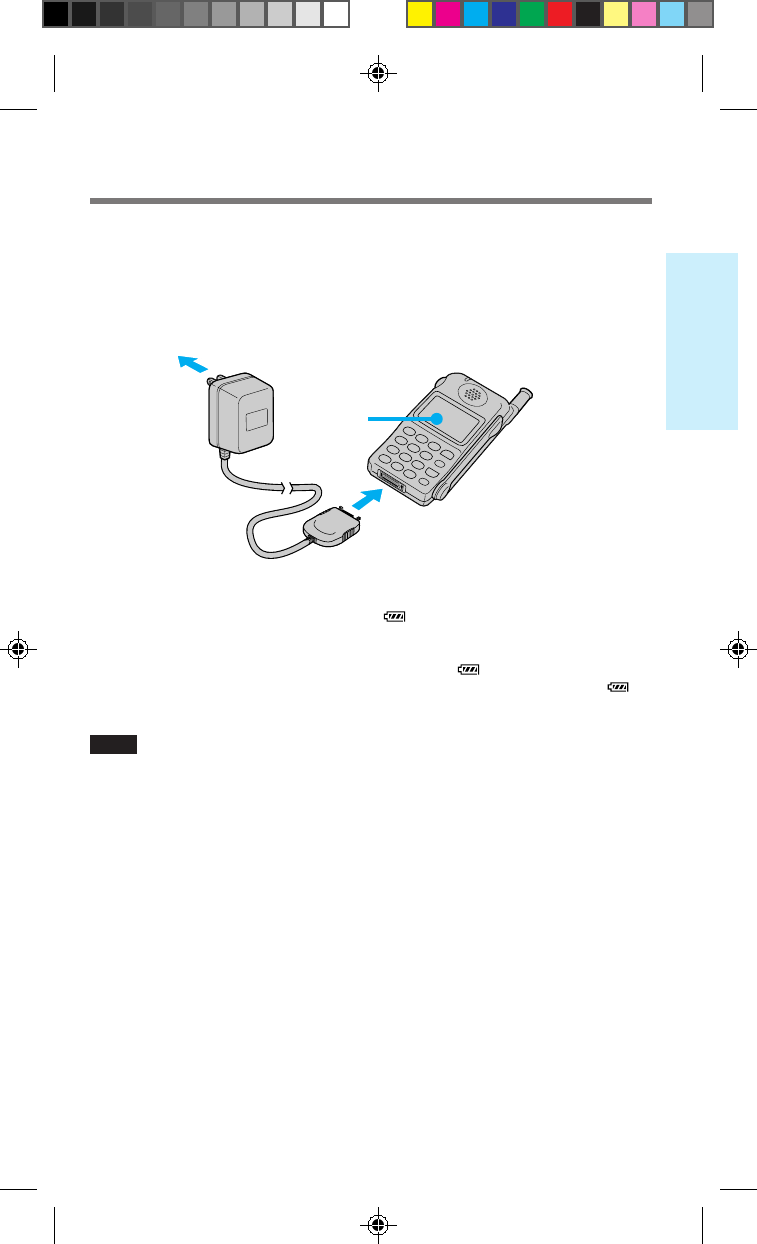
2.5
Getting Started
display
to the connector on the phone (the
thumb indent should face upwards)
Charging the battery
Connect the AC adapter to the phone and the other end to a standard AC outlet as
illustrated below. The charging time is approximately 3.5 hours. You can charge the
battery pack with the phone turned on, but charging will take longer.
When the power is turned on
As the battery pack charges, the battery icon ( ) indicates that the phone is charging.
When the power is turned off
The message Battery is Charging is displayed, and pulses. When the battery
pack is fully charged, the message Charging is Complete is displayed, and
stops pulsing.
Notes
• If you make or receive a call when the battery pack is not charged sufficiently, the call
will be cut off. In that case, you will hear an alarm, indicating that the battery is low.
• You can turn on the phone without the battery pack, but you cannot make or receive a
call, even if you connect the AC adapter to an AC outlet.
Notes on charging
• When you charge the battery pack, avoid:
– charging for long periods of time, since this reduces battery life.
– charging in temperatures below 32°F (0°C) or over 104°F (40°C).
– charging the battery in direct sunlight or in places with high humidity (such as
a bathroom).
• Do not use any battery pack other than the one specified in these instructions.
• It is normal for the battery pack to become warm during charging or after use.
• The supplied AC adapter is not intended to be serviced. In the event of a
malfunction, it should be replaced.
Notes on the battery pack
• Do not dispose of the battery pack in a fire or short-circuit it. Doing so may cause
the battery pack to leak or get hot, which could cause personal injury.
• Do not try to disassemble the battery pack.
to an AC
outlet
2_CM_Z200 6/8/98, 9:27 AM5
2.6
Checking the battery
CDMA mode Analog mode
In standby mode 40 hours 11 hours
In use continuously 2.3 hours 1 hours
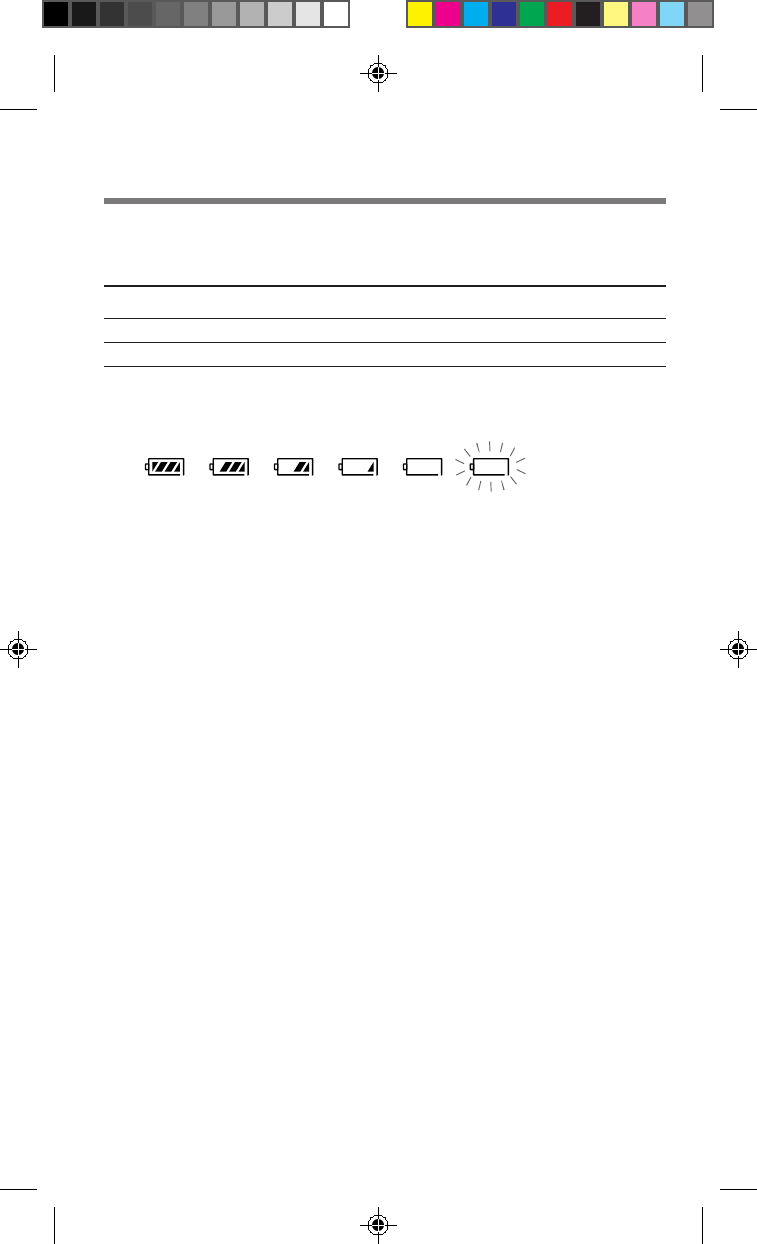
Battery condition
The battery icon indicates the battery level as follows (when the power is on):
Note that the battery icon displays the approximate charge level and that the
consumption may vary depending on conditions of use, such as ambient
temperature, network coverage, and usage patterns.
When the battery is empty
The battery icon flashes and a warning message is displayed. A beep sounds,
indicating that the battery is low. Shortly thereafter, the phone turns off. Recharge
the battery as soon as possible.
n n n
Full
n n
Empty
2_CM_Z200 6/8/98, 9:27 AM6
3.1
Basic Calling Operations
Turning the phone on
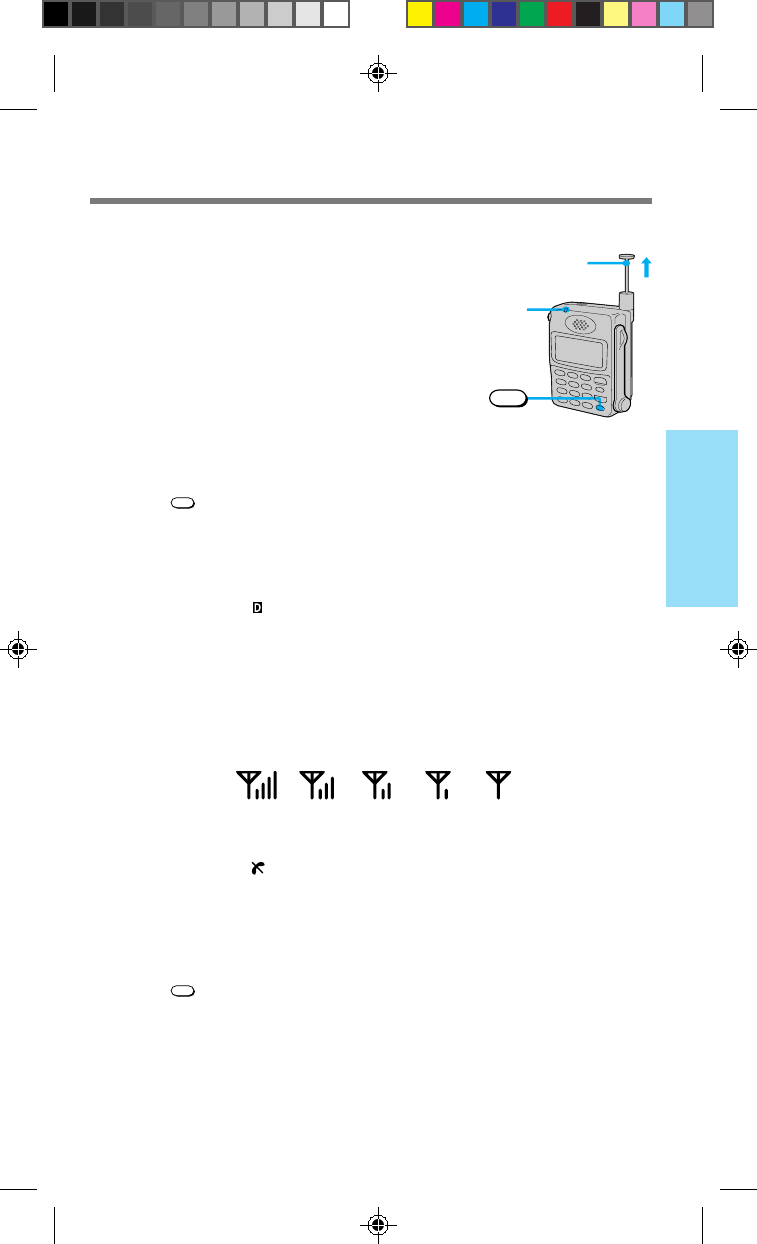
To use your phone, the power must be turned on.
It is preferable to extend the antenna, since this
maximizes signal strength and minimizes interference.
Extending the antenna
Hold the end of the antenna and
pull up until fully extended.
To retract the antenna
Push the antenna down until it is fully retracted.
Turning the power on
Hold down PWR for about one second. The call alert indicator lights up, a beep
sounds, and the phone starts searching for a signal. When the phone has found a
service signal, the standby display appears and the call alert indicator goes off. Now
the phone is ready to use.
To check the digital service
The digital service icon ( ) appears when your phone is operating in digital or
CDMA mode. If a digital signal is not available, your phone will look for a cellular
or analog signal. Some networks may allow you to force your phone to operate in
analog mode (see “Forcing the phone into analog mode” on page XX).
To check the signal strength
The signal strength icon indicates various levels of signal strength. It is best to make
calls when the signal is strong, although calls can be made when the signal strength
is weak.
If you are out of the service area
The out-of-service icon ( ) appears, and the phone searches for a service signal. If a
signal cannot be found, the phone enters power save mode. It will “wake up”
automatically at intervals (based on carrier network settings) to search for a service
signal.
Turning the power off
Hold down PWR for about one second.
PWR
Call
alert
Pull up
Strong Weak
3_CM_Z200 6/8/98, 9:27 AM1
3.2
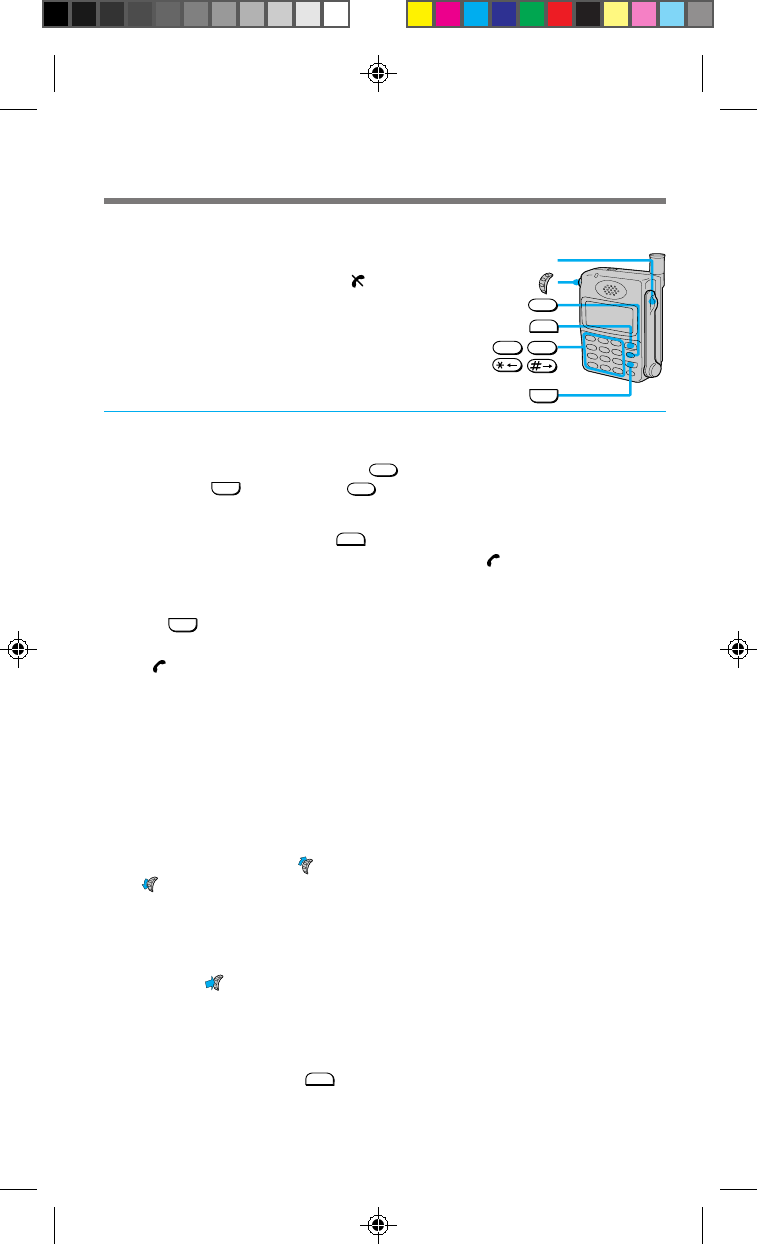
Making calls
You can call any number up to 32 digits from within a
service area. The out-of-service icon ( ) indicates that
you are outside the service area.
1Use the number buttons to enter the number.
If you enter the wrong digit, press
CLR
to back up. To clear all entered
digits, press
END
or hold down
CLR
to return to the standby display.
2If the arm microphone is closed, open it to dial. If the arm
microphone is open, press
SEND
to dial.
The phone dials the number you have entered. The icon appears.
When the call is connected, the call timer appears and displays the elapsed
time.
3Press
END
or close the arm microphone to end the call when you are
finished.
The icon disappears and the final elapsed call time flashes for 10 seconds.
The standby display automatically reappears.
Tips
• When dialing, you can insert a pause to attach a DTMF (Dual Tone Multiple Frequency)
number to the number you are calling (see page XX).
• If Auto-Hyphen is turned on, the phone number is hyphenated automatically as you
enter the digits (see page XX).
• If Minute Alert is turned on, a beep sounds at intervals (based on the setting you select)
throughout the call (see page XX).
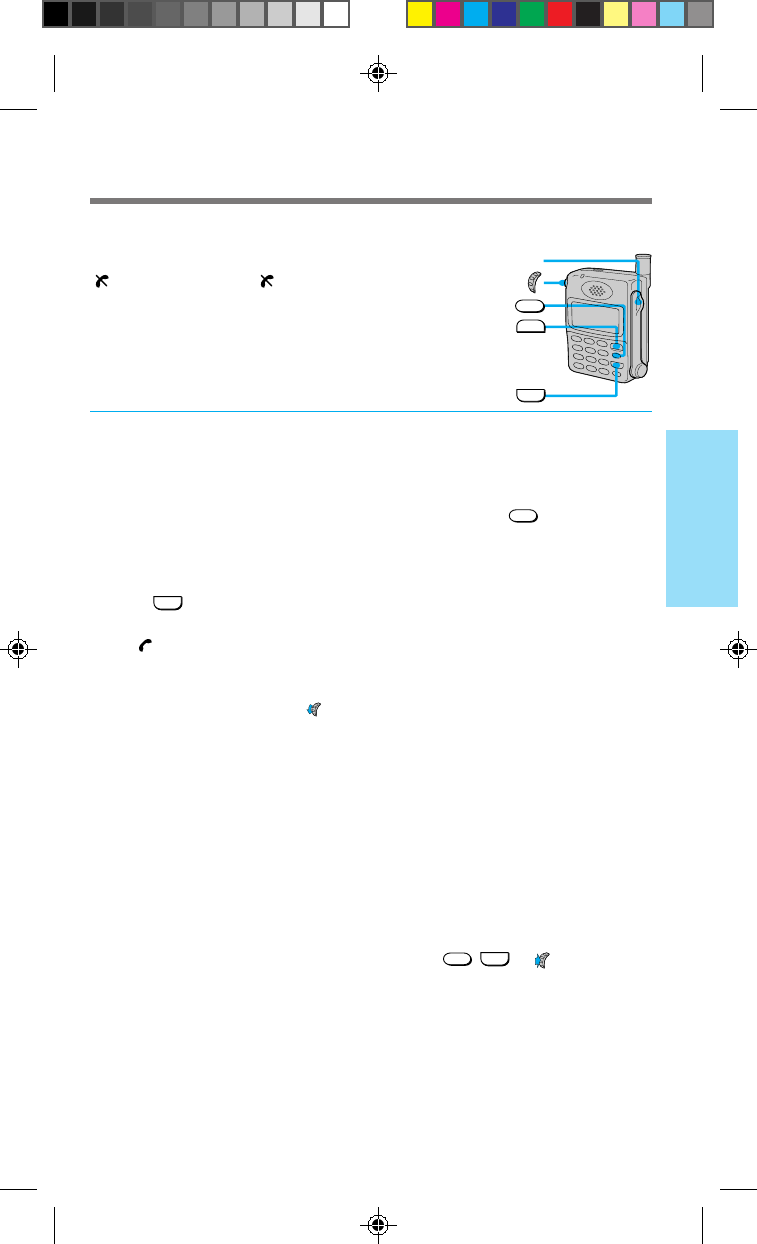
To adjust the earpiece volume during a call
To increase the volume, turn
+
up.
Turn
–
down to decrease the volume.
Tip
In addition, you can adjust the volume using the Volume menu (see page XX).
To mute/unmute the microphone during a call
Push and hold .
Tip
In addition, you can mute the microphone using the Volume menu (see page XX).
To redial the last number
On the standby display, press
SEND
when the arm microphone is open. The number
you dialed last is redialed automatically.
SEND
END
CLR
Arm mic
0
OPER
-9YZ
WX
/
3_CM_Z200 6/8/98, 9:27 AM2
3.3
Basic Calling Operations
Receiving calls
You can receive calls as long as the out-of-service icon
() is not displayed. The icon indicates that you
are outside the service area.
When you receive a call, the ringer sounds or the phone vibrates. Incoming Call
flashes on the display, and the call alert indicator blinks.
1If the arm microphone is closed, open it to answer the call. If the
arm microphone is open, press any button except
PWR
to answer
the call.
When the call is connected, the call timer appears and displays the elapsed
time.
2Press
END
or close the arm microphone to end the call when you are
finished.
The icon disappears, and the final elapsed call time flashes for 10 seconds.
The standby display automatically reappears.
Tips
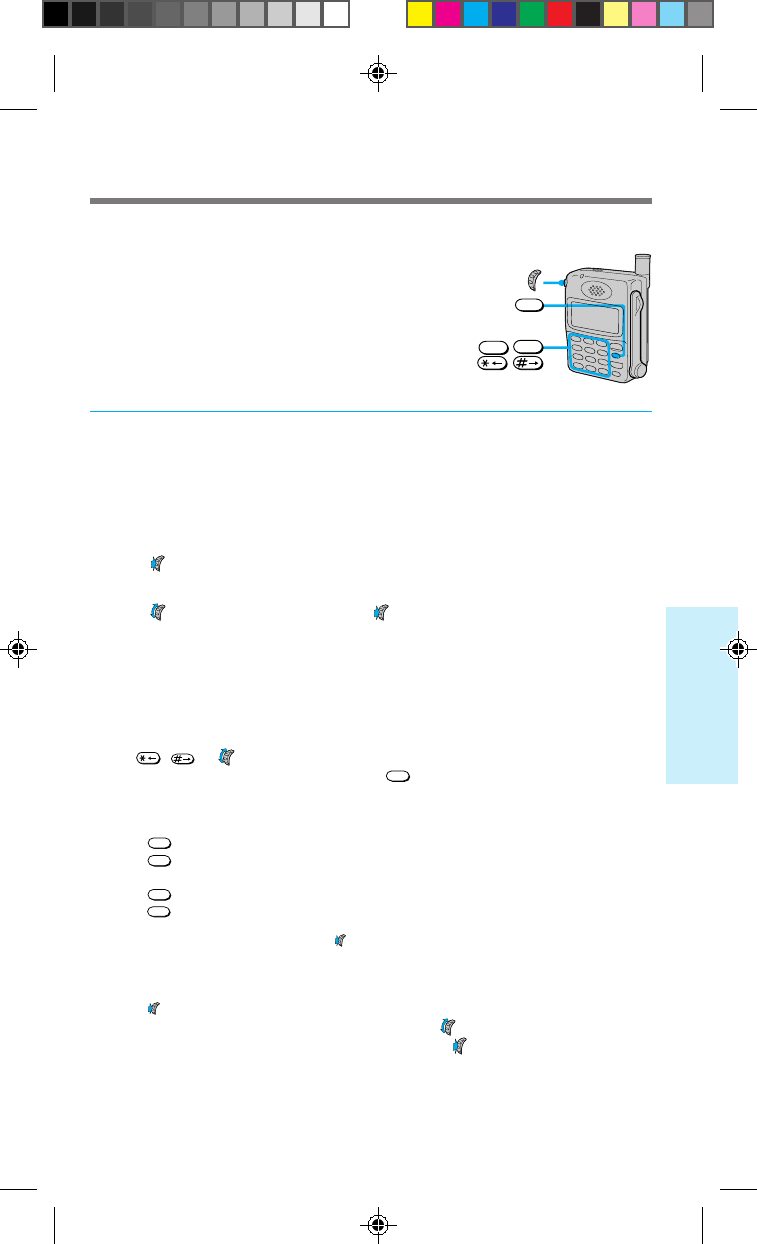
• While the phone is ringing, turn
–
down to lower the ringer volume.
• Using the Jog Dial navigator, you can adjust the earpiece volume or mute the
microphone during a call (see pages XX and XX).
• If you turn off the ringer volume (see page XX), you will not hear the ringer sound. The
message -Ringer Off- is displayed on the standby display.
If the caller supports caller ID
The caller’s phone number appears on the display when you receive a call if both
the caller and the carrier support this feature.
If the caller supports caller ID and the number matches a Phone Book entry, the
name that you stored with the number (if any) is displayed also.
If you miss a call
If you miss an incoming call, the message You have missed XX calls. appears on the
display. To return to the standby display, either press
CLR
,
END
, or . If the caller
supported caller ID, the caller’s number is stored in the Calls List (see page XX).
SEND
END
CLR
Arm mic
3_CM_Z200 6/8/98, 9:27 AM3
4.1
Advanced Calling Operations
Storing phone numbers in the Phone Book
Your phone features a built-in Phone Book memory,
in which you can store up to 99 (01–99) phone
numbers with names. You can dial stored numbers
quickly by recalling them from the Phone Book (see
page XX).
Each phone number can contain up to 32 digits, and each name up to 12 characters.
This section shows how to store, edit, and erase Phone Book numbers quickly.
1
On the standby display, use the number buttons to enter the number.
The number appears on the display. In addition, you can store hyphens,
pauses, and links with your Phone Book entries (see page XX).
2Push .
The Options menu appears.
3Turn to select Save, then push .
The message Enter a Name appears on the display, prompting you for a
name to accompany the number.
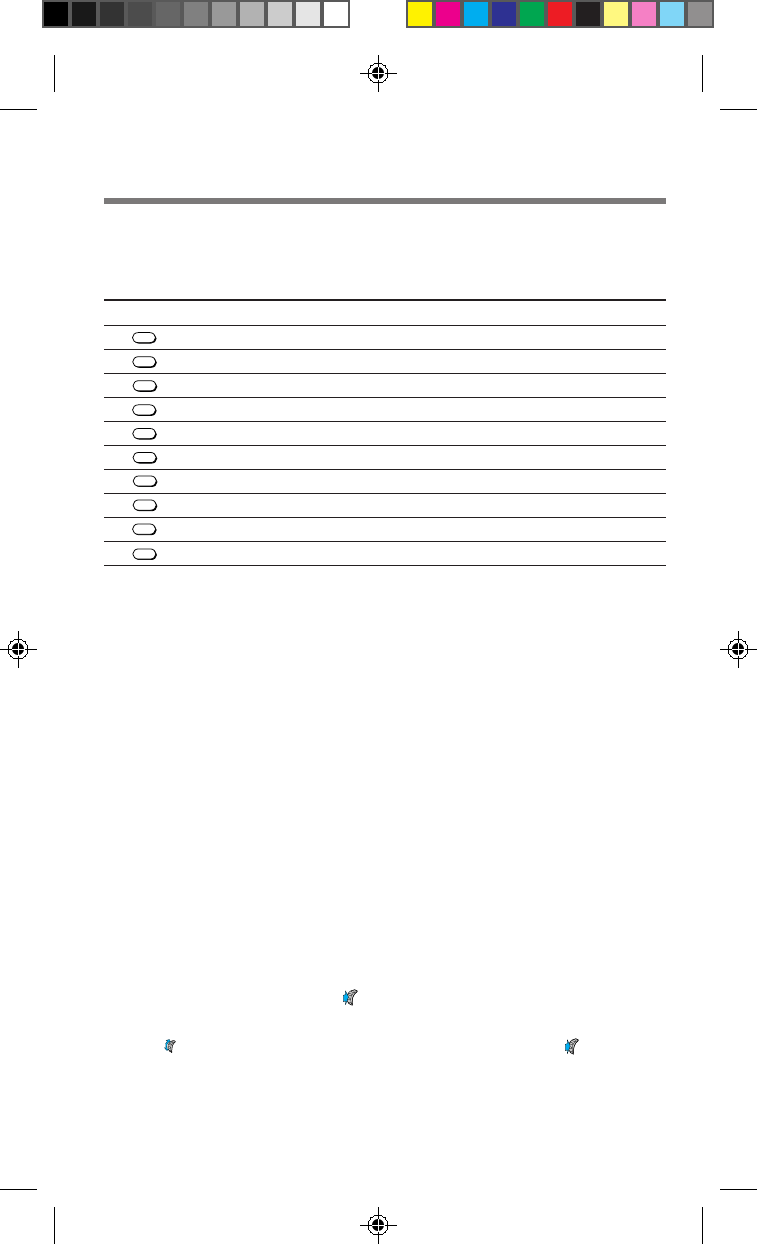
4Use the number buttons to enter the name.
If you press the same button in quick succession, you will scroll through the
characters available on that button. (See the “Alphanumeric table” on page
29.) For the next entry, wait until the cursor moves one step to the right or
use / or to move the cursor and insert spaces between characters.
If you enter the wrong character, press CLR to clear the character highlighted
by the cursor.
To enter “SONY”
Press
7
RS
PQ
four times to enter an “S.”
Press
6
MNO
three times to enter an “O.” Wait until the cursor moves one step to the
right for the next entry.
Press
6
MNO
twice to enter an “N.”
Press
9
YZ
WX
three times to enter a “Y.”
5
When you are finished, push to store the phone number and name.
The message Save in location XX? appears on the display, indicating the
first available memory location.
6
Push to store the new number in the first available memory location.
If you want to store it in another location, turn to select the desired
location or enter the location number, then push . A confirmation message
appears, followed by the status of the Phone Book.
Tip
In addition, you can use the Directory menu to store Phone Book numbers (see page XX).
CLR
0
OPER
-9YZ
WX
/
4_CM_Z200 6/8/98, 9:27 AM1
4.2
Alphanumeric table (English)
Each time you press a number button, the letters/numbers appear as follows:
Button Sequence
1
–“.‘,&():1
2
ABC
ABCabc2
3
DEF DEFdef3
4
GHI
GHIghi4
5
JKL
JKLjkl5
6
MNO MNOmno6
7
RS
PQ
PQRSpqrs7
8
TUV
TUVtuv8
9
YZ
WX
WXYZwxyz9
0
OPER
0
Tip
When you change your phone’s language setting (see page XX), a different set of
characters becomes available. See the Spanish, Portuguese or French operating
instructions to view the alphanumeric table of each language.
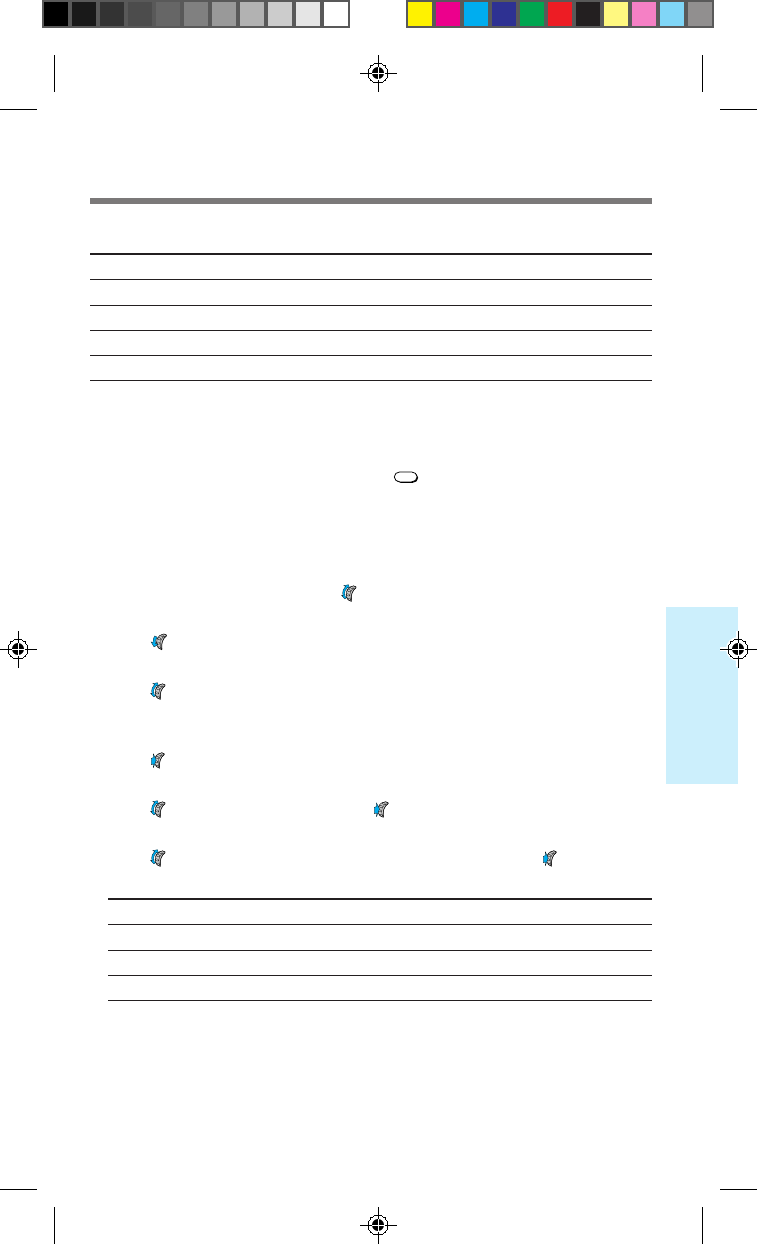
To enter a hyphen, pause, or link
In addition to digits, you can insert hyphens, time pauses, hard pauses, and links
into the phone number of a Phone Book entry. (See page 36 for information on
releasing a pause or link during a call.)
Hyphens: Turn off the autohyphenation feature (see page XX) when you want to
enter a hyphen manually; for example, when you store a number that doesn’t follow
the US/Canada standard. Autohyphenation will be turned off for that number.
Pauses: A time pause (T) sends additional digits about two seconds after a call is
connected. A hard pause (H) allows you to send additional digits after a call is
connected. For example, you may want to enter a phone number in your Phone
Book as follows: 1-800-555-1212H123. The hard pause character in the phone
number allows you to dial the extension 123 after you have reached 1-800-555-1212.
Links: You can join two or more Phone Book entries (for example, a doctor’s phone
number and your medical record number). Once you have specified the first entry,
you insert a link. Then you specify the second number by entering its memory
location number.
1While entering digits, push .
The Options menu appears on the display.
2Turn to select which information to enter, then push .
After inserting a hyphen, pause, or link, the display returns to number entry
mode.
4_CM_Z200 6/8/98, 9:27 AM2
4.3
Advanced Calling Operations
To enter Select The display shows
a hard pause Hard Pause H
a time pause Time Pause T
a link Enter Link L
a hyphen Enter Hyphen –
If the Phone Book is full
If there are no memory locations available, a message indicates that the memory is
full. After entering a name, a message prompts you to specify a memory slot to
overwrite. To cancel, hold down or just press CLR .
Editing stored information
You can edit the name, phone number, and memory location of specific entries
stored in the Phone Book.
1On the standby display, turn once.
The Saved #s display appears.
2Turn
–
down to select Phone Book.
The first entry in the Phone Book appears.
3Turn to select the entry that contains the information you want
to edit.
The contents of the selected memory location are displayed.
4Push .
The Options menu appears.
5Turn to select Edit, then push .
The Edit menu appears.
6Turn to select the item you want to edit, then push .
The stored information that corresponds to the selected item appears.
To change Select
the name Name
the phone number Phone #
the memory location Location #
(continues)
4_CM_Z200 6/8/98, 9:27 AM3
4.4
7Enter the new information.
Enter new information the same way you stored original information (see
page XX). The old information is overwritten.
8When you are finished, push .
A message confirms that your changes have been saved.
Tip
In addition, you can use the Directory menu to edit Phone Book numbers (see page XX).
Erasing a phone number
You can erase stored Phone Book entries. If the selected entry is restricted, you must
enter the four-digit lock code before you can erase it (see page XX).
1On the standby display, turn
–
down twice to select Phone Book.
The first Phone Book entry is displayed.
2Turn to find the Phone Book entry you want to erase.
The contents of the selected memory location are displayed.
3Push .
The Options menu appears.
4Turn to select Erase, then push .
A message appears, prompting you to confirm the erasure.
5Push again.
The selected entry is erased. After a few seconds, the standby display
reappears.
Tips
• You can also use the Directory menu to erase one Phone Book entry at a time (see page XX).
• Use the Security menu to erase all Phone Book entries at once (see page XX).
Restricting Phone Book entries
You can restrict individual Phone Book entries or the entire Phone Book so that
access can be gained only by entering a lock code (see page 74). The phone numbers
of restricted entries will not be displayed.
1Select the Phone Book entry that you want to restrict, then push .
The Options menu appears.
2Turn to select Restrict, then push .
The selected entry is displayed.
3Push to restrict the selected entry.
Now the selected entry is restricted. After a few seconds, the standby
display reappears.
4_CM_Z200 6/8/98, 9:27 AM4

4.5
Advanced Calling Operations
To unrestrict an entry
1Select the Phone Book entry that you want to unrestrict.
The message <number is restricted> indicates a restricted entry.
2Push .
The Options menu appears.
3Turn to select Restrict, then push .
A message appears, prompting you to enter the lock code. (See page XX for
information on lock codes.)
4Use the number buttons to enter the lock code.
Now the selected entry is unrestricted. After a few seconds, the standby
display reappears.
Tip
You can also use the Security menu to restrict/unrestrict Phone Book entries (see page XX).
4_CM_Z200 6/8/98, 9:27 AM5

4.6
Calling from the Phone Book
You can dial frequently used numbers quickly from
the Phone Book using the Jog Dial navigator. Also, by
using speed/touch dialing, you only need to press a
few buttons to dial.
1On the standby display, turn once.
The Saved #s display appears.
2Turn
–
down to select Phone Book.
The first entry in the Phone Book appears.
3Turn to select the desired Phone Book entry.
The contents of the selected entry are displayed.
4Open the arm microphone if it is closed. If the arm microphone is
open, push twice or press
SEND
.
The phone dials the number stored in the selected Phone Book entry. The
icon appears.
Tips
• You can use the Prefix feature to add a prefix to a phone number. For example, you can
prepend “1-213” to the saved number “555-1212”.
• You can search for a phone number by name or memory location (see pages XX and XX).
• Whenever the phone number is displayed, you can call it by pushing or
SEND
or by
opening the arm microphone.
• If the phone number of a selected Phone Book entry is too long to fit on the screen, you
can still view the overflow digits by selecting View Number on the Options menu.
To release a pause or link during a call
If a Phone Book entry contains hard pauses or links, only the digits up to the first
hard pause or link are displayed. To dial the rest of the selected entry (and release
the pause or link), push . For a time pause, wait two seconds. The phone dials the
rest of the entry automatically. (See page 30 for additional information on pauses
and links.)
SEND
Arm mic
0
OPER
-9YZ
WX
/
4_CM_Z200 6/8/98, 9:27 AM6

4.7
Advanced Calling Operations
Speed dialing
To dial quickly, you can enter the Phone Book memory location numbers. The
phone calls the number stored in the corresponding location.
1Use the number buttons to enter the memory location number.
2To dial the number, open the arm microphone. If the arm
microphone is already open, press
SEND
.
The phone dials the number that corresponds to the memory location you
entered.
Touch dialing
You can dial a phone number stored in the Phone Book without pressing
SEND
.
Before using this feature, make sure that Touch Dial on the Extras menu is set to on
(see page XX).
1Use the number buttons to enter the memory location number.
2Hold down the last digit of the memory location number for about
two seconds when the arm microphone is already open.
The phone dials the number that corresponds to the memory location you
entered.
4_CM_Z200 6/8/98, 9:27 AM7
4.8
Searching the Phone Book
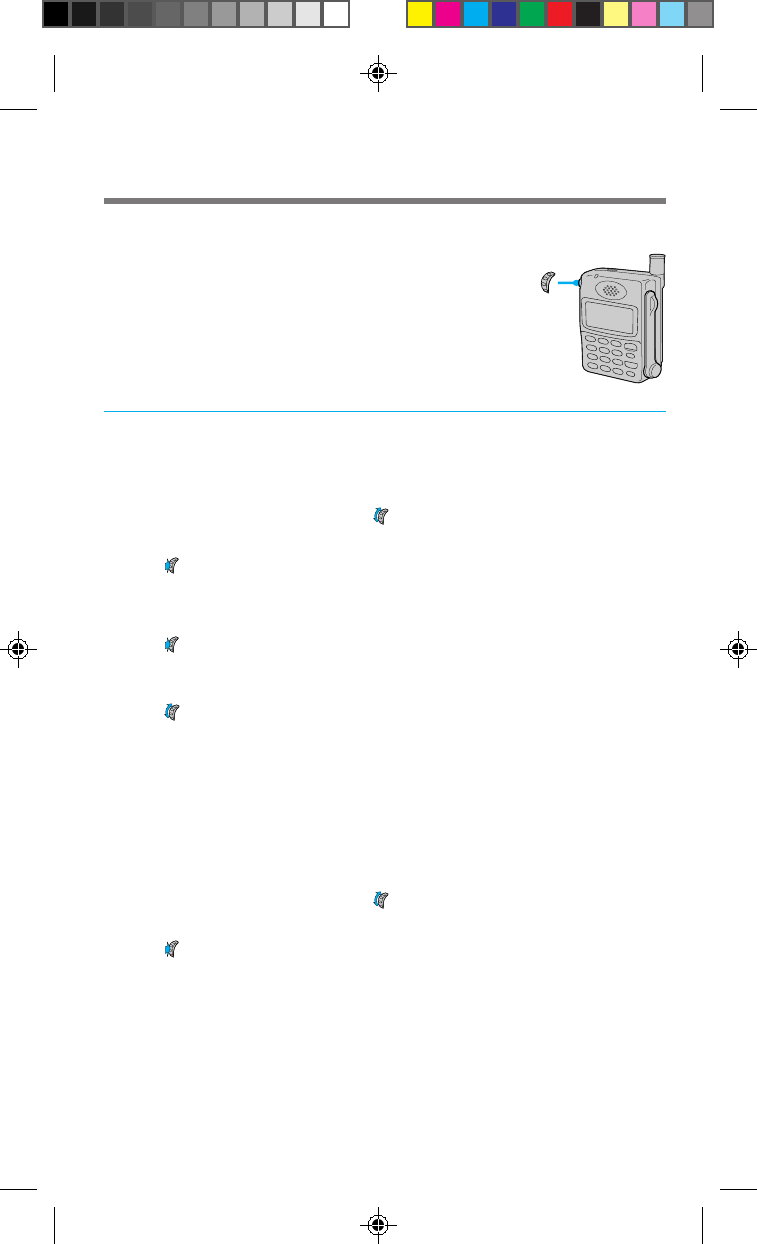
To locate a desired Phone Book entry, you can search
by name, phone number, or memory location. You
can search the Phone Book either alphabetically or for
a string of characters.
Searching alphabetically
When you enter only one character, the phone lists all entries that begin with the
entered character.
1From the standby display, turn once.
The Saved #s display appears.
2Push .
The Search display appears.
3Enter only the first letter of the name you want to find.
4Push .
All Phone Book entries that begin with the entered character are displayed
alphabetically.
5Turn to view the next entry.
Tip
In addition, you can use the Directory menu to search the Phone Book by name (see page XX).
Searching for a string of characters
When you enter two or more characters, the phone searches for entries that contain
those characters. The results are displayed starting from the lowest memory location
number.
1From the standby display, turn once.
The Saved #s display appears.
2Push .
The Search display appears.
3Enter at least two characters.
4_CM_Z200 6/8/98, 9:27 AM8
4.9
Advanced Calling Operations
4Push .
The entries containing the selected string are displayed starting from the
lowest memory location number.
5Turn to view the next entry in the search string.
Note
If the search string does not contain punctuation or a space, the phone scans only the first
characters of the words in the matching entries.
Searching by memory location
The phone searches for a memory location that matches the entered digit(s), and
displays a list of options.
1On the standby display, enter the memory location (a maximum of
two digits).
2Push .
The Options menu appears.
3Turn
+
up to select Recall Loc#, then push .
The Phone Book entry stored in the selected memory location is displayed.
If the entered location is empty, this is indicated on the display. After a few
seconds, the standby display reappears.
Tip
You can also use the Directory menu to search the Phone Book by memory location (see
page XX).
Searching for a phone number
The phone lists all entries that contain the entered digit(s).
1On the standby display, enter at least three digits of the phone
number you want to find.
2Push .
The Options menu appears.
3Turn
+
up to select Find Number, then push .
The Phone Book lists and displays all entries matching the entered digits.
Depending on the Sort Book setting (see page XX), the entries are listed
either alphabetically or by memory location.
4 Turn to view the next entry that contains the search string.
If a matching Phone Book entry is not found, this is indicated on the display.
After a few seconds, the standby display reappears.
4_CM_Z200 6/8/98, 9:27 AM9
4.10
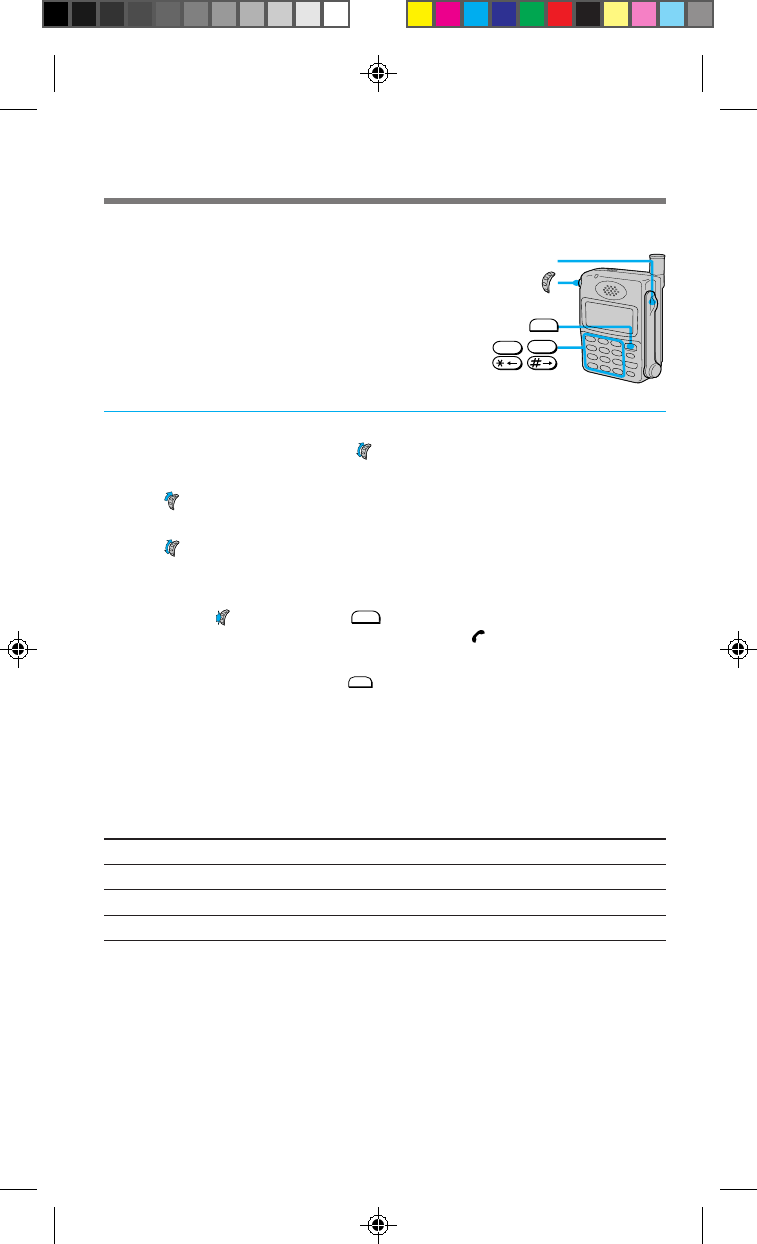
Calling from the Calls List
Information on the ten most recent outgoing calls,
incoming calls, scratch pad entries, and missed calls
are stored in the phone’s Calls List. If you call the
same number twice in a row, only the most recent call
is stored in the Calls List.
1On the standby display, turn once.
The Saved #s display appears.
2Turn
+
up to go to Calls List.
Information on the most recent call appears.
3Turn to select the entry you want.
The contents of the selected entry are displayed.
4Open the arm microphone if it is closed. If the arm microphone is
open, push twice or press
SEND
.
The phone dials the selected Calls List entry. The icon appears.
Tips
• In addition, you can dial by pressing
SEND
(when the arm microphone is open) after
selecting the entry in step 3 on page XX.
• If the selected entry contains a pause or a link, only the digits up to the pause or link are
dialed. To release pauses and links, see page 36.
To view detailed information of Calls List entries
In addition, you can view the digits of a phone number that do not fit on the screen,
the duration of the call, or the time and date of the call by using the Options menu in
step 4 on page XX.
To view Select
digits that do not fit on the screen View Number
the duration of the call Duration
the time and date of the call Time/Date
To save the number to the Phone Book
Select Save from the Options menu (step 4 on page XX) by pushing the Jog Dial
navigator.
SEND
Arm mic
0
OPER
-9YZ
WX
/
4_CM_Z200 6/8/98, 9:27 AM10
4.11
Advanced Calling Operations
Sending DTMF signals from the Phone Book
You can send DTMF (Dual Tone Multiple Frequency)
signals to access electronic services (such as telephone
banking) when dialing numbers from the Phone Book.
Dual Tone Multiple Frequency is also known as “touch-tone.” A tone is generated
when you press a telephone button (number, *, or #). It can be used to access
answering machines, pagers, telephone banking services, data services, and other
electronic services.
1During a call, search for the Phone Book entry that contains the
numbers you want to send.
The selected entry is displayed. Use the Directory menu to search for the
Phone Book entry (see pages XX and XX).
2Push .
The Options menu appears.
3Turn to select Number Tone, then push .
A DTMF signal, containing the entered digits, is sent in a burst.
Tips
• You can send a DTMF signal only during a call.
• To enter and send numbers one by one during a call, use the number buttons to send the
DTMF number.
• To change the length of the DTMF transmission, see “Setting the keybeep length” on
page XX.
0
OPER
-9YZ
WX
/
4_CM_Z200 6/8/98, 9:27 AM11

4.12
(this page intentionally left blank)
4_CM_Z200 6/8/98, 9:27 AM12
5.1
Features Menu
About the Features menu
You can use the Features menu to activate the special features of your phone. For a
list of submenus and settings, see “List of menu items” on page XX or “Menu map”
on page XX. Several features on the Features menu are dependent on your service
provider and the network your phone is operating on. Network-dependent features
are marked with an asterisk (*) on page 1.2 and pages 6.X-6.X. Check with your
service provider to see if these features are available in your area.
Navigating the Features menu
See “Menu map” on page 1.2 and the navigation illustrations on page 1.3 for basic
information on how to navigate the various Features menus. For more detailed
information on each menu item, see the section on that feature in the pages that
follow.
To exit from the Features menu
Press
END
or hold down CLR to return to the standby display.
To return to the previous display
Press CLR . To go back further, press CLR again.
Tips
• If you reach the last menu item and try to turn further, a beep indicates that you have
reached the end of the menu. To view other menu items, turn in the opposite
direction.
• The standby display automatically reappears after 30 seconds of inactivity.
• Each menu item can be accessed quickly from the standby display by pushing and
then pushing the number of the menu item. The item number then appears in the upper
left corner of the display in step 3. For example, you can access the backlight setting by
pushing followed by
7
RS
PQ
and
2
ABC
.
5.1_CM_Z200 6/8/98, 9:27 AM1
5.2
Messages
This section contains information on the Short
Messaging Service (SMS). This feature may allow you
to receive voice or text messages.
Contact your service provider to see if this service is
available in your area.
Receiving messages
To receive messages, the phone must be turned on. The phone supports three types
of messages: MESSAGE indicates a text message; PAGE typically contains only digits;
VOICE MAIL is a voice mail notification, and indicates the number of new voice mail
messages stored in your voice mailbox.
When you receive a message
The message icon ( ) appears on the display and the call alert indicator flashes,
accompanied by audible alerts. The first line indicates message type and priority. If
the message is urgent, the message type is flanked by asterisks (*) and followed by
an exclamation mark (!). If you press any key, this display disappears. The message
icon ( ) remains displayed as long as there are unread messages.
Tips
• If you receive duplicate messages, the phone deletes the older one and stores the new
one with the indication DUPLICATE.
• If the ringer volume is set to vibration, the phone emits a vibration instead of an
audible ring when you receive a message.
Checking message storage capacity
Voice mail messages
Voice mail messages are stored remotely by your service provider. Check with your
service provider to find out the maximum number and size of voice mail messages
that can be stored.
Text messages
A text message must contain at least one character, and can be up to 200 characters
long. The number of messages that can be stored depends on the size of the
messages. You can store approximately 12 large messages or 45 small messages.
WARNING
When you receive a new message and your phone does not have enough memory to store
it, the phone erases old messages that are not locked.
SEND
END
CLR
5.1_CM_Z200 6/8/98, 9:27 AM2

5.3
Features Menu
If the memory becomes full
The phone issues a warning when the memory is 75% full. At this point, you should
erase expendable messages (see page XX).
If the memory becomes completely full or your phone does not have enough
memory to receive an incoming message, new messages are rejected.
Accessing messages
1Push twice from the standby display.
The Message menu appears, indicating the number of the following types of
messages, respectively:
• Voice mail messages (see page XX).
• Unread text messages and pagings
(see page XX).
• Text messages and pagings that you have already read but are still stored
in memory (see page XX).
Reading voice mail notification messages [F11]
1Push to select Voice from the Message menu.
The Voice display appears, indicating the number of voice messages stored
in your voice mailbox. Press CLR to go back to the Message menu.
2Turn to scroll through the message.
To dial a callback number
1After reading a voice mail notification message, open the arm
microphone if it is closed. If the arm microphone is open, push to
see the Options menu.
2Push again to dial the callback phone number.
The phone dials the callback phone number which is attached to the
message.
Tip
In addition, you can dial the callback number by pressing
SEND
from the Messages display
or when reading a voice mail notification message if the arm microphone is open.
5.1_CM_Z200 6/8/98, 9:27 AM3
5.4
To erase a voice message
1After reading a voice mail notification message, push .
The Options menu appears.
2Turn to select Erase Msg, then push .
The voice mail notification message is erased. The Message menu reappears,
indicating that there are currently no voice mail notification messages stored
in memory.
Reading new text messages [F12]
You can read both new and old messages stored in memory. Urgent messages are
listed above non-urgent ones, with the most recent entries first. After reading
messages, you can protect or erase them.
1Turn to select New Text from the Message menu, then push .
The first message is displayed. An asterisk (*) indicates an urgent message.
If there are no new messages, this is indicated on the display. Push to
return to the Message menu.
2Turn to scroll through the message.
If you do not scroll, the display automatically scrolls down. A hollow box ( )
indicates the end of the message.
3To proceed to the next message, push when you reach the end
of the message.
The Options menu appears. To return to the standby display, press
END
.
4Turn to select Next Msg, then push .
The next message is displayed. If there are no more messages, the Message
menu reappears.
To return to the previous message
In step 4 above, select Prev Msg from the Options menu.
Note
Once you reach the end of the message and go to the next message, the previous message
is stored as an old message.
Reading old text messages [F13]
The most recent messages are listed first.
1Turn to select Old Text from the Message menu, then push .
A list of old messages is displayed. A dot (•) indicates the beginning of each
message. A lock icon ( ) indicates that the message is locked (see page XX).
If a number is too long to fit, an ellipsis (...) is used.
5.1_CM_Z200 6/8/98, 9:27 AM4

5.5
Features Menu
2Turn to scroll through the list of old messages.
3To read the selected message, push .
The selected message is displayed.
4Turn to scroll through the message.
If you do not scroll, the display automatically scrolls down to the end of the
message, which is indicated with a hollow box ( ).
5When you have read the message, press
CLR
to return to the list of
old messages.
To read the next message, push to go to the Options menu, then select
Next Msg. To read the previous message, push to go to the Options
menu, then select Prev Msg.
To protect a text message
You can lock a message to protect it from being erased.
1After reading a message, push .
The Options menu appears.
2Turn to select Lock Msg, then push .
A message indicates that the message is now locked.
Note
The phone does not erase locked messages automatically. When there is not enough
memory for incoming messages, you must erase the locked messages manually.
To respond to a text message
1After reading a text message, open the arm microphone if it is
closed.
2If the arm microphone is open, push to see the Options menu.
Turn to select Send, then push .
The phone dials the callback phone number which is attached to the
message. If a callback number is not attached to the message, no call is made
and a message indicates that a callback number is not available.
Tip
In addition, when viewing a text message or the list of old messages, you can dial the
callback phone number simply by opening the arm microphone, or pressing
SEND
when the
arm microphone is already open.
5.1_CM_Z200 6/8/98, 9:27 AM5
5.6
To save the callback number
1After reading a message, push .
The Options menu appears.
2Turn to select Save Number, then push .
A message appears, prompting you for a name to accompany the number.
3Use the number buttons to enter the name.
If you press the same button in quick succession, the letter you just entered
changes. (See the “Alphanumeric table” on page XX.) Use / or to
move the cursor and to insert spaces between characters. If you enter the
wrong character, press CLR to clear the character highlighted by the cursor.
4When you are finished, push to store the phone number and
name.
A confirmation message appears.
5Push to store the new number in the first available memory
location.
If you want to store it in another location, turn to select the desired
location, then push . A confirmation message appears, followed by the
status of the Phone Book.
To erase a text message
1After reading a text message, push .
The Options menu appears.
2Turn to select Erase Msg, then push .
The message is erased.
Erasing old text messages [F14]
1Turn
–
down to select Erase Old from the Message menu, then
push .
The Erase Old menu appears.
2Press
1
to erase old messages.
All unlocked old messages are erased. To go back to the Message menu
without erasing the messages, push . If you erase all old messages, it will
be indicated on the Message menu.
Tip
To erase a locked message, select Erase Msg from the Options menu of that message.
5.1_CM_Z200 6/8/98, 9:28 AM6

5.7
Features Menu
Sounds
You can adjust the volume of the ringer, keybeep, and earpiece on the Sounds menu.
In addition, you can select the type of sounds heard when the phone rings and when
you press buttons. (See page XX for instructions on how to reach the Sounds menu.)
Adjusting the ringer volume [F21]
1Push to select Ringer Vol from the Sounds menu.
The Ringer Vol. menu appears.
2Turn up to raise the ringer volume, and down to lower it.
You can select from six ringer volume settings: off, low, med. (medium),
high, escalate, and vibration.
3Push to enter the new setting.
The standby display reappears.
If you turn off the ringer volume
The message -Ringer Off- is displayed at the top of the screen when the standby
display appears.
Tips
• While the phone is ringing, turn down to lower the ringer volume for that call.
• If you set the ringer volume to escalate, the telephone rings twice at a low volume,
then once at medium volume, and thereafter at a high volume.
• If you set the ringer volume to vibration, the telephone emits a vibration instead of an
audible ring.
• If the telephone is used with a hands-free car kit or charging accessory, the vibration
setting is not available.
Muting/unmuting the microphone [F22]
You can mute/unmute the phone during a call directly, without using the Sounds
menu by pushing and holding . In addition, you can mute/unmute the
microphone during a call using the Sounds menu. This feature is available only
during a call.
1During a call, turn to select Sounds from the Features menu, then
push .
The Sounds menu appears.
2Push to select Mute/UnMute.
Now the microphone is muted.
3To unmute the microphone, push .
The Sounds menu reappears.
4Push to select Mute/UnMute.
Now the microphone is unmuted.
5.1_CM_Z200 6/8/98, 9:28 AM7
5.8
Adjusting the keybeep volume [F23]
You can adjust the volume of the beep that sounds when you press a button.
1Turn to select Keybeep Vol from the Sounds menu, then push .
The Keybeep Vol menu appears.
2Turn up to raise the keybeep volume, and down to lower it.
You can select from four keybeep volume settings: off, low, med.
(medium), and high.
3Push to enter the new setting.
The standby display reappears.
Adjusting the earpiece volume [F24]
You can adjust the earpiece volume during a call by turning . In addition, you can
adjust the volume as follows:
1Turn to select Earpiece Vol from the Sounds menu, then push .
The Earpiece Vol menu appears.
2Turn up to raise the earpiece volume, and down to lower it.
There are seven earpiece volume settings ranging from 1 to 7. A higher
number indicates higher volume.
3Push to enter the new setting.
The standby display reappears.
Setting the ringer type [F25]
You can set the type of beep that sounds for an incoming call.
1Turn to select Ringer Type from the Sounds menu, then push .
The Ringer Type menu appears.
2Turn to select the ringer type.
You can select from five different ringer settings. The ringer sounds every
time you turn .
3Push to enter the new setting.
The standby display reappears.
5.1_CM_Z200 6/8/98, 9:28 AM8
5.9
Features Menu
Setting the keybeep type [F26]
You can set the beep that sounds when you press a button to either a tone or a click.
Tones sound similar to DTMF tones, and clicks are indicated by single beeps.
1Turn to select Key Sound from the Sounds menu, then push .
The Key Sound menu appears.
2Turn to select the keybeep type.
You can select tones or clicks.
3Push to enter the new setting.
The standby display reappears.
Note
DTMF tones are sent to the other party during a call even if you set the keybeep type to
clicks.
Setting the keybeep length [F27]
You can set the length of the beep that sounds when you press a button. This setting
affects both the keybeep feedback and DTMF transmission tones. The phone sends a
short DTMF burst (default) or plays every tone of the DTMF signal as long as the
key is held down.
1Turn to select Beep Length from the Sounds menu, then push .
The Beep Length menu appears.
2Turn to select the keybeep length.
You can select standard or long.
3Push to enter the new setting.
The standby display reappears.
5.1_CM_Z200 6/8/98, 9:28 AM9
5.10
Timers
You can check call durations on the Timers menu. In addition, you can set the phone
to alert you every minute of a call, and make the phone turn itself off automatically.
Checking the duration of all calls [F31]
You can view the total duration of all calls. This information cannot be reset.
1Turn to select All Calls from the Timers menu, then push .
The All Calls display appears.
2Push to go back to the standby display.
Checking and resetting the duration of recent calls [F32]
You can view the total duration of the most recent calls.
1Turn to select Recent Calls from the Timers menu, then push .
The Recent Calls display appears.
2Press
1
to reset, or hold down
CLR
to go back to the standby
display.
If you choose to reset, the counter of recent calls and the corresponding
durations are reset.
Checking and resetting the duration of roam calls [F33]
You can view the total duration of the most recent roam calls.
1Turn to select Roam Calls from the Timers menu, then push .
The Roam Calls display appears.
2Press
1
to reset, or hold down
CLR
to go back to the standby
display.
If you choose to reset, the counter of recent roam calls and the
corresponding durations are reset.
5.2_CM_Z200 6/8/98, 9:28 AM10
5.11
Features Menu
Setting the minute alert [F34]
You can set the phone to alert you ten seconds before every full minute.
1Turn to select Minute Alert from the Timers menu, then push .
The Minute Alert menu appears.
2Turn to select the desired alert time.
You can select from four settings: off, before min, each min, and
every 5 min. If you select before min, the phone alerts you 10 seconds
before every full minute.
3Push to enter the new setting.
The standby display reappears.
Setting the phone to automatically turn off [F35]
You can set the phone to automatically turn itself off after a specified duration.
1Turn to select Auto-Off from the Timers menu, then push .
The Auto-Off menu appears.
2Turn to select the duration before the phone powers off
automatically.
You can select from never, in 3 hours, in 2 hours, in 1 hour, and
in 30 mins. If you select never, the phone does not turn itself off
automatically.
3Push to enter the new setting.
A confirmation message appears.
Notes
• If you press any button or operate the Jog Dial navigator, the timer is reset and the
countdown starts over.
• The phone does not turn itself off automatically during a call.
• If the Auto-Off timer is set, the phone turns off after a user-specified duration and the
countdown Off:xx:xx:xx is displayed.
• Once the phone turns off, the setting will revert to never.
5.2_CM_Z200 6/8/98, 9:28 AM11
5.12
Directory
You can use the Directory menu to check your phone number, as well as store, erase,
and edit phone numbers and names in the Phone Book. Also, you can use this menu
to view the Calls List.
Checking your phone number [F41]
1Push to select My Number from the Directory menu.
The My Phone # display appears, showing your phone’s number.
2Push to exit this feature.
The standby display reappears.
Storing phone numbers [F42]
For quick and easy dialing, the Phone Book allows you to store up to 99 phone
numbers.
1Turn to select Save from the Directory menu, then push .
2Use the number buttons to enter the phone number, then push .
The Options menu appears. (See the “Alphanumeric table” on page XX.)
3Turn to select Save, then push .
A message appears, prompting you for a name to accompany the number.
4Use the number buttons to enter the name.
Use / to move the cursor or to insert spaces between characters. If
you enter the wrong character, press CLR to clear the character highlighted
by the cursor. (See the “Alphanumeric table” on page XX.)
5When you are finished, push to store the phone number and
name.
A message appears, prompting you to specify the new memory location.
6Push to store the new number in the first available memory
location.
If you want to store it in another location, turn to select the desired
location, then push . A confirmation message appears, followed by the
status of the Phone Book.
Tip
In addition, you can use the Options menu to store Phone Book numbers (see page XX).
5.2_CM_Z200 6/8/98, 9:28 AM12

5.13
Features Menu
Erasing a phone number [F43]
You can erase stored Phone Book entries. If the selected entry is restricted, you must
enter the four-digit lock code to erase it (see page XX).
1Turn to select Erase from the Directory menu, then push .
A message appears, prompting you for the Phone Book entry to be erased.
2Turn to select the entry you want to erase, then push .
A message appears, prompting you to confirm that the selected Phone Book
entry should be erased. In addition, you can use the number buttons to
select the entry to be erased.
3Push again.
The selected entry is erased. After a few seconds, the standby display
reappears.
Tips
• Also, you can use the Options menu to erase one Phone Book entry at a time (see page XX).
• Use the Security menu to erase all Phone Book entries at once (see page XX).
Editing stored information [F44]
You can edit the name, phone number, and memory location of specific entries
stored in the Phone Book. If the selected entry is restricted, you must enter the four-
digit lock code to edit it (see page XX).
1Turn to select Edit from the Directory menu, then push .
A message appears, prompting you for the Phone Book entry to be edited.
2Turn to select the entry that contains the information you want
to edit.
In addition, you can use the number buttons to select the entry to be edited.
A message appears, prompting you to confirm that the selected Phone Book
entry should be edited.
3Push again.
The Edit menu appears.
4Turn to select the item you want to change, then push .
You can change the name, phone number, or memory location by selecting
Name, Phone #, or Location #, respectively. The stored information that
corresponds to the selected item appears.
5Enter the new information.
The old information is overwritten.
5.2_CM_Z200 6/8/98, 9:28 AM13
5.14
6When you are finished, push .
The Options menu reappears when you edit the phone number. New
information is saved when you edit the name or memory location.
7Turn to select Save, then push .
A message appears, confirming that your changes have been saved.
Tip
In addition, you can use the Options menu to edit Phone Book entries (see page XX).
Searching the Phone Book by name [F45]
You can find name entries in the Phone Book by searching alphabetically or for a
string of characters.
Tip
In addition, you can use the Options menu to search the Phone Book by names (see pages
XX and XX).
To search alphabetically
When you enter only one character, the phone lists all entries that begin with the
entered character.
1Turn to select Find Name from the Directory menu, then push .
The Search display appears, prompting you for a search string.
2Enter only the first letter of the name you want to find.
3Push .
All Phone Book entries are displayed alphabetically, starting from the ones
that begin with the entered character.
4Turn to view the next entry.
To search for a string of characters
When you enter two or more characters, the phone searches for entries that contain
the entered string. The results are displayed starting from the lowest memory location
number.
1Turn to select Find Name from the Directory menu, then push .
The Search display appears, prompting you for a search string.
2Enter at least two characters.
3Push .
The entries containing the selected string are displayed starting from the
lowest memory location number.
4Turn to view the next entry.
5.2_CM_Z200 6/8/98, 9:28 AM14
5.15
Features Menu
Searching the Phone Book by memory location [F46]
You can find memory locations easily.
1Turn to select Phone Book from the Directory menu, then push .
A message appears, prompting you for a search string.
2Use the number buttons to enter the memory location number.
The Phone Book entry that matches the search string is displayed.
If the selected entry is empty, the display shows the message
Phone Book storage location XX is empty. After a few seconds, the
standby display reappears.
Tips
• You can also use the Options menu to find Phone Book memory locations (see page XX).
• You can also turn to scroll through the entire Phone Book instead of entering the
memory location number in step 2.
Viewing the Calls List [F47]
You can view Calls List entries easily.
1Turn to select Calls List from the Directory menu, then push .
If the Calls List is empty, the display shows the message
Calls List is empty.
2Turn to view the Calls List entries.
The most recent entry is displayed first. To view the rest of the ten most
recent entries, turn .
Tip
You can also view the Calls List from the standby display (see page XX).
To place a call
Press
SEND
in step 2. You can also push to go to the Options menu, then select Send
and push .
5.2_CM_Z200 6/8/98, 9:28 AM15

5.16
Extras
On the Extras menu, you can set the phone to enable touch dialing, redial
automatically, and answer incoming calls automatically or at the press of any button.
Also, you can use this menu to lock the keypad and to jot down phone numbers.
Preventing accidental operation [F51]
When the microphone is closed, you can lock the keypad by pushing and holding
from the standby display. You can also lock the keypad from the Features menu, as
described below. Locking the keypad offers low-level security. For example, it
disables accidental dialing when you keep the phone in your pocket.
1Turn to select Key Guard from the Extras menu.
The Key Guard menu appears.
2Push .
A message appears, confirming that the keypad is locked. After a few
seconds, the standby display reappears. The keypad lock icon ( ) and the
text Keyguard On indicates that the keypad is locked.
To unlock the keypad
1Press
1
,
2
ABC
and 3DEF in quick succession.
To unlock the keypad temporarily
1Open the arm microphone.
The keypad becomes unlocked.
2Close the arm microphone.
The keypad is locked again.
To answer an incoming call when the keypad is locked
Just open the arm microphone.
Tip
The backlight and keybeeps are turned off when the keypad is locked.
Activating touch dialing [F52]
If you want to use the touch dialing feature (see page XX), set to on.
1Turn to select Touch Dial from the Extras menu, then push .
The Touch Dial menu appears.
2Turn to select on or off.
3Push to enter the new setting.
The standby display reappears.
5.3_CM_Z200 6/8/98, 9:28 AM16
5.17
Features Menu
Setting the phone to redial automatically [F53]
You can set the interval for redialing. If the attempt to dial is not successful, the
phone tries to redial it up to five times every three seconds.
1Turn to select Auto-Retry from the Extras menu, then push .
The Auto-Retry menu appears.
2Turn to select on or off.
If you select off, the phone does not try to redial automatically.
3Push to enter the new setting.
The standby display reappears.
Setting the phone to answer automatically [F54]
You can set the phone to answer calls automatically. If you turn auto-answering on,
the phone answers incoming calls on the second ring when the phone is used in
conjunction with a hands-free car kit or a portable hands-free car kit.
1Turn to select Auto-Answer from the Extras menu, then push .
The Auto-Answer menu appears.
2Turn to select on or off.
3Push to enter the new setting.
The standby display reappears.
The message -AutoAnswer- is displayed on the standby display when you
select on and the phone is in the hands-free car kit.
Using the scratch pad [F55]
Your phone has a scratch pad feature, which is useful for writing down phone
numbers temporarily. The phone doesn’t send DTMF tone when you enter digits to
the scratch pad.
1Turn to select Scratch Pad from the Extras menu, then push .
The Scratch Pad display appears, prompting you to enter a phone number.
2Use the number buttons to enter the digits.
3Push .
The Options menu appears. Besides storing digits, you can enter hyphens,
pauses, and links (see page XX).
4Turn to select Store&Exit, then push .
The information is stored as a scratch pad entry in the Calls List. When the
Calls List reaches more than 10 list items, the oldest entries will be deleted as
needed to make room for new entries.
5.3_CM_Z200 6/8/98, 9:28 AM17
5.18
Security
You can restrict unauthorized access to your phone and the information it holds.
Also, on the Security menu, you can reset menu settings to default and store
emergency numbers. Unlike other items on the Features menu, accessing the
Security menu requires a lock code when you select it from the menu. A typical
default lock code is either the last four digits of your phone number or 0000.
Preventing others from using your phone [F61]
This option lets you set when the phone will be locked. When the phone is locked,
carrying out most operations requires entering the lock code; you can still answer
incoming calls and dial 911 or other stored emergency numbers.
1Push to select Lock Phone from the Security menu.
The Lock Phone menu appears.
2Turn to select when the phone will be locked.
You can select never, on power-up, or right now. If you select never, the
phone is available for use at any time without a lock code. If you select
on power-up, the phone is locked every time you turn it on.
3Push to enter the new setting.
The standby display reappears. The message :Unlock indicates that the
phone is locked.
To unlock the phone
On the standby display, push . When prompted, enter the lock code.
Setting a new lock code [F62]
The lock code must be entered every time you want to unlock the phone, and also
when you want to access restricted numbers.
1Turn to select New Code from the Security menu, then push .
The Enter New Code display appears, prompting you to enter a new lock
code.
2Use the number buttons to enter a lock code.
The lock code must be exactly four digits long.
3Push to store the new lock code in memory.
A confirmation display appears.
Note
Keep a record of your lock code. If you forget it, contact your service provider.
5.3_CM_Z200 6/8/98, 9:28 AM18
5.19
Features Menu
Restricting a Phone Book entry [F63]
You can restrict access to individual Phone Book entries.
1Turn to select Restrict # from the Security menu, then push .
A message appears, prompting you to specify Phone Book entry to restrict.
2Turn to select the Phone Book entry that you want to restrict.
3Push to restrict the selected entry.
Now the selected entry is restricted.
To unrestrict an entry
To select the entry you want to unrestrict, follow the procedure above for restricting
an entry.
Notes
• The phone number of a restricted entry is not displayed when you view the Phone Book
and make a call.
• Restricted entries are not listed or displayed after a digit string search (see pages XX and
XX).
• Calling, editing, and erasing a restricted entry requires the four-digit lock code.
Tip
Also, you can use the Options menu to restrict/unrestrict Phone Book entries (see page
XX).
Restricting all Phone Book entries [F64]
You can restrict access to all Phone Book entries. All operations that involve Phone
Book entries require the four-digit lock code (see page XX).
1
Turn to select Restrict All from the Security menu, then push .
The Restrict All menu appears.
2Turn to set restriction of all Phone Book entries on or off.
3Push to enter the new setting.
The standby display reappears.
Note
If you restricted some entries by using Restrict #, they are still restricted when you turn
off Restrict All.
5.3_CM_Z200 6/8/98, 9:28 AM19
5.20
Reverting to default settings [F65]
You can reset all menu settings to the defaults. This does not affect Phone Book or
Calls List entries.
1
Turn to select Master Reset from the Security menu, then push .
The Master Reset display appears.
2Press
1
to revert to the factory defaults, or push to keep the
current settings.
If you revert to the factory defaults, all your custom menu settings are
erased.
Erasing all Phone Book entries [F66]
You can erase all Phone Book entries at once.
1Turn to select Erase Book from the Security menu, then push .
The Erase Book display appears.
2Press
1
to erase all Phone Book entries, or push to quit without
erasing.
If you erase all entries, a message appears to confirm this.
Erasing all Calls List entries [F67]
You can erase all Calls List entries at once.
1Turn to select Erase Calls from the Security menu, then push .
The Erase Calls display appears.
2Press
1
to erase all Calls List entries, or push to quit without
erasing.
If you erase all entries, a message appears to confirm this.
5.3_CM_Z200 6/8/98, 9:28 AM20
5.21
Features Menu
Storing emergency numbers [F68]
You can use the Security menu to store up to three emergency numbers other than
911 (which you cannot erase). You can call these numbers even when the phone is
locked.
1Turn to select Emergency # from the Security menu, then push .
The first Emergency # display appears.
2Turn to select the emergency memory location, then push .
A message appears, prompting you to enter the phone number for the
emergency entry.
3Use the number buttons to enter the number.
4Push to store the emergency number.
The entered emergency number is stored in memory. To store other
emergency numbers, repeat the above procedure.
To go back to the standby display, hold down CLR .
5.3_CM_Z200 6/8/98, 9:28 AM21

5.22
Display
You can use the features on the Display menu to change the appearance of the on-
screen display.
Setting the banner [F71]
You can change what the banner reads.
1Push to select Banner from the Display menu.
The Banner display appears. The current banner text is displayed.
2Push again to start editing.
A message appears, prompting you to enter a new banner.
3Use the number buttons and / or to enter the new banner
text.
The banner can be up to 12 characters long. For details on character entry,
see the “Alphanumeric table” on page XX.
4Push to save the new banner.
The standby display reappears. Your new banner is displayed.
Setting the backlight [F72]
You can adjust the duration of the backlight on the display and keypad.
1Turn to select Backlight from the Display menu, then push .
The Backlight menu appears.
2Turn to select how long the backlight is on after the last press of
a button.
You can select from several time periods; the backlight will remain on for
the set duration. If the phone is used with a hands-free car kit or a charging
accessory, the added option of always on leaves the backlight on.
3Push to enter the new setting.
The standby display reappears.
5.3_CM_Z200 6/8/98, 9:28 AM22
5.23
Features Menu
Setting autohyphenation [F73]
You can turn the autohyphenation feature on and off. If you turn it on, entered
numbers are hyphenated according to the US/Canada standard (eleven digits which
include a long distance identifier, an area code, a three-digit community code, and a
four-digit location code, for example, 1-800-555-1212).
1Turn to select Auto-Hyphen from the Display menu, then push .
The Auto-Hyphen menu appears.
2Turn to select on or off.
3Push to enter the new setting.
The standby display reappears.
Note
Autohyphenation is not fully deactivated when a pause or link is entered. All entered
hyphens up to the pause/link will remain.
Sorting the Phone Book [F74]
You can determine how the Phone Book will be displayed, and also set the phone to
sort the entries either alphabetically or by memory location.
1Turn to select Sort Book from the Display menu, then push .
The Sort Book menu appears.
2Turn to set the sorting preferences.
You can choose to sort the Phone Book by Loc. # (by location) or
alphabetic (alphabetically).
3Push to enter the new setting.
The standby display reappears.
Selecting the language [F75]
You can change the language used on the displays.
1Turn to select Language from the Display menu, then push .
The Languages menu appears.
2Turn to select the language.
English, Spanish, French and/or Portuguese may be available,
depending on your area.
3Push to enter the new setting.
The standby display reappears.
5.3_CM_Z200 6/8/98, 9:28 AM23
5.24
Setting the menu length [F76]
You can set the menu length (long or short). The short menu displays only the most
common items on the Features menu; the long menu displays all items.
1Turn to select Menu Length from the Display menu, then push .
The Menu Length menu appears.
2Turn to set the menu length.
You can select short or long.
3Push to enter the new setting.
The standby display reappears.
Items on the short menu
The short menu contains the following items:
•Message (see page XX)
•Ringer Vol. (see page XX)
•My Number (see page XX)
•Saved #s (see pages XX, XX, XX)
•Lock Phone (see page XX)
•Long Menu (see page XX)
Note
The item Saved #s contains the items Find Name (see page XX), Phone Book (see page XX),
and Calls List (see page XX).
To return to the long menu
On the short menu, turn to select Long Menu, then push .
Setting the message format [F77]
You can choose among formats that determine how your phone displays incoming
messages.
1Turn to select Msg. Format from the Display menu, then push .
The Msg. Format menu appears.
2Turn to set the message format.
You can select none, partial or full. If you select none, the message is
displayed exactly as it was received. If you select partial, lines with more
than 12 characters are wrapped. If you select full, consecutive whitespace
characters (such as doubles spaces) and carriage returns are replaced with a
single space.
3Push to enter the new setting.
The standby display reappears.
5.3_CM_Z200 6/8/98, 9:28 AM24
5.25
Features Menu
Network
On the Network menu, you can set the phone to alert you when the roaming status
changes, when a call is dropped, or when enhanced voice privacy is lost.
Setting the roaming alert [F81]
Your phone is roaming when you use it outside of the home area. Roaming access to
a different carrier and the types of calls you can make varies with the agreement
between your “home” carrier and the currently serving carrier. Check with your
service provider for details about roaming in a specific area.
1Push to select Roam Alert from the Network menu.
The Roam Alert menu appears.
2Turn to select on or off.
3Push to enter the new setting.
The standby display reappears.
When you enter another service area
The roaming icon (R) appears on the display. A beep accompanies the icon if you
have turned the roam alert on.
If you leave any valid service area
A message appears, indicating that you are outside the area serviced by your
“home” carrier or other valid service areas. The out-of-service icon ( ) also appears.
Setting the drop alert [F82]
If the signal fades, your phone may drop the ongoing call. You can choose to be
alerted by an audible alarm when a call is dropped.
1Turn to select Drop Alert from the Network menu, then push .
The Drop Alert menu appears.
2Turn to select on or off.
3Push to enter the new setting.
The standby display reappears.
When a call is dropped
The roaming icon (R) appears on the display. A beep accompanies the icon if you
have turned the drop alert on.
5.3_CM_Z200 6/8/98, 9:28 AM25
5.26
Setting the voice privacy alert [F83]
Some networks and service providers offer a voice privacy feature. This feature
encrypts transmissions to and from you phone for added privacy. A display appears
to indicate if enhanced voice privacy is lost during a call. You can choose to have an
audible alarm accompany this display.
1
Turn to select Priv. Alert from the Network menu, then push .
The Priv. Alert menu appears.
2Turn to select on or off.
3Push to enter the new setting.
The standby display reappears.
If enhanced voice privacy is lost
A message appears, and is accompanied by a beep if you have turned on the voice
privacy alert.
When enhanced voice privacy is regained
A message appears, and is accompanied by a beep when enhanced voice privacy is
regained and you have turned on the voice privacy alert.
Note
The network automatically turns on enhanced voice privacy if it is available. You do not
have to change your phone settings. For details, contact your service provider.
Switching NAM’s [F84]
Your phone allows you to store up to two NAM’s (Number Assignment Modules).
To add or remove NAM’s, contact your service provider who will change the
NAM’s for you.
1Turn to select NAM Select from the Network menu, then push .
The NAM Select menu appears.
2Turn to select how the NAM’s will be switched.
If you select auto, the phone switches from one NAM to the other if it enters
a service provider’s coverage area that matches one of your NAM settings. If
you select another setting, you must switch manually if the phone enters a
service provider’s coverage area that matches the other NAM setting.
3Push to enter the new setting.
The standby display reappears.
5.3_CM_Z200 6/8/98, 9:28 AM26
5.27
Features Menu
Selecting system priority [F85]
If you leave the service area of a carrier from which the phone is currently receiving
signals, the phone automatically starts searching for another carrier. You can control
the order in which the phone searches for a carrier.
1Turn to select Set System from the Network menu, then push .
The Set System menu appears.
2Turn to set the preferences.
You can select standard, home side, roam side, or home only. If you select
standard, the phone searches for the system to which you subscribe first,
then searches for an alternate system. If you select home side, the phone
searches for the system to which you subscribe in all regions of coverage. If
you select roam side, the phone searches only for an alternate system. If you
select home only, the phone searches for the system to which you subscribe
only in your home region.
3Push to enter the new setting.
The standby display reappears.
Forcing the phone into analog mode [F86]
You can force the phone into analog mode for the next outgoing or incoming call.
1Turn to select Force Call from the Network menu, then push .
The Force Call menu appears.
2Press
1
to force the phone into analog mode, or push to stay in
digital mode.
After a few seconds, the standby display reappears. Your phone stays in
analog mode for 10 minutes, or until you terminate the call or turn off the
phone.
Note
Your phone generally stays in digital mode as long as digital service signals are received.
The phone switches to analog mode when an analog service but no digital service is
available, even if you do not perform the procedure above.
5.3_CM_Z200 6/8/98, 9:28 AM27

5.28
(this page intentionally left blank)
5.3_CM_Z200 6/8/98, 9:28 AM28
6.1
Additional Information
• The phone is off. Turn the phone on.
• Battery is fully discharged. Recharge the battery.
• The phone is outside the service area, or the
signal is too weak. Extend the antenna fully.
• The buttons may be locked.
• The phone may be locked. Enter the lock code to
unlock the phone.
• Check the signal strength.
• If the icon is displayed, there is no service.
See above.
• Check the number.
• Press
SEND
.
• Listen for a busy signal.
• The microphone may be muted. Unmute the
microphone.
• Adjust the earpiece volume. If possible, also
reduce the noise around you.
• You could be outside the coverage area. Redial
the number. If the problem continues, contact
your carrier. Also see “The out-of-service icon ( )
appears” on page 88.
• You are attempting to use the phone in an area
without service.
• Extend the antenna fully.
• Let the icon disappear, then try to dial.
• Try 0000, 1234 (commonly used as defaults), or
the last four digits of your own number.
• See your authorized dealer or service provider.
• This can result from any one of the following:
– The phone is improperly programmed.
– The phone is out of range.
– All channels are busy.
– The antenna is broken or damaged.
• Make sure that the phone is turned on, and that
the out-of-service icon is not displayed.
• Check the system settings.
If you are roaming, consult your service provider
concerning roaming agreements.
Troubleshooting
20
17
21
69
74
20
21
23
23
—
24,
56
24,
57
21
21
20
21
74
—
—
21
—
20
20
83
Nothing appears on the
display.
The out-of-service icon ( )
appears.
Nothing happens when you
press the buttons.
The call does not go through.
You can hear the other party,
but the other party cannot
hear you.
You hear the other party
only faintly.
The call is cut off
(“dropped”).
You hear an alternate high/
low tone.
You forgot the lock code.
You hear a fast busy tone.
You cannot place or receive
calls.
Problem Cause/Remedy Page
6_CM_Z200 6/8/98, 9:28 AM1

6.2
Accessories
Supplied accessories
QN-029BPL Li-Ion Battery Pack (1)
QN-001AC AC Adapter (1)
(other AC adapters may be provided outside North America)
Hand strap (1)
Optional accessories
QN-008CLA Rapid Charging Cigarette Lighter Adapter
QN-009TA Travel Adapter
QN-012DAS Interface Cable and FoneBook™ PLUS Software
QN-020TCL Combination Travel Adapter/Cigarette Lighter Adapter
QN-021BCD Dual Slot Battery Charger
QN-023DCS Desktop Charger Speakerphone
QN-024HC Auto Travel Holder
QN-025PHK Portable Hands-Free Car Kit
QN-026HS Phone Holster
QN-027LC Carrying Case
QN-028SKT Starter Kit
QN-029BPL Li-Ion Battery Pack
QN-030HFK Hands-Free Car Kit
Call 1-800-488-SONY (7669) to order additional accessories (USA only). All
accessories may not be available at press time.
6_CM_Z200 6/8/98, 9:28 AM2
6.3
Additional Information
Specifications
Frequency range
Transmit:824 to 849 MHz
Receive: 869 to 894 MHz
Dimensions
3.6 × 2.4 × 1.0 inches (h/w/d)
(not including antenna)
(91 × 62 × 26 mm)
Mass (weight)
Approx. 5.3 oz (150 g)
(including battery)
RF power output
CDMA mode:0.01 µW to 200 mW
AMPS mode:6 mW to 600 mW
Operational temperature
–22°F to +140°F
(–30°C to +60°C)
(excluding battery pack)
Design and specifications are subject to change without notice.
6_CM_Z200 6/8/98, 9:28 AM3

6.4
List of menu items
This section lists the Features menu and its submenus. You can use the Features
menu to activate the special features of your phone.
Menu Item Settings Page
F11 Voice* —48
F12 New Text* —49
F13 Old Text* —51
F14 Erase Old* —54
F21 Ringer Vol. off / low / medium /high / escalate / vibration 55
F22 Mute/UnMute mutes or unmutes the microphone 56
F23 Keybeep Vol off / low / medium / high 57
F24 Earpiece Vol 1 / 2 / 3 / 4 / 5 / 6 / 7 57
F25 Ringer Type standard / option 1 to 4 58
F26 Key Sound tones / clicks 58
F27 Beep Length standard / long 59
F31 All Calls* total call time, number of calls 60
F32 Recent Calls* total call time, number of calls 60
F33 Roam Calls* total call time, number of calls 60
F34 Minute Alert off / before min. / each min. / every 5 min 60
F35 Auto-Off never / in 3 hours / in 2 hours / in 1 hour / in 30 mins 61
F41 My Number —62
F42 Save —62
F43 Erase —64
F44 Edit —64
F45 Find Name —66
F46 Phone Book No default entries 67
F47 Calls List No default entries 68
F51 Key Guard —69
F52 Touch Dial on / off 70
F53 Auto-Retry on / off 70
F54 Auto-Answer on / off 71
F55 Scratch Pad —72
6_CM_Z200 6/8/98, 9:28 AM4
6.5
Additional Information
Menu Item Settings Page
F61 Lock Phone never / on power-up / right now 73
F62 New Code 0000 74
F63 Restrict # No default numbers 74
F64 Restrict All on / off 75
F65 Master Reset —76
F66 Erase Book —76
F67 Erase Calls —76
F68 Emergency # No defaults for #1 to #3 77
F71 Banner* No default banner 78
F72 Backlight off / for 7 secs / for 15 secs / always on 79
F73 Auto-hyphen on / off 80
F74 Sort Book by loc. # / alphabetic 81
F75 Language* English / French / Spanish / Portuguese 81
F76 Menu Length long / short 82
F77 Msg. Format* none / partial / full 82
F81 Roam Alert on / off 83
F82 Drop Alert* on / off 84
F83 Priv. Alert* on / off 85
F84 NAM Select* auto / set-N.A.M. #1 / set-N.A.M. #2 85
F85 Set System* standard / home side / roam side / home only 85
F86 Force Call* —85
*) These features may be available with some networks and service providers. Check
with your service provider to see if these features are available in your area.
6_CM_Z200 6/8/98, 9:28 AM5

6.6
Glossary
A
Automatic answer
Feature that automatically answers calls.
Automatic retry
Feature that automatically redials a call
when a “System Busy” indication is
received.
B
Banner
Message at the top of the standby display.
C
Calls List
See “Phone Book.”
Carrier
A company that provides PCS telephone
service.
CDMA
Code Division Multiple Access. A spread-
spectrum approach to digital transmission.
With CDMA, each conversation is
digitized, and then tagged with a code.
The mobile phone receives only the signal
with the appropriate code.
Coverage area
The geographic area covered by one
carrier. If you travel outside a carrier’s
area, you cannot receive service from that
carrier. Also see “Roam.”
D
Dropped call
A call terminated because of a deep, long
fade or because the user left the coverage
area.
DTMF
Dual Tone Multiple Frequency, also
known as “touch-tone.” Tone generated
when you press a telephone button
(number, *, or #). Can be used to access
answering machines, pagers, telephone
banking services, data services, and other
electronic services.
E
ESN
Electronic Serial Number. The unique
identification number of your telephone.
The telephone transmits this number to
the base station every time a call is placed.
Emergency number
In addition to the general emergency
number (911 for the U.S.A. and Canada),
three phone numbers can be stored as
emergency numbers in your telephone.
You can dial these numbers and 911 even
when the phone is locked.
H
Home area
The area of the home system to which you
subscribe.
I
Incoming call
A call received by your telephone.
L
Lock
Prevents unauthorized calls by requiring
the user to enter a code to use the phone.
Even if the phone is locked, you can call
any of the emergency numbers or answer
incoming calls.
M
Memory
A storage area for names and phone
numbers. Also see “Phone Book.”
Menu
The menu allows you to change or see the
settings of your phone. You can access it
from the standby display or during a call.
See “List of menu items” on page 90 for an
overview of this feature.
Minute alert
This alert beeps periodically during a call
to help you keep track of the length of the
call.
6_CM_Z200 6/8/98, 9:28 AM6
6.7
Additional Information
S
Scratch pad
Allows you to enter a number and store it
in the Calls List.
Service area
Region covered by a PCS service. Also see
“Coverage area.”
SMS
Short Messaging Service. An extended
service offered by carriers that allows you
to receive text messages on your phone.
Check with your carrier for details.
Speed dialing
Making a call using Phone Book memory
locations. Also see “Phone Book.”
T
Touch dialing
A quick way of making a call using a
number stored in a Phone Book memory
location. Also see “Speed dialing.”
Touch-tone
See “DTMF.”
V
Voice mail
An extended service, offered by carriers,
that allows you to retrieve voice mail
messages stored in your voice mailbox.
Check with your carrier for details.
Volume
You can adjust the volume of keybeep,
ringer, and earpiece.
N
NAM
Number Assignment Module. Portion of
your telephone’s memory programmed to
contain information about your
subscription to the carrier. Your telephone
can have up to two NAM’s.
P
Pause
You can enter pause codes in the phone
number memory data. Use this feature
when accessing an answering machine,
voice mail system, electronic banking
system, etc. When a pause is inserted
between two groups of digits, the phone
will pause before dialing the next set of
digits, allowing you to wait until your
counterpart is ready to accept the string.
Phone Book
You can store up to 99 numbers in Phone
Book memory, location number 01 to
number 99. An additional recent number
memory (Calls List) stores the last ten used
phone numbers.
R
Roam
Your phone is roaming when you use it
outside of the home area. Availability of
roaming access to a different carrier and
types of calls you can make varies with the
agreement between your home carrier and
serving carrier. Check with your carrier for
details about roaming in a specific area.
6_CM_Z200 6/8/98, 9:28 AM7

6.8
Index
Display settings
Accessing 44
Autohyphenation 80
Backlight 79
Banner 78
Time 60
Displays
Calling 23
Menu 21
Hyphens/pauses/links 30
Menu setting 82
Security 73
Standby 21
Dropped call 84
DTMF (Dual Tone Multiple
Frequency) 43
E
Earpiece 24, 57
Editing
Emergency numbers 77
Phone numbers 31, 64
Emergency numbers 77
Enabling
Lock 69
Touch dialing 70
Ending a call 23, 25
Entering
Hyphens 30
Links 30
Pauses 30
Erasing. See Deleting
ESN (Electronic Serial Number) 93
Extra features
Accessing 69
Changing DTMF transmission 58
Enabling touch dialing 70
Muting the microphone 56
Using the scratch pad 71
Setting auto-answer 71
Setting auto-retry 70
F
Finding. See Searching
H
Hand strap
Attaching 11
Hyphens
Autohyphenation 80
Entering manually 30
A
AC adapter 11, 17
Antenna 20
Arm microphone 12
Automatic
Answer 71
Hyphenation 80
Retry 70
Redial 70
B
Backlight 79
Banner 78
Battery pack
Charging 16
Checking 19
Attaching/removing 16
Battery charge contacts 17
Battery pack release tab 13
Battery icon 15, 17
C
Calling
Calls List 41, 68
Dropped call 84
Ending calls 23, 25
Making calls 23
Receiving calls 25
Recent number 41
Redialing 24, 70
Restrictions 34, 74
Roaming 83
Speed dialing 37
Touch dialing 37, 70
Carrier 83, 86
CDMA (Code Division Multiple Access) 6
Character display 14
Clearing. See Deleting
Coverage area 83
Cursor 28, 63
D
Dialing. See Calling
Deleting
Calls List entries 77
Characters 28, 63
Message 54
Phone Book entries 33, 64
Phone numbers 33, 64
Voice mail 48
Digital icon 14
Display 14
6_CM_Z200 6/8/98, 9:28 AM8
6.9
Additional Information
I
Incoming call 25
In-use icon 23, 25
K
Keybeep 58
L
Laws
Rules and regulations 4
Lock code 74
M
Making calls 23
Manual
Answer 25
Call 23
Hyphenation 30
Redial 24
Memory
Deleting 33, 64
Editing 31, 64
Number searching 38, 39, 66
Storing 28, 63
Menus
Accessing 21
Message icon 46
Messages
Calling back 49
Displaying 46
Erasing 54
Locking 52
Message list 47
Receiving 46
Microphone 24, 56
Minute alert 60
Multiple city registration 94
Muting the microphone 24, 56
N
Number buttons 23, 27
O
Out-of-service icon 21, 83
Overflow digits
Viewing 42
P
Pause 30
Phone Book 27, 35, 38, 62
Power
Turning off 21
Turning on 20
Prefix 4.6
Q
Quitting. See Power
R
Receiving
Calls 25
Messages 46
Voice mail 48
Recent number memory
Calling recent numbers 41
Clearing call memory 76
Redialing
Auto retry 70
Last dialed number 24
Restriction 34, 74
Ringer
Volume 55
Roam 83
Roam icon 83
Roaming agreement 83
Rules and regulations 4
S
Safety precautions 6
Scratch pad 72
Scrolling
Menus 22
Message 50
Message list 51
Searching
For a name 66
For a number 39, 40
For a message 51
Security functions
Accessing 73
Clearing call memory 77
Emergency numbers 77
Lock mode 73
New lock code 74
Restriction 74
6_CM_Z200 6/8/98, 9:28 AM9

6.10
Sending. See Calling
Service area 83
Signal strength icon 20
Special characters 29
Standby display 21
System settings
Accessing 83
T
Text Message. See Messages
Touch dialing
Enabling 70
Troubleshooting 88
Turning phone on 20
V
Voice mail notification
Accessing 47
Receiving 48
Voice Privacy 85
Volume
Adjusting 55
6_CM_Z200 6/8/98, 9:28 AM10

6.11
Additional Information
SONY Wireless Hotline Number
(USA only)
If you have any questions or comments,
please call:
SONY WIRELESS HOTLINE
1-800-578-SONY (7669)
You can also visit the
SONY WIRELESS WEBSITE at
www.sony.com/wireless
© 1998 Sony Electronics Inc. All rights reserved. Reproduction without written consent
expressly prohibited. Sony and Jog Dial are trademarks of Sony. All other trademarks are
the property of their respective owners. Design and specifications are subject to change
without notice. Talk and standby times are subject to change. Printed in USA
6_CM_Z200 6/8/98, 9:28 AM11