Southco P101X Proximity Controller User Manual J EA P1 01 M revD

Southco,. Inc Proximity Controller J EA P1 01 M revD

Users Manual

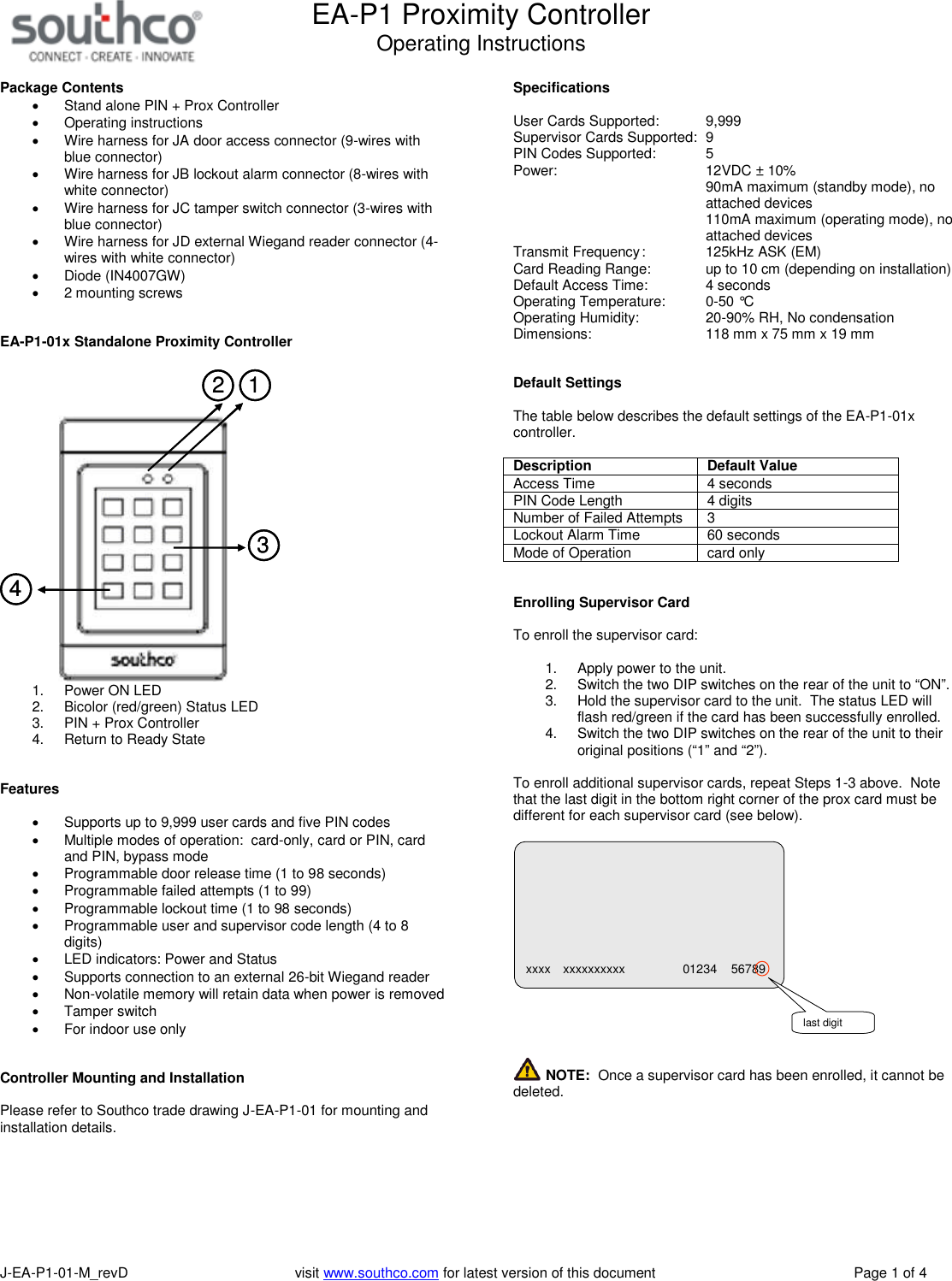
EA-P1 Proximity ControllerOperating InstructionsJ-EA-P1-01-M_revD visit www.southco.com for latest version of this document Page 1 of 4Package ContentsStand alone PIN + Prox ControllerOperating instructionsWire harness for JA door access connector (9-wires withblue connector)Wire harness for JB lockout alarm connector (8-wires withwhite connector)Wire harness for JC tamper switch connector (3-wires withblue connector)Wire harness for JD external Wiegand reader connector (4-wires with white connector)Diode (IN4007GW)2 mounting screwsEA-P1-01x Standalone Proximity Controller123412341. Power ON LED2. Bicolor (red/green) Status LED3. PIN + Prox Controller4. Return to Ready StateFeaturesSupports up to 9,999 user cards and five PIN codesMultiple modes of operation: card-only, card or PIN, cardand PIN, bypass modeProgrammable door release time (1 to 98 seconds)Programmable failed attempts (1 to 99)Programmable lockout time (1 to 98 seconds)Programmable user and supervisor code length (4 to 8digits)LED indicators: Power and StatusSupports connection to an external 26-bit Wiegand readerNon-volatile memory will retain data when power is removedTamper switchFor indoor use onlyController Mounting and InstallationPlease refer to Southco trade drawing J-EA-P1-01 for mounting andinstallation details.SpecificationsUser Cards Supported: 9,999Supervisor Cards Supported: 9PIN Codes Supported: 5Power: 12VDC ± 10%90mA maximum (standby mode), noattached devices110mA maximum (operating mode), noattached devicesTransmit Frequency: 125kHz ASK (EM)Card Reading Range: up to 10 cm (depending on installation)Default Access Time: 4 secondsOperating Temperature: 0-50 °COperating Humidity: 20-90% RH, No condensationDimensions: 118 mm x 75 mm x 19 mmDefault SettingsThe table below describes the default settings of the EA-P1-01xcontroller.DescriptionDefault ValueAccess Time 4 secondsPIN Code Length 4 digitsNumber of Failed Attempts 3Lockout Alarm Time 60 secondsMode of Operation card onlyEnrolling Supervisor CardTo enroll the supervisor card:1. Apply power to the unit.2. Switch the two DIP switches on the rear of the unit to “ON”.3. Hold the supervisor card to the unit. The status LED willflash red/green if the card has been successfully enrolled.4. Switch the two DIP switches on the rear of the unit to theiroriginal positions (“1” and “2”).To enroll additional supervisor cards, repeat Steps 1-3 above. Notethat the last digit in the bottom right corner of the prox card must bedifferent for each supervisor card (see below).NOTE: Once a supervisor card has been enrolled, it cannot bedeleted.xxxx xxxxxxxxxx 01234 56789last digit
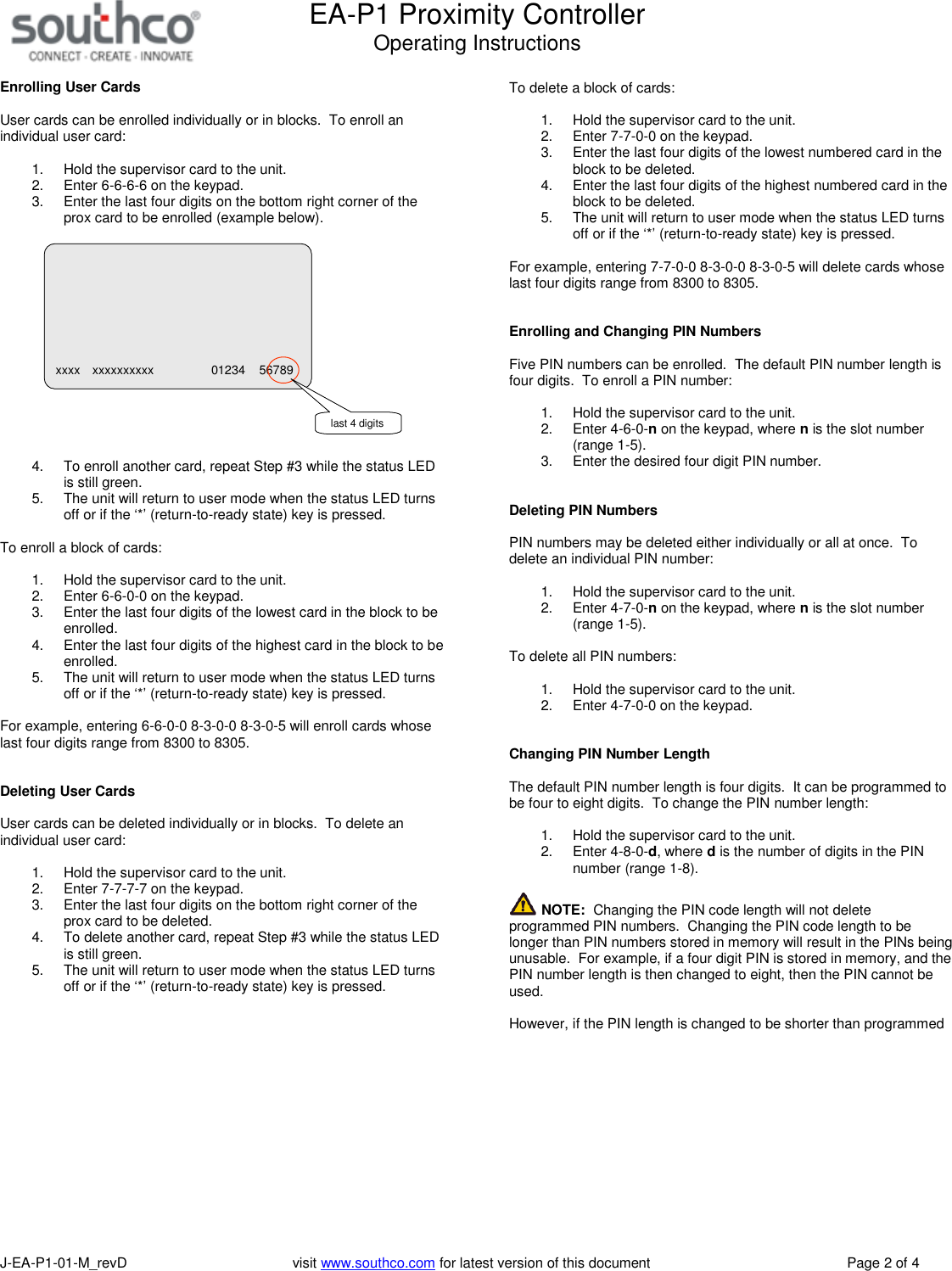
EA-P1 Proximity ControllerOperating InstructionsJ-EA-P1-01-M_revD visit www.southco.com for latest version of this document Page 2 of 4Enrolling User CardsUser cards can be enrolled individually or in blocks. To enroll anindividual user card:1. Hold the supervisor card to the unit.2. Enter 6-6-6-6 on the keypad.3. Enter the last four digits on the bottom right corner of theprox card to be enrolled (example below).4. To enroll another card, repeat Step #3 while the status LEDis still green.5. The unit will return to user mode when the status LED turnsoff or if the ‘*’ (return-to-ready state) key is pressed.To enroll a block of cards:1. Hold the supervisor card to the unit.2. Enter 6-6-0-0 on the keypad.3. Enter the last four digits of the lowest card in the block to beenrolled.4. Enter the last four digits of the highest card in the block to beenrolled.5. The unit will return to user mode when the status LED turnsoff or if the ‘*’ (return-to-ready state) key is pressed.For example, entering 6-6-0-0 8-3-0-0 8-3-0-5 will enroll cards whoselast four digits range from 8300 to 8305.Deleting User CardsUser cards can be deleted individually or in blocks. To delete anindividual user card:1. Hold the supervisor card to the unit.2. Enter 7-7-7-7 on the keypad.3. Enter the last four digits on the bottom right corner of theprox card to be deleted.4. To delete another card, repeat Step #3 while the status LEDis still green.5. The unit will return to user mode when the status LED turnsoff or if the ‘*’ (return-to-ready state) key is pressed.To delete a block of cards:1. Hold the supervisor card to the unit.2. Enter 7-7-0-0 on the keypad.3. Enter the last four digits of the lowest numbered card in theblock to be deleted.4. Enter the last four digits of the highest numbered card in theblock to be deleted.5. The unit will return to user mode when the status LED turnsoff or if the ‘*’ (return-to-ready state) key is pressed.For example, entering 7-7-0-0 8-3-0-0 8-3-0-5 will delete cards whoselast four digits range from 8300 to 8305.Enrolling and Changing PIN NumbersFive PIN numbers can be enrolled. The default PIN number length isfour digits. To enroll a PIN number:1. Hold the supervisor card to the unit.2. Enter 4-6-0-non the keypad, where nis the slot number(range 1-5).3. Enter the desired four digit PIN number.Deleting PIN NumbersPIN numbers may be deleted either individually or all at once. Todelete an individual PIN number:1. Hold the supervisor card to the unit.2. Enter 4-7-0-non the keypad, where nis the slot number(range 1-5).To delete all PIN numbers:1. Hold the supervisor card to the unit.2. Enter 4-7-0-0 on the keypad.Changing PIN Number LengthThe default PIN number length is four digits. It can be programmed tobe four to eight digits. To change the PIN number length:1. Hold the supervisor card to the unit.2. Enter 4-8-0-d, where dis the number of digits in the PINnumber (range 1-8).NOTE: Changing the PIN code length will not deleteprogrammed PIN numbers. Changing the PIN code length to belonger than PIN numbers stored in memory will result in the PINs beingunusable. For example, if a four digit PIN is stored in memory, and thePIN number length is then changed to eight, then the PIN cannot beused.However, if the PIN length is changed to be shorter than programmedxxxx xxxxxxxxxx 01234 56789last 4 digits
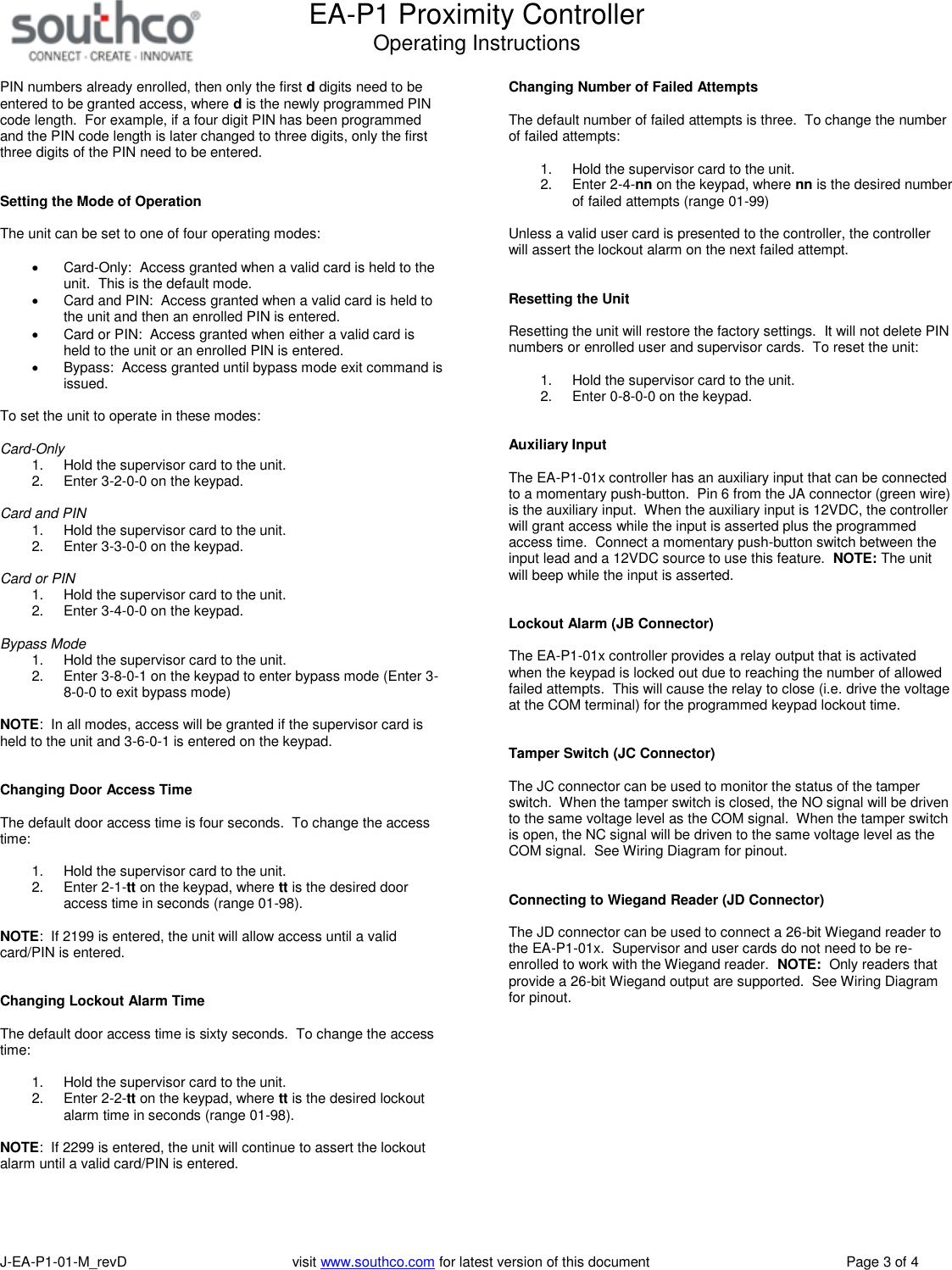
EA-P1 Proximity ControllerOperating InstructionsJ-EA-P1-01-M_revD visit www.southco.com for latest version of this document Page 3 of 4PIN numbers already enrolled, then only the first ddigits need to beentered to be granted access, where dis the newly programmed PINcode length. For example, if a four digit PIN has been programmedand the PIN code length is later changed to three digits, only the firstthree digits of the PIN need to be entered.Setting the Mode of OperationThe unit can be set to one of four operating modes:Card-Only: Access granted when a valid card is held to theunit. This is the default mode.Card and PIN: Access granted when a valid card is held tothe unit and then an enrolled PIN is entered.Card or PIN: Access granted when either a valid card isheld to the unit or an enrolled PIN is entered.Bypass: Access granted until bypass mode exit command isissued.To set the unit to operate in these modes:Card-Only1. Hold the supervisor card to the unit.2. Enter 3-2-0-0 on the keypad.Card and PIN1. Hold the supervisor card to the unit.2. Enter 3-3-0-0 on the keypad.Card or PIN1. Hold the supervisor card to the unit.2. Enter 3-4-0-0 on the keypad.Bypass Mode1. Hold the supervisor card to the unit.2. Enter 3-8-0-1 on the keypad to enter bypass mode (Enter 3-8-0-0 to exit bypass mode)NOTE: In all modes, access will be granted if the supervisor card isheld to the unit and 3-6-0-1 is entered on the keypad.Changing Door Access TimeThe default door access time is four seconds. To change the accesstime:1. Hold the supervisor card to the unit.2. Enter 2-1-tt on the keypad, where tt is the desired dooraccess time in seconds (range 01-98).NOTE: If 2199 is entered, the unit will allow access until a validcard/PIN is entered.Changing Lockout Alarm TimeThe default door access time is sixty seconds. To change the accesstime:1. Hold the supervisor card to the unit.2. Enter 2-2-tt on the keypad, where tt is the desired lockoutalarm time in seconds (range 01-98).NOTE: If 2299 is entered, the unit will continue to assert the lockoutalarm until a valid card/PIN is entered.Changing Number of Failed AttemptsThe default number of failed attempts is three. To change the numberof failed attempts:1. Hold the supervisor card to the unit.2. Enter 2-4-nn on the keypad, where nn is the desired numberof failed attempts (range 01-99)Unless a valid user card is presented to the controller, the controllerwill assert the lockout alarm on the next failed attempt.Resetting the UnitResetting the unit will restore the factory settings. It will not delete PINnumbers or enrolled user and supervisor cards. To reset the unit:1. Hold the supervisor card to the unit.2. Enter 0-8-0-0 on the keypad.Auxiliary InputThe EA-P1-01x controller has an auxiliary input that can be connectedto a momentary push-button. Pin 6 from the JA connector (green wire)is the auxiliary input. When the auxiliary input is 12VDC, the controllerwill grant access while the input is asserted plus the programmedaccess time. Connect a momentary push-button switch between theinput lead and a 12VDC source to use this feature. NOTE: The unitwill beep while the input is asserted.Lockout Alarm (JB Connector)The EA-P1-01x controller provides a relay output that is activatedwhen the keypad is locked out due to reaching the number of allowedfailed attempts. This will cause the relay to close (i.e. drive the voltageat the COM terminal) for the programmed keypad lockout time.Tamper Switch (JC Connector)The JC connector can be used to monitor the status of the tamperswitch. When the tamper switch is closed, the NO signal will be drivento the same voltage level as the COM signal. When the tamper switchis open, the NC signal will be driven to the same voltage level as theCOM signal. See Wiring Diagram for pinout.Connecting to Wiegand Reader (JD Connector)The JD connector can be used to connect a 26-bit Wiegand reader tothe EA-P1-01x. Supervisor and user cards do not need to be re-enrolled to work with the Wiegand reader. NOTE: Only readers thatprovide a 26-bit Wiegand output are supported. See Wiring Diagramfor pinout.
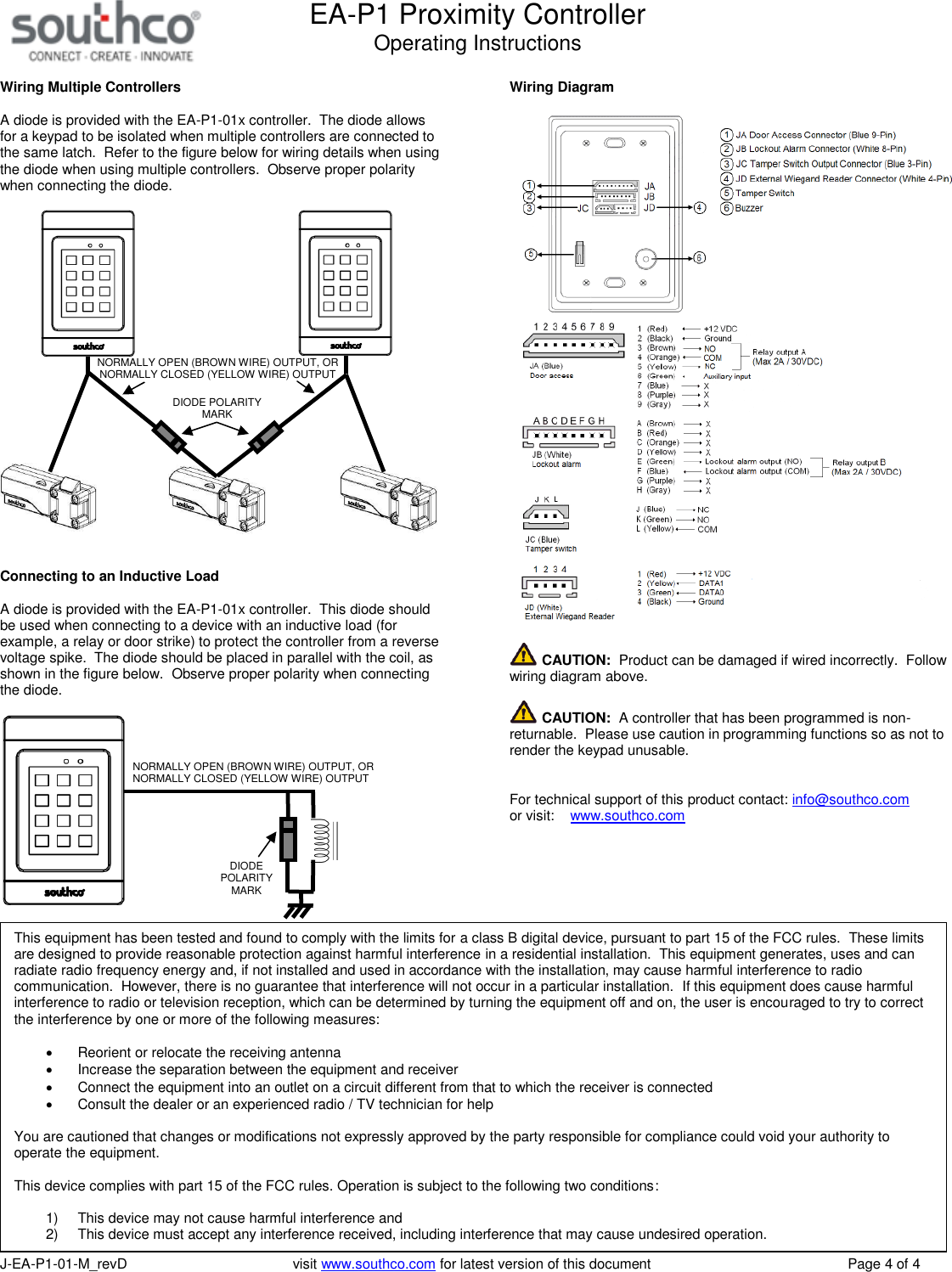
EA-P1 Proximity ControllerOperating InstructionsJ-EA-P1-01-M_revD visit www.southco.com for latest version of this document Page 4 of 4Wiring Multiple ControllersA diode is provided with the EA-P1-01x controller. The diode allowsfor a keypad to be isolated when multiple controllers are connected tothe same latch. Refer to the figure below for wiring details when usingthe diode when using multiple controllers. Observe proper polaritywhen connecting the diode.Connecting to an Inductive LoadA diode is provided with the EA-P1-01x controller. This diode shouldbe used when connecting to a device with an inductive load (forexample, a relay or door strike) to protect the controller from a reversevoltage spike. The diode should be placed in parallel with the coil, asshown in the figure below. Observe proper polarity when connectingthe diode.Wiring DiagramCAUTION: Product can be damaged if wired incorrectly. Followwiring diagram above.CAUTION: A controller that has been programmed is non-returnable. Please use caution in programming functions so as not torender the keypad unusable.For technical support of this product contact: info@southco.comor visit: www.southco.comNORMALLY OPEN (BROWN WIRE) OUTPUT, ORNORMALLY CLOSED (YELLOW WIRE) OUTPUTDIODE POLARITYMARKNORMALLY OPEN (BROWN WIRE) OUTPUT, ORNORMALLY CLOSED (YELLOW WIRE) OUTPUTDIODEPOLARITYMARKThis equipment has been tested and found to comply with the limits for a class B digital device, pursuant to part 15 of the FCC rules. These limitsare designed to provide reasonable protection against harmful interference in a residential installation. This equipment generates, uses and canradiate radio frequency energy and, if not installed and used in accordance with the installation, may cause harmful interference to radiocommunication. However, there is no guarantee that interference will not occur in a particular installation. If this equipment does cause harmfulinterference to radio or television reception, which can be determined by turning the equipment off and on, the user is encouraged to try to correctthe interference by one or more of the following measures:Reorient or relocate the receiving antennaIncrease the separation between the equipment and receiverConnect the equipment into an outlet on a circuit different from that to which the receiver is connectedConsult the dealer or an experienced radio / TV technician for helpYou are cautioned that changes or modifications not expressly approved by the party responsible for compliance could void your authority tooperate the equipment.This device complies with part 15 of the FCC rules. Operation is subject to the following two conditions:1) This device may not cause harmful interference and2) This device must accept any interference received, including interference that may cause undesired operation.

Navigation menu