Southwing S L CAPR Bluetooth Wireless Headset User Manual English User guide NeoVoice 507 rev D bis
Southwing S.L. Bluetooth Wireless Headset English User guide NeoVoice 507 rev D bis
Contents
- 1. Users Manual
- 2. Users Manual Regulatory Information
Users Manual
![1. Introduction Thank you for choosing to buy a Bluetooth (*) SouthWing Headset. We hope you enjoy using it as much as we did developing it. This User Guide provides all the information you will need on how to use and look after your product. As a Bluetooth mobile phone will most commonly be used with your Bluetooth Headset, references to a mobile phone are used throughout this User Guide. * Bluetooth is a registered trademark owned by Bluetooth SIG, Inc. U.S.A. and licensed to SouthWing. SouthWing SouthWing is headquartered in Barcelona, Spain. Our experienced team is focused on developing the future generation of wireless headsets. Should you wish to learn more about the company, please visit our web site at: www.south-wing.com If you have any comments or suggestions on this or any other SouthWing product, we would love to hear from you. Overview—Headset 2. First Steps When you first receive your SouthWing Bluetooth Wireless Headset you will need to charge the battery and pair the Headset to your mobile phone. Charging (Fig. 2: Charging) Your Bluetooth Headset has an internal rechargeable battery and USB Charging Socket. To charge this battery, you can follow any of these steps: Mains charging Step 1. Always first plug the connector of the power supply into the USB Charging socket [6] (Fig. 1. Overview- Headset), with the arrow facing down (Drawing B), that is, never with the arrow facing up (Drawing A). Make sure that the connector enters smoothly. Step 2. Plug the power supply into the mains. Step 3. The Headset Indicator Light will turn green to indicate the Headset battery is charging. Step 4. Once the Headset Indicator Light turns off, the Headset is fully charged and can be removed from the power supply. USB charging Thanks to its USB charging facility, the Headset battery can be charged from any USB port, such as those found on a PC or laptop, by using the SouthWing USB cable adaptor accessory. In-car charging You can charge the Headset battery in your vehicle. To do so, check that the vehicle plug is 12V-24V compatible and use only the SouthWing USB car charger accessory (which includes the USB cable adaptor accessory). Please Note: • The Headset will not function while charging. • If the Headset Indicator Light [2] remains off when charging, the battery is already fully charged and does not require further charging. • To maximise battery life, do not charge the Headset for extended periods of time. • Full battery capacity will be achieved after two or three full charge/discharge cycles. • When your battery is flat, it takes up to four hours to completely charge your headset • Only use SouthWing power supply or accessories for charging](https://usermanual.wiki/Southwing-S-L/CAPR.Users-Manual/User-Guide-497388-Page-2.png)
![Pairing Before using your Headset you will need to pair it to your Bluetooth mobile phone. You will need to repeat this process if you want to use your Headset with another mobile phone. Pairing is a feature of your Bluetooth Headset that prevents anyone else eavesdropping on your phone conversations. This product supports both the Headset and Hands-free profiles, which ensures compatibility with a larger number of Bluetooth mobile phone models. 1. Ensure the Headset is off (see below on how to turn your headset on and off) and that the mobile phone with which you wish to pair is not too far apart (less than 1 meter of separation will ensure most reliable pairing). 2. Put the mobile phone into pairing mode (see the instructions which came with your phone). 3. Press and hold the Multi -function Dial [1] for about 5 seconds until the Headset Indicator Light [2] alternates between red and green (you will also hear a series of high tones). Now the Headset is ready for pairing in Headset mode. 4. If your mobile phone supports the Hands-free mode, just briefly push once again the Multi -function Dial and the Headset will attempt pairing in Hands-free mode (you will hear a series of low tones). Briefly pushing the button will allow you to alternate between Headset and Hands-free modes. You now need to wait several seconds while both devices attempt to pair. 5. Follow the menus on your mobile phone to finalise the pairing process. If you are asked for a PIN number, note that the default PIN number for the SouthWing Bluetooth Headset is 1111. Please Note: • If pairing is successful, the Headset Indicator Light [2] will begin flashing green. You can now start using your Headset. • If you choose to do the pairing in Hands-free mode, you will be able to access a wider range of headset functions (see section ‘Advanced features in hands-free mode`’) 3. Wearing the Headset (Fig. 3: Wearing the Headset) You will find it is easy to place the Headset on your ear (even with just one hand). These directions will help and over time you will find your own way of wearing the Headset. Placing the Headset on your ear 1. Place the tip of the ear hook right behind your ear 2. Rotate the headset to make the ear hook slide behind your ear 3. Gently place the speaker over or slightly into your ear canal 4. Finally find the most comfortable position by rotating the Headset forward and backward Adjusting the ear hook The ear hook can be bent for optimum comfort. You can look for the best fit for your ear by using the guidelines below (Fig. 4: Adjusting the ear hook) o To adjust the headset fit around the ear, bend the headset in direction A o If the microphone does not touch your cheek, bend the ear hook in direction B Switching from one ear to the other The headset can be worn on either ear as explained below: 1. Detach the speaker case from the headset. Turn the speaker case on the other side and put it back on the headset (Fig. 5: Switching sides) R I G H T ! A L W A Y S w i t h t h e a r r o w f a c i n g d o w n W R O N G ! N E V E R w i t h t h e a r r o w f a c i n g u p](https://usermanual.wiki/Southwing-S-L/CAPR.Users-Manual/User-Guide-497388-Page-3.png)
![2. Rotate the hook to the other side Changing colour covers (Fig. 6: Changing colour covers) Your headset comes with four interchangeable colour covers to suit your style. To change a colour cover, hold it with thumb and index and pull it out gently. Fit the new colour cover by gently sliding it in. 4. General Usage Turning the Headset on Press and hold the Multi-function Dial [1] for about 2 seconds until an audio tone is heard. The Headset Indicator Light [2] will flicker green for approximately one second and will start flashing. Turning the Headset off Press and hold the Multi-function Dial [1] for about 2 seconds until an audio tone is heard. The Headset Indicator Light will flicker red for approximately one second and the headset will switch off. Receiving/answering a call When the phone rings (ring tone can be heard in Headset), press the Multi-function Dial [1] briefly to answer the call. Ending a call Press the Multi-function Dial [1] briefly during a call and the call will be ended. The Headset is now ready to receive or initiate another call. Auto-sleep To conserve battery life, your Headset features an auto-sleep function. This function switches the Headset off after 4 hours of inaction. Once your Headset has entered auto-sleep, it can be turned on again normally. Changing Volume The Headset will remember all volume settings even when it is switched off. The method of changing these settings is described below. To increase the volume, rotate the Multi-function Dial [1] forward. To decrease the volume, rotate the Multi-function Dial [1] backward. Making a call A call can be initiated by the mobile phone or with the Headset itself (depending on the capabilities of your mobile phone). Initiating a call from your mobile phone 1. Ensure your Headset is switched on. 2. Ensure that your mobile phone has been correctly paired to your Headset and that the Bluetooth mode has been enabled. 3. Make a call as usual with your phone. Your phone will transfer the call to your Headset. Voice dialling from your Headset Depending on your mobile phone, you may be able to initiate phone calls from your Headset (your phone will need to support voice dialling). To activate the voice dialling, briefly press the Multi-function Dial [1] on the Headset. If supported, you will hear a series of tones and then be able to speak the name of the person you wish to call, resulting in the call being initiated. Battery Level Indicator You can check at any time the battery level. With the Headset turned on, if you press the Multi-function Dial [1] four times, you will repeatedly hear a battery level indication: o Four tones for a remaining talk-time above four hours. o Three tones for a remaining talk-time around three hours. o Two tones for a remaining talk-time around two hours.](https://usermanual.wiki/Southwing-S-L/CAPR.Users-Manual/User-Guide-497388-Page-4.png)
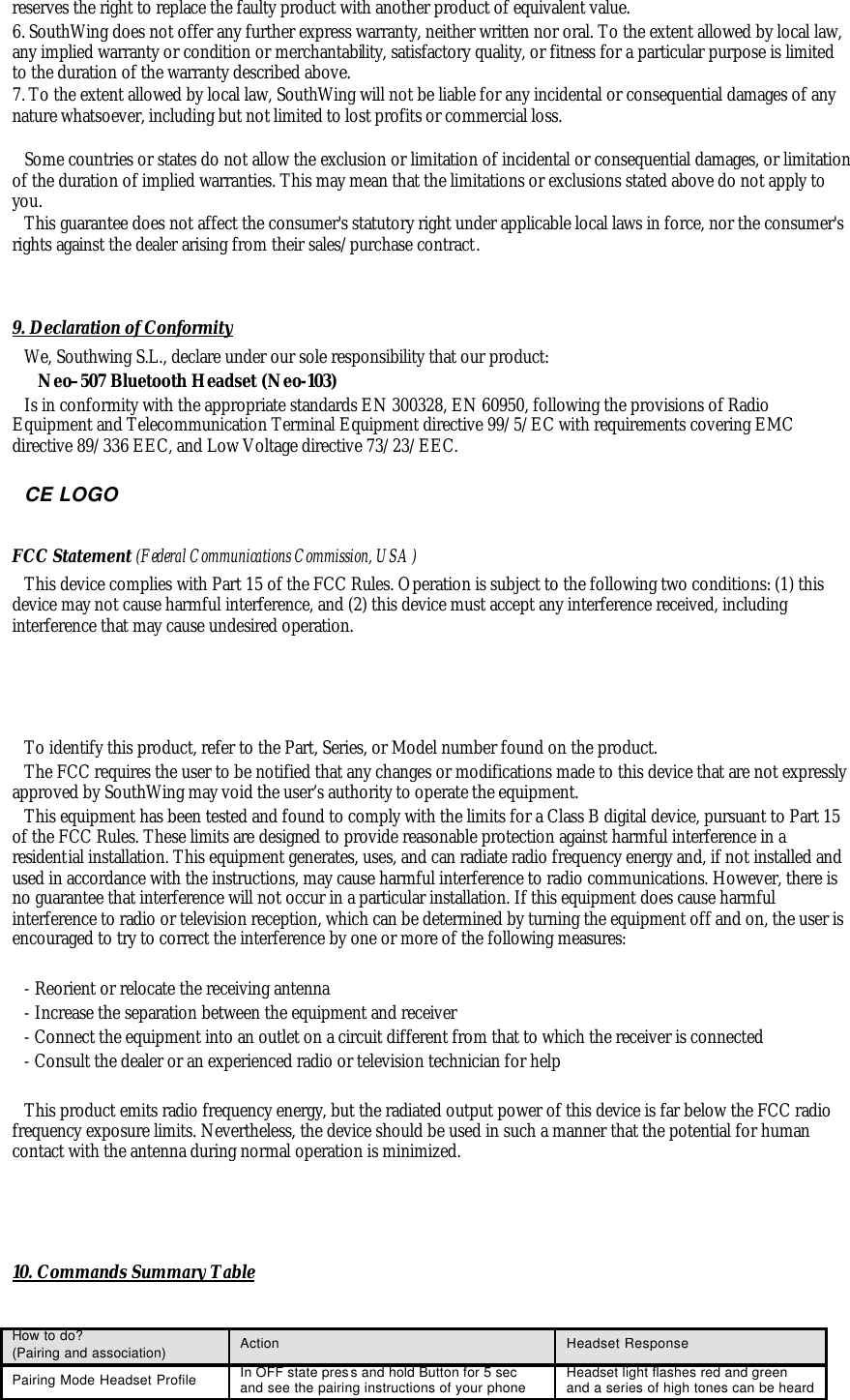
![o One tone for a remaining talk-time between ten minutes and approximately one hour and a half. o A warning tone (high-low -high) will sound when remaining talk-time falls below ten minutes. Pressing the button once more, you will return to normal mode. Please Note: The Headset will automatically produce this warning tone when the remaining battery charge falls below 10 minutes. To visually indicate this, the Headset Indicator Light will flash red rather than green. In addition, an alarm tone will be heard every time a call is ended. Muting the microphone During conversation, it is possible to mute the microphone. During a call, briefly push the Multi-function Dial [1] twice, and audio tones will indicate that the microphone is muted. A tone will be heard every 2 seconds during the call to remind you that the microphone is muted. Two additional presses of the Multi-function Dial [1] will turn the mute function off. Selecting Ring Tones Your Headset is programmed with 12 different ring tones from which you can choose. With the Headset turned on, if you rotate forward and hold the Multi-function dial [1], for about 5 seconds, you will enter the ring tone menu (you will also hear the current ring tone). Then do the following: 1. Rotate the Multi-function Dial [1] forward or backward to move up or down in the ring tone list. 2. Push briefly the Multi-function Dial once to select your ring tone. Please Note: • Some mobile phones will play their own ring tones over the headset, replacing the user selected ring tone from the Headset. Automatic call pick up If you wish to have all of your calls automatically answered (without any button presses), you can enable the automatic call pick up mode. To activate this mode, enter the ring tone menu and briefly push twice on the ring tone you select. When you get an incoming call, your headset will automatically answer the call after 2 seconds. To turn off the automatic call pick up, enter the ring tone menu and briefly push once to select a ring tone as usual. 5. Resetting your Headset (Fig. 7. Reset) Should your Headset stop responding the battery may require charging. If this fails, you may need to reset your Headset: 1. Take a thin rigid item such as a paper clip end. 2. Introduce the item carefully in the Reset Button Hole [7] of your Headset and push the inner button gently. Your Headset should now function again as normal. 6. Advanced Features in Hands-free mode If your mobile phone supports the Hands-free mode, you may be able to benefit from the following features: Rejecting a call In Hands-free mode, you can reject a call by briefly pushing the Multi-function Dial [1] twice on the Headset when the ring tone is heard. Transferring a call to the phone In Hands-free mode, during conversation, you can transfer the conversation to the mobile phone by pushing the Multi-function Dial [1] three times on the Headset. Pushing the Multi-function Dial [1] once again will transfer the conversation back to the Headset. Last number redialling In Hands-free mode, you can make your phone redial the last number called. To do so, briefly push the Multi-function Dial [1] twice on the Headset.](https://usermanual.wiki/Southwing-S-L/CAPR.Users-Manual/User-Guide-497388-Page-5.png)
![Disconnecting from the phone In Hands-free mode, mobile phones are permanently connected to the Headset. This may increase consumption rate of your battery. In the Hands-free mode, you can disconnect from the phone, without losing your pairing settings. To do so, push the Multi-function Dial [1] three times on the Headset when it is not in an active call. If you want to pick up a call, you first need to re-connect the Headset. To do so, push the Multi-function Dial [1] once again on the Headset. Managing more than one call In Hands-free mode, provided that your mobile phone supports the Bluetooth Hands-free profile version 1.0 or later, you can manage more than one call simultaneously. Managing an incoming call while already in an active call: (several options available) o To accept the incoming call and put the active call on hold, rotate and hold forward the Multi-function dial [1] for one second. o To accept the incoming call and hang up the active call, rotate and hold backward the Multi-function dial [1] for one second. o To reject the incoming call, press and hold the Multi-function dial [1] for one second. The active call remains active in your headset. Making a new call while already in an active call To place a new call from the Headset while already in an active call, press and hold the Multi-function dial [1] for one second and your phone will redial the last number to initiate a second call while the active call will be put on hold. Please Note: Neither the voice dialling function nor the manual dialling on your phone is available to make this type of calls. Managing two calls (an active call and a call on hold) o To put the held call in active mode and put the active call on hold, rotate and hold forward the Multi-function dial [1] for one second. o To maintain your active call and hang up the held call, rotate and hold backward the Multi-function dial [1] for three seconds. o To connect the held call with the active call in multiparty mode (Conference call), so that callers share the same conversation, rotate and hold forward the Multi-function dial [1] for three seconds. At this point, the multiparty call is considered as a single call enabling you to manage further calls beyond three. You can therefore add as many people as you like to a multiparty conversation. 7. Troubleshooting Problem Suggestions The Headset will not turn on • The Headset battery may be flat. Try recharging the Headset. Pairing is unsuccessful • Try moving the phone and Headset closer together during pairing. • Make sure that the mobile phone is in the correct Bluetooth mode and the Headset is in the correct mode (Headset or Hands-free pairing mode) • Some electrical devices such as microwave ovens create a noisy electrical environment making it difficult for the Headset to communicate with the phone. Try moving away from such devices and try again. Pairing has succeeded but calls are not heard in the Headset • Make sure that your phone is switched on and ready to connect to the Headset. Check your phone user manual on how to do this. My Headset stops responding to button presses • Ensure that your Headset battery is charged. • Try resetting your Headset according to the directions given in ‘Resetting your Headset’](https://usermanual.wiki/Southwing-S-L/CAPR.Users-Manual/User-Guide-497388-Page-6.png)