SpiderCloud Wireless RN310B4L2 SpiderCloud Radio Node User Manual 2

SpiderCloud Wireless SpiderCloud Radio Node 2

Contents

User Manual 2

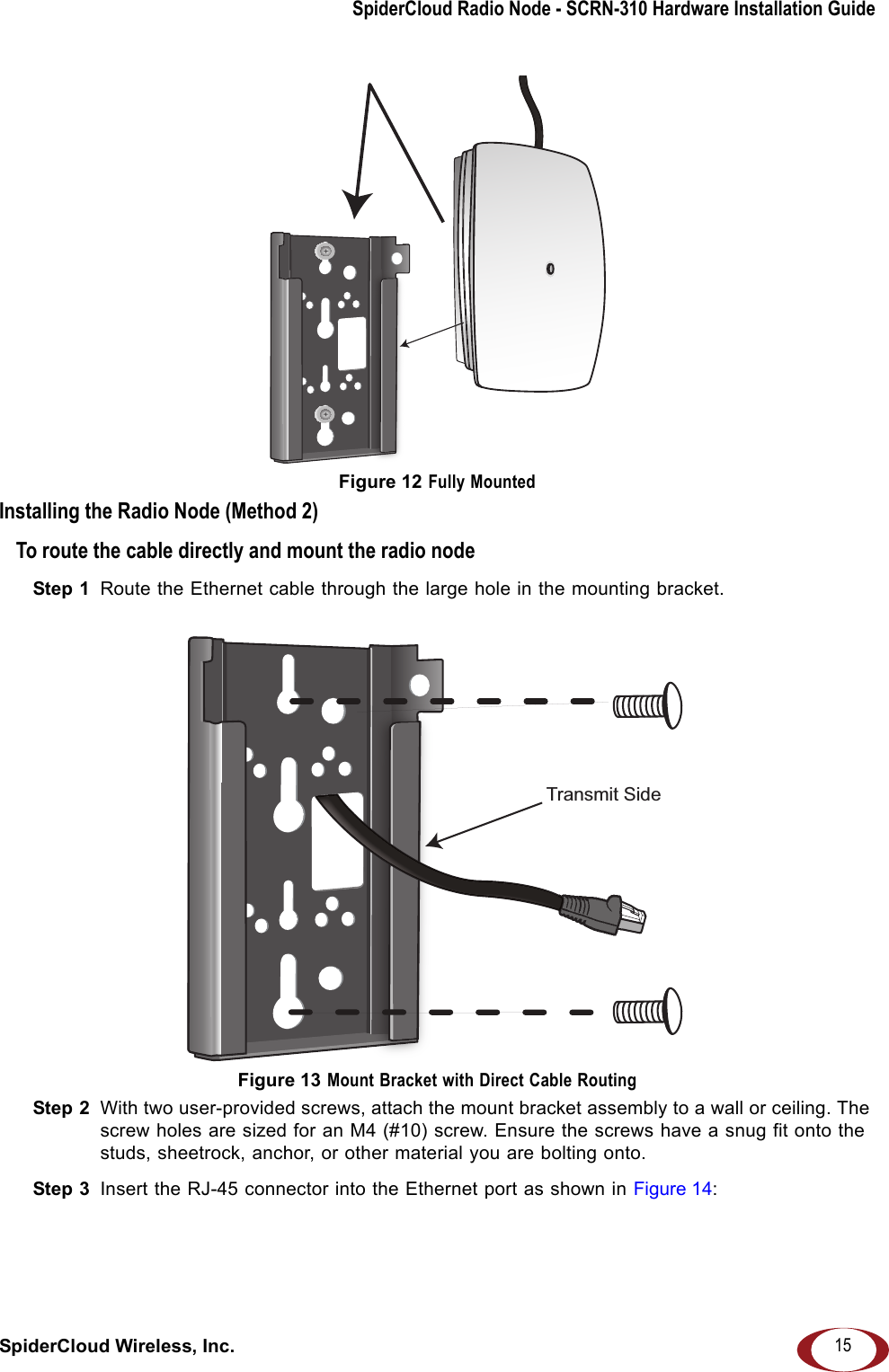
SpiderCloud Radio Node - SCRN-310 Hardware Installation GuideSpiderCloud Wireless, Inc. 15Figure 12 Fully MountedInstalling the Radio Node (Method 2)To route the cable directly and mount the radio nodeStep 1  Route the Ethernet cable through the large hole in the mounting bracket. Figure 13 Mount Bracket with Direct Cable RoutingStep 2  With two user-provided screws, attach the mount bracket assembly to a wall or ceiling. The screw holes are sized for an M4 (#10) screw. Ensure the screws have a snug fit onto the studs, sheetrock, anchor, or other material you are bolting onto. Step 3  Insert the RJ-45 connector into the Ethernet port as shown in Figure 14: Transmit Side
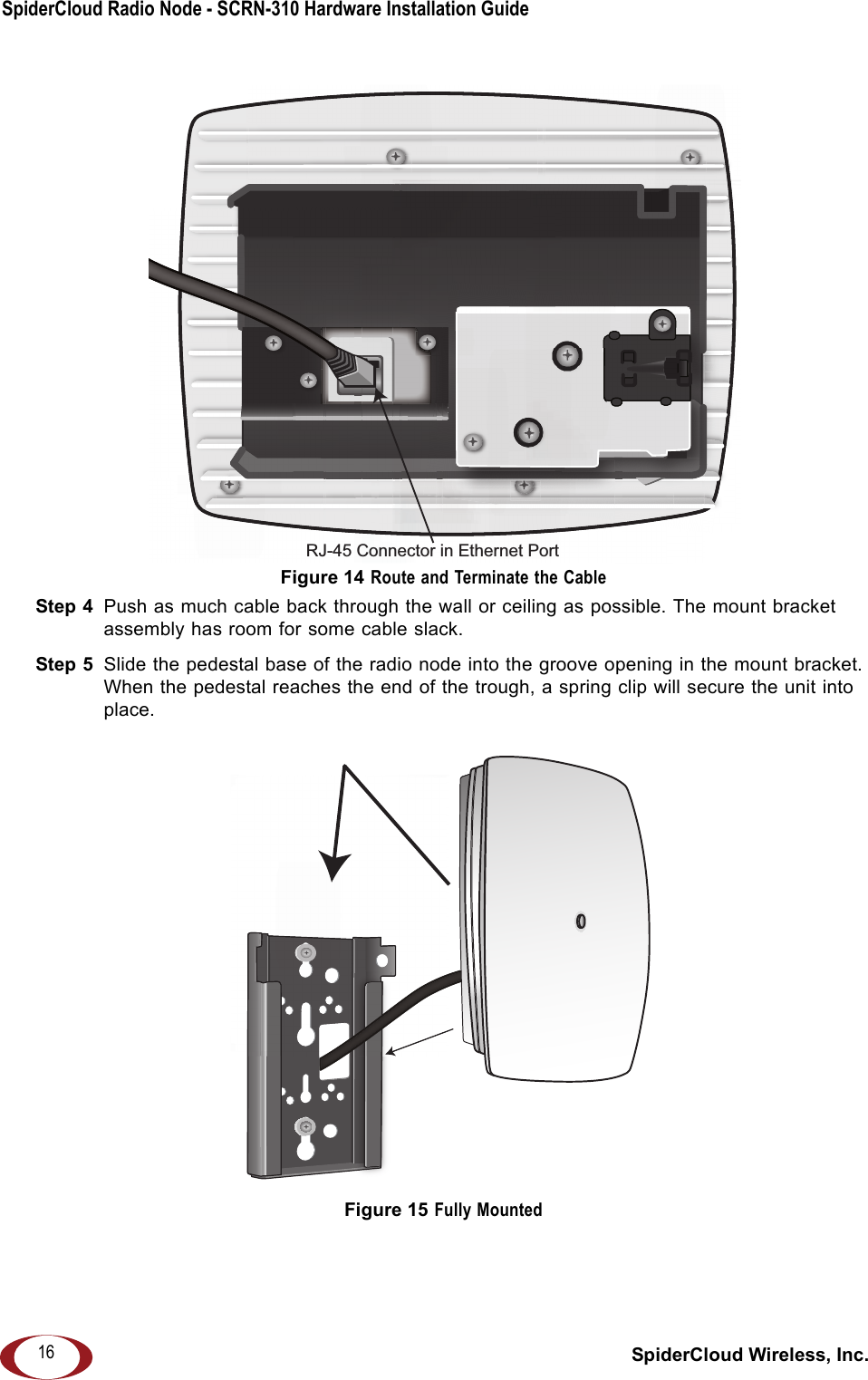
SpiderCloud Radio Node - SCRN-310 Hardware Installation Guide SpiderCloud Wireless, Inc.16Figure 14 Route and Terminate the CableStep 4  Push as much cable back through the wall or ceiling as possible. The mount bracket assembly has room for some cable slack.Step 5  Slide the pedestal base of the radio node into the groove opening in the mount bracket. When the pedestal reaches the end of the trough, a spring clip will secure the unit into place. Figure 15 Fully MountedRJ-45 Connector in Ethernet Port
SpiderCloud Radio Node - SCRN-310 Hardware Installation GuideSpiderCloud Wireless, Inc. 17Completing the InstallationStep 1  Attach a padlock or cable tie wrap through the cutout lock holes in the mount bracket and pedestal base. Figure 16 Padlock and Lock Holes The lock in the above figure is shown schematically. The orientation is for illustration purposes (not accurate) since the bracket is typically wall or ceiling mounted.Step 2  The radio node boots up and attempts to connect to the services node. Refer to  Boot Sequence and Services Node Communication on page 18 for more information.Detaching the Radio Node from the Mount BracketTo remove the radio node from the bracket assemblyStep 1  If needed, remove the padlock or cable tie wrap securing the radio node.Step 2  Depress the spring clip on the pedestal base and slide the radio node out of the mount bracket.Step 3  Detach the RJ-45 clip from the Ethernet port and remove the cable from cable brackets and cable opening.
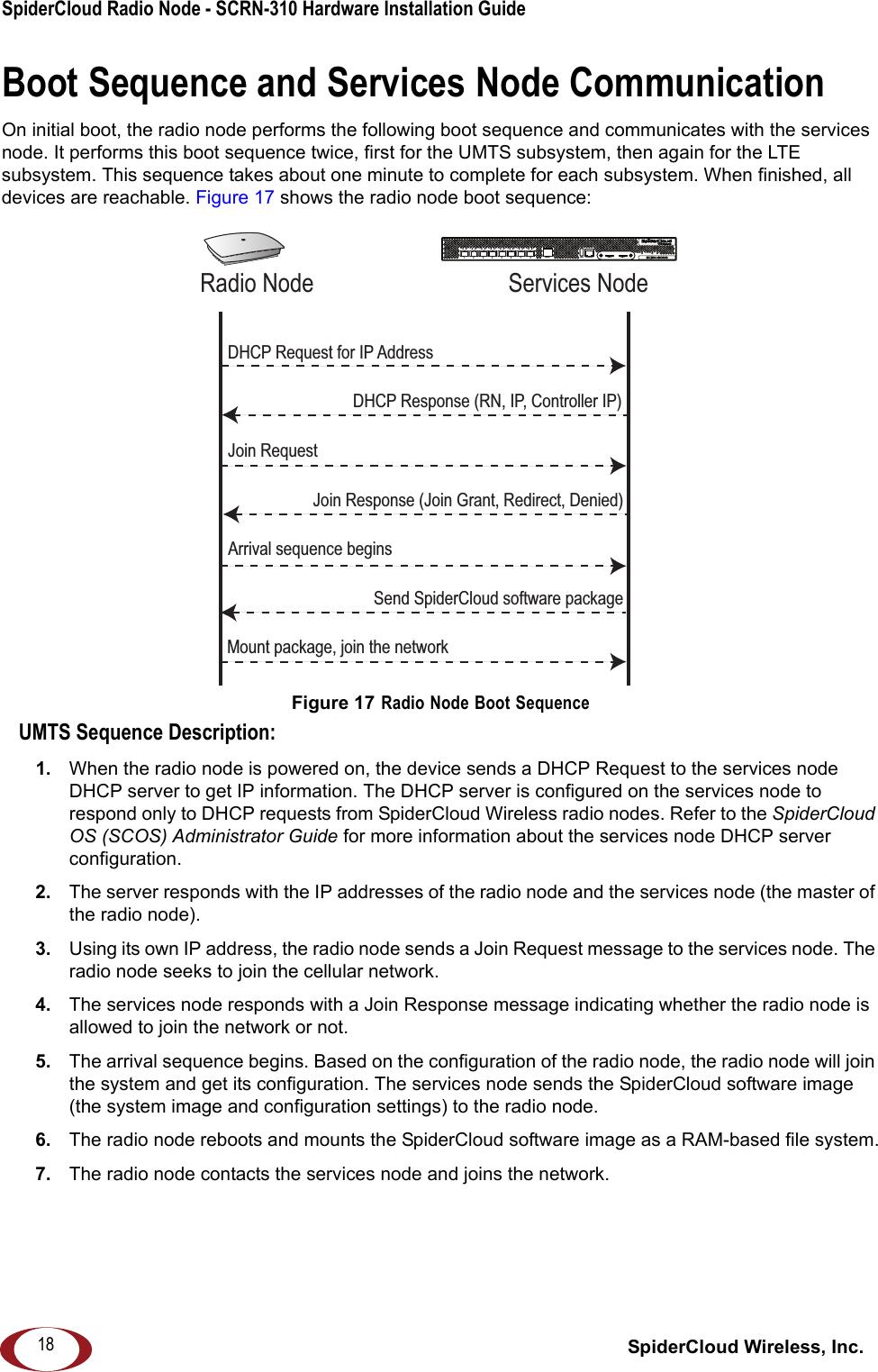
SpiderCloud Radio Node - SCRN-310 Hardware Installation Guide SpiderCloud Wireless, Inc.18Boot Sequence and Services Node CommunicationOn initial boot, the radio node performs the following boot sequence and communicates with the services node. It performs this boot sequence twice, first for the UMTS subsystem, then again for the LTE subsystem. This sequence takes about one minute to complete for each subsystem. When finished, all devices are reachable. Figure 17 shows the radio node boot sequence:Figure 17 Radio Node Boot SequenceUMTS Sequence Description:1.  When the radio node is powered on, the device sends a DHCP Request to the services node DHCP server to get IP information. The DHCP server is configured on the services node to respond only to DHCP requests from SpiderCloud Wireless radio nodes. Refer to the SpiderCloud OS (SCOS) Administrator Guide for more information about the services node DHCP server configuration.2.  The server responds with the IP addresses of the radio node and the services node (the master of the radio node).3.  Using its own IP address, the radio node sends a Join Request message to the services node. The radio node seeks to join the cellular network. 4.  The services node responds with a Join Response message indicating whether the radio node is allowed to join the network or not.5.  The arrival sequence begins. Based on the configuration of the radio node, the radio node will join the system and get its configuration. The services node sends the SpiderCloud software image (the system image and configuration settings) to the radio node. 6.  The radio node reboots and mounts the SpiderCloud software image as a RAM-based file system.7.  The radio node contacts the services node and joins the network.USB CONSOLELK AT LK AT LK AT LK AT LK AT LK AT LK AT LK AT81234567LNK ACTMGMTPOWER STATUS 1 2SIM 0 SIM 1Radio Node Services NodeDHCP Request for IP AddressDHCP Response (RN, IP, Controller IP)Join RequestJoin Response (Join Grant, Redirect, Denied)Arrival sequence beginsSend SpiderCloud software packageMount package, join the network
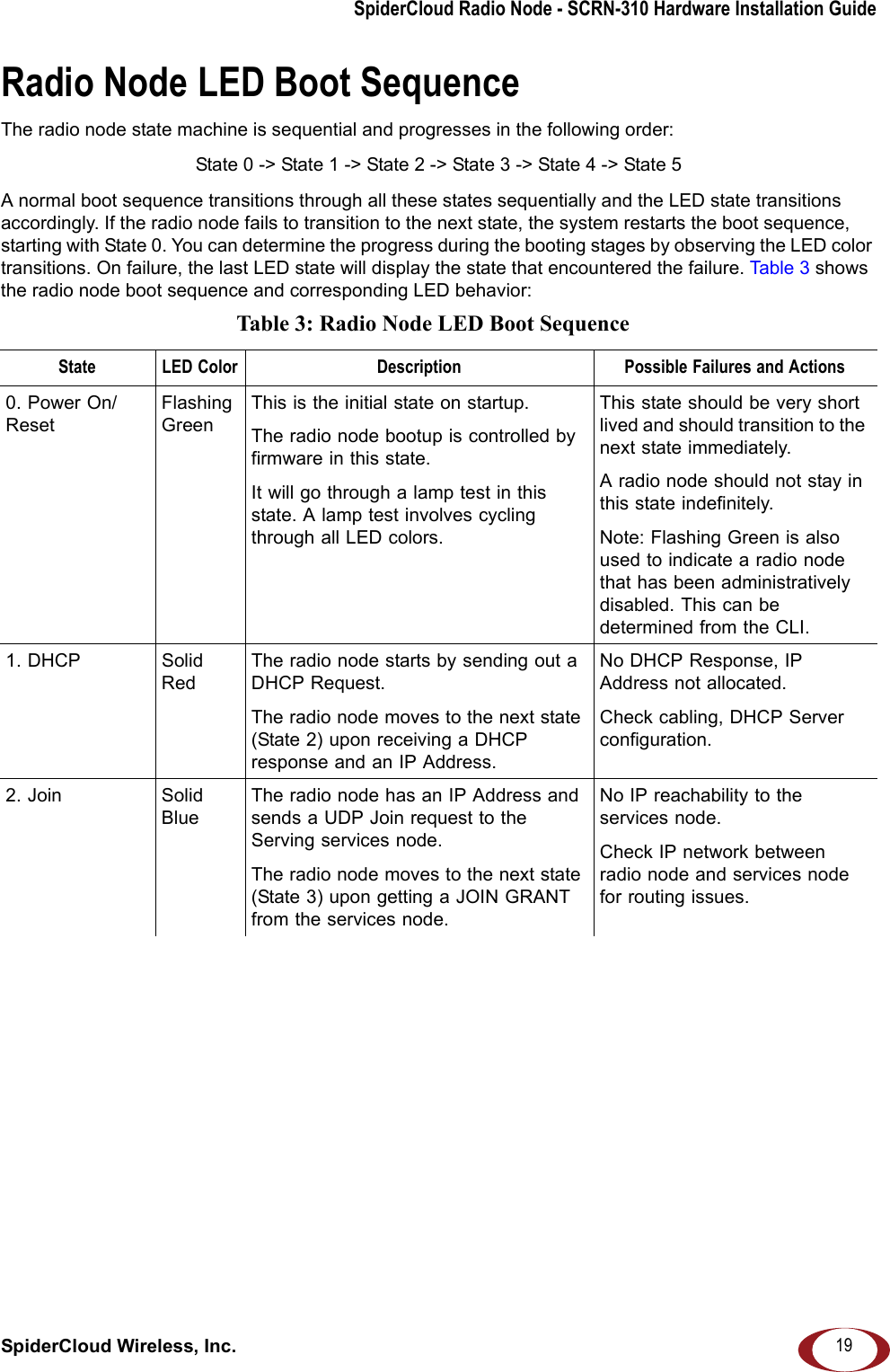
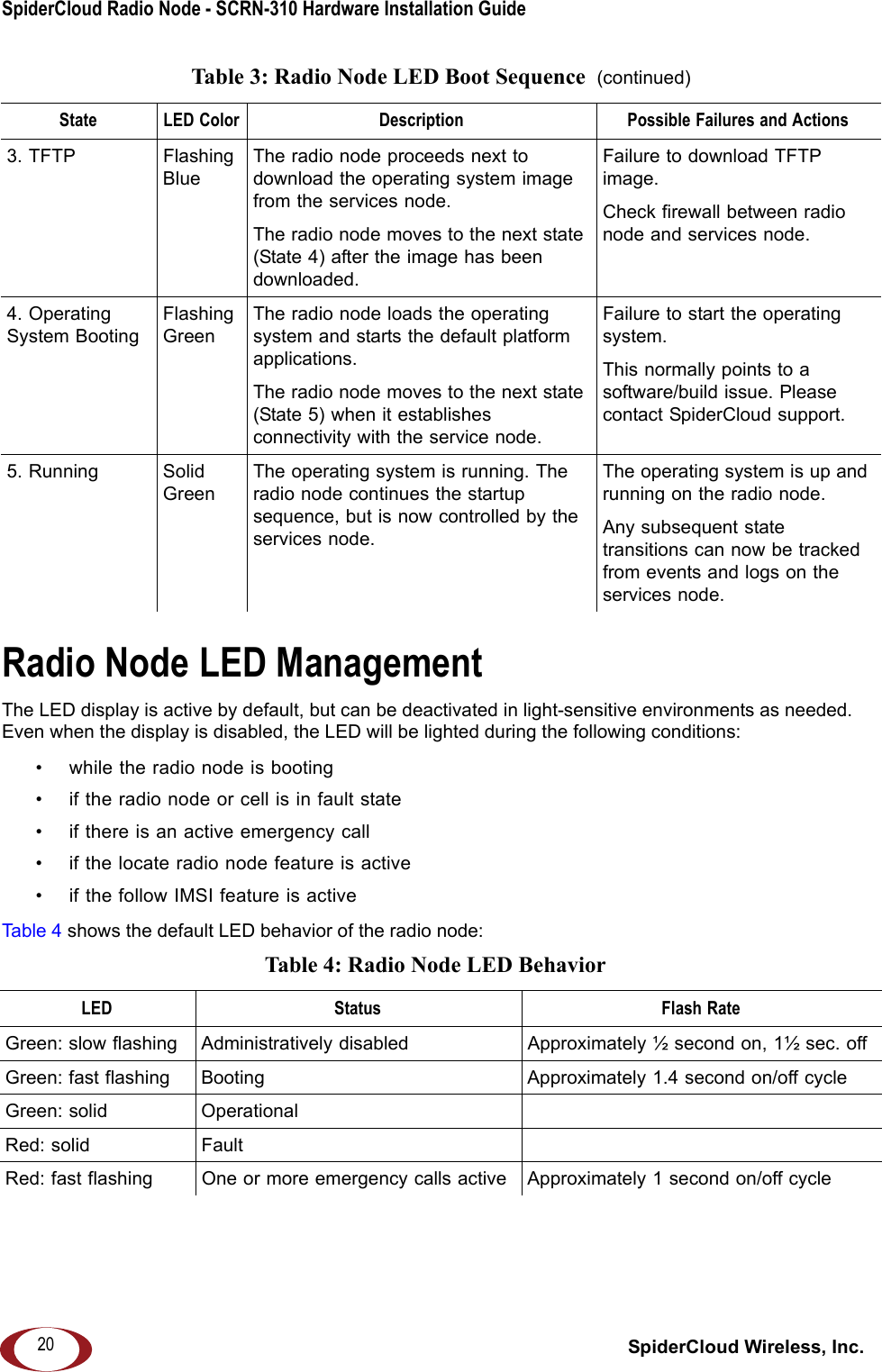
SpiderCloud Radio Node - SCRN-310 Hardware Installation GuideSpiderCloud Wireless, Inc. 19Radio Node LED Boot SequenceThe radio node state machine is sequential and progresses in the following order: State 0 -> State 1 -> State 2 -> State 3 -> State 4 -> State 5A normal boot sequence transitions through all these states sequentially and the LED state transitions accordingly. If the radio node fails to transition to the next state, the system restarts the boot sequence, starting with State 0. You can determine the progress during the booting stages by observing the LED color transitions. On failure, the last LED state will display the state that encountered the failure. Tab le 3 shows the radio node boot sequence and corresponding LED behavior: Table 3: Radio Node LED Boot Sequence State LED Color Description Possible Failures and Actions0. Power On/ResetFlashing GreenThis is the initial state on startup. The radio node bootup is controlled by firmware in this state. It will go through a lamp test in this state. A lamp test involves cycling through all LED colors.This state should be very short lived and should transition to the next state immediately.A radio node should not stay in this state indefinitely. Note: Flashing Green is also used to indicate a radio node that has been administratively disabled. This can be determined from the CLI.1. DHCP Solid RedThe radio node starts by sending out a DHCP Request. The radio node moves to the next state (State 2) upon receiving a DHCP response and an IP Address.No DHCP Response, IP Address not allocated. Check cabling, DHCP Server configuration.2. Join Solid BlueThe radio node has an IP Address and sends a UDP Join request to the Serving services node. The radio node moves to the next state (State 3) upon getting a JOIN GRANT from the services node.No IP reachability to the services node.Check IP network between radio node and services node for routing issues.
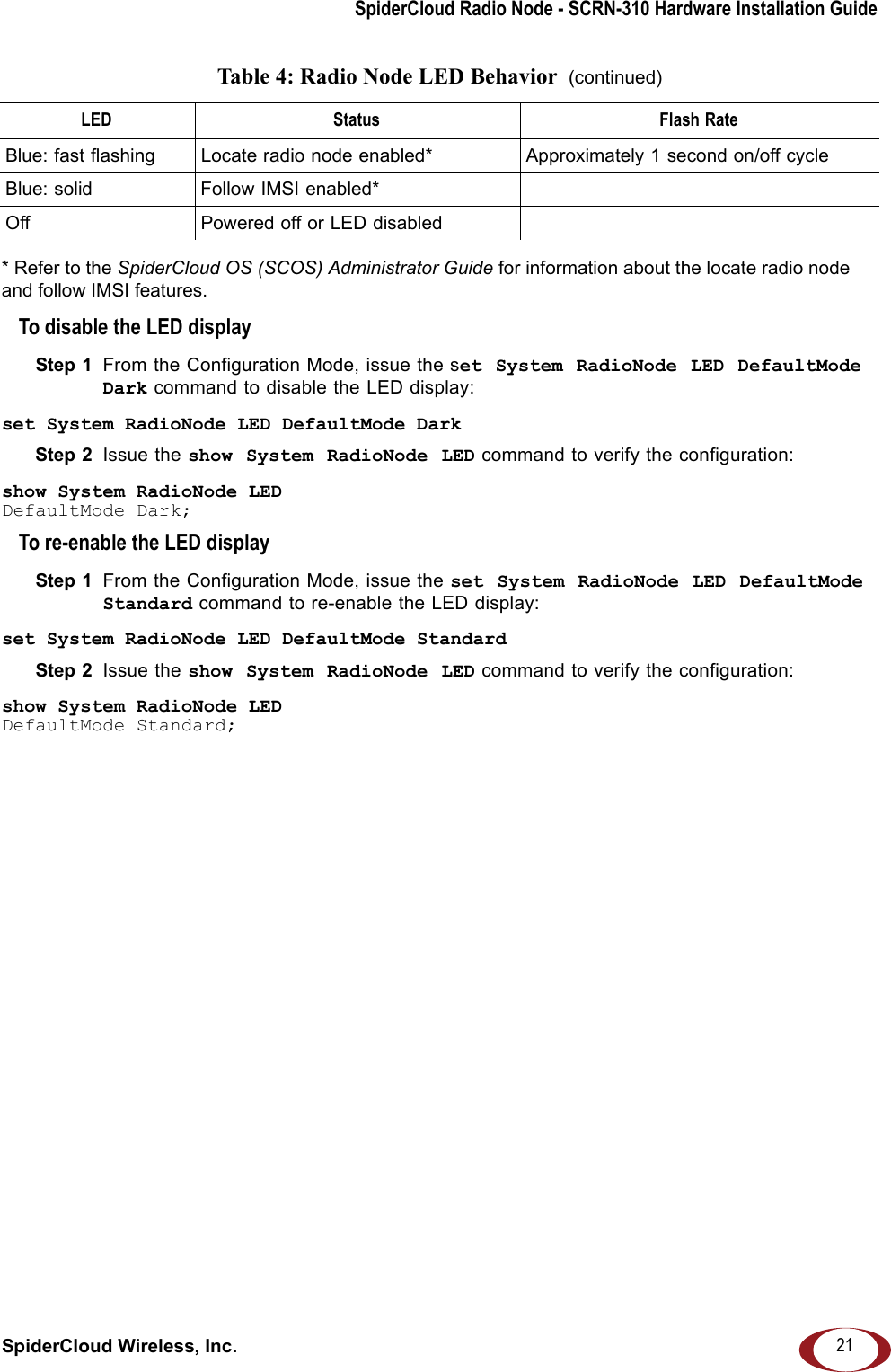
SpiderCloud Radio Node - SCRN-310 Hardware Installation Guide SpiderCloud Wireless, Inc.20Radio Node LED ManagementThe LED display is active by default, but can be deactivated in light-sensitive environments as needed. Even when the display is disabled, the LED will be lighted during the following conditions: • while the radio node is booting• if the radio node or cell is in fault state• if there is an active emergency call• if the locate radio node feature is active• if the follow IMSI feature is activeTabl e 4 shows the default LED behavior of the radio node: 3. TFTP Flashing BlueThe radio node proceeds next to download the operating system image from the services node. The radio node moves to the next state (State 4) after the image has been downloaded.Failure to download TFTP image. Check firewall between radio node and services node.4. Operating System BootingFlashing GreenThe radio node loads the operating system and starts the default platform applications. The radio node moves to the next state (State 5) when it establishes connectivity with the service node.Failure to start the operating system. This normally points to a software/build issue. Please contact SpiderCloud support.5. Running Solid GreenThe operating system is running. The radio node continues the startup sequence, but is now controlled by the services node.The operating system is up and running on the radio node. Any subsequent state transitions can now be tracked from events and logs on the services node.Table 4: Radio Node LED Behavior LED Status Flash RateGreen: slow flashing  Administratively disabled Approximately ½ second on, 1½ sec. offGreen: fast flashing  Booting Approximately 1.4 second on/off cycleGreen: solid OperationalRed: solid FaultRed: fast flashing  One or more emergency calls active Approximately 1 second on/off cycleTable 3: Radio Node LED Boot Sequence  (continued)State LED Color Description Possible Failures and Actions
SpiderCloud Radio Node - SCRN-310 Hardware Installation GuideSpiderCloud Wireless, Inc. 21* Refer to the SpiderCloud OS (SCOS) Administrator Guide for information about the locate radio node and follow IMSI features.To disable the LED displayStep 1  From the Configuration Mode, issue the set System RadioNode LED DefaultMode Dark command to disable the LED display:set System RadioNode LED DefaultMode DarkStep 2  Issue the show System RadioNode LED command to verify the configuration:show System RadioNode LEDDefaultMode Dark;To re-enable the LED displayStep 1  From the Configuration Mode, issue the set System RadioNode LED DefaultMode Standard command to re-enable the LED display:set System RadioNode LED DefaultMode StandardStep 2  Issue the show System RadioNode LED command to verify the configuration:show System RadioNode LEDDefaultMode Standard;Blue: fast flashing  Locate radio node enabled* Approximately 1 second on/off cycleBlue: solid Follow IMSI enabled*Off Powered off or LED disabledTable 4: Radio Node LED Behavior  (continued)LED Status Flash Rate
SpiderCloud Radio Node - SCRN-310 Hardware Installation Guide SpiderCloud Wireless, Inc.22The SpiderCloud Documentation SetThe SpiderCloud documentation set includes:•The SpiderCloud System Description provides an overview of how the SpiderCloud system fits within an operator’s network and in an enterprise, describes key features of the system, and provides specifications for the services and radio nodes.•The SpiderCloud Feature Description high-level descriptions of the E-RAN system features, their impact on the product components (services nodes and radio nodes), manageability considerations, and feature benefits.•The SpiderCloud OS (SCOS) Administrator Guide provides procedures for configuring the software environment and internetworking between the services node and radio node devices.•The SpiderCloud Services Node Hardware Installation Guide provides hardware specifications and installation instructions.•The SpiderCloud Radio Node Hardware Installation Guide provides hardware specifications and installation instructions.•The E-RAN Deployment Planning Guide provides information about planning and dimensioning E-RAN systems. •The SpiderCloud OS (SCOS) CLI User Guide provides an introduction to the key features and functionalities of the SpiderCloud Command Line Interface (CLI).•The SCOS NB Data Model Reference Guide provides details about the objects and parameters that comprise the system configuration and operational state.•The SpiderCloud OS Faults, Conditions, and Events Reference Guide provides details about all system faults, conditions, and events.•The SpiderCloud System Commissioning Guide provides information about turning up a SpiderCloud E-RAN with the Local Configuration Interface (LCI) graphical user interface.•The Performance Measurements for SpiderCloud Small-Cell E-RAN provides a reference guide to Key Performance Indicators (KPI) that monitor the health and state of the E-RAN system.•The E-RAN Troubleshooting Guide provides information about diagnosing and correcting problems with installing, provisioning, administering, and maintaining SpiderCloud equipment and services.•The SpiderNet Management System Installation and Administration Guide provides information about installing the SpiderNet network management server and client and using it to remotely manage E-RAN deployments.•The SpiderCloud Time Zone Reference Guide provides the information required to configure the time zone for SpiderCloud services nodes.
SpiderCloud Wireless, Inc. 23SpiderCloud Radio Node - SCRN-310 Hardware Installation GuideAppendix A: UMTS Antenna PatternsUMTS Band Antenna Patterns 0º90ºFrontEL2 Cut (Side-to-Side)  90º0ºUp0ºFront90ºUpAZ Cut  EL1Cut (Front-to-Back) -15-15-12-12-9-9-6-6-3-3003 dB3 dB0o30o60o90o120o150o180o-150o-120o-90o-60o-30o  AUT1 @ 2140 MHz : Max Gain1 =  2. 59  dB i at  3oAUT2 @ 2140 MHz : Max Gain2 =  2. 04  dB i at  -6 3o-15-15-12-12-9-9-6-6-3-3003 dB3 dB90o60o30o0o-30o-60o-90o-120o-150o180o150o120o  AUT1 = 2140 MHz : M ax  G ain1 = 2. 59  dB i a t  90oAUT2 = 2140 MHz : M ax  G ain2 =  -0 .08 dB i at  93o-15-15-12-12-9-9-6-6-3-3003 dB3 dB90o60o30o0o-30o-60o-90o-120o-150o180o150o120o  AUT1 = 2140  MHz : Max Gain1 = 0.61 dBi at 75oAUT2 = 2140  MHz : Max Gain2 = 0.69 dBi at -96oTransmit Antenna
SpiderCloud Radio Node - SCRN-310 Hardware Installation Guide SpiderCloud Wireless, Inc.24 PCS Band Antenna PatternsEL1 Cut (Front-to-Back)EL2 Cut (Side-to-Side) AZ Cut0º90ºFront Transmit Antenna-15-15-12-12-9-9-6-6-3-3003 dB3 dB0o30o60o90o120o150o180o-150o-120o-90o-60o-30 o  AUT1 @ 19 60 M H z :  Max Gain1 = 4.1 dBi at 3oAUT2 @ 19 60 M H z :  Max Gain2 = 2.33  dBi at  -36o-15-15-12-12-9-9-6-6-3-3003 dB3 dB90o60o30o0o-30o-60o-90o-120o-150o180o150o120o  AUT1 = 1960 MHz : Max Gain1 =  4. 43 d B i  at  84oAUT2 = 1960 MHz : Max Gain2 =  2 dBi at 78o-15-15-12-12-9-9-6-6-3-3003 dB3 dB90o60o30o0o-30o-60o-90o-120o-150o180o150o120o  AUT1 = 19 60  MHz : M a x Gai n1 =  1. 49 dB i  a t 63oAUT2 = 19 60  MHz : M a x Gai n2 =  0. 64 dB i  a t -129o90º0ºUp0ºFront90ºUp
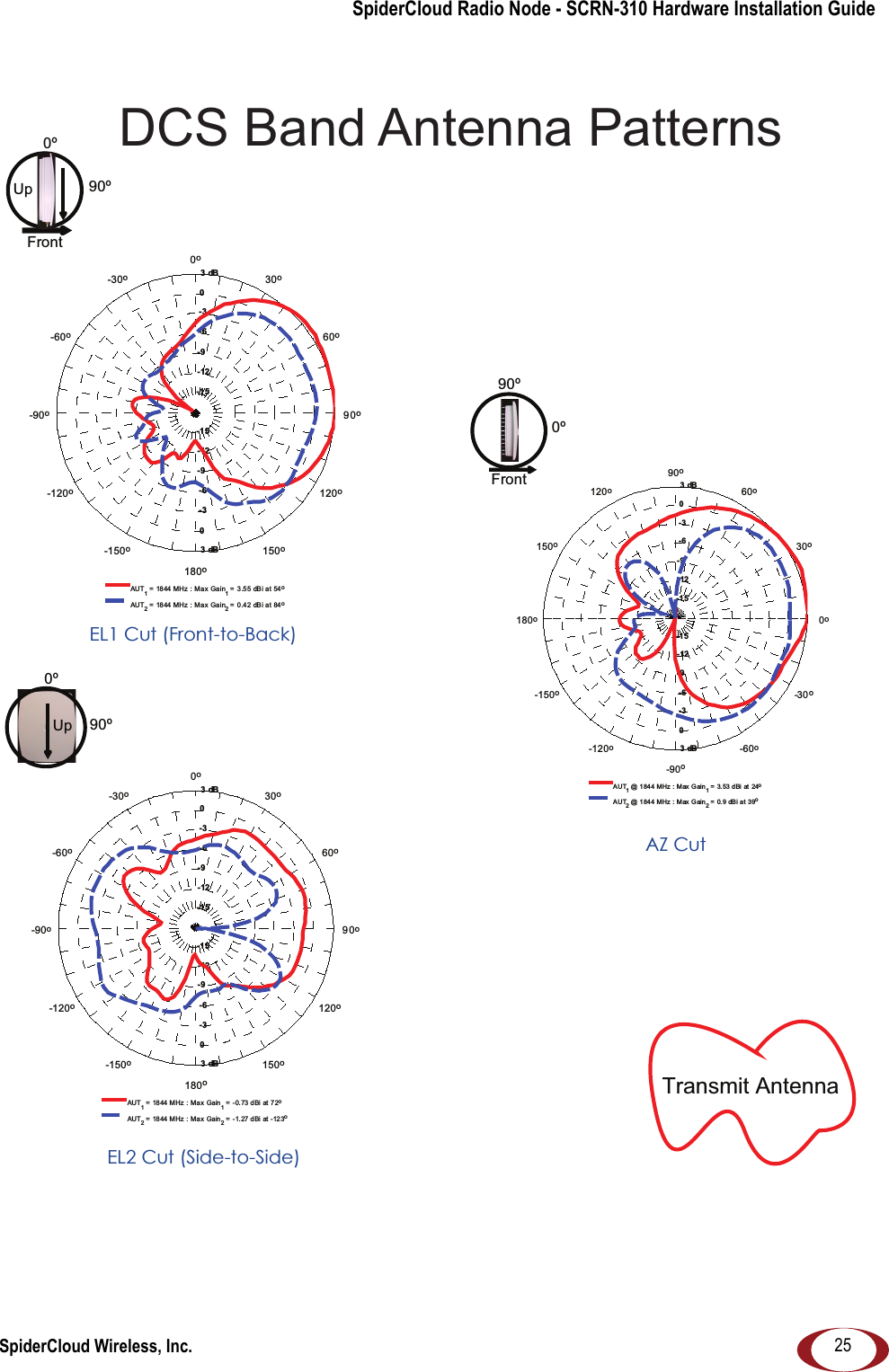
SpiderCloud Radio Node - SCRN-310 Hardware Installation GuideSpiderCloud Wireless, Inc. 25Transmit Antenna AZ Cut0º90ºFront90º0ºUpEL2 Cut (Side-to-Side) 0ºFront90ºUpEL1 Cut (Front-to-Back)DCS Band Antenna Patterns-15-15-12-12-9-9-6-6-3-3003 dB3 dB90o60o30o0o-30o-60o-90o-120o-150o180o150o120o AUT1 = 18 44  MHz  :  Ma x  Ga i n1 = 3.55  dBi at 54oAUT2 = 18 44  MHz  :  Ma x  Ga i n2 = 0.42  dBi at 84o-15-15-12-12-9-9-6-6-3-3003 dB3 dB90o60o30o0o-30o-60o-90o-120o-150o180o150o120o  AUT1 = 1844 MHz : Max Gain1 =  -0.73 dBi at 72oAUT2 = 1844 MHz : Max Gain2 =  -1.27 dBi at -123o-15-15-12-12-9-9-6-6-3-3003 dB3 dB0o30o60o90o120o150o180o-150o-120o-90o-60o-30 o  AUT1 @ 1844 MHz : Max Gain1 = 3. 53  dBi at  24oAUT2 @ 1844 MHz : Max Gain2 = 0. 9 dB i at 39o
SpiderCloud Radio Node - SCRN-310 Hardware Installation Guide SpiderCloud Wireless, Inc.26
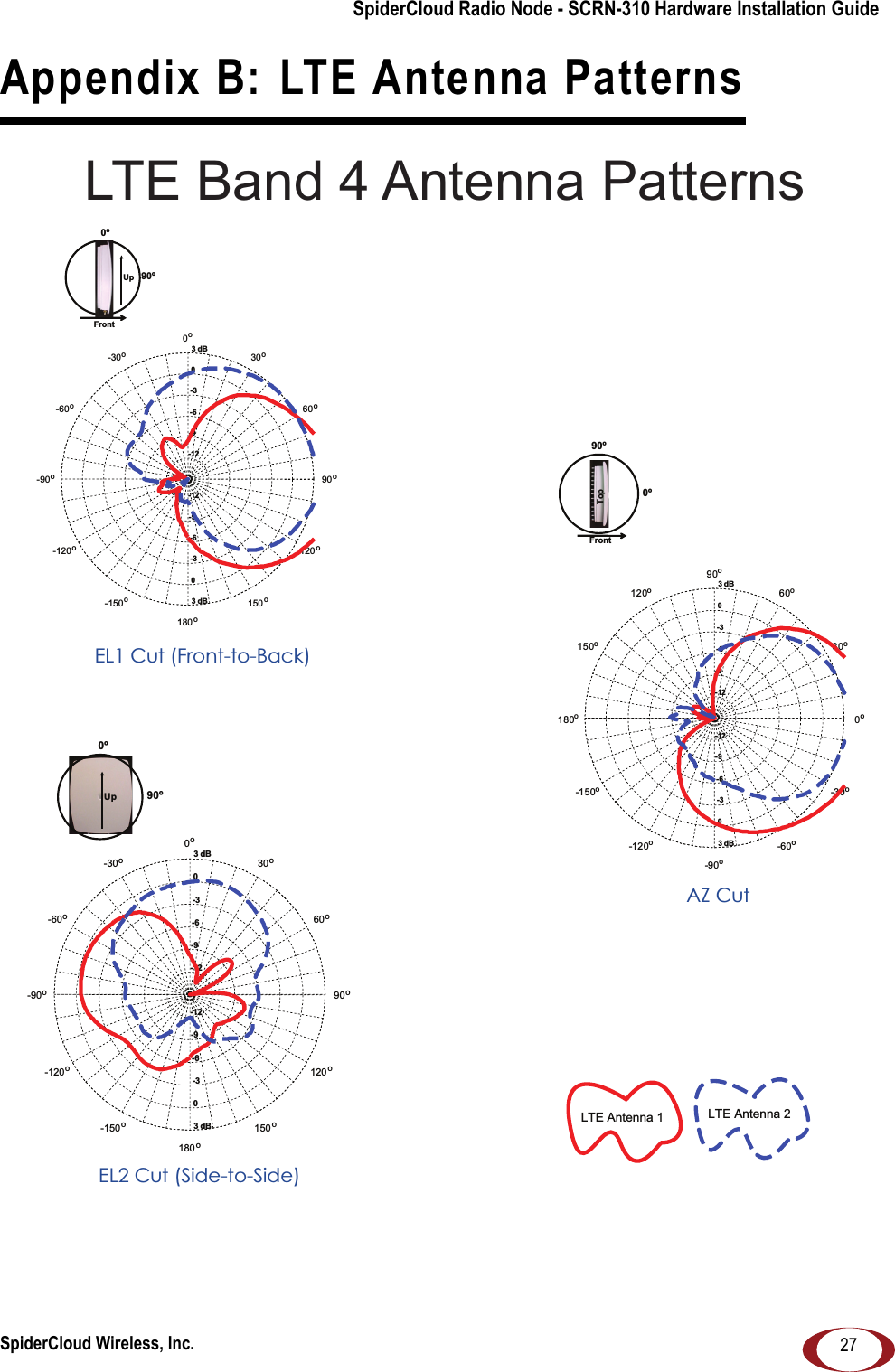
SpiderCloud Wireless, Inc. 27SpiderCloud Radio Node - SCRN-310 Hardware Installation GuideAppendix B: LTE Antenna Patterns LTE Band 4 Antenna Patterns-12-12-9-9-6-6-3-3003 dB3 dB0o30o60o90o120o150o180o-150o-120o-90o-60o-30oAZ Cut-12-12-9-9-6-6-3-3003 dB3 dB90o60o30o0o-30o-60o-90o-120o-150o180o150o120oEL1 Cut (Front-to-Back)EL2 Cut (Side-to-Side)-12-12-9-9-6-6-3-3003 dB3 dB90o60o30o0o-30o-60o-90o-120o-150o180o150o120oLTE Antenna 1 LTE Antenna 20ºFront90ºUp0º90ºFrontTop90º0ºUp
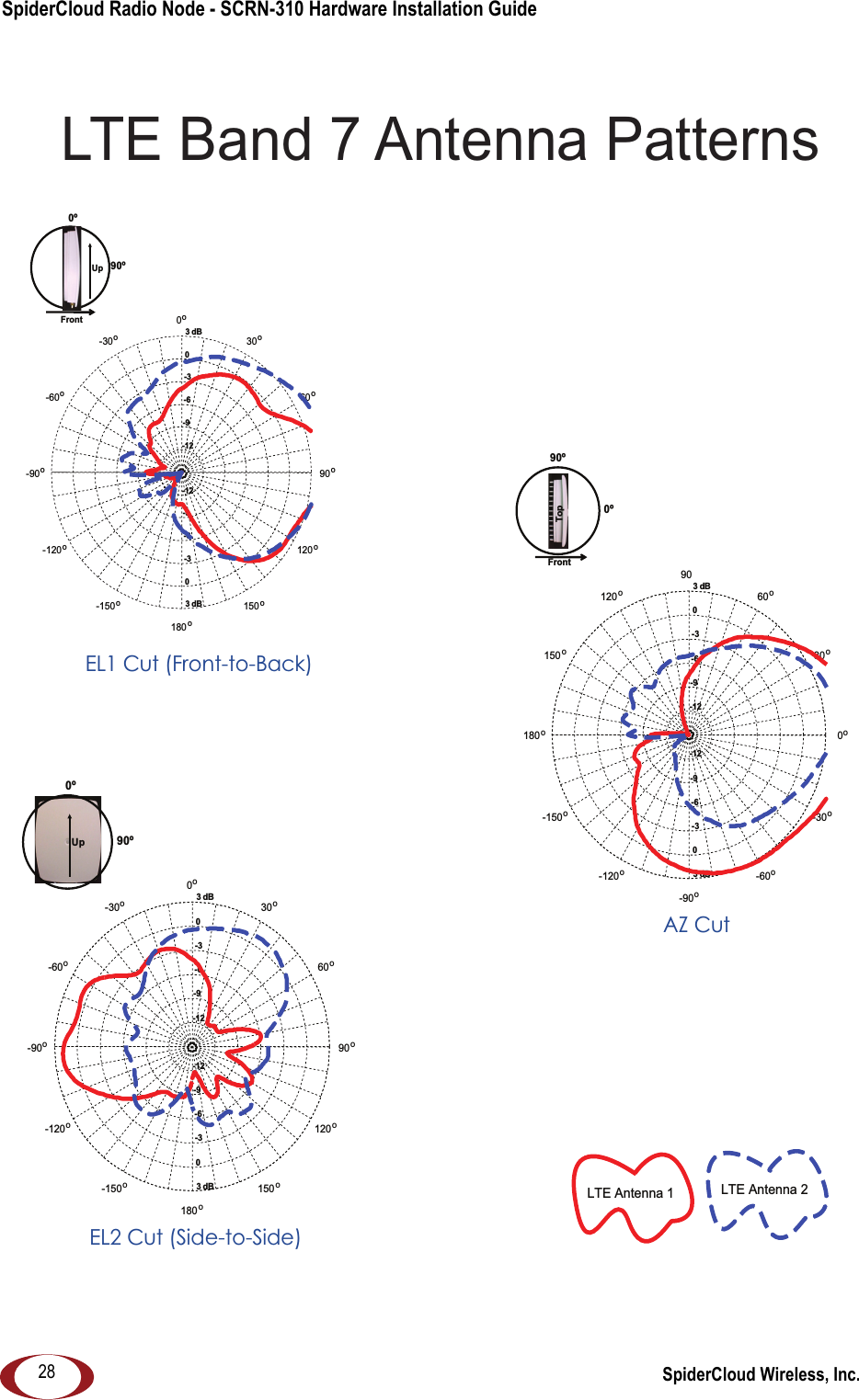
SpiderCloud Radio Node - SCRN-310 Hardware Installation Guide SpiderCloud Wireless, Inc.28LTE Band 7 Antenna PatternsAZ CutEL1 Cut (Front-to-Back)EL2 Cut (Side-to-Side)-12-12-9-9-6-6-3-3003 dB3 dB0o30o60o90120o150o180o-150o-120o-90o-60o-30o-12-12-9-9-6-6-3-3003 dB3 dB90o60o30o0o-30o-60o-90o-120o-150o180o150o120o-12-12-9-9-6-6-3-3003 dB3 dB90o60o30o0o-30o-60o-90o-120o-150o180o150o120oLTE Antenna 1 LTE Antenna 20º90ºFrontTop0ºFront90ºUp90º0ºUp

Navigation menu