Strong Frontier Sdn Bhd TE800-R Tire Pressure Monitor System User Manual Tire Pressure Monitoring System
Strong Frontier Sdn. Bhd. Tire Pressure Monitor System Tire Pressure Monitoring System
Contents
- 1. Users Manual
- 2. Users Manual Revised
Users Manual Revised

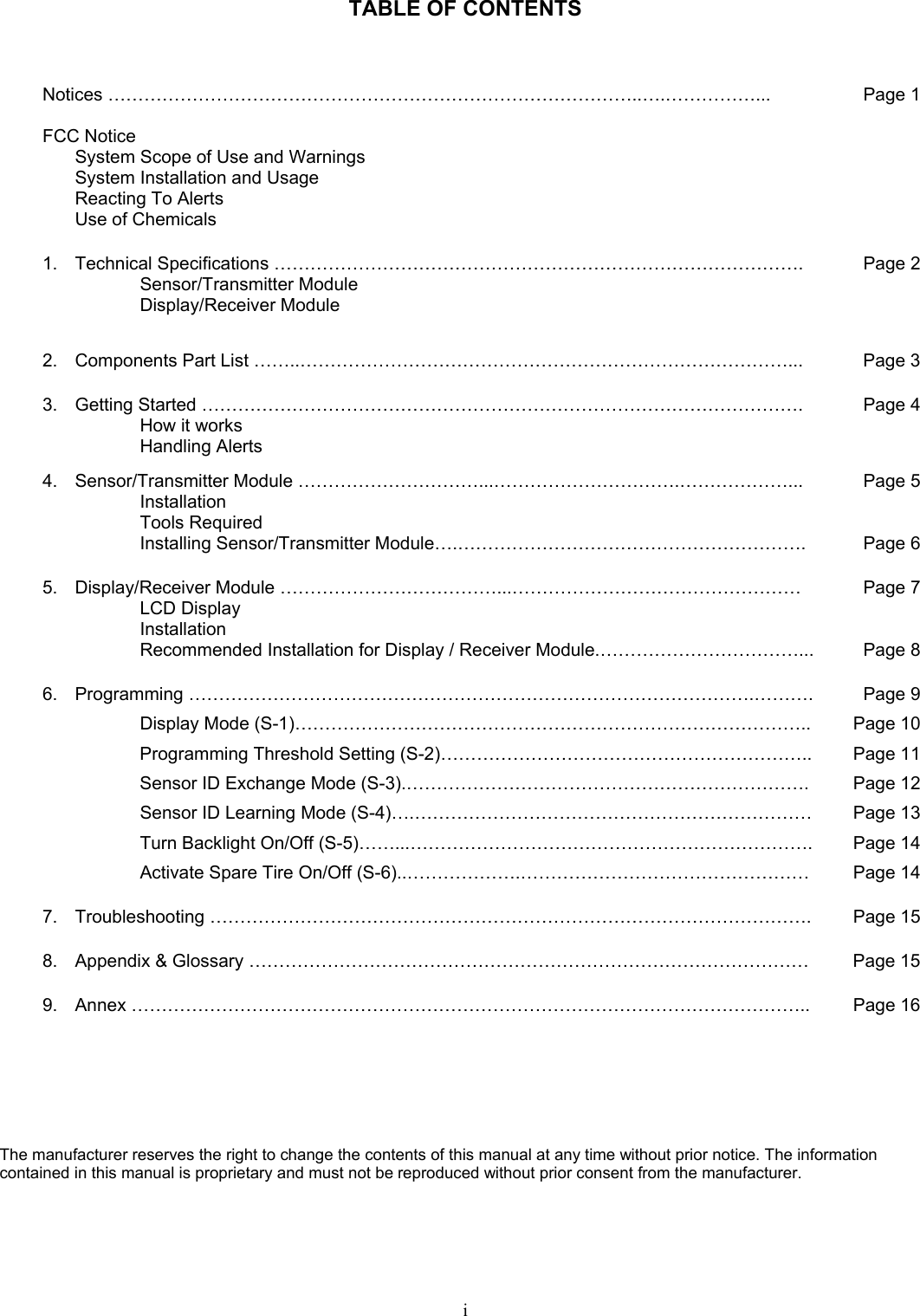
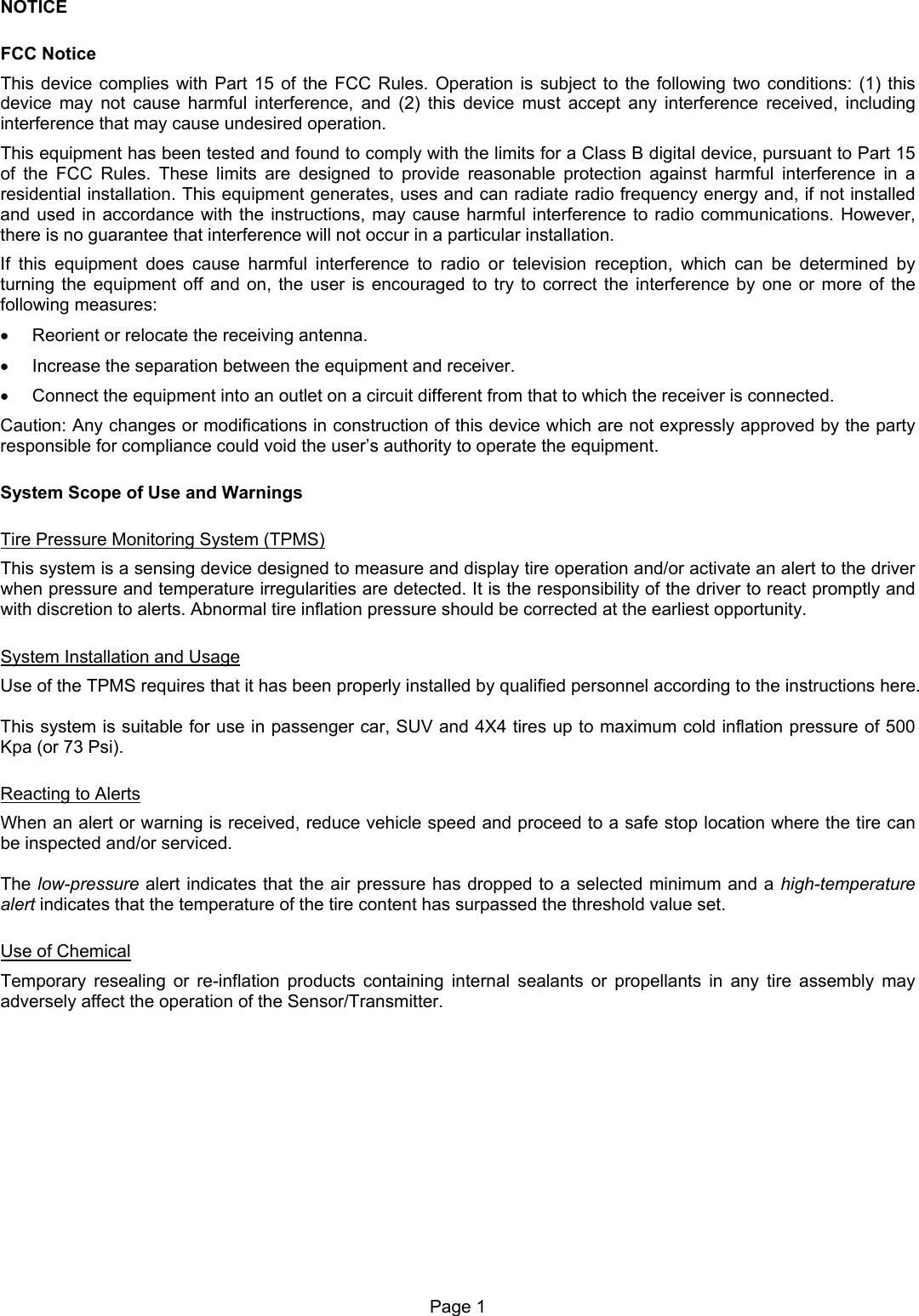
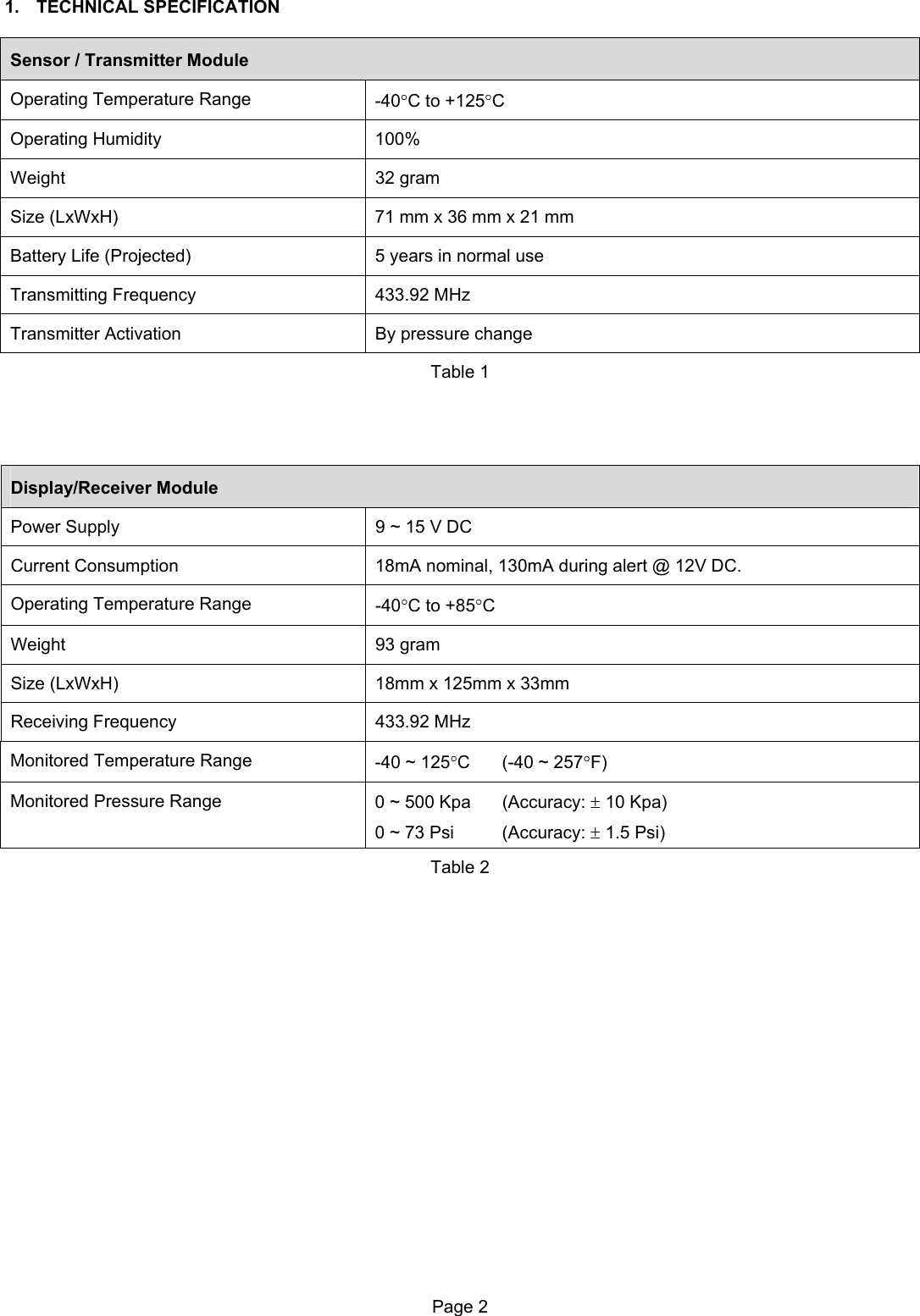
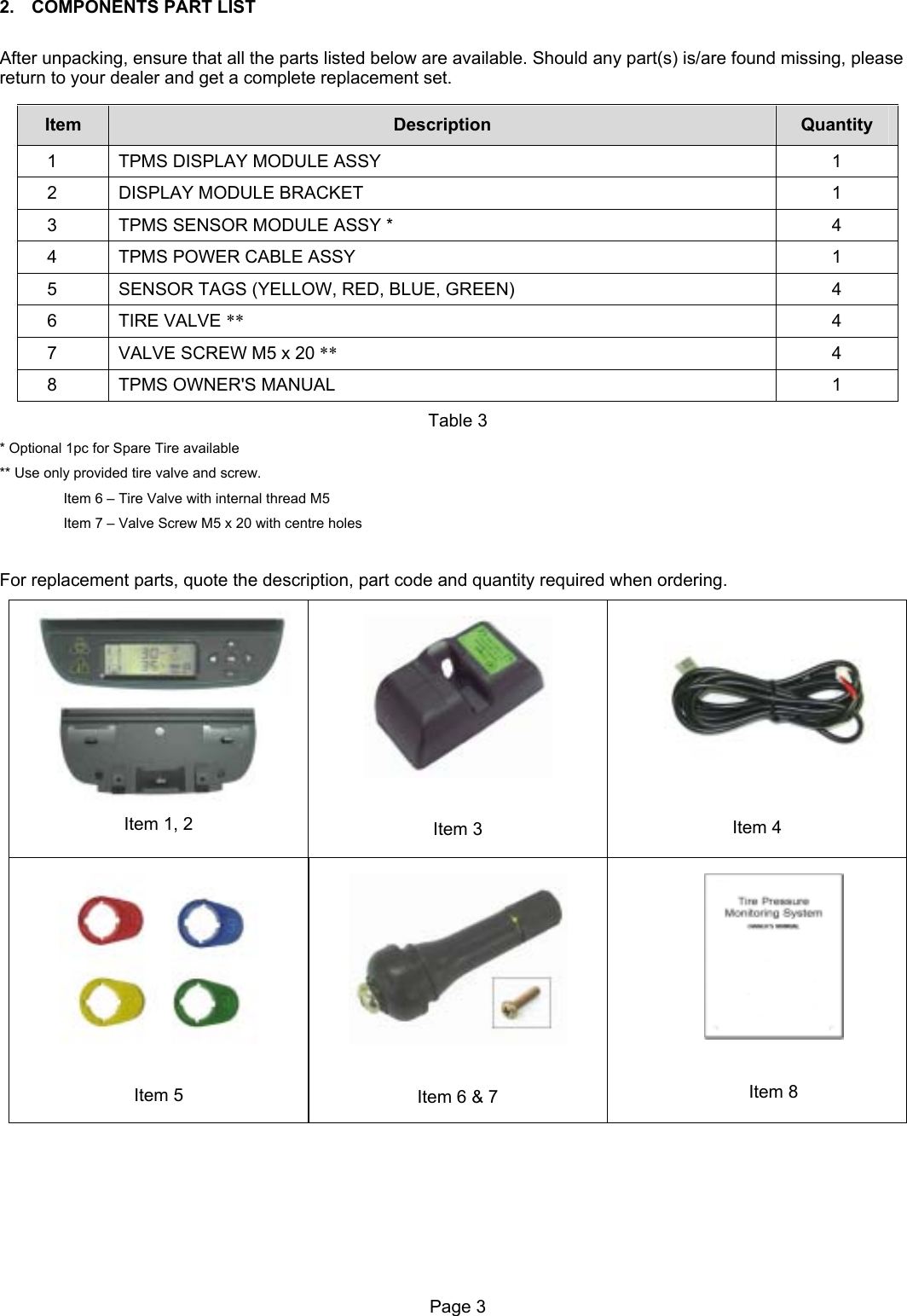
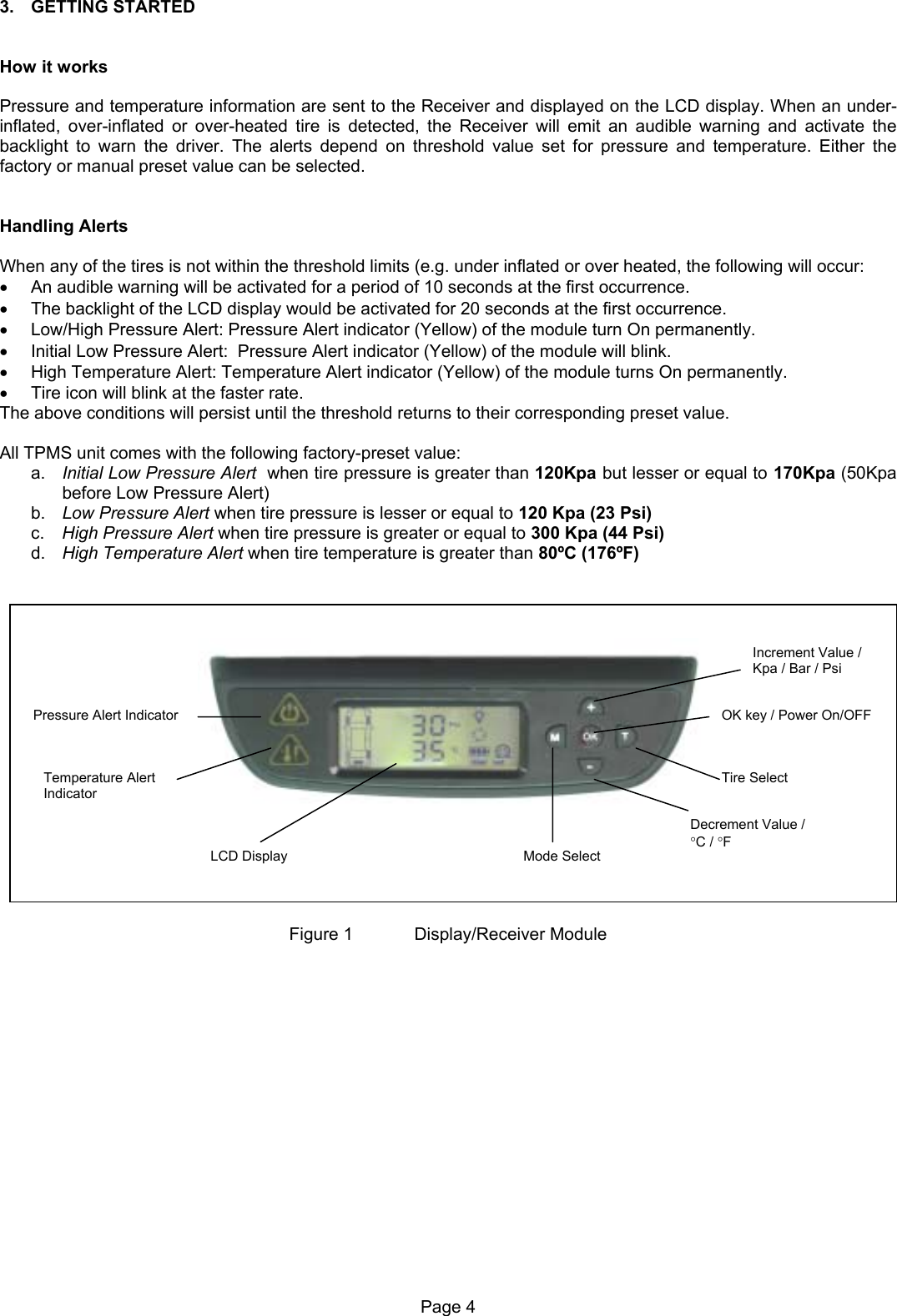
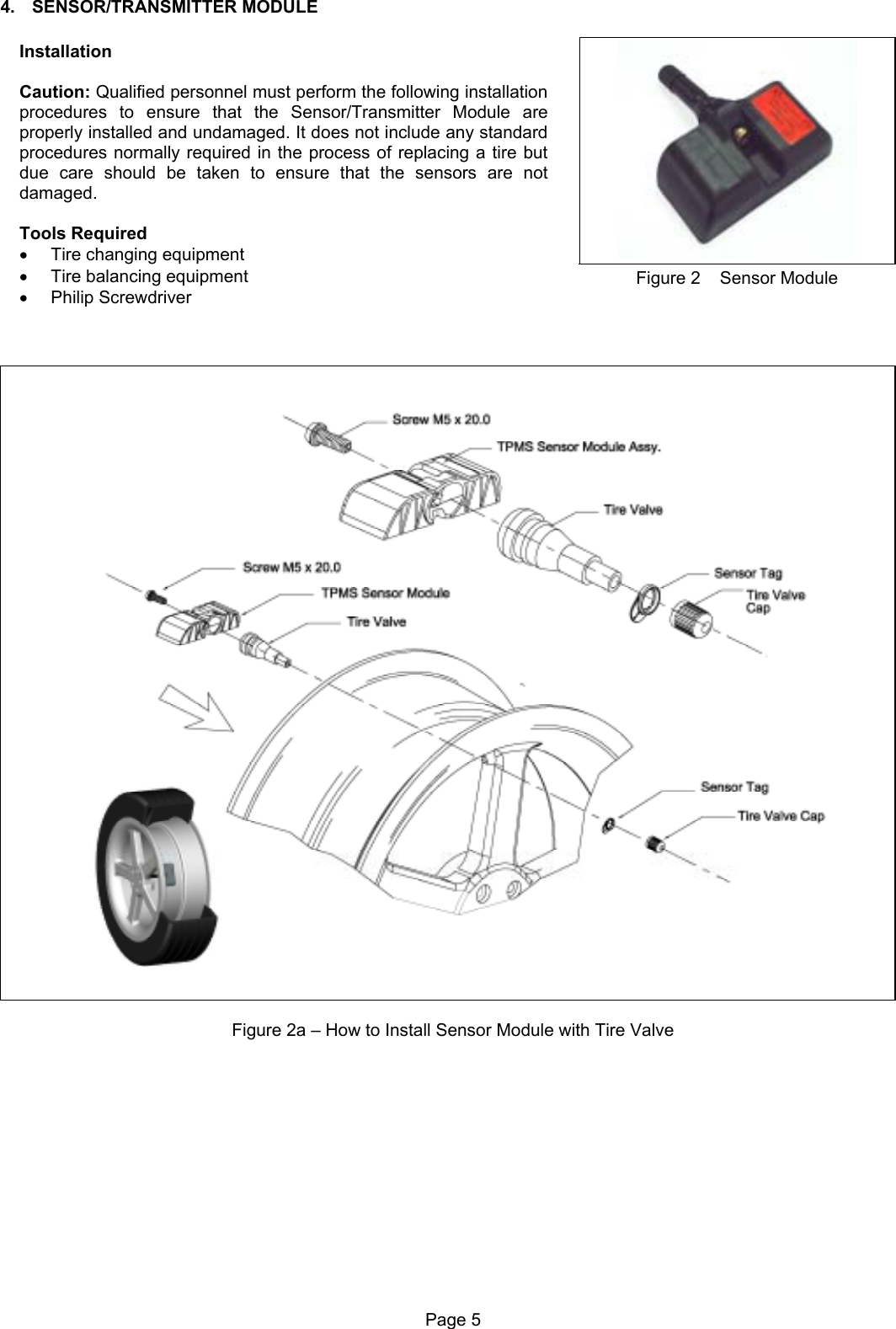
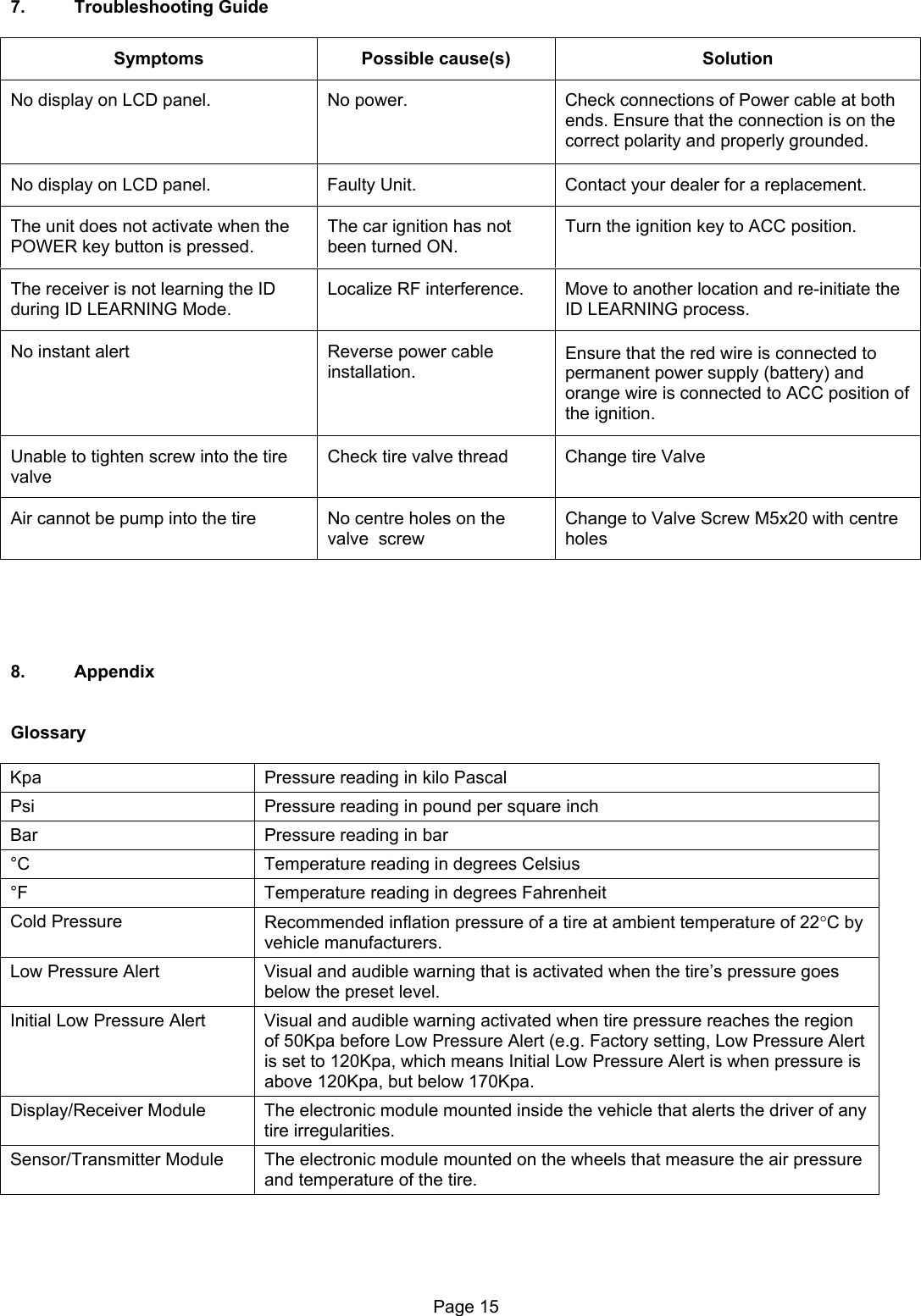
![6. PROGRAMMING Figure 20 To Enter Programming mode Main Menu 1. Ensure that the power is switched ON 2. Press and hold [M] button for 3 sec or more In programming mode toggle the [+] or [-] button for desired programming mode from S-1 to S-6. To accept the desired programming mode press [OK] button. To Quit Programming Main menu Display mode, press and hold [M] button for 3sec or more. Page 9](https://usermanual.wiki/Strong-Frontier-Sdn-Bhd/TE800-R.Users-Manual-Revised/User-Guide-509526-Page-11.png)
![Display Mode (S- 1) Press [OK] to enter programming display mode. ‘ror’ or ‘noL’ will blink to indicate that it is ready to accept changes. Toggle [+] or [-] button to alternate between Rotation Mode and Normal Mode. Rotation Mode Each of the tires will be ‘scanned’ for the reading. The rotation will begin from Front Left tire, followed by Front Right Tire, Rear Right Tire, Rear Left Tire and the cycle will begin again with the Front Left Tire. This is indicated by a blinking tire icon. J K L I Figure 22 Figure 21 Rotation Mode Activated Normal Mode In the normal mode, the display will always show information of the tire with the lowest pressure value. The rotation mode tire symbol will be disabled indicating the selected mode is normal mode. (Refer to figure 23 & 24) To view information of other tires, press [T] button. Figure 24 Figure 23 Normal Mode Activated Note Value shown is for reference only. Page 10](https://usermanual.wiki/Strong-Frontier-Sdn-Bhd/TE800-R.Users-Manual-Revised/User-Guide-509526-Page-12.png)
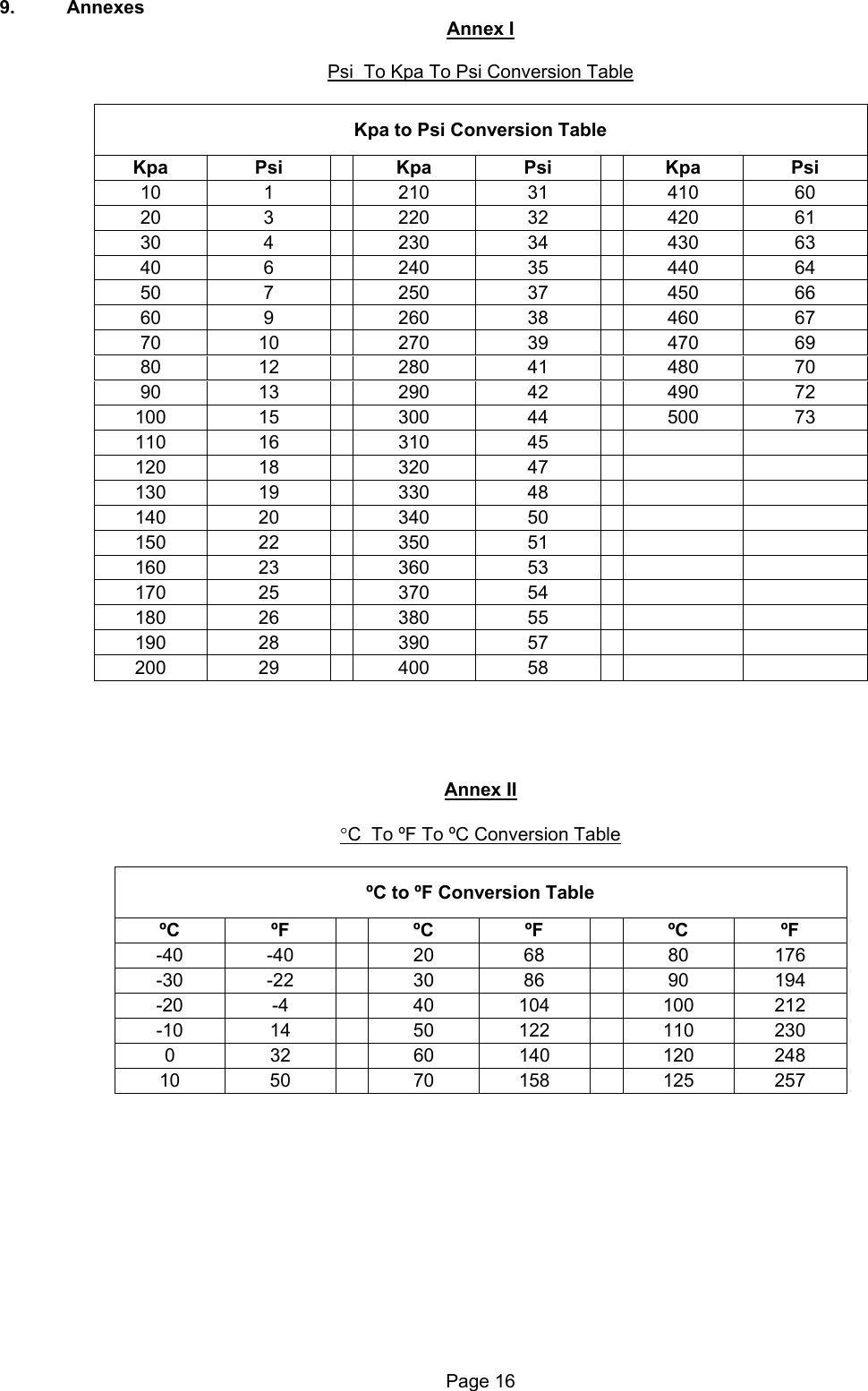
![Programming Threshold Setting (S- 2) Press [OK] to enter the Threshold setting mode. There are two available threshold setting mode available, 1. User setting (USr) 2. Factory Default (FAC) Figure 25 Upon entering this mode, the selected threshold setting mode will blink, indicating that the currently selected mode and it is ready to accept changes of the mode. Pressing the [ + ] button or [ - ] button to toggle the mode to USr or FAC. (refer figure 26) Figure 26 Factory Default To use the factory default mode, toggle [+] or [-] button till the ‘FAC’ setting blinks. 1. Press [OK] to view the factory default for High Pressure Alert, 2. Press [OK] second time for Low pressure Alert and press [OK] the third time for Temperature threshold alert. Finally press [OK] again to accept and select the Factory default setting. Note All TPMS unit comes with a factory-preset value of 120 Kpa (23 Psi) for the Low Pressure Alert, 300 Kpa (44 Psi) for High-pressure alert and 80ºC (176ºF) for the High Temperature Alert. Figure 27 User Setting 1. To use the User setting mode, toggle [+] or [-] button till the ‘USr’ setting blinks. 2. Press [OK] to enter user setting programming mode. The 1st digit of High Pressure alert will blink. (Figure 28) 3. Toggle [+] or [-] button to make the value changes. 4. Press [OK] to confirm the changes. The next digit will blink to indicate that it is ready to accept new input. 5. Repeat steps 3 and 4 to adjust the value of other digits on the LCD display. 6. Repeat step 2 to step 5 for both Low Pressure Alert (Figure 29) and High temperature alert (Figure 30). Note For low and high pressure alert, the maximum limit is 399Kpa (58 Psi) while for temperature; the maximum limit is 99ºC (210ºF). To confirm the selected value, press the [OK] button to save it. Figure 28 Figure 29 Figure 30 Note 1. Value shown is for reference only. 2. The setting of Manual Threshold Setting can only be done in Kpa (Pressure) and ºC (Temperature). Refer to Annex 1 & 2 for conversion between the units. Page 11](https://usermanual.wiki/Strong-Frontier-Sdn-Bhd/TE800-R.Users-Manual-Revised/User-Guide-509526-Page-13.png)
![Sensor ID Exchange Mode (S- 3) After rotation of tires, the Sensor ID data in the receiver must be changed accordingly to ensure that it indicates the correct tire when there are any irregularities. Step 1 Press [OK] button to enter ID Exchange mode. Figure 31 Step 2 The Front left tire icon and its corresponding ID digit will blink. 1. Use [+] and [-] button to change the selected Sensor ID digit. 2. Press [OK] to confirm the changes and the next ID digit will blink accordingly. 3. Repeat step 1 and 2 for all other ID digits. 4. The ID number ‘5’ will only be available if the spare tire setting is ‘ON’ Figure 32 Step 3 Press [T] button to quit the ID Exchange mode without saving and return back to Programming Main menu display. Figure 33 Step 4 The receiver will return back to Programming Main menu display and that complete the process of exchanging Sensor ID data in the receiver. Note The receiver will not save the information if any of the tires are found to have identical Sensor ID. Figure 34 Note 1. Value shown is for reference only. Page 12](https://usermanual.wiki/Strong-Frontier-Sdn-Bhd/TE800-R.Users-Manual-Revised/User-Guide-509526-Page-14.png)
![Sensor ID Learning Mode (S- 4) For programming of a new receiver unit with ID Learning Mode, refer to the following steps. Step 1 Press [OK] button to enter the ID learning Mode. Figure 35 Step 2 1. The front left tire icon will blink. Toggle [+] or [-] button to select the desired tire and press [OK] to accept the desired location. The corresponding tire ID number blinks (once per second) to indicate that it is ready to accept new Sensor ID input. 2. Inflate or deflate the corresponding tire by at least 28Kpa (4Psi). 3. When the new ID code is received, the tire icon will blink at a faster rate (twice per second); the ID number stops blinking and the module will beep for 5 second. 4. Press [OK] button to save the sensor ID. 5. Repeat Step 1 to 3 for other tire sensor(s) that needs to be replaced. Note ID ‘5’ will only be able to receive sensor signal if the Spare Tire setting is ON. (Refer to Spare Tire On/Off Mode (S- 6)) Figure 36 Step 3 Press [T] button to return to Programming Main menu display. Figure 37 Note 1. The receiver will not save any identical Sensor ID. 2. Value shown is for reference only. Page 13](https://usermanual.wiki/Strong-Frontier-Sdn-Bhd/TE800-R.Users-Manual-Revised/User-Guide-509526-Page-15.png)
![Turn Backlight On/Off (S- 5) For programming backlight setting, refer to the following steps. 1. Backlight On (Permanent On) 2. Backlight Off (Auto) Step 1 Press [OK] button to enter Backlight programming mode. Figure 38 Step 2 The default-selected option will blink. 1. To change the selection On-Off press [+] or [-] button. 2. To confirm the selection press [OK] button. 3. The receiver will return back to Programming Main menu display Figure 39 Activate Spare Tire On/Off Mode (S- 6) For programming Spare Tire setting option, refer to the following steps. 1. Spare Tire On (Enable Spare Tire monitoring) 2. Spare Tire Off (Disable Spare Tire monitoring) Step 1 Press [OK] button to enter the Spare Tire setting Mode. Figure 40 Step 2 The default-selected option will blink. 4. To change the selection On-Off press [+] or [-] button. 5. To confirm the selection press [OK] button. 6. The receiver will return back to Programming Main menu display Figure 41 Page 14](https://usermanual.wiki/Strong-Frontier-Sdn-Bhd/TE800-R.Users-Manual-Revised/User-Guide-509526-Page-16.png)