SupplyNet Communications 4100 Prophet 4100/4200 User Manual 4100 Prophet Manua

SupplyNet Communications L.L.C. Prophet 4100/4200 4100 Prophet Manua

Exhibit D Users Manual per 2 1033 b3

     Prophet-L™ Wireless Remote Tank Unit 4100/4200 Series
       Prophet-L™ Wireless Remote Tank Unit 4100/4200 Series   Document No. 910-07710 Document Version 1.10 June 2006
    Prophet 4100/4200 Series  /  Version 1.00   Page 2  FCC Statement This device complies with Part 15 of the FCC Rules. Operation is subject to the following two conditions:  (1) This device must not be allowed to cause harmful interference (2) This device must accept any interference that may cause undesired operation.    For Your Safety This equipment contains a cellular radio which transmits at several times the power of a hand-held cellular phone.  While it has been tested to comply with applicable FCC regulations and is approved for use in non-residential applications, it may still interfere with other electronic equipment.  Therefore its use in certain situations is restricted.   Read these installation and operation instructions carefully. Failure to follow these instructions may be dangerous or illegal.  Only qualified service personnel must install or repair this equipment.                ©Copyright 2005 SupplyNet Communications Inc. No part of this document may be copied, reproduced, or translated without the prior written consent of SupplyNet Communications.  No part of this document may be stored or transmitted in any electronic form without the prior written consent of SupplyNet Communications. SupplyNet Communications has made every effort to ensure the accuracy and completeness of this document.  However, as we are continually making improvements to our products, we cannot guarantee the accuracy of this document.  We will not be liable for any inaccuracies, omissions, or future changes. TankLink and the TankLink logo are registered trademarks of SupplyNet Communications Inc.  Microburst is a registered trademark of Aeris.Net.  All other trademarks referenced herein are the properties of their respective organizations.
    Prophet 4100/4200 Series  /  Version 1.00   Page 3 Table of Contents Chapter 1  Getting Started 1-1 Overview  4 1-2  Theory of Operation  4 1-3 Product Highlights  5  Chapter 2  Installation 2-1 Safety Precautions  6 2-2 Initial Inspection  6 2-3 Stainless Steel Tank Preparation  7 2-4 Poly Tank Preparation  8 2-5 Mounting an Ultrasonic Unit  9 2-6 Mounting a Differential Pressure Unit  11 2-7 Tank Measurements  13  Chapter 3  Uplink Installation 3-1 Mounting the Uplink  14 3-2  Wiring the Current Loop  14  Chapter 4   Communication Setup 4-1  Setting the Preferred Cellular Carrier  17 4-2  Using the Signal Strength Meter  18 4-3  Amplifying a Weak Carrier Signal  19 4-4  Setting the number of callouts per day  19  Chapter 5   Unit Operation 5-1 Establishing Communication  21 5-2 Normal Operation  22 5-3 Client Operation  22 Chapter 6  Viewing your Data on the Internet  6-1  Accessing the TankLink.com Web site  23  Chapter 7  Specifications 7-1 Prophet Specifications  24  Chapter 8  Troubleshooting and Technical Information 8-1 Error Codes  25 8-2 Jumper Settings  26 8-3 Battery Replacement  27 8-4 Troubleshooting  28 8-5  Obtaining Technical Support  29 8-6 Replacement Parts  30 8-7 Ordering Information  31  Chapter 9  Terms and Conditions of Service 9-1  Terms and Conditions of Service  33  Chapter 10  Product Warranty and Notices 10-1  Product Warranty and Notices  34
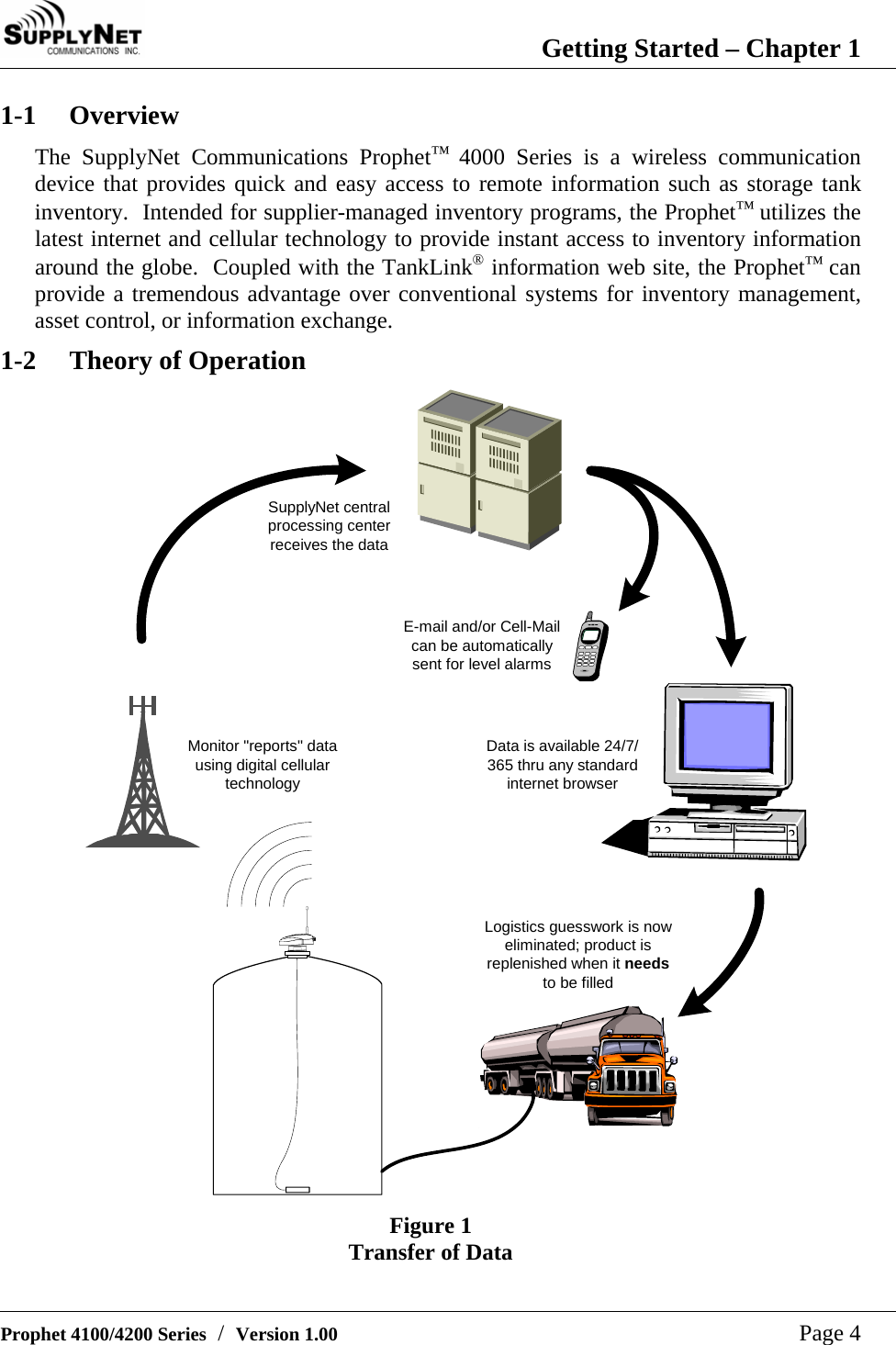
 Getting Started – Chapter 1   Prophet 4100/4200 Series  /  Version 1.00   Page 4 1-1 Overview The SupplyNet Communications Prophet™ 4000 Series is a wireless communication device that provides quick and easy access to remote information such as storage tank inventory.  Intended for supplier-managed inventory programs, the Prophet™ utilizes the latest internet and cellular technology to provide instant access to inventory information around the globe.  Coupled with the TankLink® information web site, the Prophet™ can provide a tremendous advantage over conventional systems for inventory management, asset control, or information exchange. 1-2  Theory of Operation    Monitor "reports" datausing digital cellulartechnologySupplyNet centralprocessing centerreceives the dataE-mail and/or Cell-Mailcan be automaticallysent for level alarmsData is available 24/7/365 thru any standardinternet browserLogistics guesswork is noweliminated; product isreplenished when it needsto be filled Figure 1 Transfer of Data
 Getting Started – Chapter 1   Prophet 4100/4200 Series  /  Version 1.00   Page 5 The Prophet™ communicates to the TankLink® data center using a wireless cellular technology called Microburst®. This patented technology allows the unit to transmit digital data to the TankLink® data center using the existing network of analog cellular towers deployed throughout North America.  Every area with analog cellular service has two carriers, an ‘A’ carrier and a ‘B’ carrier.  In order to transmit a Microburst® data packet, the local cellular carrier must be Microburst® enabled.  Fortunately, nearly all areas in the United States have at least one Microburst® enabled carrier.  Many regions have two Microburst® carriers.  In these areas, the installing technician can choose which carrier to use based on the proximity of the unit to each carrier’s cellular towers.  There is no difference in cost using one carrier over the other, unlike cellular telephone rate plans from competing companies.  Once the data is at the TankLink® data center, it may be viewed over the internet using a standard web browser (ie. Microsoft Internet Explorer or Netscape Navigator), downloaded to applications such as Microsoft Excel, or it may be used to trigger events such as an e-mail or page to a local sales or service representative.  To access the data provided by the Prophet™ unit, a current monitoring service agreement with SupplyNet Communications is required. For help with accessing the TankLink® web site, see Chapter 5.  Since the Prophet™ is a wireless device, care must be taken when installing the unit to minimize interference from nearby equipment or structures.  For installation guidelines, please refer to Chapter 2.  The Prophet-L series contains a short range transceiver for communication with up to three Clients. Only the Host (4100) unit contains a Cellular radio which communicates with the SupplyNet Communications website. This configuration provides the convenience of four tanks communicating through one Cellular transmission. 1-3 Product Highlights ¾ No telephone line is required for communication. ¾ No external power source is required. ¾ Fast, simple installation. ¾ Flexible sensing technology.  ¾ Fixed monitoring costs. ¾ Readily available replacement batteries. ¾ Unlimited applications.
 Installation – Chapter 2   Prophet 4100/4200 Series  /  Version 1.00   Page 6 2-1 Safety Precautions The Prophet™ uses Radio Frequency (RF) waves for communication to the nearest cellular tower and can transmit at several times the power of a hand-held cellular phone.  In general, if you can place a cellular telephone call in the location where you wish to install the unit, then the Prophet should be able to communicate properly.  However, because of the inherent characteristics of RF communications, there are certain guidelines that should be followed when positioning the unit.  Warning ! • Do not use the Prophet™ in hospitals or near medical equipment. • Do not install the Prophet™ where hazardous vapors are present. • Do not use the Prophet™ where blasting is in progress. • Electrostatic discharge can damage sensitive electronic components. Be sure to discharge yourself by touching a grounded metal object before opening the unit. • The unit should be installed in an area free from overhanging metal structures, large obstructions, or equipment which could generate RF or electrical interference. • Do not install the unit below ground level unless provisions are made for an external antenna. • Service may be limited in areas that do not have cellular coverage or where Microburst® service is unavailable. • If the unit is installed in an area with poor signal strength, an external antenna may be required for reliable performance.  If you have doubt about the suitability of a particular location for the Prophet™, or are having difficulty transmitting, please see Sections 3-2 and 3-3.  If an external antenna is required, several optional antennas are available.  Please contact SupplyNet Customer Service to determine your exact needs.  2-2 Initial Inspection When you receive the Prophet™ unit, thoroughly inspect it for any damage which may have occurred during shipping.  If there is any damage to the Prophet™, contact the shipping company as soon as possible.  Locate the packing checklist in the shipping container.  Check for any missing items before you begin installation of the Prophet™.  Note: The Prophet™ is shipped with the antenna disconnected.  It is located in a separate area within the shipping carton.  Verify that the antenna is present before proceeding.  Tools Required for Installation:   3/16” Flat screwdriver   Large adjustable wrench
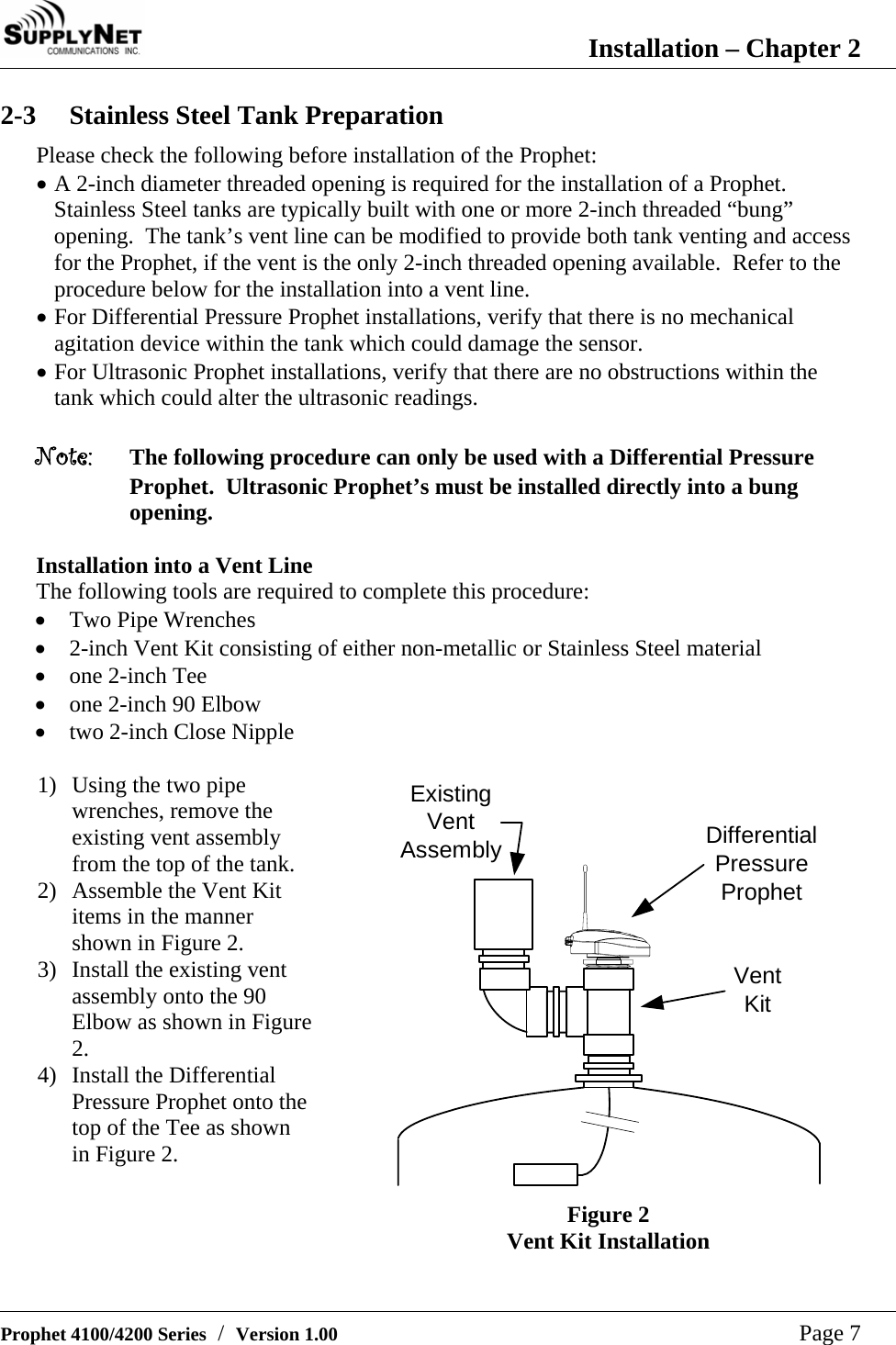
 Installation – Chapter 2   Prophet 4100/4200 Series  /  Version 1.00   Page 7 2-3 Stainless Steel Tank Preparation Please check the following before installation of the Prophet: • A 2-inch diameter threaded opening is required for the installation of a Prophet.  Stainless Steel tanks are typically built with one or more 2-inch threaded “bung” opening.  The tank’s vent line can be modified to provide both tank venting and access for the Prophet, if the vent is the only 2-inch threaded opening available.  Refer to the procedure below for the installation into a vent line. • For Differential Pressure Prophet installations, verify that there is no mechanical agitation device within the tank which could damage the sensor. • For Ultrasonic Prophet installations, verify that there are no obstructions within the tank which could alter the ultrasonic readings.  Note:  The following procedure can only be used with a Differential Pressure Prophet.  Ultrasonic Prophet’s must be installed directly into a bung opening.  Installation into a Vent Line The following tools are required to complete this procedure: • Two Pipe Wrenches • 2-inch Vent Kit consisting of either non-metallic or Stainless Steel material • one 2-inch Tee • one 2-inch 90 Elbow • two 2-inch Close Nipple  1) Using the two pipe wrenches, remove the existing vent assembly from the top of the tank. 2) Assemble the Vent Kit items in the manner shown in Figure 2. 3) Install the existing vent assembly onto the 90 Elbow as shown in Figure 2. 4) Install the Differential Pressure Prophet onto the top of the Tee as shown in Figure 2. DifferentialPressureProphetVentKitExistingVentAssembly Figure 2 Vent Kit Installation
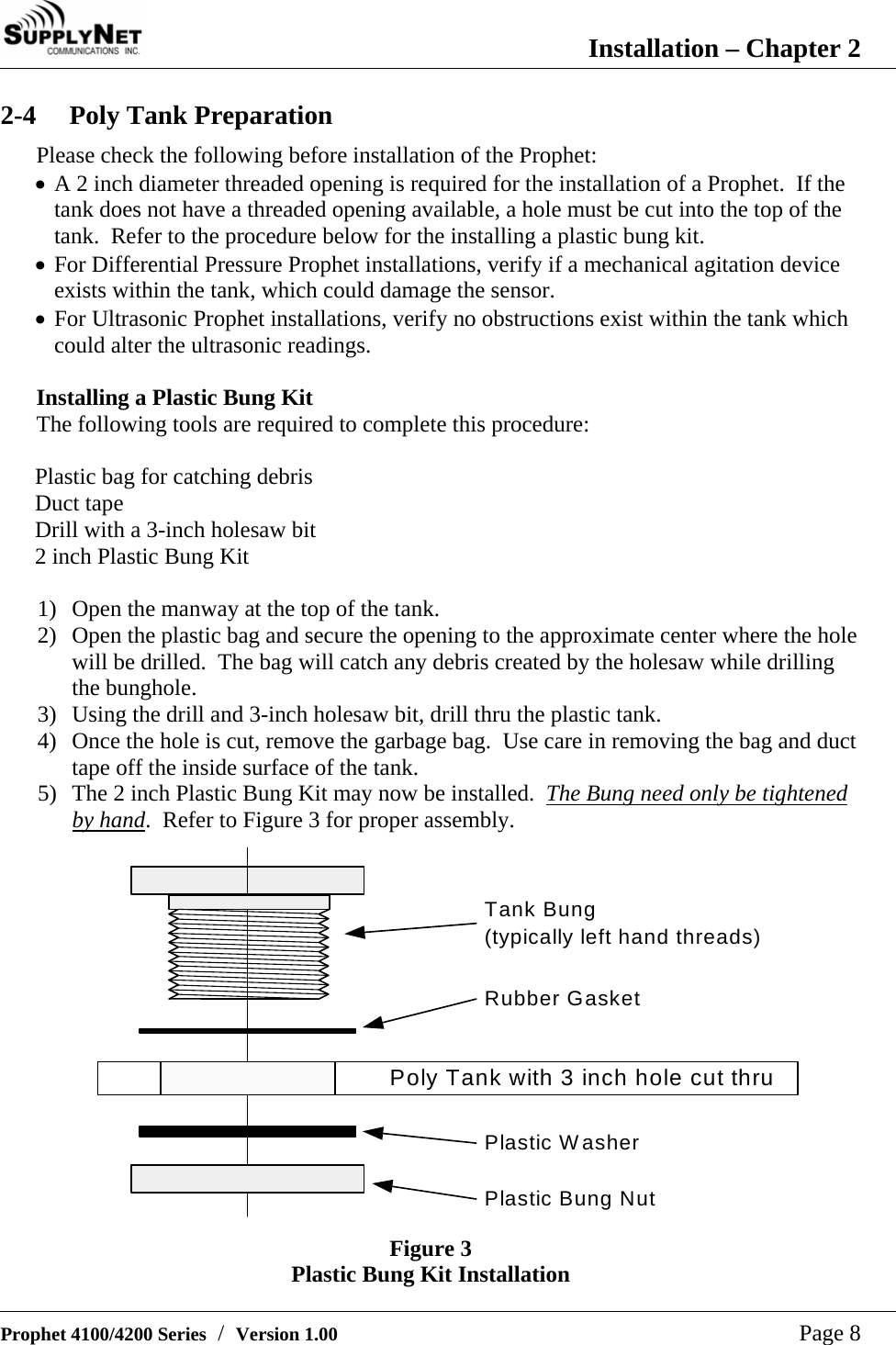
 Installation – Chapter 2   Prophet 4100/4200 Series  /  Version 1.00   Page 8 2-4 Poly Tank Preparation Please check the following before installation of the Prophet:  • A 2 inch diameter threaded opening is required for the installation of a Prophet.  If the tank does not have a threaded opening available, a hole must be cut into the top of the tank.  Refer to the procedure below for the installing a plastic bung kit. • For Differential Pressure Prophet installations, verify if a mechanical agitation device exists within the tank, which could damage the sensor. • For Ultrasonic Prophet installations, verify no obstructions exist within the tank which could alter the ultrasonic readings.  Installing a Plastic Bung Kit The following tools are required to complete this procedure:  Plastic bag for catching debris Duct tape Drill with a 3-inch holesaw bit 2 inch Plastic Bung Kit  1) Open the manway at the top of the tank. 2) Open the plastic bag and secure the opening to the approximate center where the hole will be drilled.  The bag will catch any debris created by the holesaw while drilling the bunghole. 3) Using the drill and 3-inch holesaw bit, drill thru the plastic tank. 4) Once the hole is cut, remove the garbage bag.  Use care in removing the bag and duct tape off the inside surface of the tank. 5) The 2 inch Plastic Bung Kit may now be installed.  The Bung need only be tightened by hand.  Refer to Figure 3 for proper assembly. Tank Bung(typically left hand threads)Poly Tank with 3 inch hole cut thruRubber GasketPlastic WasherPlastic Bung Nut  Figure 3 Plastic Bung Kit Installation
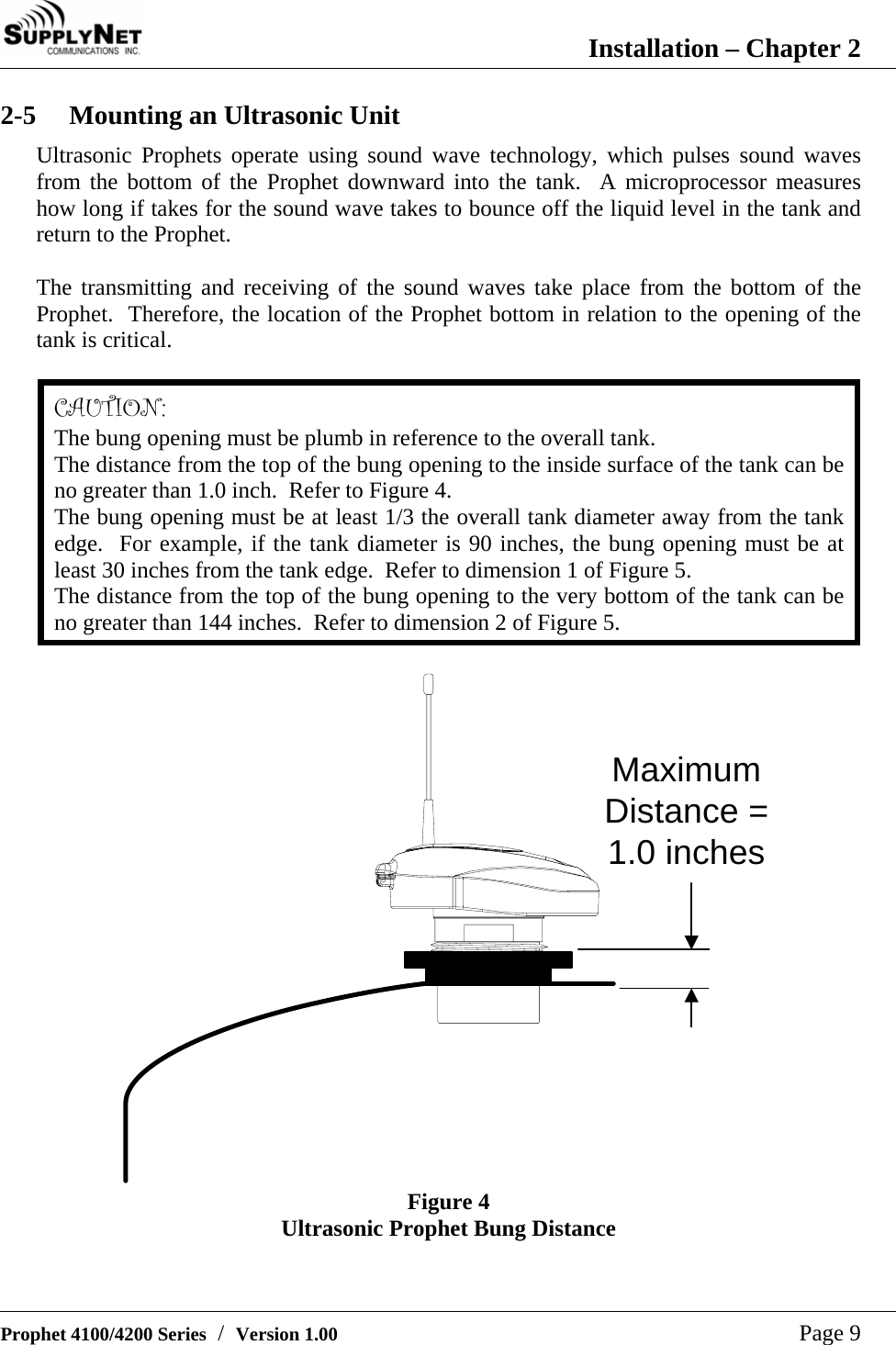
 Installation – Chapter 2   Prophet 4100/4200 Series  /  Version 1.00   Page 9 2-5  Mounting an Ultrasonic Unit Ultrasonic Prophets operate using sound wave technology, which pulses sound waves from the bottom of the Prophet downward into the tank.  A microprocessor measures how long if takes for the sound wave takes to bounce off the liquid level in the tank and return to the Prophet.  The transmitting and receiving of the sound waves take place from the bottom of the Prophet.  Therefore, the location of the Prophet bottom in relation to the opening of the tank is critical.  CAUTION: The bung opening must be plumb in reference to the overall tank. The distance from the top of the bung opening to the inside surface of the tank can be no greater than 1.0 inch.  Refer to Figure 4. The bung opening must be at least 1/3 the overall tank diameter away from the tank edge.  For example, if the tank diameter is 90 inches, the bung opening must be at least 30 inches from the tank edge.  Refer to dimension 1 of Figure 5. The distance from the top of the bung opening to the very bottom of the tank can be no greater than 144 inches.  Refer to dimension 2 of Figure 5.  MaximumDistance =1.0 inches Figure 4 Ultrasonic Prophet Bung Distance
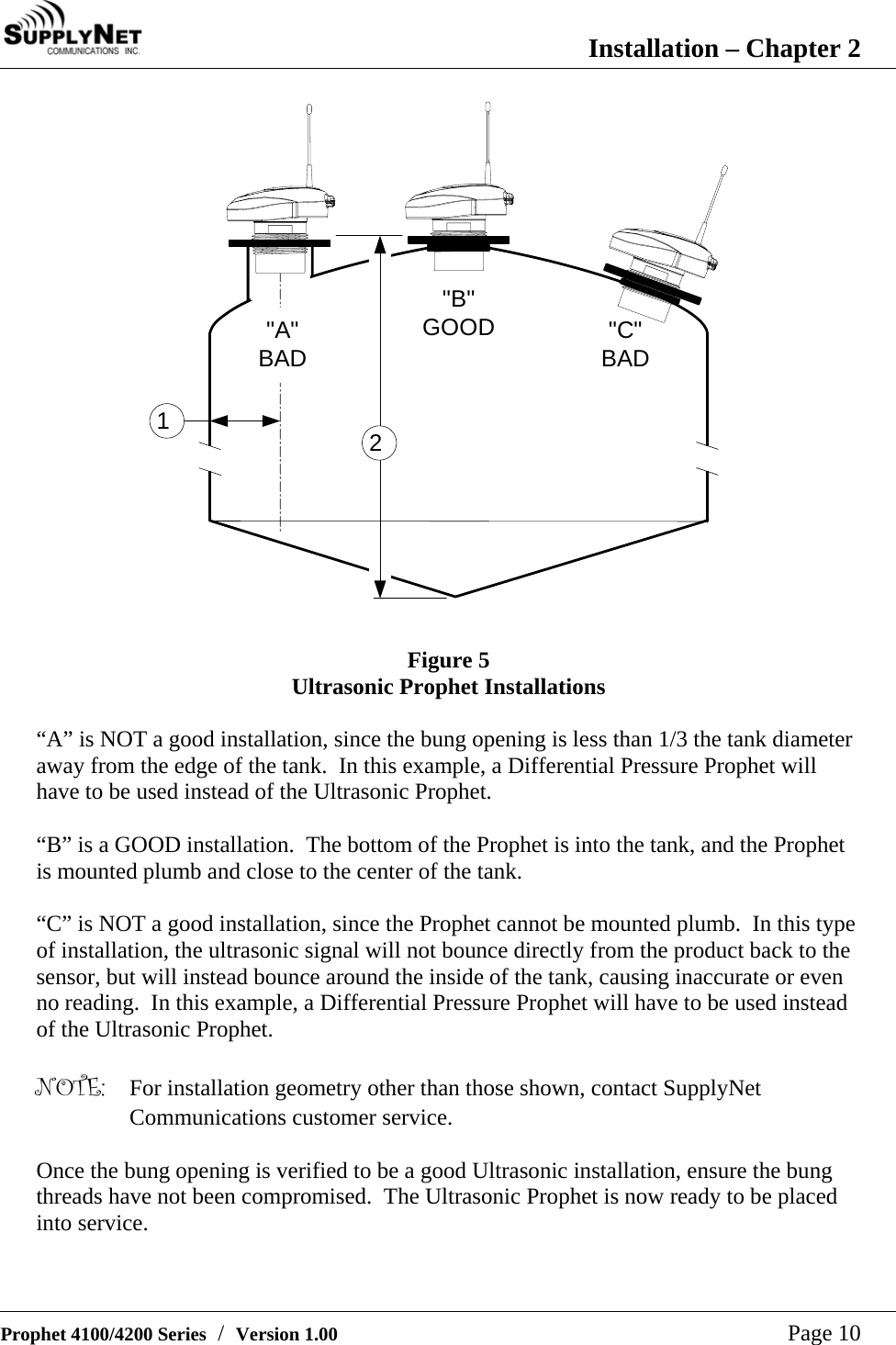
 Installation – Chapter 2   Prophet 4100/4200 Series  /  Version 1.00   Page 10 "C"BAD"B"GOOD"A"BAD12  Figure 5 Ultrasonic Prophet Installations  “A” is NOT a good installation, since the bung opening is less than 1/3 the tank diameter away from the edge of the tank.  In this example, a Differential Pressure Prophet will have to be used instead of the Ultrasonic Prophet.  “B” is a GOOD installation.  The bottom of the Prophet is into the tank, and the Prophet is mounted plumb and close to the center of the tank.  “C” is NOT a good installation, since the Prophet cannot be mounted plumb.  In this type of installation, the ultrasonic signal will not bounce directly from the product back to the sensor, but will instead bounce around the inside of the tank, causing inaccurate or even no reading.  In this example, a Differential Pressure Prophet will have to be used instead of the Ultrasonic Prophet.  NOTE:  For installation geometry other than those shown, contact SupplyNet Communications customer service.  Once the bung opening is verified to be a good Ultrasonic installation, ensure the bung threads have not been compromised.  The Ultrasonic Prophet is now ready to be placed into service.
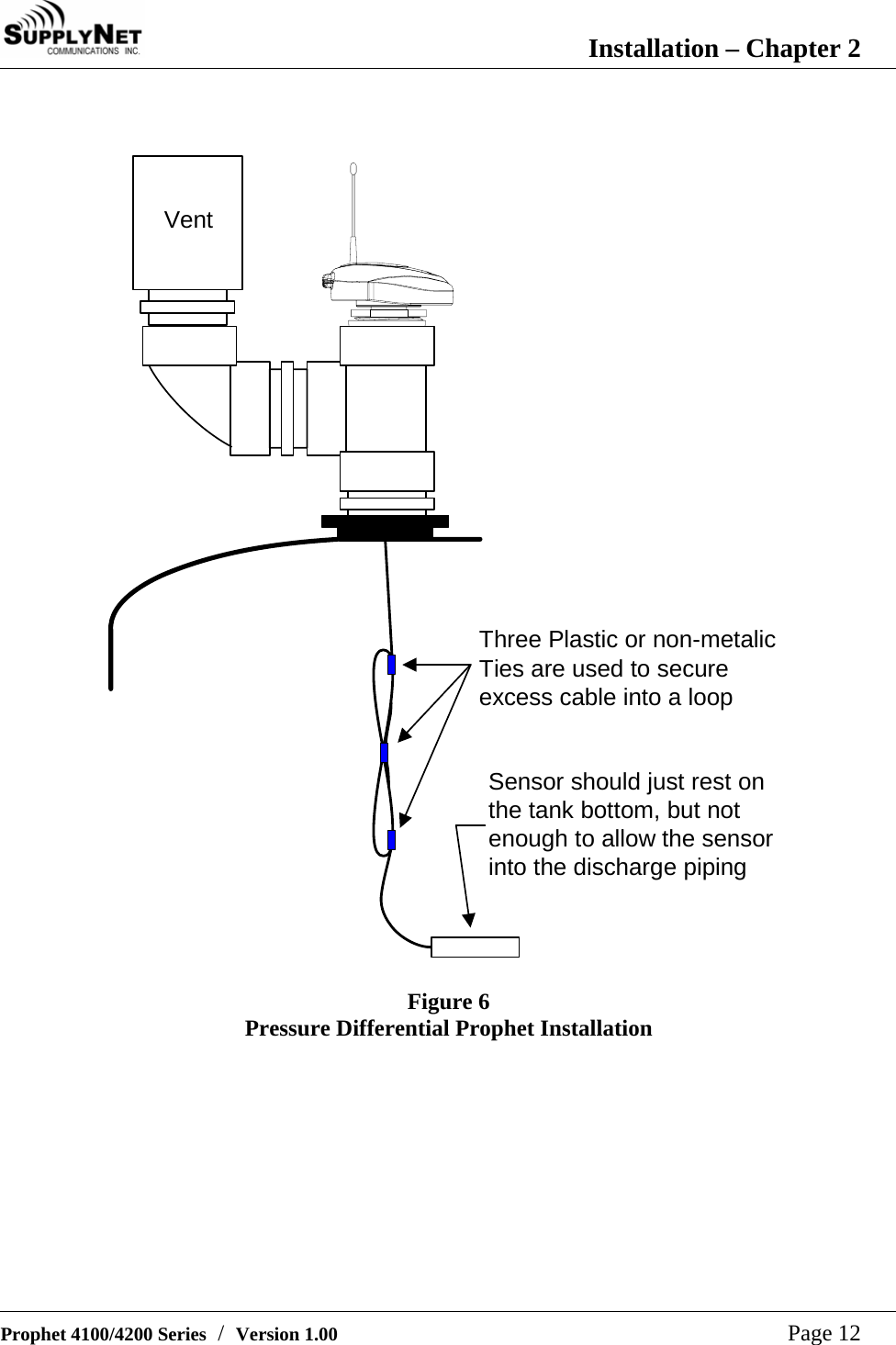
 Installation – Chapter 2   Prophet 4100/4200 Series  /  Version 1.00   Page 11 2-6  Mounting a Differential Pressure Unit Differential Pressure Prophets operate by measuring the pressure (weight) of the liquid the sensor is submerged into. This pressure is proportional to the density of the liquid.  The opening on the end of the sensor contains an exposed diaphragm which responds to changes in liquid pressure as the tank is filled or emptied with product.  This measured pressure is compared against atmospheric pressure, and is converted to a readable signal by a microprocessor in the Prophet.  Please note that the sensor and sensor cable must be clean when installed, to avoid contamination of the contents of the tank.  These tanks are inspected for product contamination, and the Prophet installation cannot compromise the product in the tank.  Care must be taken before and during installation to not strike the sensor against any stationary surface.  This can frequently occur during installation of the probe into the tank.  Shock may damage the probe causing it to fail prematurely.  CAUTION: ¾ Do not install the sensor in a liquid that is susceptible to freezing or at the bottom of a tank with water in it that may freeze. If the liquid freezes, it will damage the probe which will not be covered under warranty. ¾ Do not install the sensor in a tank with a mechanical agitator. ¾ Do not drop or strike the sensor against a solid object. This may damage the sensor or cause a shift in the output of the probe. ¾ Do not kink the probe cable. This could restrict the breather tube in the cable and cause fluctuating readings. ¾ Do not install the sensor where sludge or sediment can clog the probe opening. If necessary, suspend the sensor above the maximum level of the sediment. ¾ Do not cut the sensor cable. The length is not user-adjustable and this will void the warranty. ¾ Do not use the Prophet housing to screw the unit into the tank. Use only the wrench flats on the bottom fitting.  Typically there will be more cable than what is required for the sensor to reach the bottom of the tank.  If this “slack” cable can cause a problem,  if should be looped and secured using plastic or non-metalic ties, so the loop will not come apart.  A correct installation will result in the sensor just slightly resting at the bottom of the tank, with all excess slack secured in the loop.  There should not be enough excess cable for the sensor to enter into the discharge piping.  Refer to Figure 6. Verify that the sensor and cable slack loop can pass thru all plumbing without having to disassemble the plumbing.  Ensure the threads at the Prophet mounting point have not been compromised.  The Differential Pressure Prophet is now ready to be placed into service.
 Installation – Chapter 2   Prophet 4100/4200 Series  /  Version 1.00   Page 12   VentThree Plastic or non-metalicTies are used to secureexcess cable into a loopSensor should just rest onthe tank bottom, but notenough to allow the sensorinto the discharge piping  Figure 6 Pressure Differential Prophet Installation
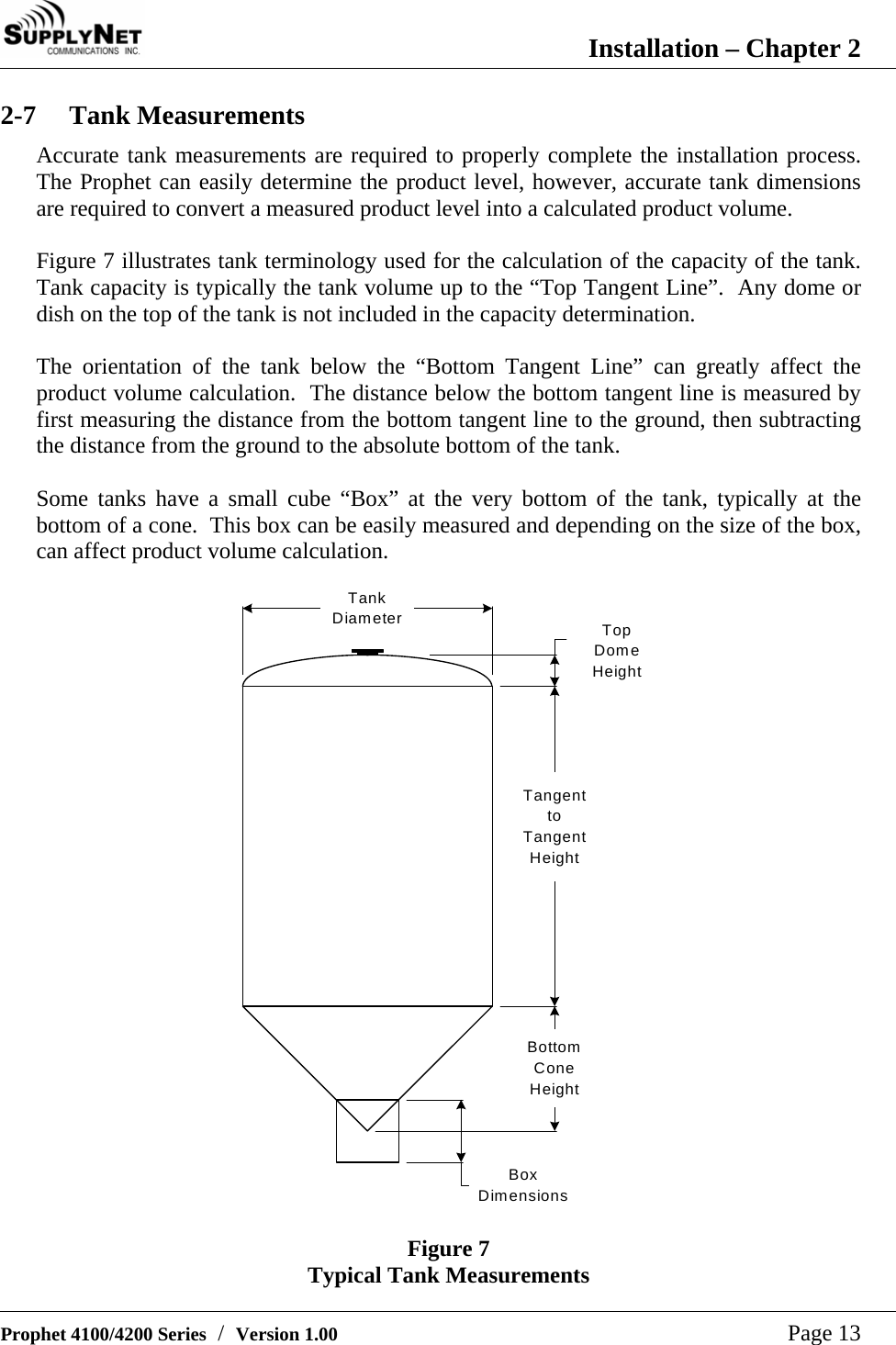
 Installation – Chapter 2   Prophet 4100/4200 Series  /  Version 1.00   Page 13 2-7 Tank Measurements Accurate tank measurements are required to properly complete the installation process.  The Prophet can easily determine the product level, however, accurate tank dimensions are required to convert a measured product level into a calculated product volume.  Figure 7 illustrates tank terminology used for the calculation of the capacity of the tank.  Tank capacity is typically the tank volume up to the “Top Tangent Line”.  Any dome or dish on the top of the tank is not included in the capacity determination.  The orientation of the tank below the “Bottom Tangent Line” can greatly affect the product volume calculation.  The distance below the bottom tangent line is measured by first measuring the distance from the bottom tangent line to the ground, then subtracting the distance from the ground to the absolute bottom of the tank.  Some tanks have a small cube “Box” at the very bottom of the tank, typically at the bottom of a cone.  This box can be easily measured and depending on the size of the box, can affect product volume calculation.  TankDiameterTangenttoTangentHeightBottomConeHeightTopDomeHeightBoxDimensions Figure 7 Typical Tank Measurements
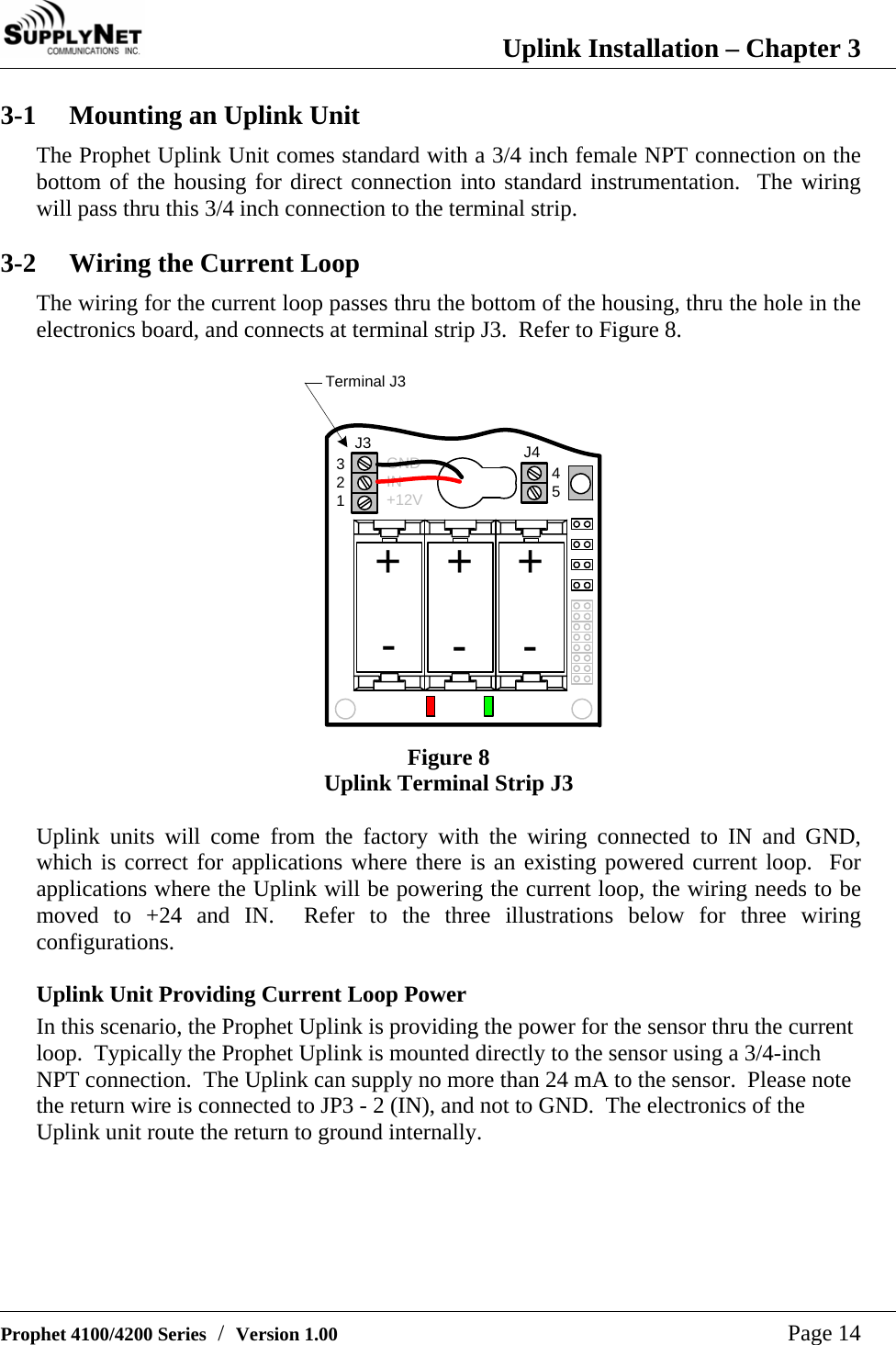
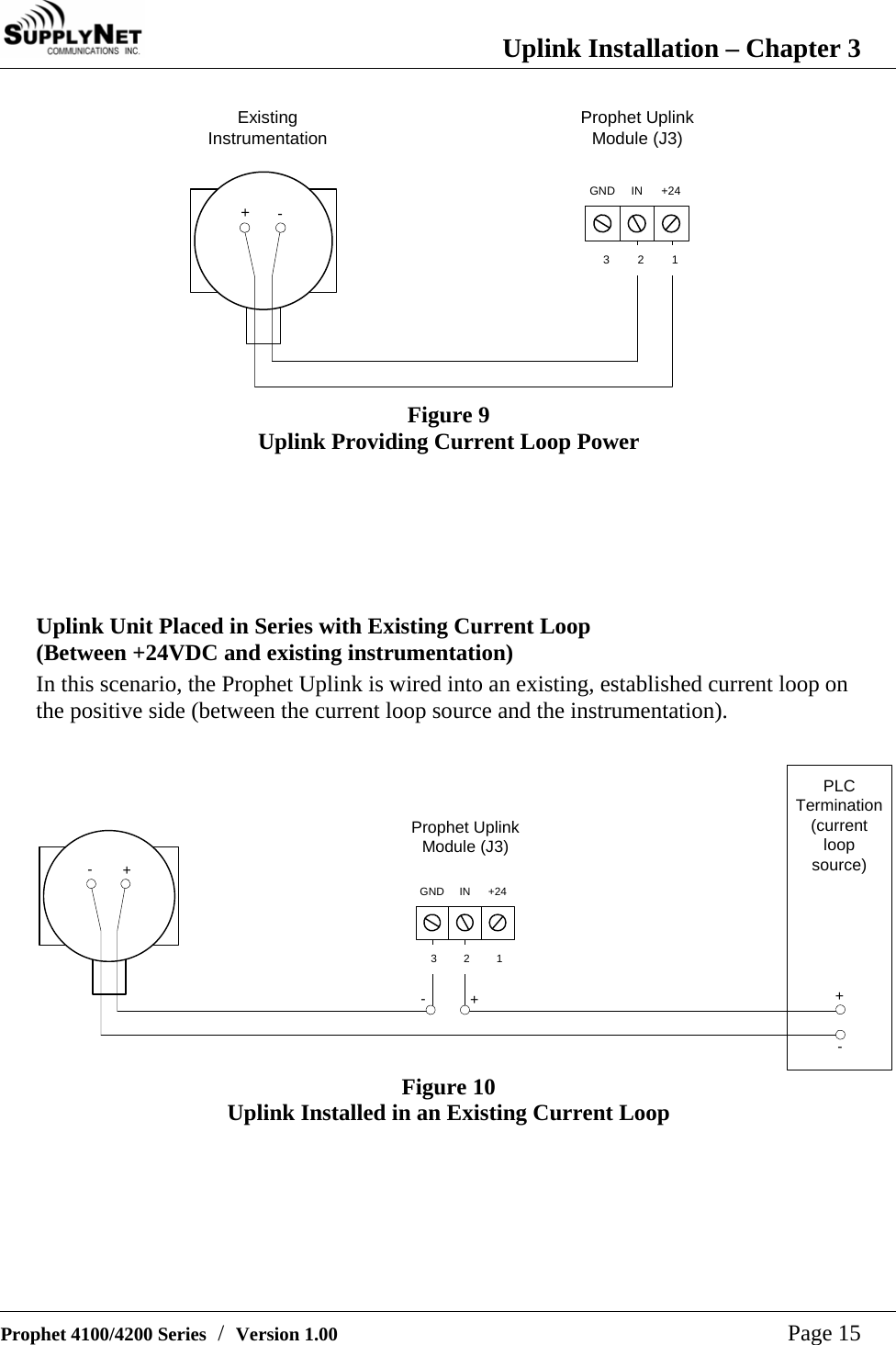
 Uplink Installation – Chapter 3   Prophet 4100/4200 Series  /  Version 1.00   Page 14 3-1  Mounting an Uplink Unit The Prophet Uplink Unit comes standard with a 3/4 inch female NPT connection on the bottom of the housing for direct connection into standard instrumentation.  The wiring will pass thru this 3/4 inch connection to the terminal strip.  3-2  Wiring the Current Loop The wiring for the current loop passes thru the bottom of the housing, thru the hole in the electronics board, and connects at terminal strip J3.  Refer to Figure 8.    Terminal J3+J3 J432145++---GNDIN+12V Figure 8 Uplink Terminal Strip J3  Uplink units will come from the factory with the wiring connected to IN and GND, which is correct for applications where there is an existing powered current loop.  For applications where the Uplink will be powering the current loop, the wiring needs to be moved to +24 and IN.  Refer to the three illustrations below for three wiring configurations.  Uplink Unit Providing Current Loop Power In this scenario, the Prophet Uplink is providing the power for the sensor thru the current loop.  Typically the Prophet Uplink is mounted directly to the sensor using a 3/4-inch NPT connection.  The Uplink can supply no more than 24 mA to the sensor.  Please note the return wire is connected to JP3 - 2 (IN), and not to GND.  The electronics of the Uplink unit route the return to ground internally.
 Uplink Installation – Chapter 3   Prophet 4100/4200 Series  /  Version 1.00   Page 15 ExistingInstrumentation-+GND IN +24Prophet UplinkModule (J3)3 2 1 Figure 9 Uplink Providing Current Loop Power       Uplink Unit Placed in Series with Existing Current Loop (Between +24VDC and existing instrumentation) In this scenario, the Prophet Uplink is wired into an existing, established current loop on the positive side (between the current loop source and the instrumentation).    PLCTermination(currentloopsource)+-+-+-GND IN +24Prophet UplinkModule (J3)3 2 1Figure 10 Uplink Installed in an Existing Current Loop
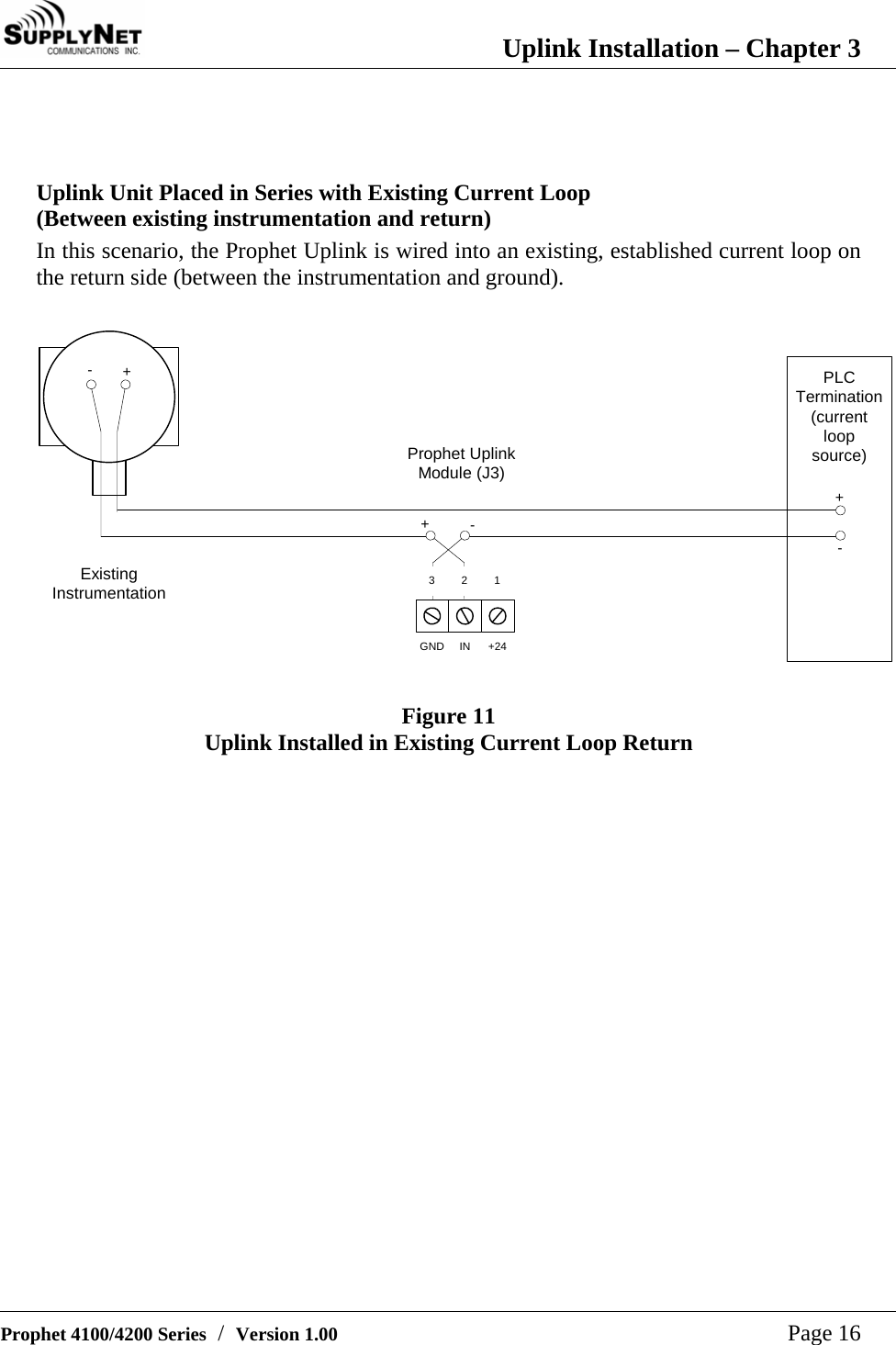
 Uplink Installation – Chapter 3   Prophet 4100/4200 Series  /  Version 1.00   Page 16    Uplink Unit Placed in Series with Existing Current Loop (Between existing instrumentation and return) In this scenario, the Prophet Uplink is wired into an existing, established current loop on the return side (between the instrumentation and ground).    PLCTermination(currentloopsource)ExistingInstrumentation+-+--+GND IN +24Prophet UplinkModule (J3)3 2 1 Figure 11 Uplink Installed in Existing Current Loop Return
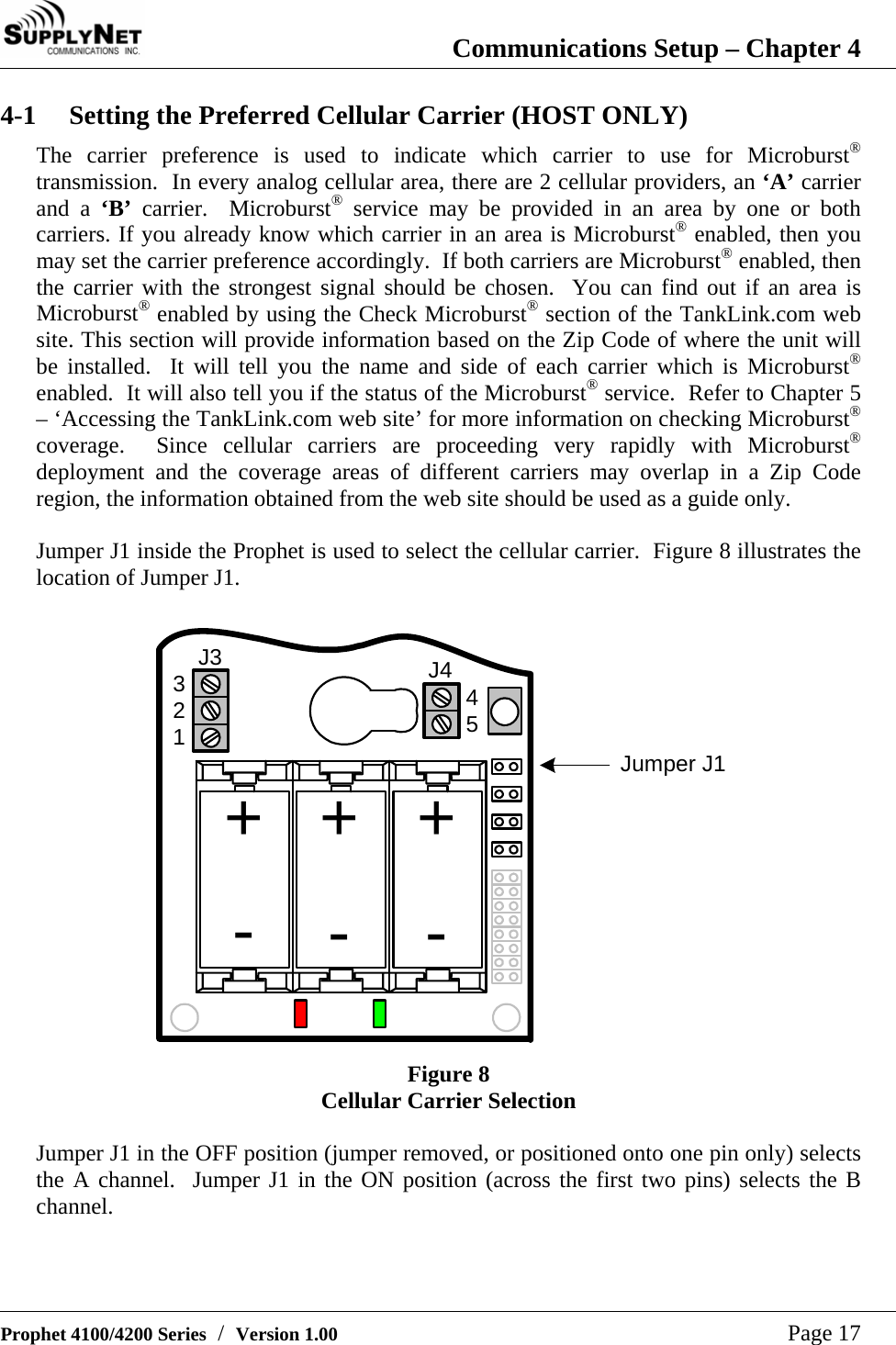
 Communications Setup – Chapter 4   Prophet 4100/4200 Series  /  Version 1.00   Page 17 4-1  Setting the Preferred Cellular Carrier (HOST ONLY) The carrier preference is used to indicate which carrier to use for Microburst® transmission.  In every analog cellular area, there are 2 cellular providers, an ‘A’ carrier and a ‘B’ carrier.  Microburst® service may be provided in an area by one or both carriers. If you already know which carrier in an area is Microburst® enabled, then you may set the carrier preference accordingly.  If both carriers are Microburst® enabled, then the carrier with the strongest signal should be chosen.  You can find out if an area is Microburst® enabled by using the Check Microburst® section of the TankLink.com web site. This section will provide information based on the Zip Code of where the unit will be installed.  It will tell you the name and side of each carrier which is Microburst® enabled.  It will also tell you if the status of the Microburst® service.  Refer to Chapter 5 – ‘Accessing the TankLink.com web site’ for more information on checking Microburst® coverage.  Since cellular carriers are proceeding very rapidly with Microburst® deployment and the coverage areas of different carriers may overlap in a Zip Code region, the information obtained from the web site should be used as a guide only.  Jumper J1 inside the Prophet is used to select the cellular carrier.  Figure 8 illustrates the location of Jumper J1.  Jumper J1+J3 J432145++--- Figure 8 Cellular Carrier Selection  Jumper J1 in the OFF position (jumper removed, or positioned onto one pin only) selects the A channel.  Jumper J1 in the ON position (across the first two pins) selects the B channel.
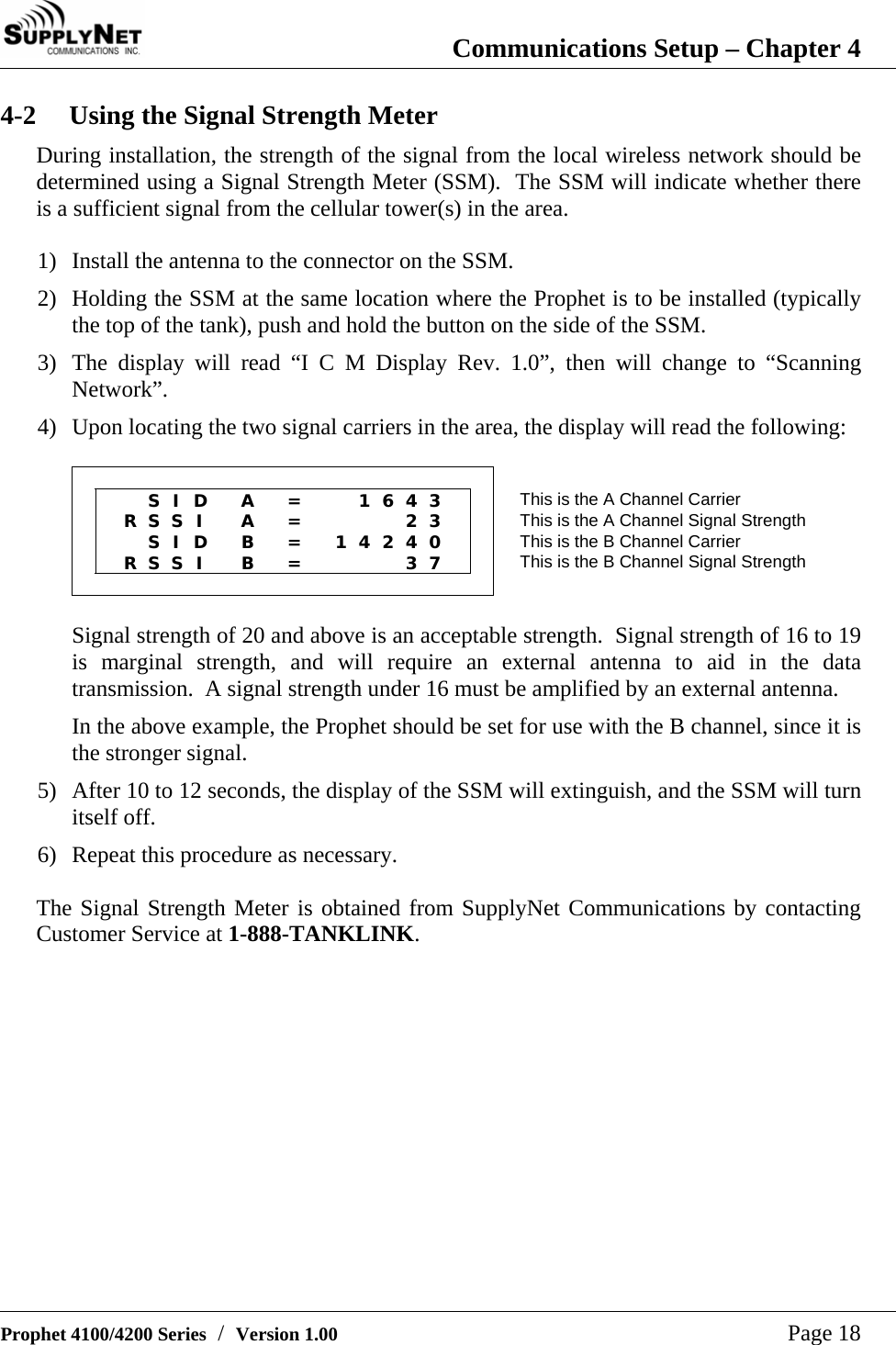
 Communications Setup – Chapter 4   Prophet 4100/4200 Series  /  Version 1.00   Page 18 4-2  Using the Signal Strength Meter During installation, the strength of the signal from the local wireless network should be determined using a Signal Strength Meter (SSM).  The SSM will indicate whether there is a sufficient signal from the cellular tower(s) in the area.  1) Install the antenna to the connector on the SSM. 2) Holding the SSM at the same location where the Prophet is to be installed (typically the top of the tank), push and hold the button on the side of the SSM. 3) The display will read “I C M Display Rev. 1.0”, then will change to “Scanning Network”. 4) Upon locating the two signal carriers in the area, the display will read the following:                        S I D  A  =   1 6 4 3   This is the A Channel Carrier   R S S I    A  =     2 3   This is the A Channel Signal Strength    S I D  B  =  1 4 2 4 0   This is the B Channel Carrier   R S S I    B  =     3 7   This is the B Channel Signal Strength                     Signal strength of 20 and above is an acceptable strength.  Signal strength of 16 to 19 is marginal strength, and will require an external antenna to aid in the data transmission.  A signal strength under 16 must be amplified by an external antenna. In the above example, the Prophet should be set for use with the B channel, since it is the stronger signal. 5) After 10 to 12 seconds, the display of the SSM will extinguish, and the SSM will turn itself off. 6) Repeat this procedure as necessary.  The Signal Strength Meter is obtained from SupplyNet Communications by contacting Customer Service at 1-888-TANKLINK.
 Communications Setup – Chapter 4   Prophet 4100/4200 Series  /  Version 1.00   Page 19 4-3  Amplifying a Weak Carrier Signal If the signal strength is measured to be weak (below 20), or if data transmissions are intermittent, an external antenna can be used as a replacement to the small antenna supplied with the Prophet.  The external antenna connects directly to a Prophet with no adapter connector necessary, thereby improving the antenna’s performance.  The external antenna comes with 17 feet (5.18 meter) of cable, and has two types of mounting bases (magnetic or clamp). 1) Position the external antenna at a location within cable reach of the Prophet’s installation. 2) Holding the SSM at the same location where the Prophet is to be installed (typically the top of the tank), remove the SSM’s antenna and connect the larger external antenna to the SSM. 3) Verify the signal has been amplified, by observing the results obtained from the SSM. 4) If the signal has been amplified to a level of 20 or greater, proceed to the next step.  If the signal is still unacceptable (below 20), see if the external antenna can be moved to a different location, possibly outside the building or higher into the buildings roof. 5) Secure the external antenna using either the magnetic base, or the clamp base supplied with the antenna. 6) Connect the external antenna cable directly to the Prophet.  4-4  Setting the Number of Callouts per Day (Host Only) The Prophet jumpers can be set such that it transmits the current data once every 8 hours, or once every 24 hours.  The first callout is set when the white button is pressed for a forced transmission.  For instance: The white button is pressed during commissioning at 9:00 am.  For a transmission every 24 hours, an automatic reading will be transmitted every day at 9:00 am.  For a transmission every 8 hours, the reading will be transmitted at 9:00 am, 5:00 pm, and 1:00 am.  CAUTION: If you set the number of calls to a number greater than the number of calls included in your service agreement, then an additional fee will be charged for each call above your allotment.
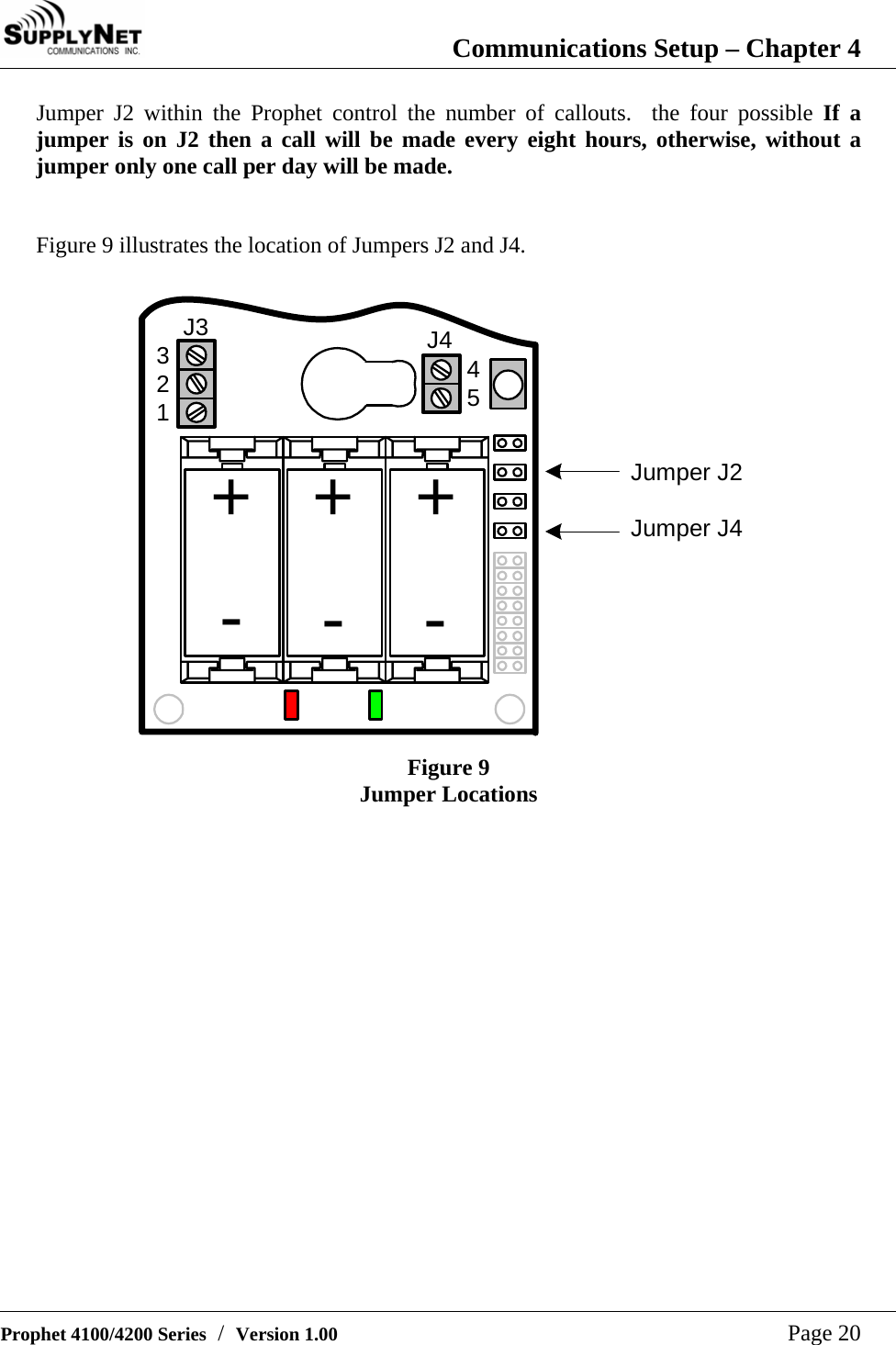
 Communications Setup – Chapter 4   Prophet 4100/4200 Series  /  Version 1.00   Page 20 Jumper J2 within the Prophet control the number of callouts.  the four possible If a jumper is on J2 then a call will be made every eight hours, otherwise, without a jumper only one call per day will be made.   Figure 9 illustrates the location of Jumpers J2 and J4.  Jumper J2Jumper J4+J3 J432145++--- Figure 9 Jumper Locations
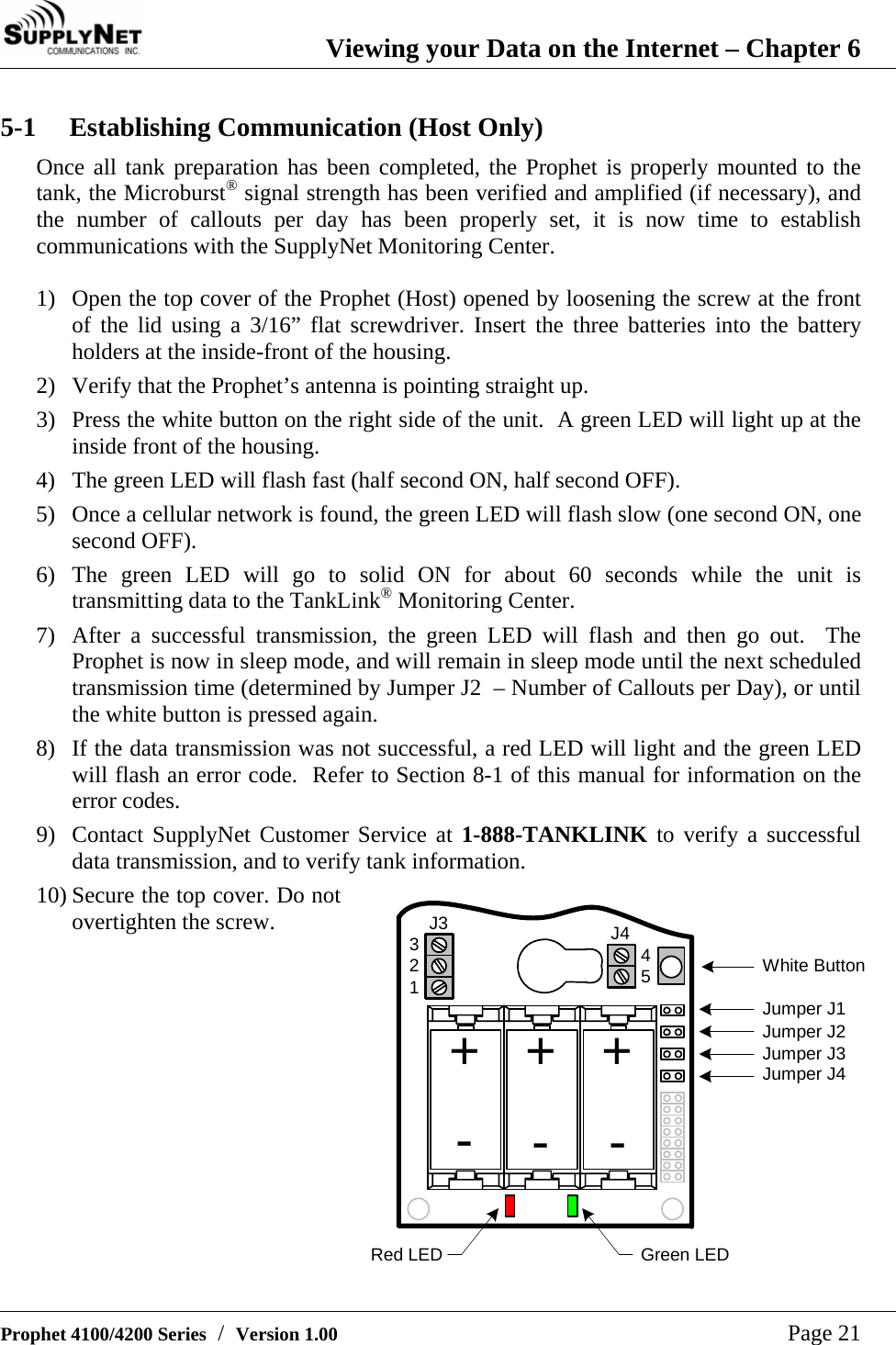
 Viewing your Data on the Internet – Chapter 6   Prophet 4100/4200 Series  /  Version 1.00   Page 21 5-1  Establishing Communication (Host Only) Once all tank preparation has been completed, the Prophet is properly mounted to the tank, the Microburst® signal strength has been verified and amplified (if necessary), and the number of callouts per day has been properly set, it is now time to establish communications with the SupplyNet Monitoring Center.  1) Open the top cover of the Prophet (Host) opened by loosening the screw at the front of the lid using a 3/16” flat screwdriver. Insert the three batteries into the battery holders at the inside-front of the housing.  2) Verify that the Prophet’s antenna is pointing straight up. 3) Press the white button on the right side of the unit.  A green LED will light up at the inside front of the housing. 4) The green LED will flash fast (half second ON, half second OFF). 5) Once a cellular network is found, the green LED will flash slow (one second ON, one second OFF). 6) The green LED will go to solid ON for about 60 seconds while the unit is transmitting data to the TankLink® Monitoring Center. 7) After a successful transmission, the green LED will flash and then go out.  The Prophet is now in sleep mode, and will remain in sleep mode until the next scheduled transmission time (determined by Jumper J2  – Number of Callouts per Day), or until the white button is pressed again. 8) If the data transmission was not successful, a red LED will light and the green LED will flash an error code.  Refer to Section 8-1 of this manual for information on the error codes. 9) Contact SupplyNet Customer Service at 1-888-TANKLINK to verify a successful data transmission, and to verify tank information. 10) Secure the top cover. Do not overtighten the screw.            Green LEDWhite ButtonRed LEDJumper J1Jumper J2Jumper J3Jumper J4+J3 J432145++---
 Viewing your Data on the Internet – Chapter 6   Prophet 4100/4200 Series  /  Version 1.00   Page 22 5-2 Normal Operation After communication has been established, and the tank information has been given to the SupplyNet Monitoring Center, the Prophet will continue to transmit data based upon the number of callouts per day set.  This tank data can be accessed thru the internet.  Refer to Chapter 6 of this manual for information on accessing this data.    5-3 Client  Operation  After communication has been established using the Host unit, any Clients you may have for additional tanks may be installed in the same manner as the Host. It is recommended that the Client start button be pressed near the intended installation point before actual installation in the tank. This ensures that the Client is within communications range of the Host. All lights on the Host should be off during the time the Client/Host communications takes place. The normal Client sequence of lights is as follows:   (1) The green LED blinks for five seconds and then remains on. (2) After a few seconds the green LED will blink twice and go out. The unit is now asleep and the call was successful. (3) If a communications error occurs,  then the red LED will light and the green LED will blink six times to indicate this problem. Please contact SupplyNet Communications for help in resolving this.     6-1 Accessing the TankLink Web site The real power behind the TankLink® Inventory management system is the TankLink.com web site.  On this web site, you may view the current level and status of your devices using a standard web browser (ie. Microsoft Internet Explorer® or Netscape Navigator®), download your historical data to applications such as Microsoft Excel®, or set up alarm levels to automatically trigger events such as an e-mail or page to a local service or sales representative.  On this web site you may also check to see if Microburst® service is available in any area of the country.  The TankLink.com web site is a secure web site which utilizes the latest in internet encryption technology to ensure that your data stays confidential.  It is constantly being upgraded and new features are being added periodically.  To obtain the latest details on how to use the new features of the web site, follow the links to the help section of the web site.
 Viewing your Data on the Internet – Chapter 6   Prophet 4100/4200 Series  /  Version 1.00   Page 23   The web site for accessing the tank data may be accessed from any computer with internet access by going to the following URL:  http://www.tanklink.com  This will bring you to the SupplyNet Communications tank data Logon page.  To view your data on the web you must first have a Logon and Password.  A Logon and Password will be provided to you or to your representative when the service agreement with SupplyNet Communications is finalized.  If you have forgotten your logon or password or need a new one, please contact the SupplyNet Customer Service at  1-888-TANKLINK.   Once a valid logon and password have been entered, you may select which tanks to view.  Tanks may be viewed by geographical location, product type, region, etc. Once the tank levels are viewed, detailed information for each tank may be viewed, edited, or the historical data for the tank may be viewed.  When a unit is sold by SupplyNet Communications, a default tank entry is set up on the web site and it is assigned to the logon.  When the unit is installed, the pertinent information will need to be set up on the web site by the customer. This includes: Tank Name, Product type, Tank Location, Contact information, etc.
 Specifications – Chapter 7   Prophet 4100/4200 Series  /  Version 1.00   Page 24 7-1 Prophet Specifications Performance Specifications: Output Voltage Nominally 24V ± 5% Output Current  Rated from 0 – 24 mA Load Regulation  0.5% from a 24 mA load Ripple  50 mV peak-to-peak Output Short Circuit Protection  Output is current limited to 24 mA Accuracy  ± 1% of Span   Hardware Specifications: Differential Pressure Sensor  SS316; 1 inch (25 mm) OD x 3 inch (76 mm) length; 0-30 psi (0-2.1 kg/cm2) operating range for 34 ft (10.3 meter) cable; 7.5 psi (0-0.53 kg/cm2) for 17 ft (5.1 meter) cable. 2” Polypropylene NPT fitting. Ultrasonic Sensor  PVDF Kynar construction exposed to wetted portion of the tank. Housing  NEMA 4X; weatherproof; UL approved (UL94V0); glass-filled nylon Area Classification  General Purpose environment Unit Gross Weight  With Ultrasonic Level Sensor: 2.0 lbs (0.91 kg) With 7.5 psi range Submersible Differential Pressure Sensor: 2.1 lbs (0.95 kg) With 15 psi range Submersible Differential Pressure Sensor: 2.6 lbs (1.18 kg)   Battery: Type  Three Replaceable Lithium-Ion Batteries (CR-123) Expected Battery Life  One call out per day – up to 3 years (HOST) Three call outs per day – up to 1 year (HOST)  One call out per day – up to 5 years (CLIENT) Three call outs per day – up to 2-3 years (CLIENT)  HOST/CLIENT Transmission Range   150 to 300 feet for line of sight transmission  Environment: Storage Temperature Range  -40˚ to 185˚F  (-40˚ to 85˚C) Operating Temperature Range  -20˚ to 160˚F  (-28˚ to 71˚C)  Antenna Connector Type  Standard SMA Frequency Band  824-896 MHz
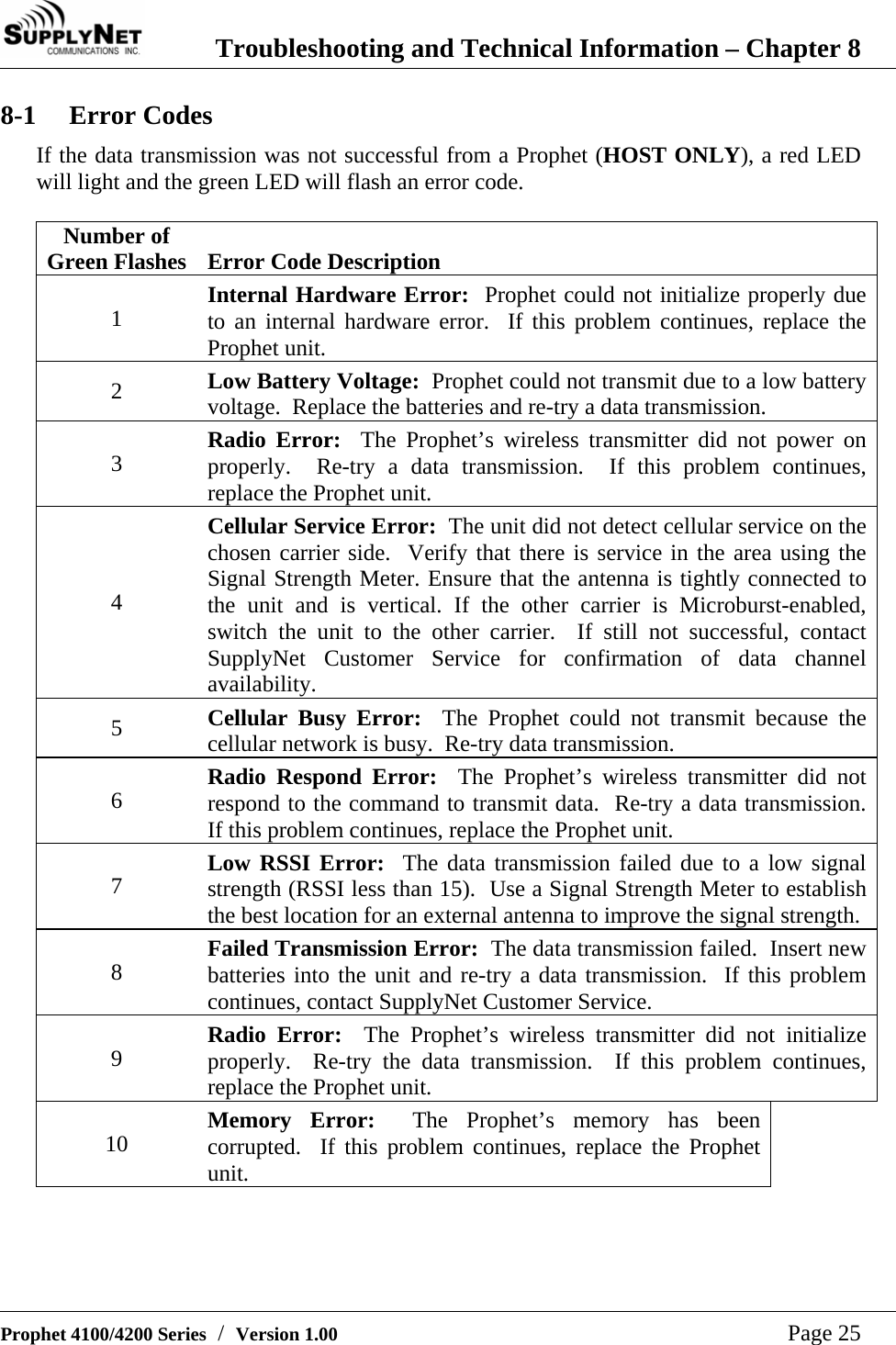
 Troubleshooting and Technical Information – Chapter 8   Prophet 4100/4200 Series  /  Version 1.00   Page 25 8-1 Error Codes If the data transmission was not successful from a Prophet (HOST ONLY), a red LED will light and the green LED will flash an error code.  Number of Green Flashes   Error Code Description 1  Internal Hardware Error:  Prophet could not initialize properly due to an internal hardware error.  If this problem continues, replace the Prophet unit. 2  Low Battery Voltage:  Prophet could not transmit due to a low battery voltage.  Replace the batteries and re-try a data transmission. 3  Radio Error:  The Prophet’s wireless transmitter did not power on properly.  Re-try a data transmission.  If this problem continues, replace the Prophet unit. 4 Cellular Service Error:  The unit did not detect cellular service on the chosen carrier side.  Verify that there is service in the area using the Signal Strength Meter. Ensure that the antenna is tightly connected to the unit and is vertical. If the other carrier is Microburst-enabled, switch the unit to the other carrier.  If still not successful, contact SupplyNet Customer Service for confirmation of data channel availability. 5  Cellular Busy Error:  The Prophet could not transmit because the cellular network is busy.  Re-try data transmission. 6  Radio Respond Error:  The Prophet’s wireless transmitter did not respond to the command to transmit data.  Re-try a data transmission.  If this problem continues, replace the Prophet unit. 7  Low RSSI Error:  The data transmission failed due to a low signal strength (RSSI less than 15).  Use a Signal Strength Meter to establish the best location for an external antenna to improve the signal strength. 8  Failed Transmission Error:  The data transmission failed.  Insert new batteries into the unit and re-try a data transmission.  If this problem continues, contact SupplyNet Customer Service. 9  Radio Error:  The Prophet’s wireless transmitter did not initialize properly.  Re-try the data transmission.  If this problem continues, replace the Prophet unit. 10  Memory Error:  The Prophet’s memory has been corrupted.  If this problem continues, replace the Prophet unit.
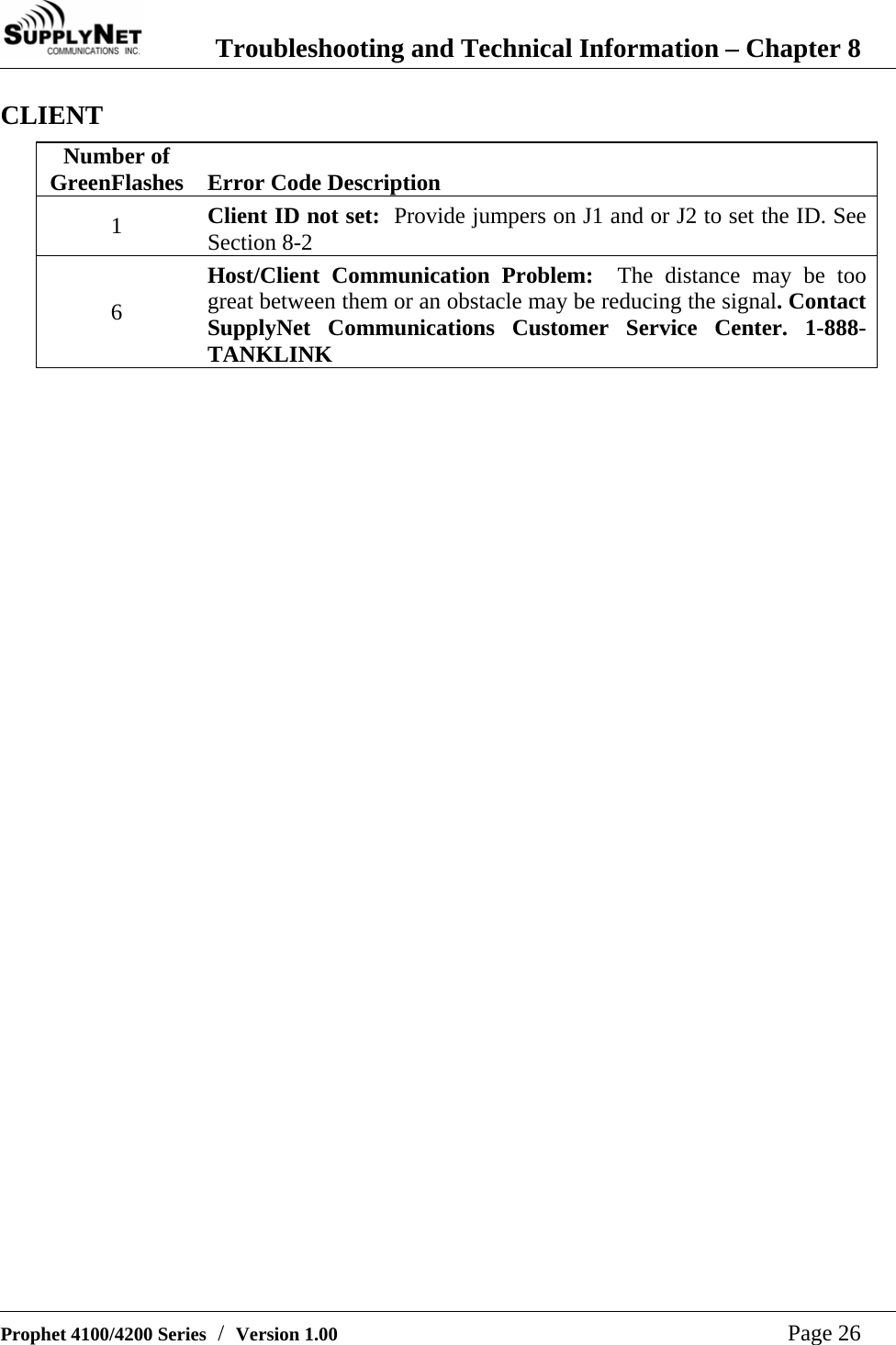
 Troubleshooting and Technical Information – Chapter 8   Prophet 4100/4200 Series  /  Version 1.00   Page 26 CLIENT Number of GreenFlashes   Error Code Description 1  Client ID not set:  Provide jumpers on J1 and or J2 to set the ID. See Section 8-2 6 Host/Client Communication Problem:  The distance may be too great between them or an obstacle may be reducing the signal. Contact SupplyNet Communications Customer Service Center. 1-888-TANKLINK
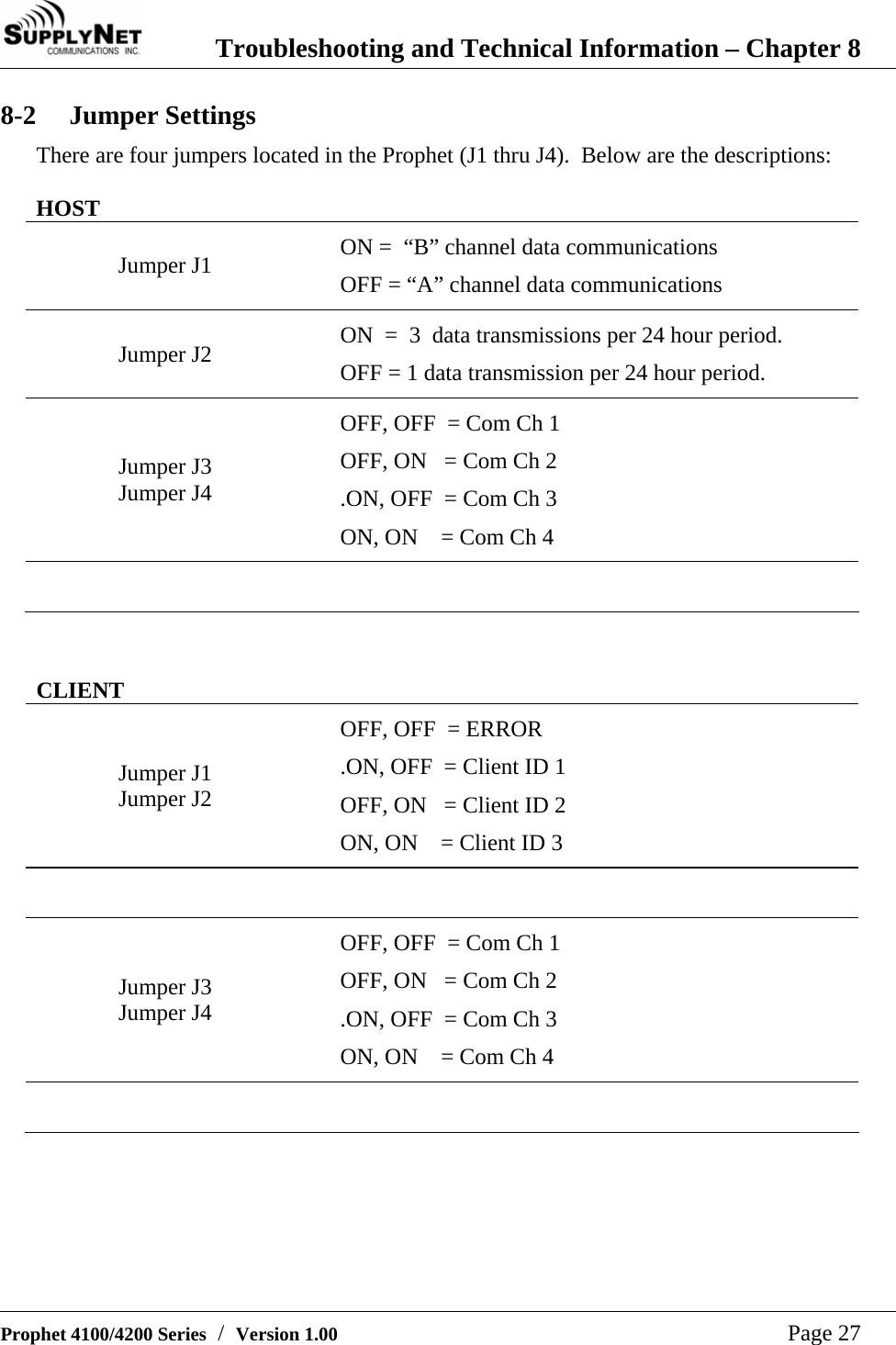
 Troubleshooting and Technical Information – Chapter 8   Prophet 4100/4200 Series  /  Version 1.00   Page 27 8-2 Jumper Settings There are four jumpers located in the Prophet (J1 thru J4).  Below are the descriptions:  HOST Jumper J1  ON =  “B” channel data communications OFF = “A” channel data communications Jumper J2  ON  =  3  data transmissions per 24 hour period. OFF = 1 data transmission per 24 hour period. Jumper J3 Jumper J4 OFF, OFF  = Com Ch 1 OFF, ON   = Com Ch 2 .ON, OFF  = Com Ch 3 ON, ON    = Com Ch 4     CLIENT Jumper J1 Jumper J2 OFF, OFF  = ERROR .ON, OFF  = Client ID 1 OFF, ON   = Client ID 2 ON, ON    = Client ID 3   Jumper J3 Jumper J4 OFF, OFF  = Com Ch 1 OFF, ON   = Com Ch 2 .ON, OFF  = Com Ch 3 ON, ON    = Com Ch 4
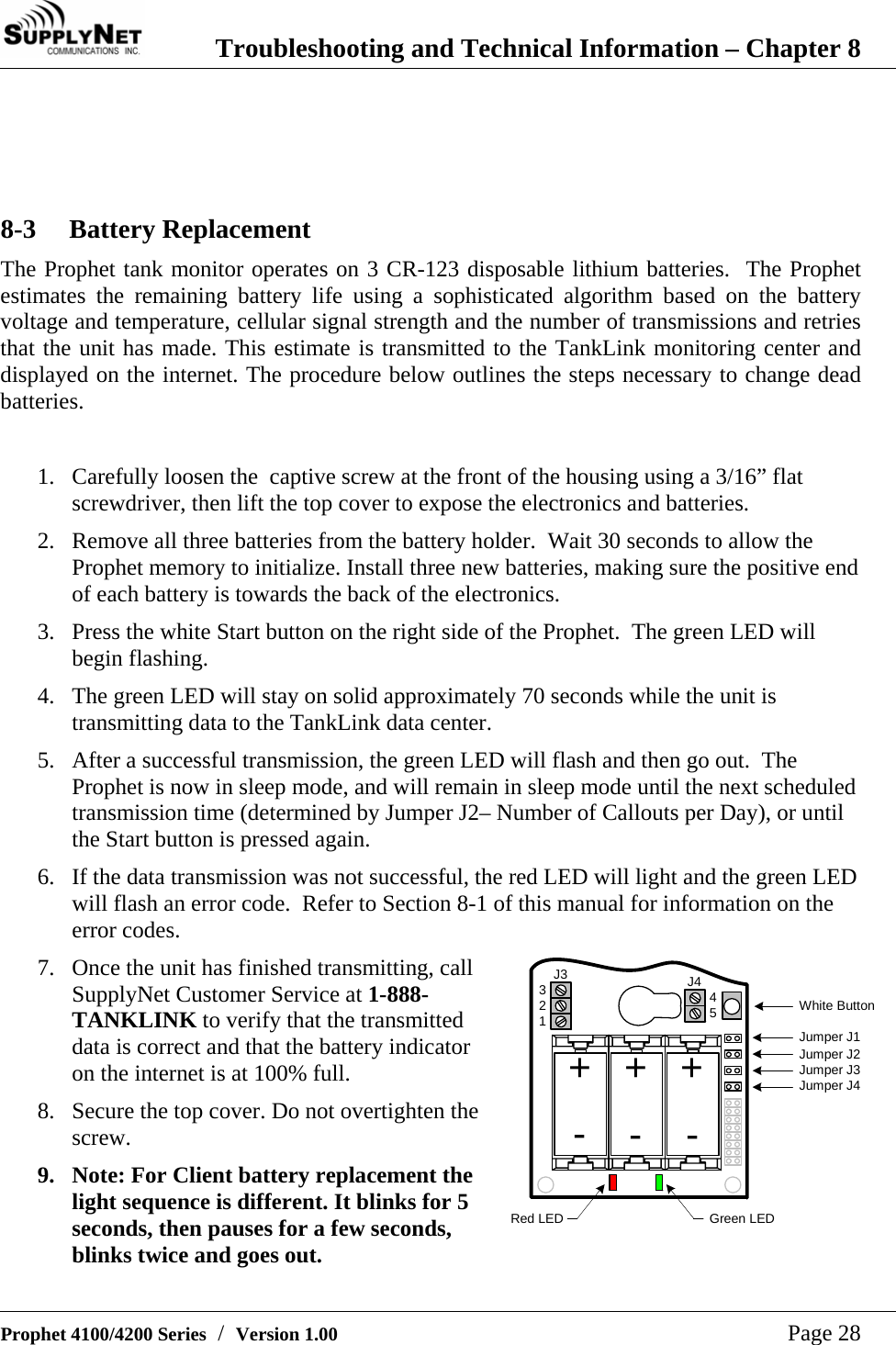
 Troubleshooting and Technical Information – Chapter 8   Prophet 4100/4200 Series  /  Version 1.00   Page 28    8-3 Battery Replacement The Prophet tank monitor operates on 3 CR-123 disposable lithium batteries.  The Prophet estimates the remaining battery life using a sophisticated algorithm based on the battery voltage and temperature, cellular signal strength and the number of transmissions and retries that the unit has made. This estimate is transmitted to the TankLink monitoring center and displayed on the internet. The procedure below outlines the steps necessary to change dead batteries.  1. Carefully loosen the  captive screw at the front of the housing using a 3/16” flat screwdriver, then lift the top cover to expose the electronics and batteries. 2. Remove all three batteries from the battery holder.  Wait 30 seconds to allow the Prophet memory to initialize. Install three new batteries, making sure the positive end of each battery is towards the back of the electronics. 3. Press the white Start button on the right side of the Prophet.  The green LED will begin flashing. 4. The green LED will stay on solid approximately 70 seconds while the unit is transmitting data to the TankLink data center. 5. After a successful transmission, the green LED will flash and then go out.  The Prophet is now in sleep mode, and will remain in sleep mode until the next scheduled transmission time (determined by Jumper J2– Number of Callouts per Day), or until the Start button is pressed again. 6. If the data transmission was not successful, the red LED will light and the green LED will flash an error code.  Refer to Section 8-1 of this manual for information on the error codes. 7. Once the unit has finished transmitting, call SupplyNet Customer Service at 1-888-TANKLINK to verify that the transmitted data is correct and that the battery indicator on the internet is at 100% full. 8. Secure the top cover. Do not overtighten the screw. 9. Note: For Client battery replacement the light sequence is different. It blinks for 5 seconds, then pauses for a few seconds, blinks twice and goes out. Green LEDWhite ButtonRed LEDJumper J1Jumper J2Jumper J3Jumper J4+J3 J432145++---
 Troubleshooting and Technical Information – Chapter 8   Prophet 4100/4200 Series  /  Version 1.00   Page 29 10. Once the batteries have been changed in the Host it will be necessary to manually start each Client. This is a necessary step to let the Host know what Clients are active. This information is lost when the Host batteries are removed.
 Troubleshooting and Technical Information – Chapter 8   Prophet 4100/4200 Series  /  Version 1.00   Page 30 8-4 Troubleshooting  Nothing happens when the Start switch is pressed. 9 Remove all of the batteries. Wait 30 seconds to initialize the Prophet memory and then reinsert the batteries. If the green LED does not come on when the switch is pressed, replace the batteries with new ones.  Unit cannot transmit to data center. 9 Verify that the RSSI is greater than 20. 9 Verify that there is Microburst® service on the side selected in the carrier preference setting. 9 Check for interfering structures such as tanks, buildings, or large equipment. 9 Reposition the unit if possible. 9 Check that the antenna connection to the  unit is tight. 9 Verify the Serial Number of the unit on the web site. 9 Use an external antenna.  The level reading is incorrect. 9 Normally, all of the sensor parameters are set up by your TankLink account representative when the tank is initially configured. On rare occasions, the information may not be correctly entered. If you have verified the tank information and the tank level is still incorrect, there may be several causes for the incorrect reading. If it is a differential pressure sensor, verify the settings for the probe offset and the SGU. Either one of these settings may cause the reading to be off. If this is a 4-20mA current loop sensor, verify the 4mA and 20mA settings. If either of these settings is incorrect, then the level that is calculated from the sensor data will be wrong. 9 Verify the tank height.  The level reading is correct but volume is off. 9 Verify the tank capacity. This should be the volume in the tank at the tank height. If the tank has a slight cone top but a standard vertical strapping chart is used, then the tank height should be only to the shoulder of the tank. 9 Verify that the correct strapping chart is used.  The unit has stopped calling. 9 Replace the batteries.  9 Ensure that the antenna is tight and vertical.
 Troubleshooting and Technical Information – Chapter 8   Prophet 4100/4200 Series  /  Version 1.00   Page 31  8-5 Obtaining Technical Support  If you still are having trouble, contact SupplyNet Customer Service at:  1-888-TANKLINK    (1-888-826-5546)   You will need the following information: • Prophet Serial Number (label on the bottom of the unit or on the inside of the unit.  • Tank location (city/state). • Tank product   REMEMBER: For security reasons, no one from SupplyNet Communications will ever ask you for your logon or password.   If it should be necessary to return this unit to SupplyNet Communications for service:  1) You must first obtain a Return Authorization Number from SupplyNet Communications.  2) This number must be clearly marked on the outside of the shipping container and on the service card which was supplied with the unit. 3) Place the unit with the service card in the original container and ship it prepaid to the address on the service card.
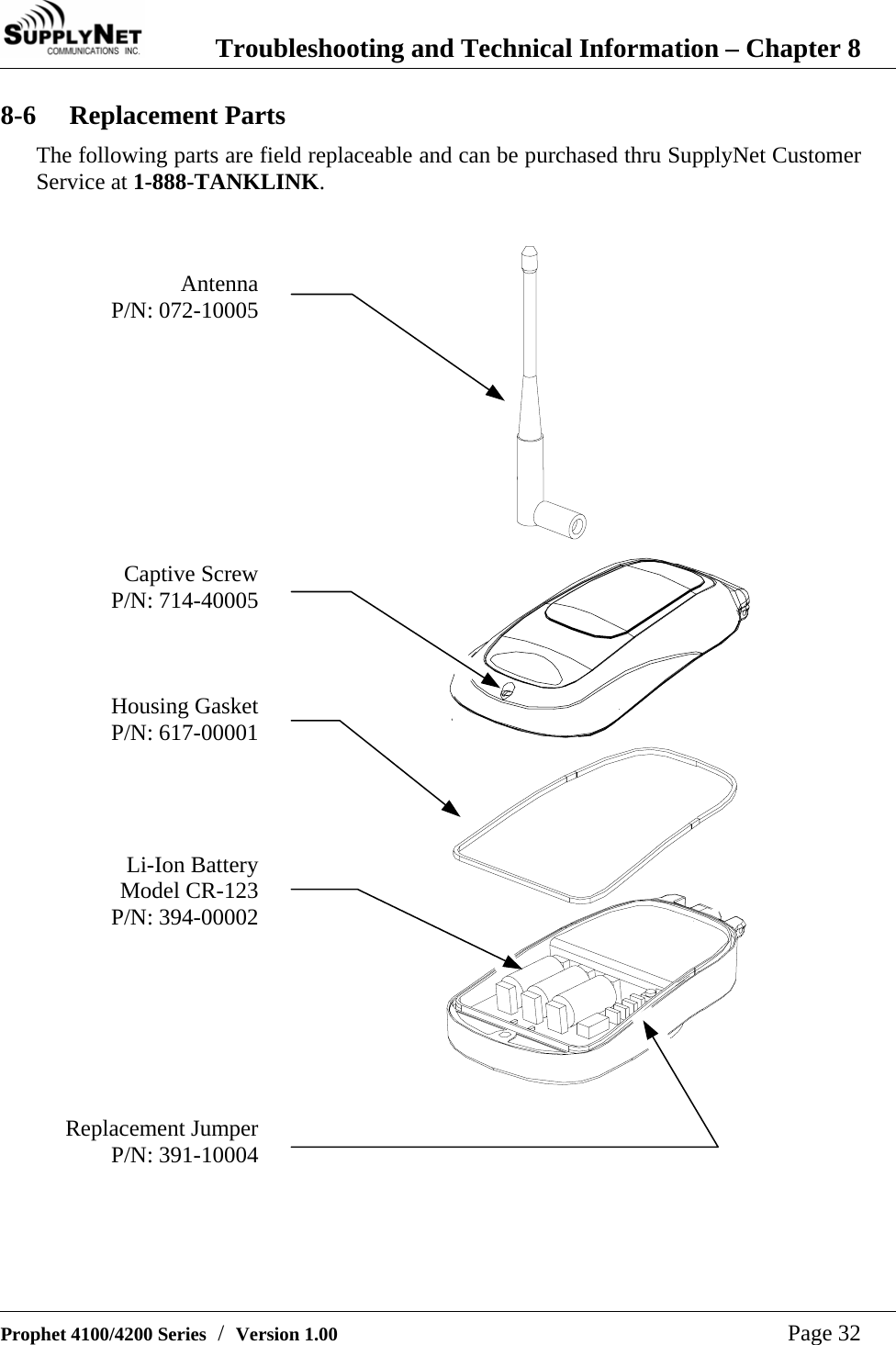
 Troubleshooting and Technical Information – Chapter 8   Prophet 4100/4200 Series  /  Version 1.00   Page 32 8-6 Replacement Parts The following parts are field replaceable and can be purchased thru SupplyNet Customer Service at 1-888-TANKLINK.   Antenna P/N: 072-10005          Captive Screw P/N: 714-40005    Housing Gasket P/N: 617-00001     Li-Ion Battery Model CR-123 P/N: 394-00002        Replacement Jumper P/N: 391-10004
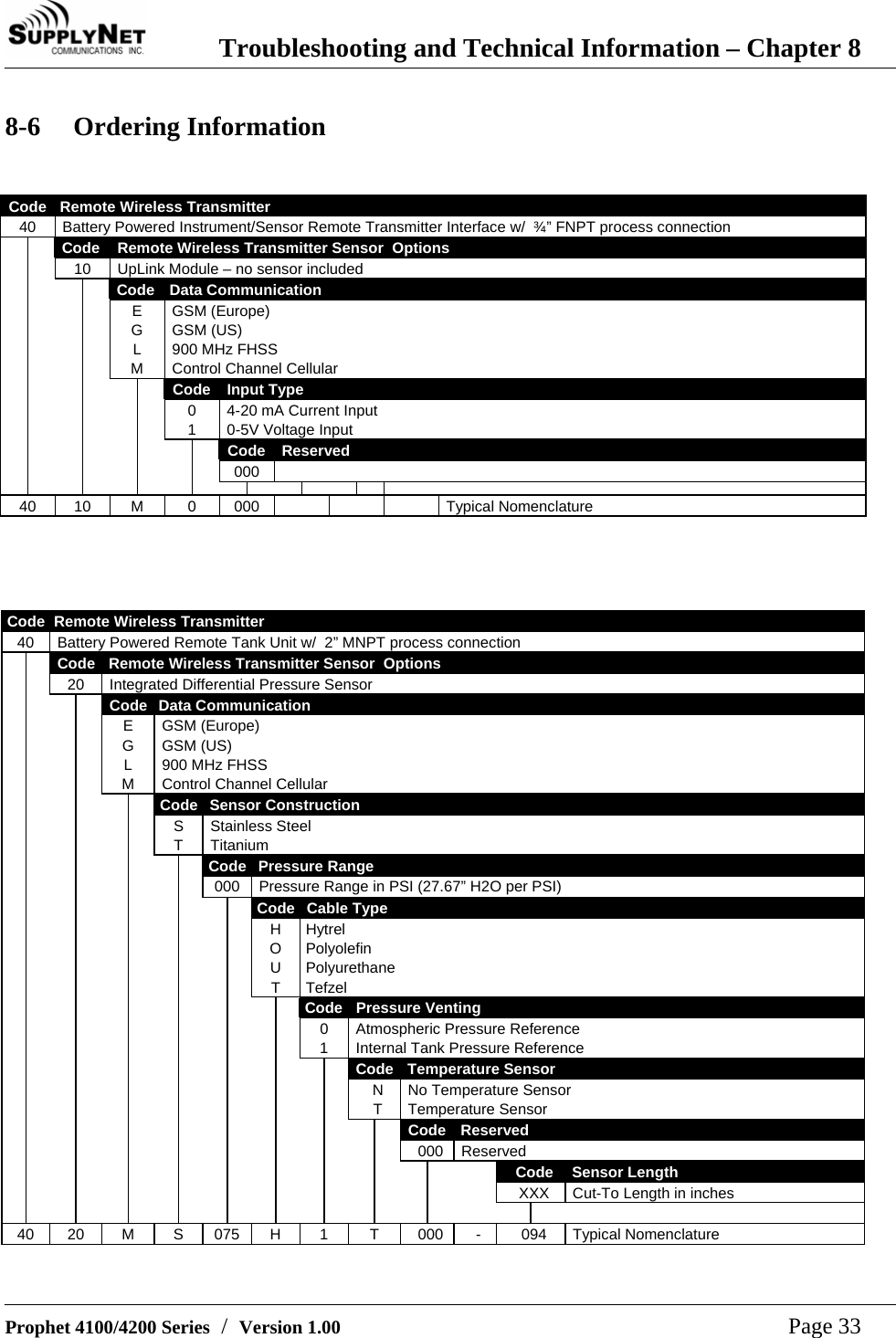
 Troubleshooting and Technical Information – Chapter 8   Prophet 4100/4200 Series  /  Version 1.00   Page 33 8-6 Ordering Information  Code   Remote Wireless Transmitter 40  Battery Powered Instrument/Sensor Remote Transmitter Interface w/  ¾” FNPT process connection   Code  Remote Wireless Transmitter Sensor  Options     10  UpLink Module – no sensor included        Code   Data Communication      E G L M GSM (Europe) GSM (US) 900 MHz FHSS  Control Channel Cellular       Code  Input Type         0 1 4-20 mA Current Input 0-5V Voltage Input         Code  Reserved          000  40 10 M  0 000       Typical Nomenclature    Code  Remote Wireless Transmitter 40  Battery Powered Remote Tank Unit w/  2” MNPT process connection   Code  Remote Wireless Transmitter Sensor  Options     20  Integrated Differential Pressure Sensor        Code   Data Communication       E G L M GSM (Europe) GSM (US) 900 MHz FHSS  Control Channel Cellular         Code  Sensor Construction          S T Stainless Steel Titanium           Code  Pressure Range                 000  Pressure Range in PSI (27.67” H2O per PSI)           Code  Cable Type            H O U T Hytrel Polyolefin Polyurethane Tefzel             Code Pressure Venting              0 1 Atmospheric Pressure Reference Internal Tank Pressure Reference               Code Temperature Sensor                N T No Temperature Sensor Temperature Sensor                 Code Reserved                  000 Reserved                         Code Sensor Length                       XXX Cut-To Length in inches                           40 20 M S 075 H 1  T 000 - 094 Typical Nomenclature
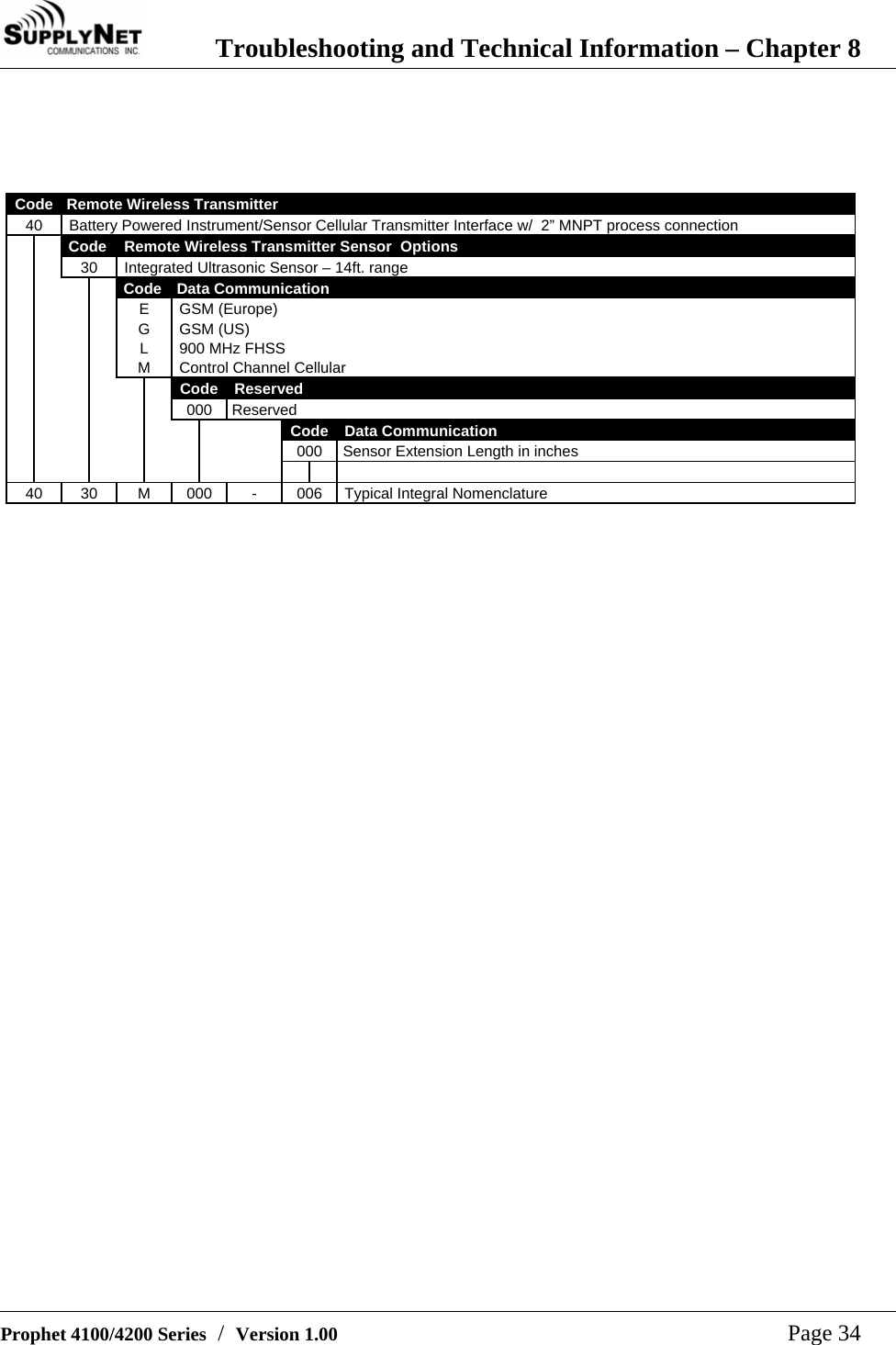
 Troubleshooting and Technical Information – Chapter 8   Prophet 4100/4200 Series  /  Version 1.00   Page 34     Code   Remote Wireless Transmitter 40  Battery Powered Instrument/Sensor Cellular Transmitter Interface w/  2” MNPT process connection   Code  Remote Wireless Transmitter Sensor  Options     30  Integrated Ultrasonic Sensor – 14ft. range        Code   Data Communication      E G L M GSM (Europe) GSM (US) 900 MHz FHSS  Control Channel Cellular       Code  Reserved         000  Reserved           Code Data Communication           000 Sensor Extension Length in inches                  40 30 M 000 - 006 Typical Integral Nomenclature
 Terms and Conditions of Service – Chapter 9   Prophet 4100/4200 Series  /  Version 1.00   Page 35 9-1  Terms and Conditions of Service This section explains the relationship between the user of this equipment and SupplyNet Communications Inc.  It explains our respective legal rights concerning all aspects of our relationship, including: • Billing and extra charges • Starting and ending service • Privacy and confidentiality • Early Termination fees ( if applicable ) • Limitations of liability and warranty If you use the service or the equipment, or if you pay any amount billed to your account, you consent to the terms and conditions set forth in this agreement. If you do not agree with these terms and conditions, do not use the service and equipment and notify us immediately to cancel service. 1. Service This is an agreement for Remote Data Delivery and associated Services between you and SupplyNet Communications. The term "Unit" is the device which is used to communicate the data to the SupplyNet Communications Data Center. The term of this agreement depends on the rate plan which was defined in a separate document which is also a part of this agreement. The term of this agreement begins on the date that we activate Service for the Unit. There may be an activation fee associated with the rate plan that you select. In addition, if you select a rate plan which requires a fixed term of more than one month    ( such as a one-year plan ), you agree to purchase service for the full term. After the term expires, or if there is not a fixed term associated with the service, then this agreement will continue in force until terminated by either party with a 30-day notice. If you select a rate plan with a fixed term of more than one month, you may terminate service within the first 30 days without a penalty. If you terminate service after the initial 30 days but prior to the end of the term, or we terminate following your default, you will be in material breach of this agreement and agree to pay a cancellation fee as set forth in the rate plan document. 2. Rates Your Service rates are described in your rate plan document. Your service rate may be based on fees for data communication from your Unit and on fees for remote  access to your data via the internet or other electronic means. Additional fees may be added to your monthly fee for services above your base rate. These additional fees and how they are calculated are described in your rate plan document. 3.  Data Availability and Service Interruptions Wireless Data Transmission Service to the TankLink® data center is normally available to your unit when it is within the coverage area of a Cellular Service provider who is under contract to provide Microburst® Data Service. Service is subject to transmission limitation or interruption caused by weather, terrain, obstructions such as trees or buildings, and other conditions. Service may be limited in areas where Microburst® coverage is not available or may be temporarily limited due to system capacity limits ( such as during peak usage periods ), system repairs, or modifications. In addition, access to your information via the internet or other electronic means of transmission may be temporarily limited due to system capacity limitations or maintenance. Service interruption may also result from non-payment by you. 4.  Use of Service/Unit You agree  not to use the unit or service for any unlawful purposes. You may not resell your service without prior written contractual agreements with SupplyNet Communications Inc.
 Product Warranty and Notices – Chapter 10   Prophet 4100/4200 Series  /  Version 1.00   Page 36 10-1 Product Warranty and Notices  SupplyNet Communications Inc. (“SupplyNet”) warrants that the equipment is and will remain free from defects in workmanship and materials for a period of one (1) year from the date of delivery.  Within the warranty period, SupplyNet shall, without charge for labor or materials, repair or replace any defective components provided that reasonable care has been exercised in protecting the equipment from adverse conditions and rough handling.  This warranty does not cover customer instruction, installation, set up adjustments, or signal reception problems. This warranty does not cover cosmetic damage or damage due to acts of God, accident, misuse, abuse, negligence, or modification of, or to any part of this equipment, including the antenna. This warranty does not cover damage due to improper operation or maintenance, connection to an improper voltage supply, or attempted repair by anyone other than an authorized service facility. This warranty does not cover consumables such as a fuse or battery.  This Limited Warranty is in lieu of all other warranties, express or implied (including implied warranties of merchantability and fitness for a particular purpose), and of all obligations or liabilities of SupplyNet for damages, including but not limited to consequential and incidental damages, arising out of or in connection with the use or performance of the equipment.  SupplyNet shall not be liable for any damages or loss arising from the use of the data from this equipment or the TankLink.com web site.

Navigation menu