Sylvania LC370SS8 User Manual LCD TELEVISION Manuals And Guides L0705191
SYLVANIA LCD Television Manual L0705191 SYLVANIA LCD Television Owner's Manual, SYLVANIA LCD Television installation guides
User Manual: Sylvania LC370SS8 LC370SS8 SYLVANIA LCD TELEVISION - Manuals and Guides View the owners manual for your SYLVANIA LCD TELEVISION #LC370SS8. Home:Electronics Parts:Sylvania Parts:Sylvania LCD TELEVISION Manual
Open the PDF directly: View PDF  .
.
Page Count: 39
SYLVANIA
37" Digital /Analog
LCDTV
Owner's Manual
LC370SS8
/
;iiiiiiiiiiiiiiiiiiiiiiiiiiiiiiiiiiiiiiiiiiiiiiiiiiiiiiiiiiiiiiiii_ii_i_
HEGHDEnNmoNTELEWS_
DD_
DiG|TAL .....
TO RECEIVE DiGITAL/ANALOG SIGNAL, ]
YOU MUST CONNECT ANTENNA.
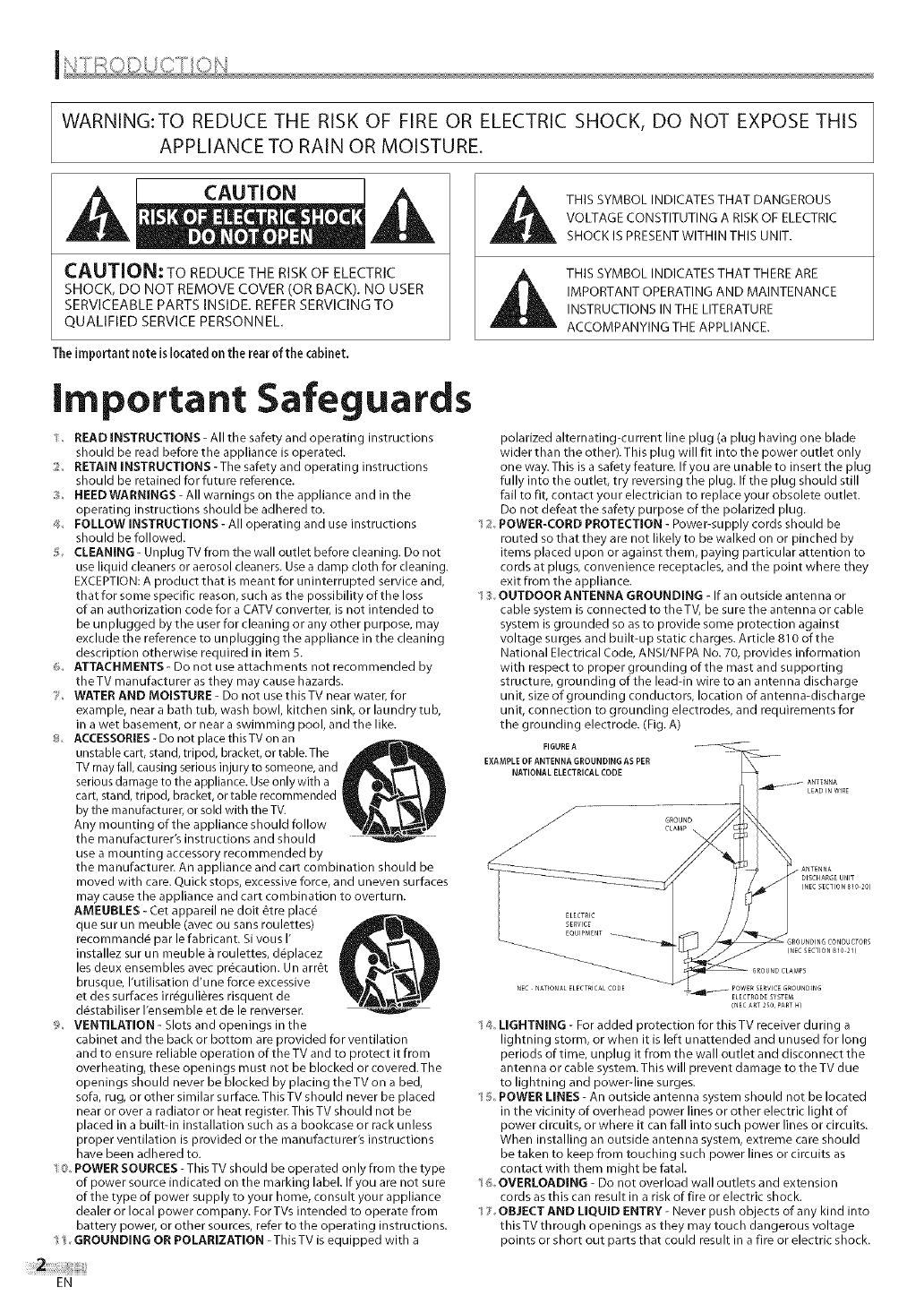
WARNING:TO REDUCE THE RISK OF FIRE OR ELECTRIC SHOCK, DO NOT EXPOSE THIS
APPLIANCE TO RAIN OR MOISTURE.
CAUTION: TO REDUCE THE RISK OF ELECTRIC
SHOCK, DO NOT REMOVE COVER (OR BACK). NO USER
SERVICEABLE PARTS INSIDE. REFER SERVICING TO
QUALIFIED SERVICE PERSONNEL.
The important noteis locatedon the rear of the cabinet.
Important Safeguards
IREAD INSTRUCTIONS - All the safety and operating instructions
should be read before the appliance is operated.
RETAIN INSTRUCTIONS - The safety and operating instructions
should be retained for future reference.
3HEED WARNINGS - All warnings on the appliance and in the
operating instructions should be adhered to.
4_ FOLLOW INSTRUCTIONS - All operating and use instructions
should be followed.
_: CLEANING - Unplug TV from the wall outlet before cleaning. Do not
use liquid cleaners or aerosol cleaners. Use a damp cloth for cleaning.
EXCEPTION: A product that is meant for uninterrupted service and,
that for some specific reason, such as the possibility of the loss
of an authorization code for a CATV converter, is not intended to
be un plugged by the user for cleaning or any other purpose, may
exclude the reference to unplugging the appliance in the cleaning
description otherwise required in item 5.
ATTACHMENTS - Do not use attachments not recommended by
theTV manufacturer as they may cause hazards.
7 WATER AND MOISTURE - Do not use this TV near water, for
example, near a bath tub, wash bowl, kitchen sink, or laundry tub,
in a wet basement, or near a swimming pool, and the like.
_o ACCESSORIES- Do not place this TV on an
unstable cart, stand, tripod, bracket, or table.The
TV rnay fall, causing serious injury to someone, and
serious damage to the appliance. Use only with a
cart, stand, tripod, bracket, or table recommended !
by the manufacturer, or sold with the TV.
Any mounting of the appliance should follow
the manufacturer's instructions and should
use a mounting accessory recommended by
the manufacturen An appliance and cart combination should be
moved with care. Quick stops, excessive force, and uneven surfaces
may cause the appliance and cart combination to overturn.
AMEUBLES - Cet appareil ne doit 6tre plac_
que sur un meuble (avec ou sans roulettes)
recommand_ par le fabricant. Sivous I'
installez sur un meuble _ roulettes, d_placez
les deux ensembles avec precaution. Un arrGt
brusque, I'utilisation d'une force excessive
et des surfaces irr_guli_res risquent de
d_stabiliser I'ensemble et de le renversen
VENTILATION - Slots and openings in the
cabinet and the back or bottom are provided for ventilation
and to ensure reliable operation of the TV and to protect it from
overheating, these openings must not be blocked or covered.The
openings should never be blocked by placing theTV on a bed,
sofa, rug, or other similar surface. This TV should never be placed
near or over a radiator or heat registen This TV should not be
placed in a built-in installation such as a bookcase or rack unless
proper ventilation is provided or the manufacturer's instructions
have been adhered to.
1POWER SOURCES - This TV should be operated only from the type
of power source indicated on the marking label. If you are not su re
of the type of power supply to you r home, consult you r appliance
dealer or local power company. For TVs intended to operate from
battery power, or other sources, refer to the operating instructions.
%GROUNDING OR POLARIZATION -ThisTV is equipped with a
THIS SYMBOL INDICATES THAT DANGEROUS
VOLTAGE CONSTITUTING A RISK OF ELECTRIC
SHOCK IS PRESENT WITHIN THIS UNIT.
THIS SYMBOL INDICATES THAT THERE ARE
IMPORTANT OPERATING AND MAINTENANCE
INSTRUCTIONS IN THE LITERATURE
ACCOMPANYING THE APPLIANCE.
polarized alternating-current line plug (a plug having one blade
wider than the other). This plug will fit into the power outlet only
one way. This is a safety feature. If you are unable to insert the plug
fully into the outlet, try reversing the plug. If the plug should still
fail to fit, contact your electrician to replace your obsolete outlet.
Do not defeat the safety purpose of the polarized plug.
1 _;_POWER-CORD PROTECTION -Power-su pply cords should be
routed so that they are not likely to be walked on or pinched by
items placed upon or against them, paying particular attention to
cords at plugs, convenience receptacles, and the point where they
exit from the appliance.
"__OUTDOOR ANTENNA GROUNDING - If an outside antenna or
cable system is connected to theTV, be sure the antenna or cable
system is grounded so as to provide some protection against
voltage surges and built-up static charges. Article 810 of the
National Electrical Code, ANSI/NFPA No. 70, provides information
with respect to proper grounding of the mast and supporting
structure, grounding of the lead-in wire to an antenna discharge
unit, size of grounding conductors, location of antenna-discharge
unit, connection to grounding electrodes, and requirements for
the grounding electrode. (Fig. A)
FIGURE A ...... _-_-_-
EXAMPLE OF ANTENNA GROUNDING AS PER --I__--_--
NATIONAL ELECTRICAL CODE
NEC NATIONAtFLECTRICALCODE
ELECTRODESYST_
CNECA_T 2_0, PARTH)
14 LIGHTNING - For added protection for this TV receiver du ring a
lightning storm, or when it is left unattended and unused for long
periods of time, unplug it from the wall outlet and disconnect the
antenna or cable system. This will prevent damage to the TV due
to lightning and power-line surges.
1 _?POWER LINES - An outside antenna system should not be located
in the vicinity of overhead power lines or other electric light of
power circuits, or where it can fall into such power lines or circuits.
When installing an outside antenna system, extreme care should
be taken to keep from touching such power lines or circuits as
contact with them might be fatal.
'/ OVERLOADING - Do not overload wall outlets and extension
cords as this can result in a risk of fire or electric shock.
7 OBJECT AND LIQUID ENTRY - Never push objects of any kind into
this TV th rough openings as they may touch dangerous voltage
points or short out parts that could result in a fire or electric shock.
EN
Never spill liquid of any kind on the TV.
8 SERVICING - Do not attempt to service this TV you rself as opening
or removing covers may expose you to dangerous voltage or other
hazards. Refer all servicing to qualified service personnel.
1__ DAMAGE REQUIRING SERVICE - Unplug this TV from the wall
outlet and refer servicing to qualified service personnel under the
following conditions:
a. When the power supply cord or plug is damaged or frayed.
b. If liquid has been spilled, or objects have fallen into theTV.
c. IftheTV has been exposed to rain or waten
d. If the TV does not operate normally by following the operating
instructions. Adjust only those controls that are covered by the
operating instructions, as improper adjustment of other controls
may result in damage and will often require extensive work by a
qualified technician to restore the TV to its normal operation.
e. If the TV has been dropped or damaged in any way.
f. When the TV exhibits a distinct change in performance, this
indicates a need for service.
:t!_:_REPLACEMENT PARTS - When replacement parts are required, be
sure the service technician uses replacement parts specified by
the manufacturer that have the same characteristics as the original
part. Unauthorized substitutions may result in fire, electric shock,
injury to persons or other hazards.
:;!I SAFETY CHECK- Upon corn pletion of any service or repairs to this
TV, ask the service technician to perform routine safety checks to
determine that the TV is in proper operating condition.
:_!;:_HEAT- This TV product should be situated away from heat sources
such as radiators, heat registers, stoves, or other products (including
amplifiers) that produce heat.
[] Precautions
_) LAMP IN LCD CONTAINS MERCURY, DISPOSE ACCORDING TO LOCAL, STATE OR FEDERAL LAW.
CAUTION: TO PREVENT ELECTRIC SHOCK, MATCH WIDE BLADE OF PLUG TO WIDE SLOT, FULLY INSERT.
ATTENTION: POUR EVlTER LES CHOCS ELECTRIQUES, INTRODUIRE LA LAME LA PLUS LARGE DE LA FICHE DANS LA
BORNE CORRESPONDANTE DE LA PRISE ETPOUSSER JUSQU'AU FOND.
FCC WARNING This equipment may generate or use radio frequency energy. Changes or modifications to this equipment
may cause harmful interference unless the modifications are expressly approved in the manual.The user
could lose the authority to operate this equipment if an unauthorized change or modification is made.
RADIO-TV INTERFERENCE
iiiiii'
i i¸i¸i¸
_i!_i_i_i!_
!iiii_
This equipment has been tested and found to comply with the limits for a Class B digital device, pursuant to Part 15 of the
FCCRules. These limits are designed to provide reasonable protection against harmful interference in a residential installation.
This equipment generates, uses, and can radiate radio frequency energy and, if not installed and used in accordance with the
instructions, may cause harmful interference to radio communications. However, there is no guarantee that interference will not
occur in a particular installation. If this equipment does cause harmful interference to radio or television reception, which can be
determined by turning the equipment off and on, the user is encouraged to try to correct the interference by one or more of the
following measures:
1} Reorient or relocate the receiving antenna.
2) Increase the separation between the equipment and receiver. i
3} Connect the equipment into an outlet on a circuit different from that to which the receiver is connected.
4) Consult the dealer or an experienced radio/TV technician for help.
This Class B digital apparatus complies with Canadian ICES-O03.
Cet appareil num_rique de la classe Elest conforme _ la norme NMEI-O03 du Canada.
This reminder is provided to carl the CATV system installer's attention to Article 820-40 of the NEC that provides guidelines I
for proper grounding and, in particular, specifies that the cable ground should be connected to the grounding system of the I
building as close to the point of cable entry as practical. ]
EN
LOCATION
For safe operation and satisfactory performance of the unit, keep the following in mind when selecting a place for its installation:
. Shield it from direct sunlight and keep it away from sources of intense heat.
. Avoid dusty or humid places.
. Avoid places with insufficient ventilation for proper heat dissipation. Do not block the ventilation holes at the top and bottom of the
unit. Do not place the unit on a carpet because this will block the ventilation holes.
. Install the unit in a horizontal position.
. Avoid locations subject to strong vibration.
. Do not place the unit near strong magnetic fields.
. Avoid moving the unit to locations where temperature differences are extreme.
. Be sure to unplug the AC power cord from the outlet before carrying the unit.
TO AVOID THE HAZARDS OF ELECTRICAL SHOCK AND FIRE
. Do not handle the power cord with wet hands.
. Do not pull on the power cord when disconnecting it from an AC outlet. Grasp it by the plug.
. If, by accident, water is spilled on the unit, unplug the power cord immediately and take the unit to our authorized service center for
servicing.
. Do not place anything directly on top of the unit.
The serial number of this product may be found on the back of the unit. No others have the same serial number as yours.
You should record the number and other vital information here and retain this book as a permanent record of your pur-
chase to aid identification in case of theft.
ate of purchase dealer phone No. serial No
ealerpurchasefrom model No. dealer address
Note about recycling: ]
This product's packaging materials are recyclable and can be reused. Please dispose of any materials in accordance with I
your local recycling regulations. I
Batteries should never be thrown away or incinerated but disposed of in accordance with your local regulations concerning
chemical wastes.
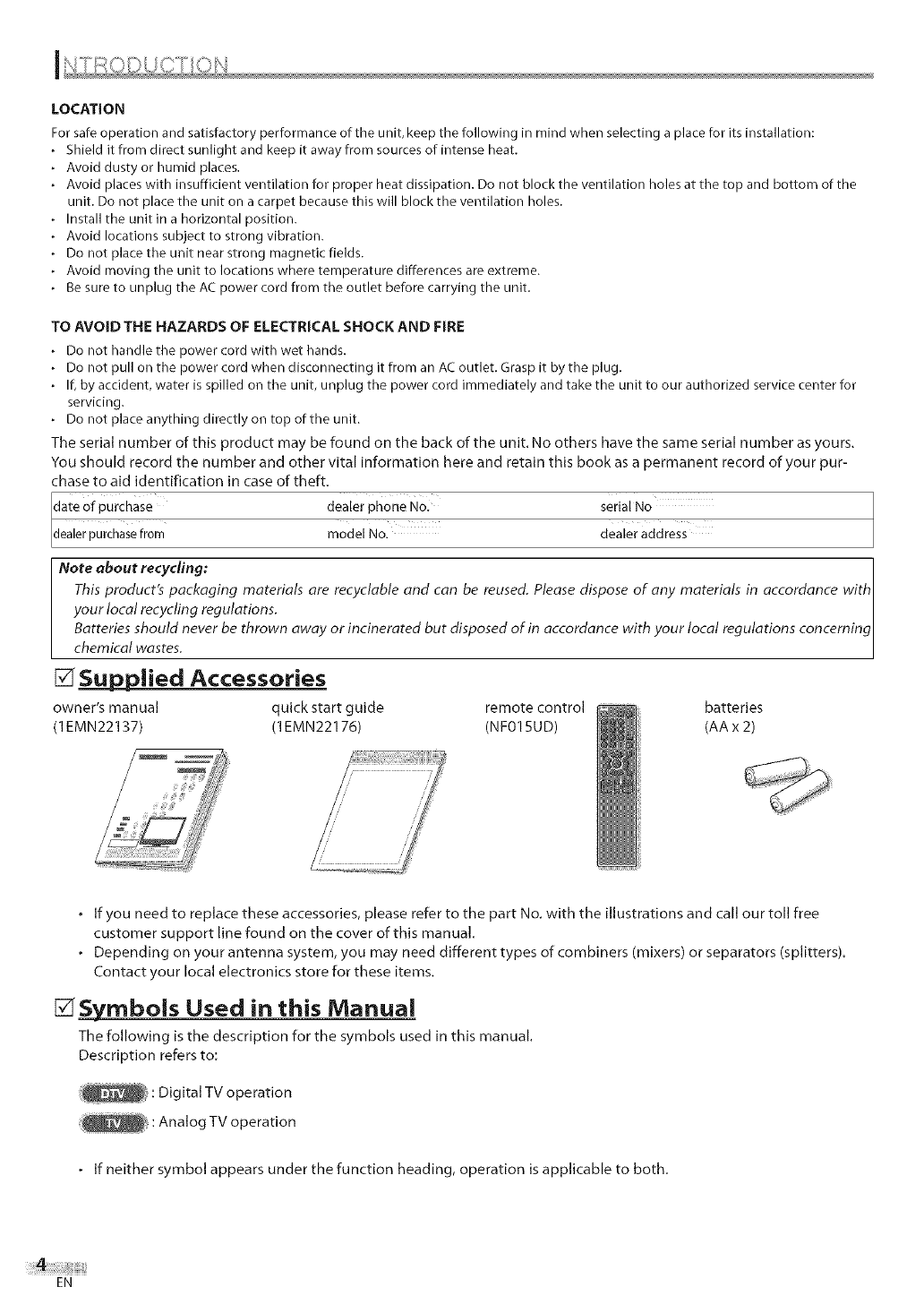
_Niied Accessories
owner's manual quick start guide remote control batteries
(1 EMN22137) (1EMN22176) (NFO15UD) (AA x 2)
.If you need to replace these accessories, please refer to the part No. with the illustrations and call our toll free
customer support line found on the cover of this manual.
•Depending on your antenna system, you may need different types of combiners (mixers) or separators (splitters).
Contact your local electronics store for these items.
[] SSS=ymbolsUsed in this Manual
The following is the description for the symbols used in this manual.
Description refers to:
: Digital TV operation
: Analog TV operation
.If neither symbol appears under the function heading, operation is applicable to both.
EN
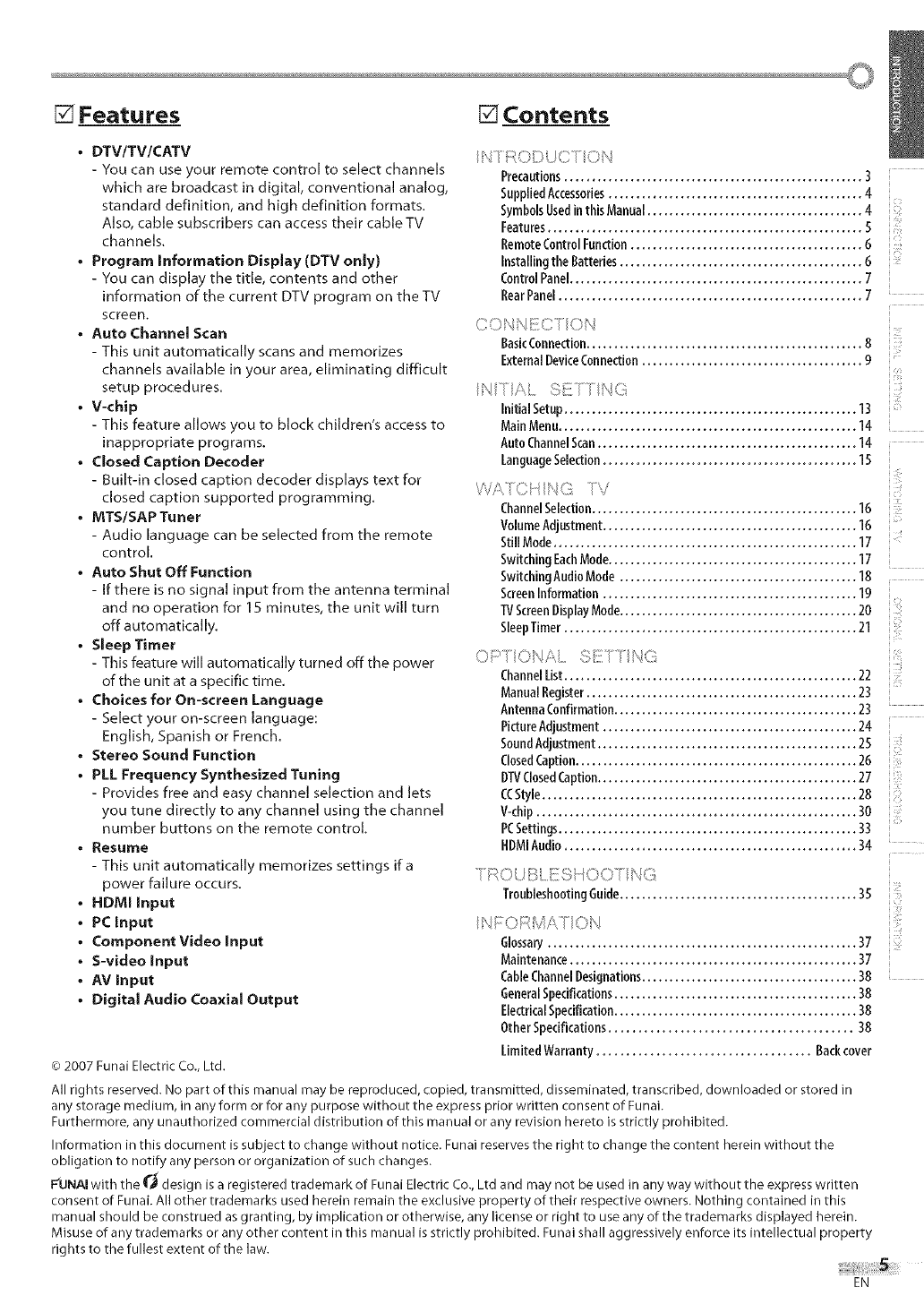
_Features [] Contents
•DTV/TVlCATV
- You can use your remote control to select channels
which are broadcast in digital, conventional analog,
standard definition, and high definition formats.
Also, cable subscribers can access their cable TV
channels.
• Program Information Display (DTV only)
- You can display the title, contents and other
information of the current DTV program on the TV
screen.
•Auto Channel Scan
- This unit automatically scans and memorizes
channels available in your area, eliminating difficult
setup procedures.
•V-chip
- This feature allows you to block children's access to
inappropriate programs.
• Closed Caption Decoder
- Built-in closed caption decoder displays text for
closed caption supported programming.
• MTS/SAP Tuner
- Audio language can be selected from the remote
control.
• Auto Shut Off Function
- If there is no signal input from the antenna terminal
and no operation for 15 minutes, the unit will turn
off automatically.
•Sleep Timer
- This feature will automatically turned off the power
of the unit at a specific time.
• Choices for On-screen Language
- Select your on-screen language:
English, Spanish or French.
• Stereo Sound Function
• PLL Frequency Synthesized Tuning
- Provides free and easy channel selection and lets
you tune directly to any channel using the channel
number buttons on the remote control.
•Resume
- This unit automatically memorizes settings ira
power failure occurs.
HDMI Input
PC Input
Component Video Input
S-video Input
AV Input
Digital Audio Coaxial Output
© 2007 Funai Electric Co., Ltd.
IN/RODUCT ON
Precautions...................................................... 3
SuppliedAccessories.............................................. 4
SymbolsUsedinthis Manual....................................... 4
Features......................................................... S
RemoteControlFunction.......................................... 6
Installingthe Batteries............................................ 6
ControlPanel..................................................... 7
RearPanel....................................................... 7
CONNEC ON
BasicConnection.................................................. 8
ExternalDeviceConnection........................................ 9
/I",/A SE// N(i
Initial Setup..................................................... 13
MainMenu...................................................... 14
AutoChannelScan............................................... 14
LanguageSelection.............................................. 15
WA/CiqNG TV
ChannelSelection................................................ 16
VolumeAdjustment.............................................. 16
StillMode....................................................... 17
SwitchingEachMode............................................. 17
SwitchingAudioMode ........................................... 18
ScreenInformation.............................................. 19
TVScreenDisplayMode........................................... 20
SleepTimer..................................................... 21
i i}
OPTONA SET NG
ChannelList..................................................... 22
ManualRegister................................................. 23
AntennaConfirmation............................................ 23
PictureAdjustment.............................................. 24
SoundAdjustment............................................... 25
ClosedCaption................................................... 26
DTVClosedCaption............................................... 27
C(Style......................................................... 28
V-chip.......................................................... 30
PCSettings...................................................... 33
HDMIAudio ..................................................... 34
/ROUBLES! OO/ NG
TroubleshootingGuide........................................... 35
Glossary........................................................ 37
Maintenance.................................................... 37
CableChannelDesignations....................................... 38
GeneralSpedfications............................................ 38
ElectricalSpecification............................................ 38
Other Specifications......................................... 38
LimitedWarranty.................................... Backcover
All rights reserved. No part of this manual may be reproduced, copied, transmitted, disseminated, transcribed, downloaded or stored in
any storage medium, in any form or for any purpose without the express prior written consent of Funai.
Furthermore, any unauthorized commercial distribution of this manual or any revision hereto is strictly prohibited.
Information in this document is subject to change without notice. Funai reserves the right to change the content herein without the
obligation to notify any person or organization of such changes.
F'UNAI with the _'_ design is a registered trademark of Funai Electric Co., Ltd and may not be used in any way without the express written
consent of Funai. All other trademarks used herein remain the exclusive property of their respective owners. Nothing contained in this
manual should be construed as granting, by implication or otherwise, any license or right to use any of the trademarks displayed herein.
Misuse of any trademarks or any other content in this manual is strictly prohibited. Funai shall aggressively enforce its intellectual property
rights to the fullest extent of the law.
i
EN
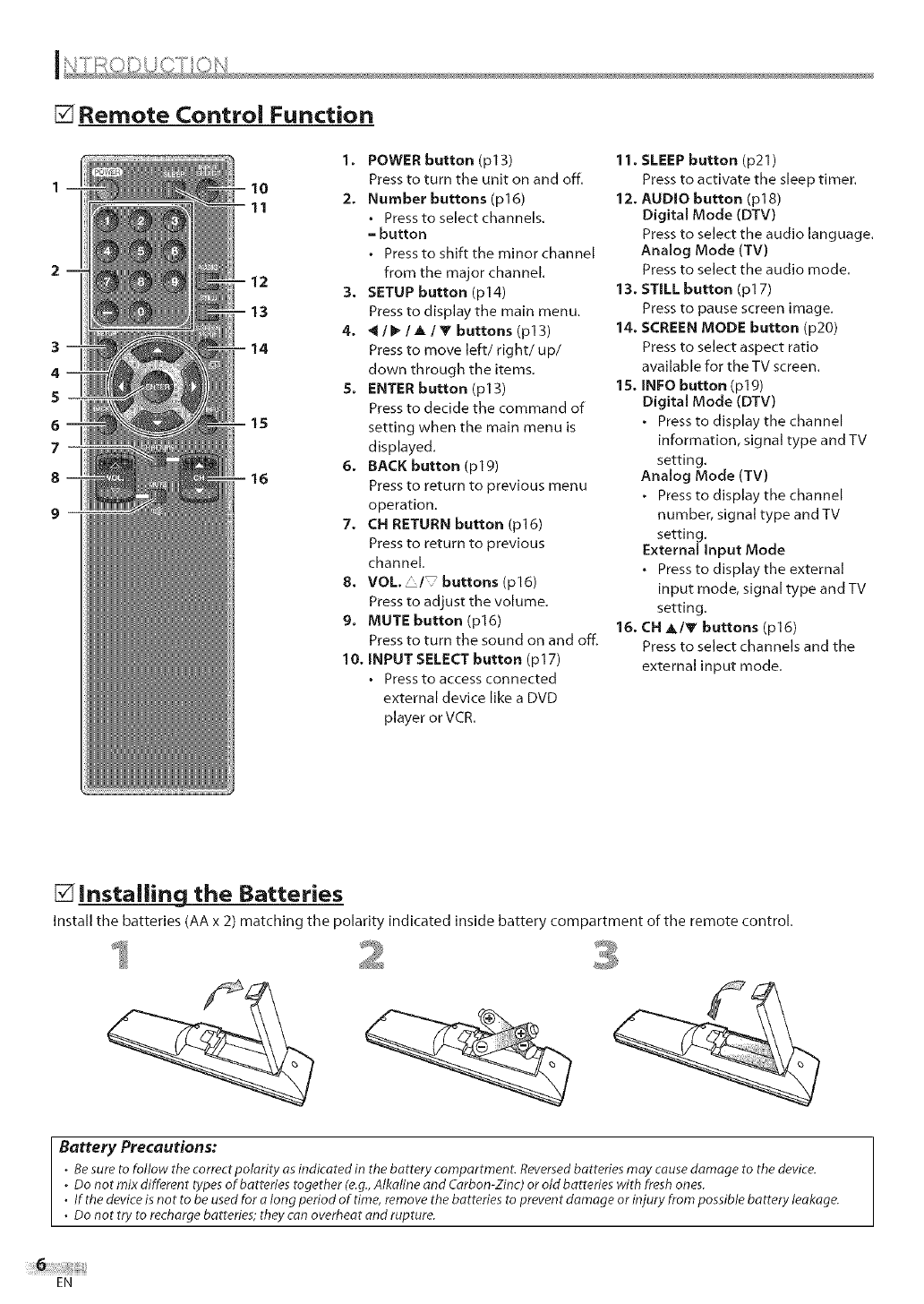
[] Remote Control Function
3
4
5
6
7--
8
1. POWER button (p13)
Press to turn the unit on and off.
2. Number buttons (p16)
• Press to select channels.
-button
• Press to shift the minor channel
from the major channel.
3, SETUP button (p14)
Press to display the main menu.
4. _ /!_ /A/Tbuttons (pl 3)
Press to move left/right/up/
down through the items.
S. ENTER button (p13)
Press to decide tile command of
setting when the main menu is
displayed.
6. BACK button (p19)
Press to return to previous menu
operation.
7, CH RETURN button (p16)
Press to return to previous
channel.
8, VOL. /buttons(p16)
Press to adjust the volume.
9. MUTE button (p16)
Press to turn the sound on and off.
10. INPUT SELECT button (p17)
•Press to access connected
external device like a DVD
player or VCR.
11. SLEEP button (p21)
Press to activate the sleep timer.
12. AUDIO button (p18)
Digital Mode (DTV)
Press to select the audio language.
Analog Mode (TV)
Press to select the audio mode.
13. STILL button (pl 7)
Press to pause screen image.
14. SCREEN MODE button (p20)
Press to select aspect ratio
available for the TV screen.
15. INFO button (p19)
Digital Mode (DTV)
•Press to display the channel
information, signal type and TV
setting.
Analog Mode (TV)
•Press to display the channel
number, signal type and TV
setting.
External input Mode
• Press to display the external
input mode, signal type and TV
setting.
16. CH _/V buttons (p16)
Press to select channels and the
external input mode.
[] Installing the Batteries
Install the batteries (AA x 2) matching tile polarity indicated inside battery compartment of the remote control.
Battery Precautions:
.Besure to follow the correctpolarity as indicated in the battery compartment. Reversedbatteries may cause damage to the device.
.Do not mix different types of batteries together (e.g.,Alkaline and Carbon-Zinc) or old batteries with fresh ones.
•If the deviceis not to be usedfor along period of time, remove the batteries to prevent damage or injury from possible battery leakage.
•Do not try to recharge batteries; they can overheat and rupture.
EN
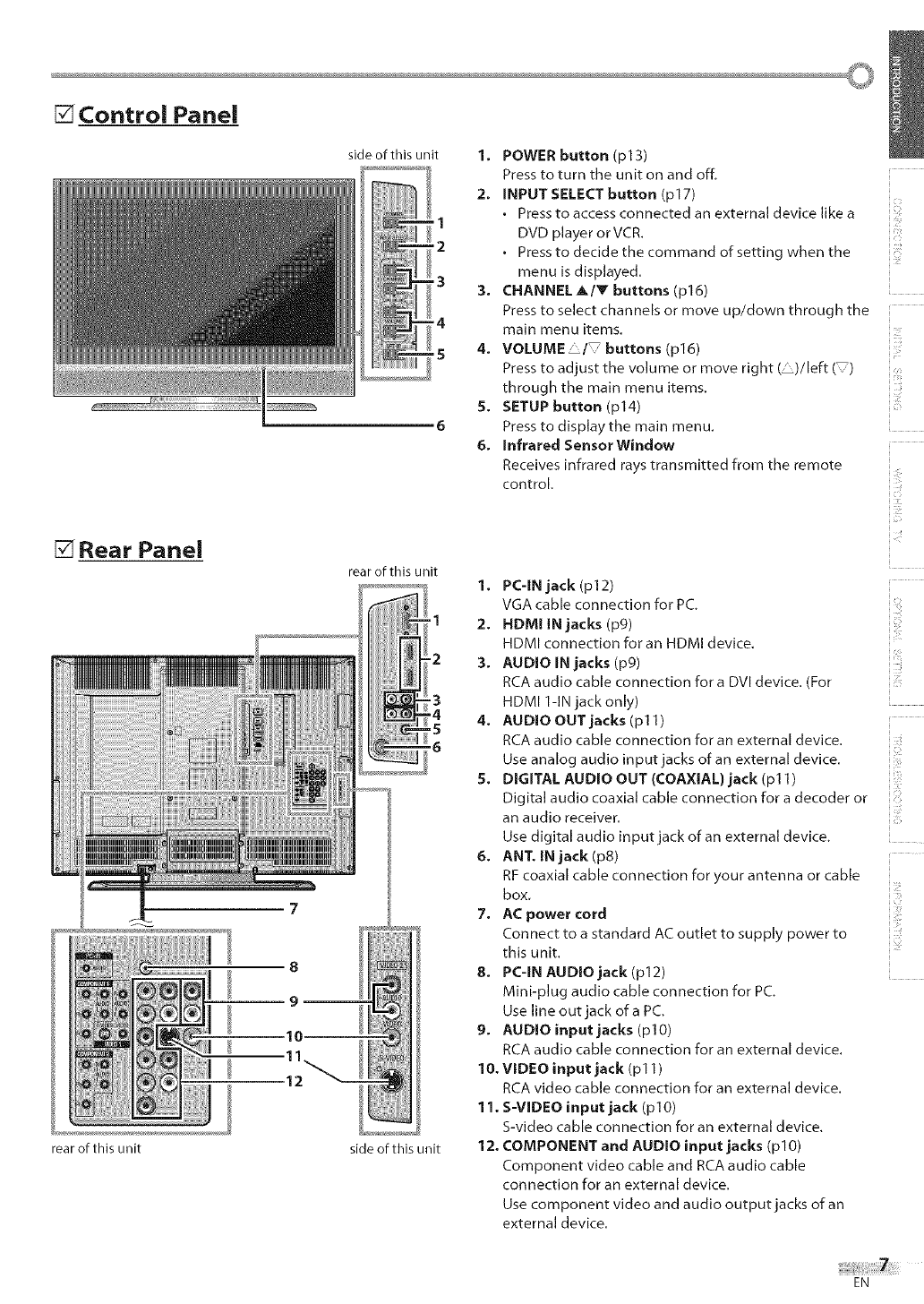
[] Control Panel
[] Rear Panel
rear of this unit
8
9
11
12
side of this unit
3
'4
,5
rear of this unit
side of this unit
1. POWER button (p13)
Press to turn the unit on and off.
2, INPUT SELECT button (pl 7)
•Press to access connected an external device like a
DVD p_ayer or VCR.
Press to decide the command of setting when the
,
menu is displayed.
3. CHANNEL _/V buttons (p16) ....
Press to select channels or move up/down through the ....
main menu items,
4. VOLUME/7 buttons (p16)
Press to adjust the volume or move right ( " )/left ( ) :
through the main menu items.
S. SETUP button (p14)
Press to display the main menu.
6. Infrared Sensor Window
Receives infrared rays transmitted from the remote
control.
1. PC-IN jack (p12)
VGA cable connection for PC.
2. HDMIIN jacks (p9)
HDMI connection foran HDMI device.
3. AUDIO IN jacks (pg)
RCA audio cable connection fora DVI device. (For
HDMI l-IN jack only) ....
4. AUDIO OUT jacks (p11)
RCA audio cable connection for an external device. ,_
Use analog audio input jacks of an external device. !_:
5. DIGITAL AUDIO OUT (COAXIAL) jack (pl 1)
Digital audio coaxial cable connection for a decoder or ',
an audio receiver.
Use digital audio input jack of an external device .....
6. ANT. IN jack (p8)
RF coaxial cable connection for your antenna or cable
box.
7. AC power cord
Connect to a standard AC outlet to supply power to
this unit.
8. PC-IN AUDIOjack(p12) ....
Mini-plug audio cable connection for PC.
Use line out jack of a PC,
9. AUDIO input jacks (plO)
RCA audio cable connection for an external device.
10. VIDEO input jack (pl 1)
RCA video cable connection foran external device.
11. S-VIDEO input jack (plO)
S-video cable connection for an external device,
12. COMPONENT and AUDIO input jacks (pl0)
Component video cable and RCA audio cable
connection for an external device.
Use component video and audio output jacks of an
external device.
EN
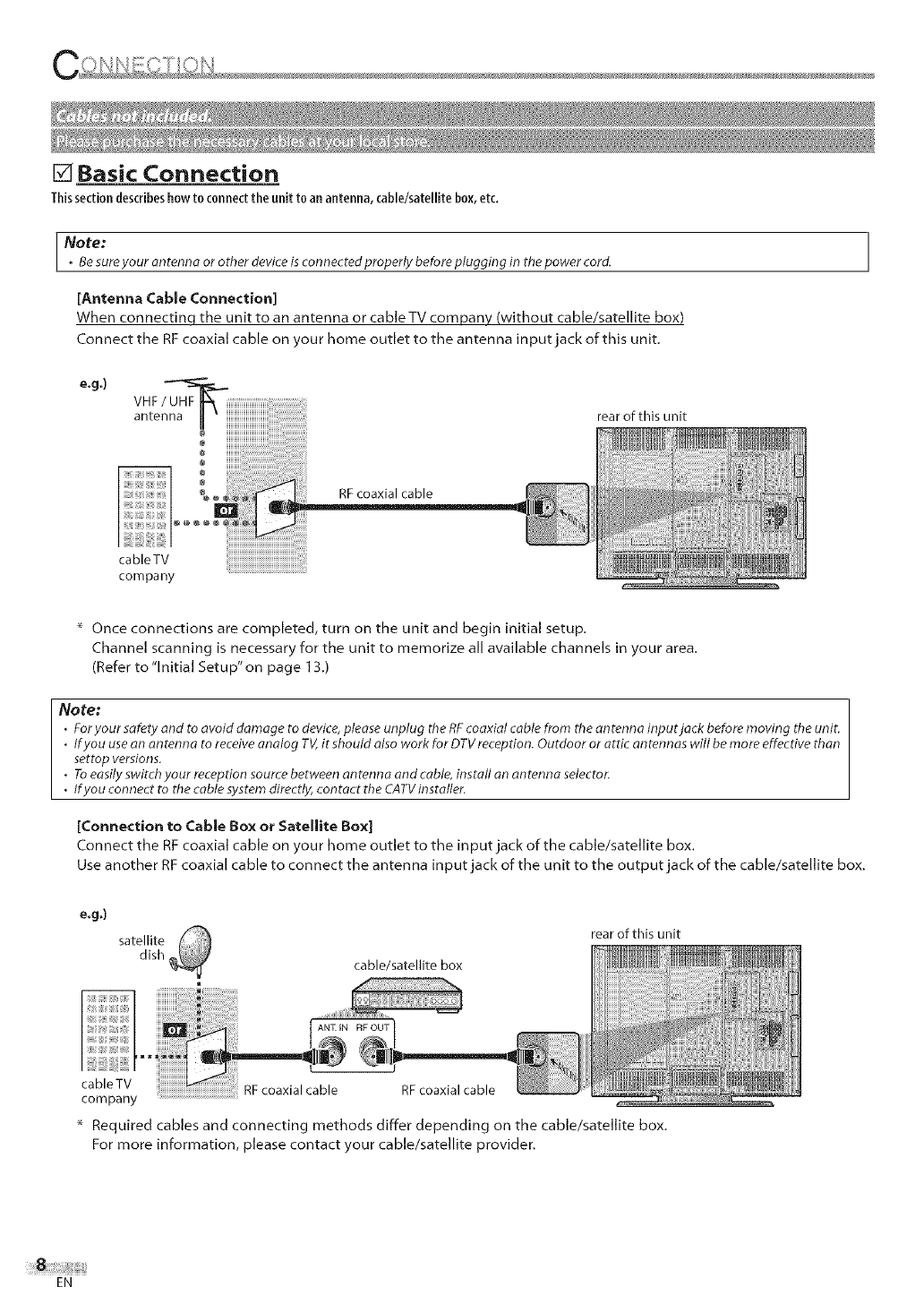
[] Basic Connection
Thissectiondescribeshowto connectthe unit to an antenna, cable/satellite box,etc.
Note:
.Besureyour antenna or other device is connected properly before plugging in the power cord.
[Antenna Cable Connection]
When connectinq the unit to an antenna or cable TV company (without cable/satellite box)
Connect the RFcoaxial cable on your home outlet to the antenna input jack of this unit.
rear of this unit
RF coaxial cable
cableTV
company
* Once connections are completed, turn on the unit and begin initial setup.
Channel scanning is necessary for the unit to memorize all available channels in your area.
(Refer to "Initial Setup" on page 13.)
Note:
•Foryour safety and to avoid damage to device, please unplug the RF coaxial cable from the antenna input jack before moving the unit.
•If you use an an tenno to receive analog TV, it should also work for DTV reception. Outdoor or attic an tennos will be more effective than
settop versions.
.To easily switch your reception source between antenna and cable, install on antenna selector.
•If you connect to the cable system directly, contact the CATV installer.
[Connection to Cable Box o1 Satellite Box]
Connect the RFcoaxial cable on your home outlet to the input jack of the cable/satellite box.
Use another RF coaxial cable to connect the antenna input jack of the unit to the output jack of the cable/satellite box.
e,g,)
satellite
dish cable/satellite box
rear of this unit
cable TV RF coaxial cable RF coaxial cable
company
* Required cables and connecting methods differ depending on the cable/satellite box.
For more information, please contact your cable/satellite provider.
EN
O
[] E×ternai Device Connection
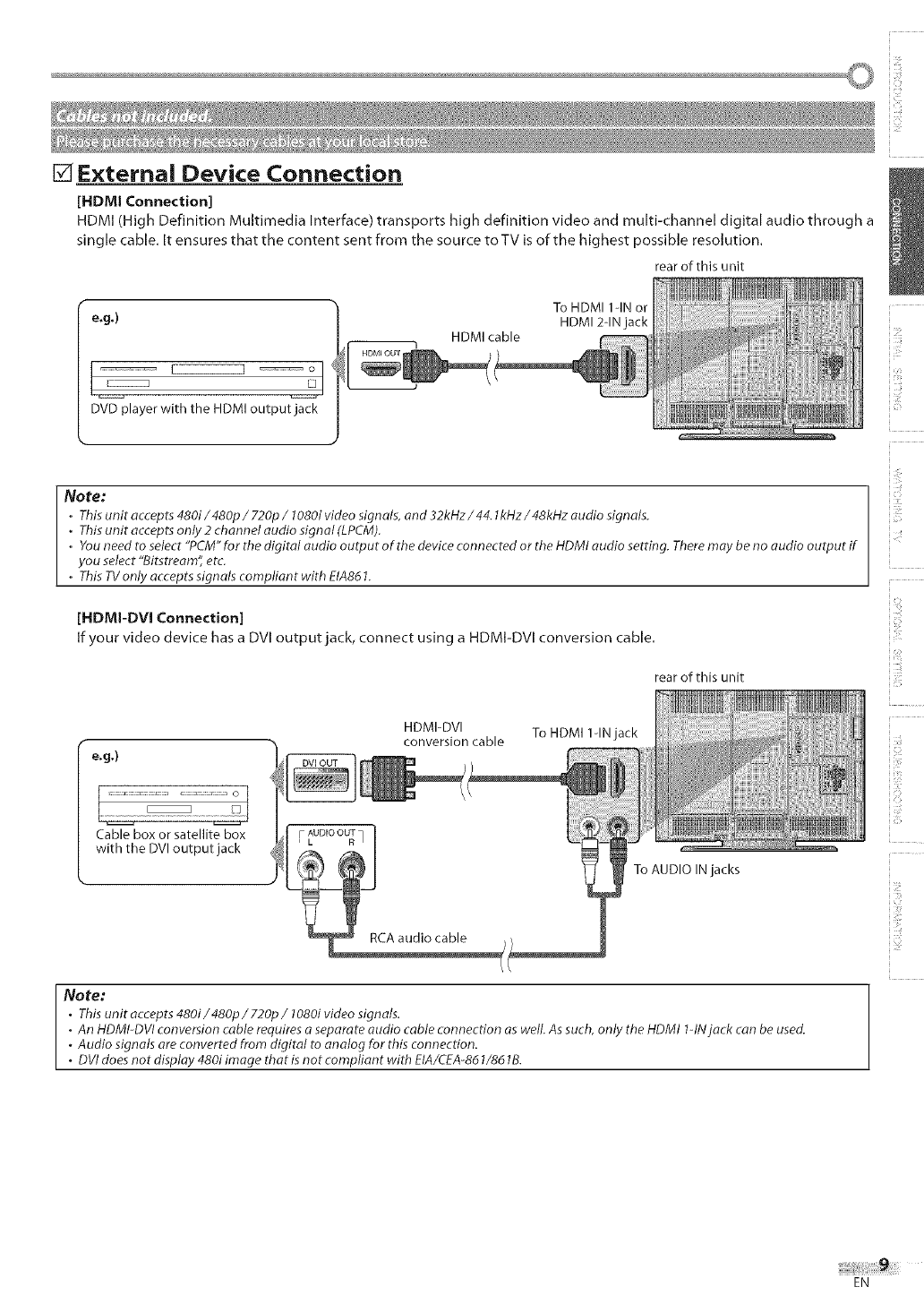
[HDMI Connection]
HDMI (High Definition Multimedia Interface) transports high definition video and multi-channel digital audio through a
single cable, It ensures that the content sent from the source to TV is of the highest possible resolution.
rear of this unit
e,g,)
l] _o
DVD player with the HDMI output jack
HDMI cable
To HDMI 1-IN or
HDMI 2-INjack
Note:
.Th_sun_tacce_ts48_/48_/72_/1_8_vide_signa_s_and32kHz/44_1kHz/48kHzaud_signa_s_
,Thisunit acceptsonly 2 channel audio signal (LPCM).
•Youneed to select "PCM"for the digital audio output of the deviceconnected or the HDMI audio setting. Theremay be no audio output ff
you select "Bitstream" etc.
,This TVonly accepts signals compfiant with EIA861.
[HDMI-DVI Connection]
If your video device has a DVI output jack, connect using a HDMI-DVI conversion cable.
rear of this unit
e.g.)
Cable box or satellite box
with the DVl output jack
HDMI-DVI To HDMI l-IN jack
conversion cable
To AUDIO IN jacks
Note:
•This unit accepts 480i/480p/720p/10801 video signals.
•An HDMI-DVl conversion cable requires a separate audio cable connection as well. As such, only the HDMI 1-INjack can be used.
°Audio signals are converted from digital to analog for this connection.
.DVI does not display 480i image that is not compliant with EIA/CEA-861/8d lB.
i ::i
ii •
1!
EN
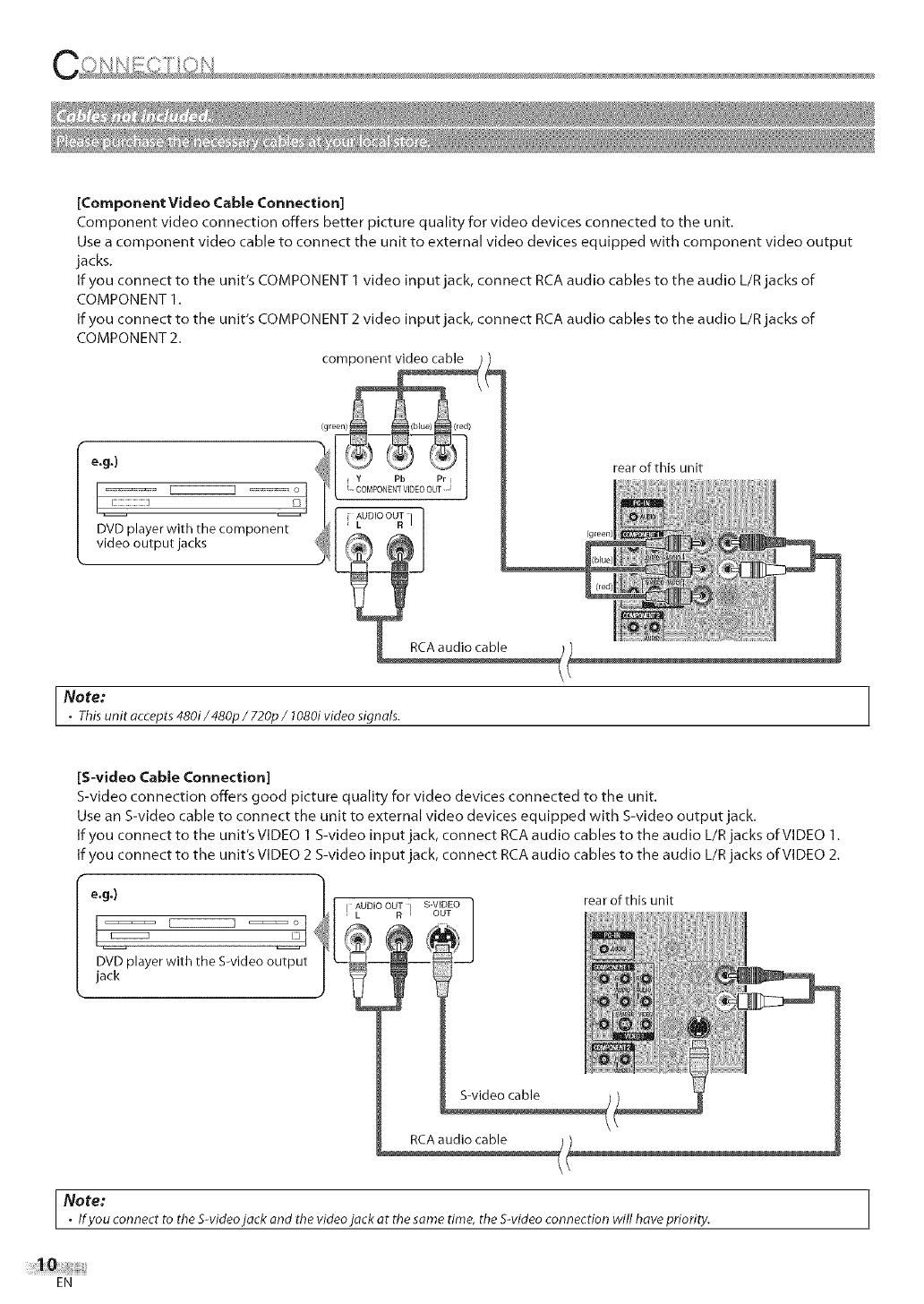
[ComponentVideoCable Connection]
Component video connection offers better picture quality for video devices connected to the unit.
Use a component video cable to connect the unit to external video devices equipped with component video output
jacks.
If you connect to the unit's COMPONENT 1 video input jack, connect RCA audio cables to the audio L/R jacks of
COMPONENT 1.
If you connect to the unit's COMPONENT 2 video input jack, connect RCA audio cables to the audio L/R jacks of
COMPONENT 2.
corn q
_[gleen) (Ied) /
e.g.) _ rear of this unit
L Y,OMPONENPbvIDEOouTPr JYPb P ....................
_ o COMPONENT VIDEO OUT
video outputjacksDVDplayer with the component [_ _ .... "_!_ _ ...............
_ N
_) z r
Note:
•Thisunit accepts 480i/480p / 720p / 1080ivideo signals. I
[S-video Cable Connection]
S-video connection offers good picture quality for video devices connected to the unit.
Use an S-video cable to connect the unit to external video devices equipped with S-video output jack.
If you connect to the unit's VIDEO 1 S-video input jack, connect RCA audio cables to the audio L/R jacks of VIDEO 1.
If you connect to the unit's VIDEO 2 S-video input jack, connect RCA audio cables to the audio L/R jacks of VIDEO 2.
e.g.)
DVDplayer with the S-video output
jack
AUDIO OUT S-VIDEO
L _ I OUT rear of this unit
m!il;iil;iiii
S-video cable
RCA audio cable
Note:•Ifyou connectto theS-videojack and thevideojack at thesametime,theS-videoconnectionwillhavepriority. !
EN
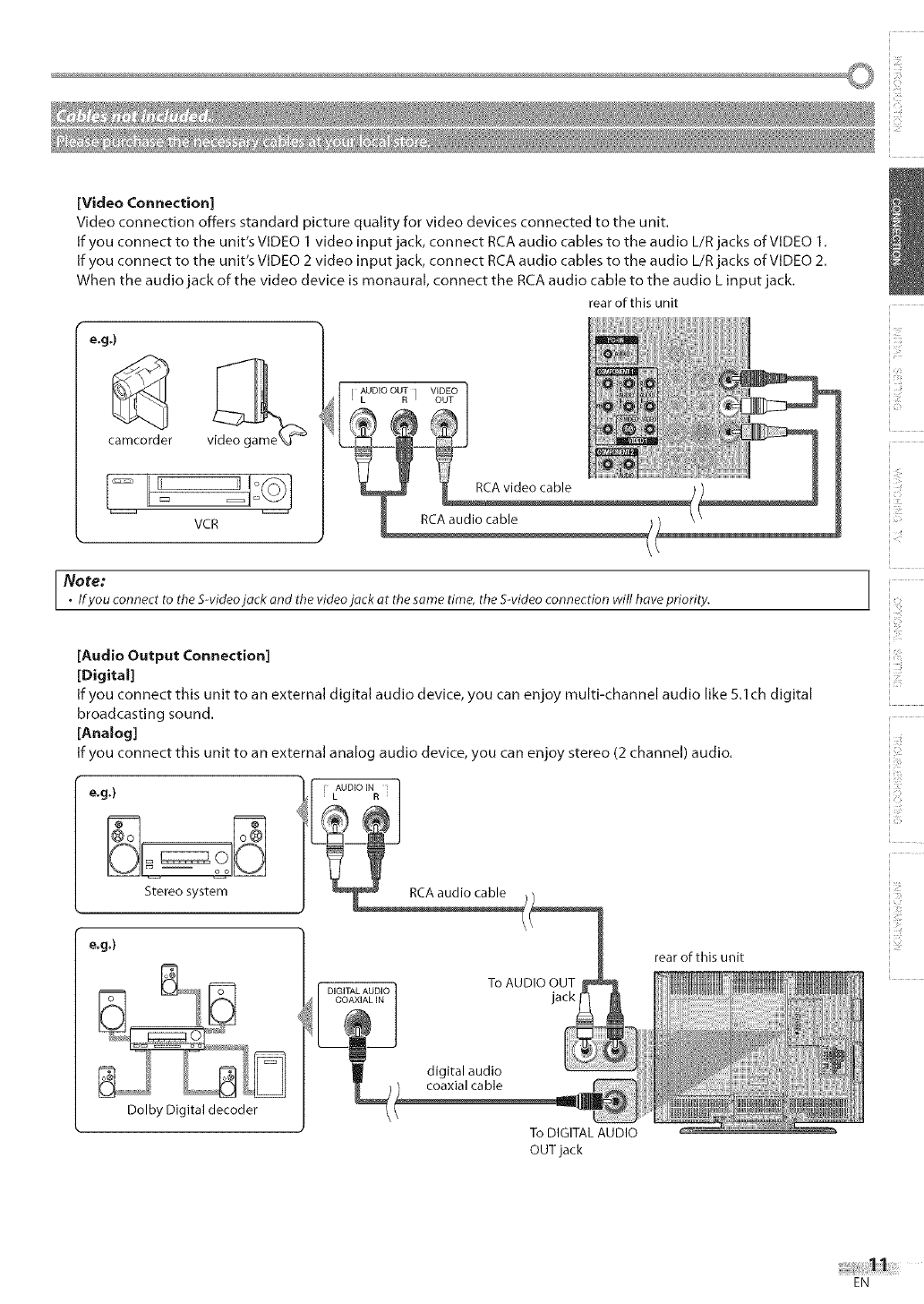
[VideoConnection]
Video connection offers standard picture quality for video devices connected to the unit.
If you connect to the unit's VIDEO I video input jack, connect RCA audio cables to the audio L/R jacks of VIDEO I.
If you connect to the unit's VIDEO 2 video input jack, connect RCA audio cables to the audio L/R jacks of VIDEO 2.
When the audio jack of the video device is monaural, connect the RCA audio cable to the audio L input jack,
e.g.)
camcorder
rear of this unit
VCR
AUDIO OUT VIDEO
L R I OUT
RCA video cable
Note:
•If you connect to the S-videolack and the video lack at the same time, the S-video connection will have priority.
}iii¸
i !ii!¸
I
[Audio Output Connection]
[Digital]
If you connect this unit to an external digital audio device, you can enjoy multi-channel audio like 5,Ich digital
broadcasting sound.
[Analog]
If you connect this unit to an external analog audio device, you can enjoy stereo (2 channel) audio.
e.g.)
Stereo system
e.g.)
Dolby Digital decoder
i AUDIO IN i
I L R
RCA audio cable
DIGITAL AUDIO
COAXIAL IN
To AUDIO OUT
jack
rear of this unit
digital audio
coaxial cable
To DIGITALAUDIO
OUTjack
i, t
ii?!iii
_i!i_iiii!
EN
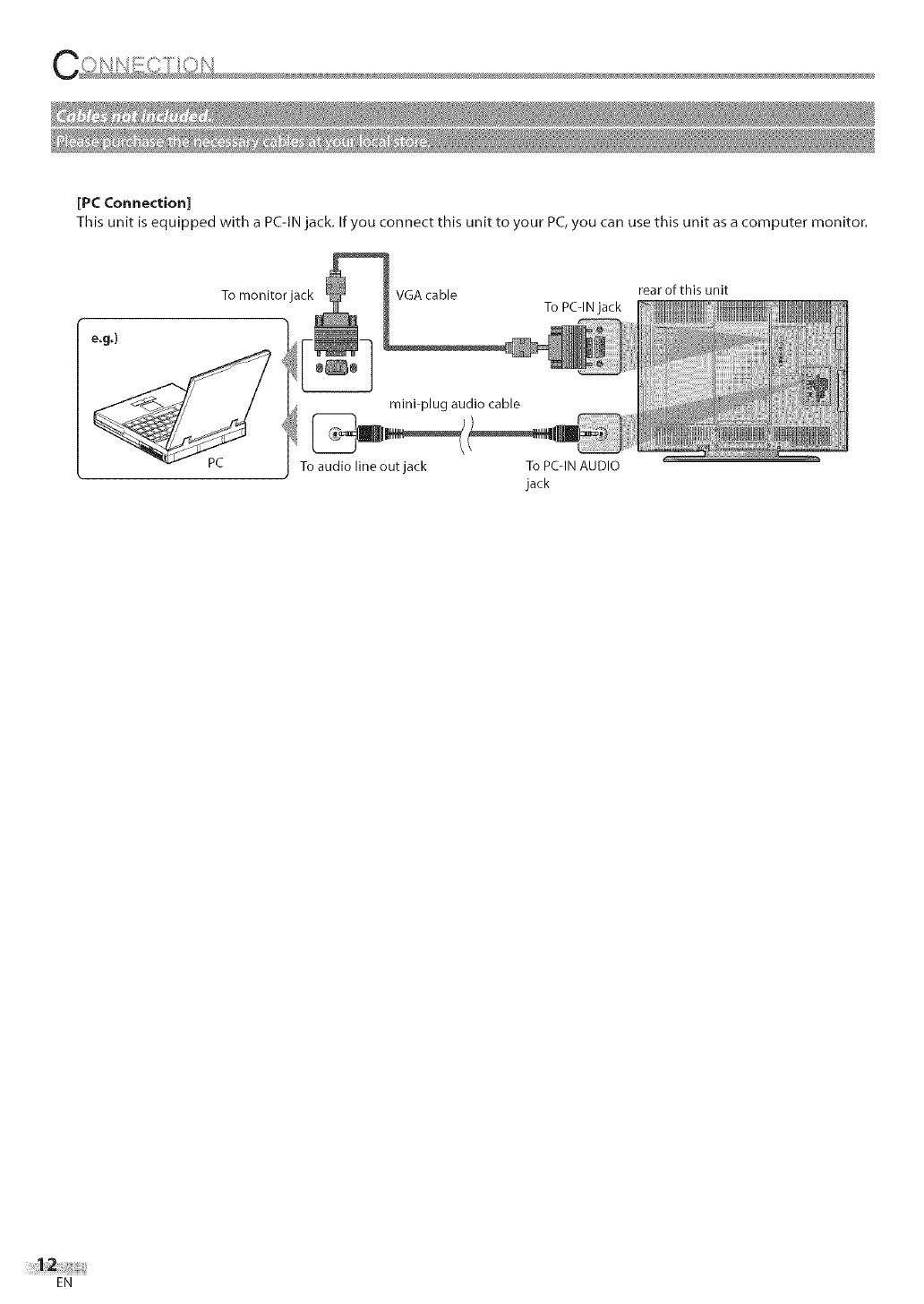
[PCConnection]
This unit is equipped with a PC-IN jack. If you connect this unit to your PC, you can use this unit as a computer monitor.
e.g.)
PC
To monitor jack VGA cable To PC-IN jack
mini-plug audio cable
To audio line out jack To PCqN AUDIO
jack
rear of this unit
EN
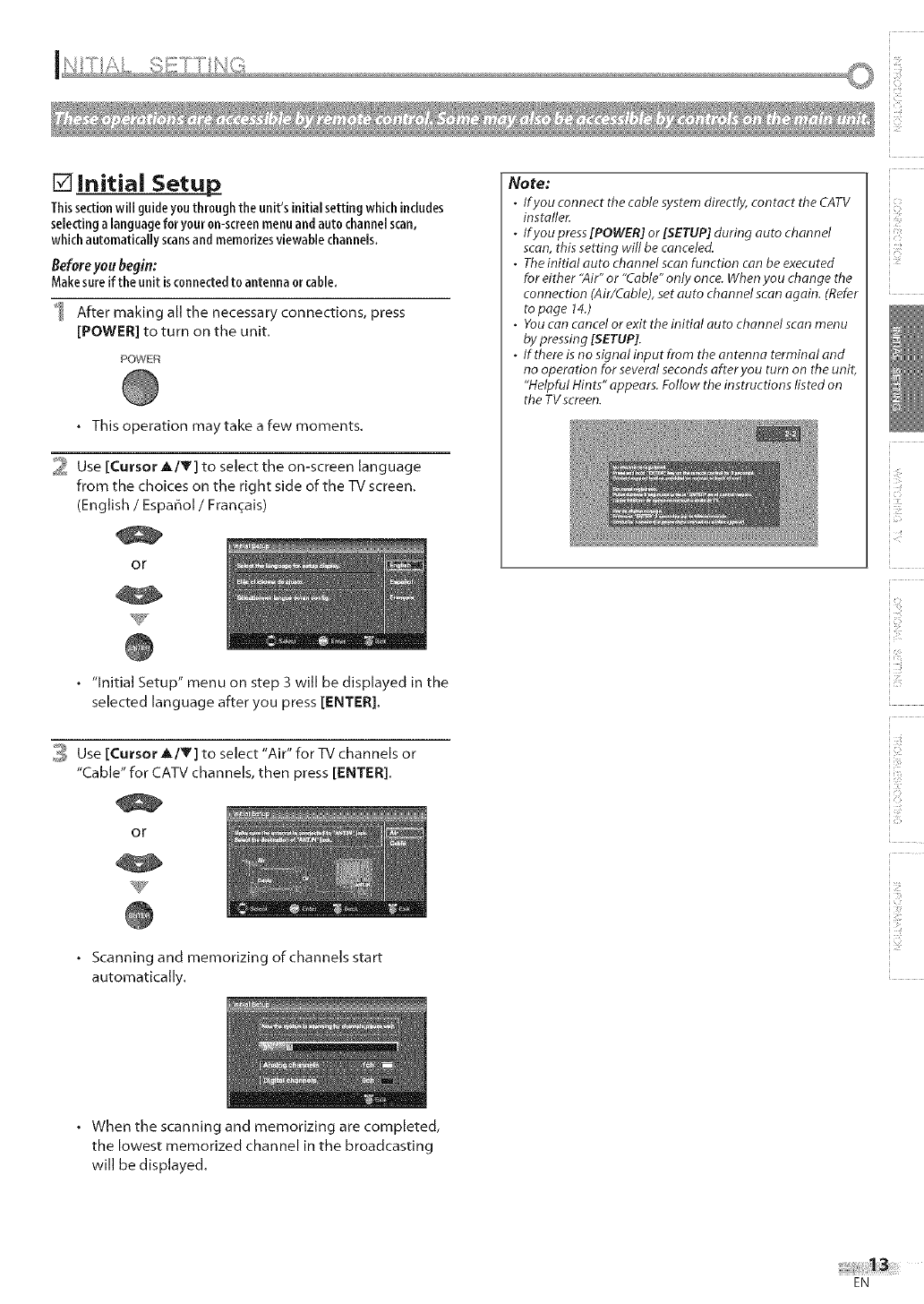
[] initial Setup
Thissectionwill guideyouthroughtheunit's initialsetting whichincludes
selectinga languageforyour on-screenmenuand auto channelscan,
which automatically scansand memorizesviewablechannels.
Before yon begin:
Makesureif the unit isconnectedto antenna orcable.
After making all the necessary connections, press
[POWER] to turn on the unit,
POWER
• This operation maytake a few moments.
_ Use [Cursor _,/Y] to select the on-screen language
from the choices on the right side of the TV screen.
(English /Espa_ol /Fran_ais)
Or
• "Initial Setup" menu on step 3 will be displayed in the
selected language after you press [ENTER].
_ Use [Cursor A/Y] to select "Air" for TV channels or
"Cable" for CATV channels, then press [ENTER].
|
or
Note:
•Ifyou connect the cable system directly, contact the CATV
installer.
.Ifyou press [POWER] or [SETUP] during auto channel
scan, this setting will be canceled.
•The initial auto channel scan function can be executed
for either "Air" or "Cable" only once. When you change the
connection (Air/Cable), set auto channel scan again. (Refer
to page 14.)
•You can cancel or exit the initial auto channel scan menu
by pressing [SETUP].
.If there is no signalinput from the antenna terminal and
no operation for several seconds after you turn on the unit,
"Helpful Hints" appears. Follow the instructions listed on
the TVscreen.
_iii!!_!!
• Scanning and memorizing of channels start
automatically.
1!
• When the scanning and memorizing are completed,
the lowest memorized channel in the broadcasting
will be displayed.
EN
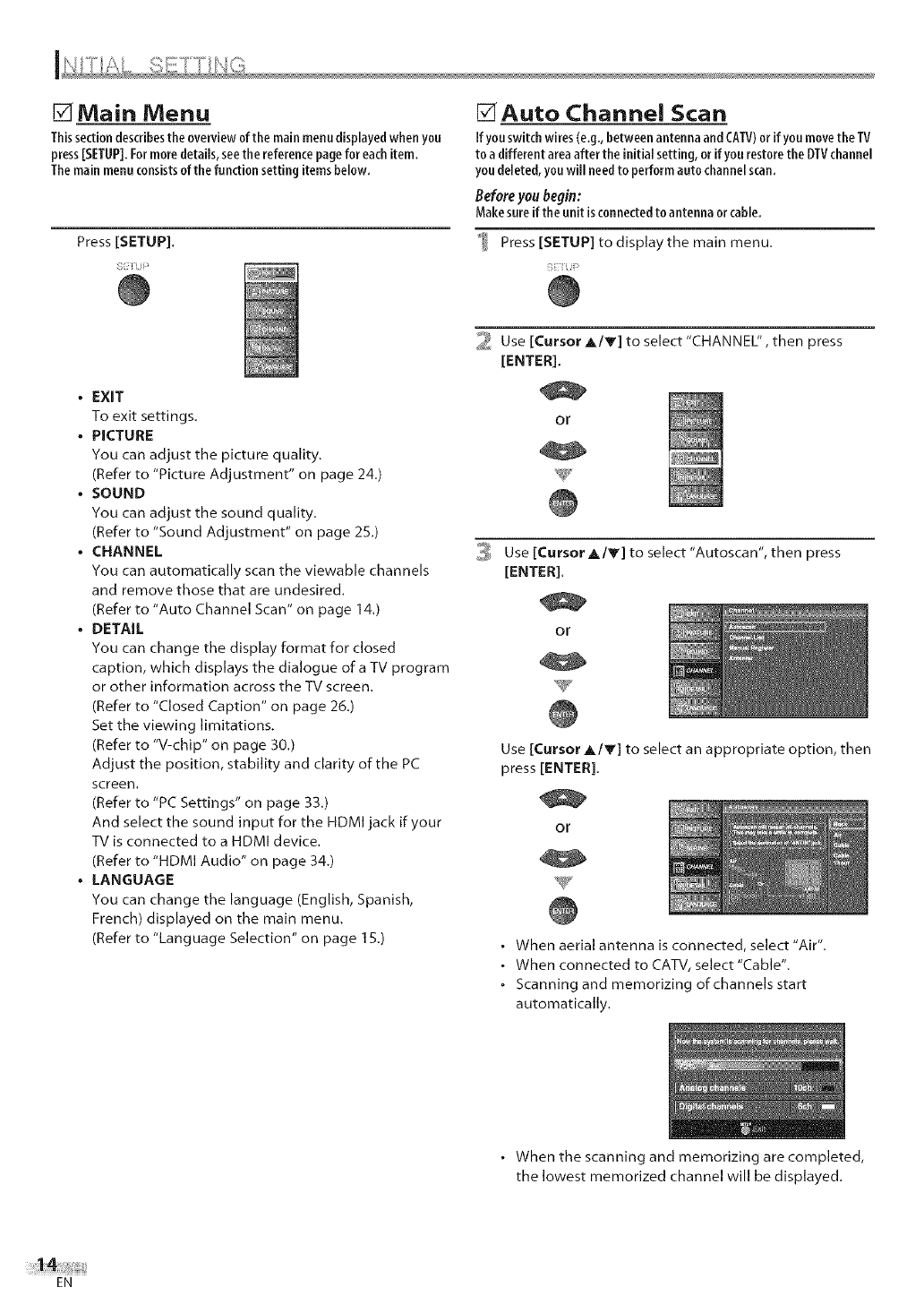
Main Menu
Thissectiondescribestheoverviewofthe mainmenudisplayedwhenyou
press[SETUP].Formoredetails,seethe referencepageforeachitem.
Themainmenuconsistsofthe function setting itemsbelow.
Press [SETUP].
• EXIT
To exit settings.
• PICTURE
You can adjust the picture quality.
(Refer to "Picture Adjustment" on page 24.)
• SOUND
You can adjust the sound quality.
(Refer to "Sound Adjustment" on page 25.)
• CHANNEL
You can automatically scan the viewable channels
and remove those that are undesired.
(Refer to "Auto Channel Scan" on page 14.)
•DETAIL
You can change the display format for closed
caption, which displays the dialogue ofa TV program
or other information across the TV screen.
(Refer to "Closed Caption" on page 26.)
Set the viewing limitations.
(Refer to "V-chip" on page 30.)
Adjust the position, stability and clarity of the PC
screen.
(Refer to "PC Settings" on page 33.)
And select the sound input for the HDMI jack if your
TV is connected to a HDMI device.
(Refer to "HDMI Audio" on page 34.)
•LANGUAGE
You can change the language (English, Spanish,
French) displayed on the main menu.
(Refer to "Language Selection" on page 1S.)
[?1Auto Channel Scan
If youswitchwires(e.g.,between antennaand CAW)or if you movethe TV
to a different area after the initialsetting, orif yourestorethe DTVchannel
youdeleted, youwill needto perform auto channelscan.
Before you begin:
Makesure ifthe unit isconnectedto antenna orcable.
Press [SETUP] to display the main menu.
2 Use [Cursor A/V] to select "CHANNEL", then press
[ENTER].
or
3Use [Cursor A/Y] to select "Autoscan", then press
[ENTER].
or
W
Use [Cursor _,/Y] to select an appropriate option, then
press [ENTER].
or
. When aerial antenna is connected, select "Air".
. When connected to CATV, select "Cable".
• Scanning and memorizing of channels start
automatically.
. When the scanning and memorizing are completed,
the lowest memorized channel will be displayed.
EN
©
Note:
. Ifyou connect the cable system directly, contact the CATV
installer.
.Ifyou press [POWER] or [SETUP] during auto channel
scan, the setting will be canceled.
. Channel settings will be saved even if the power fails.
.Ifyou need the English menus instead of the Spanish
or French men us you are having, press [SETUP]. Use
[Cursor A/T] to select 'IDIOMA" or "LANGAGE'; then press
[ENTER]. Use [Cursor A/V] to select "English" then press
[ENTER]. Press [SETUP] to exit the main menu.
°With regard only to the digital channel even after the
scanning is complete if you unplug the AC power cord
before turning off the unit by pressing [POWER], the
channel setting may be lost.
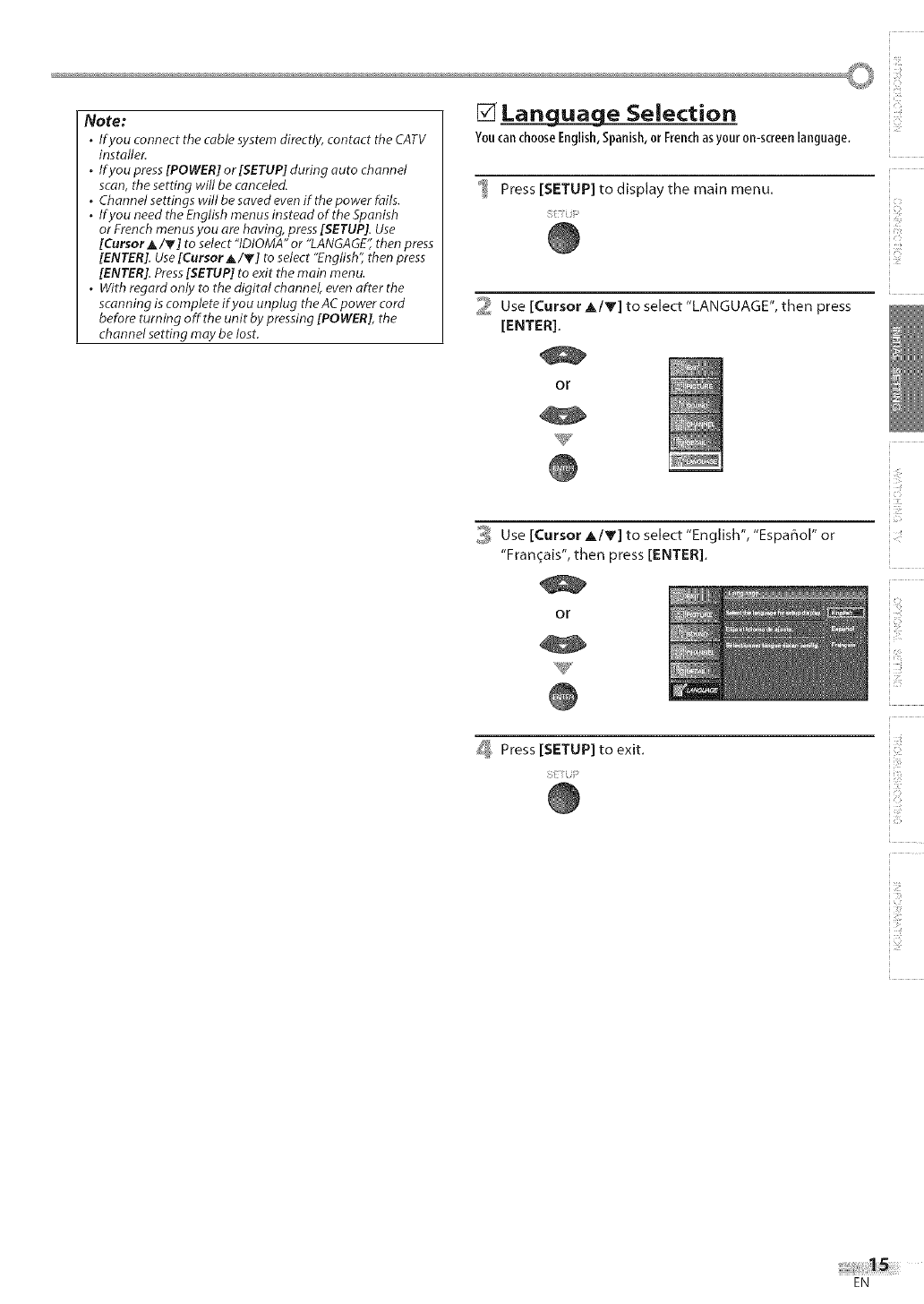
[] Lan ug=U_a=geSelection
Youcan choose English, Spanish, or French as your on-screen language.
Press [SETUP] to display the main menu.
2 Use [Cursor A/V] to select "LANGUAGE", then press
[ENTER]_
or
i_ Use [Cursor A/Y] to select "English", "Espa_ol" or
"Fran_ais", then press [ENTER].
or
_ Press [SETUP] to exit.
IC:
ii_/ii
ii i_i?ii
_iii!!_!!
EN
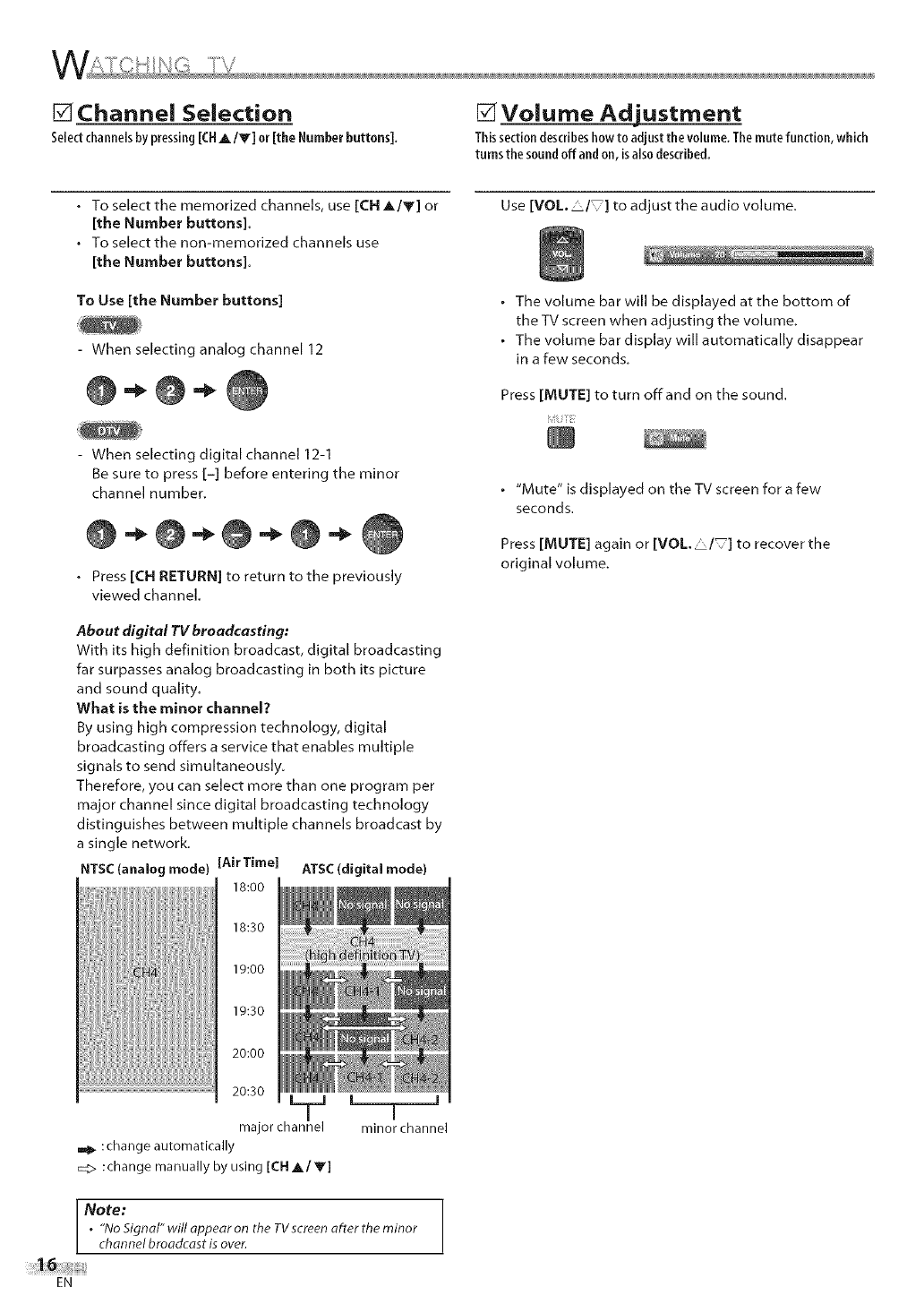
[] Channel Selection
Selectchannelsbypressing[CHA/V] or [the Numberbuttons].
[] Volume Adjustment
Thissectiondescribeshow to adjustthe volume.Themute function, which
turnsthesoundoff andon, isalso described.
• To select the memorized channels, use [CH A/V] or
[the Number buttons].
• To select the non-memorized channels use
[the Number buttons].
To Use [the Number buttons]
When selecting analog channel 12
- When selecting digital channel 12-1
Be sure to press [-] before entering the minor
channel number.
•Press [CH RETURN] to return to the previously
viewed channel
About digital TV broadcasting:
With its high definition broadcast, digital broadcasting
far surpasses analog broadcasting in both its picture
and sound quality
What is the minor channel?
By using high compression technology, digital
broadcasting offers a service that enables multiple
signals to send simultaneously.
Therefore, you can select more than one program per
major channel since digital broadcasting technology
distinguishes between multiple channels broadcast by
a single network.
NTSC(analog mode) [Air Time) ATSC(digital mode)
18:00
18:30
19:00
19:30
20:00
20:30
major ch minor channel
==_:change automatically
_> :change manually by using [CH A/V]
Note:
. "No Signal" will appear on the TVscreenafter the minor
channel broadcast is over.
Use[VOL /]toadjusttheaudiovolume.
• The volume bar will be displayed at the bottom of
the TV screen when adjusting the volume.
, The volume bar display will automatically disappear
in a few seconds.
Press [MUTE] to turn offand on the sound.
• "Mute" is displayed on the TV screen for a few
seconds.
Press [MUTE] again or[VOL, "/ ] to recover the
original volume.
EN
IC:
[] Still Mode [] Switching Each Mode
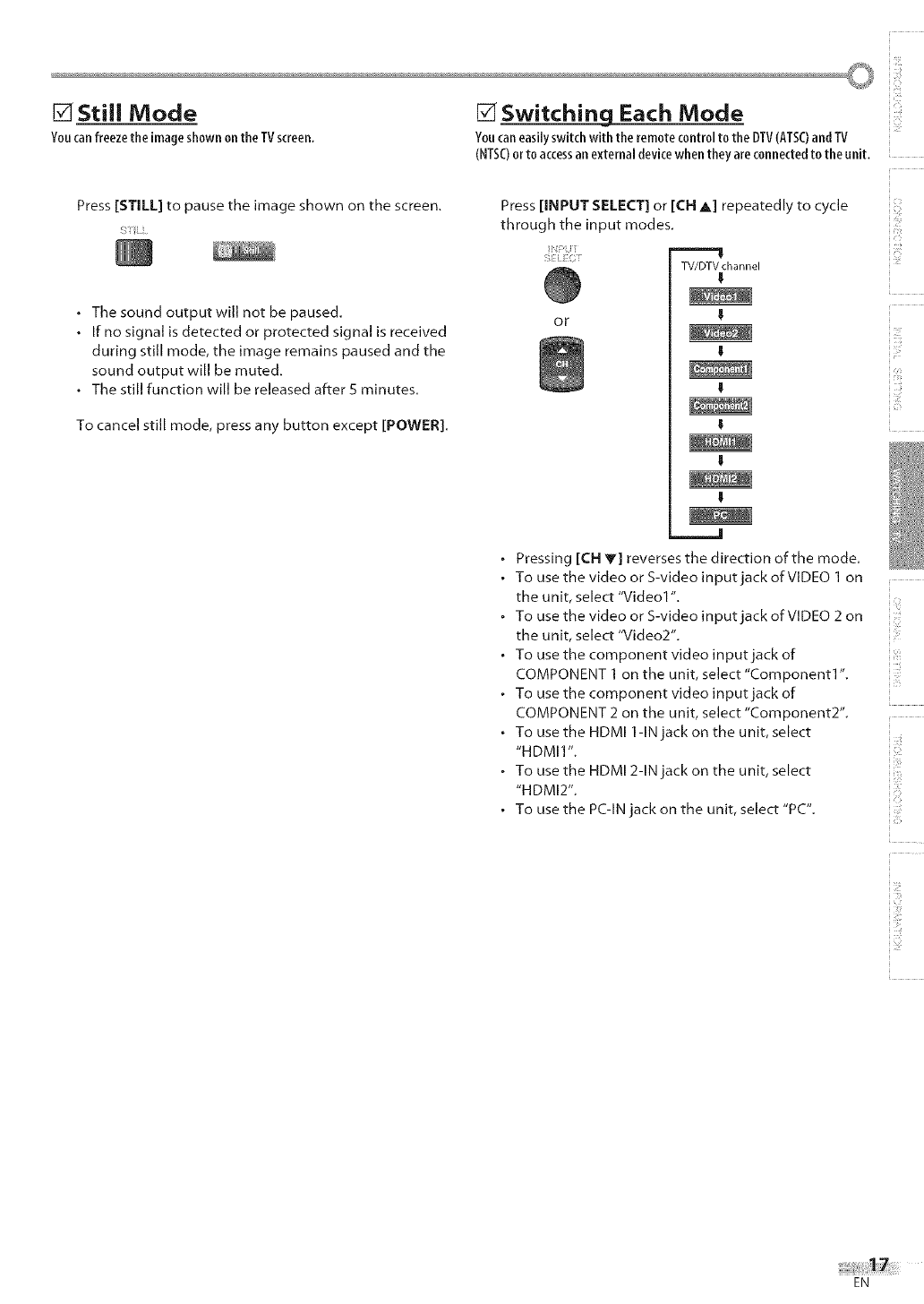
Youcanfreezethe imageshownon the TVscreen. Youcaneasilyswitch with the remotecontrolto the DTV(ATSC)andTV
(NTSC)or to accessan external devicewhen they are connectedto the unit.
Press [STILL] to pause the image shown on the screen.
•The sound output will not be paused.
•If no signal is detected or protected signal is received
during still mode, the image remains paused and the
sound output will be muted.
• The still function will be released after S minutes.
To cancel still mode, press any button except [POWER].
i
Press [INPUT SELECT] or [(:HA] repeatedly to cycle
through the input modes.
} iT
I " TV/DTV channel
I
or
}i(J¸
_i!_i_i_i!_
Pressing [(:H V] reverses the direction of the mode.
To use the video or S-video input jack of VIDEO ] on
the unit, select "Video] 'L
To use the video or S-video input jack of VIDEO 2 on
the unit, select "Video2".
To use the component video input jack of
COMPONENT ] on the unit, select "Component]'L
To use the component video input jack of
COMPONENT 2 on the unit, select "Component2'L
To use the HDMI ]-IN jack on the unit, select i
"HDMI1 ".
To use the HDMI 2-IN jack on the unit, select
"HDMI2". i
To use the PC-IN jack on the unit, select "PC".
1!
EN
[] Switching Audio Mode
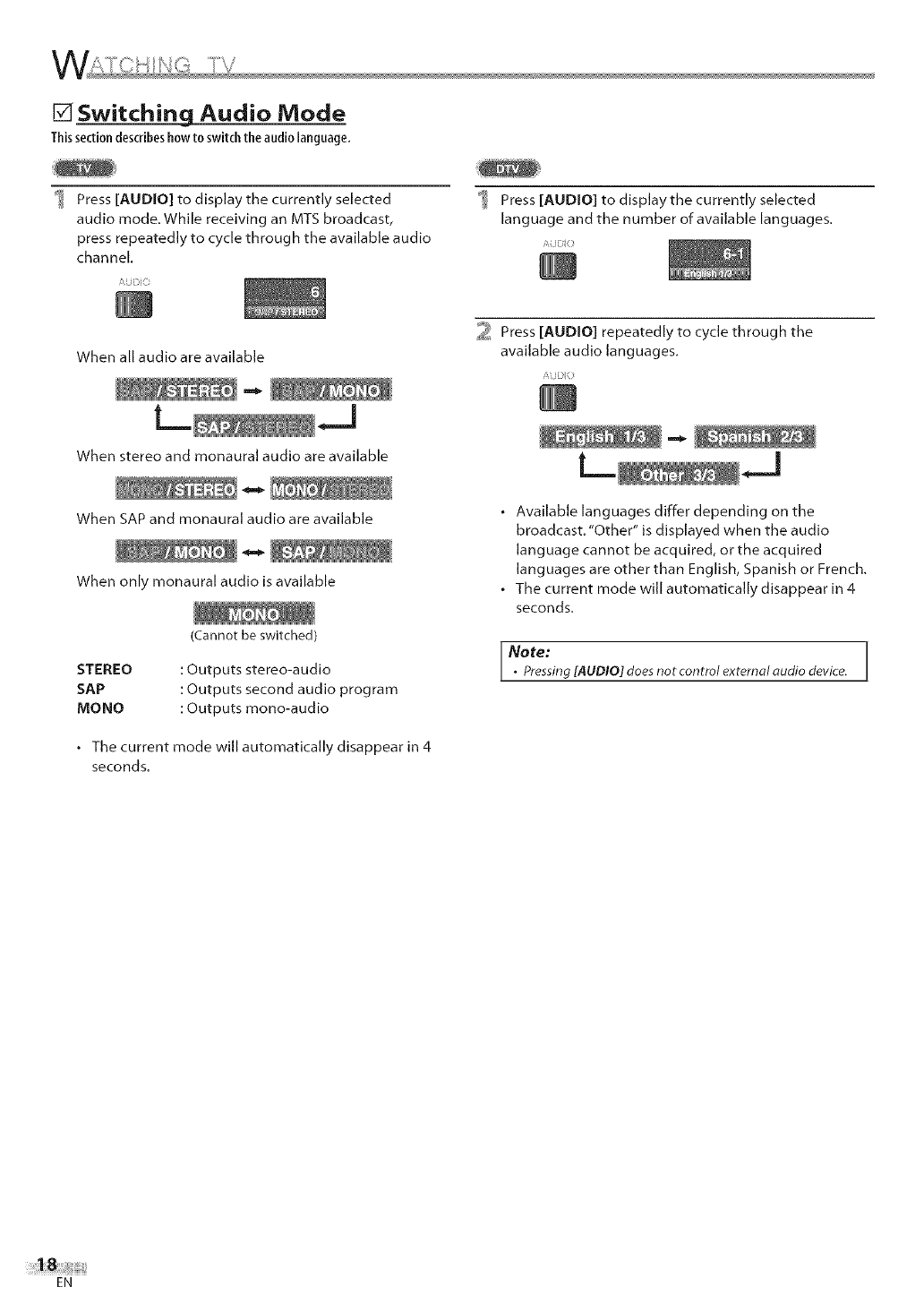
Thissectiondescribeshowto switchthe audiolanguage.
Press [AUDIO] to display the currently selected
audio mode. While receiving an MTS broadcast,
press repeatedly to cycle through the available audio
channel.
/
When all audio are available
When stereo and monaural audio are available
When SAP and monaural audio are available
When only monaural audio is available
(Cannot be switched)
STEREO
SAP
MONO
: Outputs stereo-audio
: Outputs second audio program
: Outputs rounD-audio
• The current mode will automatically disappear in 4
seconds.
_ Press [AUDIO] to displaythe currently selected
language and the number of available languages.
_uDiei
2 Press [AUDIO] repeatedly to cycle through the
available audio languages.
. Available languages differ depending on the
broadcast. "Other" is displayed when the audio
language cannot be acquired, or the acquired
languages are other than English, Spanish or French.
. The current mode will automatically disappear in 4
seconds.
Note:.Pressing[AUDIO] does not control external audio device. J
EN
[] Screen Information
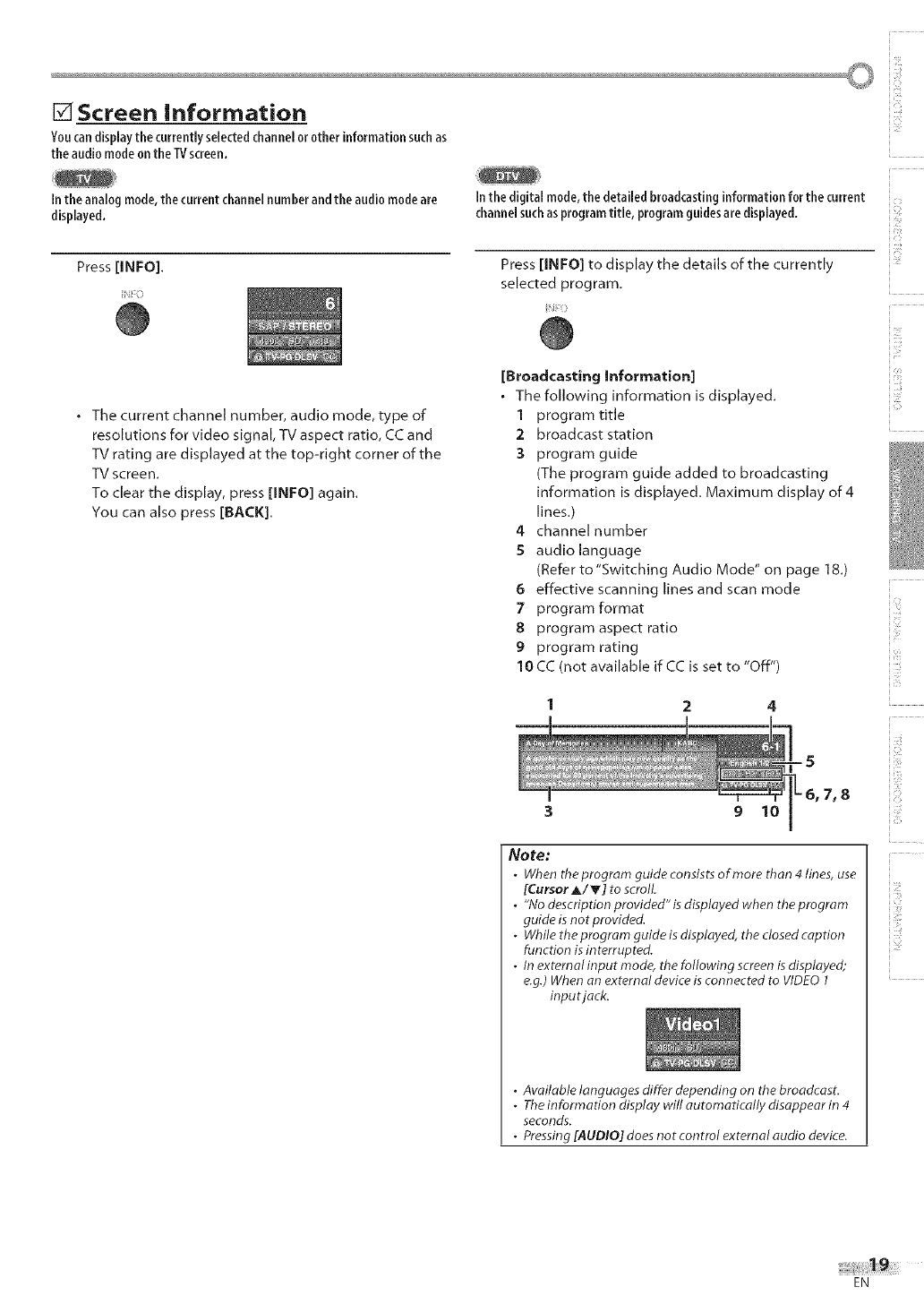
Youcandisplaythecurrentlyselectedchannelorotherinformationsuchas
the audiomodeon the TVscreen.
Inthe analog mode,the current channelnumberand the audiomodeare
displayed.
Press [INFO].
In the digital mode,the detailed broadcasting informationforthe current
channelsuchas programtitle, program guidesare displayed.
i
• The current channel number, audio mode, type of
resolutions for video signal, TV aspect ratio, CC and
TV rating are displayed at the top-right corner of the
TV screen.
To clear the display, press [INFO] again.
You can also press [BACK].
Press [INFO] to display the details of the currently
selected program.
[Broadcasting Information]
.The following information is displayed.
1 program title
2 broadcast station
:3 program guide
(The program guide added to broadcasting
information is displayed, Maximum display of 4
lines.)
4 channel number
5audio language
(Refer to"Switching Audio Mode" on page 18.)
6 effective scanning lines and scan mode
7 program format
8program aspect ratio
9 program rating
1BCC (not available ifCC is set to "Off")
9 10
Note:
.When the program guide consists of more than 4 lines, use
[Cursor _/T] to scroll.
• "No description provided" is displayed when the program
guide is not provided.
.While the program guide is displayed, the closed caption
function is interrupted.
•In externalinput mode, the following screen is displayed;
e.g.) When an external device is connected to VIDEO 1
inputjack.
i i¸i¸J¸
iii,_i!_i
_iii!!_!!,
•Available languages differ depending on the broadcast.
.The information display will automatically disappear in 4
seconds.
•Pressing [AUDIO] does not control external audio device.
EN
E TV Screen Display Mode
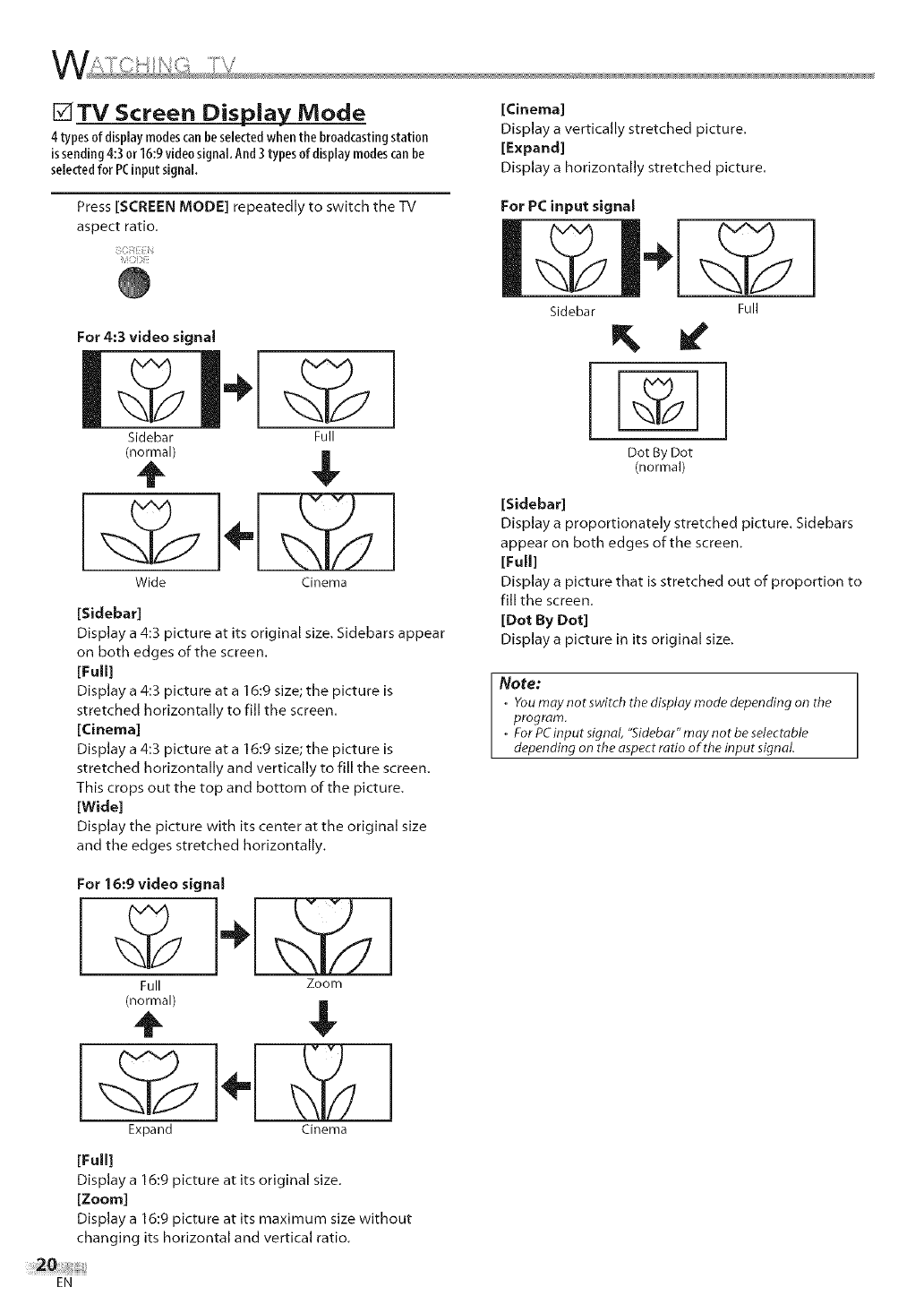
4 types ofdisplay modescanbeselectedwhen the broadcastingstation
issending4:3 or 16:9video signal.And3 types of display modescanbe
selectedfor PCinput signal.
Press [SCREEN MODE] repeatedly to switch the TV
aspect ratio.
For 4:3 video signal
Sidebar
(normal)
Wide
[Sidebar]
Full
$
Cinema
Display a 4:3 picture at its original size. Sidebars appear
on both edges of the screen.
[Full]
Display a 4:3 picture at a 16:9 size; tile picture is
stretched horizontally to fill the screen.
[Cinema]
Display a 4:3 picture at a 16:9 size; the picture is
stretched horizontally and vertically to fill the screen.
This crops out the top and bottom of the picture.
[Wide]
Display the picture with its center at the original size
and the edges stretched horizontally.
For 16:9 video signal
Full Zoom
(normal)
Expand Cinema
[Full]
Display a 16:9 picture at its original size.
[Zoom]
Display a 16:9 picture at its maximum size without
changing its horizontal and vertical ratio,
[Cinema]
Display a vertically stretched picture.
[Expand]
Display a horizontally stretched picture.
For PC input signal
Sidebar Full
Dot By Dot
(normal)
[Sidebar]
Display a proportionately stretched picture. Sidebars
appear on both edges of the screen.
[Full]
Display a picture that is stretched out of proportion to
fill the screen.
[Dot By Dot]
Display a picture in its original size.
Note:
•Youmay not switch the display mode depending on the
program.
.For PCinput signal, "Sidebar" may not be selectable
depending on the aspect ratio of the input signal.
EN
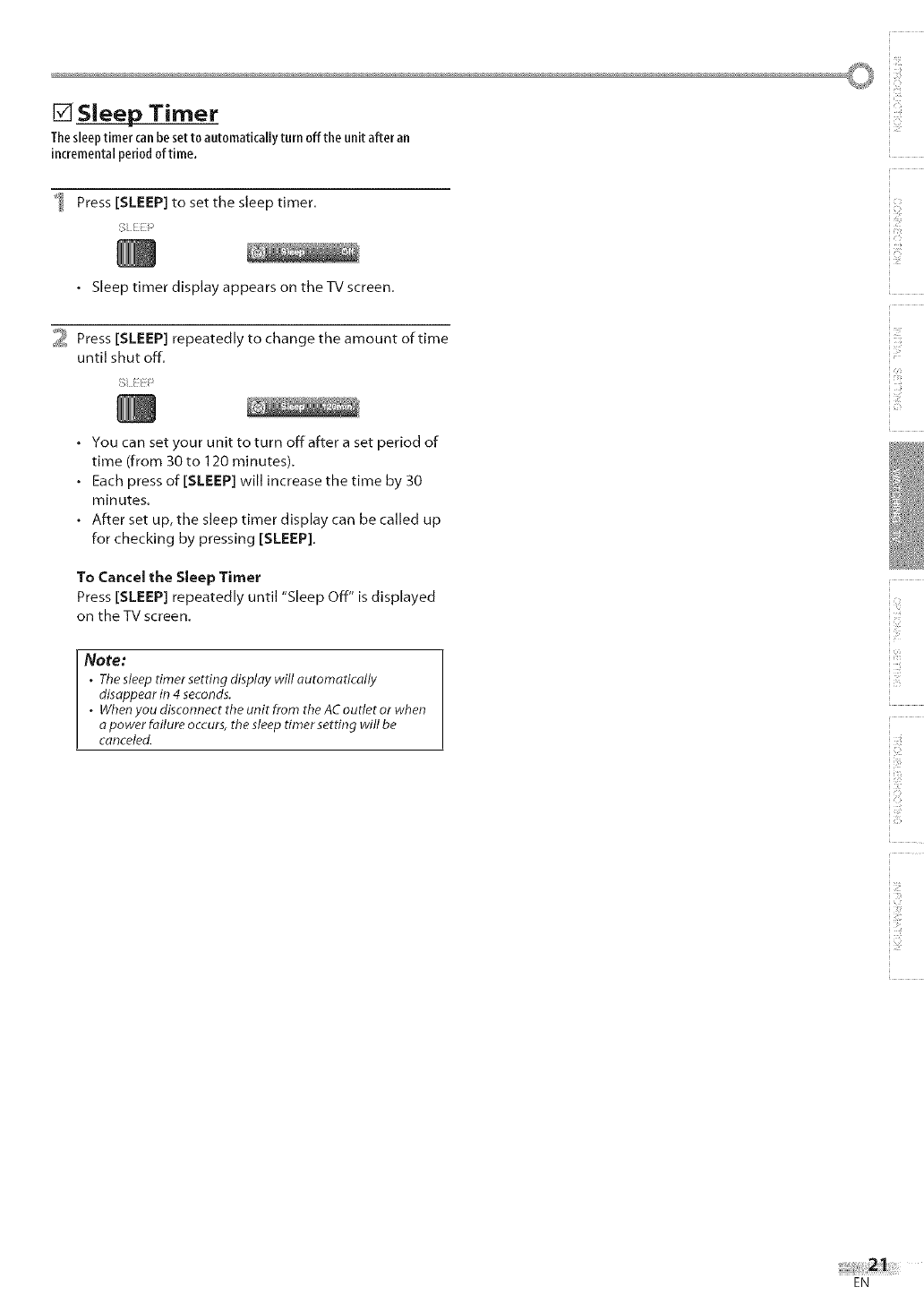
[] Sleep Timer
Thesleeptimer canbe setto automatically turn off the unit after an
incrementalperiodof time.
Press [SLEEP] tO set tile sleep timer.
• Sleep timer display appears on the TV screen.
2 Press [SLEEP] repeatedly to change the amount of time
until shut off.
• You can set your unit to turn off after a set period of
time (from 30 to 120 minutes).
• Each press of [SLEEP] will increase the time by 30
minutes.
• After set up, the sleep timer display can be called up
for checking by pressing [SLEEP].
To Cancel the Sleep Timer
Press [SLEEP] repeatedly until "Sleep Off" is displayed
on the TV screen.
Note:
.The sleep timer setting display will automatically
disappear in 4 seconds.
.When you disconnect the unit from the AC outlet or when
a power failure occurs, the sleep timer setting will be
canceled.
}iiJ¸
_i!_i_i_i!_
!iiii_
iii,_i!_i
_iii!!_!!
1!
EN
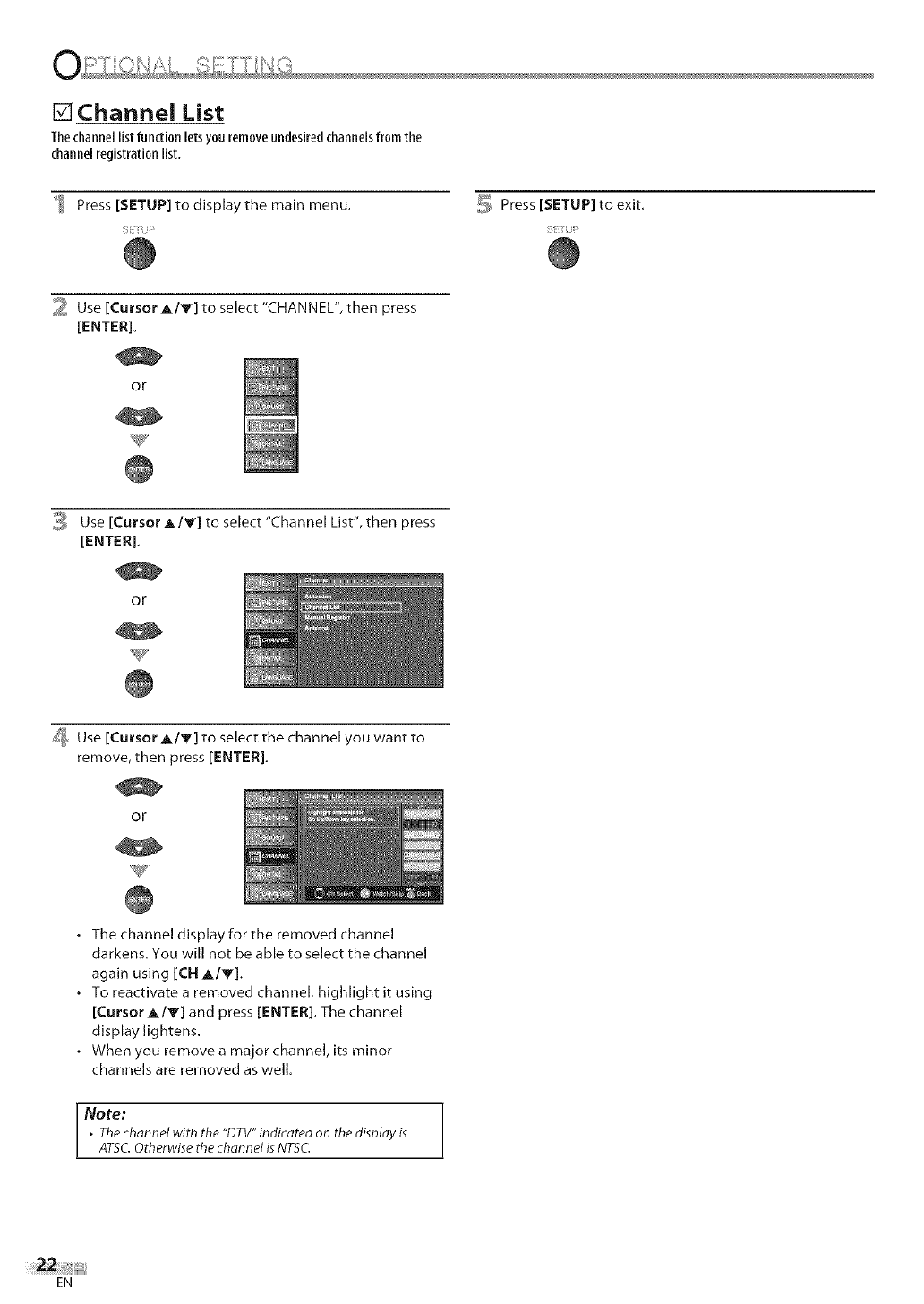
Channei List
Thechannel list function letsyon removeundesiredchannelsfrom the
channelregistration list.
Press [SETUP] to display the main menu. _ Press [SETUP] to exit.
2 Use [Cursor A/Y] to select "CHANNEL", then press
[ENTER].
or
0,_ Use [Cursor A/Y] to select "Channel List", then press
[ENTER].
or
d_ Use [Cursor A/y] to select the channel you want to
remove, then press [ENTER].
or
•The channel display for the removed channel
darkens. You will not be able to select the channel
again using [CH A/Y].
•To reactivate a removed channel, highlight it using
[Cursor A/V] and press [ENTER]. The channel
display lightens.
°When you remove a major channel, its minor
channels are removed as well.
Note:
.The channel with the "DTV"indicated on the display is
ATSC. Otherwise the channel is NTSC.
EN
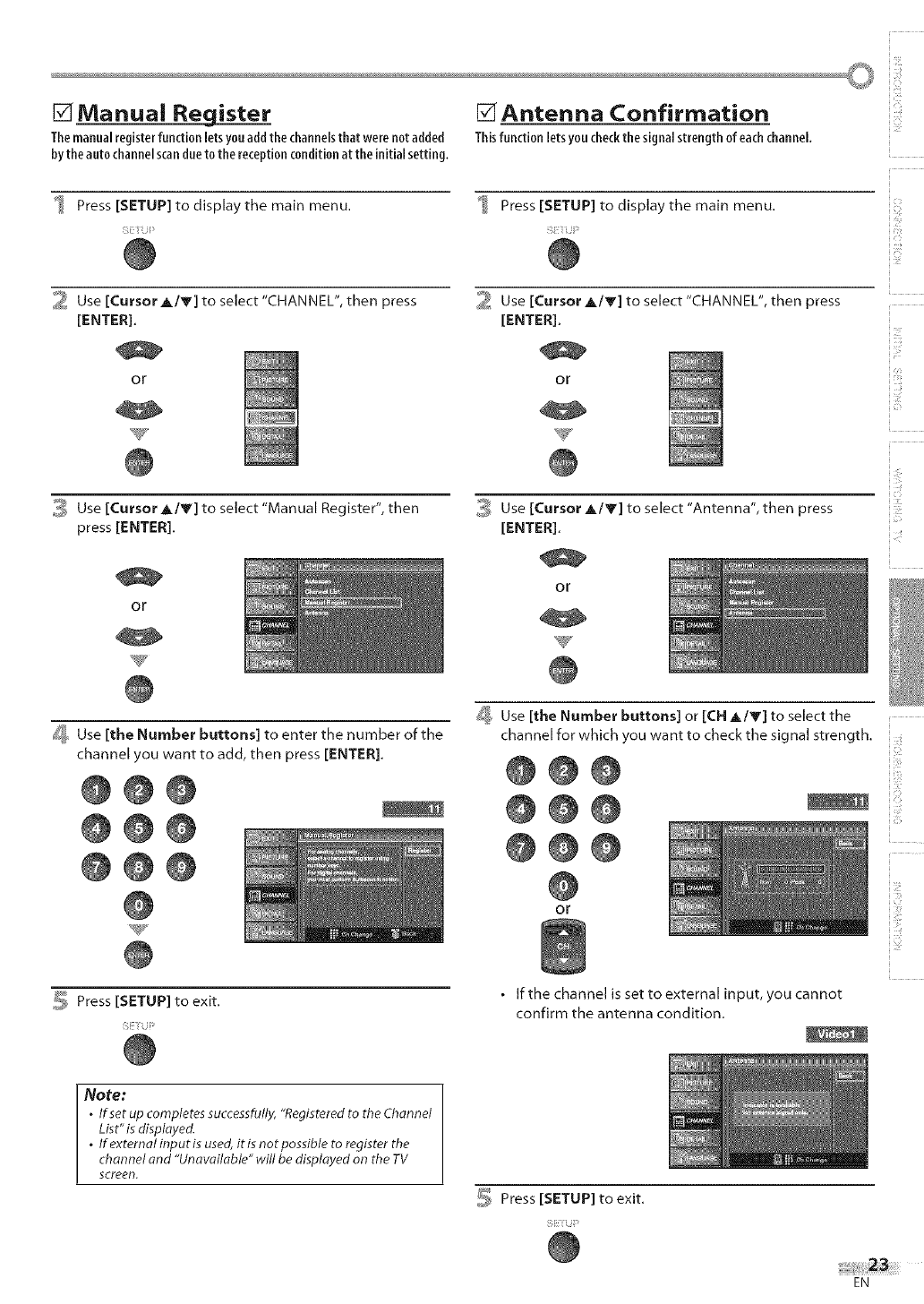
[] Manual Reg.ister [] Antenna Confirmation
Themanualregisterfunctionletsyouadd thechannelsthat werenot added Thisfunctionletsyoucheckthesignal strength ofeachchannel
bythe auto channelscanduetothe receptionconditionat theinitialsetting.
Press [SETUP] to display the main menu. Press [SETUP] tO display the main menu.
2 Use [Cursor A/V] to select "CHANNEL", then press 2 Use [Cursor A/V] to select "CHANNEL", then press
[ENTER]. [ENTER].
or or
_ Use [Cursor A/V] to select "Manual Register", then
press [ENTER].
or
_i_ Use [Cursor A/V] to select "Antenna", then press
[ENTER],
or
ii¸i¸J¸
i!ii!¸
!iiii_
_ Use [the Number buttons] to enter the number of the
channel you want to add, then press [ENTER].
@@@
@@@
@@@
5 Press [SETUP] to exit.
_, Use [the Number buttons] or [CN AIY] to select the
channel for which you want to check the signal strength. i
@@ @
@@@ .......
@@@
OF
.If the channel is set to external input, you cannot
confirm the antenna condition.
Note:
.If set up completes successfully,"Registered to the Channel
List"is displayed.
.If external inputis used,iris notpossible to register the
channel and "Unawilable" will be displayed on the TV
screen.
_, Press [SETUP] to exit.
EN
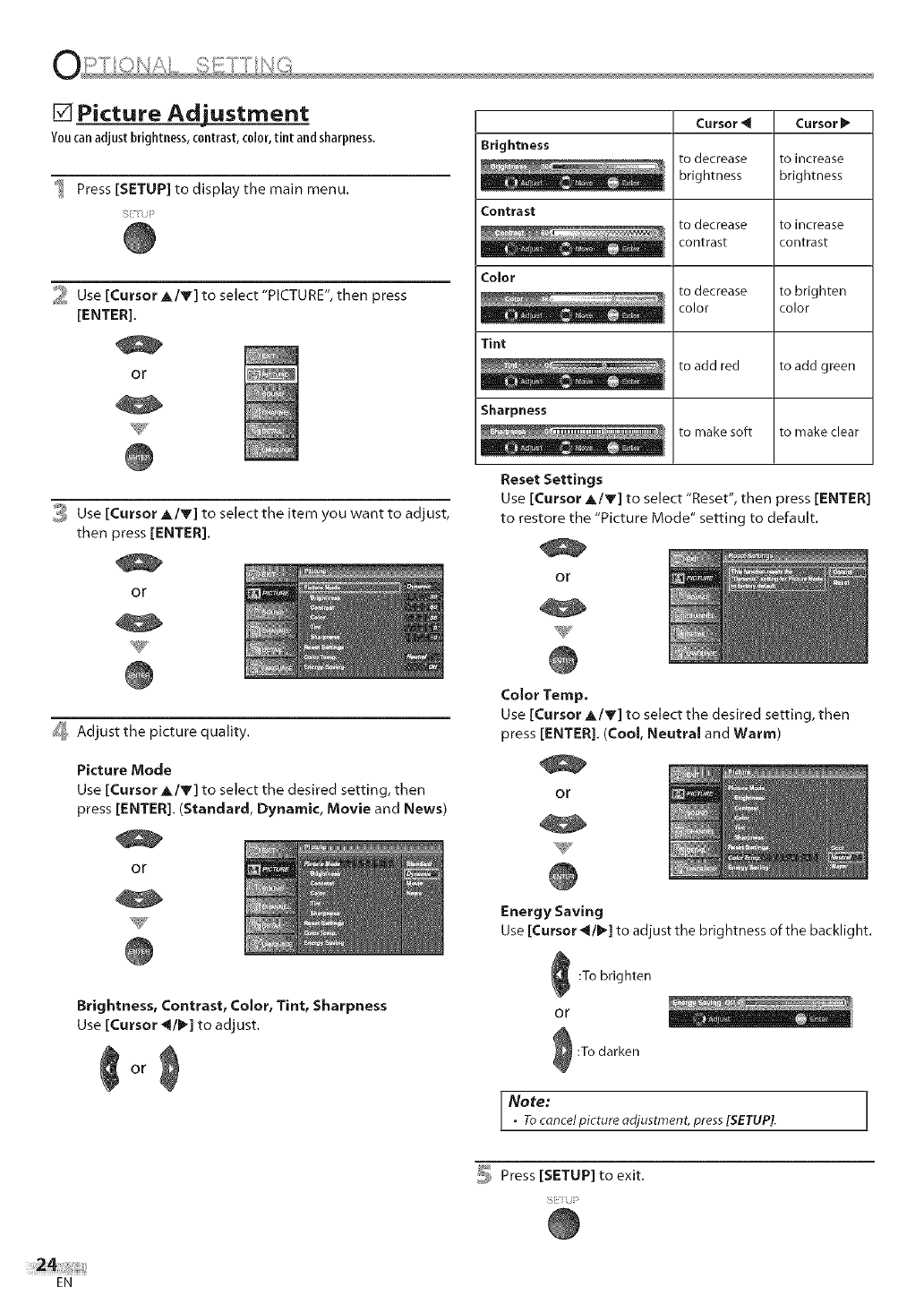
[] Picture Adjustment
Youcanadjust brightness,contrast, color,tint and sharpness.
Press [SETUP] to display the main menu.
S_i iiiF _
_ Use [Cursor A/Y] to select "PICTURE", then press
[ENTER].
or
Brightness
Contrast
Cursor_l
to decrease
brightness
to decrease
contrast
Cursor_
to increase
brightness
to increase
contrast
Color
to decrease to brighten
color color
Tint
to add red to add green
Sharpness
to make soft to make clear
3 Use [Cursor A/V] to select the item you want to adjust,
then press [ENTER].
or
Reset Settings
Use [Cursor A/Y] to select "Reset", then press [ENTER]
to restore the "Picture Mode" setting to default.
or
_ Adjust the picture quality.
Picture Mode
Use [Cursor Ak/Y] to select the desired setting, then
press [ENTER]. (Standard, Dynamic, Movie and News)
or
Brightness, Contrast, Color, Tint, Sharpness
Use [Cursor _1/I_] to adjust.
or
Color Temp,
Use [Cursor A/V] to select the desired setting, then
press [ENTER]. (Cool, Neutral and Warm)
or
Energy Saving
Use [Cursor _/1_] to adjust the brightness of the backlight.
_ :To brighten
Or
:To darken
Note:
•Tocancel picture adjustment, press[SETUP].
_Press [SETUP] to exit.
EN
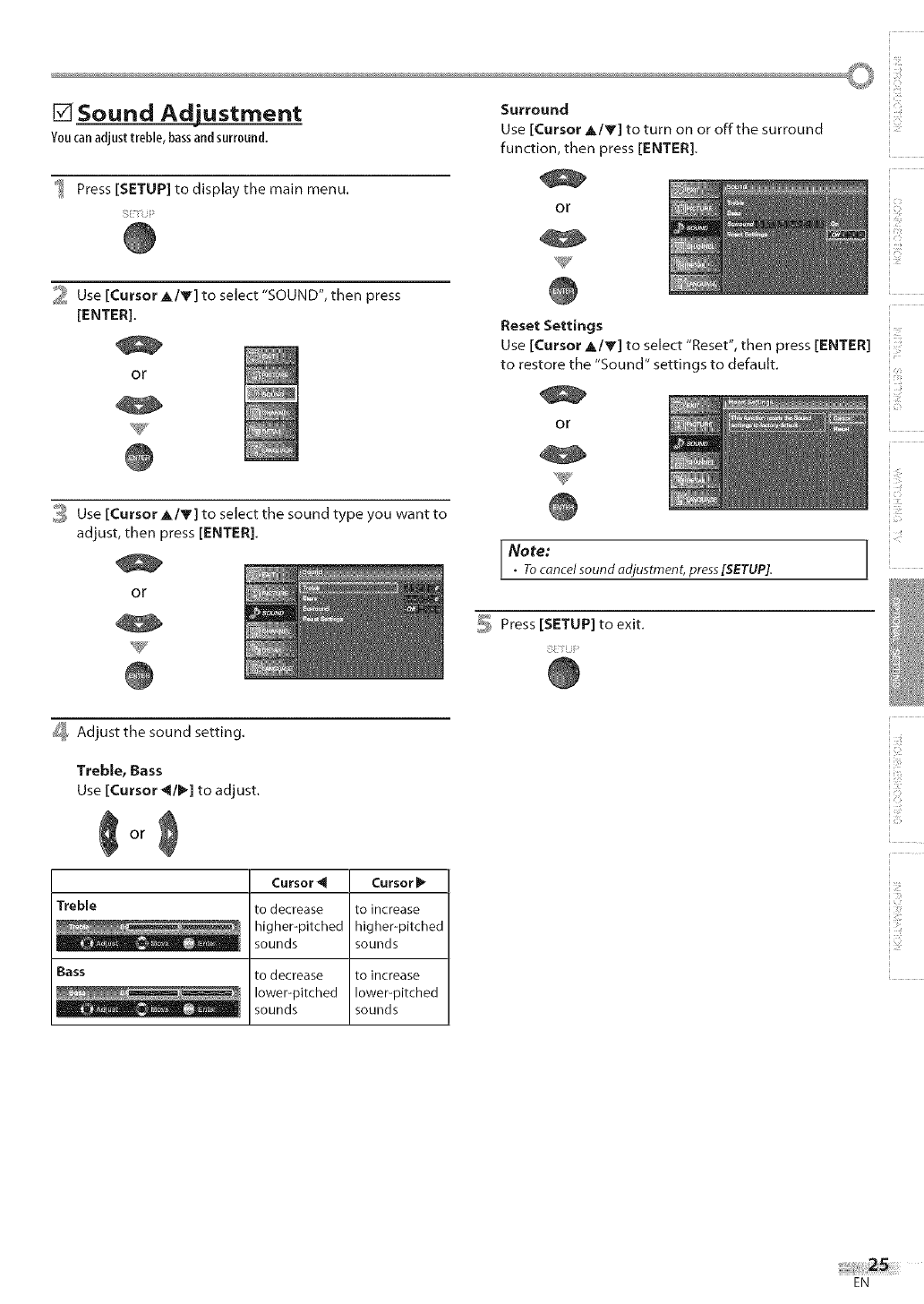
Youcanadjusttreble,bassandsurround.
Press[SETUP]todisplaythemainmenu.
i!_i i iil :_
©
[] Sound Adiustrnent Surround
Use [Cursor A/V] to turn on or offthe surround
function, then press [ENTER].
or
W
_ Use [Cursor _,/Y] to select "SOUND", then press
[ENTER].
or
Reset Settings
Use [Cursor A/Y] to select "Reset", then press [ENTER]
to restore the "Sound" settings to default.
or
_ Use [Cursor _,/Y] to select the sound type you want to
adjust, then press [ENTER].
or
Note:
•Toconcelsoundadjustment, press[SETUP].
_ Press [SETUP] to exit.
i _/ii
i iii_!il
_#_,Adjust the sound setting.
Treble, Bass
Use [Cursor _1/1_] to adjust.
or
Cursor _1 Cursor !_
Treble to decrease to increase
_ higher-pitched higher-pitched
, sounds sounds
Bass to decrease to increase
lower-pitched lower-pitched
sounds sounds
EN
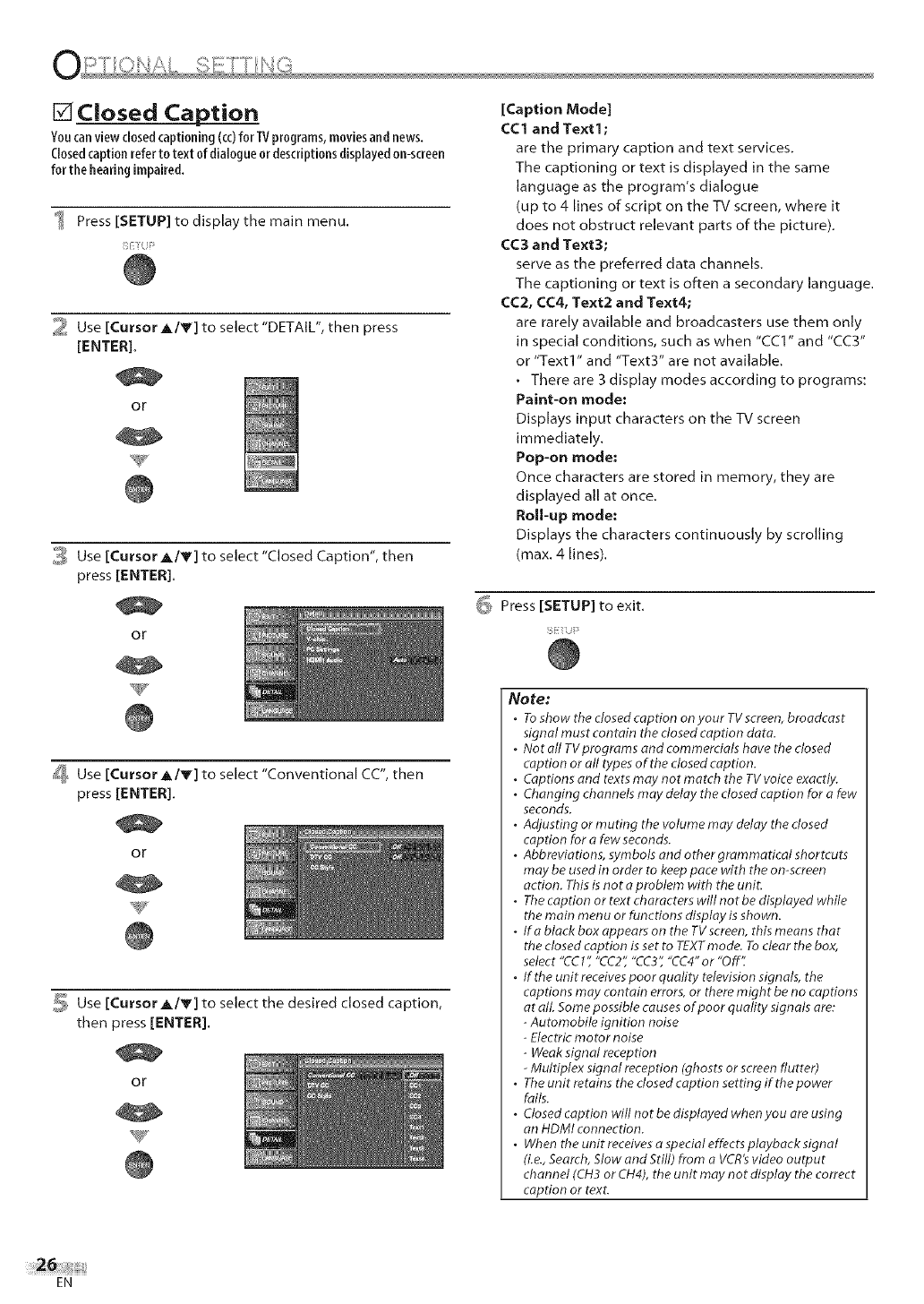
[] Closed Caption
Youcanview closedcaptioning (co)for TVprograms,moviesand news.
Closedcaption referto text ofdialogueor descriptionsdisplayedon-screen
for the hearingimpaired.
_ Press [SETUP] to display the main menu.
2 Use [Cursor AIr] to select "DETAIL", then press
[ENTER].
or
3 Use [Cursor A/V] to select "Closed Caption", then
press [ENTER].
or
W
_ Use [Cursor A/Y] to select "Conventional CC", then
press [ENTER].
or
5 Use [Cursor A/V] to select the desired closed caption,
then press [ENTER].
or
[Caption Mode]
CCI and Textl;
are the primary caption and text services.
The captioning or text is displayed in the same
language as the program's dialogue
(up to 4 lines of script on the TV screen, where it
does not obstruct relevant parts of the picture).
CC3 and Text3;
serve as the preferred data channels.
The captioning or text is often a secondary language.
CC2, CC4, Text2 and Text4;
are rarely available and broadcasters use them only
in special conditions, such as when "CCI" and "CC3"
or "Text 1" and "Text3" are not available.
•There are 3 display modes according to programs:
Paint-on mode:
Displays input characters on the TV screen
immediately.
Pop-on mode:
Once characters are stored in memory, they are
displayed all at once.
Roll-up mode:
Displays the characters continuously by scrolling
(max. 4 lines).
_ Press [SETUP] to exit.
Note:
•To show the closed caption on your TVscreen, broadcast
signal must contain the dosed caption data.
.Not all TVprograms and commercials have the closed
caption or all types of the closed caption.
• Captions and texts may not match the TVvoice exactly.
. Changing channels may delay the closed caption for a few
seconds.
•Adjusting or muting the volume may delay the dosed
caption for a few seconds.
.Abbreviations, symbols and other grammatical shortcuts
may be usedin order to keeppace with the on-screen
acdon. Thisisnot aproblem with the unit.
•Thecaption or text characters will not be displayed while
the main menu or functions display is shown.
.If ablack box appears on the TVscreen, this means that
the closed caption is set to TEXTmode. Toclear the box,
sdect "CC1","CC2;'"CC3","CC4"or "Off'_
•If the unit receivespoor quality television signals, the
captions may contain errors,or there might be no captions
at alL Somepossible causesof poor quality signals are:
-Automobile ignition noise
-Electricmotor noise
-Weak signal reception
-Multiplex signal reception (ghosts or screen flutter)
•Theunit retains the dosed caption setting if the power
fails.
. Closed caption will not bedisplayed when you are using
an HDMI connection.
•When the unit receivesa special effects playback signal
(i.e.,Search,Slow and Still) from a VCR'svideo output
channel (CH3or CH4),the unit may not display the correct
caption or text.
EN
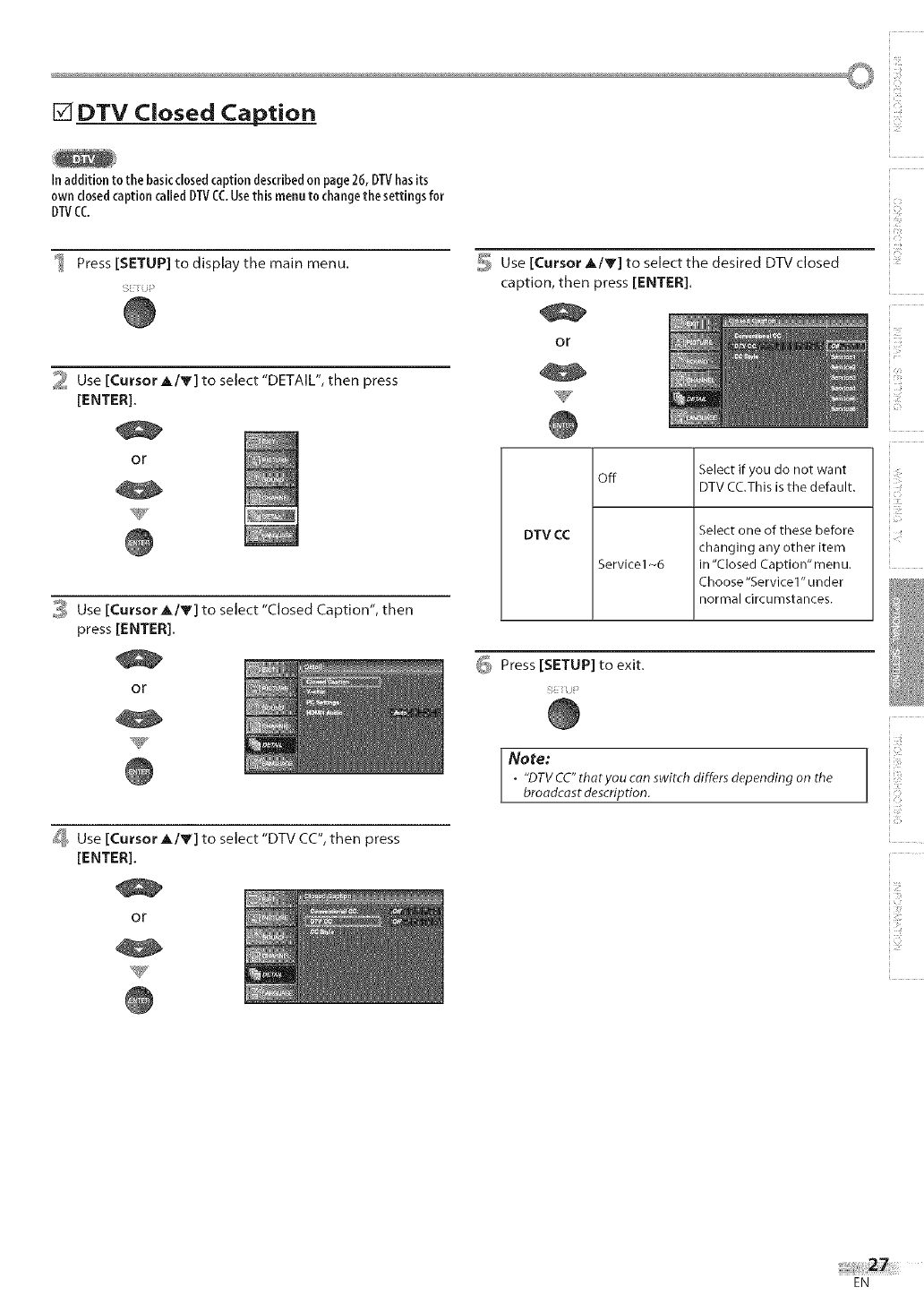
IC]
[] DTV Closed Caption
In addition to the basicclosedcaptiondescribedon page26, DTVhasits
own closedcaptioncalledDTVCO.Usethis menuto changethe settings for
DTVCC.
Press [SETUP] to display the main menu.
Sii ii)i_
2 Use [Cursor _,/V] to select "DETAIL", then press
[ENTER].
or
_ Use [Cursor _,/Y] to select "Closed Caption", then
press [ENTER].
or
5 Use [Cursor AIr] to select the desired DTV closed
caption, then press [ENTER].
!
or
!
"W/
DTV CC
off
Service1-6
Select if you do not want
DTV CC.Thisis the default.
Select one of these before
changing any other item
in "Closed Caption" menu.
Choose"Servicel" under
normal circumstances.
_ Press [SETUP] to exit.
SE _iJi _
Note:
•"DTV CC"thatyou can switch differs depending on the
broadcast description.
ii ii_i_ii!i
[_ Use [Cursor _,/Y] to select "DTV CC", then press
[ENTER],
or
i
EN
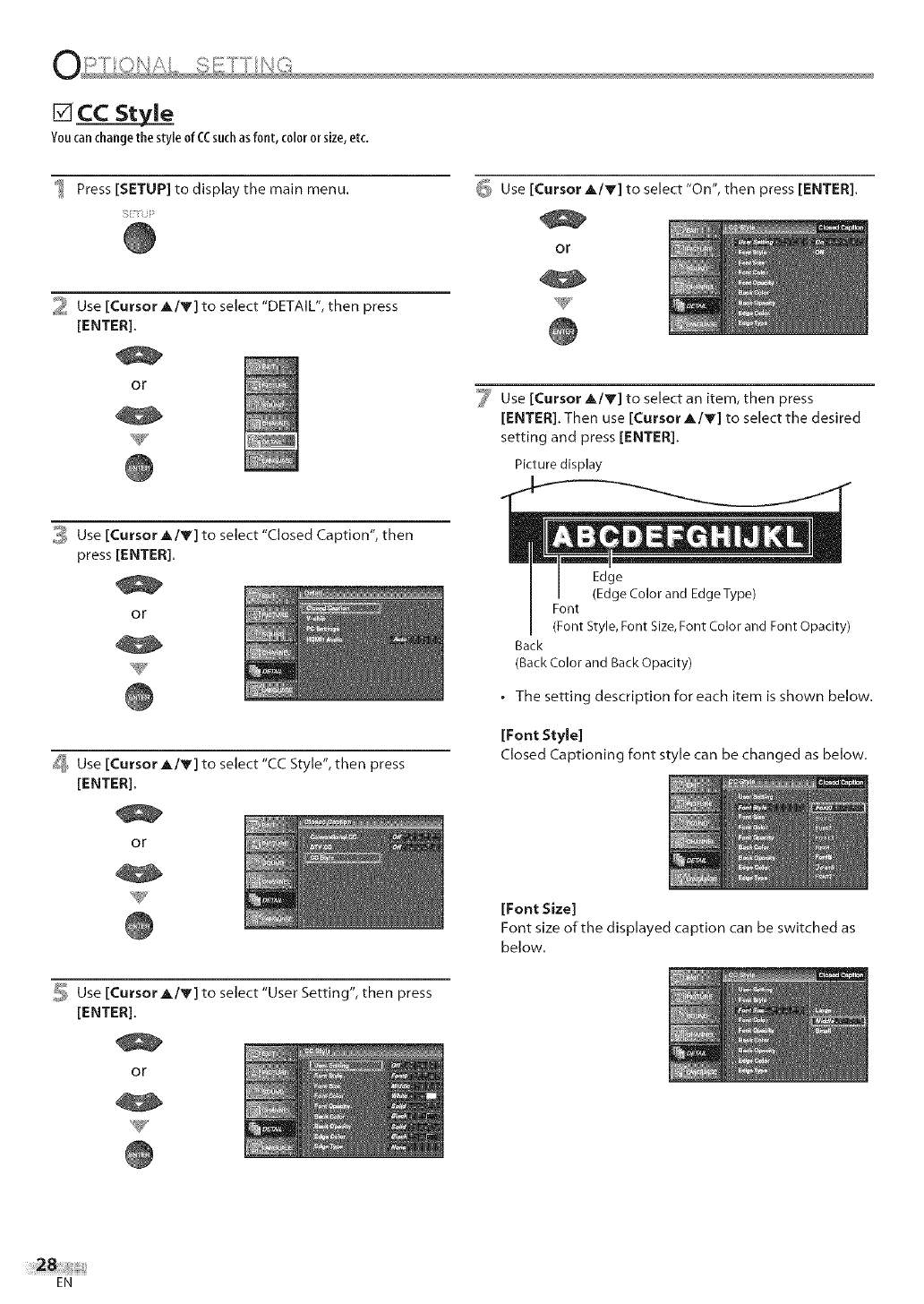
[] CC StyJe
Youcanchangethe style of CCsuchasfont, color orsize,etc.
Press [SETUP] to display the main menu.
2 Use [Cursor J,/Y] to select "DETAIL", then press
[ENTER].
or
_ Use [Cursor _,/Y] to select "On", then press [ENTER].
or
_ Use [Cursor A/Y] to select an item, then press
[ENTER]. Then use [Cursor A/y] to select the desired
setting and press [ENTER].
Picture display
_ Use [Cursor _,/Y] to select "Closed Caption", then
press [ENTER].
or
[_ Use [Cursor _,/Y] to select "CC Style", then press
[ENTER].
or
Use [Cursor _,/Y] to select "User Setting", then press
[ENTER].
or
Edge
(Edge Color and EdgeType)
Font
(Font Style, Font Size,Font Color and Font Opacity)
Back
(Back Color and Back Opacity)
• The setting description for each item is shown below.
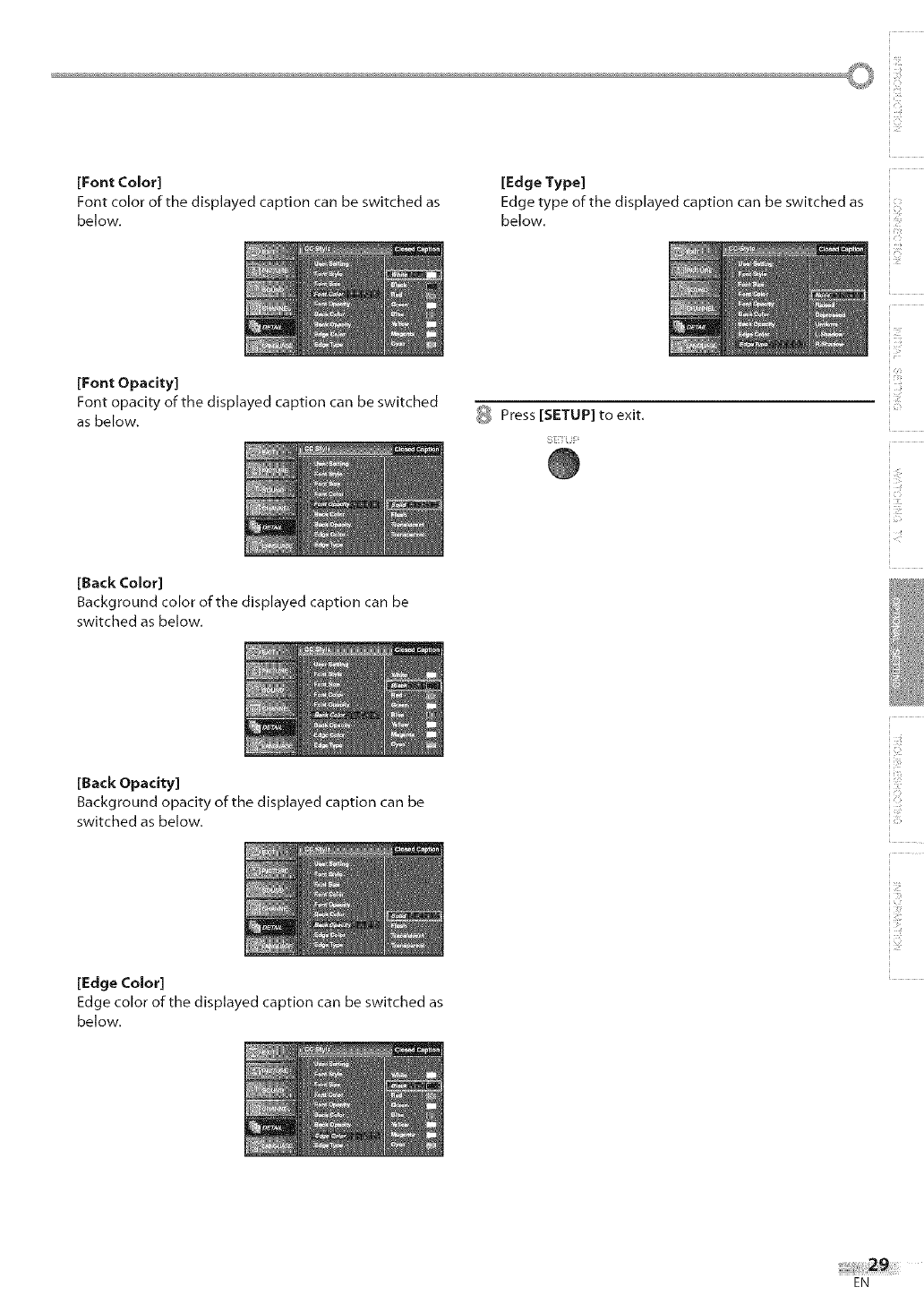
[Font Style]
Closed Captioning font style can be changed as below.
[Font Size]
Font size of the displayed caption can be switched as
below.
EN
©
[Font Color]
Font color of the displayed caption can be switched as
below.
[Edge Type]
Edge type of the displayed caption can be switched as
below.
[Font Opacity]
Font opacity of the displayed caption can be switched
as below.
[Back Color]
Background color of the displayed caption can be
switched as below.
_ Press [SETUP] to exit,
i !ii!¸
!iiii_
iT
[Back Opacity]
Background opacity of the displayed caption can be
switched as below. _iii!!_!!,
[Edge Color]
Edge color of the displayed caption can be switched as
below.
EN
[] V-chi
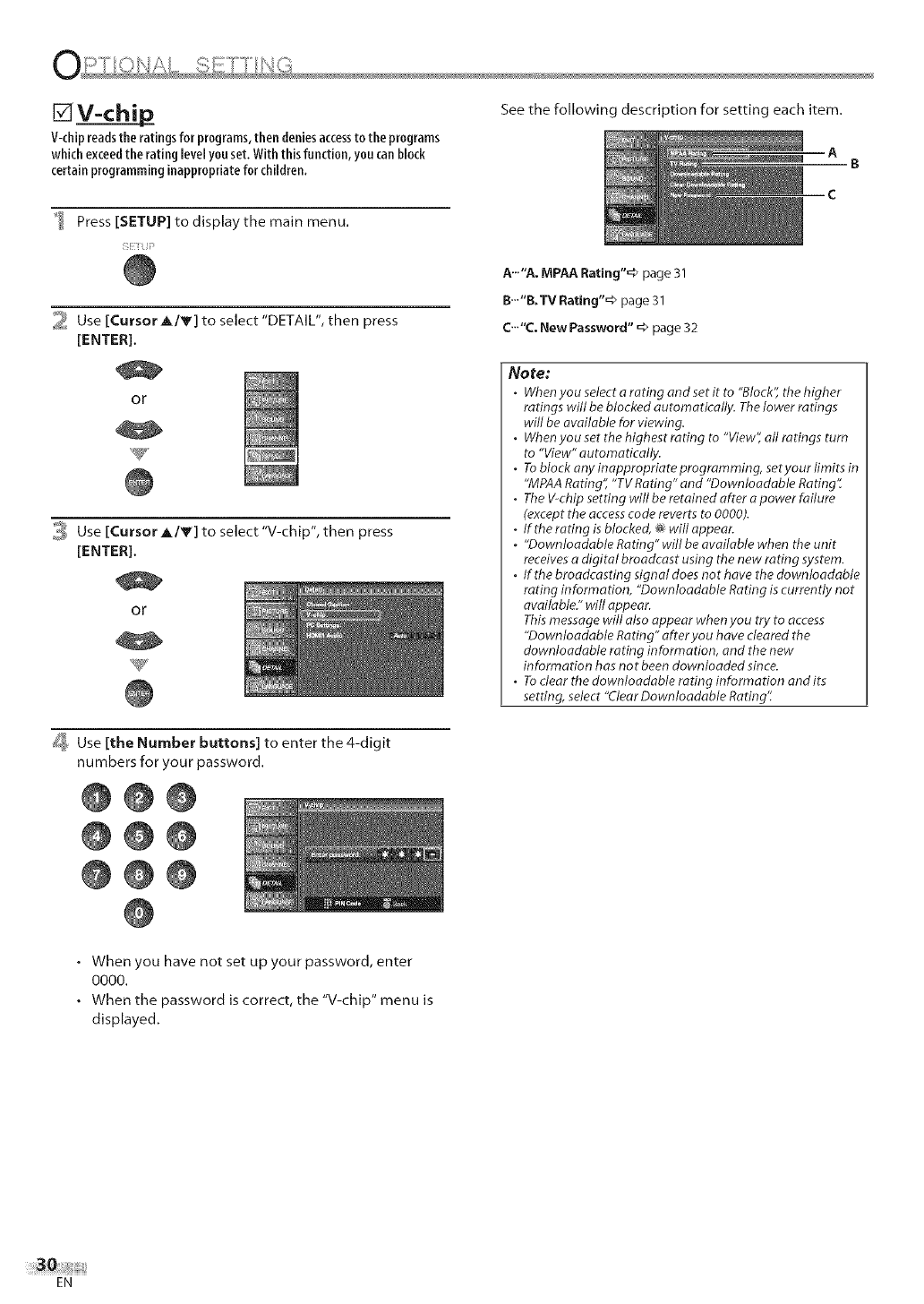
V-chipreadsthe ratingsfor programs,then deniesaccessto the programs
which exceedthe rating JeveJyouset. Withthis function, you canbJock
certain programming inappropriate for children.
Press [SETUP] to display the main menu.
2 Use [Cursor J,/Y] to select "DETAIL", then press
[ENTER].
or
3 Use [Cursor A/V] to select "V-chip", then press
[ENTER].
or
_, Use [the Number buttons] to enter the 4-digit
numbers for your password.
@@@
@@@
@@@
See the following description for setting each item.
A
C
A..."A. MPAA Rating"=> page 31
B.-"B. TV Rating"=> page 31
C..."C. New Password" => page 32
Note:
• Whenyou selectarating and set it to "Block'; the higher
ratings will be blocked automatically. The lower ratings
will be available for viewing.
•Whenyou set the highest rating to "View",all ratings turn
to "Wew" automatically.
.Toblock any inappropriate programming, setyour limits in
"MPAARating", "TV Rating" and "Downloadable Rating"
•TheV-chip setting will be retained after apower failure
(exceptthe accesscode reverts to 0000).
.If the rating is blocked, _will appear.
."Dovvnloadable Rating" will be available when the unit
receivesadigital broadcast using the new rating system.
•If the broadcasting signal does not have the downloadable
rating information, "Downloadable Rating is currently not
available." will appear.
Thismessage will also appear when you try to access
"Dovvnloadable Rating" after you have cleared the
downloadable rating information, and the new
information has not been downloaded since.
•Todear the downloadable rating information and its
setting, select "ClearDownloadable Rating".
• When you have not set up your password, enter
0000.
• When the password is correct, the "V-chip" menu is
displayed.
EN
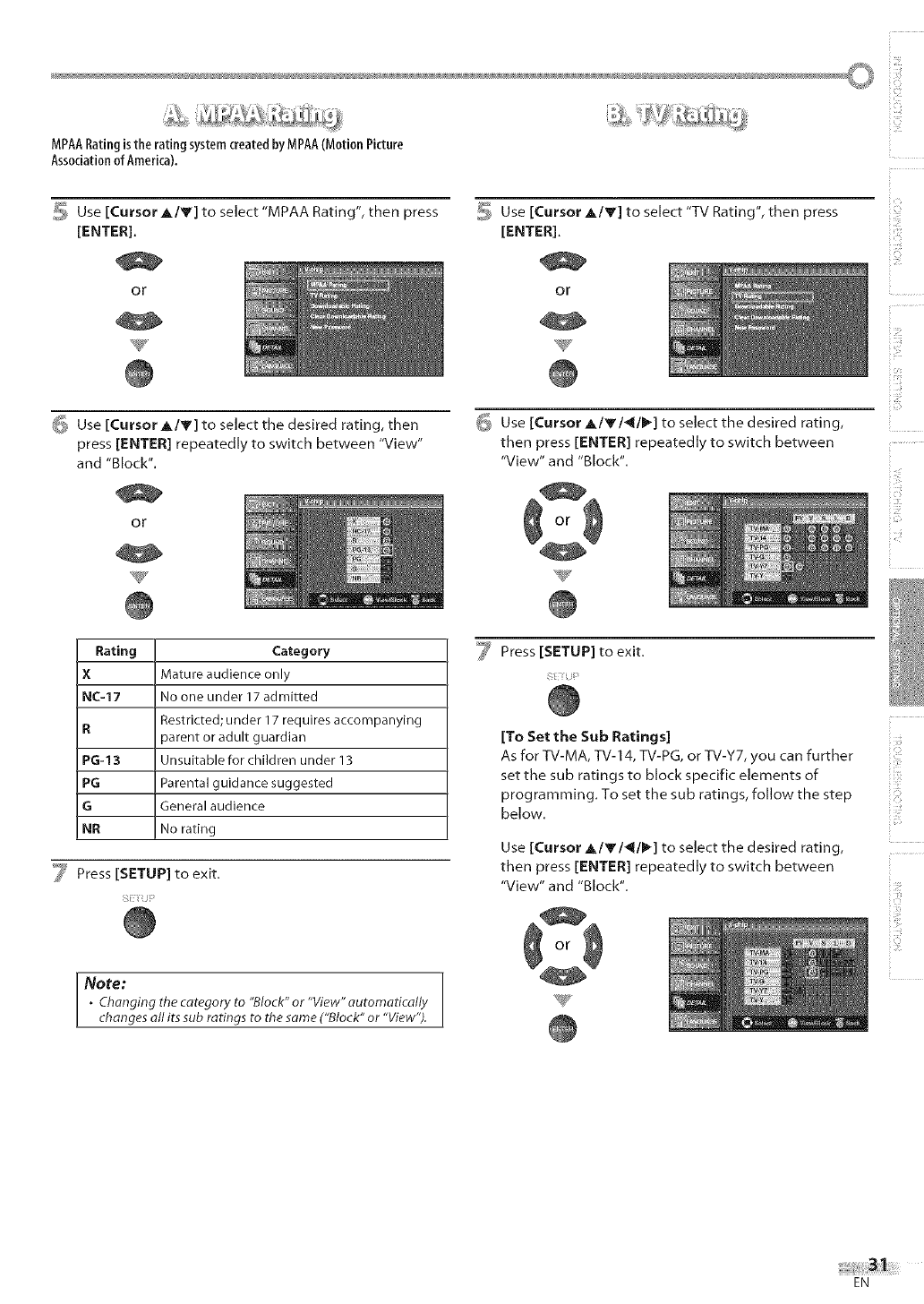
MPAARatingisthe rating systemcreatedbyMPAA(Motion Picture
Associationof America].
_ Use [Cursor _,/V] to select "MPAA Rating", then press
[ENTER].
or
.....
i_¸_;:;¸¸_ __ _ _!:
_ Use [Cursor _,/Y] to select "TV Rating", then press
[ENTER].
or
i i ¸¸
6 Use [Cursor _/V] to select the desired rating, then
press [ENTER] repeatedly to switch between "View"
and "Block".
or
6 Use [Cursor Alvl4tlIP'] to select the desired rating,
then press [ENTER] repeatedly to switch between
"View" and "Block".
c
il_,iii!'i
Rating Category
X Mature audience only
NC-17 No one under 17 admitted
Restricted; under 17 requires accompanying
Rparent or adult guardian
PG-13 Unsuitable for children under 13
PG Parental guidance suggested
G General audience
NR No rating
_y Press [SETUP] to exit.
Note:
° Changing the category to "Block" or "View" automatically
changes oil itssub ratings to the same ("Block" or "View").
_ Press [SETUP] to exit.
4
[To Set the Sub Ratings] i
As for TV-MA, TV-14, TV-PG, or TV-Y7, you can further :
set the sub ratings to block specific elements of
programming. To set the sub ratings, follow the step
below.
Use [Cursor A/V/_/1_] to select the desired rating,
then press [ENTER] repeatedly to switch between
"View" and "Block".
EN
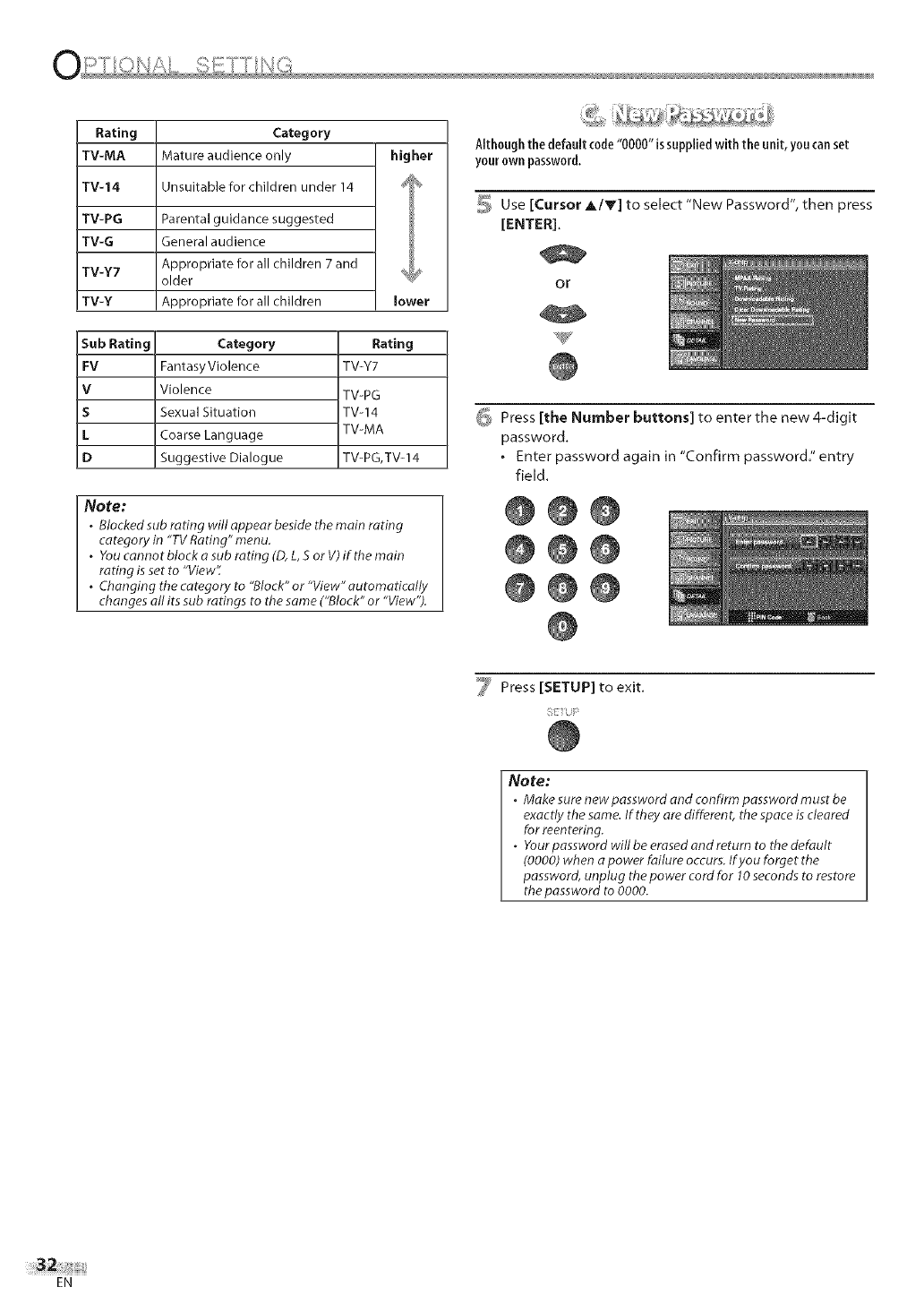
Rating Category
TV-MA Mature audience only higher
TV-14 Unsuitable for children under 14 J_
TV-PG Parental guidance suggested
TV-G General audience
TV-Y7 olderAppr°priatefor all children 7 and )_
TV-Y Appropriate for all children lower
Rating
TV-Y7
Sub Rating
FV
V
S
L
D
Category
FantasyViolence
Violence
Sexual Situation
Coarse Language
Suggestive Dialogue
TV-PG
TV-14
TV-MA
TV-PG,TV-14
Note:
.Blocked sub rating will appear beside the main rating
category in "TV Rating" menu.
oYou cannot block o sub mdng (D, L, S or V) if the main
rating is set to "View'_
. Changing the category to "Block" or "View" automatically
changes all its sub ratings to the same ("Block" or "View").
Although the default code"0000" issuppliedwith the unit, you canset
your own password.
_ Use [Cursor _,/Y] to select "New Password", then press
[ENTER].
or
_ Press [the Number buttons] to enter the new 4-digit
password.
• Enter password again in "Confirm password." entry
field.
@0@
@0@
@@@
_ Press [SETUP] to exit.
Note:
•Make sure new password and confirm password must be
exactly the same.If they are different, the space iscleared
for reentering.
.Yourpassword will be erased and return to the default
(0000) when a power failure occurs.If you forget the
password, unplug the power cord for 10seconds to restore
the password to 0000.
EN
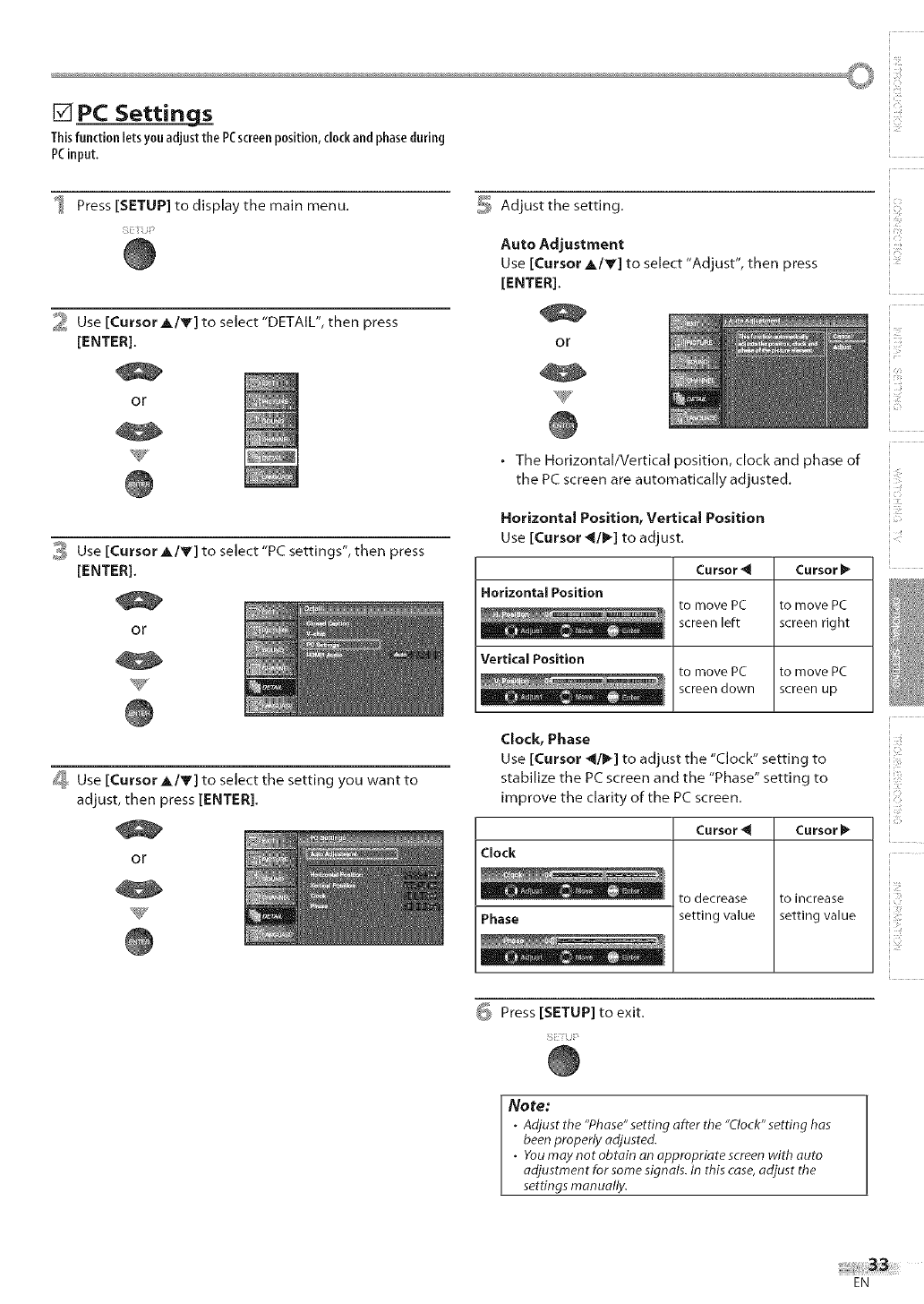
[] PC Settings
Thisfunction lets y0nadjust the PCscreenposition,clockand phaseduring
PCinput.
Press [SETUP] to display the main menu.
_l Use [Cursor A/Y] to select "DETAIL", then press
[ENTER].
or
w
_ Use [Cursor A/Y] to select "PC settings", then press
[ENTER].
or
V
5Adjust the setting.
i
Auto Adjustment
Use [Cursor A/Y] to select "Adjust", then press
[ENTER].
or
•The Horizontal/Vertical position, clock and phase of
the PC screen are automatically adjusted.
Horizontal Position, Vertical Position
Use [Cursor _1/_] to adjust.
Cursor _1
Horizontal Position to move PC
screen left
Vertical Position
Cursor_
to move PC
screen right
to move PC
screen up
_ Use [Cursor A/Y] to select the setting you want to
adjust, then press [ENTER].
or
to move PC
screen down
Clock, Phase
Use [Cursor _1/1_] to adjust the "Clock" setting to
stabilize the PC screen and the "Phase" setting to
improve the clarity of the PC screen.
Cursor _Cursor!_
to decrease
setting value
to increase
setting value
Clock
Phase
iT
_i<!i
i, t
_ Press [SETUP] to exit.
Note:
.Adjust the "Phase"setting after the "Clock" setting has
been properly adjusted.
•Youmay not obtain an appropriate screenwith auto
adjustment for some signals. In this case,adjust the
settings manually.
EN
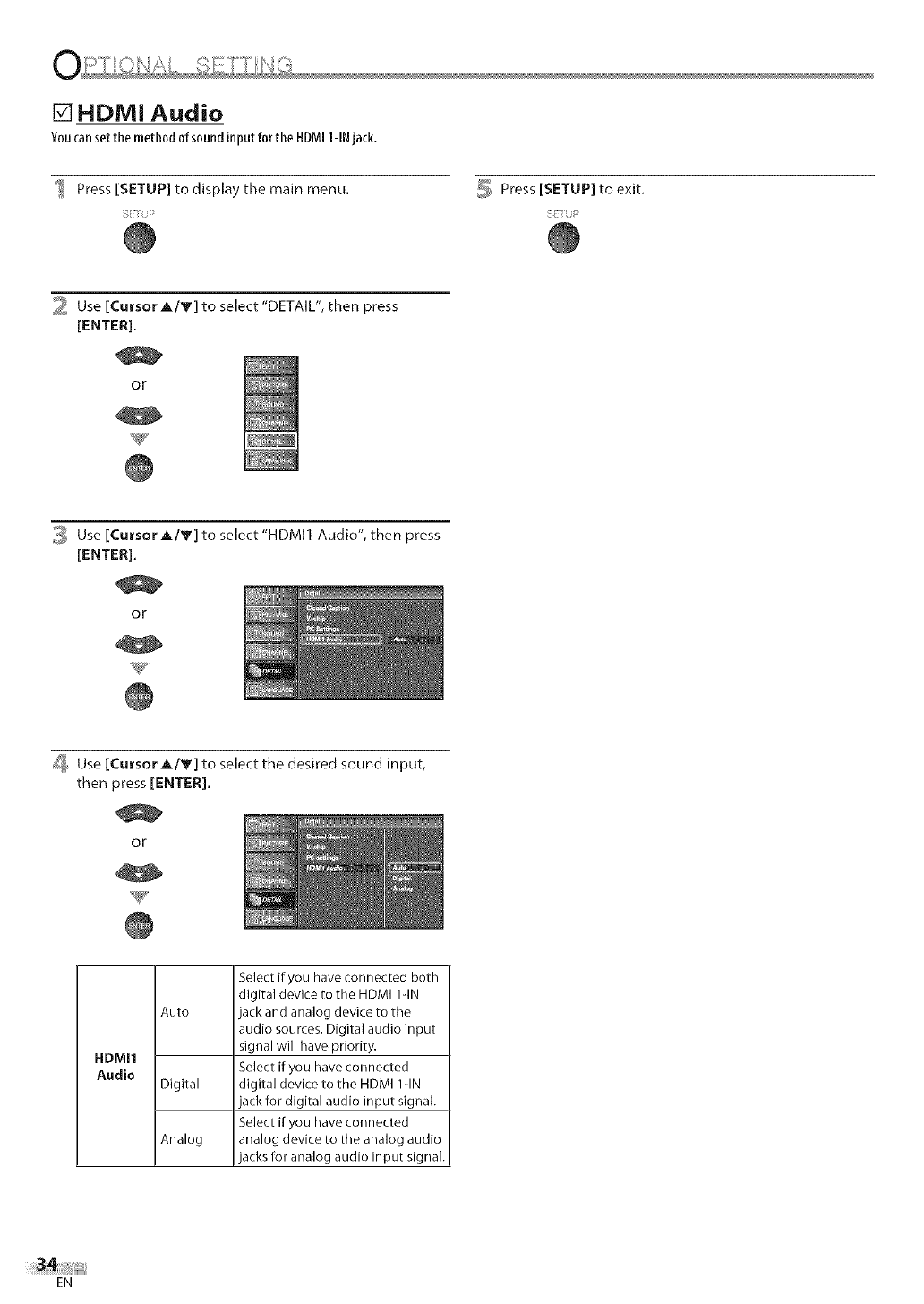
HDIVli Audio
Youcanset themethod of sound input for the HDMII-IN jack.
Press [SETUP] to display the main menu. _ Press [SETUP] to exit.
2 Use [Cursor A/V] to select "DETAIL", then press
[ENTER].
or
_;_ Use [Cursor A/V] to select "HDMI1 Audio", then press
[ENTER].
or
_ Use [Cursor A/V] to select the desired sound input,
then press [ENTER].
or
Select if you have connected both
digital device to the HDMI l-IN
Auto jack and analog device to the
audio sources. Digital audio input
signal will have priority.
HDMI1
Audio Select if you have connected
Digital digital device to the HDMI I-IN
jack for digital audio input signal.
Select if you have connected
Analog analog device to the analog audio
jacks for analog audio input signal.
EN
=_ S% _ _ _ _ _' _ _ J_% _'+ _'Y" , 1 _'_
i_ ................. _ _
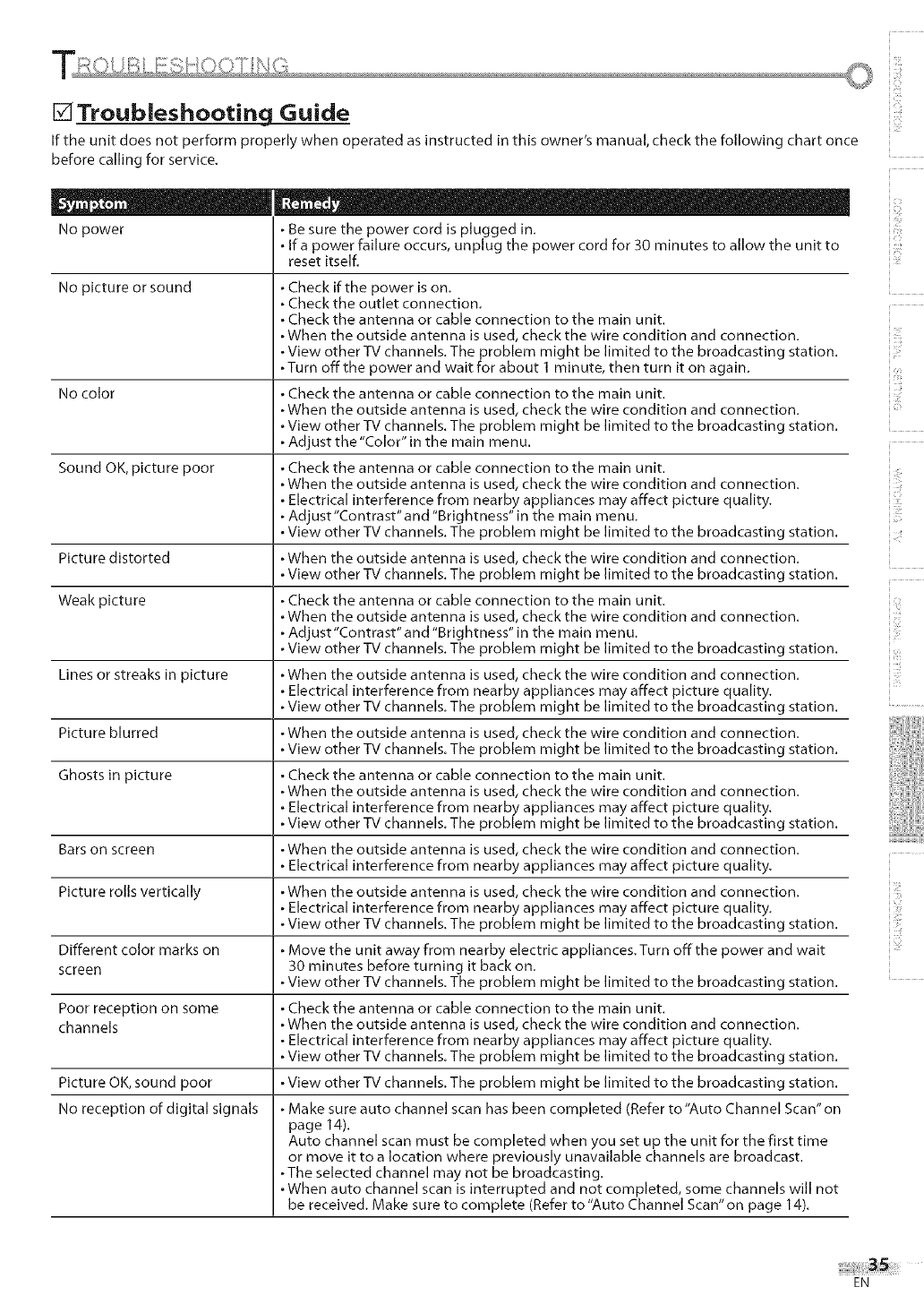
Troubieshooting Guide
If the unit does not perform properly when operated as instructed in this owner's manual, check the following chart once
before calling for service,
No power Be sure the power cord is plugged in,
If a power failure occurs, unplug the power cord for 30 minutes to allow the unit to
reset itself.
No picture or sound . Check if the power is on,
• Check the outlet connection,
. Check the antenna or cable connection to the main unit.
• When the outside antenna is used, check the wire condition and connection,
. View other TV channels, The problem might be limited to the broadcasting station.
• Turn off the power and wait for about 1 minute, then turn it on again,
No color . Check the antenna or cable connection to the main unit.
• When the outside antenna is used, check the wire condition and connection,
. View other TV channels, The problem might be limited to the broadcasting station.
• Adjust the "Color" in the main menu.
Sound OK, picture poor . Check the antenna or cable connection to the main unit.
• When the outside antenna is used, check the wire condition and connection,
Electrical interference from nearby appliances may affect picture quality,
• Adjust"Contrast"and "Brightness" in the main menu,
. View other TV channels, The problem might be limited to the broadcasting station.
Picture distorted • When the outside antenna is used, check the wire condition and connection,
. View other TV channels, The problem might be limited to the broadcasting station.
Weak picture • Check the antenna or cable connection to the main unit.
. When the outside antenna is used, check the wire condition and connection,
• Adjust"Contrast"and "Brightness" in the main menu,
. View other TV channels, The problem might be limited to the broadcasting station.
Lines or streaks in picture • When the outside antenna is used, check the wire condition and connection,
Electrical interference from nearby appliances may affect picture quality,
• View other TV channels, The problem might be limited to the broadcasting station.
Picture blurred . When the outside antenna is used, check the wire condition and connection,
• View other TV channels, The problem might be limited to the broadcasting station.
Ghosts in picture . Check the antenna or cable connection to the main unit.
• When the outside antenna is used, check the wire condition and connection,
Electrical interference from nearby appliances may affect picture quality,
• View other TV channels, The problem might be limited to the broadcasting station.
. When the outside antenna is used, check the wire condition and connection,
Electrical interference from nearby appliances may affect picture quality,
. When the outside antenna is used, check the wire condition and connection,
Electrical interference from nearby appliances may affect picture quality,
. View other TV channels, The problem might be limited to the broadcasting station.
Move the unit away from nearby electric appliances, Turn off the power and wait
30 minutes before turning it back on.
• View other TV channels, The problem might be limited to the broadcasting station.
. Check the antenna or cable connection to the main unit.
• When the outside antenna is used, check the wire condition and connection,
Electrical interference from nearby appliances may affect picture quality,
• View other TV channels, The problem might be limited to the broadcasting station.
. View other TV channels, The problem might be limited to the broadcasting station.
Make sure auto channel scan has been completed (Refer to "Auto Channel Scan" on
page 14).
Auto channel scan must be completed when you set up the unit for the first time
or move it to a location where previously unavailable channels are broadcast.
• The selected channel may not be broadcasting.
. When auto channel scan is interrupted and not completed, some channels will not
be received, Make sure to complete (Refer to "Auto Channel Scan"on page 14).
Bars on screen
Picture rolls vertically
Different color marks on
screen
Poor reception on some
channels
Picture OK, sound poor
No reception of digital signals
i]]'
i i(J¸
i !ii!¸
13>
EN
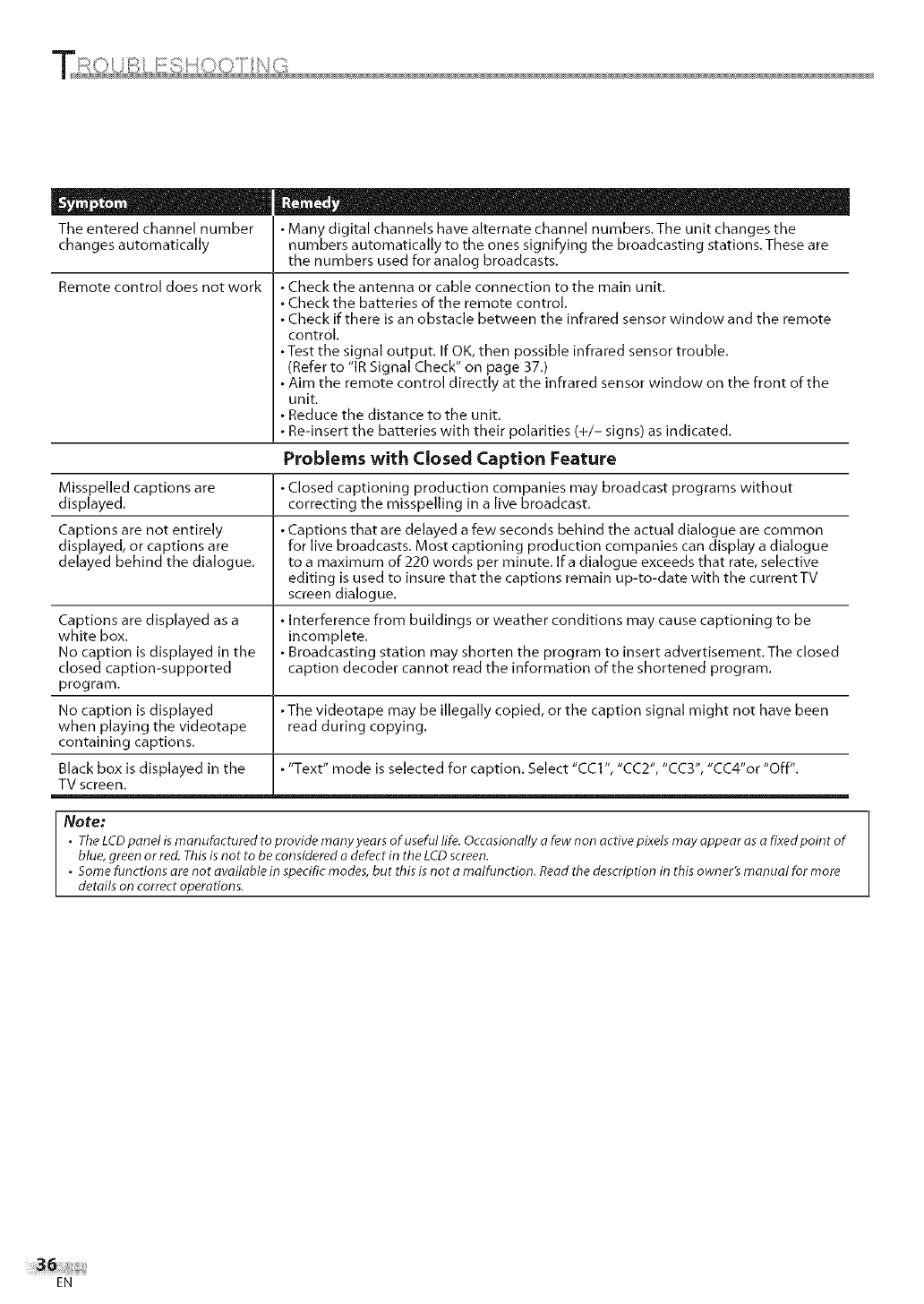
Theenteredchannelnumber Manydigitalchannelshavealternatechannelnumbers.Theunitchangesthe
changesautomatically numbersautomaticallytotheonessignifyingthebroadcastingstations.Theseare
thenumbersusedforanalogbroadcasts.
Remotecontroldoesnotwork •Checktheantennaorcableconnectiontothemainunit.
,Checkthebatteriesoftheremotecontrol.
•Checkifthereisanobstaclebetweentheinfraredsensorwindowandtheremote
control.
•Testthesignaloutput.IfOK,thenpossibleinfraredsensortrouble.
(Referto"IRSignalCheck"onpage37.)
•Aimtheremotecontroldirectlyattheinfraredsensorwindowonthefrontofthe
unit.
Reducethedistancetotheunit.
Re-insertthebatterieswiththeirpolarities(+/-signs)asindicated.
Problems with Closed Caption Feature
Misspelled captions are ,Closed captioning production companies may broadcast programs without
displayed, correcting the misspelling in a live broadcast.
Captions are not entirely ,Captions that are delayed a few seconds behind the actual dialogue are common
displayed, or captions are for live broadcasts. Most captioning production companies can display a dialogue
delayed behind the dialogue, to a maximum of 220 words per minute. If a dialogue exceeds that rate, selective
editing is used to insure that the captions remain up-to-date with the current TV
screen dialogue.
Captions are displayed as a Interference from buildings or weather conditions may cause captioning to be
white box. incomplete.
No caption is displayed in the Broadcasting station may shorten the program to insert advertisement. The closed
closed caption-supported caption decoder cannot read the information of the shortened program.
program.
No caption is displayed ,The videotape may be illegally copied, or the caption signal might not have been
when playing the videotape read during copying.
containing captions.
Black box is displayed in the •"Text" mode is selected for caption. Select "CC1 ", "CC2", "CC3", "CC4"or "Off".
TV screen.
Note:
•TheLCDpanel isman ufactured to provide many years of useful life. Occasionally afew non active pixels may appear asa fixed point of
blue, green or red. Thisis not to be considered a defect in the LCD screen.
.Some functions are not available in specific modes, but this is not a malfunction. Read the description in this owner's manual for more
details on correct operations.
EN
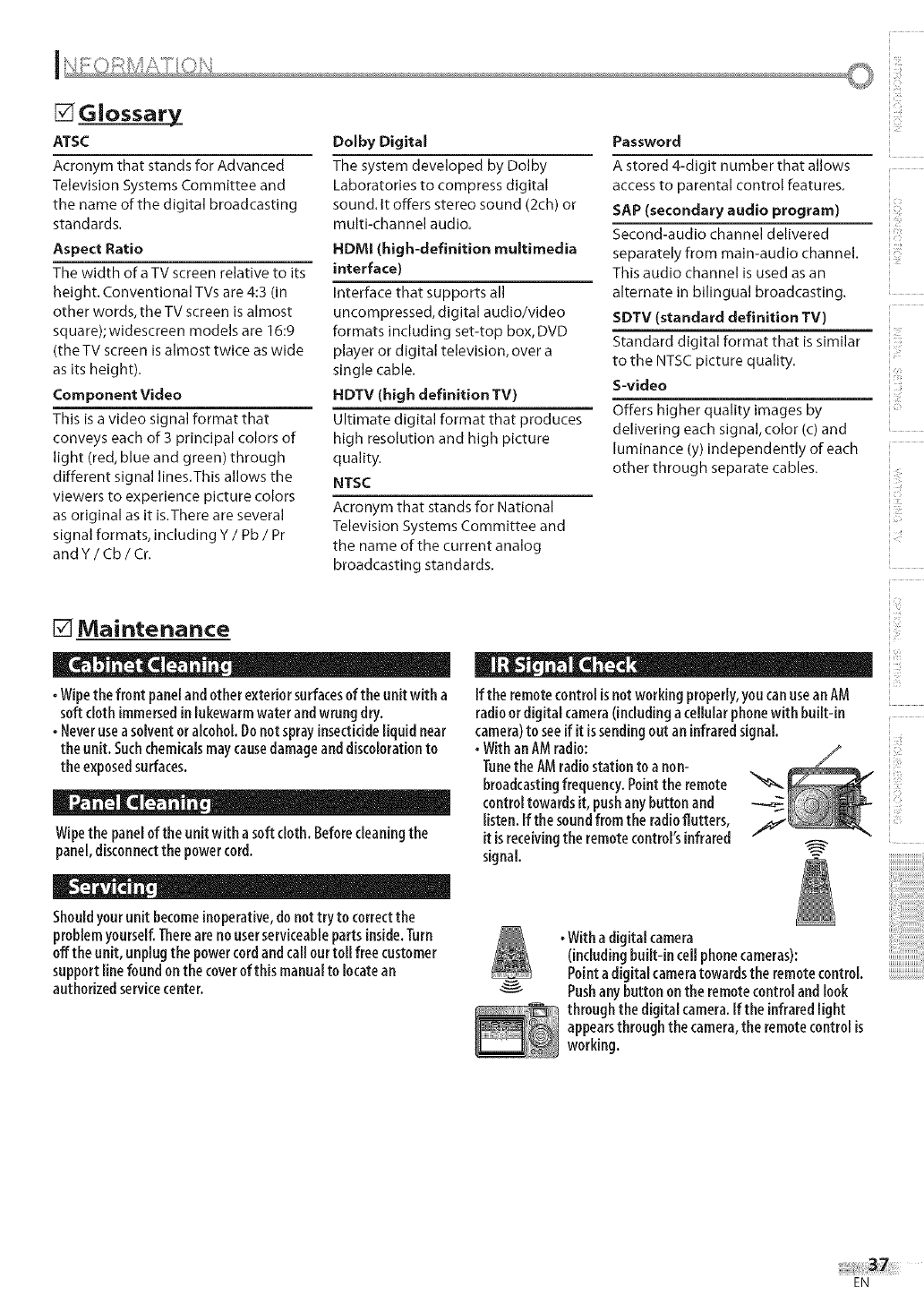
[]Glossary
ATSC
Acronym that stands for Advanced
Television Systems Committee and
the name of the digital broadcasting
standards.
Aspect Ratio
The width ofa TV screen relative to its
height. Conventional TVs are 4:3 (in
other words, the TV screen is almost
square); widescreen models are 16:9
(the TV screen is almost twice as wide
as its height).
Component Video
This is a video signal format that
conveys each of 3 principal colors of
light (red, blue and green) through
different signal lines.This allows the
viewers to experience picture colors
as original as it is.There are several
signal formats, including Y /Pb /Pr
andY/Cb/Cr.
Dolby Digital
The system developed by Dolby
Laboratories to compress digital
sound. It offers stereo sound (2ch) or
multkhannel audio.
HDMI (high-definition multimedia
interface)
Interface that supports all
uncompressed, digital audio/video
formats including set-top box, DVD
player or digital television, over a
single cable.
HDTV (high definition TV)
Ultimate digital format that produces
high resolution and high picture
quality.
NTSC
Acronym that stands for National
Television Systems Committee and
the name of the current analog
broadcasting standards.
Password
A stored 4-digit number that allows
access to parental control features,
SAP (secondary audio program)
Second-audio channel delivered
separately from main-audio channel.
This audio channel is used as an
alternate in bilingual broadcasting.
SDTV (standard definition TV)
Standard digital format that is similar
to the NTSC picture quality.
S-video
Offers higher quality images by
delivering each signal,color (c) and
luminance (y) independently of each
other through separate cables.
[] Maintenance
• Wipe the front panel and other exterior surfaces of the unit with a
soft cloth immersed in lukewarm water and wrung dry.
• Never use a solvent or alcohol. Do not spray insecticide liquid near
the unit. Such chemicals may cause damage and discoloration to
the exposed surfaces.
D o . ., II
Wipethe panelof the unit with asoft cloth. Beforecleaningthe
panel,disconnectthe powercord.
e
Shouldyourunitbecomeinoperative,donottry to correctthe
problemyourself.Therearenouserserviceableparts inside.Turn
off theunit, unplugthe powercordandcallourtoll free customer
support linefound onthe coverof this manualto locatean
authorizedservicecenter.
If the remote control isnot working properly, you can use an AM
radioor digital camera (including a cellular phone with built-in
camera) to see if it is sending out an infrared signal.
•With an AM radio:
Tunethe AM radiostation to a non-
broadcasting frequency. Point the remote
control towards it, push any button and
listen. If the sound from the radioflutters,
it isreceivingthe remote control's infrared
signal.
•With adigital camera
(includingbuilt-in cell phonecameras):
Pointa digital cameratowardsthe remotecontroL.
Pushanybutton onthe remotecontrolandlook
through thedigital camera.If the infraredlight
appearsthroughthe camera,the remotecontrol is
working.
!y:
i !ii!¸
iT
ii i}ii!i
ii ii!tii_
i!ii!iii!
EN
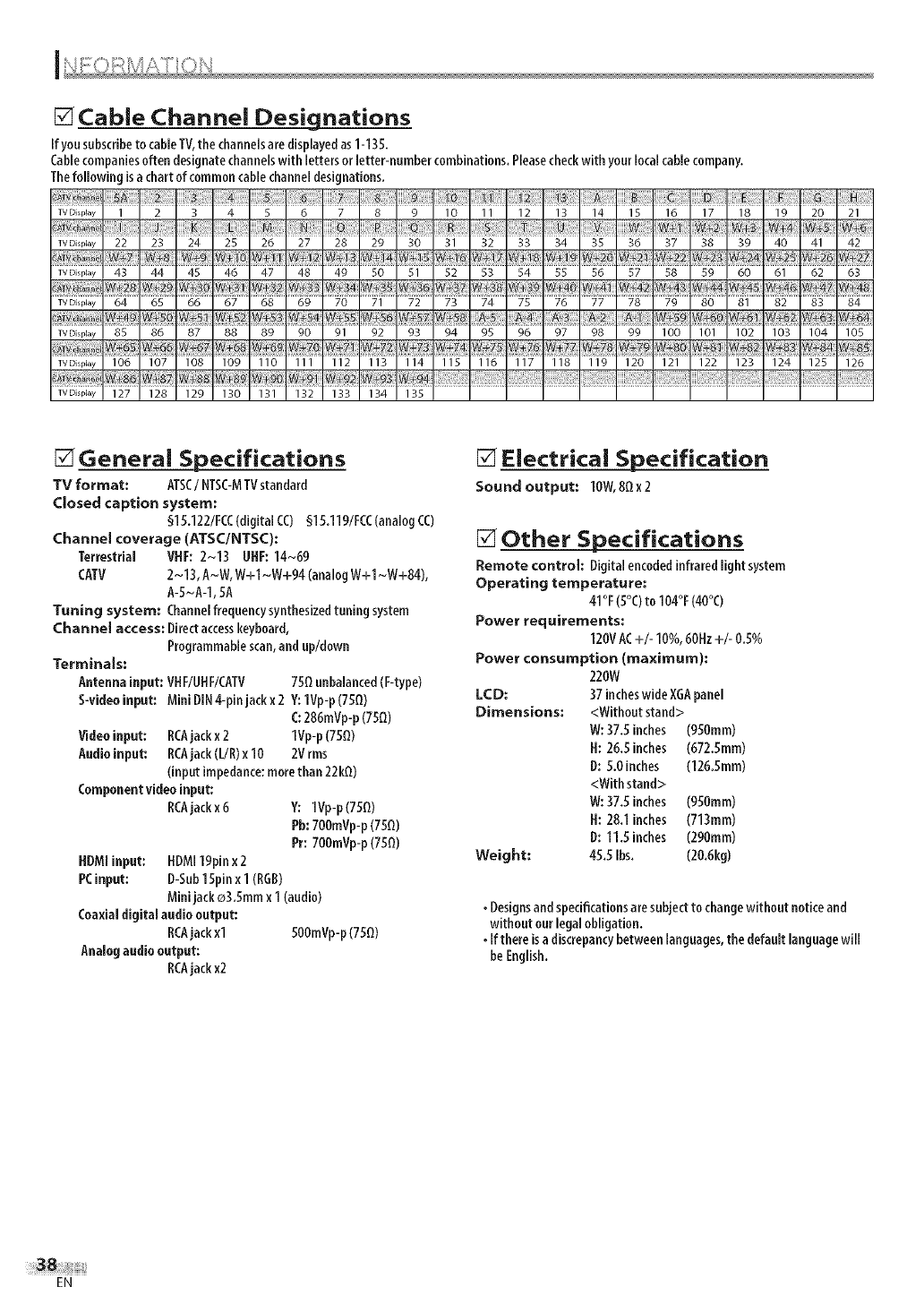
[] Cable Channel Designations
Ify0u subscribeto cableTV,the channelsaredisplayedas1-135.
Cablecompaniesoften designatechannelswith lettersorletter-numbercombinations.Pleasecheckwith your localcablecompany.
Thefollowing isa chart of common cablechanneldesignations.
TVDisplay 1 2 3 4 5 6 7 8 9 10 11 12 13 14 15 16 17 18 19 20 21
TVDisplay 22 23 24 25 26 27 28 29 30 31 32 33 34 35 36 37 38 39 40 41 42
TVDisplay 43 44 45 46 47 48 49 50 51 52 53 54 55 56 57 58 59 60 61 62 63
TVDisplay 64 65 66 67 68 69 70 71 72 73 74 75 76 77 78 79 80 81 82 83 84
TVDisplay 85 86 87 88 89 90 91 92 93 94 95 96 97 98 99 100 101 102 103 104 105
TVDisplay 106 107 108 109 110 111 112 113 114 115 116 117 118 119 120 121 122 123 124 125 126
TVDisplay 127 128 129 130 131 132 133 134 135
[] General Specifications
TV format: ATSC/NTSC-MTVstandard
Closed caption system:
§15.122/FCC(digital CC) §15.119/FCC(analogCC)
Channel coverage (ATSC/NTSC):
Terrestrial VHF: 2~13 UHF: 14~69
CATV 2~13, A_W, W+l _w+g4 (analogW+l _W+84),
A-S~A-1,SA
Tuning system: Channelfrequency synthesizedtuning system
Channel access: Directaccesskeyboard,
Programmablescan,and up/down
Terminals:
Antennainput: VHF/UHF/CATV 750 unbalanced(F-type)
S-videoinput: Mini DIN4-pinjackx 2 Y:1Vp-p(750)
(: 286mVp-p(750)
Videoinput: RCAjackx 2 1Vp-p(750)
Audio input: RCAjack(L/R)x 10 2Vrms
(input impedance:morethan 22k0)
Component videoinput:
RCAjackx6 Y: 1Vp-p(750)
Pb:700mVp-p(750)
Pr: 700mVp-p(750)
HDMIinput: HDM119pinx 2
PCinput: D-Sub1Spin x 1 (RGB)
Mini jack o3.Smm x 1 (audio)
Coaxialdigital audio output:
RCAjackxl S00mVp-p(750)
Analogaudio output:
RCAjackx2
[] Electrical Specification
Sound output: lOW,BOx2
[] Other Specifications
Remote control: Digitalencodedinfrared lightsystem
Operating temperature:
41°F(5°C)to 104°F(40°C)
Power requirements:
120VAC+/- 10%,60Hz+/- 0.5%
Power consumption (maximum):
220W
LCD: 37 incheswideXGApanel
Dimensions: <Without stand>
W:37.5 inches (9S0mm)
H: 26.5 inches (672.5mm)
D: S.0inches (126.5mm)
<Withstand>
W:37,5 inches (950mm)
H: 28.1 inches (713mm)
D: 11.5 inches (290mm)
Weight: 45.5 Ibs. (20.6kg)
• Designsand specificationsaresubjectto changewithout notice and
without our legal obligation.
•If there is a discrepancybetweenlanguages,the default languagewill
be English.
EN

SYLVAMIA
LiMiTED WARRANTY
FUNAI CORP.will repair this product, free of charge in the USA in the event of defect in materials or
workmanship as follows:
DURATION:
PARTS: FUNAI CORP.will provide parts to replace defective parts without charge for one (1) year
from the date of original retail purchase. Certain parts and LCD image burn-in are excluded
from this warranty.
LABOR: FUNAI CORP.will provide the labor without charge for a period of ninety (90) days from the
date of original retail purchase.
LIMITS AND EXCLUSIONS:
THIS WARRANTY IS EXTENDED ONLYTOTHE ORIGINAL RETAIL PURCHASER. A PURCHASE RECEIPT OR
OTHER PROOF OF ORIGINAL RETAIL PURCHASE WILL BE REQUIRED TOGETHER WITH THE PRODUCTTO
OBTAIN SERVICE UNDER THIS WARRANTY.
This warranty shall not be extended to any other person or transferee.
This warranty is void and of no effect if any serial numbers on the product are altered, replaced, defaced,
missing or if service was attempted by an unauthorized service center.This limited warranty does not
apply to any product not purchased and used in the United States.
This warranty only covers failures due to defects in material or workmanship which occur during
normal use. It does not cover damage which occurs in shipment, or failures which are caused by repairs,
alterations or products not supplied by FUNAI CORP.,or damage, which results from accident, misuse,
abuse, mishandling, misapplication, alteration, faulty installation, improper maintenance, commercial use
such as hotel, rental or office use of this product, or damage which results from fire, flood, lightning or
other acts of God.
THIS WARRANTY DOES NOT COVER PACKING MATERIALS, ANY ACCESSORIES (EXCEPT REMOTE CONTROL),
ANY COSMETIC PARTS,COMPLETE ASSEMBLY PARTS, DEMO OR FLOOR MODELS.
FUNAI CORR AND ITS REPRESENTATIVESOR AGENTS SHALL IN NO EVENT BE LIABLE FOR ANY GENERAL,
INDIRECT OR CONSEQUENTIAL DAMAGES ARISING OUT OF OR OCCASIONED BYTHE USE OF OR THE
INABILITY TO USE THIS PRODUCT. THIS WARRANTY IS MADE IN LIEU OF ALL OTHER WARRANTIES, EXPRESS
OR IMPLIED, AND OF ALL OTHER LIABILITIES ON THE PART OF FUNAI, ALL OTHER WARRANTIES INCLUDING
THE WARRANTY OF MERCHANTABILITY AND FITNESS FOR A PARTICULAR PURPOSE, ARE HEREBY
DISCLAIMED BY FUNAI AND ITS REPRESENTATIVESIN THE UNITED STATES.
ALL WARRANTY INSPECTIONS AND REPAIRSMUST BE PERFORMED BY AN AUTHORIZED SERVICECENTER.
THIS WARRANTY IS ONLY VALID WHEN THE UNIT IS CARRIED-IN TO AN AUTHORIZED SERVICECENTER.
THE PRODUCT MUST BE ACCOMPANIED BY A COPY OF THE ORIGINAL RETAIL PURCHASE RECEIPT. IF NO
PROOF OF PURCHASE IS ATTACHED, THE WARRANTY WILL NOT BE HONORED AND REPAIRCOSTS WILL BE
CHARGED.
IMPORTANT:
THIS LIMITED WARRANTY GIVES YOU SPECIFIC LEGAL RIGHTS. YOU MAY HAVE OTHER RIGHTS THAT VARY
FROM STATETO STATE.IF,AT ANYTIME DURING THE WARRANTY PERIOD, YOU ARE UNABLE TO OBTAIN
SATISFACTION WITH THE REPAIR OF THIS PRODUCT, PLEASECONTACT FUNAI CORP.
ATTENTION:
FUNAI CORR RESERVESTHE RIGHT TO MODIFY ANY DESIGN OF THIS PRODUCT
WITHOUT PRIOR NOTICE.
WARRANTY STATEMENT REGARDING NON AUTHORIZED REPAIRS:
To obtain warranty service, you must take the product, or deliver the product freight prepaid, in either its
original packaging or packaging affording an equal degree of protection, to any AUTHORIZED SERVICE
CENTER. FUNAI CORP.will not reimburse you for any service done by unauthorized service providers
without prior written approval.
To locate yOUr nearest AUTHORIZED SERVICE CENTER or for general service inquiries,
please contact us at:
FUNAI CORPORATION
Customer Service
Tel : 1-800-968-3429
http:llwww.SylvaniaConsumerElectronics.com
19900 Van Hess Avenue, Torrance, CA 90501
Printed in China A71 GOUH
1EMN22137 _.......
