TECHSCAN KOREA TSK2000KRU Bar code Scanner User Manual

Techscan Korea Co., Ltd. Bar code Scanner

User Manual

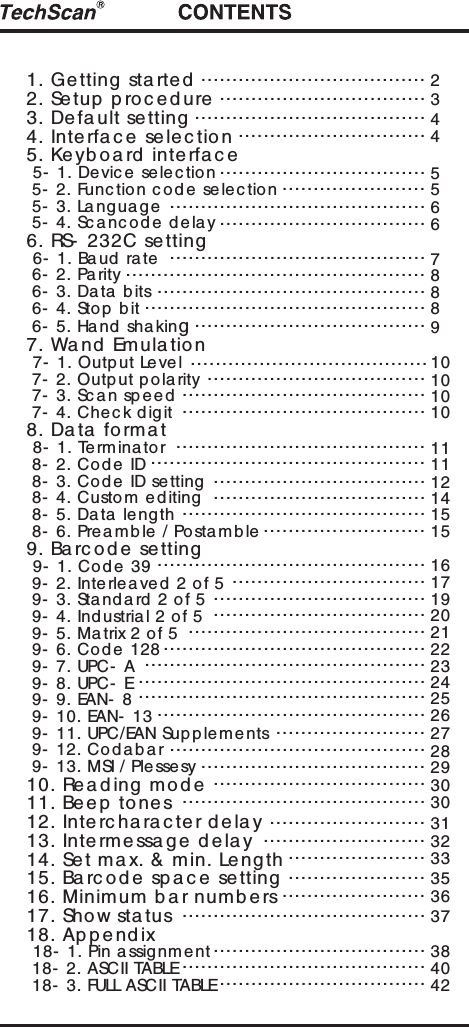
1. Ge tting  sta rte d2. Setup  p ro c e d ure3. Defa ult se tting4. Interfa c e  se le c tion5. Ke yb o a rd  inte rfa c e 5- 1. Device sele c tion 5- 2. Func tion c o de se lec tion 5- 3. Language 5- 4. Sc anc ode delay6. RS- 232C setting 6- 1. Baud rate 6- 2. Pa rity 6- 3. Data  b its 6- 4. Sto p bit 6- 5. Hand sha king7. Wand  Emula tion 7- 1. Output Level  7- 2. Outp ut polarity 7- 3. Sc an sp eed 7- 4. Che c k digit8. Da ta  forma t 8- 1. Terminator 8- 2. Co de ID 8- 3. Co de ID setting 8- 4. Custom e d iting 8- 5. Data  length 8- 6. Prea mble / Postamb le9. Ba rc od e  se tting 9- 1. Code 39 9- 2. Interlea ve d  2 o f 5 9- 3. Sta nd a rd 2 of 5 9- 4. Ind ustrial 2 of 5 9- 5. Matrix 2 of 5 9- 6. Co de 128 9- 7. UPC- A 9- 8. UPC- E 9- 9. EAN- 8 9- 10. EAN- 13 9- 11. UPC/EAN Sup pleme nts 9- 12. Co d abar 9- 13. MSI / Ple ssesy10. Re a d ing mod e11. Be ep  to ne s12. Interc ha ra c te r d e la y13. Intermessa g e  d e la y14. Set ma x. & min. Le ng th15. Ba rc od e  sp a c e  se tting16. Minimum b a r numb ers17. Show sta tus18. Ap p e nd ix 18- 1. Pin a ssig nment 18- 2. ASCII TABLE 18- 3. FULL ASCII TABLE.......................................................................................................................................................................................................................................................................................................................................................................................................................................................................................................................................................................................................................................................................................................................................................................................................................................................................................................................................................................................................................................................................................................................................................................................................................................................................................................................................................................................................................................................................................................................................................................................................................................................................................................................................................234455667888910101010111112141515161719202122232425262728293030313233353637384042
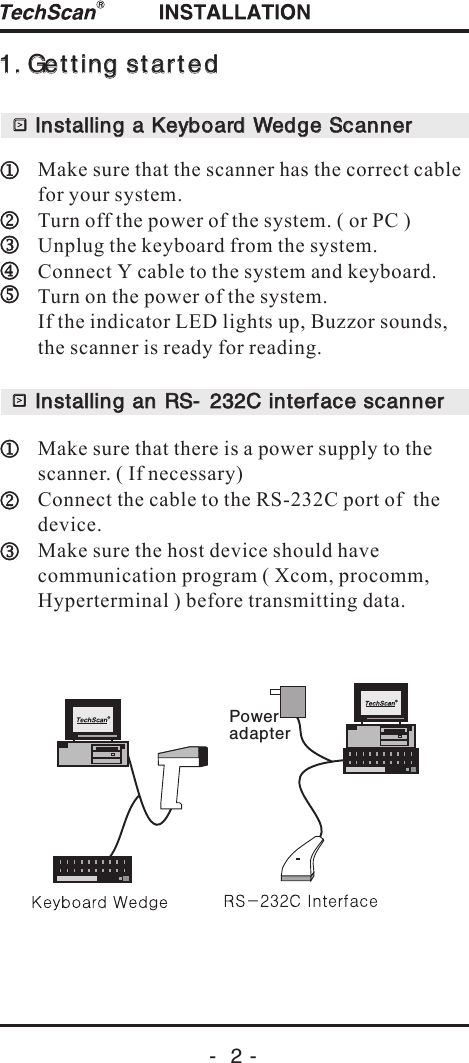
Make sure that the scanner has the correct cable for your system.Turn off the power of the system. ( or PC )Unplug the keyboard from the system.Connect Y cable to the system and keyboard.Turn on the power of the system.If the indicator LED lights up, Buzzor sounds, the scanner is ready for reading.Make sure that there is a power supply to the scanner. ( If necessary)Connect the cable to the RS-232C port of  the device.Make sure the host device should have communication program ( Xcom, procomm,Hyperterminal ) before transmitting data.Installing a Keyboard Wedge ScannerInstalling a Keyboard Wedge ScannerInstalling an RS- 232C interface scannerInstalling an RS- 232C interface scanner1. Getting started1. Getting startedPoweradapter-  2 -
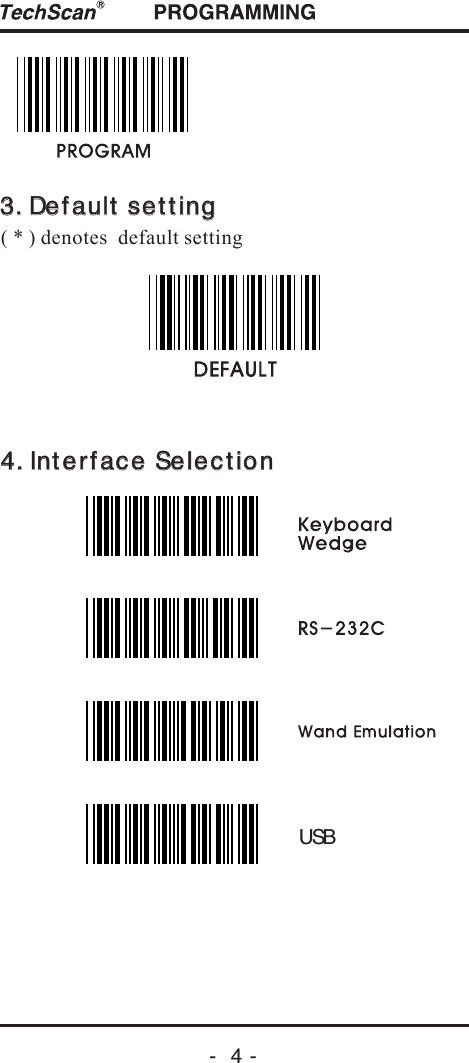
( * ) denotes  default setting4. Interface Selection4. Interface Selection3. Default setting3. Default settingUSB-  4 -
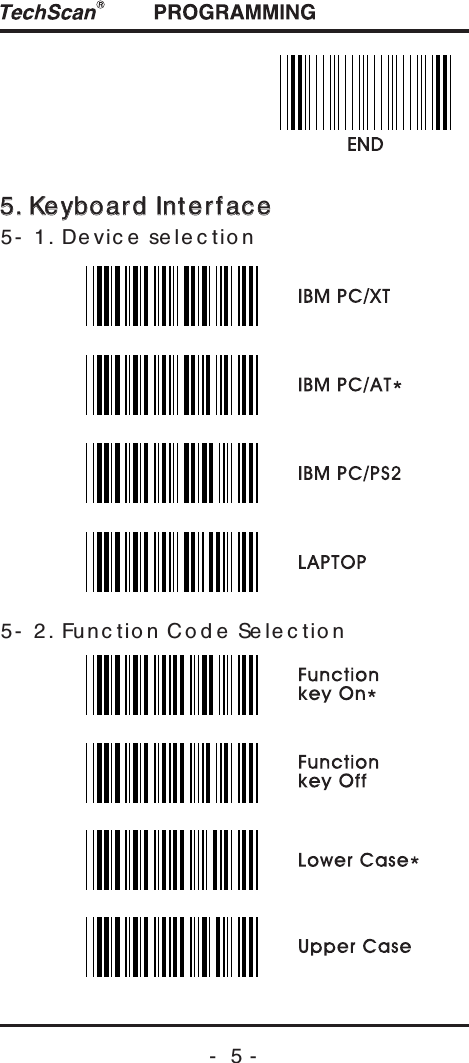
5- 1. Devic e se le c tio n5- 2. Func tio n Co d e Sele c tio n5. Keyboard Interface5. Keyboard Interface-  5 -
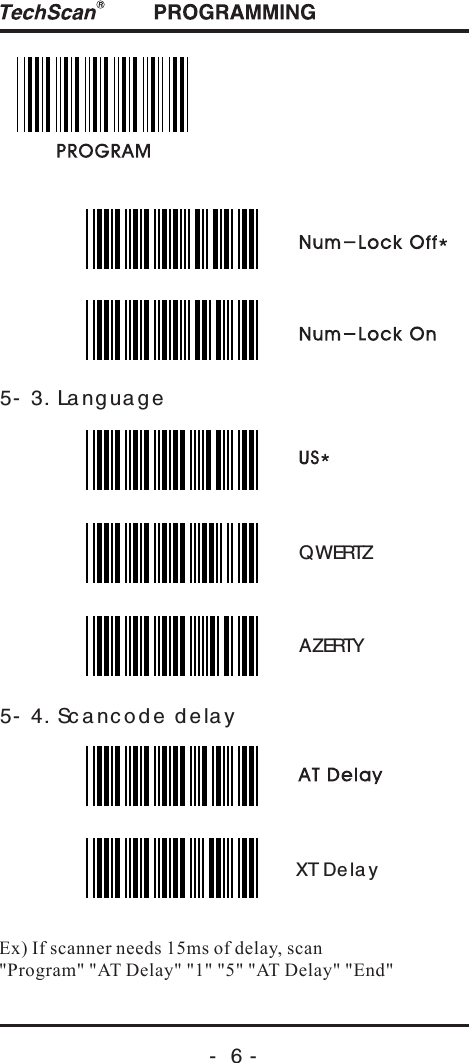
-  6 -5- 3. La ng uag e5- 4. Sc a nc od e  d e la yQWERTZAZERTYEx) If scanner needs 15ms of delay, scan "Program" "AT Delay" "1" "5" "AT Delay" "End"XT Dela y
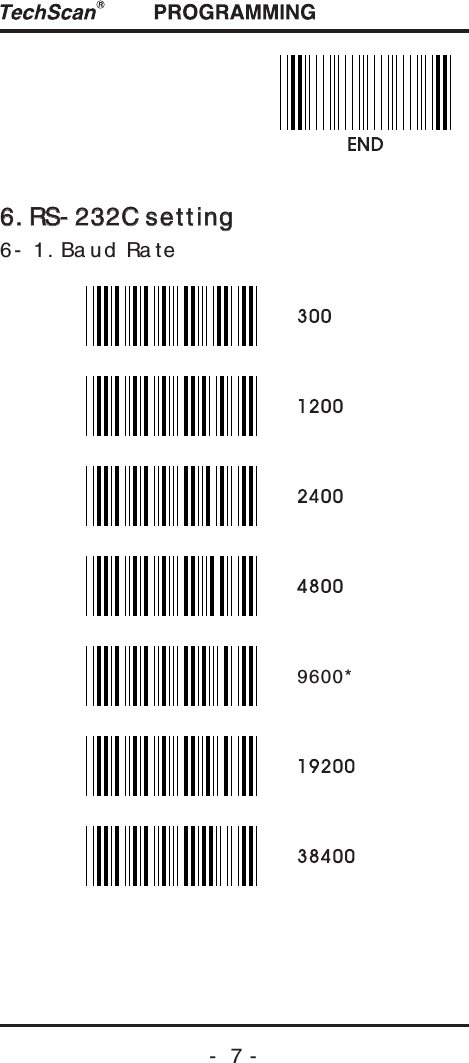
6. RS- 232C setting6. RS- 232C setting6- 1. Ba ud Ra te-  7 -9600*
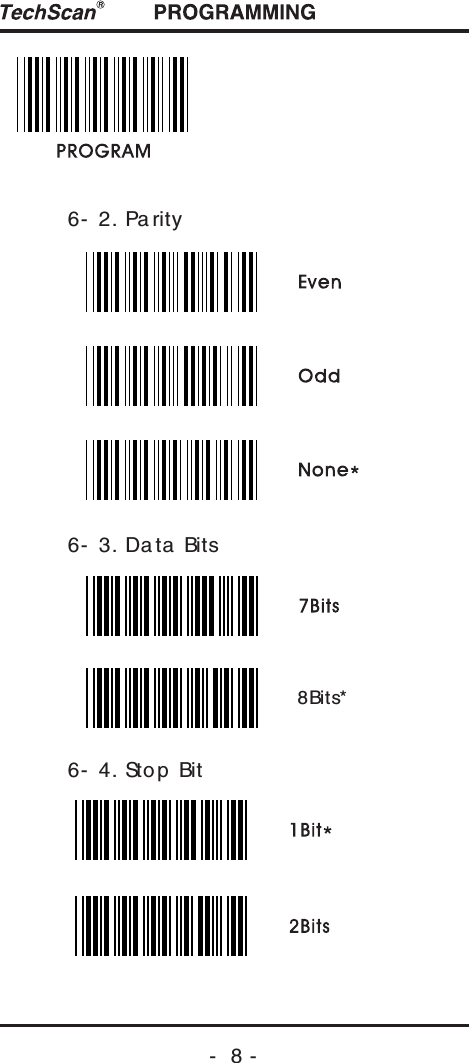
-  8 -6- 2. Pa rity6- 3. Da ta  Bits6- 4. Sto p  Bit8Bits*
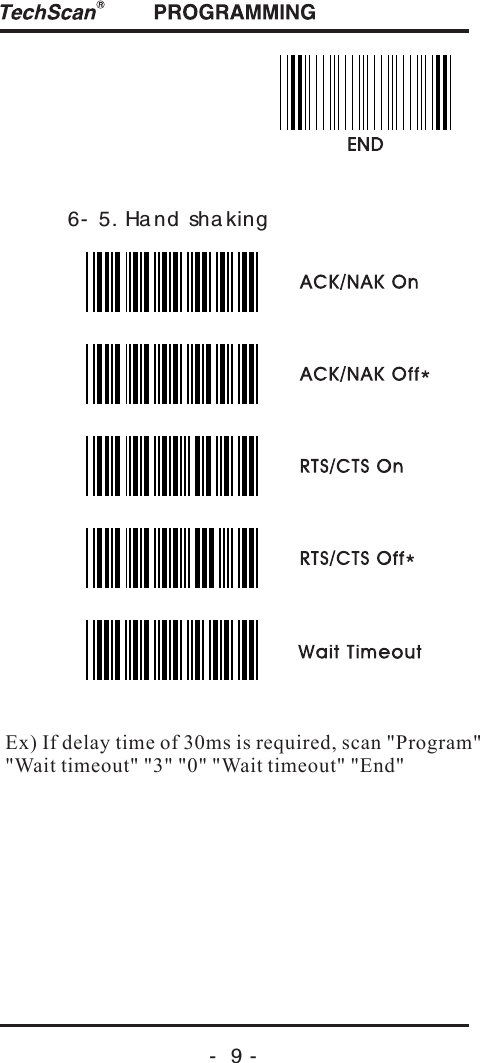
-  9 -6- 5. Ha nd sha kingEx) If delay time of 30ms is required, scan "Program""Wait timeout" "3" "0" "Wait timeout" "End"
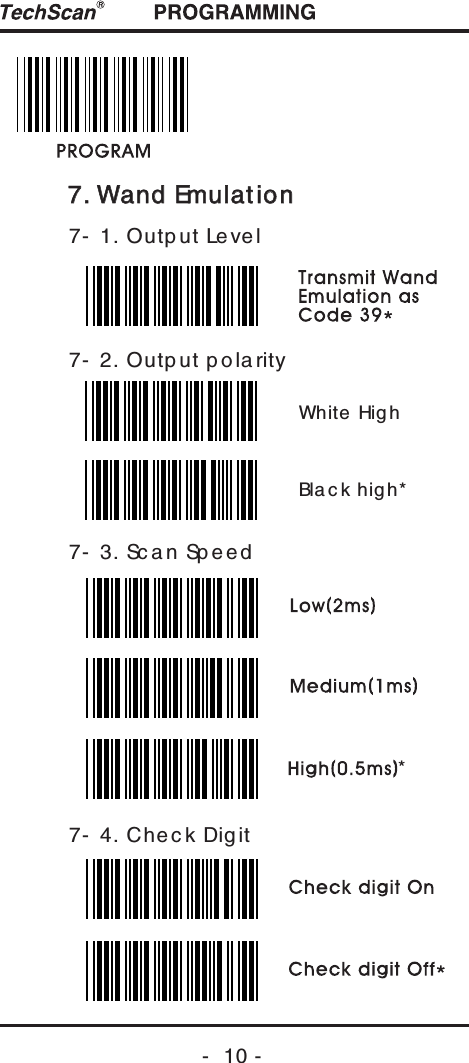
7. Wand Emulation7. Wand Emulation7- 1. Outp ut Le ve l7- 2. Outp ut p ola rity7- 3. Sc a n Sp ee d7- 4. Che c k Dig it-  10 -*White  HighBla c k hig h*
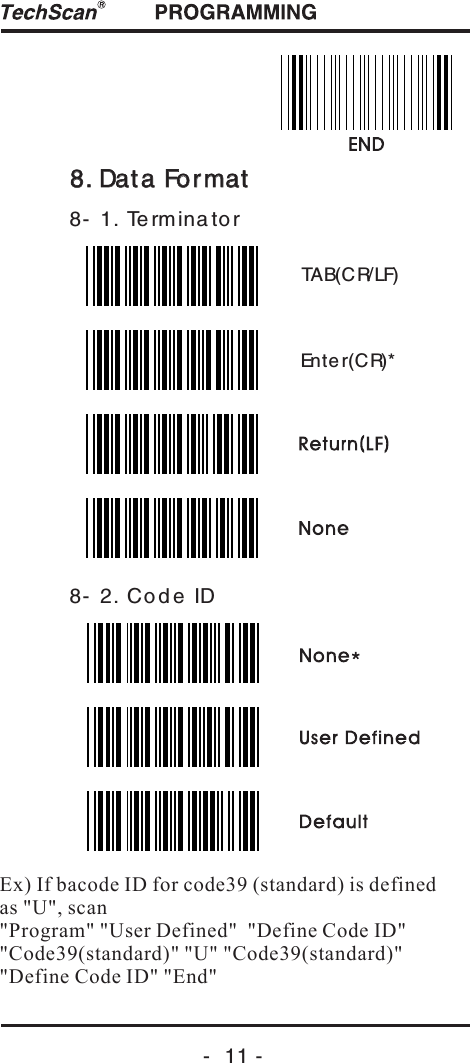
-  11 -8. Data Format8. Data Format8- 1. Te rminato r8- 2. Cod e IDEx) If bacode ID for code39 (standard) is definedas "U", scan "Program" "User Defined"  "Define Code ID""Code39(standard)" "U" "Code39(standard)" "Define Code ID" "End"Enter(CR)*TAB(CR/LF)
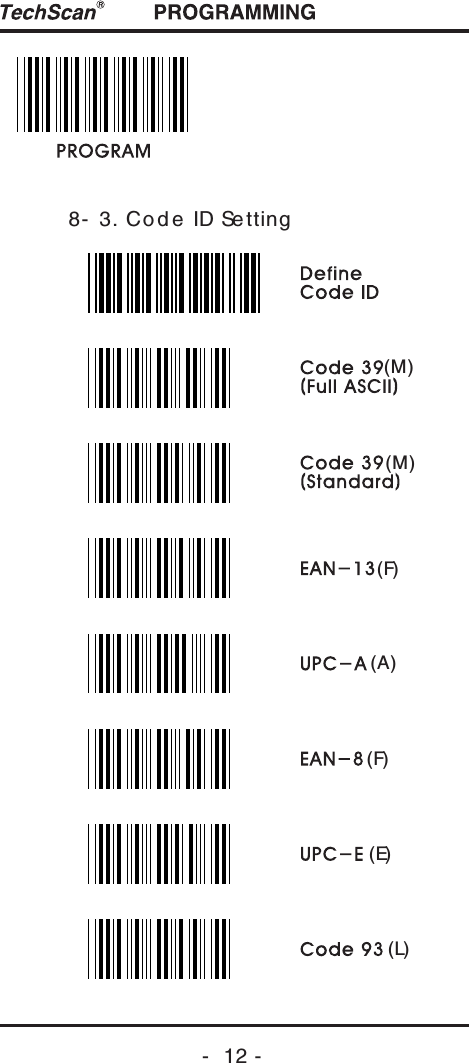
-  12 -8- 3. Cod e ID Se tting(M)(M)(F)(A)(F)(E)(L)
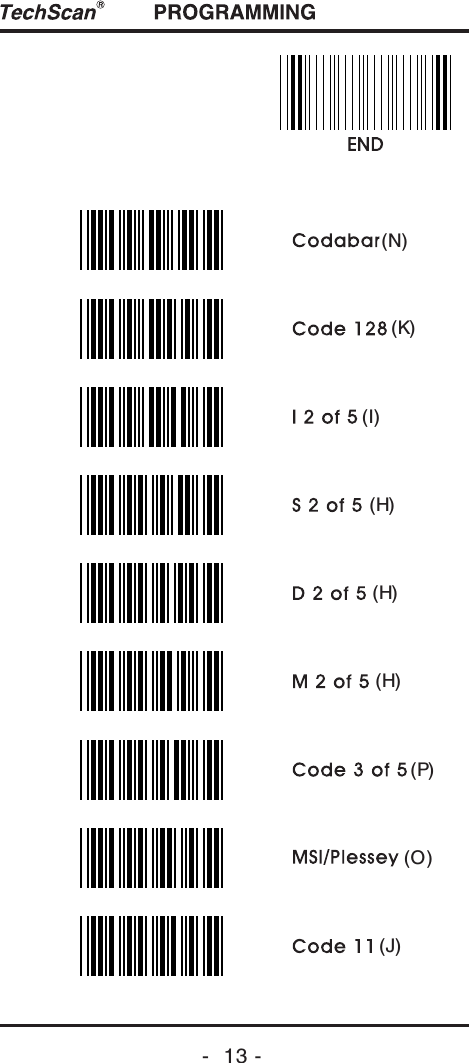
-  13 -(N)(K)(I)(H)(H)(H)(P)(O)(J)
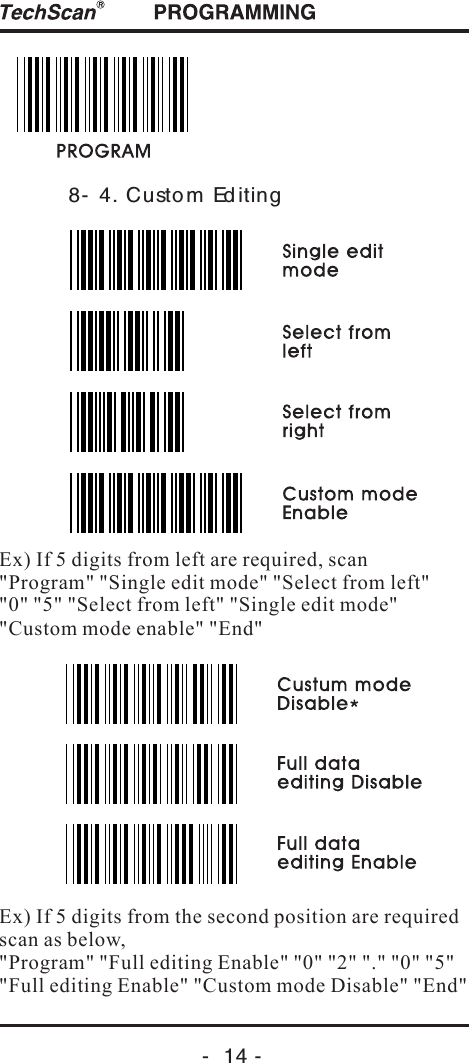
-  14 -8- 4. Custo m Ed itingEx) If 5 digits from left are required, scan "Program" "Single edit mode" "Select from left" "0" "5" "Select from left" " " "Custom mode enable" "End"Single edit modeEx) If 5 digits from the second position are requiredscan as below, "Program" "Full editing Enable" "0" "2"  "5" "Full editing Enable" "Custom mode Disable" "End""." "0"
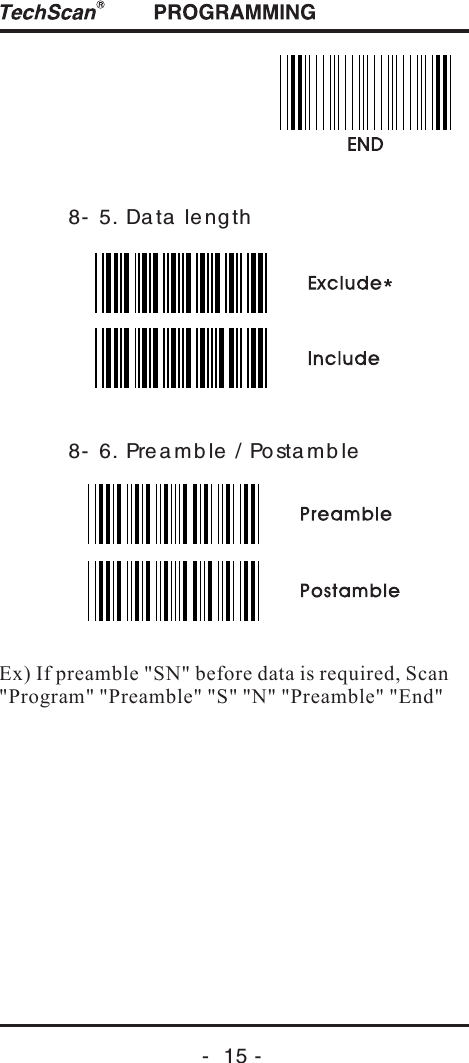
-  15 -8- 5. Da ta  le ng th8- 6. Prea mb le / Posta mb leEx) If preamble "SN" before data is required, Scan "Program" "Preamble" "S" "N" "Preamble" "End"
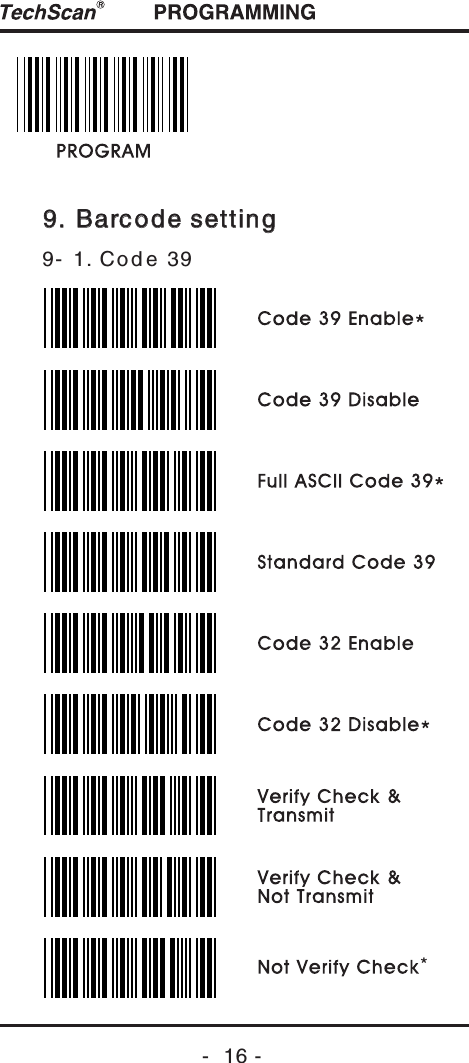
-  16 -9. Barcode setting9. Barcode setting9- 1. Cod e 39*
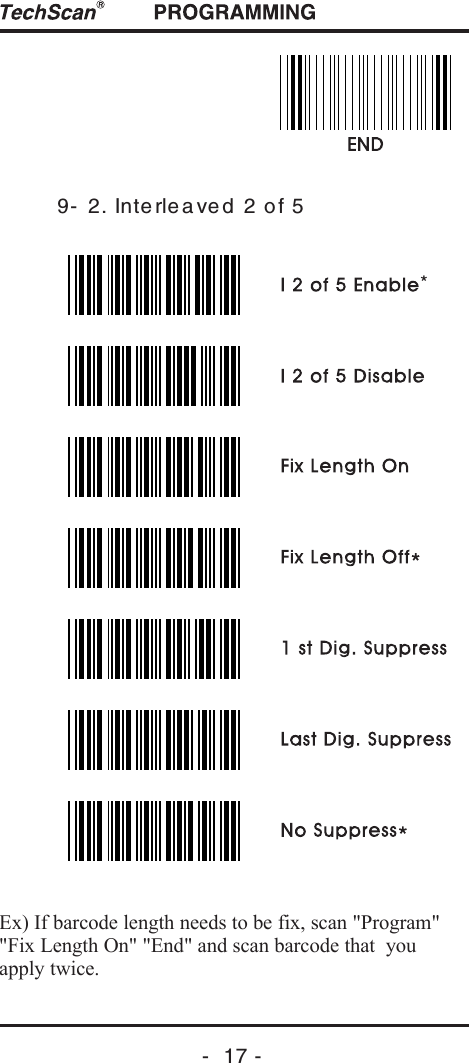
-  17 -9- 2. Inte rlea ved  2 of 5Ex) If barcode length needs to be fix, scan "Program" "Fix Length On" "End" and scan barcode that  you apply twice.*
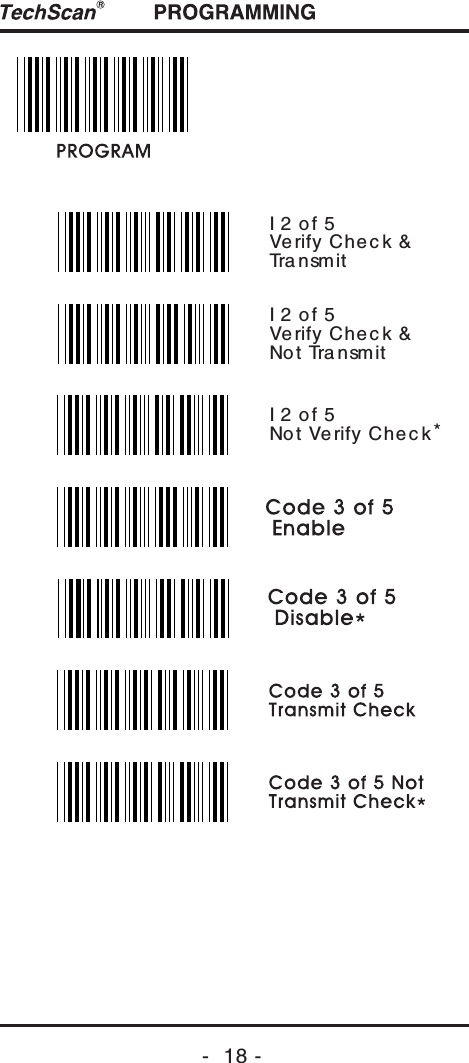
-  18 -I 2 o f 5 Verify Che c k &Tra nsm itI 2 o f 5 Verify Che c k &No t Tra nsmitI 2 o f 5 No t Verify Che c k *
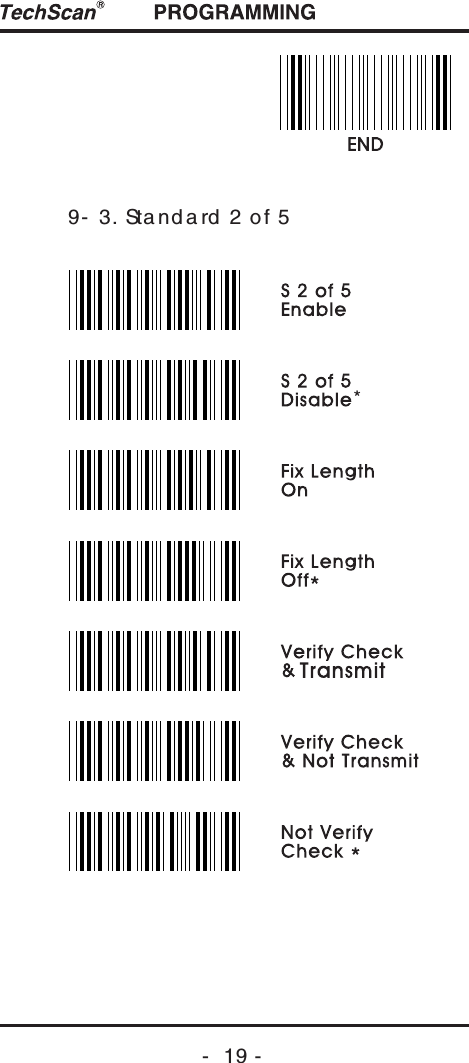
-  19 -9- 3. Sta nd a rd  2 of 5*
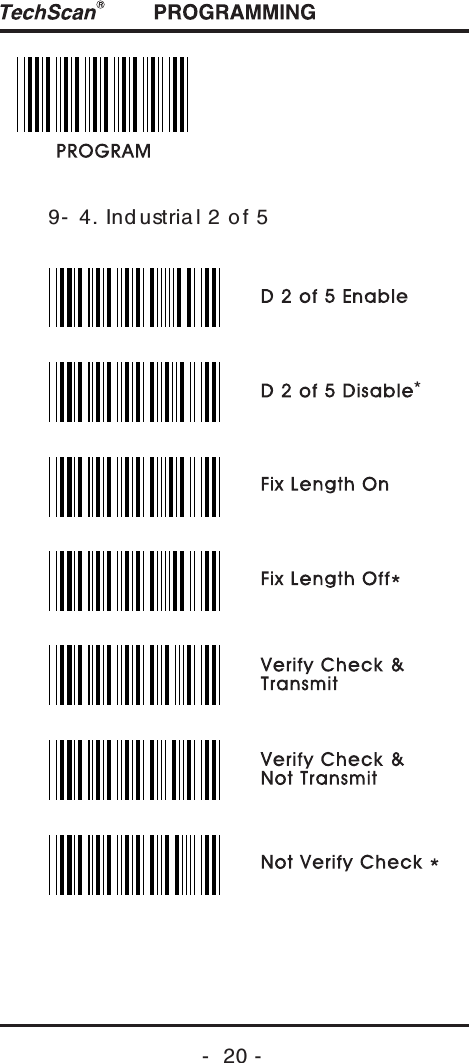
-  20 -9- 4. Ind ustria l 2 of 5*
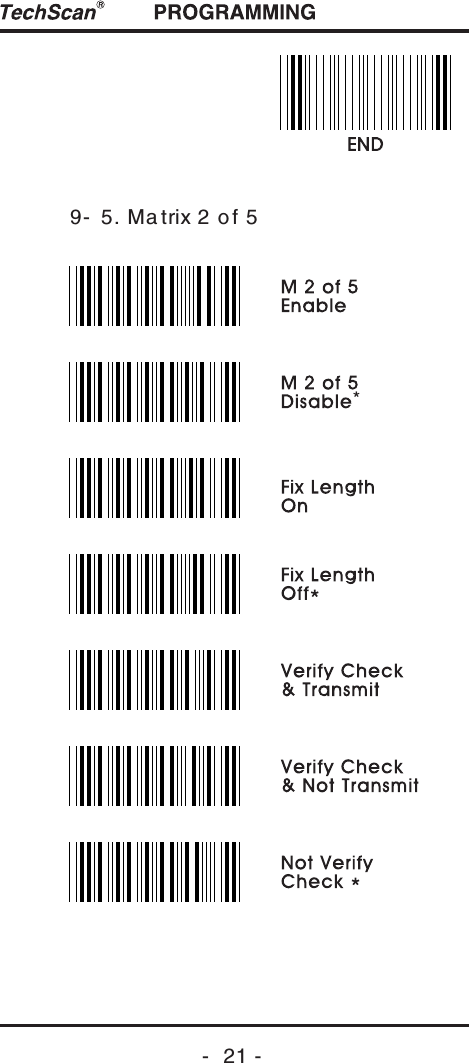
-  21 -9- 5. Ma trix 2 of 5*
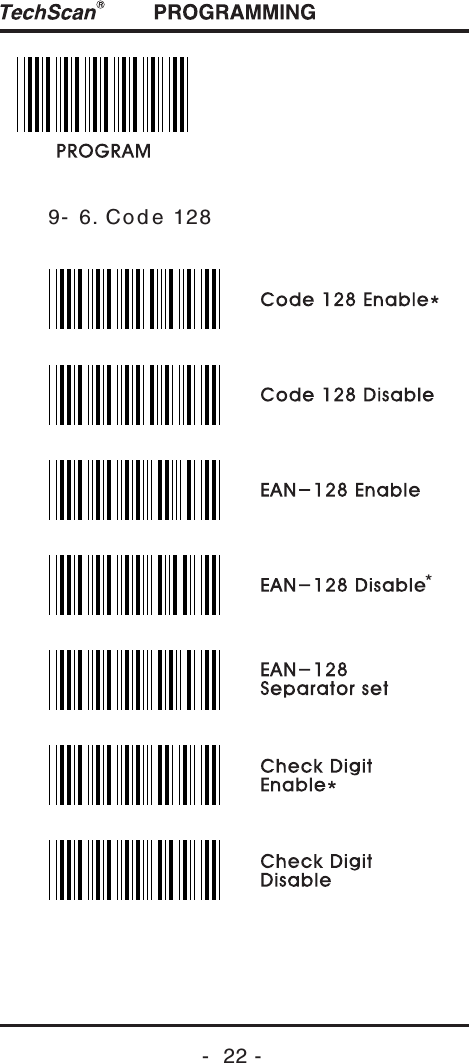
-  22 -9- 6. Cod e 128*
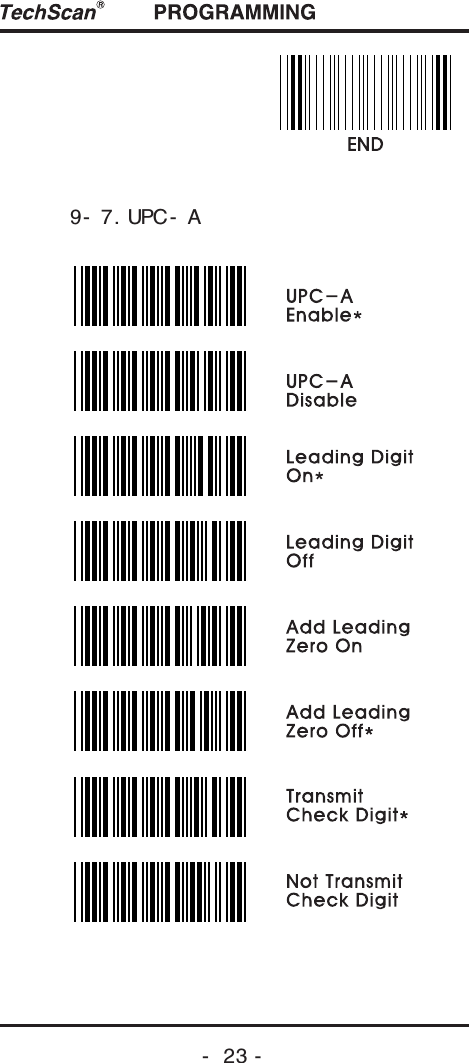
-  23 -9- 7. UPC- A
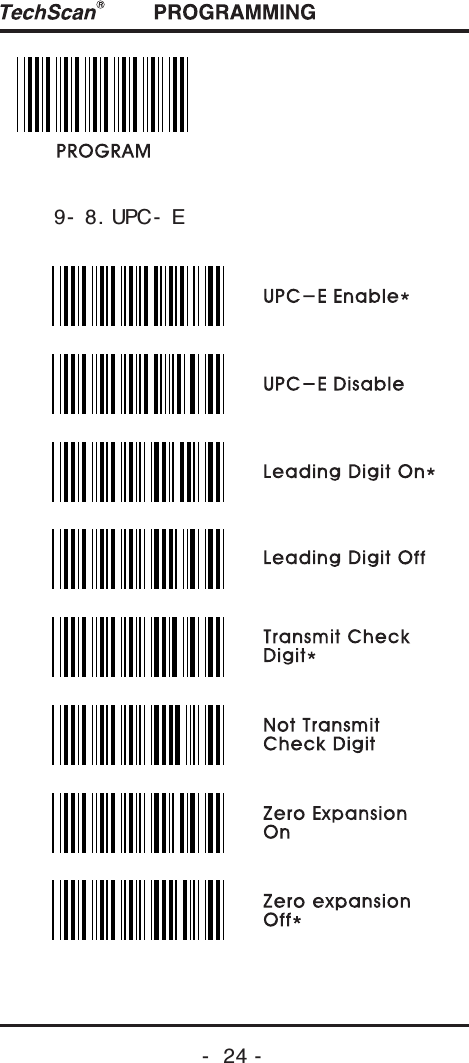
-  24 -9- 8. UPC- E
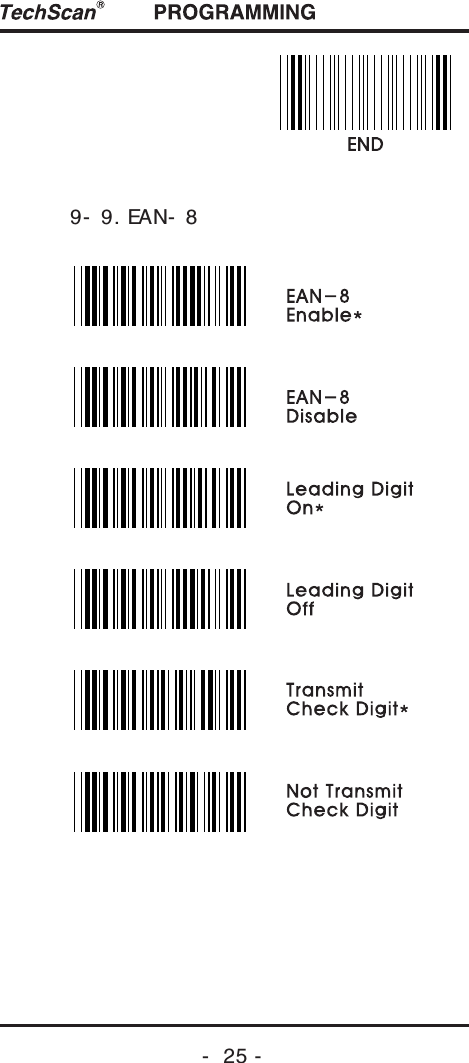
-  25 -9- 9. EAN- 8
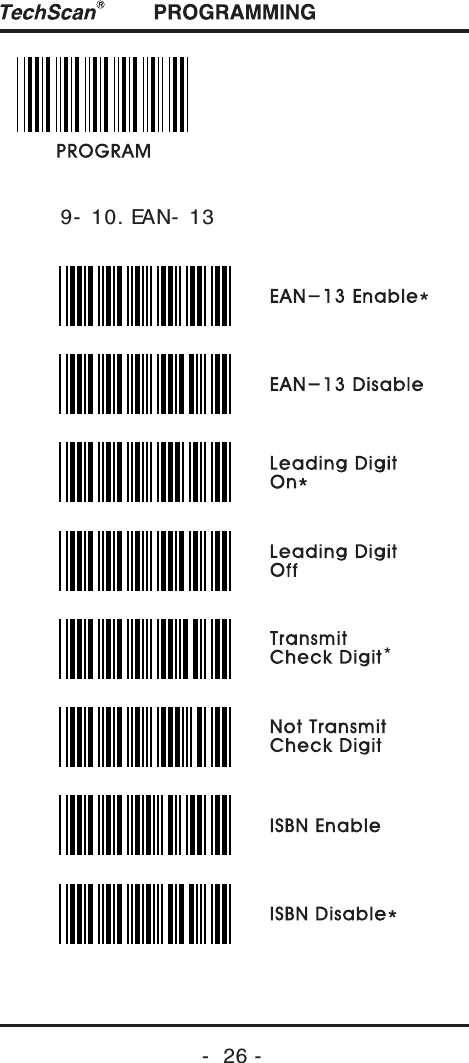
-  26 -9- 10. EAN- 13*
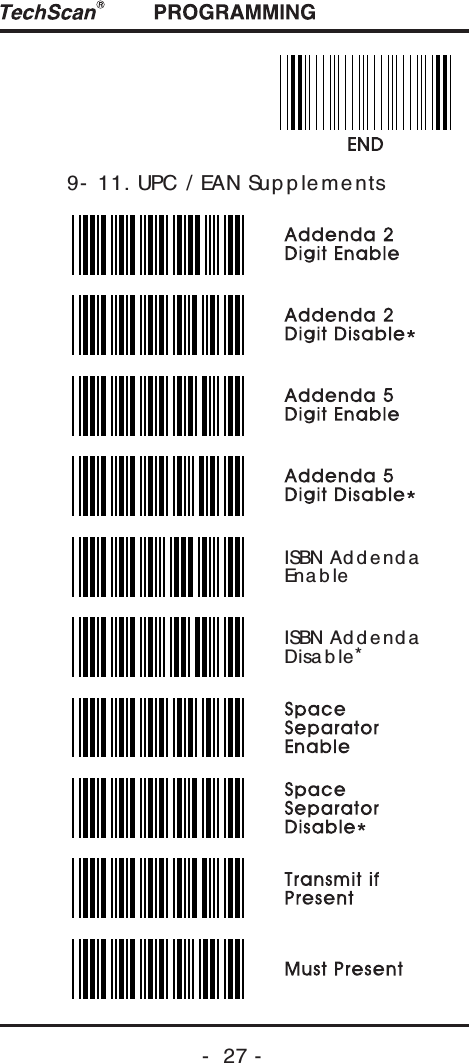
-  27 -9- 11. UPC / EAN Sup p le me ntsISBN Ad d e nd aEna b leISBN Ad d e nd aDisa b le*
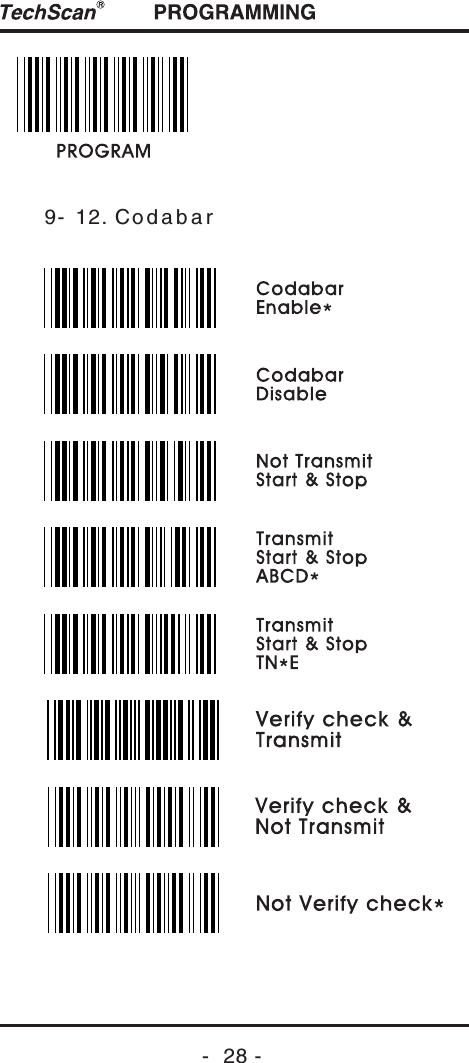
-  28 -9- 12. Cod a b a r
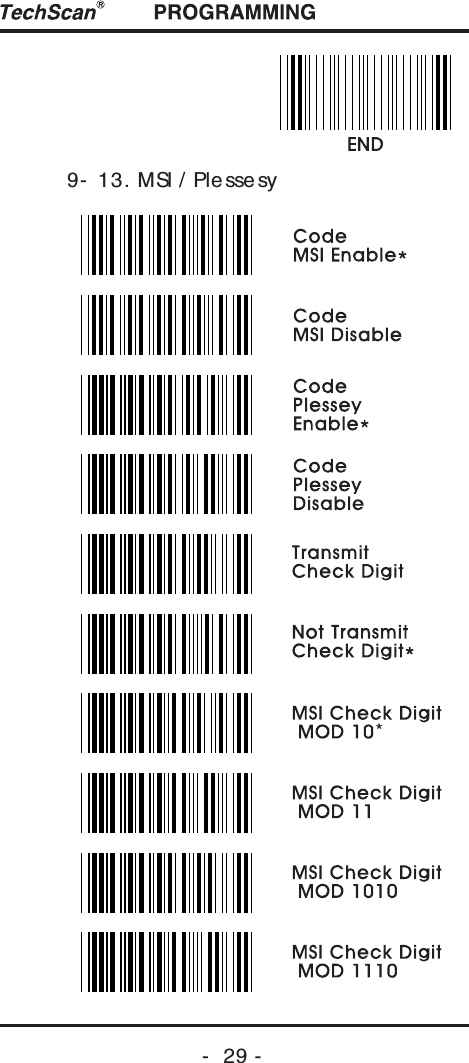
-  29 -9- 13. MSI / Ple ssesy*
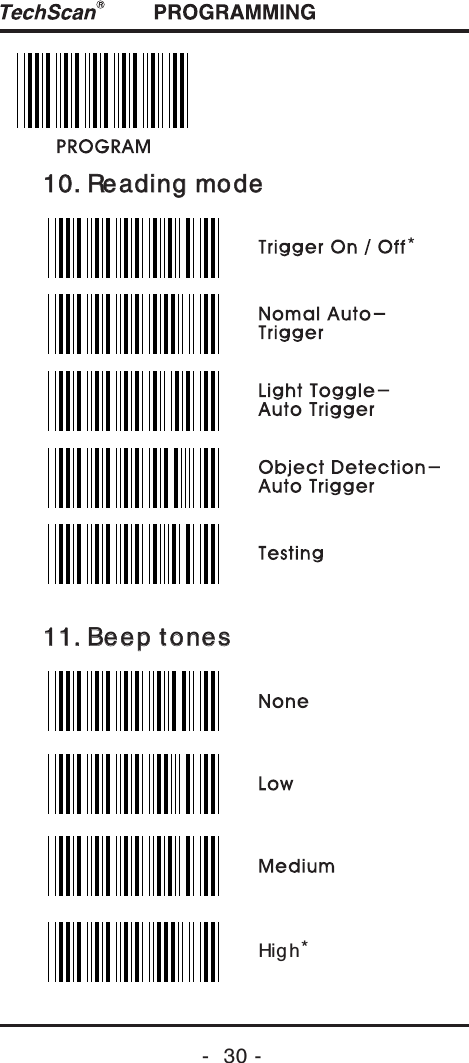
10. Reading mode 10. Reading mode 11. Beep tones11. Beep tones-  30 -*Hig h*
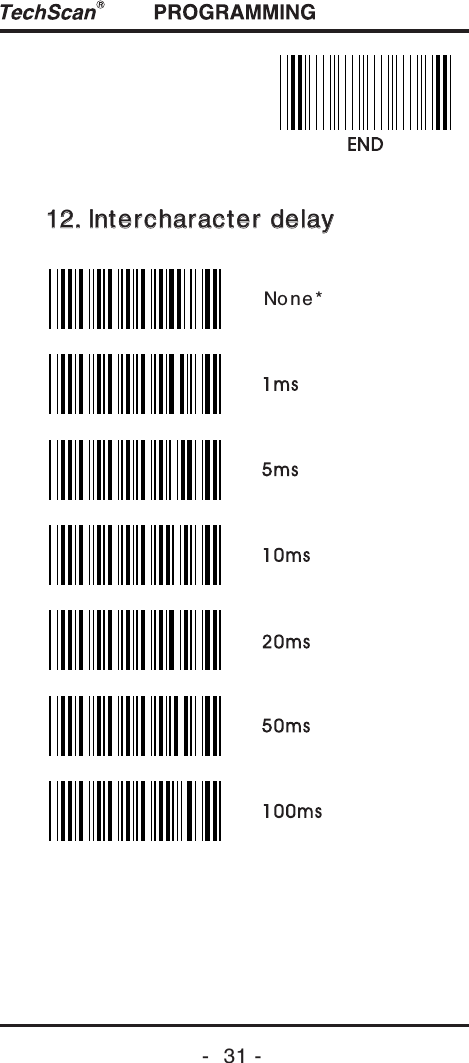
12. Intercharacter delay12. Intercharacter delay-  31 -No ne *
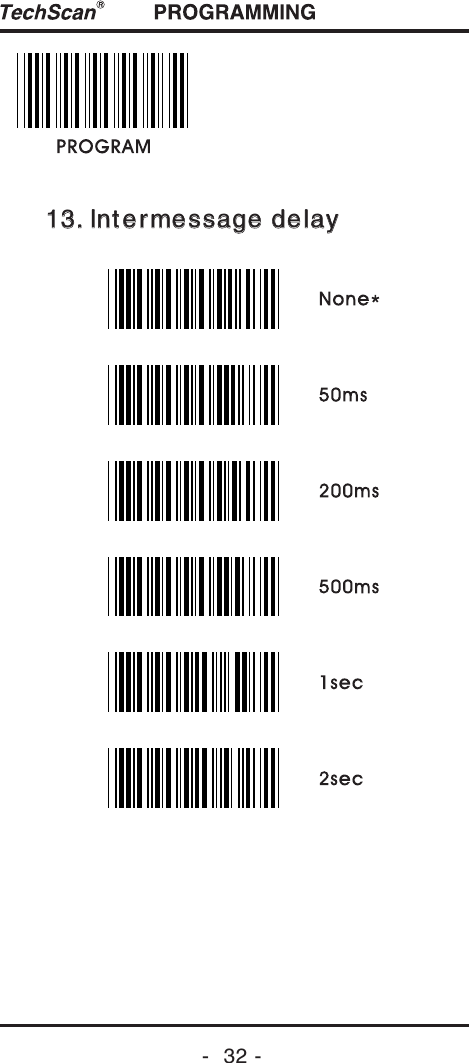
13. Intermessage delay13. Intermessage delay-  32 -
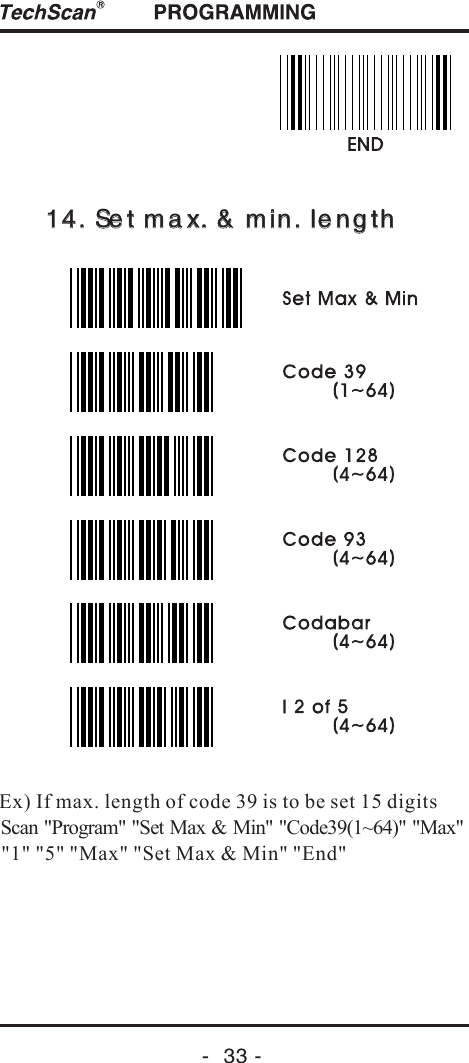
14. Se t ma x. & min. le ngth14. Se t ma x. & min. le ngth-  33 -Ex) If max. leng h of code 39 is to be set 15 digits tScan "Program" "Set Max & Min" "Code39(1~64)" "Max""1" "5" "Max" "Set Max & Min" "End"
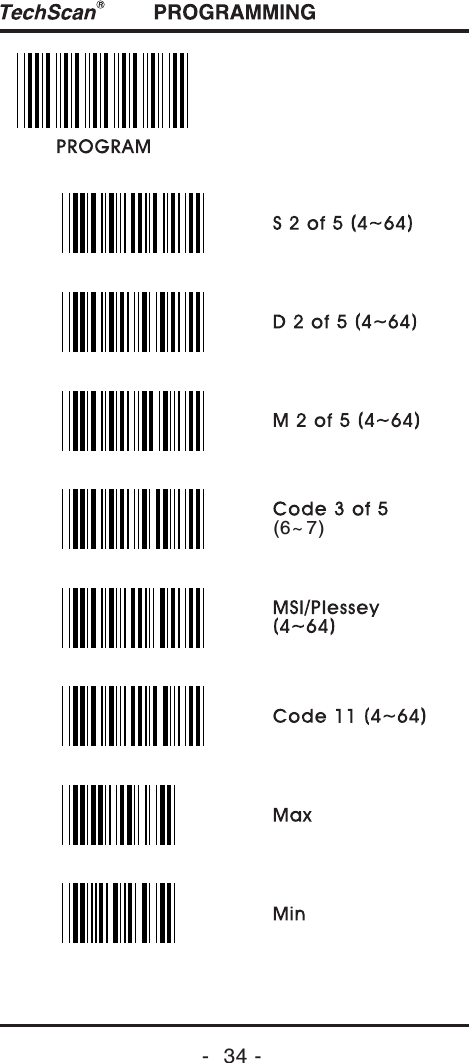
-  34 -(6~ 7)
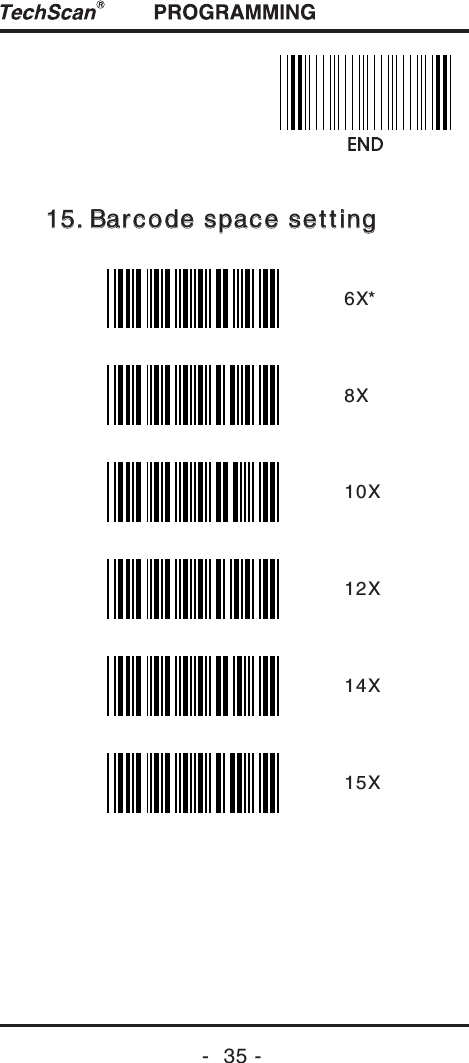
-  35 -15. Barcode space setting15. Barcode space setting6X*8X10X12X14X15X
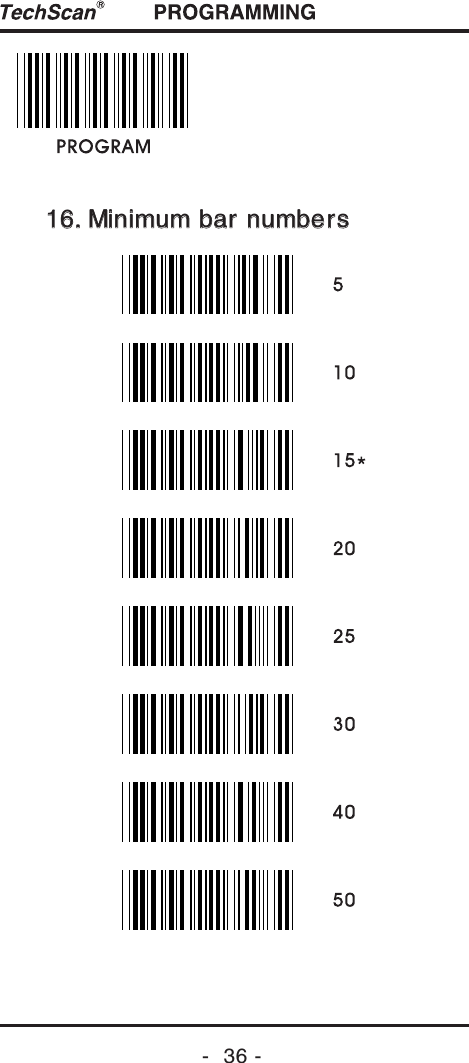
16. Minimum bar numbers16. Minimum bar numbers-  36 -
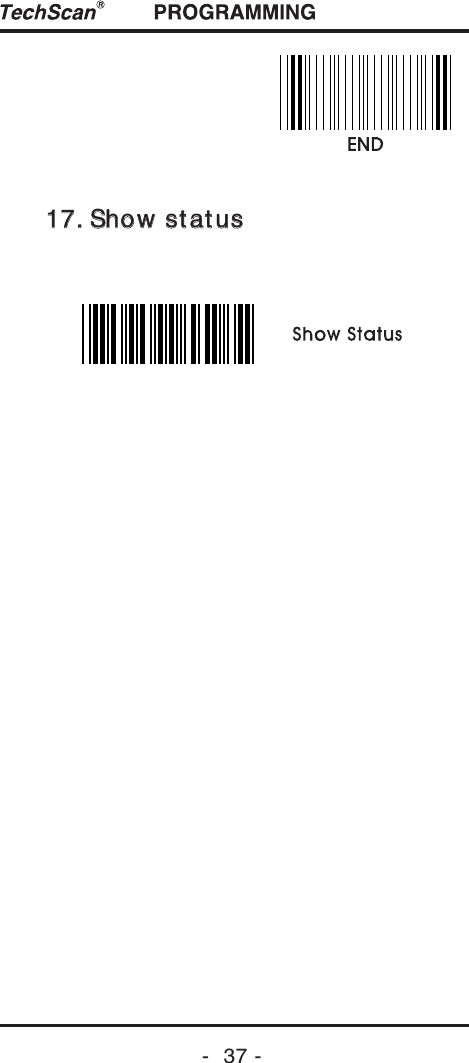
17. Show status17. Show status-  37 -
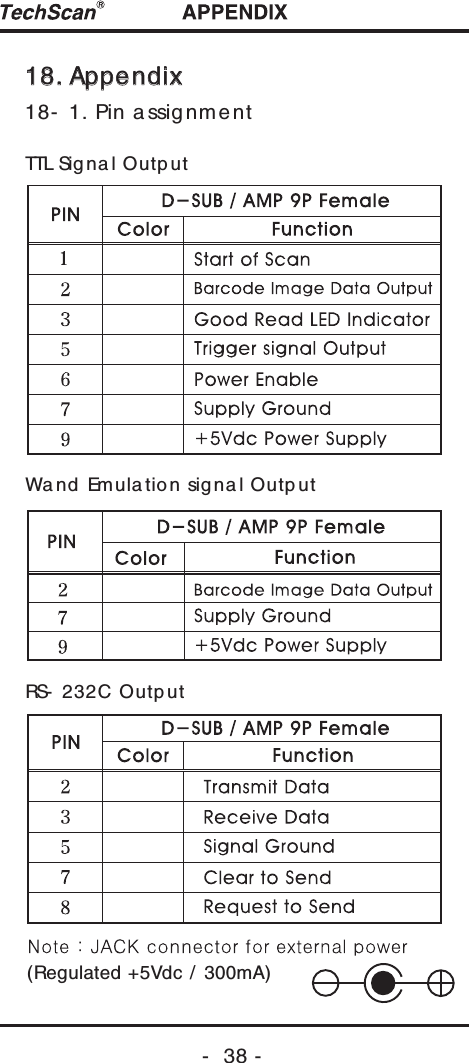
-  38 -18. Appendix18. Appendix18- 1. Pin a ssignmentTTL Sig na l Outp utWand  Emula tio n sig na l Outp utRS- 232C Outp ut(Regulated +5Vdc / 300mA)
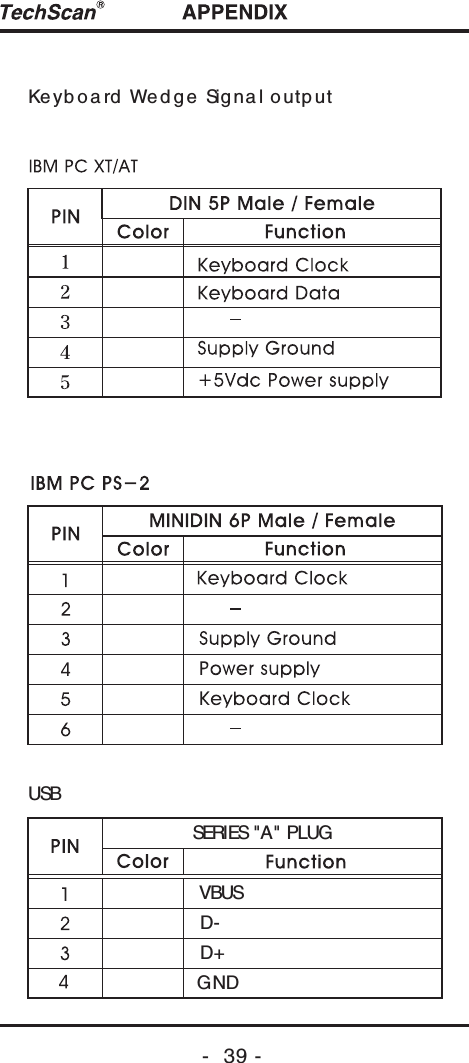
-  39 -Ke ybo a rd  We d g e Sig na l outp utUSBSERIES "A" PLUGVBUSD-D+GND
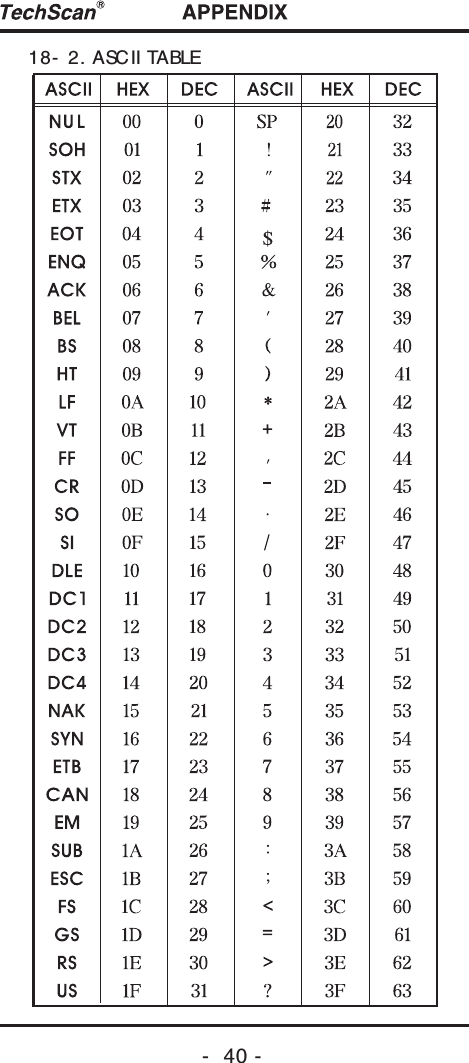
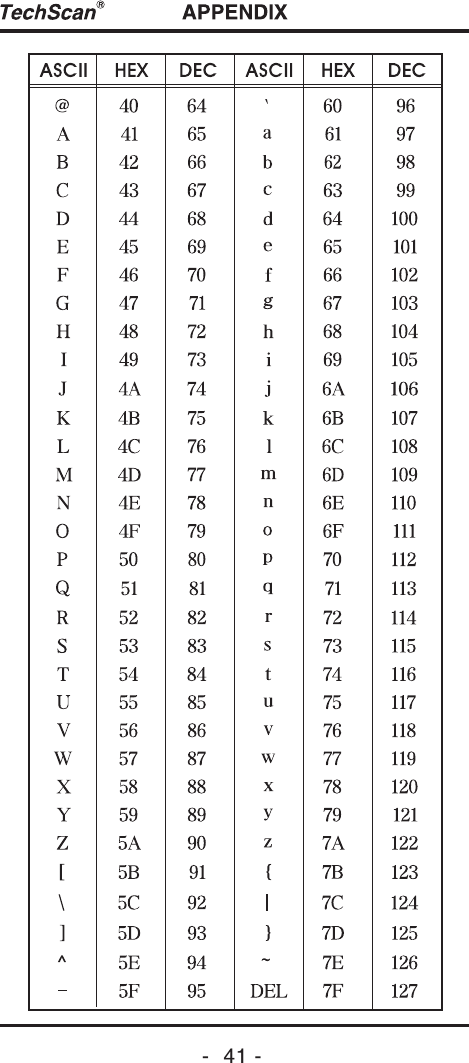
-  40 -18- 2. ASCII TABLE
-  41 -
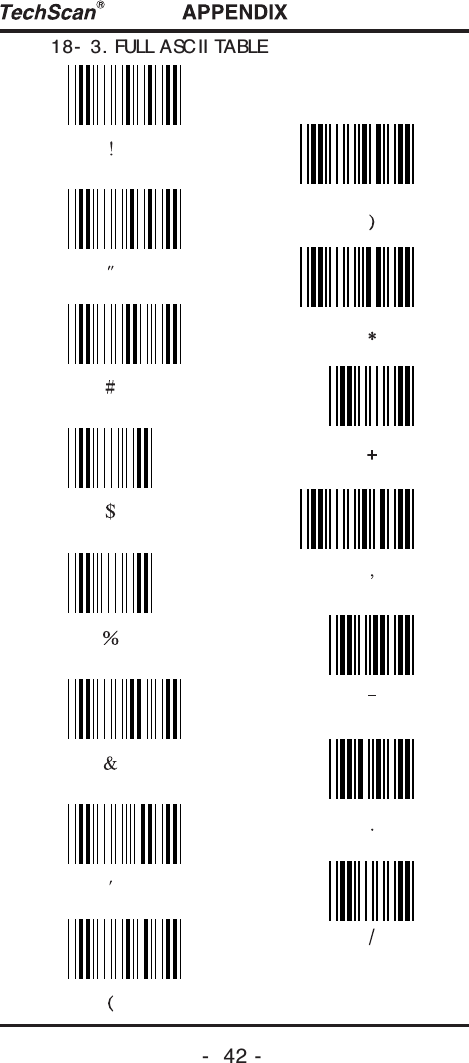
-  42 -18- 3. FULL ASCII TABLE
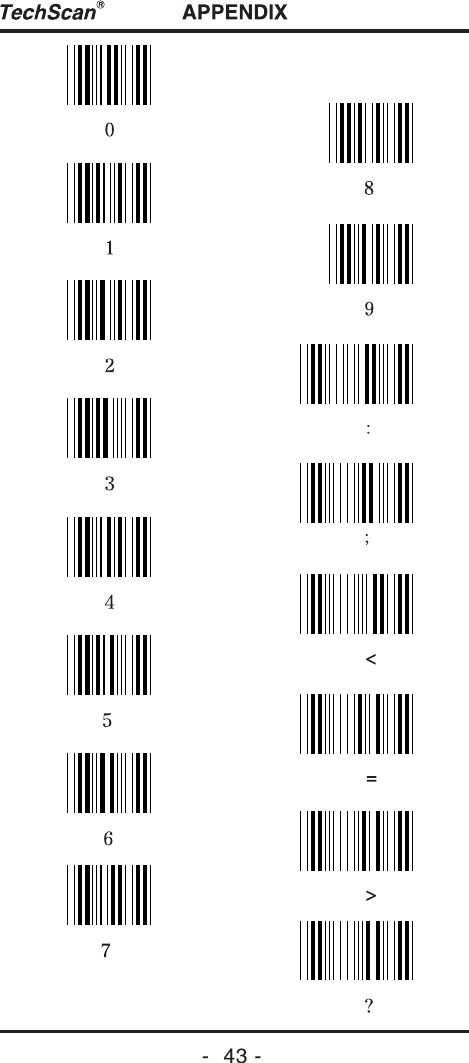
-  43 -
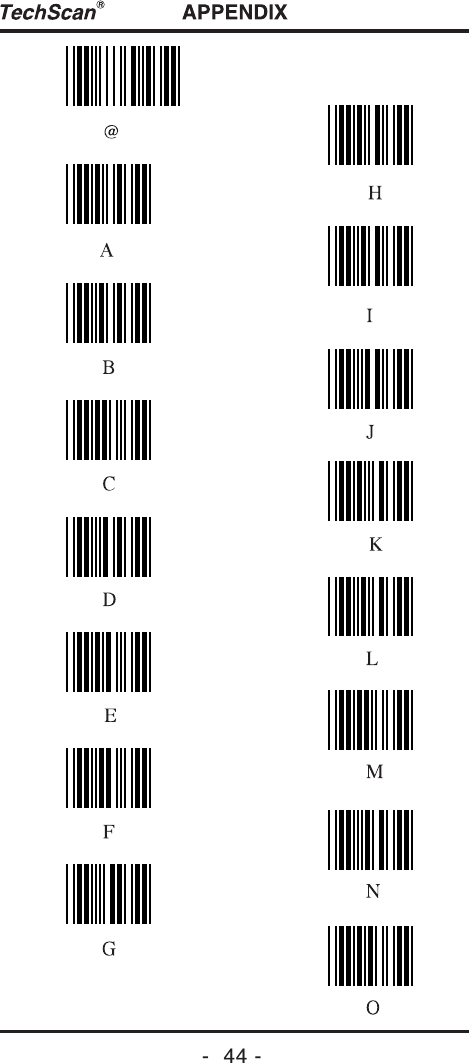
-  44 -
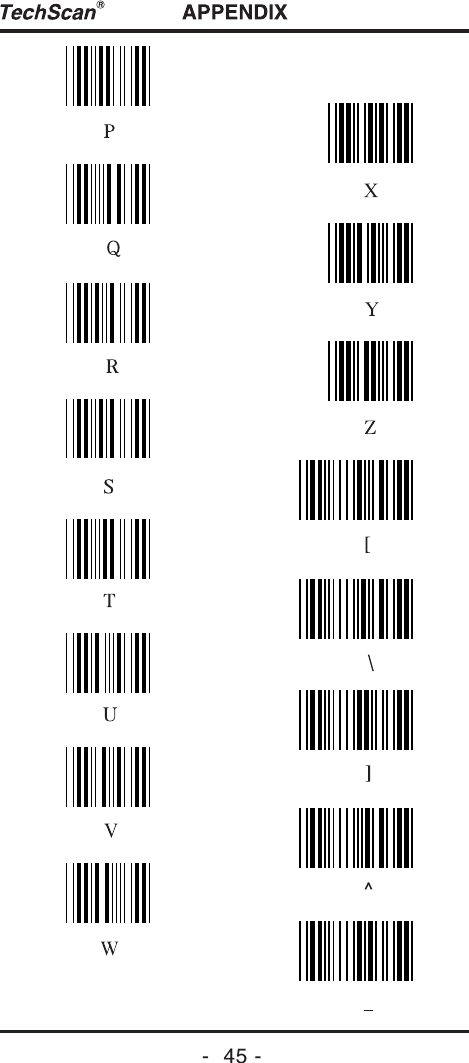
-  45 -
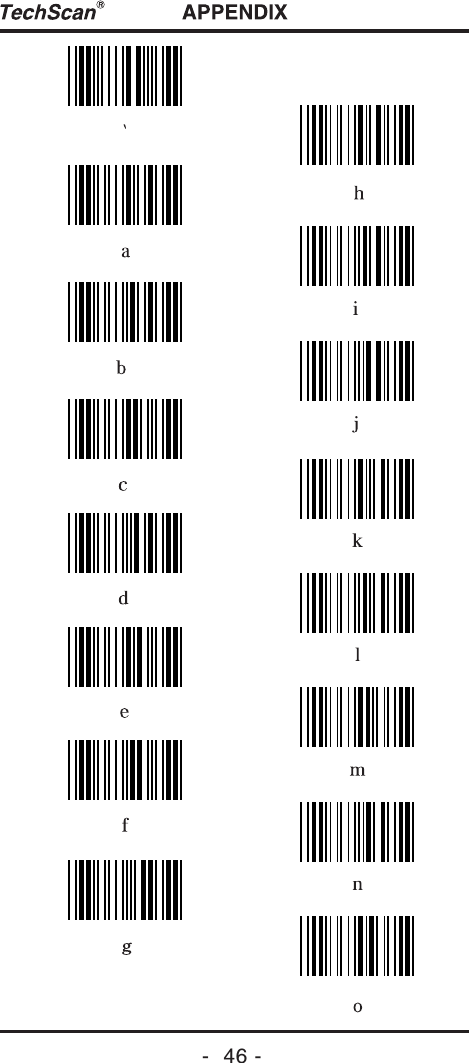
-  46 -
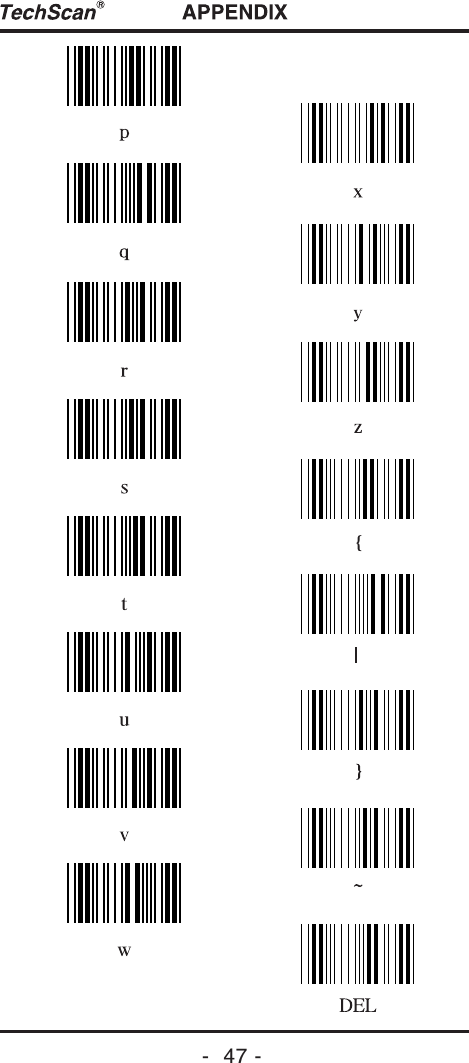
-  47 -
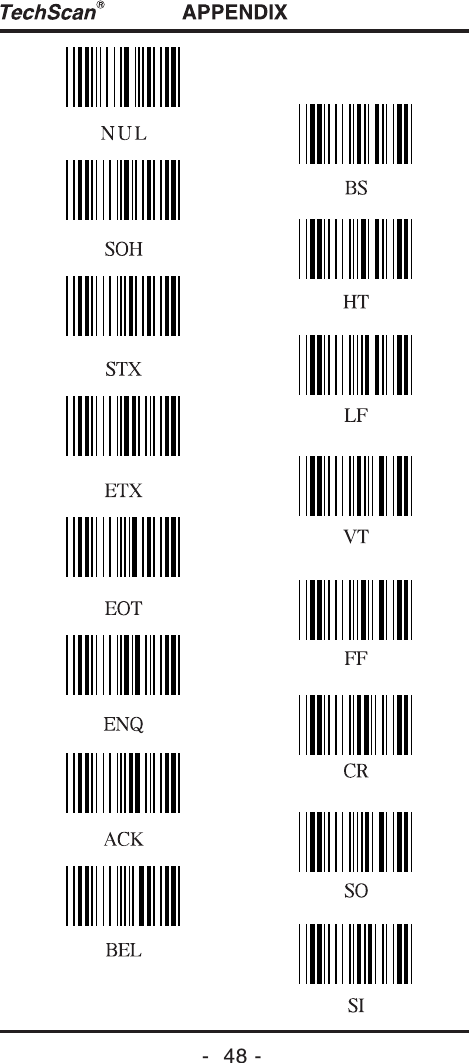
-  48 -
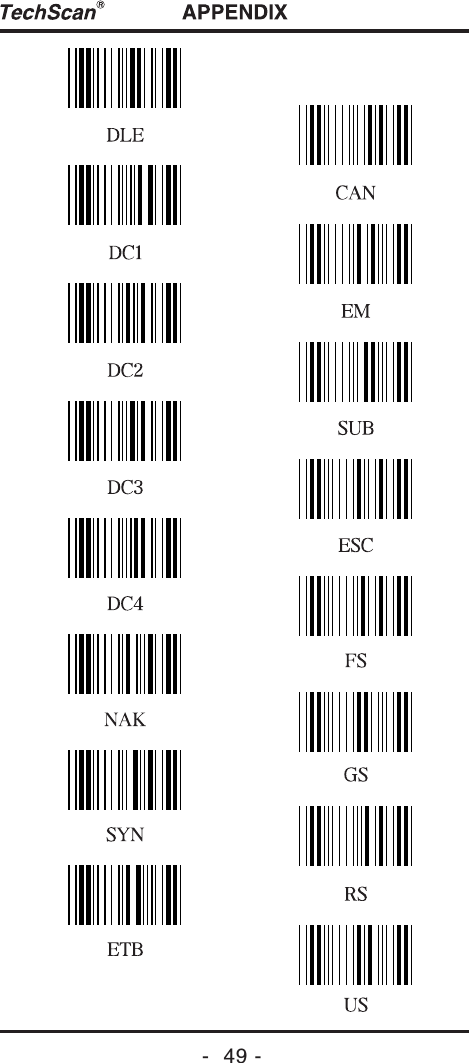
-  49 -
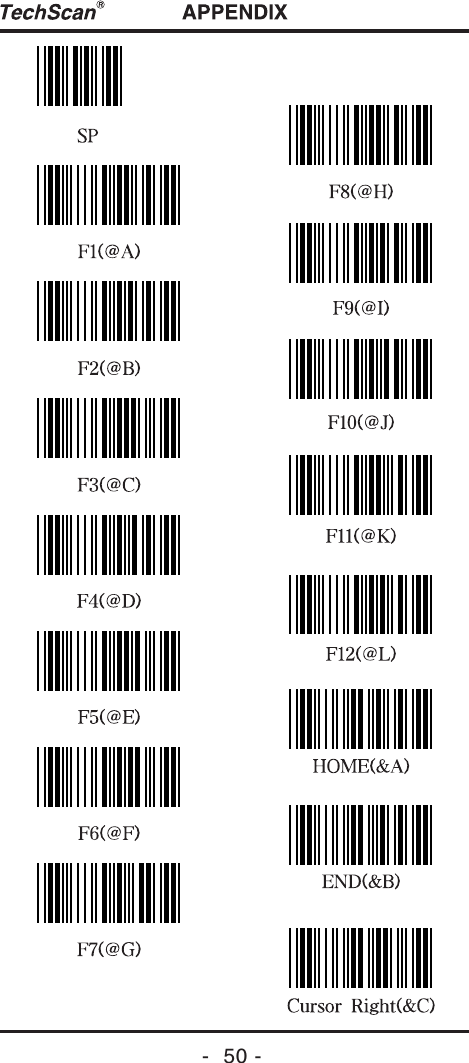
-  50 -
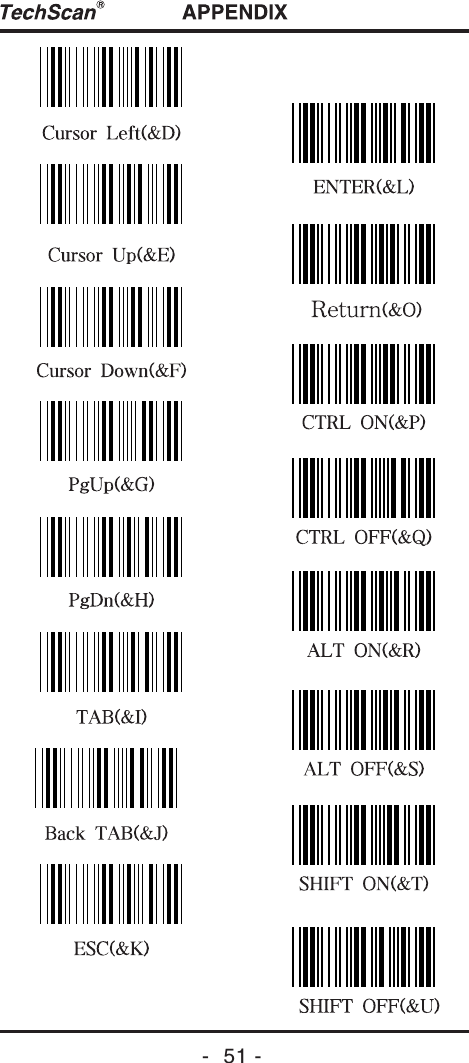
-  51 -

Navigation menu