TYSON BIORESEARCH MT Tyson Bio Auxiliary Kit User Manual
TYSON BIORESEARCH, INC. Tyson Bio Auxiliary Kit Users Manual
Users Manual
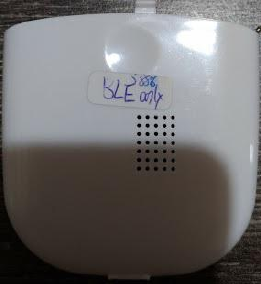
Tyson Bio Auxiliary Kit
User Manual

1
Table of Contant
Introduction..........................................................................................................................2
Check the Auxiliary Kit Type............................................................................................... 2
System Requirements........................................................................................................... 4
About Bluetooth®................................................................................................................ 4
Important Safety Instructions................................................................................................7
How to install the Tyson Bio Auxiliary Kit on your Meter....................................................9
Tyson Bio MT-A Auxiliary Kit (Voice Guidance).............................................................. 10
Setting Up MT-A Auxiliary Kit Voice Function on the Meter.............................................10
Tyson Bio MT-B Auxiliary Kit (Bluetooth )....................................................................... 14
Setting Up MT-B Auxiliary Kit Bluetooth Function on the Meter.......................................14
Tyson Bio MT-C Auxiliary Kit (Voice Guidance and Bluetooth)........................................ 20
Setting Up MT-C Auxiliary Kit Voice Guidance and Bluetooth Function on the Meter.......20
Care and Storage.................................................................................................................24
Trouble Shooting................................................................................................................25
Specifications..................................................................................................................... 27
Module Storage.................................................................................................................. 27
Icon Description................................................................................................................. 28
2
Introduction
Thank you for choosing the Tyson Bio Auxiliary Kit. We designed the three type
model for Tyson Bio Self-Monitoring Blood Glucose System.
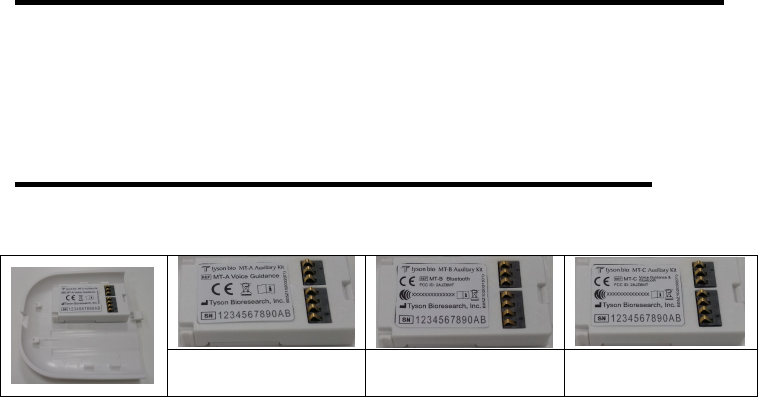
MT-A Auxiliary Kit: Voice Function.
MT-B Auxiliary Kit: Bluetooth Function.
MT-C Auxiliary Kit: Voice and Bluetooth Function.
Check the Auxiliary Kit Type
Please get your Auxiliary Kit or remove the Battery Cover form Blood Glucose Meter
and check the Battery Cover inside label to confirm the Auxiliary Kit Type.
MT-A
Auxiliary Kit
MT-B
Auxiliary Kit
MT-C
Auxiliary Kit
3
This user’s manual contains all the information needed to use and maintain this
Auxiliary Kit.
Note:
Please read carefully before use.
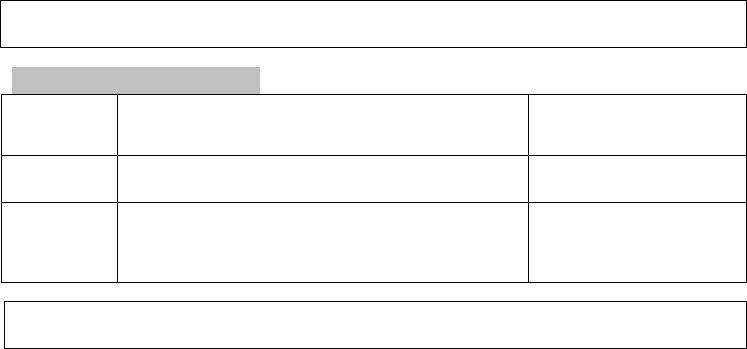
If Auxiliary Kit Type Is:
MT-A
Please refer to Tyson Bio MT-A Auxiliary Kit
(Voice Guidance)
Please refer to 《Tyson
Bio MT-A Auxiliary Kit
(Voice Guidance)》
MT-B
Please refer to Tyson Bio MT-B Auxiliary Kit
(Bluetooth)
Please refer to 《Tyson Bio MT-
B Auxiliary Kit (Bluetooth)》
M
T-C
Please refer to Tyson Bio MT-C Auxiliary Kit
(Voice Guidance and Bluetooth)
Please refer to 《Tyson
Bio MT-C Auxiliary Kit
(Voice Guidance and
Bluetooth)》
Note : The voice function of Tyson Bio MT-A Voice Guidance and MT-C Voice
Guidance and Bluetooth Auxiliary Kits are not intended for the visually impaired.

4
System Requirements
The Tyson Bio MT-B Auxiliary Kit (Bluetooth) and Tyson Bio MT-C Auxiliary Kit
(Voice Guidance and Bluetooth) requires:
The BLE tool app with Blood Glucose Test. You can download the app to your
mobile device from the App Store℠and Google Play for free.
A compatible device with Apple® iOS 8.0 or above or Android 4.0
Visit www.tysonbio.com, App Store℠and Google Play for updates on compatible mobile
devices and operating systems.
Mobile devices such as iPhone, iPod touch and iPad are not included.
About Bluetooth®
Bluetooth® is a type of wireless (RF) communication. Mobile device use Bluetooth®
technology as do many other devices. Your Tyson Bio Bluetooth uses Bluetooth®
to pair with the mobile device and to send results to the app.

5
CAUTION:
1. Before testing, you must first pair your meter with the mobile device and initially
sync with the app. This will ensure that results from your meter are sent wirelessly
to the app on your mobile device.
2. Your meter is subject to and complies with U.S. federal guidelines, Part 15 of the
FCC rules for devices with RF capability. These rules state two conditions specific
to the operation of the device. They are:
This device may not cause harmful interference.
This device must accept any interference received, including interference that may
cause undesirable operation.
3. These guidelines help ensure that your meter will not affect the operation of other
nearby electronic devices. Additionally, other electronic devices should not affect
the use of your meter. With the exception of your mobile device Phone, other
electronic wireless devices that are in use nearby, such as a cell phone or a wireless
network, may prevent or delay the transmission of data from your meter to the app.
Moving away from or turning off these electronic devices may allow
communication.
4. The meter has been tested and found to be appropriate for use at home. In most
cases, it should not interfere with other home electronic devices if used as instructed.

6
5. However, this meter gives off RF energy when Bluetooth® is on. If not used
correctly, your meter may interfere with your TV, radio, or other electronic devices
that receive or transmit RF signals.
6. If you experience meter interference problems, try moving your meter away from
the source of the interference. You can also move the electronic device or its
antenna to another location to solve the problem.
7. If you continue to experience interference, contact our Customer Service at +1-800-
948-3894, or +886-37-585998, or visit www.tysonbio.com. For the manufacturer of
the electronic device causing the interference.
8. In locations where cell phone use is not permitted, such as hospitals, some
healthcare professional offices, and airplanes, you should set the meter to
“Airplane” mode (Bluetooth® off).
WARNING
1. The Bluetooth® feature on your meter sends test results to your mobile device. To
prevent other people’s results from being sent to the mobile device, Do Not let
anyone else use your meter to test their blood glucose. This meter is for single
patient use only.
2. Bluetooth® Trademark. The Bluetooth® word mark and logos are owned by the
7
Bluetooth® SIG, Inc. and any use of such marks by Tyson Bio is under license.
Other trademarks and trade names are those of their respective owners.
Important Safety Instructions
All parts of the Auxiliary Kit to be used with blood glucose monitoring system should
be considered potentially infectious and are capable of transmitting blood-borne
pathogens between patients and healthcare professionals. To assure that you are not
placing yourself at risk, always remember:
All parts of the module is considered to be bio-hazardous and can potentially transmit
infectious diseases even after cleaning and disinfection have been performed.
Reference:
“FDA Public Health Notification: Use of Fingerstick Devices on More than One Person
Poses Risk for Transmitting Bloodborne Pathogens: Initial Communication” (2010)
http://www.fda.gov/MedicalDevices/Safety/AlertsandNotices/ucm224025.htm
“CDC Clinical Reminder: Use of Fingerstick Devices on More than One Person Poses
Risk for Transmitting Bloodborne Pathogens” (2010)
http://www.cdc.gov/injectionsafety/Fingerstick-DevicesBGM.html

9
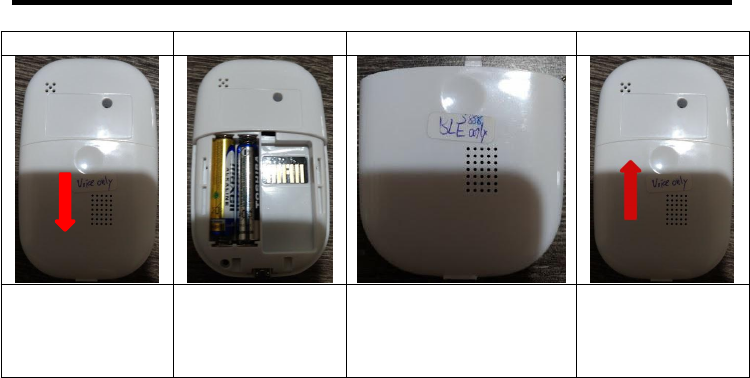
How to install the Tyson Bio Auxiliary Kit on your Meter
Step 1
Step 2
Step 3
Step 4
Press and pull
down the back
cover
Remove the back
cover form the
meter back cover
socket
Take the Tyson Bio
Auxiliary Kit
(Back Cover)
Press and Push up
the back cover
into meter back
cover socket
10
Tyson Bio MT-A Auxiliary Kit (Voice Guidance)
Tyson Bio MT-A Auxiliary Kit Kit Contains:
Tyson Bio MT-A Auxiliary Kit unit x 1
User Manual x 1
Setting Up MT-A Auxiliary Kit Voice Function on the Meter
1. Please make sure your Tyson Bio MT-A Auxiliary Kit (Voice Guidance) is attached to
the meter before you turn on the meter to check Voice function.
2. Voice function is ON by default. Please follow the following steps to check and set up
Voice function.
Note:
When the MT-A Auxiliary Kit install on the meter, the meter will detect automatically
and the meter Buzzer will be instead by MT-A Auxiliary Kit Voice Guidance.
11
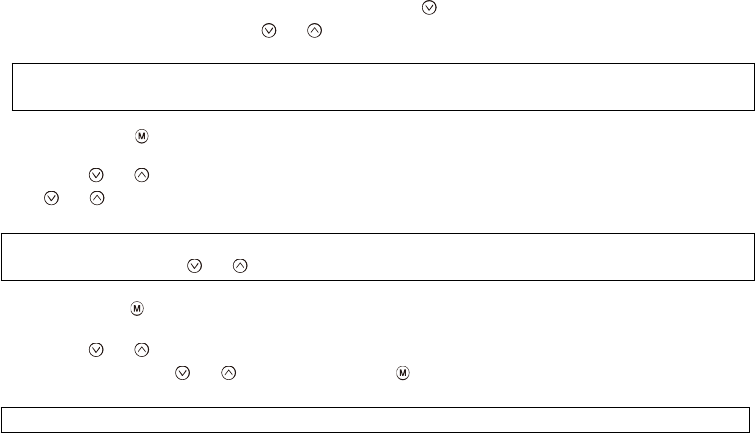
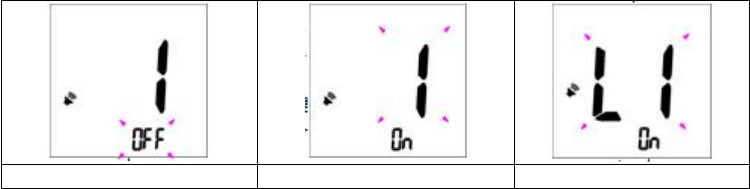
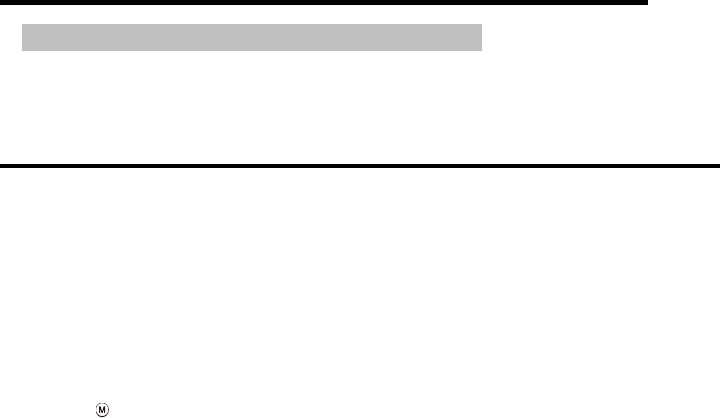
3. When the meter is switched off, press and hold button for 4 seconds to enter into
setting menu(Fig. 1).
Press
or to select “Voice On” or “Voice Off”.
Note:
When the “Voice Off” switch to “Voice On”, will heard the short sound.
4. Then press to confirm and show the display Fig. 2.
5.
Press
or to select Voice value, the numbers of “value” will appear and flash. Press
or to adjust from 1 to 7.
Note:
Every time you
Press
or will heard the short sound, the voice will bigger or smaller.
6.
Then press
to confirm and how the display Fig. 3.
7.
Press
or to select Language, the numbers indicating “L1” or “L2” will appear
and flash. Press or to adjust and
Press
to confirm.
Note:

12
L1 is English, L2 is España. Language is L1(English) by default.
13
Fig. 1
Fig. 2
Fig. 3
14
Tyson Bio MT-B Auxiliary Kit (Bluetooth)
Tyson Bio MT-B Auxiliary Kit Kit Contains:
Tyson Bio MT-B Auxiliary Kit unit x 1
User Manual x 1
Setting Up MT-B Auxiliary Kit Bluetooth Function on the Meter
1. Before Setting Up MT-B Auxiliary Kit Bluetooth Function, please Go to Google
Play or App Store to download BLE tool app with Blood Glucose Test. Installing
App to your mobile device and connect to your meter.
2. Please make sure your Tyson Bio MT-B Auxiliary Kit (Bluetooth) is attached to the
meter before you turn on the meter to check Bluetooth connection and function.
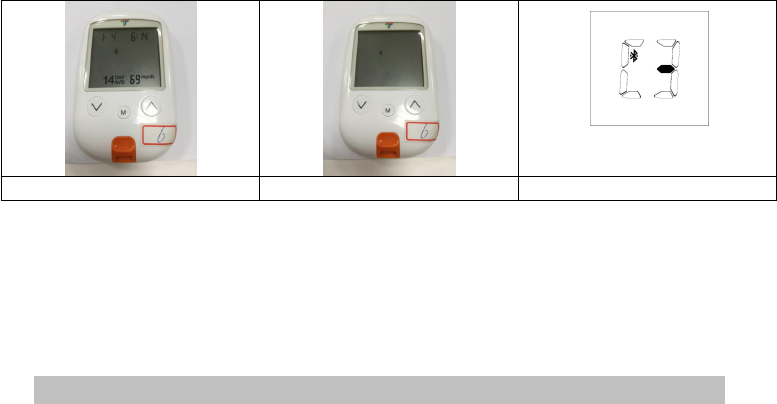
3. When the meter is off, press “M” button to turn on the meter. Bluetooth icon will
appear if the Auxiliary Kit is detected, as shown at Fig. 4.
4. Hold for 4 seconds to initiate Bluetooth connection, Bluetooth icon is now
15
blinking on the meter display as the meter is not connected with mobile device, as
Fig. 5.
Fig. 4
Fig. 5
Fig. 6
5. Turn on Bluetooth function of your mobile device and open “BLE tool app with Blood
Glucose Test”.
6. Click Connect and select the meter shown in the list, Bluetooth icon stops blinking.
7. Select the transfer data according to the APP interface, When data transfer, Meter will
display as Fig. 6
Connect your meter with mobile device before testing blood glucose
16
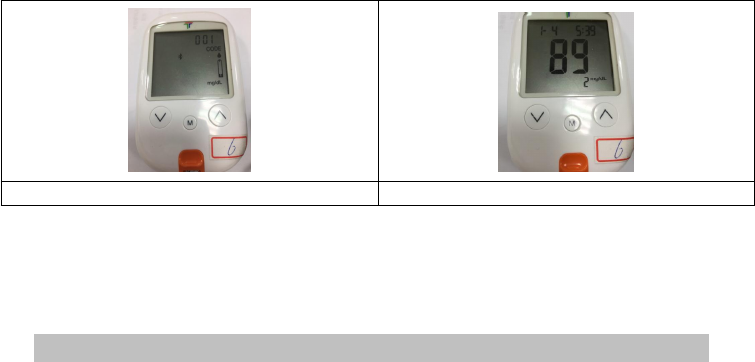
1. Insert the test strip to the meter as shown at Fig. 7, Bluetooth icon will keep blinking on
the meter display as the meter is not connected with mobile device.
2. Turn on Bluetooth function of your mobile device and open “BLE tool app with Blood
Glucose Test”.
17
Fig. 7
Fig. 8
3. Click Connect and select the meter shown in the list, Bluetooth icon stops blinking.
4. Perform your blood glucose test. After testing your blood glucose, readings is
automatically transmitted to the app of mobile device. Bluetooth icon will disappear then,
as Fig. 8.
Connect your meter with mobile device after testing blood glucose
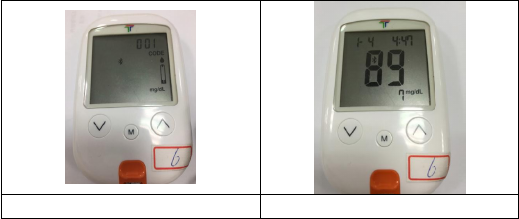
1. Insert the test strip to the meter as shown at Fig. 9, Bluetooth icon will keep blinking on
the meter display as the meter is not connected with mobile device.
18
2. After testing your blood glucose, readings is shown on the meter display as Fig. 10.
Bluetooth icon is still blinking.
19
3. Turn on Bluetooth function of your mobile device and open “BLE tool app with Blood
Glucose Test”.
Fig. 9
Fig. 10
4. Click ” Connect ” and select the meter shown in the list. The test readings just acquired
will be transmitted to the app of mobile device. Bluetooth icon will disappear then.

20
Tyson Bio MT-C Auxiliary Kit (Voice Guidance and Bluetooth)
Tyson Bio MT-C Auxiliary Kit Kit Contains:
Tyson Bio MT-C Auxiliary Kit unit x 1
User Manual x 1
Setting Up MT-C Auxiliary Kit Voice Guidance and Bluetooth Function
on the Meter
Please make sure your Tyson Bio MT-C Auxiliary Kit (Voice Guidance and
Bluetooth) is attached to the meter before you turn on the meter to check
Voice and Bluetooth connection function.
For Voice function: please refer to section “Setting Up MT-A Auxiliary Kit
Voice Function on the Meter” for more detail.
F
21
or Bluetooth function: please refer to section “Setting Up MT-B Auxiliary Kit
Bluetooth Function on the Meter” for more detail.

22
Cleaning and Disinfection Procedure
General Cleaning
Switch the meter OFF.
Use a soft cloth moistened with water or a mild detergent, gently wipe the meter surface.
Please avoid using alcohol or organic solvents in cleaning.
Do not immerse the meter and module in water when cleaning. Do not allow water or
cleaning fluids into the meter, test port, and data port.
Professional Disinfection
Applicable for people who use the blood glucose meter with module
Cleaning solution and disinfecting solution: Clorox Bleach Germicidal Wipes ( Clorox
Professional Products Company. EPA Reg. No. 7619-12 ). Contact Clorox Company at
1-800-537-1415.
23
Personal Protection: Sanitize hands, then put on gloves before removing a germicidal
wipe from the canister. When handling items soiled with blood or body fluids, use
disposable latex gloves, gowns, masks and eye coverings.
Meter with module : turn it off.
ipe: Clorox Bleach Germicidal Wipes by thoroughly wetting the exterior of the meter,
allow the surface to stay wet for 1 minute then allow to air dry.
Disposal of Infectious Materials: Use disposable gloves. Never reuse or re-wet a
disposable wipe. Dispose of according to local regulations for infectious waste disposal.
Please refer to the Clorox Bleach Germicidal Wipes detailed usage instructions.

24
Care and Storage
1. Please handle the meter and module with care. Dropping the meter and module may
result in damage.
2. Do not expose the meter and module to extreme conditions such as high humidity, heat,
freezing cold, or dust.
3. The meter and module should be stored at room temperature in a dry and clean area.
DO NOT STORE IN DIRECT SUNLIGHT OR AREAS WITH HIGH HUMIDITY
AND/OR DUST. It is advised that you store the meter, module and its accessories into
the provided carrying case.
It is advised that you store all parts of Tyson Bio HT100 Blood Glucose Monitoring
System in the carrying case provided.

25
Trouble Shooting
Problem may occur
Action
The voice function
does not work after
the module is
installed
1. Replace the batteries with new ones and switch on the meter to
check voice function again
2. Remove module and batteries and wait for 1 minute, reinstall
batteries and module to see if meter and voice function works
properly
3. If the voice function still does not work, contact your local
distributor or dealer for after service
The Bluetooth
function does not
work after the
module is installed
1. Make sure the meter with Auxiliary Kit your mobile device is close
to each other.
2. Make sure the mobile device is on and fully charged or connected to
power. If it uses batteries, test them to see if they need to be
replaced.
3. Restart the meter.

26
Problem may occur
Action
4. Make sure that your mobile devices are installed with iOS 8.0 and
Android 4.3 or above.
5. On your mobile device, go to Settings > Bluetooth and make sure
that Bluetooth is on. If you can’t turn Bluetooth on or you see a
spinning gear, restart your mobile device.
6. Unpair the meter, put the meter back in discovery mode, then pair
and connect it again.

27
Specifications
Working Temperature
10°C - 40°C(50°F - 104°F)
Working Humidity
10 - 90% RH
Operating voltage
3.2 – 3.4V DC
Power supply
Main board output 3.3V DC
Dimension
65 (L) x 66 (W) mm
Weight
14 g
Module Storage
Store at temperature -20°C - 50°C( -4°F - 122 °F), Less than 90% RH.
Precision instrument, do not crash when being transported.
28
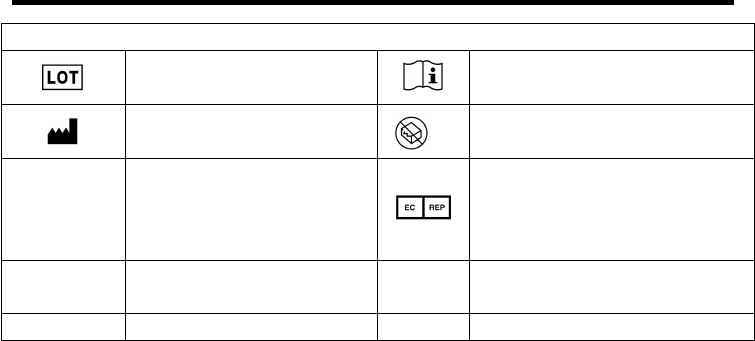
Icon Description
Icon description(請配合彩盒與背蓋標籤增減)
BATCH CODE
CONSULT
INSTRUCTIONS FOR USE
MANUFACTURER.
DO NOT USE IF PACKAGE
IS DAMAGED
CE 符號
AUTHORISED
REPRESENTATIVE IN
THE EUROPEAN
COMMUNITY
FCC 符號
看看是否共用 USA
藍芽符
號
語音符號
自己畫的那個

29
Service and Warranty
IMPORTANT
Tyson Bioresearch, Inc. cannot endorse the performance of Tyson Bio Auxiliary Kits when
not used with Tyson Bio HT100 meter.
Tyson Bio Auxiliary Kits manufacturer warranty is valid only when used properly within the
guidelines of this User Manual provided.
Manufacturer Warranty
Tyson Bioresearch, Inc. offers a lifetime guarantee on this product. Our company shall repair
or replace any Tyson Bio Auxiliary Kit found defective with a new one.
This warranty does not apply to the performance of a Tyson Bio Auxiliary Kit that has been
accidentally damaged, altered, misused, tampered with or abused in anyway. In no event
shall our company be liable to the purchaser or any other person for any incidental,
consequential, or punitive damages arising from or in anyway connected with the purchase or
30
operation of Tyson Bio Auxiliary Kit.
For manufacturer warranty services, purchaser must contact Tyson Bioresearch, Inc. for help.
Manufacturer: Tyson Bioresearch, Inc.
Address: 5F, #22, Ke E. Road III Science-Based Industrial Park, Chu Nan, Taiwan
Web site: www.Tysonbio.com
Made in Taiwan

31
Notice
Federal Communications Commission (FCC) Statement
15.21
You are cautioned that changes or modifications not expressly approved by the part
responsible for compliance could void the user’s authority to operate the equipment.
15.105(b)
This equipment has been tested and found to comply with the limits for a Class B digital
device, pursuant to part 15 of the FCC rules. These limits are designed to provide reasonable
protection against harmful interference in a residential installation. This equipment generates,
uses and can radiate radio frequency energy and, if not installed and used in accordance with
the instructions, may cause harmful interference to radio communications. However, there is
no guarantee that interference will not occur in a particular installation. If this equipment
does cause harmful interference to radio or television reception, which can be determined by
turning the equipment off and on, the user is encouraged to try to correct the interference by
one or more of the following measures:

32
-Reorient or relocate the receiving antenna.
-Increase the separation between the equipment and receiver.
-Connect the equipment into an outlet on a circuit different from that to which the receiver is
connected.
-Consult the dealer or an experienced radio/TV technician for help.
This device complies with Part 15 of the FCC Rules. Operation is subject to the
following two conditions:
1) this device may not cause harmful interference and
2) this device must accept any interference received, including interference that may cause
undesired operation of the device.
FCC RF Radiation Exposure Statement:
1. This Transmitter must not be co-located or operating in conjunction with any other
antenna or transmitter.

33
2. This equipment complies with FCC RF radiation exposure limits set forth for an
uncontrolled environment.

34
NCC 警語
根據 NCC 低功率電波輻射性電機管理辦法 規定:
第十二條
第十四條
經型式認證合格之低功率射頻電機,非經許可,公司、商號或使用者均不得擅
自變更頻率、加大功率或變更原設計之特性及功能。
低功率射頻電機之使用不得影響飛航安全及干擾合法通信;經發現有干擾現象
時,應立即停用,並改善至無干擾時方得繼續使用。前項合法通信,指依電信
法規定作業之無線電通信。
低功率射頻電機須忍受合法通信或工業、科學及醫療用電波輻射性電機設備之
干擾。
35
Customer Service
U.S.A
1-800-948-3894 (24 hours a day)
Worldwide
+886-37-585998 (Taiwan) (8:30~18:00, mon ~ fri)
EU Authorized Representative:
Medical Device Safety Service GmbH, Schiffgraben 41, D-30175
Hannover, Germany
For in vitro diagnostic use
© Tyson Bioresearch, Inc.
ID#:
B05Z101041 (01)
Reversion date:
09/2016