TableTop Media d b a Ziosk ZIOSK-C03 802.11b/g Payment/Advertisement Terminal User Manual Ziosk Product Manual
TableTop Media, LLC 802.11b/g Payment/Advertisement Terminal Ziosk Product Manual
manual
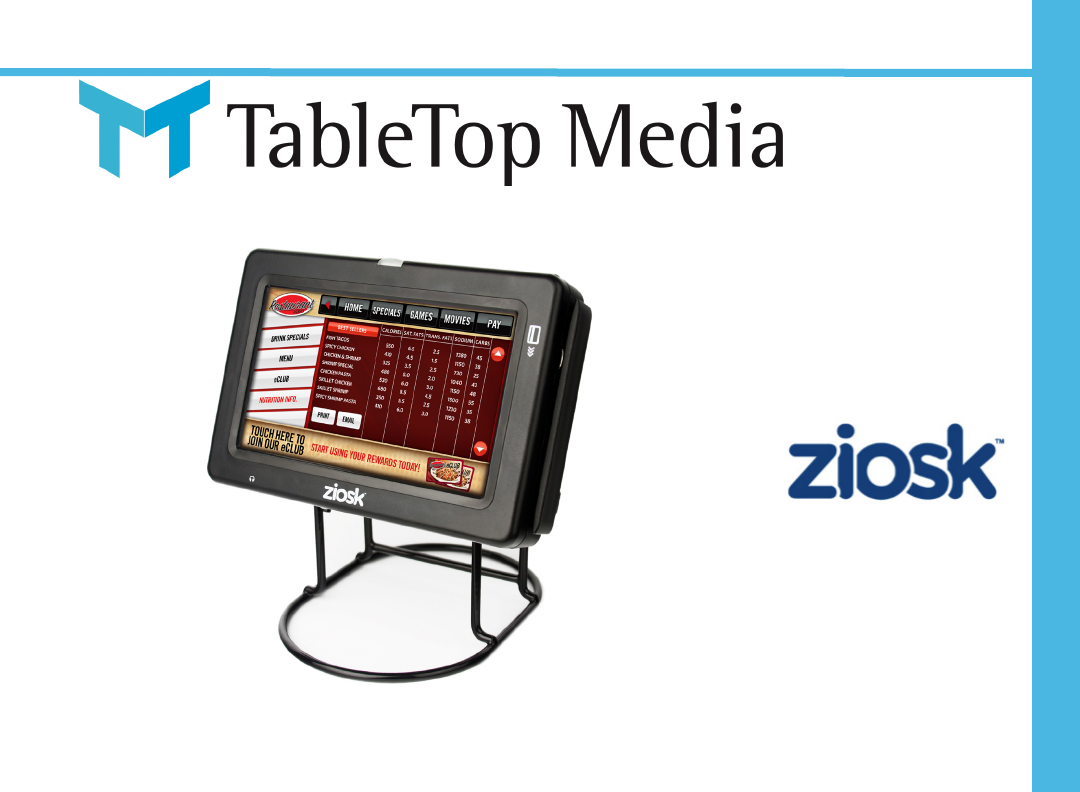
PMBA54 Product Manual
Rev C. 01006-1208
Compliance Statements
Legal
2
©2009 TableTop Media, LLC All rights reserved.
All rights reserved worldwide. No part of this documentation may be copied, distributed,
transmitted, stored in a retrieval system, or translated into any human or computer language, in
any form, or by any means: electronic; mechanical; magnetic; or otherwise without permission in
writing from TableTop Media.
Ziosk ™ is a registered trademark of TableTop Media, Inc.
FCC Statement
is equipment has been tested and found to comply with the limits for a Class B digital device,
pursuant to Part 15 of the FCC Rules. ese limits are designed to provide reasonable protection
against harmful interference in a residential installation. is equipment generates, uses, and can
radiate radio frequency energy and, if not installed and used in accordance with the instruction
manual, may cause harmful interference to radio communications. However, there is no guarantee
that interference will not occur in a particular installation. If this equipment does cause harmful
interference to radio or television reception, which can be determined by turning the equipment
off and on, the user is encouraged to try to correct the interference by one or more of the follow-
ing measures:
Reorient or relocate the receiving antenna.•
Increase the separation between the equipment and receiver.•
Connect the equipment into an outlet on a circuit different from the circuit to which the •
receiver is connected.
• Consult the dealer or an experienced radio/TV technician for help
Caution: Changes or modifications not expressly approved by TableTop Media could void
the user’s authority to operate the equipment. This device complies with Part 15 of the
FCC Rules. Operation is subject to the following twoconditions: (1) this device may not
cause harmful interference, and (2) this device must acceptany interference received,
including interference that may cause undesired operation.
PCI Statement
Ziosk™ is fully compliant with all Payment Card Industry Payment Application Data Security
Standards (PCI PA-DSS) 1.1 and Payment Application Best Practices (PABP) 1.4 requirements.

Table of Contents
Legal 2
Compliance Statements 2
Table of Contents 3
Warnings 4
Shock Hazards 4
Health and Product Safety 4
Ziosk™ 5
Maintenance 6
Cleaning Ziosk 6
Daily Maintenance 7
Ziosk Inspecon 7
Baery Maintenance 8
Printer Maintenance 8
Troubleshoong 10
Addional Informaon 11
Oponal Accessories 11
Product Specicaons 11
Third Party Applicaons and Trademark Informaon 11
Table of Contents 3

Warnings
4
Proper Usage
For your protecon, we advise you to read all the safety instrucons
before operang the device.
Do not install Ziosk near a source of heat.•
Do not place baery and charging staon near a source of heat.•
Do not install Ziosk near a source of water.•
Do not place baery charging staon near a source of water.•
Do not disassemble Ziosk or baery.•
Only use aachments specied by the manufacturer.•
Only use replacement parts and supplies specied by the •
manufacturer.
Only use baeries and charger approved by the manufacturer.•
Evidence of Tampering
It is recommended to periodically monitor Ziosk for any changes to
the external housing. This may indicate that the device has somehow
been tampered with by an aacker and placed back in service. See
the Maintenance secon on Ziosk Inspecon for more details.
WARNINGS
It is the user’s responsibility to use Ziosk in a manner in which it was
intended. Read the following warnings before using Ziosk.
Shock Hazards
To prevent re or shock hazard, do not do the following:
Do not immerse unit or baery in water.•
Do not disassemble unit or baery.•
Do not use an AC adapter if it has damaged cords or wires.•
Do not insert foreign objects into the slots, connectors, or ac-•
cessories of the device.
Health and Product Safety
Seizures
Any device showing ashes or paerns of light, like movies or games,
has the potenal to trigger seizures or blackouts in people, even if
they have never had a seizure before. Stop using this device if any of
the following symptoms occur:
Altered vision•
Eye twitching•
Involuntary movements•
Loss of awareness•
Disorientaon•
Repeve Moon and Eye Strain
To prevent injuries, avoid prolonged use and take frequent breaks. It
is recommended that parents monitor their children for appropriate
play.

Ziosk™ 5
ZIOSK™
Ziosk, an interacve tabletop experience, provides next generaon
pay-at-the-table funconality designed in a user-engaging, intuive
touch-screen device. With three disnct payment features: split
check, touch p and e-mail or print receipt capabilies, the device
places control in the guests’ hands to pay at their convenience. En-
gaging and entertaining, Ziosk enhances the overall dining experience
with games, informaon, movie trailers, and cket purchasing.
Ziosk features include:
Payment On-Demand
Credit, Gi Card, and Cash•
Split check•
E-mail or print receipt•
Digital Promoons
Menus, specials, events•
Nutrional informaon•
Loyalty and gi programs•
Order-Entry
Get items to kitchen faster•
Increase up selling•
Enter repeat orders•
Real-me Surveys
Increase response rates•
Market research•
Alert manager•
Infotainment
Engaging informaon•
Entertainment•
Trivia and games•

Maintenance
6
MAINTENANCE
Cleaning Ziosk
To clean the touch panel you will need a so, lint-free cloth and a mild
glass cleaner (such as Windex®.) A microber cloth works well. DO
NOT USE any cleaning products containing ammonia. See Cleaning
Guidelines for more ps.
Steps to clean the touch panel
Spray cleaner or water directly onto a so cloth. 1.
Wipe the surface of the screen gently with dampened 2.
cloth.
Press gently on the screen in order to clean more dif-3.
cult dirt or oil.
Cleaning Guidelines
Do not use abrasive materials or utensils for cleaning.•
Do not use ammonia, phosphates, Ethylene Glycol, or lubri-•
cants.
Never use acidic or alkaline cleaners. Use of incorrect cleaners •
could damage the touch panel.
NOTE: Most cleaning products may contain 1-3% Isopropyl Al-•
cohol by volume, which is within acceptable limits for cleaning
the touch panel.
Do not spray any liquids directly onto Ziosk. The liquid could •
enter into a very small opening and damage the device.
When using a mild cleaner, avoid contact with the edges of the •
screen. The liquid could enter into a very small opening and
damage Ziosk.
Cleaning the Card Reader
Cleaning the magnec head of the card reader is not usually required
since the head is essenally cleaned each me a card is swiped. How-
ever, if the card reader seems to have trouble reading the cards, you
can try cleaning it with a so, thin cloth and alcohol.
Steps to clean the card reader
Take a thin, so cloth and apply a small amount of 1.
alcohol.
Fold the cloth over a card.2.
Swipe the card through the card reader.3.

Maintenance 7
Daily Maintenance
It is important to properly maintain Ziosk daily using the following
recommended procedures.
Startup
Wipe Ziosk with a clean, so cloth.1.
Insert fully charged baery.2.
Verify Ziosk preparedness with printout.3.
Shutdown
Wipe Ziosk with clean, so cloth.1.
Remove baery from Ziosk.2.
Place baery in charger.3.
Ziosk Inspecon
Periodically monitor Ziosk for any dierences in the user interface or
external housing. Changes to the device may be an indicaon that
Ziosk has somehow been tampered with by an aacker and placed
back in service.
To reduce or prevent fraud, make it a part of the daily procedures to
visually inspect the device for tampering. Examples of things to look
for during this inspecon include:
Look for sckers on the device that were not there previously. •
Sckers are oen used to cover up drill holes. Make sure that
any labels on the device do not appear to have been removed
and replaced. Periodically run your nger over the label to feel
for holes.
Make sure that there are no new connecons (leads, plugs, •
antennas) added to the device.
Look for any new display items that have been posioned near •
the device on the table (for example, on or near the condiment
holder). These new items could be used to house pin-hole
cameras to capture user input.
Check under the table to make sure that no equipment (for •
instance, new recording devices) have been aached without
reason.

Maintenance
8
Baery Maintenance
Good baery maintenance will ensure Ziosk provides a full day of
infotainment.
Inserng and Removing Baery from Ziosk
The baery compartment is located on the side opposite the card
reader. To insert the baery, just insert it into the baery compart-
ment unl you hear a click. To remove the baery for charging, press
on the baery to toggle.
Charging
Baeries must be charged at least eight hours to obtain a maximum
charge. Place the baery on the charger and wait for the red status
light to indicate the baery is charging. The status light turns green
when the baery is fully charged. A ashing red status light may indi-
cate a baery fault. See Troubleshoong.
Storage
Store baeries in a cool, dry place.
Maintenance 9
Printer Maintenance
Before performing any maintenance on the printer, please ensure
Ziosk is powered on. It will print the me and date to verify it is
operaonal.
Loading Printer Paper
From the boom of Ziosk, press the buon near the 1.
paper feed to open printer door.
Remove empty roll.2.
Insert new paper roll.3.
Close the printer door. You will hear a click when the 4.
door is closed.
Device will print the me and date to verify the paper
5.
roll is installed correctly.
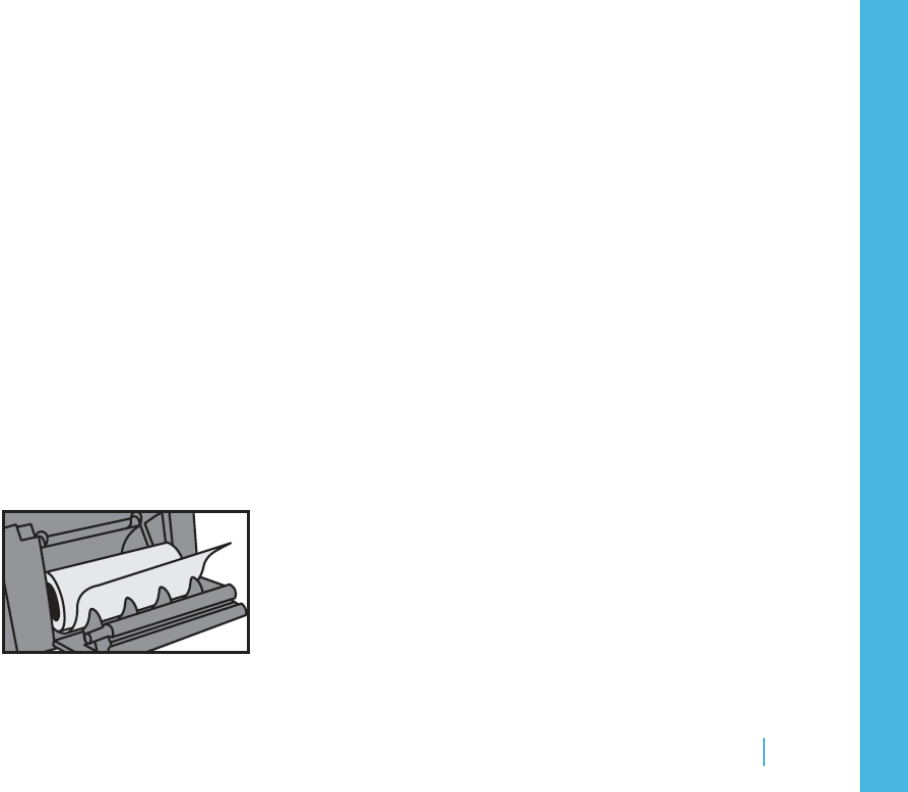
Paper Orientaon:
Correcng a Paper Jam
From the boom of Ziosk, press the buon near the 1.
paper feed to open printer door.
Remove any jammed, torn, or crumpled paper.2.
Close the printer door. You will hear a click when the 3.
door is closed.
Device will print the me and date to verify the paper 4.
roll is installed correctly.

Troubleshooting
10
TROUBLESHOOTING
Before troubleshoong Ziosk, please make sure you check the follow-
ing items:
Baeries are fully charged and inserted correctly. 9
There is no visible damage to the exterior. 9
Ziosk is powered on. 9
If you are sll experiencing problems with Ziosk, connue trouble-
shoong using the following guide. Should the problem persist, please
consult our technical support :
support@tabletopmedia.com
Baery Charger
The baery was in the charger overnight, but it didn’t seem to charge.
Make sure the indicator light turns red when inserng a dis- 9
charged baery into the charging base.
The status light is ashing red.
The baery has a fault. Try to remove the baery and replace in 9
the charger again. If the status light connues to ash, contact
technical support for further assistance.
Card Reader
I swiped my card and nothing happened.
Try swiping the card more straight at a smooth, medium pace. 9
Check the card for damage to the magnec stripe. 9
Make sure you swipe the card with the magnec stripe facing 9
the correct way.
The magnec read head could be dirty. Clean the magnec 9
head. (See the Maintenance secon.)
An error occurred aer I swiped my card.
Make sure you swipe the card with the magnec stripe facing 9
the correct way.
The card sll cannot be read.
The card reader is damaged, contact technical support. 9
Power
Ziosk connuously reboots.
Try inserng a dierent baery. The connector may be dam- 9
aged.
Printer
The receipt is not prinng.
Check for paper jam. ( 9See Printer Maintenance for instrucons.)
Out of paper. 9
The receipt is blank.
Check if the paper roll is loaded backwards. ( 9See Printer Mainte-
nance for proper paper orientaon.)
The printer began to print and then the screen went blank. Device
seems to be reboong.
Make sure the printer door is closed completely. 9
The baery is low. Replace baery. 9

Additional Information 11
ADDITIONAL INFORMATION
Oponal Accessories
Baery Chargers•
Baer•
Stylus•
Lanyard•
Privacy Visor•
Product Specicaons
Physical
Built-in peripherals•
Thermal Printer »
Magnec Stripe Reader - Bi-direconal, 3-track »
Dimensions: 8” W x 5.8” H x 4.8” D
•
Performance
Wireless•
802.11b/g WiFi »
SSL, 3DES, RSA, DUKPT, WPA/2 »
Baery•
7.4v Lithium-ion [AC/DC] »
Environment
Operang temperature: 5 to 40 ° C (40 to 105 ° F) •
35 to 85% RH (non-condensing) »
Storage temperature: -20 to 60 ° C (-5 to 140 ° F)•
20 to 90% RH (non-condensing) »
Mul-media
JPG, PNG, BMP•
Audio: WMA9, AAC•
Video: MPEG-4, WMV9•
Image•
Third Party Applicaons and Trademark Informaon
ADOBE®
is product contains Macromedia® [Flash®] [Flash Lite™] technology by Adobe Systems Incor-
porated.
Copyright © 1995-2008 Adobe Systems Incorporated. All rights reserved. Macromedia, Flash,
Macromedia Flash, [and Macromedia Flash Lite] are trademarks or registered trademarks of
Adobe Systems Incorporated in the United States and other countries.
Adobe® is a trademark of Adobe Systems Incorporated.
Windows®
Windows is a registered trademark of Microsoft Corporation in the United States and other coun-
tries. is product includes technology owned by Microsoft and cannot be used or distributed
without a license from Microsoft.