Telcare TELCBGM01 Telcheck User Manual

Telcare, Inc. Telcheck

User Manual

Telcare Blood Glucose Monitoring SystemUser Manual This meter contains a rechargeable internal baery.  In order to save baery power, it will power down (go dark) aer 20 seconds.  If this happens while you are using the meter, there is nothing wrong.  To wake up the meter, either insert a test strip or turn the power buon “o” and then “on”.  This device will not transmit data when it is not in use. The data transmission me is no more than six minutes.
Home glucose monitoring is universally recognized as essential to the management of diabetes and prevention of complications.“”
Thank you for choosing the Telcare Blood Glucose Meter (BGM) to help you manage your diabetes.  The Telcare BGM is an advanced wireless monitoring system that connects you, the paent, with your healthcare provider to enhance your ability to manage your blood glucose levels.  The Telcare BGM has been designed to be accurate and easy to use.  This manual contains all of the informaon needed to use and maintain your new blood glucose meter. Please read it carefully before using your new Telcare BGM.Telcare BGM provides an easy and precise way to measure blood glucose using fresh capillary whole blood taken from your ngerp. The added convenience of autocoding can help reduce the chance of inaccurate readings caused by incorrect coding of the meter. The test results are plasma-calibrated for easy comparison to lab results.  When your test is complete your results are securely transmied to the Telserve Web Portal (www.MyTelcare.com), where they may be accessed by you (the paent) and any other authorized person    (doctor, educator, family member, etc.), eliminang the need to manually record your results. Telcare BGM is a rechargeable baery operated meter intended for use as an aid by persons with diabetes and by healthcare professionals to monitor glucose concentraon in whole blood.If you have quesons or simply need more informaon, please visit our website at www.telcare.com. Thank you again for choosing the Telcare BGM.
Table of ContentsYour Telcare Blood Glucose Meter      The Telcare BGM Device        1     Telcare Test Strips          3     The Display Screen          4     Seng Up Your Telcare BGM        5 Control Soluon Modes     Performing the Control Test        8Tesng Your Blood Sugars     Checklist            14     Preparing Your Lancing Device        16     Understanding Your Results        26Viewing Your Meter’s Memory        27Maintenance of Your Telcare BGM    Cleaning and Storage          28    Charging the Telcare BGM        29     Troubleshoong          30Terms of Warranty     33About Telcare / Contact     34
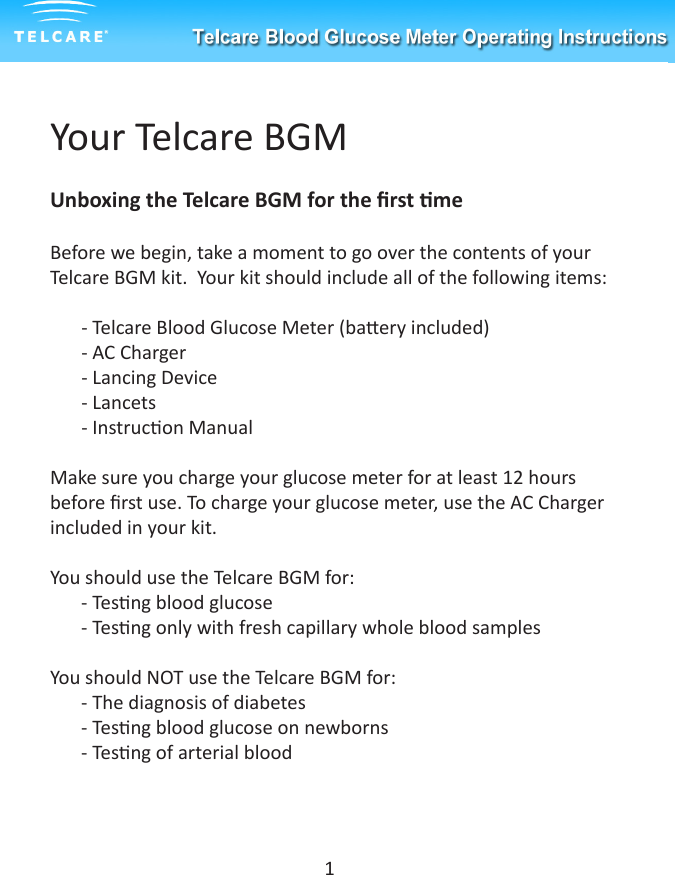
Your Telcare BGMUnboxing the Telcare BGM for the rst meBefore we begin, take a moment to go over the contents of your Telcare BGM kit.  Your kit should include all of the following items:- Telcare Blood Glucose Meter (baery included)- AC Charger- Lancing Device- Lancets- Instrucon ManualMake sure you charge your glucose meter for at least 12 hours before rst use. To charge your glucose meter, use the AC Charger included in your kit.You should use the Telcare BGM for:- Tesng blood glucose- Tesng only with fresh capillary whole blood samplesYou should NOT use the Telcare BGM for:- The diagnosis of diabetes- Tesng blood glucose on newborns- Tesng of arterial blood1
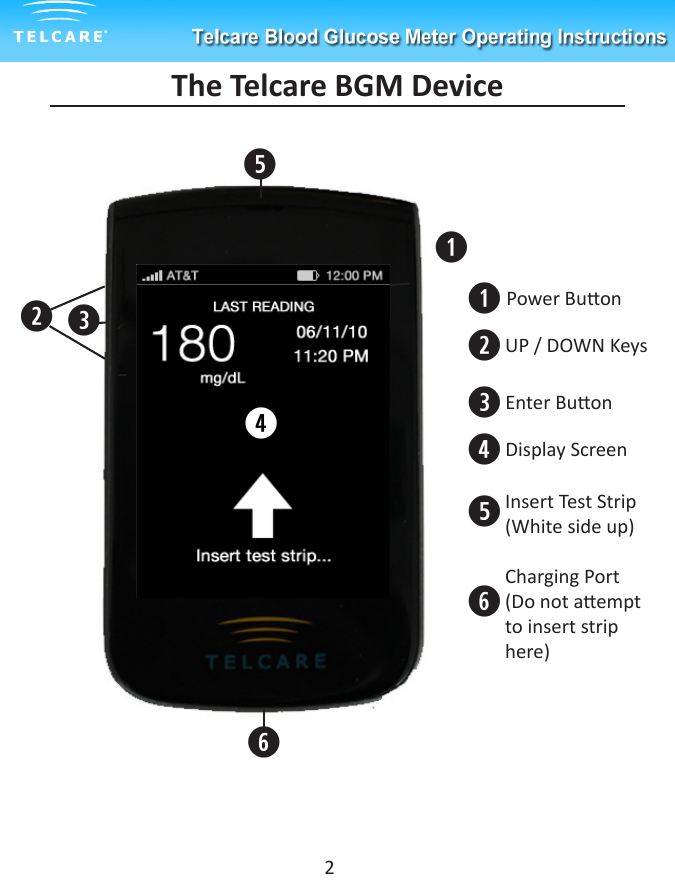
The Telcare BGM DeviceqweqwerPower BuonUP / DOWN KeysEnter BuonDisplay Screen2tytyInsert Test Strip (White side up)Charging Port (Do not aempt to insert strip here)r
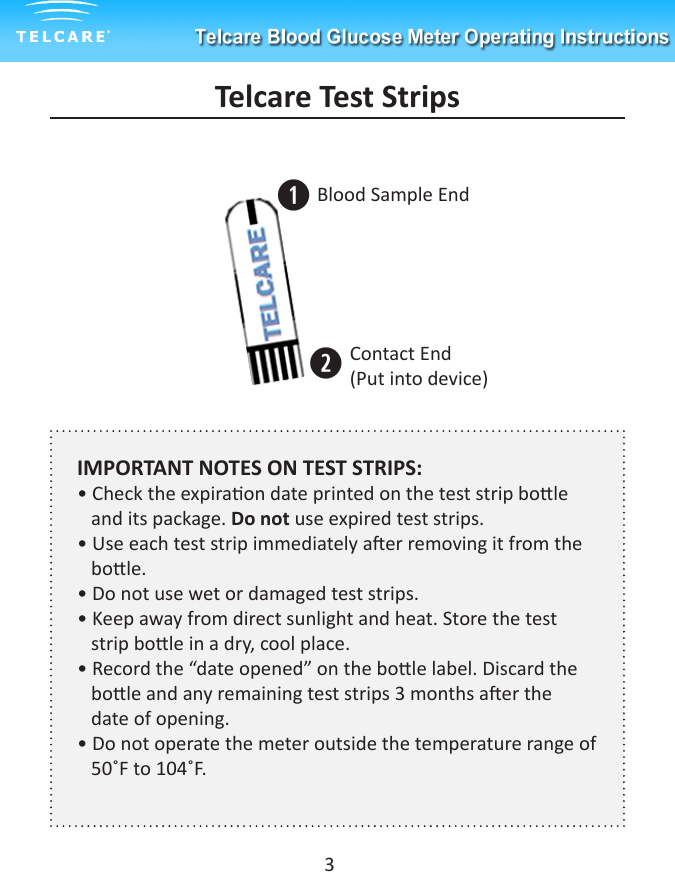
Telcare Test StripsqwBlood Sample EndContact End (Put into device) IMPORTANT NOTES ON TEST STRIPS:• Check the expiraon date printed on the test strip bole         and its package. Do not use expired test strips.• Use each test strip immediately aer removing it from the     bole.• Do not use wet or damaged test strips.• Keep away from direct sunlight and heat. Store the test           strip bole in a dry, cool place.• Record the “date opened” on the bole label. Discard the     bole and any remaining test strips 3 months aer the        date of opening.• Do not operate the meter outside the temperature range of        50˚F to 104˚F.3
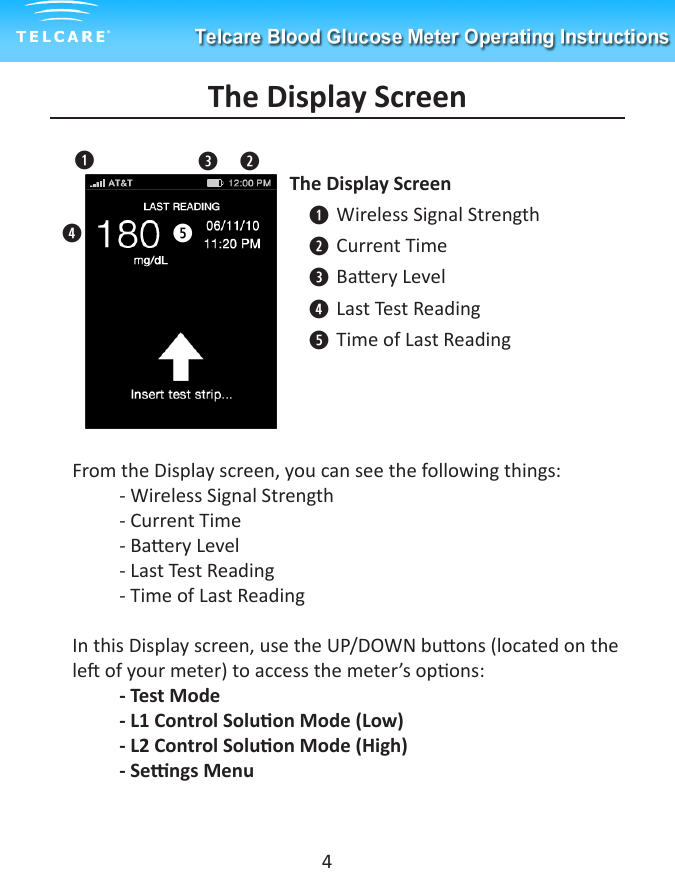
The Display ScreenThe Display ScreenWireless Signal StrengthCurrent TimeBaery LevelLast Test ReadingTime of Last Readingqwertqwert4From the Display screen, you can see the following things:- Wireless Signal Strength- Current Time- Baery Level- Last Test Reading- Time of Last ReadingIn this Display screen, use the UP/DOWN buons (located on the le of your meter) to access the meter’s opons:- Test Mode- L1 Control Soluon Mode (Low)- L2 Control Soluon Mode (High)- Sengs Menu
Seng Up Your Telcare BGMYour Telcare BGM is precongured with your informaon already stored, including your me zone. During each cellular connecon (which occurs aer a glucose reading has been saved), the web server will recognize and validate that the me displayed on your Telcare BGM is accurate. The web server will automacally update your Telcare BGM me, if appropriate. Also, if your physical locaon changes the web server will recognize your me zone change and update your meter’s clock.If you would like to view your meter’s precongured sengs, navigate to the Sengs screen.Geng to the Sengs Screen1. PWR your Telcare BGM Device On2. Use the UP/DOWN Buons to reach the “Sengs” screen   5
Sengs OponsAlarmsCreate up to 3 alarms to help remind yourself when to test next.Date and TimeThis page allows you to view the Date and Time sengs of your device.VolumeThis page allows you to select the volume of your meter. Use the UP/DOWN keys to select the appropriate volume. There are six possible volumes you may select from. Mobile NetworkThis is an advanced feature. This page allows you to view the details of the mobile network your device uses for communicaon to the MyTelcare.com Web Portal.Auto-SyncDisabling Auto-sync will prevent the meter from communicang with the MyTelcare.com Web Portal. Readings will sll be stored in the Glucose Meter.6
Retrieve Blood Glucose HistoryYour last 300 glucose and control test readings are stored within the meter. Please see ‘Viewing Your Meter’s Memory’ for further details.  Airplane ModeTurning on Airplane Mode disables cellular network access.  You will not be able to transmit your readings while Airplane Mode is turned on. Your meter’s clock will connue to work properly while in this mode. If a me zone change occurs, your meter will not automacally update to the new me unl Airplane Mode has been disabled.AboutThis is an advanced feature. You may view detailed informaon regarding your device from this page. Push the Enter buon to exit the About page.To exit the Sengs Menu, scroll to “Back” and press the “Enter” buon.7
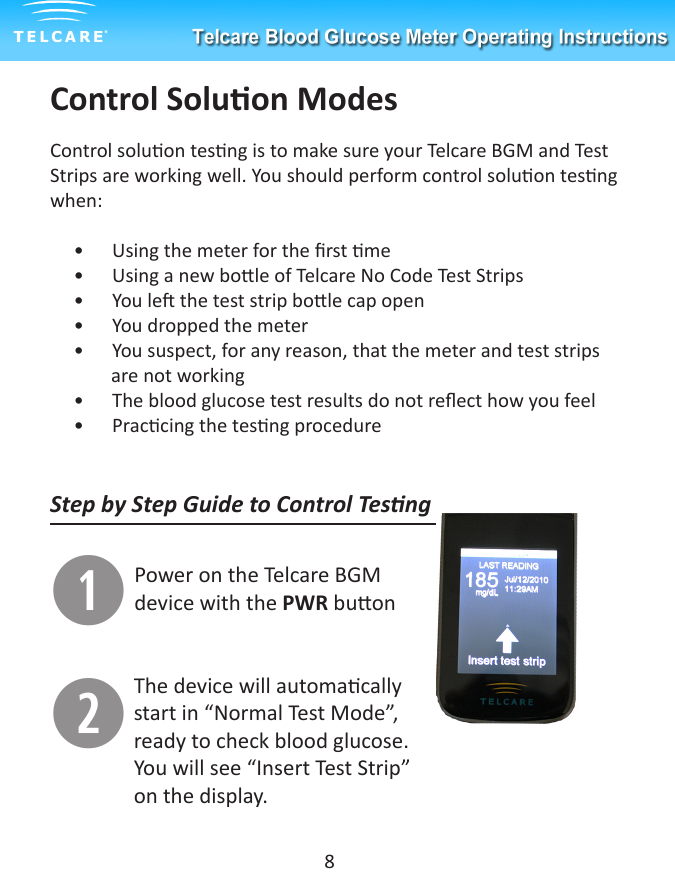
Control Soluon ModesControl soluon tesng is to make sure your Telcare BGM and Test Strips are working well. You should perform control soluon tesng when:     •      Using the meter for the rst me     •      Using a new bole of Telcare No Code Test Strips     •      You le the test strip bole cap open     •      You dropped the meter     •      You suspect, for any reason, that the meter and test strips               are not working                             •      The blood glucose test results do not reect how you feel     •      Praccing the tesng procedureStep by Step Guide to Control TesngqPower on the Telcare BGM device with the PWR buonwThe device will automacally start in “Normal Test Mode”, ready to check blood glucose. You will see “Insert Test Strip” on the display.8
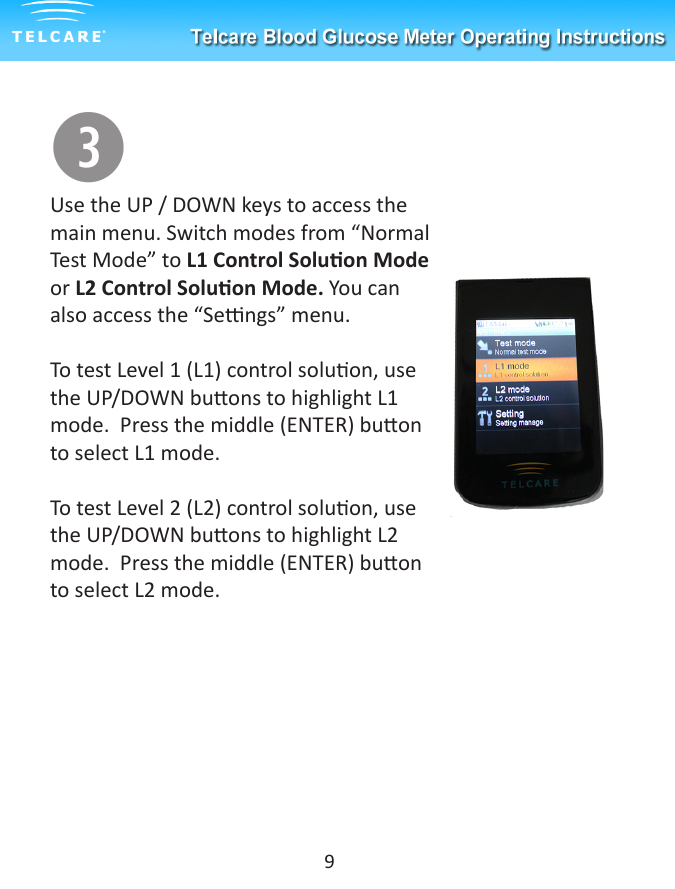
Use the UP / DOWN keys to access the main menu. Switch modes from “Normal Test Mode” to L1 Control Soluon Mode or L2 Control Soluon Mode. You can also access the “Sengs” menu.To test Level 1 (L1) control soluon, use the UP/DOWN buons to highlight L1 mode.  Press the middle (ENTER) buon to select L1 mode. To test Level 2 (L2) control soluon, use the UP/DOWN buons to highlight L2 mode.  Press the middle (ENTER) buon to select L2 mode.e9
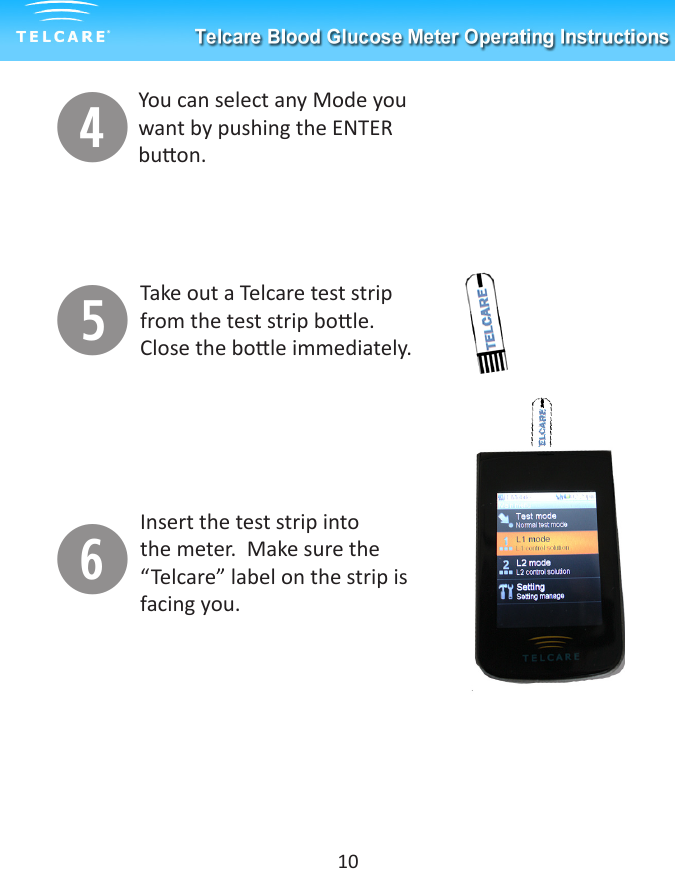
tyYou can select any Mode you want by pushing the ENTER buon. Take out a Telcare test strip from the test strip bole. Close the bole immediately. rInsert the test strip into the meter.  Make sure the “Telcare” label on the strip is facing you.10
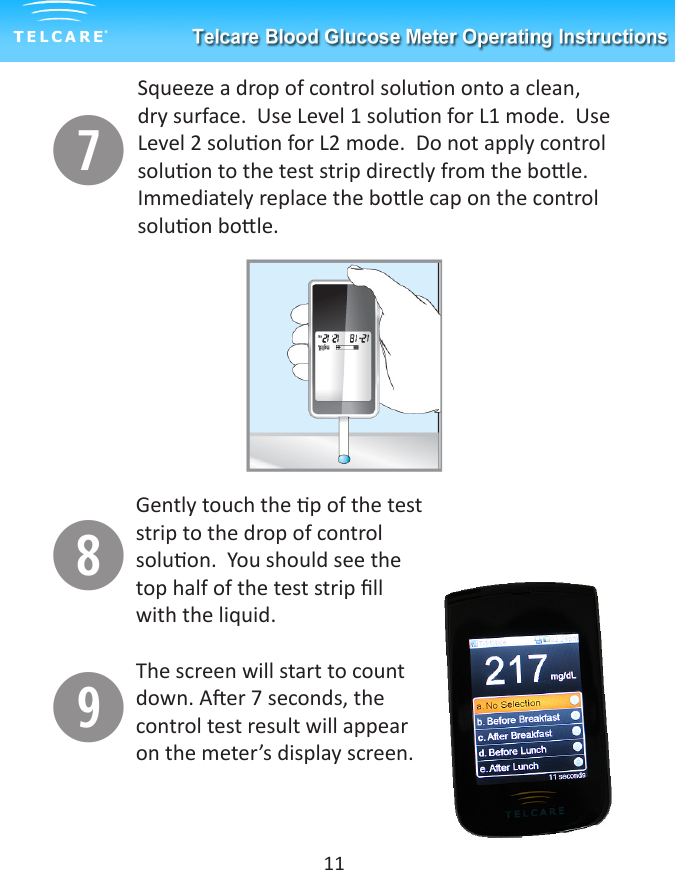
uSqueeze a drop of control soluon onto a clean, dry surface.  Use Level 1 soluon for L1 mode.  Use Level 2 soluon for L2 mode.  Do not apply control soluon to the test strip directly from the bole. Immediately replace the bole cap on the control soluon bole.iGently touch the p of the test strip to the drop of control soluon.  You should see the top half of the test strip ll with the liquid.oThe screen will start to count down. Aer 7 seconds, the control test result will appear on the meter’s display screen.11
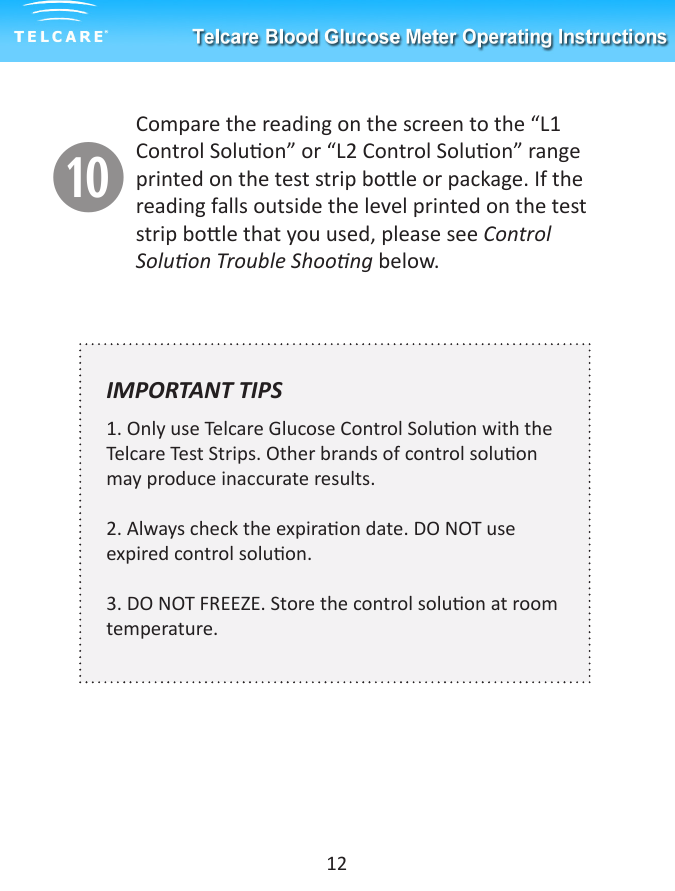
aCompare the reading on the screen to the “L1 Control Soluon” or “L2 Control Soluon” range printed on the test strip bole or package. If the reading falls outside the level printed on the test strip bole that you used, please see Control Soluon Trouble Shoong below. IMPORTANT TIPS  1. Only use Telcare Glucose Control Soluon with the Telcare Test Strips. Other brands of control soluon may produce inaccurate results.2. Always check the expiraon date. DO NOT use expired control soluon.3. DO NOT FREEZE. Store the control soluon at room temperature.12
Control Soluon TroubleshoongIf your control soluon tesng is out of range (too high or too low), it may be caused by the following:•  Wrong brand of control soluon•  Control soluon not at room temperature•  Expired or contaminated control soluon•  Damaged test strip•  Meter malfuncon•  Wrong ambient temperature (should be between 50˚F~104˚F).•  Check the expiraon and open bole date on the control soluon and on the test strips. Repeat tesng using a new test strip. If the result is sll out of range, use a new bole of control soluon and retest.•  If the problem persists, call Telcare at (877) 777-4710.  Do not perform any blood glucose tests unl you resolve this issue.13
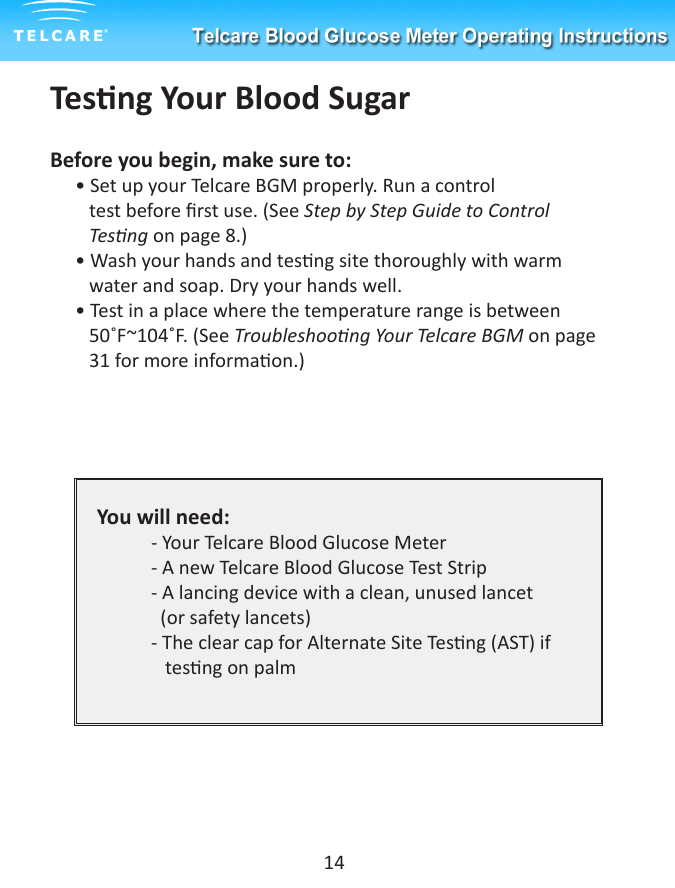
Tesng Your Blood SugarBefore you begin, make sure to:• Set up your Telcare BGM properly. Run a control           test before rst use. (See Step by Step Guide to Control          Tesng on page 8.) • Wash your hands and tesng site thoroughly with warm          water and soap. Dry your hands well.• Test in a place where the temperature range is between        50˚F~104˚F. (See Troubleshoong Your Telcare BGM on page     31 for more informaon.)You will need:  - Your Telcare Blood Glucose Meter  - A new Telcare Blood Glucose Test Strip  - A lancing device with a clean, unused lancet     (or safety lancets)  - The clear cap for Alternate Site Tesng (AST) if       tesng on palm14
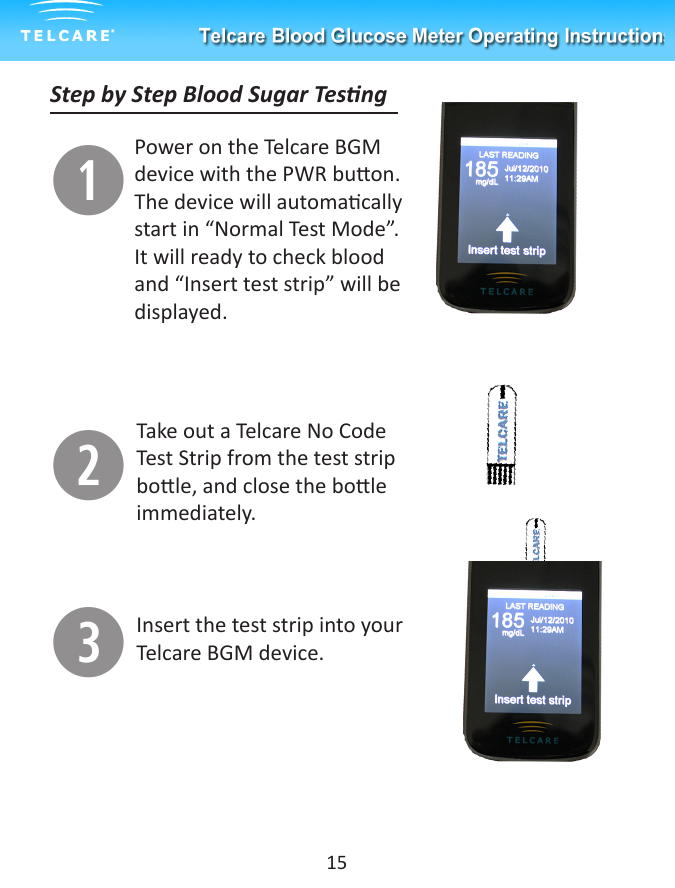
Step by Step Blood Sugar TesngqPower on the Telcare BGM device with the PWR buon.  The device will automacally start in “Normal Test Mode”. It will ready to check blood and “Insert test strip” will be displayed.15wTake out a Telcare No Code Test Strip from the test strip bole, and close the bole immediately. eInsert the test strip into your Telcare BGM device.
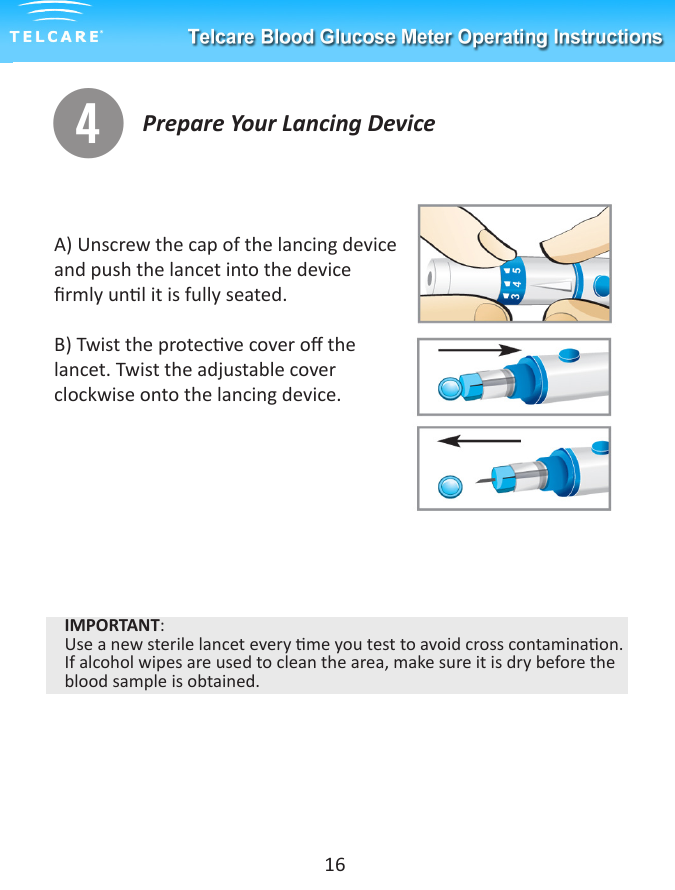
Prepare Your Lancing Devicer16A) Unscrew the cap of the lancing device and push the lancet into the device rmly unl it is fully seated.B) Twist the protecve cover o the lancet. Twist the adjustable cover clockwise onto the lancing device.IMPORTANT:Use a new sterile lancet every me you test to avoid cross contaminaon. If alcohol wipes are used to clean the area, make sure it is dry before the blood sample is obtained.
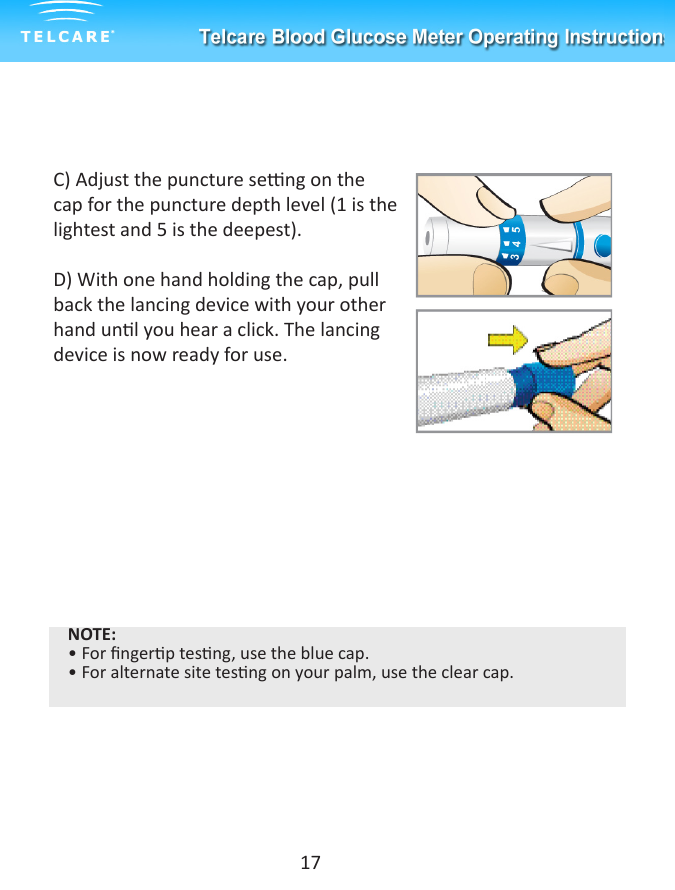
17C) Adjust the puncture seng on the cap for the puncture depth level (1 is the lightest and 5 is the deepest).D) With one hand holding the cap, pull back the lancing device with your other hand unl you hear a click. The lancing device is now ready for use.NOTE:• For ngerp tesng, use the blue cap.• For alternate site tesng on your palm, use the clear cap.
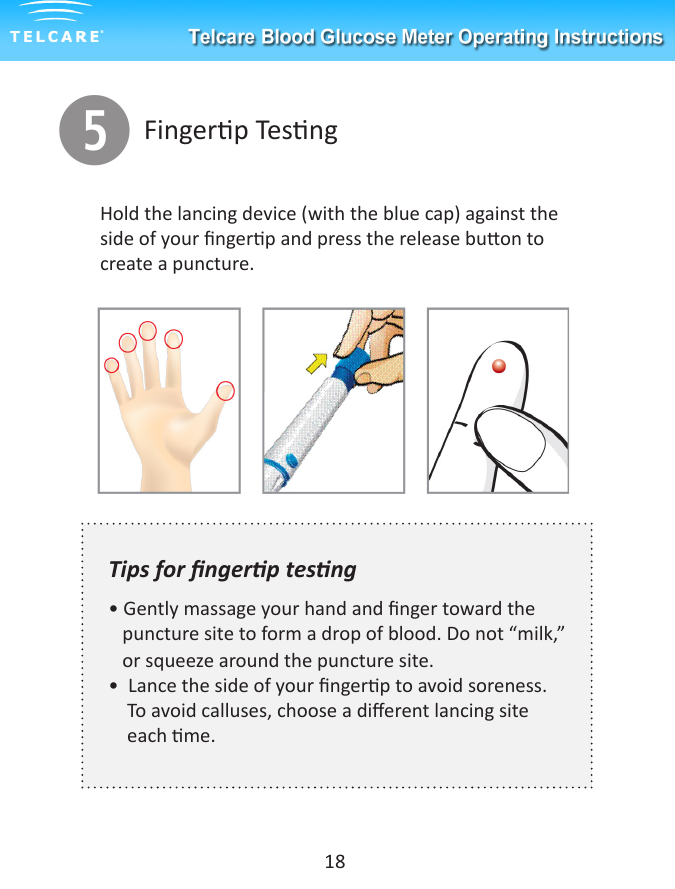
tFingerp Tesng18Hold the lancing device (with the blue cap) against the side of your ngerp and press the release buon to create a puncture. Tips for ngerp tesng • Gently massage your hand and nger toward the     puncture site to form a drop of blood. Do not “milk,”   or squeeze around the puncture site.•  Lance the side of your ngerp to avoid soreness.      To avoid calluses, choose a dierent lancing site      each me.
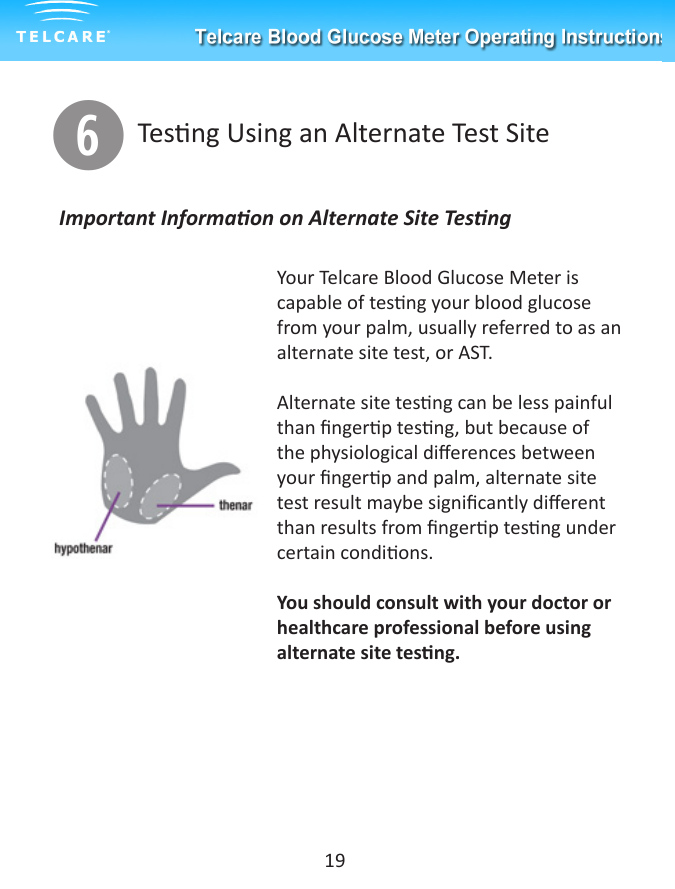
yTesng Using an Alternate Test SiteYour Telcare Blood Glucose Meter is capable of tesng your blood glucose from your palm, usually referred to as an alternate site test, or AST. Alternate site tesng can be less painful than ngerp tesng, but because of the physiological dierences between your ngerp and palm, alternate site test result maybe signicantly dierent than results from ngerp tesng under certain condions. You should consult with your doctor or healthcare professional before using alternate site tesng.Important Informaon on Alternate Site Tesng19
Alternate Site Tesng SHOULD NOT be used when:    • You have Hypoglycemic unawareness (not able to tell if         you have low blood sugar)    • Within 2 hours of a meal, exercise, or medicaon    • You will be operang machinery or driving a car    • You are sick20
Tesng on your PalmPrepare the lancing device with a new lancet and clear cap. Cock the lancing device so that it is ready to use. Select a site on your palm that does not have veins, moles, excessive hair, or bone. Vigorously rub the side of your palm with your other hand for at least ten seconds. You should feel it get quite warm.Press the opening of the clear cap against a eshy area of the palm. Press the lancing device up and down in a slow pumping moon for several seconds to help the ow of blood.Keep steady pressure on the area and press the release buon. Don’t be afraid to apply pressure to the area with the lancing device to assist the ow of blood. Connue to press the cap against the area for a few seconds to allow blood to come to the surface. You can see the blood drop through the clear cap. Do not smear the blood when removing the lancing device. If the blood drop is too small, the meter will show “Error: Not Enough Blood”. Insert a new strip and obtain a new blood drop.If the results from alternate site tesng dier from how you feel, use ngerp tesng instead.21
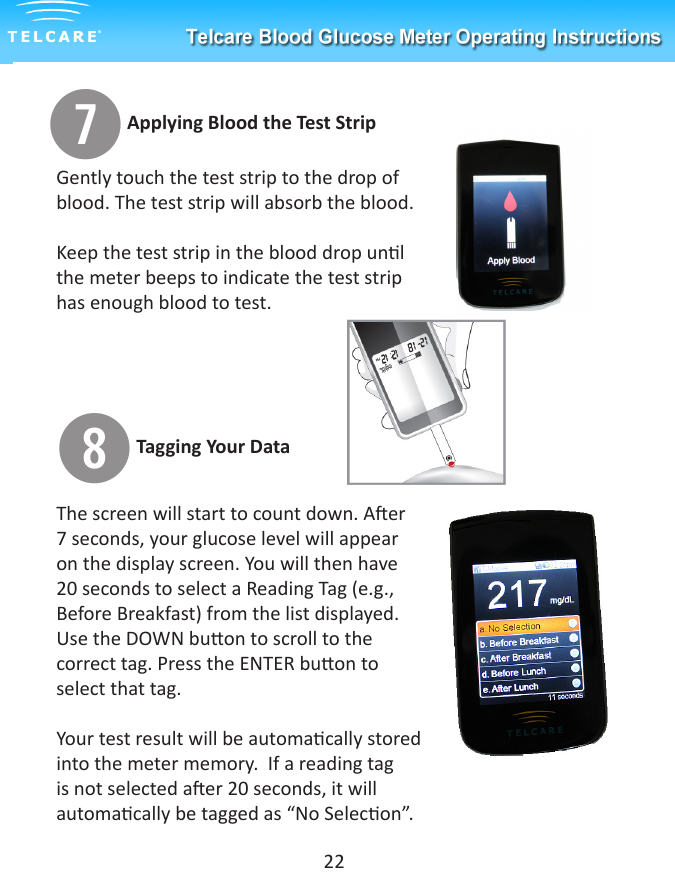
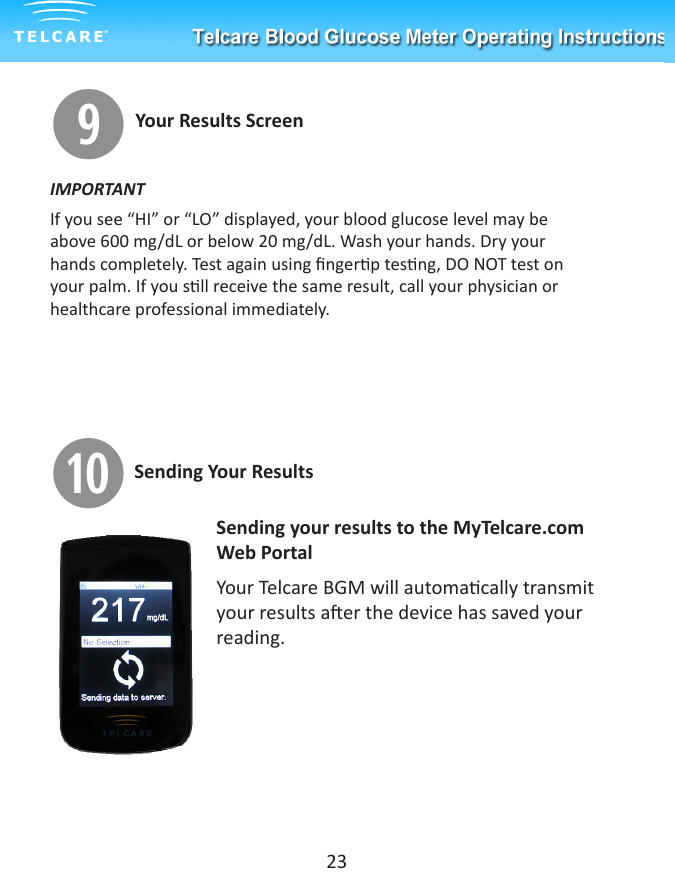
uGently touch the test strip to the drop of blood. The test strip will absorb the blood.  Keep the test strip in the blood drop unl the meter beeps to indicate the test strip has enough blood to test.iThe screen will start to count down. Aer 7 seconds, your glucose level will appear on the display screen. You will then have 20 seconds to select a Reading Tag (e.g., Before Breakfast) from the list displayed. Use the DOWN buon to scroll to the correct tag. Press the ENTER buon to select that tag.Your test result will be automacally stored into the meter memory.  If a reading tag is not selected aer 20 seconds, it will automacally be tagged as “No Selecon”.22Applying Blood the Test StripTagging Your Data
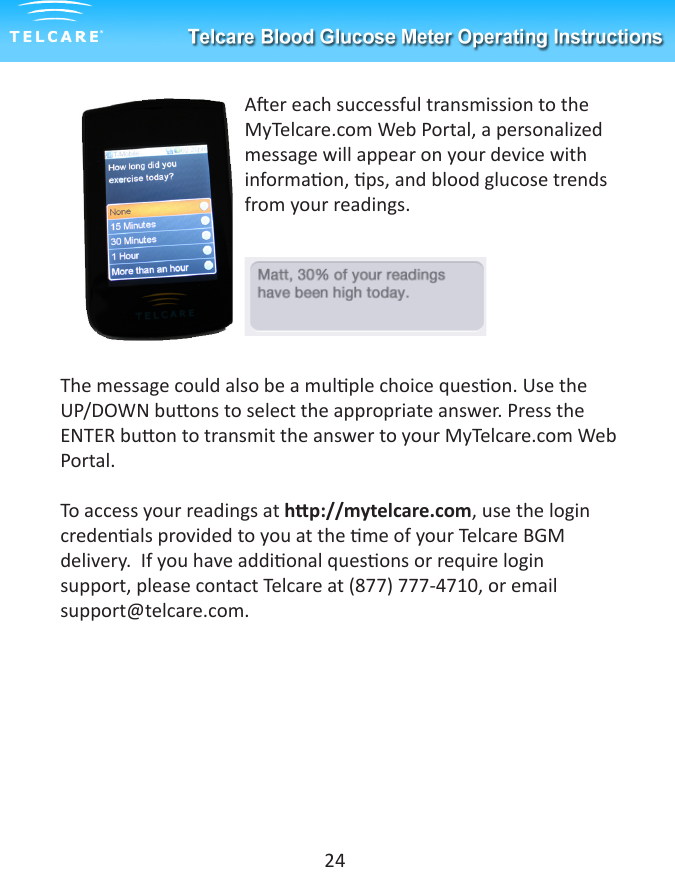
oYour Results ScreenIMPORTANTIf you see “HI” or “LO” displayed, your blood glucose level may be above 600 mg/dL or below 20 mg/dL. Wash your hands. Dry your hands completely. Test again using ngerp tesng, DO NOT test on your palm. If you sll receive the same result, call your physician or healthcare professional immediately.aSending your results to the MyTelcare.com Web PortalYour Telcare BGM will automacally transmit your results aer the device has saved your reading. 23Sending Your Results
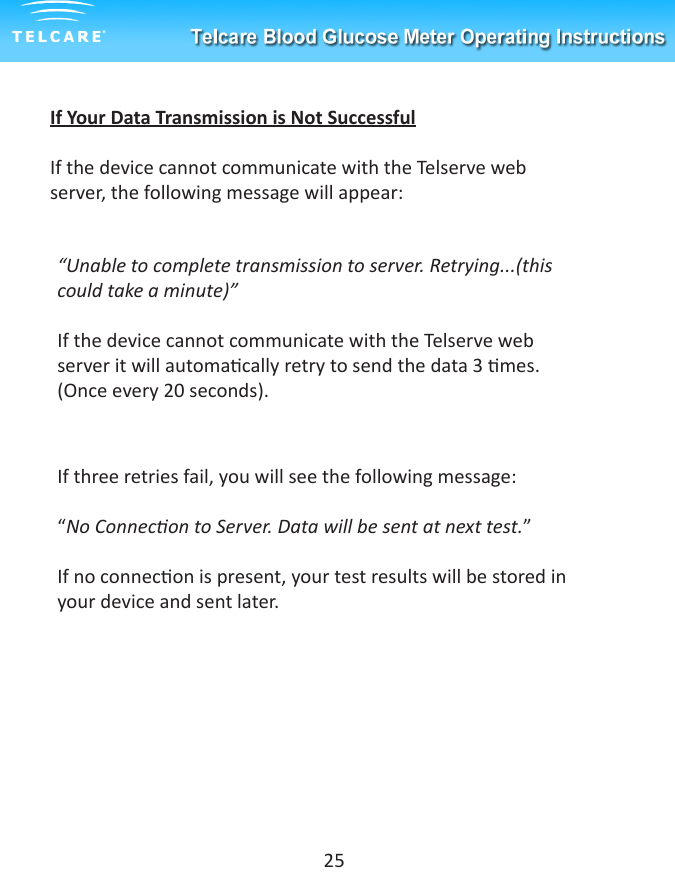
Aer each successful transmission to the MyTelcare.com Web Portal, a personalized message will appear on your device with informaon, ps, and blood glucose trends from your readings. The message could also be a mulple choice queson. Use the UP/DOWN buons to select the appropriate answer. Press the ENTER buon to transmit the answer to your MyTelcare.com Web Portal.To access your readings at hp://mytelcare.com, use the login credenals provided to you at the me of your Telcare BGM delivery.  If you have addional quesons or require login support, please contact Telcare at (877) 777-4710, or email support@telcare.com.24
If Your Data Transmission is Not SuccessfulIf the device cannot communicate with the Telserve web server, the following message will appear:“Unable to complete transmission to server. Retrying...(this could take a minute)”If the device cannot communicate with the Telserve web server it will automacally retry to send the data 3 mes. (Once every 20 seconds).If three retries fail, you will see the following message:“No Connecon to Server. Data will be sent at next test.”If no connecon is present, your test results will be stored in your device and sent later.25
Understanding Your Blood Glucose Test ResultsYour blood glucose level will vary depending on many factors.  Some of these are food intake, medicaon, health, stress, and exercise. The ideal range for adults without diabetes is:    • Between 74~106 mg/dL before meals(1).    • Less than 140 mg/dL two hours aer a meal(2).It is important to consult with your physician or healthcare professional to determine your target range.What to do if you get a high or low readingIf the Meter displays results that are HI or LO, or you get a result that is more than 250 mg/dL or below 50 mg/dL AND you feel ill:    • Treat your diabetes according to the instrucons from your         doctor and/or healthcare provider.If the Meter displays results that are “HI” or “LO,” or you get a result that is more than 250 mg/dL or below 50 mg/dL AND you DO NOT feel ill:    • Test your meter with a control soluon, refer to page 6,                    ‘Control Soluon Tesng’.    • Wash your hands and test again using your ngerp. If you sll get a high or low reading, contact your healthcare professional.             References:  1. Stedman,Thomas Lathrop. Stedman’s Medical Diconary, 27th                               Edion, 1999, pg. 2082  2. American Diabetes Associaon, “Clinical Pracce Recommendaons                                                  2003.” Diabetes Care, Vol 26, Supplement 1, pg. S22.26
Viewing Your Meter’s MemoryYour Telcare Blood Glucose Meter stores up to 300 test and control results.  Each result is stored with date and me. You will need:  - Your Telcare Blood Glucose Meter qPower on the Telcare BGM device by using the PWR buon.wUse the UP/DOWN keys to access “Sengs Mode”.eSelect “Retrieve” from the “Sengs Mode” screen.rUse the UP/DOWN keys to cycle through the stored readings.To exit the Retrieve history menu, you must scroll to the boom of your reading history and select “BACK”. [Shortcut: Press the UP buon when your most recent reading is highlighted. Doing so will display the Back opon.]27
Maintenance of the Telcare BGMCaring for your Telcare Blood Glucose Meter is easy.  Follow these guidelines to keep it working well and in opmal condion.Cleaning the Meter• If the meter gets dirty, use a moist (NOT WET) lint-free cloth        with a mild detergent.• Do not allow water inside the meter or hold it under running      water.• Do not use glass or household cleaners on the meter.• Do not clean the test strip holder.Storage and Precauons• Handle the meter with care.  Severe shock, such as dropping the   meter, could damage it.• The meter and test strips only work in the temperature range of     50˚F to 104˚F.• Don’t leave the meter in a place that is extremely hot or            extremely cold (e.g., anywhere near a heat source or in an      extremely hot or cold car.• Do not expose the meter or test strips to high levels of humidity,     such as in the bathroom or kitchen.• Immediately close the bole cap ghtly aer removing a test     strip.   • Do not disassemble the meter. If you do it will void the warranty.     If you have technical problems or quesons, contact Telcare at      (877) 777-4710.28
Charging Your Telcare Blood Glucose MeterYour Telcare BGM uses a rechargeable baery. It can be charged and discharged hundreds of mes, but will eventually wear out. If you noce siginifcant reducon in the duraon of your meters operang me before needing a recharge, your baery may need replacing.  Please contact Telcare technical support at (877)777-4710, or email support@telcare.com. If le unused, a fully charged baery will lose its charge over me.Always charge indoors.To Charge Your DevicePlug the power cord into an electrical outlet and plug the other end of the cord into the data port of the Telcare BGM.  Note If your device does not turn on when you push the power buon, your baery may be weak.  Charge the baery.  If aer 5 hours of charging the device does not turn on, contact Telcare technical support at (877) 777-4710 for assistance.29
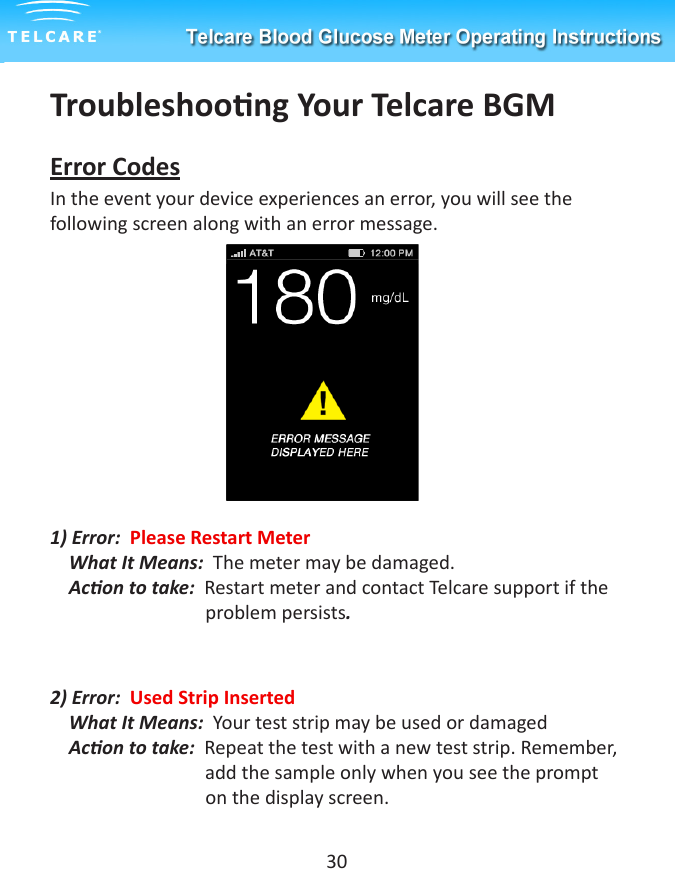
Troubleshoong Your Telcare BGMError CodesIn the event your device experiences an error, you will see the following screen along with an error message.1) Error:  Please Restart Meter     What It Means:  The meter may be damaged.    Acon to take:  Restart meter and contact Telcare support if the                                          problem persists.               2) Error:  Used Strip Inserted     What It Means:  Your test strip may be used or damaged    Acon to take:  Repeat the test with a new test strip. Remember,                     add the sample only when you see the prompt                                   on the display screen. 30
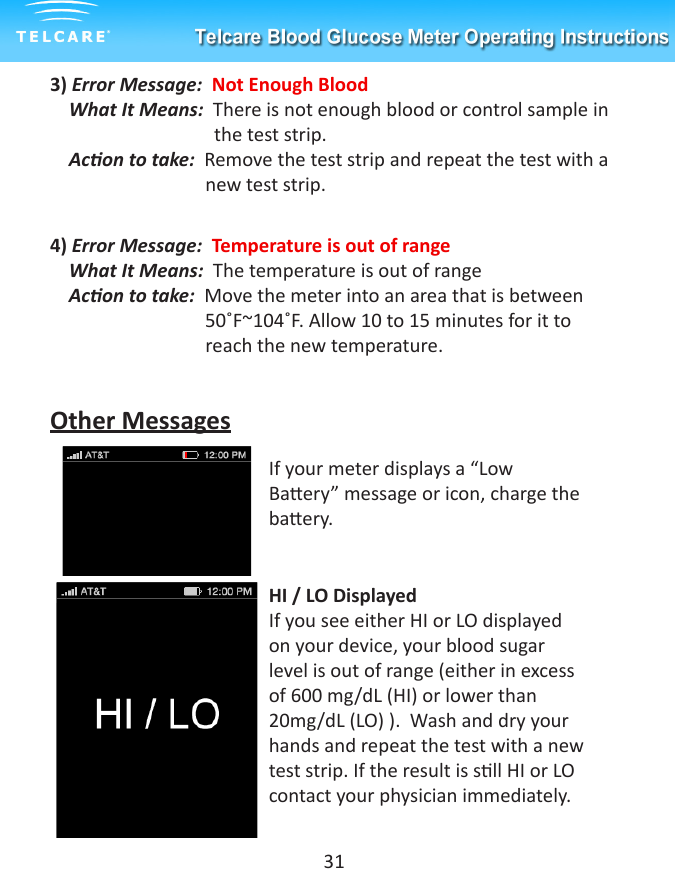
3) Error Message:  Not Enough Blood     What It Means:  There is not enough blood or control sample in         the test strip.    Acon to take:  Remove the test strip and repeat the test with a                                   new test strip.4) Error Message:  Temperature is out of range    What It Means:  The temperature is out of range    Acon to take:  Move the meter into an area that is between                        50˚F~104˚F. Allow 10 to 15 minutes for it to                                 reach the new temperature.Other MessagesIf your meter displays a “Low Baery” message or icon, charge the baery.  HI / LO DisplayedIf you see either HI or LO displayed on your device, your blood sugar level is out of range (either in excess of 600 mg/dL (HI) or lower than 20mg/dL (LO) ).  Wash and dry your hands and repeat the test with a new test strip. If the result is sll HI or LO contact your physician immediately.   31
Communicaon ErrorsIf you are having trouble uploading your results to the Telserve web server (communicaon error messages), you may want to try the following:   - If tesng indoors, move closer to a window for beer cellular         recepon   - If you are sll having dicules, try moving outside of the            building   - Check to see if there is cellular coverage in your areaIf the above acons do not resolve your problem, contact Telcare technical support at (877) 777-4710, or email support@telcare.com. 32
Terms of WarrantyTelcare warrants the Telcare Blood Glucose Meter to be free of defects in workmanship and materials under normal use for a period of one (1) year from the date of purchase. The liability of Telcare is limited to repair or replacement and in no event shall Telcare be liable for any collateral or consequenal damages or loss.Instruments subjected to misuse, abuse, neglect, exposure to water, unauthorized repair or modicaon are excluded from this warranty.This guarantee specically excludes expendables and consumables.All warranty claims must be directed to the Telcare authorized dealer responsible for the sale of the system.This warranty applies only to the original purchaser of the system.33
Telcare is commied to creang the very best medical device experience for paents and healthcare professionals. Connecng powerful hardware and innovave soware via a “no wires” approach, Telcare’s oerings aim to provide convenient and eecve disease management tools. The Telcare Blood Glucose Monitoring System won the People’s Choice Award at CTIA Wireless 2009, Best in Show at MobiTechFest 2009 and was an E-tech Finalist at CTIA Wireless 2010.About Telcare34
Contact TelcareTELCARE, Inc. 66 Commonwealth AveSuite 100Concord, MA 01742Phone: (877) 777-4710Email: support@telcare.comWebsite - www.telcare.comFederal Communicaon Commission Interference StatementThis equipment has been tested and found to comply with the limits for a Class B digital device, pursuant to Part 15 of the FCC Rules. These limits are designed to provide reasonable protecon against harmful interference in a residenal installaon. This equipment generates, uses and can radiate radio frequency energy and, if not installed and used in accordance with the instrucons, may cause harmful interference to radio communicaons. However, there is no guarantee that interference will not occur in a parcular installaon. If this equipment does cause harmful interference to radio or television recepon, which can be determined by turning the equipment o and on, the user is encouraged to try to correct the interference by one of the following measures:- Reorient or relocate the receiving antenna.- Increase the separaon between the equipment and receiver.- Connect the equipment into an outlet on a circuit dierent from that to which the receiver is connected.- Consult the dealer or an experienced radio/TV technician for help.• This device complies with Part 15 of the FCC Rules. Operaon is subject to the following two condions: (1) This device may not cause harmful interference, and (2) this device must accept any interference received, including interference that may cause undesired operaon.• FCC Cauon: Any changes or modicaons not expressly approved by the party responsible for compliance could void the user’s authority to operate this equipment.FCC Radiaon Exposure StatementThis equipment complies with FCC radiaon exposure limits set forth for an uncontrolled environment. This equipment should be installed and operated with minimum distance 20cm between the radiator & your body. This transmier must not be co-located or operang in conjuncon with any other antenna or transmier.35

Navigation menu