Telian MTD-3500 Dual-Mode Cellular Telephone User Manual 305557
Telian Corporation Dual-Mode Cellular Telephone 305557
Telian >
Contents
- 1. Manual part 1
- 2. Manual part 2
Manual part 1

- 1 -
D
DU
UA
AL
L-
-M
MO
OD
DE
E
T
TD
DM
MA
A
P
PH
HO
ON
NE
E
MODEL : MTD-3500 / 3510
PRELIMINARY
Rev : 1.46
Date
: September 30, 2002
- 2 -
C o n t e n t s
1. SAFETY INFORMATION··············································································8
2. PREPARING YOUR PHONE FOR USE·······················································13
2.1 Install the battery ---------------------------------------------------------------------------- 13
2.2 Remove the battery ------------------------------------------------------------------------- 13
2.3 Charge the battery--------------------------------------------------------------------------- 13
3. HIGHLIGHTS OF FEATURES······································································15
4. ABOUT THE PHONE····················································································18
4.1 Name and function -------------------------------------------------------------------------- 18
4.2 Key functions --------------------------------------------------------------------------------- 20
4.2.1 Selection keys..................................................................................................20
4.2.2 Key .............................................................................................................................20
4.2.3 Key .............................................................................................................................20
4.2.4 ~ Number keys .....................................................................21
4.2.5 Scroll keys .......................................................................................................22
4.2.6 Using the selection keys......................................................................................................22
4.2.7 Using the scroll keys............................................................................................................22
4.3 About display indicators and icons --------------------------------------------------- 23
4.3.1 Start screen...........................................................................................................................23
4.3.2 Scroll bar...............................................................................................................................23
4.4 Indicators and icons ------------------------------------------------------------------------ 23
5. BASIC OPERATIONS ··················································································26
- 3 -
5.1 Switch the phone ON or OFF ------------------------------------------------------------ 26
5.2 Make a call ------------------------------------------------------------------------------------- 26
5.3 Answering a call------------------------------------------------------------------------------ 27
5.4 Adjusting the earpiece volume---------------------------------------------------------- 27
5.5 Redial the last-dialed number ----------------------------------------------------------- 27
5.6 Use Caller ID----------------------------------------------------------------------------------- 28
5.7 Keep calls private---------------------------------------------------------------------------- 28
6. USE PHONE MENUS ···················································································30
6.1 Navigate menus ------------------------------------------------------------------------------ 30
6.1.1 Scroll through menus...........................................................................................................30
6.1.2 Use a shortcut.......................................................................................................................30
6.1.3 Exit menu levels ...................................................................................................................30
6.2 List of shortcuts------------------------------------------------------------------------------ 31
7. ENTER LETTERS AND NUMBERS·····························································34
7.1 Enter letters------------------------------------------------------------------------------------ 34
7.1.1 Exit name...............................................................................................................................35
7.1.2 Change from capital (uppercase) letters ............................................................................35
7.1.3 Use punctuation and special characters ............................................................................35
7.2 Enter number---------------------------------------------------------------------------------- 36
7.2.1 List of special characters.....................................................................................................37
8. USE THE PHONE BOOK ·············································································38
8.1 About the phone book --------------------------------------------------------------------- 38
8.2 Use phone book menus ------------------------------------------------------------------- 38
8.3 Add names and numbers ----------------------------------------------------------------- 39
8.4 Change a stored telephone number --------------------------------------------------- 40
8.5 Recall and redial numbers ---------------------------------------------------------------- 40
8.6 Erase stored names and numbers ----------------------------------------------------- 41
8.7 Erase the entire phone book ------------------------------------------------------------- 41
9. WORK WITH THE CALL LOG ·····································································43
- 4 -
9.1 Call the call log ------------------------------------------------------------------------------- 43
9.1.1 Check missed calls...............................................................................................................44
9.1.2 Check received calls ............................................................................................................45
9.1.3 Check previously dialed calls..............................................................................................46
9.2 Check call timers----------------------------------------------------------------------------- 46
10. SEND AND RECEIVE TEXT MESSAGES ···················································48
10.1 About the Messages ------------------------------------------------------------------------ 48
10.2 Use Messages menus ---------------------------------------------------------------------- 48
10.3 Write with standard text input ----------------------------------------------------------- 49
10.4 Write and send a new text message--------------------------------------------------- 50
10.4.1 Save a message in the saved folder....................................................................................51
10.4.2 Message prioritization setting .............................................................................................51
10.4.3 Send Options for a message ..................................................... Error! Bookmark not defined.
10.4.4 Delivery report ............................................................................ Error! Bookmark not defined.
10.5 Receive a text message--------------------------------- Error! Bookmark not defined.
10.5.1 Read a text message .................................................................. Error! Bookmark not defined.
10.5.2 Choose options for a message.................................................. Error! Bookmark not defined.
10.5.3 Read options for a message ...................................................... Error! Bookmark not defined.
10.5.4 Call Number ................................................................................ Error! Bookmark not defined.
10.6 When your phone’s memory is full ----------------- Error! Bookmark not defined.
10.7 Delete a message ----------------------------------------- Error! Bookmark not defined.
10.8 USE VOICE MAIL------------------------------------------ Error! Bookmark not defined.
10.8.1 When you have a message ........................................................ Error! Bookmark not defined.
10.8.2 Set up your voice mailbox ......................................................... Error! Bookmark not defined.
10.8.3 Listen to your voice messages.................................................. Error! Bookmark not defined.
11. Send and receive e-mail messages
Error! Bookmark not defined.
11.1 Send an e-mail address--------------------------------- Error! Bookmark not defined.
11.1.1 Save an e-mail address for an existing name........................... Error! Bookmark not defined.
11.1.2 Add a new e-mail address.......................................................... Error! Bookmark not defined.
11.1.3 Add a new e-mail address.......................................................... Error! Bookmark not defined.
- 5 -
11.2 Send an e-mail message ------------------------------- Error! Bookmark not defined.
11.2.1 Other options for a completed message: ................................. Error! Bookmark not defined.
12. USE ADVANCED CALLING FEATURE
Error! Bookmark not defined.
12.1 Set in-call options ---------------------------------------- Error! Bookmark not defined.
12.2 Use call waiting-------------------------------------------- Error! Bookmark not defined.
12.2.1 Store the call waiting feature code............................................ Error! Bookmark not defined.
12.2.2 Activate call waiting ................................................................... Error! Bookmark not defined.
12.2.3 Manage calls ............................................................................... Error! Bookmark not defined.
12.3 Use call forwarding--------------------------------------- Error! Bookmark not defined.
12.3.1 Store the call forwarding feature code...................................... Error! Bookmark not defined.
12.3.2 Activate call forwarding ............................................................. Error! Bookmark not defined.
12.4 Redial automatically ------------------------------------- Error! Bookmark not defined.
12.5 Use a calling card----------------------------------------- Error! Bookmark not defined.
12.5.1 Save calling card information.................................................... Error! Bookmark not defined.
12.5.2 Choose a calling card to use ..................................................... Error! Bookmark not defined.
12.5.3 Make a calling card call.............................................................. Error! Bookmark not defined.
12.6 Send your own number in caller ID ----------------- Error! Bookmark not defined.
12.6.1 Store the Send Own Number feature code ............................... Error! Bookmark not defined.
12.6.2 Set whether or not your number will appear ............................ Error! Bookmark not defined.
13. Customize your phone
Error! Bookmark not defined.
13.1 What is a profile? ----------------------------------------- Error! Bookmark not defined.
13.2 Customize a profile--------------------------------------- Error! Bookmark not defined.
13.2.1 Set the ringer volume ................................................................. Error! Bookmark not defined.
13.2.2 Set the ring tone ......................................................................... Error! Bookmark not defined.
13.2.3 Set the message alert tone ........................................................ Error! Bookmark not defined.
13.2.4 Set ring style ............................................................................... Error! Bookmark not defined.
13.2.5 Set a vibration............................................................................. Error! Bookmark not defined.
13.2.6 Set warning and game tones ..................................................... Error! Bookmark not defined.
13.2.7 Set keypad volume ..................................................................... Error! Bookmark not defined.
- 6 -
13.3 Rename profiles------------------------------------------- Error! Bookmark not defined.
13.4 Restore defaults settings ------------------------------ Error! Bookmark not defined.
13.5 Set the display language ------------------------------- Error! Bookmark not defined.
13.6 Set and display the clock ------------------------------ Error! Bookmark not defined.
13.6.1 Set the clock ............................................................................... Error! Bookmark not defined.
13.6.2 Set the clock to be updated by the network ............................. Error! Bookmark not defined.
13.7 Add a welcome note ------------------------------------- Error! Bookmark not defined.
13.8 Set the answer --------------------------------------------- Error! Bookmark not defined.
13.8.1 Set your phone to answer automatically .................................. Error! Bookmark not defined.
13.8.2 Set your phone to answer by pressing any key ....................... Error! Bookmark not defined.
13.9 Emergency calls------------------------------------------- Error! Bookmark not defined.
13.10 Use emergency key 9------------------------------------ Error! Bookmark not defined.
13.10.1 Activate the emergency key 9.................................................... Error! Bookmark not defined.
13.10.2 Make an emergency call............................................................. Error! Bookmark not defined.
14. Security
Error! Bookmark not defined.
14.1 Change your security code---------------------------- Error! Bookmark not defined.
14.2 Protect your phone with the lock code ------------ Error! Bookmark not defined.
14.2.1 Turn on the phone lock .............................................................. Error! Bookmark not defined.
14.2.2 Store an unlocked phone number............................................. Error! Bookmark not defined.
14.2.3 Change your lock code .............................................................. Error! Bookmark not defined.
14.2.4 Turn off the lock code ................................................................ Error! Bookmark not defined.
14.3 Lock the keypad------------------------------------------- Error! Bookmark not defined.
14.3.1 Active keyguard.......................................................................... Error! Bookmark not defined.
14.3.2 Deactivate keyguard................................................................... Error! Bookmark not defined.
14.3.3 Answer a call while keyguard is active..................................... Error! Bookmark not defined.
14.4 Restrict calls ----------------------------------------------- Error! Bookmark not defined.
14.4.1 Restrict incoming calls .............................................................. Error! Bookmark not defined.
14.4.2 Restrict outgoing calls ............................................................... Error! Bookmark not defined.
15. Set network services features
Error! Bookmark not defined.
- 7 -
15.1 Set up how your phone selects a system--------- Error! Bookmark not defined.
15.2 Roaming ----------------------------------------------------- Error! Bookmark not defined.
15.3 NAM selection---------------------------------------------- Error! Bookmark not defined.
15.3.1 Selecting the NAM for your phone ............................................ Error! Bookmark not defined.
16. USE YOUR PERSONAL ASSISTANT
Error! Bookmark not defined.
16.1 Use the calendar ------------------------------------------ Error! Bookmark not defined.
16.1.1 View the calendar ....................................................................... Error! Bookmark not defined.
16.1.2 Move from day to day................................................................. Error! Bookmark not defined.
16.1.3 Add a calendar note ................................................................... Error! Bookmark not defined.
16.1.4 View the day’s notes .................................................................. Error! Bookmark not defined.
16.2 Alarm clock ------------------------------------------------- Error! Bookmark not defined.
16.2.1 Set the alarm clock..................................................................... Error! Bookmark not defined.
16.2.2 Turn off the alarm clock when it rings ...................................... Error! Bookmark not defined.
16.2.3 Turn off the alarm clock altogether ........................................... Error! Bookmark not defined.
16.3 Calculator --------------------------------------------------- Error! Bookmark not defined.
16.3.1 Use the calculator....................................................................... Error! Bookmark not defined.
17. GAMES
Error! Bookmark not defined.
17.1 Snake --------------------------------------------------------- Error! Bookmark not defined.
17.2 Breakout ----------------------------------------------------- Error! Bookmark not defined.
18. REFERENCE INFORMATION
Error! Bookmark not defined.
18.1 Emergency Calls ------------------------------------------ Error! Bookmark not defined.
18.1.1 Make an emergency call............................................................. Error! Bookmark not defined.
18.2 Troubleshooting------------------------------------------- Error! Bookmark not defined.
18.2.1 No service ................................................................................... Error! Bookmark not defined.
18.2.2 What if the call doesn’t go through?......................................... Error! Bookmark not defined.
19. TECHNICAL INFORMATION
Error! Bookmark not defined.
- 8 -
1. SAFETY INFORMATION
SAFETY INFORMATION FOR WIRELESS HANDHELD PHONES
WARNING! Please do not use your MTD-3500 wireless telephone if you may be
distracted from another activity (such as driving a motor vehicle or walking across
the street) and create a safety hazard to yourself and others. Use your wireless
telephone responsibly. Be alert to your surroundings whenever you operate your
wireless telephone.
For the safe and efficient operation of your phone, observe the following
guidelines:
EXPOSURE TO RADIO FREQUENCY SIGNALS
Your wireless handheld portable telephone is a low power radio transmitter and
receiver. When it is ON, it receives and also sends out radio frequency (RF) signals.
In August 1996, the Federal Communications Commissions (FCC) adopted RF
exposure guidelines with safety levels for handheld wireless phones. Those
guidelines are consistent with the safety standards previously set by both U.S. and
international standards bodies:
ANSI C95.1 (1992)*
NCRP Report 86 (1986)*
ICNIRP (1996)*
*American National Standards Institute; National Council on Radiation Protection
and Measurements; International Commission on Non-Ionizing Radiation
Protection
Those standards were based on comprehensive and periodic evaluations of the
relevant scientific literature. For example, over 120 scientists, engineers, and
physicians from universities, government health agencies, and industry reviewed
the available body of research to develop the ANSI Standard (C95.1)
The design of your phone complies with the FCC guidelines (and those standards).
- 9 -
CAUTION! To maintain compliance with FCC RF exposure requirement, use only
belt-clips, holsters or similar accessories that maintain a 1.5 cm separation
distance between the user’s body and the back of the phone, including the
antenna whether extended or retracted.
The use of belt-clips, holsters and similar accessories should not contain metallic
components in its assembly. The use or accessories that do not satisfy these
requirements may not comply with FCC RF exposure requirements, and should be
avoided.
ANTENNA CARE
Use only the supplied or an approved replacement antenna. Unauthorized
antennas, modifications, or attachments could damage the phone and may violate
FCC regulations.
PHONE OPERATION
NORMAL POSITION: Hold the phone as you would any other telephone with the
antenna pointed up and over your shoulder.
TIPS ON EFFICIENT OPERATION:
For your phone to operate most efficiently:
• Do not touch the antenna unnecessarily when the phone is in use. Contact with
the antenna affects call quality and may cause the phone to operate at a higher
power level than otherwise needed.
DRIVING
Check the laws and regulations on the use of wireless telephones in the areas where
you drive. Always obey them. Also, if using your phone while driving, please:
• Give full attention to driving—driving safely is your first responsibility;
• Use hands-free operation, if available;
• Pull off the road and park before making or answering a call if driving conditions
so require.

- 10 -
ELECTRONIC DEVICES
Most modern electronic equipment is shielded from RF signals. However, certain
electronic equipment may not be shielded against the RF signals from your wireless
phone.
Pacemakers
The Health Industry Manufacturers Association recommends that a minimum
separation of six (6”) inches be maintained between a handheld wireless phone and a
pacemaker to avoid potential interference with the pacemaker. These
recommendations are consistent with the independent research by and
recommendations of Wireless Technology Research.
Persons with pacemakers:
• Should ALWAYS keep the phone more than six inches from their pacemaker
when the phone is turned ON
• Should not carry the phone in a breast pocket
• Should use the ear opposite the pacemaker to minimize the potential for
interference
• If you have any reason to suspect that interference is taking place, turn your
phone OFF immediately.
Hearing Aids
Some digital wireless phone may interfere with some hearing aids. In the event of
such interference, you may want to consult your service provider (or call the
customer service line to discuss alternatives).
Other Medical Devices

- 11 -
If you use any other personal medical device, consult the manufacturer of your
device to determine if they are adequately shielded from external RF energy. Your
physician may be able to assist you in obtaining this information.
Turn your phone OFF in health care facilities when any regulations posted in these
areas instruct you to do so. Hospitals or health care facilities may be using equipment
that could be sensitive to external RF energy.
Vehicles
RF signals can affect improperly installed or inadequately shielded electronic systems
in motor vehicles. Check with the manufacturer or its representative regarding your
vehicle. You should also consult the manufacturer of any equipment that has been
added to your vehicle.
Posted Facilities
Turn your phone OFF in any facility where posted notices so require.
AIRCRAFT
FCC regulations prohibit using your phone while in the air.
Switch OFF your phone before boarding an aircraft.
BLASTING AREAS
To avoid interfering with blasting operations, turn your phone OFF when in a “blasting
area” or in areas posted: “Turn off two-way radio.” Obey all signs and instructions.
- 12 -
POTENTIALLY EXPLOSIVE ATMOSPHERES
Turn your phone OFF when in any area with a potentially explosive atmosphere and
obey all signs and instructions. Sparks in such areas could cause an explosion or fire
resulting in bodily injury or even death.
Areas with a potentially explosive atmosphere are often but not always clearly
marked. They include fueling areas such as gasoline stations; below deck on boats;
fuel or chemical transfer or storage facilities; vehicles using liquefied petroleum gas
(such as propane or butane); areas where the air contains chemicals or particles,
such as grain, dust, or metal powders; and any other area where you would normally
be advised to turn off your vehicle engine.
FOR VEHICLES EQUIPPED WITH AN AIR BAG
An air bag inflates with great force. DO NOT place objects, including both installed or
portable wireless equipment, in the area over the air bag or in the air bag
deployment area. If in-vehicle wireless equipment is improperly installed and the air
bag inflates, serious injury could result.

- 13 -
2. PREPARING YOUR PHONE FOR USE
2.1 Install the battery
Simply place the battery in the grooves on the back of the phone. Then slide the
battery upward until clicks.
2.2 Remove the battery
Note: Switch the phone off before removing the battery!
Press and hold the button at the top of the battery.
Slide the battery toward the bottom of the phone.
Lift the battery off the phone.
2.3 Charge the battery
Connect the lead from the charger to the bottom of the phone.
Connect the charger to an AC wall outlet. The battery indicator bar starts to
scroll.
Note: If the battery is totally empty, it may take a few minutes before the
charging indication appears on the screen.
Tip: The phone can be used while charging if the phone is switched on.
Note: Disconnect your phone from the charger if the phone becomes hot during a
call.
The battery is fully charged when the battery indicator bar stops scrolling, and the
Battery full text is briefly displayed if the phone is switched on. Charging time
- 14 -
depends on the charger and battery used.
Disconnect the charger from the AC outlet and the phone.

- 15 -
3. HIGHLIGHTS OF FEATURES
Easy to read graphical display
Phone book (up to 100 names and numbers)
Easy to use keypad layout
20 Ring tones and 5 Ring style selections
Adjustable ring volume
Vibrating alert
Quick access to the last 10 numbers dialed

- 16 -
Caller ID
Games
Auto redial
Calculator
Clock with Alarm
Dialed, received, missed calls
Call restriction
Keypad lock

- 17 -
Call timer
Profile settings
Short message service
Voice mail capability
2 different NAM
Multi-Languages (English, French, Spanish and Portuguese)
Earphone / microphone jack
- 18 -
4. ABOUT THE PHONE
This phone operates in digital mode within the 800 MHz frequency band and operates in
analog mode within the 800 MHz range.
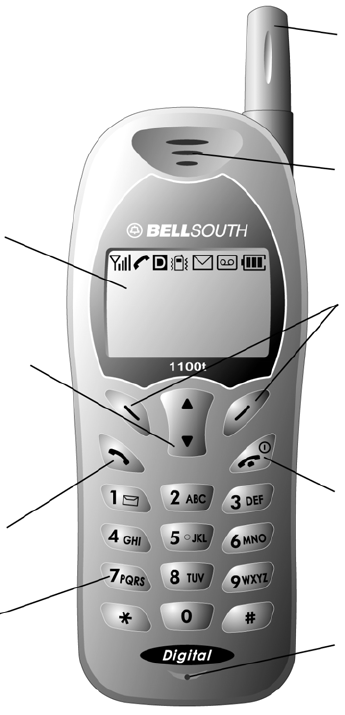
4.1 Name and function
Antenna
Receiver
To hear the other
party during the call.
Soft keys
Their current function is
displayed above the key.
(for example,
here their functions are
“Menu” and “Names”).
Graphic Display
Scroll key
Scrolls throuth menus.
Submenus,
and phone book.
Press and hold for
continuous scrolling.
End key
Press this key to end a
phone call or press
and hole to turn the
phone on of off.
Microphone
- 19 -
Send key
Dials the number
on the displa
y
.
KeyPad

- 20 -
4.2 Key functionsh
4.2.1 Selection keys
Press to perform the function indicated by the text on the
screen above the key.
4.2.2 Key
Press to make a call to time and name / number shown on
the screen.
Press to answer a call.
Press once to enter the list of last dialed numbers.
4.2.3 Key

- 21 -
Press and hold the key to switch the phone on or off.
Press to end a call.
Press to temporarily mute a call.
Press once to exit a function and to return to the start screen.
4.2.4 ~ Number
keys
Used for entering numbers and letters.
Press and hold to call the voice mailbox.

- 22 -
Press to toggle between upper case, lower case
and numeric modes.
4.2.5 Scroll keys
Press to increase the earpiece volume.
Press to decrease the earpiece volume.
4.2.6 Using the selection keys
The functions of the selection keys depend on the guiding texts shown above
the keys.
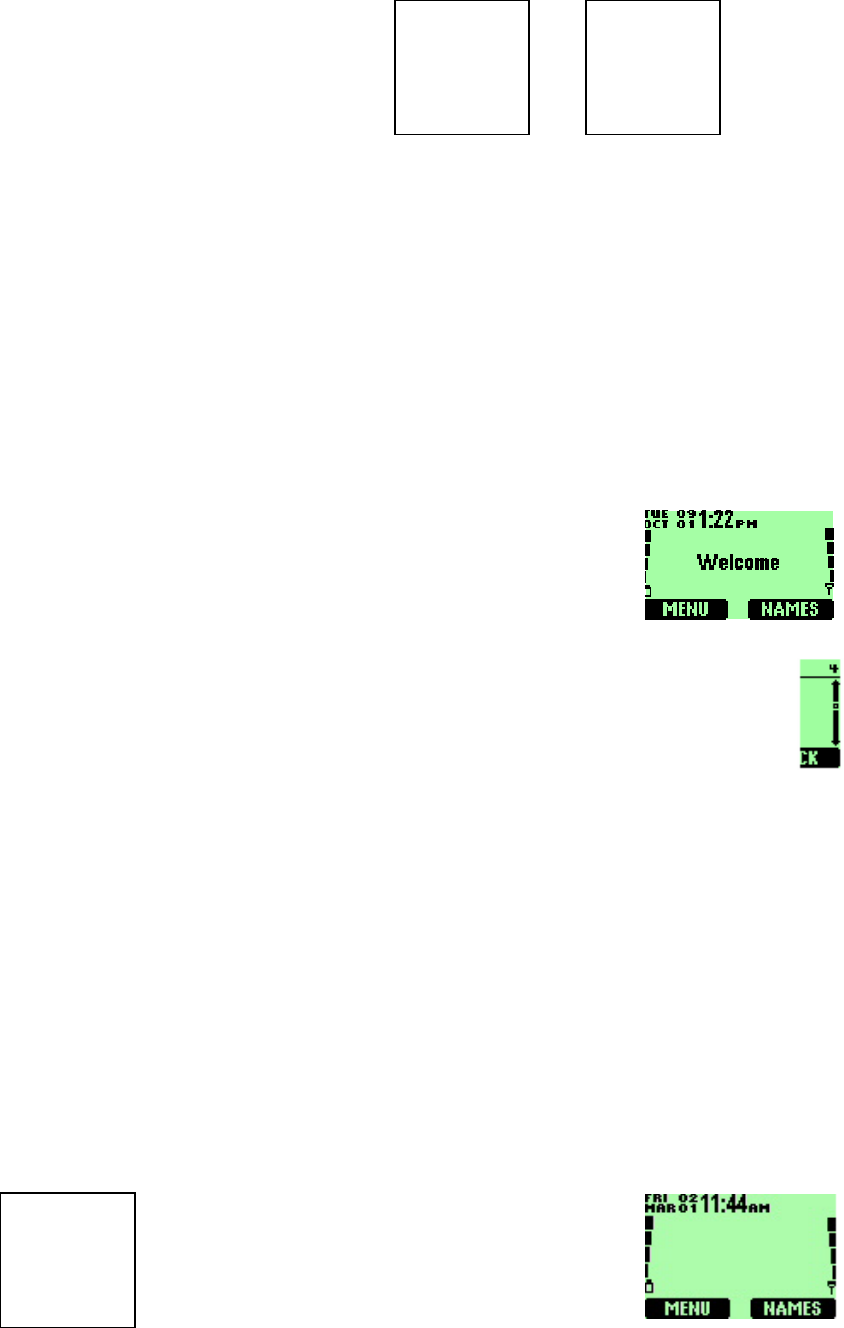
For example, when there is the text
MENU
above the left selection
key,
pressing this key enters the menu functions.
Similarly, pressing the right selection key under text
NAMES
has access to phone book functions.
4.2.7 Using the scroll keys
- 23 -
The phone has two scroll keys, and , located just
below the screen. The scroll keys have up and down arrows on them, press
these to move through the phone’s menus.
4.3 About display indicators and icons
The display indicators and icons inform about the operation of the phone.
4.3.1 Start screen
The start screen displays when the phone is turned on.
Several features can be used only when the phone is at the
Start Screen.
4.3.2 Scroll bar
When you access the phone’s menu, there is a scroll bar at the far right of
the screen. This bar indicates user’s location in the menu: each “tab” on the
bar represents a different menu item.
4.4 Indicators and icons
On your phone, you have two types of identifiers: indicators and icons. Icons are
graphical representations of a specific item or situation. For example, an icon appears
when you have a voice message waiting to be heard.
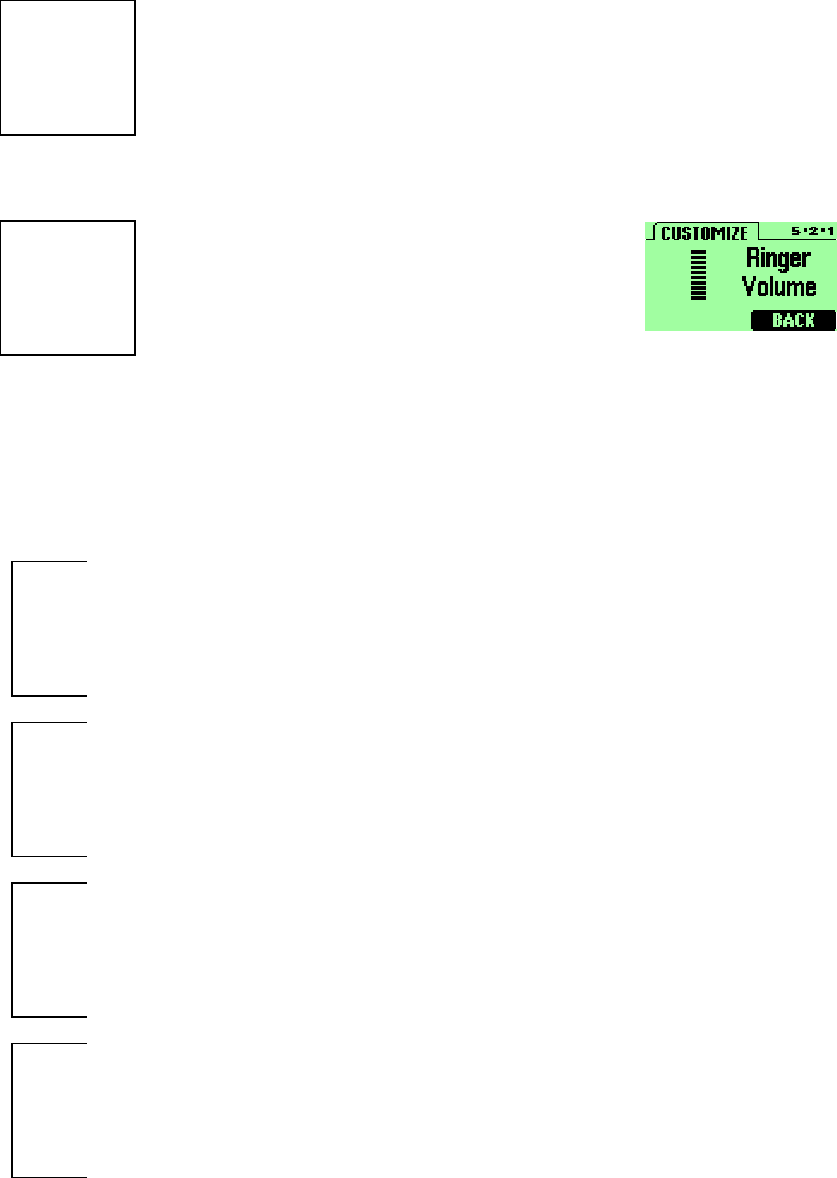
Indicators show the status of something. The phone uses three types of indicators:
Signal strength indicator: This indicator
- 24 -
shows the signal strength of the wireless network at your current location. The
higher the bar, the stronger the signal.
Battery power indicator: This indicator shows the battery charge
level. The higher the bar, the more power in the battery.
Handset volume indicator: This indicator
appears only when you press the scroll keys in the Profiles menu. It shows how
loud (or not) the volume is during the phone call.
The list below shows what each icon means.
You have an active call.
You have an missed call.
The Keyguard has been activated to prevent any accidental key presses.
You have one or more voice messages waiting.
- 25 -
You have one or more unread text messages waiting.
Any alpha characters you enter will be uppercase (capital letters). Press
the key to switch to uppercase.
Any alpha characters you enter will be lowercase. Press the
key to switch to uppercase.
You are in numbers mode. After switching to this numbers mode, you
cannot enter any alpha characters. You can enter only numbers.
This appears when you press the key while storing names.
You are in special character mode. You can select a special character by
pressing
SELECT
.
The alarm clock is set.
You have selected Silent as the current profile.

- 26 -
5. BASIC OPERATIONS
5.1 Switch the phone ON or OFF
Press and hold the key for two seconds to
switch on the phone until the phone sounds a beep.
Note: If the phone has the vibrate alert option activated, the phone will also
briefly vibrate.
To turn the phone off, press and hold key until the
phone sounds a beep and turns off.
5.2 Make a call
Hold the phone as you would any other telephone, with the earpiece over your
ear and the microphone near your mouth.
Deactivate the keyguard, if it is on.
Enter the phone number-including the area code-and press .
Press to end the call or to cancel the call attempt.
Note: It is normal for the phone to become hot during use. If the phone becomes
too hot, it automatically drops the current call and returns to the “start
screen”. Until the phone cools, user will be unable to receive or make calls.

- 27 -
5.3 Answering a call
To answer a phone call:
Press any key to answer the call. to answer the call
Press to end the call.
5.4 Adjusting the earpiece volume
You can adjust the earpiece volume (while in a call or at any time) by pressing the
scorll keys on the phone.
Press the key up to increase the volume.
Press down to decrease the volume.
5.5 Redial the last-dialed number
To redial the last-dialed number on your phone:
Stored numbers may be up to recently dialed numbers. Stored numbers may be up
to 28 digits long.

- 28 -
If not there, return to the Start screen by pressing . Otherwise
proceed to step .
Press two times.
5.6 Use Caller ID
Caller ID is a network service that identifies incoming calls. Contact your service
provider to find out how to get this feature.
When Caller ID is active, your phone shows the caller’s phone number during an
incoming call, as long as this number is a part of your service provider’s wireless
network.
The wireless network lets you know if it doesn’t recognize the calling number. The
wireless network will also let you know if the calling party has blocked the Caller
ID feature.
If you have stored the name and number of the calling party in your phone book
and that number is supported by the wireless network, the caller’s name can also
appear.
5.7 Keep calls private
The Voice Privacy feature encrypts the voice channel so that people cannot eavesdrop
on your phone conversations.
Voice Privacy is a network service, so you must contact your service provider to
obtain access to the feature.
To turn on Voice Privacy:
Press
MENU
4
>
4
>
1
(
Settings
>
Network service
>
Voice privacy
).

- 29 -
Press
ON
.
Repeat the steps above except, in step , press
OFF
.

- 30 -
6. USE PHONE MENUS
6.1 Navigate menus
A menu is a list of choices you can make. Your phone has 10 main menus. Each
main menu contains numerous submenus that allow you to use the phone book,
change the ringing tone, and so on. You can use menus and submenus two ways:
by scrolling or by using shortcuts.
6.1.1 Scroll through menus
From the Start screen, press
Menu
, and then scroll through the menus
using the and keys.
Press
Options
,
SELECT
,
ENTER
, or
OK
, using the selection keys, at
the option you want.
Use the scroll and selection keys to navigate the submenus and to return to
the Start screen.
6.1.2 Use a shortcut
To get to options directly, without scrolling through lists, you can use a shortcut.
6.1.3 Exit menu levels
• To return the previous menu level, press
BACK
or
EXIT
.
• To return to the Start screen, press .
- 31 -
No menu setting changes are saved.
6.2 List of shortcuts
Your phone’s menu may differ from the following list, depending on the network
services to which you have subscribed and the accessories you are using. If you
have any questions, call your service provider.
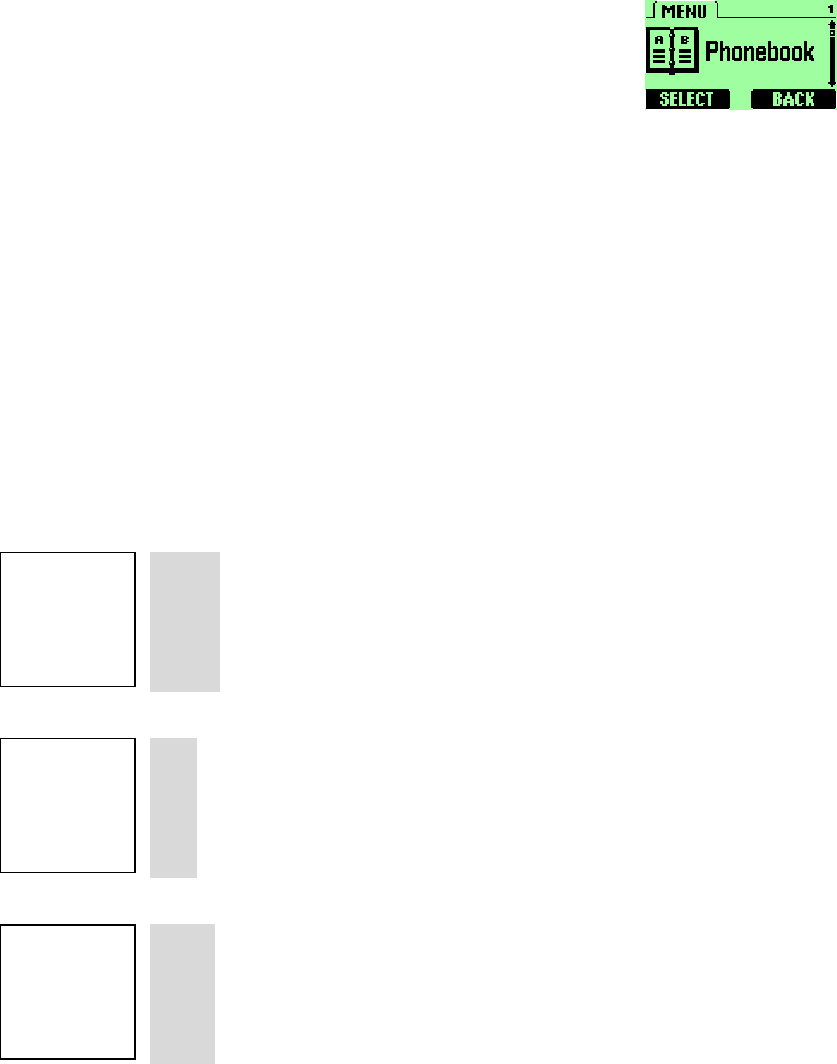
1. Phone book
1. Details
2. New
3. Delete
4. Speed Dial
5. Delete All
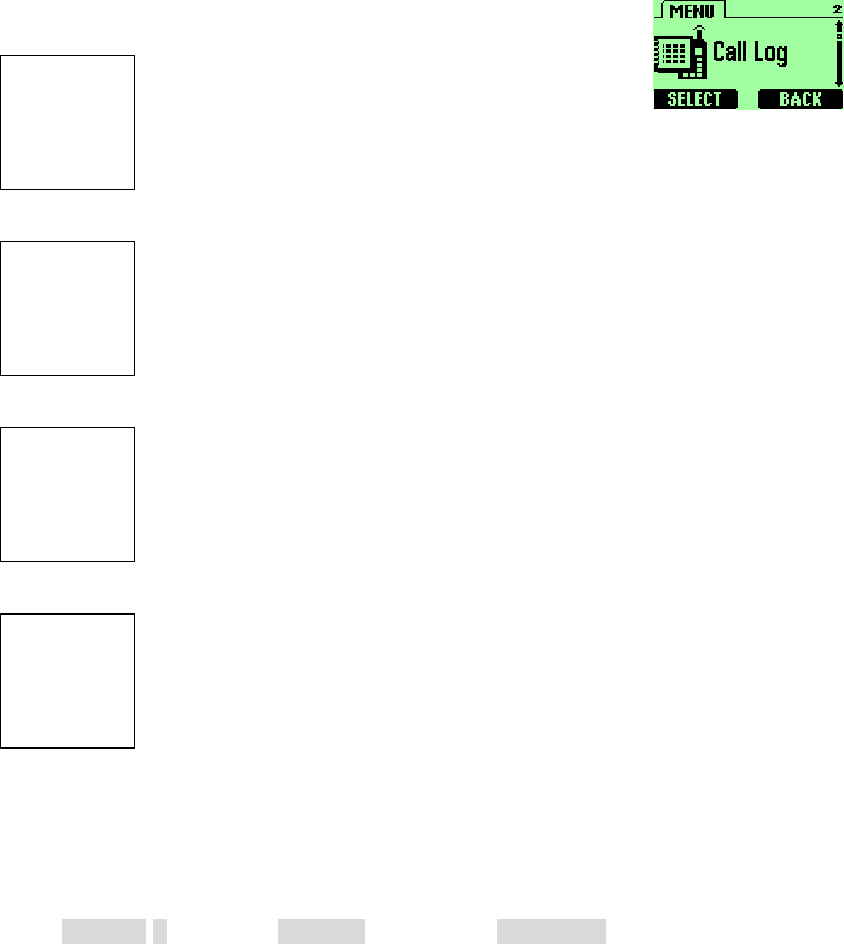
2. Call Log
1. Missed
2. Received
3. Dialed
4. Timers
1. Last Call
2. Received
3. Dialed
4. Reset All Timers
5. All Calls
6. Lifetime
3. Messages
1. Inbox
2. Outbox
3. New Text Msg
4. Use Template
5. Write E-mail
6. Voice Mail
1. Call Voicemail
- 32 -
2. Voicemail Num
4. Settings
1. Call Settings
1. Emergency Key 9
2. Calling Card
3. One-Touch Dial
4. Auto Redial
2. Phone Settings
1. Date and Time
2. Set Alarm Clock
3. AutoDate & Time
4. Languages
5. Welcome
6. OwnNum Display
7. Backlight
8. Restore Defaults
9. Minute Reminder
3. Answer Settings
1. Auto Answer
2. Any Key Answer
4. Network Services
1. Voice Privacy
2. Call Forwarding
3. Call Waiting
4. Send Own Num
5. Feature Code Set
6. NAM Selection
5. Security Settings
1. Call Restriction
2. Access Codes
5. Profiles
1. General
1. Select
2. Customize (the following submenus appear in all profiles)
1. Volume
2. Ring Tone
3. Message Tone
4. Ring Style
5. Vibration
6. Warn&GameTon
- 33 -
7. Keypad Volume
3. Rename
2. Meeting
3. Outdoor
4. Silent
5. Custom
6. Car
6. System
1. Automatic
2. Manual
3. New Search
7. Calendar
8. Calculator
9. Games
1. Breakout
2. Snake
0. Keyguard
- 34 -
7. ENTER LETTERS AND NUMBERS
You can enter letters, as well as numbers, when storing information into your phone
by using your phone’s keypad. To enter letters, press the key associated with the
letter you wish to enter until it appears on the screen (numbers also appear).
7.1 Enter letters
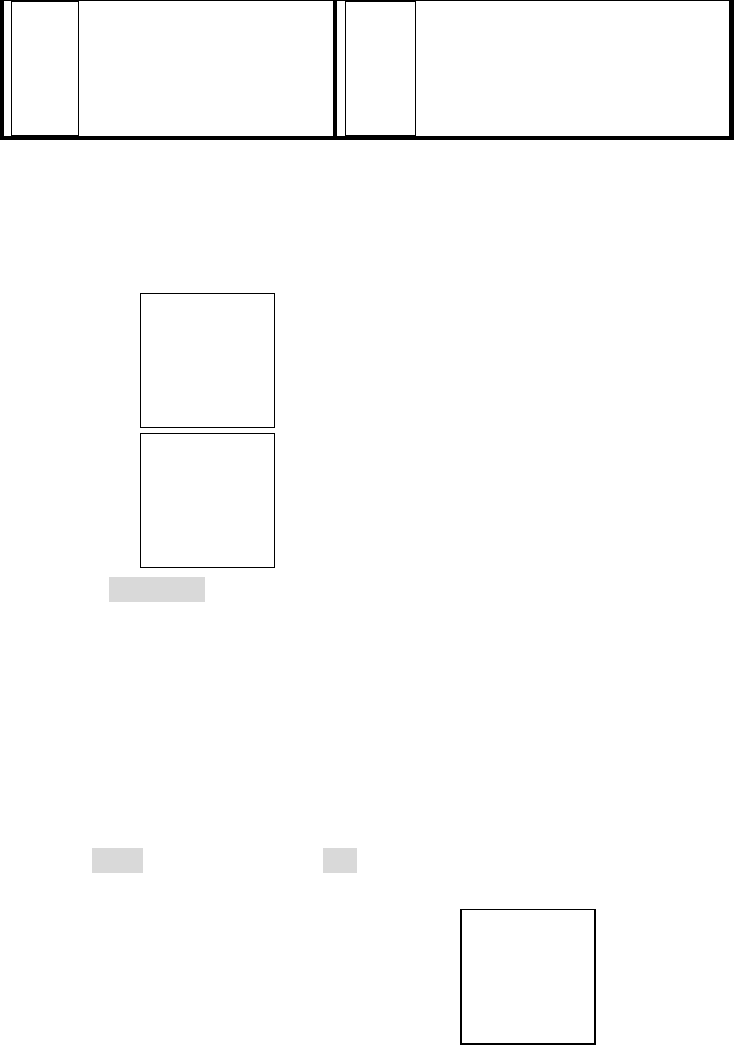
When you want to add new names or when you view names
in the phone book, your phone automatically switches to the
ABC mode and displays the
ABC
icon.
• Press a key once or several times to enter the letter(s)
you want.
For example, press the 2 key three times to enter the letter C.
Key Characters Key Characters
1 , . ’ @ * # P Q R S 7
A B C 2 T U V 8
D E F 3 W X Y Z 9
G H I 4 Enters an empty space, 0
J K L 5 (symbols and special
characters)
- 35 -
M N O 6 Change letter case
7.1.1 Exit name
To edit a name in the phone book:
• Use the scroll key to move the cursor to the left.
• Use the scroll key to move the cursor to the right.
• Press
CLEAR
to correct any mistakes.
7.1.2 Change from capital (uppercase) letters
To switch between uppercase and lowercase letters:
• Press the <#> key.
• The
ABC
icon switches to
abc
, indicating that you are using lowercase.
• To switch back to uppercase, press the key again.
7.1.3 Use punctuation and special characters
When in ABC mode, you can enter special characters.
- 36 -
To do so, press the key. The following special characters appear:
@ $ _ ! . # % & ‘ ( ) * + , - “ / : ; < = > ?
• Press or to move to the character that you want
to use and press
SELECT
.
Tip: If you want to access a special character that appears toward the end of
this list, press for quicker access.
7.2 Enter number
You use the 123 mode to enter numbers. When you’re in 123 mode, the screen
shows the
123
icon.
Note: You cannot enter special characters in 123 mode from the special characters
list.
If you are in
ABC
mode, press and hold the key for
about 2 seconds.
The
123
icon appears, enabling you to enter only numbers.
To return to
ABC
mode, press the key again for a
couple of seconds.

- 37 -
7.2.1 List of special characters
* Use as bypass key.
+ Use to precede an international telephone number.
, Use to create a pause when a number is dialed.
The numbers you enter after this special character are automatically sent as touch
tones after a 2.5-second pause.
? Use to create a “wait” when a number is dialed.
This means that your phone waits for you to press before it sends the
number as touch tones.
- 38 -
8. USE THE PHONE BOOK
8.1 About the phone book
Your phone includes a phone book that can store up to 100 names and associated
phone numbers and E-mail Address. Stored numbers can be up to 20 digits long.
Stored names and E-mail Address can be up to 20 characters
long.
Make entries unique:
You cannot store identical names in your phone.
Example: You can’t have one entry for John Jones with a home number and another
entry for John Jones with a work number. You need to store the names as, for
example, John Jones Work and John Jones Home.
8.2 Use phone book menus
The phone book has several menus from which you can choose. These menus appear
when you press Names. Use the scroll keys to move to the menu you want to use.
Details
Allows you to view details name and numbers.
New
Allows you to enter new name and numbers.
Delete
Allows you to erase only one name and

- 39 -
number at a time.
Speed Dial
Allows you to assign up to seven one-touch dial
locations.
Delete All
Allows you to erase all name and number in the phone
book.
8.3 Add names and numbers
Press
NAMES
.
Press
OPTIONS
.
Scroll to
New
and press
SELECT
.
Using the keypad, enter the name. Use the <#> key to switch between upper and
lowercase letters.
Using the keypad, enter the numbers. Press and hold the<#> key to switch
between capital letters and numbers.
Press
ENTER
.
Enter the phone number and press
ENTER
.
Shortcut:
You can also enter numbers by using a shortcut from the Start screen.
Enter a phone number and press
SAVE
.
Enter a name at
NAME
.
Press
ENTER
.

- 40 -
8.4 Change a stored telephone number
You can change a number without changing its associated name.
Press
Names
.
Scroll to the name you want and press
OPTIONS
.
Scroll to
Details
, then press
SELECT
to view the number.
Press
OPTIONS
.
If
Edit
is not highlighted, scroll to it and press
SELECT
.
Press
SELECT
.
The associated number appears.
Press
CLEAR
to erase one number at a time, or press and hold
CLEAR
to
erase all the numbers on the screen.
Enter the new number
Press
ENTER
to save the new number.
8.5 Recall and redial numbers
You can recall and dial numbers using one of two methods.
To recall and dial a number:
At the Start screen, press or to display the names
that is stored in your phone book.
Scroll to the appropriate name and press to dial the associated
number.

- 41 -
OR
At the Start screen, press
NAMES
.
Begin entering the first letter of the name you want to call.
For example, to find “
Bill
” in phonebook, and inputting Alphabet “
B
”, then user
will see all the listed name in phonebook with Alphabet sequence. Then the arrow
indicates the name starting from B alphabet. Use has to scroll down to find “
Bill
”.
When the appropriate name/number appears on the screen, press
to dial this number.
8.6 Erase stored names and numbers
Note: You cannot undo Erase functions, so be careful!
Recall the stored name.
Press
Options
.
Scroll to
Delete
, then press
SELECT
.
The
CONFIRM
message appears.
Press
OK
to erase this name and associated number.
8.7 Erase the entire phone book
You can erase the contents of your phone book. Note that this action cannot be
reversed! Once you have performed this procedure, all the stored information in
your phone book is erased.
To erase all the contents of your phone book:
Recall the stored name.
Press
Options
.

- 42 -
Scroll to
Delete All
, then press
SELECT
.
The
Security Code
field appears.
Enter your security code and press
ENTER
.
- 43 -
9. WORK WITH THE CALL LOG
The call log keeps track of:
Missed calls
Numbers from which you’ve received calls
Numbers you’ve dialed
The amount of time you’ve spent on calls
9.1 Call the call log
Press
MENU
2
to access
Call Log
, then press
SELECT
.
The following submenus are available:
Missed
Received
Dialed
Timers

- 44 -
To select any of these options, press the
SELECT
key while the option is
displayed on the screen. The
Missed
,
Dialed
, and
Received
menu include the
following options (available when you press the
OPTIONS
key):
Call Number
Allows you to view a number when an associated
name appears on the screen.
Save Number
Allows you to save the displayed number into your
phone book.
Delete
Allows you to delete the displayed number from the
call log.
9.1.1 Check missed calls
Your phone stores up to the last 10 numbers associated with calls you have
missed. When you miss a call(s), the message Missed calls appears on your
phone’s screen, along with the number of calls missed.
You are notified of missed calls only if your phone was turned on in the service
area from which the missed call originated.
To check missed calls:
Press
SELECT
.
The phone shows the numbers of the calls you missed.

- 45 -
Either scroll through the list using the or keys
until you reach a number that you want to dial and press , or
press
BACK
to return to the Start screen.
If you prefer, you can press
MENU
2
>
1
(
Call Log
>
Missed
), then scroll
through the list of numbers.
Note: If you chose the
If not answered
if not answered option in
Call
Forwarding
, then your phone treats these forwarded calls as missed calls.
You can also access previously dialed numbers by pressing and
then quickly pressing or to scroll through the list.
9.1.2 Check received calls
You phone stores up to the last 10 numbers associated with calls that you
have answered. To check this list of numbers:
Press
MENU
2
>
2
(
Call log
>
Received
).
Use or to scroll through the list of received
numbers.
When you reach the number you want to dial, press .
- 46 -
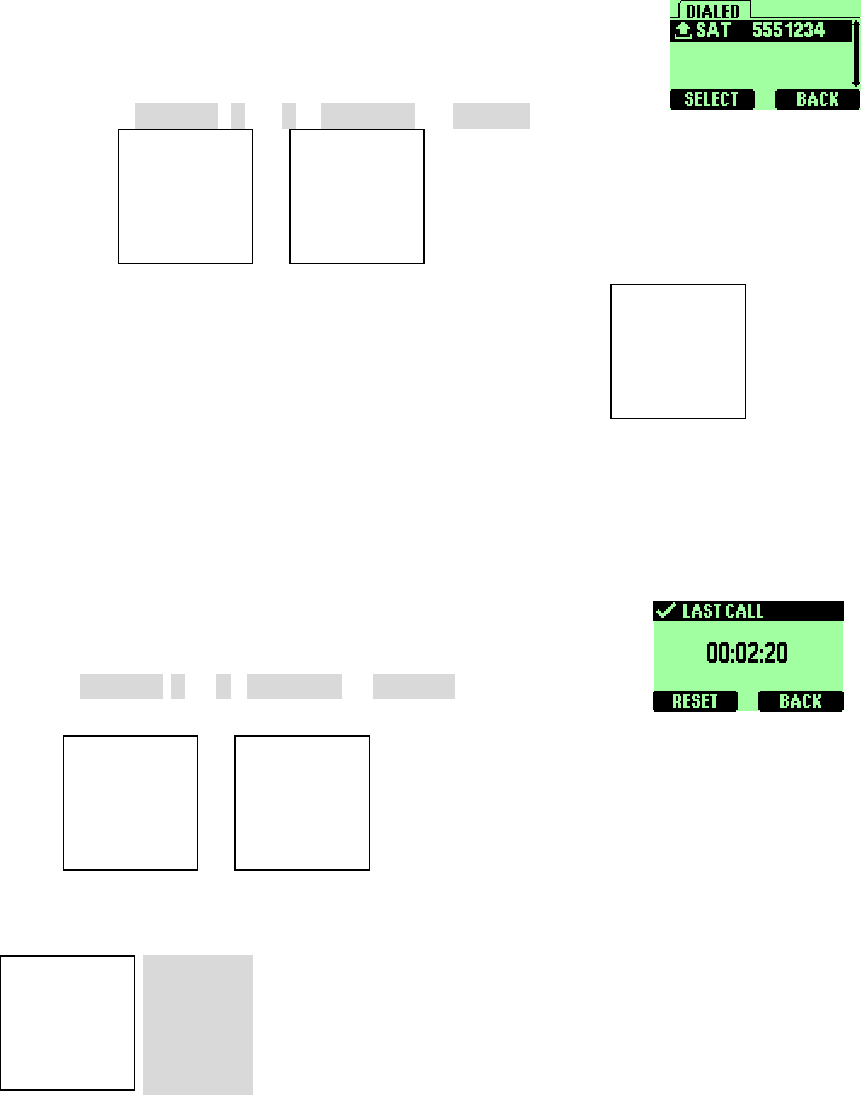
9.1.3 Check previously dialed calls
Your phone stores up to the last 10 numbers associated
with calls that you have dialed. To check this list of
numbers:
Press
MENU
2
>
3
(
Call log
>
Dialed
).
Use or to scroll through the dialed numbers list.
When you reach the number you want to dial, press .
9.2 Check call timers
Your phone tracks the amount of time you spend on each
call. To obtain information about time spent on phone calls:
Press
MENU
2
>
4
(
Call log
>
Timers
).
Use or to scroll through the options described in the
following list:
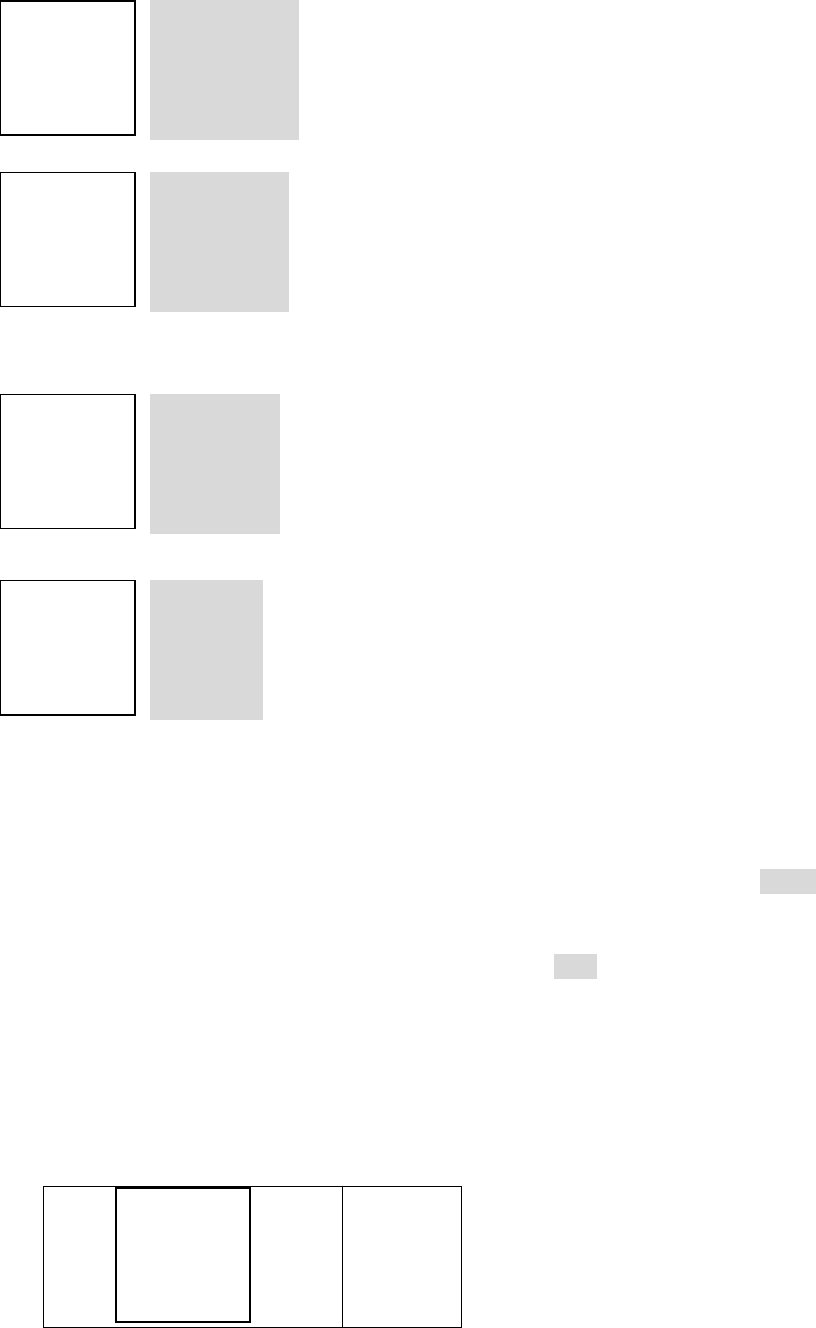
Last call.
Shows the call duration of the last made call.

- 47 -
Received.
Shows the duration of all incoming calls since you
reset the timers.
Dialed.
Shows the duration of all outgoing calls since you
reset the timers.
Reset All Timers.
The Reset all times submenu allows you to
erase every all timers.
All Calls.
Shows the call duration of all calls that have been
made and received since you reset the timers.
Lifetime.
Shows the duration of all calls for the life of your
phone. This option cannot be reset.

- 48 -
10. SEND AND RECEIVE TEXT
MESSAGES
10.1 About the Messages
With the text message network service, you can send and
receive short text messages. You can also send and receive
messages that contain a person’s name and/or number (a
“business card”).
To get your messages, other phones must have text message capability. Or, you can
ask the service provider to convert the message to other formats, such as e-mail.
The maximum length of a received text message is 160 characters long. Your phone
has space for up to 8 ~ 25 text messages, depending on the length of each message.
Note: The maximum length of a text message differs, depending on the capabilities of
the network from which it originated. Also, text messages may appear different at
different times because messages can originate in networks other than your own.
Contact your service provider for more information about this feature.
10.2 Use Messages menus
The Message has several menus from which you can choose. These menus appear
when you press Soft
SELECT
Key. Use the scroll keys to move to the menu you
want to use.
Inbox
Inbox is where incoming messages are received and stored.
All new, unread messages are kept here.
Outbox
Outbox is where outgoing messages are send and stored.
All outgoing message are kept here.
- 49 -
New Text Msg
Enter your new messages.
Use Template
Allows the user to create a new SMS message
based on a predefined list of messages, such as “Meeting
cancelled” or “Call me please”.
Write E-mail
Enter your e-mail message.
Voice Mail
Enter your voice mail numbers.
10.3 Write with standard text input
Standard text input is the default mode for text entry. The ABC icon
ABC
appears as visual confirmation.
The <#> key press and hold to enter a number.
123
indicate 123 mode.
Press and hold again to write text letters.
Find the key that is below the letter you want to enter.
Press it as many times as needed for letter to appear on the screen.
For example, to enter the name John:
Press
J

- 50 -
Press
O
Press
H
Press
N
10.4 Write and send a new text message
Press
MENU
3
>
3
(
Messages
>
New Text Msg
).
The message screen appears.
Enter a message of up to 160 characters.
When you’ve finished writing, press
ENTER
.
Enter or recall the recipient’s phone number, then
ENTER
.
Scroll to
Set Urgency
and press
SELECT
.
Scroll to
Very Urgent
,
Urgent
,
Normal
, or
Bulk
priority. And then press
SELECT
to select the priority.

- 51 -
Scroll to
Send and Discard
or
Send and Save
, then press
ENTER
.
When the message is successfully sent,
Message sent
or
Message sent and saved
appears.
If you need to exit while writing the message, press at any time.
10.4.1 Save a message in the saved folder
When writing a text message, it’s a good idea to save it in the saved folder.
Then if there is a message delivery problem, you can easily resend the
message.
While writing the message, press
ENTER
.
Scroll to
SAVE
, and then press
SELECT
.
10.4.2 Message prioritization setting
The message urgency indication will notify recipient that your message is
important. When you receive an
Urgent
message, the message will be