Testo SE and KGaA 2016TIFAM Thermal Imager User Manual

Testo SE & Co. KGaA Thermal Imager Users Manual

Users Manual

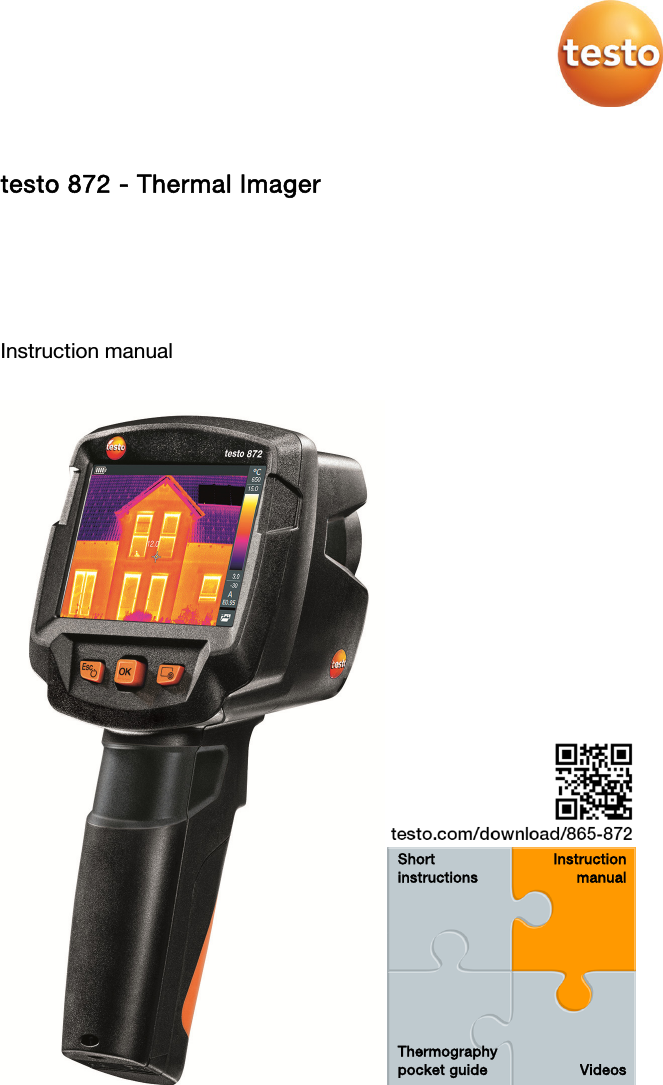
    testo 872 - Thermal Imager    Instruction manual     Short instructions  Instruction manual Thermography pocket guide  Videos
Contents   Contents 1 Safety and waste disposal ................................................................... 5 1.1 Zu diesem Dokument ............................................................................. 5 1.2 Safety ..................................................................................................... 5 1.3 Waste disposal ....................................................................................... 7 2 Technical data ..................................................................................... 7 2.1 Bluetooth module ................................................................................... 7 2.2 General technical data ........................................................................... 7 3 Description of the instrument ............................................................. 11 3.1 Use ....................................................................................................... 11 3.1 Instrument / operating elements overview ........................................... 11 3.1 Displays overview................................................................................. 12 3.2 Power supply ....................................................................................... 13 4 Operation ...........................................................................................  14 4.1 Initial operation ..................................................................................... 14 4.2 Switching instrument on and off .......................................................... 14 4.3 Getting to know the menu .................................................................... 15 4.4 Quick select button .............................................................................. 16 5 WLAN connection - using the App ..................................................... 18 5.1 Activating/disabling the connection ..................................................... 18 5.2 Using the App ...................................................................................... 19 5.2.1 Establishing a connection ...................................................... 19 5.2.2 Select display ........................................................................ 19 6 Bluetooth® connection ....................................................................... 20 7 Performing the measurement ............................................................. 22 7.1 Saving an image ................................................................................... 22 7.2 Setting measuring functions ................................................................ 23 7.3 Image gallery ........................................................................................ 24 7.4 Image type ........................................................................................... 27 7.5 Setting the scale .................................................................................. 27 7.6 Setting emissivity and reflected temperature ....................................... 29 7.6.1 Selecting the emissivity ......................................................... 31 7.6.2 Customizing the emissivity .................................................... 31 7.6.3 Setting the RTC ..................................................................... 31 7.6.4 Setting ε-Assist...................................................................... 31
Contents  7.7 Selecting the colour palette ................................................................. 32 7.8 Activating/disabling the zoom ............................................................. 32 7.9 Activating/disabling the laser ............................................................... 32 7.10 Activating humidity, solar or electrical mode ....................................... 33 7.11 Activating the differential temperature ................................................. 33 7.12 Activating/disabling the Min/Max on Area function ............................. 35 7.13 Configuration ....................................................................................... 35 7.13.1 Settings .................................................................................  35 7.13.2 SuperResolution ................................................................... 37 7.13.3 Save JPEG function .............................................................. 37 7.13.4 Connectivity .......................................................................... 38 7.13.5 Ambient conditions ............................................................... 38 7.13.6 Info ........................................................................................  39 7.13.7 Fullscreen mode ................................................................... 39 7.13.8 Reset options ........................................................................ 39 8 Maintenance ...................................................................................... 41 8.1 Charging the rechargeable battery ...................................................... 41 8.2 Changing the rechargeable battery ..................................................... 41 8.3 Cleaning the instrument ....................................................................... 43 9 Tips and assistance ........................................................................... 44 9.1 Questions and answers ....................................................................... 44 9.2 Accessories and spare parts ............................................................... 45 10 Authorizations and certification ..........................................................  46
1 Safety and waste disposal 5  1 Safety and waste disposal  1.1 Zu diesem Dokument  • The instruction manual is an integral part of the instrument.   • Keep this document throughout the entire operating life of the instrument.  • Always use the complete original instruction manual.  • Please read this instruction manual through carefully and familiarise yourself with the product before putting it to use.  • Pass this instruction manual on to any additional or subsequent users of the product.  • Pay particular attention to the safety instructions and warning advice in order to prevent injury and damage to the product.  1.2 Safety  General safety instructions  • Only operate this instrument in the proper manner, for its intended purpose and within the parameters specified in the technical data.   • Do not apply any force to open the instrument.   • Do not operate the instrument if there are signs of damage on the housing, mains unit or connected cables.  • Always comply with the locally valid safety regulations when carrying out measurements. Dangers may also arise from objects to be measured or the measuring environment.   • Do not store the product together with solvents.   • Do not use any desiccants.   • Only perform maintenance and repair work on this instrument that is described in this documentation. Follow the prescribed steps exactly.   • Use only original spare parts from Testo.  • During operation, this instrument must not be pointed at the sun or other intensive sources of radiation (e.g. objects with temperatures exceeding 650 °C). This can cause serious damage to the detector. The manufacturer does not provide any warranty for any such damage to the microbolometer detector.
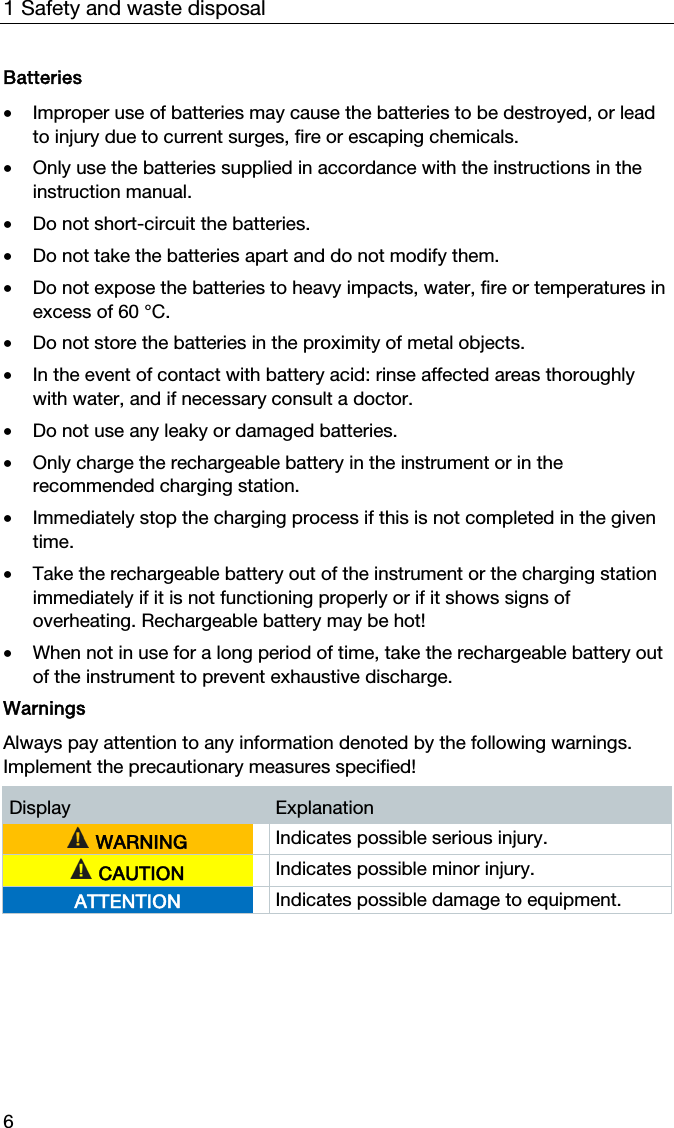
1 Safety and waste disposal 6 Batteries  • Improper use of batteries may cause the batteries to be destroyed, or lead to injury due to current surges, fire or escaping chemicals.   • Only use the batteries supplied in accordance with the instructions in the instruction manual.   • Do not short-circuit the batteries.   • Do not take the batteries apart and do not modify them.   • Do not expose the batteries to heavy impacts, water, fire or temperatures in excess of 60 °C.   • Do not store the batteries in the proximity of metal objects.   • In the event of contact with battery acid: rinse affected areas thoroughly with water, and if necessary consult a doctor.  • Do not use any leaky or damaged batteries.   • Only charge the rechargeable battery in the instrument or in the recommended charging station.   • Immediately stop the charging process if this is not completed in the given time.   • Take the rechargeable battery out of the instrument or the charging station immediately if it is not functioning properly or if it shows signs of overheating. Rechargeable battery may be hot!  • When not in use for a long period of time, take the rechargeable battery out of the instrument to prevent exhaustive discharge.  Warnings  Always pay attention to any information denoted by the following warnings. Implement the precautionary measures specified!  Display  Explanation  WARNING  Indicates possible serious injury.  CAUTION  Indicates possible minor injury. ATTENTION  Indicates possible damage to equipment.
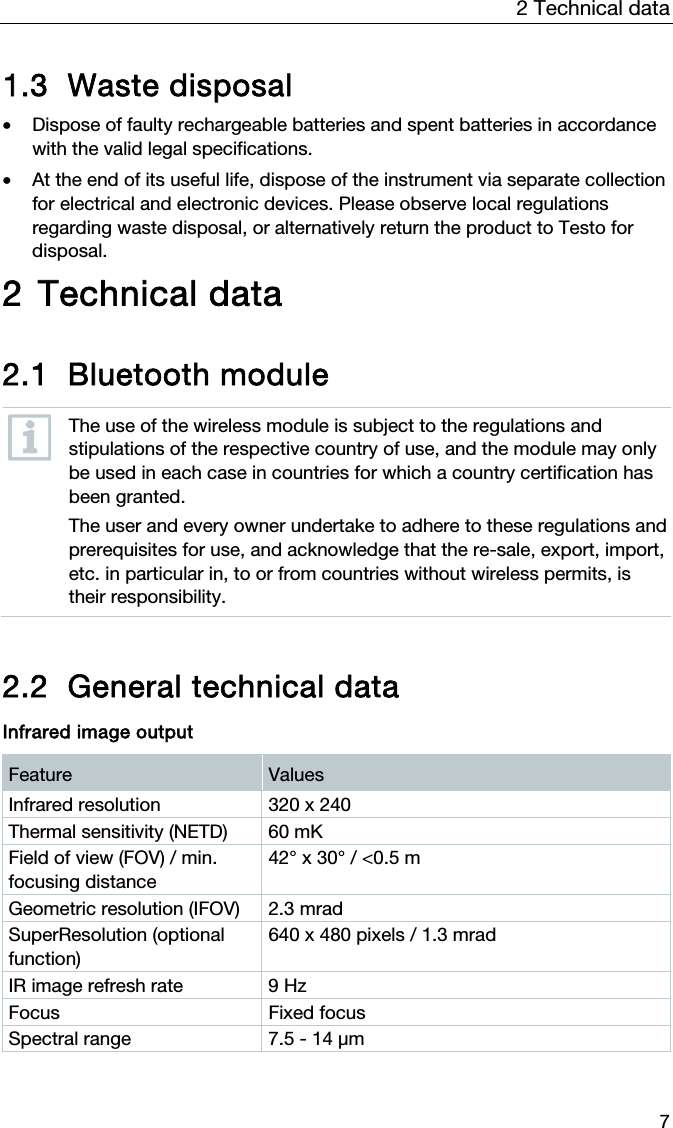
2 Technical data 7 1.3 Waste disposal  • Dispose of faulty rechargeable batteries and spent batteries in accordance with the valid legal specifications.  • At the end of its useful life, dispose of the instrument via separate collection for electrical and electronic devices. Please observe local regulations regarding waste disposal, or alternatively return the product to Testo for disposal.  2 Technical data  2.1 Bluetooth module   The use of the wireless module is subject to the regulations and stipulations of the respective country of use, and the module may only be used in each case in countries for which a country certification has been granted. The user and every owner undertake to adhere to these regulations and prerequisites for use, and acknowledge that the re-sale, export, import, etc. in particular in, to or from countries without wireless permits, is their responsibility.   2.2 General technical data  Infrared image output Feature  Values Infrared resolution  320 x 240 Thermal sensitivity (NETD)  60 mK Field of view (FOV) / min. focusing distance 42° x 30° / <0.5 m Geometric resolution (IFOV)  2.3 mrad  SuperResolution (optional function) 640 x 480 pixels / 1.3 mrad IR image refresh rate  9 Hz Focus Fixed focus Spectral range  7.5 - 14 μm
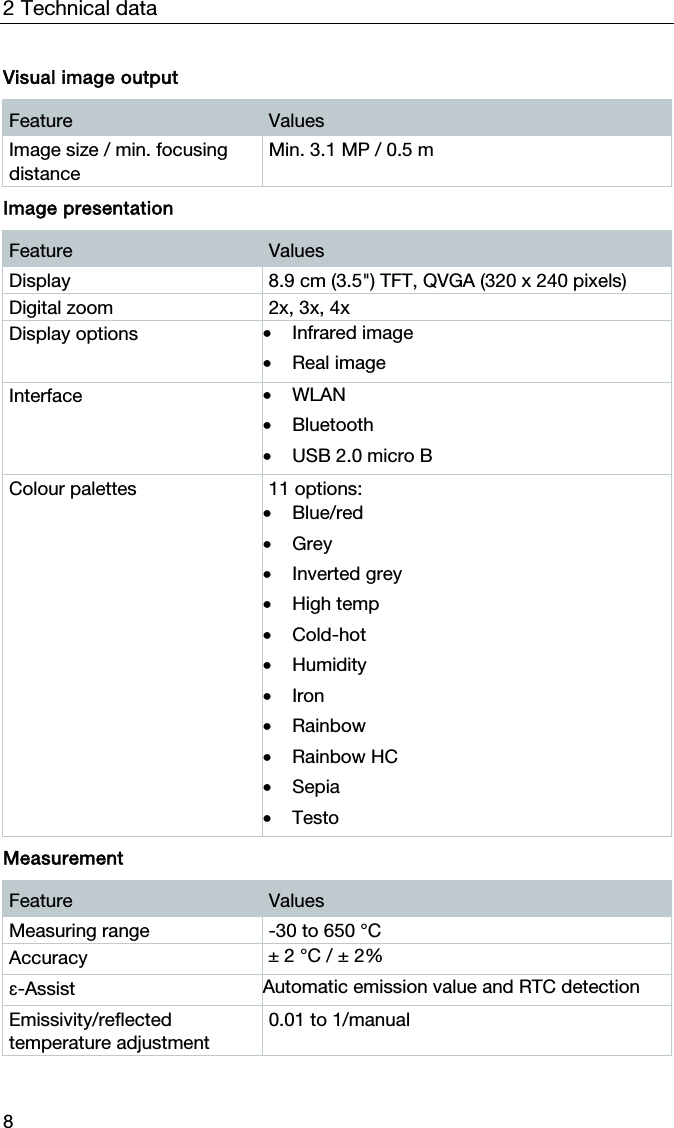
2 Technical data 8 Visual image output Feature  Values Image size / min. focusing distance Min. 3.1 MP / 0.5 m   Image presentation Feature  Values Display  8.9 cm (3.5") TFT, QVGA (320 x 240 pixels) Digital zoom  2x, 3x, 4x Display options  • Infrared image • Real image Interface  • WLAN • Bluetooth • USB 2.0 micro B Colour palettes  11 options:  • Blue/red • Grey • Inverted grey • High temp • Cold-hot • Humidity • Iron • Rainbow • Rainbow HC • Sepia • Testo   Measurement Feature  Values Measuring range  -30 to 650 °C Accuracy   ± 2 °C / ± 2% ɛ-Assist Automatic emission value and RTC detection Emissivity/reflected temperature adjustment 0.01 to 1/manual
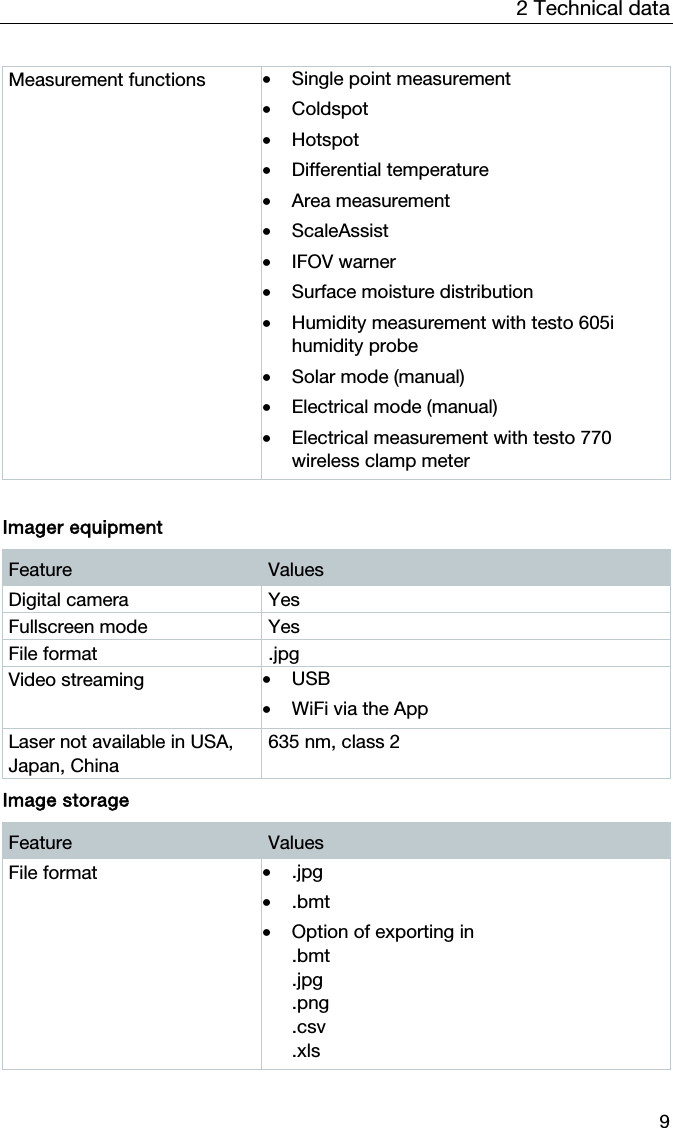
2 Technical data 9 Measurement functions  • Single point measurement • Coldspot • Hotspot • Differential temperature • Area measurement • ScaleAssist • IFOV warner • Surface moisture distribution • Humidity measurement with testo 605i humidity probe • Solar mode (manual) • Electrical mode (manual) • Electrical measurement with testo 770 wireless clamp meter   Imager equipment  Feature  Values Digital camera  Yes Fullscreen mode  Yes File format  .jpg Video streaming  • USB • WiFi via the App Laser not available in USA, Japan, China 635 nm, class 2   Image storage Feature  Values File format  • .jpg • .bmt • Option of exporting in .bmt .jpg .png .csv .xls
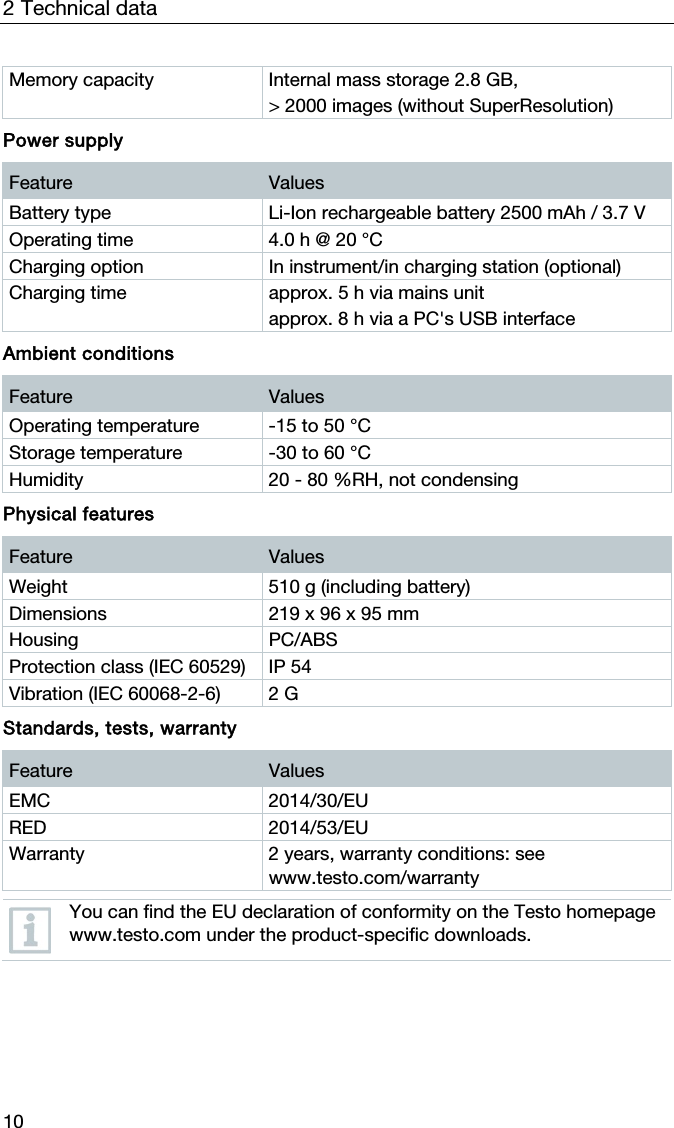
2 Technical data 10 Memory capacity  Internal mass storage 2.8 GB,  > 2000 images (without SuperResolution)   Power supply Feature  Values Battery type  Li-Ion rechargeable battery 2500 mAh / 3.7 V Operating time  4.0 h @ 20 °C Charging option  In instrument/in charging station (optional) Charging time  approx. 5 h via mains unit approx. 8 h via a PC's USB interface   Ambient conditions Feature  Values Operating temperature  -15 to 50 °C  Storage temperature  -30 to 60 °C Humidity  20 - 80 %RH, not condensing   Physical features Feature  Values Weight  510 g (including battery) Dimensions  219 x 96 x 95 mm Housing PC/ABS Protection class (IEC 60529)  IP 54 Vibration (IEC 60068-2-6)  2 G   Standards, tests, warranty Feature  Values EMC 2014/30/EU RED 2014/53/EU Warranty  2 years, warranty conditions: see www.testo.com/warranty   You can find the EU declaration of conformity on the Testo homepage www.testo.com under the product-specific downloads.
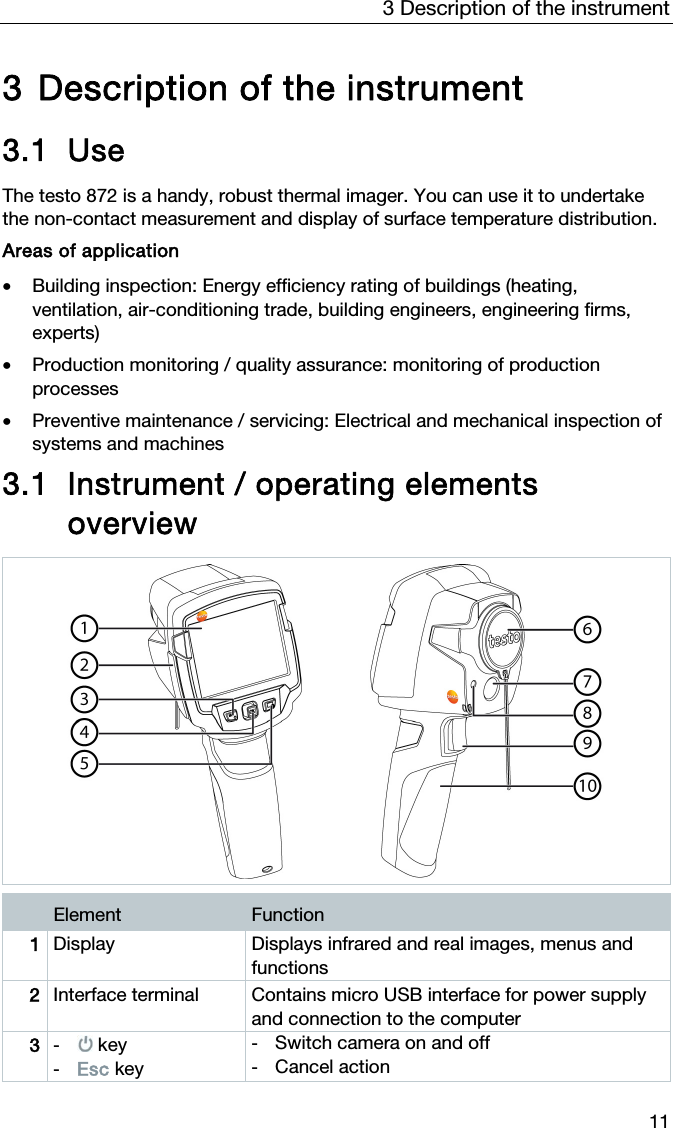
3 Description of the instrument 11 3 Description of the instrument  3.1 Use  The testo 872 is a handy, robust thermal imager. You can use it to undertake the non-contact measurement and display of surface temperature distribution.  Areas of application  • Building inspection: Energy efficiency rating of buildings (heating, ventilation, air-conditioning trade, building engineers, engineering firms, experts)  • Production monitoring / quality assurance: monitoring of production processes  • Preventive maintenance / servicing: Electrical and mechanical inspection of systems and machines   3.1 Instrument / operating elements overview     Element  Function 1  Display Displays infrared and real images, menus and functions 2  Interface terminal  Contains micro USB interface for power supply and connection to the computer 3  -   key -  Esc key -  Switch camera on and off -  Cancel action
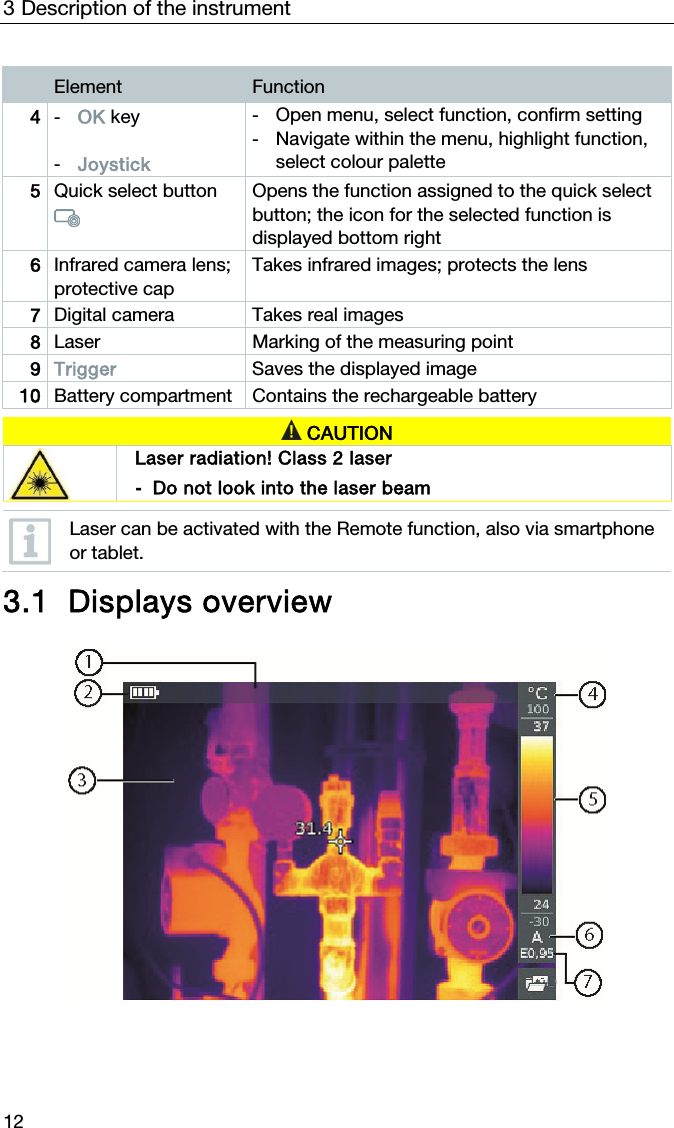
3 Description of the instrument 12  Element  Function 4  -  OK key  -  Joystick -  Open menu, select function, confirm setting -  Navigate within the menu, highlight function, select colour palette 5  Quick select button  Opens the function assigned to the quick select button; the icon for the selected function is displayed bottom right 6  Infrared camera lens; protective cap Takes infrared images; protects the lens 7  Digital camera  Takes real images 8  Laser Marking of the measuring point  9  Trigger  Saves the displayed image 10  Battery compartment  Contains the rechargeable battery   CAUTION  Laser radiation! Class 2 laser  -  Do not look into the laser beam   Laser can be activated with the Remote function, also via smartphone or tablet.   3.1 Displays overview
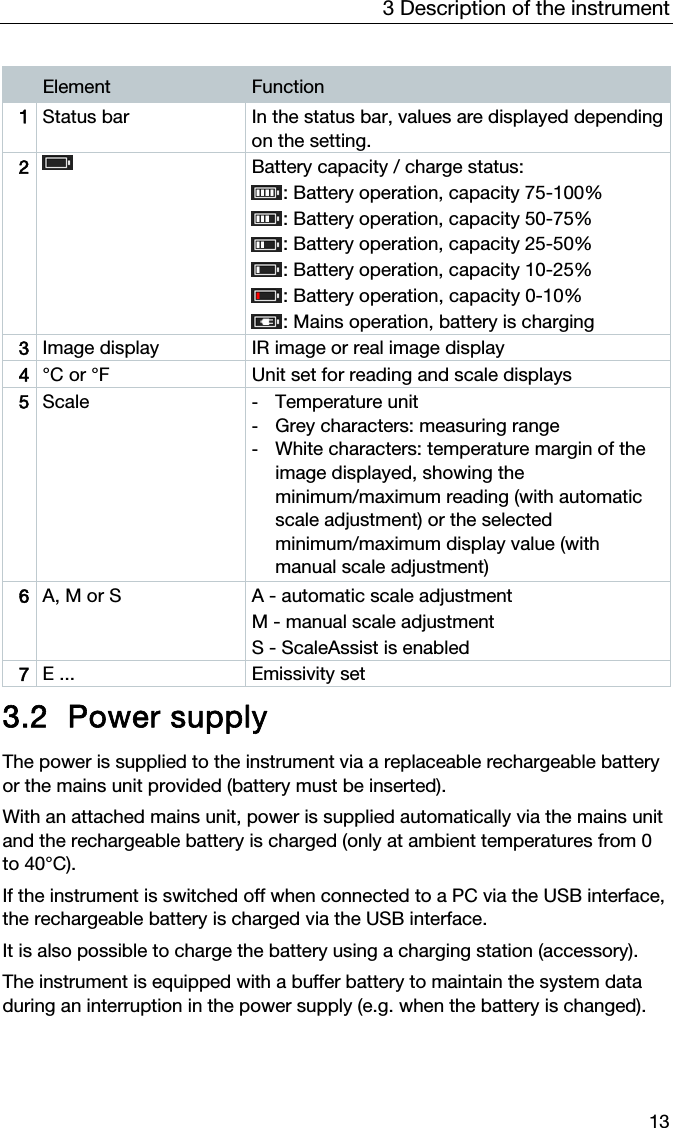
3 Description of the instrument 13  Element  Function 1  Status bar  In the status bar, values are displayed depending on the setting. 2   Battery capacity / charge status: : Battery operation, capacity 75-100% : Battery operation, capacity 50-75% : Battery operation, capacity 25-50% : Battery operation, capacity 10-25% : Battery operation, capacity 0-10% : Mains operation, battery is charging 3  Image display  IR image or real image display  4  °C or °F  Unit set for reading and scale displays 5  Scale  -  Temperature unit -  Grey characters: measuring range -  White characters: temperature margin of the image displayed, showing the minimum/maximum reading (with automatic scale adjustment) or the selected minimum/maximum display value (with manual scale adjustment) 6  A, M or S  A - automatic scale adjustment M - manual scale adjustment S - ScaleAssist is enabled 7  E ...  Emissivity set   3.2 Power supply  The power is supplied to the instrument via a replaceable rechargeable battery or the mains unit provided (battery must be inserted).  With an attached mains unit, power is supplied automatically via the mains unit and the rechargeable battery is charged (only at ambient temperatures from 0 to 40°C).   If the instrument is switched off when connected to a PC via the USB interface, the rechargeable battery is charged via the USB interface.  It is also possible to charge the battery using a charging station (accessory).  The instrument is equipped with a buffer battery to maintain the system data during an interruption in the power supply (e.g. when the battery is changed).
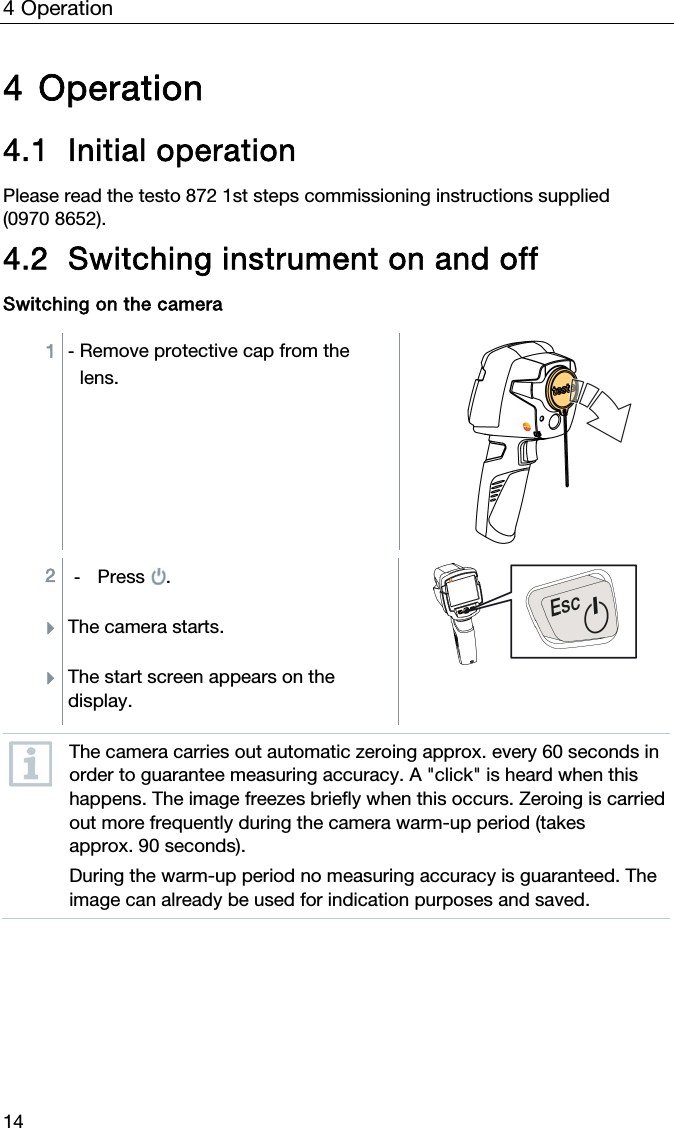
4 Operation 14 4 Operation  4.1 Initial operation  Please read the testo 872 1st steps commissioning instructions supplied (0970 8652).  4.2 Switching instrument on and off  Switching on the camera  1  - Remove protective cap from the lens.  2  -  Press .  The camera starts. The start screen appears on the display.   The camera carries out automatic zeroing approx. every 60 seconds in order to guarantee measuring accuracy. A "click" is heard when this happens. The image freezes briefly when this occurs. Zeroing is carried out more frequently during the camera warm-up period (takes approx. 90 seconds).  During the warm-up period no measuring accuracy is guaranteed. The image can already be used for indication purposes and saved.
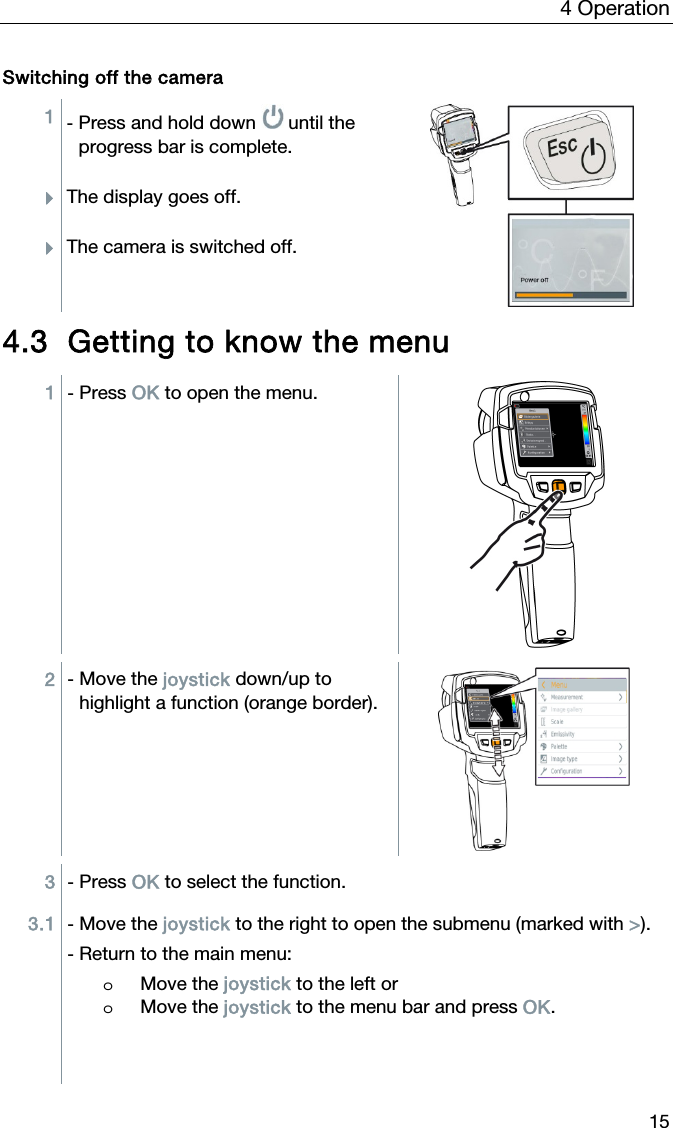
4 Operation 15 Switching off the camera 1  - Press and hold down   until the progress bar is complete. The display goes off. The camera is switched off.   4.3 Getting to know the menu  1  - Press OK to open the menu.  2  - Move the joystick down/up to highlight a function (orange border).  3  - Press OK to select the function. 3.1  - Move the joystick to the right to open the submenu (marked with >). - Return to the main menu: o Move the joystick to the left or o Move the joystick to the menu bar and press OK.
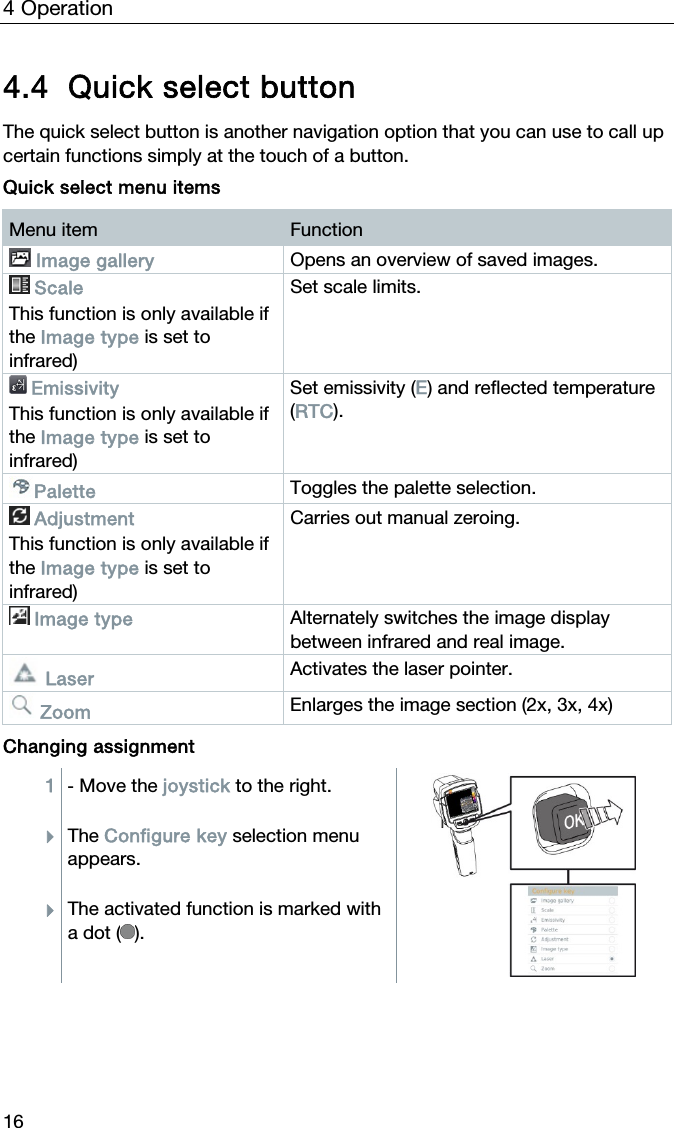
4 Operation 16  4.4 Quick select button  The quick select button is another navigation option that you can use to call up certain functions simply at the touch of a button.  Quick select menu items Menu item  Function  Image gallery  Opens an overview of saved images.  Scale This function is only available if the Image type is set to infrared) Set scale limits.  Emissivity This function is only available if the Image type is set to infrared) Set emissivity (E) and reflected temperature (RTC). Palette  Toggles the palette selection.  Adjustment This function is only available if the Image type is set to infrared) Carries out manual zeroing.  Image type Alternately switches the image display between infrared and real image.  Laser  Activates the laser pointer.  Zoom Enlarges the image section (2x, 3x, 4x)   Changing assignment 1  - Move the joystick to the right. The Configure key selection menu appears. The activated function is marked with a dot ( ).
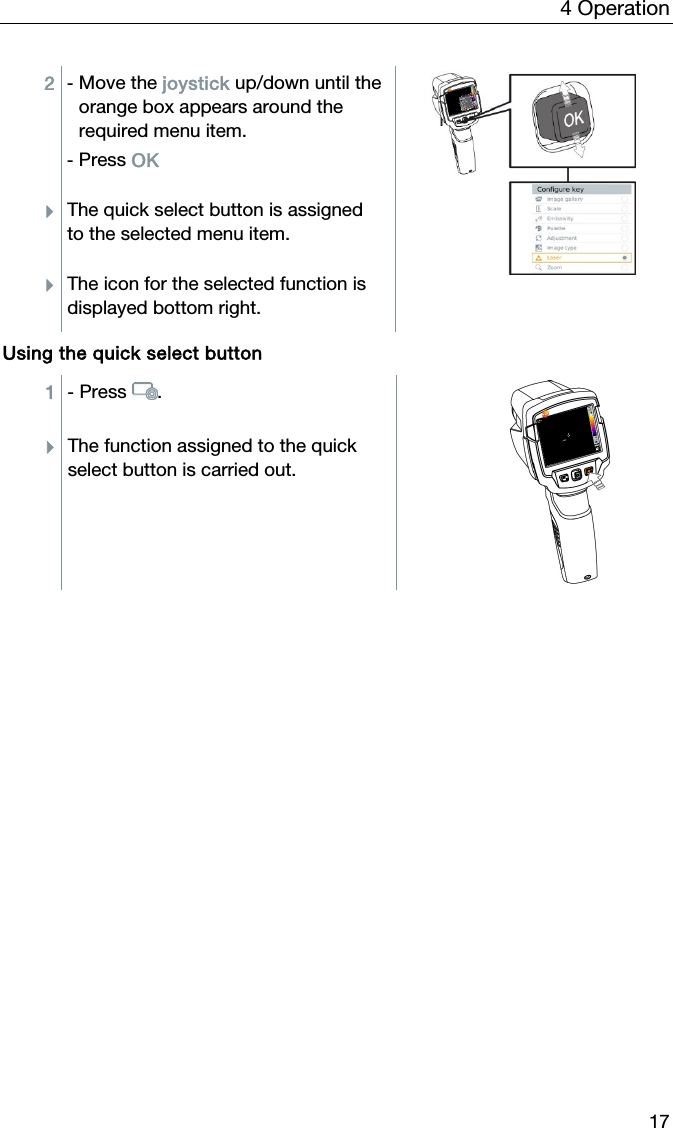
4 Operation 17 2  - Move the joystick up/down until the orange box appears around the required menu item. - Press OK  The quick select button is assigned to the selected menu item. The icon for the selected function is displayed bottom right.   Using the quick select button 1  - Press . The function assigned to the quick select button is carried out.
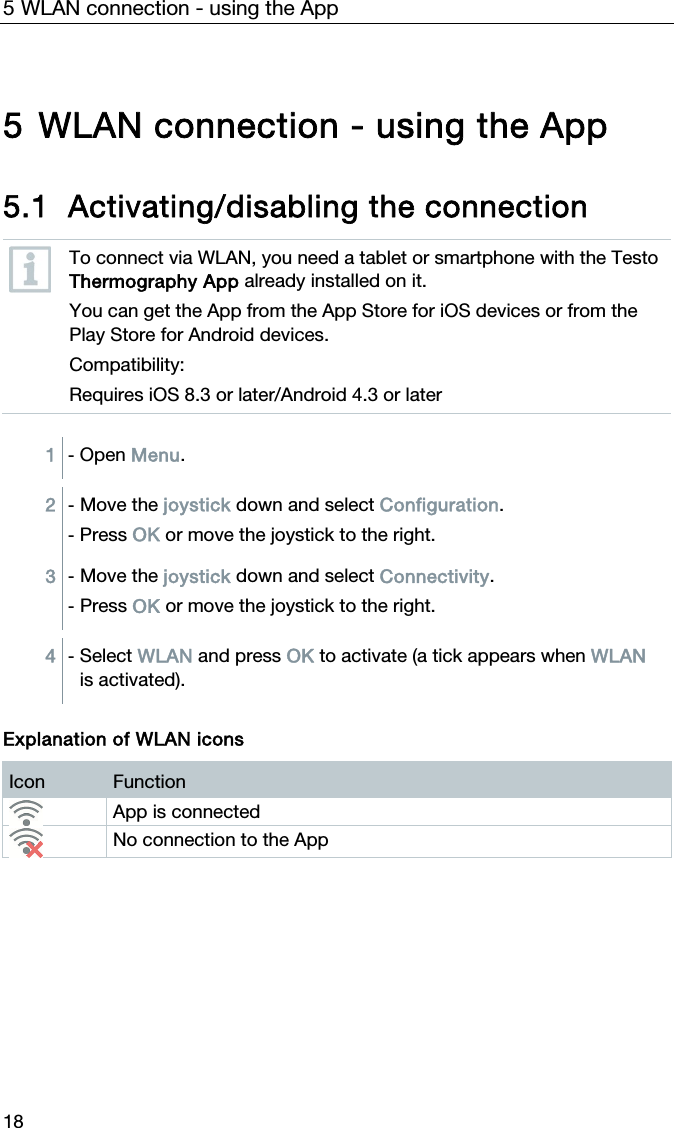
5 WLAN connection - using the App 18 5 WLAN connection - using the App  5.1 Activating/disabling the connection  To connect via WLAN, you need a tablet or smartphone with the Testo Thermography App already installed on it. You can get the App from the App Store for iOS devices or from the Play Store for Android devices. Compatibility: Requires iOS 8.3 or later/Android 4.3 or later  1  - Open Menu.  2  - Move the joystick down and select Configuration. - Press OK or move the joystick to the right. 3  - Move the joystick down and select Connectivity. - Press OK or move the joystick to the right.  4  - Select WLAN and press OK to activate (a tick appears when WLAN is activated).  Explanation of WLAN icons Icon  Function  App is connected  No connection to the App
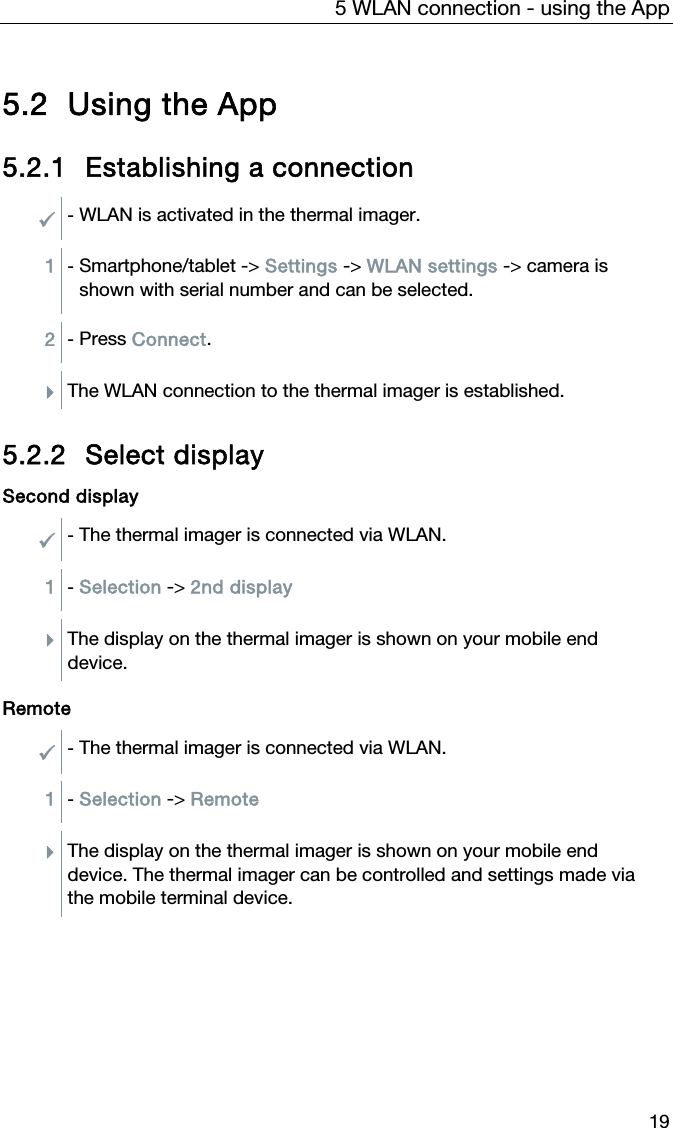
5 WLAN connection - using the App 19 5.2 Using the App  5.2.1 Establishing a connection - WLAN is activated in the thermal imager.  1  - Smartphone/tablet -> Settings -> WLAN settings -> camera is shown with serial number and can be selected.  2  - Press Connect.  The WLAN connection to the thermal imager is established.   5.2.2 Select display Second display - The thermal imager is connected via WLAN.  1  - Selection -> 2nd display  The display on the thermal imager is shown on your mobile end device.    Remote - The thermal imager is connected via WLAN.  1  - Selection -> Remote  The display on the thermal imager is shown on your mobile end device. The thermal imager can be controlled and settings made via the mobile terminal device.
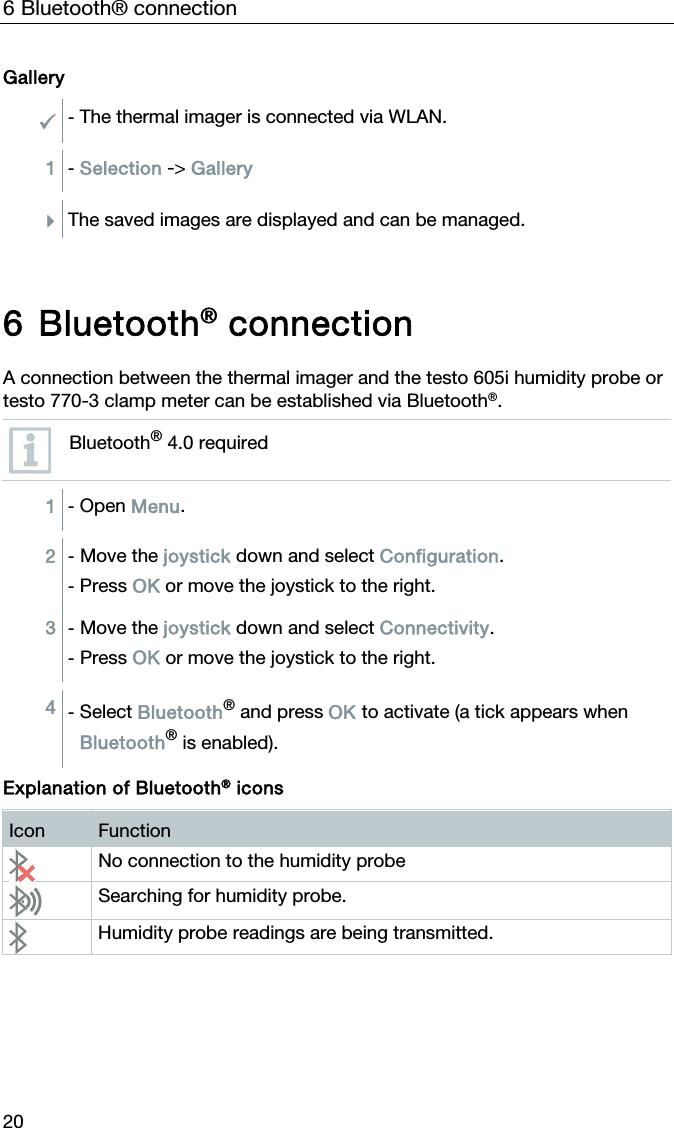
6 Bluetooth® connection 20 Gallery - The thermal imager is connected via WLAN.  1  - Selection -> Gallery   The saved images are displayed and can be managed.   6 Bluetooth® connection  A connection between the thermal imager and the testo 605i humidity probe or testo 770-3 clamp meter can be established via Bluetooth®.  Bluetooth® 4.0 required  1  - Open Menu.  2  - Move the joystick down and select Configuration. - Press OK or move the joystick to the right. 3  - Move the joystick down and select Connectivity. - Press OK or move the joystick to the right.  4  - Select Bluetooth® and press OK to activate (a tick appears when Bluetooth® is enabled).  Explanation of Bluetooth® icons Icon  Function  No connection to the humidity probe  Searching for humidity probe.  Humidity probe readings are being transmitted.
6 Bluetooth® connection 21 When connected to the clamp meter  Clamp meter readings are displayed in the header.   Readings are only transferred if the current, voltage or power is set on the clamp meter.  When connected to the humidity probe The thermal imager switches automatically to humidity measurement.  Humidity probe readings are displayed in the header.   If a WLAN connection is enabled in addition, the Bluetooth data transfer is continued. However, it is not possible to establish a new connection to a humidity probe.
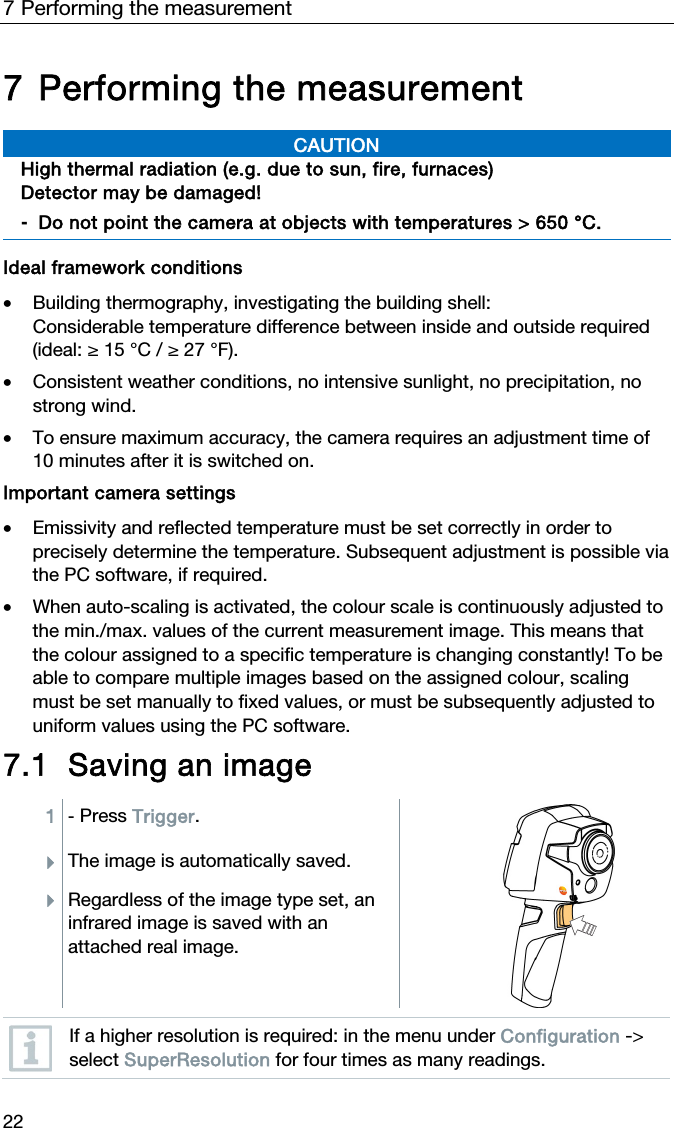
7 Performing the measurement 22 7 Performing the measurement  CAUTION High thermal radiation (e.g. due to sun, fire, furnaces) Detector may be damaged! -  Do not point the camera at objects with temperatures > 650 °C.    Ideal framework conditions  • Building thermography, investigating the building shell:  Considerable temperature difference between inside and outside required (ideal: ≥ 15 °C / ≥ 27 °F).   • Consistent weather conditions, no intensive sunlight, no precipitation, no strong wind.  • To ensure maximum accuracy, the camera requires an adjustment time of 10 minutes after it is switched on.  Important camera settings  • Emissivity and reflected temperature must be set correctly in order to precisely determine the temperature. Subsequent adjustment is possible via the PC software, if required.  • When auto-scaling is activated, the colour scale is continuously adjusted to the min./max. values of the current measurement image. This means that the colour assigned to a specific temperature is changing constantly! To be able to compare multiple images based on the assigned colour, scaling must be set manually to fixed values, or must be subsequently adjusted to uniform values using the PC software.  7.1 Saving an image  1  - Press Trigger. The image is automatically saved. Regardless of the image type set, an infrared image is saved with an attached real image.    If a higher resolution is required: in the menu under Configuration -> select SuperResolution for four times as many readings.
7 Performing the measurement 23  7.2 Setting measuring functions  1  - Open the Measurement submenu. The submenu with the measurement functions opens: • Pixel mark:  o Single point measurement: the temperature measuring point in the centre of the image is marked with white crosshairs and the value is displayed. In saved images, the crosshairs can be moved using the joystick in order to read the value of other measuring points.  o Coldspot, Hotspot: the lowest or highest temperature measuring point is marked with blue or red crosshairs and the value is displayed.  • Min/Max on Area:  o Min/max on area: the minimum, maximum and mean values for a selected area are displayed. o Coldspot, Hotspot: the lowest or highest temperature measuring point within the range selection is marked with blue or red crosshairs and the value is displayed.  • Measuring range: choose between two temperature ranges.  • Differential temperature: identifies the difference between two temperatures. • External measurement values: select Humidity, Current, Voltage, Solar, Power, None. • IFOV: the IFOV warner shows what can be measured accurately from a specific distance. • Zoom: enlarges the image section (2x, 3x, 4x)  2  - Move the joystick up/down to select the required function and then press OK.
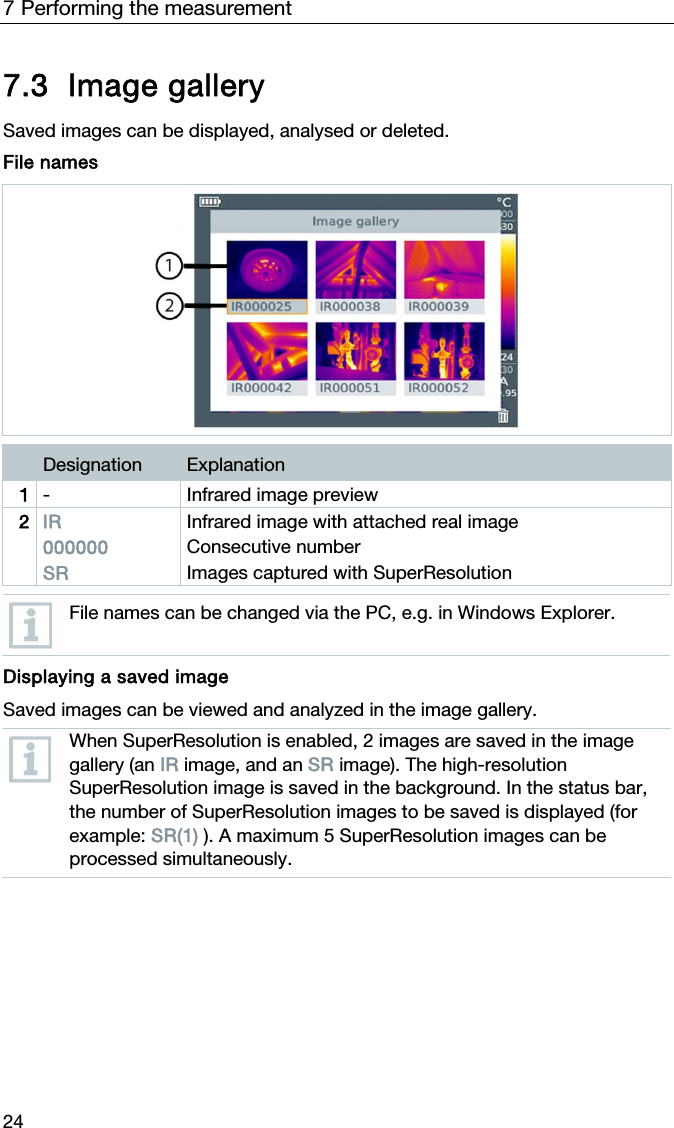
7 Performing the measurement 24 7.3 Image gallery  Saved images can be displayed, analysed or deleted.  File names    Designation  Explanation 1  - Infrared image preview 2  IR 000000 SR Infrared image with attached real image  Consecutive number Images captured with SuperResolution   File names can be changed via the PC, e.g. in Windows Explorer.   Displaying a saved image Saved images can be viewed and analyzed in the image gallery.   When SuperResolution is enabled, 2 images are saved in the image gallery (an IR image, and an SR image). The high-resolution SuperResolution image is saved in the background. In the status bar, the number of SuperResolution images to be saved is displayed (for example: SR(1) ). A maximum 5 SuperResolution images can be processed simultaneously.
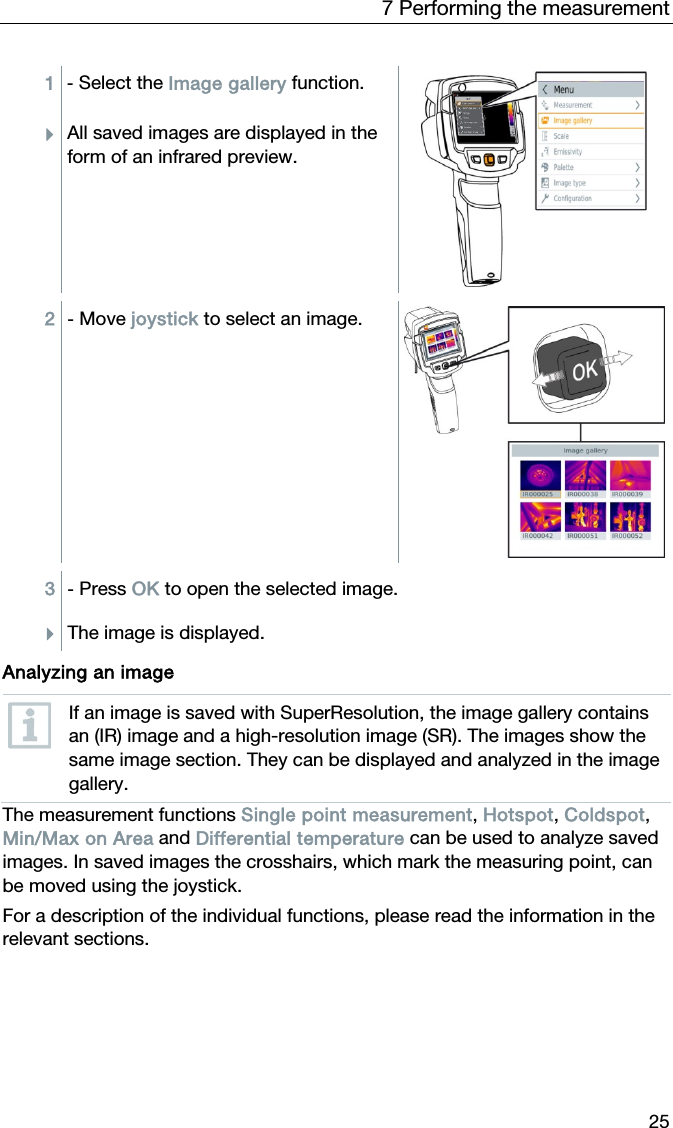
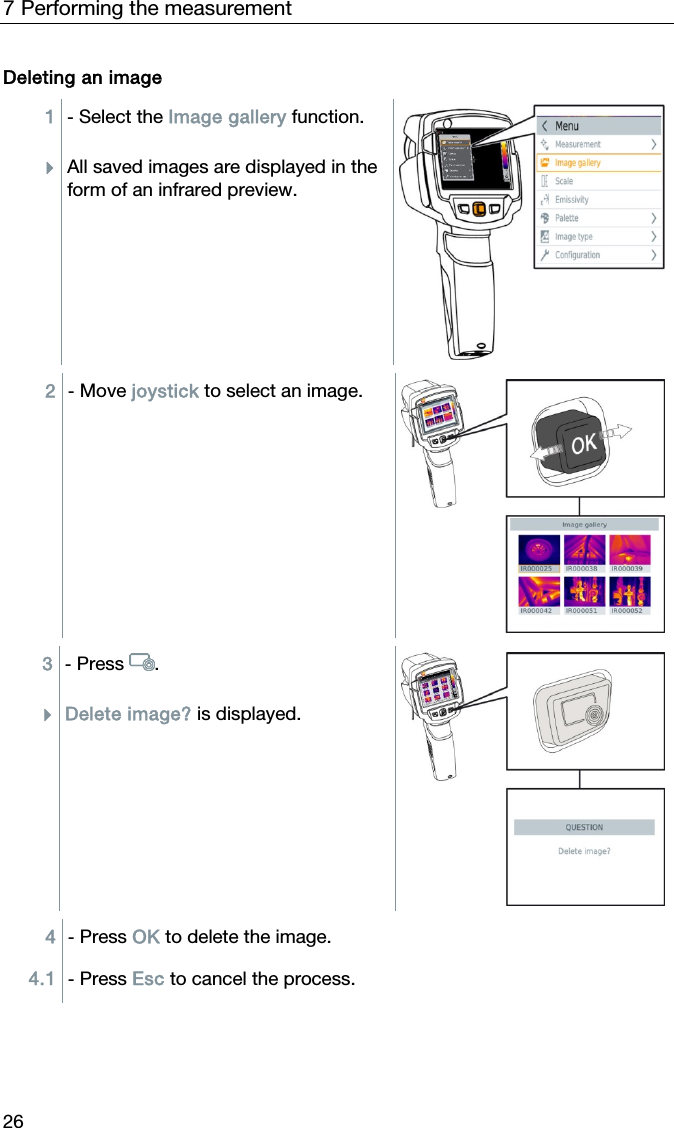
7 Performing the measurement 25 1  - Select the Image gallery function. All saved images are displayed in the form of an infrared preview.  2  - Move joystick to select an image.  3  - Press OK to open the selected image. The image is displayed.   Analyzing an image  If an image is saved with SuperResolution, the image gallery contains an (IR) image and a high-resolution image (SR). The images show the same image section. They can be displayed and analyzed in the image gallery. The measurement functions Single point measurement, Hotspot, Coldspot, Min/Max on Area and Differential temperature can be used to analyze saved images. In saved images the crosshairs, which mark the measuring point, can be moved using the joystick. For a description of the individual functions, please read the information in the relevant sections.
7 Performing the measurement 26 Deleting an image 1  - Select the Image gallery function.  All saved images are displayed in the form of an infrared preview.  2  - Move joystick to select an image.   3  - Press .  Delete image? is displayed.  4  - Press OK to delete the image. 4.1  - Press Esc to cancel the process.
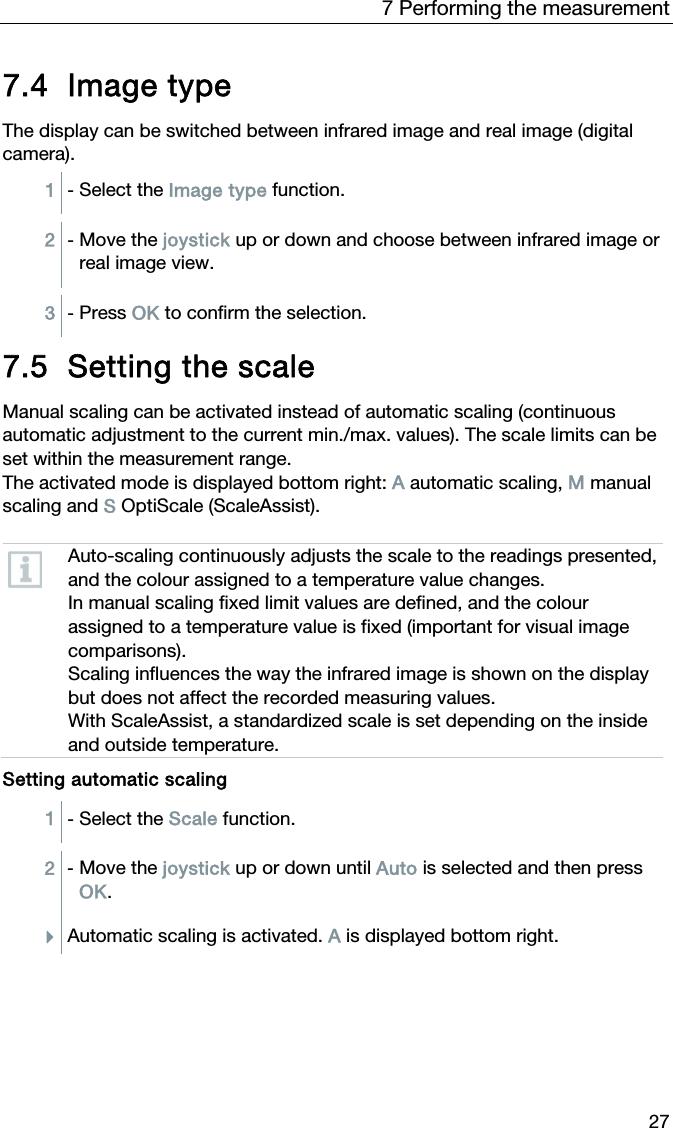
7 Performing the measurement 27 7.4 Image type  The display can be switched between infrared image and real image (digital camera). 1  - Select the Image type function.  2  - Move the joystick up or down and choose between infrared image or real image view.   3  - Press OK to confirm the selection.   7.5 Setting the scale  Manual scaling can be activated instead of automatic scaling (continuous automatic adjustment to the current min./max. values). The scale limits can be set within the measurement range. The activated mode is displayed bottom right: A automatic scaling, M manual scaling and S OptiScale (ScaleAssist).    Auto-scaling continuously adjusts the scale to the readings presented, and the colour assigned to a temperature value changes. In manual scaling fixed limit values are defined, and the colour assigned to a temperature value is fixed (important for visual image comparisons). Scaling influences the way the infrared image is shown on the display but does not affect the recorded measuring values. With ScaleAssist, a standardized scale is set depending on the inside and outside temperature.   Setting automatic scaling 1  - Select the Scale function.  2  - Move the joystick up or down until Auto is selected and then press OK. Automatic scaling is activated. A is displayed bottom right.
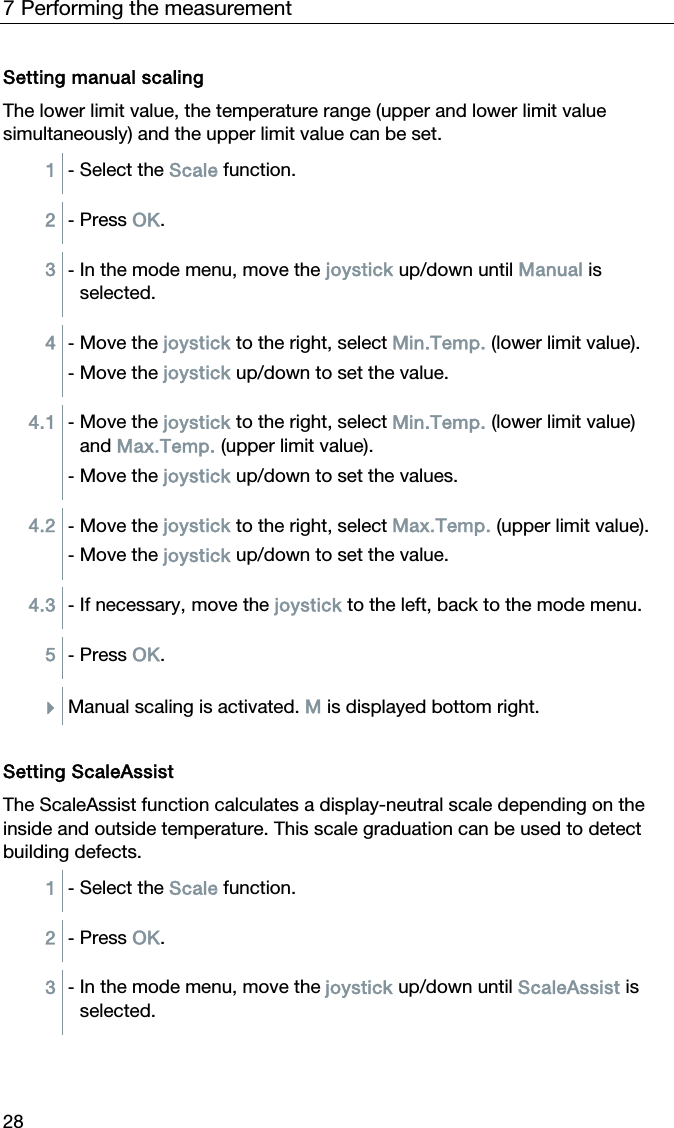
7 Performing the measurement 28 Setting manual scaling The lower limit value, the temperature range (upper and lower limit value simultaneously) and the upper limit value can be set. 1  - Select the Scale function.  2  - Press OK.  3  - In the mode menu, move the joystick up/down until Manual is selected.  4  - Move the joystick to the right, select Min.Temp. (lower limit value). - Move the joystick up/down to set the value.  4.1  - Move the joystick to the right, select Min.Temp. (lower limit value) and Max.Temp. (upper limit value). - Move the joystick up/down to set the values.  4.2  - Move the joystick to the right, select Max.Temp. (upper limit value). - Move the joystick up/down to set the value.  4.3  - If necessary, move the joystick to the left, back to the mode menu.  5  - Press OK.  Manual scaling is activated. M is displayed bottom right.   Setting ScaleAssist The ScaleAssist function calculates a display-neutral scale depending on the inside and outside temperature. This scale graduation can be used to detect building defects. 1  - Select the Scale function.  2  - Press OK.  3  - In the mode menu, move the joystick up/down until ScaleAssist is selected.
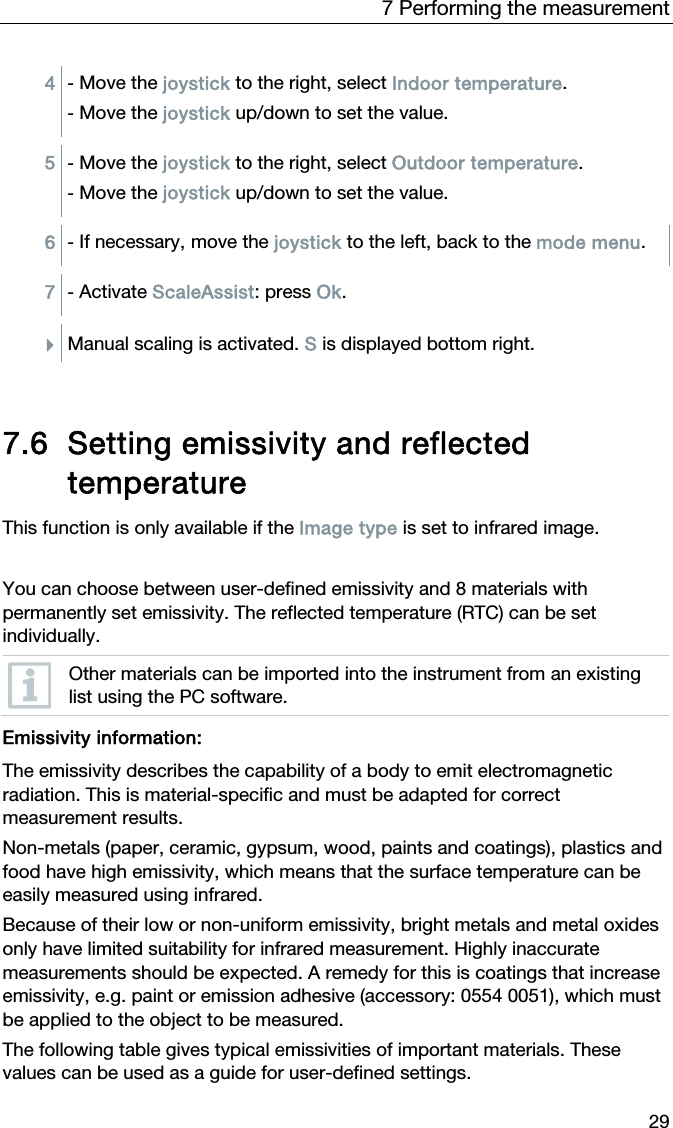
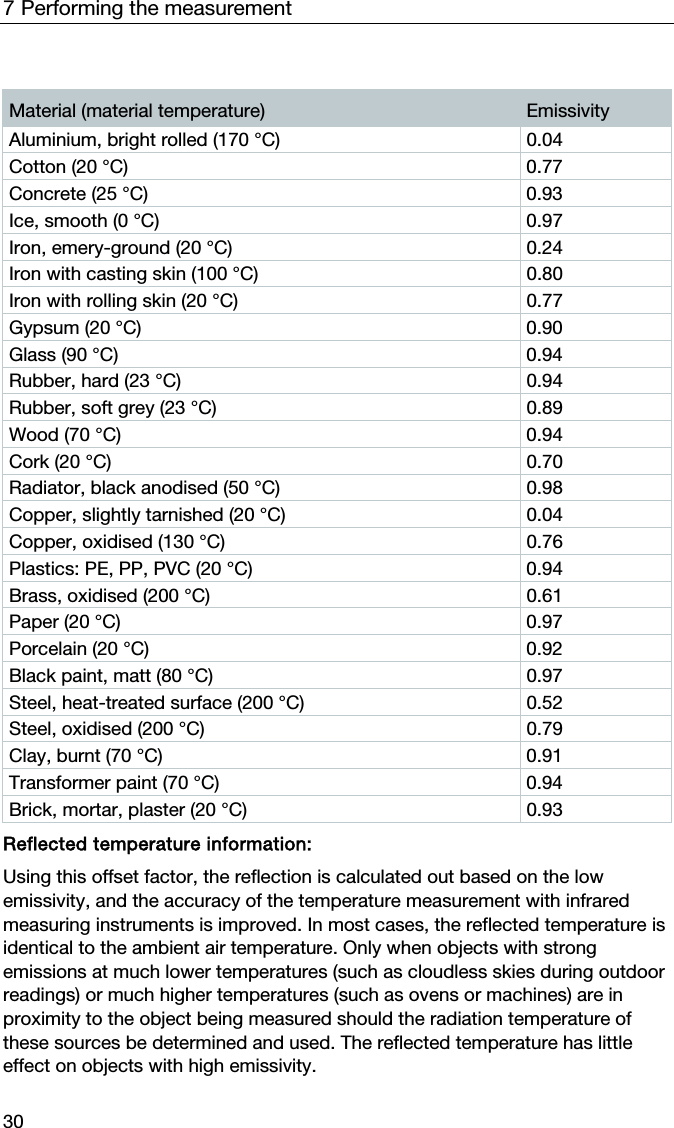
7 Performing the measurement 29 4  - Move the joystick to the right, select Indoor temperature.  - Move the joystick up/down to set the value.  5  - Move the joystick to the right, select Outdoor temperature.  - Move the joystick up/down to set the value.  6  - If necessary, move the joystick to the left, back to the mode menu.  7  - Activate ScaleAssist: press Ok.   Manual scaling is activated. S is displayed bottom right.    7.6 Setting emissivity and reflected temperature  This function is only available if the Image type is set to infrared image.   You can choose between user-defined emissivity and 8 materials with permanently set emissivity. The reflected temperature (RTC) can be set individually.  Other materials can be imported into the instrument from an existing list using the PC software.   Emissivity information: The emissivity describes the capability of a body to emit electromagnetic radiation. This is material-specific and must be adapted for correct measurement results. Non-metals (paper, ceramic, gypsum, wood, paints and coatings), plastics and food have high emissivity, which means that the surface temperature can be easily measured using infrared. Because of their low or non-uniform emissivity, bright metals and metal oxides only have limited suitability for infrared measurement. Highly inaccurate measurements should be expected. A remedy for this is coatings that increase emissivity, e.g. paint or emission adhesive (accessory: 0554 0051), which must be applied to the object to be measured. The following table gives typical emissivities of important materials. These values can be used as a guide for user-defined settings.
7 Performing the measurement 30  Material (material temperature)  Emissivity Aluminium, bright rolled (170 °C)  0.04 Cotton (20 °C)  0.77 Concrete (25 °C)  0.93 Ice, smooth (0 °C)  0.97 Iron, emery-ground (20 °C)  0.24 Iron with casting skin (100 °C)  0.80 Iron with rolling skin (20 °C)  0.77 Gypsum (20 °C)  0.90 Glass (90 °C)  0.94 Rubber, hard (23 °C)  0.94 Rubber, soft grey (23 °C)  0.89 Wood (70 °C)  0.94 Cork (20 °C)  0.70 Radiator, black anodised (50 °C)  0.98 Copper, slightly tarnished (20 °C)  0.04 Copper, oxidised (130 °C)  0.76 Plastics: PE, PP, PVC (20 °C)  0.94 Brass, oxidised (200 °C)  0.61 Paper (20 °C)  0.97 Porcelain (20 °C)  0.92 Black paint, matt (80 °C)  0.97 Steel, heat-treated surface (200 °C)  0.52 Steel, oxidised (200 °C)  0.79 Clay, burnt (70 °C)  0.91 Transformer paint (70 °C)  0.94 Brick, mortar, plaster (20 °C)   0.93   Reflected temperature information: Using this offset factor, the reflection is calculated out based on the low emissivity, and the accuracy of the temperature measurement with infrared measuring instruments is improved. In most cases, the reflected temperature is identical to the ambient air temperature. Only when objects with strong emissions at much lower temperatures (such as cloudless skies during outdoor readings) or much higher temperatures (such as ovens or machines) are in proximity to the object being measured should the radiation temperature of these sources be determined and used. The reflected temperature has little effect on objects with high emissivity.
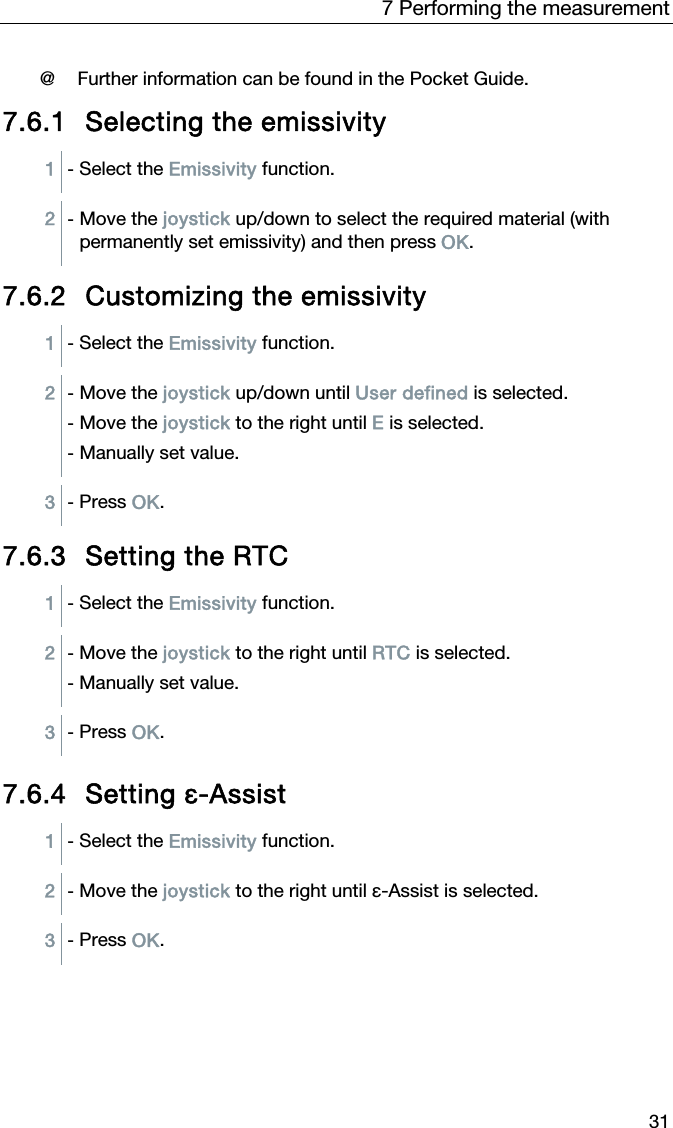
7 Performing the measurement 31  @ Further information can be found in the Pocket Guide.  7.6.1 Selecting the emissivity 1  - Select the Emissivity function.  2  - Move the joystick up/down to select the required material (with permanently set emissivity) and then press OK. 7.6.2 Customizing the emissivity 1  - Select the Emissivity function.  2  - Move the joystick up/down until User defined is selected. - Move the joystick to the right until E is selected. - Manually set value.  3  - Press OK. 7.6.3 Setting the RTC 1  - Select the Emissivity function.  2  - Move the joystick to the right until RTC is selected. - Manually set value.  3  - Press OK.  7.6.4 Setting ε-Assist 1  - Select the Emissivity function.  2  - Move the joystick to the right until ε-Assist is selected.  3  - Press OK.
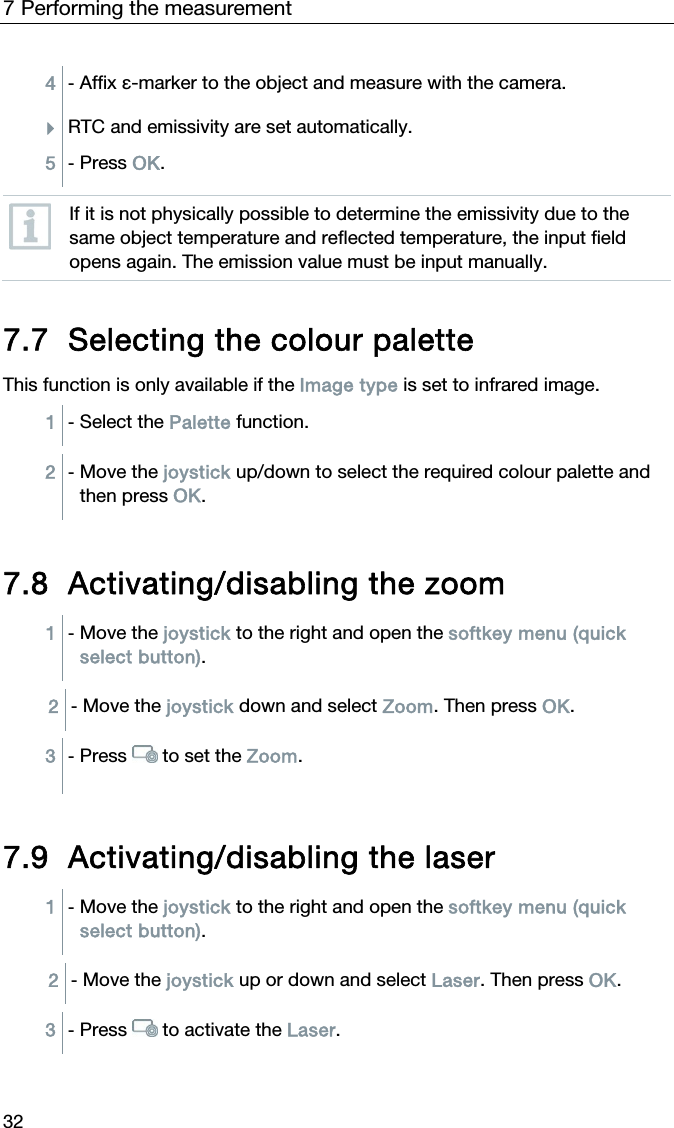
7 Performing the measurement 32 4  - Affix ε-marker to the object and measure with the camera. RTC and emissivity are set automatically. 5  - Press OK.   If it is not physically possible to determine the emissivity due to the same object temperature and reflected temperature, the input field opens again. The emission value must be input manually.     7.7 Selecting the colour palette  This function is only available if the Image type is set to infrared image.  1  - Select the Palette function.  2  - Move the joystick up/down to select the required colour palette and then press OK.   7.8 Activating/disabling the zoom 1  - Move the joystick to the right and open the softkey menu (quick select button).  2  - Move the joystick down and select Zoom. Then press OK.  3  - Press   to set the Zoom.   7.9 Activating/disabling the laser 1  - Move the joystick to the right and open the softkey menu (quick select button).  2  - Move the joystick up or down and select Laser. Then press OK.  3  - Press   to activate the Laser.
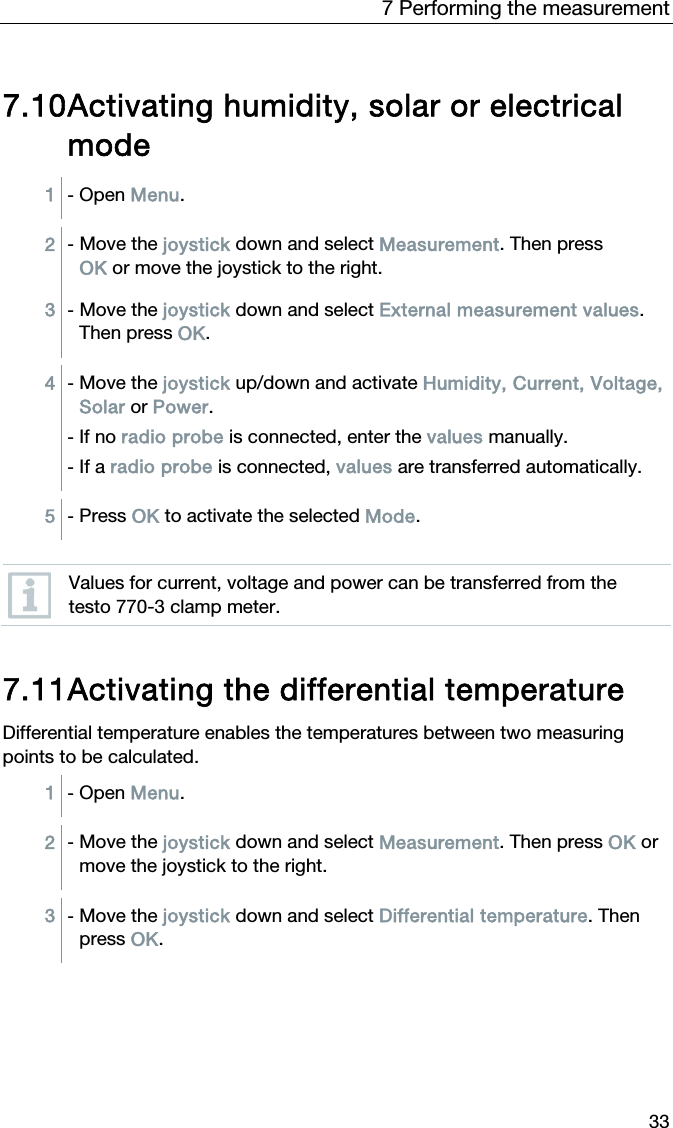
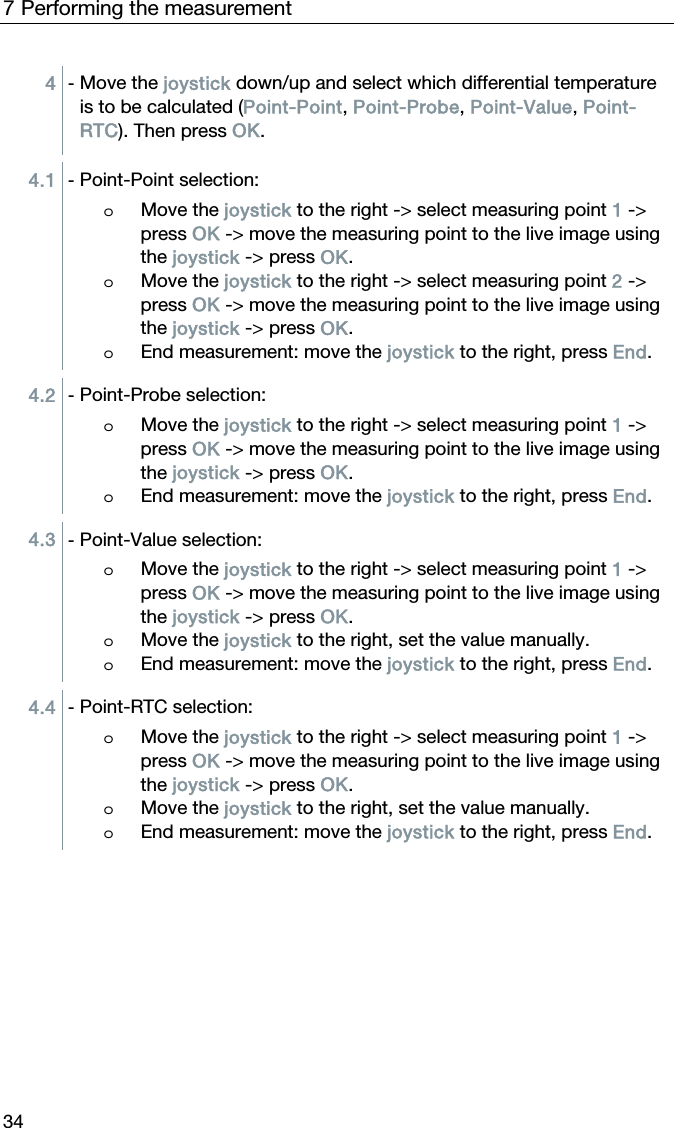
7 Performing the measurement 33  7.10 Activating humidity, solar or electrical mode 1  - Open Menu.  2  - Move the joystick down and select Measurement. Then press OK or move the joystick to the right. 3  - Move the joystick down and select External measurement values. Then press OK.  4  - Move the joystick up/down and activate Humidity, Current, Voltage, Solar or Power. - If no radio probe is connected, enter the values manually. - If a radio probe is connected, values are transferred automatically.  5  - Press OK to activate the selected Mode.   Values for current, voltage and power can be transferred from the testo 770-3 clamp meter.   7.11 Activating the differential temperature Differential temperature enables the temperatures between two measuring points to be calculated.  1  - Open Menu.  2  - Move the joystick down and select Measurement. Then press OK or move the joystick to the right.  3  - Move the joystick down and select Differential temperature. Then press OK.
7 Performing the measurement 34 4  - Move the joystick down/up and select which differential temperature is to be calculated (Point-Point, Point-Probe, Point-Value, Point-RTC). Then press OK.  4.1  - Point-Point selection:  o Move the joystick to the right -> select measuring point 1 -> press OK -> move the measuring point to the live image using the joystick -> press OK. o Move the joystick to the right -> select measuring point 2 -> press OK -> move the measuring point to the live image using the joystick -> press OK. o End measurement: move the joystick to the right, press End.  4.2  - Point-Probe selection:  o Move the joystick to the right -> select measuring point 1 -> press OK -> move the measuring point to the live image using the joystick -> press OK. o End measurement: move the joystick to the right, press End.  4.3  - Point-Value selection:  o Move the joystick to the right -> select measuring point 1 -> press OK -> move the measuring point to the live image using the joystick -> press OK. o Move the joystick to the right, set the value manually. o End measurement: move the joystick to the right, press End.  4.4  - Point-RTC selection:  o Move the joystick to the right -> select measuring point 1 -> press OK -> move the measuring point to the live image using the joystick -> press OK. o Move the joystick to the right, set the value manually. o End measurement: move the joystick to the right, press End.
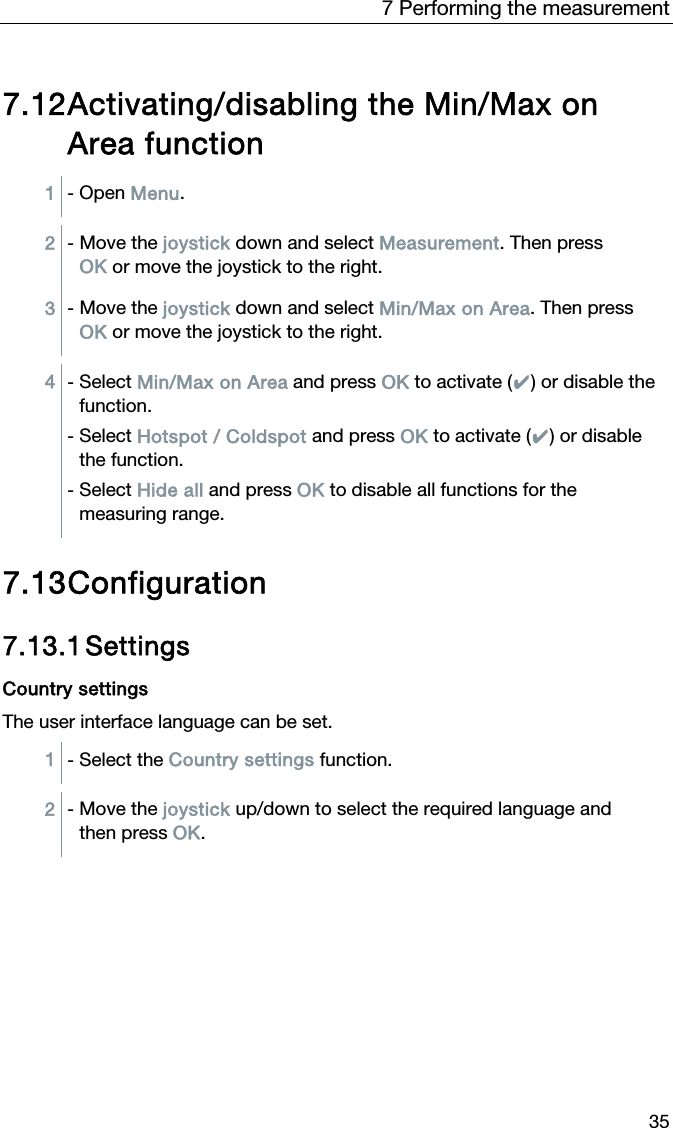
7 Performing the measurement 35 7.12 Activating/disabling the Min/Max on Area function 1  - Open Menu.  2  - Move the joystick down and select Measurement. Then press OK or move the joystick to the right. 3  - Move the joystick down and select Min/Max on Area. Then press OK or move the joystick to the right.  4  - Select Min/Max on Area and press OK to activate (✔) or disable the function. - Select Hotspot / Coldspot and press OK to activate (✔) or disable the function. - Select Hide all and press OK to disable all functions for the measuring range.    7.13 Configuration  7.13.1 Settings  Country settings The user interface language can be set.   1  - Select the Country settings function.  2  - Move the joystick up/down to select the required language and then press OK.
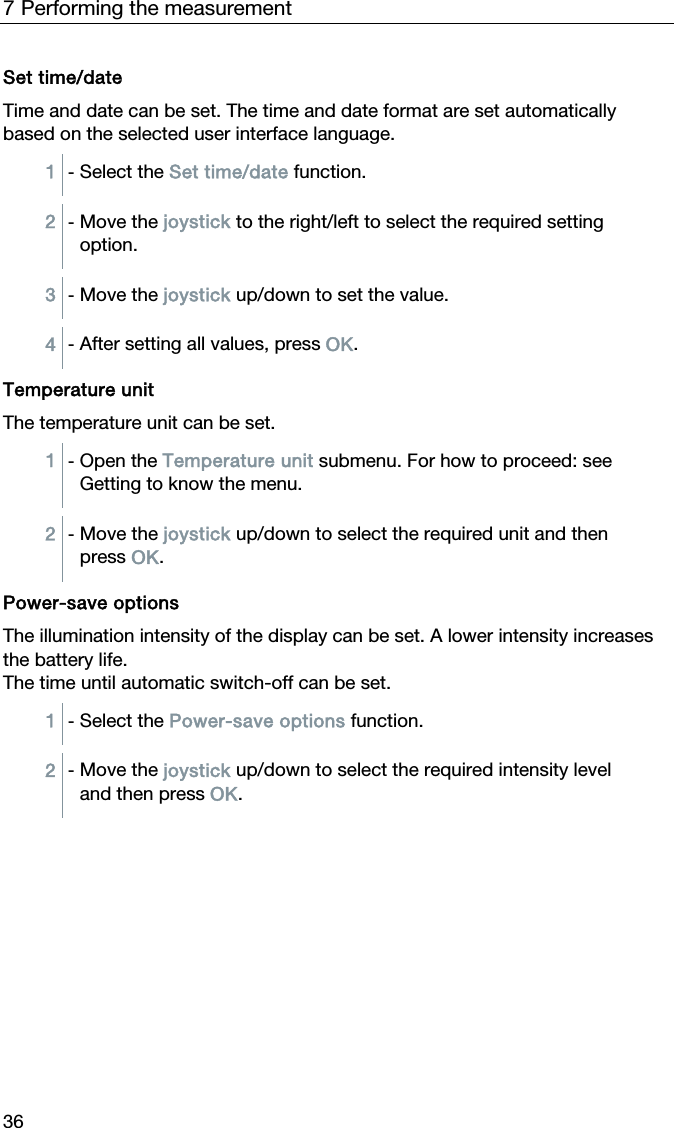
7 Performing the measurement 36 Set time/date Time and date can be set. The time and date format are set automatically based on the selected user interface language.  1  - Select the Set time/date function.  2  - Move the joystick to the right/left to select the required setting option.  3  - Move the joystick up/down to set the value.  4  - After setting all values, press OK.   Temperature unit The temperature unit can be set.   1  - Open the Temperature unit submenu. For how to proceed: see Getting to know the menu.  2  - Move the joystick up/down to select the required unit and then press OK.   Power-save options The illumination intensity of the display can be set. A lower intensity increases the battery life. The time until automatic switch-off can be set.   1  - Select the Power-save options function.  2  - Move the joystick up/down to select the required intensity level and then press OK.
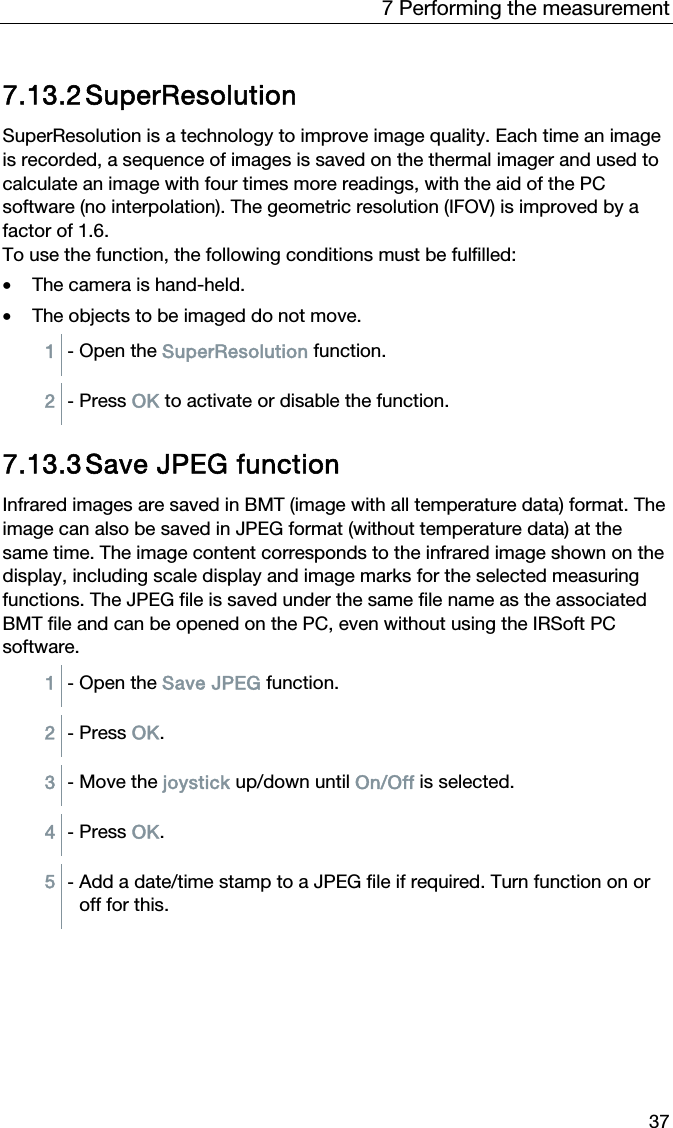
7 Performing the measurement 37 7.13.2 SuperResolution  SuperResolution is a technology to improve image quality. Each time an image is recorded, a sequence of images is saved on the thermal imager and used to calculate an image with four times more readings, with the aid of the PC software (no interpolation). The geometric resolution (IFOV) is improved by a factor of 1.6. To use the function, the following conditions must be fulfilled: • The camera is hand-held. • The objects to be imaged do not move. 1  - Open the SuperResolution function.   2  - Press OK to activate or disable the function.   7.13.3 Save JPEG function Infrared images are saved in BMT (image with all temperature data) format. The image can also be saved in JPEG format (without temperature data) at the same time. The image content corresponds to the infrared image shown on the display, including scale display and image marks for the selected measuring functions. The JPEG file is saved under the same file name as the associated BMT file and can be opened on the PC, even without using the IRSoft PC software. 1  - Open the Save JPEG function.  2  - Press OK.  3  - Move the joystick up/down until On/Off is selected.  4  - Press OK.  5  - Add a date/time stamp to a JPEG file if required. Turn function on or off for this.
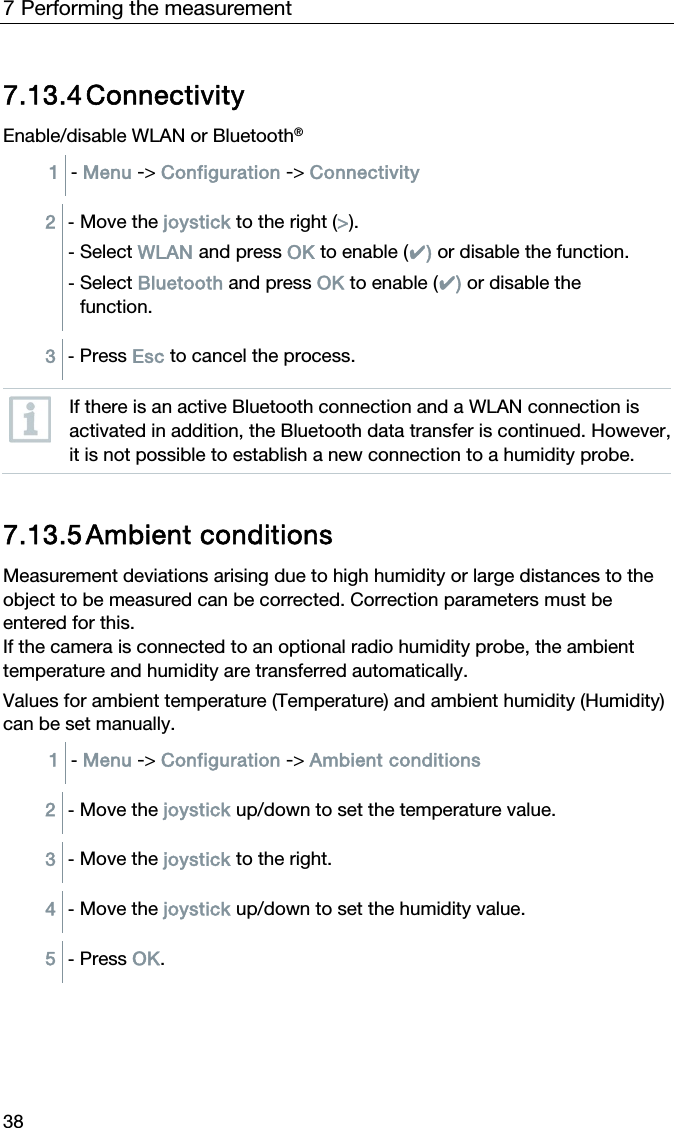
7 Performing the measurement 38 7.13.4 Connectivity Enable/disable WLAN or Bluetooth® 1  - Menu -> Configuration -> Connectivity   2  - Move the joystick to the right (>). - Select WLAN and press OK to enable (✔) or disable the function. - Select Bluetooth and press OK to enable (✔) or disable the function.  3  - Press Esc to cancel the process.   If there is an active Bluetooth connection and a WLAN connection is activated in addition, the Bluetooth data transfer is continued. However, it is not possible to establish a new connection to a humidity probe.   7.13.5 Ambient conditions Measurement deviations arising due to high humidity or large distances to the object to be measured can be corrected. Correction parameters must be entered for this. If the camera is connected to an optional radio humidity probe, the ambient temperature and humidity are transferred automatically. Values for ambient temperature (Temperature) and ambient humidity (Humidity) can be set manually. 1  - Menu -> Configuration -> Ambient conditions   2  - Move the joystick up/down to set the temperature value.  3  - Move the joystick to the right.  4  - Move the joystick up/down to set the humidity value.  5  - Press OK.
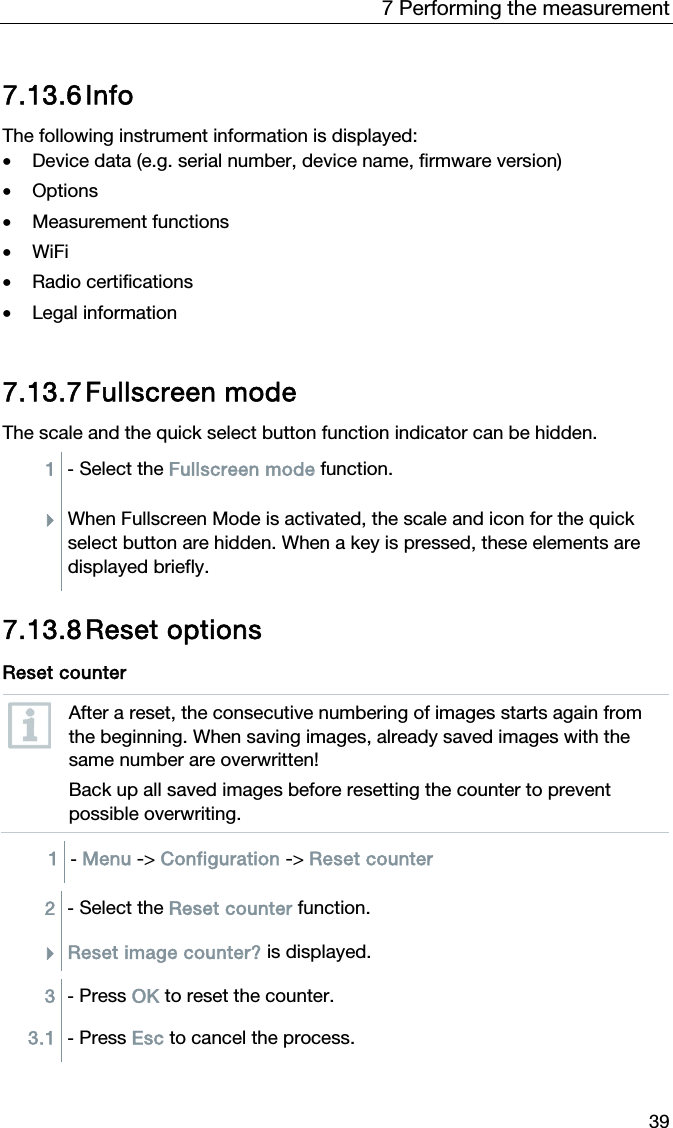
7 Performing the measurement 39 7.13.6 Info The following instrument information is displayed: • Device data (e.g. serial number, device name, firmware version) • Options • Measurement functions • WiFi • Radio certifications • Legal information   7.13.7 Fullscreen mode The scale and the quick select button function indicator can be hidden. 1  - Select the Fullscreen mode function. When Fullscreen Mode is activated, the scale and icon for the quick select button are hidden. When a key is pressed, these elements are displayed briefly.   7.13.8 Reset options  Reset counter  After a reset, the consecutive numbering of images starts again from the beginning. When saving images, already saved images with the same number are overwritten! Back up all saved images before resetting the counter to prevent possible overwriting.  1  - Menu -> Configuration -> Reset counter   2  - Select the Reset counter function.  Reset image counter? is displayed.  3  - Press OK to reset the counter. 3.1  - Press Esc to cancel the process.
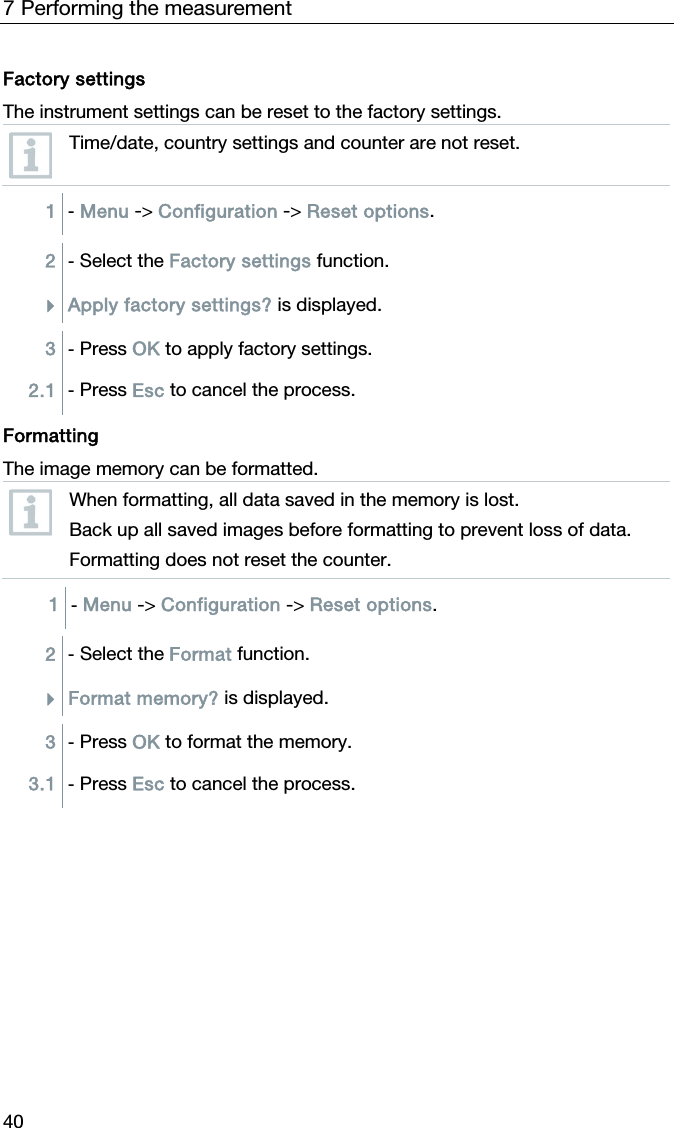
7 Performing the measurement 40  Factory settings The instrument settings can be reset to the factory settings.  Time/date, country settings and counter are not reset.  1  - Menu -> Configuration -> Reset options.  2  - Select the Factory settings function. Apply factory settings? is displayed.  3  - Press OK to apply factory settings. 2.1  - Press Esc to cancel the process.   Formatting The image memory can be formatted.   When formatting, all data saved in the memory is lost. Back up all saved images before formatting to prevent loss of data. Formatting does not reset the counter.  1  - Menu -> Configuration -> Reset options.   2  - Select the Format function. Format memory? is displayed.  3  - Press OK to format the memory. 3.1  - Press Esc to cancel the process.
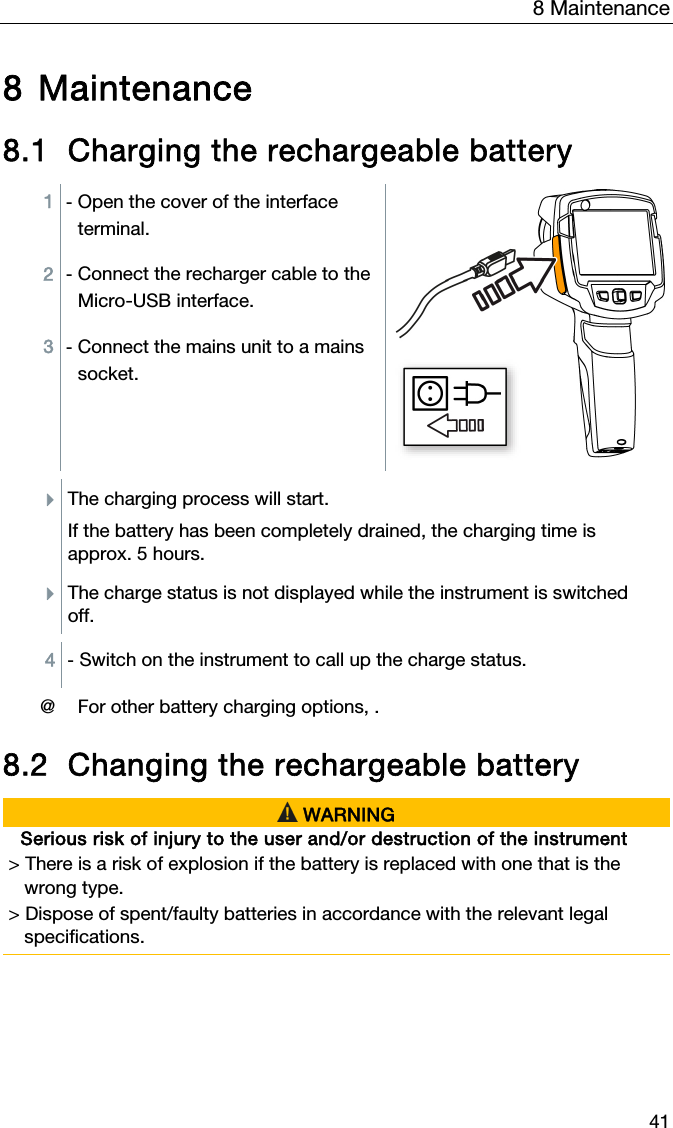
8 Maintenance 41 8 Maintenance  8.1 Charging the rechargeable battery  1  - Open the cover of the interface terminal. 2  - Connect the recharger cable to the Micro-USB interface. 3  - Connect the mains unit to a mains socket.  The charging process will start.  If the battery has been completely drained, the charging time is approx. 5 hours. The charge status is not displayed while the instrument is switched off.  4  - Switch on the instrument to call up the charge status.   @ For other battery charging options, .  8.2 Changing the rechargeable battery   WARNING Serious risk of injury to the user and/or destruction of the instrument > There is a risk of explosion if the battery is replaced with one that is the      wrong type. > Dispose of spent/faulty batteries in accordance with the relevant legal     specifications.
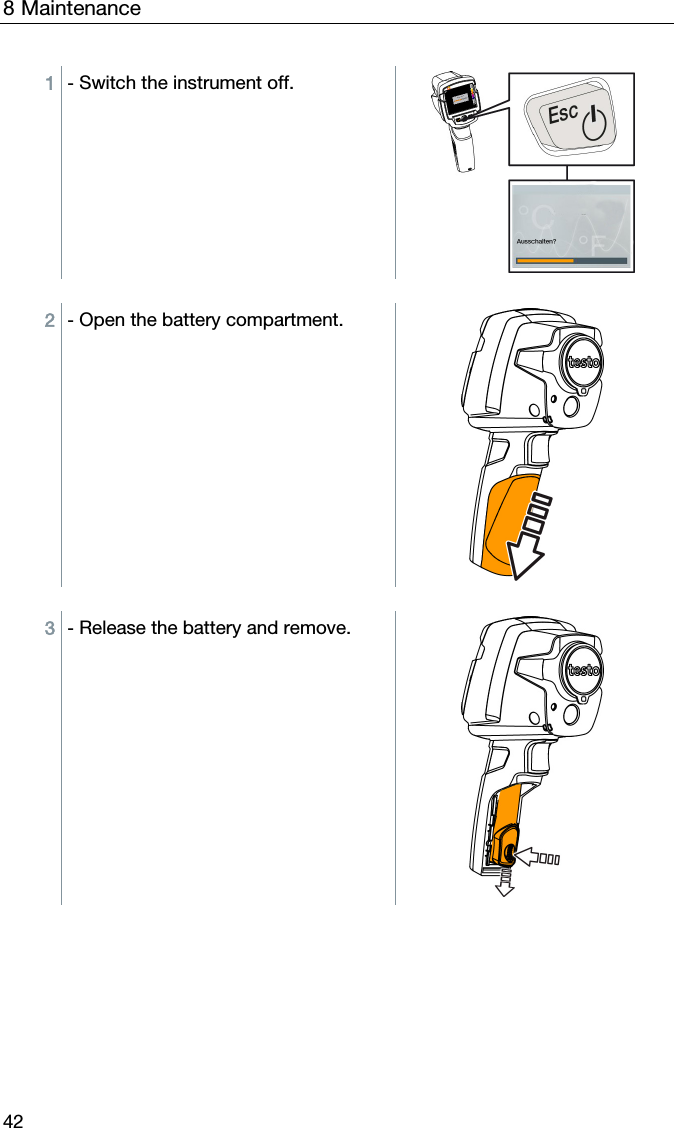
8 Maintenance 42 1  - Switch the instrument off.  2  - Open the battery compartment.  3  - Release the battery and remove.
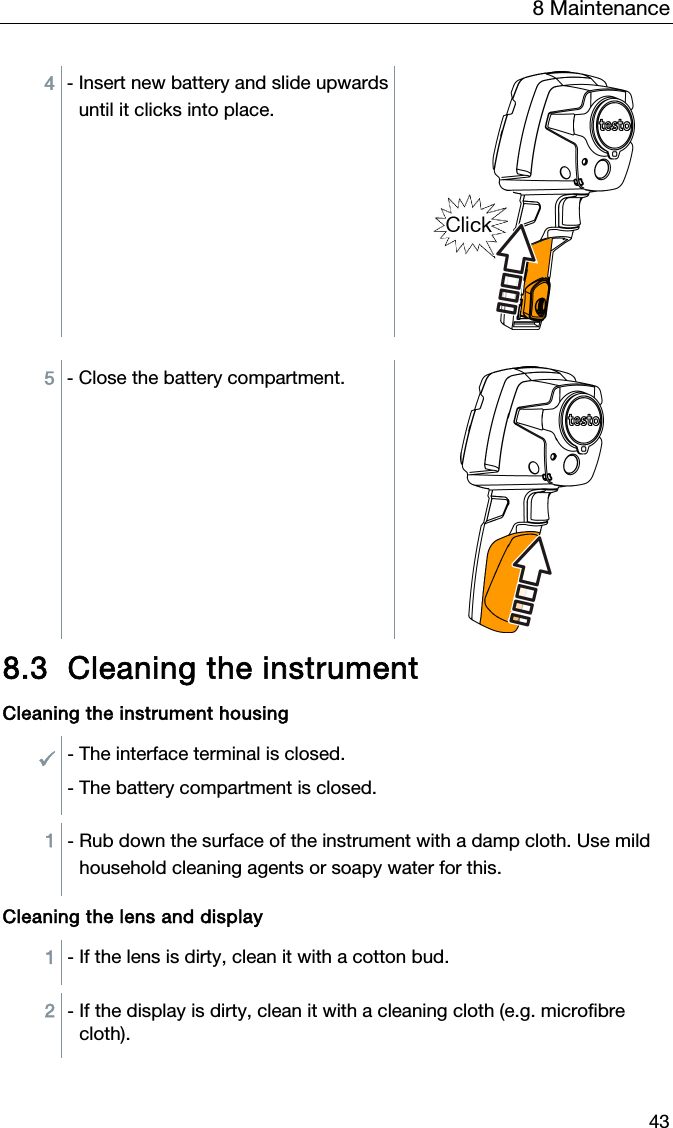
8 Maintenance 43 4  - Insert new battery and slide upwards until it clicks into place.  5  - Close the battery compartment.   8.3 Cleaning the instrument  Cleaning the instrument housing  - The interface terminal is closed. - The battery compartment is closed.  1  - Rub down the surface of the instrument with a damp cloth. Use mild household cleaning agents or soapy water for this.   Cleaning the lens and display  1  - If the lens is dirty, clean it with a cotton bud.  2  - If the display is dirty, clean it with a cleaning cloth (e.g. microfibre cloth).
9 Tips and assistance 44  9 Tips and assistance  9.1 Questions and answers  Question  Possible cause / solution Error! Memory full! is displayed. Insufficient memory available: Transfer images to the PC or delete. Error! Permissible instrument temperature exceeded! is displayed. Switch off the camera, allow the instrument to cool down and observe the permissible ambient temperature. ~ is displayed before a value. Value is outside the measuring range: extended display range with no guarantee of accuracy. --- or +++ is displayed instead of a value. Value is outside the measuring range and the extended display range. xxx is displayed instead of a value. Value cannot be calculated: check parameter settings for plausibility. Automatic zeroing (audible "click" and brief image freeze) is carried out very frequently. Camera is still in its warm-up period (takes approx. 90 seconds): Wait until the warm-up period has passed.   If we have not been able to answer your question, please contact your dealer or Testo Customer Service. You will find contact details on the back of this document or on the website www.testo.com/service-contact.
9 Tips and assistance 45 9.2 Accessories and spare parts  Description  Article no. Battery charging station  0554 1103 Spare rechargeable battery  0515 5107 Holster case  0554 7808 Additional markers for E-Assist function (10 off)  0554 0872 Emission tape  0554 0051 ISO calibration certificate: Calibration points at 0 °C, 25 °C, 50 °C 0520 0489 ISO calibration certificate: Calibration points at 0 °C, 100 °C, 200 °C 0520 0490 ISO calibration certificate: Freely selectable calibration points in the range -18 °C to 250 °C 0520 0495   For further accessories and spare parts, please refer to the product catalogues and brochures or look up at www.testo.com.
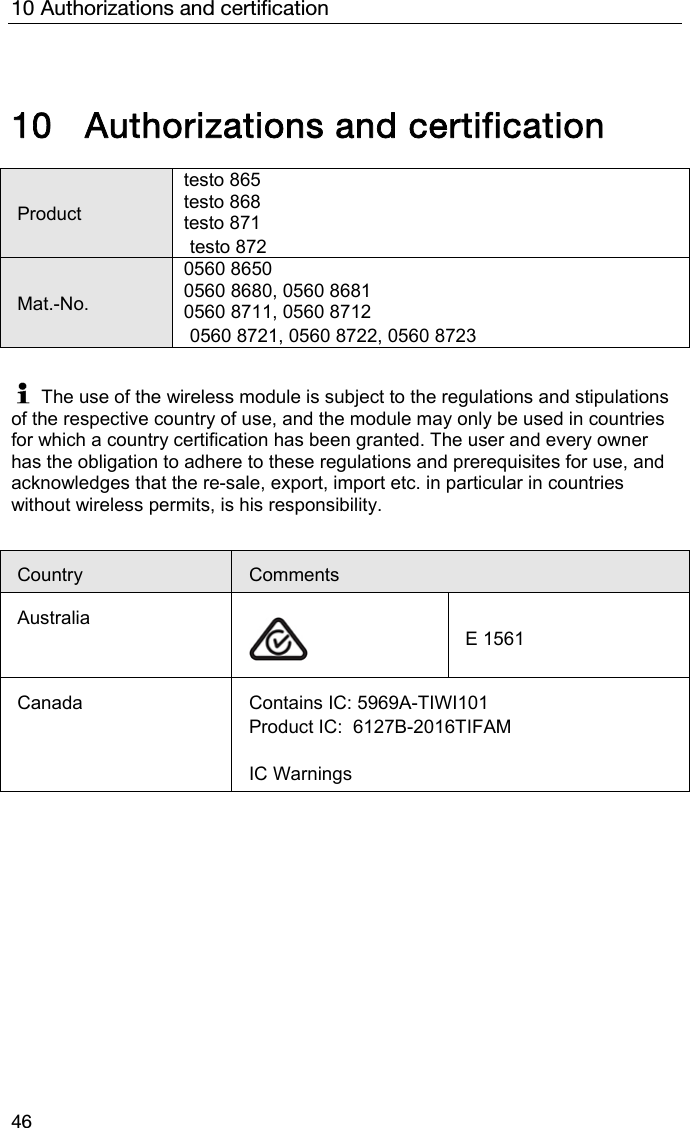
10 Authorizations and certification 46 10 Authorizations and certification  Product testo 865 testo 868 testo 871 testo 872 Mat.-No. 0560 8650 0560 8680, 0560 8681 0560 8711, 0560 8712 0560 8721, 0560 8722, 0560 8723   The use of the wireless module is subject to the regulations and stipulations of the respective country of use, and the module may only be used in countries for which a country certification has been granted. The user and every owner has the obligation to adhere to these regulations and prerequisites for use, and acknowledges that the re-sale, export, import etc. in particular in countries without wireless permits, is his responsibility.  Country  Comments Australia  E 1561 Canada  Contains IC: 5969A-TIWI101 Product IC:  6127B-2016TIFAM  IC Warnings
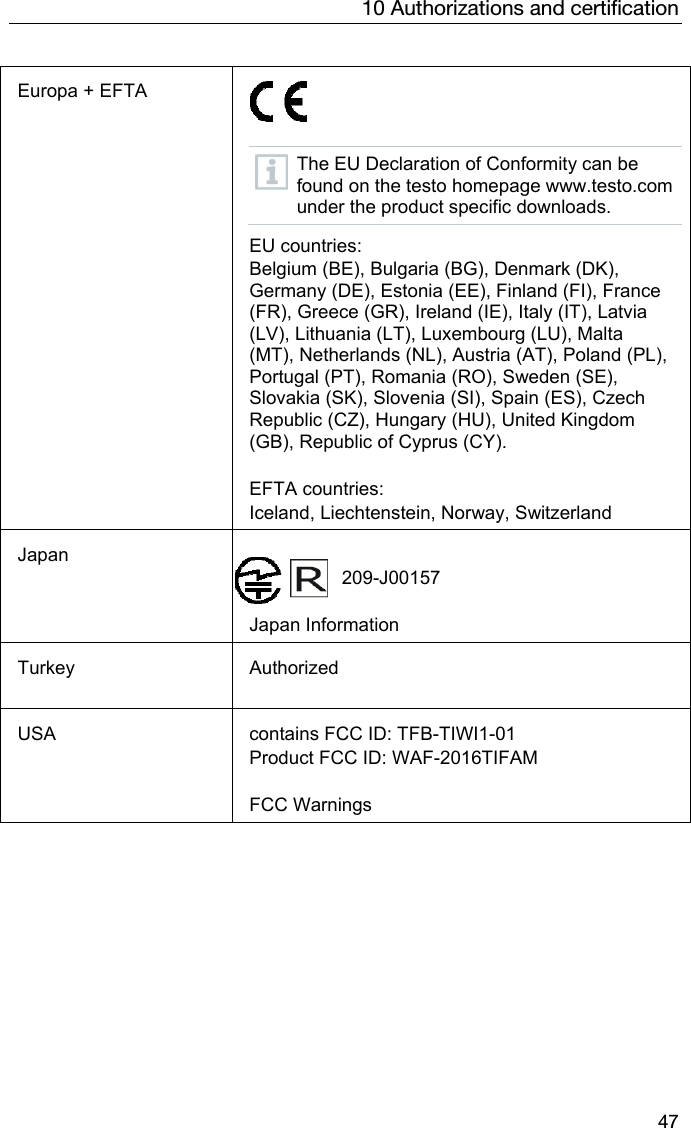
10 Authorizations and certification 47 Europa + EFTA    The EU Declaration of Conformity can be found on the testo homepage www.testo.com under the product specific downloads.  EU countries:  Belgium (BE), Bulgaria (BG), Denmark (DK), Germany (DE), Estonia (EE), Finland (FI), France (FR), Greece (GR), Ireland (IE), Italy (IT), Latvia (LV), Lithuania (LT), Luxembourg (LU), Malta (MT), Netherlands (NL), Austria (AT), Poland (PL), Portugal (PT), Romania (RO), Sweden (SE), Slovakia (SK), Slovenia (SI), Spain (ES), Czech Republic (CZ), Hungary (HU), United Kingdom (GB), Republic of Cyprus (CY).   EFTA countries:  Iceland, Liechtenstein, Norway, Switzerland Japan                  209-J00157  Japan Information Turkey Authorized USA  contains FCC ID: TFB-TIWI1-01 Product FCC ID: WAF-2016TIFAM  FCC Warnings
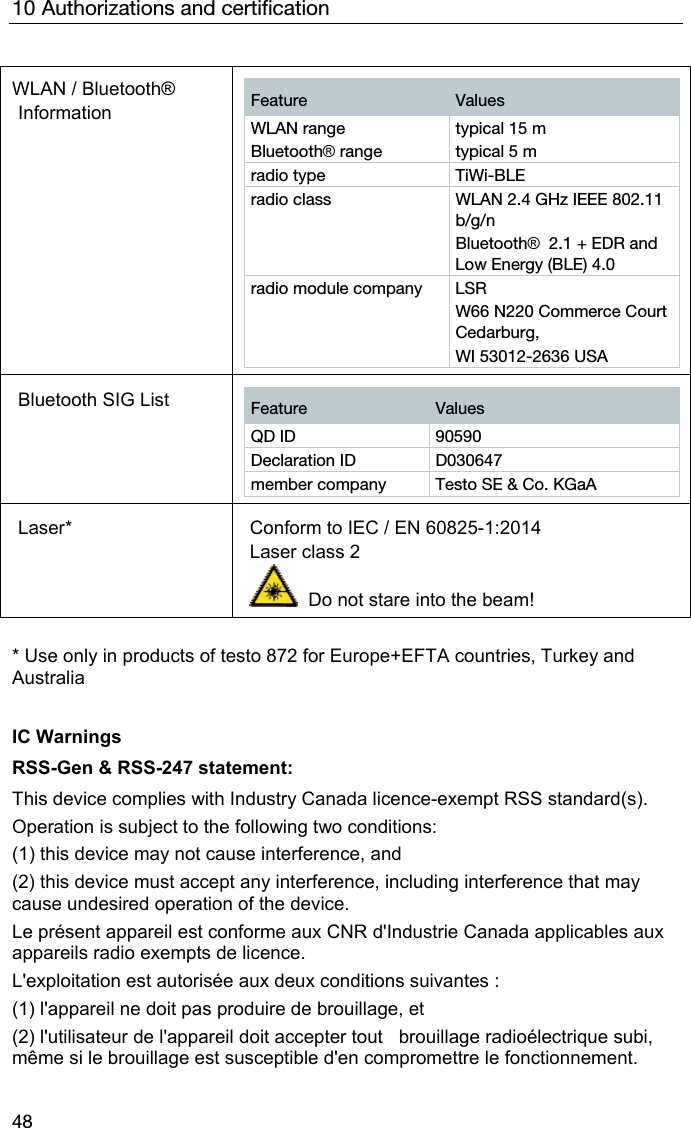
10 Authorizations and certification 48 WLAN / Bluetooth®   Information  Feature  Values WLAN range Bluetooth® range typical 15 m typical 5 m radio type  TiWi-BLE radio class  WLAN 2.4 GHz IEEE 802.11 b/g/n Bluetooth®  2.1 + EDR and Low Energy (BLE) 4.0 radio module company  LSR  W66 N220 Commerce Court Cedarburg,  WI 53012-2636 USA Bluetooth SIG List  Feature  Values QD ID  90590 Declaration ID  D030647 member company  Testo SE & Co. KGaA Laser*  Conform to IEC / EN 60825-1:2014  Laser class 2   Do not stare into the beam!  * Use only in products of testo 872 for Europe+EFTA countries, Turkey and Australia   IC Warnings RSS-Gen & RSS-247 statement: This device complies with Industry Canada licence-exempt RSS standard(s). Operation is subject to the following two conditions:  (1) this device may not cause interference, and  (2) this device must accept any interference, including interference that may cause undesired operation of the device. Le présent appareil est conforme aux CNR d'Industrie Canada applicables aux appareils radio exempts de licence.  L'exploitation est autorisée aux deux conditions suivantes :  (1) l'appareil ne doit pas produire de brouillage, et  (2) l'utilisateur de l'appareil doit accepter tout   brouillage radioélectrique subi, même si le brouillage est susceptible d'en compromettre le fonctionnement.
10 Authorizations and certification 49  Caution: Radio Frequency Radiation Exposure This equipment complies with IC radiation exposure limits set forth for an uncontrolled environment and meets the IC radio frequency (RF) Exposure Guidelines. This equipment should be installed and operated keeping the radiator at least 12 cm or more away from person´s body in normal use position.  Co-Location:  This transmitter must not be co-located or operated in conjunction with any other antenna or transmitter.  Attention : exposition au rayonnement de radiofréquences Cet équipement est conforme aux limites d'exposition aux radiofréquences IC fixées pour un environnement non contrôlé et aux Lignes directrices relatives à l'exposition aux radiofréquences (RF). Cet équipement devrait être installé et utilisé à une distance d'au moins 12 cm d'un radiateur ou à une distance plus grande du corps humain en position normale d'utilisation.  Co-location Ce transmetteur ne peut pas être installé en colocation ou être utilisé avec une autre antenne ou transmetteur, quel qu'en soit le type.  FCC Warnings Information from the FCC (Federal Communications Commission) For your own safety Shielded cables should be used for a composite interface. This is to ensure continued protection against radio frequency interference.  FCC warning statement This equipment has been tested and found to comply with the limits for a Class B digital device, pursuant to Part 15 of the FCC Rules. These limits are designed to provide reasonable protection against harmful interference in a residential installation. This equipment generates, uses and can radiate radio frequency energy and, if not installed and used in accordance with the instructions, may cause harmful interference to radio communications. However, there is no guarantee that interference will not occur in a particular installation. If this equipment does cause harmful interference to radio or television reception, which can be determined by turning the equipment off and on, the user is encouraged to try to correct the interference by one or more of the following measures:
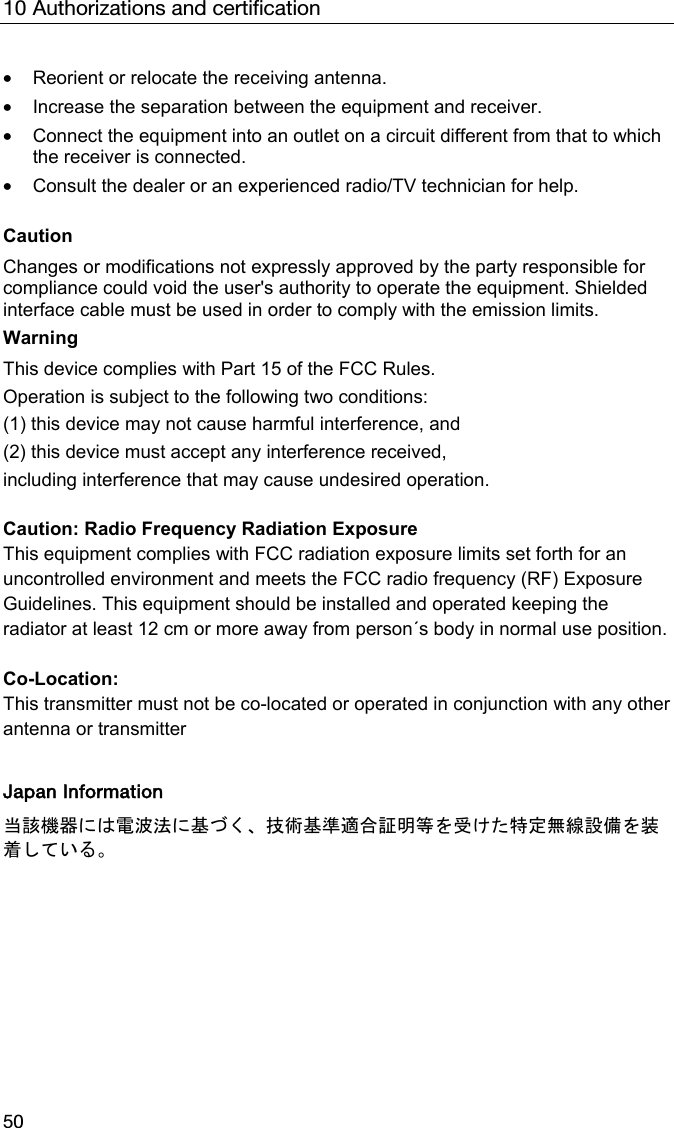
10 Authorizations and certification 50 •  Reorient or relocate the receiving antenna. •  Increase the separation between the equipment and receiver. •  Connect the equipment into an outlet on a circuit different from that to which the receiver is connected. •  Consult the dealer or an experienced radio/TV technician for help.  Caution Changes or modifications not expressly approved by the party responsible for compliance could void the user's authority to operate the equipment. Shielded interface cable must be used in order to comply with the emission limits. Warning This device complies with Part 15 of the FCC Rules.  Operation is subject to the following two conditions: (1) this device may not cause harmful interference, and (2) this device must accept any interference received, including interference that may cause undesired operation.  Caution: Radio Frequency Radiation Exposure This equipment complies with FCC radiation exposure limits set forth for an uncontrolled environment and meets the FCC radio frequency (RF) Exposure Guidelines. This equipment should be installed and operated keeping the radiator at least 12 cm or more away from person´s body in normal use position.  Co-Location:  This transmitter must not be co-located or operated in conjunction with any other antenna or transmitter  Japan Information 当該機器には電波法に基づく、技術基準適合証明等を受けた特定無線設備を装着している。
   0970 8720 en 01

Navigation menu