The Cable Ferret CFC2810C wireless inspection camera User Manual

The Cable Ferret Company wireless inspection camera

User manual

              Wireless Inspection Camera  and LCD Display    Instruction Manual
Model: FERRET CF2810C  Version 3.0  © 2017  Cable Ferret, Inc.  The Cable Ferret Company Limited The Cable Ferret Company Pty Ltd  www.cableferret.com  Made in China
Caution: This equipment has been tested and found to comply with the limits for a Class B digital device, pursuant  to  part  15  of  the  FCC  rules.  These  limits  are  designed  to  provide  reasonable protection  against harmful  interference  in  a  residential installation. This equipment  generates uses and can radiate radio frequency energy and, if not installed and used in accordance with the instructions, may cause harmful interference to radio communications. However, there is no guarantee  that  interference  will  not  occur  in  a  particular  installation.  If  this  equipment  does cause harmful interference to radio or television reception, which can be determined by turning the  equipment  off and  on,  the  user  is  encouraged  to try to correct  the  interference  by  one  or more of the following measures: -Reorient or relocate the receiving antenna. -Increase the separation between the equipment and receiver. -Connect the equipment into an outlet on  a circuit different from that to which the  receiver is connected. -Consult the dealer or an experienced radio/TV technician for help. This device  complies with part 15  of the FCC  rules. Operation is  subject to  the  following two conditions: (1) This device may not cause harmful interference, and (2) this device must accept any interference received, including interference that may cause undesired operation. Any Changes or modifications not expressly approved by the party responsible for compliance could void the user's authority to operate the equipment. RF Exposure The equipment complies with FCC radiation exposure limits set forth for an uncontrolled environment.
General Information  Your FERRET CF2810C  is  an  IP67  rated compact  wireless rechargeable inspection camera  and  palm  sized  rechargeable 4.3”  LCD  display  designed  to  help  you  see  in  dark  confined spaces.  The Cable Ferret Company’s commitment to ongoing product and quality improvement means that the specifications are subject to change without notice.  Don’t get lost in the dark  Use a FERRET   We’ll help you find your way
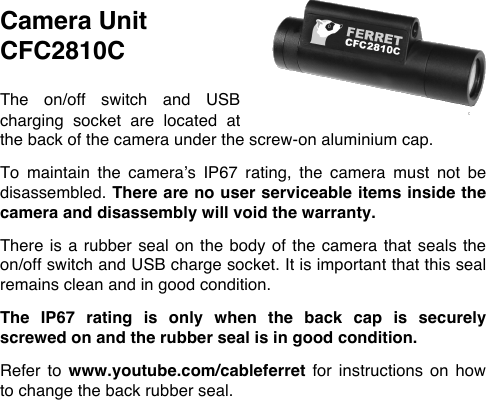
Camera Unit  CFC2810C  The  on/off  switch  and  USB charging  socket  are  located  at the back of the camera under the screw-on aluminium cap.   To  maintain  the  camera’s  IP67  rating,  the  camera  must  not  be disassembled. There are no user serviceable items inside the camera and disassembly will void the warranty.   There is a rubber seal on the body of the camera that seals the on/off switch and USB charge socket. It is important that this seal remains clean and in good condition.   The  IP67  rating  is  only  when  the  back  cap  is  securely screwed on and the rubber seal is in good condition.  Refer  to  www.youtube.com/cableferret for  instructions  on  how to change the back rubber seal.
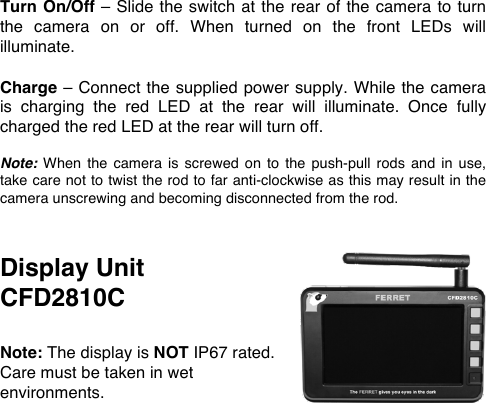
Turn On/Off – Slide the switch at the rear of the camera to turn the  camera  on  or  off.  When  turned  on  the  front  LEDs  will illuminate.  Charge – Connect the supplied power supply. While the camera is  charging  the  red  LED  at  the  rear  will  illuminate.  Once  fully charged the red LED at the rear will turn off.  Note: When  the  camera  is  screwed on  to  the  push-pull  rods and in  use, take care not to twist the rod to far anti-clockwise as this may result in the camera unscrewing and becoming disconnected from the rod.   Display Unit  CFD2810C  Note: The display is NOT IP67 rated. Care must be taken in wet environments.
Turn On/Off  –  To  turn on  press the  button  at  the top  left  of the display. To turn off press and hold this button for 3 seconds.  Charge – Connect the supplied power supply. While the camera is  charging  the  red  LED  near the  bottom  right of  the  case  will illuminate. Once fully charged the LED will turn off.  Recording to SD Card – Insert an SD card up between 2GB and 32GB  into  the  underside  of  the  display. It  is  best  practice  to format an  SD card before use by pressing the following  buttons: <Menu>, <Down>, <Ok>, <Down>, <Down>, <Ok>, <Up>, <Ok>. Note that formatting the card will delete all data stored on it.  Record  image  (photo) – Press <Photo>  from  the home  screen to enter photo mode. The camera icon will be displayed in the top left of the screen. To take a photo press the <Shoot> button. To exit photo mode press the <Exit> button.   Record  video – Press <Video>  from  the  home  screen  to  enter video mode. The video icon will be displayed in the top left of the screen. To begin recording press <Rec>, to stop press <Stop>.
Playback  mode  –  Press  <Menu>  from  the  home  screen  then press  <Ok>  while  Playback  is  highlighted.  This  will  provide access to view recorded photos and video without a computer.  Note: The SD card can  be read by a computer by directly connecting the display unit to the computer using a USB cable.  Mute  –  In  the  home  screen,  photo  mode  and  record  mode pressing the <mute> button will toggle the sound between off and on.  The  microphone  icon  near  the  top  left  of  the  screen  will indicate if sound is turned on or off.  Set Date and Time – From the home screen press <Menu> then <Down>  to  highlight  “Setup”.  Press  <Ok>  then  <Ok>  again  to enter  the date  and  time  set screen.  Adjust  the settings  with  the <Up>  or  <Down>  and  then  move  to  the  next  field  with  the <Move> button. Once correct press <Exit> three times to return to the home screen.  Note: Removal of the battery will erase the time and date settings.
Update Firmware  –  From  time  to time  software updates  will be available  on  The  Cable  Ferret  web  site www.cableferret.com. These  updates  will  provide  enhancements  to  the  display.  To update the firmware copy the two files downloaded from the web site to an SD card and insert this card into the display. Power on the  display,  press  <Menu>,  <Down>,  <Ok>,  <Up>,  <Up>  and <Ok>. Only update firmware if the battery indicator is showing at least 2 bars as power loss during a firmware update may render the display nonoperational.  Reset  –  If  the  screen  locks  up  the hard  reset  switch  can  be reached by carefully pushing a pin or solid wire into the small hole at the side of the display to the left of the Ferret head logo.
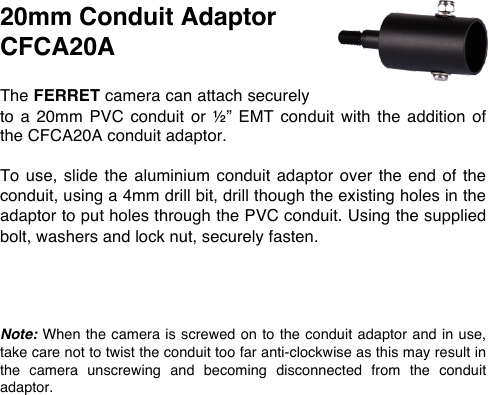
20mm Conduit Adaptor CFCA20A  The FERRET camera can attach securely to  a 20mm  PVC  conduit or  ½”  EMT  conduit  with the  addition  of the CFCA20A conduit adaptor.   To use, slide the  aluminium  conduit adaptor  over  the end  of the conduit, using a 4mm drill bit, drill though the existing holes in the adaptor to put holes through the PVC conduit. Using the supplied bolt, washers and lock nut, securely fasten.     Note: When the camera is screwed on to the conduit adaptor and in use, take care not to twist the conduit too far anti-clockwise as this may result in the  camera  unscrewing  and  becoming  disconnected  from  the  conduit adaptor.
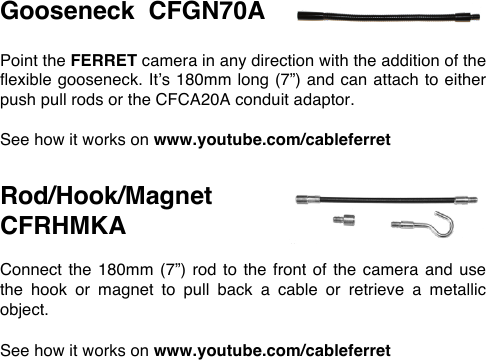
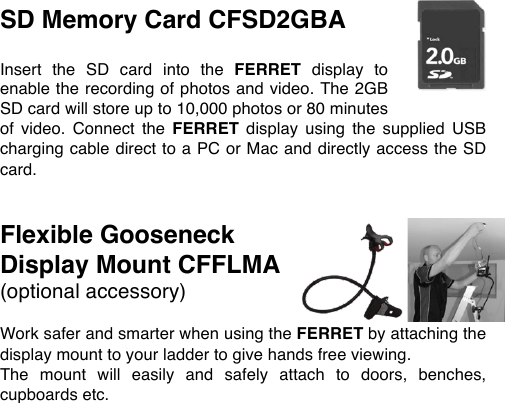
Gooseneck  CFGN70A  Point the FERRET camera in any direction with the addition of the flexible gooseneck. It’s 180mm long (7”) and can attach to either push pull rods or the CFCA20A conduit adaptor.  See how it works on www.youtube.com/cableferret   Rod/Hook/Magnet   CFRHMKA  Connect the 180mm  (7”) rod to  the front of  the camera and  use the  hook  or  magnet  to  pull  back  a  cable  or  retrieve  a  metallic object.  See how it works on www.youtube.com/cableferret
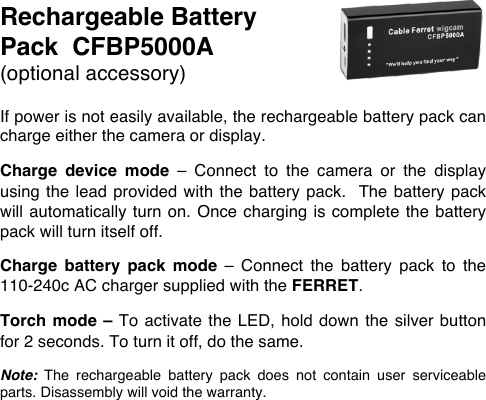
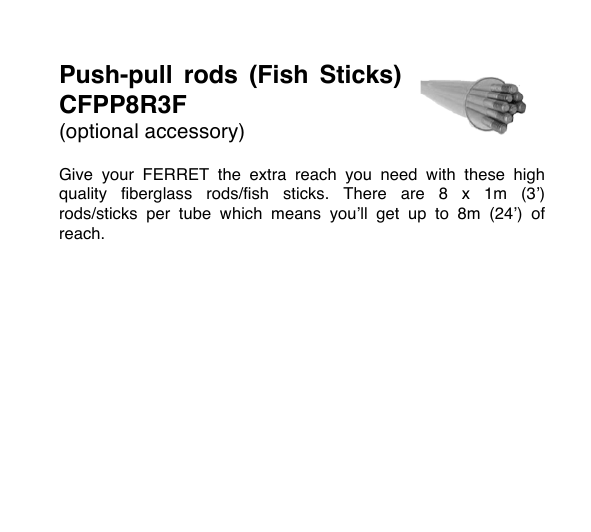
SD Memory Card CFSD2GBA  Insert  the  SD  card  into  the  FERRET display  to enable the recording of photos and video. The 2GB SD card will store up to 10,000 photos or 80 minutes of  video.  Connect  the  FERRET display  using  the  supplied  USB charging cable direct to a PC or Mac and directly access the SD card.   Flexible Gooseneck Display Mount CFFLMA (optional accessory)  Work safer and smarter when using the FERRET by attaching the display mount to your ladder to give hands free viewing.  The  mount  will  easily  and  safely  attach  to  doors,  benches, cupboards etc.
Rechargeable Battery Pack  CFBP5000A (optional accessory)  If power is not easily available, the rechargeable battery pack can charge either the camera or display.  Charge  device  mode  –  Connect  to  the  camera  or  the  display using the  lead  provided with the battery pack.  The battery pack will automatically turn on.  Once charging  is  complete the  battery pack will turn itself off.  Charge  battery  pack  mode  –  Connect  the  battery  pack  to  the 110-240c AC charger supplied with the FERRET.   Torch mode – To activate the LED, hold down the silver button for 2 seconds. To turn it off, do the same.  Note: The  rechargeable  battery  pack  does  not  contain  user  serviceable parts. Disassembly will void the warranty.
Push-pull  rods  (Fish  Sticks) CFPP8R3F (optional accessory)  Give  your  FERRET the  extra  reach  you  need  with  these  high quality  fiberglass  rods/fish  sticks.  There  are  8  x  1m  (3’) rods/sticks  per  tube  which  means  you’ll  get  up  to  8m  (24’)  of reach.
Important Information – Li-Ion Batteries  The  FERRET display  and  camera  both  contain  Li-Ion  batteries. The  optional  rechargeable  battery  pack  also contains  Li-Ion batteries.  For optimal battery life;  • Do not store the devices while the batteries are flat.  • Do not store devices in temperatures of over 35°C.   • If the FERRET is not being used, top up the charge every 6 months.
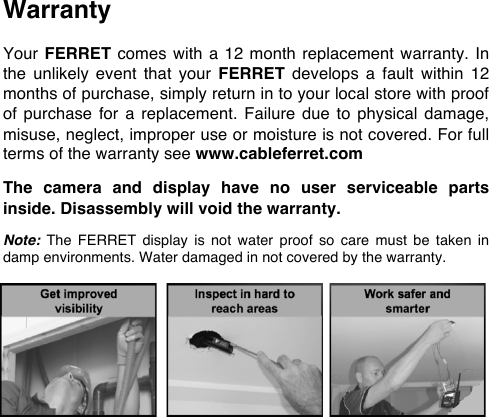
Warranty  Your FERRET comes with a  12  month replacement  warranty. In the  unlikely  event  that  your  FERRET develops  a  fault  within  12 months of purchase, simply return in to your local store with proof of  purchase  for  a  replacement. Failure  due to  physical damage, misuse, neglect, improper use or moisture is not covered. For full terms of the warranty see www.cableferret.com  The  camera  and  display  have  no  user  serviceable  parts inside. Disassembly will void the warranty.  Note: The  FERRET display  is not  water  proof  so  care  must  be  taken  in damp environments. Water damaged in not covered by the warranty.

Navigation menu