Toshiba 58L1350U User Manual LED TELEVISION Manuals And Guides 1307440L
Toshiba Flat Panel Television 23L1350U 1307440L
User Manual: Toshiba 58L1350U 58L1350U TOSHIBA LED TELEVISION - Manuals and Guides View the owners manual for your TOSHIBA LED TELEVISION #58L1350U. Home:Electronics Parts:Toshiba Parts:Toshiba LED TELEVISION Manual
Open the PDF directly: View PDF  .
.
Page Count: 123 [warning: Documents this large are best viewed by clicking the View PDF Link!]
tOSHIBA
Leading Innovation _
IntegratedHighDefinition
LEDTelevisionUser'sGuide:
23L1350U
29L1350U
32L1350U
39L1350U
50L1350U
58L1350U
23L2300U
32L2300U
39L2300U
50L2300U
If you need assistance:
Toshiba's Support Web site support.toshiba.corn
For more information, see "Troubleshooting" on page 108 in this guide.
Owner's Record
The model number and serial number are on the back and side of your
TV.
Record these numbers in the spaces below. Refer to these numbers
whenever you communicate with your Toshiba dealer about this TV
Model number:
Serial number:
Note: To display a High Definition
picture, the TV must be receiving a
High Definition signal such as an
over-the-air Hi_]h Definition TV
broadcast, a High Definition digital
cable program, or a High Definition
digital satellite program). For details,
contact your TV antenna installer
cable prov der, or satellite provider
GMA300018011
06/13
2
DearCustomer,
Thank you for purchasing this Toshiba LED TV. This
document will help you use the many exciting features
of your new LED IV. Before operating your LED TV,
carefully read this manual completely.
Safety Precautions
WARNING: TO REDUCE THE RISK OF FIRE
OR ELECTRIC SHOCK, DO NOT EXPOSE THIS
APPLIANCE TO RAIN OR MOISTURE.
WARNING
WARNING:TO REDUCETHERISKOF ELECTRIC
SHOCK,DO NOT REMOVECOVER(OR BACK),
NO USER-SERVICEABLE PARTS INSIDE.
REFER SERVICING TO QUALIFIED SERVICE
PERSONNEL.
,_The lightningflashwitharrowheadsymbol,within
equilateraltriangle,is intendedto alertthe userto th_
presenceof uninsulatad"dangerousvoltage"withinthe
product'send0surethatmaybeof sufficientmagn_dato
constituteariskofele_c shockto persons.
//_ Theexclamationpointwithinanequilateraltriangleis
intendedto alerttheuserto thepresenceof important
operatingandmaintenanceservicing)instructionsinthe
literatureaccompanyingtheappance.
WARNING
To prevent injury, this apparatus must be securely
attached to the floor/wall in accordance with the
installation instructions. See item 26) on page 5.
WARNING:Ifyoudecide to wall mount this
television, always use a mounting bracket that has
been Listed by an independent laboratory (such as
UL, CSA, ETL) and is appropriate for the size and
weight of this television. The use of inappropriate
or non-Listed mounting brackets could result in
serious bodily injury and/or property damage. See
"To Display your LED TV on the included Pedestal
Stand:" on page 6
NOTETOCATVINSTALLERS
This is a reminder to call the CATV system installer's
attention to Article 820-40 of the U.S. NEC, which
provides guidelines for proper grounding and, in
particular, specifies that the cable ground shall be
connected to the grounding system of the building, as
close to the point of cable entry as practical. For
additional antenna grounding information, see 33) on
page 5 and 34) on page 5.
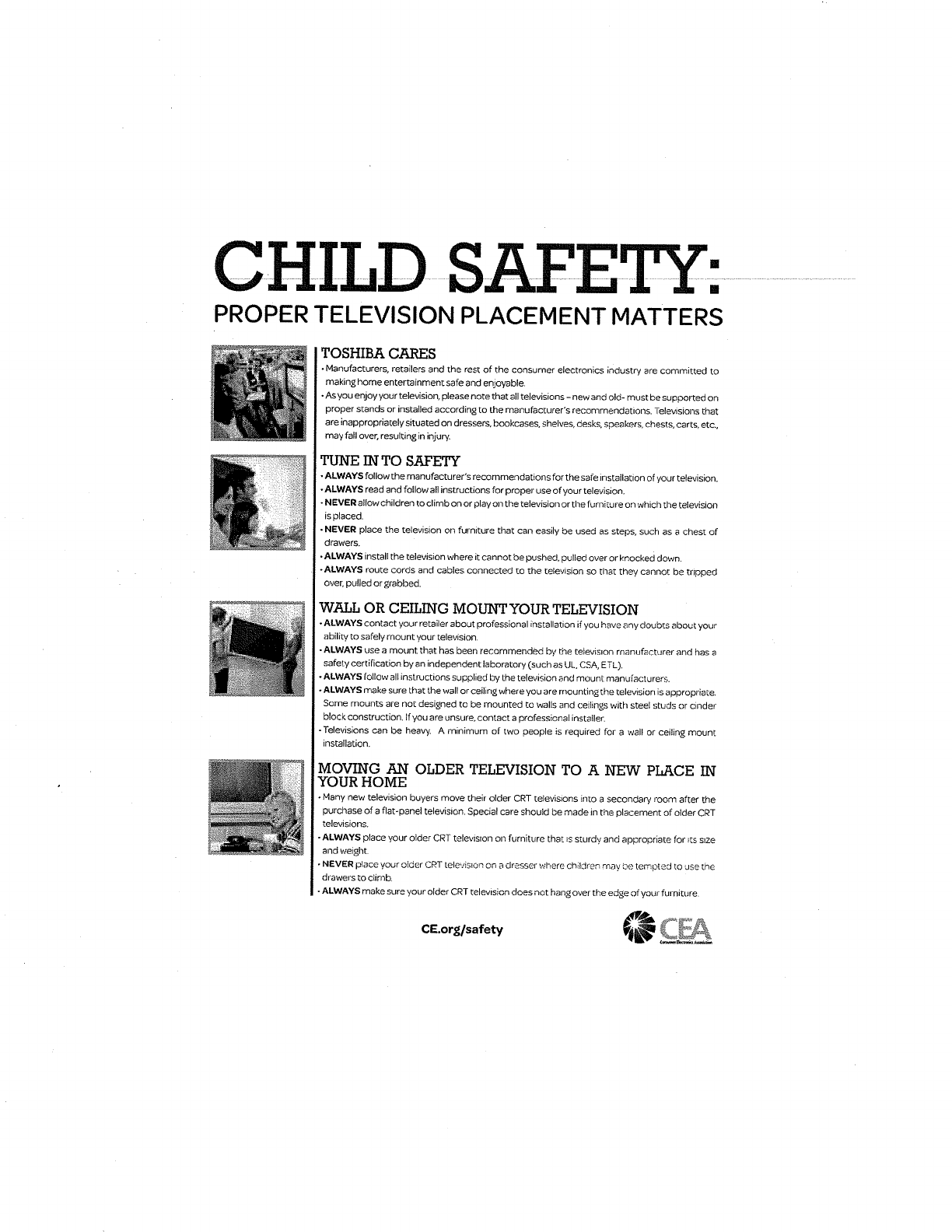
CHILD SAFE : ....................
PROPER TELEVISION PLACEMENT MATTERS
TOSHIBA CARES
• Manufacturers, retailers and the rest of the consumer electronics industry are committed to
making home entertainment safe end enjoyable.
• As you enjoy your television, please note that all televisions - new and old- must be supported on
proper stands or installed according to the manufacturer's recommendations. Televisions that
are inappropriately situated on dressers, bookcases, shelves, desks, speakers, chests, carts, etc.,
may fall over, resulting in injury.
TUNE IN TO SAFETY
• ALWAYS follow the manufacturer's recommendations for the safe installation of your television.
• ALWAYS read and follow all instructions for proper use of your television.
• N EVER allow children to climb on or play on the television or the furni tu re on which the television
is placed.
• NEVER place the television on furniture that car} easily be used as steps, such as a chest of
drawers.
• ALWAYS install the television where it cannot be pushed, pulled over or !<.hocked down.
-ALWAYS route cords and cables connected to the television so that they cannot be tripped
over, pulled or grabbed.
WALL OR CEILING MOUNT YOUR TELEVISION
• ALWAYS contact your retailer about professional installation if you have any doubts about your
ability to safely mount your television
•ALWAYS use a mount that has been recommended by the teievislon manufacturer and has a
safety certification by an independent laboratory (such as I.JL,CSA, ETL),
•ALWAYS follow all instructions supplied by the television and mount manufacturers.
•ALWAYS make sure that the wall or ceiling where you are mounting the television is appropriate,
Some mounts are no[ designed to be mounted to walls and ceilings with steel studs or cinder
block construction. If you are unsure, contact a professional instatlec
• Televisions can be hea W. A minimum of two people is required for a wall or ceiling mount
installation.
MOVING AN OLDER TELEVISION TO A NEW PLACE IN
YOUR HOME
• Many new television buyers move their older CRT televisions into a secondary room after the
purchase of a flat-panel television. Special care should be made in the placement of older CRT
televisions.
-ALWAYS place your older CRT television on furr}iture that _s sturdy and appropriate for _ts size
and weight.
•NEVER place your older CRT telev;s_on on a dresser where cNdren may be tempted to use the
drawers to ciimb
•ALWAYS make sure your older CRT television does net hang over the edge of your furniture
ImportantSafetyInstructions
1) Read these instrucUons.
2)
3)
4)
5)
6) Clean onlywith dry cloth.
7) Do not block any venfilation openings. Installin
accordance with the manufacturer's instructions.
8) Do not install near any heat sources such as
radiators,heat registers, stoves, or other apparatus
(includingamplifiers)that produce heat.
9) Do not defeatthe safety purpose ofthe
polarized or grounding type
plug.A polarized plughas two bledes _
with one wider than the other. A
grounding type plug has two blades
and a third grounding prong. The wide
blade orthe third prong are provided for your safety. If
the providedplug does not fit into your outlet, consult
an electrician for replacement of the obsolete outlet.
Keep these instructions.
Heed all warnings.
Follow all instructions.
Do not use this apparatus near water.
10) Protect the power cord from being walked on or
pinched, particularly at plugs, convenience
receptacles, and the'point where they exit from the
apparatus.
11) Only use attachments/accessories specified by
the manufacturer.
12) Use only with the cart, stand, tripod, bracket, or
table specified by the manufacturer, or
sold with the apparatus. When a cart is
used, usecaution when movingthe cart/
apparatus combination toavoid injury
from t_p-over.
13) Unplug this apparatus during lightning storms or
when unused for long periods of Ume.
14) Refer all servicing to qualified service personnel.
Servicing is required when the apparatus has been
damaged inany way, such as power-supply cord or
plugis damaged, liquid has been spilledor objects
have fallen into the apparatus, the apparatus hasbeen
exposed to rain or moisture, does notoperate normally,
orhas been dropped.
AdditionalSafetyPrecautions
14a) CAUTION: If the'IV is dropped and the cabinet or
enclosure surface has been damaged or the IV
does not operate normally, take the following
precautions:
• ALWAYS turn offthe TV and unplug the power cord
to avoid possible electhc shock orfire.
•NEVER allow your body to ceme incontact with any
broken glass or liquid from the damaged television.
The LCD panel inside the TV contains glass and a
toxic liquid. Ifthe liquid comes in contact with your
mouth or eyes, oryourskin is cut by broken glass,
nnse the affected area thoroughly with water and
contact your doctor immediately.
•ALWAYS centact aservice technician to inspect the
TV any time it has been damaged or dropped.
15) CAUTION:
• To reduce the risk of electdc shock, do not use the
polarized plug with an extension cord, receptacle, or
other outlet unless the blades can be inserted
completely to prevent blade exposure.
• To prevent electdc shock, match wide blade of plug
towide slot; fully insert.
16) CAUTION:
• Do not let children swallow any small parts included
on or with the product or play with the plastic bag.
Keep the small parts and the plastic bag out of the
reach of childreno
17) CAUTION:
• Do not letwater or other liquids come into contact
with the product,as itmay resultindamage.
18) WARNING:
• To prevent the spread offlra, keep candles or other
open flames away from this product at all times.
• Keep the product away from direct sunlight, fire or a
heat source such as a heater. This may reduce the
productlife time or result in fire.
Installation,Care,andService
Installation
Follow these recommendations and precautions and
heed all warnings when installing your'IV:
_WARNING: Never exposethe batteriesto
19) .L:\excessiveheat suchassunshine, fire, or the like.
20) ALWAYS plugthe productinto an outlet that is located
insuch a manner that itcan be easily unplugged in
case the productrequires service.
21) NEVER route the product'spower cord inside awall or
similarenclosed area.
22) Never modify thisequipment. Changes or
modificationsmay void:a) the warranty, and b)the
user'sauthorityto operate this equipment under the
rulesof the Federal Communications Commission.
t DANGER: RISKOF
23) _J'_i\ SERIOUS PERSONAL
EQUIPMENT DAMAGE!
Never place _eTV on an unstable
cart, stand, or table. The -IV may
fall, causing serious personal injury,
death, or sedous damage to the TV.
5
24) When selecting a location for the T_,
• NEVER allow any part oftheTVto hang over the
edge of the supporting furniture,
•NEVER placetheTVon tall furniture (for example,
entertainment centers or bookcases) without
anchoring both the fumiture and the TV to a suitable
support,
• Never ptace cloth or other material between tfle TV
and the supporting furniture.
•NEVER allow children to climb on the TV
25) To avoid damage to this product, never place or store
the TV in direct sunlight; hot, humid areas; or areas
subject to excessive dust or vibration.
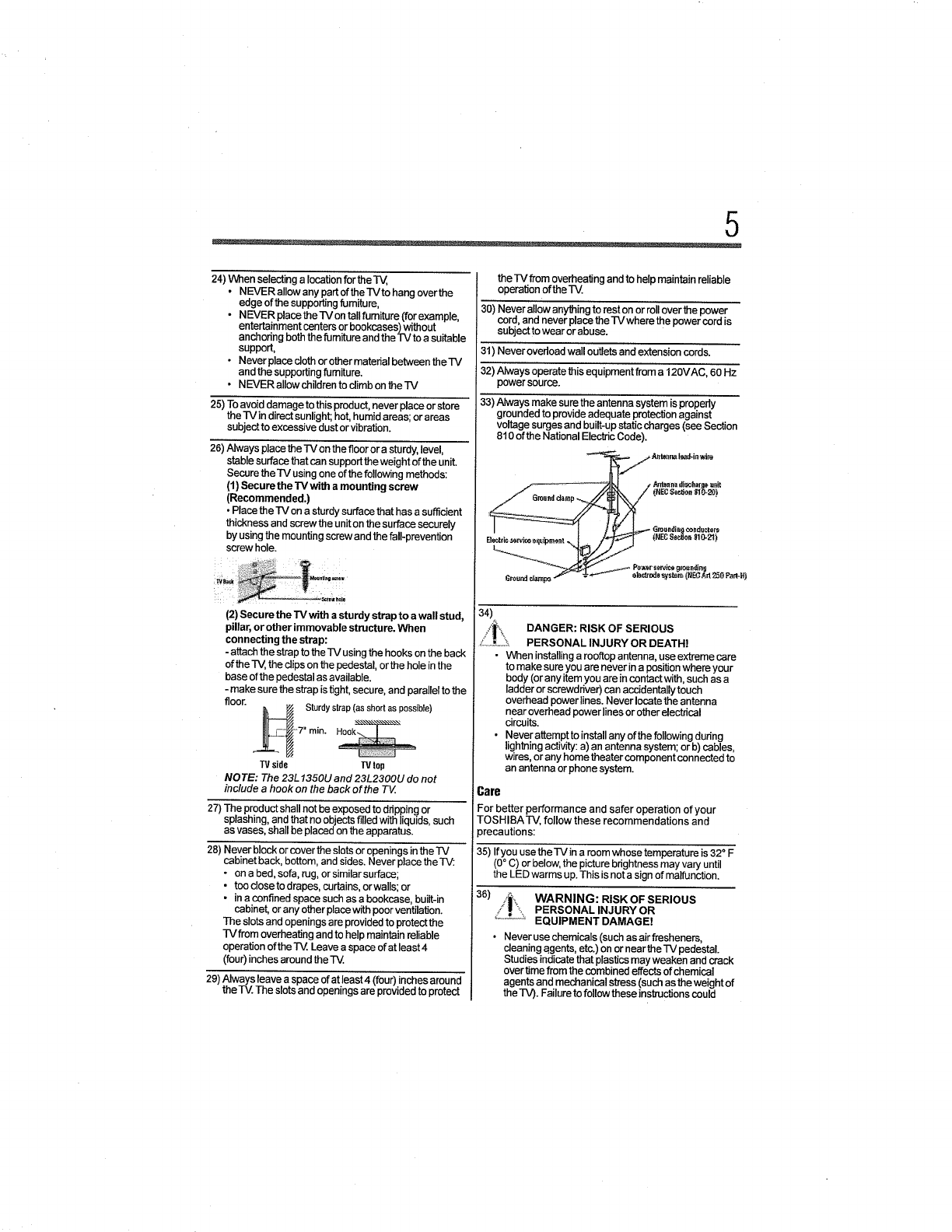
26) AIways ptace the -rv on the floor or a sturdy, level,
stablesurface that can support the weight of the unit.
Secure the TV using one of the following methods:
(1) Secure the TV with amounting screw
(Recommended.)
•Place theIV on a sturdysurfacethat has asufficient
thickness and screw the unit on the surface securely
by using the mounting screw and the taft-prevention
screw hole.
,__!:_, .....•
(2) Secure the TV with a sturdy strap to a wall stud,
pillar, or other immovable structure. When
connecting the strap:
- attach the strap to the TV using the hooks on the back
of the TV, the clips on the pedestal, or the hole in the
base of the pedestal as available.
- make sure the strap istight, secure, and parallel to the
floor. _ Sturdystrap(asshortaspossible)
7" rain.
TVside TVIop
NOTE: The 23L 1350U and 23L2300U do not
inc/ude a hook on the back of the TV
27) The product shall not be exposed to ddpping or
splashing, and that no objects filled with liquids, such
as vases, shall be placed on the apparatus.
28) Never block or cover the slots or openings inthe TV
cabinet back, bottom, and sides. Never place the TV:
• on abed, sofa, rug, or similar surface;
• tc_odosetodrapes, curtains, orwalls; or
• in a confined space such as a bookcase, built-in
cebinet, or any other place with poor ventilation.
The slots and openings are provided to protect the
TVfrom overheating and to help maintain reliable
operation of the IV. Leave a space of at least 4
(four) inches around the
29) Always leave aspace of at least 4 (four) inches around
the-IV. The slots and openings are proviaed to protecz
the IV from overheating and to help maintain reliable
operation ofthe rv.
30) Never allow anything to rest on or roll over the power
cord, and never place the TV where the power cord is
subject to wear or abuse.
31) Never overload wall outlets and extension cords.
32) Always operate thisequipment from a 120VAC, 60 Hz
power source.
33) Always make sure the antenna system is properly
grounded to provide adequate protection against
voltage surges and built-up staticcharges (see Section
810 of the National Electric Code).
.__j Anteal_ t_-in wile
t Ard_n:n_d_._afO$ _
I ..... I t_=_" Groun,i.i}_ondur.t.rs
Grounddamps .,.,_'_ .--L,,_ "-_ et_t_re_ _r_._m, (NB3 Art 25G PamH)
34)
/.'_\| DANGER: RISK OF SERIOUS
_.............:_ PERSONAL INJURY OR DEATH!
•Wl_en installingaroo_op antenna, use extreme care
tomake sure you are never in a positionwhere your
body(or any item you are in contact with, such as a
ladder or screwddver) can accidentallytouch
overhead power lines.Never locatethe antenna
near overhead power lines or other electrical
circuits.
• Never attempt to install any of the following dudng
lightning activity: a) an antenna system; orb) cables,
wires, or any home theater component connected to
an antenna or phone system.
Care
For better performance and safer operation of your
TOSHIBA-rV, follow these recommendations and
precautions:
35) Ifyou use the IV in a room whose temperature is 32 °F
(0° C) or below, the picture brightness may vary until
the LED warms up.This isnot a sign of malfunction.
36) WARNING: RISK OF SERIOUS
PERSONAL INJURY OR
EQUIPMENT DAMAGE!
• Never use chemicals (such as air fresheners,
cleaning _gents, etc.) on or near the "IV pedestal.
Studies indicate that plastics may weaken and crack
over time from the combined effects of chemical
agents and mechanical sb'ess (such as the weight of
the TV). Failure to follow these instructions could
resultinseriousinjuryand/orpermanentdamageto
TVandTVpedestal.
•Always unplug the TV before cleaning. Gently wipe
the display panel surface (the TV screen) using a
dry, soft cloth (cotton, flannel, etc.). A hard cloth may
damage the surface of the panel.Avoid contact with
alcohol, thinner, benzene, acidic or alkaline solvent
cleaners, abrasive cleaners, or chemical cloths,
which may damage the surface. Never spray volatile
compounds such as insecticide on the cabinet.
Such products may damage or discolor the cabinet.
37) Never hit, press, or place anything on the back cover.
These actions will damage intemal parts.
38)
/_i_:,. WARNING: ii!_,_.
...............RISKOFELECTRICSHOCK! ;_....!........
Never spill liquids or push objects of any kind into
the TV cabinet slots.
39) During a lightening storm, do not touch the connecting
cables or product.
40) For added protection of your -IV from lightning and
power surges, always unplug the power cord and
disconnect the antenna from therV if you leave the TV
unattended or unused for long periods of time.
41) Always unplug theIV to completely disconnect from
mains power. When the TV is turned off using the on/
off switch, it is not completely disconnected from power
and a minute amount of current is still consumed.
42) During normal use, theTV may make occasional
snapping or popping sounds. This is normal, especially
when the unit is being turned on or off. Ifthese sounds
become frequent or continuous, unplug the power cord
and contact a Toshiba Authorized Service Provider.
43) i__ WARNING: RISK OF SERIOUS
/._=,,, PERSONAL INJURY OR
=_""'_'""_'EQUIPMENT DAMAGE!
Never strike the screen with a sharp or heavy
object.
44)
•The LCD screen ofthis product can be damaged by
ultraviolet radiation from the sun. When selecting a
location for the television, avoid locations where the
screen may be exposed todirect sunlight, such as in
front of a window.
• Never touch, press, or place anything on the LCD
screen. These actions will damage the LCD screen.
If you need to clean the LCD screen, follow the
instructions in item 36) on page 5.
Service
45)
/_', WARNING: -/!''',
_: _" RISKOFELECTRICSHOCK!_,,_,!,,,,_,_
Never attempt to service the TV yourself. Opening
and removing the covers may expose you to
dangerous voltage or other hazards. Failure to
follow this WARNING may result in death or
serious injury. Refer all servicing not specified in
this manual to a Toshiba Authorized Service
Provider.
46) If you have the TV serviced:
• Ask the service technician to use only replacement
parts specified by the manufacturer.
• Upon completion of service, ask the service
technician to perform routine safetychecks to
determine that therV is in safe operating condition.
Choosinga locationforyourLEDTV
ToDisplay your LEDTV on the included Pedestal Stand:
Observe the following safety precautions:
1) Read and follow the pedestal assembly instructions
included with the pedestal.
CAUTION: Before beginning pedestal assembly,
carefully lay the front of the LCD Panel face down
on a flat, cushioned surface such as a quilt or
blanket. Leave the bottom of the unit protruding
over the edge of the surface and assemble the
pedestal as indicated below.
Note: Extreme care should always be used when
attaching the pedestal stand to avoid damage to
the LCD panel
2) Place the TV on a sturdy, level surface that can
support the weight of the l-M.
3) Be sure to secure the TVto awall, pillar, surface, or
other immovable structure see item 26) on page 5 for
additional details.
To Display your LED TV using a Wall Bracket:
If you decide to wall mount your LED TV, always use a
wall bracket Listed by an independent laboratory (such
as UL, CSA, ETL) that is appropriate for the size
and weight of the TV:
1) CAUTION: Two people are required forinstallation.
2) Unplug and remove any cables and/or other
component connectors from the rear of the TV
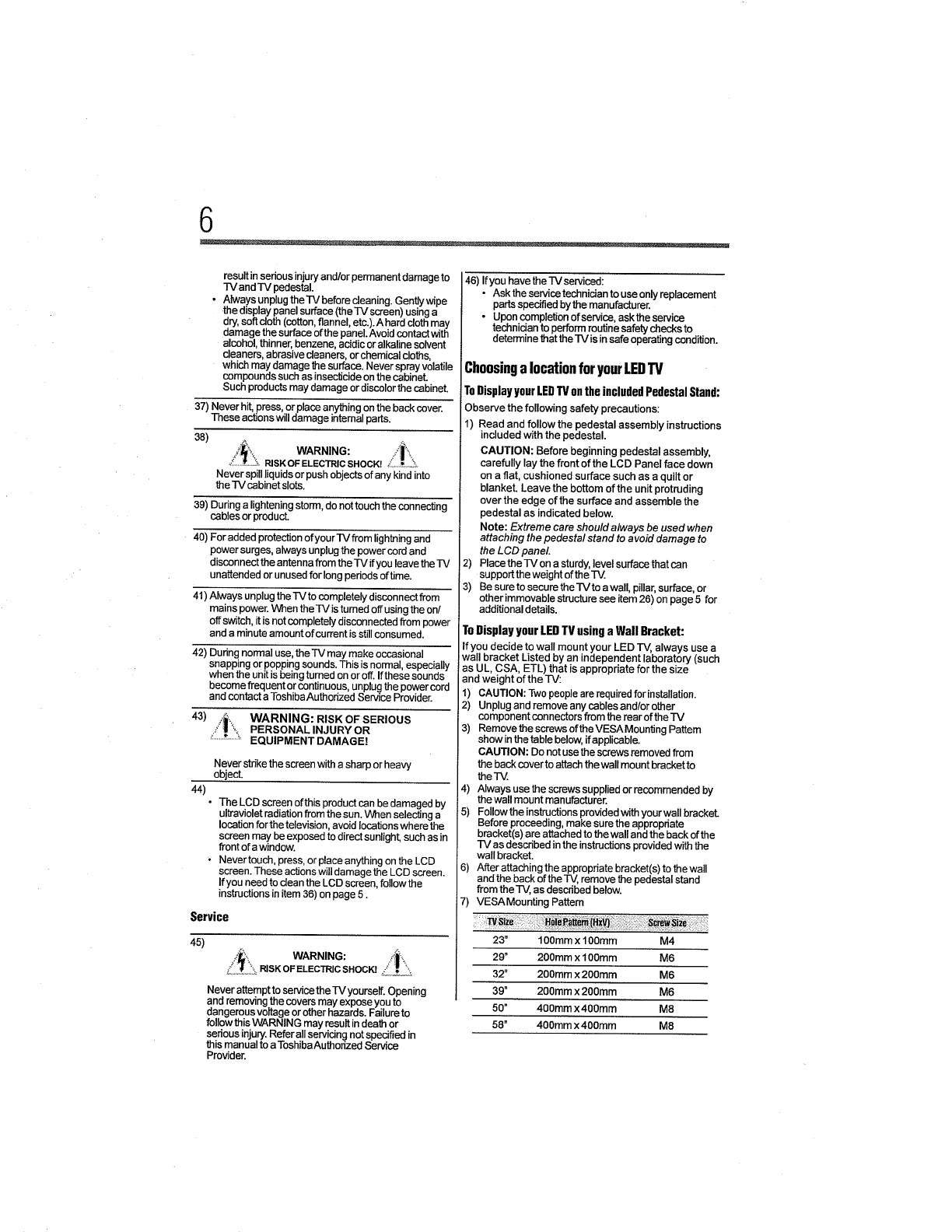
3) Remove the screws of the VESA Mounting Pattern
show in the table below, if applicable.
CAUTION: Do not use the screws removed from
the back cover to attach thewall mount bracket to
the TM.
4) Always use the screws supplied or recommended by
the wall mount manufacturer.
5) Follow the instructions provided with your wall bracket.
Before proceeding, make sure the appropriate
bracket(s) are attached to the wall and the back of the
TV as described in the instructions provided with the
wall bracket.
6) After attaching the appropriate bracket(s) to the wall
and the back ofthe TV, remove the pedestal stand
from the]V, as described below.
7) VESAMounting Pattern
23" 100ram x 100mm M4
29 °200mm x 100mm M6
32" 200mm x 200mm M6
39" 200ram x 200ram M6
50" 400mmx400mm M8
58" 400ram x 400ram M8
7
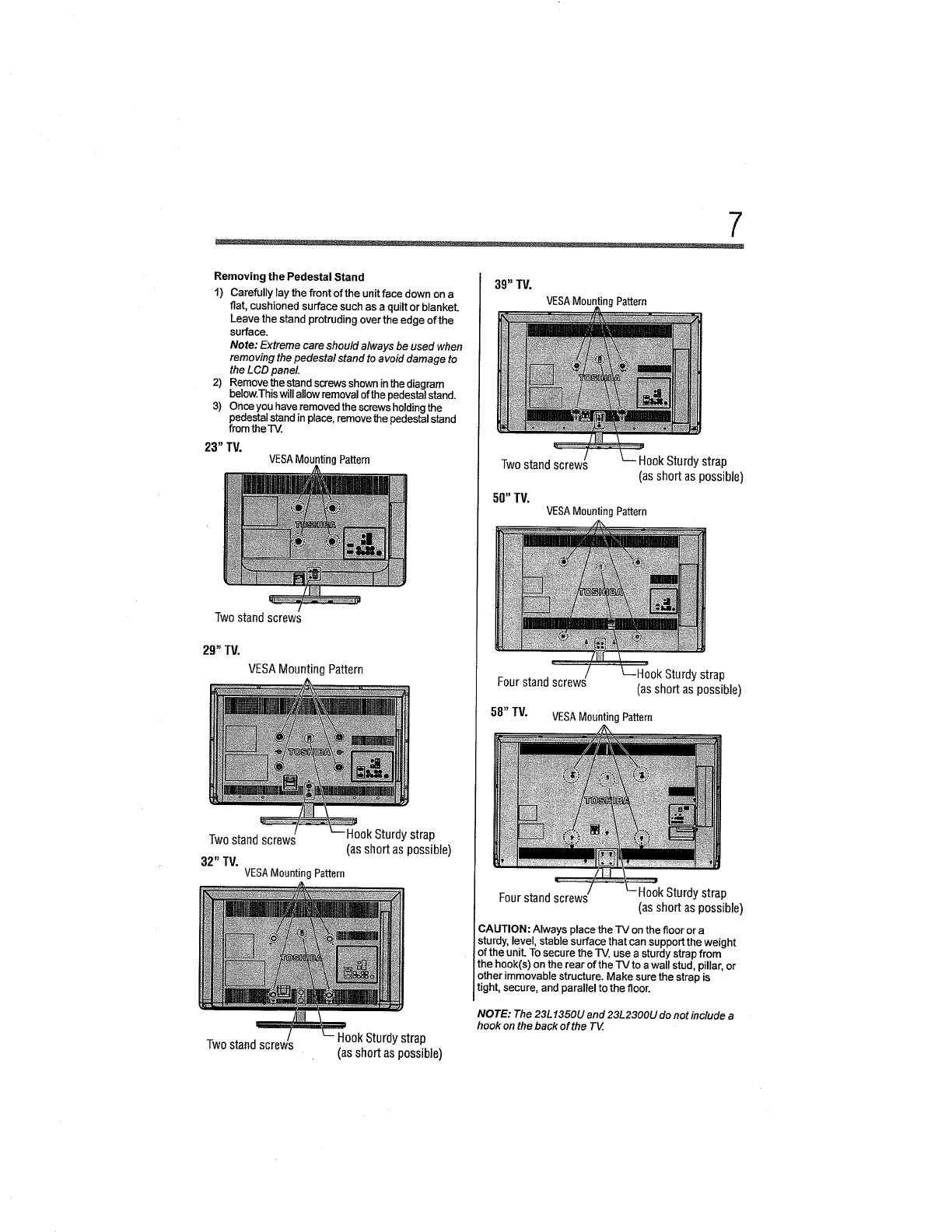
Removing the Pedestal Stand
1) Carefully lay the front of the unit face down on a
flat, cushioned surface such as a quilt or blanket.
Leave the stand protruding over the edge of the
surface.
Note: Extreme care should always be used when
removing the pedestal stand to a void damage to
the LCD panel
2) Remove the stand screws shown inthe diagram
below.This will allow removal of the pedestal stand.
3) Once you have removed the screws holding the
pedestal stand in place, remove the pedestal stand
from the T_.
23" TV.
VESAMounting Pattern
Twostand screws
29" TV.
VESA Mounting Pattern
Twostandscrews
32" TV.
HookSturdystrap
(asshortaspossible)
VESA Mounting Pattern
39" TV,
VESAMountingPattern
Twostandscrews
50" TV.
HookSturdystrap
(asshortas possible)
VESAMounting Pattern
Fourstandscrews strap
(asshortaspossible)
58" TV. VESA Mounting Pattern
Four stand screws Hook Sturdy strap
(as short as possible)
;AUTION: Always place the TV on the floor or a
sturdy, level, stable surface that can support the weight
of the unit. To secure theIV, use a sturdy strap from
the hook(s) on the rear of the TV to a wall stud, pillar, or
other immovable structure. Make sure the strap is
tight, secure, and parallel to the floor.
NOTE: The 23L 1350U and 23L2300U do not include a
hook on the back of the T_.
Twostandscrews HookSturdystrap
(asshortaspossible)
FCCDeclaration of Conformity
ComplianceStatement (Part 15):
Toshiba 23LI350U, 29LI350U, 32LI350U,
39LI350U, 50Lt350U, 58LI350U, 23L2300U,
32L2300U, 39L2300U, 50L2300U Television models
comply with Part t5 of the FCC Rules.
Operation is subject to the following two conditions:
(1) This device may not cause harmful interference, and
(2) This device must accept any interference received,
including interference that may cause undesired operation.
The party responsible for compliance to these rules is:
Toshiba America Information Systems, Inc.
9740 Irvine Blvd., Irvine, CA 92618.
Ph: 800-631-3811
Note: This equipment has been tested and found to
comply with the limits for a Class B digital device,
pursuant to Part 15 of the FCC Rules. These limits are
designed to provide reasonable protection against
harmful interference in a residential installation. This
equipment generates, uses, and can radiate radio
frequency energy and, if not installed and used in
accordance with the instructions, may cause harmful
interference to radio communications. However, there
is no guarantee that interference will not occur in a
particular installation. If this equipment does cause
harmful interference to radio or television reception,
which can be determined by removing and applying
power to the equipment, the user is encouraged to try
to correct the interference by one of the following
measures:
• Reorient or relocate the receiving antenna.
• Increase the separation between the equipment and
receiver.
• Connect the equipment into an outlet on a circuit different
from that to which the receiver is connected.
•Consult flle dealer or an expeliencedradio/TVtechnician
for help.
Caution: Changes or modifications to this equipment
not expressly approved by Toshiba could void the
user's authority to operate this equipment.
ENERGYSTAR_UserInformation
ENERGY STAR User Information Statement: tile factory
dethult settings of this television meet ENERGY STAR _'
requirements. Changing Pietm'e Settings may increase
energy consumption, possibly beyond the limits required ibr
ENERGY STAR qualification.
To ensure your television is operatiug at optimal energy
efficiency, select [Home] mode during initial activation. To
return to [Home] mode settings, select [Standard] picture
mode. [Standard] mode is recommended for normal home
use.
ENERGY STAR _' qualified TV. Products
that earn tile ENERGY STAR prevent
green house gas emissions by meeting
strict guidelines set by the U.S.
Envirnnlnental Protection Agency.
ENERGY STAR and the ENERGY STAR
mark are registered U.S. marks.
Importantnotesabout your TV
The following symptoms are technical limitations of
LCD Display technology and are not an indication of
malfunction; therefore, Toshiba is not responsible for
Jerceived issues resulting from these symptoms.
1) An aftedmage (ghost) may appear on the screen if a
fixed, non-moving image appears for along period of
time. The aRedmage is not permanent and will
disappear in a short penod of time.
2) The LCD panel contained in this TVis manufactured
using an extremely high level of precision technology;
however, there may be an occasional pixel (dot of
light) that does not operate propedy (does not light,
remains constantly lit, etc.). This is a structural
property of LCD technology, is note sign of
malfunction, and is not covered underyour warranty.
Such pixels are not visible when the picture isviewed
from a normal viewing distance.
Note: Interactive video games that involve shooting a
"gun" type of joystick at an on-screen target may not
workwith this T_

9
TrademarkInformation
ColorStream, DynaLight, ClearScan, Game'l]mer,
Native Mode, Cinema Mode, ColorMaster, SurfLock
are trademarks or registered trademarks of Toshiba
Amedca Information Systems, Inc.
Blu-ray Disc TM, Blu-ray TM, and the Iogos are
trademarks of the Blu-ray DiscAssociation.
•Audyssey EQ®provides dear, accurate,
"° and natural sound right out of the box. This
technology ensures you enjoy your audio
experience as much as your video.
•AudysseyABX TM technology uses
"" sophisticated ddver analysis and low
frequency monitoring to extend the range
and bass of small speakers. This enables
the system to produce lower frequendes
than would be possible with atraditional
system of the same size.
•Manufactured under license from
Audyssey Laboratories. U.S. and foreign
patents pending.
Audyssey EQ®is a registered trademark,
AudysseyABX TM is a trademark of
Audyssey Laboratodes.
• Manufactured under license from Dolbye
Laboratodes. Dolby_and the double-D
symbol are trademarks ofDolby _
Laboratodes.
•The terms HDMI and HDMI High-Definition
Multimedia Interface, and the HDMI Logo
are trademarks or registered trademarks of
HDMI Licensing LLC in the United States
and other countries.
oMPEG Layer-3 audio coding technology
licensed from Fraunhofer IIS and Thomson.
-This production contains Bitstream Vera
Sans fonts under the following copyright:
Copynght © 2003 by Bitstream, Inc. All
Rights Reserved. Bitstrearn Vera is a
trademark of Bitstream, Inc.
-All other brand and product names are
trademarks or registered trademarks of
their respective companies.
H.-_ITU-
Copyright
This guide is copyrighted by ToshibaAmerica Information
Systems, Inc. with all rights reserved. Under the copyright
laws, this guide cannot be reproduced in any form without
the prior written permission of Toshiba. No patent liability is
assumed, however, with respect to the use of the information
contained herein.
©2013 by ToshibaAmerica lafformation Systems, Inc. All
rights reserved.
Notice
The information contained in this manual, including but not
limited to any product specifications, is subject to change
without notice.
TOSHIBA CORPORATION AND TOSHIBA
AMERICA INFORMATION SYSTEMS, INC.
(TOSHIBA) PROVIDES NO WARRANTY WITH
REGARD TO THIS MANUAL ORANY OTHER
INFORMATION CONTAINED HEREIN AND
HEREBY EXPRESSLY DISCLAIMS ANY 1MPLIED
WARRANTIES OF MERCHANTABILITY OR
FITNESS FOR ANY PARTICULAR PURPOSE WITH
REGARD TO ANY OF THE FOREGOING. TOSHIBA
ASSUMES NO LIABILITY FOR ANY DAMAGES
INCURRED DIRECTLY OR INDIRECTLY FROM
ANY TECHNICAL OR TYPOGRAPHICAL ERRORS
OR OMISSIONS CONTAINED HEREIN OR FOR
DISCREPANCIES BETWEEN THE PRODUCT AND
THE MANUAL. IN NO EVENT SHALL TOSHIBA BE
LIABLE FOR ANY INCIDENTAL,
CONSEQUENTIAL, SPECIAL, OR EXEMPLARY
DAMAGES, WHETHER BASED ON TORT,
CONTRACT OR OTHERWISE, ARISING OUT OF
OR IN CONNECTION WITH THIS MANUAL OR
ANY OTHER INFORMATION CONTAINED HEREIN
OR THE USE THEREOF.
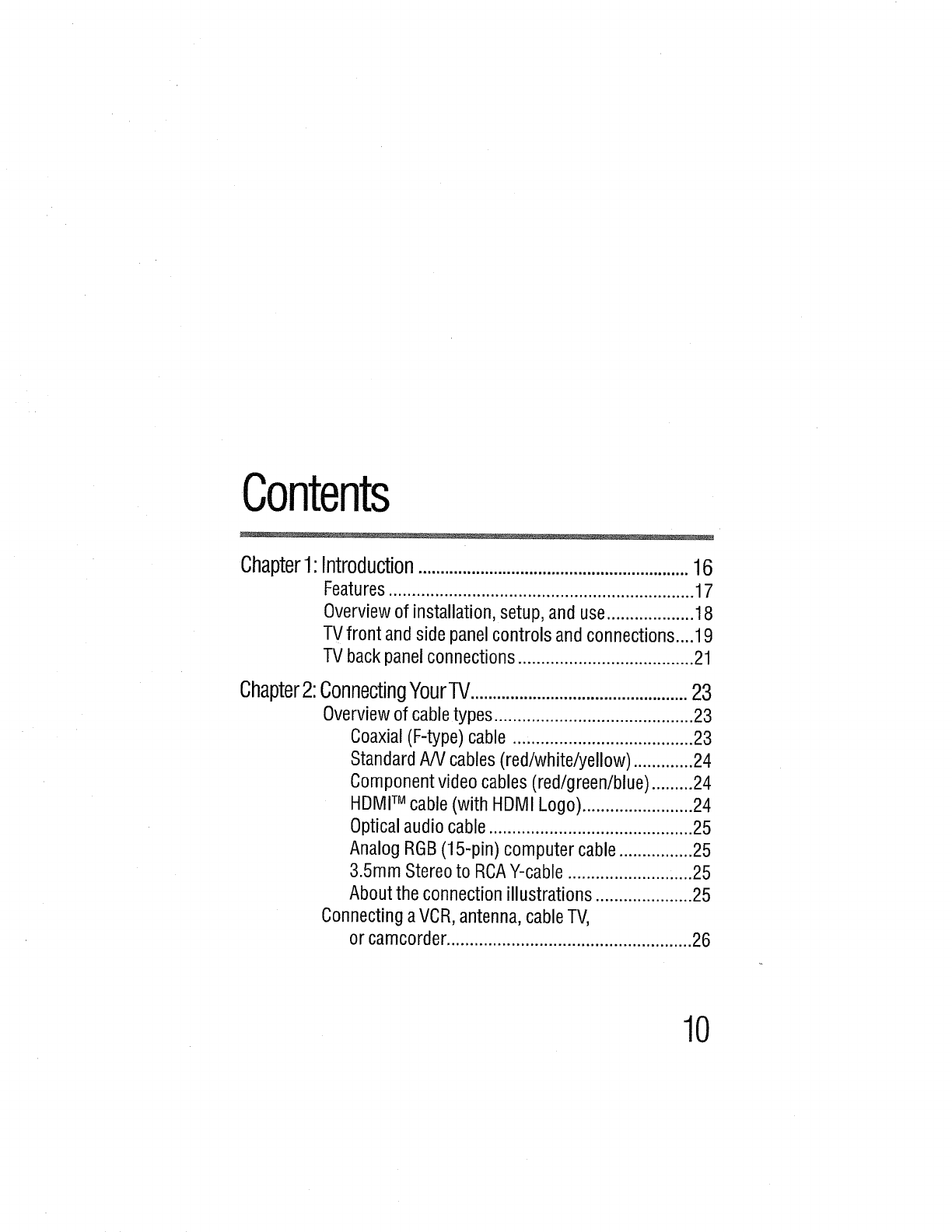
Contents
Chapter1:Introduction.............................................................16
Features .................................................................. 17
Overview of installation, setup, and use ................... 18
TVfront and side panel controls and connections ....19
TV back panel connections ...................................... 21
Chapter2:ConnectingYourTV.................................................23
Overview of cable types ........................................... 23
Coaxial (F-type) cable ....................................... 23
Standard A/V cables (red/white/yellow) ............. 24
Component video cables (red/green/blue) .........24
HDMITM cable (with HDMI Logo) ........................ 24
Optical audio cable ............................................ 25
Analog RGB(15-pin) computer cable ................ 25
3.5mm Stereo to RCAY-cable ........................... 25
About the connection illustrations ..................... 25
Connecting a VCR, antenna, cable TV,
or camcorder ..................................................... 26
10
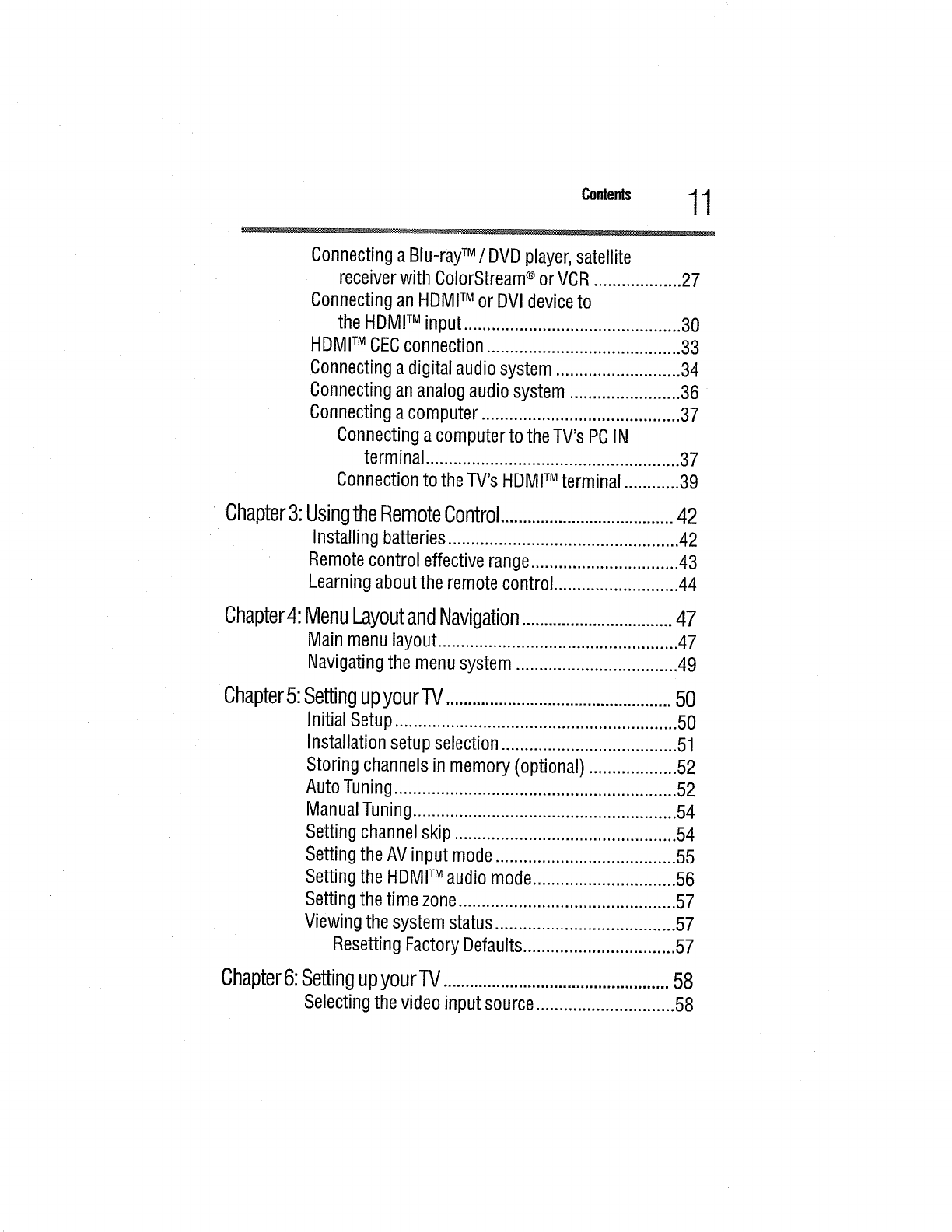
11
Connectinga Blu-rayTM /DVDplayer,satellite
receiverwith ColorStream®or VCR...................27
Connectingan HDMITM or DVIdeviceto
the HDMITM input......,........................................30
HDMITM CECconnection..........................................33
Connectinga digital audiosystem...........................34
Connectingan analogaudiosystem ........................36
Connectinga computer...........................................37
Connectinga computerto the TV'sPCIN
terminal.......................................................37
Connectionto the TV'sHDMITM terminal ............39
Chapter3:
Chapter4:
UsingtheRemoteControl.......................................42
Installing batteries .................................................. 42
Remote control effective range ................................ 43
Learning about the remote control ........................... 44
MenuLayoutandNavigation..................................47
Main menu layout .................................................... 47
Navigating the menu system ................................... 49
Chapter5:SettingupyourTV...................................................50
Initial Setup ............................................................. 50
Installation setup selection ...................................... 51
Storing channels in memory (optional) ................... 52
Auto Tuning ............................................................. 52
Manual Tuning......................................................... 54
Setting channel skip ................................................ 54
Setting the AV input mode ....................................... 55
Setting the HDMITM audio mode ............................... 56
Setting the time zone............................................... 57
Viewing the system status ....................................... 57
Resetting Factory Defaults ................................. 57
Chapter6:SettingupyourTV ...................................................58
Selecting the video input source .............................. 58
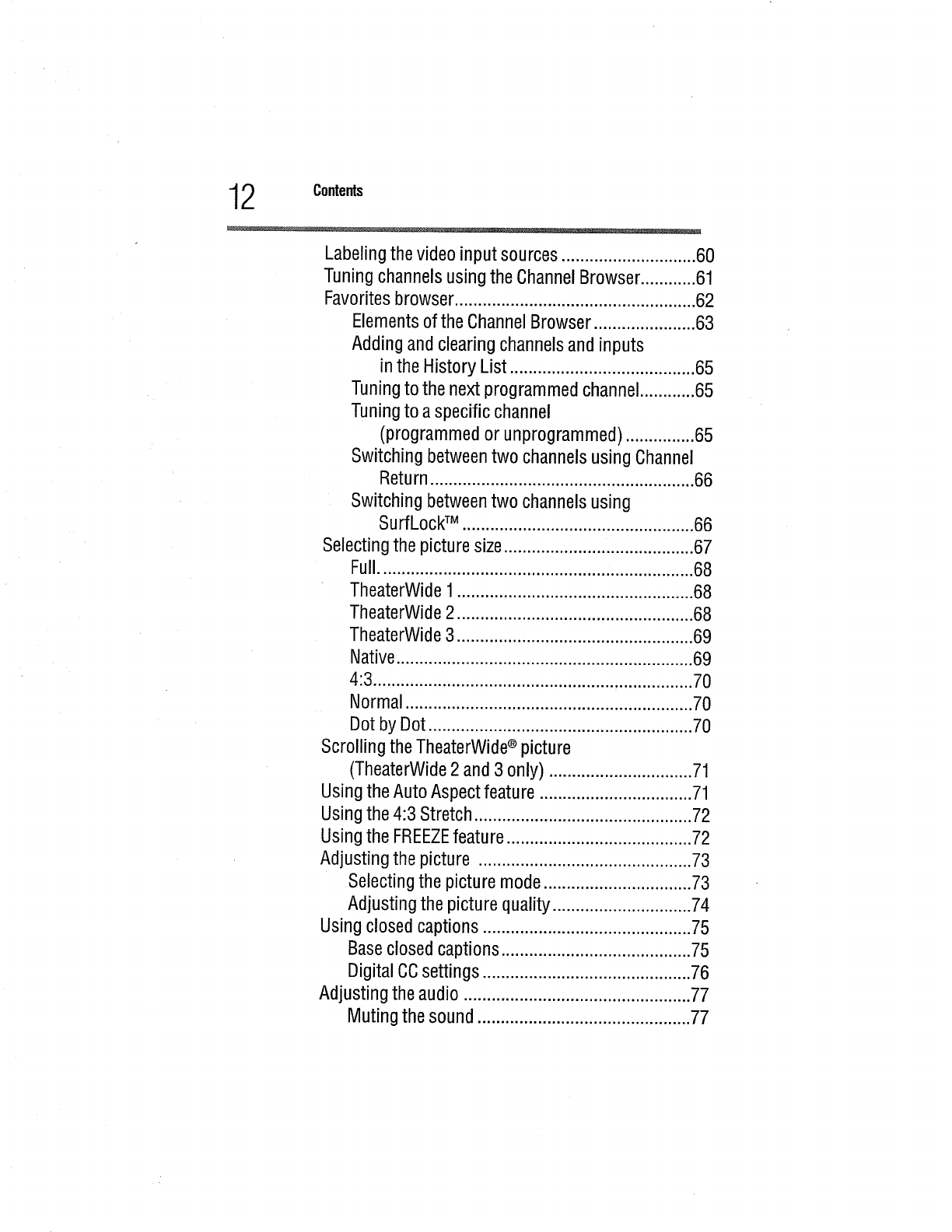
2Contents
Labelingthe video input sources .............................60
Tuningchannelsusingthe ChannelBrowser............61
Favoritesbrowser....................................................62
Elementsof the ChannelBrowser......................63
Addingand clearingchannelsand inputs
inthe History List ........................................65
Tuningto the next programmedchannel............65
Tuningto a specificchannel
(programmedor unprogrammed)...............65
Switchingbetweentwo channelsusing Channel
Return.........................................................66
Switching betweentwo channelsusing
SurfLockTM ..................................................66
Selectingthe picturesize.........................................67
Full....................................................................68
TheaterWide1...................................................68
TheaterWide2 ...................................................68
TheaterWide3 ...................................................69
Native................................................................69
4:3.....................................................................70
Normal..............................................................70
Dotby Dot.........................................................70
Scrolling the TheaterWide®picture
(TheaterWide2 and 3 only) ...............................71
Usingthe AutoAspectfeature .................................71
Usingthe 4:3 Stretch...............................................72
Usingthe FREEZEfeature........................................72
Adjusting the picture ..............................................73
Selectingthe picture mode................................73
Adjusting the picture quality..............................74
Usingclosedcaptions.............................................75
Baseclosedcaptions.........................................75
DigitalCCsettings.............................................76
Adjusting the audio .................................................77
Muting the sound ..............................................77
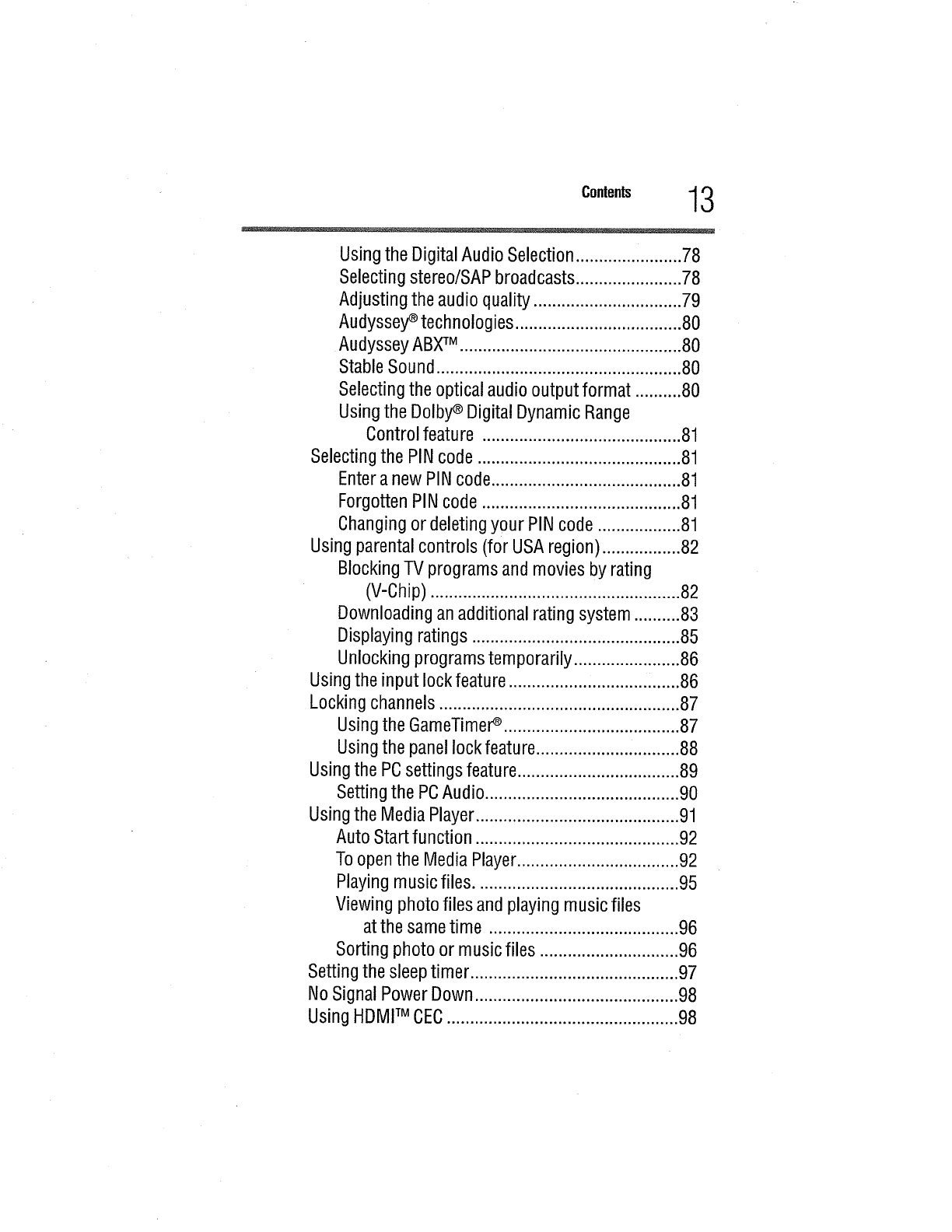
13
Usingthe DigitalAudio Selection.............i.........78
Selectingstereo/SAPbroadcasts.......................78
Adjusting the audio quality................................79
Audyssey_ technologies....................................80
AudysseyABXTM ................................................80
StableSound.....................................................80
Selectingthe opticalaudiooutput format ..........80
Usingthe Dolby_ DigitalDynamicRange
Controlfeature ...........................................81
Selectingthe PINcode ............................................81
Entera new PINcode.........................................81
ForgottenPINcode ...........................................81
Changingor deletingyour PIN code..................81
Usingparentalcontrols (for USAregion).................82
BlockingTV programsand moviesby rating
(V-Chip)......................................................82
Downloadingan additionalrating system..........83
Displayingratings .............................................85
Unlockingprogramstemporarily .......................86
Usingthe input lock feature..............................i......86
Lockingchannels....................................................87
Usingthe GameTimer_ ......................................87
Usingthe panellockfeature...............................88
Usingthe PCsettingsfeature...................................89
Settingthe PCAudio..........................................90
Usingthe MediaPlayer............................................91
AutoStartfunction ............................................92
Toopenthe MediaPlayer...................................92
Playingmusicfiles............................................95
Viewingphotofiles and playingmusicfiles
at the sametime .........................................96
Sortingphoto or musicfiles ..............................96
Settingthe sleeptimer .............................................97
NoSignalPowerDown............................................98
UsingHDMITM CEC..................................................98
4Contents
HDMFMCECplaybackdevice
(DVDplayer,etc.) control ............................99
OtherHDMITM CECfunctions ...........................101
Setting up HDMITM CEC...................................101
Usingthe HDMITM settingsfeature.........................101
Usingthe HDMFMsettingsfeature.........................102
HDMITM 1(2, or 3) RGBRange.........................102
HDMFMInformation Display............................102
DisplayingTVstatusinformation...........................102
Understandingthe last modememoryfeature.......103
Chapter7:UsingtheTV'sAdvancedFeatures.......................104
Using the advanced picture settings ...................... 104
ColorMaster TM ............................................. ,...104
Base Color Adjustment .................................... 104
Color Temperature ........................................... 105
Static Gamma.................................................. 105
Brightness Sensor (for 39/50L2300U and
39/50/58 L1350U) ...................................... 105
DynaLight_ ...................................................... 106
Dynamic Contrast ............................................ 106
Cinema Mode (except for 58L1350U) .............. 106
ClearScan®(for 58L1350U) ............................. 106
Noise Reduction .............................................. 107
Chapter8:
Troubleshooting.....................................................108
General troubleshooting ........................................ 108
Picture problems ................................................... 109
Sound problems .................................................... 110
Remote control problems ...................................... 111
Channel tuning problems ...................................... 111
Closed caption problems ....................................... 112
Rating blocking (V-Chip) problems ....................... 112
No HDMFMCECoperation ..................................... 112
HDMFMproblems .................................................. 113
Media Player problems .......................................... 113
c..,°.,s 15
If the problem persistsaftertrying the solutions....113
AppendixA:Specifications.....................................................114
Television system .................................................. 114
Channel coverage .................................................. 114
Power source ........................................................ 115
Power maximum current ................................. 115
Power consumption ........................................ 115
Audio power .................................................... 115
Speaker type ......................................................... 116
Video/audio terminals ........................................... 116
Video/audio input ............................................ 116
ColorStream ® (component video) HD input .....116
HDMITM input ................................................... 116
Digital audio output ......................................... 117
PCinput ......................................................... ,117
Dimensions ........................................................... 117
Weight (Mass) ................................................. 117
Operating conditions ....................................... 118
Supplied accessories ............................................. 118
Acceptable signal formats for PC IN, HDMFM......... 118
PC IN signal formats ........................................ 118
HDMITMsignal formats ..................................... 119
AppendixB:LicenseAgreement.............................................120
Chapter1
Introduction
Safetyicons
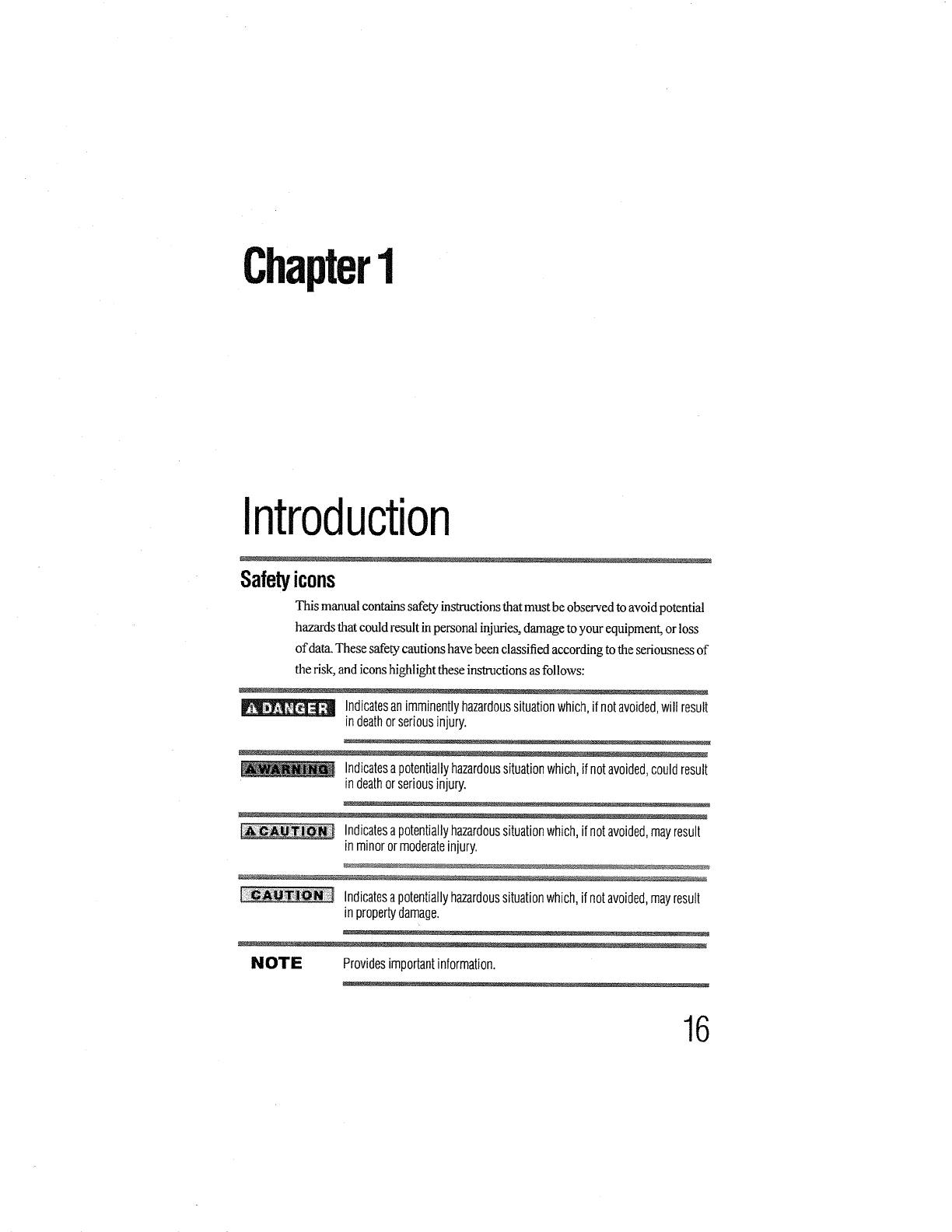
This manual contains safety instructions that must be observed to avoid potential
hazards that could result in personal injuries, damage to your equipment, or !oss
of data. These safety cautions have been classified according to the seriousness of
the risk, and icons highlight these instructions as follows:
Indicatesanimminentlyhazardoussituationwhich,itnotavoided,will result
indeathorseriousinjury.
Indicatesa potentiallyhazardoussituationwhich,if notavoided,couldresult
indeathorseriousinjury.
Indicatesa potentiallyhazardoussituationwhich,if notavoided,mayresult
in minoror moderateinjury.
Indicatesapotentiallyhazardoussituationwhich,ifnotavoided,mayresult
inpropertydamage.
NOTE Providesimportantinformation.
16

Introduction17
Features
Features
The following are just a few of the many exciting features of your
new Toshiba wide screen, integrated HD, LED TV:
o:o Integrateddigitaltuning(8VSBATSCandQAM)--
Eliminates the need for aseparate digital converter set-top box
(in most cases).
1366 x 768 output resolution (29L1350U, 32L1350U,
32L2300U)
1920 x 1080 output resolution (23L1350U, 39L1350U,
50LI350U, 58L1350U, 23L2300U, 39L2300U, and
50L2300U)
Three HDMITM--Digital, High-Definition Multimedia
Interfaces with 1080p input support. See "Connecting an
HDMI TM or DVI device to the HDMI TM input" on page 30
ColorStream ®HD_High-resolution component video input
and shared composite video input, see "Connecting a Blu-ray TM
/DVD player, satellite receiver with ColorStream® or VCR"
on page 27
o:. Digital Audio Out--Optical audio connection with Dolby ®
Digital optical output form. See "Connecting a digital audio
system" on page 34
÷_. Audyssey EQ ®and ABXTM----Audiotechnologies for clear,
well-balanced sound, see "Audyssey® technologies" on page 80
÷$* ColorMaster TM Allows you to adjust the TV's standard
colors, see "ColorMaster TM''on page 104
•5° Cinema Mode---Shows film-like quality movies, see "Cinema
Mode (except for 58L1350U)" on page 106
•_" DNR--Dynamic Noise Reduction technology that filters out
video noise without decreasing the picture sharpness for clean,
crystal-clear images, see "DNR" on page 107
÷_° ClearScan ®240Hz(for58L1350U)
--Uses both frame interpolation technology and advanced
backlight control with image synchronization to quadruple the
TV refresh rate for an even clearer fast motion video, see
"ClearScan® (for 58L1350U)" on page 106
•_" ClearScan ®120Hz (for 32/39/50L1350U and
32/39/50L2300U)
-- Doubles the refresh rate for clearer fast motion video.
PC IN (Analog RGB)---Computer terminal, see "Connecting
a computer to the TV's PC IN terminal" on page 37
8Introduction
Overview of installatior_ setup, and use
HDM] TM CEC--AIIows control of external devices from the
TV remote via HDMI TM connection, see "UsingHDMI TM
CEC" on page 98
Media Player--Allows you to view photo files and play music
files, see "Using the Media Player" on page 91
ENERGY STAR ®qualified.
Overviewofinstallation,setup,anduse
Follow these steps to set up your TV and begin using its many
exciting features.
1 Carefully read the important safety, installation, care, and
service information. Keep this document for future reference.
2 To choose a location for the TV:
o$* Read "Important notes about your TV" on page 8
o:° Place the TV on the floor or a sturdy, level, stable surface
that can support the weight of the unit. Secure the TV to a
wall, pillar, or other immovable structure, see 26)
on page 5.
°:- Place the TV in a location where light does not reflect on
the screen.
o:° Always leave a space of at least 4 (four) inches arotmd the
TV. The slots and openings are provided to protect the TV
from overheating and to help maintain reliable operation
of the TV.
3 Do not plug in any power cords until after you have connected
all cables and devices to your TV.
4 Before connecting cables or devices to the TV, learn the
functions of the TV's connections and controls, see "Overview
of cable types" on page 23
5 Connect your other electronic device(s) to the TV, see
"Connecting an HDMI TM or DVI device to the HDMI TM
input" on page 30
6 Install the batteries in the remote control, see "Installing
batteries" on page 42
7 See "Learning about the remote control" on page 44 for an
overview of the buttons on the remote control.
8 After connecting all cables and devices, plug in the power
cords for your TV and other devices. Then press the POWER
button on the TV control panel or remote control to turn on the
TV. If the TV stops responding to the buttons on the remote
control or TV control panel and you cannot turn the TV offor
on, unplug the power cords for a few seconds and then plug
them in and try again.
9 See "Navigating the menu system" on page 49 for a quick
overview of navigating the TV's menu system.

Introduction 19
TVf!_ontandsidepanel controlsand connections
10 Program channels into the TV's channel memory, see
"Auto Tuning" on page 52
11 For details on using the TV's features, see Chapter 6 and
Chapter 7
12 For help, refer to "Troubleshooting" on page 108
13 For technical specifications, see"Specifications" on page 114
14 For the End User License Agreement, see "License
Agreement" on page 120
TVfrontandsidepanelcontrolsandconnections
Leftsidepanel TVfront
TVtop
HDMI_p;rt 8
usBr_l 2 1
(Sample Illustration) L1350_VL2300U SeFies (except 58L1350U)
-- Front and side panel controls and connections
1Power On/Standby LED--Power indicator light, (glows
green when the TV power is On).
2 Remote sensor (embedded)---Point the remote control toward
this remote sensor.
3POWER--Turns the TV On/Off. If the TV stops responding to
the buttons on the remote control or TV control panel and you
cannot turn offthe TV, press and hold the POWER button on
the TV control panel for a few seconds to reset the TV.
ARROWS _/T/+/-- -- Adjust the volume level, change the
channel, or change the input or source you are viewing,
depending on the mode, which is selected by the CIt/INPUT
button.
5CH/INPUT--Switches tile function of the ARROWS A/V/+/
-- buttons to select the volume, channel, or input mode.
•In Volume mode, the arrow buttons increase or
decrease the volume.
•In Channel mode, the arrow buttons change the
channel up or down.
• In Source mode, the arrow buttons toggle the input
from one source to the next.
6I-IDMITM IN--High-Definition Multimedia Interface input.

20 Introduction
TVf!_ontandsidepanelcontrolsandconnections
7
8
USB port--Accesses JPEG or MP3 files, or updates TV firmware.
Brightness Sensor ( for 39/50/58L1350U and 39/50L2300U)---
Detects the ambient light conditions to optimize the backlighting
levels.
Leftsidepanel
i......
5_D
L.,
,---ir_
TVfront
2 1
TVtop
Lqamp/e Ilhtstration) 58L1350U--Front and side panel controls and
connections
1 Power On/Standby LED---Power indicator light, (glows green
when the TV power is On).
2 Remote sensor (embedded)--Point the remote control toward this
remote sensor.
3POWER--Turns the TV On/Off. If the TV stops responding to the
buttons on the remote control or TV control panel andyou cannot
turn offthe TV, press and hold the POWER button on the TV
control panel for a few seconds to reset the TV.
4 ARROWS &iVfI+I-- -- Adjust the volume level, change the
channel, or change the input or source you are viewing, depending
on the mode, which is selected by the CH/INPUT button.
5 CH/INPUT--Switches the function of the VOL +/-- buttons to
select the volume, channel, or input mode.
• In Volume mode, the arrow buttons increase or
decrease the volume.
•In Channel mode, the an'ow buttons change the
channel up or down.
•In Source mode, the arrow buttons toggle the input
from one source to the next.
6 HDMI TM IN--High-Definition Multimedia Interface input.
7 Digital AUDIO OUT--Optical audio output in Dolby ®Digital
or PCM (pulse-code modulation) format for connecting an
external Dolby ®Digital decoder, amplifier, or home theater
system with optical audio input.
Introduction21
TVbackpanelconnections
8 USB port--Accesses JPEG or MP3 files, or updates TV firmware.
9 Brightness Sensor--Detects the ambient light conditions to
optimize the backlighting levels.
TVbackpanelconnections
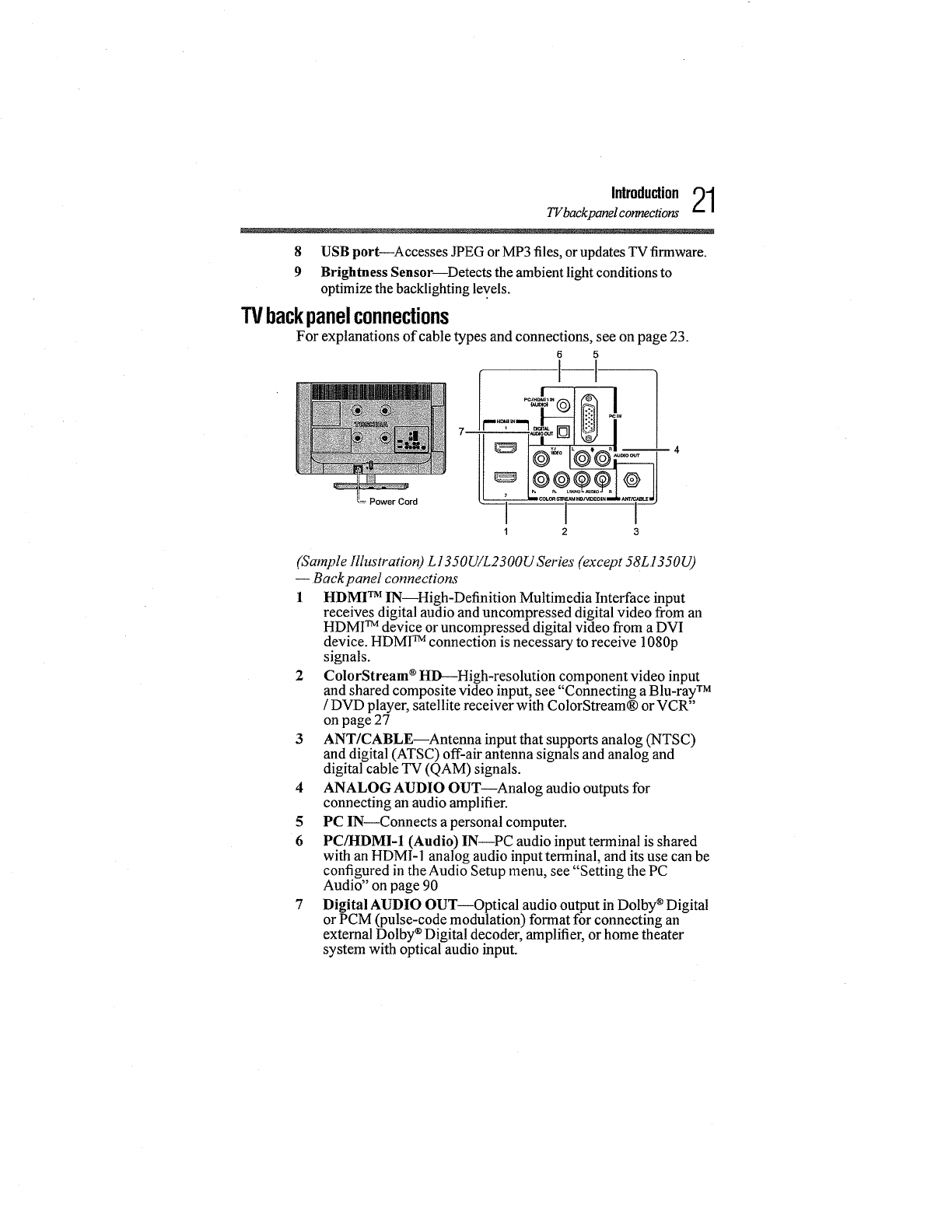
For explanations of cable types and connections, see on page 23.
6 5
Power Cord
r ,
12 3
(Sample lllustration) L1350UiL2300USeries (except 58LI350U)
--Backpanel connections
1 HDMI TM IN High-Definition Multimedia Interface input
receives digital audio and uncompressed digital video from an
HDMI TM device or uncompressed digital video from a DVI
device. HDMI TM connection is necessary to receive 1080p
signals.
2 ColorStream ®HD---High-resolution component video input
and shared composite video input, see "Connecting a Blu-ray TM
/DVD player, satellite receiver with ColorStream® or VCR"
on page 27
3 ANT/CABLE--Antenna input that supports analog (NTSC)
and digital (ATSC) off-air antenna signals and analog and
digital cable TV (QAM) signals.
4 ANALOG AUDIO OUT--Analog audio outputs for
connecting an audio amplifier.
5 PC IN--Connects a personal computer.
6 PC/HDMI-I (Audio) IN--PC audio input terminal is shared
with an HDMI-1 analog audio input terminal, and its use can be
configured in the Audio Setup menu, see "Setting the PC
Audio" on page 90
7 Digital AUDIO OUT--Optical audio output in Dolby ®Digital
or PCM (pulse-code modulation) format for connecting an
external Dolby ®Digital decode1; amplifier, or home theater
system with optical audio input.
2Introduction
TVbackpanel connections
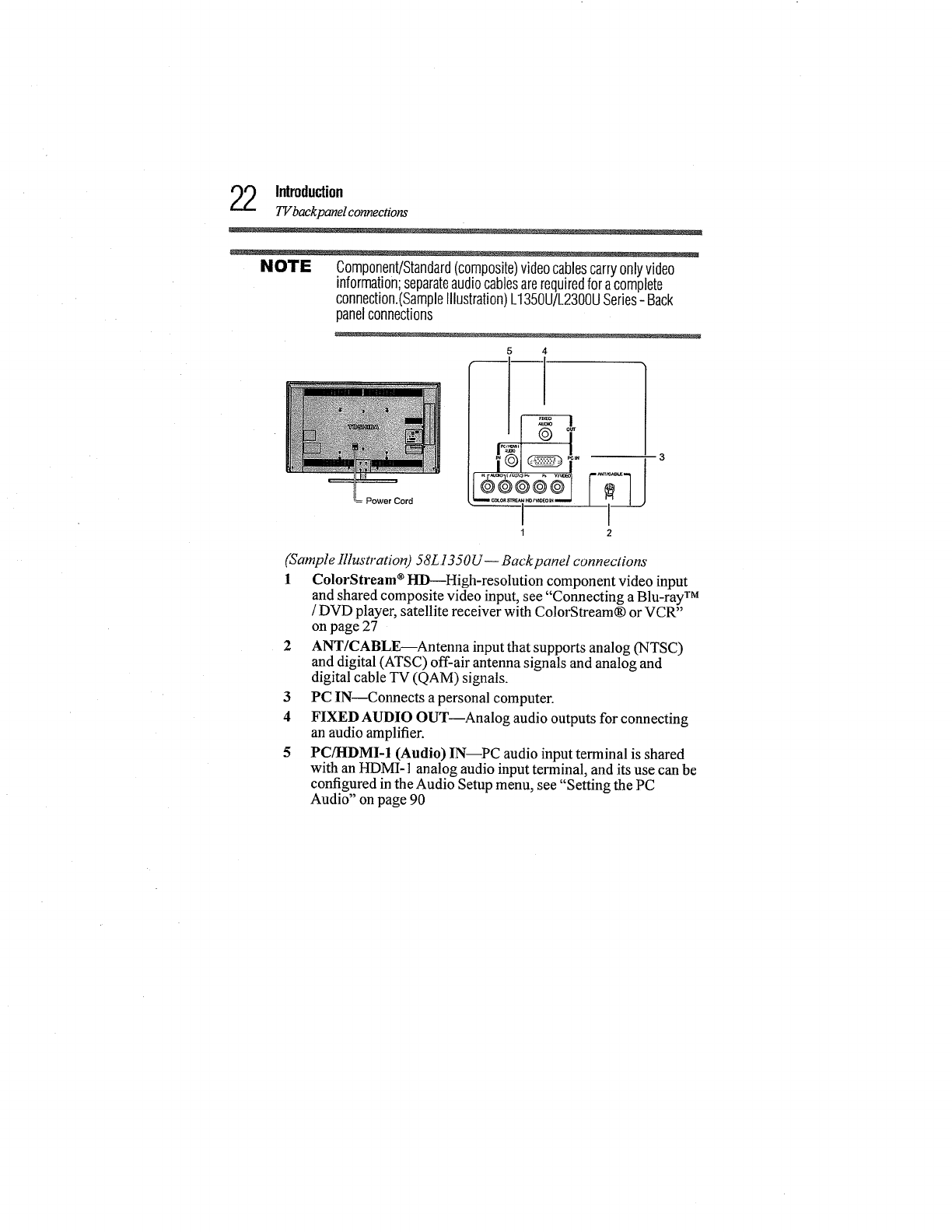
NOTE Component/Standard(composite)videocablescarryonlyvideo
information;separateaudiocablesarerequiredforacomplete
connection.(SampleIllustration)L1350U/L2300USeries- Back
panelconnections
Power Cord
5 4
-11
1
12
(Sample Illustration) 58L ! 350U-- Back panel connections
] ColorStream ®HD---High-resolution component video input
and shared composite video input, see "Connecting a Blu-ray TM
/DVD player, satellite receiver with ColorStream® or VCR"
on page 27
2 ANT/CABLE--Antenna input that supports analog (NTSC)
and digital (ATSC) off-air antenna signals and analog and
digital cable TV (QAM) signals.
3 PC IN--Connects a personal computer.
4FIXEDAUDIO OUT--Analog audio outputs for connecting
an audio amplifier.
5PC/HDMI-1 (Audio) IN PC audio input terminal is shared
with an HDMI-l analog audio input terminal, and its use can be
configured in the Audio Setup menu, see "Setting the PC
Audio" on page 90
Chapter2
ConnectingYourTV
Overviewofcabletypes
Before purchasing cables, know the connector types your devices
require. You can purchase cables from most stores that sell audio/
video devices.
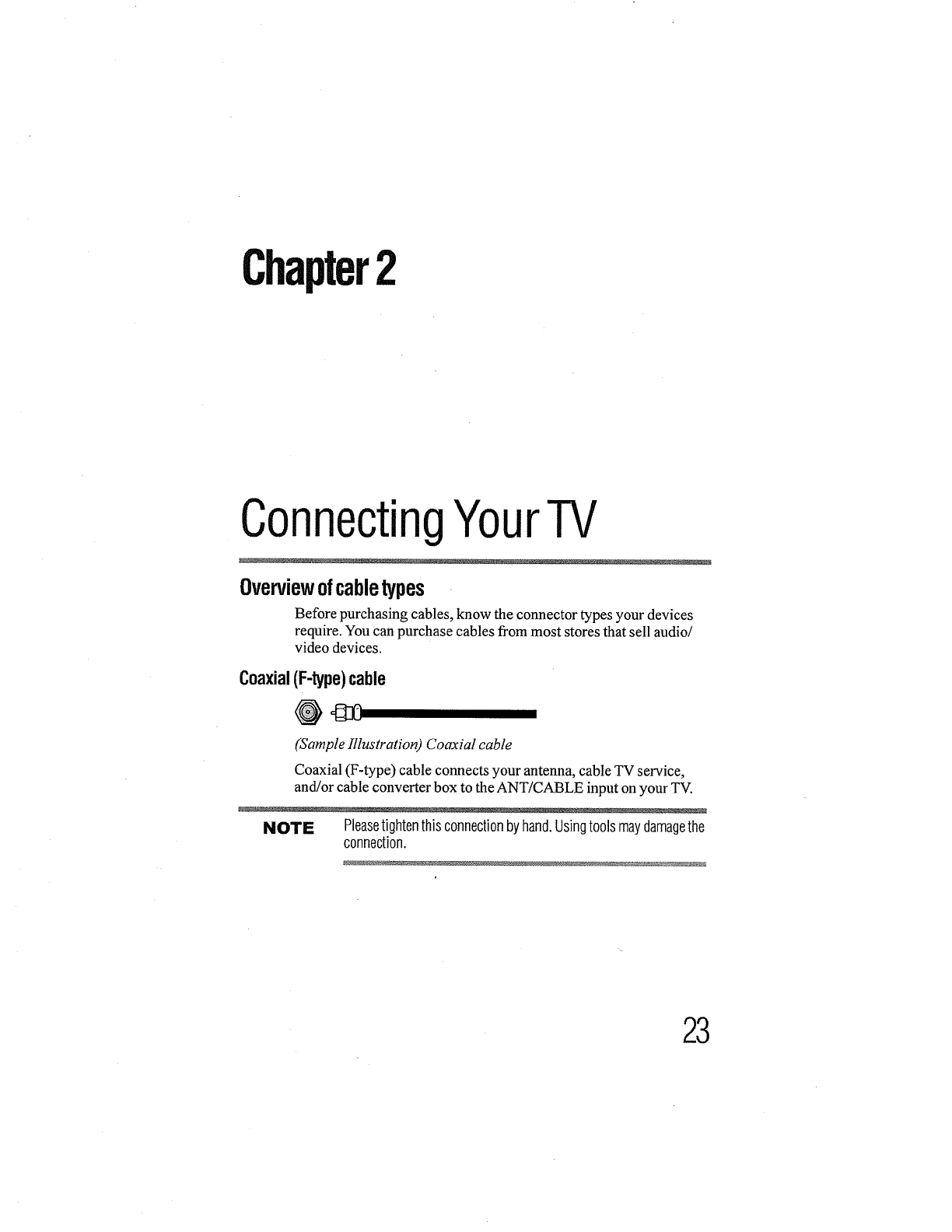
Coaxial(F-type)cable
@_
(Sample Illustration) Coaxial cable
Coaxial (F-type) cable connects your antenna, cable TV service,
and/or cable converter box to the ANT/CABLE input on your TV.
NOTE Pleasetightenthisconnectionbyhand.Usingtoolsmaydamagethe
connection.
23
4ConnectingYourTV
Overview of cable Opes
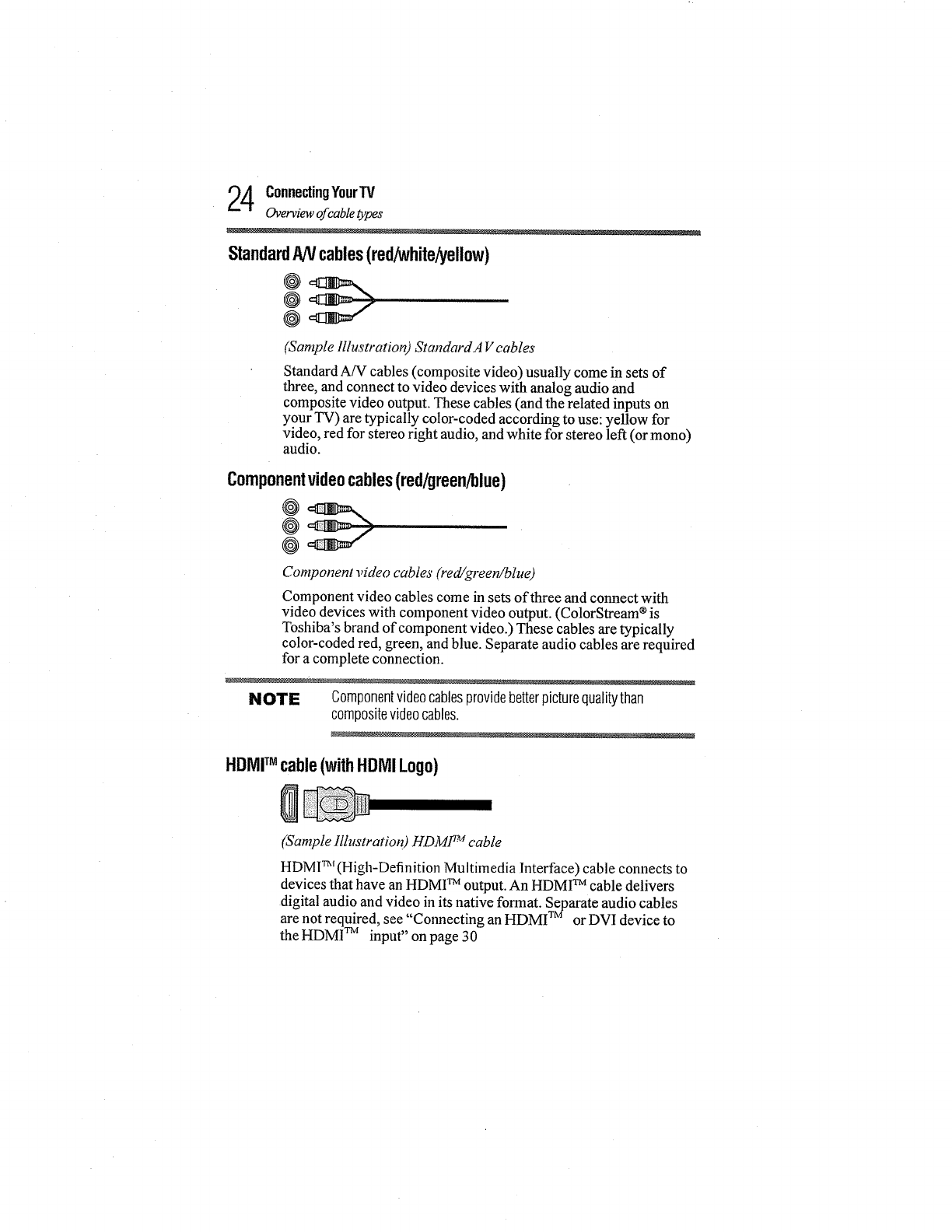
StandardANcables(red/white/yellow)
@
@
(Sample Illustration) StandardA V cables
Standard AiV cables (composite video) usually come in sets of
three, and connect to video devices with analog audio and
composite video output. These cables (and the related inputs on
your TV) are typically color-coded according to use: yellow for
video, red for stereo right audio, and white for stereo left (or mono)
audio.
Componentvideocables(red/green/blue)
@
@
Component video cables (red/green!blue)
Component video cables come in sets of three and connect with
video devices with component video output. (ColorStream ®is
Toshiba's brand of component video.) These cables are typically
color-coded red, green, and blue. Separate audio cables are required
for a complete connection.
NOTE Componentvideocablesprovidebetterpicturequalitythan
compositevideocables.
HDMITM cable(withHDMILogo)
(Sample Illustration) HDM1 TM cable
HDM1TM(High-Definition Multimedia Interface) cable connects to
devices that have an HDMI TM output. An HDMI TM cable delivers
digital audio and video in its native format. Separate audio cables
are not required, see "Connecting an HDMI TM or DVI device to
the HDMI TM input" on page 30
ConnectingYourTV9J_
Overview of cable types LU
NOTE HDMITM cablesprovidethebestaudioandpicturequality.
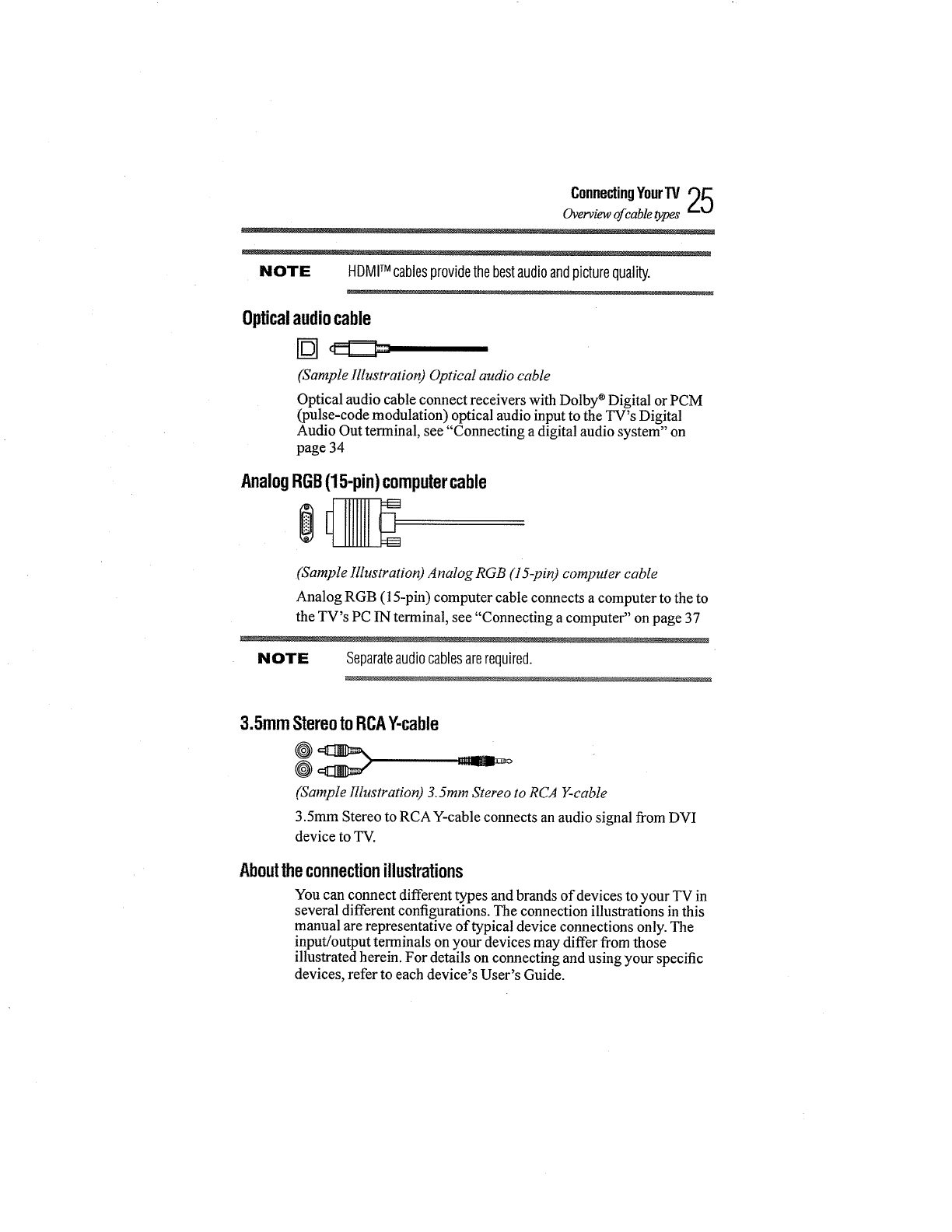
Opticalaudiocable
(Sample Illustration) Optical audio cable
Optical audio cable connect receivers with Dolby ®Digital or PCM
(pulse-code modulation) optical audio input to the TV's Digital
Audio Out terminal, see "Connecting a digital audio system" on
page 34
AnalogRGB(15-pin)computercable
(Sample IllustratiorO Analog RGB (15-pin) computer cable
Analog RGB (15-pin) computer cable connects a computer to the to
the TV's PC IN terminal, see "Connecting a computer" on page 37
NOTE Separateaudiocablesarerequired.
3.5mmStereotoRCAY-cable
@
(Sample illustration) 3.5ram Stereo to RCA g-cable
3.5mm Stereo to RCA Y-cable connects an audio signal from DVI
device to TV.
Abouttheconnectionillustrations
You can connect different types and brands of devices to your TV in
several different configurations. The connection illustrations in this
manual are representative of typical device connections only. The
input/output terminals on your devices may differ from those
illustrated herein. For details on connecting and using your specific
devices, refer to each device's User's Guide.
6ConnectingYourTV
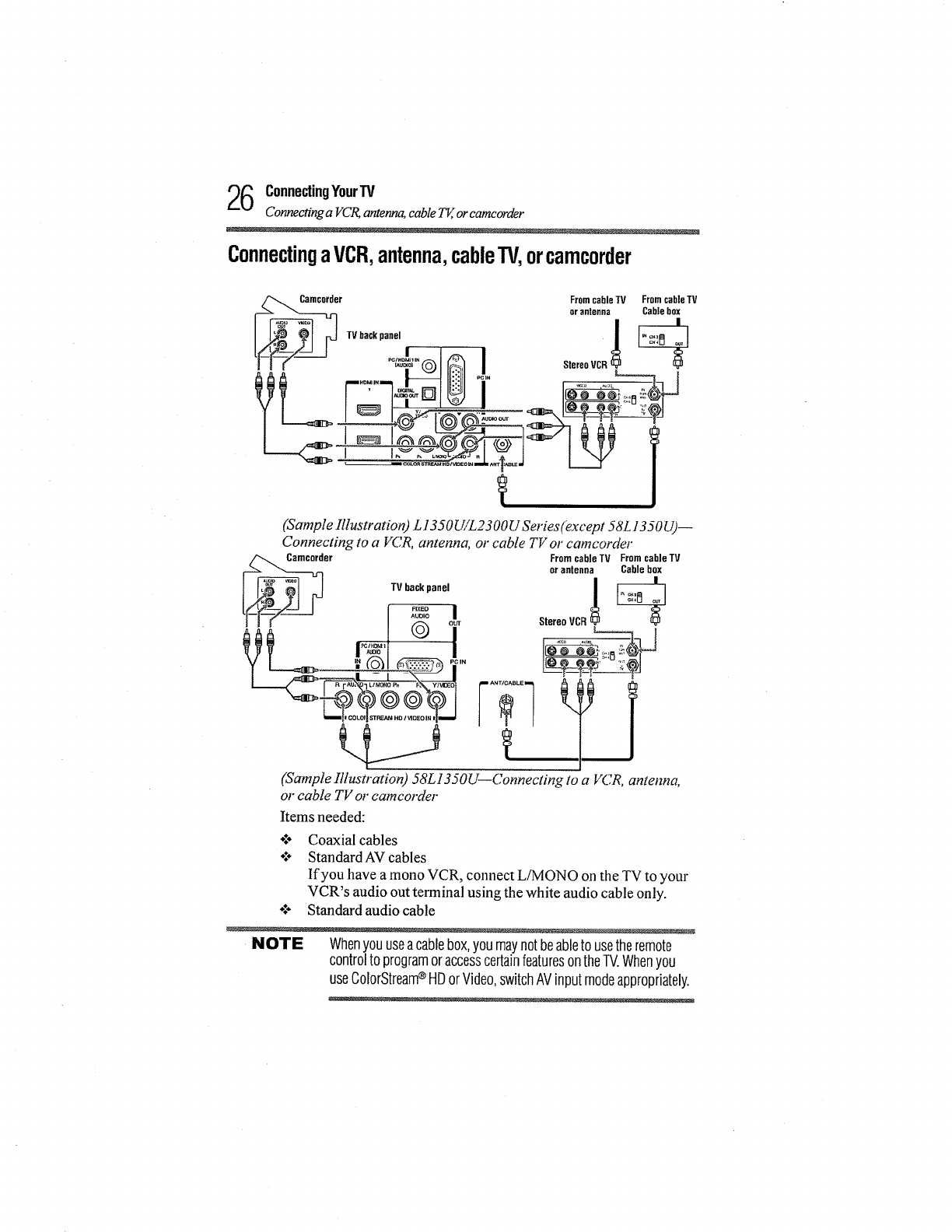
Connecting a VCt_ antenna, cable Tg, orcamcorder
ConnectingaVCR,antenna,cableTV,orcamcorder
TVbackpanel /
- 7, p_ ......
(Sample Illustration L 13._0[ FL_a O0 DSeries (except 58L 13) 0 U)--
Connecting to a VCR, antenna, or cable TV or camcorder
er
TV backpanel
.x% I
(_ out
I
-
From cableTV From cableTV
or antenna Cablebox
StereoVCR_
(Sample Illustration) 58L1350U--Connecting to a VCR, antenna,
or cable TV or camcorder
Items needed:
o:* Coaxial cables
o:÷ Standard AV cables
If you have a mono VCR, connect L/MONO on the TV to your
VCR's audio out terminal using the white audio cable only.
÷:° Standard audio cable
NOTE Whenyouuseacablebox,youmaynotbeableto usetheremote
controlto programoraccesscertainfeaturesontheTV.Whenyou
useColorStream®HDorVideo,switchAVinputmodeappropriately.
ConnectingYour'IV '_7
Connecting a Blu-ray TM / D VDplayer, satellite receiver with ColorStream_ or VCR g_!
To view the antenna or cable signal:
Select ANT/CABLE video input source on the TV.*
To view basic and premium cable channels:
Turnoffthe VCR. Select the ANT/CABLE video input source on
the TV.* Tune the TV to channel 3 or4 (whichever channel the
cable box output is set to). Use the cable box controls to change
channels.
To view the VCR or camcorder video:
Turnon the VCR or camcorder video. Select VIDEO input source
on the TV.*
*To select the video input source, press the INPUT button on the
remote control, see "Selecting the video input source" on page 58
NOTE Theunauthorizedrecording,use,distribution,orrevisionof
televisionprograms,videotapes,DVDs,andothermaterialsis
prohibitedundertheCopyrightLawsoftheUnitedStatesandother
countries,andmaysubjectyouto civilandcriminalliability.
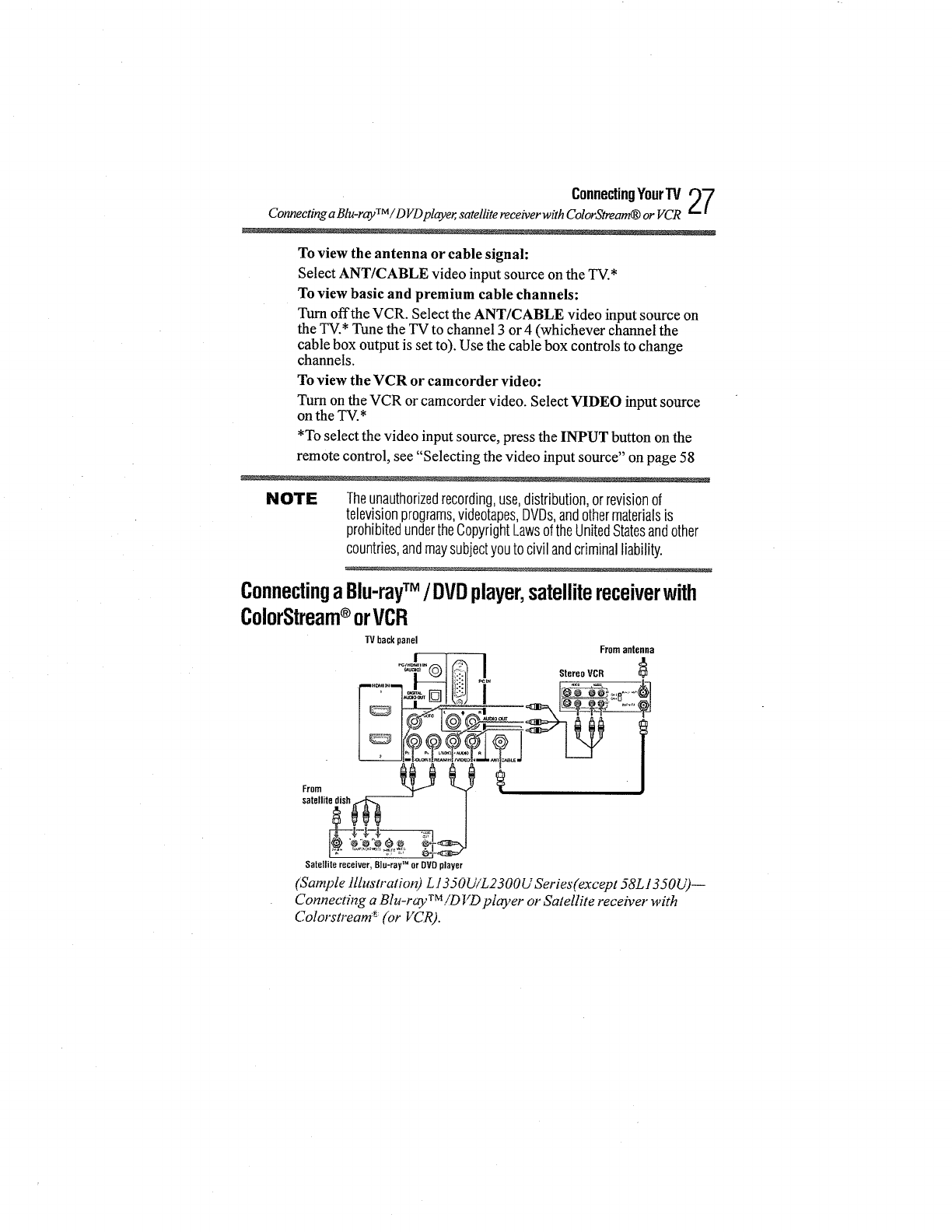
ConnectingaBlu-rayTM /DVDplayer,satellitereceiverwith
ColorStream®orVCR
TV backpanel
From arltellna
. J. Stereo VCR
IM
Satellite receiver, Blu-ray or DVD player
(Sample illustration) L1350UiL2300U Series(except 58L1350U)--
Connecting a Blu-r@'TM!DI(D pl_ryer or Satellite receiver with
Colorstream _(or VCR).
8ConnectingYourW
Connecdng a Blu-ray TM /DFDplayer, satellite receiverwith ColorStream® or VCR
TV back panel From antenna
II
I © T StereoVC.g
From _"_ _ _ !
satellite dish_,_ i
_-4-€-_
Satellitereceiver,Blu-rayTM orDVDplayer
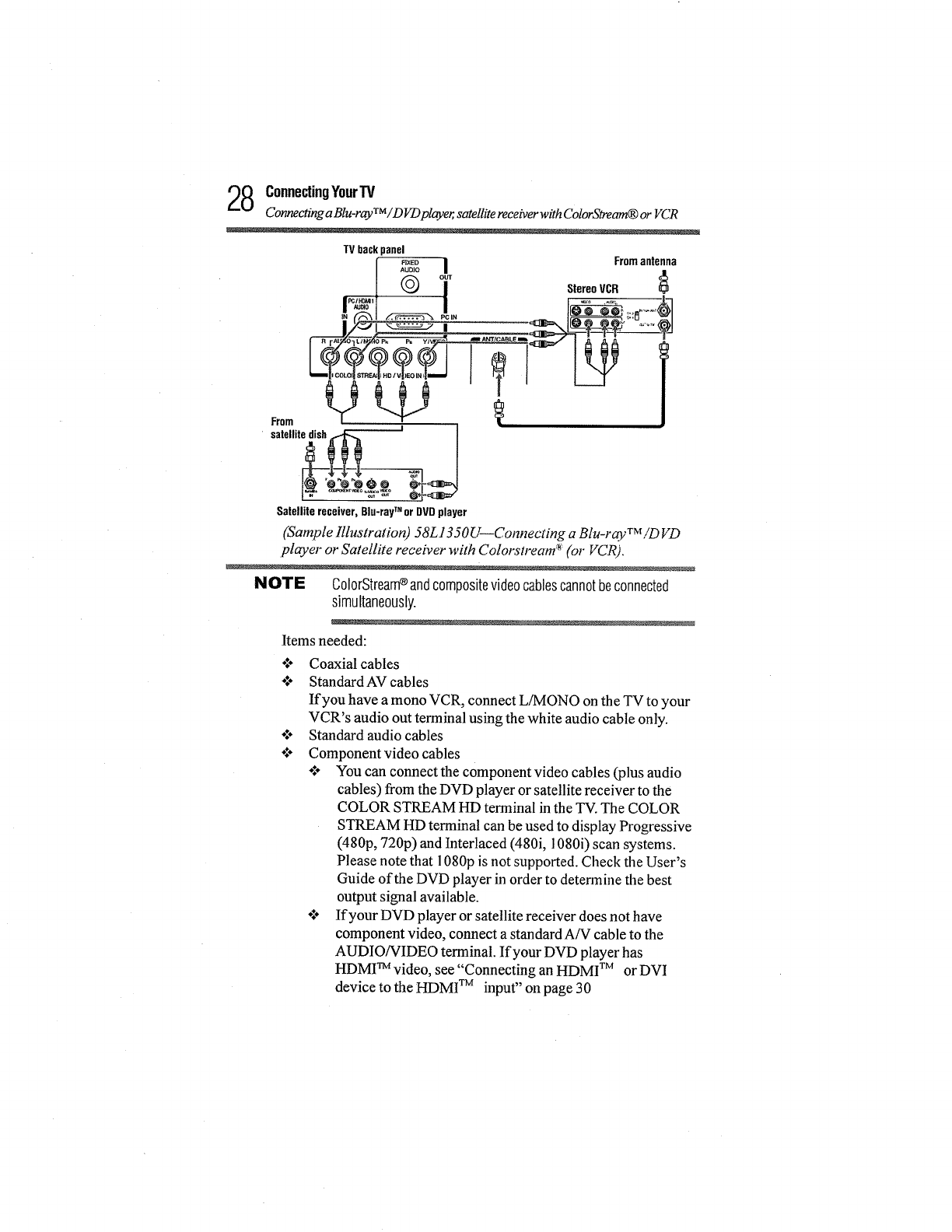
(Sample Illustration) 58L1350 U--Connecting a Blu-r_. "VM!D VD
player or Satellite receiver with ColorstreanW (or VCR).
NOTE ColorStream®andcompositevideocablescannotbeconnected
simultaneously.
Items needed:
Coaxial cables
Standard AV cables
If you have a mono VCR, connect L/MONO on the TV to your
VCR's audio out terminal using the white audio cable only.
Standard audio cables
Component video cables
*.'÷ You can connect the component video cables (plus audio
cables) fi'om the DVD player or satellite receiver to the
COLOR STREAM HD terminal in the TV. The COLOR
STREAM HD terminal can be used to display Progressive
(480p, 720p) and Interlaced (480i, 1080i) scan systems.
Please note that 1080p is not supported. Check the User's
Guide of the DVD player in order to determine the best
output signal available.
._o If your DVD player or satellite receiver does not have
component video, connect a standard A/V cable to the
AUDIO/VIDEO terminal. If your DVD player has
HDMI TM video, see "Connecting an HDMI TM or DVI
device to the HDMI TM input" on page 30
ConnectingYourTV29
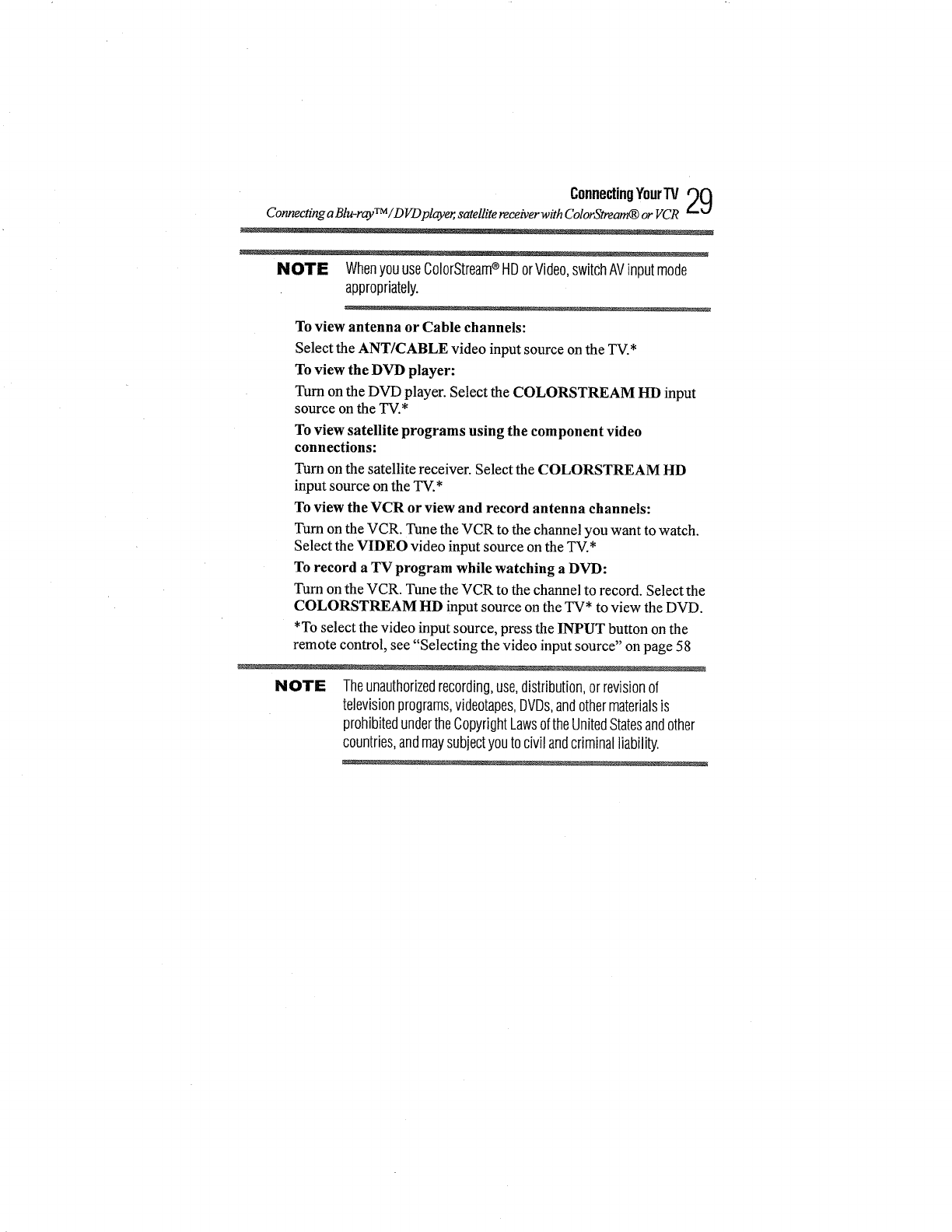
Connecting a Blu-ray TM /DVDplayer, satellite receiverwith ColorStream_ or VCR
NOTE WhenyouuseColorStream_ HDorVideo,switchAVinputmode
appropriately.
To view antenna or Cable channels:
Select the ANT/CABLE video input source on the TV.*
To view the DVD player:
Turnon the DVD player. Select the COLORSTREAM HD input
source on the TV.*
To view satellite programs using the component video
connections:
Turnon the satellite receiver. Select the COLORSTREAM HD
input source on the TV.*
To view the VCR or view and record antenna channels:
Turn on the VCR. Tune the VCR to the channel you want to watch.
Select the VIDEO video input source on the TV.*
To record a TV program while watching a DVD:
Turn on the VCR. Tune the VCR to the channel to record. Select the
COLORSTREAM HD input source on the TV* to view the DVD.
*To select the video input source, press the INPUT button on the
remote control, see "Selecting the video input source" on page 58
NOTE Theunauthorizedrecording,use,distribution,orrevisionof
televisionprograms,videotapes,DVDs,andothermaterialsis
prohibitedundertheCopyrightLawsoftheUnitedStatesandother
countries,andmaysubjectyoutocivilandcriminalliability.
0ConnecUngYourTV
Connecting an HDMI TM or DVI device to the HDMfl _input
ConnectinganHDMITMorDVIdevicetotheHDMITMinput
The HDMI TM input on your TV receives digital audio and
tmcompressed digital video from an HDMI TM source device, or
uncompressed digital video from a DVI (Digital Visual Interface)
source device.
This input is designed to accept HDCP (High- Bandwidth Digital-
Content Protection) program material in digital form from EIA/
CEA-861-D- compliant tl]consumer electronic devices (such as a
set-top box or DVD player with HDMI TM or DVI output).
The HDMI TM input can accept and display various signal formats.
For detailed signal specifications, see "HDMI TM signal formats"
on page l 19.Supported Audio format: Linear PCM, sampling rate
32/44.1/48 kHz.
NOTE ToconnectacomputertotheHDMITM input,see"Connectionto the
TV'sHDMITM terminal"onpage39
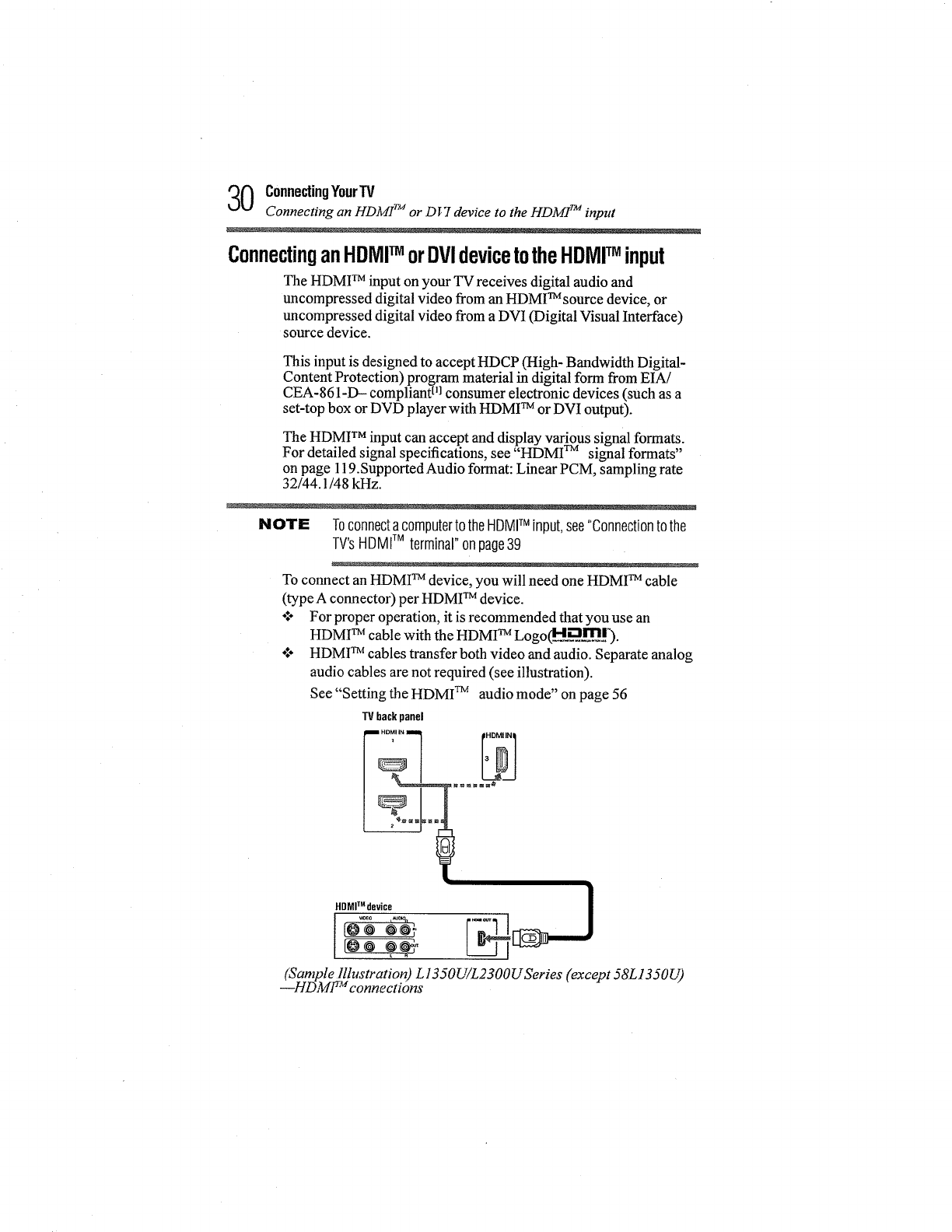
To connect an HDMI TM device, you will need one HDMI TM cable
(type A connector) per HDMI TM device.
o:- For proper operation, it is recommended that you use an
HDMI TM cable with the HDMI TM Logo(M;_._.lJ[_..l').
o:° HDMI TM cables transfer both video and audio. Separate analog
audio cables are not required (see illustration).
See "Setting the HDMI TM audio mode" on page 56
TV back panel
HDMITMdevice __J
reo
(Sample Illustration) L 1350LYL2300U Series (except 58Ll J50U)
--HDMF '_connections
"""°°""°""'"31
Connecting an HDMI TM or DVI device to the HDMI TM input
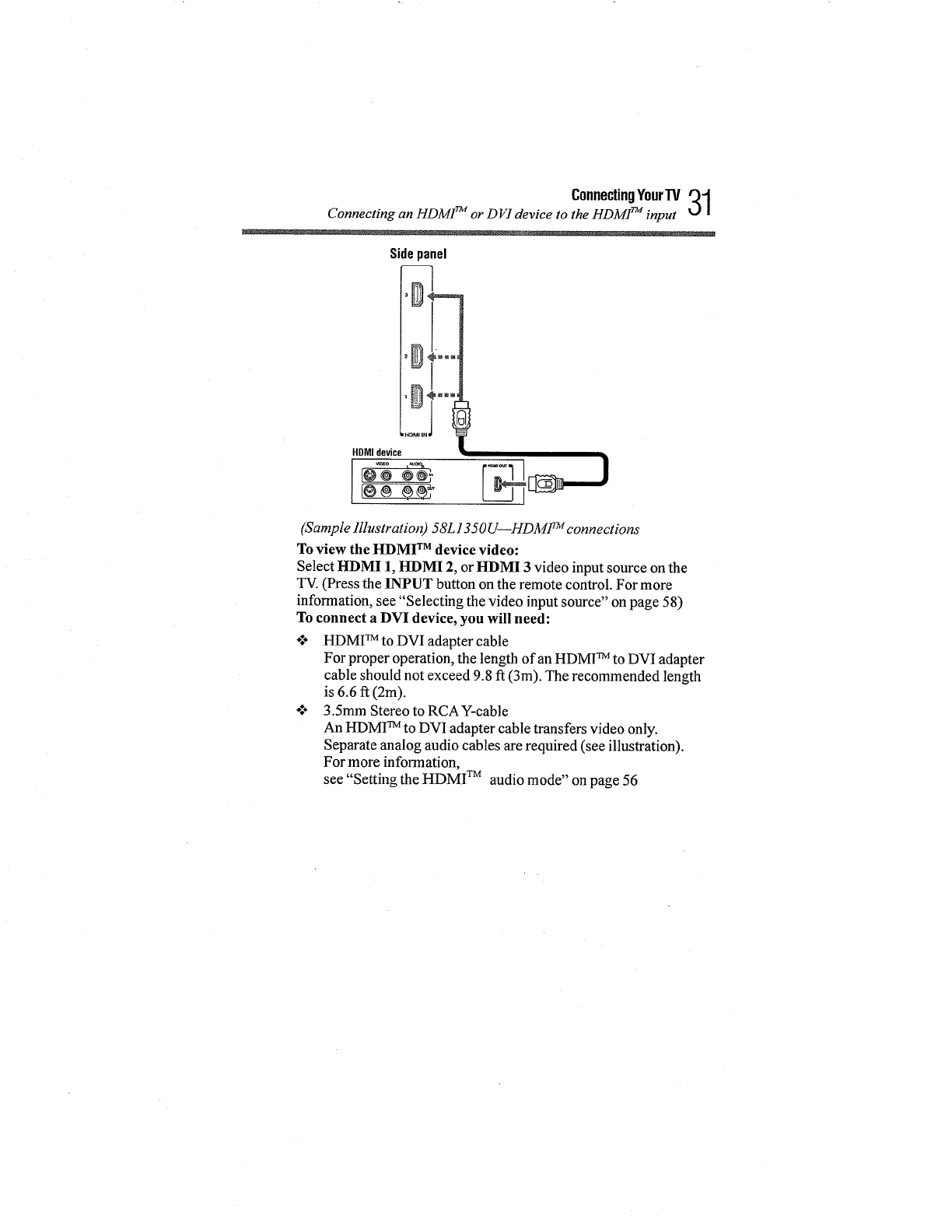
Sidepanel
HDMI device
v_eo _m_
I@_ @@?
(Sample Illustration) 58L1350U--HDMF;_ connections
To view the HDMI TM device video:
Select HDMI 1, HDMI 2, orHDMI 3video inputsource on the
TV.(Press the INPUT button on the remote control. For more
information, see "Selecting the video input source" on page 58)
To connect a DVI device, you will need:
.i÷ HDMI TM to DVI adapter cable
For proper operation, the length of an HDMI TM to DVI adapter
cable should not exceed 9.8 ft (3m). The recommended length
is 6.6 ff (2m).
.I. 3.5mm Stereo to RCAY-cable
An HDMI TM to DVI adapter cable transfers video only.
Separate analog audio cables are required (see illustration).
For more information,
see "Setting the HDMI TM audio mode" on page 56
2ConnectingYourTV
Connecting an HDMI TM or DVI device to the HDMI TM input
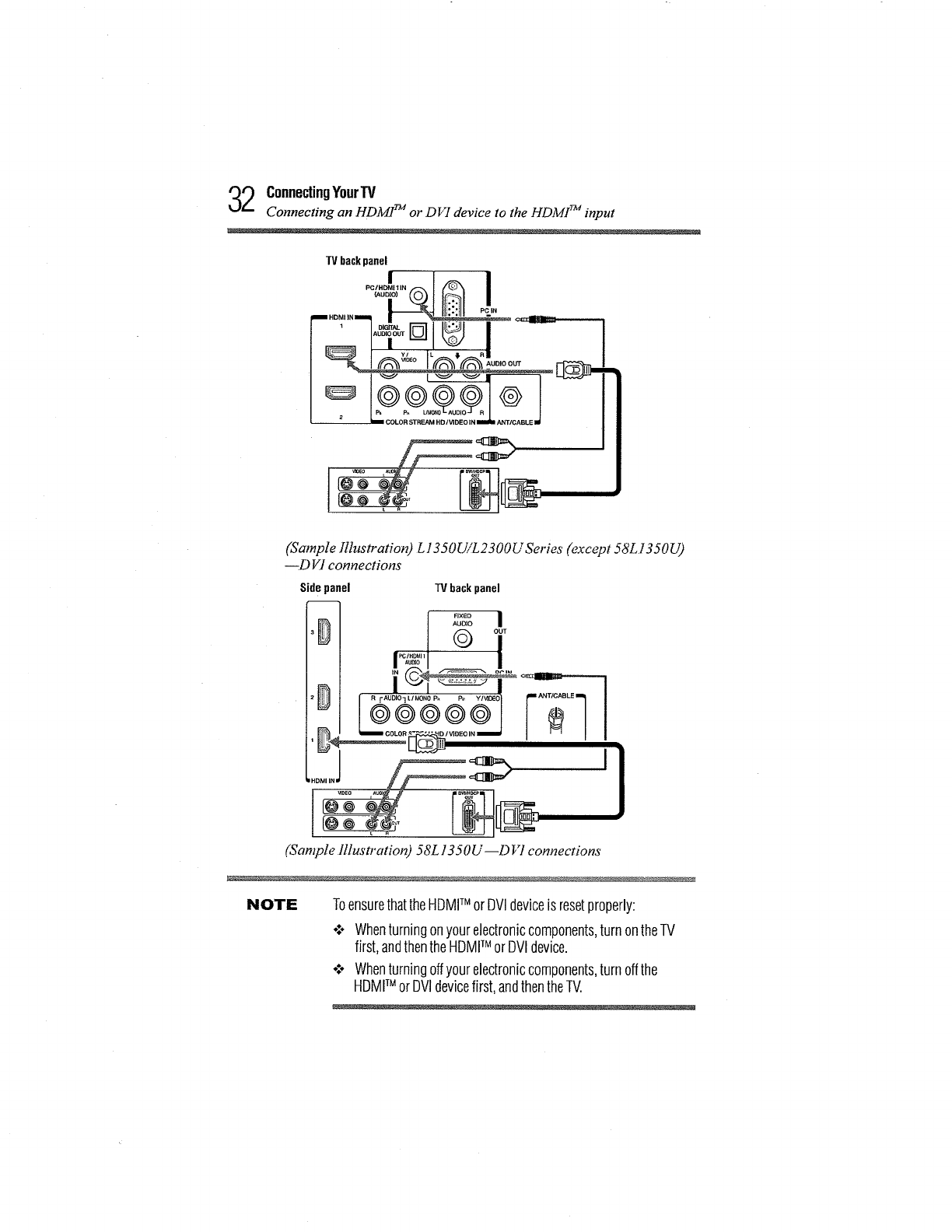
TVbackpanel
Y/ L _ RI
(Sample Illustration) L1350U/L2300U SeHes (except 58L I 350U)
_D VI connections
Side panel TVback panel
t
(Sample Illustration) 58L 1350U--D _7 connections
NOTE ToensurethattheHDMITM orOVldeviceisresetproperly:
o:. Whenturningonyourelectroniccomponents,turnontheTV
first,andthentheHDMITM orDVldevice.
o:o Whenturningoffyourelectroniccomponents,turnoffthe
HDMITM orDVIdevicefirst,andthentheTV.
ConnectingYourTV33
HDMff M CEC connection
NOTE EIA/CEA-861-Dcompliancecoversthetransmissionof
uncompresseddigitalvideowithhigh-bandwidthdigitalcontent
protection,whichis beingstandardizedfor receptionofhigh-
definitionvideosignals.Becausethisisanevolvingtechnology,it is
possiblethatsomedevicesmaynotoperateproperlywiththeTV.
HDMITMCECconnection
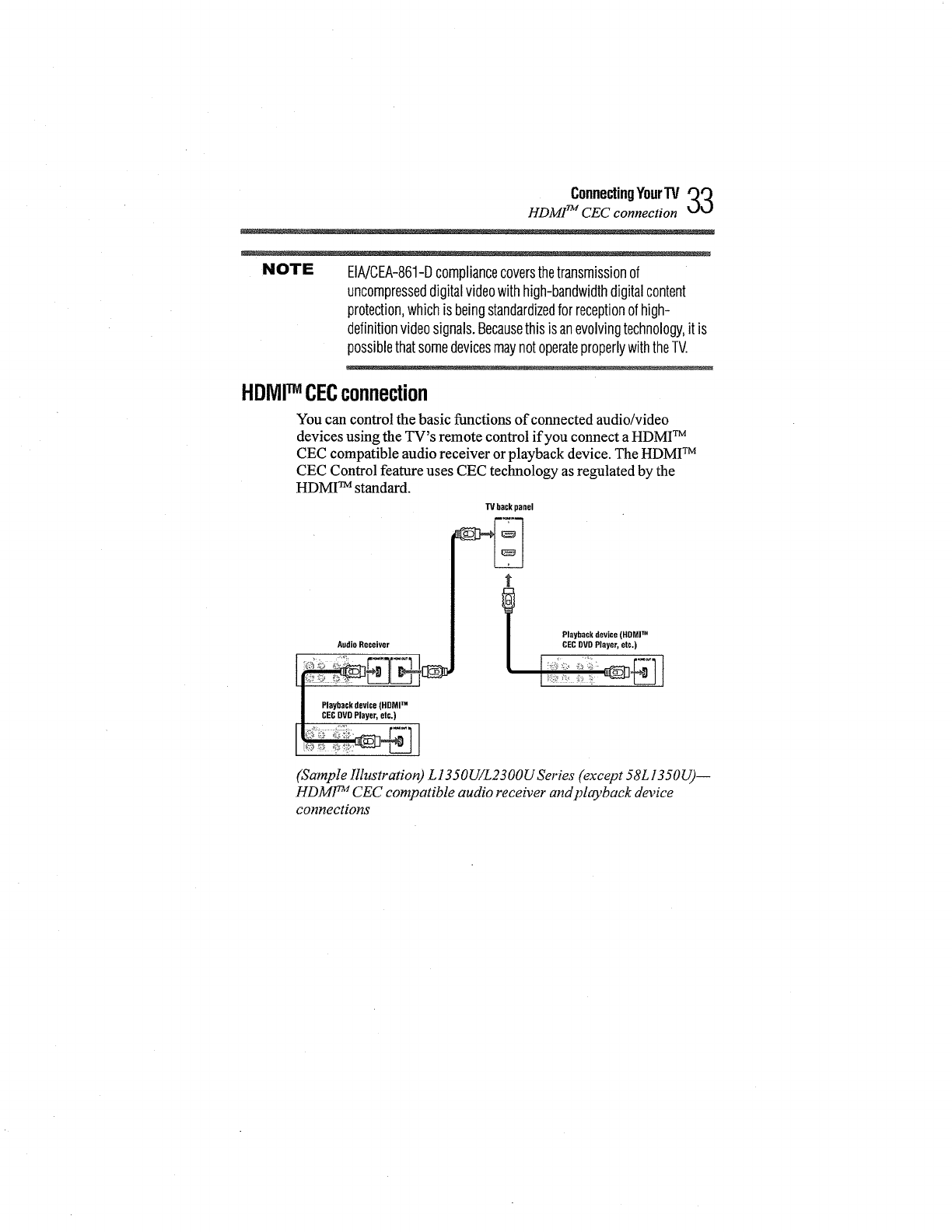
You can control the basic functions of connected audio/video
devices using the TV's remote control if you connect a HDMI TM
CEC compatible audio receiver or playback device. The HDMI TM
CEC Control feature uses CEC technology as regulated by the
HDMI TM standard.
AudioReceiver
II Playbackdevice(HDMITM
|CECDVDPlayer,etc.)
TVbackpanel
Playbackdevice(HDMITM
CECDVDPlayer,etc.)
(Sample Illustration) L 1350U/L2300U Series (except 58L 1350U)--
HDM1TM CEC compatible audio receiver andplayback device
connections
4ConnectingYourW
Connecting a digital audio system
Vide pa_d
Pla_a¢t_ de'Ace (HQM] TM
CECDVOFlayed,el©.l
Playback device (HOMI TM
CECDVD Player, el©.)
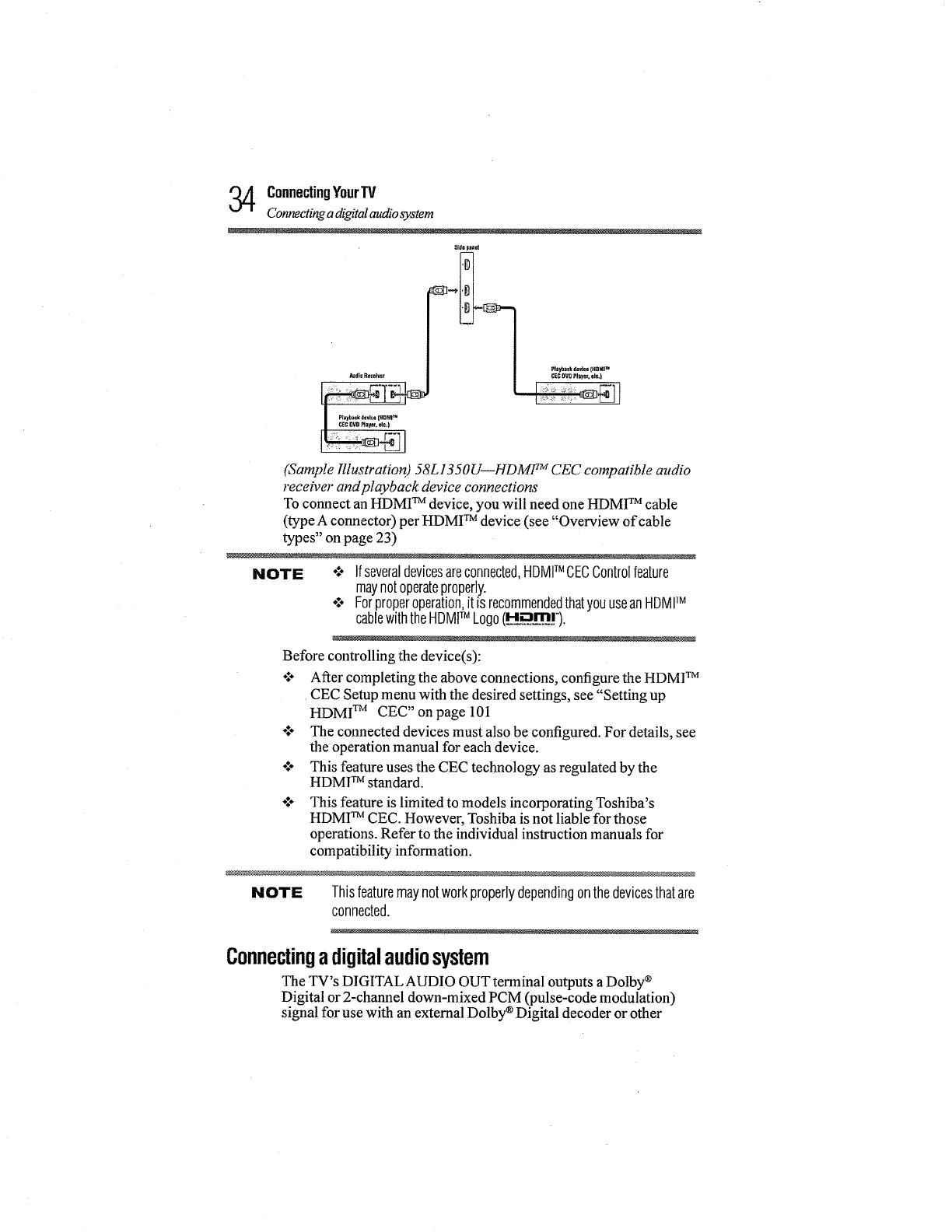
(Sample Illustration) 58L1350U--HDMF MCEC compatible audio
receiver and playback device connections
To connect an HDMI TM device, you will need one HDMI TM cable
(type A connector) per HDMI TM device (see "Overview of cable
types" on page 23)
NOTE -:- Ifseveraldevicesareconnected,HDMITM CECControlfeature
maynotoperateproperly.
o:o Forproperoperation,it isrecommendedthatyouuseanHDMITM
cablewiththeHDMITM Logo(_H__m_!').
Before controlling the device(s):
•:° After completing the above connections, configure the HDMI TM
CEC Setup menu with the desired settings, see "Setting up
HDMI TM CEC" on page 101
÷:° The connected devices must also be configured. For details, see
the operation manual for each device.
o1. This feature uses the CEC technology as regulated by the
HDMI TM standard.
This feature is limited to models incorporating Toshiba's
HDMI TM CEC. However, Toshiba is not liable for those
operations. Refer to the individual instruction manuals for
compatibility information.
Thisfeaturemaynotworkproperlydependingonthedevicesthatare
connected.
NOTE
Connectingadigitalaudiosystem
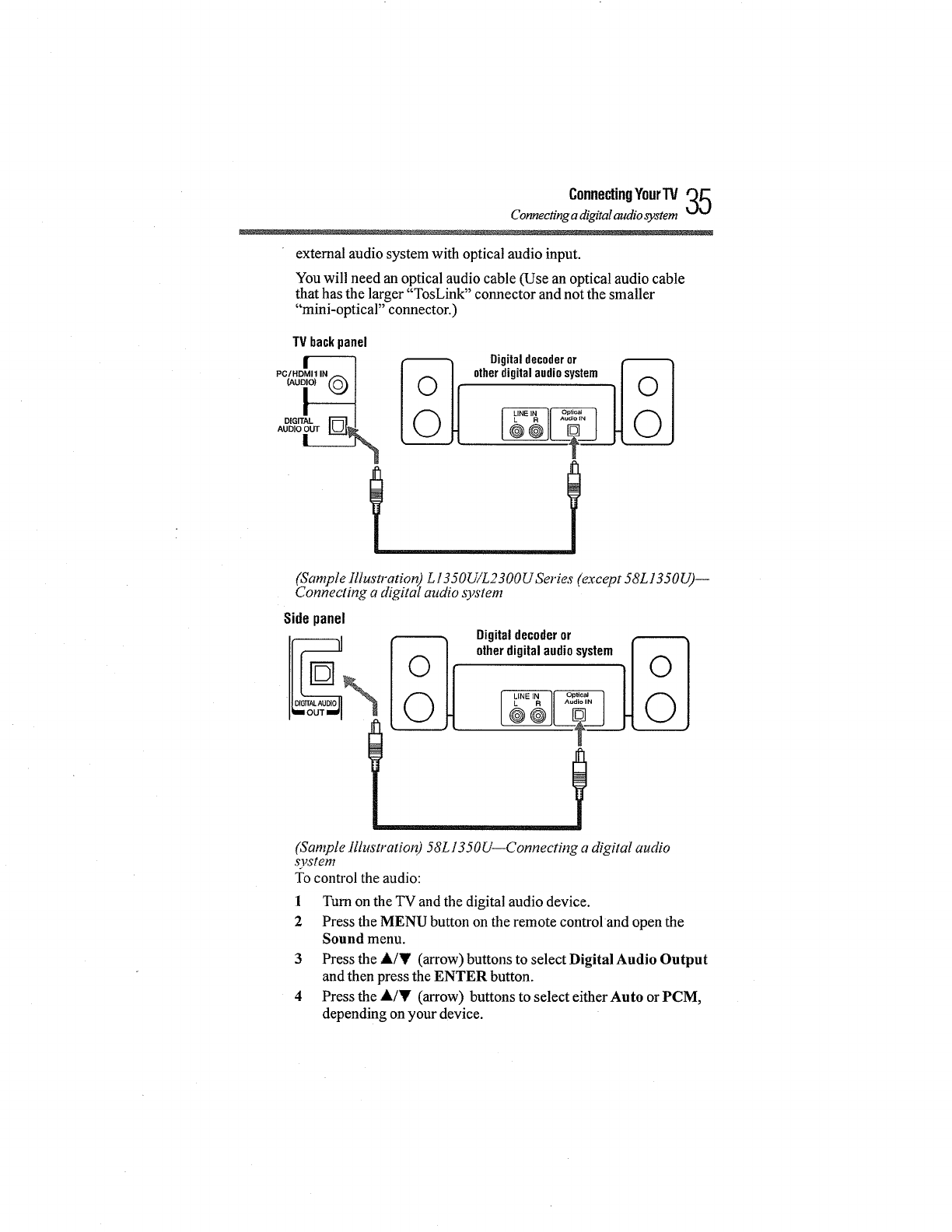
The TV's DIGITAL AUDIO OUT terminal outputs a Dolby ®
Digital or 2-channel down-mixed PCM (pulse-code modulation)
signal for use with an extemal Dolby ®Digital decoder or other
ConnecUngYourTV35
Connecting a digital audio system
external audio system with optical audio input.
You will need an optical audio cable (Use an optical audio cable
that has the larger "TosLink" connector and not the smaller
"mini-optical" connector.)
TV backpanel
___ _ Digitaldecoderor
otherdigitalaudiosystem
(Sample Illustration) L13 50U/L2 300U Series (except 58L1350U)--
Connecting a digital audio system
Sidepanel
(Sample Illustration 58L1350U--Connecting a digital audio
system
To control the audio:
1 Turn on the TV and the digital audio device.
2 Press the MENU button on the remote control and open the
Sound menu.
3 Press the A/Y (arrow) buttons to select Digital Audio Output
and then press the ENTER button.
4 Press the A/Y (arrow) buttons to select either Auto or PCM,
depending on your device.

6ConnectingYourTV
Connecting an analog audio system
(Sample Image) Audio Setup screen -Done
NOTE o:* SomeaudiosystemsmaynotbecompatiblewithDolby_ Digital
bitstreamsignals.Olderaudiosystemsthatarenotcompatible
withstandardopticaloutsignalsmaynotworkproperly,creating
ahighnoiselevelthatmaydamagespeakersorheadphones.
THISDAMAGEISNOTCOVEREDBYYOURWARRANTY.
*:* TheDIGITALAUDIOOUTterminalmaynotoutputsomedigital
audiosourcesbecauseofcopyrestrictions.
Connectingananalogaudiosystem
This connection allows you to use external speakers with an
external analog audio amplifier to adjust the sound level.
You will need standard audio cables.
I I® --
(cSample Illustration) L 1350 U/L23 O0U Series (except 58L 1350U)--
onneeting an analog audio system
ConnectingYourTV 37
Connectinga coml_lter
TVbackpanel
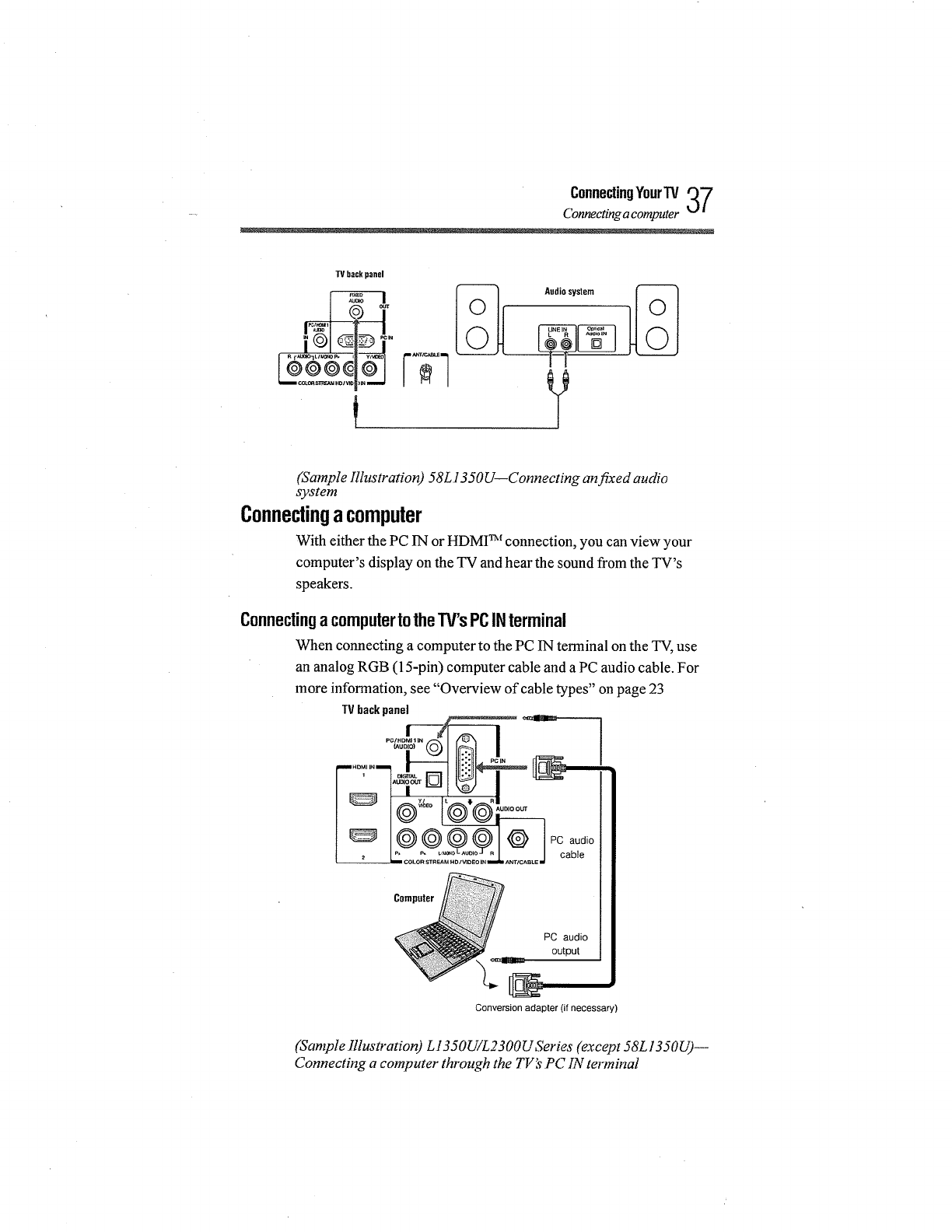
Audio system
(Sample illustration) 58L1350U--Connecting an fixed audio
system
Connectingacomputer
With either the PC IN or HDMI TM connection, you can view your
computer's display on the TV and hear the sound from the TV's
speakers.
ConnectingacomputertotheTV'sPCINterminal
When connecting a computer to the PC IN terminal on the TV, use
an analog RGB (15-pin) computer cable and a PC audio cable. For
more information, see "Overview of cable types" on page 23
TVbackpanel
PC audio
cable
PC audio
output
Conversion adapter (if necessary)
(Sample Illustration) L13 50UiL2 300U Series (except 58L 13 50&_)--
Connecting a computer through the TV:9 PC IN terminal
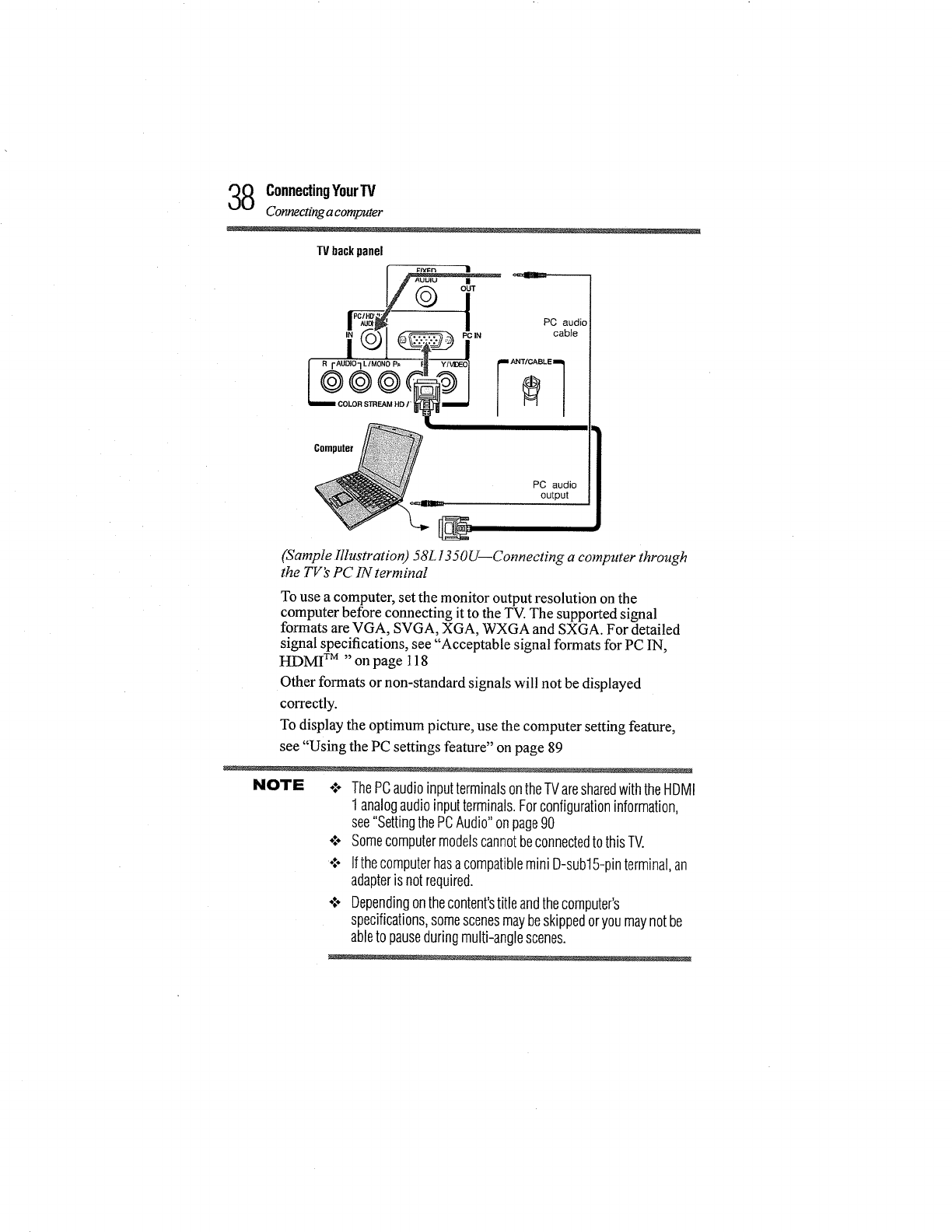
8ConnectingYourTV
Connecling a computer
TVbackpanel
Computer
PC audio
output
(Sample Hlustration) 58L 1350U_Connecting a computer through
the TV's PC IN terminal
To use a computer, set the monitor output resolution on the
computer before connecting it to the TV. The supported signal
formats are VGA, SVGA, XGA, WXGA and SXGA. For detailed
signal specifications, see "Acceptable signal formats for PC IN,
HDMI TM "on page 118
Other formats or non-standard signals will not be displayed
correctly.
To display the optimum picture, use the computer setting feature,
see "Using the PC settings feature" on page 89
NOTE o;- ThePCaudioinputterminalsontheTVaresharedwiththeHDMI
1analogaudioinputterminals.Forconfigurationinformation,
see"SettingthePCAudio"onpage90
*:o Somecomputermodelscannotbeconnectedto thisTV.
*:o Ifthecomputerhasacompatiblemini D-sub15-pinterminal,an
adapterisnotrequired.
o:* Dependingonthecontent'stitleandthecomputer's
specifications,somescenesmaybeskippedoryoumaynotbe
ableto pauseduringmulti-anglescenes.
ConnectingYourTV '_Q
U_J
Connecting a computer
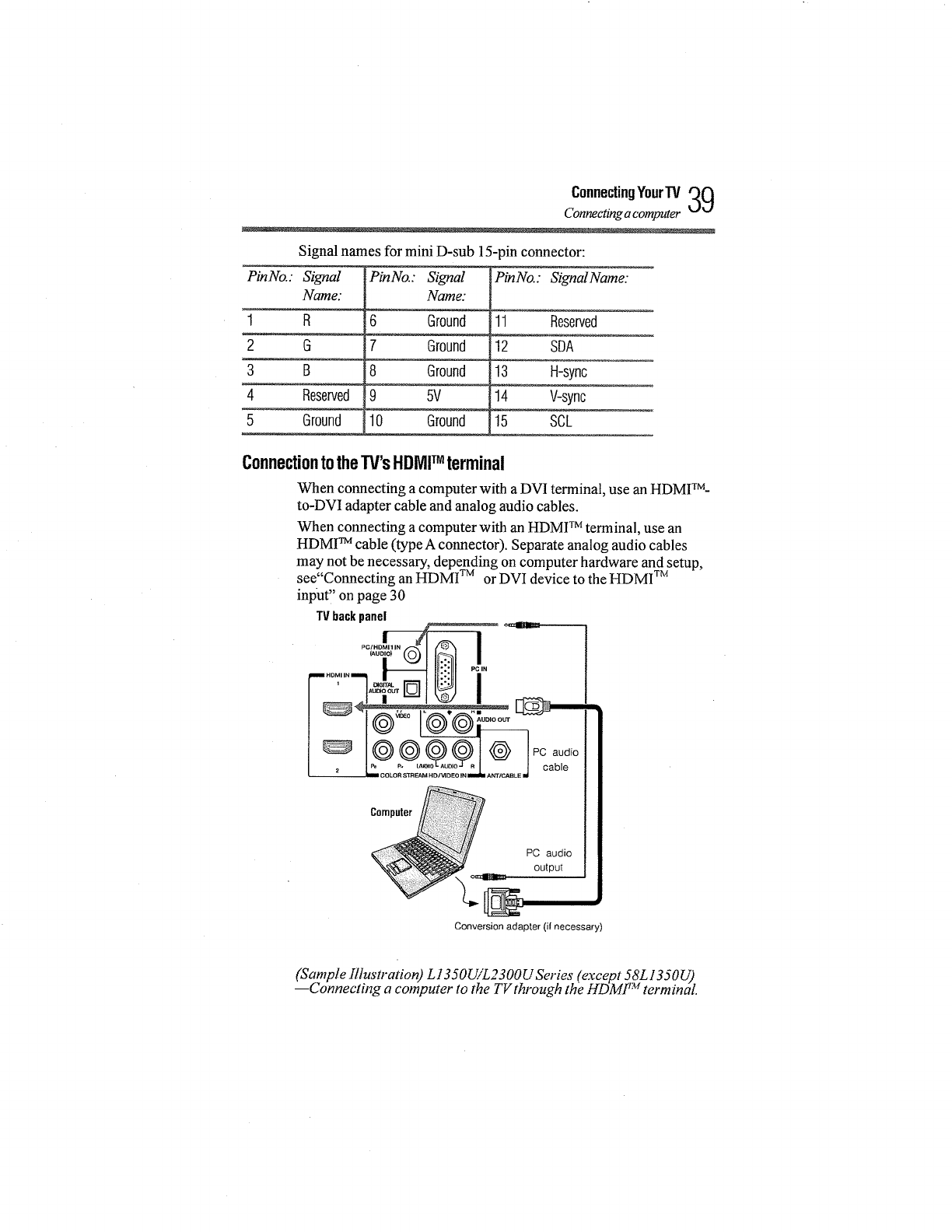
Signal names for mini D-sub 15-pin connector:
PinNo.: Signal
Name:
1 R
2G
3 B
4 Reserved
5 Ground
PinNo.: Signal
Nam_
6 Ground
7 Ground
8 Ground
9 5V
10 Ground
PinNo.: Signal Name:
11 Reserved
12 SDA
j13 H-sync
!14 V-sync..___
i15 SCL
ConnectiontotheTV'sHDMITM terminal
When connecting a computerwith a DVI terminal, use an HDMI TM-
to-DVI adapter cable and analog audio cables.
When connecting a computer with an HDMI TM terminal, use an
HDMI TM cable (type A connector). Separate analog audio cables
may not be necessary, depending on computer hardware and setup,
see"Connecting an HDMI TM or DVI device to the HDMI TM
input, on page 30
TVbackpanel I.
I
_.. ,.¢,,lmm PC audio
output
Conversion adapter (if necessary)
(Sample Illustration) L1350UiL2300U Series (except 58L1350b)
--Connecting a computer to the TV through the' HDM[ TM terminal.
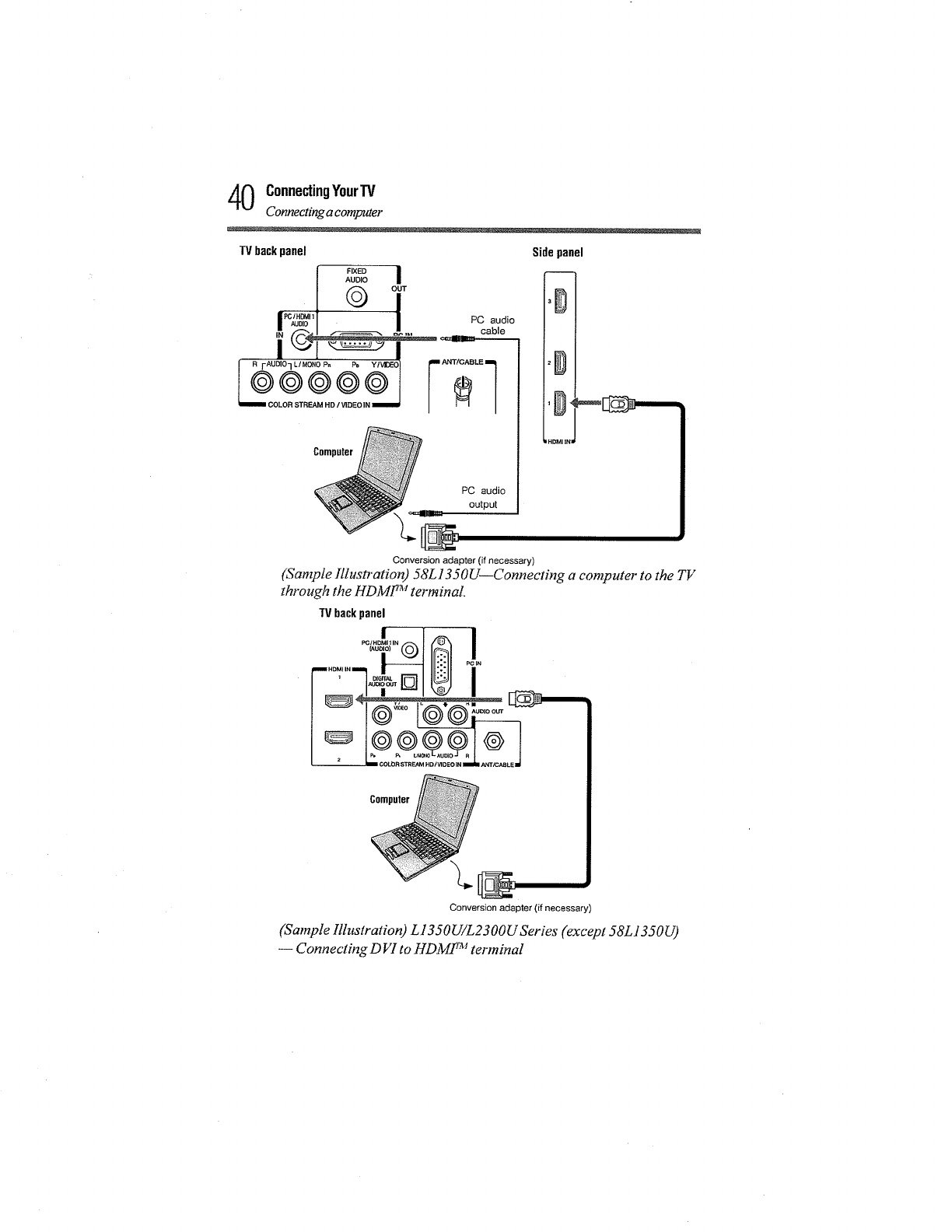
0ConnectingYourTV
Connecting a computer
TVbackpanel
I,,_'_ I
•1 ®T
I_%_"1 I PCaudio
,r_%_IL,, cable
ICOLOR STREAM HD /VIDEO IN i I I
PC audio
output
Sidepanel
Conversion adapter (if necessary)
(Sample Illustration) 58L 1350 U--Connecting a computer to the TV
through the HDMF a'_terminal
TVbackpanel
r-o_,2+_l®i
_ ,
Conversion adapter (if necessary)
(Sample Illustration) L l S50U!L2300U Series (except 58L1350U)
-- Connecting D VI to HDMf TM terminal
ConnectingYourTV41
Connecting a computer
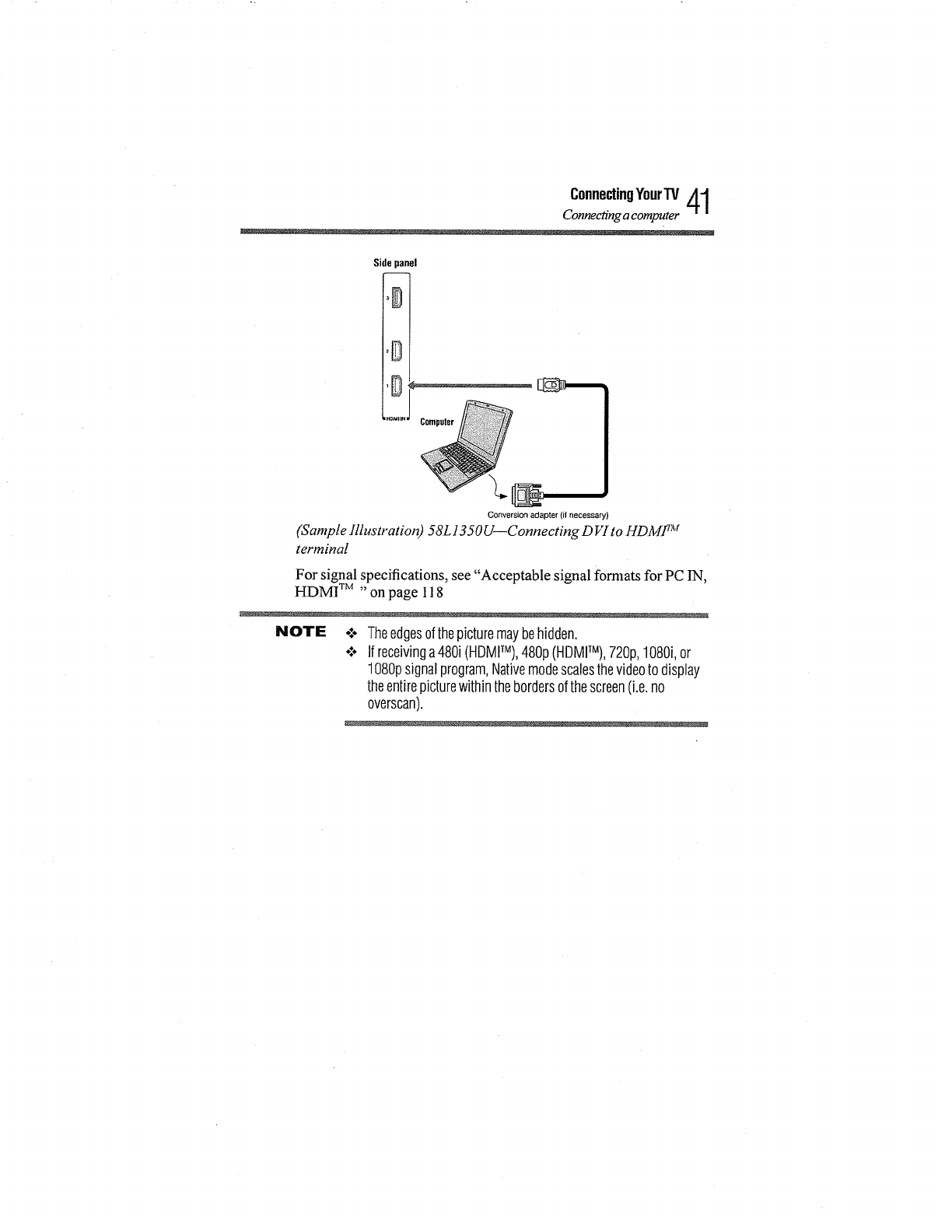
Side panel
.....
Conversion adapter (if necessary)
(Sample Illustration) 58L 1350U--Connecting D _7to HD.M_ _¢
terminal
For signal specifications, see "Acceptable signal formats for PC IN,
HDMI TM "on page 118
NOTE o:÷Theedgesofthepicturemaybehidden.
°:, Ifreceivinga480i(HDMITM),480p(HDMITM),720p,1080i,or
1080psignalprogram,Nativemodescalesthevideoto display
theentirepicturewithinthebordersofthescreen(i.e.no
overscan).
Chapter3
UsingtheRemoteControl
Installingbatteries
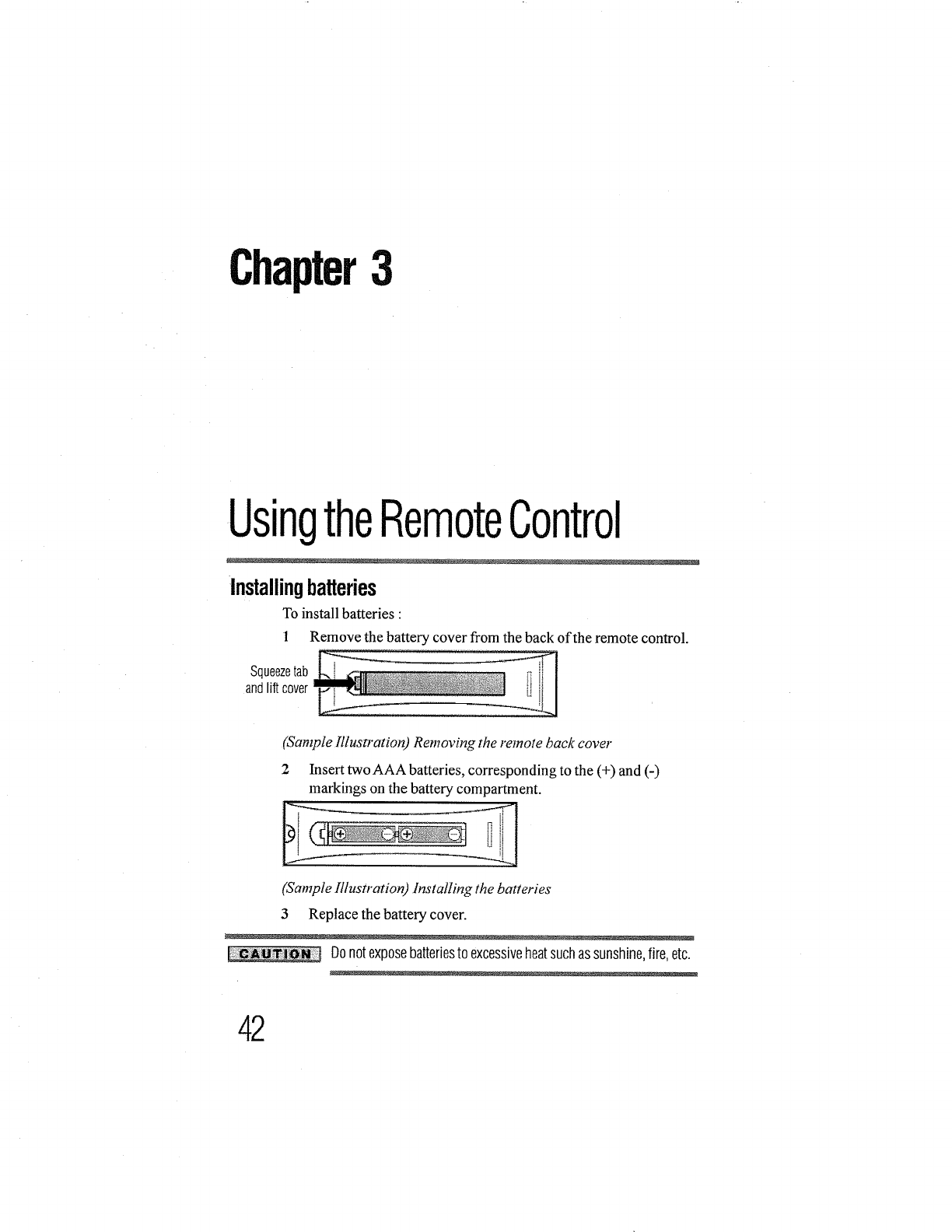
To install batteries"
1 Remove the battery cover from the back of the remote control.
_"': iiiiiiiiiii _ --_]
Squeezetab ; _ N_ _ ii ii
andlift cover _ _ ili'
(Sample [llustT"ation) Removing the remote back covet"
2 Insert two AAA batteries, corresponding to the (+) and (-)
markings on the battery compartment.
• , a_ ,_ _ _ -,_,_-'_. I_ i
(Sample Illustration) Installing the batteries
3 Replace the battery cover.
Donotexposebatteriesto excessiveheatsuchassunshine,fire,etc.
42
UsingtheRemoteControl /1Q
Remote control effective range -t_.J
NOTE o:o Besureto useAAAsizebatteries.
o:° Disposeofbatteriesin adesignateddisposalarea.
o:° Alwaysconsidertheenvironmentwhendisposingof batteries.
Alwaysfollowapplicablelawsandregulations.
o:o Iftheremotedoesnotoperatecorrectly,orif theoperatingrange
is reduced,replacethebatteries.
o:° Alwaysreplacebothbatterieswithnewones.Nevermixbattery
typesorusenewandusedbatteriestogether.
°**oAlwaysremovebatteriesfromtheremoteiftheyaredeadorif the
remotecontrolis notto beusedforanextendedperiodoftime.
Thispreventsbatteryacidfromleakingintothebattery
compartment.
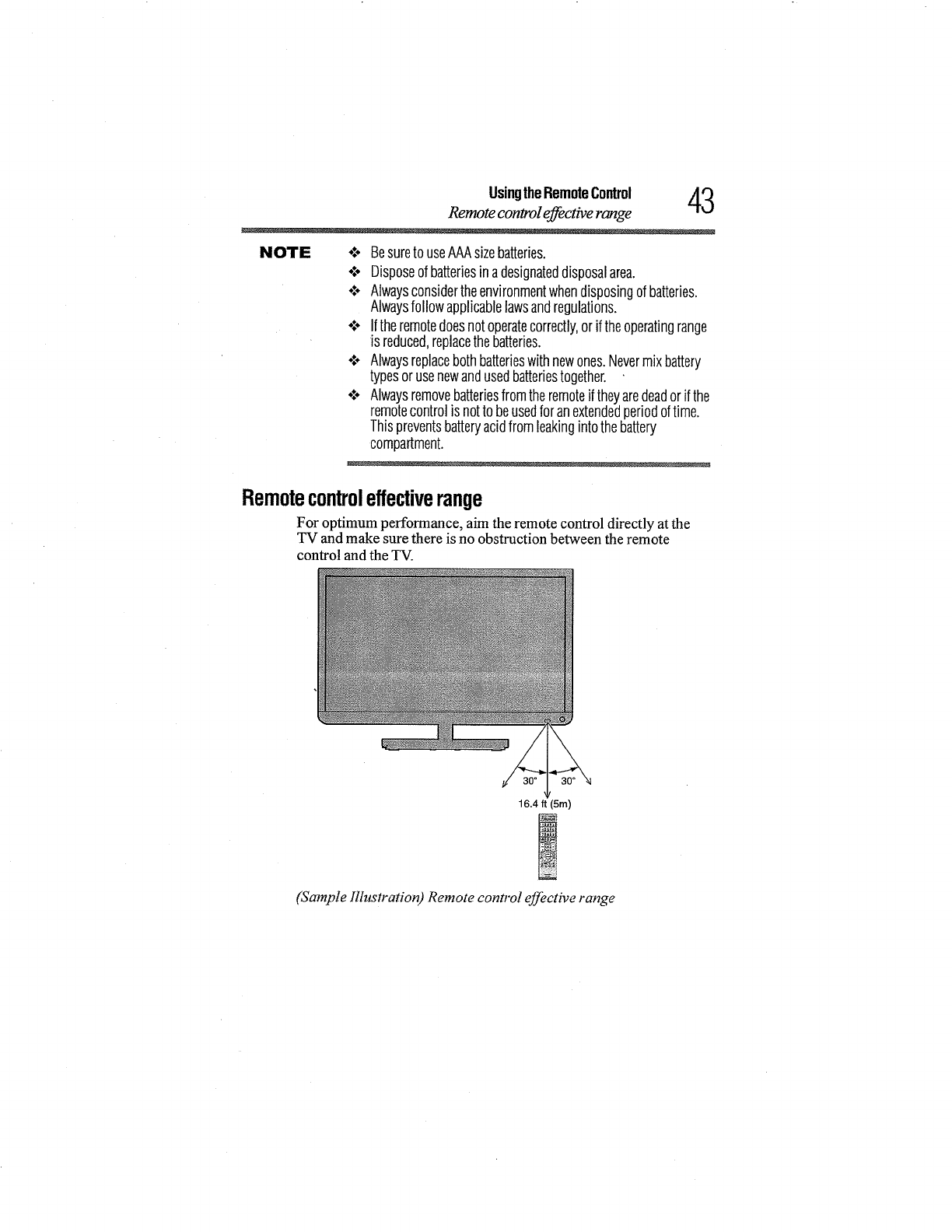
Remotecontroleffectiverange
For optimum performance, aim the remote control directly at the
TV and make sure there is no obstruction between the remote
control and the TV.
16.4 ft (5rn)
(Sample Illustration) Remote control effective range
4UsingtheRemoteControl
Learning about the remote control
Learningabouttheremotecontrol
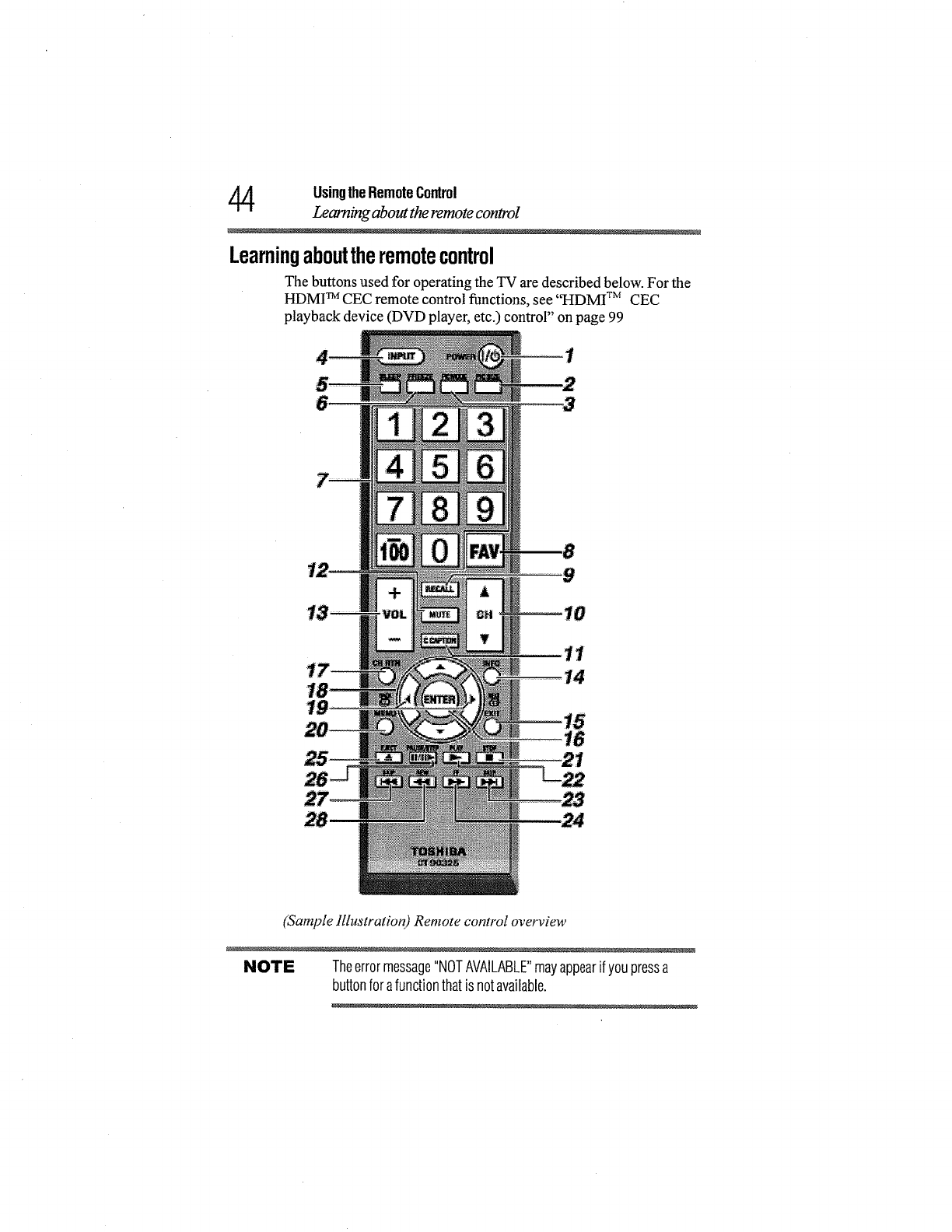
The buttons used for operating the TV are described below. For the
HDMI TM CEC remote control functions, see "HDMI TM CEC
playback device (DVD player, etc.) control" on page 99
9
19
11
14
(Sample lllustration) Remote control overview
NOTE Theerrormessage"NOTAVAILABLE"mayappearif youpressa
buttonforafunctionthatisnotavailable.
UsingtheRemoteControl /lJ_
Learning about the remote control
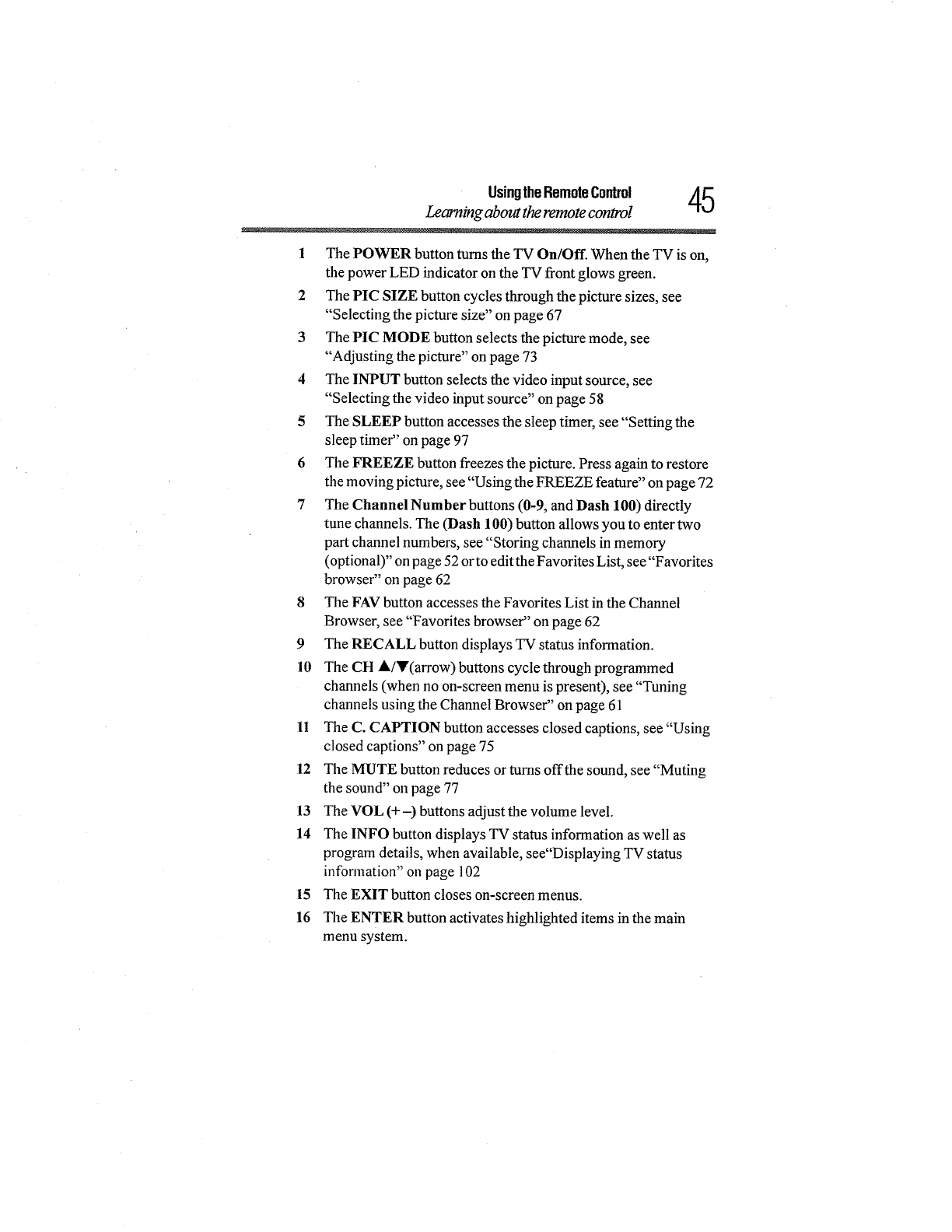
1 The POWER button turns the TV On/Off. When the TV is on,
the power LED indicator on the TV front glows green.
2 The PIC SIZE button cycles through the picture sizes, see
"Selecting the picture size" on page 67
3 The PIC MODE button selects the picRu'e mode, see
"Adjusting the picture" on page 73
4The INPUT button selects the video input source, see
"Selecting the video input source" on page 58
5 The SLEEP button accesses the sleep timer, see "Setting the
sleep thner" on page 97
6 The FREEZE button freezes the picture. Press again to restore
the moving picture, see "Using the FREEZE feature" on page 72
7The Channel Number buttons (0-9, and Dash 100) directly
tune channels. The (Dash 100) button allows you to enter two
part channel numbers, see "Storing channels in memory
(optional)" on page 52 orto edit the Favorites List, see "Favorites
browser" on page 62
8The FAV button accesses the Favorites List in the Channel
Browser, see "Favorites browser" on page 62
9 The RECALL button displays TV status information.
l0 The CH A/Y(arrow) buttons cycle through programmed
channels (when no on-screen menu is present), see "Tuning
channels using the Channel Browser" on page 61
ll The C. CAPTION button accesses closed captions, see "Using
closed captions" oll page 75
12 The MUTE button reduces or turns offthe sound, see "Muting
the sound" on page 77
13 The VOL (+-) buttons adjust the volume level.
14 The INFO button displays TV status information as well as
program details, when available, see"Displaying TV status
information" on page 102
15 The EXIT button closes on-screen menus.
16 The ENTER button activates highlighted items in the main
menu system.
6UsingtheRemoteControl
Learning about the remote control
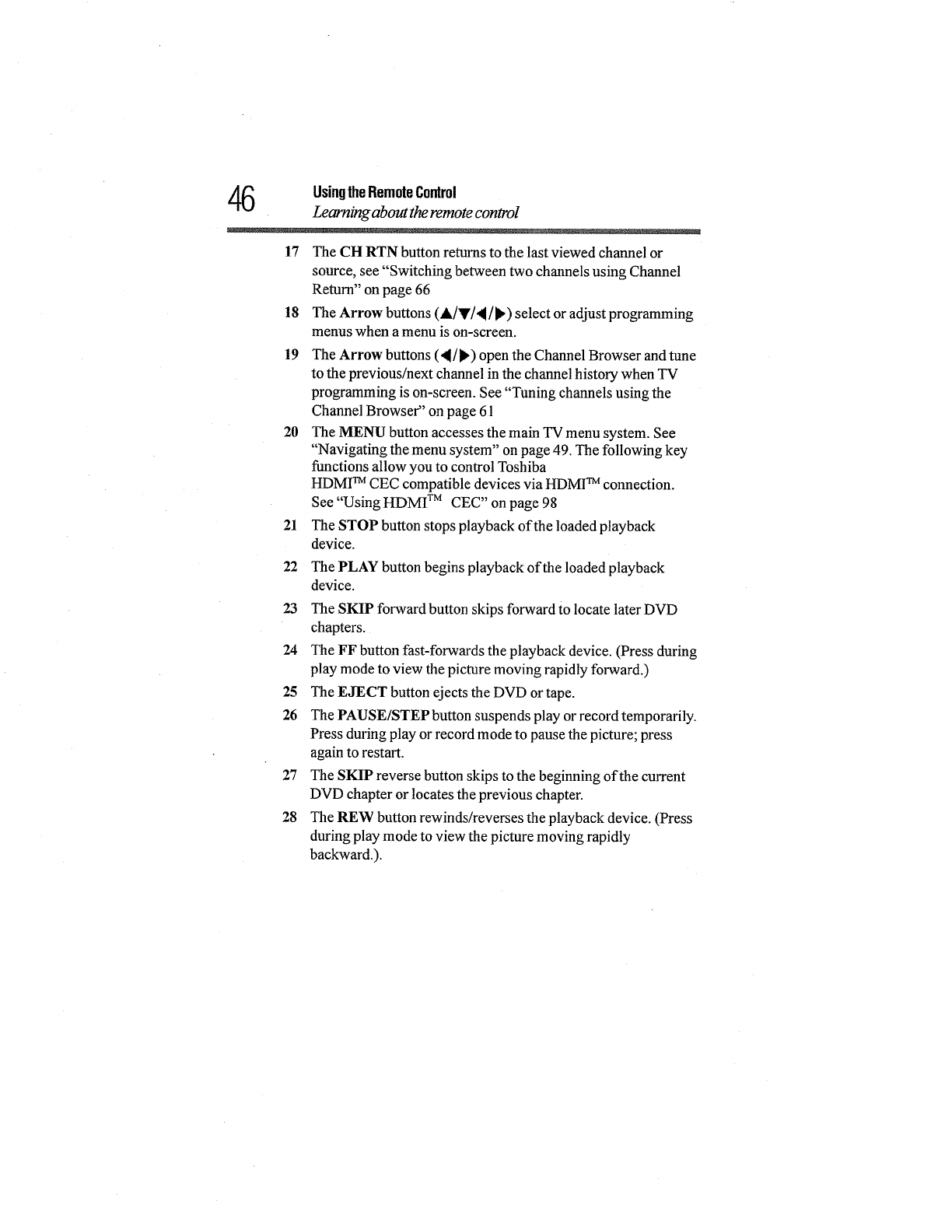
17 The CH RTN button returns to the last viewed channel or
source, see "Switching between two channels using Channel
Return" on page 66
18 The Arrow buttons (,L/y/4/),) select or adjust programming
menus when a menu is on-screen.
19 The Arrow buttons (_/),) open the Channel Browser and tune
to the previous/next channel in the channel history when TV
programming is on-screen. See "Tuning channels using the
Channel Browser" on page 61
20 The MENU button accesses the main TV menu system. See
"Navigating the menu system" on page 49. The following key
functions allow you to control Toshiba
HDMI TM CEC compatible devices via HDMI TM connection.
See "Using HDM] TM CEC" on page 98
21 The STOP button stops playback of the loaded playback
device.
22 The PLAY button begins playback of the loaded playback
device.
23 The SKIP forward button skips forward to locate later DVD
chapters.
24 The FF button fast-forwards the playback device. (Press during
play mode to view the picture moving rapidly forward.)
25 The EJECT button ejects the DVD or tape.
26 The PAUSE/STEP button suspends play or record temporarily.
Press during play or record mode to pause the picture; press
again to restart.
27 The SKIP reverse button skips to the beginning of the current
DVD chapter or locates the previous chapter.
28 The REW button rewinds/reverses the playback device. (Press
during play mode to view the picture moving rapidly
backward.).
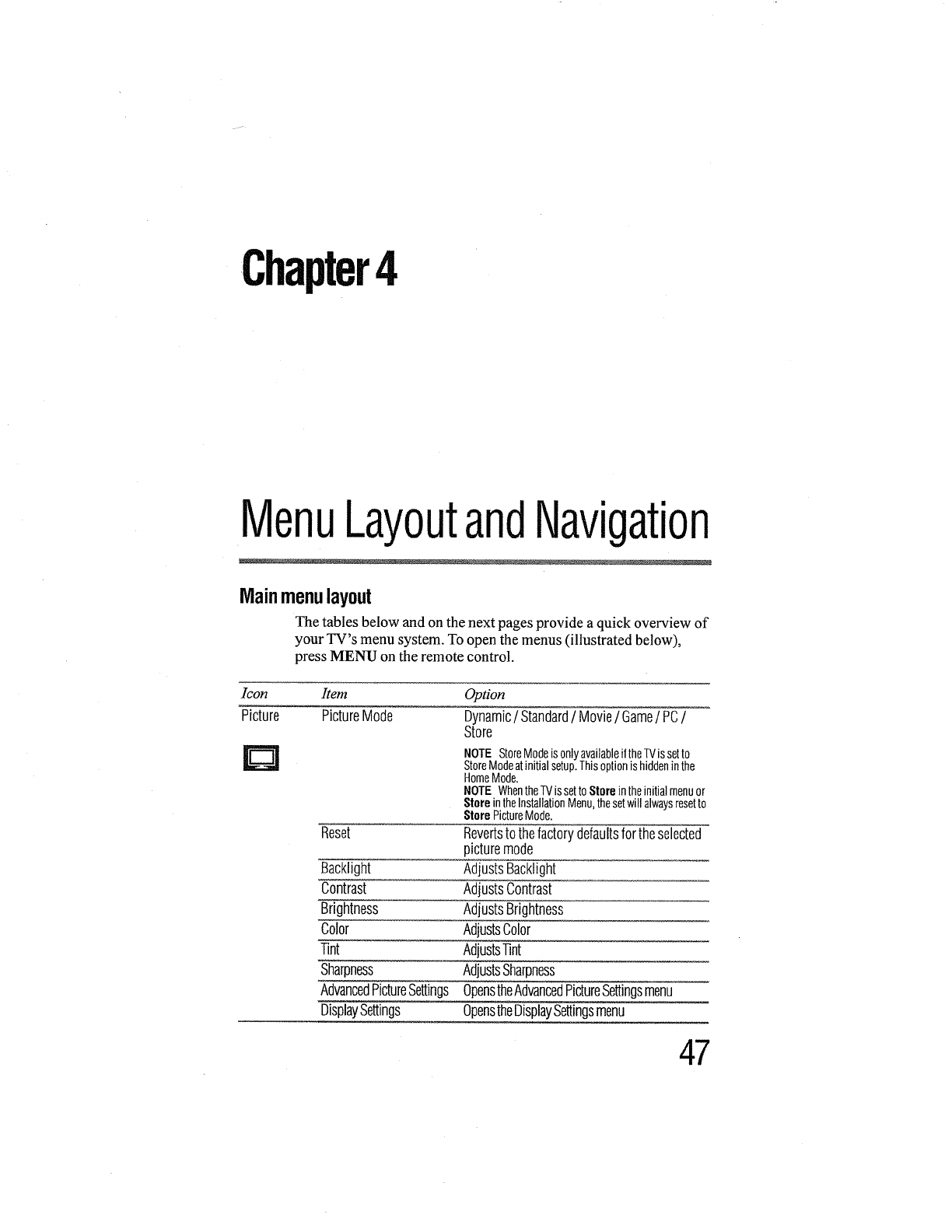
Chapter4
MenuLayoutandNavigation
Mainmenulayout
The tables below and on the next pages provide a quick overview of
your TV's menu system. To open the menus (illustrated below),
press MENU on the remote control.
1con Item
Picture PictureMode
D
Reset
Backlight
Contrast
Brightness
Color
Tint
Sharpness
AdvancedPictureSettings
DisplaySettings
Option
Dynamic/Standard/Movie/Game/PC/
Store
NOTE StoreModeisonlyavailableiftheTVissetto
StoreModeatinitial setup.Thisoptionis hiddeninthe
HomeMode.
NOTE WhentheTVissettoStore intheinitial menuor
Storein theInstallationMenu,thesetwill alwaysresetto
StorePictureMode.
Revertsto thefactorydefaultsfortheselected
picturemode
AdjustsBacklight
AdjustsContrast
AdjustsBrightness
AdjustsColor
AdjustsTint
AdjustsSharpness
OpenstheAdvancedPictureSettingsmenu
OpenstheDisplaySettingsmenu
47
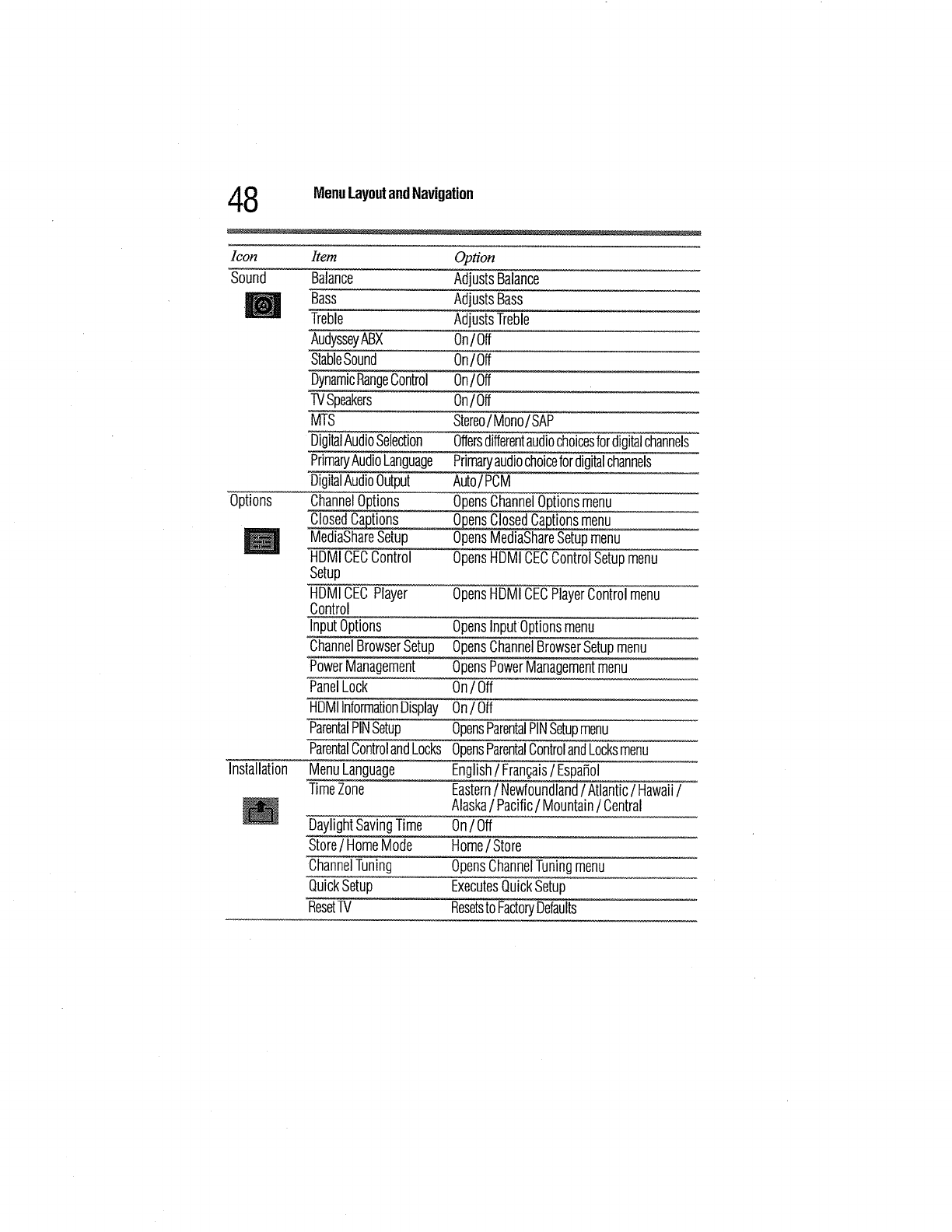
48 MenuLayoutandNavigation
leon Item Option
Sound Balance AdjustsBalance
._ii_ Bass AdjustsBass
Treble AdjustsTreble
AudysseyABX On/Off
StableSound On/Off
DynamicRangeControl On/ Off
TVSpeakers On/Off
MTS Stereo/Mono/SAP
DigitalAudioSelection Offersdifferentaudiochoicesfordigitalchannels
PrimaryAudioLanguage Primaryaudiochoicefordigitalchannels
DigitalAudioOutput Auto/PCM
Options ChannelOptions OpensChannelOptionsmenu
ClosedCaptions OpensClosedCaptionsmenu
MediaShareSetup OpensMediaShareSetupmenu
HDMICECControl OpensHDMICECControlSetupmenu
Setup
HDMICECPlayer OpensHDMICECPlayerControlmenu
Control
InputOptions OpensInputOptionsmenu
ChannelBrowserSetup OpensChannelBrowserSetupmenu
PowerManagement OpensPowerManagementmenu
PanelLock On/Off
HDMIInformationDisplay On/Off
ParentalPINSetup OpensParentalPINSetupmenu
ParentalControlandLocks OpensParentalControlandLocksmenu
Installation MenuLanguage English/Fran£;ais/Espafiol
TimeZone Eastern/Newfoundland/Atlantic/Hawaii/
Alaska/Pacific/Mountain/Central
DaylightSavingTime On/Off
Store/HomeMode Home/Store
ChannelTuning OpensChannelTuningmenu
QuickSetup ExecutesQuickSetup
ResetTV ResetstoFactoryDefaults
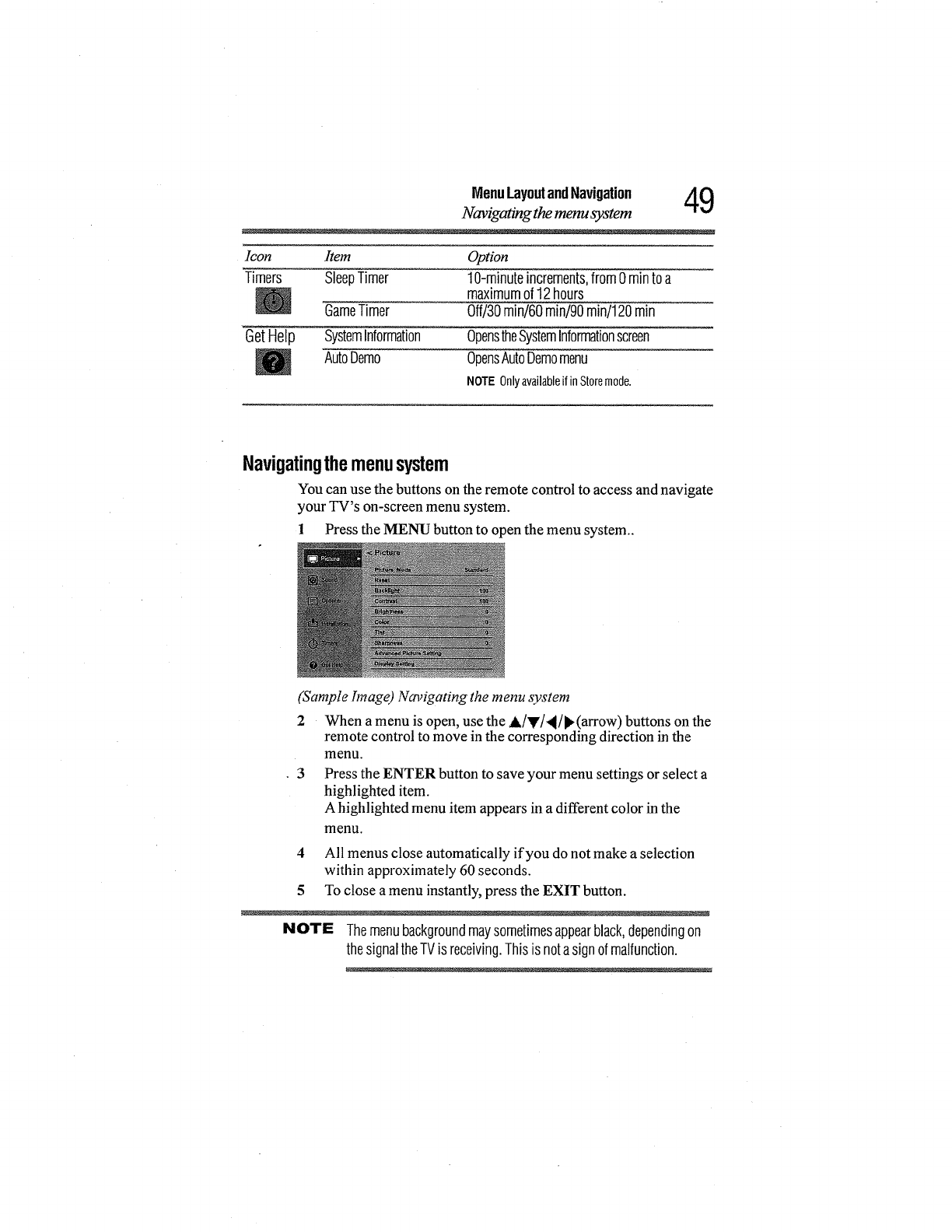
MenuLayoutandNavigation AQ
Navigating the menu system "T _J
Icon Item Option
Timers SleepTimer 1d-minuteincrements,from0 minto a
maximumof12hours
GameTimer Off/30rain/60min/90rain/120rain
GetHelp SystemInformation OpenstheSystemInformationscreen
AutoDemo OpensAutoDemomenu
NOTEOnlyavailableifinStoremode.
Navigatingthemenusystem
You can use the buttons on the remote control to access and navigate
your TV's on-screen menu system.
1 Press the MENU button to open the menu system..
(Sample Image) Nm_igating the menu system
2 When a menu is open, use the A/Y/4/_(arrow) buttons on the
remote control to move in the corresponding direction in the
menu.
• 3 Press the ENTER button to save your menu settings or select a
highlighted item.
A highlighted menu item appears in a different color in the
menu.
4 All menus close automatically if you do not make a selection
within approximately 60 seconds.
5 To close a menu instantly, press the EXIT button.
NOTE Themenubackgroundmaysometimesappearblack,dependingon
thesignaltheTVis receiving.Thisis notasignofmaltunction.
Chapter5
SettingupyourTV
InitialSetup
When you first turn on or reset the TV, the Initial Setup window will
appear.
1 In the Menu Language field, press the ll/_(arrow) buttons to
select your preferred language.
2 Press the A/y(arrow) buttons to select Time Zone.Then set
your desired time zone, using the _I/1_(arrow) buttons and
press the ENTER button.
The Store /Home Mode settings window appears.
3 For normal home use, press the ,ll/_,(arrow) buttons to select
Home, and then press the ENTER button.
The ANT/CABLE In setup window appears.
4 Press the _ll/_,(arrow) buttons to select the input source (Cable
or Antenna), and then press the ENTER button.
5 Press the ENTER button to select Start Scan and continue with
tile Auto Tuning.
You must select a Language, either Home/Store mode, and select
ANT/CABLE before you can exit out of the Setup Menu. The
EXIT button will not function until these selections have been
made.
5O
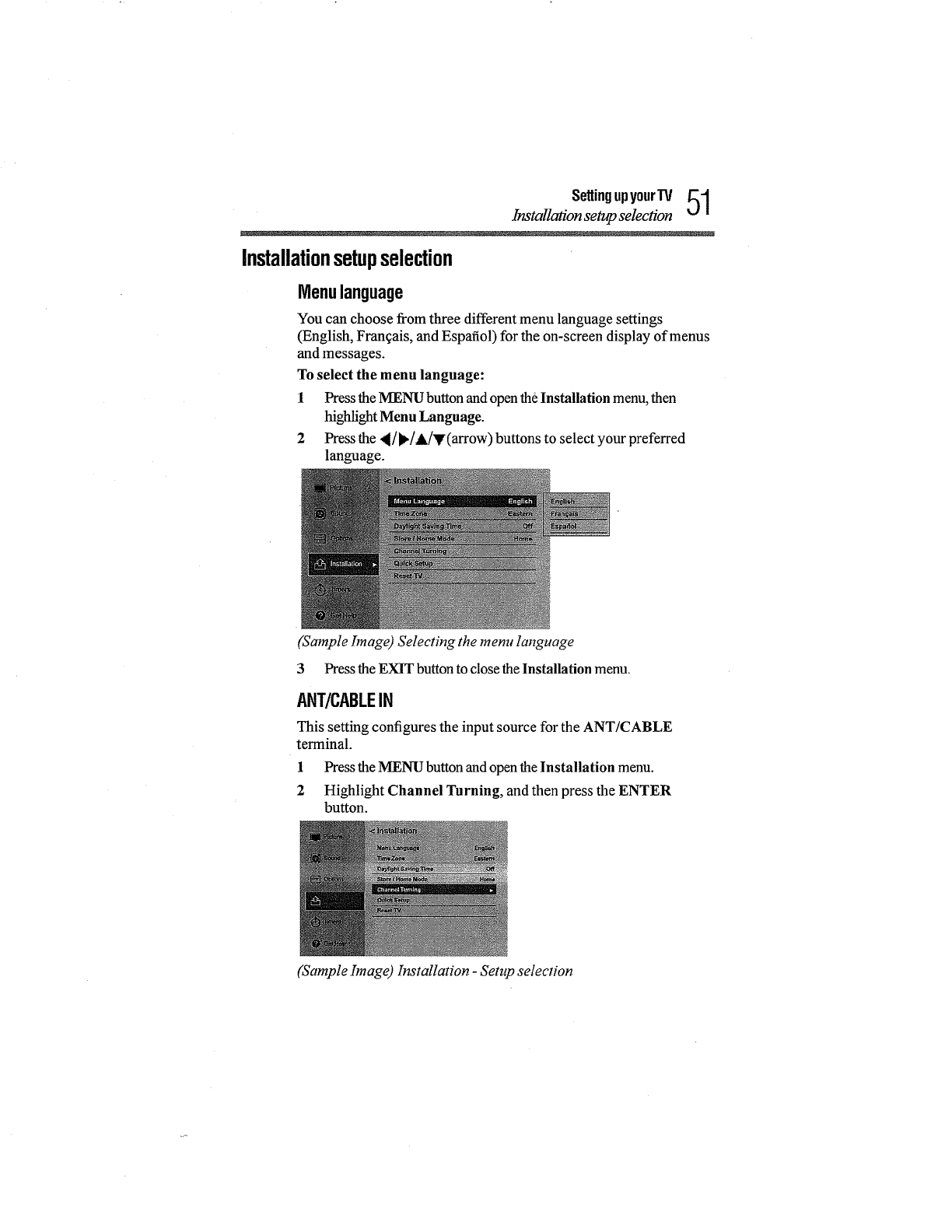
SettingupyourTV 51
Installation setup selection
Installationsetupselection
Menulanguage
You can choose from three different menu language settings
(English, Frangais, and Espafiol) for the on-screen display of menus
and messages.
To select the menu language:
I Press the MENU button and open the Installation menu, then
highlight Menu Language.
2 Press the _I/l_/&/y(arrow) buttons to select your preferred
language.
(Sample hnage) Selecting the menu language
3Press the EXIT button to close the Installation menu.
ANT/CABLEIN
This setting configures the input source for the ANT/CABLE
terminal.
1 Press the MENU button and open the Installation menu.
2 Highlight Channel Tnrning, and then press the ENTER
button.
(Sample hnage) b_stallation -Setup selection
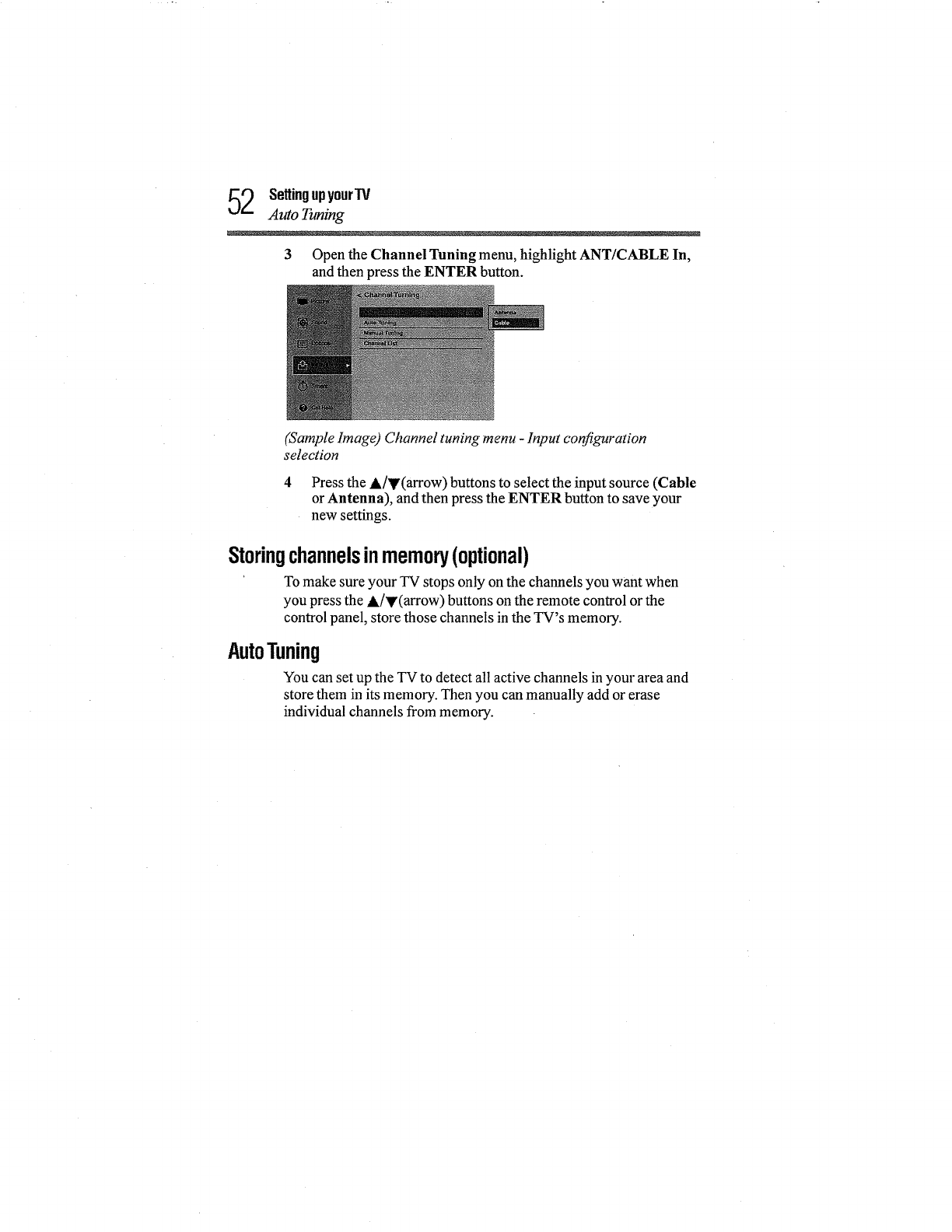
2SettingupyourW
Auto Tuning
3Open the Channel Tuning menu, highlight ANT/CABLE In,
and then press the ENTER button.
(Sample Image) Channel tuning menu -Input configuration
selection
4 Press the A]y(arrow) buttons to select the input source (Cable
or Antenna), and then press the ENTER button to save your
new settings.
Storingchannelsinmemory(optional)
To make sure your TV stops only on the channels you want when
you press the A]y(arrow) buttons on the remote control or the
control panel, store those channels in the TV's memory.
AutoTuning
You can set up the TV to detect all active channels in your area and
store them in its memory. Then you can manually add or erase
individual channels from memory.

Settingupyour'IV _
Auto Tuning
NOTE ,:. YoumustsetuptheANT/CABLEinputsourcebefore
programmingchannels.See"ANT/CABLEIN"onpage51.
o:o Theautomaticchannelprogrammingprocesswill erase
channelsthatwerepreviouslyprogrammedintotheTV's
memory.
•:° TotunetheTVtoachannelnotprogrammedinthechannel
memory,youmustusetheChannelNumber buttonsonthe
remotecontrol.
ProgrammingchannelswhentheANT/CABLEinputis
configuredfor Cablewill takesubstantiallylongerthanwhenthe
antennainputis configuredforAntenna.Thisisnormal;
however,oncechannelprogrammingisfinished,youshouldnot
haveto repeattheprogrammingprocessagainunlessyourCable
TVservicelineupchangessignificantly.
To program channels automatically:
1 Configure the antenna input source, if you have not already
done so, see "ANT/CABLE IN" on page 51.
2 Press the MENU button and open the Installation menu.
3 Highlight Channel Tuning, and then press the ENTER button.
(Sample hnage) Setup menu -Installation selection
4 Highlight Auto Tuning, and then press the ENTER button to
open the Channel Program menu to begin channel
programming.
(Sample hnage) Installation menu -Channel selection
SettingupyourTV
Setting channel skip
The TV will automatically cycle through all the antenna/cable
channels, and store all active channels in the channel memory.
While the TV is cycling through the channels, the message
"Scanning channels, please wait" appears.
To cancel channel programming, press the EXIT button on the
remote control or highlight Cancel in the on-screen display,
and then press the ENTER button.
When channel programming is complete, press the CH &/y
(arrow) buttons to view the programmed channels.
ManualTuning
After storing channels in memory, you can manually enter channels
if the physical channel is known.
l Press the MENU button and open the Installation menu.
2 Highlight Channel Tuning and then press the ENTER button.
3 Highlight Manual Tuning and then press the ENTER button,
the Manual Tuning form will appear.
4 Use buttons 0-9 on the remote control to enter the channel
number (for example, 56)
5 Press the ENTER button to start Manual Tuning.
ATV Analogchannel.
DTV Digitalchannel.
Settingchannelskip
To prevent a channel from being viewed, you can set it to be
skipped.
1 From the Options menu, highlight Channel Options, and then
press the ENTER button.
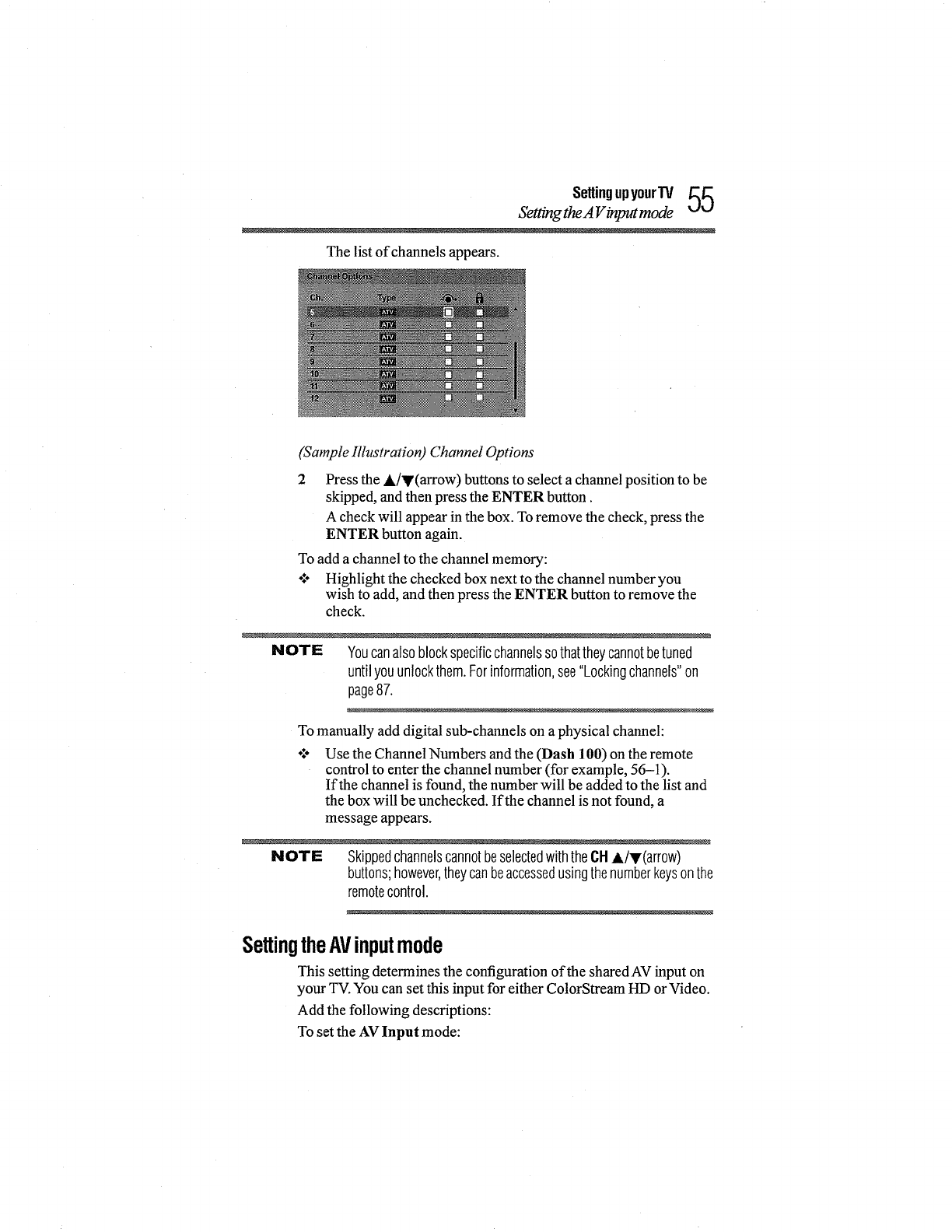
SettingupyourTV _J_
Setting the A V input mode
The list of channels appears.
(Sample Illustration) Channel Options
2 Press the A/V(arrow) buttons to select a channel position to be
skipped, and then press the ENTER button.
A check will appear in the box. To remove the check, press the
ENTER button again.
To add a channel to the channel memory:
o:o Highlight the checked box next to the channel number you
wish to add, and then press the ENTER button to remove the
check.
NOTE Youcanalsoblockspecificchannelssothattheycannotbetuned
untilyouunlockthem.Forinformation,see"Lockingchannels"on
page87.
To manually add digital sub-channels on a physical channel:
Use the Channel Numbers and the (Dash 100) on the remote
control to enter the channel number (for example, 56-1).
If the channel is found, the number will be added to the list and
the box will be unchecked. If the channel is not found, a
message appears.
NOTE SkippedchannelscannotbeselectedwiththeCHA/v(arrow)
buttons;however,theycanbeaccessedusingthenumberkeysonthe
remotecontrol.
SettingtheAVinputmode
This setting determines the configuration of the shared AV input on
your TV. You can set this input for either ColorStream HD or Video.
Add the following descriptions:
To set the AV Input mode:
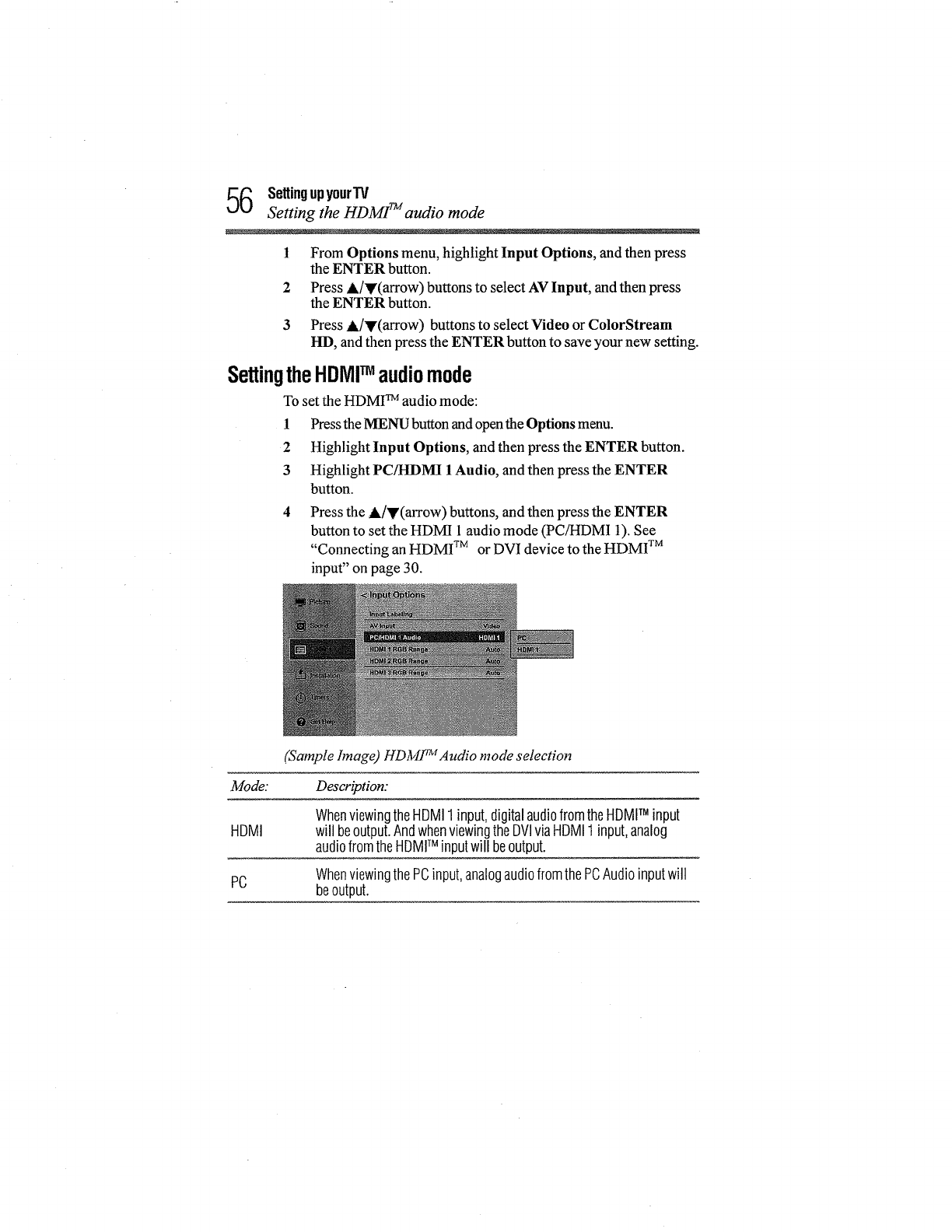
6 SettingupyourTV
Setting the HDMIrMaudio mode
l
2
3
From Options menu, highlight Input Options, and then press
the ENTER button.
Press A/y(arrow) buttons to select AV Input, and then press
the ENTER button.
Press A/y(arrow) buttons to select Video or ColorStream
HD, and then press the ENTER button to save your new setting.
SettingtheHDIV]Iaudiomode
To set the HDMI TM audio mode:
1Press the MENU button and open the Options menu.
2 Highlight Input Options, and then press the ENTER button.
3 Highlight PC/HDMI 1 Audio, and then press the ENTER
button.
4 Press the A/y(arrow) buttons, and then press the ENTER
button to set the HDMI 1 audio mode (PC/HDMI 1). See
"Connecting an HDMI TM or DVI device to the HDMI TM
input" on page 30.
(Sample hnage) HDMFU Audio mode selection
Mode: Description:
WhenviewingtheHDMI1 input,digitalaudiofromtheHDMFMinput
HDMI will beoutput.AndwhenviewingtheDVIviaHDMI1 input,analog
audiofromtheHDMITM inputwill beoutput.
WhenviewingthePCinput,analogaudiofromthePCAudioinputwill
PC beoutput.
SetUngupyourTV 57
_ewing the system status
Settingthetimezone
The Time Zone setup allows you to specify the correct time zone for
your region. This feature allows the TV status information to
display the correct time zone information for your viewing area.
To set the time zone:
1 Iri the Installation menu, highlight Time Zone, and press the
ENTER button.
2 Press the A/v(arrow) buttons to select the region, and then
press the ENTER button.
To set the Daylight Saving Time status:
1 In the Installation menu, highlight Daylight Saving Time, and
press the ENTER button.
2 Press the A/y(arrow) buttons to select On or Off, and then
press the ENTER button.
Viewingthesystemstatus
1In the Get Help menu, highlight System Information, and
then press the ENTER button. The related information
appears.
To close the screen and return to the Get Help menu:
o_o Highlight Done in the Support Information screen, and then
press the ENTER button.
To return to normal viewing, press the EXIT button.
ResettingFactoryDefaults
To reset all settings and channels to their factory default values:
1 Press the MENU button and open the Installation menu.
2 Highlight Reset TV, and then press the ENTER button.
3 Enter your PIN code (Ifa PIN code has been set).
4 A confirmation screen appears. Select Yes,and press the ENTER
button. The TV will turn offautomatically.
To cancel the reset process, select No, and press the ENTER button.
Chapter6
SettingupyourTV
Selectingthevideoinputsource
To select the video input source to view:
1 Press the INPUT button on the remote control or TV control
panel.
2 Do one of the following:
o.*o Press 0-5.
÷1o Repeatedly press the A/V(arrow) buttons on the remote
control, and then press the ENTER button to change the
input setting.
o:o Repeatedly press the INPUT button to cycle through all
the inputs. Stop pressing the INPUT button when the
desired input is selected.
58
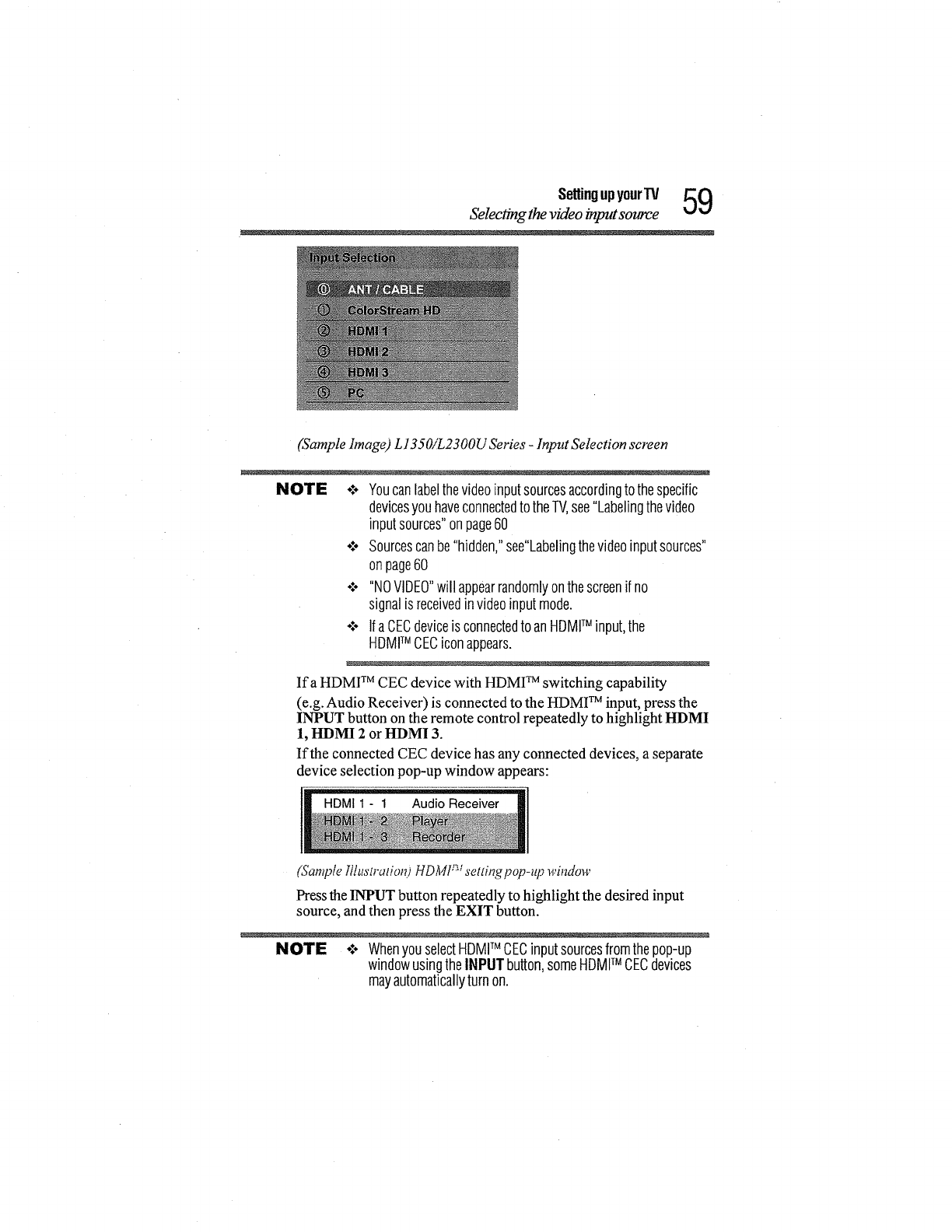
SettingupyourTV 59
Selecting the video input source
(Sample bnage) L1350iL2300U Series - Input Selection screen
NOTE *:* Youcanlabelthevideoinputsourcesaccordingtothespecific
devicesyouhaveconnectedto theTV,see"Labelingthevideo
inputsources"onpage60
o:o Sourcescanbe"hidden,"see"Labelingthevideoinputsources"
onpage60
°:° "NOVIDEO"will appearrandomlyonthescreenif no
signalisreceivedinvideoinputmode.
°:o IfaCECdeviceisconnectedto anHDMITM input,the
HDM!TM CECiconappears.
Ifa HDMI TM CEC device with HDMI TM switching capability
(e.g. Audio Receiver) is connected to the HDMI TM input, press the
INPUT button on the remote control repeatedly to highlight HDMI
1, I-IDMI 2 or HDMI 3.
If the connected CEC device has any connected devices, a separate
device selection pop-up window appears:
(Sample fllust,aliom HDMF"" setdng pop-up window
Press the INPUT button repeatedly to highlight the desired input
source, and then press the EXIT button.
NOTE o:, WhenyouselectHDMITM CECinputsourcesfromthepop-up
windowusingtheINPUTbutton,someHDMITM CECdevices
mayautomaticallyturnon.
0SettingupyourTV
Labeling the video input sources
NOTE o:* WhenselectinginputsourcesusingtheOHA/T(arrow)
buttons,youwill needto presstheENTERbuttonto actually
selectaparticulardevicefromthepop-upwindow.
Labelingthevideoinputsources
You can label each video input source according to the type of
device you have connected to each source. Choose from the
following preset list 0flabels:
•:o -- (default label)
°:o Receiver
÷1÷ Cable
o:. DVD
o:- Game
÷:- PC
°:. Recorder
o:- Satellite
÷:- VCR
o:. BlueRay
÷:- Hide (to hide an unused input in the Input Selection screen and
in the Channel Browser Inputs list)
NOTE IfyouselectPCintheInputSelectionscreen,youcanchooseonly
"--", "Game",or "Hide"asthelabel.
To label the video input sources:
1 In Options menu, highlight Input Options and then press the
ENTER button.
2 Highlight Input Labeling, and then press the ENTER button.
3 Pressthe Air(arrow) buttons to highlight the video source
you wish to label.
4 Press the 41])_(arrow) buttons to select the desired label for that
input source. Ifa particular input is not used, Hide can be
selected as the label. This will cause that input to be grayed out
in the Input Selection screen and skipped over when you press
the INPUT button on the remote control.
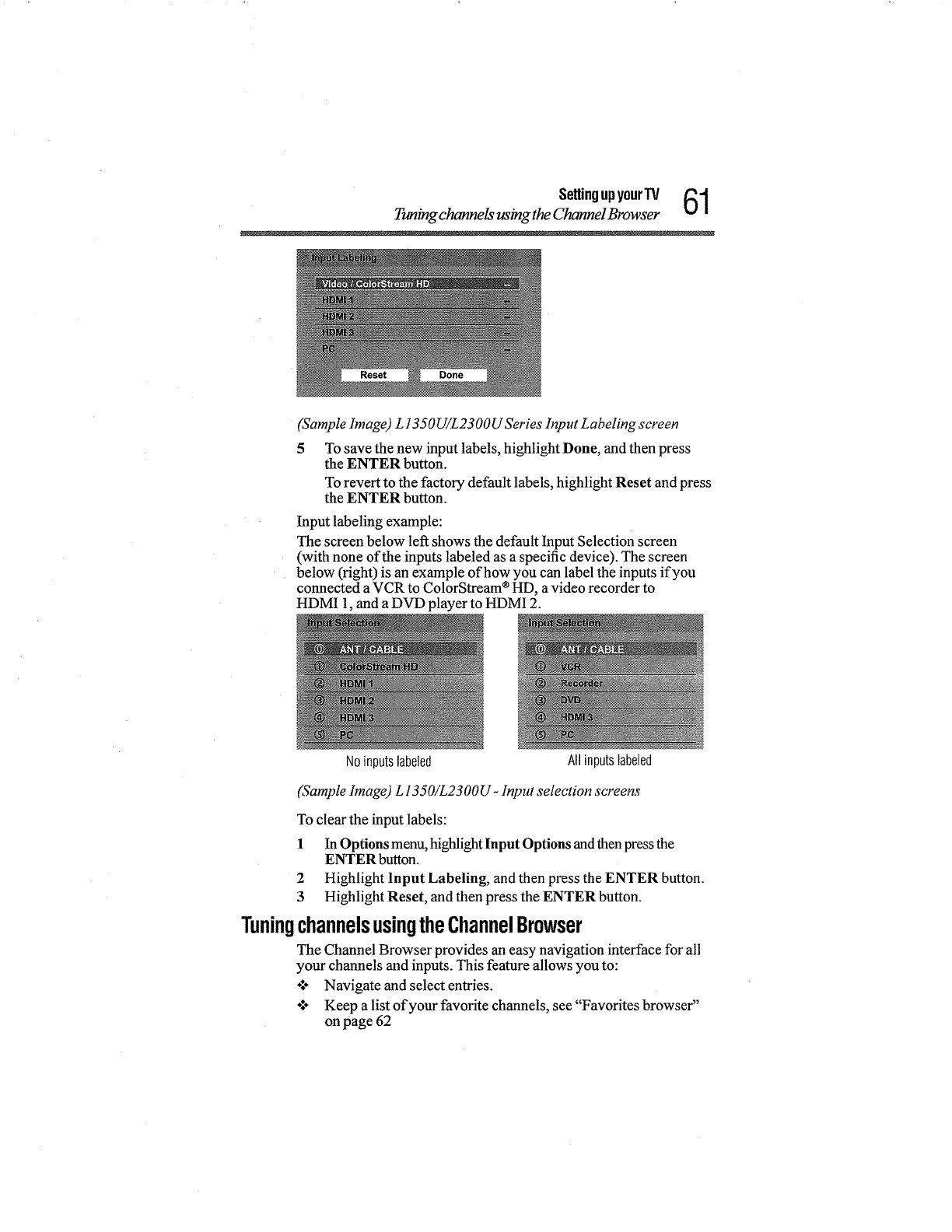
SettingupyourTV 61
Tuning channels using the Channel Browser
(Sample Image) L 1350UiL2300U Series h_put Labeling screen
To save the new input labels, highlight Done, and then press
the ENTER button.
To revert to the factory default labels, highlight Reset and press
the ENTER button.
Input labeling example:
The screen below left shows the default Input Selection screen
(with none of the inputs labeled as a specific device). The screen
below (right) is an example of how you can label the inputs if you
connected a VCR to ColorStream ®HD, a video recorder to
HDMI 1,and a DVD player to HDMI 2.
Noinputslabeled All inputslabeled
(Sample hnage) L 1350iL2300U- Input selection sereens
To clear the input labels:
1 In Options menu, highlight Input Options and then press the
ENTER button.
2 Highlight Input Labeling, and then press the ENTER button.
3 Highlight Reset, and then press the ENTER button.
TuningchannelsusingtheChannelBrowser
The Channel Browser provides an easy navigation interface for all
your channels and inputs. This feature allows you to:
÷:o Navigate and select entries.
o:÷ Keep a list of your favorite channels, see "Favorites browser"
on page 62
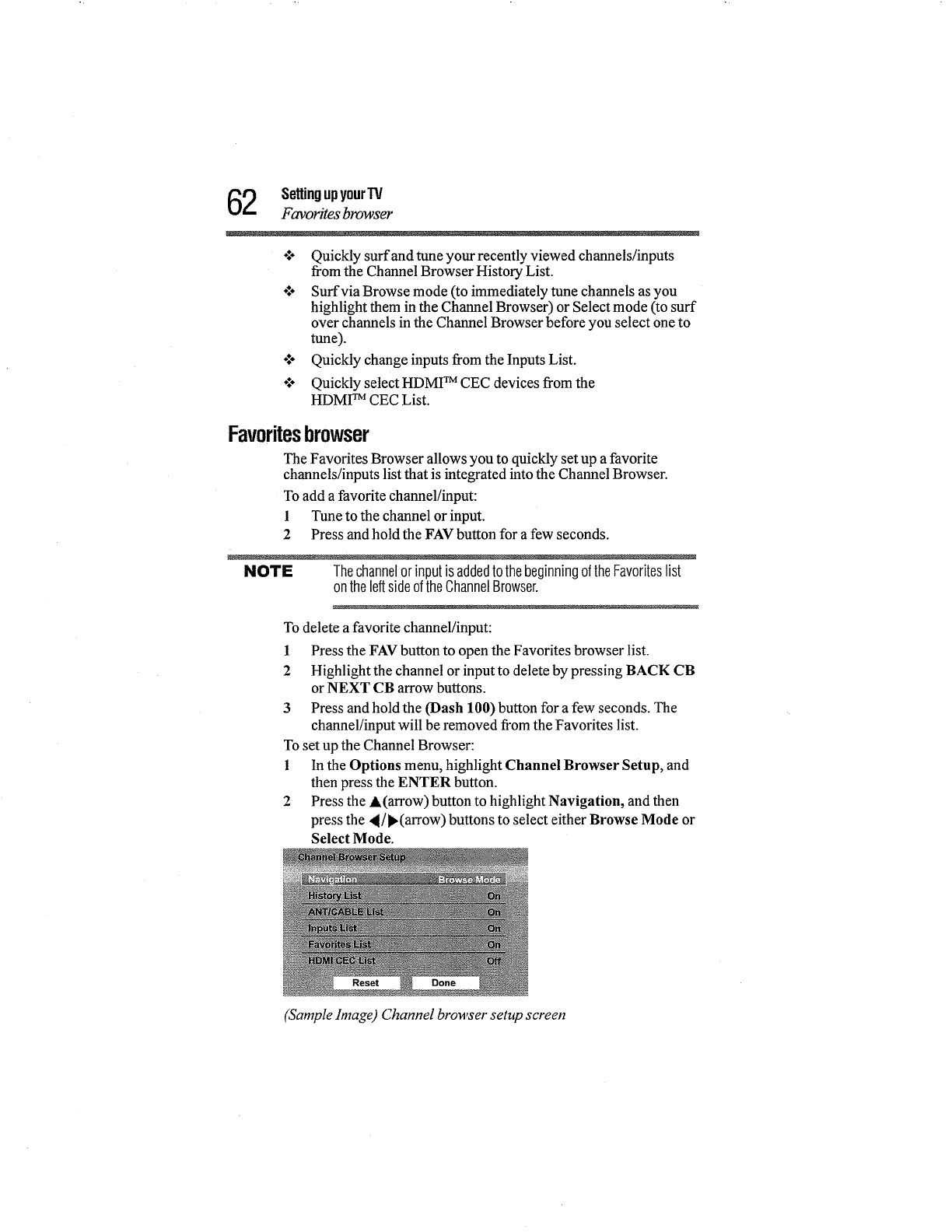
2SettingupyourIV
Favorites browser
o:° Quickly surf and tune your recently viewed channels/inputs
from the Channel Browser History List.
o:° Surf via Browse mode (to immediately tune channels as you
highlight them in the Channel Browser) or Select mode (to surf
over channels in the Channel Browser before yon select one to
tune).
o:° Quickly change inputs from the Inputs List.
÷:° Quickly select HDMI TM CEC devices from the
HDMI TM CEC List.
Favoritesbrowser
The Favorites Browser allows you to quickly set up a favorite
channels/inputs list that is integrated into the Channel Browser.
To add a favorite channel/input:
1 Tune to the channel or input.
2 Press and hold the FAV button for a few seconds.
NOTE ThechannelorinputisaddedtothebeginningoftheFavoriteslist
ontheleftsideoftheChannelBrowser.
To delete a favorite channel/input:
1 Press the FAV button to open the Favorites browser list.
2 Highlight the channel or input to delete by pressing BACK CB
or NEXT CB arrow buttons.
3 Press and hold the (Dash 100) button for a few seconds. The
channel/input will be removed from the Favorites list.
To set up the Channel Browser:
1 In the Options menu, highlight Channel Browser Setup, and
then press the ENTER button.
2 Press the &(arrow) button to highlight Navigation, and then
press the 41/l_(arrow) buttons to select either Browse Mode or
Select Mode.
(Sample linage) Channel browser setup screen
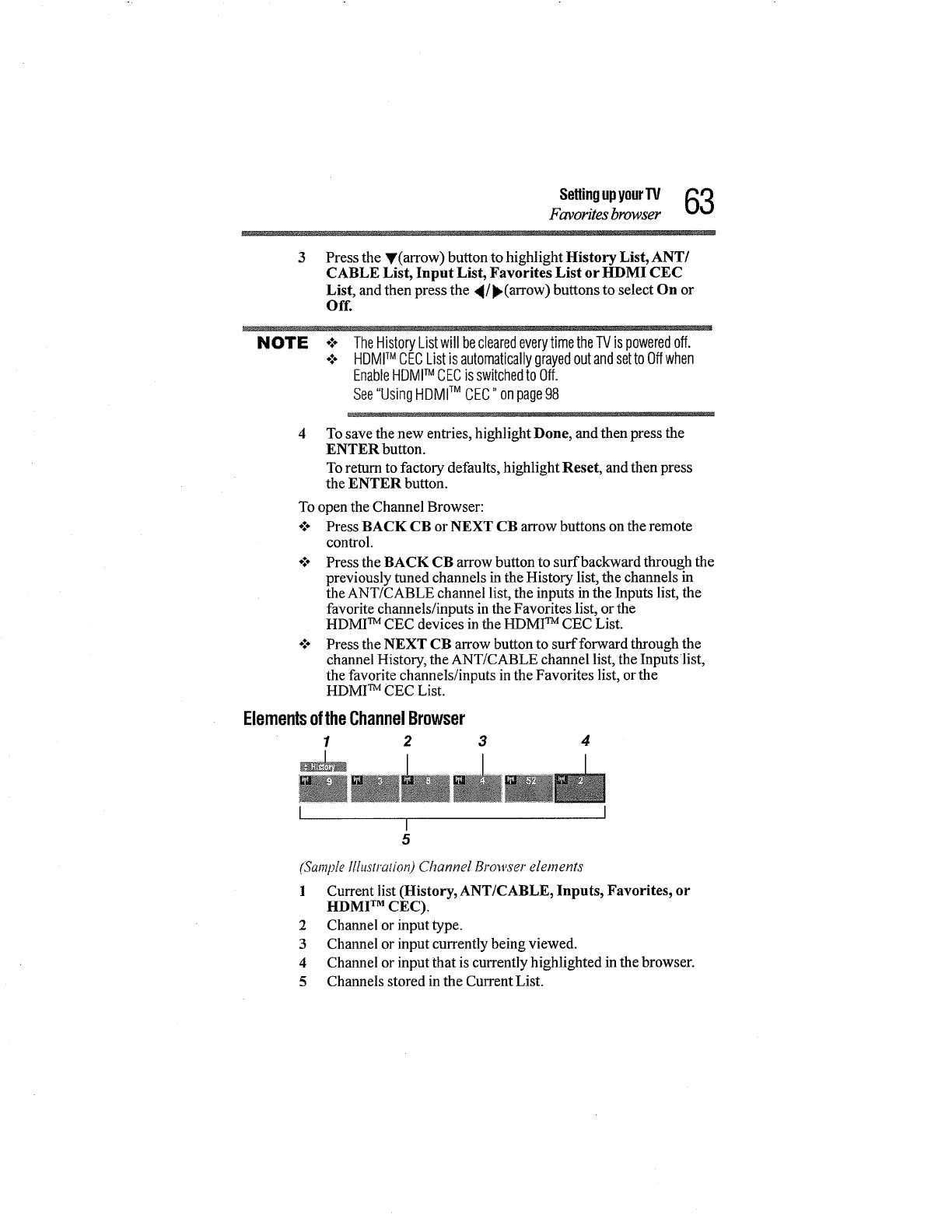
Settingupyour'IV _
Favorites browser %.t%.1
3Press the Y(arrow) button to highlight History List, ANT/
CABLE List, Input List, Favorites List or HDMI CEC
List, and then press the <[/),(arrow) buttons to select On or
Off.
NOTE ÷:÷ TheHistoryListwill beclearedeverytimetheTVis poweredoff.
÷:. HDMITM CECListis automaticallygrayedoutandsettoOffwhen
EnableHDMITM CECis switchedto Off.
See"UsingHDMITM CEC"onpage98
4To save the new entries, highlight Done, and then press the
ENTER button.
To return to factory defaults, highlight Reset, and then press
the ENTER button.
To open the Channel Browser:
o:* Press BACK CB or NEXT CB arrow buttons on the remote
control.
÷:. Press the BACK CB arrow button to surf backward through the
previously tuned channels in the History list, the channels in
the ANT/CABLE channel list, the inputs in the Inputs list, the
favorite channels/inputs in the Favorites list, or the
HDMI TM CEC devices in the HDMI TM CEC List.
o:o Press the NEXT CB arrow button to surf forward through the
channel History, the ANT/CABLE channel list, the Inputs list,
the favorite channels/inputs in the Favorites list, or the
HDMI TM CEC List.
ElementsoftheChannelBrowser
1 2 4
I
5
(Sample Illustration) Channel Browser elements
1 Current list (History, ANT/CABLE, Inputs, Favorites, or
HDMI TM CEC).
2 Channel or input type.
3 Channel or input currently being viewed.
4 Channel or input that is currently highlighted in the browser.
5 Channels stored in the Current List.
_A settingupyourTV
u'-r Favorites browser
To toggle among the available lists:
After opening the Channel Browser, press the •/• (arrow) buttons
to toggle through the History, ANT/CABLE, Inputs, Favorites, or
HDMI CEC options.
NOTE -:o TheChannelBrowseropensin HistoryListbydefault.Once
anotherlist hasbeenselected,theChannelBrowserwill openin
thelastselectedlist.
o:, Ifall listsareturnedoff,pressingBACKCBorNEXTCBarrow
buttonsortheFAVbuttonwill notdisplaytheChannelBrowser.
IfFavoritesLististurnedoff,theFAVbuttonwill havenoeffect.
÷:÷ PressingtheFAVbuttonwill displaytheChannelBrowser
Favoriteslist regardlessofthelastselectedlistintheChannel
Browser.
To tune to a channel or input in Browse mode:
1 While watching TV, press BACK CB or NEXT CB arrow
buttons to display the Channel Browser and surf back to a
previous item or surf forward to the next item in the list. In
Browse mode, when you stop on an item in the Channel
Browser, it is highlighted and the TV automatically tunes to the
channel or input.
2 Press the EXIT button to close the Channel Browser.
To tune to a channel or input in Select mode:
1 While watching TV, press BACK CB or NEXT CB arrow
buttons to display the Channel Browser and surf back to a
previous item or surf forward to the next item in the list.
In Select mode, when you stop on an item in the Channel
Browser, it is highlighted, but the TV is not turned to the
channel until you press the ENTER button.
2 Press the ENTER button to tune the TV to the highlighted
item.
3 Press the EXIT button to close the Channel Browser.
SettingupyourTV _
Favorites browser Vv_,l
AddingandclearingchannelsandinputsintheHistoryList
As a channel or input is tuned, the Channel Browser adds it to the
History List and displays it on the right side of the Channel
Browser. Previously tuned channels/inputs are shifted to the left,
eventually moving offthe left side. Press the BACK CB arrow
button to surf backward through the previously tuned
channels/inputs. Any channel or input that is tuned repeatedly will
not be repeated in the History List, but instead is moved to the end
of the list on the right side of the Chamael Browser.
÷:. All channels that are tuned using the numeric buttons on
the remote control.
olo All channels that are tuned using the _/b(arrow) buttons
on the remote control.
NOTE Wheneveranitemis selectedthatcannotbetuned(forvarious
reasons),theTVwill automaticallytunetothepreviouslyviewed
channelorinput.
Clearing channels from the History List:
o:o Reconfiguring the ANT/CABLE input will clear the
History List. see "ANT/CABLE IN" on page 51
o:÷ Turning off the TV will clear the History List.
Tuningtothenextprogrammedchannel
To tune to the next programmed channel, press the 41/_,(arrow)
buttons on the remote control or TV control panel.
NOTE Thisfeaturewill notfunctionuntilyouhaveprogramedchannelsinto
theTV'schannelmemory,see"Storingchannelsin memory
(optional)"onpage52
Tuningtoaspecificchannel(programmedor unprogrammed)
To tune analog channels:
Press the Channel Number (0-9) on the remote control. For
example, to select channel 125, press 1,2, 5, and then press the
ENTER button.
Tuning digital channels:
Press the Channel Number (0-9) on the remote control, followed by
the (Dash 100) button, and then the sub-channel number. For
example, to select digital channel 125-1, press 1,2, 5, --, 1, and then
press the ENTER button.
6SettingupyourTV
Favorites browser
NOTE Ifadigitalchannelis notprogrammed,eitherthroughtheautomatic
channelscanorthe Channeladdfunction,see"AutoTuning"onpage
52,youwill haveto tunetheRFchannelusingtheChannelNumbers
andthe(Dash100) buttonontheremotecontrol.
SwitchingbetweentwochannelsusingChannelRetum
The Channel Return feature allows you to switch between two
channels without entering an actual channel number each time.
1 Select the first channel you want to view.
2 Select a second channel using the Channel Number buttons
(and the (Dash 100) button if selecting a digital channel).
3 Press the CH RTN button on the remote control.
The previous channel will display. Each time you press the CH
RTN button, the TV will switch back and forth between the last
two channels that were tuned.
NOTE IfyoupresstheCHRTNbuttonfromanon-antennainput,theTV
will returntothelast-viewedinput.
Switchingbetweentwo channelsusingSurfLockTM
The SurfLock TM feature temporarily "memorizes" one channel to
the CH RTN button, so you can return to that channel quickly from
any other channel by pressing the CH RTN button.
To memorize a channel to the CH RTN button:
1 Tune the TV to the channel you wish to program into the CH
RTN button.
2 Press and hold the CH RTN button for a few seconds until the
message "Memorized" appears on the screen. The channel has
been programmed to the CH RTN button.
3 You can then change channels repeatedly, and when you press
the CH RTN button, the memorized channel will be tuned.
The TV will return to the memorized channel one time only. Once
you press the CH RTN button and then change channels again, the
CH RTN memory will be cleared and the button will function as
Channel Return, by switching back and forth between the last two
channels that are tuned.This feature also works for extemal inputs.
Settingupyour'IV 67
Selecting thepicture size
Selectingthepicturesize
You can view many program formats in several picture sizes--
Native, 4:3, Full, TheaterWide 1,TheaterWide 2, TheaterWide 3,
Normal, and Dot by Dot.
NOTE Thepicturesizeillustrationsareexamplesonly.Theformatofthe
image(inanyofthepicturesizes)dependsontheformatofthesignal
youarecurrentlywatching.Selectthepicturesizethatdisplaysthe
currentprograminthewaythatlooksbesttoyou.
You can save separate picture size preferences for each input on
your TV.
To select the picture size:
1 Press the PIC SIZE button on the remote.
With the Picture Size menu displayed, do one of the following:
÷:. Repeatedly press the PIC SIZE button.
.!o Press the corresponding number button (0-5) while the
Picture Size menu is displayed.
of° Press the •/_r (arrow) buttons while the Picture Size
menu is displayed.
NOTE Someofthepicturesizesmaynotbeavailabledependingonthe
receivingsignalformat(thosewill begrayedoutinthePictureSize
screen).
NOTE Usingthesefunctionsto changethepicturesize(i.e.,changingthe
height/widthratio)foranypurposeotherthanyourprivateviewing
maybeprohibitedundertheCopyrightLawsoftheUnitedStatesand
othercountries,andmaysubjectyouto civilandcriminalliability.
NOTE IfyouselectaThealerWide®picturesize,thetopandbottomedgesof
thepicture(includingsubtitlesorcaptions)maybehidden.Toview
theseedges,adjustthePicturePositionortryviewingtheprogramin
4:3or Full,see"ScrollingtheTheaterWide®picture(TheaterWide2
and3only)"onpage71
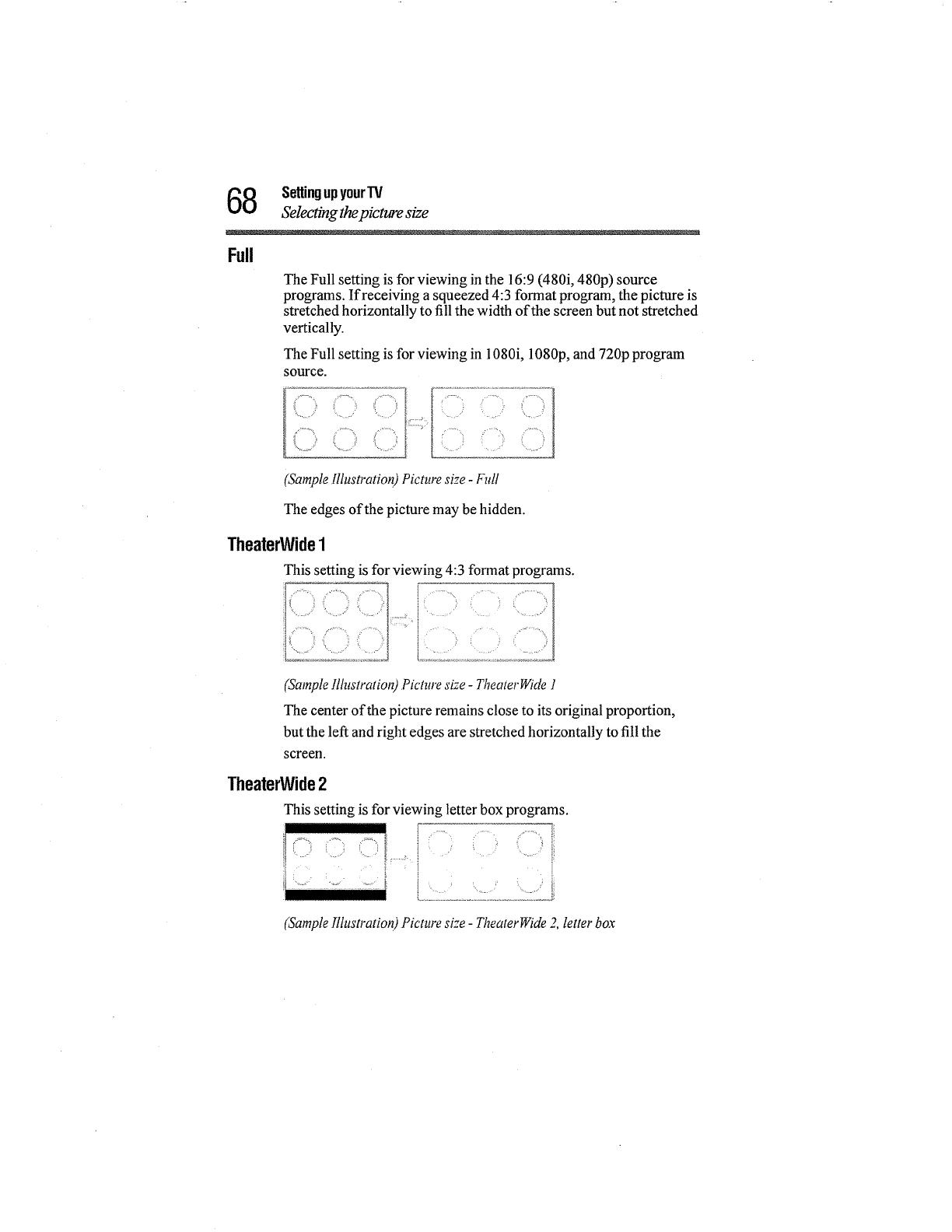
8SettingupyourW
Selecting thepicture size
Full
The Full setting is for viewing in the 16:9 (480i, 480p) source
programs. If receiving a squeezed 4:3 format program, the picture is
stretched horizontally to fill the width of the screen but not stretched
vertically.
The Full setting is for viewing in 1080i, 1080p, and 720p program
SOU.rce.
(ii.ii !
" '_' _................_ L .......................
(Sample Illustration) Picture size -Full
The edges of the picture may be hidden.
TheaterWide1
This setting is for viewing 4:3 format programs.
t i ( i / ii 1
I ................................... ............. ...... I
(Sample Illustration) Picture size -TheaterWide 1
The center of the picture remains close to its original proportion,
but the left and right edges are stretched horizontally to fill the
screen.
TheaterWide2
This setting is for viewing letter box programs.
.... i
(Sample Illustration)Picture size - TheaterWide _,_ letter box
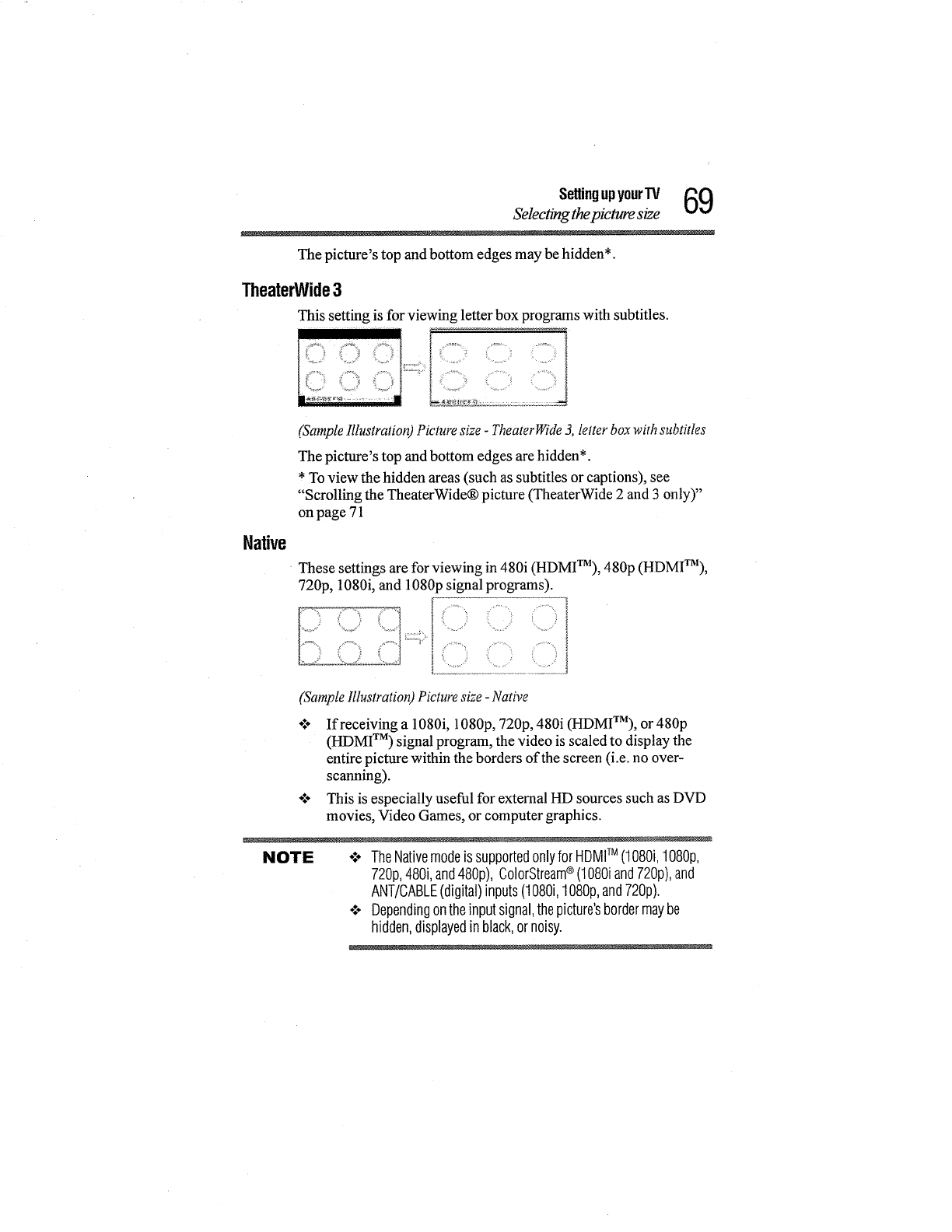
SettingupyourTV _(_
Selecting thepicture size VIJ
The picture's top and bottom edges may be hidden*.
TheaterWide3
This setting is for viewing letter box programs with subtitles.
i ? i '_ il ! _ i I
L L
Native
(Sample Illustration) Picture size -TheaterWide 3, letter box with subtitles
The picture's top and bottom edges are hidden*.
* To view the hidden areas (such as subtitles or captions), see
"Scrolling the TheaterWide® picture (TheaterWide 2 and 3 only)"
on page 71
These settings are for viewing in 480i (HDMITM), 480p (HDMITM),
720p, 1080i, and 1080p signal programs).
(Sample lllustratio_O Picture size -Native
o:÷ If receiving a 1080i, 1080p, 720p, 480i (HDMIT_Z),or 480p
(HDMI TM) signal program, the video is scaled to display the
entire picture within the borders of the screen (i.e. no over-
scanning).
*:* This is especially useful for external HD sources such as DVD
movies, Video Games, or computer graphics.
NOTE o:. TheNativemodeis supportedonlyfor HDMITM (1080i,1080p,
720p,480i,and480p),ColorStream®(1080iand720p),and
ANT/CABLE(digital)inputs(1080i,1080p,and720p).
o:- Dependingontheinputsignal,thepicture'sbordermaybe
hidden,displayedin black,ornoisy.
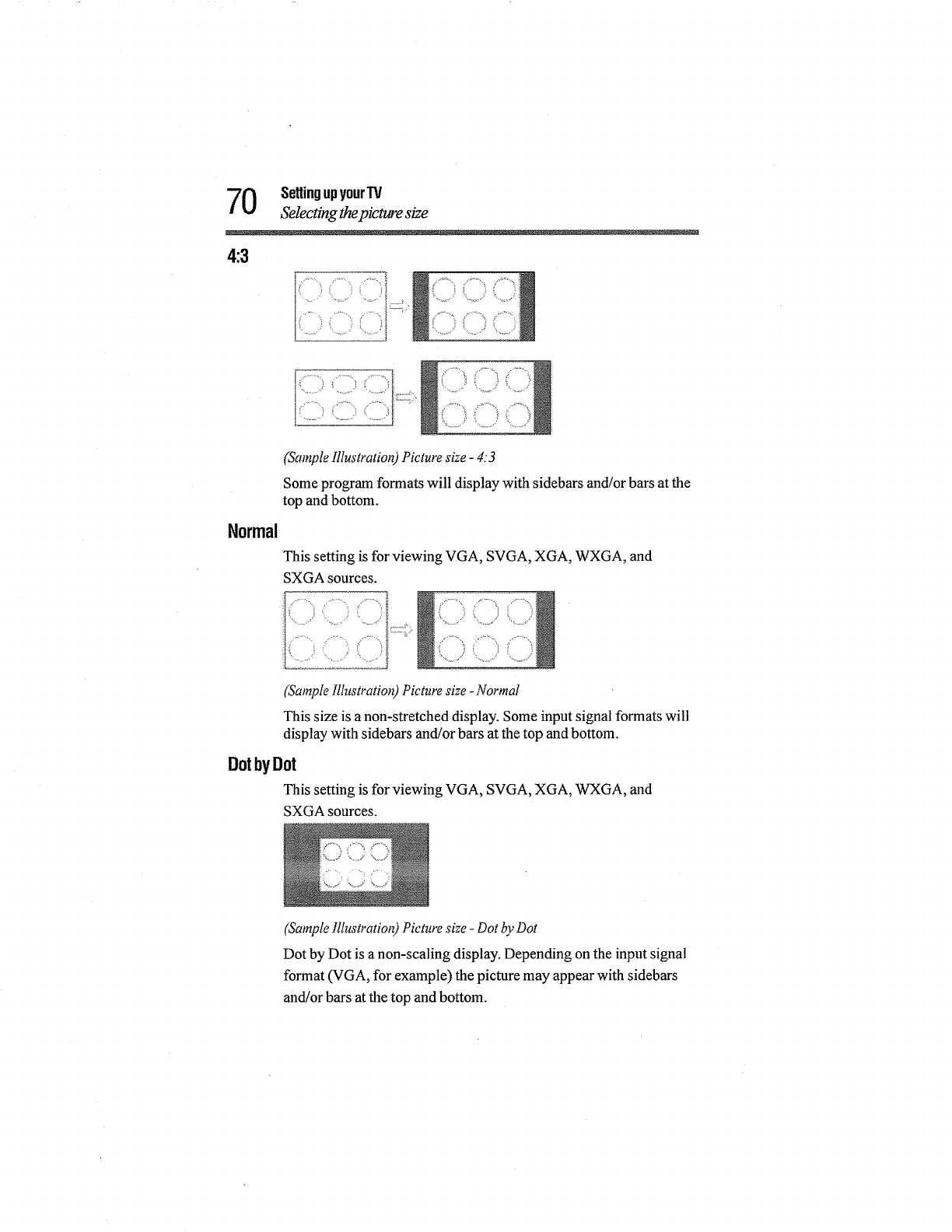
0SettingupyourW
Selectingthepicture size
4:3
I_i_¸ i_iiii ?i_¸ _c::=i::,
Normal
(Samplefllustration) Picture size -4.'3
Some program formats will display with sidebars and/or bars at the
top and bottom.
This setting is for viewing VGA, SVGA, XGA, WXGA, and
SXGA sources.
iiii_ i ..... t_:::::;;_ ....................
............;, ii,
(5'ample lllustratiot 0 Picture size -Normal
This size is a non-stretched display. Some input signal formats will
display with sidebars and/or bars at the top and bottom.
DotbyDot
This setting is for viewing VGA, SVGA, XGA, WXGA, and
SXGA sources.
(Sample lllustratio_0 Picture size -Dot by Dot
Dot by Dot is a non-scaling display. Depending on the input signal
format (VGA, for example) the picture may appear with sidebars
and/or bars at the top and bottom.
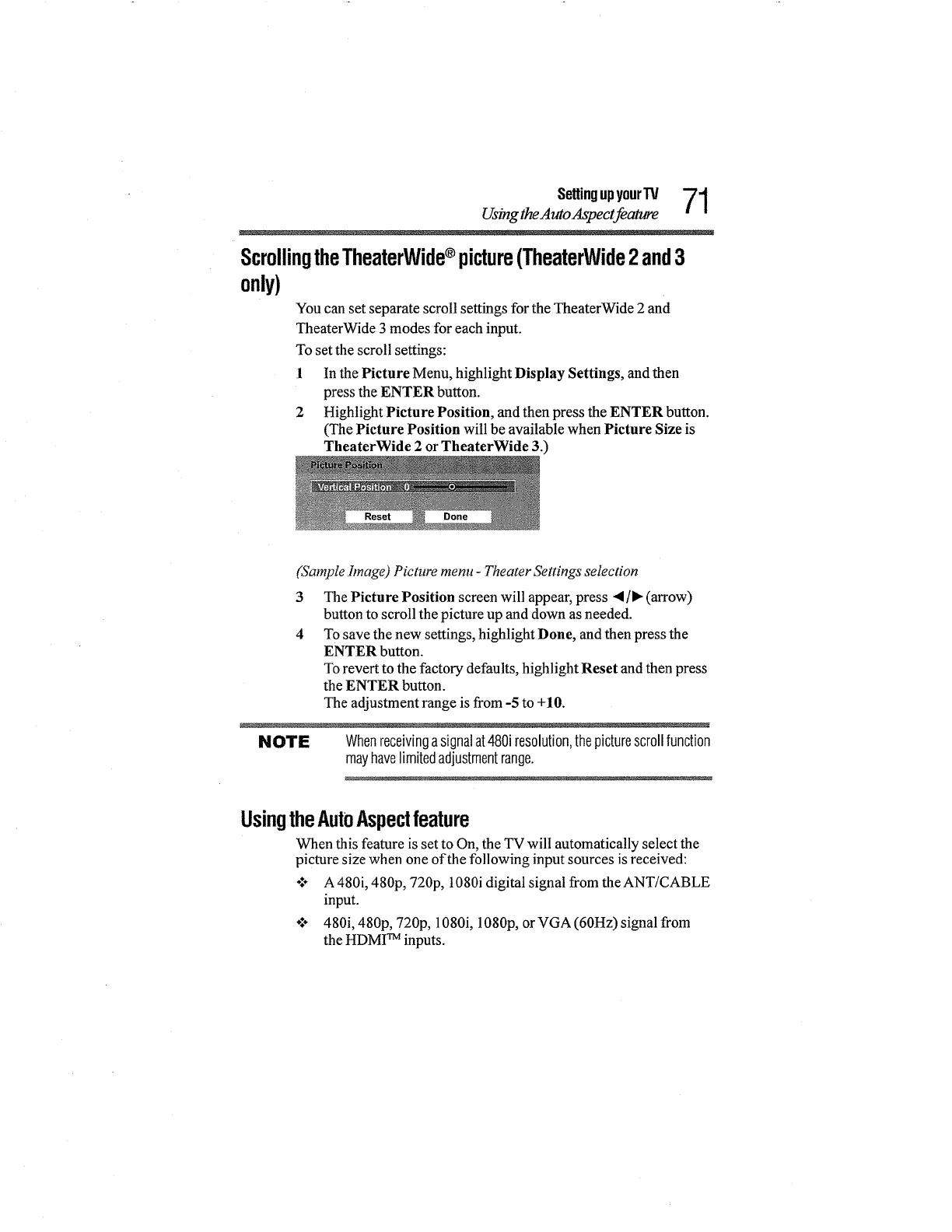
SettingupyourTV 71
Using theAuto Aspect feature
ScrollingtheTheaterWide®picture(TheaterWide2and3
only)
You can set separate scroll settings for the TheaterWide 2 and
TheaterWide 3 modes for each input.
To set the scroll settings:
1 In the Picture Menu, highlight Display Settings, and then
press the ENTER button.
2 Highlight Picture Position, and then press the ENTER button.
(The Picture Position will be available when Picture Size is
TheaterWide 2 or TheaterWide 3.)
Reset Done
(Sample hnage) Picture menu -Theater Settings selection
3 The Picture Position screen will appear, press •]_ (arrow)
button to scroll the picture up and down as needed.
4 To save the new settings, highlight Done, and then press the
ENTER button.
To revert to the factory defaults, highlight Reset and then press
the ENTER button.
The adjustment range is from -5 to +10.
NOTE Whenreceivingasignalat480iresolution,thepicturescrollfunction
mayhavelimitedadjustmentrange.
UsingtheAutoAspectfeature
When this feature is set to On, the TV will automatically select the
picture size when one of the following input sources is received:
o:÷ A 480i, 480p, 720p, 1080i digital signal from the ANT/CABLE
input.
o1÷ 480i, 480p, 720p, 1080i, 1080p, or VGA (60Hz) signal from
the HDMI TM inputs.
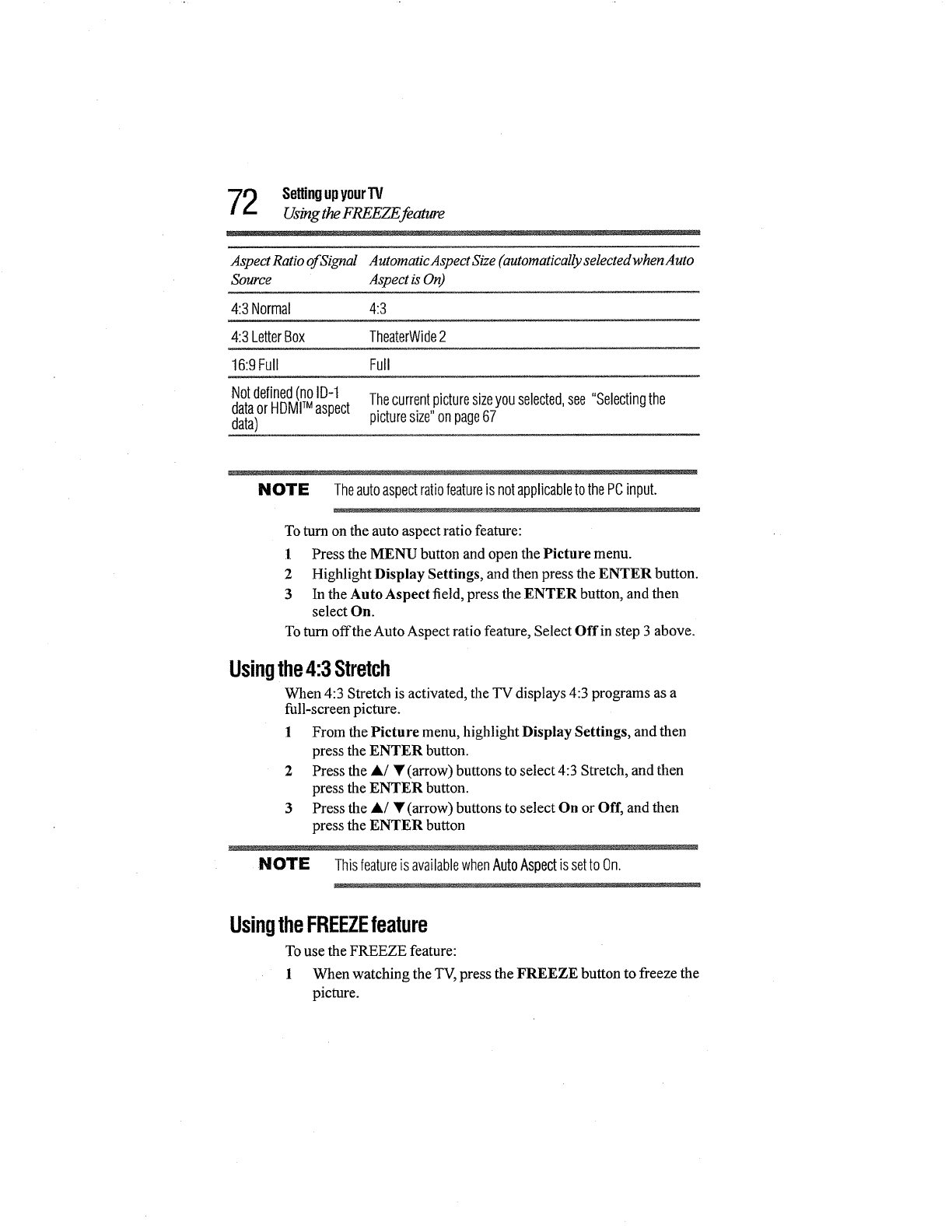
2SettingupyourTV
Usingthe FREEZE feature
Aspect Ratio ofSignal AutomaticAspect Size (automatically selectedwhenAuto
Source Aspect isOn)
4:3 Normal 4:3
4:3 LetterBox TheaterWide2
16:9Full Full
Notdefined(noID-1 Thecurrentpicturesizeyouselected,see "Selectingthe
dataorHDMITM aspect
data) picturesize"onpage67
NOTE TheautoaspectratiofeatureisnotapplicabletothePCinput.
To turn on the auto aspect ratio feature:
1 Press the MENU button and open the Picture menu.
2 Highlight Display Settings, and then press the ENTER button.
3 In the Auto Aspect field, press the ENTER button, and then
select On.
To turn offthe Auto Aspect ratio feature, Select Offin step 3 above.
Usingthe4:3Stretch
When 4:3 Stretch is activated, the TV displays 4:3 programs as a
full-screen picture.
1 From the Picture menu, highlight Display Settings, and then
press the ENTER button.
2 Press the ,/• (arrow) buttons to select 4:3 Stretch, and then
press the ENTER button.
3 Press the A/• (arrow) buttons to select On or Off, and then
press the ENTER button
NOTE ThisfeatureisavailablewhenAutoAspectis setto On.
UsingtheFREEZEfeature
To use the FREEZE feature:
1 When watching the TV, press the FREEZE button to freeze the
picture.
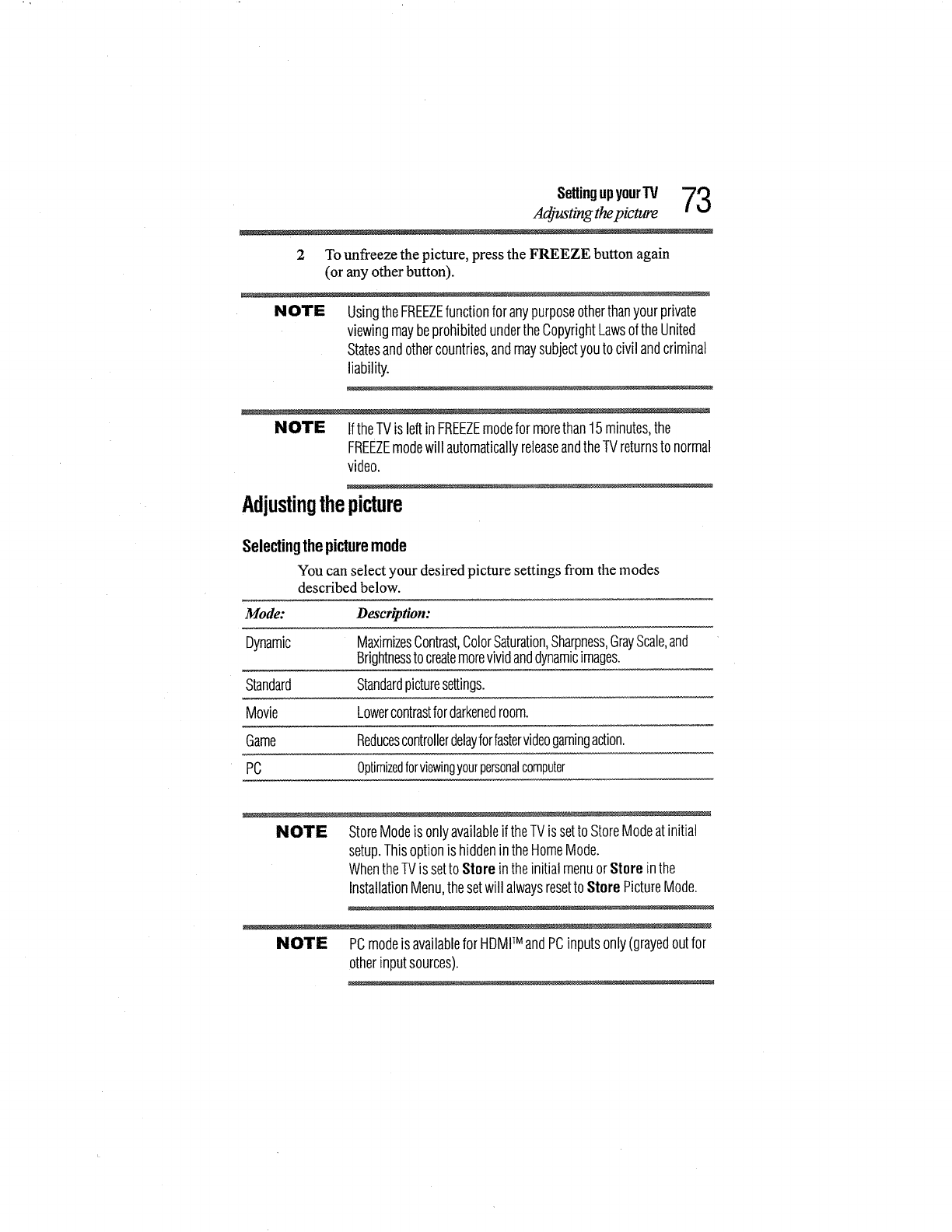
SettingupyourTV "7_
Adjusting thepicture
2 To unfreeze the picture, press the FREEZE button again
(or any other button).
NOTE UsingtheFREEZEfunctionforanypurposeotherthanyourprivate
viewingmaybeprohibitedundertheCopyrightLawsoftheUnited
Statesandothercountries,andmaysubjectyoutocivilandcriminal
liability.
NOTE IftheTVis leftinFREEZEmodefor morethan15minutes,the
FREEZEmodewill automaticallyreleaseandtheTVreturnstonormal
video.
Adjustingthepicture
Selectingthe picturemode
You can select your desired picture settings from the modes
described below.
Mode: Descr_fion:
Dynamic MaximizesContrast,ColorSaturation,Sharpness,GrayScale,and
Brightnesstocreatemorevividanddynamicimages.
Standard Standardpicturesettings.
Movie Lowercontrastfordarkenedroom.
Game Reducescontrollerdelayforfastervideogamingaction.
PC Optimizedforviewingyourpersonalcomputer
NOTE StoreModeis onlyavailableif theTVissettoStoreModeat initial
setup.Thisoptionis hiddenintheHomeMode.
WhentheTVissetto StoreintheinitialmenuorStoreinthe
InstallationMenu,thesetwill alwaysresettoStorePictureMode.
NOTE PCmodeis availableforHDMITM andPCinputsonly(grayedoutfor
otherinputsources).
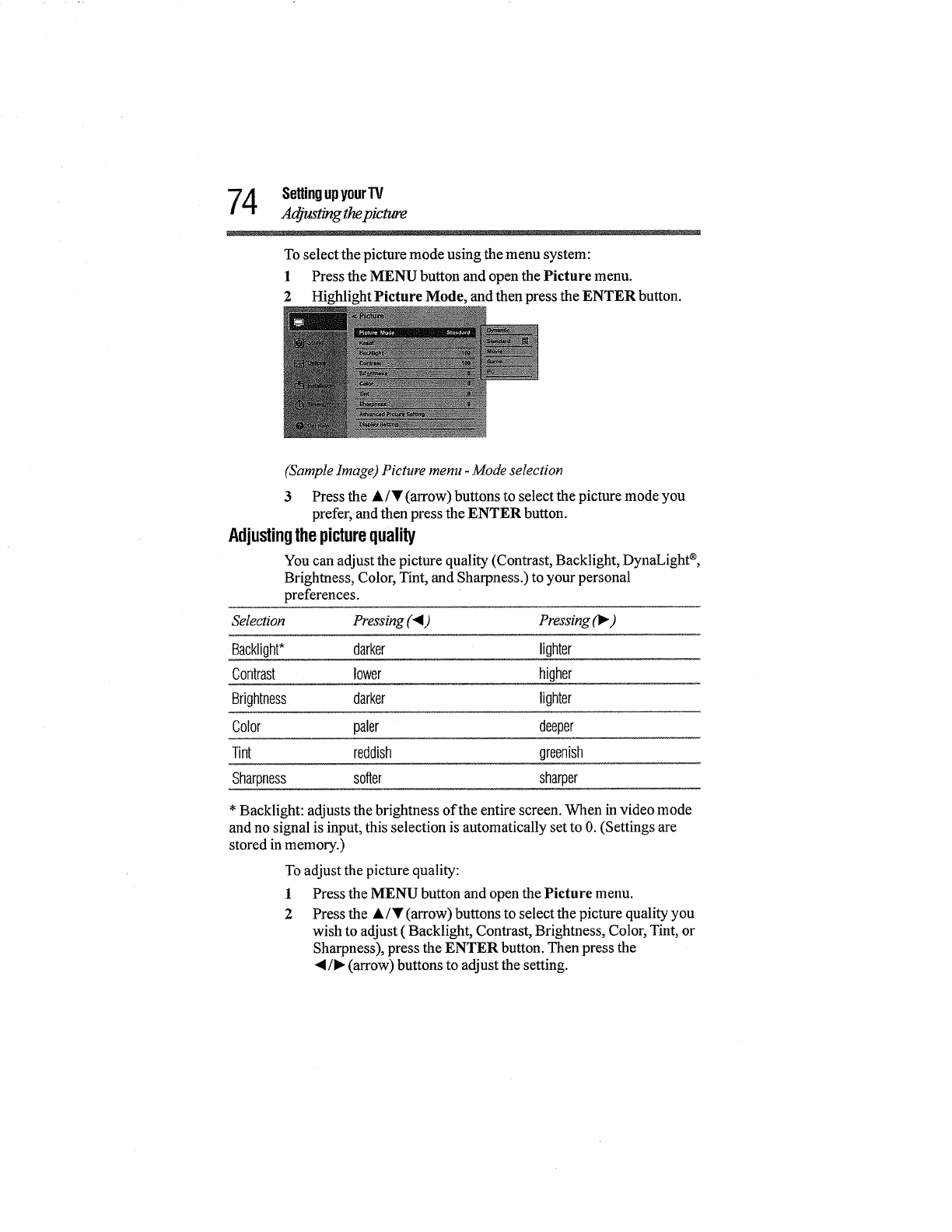
4SettingupyourTV
Adjusting thepicture
To select the pictm'e mode using the menu system:
1 Press the MENU button and open the Picture menu.
2 Highlight Picture Mode, and then press the ENTER button.
(Sample Image) Picture menu -Mode selection
3 Press the •/• (arrow) buttons to select the picture mode you
prefer, and then press the ENTER button.
Adjustingthepicturequality
You can adjust the picture quality (Contrast, Backlight, DynaLight ®,
Brightness, Color, Tint, and Sharpness.) to your personal
preferences.
Selection Pressing (4) Pressing (_ )
Backlight* darker lighter
Contrast lower higher
Brightness darker lighter
Color paler deeper
Tint reddish greenish
Sharpness softer sharper
* Backlight: adjusts the brightness of the entire screen. When in video mode
and no signal is input, this selection is automatically set to 0. (Settings are
stored in memory.)
To adjust the picture quality:
1
2
Press the MENU button and open the Picture menu.
Press the •/• (arrow) buttons to select the picture quality you
wish to adjust ( Backlight, Contrast, Brightness, Color, Tint, or
Sharpness), press the ENTER button. Then press the
_1/1_(arrow) buttons to adjust the setting.

SettingupyourTV 75
Using closed captions
NOTE Anypicturesettingthatyouadjustafterthecurrentinputonly.You
canadjustthepicturequalityseparatelyfor eachinput.
Usingclosedcaptions
Baseclosedcaptions
Closed caption mode has two options:
÷1- Captions--An onscreen display of the dialogue, narrationand
sound effects of TV programs and videos that are closed
captioned (usually marked "CC" in program guides).
o:o Text--An onscreen display of information not related to the
current program, such as weather or stock data (when provided
by individual stations).
To view captions or text:
1 In Options menu, highlight Closed Captions, and then press
the ENTER button.
2 In the Closed Caption Display field, select On.
3In the Analog CC Mode field, select the desired closed caption
mode, and then press the ENTER button.
To view captions, highlight CCI, CC2, CC3, or CC4.
(CCI displays translation of the primary language in your area.)
(Sample illustration) Viewing captions
NOTE Iftheprogramorvideoyouselectedis notclosedcaptioned,no
captionswill displayonscreen.

6SettingupyourTV
Usingclosedcaptions
To view text, highlight T1, T2, T3, or T4.
i
(SampleIllustration) Captions-text
NOTE Iftextis notavailableinyourarea,ablackrectanglemayappearon
screen.Ifthishappens,settheBaseCCModeto Off.
To turn offclosed caption mode, select Offin step 2 above.
NOTE Aclosedcaptionsignalmaynotdisplayinthefollowingsituations:
e Whenarecordinghasbeendubbed
o:o Whenthesignalreceptionisweak
o:- Whenthesignalreceptionisnon-standard
DigitalCCsettings
You can customize the closed caption display characteristics by
changing the background color, opacity, text size, type, edge, and
color.
NOTE °:. Thesesettingsareavailablefor digitalchannelsonly.
e YoucannotsetCaptionTextandBackgroundasthesamecolor.
To customize closed captions:
1 Ill Options menu, highlight Closed Captions, and then press the
ENTER button.
2 Highlight Digital CC Settings, and then press the ENTER
button.
3 Press the •/T (arrow) buttons to highlight the characteristic
you wish to change, and then press the 4/1- (arrow) buttons to
select the format for that characteristic.
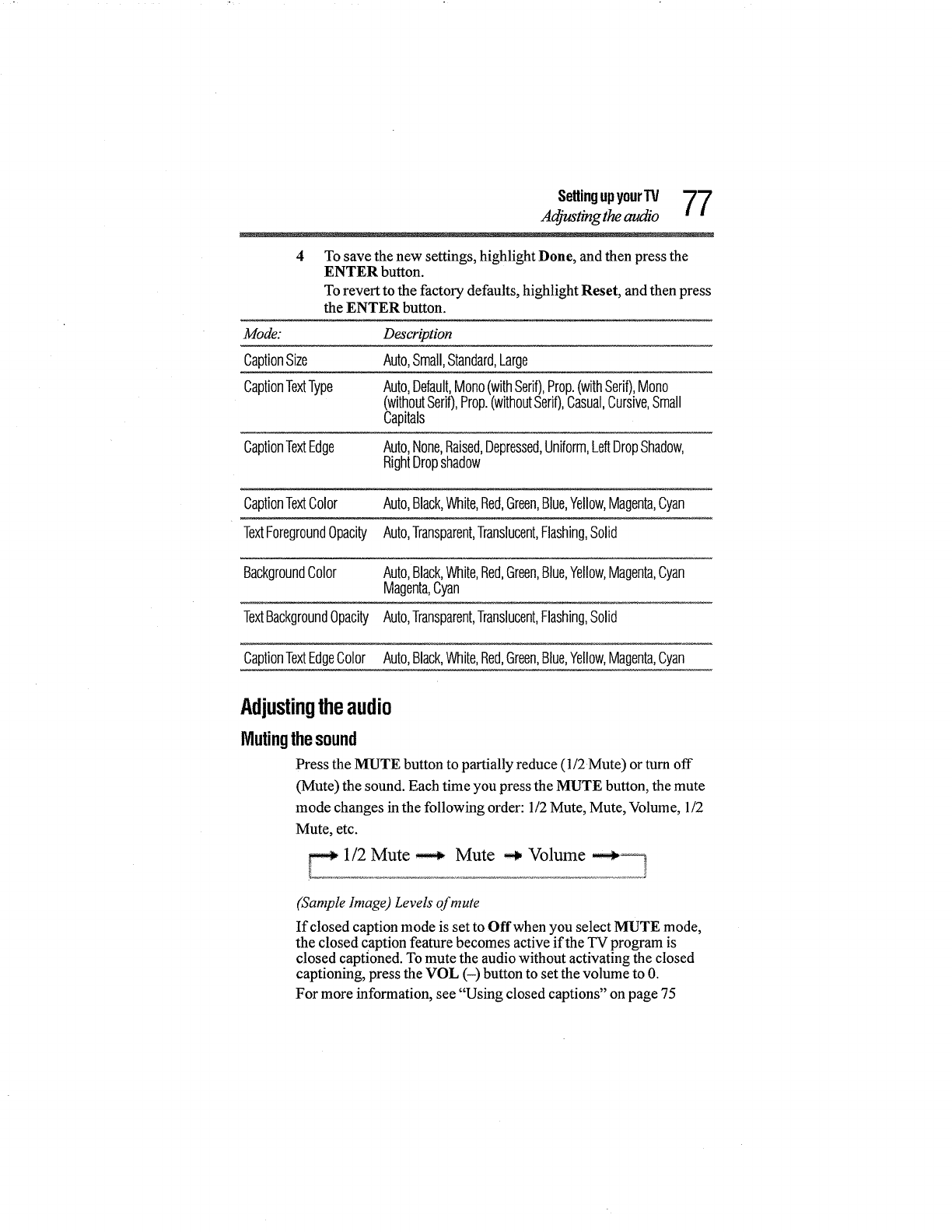
SettingupyourTV 77
Adjusting the audio I!
4 To save the new settings, highlight Done, and then press the
ENTER button.
To revert to the factory defaults, highlight Reset, and then press
the ENTER button.
Mode: Description
CaptionSize Auto,Small,Standard,Large
CaptionTextType Auto,Default,Mono(withSerif),Prop.(withSerif),Mono
(withoutSerif),Prop.(withoutSerif),Casual,Cursive,Small
Capitals
CaptionTextEdge Auto,None,Raised,Depressed,Uniform,LeftDropShadow,
RightDropshadow
CaptionTextColor Auto,Black,White,Red,Green,Blue,Yellow,Magenta,Cyan
TextForegroundOpacity Auto,Transparent,Translucent,Flashing,Solid
BackgroundColor Auto,Black,White,Red,Green,Blue,Yellow,Magenta,Cyan
Magenta,Cyan
TextBackgroundOpacity Auto,Transparent,Translucent,Flashing,Solid
CaptionTextEdgeColor Auto,Black,White,Red,Green,Blue,Yellow,Magenta,Cyan
Adjustingtheaudio
Mutingthesound
Press the MUTE button to partially reduce (1/2 Mute) or turn off
(Mute) the sound. Each time you press the MUTE button, the mute
mode changes in the following order: 1/2 Mute, Mute, Volume, 1/2
Mute, etc.
1/2 Mute _ Mute _ Volume _
[
(Sample Image) Levels of mute
If closed caption mode is set to Offwhen you select MUTE mode,
the closed caption feature becomes active if the "IV program is
closed captioned. To mute the audio without activating the closed
captioning, press the VOL (-) button to set the volume to 0.
For more information, see "Using closed captions" on page 75
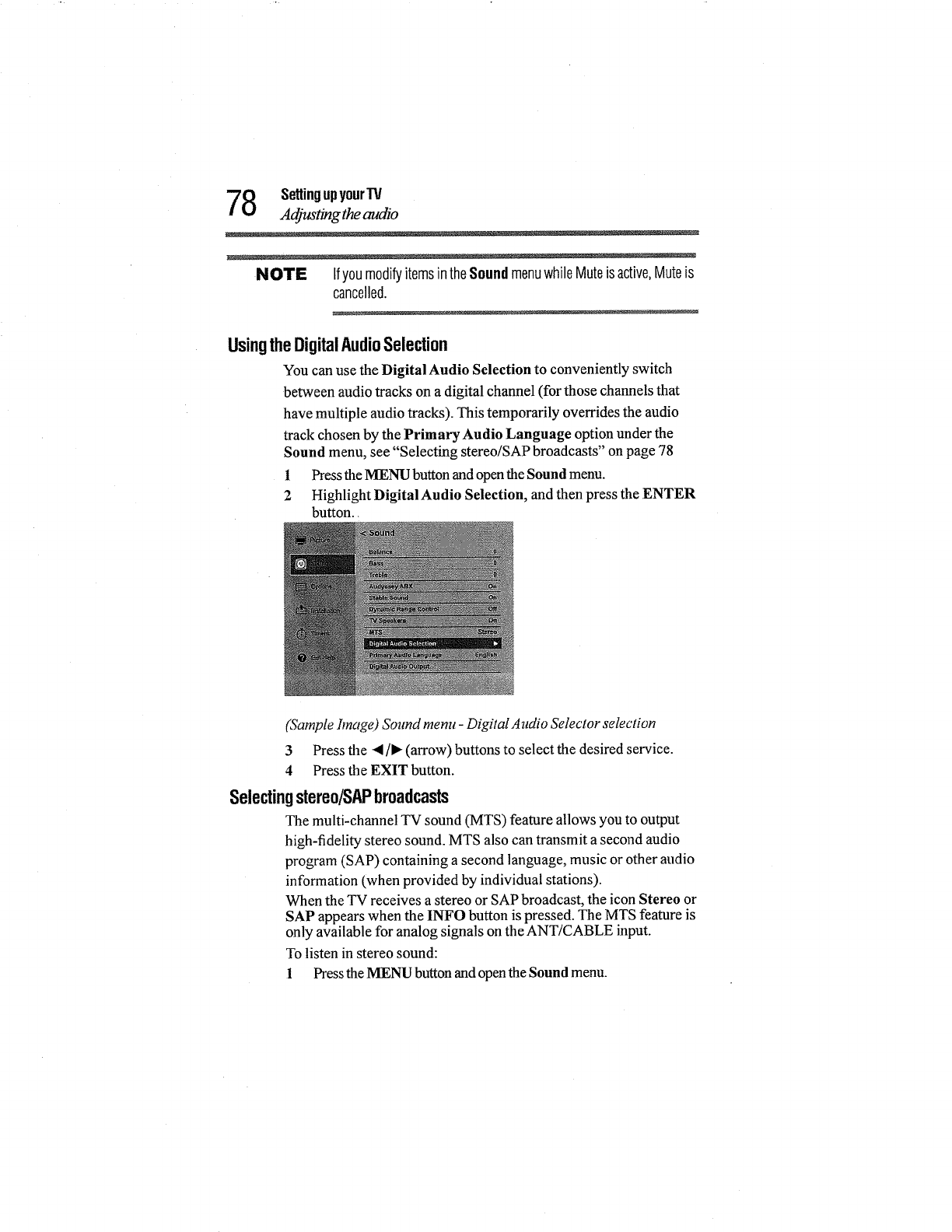
8Settingupyour"IV
Aa_us_g the audio
NOTE IfyoumodifyitemsintheSoundmenuwhileMuteisactive,Muteis
cancelled.
UsingtheDigitalAudioSelection
You can use the Digital Audio Selection to conveniently switch
between audio tracks on a digital channel (for those channels that
have multiple audio tracks). This temporarily overrides the audio
track chosen by the PrimaryAudio Language option underthe
Sound menu, see "Selecting stereo/SAP broadcasts" on page 78
1 Pressthe MENU buttonand openthe Sound menu.
2 Highlight DigitalAudio Selection, and then press the ENTER
button.,
(Sample hnage) Sound menu -Digital Audio Selector selection
3 Press the 4 ]_ (arrow) buttons to select the desired service.
4 Press the EXIT button.
Selectingstereo/SAPbroadcasts
The multi-channel TV sound (MTS) feature allows you to output
high-fidelity stereo sound. MTS also can transmit a second audio
program (SAP) containing a second language, music or other audio
information (when provided by individual stations).
When the TV receives a stereo or SAP broadcast, the icon Stereo or
SAP appears when the INFO button is pressed. The MTS feature is
only available for analog signals on the ANT/CABLE input.
To listen in stereo sound:
1Press the MENU button and open the Sound menu.
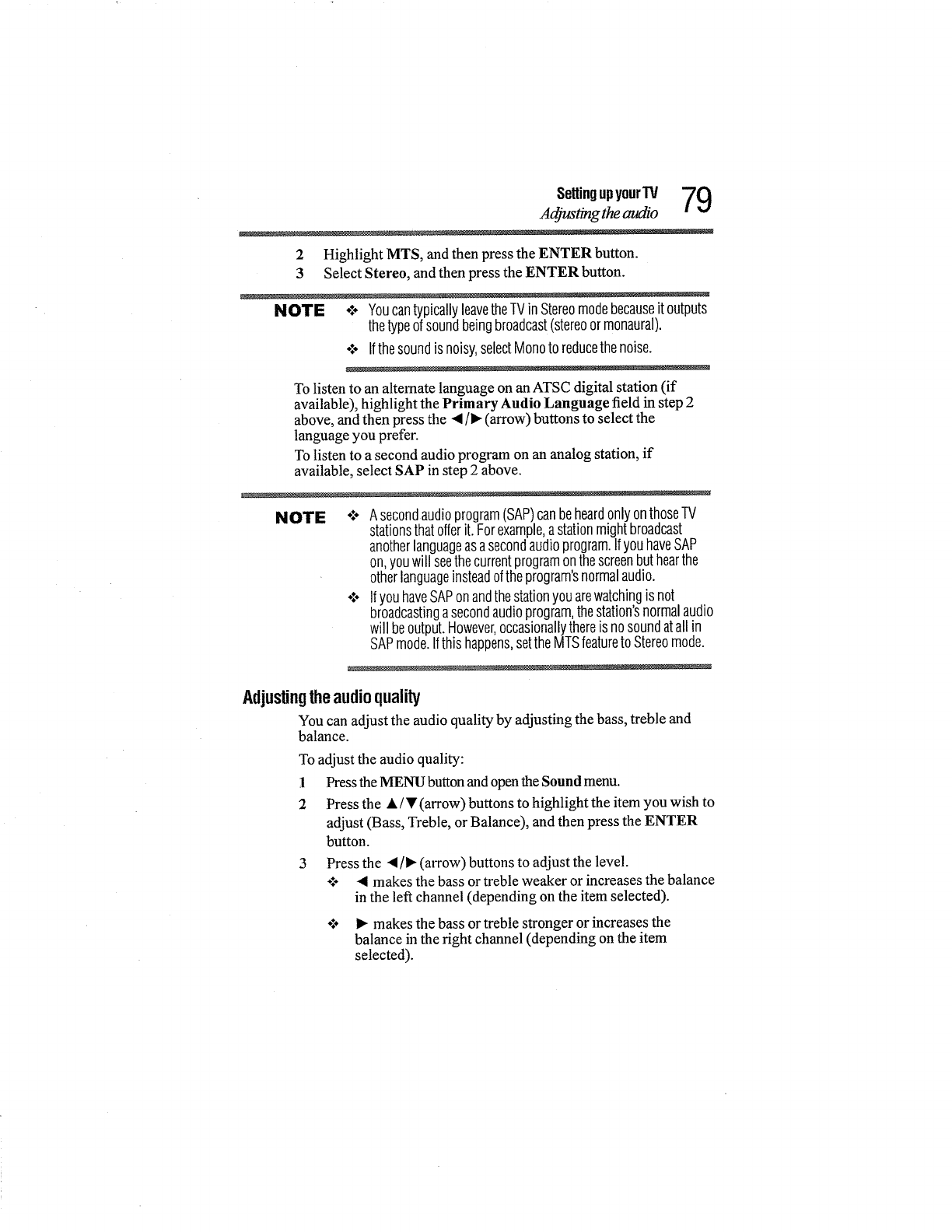
SettingupyourW 79
Adjusting the audio
2 Highlight MTS, and then press the ENTER button.
3 Select Stereo, and then press the ENTER button.
NOTE o.*oYoucantypicallyleavetheTVinStereomodebecauseit outputs
thetypeofsoundbeingbroadcast(stereoormonaural).
o:o Ifthesoundisnoisy,selectMonoto reducethenoise.
To listen to an alternate language on an ATSC digital station (if
available), highlight the Primary Audio Language field in step 2
above, and then press the </• (arrow) buttons to select the
language you prefer.
To listen to a second audio program on an analog station, if
available, select SAP in step 2 above.
NOTE o**oAsecondaudioprogram(SAP)canbeheardonlyonthoseTV
stationsthatofferit.Forexample,astationmightbroadcast
anotherlanguageasasecondaudioprogram.IfyouhaveSAP
on,youwill seethecurrentprogramonthescreenbuthearthe
otherlanguageinsteadoftheprogram'snormalaudio.
o:° IfyouhaveSAPonandthestationyouarewatchingis not
broadcastingasecondaudioprogram,thestation'snormalaudio
will beoutput.However,occasionallythereis nosoundatallin
SAPmode.Ifthishappens,settheMTSfeatureto Stereomode.
Adjustingtheaudio quality
You can adjust the audio quality by adjusting the bass, treble and
balance.
To adjust the audio quality:
1 Press the MENU button and open the Sound menu.
2 Press the • /• (arrow) buttons to highlight the item you wish to
adjust (Bass, Treble, or Balance), and then press the ENTER
button.
3 Press the • 1_ (arrow) buttons to adjust the level.
°_o • makes the bass or treble weaker or increases the balance
in the left channel (depending on the item selected).
o_o • makes the bass or treble stronger or increases the
balance in the right channel (depending on the item
selected).
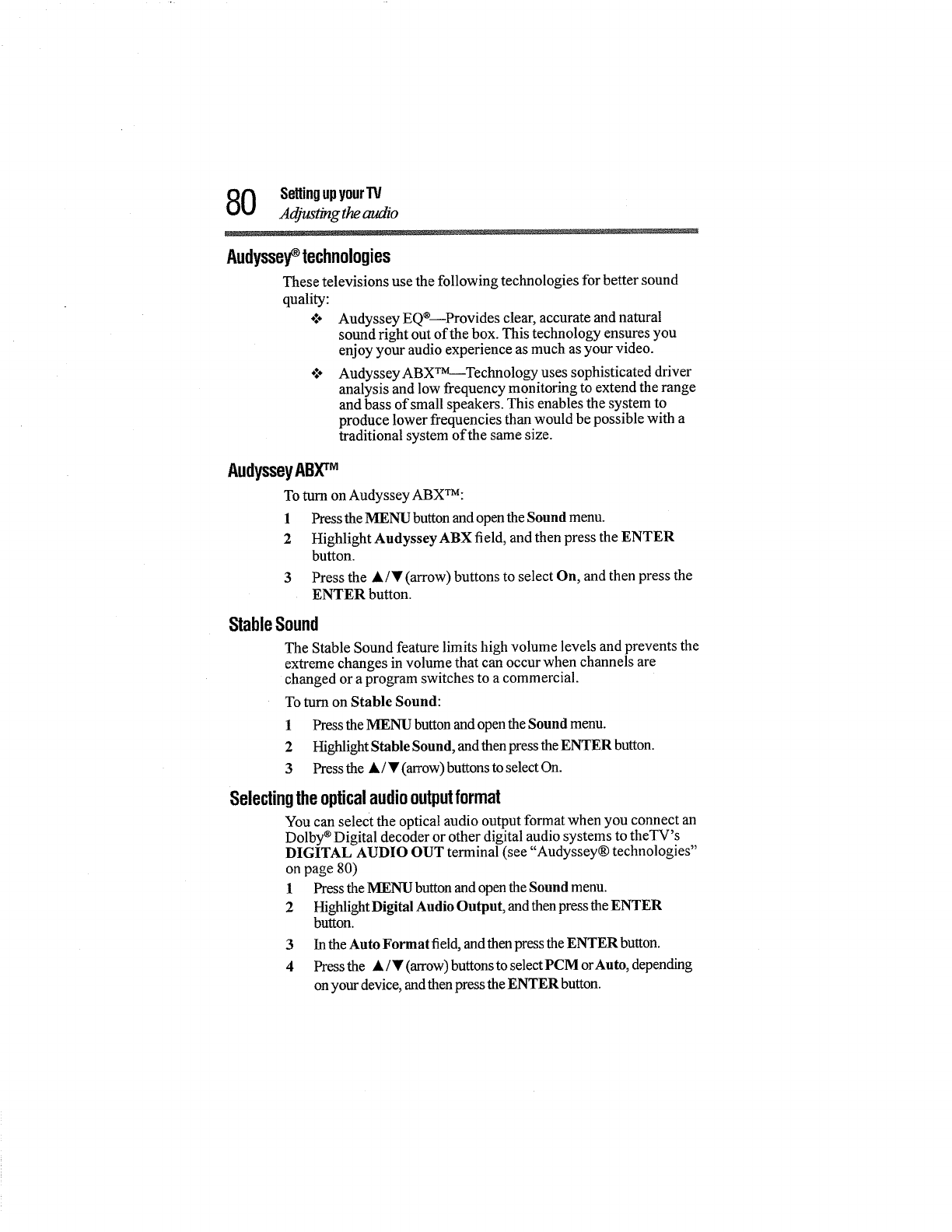
0Settingupyour'IV
Adjusting theaudio
Audyssey_technologies
These televisions use the following technologies for better sound
quality:
o:* Audyssey EQ_--Provides clear, accurate and natural
sound right out of the box. This technology ensures you
enjoy your audio experience as much as your video.
°:° AudysseyABXr_t---Technology uses sophisticated driver
analysis and low frequency monitoring to extend the range
and bass of small speakers. This enables the system to
produce lower frequencies than would be possible with a
traditional system of the same size.
AudysseyABXrM
To turn on Audyssey ABXTM:
1 Press the MENU button and open the Sound menu.
2 Highlight Audyssey ABX field, and then press the ENTER
button.
3 Press the •/• (arrow) buttons to select On, and then press the
ENTER button.
StableSound
The Stable Sound feature limits high volume levels and prevents the
extreme changes in volume that can occur when channels are
changed or a program switches to a commercial.
To tuna on Stable Sound:
1 Press the MENU button and open the Sound menu.
2Highlight Stable Sound, and then press the ENTER button.
3 Press the •/• (arrow) buttons to select On.
Selectingtheopticalaudiooutputformat
You can select the optical audio output format when you connect an
Dolby ®Digital decoder or other digital audio systems to theTV's
DIGITAL AUDIO OUT ternlinal (see "Audyssey® technologies"
on page 80)
1 Press the MENU button and open the Sound menu.
2 Highlight Digital Audio Output, and then press the ENTER
button.
3 In the Auto Format field, andthen press the ENTER button.
4 Press the • /• (arrow) buttons to select PCM orAuto, depending
on your device, and then press the ENTER button.
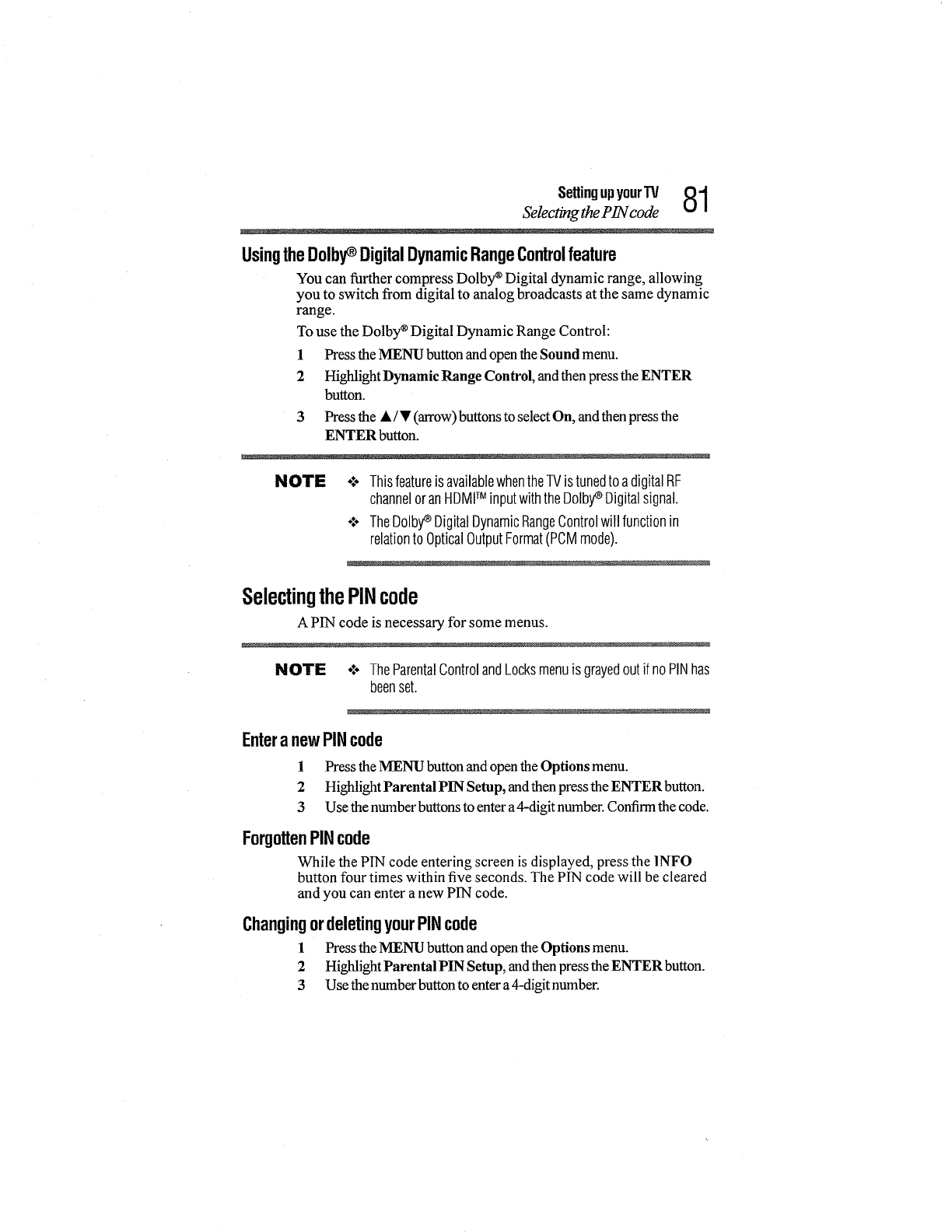
Settingupyour"IV 81
Selecting the P1N code
UsingtheDolby_DigitalDynamicRangeControlfeature
You can further compress Dolby ®Digital dynamic range, allowing
you to switch from digital to analog broadcasts at the same dynamic
range.
To use the Dolby ®Digital Dynamic Range Control:
1 Press the MENU button and open the Sound menu.
2 Highlight Dynamic Range Control, and then press the ENTER
button.
3 Press the •/• (arrow) buttons to select On, and then press the
ENTER button.
NOTE •,:o Thisfeatureis availablewhentheTVistunedto adigitalRF
channeloranHDMITM inputwiththeDolby_ Digitalsignal.
÷:- TheDolby_ DigitalDynamicRangeControlwillfunctionin
relationto OpticalOutputFormat(PCMmode).
SelectingthePINcode
A PIN code is necessary for some menus.
NOTE -:- TheParentalControlandLocksmenuis grayedoutif noPINhas
beenset.
EnteranewPINcode
1 Press the MENU button and open the Options menu.
2 Highlight Parental PIN Setup, and then press the ENTER button.
3 Use the number buttons to enter a4-digit number. Confirm the code.
ForgottenPINcode
While the PIN code entering screen is displayed, press the 1NFO
button four times within five seconds. The PIN code will be cleared
and you can enter a new PIN code.
ChangingordeletingyourPINcode
1 Press the MENU button and open the Options menu.
2 Highlight Parental PIN Setup, and then press the ENTER button.
3 Use the number button to enter a4-digit number.
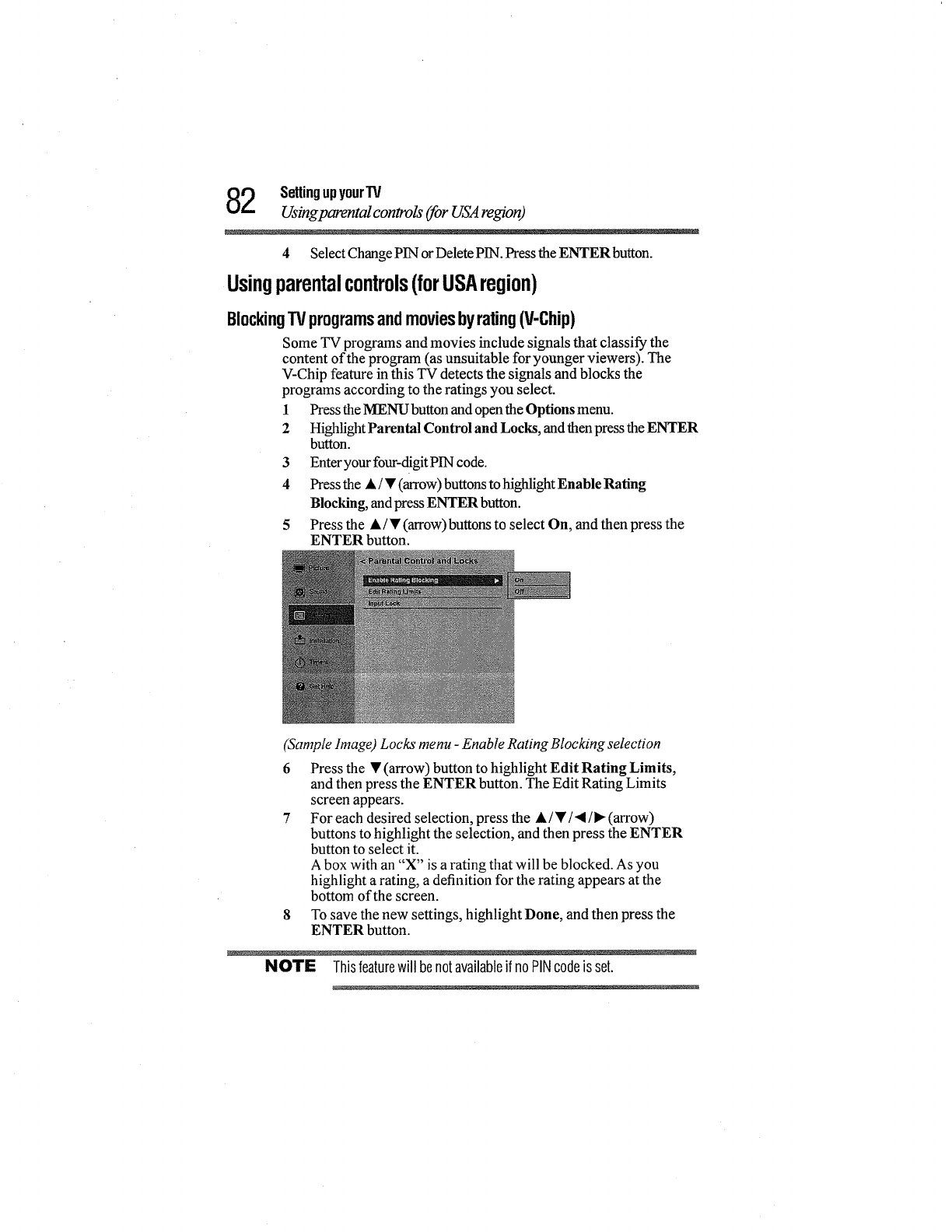
2SellingupyourTV
Usingparentalcontrols(for USAregion)
4Select Change PIN or Delete PIN. Press the ENTER button.
Usingparentalcontrols(forUSAregion)
BlockingTVprogramsandmoviesbyrating(V-Chip)
Some TV programs and movies include signals that classify the
content of the program (as unsuitable for younger viewers). The
V-Chip feature in this TV detects the signals and blocks the
programs according to the ratings you select.
1 Press the MENU button and openthe Options menu.
2 Highlight Parental Control and Locks, and then press the ENTER
button.
3 Enteryour four-digit PIN code.
4 Press the • /• (arrow) buttons to highlight Enable Rating
Blocking, and press ENTER button.
5 Press the •/• (arrow) buttons to select On, and then press the
ENTER button.
(Sample linage) Locks menu -Enable Rating Blocking selection
6 Press the • (arrow) button to highlight Edit Rating Limits,
and then press the ENTER button. The Edit Rating Limits
screen appears.
7 For each desired selection, press the • /•/'11/_ (arrow)
buttons to highlight the selection, and then press the ENTER
button to select it.
Abox with an "X" is a rating that will be blocked. As you
highlight a rating, a definition for the rating appears at the
bottom of the screen.
8To save the new settings, highlight Done, and then press the
ENTER button.
NOTE Thisfeaturewill benotavailableif noPINcodeis set.
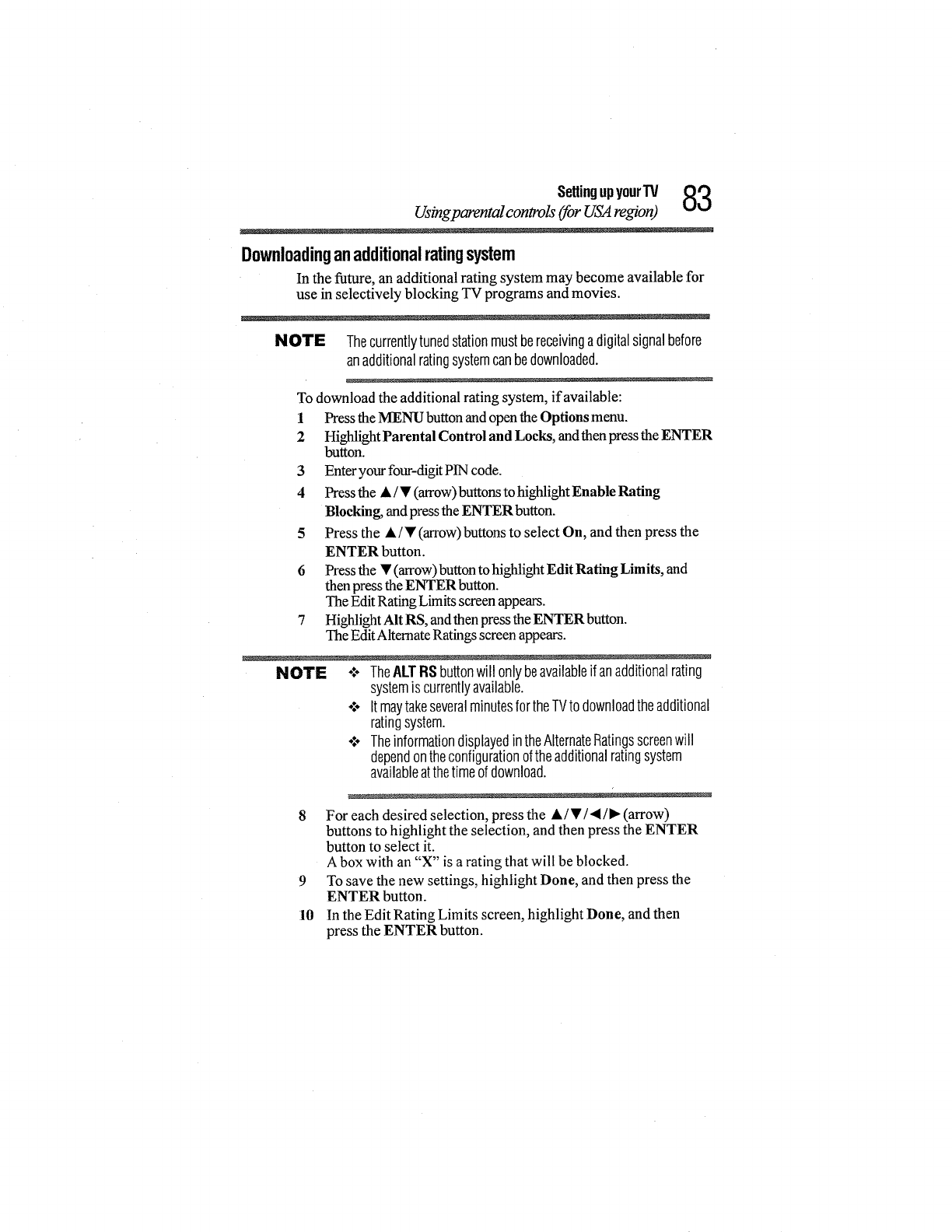
SettingupyourW _
Usingparental controls (for USA region)
Downloadinganadditionalratingsystem
In the future, an additional rating system may become available for
use in selectively blocking TV programs and movies.
NOTE Thecurrentlytunedstationmustbereceivingadigitalsignalbefore
anadditionalratingsystemcanbedownloaded.
To download the additional rating system, if available:
1 Press the MENU button and open the Options menu.
2 Highlight Parental Control and Locks, and then press the ENTER
button.
3 Enteryour four-digit PIN code.
4 Press the • /• (arrow) buttons to highlight Enable Rating
Blocking, and press the ENTER button.
5 Press the • /• (arrow)buttons to select On, and then press the
ENTER button.
6 Press the • (arrow) button tohighlight Edit Rating Limits, and
then press the ENTER button.
The Edit Rating Limits screen appears.
7 Highlight AIt RS, andthen press the ENTER button.
The EditAlternate Ratings screen appears.
NOTE *:o TheALTRSbuttonwill onlybeavailableifanadditionalrating
systemis currentlyavailable.
o:o ItmaytakeseveralminutesfortheTVto downloadtheadditional
ratingsystem.
o:÷TheinformationdisplayedintheAlternateRatingsscreenwill
dependontheconfigurationoftheadditionalratingsystem
availableatthetimeofdownload.
8 For each desired selection, press the •/V/4/l_(arrow)
buttons to highlight the selection, and then press the ENTER
button to select it.
A box with an "X" is a rating that will be blocked.
9 To save the new settings, highlight Done, and then press the
ENTER button.
10 In the Edit Rating Limits screen, highlight Done, and then
press the ENTER button.
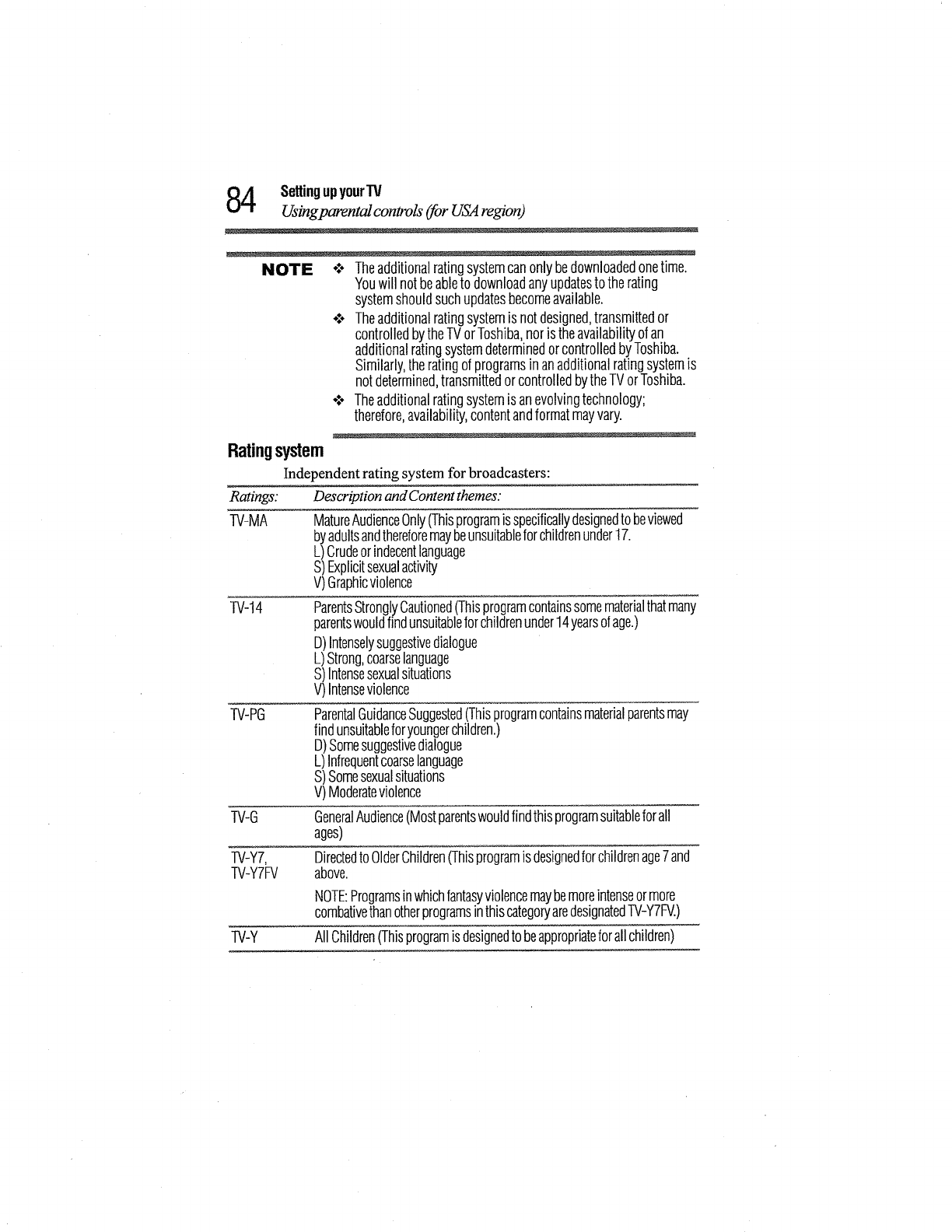
4SettingupyourIV
Usingparental controls (for USA region)
NOTE ÷:. Theadditionalratingsystemcanonlybedownloadedonetime.
Youwill notbeableto downloadanyupdatesto therating
systemshouldsuchupdatesbecomeavailable.
o:- Theadditionalratingsystemis notdesigned,transmittedor
controlledbytheTVorToshiba,noristheavailabilityofan
additionalratingsystemdeterminedorcontrolledbyToshiba.
Similarly,theratingof programsinanadditionalratingsystemis
notdetermined,transmittedorcontrolledbytheTVorToshiba.
o:o Theadditionalratingsystemisanevolvingtechnology;
therefore,availability,contentandformatmayvary.
Ratingsystem
Ratings:
TV-MA
TV-14
TV-PG
Independent rating system for broadcasters:
Description and Content themes:
MatureAudienceOnly(Thisprogramisspecificallydesignedto beviewed
byadultsandthereforemaybeunsuitableforchildrenunder17.
L)Crudeorindecentlanguage
S)Explicitsexualactivity
V)Graphicviolence
ParentsStronglyCautioned(Thisprogramcontainssomematerialthatmany
parentswouldfindunsuitableforchildrenunder14yearsofage.)
D)Intenselysuggestivedialogue
L)Strong,coarselanguage
S)Intensesexualsituations
V)Intenseviolence
ParentalGuidanceSuggested(Thisprogramcontainsmaterialparentsmay
findunsuitableforyoungerchildren.)
D)Somesuggestivedialogue
L)Infrequentcoarselanguage
S)Somesexualsituations
V)Moderateviolence
TV-G GeneralAudience(Mostparentswouldfindthisprogramsuitableforall
ages)
TV-Y7, Directedto OlderChildren(Thisprogramisdesignedforchildrenage7and
TV-Y7FV above.
NOTE:Programsinwhichfantasyviolencemaybemoreintenseormore
combativethanotherprogramsinthiscategoryaredesignatedTV-Y7FV.)
TV-Y AllChildren(Thisprogramisdesignedtobeappropriateforallchildren)
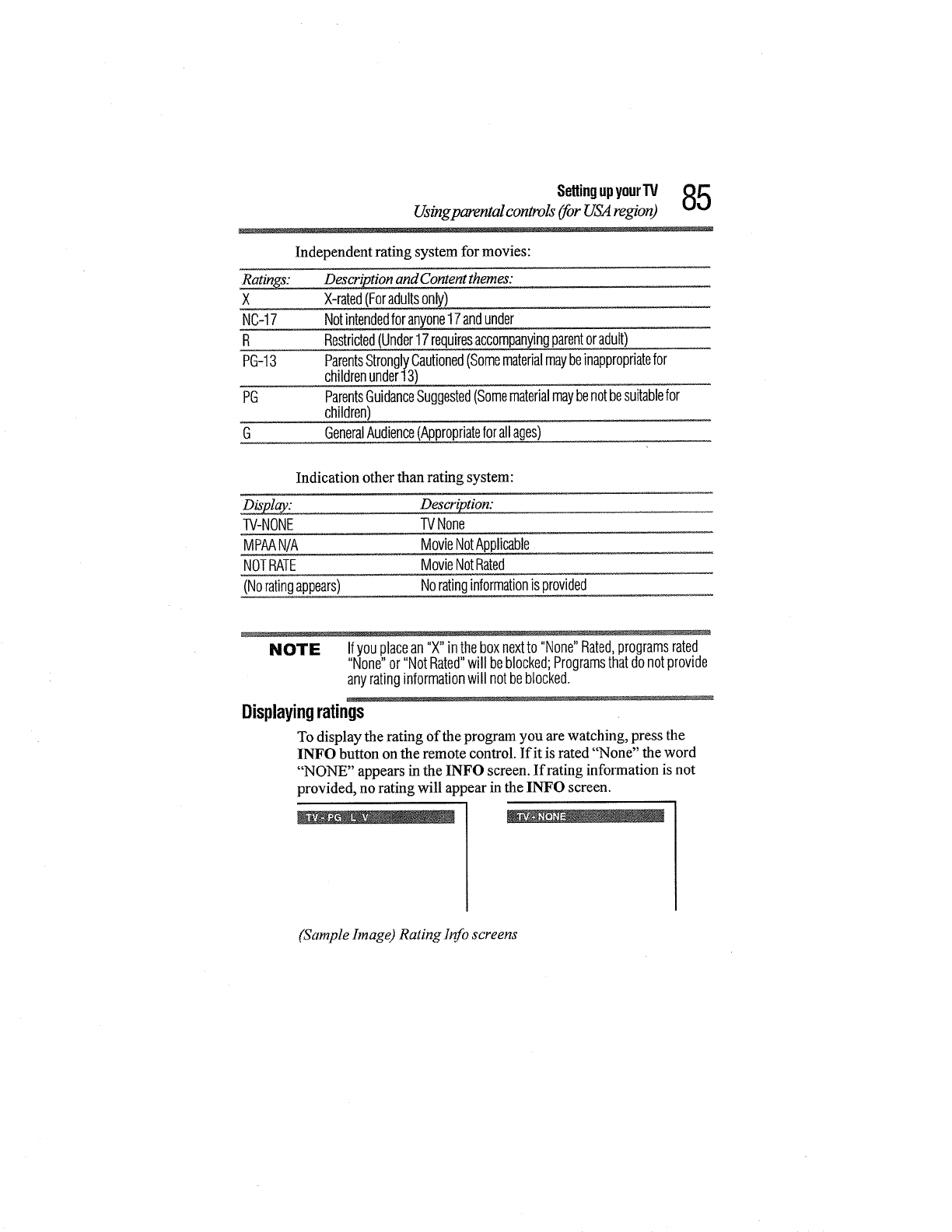
SettingupyourTV _
Usingparental controls (for USA region) Id_,J
Independent rating system for movies:
Ratings:
X
NC-17
R
PG-13
PG
G
Indication other than rating system:
Description and Content themes:
X-rated(F_
Notintendedforanyone17andunder
Restricted(Under17requiresaccompanyingparentoradult)
ParentsStronglyCautioned(Somematerialmaybeinappropriatefor
childrenunder13)
ParentsGuidanceSuggested(Somematerialmaybenotbesuitablefor
children)
GeneralAudience(Appropriateforallages)
_: Description:
W-NONE IV None
MPAAN/A MovieNotApplicable
NOTRATE MovieNotRated
(Noratingappears) Noratinginformationisprovided
NOTE Ifyouplacean"X"intheboxnextto "None"Rated,programsrated
"None"or"NotRated"will beblocked;Programsthatdonotprovide
anyratinginformationwill notbeblocked.
Displayingratings
To display the rating of the program you are watching, press the
INFO button on the remote control. If it is rated "None" the word
"NONE" appears in the INFO screen. If rating information is not
provided, no rating will appear in the INFO screen.
(Sample hnage) Rating Info screens
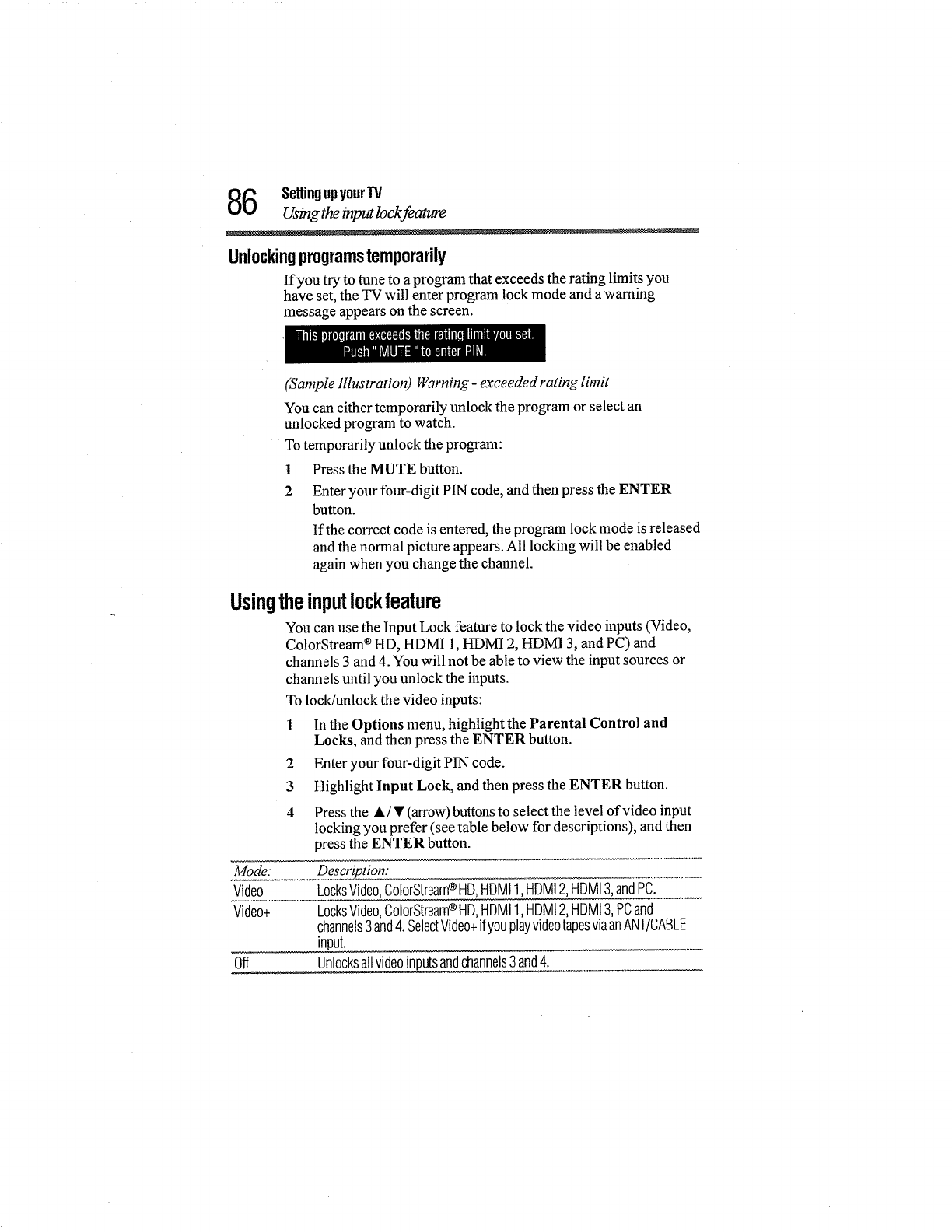
6SettingupyourTV
Using the input lockfeature
Unlockingprogramstemporarily
If you try to tune to a program that exceeds the rating limits you
have set, the TV will enter program lock mode and a warning
message appears on the screen.
(Sample Illustration) Wbrning- exceeded rating limit
You can either temporarily unlock the program or select an
unlocked program to watch.
To temporarily unlock the program:
1 Press the MUTE button.
2 Enter your four-digit PIN code, and then press the ENTER
button.
If the correct code is entered, the program lock mode is released
and the normal picture appears. All locking will be enabled
again when you change the channel.
Usingtheinputlockfeature
You can use the Input Lock feature to lock the video inputs (Video,
ColorStream ®HD, HDMI 1, HDMI 2, HDMI 3, and PC) and
channels 3 and 4. You will not be able to view the input sources or
channels until you unlock the inputs.
To lock/unlock the video inputs:
1 In the Options menu, highlight the Parental Control and
Locks, and then press the ENTER button.
2 Enter your four-digit PIN code.
3 Highlight Input Lock, and then press the ENTER button.
4 Press the A/Y (arrow)buttons to select the level of video input
locking you prefer (see table below for descriptions), and then
press the ENTER button.
Mode:
Video
Video+
Off
Descr!ption:
LocksVideo,ColorStream®HD,HDM!1,HDMI2,HDMI3,andPC.
LocksVideo,ColorStream®HD,HDMI1,HDMI2,HDMI3,PCand
channels3and4. SelectVideo+ifyouplayvideotapesviaanANT/CABLE
input.
Unlocksallvideoinputsandchannels3and4.
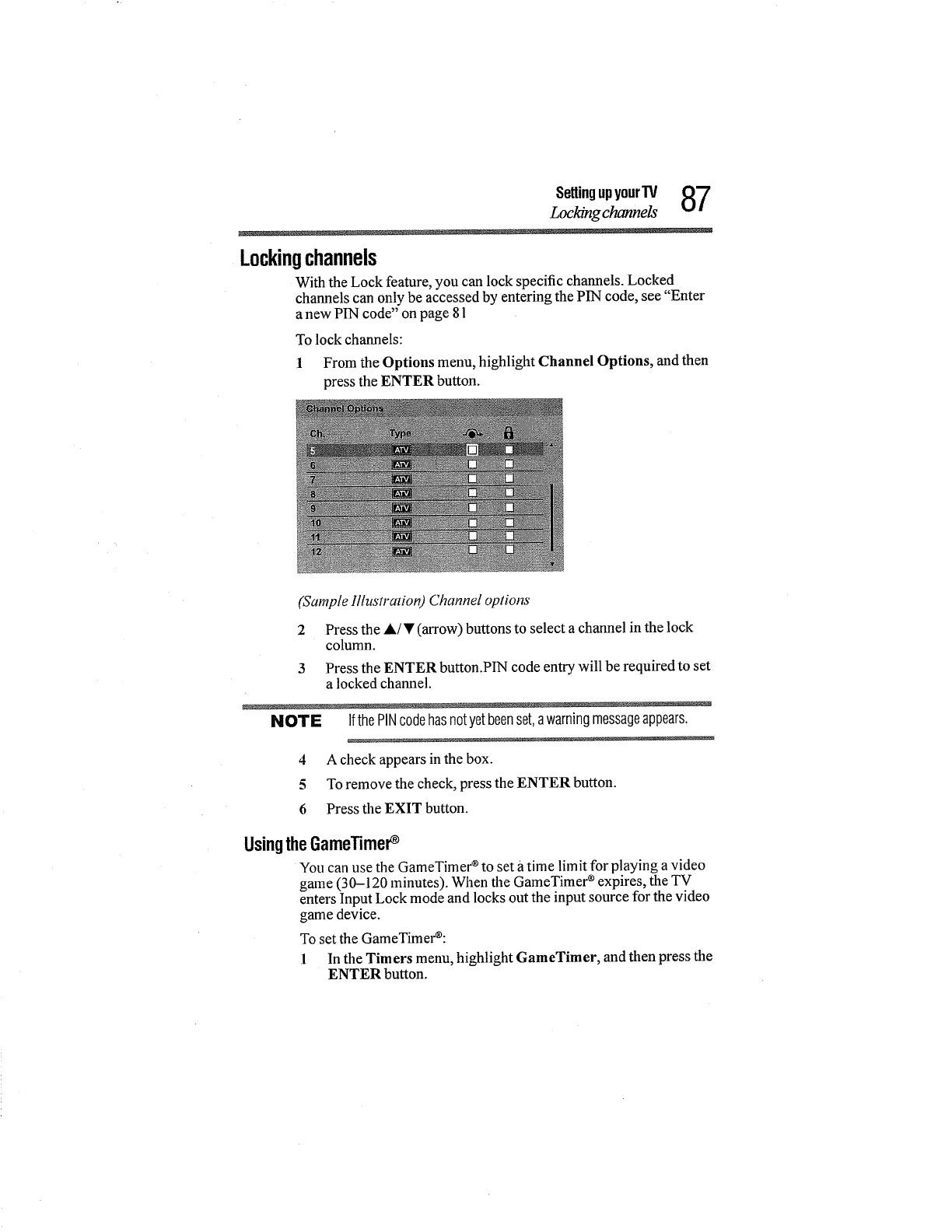
SettingupyourTV 87
Locking channels
Lockingchannels
With the Lock feature, you can lock specific channels. Locked
channels can only be accessed by entering the PIN code, see "Enter
a new PIN code" on page 81
To lock channels:
1 From the Options menu, highlight Channel Options, and then
press the ENTER button.
(Sample Illustration) Channel options
2
3
Press the A/T (arrow) buttons to select a channel in the lock
column.
Press the ENTER button.PIN code entry will be required to set
a locked channel.
NOTE IfthePINcodehasnotyetbeenset,awarningmessageappears.
4 A check appears in the box.
5To remove the check, press the ENTER button.
6 Press the EXIT button.
UsingtheGameTimer
You can use the GameTimer ®to set a time limit for playing a video
game (30-120 minutes). When the GameTimer ®expires, the TV
enters Input Lock mode and locks out the input source for the video
game device.
To set the GameTimer®:
1 In the Tim ers menu, highlight GameTimer, and then press the
ENTER button.
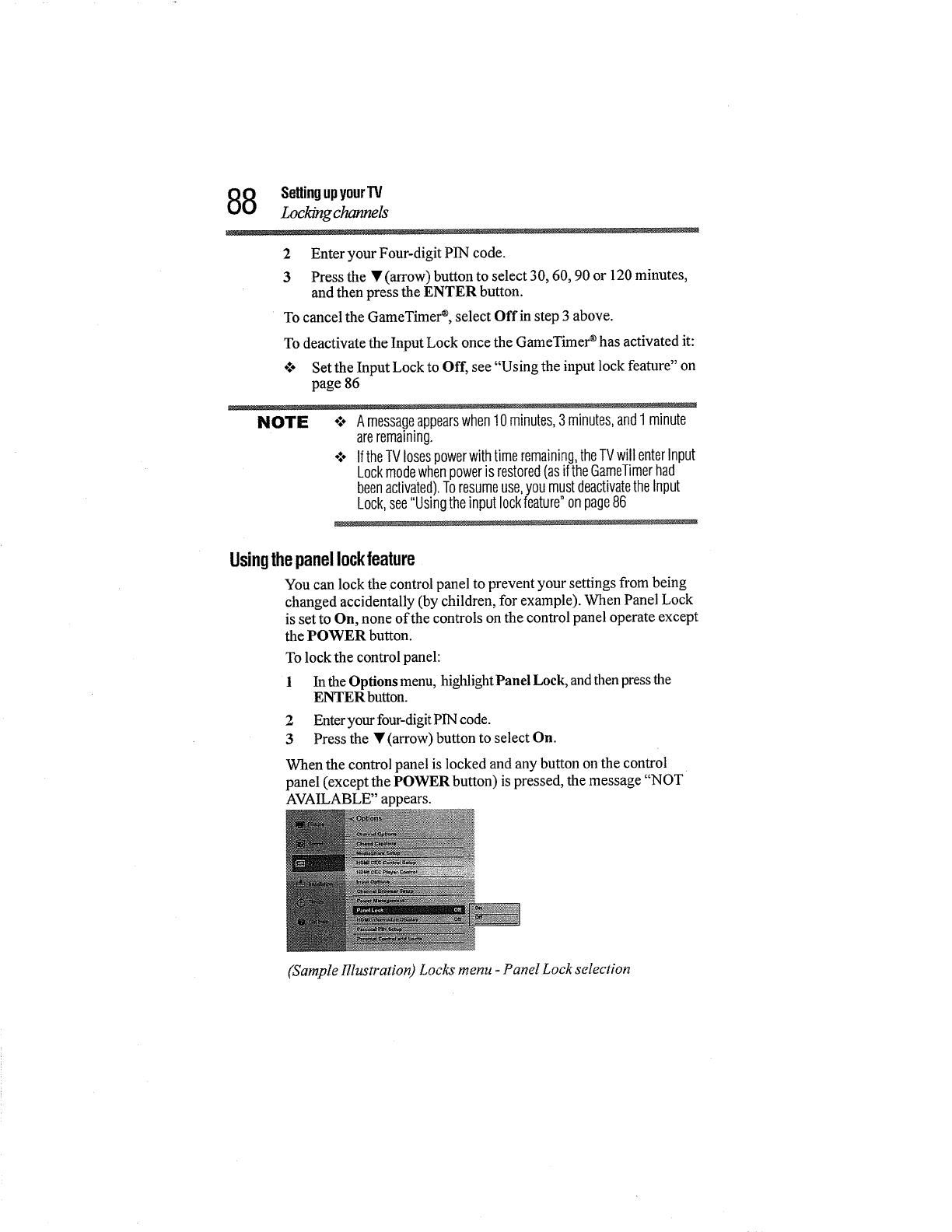
8SettingupyourTV
Locking channels
2 Enteryour Four-digit PIN code.
3 Press the •(arrow) button to select 30, 60, 90 or 120 minutes,
and then press the ENTER button.
To cancel the GameTimer ®,select Offin step 3 above.
To deactivate the Input Lock once the GameTimer ®has activated it:
**- Set the Input Lock to Off, see "Using the input lock feature" on
page 86
NOTE o:, AmessageappearswhenlOminutes,3minutes,andl minute
areremaining.
*** IftheTVlosespowerwithtimeremaining,theTVwill enterInput
Lockmodewhenpoweris restored(asif theGameTimerhad
beenactivated).Toresumeuse,youmustdeactivatetheInput
Lock,see"Usingtheinputlockfeature"onpage86
Usingthepanellockfeature
You can lock the control panel to prevent your settings from being
changed accidentally (by children, for example). When Panel Lock
is set to On, none of the controls on the control panel operate except
the POWER button.
To lock the control panel:
1 In the Options menu, highlight Panel Lock, and then press the
ENTER button.
2 Enteryour four-digit PIN code.
3 Press the •(arrow) button to select On.
When the control panel is locked and any button on the control
panel (except the POWER button) is pressed, the message "NOT
AVAILABLE" appears.
(Sample Illustration) Locks menu - Panel Lock selection
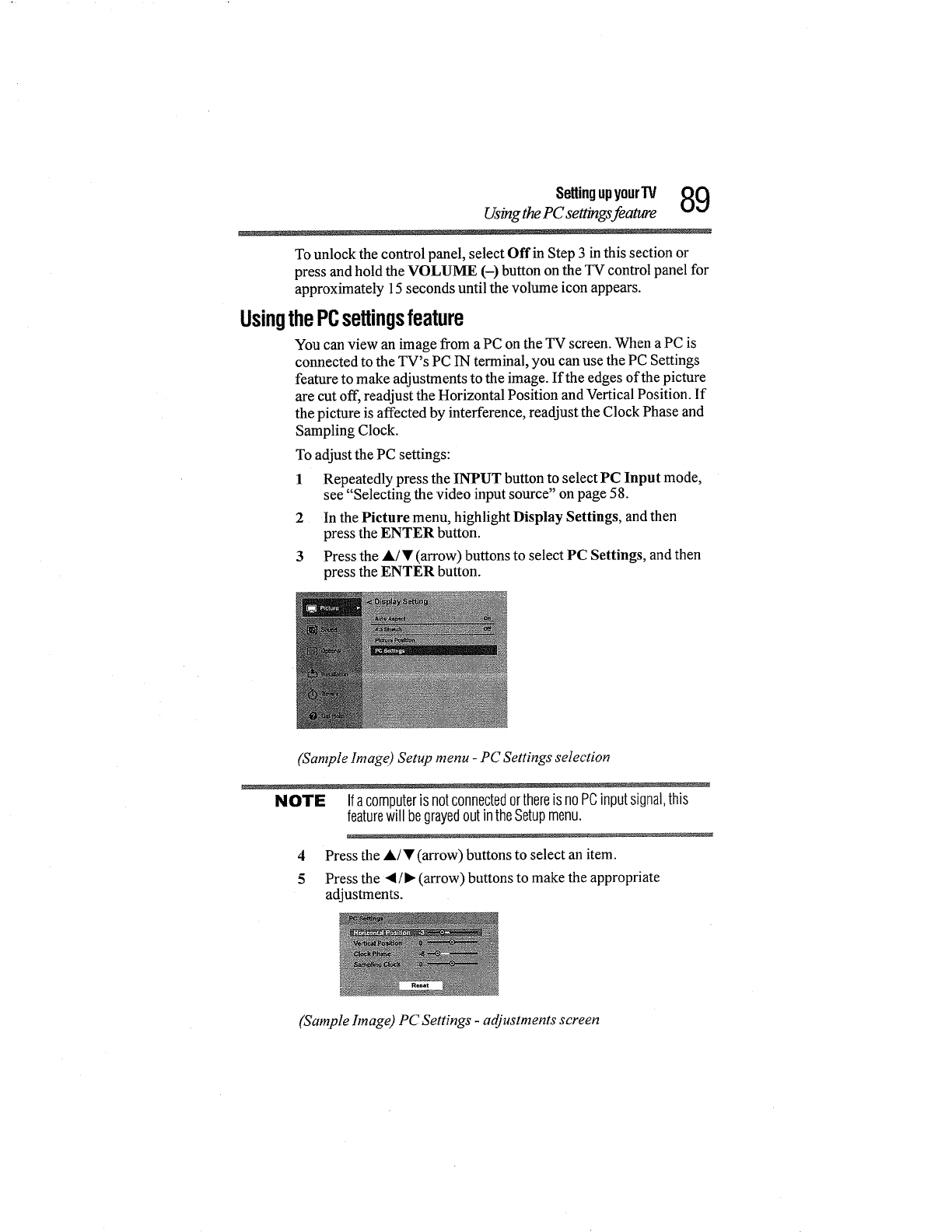
SettingupyourTV _Q
Using the PC settings feature %t,.,!
To unlock the control panel, select Offin Step 3 in this section or
press and hold the VOLUME (-) button on the TV control panel for
approximately 15 seconds until the volume icon appears.
UsingthePCsettingsfeature
You can view an image from a PC on the TV screen. When a PC is
connected to the TV's PC IN terminal, you can use the PC Settings
feature to make adjustments to the image. If the edges of the picture
are cut off, readjust the Horizontal Position and Vertical Position. If
the picture is affected by interference, readjust the Clock Phase and
Sampling Clock.
To adjust the PC settings:
1 Repeatedly press the INPUT button to select PC Input mode,
see "Selecting the video input source" on page 58.
2 In the Picture menu, highlight Display Settings, and then
press the ENTER button.
3 Press the A/• (arrow) buttons to select PC Settings, and then
press the ENTER button.
(Sample Image) Setup menu -PC Settings selection
NOTE Ifacomputeris notconnectedorthereisnoPCinputsignal,this
featurewill begrayedoutintheSetupmenu.
4 Press the A/• (arrow) buttons to select an item.
5 Press the _1/1_ (arrow) buttons to make the appropriate
adjustments.
(Sample hnage) PC Settings -adjustments screen
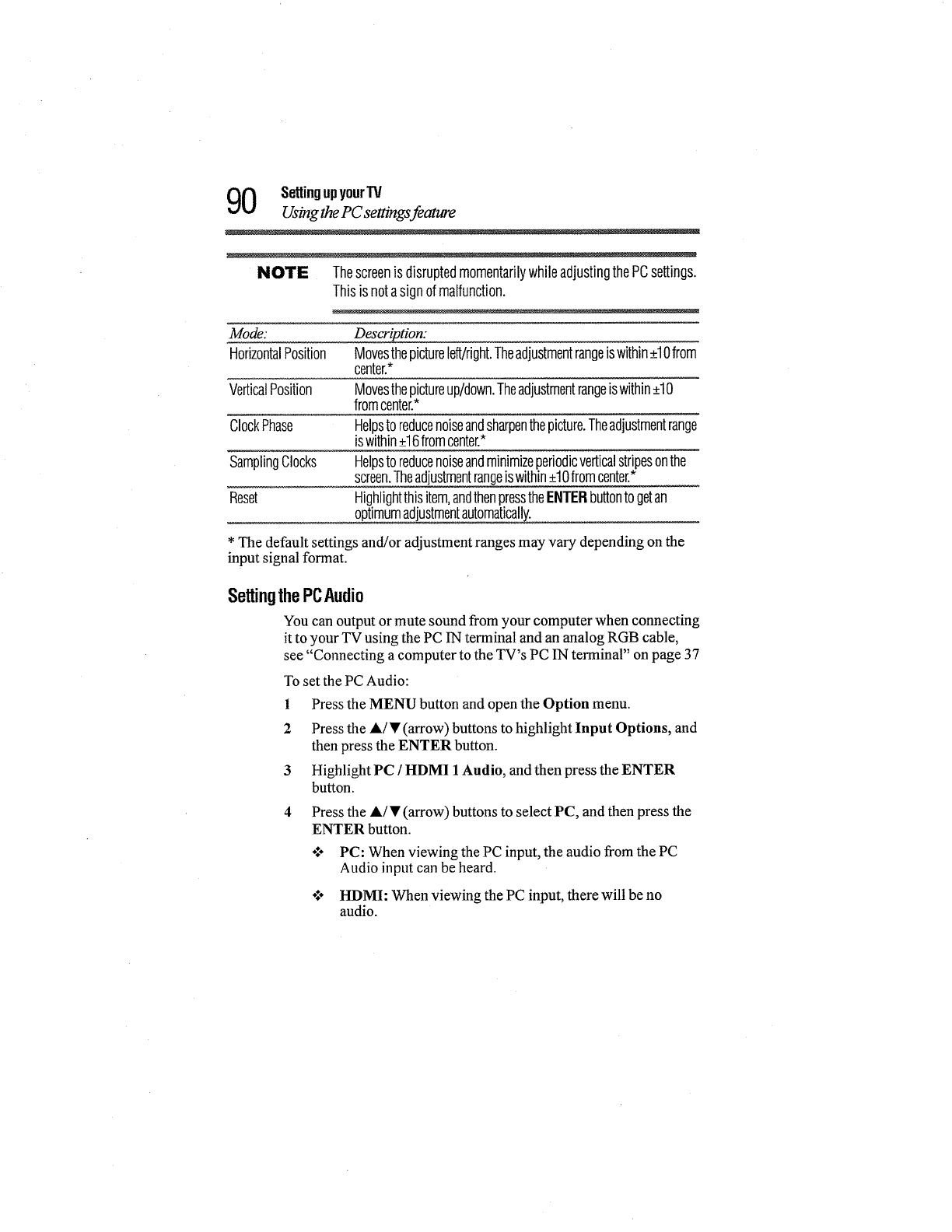
0SettingupyourW
Usingthe PC settm gsfeature
NOTE ThescreenisdisruptedmomentarilywhileadjustingthePCsettings.
Thisis notasignof malfunction.
Mode:
HorizontalPosition
VerticalPosition
ClockPhase
SamplingClocks
Reset
Description:
Movesthepictureleft/right.Theadjustmentrangeiswithin_+lOfrom
center.*
Movesthepictureup/down.Theadjustmentrangeiswithin_+lO
fromcenter.*
Helpsto reducenoiseandsharpenthepicture.Theadjustmentrange
iswithin_+16fromcenter.*
Helpsto reducenoiseandminimizeperiodicverticalstripesonthe
screen.Theadjustmentrangeiswithin-+10fromcenter.*
Highlightthisitem,andthenpresstheENTERbuttonto getan
optimumadjustmentautomatically_............
* The default settings and/or adjustment ranges may vary depending on the
input signal format.
SettingthePCAudio
You can output or mute sound from your computer when connecting
it to your TV using the PC 1Nterminal and an analog RGB cable,
see "Connecting a computer to the TV's PC 1N terminal" on page 37
To set the PC Audio:
1 Press the MENU button and open the Option menu.
2 Press the A/• (arrow) buttons to highlight Input Options, and
then press the ENTER button.
3 Highlight PC /HDMI 1 Audio, and then press the ENTER
button.
4 Press the A/• (arrow) buttons to select PC, and then press the
ENTER button.
o:o PC: When viewing the PC input, the audio fi'om the PC
Audio input can be heard.
o:o HDMI: When viewing the PC input, there will be no
audio.
SettingupyourTV 91
Using the Media Player
UsingtheMediaPlayer
UsingMediaPlayerwitha USBdevice
You can enjoy photo or music content stored on a USB storage
device.
Photo Viewer specifications:
o:o Data type: JPEG EXIF ver 2.1
o:o File format: JPEG
÷**÷Maximum photo size: 6 MB
•:- Maximum number of files: 500/folder
o:÷ Maximum photo resolution: 4096 x 4096 pixels
Music Player specifi cations:
o:o File format: MP3
o_* Sampling frequency: 16 kHz, 22.05 kHz, 24 kHz, 32 kHz, 44.1
kHz, 48 kHz
o**o Bit rate: from 8 to 320 kbps
÷:÷ Maximum number of files: 500/folder
Supported file system: FAT16 and FAT32
2Settingupyour'IV
Usmgthe Media Player
NOTE o:* GentlyinserttheUSBdeviceintotheportanddonotremove
whileviewingMediaPlayer.
o.*oUSBdevice:USBMassStorageClassdevice(MSC)
°**oConnectivityis notguaranteedforalldevices.
o.*oConnecttheUSBdeviceto theTVdirectly.
o.*-DonotuseaUSBHub.
o.*.Youmustobtainanyrequiredpermissionfromcopyrightowners
to usecopyrightcontent.Toshibacannotanddoesnotgrant
suchpermission.
°_° DependingonthefilesizeandamountinyourUSBstorage
device,it maytakesometimeto loadbeforecontentisviewable.
Amessagewill displayon-screenwhentilesareloadingfromthe
USBstoragedevice.
°.*° OnlylimitedtypesofU3USBdevicearesupported.Therefore,it
issuggestedthatyounotuseU3USBwithMediaPlayer.
o*.*Non-supportedcharacterswill bereplacedwithasquare.
AutoStartfunction
When Auto Start is enabled, you will be asked if you want to start
the Media Player when a USB device is inserted. If Auto Start is
disabled, you must manually start the Media Player fi'om the menu.
To change the Auto Start setting:
1 In the Options menu, highlight MediaShare Setup, and then press
the ENTER button.
2 Press the A/• (arrow) buttons to highlight USB Auto Start.
3 Press the 4/_ (arrow) buttons to select On orOff.
ToopentheMediaPlayer
There are two methods for starting the Media Player: auto start and
manual start.
Auto Start:
1 Gently insert a supported USB storage device to the USB port
on the back of the TV. A prompt will appear.
NOTE IfyourepeatedlyinsertandremovetheUSBconnector,theprompt
maynotappear.
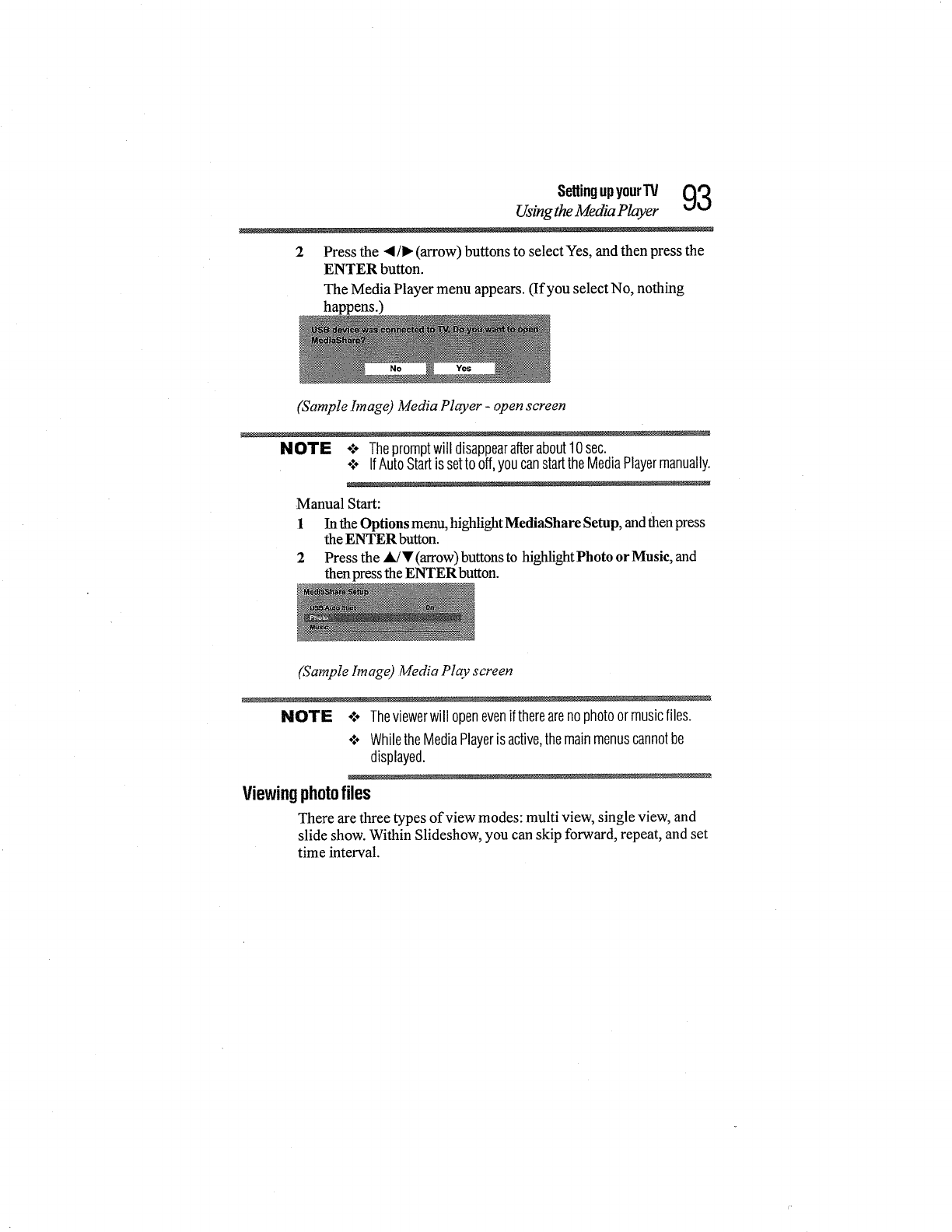
SettingupyourTV QQ
Using the Media Player
2 Press the •/, (arrow) buttons to select Yes, and then press the
ENTER button.
The Media Player menu appears. (If you select No, nothing
happens.)
(Sample bnage) Media Player -open screen
NOTE -:- Thepromptwitldisappearafterabout10sec.
o:o IfAutoStartissetto off,youcanstarttheMediaPlayermanually.
Manual Start:
1 In the Options menu, highlight MediaShare Setup, and then press
the ENTER button.
2 Press the A/T (arrow) buttons to highlight Photo or Musie, and
then press the ENTER button.
(Sample Image) Media Play screen
NOTE o:° Theviewerwill openeveniftherearenophotoormusicfiles.
o:o WhiletheMediaPlayeris active,themainmenuscannotbe
displayed.
Viewingphotofiles
There are three types of view modes: multi view, single view, and
slide show. Within Slideshow, you can skip forward, repeat, and set
time interval.
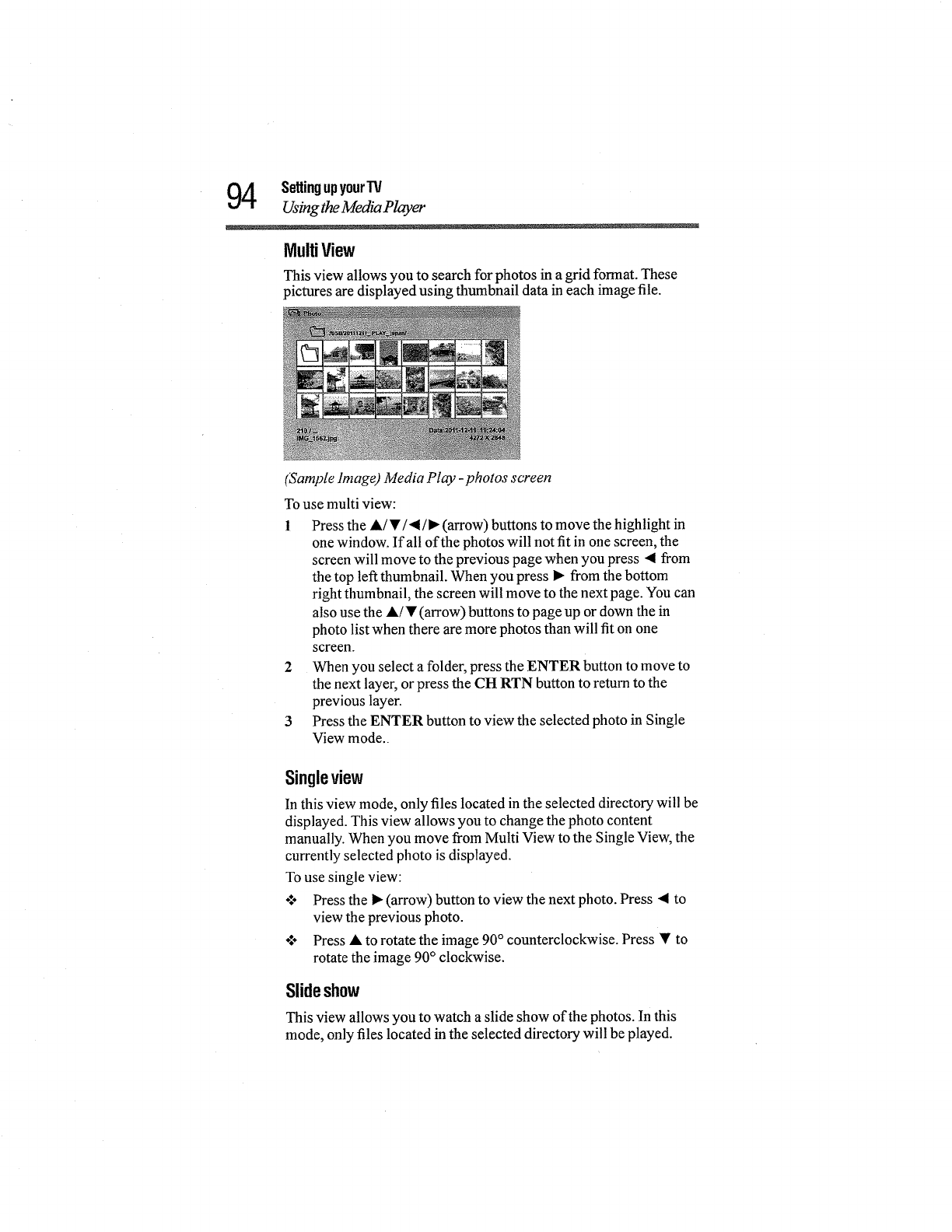
4SettingupyourIV
Using theMedia Player
MultiView
This view allows you to search for photos in a grid format. These
pictures are displayed using thumbnail data in each image file.
(Sample image) Media Play -photos screen
To use multi view:
1 Press the •/•/•/• (arrow) buttons to move the highlight in
one window. If all of the photos will not fit in one screen, the
screen will move to the previous page when you press 4 from
the top left thumbnail. When you press • from the bottom
right thumbnail, the screen will move to the next page. You can
also use the •/• (arrow) buttons to page up or down the in
photo list when there are more photos than will fit on one
screen.
2 When you select a folder, press the ENTER button to move to
the next layer, or press the CH RTN button to return to the
previous layer.
3 Press the ENTER button to view the selected photo in Single
View mode.
Singleview
In this view mode, only files located in the selected directory will be
displayed. This view allows you to change the photo content
manually. When you move from Multi View to the Single View, the
currently selected photo is displayed.
To use single view:
•:o Press the • (arrow) button to view the next photo. Press • to
view the previous photo.
÷_÷ Press • to rotate the image 90° counterclockwise. Press • to
rotate the image 90° clockwise.
Slideshow
This view allows you to watch a slide show of the photos, tn this
mode, only files located in the selected directory will be played.
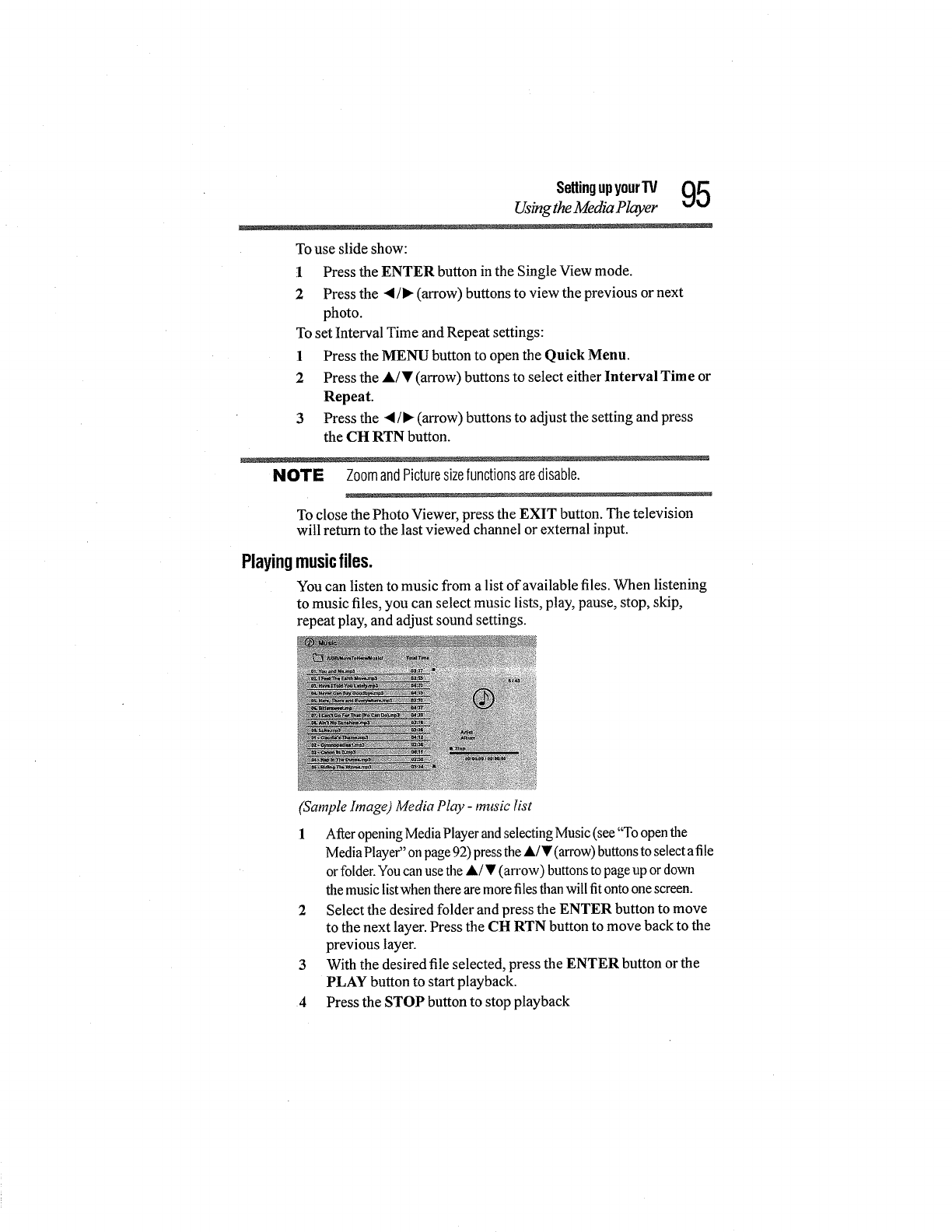
SettingupyourTV (_J_
Using the Media Player _j_J
To use slide show:
1 Press the ENTER button in the Single View mode.
2 Press the •/• (arrow) buttons to view the previous or next
photo.
To set Interval Time and Repeat settings:
1 Press the MENU button to open the Quick Menu.
2 Press the A/• (arrow) buttons to select either Interval Time or
Repeat.
3 Press the •/• (arrow) buttons to adjust the setting and press
the CH RTN button.
NOTE ZoomandPicturesizefunctionsaredisable.
To close the Photo Viewer, press the EXIT button. The television
will retum to the last viewed channel or external input.
Playingmusicfiles.
You can listen to music from a list of available files. When listening
to music files, you can select music lists, play, pause, stop, skip,
repeat play, and adjust sound settings.
(Sample bnage) Media Play -music list
1 After opening Media Player and selecting Music (see "To open the
Media Player" on page 92) press the 4,/• (an'ow) buttons to select a file
or folder. You can use the A/• (arrow) buttons to page up or down
the music list when there are more files than will fit onto one screen.
2 Select the desired folder and press the ENTER button to move
to the next layer. Press the CH RTN button to move back to the
previous layer.
3 With the desired file selected, press the ENTER button or the
PLAY button to start playback.
4 Press the STOP button to stop playback
6Settingupyour'IV
Using the Media Player
NOTE +:oIfplaybackfinishesbeforeSTOPispressed,thenextfilewill
automaticallystartto playfromthebeginning.
•:. Dependingonthefile size,it maytakesometimefor playbackto
begin.
During playback you can do the following:
o:+ Press PAUSE to pause.
o_o To resume normal playback, press PLAY.
°:° To locate a specific file, press the SKIP Reverse or SKIP
Forward button repeatedly.
°lo To adjust volume, press the VOL (+-) buttons.
NOTE Duringplayback,youcanadjusttheSoundmenufunctionsfromthe
QuickMenu.
To set the repeat mode:
1 Press the MENU button to open the Quick Menu.
2 Press the &/• (arrow) buttons to select Repeat.
3 Press the 4/_ (arrow) buttons to select Off, All or 1.
4 Press CH RTN.
To close the Music Player, press EXIT.
Viewingphotofilesandplayingmusicfilesatthesametime
While viewing photo files, you can listen to music from a list of
available files.
1 While viewing photos in the Single View or Slide Show mode,
press the MENU button to open the Quick Menu.
2 Highlight Background Music and press the ENTER button.
The music list appears.
3 Select a music file and press the ENTER button to start
playback.
4 Press CH RTN twice to move back to photo view mode.
The music is now playing in the background.
Sortingphotoormusicfiles
From the photos Multi View or from the music list, you can sort
your photo or music folders and files.
SettingupyourTV 97
Setting the sleep timer
To sort photo or music folders and files:
1 From photo Multi View mode or from the music list, press the
MENU button to open the Quick Menu.
2 Press the A/_'(arrow) buttons to select Sort.
3 Press the 4/_ (arrow) buttons to select Title, New, or Old to
set the sorting rule.
Title-File sorting rules:
o:÷ Unicode priority
o:° Numerical (0-9), Uppercase (A-Z), lowercase (a-z),
Chinese
o:- Increasing order
New-From new to old according to the date and time when the
picture was taken.
Old-From old to new according to the date and time when the
picture was taken.
NOTE Duringplayback,youcanadjusttheSoundmenufunctionsfromthe
QuickMenu.
NOTE Sorting,TotalTimedisplaymaynotbeavailableinall cases..
Settingthesleeptimer
You can set the sleep timer to turn off the TV after a set length of
time (maximum of 12 hours).
To set the sleep timer using the remote control:
1 Press the SLEEP button on the remote control to set the length
of time until the TV turns off.
2 Repeatedly press the SLEEP button to increase the time in
10-minute increments, or press the A/_' (arrow) buttons to
increase or decrease the time in 10-minute increments, to a
maximum of 12 hours.
To set the sleep timer using the on-screen menus:
1 In Timers menu, highlight Sleep Timer, and then press the
ENTER button.
8SettingupyourTV
Using HDMI TM CEC
Press the Number buttons to enter the length of time
(maximum of 12 hours) and then press the ENTER button. Or
press the A/• (arrow) buttons to increase or decrease in
10-minute increments (maximum of 12 hours).
NOTE Ifapowerfailureoccurs,thesleeptimersettingmaybecleared.
To display the time remaining until the TV turns off, press the
SLEEP button.
To cancel the sleep timer, repeatedly press SLEEP until it is set to 0
minutes.
NoSignalPowerDown
The TV will automatically turn itself off after 15 minutes when no
signal is detected. You can change the setting to Offfor the
following purposes:
o:. Low signal strength of analog channel (no signal detection)
o:* Only Audio L/R is connected to external input to listen to music
through the TV speakers.
To change the no signal power down setting:
l From the Options menu, highlight Power Management, and
then press the ENTER button.
2 Highlight No Signal Power Down, and then press the ENTER
button.
3 Press the A/• (arrow) buttons to highlight the item you want to
change, and press the 4/, (arrow) buttons to select On or Off.
NOTE °lo Defaultsettingforthisfeatureis On.
• Awarningmessagewill appear1 minutebeforetheTVturnsoff.
UsingHDMI CEC
This is a new feature that uses CEC technology and allows you to
control Toshiba HDMI TM CEC compatible devices from the TV
remote via HDMI TM connection (see "HDMI TM CEC connection"
on page 33)
When Enable HDMI CEC Control in the HDMI CEC Control
Setup menu is set to On (see "Setting upHDM] TM CEC" on page
101), the HDMI TM CEC functions described below will be enabled.
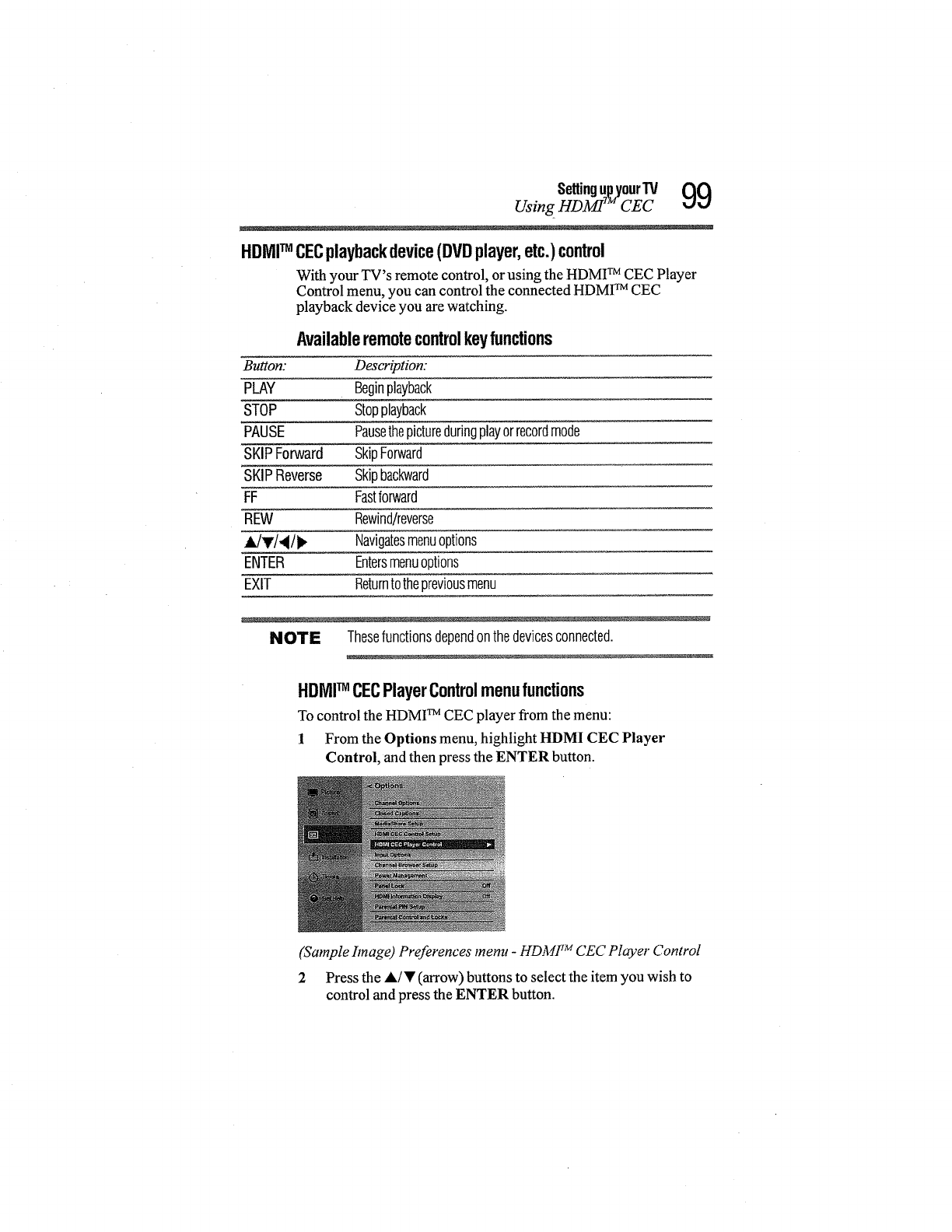
SettinguTpMyourTV 99
Using HDMI CEC
HDMITM CECplayback device (DVD player, etc.) control
With your TV's remote control, or using the HDMI TM CEC Player
Control menu, you can control the connected HDMI TM CEC
playback device you are watching.
Availableremotecontrolkeyfunctions
Button: Description:
PLAY Beginplayback
STOP Stopplayback
PAUSE Pausethepictureduringplayorrecordmode
SKIPForward SkipForward
SKIPReverse Skipbackward
FF Fastforward
REW Rewind/reverse
A/W_!I/I_ Navigatesmenuoptions
ENTER Entersmenuoptions
EXIT Returntothepreviousmenu
NOTE Thesefunctionsdependonthedevicesconnected.
HDMITM CECPlayerControlmenufunctions
To control the HDMI TM CEC player from the menu:
1 From the Options menu, highlight HDMI CEC Player
Control, and then press the ENTER button.
(Sample hnage) Preferences menu -HDMI TM CEC Player Control
2 Press the A/• (arrow) buttons to select the item you wish to
control and press the ENTER button.
1O0 SettingupyourW
Using HDMI TM CEC
Item: Description:
Power TurnstheselectdeviceOn/Off
RootMenu Accessestherootmenuoftheselecteddevice
ContentsMenu AccessesthecontentslistwhenyoupressENTER.Atthistime,the
HDMICECPlayerControlmenudisappears.
SetupMenu Accessesthesetupmenuofaselecteddevice
TopMenu Accessesthetopmenuofaselecteddevice
Menu Accessesthemenuofaselecteddevice
NOTE Thesefunctionsdependonthedevicesthatareconnected.The
HDMITM CECPlayerControlitemwill begrayedoutinthefollowing
conditions:
o**oAnon-HDMITM inputis currentlyselected.
o:o TheEnableHDMICECitemis settoOff.
o:o TheconnectedCECdeviceisnotaplaybackorrecordingdevice.
HDMITM CECinputsourceselection
If a HDMI TM CEC device with HDMI TM switching capability (e.g.
Audio Receiver) is connected to the HDMI TM input, you can select
another HDMI TM CEC device that is connected to the master
HDMI TM device using the TV's INPUT button, see "Selecting the
video input source" on page 58
VOLUMEandMUTEcontrolsofAudioReceiver
With your TV's remote control, you can adjust or mute the sound
volume of the Audio Receiver.
°:o VOL (+-) buttons adjust the volume level.
o:° MUTE button tunas offthe sound.
To use this function:
o_o Set Speaker Preference to Receiver in the HDMI CEC Setup
menu.
•1° Confirm that a connected HDMI TM CEC device (such as DVD
player, etc.) is selected for the Audio Receiver input source.
NOTE Thesefunctionsdependonthedeviceconnected.
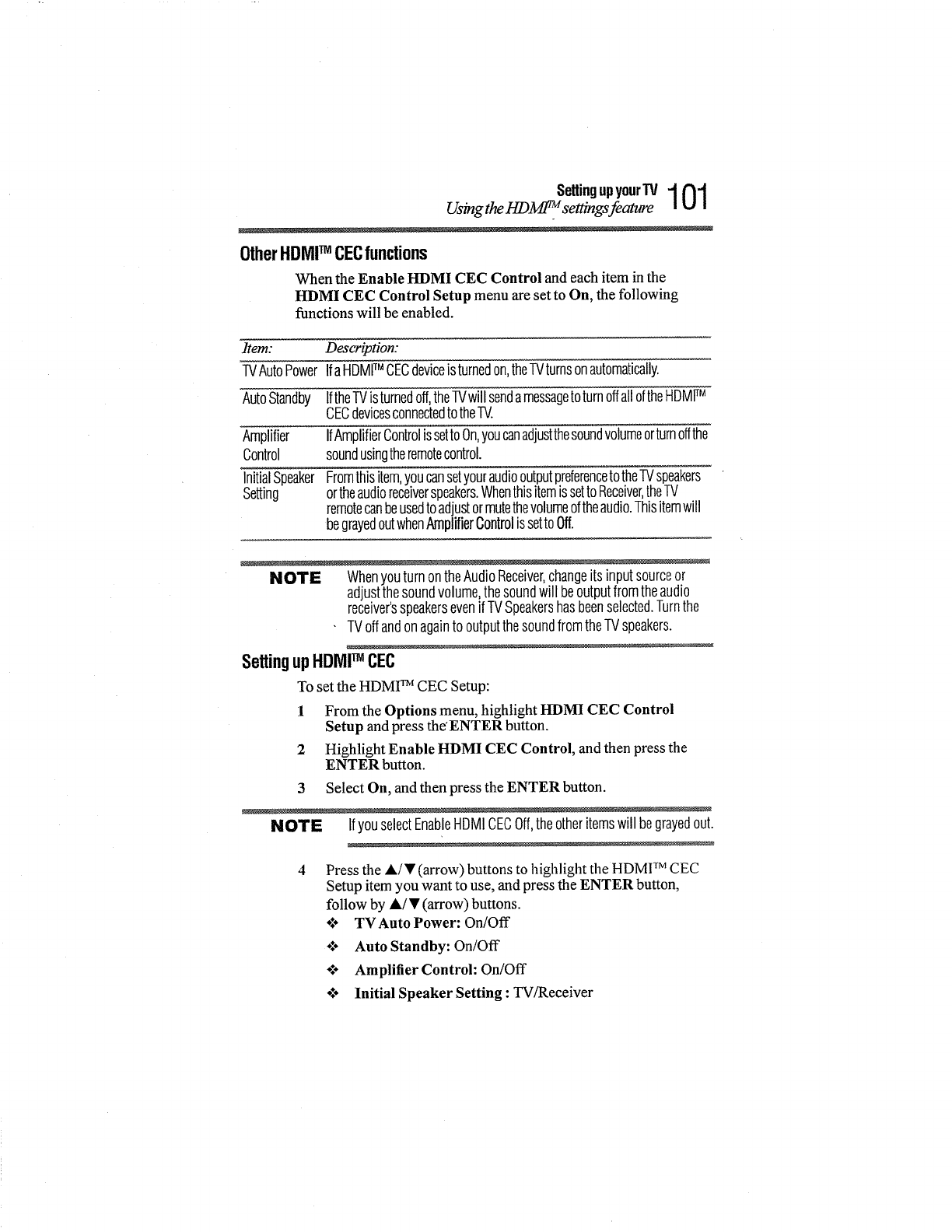
SettingupyourTV 1 01
Using the I-1DM_. settings feature
OtherHDMITM CECfunctions
When the Enable HDMI CEC Control and each item in the
HDMI CEC Control Setup menu are set to On, the following
functions will be enabled.
Item: Description:
TVAutoPowerIfaHDMITM CECdeviceisturnedon,theTVturnsonautomatically.
AutoStandby IftheTVisturnedoff,theTVwillsendamessagetoturnoffalloftheHDMITM
CECdevicesconnectedtotheIV.
Amplifier IfAmplifierControlissettoOn,youcanadjustthesoundvolumeorturnoffthe
Control soundusingtheremotecontrol.
InitialSpeaker Fromthisitem,youcansetyouraudiooutputpreferencetotheTVspeakers
Setting ortheaudioreceiverspeakers.WhenthisitemissettoReceiver,theTV
remotecanbeusedtoadjustormutethevolumeoftheaudio.Thisitemwill
begrayedoutwhenAmplifierControlissettoOff.
NOTE Whenyouturn ontheAudioReceiver,changeitsinputsourceor
adjustthesoundvolume,thesoundwill beoutputfromtheaudio
receiver'sspeakersevenif TVSpeakershasbeenselected.Turnthe
TVoffandonagainto outputthesoundfromtheTVspeakers.
SettingupHDMITM CEC
To set the HDMI TM CEC Setup:
I From the Options menu, highlight HDMI CEC Control
Setup and press the'ENTER button.
2 Highlight Enable HDMI CEC Control, and then press the
ENTER button.
3 Select On, and then press the ENTER button.
NOTE IfyouselectEnableHDMICECOff,theotheritemswill begrayedout.
4Press the A/T (arrow) buttons to Ifighlight the HDMI TM CEC
Setup item you want to use, and press the ENTER button,
follow by A/T (arrow) buttons.
o.'o TVAuto Power: On/Off
÷$o Auto Standby: On/Off
o:* Amplifier Control: On/Off
of° Initial Speaker Setting : TV/Receiver
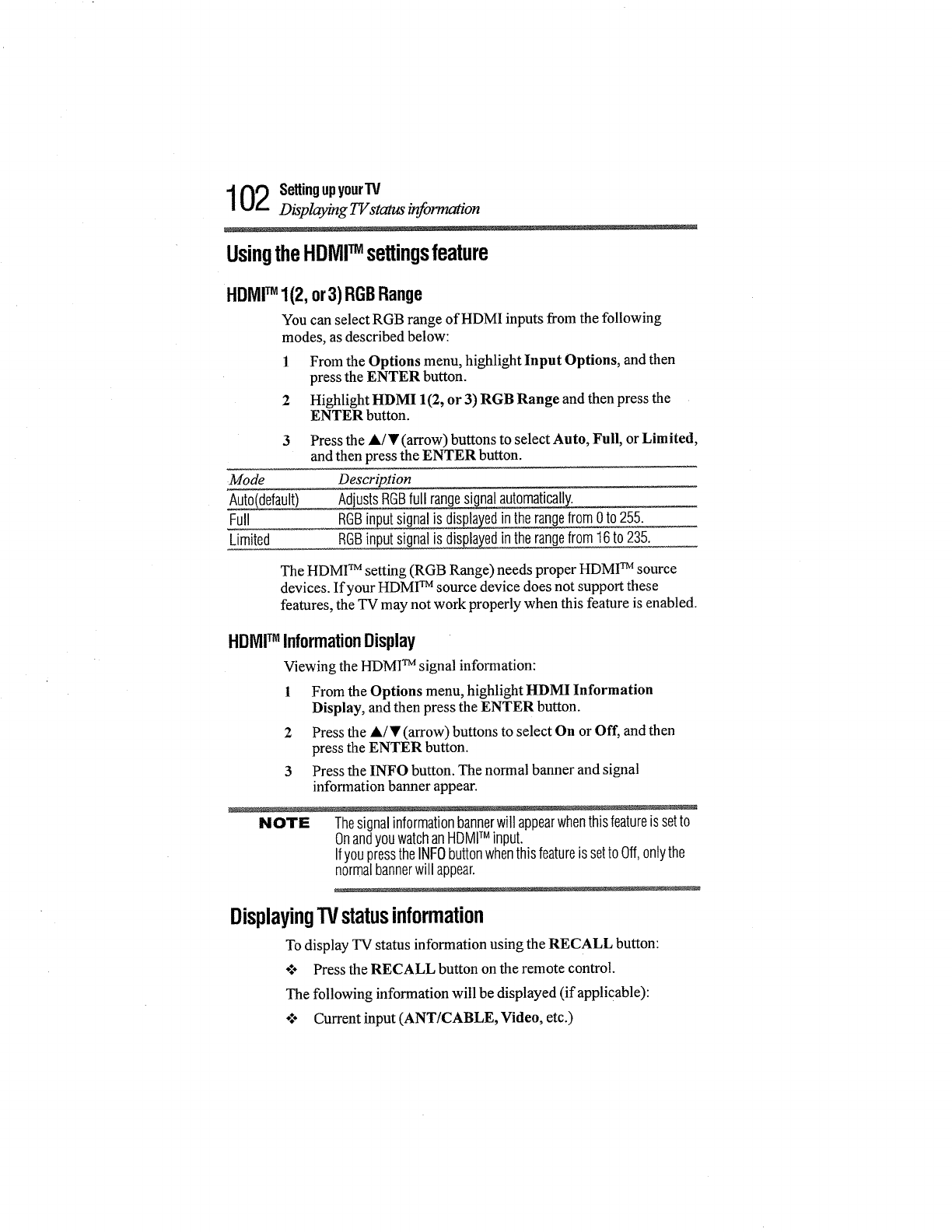
102 SettingupyourTV
Displaying TVstatus information
UsingtheHDMITMsettingsfeature
HDMITM 1(2, or3) RGBRange
You can select RGB range of HDMI inputs from the following
modes, as described below:
1 From the Options menu, highlight Input Options, and then
press the ENTER button.
2 Highlight HDMI 1(2, or 3) RGB Range and then press the
ENTER button.
Mode
Auto,default)
Full
Limited
Press the A/T (arrow) buttons to select Auto, Full, or Limited,
and then press the ENTER button.
Descrip_tion
_usts RGBfull ranges_nal automaticall.y_:__
RGBinputsignalis _n therangefrom0to 255.
RGBinputsignalis displa_edintherangefrom16to 235.
The HDMF Msetting (RGB Range) needs proper HDMI TM source
devices. If your HDMI TM source device does not support these
features, the TV may not work properly when this feature is enabled.
HDMITM InformationDisplay
Viewing the HDMI TM signal information:
1 From the Options menu, highlight HDMI Information
Display, and then press the ENTER button.
2 Press the A/• (arrow) buttons to select On or Off, and then
press the ENTER button.
3 Press the INFO button. The normal banner and signal
information banner appear.
NOTE Thesignalinformationbannerwill appearwhenthisfeatureis setto
OnandyouwatchanHDMITM input.
IfyoupresstheINFObuttonwhenthisfeatureis setto Off.onlythe
normalbannerwill appear.
DisplayingTVstatusinformation
To display TV status information using the RECALL button:
o:o Press the RECALL button on the remote control.
The following information will be displayed (if applicable):
o:° Current input (ANT/CABLE, Video, etc.)
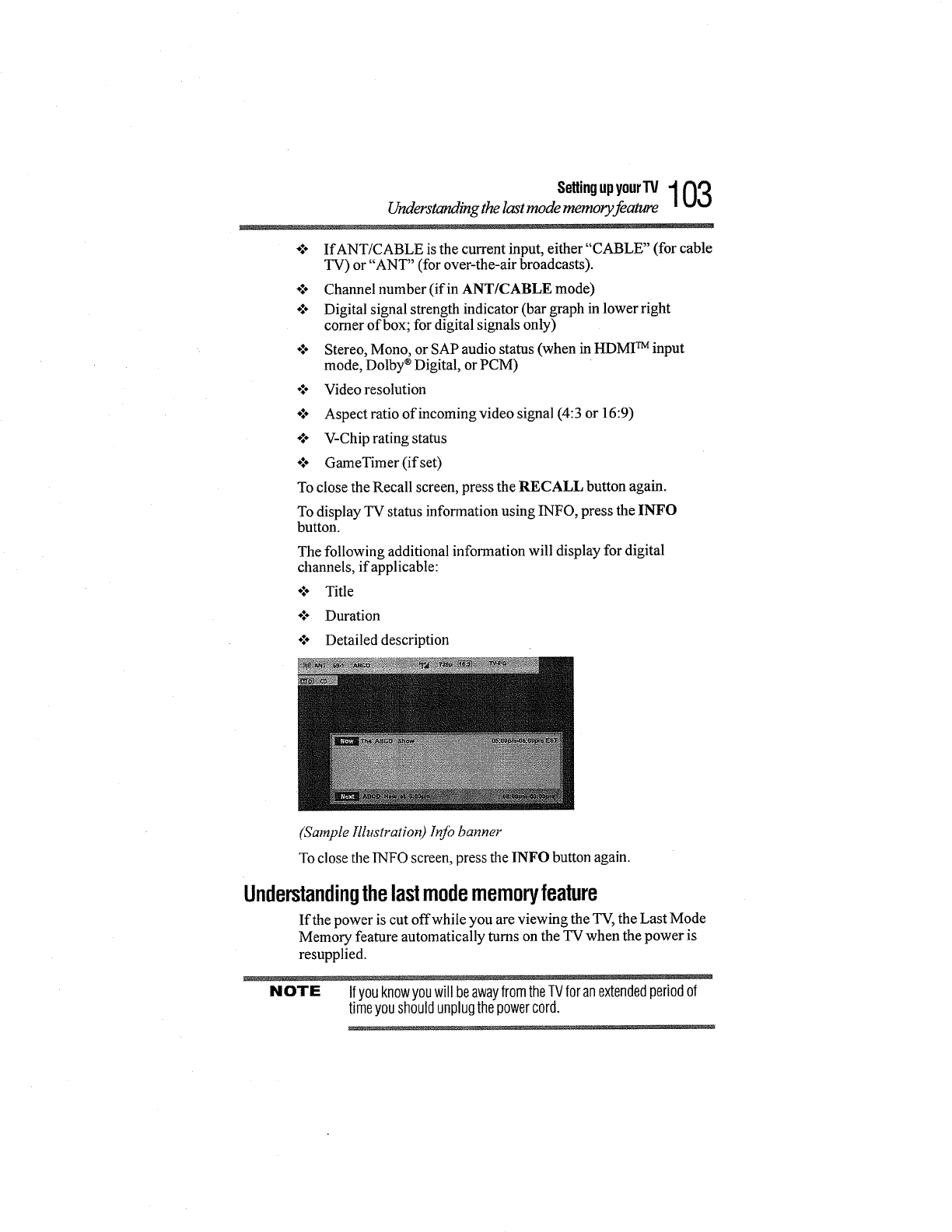
SettingupyourTV 1 03
Understanding the last mode memory feature
o:÷ If ANT/CABLE is the current input, either"CABLE" (for cable
TV) or"ANT" (for over-the-air broadcasts).
o!o Channel number (if in ANT/CABLE mode)
o:* Digital signal strength indicator (bar graph in lower right
corner of box; for digital signals only)
°!o Stereo, Mono, or SAP audio status (when in HDMI TM input
mode, Dolby ®Digital, or PCM)
o_o Video resolution
olo Aspect ratio of incoming video signal (4:3 or 16:9)
°:- V-Chip rating status
÷l° GameTimer (if set)
To close the Recall screen, press the RECALL button again.
To display TV status information using INFO, press the INFO
button.
The following additional information will display for digital
channels, if applicable:
o_o Title
o:. Duration
o:o Detailed description
(Sample Illustration) lnJb banner
To close the INFO screen, press the INFO button again.
Understandingthelastmodememoryfeature
If the power is cut offwhile you are viewing the TV, the Last Mode
Memory feature automatically turns on the TV when the power is
resupplied.
NOTE Ifyouknowyouwill beawayfromtheTVforanextendedperiodof
timeyoushouldunplugthepowercord.
Chapter7
UsingtheTV'sAdvanced
Features
Usingtheadvancedpicturesettings
ColorMasterTM
The ColorMaster TM feature allows you to adjust standard colors.
1 From the Picture menu, highlight Advanced Picture Settings,
and then press the ENTER button.
2 Highlight ColorMaster, and then press the ENTER button.
3 Press the A/• (arrow) buttons to select On, and then press the
ENTER button.
BaseColorAdjustment
When ColorMaster TM is set to On, the list of base colors appears.
You can select a base color to adjust.
1From the Picture menu, highlight Advanced Picture Settings,
and then press file ENTER button.
2 Highlight Base Color Adjustment and then press the ENTER
button.
3 Press the A/•(arrow) buttons to select a color. Press the
ENTER button.
4 Press the •/1_ (arrow) buttons to select Hue, Saturation, or
Brightness.
5Press the A/• (arrow) buttons to adjust the setting.
6 Repeat Steps 3 flarough 5to adjust other colors.
To reset the adjustments to the factory defaults, select Reset on
the screen. Press the ENTER button. 104
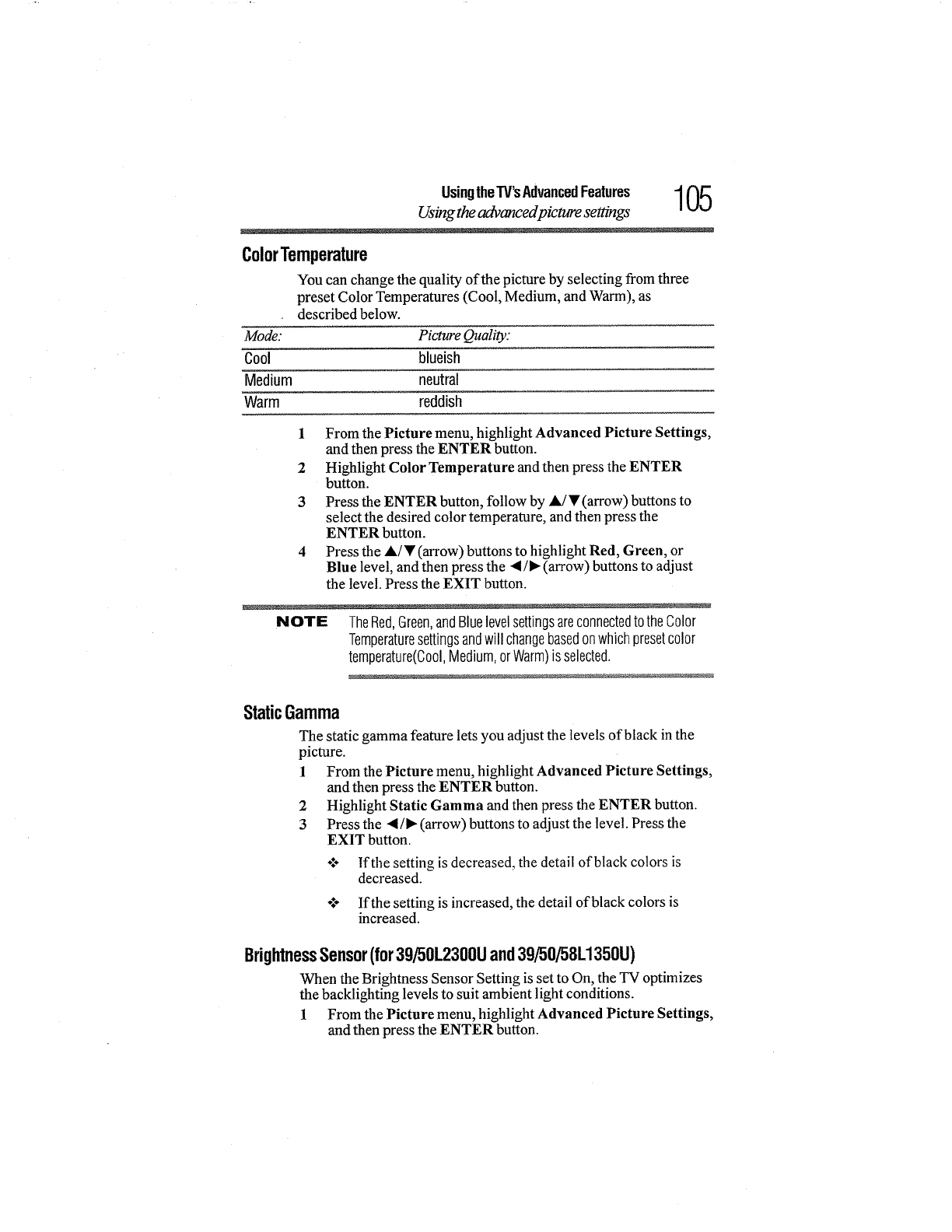
UsingtheTV'sAdvancedFeatures 1 05
Using the advanced picture settings
ColorTemperature
You can change the quality of the picture by selecting from three
preset Color Temperatures (Cool, Medium, and Warm), as
described below.
Mode: Picture Quality:
Cool blueish
Medium neutral
Warm reddish
1 From the Picture menu, highlight Advanced Picture Settings,
and then press the ENTER button.
2 Highlight Color Temperature and then press the ENTER
button.
3Press the ENTER button, follow by A/• (arrow) buttons to
select the desired color temperature, and then press the
ENTER button.
4Press the A/• (arrow) buttons to highlight Red, Green, or
Blue level, and then press the _1/, (arrow) buttons to adjust
the level. Press the EXIT button.
NOTE TheRed,Green,andBluelevelsettingsareconnectedtotheColor
Temperaturesettingsandwill changebasedonwhichpresetcolor
temperature(Cool,Medium,orWarm)isselected.
StaticGamma
The static gamma feature lets you adjust the levels of black in the
picture.
1From the Picture menu, highlight Advanced Picture Settings,
and then press the ENTER button.
2 Highlight Static Gamma and then press the ENTER button.
3Press the a/, (arrow) buttons to adjust the level. Press the
EXIT button.
ot÷ lfthe setting is decreased, the detail of black colors is
decreased.
•:- If the setting is increased, the detail of black colors is
increased.
BrightnessSensor(for39/50L2300Uand39/50/58L1350U)
When the Brightness Sensor Setting is set to On, the TV optimizes
the backlighting levels to suit ambient light conditions.
1 From the Picture menu, highlight Advanced Picture Settings,
and then press the ENTER button.
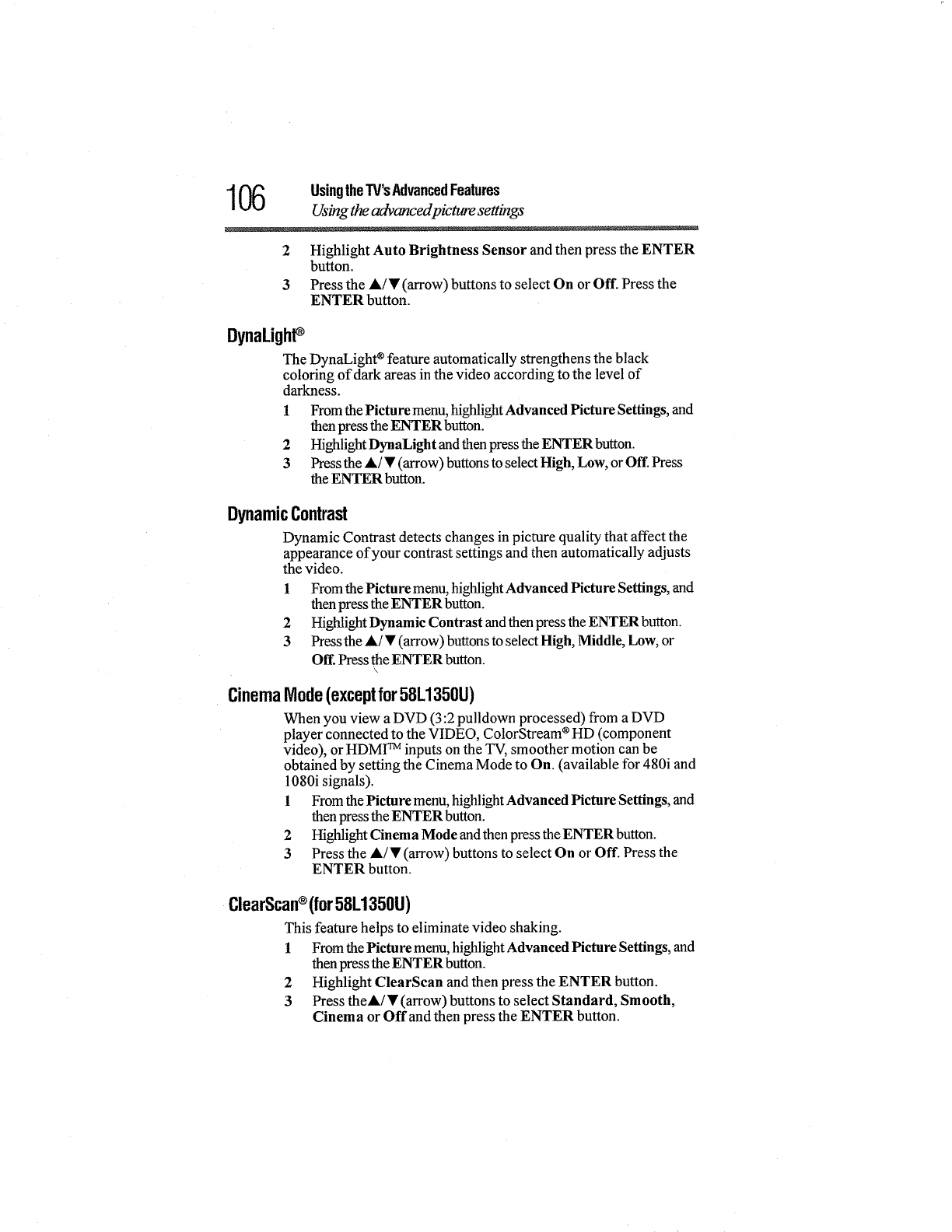
06 UsingtheW's AdvancedFeatures
Using theadvanced picture settings
2 Highlight Auto Brightness Sensor and then press the ENTER
button.
3 Press the A/• (arrow) buttons to select On or Off. Press the
ENTER button.
DynaLighP
The DynaLight _feature automatically strengthens the black
coloring of dark areas in the video according to the level of
darkness.
1 From the Picture menu, highlight Advanced Picture Settings, and
then press the ENTER button.
2 Highlight DynaLight andthen press the ENTER button.
3 Press the A/• (arrow) buttons to select High, Low, or Off. Press
the ENTER button.
DynamicContrast
Dynamic Contrast detects changes in picture quality that affect the
appearance of your contrast settings and then automatically adjusts
the video.
1Fromthe Picture menu, highlight Advanced Picture Settings, and
then press the ENTER button.
2 Highlight Dynamic Contrast and then press the ENTER button.
3 Press the &/• (arrow) buttons to select High, Middle, Low, or
Off. Press the ENTER button.
\
CinemaMode(exceptfor58L1350U)
When you view a DVD (3:2 pulldown processed) from a DVD
player connected to the VIDEO, ColorStream ®HD (component
video), or HDMI TM inputs on the TV, smoother motion can be
obtained by setting the Cinema Mode to On. (available for 480i and
1080i signals).
1 From the Picture menu, highlight Advanced Picture Settings, and
then press the ENTER button.
2 Highlight Cinema Mode and then press the ENTER button.
3 Press the A/• (arrow) buttons to select On or Off. Press the
ENTER button.
ClearScan®(for58L1350U)
This feature helps to eliminate video shaking.
1 From the Picture menu, highlight Advanced Picture Settings, and
then press the ENTER button.
2 Highlight ClearScan and then press the ENTER button.
3 Press theA/•(arrow) buttons to select Standard, Smooth,
Cinema or Offand then press the ENTER button.
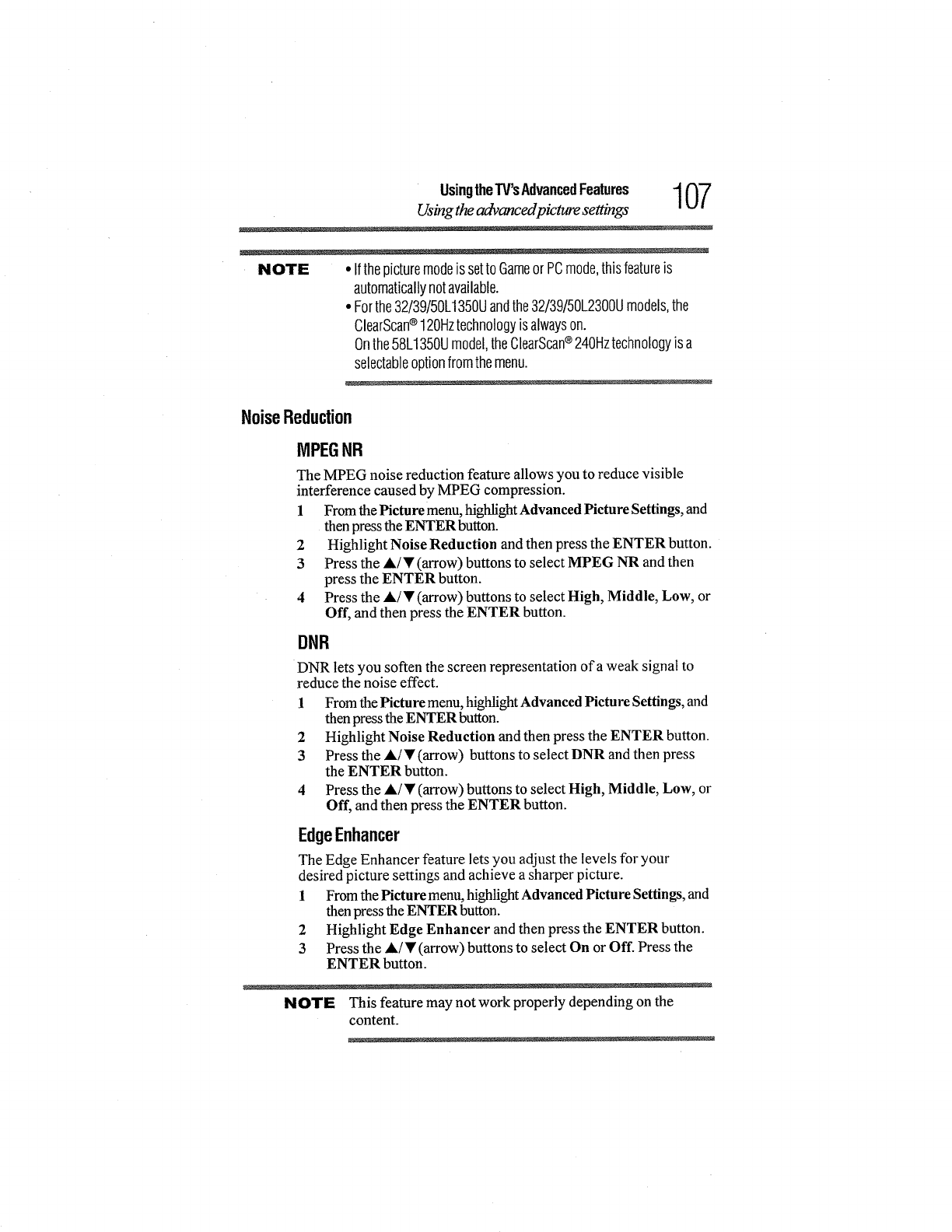
UsingtheTV'sAdvancedFeatures 1 07
Using the advanced picture settings
NOTE • IfthepicturemodeissettoGameorPCmode,thisfeatureis
automaticallynotavailable.
•Forthe32/39/50L1350Uandthe32/39/50L2300Umodels,the
ClearScan®120Hztechnologyis alwayson.
Onthe58L1350Umodel,theClearScan®240Hztechnologyisa
selectableoptionfromthemenu.
NoiseReduction
MPEGNR
The MPEG noise reduction feature allows you to reduce visible
interference caused by MPEG compression.
1 From the Picture menu, highlight Advanced Picture Settings, and
then press the ENTER button.
2 Highlight Noise Reduction and then press the ENTER button.
3 Press the A/• (arrow) buttons to select MPEG NR and then
press the ENTER button.
4 Press the A/• (arrow) buttons to select High, Middle, Low, or
Off, and then press the ENTER button.
DNR
DNR lets you soften the screen representation of a weak signal to
reduce the noise effect.
1 From the Picture menu, highlight Advanced Picture Settings, and
then press the ENTER button.
2 Highlight Noise Reduction and then press the ENTER button.
3 Press the A/• (arrow) buttons to select DNR and then press
the ENTER button.
4 Press the A/• (arrow) buttons to select High, Middle, Low, or
Off, and then press the ENTER button.
EdgeEnhancer
The Edge Enhancer feature lets you adjust the levels for your
desired picture settings and achieve a sharper picture.
1 From the Picture merits,highlight Advanced Picture Settings, and
then press the ENTER button.
2 Highlight Edge Enhancer and then press the ENTER button.
3 Press the J,/• (arrow) buttons to select On or Off. Press the
ENTER button.
NOTE This feature may not work properly depending on the
content.
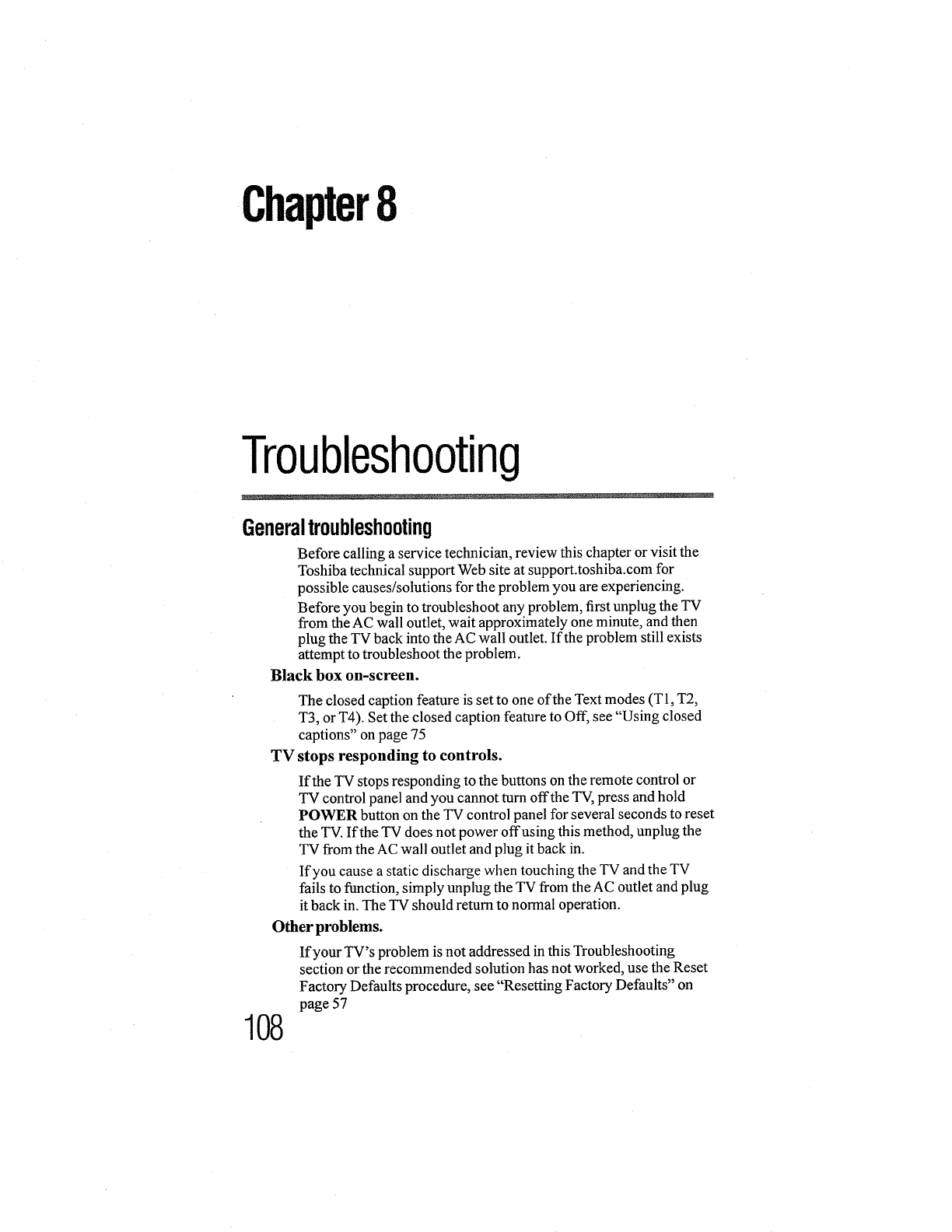
Chapter8
Troubleshooting
Generaltroubleshooting
Before calling a service technician, review this chapter or visit the
Toshiba technical support Web site at support.toshiba.corn for
possible causes/solutions for the problem you are experiencing.
Before you begin to troubleshoot any problem, first unplug the TV
from the AC wall outlet, wait approximately one minute, and then
plug the TV back into the AC wall outlet. If the problem still exists
attempt to troubleshoot the problem.
Black box on-screen.
The closed caption feature is set to one of the Text modes (T1, T2,
T3, or T4). Set the closed caption feature to Off, see "Using closed
captions" on page 75
TV stops responding to controls.
If the TV stops responding to the buttons on the remote control or
TV control panel and you cannot turn off the TV, press and hold
POWER button on the TV control panel for several seconds to reset
the TV. If the TV does not power of-fusing this method, unplug the
TV from the AC wall outlet and plug it back in.
If you cause a static discharge when touching the TV and the TV
fails to function, simply unplug the TV from the AC outlet and plug
it back in. The TV should return to normal operation.
Other problems.
If your TV's problem is not addressed in this Troubleshooting
section or the recommended solution has not worked, use the Reset
Factory Defaults procedure, see "Resetting Factory Defaults" on
page 57
108
Troubleshooting 109
Picture problems
Onscreen Demo Pop-up
If your TV is displaying a Demo pop-up screen, reset the setting to
Home. For more information see "Installation setup selection" on
page 51
TVwill not turn on.
Ensure the power cord is plugged in properly, and then press the
POWER button. Ensure the TV is plugged into a working AC
power outlet by plugging another device into the AC power outlet to
verify the AC power outlet is working.
Replace the batteries in the remote control, see "Installing batteries"
on page 42
Try the control panel buttons on the TV.
Pictureproblems
General picture problems.
Check the antenna/cable connections, see "Connecting Your TV"
on page 23
Press the INPUT button on the remote control or on the TV and
select a valid video input source, see "Selecting the video input
source" on page 58. Ifno device is connected to an input on the TV, no
picture appears when you select that particular input source. For
device connection details, see "Connecting Your TV" on page 23
Antenna reception may be poor. Use a highly directional outdoor
antenna (if applicable).
The station may be having broadcast difficulties. Try another
channel.
Adjust the picture quality, see "Using the advanced picture settings"
on page 104
Picture size changes by itself or when the TV is turned OFF and
back ON.
Turn the Auto Aspect feature of the TV to OFF. See "Using the
advanced picture settings" on page 104
Cannot view external signals or channel 3 or 4.
If you cannot view signals from external devices connected to
VIDEO, ColorStream HD l, ColorStream ®HD, HDMI 1, HDMI 2,
HDMI 3, PC, or from channel 3 or 4, ensure that the Input Lock is
set to Off, see "Using the input lock feature" on page 86
110 Troubleshooting
Soundproblems
Noisy picture.
If you are watching an analog channel (off-air broadcast or Cable
TV), you can set the DNR feature to reduce visible interference in
the TV picture, see "DNR" on page 107
Video Input Selection problems
If the Input Selection window does not appearwhen you press
INPUT on the remote control or TV, press INPUT a second time.
This will cause a change to the next video input source and display
the Input Selection window.
Poor display color or no color.
The station may be having broadcast difficulties. Try another
channel.
Adjust the Tint and/or Color, see "Adjusting the picture quality" on
page 74
Poor composite picture.
If the TV is connected to an external A/V device (e.g. DVD player,
video game system, set-top box, etc.) try using a ColorStream®or
HDMI TM video connection instead.
Picture and sound are out ofsync.
As with all products that contain a digital display, this may occur in
rare instances, when viewing certain content (e.g. television
broadcasts, video games, DVDs). The cause may include, without
limitation, video processing within the TV, video processing in an
attached gaming system, and video processing or different
compression rates used by broadcasters in their programming.
Try the following:
÷:. If the TV is connected to an A/V receiver that has a
programmable audio delay feature, use this feature to help
synchronize the sound to the picture.
•_÷ If the problem occurs only on certain TV channels, inform your
local broadcast, cable, or satellite provider.
o:. Digital audio settings may not be correct. Check the
connections, see "Connecting a digital audio system" on page 34
•:° Turn off and unplug the TV from the AC wall outlet for a few
seconds and plug it back in.
Soundproblems
Check the antenna/cable connections, see "Connecting a VCR,
antenna, cable TV, or camcorder" on page 26
Troubleshooting 111
Channel tuning problems
The station may be having broadcast difficulties. Try another
channel.
The sound may be muted. Press the VOL (+) button.
If you hear no sound, try setting the MTS feature to Stereo mode,
see "Selecting stereo/SAP broadcasts" on page 78
If you are not receiving a second audio program from a known SAP
source, make sure the MTS feature is set to SAP mode, see
"Selecting stereo/SAP broadcasts" on page 78
If you hear audio that seems incorrect for the program you are
watching (such as music or a foreign language), the SAP mode may
be on. Set the MTS feature to Stereo mode, see "Selecting stereo/
SAP broadcasts" on page 78
If you connect a computer using either the PC IN terminal or an
HDMI TM terminal, make sure that the audio setting is properly set,
see "Setting the HDMITM audio mode" on page 56
Remotecontrolproblems
Remove all obstHDMI TM ,'tween the remote control and the TV.
Replace the remote control's batteries, see "Installing batteries" on
page 42
Your TV's remote control may not operate certain features on your
external devices. Refer to the User's Guide for your other device to
determine its available features. If your TV remote control does not
operate a specific feature on another device, use the remote control
that came with the device, see "Learning about the remote control"
on page 44
If the TV still does not act as expected, perform the Reset Factory
Defaults procedure, see "Resetting Factory Defaults" on page 57
Channeltuningproblems
Ensure that the remote control is set to the correct device mode, see
"Learning about the remote control" on page 44
The Auto Tuning feature may have erased the channel from
memol3z Add the channel to tile channel memory, see "Storing
channels in memory (optional)" on page 52
The Lock feature may have blocked the channel. Unblock the
channel, see "Locking channels" on page 87
If you cannot tune digital channels, check the antenna configuration.
If the problem persists, clear all channels from the channel list and
reprogram channels into memory, see "Storing channels in memory
(optional)" on page 52 For additional information, see "TV stops
responding to controls." on page 108. If the problem persists, use the
Reset Factory Defaults procedure, see "Resetting Factory Defaults"
on page 57
112 Troubleshooting
No HDMI TM CEC operation
Closedcaptionproblems
If the program or video you have selected is not closed captioned,
no captions appear on the screen.If text is not available, a black
rectangle may appear.
If this happens, turn offthe closed caption feature, see "Using
closed captions" on page 75
A closed caption signal may not display correctly under the
following circumstances:
÷:o The recording is dubbed
÷lo The signal reception is weak
°l° The signal reception is non-standard
For additional information, see"Using closed captions" on page 75
Ratingblocking(V-Chip)problems
Forgotten PIN code.
When the PIN code screen appears, press the INFO button 4 times
within approximately 5 seconds. The old PIN code is cleared, see
"Forgotten PIN code" on page 81
The V-Chip feature is available for U.S. V-Chip systems only, see
"Using parental controls (for USA region)" on page 82
NoHDMITM CECoperation
The HDMI TM CEC feature is available for Toshiba HDMI TM CEC
compatible devices.
Ensure that HDMI TM cables with the (_Hmm._!-)Logo are used.
When the connected HDMI TM CEC device does not work correctly
after you have changed settings of the device, turn offyour TV and
unplug the power cord, then plug in and turn on again.
If several devices are connected, the HDMI TM CEC feature may not
operate properly.
Read the instruction manual furnished with the connected HDMI TM
CEC device.
Troubleshooting 113
If theproblem persists after trying the solutions
HDMI_problems
HDMI TM cables.
Ensure that HDMI TM cables with the (_H._.mm_!')Logo are used, see
"Connecting an HDMI TM or DVI device to the HDMI TM input"
on page 30
Legacy HDMI TM sources.
Some legacy HDMI TM sources may not work properly with the
latest HDMI TM TV products due to new standard adoption.
MediaPlayerproblems
Incorrect functionality may occur when using a USB HUB
connection.
Photo files that were processed and edited using the computer's
application software may not be viewable.
The TV may select one format automatically and play it when
contents that support two or more formats are played.
Confirm that the contents of the USB storage device are in formats
that are supported by this TV, see "Using the Media Player" on page
91
Iftheproblempersistsaftertryingthesolutions
Contact Toshiba at:
Toshiba's Support Web site: support.toshiba.com.
For technical support, call the Toshiba Customer Support Center:
Within the United States, at 800-631-3811
Outside the United States, at 949-583-3050
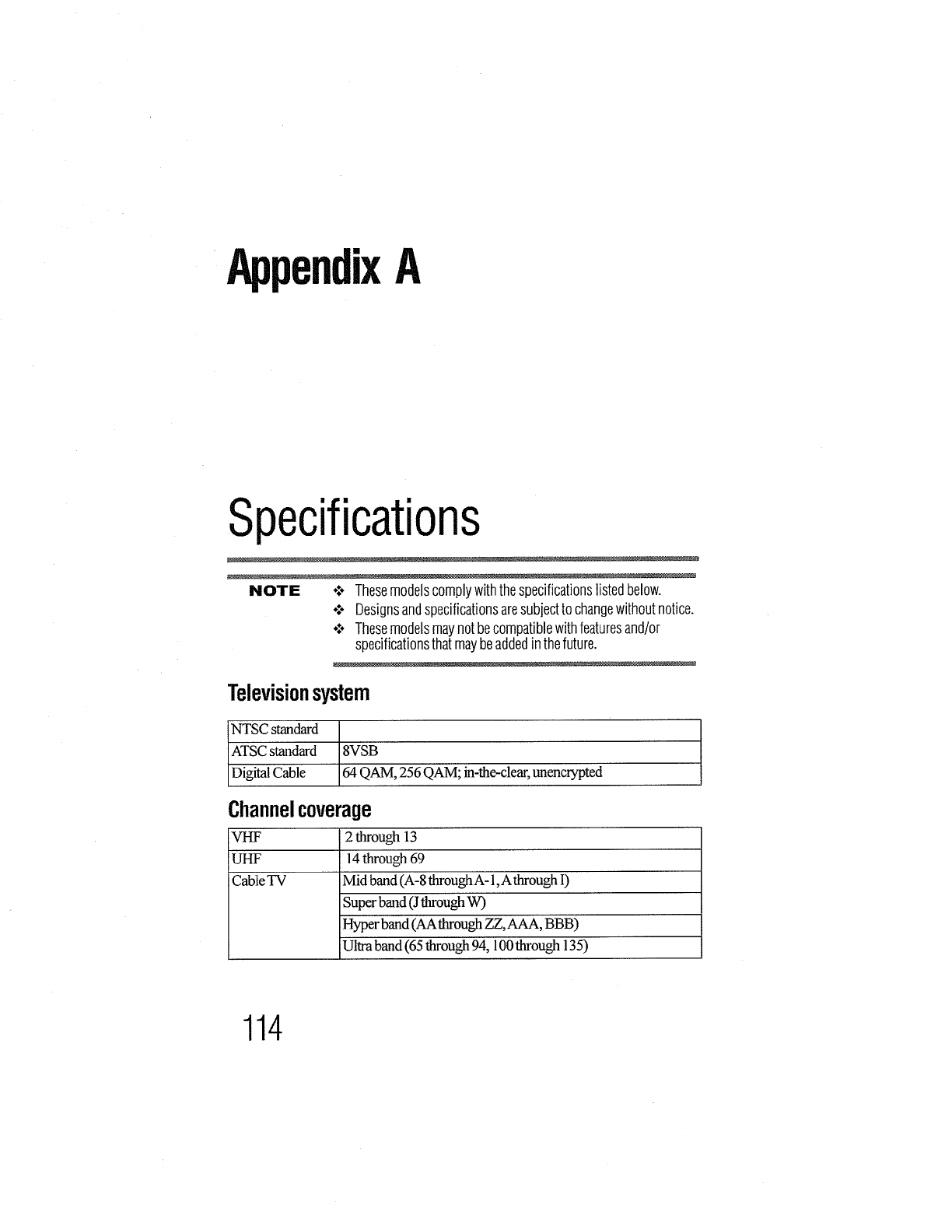
AppendixA
Specifications
NOTE ÷_*Thesemodelscomplywiththespecificationslistedbelow.
o:- Designsandspecificationsaresubjectto changewithoutnotice.
o:oThesemodelsmaynotbecompatiblewithfeaturesand/or
specificationsthatmaybeaddedinthefuture.
Televisionsystem
NTSC standard
ATSC standard 8VSB
Digital Cable 64 QAM, 256 QAM; in-the-dear, unencrypted
Channelcoverage
VHF 2 through 13
UHF 14 through 69
Cable TV Mid band (A-8 through A- I,A through I)
Super band (J through W)
Hyper band (AA through ZZ, AAA, B BB)
Ultra band (65 through 94, 100 tbxough 135)
114
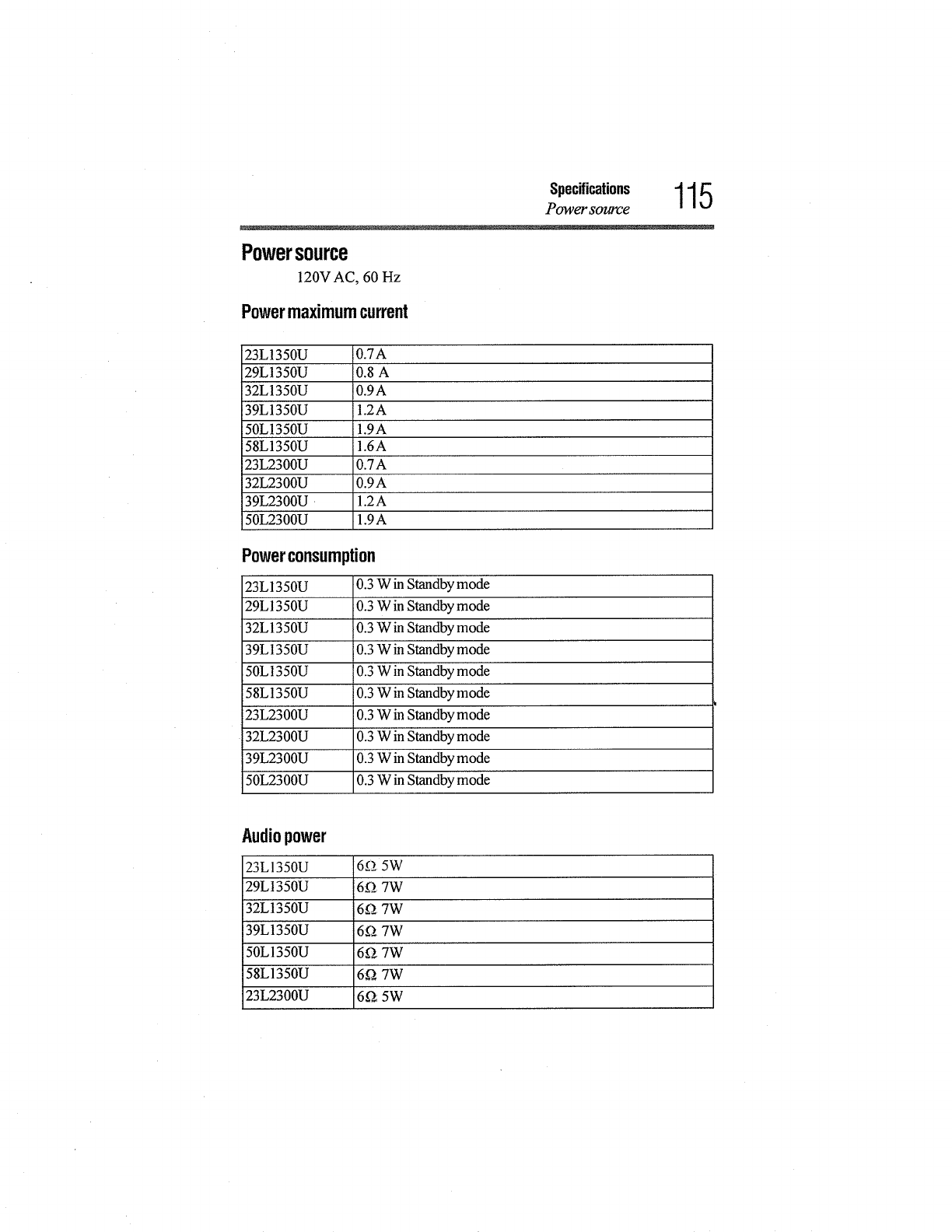
Specifications 115
Power source
Powersource
120V AC, 60 Hz
Powermaximumcurrent
23LI350U 0.7A
29LI350U 0.8 A
32L1350U 0.9A
39LI350U 1.2A
50L1350U 1.9A
58L1350U 1.6A
23L2300U 0.7 A
32L2300U 0.9 A
39L2300U 1.2A
50L2300U 1.9A
Powerconsumption
23L1350U 0.3 W in Standby mode
29L1350U 0.3 W in Standby mode
32L1350U 0.3 W in Standby mode
39L 1350U 0.3 W in Standby mode
50L! 350U 0.3 W in Standby mode
58L1350U 0.3 W in Standby mode
23L2300U 0.3 W in Standby mode
32L2300U 0.3 W in Standby mode
39L2300U 0.3 W in Standby mode
50L2300U 0.3 W in Standby mode
Audiopower
23LI350U 692 5W
29L1350U 6_;27W
32L1350U 6D. 7W
39L1350U 6f2 7W
50L1350U 60 7W
58LI350U 60 7W
23L2300U 6_ 5W
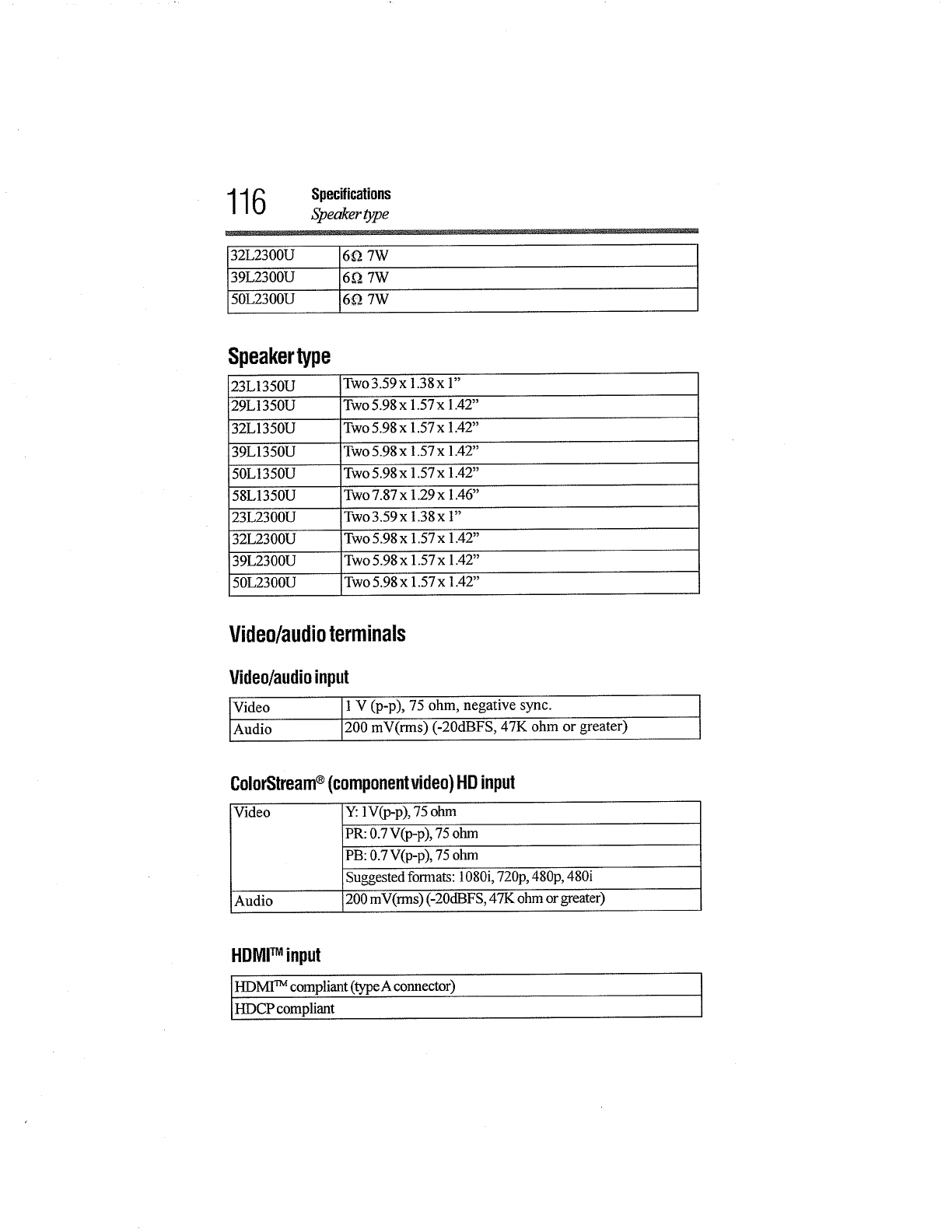
116 Specifications
Speaker {ype
32L2300U 6_ 7W
39L2300U 6_ 7W
50L2300U 6_ 7W
Speakertype
23L1350U Two 3.59x 1.38 x 1"
29L1350U Two 5.98x 1.57x 1.42"
32L1350U Two 5.98x 1.57x 1.42"
39L1350U Two 5.98 x 1.57x 1.42'
50L1350U lTwo 5.98x 1.57x 1.42"
58L1350U Fwo7.87x 1.29x 1.46"
23L2300U Two 3.59x 1.38x 1"
32L2300U Two 5.98x 1.57x 1.42"
39L2300U Two 5.98x 1.57x 1A2"
50L2300U Two 5.98 x 1.57x 1.42"
Video/audioterminals
Video/audioinput
Video ohm,
Audio 200 mV(rms) (-20dBFS, 47K ohm or greater)
ColorStream®(componentvideo)HD input
Video Y: lV(p-p), 75 ohm
PR: 0.7 V(p-p), 75 ohm
PB: 0.7 V(p-p), 75 ohm
Suggested fomaats: 1080i,720p, 480p, 480i
Audio 200 mV(rms) (-20dBFS, 47K ohm or greater)
HDMITM input
HDMITM compliant (typeA connector)
HDCP compliant
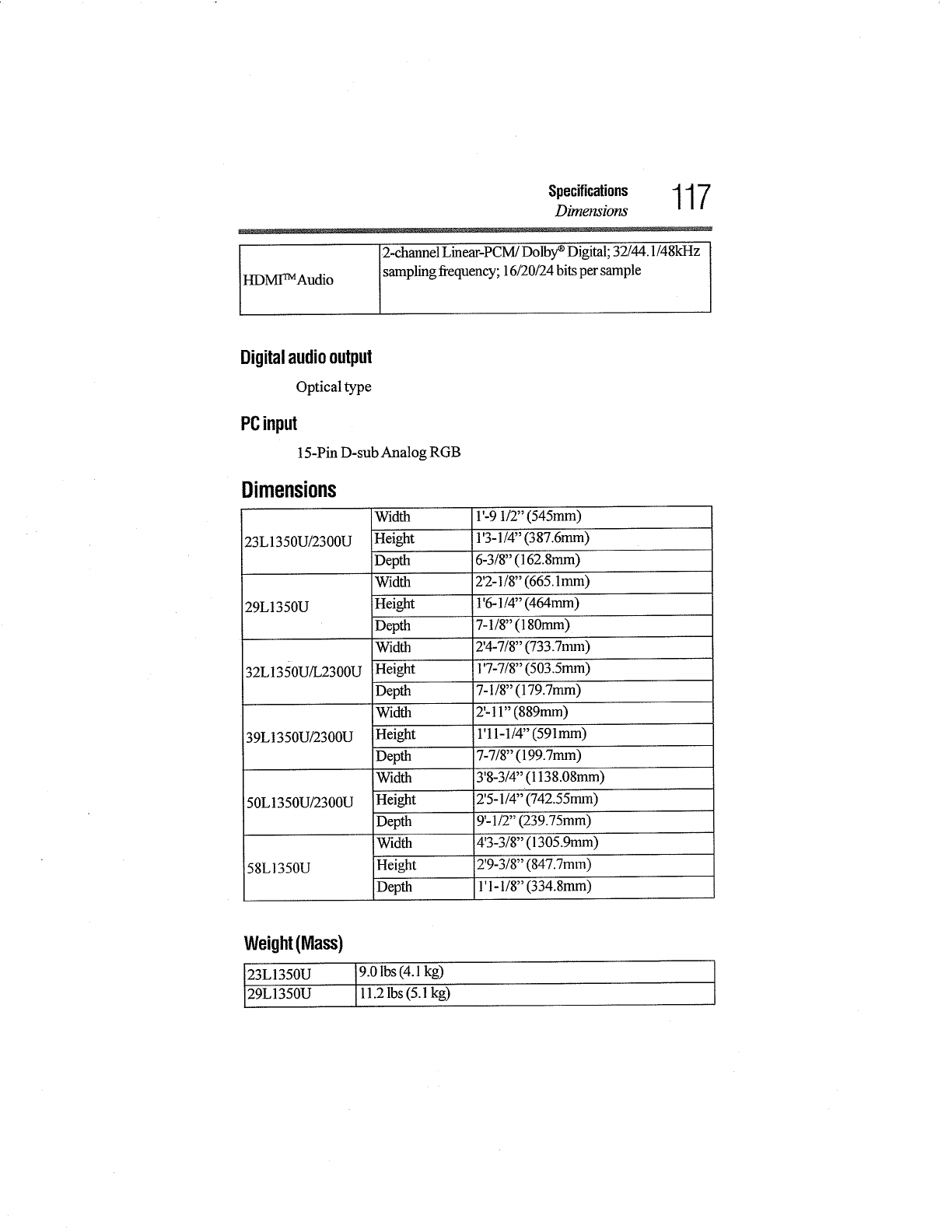
Specifications 117
Dimensions
2-channel Linear-PCM/Dolby _ Digital; 32/44.1/48kHz
HDMITMAudi° samplin_ frequency; 16/20/24 bits per sample
Digitalaudiooutput
Optical type
PCinput
15-Pin D-sub Analog RGB
Dimensions
23L1350U/2300U
29L1350U
32L1350U/L2300U
39L1350U_300U
50L 1350U/2300U
58LI350U
Width
Height
Depth
Width
Height
Depth
Width
Height
Depth
Width
Height
Depth
Width
Height
Depth
Width
Height
Depth
1'-9 1/2" (545mm)
1'3-1/4" (387.6mm)
6-3/8" (162.8mm)
2'2-1/8" (665. lmm)
1'6-1/4" (464mm)
7-1/8" (180ram)
2'4-7/8" (733.7rmn)
1'7-7/8" (503.5mm)
7-1/8" (179.7mm)
2'-11" (889mm)
1'11-1/4" (591mm)
7-7/8" (199.7mm)
3'8-3/4" ( 1138.08mm)
2'5-1/4" (742.55mm)
9'-1/2" (239.75mm)
4'3-3/8" (1305.9mm)
2'9-3/8" (847.7mm)
1'1-1/8" (334.8mm)
Weight(Mass)
23L1350U
29L1350U
9.0 lbs (4.1 kg)
11.2 lbs (5.1 kg) I
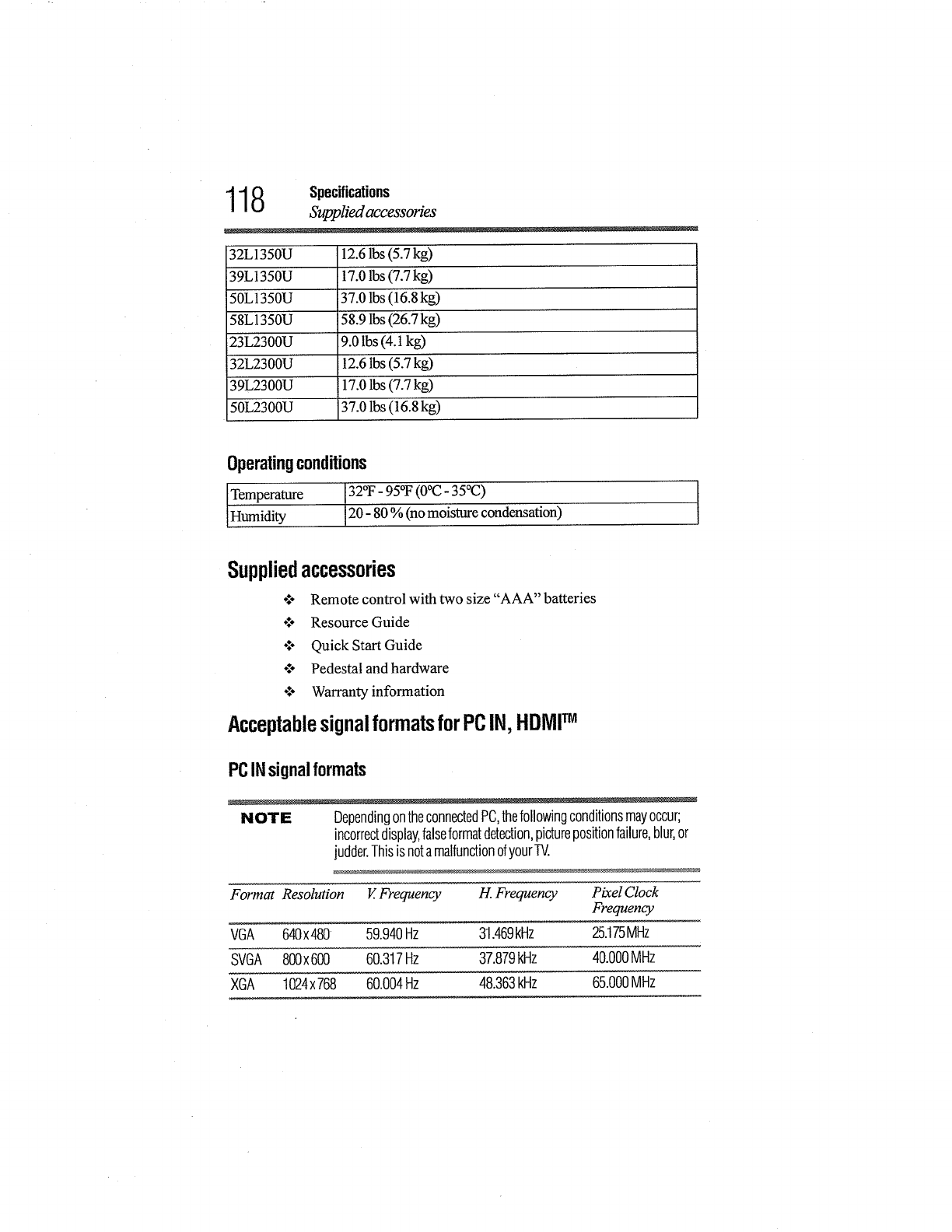
118 Specifications
Supplied accessories
32L1350U
39L1350U
50L1350U
58L1350U
23L2300U
32L2300U
39L2300U
50L2300U
12.6lbs (5.7 kg)
17.0lbs (7.7 kg)
37.0 lbs (16.8 kg)
i58.9 lbs (26.7 kg)
9.0 lbs (4.1kg)
12.6 lbs (5.7 kg)
17.0lbs(7.7kg)
37.0 lbs (16.8 kg)
Operatingconditions
Temperature 32°F- 95°F(0°C - 35°C)
Humidity 20 - 80% (no moisture condensation)
Suppliedaccessories
o.'. Remote control with two size "AAA" batteries
÷_. Resource Guide
o_÷ Quick Start Guide
o:o Pedestal and hardware
olo Warranty information
AcceptablesignalformatsforPCIN,HDMITM
PCINsignalformats
NOTE DependingontheconnectedPC,thefollowingconditionsmayoccur;
incorrectdisplay,falseformatdetection,picturepositionfailure,blur,or
judder.ThisisnotamalfunctionofyourTV.
Format Resolution V.Frequency H. Frequency Pixel Clock
Frequency
VGA 640x480 59.940Hz 31.469kHz 25.175MHz
SVGA 800x600 60.317Hz 37.879kHz 40.000MHz
XGA 1024x 768 60.004Hz 48.363kHz 65.000MHz

Specifications 119
Acceptable signa_lformats for PC IN, HDMI TM
Format Resolution V.Frequency H. Frequency Pixel Clock
Frequency
WXGA 1280x768 59.870Hz 47.776RHz 79.500MHz
1360x 768 60.015Hz 47.712kHz 85.500MHz
SXGA 1280x1024 60.020Hz 63.981kHz 108.000MHz
HDMITMsignalformats
Format Resolution V.Frequency H.Frequency Pixel Clock
Frequency
VGA 640x480 59.940Hz 31.469kHz 25.175MHz
SVGA 800x600 60.317Hz 37.879kHz 40.000MHz
XGA 1024x768 60.004Hz 48.363kHz 65.000MHz
1280x768 59.870Hz 47.776kHz 79.500MHz
WXGA 1360x 768 60.015Hz 47.712kHz 85.500MHz
SXGA 1280x1024 60.020Hz 63.981kHz 108.000MHz
480i 720x480i 59.940Hz 15.734kHz 27.000MHz
480p 720x480p 59.940Hz 31.469kHz 27.000MHz
720p 1280x 720p 60.000Hz 45.000kHz 74.250MHz
1080i 1920x1080i 60.000Hz 33.750kHz 74.250MHz
24.000Hz 27.000kHz 74.250MHz
1080p 1920x1080p 60.000Hz 67.500kHz 148.500MHz
NOTE o:o SomeillustrationsinthisUser'sGuideareforexplanation
purposesandmaydifferfromtheactualunit.
o:o Designsandspecificationsaresubjecttochangewithoutnotice.
o.'oThesemodelsmaynotbecompatiblewithfeaturesand/or
specificationsthatmaybeaddedinthefuture.
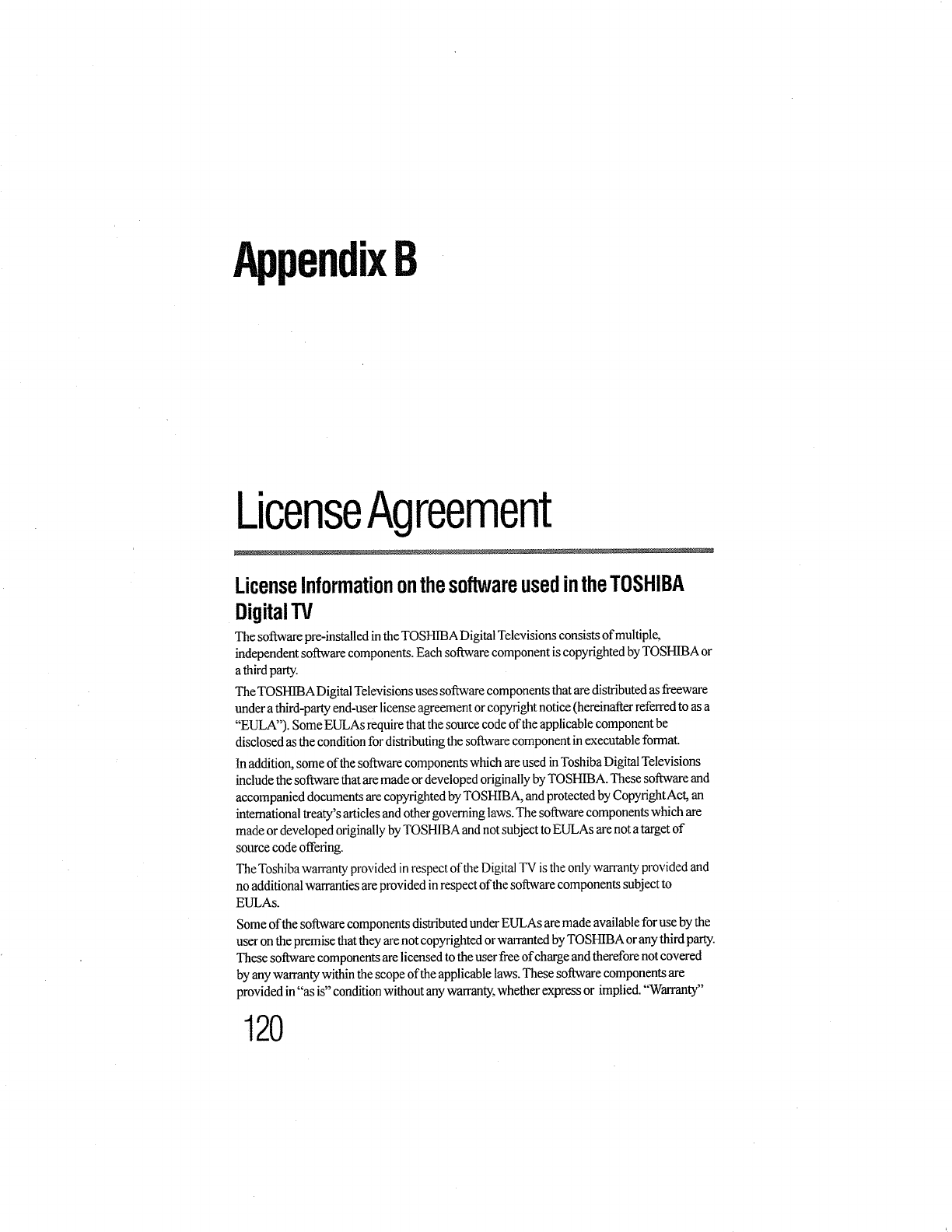
AppendixB
LicenseAgreement
LicenseInformationonthesoftwareusedintheTOSHIBA
DigitalTV
The software pre-installed in the TOSHIBA Digital Televisions consists of multiple,
independent software components. Each software component is copyrighted by TOSHIBA or
a third party.
The TOSHIBA Digital Televisions uses software components that are distributed as freeware
under a third-party end-user license agreement or copyright notice (hereinafter referred to as a
"EULA"). Some EULAs require that the source code of the applicable component be
disclosed as the condition for distributing the software component in executable format.
In addition, some of the software components which are used in Toshiba Digital Televisions
include the software that are made or developed originally by TOSHIBA. These software and
accompanied documents are copyrighted byTOSHIBA, and protected by Copyright Act, an
international treaty's articles and other governing laws.The software components which are
made or developed originally by TOSHIBA and not subject toEULAs are not a target of
source code offering.
The Toshiba wan'anty provided in respect of the Digital TV is the only warranty provided and
no additional warranties are provided inrespect of the software components subject to
EULAs.
Some of the software components distributed under EULAs are made available for use by the
user onthe premise that they are not copyrighted or wmaznted by TOSHIBA or any third party.
These software components are licensed to the user fiee of charge and therefore not covered
by any warranty within the scope of the applicable laws. These software components are
provided in "as is" condition without any warranty, whether express or implied. "Warranty"
120
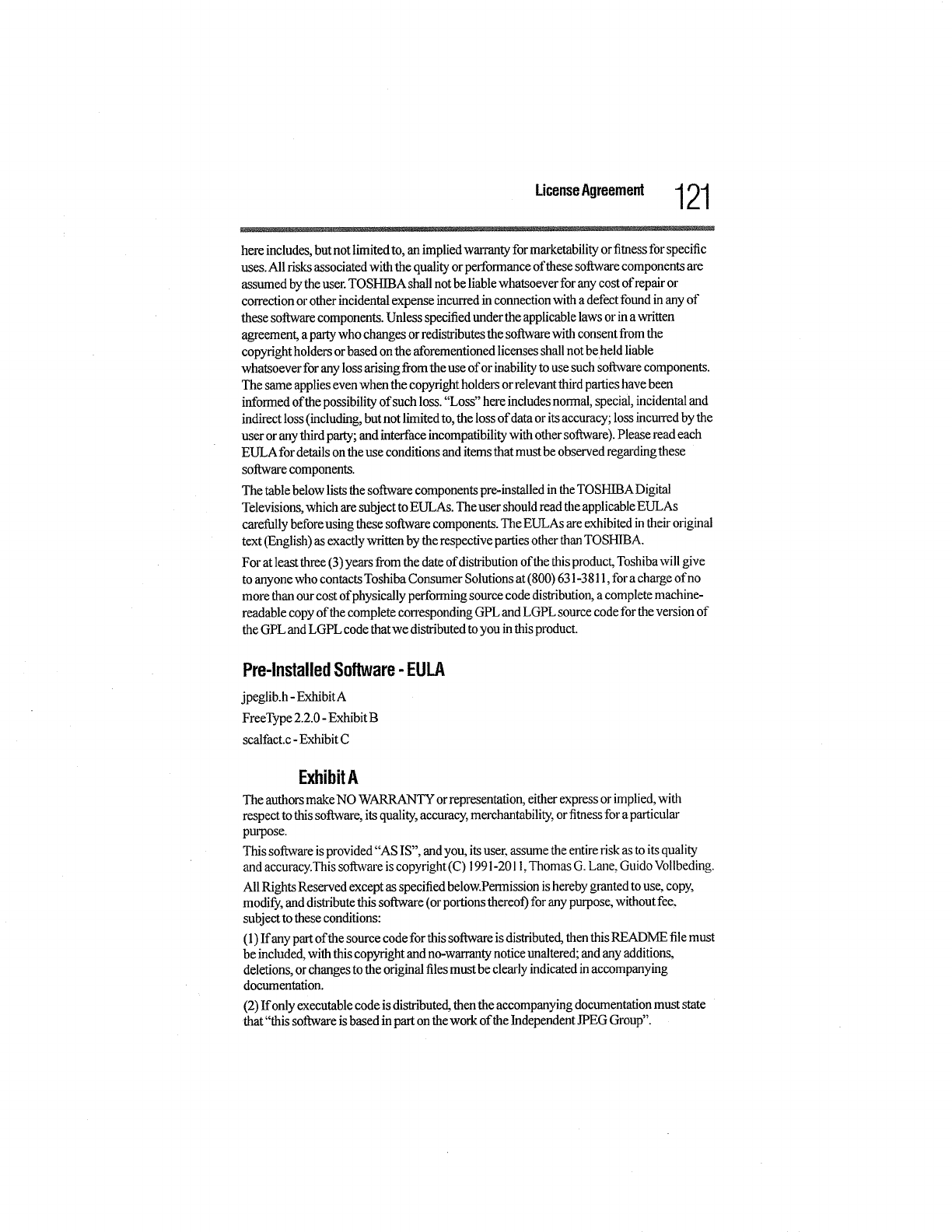
,ioo.,o,,o,oomo.,121
here includes, but not limited to, an implied wammty for marketability or fitnessfur specific
uses. All risks associated with the quality or performance of these software components are
assumed bythe user.TOSHIBA shall not be liable whatsoever for anycost of repair 01-
colxection or other incidental expense incurred in connection with a defect tbund in any of
these software components. Unless specified under the applicable laws or in a written
agreement,a party who changes or redis_ibutes the software with consent from the
copyright holders or based on the aforementioned licenses shallnot beheld liable
whatsoever for any loss arising from the use of or inability to use such sot_vare components.
The same applieseven when the copyright holde15or relevant third parties have been
informed of the possibility of such loss. "Loss" here includes normal, special, incidental and
indirect loss (including, but not limited to, the loss of data or its accuracy; loss incmxed by the
user or any third party; and interface incompatibility with other software). Please read each
EULA for details onthe use conditions and items that must be observed regarding these
software components.
The table below lists the software components pre-installed in the TOSHIBADigital
Televisions, which are subject to EULAs. The user should read the applicable EULAs
carefully before using these software components. The EULAs are exhibited in their original
text (English) as exactly written by the respective parties other than TOSHIBA.
For at least _-ee (3) years from the date of distribution of the tbis product, Toshiba will give
to anyone who contacts Toshiba Consumer Solutions at (800) 631-3811, for a charge of no
more than our cost of physically performing source code distribution, a complete machine-
readable copy of the complete con-esponding GPL and LGPL source code for the version of
the GPL and LGPL code thatwe distributed to you in this product.
Pre-lnstalledSoftware-EULA
jpeglib.h - Exhibit A
FreeType 2.2.0 - Exhibit B
scalthct.c - Exhibit C
ExhibitA
The authors make NO WARRANTY or representation, either express or implied, with
respect to this software, its quality, accuracy, merchantability, or fitness for a particular
ptu_pose.
This software is provided "AS IS", and you, its user, assume the entire risk as to its quality
and accuracy.This sol, rare is copyright (C) 1991-2011, Thomas G. Lane, Guido Vollbeding.
All Rights Reserved except as specified below.Permission ishereby granted to use, copy,
modify, and distribute this soRware (or portions thereof) for any purpose, without fee,
subject to these conditions:
(1) If any part of the source code for this software isdistributed, then this README file must
be included, with this copyright and no-warranty notice unaltered; and any additions,
deletions, or changes to the original filesmust be clearly indicated inaccompanying
documentation.
(2) If only executable code is distributed, then the accompanying documentation must state
that"this software is based inpart on the work of the Independent JPEG Group".
122 LicenseAgreement
(3) Permission for use of this software is granted only ifthe user accepts full responsibility
for any undesirable consequences; the authors accept NO LIABILITY for damages of any
kind.
These conditions apply to any software derived from or based on the IJG code, notjust to the
unmodified library.If you use our work, you ought to acknowledge us.
Permission is NOT granted for the use of any IJG author's name or company name in
advertising or publicity relating to this software or products derived from it. This software
may be referred to only as"the Independent JPEG Group's software".
We specifically permit and encotu-agethe use of this software as the basis of commercial
products, provided that all warranty or liability claims are assumed by the product vendor.
ansi2knr.c is included in this distribution by permission of L. Peter Deutsch, sole proprietor
of its copyright holder,Aladdin Enterprises of Menlo Park, CA. ansi2knr.c isNOT covered
by the above copyright and conditions, but instead by theusual distribution terms of the Free
Software Foundation; principally, thatyou must include som-cecode ifyou redistribute it.
(See the file ansi2knr.c for full details.) However, since ansi2knrc is not needed as part of any
program generated from the IJG code,this does not limit you more than the foregoing
paragraphs do.
The Unix configuration script"configure" was produced with GNU Autoconf. It iscopyright
by the Free Software Foundation but is freely distributable. The same holds for its supporting
scripts (config.guess, config.sub, ltmain.sh). Another support script, install-sh, is copyright
by X Consortium but is also freely distributable.
The IJG distribution formerly included code to read and write GIF files. Toavoid
entanglement with the Unisys LZW patent, GIF reading support has been removed
altogether, and the GIF writer has been simplified to produce "uncompressed GIFs". This
technique does not usethe LZW algorithm; the resulting GIF files arelarger than usual, but
are readable by all standard GIF decodel_.
We are required to state that
"The Graphics Interchange Format(c) is the Copyright property of CompuServe
Incorporated. GlF(sm) is a Service Mark property of CompuServe Incorporated."
ExhibitB
The FreeType Project LICENSE
2002-Apr-I 1
Copyright 1996-2002 by
David Turner, Robert Wilhelm, and Werner Lemberg
Introduction
The FreeType Project is distributed inseveral archive packages; some of them may contain,
in addition to the FreeType font engine, various tools and contributions which rely on, or
relate to, the FreeType Project.
This license applies to allfiles found in such packages, and which do not fall under their own
explicit license. The license affects thus the FreeType font engine, the test programs,
documentation and makefiles, atthe very least.
l.icenseAgreemenl 123
This license was inspired bythe BSD, Artistic, and IJG (Independent JPEG Group) licenses,
which allencourage inclusion and use of free software in commercial and freeware products
alike. As a consequence, itsmain points are that:
o1. We don't promise that this software works. However, we wilt be interested in
any kind of bug reports. ("as is' distribution)
o:o You can use this software for whatever you want, in parts or full form, without
having to pay us. ("royalty-free' usage)
÷:. You may not pretend that you wrote this software. If you use it, or only parts of
it, in a program, you must acknowledge somewhere in your documentation that
you have used the FreeType code. ("credits')
We specifically permit and encourage the inclusion ofthis soRware, with orwithout
modifications, in commercial products. We disclaim all warranties covering The Fl'eeType
Project and assume no liability related toThe FreeType Project.
Finally, many people asked us for a preferred form for a credit]disclaimer to use in
compliance with this license. We thus encourage you to use the following text:
Portions of this software are copyright © 1996-2002 The FreeType
Project (freetype.org). All rights reserved.
ExhibitC
scalfact.c Scalefactors for layer I and I1This pmg_am isfree soft-ware;you can redistribute it
and/or mod@ it under the telxns of the GNU General Public License as published bythe
Free SoRware Foundation; either version 2 ofthe License, or (at your option) any later
vel_ion. This program is distributed in the hope that it will be useful, but WlTHOUTANY
WARRANTY; without even the implied warranty of MERCHANTABILITY or FITNESS
FORA PARTICULAR PURPOSE. See the GNU General Public License for more details.
You should have received a copy of the GNU General Public License along with this
program; ifnok write tothe Free Software Foundation, Inc., 675 MassAve, Cambridge, MA
02139, USA.
