Two Technologies JETTRFID-1356 JETT® RFID Reader User Manual JETT RFID Technical Reference Manual

Two Technologies, Inc. JETT® RFID Reader JETT RFID Technical Reference Manual

Users Manual

 JETT®•RFID Technical Reference  Manual       MAN0339, Rev. A, Preliminary
 JETT•RFID Technical Reference Manual Document Number: MAN0339, Rev. A Version Support: 420044 Date of Last Revision: March 10, 2004 © 2000–2004, Two Technologies, Inc.     All rights reserved. Printed in the United States of America  Copyrights and Trademarks The 2T logo and JETT are registered trademarks of Two Technologies. Microsoft, Windows CE .NET, Windows NT, Windows 2000, Windows XP, Visual C++, eMbedded Visual C++, Visual Basic and Visual Studio .NET 2003 are either trademarks or registered trademarks of the Microsoft Corporation. Other products or company names mentioned herein may be the trademarks or registered trademarks of their respective companies. Reproduction Rights This manual contains proprietary information. Permission to reproduce or otherwise use portions of the material presented herein is explicitly given to Two Technologies OEMs incorporating the JETT•RFID into their products. Please note that this publication contains material that may not be appropriate for disclosure to some end users and that Two Technologies assumes no responsibility for technical support burdens incurred, or any other consequences of OEM documentation decisions. Changes and Addendum Since Two Technologies is continuously improving the functionality and quality of its products, certain information may not be included in this manual at its time of release. As a result, Two Technologies may provide changed material as separate sheets included with this manual or separately in the form of a change package, as it deems necessary.  Contact Information Two Technologies, Inc.  419 Sargon Way Horsham, PA 19044 Phone: 215 441-5305 Fax: 215 441-0423  Web: www.2T.com To contact Two Technologies by e-mail: Sales: sales@2t.comCustomer Service: customersupport@2t.comTechnical Support: techsupport@2t.comJETT•RFID Technical Reference Manual, MAN0339, Rev. A, Preliminary  iii
 Warranty Information Seller warrants that the product specified in this agreement is free of defects in materials and workmanship, and shall conform to the latest specifications published prior to Buyer’s acceptance of the agreement for a period of two years.  Product specifications as defined supersede previous specifications and are complete. Any parameter that is not specifically defined in the specifications is expressly excluded from the warranty. This warranty does not apply to any product which has been subject to misuse, accident, alteration, or if the unit has been serviced by anyone other than an authorized representative of Seller.  Seller’s sole obligation to Buyer for products failing to meet specifications shall be, at Seller’s discretion, to repair or replace the non-conforming device.  After receiving a Return Material Authorization (RMA) number and a mailing address from Seller, a defective unit covered under this warranty may be returned freight prepaid. Any replacement or repaired product shall carry only the unexpired term of the warranty plus any period required for repair. If Buyer has been expressly designated as an Original Equipment Manufacturer (OEM) by Seller, the warranty period shall commence upon the earlier date of (i) delivery to Buyer’s first customer, or (ii) 180 days from the original date of shipment by Seller. In the events that products for which: (a) Buyer has title and, (b) have never been used, and (c) have been in the Buyer’s possession for more than 180 days and, (d) have an unaltered date code attached, may for an established fixed fee which will not exceed ten percent (10%) of the original purchase price, have the date code updated by the Seller and thereby reestablish those products with a new warranty. THE FOREGOING WARRANTY AND REMEDIES ARE EXCLUSIVE AND ARE MADE EXPRESSLY IN LIEU OF ALL OTHER WARRANTIES EXPRESSED OR IMPLIED, EITHER IN FACT OR BY OPERATION OF LAW, STATUTORY OR OTHERWISE, INCLUDING WARRANTIES OR MERCHANTABILITY AND FITNESS FOR USE. TWO TECHNOLOGIES NEITHER ASSUMES NOR AUTHORIZES ANY OTHER PERSON TO ASSUME FOR IT ANY OTHER LIABILITY IN CONNECTION WITH THE SALE, INSTALLATION OR USE OF ITS PRODUCTS AND TWO TECHNOLOGIES MAKES NO WARRANTY WHATSOEVER FOR PRODUCTS NOT MANUFACTURED BY TWO TECHNOLOGIES.  TWO TECHNOLOGIES SHALL NOT BE LIABLE FOR DAMAGES DUE TO DELAYS IN DELIVERIES OR USE AND SHALL IN NO EVENT BE LIABLE FOR INCIDENTAL OR CONSEQUENTIAL DAMAGES OF ANY KIND, WHETHER ARISING FROM CONTRACT, TORT OR NEGLIGENCE, INCLUDING, BUT NOT LIMITED TO, LOSS OF PROFITS, LOSS OF GOODWILL, OVERHEAD OR OTHER LIKE DAMAGES.  To maintain your warranty and to avoid creating hazards, only qualified personnel should perform authorized modifications to Two Technologies’ products. Two Technologies cannot assume responsibility for any condition affecting the proper operation of this equipment that may result from unauthorized modifications. Product Returns If, after inspection, you note any product damage or discrepancies, please contact us promptly within five days of receipt. If the exterior of the package shows obvious signs of damage, please contact your carrier directly. All items returned to Two Technologies require a Return Material Authorization number (RMA). Please contact Two Technologies’ Service department to request an RMA number.   JETT•RFID Technical Reference Manual MAN0339, Rev. A, Preliminary iv
 Regulatory Notices FCC Compliance This equipment has been tested and found to comply with the limits for a Class A digital device, pursuant to Part 15 of the FCC Rules. These limits are designed to provide reasonable protection against harmful interference when the equipment is operated in a commercial environment. This equipment generates, uses, and can radiate radio frequency energy and, if not installed and used in accordance with the instruction manual, may cause harmful interference to radio communications. Operation of this equipment in a residential area is likely to cause harmful interference in which case the user will be required to correct the interference at his own expense. Canadian Compliance This digital apparatus does not exceed the Class A limits for radio noise emissions from digital apparatus set out in the Radio Interference Regulations of the Canadian Department of Communications Le present appareil numerique n’emet pas de bruits radioelectrique depassant les limites applicables aux appareils numeriques de la class A prescrites dans le Reglement sur ie broullage radioelectrique edicte par le ministere des Communications du Canada. Certifications  CENELEC  *       *Pending  EMI Standards  • EN55022:1998 (CISPR22, Class B) Information Technology • EN55011 (CISPR11, Class A) Industrial, Scientific and Medical EMC Standards • EN50082-1: 1997, General Immunity Part 1  • EN55024: 98 (CISPR24: 1997) Information Technology Equipment Safety Standards • EN60950:2000 Safety of Information Technology Equipment Warnings Changes or modifications to this unit not expressly approved by the party responsible for regulatory compliance could void the user's authority to operate the equipment. Electrostatic Discharge (ESD)  Electrostatic discharge (static electricity) can have unpredictable adverse effects on any electronic device. Although the design of this product incorporates extensive ESD-related precautions, ESD can still cause problems. It is good practice to discharge static by touching a grounded metal object before inserting cards or connecting devices.  JETT•RFID Technical Reference Manual, MAN0339, Rev. A, Preliminary  v
 Contents Chapter 1: Overview.........................................................................................................1-1 About this Manual..........................................................................................................................................1-1 About Two Technologies...............................................................................................................................1-1 About RFID......................................................................................................................................................1-1 About the JETT•RFID ....................................................................................................................................1-2 JETT•RFID Features ..................................................................................................................................1-2 Chapter 2: JETT•RFID Components.................................................................................. 2-1 Front Components and Indicators................................................................................................................2-1 Rear Components ...........................................................................................................................................2-2 Compact Flash Slot.........................................................................................................................................2-3 Interface Connections.....................................................................................................................................2-3 Cables and Connections.................................................................................................................................2-4 Cable Connections......................................................................................................................................2-4 Chapter 3: Operation ....................................................................................................... 3-1 Power................................................................................................................................................................3-1 Power/Suspend Switch.............................................................................................................................3-1 Battery-Powered Operation...........................................................................................................................3-3 Power Management ...................................................................................................................................3-3 Charge\Low Battery Indicator.................................................................................................................3-3 Charging the Unit.......................................................................................................................................3-4 Changing Batteries .....................................................................................................................................3-4 Data Entry........................................................................................................................................................3-5 45-Key Keypad ...........................................................................................................................................3-5 15-Key Keypad ...........................................................................................................................................3-6 Modifier Keys .............................................................................................................................................3-6 Input Panel ..................................................................................................................................................3-7 Using the RFID Module.............................................................................................................................3-8 The Windows CE .NET Desktop ..................................................................................................................3-9 Desktop Functions......................................................................................................................................3-9 The Taskbar...............................................................................................................................................3-10 The Start Menu .........................................................................................................................................3-10 Using ActiveSync..........................................................................................................................................3-11 Initial Communication.............................................................................................................................3-11 Disconnecting from the Development System .....................................................................................3-13 Subsequent Communication...................................................................................................................3-13 Persistent Registry ........................................................................................................................................3-14 Saving Changes to the Registry..............................................................................................................3-14 Resetting the Registry ..............................................................................................................................3-14 Using the Compact Flash Slot .....................................................................................................................3-15 Inserting and Removing Cards...............................................................................................................3-15 Chapter 4: Configuration.................................................................................................. 4-1 The Control Panel ...........................................................................................................................................4-1 Changing System Settings.........................................................................................................................4-2 Taskbar and Start Menu Settings..................................................................................................................4-3 Network Connections ....................................................................................................................................4-4 Creating a Network (Ethernet) Connection ............................................................................................4-4 Setting Up Identification for Remote Networks.....................................................................................4-4 Connecting to a Mail Server......................................................................................................................4-4 Chapter 5: Application Development............................................................................. 5-1 Application Types...........................................................................................................................................5-1 Development Tools.........................................................................................................................................5-1 Using Visual Studio .NET..............................................................................................................................5-2 System Requirements ................................................................................................................................5-2 The .NET Compact Framework................................................................................................................5-2   JETT•RFID Technical Reference Manual MAN0339, Rev. A, Preliminary vi
 Getting Started with Visual Studio .NET ................................................................................................5-4 Using eMbedded Visual C++ 4.0..................................................................................................................5-9 Migrating Previous Versions of eMbedded Visual Tools .....................................................................5-9 System Requirements.................................................................................................................................5-9 Getting Started with eMbedded Visual C++ 4.0 ..................................................................................5-10 Using the Windows CE .NET Remote Registry Editor........................................................................5-13 Integrating JETT•RFID Functionality........................................................................................................5-14 Keyboard Mapping ..................................................................................................................................5-14 Generating Audio Tones .........................................................................................................................5-18 Miscellaneous Functions .........................................................................................................................5-19 Tracking Self-Installed Files....................................................................................................................5-20 Launching Files at Startup.......................................................................................................................5-21 Chapter 6: Troubleshooting ..............................................................................................6-1 Appendix A: Specifications.............................................................................................A-1 Appendix B: Signal and Pin Assignments........................................................................B-1 JETT•connect Cables..................................................................................................................................... B-1 1210 Series Modular Interface Cables.......................................................................................................... B-2 Modular Cable Adapters.......................................................................................................................... B-3  Index...................................................................................................................................I-1 List of Figures Figure A-1: Front Components and Indicators................................................................................................2-1 Figure A-1: Rear Components ...........................................................................................................................2-2 Figure A-1: Compact Flash Slot in Closed Position ........................................................................................2-3 Figure A-2: Compact Flash Slot in Open Position...........................................................................................2-3 Figure A-1: Interface Connections with Standard RS-232 Pin and Signal Assignments............................2-3 Figure A-1: JETT•connect Cable and Power Connections.............................................................................2-4 Figure A-1: Auxiliary Port Cable Connections................................................................................................2-5 Figure A-1: Power/Suspend Switch .................................................................................................................3-1 Figure A-1: Charge\Low Battery Indicator .....................................................................................................3-3 Figure A-1: Changing Batteries .........................................................................................................................3-4 Figure A-2: Battery Orientation.........................................................................................................................3-5 Figure A-1: 45-Key Keypad................................................................................................................................3-5 Figure A-1: 15-Key Keypad................................................................................................................................3-6 Figure A-1:  Multifunctional Key ......................................................................................................................3-7 Figure A-1: Input Panel ......................................................................................................................................3-7 Figure A-1: RFID Read Range............................................................................................................................3-8 Figure A-1: Windows CE .NET Desktop..........................................................................................................3-9 Figure A-1: Windows CE .NET Desktop Taskbar.........................................................................................3-10 Figure A-1: Start Menu .....................................................................................................................................3-10 Figure A-1: Case Dimensions............................................................................................................................A-2 Figure B-1: 91708 Cable (Male DE9) RS-232 Signal and Pin Assignments.................................................. B-1 Figure B-2: 91709 Cable (Female DE9) RS-232 Signal and Pin Assignments.............................................. B-2 Figure B-3: 1210 Series Modular Cable Signal and Pin Assignments.......................................................... B-2 Figure B-4: CELAT-P Adapter.......................................................................................................................... B-3 List of Tables Table 2-1: Front Components and Indicators ..................................................................................................2-1 Table 2-2: Rear Components ..............................................................................................................................2-2 Table 2-3: Available Power Supplies, Cables and Adapters..........................................................................2-4 Table 3-1: Charge\Low Battery Indicator Functions......................................................................................3-3 Table 3-2: Modifier Key Actions........................................................................................................................3-7 Table 3-3: Desktop Functions.............................................................................................................................3-9 Table 3-4: Power Status Icons ..........................................................................................................................3-10 Table 4-1: Control Panel Functions ...................................................................................................................4-1 Table 5-1: Allowed Values in Key Map Files.................................................................................................5-17 JETT•RFID Technical Reference Manual, MAN0339, Rev. A, Preliminary  vii
 JETT•RFID Technical Reference Manual, MAN0339, Rev. A, Preliminary Chapter 1: Overview About this Manual Intended for authorized developers with prior knowledge of Windows CE .NET and hand held PC application development using eMbedded Visual C++ and Visual Studio .NET, this manual describes the advanced features, operations and interface capabilities of Two Technologies’ JETT•RFID. It is not for use by end-users.  Because the JETT•RFID is a highly customizable product with many optional configurations and special keypad layouts, this manual only describes the standard features and operation of the JETT•RFID. For custom configurations and special options, consult the appropriate supplemental manual or addendum. Unless otherwise stated, the operational characteristics described herein correspond to factory default configurations and settings as shipped from Two Technologies. Wherever used herein, the term “JETT•RFID” applies to all models (except as noted). It is beyond the scope of this manual to provide operating system tutorials or information about commercial or customized JETT•RFID application programs and connected equipment. This information should be available in the manuals that accompany those products.  About Two Technologies  Two Technologies has been producing rugged hand held/panel mount terminals and computers for over fifteen years. By implementing state of the art design and manufacturing techniques, we revolutionized hand held terminals and computers inside and out. Today, Two Technologies offers over a dozen cost-effective solutions serving virtually every market worldwide.  About RFID Similar to bar code scanning, RFID (Radio Frequency IDentification) is a wireless communication technology that uses the RF portion of the electromagnetic spectrum to transmit and receive information from EPC (Electronic Product Code) tags. The tags can come in many shapes and sizes, such as disks, cards or paper labels (smart labels) and can store a simple identification number or a sophisticated database. RFID technology is based on the simple idea that a reader can activate an electronic circuit inside a tag from a distance and exchange information. An integrated circuit inside the reader creates an alternating current. This current generates an alternating magnetic field through the reader’s antenna that serves as a power source for a RFID tag. This magnetic field interacts with the antenna in the tag, which in turn, activates the tag’s integrated circuit causing the tag to create a digital signal, which contains an encoded identifier number.  The tag then generates its own alternating magnetic field, which interacts with the reader’s alternating magnetic field. A device inside the RFID reader senses the variations and converts this pattern to the digital signal, which interprets the tag's identifier code. 1-1
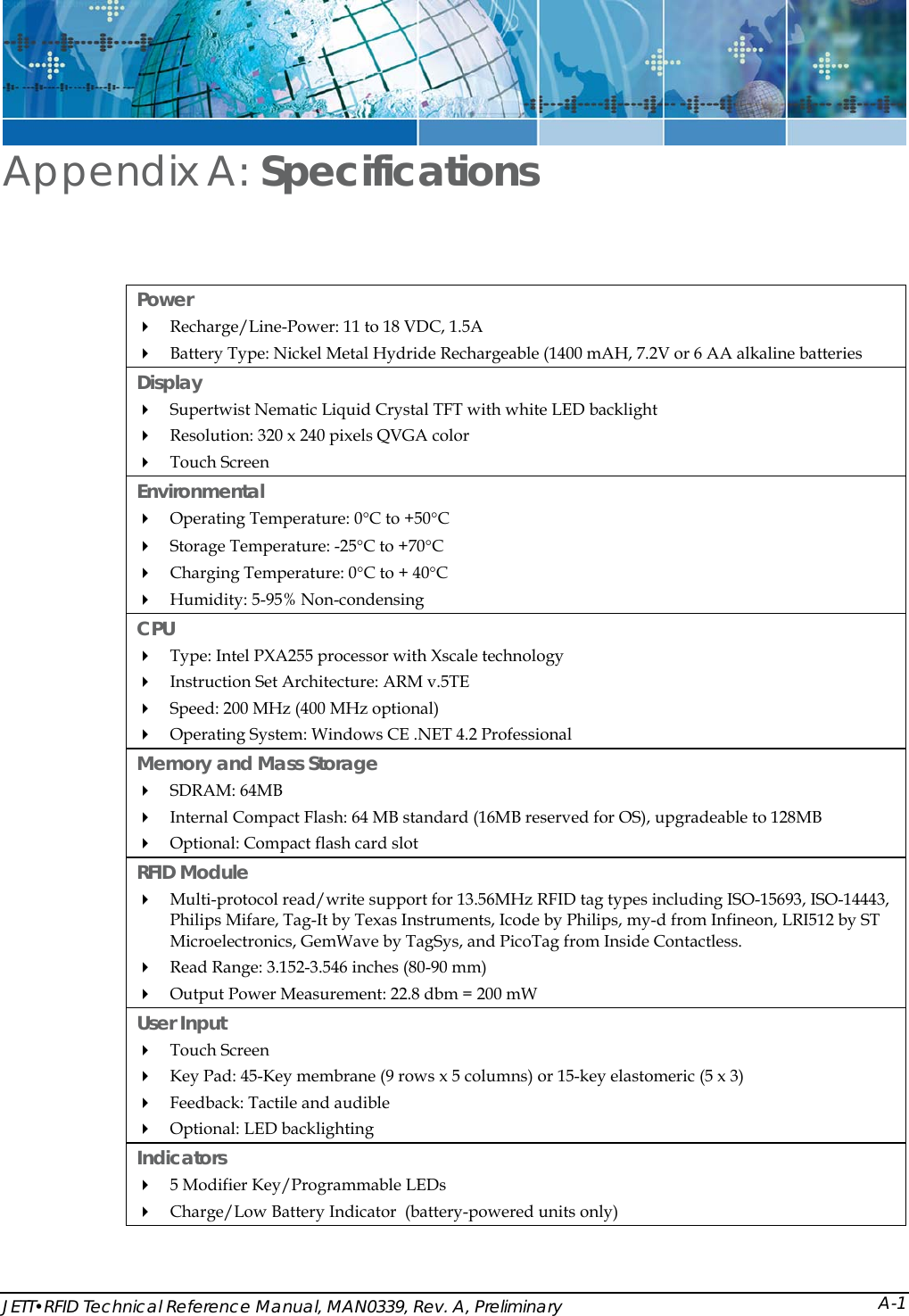
 About the JETT•RFID With its modern, ergonomic appearance and design, the JETT•RFID is the most recent addition to Two Technologies' series of rugged hand held computers for industrial and commercial use. Its quick mount connector system allows easy insertion and removal in cradle or vehicle mounts. Designed for one-handed operation, the JETT•RFID features a powerful Microsoft® Windows® CE .NET 4.2 operating system, Intel XScale® Technology Processor, color sunlight readable display with touch screen technology. The JETT•RFID is available as either a battery-powered version (Nickel Metal Hydride rechargeable battery pack or six AA Alkaline batteries) or line-powered version (7.5 - 18 VDC).  With its powerful 13.56MHz RFID integrated reader and flip-out antenna, the JETT•RFID can read and write most industry standard RFID tags within a 3.5 inch (80 mm) range making it ideal for “contactless” payments, item tracking and data collection.  Industry standard 13.56 MHz RFID tags and smart labels read by the JETT•RFID include: • ISO-15693/14443/18000 (International Standards Organization) • EPC-Electronic Product Code (EPCglobal) • GemWave (TAGSYS) • I-CODE (Phillips  Electronics) ®LR1512 (ST Microelectronics)s) tactless) JETT•RFID Features RFID comes standard as a battery powered unit with a rechargeable Nickel Metal Hydride  ws CE .NET Professional 4.2 as its operating system. You can develop s  utilizes an Intel PXA255 processor with XScale technology at 200MHz (400MHz  MB of SDRAM and 64MB (approximately 16MB used for e •  • MIFARE® (Phillips® Electronic• my-dTM (Infineon) • PicoTag (INSIDE Con• Tag-it™ (Texas Instruments) Power The JETT•(NiMH) battery pack, which is interchangeable with AA Alkaline batteries. Operating time on a full charge can range from eight to twelve hours, depending on power management and use. A multicolorLED indicates the current battery status as either charging (green) or low-battery (red)  Operating System  The JETT•RFID uses Windoapplications quickly and easily using the latest development tools and network connectivity such aMicrosoft’s eMbedded Visual C++ 4.O, Visual Studio .NET 2003 and ActiveSync 3.7. Processor The JETT•RFIDoptional).The Intel PXA255 processor is a highly integrated, 32-bit RISC processor that combines theefficiency of Intel design with the ARM v.5TE instruction set architecture.  Memory and Mass Storage The JETT•RFID comes standard with 64operating system) of internal compact flash memory, which is expandable to 128MB. For removabldata storage or I/O cards, the JETT•RFID is equipped with a Compact Flash (CF) slot.     Overview 1-2
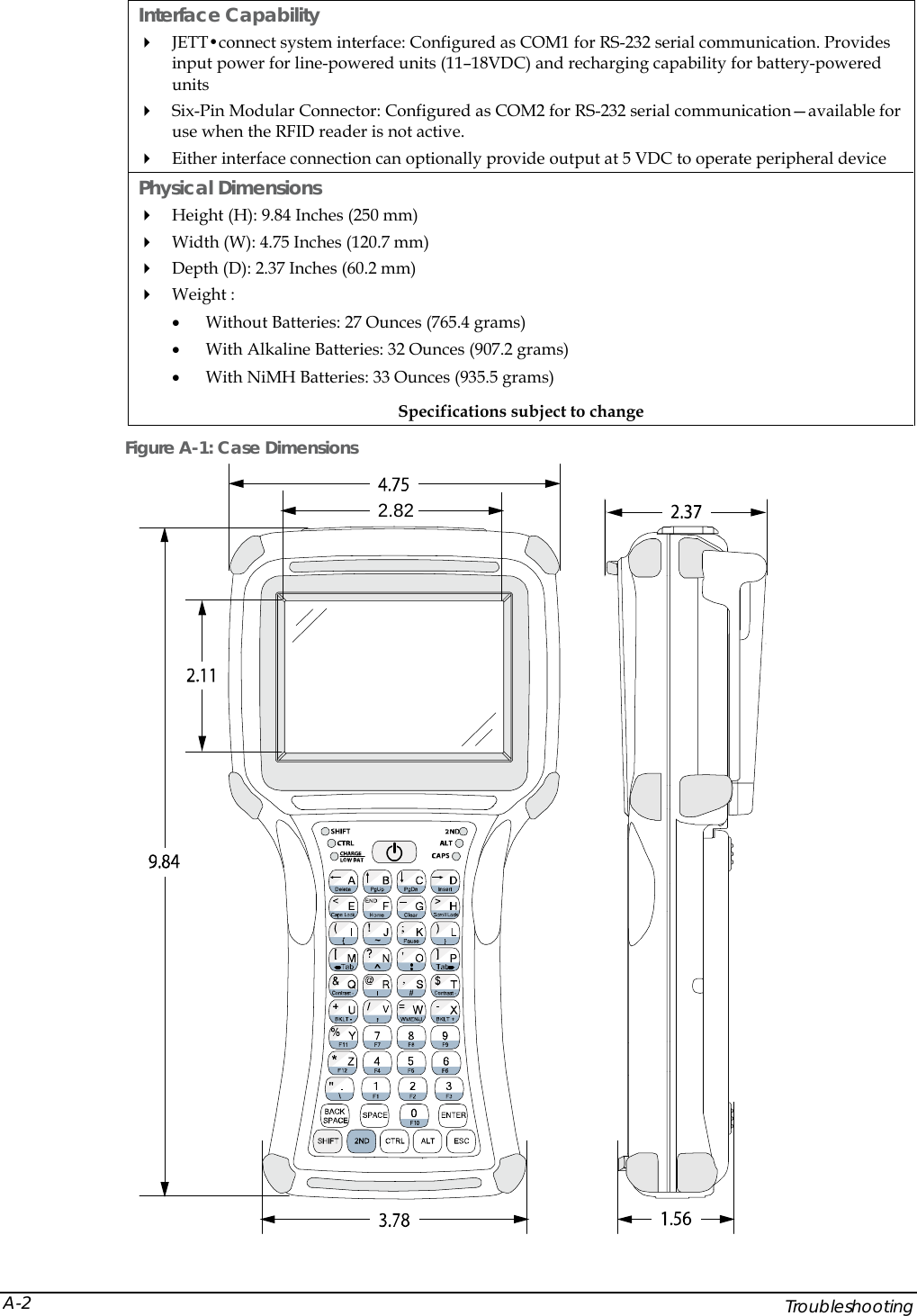
 Displays The JETT•RFID features a supertwist nematic liquid crystal 320 x 240 QVGA-TFT color sunlight readable display with options for a touch screen and LED backlight. Keypads Standard keypad configurations for the JETT•RFID include 15-key, 30-key, and 45-key elastomeric keypads and a 45-key membrane keypad. All standard keypad configurations have an option for LED backlighting. Indicators The JETT•RFID has five programmable LED indicators that can provide a number of useful functions including the state of keypad modifier keys. An additional LED indicate charge and low battery statuses. Interface and Expansion Capabilities  The JETT•RFID comes standard with its JETT•connect system interface configured as COM1 for RS-232 serial communication. The JETT•connect system can also optionally support a second communication port. The JETT•connect system also provides input power for line-powered units (11–18VDC) and recharging capability for battery-powered units.  The JETT•RFID also comes standard with a six-pin modular connector configured as COM2 for RS-232 serial communication that is available for use when the RFID reader is not active. Either interface connection can optionally provide output at 5 VDC to operate peripheral device Durability The case is made of General Electric Xenoy, one of the most durable chemical resistant materials available today. JETT•RFID Technical Reference Manual, MAN0339, Rev. A, Preliminary  1-3
 JETT•RFID Technical Reference Manual, MAN0339, Rev. A, Preliminary Chapter 2: JETT•RFID Components  Front Components and Indicators This section describes the components and indicators found on the font of the JETT•RFID. Figure A-1: Front Components and Indicators  Table 2-1: Front Components and Indicators Item Function  Description 1  Display   Supertwist nematic liquid crystal display with touch screen 2  Battery Indicator  Indicates low battery (red) status and charging (green) status 3  LEDs  Indicates use of the SHIFT, CTRL, 2ND ALT and CAPS modifier keys 4  On/Off Switch  Controls the Power, Suspend and Resume operations 5  Keypad  Standard 45-key keypad  (30 and 15-key keypads not shown)  52 341 2-1
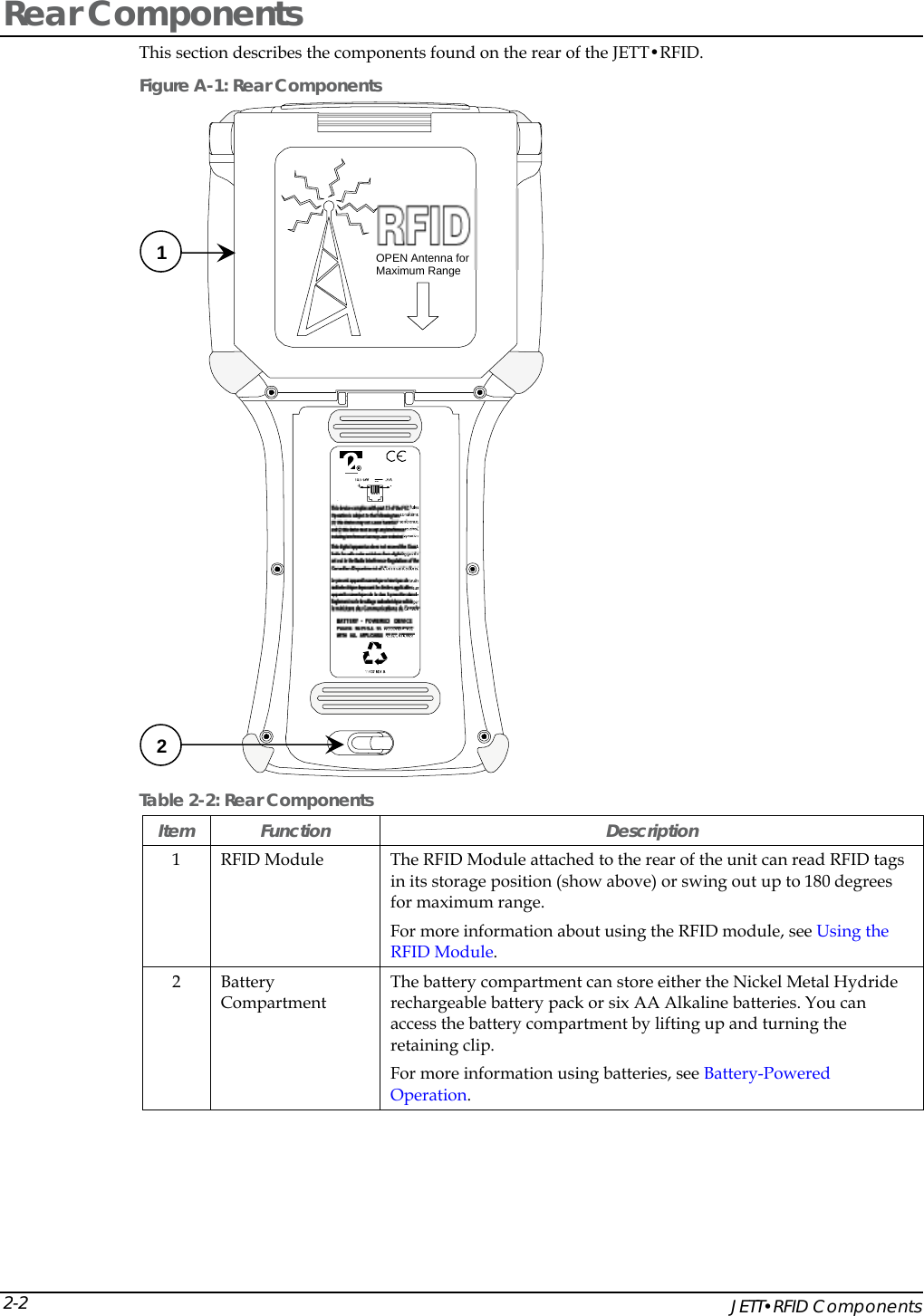
 Rear Components This section describes the components found on the rear of the JETT•RFID. Figure A-1: Rear Components OPEN Antenna forMaximum Range  Table 2-2: Rear Components Item Function  Description 1  RFID Module    The RFID Module attached to the rear of the unit can read RFID tags in its storage position (show above) or swing out up to 180 degrees for maximum range. For more information about using the RFID module, see Using the RFID Module. 2 Battery Compartment The battery compartment can store either the Nickel Metal Hydride rechargeable battery pack or six AA Alkaline batteries. You can access the battery compartment by lifting up and turning the retaining clip.  For more information using batteries, see Battery-Powered Operation. 2 1     JETT•RFID Components 2-2
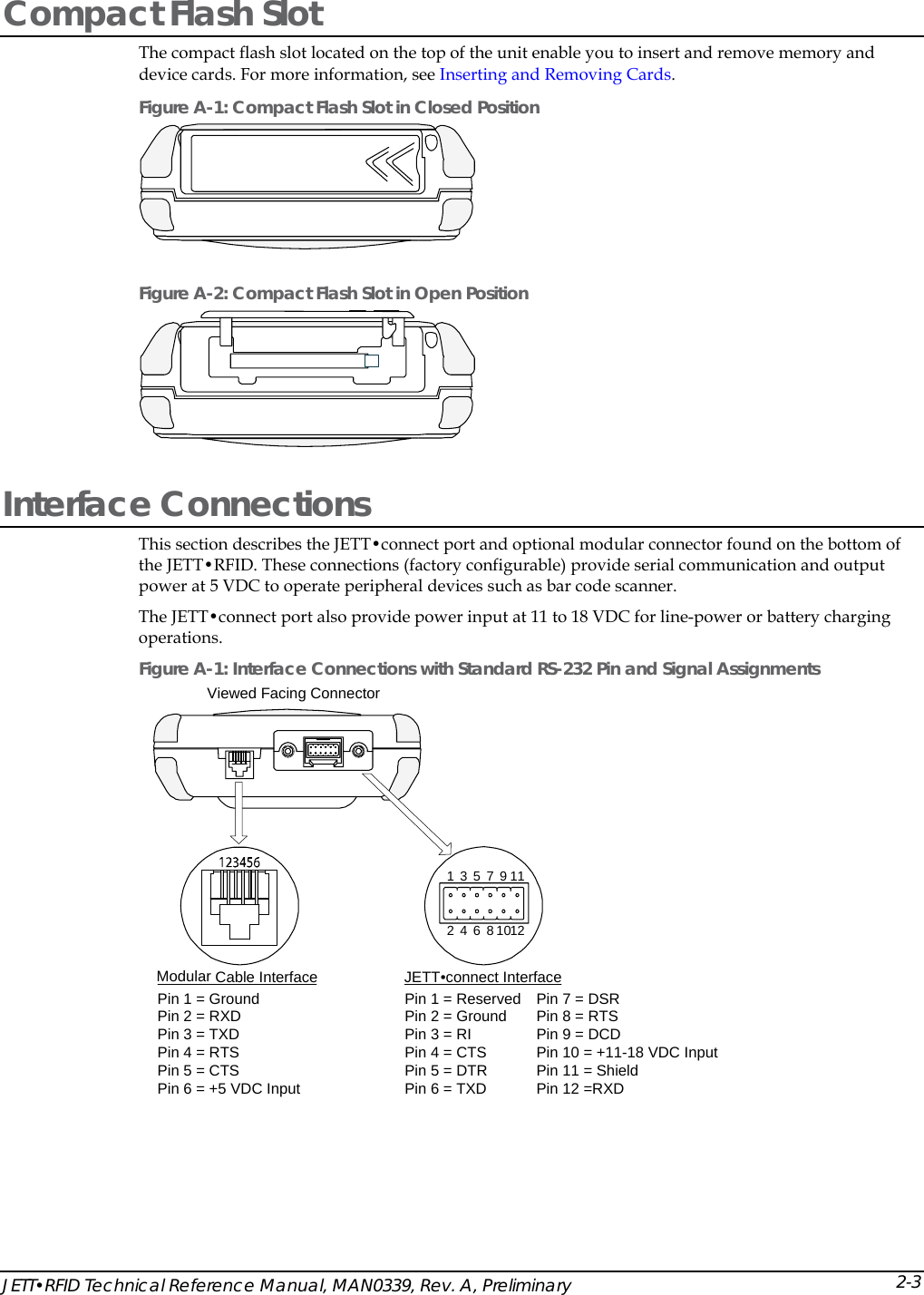
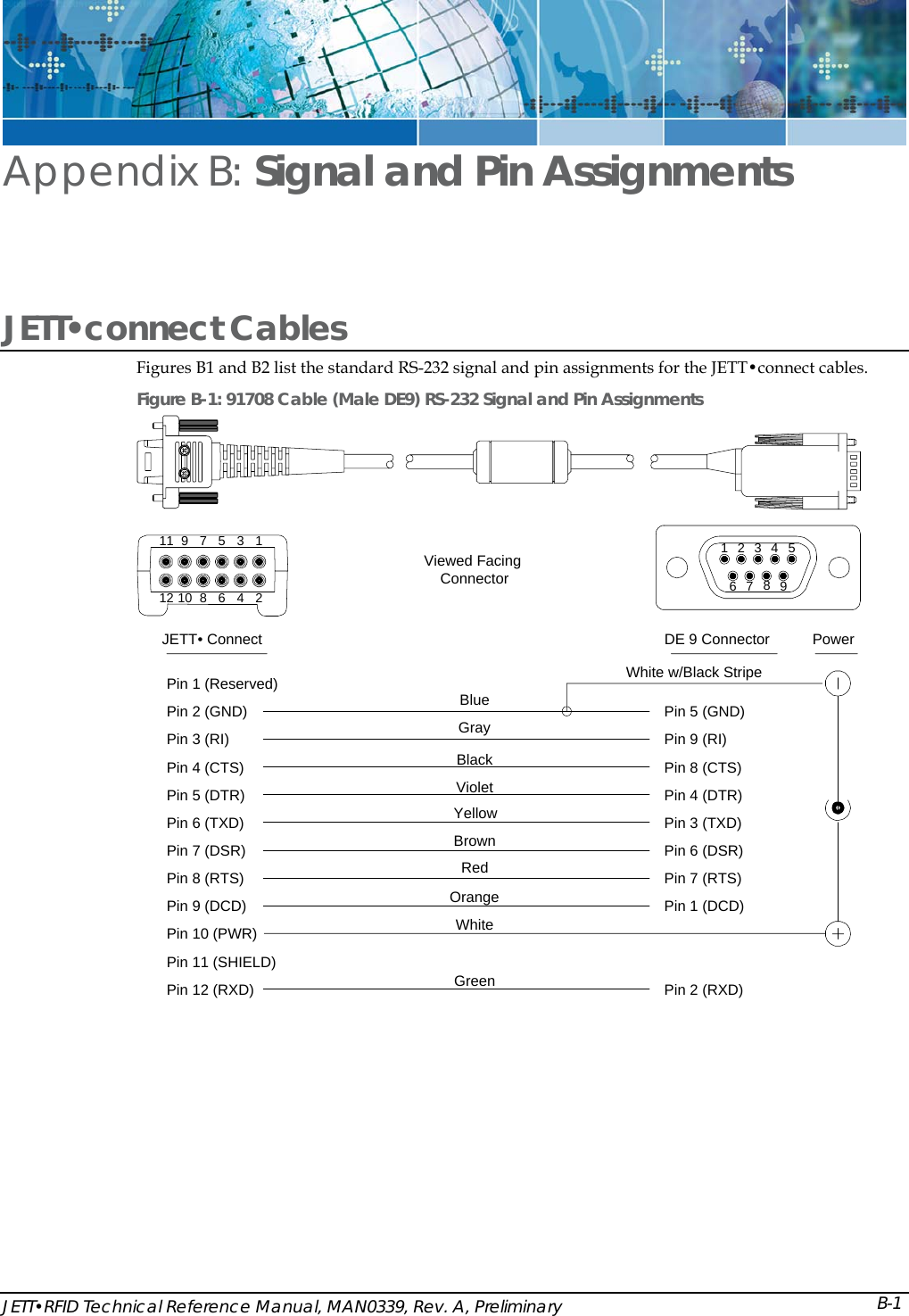
 Compact Flash Slot The compact flash slot located on the top of the unit enable you to insert and remove memory and device cards. For more information, see Inserting and Removing Cards. Figure A-1: Compact Flash Slot in Closed Position   Figure A-2: Compact Flash Slot in Open Position  Interface Connections This section describes the JETT•connect port and optional modular connector found on the bottom of the JETT•RFID. These connections (factory configurable) provide serial communication and output power at 5 VDC to operate peripheral devices such as bar code scanner. The JETT•connect port also provide power input at 11 to 18 VDC for line-power or battery charging operations. Figure A-1: Interface Connections with Standard RS-232 Pin and Signal Assignments Viewed Facing ConnectorPin 1 = GroundPin 2 = RXDPin 3 = TXDPin 4 = RTSPin 5 = CTSPin 6 = +5 VDC Input123456781012911Pin 1 = Reserved    Pin 7 = DSRPin 2 = Ground    Pin 8 = RTSPin 3 = RI    Pin 9 = DCDPin 4 = CTS    Pin 10 = +11-18 VDC InputPin 5 = DTR    Pin 11 = ShieldPin 6 = TXD    Pin 12 =RXDJETT•connect InterfaceModular Cable Interface JETT•RFID Technical Reference Manual, MAN0339, Rev. A, Preliminary 2-3
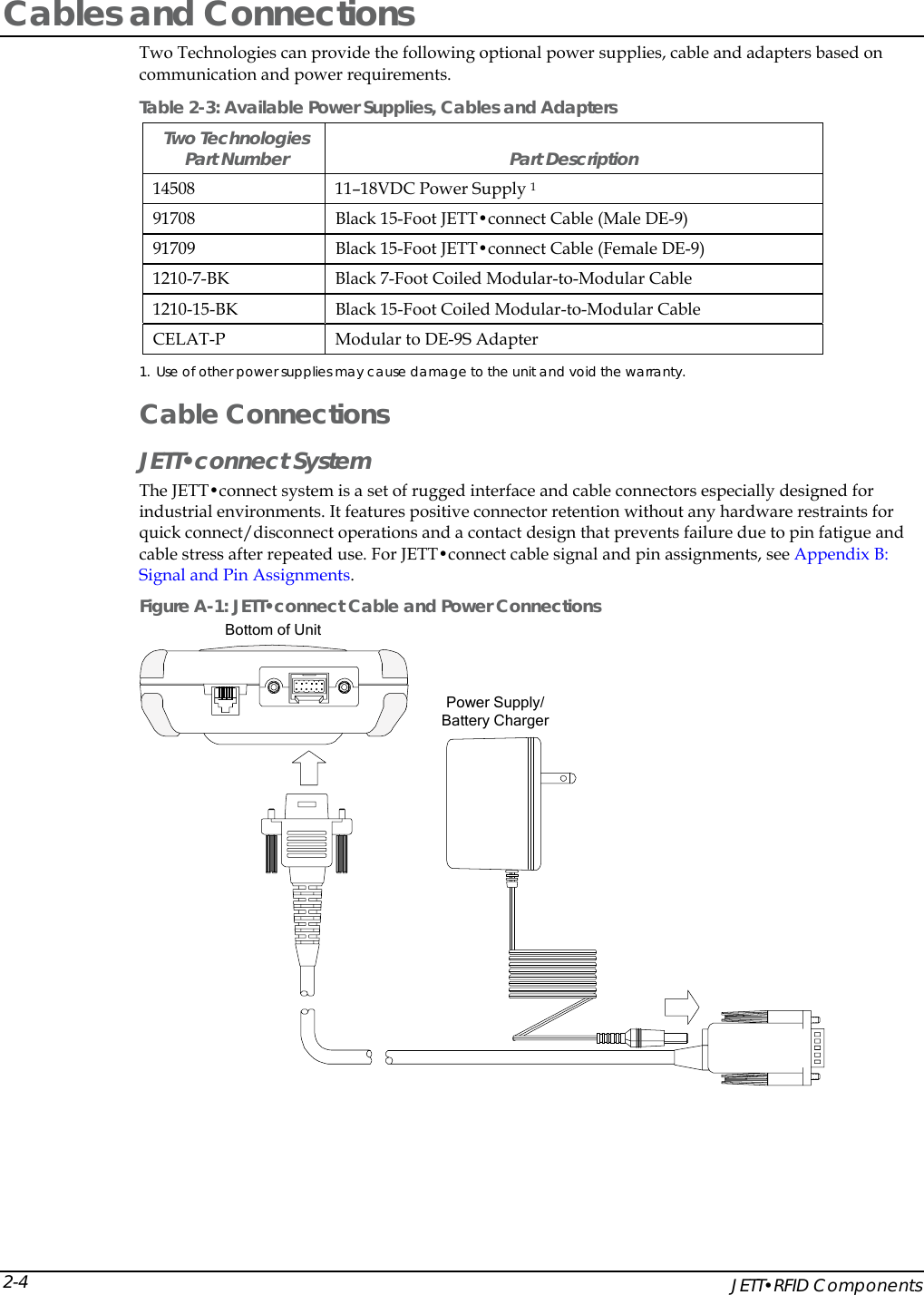
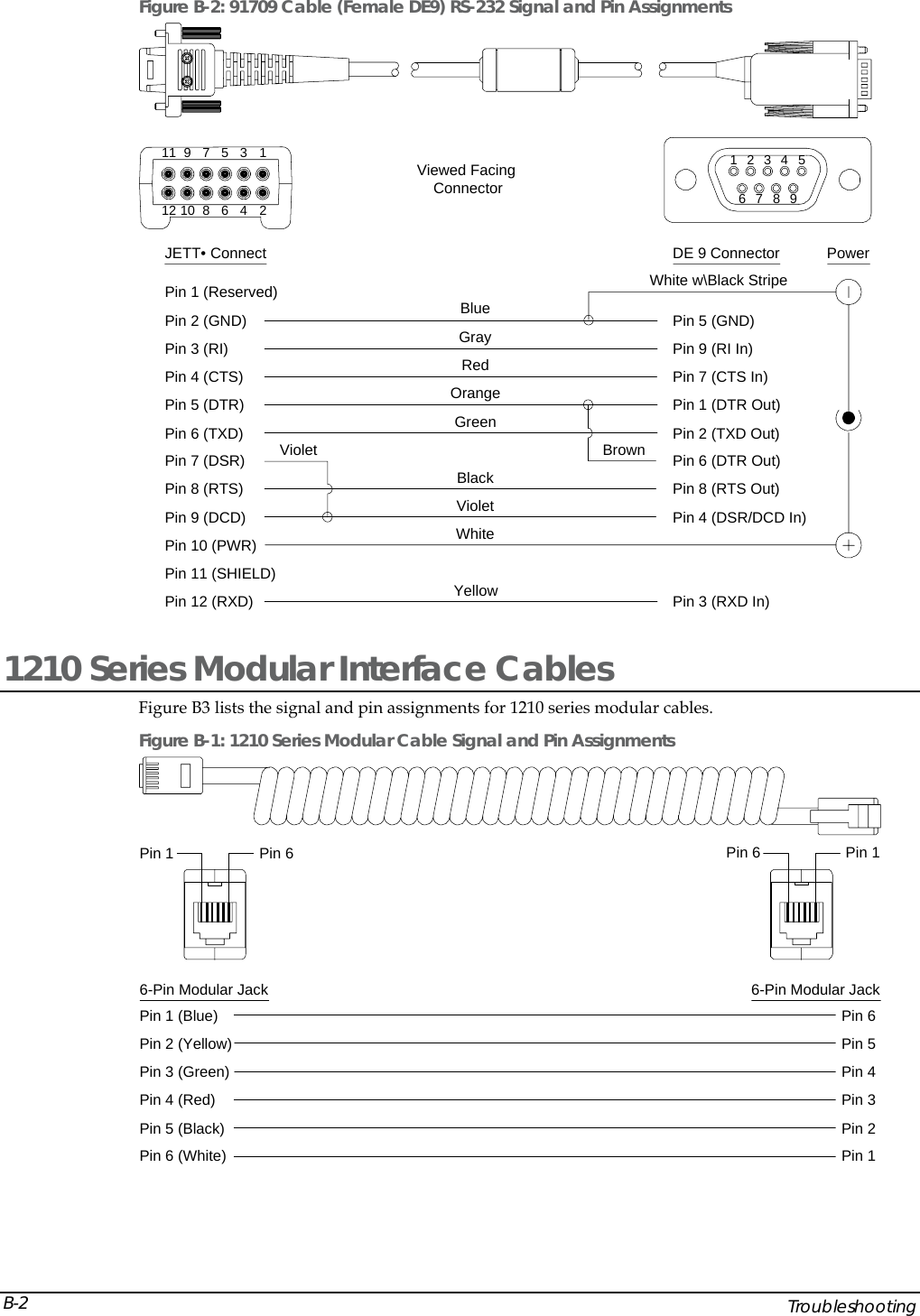
 Cables and Connections  Two Technologies can provide the following optional power supplies, cable and adapters based on communication and power requirements.  Table 2-3: Available Power Supplies, Cables and Adapters   Two Technologies  Part Number   Part Description 14508  11–18VDC Power Supply 1 91708  Black 15-Foot JETT•connect Cable (Male DE-9) 91709  Black 15-Foot JETT•connect Cable (Female DE-9) 1210-7-BK  Black 7-Foot Coiled Modular-to-Modular Cable  1210-15-BK  Black 15-Foot Coiled Modular-to-Modular Cable  CELAT-P  Modular to DE-9S Adapter 1. Use of other power supplies may cause damage to the unit and void the warranty. Cable Connections JETT•connect System The JETT•connect system is a set of rugged interface and cable connectors especially designed for industrial environments. It features positive connector retention without any hardware restraints for quick connect/disconnect operations and a contact design that prevents failure due to pin fatigue and cable stress after repeated use. For JETT•connect cable signal and pin assignments, see Appendix B: Signal and Pin Assignments. Figure A-1: JETT•connect Cable and Power Connections Power Supply/Battery ChargerBottom of Unit     JETT•RFID Components 2-4
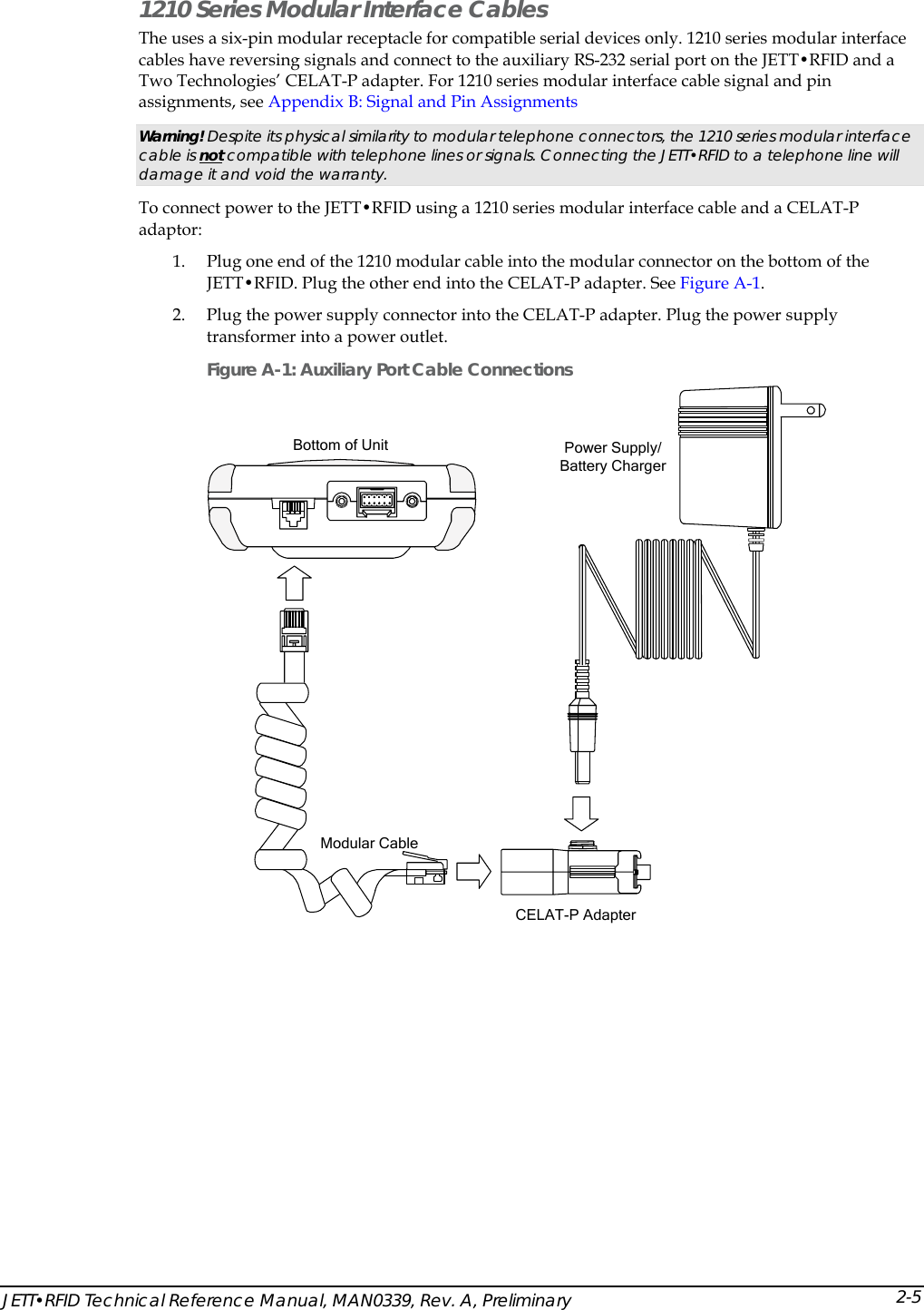
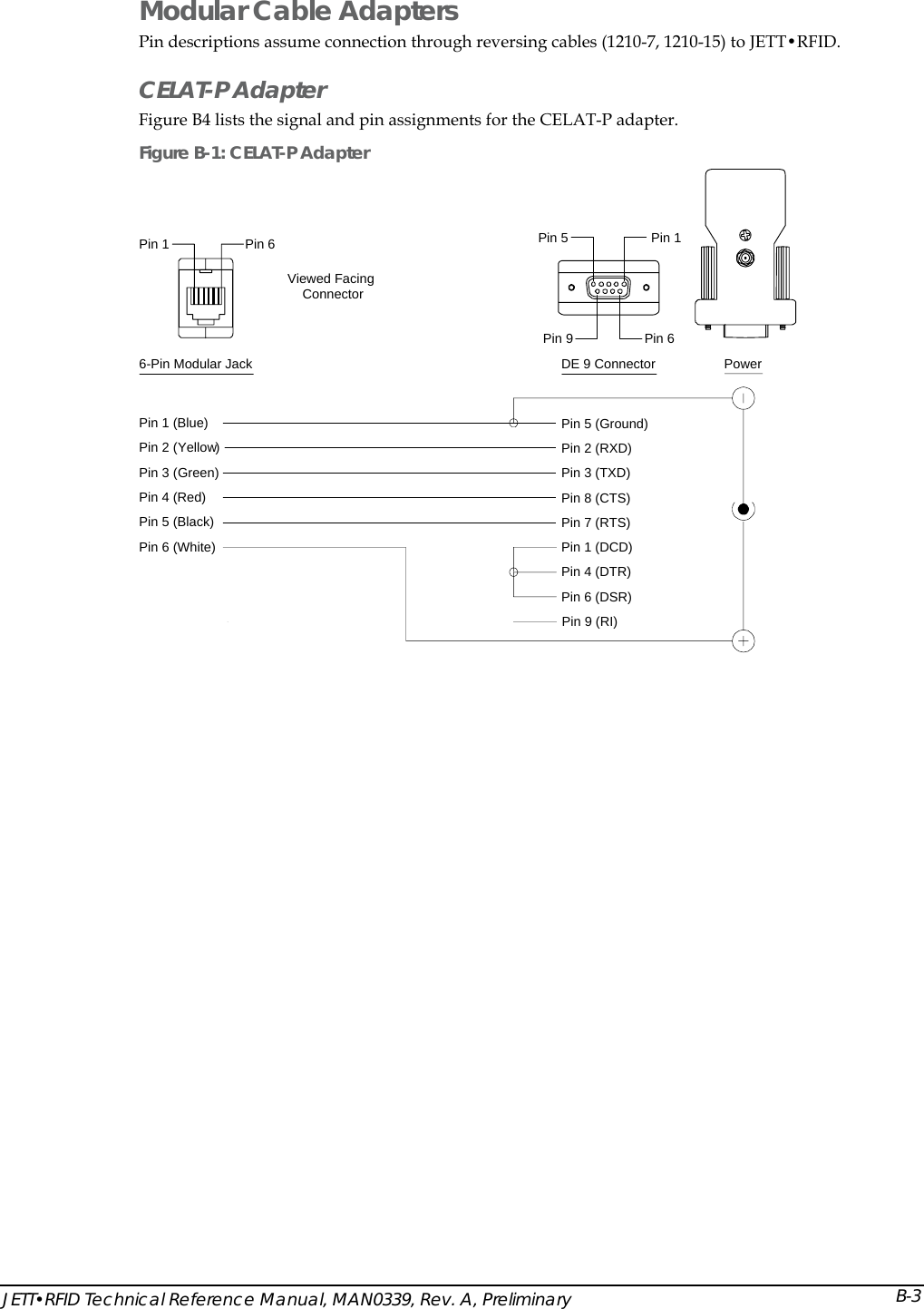
 1210 Series Modular Interface Cables The uses a six-pin modular receptacle for compatible serial devices only. 1210 series modular interface cables have reversing signals and connect to the auxiliary RS-232 serial port on the JETT•RFID and a Two Technologies’ CELAT-P adapter. For 1210 series modular interface cable signal and pin assignments, see Appendix B: Signal and Pin AssignmentsWarning! Despite its physical similarity to modular telephone connectors, the 1210 series modular interface cable is not compatible with telephone lines or signals. Connecting the JETT•RFID to a telephone line will damage it and void the warranty. To connect power to the JETT•RFID using a 1210 series modular interface cable and a CELAT-P adaptor: 1. Plug one end of the 1210 modular cable into the modular connector on the bottom of the JETT•RFID. Plug the other end into the CELAT-P adapter. See Figure A-1. 2. Plug the power supply connector into the CELAT-P adapter. Plug the power supply transformer into a power outlet. Figure A-1: Auxiliary Port Cable Connections Modular CableCELAT-P AdapterPower Supply/Battery ChargerBottom of Unit  JETT•RFID Technical Reference Manual, MAN0339, Rev. A, Preliminary 2-5
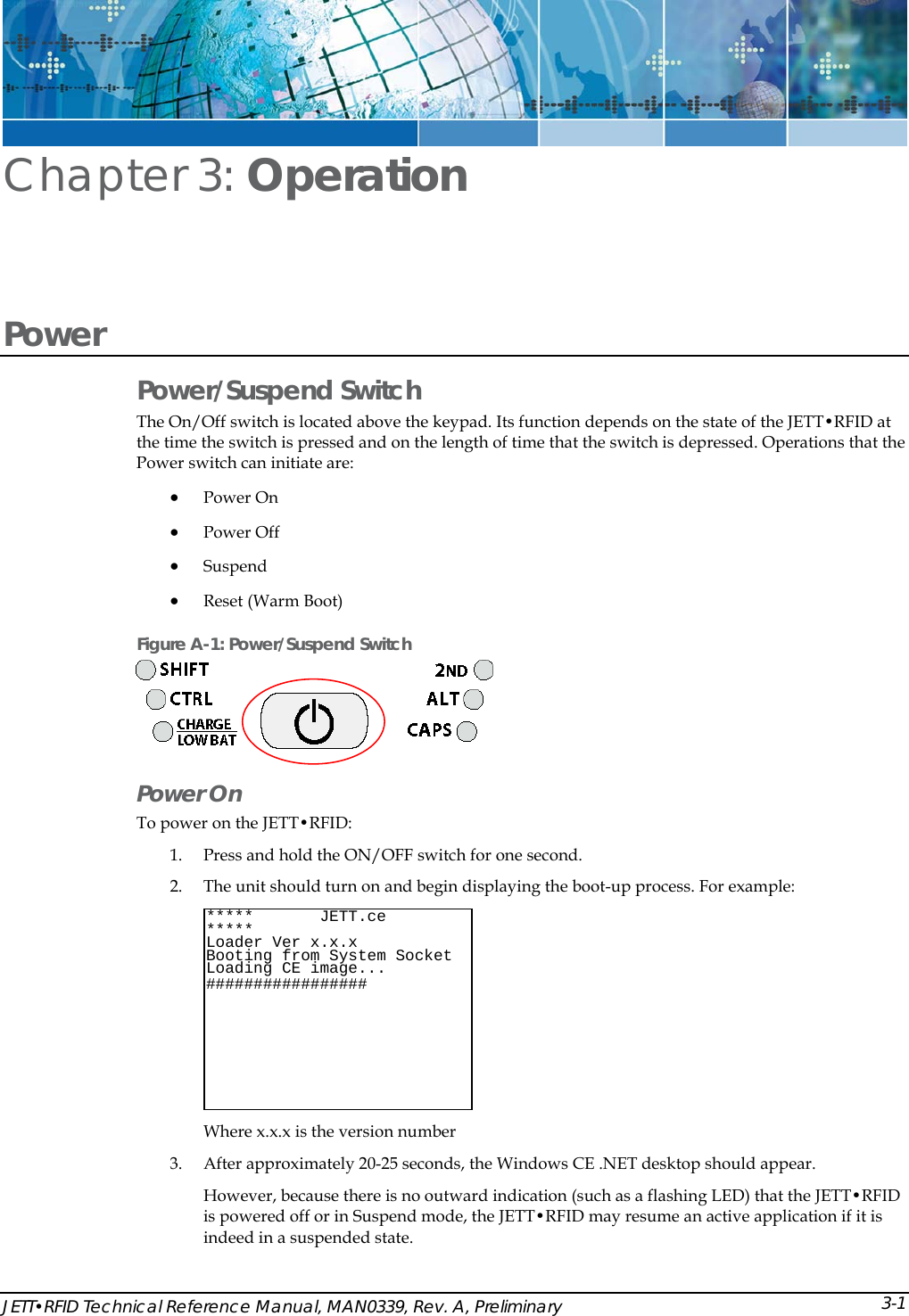
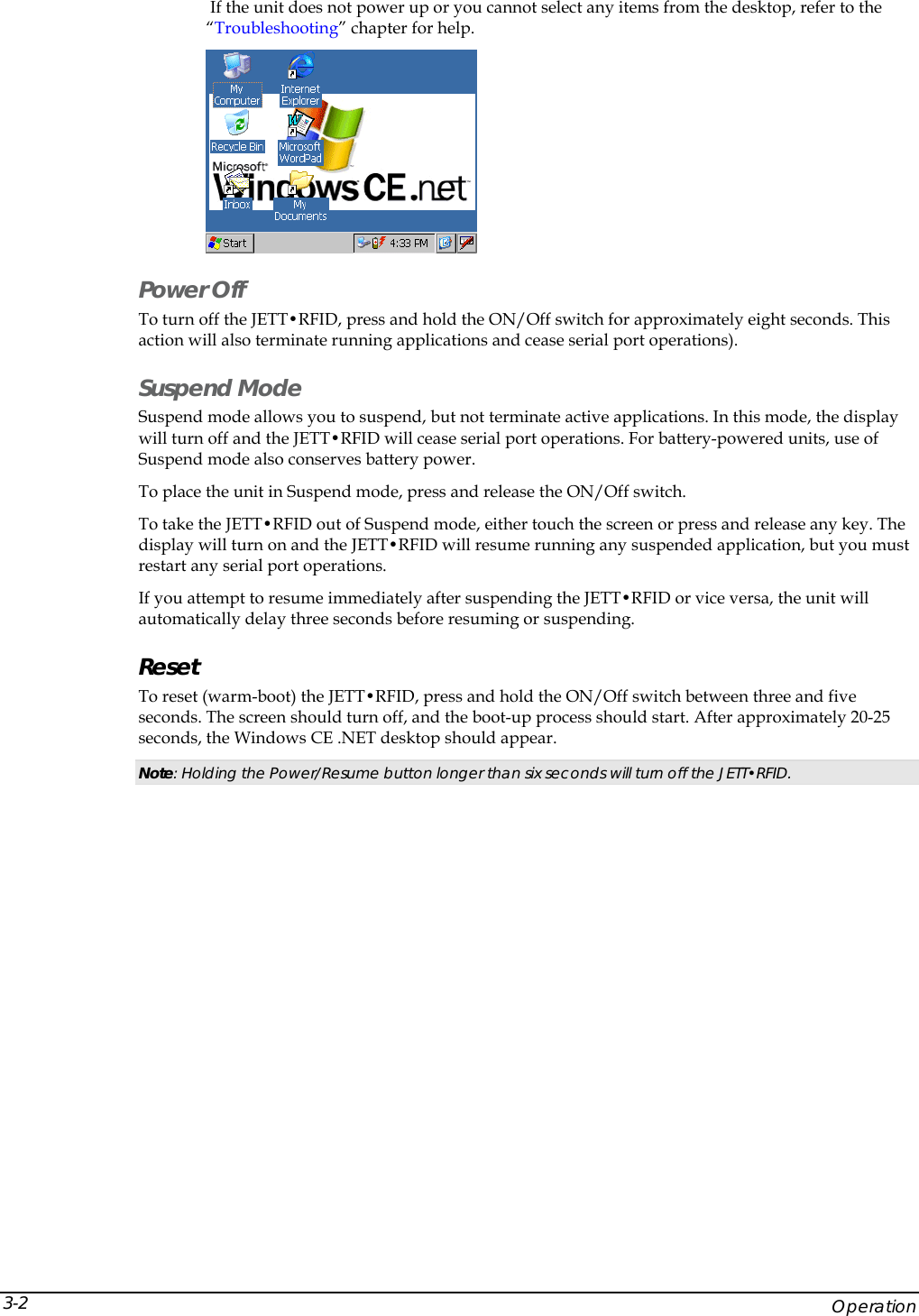
 JETT•RFID Technical Reference Manual, MAN0339, Rev. A, Preliminary Chapter 3: Operation Power  Power/Suspend Switch The On/Off switch is located above the keypad. Its function depends on the state of the JETT•RFID at the time the switch is pressed and on the length of time that the switch is depressed. Operations that the Power switch can initiate are: • Power On • Power Off • Suspend  • Reset (Warm Boot)  Figure A-1: Power/Suspend Switch  Power On  To power on the JETT•RFID:  1. Press and hold the ON/OFF switch for one second.  2. The unit should turn on and begin displaying the boot-up process. For example:  Where x.x.x is the version number *****       JETT.ce        ***** Loader Ver x.x.x  Socket Booting from System  Loading CE image...################  # 3. After approximately 20-25 seconds, the Windows CE .NET desktop should appear. However, because there is no outward indication (such as a flashing LED) that the JETT•RFID is powered off or in Suspend mode, the JETT•RFID may resume an active application if it is indeed in a suspended state. 3-1
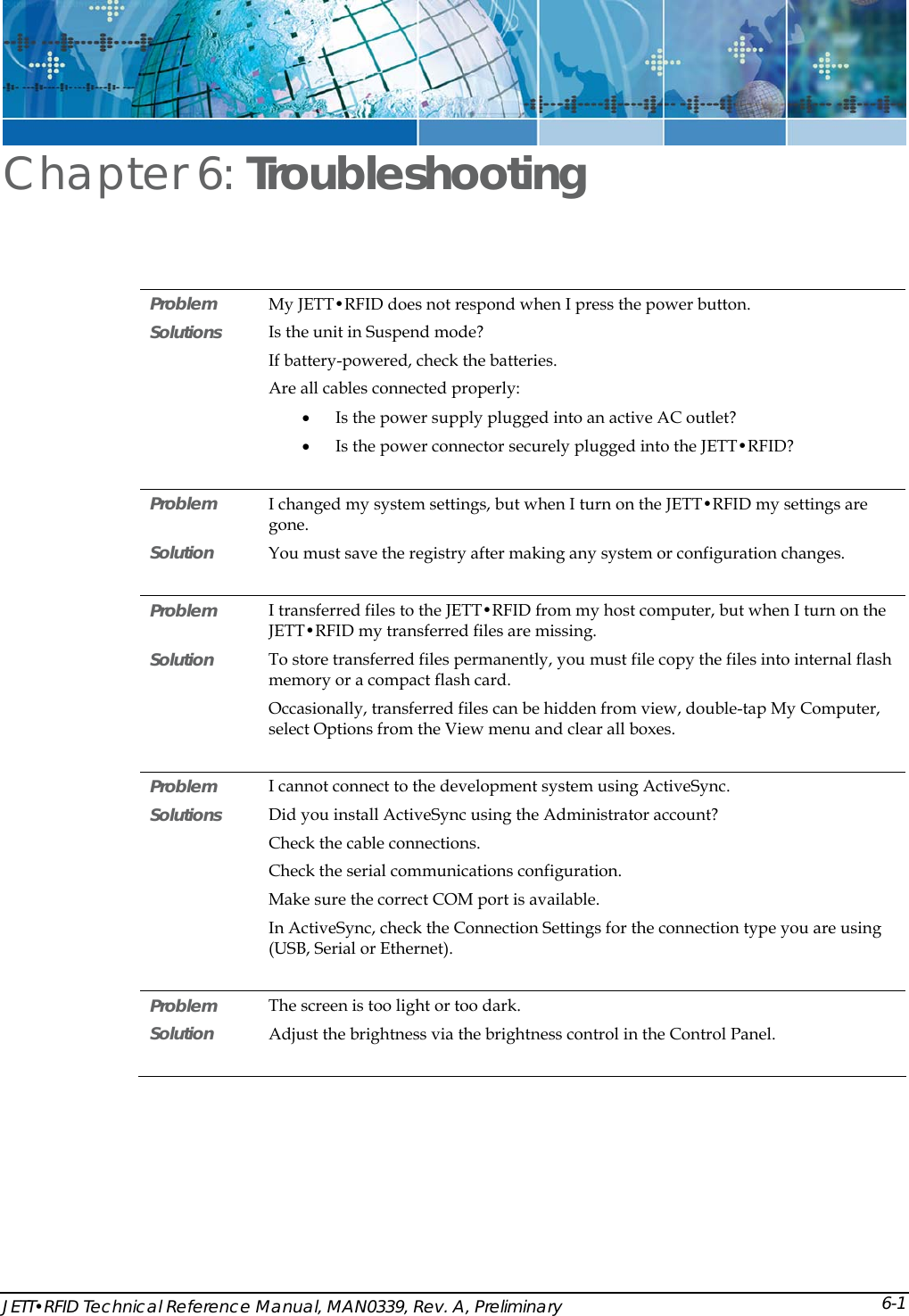
  If the unit does not power up or you cannot select any items from the desktop, refer to the “Troubleshooting” chapter for help.  Power Off To turn off the JETT•RFID, press and hold the ON/Off switch for approximately eight seconds. This action will also terminate running applications and cease serial port operations). Suspend Mode Suspend mode allows you to suspend, but not terminate active applications. In this mode, the display will turn off and the JETT•RFID will cease serial port operations. For battery-powered units, use of Suspend mode also conserves battery power. To place the unit in Suspend mode, press and release the ON/Off switch. To take the JETT•RFID out of Suspend mode, either touch the screen or press and release any key. The display will turn on and the JETT•RFID will resume running any suspended application, but you must restart any serial port operations. If you attempt to resume immediately after suspending the JETT•RFID or vice versa, the unit will automatically delay three seconds before resuming or suspending. Reset To reset (warm-boot) the JETT•RFID, press and hold the ON/Off switch between three and five seconds. The screen should turn off, and the boot-up process should start. After approximately 20-25 seconds, the Windows CE .NET desktop should appear. Note: Holding the Power/Resume button longer than six seconds will turn off the JETT•RFID.      Operation 3-2
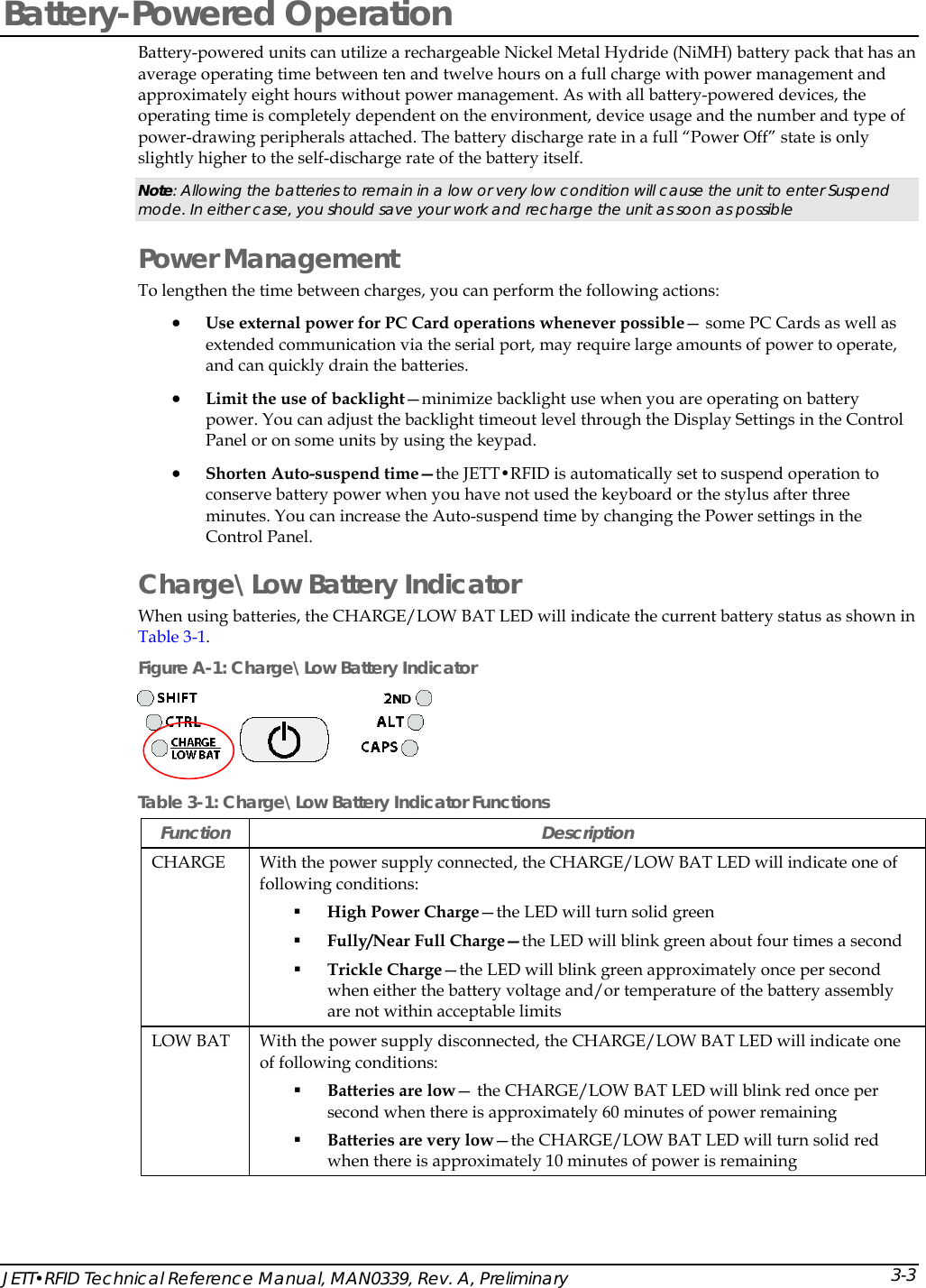
 Battery-Powered Operation Battery-powered units can utilize a rechargeable Nickel Metal Hydride (NiMH) battery pack that has an average operating time between ten and twelve hours on a full charge with power management and approximately eight hours without power management. As with all battery-powered devices, the operating time is completely dependent on the environment, device usage and the number and type of power-drawing peripherals attached. The battery discharge rate in a full “Power Off” state is only slightly higher to the self-discharge rate of the battery itself. Note: Allowing the batteries to remain in a low or very low condition will cause the unit to enter Suspend mode. In either case, you should save your work and recharge the unit as soon as possible Power Management To lengthen the time between charges, you can perform the following actions: • Use external power for PC Card operations whenever possible— some PC Cards as well as extended communication via the serial port, may require large amounts of power to operate, and can quickly drain the batteries.  • Limit the use of backlight—minimize backlight use when you are operating on battery power. You can adjust the backlight timeout level through the Display Settings in the Control Panel or on some units by using the keypad. • Shorten Auto-suspend time—the JETT•RFID is automatically set to suspend operation to conserve battery power when you have not used the keyboard or the stylus after three minutes. You can increase the Auto-suspend time by changing the Power settings in the Control Panel.  Charge\Low Battery Indicator When using batteries, the CHARGE/LOW BAT LED will indicate the current battery status as shown in Table 3-1. Figure A-1: Charge\Low Battery Indicator  Table 3-1: Charge\Low Battery Indicator Functions Function Description CHARGE  With the power supply connected, the CHARGE/LOW BAT LED will indicate one of following conditions:  High Power Charge—the LED will turn solid green  Fully/Near Full Charge—the LED will blink green about four times a second  Trickle Charge—the LED will blink green approximately once per second when either the battery voltage and/or temperature of the battery assembly are not within acceptable limits LOW BAT  With the power supply disconnected, the CHARGE/LOW BAT LED will indicate one of following conditions:  Batteries are low— the CHARGE/LOW BAT LED will blink red once per second when there is approximately 60 minutes of power remaining  Batteries are very low—the CHARGE/LOW BAT LED will turn solid red when there is approximately 10 minutes of power is remaining JETT•RFID Technical Reference Manual, MAN0339, Rev. A, Preliminary  3-3
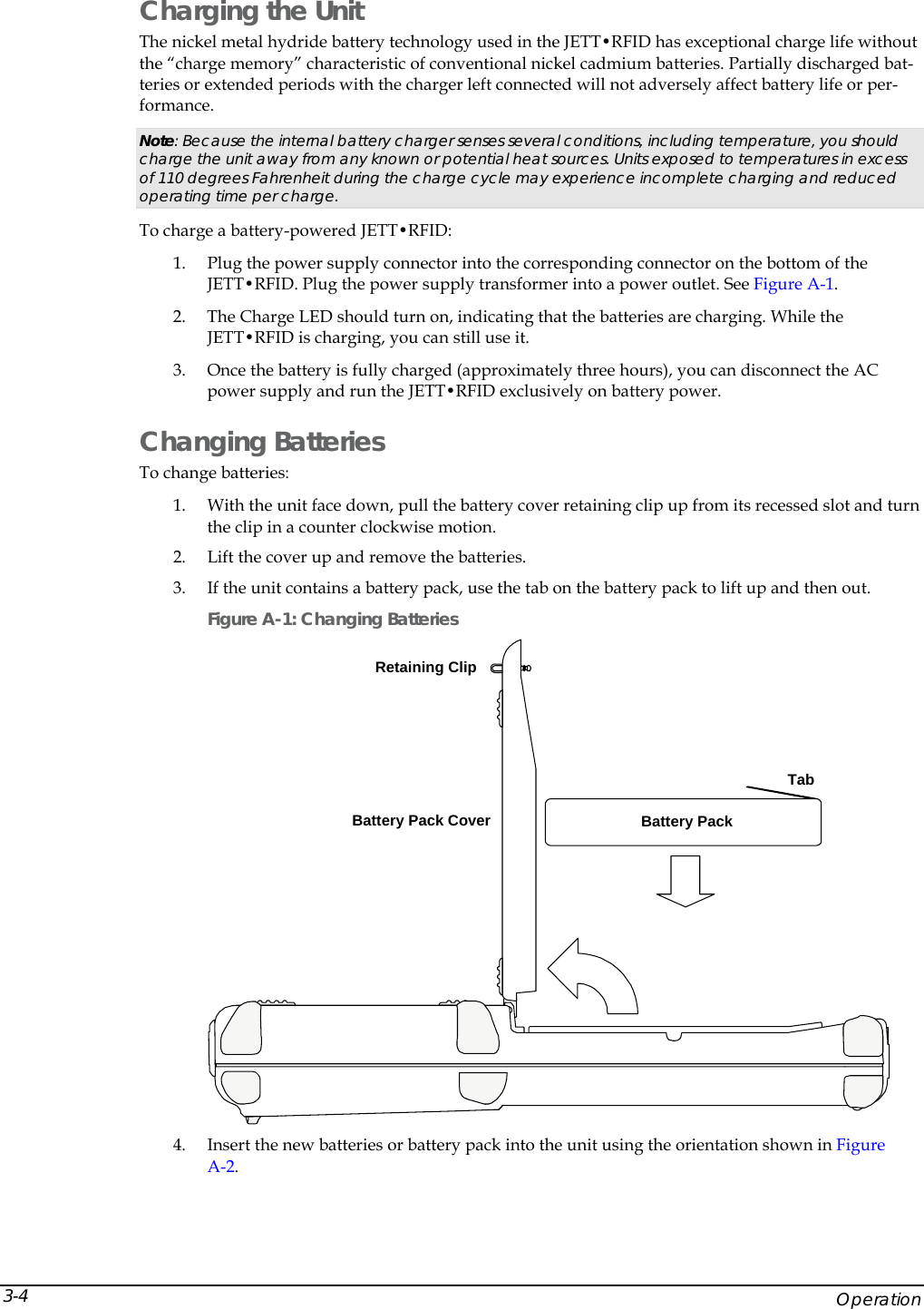
 Charging the Unit The nickel metal hydride battery technology used in the JETT•RFID has exceptional charge life without the “charge memory” characteristic of conventional nickel cadmium batteries. Partially discharged bat-teries or extended periods with the charger left connected will not adversely affect battery life or per-formance. Note: Because the internal battery charger senses several conditions, including temperature, you should charge the unit away from any known or potential heat sources. Units exposed to temperatures in excess of 110 degrees Fahrenheit during the charge cycle may experience incomplete charging and reduced operating time per charge.   To charge a battery-powered JETT•RFID: 1. Plug the power supply connector into the corresponding connector on the bottom of the JETT•RFID. Plug the power supply transformer into a power outlet. See Figure A-1. 2. The Charge LED should turn on, indicating that the batteries are charging. While the JETT•RFID is charging, you can still use it. 3. Once the battery is fully charged (approximately three hours), you can disconnect the AC power supply and run the JETT•RFID exclusively on battery power. Changing Batteries To change batteries: 1. With the unit face down, pull the battery cover retaining clip up from its recessed slot and turn the clip in a counter clockwise motion. 2. Lift the cover up and remove the batteries. 3. If the unit contains a battery pack, use the tab on the battery pack to lift up and then out. Figure A-1: Changing Batteries Battery Pack Cover Battery PackTabRetaining Clip 4. Insert the new batteries or battery pack into the unit using the orientation shown in Figure A-2.     Operation 3-4
 Figure A-2: Battery Orientation  5. Close the battery cover and turn the battery cover retaining clip clockwise to lock the cover. Data Entry 45-Key Keypad  In order to provide the functionality of a full-sized keyboard with only 45 keys, the JETT•RFID keypad must depart from PC-style key assignment conventions. Units configured with the standard 45-key keypad typically utilize five LED indicators (located above the ON/OFF switch) to indicate the active state of keypad modifier keys. Units with internal batteries also use a LED to indicate the battery status (Table 3-1). Units with 45-key keypads also have keypad functions to adjust the contrast and backlight. Figure A-1: 45-Key Keypad  GADelete BPgUp CPgDn DInsertE FHome HI{J~KL}<END _>^Pause(!;)[?']RST#Q&@$U+V,/XBKLT +-W=Y%7F79F98F8Z*4F46F65F5.\1F12F23F30F10BACKSPACE SPACE ENTERSHIFT 2ND CTRL ALT ESCBKLT -"ClearOMN PTab Tab,WMENUF11F12| JETT•RFID Technical Reference Manual, MAN0339, Rev. A, Preliminary  3-5
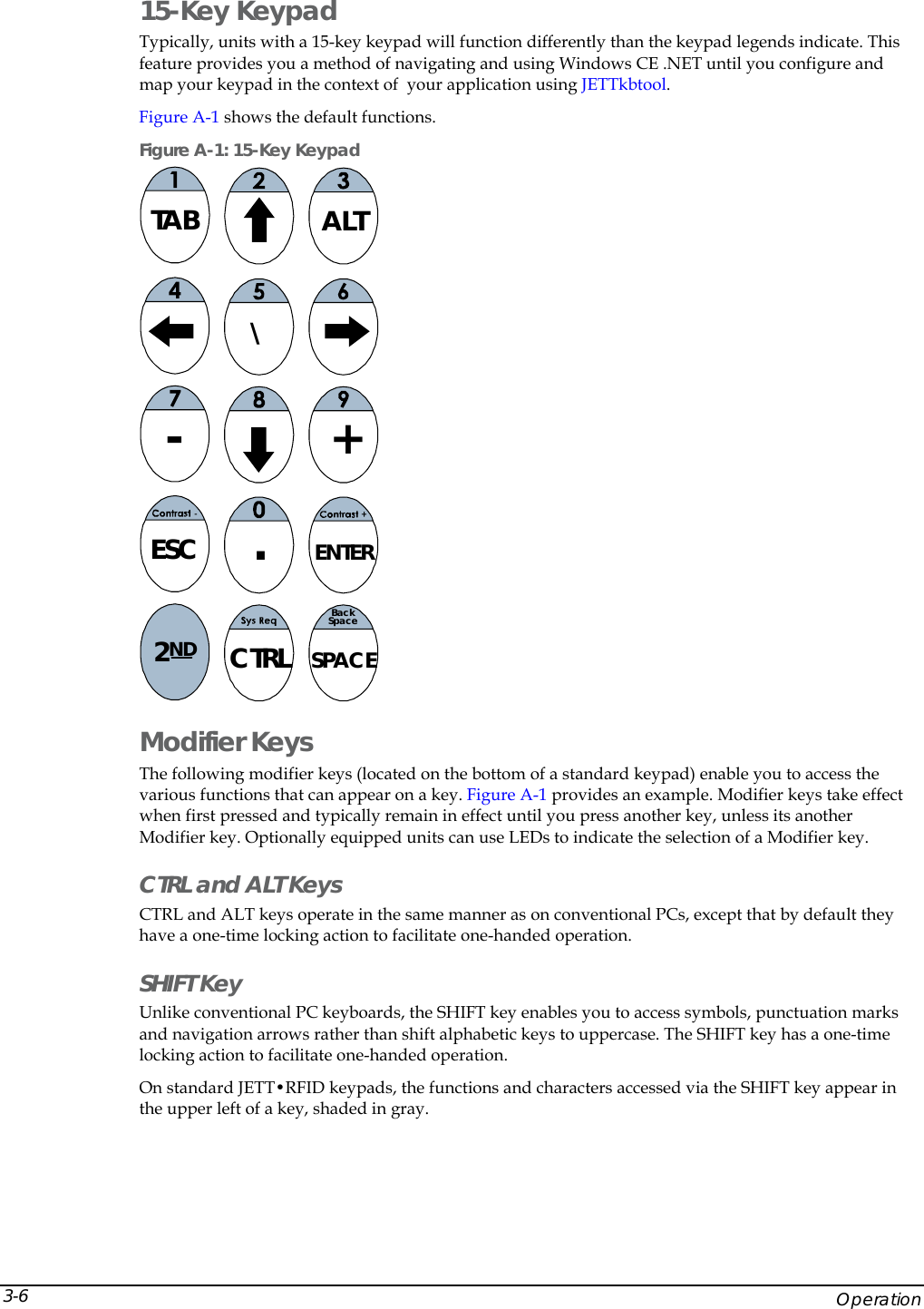
 15-Key Keypad  Typically, units with a 15-key keypad will function differently than the keypad legends indicate. This feature provides you a method of navigating and using Windows CE .NET until you configure and map your keypad in the context of  your application using JETTkbtool.  Figure A-1 shows the default functions.   Figure A-1: 15-Key Keypad  TAB ALT\-+ESC .ENTER2ND CTRLBackSpaceSPACE Modifier Keys The following modifier keys (located on the bottom of a standard keypad) enable you to access the various functions that can appear on a key. Figure A-1 provides an example. Modifier keys take effect when first pressed and typically remain in effect until you press another key, unless its another Modifier key. Optionally equipped units can use LEDs to indicate the selection of a Modifier key. CTRL and ALT Keys CTRL and ALT keys operate in the same manner as on conventional PCs, except that by default they have a one-time locking action to facilitate one-handed operation. SHIFT Key Unlike conventional PC keyboards, the SHIFT key enables you to access symbols, punctuation marks and navigation arrows rather than shift alphabetic keys to uppercase. The SHIFT key has a one-time locking action to facilitate one-handed operation. On standard JETT•RFID keypads, the functions and characters accessed via the SHIFT key appear in the upper left of a key, shaded in gray.     Operation 3-6
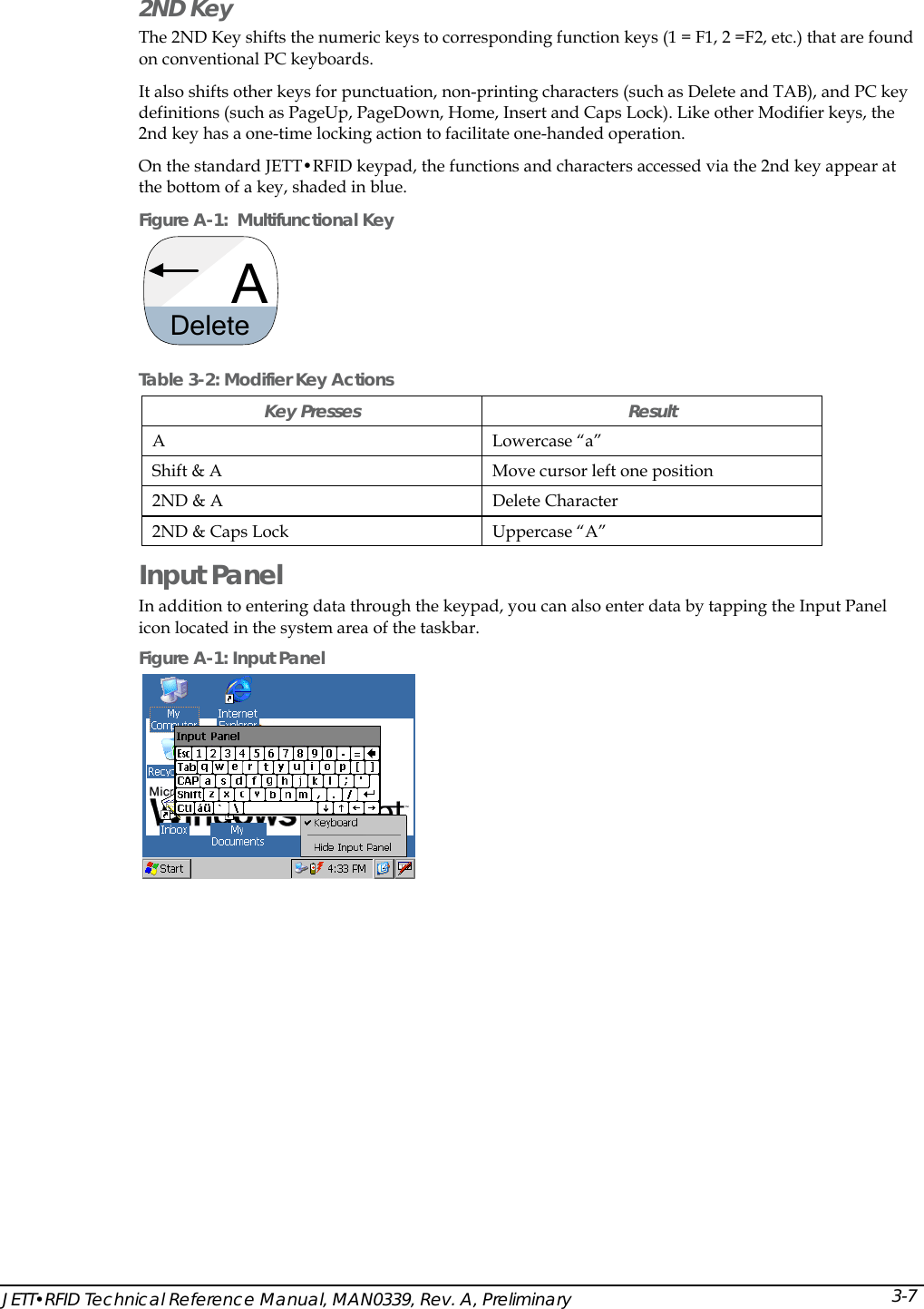
 2ND Key The 2ND Key shifts the numeric keys to corresponding function keys (1 = F1, 2 =F2, etc.) that are found on conventional PC keyboards.  It also shifts other keys for punctuation, non-printing characters (such as Delete and TAB), and PC key definitions (such as PageUp, PageDown, Home, Insert and Caps Lock). Like other Modifier keys, the 2nd key has a one-time locking action to facilitate one-handed operation.  On the standard JETT•RFID keypad, the functions and characters accessed via the 2nd key appear at the bottom of a key, shaded in blue. Figure A-1:  Multifunctional Key   ADelete Table 3-2: Modifier Key Actions Key Presses  Result A Lowercase “a” Shift & A  Move cursor left one position 2ND & A  Delete Character 2ND & Caps Lock  Uppercase “A” Input Panel  In addition to entering data through the keypad, you can also enter data by tapping the Input Panel icon located in the system area of the taskbar. Figure A-1: Input Panel   JETT•RFID Technical Reference Manual, MAN0339, Rev. A, Preliminary  3-7
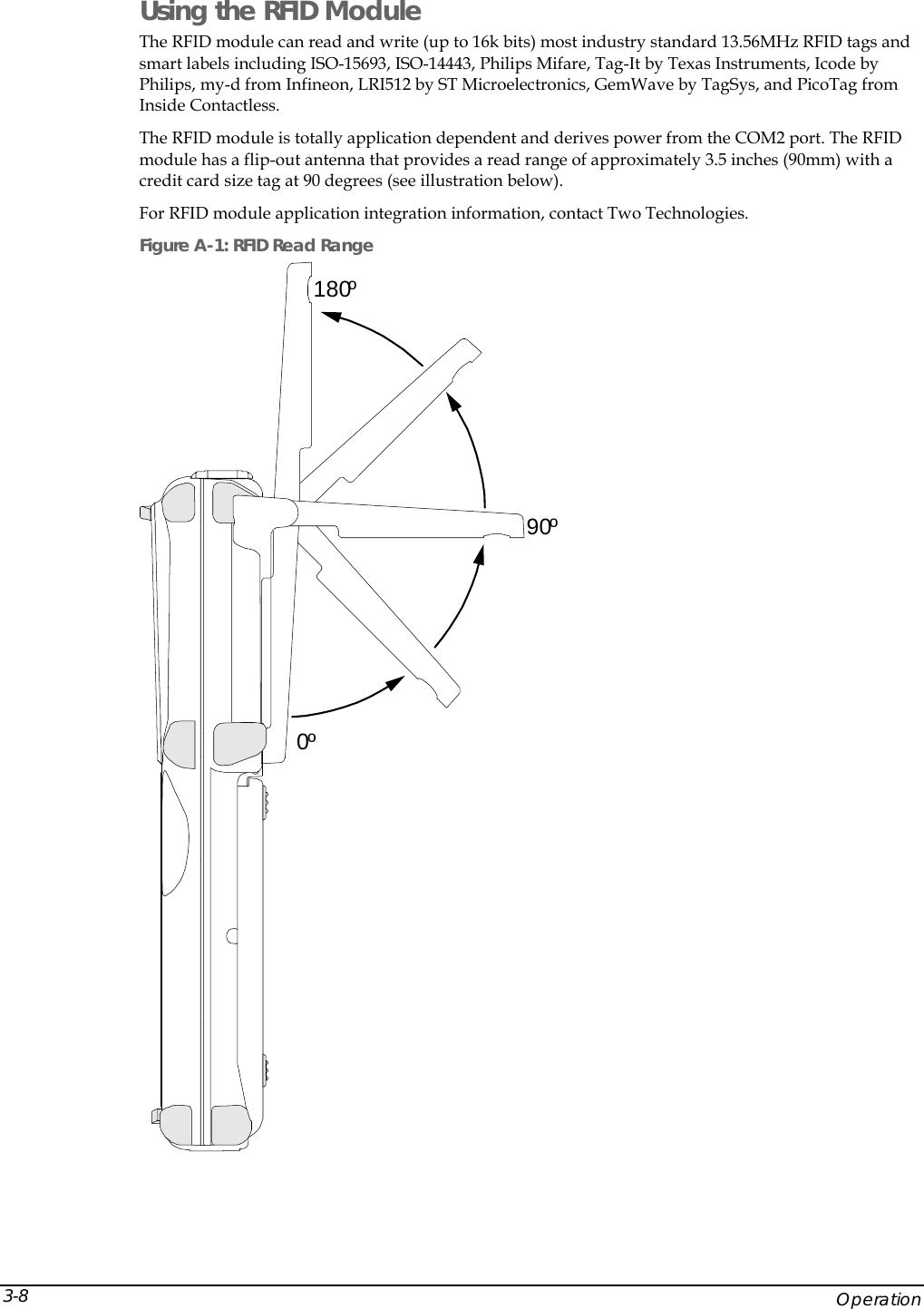
 Using the RFID Module  The RFID module can read and write (up to 16k bits) most industry standard 13.56MHz RFID tags and smart labels including ISO-15693, ISO-14443, Philips Mifare, Tag-It by Texas Instruments, Icode by Philips, my-d from Infineon, LRI512 by ST Microelectronics, GemWave by TagSys, and PicoTag from Inside Contactless.  The RFID module is totally application dependent and derives power from the COM2 port. The RFID module has a flip-out antenna that provides a read range of approximately 3.5 inches (90mm) with a credit card size tag at 90 degrees (see illustration below). For RFID module application integration information, contact Two Technologies. Figure A-1: RFID Read Range 0º180º90º     Operation 3-8
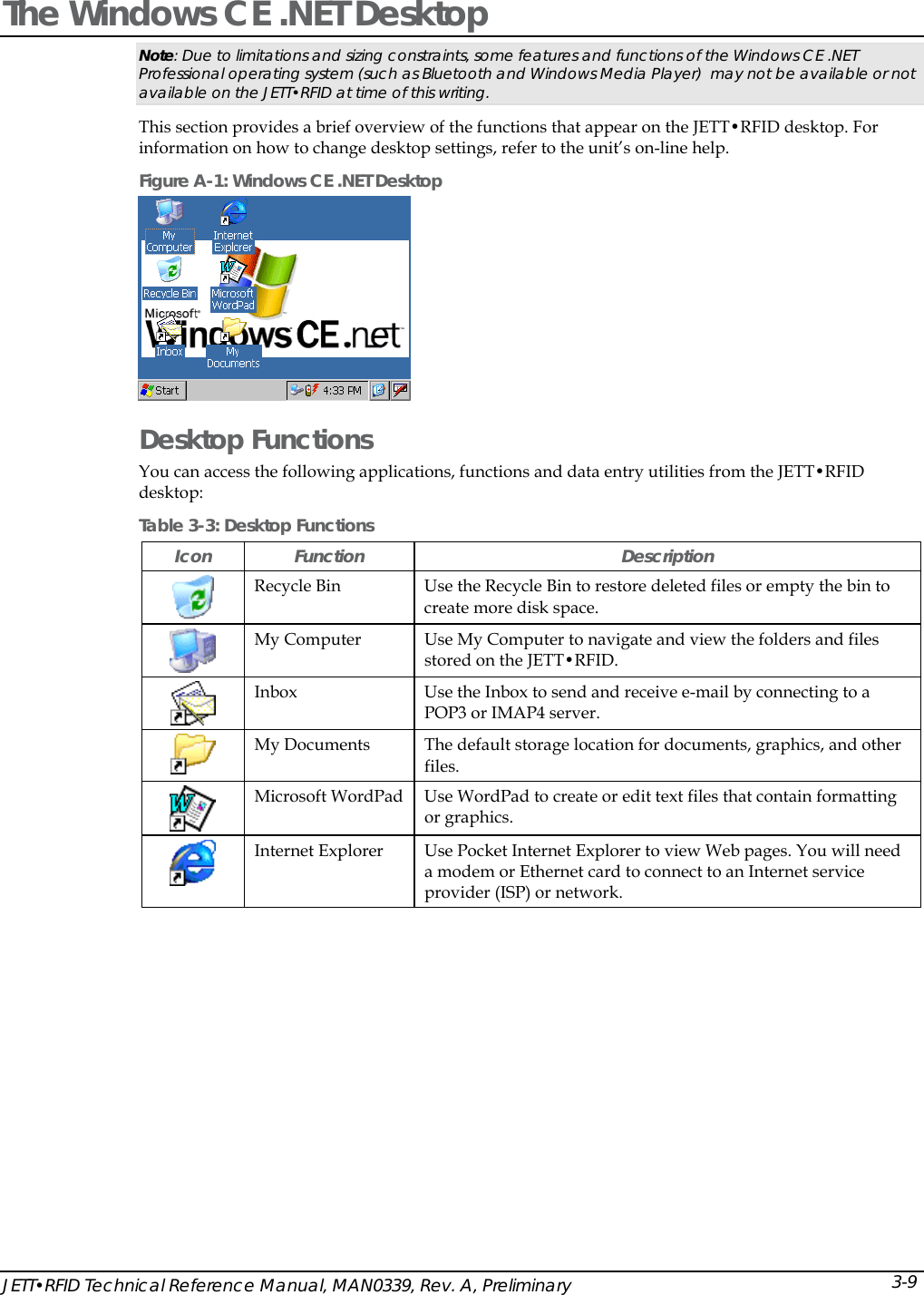
 The Windows CE .NET Desktop Note: Due to limitations and sizing constraints, some features and functions of the Windows CE .NET Professional operating system (such as Bluetooth and Windows Media Player)  may not be available or not available on the JETT•RFID at time of this writing. This section provides a brief overview of the functions that appear on the JETT•RFID desktop. For information on how to change desktop settings, refer to the unit’s on-line help. Figure A-1: Windows CE .NET Desktop  Desktop Functions  You can access the following applications, functions and data entry utilities from the JETT•RFID desktop: Table 3-3: Desktop Functions Icon Function  Description  Recycle Bin  Use the Recycle Bin to restore deleted files or empty the bin to create more disk space.  My Computer  Use My Computer to navigate and view the folders and files stored on the JETT•RFID.   Inbox  Use the Inbox to send and receive e-mail by connecting to a POP3 or IMAP4 server.  My Documents  The default storage location for documents, graphics, and other files.   Microsoft WordPad  Use WordPad to create or edit text files that contain formatting or graphics.   Internet Explorer  Use Pocket Internet Explorer to view Web pages. You will need a modem or Ethernet card to connect to an Internet service provider (ISP) or network.  JETT•RFID Technical Reference Manual, MAN0339, Rev. A, Preliminary  3-9
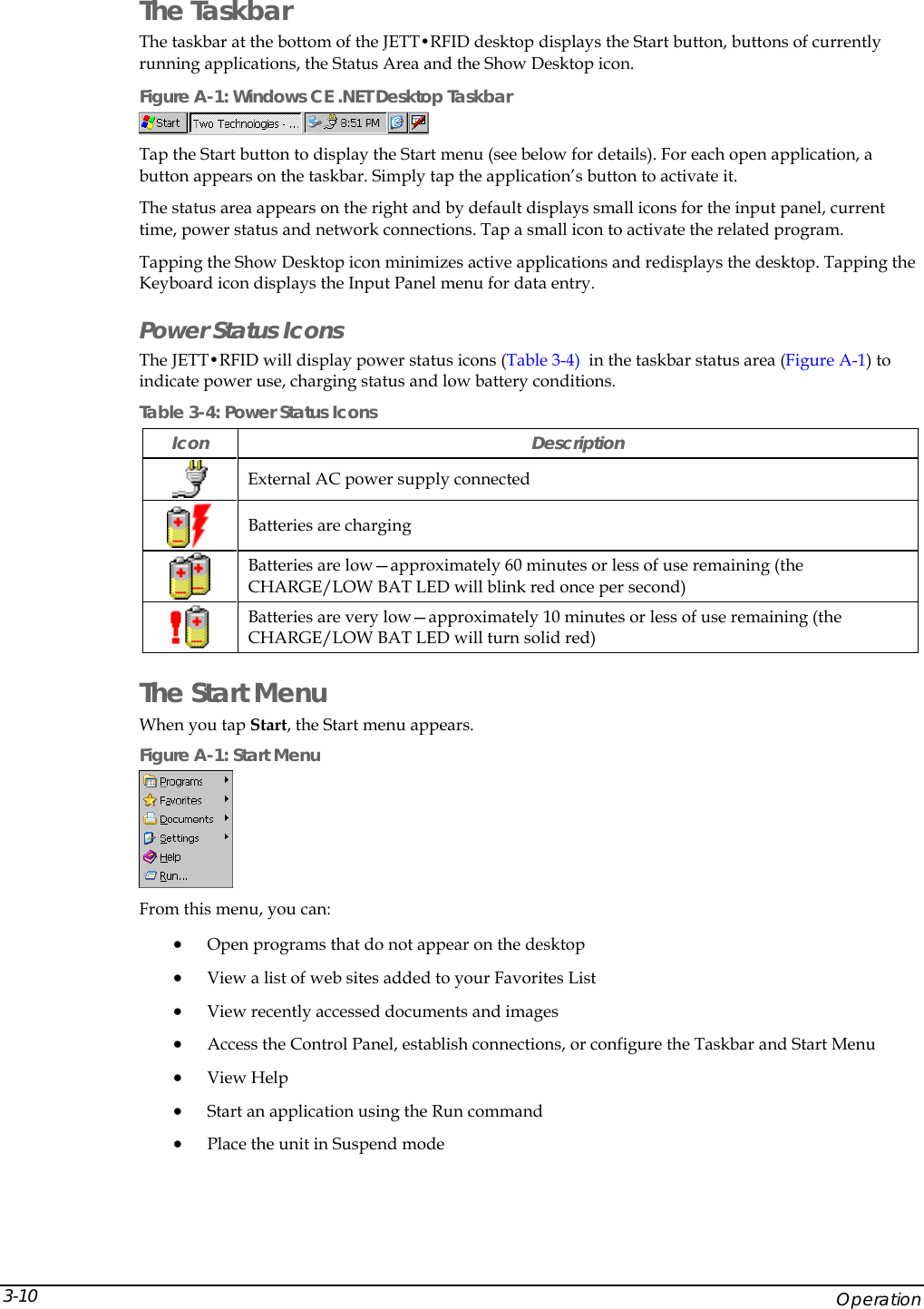
 The Taskbar The taskbar at the bottom of the JETT•RFID desktop displays the Start button, buttons of currently running applications, the Status Area and the Show Desktop icon.  Figure A-1: Windows CE .NET Desktop Taskbar  Tap the Start button to display the Start menu (see below for details). For each open application, a button appears on the taskbar. Simply tap the application’s button to activate it. The status area appears on the right and by default displays small icons for the input panel, current time, power status and network connections. Tap a small icon to activate the related program. Tapping the Show Desktop icon minimizes active applications and redisplays the desktop. Tapping the Keyboard icon displays the Input Panel menu for data entry. Power Status Icons The JETT•RFID will display power status icons (Table 3-4)  in the taskbar status area (Figure A-1) to indicate power use, charging status and low battery conditions. Table 3-4: Power Status Icons Icon Description  External AC power supply connected  Batteries are charging  Batteries are low—approximately 60 minutes or less of use remaining (the CHARGE/LOW BAT LED will blink red once per second)  Batteries are very low—approximately 10 minutes or less of use remaining (the CHARGE/LOW BAT LED will turn solid red) The Start Menu When you tap Start, the Start menu appears.  Figure A-1: Start Menu  From this menu, you can: • Open programs that do not appear on the desktop • View a list of web sites added to your Favorites List • View recently accessed documents and images • Access the Control Panel, establish connections, or configure the Taskbar and Start Menu • View Help • Start an application using the Run command • Place the unit in Suspend mode     Operation 3-10
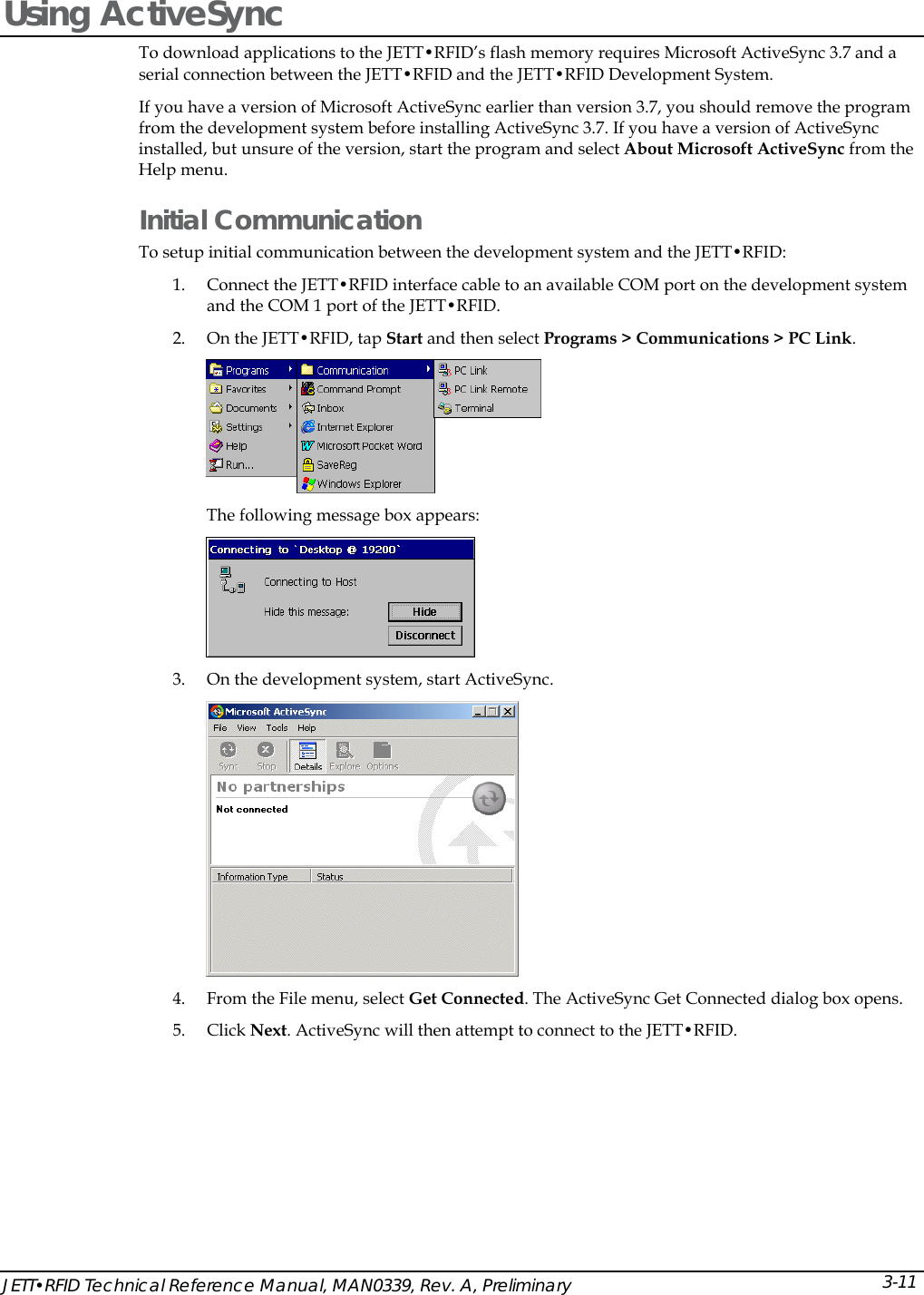
 Using ActiveSync  To download applications to the JETT•RFID’s flash memory requires Microsoft ActiveSync 3.7 and a serial connection between the JETT•RFID and the JETT•RFID Development System. If you have a version of Microsoft ActiveSync earlier than version 3.7, you should remove the program from the development system before installing ActiveSync 3.7. If you have a version of ActiveSync installed, but unsure of the version, start the program and select About Microsoft ActiveSync from the Help menu. Initial Communication To setup initial communication between the development system and the JETT•RFID:  1. Connect the JETT•RFID interface cable to an available COM port on the development system and the COM 1 port of the JETT•RFID. 2. On the JETT•RFID, tap Start and then select Programs > Communications > PC Link.   The following message box appears:  3. On the development system, start ActiveSync.  4. From the File menu, select Get Connected. The ActiveSync Get Connected dialog box opens. 5. Click Next. ActiveSync will then attempt to connect to the JETT•RFID. JETT•RFID Technical Reference Manual, MAN0339, Rev. A, Preliminary  3-11
  6. If the system successfully establishes communications, the connecting message on the JETT•RFID will close and the Set Up a Partnership dialog box will appear on the PC.  7. On the Set Up a Partnership dialog box, select No and click Next. If a successful connection is made the following dialog box will appear:      Operation 3-12
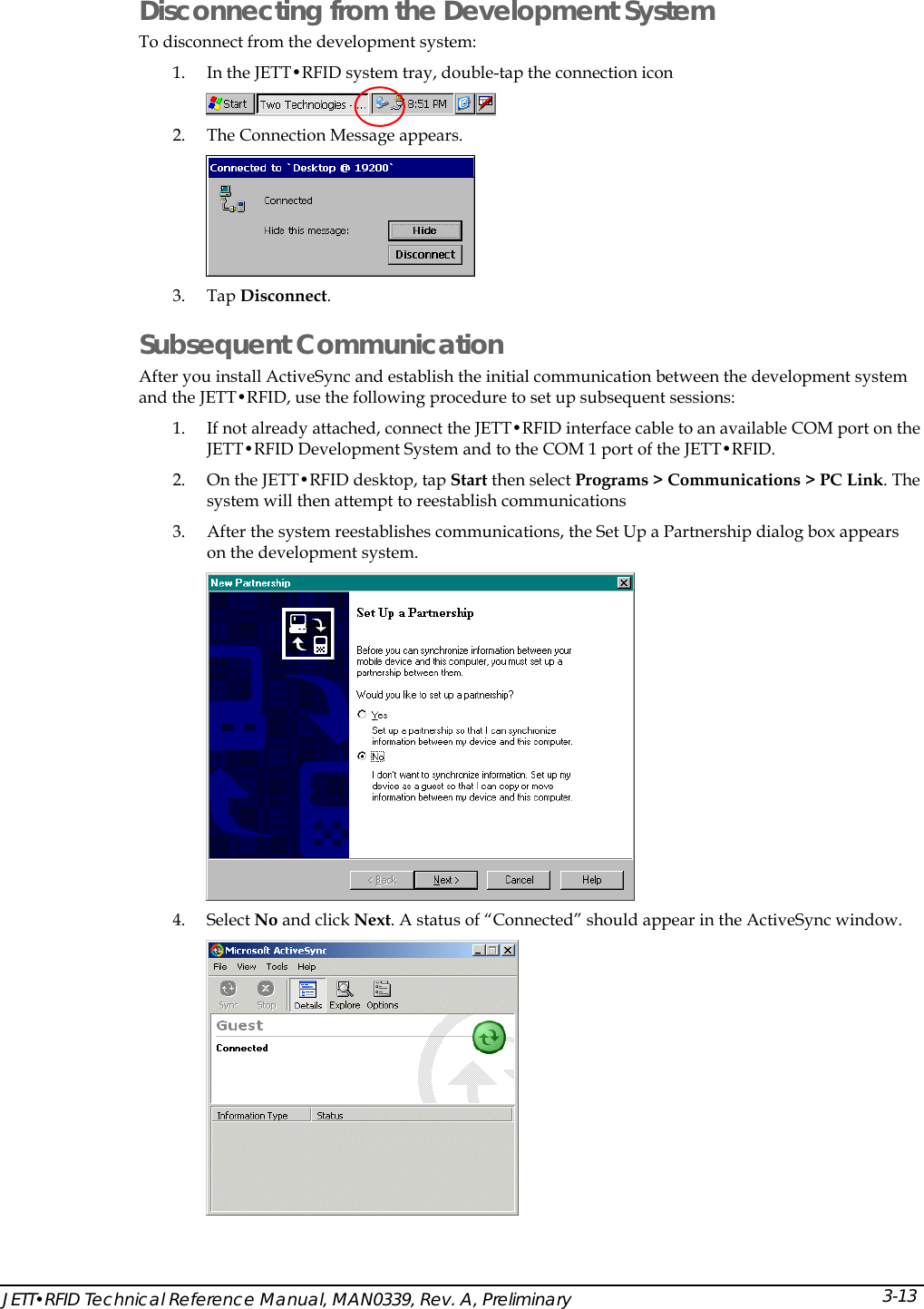
 Disconnecting from the Development System To disconnect from the development system: 1. In the JETT•RFID system tray, double-tap the connection icon   2. The Connection Message appears.  3. Tap Disconnect. Subsequent Communication After you install ActiveSync and establish the initial communication between the development system and the JETT•RFID, use the following procedure to set up subsequent sessions: 1. If not already attached, connect the JETT•RFID interface cable to an available COM port on the JETT•RFID Development System and to the COM 1 port of the JETT•RFID. 2. On the JETT•RFID desktop, tap Start then select Programs > Communications > PC Link. The system will then attempt to reestablish communications 3. After the system reestablishes communications, the Set Up a Partnership dialog box appears on the development system.   4. Select No and click Next. A status of “Connected” should appear in the ActiveSync window.  JETT•RFID Technical Reference Manual, MAN0339, Rev. A, Preliminary  3-13
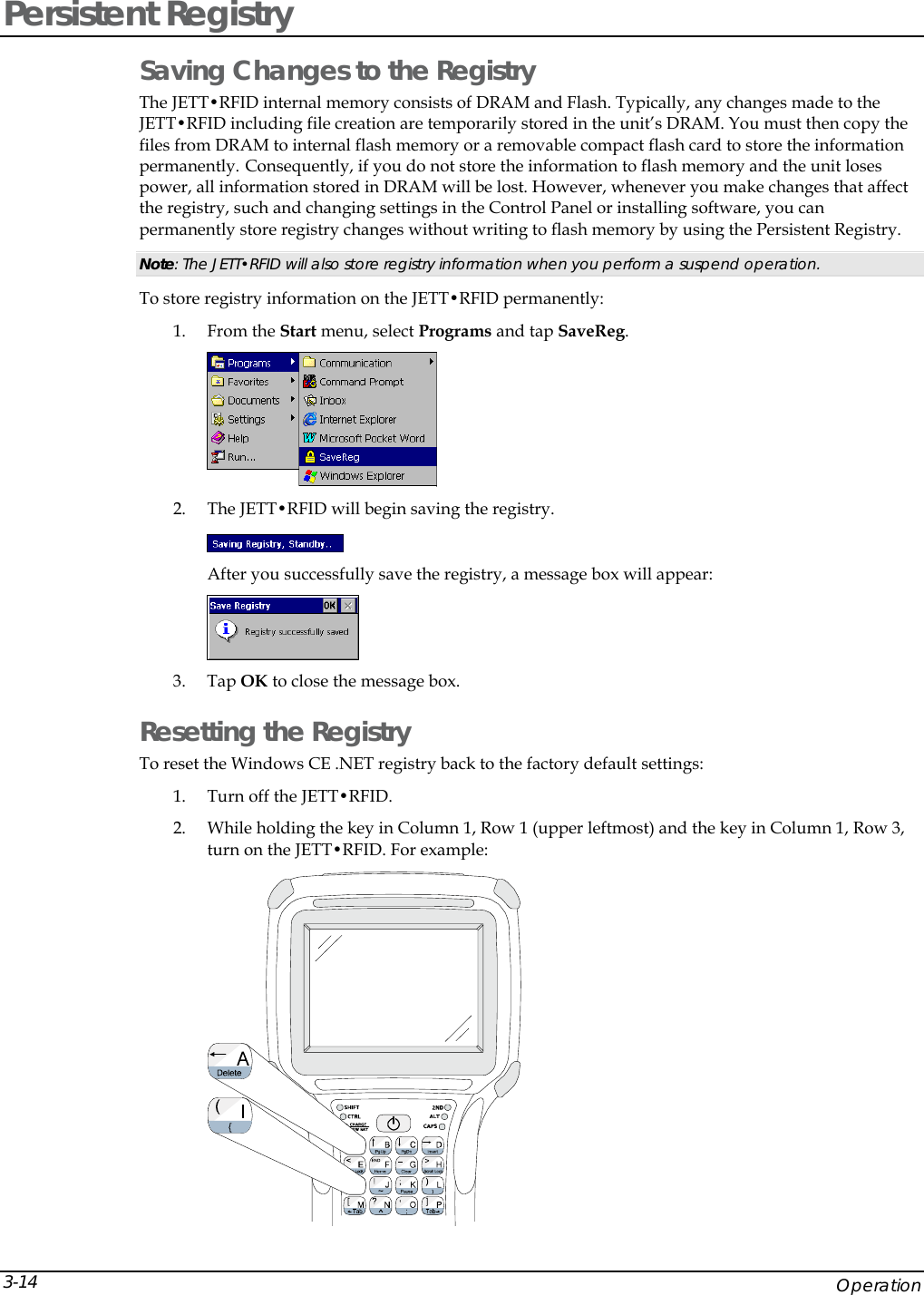
 Persistent Registry Saving Changes to the Registry The JETT•RFID internal memory consists of DRAM and Flash. Typically, any changes made to the JETT•RFID including file creation are temporarily stored in the unit’s DRAM. You must then copy the files from DRAM to internal flash memory or a removable compact flash card to store the information permanently. Consequently, if you do not store the information to flash memory and the unit loses power, all information stored in DRAM will be lost. However, whenever you make changes that affect the registry, such and changing settings in the Control Panel or installing software, you can permanently store registry changes without writing to flash memory by using the Persistent Registry.  Note: The JETT•RFID will also store registry information when you perform a suspend operation. To store registry information on the JETT•RFID permanently: 1. From the Start menu, select Programs and tap SaveReg.  2. The JETT•RFID will begin saving the registry.  After you successfully save the registry, a message box will appear:  3. Tap OK to close the message box. Resetting the Registry To reset the Windows CE .NET registry back to the factory default settings: 1. Turn off the JETT•RFID.  2. While holding the key in Column 1, Row 1 (upper leftmost) and the key in Column 1, Row 3, turn on the JETT•RFID. For example:      Operation 3-14
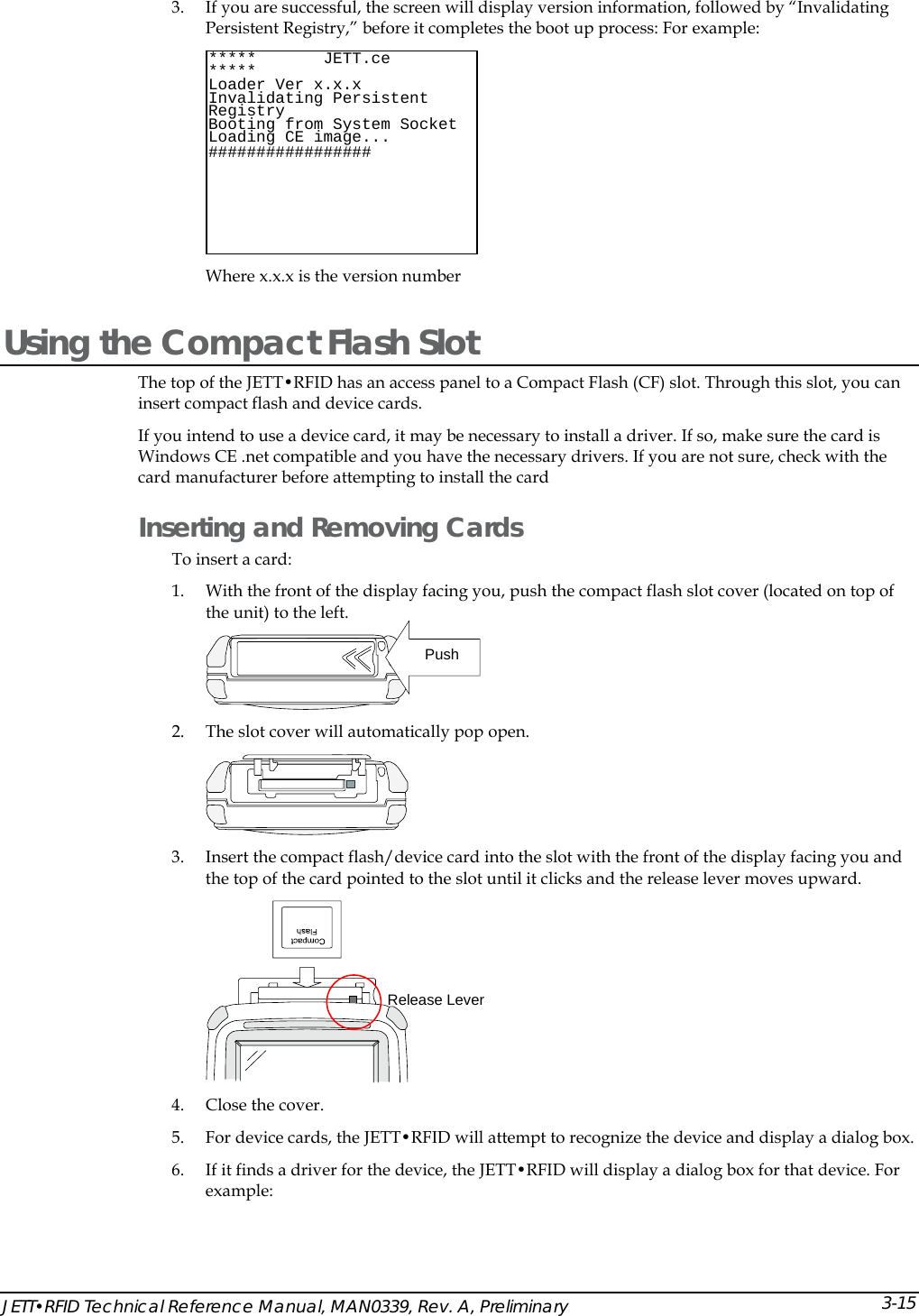
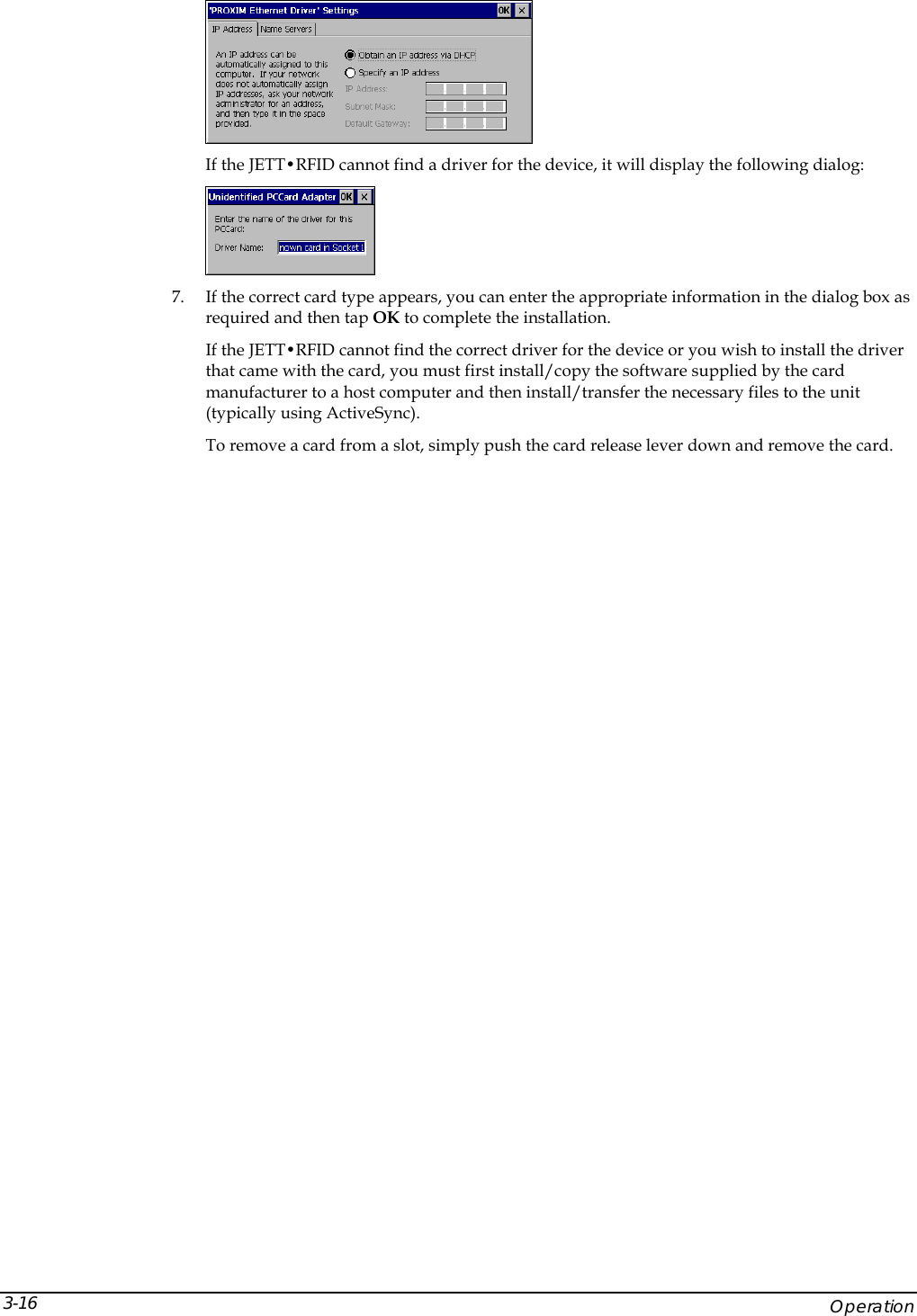
 3. If you are successful, the screen will display version information, followed by “Invalidating Persistent Registry,” before it completes the boot up process: For example:  Where x.x.x is the version number  *****       JETT.ce        ***** Loader Ver x.x.x Invalidating Persistent Registry  Socket Booting from System  Loading CE image...#################  Using the Compact Flash Slot The top of the JETT•RFID has an access panel to a Compact Flash (CF) slot. Through this slot, you can insert compact flash and device cards. If you intend to use a device card, it may be necessary to install a driver. If so, make sure the card is Windows CE .net compatible and you have the necessary drivers. If you are not sure, check with the card manufacturer before attempting to install the card Inserting and Removing Cards  To insert a card: 1. With the front of the display facing you, push the compact flash slot cover (located on top of the unit) to the left.    Push 2. The slot cover will automatically pop open.  3. Insert the compact flash/device card into the slot with the front of the display facing you and the top of the card pointed to the slot until it clicks and the release lever moves upward.  Release Lever4. Close the cover.  5. For device cards, the JETT•RFID will attempt to recognize the device and display a dialog box. 6. If it finds a driver for the device, the JETT•RFID will display a dialog box for that device. For example: JETT•RFID Technical Reference Manual, MAN0339, Rev. A, Preliminary  3-15
  If the JETT•RFID cannot find a driver for the device, it will display the following dialog:  7. If the correct card type appears, you can enter the appropriate information in the dialog box as required and then tap OK to complete the installation. If the JETT•RFID cannot find the correct driver for the device or you wish to install the driver that came with the card, you must first install/copy the software supplied by the card manufacturer to a host computer and then install/transfer the necessary files to the unit (typically using ActiveSync). To remove a card from a slot, simply push the card release lever down and remove the card.      Operation 3-16
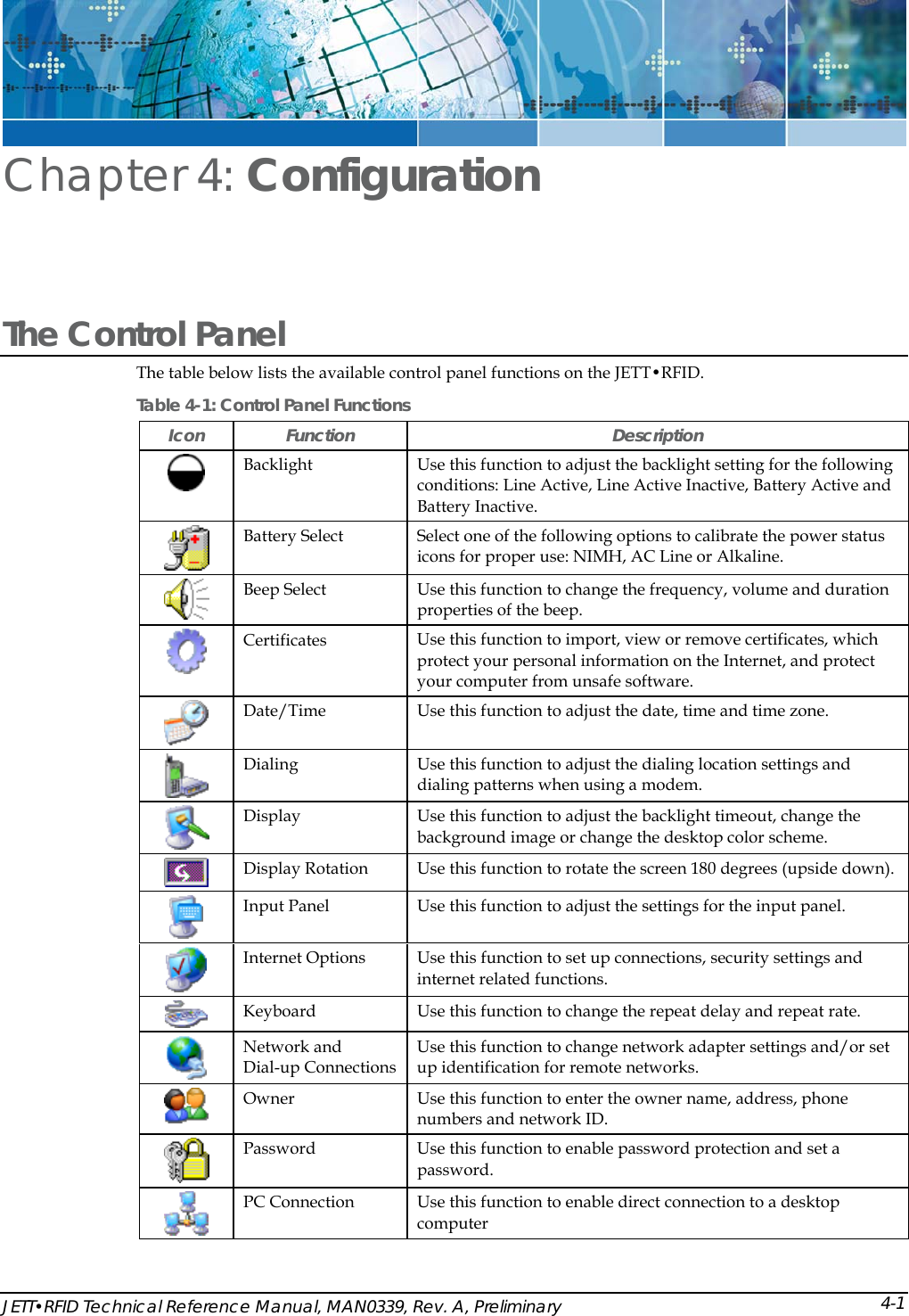
 JETT•RFID Technical Reference Manual, MAN0339, Rev. A, Preliminary Chapter 4: Configuration The Control Panel  The table below lists the available control panel functions on the JETT•RFID. Table 4-1: Control Panel Functions Icon Function  Description  Backlight  Use this function to adjust the backlight setting for the following conditions: Line Active, Line Active Inactive, Battery Active and Battery Inactive.  Battery Select  Select one of the following options to calibrate the power status icons for proper use: NIMH, AC Line or Alkaline.  Beep Select   Use this function to change the frequency, volume and duration properties of the beep.  Certificates  Use this function to import, view or remove certificates, which protect your personal information on the Internet, and protect your computer from unsafe software.   Date/Time  Use this function to adjust the date, time and time zone.  Dialing  Use this function to adjust the dialing location settings and dialing patterns when using a modem.  Display  Use this function to adjust the backlight timeout, change the background image or change the desktop color scheme.  Display Rotation  Use this function to rotate the screen 180 degrees (upside down).  Input Panel  Use this function to adjust the settings for the input panel.  Internet Options  Use this function to set up connections, security settings and internet related functions.  Keyboard  Use this function to change the repeat delay and repeat rate.  Network and  Dial-up Connections Use this function to change network adapter settings and/or set up identification for remote networks.  Owner  Use this function to enter the owner name, address, phone numbers and network ID.  Password  Use this function to enable password protection and set a password.  PC Connection  Use this function to enable direct connection to a desktop computer 4-1
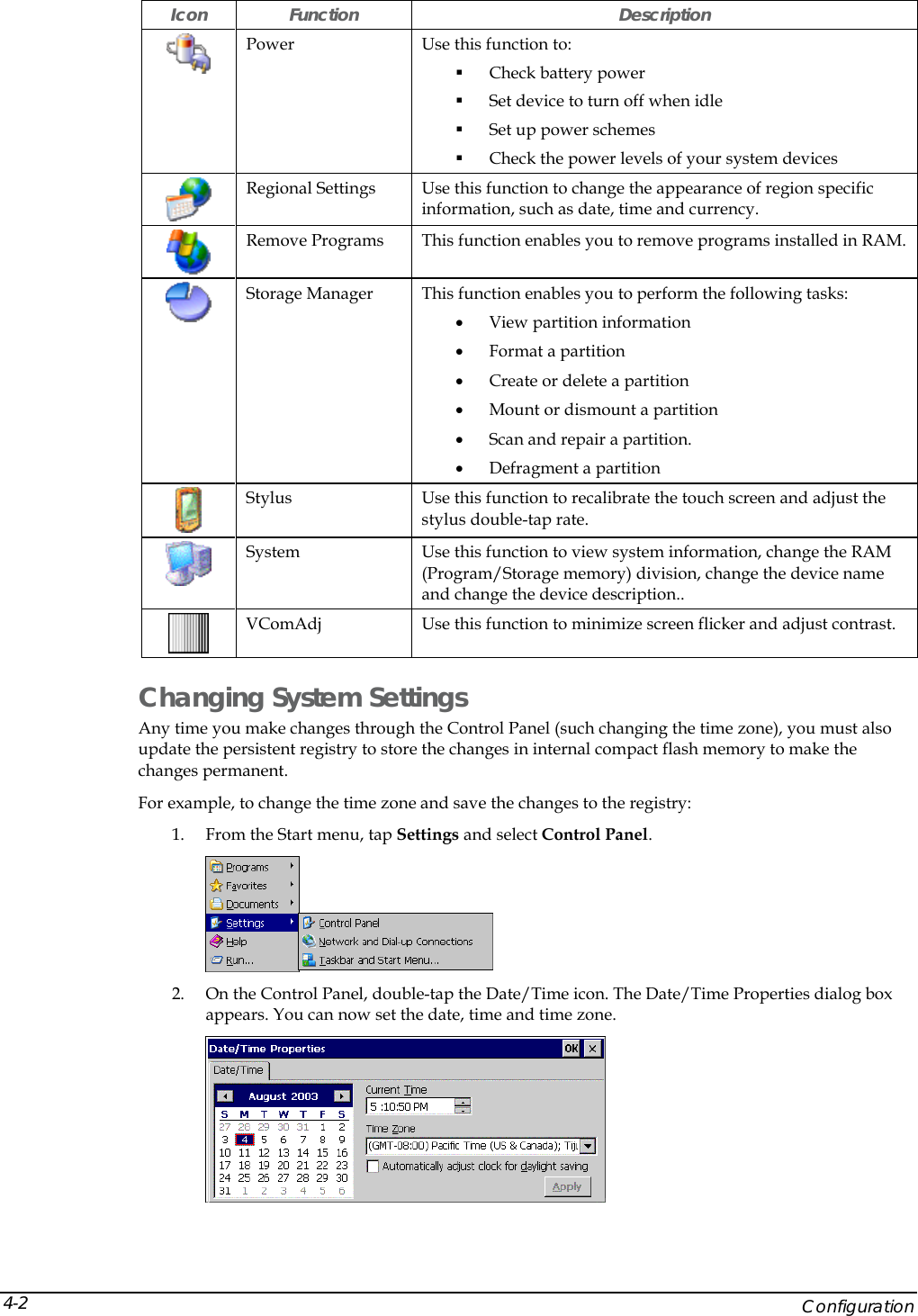
 Icon Function  Description  Power  Use this function to:  Check battery power  Set device to turn off when idle  Set up power schemes  Check the power levels of your system devices  Regional Settings  Use this function to change the appearance of region specific information, such as date, time and currency.  Remove Programs  This function enables you to remove programs installed in RAM.   Storage Manager  This function enables you to perform the following tasks: • View partition information • Format a partition • Create or delete a partition • Mount or dismount a partition  • Scan and repair a partition. • Defragment a partition  Stylus  Use this function to recalibrate the touch screen and adjust the stylus double-tap rate.  System  Use this function to view system information, change the RAM (Program/Storage memory) division, change the device name and change the device description..  VComAdj  Use this function to minimize screen flicker and adjust contrast. Changing System Settings Any time you make changes through the Control Panel (such changing the time zone), you must also update the persistent registry to store the changes in internal compact flash memory to make the changes permanent. For example, to change the time zone and save the changes to the registry: 1. From the Start menu, tap Settings and select Control Panel.  2. On the Control Panel, double-tap the Date/Time icon. The Date/Time Properties dialog box appears. You can now set the date, time and time zone.      Configuration 4-2
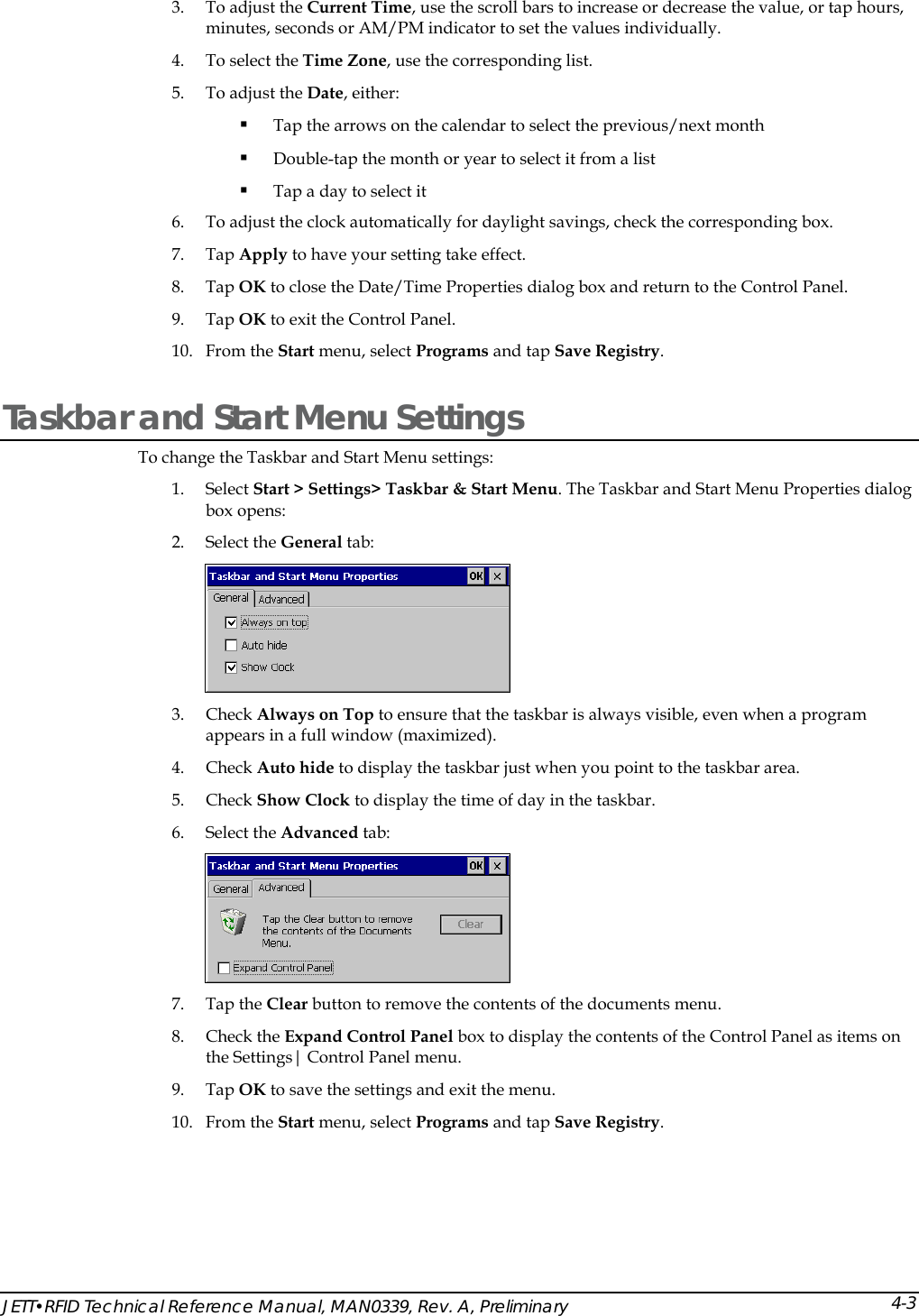
 3. To adjust the Current Time, use the scroll bars to increase or decrease the value, or tap hours, minutes, seconds or AM/PM indicator to set the values individually. 4. To select the Time Zone, use the corresponding list. 5. To adjust the Date, either:  Tap the arrows on the calendar to select the previous/next month  Double-tap the month or year to select it from a list  Tap a day to select it 6. To adjust the clock automatically for daylight savings, check the corresponding box. 7. Tap Apply to have your setting take effect. 8. Tap OK to close the Date/Time Properties dialog box and return to the Control Panel. 9. Tap OK to exit the Control Panel. 10. From the Start menu, select Programs and tap Save Registry. Taskbar and Start Menu Settings To change the Taskbar and Start Menu settings: 1. Select Start > Settings> Taskbar & Start Menu. The Taskbar and Start Menu Properties dialog box opens: 2. Select the General tab:  3. Check Always on Top to ensure that the taskbar is always visible, even when a program appears in a full window (maximized). 4. Check Auto hide to display the taskbar just when you point to the taskbar area. 5. Check Show Clock to display the time of day in the taskbar. 6. Select the Advanced tab:  7. Tap the Clear button to remove the contents of the documents menu. 8. Check the Expand Control Panel box to display the contents of the Control Panel as items on the Settings| Control Panel menu. 9. Tap OK to save the settings and exit the menu. 10. From the Start menu, select Programs and tap Save Registry. JETT•RFID Technical Reference Manual, MAN0339, Rev. A, Preliminary 4-3
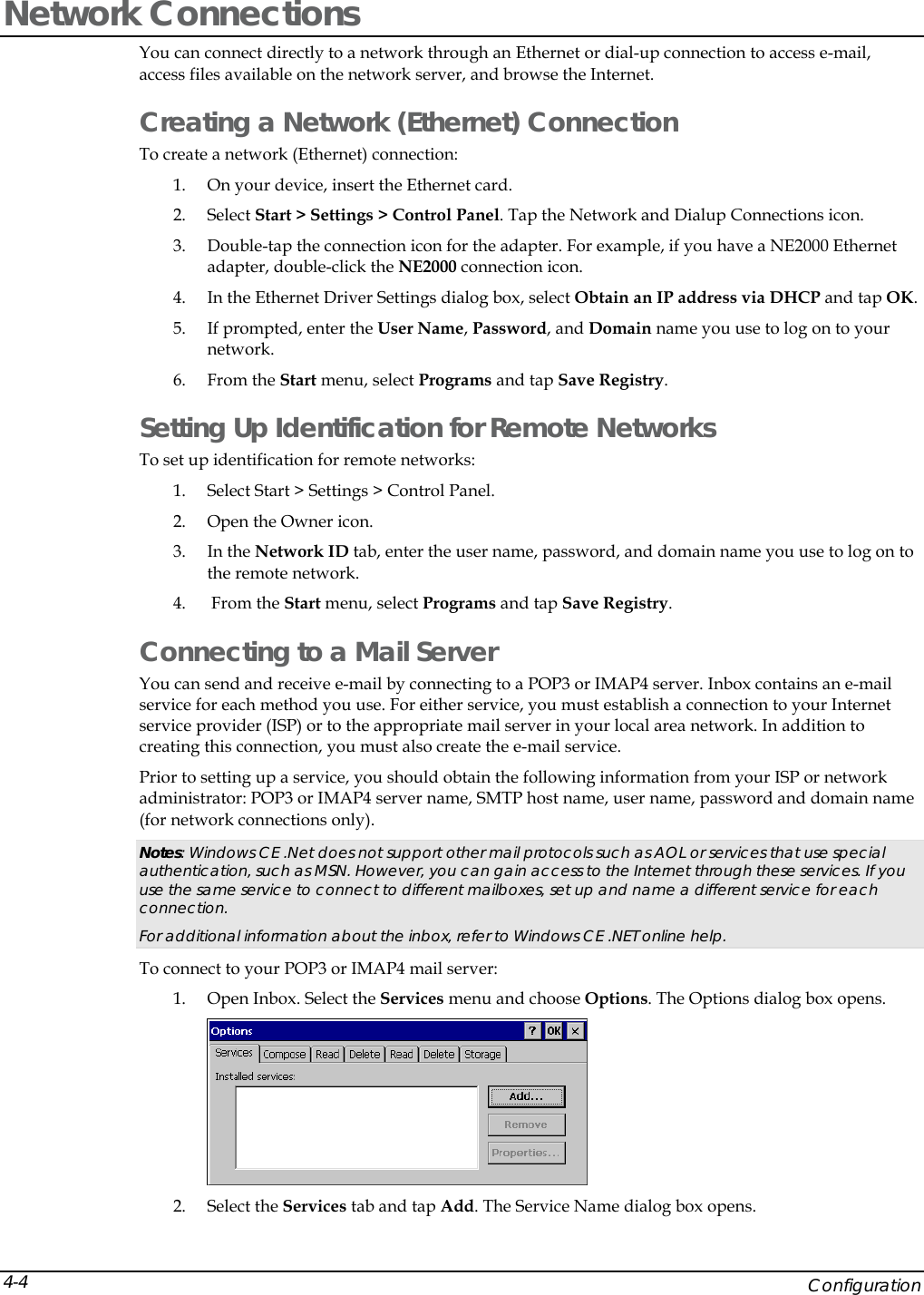
 Network Connections You can connect directly to a network through an Ethernet or dial-up connection to access e-mail, access files available on the network server, and browse the Internet.  Creating a Network (Ethernet) Connection To create a network (Ethernet) connection: 1. On your device, insert the Ethernet card.  2. Select Start > Settings > Control Panel. Tap the Network and Dialup Connections icon.  3. Double-tap the connection icon for the adapter. For example, if you have a NE2000 Ethernet adapter, double-click the NE2000 connection icon. 4. In the Ethernet Driver Settings dialog box, select Obtain an IP address via DHCP and tap OK. 5. If prompted, enter the User Name, Password, and Domain name you use to log on to your network.  6. From the Start menu, select Programs and tap Save Registry. Setting Up Identification for Remote Networks To set up identification for remote networks: 1. Select Start > Settings > Control Panel.  2. Open the Owner icon.  3. In the Network ID tab, enter the user name, password, and domain name you use to log on to the remote network. 4.  From the Start menu, select Programs and tap Save Registry. Connecting to a Mail Server You can send and receive e-mail by connecting to a POP3 or IMAP4 server. Inbox contains an e-mail service for each method you use. For either service, you must establish a connection to your Internet service provider (ISP) or to the appropriate mail server in your local area network. In addition to creating this connection, you must also create the e-mail service.  Prior to setting up a service, you should obtain the following information from your ISP or network administrator: POP3 or IMAP4 server name, SMTP host name, user name, password and domain name (for network connections only). Notes: Windows CE .Net does not support other mail protocols such as AOL or services that use special authentication, such as MSN. However, you can gain access to the Internet through these services. If you use the same service to connect to different mailboxes, set up and name a different service for each connection.  For additional information about the inbox, refer to Windows CE .NET online help. To connect to your POP3 or IMAP4 mail server: 1. Open Inbox. Select the Services menu and choose Options. The Options dialog box opens.  2. Select the Services tab and tap Add. The Service Name dialog box opens.     Configuration 4-4
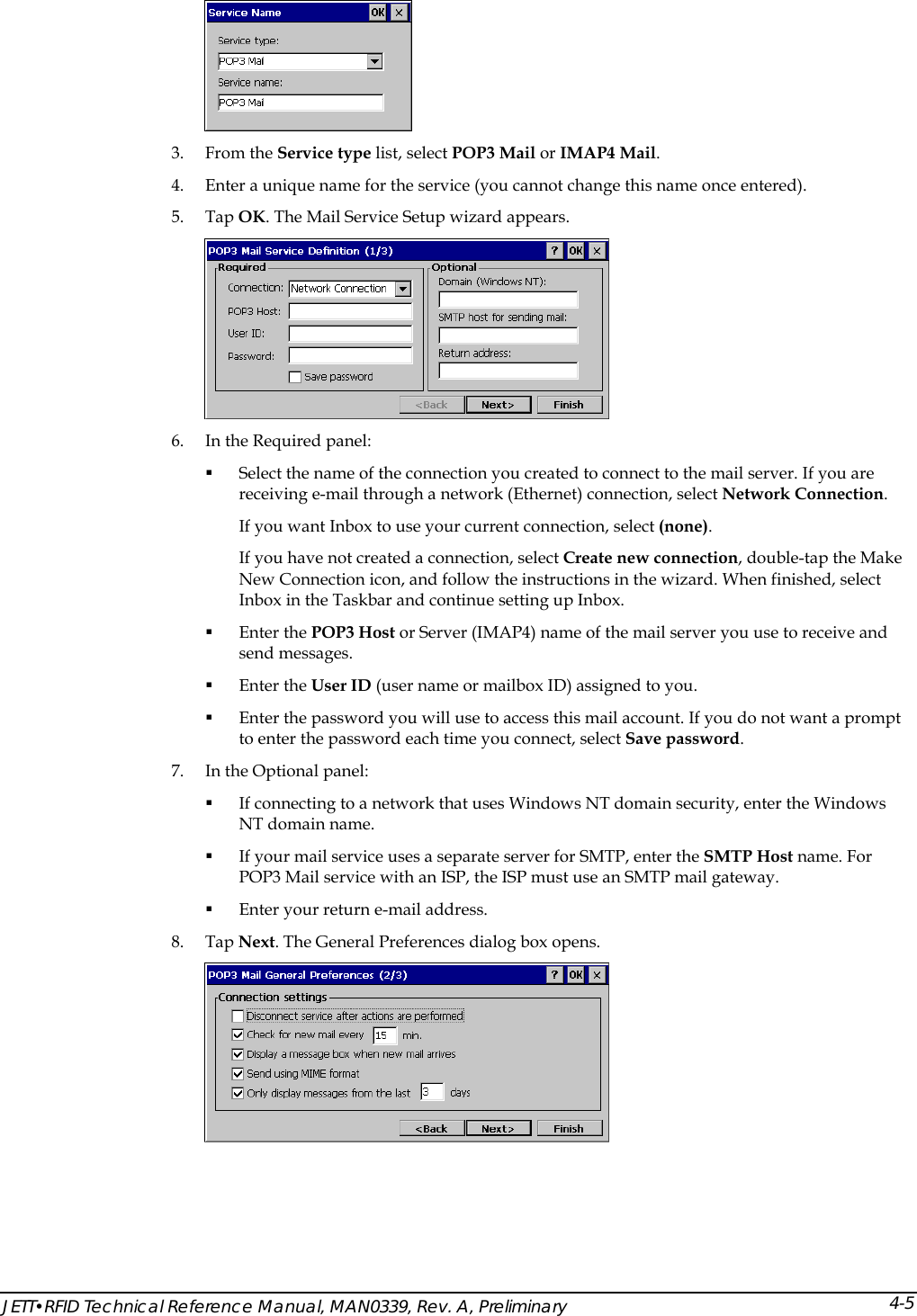
  3. From the Service type list, select POP3 Mail or IMAP4 Mail.  4. Enter a unique name for the service (you cannot change this name once entered). 5. Tap OK. The Mail Service Setup wizard appears.  6. In the Required panel:  Select the name of the connection you created to connect to the mail server. If you are receiving e-mail through a network (Ethernet) connection, select Network Connection.  If you want Inbox to use your current connection, select (none).  If you have not created a connection, select Create new connection, double-tap the Make New Connection icon, and follow the instructions in the wizard. When finished, select Inbox in the Taskbar and continue setting up Inbox.   Enter the POP3 Host or Server (IMAP4) name of the mail server you use to receive and send messages.   Enter the User ID (user name or mailbox ID) assigned to you.   Enter the password you will use to access this mail account. If you do not want a prompt to enter the password each time you connect, select Save password.  7. In the Optional panel:  If connecting to a network that uses Windows NT domain security, enter the Windows NT domain name.   If your mail service uses a separate server for SMTP, enter the SMTP Host name. For POP3 Mail service with an ISP, the ISP must use an SMTP mail gateway.   Enter your return e-mail address. 8. Tap Next. The General Preferences dialog box opens.  JETT•RFID Technical Reference Manual, MAN0339, Rev. A, Preliminary 4-5
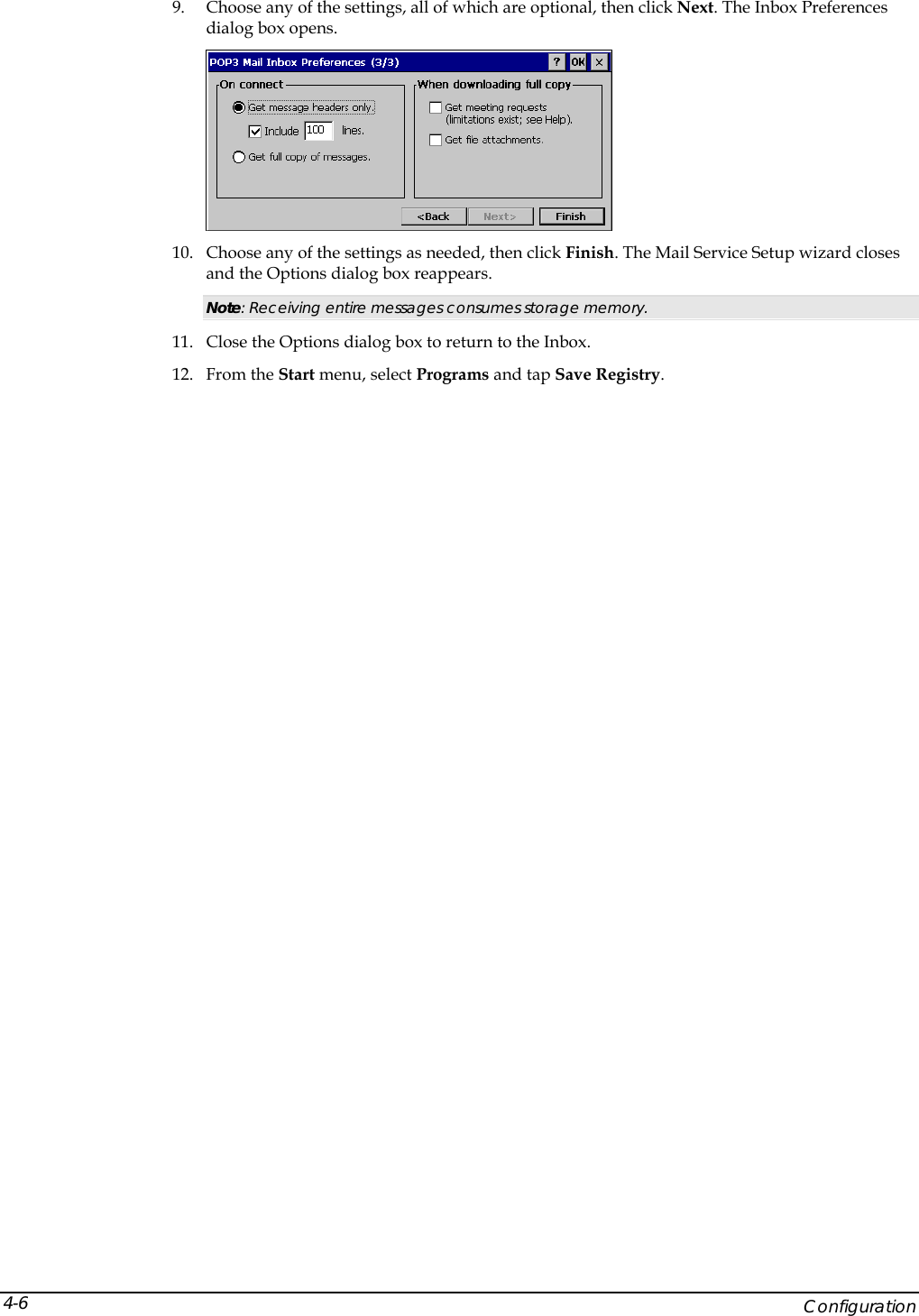
 9. Choose any of the settings, all of which are optional, then click Next. The Inbox Preferences dialog box opens.  10. Choose any of the settings as needed, then click Finish. The Mail Service Setup wizard closes and the Options dialog box reappears.  Note: Receiving entire messages consumes storage memory. 11. Close the Options dialog box to return to the Inbox.  12. From the Start menu, select Programs and tap Save Registry.      Configuration 4-6
 JETT•RFID Technical Reference Manual, MAN0339, Rev. A, Preliminary Chapter 5: Application Development  Application Types Before writing applications for Windows CE .NET 4.2 and the JETT•RFID, you will need to determine if your applications will consist of managed code and/or native code. • Managed code makes use of run-time environment application programming interfaces (APIs), provides integrated security and memory management and is portable across software platforms and processors. Code written in Microsoft Studio .NET 2003 is managed code.  • Native code uses a specific set of software platform APIs and microprocessor and as a result, the compiled code will only run on that specific software platform and processor. Typically, native code offers the highest performance with the smallest footprint, but it also requires developers to write their own security and memory management code. Code written in eMbedded Visual C++ is native code.  The type of application being created will dictate the choice between native and Microsoft .NET—connected code. When a consistent programming model and time-to-market are the primary considerations, use Visual Studio .NET and the .NET Compact Framework. When performance, the smallest working set, and low-level control are a top priority, use eMbedded Visual C++.  Development Tools To write Windows CE .NET 4.2 applications for the JETT•RFID, you will need to obtain one the following Microsoft products:  • Visual Studio .NET 2003—this development tool installed with the .NET Compact Framework allows you to build embedded managed applications for the JETT•RFID using C# .NET and Visual Basic .NET.  • eMbedded Visual C++ 4.0—a standalone integrated development environment (IDE) designed for developing native C++ applications for JETT•RFID. If you are using Visual Studio .NET 2003, you will also need to download and install Windows CE Utilities for Visual Studio .NET 2003, which enables you to connect to the JETT•RFID. If you are using eMbedded Visual C++ 4.0, you will also need to install the Two Technologies’ JETT•RFID SDK, which is part of the JETT•RFID Software Development Kit (SDK). It includes APIs for application development, user interface design elements, and documentation. Other development tools you need include: • ActiveSync 3.7—this Microsoft utility allow you to transfer files between the JETT•RFID and your development system.  • JETTkbtool.exe—included with the JETT•RFID SDK, this MS-DOS application enables you to remap the JETT•RFID keyboard. 5-1
 Note: As of this writing, eMbedded Visual C++ 4.0, ActiveSync 3.7 and Windows CE Utilities for Visual Studio .NET 2003 are available as downloads on Microsoft’s website. After installing any Microsoft product, you should check their website for newer versions or service packs. Using Visual Studio .NET Visual Studio .NET 2003 provides a robust development environment for creating applications that target the .NET Compact Framework. Included with Visual Studio .NET is a set of pre-built device profiles. A device profile contains information necessary to build applications that target specific devices, such as the JETT•RFID.  System Requirements To use Visual Studio .NET 2003, your development system must meet the following minimum requirements: Processor   450 MHz Pentium II, Operating Systems   Windows Server 2003, Windows 2000 Server or Professional (SP3 or later)  or Windows XP Professional or Home Edition¹ RAM Memory   Windows Server 2003 & Windows XP Professional : 160 MB  Windows 2000 Professional & Windows XP Home Edition: 96 MB of RAM  Windows 2000 Server: 192 MB of RAM Disk Space  System Drive: 900 MB, Installation Drive: 3.3 GB Optional MSDN Library documentation: 1.9 GB Drive   CD-ROM or DVD-ROM drive  Display   Super VGA (1024 x 768) or higher-resolution display with 256 colors  Mouse   Mouse or compatible pointing device  1. Visual Studio .NET 2003 does not support creating ASP.NET Web applications or ASP.NET XML Web services when using Windows XP Home Edition.  The .NET Compact Framework  The .NET Compact Framework is a subset of the .NET Framework designed specifically for small, resource-constrained devices, such as the JETT•RFID. Applications that run on top of the .NET Compact Framework are able to use a range of run-time services—including a common language run-time, memory management, and a rich set of base classes that handle security, data access, and XML Web services.  Supported Languages The .NET Compact Framework currently supports two development languages, C# .NET and Visual Basic .NET.  You should also be aware that there is another language limitation under the .NET Compact Framework. Under the .NET Framework, you can use mixed-language components within a single project. In comparison, .NET Compact Framework projects are restricted to a single language, either C# .NET or Visual Basic .NET. The workaround to this single-language project limitation imposed by .NET Compact Framework is to create additional projects using the Class template. Add your alternate language code to the template, and then simply add references to these classes in your application project.     Application Development 5-2
 .NET Compact Framework Limitations You use the same Visual Studio .NET environment that you use when developing desktop applications, but in order to fit the .NET Framework into the operating constraints of Windows CE, the following limitations apply:  • Method Overloads—overloading a method provides alternative ways to call that method, but it also increases the size of the Framework. As a result, the .NET Compact Framework trimmed the overloads from almost all methods. Consequently, there is a good chance that a particular method overload you used with a desktop application will not be available when developing .NET Compact Framework-based applications.  • Missing Controls—a number of .NET Framework controls are not part of the .NET Compact Framework. The absence of most of these controls (such as printing) is insignificant to mobile developers. You can replace many of the missing dialogs with your own dialogs or by accessing system dialogs directly using the Windows CE API. • XML Functionality—as much as the .NET Compact Framework offers in the way of XML, an equal amount of functionality was trimmed. A key missing XML-related component is the System.Xml.Xpath namespace. In its absence, you can use a combination of recursive and iterative searches against the Document Object Model (DOM). Another missing key XML component is Extensible Stylesheet Language Transformation (XSLT), which convert an XML document into different formats. In addition, the .NET Compact Framework does not currently provide support for developing device-based XML Web services. • Database Support—the .NET Compact Framework offers a robust set of data-related tools. SQL Server CE provides local database support, while on the server side, the .NET Compact Framework provides support for SQL Server.  • Binary Serialization—due to size and performance considerations both the BinaryFormatter and SoapFormatter classes are not part from the .NET Compact Framework. • Access to the Windows Registry—the .NET Framework uses the Microsoft.Win32.Registry namespace to work with the Windows registry from an application. Because it relates to Win32 and not Windows CE, this namespace was not included in the .NET Compact Framework. However, you can access the Windows CE registry by invoking the relevant Windows APIs. • Leveraging COM Components—incorporating COM objects into a .NET Compact Framework-based application is a two-step process. First, you must write an unmanaged DLL wrapper using eMbedded Visual C++ that exposes the COM object. Then, you must use Pinvoke to access your DLL wrapper. • Security—the .NET Compact Framework does not secure access to unmanaged code. Any application can call any system or non-system API. There is currently no role-based security with the .NET Compact Framework. The principal object has no understanding of known identity or known role. • ate • • oes not natively support GDI+, and therefore is not part of the •  ou should implement an XML Wed service façade for the component and access it that way. XML Web Services—the most notable exclusion from the .NET Compact Framework XML Web service capabilities is the ability to use cookies. Cookies are widely used to maintain ston the server between calls from a client. While the use of cookies in Web services is not as prevalent as their use on Web sites, they are still in use. The .NET Compact Framework offers limited cryptographic abilities with respect to Web services. Printing—the .NET Compact Framework provides no support for printing. There is no easy way to interact with network printers. The workaround for accessing network printers is to build a server-based application, which accepts and prints jobs submitted by your application.  GDI+—Windows CE .NET d.NET Compact Framework. Remoting—the initial release of the .NET Compact Framework does not support remoting. Ifyou need to communicate with .NET components situated on a remote machine, yJETT•RFID Technical Reference Manual, MAN0339, Rev. A, Preliminary 5-3
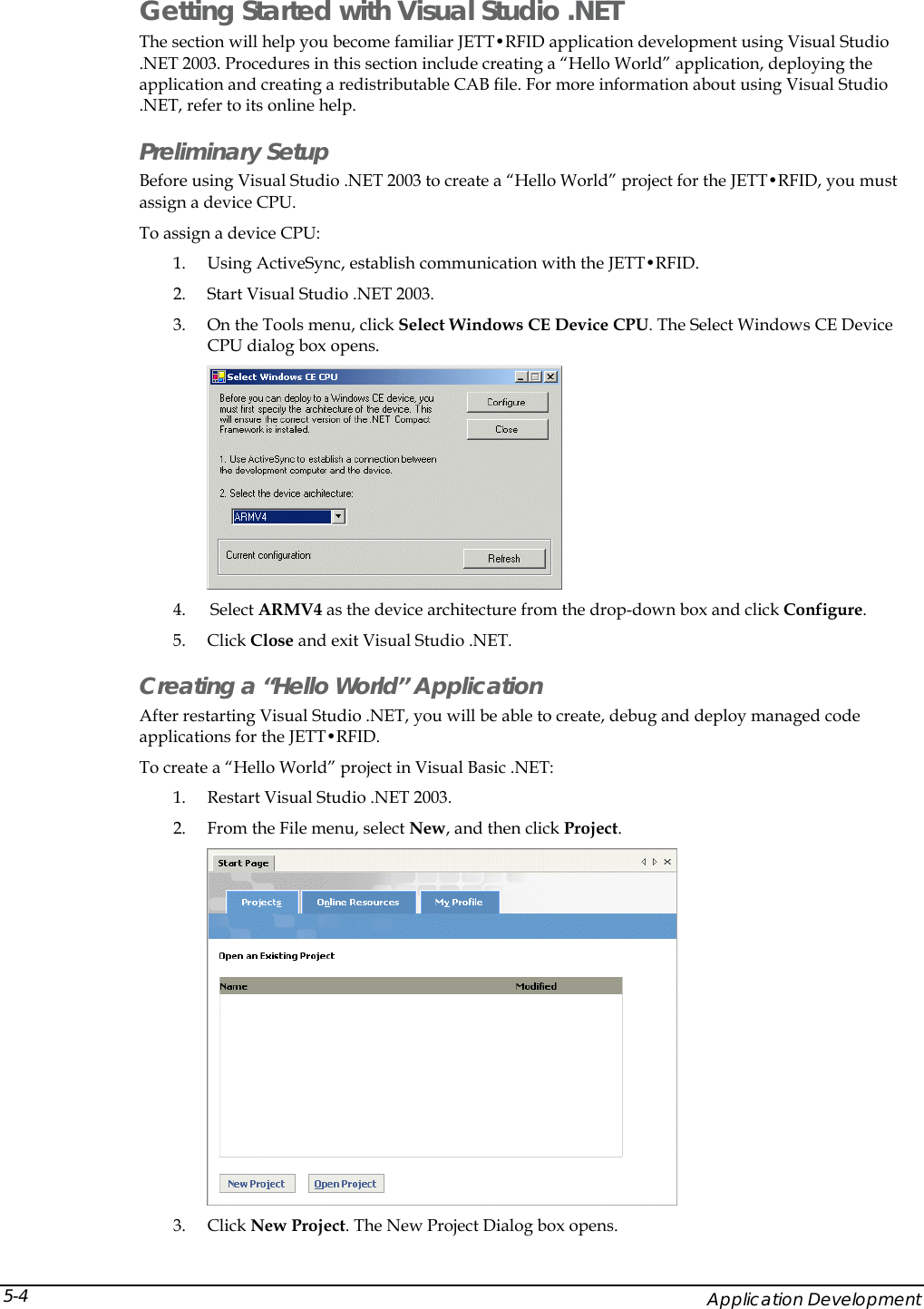
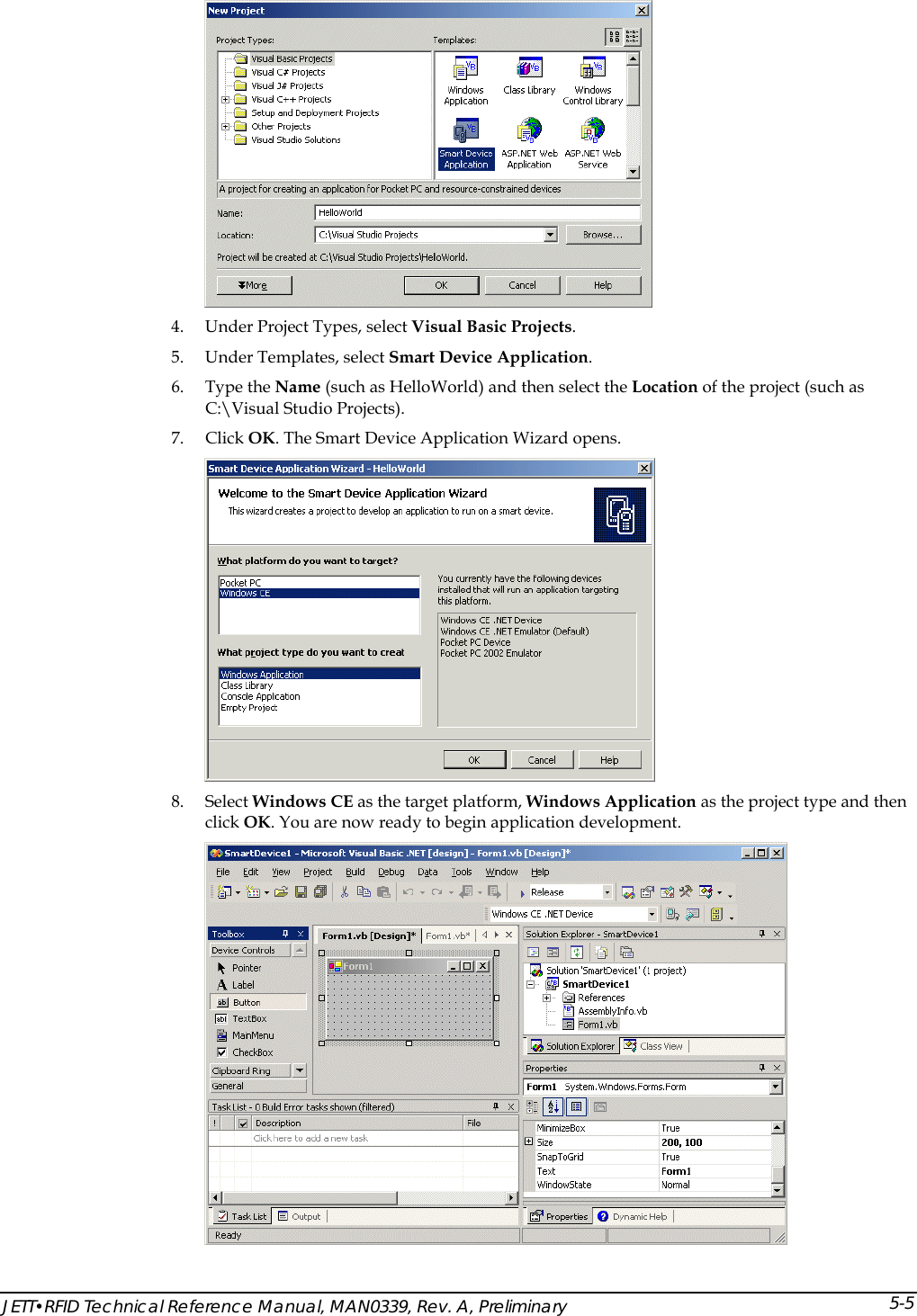
 Getting Started with Visual Studio .NET The section will help you become familiar JETT•RFID application development using Visual Studio .NET 2003. Procedures in this section include creating a “Hello World” application, deploying the application and creating a redistributable CAB file. For more information about using Visual Studio .NET, refer to its online help. Preliminary Setup Before using Visual Studio .NET 2003 to create a “Hello World” project for the JETT•RFID, you must assign a device CPU. To assign a device CPU: 1. Using ActiveSync, establish communication with the JETT•RFID.  2. Start Visual Studio .NET 2003. 3. On the Tools menu, click Select Windows CE Device CPU. The Select Windows CE Device CPU dialog box opens.  4.  Select ARMV4 as the device architecture from the drop-down box and click Configure. 5. Click Close and exit Visual Studio .NET. Creating a “Hello World” Application After restarting Visual Studio .NET, you will be able to create, debug and deploy managed code applications for the JETT•RFID. To create a “Hello World” project in Visual Basic .NET: 1. Restart Visual Studio .NET 2003. 2. From the File menu, select New, and then click Project.   3. Click New Project. The New Project Dialog box opens.     Application Development 5-4
  4. Under Project Types, select Visual Basic Projects. 5. Under Templates, select Smart Device Application. 6. Type the Name (such as HelloWorld) and then select the Location of the project (such as C:\Visual Studio Projects). 7. Click OK. The Smart Device Application Wizard opens.  8. Select Windows CE as the target platform, Windows Application as the project type and then click OK. You are now ready to begin application development.  JETT•RFID Technical Reference Manual, MAN0339, Rev. A, Preliminary 5-5
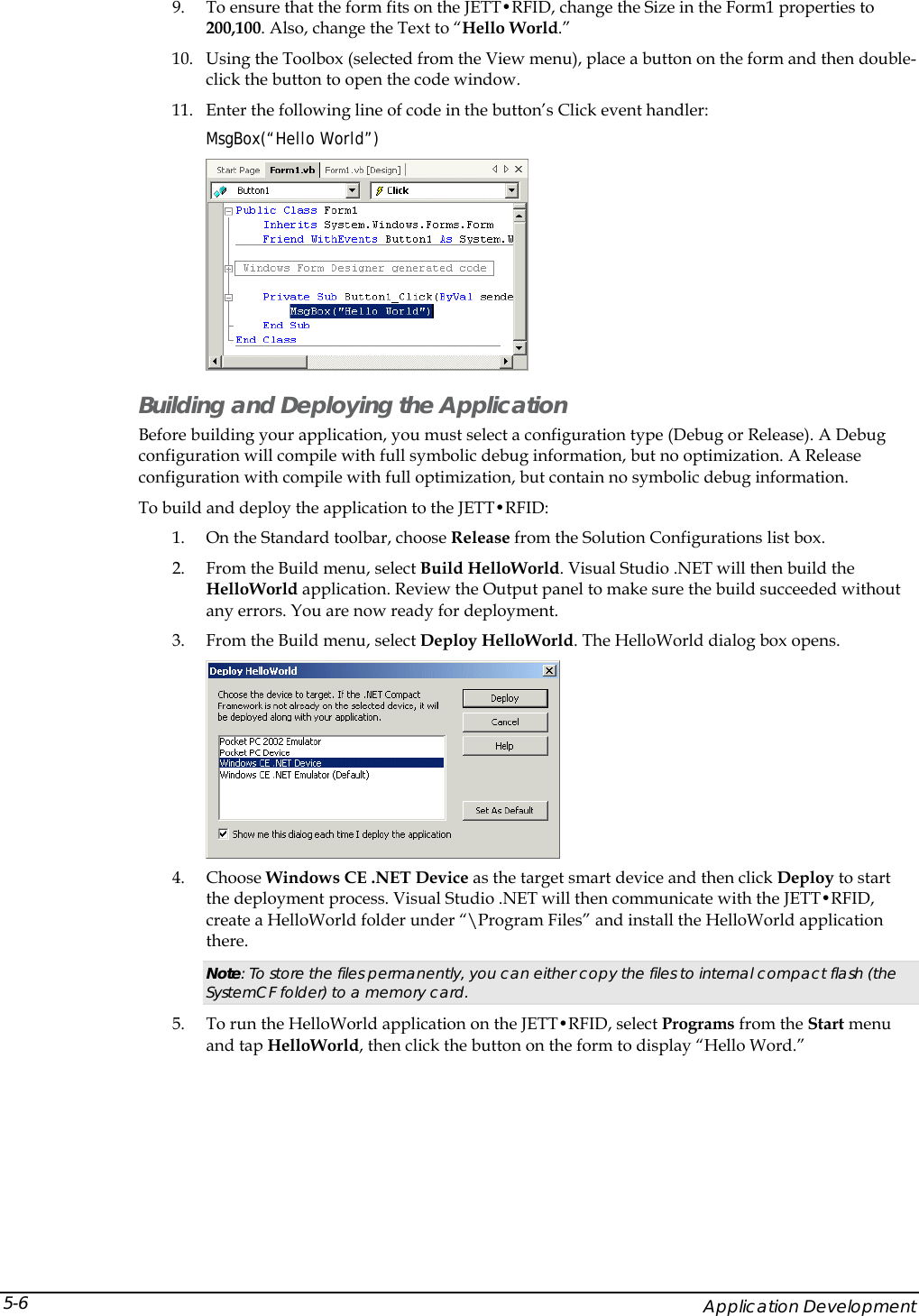
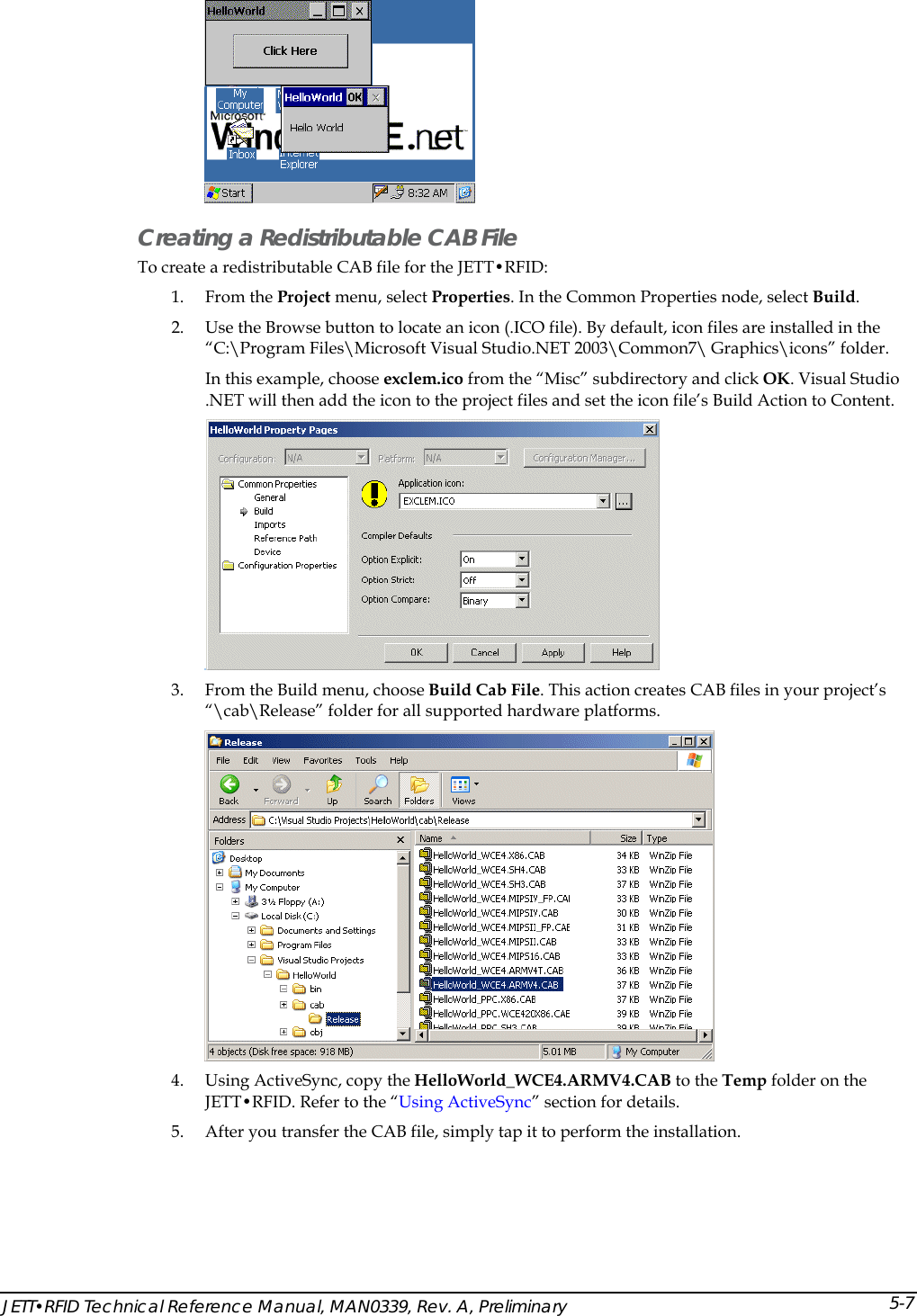
 9. To ensure that the form fits on the JETT•RFID, change the Size in the Form1 properties to 200,100. Also, change the Text to “Hello World.” 10. Using the Toolbox (selected from the View menu), place a button on the form and then double-click the button to open the code window.  11. Enter the following line of code in the button’s Click event handler:  MsgBox(“Hello World”)  Building and Deploying the Application Before building your application, you must select a configuration type (Debug or Release). A Debug configuration will compile with full symbolic debug information, but no optimization. A Release configuration with compile with full optimization, but contain no symbolic debug information. To build and deploy the application to the JETT•RFID: 1. On the Standard toolbar, choose Release from the Solution Configurations list box. 2. From the Build menu, select Build HelloWorld. Visual Studio .NET will then build the HelloWorld application. Review the Output panel to make sure the build succeeded without any errors. You are now ready for deployment. 3. From the Build menu, select Deploy HelloWorld. The HelloWorld dialog box opens.  4. Choose Windows CE .NET Device as the target smart device and then click Deploy to start the deployment process. Visual Studio .NET will then communicate with the JETT•RFID, create a HelloWorld folder under “\Program Files” and install the HelloWorld application there.  Note: To store the files permanently, you can either copy the files to internal compact flash (the SystemCF folder) to a memory card. 5. To run the HelloWorld application on the JETT•RFID, select Programs from the Start menu and tap HelloWorld, then click the button on the form to display “Hello Word.”     Application Development 5-6
  Creating a Redistributable CAB File To create a redistributable CAB file for the JETT•RFID: 1. From the Project menu, select Properties. In the Common Properties node, select Build.  2. Use the Browse button to locate an icon (.ICO file). By default, icon files are installed in the “C:\Program Files\Microsoft Visual Studio.NET 2003\Common7\ Graphics\icons” folder. In this example, choose exclem.ico from the “Misc” subdirectory and click OK. Visual Studio .NET will then add the icon to the project files and set the icon file’s Build Action to Content.   3. From the Build menu, choose Build Cab File. This action creates CAB files in your project’s “\cab\Release” folder for all supported hardware platforms.   4. Using ActiveSync, copy the HelloWorld_WCE4.ARMV4.CAB to the Temp folder on the JETT•RFID. Refer to the “Using ActiveSync” section for details. 5. After you transfer the CAB file, simply tap it to perform the installation.  JETT•RFID Technical Reference Manual, MAN0339, Rev. A, Preliminary 5-7
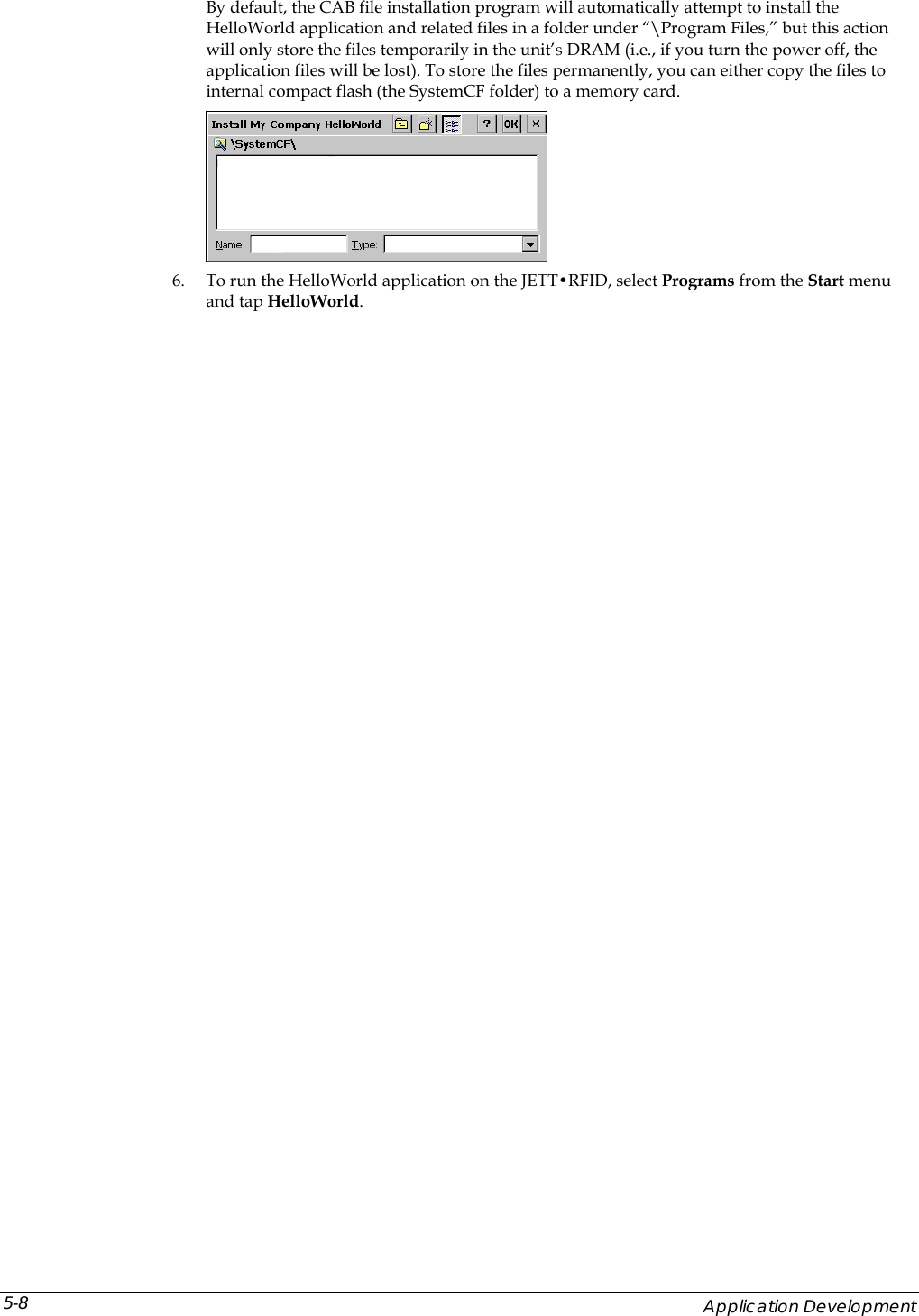
 By default, the CAB file installation program will automatically attempt to install the HelloWorld application and related files in a folder under “\Program Files,” but this action will only store the files temporarily in the unit’s DRAM (i.e., if you turn the power off, the application files will be lost). To store the files permanently, you can either copy the files to internal compact flash (the SystemCF folder) to a memory card.  6. To run the HelloWorld application on the JETT•RFID, select Programs from the Start menu and tap HelloWorld.     Application Development 5-8
 Using eMbedded Visual C++ 4.0 eMbedded Visual C++ 4.0 is a standalone integrated development environment (IDE) designed for developing applications for JETT•RFID. It consists of an integrated set of windows, tools, menus, toolbars, directories, and other elements to help create, test, and debug a Windows CE application.  As of this writing, eMbedded Visual C++4.0, this program and its subsequent service patches are available for download on Microsoft’s website. Migrating Previous Versions of eMbedded Visual Tools Windows CE .NET 4.2 does not support the use of eMbedded Visual Tools 3.0.  If you want to continue developing applications in Visual Basic, you will be able to use Visual Studio .NET, but you will not be able to directly migrate your existing applications to Visual Basic .NET. However, Visual Basic .NET does includes an Upgrade Wizard for migrating Visual Basic 6.0 application and some portion of your eMbedded Visual Basic applications will be able to take advantage of this feature. You can find additional information on the MSDN Web site.  Developers using eMbedded Visual C++ 3.0 can rebuild their application in eMbedded Visual C++ 4.0. System Requirements To use eMbedded Visual C++ 4.0, your development system must meet the following minimum requirements: Processor   450 MHz Pentium II Operating Systems   Windows 2000 Server, Windows 2000 Professional (SP2 or later) or Windows XP Professional Memory   Windows 2000 Professional & Windows XP Professional: 96 MB RAM Windows 2000 Server: 192 MB RAM  Disk Space  200 MB Drive   CD-ROM  Display   VGA or higher-resolution monitor  Mouse   Mouse or compatible pointing device  JETT•RFID Technical Reference Manual, MAN0339, Rev. A, Preliminary 5-9
 Getting Started with eMbedded Visual C++ 4.0 The section will help you become familiar with JETT•RFID application development using eMbedded Visual C++ 4.0. Procedures in this section include creating a “Hello World” application, deploying the application and creating a redistributable CAB file. For more information about using eMbedded Visual C++ 4.0, refer to its online help. Creating a “Hello World” Application To create a “Hello World” project: 1. Using ActiveSync, establish communication with the JETT•RFID.  2. Start eMbedded Visual C++ 4.0. 3. From the File menu, select New. The New dialog box opens.   4. In the New dialog box :  Type in the Project Name and select a location.  Under Projects, select WCE MFC AppWizard (exe).  Under CPUs, check Win32 (WCE ARMV4I). 5. Click OK. The WCE MFC AppWizard (exe) dialog box opens.   6. Click Dialog based and then click Finish. The New Project information dialog box opens.     Application Development 5-10
  7. Click OK to close. The HelloWorld workspace opens in the upper left pane. 8. On the WCE Configuration toolbar, select JETT ce for the Active WCE Configuration, Win32 (WCE ARMV4I) Debug for the Active Configuration and JETT ce Device as the device type.  9. Add a button to the form:  In the HelloWorld workspace, click the Resources tab, expand the Dialog folder and then double-click IDD_HELLWORLD_DIALOG. The HelloWorld form opens in the adjoining pane.  From the Controls toolbar, drag a button onto the form. Note: If the Controls toolbar does not appear, you can activate it by right clicking the WCE Configuration toolbar   Right-click the button, select Properties. The Push Button Properties dialog box opens.  Change the caption to “Click Here!” and close the dialog box.  10. Double-click the button. The Add Member Function dialog box opens. JETT•RFID Technical Reference Manual, MAN0339, Rev. A, Preliminary 5-11
  11. Click OK to add the member function. HelloWorldDlg.cpp opens in a new window.  12. Replace the text:  // TODO: Add your control notification handler code here  with the text:  MessageBox (TEXT (“   Your Message Here   “), TEXT(“Hello World”), MB_OK); Building and Deploying the Application To build and deploy the application to the JETT•RFID: 1. From the Build Menu, select Build HelloWorld.exe. 2. eMbedded Visual C++ 4.0 will then compile the program and attempt communication via ActiveSync with the JETT•RFID to download the application. After the transfer completes, you can then run the application on the JETT•RFID.  3. On the JETT•RFID, navigate to the My Computer folder and double-tap the HelloWorld icon to run the application.  4. Tap Click Here on the form to display “Hello Word.” Tap OK to close Storing the Application Files” When eMbedded Visual C++ 4.0 deploys the HelloWorld application to the JETT•RFID, it also copies the Mfcce400d.dll file to the \Windows folder. Both files are temporarily stored in the unit’s DRAM. As long as the JETT•RFID remains powered on, you will be able to execute the HelloWorld application. If you turn the power off, the application files will be lost. To store the files permanently, you can either copy the files to internal compact flash (i.e., the SystemCF folder) or to a memory card.      Application Development 5-12
 Using the Windows CE .NET Remote Registry Editor By installing Microsoft eMbedded C++ 4.0, you can view or edit the Windows CE .NET Registry on the JETT•RFID. If you make any changes, you must invoke the Save Registry command to store the changes on the JETT•RFID. To use the Windows CE .NET Remote Registry Editor: 1. If needed, establish an ActiveSync connection. 2. From the Tools menu in eMbedded C++ 4.0, select Remote Tools and choose Registry Editor. The Select a Windows CE Device dialog box opens.  3. Under JettCE, select JettCE Device and click OK. eMbedded C++ 4.0 will then attempt to copy the necessary files to the JETT•RFID to view the registry.  4. After the file transfer successfully completes, the JETT•RFID registry should appear in Windows CE .NET Remote Registry Editor.  5. To change a registry value, double-click the value that you want to change. To add or delete a registry value, use the Edit menu. Warning! Changing the registry values on the JETT•RFID can adversely effect its performance. 6. After making your changes, perform a Save Registry on the JETT•RFID. JETT•RFID Technical Reference Manual, MAN0339, Rev. A, Preliminary 5-13
 Integrating JETT•RFID Functionality Keyboard Mapping JETTkbtool.exe, designed to run on your development system, is a command line utility that creates a key map file. This key map file, when included as part of the FileCopy.txt file, will remap the current JETT•RFID keypad configuration externally (outside of an application), when the unit boots up. During the boot sequence, the JETT•RFID searches in ascending alphanumeric order for existing key map files (identified by their .rmt extension). When the JETT•RFID encounters a files of this type, it checks the key map ID number. If the ID number contained in the key map file matches the number stored in the JETT•RFID’s hardware configuration block, the values in that file are used to map to the keypad. A 45-key and 55-key keypad template file (Jet55key.txt) and a 15-key keypad (Jet15key.txt) template file are included with the JETT•RFID SDK. A sample file appears on the following page. Syntax JETTKBTOOL filename.ext Option Description filename.ext   Specifies the name of the file containing the keypad template. The file name must follow MS-DOS 8.3 naming conventions.  Default file names: 45-key keypad = Jet55key.txt, 15-key keypad = Jet15key.txt Example The following example executes JETTKBTOOL using Jet55key.txt as it argument to create the file, Jet55key.rmt. JETTKBTOOL  Jett55key.txt  Errors Messages Message Description Unable to open filename.ext.  JETTKBTOOL cannot find the specified file. The specified file is named incorrectly Unable to parse to scan code ‘XXX’ on NNN The entry (XXX) is not a valid keyword on the specified line (NNN) Invalid line NNN  The entry specified on line NNN is either misspelled, not allowed or not formatted correctly Key Map Template File Configuration Notes Scan codes “USER_DEF1” through “USER_DEF10” can produce some proprietary action, such as backlight adjustment, display rotation, etc. For each user-defined key-function (except as noted below), you must supply the appropriate code in the keyboard driver to produce the desired effect. “USER_DEF3” defines the Backlight + key and “USER_DEF4” defines the Backlight – key. The “FUNCTION” keyword identifies those function accessed through the “2nd” key. The “RETURN” keyword identifies the “ENTER” key. The “WINMENU” keyword produces the Windows “Start” menu. The number in COLS must always be set to 5 regardless of the actual number of columns (applies to 15-key keypads as well). Do not change the ID number, it must match the number stored in the JETT•RFID’s hardware configuration block. Table 5-1 lists the allowable values and names of allowable values that you can map to a keypad.     Application Development 5-14
 # 55 Key JettCE keyboard for P/N 11406 Rev A. keypad # The keyword “FUNCTION” is used for the “2nd” key. # The keyword “RETURN” is used for the “ENTER” key. # “USER_DEF3” defines the Backlight-INCREASE key # “USER_DEF4” defines the Backlight-DECREASE key # “WINMENU” produces the Windows “Start” menu.  # COLS must always be set to 5 regardless of  # actual number of columns ROWS 11 COLS 5  # The id of the keyboard. ID 55  # The basic scan codes. #            row, col  Scan Code SCANCODE   0,  0 ->  A SCANCODE   0,  1 ->  B SCANCODE   0,  2 ->  C SCANCODE   0,  3 ->  D SCANCODE   1,  0 ->  E SCANCODE   1,  1 ->  F SCANCODE   1,  2 ->  G SCANCODE   1,  3 ->  H SCANCODE   2,  0 ->  I SCANCODE   2,  1 ->  J SCANCODE   2,  2 ->  K SCANCODE   2,  3 ->  L SCANCODE   3,  0 ->  M SCANCODE   3,  1 ->  N SCANCODE   3,  2 ->  O SCANCODE   3,  3 ->  P SCANCODE   4,  0 ->  Q SCANCODE   4,  1 ->  R SCANCODE   4,  2 ->  S SCANCODE   4,  3 ->  T SCANCODE   5,  0 ->  U SCANCODE   5,  1 ->  V SCANCODE   5,  2 ->  W SCANCODE   5,  3 ->  X SCANCODE   6,  0 ->  Y SCANCODE   6,  1 ->  KEY7 SCANCODE   6,  2 ->  KEY8 SCANCODE   6,  3 ->  KEY9 SCANCODE   7,  0 ->  Z SCANCODE   7,  1 ->  KEY4 SCANCODE   7,  2 ->  KEY5 SCANCODE   7,  3 ->  KEY6 SCANCODE   8,  0 ->  PERIOD SCANCODE   8,  1 ->  KEY1 SCANCODE   8,  2 ->  KEY2 SCANCODE   8,  3 ->  KEY3 SCANCODE   9,  0 ->  BACKSPACE SCANCODE   9,  1 ->  SPACE SCANCODE   9,  2 ->  KEY0 SCANCODE   9,  3 ->  RETURN SCANCODE   10,  0 ->  SHIFT SCANCODE   10,  1 ->  FUNCTION SCANCODE   10,  2 ->  CONTROL SCANCODE   10,  3 ->  ALT SCANCODE   10,  4 ->  ESCAPE  JETT•RFID Technical Reference Manual, MAN0339, Rev. A, Preliminary 5-15
 # Table 0 is always the unshifted values. TABLE 0, basic, UNSHIFTED TABLE 1, func, FUNCTION TABLE 2, shift, SHIFT  # Func remapping table. REMAPPING func, A -> DELETE REMAPPING func, B -> PAGEUP REMAPPING func, C -> PAGEDOWN REMAPPING func, D -> INSERT REMAPPING func, E -> CAPSLOCK REMAPPING func, F -> HOME REMAPPING func, G -> CLEAR REMAPPING func, H -> SCROLL REMAPPING func, I -> { REMAPPING func, J -> TILDA REMAPPING func, K -> PAUSE REMAPPING func, L -> } REMAPPING func, M -> BACKTAB REMAPPING func, N -> CARET REMAPPING func, O -> COLON REMAPPING func, P -> TAB  REMAPPING func, Q -> USER_DEF2 REMAPPING func, R -> PIPE REMAPPING func, S -> HASH REMAPPING func, T -> USER_DEF1 REMAPPING func, U -> USER_DEF4 REMAPPING func, V -> COMMA REMAPPING func, W -> TILDA REMAPPING func, X -> USER_DEF3 REMAPPING func, Y -> F11 REMAPPING func, Z -> F12 REMAPPING func, PERIOD -> BACKSLASH REMAPPING func, KEY7 -> F7 REMAPPING func, KEY8 -> F8 REMAPPING func, KEY9 -> F9 REMAPPING func, KEY4 -> F4 REMAPPING func, KEY5 -> F5 REMAPPING func, KEY6 -> F6 REMAPPING func, KEY1 -> F1 REMAPPING func, KEY2 -> F2 REMAPPING func, KEY3 -> F3 REMAPPING func, KEY0 -> F10  # Shift remapping table. REMAPPING shift, A -> LEFT REMAPPING shift, B -> UP REMAPPING shift, C -> DOWN REMAPPING shift, D -> RIGHT REMAPPING shift, E -> < REMAPPING shift, F -> END REMAPPING shift, G -> UNDERLINE REMAPPING shift, H -> > REMAPPING shift, I -> ( REMAPPING shift, J -> EXCLAMATION REMAPPING shift, K -> SEMICOLON REMAPPING shift, L -> ) REMAPPING shift, M -> [ REMAPPING shift, N -> QUESTION REMAPPING shift, O -> QUOTE REMAPPING shift, P -> ] REMAPPING shift, Q -> AMPERSAND REMAPPING shift, R -> AT     Application Development 5-16
 REMAPPING shift, S -> HASH REMAPPING shift, T -> DOLLAR REMAPPING shift, U -> SUBTRACT REMAPPING shift, V -> SLASH REMAPPING shift, W -> EQUAL REMAPPING shift, X -> ADD REMAPPING shift, Y -> PERCENT REMAPPING shift, Z -> STAR REMAPPING shift, PERIOD -> DOUBLEQUOTE #REMAPPING shift, KEY7 ->  #REMAPPING shift, KEY8 ->  #REMAPPING shift, KEY9 ->  #REMAPPING shift, KEY4 ->  #REMAPPING shift, KEY5 ->  #REMAPPING shift, KEY6 ->  #REMAPPING shift, KEY1 ->  #REMAPPING shift, KEY2 ->  #REMAPPING shift, KEY3 ->  #REMAPPING shift, KEY0 ->   Table 5-1: Allowed Values in Key Map Files A V  CARET F9 NUMPAD1 SEMICOLON B W  CLEAR F10 NUMPAD2 SHIFT C X  COLON F11 NUMPAD3 SLASH D Y  COMMA F12 NUMPAD4 SPACE E Z  CONTROL FUNCTION NUMPAD5 STAR F (  DELETE HASH NUMPAD6 SUBTRACT G )  DOLLAR HOME NUMPAD7 TAB H [  DOUBLEQUOTE INSERT NUMPAD8 TILDA I ]  DOWN LEFT NUMPAD9 UNDERLINE J {  END KEY0 PAGEDOWN UP K }  EQUAL KEY1 PAGEUP USER_DEF1 L <  ESCAPE KEY2 PAUSE USER_DEF2 M >  EXCLAMATION KEY3 PERCENT USER_DEF3 N ADD F1  KEY4 PERIOD USER_DEF4 O ALT F2  KEY5 PIPE USER_DEF5 P AMPERSAND F3  KEY6 PRINT USER_DEF6 Q AT F4  KEY7 QUESTION USER_DEF7 R BACKQUOTE F5  KEY8 QUOTE USER_DEF8 S BACKSLASH F6  KEY9 RETURN USER_DEF9 T BACKSPACE F7  NUMLOCK RIGHT USER_DEF10 U CAPSLOCK F8  NUMPAD0 SCROLL WINMENU JETT•RFID Technical Reference Manual, MAN0339, Rev. A, Preliminary 5-17
 Generating Audio Tones The JETT•RFID has a beep driver that you can incorporate into an application for various purposes, such as notifying an operator that an malfunction occurred or that a process has finished. You can access the beep driver directly or via Beep.DLL. Parameters that you can define include frequency, volume and duration (in milliseconds). Accessing the Beep Driver Directly The following code snippets (written in eMbedded Visual C++ 4.0) show you how to incorporate beep driver calls directly into an application Beep Driver File Structure The following code shows the file structure used by the beep driver. It also lists the minimum and maximum allowable values for each parameter. #ifndef __BEEP_H__  #define __BEEP_H__  typedef struct {       DWORD   dwFrequency;  // Frequency       DWORD   dwVolume;    // Volume       DWORD   dwDurationMs;  // Beep duration in ms } BEEP_USER,*PBEEP_USER;  #define FREQUENCY_MIN         56          // Frequency Min #define FREQUENCY_MAX  20000  // Frequency Max #define VOLUME_MIN            1           // Normalized Volume Min #define VOLUME_MAX            100  // Normalized Volume Max #define DURATIONMS_MIN       0x0  // DurationMs Min #define DURATIONMS_MAX        10000  // DurationMs Max – 10 secs  BEEP_USER bsBeep; HANDLE hBEPDevice = NULL; DWORD dwNumberofBytesRead = 0; #endif Creating and Writing to the Beep Driver File The following code shows how to specify the beep parameters, create a file to store the parameters, validate that the parameters are within range and then write the values to the file. If you are generating a series of beeps, you should put a delay of at least one millisecond between each beep to avoid sound overlap. bsBeep.dwFrequency = 500; bsBeep.dwVolume = 20; bsBeep.dwDurationMs = 1000;  hBEPDevice = CreateFile(L”BEP1:”, GENERIC_READ | GENERIC_WRITE, FILE_SHARE_READ | FILE_SHARE_WRITE, NULL, OPEN_EXISTING, FILE_ATTRIBUTE_NORMAL, NULL);  WriteFile(hBEPDevice,&bsBeep,sizeof(bsBeep),&dwNumberofBytesRead,0); CloseHandle(hBEPDevice);     Application Development 5-18
 Accessing the Beep Driver via a DLL The following code snippet (written in Visual Basic .NET) shows you how to incorporate generate beeps tones into an application using Beep.DLL: ‘ BEEP.dll functions. ‘ Sound the beep. Private Declare Sub BeepTone Lib “beep” Alias “PlayTone” ( _   ByVal intFrequency As Interger, _ ByVal intVolume As Interger, _ ByVal intDurationMS As Interger, _ )  ‘ BeepTone Parameters: ‘        Frequency (KHz) Min – Max         56 to 20000  ‘   Normalized Volume Min – Max  1 to 100  ‘   Duration (Milliseconds)  Min   1 to 10000 (10 sec)  Beeptone (200, 50, 1000) Miscellaneous Functions  The JETT•RFID has a multifunctional DLL (Jettce.DLL) that allows you to incorporate the following tasks into an application: • Turn auxiliary power on and off for internal integrated devices, such as RFID or Bluetooth cards • Setting the screen brightness.  Turning Auxiliary Power On and Off  The following code snippet (written in Visual Basic .NET) shows you how to turn on and off auxiliary power: ‘ Jettce.dll auxiallry power functions.  ‘ Turn auxiallry power on. Private Declare Sub TurnAuxOn Lib “jettce” Alias “TurnAuxSwitchOn” ()   ‘ Turn auxiallry power off. Private Declare Sub TurnAuxOff Lib “jettce” Alias “TurnAuxSwitchOff” () Adjusting Screen Brightness  The following code snippet (written in Visual Basic .NET) shows you how to adjust screen brightness in 20 percent increments/decrements: ‘ Jettce.dll screen brightness functions. ‘ Increment  screen brightness (+) 20%. Private Declare Sub IncScreenBrightness Lib “jettce” Alias “IncBrightness” ()  ‘ Decrement  screen brightness (-) 20%. Private Declare Sub DecScreenBrightness Lib “jettce” Alias “DecBrightness” () JETT•RFID Technical Reference Manual, MAN0339, Rev. A, Preliminary 5-19
 Tracking Self-Installed Files ListFiles.exe is a utility program that enables you to compare the number of files before and after the installation of self-extracting software on a JETT•RFID. An output file, which contains the differences, shows the path and names of the added files, enables you to verify the components of the installed software as well as their location. You can also incorporate listed in the output file with the contents of FileCopy.txt to launch the installed software at boot up. 1. On the JETT•RFID, navigate to the Windows folder and double-tap ListFiles.exe. The ListFiles.exe dialog box appears.   2. On the menu bar, tap File and select New File List. The Select Output File dialog box appears.  3. Enter the name of the output file (such as before.txt) and tap OK (you should copy the file to either System CF or a compact flash card to permanently store the file).ListFiles.exe will then display the total number of files found on the JETT•RFID.  4. Tap OK to close the Files Found dialog. 5. Exit ListFiles.exe. 6. Copy and install the new software on the JETT•RFID. 7. After successfully installing the software, restart ListFiles.exe and following Steps 2 through 4 create another output file with a different file name (such as after.txt).  8. On the ListFiles menu bar, tap File and select Compare Lists. The Select Small List dialog box appears. 9. Navigate to the folder that contains the file created in Steps 2 through 4 (i.e., before.txt), select it and tap OK. The Select Larger List dialog box appears. 10. Navigate to the folder that contains the file created in Step 7 (i.e., after.txt), select it and tap OK. The Select Output File dialog box appears. 11. Enter the name of the output file (such as diff.txt) that will contain the list of differences and tap OK. ListFiles.exe will then display the total number of difference found between the first and second files.     Application Development 5-20
  12. Tap OK to close the Files Found dialog. 13. Exit ListFiles.exe. 14. Navigate to the folder that contains the output file (i.e., diff.txt) and double-tap it to view the contents. For example:  Launching Files at Startup You can create an ASCII text input file to automatically copy files and create folders when booting up the JETT•RFID. During the boot up process, the JETT•RFID looks in the \SystemCF folder for the FileCopy.txt file, and if found, opens the file and then parses and executes its contents. When the file copy function executes, it creates the FCLog.txt file in the \SystemCF folder. This log file will contain any errors encountered during the execution of the FileCopy.txt file. FileCopy.txt Commands  Each line in the FileCopy.txt file must begin with one of the following command line arguments: Function Arguments Copy File  copy <\path\source_file> <\path\file_name> Make Directory  md <\path\directory> or mkdir <\path\directory> If a file or directory name includes one or more spaces, the whole path must appear within quotes. For example: copy \systemcf\helloworld.exe “\program files\helloworld.exe” Example In the example below, the first line does not require quotes since neither the source path nor the destination path include a space character. However, the second and third lines do require quotes because the folder name “My App” contains a space character. Copy \systemcf\mfcce.dll  \windows\mfcce400d.dll  md “\My Apps\” copy \systemcf\helloworld.exe “\ My Apps\helloworld.exe” JETT•RFID Technical Reference Manual, MAN0339, Rev. A, Preliminary 5-21
 JETT•RFID Technical Reference Manual, MAN0339, Rev. A, Preliminary Chapter 6: Troubleshooting Problem  My JETT•RFID does not respond when I press the power button. Solutions  Is the unit in Suspend mode? If battery-powered, check the batteries. Are all cables connected properly: • Is the power supply plugged into an active AC outlet? • Is the power connector securely plugged into the JETT•RFID?  Problem   I changed my system settings, but when I turn on the JETT•RFID my settings are gone. Solution   You must save the registry after making any system or configuration changes.  Problem   I transferred files to the JETT•RFID from my host computer, but when I turn on the JETT•RFID my transferred files are missing. Solution  To store transferred files permanently, you must file copy the files into internal flash memory or a compact flash card. Occasionally, transferred files can be hidden from view, double-tap My Computer, select Options from the View menu and clear all boxes.  Problem   I cannot connect to the development system using ActiveSync. Solutions  Did you install ActiveSync using the Administrator account?  Check the cable connections. Check the serial communications configuration. Make sure the correct COM port is available. In ActiveSync, check the Connection Settings for the connection type you are using (USB, Serial or Ethernet).   Problem   The screen is too light or too dark.  Solution  Adjust the brightness via the brightness control in the Control Panel.       6-1
 Problem   The stylus is not responding properly. Solution  The screen is not calibrated correctly to interpret the screen taps. You need to recalibrate the screen.  Problem   The JETT•RFID acts slowly. Solutions  The unit may be short of program memory or storage memory. Increase the amount of storage or program memory through the System control in the Control Panel. You can also delete any unnecessary files.  Problem   I get little or no sound from the JETT•RFID. Solution  Adjust the volume and sound properties via the Volume and Sound control in the Control Panel.  Problem   The JETT•RFID does not recognize a compact flash or device card. Solution  The card is not installed or seated properly. Reinstall the card. There may be an unstable connection between the card and the JETT•RFID. Remove the card, clean the edge connector with a soft dry cloth, and reinstall the card.   Problem   The JETT•RFID goes into auto-suspend after a short period of inactivity. Solution  As a default, the device will auto-suspend after two minutes of inactivity while running on batteries and after thirty minutes of inactivity when running on AC power. Adjust the power management properties via the Power control in the Control Panel. Problem   No sound is heard when you tap the touch screen or press a key. Solution  Volume setting is low or turned off.  Check the volume slider in the Volume & Sound properties dialog box in the Control Panel.      Troubleshooting 6-2
 JETT•RFID Technical Reference Manual, MAN0339, Rev. A, Preliminary Appendix A: Specifications Power   Recharge/Line-Power: 11 to 18 VDC, 1.5A  Battery Type: Nickel Metal Hydride Rechargeable (1400 mAH, 7.2V or 6 AA alkaline batteries Display  Supertwist Nematic Liquid Crystal TFT with white LED backlight  Resolution: 320 x 240 pixels QVGA color   Touch Screen Environmental  Operating Temperature: 0°C to +50°C  Storage Temperature: -25°C to +70°C   Charging Temperature: 0°C to + 40°C   Humidity: 5-95% Non-condensing CPU  Type: Intel PXA255 processor with Xscale technology  Instruction Set Architecture: ARM v.5TE  Speed: 200 MHz (400 MHz optional)  Operating System: Windows CE .NET 4.2 Professional Memory and Mass Storage   SDRAM: 64MB  Internal Compact Flash: 64 MB standard (16MB reserved for OS), upgradeable to 128MB  Optional: Compact flash card slot RFID Module  Multi-protocol read/write support for 13.56MHz RFID tag types including ISO-15693, ISO-14443, Philips Mifare, Tag-It by Texas Instruments, Icode by Philips, my-d from Infineon, LRI512 by ST Microelectronics, GemWave by TagSys, and PicoTag from Inside Contactless.   Read Range: 3.152-3.546 inches (80-90 mm)  Output Power Measurement: 22.8 dbm = 200 mW User Input   Touch Screen  Key Pad: 45-Key membrane (9 rows x 5 columns) or 15-key elastomeric (5 x 3)  Feedback: Tactile and audible  Optional: LED backlighting Indicators   5 Modifier Key/Programmable LEDs  Charge/Low Battery Indicator  (battery-powered units only) A-1
 Interface Capability  JETT•connect system interface: Configured as COM1 for RS-232 serial communication. Provides input power for line-powered units (11–18VDC) and recharging capability for battery-powered units  Six-Pin Modular Connector: Configured as COM2 for RS-232 serial communication—available for use when the RFID reader is not active.  Either interface connection can optionally provide output at 5 VDC to operate peripheral device Physical Dimensions  Height (H): 9.84 Inches (250 mm)  Width (W): 4.75 Inches (120.7 mm)  Depth (D): 2.37 Inches (60.2 mm)  Weight : • Without Batteries: 27 Ounces (765.4 grams) • With Alkaline Batteries: 32 Ounces (907.2 grams) • With NiMH Batteries: 33 Ounces (935.5 grams)  Specifications subject to change Figure A-1: Case Dimensions 2.82    Troubleshooting A-2
 JETT•RFID Technical Reference Manual, MAN0339, Rev. A, Preliminary Appendix B: Signal and Pin Assignments JETT•connect Cables Figures B1 and B2 list the standard RS-232 signal and pin assignments for the JETT•connect cables.  Figure B-1: 91708 Cable (Male DE9) RS-232 Signal and Pin Assignments JETT• Connect DE 9 Connector987654321987654321111012Pin 1 (Reserved)Pin 2 (GND)Pin 3 (RI)BluePin 4 (CTS)Pin 5 (DTR)Pin 6 (TXD)Pin 7 (DSR)Pin 8 (RTS)Pin 9 (DCD)Pin 10 (PWR)Pin 11 (SHIELD)Pin 12 (RXD)Pin 5 (GND)Pin 9 (RI)Pin 8 (CTS)Pin 4 (DTR)Pin 3 (TXD)Pin 1 (DCD)Pin 2 (RXD)Pin 6 (DSR)Pin 7 (RTS)PowerWhite w/Black StripeGrayBlackVioletYellowBrownRedOrangeWhiteGreenViewed FacingConnector B-1
 Figure B-2: 91709 Cable (Female DE9) RS-232 Signal and Pin Assignments JETT• Connect DE 9 Connector987654321987654321111012Pin 1 (Reserved)Pin 2 (GND)Pin 3 (RI)Pin 4 (CTS)Pin 5 (DTR)Pin 6 (TXD)Pin 7 (DSR)Pin 8 (RTS)Pin 9 (DCD)Pin 10 (PWR)Pin 11 (SHIELD)Pin 12 (RXD)Pin 5 (GND)Pin 9 (RI In)Pin 7 (CTS In)Pin 1 (DTR Out)Pin 2 (TXD Out)Pin 4 (DSR/DCD In)Pin 3 (RXD In)Pin 6 (DTR Out)Pin 8 (RTS Out)PowerViewed FacingConnectorBlueGrayRedOrangeGreenBrownBlackVioletWhiteYellowWhite w\Black StripeViolet 1210 Series Modular Interface Cables Figure B3 lists the signal and pin assignments for 1210 series modular cables.  Figure B-1: 1210 Series Modular Cable Signal and Pin Assignments 6-Pin Modular JackPin 1 (Blue)Pin 2 (Yellow)Pin 3 (Green)Pin 4 (Red)Pin 5 (Black)Pin 6 (White)Pin 6Pin 5Pin 4Pin 3Pin 2Pin 1Pin 66-Pin Modular JackPin 6Pin 1Pin 1      Troubleshooting B-2
 Modular Cable Adapters Pin descriptions assume connection through reversing cables (1210-7, 1210-15) to JETT•RFID. CELAT-P Adapter Figure B4 lists the signal and pin assignments for the CELAT-P adapter.  Figure B-1: CELAT-P Adapter 6-Pin Modular Jack DE 9 ConnectorPin 5 (Ground)Pin 2 (RXD)Pin 3 (TXD)Pin 8 (CTS)Pin 7 (RTS)Pin 6 (DSR)Pin 9 (RI)Pin 1 (DCD)Pin 4 (DTR)PowerViewed FacingConnectorPin 1Pin 6Pin 5Pin 1Pin 9Pin 6Pin 1 (Blue)Pin 2 (Pin 3 (Yellow)Green)Pin 4 (Red)Pin 5 (Black)Pin 6 (White)JETT•RFID Technical Reference Manual, MAN0339, Rev. A, Preliminary  B-3
 JETT•RFID Technical Reference Manual, MAN0339, Rev. A, Preliminary Index Changing Batteries ...........................................................3-4 Changing System Settings...............................................4-2 . Charge\Low Battery Indicator.......................................3-3 .NET Compact Framework............................................. 5-2  Charge\Low Battery Indicator Functions.....................3-3 Limitations.................................................................... 5-3  Charging the Unit.............................................................3-4 Supported Languages ................................................. 5-2  CHG Indicator ..................................................................3-3 Compact Flash Slot...........................................................2-3 1 Configuration....................................................................4-1 Connecting to a Mail Server............................................4-4 1210 Series Modular Cable .............................. 2-4, 2-5, B-2  Control Panel ....................................................................4-1 Signal and Pin Assignments.......................................B-2  Control Panel Functions Backlight........................................................................4-1 2 Battery Status................................................................4-1 2ND Key............................................................................ 3-7  Beep Status....................................................................4-1 Certificates ....................................................................4-1 A Date and Time ..............................................................4-1 Dialing ...........................................................................4-1 About RFID....................................................................... 1-1  Display ..........................................................................4-1 About the JETT•RFID ..................................................... 1-2  Input Panel....................................................................4-1 About this Manual........................................................... 1-1  Internet Options ...........................................................4-1 About Two Technologies................................................ 1-1  Keyboard.......................................................................4-1 ActiveSync ............................................................... 3-11, 5-1  Network and Dial-up Connections............................4-1 Application Development............................................... 5-1  Owner............................................................................4-1 Application Types............................................................ 5-1  Password.......................................................................4-1 Auxiliary Port Cable Connections ................................. 2-5  PC Connections ............................................................4-1 Power.............................................................................4-2 B Regional Settings..........................................................4-2 Remove Programs........................................................4-2 Battery Compartment...................................................... 2-2  Storage Manager ..........................................................4-2 Battery Indicator .............................................................. 2-1  Stylus .............................................................................4-2 Battery Orientation .......................................................... 3-5  System ...........................................................................4-2 Battery-Powered Operation............................................ 3-3  VComAdj ......................................................................4-2 Beep Driver  Copy File Command......................................................5-21 Accessing the Beep Driver Directly......................... 5-18  CPU Specifications ..........................................................A-1 Accessing the Beep Driver via a DLL ..................... 5-19  Creating a Network (Ethernet) Connection ..................4-4 Creating and Writing to the Beep Driver File........ 5-18  CTRL and ALT Keys........................................................3-6 File Structure.............................................................. 5-18 D C Data Entry .........................................................................3-5 C# .NET............................................................................. 5-2  Desktop Functions............................................................3-9 Cable Connections ........................................................... 2-4  Development Tools ..........................................................5-1 1210 Series Modular Cable ......................................... 2-5  Disconnecting from the Development System ...........3-13 JETT•connect System.................................................. 2-4  Display...............................................................................2-1 Cables and Connections.................................................. 2-4  Display Rotation...............................................................4-1 Case Dimensions............................................................. A-2  Display Specifications.....................................................A-1 CELAT-P Adapter............................................. 2-4, 2-5, B-3 I-1
 K Displays............................................................................. 1-3 Durability.......................................................................... 1-3  Key Map Template File Configuration........................5-14 Keyboard Mapping........................................................5-14 E Keypad...............................................................................2-1 Keypads.............................................................................1-3 eMbedded Visual C++ 4.0 .............................................. 5-1 15-Key............................................................................3-6 Environmental Specifications........................................ A-1 45-Key............................................................................3-5 F L FileCopy.txt .................................................................... 5-21 Launching Files at Startup ............................................5-21 Front Components and Indicators................................. 2-1 LEDs...................................................................................2-1 Fully/Near Full Charge .................................................. 3-3 Limitations, .NET Compact Framework .......................5-3 ListFiles.exe.....................................................................5-20 G LOW BAT Indicator.........................................................3-3 Generating Audio Tones............................................... 5-18 Getting Started with eMbedded Visual C++ 4.0........ 5-10  M Building and Deploying the Application............... 5-12 Make Directory Command ...........................................5-21 Creating a Hello World Application....................... 5-10 Managed Code..................................................................5-1 Storing the Application Files.................................... 5-12 Memory and Mass Storage .............................................1-2 Getting Started with Visual Studio .NET...................... 5-4 Memory and Mass Storage Specifications....................A-1 Building and Deploying the Application................. 5-6 Microsoft WordPad..........................................................3-9 Creating a Hello World Application......................... 5-4 Migrating Previous Versions of eMbedded Visual Tools........................................................................................5-9 Creating a Redistributable CAB File......................... 5-7 Preliminary Setup........................................................ 5-4 Miscellaneous Functions ...............................................5-19 Preliminary Setup........................................................ 5-4 Adjusting Screen Brightness.....................................5-19 Turning Auxiliary Power On and Off..................... 5-19 H Modifier Key Actions.......................................................3-7 High Power Charge......................................................... 3-3  Modifier Keys ...................................................................3-6 Modular Cable Adapters................................................ B-3 I Modular to DE-9S Adapter .............................................2-4 Modular-to-Modular Cable.............................................2-4 IMAP4 ............................................................................... 4-4  My Computer....................................................................3-9 Inbox.................................................................................. 3-9  My Documents .................................................................3-9 Indicator Specifications.................................................. A-1 Indicators .......................................................................... 1-3  N Initial Communication .................................................. 3-11 Input Panel ....................................................................... 3-7  Native Code ......................................................................5-1 Inserting and Removing Cards.................................... 3-15  Network Connections......................................................4-4 Integrating JETT•ce Functionality............................... 5-14 Interface and Expansion Capabilities............................ 1-3  O Interface Connections On/Off Switch..................................................................2-1 Standard RS-232 Pin and Signal Assignments......... 2-3 Operating System.............................................................1-2 Interface Specifications................................................... A-2 Operation...........................................................................3-1 Internet Explorer.............................................................. 3-9 Overview...........................................................................1-1 J P JETT•ce SDK .................................................................... 5-1 Persistent Registry..........................................................3-14 JETT•connect Cable .................................................2-4, B-1 Physical Dimensions.......................................................A-2 Cable and Power Connections................................... 2-4 POP3...................................................................................4-4 RS-232 Signal and Pin Assignments Power ..........................................................................1-2, 3-1 Female DE9...............................................................B-2 Male DE9...................................................................B-1  Power Management.........................................................3-3 JETT•connect System...................................................... 2-4  Power Off ..........................................................................3-2 JETT•RFID Components ................................................ 2-1  Power On...........................................................................3-1 JETT•RFID Features........................................................ 1-2  Power Requirements.......................................................A-1 JETTkbtool.exe ........................................................ 5-1, 5-14  Power Status Icons .........................................................3-10 Power Supply....................................................................2-4     Troubleshooting I-2
 T Power/Suspend Switch .................................................. 3-1 Processor ........................................................................... 1-2  Taskbar ............................................................................3-10 Taskbar and Start Menu Settings....................................4-3 R The Windows CE .NET Desktop....................................3-9 Tracking Self-Installed Files..........................................5-20 Recycle Bin........................................................................ 3-9 Trickle Charge...................................................................3-3 Reset................................................................................... 3-2 Troubleshooting................................................................6-1 Resetting the Registry.................................................... 3-14 RFID Module.................................................................... 2-2  U RFID Read Range............................................................. 3-8 User Input Specifications................................................A-1 S Using ActiveSync ...........................................................3-11 Using eMbedded Visual C++ 4.0....................................5-9 Saving Changes to the Registry ................................... 3-14 Using the Compact Flash  Slot......................................3-15 Setting Up Identification for Remote Networks .......... 4-4 Using the RFID Module...................................................3-8 SHIFT Key......................................................................... 3-6 Using the Windows CE .NET Remote Registry Editor..5-13 Signal and Pin Assignments...........................................B-1 Specifications................................................................... A-1 Using Visual Studio .NET ...............................................5-2 Start Menu ...................................................................... 3-10 Subsequent Communication ........................................ 3-13  V Supported Languages, .NET Compact Framework .... 5-2 Suspend Mode.................................................................. 3-2  Visual Basic .NET .............................................................5-2 System Requirements  Visual Studio .NET 2003..................................................5-1 eMbedded Visual Tools 4.0........................................ 5-9 Visual Studio .NET...................................................... 5-2  W Windows CE Utilities for Visual Studio .NET 2003.....5-1   JETT•RFID Technical Reference Manual, MAN0339, Rev. A, Preliminary  I-3

Navigation menu