Tzone Digital Technology TZBT04 Bluetooth Temperature and humidity Data Logger User Manual TZ Tag04

Tzone Digital Technology Co.,LTD Bluetooth Temperature and humidity Data Logger TZ Tag04

User Manual

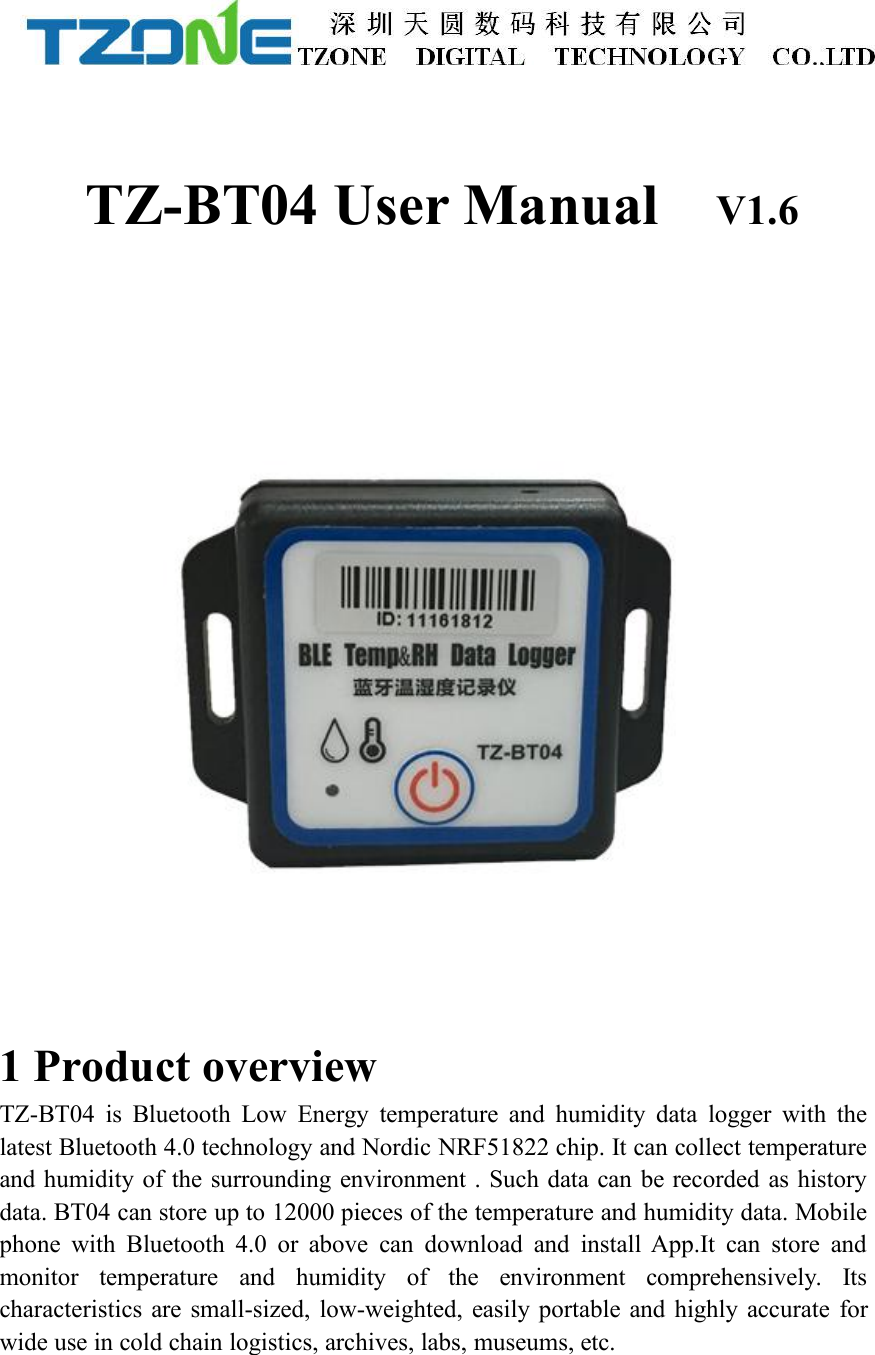
TZ-BT04 User Manual V1.61 Product overviewTZ-BT04 is Bluetooth Low Energy temperature and humidity data logger with thelatest Bluetooth 4.0 technology and Nordic NRF51822 chip. It can collect temperatureand humidity of the surrounding environment . Such data can be recorded as historydata. BT04 can store up to 12000 pieces of the temperature and humidity data. Mobilephone with Bluetooth 4.0 or above can download and install App.It can store andmonitor temperature and humidity of the environment comprehensively. Itscharacteristics are small-sized, low-weighted, easily portable and highly accurate forwide use in cold chain logistics, archives, labs, museums, etc.
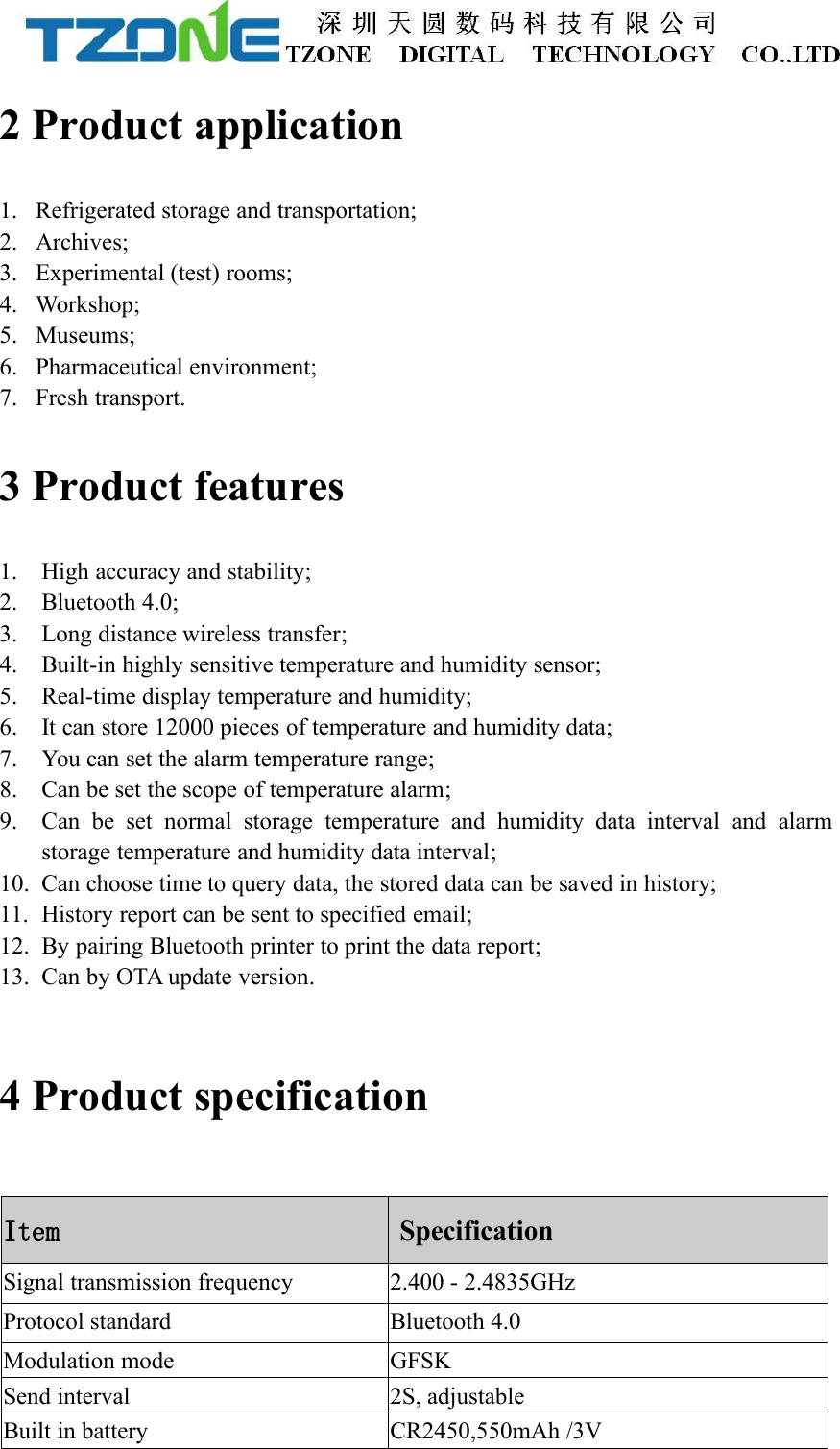
2 Product application1. Refrigerated storage and transportation;2. Archives;3. Experimental (test) rooms;4. Workshop;5. Museums;6. Pharmaceutical environment;7. Fresh transport.3 Product features1. High accuracy and stability;2. Bluetooth 4.0;3. Long distance wireless transfer;4. Built-in highly sensitive temperature and humidity sensor;5. Real-time display temperature and humidity;6. It can store 12000 pieces of temperature and humidity data;7. You can set the alarm temperature range;8. Can be set the scope of temperature alarm;9. Can be set normal storage temperature and humidity data interval and alarmstorage temperature and humidity data interval;10. Can choose time to query data, the stored data can be saved in history;11. History report can be sent to specified email;12. By pairing Bluetooth printer to print the data report;13. Can by OTA update version.4 Product specificationItemSpecificationSignal transmission frequency2.400 - 2.4835GHzProtocol standardBluetooth 4.0Modulation modeGFSKSend interval2S, adjustableBuilt in batteryCR2450,550mAh /3V
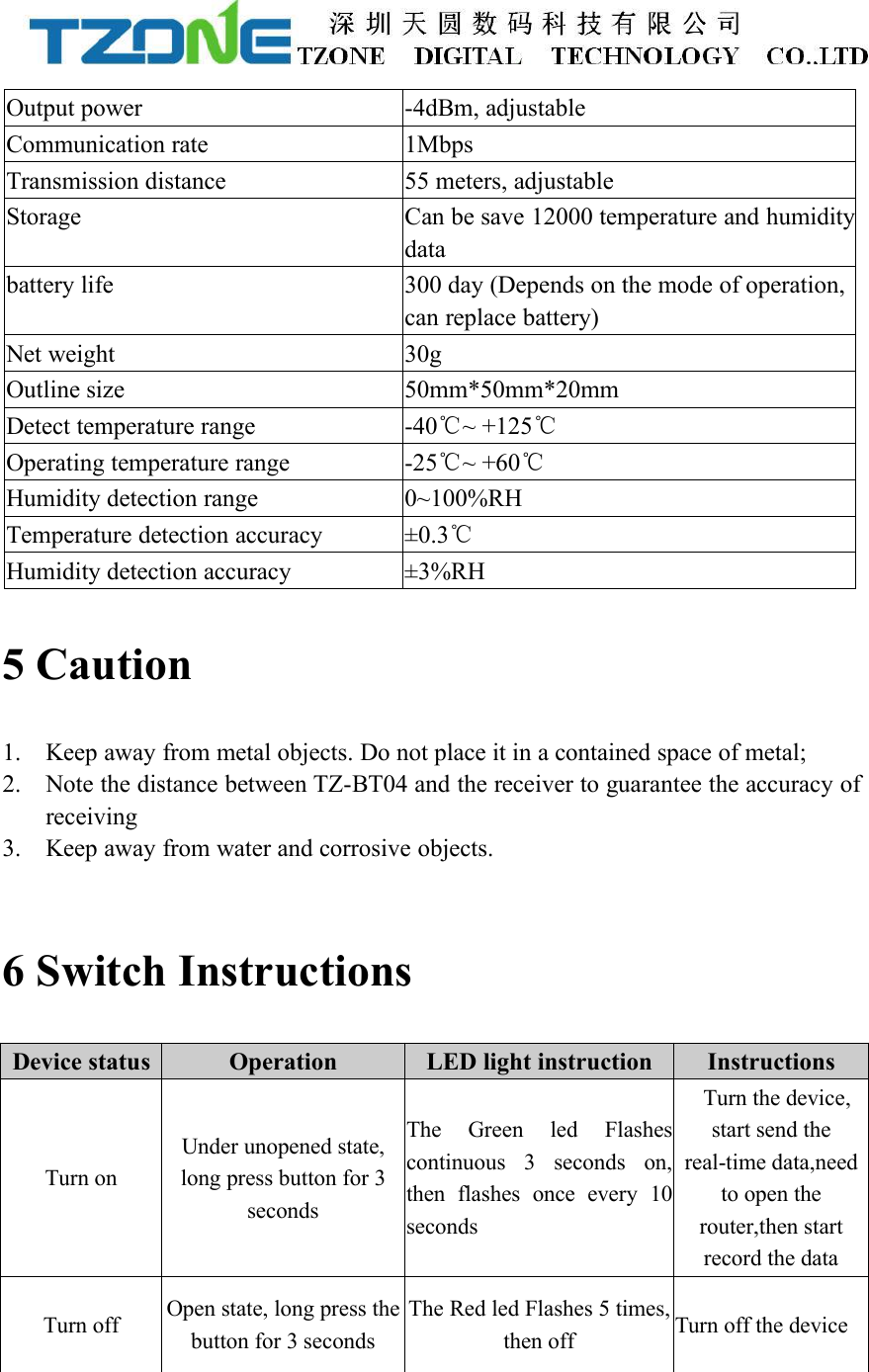
Output power-4dBm, adjustableCommunication rate1MbpsTransmission distance55 meters, adjustableStorageCan be save 12000 temperature and humiditydatabattery life300 day (Depends on the mode of operation,can replace battery)Net weight30gOutline size50mm*50mm*20mmDetect temperature range-40℃~ +125℃Operating temperature range-25℃~ +60℃Humidity detection range0~100%RHTemperature detection accuracy±0.3℃Humidity detection accuracy±3%RH5 Caution1. Keep away from metal objects. Do not place it in a contained space of metal;2. Note the distance between TZ-BT04 and the receiver to guarantee the accuracy ofreceiving3. Keep away from water and corrosive objects.6 Switch InstructionsDevice statusOperationLED light instructionInstructionsTurn onUnder unopened state,long press button for 3secondsThe Green led Flashescontinuous 3 seconds on,then flashes once every 10secondsTurn the device,start send thereal-time data,needto open therouter,then startrecord the dataTurn offOpen state, long press thebutton for 3 secondsThe Red led Flashes 5 times,then offTurn off the device
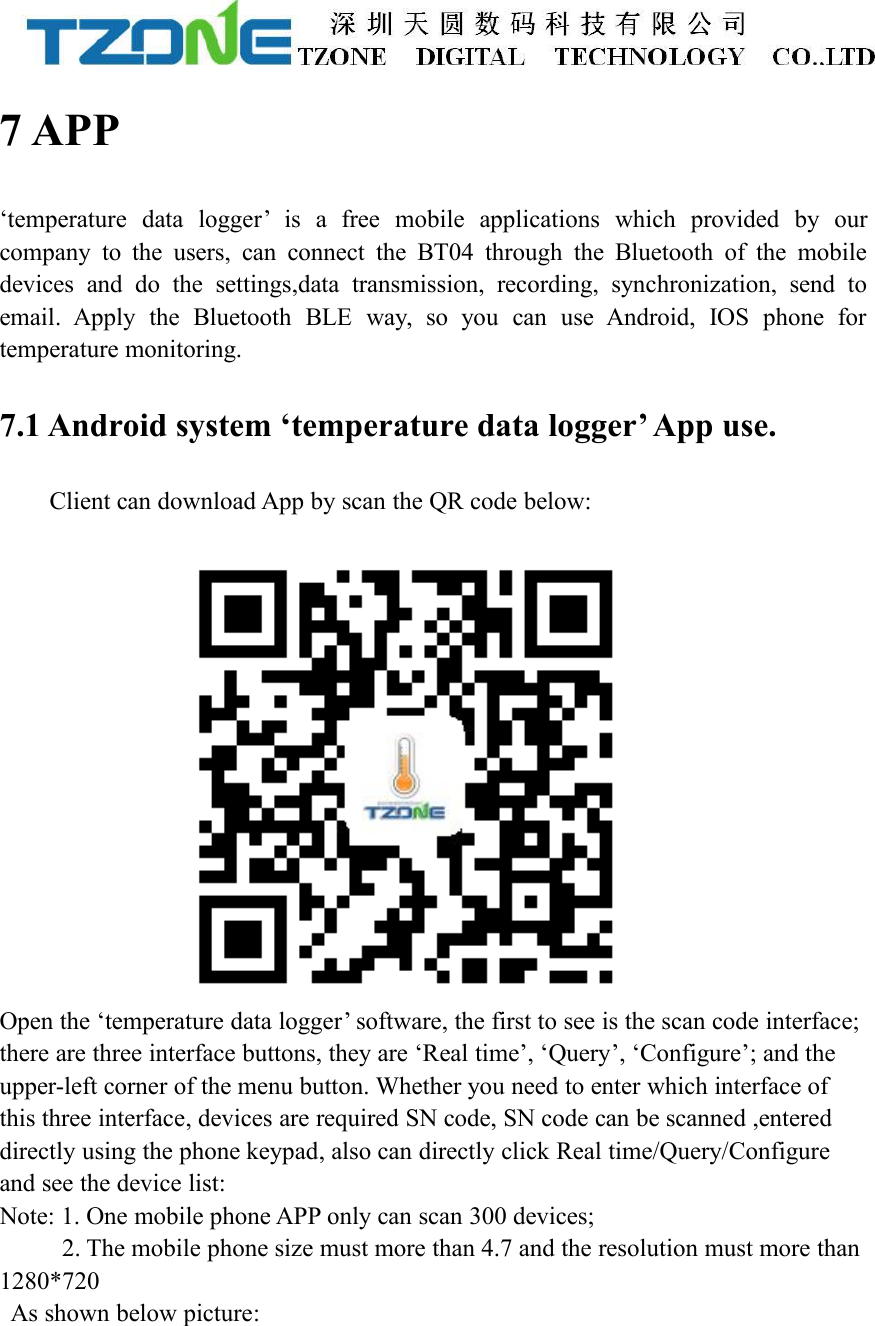
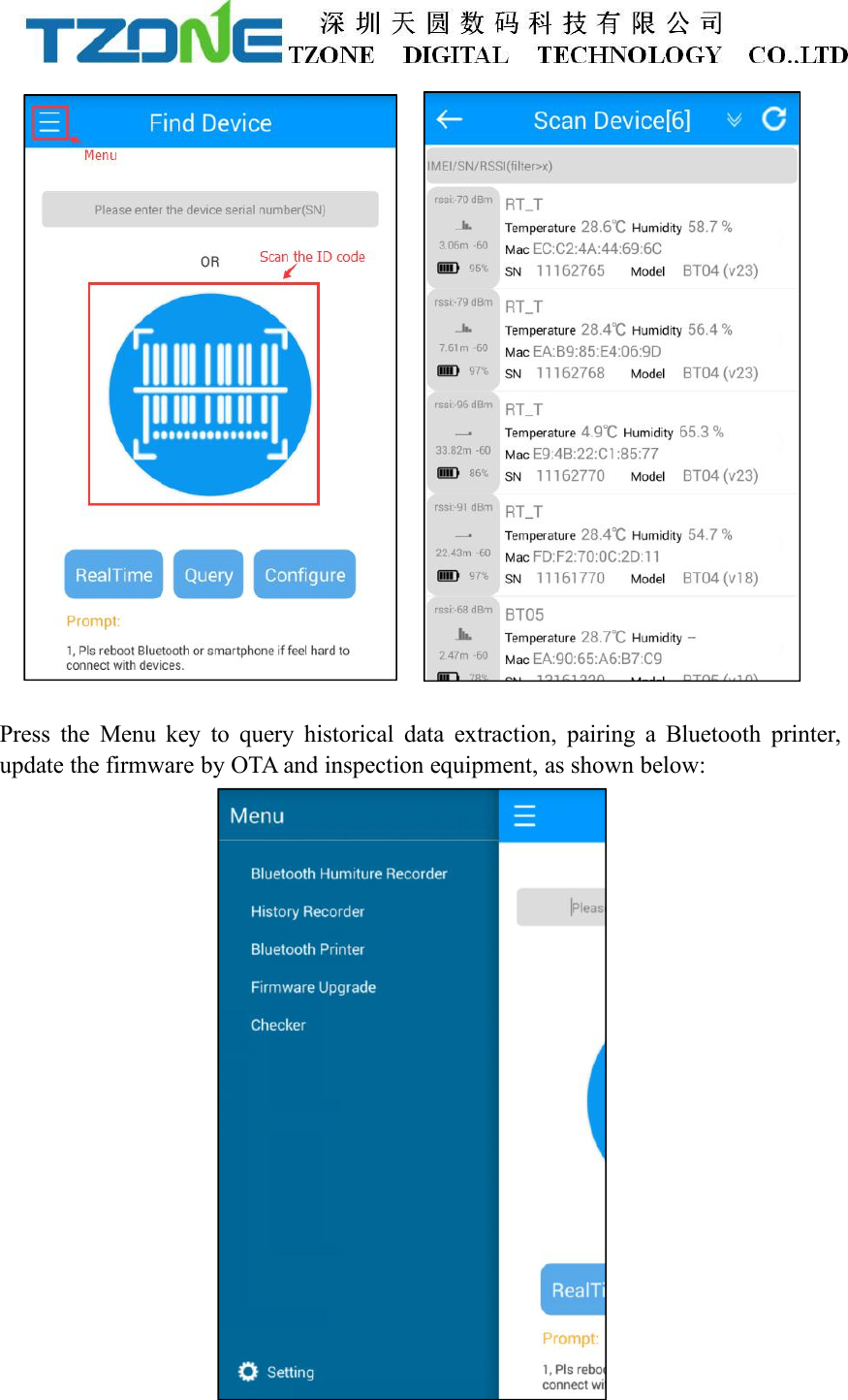
7 APP‘temperature data logger’ is a free mobile applications which provided by ourcompany to the users, can connect the BT04 through the Bluetooth of the mobiledevices and do the settings,data transmission, recording, synchronization, send toemail. Apply the Bluetooth BLE way, so you can use Android, IOS phone fortemperature monitoring.7.1 Android system ‘temperature data logger’ App use.Client can download App by scan the QR code below:Open the ‘temperature data logger’ software, the first to see is the scan code interface;there are three interface buttons, they are ‘Real time’, ‘Query’, ‘Configure’; and theupper-left corner of the menu button. Whether you need to enter which interface ofthis three interface, devices are required SN code, SN code can be scanned ,entereddirectly using the phone keypad, also can directly click Real time/Query/Configureand see the device list:Note: 1. One mobile phone APP only can scan 300 devices;2. The mobile phone size must more than 4.7 and the resolution must more than1280*720As shown below picture:
Press the Menu key to query historical data extraction, pairing a Bluetooth printer,update the firmware by OTA and inspection equipment, as shown below:
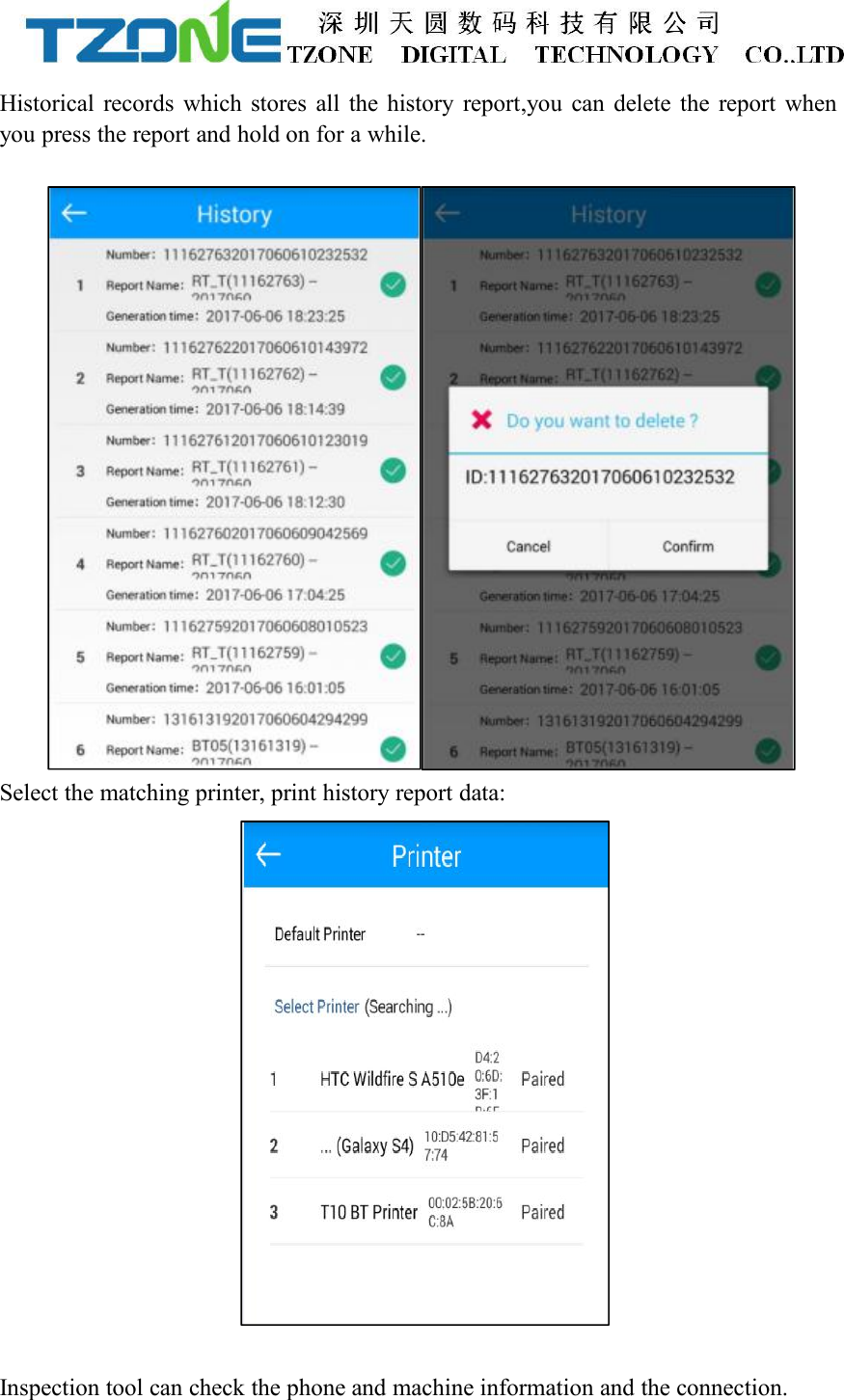
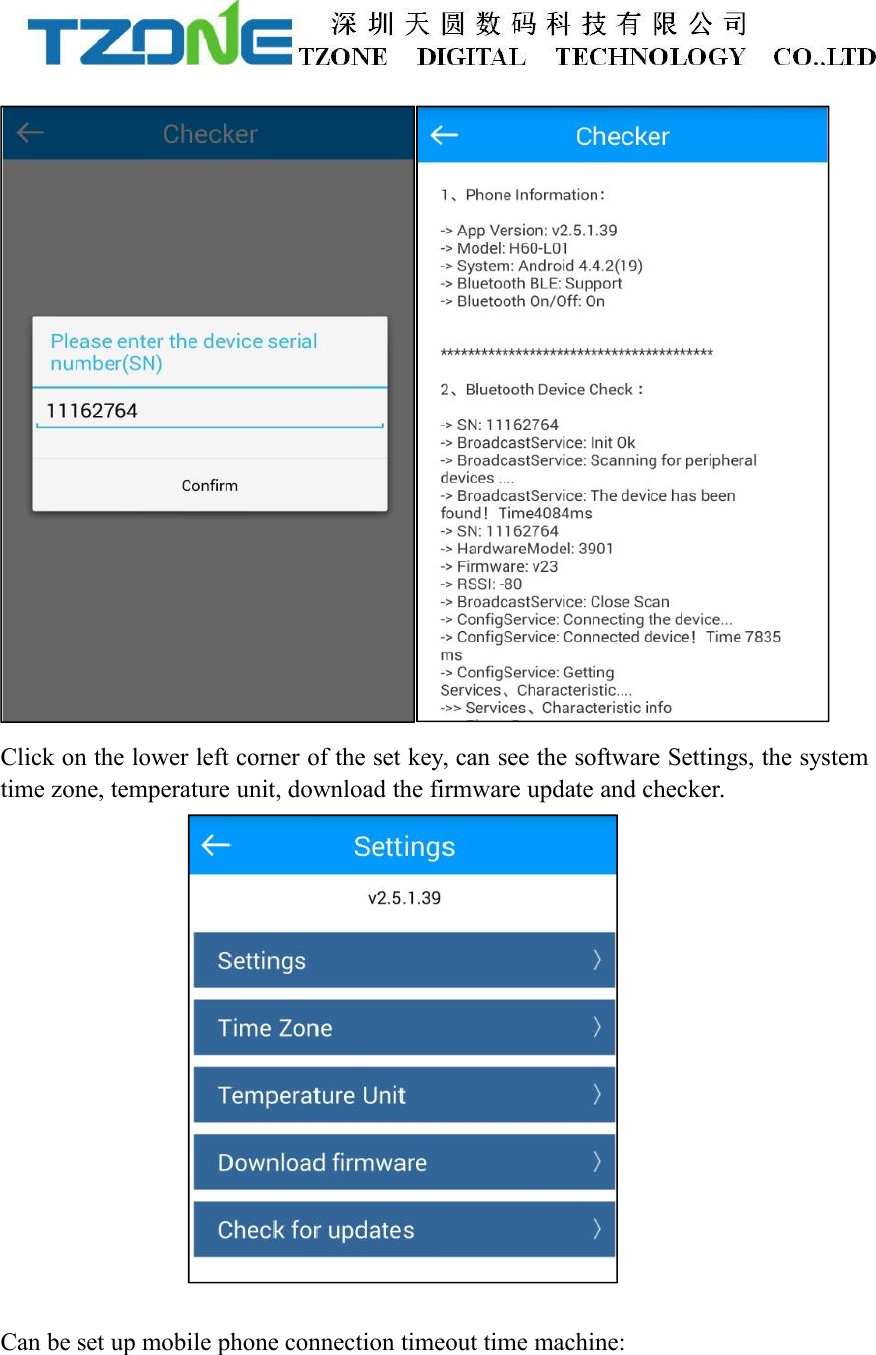
Historical records which stores all the history report,you can delete the report whenyou press the report and hold on for a while.Select the matching printer, print history report data:Inspection tool can check the phone and machine information and the connection.
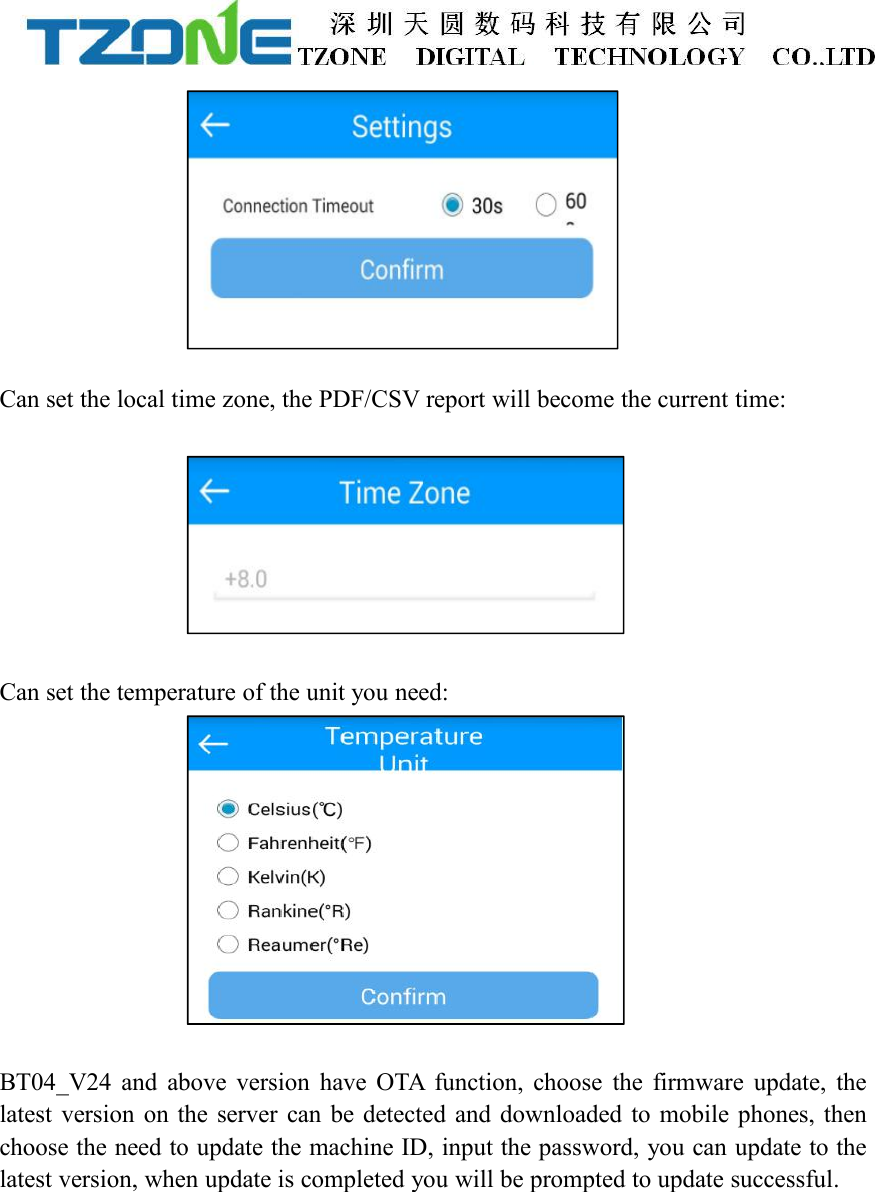
Click on the lower left corner of the set key, can see the software Settings, the systemtime zone, temperature unit, download the firmware update and checker.Can be set up mobile phone connection timeout time machine:
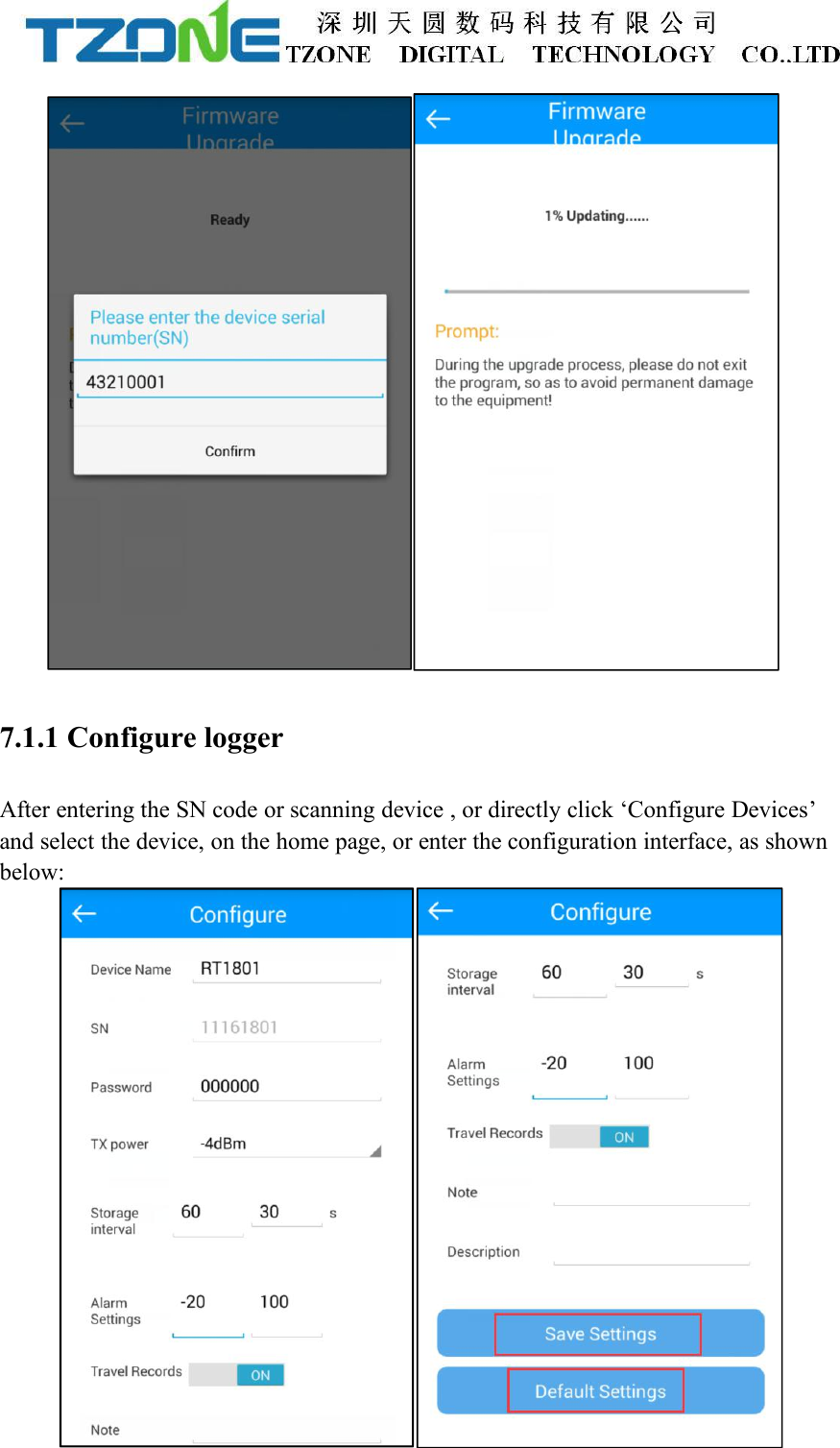
Can set the local time zone, the PDF/CSV report will become the current time:Can set the temperature of the unit you need:BT04_V24 and above version have OTA function, choose the firmware update, thelatest version on the server can be detected and downloaded to mobile phones, thenchoose the need to update the machine ID, input the password, you can update to thelatest version, when update is completed you will be prompted to update successful.
7.1.1 Configure loggerAfter entering the SN code or scanning device , or directly click ‘Configure Devices’and select the device, on the home page, or enter the configuration interface, as shownbelow:
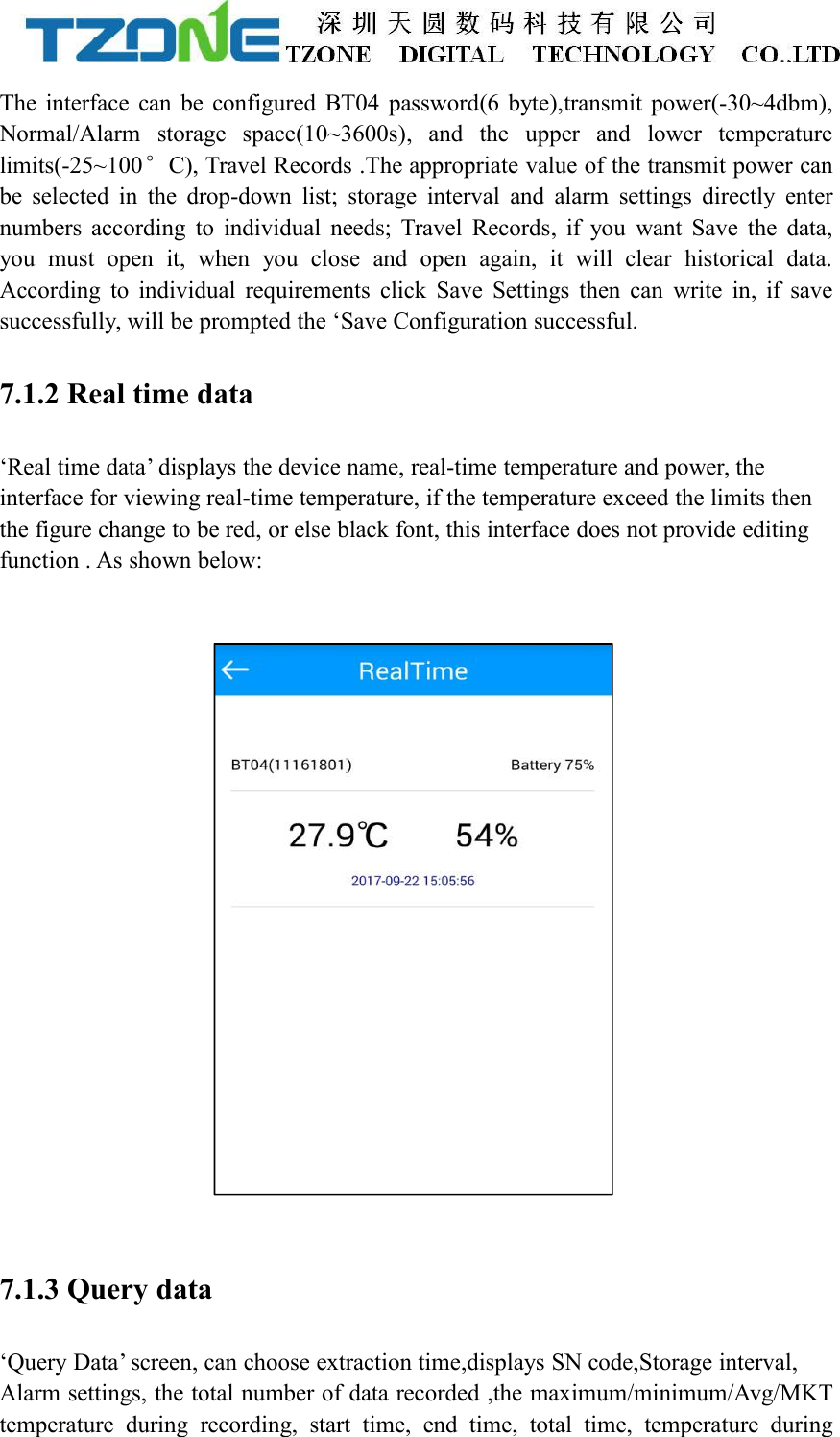
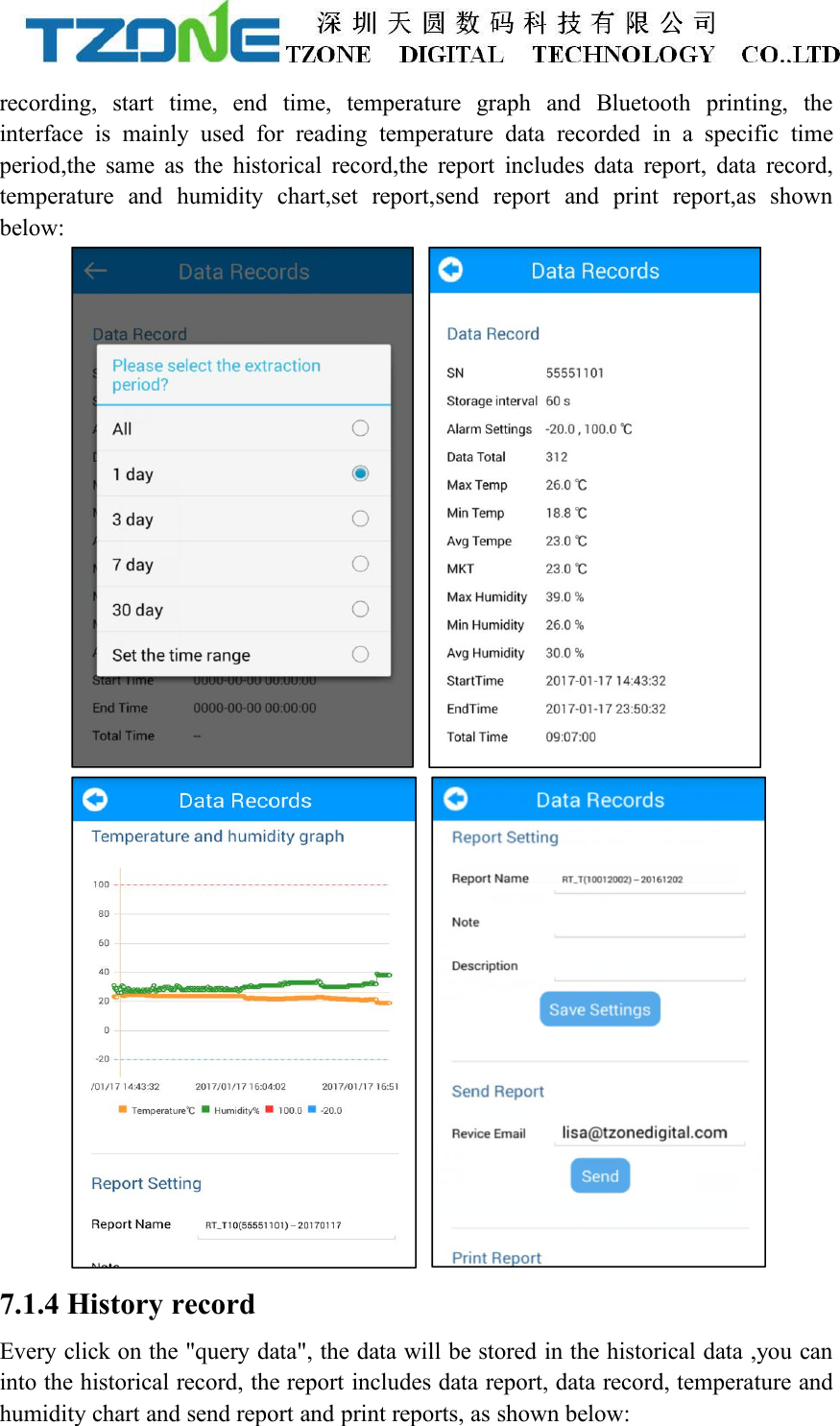
The interface can be configured BT04 password(6 byte),transmit power(-30~4dbm),Normal/Alarm storage space(10~3600s), and the upper and lower temperaturelimits(-25~100°C), Travel Records .The appropriate value of the transmit power canbe selected in the drop-down list; storage interval and alarm settings directly enternumbers according to individual needs; Travel Records, if you want Save the data,you must open it, when you close and open again, it will clear historical data.According to individual requirements click Save Settings then can write in, if savesuccessfully, will be prompted the ‘Save Configuration successful.7.1.2 Real time data‘Real time data’ displays the device name, real-time temperature and power, theinterface for viewing real-time temperature, if the temperature exceed the limits thenthe figure change to be red, or else black font, this interface does not provide editingfunction . As shown below:7.1.3 Query data‘Query Data’ screen, can choose extraction time,displays SN code,Storage interval,Alarm settings, the total number of data recorded ,the maximum/minimum/Avg/MKTtemperature during recording, start time, end time, total time, temperature during
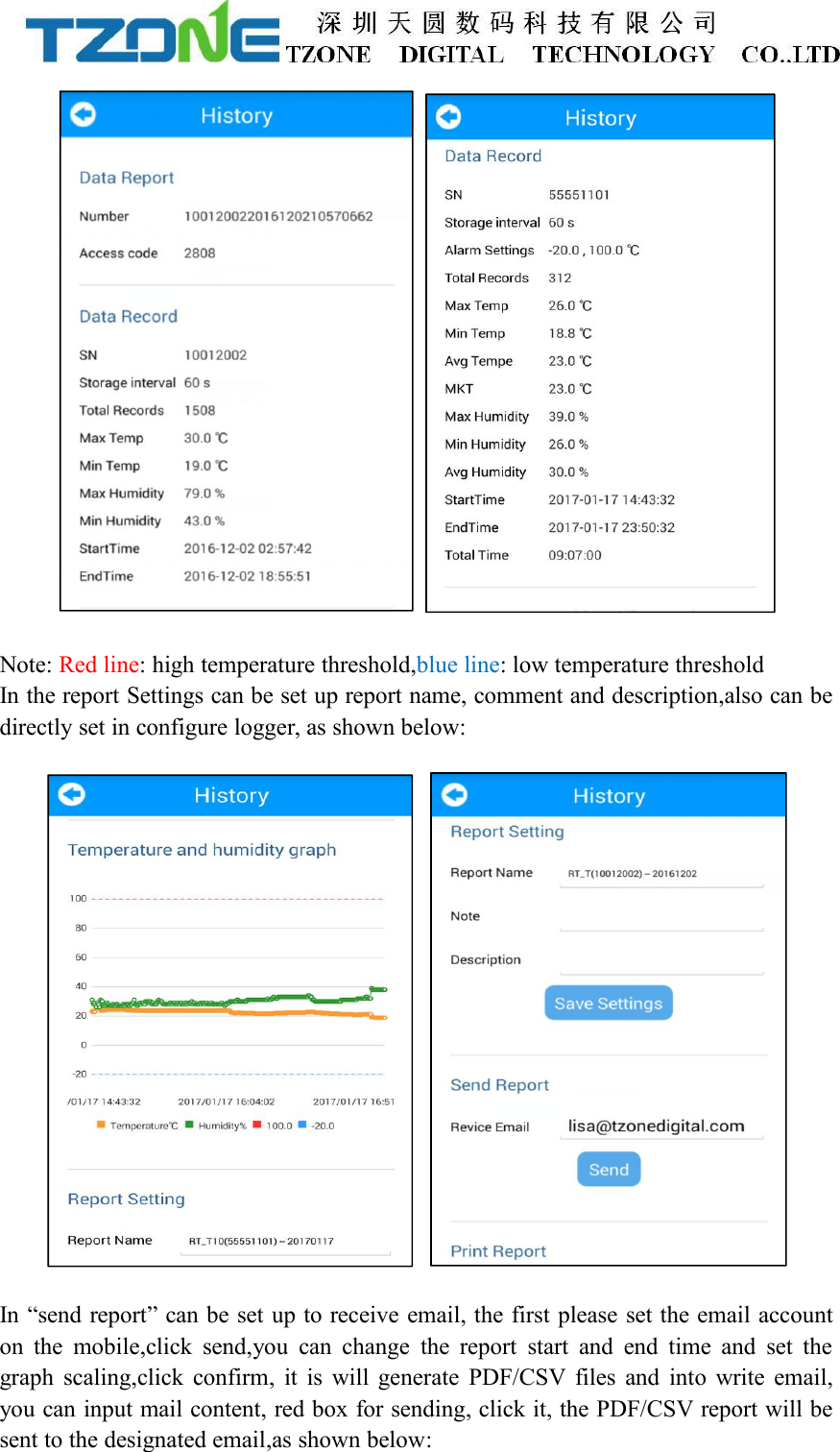
recording, start time, end time, temperature graph and Bluetooth printing, theinterface is mainly used for reading temperature data recorded in a specific timeperiod,the same as the historical record,the report includes data report, data record,temperature and humidity chart,set report,send report and print report,as shownbelow:7.1.4 History recordEvery click on the "query data", the data will be stored in the historical data ,you caninto the historical record, the report includes data report, data record, temperature andhumidity chart and send report and print reports, as shown below:
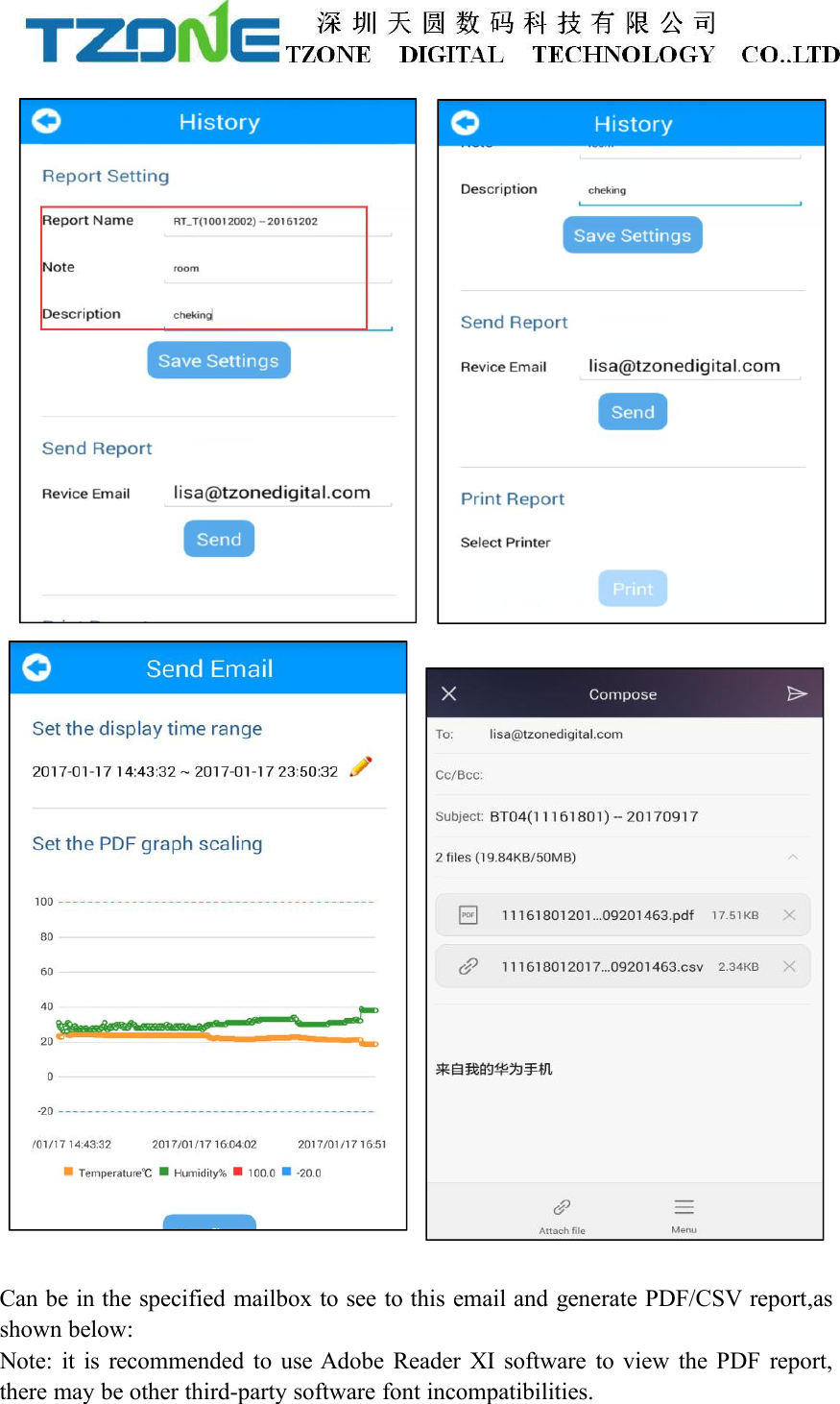
Note: Red line: high temperature threshold,blue line: low temperature thresholdIn the report Settings can be set up report name, comment and description,also can bedirectly set in configure logger, as shown below:In “send report” can be set up to receive email, the first please set the email accounton the mobile,click send,you can change the report start and end time and set thegraph scaling,click confirm, it is will generate PDF/CSV files and into write email,you can input mail content, red box for sending, click it, the PDF/CSV report will besent to the designated email,as shown below:
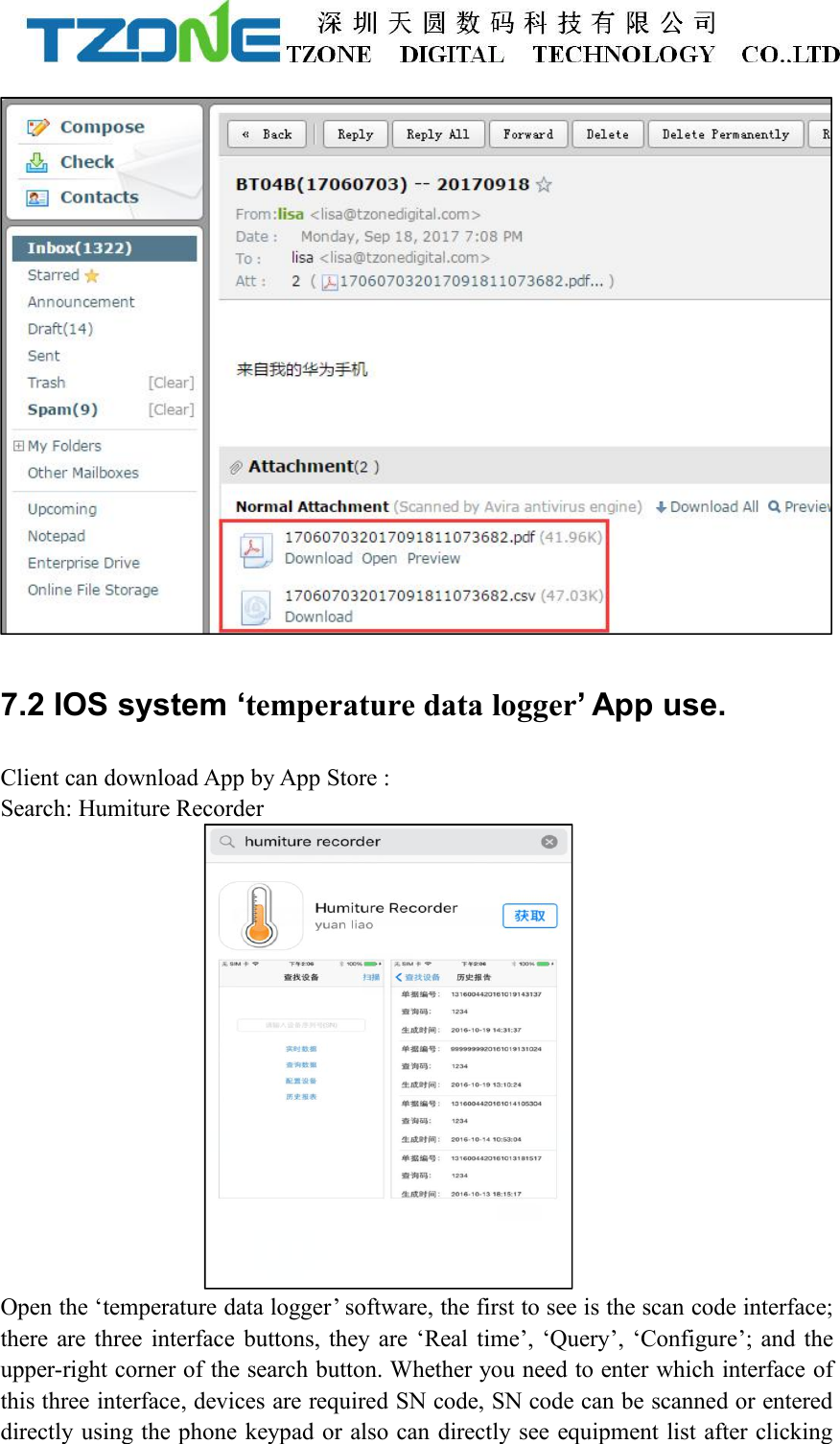
Can be in the specified mailbox to see to this email and generate PDF/CSV report,asshown below:Note: it is recommended to use Adobe Reader XI software to view the PDF report,there may be other third-party software font incompatibilities.
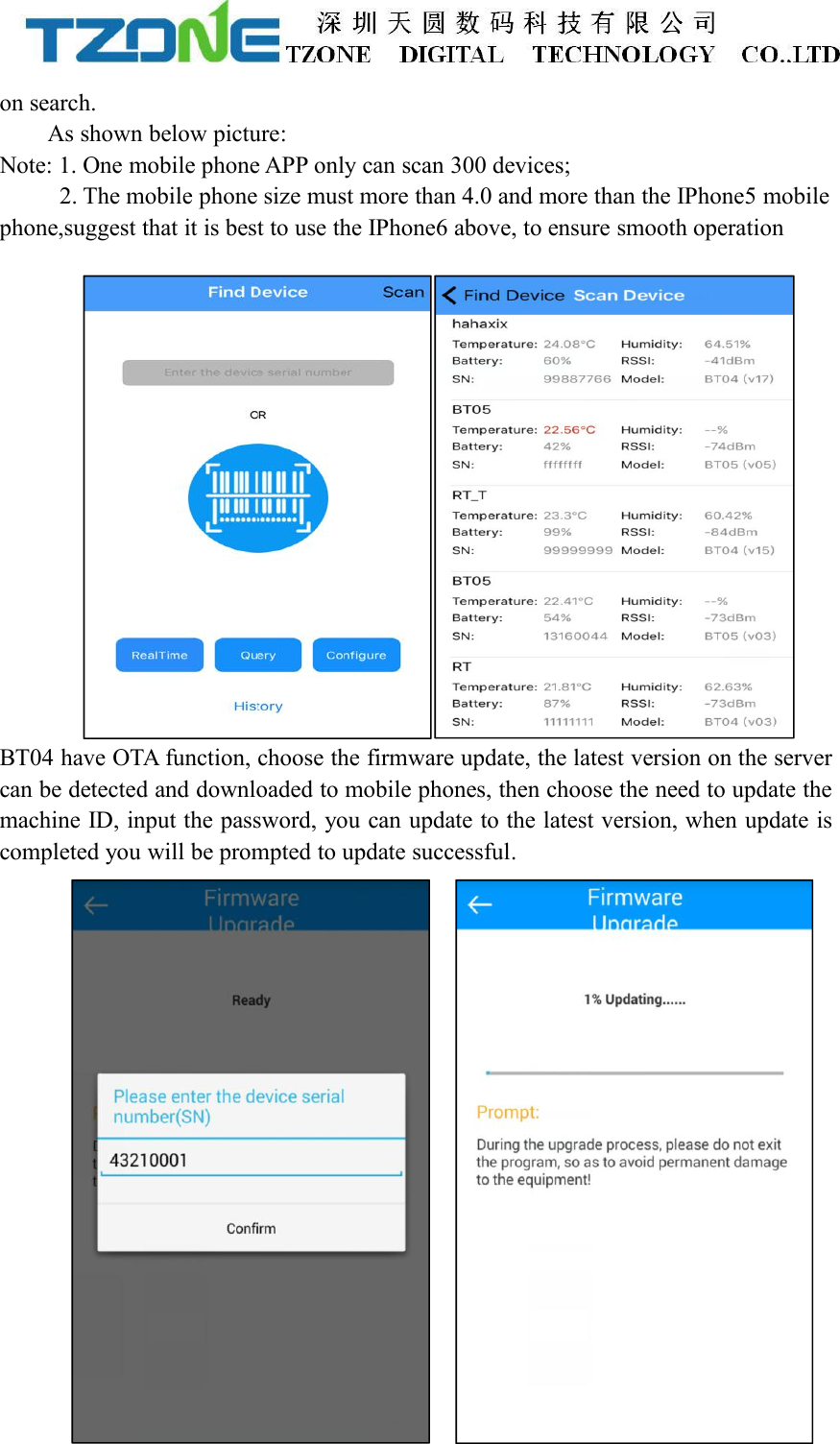
7.2 IOS system ‘temperature data logger’ App use.Client can download App by App Store :Search: Humiture RecorderOpen the ‘temperature data logger’ software, the first to see is the scan code interface;there are three interface buttons, they are ‘Real time’, ‘Query’, ‘Configure’; and theupper-right corner of the search button. Whether you need to enter which interface ofthis three interface, devices are required SN code, SN code can be scanned or entereddirectly using the phone keypad or also can directly see equipment list after clicking
on search.As shown below picture:Note: 1. One mobile phone APP only can scan 300 devices;2. The mobile phone size must more than 4.0 and more than the IPhone5 mobilephone,suggest that it is best to use the IPhone6 above, to ensure smooth operationBT04 have OTA function, choose the firmware update, the latest version on the servercan be detected and downloaded to mobile phones, then choose the need to update themachine ID, input the password, you can update to the latest version, when update iscompleted you will be prompted to update successful.
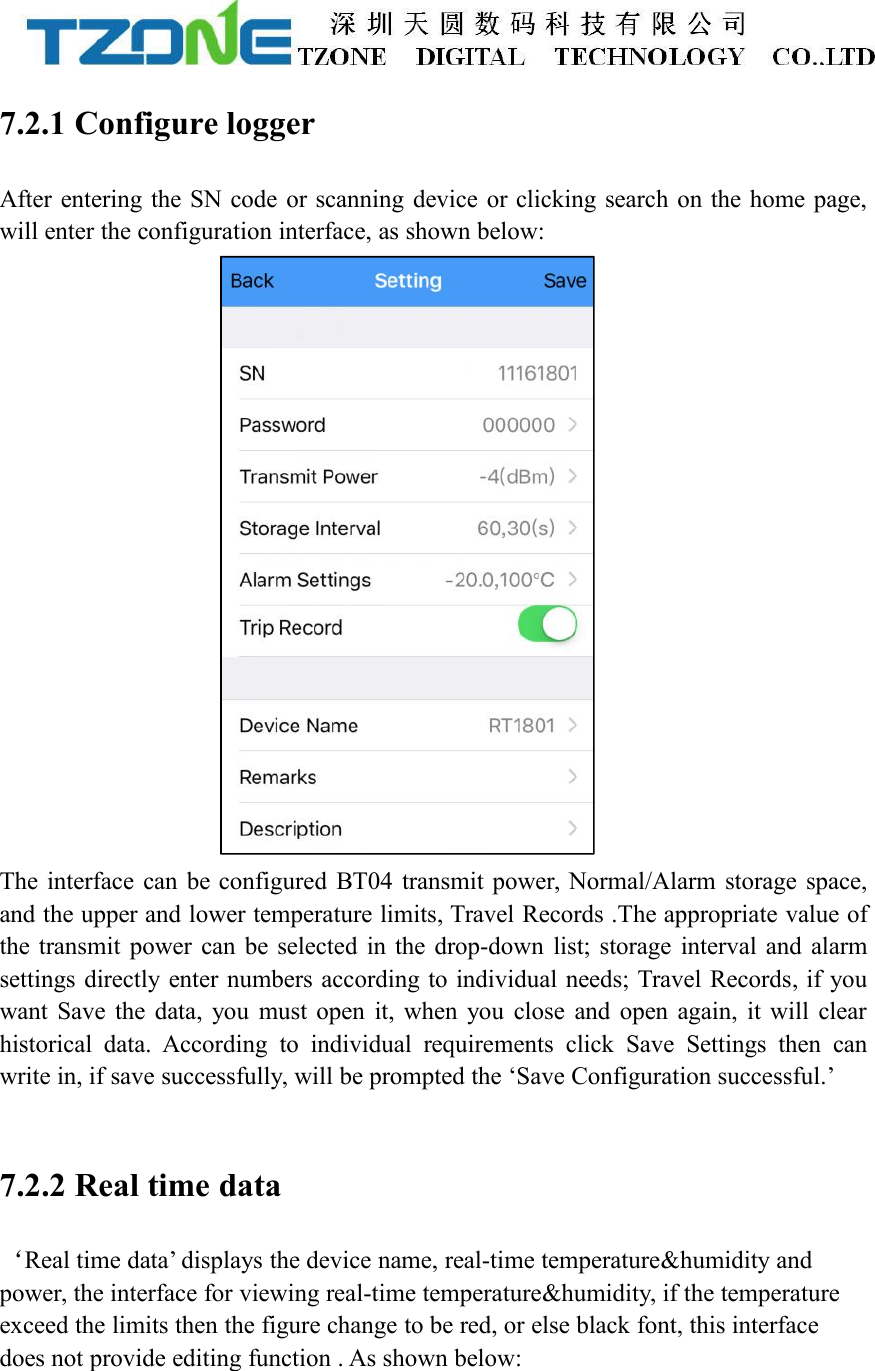
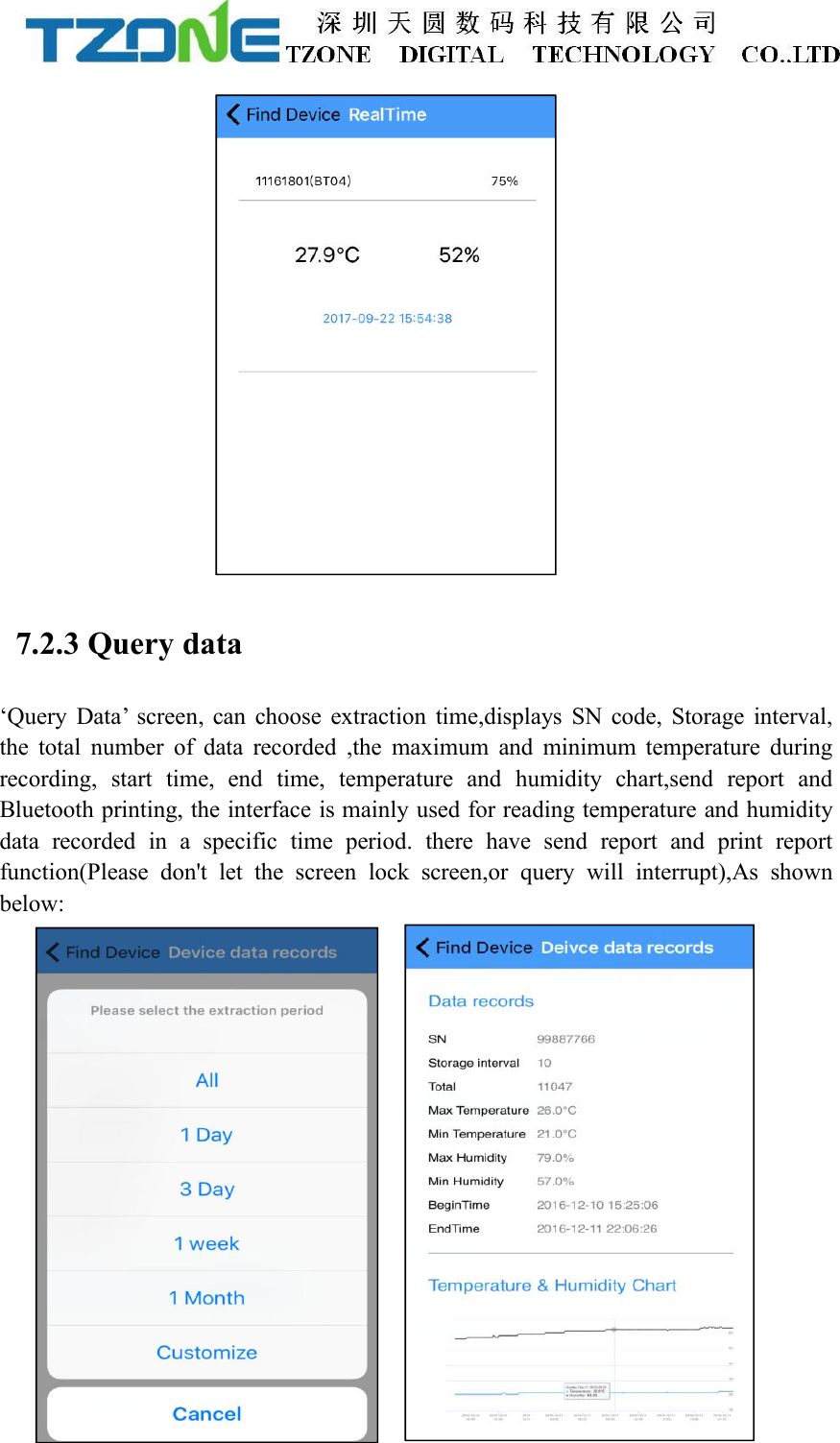
7.2.1 Configure loggerAfter entering the SN code or scanning device or clicking search on the home page,will enter the configuration interface, as shown below:The interface can be configured BT04 transmit power, Normal/Alarm storage space,and the upper and lower temperature limits, Travel Records .The appropriate value ofthe transmit power can be selected in the drop-down list; storage interval and alarmsettings directly enter numbers according to individual needs; Travel Records, if youwant Save the data, you must open it, when you close and open again, it will clearhistorical data. According to individual requirements click Save Settings then canwrite in, if save successfully, will be prompted the ‘Save Configuration successful.’7.2.2 Real time data‘Real time data’ displays the device name, real-time temperature&humidity andpower, the interface for viewing real-time temperature&humidity, if the temperatureexceed the limits then the figure change to be red, or else black font, this interfacedoes not provide editing function . As shown below:
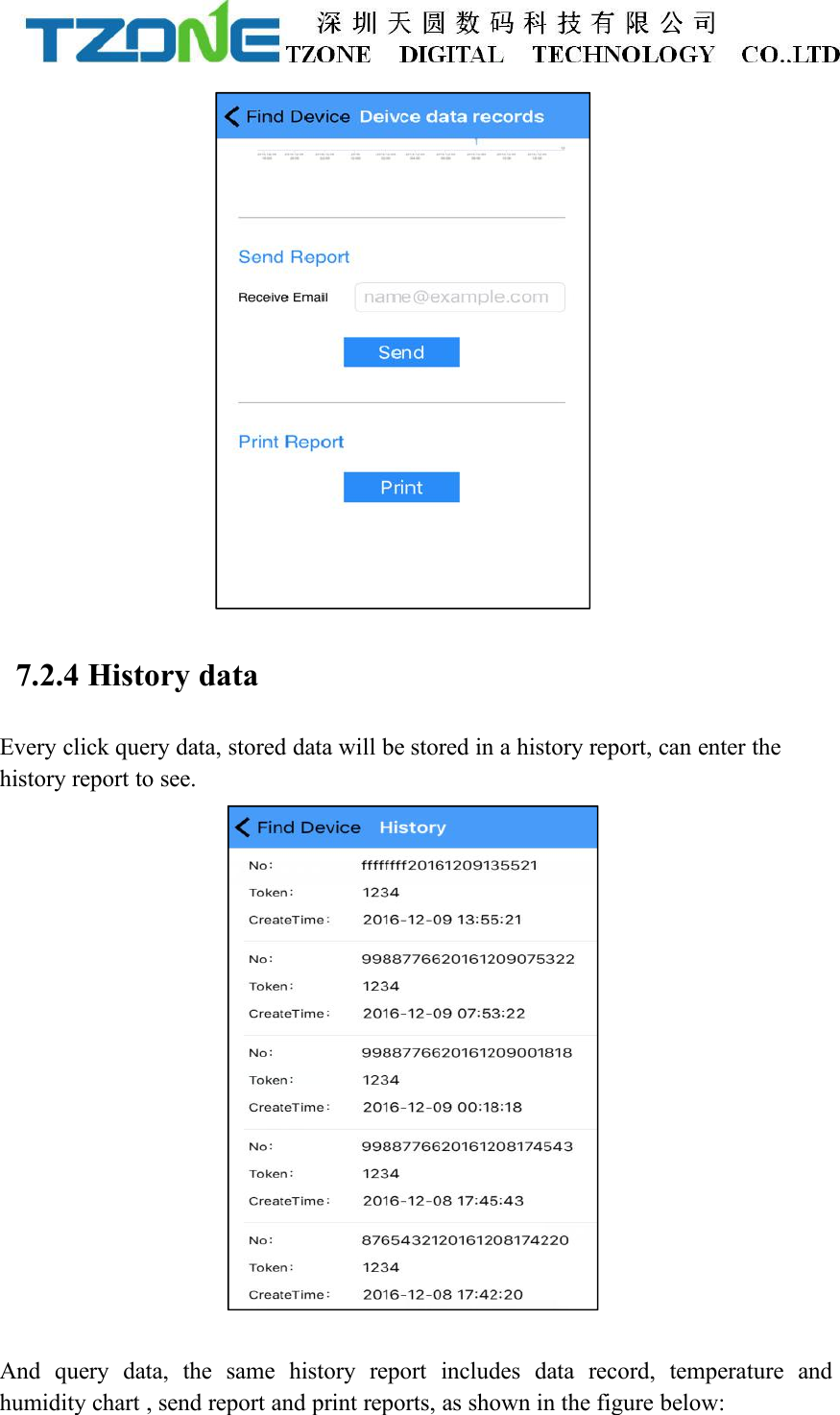
7.2.3 Query data‘Query Data’ screen, can choose extraction time,displays SN code, Storage interval,the total number of data recorded ,the maximum and minimum temperature duringrecording, start time, end time, temperature and humidity chart,send report andBluetooth printing, the interface is mainly used for reading temperature and humiditydata recorded in a specific time period. there have send report and print reportfunction(Please don't let the screen lock screen,or query will interrupt),As shownbelow:
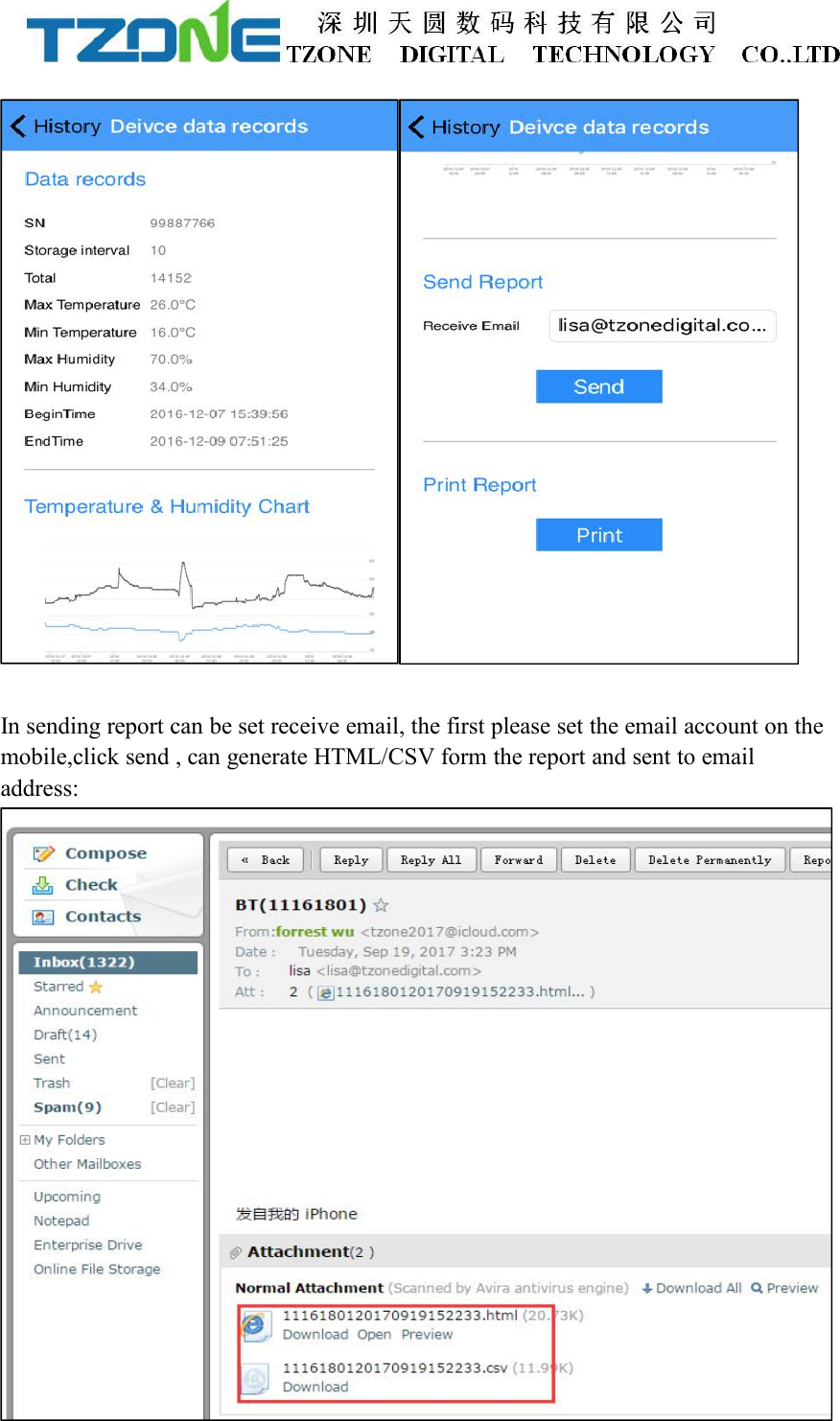
7.2.4 History dataEvery click query data, stored data will be stored in a history report, can enter thehistory report to see.And query data, the same history report includes data record, temperature andhumidity chart , send report and print reports, as shown in the figure below:
In sending report can be set receive email, the first please set the email account on themobile,click send , can generate HTML/CSV form the report and sent to emailaddress:
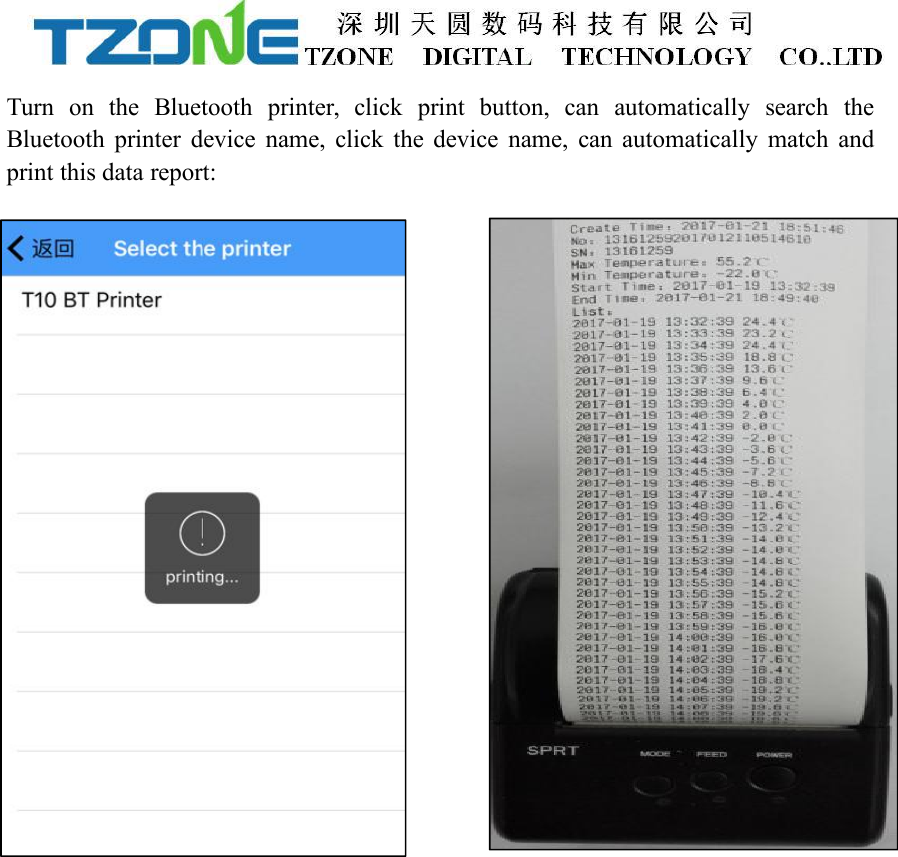
Turn on the Bluetooth printer, click print button, can automatically search theBluetooth printer device name, click the device name, can automatically match andprint this data report:
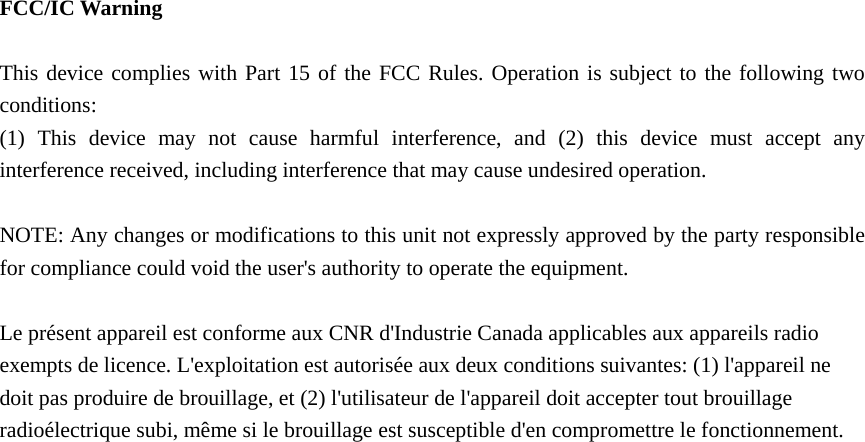
 FCC/IC Warning  This device complies with Part 15 of the FCC Rules. Operation is subject to the following two conditions: (1) This device may not cause harmful interference, and (2) this device must accept any interference received, including interference that may cause undesired operation.  NOTE: Any changes or modifications to this unit not expressly approved by the party responsible for compliance could void the user's authority to operate the equipment.  Le présent appareil est conforme aux CNR d'Industrie Canada applicables aux appareils radio exempts de licence. L'exploitation est autorisée aux deux conditions suivantes: (1) l'appareil ne doit pas produire de brouillage, et (2) l'utilisateur de l'appareil doit accepter tout brouillage radioélectrique subi, même si le brouillage est susceptible d'en compromettre le fonctionnement.

Navigation menu