Ultima Electronics UECMINI2K Scanner User Manual Manual

Ultima Electronics Corp Scanner Manual

Manual

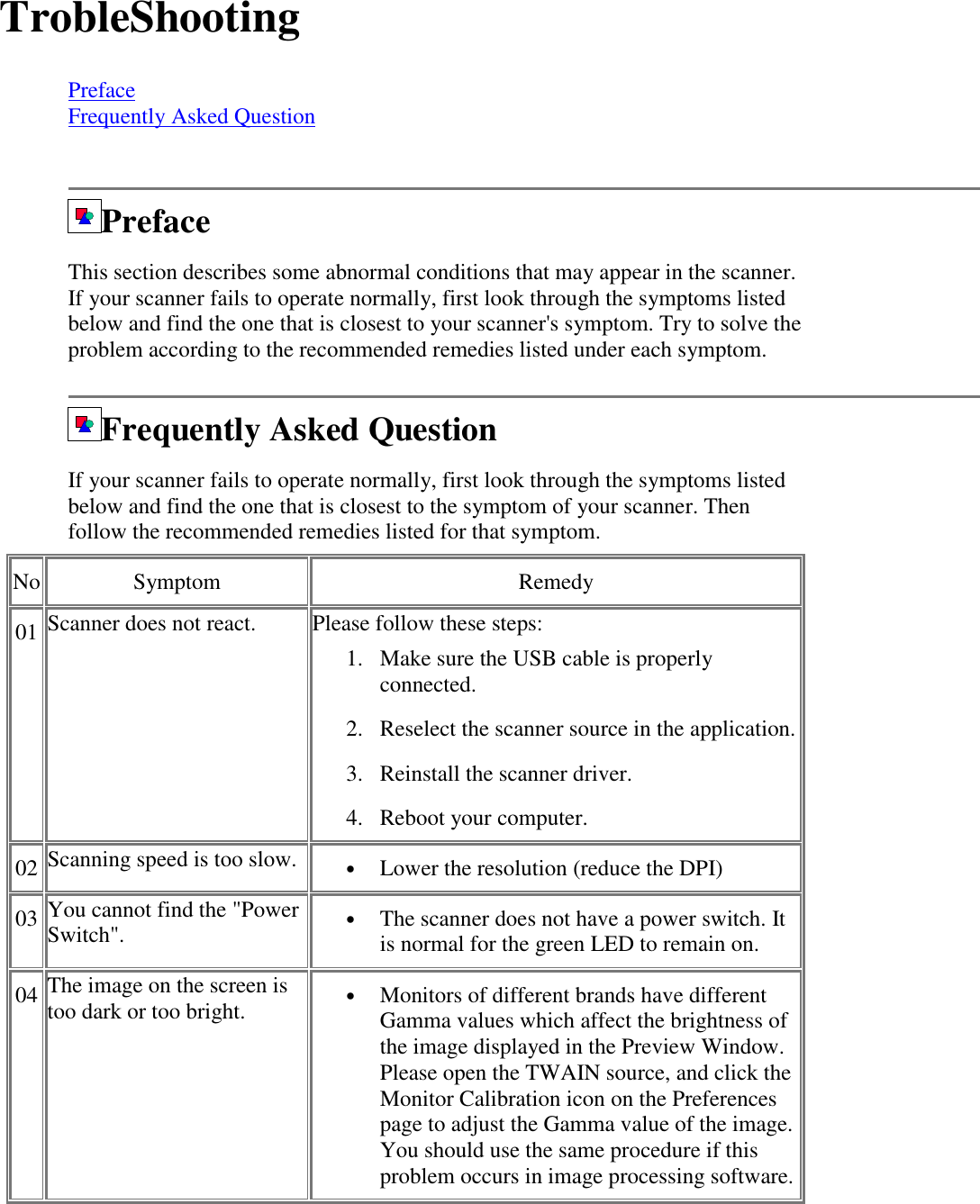
TrobleShootingPrefaceFrequently Asked QuestionPrefaceThis section describes some abnormal conditions that may appear in the scanner.If your scanner fails to operate normally, first look through the symptoms listedbelow and find the one that is closest to your scanner's symptom. Try to solve theproblem according to the recommended remedies listed under each symptom.Frequently Asked QuestionIf your scanner fails to operate normally, first look through the symptoms listedbelow and find the one that is closest to the symptom of your scanner. Thenfollow the recommended remedies listed for that symptom.No Symptom Remedy01 Scanner does not react. Please follow these steps:1. Make sure the USB cable is properlyconnected.2. Reselect the scanner source in the application.3. Reinstall the scanner driver.4. Reboot your computer.02 Scanning speed is too slow. • Lower the resolution (reduce the DPI)03 You cannot find the "PowerSwitch". • The scanner does not have a power switch. Itis normal for the green LED to remain on.04 The image on the screen istoo dark or too bright. • Monitors of different brands have differentGamma values which affect the brightness ofthe image displayed in the Preview Window.Please open the TWAIN source, and click theMonitor Calibration icon on the Preferencespage to adjust the Gamma value of the image.You should use the same procedure if thisproblem occurs in image processing software.
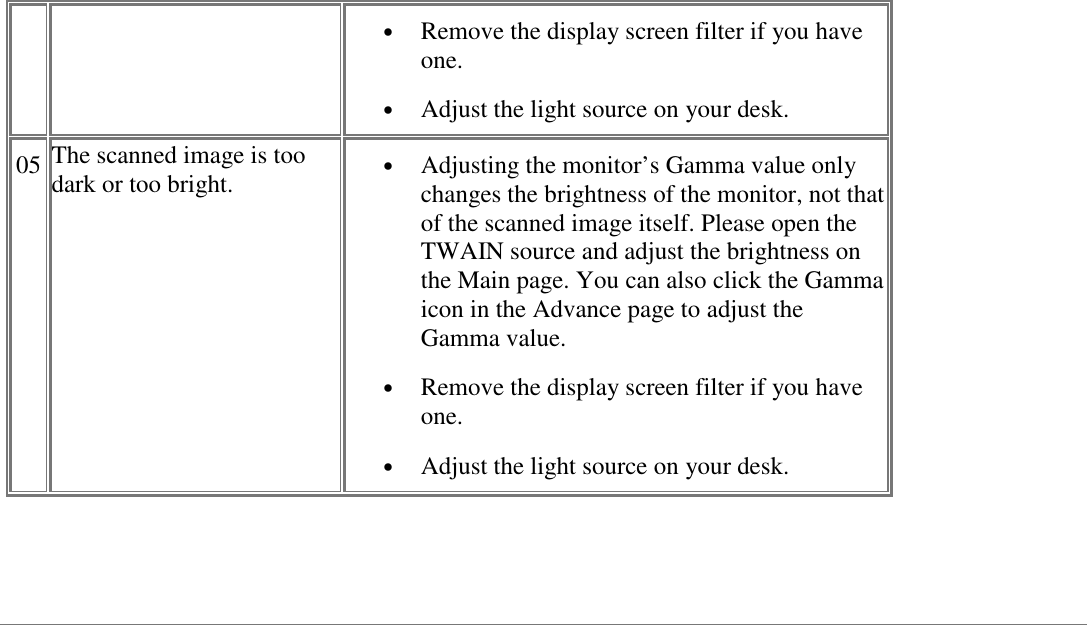
• Remove the display screen filter if you haveone.• Adjust the light source on your desk.05 The scanned image is toodark or too bright. • Adjusting the monitor’s Gamma value onlychanges the brightness of the monitor, not thatof the scanned image itself. Please open theTWAIN source and adjust the brightness onthe Main page. You can also click the Gammaicon in the Advance page to adjust theGamma value.• Remove the display screen filter if you haveone.• Adjust the light source on your desk.

Navigation menu