Usafe UBHS-H5 Amazon Basics Bluetooth Stereo Headset with Microphone User Manual

Usafe Co.,Ltd Amazon Basics Bluetooth Stereo Headset with Microphone

User Manual

Quick Setup Guide                                                                 UBHS-H5
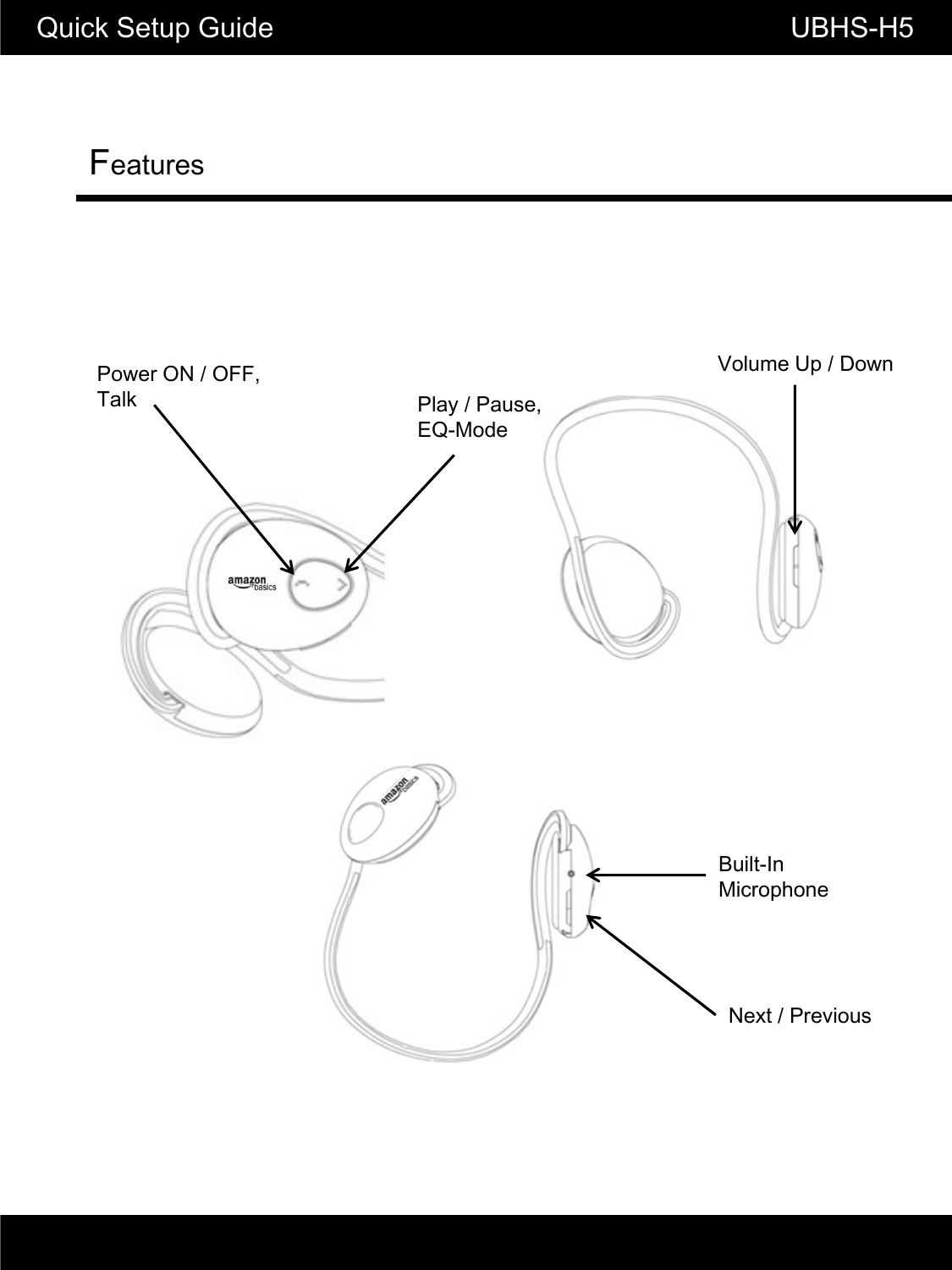
FeaturesQuick Setup Guide                                       UBHS-H5Volume Up / DownPlay / Pause,EQ-ModeVolume Up / DownPower ON / OFF,TalkBuilt-InMicrophoneNext / Previous
Power ON/OFFQuick Setup Guide                                               UBHS-H5▮ Press and hold ‘Power/Talk’ button for 2 seconds to switch the headset on or off.▮Power ON/OFF voice prompt is“Hello”/“Bye”▮Power ON/OFF voice prompt is Hello / Bye.Pairing and Connection▮ While the headset is off, press and hold ‘Talk’ for 4 seconds to start pairing mode.▮ Once the headset is in pairing mode, select ‘UBHS-H5’ among discovered Bluetooth devices on the phone.When being connected , voice prompt is “Connected”.Note: 2 types of EQ effect are programmed in the order below.▮While in Play / Pause mode long click the‘▶■’button toUsing EQ effect▮While in Play / Pause mode, long click the ▶■ button to select the EQ effect of your choice.1. Normal - No EQ effect is applied.2. Bass - enhances low-frequency sound to provide rich and deep bass tones.p3. Live - Delivers natural and soft sound field effect simulatingthat of a live performance.
Easy pairingQuick Setup Guide                                                    UBHS-H5▮ ‘UBHS-H5’ supports easy pairing . When pairing , there is no need to enter the ‘0000’.※ Host device also has to support easy pairing.Connecting the Headset▮ Connecting from the phone: Among registered Bluetooth devices on the phone, select ‘UBHS-H5’.▮ Connecting from the headset: Through auto-connect function, the headset automatically connects to the last device it was connected to when powered on.Resetting the Headset▮ In case the headset needs to be reset, press ‘Play’ , ‘Talk’ and ‘Volume Up’ buttons together simultaneously.
Quick Setup Guide                          UBHS-H5Multi Point▮ Multi-point enables your headset to maintain an active connection with two mobile phones. This means your headset is ready when you want to make or take calls from either your personal or your work phonepersonal or your work phone.▮ Before setting up multi-point mode, at least one other Bluetooth enabled device should be stored in the headset's pairing list. ▮ The headset will recognize the Bluetooth devices based on priority. By default, the first paired Bluetooth device will be the first priority device and the other Bluetooth device will be second priority.
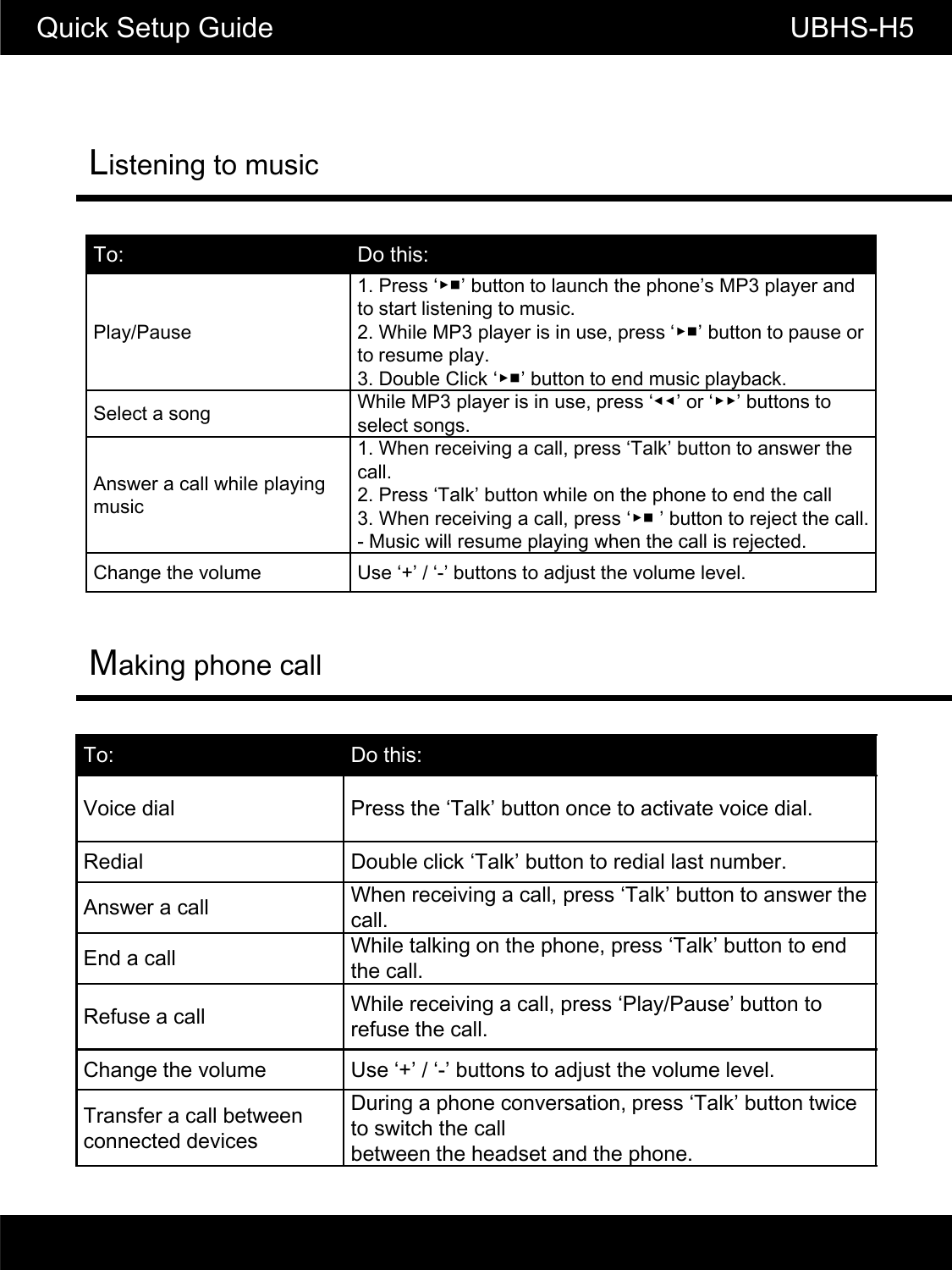
Listening to musicQuick Setup Guide                                                     UBHS-H5To:  Do this:Play/Pause1. Press ‘▶■’ button to launch the phone’s MP3 player and to start listening to music.2. While MP3 player is in use, press ‘▶■’ button to pause or to resume play.py3. Double Click ‘▶■’ button to end music playback.Select a song While MP3 player is in use, press ‘◀◀’ or ‘▶▶’ buttons to select songs.Answer a call while playing music1. When receiving a call, press ‘Talk’ button to answer the call.2. Press ‘Talk’ button while on the phone to end the call3. When receiving a call, press ‘▶■ ’ button to reject the call.-Music will resume playing when the call is rejectedMaking phone call-Music will resume playing when the call is rejected.Change the volume Use ‘+’ / ‘-’ buttons to adjust the volume level.To:  Do this:Voice dial Press the ‘Talk’ button once to activate voice dial.Redial Double click ‘Talk’ button to redial last number.Answer a callWhen receiving a call, press ‘Talk’ button to answer the Answer a callcall.End a call While talking on the phone, press ‘Talk’ button to end the call.Refuse a call While receiving a call, press ‘Play/Pause’ button to refuse the call.Change the volume Use ‘+’ / ‘-’ buttons to adjust the volume level.Transfer a call between connected devicesDuring a phone conversation, press ‘Talk’ button twice to switch the callbetween the headset and the phone.
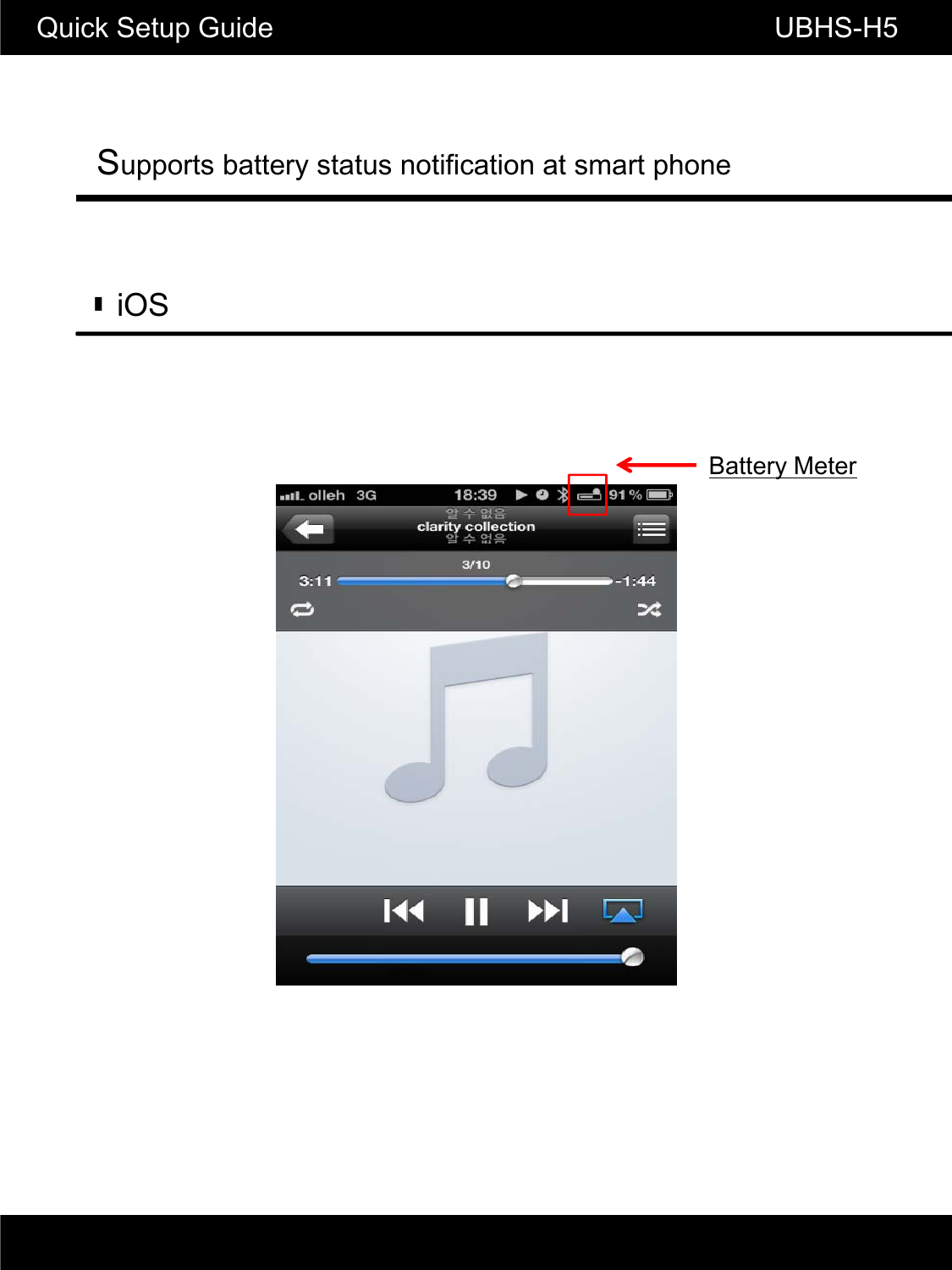
Supports battery status notification at smart phone Quick Setup Guide                                                       UBHS-H5▮iOSBattery Meter
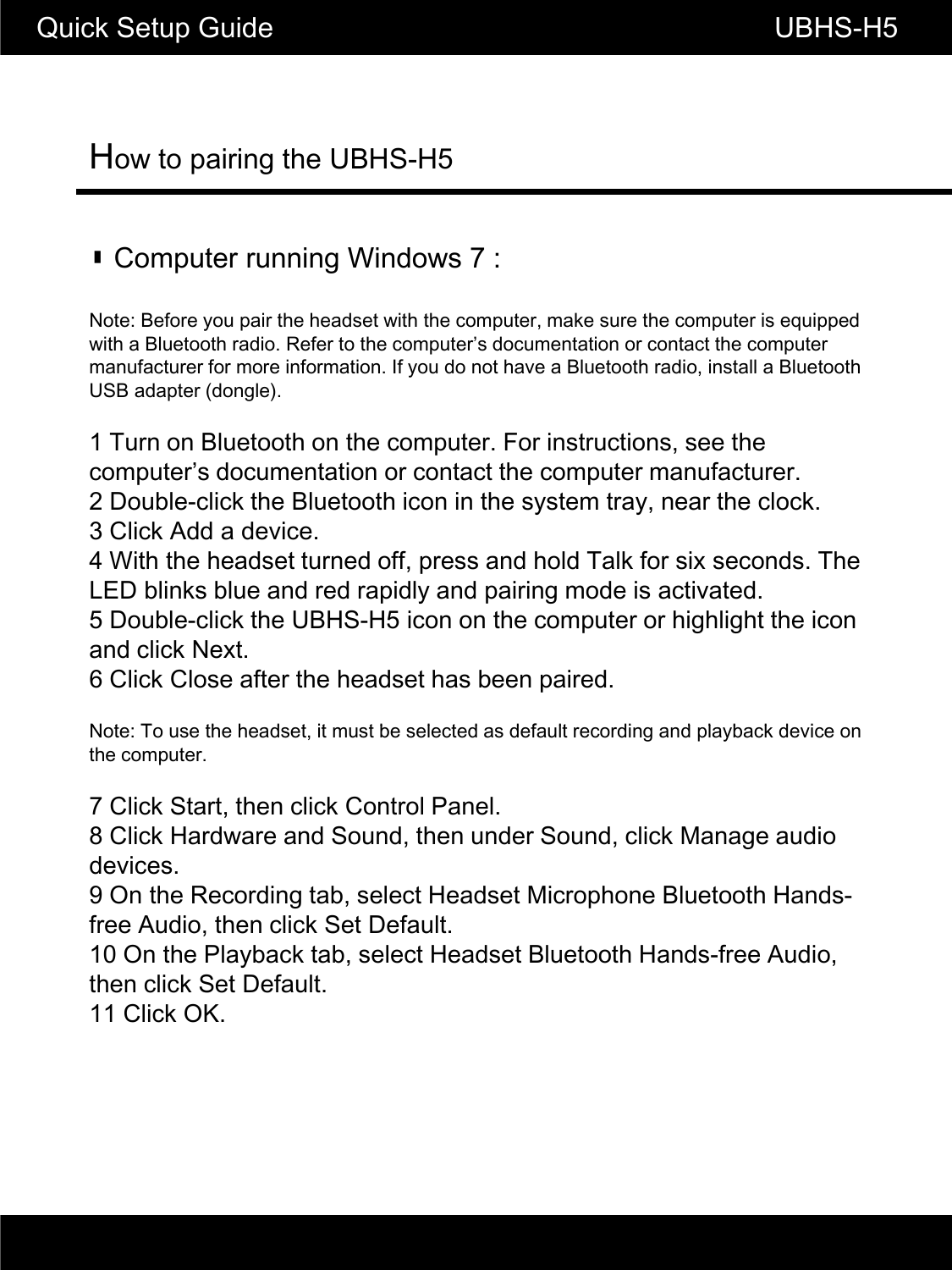
How to pairing the UBHS-H5Quick Setup Guide                                                        UBHS-H5▮ Computer running Windows 7 :Note: Before you pair the headset with the computer, make sure the computer is equipped with a Bluetooth radio. Refer to the computer’s documentation or contact the computer ft f if ti If d th BltthdiitllBltthmanufacturer for more information. If you do not have a Bluetooth radio, install a Bluetooth USB adapter (dongle).1 Turn on Bluetooth on the computer. For instructions, see the computer’s documentation or contact the computer manufacturer.2 Double-click the Bluetooth icon in the system tray, near the clock.3 Click Add a device.4 With the headset turned off, press and hold Talk for six seconds. The LED blinks blue and red rapidly and pairing mode is activated.5 Double-click the UBHS-H5 icon on the computer or highlight the icon and click Next.6 Click Close after the headset has been paired.NtT thhdtit tb ltd dflt di dlbkdiNote: To use the headset, it must be selected as default recording and playback device on the computer.7 Click Start, then click Control Panel.8 Click Hardware and Sound, then under Sound, click Manage audio devices.9 On the Recording tab, select Headset Microphone Bluetooth Hands-g, pfree Audio, then click Set Default.10 On the Playback tab, select Headset Bluetooth Hands-free Audio, then click Set Default.11 Click OK.
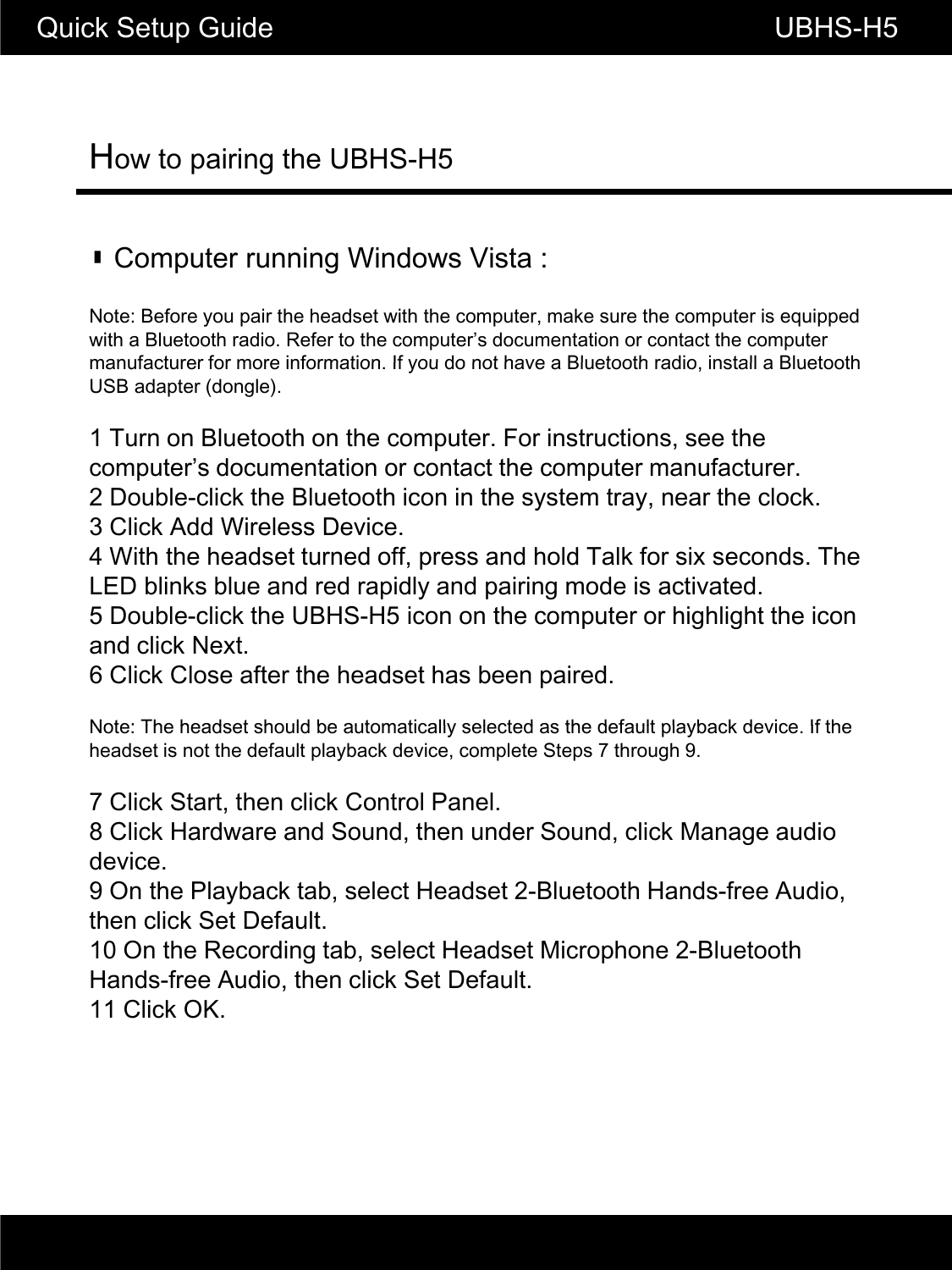
How to pairing the UBHS-H5Quick Setup Guide                                                       UBHS-H5▮ Computer running Windows Vista :Note: Before you pair the headset with the computer, make sure the computer is equipped with a Bluetooth radio. Refer to the computer’s documentation or contact the computer manufacturer for more information If you do not have a Bluetooth radio install a Bluetoothmanufacturer for more information. If you do not have a Bluetooth radio, install a Bluetooth USB adapter (dongle).1 Turn on Bluetooth on the computer. For instructions, see the computer’s documentation or contact the computer manufacturer.2 Double-click the Bluetooth icon in the system tray, near the clock.3 Click Add Wireless Device.4 With the headset turned off, press and hold Talk for six seconds. The LED blinks blue and red rapidly and pairing mode is activated.5 Double-click the UBHS-H5 icon on the computer or highlight the icon and click Next.6 Click Close after the headset has been paired.Note: The headset should be automatically selected as the default playback device If theNote: The headset should be automatically selected as the default playback device. If the headset is not the default playback device, complete Steps 7 through 9.7 Click Start, then click Control Panel.8 Click Hardware and Sound, then under Sound, click Manage audio device.9 On the Playback tab, select Headset 2-Bluetooth Hands-free Audio, then click Set Default.10 On the Recording tab, select Headset Microphone 2-Bluetooth Hands-free Audio, then click Set Default.11 Click OK.
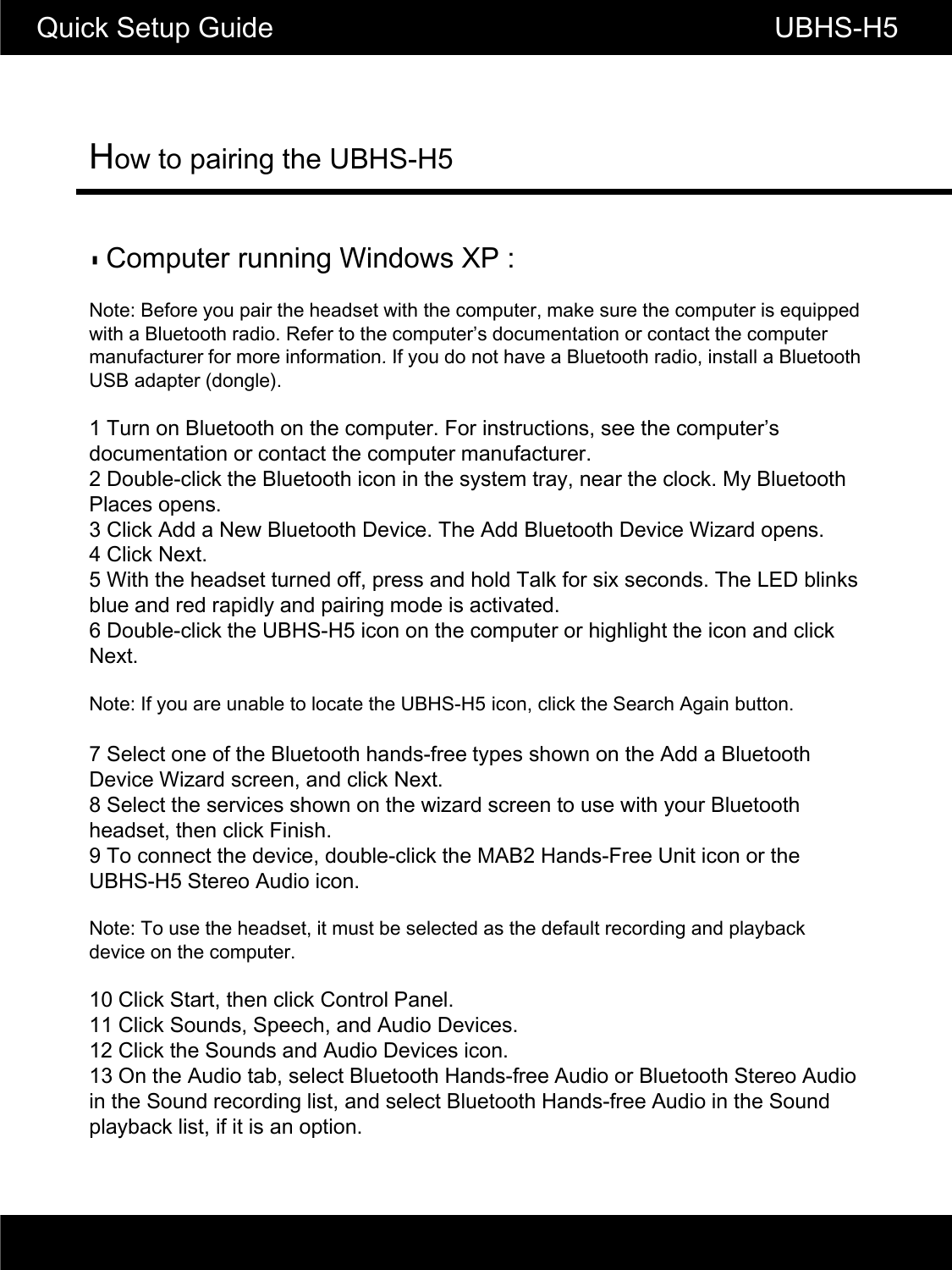
How to pairing the UBHS-H5Quick Setup Guide                                                       UBHS-H5▮Computer running Windows XP :Note: Before you pair the headset with the computer, make sure the computer is equipped with a Bluetooth radio. Refer to the computer’s documentation or contact the computer manufacturer for more information. If you do not have a Bluetooth radio, install a Bluetoothmanufacturer for more information. If you do not have a Bluetooth radio, install a Bluetooth USB adapter (dongle).1 Turn on Bluetooth on the computer. For instructions, see the computer’s documentation or contact the computer manufacturer.2 Double-click the Bluetooth icon in the system tray, near the clock. My Bluetooth Places opens.3 Click Add a New Bluetooth Device. The Add Bluetooth Device Wizard opens.4 Click Next.5 With the headset turned off, press and hold Talk for six seconds. The LED blinks blue and red rapidly and pairing mode is activated.6 Double-click the UBHS-H5 icon on the computer or highlight the icon and click Next.Note: If you are unable to locate the UBHS-H5 icon, click the Search Again button.7 Select one of the Bluetooth hands-free types shown on the Add a Bluetooth Device Wizard screen, and click Next.8 Select the services shown on the wizard screen to use with your Bluetooth headset, then click Finish.9 To connect the device, double-click the MAB2 Hands-Free Unit icon or the UBHS-H5 Stereo Audio icon.Note: To use the headset, it must be selected as the default recording and playback device on the computer.10 Click Start, then click Control Panel.11 Click Sounds, Speech, and Audio Devices.12 Click the Sounds and Audio Devices icon.13 On the Audio tab, select Bluetooth Hands-free Audio or Bluetooth Stereo Audio in the Sound recording list, and select Bluetooth Hands-free Audio in the Sound playback list, if it is an option.
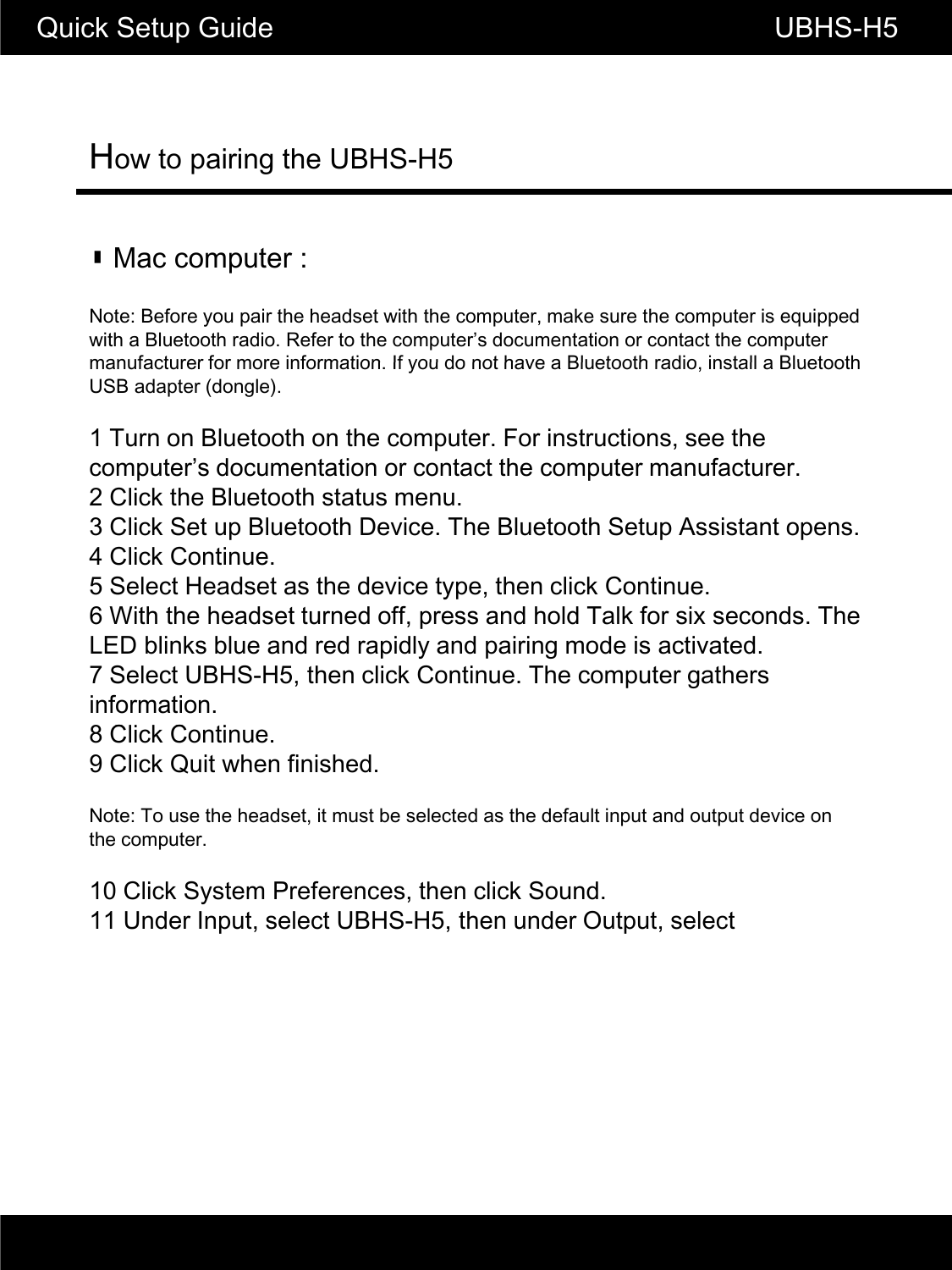
How to pairing the UBHS-H5Quick Setup Guide                                                       UBHS-H5▮ Mac computer :Note: Before you pair the headset with the computer, make sure the computer is equipped with a Bluetooth radio. Refer to the computer’s documentation or contact the computer manufacturer for more information If you do not have a Bluetooth radio install a Bluetoothmanufacturer for more information. If you do not have a Bluetooth radio, install a Bluetooth USB adapter (dongle).1 Turn on Bluetooth on the computer. For instructions, see the computer’s documentation or contact the computer manufacturer.2 Click the Bluetooth status menu.3 Click Set up Bluetooth Device. The Bluetooth Setup Assistant opens.4 Click Continue.5 Select Headset as the device type, then click Continue.6 With the headset turned off, press and hold Talk for six seconds. The LED blinks blue and red rapidly and pairing mode is activated.7 Select UBHS-H5, then click Continue. The computer gathers information.CC8 Click Continue.9 Click Quit when finished.Note: To use the headset, it must be selected as the default input and output device on the computer.10 Click System Preferences, then click Sound.11 Under Input, select UBHS-H5, then under Output, select
Quick Setup Guide                                                       UBHS-H5FCC Information to User This equipment has been tested and found to comply with the limits for a Class B digital device, pursuant to Part 15 of the FCC Rules. These limits are designed to provide reasonable protection against harmful interference in a residential installation. This equipment generates, uses and can radiate radio frequency energy and, if not installed and used in accordance with the instructions, may cause harmful interference to radio communications. However, there is no guarantee that interference will not occur in a particular installation. If this equipment does cause harmful interference to radio or television reception, which can be determined by turning the equipment off and on, the user is encouraged to try to correct the interference by one of the following measures: • Reorient or relocate the receiving antenna. • Increase the separation between the equipment and receiver. • Connect the equipment into an outlet on a circuit different from that to which the receiver is con-nected. • Consult the dealer or an experienced radio/TV technician for help.  Caution Modifications not expressly approved by the party responsible for compliance could void the user’s authority to operate the equipment.  FCC Compliance Information : This device complies with Part 15 of the FCC Rules. Operation is subject to the following two conditions: (1) This device may not cause harmful interference, and (2) this device must accept any interference received, including interference that may cause undesired operation
Quick Setup Guide                                                       UBHS-H5 IMPORTANT NOTE: FCC RF Radiation Exposure Statement: This equipment complies with FCC RF radiation exposure limits set forth for an uncontrolled environment. This equipment should be installed and operated with a minimum distance of   20 centimeters between the radiator and your body.This transmitter must not be co-located or operating in conjunction with any other antenna or transmitter.  “This device complies with Industry Canada licence-exempt RSS standard(s).   Operation is subject to the following two conditions:   (1) this device may not cause interference, and   (2)  this  device  must  accept  any  interference,  including  interference  that  may  cause undesired operation of the device.”   Le présent appareil est conforme aux CNR d'Industrie Canada applicables aux appareils radio exempts de licence. L'exploitation est autorisée aux deux conditions suivantes : (1) l'appareil ne doit pas produire de brouillage, et (2) l'utilisateur de l'appareil doit accepter tout brouillage radioélectrique subi, même si le brouillage est susceptible d'en compromettre le fonctionnement.
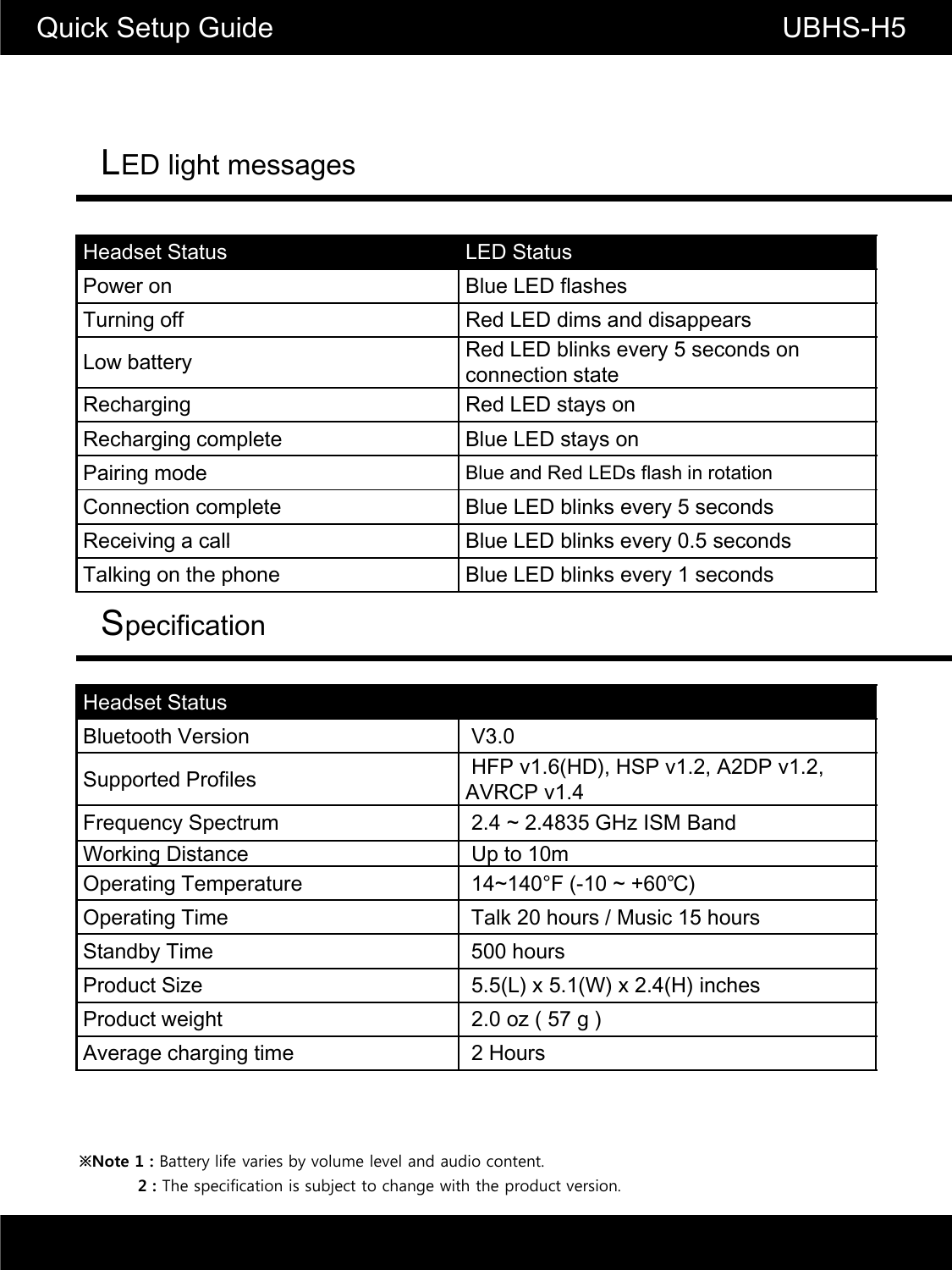
LED light messagesQuick Setup Guide                                                      UBHS-H5Headset Status LED StatusPower on Blue LED flashesTurning off Red LED dims and disappearsLow batteryRed LED blinks every 5 seconds on Low batteryconnection stateRecharging Red LED stays onRecharging complete Blue LED stays onPairing mode Blue and Red LEDs flash in rotationConnection complete Blue LED blinks every 5 secondsReceiving a callBlue LEDblinksevery 0 5secondsReceiving a callBlue LED blinksevery 0.5secondsTalking on the phone Blue LED blinks every 1 secondsSpecificationHeadset StatusBluetooth Version V3.0Supported Profiles HFP v1.6(HD), HSP v1.2, A2DP v1.2, AVRCP v1.4Frequency Spectrum 2.4 ~ 2.4835 GHz ISM BandWorking Distance Up to 10mOperating Temperature 14~140°F (-10 ~ +60℃)Operating Time Talk 20 hours / Music 15 hoursStandby Time 500 hoursProduct Size 5.5(L) x 5.1(W) x 2.4(H) inchesProduct weight 2.0 oz ( 57 g )Average charging time 2 Hours2 : The specification is subject to change with the product version.※Note 1 : Battery life varies by volume level and audio content.

Navigation menu