VISUAL LAND PRESTIGE11Q 11.6 inch TABLET User Manual part 3

VISUAL LAND INC. 11.6 inch TABLET part 3

Contents

User manual part 3

ANDROID QUICK START GUIDE   USE THE KEYBOARD 32or “exclamation point.” Supported languages include English, French, Italian, German, Spanish, and Russian. To improve processing of your voice input, Google may record a few seconds of background noise in temporary memory at any time. This recording remains on the device only temporarily and is not sent to Google.To change your speech settings, go to Settings > Personal > Language & input.
ANDROID QUICK START GUIDE  TRY SOME APPS 334 Try some appsAll AppsTo see all your apps, touch   All Apps in the Favor-ites tray on any Home screen.This is where you can see all your apps, including those that come with your tablet and those you downloaded on Google Play. You can move app icons to any of your Home screens.From All Apps, you can:•  Move between screens. Swipe left or right.•  Open an app. Touch its icon.•  Place an app icon on a Home screen. Touch & hold the app icon, slide your nger, and lift your nger to drop the icon into your desired Home screen.•  Browse widgets. Touch the Widgets tab at the top of any All Apps screen.•  Get more apps. Touch   Google Play in the list of app icons.To remove an app icon from the Home screen without removing it permanently from your device, touch & hold it, slide your nger toward the top of the screen, and drop the app over   Remove.
ANDROID QUICK START GUIDE  TRY SOME APPS 34To view info about an app from an All Apps screen, touch & hold it, slide your nger toward the top of the screen, and drop the app over   App Info.TIP: Some apps can harm you or your device. However, you don’t  need  to  purchase  anti-virus  software  for  Google  Play edition  devices.  Google  can  verify  apps  to  help  prevent harmful software from being installed.GmailUse the Gmail app to read and write email from any mobile device. To open it, touch   Gmail on a Home or   All Apps screen. Gmail isn’t just about email. You can use your Gmail account to sign in to all Google apps and services, including these and many more:•  Google Now, for getting the  information you need at just the right time•  Calendar•  People, for keeping track of your contacts•  Google Drive, for working with documentsWhile you’re reading a message:•  Touch the icons along the top of the screen to archive, throw away, and mark as read. Touch   to mark a message as
ANDROID QUICK START GUIDE  TRY SOME APPS 35unread. Look under the   Menu to move, change labels, mute, print and do other actions to the email. •  Swipe left or right to read the previous or next conversation.Organize your conversations: From the Inbox, touch & hold a con-versation to select it. Then use the icons and menu along the top of the screen to manage the selected messages.To change your settings, add an account, or get help, touch the menu icon or button.No matter where you are in Gmail, you can always get back to the Inbox by touching the   Back button at the top of the screen.  From the Inbox, touch Menu to open the drawer that reveals avail-able accounts, labels, and so on.TIP: You can access your email from other accounts, like Microsoft Exchange, in Gmail by adding the account in Gmail Settings. To add a non-Gmail email account to Gmail:1.  Go to   Settings > Personal > Accounts > Add account. 2. Touch the type of account you want to add. You may be able to choose from choices like “Google,” “Personal,” or “Work.”3. Choose “Google” if you want to add your Google Account. When you sign in with a Google Account, all the email, con-tacts, Calendar events, and other data associated with that account are automatically synced with your device.4. Follow the on-screen instructions to add the account.
ANDROID QUICK START GUIDE  TRY SOME APPS 36To change the settings of any of the accounts you added, follow these steps:1.  Open the   Settings menu on your device.2. Under “Personal,” touch “Accounts” and select your account. If you’re using a Google account, touch Google and then your account.Google PlayGoogle Play brings together all your favorite apps & games, movies & TV shows, books, music, and news & magazines in one place, so you can reach it from any of your devices. To open the Google Play app, touch   Google Play. If you purchased content on Google Play in the past, you’ll auto-matically have access to this content on any Android device — just make sure you’re signed in using the same account that you used to purchase it. To check:1.  Open the   Google Play app.2. Touch   Menu at the top left.From here, you can view the current account or switch to another, view your purchased apps, check your wish list, and so on.To set preferences, clear your search history, and turn on user controls, go to  Menu > Settings. For example, to lter apps based on maturity level or require a PIN for purchases, touch Content ltering or Require authentication for purchases.To nd your content, open any of the Google Play apps from the  All Apps screen and touch   Menu.
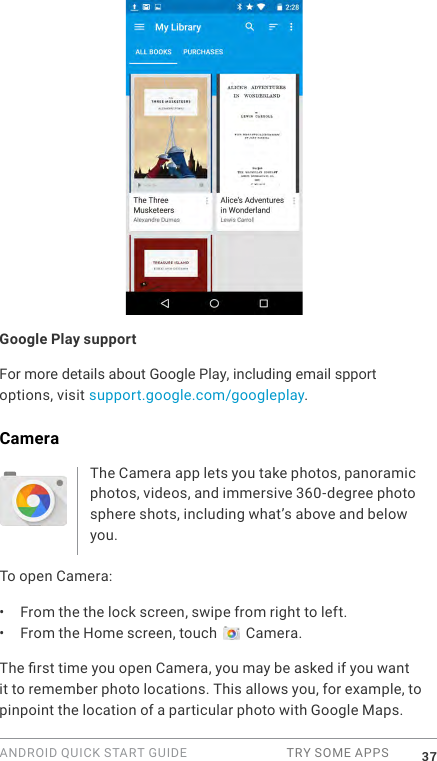
ANDROID QUICK START GUIDE  TRY SOME APPS 37Google Play supportFor more details about Google Play, including email spport options, visit support.google.com/googleplay.CameraThe Camera app lets you take photos, panoramic photos, videos, and immersive 360-degree photo sphere shots, including what’s above and below you. To open Camera:•  From the the lock screen, swipe from right to left.•  From the Home screen, touch   Camera.The rst time you open Camera, you may be asked if you want it to remember photo locations. This allows you, for example, to pinpoint the location of a particular photo with Google Maps.
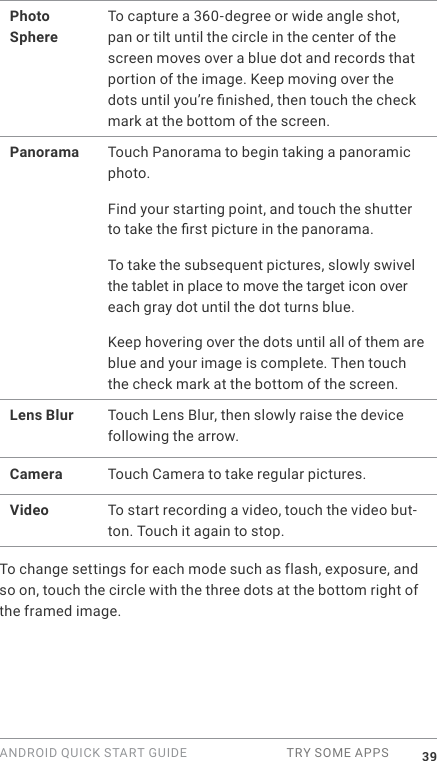
ANDROID QUICK START GUIDE  TRY SOME APPS 38When you open Camera, you can choose from ve different cam-era modes. To see the modes, swipe left to right. The   Camera icon indicates Camera mode. To take a picture:1.  Frame your subject and watch for the focus ring.To focus on a different part of the image, touch it. To zoom in, pinch two ngers outwards. To zoom out, pinch two ngers inwards. 2. When the focus ring brackets disappear, touch the shutter button, which is the camera button.3. To see the image you just took, swipe from right to left. To see stored photos, touch   Photos in the top right. When viewing stored photos, touch   to share,   Edit to modify photos and   to delete. Keep swiping to see other images in Photos.To change to a different mode, swipe left to right to show the list of camera modes:
ANDROID QUICK START GUIDE  TRY SOME APPS 39Photo SphereTo capture a 360-degree or wide angle shot, pan or tilt until the circle in the center of the screen moves over a blue dot and records that portion of the image. Keep moving over the dots until you’re nished, then touch the check mark at the bottom of the screen.Panorama Touch Panorama to begin taking a panoramic photo. Find your starting point, and touch the shutter to take the rst picture in the panorama. To take the subsequent pictures, slowly swivel the tablet in place to move the target icon over each gray dot until the dot turns blue. Keep hovering over the dots until all of them are blue and your image is complete. Then touch the check mark at the bottom of the screen.Lens Blur Touch Lens Blur, then slowly raise the device following the arrow.Camera Touch Camera to take regular pictures.Video To start recording a video, touch the video but-ton. Touch it again to stop.To change settings for each mode such as flash, exposure, and so on, touch the circle with the three dots at the bottom right of the framed image.
ANDROID QUICK START GUIDE  TRY SOME APPS 40PhotosThe Photos app gives you instant access to all your photos  and  videos  associated  with  any  Google Account set up on your tablet. To open it, touch Photos. To open Photos from the:•  Camera app. Swipe from right to left.•  All Apps screen. Touch   Photos.When you’re signed into your device with your Google Account, the Photos app makes it easy to auto-backup all the photos and videos you take, organize them, and share with friends. You can also browse, search, crop, edit, and tag photos, and cre-ate albums and movies.Touch   Menu to:•  Switch to or from Google+.•  Organize and edit your photos and videos.•  Create and browse albums.•  Explore Auto Awesome animations, panoramas, or merged group shots created for you automatically.•  Browse photos of yourself.
ANDROID QUICK START GUIDE  TRY SOME APPS 41ContactsThe Contacts app gives you quick access to every-one you want to reach. To open  it,  touch  the  Con-tacts icon on a Home or All Apps screen.When you first turn on your device and sign into a Google Account, existing contacts from that account are synced with your Contacts app.  After  that,  your  contacts  stay  in  sync  automatically  on  your different devices or a Web browser. If you use Exchange, you can also sync that contact information with Contacts.All your Contacts information is available from Gmail, Google Talk, and other apps. As you add contacts from different sources, they’re synced automatically across all the places you need them.When you open the Contacts app, you can:•  View all contacts or favorites. Choose from the top of the screen.•  Add a contact. Touch   Add Contact.•  Read details. Touch a name to see details for a contact or group.•  Share the contact or place a frequently used contact on the Home screen. Touch   Menu.•  Edit details. While viewing a contact, touch   Edit at the top of the screen to edit the contact’s information. •  Change your settings. While viewing the main list screen, touch   Menu to import or export contacts, choose display options and add or edit accounts.
ANDROID QUICK START GUIDE  TRY SOME APPS 42Hangouts With Hangouts, you can make video calls to anyone with  a  Google  Account.  You  can  share  photos  and your  location  with  others.  On  some  devices, Hangouts is also your default messaging app.CalendarUse the Calendar app to view and edit your sched-ule. To open it, touch  Calendar on a Home or All Apps screen.When you rst set up your Android device, you have a chance to congure it to use a Google Account (such as Gmail). The frst time you open the Calendar app on your tablet, it displays any existing calendar events from that Google Account on the web.As you edit events, they’re synced automatically across all the places you need them.To change the Calendar view, touch the   Menu and choose Schedule, Day, or Week from the top of the screen. From any of these views, you can:•  Read or edit event details. Touch an event to view its details.•  Manage events and calendars. Touch icons across the top of the screen or the menu to search or create events, return to today, or adjust settings.To email everyone who is invited to an event, you have two options:
ANDROID QUICK START GUIDE  TRY SOME APPS 43•  Open the event from the Calendar app at any time and touch Email guests. You have a list of quick responses or you can write your own.•  When a notication of the event arrives just before the meet-ing starts, swipe down the notication shade. Then swipe using one nger to expand the notication if necessary, and touch Email guests.
ANDROID QUICK START GUIDE   SETTINGS 445 SettingsSettings controls the core Android settings for networks, hardware, location, security, language, accounts, etc.The fastest way to adjust system settings that you access fre-quently, such as Wi-Fi or brightness, is through Quick Settings. See “Quick Settings” on page 7.You can control many other settings for your device and account by swiping down from the top of the screen twice and touching . These are the main types of device or account settings avail-able.•  Wireless & networks. Wi-Fi, Bluetooth, data usage, Android Beam, and related settings.•  Device. Sound, battery, sleep, and other display settings.•  Location.•  Language.•  Sync.•  Backup/reset options.•  Accounts.•  Security. Passwords and certicates, screen lock, encryption, and app installation sources.•  System. Date, time, accessibility, and device information.
ANDROID QUICK START GUIDE   SETTINGS 45Most apps also include their own settings, typically available from the   menu on the upper left side of the app, or from the  Menu > Settings. On Google Play edition devices, settings may be in the Menu button.Some useful settings are also available from the Google Settings app.The Google Settings app let you adjust adjust preferences for commonly used Google apps and services in one place, including Google+, Location, Search, and the Android Device Manager.To open Google Settings, touch the   in   All Apps.From here, you can also: •  Control how interest-based Google ads are displayed in non-Google apps.•  Under Connected apps, you can view all the apps that have access to your Google Account information, including the type of access granted to each app.
ANDROID QUICK START GUIDE  ACCESSIBILITY 466 AccessibilityTo use the accessibility options, open   Settings >  System > Accessibility. To view detailed information about setting up these options, visit Android Accessibility. Options for people with visual impairments include the following:Captions: You can turn on captions for your device and specify the language, text size, and style. For some apps, you have to turn on the captions in the app itself. TalkBack is a screen reader from Google that comes with your Android tablet. It uses spoken feedback to describe events, such as notications, and the results of your actions, such as opening an app. When TalkBack is on, you have to double-tap in order to select something. TalkBack settings let you control the nature of TalkBack speech, feedback, and touch exploration (Explore by touch).Explore by touch is a system feature that works with TalkBack, allowing you to touch your device’s screen and hear what’s under your nger via spoken feedback. It is helpful to people with low or no vision. In TalkBack settings, you can change the settings of Ex-plore by touch, like managing gestures and how lists are scrolled.
ANDROID QUICK START GUIDE  ACCESSIBILITY 47Display and sound accessibility options include increasing the text size, changing the speed at which text is spoken, color inver-sion, color correction, and high contrast text.If you have low vision and don’t plan to use Explore by Touch, visit support.google.com/android to see Help content formatted for sighted users. You can make reading and navigating this material easier by increasing the text size – just open Chrome, go to Menu > Settings > Accessibility, and drag the slider to adjust the text size.You can also try magnication gestures, which allow you to zoom in and out, as well as temporarily magnify what’s under your n-ger. To try magnication gestures, go to   Settings > Accessi-bility > Magnication gestures. FCC Compliance:1. This device complies with Part 15 of the FCC Rules.Operation issubject to the following two conditions:(1) This device may not cause harmful interference, and(2) This device must accept any interference received, including Interference that may cause undesired operation.
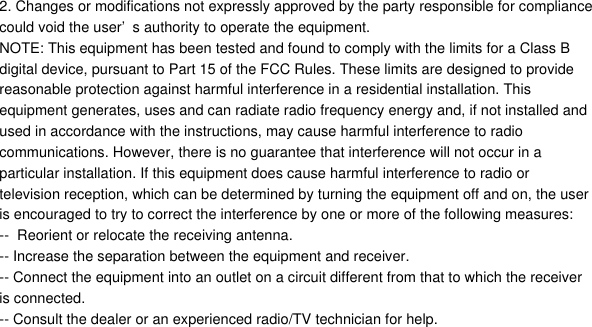
2. Changes or modifications not expressly approved by the party responsible for compliancecould void the user’s authority to operate the equipment.NOTE: This equipment has been tested and found to comply with the limits for a Class Bdigital device, pursuant to Part 15 of the FCC Rules. These limits are designed to providereasonable protection against harmful interference in a residential installation. Thisequipment generates, uses and can radiate radio frequency energy and, if not installed andused in accordance with the instructions, may cause harmful interference to radiocommunications. However, there is no guarantee that interference will not occur in aparticular installation. If this equipment does cause harmful interference to radio ortelevision reception, which can be determined by turning the equipment off and on, the useris encouraged to try to correct the interference by one or more of the following measures:--  Reorient or relocate the receiving antenna.-- Increase the separation between the equipment and receiver.-- Connect the equipment into an outlet on a circuit different from that to which the receiveris connected.-- Consult the dealer or an experienced radio/TV technician for help.

Navigation menu