VISUAL LAND PRESTIGE11Q 11.6 inch TABLET User Manual part 2

VISUAL LAND INC. 11.6 inch TABLET part 2

Contents

User manual part 2

ANDROID QUICK START GUIDE   ESSENTIALS 14What you can ask Google to do for youWhen you use Google Now, you can speak to your device to search, get directions, and create reminders. For example, say “Ok Google, do I need an umbrella tomorrow?” to see if there’s rain in the weather forecast.Turn “Ok Google” on or offYou can start a search or task by saying “Ok Google.” To turn it off or on, open Google Now or the Google app and touch Menu > Settings > Voice > OK Google detection.Display Change the display settings on your device by following these steps:1.  Go to   Settings > Device > Display.2. Choose from the following settings. Some of these settings may vary by your device and version of Android. All can affect battery life. See “Manage battery life” on page 8 for more information. •  Brightness level: Move the   slider to set the brightness level on your device. •  Adaptive brightness: Turn on adaptive brightness to au-tomatically optimize the brightness level on your device based on the available light around you. Adaptive bright-ness is on by default. You can still adjust your brightness when needed.•  Sleep: Change how long it takes for your device’s screen to go black when you’re not using it. Learn more about Sleep Settings. •  Daydream: Set up screensavers that display photos, color-
ANDROID QUICK START GUIDE   ESSENTIALS 15ful backgrounds, and more when your device is charging or docked.•  if you want your tablet to wake up when you pick it up or when a notication arrives.Sound & notication You can change the sound and notication settings on your de-vice by going to   Settings > Device >   Sound & notication.Notications alert you to the arrival of new messages, calen-dar events, and alarms, as well as ongoing events, such as downloads:•  Interruptions. Prioritize sound notications so they don’t inter-rupt you.   •  When device is locked. Manage whether notications can be seen when your tablet is locked, and whether sensitive con- tent in a notication can be seen. Sensitive content includes things like the title of a song you downloaded, who sent you an email, or the details of a calendar event. For more information, visit the Help Center. •  App Notications. Modify the notication settings individu-ally for apps such as Gmail. The setting under When device is locked will always take precedence over the setting for an individual app. •  Notication access. See which apps can access your notications.
ANDROID QUICK START GUIDE   ESSENTIALS 16When a notication arrives, its icon appears at the top of the screen. Icons for pending notications appear on the left, and system icons showing things like the Wi-Fi signal, mobile carrier signal, or battery strength are on the right:  Notications Wi-Fi signal BatteryCertain notications can be expanded to show more information, such as email previews or calendar events. The one at the top is always expanded when possible. To expand a notication, posi-tion one nger inside it and swipe down slowly.To open the related app, touch the notication icon on the left. Some notications also allow you to take specic actions by touching icons within the notication. For example, Calendar notications allow you to Snooze (remind you later) or send email to other guests.When you’re nished with a notication, swipe it away. To dismiss all notications, touch   Dismiss at the very bottom of the noti-cations list.
ANDROID QUICK START GUIDE   ESSENTIALS 17Manage accounts on your deviceYou can add accounts so that information associated with that account automatically syncs with your device. You’ll need to set up an account on your device if you want to get email or get apps on Google Play.You can also add multiple users for your device, like if several people share a tablet. Adding users is different from adding accounts. Each user has separate settings and can’t access the accounts of other users, whereas a single user can have multiple accounts and switch between them anytime they’re signed in. Make sure you’re signed in as the correct user before adding or removing any account information.Add an account1.  Go to   Settings > Personal > Accounts. Touch “Add account.” 2. Touch the type of account you want to add. You may be able to choose from choices like “Google,” “Personal (IMAP),” or “Personal (POP3).” If you’re not sure whether to choose IMAP
ANDROID QUICK START GUIDE   ESSENTIALS 18or POP3, try IMAP first. Many email services use IMAP.i. Choose “Google” if you want to add your Google Account. When you sign in with a Google Account, all the email, con-tacts, calendar events, and other data associated with that account are automatically synced with your device.ii. Follow the on-screen instructions to add the account.To change the settings of any of the accounts you added, follow these steps:1.  Go to   Settings > Personal > Accounts.2. Select your account. If you’re using a Google Account, touch Google and then your account.Remove an accountWhen you remove an account that you’ve added to your device, everything associated with that account, including email, con-tacts, and settings is also deleted. You can’t remove the account you used to initially set up your device.To remove an account from your device, follow these steps:1.  Check to see if the account you want to remove is the account you used to set up your device.•  If it’s not, go to step 2 and follow the instructions.•  If it is, reset your device to its factory settings instead of following the steps below. This erases all of the data from your device and you’ll need a Google Account to set up your device again.2. Open the   Settings menu on your device.
ANDROID QUICK START GUIDE   ESSENTIALS 193. Under “Accounts,” touch the name of the account you want to remove. If you’re using a Google Account, touch Google and then the account.•  When you sign out of your Google Account, all the email, contacts, Calendar events, and other data associated with that account will no longer automatically sync with your device. 4. Touch   Menu in the top right corner of the screen.5. Touch Remove account. Share your device with other usersYou can easily share your device with family and friends by creat-ing a separate user for each person. Each person has their own space on the device for custom Home screens, accounts, apps, settings, and more. You must be the device owner to add users. To add a new user, follow these steps:1.  Go to   Settings > Device > Users.2. Touch Add user, then touch OK.i. If you’re with the new user: Touch “Set up now” and you’ll be taken to the lock screen. Select the new user, unlock the screen, and allow them to set up their Google Account and other details.ii. If the new user isn’t around: Touch “Not now.” A “New user” will appear in the list. The next time you’re with the user, go back to the user list and select “New user” or click the user image on the lock screen.After a user is set up, when you go to the lock screen, you’ll see a second user prole picture or avatar in the status bar. To choose a user, touch the picture and unlock the screen. Each user can set their own screen lock.
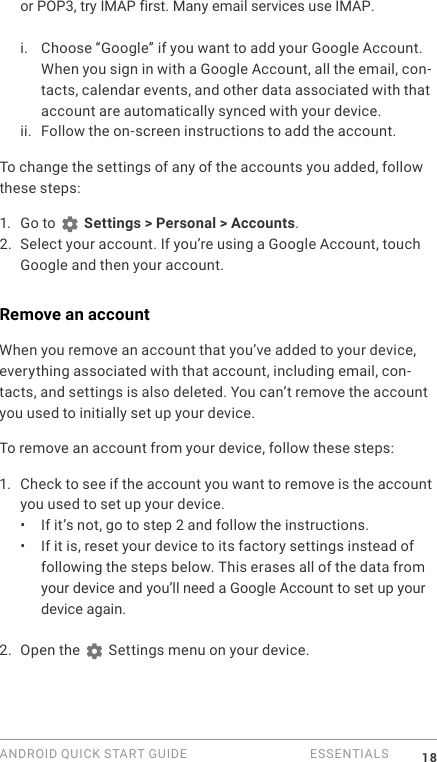
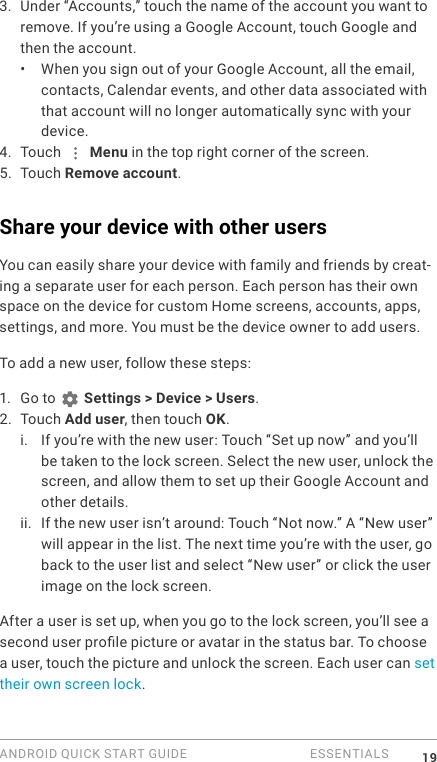
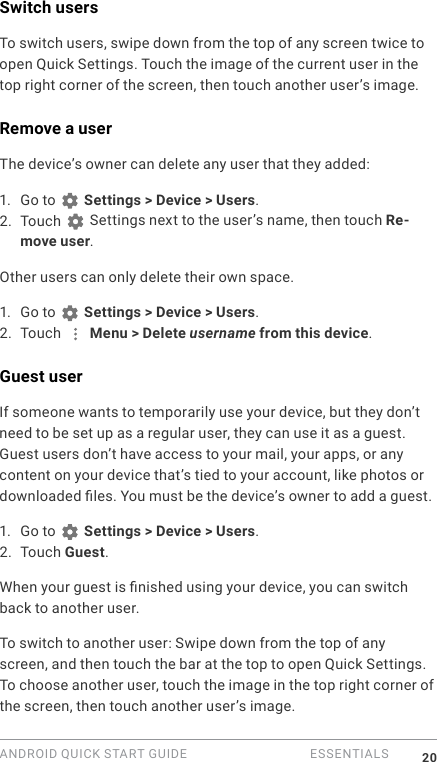
ANDROID QUICK START GUIDE   ESSENTIALS 20Switch usersTo switch users, swipe down from the top of any screen twice to open Quick Settings. Touch the image of the current user in the top right corner of the screen, then touch another user’s image. Remove a userThe device’s owner can delete any user that they added:1.  Go to   Settings > Device > Users.2. Touch   Settings next to the user’s name, then touch Re-move user.Other users can only delete their own space.1.  Go to   Settings > Device > Users.2. Touch   Menu > Delete username from this device.Guest userIf someone wants to temporarily use your device, but they don’t need to be set up as a regular user, they can use it as a guest. Guest users don’t have access to your mail, your apps, or any content on your device that’s tied to your account, like photos or downloaded les. You must be the device’s owner to add a guest. 1.  Go to   Settings > Device > Users.2. Touch Guest.When your guest is nished using your device, you can switch back to another user.To switch to another user: Swipe down from the top of any screen, and then touch the bar at the top to open Quick Settings. To choose another user, touch the image in the top right corner of the screen, then touch another user’s image.
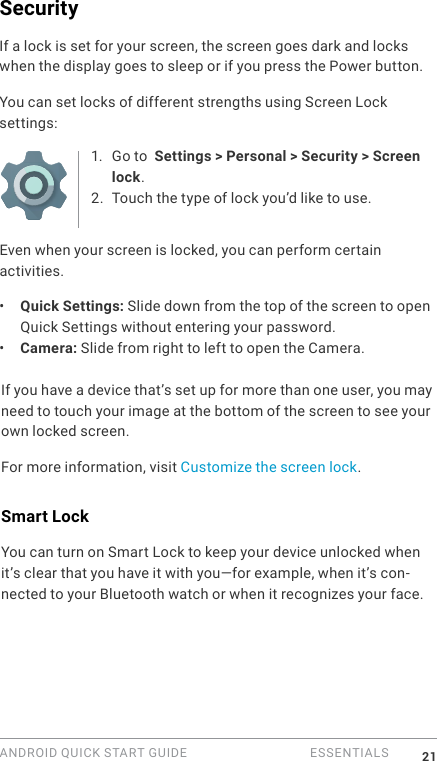
ANDROID QUICK START GUIDE   ESSENTIALS 21SecurityIf a lock is set for your screen, the screen goes dark and locks when the display goes to sleep or if you press the Power button.You can set locks of different strengths using Screen Lock settings:1.  Go to  Settings > Personal > Security > Screen lock.2. Touch the type of lock you’d like to use.Even when your screen is locked, you can perform certain activities. •  Quick Settings: Slide down from the top of the screen to open Quick Settings without entering your password. •  Camera: Slide from right to left to open the Camera. If you have a device that’s set up for more than one user, you may need to touch your image at the bottom of the screen to see your own locked screen.For more information, visit Customize the screen lock. Smart LockYou can turn on Smart Lock to keep your device unlocked when it’s clear that you have it with you—for example, when it’s con-nected to your Bluetooth watch or when it recognizes your face.
ANDROID QUICK START GUIDE   ESSENTIALS 22Trusted devices and face matchingYou can set your device to stay unlocked while connected to a Bluetooth device—like a watch, tness tracker, headset, or car speaker system. You can also set your device to unlock when it touches an NFC tag. You can also have your device unlock when it recognizes your face. After setting a trusted face, every time you turn on your device, it will search for your face and unlock if it recognizes you. Keep in mind that someone who looks similar to you could unlock your tablet.Note: Face matching doesn’t store any photos of you. Data used to recognize your face is only stored on your device and is not acces-sible by apps or backed up on Google servers.Protect against harmful appsApps from Google Play are always veried by Google to protect you and your device from harm. By default, your device doesn’t al-low the installation of apps from sources other than Google Play.If you choose to allow the installation of apps from unknown sources and install apps from sources other than Google Play, it’s more likely that apps will be installed that could harm you or your device.If you allow the installation of apps from unknown sources, the Verify Apps feature protects you when installing apps outside of Google Play by continually checking your device to make sure that all apps installed are behaving in a safe manner, even after installation.
ANDROID QUICK START GUIDE   ESSENTIALS 23ChromecastChromecast is a small device that plugs into the back of your TV. It allows you to send videos and music straight from your tabletto your TV.  You can use Chromecast with apps like:•  YouTube•  Netflix•  Google Play Movies & TV•  Google Play Music•  Hulu Plus To see more apps, visit chromecast.com/apps.When using Chromecast, make sure your tablet is using the same Wi-Fi  network  as  your  Chromecast,  and  that  Chrome-cast  is selected as your TV’s source input. To display content from your tablet on your TV:1.  Open the video or music in one of the apps listed above.2. Touch   Cast. 3. Play the content as usual to stream it to your TV.
ANDROID QUICK START GUIDE   ESSENTIALS 24File storage Android 5.0 makes it easy to store and browse through pictures, videos, and other les on your device and attach them to an email, Hangout message, and so on. You can also use stored images as your Home screen wallpaper. For example, to attach an image to an email you’re composing, touch the   Paper Clip in the top right and choose to either Attach le or Insert from Drive to select stored images in your Drive folder. From here, you can view any of these sources:•  Recent shows you the photos or videos you’ve taken or opened most recently.•  Drive lets you attach any les stored in Google Drive.•  Images displays any photos, videos, or other images on your device.•  Downloads includes most les (excluding Play content) you’ve downloaded from emails or the Web•  Photos lets you browse all the images and videos that are on your device or have been uploaded to your Google account.Use the Downloads app to view, reopen, or delete les you download from Gmail or other sources (excluding Google Play books, videos, magazines, and other media.)In the Downloads app:•  Touch an item to open it.•  In your list of downloads, touch & hold an item to select it. Touch   Share and choose a sharing method from the list. Touch   to delete.
ANDROID QUICK START GUIDE   ESSENTIALS 25Google Play streams purchases and rentals via the Internet. So the purchases and rentals don’t always occupy storage space when you play them. Although you can download content in Google Play apps to access offline, Google Play content never appears in Downloads.ScreenshotsTo take a screenshot:1.  Make sure the image you want to capture is displayed on the screen.2. Press the Power and Volume down buttons simultaneously.The screenshot is automatically saved in your Photos.TIP: To easily share your screenshot via Gmail, Google+, and more, select your screenshot in Photos and touch   Share at the bottom. Touch   Edit to modify. Touch   to delete. For Google Play edition devices, touch   Share.
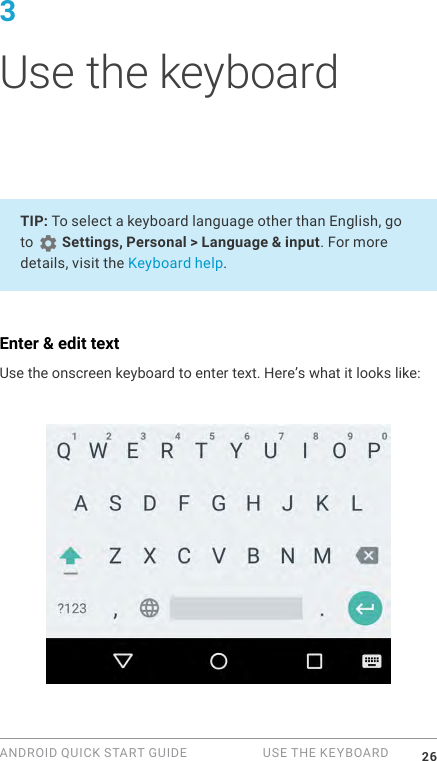
ANDROID QUICK START GUIDE   USE THE KEYBOARD 263 Use the keyboardTIP: To select a keyboard language other than English, go to   Settings, Personal > Language & input. For more details, visit the Keyboard help.Enter & edit textUse the onscreen keyboard to enter text. Here’s what it looks like:
ANDROID QUICK START GUIDE   USE THE KEYBOARD 27Keyboards on tablets work in a similar way. To make the keyboard go away, touch the Back button below it.Some apps open the keyboard automatically. In others, you rst need to touch where you want to type. Basic editingChange where you want to typeTouch the cursor, then touch and drag the tab that appears below it to the new position.Select text Touch and hold or double-tap within the text.The nearest word highlights, with a tab at each end of the selection. Drag the tabs to change the selection.Delete text Touch the   Delete key to delete the char-acters before the cursor or selected text.Type capital lettersTo switch to capital letters for one letter, touch the   Shift key once.You can also touch and hold the   Shift key while you type or you can touch the   Shift key and slide to another key.When you release the key, the lowercase letters reappear.Turn caps lock onDouble-tap or touch and hold the   Shift key so that it changes to. Touch the   Shift key again to return to lowercase.
ANDROID QUICK START GUIDE   USE THE KEYBOARD 28Change word capitalizationIf you want to quickly change the capitaliza-tion of a word you’ve already typed, you can select it and touch the   Shift key. You’ll have the option to select the capital-ized word or the word in all capital letters.  Type a symbol or characterTo switch to symbol keys for one word, touch the symbol key  ?123  once. You can also touch and hold the symbol key ?123  while you type or you can touch thesym-bol key  ?123  and slide to another key. When you release the key, the letter keys reappear.View more symbols and charactersTouch and hold symbols or characters to get accented characters or additional symbols.Cut, copy, pasteSelect the text you want to cut or copy. Then touch the Cut button   or Copy button  . To paste, touch the space where you want to paste your text and then touch Paste. If you want to replace other text with the text you copied, highlight the text, then touch the Paste button  .EmojiUse Google Keyboard to choose from a variety of small, colorful images used to express emotion (known as emoji) to add some fun to your messages.Depending on your device, you may need to touch and hold the Return key and then slide your nger to the happy face to display emoji. On a tablet, just touch the emoji symbol at the lower right.
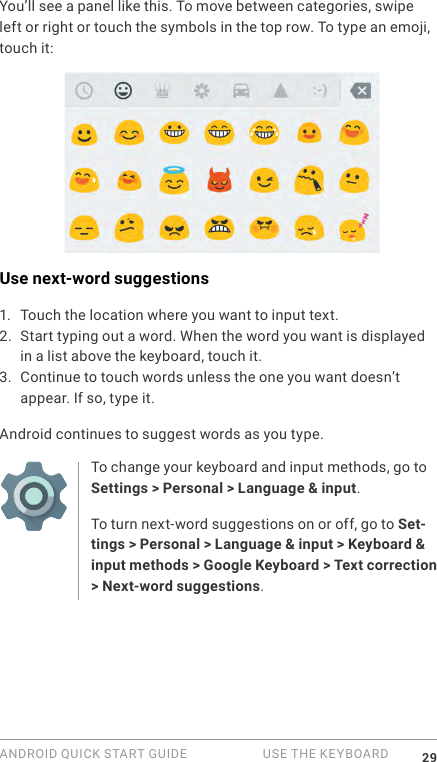
ANDROID QUICK START GUIDE   USE THE KEYBOARD 29You’ll see a panel like this. To move between categories, swipe left or right or touch the symbols in the top row. To type an emoji, touch it:Use next-word suggestions1.  Touch the location where you want to input text.2. Start typing out a word. When the word you want is displayed in a list above the keyboard, touch it.3. Continue to touch words unless the one you want doesn’t appear. If so, type it.Android continues to suggest words as you type.To change your keyboard and input methods, go to Settings > Personal > Language & input.To turn next-word suggestions on or off, go to Set-tings > Personal > Language & input > Keyboard & input methods > Google Keyboard > Text correction > Next-word suggestions.
ANDROID QUICK START GUIDE   USE THE KEYBOARD 30Gesture TypingGesture Typing works best for English. Quality varies for other lan-guages, and some don’t support it yet.To input a word using Gesture Typing:1.  Touch the location where you want to type to open the keyboard.2. Slide your nger slowly across the letters of the word you want to input.3. Release your nger when the word you want is displayed in the floating preview or the middle of the suggestion strip. To select one of the other words in the suggestion strip, touch it.If the word you want isn’t shown while using Gesture Typing, you can type it out manually. If you gesture a word and want to change it, touch the word to see other choices in the suggestion strip.TIP: If there are letters you want to emphasize, like repeat-ed letters, such as the “e” in sleep, pause over the “e” slight-ly longer before moving on to the next letter. Use Gesture Typing without the space barWhen you use Gesture Typing, there’s no need to use the space bar — just continue to slide your nger across the letters you want to input, then lift your nger to start the next word.To change Gesture Typing settings, go to   Set-tings > Language & input > Keyboard & input meth-ods > Google Keyboard> Gesture Typing.
ANDROID QUICK START GUIDE   USE THE KEYBOARD 31Keyboard dictionariesTo manage keyboard dictionaries, go to   Settings > Personal > Language & input.Personal dictionaryYou can add your own words to your personal dictionary so that your device remembers them. To add a word or phrase, including an optional shortcut, go to   Settings > Personal > Language & input > Google Keyboard > Text Correction > Personal dictio-nary and the language of the dictionary you want to modify, then choose Add and type in the word. When you use the optional shortcut when typing, your word or phrase appears as an option in the suggested words above the keyboard. Add-on dictionaries1.  Go to   Settings > Personal > Language & input > Google Keyboard > Text Correction > Add-on dictionaries.2. You’ll see dictionaries for other languages that you can down-load to your device.3. Touch the dictionary you want, then Install.Type by speakingYou can speak to enter text in most places where you can enter text with the onscreen keyboard.1.  Touch a text eld, or a location in the text you’ve already en-tered in a text eld.2. Touch the   Microphone key on the onscreen keyboard.3. When you see the microphone image, speak what you want to type.In some languages, you can also enter punctuation by speaking it, like “comma,” “period,” “question mark,” “exclamation mark,”

Navigation menu