ViCentra B V 300099 Kaleido Insulin Infusion Pump using BLE User Manual
ViCentra B.V Kaleido Insulin Infusion Pump using BLE
User Manual

Guidebook

®
Table of contents
Welcome
3 Hello!
4 Our icons
8 Kaleido’s intended use
8 System overview
9 Contraindications
9 Requirements for use
10 General warnings & precautions
12 Additional supplies
14 Taking your first steps
16 Your Starter Kit
18 Your Top-up Kits
Getting to know your Kaleido
26 Handy hints for your handset
30 Powering up your pump
40 Connecting your pump and handset
52 Wearing your Kaleido pump and infusion set
Basal
70 What does basal mean?
72 Creating a basal profile
78 Editing your basal profiles
90 Temporary basal rates
Bolus
98 What’s a bolus?
100 Kaleidoculator
110 Quick Bolus
113 Extended Bolus
Blood Glucose
123 Entering BG readings
Menu
129 Insulin on Board
132 History
136 Personal Info
160 System Settings
Status
147 Pausing your pump
202 Stopping your pump
204 Restarting your pump
Alerts & Alarms
211 What are alerts and alarms?
212 Alerts
214 Pump alarms
216 Handset alarms
Looking after your Kaleido
222 Looking after your Kaleido
FAQs
229 FAQs
Technical information
234 Technical specifications
242 FCC warning statement
243 How to contact Kaleido’s manufacturer
243 About your Kaleido Guidebook
244 Warranty
Quick questions
Need to jump to a section quickly? Here’s a list of where to
find all of the quick questions that we use.
Getting to know your Kaleido
22 How do I charge my handset?
24 And how do I charge my pumps?
26 How do I turn my handset on and off?
31 How do I fill my insulin cartridge with insulin?
38 Now that my insulin cartridge is ready, how do I put it in my pump?
40 How do I connect my pump and handset?
44 Why do I need to prime my cannula?
44 Do I always need to prime my cannula?
45 If I have to remove an insulin cartridge, can I put it back into my pump?
50 What if I don’t want to start pumping straight away?
51 What if I don’t want to connect my handset to a pump straight away?
53 Where can I wear infusion sets?
54 How do I put an infusion set on?
58 How do I wear my pump?
62 How do I take my pump off?
Basal
70 What does basal mean?
71 I’ve just turned my handset on for the first time, where do I start?
72 How do I create a basal profile?
75 Help – I need to check which basal profile I’m currently pumping!
76 How do I change to a different basal profile?
78 How do I modify a basal profile?
81 How do I rename a basal profile?
84 How do I duplicate a basal profile?
88 How do I delete a basal profile?
91 How do I set a temporary basal rate?
94 Can I stop a temporary basal rate once it’s started?
Bolus
98 What’s a bolus?
101 How do I use Kaleidoculator?
106 What do the numbers that make up Kaleidoculator’s calculation mean?
108 What happens if Kaleidoculator’s recommended bolus is a negative number?
110 How do I deliver a Quick Bolus?
113 How do I deliver an Extended Bolus?
118 Can I stop a bolus if I change my mind?
Blood Glucose
123 How do I enter a BG reading?
Menu
129 What is Insulin on Board?
131 How do I check my Insulin on Board?
132 How do I review my History?
136 How do I review my Personal Info?
138 How do I enter my name?
140 How do I enter my age?
142 How do I enter my gender?
144 How do I enter my height?
146 How do I enter my weight?
148 How do I enter my Target BG?
150 What are insulin to carb ratios?
151 How do I enter my insulin to carb ratios?
154 What are insulin to BG ratios?
155 How do I enter my insulin to BG ratios?
158 How do I enter my insulin activity time?
160 How do I review my System Settings?
162 How do I check if my handset is connected to a pump?
163 Can I force my handset to disconnect from a pump?
166 How do I check how full my insulin cartridge and batteries are?
167 What do all the Resource Level icons mean?
168 What’s Lock Screen and how do I save a new passcode?
172 What’s a Medic Message and how do I turn it on?
176 How do I turn my Medic Message off?
178 What are BG reminders and how do I turn them off?
180 How do I change the unit of measurement I record my BG readings in?
182 How do I change my handset’s language?

184 How do I change the time on my handset?
186 How do I change the date on my handset?
188 How do I turn my handset button tones off?
190 How do I set the volume of my handset?
192 How do I set the brightness of my handset screen?
Status
198 How do I pause my pump?
200 How do I unpause my pump?
202 How do I stop my pump?
204 How do I restart my pump?
Alerts & Alarms
211 What is an alert?
211 What is an alarm?
212 When will I get an alert?
214 When will I get a pump alarm?
216 When will I get a handset alarm?
Looking after your Kaleido
222 Should I clean my Kaleido products?
223 How should I store my Kaleido products?
224 What do I do if I need to dispose of my Kaleido products?
225 Where can I get replacement Kaleido products?
FAQs
229 How often should I take a BG reading?
229 Can I wear my pump during exercise?
230 Can I wear my pump if I go swimming?
230 Can I wear my pump at high altitudes
231 Can I wear my pump on aeroplanes?

Welcome

Can we tell you something? We’re so excited that
you’ve picked us, and we can’t wait to get to know
you better. Whether these are your first steps into
insulin pumping or you’re a seasoned pump-pro,
we’re here to make sure your transition to Kaleido
is simple. Right from the off, it’s important to us
that you spend less time thinking and worrying,
and more time having fun.
You’ll find everything you need to get started in
your Starter Kit, and soon you’ll be receiving
regular special deliveries of all the items you’ll
need for the weeks ahead too – no ordering, no
hassle, straight to your door. If at any point you
need our help, have a suggestion or just fancy a
chat, you can give our Kaleido Care team a call -
we love to talk!
Hello!
Welcome to Kaleido
- it’s nice to meet you
3
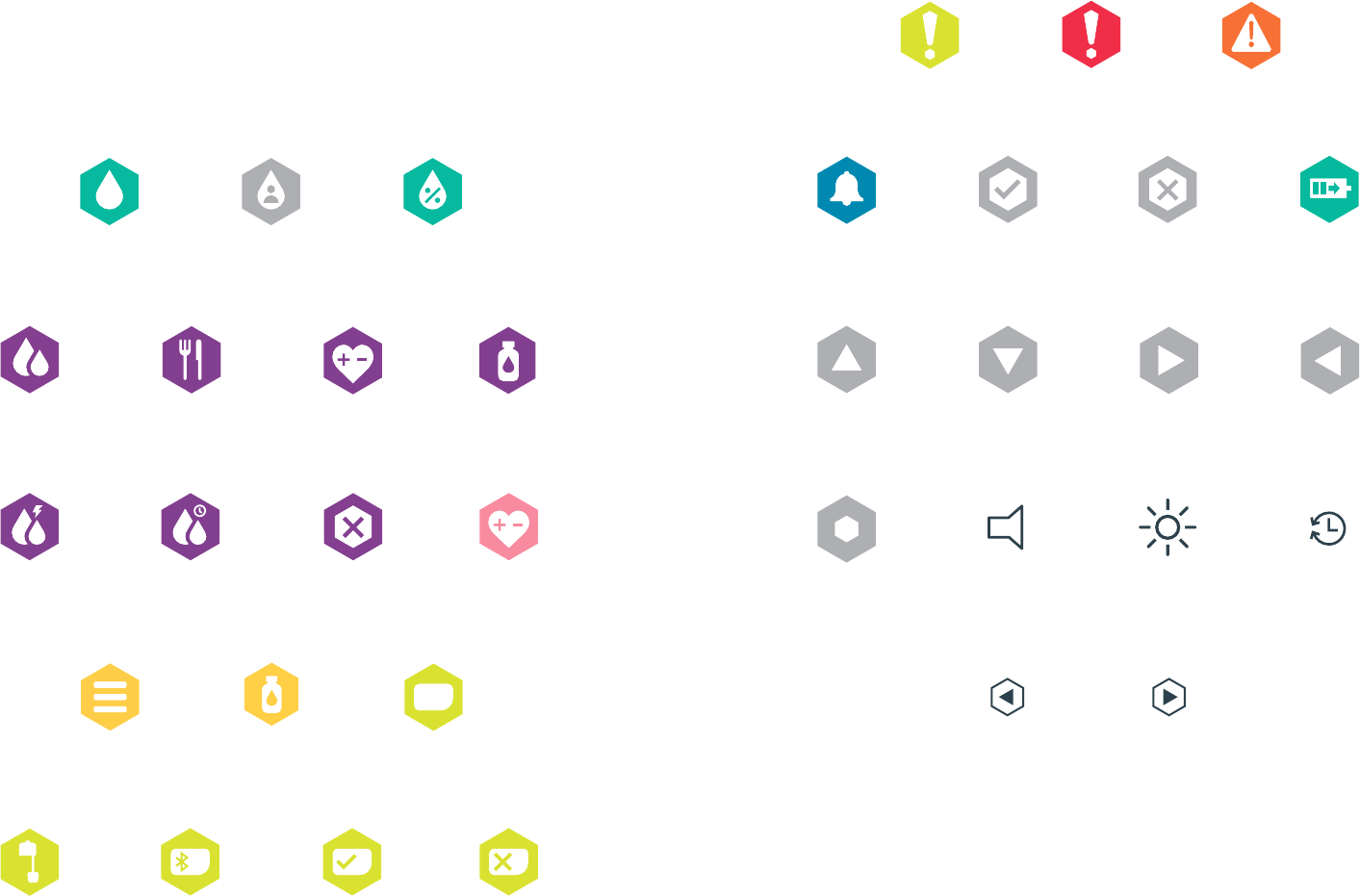
Kaleidoculator
Insulin on Board
recommendation
Kaleidoculator BG
recommendation
Kaleidoculator Food
recommendation
Basal Basal
profile
Quick
Bolus
Extended
Bolus
Menu Status
Handset is
connected
to a pump
Handset is
not connected
to a pump
Temporary
basal rate
Bolus
stopped
Blood
Glucose
Insulin
cartridge
New pump
detected
Reminder Handset
battery
charging
Right
button
Left
button
Instructions start
on previous page
Instructions
continue on
following page
Success!
Info saved or
setting turned on
Info deleted,
setting turned off
or Lock Screen
passcodes don’t match
Up
button
Down
button
Enter
button
Our icons
No, not our favourite celebrities...this is just a quick guide to all of the
icons you’ll find on your Kaleido handset and in this Guidebook.
Pump
has been
stopped
Alarm Alert
Brightness
Volume
4 5
Insulin on
Board
Time or date
changes saved
Bolus
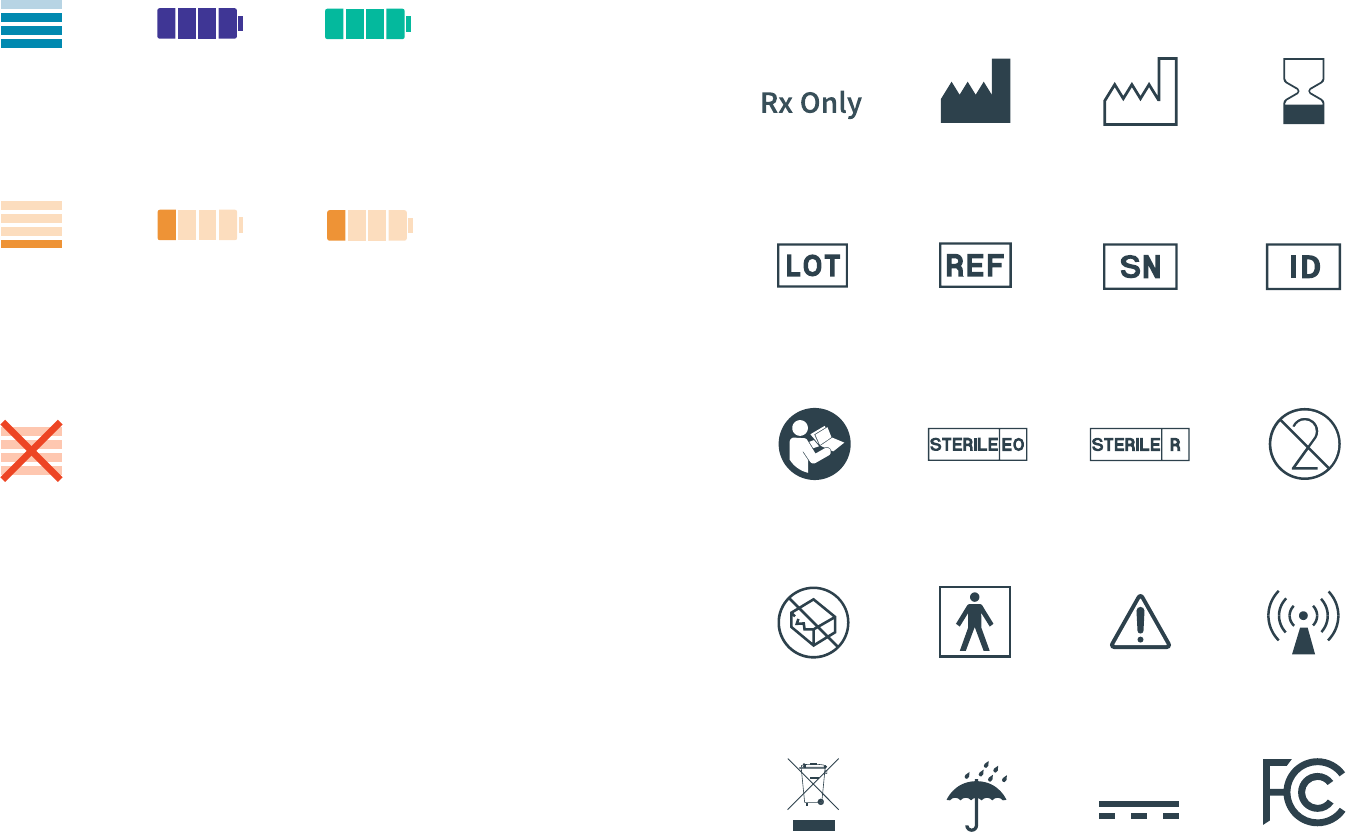
Resource level icons
Insulin
cartridge
Pump
battery
Pump
battery in
Alert mode
Handset
battery in
Alert mode
Handset
battery
Insulin
cartridge in
Alert mode
Insulin
cartridge in
Alarm mode
6
Symbols
Any symbols we’ve used on your Kaleido products and their
labelling are intended to be internationally recognised, but just in
case you don’t know what they mean, here’s the full rundown:
Details of the
manufacturer
Single use -
do not re-use
Follow the
operating
instructions
Use by date
Model or part
number
Do not use if
the packaging
is damaged
Lot number or
batch number
Warning or
precautions
to take
BF applied part
Sterilised using
irradiation
Date of
manufacture
Serial number
Radio
communication
WEEE waste
disposal
Sterilised using
ethylene oxide
Keep dry DC supply
Family ID
number
7
FCC mark
Prescription
required
System overview
We designed the products in your Starter Kit and Top-up Kit to be used together
in perfect harmony. You’ll need items from both of these kits to use your Kaleido
pumps.
The products team up to provide you with a system that is capable of delivering
pre-programmed basal rates and boluses. Your insulin travels from your insulin
cartridge to your infusion set via a small pump working with two check valves.
These two check valves separate you from your insulin, so if anything stops working,
the insulin in your insulin cartridge will remain there.
Your Kaleido is designed to be safe to use, but if you break or damage any of your
Kaleido-supplied products it’s important that you remove your pump and insulin
cartridge straight away, stop using your Kaleido system and contact Kaleido Care
for help. We’ve tried our best to make life with Kaleido blend seamlessly with life
in the real world, and sometimes, real life means splashing around (or, on more
troublesome days, dropping your pump in the bath or down the loo!), so your Kaleido
pumps can be immersed in water up to 1m deep for up to an hour.
Your handset, charging dock, connection cable and power adaptor aren’t
waterproof - a little cleaning fluid is fine, but otherwise please make sure you keep
these products safe and dry.
Other than cleaning and charging your pumps and handset, there are no serviceable
parts to your Kaleido system.
Kaleido is an insulin pump system intended to be used by adults of 22 years and
over for the continuous subcutaneous delivery of programmable basal profiles
and programmed boluses of U100 rapid-acting insulin.
Kaleido is intended to be used by those who require insulin to treat diabetes
mellitus in the home healthcare environment, after they have received training
and been deemed competent to use the system unsupervised. As the pump is
worn on the body and delivers drug continuously, the system may be operated
outside of the home environment. However, it is not intended for use in the more
controlled environment found within hospitals and clinics.
Kaleido’s intended use
89
Contraindications
There are a few things that might mean Kaleido isn’t suitable for you.
Kaleido isn’t intended for anyone who isn’t willing or able to:
• Learn about and maintain good self-management of their diabetes
• Participate in insulin pump training and keep in regular contact with their
Healthcare Provider
• Understand and use insulin doses correctly
• Hear Kaleido’s alerts and alarms and read the Kaleido handset screen
• Commit to performing at least four BG tests every day
Requirements for use
To use Kaleido, you must:
• Have insulin-dependent diabetes
• Be able to understand and perform all of the instructions provided by
Kaleido
• Be willing to use Kaleido products according to the provided instructions
Unfortunately, if you’re not able to satisfy all of these requirements, then
Kaleido isn’t quite right for you - we’re really sorry!
General warnings & precautions
Before using your Kaleido, you must make sure that you’ve
been appropriately trained in how to use it by a Kaleido
trainer. Using Kaleido incorrectly (including failure to follow
the instructions taught in Kaleido Training and outlined in
this Guidebook) may lead to serious injury or even death.
Instead of delivering both long-acting and rapid-acting
insulin (like you might have previously done if using multiple
daily injections to manage your diabetes), Kaleido only
delivers U100 rapid-acting insulin. You must only use U100
rapid-acting insulin with the Kaleido system and must never,
ever mix insulin types for use in your pump. Using a lesser
or greater concentration or a mix of insulins can result in
serious health consequences.
Kaleido is designed to deliver insulin reliably, but in order
to prevent DKA (diabetic ketoacidosis) or very high blood
glucose levels, you must always be prepared to inject insulin
incase insulin delivery from your Kaleido is interrupted for
any reason. You can find out more about the supplies that
you’ll need for this in the Additional supplies section of this
Guidebook.
To find out more about using Kaleido when swimming,
spending time at high altitiudes or travelling by airplane,
turn to the FAQs section of this Guidebook.
10 11
WARNING
Using accessories that have not been supplied by ViCentra BV as
part of your Kaleido system may result in increased emissions or
decreased immunity. Using alternative parts and accessories from
other suppliers could also damage your pump and will invalidate
your warranty.
WARNING
Your USB cable could pose a strangulation risk. Do not place this
near or around a person’s neck and keep out of reach of children.
WARNING
Do not make any modifications to your Kaleido products.
Attempting to modify Kaleido products will invalidate your
warranty and could cause harm.
WARNING
Do not use your pump or handset near a magnetic field. If you
do, your pump and handset could be damaged. This includes
any storage with magnetic clasps, MRI, X-ray and CT scanners.
You should pause or stop your pump, remove it from your body
and store it safely if you need to enter areas containing any of
these devices.
WARNING
Do not use your pump when there are flammable gases present.
WARNING
If you lose or break your Kaleido pump or handset, remove the
system from your body immediately and use an alternative form
of therapy until you have received a new pump or handset, or your
pump or handset has been found or repaired.

Additional supplies
We know that nobody likes to be weighed down with bags full of stuff,
but it’s really important that you always carry everything you need to
monitor your blood glucose levels, as well as an alternative way to give
yourself insulin, just in case something happens to your Kaleido.
You should keep all these items with you and let your friends, family and
anyone else that you spend lots of time with (perhaps your teacher or
the people you work with) know where you keep it.
Here’s what your kit should include:
• A spare Kaleido insulin cartridge and charged Kaleido
pump
• Your Kaleido connection cable and power adaptor, so that
you can charge your handset if you need to
• Your favourite hypo treatment
• BG test strips and your BG meter
• A lancing device and lancets
• Ketone monitoring supplies
• Rapid-acting insulin and an injection device with needles
(your Healthcare Provider will be able to help you with
dosing instructions)
12
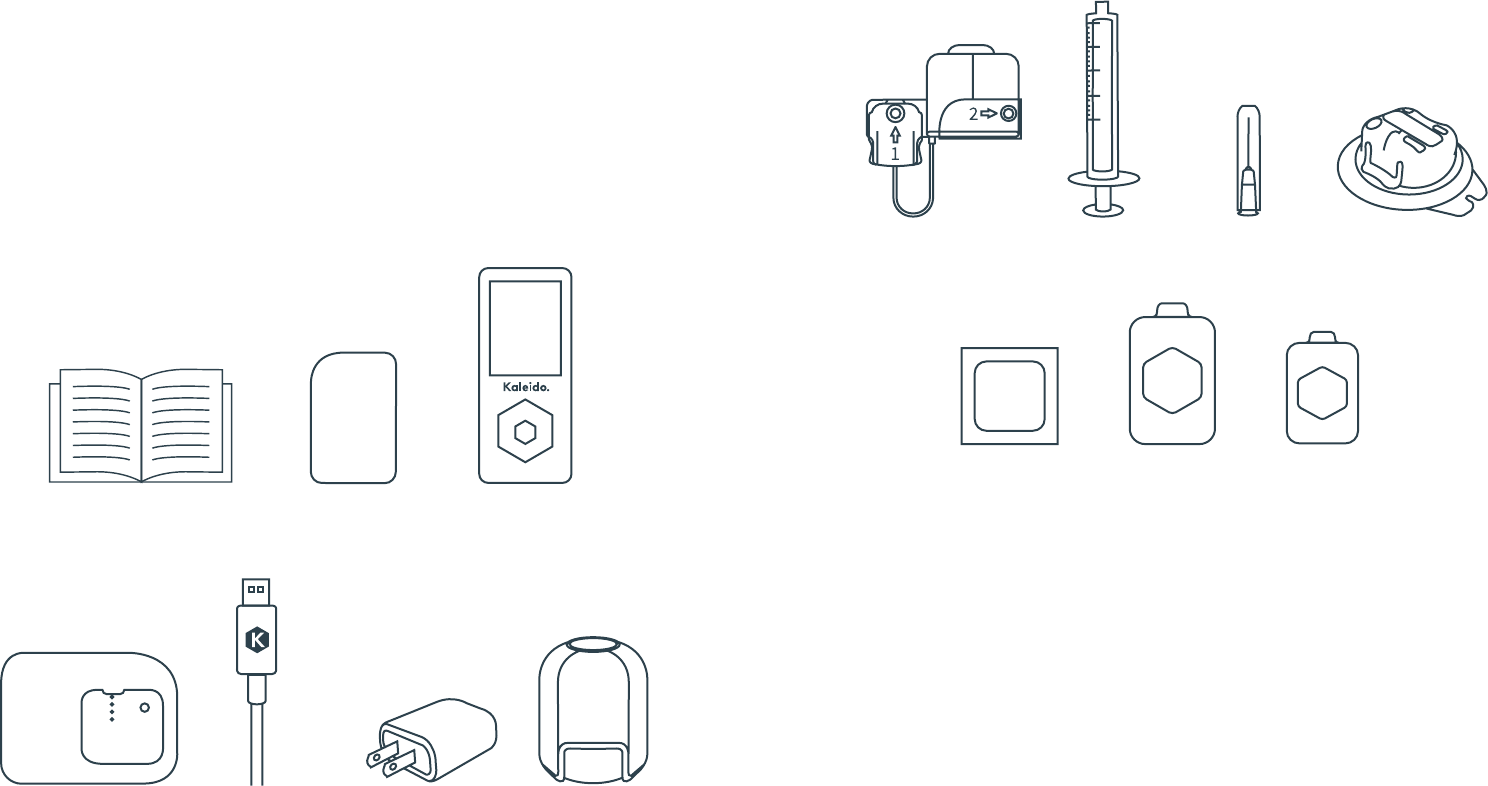
Taking your first steps
Everybody ready? Let’s do this!
To get you started on Kaleido, a member of our team will
deliver your Starter Kit and very first Top-up Kit. You may
have cracked both open straight away (who’d blame you?)
but just in case you haven’t, here’s what you should find in
each box:
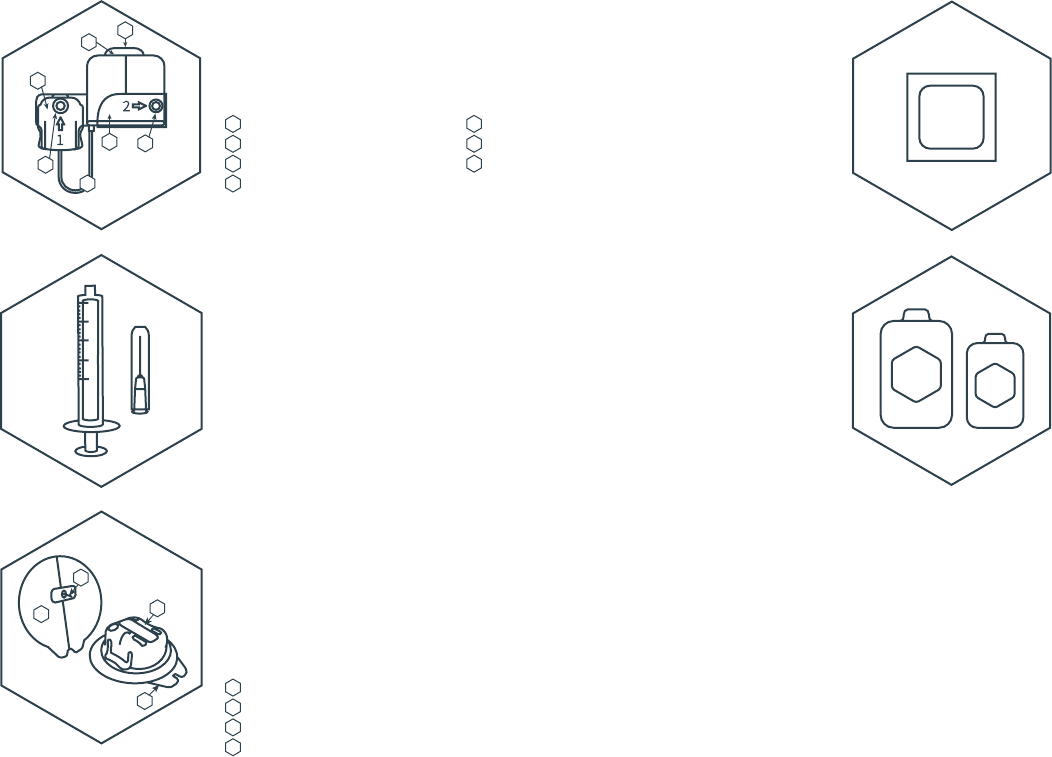
Starter Kit
Top-up Kit
WARNING
Unfortunately, Kaleido
isn’t able to provide you
with the U100 insulin
you’ll need to use your
pump. For this, you
should contact your
Healthcare Provider
who’ll be able to help.
Your Kaleido pump and
insulin cartridges are
only approved for use
with Humalog® and
NovoRapid® U100
insulins.
WARNING
Please make sure your
kits contain everything
listed before you get
started. If there’s
anything missing, give
us a call at Kaleido Care
straight away.
WARNING
If the packaging of any
of your supplies is
damaged in any way,
please don’t use them.
Damaged packaging
means that we can’t
guarantee the sterility
of the products. Please
contact Kaleido Care
and we’ll make a plan to
send you replacements
as soon as possible.
Kaleido handset
x 1
Kaleido pumps
x 2
Guidebook
x 1
Power adaptor
x 1
Charging dock
x 1
Connection cable
x 1
Insulin cartridges
x 10
Syringes
x 10
Needles
x 10
Infusion sets
x 10
Alcohol wipes
x 10
Body patches
x 10
Pump patches
x 10
Inserter
x 1
14 Your Starter Kit 15
Your Top-up Kit
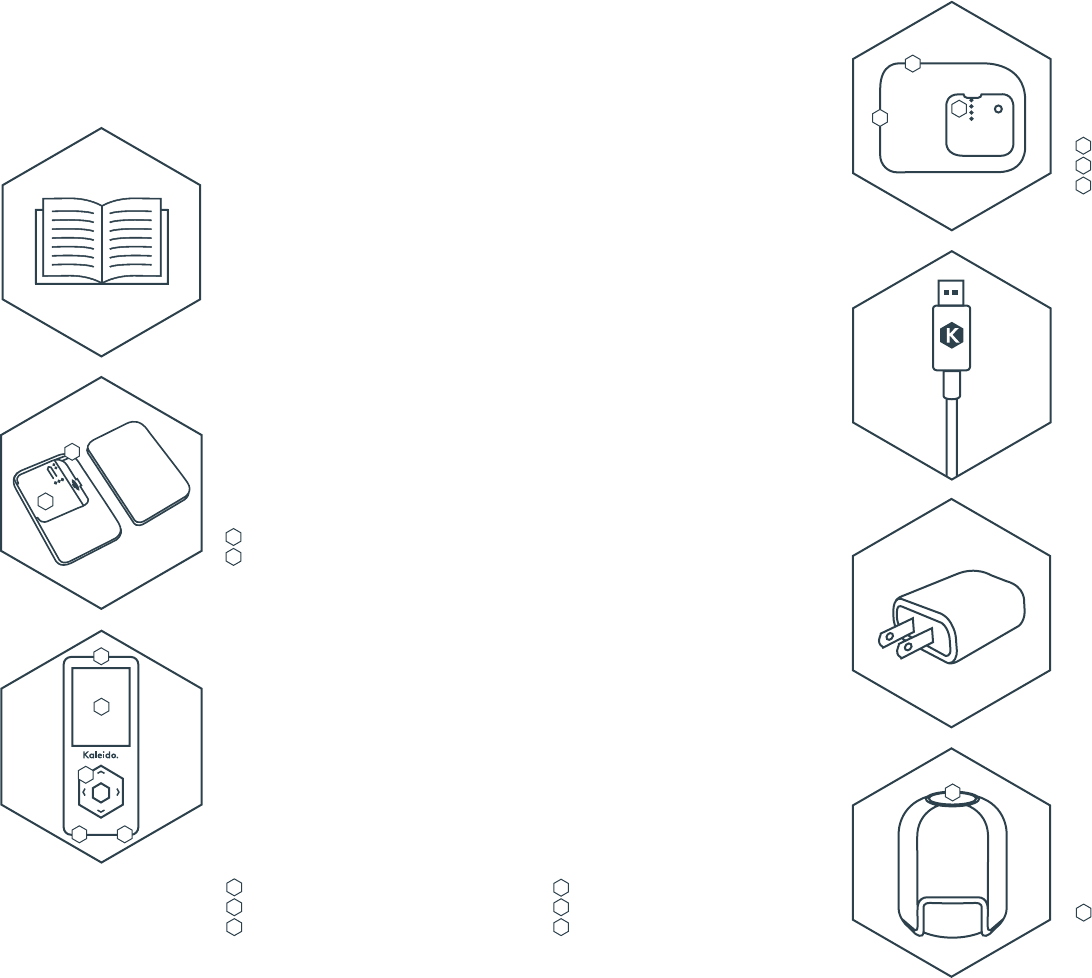
Inserter
This nifty piece of kit will help you insert your infusion sets
quickly and easily. Hold on to it to help make sure infusion set
change days are a real breeze!
Button
Introducing Kaleido
Starter Kit – Everything you need to get started
Guidebook
You’re reading it! You can use this Guidebook to learn more
about the functions your Kaleido pump offers, as well as a
refresher if you ever need to jog your memory.
Kaleido pumps
TA-DA! These are your shiny new Kaleido pumps! Because Kaleido
pumps are reusable, we’re sending you two, so that you’ll always
have one to wear and one charged and ready to go.
Kaleido handset
Give it up for your Kaleido handset! The handset is what you’ll
use to speak to your pump and tell it what you’d like it to do.
Your handset will only talk to one pump at a time, using a
special wireless connection. Your handset can also help you
keep track of the insulin deliveries you give, as well as any
blood glucose readings you take.
It’s also where you’ll be able to quickly check the important
details, like how much insulin is left in your insulin cartridge
and how much power there is in your pump and handset
batteries - just one quick glance and you can get back to
recharging your own!
Charging dock
Together with the connection cable and power adaptor, this
is what you’ll use to charge your pumps. It’ll help you make
sure they’re always fully charged and ready for action.
Connection cable
Use this cable to connect your power adaptor to either your
Kaleido handset or your charging dock - whichever you need to
charge next.
WARNING
Your connection cable should only be used with your
Kaleido charging dock and power adaptor to charge your
Kaleido pumps and handset. You shouldn’t try to connect
your Kaleido products to any other devices using your
connection cable.
Power adaptor
Once you’ve positioned your connection cable, you’ll need
your power adaptor to plug into your electrical outlet and start
charging.
2
1
2
1
5 6
4
Power button
Screen
Navigation buttons (up, down, left, right)
Enter button
Micro USB port
Speaker
2
1
3
3
16 17
What’s in your Starter Kit?What’s in your Starter Kit?
1
2
1
2
3
4
5
6
Here’s where your insulin cartridges will go!
Groove for insulin cartridge tubing
Charging status light
Micro USB port
Contact pins
1
2
3
1
1
Top-up Kits – Everything you need to
keep you pumping
Body & pump patches
Last but by no means least, these patches will help you wear
your Kaleido pump. The body patch goes on your body and the
pump patch is the part that sticks to your pump.
You’ll need to change these patches every time you change
your pump, insulin cartridge and infusion set, so – are you
sensing a theme here!? – you’ll use one new body patch and
one new pump patch at least once every three days.
Alcohol wipes
Ready for a new infusion set? Use an alcohol wipe to make sure
your skin is ultra clean first.
Infusion set
The infusion set is the bit that connects your Kaleido pump to
your body. It’s small but powerful! It uses a little needle and
tube and, just like your pump and insulin cartridge, you’ll need
to change it at least once every three days. Kaleido infusion set
needles come in two sizes, 6 mm and 9 mm, so you can choose
the size that works best for you.
Syringes & needles
Our syringes and needles fit together and are used to fill your
insulin cartridges with insulin. You’ll need one syringe and one
needle for every new cartridge you prepare - that’s one of each
at least once every three days.
Kaleido insulin cartridge
This little thing is where you’ll put all the insulin you’ll need for
up to three days of pumping. You can choose from two lengths
of tubing because we’re cool like that - go for 5cm or 30cm.
Just let us know which you’d prefer.
Hole 1
Hole 2
Insulin cartridge connector
Plastic tab
Paper backing (with sticky patch underneath)
Needle, including cannula tube
Plastic cap
Plastic cap tabs
2
1
19What’s in your Top-up Kits?
3
1
2
3
4
1
2
3
5
6
7
Filling cradle catch
Insulin cartridge tubing
Filling cradle
1
2
3
6
4
7
5
4
4
18 What’s in your Top-up Kits?

Getting to know
your Kaleido
Getting to know your Kaleido
So you’ve got everything you need to start pumping,
but what’s next? It’s easy! First, you need to:
QUICK TIP
You can send your handset to sleep at
any time by briefly pressing the Power
button. This will help you save your
handset battery. You can wake it up
again at any time just by pressing the
Power button.
First things first!
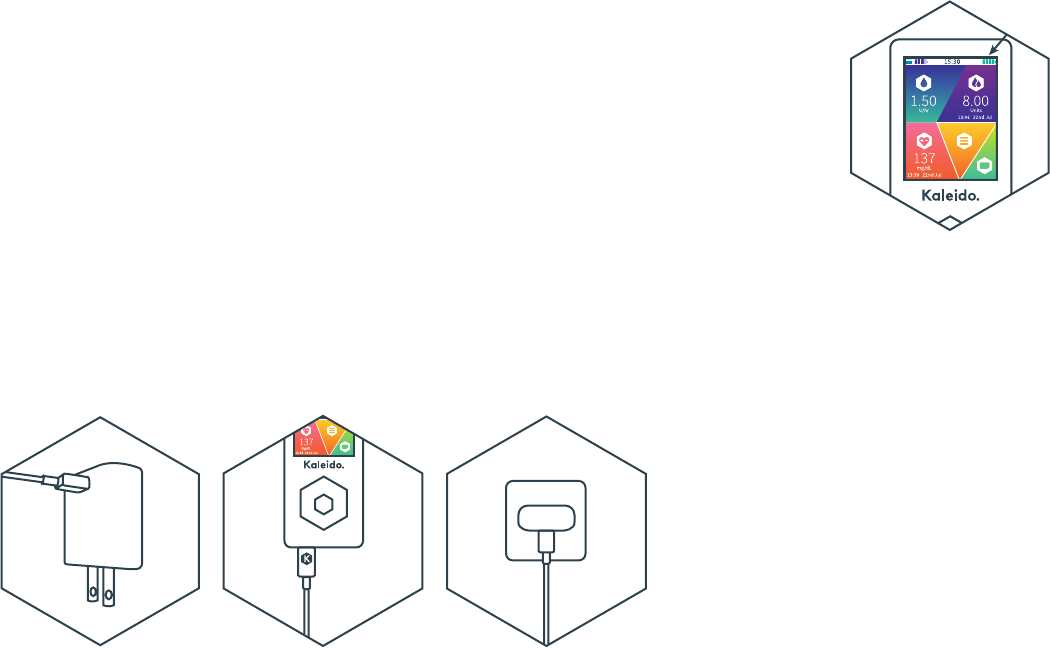
• Remove your pumps and handset from their packaging
• Charge your handset
• Charge the pump you would like to use first
Let’s charge! How do I charge my handset?
STEP 1
Start by connecting your
power adaptor and
connection cable. Do this
by inserting the larger
end of the connection
cable into the USB port at
the bottom of the power
adaptor.
STEP 2
Next, insert the smaller
end of the connection
cable into your handset’s
micro USB port.
STEP 3
Finally, plug your power
adaptor into an easily
accessible electrical outlet
and then switch the power
on. You’ll see a charging
icon on your handset
screen. Congratulations,
you’re charging!
STEP 4
If you are charging your
handset for the very first
time or recharging it after
draining the battery
right down to empty,
we recommend that you
charge it for at least two
hours.
You can always check
how charged your handset
is by scrolling to Resource
Levels in the System
Settings menu - even
while your handset is
charging!
QUICK TIP
Make sure you keep an eye on your
handset battery and recharge it at a
convenient time for you. Remember,
you should always keep your handset
within reach in case you need to
adjust your insulin delivery, even
when it’s on charge.
WARNING
You must only use the supplied
charging system to charge your
Kaleido handset.
22 23
How do I charge my handset?
How do I charge my handset?
WARNING
If your Kaleido handset battery ever
becomes completely flat, causes
your handset to turn off and is left
uncharged for seven days or more,
your handset’s internal clock will
automatically reset. See How do I
change the time on my handset? and
How do I change the date on my
handset? for more details.
QUICK TIP
Charging your handset will
automatically turn it on, even if it was
previously turned off. You won’t be
able to turn your handset off while it’s
being charged.
And how do I charge my pumps?
WARNING
The supplied charging dock is the only
device that can be used to charge your
Kaleido pumps.
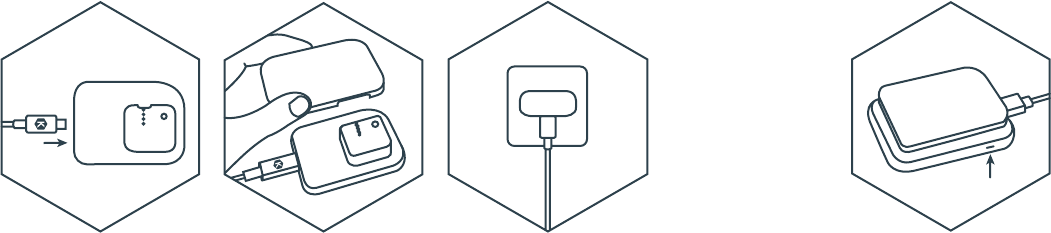
STEP 1
First, detach your
connection cable from
your handset, then insert
the connection cable into
the micro USB port on
your charging dock.
STEP 2
Check there isn’t an insulin
cartridge already in the
pump you want to charge
(if there is one there,
remove it!). Then, click
your pump into place on
the charging dock.
STEP 3
Plug your power adaptor
into an easily accessible
electrical outlet and then
switch on the power. The
charging status light on the
charging dock will shine
orange to let you know that
charging has started.
WARNING
If the charging status light on the
charging dock does not glow orange
when your pump is connected and the
power supply is switched on, the pump
is not being charged. Try an alternative
power supply first, and then contact
Kaleido Care if you continue to
experience difficulties.
WARNING
You should always connect the
connection cable to the power adaptor
and charging dock or handset BEFORE
you plug the power adaptor into an
electrical outlet. Switching on the power
should always be the last thing you
do. Once you’ve finished charging, you
should switch off the power and remove
the power adaptor from the electrical
outlet before starting to use either the
pump or your handset.
STEP 4
Once your pump is fully
charged, the charging
status light on the dock
will change from orange to
green. Your pump is now
ready to use!
If your pump has been on
charge for more than two
hours and the charging
status light hasn’t changed
from orange to green, give
Kaleido Care a call.
QUICK TIP
You’ll wear each of your Kaleido pumps
for up to three days at a time. Once
you’ve removed a pump, it’s a good
idea to get into the habit of charging it
as soon as you can, so that it’s ready for
the next time you need it. No one likes a
pump with an empty battery, right?
24 25
And how do I charge my pumps?
And how do I charge my pumps?
WARNING
Before attaching a
pump to the charging
dock, you must make
sure you’ve removed
any insulin cartridges.
WARNING
If the charging status
light on the charging
dock glows red, an
error has occurred.
Unplug the power
adaptor from the
electrical outlet and
try disconnecting and
reconnecting the
connection cable.
If that doesn’t resolve
the problem, call
Kaleido Care for help.

Handy hints for your handset
Once your handset is charged, it’s time to turn it on and start exploring!
STEP 1
To turn your handset on,
just press and hold the
Power button for two
seconds.
STEP 3
Turning on your new
handset for the first time?
You’ll be greeted by a
welcome message
suggesting that you
create your very first basal
profile. You’ll need to enter
a basal profile in order to
start pumping, so this is
the perfect place to start!
See I’ve just turned on my
handset for the first time,
where do I start? for more
info.
STEP 4
If it’s not the first time
you’ve turned on your
handset, pressing the
Power button will take
you straight to the Home
screen.
STEP 5
If you ever want to turn
your handset off, press and
hold the Power button for
two seconds.
How do I turn my handset on and off?
26 27
How do I turn my handset on and off?
How do I turn my handset on and off?
WARNING
Turning off your handset will not automatically
turn off your pump - if you turn your handset
off without pausing or stopping your Kaleido
pump first, your pump will continue to deliver
your current basal profile and any programmed
boluses.
STEP 6
You’ll be asked to confirm
that you want to turn
your handset off, and it’s
simple - just select Yes if
you do. If you decide not
to turn off your handset,
just scroll left to No and
press the Enter button.
STEP 2
Your handset will ask you
to enter your passcode.
If you haven’t already
saved your own passcode,
you can enter the default
passcode instead:
To find out how to save
your own passcode, check
out What’s Lock Screen
and how do I save a new
passcode?. You should
save your own passcode as
soon as possible.
Navigating your Kaleido handset
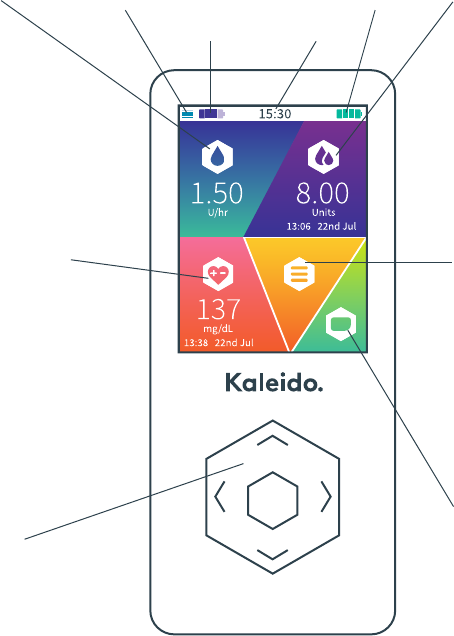
We designed your handset to be as simple to use as possible.
Your Home screen is divided into five sections, each of which
leads you to a different menu. At the top, you’ll also see handy
details like the time and how full your insulin cartridge, pump
and handset batteries are.
BASAL
Once
you’re
pumping,
your Basal section
will show the basal
rate you are currently
receiving. If you need
to change or review
your basal profile, just
navigate to Basal and
select it by pressing
the Enter button.
BOLUS
Your Bolus section
shows you the details
of the last bolus you
delivered – that’s the
date, time and the
amount of insulin you
got. When you need
to deliver your next
bolus, navigate to
Bolus using the
buttons and press
Enter.
BLOOD GLUCOSE
If you’d like to
enter a blood glucose
reading, navigate to
Blood Glucose and
press Enter. Once
you’ve done this,
the Blood Glucose
section will display
your last BG reading,
along with the date
and time, making it
easy for you to keep
track.
MENU
If you’d like to check
your current Insulin
on Board, take a look
at your History, or
check or update your
personal information
or system settings,
you’ll need to
navigate to Menu
and press Enter.
STATUS
It’s also really easy to
pause, stop and
restart your pump.
Just navigate to
Status, press Enter
and go from there.
Enter
QUICK TIP
Aside from moving you
around your handset, the
navigation buttons play
their own roles on other
screens too. You’ll use the up
and down buttons to scroll
through numbers and letters
when entering details like
your name and date of birth,
and then right and left
to move back and forth
between the different letter
and number boxes. The Enter
button is used to confirm all
your decisions and to move
you on to any next steps.
QUICK TIP
When you receive
confirmation messages from
your handset, you have two
options: either wait for them
to time out automatically
(this’ll take a few seconds),
or you can just press Enter to
continue a little quicker.
WARNING
Please be aware that when no
button has been pressed for
a few seconds, your handset
screen will go to sleep. Just
press the Power or Enter
button to wake it back up.
28 29
Navigating your Kaleido handset
Navigating your Kaleido handset
BUTTONS
You can navigate
around your Kaleido
handset simply by
using the up, down,
left, right and Enter
buttons.
INSULIN CARTRIDGE
PUMP BATTERY
HANDSET BATTERY
TIME

Powering up your pump
• 1 x fully charged Kaleido pump
• 1 x pouch-packaged insulin cartridge
• 1 x syringe
• 1 x needle
• 1 x body patch
• 1 x pump patch
• 1 x infusion set
• Your Kaleido inserter
• Your vial of U100 insulin
So, now you’ve got to know your handset and you’ve charged your
first pump, it’s time to learn how to get it ready for action.
How do I fill my insulin cartridge with insulin?
Filling your insulin cartridge properly is really important, so
find a clean, flat surface and make sure everything you need
is within easy reach. When you’re ready, follow these steps:
STEP 1
Remove your insulin
cartridge from its
packaging.
WARNING
Make sure you take a good look at
your insulin cartridge pouch when you
pick an insulin cartridge to use. If you
see any signs of damage, or if the
expiration date has passed, please
don’t use the cartridge. Instead,
dispose of the insulin cartridge
appropriately and select another.
STEP 3
Remove your syringe from
its packaging.
WARNING
Never prefill your insulin cartridges.
You should only fill an insulin cartridge
just before you want to insert it into
your pump.
30 31How do I fill my insulin cartridge with insulin?
Powering up your pump
STEP 2
Place the insulin cartridge
on a flat surface so that the
numbers 1 and 2 are facing
towards you.
You’ll need:
You’ll need to start by filling up an insulin cartridge with insulin.
We’ll walk you through this on the next few pages, but here’s a list
of all the bits that you’ll need. It might help to get everything lined
up and ready to go before you start - your Top-up Kit will come in
handy for this part!

STEP 4
Without moving the
plunger, push the pointy
end of the syringe firmly
into Hole 1 so that it fits
securely into the filling
cradle.
STEP 5
Holding the syringe in
place with one hand, use
the other to carefully pull
the plunger all the way up
to the top of the syringe.
This will remove any
excess air from your
insulin cartridge.
STEP 7
Next, remove your needle
from its packaging. No
need to remove the needle
cap just yet!
STEP 8
Push the needle (with its
cap still attached) onto the
pointy end of the syringe
until the two are securely
connected.
32 33
How do I fill my insulin cartridge with insulin?How do I fill my insulin cartridge with insulin?
STEP 6
Now, remove your syringe
from Hole 1 and push the
plunger back towards the
pointy end of the syringe.
STEP 9
Remove the needle cap
from the needle.
WARNING
When pulling the plunger
to the top of the syringe,
you should feel some
resistance - as though
pulling the plunger up is
quite difficult. If you don't
and the plunger pulls up
without any effort, call
Kaleido Care before using
the insulin cartridge.

STEP 10
Using both hands, hold
your vial of U100 rapid
acting insulin upside down
and carefully insert the
end of your needle into
the vial.
STEP 12
Take your insulin cartridge
and gently place the
needle into Hole 2.
Carefully push down
the plunger, filling the
cartridge with insulin.
34 35
How do I fill my insulin cartridge with insulin?How do I fill my insulin cartridge with insulin?
STEP 11
Pull back your plunger
until you have just over
2.5 ml of insulin in your
syringe. Push the plunger
back to meet the 2.5 ml
mark to get rid of any air
that might have crept into
the syringe. Once you have
2.5 ml of insulin in your
syringe and you’ve gotten
rid of any air bubbles,
remove the needle from
the vial.
1
2
WARNING
You must only use U100 rapid acting
insulin with the Kaleido system and
must never, ever mix insulin types for
use in your pump.
WARNING
Always ensure your insulin cartridge
is clean and dry before filling it with
insulin. Fill the insulin cartridge at
room temperature, using room
temperature insulin. Never fill an
insulin cartridge with cold insulin.
QUICK TIP
If you see a small bubble inside your
filled insulin cartridge, don’t worry.
The cartridge will make sure the
bubble doesn’t get into your insulin
stream.
STEP 13
Remove the needle from
the insulin cartridge
and replace the needle
cap. Twist and pull the
needle from the syringe
and dispose of both parts
responsibly.
QUICK TIP
You should always make sure that your filled syringe is as free of
air bubbles as possible. But, if there are some small, champagne
bubble-sized bubbles that you just can’t get rid of, you might find
that turning the syringe upside down (so that the needle is pointing
to the floor) and giving it a gentle tap with your finger will help these
small air bubbles collect together and travel to the top of the syringe,
away from the needle. This will help make sure that they stay in the
syringe and don’t travel into your insulin cartridge – win!
You’ll know that your
insulin cartridge is full
when you see insulin
coming out of Hole 1.
Your insulin cartridge
is now fully filled and
primed.
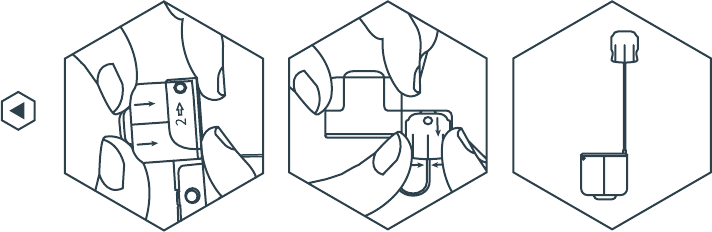
STEP 15
Ta-da! Your insulin
cartridge is now fully filled,
primed and ready to use!
STEP 14
Next, you’ll need to
remove your insulin
cartridge from the filling
cradle.
First, hold your insulin
cartridge in one hand
and use the other to push
the coloured part of the
insulin cartridge further
into the filling cradle. This
will unhook the plastic tab
from the filling cradle’s
catch and you can then
remove this part of your
insulin cartridge from the
filling cradle.
36 37
How do I fill my insulin cartridge with insulin?
How do I fill my insulin cartridge with insulin?
WARNING
Kaleido insulin cartridges cannot be reused. At the
end of use, please remove the insulin cartridge from
your pump and dispose of it appropriately. Insulin
cartridges cannot be re-sterilised and reusing one
could adversely affect your health.
WARNING
Always follow the insulin manufacturer’s instructions
regarding storage and use of insulin, and always
double check the expiration date of your insulin
before you use it. If your insulin has passed its
expiration date, discard and dispose of it according
to the instructions provided by the insulin
manufacturer.
WARNING
Don’t reuse your syringes or needles - doing so may
contaminate your insulin and lead to infection.
Once you’ve used a needle and syringe once, always
dispose of them responsibly, straight away. We
recommend always using a sharps bin.
WARNING
Your insulin cartridge should always be completely
full before you start using it.
Once that’s done, turn
the filling cradle over and
gently squeeze the tabs on
either side of your insulin
cartridge connector to
unclip it. The filling cradle
can now be responsibly
disposed of.
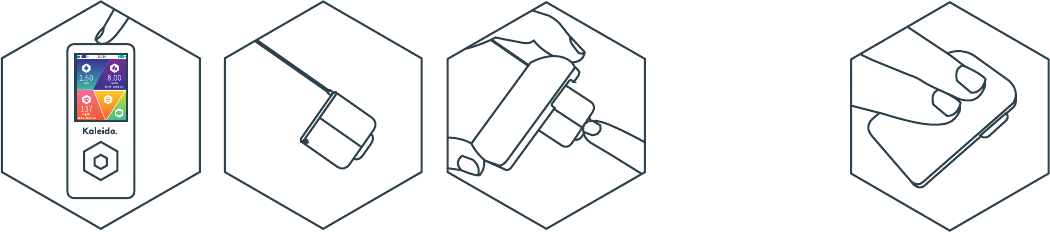
Now that my insulin cartridge is ready,
how do I put it in my pump?
We’ve made sure that getting your insulin cartridge into your
pump is really easy, but it’s always important that you take
care and pay attention - especially if it’s your first time!
STEP 1
Check that your handset is
turned on, that the screen
is awake and that it’s
within range of the pump
you’re about to use.
STEP 2
Place your prepared
insulin cartridge onto
a clean surface. Make
sure the plastic tab is flat
against the surface and
then use the plastic tab to
hold the insulin cartridge
in place.
STEP 3
With the colourful shell
facing upwards, take your
fully charged pump and
place it on top of your
insulin cartridge. Line it up
with the plastic tab.
STEP 4
Carefully push your pump
onto your insulin cartridge
until you hear it click into
place. There you have it –
your insulin cartridge is in!
QUICK TIP
Inserting an insulin cartridge into a
pump will turn your pump on. To let
you know it has detected the inserted
insulin cartridge, your pump will beep
twice. Your handset, on the other
hand, can only detect that an insulin
cartridge has been inserted into your
pump if it is turned on and if its screen
is awake - if it is, after a few seconds
it will also beep twice. As well as
confirming that your pump and
handset are ready to connect, the
beeps also let you know that your
pump and handset alarm systems
are working properly. If you don’t hear
them, first check that your handset
is turned on and that the screen is
awake. If that doesn’t help, give
Kaleido Care a call.
WARNING
Your Kaleido pumps will dispense a
small amount of insulin when you
insert a new insulin cartridge. For
your safety, you must never insert
or remove an insulin cartridge while
wearing your Kaleido pump or if it is
connected to your current infusion set.
WARNING
If you have any reason to believe your
insulin cartridge may have leaked,
we recommend you stop using it and
replace it immediately.
38 39
How do I put my insulin cartridge in my pump?
How do I put my insulin cartridge in my pump?

Good news - your pump and handset can tell when you’ve inserted a
new insulin cartridge into your pump (see Now that my insulin cartridge
is ready, how do I put it in my pump?) and, when this happens, your
handset will automatically start walking you through the steps you’ll
need to take to start pumping. Here’s what’ll happen next:
QUICK TIP
Unless you are preparing a pump
and insulin cartridge for the very first
time, you’ll need to make sure you’ve
stopped the pump you were most
recently using first. Remove and
dispose of the insulin cartridge
appropriately, then put your old
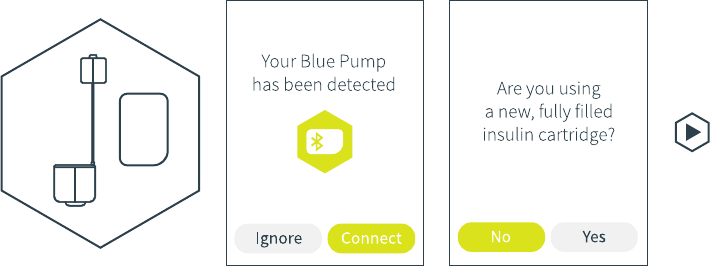
STEP 1
Once it recognises you’ve
inserted a new insulin
cartridge into your pump,
your handset will show a
message confirming that a
pump has been detected.
Make sure the pump name
on your handset matches the
pump you’re trying to start.
When you are ready, press
the Enter button to select
Connect.
STEP 2
Your handset will ask if you
have used a new, fully filled
insulin cartridge. Select Yes
if this is correct (if not, see If
I have to remove an insulin
cartridge, can I then put it back
into my pump?).
STEP 3
Next, a message will pop up
to remind you to prepare and
apply your pump (See How
do I wear my pump?). This
message will time out after
a few seconds, but you can
press Enter to jump to the
next screen a little quicker.
QUICK TIP
Your pumps are named after their colour –
if you have a purple pump, its pump name
will be Purple Pump. A turquoise pump
will be your Turquoise Pump. See what
we’ve done there? We’re pretty proud of
that one.
40 41
Connecting your pump and handset
Connecting your pump and handset
How do I connect my pump to my handset
and start pumping?
STEP 4
Your handset will now ask
you if your infusion set is new
and if you would like to prime
your cannula. You have three
options to choose from:
• If you have a new infusion
set with a 6mm cannula that
you would like to prime, press
Enter to select Yes, 6 mm.
• If you have a new infusion
set with a 9mm cannula that
you would like to prime, scroll
down to Yes, 9 mm, then press
Enter to select it.
• If you do not want to prime
your new infusion set’s
cannula or if you are not using
a new infusion set, just press
the left button to scroll to No
and press Enter to select it. If
you select No, you’ll just be
asked if you’re ready to start
pumping and your handset
will help you through the next
steps.
You can find out more about
priming your cannula by
checking out Why do I need to
prime my cannula?
QUICK TIP
Don’t panic! Your handset screen must
be awake in order for connection to start
automatically. If your handset is asleep
when you insert an insulin cartridge into
your pump, connection won’t start until
your handset has been woken up again.
pump on charge. This is important
because your handset will not be able
to acknowledge a new connection if
it’s still paired to the last pump you
were using.

STEP 8
The Home screen will now
display your new pump
details. Snazzy!
WARNING
To start pumping you’ll need at least one basal
profile saved to your handset. If you insert an insulin
cartridge into your pump without having any saved
basal profiles, your handset won’t be able to
acknowledge the pump.
STEP 6
Your cannula will start to be
primed as soon as you select
Yes. On your handset, you’ll
be able to see a countdown -
sit tight, it doesn’t take long!
STEP 7
Once priming has completed,
your handset will confirm that
pumping has started. You can
let the confirmation message
time out after a few seconds,
or press Enter to jump back
to the Home screen a little
quicker.
QUICK TIP
If you’ve changed your
mind, just press the left
button to scroll to No.
Press Enter to select it –
your handset will confirm
that your cannula won’t
be primed and that your
pump is stopped, and
then you’ll be taken back
to the Home screen.
STEP 5
If you chose Yes, 6 mm or Yes,
9 mm you’ll now be asked if
you’re ready to prime your
cannula and start pumping.
Are you wearing your
prepared pump and infusion
set and ready to go? Great!
Select Yes again.
Your handset will stay on this
screen for as long as you need
it to if you’d like a little extra
time to apply everything, so
make sure you don’t select Yes
until you really are wearing
your pump and infusion set
and are ready to start
receiving insulin!
42 43
Connecting your pump and handset
Connecting your pump and handset
Why do I need to prime my cannula?
You don’t need to prime your Kaleido insulin cartridge,
so you might be wondering why you need to prime your
infusion set’s cannula. Well, when you fill your insulin
cartridge, it isn’t connected to your infusion set, so your
cartridge can only prime as far as the end of the insulin
cartridge connector. When you start wearing your pump
and connect it to a new infusion set, your cannula (the
small piece of tubing that enters your body) won’t contain
any insulin. This means that when you start pumping, the
insulin delivered will need to fill the cannula before it really
starts being delivered to you. And that means you could be
waiting for insulin for a little longer than you’d planned.
You can avoid this though by priming your cannula – all it
means is that an extra bit of insulin will be delivered to fill
your new cannula quickly, so that normal insulin delivery
can start almost straight away. How much insulin do
you need to deliver to prime your cannula? Don’t worry,
we’ve worked that out for you! All you need to do is tell
your handset which size cannula you’re currently using
- 6mm or 9mm.
Do I always need to prime my cannula?
Almost always, yes. But if you’re only changing your
insulin cartridge and not your infusion set too, then
you won’t need to prime your cannula because it will
already be full.
If I have to remove an insulin cartridge,
can I put it back into my pump?
Sometimes, you might need to remove an insulin cartridge
from your pump because of an alarm, an alert or for some
other reason. If this happens and you want to reinsert the
cartridge later to carry on using it, here’s what you’ll need to
do. You can also follow these steps if you need to change your
infusion set but not your insulin cartridge:
STEP 1
Before you remove or reinsert
your insulin cartridge, first
make sure you’ve either
paused or stopped your
Kaleido pump and that you
have separated your pump
from your infusion set (see
How do I take my pump off?).
STEP 2
When you’re ready, reinsert
the insulin cartridge into your
pump. Your handset will show
a message confirming that it’s
detected your pump again.
Make sure the pump name
on your handset matches the
pump you want to use, then
press the Enter button to
select Connect.
STEP 3
Your handset will ask if you
have used a new, fully filled
insulin cartridge. This time,
you’ll need to scroll left to
No and then press the Enter
button to select.
45
Can I remove an insulin cartridge and put it back in my pump?
44 Why do I need to prime my cannula?

WARNING
Your Kaleido pumps will dispense a
small amount of insulin when you
insert a new insulin cartridge. For
your safety, you must never insert
or remove an insulin cartridge while
wearing your Kaleido pump or if it’s
connected to your current infusion
set.
STEP 4
Your handset will ask if this is
the insulin cartridge you were
last using. If it is, select Yes.
If it’s not the cartridge you
were last using, select No.
You won’t be able to reuse
the insulin cartridge and your
handset will talk you through
what to do next.
STEP 5
A message will pop up to
remind you to prepare and
apply your pump – this
message will time out after
a few seconds, but you can
press Enter to jump to the
next screen a little quicker.
See How do I wear my pump?
for a reminder of how to
prepare and apply your pump.
WARNING
You must not reuse old insulin
cartridges in your Kaleido pumps.
It’s important that you only use newly
prepared insulin cartridges or an
insulin cartridge that has been
removed from your pump temporarily
and then immediately reinserted.
If you try to use an old insulin
cartridge, your handset will not allow
you to start pumping and will ask you
to prepare and insert a new cartridge.
46 47
Can I remove an insulin cartridge and put it back in my pump?Can I remove an insulin cartridge and put it back in my pump?
STEP 6
Your handset will now ask
you if your infusion set is new
and if you would like to prime
your cannula. You have three
options to choose from:
• If you have a new infusion
set with a 6mm cannula that
you’d like to prime, press
Enter to select Yes, 6 mm.
• If you have a new infusion
set with a 9mm cannula that
you’d like to prime, scroll
down to Yes, 9 mm, then
press Enter to select it.
• If you don’t want to prime
your new infusion set’s
cannula or if you’re not using
a new infusion set, just press
the left button to scroll to
No, then press Enter to select
it. If you select No, you’ll be
asked if you’re ready to start
pumping and your handset
will then guide you through
the next steps.
You can find out more about
priming your cannula by
checking out Why do I need to
prime my cannula?
QUICK TIP
You may need to replace your pump and body
patches after you’ve reinserted an insulin cartridge.
See How do I wear my pump? for a reminder of how
to do this.

STEP 7
If you chose Yes, 6 mm or Yes
9 mm, you’ll now be asked if
you’re ready to prime your
cannula and start pumping.
Are you wearing your
prepared pump and infusion
set and ready to go? Great!
Select Yes again.
Don’t select Yes until you’re
wearing your pump and
infusion set and ready to
start receiving insulin.
Your handset will stay on
this screen for as long as
you need it to.
QUICK TIP
If you’ve changed your
mind, just press the left
button to scroll to No.
Press Enter to select it –
your handset will confirm
that your cannula won’t
be primed and that your
pump is stopped, and then
you’ll be taken back to the
Home screen.
STEP 9
Once priming has completed,
pumping will automatically
start and your handset will
confirm this for you. Press
Enter to jump back to the
Home screen a little quicker.
STEP 10
The Home screen will
continue to display your
pump’s details.
STEP 8
Your cannula will start to be
primed as soon as you select
Yes. On your handset, you’ll
see a priming countdown.
48 49
Can I remove an insulin cartridge and put it back in my pump?
Can I remove an insulin cartridge and put it back in my pump?

What if I don’t want to start pumping
straight away?
STEP 1
When your handset asks
you if you’re ready to
prime your cannula and
start pumping (or just
whether you’re ready to
start pumping if you’ve
chosen not to prime your
cannula), don’t select Yes.
Instead, scroll left and
press Enter to select No.
WARNING
When your pump is in Stop mode, your handset
and pump will stay connected but your pump will
not deliver any insulin at all. The Bolus menu will
be inaccessible from your Home screen and you’ll
also be unable to set a temporary basal rate.
STEP 2
Later, when you’re ready
to start pumping, just go
to the Status menu and
select Start pumping to
get going (see How do I
restart my pump?). You’ll
be given another chance
to prime your cannula at
this point too.
51
What if I don’t want to start pumping straight away?
What if I don’t want to connect my handset
to a pump straight away?
You can choose to
postpone connecting your
handset and pump. All you
have to do is select Ignore
when your handset
confirms that it has
detected a new pump.
When you’re ready to start
a connection, just reinsert
your insulin cartridge into
your pump and follow the
instructions on screen.
There might come a time when you insert an insulin cartridge into
your pump, but you’re not ready to start pumping straight away.
That’s fine! Here’s what you’ll need to do:
Your pump will then enter
Stop mode. Easy!
50 What if I don’t want to start pumping straight away?
WARNING
It’s important that you only use the infusion sets supplied
with your Top-up Kit. Using alternatives may adversely
affect your Kaleido’s performance.
Right, infusion sets at the ready!
Ready to start wearing your pump and infusion set? Excellent!
Here’s how to safely and securely attach and remove them.
Once you get the hang of it, putting on an infusion set is quick
and easy.
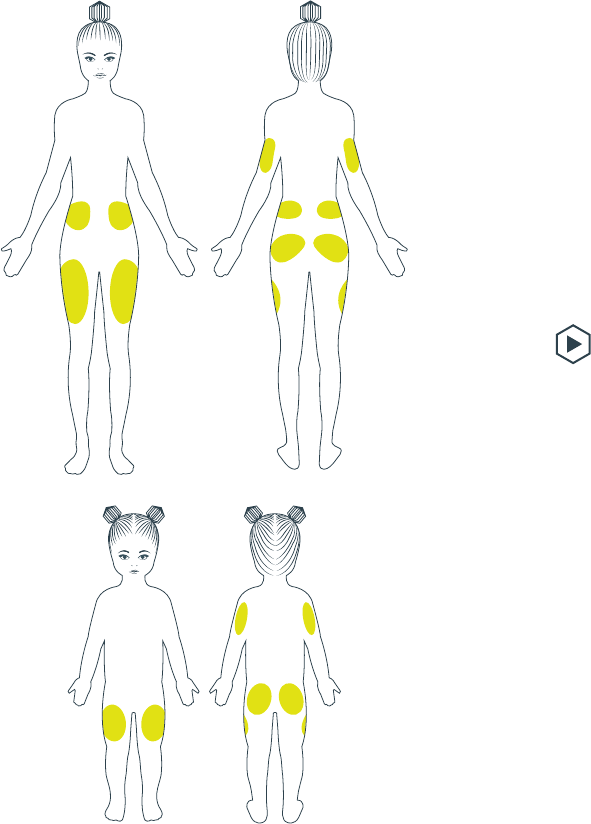
Firstly, it’s really important that you only ever place your
infusion sets on suitable parts of your body – these are the
wobblier areas with a bit more fatty tissue! The pictures on
the following page will help you work out exactly where these
are, but your Healthcare Provider will be able to help you with
this too.
Wearing your Kaleido pump
and infusion set
52 53
Where can I wear infusion sets?
Where can I wear infusion sets?
Where can I wear infusion sets?
You can wear an infusion set on any of the areas highlighted
in green. Take your pick!
54 55
How do I put an infusion set on?
How do I put an infusion set on?
How do I put an infusion set on?
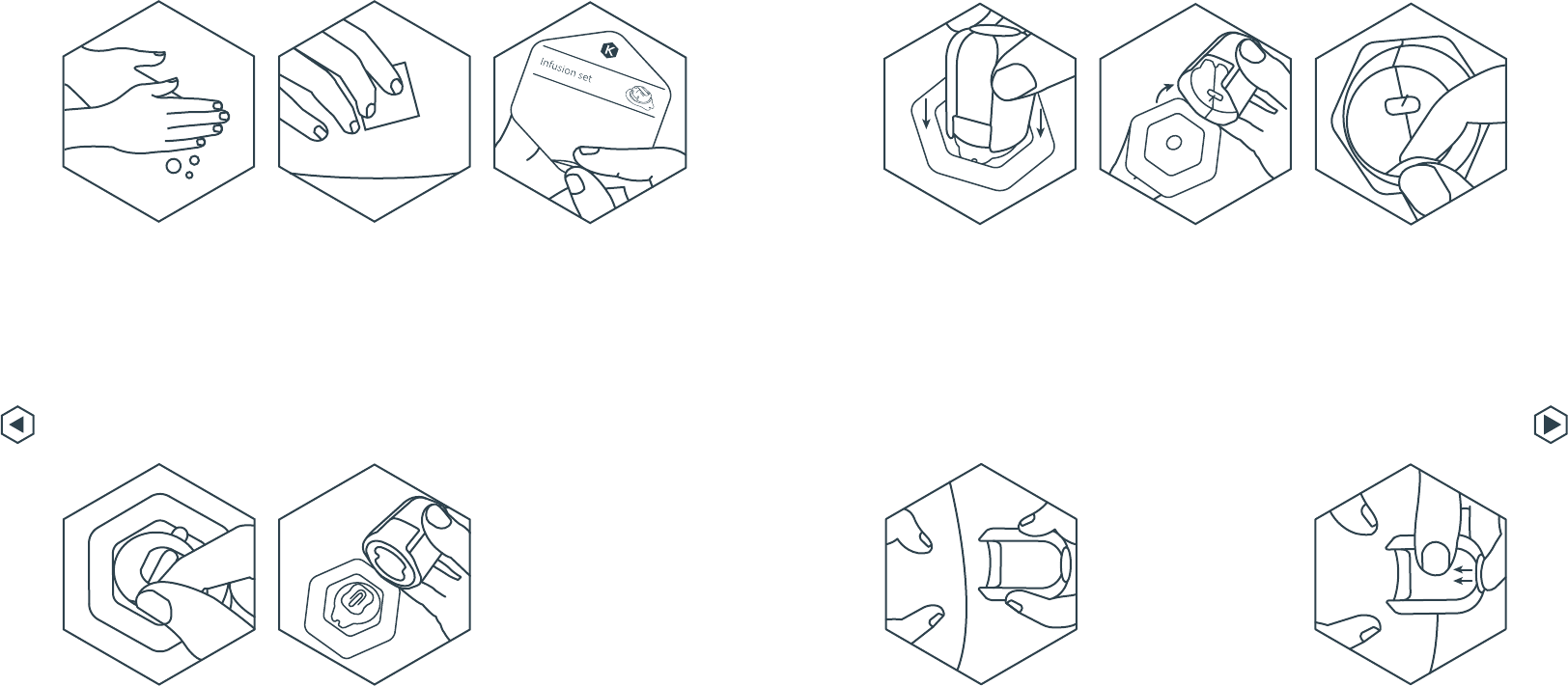
STEP 1
This bit’s easy - start by
washing your hands
thoroughly.
STEP 2
Next, ensure that the area
where you want to position
your infusion set is clean –
wipe over it with an alcohol
wipe, then allow your skin
to dry. It works best if you
choose an area where your
clothing won’t rub against
your infusion set.
STEP 3
Remove the paper lid on your
infusion set’s packaging.
STEP 5
With your infusion set still in
its packaging, place it on a flat
surface. Then, press the
button on the top of your
inserter to make sure it’s
ready to use, and line your
inserter up with the top of
your infusion set.
STEP 4
Remove the protective
circle of plastic that’s sitting
on top of your infusion set.
STEP 6
Holding your infusion set’s
packaging in place with one
hand, use the other to firmly
push your inserter onto the
top of your infusion set.
Push down until you hear
the infusion set click into
your inserter.
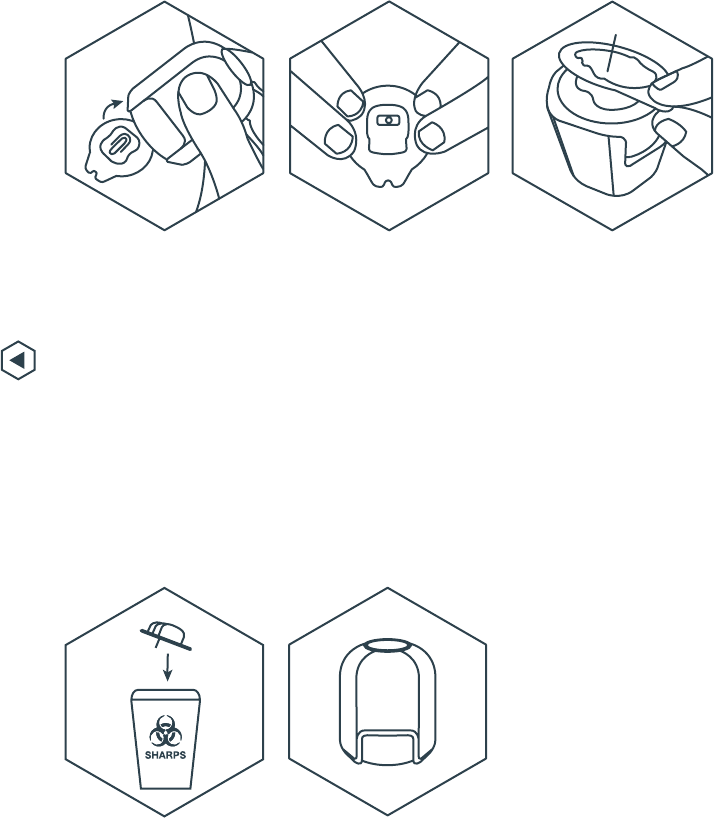
STEP 7
Lift your inserter out of the
infusion set packaging.
Be careful not to touch the
needle – it’s important that
it stays sterile!
STEP 8
Next, peel the paper backing
off the sticky part of the
infusion set. Try not to touch
the sticky area underneath
the paper as it could affect
how well the infusion set
sticks to your skin.
STEP 9
Place your inserter on the area
of your body where you’d like
to wear your infusion set. Use
your other hand to hold your
skin taut. Remember, you can
use the gap in the base of your
inserter as a guide for where
your insulin cartridge will
connect to your infusion set.
STEP 10
When your inserter is in the
right place, take a deep breath
and firmly press the button at
the top of your inserter. This
will push the infusion set into
your body – you may feel a
small sting, but it will only last
a moment.
You can do this by matching
up the shape of the infusion
set with the imprint in the
bottom of your inserter or –
even easier! – making sure the
gap in the base of the inserter
sits above the tabs on the
infusion set’s plastic cap.
This can help you get your
infusion set in the right place
for where you want to wear
your pump.
56 How do I put an infusion set on?
WARNING
It’s important to dispose of your needle appropriately.
We recommend always using a sharps bin.
WARNING
You need to make sure your infusion set stays clean.
Keep an eye on this - if it becomes dirty, you may need
to change it early, before its maximum of three days of
use have come to an end.
WARNING
It’s important to make sure you rotate your sites
whenever you change your infusion set. This will help
you avoid developing scar tissue. Scar tissue can
disturb the flow of insulin into your body and may
limit your ability to absorb it properly in the future.
WARNING
When you apply your infusion set, bear in mind the
length of your insulin cartridge’s tubing. Make sure
you position it close to where you want to wear your
pump. The tubing should always be slack, never
pulled tight.
Some important reminders...
STEP 12
Gently rub the material
around the edge of your
infusion set to make sure it’s
sticking to your skin properly.
If it’s peeling at this stage,
it’s unlikely that it will last
for three full days of wear, so
you might choose to remove
it now and try again with
another one – it’s up to you.
But, if it’s feeling nice and
secure, then your infusion set
is ready to go!
STEP 13
Now you just need to sort
out your inserter. Carefully
remove the plastic cap by
holding onto the tabs to lift it
out of the inserter.
STEP 14
Make sure you dispose of the
needle appropriately.
STEP 15
Last but not least, don’t forget
to keep your inserter safe,
ready for next time!
STEP 11
Now that’s done, you can
remove your inserter. Make
sure you pull your inserter
away from your body in a
straight line, without twisting
it, so that you don’t damage
the infusion set’s cannula.
Your infusion set will be
securely stuck to your body
and the plastic cap and
needle will be inside your
inserter. Put your inserter
to one side for now, but be
careful of the needle!
57
How do I put an infusion set on?
WARNING
When preparing to apply a new infusion set, make
sure you check the infusion set’s packaging and the
infusion set itself for damage first. You must not use
an infusion set if you see any signs of damage, or if
the infusion set’s expiration date has passed. Instead,
select a different infusion set and contact Kaleido
Care at a time that’s convenient for you.

WARNING
It’s best to make sure that the back
of your pump is clean and dry
before you attach a pump patch.
It’ll ensure a better bond between
the patch and pump, and prevent
your pump from coming loose over
time.
STEP 2
Peel off the paper backing
that covers the back of
your pump patch. This will
reveal the patch adhesive.
QUICK TIP
Keep your fingers
away from the sticky
areas – touching them
could make them less
sticky.
STEP 4
Next, take your body
patch. Without removing
its paper backing, stick
your body patch to your
pump patch by pressing
together the fuzzy
hexagon shapes on each of
the patches. Try and make
sure your body patch lines
up neatly with your pump.
58 59
How do I wear my pump?
How do I wear my pump?
STEP 1
Keeping in mind the
location of your infusion
set and the length of your
insulin cartridge tubing,
decide where you’d like
to wear your pump. Use
an alcohol wipe to gently
clean the area and then
allow your skin to dry
naturally.
How do I wear my pump?
Now that you’ve positioned your infusion set, it’s time to put
on your pump!
In your Top-up Kit, you’ll find your body patches and pump
patches - you’ll need one of each every time you change your
pump. The two connect together and help keep your pump
securely in place for the time you spend together.
STEP 3
Stick the bottom of the
pump patch to the bottom
of your pump, so it covers
the insulin cartridge and
the fuzzy hexagon shape
faces outwards.

STEP 5
Next, being careful to
support the weight of your
pump, clip the connector
at the end of your insulin
cartridge tubing into your
infusion set. You’ll know
it’s secure when you hear
the two distinct clicks as
the right and left hand
sides connect.
STEP 6
Holding onto your pump,
peel off the paper backing
from the top of your body
patch.
STEP 7
Place your pump where
you’d like to wear it – the
sticky side of your body
patch’s adhesive should
now be touching your skin.
Be careful not to stretch
or kink your insulin
cartridge’s tubing.
STEP 8
With your pump now in
place, gently smooth
down the edges of your
body patch to make sure
it’s stuck securely. And
you’re done!
WARNING
If you ever start to feel uncomfortable
while wearing your pump, pause or
stop pumping and remove it. Only
reattach and resume pumping once
you feel comfortable. Blood glucose
levels should be closely monitored
while you are disconnected from your
QUICK TIP
If you choose to pause and remove
your pump for a short period of
time, just remember to close the
protective cover on your infusion
set.
QUICK TIP
Once you’ve smoothed down the
edges of your body patch, try not
to play with it too much, especially
during the first hour of wear. This
will make sure it has stuck securely,
ready for action!
60 61
How do I wear my pump?How do I wear my pump?
pump and also when you reconnect to
it. Make sure you use alternative insulin
therapy methods if required and
consult your Healthcare Provider as
soon as possible.

How do I take my pump off?
There are two reasons why you might want to take off
your pump:
• If you’ve paused it and want to remove it temporarily
• If you’re ready to swap over to your other Kaleido pump
To remove your pump while it’s paused
STEP 1
Get started by washing
your hands thoroughly.
STEP 2
Next, follow How do I
pause my pump? to put
your pump on pause.
STEP 3
Gently squeeze the tabs on
the side of your insulin
cartridge connector
to unclip it from your
infusion set - your pump
and infusion set are now
separated.
STEP 4
Close the protective cover
on your infusion set.
STEP 5
You can now take your
pump off easily by lifting
it away from your body
patch.
If you’re planning to put
the pump back on soon,
just leave your body patch
in place.
STEP 6
When you’re ready to
put your pump back on,
reconnect your insulin
cartridge connector to
your infusion set and
reattach your pump –
simple!
For help with unpausing
your pump, see How do I
unpause my pump?
62 63
How do I take my pump off?
How do I take my pump off?

Removing your pump and infusion set
at the end of use
STEP 1
Get started by washing
your hands thoroughly.
STEP 2
Next, follow How do I stop
my pump? to stop your
pump.
STEP 3
Once your pump is
stopped, gently squeeze
the tabs on the side of
your insulin cartridge
connector to unclip it from
your infusion set - your
pump and infusion set are
now separated.
STEP 4
You can now take your
pump off easily by lifting
it away from your body
patch.
STEP 5
Once that’s done, gently
remove the body patch
from your skin and the
pump patch from the back
of your pump.
64 65
How do I take my pump off?How do I take my pump off?
WARNING
Pump and body patches are designed to be
worn for a maximum of three days only. It is not
advisable to reuse patches as they may lose
their adhesive, which could result in your pump
becoming detached.

STEP 6
Take the insulin cartridge
out of your pump.
STEP 7
Finally, it’s time to remove
your infusion set. Peel a
little of the adhesive away
from your skin and then
continue to peel away the
whole infusion set – after
a few days use, it will have
lost a little of its stickiness,
but take care not to pull it
too hard. You might find
this bit easier if you hold
your skin taut with your
spare hand.
STEP 8
Dispose of your infusion
set, insulin cartridge,
body and pump patches
appropriately and then
wash your hands again.
STEP 10
You’re now ready to
prepare your next insulin
cartridge and pump!
QUICK TIP
If you’re removing your pump and infusion set at the end of use
so that you can swap over to your other pump, make sure that
you remove the old insulin cartridge from the pump you were
just using first, before you try and connect your handset to
your new pump. This is important because your handset won’t
be able to acknowledge a new connection if it’s still paired to
the last pump you were using.
66 67
STEP 9
Make sure you recharge
your pump as soon as you
can, so it’s ready to go the
next time you need it!
How do I take my pump off?
How do I take my pump off?

Basal
Remind me, what does
basal mean again?
The Basal section of your Home screen is
there to helpfully link you to all of Kaleido’s
functions related to your basal insulin.
Instead of giving yourself one dose of long
acting insulin every 24 hours, your pump
delivers a pre-programmed, continuous dose
of insulin throughout the day and night. This
continuous dose is called a basal. As you
choose the amount in advance, it doesn’t take
into account the food you eat or the activities
you take part in. It works in the background,
keeping things steady.
A basal is programmed hour-by-hour in 24
hour chunks. This hourly rate is known as your
basal rate and each pre-programmed 24 hour
period is known as a basal profile.
QUICK TIP
We all live very different lives, so this means
that the amount of insulin we need can be very
different too. That’s why it’s best to talk to your
Healthcare Provider about the delivery of insulin
that suits you best before you start creating
basal profiles on your Kaleido handset.
I’ve just turned my handset on for the first time,
where do I start?
Creating your own basal profiles using your Kaleido handset
is pretty straightforward – ready to get cracking?
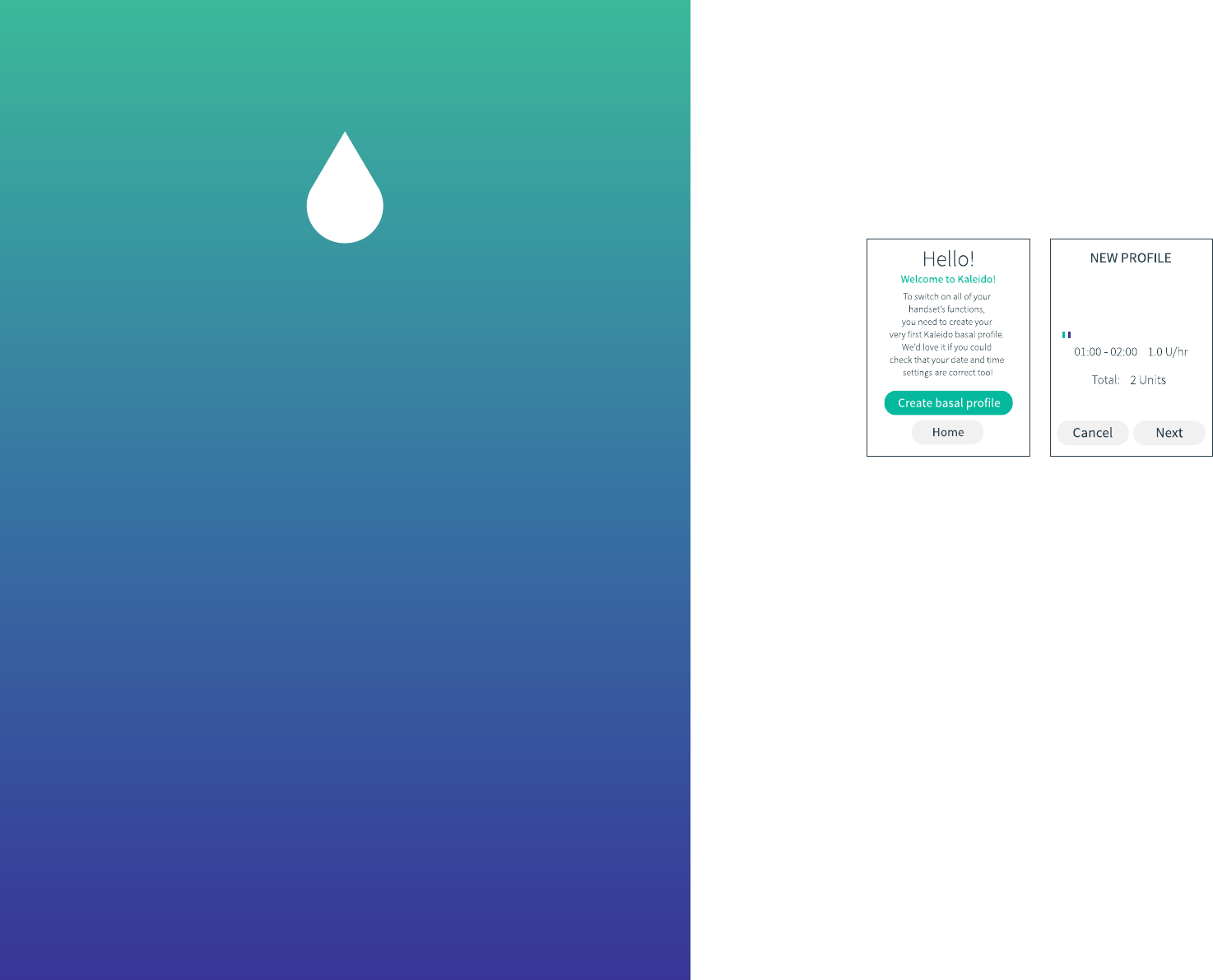
STEP 1
When your handset turns
on and you’ve entered the
default passcode, you’ll be
prompted to create your
first basal profile. Just
press the Enter button to
select Create basal profile.
STEP 2
You’ll be taken straight
to the Create new profile
screen. From here, follow
How do I create a basal
profile? from Step 3
onwards.
71
Where do I start?
QUICK TIP
Don’t forget - the default passcode for your
handset is . You should save your own
passcode as soon as possible - see What’s Lock
Screen and how do I save a new passcode?.

How do I create a basal profile?
STEP 1
On the Home screen, scroll
to Basal and press Enter to
select.
STEP 2
Scroll to and select Create
new profile.
STEP 3
Press the left and right
buttons to scroll between
each hourly segment. You
have all 24 hours of the
day to play with! Press
the up and down buttons
to select the basal rate
you want for each hour.
Below the basal profile
graph, you’ll see details of
the hour you’re currently
setting, along with the rate
that you are entering.
You can set basal rates in
increments as tiny as 0.05
units of insulin! The
smallest basal rate you
can set for an hour is 0.05
units, the largest is 5 units.
STEP 4
When you’ve entered a
basal rate for each hour
and you’re happy that
your new basal profile
is ready, press the Enter
button. Press Enter again
to select Next.
If you want to return to the
basal profile graph before
you select Next, just press
the up button.
STEP 5
Next up, it’s time to enter a
name for your new basal
profile. Get creative!
Call us crazy, but we like
descriptive names like
Weekday or Weekend – but
who are we to tell you what
to do?
Use the up and down
buttons to scroll to the
letter or number you want
to use. Press the right
button to move onto the
next letter or enter
a space.
To scroll through the
alphabet quickly, just
press and hold the up
or down button.
QUICK TIP
You can change your mind and stop
creating the basal profile at any
point in the process by selecting
Cancel.
QUICK TIP
You might not want to deliver the same
amount of insulin on every single day of
the week and that’s why Kaleido can help
you create lots of different basal profiles
– up to seven! See How do I change to a
different basal profile? for help with this.
QUICK TIP
To avoid confusion, it’s a good idea
to give all of your basal profiles a
completely unique name.
STEP 6
When you’re happy with
the name, press Enter and
then select Save.
72 73
How do I create a basal profile? How do I create a basal profile?

STEP 7
Your handset will confirm
that your basal profile
has been saved. Hooray!
Press Enter to return to
the Home screen a little
quicker.
QUICK TIP
Your handset can store up to seven basal
profiles at a time. If you’ve filled your basal
profile memory, you’ll need to delete a basal
profile before you can create a new one. See
How do I delete a basal profile? for more info.
Help – I need to check which basal profile
I’m currently pumping!
STEP 1
On the Home screen, scroll
to Basal and press Enter
to select.
STEP 2
Scroll to and select View
current profile.
STEP 3
Your handset will show
you the basal profile that
you’re currently pumping.
Use the left and right
buttons to scroll through
the hourly basal rates.
Press Enter and then Enter
again to select Back and
go back to the Basal menu.
74 75
How do I check which basal profile I’m pumping?
QUICK TIP
If you’re creating your very first basal profile,
it will automatically be set as the default
basal profile for pumping.
How do I create a basal profile?

How do I change to a different basal profile?
STEP 1
On the Home screen, scroll
to Basal and press Enter
to select.
STEP 2
Scroll to and select
Change profile.
STEP 3
Your handset will show
you a list of your saved
basal profiles. Scroll to the
one you’d like to change to
and then press the Enter
button.
You won’t be able to select
the basal profile that
you’re currently running!
STEP 4
Press Enter to select
Accept.
STEP 5
Press Enter again to
Deliver the new basal
profile.
STEP 6
A confirmation message
will pop up - press Enter to
return to the Home screen
a little quicker.
76 77
How do I change to a different basal profile? How do I change to a different basal profile?
QUICK TIP
Running a temporary basal rate? You won’t be able to change
to a different basal profile while your temporary basal rate is
still going, so you’ll either have to stop your temporary basal
rate first or just wait until it’s finished to make your change.

Editing your basal profiles
Over time, you may want to tweak your basal profiles to make
them even better. Let’s take a look at all the changes you can
make.
How do I modify a basal profile?
Need to adjust a basal profile? No problem!
Just follow these steps:
STEP 1
On the Home screen, scroll
to Basal and press Enter to
select.
STEP 2
Scroll to and select Edit
profile.
STEP 3
Scroll to and select the
profile you’d like to modify.
You can’t edit the basal
profile that your pump is
currently pumping, so you
won’t be able to select it
from this list of saved basal
profiles.
STEP 4
Select Modify profile.
78 79
How do I modify a basal profile? How do I modify a basal profile?
STEP 5
The profile you’ve selected
will pop up on your
handset. Press the left
and right buttons to
scroll between the hourly
segments. Then, just like
when you first created
your basal profile, you can
press the up and down
buttons to increase or
decrease any of the basal
rate amounts.
QUICK TIP
You can select Cancel
and return to the Edit
profile menu whenever
you like. If you do, any
changes you’ve made
won’t be saved and
your basal profile will
remain unchanged.

STEP 7
A confirmation message
will pop up – your changes
have been saved! Press
Enter to return to the
Home screen a little
quicker.
80 81
How do I rename a basal profile?
How do I rename a basal profile?
Changing the name of a basal profile is really simple!
Just follow these steps:
STEP 1
On the Home screen, scroll
to Basal and press Enter
to select.
STEP 2
Scroll to and select Edit
profile.
STEP 3
Scroll to and select the
profile you’d like to
rename.
You can’t rename the basal
profile that your pump is
currently pumping, and so
you won’t be able to select
it from this list of saved
basal profiles.
STEP 6
When you’re happy with
the modifications you’ve
made, press Enter and
then Enter again to select
Save.
How do I modify a basal profile?

STEP 4
Select Rename profile.
82 83
How do I rename a basal profile? How do I rename a basal profile?
STEP 5
The profile you’ve
selected will appear on
your handset. Use the left,
right, up and down
buttons to scroll through
the letters and change
your profile’s name.
STEP 6
When you are happy with
the new name (hey, take
your time - it’s a difficult
decision, we know!), press
Enter and then Enter again
to select Save.
STEP 7
A confirmation message
will pop up – your profile
name has been changed!
Press Enter to return to
the Home screen a little
quicker.
QUICK TIP
You can select Cancel
and return to the Edit
profile menu whenever
you like. If you do, any
changes you’ve made
won’t be saved and
the name of your basal
profile will remain
unchanged.

How do I duplicate a basal profile?
Started going to the gym on a Thursday evening? Nice work!
Or out for brunch every Sunday? Lucky you! Duplicating a
basal profile is a great time-saver if you want to create a new
basal profile that’s similar to one you already have.
Here’s how it’s done:
STEP 1
On the Home screen, scroll
to Basal and press Enter
to select.
STEP 2
Scroll to and select Edit
profile.
STEP 3
Scroll to and select the
profile you’d like to
duplicate.
You can’t duplicate
the basal profile that
your pump is currently
pumping, so you won’t be
able to select it from this
list of saved basal profiles.
STEP 4
Select Duplicate profile.
84 85
How do I duplicate a basal profile? How do I duplicate a basal profile?
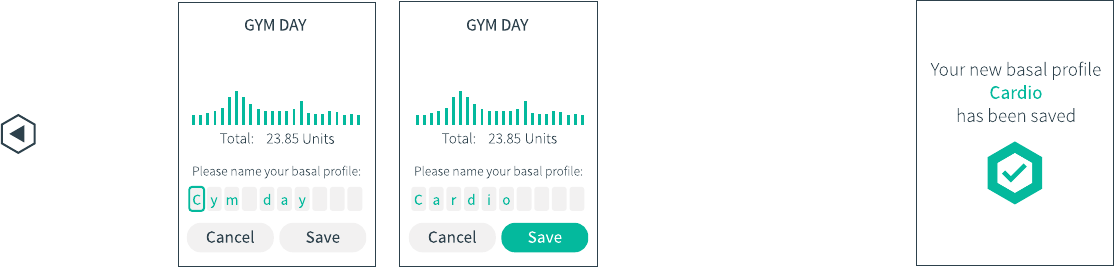
STEP 7
A confirmation message
will pop up – your profile
has been duplicated!
Press Enter to return to
the Home screen a little
quicker.
QUICK TIP
Your handset can store up to seven basal
profiles at a time. If you’ve filled your basal
profile memory, you’ll need to delete a basal
profile before you can create a new one. See
How do I delete a basal profile? for more info.
86 87
STEP 5
The profile you’ve selected
will pop up on your
handset. Use the left, right,
up and down buttons to
scroll through the letters
and create a new name.
STEP 6
When you’re happy with
your new name, press
Enter and then Enter again
to select Save.
QUICK TIP
You can select Cancel and return to the Edit
profile menu whenever you like. If you do, any
changes you’ve made won’t be saved and your
basal profile won’t be duplicated.
How do I duplicate a basal profile? How do I duplicate a basal profile?

How do I delete a basal profile?
After you and Kaleido have been friends for a while, you
might find that you’ve created a basal profile you never
actually use. Hey, no hard feelings - these things happen! You
can delete basal profiles by following these five easy steps:
STEP 1
On the Home screen, scroll
to Basal and press Enter to
select.
STEP 2
Scroll to and select Delete
profile.
STEP 3
On your list of saved basal
profiles, scroll to and
select the one that you
don’t need anymore.
You can’t delete the basal
profile that your pump
is currently pumping, so
you won’t be able to select
it from this list of saved
basal profiles.
WARNING
Deleting a basal profile is final! Once a profile
has been deleted, you won’t be able to get it
back.
QUICK TIP
You can select Cancel and return to the Delete
profile menu whenever you like. If you do, any
changes you’ve made won’t be saved and your
basal profile won’t be deleted.
STEP 4
Select Delete.
STEP 5
A confirmation message
will pop up – your profile
has been deleted! Press
Enter to return to the
Home screen a little
quicker.
88 89
How do I delete a basal profile? How do I delete a basal profile?
QUICK TIP
Your handset can store up to seven basal
profiles at a time. If you’ve filled your basal
profile memory, you’ll need to delete a basal
profile before you can create a new one.
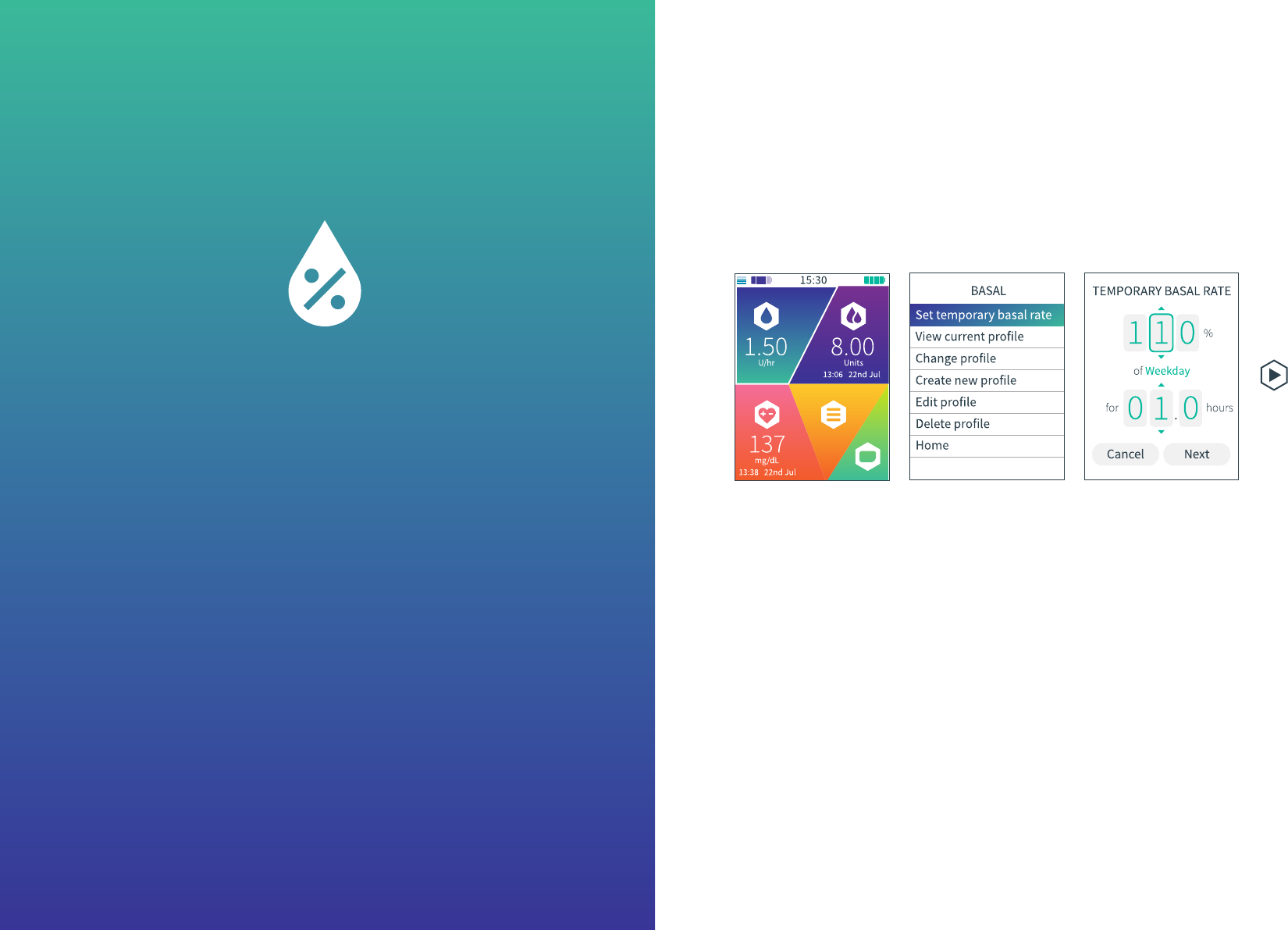
Setting a temporary basal rate lets you increase
or decrease your current basal profile by a
specified percentage for a set period of time.
This can be helpful if you decide to go for a run on
the spur of the moment (wow, you’re impressive!),
or decide to skip your usual Friday spin class
(no worries - you’re only human).
Your Healthcare Provider can help with lots more
advice on when to use a temporary basal rate.
How do I set a temporary basal rate?
If you want to temporarily change the amount of insulin
you’re receiving, you’ll need to set a temporary basal rate.
Your temporary basal rate can last for as little as half an hour
and as long as 24 hours!
STEP 1
On the Home screen, scroll
to Basal and press Enter
to select.
STEP 2
Press Enter again to select
Set temporary basal rate.
STEP 3
Start by setting the
percentage of your current
basal profile that you’d
like to receive. Press the
left and right buttons
to scroll through the
number boxes and the
up and down buttons
to increase or decrease
the percentage. You can
choose a minimum of 0%
right up to a maximum of
200%. Once you’re happy
with the percentage, press
the Enter button.
Temporary basal rates
91
How do I set a temporary basal rate?

STEP 5
Press the Enter button to
select Next.
If you’ve accidentally
moved to Next too soon
and you’d still like to
change the details of your
temporary basal rate, just
press the up button to
return to the percentage
settings.
STEP 6
Your handset will now
show you details of the
temporary basal rate that
you’ve asked to set. If the
details are correct and
you’d like to start your
temporary basal rate
immediately, press Enter
to select Deliver.
If you’ve changed your
mind or want to make any
last minute adjustments,
just scroll left and press
Enter to select Cancel.
STEP 7
Your temporary basal rate
will start as soon as you
select Deliver.
A confirmation will pop
up – press Enter to return
to the Home screen a little
quicker.
STEP 4
Next, set the amount
of time you’d like your
temporary basal rate to
run for. Again, use the
left and right buttons
to scroll through the
number boxes and the
up and down buttons to
increase or decrease the
amount of time. You can
choose a minimum of 0.5
hours right through to a
maximum of 24 hours.
Once you’re happy with
the amount of time you’ve
chosen, press the Enter
button again.
STEP 8
To help you keep track,
the Basal section of the
Home screen will show
you your temporary basal
rate details for as long as
the temporary basal rate
is running – pretty cool,
right? This way, you’ll
always know where you’re
at.
QUICK TIP
You can select Cancel and return to the Basal
menu whenever you like. If you do, a temporary
basal rate will not be set and your insulin
delivery will stay the same.
92 93
How do I set a temporary basal rate? How do I set a temporary basal rate?
QUICK TIP
Just so you know - you can’t switch to a
different basal profile while you’re running a
temporary basal rate. When you are, you won’t
be able to access Change profile from the Basal
menu and so you’ll either need to stop your
temporary basal rate first, or just wait until it’s
come to an end.

Can I stop a temporary basal rate
once it’s started?
Yes, of course! Here’s how:
STEP 1
On the Home screen, scroll
to Basal and press Enter
to select.
STEP 2
Press Enter again to select
Stop temporary basal
rate.
STEP 3
Select Stop rate by
pressing Enter.
Alternatively, you can
scroll left and press Enter
to select Continue rate.
Your temporary basal rate
will continue to deliver just
as it was doing before.
STEP 4
Your temporary basal rate
will stop as soon as you
select Stop rate and your
pump will start delivering
your full basal rate again.
Your handset will confirm
this for you – press Enter
to select Understood and
return to the Home screen.
STEP 5
Your Home screen will
update to show details of
the basal rate that is now
being delivered.
WARNING
If you stop a temporary basal rate, it can only
affect the delivery of insulin that you are due
to receive from that moment on. It will NOT
increase or decrease the amount of insulin
that may have been delivered before your
temporary basal rate was stopped.
94 95
Can I stop a temporary basal rate? Can I stop a temporary basal rate?
QUICK TIP
A quick heads up! You can’t switch to a different
basal profile while you’re running a temporary
basal rate. When you are, you won’t be able to
access Change profile from the Basal menu and
so you’ll either need to stop your temporary
basal rate first, or just wait until it’s finished.

Bolus

What’s a bolus?
A bolus is a single dose of insulin. It’s usually
given when you eat, occasionally when you
drink and sometimes to help reduce your
blood glucose (or BG) level. You can choose
the size of the bolus you give and exactly when
you give it, so life can go on uninterrupted –
no hassle!
To access all things bolus, just go to the Bolus
section of your Home screen.
Honestly, we get it - if you’re sitting down to enjoy a meal with
family, or maybe you’re out celebrating with some friends -
the last thing you want to do is spend a long time giving
yourself the insulin you need. We’ve made sure that giving a
bolus is as quick and simple as it can possibly be, so you can
get it sorted and carry on with the fun stuff!
You can give two different types of bolus using Kaleido:
QUICK BOLUS
If you choose a Quick Bolus, your bolus
will be delivered all at once.
EXTENDED BOLUS
An Extended Bolus allows you to deliver
part of your bolus right away, and then
the rest of it over a period of time – the
length of which you’ll set yourself.
If you need some help, your Healthcare Provider will be able
to advise you on when to use each of these two methods.
Fancy a bit more help working out how much insulin to
bolus? Just use Kaleidoculator!
99
What’s a bolus?
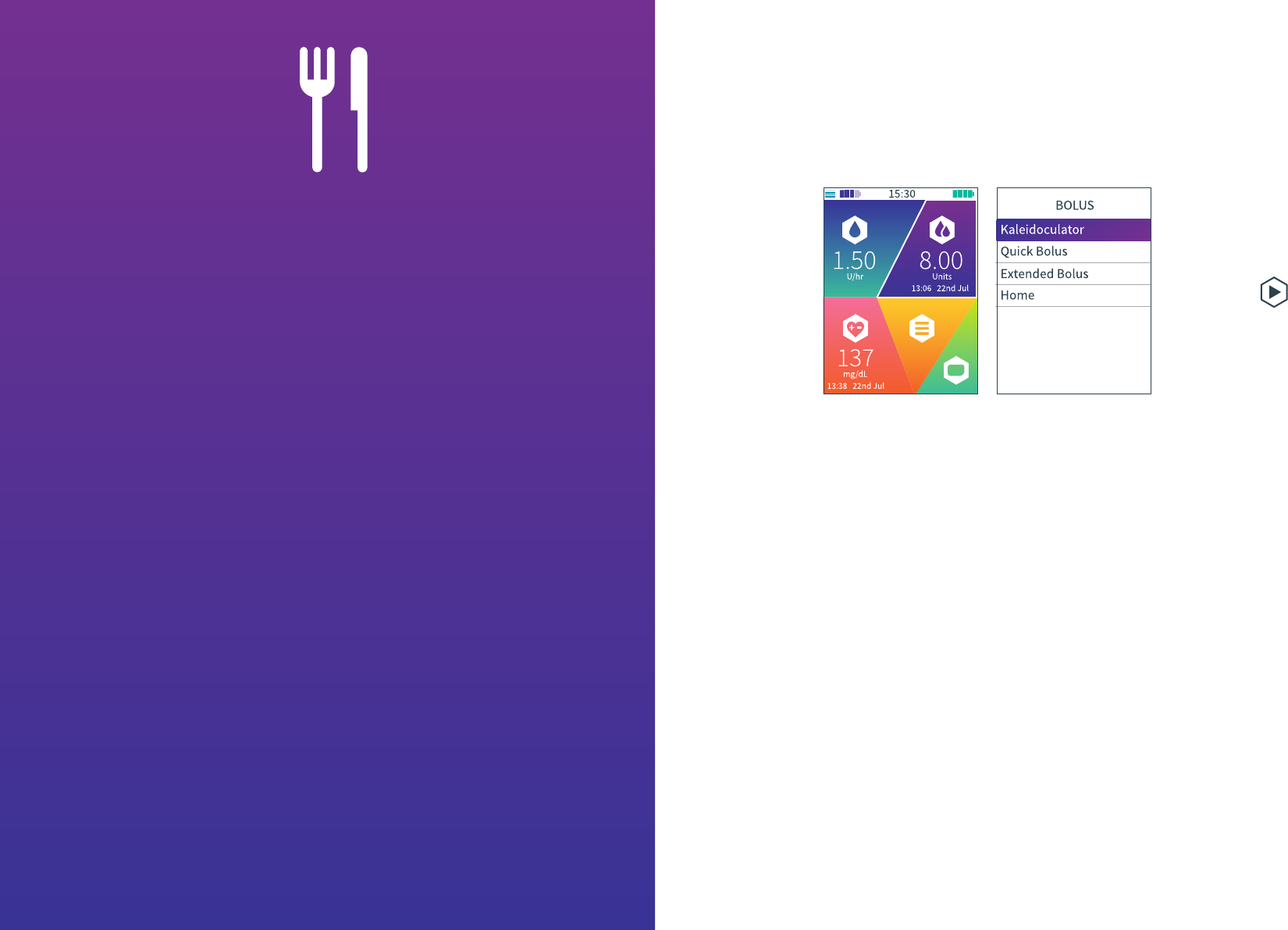
What on earth is
Kaleidoculator!?
Kaleidoculator is a bit of a boffin... Kaleido’s very
own calculator! Get your tongue around the name
and you’ll soon discover that Kaleidoculator exists
to help take some of the guesswork out of delivering
a bolus. Not sure what affect the food you’re about
to eat will have? Or just trying to figure out what will
get you back to your Target BG? Fear not –
Kaleidoculator is your man! Just fill in the numbers
and it’ll do the rest - who knows, it could be your
new best friend when it comes to figuring out how
much insulin to bolus!
Kaleidoculator uses a few important stats to put
together its recommendation for your perfect bolus.
It doesn’t just factor in the meal you’ve grabbed
on the go, but also your current BG reading and
how much insulin you already have at work in your
body (if you want it to). It knows the BG level you’re
aiming for (your Target BG) and it calculates the
amount of insulin you’ll need to bolus to get back to
that level. Clever, huh?
Once you’ve got your recommendation, you can
choose whether you want to deliver it as either a
Quick Bolus or an Extended Bolus. And if you want
to tweak Kaleidoculator’s recommendation a little?
No problem, you can do that too!
How do I use Kaleidoculator?
STEP 1
On the Home screen, scroll
to Bolus and press Enter
to select.
STEP 2
Press Enter again to select
Kaleidoculator.
101How do I use Kaleidoculator?
QUICK TIP
You’ll only be able to access Kaleidoculator from
the Bolus menu if you’ve already worked with your
Healthcare Provider to set a Target BG, insulin activity
time, insulin to carb and insulin to BG ratios (see How
do I enter my Target BG?, How do I enter my insulin
activity time?, How do I enter my insulin to carb ratios?
and How do I enter my insulin to BG ratios?).

STEP 3
First, you’ll need to enter
the amount of grams of
carbohydrate in the food
that you’re about to eat.
Press the left and right
buttons to scroll through
the number boxes and
press the up and down
buttons to increase or
decrease the number of
carbs you have.
Once you’ve set the correct
amount, press the Enter
button.
Not eating, but still keen to
use Kaleidoculator to help
correct your BG? No
problem, just leave the
number boxes at zero and
press the Enter button.
STEP 4
Press the Enter button
again to select Next.
If you’ve accidentally
moved to Next too soon
and you still want to
change the carb details,
no worries! Just press the
up button to the number
boxes.
STEP 5
Next, you’ll need to enter
your current BG reading.
Use your BG meter to
take a reading, then, just
like before, press the left
and right buttons on your
handset to scroll through
the number boxes and the
up and down buttons to
increase and decrease the
numbers. When you’ve
entered your BG correctly,
press the Enter button.
Don’t want to enter a BG
reading? That’s fine – if
you’ve told Kaleidoculator
what you’re eating but
don’t want to enter a BG
reading, just leave the
number boxes empty and
press the Enter button.
STEP 6
Press the Enter button
again to select Next.
If you’ve accidentally
moved to Next too soon
and you need to change
the BG reading you’ve
entered, just press the up
button to return to the BG
reading.
QUICK TIP
Once you select Next,
the BG reading you’ve
entered will be saved in
History and will appear
in the BG section of your
Home screen. Cool, huh?
QUICK TIP
If you need to change the
unit of measurement for
your BG readings, head
to System Settings in the
Menu section first (see
How do I change the unit
of measurement I record
my BG readings in?).
WARNING
Always check for ketones
if your BG reading is
excessively high. If
ketones are present, treat
according to the advice
given to you by your
Healthcare Provider.
STEP 7
Finally, Kaleidoculator
will show you your
current Insulin on Board
(that’s how many units
of insulin are still active
in your body). You can
choose whether or not
you want to include your
Insulin on Board in your
Kaleidoculator calculation
- just press the Enter
button to select Yes.
Alternatively, if you don’t
want to include your
Insulin on Board you
can press the left button
to scroll to No and then
press Enter to select that
instead.
102 How do I use Kaleidoculator? 103
How do I use Kaleidoculator?
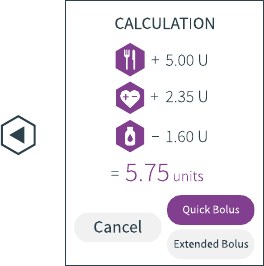
• To deliver the
recommendation as a
Quick Bolus, just press
Enter. Your handset will
take you to the Quick
Bolus entry screen, where
your recommendation
will be ready and waiting
for you. Next, just follow
along from Step 4 of How
do I deliver a Quick Bolus?
You can also change the
recommendation a little
first, using the up, down,
left and right buttons to
adjust the amount of
insulin to be delivered.
• If you’d like to deliver the
recommendation as an
Extended Bolus instead,
press the down button to
select Extended Bolus and
then press Enter to select it.
This time, your handset will
take you to the Extended
Bolus entry screen
and Kaleidoculator’s
recommendation will be set
as the total bolus amount.
Just follow along from Step
4 of How do I deliver an
Extended Bolus? to set up
and deliver your bolus. If
you’d like to change the
recommendation a little
first, use the up, down, left
and right buttons to adjust
the total amount of insulin
to be delivered.
• Alternatively, if you
decide you don’t want to
deliver a bolus after all,
just scroll left and press
Enter to select Cancel and
go back to the Bolus menu
instead.
QUICK TIP
You can select Cancel and return to the Bolus menu
whenever you like. If you do, Kaleidoculator will just
save its brainpower for the next time!
QUICK TIP
Kaleidoculator’s calculation might not always result
in a positive number for the number of units of insulin
in its recommended bolus. See What happens if
Kaleidoculator’s recommended bolus is a negative
number? to find out what to do if it recommends a
negative number.
QUICK TIP
If you’ve decided not to enter an amount for Food or
BG, or chosen not to include your Insulin on Board,
these things won’t be included in your calculation.
Instead, you’ll see a dash where the suggested
amounts of insulin would normally be.
WARNING
Never attempt to change your personal Target BG,
insulin activity time, insulin to carb and insulin to
BG ratios without the guidance and support of your
Healthcare Provider.
QUICK TIP
To use Kaleidoculator, you’ll need to make sure your
handset knows your Target BG, your personal insulin
activity time and your insulin to carb and insulin to
BG ratios – these are all part of your Personal Info
(see How do I enter my Target BG?, How do I enter my
insulin to carb ratios?, How do I enter my insulin to BG
ratios? and How do I enter my insulin activity time?).
You must always work with your Healthcare Provider
to determine and set these amounts.
WARNING
Kaleido can only calculate Insulin on Board based on
the insulin which it knows it has delivered – it cannot
track insulin delivered via any other method (such as
insulin pens). If you have recently used an alternative
method of insulin delivery and then attempt to use
either Kaleidoculator or Insulin on Board to assist
your diabetes management, you must bear this
important fact in mind.
STEP 8
Kaleidoculator will now
show you details of its
recommended bolus.
You have three options to
choose from:
104 How do I use Kaleidoculator? 105
How do I use Kaleidoculator?
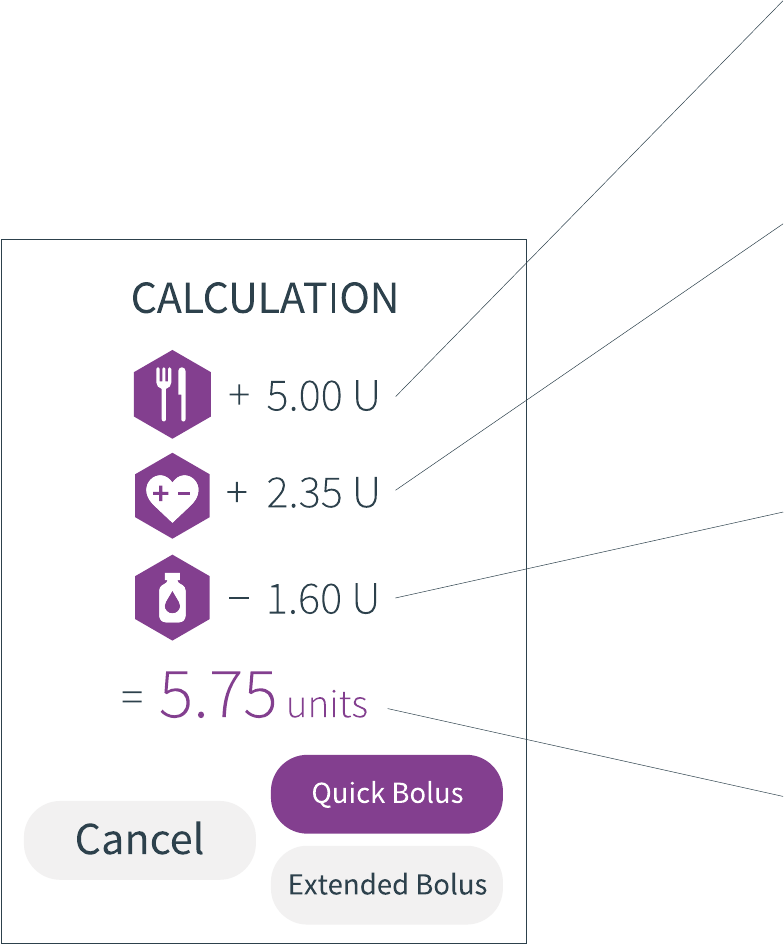
What do the numbers that make up
Kaleidoculator’s calculation mean?
Well, we’re glad you asked! Yes, Kaleidoculator will do the hard work for you,
so you don’t have to think about the numbers running in the background, but
knowing what they mean may just help you make choices that make you happier.
So, without further ado...
FOOD
This bit here is your Food number. Using the number of grams of carbohydrate that you’ve
just entered, plus the insulin to carb ratios that you’ve already set with your Healthcare
Provider, Kaleidoculator calculates the amount of insulin you’ll need to balance out the carbs
you’re about to eat and keep your BG level where it is.
So, if you’re at 180 mg/dL, it’ll calculate the insulin you’ll need to keep you at 180 mg/dL. If
you’re at 70 mg/dL, it’ll (you guessed it!) calculate how much you’ll need to stay at 70 mg/dL.
So, if you’re eating something, your Food number will always be positive. If you’re not eating,
you’ll see a dash here, not a number, to show that Food isn’t being taken into account.
BG
With the insulin in your Food number only working to keep your BG level balanced, if your
starting BG is already a bit too high, you may need to deliver extra insulin to bring it back to
your Target BG. Just like for Food, Kaleidoculator uses the BG reading you’ve just entered,
plus the insulin to BG ratios you’ve set with your Healthcare Provider, to calculate your BG
number. This is the amount of insulin Kaleidoculator thinks you’ll need to take your BG level
to the Target BG reading that you’ve pre-set.
So, if your Target BG is 108 mg/dL and your current BG reading is 180 mg/dL, your BG number
will be positive, because you’ll need some extra insulin to lower it to your target. But, if your
current BG reading is 70 mg/dL, the number will be negative, because you’ll need less insulin,
not more, to raise your BG back to your Target BG of 108 mg/dL. And, if you choose not to
enter a BG reading at all, the number will be replaced with a dash.
INSULIN ON BOARD
Last up, your Insulin on Board number. Kaleidoculator uses the insulin activity time you’ve
set with your Healthcare Provider, plus its in depth knowledge of all the boluses you’ve
previously delivered, to work out what adjustment needs to be made to its recommendation
to account for the insulin that might already be at work in your body.
So, if you already have 2 units of active insulin when you’re using Kaleidoculator and you
choose to include Insulin on Board, your Insulin on Board number will be -2 units. In fact,
if you ever have any insulin still active in your body, your Insulin on Board number will be
negative, if you choose to include it. If you don’t have any active insulin on board, the number
will be zero, and if you choose not to include your Insulin on Board in your calculation, you’ll
see a dash here instead. You can find out more about Insulin on Board by looking up How do I
check my Insulin on Board?.
KALEIDOCULATOR’S RECOMMENDED BOLUS
For its final trick, Kaleidoculator takes your Food, BG and Insulin on Board numbers and puts
them all together to give you its recommended bolus amount.
In the example here, you can see that a Food number of + 5.00 units, a BG number of + 2.35
units and an Insulin on Board number of - 1.60 units total up to a recommended bolus of 5.75
units (5.00 + 2.35 - 1.60 = 5.75). And that’s why we think Kaleidoculator is pretty handy!
106 107What do the numbers that make up Kaleidoculator’s calculation mean? What do the numbers that make up Kaleidoculator’s calculation mean?
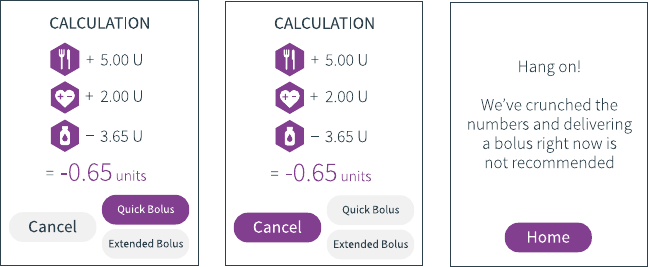
What happens if Kaleidoculator’s
recommended bolus is a negative number?
Depending on the time of day and the combination of what
you’re eating, how far away from your Target BG you are
and how much active insulin on board you already have,
Kaleidoculator’s recommended boluses will be different
every time you use Kaleidoculator.
Sometimes, Kaleidoculator may even come up with a
negative amount of insulin as its recommended bolus
for you – say, if you’re not eating (or not eating very
much carbohydrate) and if your BG is already below your
Target BG. In that instance, you don’t need more insulin,
you actually need less!
But, just like you can’t take out any insulin you’ve already
delivered, you can’t give a negative bolus! So, here’s what
will happen if you receive a negative number as your
recommended bolus.
STEP 1
Having followed steps 1 to
7 of How do I use
Kaleidoculator?, you’ll arrive
at Kaleidoculator’s
recommended bolus
calculation. This time though,
you’ll see that the bolus
recommendation is a
negative number.
STEP 2
The simplest thing to do
if you spot a negative
number as your
recommended bolus is just to
scroll left to Cancel and press
Enter to select Cancel and go
back to the Bolus menu.
STEP 3
If you don’t spot that the
recommended bolus is a
negative number though,
don’t worry, your handset will
help you out! If you select
either Quick Bolus or
Extended Bolus when your
recommended bolus is a
negative number, your
handset will pop up with a
quick reminder to tell you that
giving a bolus isn’t the best
thing to do at this time. Press
Enter to select Home and
return to the Home screen.
108 109What happens if Kaleidoculator’s recommended bolus is a negative number? What happens if Kaleidoculator’s recommended bolus is a negative number?
QUICK TIP
If you don’t agree with Kaleidoculator’s
recommendation and would still like to deliver a
bolus, you can do this by selecting either Quick
Bolus or Extended Bolus from the Bolus menu
instead.

How do I deliver a Quick Bolus?
STEP 1
On the Home screen, scroll
to Bolus and press Enter
to select.
STEP 2
Scroll to and select Quick
Bolus.
STEP 3
First, you’ll need to set
the amount of insulin that
you’d like to deliver in your
Quick Bolus. Press the left
and right buttons to scroll
through the number boxes
and press the up and down
buttons to increase or
decrease the amount of
insulin you want to deliver.
Once you’ve set the correct
amount, press the Enter
button.
STEP 4
Press the Enter button to
select Next.
If you’ve accidentally
moved to Next too soon
and you still want to
change the details of your
Quick Bolus, no worries!
Just press the up button to
return to the insulin boxes.
QUICK TIP
The bolus amount will
automatically default to
01.00 unit.
QUICK TIP
The smallest bolus you can set is 0.05 units.
The largest is 20 units.
QUICK TIP
You can select Cancel and return to the Bolus menu
whenever you like. If you do, a Quick Bolus won’t be
set and your insulin delivery will remain unchanged.
How do I deliver a Quick Bolus? How do I deliver a Quick Bolus?
STEP 5
Your handset will now
show you details of the
Quick Bolus you’d like
to give. If the details are
correct and you want to
start your Quick Bolus, just
press Enter to select
Deliver.
If you’ve changed your
mind or want to
make a last minute
adjustment, just scroll left
and press Enter to select
Cancel.
110 111
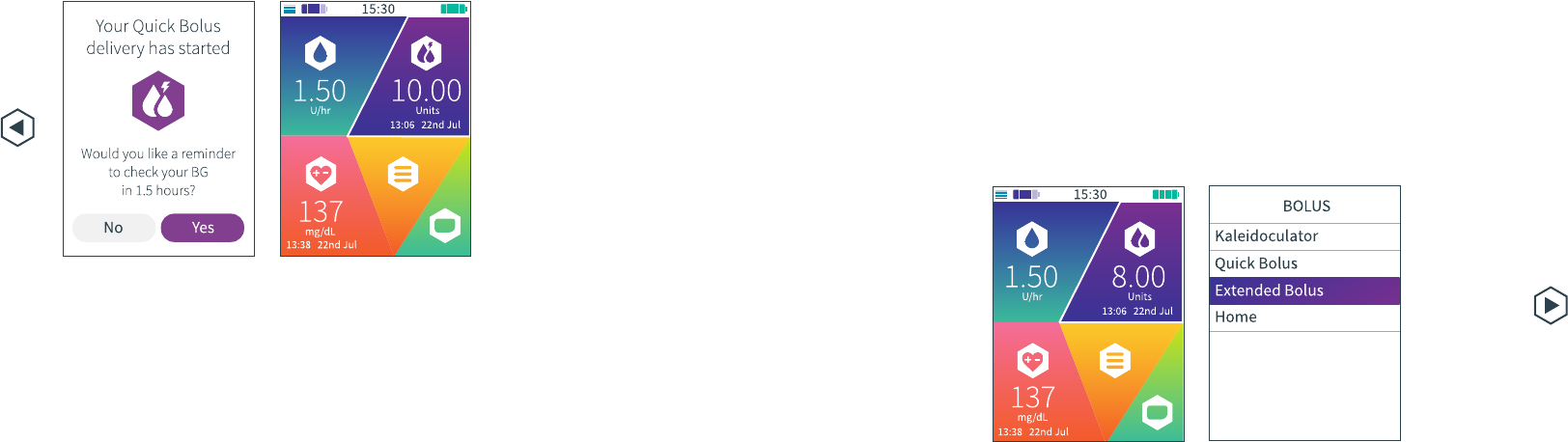
STEP 6
Your Quick Bolus will
start as soon as you select
Deliver.
If you have turned off BG
reminders, you’ll now
see a message to confirm
delivery has started.
Press Enter to return to
the Home screen a little
quicker.
If your BG reminders are
turned on, your handset
will confirm that your
Quick Bolus delivery has
started. It’ll also ask you if
you’d like to set a reminder
to check your BG
in 1.5 hours time - just
press Enter to select Yes.
If you don’t want to set a
reminder this time, you
can scroll left and then
press Enter to select No
instead.
STEP 7
To help you keep track,
the Bolus section on your
Home screen will show
your Quick Bolus delivery
counting down (just
make sure your handset
is in range). Once you’ve
received all of your Quick
Bolus, the Bolus section
will update to show you
the details of the last bolus
given – that’s exactly how
much insulin you received
and when you received it.
How do I deliver an Extended Bolus?
STEP 1
On the Home screen, scroll
to Bolus and press Enter
to select.
STEP 2
This time, scroll to and
select Extended Bolus.
QUICK TIP
If you choose to set a
reminder to check your
BG 1.5 hours after your
bolus has been started,
the reminder will pop
up on your handset
screen and your handset
will sound a reminder
tone. Once you’ve read
and understood the
reminder, just press the
Enter button.
QUICK TIP
You can turn BG
reminders on or off in
System Settings. See
What are BG reminders
and how do I turn them
off? for more details.
How do I deliver a Quick Bolus? How do I deliver an Extended Bolus?
112 113

STEP 4
Next, set the amount of
insulin that you’d like to
deliver immediately. Just
like before, press the left
and right buttons to scroll
through the number boxes
and press the up and down
buttons to increase or
decrease the amount of
insulin. Once you’re happy
that you’ve set the correct
amount, press the Enter
button.
STEP 5
Press the Enter button to
select Next.
If you’ve accidentally
moved to Next too soon
and you still want to
change the details of
your Extended Bolus, no
worries! Just press the
up button to return to the
Total bolus boxes.
STEP 6
Finally, choose the
amount of time you’d like
to extend the second part
of your bolus for. Use the
left and right buttons to
scroll between the number
boxes and the up and
down buttons to increase
or decrease the time
period - you can extend
delivery over as little as 0.5
hours and as long as 9.5
hours. When you’re happy
with the time you’ve set,
press the Enter button.
QUICK TIP
Based on the total bolus and the amount of insulin
you have chosen to deliver immediately, your
Kaleido handset will calculate how much of your
bolus will be delivered over the time period you’ve
chosen.
114 115
How do I deliver an Extended Bolus? How do I deliver an Extended Bolus?
STEP 3
On the Extended Bolus
screen, set the total
amount of insulin you’d
like to deliver using the
left and right buttons to
scroll through the number
boxes. Press the up and
down buttons to increase
or decrease the amount of
insulin. Once you’re happy
that you’ve set the correct
amount, press the Enter
button.
QUICK TIP
The total bolus amount
will automatically
default to 01.00 unit.
QUICK TIP
The total amount of insulin you give in an Extended
Bolus cannot be higher than 20 units. The minimum
amount of bolus that you can deliver immediately is
0.05 units, and the maximum is 19.95 units.
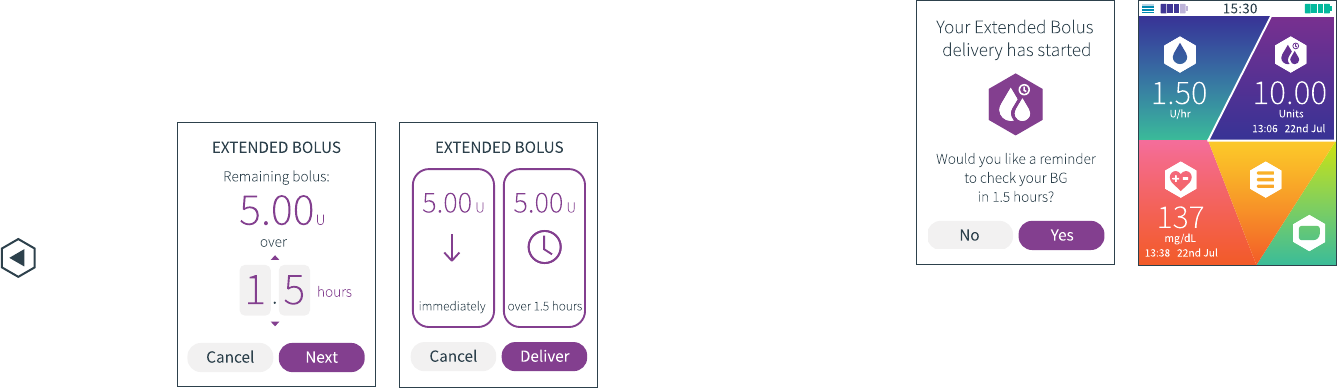
STEP 8
Your handset will now
show you the details of the
Extended Bolus that will
be delivered. If the details
are correct and you want
to start your Extended
Bolus, press Enter to select
Deliver. If you’ve changed
your mind or want to
make any last minute
adjustments, just scroll
left and press Enter to
select Cancel.
STEP 9
Your Extended Bolus will
start as soon as you select
Deliver.
If you have turned off BG
reminders, you’ll now
see a message to confirm
delivery has started.
Press Enter to return to
the Home screen a little
quicker.
If your BG reminders are
turned on, your handset
will confirm that your
Extended Bolus delivery
has started. It’ll also ask
you if you’d like to set a
reminder to check your
BG in 1.5 hours time - just
press Enter to select Yes.
If you don’t want to set a
reminder this time, you
can scroll left and then
press Enter to select No
instead.
STEP 10
To help you keep track,
the Bolus section of your
Home screen will show
you your Extended Bolus
delivery counting down
(you just need to make
sure your handset is
in range). Once you’ve
received all of your
Extended Bolus, the Bolus
section will update to
show you the details of the
last bolus given – that’s
how much insulin you
received and when you
received it.
QUICK TIP
If you choose to set a
reminder to check your
BG 1.5 hours after your
bolus has been started,
the reminder will pop
up on your handset
screen and your handset
will sound a reminder
tone. Once you’ve read
and understood the
reminder, just press the
Enter button.
STEP 7
Press the Enter button
again to select Next.
Alternatively, if you’ve
moved to Next too soon,
just press the up button
to return to the time
selection box or, if you’ve
changed your mind, you
can scroll left and press
Enter to select Cancel and
go back to the previous
screen.
QUICK TIP
You can select Cancel and return to the Bolus menu
whenever you like. If you do, an Extended Bolus
won’t be set and your insulin delivery will remain
unchanged.
How do I deliver an Extended Bolus? How do I deliver an Extended Bolus?
116 117
QUICK TIP
You can turn BG
reminders on or off in
System Settings. See
What are BG reminders
and how do I turn them
off? for more details.

Can I stop a bolus if I change my mind?
Of course. We’d always recommend making sure your bolus
details are spot on before you choose to deliver, but we know
that sometimes things can change quickly. If you need to
stop a Quick or Extended Bolus, just follow these steps:
STEP 1
On the Home screen, scroll
to and select Bolus.
STEP 2
Your handset will show
you a countdown of how
much of your bolus is yet
to be delivered. To stop
the remaining bolus, press
Enter to select Yes.
STEP 3
You will be asked to
confirm that you’d like to
stop your bolus. To do this,
press Enter to select Stop
bolus.
Alternatively, you can
scroll left and press Enter
to Continue bolus.
Your bolus delivery will
continue unaffected.
STEP 4
Your bolus delivery will
stop as soon as you select
Stop bolus and your
handset will confirm this
for you – press Enter to
select Understood and
return to the Home screen.
STEP 5
Your Home screen will
update and show you
details of the amount of
bolus (if any) that was
delivered before your
bolus was stopped.
WARNING
Stopping a bolus will only stop the delivery of
any remaining insulin from the bolus you set. It
will NOT remove any insulin that may already
have been delivered to your body before the
bolus was stopped.
Can I stop a bolus? Can I stop a bolus?118 119

Blood Glucose

Blood Glucose
Ok, so inputting your blood glucose readings
into your Kaleido handset might not directly
affect your insulin delivery, but we think it’s
still definitely worth doing. With these extra
details in the same place as your basal and
bolus information, you could make better
decisions more quickly, saving you precious
time later on. Plus, it’s really simple to do –
so why not give it a whirl?
How do I enter a BG reading?
123
How do I enter a BG reading?
STEP 1
Use your BG meter to take
a BG reading.
STEP 2
On the Home screen, scroll
to BG and press Enter to
select.
QUICK TIP
Speak to your
Healthcare Provider to
find out how to get a BG
meter that works for you.
They’ll also be able to
give you tips on how to
get the most from it.
QUICK TIP
If you need to change the
unit of measurement for
your BG readings, head to
System Settings in the Menu
section first (see How do
I change the unit of
measurement I record my
BG readings in?).

QUICK TIP
You can select Cancel and return to the Home
screen whenever you like. If you do, your BG
reading won’t be saved on your handset.
WARNING
Always check for ketones if your BG reading is
excessively high. If ketones are present, treat
according to the advice given to you by your
Healthcare Provider.
STEP 5
A confirmation message
will appear – your BG
reading has been saved.
Press Enter to select
Understood and return to
the Home screen.
STEP 6
Congrats - your BG reading
will now appear in the
BG section of your Home
screen.
124 125
How do I enter a BG reading?
STEP 4
When you’ve entered
your BG correctly, press
the Enter button. Press
the Enter button again to
select Save.
If you’ve accidentally
moved to Save too soon
and you need to change
the BG reading you’ve
entered, just press the up
button to return to the BG
reading.
STEP 3
If you have saved a Target
BG in Personal Info, the BG
reading will automatically
default to your Target BG
when you start to enter it.
If you’re not quite on
target (let’s face it, it
doesn’t always work out
that way!), enter your
latest BG reading by using
the left and right buttons
to scroll through the
number boxes and the
up and down buttons to
increase and decrease the
numbers.
How do I enter a BG reading?

Menu

The Menu section of your Home screen will
take you to your Insulin on Board, History,
Personal Info and System Settings.
Menu
Insulin on Board
Insulin can be a tricky old thing to figure out – no sooner do
you get your head around your basal profiles and how many
units should be in your breakfast Quick Bolus, then someone
asks if you’ve thought about your Insulin on Board. Sheesh!
But, Insulin on Board is really pretty useful. Why? Well, when
you deliver a bolus, the insulin that you deliver can take a
little while to get going – in fact, insulin can still be having
an effect on your BG levels for quite a few hours after you’ve
delivered it! Just because it’s been a while since you delivered
your lunchtime bolus, it doesn’t mean that all that insulin will
have been used up. In fact, some of your last bolus might not
even have started working yet and your BG levels could still
be on the way down. So, if you’re about to bolus for your
mid-afternoon pick-me-up, bolusing without factoring in
the insulin that’s already active in your body may mean you
actually deliver more insulin than you really need, which could
cause your BG to get a bit too low.
And, anything that can help avoid that particular rollercoaster
has got to be a good thing, right?
129
What is Insulin on Board?
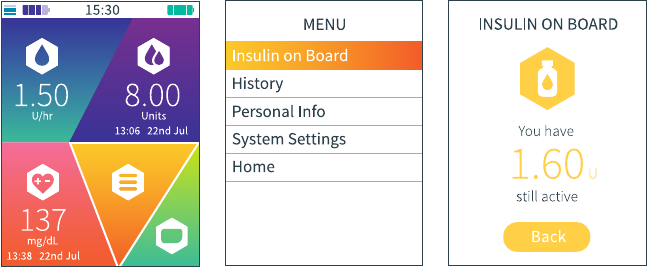
WARNING
Kaleido can only calculate Insulin on Board based on the
insulin which it knows it has delivered – it cannot track
insulin delivered via any other method (such as insulin pens).
If you have recently used an alternative method of insulin
delivery and then attempt to use either Insulin on Board or
Kaleidoculator to assist your diabetes management, you
must bear this important fact in mind.
130 What is Insulin on Board?
So, how does it work? Well, Kaleido remembers all of the
boluses that you’ve delivered and, based on the amount
of time you’ve said insulin stays active in your body (the
insulin activity time that you can set with the help of your
Healthcare Provider – see How do I enter my insulin activity
time?), it’s able to calculate how much insulin is still active
in your body at any given time. You can check this figure
whenever you want... and it’ll also be used whenever you
use Kaleidoculator to figure out a bolus.
131
How do I check my Insulin on Board?
How do I check my Insulin on Board?
STEP 1
On the Home screen, scroll
to Menu and press Enter to
select.
STEP 2
Press Enter again to select
Insulin on Board.
STEP 3
Your handset will now
show you your Insulin on
Board. You can review the
number for as long as you
like – when you’re done,
just press Enter to select
Back and return to the
Menu menu.
QUICK TIP
Kaleido works out your Insulin on Board using the insulin activity
time that you’ve set in Personal Info. So, if you haven’t set an insulin
activity time, you won’t be able to access Insulin on Board from the
Menu menu. Setting an insulin activity time is easy, but must always
be done with the guidance and support of your Healthcare Provider -
to find out more, see How do I enter my insulin activity time?
QUICK TIP
As well as needing to be connected to a pump, your handset
needs to be in range of the pump you’re currently using in order
to show you your Insulin on Board. If you try to check Insulin on
Board when you’re not connected to a pump or if your
handset is out of range of your pump, you won’t be able to
access Insulin on Board from the Menu menu (if you’re
checking your Insulin on Board at the point your handset
and pump go out of range of each other, the Insulin on Board
number will disappear and it’ll be replaced by a dash). To make
Insulin on Board accessible again, make sure your handset is
connected to a pump and - if your handset and pump are out of
range - move them closer together. Now you’ll be able to check
Insulin on Board again - just give your handset a moment to
crunch the numbers!
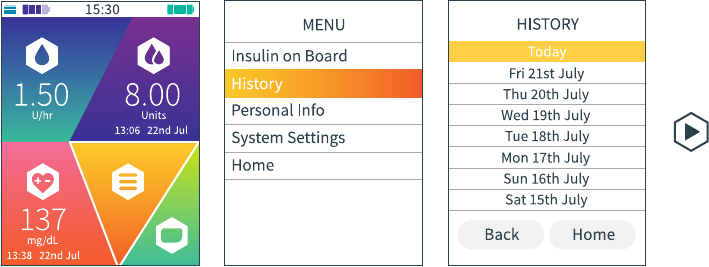
QUICK TIP
History will record when a pump is changed, started, paused,
stopped or disconnected. It also takes note of any temporary
basal rates that are set, the amount of carbs you’ve entered
into Kaleidoculator, as well as any recommendations
that Kaleidoculator makes and any Quick and Extended
Boluses that are delivered (whether or not you’ve used
Kaleidoculator to deliver them). It can also show you when
you changed your insulin cartridge, primed a cannula,
swapped your basal profile, saved a BG reading, changed the
date or time, or updated your Personal Info or System
Settings, plus any alarms or alerts that you might have
received. Last but not least, it’ll keep a record of your total
daily dose of insulin each day. It’s a big job, but someone’s
gotta do it!
132 How do I review my History?
History
We know that life gets busy and, sometimes, keeping track of what’s
happened and when can be hard. That’s where History will come in handy.
Here, you’ll find a record of everything that’s happened over the last week
of using your Kaleido.
133
How do I review my History?
STEP 1
On the Home screen, scroll
to Menu and press Enter
to select.
STEP 2
Scroll to and select History.
STEP 3
Scroll to the day you’d like
to review and then press
Enter to select it.
How do I review my History?
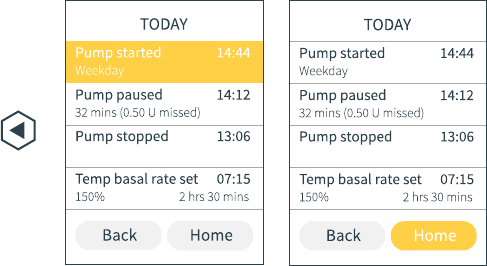
134 How do I review my History?
QUICK TIP
You can review the
current day, plus the
previous seven days of
Kaleido activity.
STEP 4
Use the up and down
buttons to read through
everything that happened
on that day.
STEP 5
When you’re done, just
scroll down to get to the
Home button. Press Enter
to select it and you’ll be
whizzed back to the Home
screen. Alternatively, from
Home, scroll left to Back
and press Enter to return
to the History menu.
QUICK TIP
Here’s a trick! You can
also quickly jump to
the Home screen by
pressing Enter twice
from anywhere on the
list of events.
135
How do I review my History?
QUICK TIP
Sometimes it can be handy to see exactly how
much insulin you’ve received over the course of
a day. Good news – History keeps a note of your
total daily dose every single day! It’ll always be
one of the very last events to appear in your
History at the end of each day – in fact, to make
sure the total daily dose is totally accurate,
your Kaleido’s scheduled to calculate the
information at 23:59 – and not a minute sooner!
If the event is ever missing from History, make
sure your handset and pump are in range, give
them some time to crunch the numbers, and
then check again – your handset needs up-to-
date information from the pump you’re
currently using to calculate your total daily
dose, something it can’t do if your pump is
not in range.
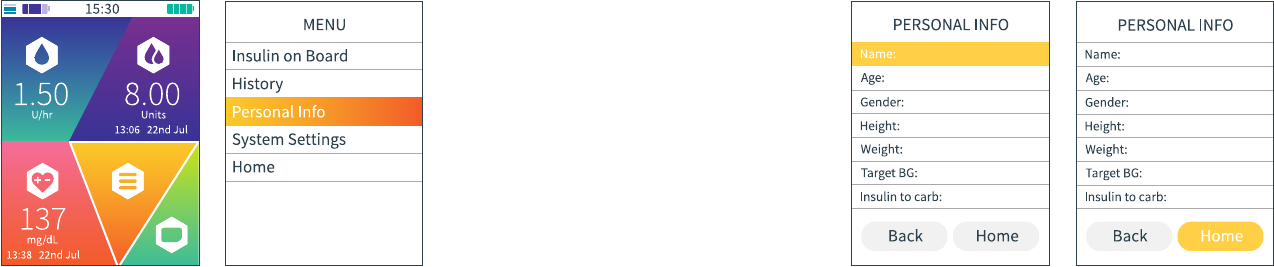
To make getting to know Kaleido as smooth a process as possible, we’ll
personalise your handset with as much information as we can before
we even deliver it to you (we pride ourselves on our top knotch service
and knowing a little bit about you helps us on this front). In case you ever
want to add to or change any of these important details though, or if you
want to enter the details that will allow you to start using Kaleidoculator,
this section will talk you through everything you need to know about
Personal Info.
Personal Info
How do I review my Personal Info?
STEP 1
On the Home screen, scroll
to Menu and press Enter to
select.
STEP 2
Scroll to and select
Personal Info.
136 How do I review my Personal Info?
STEP 3
On the Personal Info
menu, use the up and
down buttons to read
through all of your saved
details.
STEP 4
When you’ve finished,
scroll all the way down
to Home. Press Enter to
select it and you’ll be
whizzed back to the Home
screen. Alternatively, from
Home, scroll left to Back
and press Enter to go back
to Menu.
137
How do I review my Personal Info?

How do I enter my name?
STEP 1
Now this is important – how
else will we know what to
call you!? On the Personal
Info menu, simply scroll to
Name and press Enter to
select.
STEP 2
Enter your name using the
up and down buttons to
scroll through the
alphabet. The right button
will help you move on to
the next letter or add a
space. When you’re done
press Enter.
QUICK TIP
You can select Cancel and return to the
Personal Info menu whenever you like. If you
do, any changes you’ve made won’t be saved.
STEP 3
When you’re ready to save
your name, press Enter
again to select Save.
If you’ve accidentally
moved to Save too soon
and you need to change
the name you’ve entered,
no worries! Just press the
up button to return to the
first letter box.
138 How do I enter my name?
STEP 4
A confirmation message
will pop up – your name
has been saved. Press
Enter to return to the
Personal Info menu a little
quicker.
STEP 5
Congrats - your name
will now show up in the
Personal Info menu!
139
How do I enter my name?

How do I enter my age?
STEP 1
On the Personal Info
menu, scroll to Age and
press Enter to select.
STEP 2
Enter your date of birth
using the up and down
buttons to scroll through
the numbers 0 to 9. Use
the right button to move
on to the next number.
Once you’ve successfully
entered the day you made
it into the world (what a
day that was!), press Enter.
STEP 3
When you’re ready to save
your date of birth, press
Enter again to select Save.
If you’ve accidentally
moved to Save too soon
and you need to change
the date of birth you’ve
entered, no worries!
Just press the up button to
return to the first number
box.
QUICK TIP
You can select Cancel and return to the
Personal Info menu whenever you like. If you
do, any changes you’ve made won’t be saved.
140 How do I enter my age?
STEP 4
A confirmation message
will appear – your date
of birth has been saved.
Press Enter to return to the
Personal Info menu a little
quicker.
STEP 5
Congrats - your handset
will now use your date of
birth to display your age
in the Personal Info menu!
If the age that shows is
incorrect, check your
handset’s date settings
(see How do I change the
date on my handset?).
141
How do I enter my age?

How do I enter my gender?
STEP 1
On the Personal Info
menu, scroll to Gender
and press Enter to select.
STEP 2
Use the up and down
buttons to select your
gender, then press the
Enter button.
QUICK TIP
You can select Cancel and return to the
Personal Info menu whenever you like. If you
do, any changes you’ve made won’t be saved.
STEP 3
Press the Enter button
again to select Save.
If you’ve accidentally
moved to Save too soon
and you need to change
the gender you’ve entered,
no worries! Just press the
up button to return to the
selection box.
142 How do I enter my gender?
STEP 4
A confirmation message
will pop up – your gender
has been saved. Press
Enter to return to the
Personal Info menu a little
quicker.
STEP 5
Congrats - your gender
will now show up in the
Personal Info menu!
143
How do I enter my gender?

How do I enter my height?
STEP 1
On the Personal Info
menu, scroll to Height and
press Enter to select.
STEP 2
Use the up and down
buttons to select either cm
or ft & in, then press the
Enter button.
STEP 3
Next, enter your height
using the up and down
buttons to scroll through
the numbers 0 to 9.
The right button will help
you move on to the next
number.
When you’ve successfully
entered your height, press
Enter.
QUICK TIP
You can select Cancel and return to the
Personal Info menu whenever you like. If you
do, any changes you’ve made won’t be saved.
144 How do I enter my height?
STEP 5
A confirmation message
will pop up – your height
has been saved. Press
Enter to return to the
Personal Info menu a little
quicker.
STEP 6
Congrats - your height will
now be displayed in the
Personal Info menu!
STEP 4
When you’re ready, press
Enter again to select Save.
If you’ve accidentally
moved to Save too soon
and you need to change
the height you’ve entered,
no worries! Just press the
up button to go back to
the unit of measurement
selection box.
145How do I enter my height?

How do I enter my weight?
STEP 1
On the Personal Info
menu, scroll to Weight and
press Enter to select.
STEP 2
Use the up and down
buttons to select either st
& lbs, lbs or kg, then press
the Enter button.
STEP 3
Next, enter your weight
using the up and down
buttons to scroll through
the numbers 0 to 9. The
right button will help
you move on to the next
number.
When you’ve successfully
entered your weight, press
Enter.
146 How do I enter my weight?
QUICK TIP
You can select Cancel and return to the
Personal Info menu whenever you like. If you
do, any changes you’ve made won’t be saved.
STEP 5
A confirmation message
will pop up – your weight
has been saved. Press
Enter to return to the
Personal Info menu a little
quicker.
STEP 6
Congrats - your weight will
now be displayed in the
Personal Info menu!
STEP 4
When you’re ready, press
Enter again to select Save.
If you’ve accidentally
moved to Save too soon
and you need to change
the weight you’ve entered,
no worries! Just press the
up button to go back to
the unit of measurement
selection box.
147How do I enter my weight?

How do I enter my Target BG?
STEP 1
On the Personal Info
menu, scroll to Target BG
and press Enter to select.
STEP 2
Enter your Target BG using
the up and down buttons
to scroll through the
numbers 0 to 9. Use the
right button to move on to
the next number.
Once you’ve successfully
entered your Target BG,
press Enter.
STEP 3
When you’re ready, press
Enter again to select Save.
If you’ve accidentally
moved to Save too soon
and you need to change
the Target BG you’ve
entered, no worries! Just
press the up button to go
back to the first number
box.
148 How do I enter my Target BG?
QUICK TIP
You can select Cancel and return to the
Personal Info menu whenever you like. If you
do, any changes you’ve made won’t be saved.
QUICK TIP
Target BG is an important Kaleidoculator setting! To find out
more about Kaleidoculator, why not take a look at How do I use
Kaleidoculator?
QUICK TIP
Entering a Target BG can help to keep you
focused when life gets busy. We suggest you
have a chat to your Healthcare Provider to
decide what your Target BG should be before
you enter it into your Kaleido handset.
STEP 4
A confirmation message
will pop up – your Target
BG has been saved. Press
Enter to return to the
Personal Info menu a little
quicker.
STEP 5
Congrats - your Target BG
will now be displayed in
the Personal Info menu!
149How do I enter my Target BG?
QUICK TIP
Need to change the unit of measurement you’re
using? You can do that in your System Settings
- see How do I change the unit of measurement I
record my BG readings in?
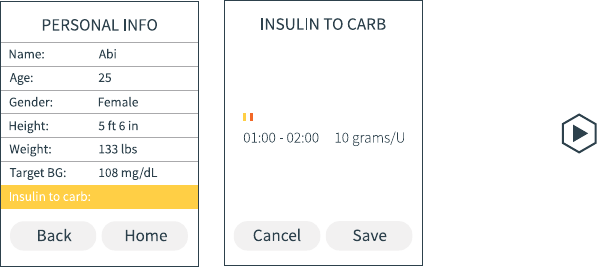
150 What are insulin to carb ratios?
What are insulin to carb ratios?
Insulin to carb ratios describe exactly how powerful each unit
of insulin is over the carbohydrates that you eat. Put simply,
it tells you how many grams of carbohydrate 1 unit of insulin
will cover (or balance out). So, if you have an insulin to carb
ratio of 10 grams/U, it means your body needs 1 unit of
insulin to balance out every 10g of carbs that you eat.
That means you’d need 7 units of insulin to balance out a
meal containing 70g of carbs, keeping your BG level from
increasing.
And – just to keep things interesting! – not only are insulin to
carb ratios really individual, but most people will also have a
different insulin to carb ratio depending on what time of day
it is. So, Kaleido allows you to save a different ratio for every
hour of the day, which means that you, together with your
Healthcare Provider, can tailor them as much as you need to.
QUICK TIP
You might have already guessed, but if your BG level is
already higher than your Target BG, you might not be
satisfied by just balancing out the carbs you’re eating -
you might want to bring your BG back down to target too.
That’s where Kaleidoculator can help to make sense of
insulin to carb and insulin to BG ratios! Take a look at How
do I use Kaleidoculator? to find out more.
How do I enter my insulin to carb ratios?
STEP 1
On the Personal Info
menu, scroll to Insulin to
carb and press Enter to
select.
STEP 2
You can set a different ratio
for every hour of the day.
Press the left and right
buttons to scroll between
each hourly segment and
then press the up and down
buttons to select the ratio
you want for each hour.
Below the insulin to carb
ratio graph you’ll see
details of the hour you’re
currently setting, along
with the ratio that you are
entering.
If you’re setting a ratio of
9.9 grams/U or less, you can
set the ratio in increments
of 0.1 grams/U. For any
ratios of 10 grams/U or
more, the increments
change to 1 gram/U. The
smallest insulin to carb
ratio you can set for an
hour is 0.1 grams/U and
the largest is 99 grams/U.
151
How do I enter my insulin to carb ratios?
WARNING
Your insulin to carb
ratios must always be set
and amended with the
help of your Healthcare
Provider. Never attempt
to change your insulin to
carb ratios without the
guidance and support
of your Healthcare
Provider.

152 How do I enter my insulin to carb ratios?
STEP 3
Once you’ve entered an
insulin to carb ratio for
each hour and you’re
happy with your updates,
press the Enter button.
Press Enter again to select
Save.
If you want to return to the
graph before you select
Save, just press the up
button. Or, if you’ve
changed your mind
completely, scroll left to
Cancel and press Enter to
select it.
QUICK TIP
Kaleidoculator needs a
complete set of insulin
to carb ratios to be able
to work - one for each
hour of the day. So you
won’t be able to select
Save if you haven’t
entered all 24 insulin to
carb ratios. You won’t
be able to access
Kaleidoculator from
the Bolus menu if you
haven’t set your insulin
to carb ratios either.
STEP 5
Congrats - your insulin to
carb ratios will now show
up in the Personal Info
menu! Your handset
will always display your
current insulin to carb
ratio.
153
How do I enter my insulin to carb ratios?
STEP 4
A confirmation message
will appear – your insulin
to carb ratios have been
saved. Press Enter to
return to the Personal Info
menu a little quicker.
QUICK TIP
You can select Cancel and return to the Personal
Info menu whenever you like. If you do, any changes
you’ve made won’t be saved.
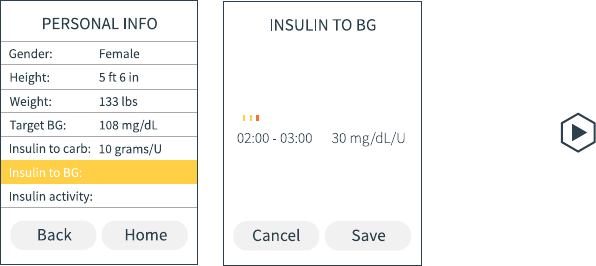
What are insulin to BG ratios?
154
What are insulin to BG ratios?
Insulin to BG ratios tell you exactly how much of an effect
1 unit of insulin will have on your BG level. For example, an
insulin to BG ratio of 36 mg/dL/U, means that every unit of
insulin that you deliver lowers your BG by 36 mg/dL – so, if
your BG is at 180 mg/dL and you want to get back to your
Target BG of 108 mg/dL, you’d need to lower your BG by
72 mg/dL, which would take 2 units of insulin. Annnnnd, relax...
Just to keep you on your toes, insulin to BG ratios are
different for everyone and can even change depending on the
time of day. That’s no problem though - Kaleido lets you save
a different ratio for each hour of the day, so that you and your
Healthcare Provider can work together to set the ratios that
work especially for you.
QUICK TIP
If you’re also having something to eat, any insulin you deliver will
act to balance out the carbs you’re eating first, rather than lowering
a BG level that’s too high. That’s where Kaleidoculator can help
make sense of insulin to BG and insulin to carb ratios! Take a look at
How do I use Kaleidoculator? to find out more.
QUICK TIP
Need to change the unit of measurement you’re using for your
insulin to BG ratios? You can do that in System Settings – see How
do I change the unit of measurement I record my BG readings in?
How do I enter my insulin to BG ratios?
STEP 1
On the Personal Info
menu, scroll to Insulin
to BG and press Enter to
select.
STEP 2
You now need to set a ratio
for each hour of the day.
Press the left and right
buttons to scroll between
hourly segments and the up
and down buttons to select
the ratio you’d like for each
hour. Below the insulin to BG
ratio graph you’ll see details
of the hour you’re currently
setting, along with the ratio
that you are entering.
If you’re working in mg/dL/U,
the smallest ratio you can
set is 2 mg/dL/U and the
largest is 400 mg/dL/U, in
increments of 1 mg/dL/U.
If you are working in
mmol/L/U, the smallest
insulin to BG ratio you
can set for an hour is
0.1 mmol/L/U and the
largest is 22.2 mmol/L/U,
in increments of
0.1 mmol/L/U.
How do I enter my insulin to BG ratios? 155
WARNING
Your insulin to BG ratios
must always be set
and amended with the
help of your Healthcare
Provider. Never attempt
to change your insulin
to BG ratios without the
guidance and support of
your Healthcare
Provider.

How do I enter my insulin to BG ratios?
156
STEP 3
Once you’ve entered an
insulin to BG ratio for
every hour and you’re
happy with your updates,
press the Enter button.
Press Enter again to select
Save.
If you want to return to
the graph before you
select Save, just press the
up button. Or, if you’ve
changed your mind
completely, scroll left to
Cancel and press Enter to
select it.
QUICK TIP
Kaleidoculator needs a
complete set of insulin
to BG ratios to be able to
work - one for each hour
of the day. So you won't
be able to select Save if
you haven't entered all
24 insulin to BG ratios.
You won't be able to
access Kaleidoculator
from the Bolus menu if
you haven't set your
insulin to BG ratios
either.
STEP 5
Congrats - your insulin to
BG ratios will now show up
in the Personal Info menu!
Your handset will always
display your current
insulin to BG ratio.
QUICK TIP
You can select Cancel and return to the Personal
Info menu whenever you like. If you do, any changes
you’ve made won’t be saved.
How do I enter my insulin to BG ratios? 157
STEP 4
A confirmation message
will appear – your insulin
to BG ratios have been
saved. Press Enter to
return to the Personal Info
menu a little quicker.

How do I enter my insulin activity time?
STEP 1
On the Personal Info
menu, scroll to Insulin
activity and press Enter
to select.
STEP 2
Now, enter your insulin
activity time. Use the left
and right buttons to scroll
between the number
boxes and the up and
down buttons to scroll to
the correct time – it can be
as short as 2 hours and as
long as 8. Once you’ve set
the correct time, press the
Enter button.
STEP 3
Press the Enter button
again to select Save.
If you’ve accidentally
moved to Save too soon
and you need to change
the insulin activity time
you’ve entered, no
worries! Just press the up
button to go back to the
selection box.
How do I enter my insulin activity time?158
Your insulin activity time is the amount of time that any insulin
you’ve received stays active in your body - and on your BG.
Here’s how to set your activity time:
STEP 4
A confirmation message
will pop up – your insulin
activity time has been
saved. Press Enter to
return to the Personal Info
menu a little quicker.
STEP 5
Congrats – your insulin
activity time will now be
displayed in the Personal
Info menu!
QUICK TIP
Insulin activity time is an important
Kaleidoculator setting! To find out
more about Kaleidoculator, why
not take a look at How do I use
Kaleidoculator?
WARNING
Your insulin activity time must always
be set and amended with the help
of your Healthcare Provider. Never
attempt to change your insulin activity
time without the guidance and support
of your Healthcare Provider.
How do I enter my insulin activity time? 159
QUICK TIP
Kaleido uses your personal insulin activity time to
help calculate Insulin on Board. So, if you haven’t
set an insulin activity time, you won’t be able to
access Insulin on Board from the Menu menu, or
Kaleidoculator from the Bolus menu either.
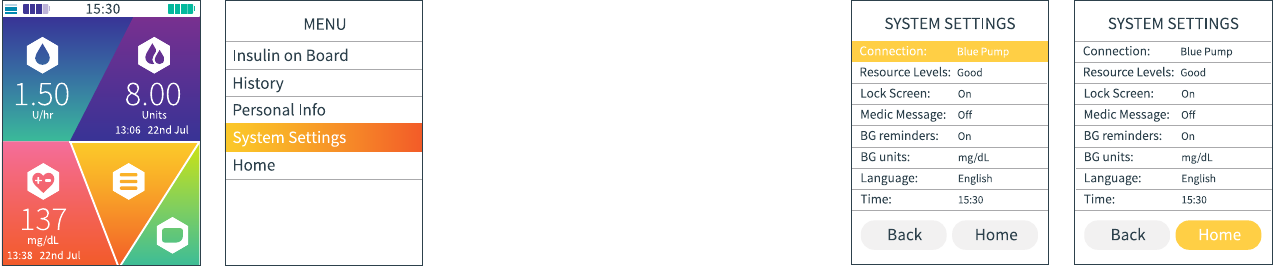
System Settings
Just like Personal Info, your Kaleido handset’s System
Settings will be preloaded before it’s delivered to you.
But in case you need to change anything, this section covers
everything you’ll ever need to know to help you review and
change your System Settings.
How do I review my System Settings?
STEP 1
On the Home screen, scroll
to Menu and press Enter to
select.
STEP 2
Scroll to and select
System Settings.
160 How do I review my System Settings?
STEP 3
On the System Settings
menu, use the up and
down buttons to read
through your saved
details.
STEP 4
Once you’ve finished,
scroll all the way down
to Home. Press Enter to
select it and you’ll be
returned to the Home
screen.
Alternatively, from Home,
scroll left to Back and
press Enter to return to
Menu.
161
How do I review my System Settings?

How do I check if my handset is connected
to a pump?
Your handset will connect to your Kaleido pumps wirelessly.
If you ever want to double check if your handset is connected
to a pump and, if it is, which one, you can do that in System
Settings in one simple step:
STEP 1
On the System Settings
menu, scroll to
Connection. If your
handset is connected to a
pump, the pump’s name
will be displayed. If it is not
currently connected, the
Connection section will be
empty.
162 How do I check if my handset is connected to a pump?
QUICK TIP
Your pumps are named
after their colour - if you
have a purple pump,
its name will be Purple
Pump. Nice and simple!
Can I force my handset to disconnect
from a pump?
The connection between your handset and the pump you’re using is really
important – it keeps your pump pumping, allows you to change your basal
and deliver boluses, and makes sure that your handset has all the information
it needs to keep your Insulin on Board and Resource Levels up-to-date.
So, you should always allow your handset and pump to disconnect properly -
your handset will automatically disconnect from a pump when you stop it and
then remove the insulin cartridge. This usually happens at the end of three days
of pumping, or sooner if you change your pump more frequently.
But, we understand that exceptional circumstances can crop up every now and
then. There may be a time when Kaleido Care asks you to force your handset to
disconnect from your pump, using the force disconnect feature. They will talk
you through the steps you need to take, but you can also follow along with
them here too (just turn over to the following page).
WARNING
Forcing your handset to disconnect from your pump will stop your ability to control
that pump. However, the disconnected pump might continue to administer any
pre-programmed insulin deliveries. In order to ensure your safety, you must always
remove the insulin cartridge from any pumps that you are not using, straight away.
To re-establish a connection with a pump, insert an insulin cartridge and follow the
instructions on your handset.
163
Can I force my handset to disconnect from a pump?
WARNING
You should only force your handset to disconnect from a pump when instructed to do
so by Kaleido Care.
WARNING
When a pump and handset disconnect properly, the pump delivers important
information about Insulin on Board, your total daily dose of insulin and Kaleido’s
Resource Levels to your handset. If you force your handset to disconnect from a pump,
this information will NOT be delivered to your handset and will be permanently lost,
even if you reconnect to the pump or connect to another pump in the future. So, after
force disconnecting, remember that your Insulin on Board may not include any boluses
delivered prior to the forced disconnect - you should be mindful of this for the amount
of time that your insulin activity time is set to. In History, your total daily dose of insulin
for that day may also be missing some information and so could also be inaccurate.

STEP 2
Press the right button to
scroll to Force disconnect
and press Enter to select.
If you decide you don’t
want to force your handset
to disconnect after all,
select Back. This will take
you back to the System
Settings menu and
your handset will stay
connected to your current
pump.
STEP 3
If you choose to
continue with the forced
disconnect, you will be
asked one last time to
confirm that you definitely
want to disconnect. Press
Enter to select Accept and
disconnect.
Alternatively, if you decide
you no longer want to
disconnect, just scroll left
and press Enter to select
Cancel.
QUICK TIP
You will only be able to force your handset to
disconnect from a pump if the two are already
wirelessly connected.
164 Can I force my handset to disconnect from a pump?
STEP 1
On the System Settings
menu, scroll to
Connection and press
Enter to select.
STEP 5
The Connection section of
the System Settings menu
will now be empty. You
won’t be able to access
the Bolus section of your
Home screen or set a
temporary basal rate until
you connect a new pump.
STEP 4
A confirmation message
will pop up – your handset
has been disconnected
from your pump. Press
Enter to return to the
System Settings menu a
little quicker.
165Can I force my handset to disconnect from a pump?
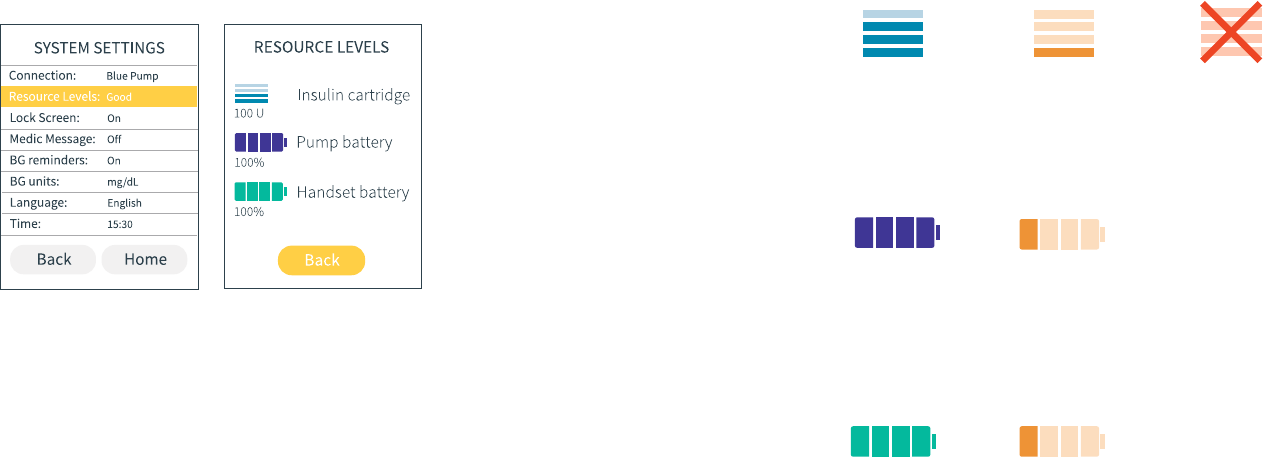
How do I check how full my insulin cartridge
and batteries are?
You can always check how full your insulin cartridge, pump
and handset batteries are by looking at the icons at the top
of your Home screen. But sometimes you need a little more
in-depth info, right? Just follow these steps to uncover more:
STEP 1
On the System Settings menu,
scroll to Resource Levels and
press Enter to select.
STEP 2
The Resource Levels screen
will show you the following:
• How many units of insulin
are left in your insulin
cartridge (rounded down to
the nearest full unit)
• How much power is left in
your pump battery
(as a percentage)
• How much power is left in
your handset battery
(as a percentage)
Once you have the
information you need, press
Enter to select Back and
return to the System Settings
menu.
166 How do I check my Resource Levels? 167How do I check my Resource Levels?
Insulin
cartridge
Pump
battery
Pump
battery in
Alert mode
Handset
battery in
Alert mode
Handset
battery
Insulin
cartridge in
Alert mode
Insulin
cartridge in
Alarm mode
If your insulin cartridge or either of your batteries are low
enough to have triggered an alert or an alarm, you’ll also see
this in the icons on your Home and Resource Levels screens.
This is what the Resource Level icons mean:
What do all the Resource Level icons mean?
QUICK TIP
If you check your Resource
Levels when your handset is not
connected to a pump, you’ll only
be able to see the handset battery
icon and information.
QUICK TIP
If you’ve had an alarm to say your
pump battery is empty, the alarm
will automatically disconnect your
pump from your handset.
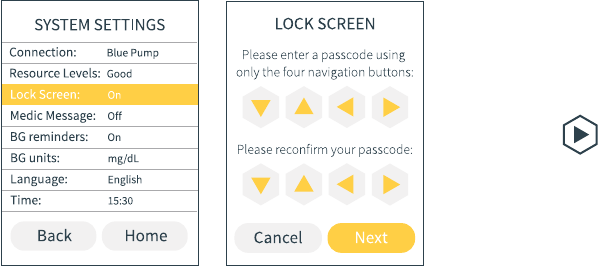
What’s Lock Screen and how do I save a new
passcode?
Lock Screen helps keep your handset extra secure!
Whenever you switch your handset on or wake it up,
you’ll be asked to enter a passcode to unlock it. If you
enter the wrong passcode, your handset won’t unlock,
but don’t worry, you’ll be able to have another go at
getting it right.
Your handset will come to you with a default
passcode set (), but you should save your
own (memorable!) passcode as soon as you can.
You can also change your passcode whenever you
like. Follow the steps on the next pages to see how
you do it.
STEP 1
On the System Settings
menu, scroll to Lock
Screen and press Enter
to select.
STEP 2
Use the up, down, left
and right buttons to set
a four button passcode.
Make sure it’s something
you’ll remember! Press the
Enter button, then enter
your new passcode again
to confirm the sequence.
Press Enter again to move
to Next and again one last
time to select it.
If you’ve accidentally
moved to Next too soon
and you need to change
the passcode you’ve
entered, no worries! Just
press the up button and
re-enter your new
passcode.
168 What’s Lock Screen and how do I save a new passcode? 169
What’s Lock Screen and how do I save a new passcode?
QUICK TIP
Unlike some other Kaleido features, you can’t
turn Lock Screen off. So don’t panic or worry
that something’s missing - it’s not!
QUICK TIP
You won't be able to gain access to you handset
until you enter the correct passcode, so if you ever
forget it, just call Kaleido Care and we'll help you
reset it.
QUICK TIP
You can select Cancel and return to the System
Settings menu whenever you like. If you do, any
changes you’ve made won’t be saved.
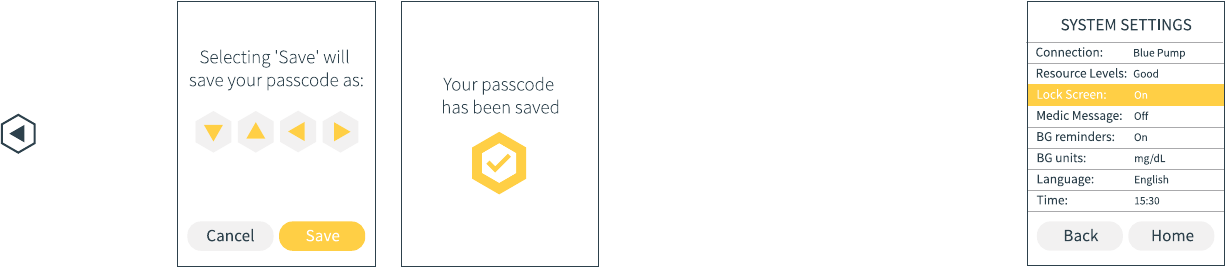
170 171
What’s Lock Screen and how do I save a new passcode?
What’s Lock Screen and how do I save a new passcode?
STEP 4
A confirmation message
will pop up – your new
passcode has been saved.
Press Enter to return to the
System Settings menu a
little quicker.
STEP 5
That’s it - you’re done!
You’ll need to use your
new passcode to unlock
your handset from now
on. When you do, you’ll
either be taken to your
Home screen or to the
screen you were on last.
STEP 3
Your handset will confirm
the passcode you’re about
to save. If you’re happy
for this to happen, press
the Enter button to select
Save.
Alternatively, scroll left
and press Enter to select
Cancel and return to the
previous screen.
QUICK TIP
If you ever want to
change your passcode,
just select Lock Screen
in the System Settings
menu, then follow
these steps again to
save a new passcode.

What’s a Medic Message and
how do I turn it on?
A bit like a piece of Medic ID jewellery, setting a Medic
Message on your Kaleido handset gives you the opportunity
to share important details with people who might need to
know who you are and what’s going on in an emergency.
For extra peace of mind, this is how you save and turn on
your Medic Message so people can view it - it will show up
whenever your handset is woken up.
STEP 1
On the System Settings
menu, scroll to Medic
Message and press Enter
to select.
STEP 2
Use the up and down
buttons to select On, then
press the Enter button.
STEP 3
Press the Enter button
again to select Next.
172 How do I turn my Medic Message on?
STEP 4
Start by entering the name
of your emergency contact
using the up and down
buttons to scroll through
the alphabet. You can use
the right button to move
on to the next letter, or to
add a space. Once you’ve
entered a name, press the
Enter button.
QUICK TIP
You can select Cancel and return to the System
Settings menu whenever you like. If you do, any
changes you’ve made won’t be saved.
STEP 5
Next, use the up, down,
right and left buttons to
enter your emergency
contact’s telephone
number (up and down will
help you scroll through
the numbers 0 to 9, right
and left will help you move
between number boxes).
Once you’ve entered the
phone number, press the
Enter button to move to
Next.
173
How do I turn my Medic Message on?

STEP 7
Your handset will now
show you a preview of
your Medic Message.
Like it? Good! Press Enter
to select Save.
Alternatively, scroll left
and press Enter to select
Cancel, then edit your
message.
STEP 8
A confirmation message
will pop up – your Medic
Message has been saved
and turned on. Press Enter
to return to the System
Settings menu a little
quicker.
STEP 9
Congrats - your updated
Medic Message status will
now be displayed in the
System Settings menu!
QUICK TIP
If you ever want to change your Medic Message,
just turn the setting off, and then turn it back on
again. Go back to the start of this section and
follow the steps to save your new details.
174 How do I turn my Medic Message on? 175
How do I turn my Medic Message on?
STEP 6
Press Enter again to select
Next.
If you’ve accidentally
moved to Next too soon
and you need to change
your emergency contact’s
details, no worries! Just
press the up button to
return to the first letter
box.

STEP 3
If you’re sure you want
to turn off your Medic
Message, press the Enter
button once more to select
Save.
Alternatively, scroll left
and press Enter to select
Cancel.
STEP 4
A confirmation message
will pop up - your Medic
Message has been turned
off and deleted. Press
Enter to return to the
System Settings menu a
little quicker.
STEP 5
Your updated Medic
Message status will now
be displayed in the System
Settings menu.
176 How do I turn my Medic Message off? 177
How do I turn my Medic Message off?
How do I turn my Medic Message off?
Should you want to, you can turn your Medic Message off at
any time - and really quickly too!
STEP 1
On the System Settings
menu, scroll to Medic
Message and press Enter
to select.
STEP 2
Use the up and down
buttons to select Off, then
press the Enter button.
Press enter again to select
Next.
WARNING
Turning off your Medic Message will delete your message and
your emergency contact details. You will have to enter them
again if you ever turn your Medic Message back on.

What are BG reminders and how do I turn
them off?
We’re not going to try and teach our granny how to suck eggs - we know
you know that if you deliver a bolus it’s because you want it to have an
effect on your BG. But we also know that sometimes remembering to
check just how much of an effect (or not!) a bolus has had can be...well,
easy to forget. So, Kaleido gives you the option to set yourself a reminder
to do a BG test an hour and half after you started delivering a bolus,
just as an extra help. Don’t like or want the reminders? No problem!
They’re easy to turn off - just follow these steps:
STEP 1
On the System Settings
menu, scroll to BG
reminders and press
Enter to select.
STEP 2
Use the up and down
buttons to select Off, then
press the Enter button.
STEP 3
Press Enter again to select
Save.
If you’ve accidentally
moved to Save too soon –
no worries! Just press the
up button to return to the
selection box.
What are BG reminders and how do I turn them off?
QUICK TIP
You can select Cancel and return to the System
Settings menu whenever you like. If you do, any
changes you’ve made won’t be saved.
QUICK TIP
You can turn your BG reminders back on by
selecting BG reminders in the System Settings
menu, then using the up and down arrows to
select On. Press the Enter button, then press it
again to select Save.
STEP 4
A confirmation message
will pop up – your BG
reminders have been
turned off. Press Enter to
return to the System
Settings menu a little
quicker.
STEP 5
Congrats - your updated
BG reminders setting will
now be displayed in the
System Settings menu!
What are BG reminders and how do I turn them off?
178 179

How do I change the unit of measurement
I record my BG readings in?
We recommend that you only ever use the unit of
measurement you’re used to to record your BG readings,
but if you ever need to change the unit of measurement that
your Kaleido handset uses, it is possible. Your Healthcare
Provider will be able to give you more advice as to whether
you’d benefit from changing the units of measurement that
you use.
STEP 1
On the System Settings
menu, scroll to BG units
and press Enter to select.
STEP 2
Use the up and down
buttons to select the unit
of measurement that you
want to use. Press the
Enter button.
STEP 3
Press Enter again to select
Save.
If you’ve accidentally
moved to Save too soon
and you need to change
the unit of measurement
you’ve selected, no
worries! Just press the
up button to return to the
selection box.
180 How do I change my BG unit of measurement?
WARNING
Never change the BG unit of measurement
on your Kaleido handset without first
consulting your Healthcare Provider.
STEP 4
Your handset will confirm
the unit of measurement
selection you’re about to
make – if you’re still happy
to make the change, press
the Enter button again to
select Save.
Alternatively, scroll left
and press Enter to select
Cancel and return to the
previous screen.
STEP 5
A confirmation message
will pop up – your units of
measurement have been
changed. Press Enter to
return to the System
Settings menu a little
quicker.
STEP 6
Congrats - your updated
BG unit setting will now be
displayed in the System
Settings menu!
QUICK TIP
You can select Cancel and return to the System
Settings menu whenever you like. If you do, any
changes you’ve made won’t be saved.
181
How do I change my BG unit of measurement?

How do I change my handset’s language?
We’d recommend that you only ever use your Kaleido
handset in your native language. In case of emergencies,
it’s really important that you’re able to completely understand
the language that is being used to communicate your pump
information to you. If you do ever need to change your
handset’s language though, here’s how you do it:
STEP 1
On the System Settings
menu, scroll to Language
and press Enter to select.
STEP 2
Use the up and down
buttons to scroll through
the language options.
Press Enter to select your
preferred language.
QUICK TIP
You can select Cancel and return to the System
Settings menu whenever you like. If you do,
any changes you’ve made won’t be saved.
STEP 3
Next, press Enter again to
select Save.
If you’ve accidentally
moved to Save too soon
and you need to change
the language selected,
no worries! Just press the
up button to return to the
selection box.
182 How do I change my handset’s language?
STEP 4
Your handset will confirm
the language selection
that you are about to
make – if you’re still happy
to make the change, press
the Enter button again to
select Save.
Alternatively, scroll left
and press Enter to select
Cancel and return to the
previous screen.
STEP 5
A confirmation message
will pop up – your
handset language has
been changed. Press Enter
to return to the System
Settings menu a little
quicker.
STEP 6
Congrats - your updated
language setting will now
be displayed in the System
Settings menu! You’ll also
notice that your handset
language has changed!
WARNING
You should only ever change your
language settings if it’s absolutely
necessary for the safe continuation
of your insulin therapy.
183
How do I change my handset’s language?
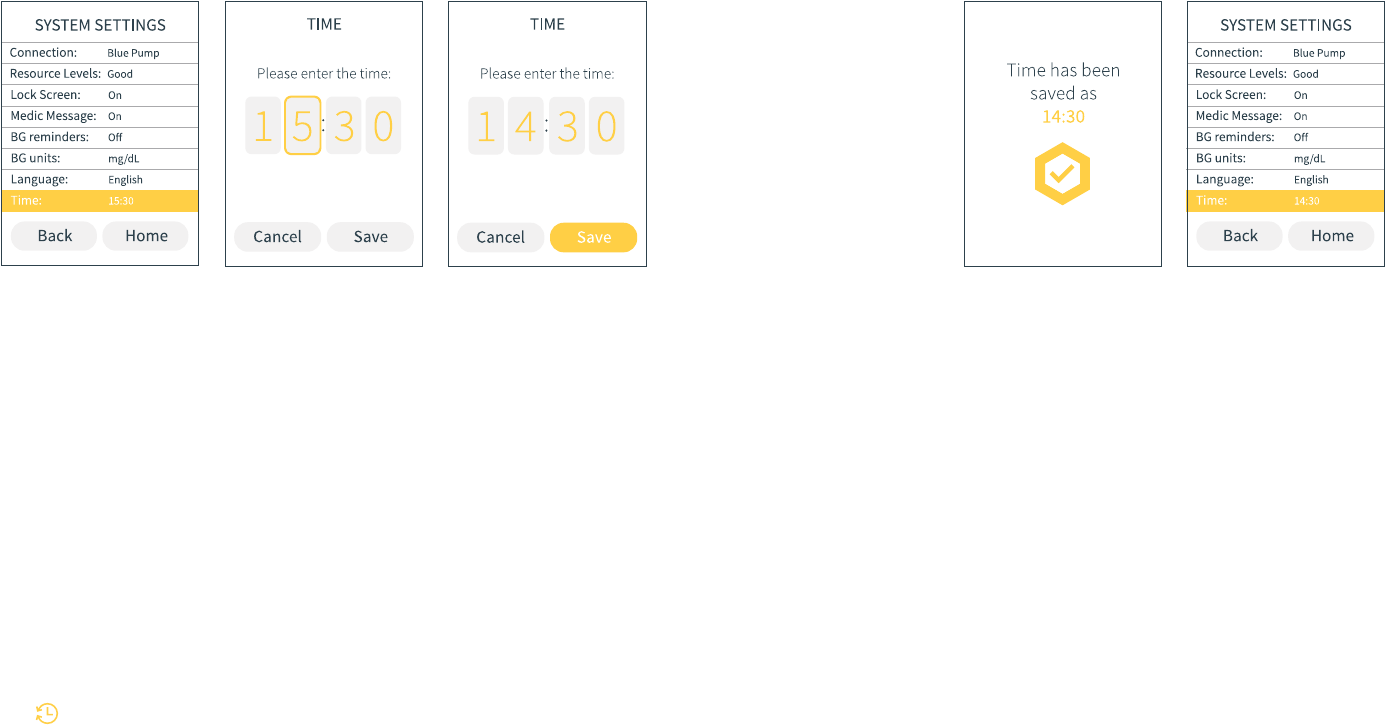
How do I change the time on my handset?
It’s really important that your handset is always set to the
correct time. Time plays a huge part in the delivery of your
basal profiles, so you should check your handset regularly
to make sure it’s correct. If it ever needs to be changed or
updated, this is what you’ll need to do:
STEP 1
On the System Settings
menu, scroll to Time and
press Enter to select.
STEP 2
Enter the current time
using the up and down
buttons to scroll through
the numbers 0 to 9. Use the
right button to move on to
the next number.
STEP 3
When you’ve successfully
entered the time, press
Enter and then Enter again
to select Save.
If you’ve accidentally
moved to Save too soon
and you need to change
the time that you have
entered, no worries! Just
press the up button to
return to the first number
box.
184 How do I change the time on my handset?
QUICK TIP
You can select Cancel and return to the
System Settings menu whenever you like.
If you do, any changes you’ve made won’t
be saved.
QUICK TIP
Changed the time (or date) on your handset
recently but forgotten when? Kaleido will give
you a reminder of this in History - just look for
the symbol!
STEP 4
A confirmation message
will pop up – the time has
been saved. Press Enter to
return to the System
Settings menu a little
quicker.
STEP 5
Congrats - the updated
time will now be displayed
in the System Settings
menu and on your Home
screen!
WARNING
If your Kaleido handset battery ever becomes completely flat,
causes your handset to turn off and is left uncharged for seven days
or more, your handset’s internal clock will automatically reset. This
means it will not remember your previous time and date settings.
To avoid this, charge your handset regularly. If you do allow your
handset battery to empty and remain uncharged for seven days or
more, make sure you check your time and date settings are correct
as soon as you turn your handset back on.
WARNING
If you travel to a different time zone, the time on your handset will
NOT automatically update. Always ensure that you change the
time and date on your handset to account for the difference in
time zones. Get in touch with your Healthcare Provider for advice
on when and how to go about making these adjustments.
185
How do I change the time on my handset?
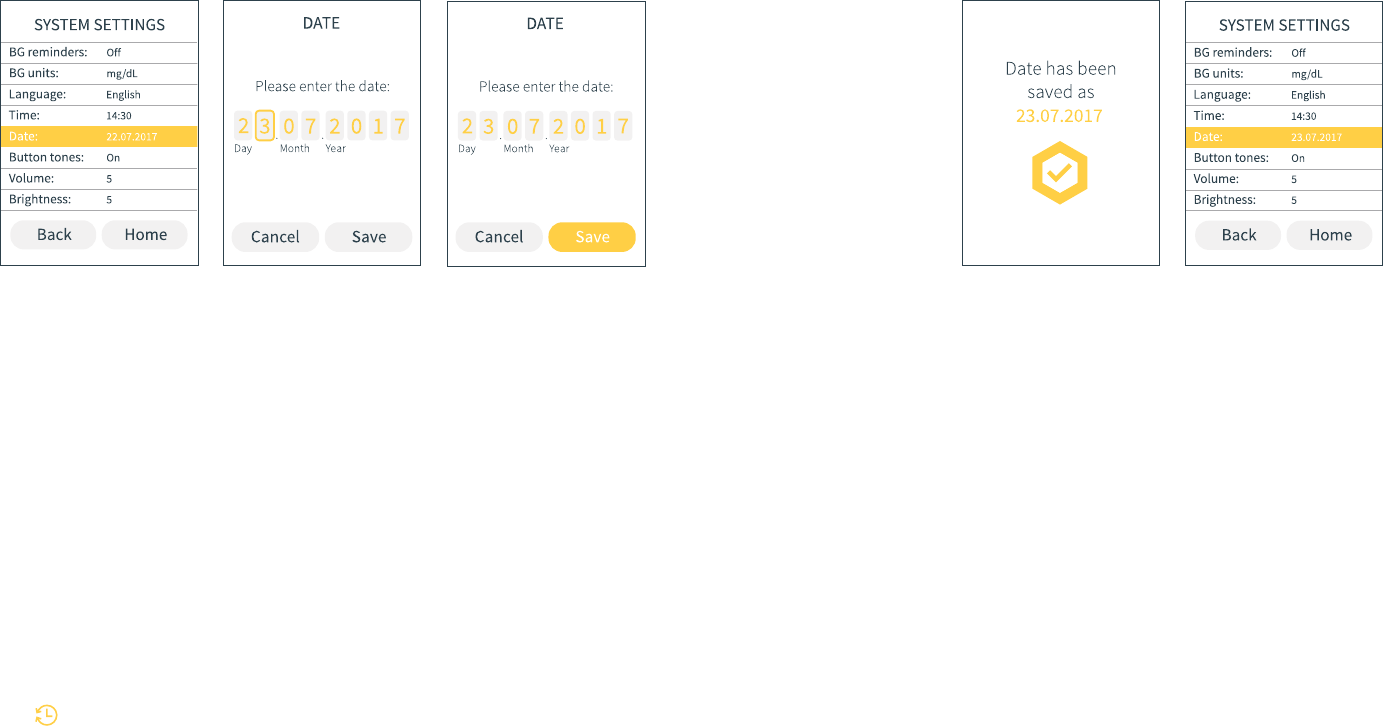
How do I change the date on my handset?
It’s important that your handset is always set to the
correct date, so that you know your historic data is being
saved correctly. If you ever need to update the date on
your handset, here’s how to do it:
STEP 1
On the System Settings
menu, scroll to Date and
press Enter to select.
STEP 2
Enter the current date
using the up and down
buttons to scroll through
the numbers 0 to 9. Use the
right button to move on to
the next number.
STEP 3
When you’ve successfully
entered the date, press
Enter and then press Enter
again to select Save.
If you’ve accidentally
moved to Save too soon
and you need to change
the date that you have
entered, no worries! Just
press the up button to
return to the first number
box.
186 How do I change the date on my handset?
QUICK TIP
You can select Cancel and return to the
System Settings menu whenever you like.
If you do, any changes you’ve made won’t
be saved.
QUICK TIP
Changed the date (or time) on your handset
recently but forgotten when? Kaleido will give
you a reminder of this in History - just look for
the symbol!
STEP 4
A confirmation message
will pop up – the date has
been saved. Press Enter to
return to the System
Settings menu a little
quicker.
STEP 5
Congrats - the updated
date will now be displayed
in the System Settings
menu!
187How do I change the date on my handset?
WARNING
If you travel to a different time zone, the date on your handset will
NOT automatically update. Always ensure that you change the
date and time on your handset to account for the difference in time
zones. Get in touch with your Healthcare Provider for advice on
when and how to go about making these adjustments.
WARNING
If your Kaleido handset battery ever becomes completely flat,
causes your handset to turn off and is left uncharged for seven days
or more, your handset’s internal clock will automatically reset. This
means it will not remember your previous date and time settings.
To avoid this, charge your handset regularly. If you do allow your
handset battery to empty and remain uncharged for seven days or
more, make sure you check your date and time settings are correct
as soon as you turn your handset back on.

How do I turn my handset button tones off?
Sometimes you want to be a little more discreet – don’t worry,
we get it. Turning your handset’s button tones off will mean
your neighbours are none the wiser – and it’s simple to do,
too:
STEP 1
On the System Settings
menu, scroll to Button
tones and press Enter to
select.
STEP 2
Use the up and down
buttons to select Off, then
press the Enter button.
QUICK TIP
You can select Cancel and return to the
System Settings menu whenever you
like. If you do, any changes you’ve made
won’t be saved.
STEP 3
Press Enter again to select
Save.
If you’ve accidentally
moved to Save too soon –
no worries! Just press the
up button to return to the
selection box.
188 How do I turn my handset button tones off?
STEP 4
A confirmation message
will pop up – your button
tones have been turned
off. Press Enter to return to
the System Settings menu
a little quicker.
STEP 5
Congrats - your updated
button tone setting will
now be displayed in the
System Settings menu!
QUICK TIP
You can turn your button tones back on by
selecting Button tones in the System Settings
menu, then using the up and down arrows to
select On. Press the Enter button, then press it
again to select Save.
189
How do I turn my handset button tones off?

How do I set the volume of my handset?
Just like your button tones, the volume you want to set
your Kaleido handset at might change depending on
where you are. Follow these steps to set the volume
you’d like. This will only affect the volume of any alerts
and reminders that you receive - not your alarms.
STEP 1
On the System Settings
menu, scroll to Volume
and press Enter to select.
STEP 2
Use the left button to
make the volume quieter
and the right button to
make it louder, then press
the Enter button.
190 How do I set the volume of my handset?
STEP 3
Press Enter again to select
Save.
If you’ve accidentally
moved to Save too soon -
no worries! Just press the
up button to return to the
volume selector.
QUICK TIP
You can select Cancel and return to the
System Settings menu whenever you
like. If you do, any changes you’ve made
won’t be saved.
STEP 4
A confirmation message
will pop up – your handset
volume has been changed.
Press Enter to return to the
System Settings menu a
little quicker.
STEP 5
Congrats - your updated
volume setting will now be
displayed in the System
Settings menu!
191How do I set the volume of my handset?
WARNING
We recommend that you keep your handset close by when
you have the volume set low.
WARNING
Because of how important alarms are, volume changes
only apply to alert and reminder tones. Any changes you
make to your handset’s volume do not affect the volume of
alarm tones. Volume changes also only apply to the volume
of your handset speakers - for safety reasons, you cannot
change the volume of the speakers on your pumps.

How do I set the brightness of
my handset screen?
On a holiday in the sun or curled up watching TV?
There are a few factors that could mean you
might find it useful to adjust the brightness of
your handset screen. Here’s how to do it:
STEP 1
On the System Settings
menu, scroll to Brightness
and press Enter to select.
STEP 2
Use the left button to
make the screen less
bright and the right button
to make it brighter, then
press the Enter button.
STEP 3
Press Enter again to select
Save.
If you’ve accidentally
moved to Save too soon –
no worries! Just press the
up button to return to the
brightness selector.
192 How do I set the brightness of my handset screen?
QUICK TIP
You can select Cancel and return to the
System Settings menu whenever you
like. If you do, any changes you’ve made
won’t be saved.
STEP 4
A confirmation message
will pop up – the brightness
of your handset screen has
been changed. Press Enter
to return to the System
Settings menu a little
quicker.
STEP 5
Congrats - your updated
brightness setting will now
be displayed in the System
Settings menu!
193How do I set the brightness of my handset screen?
QUICK TIP
Here’s something to bear in mind - the brighter
your handset screen, the more battery power
your handset will use!

Status

You’ll need to access the Status section of your
Kaleido handset when you want to pause, stop
or restart the pump you’re using.
Status
Pausing your pump
Kaleido pumps are some of the
smallest, niftiest pumps around,
and they’re made to fit into almost all
situations. But if you’re jumping in the
shower, trying on new clothes or going
for a swim, you might just want to take
a break. So, to give you back complete
flexibility, you can choose to pause and
remove your pump at any time.
The best bit? Your handset will keep
track of how much insulin you’ve missed
while your pump is paused, so that you
can make an informed decision about
your insulin delivery when you’re ready
to get going again.
197Pausing your pump
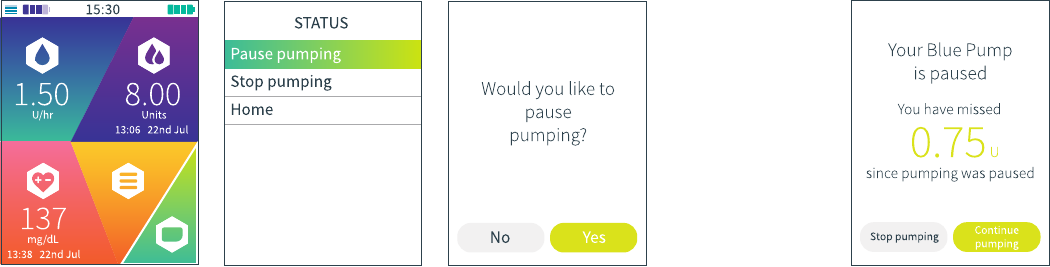
How do I pause my pump?
STEP 1
On the Home screen, scroll
to Status and press Enter
to select.
STEP 2
Scroll to and select Pause
pumping.
STEP 3
Your handset will ask you
if you want to pause
pumping. Just press the
Enter button to select Yes.
QUICK TIP
Changed your mind?
Just press the left
button to scroll
to No. Press Enter to
select it and return to
the Status menu.
198 How do I pause my pump?
STEP 4
Easy! Your pump is now
paused and insulin
delivery has been stopped.
On your handset, you’ll be
able to keep track of how
much basal insulin you’re
missing out on.
WARNING
You won’t be able to access any of your
handset’s other functions while your pump
is paused.
WARNING
If you choose to take your pump off while it is
paused, it’s important to remember to close the
protective cover on your infusion set.
WARNING
You won’t receive any insulin at all while your
pump is paused.
199How do I pause my pump?
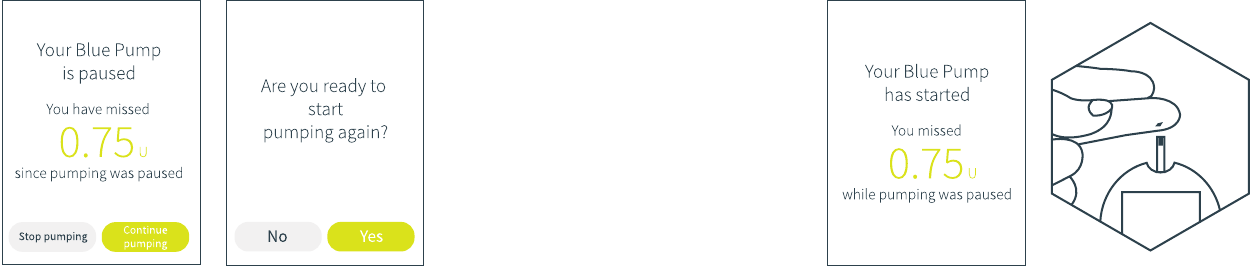
How do I unpause my pump?
STEP 1
When you’re ready to
restart your paused pump,
take note of how much
insulin you’ve missed and
press the Enter button to
select Continue pumping.
QUICK TIP
Alternatively, you can
press the left button
to scroll to Stop
pumping. If you select
Stop pumping, your
handset will enter Stop
mode. See How do I stop
my pump? for more
details about Stop
mode.
STEP 2
Your handset will ask you
to confirm that you are
ready to start pumping.
Select Yes by pressing
Enter.
200 How do I unpause my pump?
STEP 3
A confirmation message
will pop up – your pump
has unpaused and your
insulin delivery has been
restarted! Press Enter to
return to the Home screen
a little quicker.
WARNING
Your handset only keeps track of the insulin
you’ve missed for information purposes. It will NOT
automatically deliver the insulin you have missed
when you unpause your pump.
WARNING
You should speak to your Healthcare Provider for
advice on when to pause your pump and the action
you need to take when you later decide to unpause it.
WARNING
You should always take a BG reading when you start
to pump after a break in your insulin delivery. This
will help you make informed decisions about your
immediate insulin requirements.
201How do I unpause my pump?
STEP 4
Next, take a BG reading
and, using the information
your handset has given
you about the insulin you
missed, decide whether
or not to deliver a bolus
to top your insulin levels
back up.

How do I stop my pump?
You can also stop your pump from the Status menu.
Stopping your pump should always be your very first step
when you’re preparing to remove your pump.
This is especially important if you’re getting ready to swap
pumps. Once you’ve followed the steps here, you can find
out more about removing your pumps and infusion sets by
checking out How do I take my pump off?
STEP 1
On the Home screen, scroll
to Status and press Enter
to select.
STEP 2
Scroll to and select Stop
pumping.
STEP 3
Your handset will ask you if
you’d like to stop
pumping. Press the Enter
button to select Yes.
QUICK TIP
Decided you don’t
want to stop your
pump after all? Just
press the left button
to scroll to No. Press
Enter to select it and
return to the Status
menu.
202 How do I stop my pump?
STEP 4
A confirmation message
will pop up - your pump
has been stopped and you
are no longer receiving
any insulin. Press Enter to
return to the System
Settings menu a little
quicker.
STEP 5
Your Home screen will
update to show that your
pump is in Stop mode.
WARNING
When your pump is in Stop mode, your
handset and pump will stay wirelessly
connected, but your pump will not deliver
any insulin and will not track how much insulin
you’ve missed. You won’t be able to reach the
Bolus menu from your Home screen and you
won’t be able to set a temporary basal rate
either.
203
How do I stop my pump?
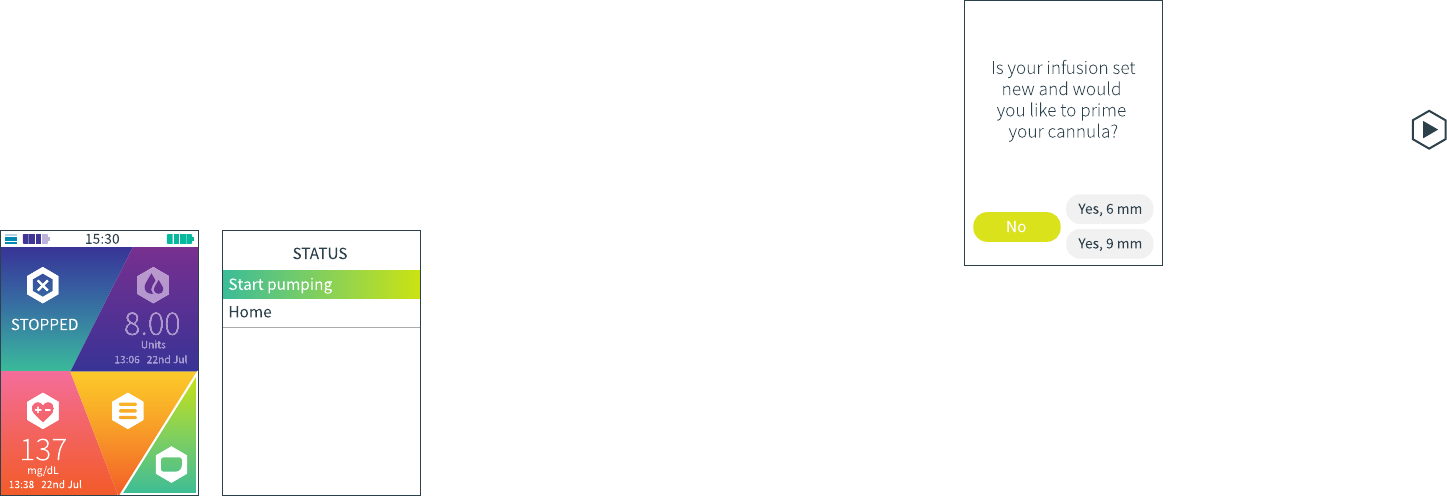
How do I restart my pump?
When your pump is in Stop mode, your handset and pump will stay
connected to each other. This means you can choose to start pumping
again whenever you like – your pump will just restart the same basal
profile you were using when you stopped it.
Restarting your pump is easy. You can also follow these steps if you need
to start your pump after choosing not to immediately start pumping
when you connected your pump to your handset.
STEP 1
On the Home screen, scroll
to Status and press Enter to
select.
STEP 2
When you’re in Stop mode,
the only option in your Status
menu will be Start pumping –
press Enter to select it.
204 How do I restart my pump?
STEP 3
Just in case you’re using a new
infusion set, your handset will
now give you another chance
to prime your cannula. There
are three options for you to
choose from:
• If you’d like to prime a new
infusion set with a 6 mm
cannula, press Enter to select
Yes, 6 mm. If you do, you’ll be
asked if you’re ready to prime
your cannula and start
pumping, and your handset
will walk you through what to
do next.
• If you’d like to prime a
new infusion set with a 9 mm
cannula, scroll down to
Yes, 9 mm, then press Enter
to select it. If you do, you’ll be
asked if you’re ready to prime
your cannula and start
pumping, and your handset
will walk you through what to
do next.
205How do I restart my pump?
• Or, if you don’t want to
prime your new infusion set’s
cannula or if you’re not using
a new infusion set, just press
the left button to scroll to No
and press Enter to select it.
You can find out more about
priming your cannula by
checking out Why do I need to
prime my cannula?

STEP 4
If you chose No, your handset
will now ask you if you’d like
to start pumping. Press the
Enter button to select Yes.
Make sure you don’t select
Yes until you’re wearing your
pump and infusion set and
ready to start receiving
insulin. Your handset will stay
on this screen for as long as
you need it to.
STEP 5
A confirmation message will
pop up – your pump has been
started. Your handset will
show you the basal profile
it’s currently running. You
can press the Enter button to
jump to the Home screen a
little quicker.
QUICK TIP
If you’ve changed your
mind, just press the
left button to scroll
to No. Press Enter to
select it and then
return to the Status
menu.
206 How do I restart my pump?
WARNING
You should always take a BG reading when
you start to pump after a break in your insulin
delivery. This will help you make informed
decisions about your immediate insulin
requirements.
STEP 6
Your Home screen will update
to show you all your pumping
details.
STEP 7
Next, take a BG reading to
make sure you’re happy with
your current insulin delivery.
207
How do I restart my pump?

Alerts & Alarms

Sometimes, life throws us curveballs. Rest
assured, if Kaleido thinks something isn’t quite
going to plan, it’ll sound an alert or an alarm to
let you know.
As long as it’s within range, your handset will
also display a message to let you know and
give you a bit more information too.
Alerts & Alarms
What is an alert?
What is an alarm?
You’ll receive an alert if your pump wants to warn you about something that’s
important but not urgent yet. It’s a bit of an advance heads up, kind of like a “Hey man,
just so you know...”.
The alert tone is two short beeps which will sound from your pump. When your handset
is in range, it will also sound the alert tone and give you an alert message that’ll pop up
on your handset, explaining what the alert is for.
Once you’ve read and understood the reason for the alert, press the Enter button to
select Alert understood – you’ll be taken back to the screen you were on last.
Alarms only occur if something serious is going on. There are two types of alarms –
those that affect your pump and those that only affect your handset. Pump alarms will
automatically stop your pump and put it into Stop mode. Handset alarms won’t stop
your pump, but they will cause your handset to turn off. Whichever alarm you get, you’ll
need to give it your full attention, stat.
The alarm tone for a pump alarm is a continuous series of beeps which will sound from
your pump. When it is in range, your handset will also sound the alarm tone and show
an alarm message, giving you more details about what’s going on. For a handset alarm,
the alarm tone is the same, but it only sounds from your handset (never from your
pump). You’ll also get an alarm message on your handset if you have a handset alarm.
Once you’ve read and understood the message, press Enter to select
Alarm understood. If it’s a pump alarm, you’ll then be taken straight to the Home
screen. If it’s a handset alarm, selecting Alarm understood will turn your handset off.
WARNING
Alerts and alarms will interrupt any other actions that you might be running on your
Kaleido handset. Your handset will always prioritise an alarm over an alert.
WARNING
Pump alarms will immediately stop your pump and put it into Stop mode. Once you’ve
sorted the issue that caused the alarm, you will need to restart your pump (see How do I
restart my pump?) to get it going again. You can also check out How do I stop my pump? for
more details about Stop mode.
211
What are alerts and alarms?
WARNING
Handset alarms will turn your handset off, but will not stop your pump. It will continue to
pump and deliver all programmed insulin as planned. However, you will need to resolve
the issue with your handset before you can continue using it to programme or change your
insulin delivery.

When will I get an alert?
You’ll get an alert if:
You should charge your
handset as soon as
possible. You can keep
an eye on how low your
handset battery is by
checking your Resource
Levels in System Settings.
You’ll first receive this alert
when you have just 25%
of your handset battery
remaining, then again at
10% and at 5% too.
If you receive this alert, it’s
important to start keeping
an eye on your pump
battery. You’ll need to
make sure everything you
need to replace your pump
is nearby, so that if your
current pump battery hits
empty, you can change
everything over quickly.
Again, you can keep a
check on how low your
pump battery is by
checking your Resource
Levels in System Settings.
You’ll first receive this alert
when your pump battery
has 25% of its power
remaining, then again at
10% and 5% capacity.
If you have less than 50
units left in your insulin
cartridge, the basal profile
you’re running and any
boluses you deliver could
empty your insulin
cartridge pretty quickly.
When you get this alert,
you’ll need to keep a
close eye on your insulin
cartridge levels and make
sure everything you need
to replace your insulin
cartridge is nearby, just in
case. Just like with your
handset and pump
batteries, you can see how
full your insulin cartridge is
by checking your Resource
Levels in System Settings.
To keep you in the loop,
you’ll receive this alert
when you have 50 units of
insulin left in your insulin
cartridge, and then again
at 25 units and 5 units too.
212 When will I get an alert?
• Your handset battery
is getting low
• Your pump battery
is getting low
• Your insulin cartridge
is getting low
Insulin cartridges can
be used for up to three
days before they must be
replaced. Once you’ve
received this alert, you’ll
have twelve hours until
your insulin cartridge
expires – and your infusion
set too if you started using
them at the same time.
Sometimes it might not be
possible to replace your
insulin cartridge straight
away, and so on those
occasions you’ll get this
alert once or, if needed,
twice more (after 6 hours
and after 10 hours). But,
you should always try
to replace your insulin
cartridge, pump and (if it’s
also three days old) your
infusion set as soon as
possible after getting the
first alert - so make sure
you keep everything you’ll
need to do this close by.
If this alert pops up, try
whatever you were doing
again (you could also try
moving your handset
closer to your pump too).
If that doesn’t work, give
Kaleido Care a call and
we can help you work out
what’s going on.
213
When will I get an alert?
• You’ve been using the
same insulin cartridge
for three days
• There is a
communication error
between your
handset and pump
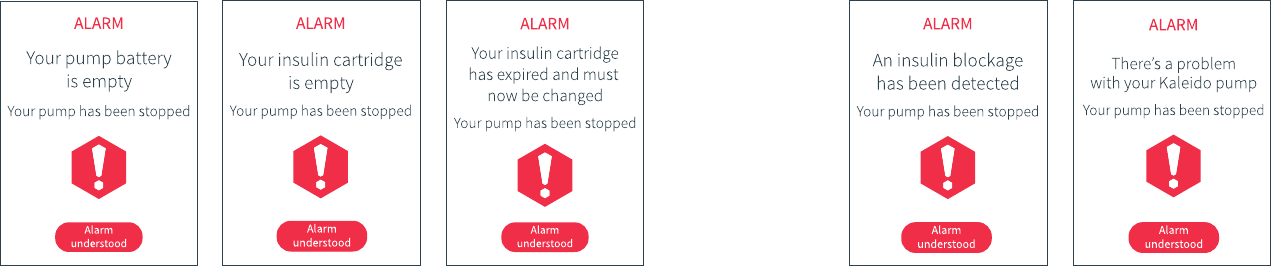
You’ll get a pump alarm if:
Your pump battery is
empty and your pump has
been stopped and
disconnected from your
handset. You need to
replace your pump
straight away, swapping
it for your other, fully
charged Kaleido pump.
It’s important to charge
the pump you’ve removed
as soon as possible, so
that it’s ready to use when
you next need it.
You’ve used up all of your
insulin, so you’ll need
to remove your existing
insulin cartridge and
replace it with a new, filled
cartridge. While you’re at
it, you should change your
Kaleido pump, and also
your infusion set if you’ve
been using the same one
for three days too.
You’ve been using your
insulin cartridge for too
long and you’ll need to
replace it with a new, filled
cartridge before you can
restart your pump. If you
started using your current
pump and infusion set
at the same time as your
old insulin cartridge, you
should replace them now
too.
214 When will I get a pump alarm?
When will I get a pump alarm?
• Your pump battery
is empty
• Your insulin cartridge
is empty
• The insulin cartridge
you’re using has
expired
Insulin blockages
(sometimes known as
occlusions) can be caused
by problems with either
your infusion set or insulin
cartridge. Have a look to
see if your insulin cartridge
tubing is twisted or kinked,
and if so, straighten it out.
If not, you’ll need to unclip
your insulin cartridge
connector from your
infusion set and replace
your infusion set and
insulin cartridge before
restarting your pump. If
the problem persists,
remove your Kaleido
pump and infusion set.
For now, switch to an
alternative method of
insulin delivery and call
Kaleido Care for help.
If you receive this alarm,
give Kaleido Care a call.
We’ll do all we can to get
you back up and running
quickly, but if we can’t,
you’ll need to swap to
your other Kaleido pump
while we work out what’s
up. Can’t call Kaleido Care
straight away? Just switch
to your other Kaleido
pump and then call us
when you can.
WARNING
If you get an insulin
blockage alarm, you may
not have received all of the
insulin you expected.
Should this happen, make
sure to check your blood
glucose levels and act
accordingly.
215
When will I get a pump alarm?
• Your pump has an
insulin blockage
• There’s a problem
with your Kaleido
pump
WARNING
If you receive an insulin
blockage alarm and can
detect the cause (for
example, a kink in the
insulin cartridge tubing),
it’s important to remember
that rectifying the problem
to restart the flow of insulin
may result in the delivery
of a small and unexpected
amount of insulin.
To avoid this, it is therefore
important to always
disconnect your insulin
cartridge and infusion set
before releasing any insulin
blockages.
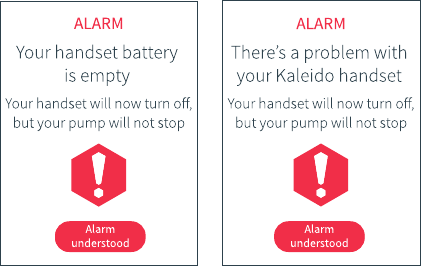
You’ll get a handset alarm if:
When will I get a handset alarm?
• Your handset battery
is empty
• There’s a problem
with your Kaleido
handset
If you get this alarm,
you’ll need to charge
your handset as soon
as possible. Once your
handset is charged, you’ll
be able to continue using
it as normal. To avoid
emptying your handset
battery in the future, you
can keep an eye on how
full it is by checking your
Resource Levels in System
Settings.
If you receive this alarm,
you’ll need to give Kaleido
Care a call. We’ll help you
work out what’s happened
and get you back up and
running quickly. Can’t
call Kaleido Care straight
away? Don’t worry, your
pump will continue
delivering insulin as
planned, but you should
give us a call as soon
as you can. In the
meantime, if you don’t
want to use your Kaleido
pump without your
handset, just unclip
your insulin cartridge
connector from your
infusion set and remove
your pump (see How
do I take my pump off?).
Then, remove your insulin
cartridge from your pump
– this will stop your pump
from pumping.
216 When will I get a handset alarm?
WARNING
If your Kaleido handset battery ever becomes
completely flat, causes your handset to turn off
and is left uncharged for seven days or more,
your handset’s internal clock will automatically
reset. This means it will not remember your
previous time and date settings. To avoid this,
charge your handset regularly. If you do allow
your handset battery to empty and remain
uncharged for seven days or more, make sure
you check your time and date settings are
correct as soon as you turn your handset
back on.
217When will I get a handset alarm?

Precautions
Your Kaleido pump will let you know straight away if there’s
an issue that needs your attention. But in very exceptional
circumstances, there may be times when your pump and
handset can’t detect that there’s a problem.
You need knowledge to help you make decisions should a
problem crop up, so you should make sure you always test
your blood glucose levels at least four times a day while
you’re using an insulin pump. If you ever have an
unexpected blood glucose level, check your Kaleido pump,
handset, insulin cartridge and infusion set for signs of
damage.
There is also always a small chance that you may have
missed an alert or alarm, so it’s a good idea to double-check
your History too. If in doubt, keep an alternative insulin
delivery system on standby, just in case, and call
Kaleido Care for help. If you feel unwell or you’re measuring
extremely high or low blood glucose levels, always call your
Healthcare Provider for advice.
218 Precautions
WARNING
It is important that you always act responsibly when
administering the insulin you require and especially if you
receive a pump or handset alarm or an alert while using
Kaleido. If an alarm causes your pump to stop or your handset
to turn off, blood glucose levels should be closely monitored
while the issue is resolved and also when normal insulin
delivery is resumed. Make sure you always have access to
an alternative method of insulin therapy.
WARNING
If you’re not sure how to react to an alert or alarm, please stop
using your Kaleido pump and switch to an alternative form of
insulin therapy.

Looking after
your Kaleido

Let’s be real - your Kaleido pump deserves the best! So let’s make sure
all of your Kaleido products stay in tiptop condition, ok? OK!
Looking after your Kaleido
Should I clean my Kaleido products?
Yes! We recommend that you take five minutes to clean your Kaleido pumps,
handset, charging dock and inserter at least once a week. Here’s how you do it:
STEP 1
Dab a little bit of pH neutral
detergent onto a clean, dry
cloth.
STEP 2
Using your cloth, gently
wipe your pumps, handset,
charging dock and inserter.
Remove any dirt or glue
residues that might have built
up thanks to your body and
pump patches.
STEP 3
Before you finish, make sure
you’ve wiped away any
detergent residue and then, if
necessary, pat your products
dry with a cloth.
WARNING
Never wet or submerge your
handset or charging dock.
WARNING
Make sure your handset’s micro
USB port and charging dock’s
contact pins never come into
contact with liquids.
WARNING
Never attempt to clean any of your
Kaleido products while they are
plugged into a power source.
QUICK TIP
Most liquid soaps
and baby shampoos
are pH neutral!
222 Should I clean my Kaleido products?
How should I store my Kaleido products?
Keep your Kaleido products in a safe place where you know you’ll be able to
access them whenever you might need to. Your handset and pumps should be
stored in the same environmental conditions that they operate in. These are:
Minimum
41°F
15%
Temperature
Non-condensing humidity
Maximum
98.6°F
93%
As for your insulin cartridges, once you’ve filled them with insulin, the safest
thing to do is refer to the storage advice for the insulin your Healthcare
Provider has given you. However, it’s important to remember that once you’ve
filled an insulin cartridge, you should start using it as soon as possible.
223
How should I store my Kaleido products?
WARNING
You shouldn’t use any of the items
in your Top-up Kit (including your
insulin cartridges) if their individual
packaging is damaged in any way.
They can no longer be considered
sterile and could be unsafe to use.
WARNING
Please check all your supplies and
parts for damage before you use
them. If any component is
damaged in any way, please
contact Kaleido Care.
WARNING
Storing your insulin cartridges in
direct sunlight or at temperatures
above 98.6°F could affect the
quality of the product.
WARNING
Do not store your handset or
pumps alongside any hard or sharp
objects. Doing so could damage
the screen and buttons of your
handset, as well as the contact
pins of your pumps.
WARNING
Don’t remove an insulin cartridge
from its pouch until you’re ready to
start using it.

224 How can I dispose of my Kaleido products?
What do I do if I need to dispose of my
Kaleido products?
Pumps, handset, charging dock and inserter
When it’s time to dispose of your Kaleido pumps, handset, charging dock or
inserter, you can return them to us at the following address and we’ll take care
of them for you:
ViCentra BV
Kanaalweg 17 b2
3526 KL Utrecht
Netherlands
Top-up Kit contents
The items in your Top-up Kit should only be used once and then disposed of in
an appropriate way. We recommend that you always use a sharps bin.
QUICK TIP
Your Healthcare Provider will
be able to advise you on how to
dispose of medicines that you no
longer need, as well as items that
have been contaminated with
medicine. You should also contact
your local authority for advice on
the proper method of disposal of
biohazardous material.
WARNING
Never dispose of sharp objects
without either using a sharps bin,
or safely covering them with the
appropriate protective caps.
225Where can I get replacement Kaleido products?
Where can I get replacement Kaleido products?
We’ll automatically send you a brand new Top-up Kit before you use everything
from your current kit. Cool, right? This way you shouldn’t need to worry about
replacing or ordering your infusion sets, insulin cartridges, pump and body
patches, needles, syringes and alcohol wipes.
Of course, if you need an extra top-up, want to change what you receive, or you
need to update your delivery address, just call Kaleido Care and we’ll take care of
it!
The Kaleido Care team will also be ready and waiting to help you if you ever need
a replacement pump, handset, charging dock, connection cable or inserter.
WARNING
You must only use products
supplied by ViCentra BV with your
Kaleido pumps and handset.
Using alternative parts from other
suppliers could damage your pump
and will invalidate your warranty.
WARNING
You must only use U100 insulin with
your Kaleido pumps.

FAQs

Now you’ve got your pump and handset up
and running, you’ve set some basal profiles
and know how to program a bolus with your
eyes closed, it’s time for Kaleido to get on
with doing its thing and you to get on with
doing yours!
We’ve racked our brains to think of any
questions that might pop up, and - to save
you time that you’d probably prefer to spend
elsewhere - we’ve answered them all for you
in this chapter. If you have any other queries,
Kaleido Care is always here for you, and you
might also want to get some advice from your
Healthcare Provider.
FAQs
Checking your blood glucose levels often is the
safest and most effective way to make sure your
insulin delivery plan cuts the mustard. It’ll help
to keep you aware of any potential highs or lows
before they start to get in your way.
It’s important that you take a BG reading to check
your blood glucose levels at least four times a
day - once when you wake up, and then once
again before eating your lunch, dinner and before
you go to sleep. You might also want to take a BG
reading about 1.5 hours after delivering a bolus,
before any particularly filling snacks, when your
pump is paused or stopped (and when you restart
it) and also after changing your insulin cartridge
and infusion set. Any information that all this
gives you can help you to plan your next steps.
QUICK TIP
Some sports and exercises can be
pretty energetic – we designed your
Kaleido products with real life in
mind, but we recommend never
putting them – or you! – at
unnecessary risk.
QUICK TIP
If you remove your pump for any
length of time, the most important
thing to remember is to check
your blood glucose levels more
frequently. This can help you to
avoid any unexpected changes and
can come in handy with catching
any highs or lows early too.
WARNING
You should always talk to your
Healthcare Provider for advice
on exercising and new exercise
regimes.
229
FAQs
How often should I take a BG reading?
WARNING
If you notice that your blood
glucose levels are high or that you
need more insulin than is normal
or expected, it could mean that the
insulin cartridge and infusion set
you are using may be damaged.
You should change your insulin
cartridge and infusion set as soon
as you can, and then check your
blood glucose levels regularly.
You might also want to consult
your Healthcare Provider.
Can I wear my pump during exercise?
It’s completely up to you! We designed your
Kaleido pump to be worn during all sorts of
physical activities, so keeping it on and
continuing your insulin delivery should fit right in.
It could make controlling your BGs during
exercise a bit easier too! But if you feel more
comfortable taking your pump off, no worries!
Just pause your pump and put it somewhere safe.
When you’ve finished your exercise, take a BG
reading, put your pump back on and unpause it.
Yes and no. A little dip? No sweat! But your
Kaleido pump can’t function in water deeper
than 1 metre. If you’re planning on swimming or
diving deeper than that, you’ll need to pause and
remove your pump first.
About to jump into a bath or shower? The water
depth shouldn’t be a problem, but you will need
to keep an eye on the water temperature. We
advise that you pause and remove your pump
first, rather than expose it (and your insulin!) to
high temperatures.
One more thing to remember – being in the water
might mean you’ll miss any alerts or alarms that
your pump might give out, so just be careful and
keep this in mind while you swim or bathe.
In normal temperatures, your Kaleido pump
can operate at altitudes of up to 3048 metres
(that’s 10,000 ft). However, extreme altitude,
temperatures or atmospheric conditions may
affect your pump’s performance, so keep this in
mind, take care and always have other means of
insulin therapy with you when doing any
activities at extreme altitudes or temperatures.
Oh, and send us a photo while you’re up there!
230 FAQs
What about water? Can I wear my pump if I go
swimming? Or if I’m in the bath?
WARNING
Your pump is not suitable for use
while scuba diving or when using
high diving boards.
WARNING
Your pump is not suitable for use in
hot tubs – extreme temperatures
can adversely affect your insulin.
WARNING
If your pump has been dropped,
make sure you examine it carefully
for cracks or signs of damage before
you take part in any water-based
activities.
WARNING
Never expose your Kaleido handset
or charging dock to water.
What about high altitudes?
Yes, you can! Aeroplane cabins are pressurised,
so your pump will continue to deliver your insulin
while you’re up in the air – no trouble. Most
airlines will ask you turn your electronic
appliances off during take-off and landing, but
Kaleido uses a low energy wireless connection
to connect your pump to your handset, so you
shouldn’t have any issues at all – in fact, most
airlines won’t even bat an eyelid. Airline
restrictions can change over time though, so
you might want to contact your airline in
advance to check their specific guidelines.
Airport security checks can sometimes be a bit
more tricky. But don’t worry - if you’re prepared,
they can be hassle-free. It’s a good idea to ask
your Healthcare Provider for a letter to confirm
that you’re wearing your Kaleido and carrying
insulin for medical purposes. When it’s time to
go through the security scanners, the scanners
won’t cause your pump or handset any damage,
though you might want to pause and remove
your pump and send it though the hand luggage
scanner instead – but that’s completely up to you.
Again, this is something that you can have a chat
to your airline about in advance if you want to.
When you travel, it pays to be prepared, so make
sure you take plenty of supplies with you, as well
as another form of insulin therapy, just in case.
Hmm, you’ve got us there... we’re gonna need
some time to think that through!
231FAQs
I need a holiday! Can I wear my pump on
aeroplanes?
WARNING
If you travel to a different time zone,
the time and date on your handset
will NOT automatically update.
Always ensure that you change
the time and date on your handset
to account for the difference in
time zones. Get in touch with your
Healthcare Provider for advice on
when and how to go about making
these adjustments.
WARNING
Please consult your Healthcare
Provider for more information
about insulin therapy when
travelling.
Would you rather fight one horse-sized duck
or a hundred duck-sized horses?

Technical
information
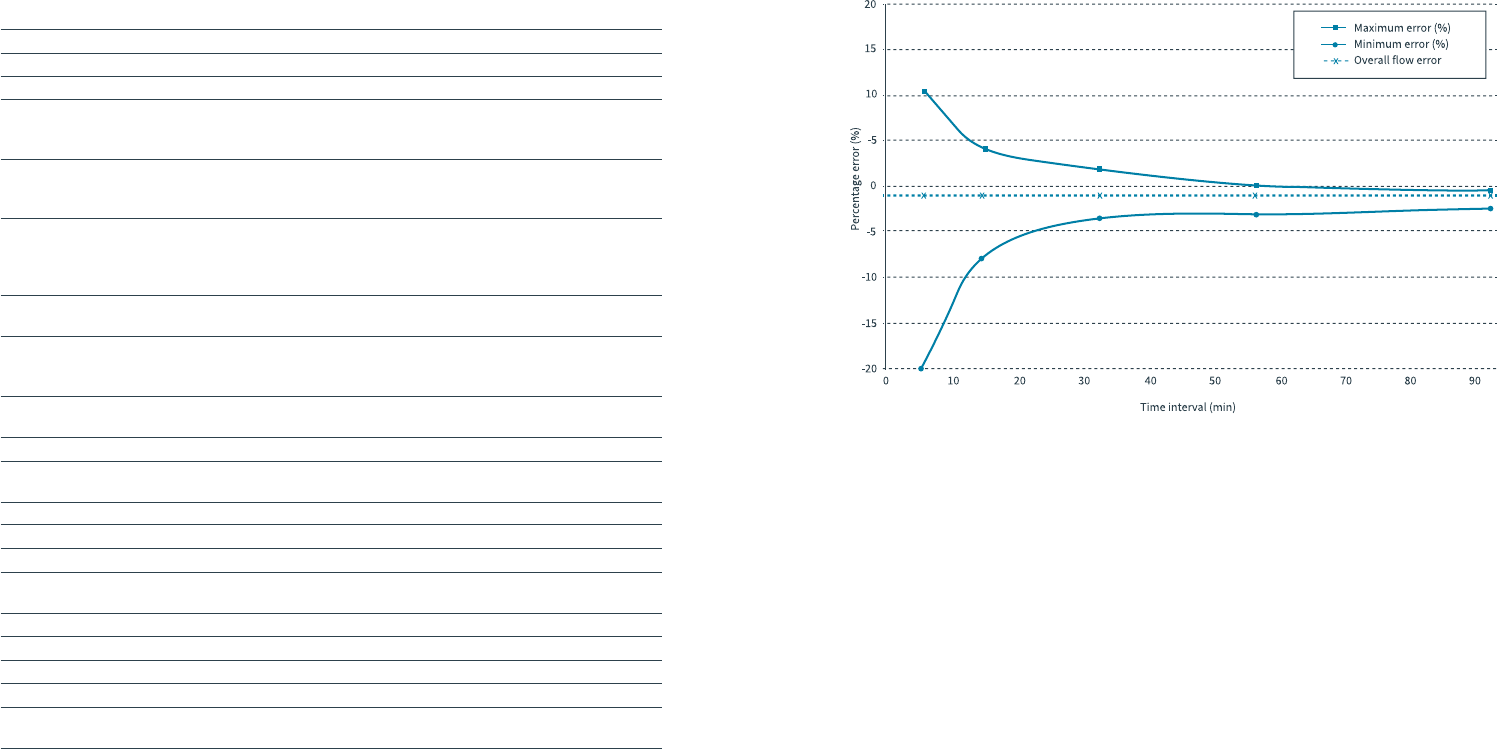
Technical information
234 Technical information
Technical specifications
Prepare to be wowed! Here’s what your Kaleido is capable of:
Specification
Operational and storage temperature range
Operational and storage humidity range
Operational and storage pressure range
Dimensions
Weight
Ingress protection
Batteries
Battery life
Service life
Alarm volume
Wireless radio
Wireless frequency
Delivery accuracy
Maximum infusion pressure at occlusion
Maximum time to occlusion alarm
Bolus volume generated at occlusion
Maximum delivery under single fault condition
Charger power input
Charger power output
System memory
Administration sets were used for all tests
performed under EN60601-2-24
Description
41 - 98.6°F
15 - 93% RH non-condensing
0.7 - 1.06 bar
Pump: 12.5 mm x 50 mm x 35 mm
Handset: 9 mm x 107 mm x 50 mm
Charging dock: 15 mm x 60 mm x 70 mm
Pump: 19 g
Handset: 60 g
Charging dock: 13 g
Pump: IP68 (dustproof and waterproof up to 1m
for up to 1 hour)
Handset: Keep dry
Charging dock: Keep dry
Pump: 260 mAh rechargeable lithium polymer
Handset: 550 mAh rechargeable lithium polymer
Pump: Over 3 days on a full charge
Handset: Approximately 2 days at typical usage
on a full charge
Pump: 4 years’ use
Handset: 4 years’ use
> 50 dB
Bluetooth® Low Energy
Class 3 transmitter with a peak power of 1 mW
2.4 GHz
±5% in all operating conditions
1 bar
1 hour at a basal rate of 1 U/hr
20 hours at a basal rate of 0.05 U/hr
< 0.5 U
0.05 U
100 - 240 V ac, 50/60 Hz
5V dc
The system memory is retained for 30 days
following switch off
Kaleido insulin cartridge (long)
235
Technical information
Pump accuracy
Typical insulin delivery accuracy for the Kaleido pump.
Tested according to IEC 60601-2-24 at a basal rate of 1 U/hr,
showing an overall error of -1.0%.
WARNING
The accuracy of your system is dependent upon it
being used correctly and in accordance with your
training and the instructions for use provided in the
Kaleido Guidebook.

Guidance and Manufacturer's Declaration –
Electromagnetic Emissions
Kaleido is intended for use in the electromagnetic
environment specified below. Any customer or user of
the Kaleido system should ensure that it is only used in
conditions such as these.
Emissions test Compliance
level
Electromagnetic environment
— guidance
RF Emissions CISPR 11 Group 2 The Kaleido system MUST emit electro-
magnetic energy in order to perform its
intended function. Nearby electronic
equipment may be affected.
RF emissions CISPR 11 Class B The Kaleido system is suitable for use in all
establishments, including domestic
establishments and those directly connected
to the public low-voltage power supply
network that supplies buildings used for
domestic purposes.
Harmonic emissions
IEC 61000-3-2
Class B
Voltage fluctuations / flicker
emissions IEC 61000-3-3
Complies
236 Technical information
Guidance and Manufacturer's Declaration –
Electromagnetic Immunity
Kaleido is intended for use in the electromagnetic
environment specified below. Any customer or user of
the Kaleido system should ensure that it is only used in
conditions such as these.
Immunity test IEC 60601
test level
Compliance
level
Electromagnetic
environment — guidance
Electrostatic
discharge (ESD)
IEC 61000-4-2
8 kV contact
15 kV air
8 kV contact
15 kV air
Floors should be wood, concrete
or ceramic tile. If floors are
covered with synthetic material,
the relative humidity should be at
least 30 %.
Electrical fast
transient/burst
IEC 61000-4-4
± 2 kV for power
supply lines
± 1 kV for input/
output lines
Kaleido is suitable for use in all
establishments, including domestic
establishments and those directly
connected to the public low voltage
power supply network that supplies
buildings used for domestic purposes.
Surge
IEC 61000-4-5
± 1 kV line(s) to line(s)
± 2 kV line(s) to earth
Voltage dips, short
interruptions and
voltage variations on
power supply input
lines
IEC 61000-4-11
<5 % UT
(>95 % dip in UT) for 0,5 cycle
40 % UT
(80 % dip in UT) for 5 cycles
70% UT
(30 % dip in UT) for 25 cycles
<5 % UT (>95 % dip in UT) for 5s
Power frequency
(50/60 Hz)
magnetic field
IEC 61000-4-8
If wireless communications
are adversely affected by
electromagnetic interference,
move the handset and pump
closer together or move to a
different location.
NOTE: UT is the a.c. mains voltage prior to application of the test level.
237
± 2 kV for power
supply lines
± 1 kV for input/
output lines
± 1 kV line(s) to line(s)
± 2 kV line(s) to earth
Kaleido is suitable for use in all
establishments, including domestic
establishments and those directly
connected to the public low voltage
power supply network that supplies
buildings used for domestic purposes.
Kaleido is suitable for use in all
establishments, including domestic
establishments and those directly
connected to the public low voltage
power supply network that supplies
buildings used for domestic purposes.
3 A/m 0.3 A/m
Technical information
Guidance and Manufacturer's Declaration –
Electromagnetic Immunity
Kaleido is intended for use in the electromagnetic
environment specified below. Any customer or user of
the Kaleido system should ensure that it is only used in
conditions such as these.
Immunity
test
IEC 60601
test level
Compliance
level
Electromagnetic environment —
guidance
Portable and mobile RF
communications equipment should
be used no closer to any part of the
Kaleido system including cables,
than the recommended separation
distance calculated from the equation
applicable to the frequency of the
transmitter.
Recommended separation distance:
Conducted RF
IEC 61000-4-6
3 Vrms
150 kHz to 80 MHz
Radiated RF
IEC 61000-4-3
3 V/m
80 MHz to 2.5 GHz
10 V/m
Where P is the maximum output power
rating of the transmitter in watts (W)
according to the transmitter
manufacturer and d is the recommended
separation distance in metres (m).
Field strengths from fixed RF
transmitters, as determined by an
electromagnetic site survey a, should be
less than the compliance level in each
frequency range b.
Interference may occur in the vicinity of
equipment marked with the following
symbol:
238
Pd = 0.35
Pd = 0.7
80 MHz to 800 MHz
800 MHz to 2.5 GHz
Recommended separation distance:
Not applicable Not applicable
Technical information
NOTE 1: At 80 MHz and 800 MHz, the higher frequency range applies.
NOTE 2: These guidelines may not apply in all situations. Electromagnetic propagation is
affected by absorption.
a Field strengths from fixed transmitters, such as base stations for radio (cellular/cordless)
telephones and land mobile radios, amateur radio. AM and FM radio broadcast and TV
broadcast cannot be predicted theoretically with accuracy. To assess the electromagnetic
environment due to fixed RF transmitters, an electromagnetic site survey should be
considered. If the measured field strength in the location in which the Kaleido system is used
exceeds the applicable RF compliance level above, the Kaleido system should be observed to
verify normal operation. If abnormal performance is observed, additional measures may be
necessary, such as re-orienting or relocating the Kaleido system.
b Over the frequency range 150 kHz to 80 MHz, field strengths should be less than 3 V/m.
239Technical information

Recommended separation distances
between portable and mobile RF
communications equipment and Kaleido
Kaleido is intended for use in an electromagnetic
environment in which radiated RF disturbances are
controlled. The customer or user of the Kaleido system can
help prevent electromagnetic interference by maintaining a
minimum distance between portable and mobile RF
communications equipment (transmitters) and their Kaleido
system, as recommended below according to the maximum
output power of the communications equipment.
For transmitters rated at a maximum output power not listed above, the recommended
separation distance d in metres (m) can be estimated using the equation applicable to
the frequency of the transmitter, where P is the maximum output power rating of the
transmitter in watts (W) according to the transmitter manufacturer.
NOTE 1: At 80 MHz and 800 MHz. the separation distance for the higher frequency
range applies.
NOTE 2: These guidelines may not apply in all situations. Electromagnetic
propagation is affected by absorption and reflection from structures,
objects and people.
Rated maximum
output power
of transmitter in
W
Separation distance according to frequency of transmitter in m
150 kHz to 80 MHz 80 MHz to 800 MHz 800 MHz to 2.5 GHz
0.01
0.1
1
10
100
240
0.12 0.04 0.07
0.37 0.11 0.22
1.17 0.35 0.70
3.70 1.11 2.21
11.70 3.50 7.00
d = 1.17 Pd = 0.35 Pd = 0.7 P
Technical information
Declarations and statements
241
Medical electrical equipment needs special precautions regarding EMC and
needs to be put into service according to the EMC information provided in this
document.
Kaleido contains a radio transmitter and receiver intended to be worn on your
body. It is designed not to exceed the limits for exposure to radio waves (radio
frequency electromagentic fields) recommended by the international
commission on non-ionising radiation protection (ICNIRP). These limits
include a substantial safety margin designed to assure the safety of all
persons, regardless of age and health.
The radio wave exposure guidelines use a unit of measurement known as
the Specific Absorption Rate, or SAR. The SAR limit for a body worn mobile
device is 2 W/kg. Kaleido uses a low powered standard technology for radio
communication operating in the frequency band from 2.402 to 2.48 GHz.
Due to the very low output power (typically 0.35 mW), the radio wave
exposure from Kaleido is far below the established limits.
Other radio equipment may interfere with your Kaleido system, even if that
other equipment complies with CISPR emission requirements. Radio devices
should be kept at least d (as calculated in the tables) away from Kaleido.
Each of your Kaleido products has a unique serial number which helps us
identify important information like when it was made. For your Kaleido pumps
and handset, this information also includes details of the version of Kaleido
software your products run on. This information is securely held for you by
ViCentra.
Technical information

242 Technical information
How to contact Kaleido’s manufacturer
Manufacturer: ViCentra BV
Address: Kanaalweg 17 b2
3526 KL Utrecht
Netherlands
Telephone: +31 (0) 88 3232 871
Email: Kaleido@ViCentra.com
Website: www.ViCentra.com
About your Kaleido Guidebook
Document number: 100233-01
Issue date: October 31, 2017
Print date: XXX
243
Kaleido®, Kaleido Care® and ViCentra® are registered
trademarks of ViCentra BV.
The Bluetooth® word mark and logos are registered trademarks
owned by the Bluetooth SIG, Inc. and any use of such marks by
ViCentra BV is under license. Other trademarks and trade names
are those of their respective owners.
Humalog® is a registered trademark of Eli Lilly and Company.
NovoRapid® is a registered trademark of Novo Nordisk A/S.
Trademark information
Technical information
FCC warning statement
• This device complies with Part 15 of the FCC Rules. Operation is
subject to the following two conditions:
1) This device may not cause harmful interference, and
2) This device must accept any interference received, including
interference that may cause undesired operation.
• This equipment complies with FCC radiation exposure limits set forth
for an uncontrolled environment. End users must follow the specific
operating instructions for satisfying RF exposure compliance.
This transmitter must not be co-located or operating in conjunction
with any other antenna or transmitter.
• Changes or modifications not expressly approved by the party
responsible for compliance could void the user’s authority to
operate the equipment.
Warranty
Hardware warranty
In addition to the user’s rights under applicable mandatory law ViCentra® B.V.
(“ViCentra®”) warrants the Kaleido® Hardware against defects in materials and
workmanship for the period of 4 (four) years from the original date of shipment of
the Hardware to the original end user (the “Warranty Period”). During the Warranty
Period, ViCentra® will replace any defective Kaleido® Hardware, subject to the
conditions and exclusions stated herein.
Throughout this warranty the words “Kaleido® Hardware” shall comprise a Kaleido®
insulin pump, a Kaleido® handset, a Kaleido® infusion set inserter, a Kaleido® insulin
pump charging dock, a Kaleido® connection cable and a Kaleido® power adaptor as
supplied in the Kaleido® Starter Kit. The term “Hardware” shall mean one or more
items of Kaleido® Hardware.
If, during the warranty period, the Hardware should fail because of a defect in
material or workmanship, the faulty item may be returned to ViCentra® and ViCentra®
will, at its discretion, either repair or replace the same Hardware with a new or
recertified Hardware, at ViCentra®’s, option, without charge to the end user. In certain
circumstances and at its sole discretion, ViCentra® may instead elect to refund all or a
portion of the purchase price of the Hardware to the end user.
Freight and transportation charges, where applicable, incurred in shipping Hardware
to be repaired or replaced under this limited warranty will be paid by ViCentra®.
In the event Hardware is replaced or repaired under this warranty, the Warranty
Period shall not be extended. In the event ViCentra® elects to provide replacement
Hardware prior to receipt of the original Hardware, you must return your original
Hardware to ViCentra® upon receiving the replacement Hardware. In the event it is
not returned, this warranty shall be void and the user will not be entitled to future
Hardware replacement or repairs.
The warranty is valid only if Kaleido® Hardware is used in accordance with
ViCentra® instructions and will not apply to the following:
• damage resulting from changes or modifications made to the Kaleido® Hardware by
the user or third persons after the date of manufacture;
• use with other than approved software and modifications to the Kaleido® software;
• damage results from service or repairs performed to any part of the Kaleido®
Hardware by any person or entity other than ViCentra® and its authorised
representatives;
• if a non-Kaleido® insulin cartridge is used with the Kaleido® Hardware;
• if a non-Kaleido® infusion set is used with the Kaleido® Hardware;
• damage results from a force majeure or other event beyond the reasonable control
of ViCentra®;
244 Technical information
• damage results from negligence or improper use, including but not limited to
improper storage, physical abuse or use outside the ranges specified in the technical
data such as excess altitude or humidity; or
• cosmetic damage or ‘wear and tear’ including but not limited to scratches not
effecting functionality.
This limited warranty extends only to the original end user and is not transferable.
Any sale, rental or other transfer or use of the Kaleido® Hardware covered by this
warranty to or by a user other than the original end user shall cause this warranty
to immediately terminate. This warranty only applies to the Kaleido® Hardware as
defined above and not to other products or accessories.
The remedies provided for in this warranty are the exclusive remedies available in
the event of any breach hereof. Except for such remedies, ViCentra®, its suppliers,
and its distributors shall not, to the extent permitted by law, be liable for any
losses, liabilities, claims, or damages of any kind or nature whatsoever, including,
without limitation, any indirect, consequential, incidental, or special damages
caused by or arising from a defect of the Hardware.
Save as expressly set forth in this limited warranty, all other warranties, expressed
or implied, are excluded, including the warranties of merchantability and fitness
for a particular purpose.
Infusion set and insulin cartridge warranty
In addition to the user’s rights under applicable mandatory law ViCentra® B.V.
(“ViCentra®”) warrants the Kaleido® insulin cartridge and infusion set against defects
in materials and workmanship for the period 3 (three) days after the individual
insulin cartridge/infusion set sterile packaging has been opened, not to exceed 6 (six)
months from the original date of shipment of the insulin cartridge or infusion set to
the original end user (the “Warranty Period”). During the Warranty Period, ViCentra®
will replace any defective Kaleido® insulin cartridge or infusion set, subject to the
conditions and exclusions stated herein.
The warranty is valid only if the insulin cartridges and infusion sets are used in
accordance with the ViCentra® instructions and will not apply:
• if the insulin cartridge or infusion set has been used for more than a single-time use
by a single end-user;
• if damage results during the improper opening of the sterile package not in
conformance with the procedures outlined in the associated instructions for use;
• if the sterile package is compromised while in the control of the user by any means
other than purposeful opening by the user at the time of intended product use;
• if damage results from changes or modifications made to the insulin cartridge or
infusion set by the user or third persons after the date of manufacture;
245Technical information
• if a non-Kaleido® infusion set inserter is used with the Kaleido® infusion set and insulin
cartridge
• if damage results from service or repairs performed to any part of the insulin cartridge
or infusion set by any person or entity other than ViCentra®;
• if damage is caused by use of the insulin cartridge or infusion set with any
non-Kaleido® insulin pump;
• if damage results from a force majeure or other event beyond the control of ViCentra®;
or
• if damage results from negligence or improper use, including but not limited to
improper storage or physical abuse such as dropping or otherwise.
This limited warranty extends only to the original end user and is not transferable. Any
sale, rental or other transfer or use of the Kaleido® insulin cartridges and infusion sets
covered by this warranty to or by a user other than the original end user shall cause this
warranty to immediately terminate. This warranty only applies to the Kaleido® insulin
cartridges and infusion sets as defined above and not to other products or accessories.
The remedies provided for in this warranty are the exclusive remedies available in
the event of any breach hereof. Except for such remedies, ViCentra®, its suppliers,
and its distributors shall not, to the extent permitted by law, be liable for any losses,
liabilities, claims, or damages of any kind or nature whatsoever, including, without
limitation, any indirect, consequential, incidental, or special damages caused by or
arising from a defect of the insulin cartridges or infusion sets.
Save as expressly set forth in this limited warranty, all other warranties, expressed
or implied, are excluded, including the warranties of merchantability and fitness for
a particular purpose.
Consumables warranty
In addition to the user’s rights under applicable mandatory law ViCentra® B.V.
(“ViCentra®”) warrants the Kaleido® Consumables against defects in materials and
workmanship for the period of 6 (six) months from the original date of shipment of the
Consumables to the original end user (the “Warranty Period”). During the Warranty
Period, ViCentra® will replace any defective Kaleido® Consumables, subject to the
conditions and exclusions stated herein.
Throughout this warranty the words “Kaleido® Consumables” shall include syringes,
needles, body patches, pump patches and alcohol wipes supplied by ViCentra®.
If a defect exists, ViCentra®, at its option and to the extent permitted by law will either:
1) repair the product at no charge using new or refurbished parts;
2) exchange the product with a functionally equivalent product that is new or
refurbished; or
3) refund the original purchase price.
246 Technical information
This warranty is available only to the original end user and excludes damage resulting
from abuse, accident, modifications or other causes that are not defects in materials
and workmanship.
The remedies provided for in this warranty are the exclusive remedies available in
the event of any breach hereof. Except for such remedies, ViCentra®, its suppliers,
and its distributors shall not, to the extent permitted by law, be liable for any losses,
liabilities, claims, or damages of any kind or nature whatsoever, including, without
limitation, any indirect, consequential, incidental, or special damages caused by or
arising from a defect of the consumables.
Save as expressly set forth in this limited warranty, all other warranties, expressed
or implied, are excluded, including the warranties of merchantability and fitness for
a particular purpose.
247Technical information


Guidebook