Viatom Technology 6600 Health Monitor User Manual
Shenzhen Viatom Technology Co., Ltd. Health Monitor
User Manual
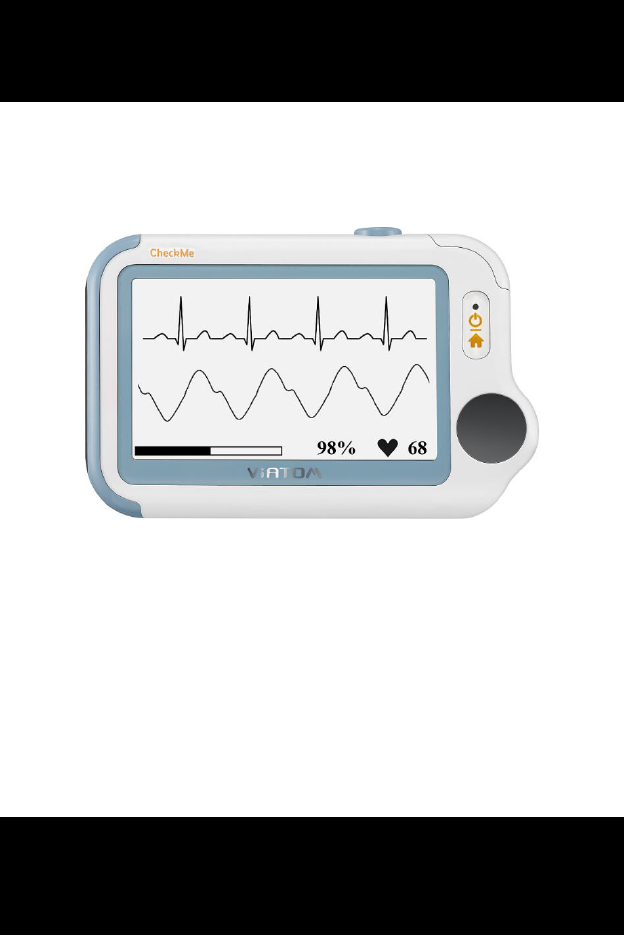
CheckmeTM Health Monitor
1. The Basics ........................................................................................ 1
2. Intended Use ................................................................................... 4
3. Getting Started ................................................................................ 8
4. Using Checkme ................................................................................ 9
5. Settings .......................................................................................... 26
6. Review ........................................................................................... 30
7. Maintenance ................................................................................. 32
8. Accessories .................................................................................... 36
9. Specifications ................................................................................ 37
10. Electromagnetic Compatibility ...................................................... 40
User’s Manual
Knowing and Tracking Your Health

1
1. The Basics
This manual contains the instructions necessary to operate the product
safely and in accordance with its function and intended use. Observance
of this manual is a prerequisite for proper product performance and
correct operation and ensures patient and operator safety.
This manual is based on the maximum configuration of Checkme Pro
health monitor. Some functions may be not available on your model.
1.1 Safety
Warnings and Cautionary Advices
Before using the device, please ensure that you have read this
manual thoroughly and fully understand corresponding precautions
and risks.
This device has been designed for practical use, but is not a
substitute for a visit to the doctor.
The data and results displayed on the device are for reference only
and cannot be directly used for diagnostic interpretation or
treatment.
We recommend not to use this device if you have a pacemaker or
other implanted devices. Follow the advice given by your doctor, if
applicable.
Do not use this device with a defibrillator.
Do not use this device during MRI examination.
Do not use the device in a combustible environment (i.e., oxygen-
enriched environment).
Never submerge the device in water or other liquids. Do not clean
the device with acetone or other volatile solutions.
Do not drop this device or subject it to strong impact.
Do not place this device in pressure vessels or gas sterilization device.
Do not dismantle the device, as this could cause damage or
malfunctions or impede the operation of the device.
This device is not intended for use by people (including children)
with restricted physical, sensory or mental skills or a lack of
2
experience and/or a lack of knowledge, unless they are supervised
by a person who has responsibility for their safety or they receive
instructions from this person on how to use the device. Children
should be supervised around the device to ensure they do not play
with it.
Do not allow the electrodes of the device to come into contact with
other conductive parts (including earth).
Do not use the device with persons with sensitive skin or allergies.
Do not store the device in the following locations: locations in which
the device is exposed to direct sunlight, high temperatures or levels
of moisture, or heavy contamination; locations near to sources of
water or fire; or locations that are subject to strong electromagnetic
influences.
Do not swing the device with the strip, which may result in injury.
This device displays changes in the heart rhythm and blood
oxygenation etc. which may have various different causes. These
may be harmless, but may also be triggered by illnesses or diseases
of differing degree of severity. Please consult a medical specialist if
you believe you may have an illness or disease.
Vital signs measurements, such as those taken with this device,
cannot identify all diseases. Regardless of the measurement taken
using this device, you should consult your doctor immediately if you
experience symptoms that could indicate acute disease.
Do not self-diagnose or self-medicate on the basis of this device
without consulting your doctor. In particular, do not start taking any
new medication or change the type and/or dosage of any existing
medication without prior approval.
This device is not a substitute for a medical examination or your
heart or other organ function, or for medical electrocardiogram
recordings, which require more complex measurements.
It is not possible to use this device to diagnose illness or diseases.
This is exclusively the responsibility of your doctor.
We recommend that you record the ECG curves and other
measurements and provide them to your doctor if required.
Changes or modifications to this unit not expressly approved by the
party responsible for compliance could void the user’s authority to
operate the equipment.
3
NOTE: This equipment has been tested and found to comply
with the limits for a Class B digital device, pursuant to Part 15 of
the FCC Rules. These limits are designed to provide reasonable
protection against harmful interference in a residential
installation. This equipment generates, uses and can radiate
radio frequency energy and, if not installed and used in
accordance with the instructions, may cause harmful
interference to radio communications.
However, there is no guarantee that interference will not occur
in a particular installation. If this equipment does cause
harmful interference to radio or television reception, which can
be determined by turning the equipment off and on, the user is
encouraged to try to correct the interference by one or more of
the following measures:
Reorient or relocate the receiving antenna.
Increase the separation between the equipment and
receiver.
Connect the equipment into an outlet on a circuit different
from that to which the receiver is connected.
Consult the dealer or an experienced radio/TV technician for
help.
This device complies with Part 15 of the FCC Rules. Operation is
subject to the following two conditions:
(1) this device may not cause harmful interference, and
(2) this device must accept any interference received, including
interference that may cause undesired operation.
USB charging cable(540-00194-00) must be used with this unit to
ensure compliance with the Class B FCC limits.
4
2. Intended Use
The Checkme series health monitor is intended to be used for measuring,
displaying, reviewing and storing of multiple physiological parameters
including ECG, pulse oxygen saturation (SpO2), pulse rate, temperature
and blood pressure variation in home or healthcare facilities environment.
ECG and Blood pressure variation is intended for use with adult.
The data and results provided by this device are for pre-check screening
purpose only and cannot be directly used for diagnostic or treatment.
2.1 About Checkme
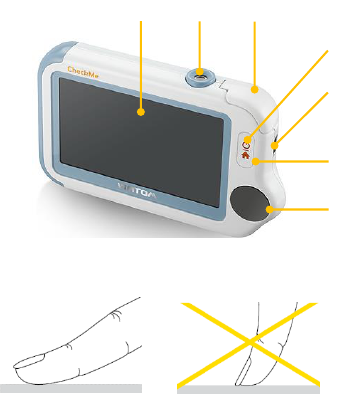
1. Touch Screen
Use the pad of your finger to tap or slip on the touch screen. Do not
use your fingernail or any other object to tap the screen.
2. Infrared temperature sensor
3. Internal SpO2 sensor
4. LED indicator
Off: the monitor is turned off or working in Standby Mode;
Green: the monitor is turned on, and working normally; or when
the battery is fully charged;
Blue: the battery is being charged;
Red and flash: the battery is low;
5. Multi-functional connector
It connects with external SpO2 cable, ECG cable, or charging cable.
5
6
7
2
1
3
4
5
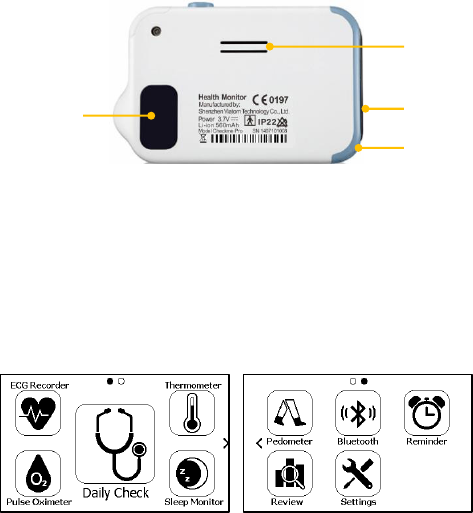
6. Home, Power On/Off
When the monitor is off, press this button to power it on.
When the monitor is on, press and hold it for 2 seconds to turn
it off.
During operation, press this button will switch to Main Screen,
or Calendar Screen, or return to upper menu.
7. ECG right electrode
Use right thumb to press on it.
8. Speaker
9. ECG left electrode
Put it to your left palm, left abdomen or left knee.
10. Neck stripe hole
11. ECG back electrode
Use right forefinger or middle finger to press on it.
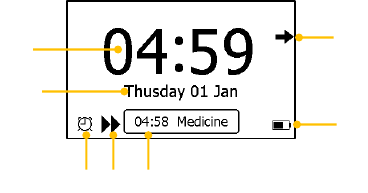
2.2 Main Screen
The Main Screen is shown as below. Slipping your finger from right to left
can switch to the second page, and vice versa.
Press a button in the Main Screen will start a measurement, activate a
function, or open corresponding menu.
2.3 Calendar Screen / Standby Mode
The device will enter Calendar Screen / Standby Mode when:
No operation is detected for 120 seconds in other screen interface,
9
11
8
10
6
the device will automatically switch to the Calendar Screen.
Pressing the Home button in the Main Screen.
1. Current time
2. Current date
When a reminder event happens, this area displays the event name,
e.g. “Daily Check”.
You are allowed to change the current time and date when the device is
powered on at the first time. Or you can also go to the Setting menu to
change it. Please refer to Section 5.4 for details.
3. This arrow indicates users to press the Home button to exit the
Calendar Screen / Standby Mode.
4. Battery indicator
Please refer to Section 7.1 for details.
5. If you failed to respond to the previous reminder event, then that
event will be shown in this area.
6. This icon appears when <Quick ECG> is enabled. Please refer to
Section 5.4 for details.
7. This icon appears if you have set reminder event.
When the device enters Calendar Screen, it also begins to work in Standby
Mode, which is an ultra-low power consumption mode. In Standby Mode,
the touch screen operation is invalid.
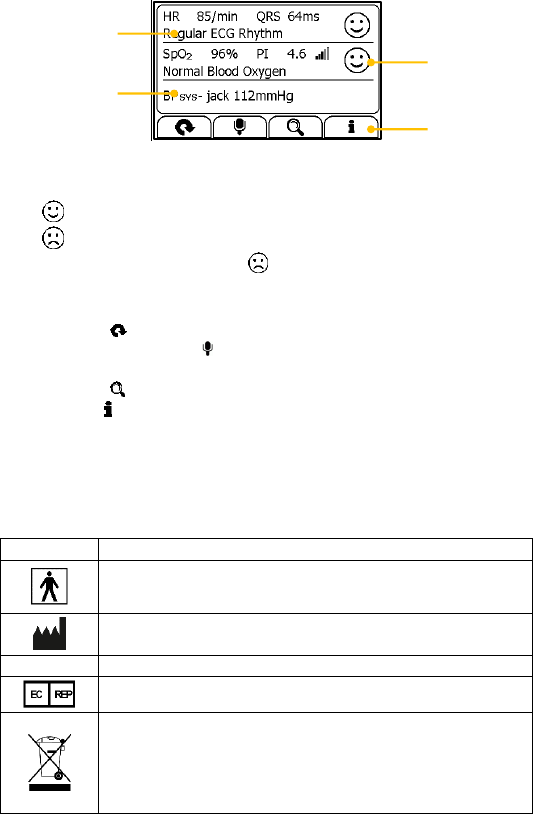
2.4 Result Screen
This device provides powerful measurement functionalities, including
Express Record, Health Check, ECG Record, Oximeter, BP Tracker,
Themometer, Sleep Monitor and Pedometer. For each measurement, a
Result report will be provided after the measurement is finished. An
example is shown as below.
1
2
3
4
6
7
5
7
1. Measured parameters and readings
2. A summary of this measurement
3. A graphic indicator about the health status
: All measured parameters are within the reference range;
: One or more than one measured parameter(s) is (are) out of
reference range. When the icon appears, it is suggested to test
again, and consult your doctor for help.
4. Buttons
Select button to start a measurement again.
Press and hold the button to add voice memo. Voice memo is
only available for Daily Check and ECG Recorder measurements.
Select button to review previous results.
Press button to open the help information.
In the Result Screen, if there is no operation for 2 minutes, the device will
automatically returns to Standby Screen.
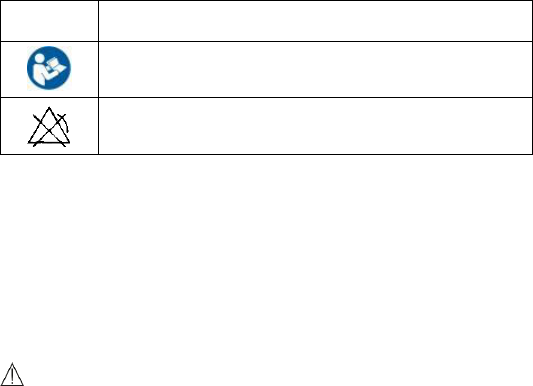
2.5 Symbols
Symbol
Meaning
Application part type BF
Manufacturer
CE0197
In conformity with Directive 93/42/EEC
Europran Representative
Symbol for “ENVIRONMENT PROTECTION – Waste
electrical products should not be disposed of with
household waste. Please recycle where facilities exist.
Check with your local authority or retailer for recycling
advice”.
1
2
3
4
8
IP22
Against ingress of solid foregin objects ≥12.5mm dimeter,
Against dripping(15° tilted)
Follow operating instructions
No alarm system.
3. Getting Started
3.1 Unpacking
Before unpacking, examine the packing case carefully for signs of damage.
If any damage is detected, contact the carrier or us. If the packing case is
intact, open the package and remove the equipment and accessories
carefully. Check all materials against the packing list and check for any
mechanical damage. Contact us in case of any problem.
Warnings and Cautionary Advices
Save the packing case and packaging material as they can be used if
the device must be reshipped.
Keep the warranty card, which is useful within the period of
warranty.
When disposing of the packaging material, be sure to observe the
applicable waste control regulations and keep it out of children’s
reach.
The equipment might be contaminated during storage and transport.
Before use, please verify whether the packages are intact, especially
the packages of single use accessories. In case of any damage, do
not apply it to patients.
3.2 Power On/Off
Press the Power On/Off button to power on the device. Press and hold
Power On/Off button for 2 seconds to power off the device.
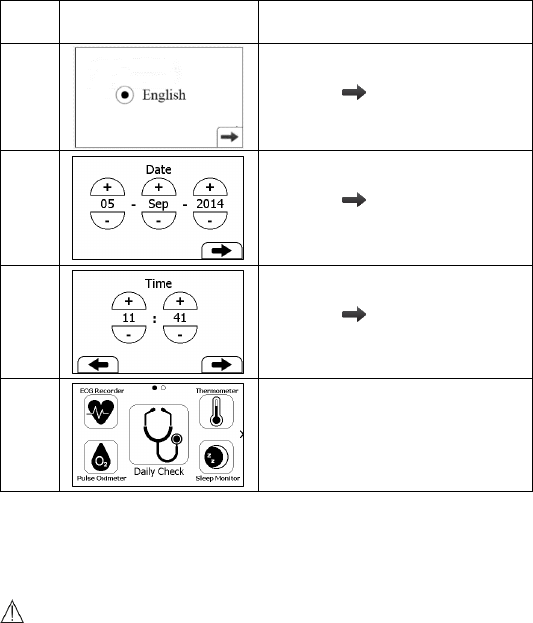
3.3 Initial Settings
The first time when the Checkme is powered on, you can follow the steps
as below to set up your Checkme monitor.
9
Step
User Interface
Action
1
Tap the language you want the
device to use.
Then tap .
2
Tap the “+” or “-” button to
change the date, month and year.
Then tap .
3
Tap the “+” or “-” button to
change the time.
Then tap .
4
The Main Screen shows when you
finish those steps as above.
4. Using Checkme
4.1 Prior to Use
Warnings and Cautionary Advices
Use only cables, electrodes, sensors and other accessories specified
in this manual.
The device has no alarms and will not sound if the measurement
reading is too low or too high.
Before using ECG
Before using Daily Check or ECG Recorder function, pay attention to the
following points in order to obtain precise measurements.

10
The ECG electrode must be positioned directly against the skin.
If your skin or hands are dry, moisten them using a damp cloth
before taking the measurement.
If the ECG electrodes are dirty, remove the dirt using a soft cloth or
cotton bud dampened with disinfectant alcohol.
During the measurement, do not touch your body with the hand
with which you are taking the measurement.
Please note that there must be no skin contact between your right
and left hand. Otherwise, the measurement cannot be taken
correctly.
Stay still during the measurement, do not speak and hold the device
still. Movements of any kind will falsify the measurements.
If possible, take the measurement when sitting and not when
standing.
Warnings and Cautionary Advices
When connecting external electrodes and/or patient cables, make
sure that the connectors never come into contact with other
conductive parts, or with earth. In particular, make sure that all of
the ECG electrodes are attached to the patient, to prevent them
from contacting conductive parts or earth.
If using the ECG for long-term monitoring, periodically inspect the
electrode application site to ensure skin quality. If the skin quality
changes, replace the electrodes or change the application site.
Do not use this device during defibrillation.
Interference from a non-grounded instrument near the patient and
electro surgery interference can causes problems with the
waveform.
The ST algorithm has been tested for accuracy of the ST segment
data. The significance of the ST segment changes need to be
determined by a clinician.
Before using Oximeter
Before using Daily Check, Oximeter or Sleep Monitor function, pay
attention to the following points in order to obtain precise measurements.
The finger inserted in SpO2 sensor must be clean to ensure proper
reading.
Any of the following conditions may cause inaccurate
measurements, including but not limited to:
- Flickering or very bright light;

11
- Poor blood circulation;
- Low hemoglobin;
- Hypotension, severe vasoconstriction, severe anemia or
hypothermia;
- Nail polish, and/or artificial nails;
- Any tests recently performed on you that required an injection of
intravascular dyes.
The Oximeter may not work if you have poor circulation. Rub your
finger to increase circulation, or place the SpO2 sensor on another
finger.
The Oximeter measures oxygen saturation of functional hemoglobin.
High levels of dysfunctional hemoglobin (caused by sickle cell
anemia, carbon monoxide, etc.) could affect the accuracy of the
measurements.
Field strengths from fixed transmitters, such as base stations for
radio (cellular/cordless) telephones and land mobile radios,
amateur radio, AM and FM radio broadcast towers, and TV
broadcast towers may affect accuracy.
The pleth waveform displayed on the device is normalized.
Warnings and Cautionary Advices
Limit finger movement as much as possible when using the Daily
Check or Oximeter, which might result in incorrect reading or
analysis.
Do not use the Oximeter on the same hand/arm when using a blood
pressure cuff or monitor.
Do not use the Oximeter outside the specified operating and storage
temperature ranges.
Do not use this device during MRI (magnetic resonance imaging).
Induced current could potentially cause burns. The SpO2 sensor may
affect the MRI image, and the MRI unit may affect the accuracy of
the oximetry measurements.
Prolonged continuous SpO2 monitoring or sleep monitoring may
increase the risk of undesirable changes in skin characteristics, such
as irritation, reddening, blistering or burns.
Check the SpO2 sensor application site every 6-8 hours to determine
the positioning of the sensor and the circulation and skin sensitivity
of the patient. Patient sensitivity varies depending on medical status
or skin condition. For patients with poor peripheral blood circulation

12
or sensitive skin, inspect the sensor site more frequently.
4.2 Daily Check
About Daily Check
Warnings and Cautionary Advices
Before using this function, please read the Section 4.1.
When using Daily Check, please ensure you select the right user.
Wrong user will result in incorrect blood pressure readings.
To ensure better tracking of your health status, it is strongly
suggested that every Daily Check measurement is made at the same
time period when your body is in the relative same situation. E.g.,
every morning when get up, or every night before go to bed.
Daily Check measurement is a function that combines the measuring of
ECG (Electrocardiograph) waveform, HR (heart rate), Pleth waveform,
SpO2 (blood oxygenation), PI (Pulse Index) and systolic blood pressure. It
takes only 20 seconds to collect your vital signs before giving you vital
signs readings and your health evaluation.
For each individual, the correlation among those parameters measured by
Daily Check is different, so when Daily Check function is used by more than
one user, you need to create the user profile for each user. Before using
Daily Check measurement or reviewing the Daily Check data, ensure that
the correct user is selected. Please refer to Section 5.8 to know how to
manage users.
Setting Daily Check Reminder
To better manage your health status, it is recommended to take Daily
Check measurement at a regular interval, like once every day or once a
week. To ensure that you never forget to take a Daily Check measurement,
you can set a Daily Check reminder. When this Daily Check reminder event
is triggered, the device gives audio alarm prompt, which will last for one
minute if you don’t cancel it manually.
To set the Daily Check reminder event, please refer to Section 4.8.
Using Daily Check
To start a Daily Check, follow the steps as below.
1. If you have not created user, then please follow the instruction in
Section 5.8 to add your user account.
13
2. Press the Home button to enter the Main Screen.
3. Tap the <Daily Check> icon in the middle of the screen.
4. Choose the right user.
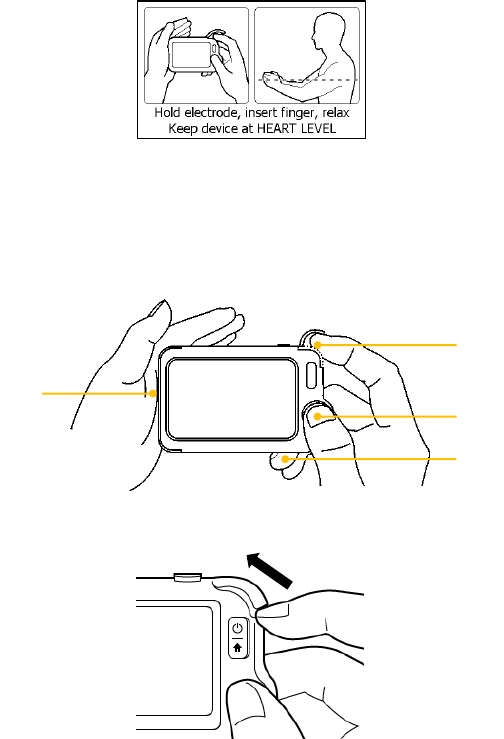
5. Hold the device according to the instruction, keep the device at the
same level as your heart, and keep stable posture and stay calm.
Don’t exert too much pressure on the ECG electrode, which may
result in EMG (electromyograph) interference. Just hold gently and
ensure good contact with the ECG electrode. Do not exert pressure
on the finger that put in the SpO2 sensor. Just fit it inside but gently
to ensure good blood perfusion.
(1) Put the right forefinger into the built-in SpO2 sensor. Use the
finger nail to squeeze the edge of the SpO2 sensor cover, then
move in upward to the left to raise it up as shown below.
(2) Press the right thumb on the right electrode.
(1)
(2)
(3)
(4)
14
(3) Press the right middle finger on the back electrode.
(4) Press the left electrode to the left palm.
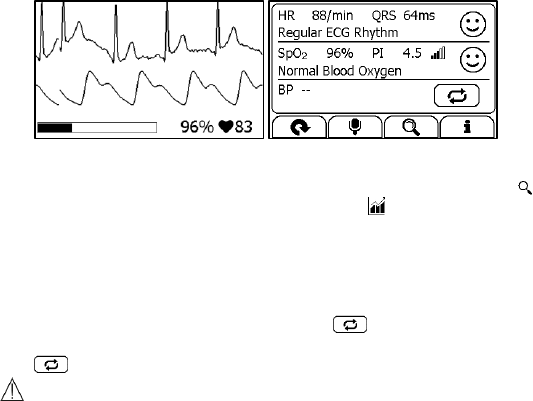
6. Once the device detects stable waveform, it will automatically start
the measurement. The countdown bar moves from left to right.
7. When the bar is fully filled, the device will analysis your data, and
then show the measurement result.
Please refer to Section 2.4 to understand the result screen. Daily Check
provides the trending graph of heart rate, SpO2 and blood pressure or
change in percentage of blood pressure. To view the trend, tap the
button, then select one record, and then tap the button. For details,
please refer to Section 6.1.
Set reference
To track the blood pressure change, you need to set one measurement as
the reference. For a given user, if the reference has not been set, then
when finishing the Daily Check, tap the icon to set current
measurement as the reference. If the reference has already been set, tap
the icon again will set the current measurement as a new reference.
Warnings and Cautionary Advices
For a given user, it is suggested to set a new reference every three
months.
BP Calibration
To get blood pressure readings, this device should be calibrated by a
doctor with a traditional cuff blood pressure (BP) meter. Because of
individual differences, each user must make his/her own calibration
before using Daily Check to measure or track the blood pressure. The
calibration should be performed when the user is under calm status.
To calibrate with a cuff BP meter, follow the steps as below.
1. Find a traditional cuff BP meter.
2. Sit down and stay calm.
3. Place the cuff on you left arm according to instructions.
4. Pick up the Checkme monitor, press Home button to enter Main
15
Screen.
5. Slip your finger from right to left to enter the second page.
6. Select the <Settings> icon, and then select <General>.
7. Select <BP Calibration>, and then choose the right user.
8. Ensure that the cuff and the Checkme monitor are at the same level
as your heart. Then start the blood pressure measurement from the
cuff BP meter.
9. Press the button on the Checkme screen, and follow the steps as
described in Section 4.2 to start the Daily Check measurement.
10. When the blood pressure measurement is finished, manually input
the readings of systolic pressure reading in the Checkme.
11. Repeat the calibration once again by following the above steps.
If the readings of two blood pressure measurements are very close to each
other, then the calibration is valid and finished. If the readings are not
close to each other, please wait for a few minutes, and then start the
calibration again.
Warnings and Cautionary Advices
For a given user, it is suggested to make BP calibration every three
months.
The BP calibration should be made at the same time period with the
Daily Check measurements you are going to make afterwards.
Ensure that your body is in the relative same situation when making
BP calibration and every time making Daily Check.
4.3 ECG Recorder
About ECG Recorder
Warnings and Cautionary Advices
Before using this function, please read the Section 4.1.
Different methods of taking the ECG measurement are available on
Checkme. Some methods may not be available on your product model
because of different configuration. Please refer to Section 9 for details.
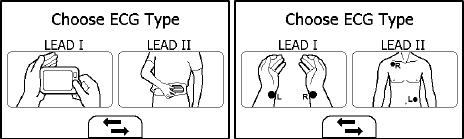
The ECG recorder offers four different methods to measuring ECG. Tap the
icon to switch between two pages.
16
As shown above, from left to right, there are:
Method A: Lead I, right hand to left hand
Method B: Lead II, right hand to left abdomen
Method C: Lead I, left wrist to right wrist
Method D: Lead II, right wrist to left lower abdomen
ST segment analysis is performed on selected LEAD.
Method A and B offer maximum comfort, than method C and D, but no ST
segment value. Method C and D require using external ECG cable and
electrode, which is a bit more complicated, but offers ST segment value
and better measurement. No matter which method you choose to
measure ECG, please keep stable posture and stay calm during the
measurement. Movements may result in interference and incorrect
readings or analysis result.
The most suitable method or procedure depends on the heart
configuration (shape of the heart) of each individual user. If it is not
possible to take stable measurements using a given measurement method,
this could have a harmless cause such as the shape of the heart. However,
the cause may also be an illness or disease. Generally it is recommended
to use method A in most situations. If the ECG waveform amplitude is too
small, then use method B. Choosing method C or D when ST segment
reading is needed, or for doctor to better interpret.
Measuring without Cable
To start an ECG Recorder measurement without cable,
1. If the device is in Calendar Screen, press the Home button.
2. In the Main Screen, tap the <ECG Recorder> icon.
3. Choose the method A or B.
4. Follow the instruction according to the mode you selected.
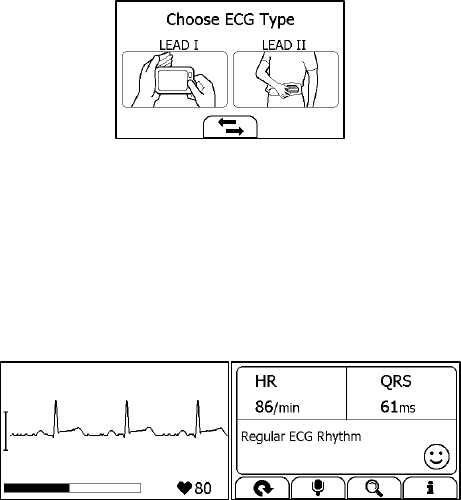
17
Press the right thumb on the right electrode;
Press the right forefinger on the back electrode;
For method A, press the left electrode to the left palm;
For method B, press the left electrode to the left lower abdomen;
Do not press the device too firmly against your skin, which may result
in EMG (electromyograph) interference. After you finish the above
steps, hold the device stably and stay calm.
5. Once the device detects stable waveform, it will automatically start
the measurement. The countdown bar moves from left to right.
6. When the bar if fully filled, the device will analysis your data, and
then show the measurement result.
Please refer to Section 2.4 to understand the result screen.
Measuring with Cable
To start an ECG Recorder measurement with cable,
1. If the device is in Calendar Screen, press the Home button.
2. In the Main Screen, select <ECG Recorder>.
3. Choose the method C or D.
4. Follow the instructions to connect the ECG cable and place the ECG
electrodes.
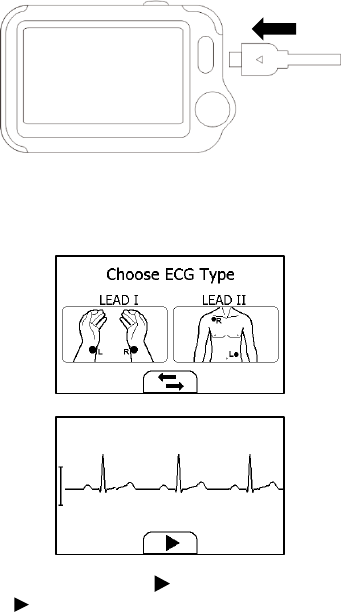
18
Sit down or stand, stay calm;
Palms facing up, place an electrode in the middle of right wrist;
For method C, place another electrode in the middle of left wrist;
For method D, place another electrode in the left lower
abdomen;
5. The display will then show your ECG waveform.
The device will monitor your ECG continuously, however no data will
be saved until you press the button.
6. Press the button to start collecting your ECG data. The countdown
bar moves from left to right.
7. When the bar is fully filled, the device will analysis your data, and
then show the measurement result.
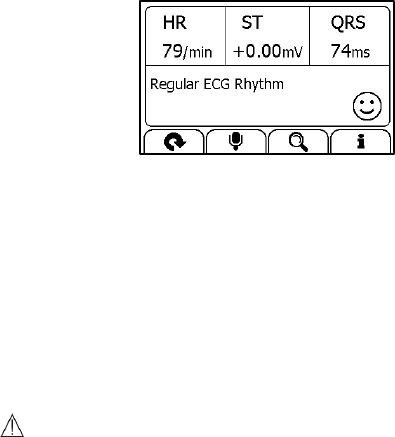
19
Please refer to Section 2.4 to understand the result screen.
Quick ECG
If the <Quick ECG> function is enabled, then you can start an ECG
measurement very quickly by picking up the device and hold it according
to method A. This saves time and is much easier for use. Especially for
some people whose sight is not good, or when you feel a bit abnormal
during sleep and don’t want to turn on the lights. To enable this function,
please refer to Section 5.5.
4.4 Oximeter
About Oximeter
Warnings and Cautionary Advices
Before using this function, please read the Section 4.1.
The Checkme Health Monitor measures the amount of oxygen in your
blood, your pulse rate and pulse index. The Checkme works by shining two
light beams into the small blood vessels or capillaries of the finger,
reflecting the amount of oxygen in the blood and displaying the
measurement on the screen. The oxygen saturation (SpO2) is measured
and displayed as a percentage of full capacity. Your pulse rate (PR) and
pulse index (PI) will also be measured and displayed.
Measuring without Cable
To start a Oximeter measurement without cable,
1. If the device is in Calendar Screen, press the Home button.
2. In the Main Screen, tap the “Pulse Oximeter” icon.
3. Insert the forefinger into the built-in SpO2 sensor as shown below.
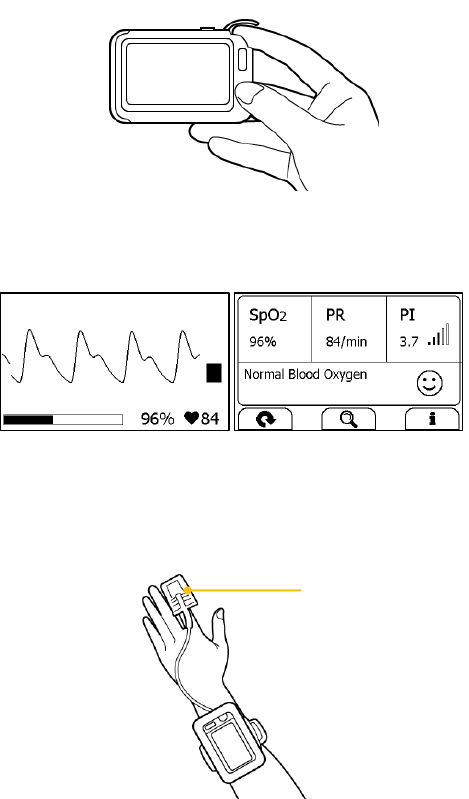
20
Relax your forefinger and do exert pressure.
4. When the device detects stable waveform, it will automatically start
the measurement. The countdown bar moves from left to right.
5. When the bar is fully filled, the device will analysis your data, and
then show the measurement result.
Please refer to Section 2.4 to understand the result screen.
Measuring with Cable
1. Connect the external SpO2 sensor to the multi-functional connector.
2. Put your index finger or middle finger into the external SpO2 sensor.
Make sure the cable is positioned along the top of the hand, and the
finger nail is in the position as shown below.
Finger nail position
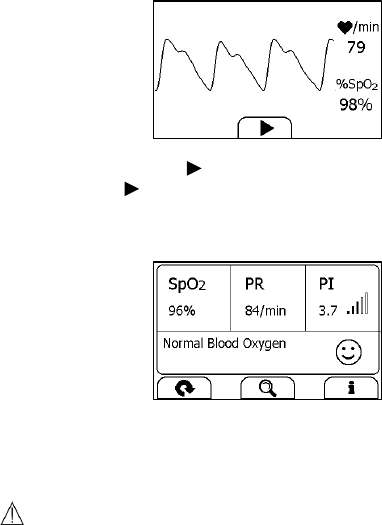
21
3. If the device is in Calendar Screen, press the Home button.
4. Tap the <Pulse Oximeter> icon.
5. The display will then show your PLETH waveform, SpO2 and pulse
rate.
The device will monitor continuously, however no data will be saved
until you press the button.
6. Press the button to start collecting your SpO2 data. The
countdown bar moves from left to right.
7. When the bar is fully filled, the device will analysis your data, and
then show the measurement result.
Please refer to Section 2.4 to understand the result screen.
4.5 Temperature
About thermometer
Warnings and Cautionary Advices
The thermometer is only designed for the measuring area on the
human body stated in this manual.
Check before each use that the lens is intact. If it is damaged, please
contact your retailer or the service address.
The device needs to be in the room which the measurement is taken
for at least 30 minutes before use.
Holding the device for too long in the hand or within your cloth can
cause the device to warm up, which may result in incorrect readings.
22
Physical activity, increased perspiration on the forehead, taking
vasoconstictive medication and skin irritations can distort the result.
The forehead (temples) must be free from perspiration and
cosmetics.
Taking the forehead temperature provides a current measurement
of a person’s temperature. If you are uncertain about interpreting
the results or if the values are abnormal (e.g. fever), please consult
your doctor. This also applies in the case of slight temperature
changes if there are other symptoms of illness such as agitation,
severe sweating, flushed skin, fast pulse rate, tendency to collapse,
etc.
The temperature varies depending on the part of the body where the
measurement is taken. In a healthy person, the variance can be between
0.2 °C to 1.0 °C (0.4 °F to 1.8°F) in different parts of the body. This device
use infrared thermometer to measure forehead temperature.
Influences on forehead temperature include but not limited to
A person’s individual metabolism;
Age; Forehead temperature is higher in babies and infants than in
adults. Greater temperature fluctuations occur faster and more
often in children. Normal forehead temperature decreases with age.
Environmental temperature;
Time of day; Forehead temperature is lower in the morning and
increases throughout the day towards evening.
Activities; Physical and, to the lesser extent, mental activities
increases forehead temperature.
Taking Temperature Measurement
To start a temperature measurement,
1. If the device is in Calendar Screen, press the Home button.
2. In the Main Screen, select <Thermometer>.
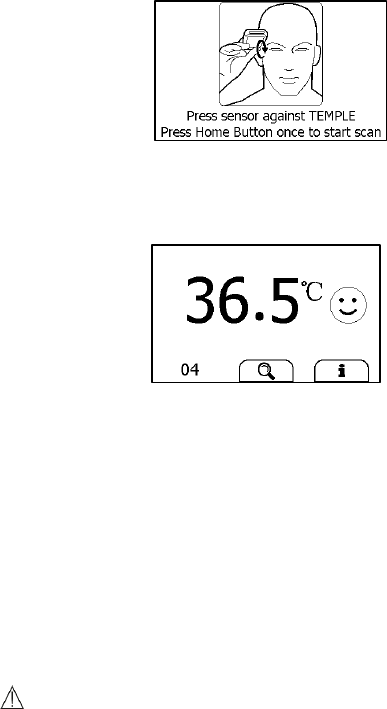
3. Press the thermometer sensor on your temple with appropriate
pressure. Ensure that the whole round plastic holder around the lens
is fully covered, and no light will get inside.
23
4. Press the Home button once, you will hear a “Bi” beep, which
indicates the measurement starts. Then move the thermometer
around the temple for around 3 seconds until you hear a “Bi-Bi” beep,
which indicates the measurement is finished.
5. Take down the device, and the screen shows the measurement result.
Please refer to Section 2.4 to understand the result screen.
4.6 Sleep Monitor
Obstructive sleep apnea syndrome (OSAS) is a common and widely
underdiagnosed condition, and is considered a major public health
problem. The prevalence of the syndrome is estimated at 2% to 5% in the
adult population. Due to intermittent blockage of the upper airway,
reduction or cessation of airflow occurs during sleep, resulting in
recurrent oxygen desaturation and sympathetic neural activation.
Common symptoms of OSAS include snoring, restless sleep, daytime
fatigue, and morning headaches.
Checkme offers a non-invasive method to monitor sleep status for adult
users who have sleep problem, sleep related breathing disorders and
obstructive sleep apnea.
Warnings and Cautionary Advices
Before using this function, please read the Section 4.1.
Do not use Sleep Monitor function on babies and children.
The SpO2 sensor may cause skin sensitivity to the patient. Changing
another finger if you feel uncomfortable.
24
Before using as a sleep monitor, please ensure the battery is fully
charged.
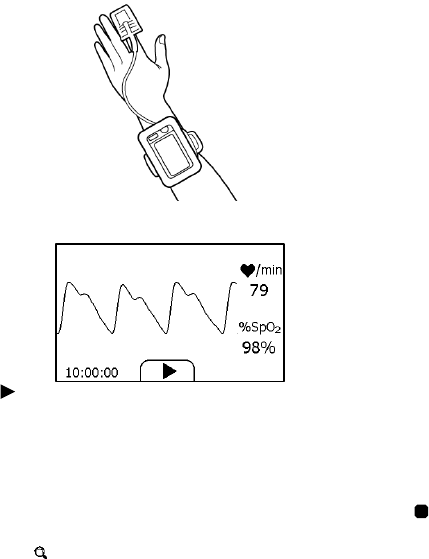
To start a sleep monitor measurement,
1. Tie the wristband on one of your left hand.
2. Insert the SpO2 cable into the multi-functional connector.
3. Put one of your finger into the sensor. Forefinger or middle finger is
suggested. If needed, remove the colored nail polish from the finger.
Make sure that the sensor is correctly placed so that the cable goes
above your hand back.
4. Press the Home button to enter the Main Screen. Then Tap the Sleep
Monitor icon to enter the screen as below.
5. Tap the button to start the sleep monitoring. During monitoring,
a countdown timer is always displayed at the lower left part.
6. You can press Home button to lock the screen, as shown below. The
device will work in a very low power consumption mode.
7. Insert the device into the wrist band cover, and then begin to sleep.
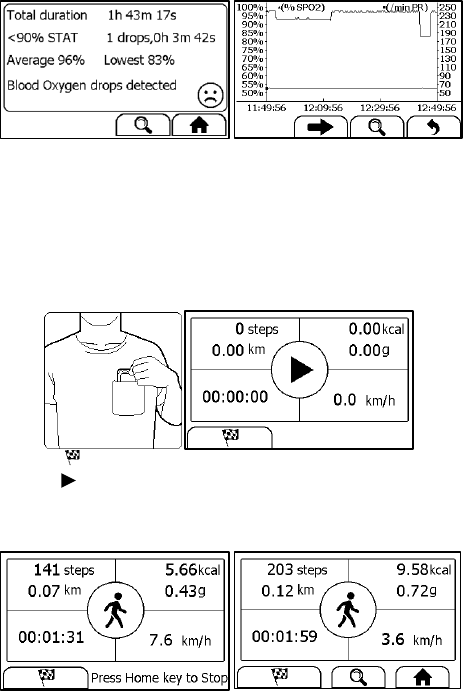
8. When you get up, or when you want to stop monitoring, you can
press the Home button again to unlock the screen, and then tap
icon to stop sleep monitoring.
9. You can tap button to view the SpO2 trending during your sleep,
or tap “Close” button and return to the Main Screen.
25
4.7 Pedometer
To start a Pedometer measurement,
1. If the device is in Calendar Screen, press the Home button.
2. In the Main Screen, select <Pedometer> to enter <Choose User>
screen. If you have not created user, then please follow the
instruction in Section 5.8 to add your user account.
3. Select a user to enter the screen as below.
4. Tap the button to set your target, if needed.
5. Tap the button to start calculating steps.
6. Place the device into your pocket.
7. When you finished calculating steps, press the Home button to stop
the pedometer.
8. Press Home button again to exit pedometer function.
4.8 Reminder
Up to 6 reminder events can be set by user. You can add, edit and delete
reminder events. To track your health every day, it is suggested to set a
26
reminder for Daily Check.
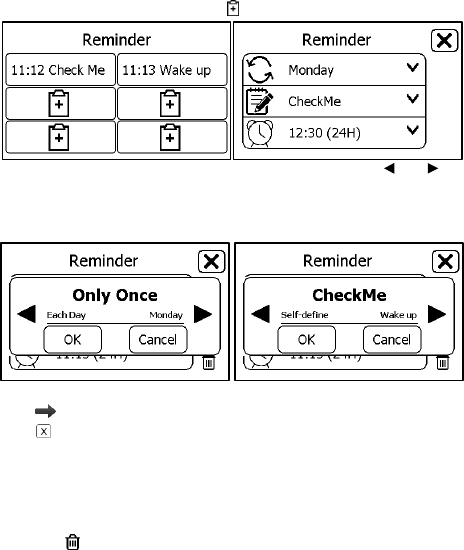
To add a reminder:
1. In the Main Screen, tap <Reminder> icon.
2. In the <Reminder> menu, tap icon to add a reminder.
3. Tap the first row to set the repeat interval. Tap the or button
to change the setting.
4. Tap the second row to set the event. You can define the event by
selecting “Self-define”.
5. Tap the third row, set the time when the reminder is triggered, then
tap .
6. Tap to save this reminder.
To edit or delete a reminder, in the <Reminder> menu, choose the
reminder which you want to edit or delete.
Change the repeat interval, event, and/or time, then save the change
by following the same procedure as adding a reminder.
Tap the button, and then “Yes” to delete a reminder.
5. Settings
5.1 Opening Settings Menu
To open the Settings menu,
1. Press the Home button to enter the Main Screen.
2. Tap the <Settings> icon to open the menu as below.
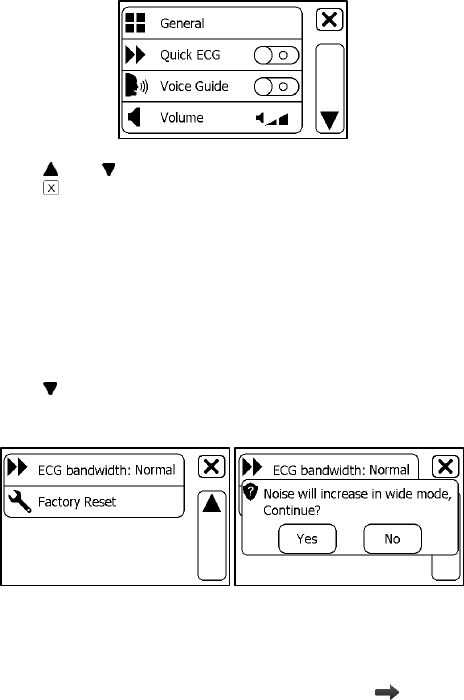
27
In the Settings menu, you can
Tap and button to page up or down
Tap to close the Settings menu
5.2 Choosing Language
1. In the Settings menu, choose <General>.
2. Choose <Language>.
3. Choose the language from the list.
5.3 Setting ECG Bandwidth
1. In the Setting menu, choose <General>.
2. Tap to page down.
3. Tap the <ECG bandwidth> area to change between Normal and
Wide.
5.4 Setting Date & Time
1. In the Settings menu, choose <General>.
2. Choose <Date & Time>.
3. Tap “+” or “-” button to change the date, then tap .
4. Tap “+” or “-” button to change the time.
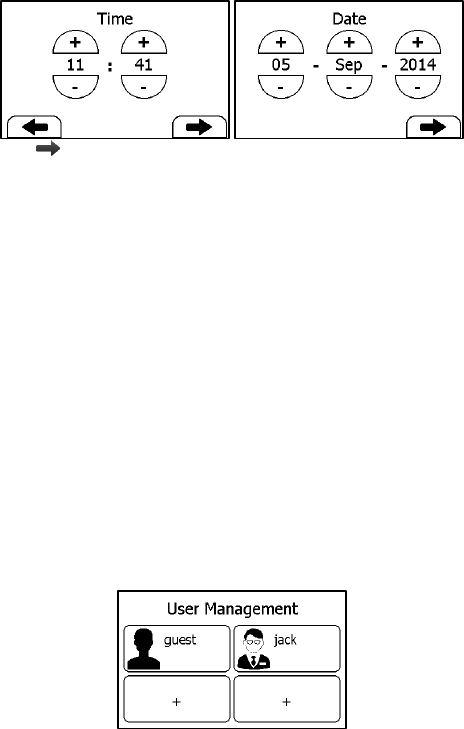
28
5. Tap to finish the setting.
5.5 Enabling/Disabling Quick ECG
1. In the Settings menu, choose <General>.
2. Tap <Quick ECG> to enable or disable this function.
5.6 Changing Sound Volume
In the Settings menu, tap the <Volume> area to change volume directly.
“X” means the volume is turned off.
5.7 Changing Temperature Unit
In the Settings menu, tap the <Thermometer> area to change between
Celsius degree (°C ) and Fahrenheit degree (°F).
5.8 User Management
To use the Daily Check measurement, you must create your account. If the
Daily Check measurement is used by more than one user, then each user
must create his/her own account.
To create a user account:
1. In the Settings menu, choose <User Management>.
2. Tap a “+” button to open the menu below.
3. Tap each button to edit corresponding information. Make sure you
input the correct information, especially your height, which may
affect the accuracy of your blood pressure readings.
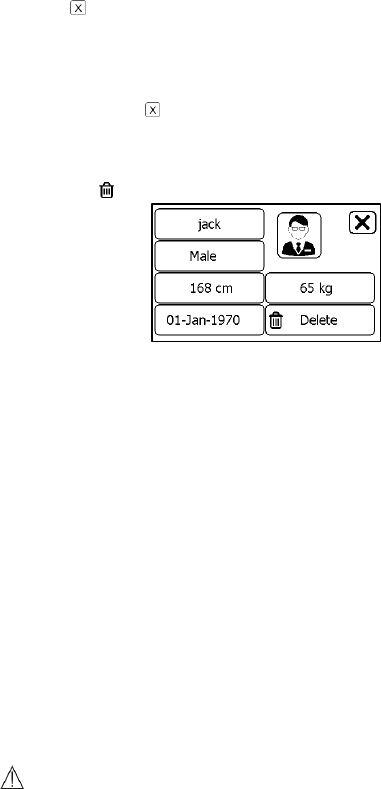
29
4. Tap to return the < User Management > menu.
To edit the information of a user:
1. In the Settings menu, choose <User Management>.
2. Choose the user that you want to edit.
3. Tap the information that you want to edit, and then modify.
4. Tap <OK> and to return the < User Management > menu.
To delete a user:
1. In the Settings menu, choose <User Management>.
2. Choose the user that you want to delete.
3. Tap the button.
4. Choose <Yes> to confirm.
The <Guest> user cannot be edited or deleted.
5.9 Identify Software Version
Choose <About> in the <Settings> menu to identify the software version
of your device. Telling the version information when reporting a problem
may help to identify and solve your problem.
5.10 Turning On/Off Bluetooth
Checkme has built-in Bluetooth wireless connectivity, which enables
exporting measured records to mobile phones and pads running iOS or
Android platform.
To turn on the Bluetooth:
1. Press the Home button to enter Main Screen.
2. Slip your finger from right to left to switch to the second page.
3. Tap the <Bluetooth> icon, then the device will enter Bluetooth mode,
and the screen will show the Bluetooth icon in the middle of screen.
Data can only be exported in Bluetooth mode. Pressing the Home button
will exit Bluetooth mode.
Warnings and Cautionary Advices
Do not press Home button when data is being exported.
30
When Checkme is in Bluetooth mode, you can turn on the Bluetooth of
your phone and pad, and build the connection with Checkme. Regarding
how to export data and the use of Checkme Mobile APP, please refer to
the help information after installation of the application. The Checkme
Mobile, compatible with iOS and Android platform, is available on the
Apple App store and Android App store.
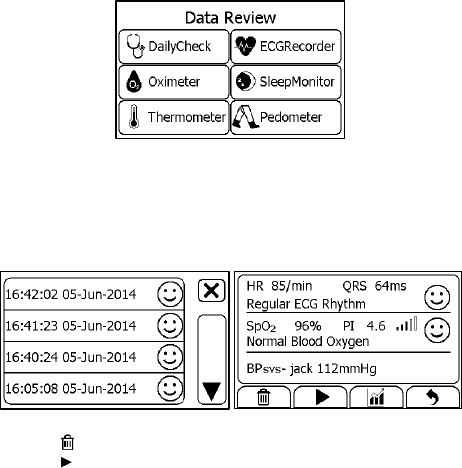
6. Review
To open the <Data Review> menu,
1. If the device is in Calendar Screen, press the Home button.
2. In the Main Screen, tap the <Review> icon.
6.1 Reviewing Daily Check
To review Daily Check records,
1. In the <Data Review> menu, select <DailyCheck>.
2. Choose the right user to open the list as below, then select one
record to review more information as below.
In this menu, you can:
Select to delete this measurement
Select to replay the ECG waveform as shown below.
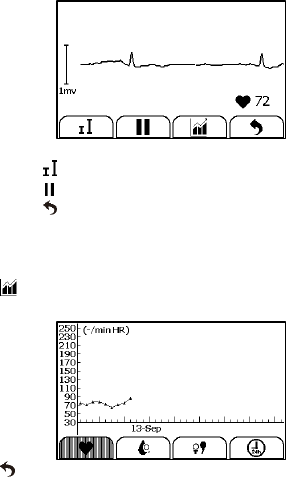
31
When the ECG waveform is being replayed, you can
Select to change the waveform amplitude.
Select to pause it.
Select to return Daily Check list.
After the ECG waveform is replayed, it will automatically return to
the previous interface. Before that, you will hear the voice memo if
you added the voice memo for this measurement.
Select to view the trend of heart rate, SpO2 and blood pressure
or change in percentage of blood pressure.
Select to return to the Daily Check list.
6.2 Reviewing ECG Recorder
To review ECG Recorder records, in the <Data Review> menu, select <ECG
Recorder>. The operations you can perform is almost the same with Daily
Check. However there is no trending graph.
6.3 Reviewing Oximeter
To review Oximeter records, in the <Data Review> menu, select
<Oximeter>. The operations you can perform is almost the same with ECG
Recorder. However there is no voice memo.
6.4 Reviewing Thermometer
To review Thermometer records, in the <Data Review> menu, select
<Thermometer>. The operations you can perform is almost the same with
ECG Recorder. However there is no voice memo.
32
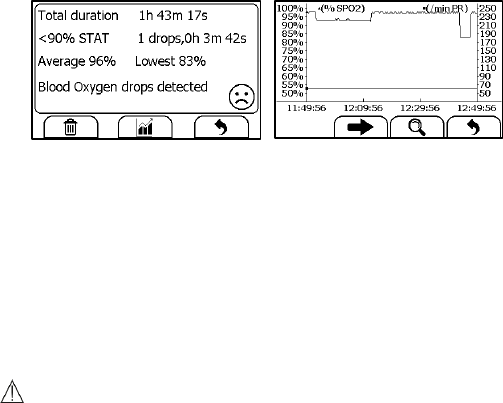
6.5 Review Sleep Monitor
To review Sleep Monitor records, in the <Data Review> menu, select
<SleepMonitor>.
The operations you can perform is the same with Daily Check. However
there is no waveform and audio memo to replay. To better review the SpO2
trend during sleep, it is suggested to use the Checkme Mobile application.
6.6 Review Pedometer
To review Pedometer records, in the <Data Review> menu, select
<Pedometer>. The operations you can perform is almost the same with
Pedometer Recorder. However there is no voice memo.
7. Maintenance
Warnings and Cautionary Advices
Have the device repaired by authorized service centers only,
otherwise its warranty is invalid.
7.1 Warranty
The product is warranted to be free from defects in materials and
workmanship within warranty period when used in accordance with the
provided instructions.
7.2 Battery
This monitor is designed to operate on rechargeable Lithium-ion battery.
The battery is charged automatically when the monitor is connected to AC
power or devices which can output electronic power through USB
33
connector, such as personal computer and mobile battery bank etc.
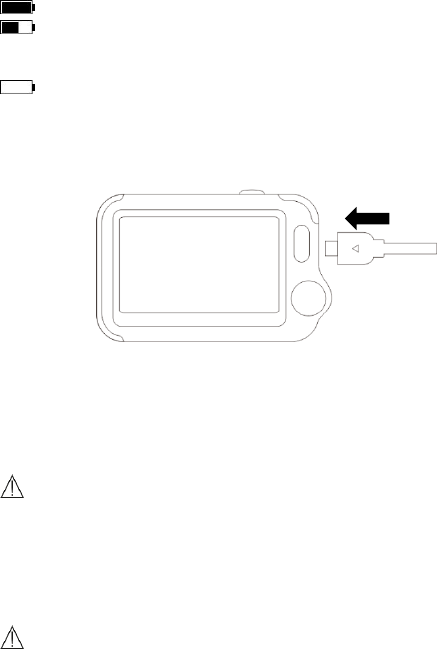
On-screen battery symbols indicate the battery status as follow:
The battery is fully charged.
The solid portion represents the remained battery energy. If the
solid portion moves from left to right, then it means that the battery
is being charged.
Indicates that the battery is almost depleted and need to be charged
immediately. Otherwise the device will shut down automatically.
To charge the battery,
1. Connect the smaller end of the USB charging cable to the multi-
functional connector, as shown below.
2. Connect the other end of the USB charging cable to the USB charging
port.
3. Please make sure that the LED is blue, and press the Home button to
enter the Main Screen, if needed.
4. When the LED turns to green, it means the battery is fully charged.
Then you can unplug the USB cable.
Warnings and Cautionary Advices
The device cannot be used for any measurement during charging.
Use charging adapter provided by manufacturer, or USB charging
devices which comply with the standard of IEC 60950.
7.3 Care and Cleaning
Warnings and Cautionary Advices
Have the device repaired by authorized service centers only,
otherwise its warranty is invalid.
Clean the device per week, carefully swabbing the device surface with a
soft cloth or cotton swab with rubbing alcohol. Do not pour alcohol

34
directly on or into the device.
7.4 Trouble Shooting
Problem
Possible Cause
Solution
The device does not turn
on.
1. The battery may
be low.
2. The device might
be damaged
1. Charge the
battery and try
again.
2. Please contact
with your local
distributor.
Low battery indicator is
blinking
The battery is low.
Charge the
battery and try
again.
The ECG waveform
amplitude is small
The lead you
choose is not
suitable for you.
Change another
lead and try
again.
ECG waveform drifts
1. The pressure
exerted on the
electrode is not
stable or too much.
2. Hand or body
may be moving.
1. Hold the
device stably and
gently.
2. Try to keep
perfectly still and
test again.
SpO2 or pulse rate shows
no value, or the number
fluctuates
1. Finger may not
be inserted
correctly.
2. Finger or hand
may be moving.
1. Remove finger
and reinsert, as
directed.
2. Try to keep
perfectly still and
test again.
The app cannot find the
device.
The Bluetooth may
not be turned on.
Turn on the
Bluetooth on the
second page of
Main Screen.
“SpO2 cable failed” after
inserting SpO2 cable.
The SpO2 cable
might be damaged.
Please contact
with your local
distributor
“System Error” occurred.
Software or
hardware failure.
Restart the
device and
measure again.If
the error

35
persists, mark
down the error
number and
contact with
your local
distributor.
BP calibration failed.
1. Wrong height.
2. The difference
between two
calibration is too
large.
1. Reconfirm
your height.
2. Try to keep
perfectly still and
calibrate again.
No voice during ECG and
SpO2 measurement.
The speaker is
muted.
Unmuted the
speaker in the
Settings menu.
SpO2 value is too low
when measured using
integrated sensor.
1. Finger pressed
too hard.
2. Finger may not
be inserted
correctly.
1. Reinsert your
finger gently and
stably.
2. Make sure
your finger is in
right position.
Temperature value is too
low.
1. The
measurement area
is covered by hair.
2. The thermometer
sensor is too far
away from your
skin.
3. The thermometer
sensor is dirty.
1. Remove hair
from the
measurement
area.
2. Keep the
sensor contact
with your skin.
3. Clean the
sensor with a
soft cloth or
cotton.
36
8. Accessories
Warnings and Cautionary Advices
Use accessories specified in this chapter. Using other accessories
may cause damage to the device or not meet the claimed
specifications.
Part Number
Description
540-00192-00
ECG cable with 2 leadwires, snap
540-00193-00
SpO2 finger sensor, 25 cm, FP-10
540-00194-00
USB charging cable, micro D
560-00197-00
Neck stripe
560-00198-00
ECG electrode, 10 pcs
560-00208-00
Desktop folding stand, green
560-00209-00
Wristband
540-00240-00
USB charging cable, micro B (Checkme Pod)
155-00207-00
Charging adapter
37
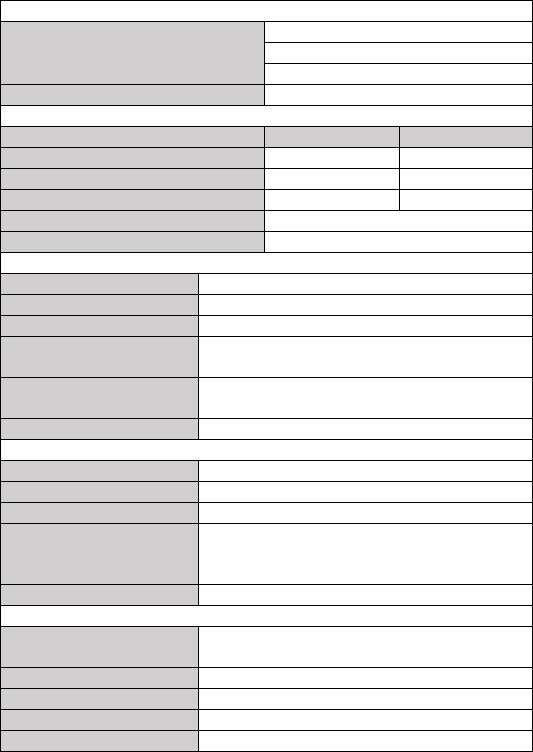
9. Specifications
Classifications
EC Directive
MDD, 93/42/EEC
R&TTE, 1999/5/EC
ROHS 2.0, 2011/65/EU
Degree protection against electrical shock
Type BF
Environmental
Item
Operating
Storage
Temperature
5 to 45° C
-25 to 70° C
Relative humidity (noncondensing)
10% to 95%
10% to 95%
Barometric
700 to 1060 hPa
700 to 1060 hPa
Degree of dust & water resistance
IP22
Drop test
1.0 m
Physical
Size
88× 56× 13 mm
Packing size
178*123*75 mm
Weight
Less than 80 g (main unit)
Display
Checkme Pro/Plus/Pod: 2.7” touch screen, HD
Checkme Lite: 2.4” touch screen, color, backlit
Connector
Micro D connector (Pro/Plus/Lite)
Micro USB connector (Pod)
Wireless connectivity
Built-in Bluetooth dual mode, support 4.0 BLE
Power Supply
Charge adapter input
AC100-240V 50/60Hz
Charge adapter output
DC5V 1.0A
Battery type
Rechargeable lithium-polymer battery 560 mAh
Battery run time
Only daily check: > 1000 times
Continuous sleep monitoring: > 12 hours
Pure standby calendar mode: > 3 months
Charge time
Less than 2 hours to 90%
ECG
Lead type
Integrated ECG electrodes
External ECG cable and electrodes
Lead set
Lead I, lead II
Measurement mode
Episode, continuous
Sampling rate
500 Hz
Sampling accuracy
16 bit
38
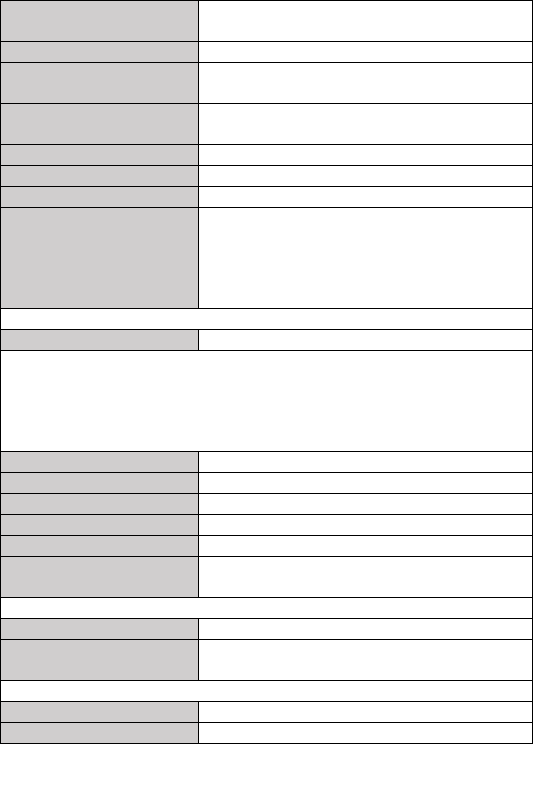
Display Gain
1.25 mm/mV, 2.5 mm/mV, 5 mm/mV
10 mm/mV, 20 mm/mV
Sweep speed
25 mm/s
Bandwidth*
Pro/Plus/Lite: 0.05 to 40 Hz
Pod: 0.67 to 40 Hz
Electrode offset potential
tolerance
± 300 mV
HR measurement range
30 to 250 bpm
Accuracy
± 2 bpm or ± 2%, whichever is greater
ST measurement range
-0.5 to +0.5 mV
Measurement summary
Heart rate**, QRS duration, ST segment***, Rhythm
analysis (Regular ECG Rhythm, High Heart Rate,
Low Heart Rate, High QRS Value, High ST Value***,
Low ST Value***, Irregular ECG Rhythm, Unable to
analyze)
SpO2
Standards
Meet standards of ISO 80601-2-61
*Measurement accuracy verification: The SpO2 accuracy has been verified in human
experiments by comparing with arterial blood sample reference measured with a CO-
oximeter. Pulse oximeter measurement are statistically distributed and about two-thirds
of the measurements are expected to come within the specified accuracy range
compared to CO-oximeter measurements.
SpO2 range
70% to 100%
SpO2 Accuracy (Arms)
80-100%:±2%, 70-79%:±3%
PR range
30 to 250 bpm
PR accuracy
±2 bpm or ±2%,whichever is greater
PI range
0.5-15
Measurement summary
SpO2, PR, PI, Summary (Normal Blood Oxygen, Low
Blood Oxygen, Unable to analyze)
Blood Pressure Variation
Measurement method
Cuff-free non-invasive technology
Measurement summary
Percent of change or systolic pressure based on
individual calibration coefficient
Thermometer
Technique
Infrared body temperature
Environment temperature
16.0 to 40.0 °C
* : External ECG cable, bandwidth mode set to wide
**: Heart rate is calculated based on average of every 5 to 30 QRS complex.
***: Only for measurement with external ECG cable, bandwidth mode set to wide
39
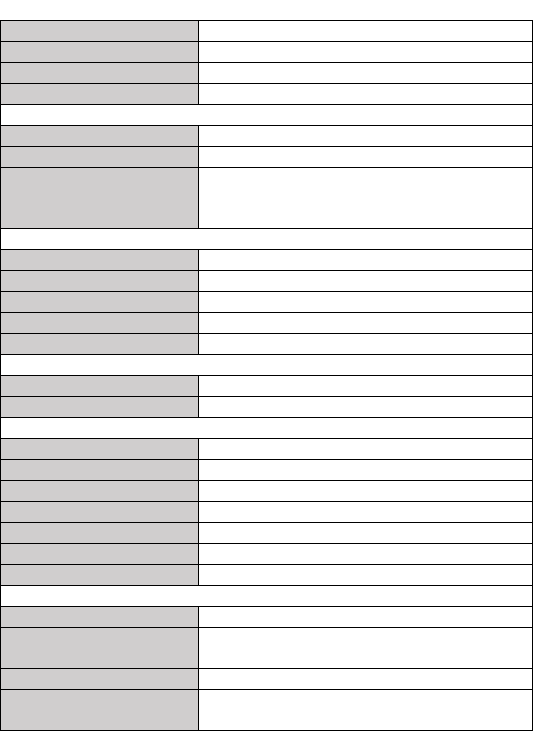
Measurement site
Temple
Measurement time
3s
Measurement range
34.0 to 42.2 ° C (94.0 to 108.0 ° F)
Accuracy
± 0.2° C or ± 0.4° F
Sleep Monitor
Monitoring time
Up to 10 hours
Data storage
Store SpO2 and pulse rate
Measurement summary
Total duration, <90% STAT, Average saturation,
Lowest saturation, Summary(No abnormal detected,
blood oxygen drop detected, Unable to analyze)
Pedometer
Range
0 to 99999 steps
Distance
0.00 to 999.99 km
Timer
0 to 1999 minutes
Calories
0.00 to 9999.99 kcal
Fat
0.00 to 199.99 g
Reminder
No. of reminder
6
Reminder event
Wake up, Check me, Medicine, Self-define
Review
Data review
Graphic trend, list trend
Waveform review
Full disclosure waveform
Daily check
100 pcs of records without audio memo
ECG recorder
100 pcs of records without audio memo
Oximeter
100 pcs of records
Thermometer
100 pcs of records
Sleep record review
5 pcs of records, 10 hours each record
Mobile APP
Operating system
IOS 7.0 or above, Android 4.0 or above
IOS Capability
iPhone 4s and models launched subsequently; iPad 3
and models launched subsequently;
Android Capability
Mobile phone or pad with Bluetooth 2.1 or above
Functionality
Data export, data review, waveform replay, trend
review, data sharing
40
10. Electromagnetic Compatibility
The device meets the requirements of EN 60601-1-2. All the accessories
also meet the requirements of EN 60601-1-2 when in use with this device.
Warnings and Cautionary Advices
Using accessories other than those specified in this manual may
result in increased electromagnetic emission or decreased
electromagnetic immunity of the equipment.
The device or its components should not be used adjacent to or
stacked with other equipment.
The device needs special precautions regarding EMC and needs to
be installed and put into service according to the EMC information
provided below.
Other devices may interfere with this device even though they meet
the requirements of CISPR.
When the inputted signal is below the minimum amplitude provided
in technical specifications, erroneous measurements could result.
Portable and mobile communication equipment may affect the
performance of this device.
Other devices that have RF transmitter or source may affect this
device (e.g. cell phones, PDAs, and PCs with wireless function).
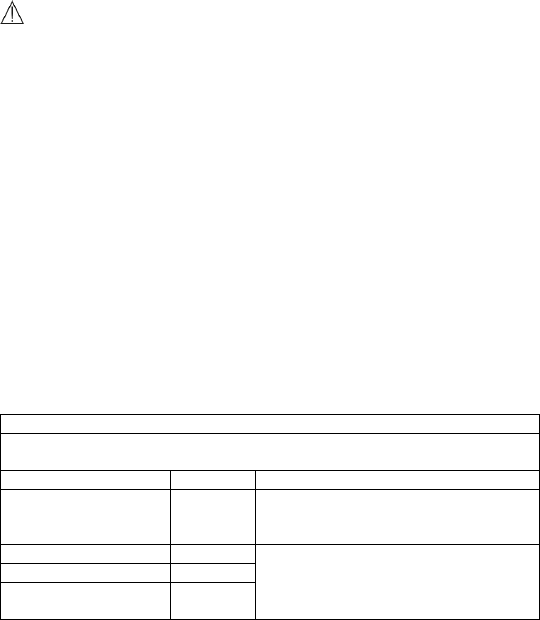
Guidance and Declaration - Electromagnetic Emissions
The Health Monitor is intended for use in the electromagnetic environment specified below. The customer or the user of the device
should assure that it is used in such an environment.
Emission tests
Compliance
Electromagnetic environment - guidance
RF emissions CISPR 11
Group 1
The device uses RF energy only for its internal function. Therefore,
its RF emissions are very low and are not likely to cause any
interference in nearby electronic equipment.
RF emissions CISPR 11
Class B
The device is suitable for use in all establishments, including
domestic establishments and those directly connected to the
public low-voltage power supply network that supplies buildings
used for domestic purposes.
Harmonic emissions IEC61000-3-2
Class A
Voltage Fluctuations / Flicker
Emissions IEC 61000-3-3
Complies

41
Guidance and Declaration - Electromagnetic Immunity
The Health Monitor is intended for use in the electromagnetic environment specified below. The customer or the user of the Health
Monitor should assure that it is used in such an environment.
Immunity test
IEC60601 test level
Compliance level
Electromagnetic environment -
guidance
Electrostatic discharge
(ESD) IEC 61000-4-2
± 6 kV contact
± 8 kV air
± 6 kV contact
± 8 kV air
Floors should be wood, concrete
or ceramic tile. If floors are
covered with synthetic material,
the relative humidity should be at
least 30 %.
Electrical fast
transient/burst
IEC 61000-4-4
± 2 kV for power
supply lines
± 1 kV for input/output
lines
± 2 kV for power
supply lines
± 1 kV for input/output
lines
Mains power quality should be that of
a typical commercial or hospital
environment.
Surge
IEC 61000-4-5
± 1 kV line(s) to
line(s)
± 2 kV line(s) to
earth
± 1 kV line(s) to
line(s)
± 2 kV line(s) to
earth
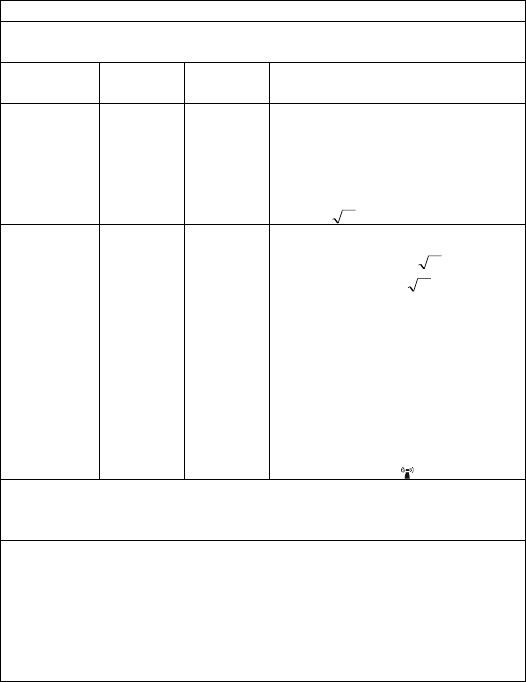
Voltage dips, short
Interruptions and Voltage
variations on power supply
input lines
IEC 61000-4-11
<5 % UT
(>95 % dip in UT)
for 0.5 cycle
40 % UT
(60 % dip in UT)
for 5 cycles
70 % UT
(30 % dip in UT)
for 25 cycles
<5 % UT
(>95 % dip in UT)
for 5 s
<5 % UT
(>95 % dip in UT)
for 0.5 cycle
40 % UT
(60 % dip in UT)
for 5 cycles
70 % UT
(30 % dip in UT)
for 25 cycles
<5 % UT
(>95 % dip in UT)
for 5 s
Mains power quality should be that of
a typical commercial or hospital
environment. If the user of our
product requires continued operation
during power mains interruptions, it is
recommended that our product be
powered from an uninterruptible
power supply or a battery.
Power frequency (50/60
HZ) magnetic field IEC
61000-4-8
3 A/m
3 A/m
Power frequency magnetic fields
should be at levels characteristic of a
typical location in a typical
commercial or hospital environment.
Note: UT is the AC mains voltage prior to application of the test level.
42
Guidance and Declaration - Electromagnetic Immunity
The Health Monitor is intended for use in the specified electromagnetic environment. The customer or the user of the Health
Monitor should assure that it is used in such an environment as described below.
Immunity test
IEC60601 test
level
Compliance
level
Electromagnetic environment - guidance
Conduced RF
IEC61000-4-6
3 Vrms 150 kHz
to
80 MHz
outside ISM
bands
3 Vrms 150 kHz
to
80 MHz
outside ISM
bands
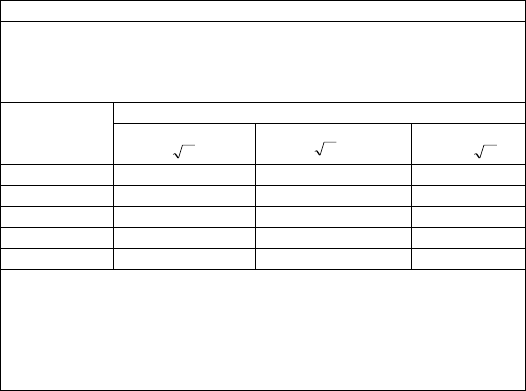
Portable and mobile RF communications equipment should
be used no closer to any part of the system, including
cables, than the recommended separation distance
calculated from the equation appropriate for the frequency
of the transmitter. Recommended separation distances:
Pd 2.1
Radiated RF
IEC61000-4-3
3 V/m 80 MHz
to
2.5 GHz
3 V/m 80 MHz
to
2.5 GHz
Recommended separation distances:
80 MHz~800 MHz:
Pd 2.1
800MHz-2.5GHz:
Pd 3.2
Where, P is the maximum output power rating of the
transmitter in watts (W) according to the transmitter
manufacturer and d is the recommended separation
distance in meters (m).
Field strengths from fixed RF transmitters, as determined
by an electromagnetic site survey a, should be less than the
compliance level in each frequency range b.
Interference may occur in the vicinity of equipment marked
with the following symbol:
Note 1: At 80 MHz to 800 MHz, the separation distance for the higher frequency range applies.
Note 2: These guidelines may not apply in all situations. Electromagnetic propagation is affected by absorption and reflection
from structures, objects and people.
a Field strengths from fixed transmitters, such as base stations for radio (cellular/cordless) telephones and land mobile radios,
amateur radio, AM and FM radio broadcast and TV broadcast cannot be predicted theoretically with accuracy. To assess the
electromagnetic environment due to fixed RF transmitters, an electromagnetic site survey should be considered. If the measured
field strength in the location in which the device is used exceeds the applicable RF compliance level above, the device should
be observed to verify normal operation. If abnormal performance is observed, additional measures may be necessary, such as
re-orienting or relocating the device.
b Over frequency range 150kHz to 80MHz. For Resp field strength should be less than 1V/m.
43
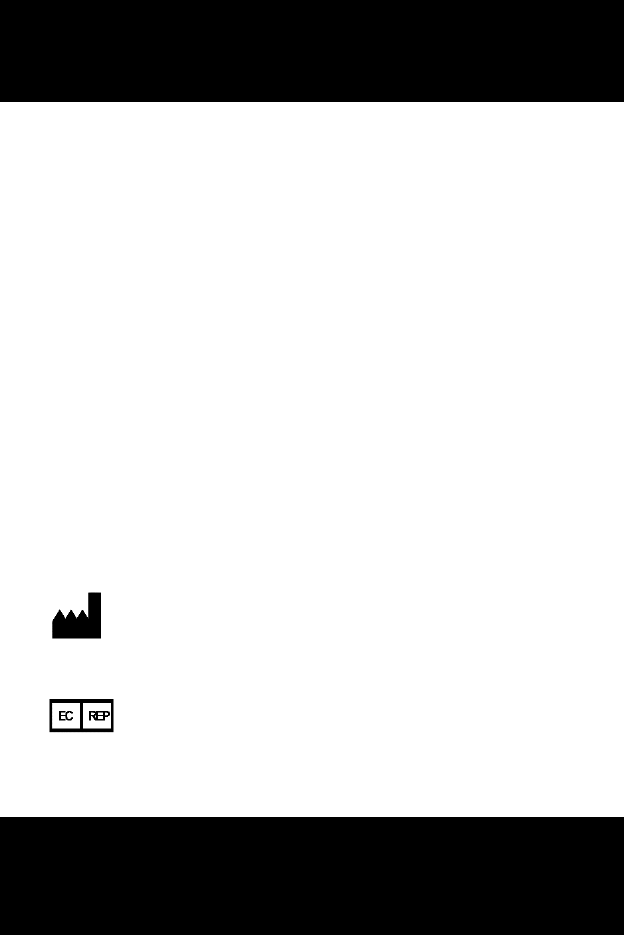
Recommended separation distances between portable and mobile RF communications equipment and the device
The Health Monitor is intended for use in an electromagnetic environment in which radiated RF disturbances are controlled.
The customer or the user of the Health Monitor can help prevent electromagnetic interference by maintaining a minimum
distance between portable and mobile RF communications equipment (transmitters) and the monitor as recommended below,
according to the maximum output power of the communications equipment.
Rated max. output
power of transmitter
(W)
Separation distance according to frequency of the transmitter (m)
150 kHz - 80 MHz
Pd 2.1
80 MHz - 800 MHz
Pd 2.1
800 MHz - 2.5 GHz
Pd 3.2
0.01
0.12
0.12
0.23
0.1
0.38
0.38
0.73
1
1.20
1.20
2.30
10
3.80
3.80
7.30
100
12.00
12.00
23.00
For transmitters rated at a maximum output power not listed above, the recommended separation distance d in metres (m) can
be estimated using the equation applicable to the frequency of the transmitter, where P is the maximum output power rating of
the transmitter in watts (W) according to the transmitter manufacturer.
Note 1: At 80 MHz and 800 MHz, the separation distance for the higher frequency range applies.
Note 2: These guidelines may not apply in all situations. Electromagnetic propagation is affected by absorption and reflection
from structures, objects and people.
Shenzhen Viatom Technology Co., Ltd (Hereinafter called Viatom) owns
the intellectual property rights to this Viatom product and this manual.
This manual may refer to information protected by copyrights or patents
and does not convey any license under the patent rights of Viatom, nor
the rights of others. Viatom intends to maintain the contents of this
manual as confidential information. Disclosure of the information in this
manual in any manner whatsoever without the written permission of
Viatom is strictly forbidden.
Contents of this manual are subject to changes without prior notice. All
information contained in this manual is believed to be correct. Viatom
shall not be liable for errors contained herein nor for incidental or
consequential damages in connection with the furnishing, performance,
or use of this manual.
© Copyright 2014 Shenzhen Viatom Technology Co., Ltd. All right reserved.
PN:255-00157-00 Version: A July, 2014
Shenzhen Viatom Technology Co., Ltd.
C607, Languang Technology Park, No.7 Xinxi Road, Hi-Tech Park North,
Nanshan, Shenzhen, 518057, P.R. China
MedNet GmbH
Borkstrasse 10 · 48163 Muenster · Germany
TEL: +49 251 32266-0 FAX: +49 251 32266-22
CheckmeTM Health Monitor
Knowing and Tracking Your Health