Vibration Research OBSERVR1000 Portable Data Acquisiition and Analyzer User Manual 2017 09 11 ObserVIEWHelp

Vibration Research Corporation Portable Data Acquisiition and Analyzer 2017 09 11 ObserVIEWHelp

User Manual

®ObserVIEW HelpUSER MANUAL© 2017 Vibration Research Corporation
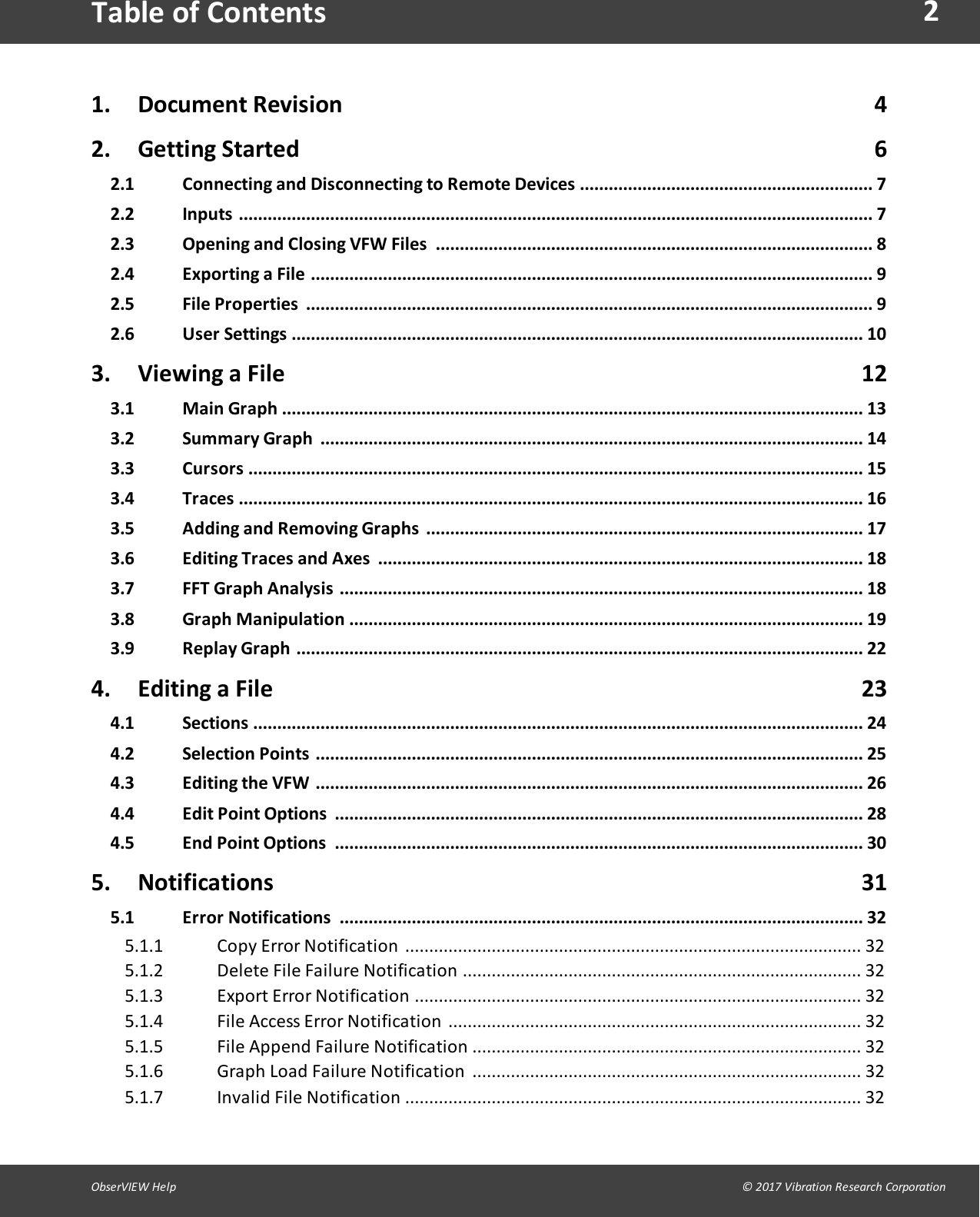
2ObserVIEW Help                                                                                                                                                                                © 2017 Vibration Research CorporationTable of Contents1. Document Revision 42. Getting Started 62.1 Connecting and Disconnecting to Remote Devices ............................................................. 72.2 Inputs .................................................................................................................................... 72.3 Opening and Closing VFW Files ........................................................................................... 82.4 Exporting a File ..................................................................................................................... 92.5 File Properties ...................................................................................................................... 92.6 User Settings ....................................................................................................................... 103. Viewing a File 123.1 Main Graph ......................................................................................................................... 133.2 Summary Graph ................................................................................................................. 143.3 Cursors ................................................................................................................................ 153.4 Traces .................................................................................................................................. 163.5 Adding and Removing Graphs ........................................................................................... 173.6 Editing Traces and Axes ..................................................................................................... 183.7 FFT Graph Analysis ............................................................................................................. 183.8 Graph Manipulation ........................................................................................................... 193.9 Replay Graph ...................................................................................................................... 224. Editing a File                                                                                                        234.1 Sections ............................................................................................................................... 244.2 Selection Points .................................................................................................................. 254.3 Editing the VFW .................................................................................................................. 264.4 Edit Point Options .............................................................................................................. 284.5 End Point Options .............................................................................................................. 305. Notifications 315.1 Error Notifications ............................................................................................................. 32Copy Error Notification ............................................................................................... 325.1.1Delete File Failure Notification ................................................................................... 325.1.2Export Error Notification ............................................................................................. 325.1.3File Access Error Notification ...................................................................................... 325.1.4File Append Failure Notification ................................................................................. 325.1.5Graph Load Failure Notification  ................................................................................. 325.1.6Invalid File Notification ............................................................................................... 325.1.7
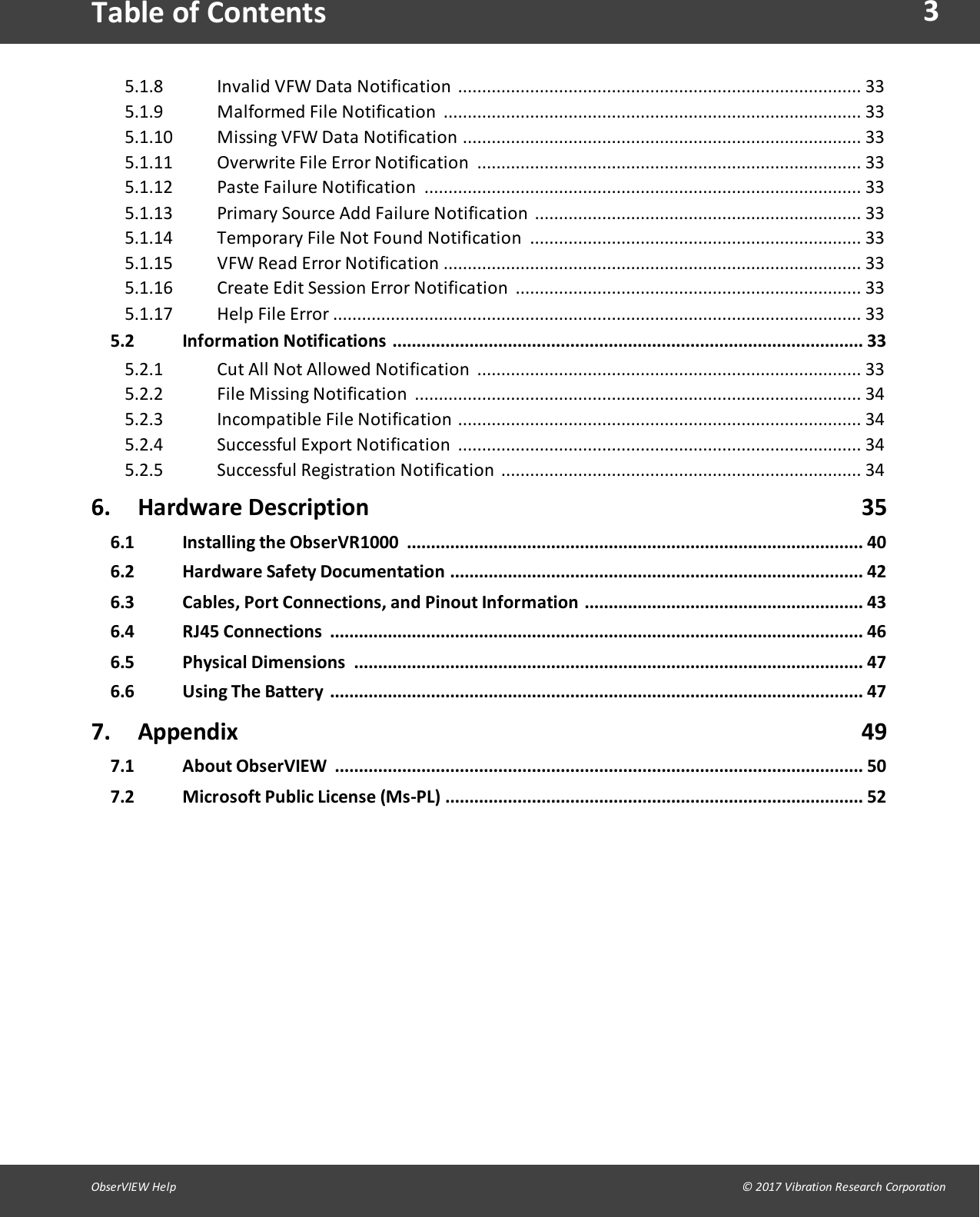
3ObserVIEW Help                                                                                                                                                                                © 2017 Vibration Research CorporationTable of ContentsInvalid VFW Data Notification .................................................................................... 335.1.8Malformed File Notification  ....................................................................................... 335.1.9Missing VFW Data Notification ................................................................................... 335.1.10Overwrite File Error Notification ................................................................................ 335.1.11Paste Failure Notification ........................................................................................... 335.1.12Primary Source Add Failure Notification .................................................................... 335.1.13Temporary File Not Found Notification ..................................................................... 335.1.14VFW Read Error Notification ....................................................................................... 335.1.15Create Edit Session Error Notification  ........................................................................ 335.1.16Help File Error .............................................................................................................. 335.1.175.2 Information Notifications .................................................................................................. 33Cut All Not Allowed Notification ................................................................................ 335.2.1File Missing Notification  ............................................................................................. 345.2.2Incompatible File Notification .................................................................................... 345.2.3Successful Export Notification .................................................................................... 345.2.4Successful Registration Notification ........................................................................... 345.2.56. Hardware Description                                                                                      356.1 Installing the ObserVR1000 ............................................................................................... 406.2 Hardware Safety Documentation ...................................................................................... 426.3 Cables, Port Connections, and Pinout Information .......................................................... 436.4 RJ45 Connections ............................................................................................................... 466.5 Physical Dimensions .......................................................................................................... 476.6 Using The Battery ............................................................................................................... 477. Appendix                                                        497.1 About ObserVIEW .............................................................................................................. 507.2 Microsoft Public License (Ms-PL) ....................................................................................... 52
35ObserVIEW Help                                                                                                                                                                                © 2017 Vibration Research CorporationHardware Description
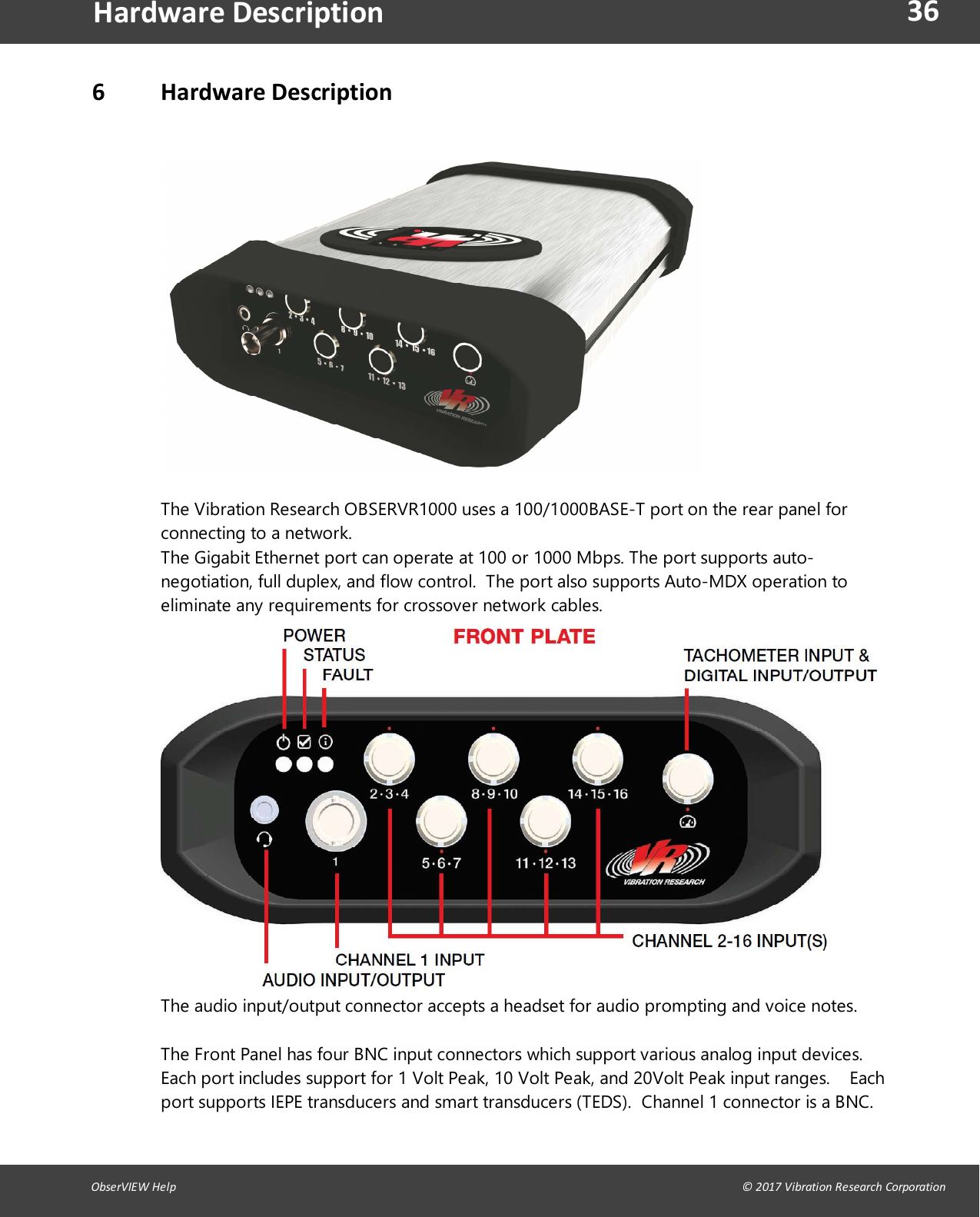
36ObserVIEW Help                                                                                                                                                                                © 2017 Vibration Research CorporationHardware Description6 Hardware DescriptionOBSERVR1000 Front and Back Panel Port DescriptionThe Vibration Research OBSERVR1000 uses a 100/1000BASE-T port on the rear panel forconnecting to a network.The Gigabit Ethernet port can operate at 100 or 1000 Mbps. The port supports auto-negotiation, full duplex, and flow control.  The port also supports Auto-MDX operation toeliminate any requirements for crossover network cables.The audio input/output connector accepts a headset for audio prompting and voice notes.The Front Panel has four BNC input connectors which support various analog input devices.Each port includes support for 1 Volt Peak, 10 Volt Peak, and 20Volt Peak input ranges.    Eachport supports IEPE transducers and smart transducers (TEDS).  Channel 1 connector is a BNC.
37ObserVIEW Help                                                                                                                                                                                © 2017 Vibration Research CorporationHardware DescriptionChannels 2-16 connectors are triaxial. Each connector supports 1 triaxial transducers, or 3single axis transducer. Microphones, and external conditioners are some of the supportedsignals and transducers than would use these 6 connectors.The Tachometer connector includes a configurable 2 channel tachometer. The tachometerchannels can be combined for quadrature mode or used as independent tachometers. Thetachometer signals can be configured for low-impedance hall effect magnetics of up to +/-30Volts peak. Included with the tachometer connector is a single TTL discrete input and asingle TTL discrete output. The connector is capable of supplying 100mA at 5VDC tocondition the input signals.The three indicators provide operator status.The Power Indicator is green when the main CPU is running and the external battery is notconnected and the internal battery is at greater than 10% capacity. Power Indicator is redwhen the main CPU is running and the external battery is not connected and the internalbattery is at or below 10% capacity. Power Indicator is off when the main CPU is off or held inreset.The Power Indicator will blink ten (10) times with a period of 200msec, 50% duty cycle, whenthe OBSERVR1000 shuts down, or is prevented from turning on, due to extremetemperatures. Power Indicator blinks with a period of 800ms and a duty cycle of 50%, for aminimum of three (3) flashes, when the OBSERVR1000 is powering down. Power Indicator isgreen when the main CPU is running and the external battery is connected and is notdetected as having a low voltage. Power Indicator is yellow when the main CPU is runningand the external battery is connected and is detected as having a low voltage.Power Indicator is red when the main CPU is running and the external battery is connectedand is detected as near shutdown voltage.The Status indicator is green when all input channels which are configured to record areconnected properly. The Status indicator is red if any input channel configured to record isdisconnected or faulted.The System Fault indicator is red when system fault is detected.
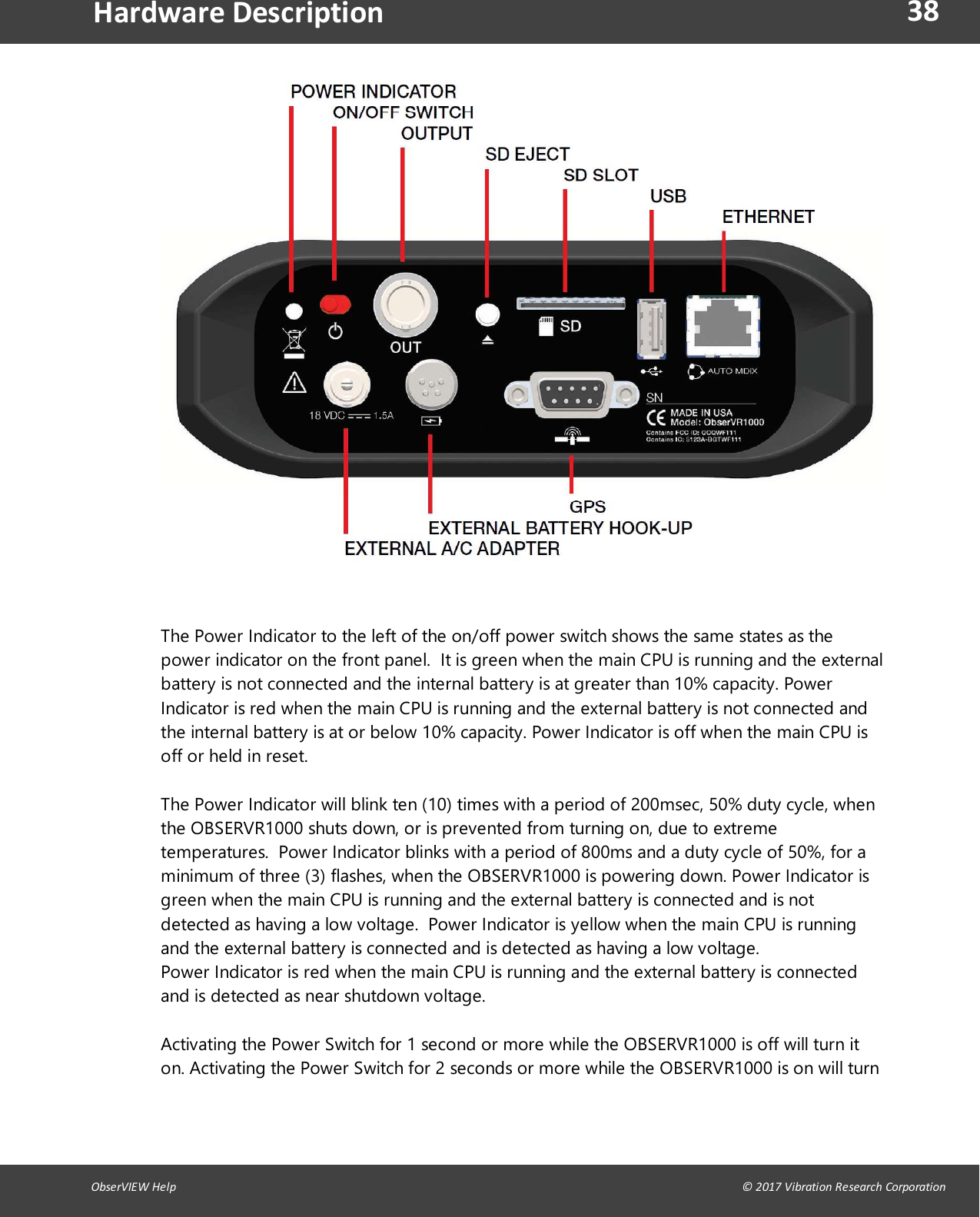
38ObserVIEW Help                                                                                                                                                                                © 2017 Vibration Research CorporationHardware DescriptionThe Power Indicator to the left of the on/off power switch shows the same states as thepower indicator on the front panel. It is green when the main CPU is running and the externalbattery is not connected and the internal battery is at greater than 10% capacity. PowerIndicator is red when the main CPU is running and the external battery is not connected andthe internal battery is at or below 10% capacity. Power Indicator is off when the main CPU isoff or held in reset.The Power Indicator will blink ten (10) times with a period of 200msec, 50% duty cycle, whenthe OBSERVR1000 shuts down, or is prevented from turning on, due to extremetemperatures. Power Indicator blinks with a period of 800ms and a duty cycle of 50%, for aminimum of three (3) flashes, when the OBSERVR1000 is powering down. Power Indicator isgreen when the main CPU is running and the external battery is connected and is notdetected as having a low voltage.  Power Indicator is yellow when the main CPU is runningand the external battery is connected and is detected as having a low voltage.Power Indicator is red when the main CPU is running and the external battery is connectedand is detected as near shutdown voltage.Activating the Power Switch for 1 second or more while the OBSERVR1000 is off will turn iton. Activating the Power Switch for 2 seconds or more while the OBSERVR1000 is on will turn
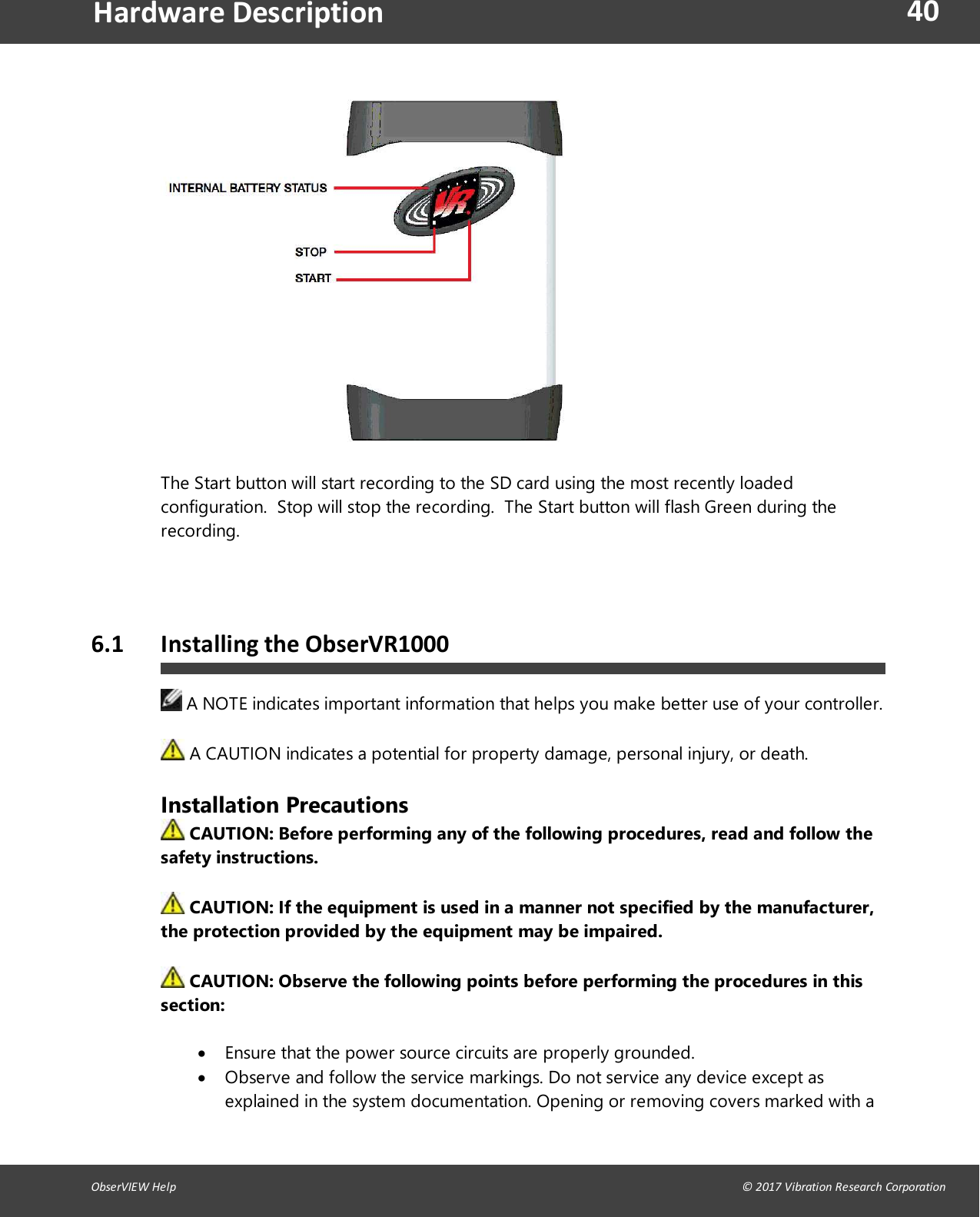
39ObserVIEW Help                                                                                                                                                                                © 2017 Vibration Research CorporationHardware Descriptionit off within 30 seconds. Momentarily activating the Power Switch will cause the InternalBattery Status Indicator to display on the top of the OBSERVR1000.The OUT connector can be used to drive external equipment. The connector is capable of+/-10V signal and is typically used to synchronize or drive external complementaryequipment.The SD Card provides storage for recorded data. The insertion and removal of the SD Card isa manual operation. To insert the card press the card until it clicks. Remove the cardphysically be pressing on the inserted card until it pops out. The lighted pushbutton to theleft of the SD card slot is used to allow safe removal of the SD Card. Although physically theSD card may be removed at any time, you will need to allow the OBSERVR1000 to completeany data written to the SD card prior to removal. The SD Eject button blinks RED while writeis active. The SD Eject button GREEN when not active/safe to remove. Press the SD Ejectbutton to prepare card for safe ejection, then wait for it to turn GREEN prior to physicallyremoving the SD Card.The USB port connects to optional Vibration Research supplied data acquisition interfaces andexternal hard drives. The USB port is capable of supplying 0.9Amps.The GPS port connects to an optional Vibration Research supplied GPS. The GPS is poweredby the OBSERVR1000 and includes position updates at about 1Hz as well as GPS time basesyncronization.The Ethernet port is a 10/100/1000BT capable AutoMDIX port to connect to an externalcomputer. This connection provides the ability to use the OBSERVR1000 tethered as adedicated data acquisition device. This is in addition to the stand alone operation.
40ObserVIEW Help                                                                                                                                                                                © 2017 Vibration Research CorporationHardware DescriptionThe Start button will start recording to the SD card using the most recently loadedconfiguration. Stop will stop the recording. The Start button will flash Green during therecording.6.1 Installing the ObserVR1000A NOTE indicates important information that helps you make better use of your controller.A CAUTION indicates a potential for property damage, personal injury, or death.Installation PrecautionsCAUTION: Before performing any of the following procedures, read and follow thesafety instructions.CAUTION: If the equipment is used in a manner not specified by the manufacturer,the protection provided by the equipment may be impaired.CAUTION: Observe the following points before performing the procedures in thissection:Ensure that the power source circuits are properly grounded.Observe and follow the service markings. Do not service any device except asexplained in the system documentation. Opening or removing covers marked with a
41ObserVIEW Help                                                                                                                                                                                © 2017 Vibration Research CorporationHardware Descriptiontriangular symbol with a lightning bolt may cause electrical shock. These componentsare to be serviced by trained service technicians only.Ensure that the power cable, extension cable, and/or plug is not damaged.Ensure that the device is not exposed to water.Ensure that the device is not exposed to radiators and/or heat sources.Do not push foreign objects into the device, as it may cause a fire or electric shock.Use the device only with approved equipment.Ensure that the device does not overload the power circuits, wiring, and over-currentprotection. To determine the possibility of overloading the supply circuits, addtogether the ampere ratings of all switches installed on the same circuit as the device.Compare this total with the rating limit for the circuit.Do not install the device in an environment where the operating ambienttemperature might exceed 55ºC (131ºF).Ensure that the airflow around the front, sides, and back of the device is notrestricted.Site Requirements Before installing the device, verify that the site selected for the device meets the followingsite requirements:Power — When charging the device or using AC power, install within 1.5 m (5 feet) ofa grounded, easily accessible outlet 100-240VAC Nominal VAC, 47-63 Hz.General — When charging the device or using AC power, ensure that the powersupply is correctly installed.Cabling — Cabling is routed to avoid sources of electrical noise such as radiotransmitters, broadcast amplifiers, power lines, and fluorescent lighting fixtures.Ambient Requirements — The ambient device operating temperature range is -20 to55 °C (-4 to 131 °F) at a relative humidity of up to 95%RH , non-condensing. Verifythat water or moisture cannot enter the device case.Ambient Requirements — The ambient AC Adapter operating temperature range is 0to 60 °C (32 to 140 °F).Do not operate this product near volatile or flammable materials.UnpackingWhile unpacking the device, ensure that the following items are included:The deviceIEC C13 AC power cableSoftware CD
42ObserVIEW Help                                                                                                                                                                                © 2017 Vibration Research CorporationHardware Description6.2 Hardware Safety DocumentationIntended UseThe OBSERVR1000 is a high sensitivity, low noise, low voltage data recorder intended to beused to record signals such as those generated by accelerometers and other sensors thatgenerate signals in the ±10v range.Things to NoteThe mains supply cord is part of the separately certified power supply. VibrationResearch is responsible for supplying the correct power supply for the country inwhich it is sold.The external power supply should not be supplied by other than Vibration Research.The external power supply shall be double insulated and LPS rated.Ensure any external circuits that provide a source of power connected to the unit, aredouble or reinforced insulated from mains or separated from mains by basicinsulation plus a grounded shield and meet requirements for SELV (Separated orSafety Extra-Low Voltage) levels (under 33Vrms/46.7Vpk or 70Vdc in normalconditions and 55Vrms/78Vpk or 140Vdc single fault).General Safety for the OBSERVR1000To prevent the spread of fire, keep candles or other open flames away from thisproduct at all times.Do not place your equipment in a closed-in wall unit or on a bed, sofa, or rug.Keep your device away from radiators and heat sources.Keep your equipment away from extremely hot or cold temperatures to ensure that itis used within the specified operating range.Do not push any objects into the air vents or openings of your equipment. Doing socan cause fire or electric shock by shorting out interior components.Avoid placing loose papers underneath your device.Do not use your equipment in a wet environment, for example, near a bath tub, sink,or swimming pool or in a wet basement.Do not use AC powered equipment during an electrical storm. Battery powereddevices may be used if all cables have been disconnected.Do not spill food or liquids on your equipment.Before you clean your equipment, disconnect it from the electrical outlet. Clean yourdevice with a soft cloth dampened with water. Do not use liquids or aerosol cleaners,which may contain flammable substances.Do not operate your equipment with any cover(s) removed.Do not use for any purpose other than those for which the unit is intended.
43ObserVIEW Help                                                                                                                                                                                © 2017 Vibration Research CorporationHardware DescriptionFCC NoticesThis device complies with part 15 of the FCC Rules. Operation is subject to the following twoconditions: (1) This device may not cause harmful interference, and (2) this device mustaccept any interference received, including interference that may cause undesired operation.Changes or modifications not expressly approved by the party responsible for compliancecould void the user’s authority to operate the equipment.Note: This equipment has been tested and found to comply with the limits for a Class A digitaldevice, pursuant to part 15 of the FCC Rules. These limits are designed to provide reasonableprotection against harmful interference when the equipment is operated in a commercialenvironment. This equipment generates, uses, and can radiate radio frequency energy and, ifnot installed and used in accordance with the instruction manual, may cause harmfulinterference to radio communications. Operation of this equipment in a residential area islikely to cause harmful interference in which case the user will be required to correct theinterference at his own expense.This portable transmitter with its antenna has shown compliance with FCC’s SAR limits forgeneral population / uncontrolled exposure. The maximum listed SAR level is 1.07 W/kg(body). The antenna used for this device must not be co-located or operating in conjunctionwith any other antenna or transmitter.ManufacturerVibration Research1294 Chicago Drive, Jenison, MI 49428 USA   6.3 Cables, Port Connections, and Pinout InformationThis section explains the switch physical interfaces, and provides information about cables andport connections.
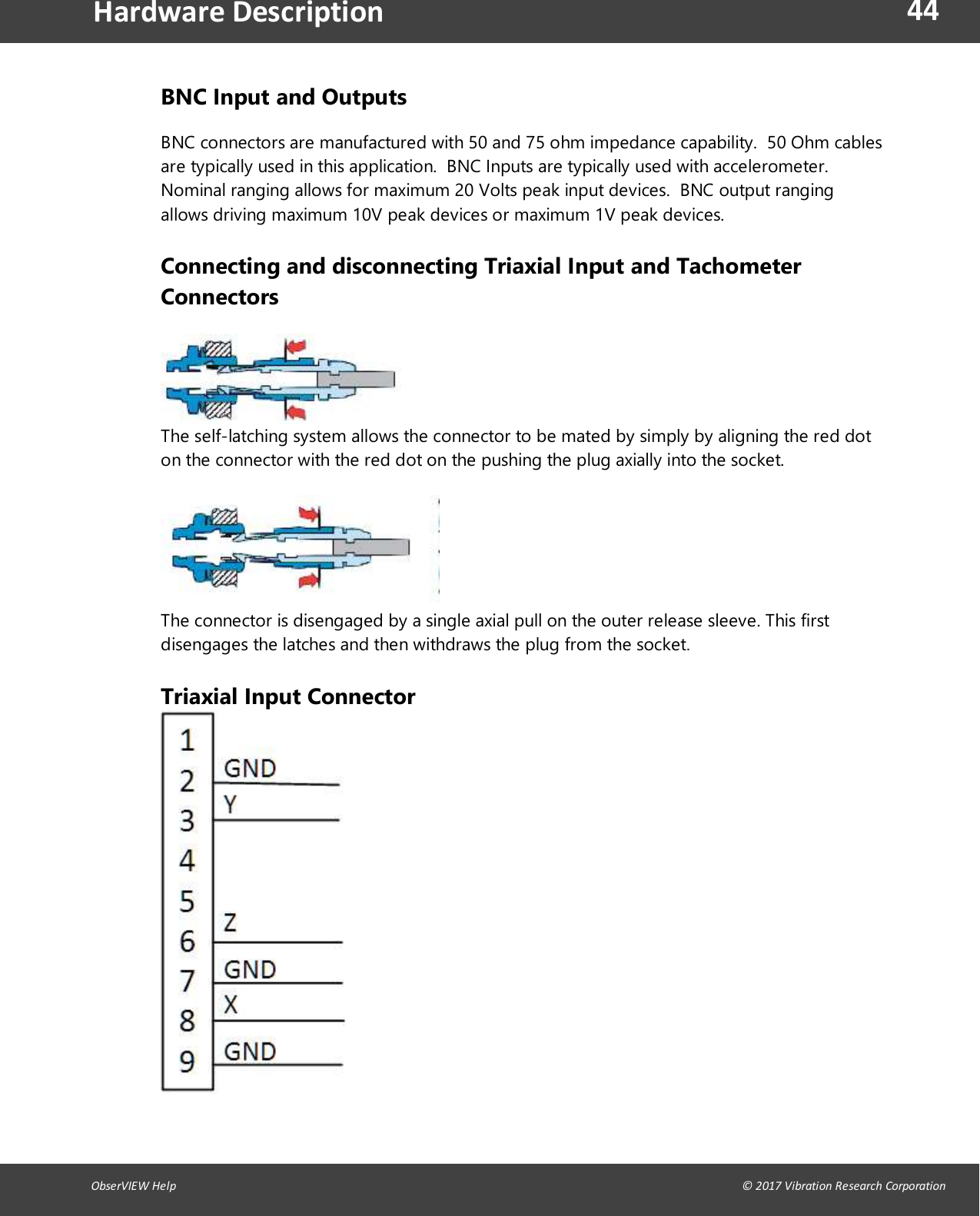
44ObserVIEW Help                                                                                                                                                                                © 2017 Vibration Research CorporationHardware DescriptionBNC Input and OutputsBNC connectors are manufactured with 50 and 75 ohm impedance capability. 50 Ohm cablesare typically used in this application. BNC Inputs are typically used with accelerometer.Nominal ranging allows for maximum 20 Volts peak input devices. BNC output rangingallows driving maximum 10V peak devices or maximum 1V peak devices.Connecting and disconnecting Triaxial Input and TachometerConnectorsThe self-latching system allows the connector to be mated by simply by aligning the red doton the connector with the red dot on the pushing the plug axially into the socket.The connector is disengaged by a single axial pull on the outer release sleeve. This firstdisengages the latches and then withdraws the plug from the socket.Triaxial Input Connector
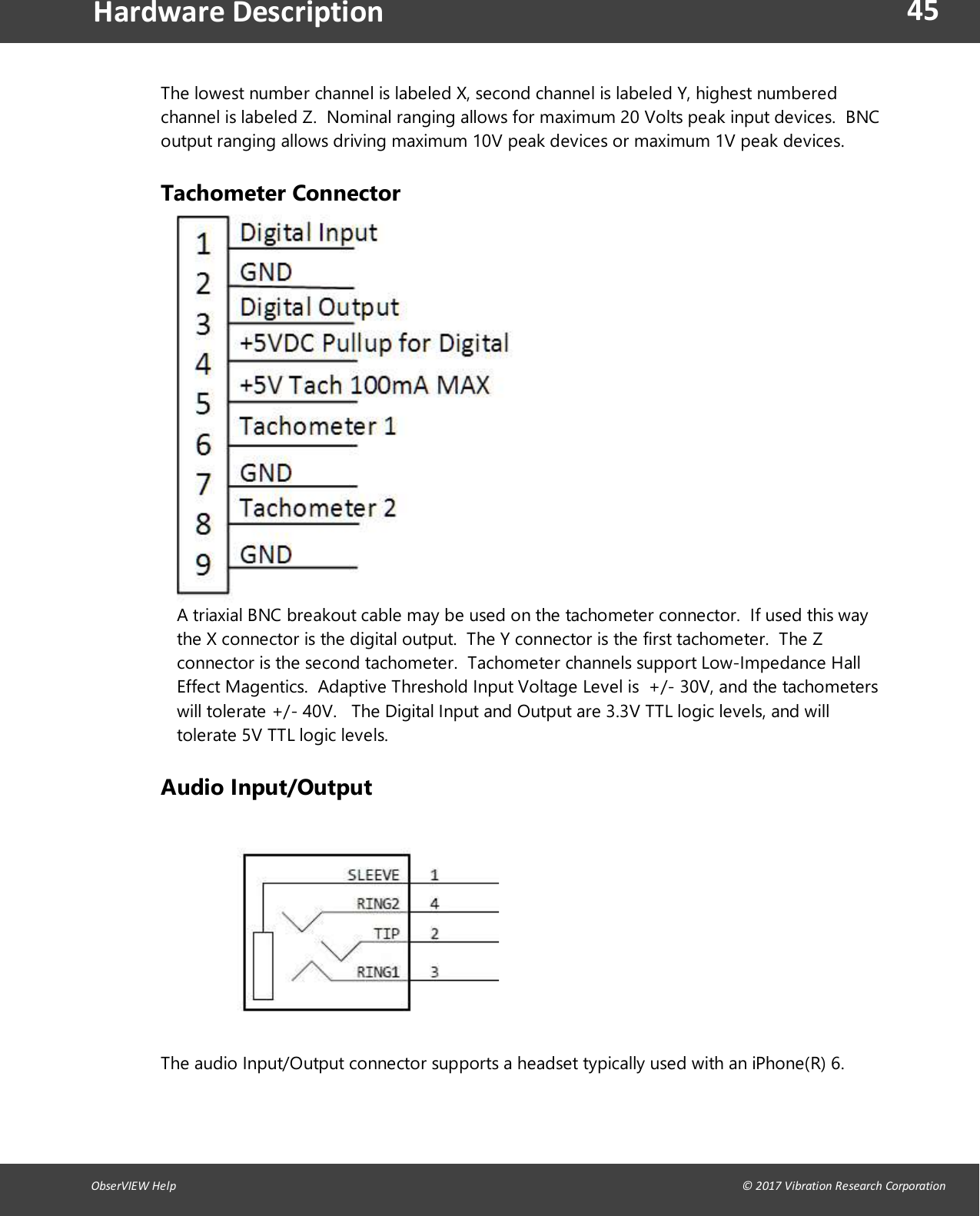
45ObserVIEW Help                                                                                                                                                                                © 2017 Vibration Research CorporationHardware DescriptionThe lowest number channel is labeled X, second channel is labeled Y, highest numberedchannel is labeled Z. Nominal ranging allows for maximum 20 Volts peak input devices. BNCoutput ranging allows driving maximum 10V peak devices or maximum 1V peak devices.Tachometer ConnectorA triaxial BNC breakout cable may be used on the tachometer connector. If used this waythe X connector is the digital output. The Y connector is the first tachometer. The Zconnector is the second tachometer. Tachometer channels support Low-Impedance HallEffect Magentics. Adaptive Threshold Input Voltage Level is +/- 30V, and the tachometerswill tolerate +/- 40V. The Digital Input and Output are 3.3V TTL logic levels, and willtolerate 5V TTL logic levels.Audio Input/OutputThe audio Input/Output connector supports a headset typically used with an iPhone(R) 6.
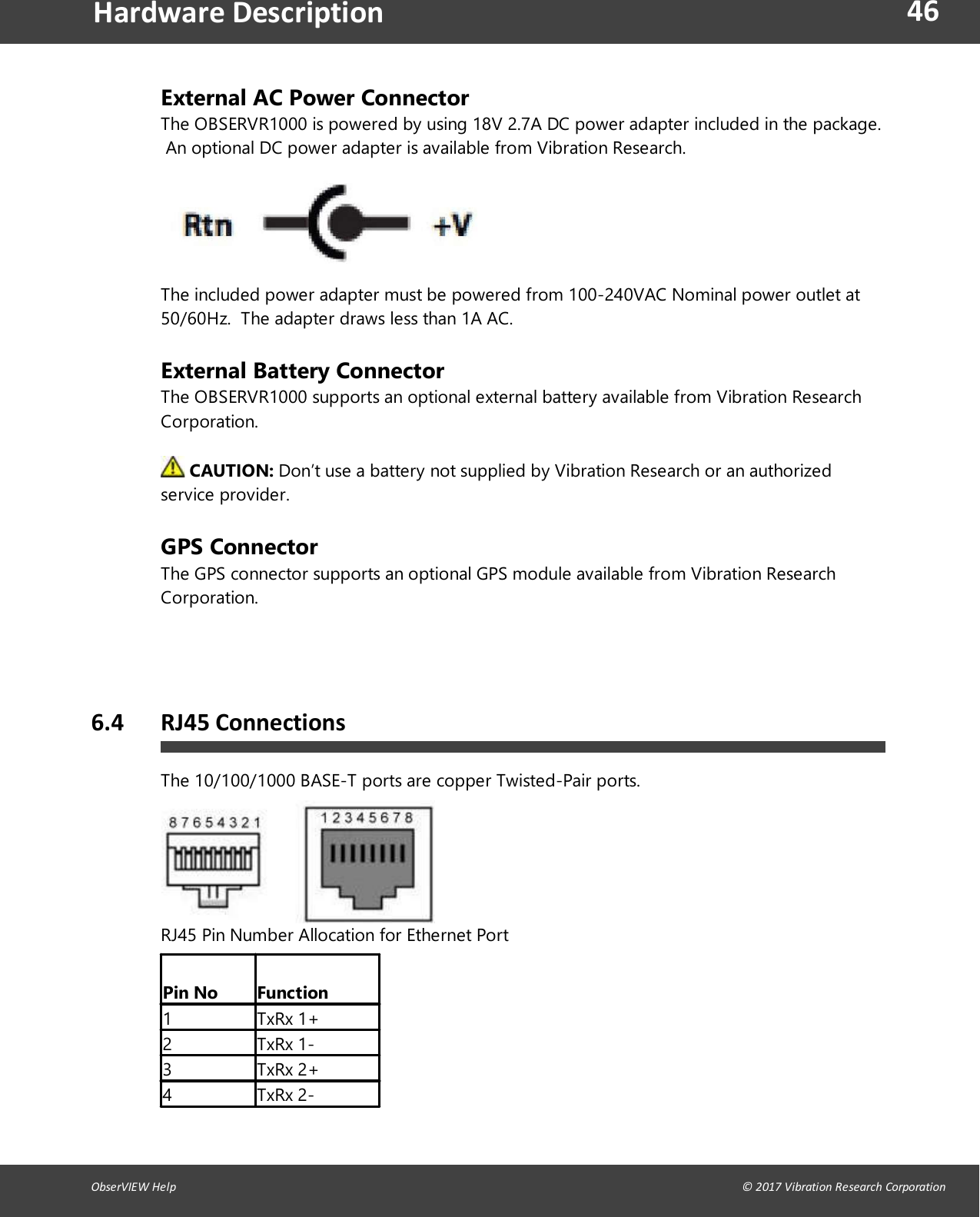
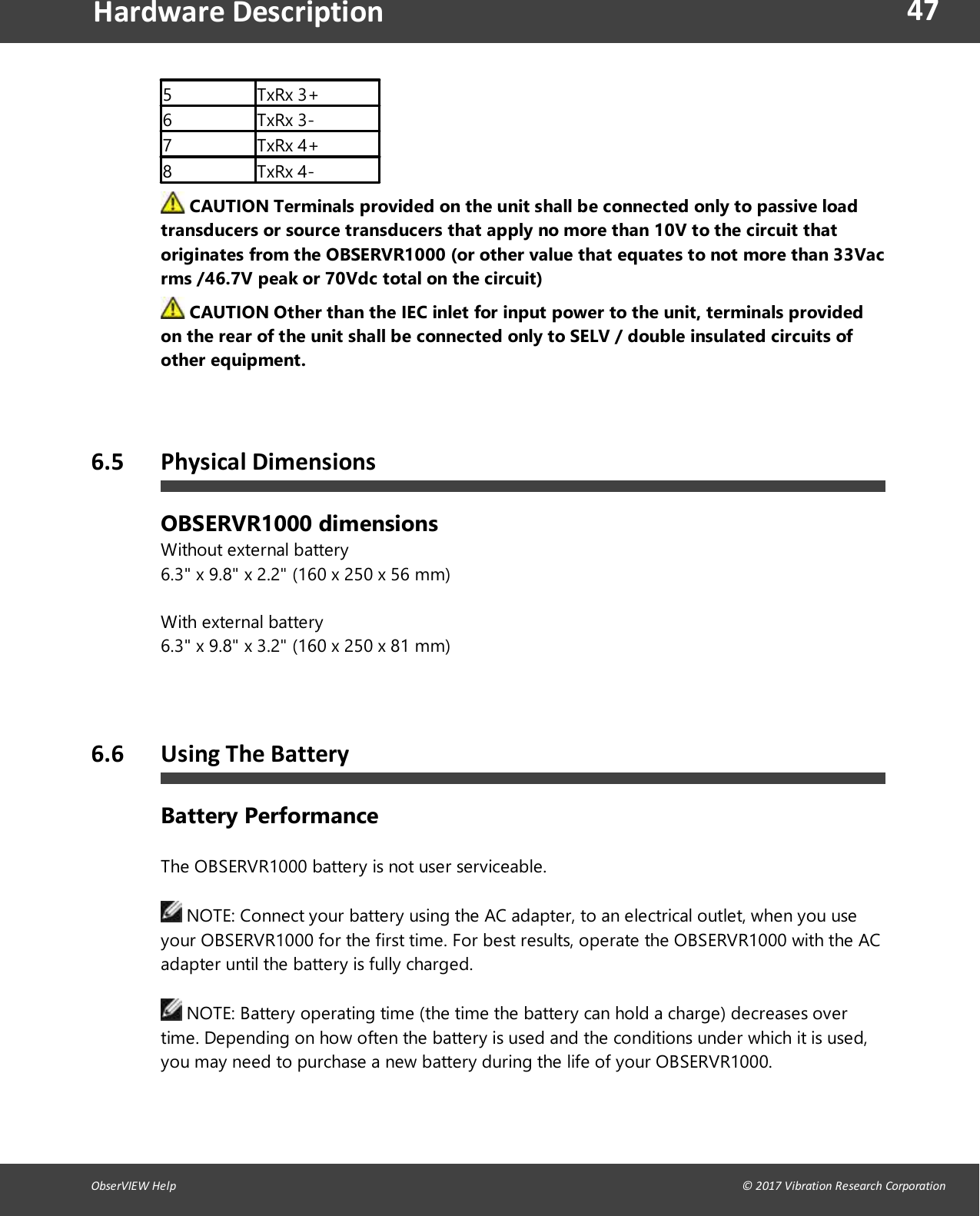
46ObserVIEW Help                                                                                                                                                                                © 2017 Vibration Research CorporationHardware DescriptionExternal AC Power ConnectorThe OBSERVR1000 is powered by using 18V 2.7A DC power adapter included in the package.An optional DC power adapter is available from Vibration Research.The included power adapter must be powered from 100-240VAC Nominal power outlet at50/60Hz.  The adapter draws less than 1A AC.External Battery ConnectorThe OBSERVR1000 supports an optional external battery available from Vibration ResearchCorporation.  CAUTION: Don’t use a battery not supplied by Vibration Research or an authorizedservice provider.GPS ConnectorThe GPS connector supports an optional GPS module available from Vibration ResearchCorporation.   6.4 RJ45 ConnectionsThe 10/100/1000 BASE-T ports are copper Twisted-Pair ports.RJ45 Pin Number Allocation for Ethernet PortPin No Function1 TxRx 1+2 TxRx 1-3 TxRx 2+4 TxRx 2-
47ObserVIEW Help                                                                                                                                                                                © 2017 Vibration Research CorporationHardware Description5 TxRx 3+6 TxRx 3-7 TxRx 4+8 TxRx 4-CAUTION Terminals provided on the unit shall be connected only to passive loadtransducers or source transducers that apply no more than 10V to the circuit thatoriginates from the OBSERVR1000 (or other value that equates to not more than 33Vacrms /46.7V peak or 70Vdc total on the circuit)CAUTION Other than the IEC inlet for input power to the unit, terminals providedon the rear of the unit shall be connected only to SELV / double insulated circuits ofother equipment.6.5 Physical DimensionsOBSERVR1000 dimensionsWithout external battery6.3" x 9.8" x 2.2" (160 x 250 x 56 mm)With external battery6.3" x 9.8" x 3.2" (160 x 250 x 81 mm)   6.6 Using The BatteryBattery PerformanceThe OBSERVR1000 battery is not user serviceable.NOTE: Connect your battery using the AC adapter, to an electrical outlet, when you useyour OBSERVR1000 for the first time. For best results, operate the OBSERVR1000 with the ACadapter until the battery is fully charged.NOTE: Battery operating time (the time the battery can hold a charge) decreases overtime. Depending on how often the battery is used and the conditions under which it is used,you may need to purchase a new battery during the life of your OBSERVR1000.
48ObserVIEW Help                                                                                                                                                                                © 2017 Vibration Research CorporationHardware DescriptionBattery operating time varies depending on usage.CAUTION: Don’t attempt to replace the OBSERVR1000 battery yourself—you maydamage the battery, which could cause overheating, fire, and injury. The lithium-ion battery inyour OBSERVR1000 should be serviced or recycled by Vibration Research or an authorizedservice provider, and must be recycled or disposed of separately from household waste.Dispose of batteries according to your local environmental laws and guidelines.

Navigation menu