Vitelcom Mobile Technology USA TSM102 CDMA Phone User Manual
Vitelcom Mobile Technology USA, Inc. CDMA Phone
User Manual
TORNADO
Reference Guide
Technical Manual
TM0410-1800
Revision 2A
January 2006

Tornado Customer Reference Guide
TM0410-1800, Rev 2A
January 2006
This document provides final product specifications.
This document contains proprietary information of VIA Telecom, Inc. The information contained
herein is not to be used by or disclosed to third parties without the express written permission of
an officer of VIA Telecom, Inc.
VIA Telecom, Inc. reserves the right to make changes to any product herein at any time without
notice. VIA Telecom does not assume any responsibility or liability arising out of the application
or use of any product described herein, except as expressly agreed to in writing by VIA Telecom;
nor does the purchase or use of a product from VIA Telecom convey a license under any patent
rights, copyrights, trademark rights, or any other of the intellectual property rights of VIA
Telecom or third parties.
The VIA Telecom logo design and VIA TELECOM are trademarks owned by the company. All
other brand and product names may be trademarks of their respective companies.
VIA Telecom is certified to the ISO 9001:2000 quality management system international
standard.
VIA Telecom, Inc.
3390 Carmel Mountain Road
San Diego, CA 92121, U.S.A.
Tel: 858.350.5560
Internet: www.via-telecom.com
Copyright © VIA Telecom, Inc. 2006
All Rights Reserved. Printed in U.S.A..
January 2006

Tornado Customer Reference Guide
TM0410-1800, Rev 2A
January 2006
Via Telecom, Inc. Proprietary i
Contents
CHAPTER 1 QUICK START .................................................................................................1-1
Installing Battery .................................................................................................................1-1
Charging Battery Prior to Use.............................................................................................1-2
Powering Phone On and Off...............................................................................................1-3
Making, Answering, and Ending a Call...............................................................................1-4
Locking the Keypad ............................................................................................................1-4
Screen Icons.......................................................................................................................1-7
Navigating Through the Menus...........................................................................................1-8
CHAPTER 2 NAMES.............................................................................................................2-1
Using the Keypad to Enter Information...............................................................................2-2
Entering and Editing Contacts ............................................................................................2-5
Creating and Using the Speed List.....................................................................................2-6
Set Reception Mode.........................................................................................................................2-7
Read vCards.....................................................................................................................................2-7
CHAPTER 3 MESSAGES ...................................................................................................3-11
Using Short Message .......................................................................................................3-11
Using Ring Tone...............................................................................................................3-12
To Download a Ring Tone:...............................................................................................3-12
Browse All Rings...............................................................................................................3-12
Manage rings....................................................................................................................3-13
Message Settings .............................................................................................................3-13
Using Voice Mail...............................................................................................................3-15
CHAPTER 4 MAKING CALLS ..............................................................................................4-1
Viewing Incoming Call Details ............................................................................................4-1
Making an Emergency Call.................................................................................................4-2
Making Calls .......................................................................................................................4-3
Viewing a List of Call Logs..................................................................................................4-7
CHAPTER 5 SETTING UP YOUR PHONE...........................................................................5-1
Selecting Ring Tones..........................................................................................................5-1
Editing Profile......................................................................................................................5-1
Adjusting the Volume ........................................................................................................5-2
Setting Up Alerts.................................................................................................................5-3
Setting up the Display.........................................................................................................5-4

Tornado Customer Reference Guide
TM0410-1800, Rev 2A
January 2006
ii Via Telecom, Inc. Proprietary
Security...............................................................................................................................5-4
Security – Call Restriction ..................................................................................................5-5
Call Setup...........................................................................................................................5-7
Viewing Phone Information.................................................................................................5-8
Enable Keyguard................................................................................................................5-9
Network Service .................................................................................................................5-9
vCard Receiving Prompt.....................................................................................................5-9
CHAPTER 6 USING THE PHONE TOOLS...........................................................................6-1
Using the Schedule ............................................................................................................6-1
Using the Alarm Clock........................................................................................................6-1
Using the Calculator ...........................................................................................................6-1
Using the Tip Calculator .....................................................................................................6-1
CHAPTER 7 KEYPAD SERVICE PROVISIONING ..............................................................6-1
Program NAM1, NAM2, or SPCs .......................................................................................6-1
Abbrev.NAM .......................................................................................................................6-1
System NAM Setting ..........................................................................................................6-1
Test Screen ........................................................................................................................6-2
Factory test mode...............................................................................................................6-2
CHAPTER 8 HEALTH AND SAFETY INFORMATION.........................................................8-1
Exposure to Radio Frequency (RF) Signals.......................................................................8-1
For Body Operation ............................................................................................................8-2

Tornado Customer Reference Guide
TM0410-1800, Rev 2A
January 2006
VIA Telecom, Inc Proprietary 1-1
Chapter 1 Quick Start
Congratulations on purchasing your phone. This chapter provides you with information to get you
started using your new phone quickly.
Installing Battery
Note: (If any background/introduction information is needed, type it here)
To install battery:
1. First step aaaaaa aaaaaa aaaaa aaaaa aaaaa aaaaa aaaaa
aaaaa aaaaa aaaaa aaaaa aaaaa aaaaa aaaaa aaaaa aaaaa
aaaaa aaaaa aaaaa aaaaa aaaaa.
2. Second step
3. etc.
Insert
picture
Insert
picture

Tornado Customer Reference Guide
TM0410-1800, Rev 2A
January 2006
Chapter 1 – Quick Start
1-2 Via Telecom, Inc. Proprietary
Charging Battery Prior to Use
Note:
(Type any background/introduction information here. Such as, the battery is
delivered uncharged. You must first charge the battery before using. Power can be on while charging
battery. Etc.)
To charge the battery:
1. First step: aaaaaa aaaaaa aaaaa aaaaa aaaaa aaaaa aaaaa
aaaaa aaaaa aaaaa aaaaa aaaaa aaaaa aaaaa aaaaa aaaaa
aaaaa aaaaa aaaaa aaaaa aaaaa.
2. Second step:
3. etc.
Insert
picture
Insert
picture

Tornado Customer Reference Guide
TM0410-1800, Rev 2A
January 2006
Chapter 1 – Quick Start
VIA Telecom, Inc Proprietary 1-3
Powering Phone On and Off
Note: (If any background/introduction information is needed, type it here.)
To turn phone On/Off:
Press and hold
key until phone powers on or off.
Tornado Customer Reference Guide
TM0410-1800, Rev 2A
January 2006
Chapter 1 – Quick Start
1-4 Via Telecom, Inc. Proprietary
Making, Answering, and Ending a Call
Note:
(If any background/introduction information is needed, type it here.)
To make a call:
1. Enter phone number and press
button.
2. To end call, press button.
To answer a call:
3. Press button.
4. To end call, press button.
Locking the Keypad
5. Press and hold
*
.
6. Press *# to unlock.
Tornado Customer Reference Guide
TM0410-1800, Rev 2A
January 2006
Chapter 1 – Quick Start
Via Telecom, Inc. Proprietary 1-5
Parts of the Phone
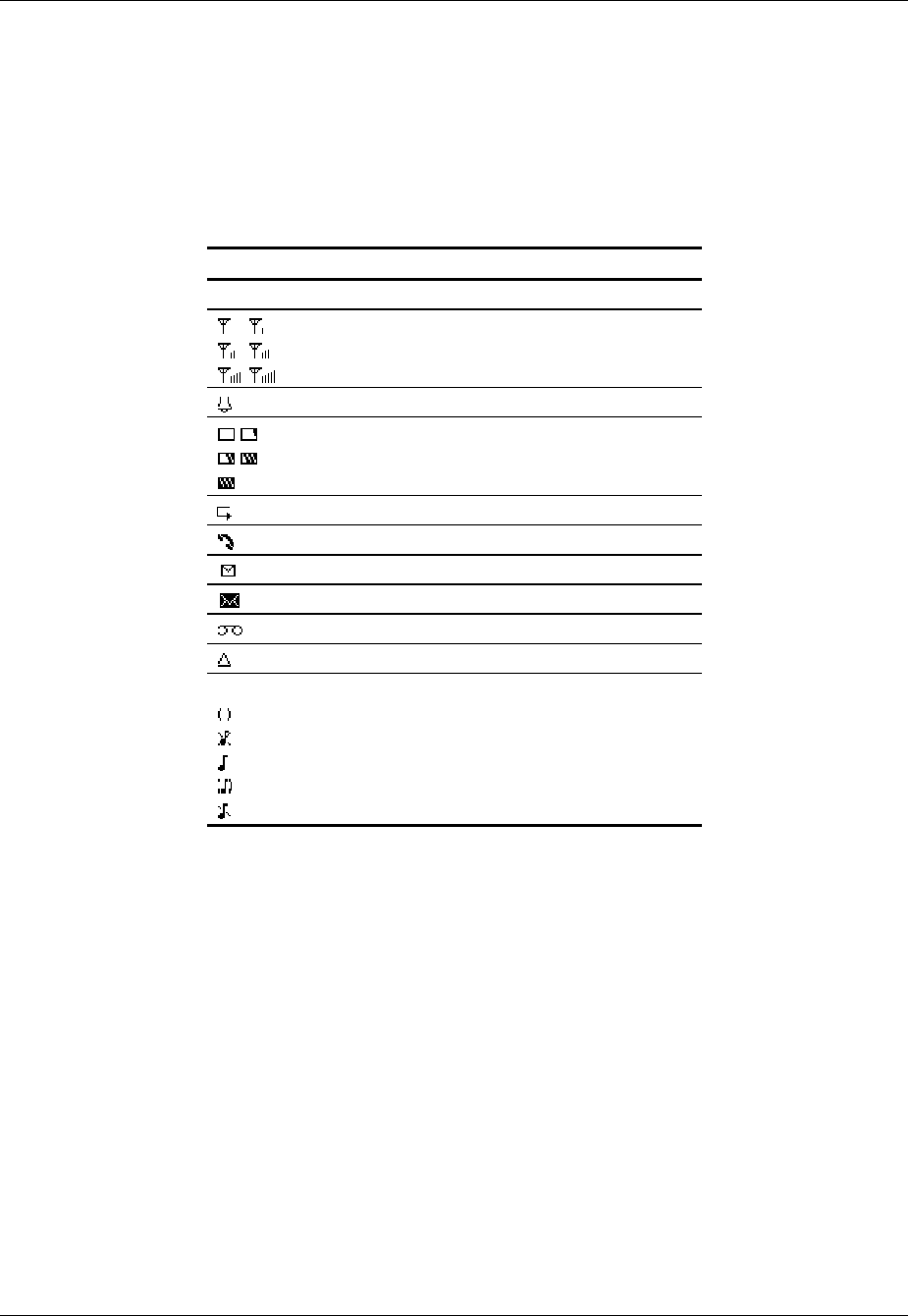
The photograph below shows the main components of phone.
Note:
(Inside the text boxes pictured below, type in names of major components.)
LCD
screen
Earpiece/Speaker
Right Soft
key
Up/Down
key
(xxxx)
Microphone
Left Soft
key
End
key
Send key
(xxxx)
(xxxx)

Tornado Customer Reference Guide
TM0410-1800, Rev 2A
January 2006
Chapter 1 – Quick Start
1-6 Via Telecom, Inc. Proprietary
Note:
(Type in descriptions of phone components in table below.)
Key Description
(insert picture)
Up/down key Use up/down to navigate in menus.
(insert picture)
Send key
Use this key to dial, or answer a cal.
(insert picture)
End key
Use this key to end a call, or turn power on/off.
(insert picture)
Soft key (left)
Use this key to select or confirm something.
(insert picture)
Soft key (right)
Use this key to cancel something.
Alphanumeric keypad Use these keys to input numbers, or characters.
Tornado Customer Reference Guide
TM0410-1800, Rev 2A
January 2006
Chapter 1 – Quick Start
Via Telecom, Inc. Proprietary 1-7
Screen Icons
Note:
(Insert all of screen icons in table below, or insert a sample LCD screen with call-outs showing
each of the possible screen icons)
When phone is powered on, the following icons may display:
Icon Description
Indicate the strength of rssi.
Indicate the alarm is set.
Indicate the level of battery.
Indicate call forward enabled.
Indicate the phone is in a call.
Indicate new message’s arrival.
Indicate new urgent message.
Indicate voice mail.
Indicate phone is in roaming.
Indicate all kinds of phone mode:
Only vibrate
No ring
Ring
Ring and vibrate

Tornado Customer Reference Guide
TM0410-1800, Rev 2A
January 2006
Chapter 1 – Quick Start
1-8 Via Telecom, Inc. Proprietary
Navigating Through the Menus
The top two levels of the phone menus are shown below.
Note:
(Insert pictures of icons in front of each menu item)
1 Names
1 List
2 New
3 Search
4 Erase All
5 Speed Dial
6 Send All as vCards
2
Settings
1
Ringers
2
Profile
3
Display
4
Security
5
Call Setup
6
Phone Info
7
Phone Number
8
Keyguard
9
Network Service
3
Tools
1
Scheduler
2
Alarm Clock
3
Calculator
4
Tip Calculator
4
Call Logs
1
Missed
2
Received Call
3
Dialed Call
4
Erase Lists
5
Call Timers

Tornado Customer Reference Guide
TM0410-1800, Rev 2A
January 2006
Chapter 1 – Quick Start
Via Telecom, Inc. Proprietary 1-9
5
Messages
1
Write Message
2
Inbox
3
Outbox
4
Templates
5
Erase Msgs
6
Voice Mail
7
Settings
8
Multimedia Box
Note:
(Type instructions below for each button used to navigate through menus and
select menu items.)
To navigate through menus
1. Press ▲ key to navigate.
▼
2. Press key to enter.
3. Press to go back.
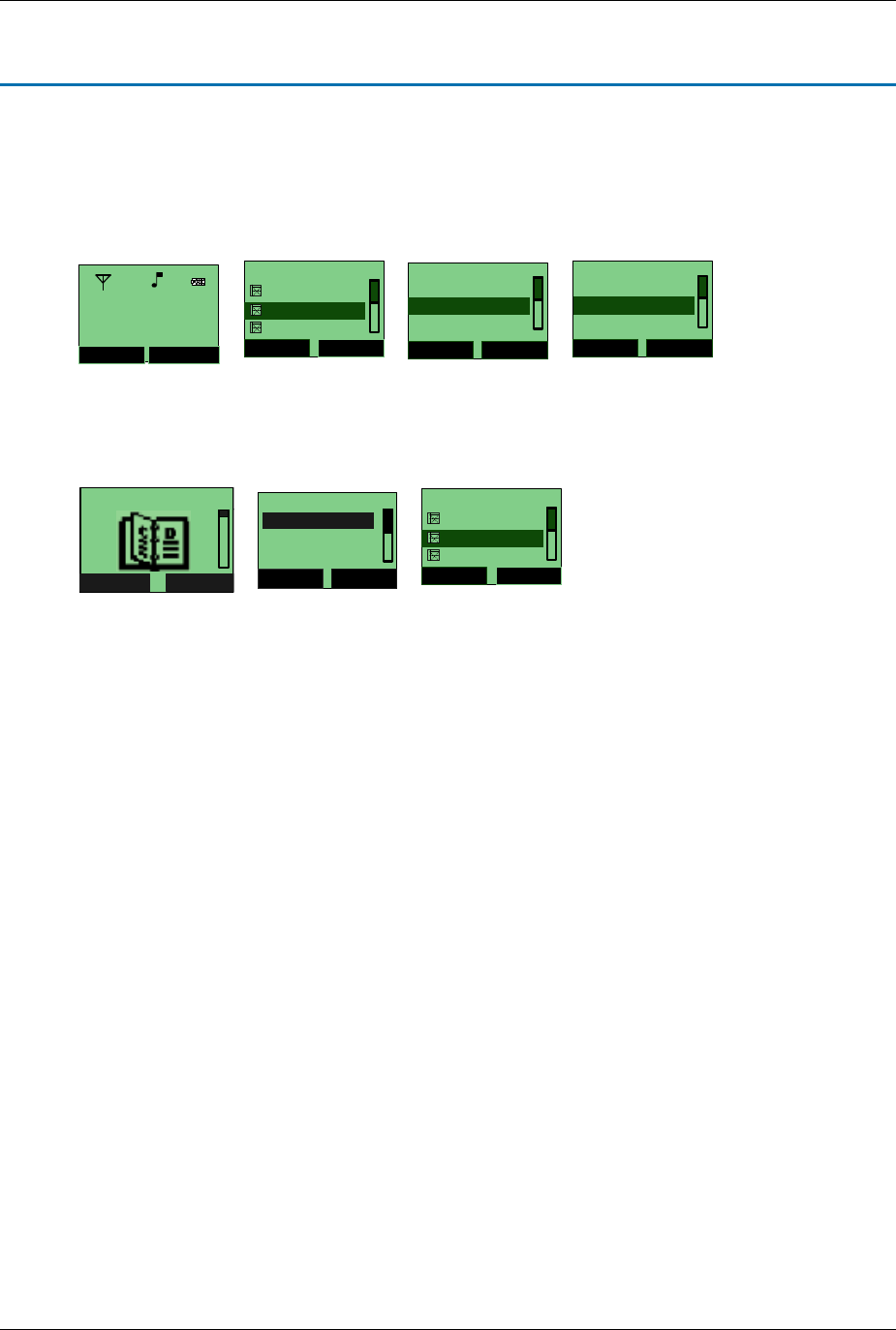
Tornado Customer Reference Guide
TM0410-1800, Rev 2A
January 2006
VIA Telecom, Inc Proprietary 2-1
Chapter 2 Names
Names is a list of your contacts. Each contact can contain three phone numbers, address, email, URL,
and note.
You can access it directly after powering on for quick access to your contact list.
Names (2/6)
Options Back
Chuck
Allyn
Doris
Options
Select Close
Send Message
Details
Call
Options
Select Close
Erase
Send as vCard
Edit
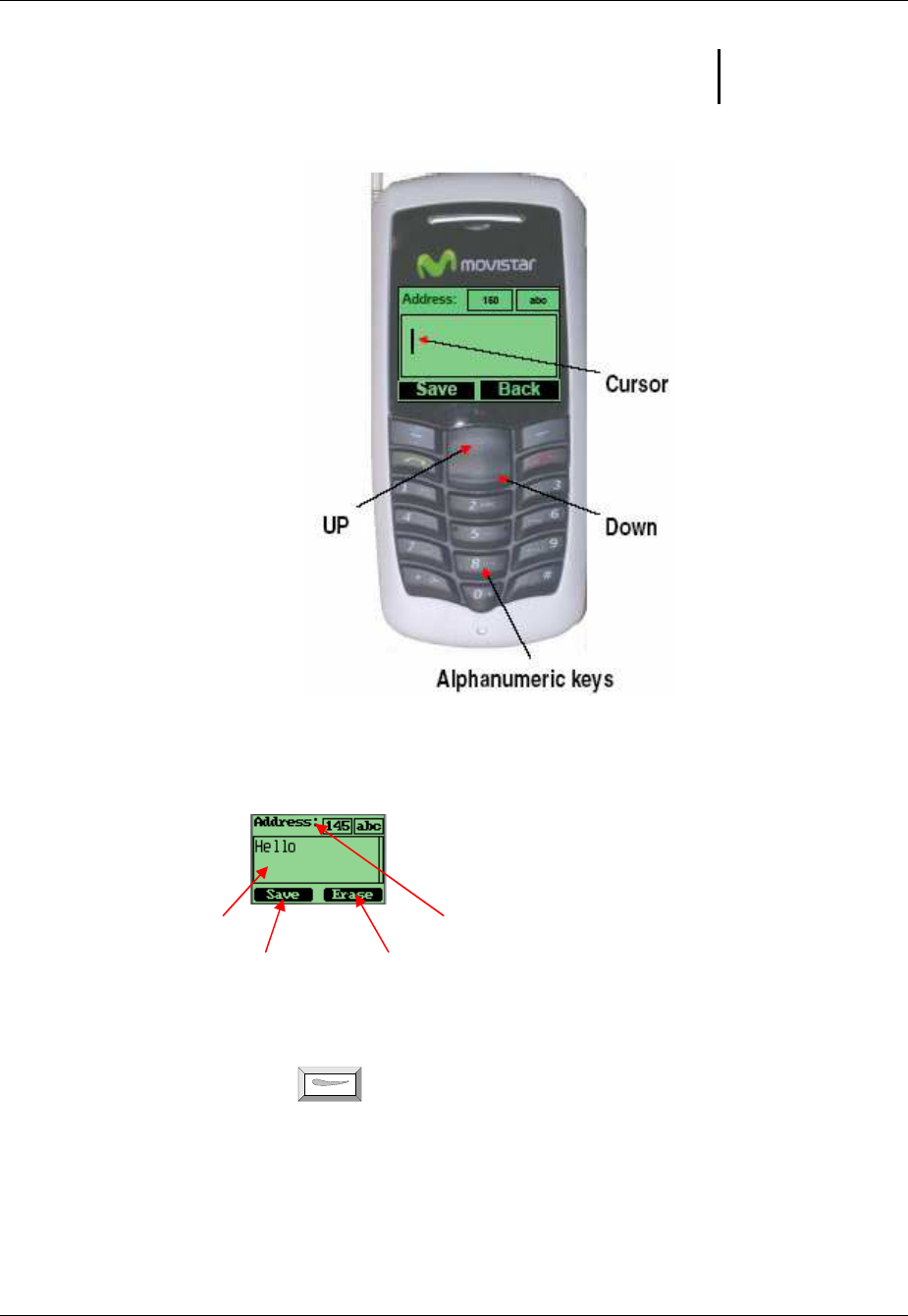
1. You can access your contacts through Menu →
→→
→ Names →
→→
→ List →
→→
→ ▲ and ▼.
Names
Select Back
Names
Select Back
2. New
1. List
3. Search
Names (2/6)
Options Back
Chuck
Allyn
Doris
Menu Names
China Unicom
Moviestar
Tornado Customer Reference Guide
TM0410-1800, Rev 2A
January 2006
Chapter 2 – Names
2-2 Via Telecom, Inc. Proprietary
Using the Keypad to Enter Information
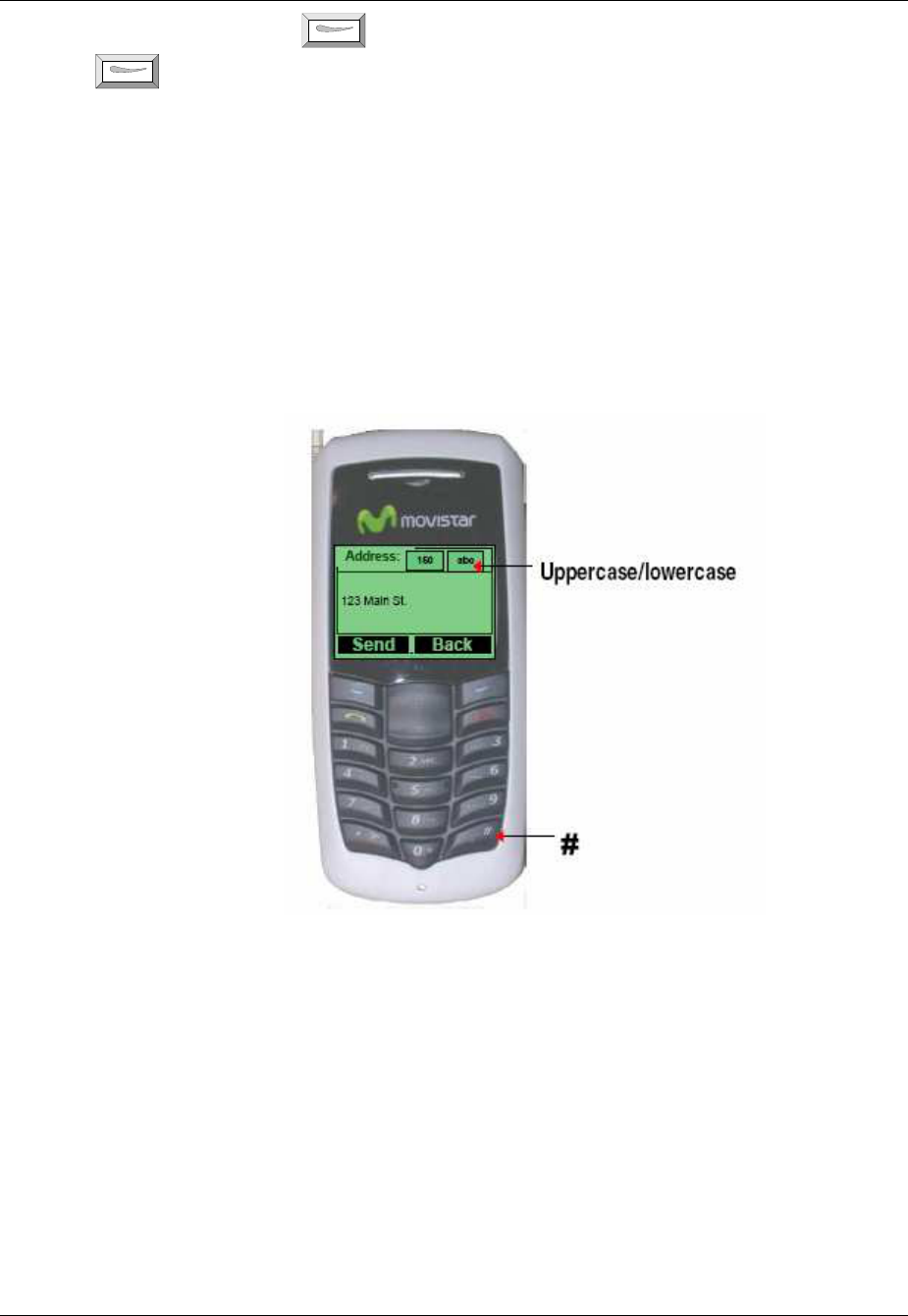
You can use the keypad to enter information. There is a cursor, which looks like at the right side of
current character.
To enter text
Input area Left length
Use Left Soft key
Use Right Soft key
1. Press alphanumeric key to insert text before cursor.
2. If you make a mistake, press for
Erase
to delete current character before the cursor.
3. Use ▲ and ▼ to move cursor.
4. After editing, select
Save
to save your editing.
Tornado Customer Reference Guide
TM0410-1800, Rev 2A
January 2006
Chapter 2 - Names
Via Telecom, Inc. Proprietary 2-3
5. To cancel editing, long-press key until key function changes to
Back.
Press
again.
To enter numbers:
1. Press
#
until
123
is displayed at the top-right corner of the screen.
2. Press numeric keys to input numbers.
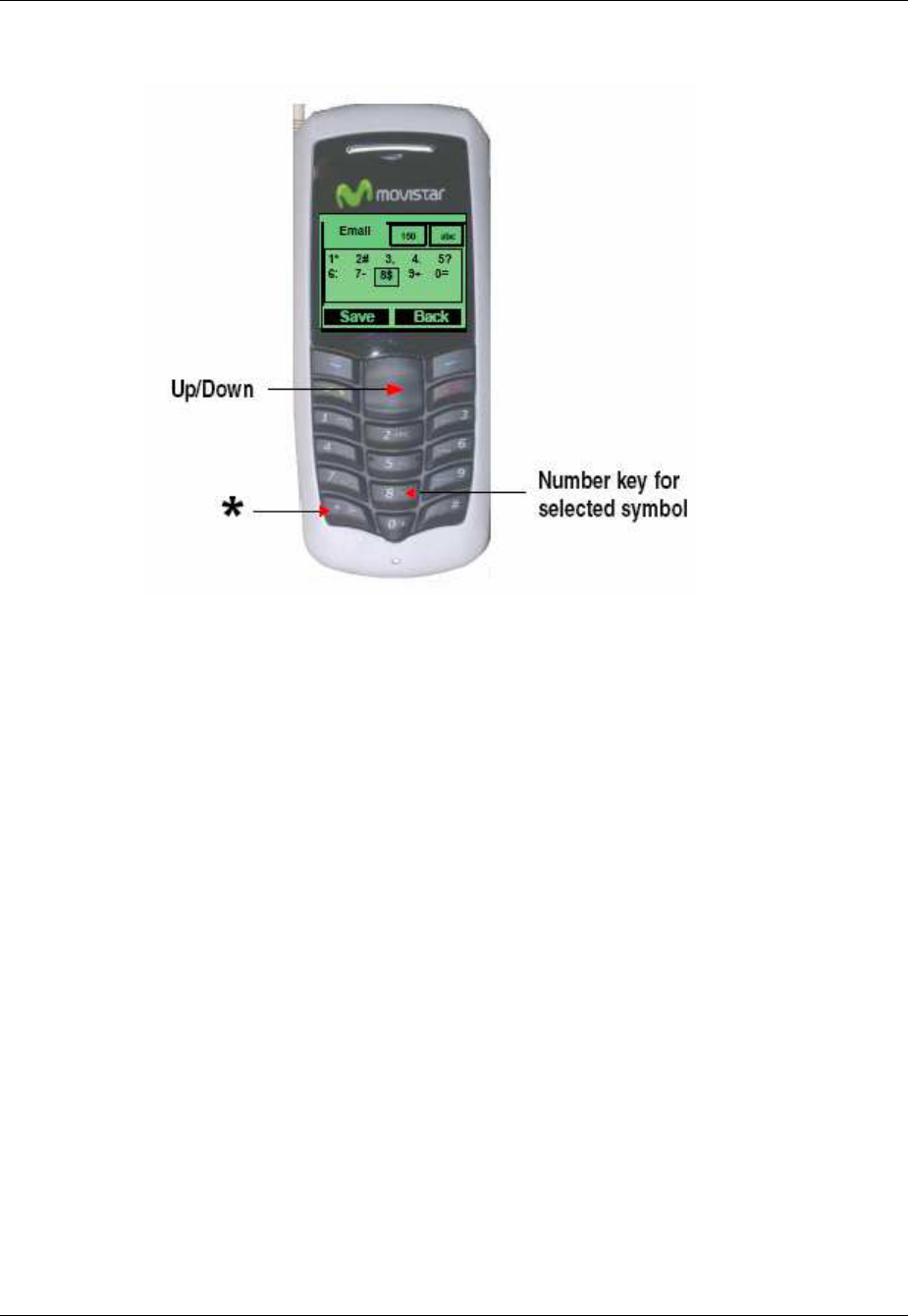
To enter uppercase or lowercase letters:
1. Press
#
a couple times until
abc
is displayed at the top-right corner of the screen and input
lowercase letters.
2. Press
#
a couple times until
ABC
is displayed at the top-right corner of the screen and input
Uppercase letters.
3. Press alphanumeric key several times (no longer than 0.5 seconds between each two pressings) to
enter a particular letter written in the key.
4. If the cursor is hidden, keep on pressing to change current character. Current character will be
entered when the cursor appears.
5. If you wish to enter a letter that is in the same key, you must wait 0.5 seconds until the cursor
appears, so you can press the key again. If you wish to enter a letter that is in a different key, you
need not wait for the cursor. Just directly press the key as you wish.
Tornado Customer Reference Guide
TM0410-1800, Rev 2A
January 2006
Chapter 2 – Names
2-4 Via Telecom, Inc. Proprietary
To enter symbols or special characters:
1. Press
.
2. Use ▲ and ▼ to select the symbol you need.
3. Press the corresponding number key to select the symbol you want.
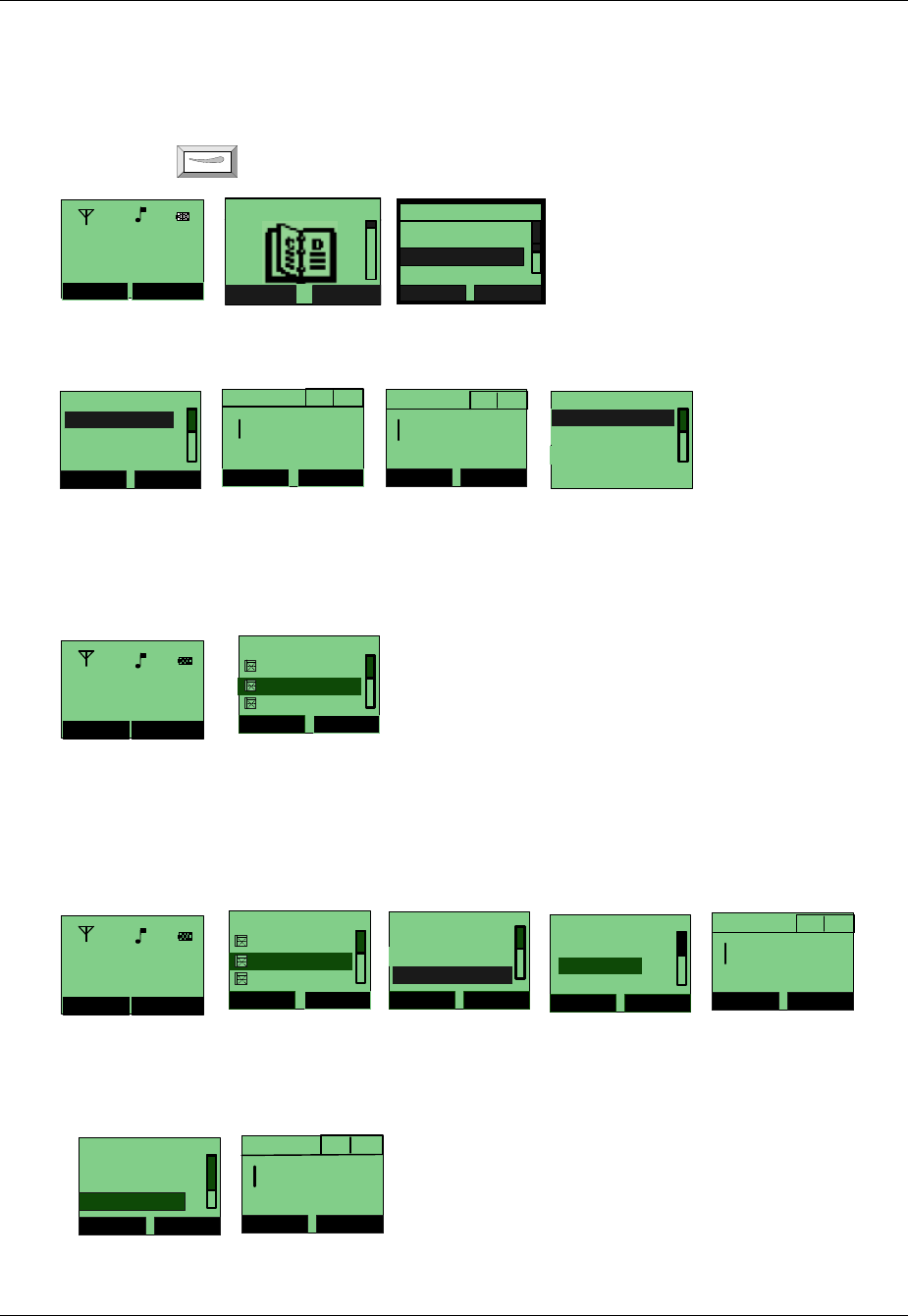
To change the language:
1.
Menu
→
→→
→
▼
→
→→
→ Settings →
→ →
→ Display
→
→→
→ Language.
2. Reset from another language you cannot read:
Menu
→
→ →
→
press in
5,3,3.
Tornado Customer Reference Guide
TM0410-1800, Rev 2A
January 2006
Chapter 2 - Names
Via Telecom, Inc. Proprietary 2-5
Entering and Editing Contacts
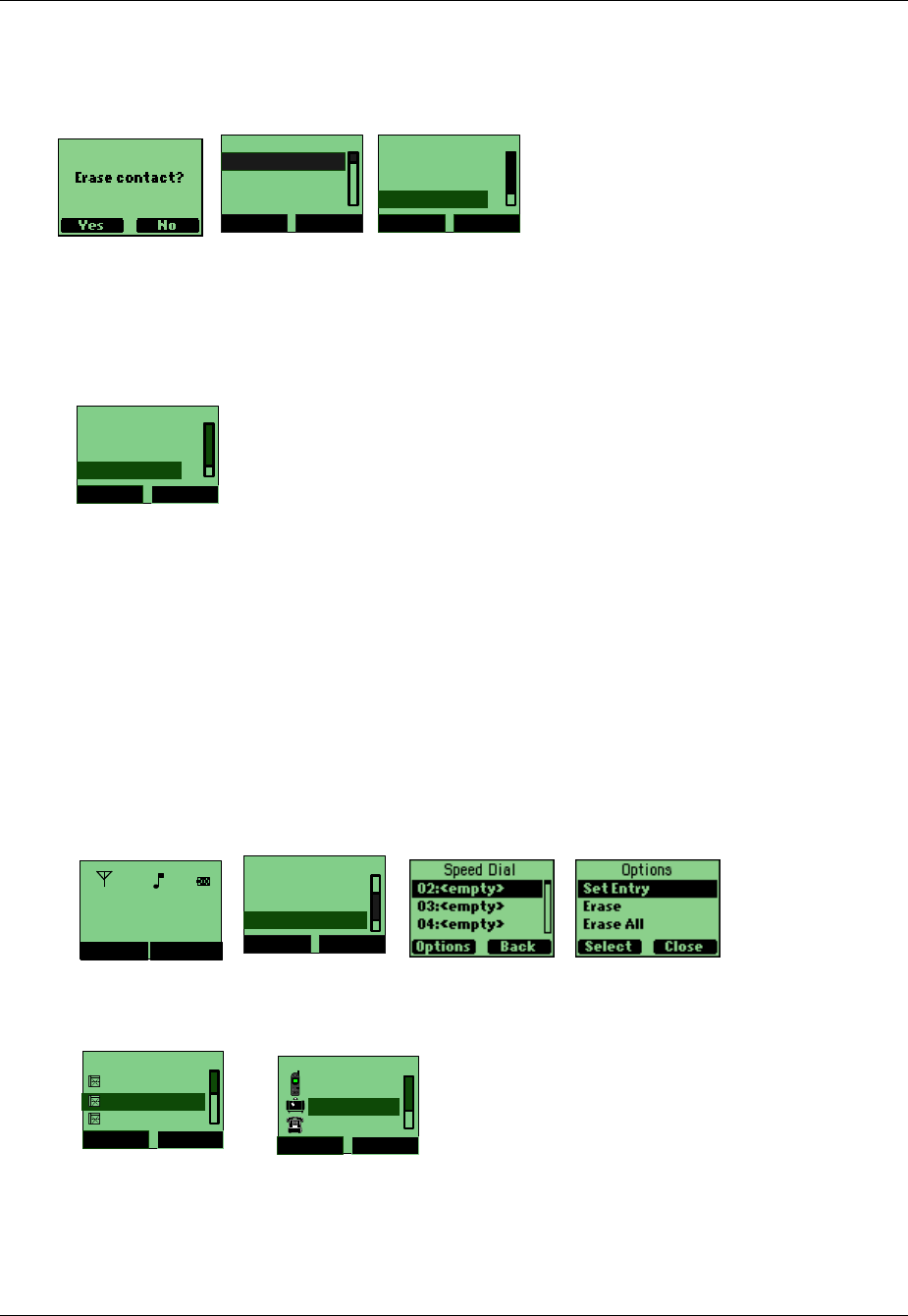
To add a new contact:
1. At
Menu
press for
Names →
▼ for
New → Select.
Names
Select Back
Names
1. List
3. Search
Select Back
2. New
2. At
New Contact
make selection and enter contact data
→
Save
and enter contact name
→
Number Type
New Contacts
Select Back
2. Email
1. Number
3. Address
Number
Save Back
20 123
Name
Save Back
20 ab c
Number Type
2. Work
1. Home
3. Fax
To view list of names:
1.
Names → List →
scroll ▼ to view entire list.
Names (2/6)
Options Back
Chuck
Allyn
Doris
To edit a name:
1.
Names → List
scroll ▼ to select contact you wish to edit
→
Options →
scroll ▼
→
Edit
→ Change → Save.
Names (2/6)
Options Back
Chuck
Allyn
Doris
Options
Select Close
Erase
Send as vCard
Edit
Options
Select Back
Change
Send Message
Save
Name
Save Back
20 ab c
To find a name:
1.
Names →
▼
→ Search →
enter the full name you wish to search
→ Find
Names
Select Back
2. New
1. List
3. Search
Name
Find Erase
20 abc
Menu Names
China Unicom
Moviestar
Menu Names
China Unicom
Moviestar
Menu Names
China Unicom
Moviestar
Tornado Customer Reference Guide
TM0410-1800, Rev 2A
January 2006
Chapter 2 – Names
2-6 Via Telecom, Inc. Proprietary
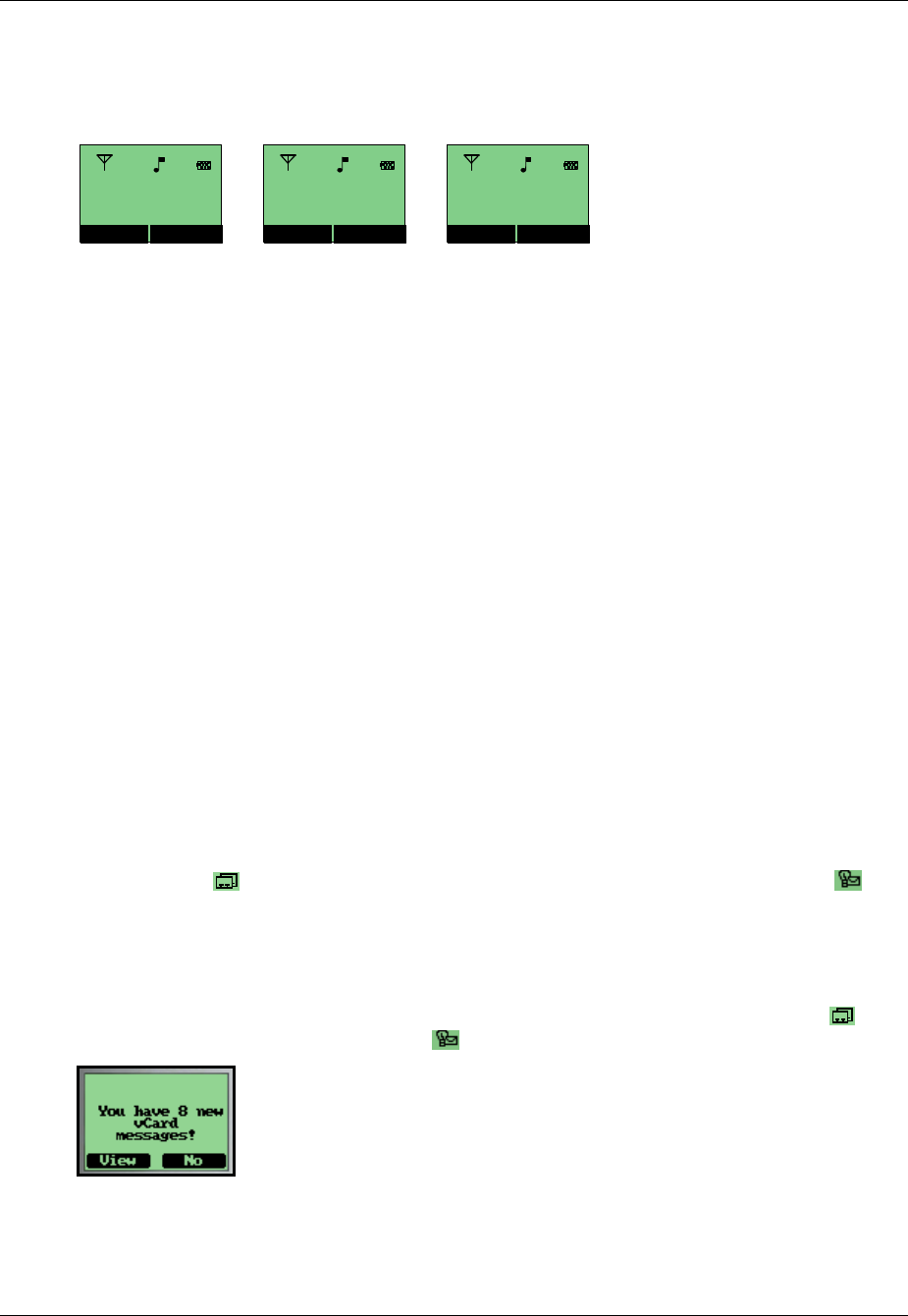
To erase a Name:
1.
Names → List →
select one contact in the list
→
scroll ▼
→ Erase → Yes
or
No
to
confirm.
Names
Select Back
2. New
1. List
3. Search
Options
Select Back
Send as vCard
Call
Erase
To erase all contacts:
2.
Names →
▼
→ Erase All →
▼
→ Erase → Yes
or
No
to confirm.
Names
Select Back
Search
New
Erase All
Creating and Using the Speed List
Assign numbers 2 to 99 to contacts in to Speed Dial. Then you can use short numbers such as long
pressing 2 or 2# to dial quickly.
To add/edit a phone number to the speed list:
1.
Menu
→
Names →
▼
→ Speed
Dial
.
→
▼
→
select an empty short number
→Options
→ Set Entry.
Names
Select Back
4. Erase All
3. Search
5. Speed Dial
2.
Search Names →
▼
→
select one contact
→
select a contact phone number. the contact
number is now saved to
Speed Dial
Search Names
Select Back
Chuck
Allyn
Doris
Chuck
Select Back
4556677
1234567
7788997
Menu Names
China Unicom
Moviestar
Tornado Customer Reference Guide
TM0410-1800, Rev 2A
January 2006
Chapter 2 - Names
Via Telecom, Inc. Proprietary 2-7
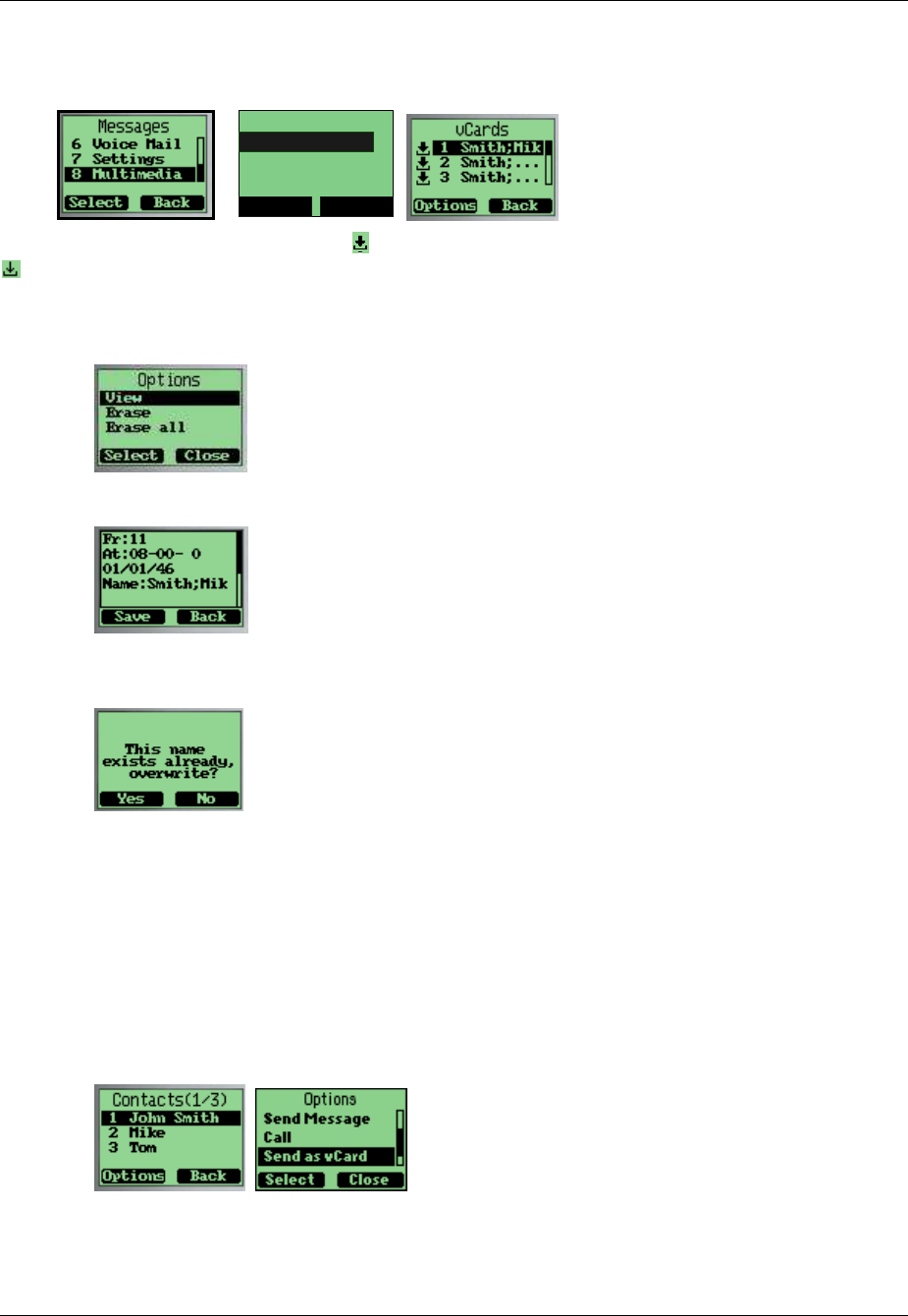
To make a call to a number on the speed list:
1. Menu → press and hold the Speed Dial number or press the Speed Dial number along with # .
The long contact number will appear.
To delete one or all numbers on the speed list:
1.
Names →
▼
→
Speed Dial →Options →
▼
→
Erase All → Select →
Yes
or
No
to confirm.
Using the vCard - VCard exchange
The vCard allows you to exchange phonebook entries via SMS with others whose handsets support
Smart Messaging.
Set Reception Mode
The handset supports two vCards reception mode, On phonebook or Prompt.
On phonebook means when you receive a new vCard, the handset will save the contact information
directly onto your phonebook. If the entry with the same contact name exists already in your
phonebook, it will be overwritten without prompt. After the contact information has been saved to
phonebook, the vCard received will be deleted.
“Prompt” means the handset will prompt for a new vCard’s incoming. The handset will display instead.
You have a choice of reading the message immediately by pressing “View” key or reading it later by
pressing “Back” key. When you press “View” key, the display will show the content of the vCard
message (if there is only one unread vCard message.) If there are multiple unread messages, the display
will show the vCard message list.popup a dialog to ask you whether read the message right now, and
your phone sounds, and is shown on the display. If you have both unread SMSs and vCards, is
shown on the display instead.
Your phone holds up to 120 vCards.
Read vCards
If your phone is turned on when it receives a vCard, your phone sounds an alert or vibrates and is
shown on the display. If you have unread SMSs, is shown on the
Menu Names
2
Menu Names
2#
Menu Names
7788997
Tornado Customer Reference Guide
TM0410-1800, Rev 2A
January 2006
Chapter 2 – Names
2-8 Via Telecom, Inc. Proprietary
To read a vCard:
Menu
→ Messages →
▼
→
Multimedia Box →
select
vCard
Multimedia Box
Select Back
2. Ringtone
1. vCard
If a vCard message is unread, there is a flag before the item in the message list. Otherwise, the flag is
.
1.
You can select a vCard by scrolling with the
▲
and
▼
keys and pressing
Options
to choose
View
. The vCards shown are sorted by the time they were received.
2.
You can read the vCard content by scrolling with the
▲
and
▼
keys.
3.
If you want to save the vCard’s contact information, press
Save
. If a contact entry with the same
name exists, your phone will prompt to ask you whether to overwrite the existed entry.
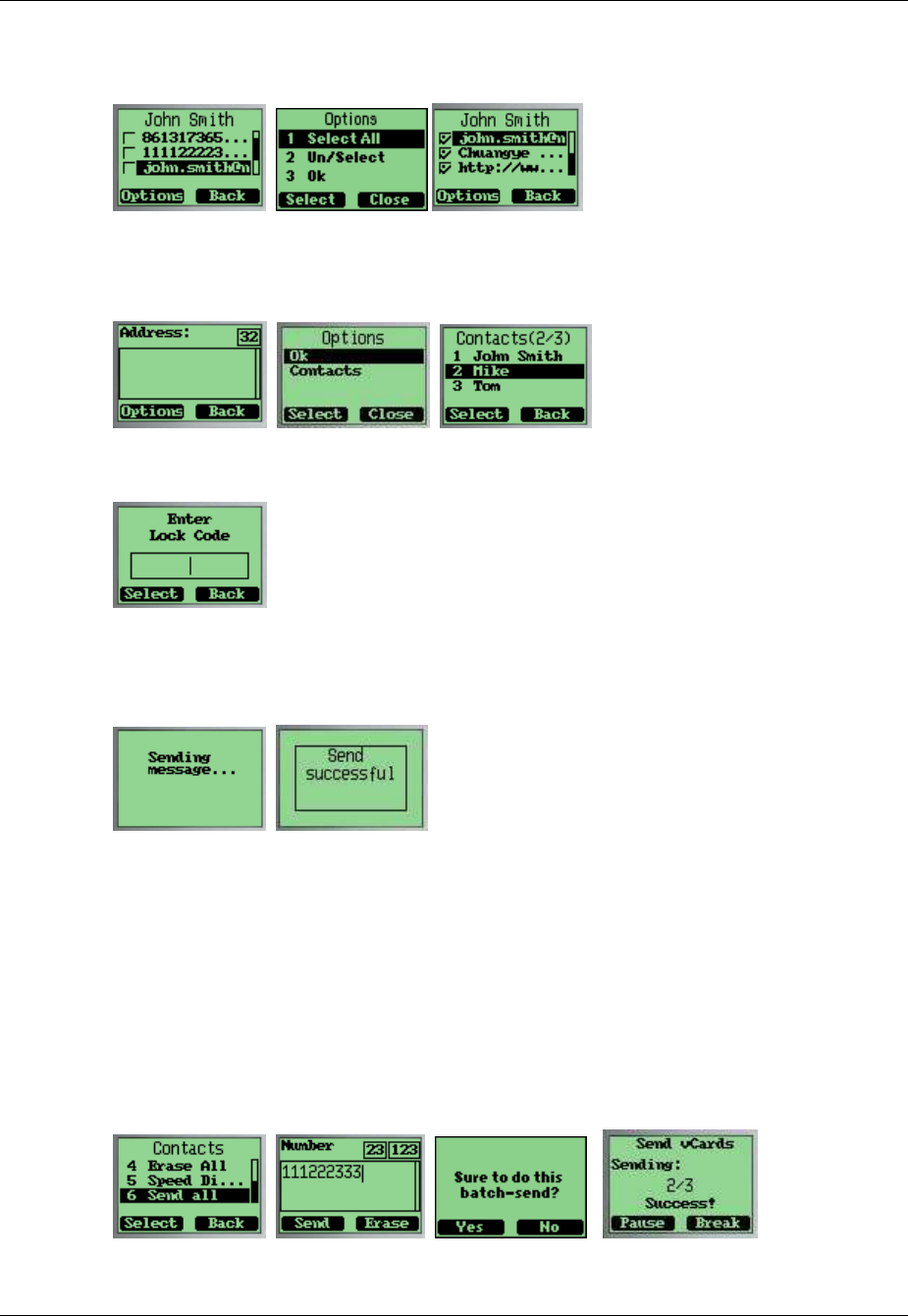
To send a vCard:
You can send a vCard through your phone.
To send a vCard:
1.
Contact
→▲
and
▼
→
select contact entry.
2.
Options
→Send as vCard
→Select
.
Tornado Customer Reference Guide
TM0410-1800, Rev 2A
January 2006
Chapter 2 - Names
Via Telecom, Inc. Proprietary 2-9
3.
All contact details will list on the display, each with a check box. You can select a detail to send by
scrolling ▲ and ▼. Press
Options
key to add/delete it into/from to-be-sent data, or add all details
into to-be-send data by selecting
Un/Select
,
Select All
menus.
4.
When you finish selecting the details to send out
→Options
→ Ok → Select
. You can input
addresses that will receive the vCard. You also can
→
Options →
Search
menu to select a
contact entry to send vCard to. The selected contact’s mobile phone number will be displayed.
5.
If the contact entry is set to
Private,
you must enter the correct lock code before you send the
vCard.
6.
Send out the vCard via SMS by
→
Options
→Ok
. Your phone will send the vCard to the address
you have inputted.
7.
If the vCard has been sent to an address successfully, your phone will display
Message Sent!.
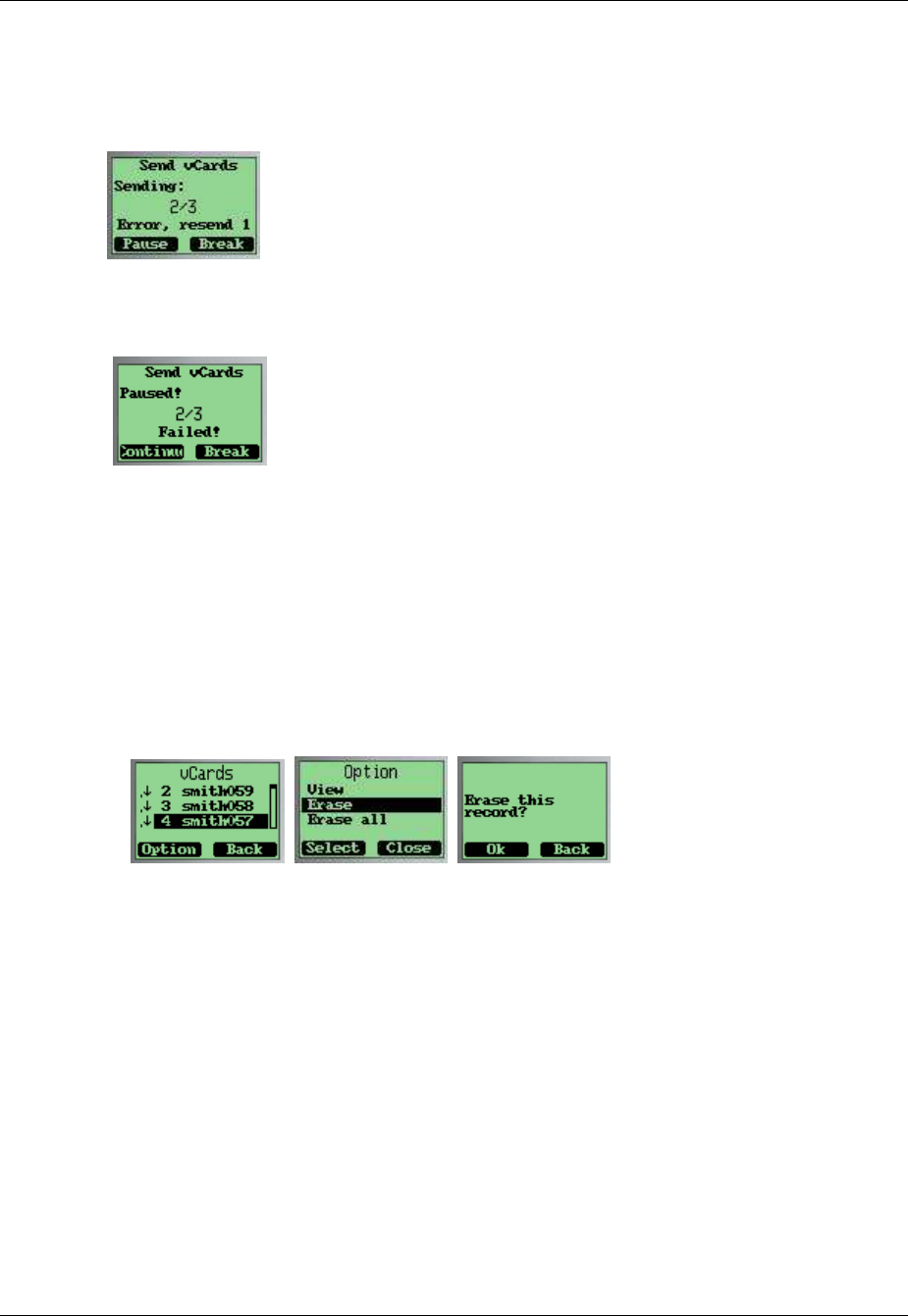
To send entire phonebook:
You can send your entire phonebook via vCards. To make a batch-send:
Menu
→
Contacts
→
Send all as vCards
.
1.
Input the address to where you want to send the phonebook. Press
Send
key. You can only input
one address to make the batch-send.
2.
Your phone will prompt to ask you whether you are sure to make the batch-send.
3.
Ok → Send vCards
.
Tornado Customer Reference Guide
TM0410-1800, Rev 2A
January 2006
Chapter 2 – Names
2-10 Via Telecom, Inc. Proprietary
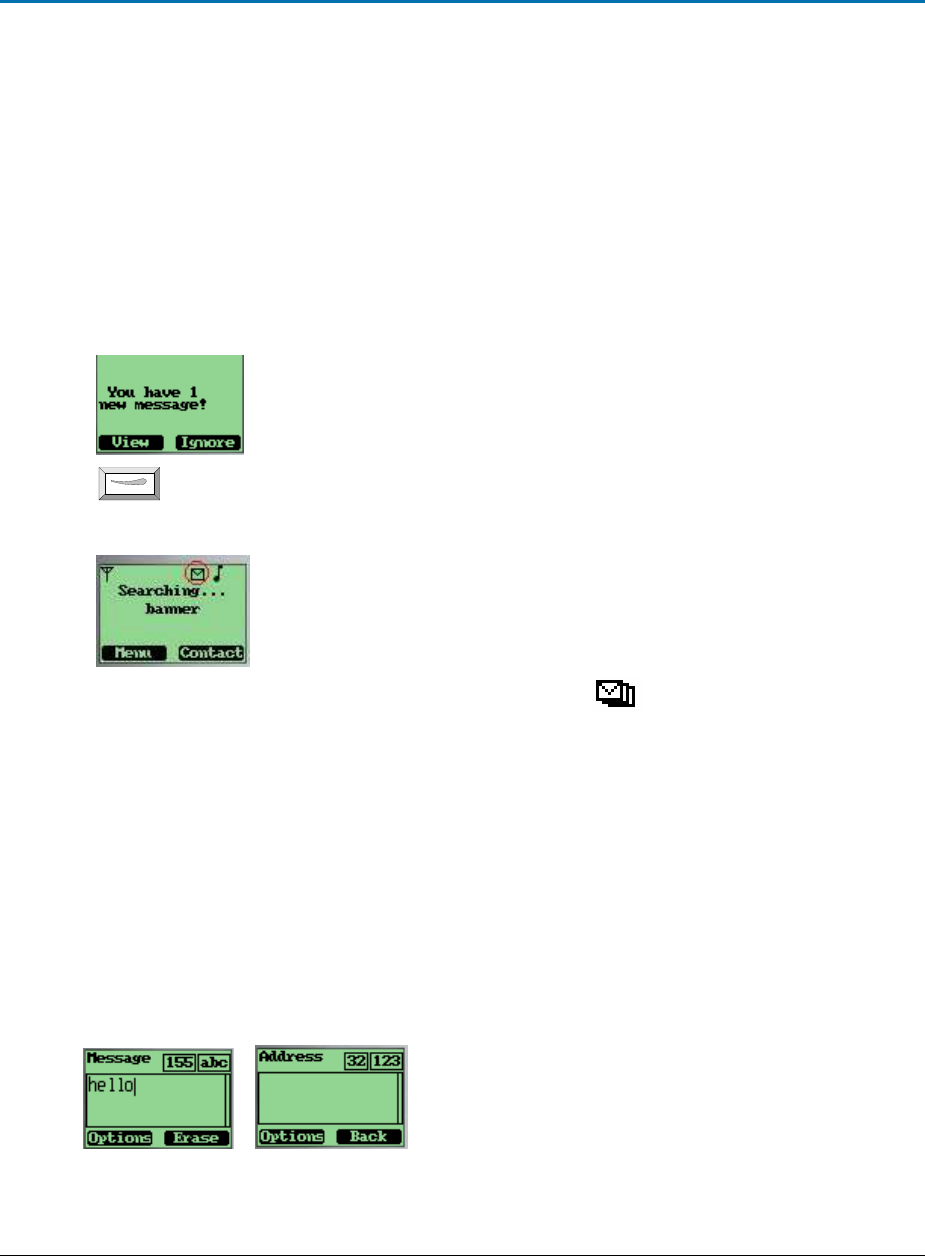
Sending means the current status is sending.
2/3 means the phone is sending the second contact entry in phonebook.
Success!
means the previous contact entry in phonebook was sent out successfully. If there are errors
in sending, your phone display message,
Error, resend 1
.
Your phone will try to resend the vCard up to 10 times. If the vCard can’t be sent successfully in the
end, this batch-send will be paused. You can continue this batch-send by pressing Continue key. You
can manually pause a batch-send by pressing Pause key.
You can break a batch-send by pressing the
Break
key.
To delete vCards
;
You can delete vCards one by one or delete all vCards at once:
1.
When you read vCards, select the vCard you want to delete by scrolling ▲ and ▼. If you want
delete all of the vCards, select any one vCard.
2.
Options
→ Erase
if you want to delete this
vCard
. Select
Erase All
if you want to delete all of
the vCards. Press
Select
.
3.
Your phone will prompt to confirm erasing the vCard or erasing all the vCards.
4.
Press
Ok
key. The vCard(s) will be deleted.
Tornado Customer Reference Guide
TM0410-1800, Rev 2A
January 2006
3-2 VIA Telecom, Inc Proprietary
Chapter 3 Messages
This chapter introduces the usage of Short Message and Ring Tone.
Using Short Message
You can use Short Message function to send and receive message. There is an Inbox and Outbox in
your phone. Inbox and outbox can hold a maximum of 60 messages. Each message can contain a
maximum of 160 characters. You can send the message now or later.
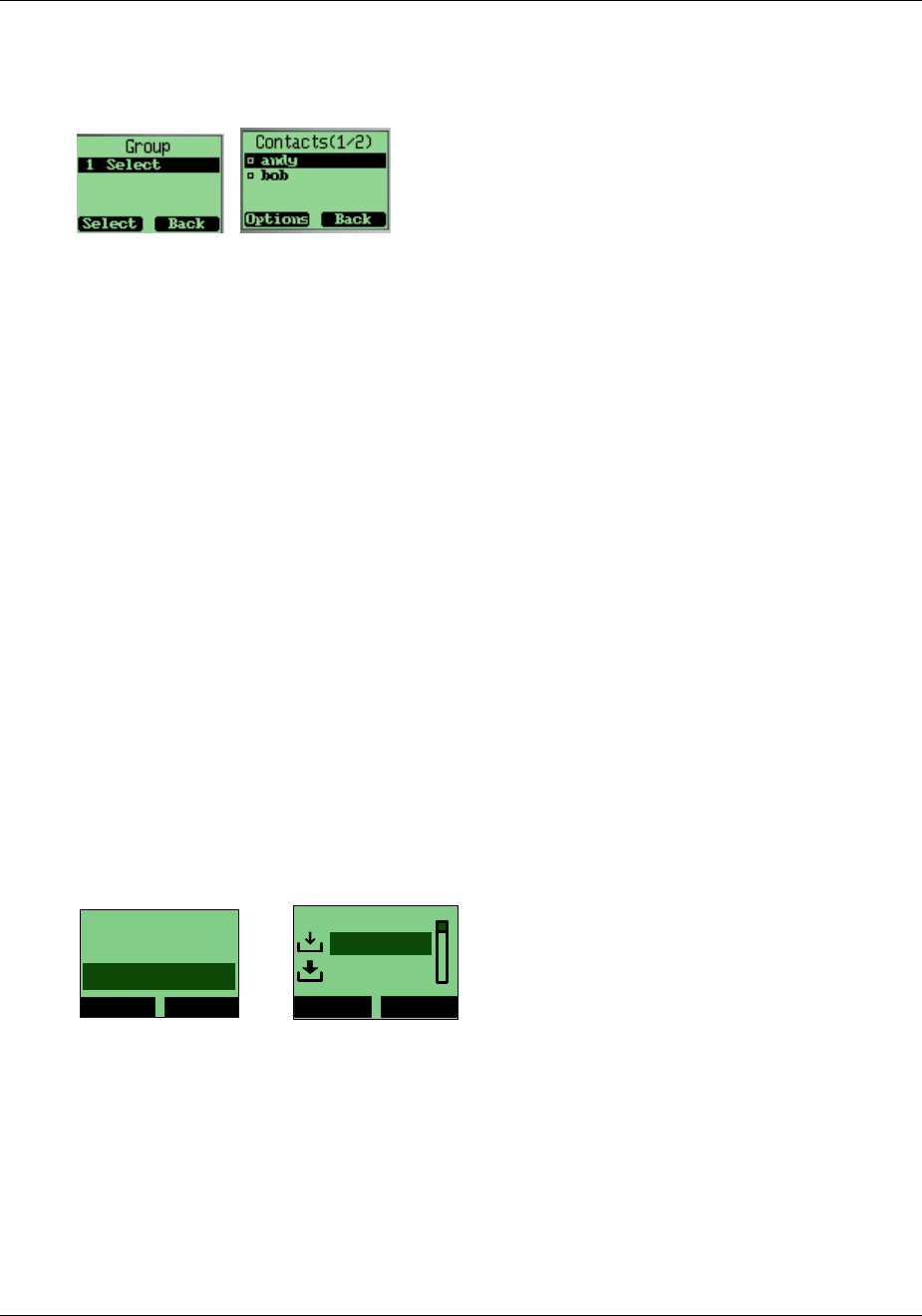
To check for received text messages
1.
When a new message comes, you will be noticed by means what you set at
Setting →
→ →
→ profiles
→
→→
→message prompt
→
→→
→
You have 1 new message!
will be displayed on screen.
2.
Press to select
View
.
Note: When you have a new message , an icon in idle screen to appears.
Note: If your message memory is full, the icon will change to .
To read a text message
1.
Menu
→
→ →
→ Messages →
→→
→ Inbox
and select message.
To erase a text message
1.
Select the message
→
→→
→ Option →
→→
→ Erase
To send a text message
1.
Menu
→
→→
→
Messages →
→ →
→ New Message
→
→→
→Options
→
→→
→Send
to edit the address
→
→ →
→ Options
→
→→
→Ok
to send message
.
Tornado Customer Reference Guide
TM0410-1800, Rev 2A
January 2006
Chapter 3 – Messages
3-12 Via Telecom, Inc. Proprietary
To send a text message to several addresses
1.
Send Text Message
→
→→
→
Option →
→ →
→ Group
to send the message to several addresses
→
→→
→
Select
to
select number from contact list.
2.
Options →
→ →
→ Select One
to select focused address, or
Options →
→ →
→ Select All
to select all
addresses. The maximum number of addresses allowed in a group at any one time is 10.
3.
Select
Options →
→ →
→ Send
to send message to selected address.
Ring Tone module is used to manage the rings downloaded via Short Message. It
includes functions of playing ring, deleting ring and renaming ring title.
Using Ring Tone
To Download a Ring Tone:
The Tornado phone can only receive ring tones through SMS messages in midi format. However, the
process in downloading ring tones to the handset varies and is carrier specific. For more details as to
how to download a ring tone in your specified country, please refer to the Appendix.
Browse All Rings
Browse all the rings downloaded via SM.
To browse all ring downloaded via Short Message
1.
Menu
→
→ →
→
▼
→
→ →
→ Messages →
→ →
→ Multimedia Box
→
→ →
→ Ringtone
browsing all the rings by ▲ and
▼.
Multimedia Box
Select Back
2. Ringtone
1. vCard
Ring
Select Back
Untitle
Untitle
Tornado Customer Reference Guide
TM0410-1800, Rev 2A
January 2006
Chapter 3 - Messages
Via Telecom, Inc. Proprietary 3-13
Manage rings
To play, delete and rename rings downloaded via short message.
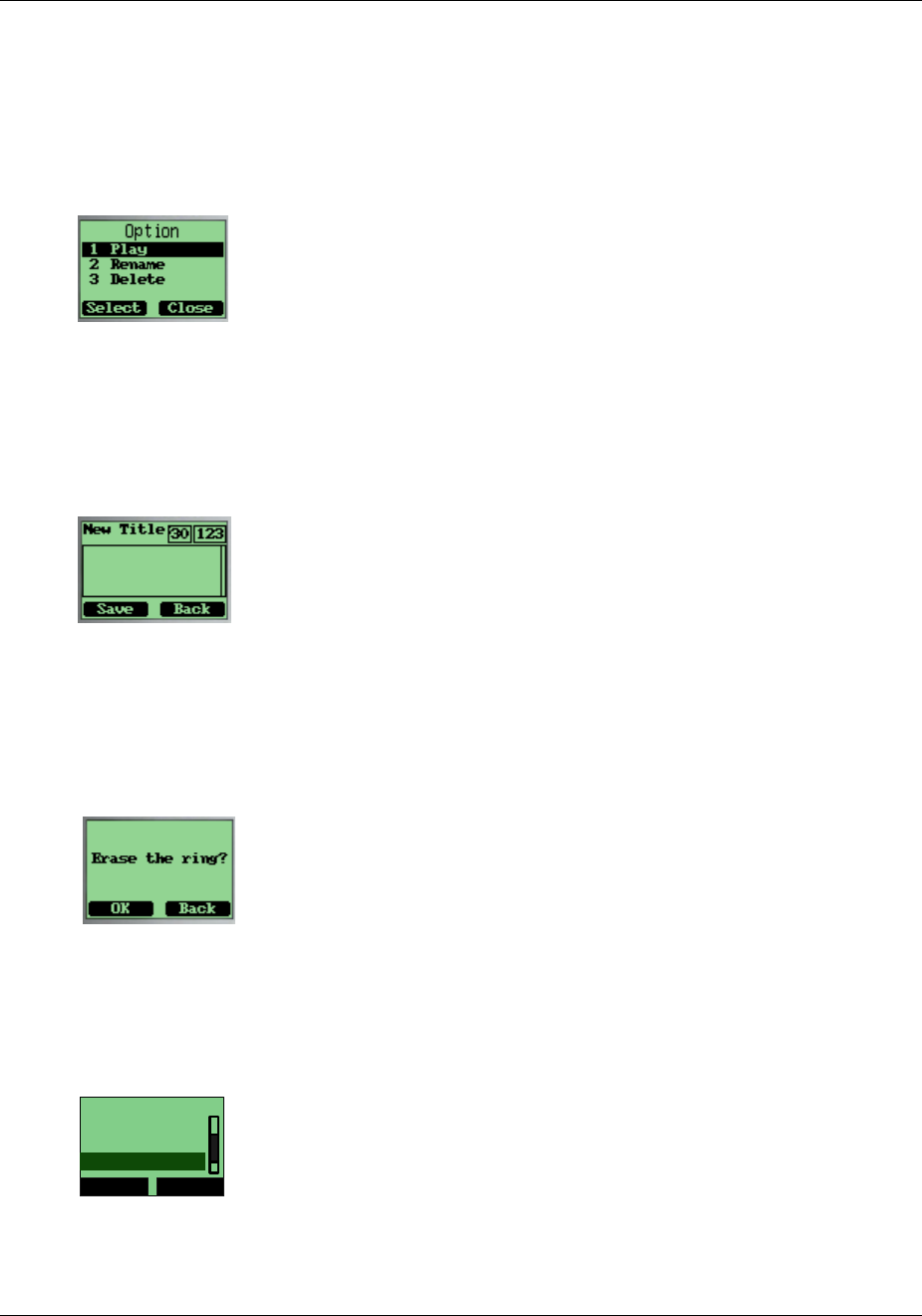
To play a ring
1.
Menu
→
→→
→
▼
→
→→
→
Messages →
→ →
→ Multimedia Box
→
→ →
→ Ring →
→→
→
▲ ▼
→
→ →
→ Option
→
→ →
→ Play
.
To rename the title of a ring
1.
Menu
→
→→
→
▼
→
→→
→Messages →
→ →
→ Multimedia Box
→
→ →
→ Ring →
→→
→
▲ ▼
→
→ →
→ Option
→
→ →
→ Rename
input
new title
→
→→
→
Save
To delete a ring
1.
Menu
→
→→
→
▼
→
→→
→Messages →
→ →
→ Multimedia Box
→
→ →
→ Ring →
→→
→
▲ ▼
→
→ →
→ Option
→
→ →
→ Delete
input
new title
→
→→
→
Save
→
→→
→
OK
.
Message Settings
1.
Menu
→
→→
→
▼
→
→→
→Messages →
→→
→Settings
.
Names
Select Back
4. Erase All
3. Search
5. Speed Dial
Tornado Customer Reference Guide
TM0410-1800, Rev 2A
January 2006
Chapter 3 – Messages
3-14 Via Telecom, Inc. Proprietary
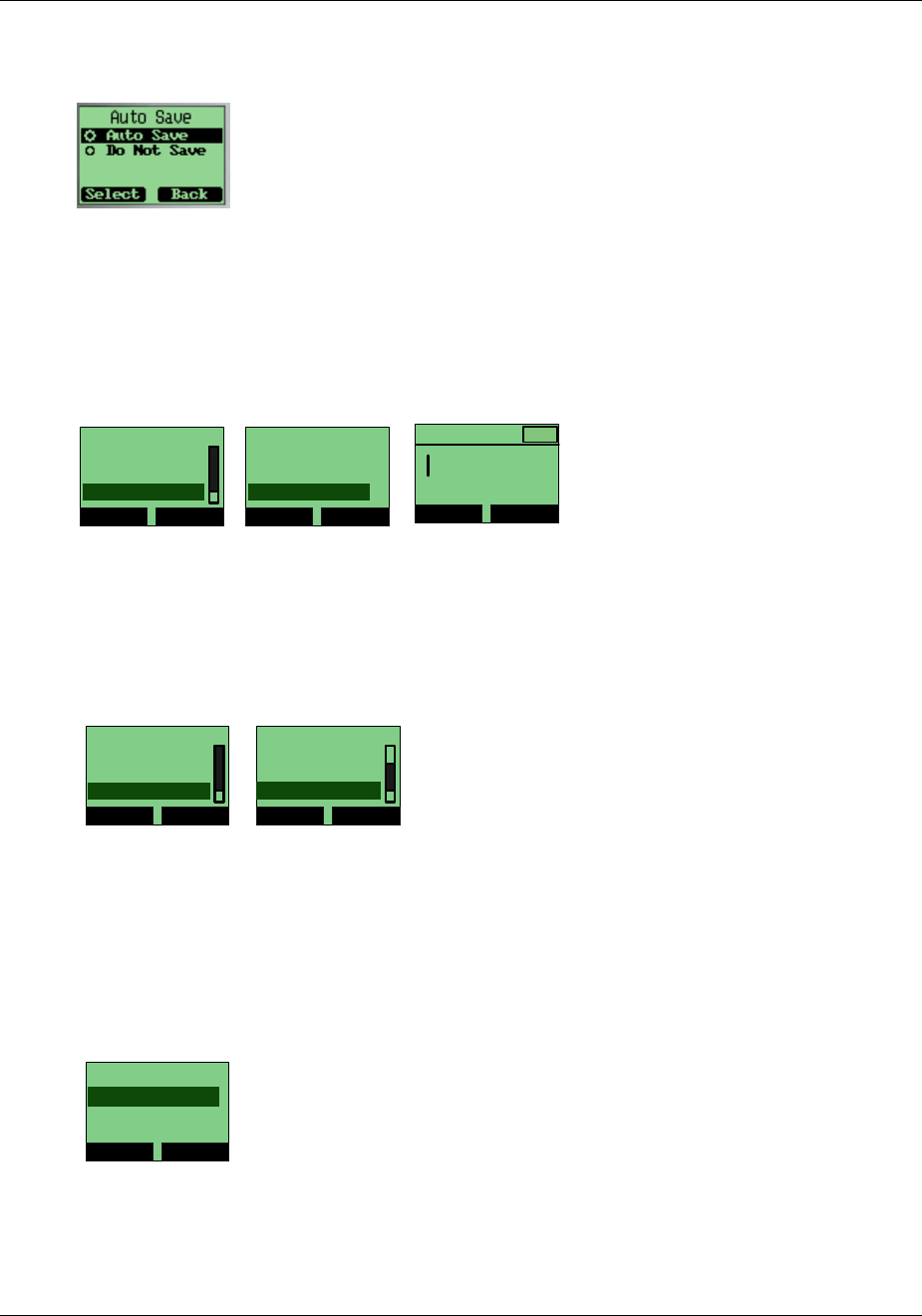
Enable/disable auto save outgoing message
1.
Auto Save
→
→ →
→ Auto Save
or
Do Not Save
to enable/disable auto save outgoing message.
Set Call Back Number
If you enable Callback number, every message you sent will postfix the number you set here and the
receiver will know which number to call back when reading the message.
2.
Callback →
→ →
→ Edit
→
→ →
→
enter callback number
→
→ →
→ Ok
→
→ →
→ On/Off
to enable or disable callback
number.
Msg Settings
Select Back
2. Auto Delete
1. Auto Save
3. Callback
Call Back
Select Back
2. Off
1. ON
3. Edit
Callback #
OK Erase
20
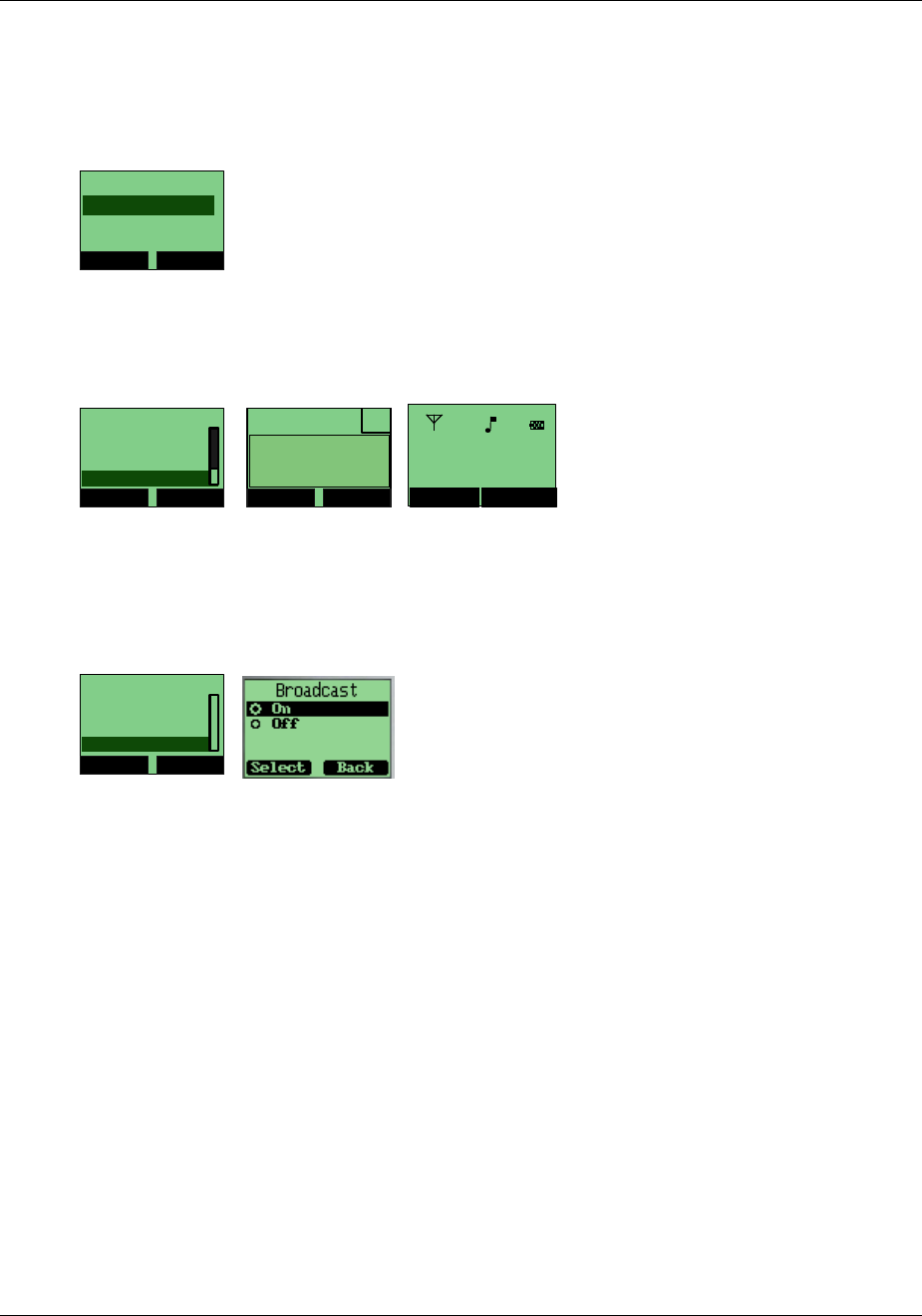
Set Send Time
If you set
Send Time
, message will be deferred and sent according to the time you set here, but this
function needs service provider support.
1.
Send Time →
→→
→
▲ ▼
→
→ →
→ Select
deferred time.
Msg Settings
Select Back
3. Callback
2. Auto Delete
4. Send Time
Names
Select Back
4. Erase All
3. Search
5. Speed Dial
Set Validity Time
If you set
Validity
time, the message will be kept in Short Message Center until the time you set here is
expired. Note: This function needs service provider support.
1.
Validity
→
→→
→
▲ ▼
→
→ →
→ Select
the validity time
Validity
Select Back
O
30 minutes
O Default
O 1 hour
Tornado Customer Reference Guide
TM0410-1800, Rev 2A
January 2006
Chapter 3 - Messages
Via Telecom, Inc. Proprietary 3-15
Set Priority
You can set priority of sent message, and the receiver will know which priority the message is when
read..
1.
Priority
→
→→
→
▲ ▼
→
→ →
→ Select
for Normal or Urgent.
Priority
Select Back
O
Urgent
O Normal
Set Voice Mailbox Number
1.
Voice Mailbox #
→
→ →
→
input number
→
→ →
→ Save
.
Msg Settings
Select Back
6. Priority
5. Validity
7.
Voice Mailbox #
V
oice
M
ailbox
#
Save Erase
20
*86213
Menu Names
1
2.
When in idle screen, long press
1
. Automatically, the voice mailbox number will be called.
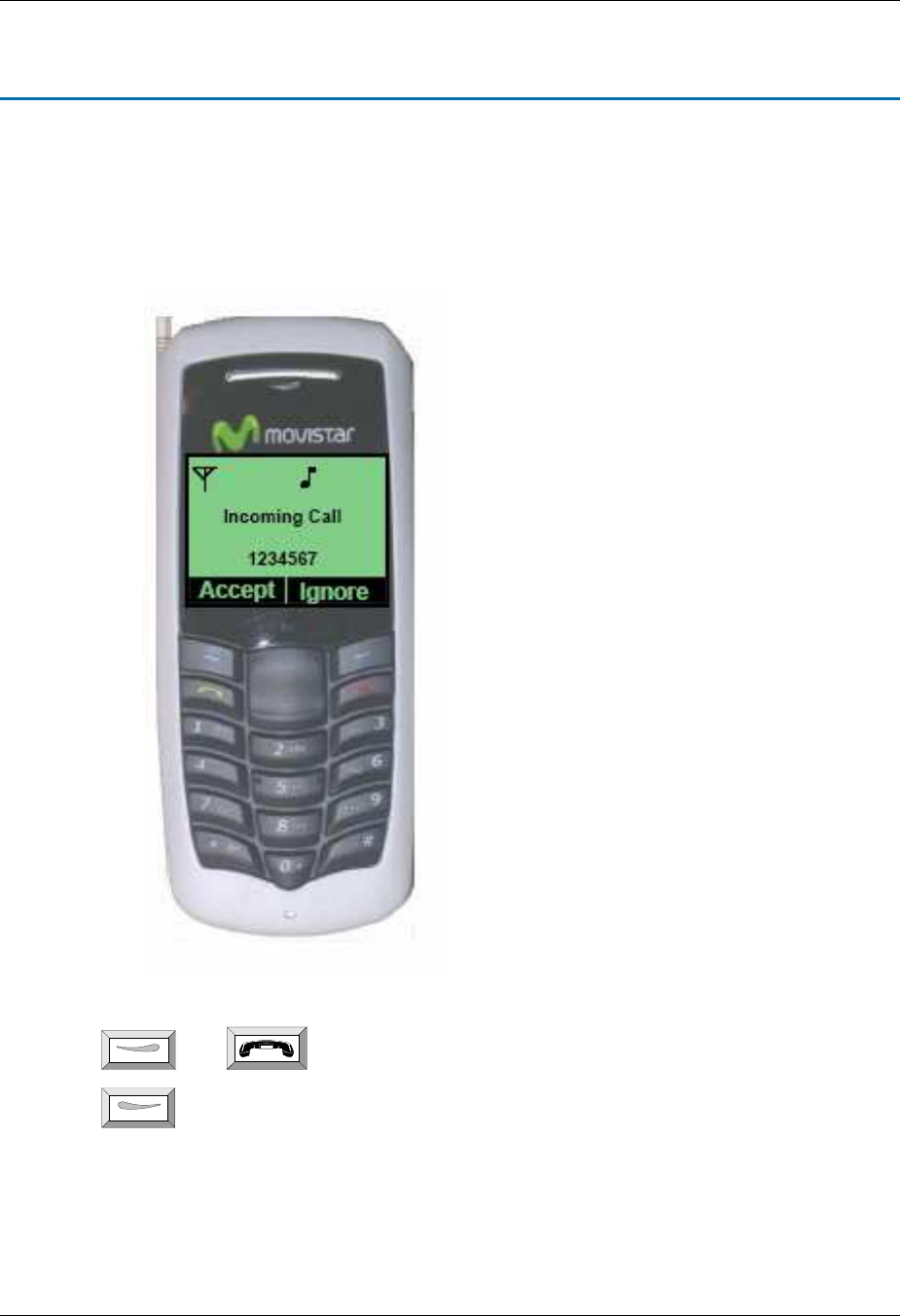
Enable/disable broadcast message service
1.
Broadcast Service →
→ →
→ Select
On/Off to enable/disable broadcast message service
Msg Settings
Select Back
7.
Voice Mailbox #
6. Priority
8. Broadcast
2. Select “On/Off” to enable/disable broadcast message service.
Using Voice Mail
Please contact service provider.
Tornado Customer Reference Guide
TM0410-1800, Rev 2A
January 2006
VIA Telecom, Inc Proprietary 4-1
Chapter 4 Making Calls
Viewing Incoming Call Details
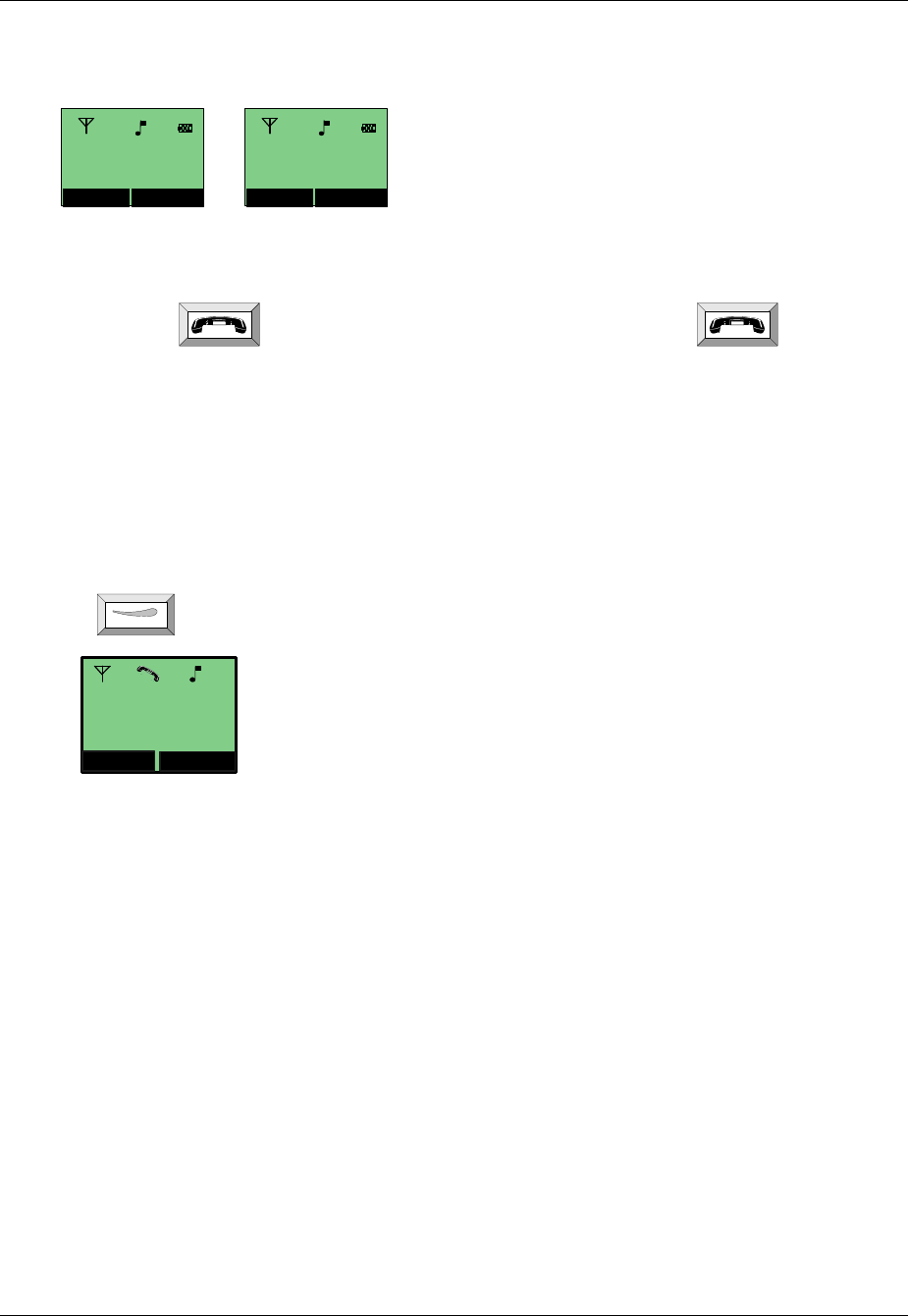
The detailed information will be displayed on the screen, when there is an incoming call.
1.
Press or to accept call (or 1~9 and #, * if any key in Answer Mode).
2.
Press to refuse call.
Tornado Customer Reference Guide
TM0410-1800, Rev 2A
January 2006
Chapter 4 – Making Calls
4-2 VIA Telecom, Inc Proprietary
Making an Emergency Call
To make an emergency call if phone is locked
1.
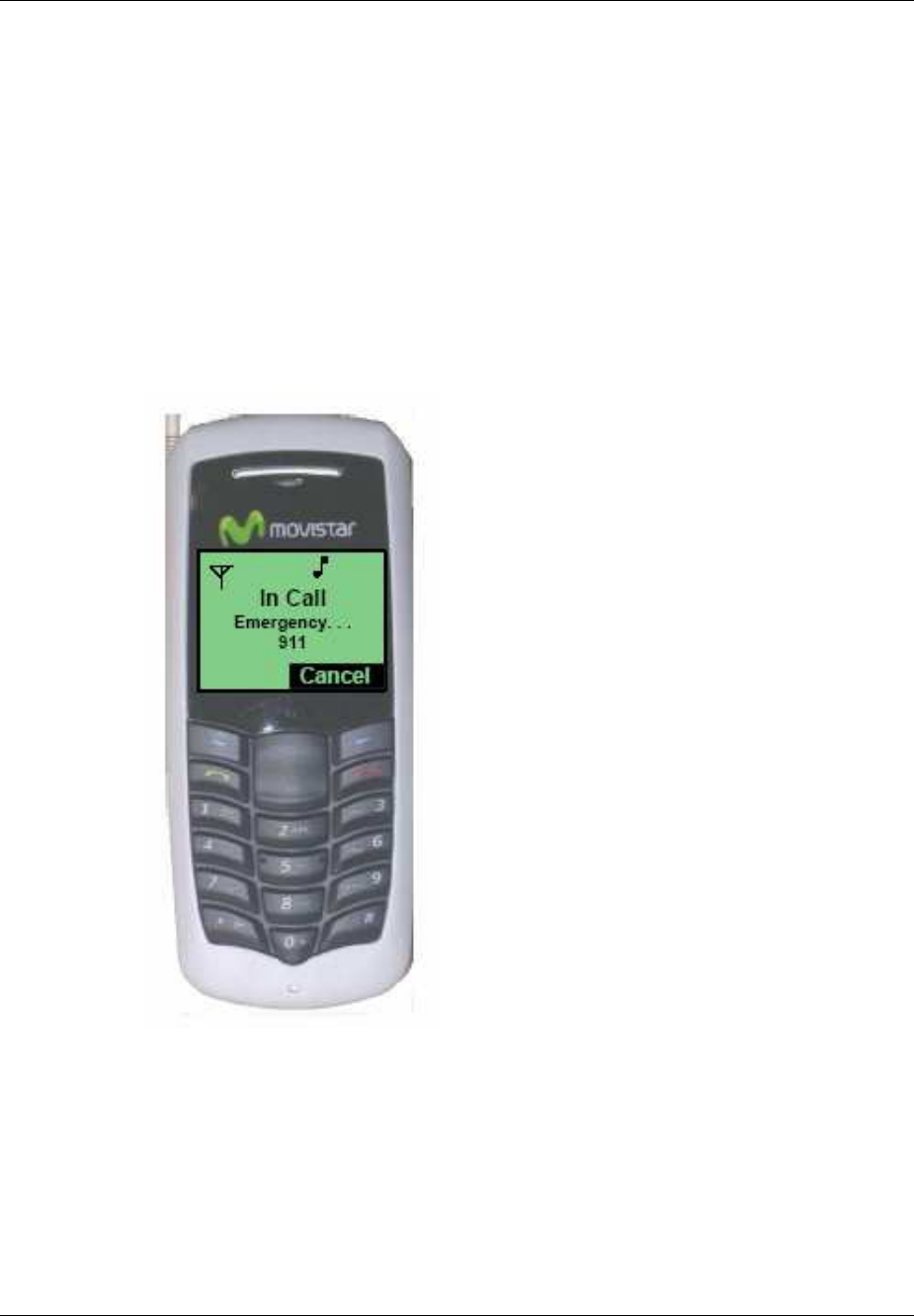
Default emergency call is 911. No more than three emergency numbers can be added in setting
menu.
2.
When phone is locked, you can input this emergency number and make a call.
Note: These emergency numbers begin with 1 or 9.
Tornado Customer Reference Guide
TM0410-1800, Rev 2A
January 2006
Chapter 4 - Making Calls
VIA Telecom Inc., Proprietary 4-3
Making Calls
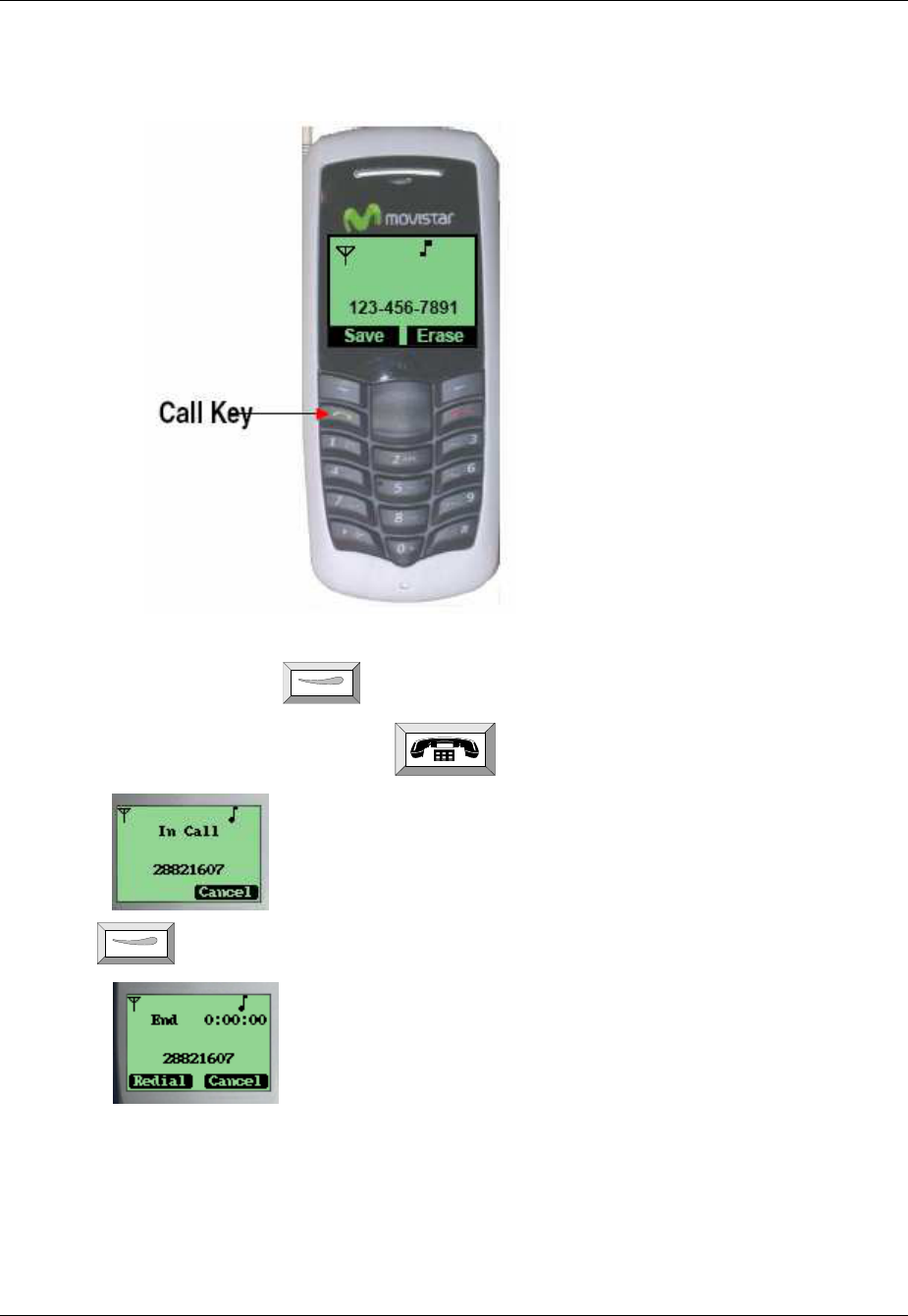
To make a phone call
1.
Input phone number. Press to make call.
2.
Press
Cancel
to cancel this call or press to end call.
3.
Press to
Redial
call.
Tornado Customer Reference Guide
TM0410-1800, Rev 2A
January 2006
Chapter 4 – Making Calls
4-4 VIA Telecom Inc., Proprietary
To call a number on the contact list
Press for
Names.
Scroll ▼ to contact name. Long press to make call.
Names (2/6)
Options Back
Chuck
Allyn
Doris
To call a number on the speed list
One key dialing
At
Menu
press and hold the Speed Dial number of contact.
If there are relative numbers in speed list, enter incoming state to make an originated call of this
number.
Menu Names
China Unicom
Moviestar
Menu Names
2
Tornado Customer Reference Guide
TM0410-1800, Rev 2A
January 2006
Chapter 4 - Making Calls
VIA Telecom Inc., Proprietary 4-5
Two keys dialing
Press the Speed Dial number along with #. The long contact number will appear.
To display and redial the last number called
1.
At
Menu
press . The last number called will display. Press the again to
redial last number.
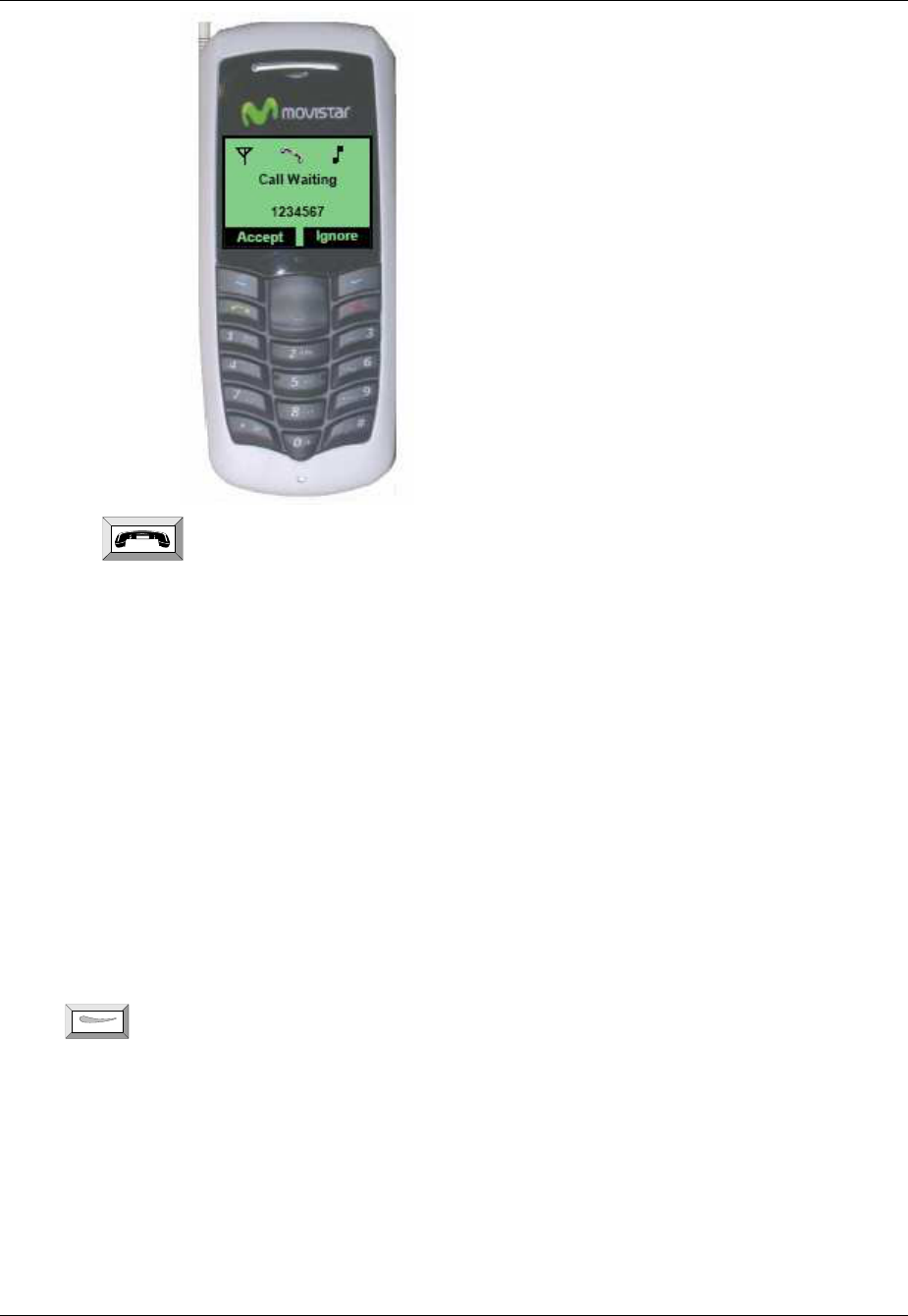
To use call waiting
If another call comes in while you are on a call, the phone will alert you. The new incoming phone
number or name will display on the screen.
1.
Press for
Accept
to answer incoming call. The screen display will return as before.
Incoming Call
1234567
Ignore
Accept
Menu Names
2#
Menu Names
7788997
Tornado Customer Reference Guide
TM0410-1800, Rev 2A
January 2006
Chapter 4 – Making Calls
4-6 VIA Telecom Inc., Proprietary
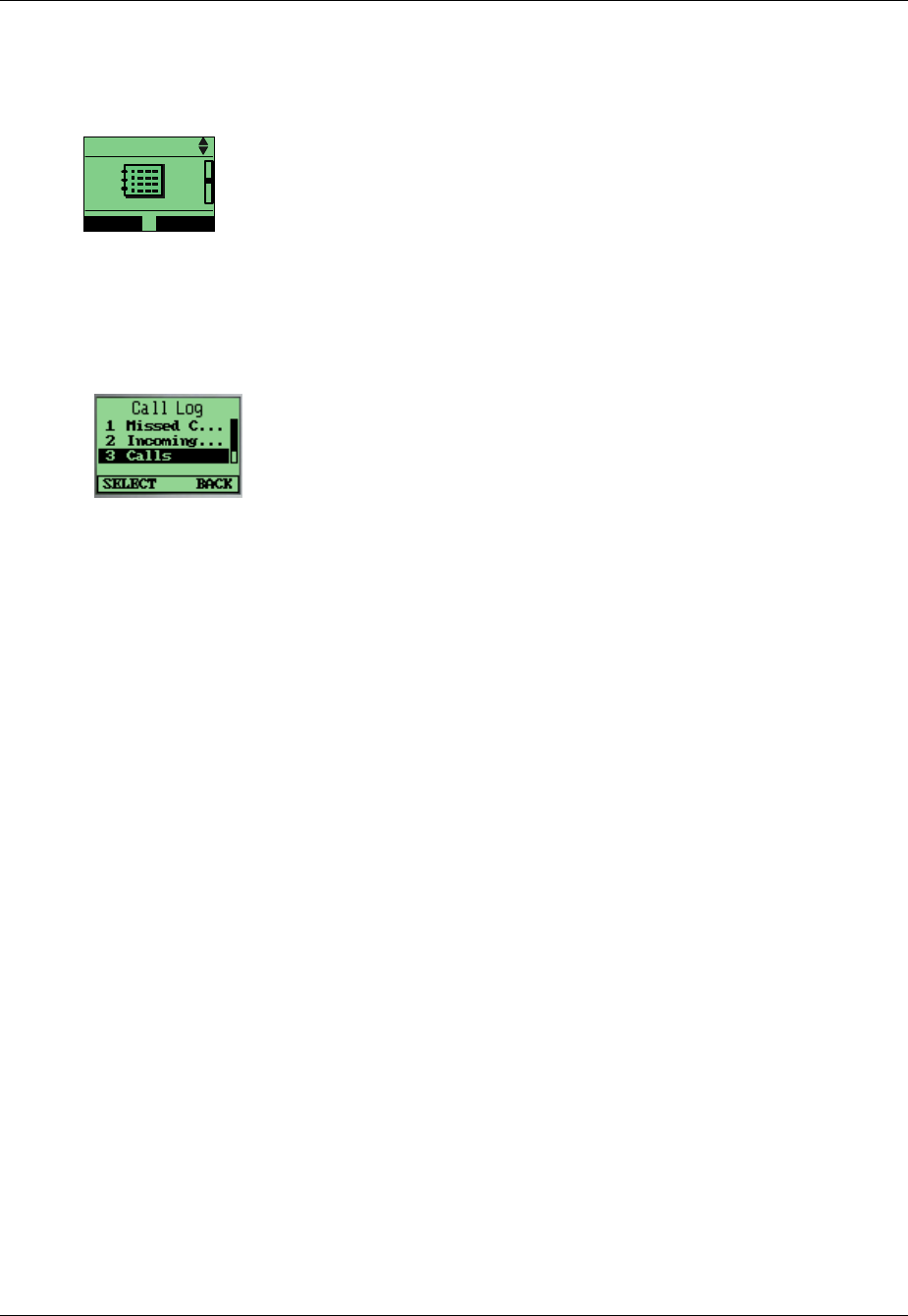
2.
Press to switch between the two calls.
To forward a call (unconditional/no answer/busy)
Please contact your service provider
To make a three-way call
Please contact your service provider
To make a conference call
Please contact your service provider
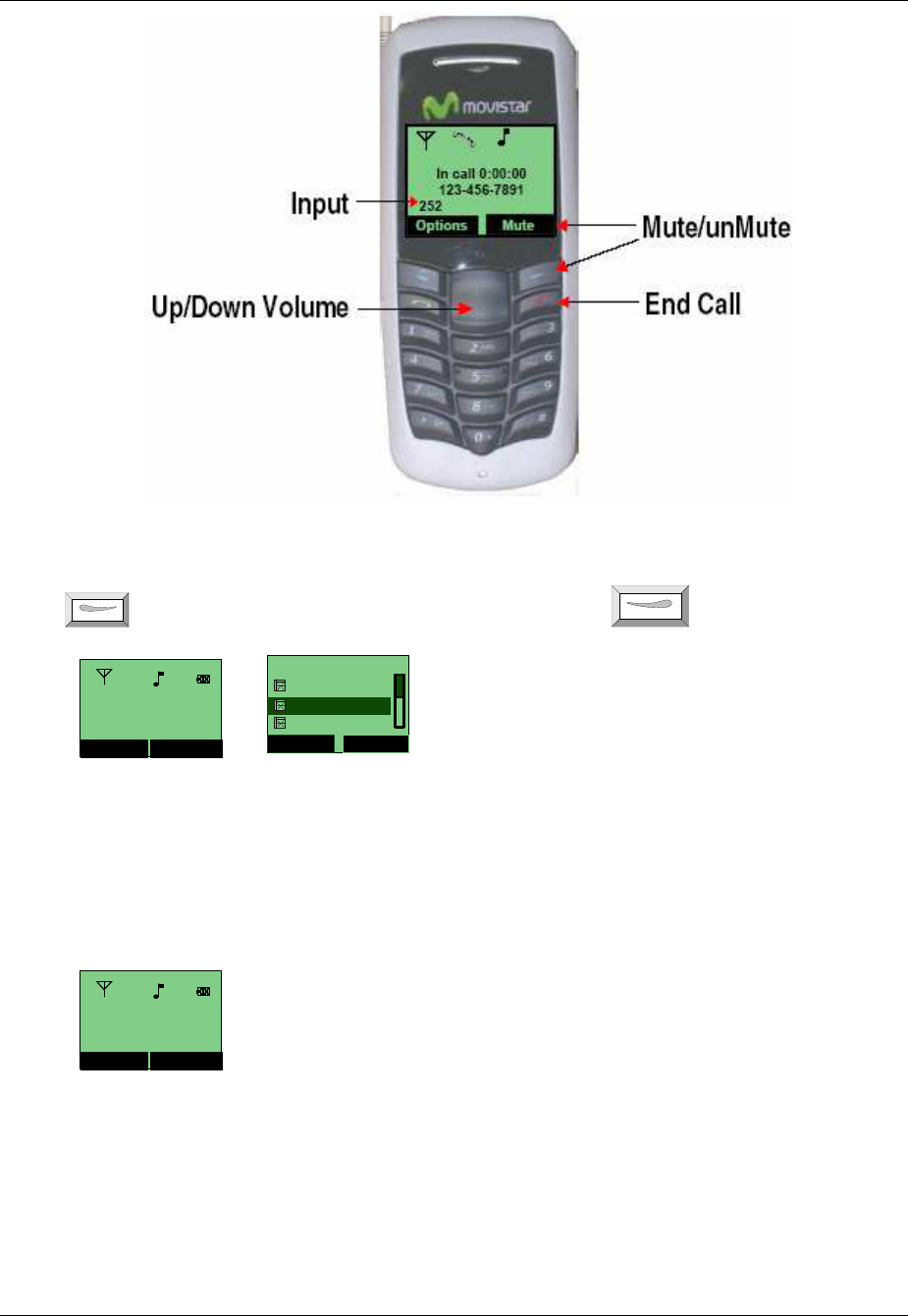
To mute the phone during a voice call
Press to
Mute
.
To change the earpiece volume during a call
Press ▲ and ▼ to change the volume.
Tornado Customer Reference Guide
TM0410-1800, Rev 2A
January 2006
Chapter 4 - Making Calls
VIA Telecom Inc., Proprietary 4-7
Viewing a List of Call Logs
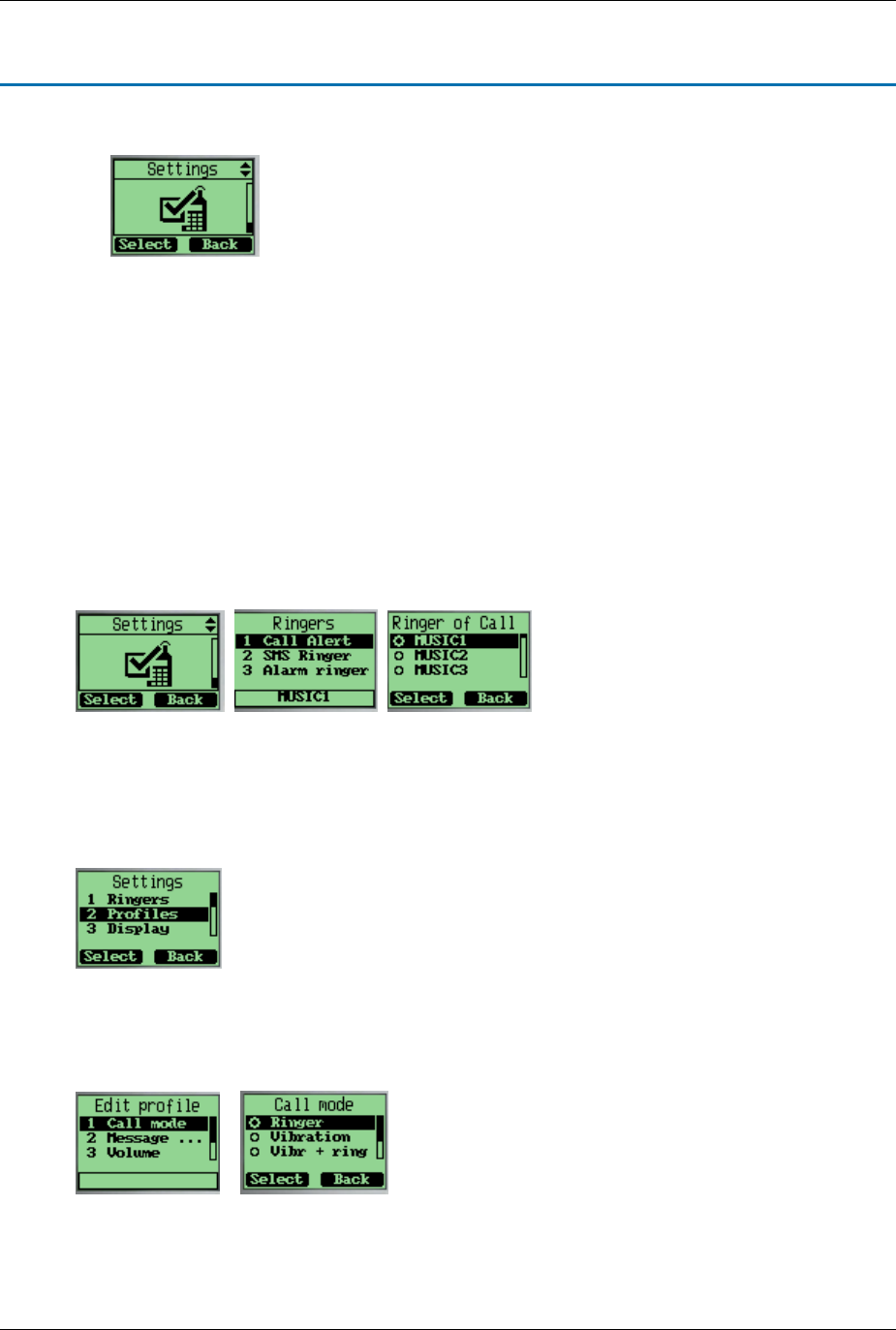
User can view lists that show phone number of the last 18 incoming, outgoing, and missed calls.
Call Logs
Select Back
To view or edit the incoming, outgoing, or missed calls list
1.
Menu
→
→ →
→
▼
→
→→
→
Call Logs
→
→ →
→
Select
→
→ →
→
select one item
→
→ →
→
Options
→
→→
→
Details to view detail.
To erase one or all lists of call logs
1.
Select
→
▼
→
Erase Lists
→
Select
→
confirm with Yes or No
.
.
Tornado Customer Reference Guide
TM0410-1800, Rev 2A
January 2006
VIA Telecom, Inc. Proprietary 5-1
Chapter 5 Setting Up Your Phone
To personalize your phone, you can select ring tones, volumes, alerts, display, call setup, password,
phone information, network service.
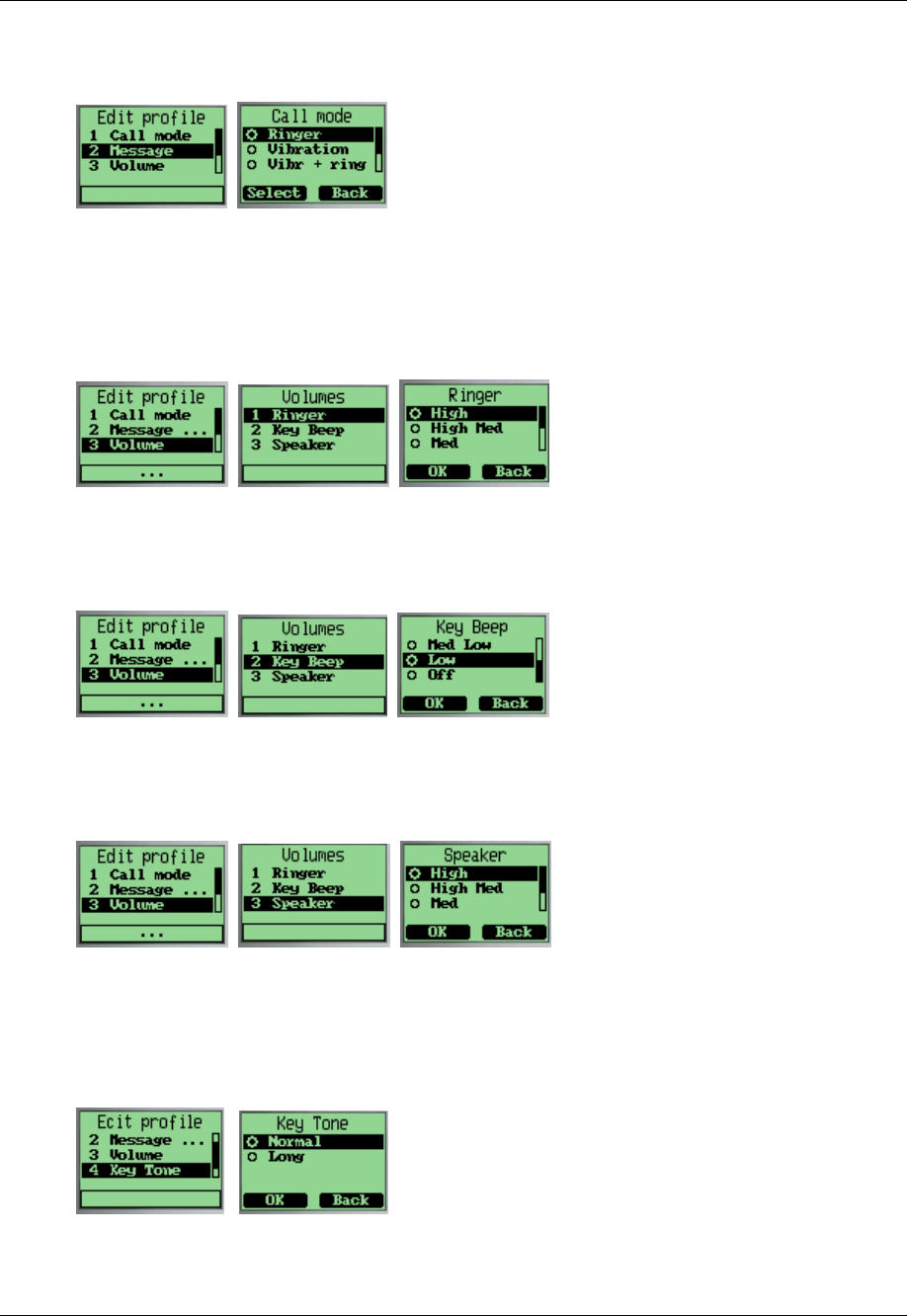
Selecting Ring Tones
Select from more than nine different ring tones. Set ring tones for calls with or without caller id,
restricted calls.
To select a ring tone
1.
Menu
→
→→
→
▼
→
→→
→
Settings
→
→ →
→
Ringers
→
→ →
→
Select a ring tone.
→
→→
→
Select
→
→→
→
Save.
Editing Profile
Changing Call mode
Settings
→
Profile
→
Ringers
→
Call Mode
→
select choice of call mode
→
Save.
Tornado Customer Reference Guide
TM0410-1800, Rev 2A
January 2006
Chapter 5 – Setting Up Your Phone
5-2 VIA Telecom, Inc Proprietary
Changing Message Prompt Mode
1.
Settings
→
Message Prompt Mode
→
select a message prompt mode
→
Save.
Adjusting the Volume
Change volume of Ringer, Key Beep and Speaker.
Changing the Ringer volume
1.
Settings
→
Profile
→
Volume
→
Ringer
→
select level
→
OK
→
Save
.
Changing the Key Beep volume
1.
Settings
→
Profile
→
Volume
→
Key Beep
→
select level
→
OK
→
Save
.
Changing the Speaker volume
1.
Settings
→
Profile
→
Volume
→
Speaker
→
select level
→
OK
→
Save.
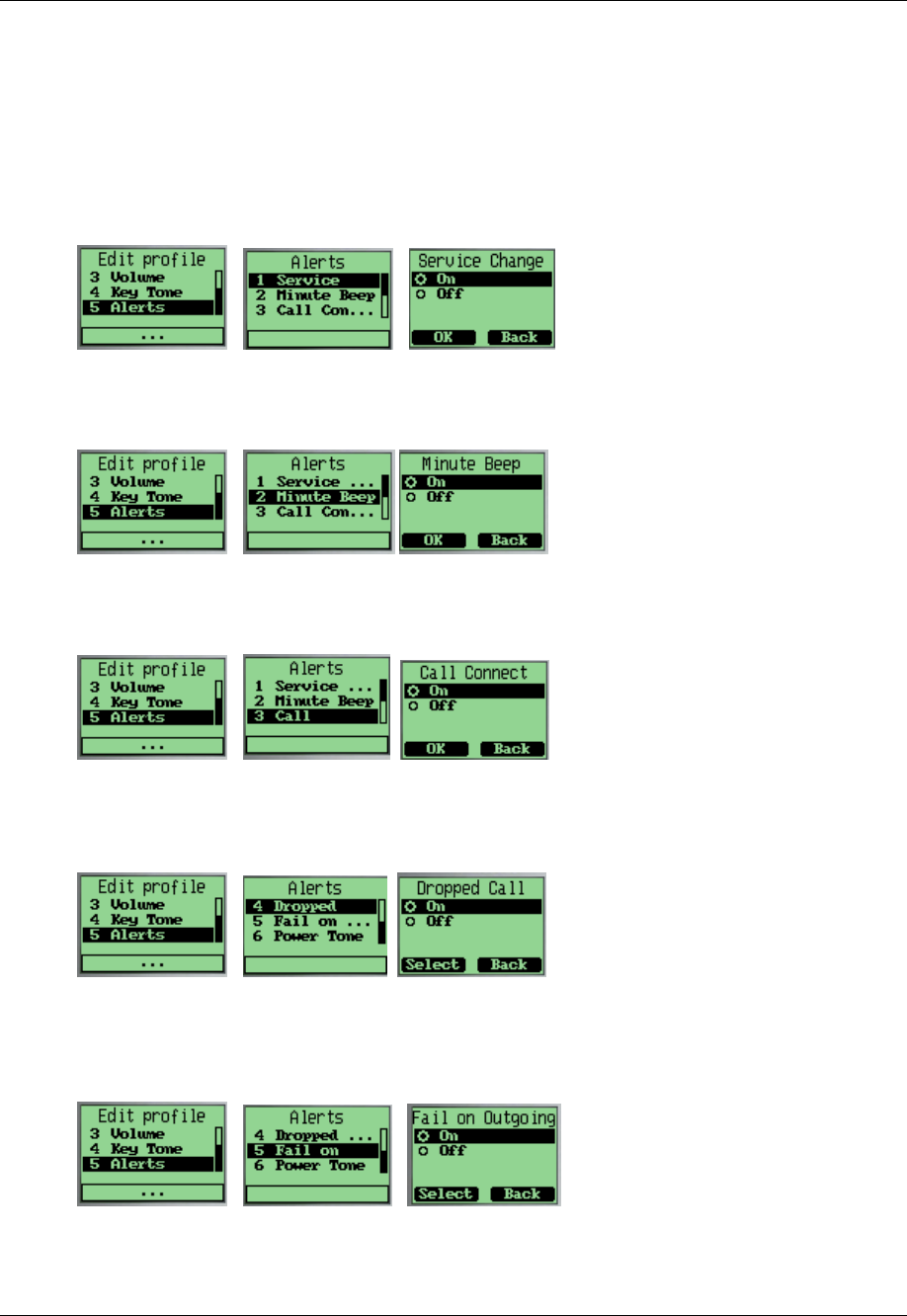
Changing the Key Tone
1.
Settings
→
Profile
→
Key Tone
→
select an option
→
OK
→
Save
Tornado Customer Reference Guide
TM0410-1800, Rev 2A
January 2006
Chapter 5 – Setting Up Your Phone
Via Telecom, Inc. Proprietary 5-3
Setting Up Alerts
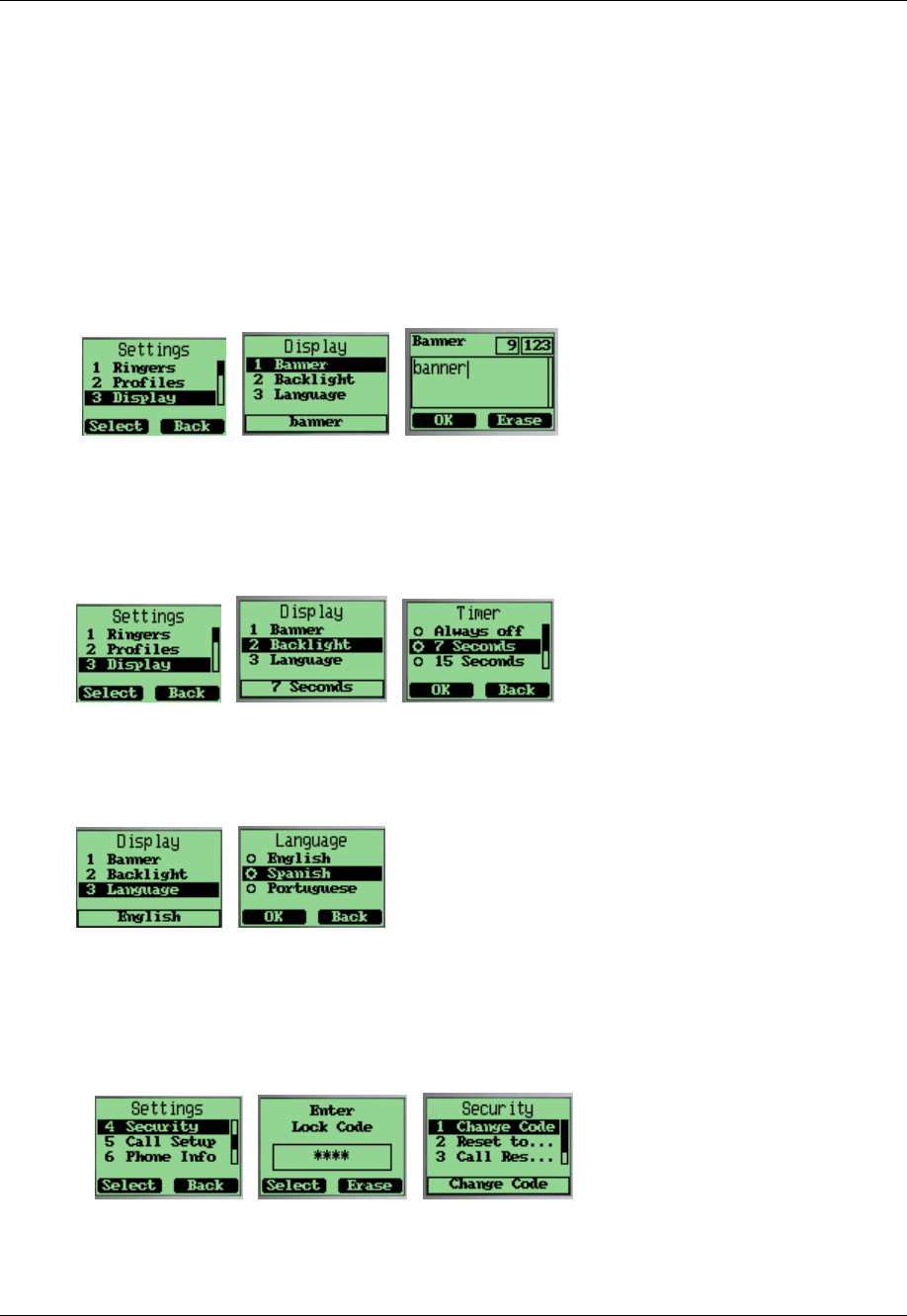
You can set alerts for service change, minute beep, call connect on/off.
Minute beep is a beep when your call near to minutes.
Setting alert for Service Change
1.
Settings → Profile → Alerts → Service Change → select On to enable Service change alert.
Setting alert for Minute Beep
1.
Settings
→
Profile
→
Alerts
→
Minute Beep
→
select On to enable Minute Beep alert.
Setting alert for Call Connect
1.
Settings
→
Profile
→
Alerts
→
Call Connect
→
select On to enable Call Connect alert.
Setting alert for Dropped Call
1.
Settings
→
Profile
→
Alerts
→
Dropped Call
→
select On to enable Dropped Call alert.
Setting alert for Fail on Outgoing
1.
Settings
→
Profile
→
Alerts
→
Fail On Outgoing
→
select On to enable Fail On Outgoing
alert.
Tornado Customer Reference Guide
TM0410-1800, Rev 2A
January 2006
Chapter 5 – Setting Up Your Phone
5-4 Via Telecom, Inc. Proprietary
Setting alert for Power Tone
1.
Settings
→
Profile
→
Alerts
→
Power Tone
→
select On to enable Power Tone alert.
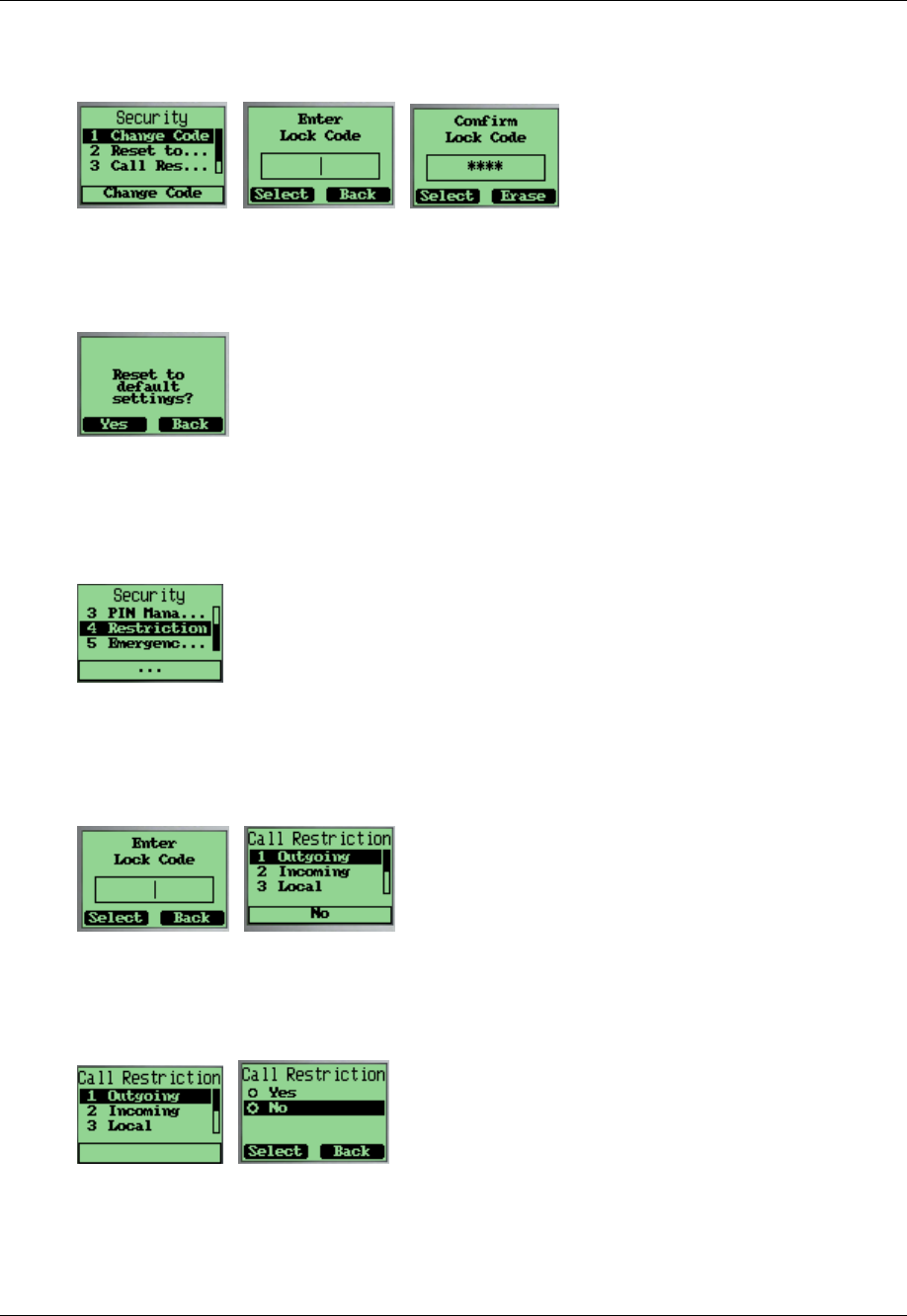
Setting up the Display
Customizing your display by creating a banner, adjusting the backlight, selecting the language for
display text, etc.
Creating a display banner
1.
Settings
→
Display
→
Banner
→
edit banner
→
OK
→
Save
.
Setting backlight
Setting the timer for the backlight.
1.
Settings
→
Display
→
Backlight
→
select an option
→
OK
→
Save
.
Setting the display language
1.
Settings
→
Display
→
Language
→
select a language
→
OK
→
Save
.
Security
Provide password protection for Reset to Default, Call Restriction.
1.
Settings
→
Security
→
enter the password. The default password is 0000.
Tornado Customer Reference Guide
TM0410-1800, Rev 2A
January 2006
Chapter 5 – Setting Up Your Phone
Via Telecom, Inc. Proprietary 5-5
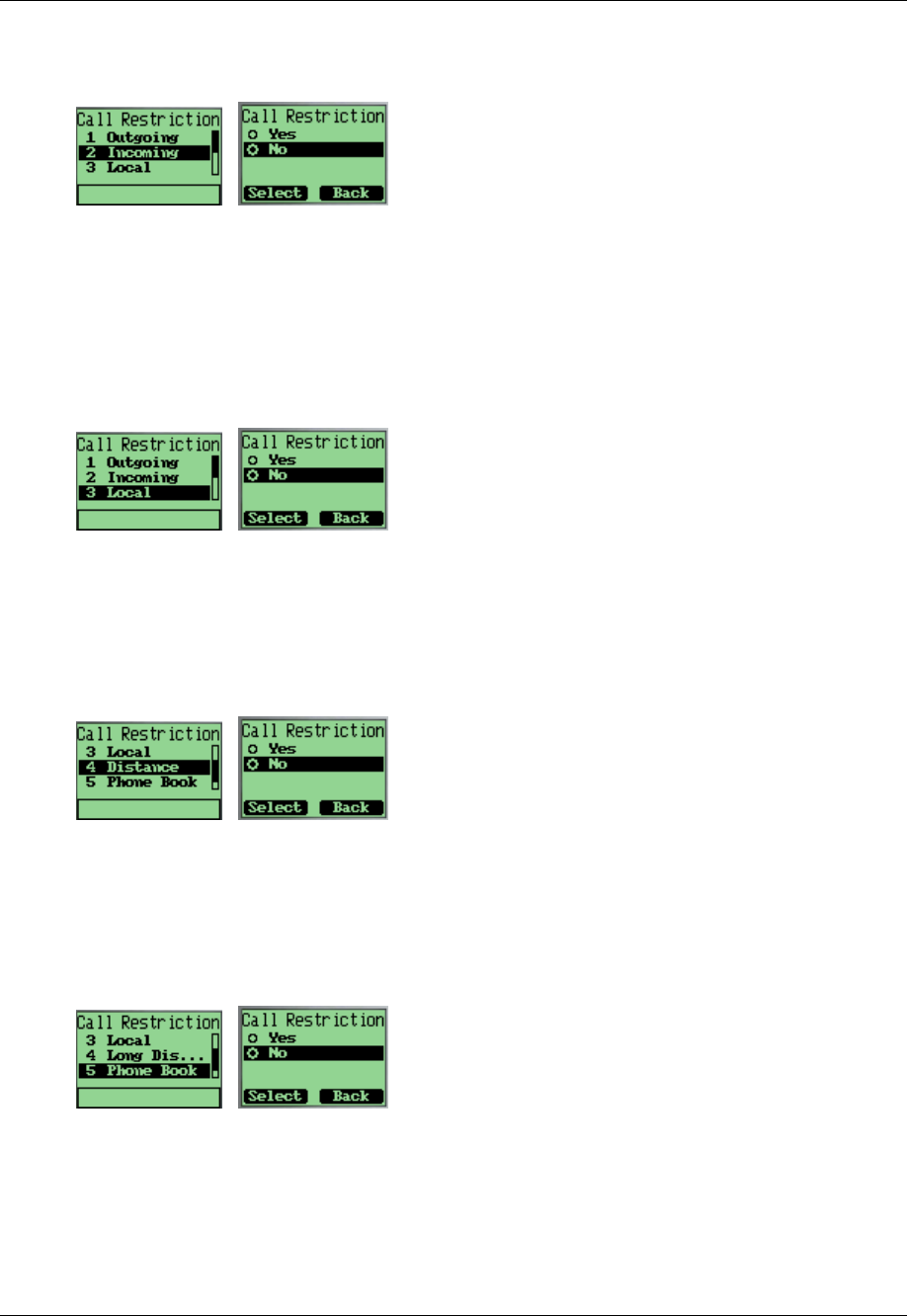
Changing lock code
1.
Settings
→
Security
→
Change Code
→
input new password
→
confirm new password.
Reset to default
1.
Settings
→
Security
→
Reset to Default
→
Yes
to reset to default.
Security – Call Restriction
Call restriction provide methods for the user to restrict the operations of originating outgoing calls,
accepting incoming calls or viewing phone book.
Login call restriction menu
Input call restriction password. The default password is 0000. The maximum character length of the
password is 4.
v
Restricting all outgoing call
1.
Security
→
Call Restriction
→
Outgoing
→
Select
→
Yes or No.
1.
If Yes is selected, you will need to input the call restriction password when you try to originate a
voice call and only when the password is verified to be correct, the call can really be originated.
Tornado Customer Reference Guide
TM0410-1800, Rev 2A
January 2006
Chapter 5 – Setting Up Your Phone
5-6 Via Telecom, Inc. Proprietary
Restricting all incoming call
1.
Security
→
Call Restriction
→
Incoming
→
Select
→
Yes or No.
1.
If Yes is selected, you will be requested to input the call restriction password first when you try to
accept an incoming call.
Restricting outgoing local call
1.
Security
→
Call Restriction
→
Local
→
Select
→
Yes or No.
2.
If Yes is selected, you will be requested to input the call restriction password first when you try to
originate an outgoing local call.
Restricting outgoing long distance call
1.
Security
→
Call Restriction
→
Long Distance
→
Select
→
Yes or No.
2.
If “Yes” is selected, you will be requested to input the call restriction password first when you
try to originate an outgoing long distance call.
Restricting phone book
1.
Security
→
Call Restriction
→
Phone Book
→
Select
→
Yes or No.
2.
If Yes is selected, you will be requested to input the call restriction password every time you want
to access the “Contact” menu or save a number to phone book from idle, call log or short
message menu options. And you will also be requested to input the password when you originate
a call which the calling number exists in the phone book.
Tornado Customer Reference Guide
TM0410-1800, Rev 2A
January 2006
Chapter 5 – Setting Up Your Phone
Via Telecom, Inc. Proprietary 5-7
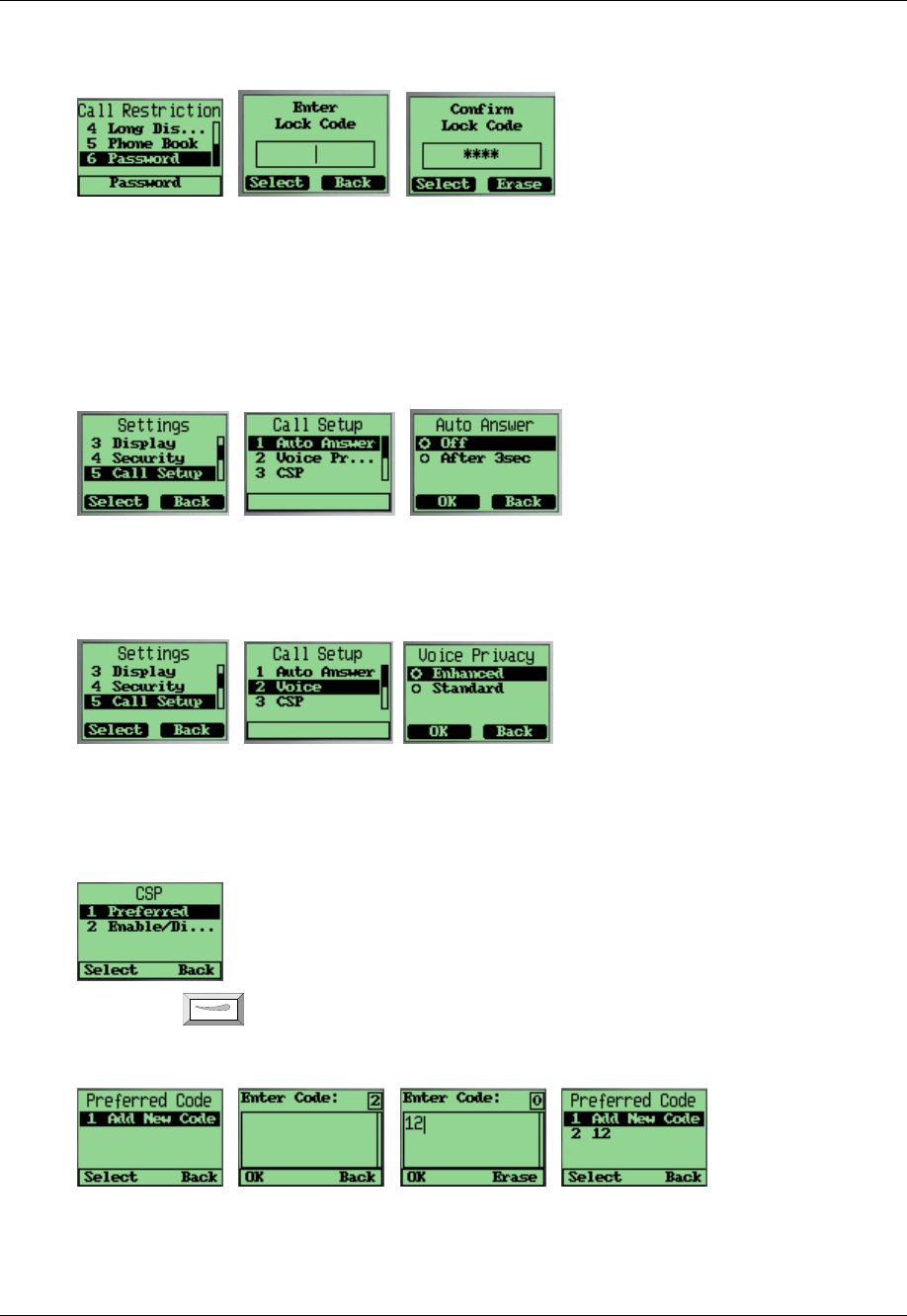
Changing call restriction password
1.
Security
→
Call Restriction
→
Password
→
Input password once more to confirm.
Call Setup
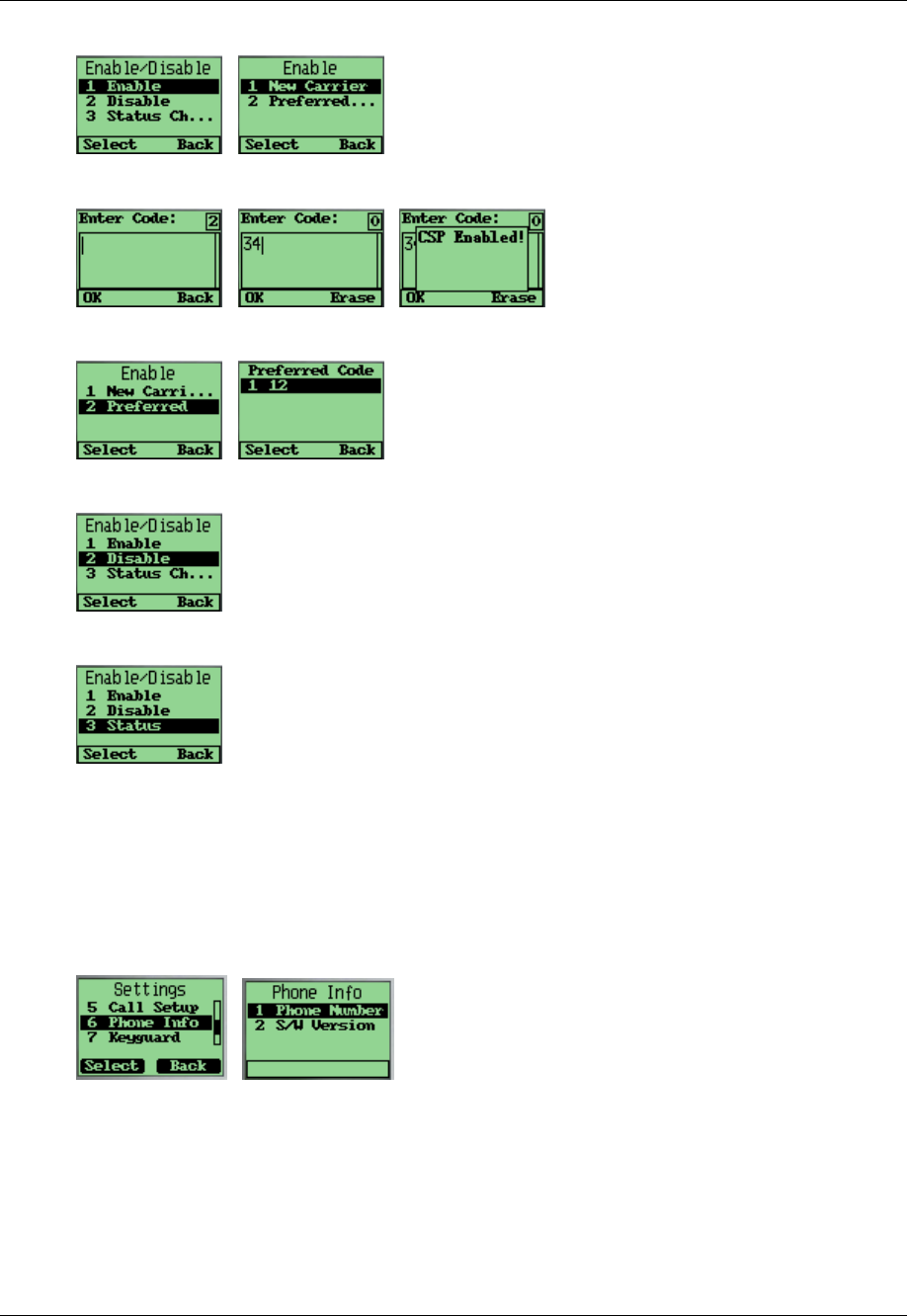
Auto answer enables to inform of caller with default voice when the person being called is not nearby.
Voice priority is used to encrypt the voice data.
Setting up auto answer
1.
Settings
→
Call Setup
→
Auto Answer
→
Off or After 3 seconds
→
OK
→
Save.
Setting up Voice Privacy
1.
Settings
→
Call Setup
→
Voice Privacy
→
Option
→
OK
→
Save.
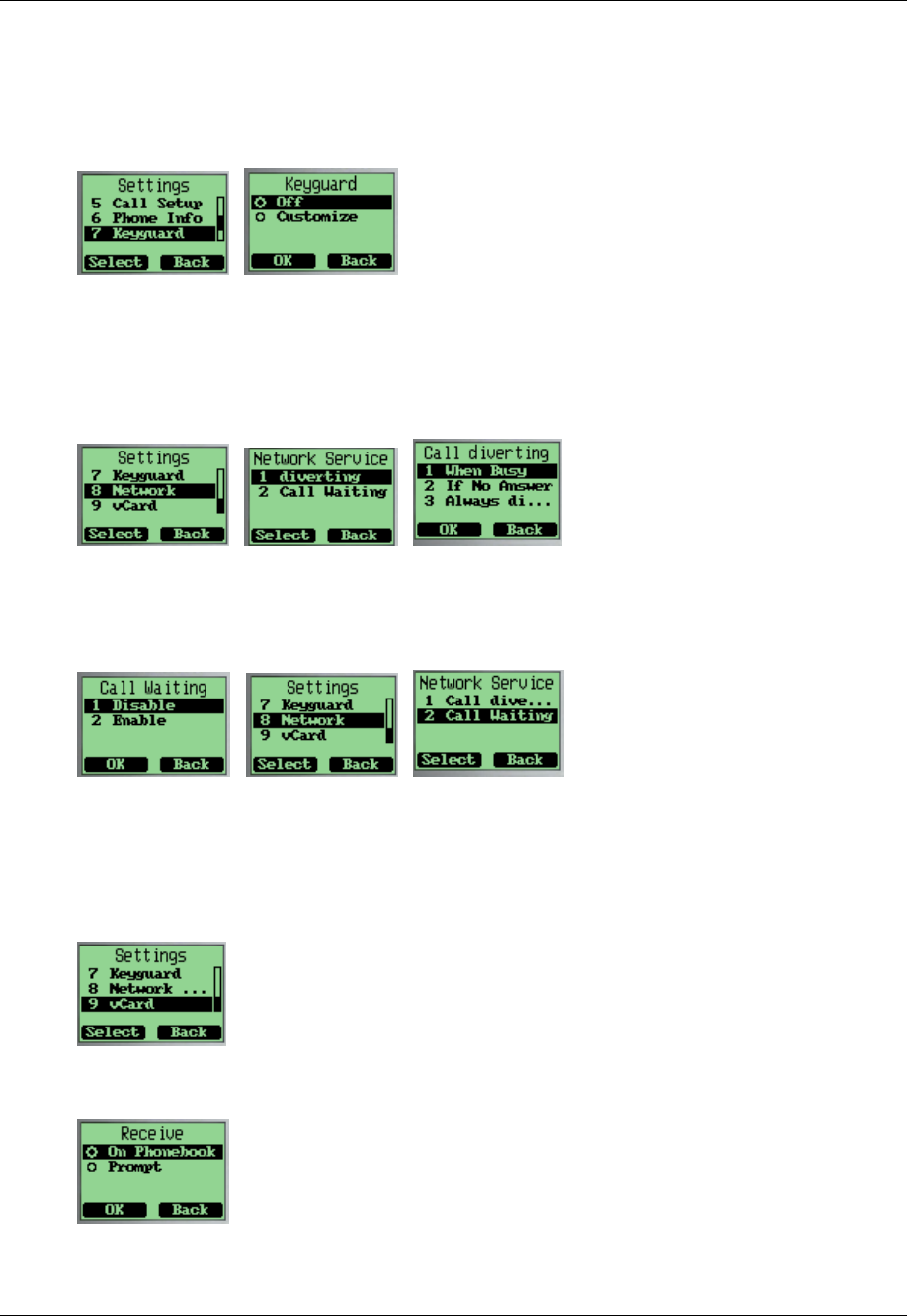
To set up CSP
CSP: long distance code to be inserted in long distance calls. If you enable a carrier selection code,
this code will be inserted to the long distance calling number which originate from the phone.
1.
At Menu press and scroll ▼
→
→→
→
Settings
→
→ →
→
Call Setup
→
→ →
→
CSP
→
→ →
→
Preferred Code
to add carrier codes you prefer. there can be 5 codes in the list at most. The max length of each
code is 2.
Tornado Customer Reference Guide
TM0410-1800, Rev 2A
January 2006
Chapter 5 – Setting Up Your Phone
5-8 Via Telecom, Inc. Proprietary
2.
Select
→
→→
→
Enable/Disable to set up CSP.
3.
Select
→
→→
→
New Carrier
to enable a carrier code that is not in the preferred list.
4.
Select
→
→→
→
Preferred Code
to enable a carrier code that exists in the preferred list.
5.
Select
→
→→
→
Preferred Code
to disable carrier code.
6.
Select
→
→→
→
Status Checking
to check the current status of CSP.
7.
Viewing Phone Information
To view your phone number
1.
Settings
→
Phone Info
→
Phone Number
→
edit number
→
Save, or Cancel if you only
wish to view the number.
To view the version of software installed on your phone
1.
Settings
→
Phone Info
→
S/W version.
Tornado Customer Reference Guide
TM0410-1800, Rev 2A
January 2006
Chapter 5 – Setting Up Your Phone
Via Telecom, Inc. Proprietary 5-9
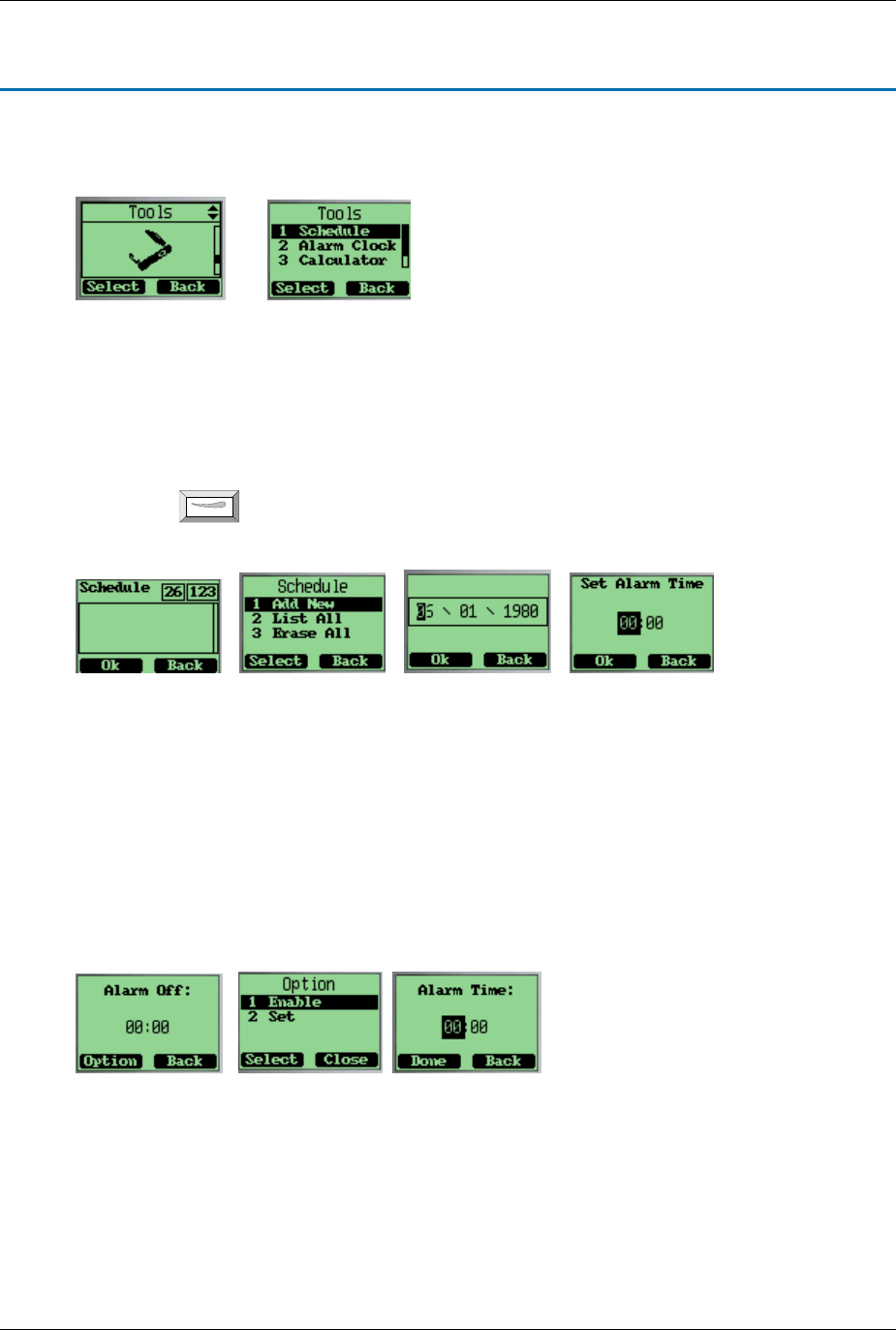
Enable Keyguard
Enable user to lock the keypad during phone idle status.
1.
Settings
→
Keyguard
→
Off to disable keyguard, or Select
→
Customize to enable
keyguard
Network Service
Enable user to set call diverting and call forwarding.
Turning call diverting on/off
1.
Settings
→
Network Service
→
Call Diverting
→
Ok to enable the function.
Turning call forwarding on/off
1.
Settings
→
Network Service
→
Call Forwarding
→
Ok to enable/disable the function.
vCard Receiving Prompt
Giving prompt when receiving a vCard.
1.
Settings
→
vCard.
2.
On Phonebook means not giving the prompt when receiving a vCard and saving it to phonebook
directly.
Tornado Customer Reference Guide
TM0410-1800, Rev 2A
January 2006
VIA Telecom, Inc. Proprietary 6-1
Chapter 6 Using the Phone Tools
Phone Tools Menu includes Schedule, Alarm Clock, Calculator, Tip Calculator.
Using the Schedule
You can use Schedule to associate an alert with an event.
To add a schedule
1.
At Menu press and scroll ▼
→
→→
→
Tools
→
→ →
→
Scheduler
→
→ →
→
Add New
→
→→
→
edit date
→
Ok
→
add description
→
Ok
→
set the time
→
Ok .
To delete the schedule
1.
Tools
→
→ →
→
Scheduler
→
→ →
→
List All
→
→→
→
select item to delete
→
Erase
Using the Alarm Clock
To set the alarm time
1.
Tools
→
→ →
→
Alarm Clock
→
→ →
→
Options
→
→→
→
Set
→
→→
→
set alarm time
→
Done
To turn off the alarm
1.
Tools
→
→ →
→
Alarm Clock
→
→ →
→
Options
→
→→
→
Disable
Tornado Customer Reference Guide
TM0410-1800, Rev 2A
January 2006
Chapter 6 – Using The Phone Tools
6-2 VIA Telecom, Inc. Proprietary
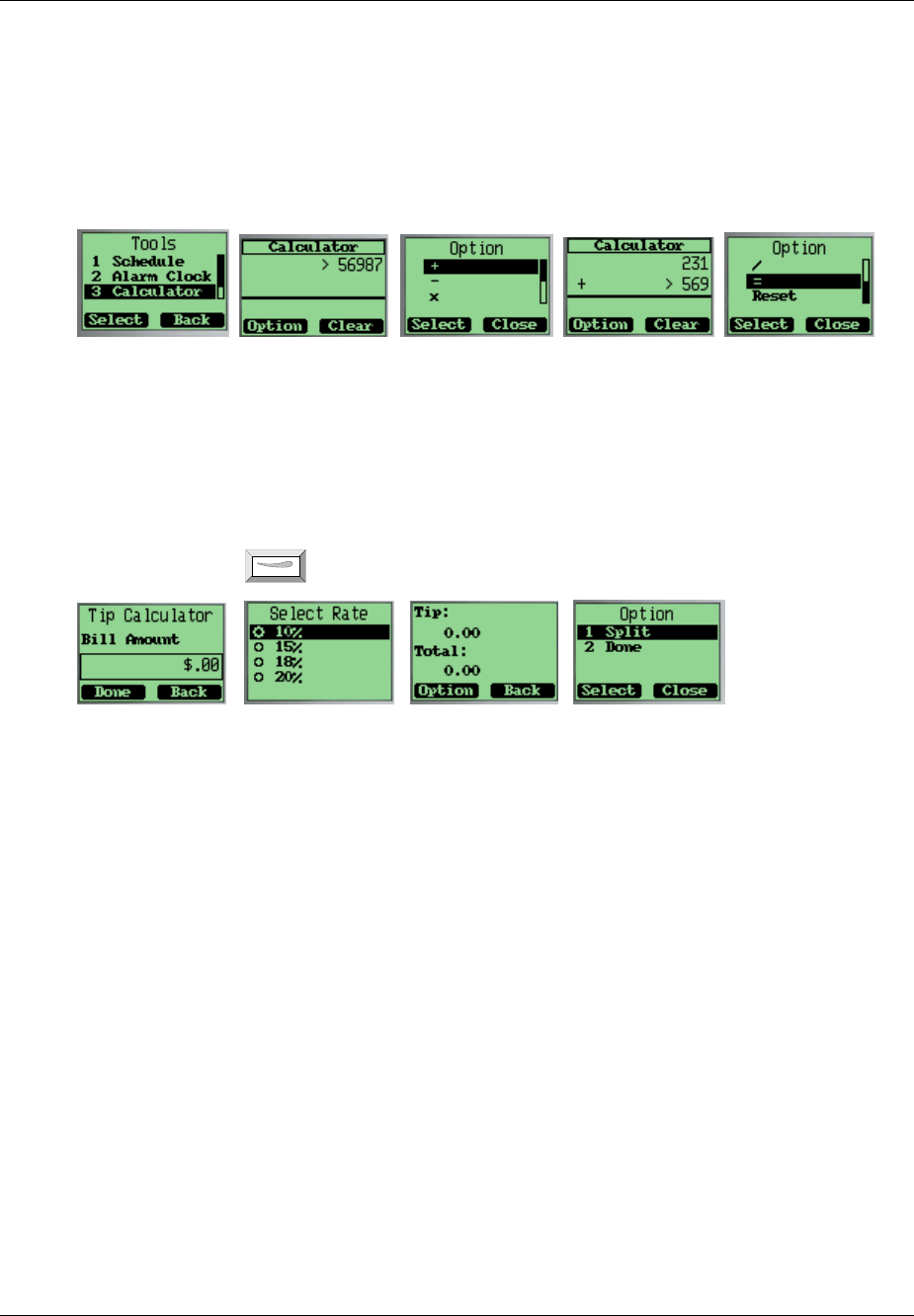
Using the Calculator
Calculate
1.
Tools
→
→ →
→
Calculator
→
→ →
→
enter number
→
→ →
→
Options
→
→ →
→
select a function
→
→ →
→
enter another
number
→
→ →
→
Options
→
→ →
→
scroll ▼
to Select = to get the answer.
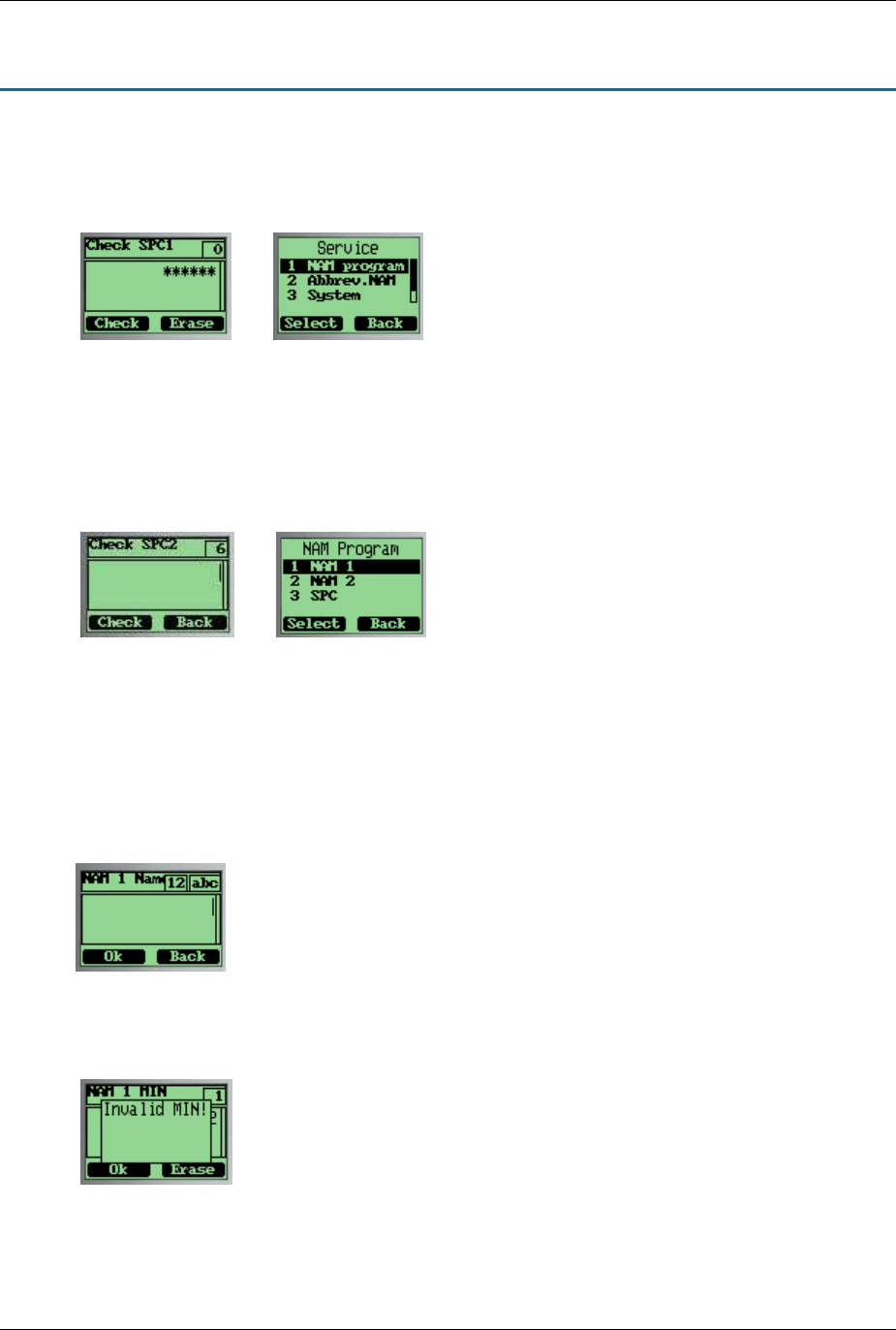
Using the Tip Calculator
To calculate a tip
1.
Tools
→
→ →
→
Tip
Calculator
→
→ →
→
enter bill amount
→
→ →
→
Next
→
→ →
→
scroll ▼
to select the rate
percentage
→
→→
→
press for result
→
→ →
→
Option
→
→→
→
Split
to split the tip payment.
Tornado Customer Reference Guide
TM0410-1800, Rev 2A
January 2006
VIA Telecom, Inc. Proprietary 7-1
Chapter 7 Keypad Service Provisioning
This is a hidden menu. You can enter it by pressing ‘#*0204’.
This feature is protected by SPC1. The default is “111111”.
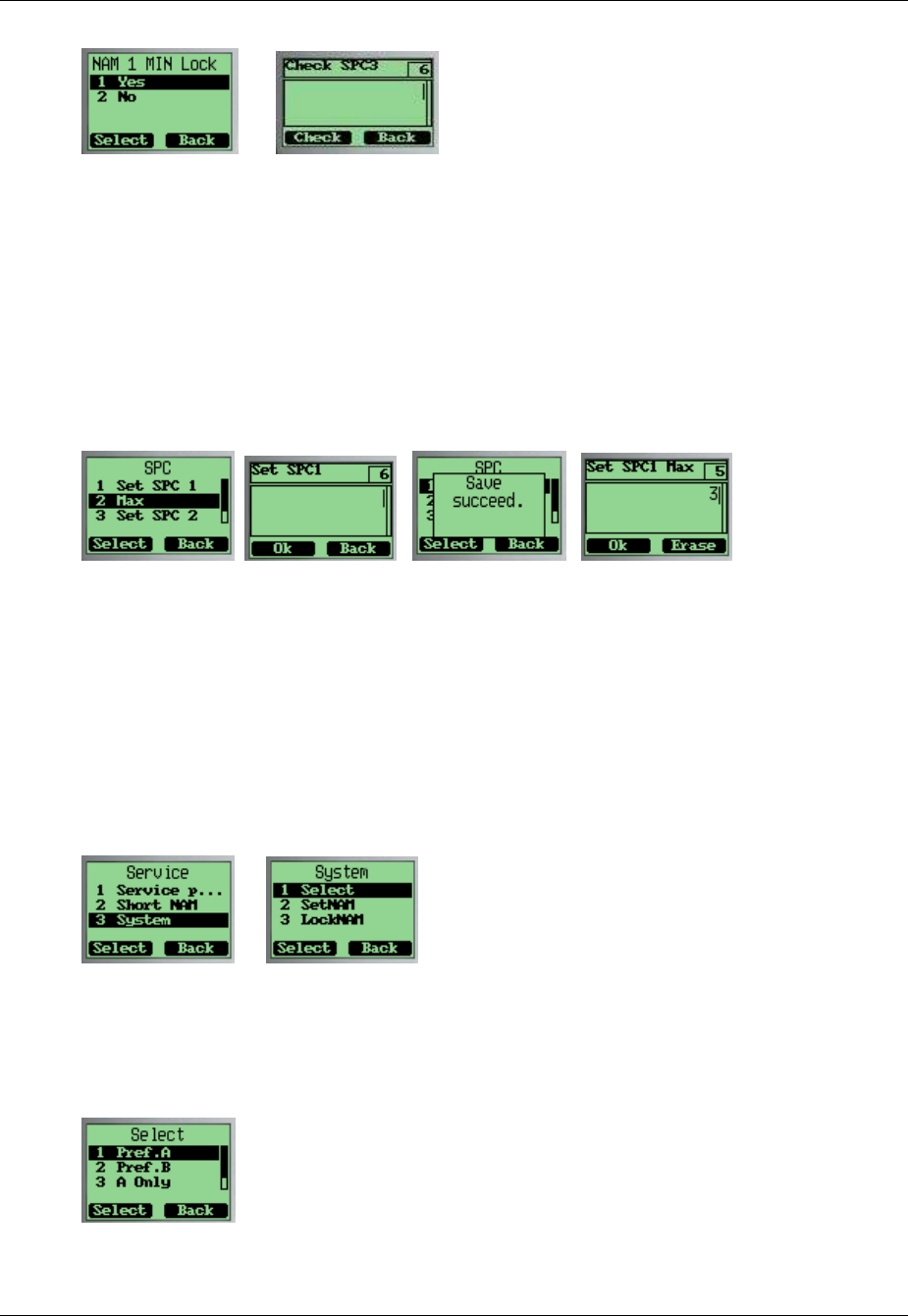
Program NAM1, NAM2, or SPCs
Select the menu “Service Program” and press “Select” key.
After inputting the SPC2, NAM1 or NAM2 can be programmed. The default is “222222”.
To program NAM 1
Select NAM 1
There will be many parameters to be input one by one. The next will bring up when you press “Ok”,
and the value you input will be stored. You can back to the previous parameters by pressing “Back”
key.
The MIN Lock is set to “Enable” as default. When you input a new MIN, it must meet the criteria
stored in the MIN Lock table. Otherwise the phone will prompt “Invalid MIN!”.
Tornado Customer Reference Guide
TM0410-1800, Rev 2A
January 2006
Chapter 7 – Keypad Service Provisioning
7-2 VIA Telecom, Inc. Proprietary
If you want to change the MIN Lock setting, you must input SPC3 firstly.
The SPC3 is “333333” as default.
To program NAM 2
Select “NAM 2”. The program procedure is almost the same as for NAM 1.
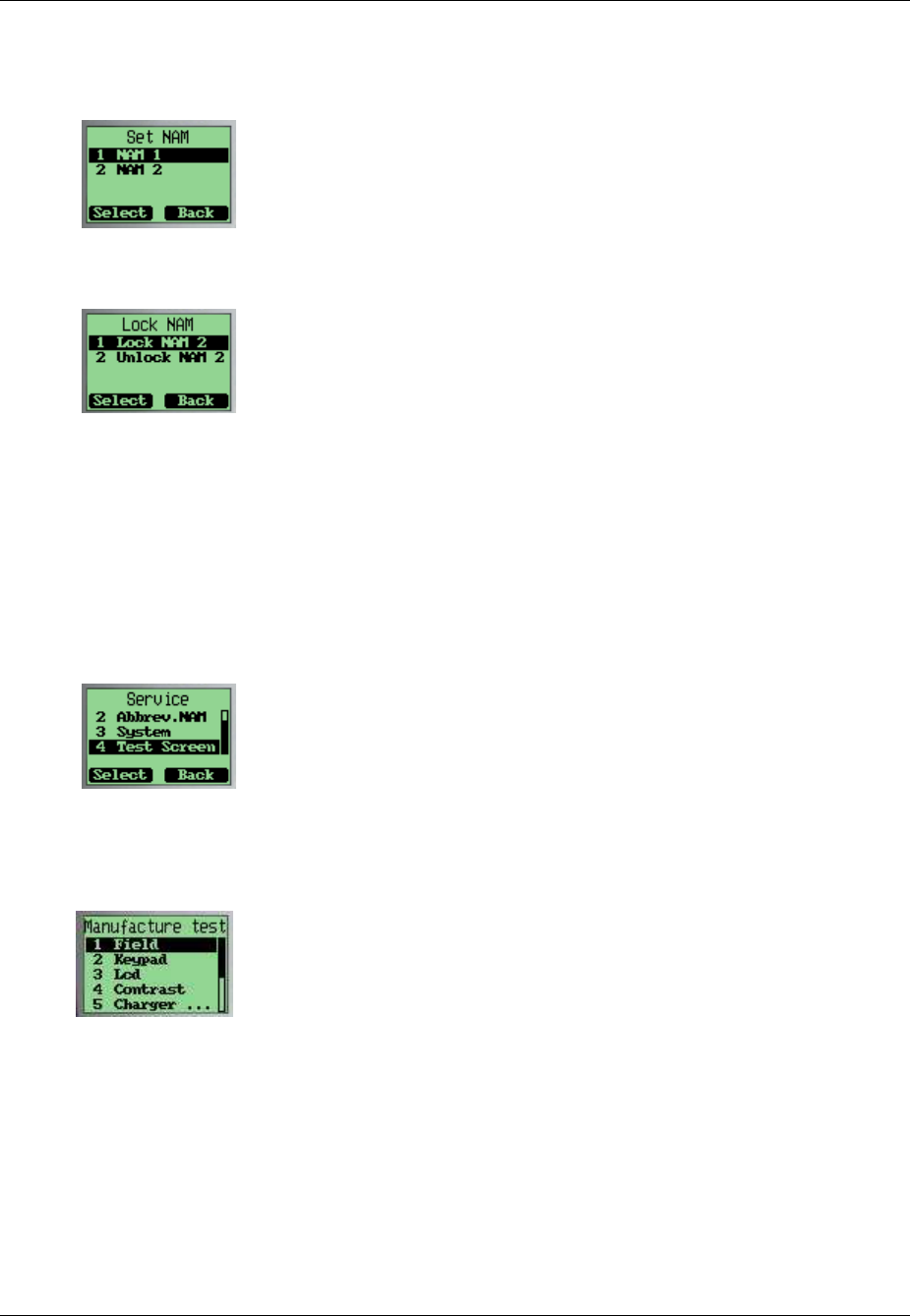
To change SPCs
Select SPC
You can change SPC1 or SPC2 and set the max tries of SPC1 or SPC2.
The phone will reboot when you exit the Service Program Menu.
Abbrev.NAM
You can program with the active NAM. The following parameters can be changed: MIN, MDN, Home
SID, Primary CH A and Secondary CH A.
The phone will reboot if you changed any parameters.
System NAM Setting
To select preferred
Select the preferred for the active NAM.
Tornado Customer Reference Guide
TM0410-1800, Rev 2A
January 2006
Chapter 7 – Keypad Service Provisioning
VIA Telecom, Inc. Proprietary 7-
3
To set the active NAM
You can set witch NAM to be activated. If the current active NAM is locked, you must unlock it before
you set the other NAM to be active.
To lock/unlock the active NAM
The phone will reboot when exiting the System Menu if the preferred or active NAM has been
changed.
Test Screen
This menu will display some system parameters such as Rx Power, Tx Power, Pilot Pn, EC/IO, etc.
While the test screen is active, you can dial a number and end a call through the keypad. When in a
call, the test screen will be taken to the front to show the parameters.
Factory test mode
This is also a hidden menu. Enter menu by pressing “#*0203”.
Note: You can quit ‘Keypad’ test by pressing right soft key twice.

Tornado Customer Reference Guide
TM0410-1800, Rev 2A
January 2006
VIA Telecom, Inc. Proprietary 8-1
Chapter 8 Health and Safety Information
Exposure to Radio Frequency (RF) Signals
Your wireless phone is a radio transmitter and receiver. It is designed and manufactured not to exceed
the emission limits for exposure to radio frequency (RF) energy set by the Federal Communications
Commission (FCC) for the U.S. Government. These limits are part of comprehensive guidelines and
establish permitted levels of RF energy for the general population. The guidelines are based on the
safety standards that were developed by independent scientific organizations through periodic and
thorough evaluation of scientific studies.
The standards include a substantial safety margin designed to assure the safety of all persons, regardless
of age and health.
The exposure standard for wireless phones employs a unit of measurement known as Specific
Absorption Rate (SAR). The SAR limit set by the FCC is 1.6 W/kg.1
SAR tests are conducted using standard operating positions specified by the FCC with the phone
transmitting at its highest certified power level in all tested frequency bands. Although the SAR is
determined at the highest certified power level, the actual SAR level of the phone while operating can
be well below the maximum value. This is because the phone is designed to operate at multiple power
levels so as to use only the power required to reach the network. In general, the closer you are to a
wireless base station antenna, the lower the power output of the phone.
Before a new model phone is available for sale to the public, it must be tested and certified by the FCC
to insure that it does not exceed the limit established by the government adopted requirement for safe
exposure. The tests are performed in positions and locations (e.g., at the ear and worn on body) as
required by the FCC for each model. While there may be differences between SAR levels of various
phones and at various positions, they all meet the government requirement.
The FCC has granted an Equipment Authorization for this model phone with all reported SAR levels
evaluated as in compliance with the FCC RF exposure guidelines. SAR information on this model
phone is on file with the FCC and can be found on the FCC website (http://www.fcc.gov/oet/fccid) after
searching the FCC ID printed in the label on the phone.
The highest SAR value for this model phone when tested for use at the ear is 1.49 W/kg; and when
worn on the body, as described in this user guide, is 1.303 W/kg.
1
In the U.S. and Canada, the SAR limit for mobile phones used by the public is 1.6 watts/kg (W/kg) averaged
over one gram of tissue. The standard incorporates a substantial margin of safety to give additional protection for
the public and to account for any variations in measurements.

Tornado Customer Reference Guide
TM0410-1800, Rev 2A
January 2006
Chapter 8 – Health and Safety Information
8-2 VIA Telecom Inc., Proprietary
For Body Operation
To maintain compliance with FCC RF exposure requirements, use only belt-clips, holsters or similar
accessories that maintain a 1.5 cm separation distance between the user’s body and the back of the
phone, including the antenna, whether extended or retracted. The use of belt-clips, holsters and similar
accessories should not contain metallic components in its assembly. The use of accessories that do not
satisfy these requirements may not comply with FCC RF exposure requirements, and should be
avoided.
For more information concerning exposure to radio frequency signals, see the following websites:
Federal Communications Commission (FCC)
http://www.fcc.gov/oet/rfsafety
Cellular Telecommunications Industry Association (CTIA)
http://www.wow-com.com
U.S. Food and Drug Administration (FDA)
http://www.fda.gov/cdrh/consumer
World Health Organization (WHO)
http://www.who.int/peh-emf/en